Restore Deleted Orders
In this article
Open the deleted orders list
When you void an order in YoPrint, it moves to a deleted holding list rather than being permanently removed. Orders remain in this holding list until you restore them, with no automatic expiration date. You can open this list at any time to review and restore deleted orders.
-
In Sales > Sales Orders, click Restore Deleted (marked with a red trash can icon) at the bottom of the left sidebar.
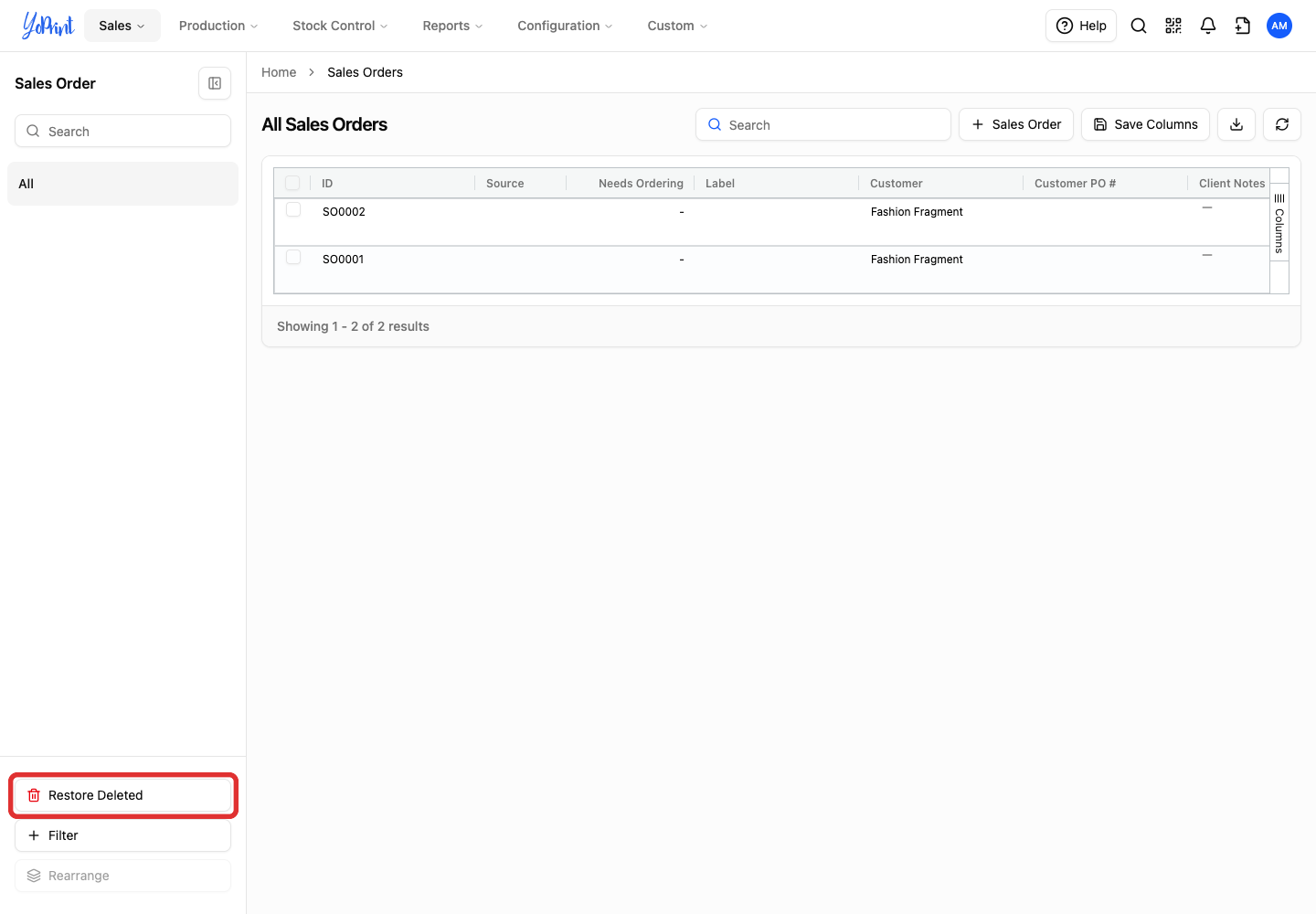
If the sidebar is collapsed, click the sidebar toggle icon at the top left to expand it, or click the red trash can icon directly at the bottom of the collapsed rail.
If you do not see the Restore Deleted button, check your role permissions in Settings > Permissions. Your user account must have permission to update sales orders to view and restore deleted orders.
Restore an order
Restoring an order recovers its original order number, linked jobs, line items, and invoices. The order returns to its previous workflow status. Its line items return as not committed so you can allocate inventory when ready. Because payments were refunded to customer credit when the order was voided, invoices return as unpaid.
-
In the Deleted Sales Orders window, click Restore on the order's row.
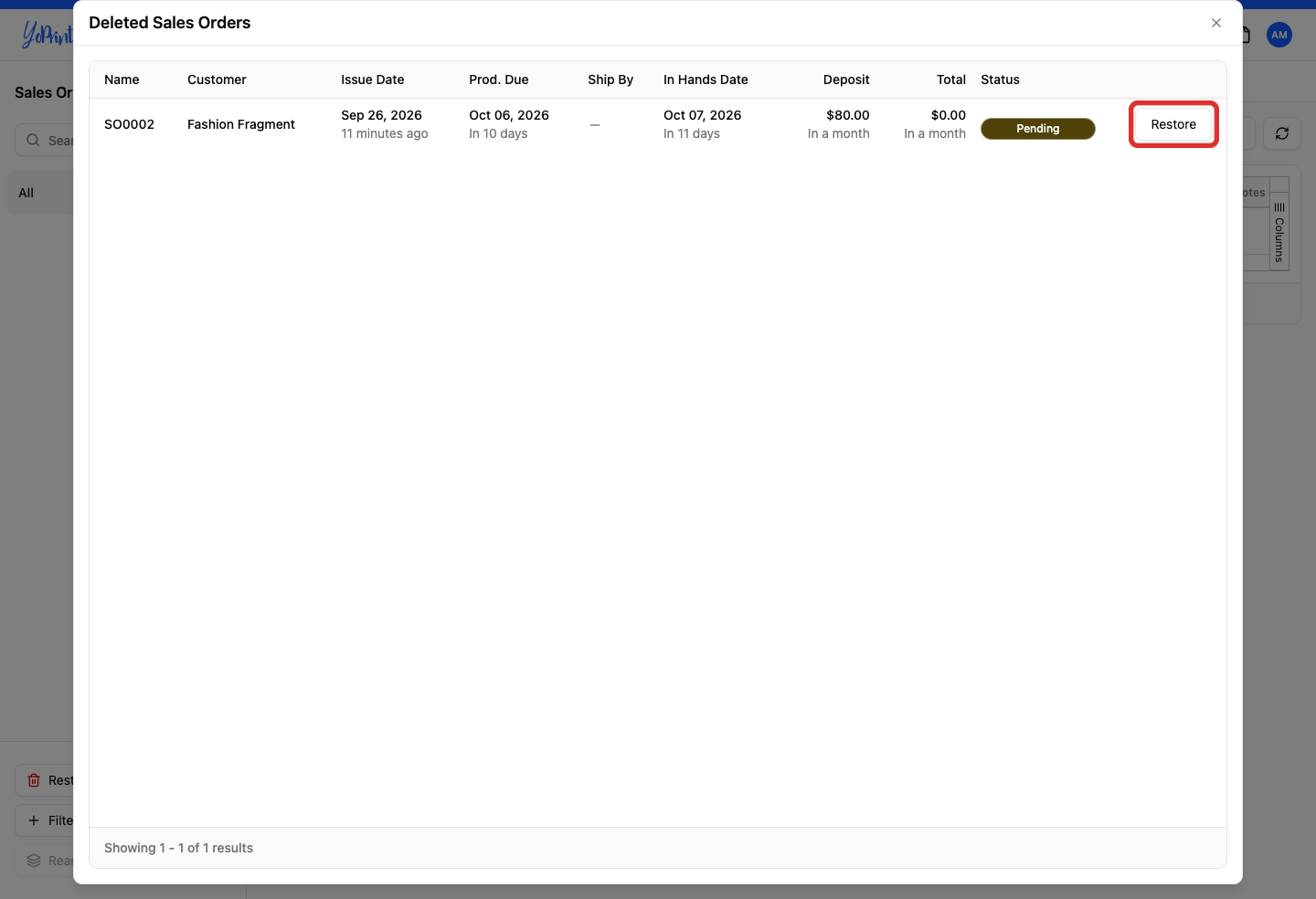
If an order was synced from Shopify, its Restore button is disabled. Shopify manages its own order lifecycles, so restore the order directly in Shopify instead.
-
Review your restored order on the order detail page.
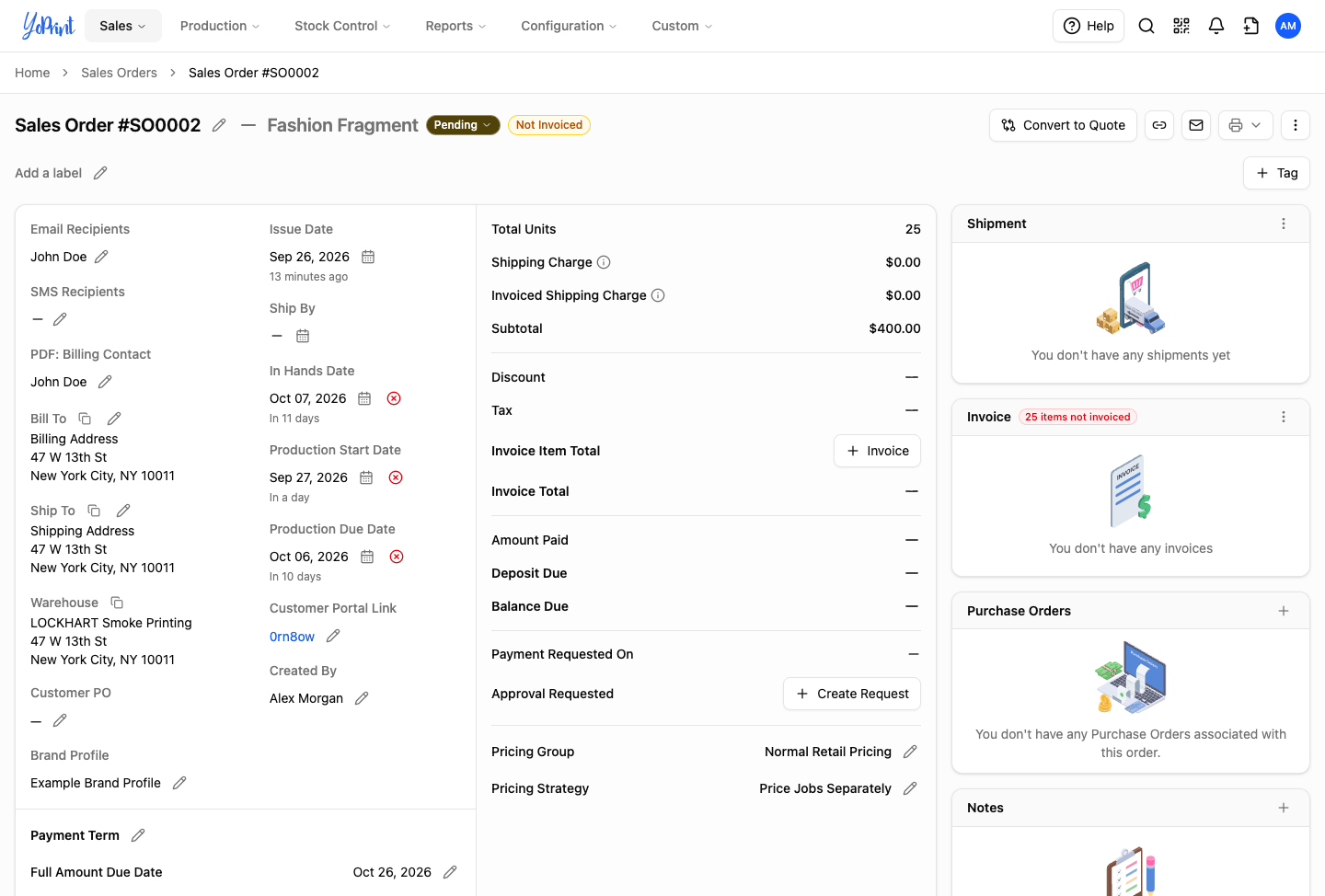
YoPrint automatically opens the restored order. Confirm that your original order number, customer, line items, and linked jobs are restored. The order returns to its previous workflow status, such as Pending, with its tasks intact for production and its invoices ready for payment.
Restore deleted quotes
You can recover voided quotes using the same process from the Quotes page. Restoring a quote recovers its original quote number, customer pricing, line items, and expiration date.
-
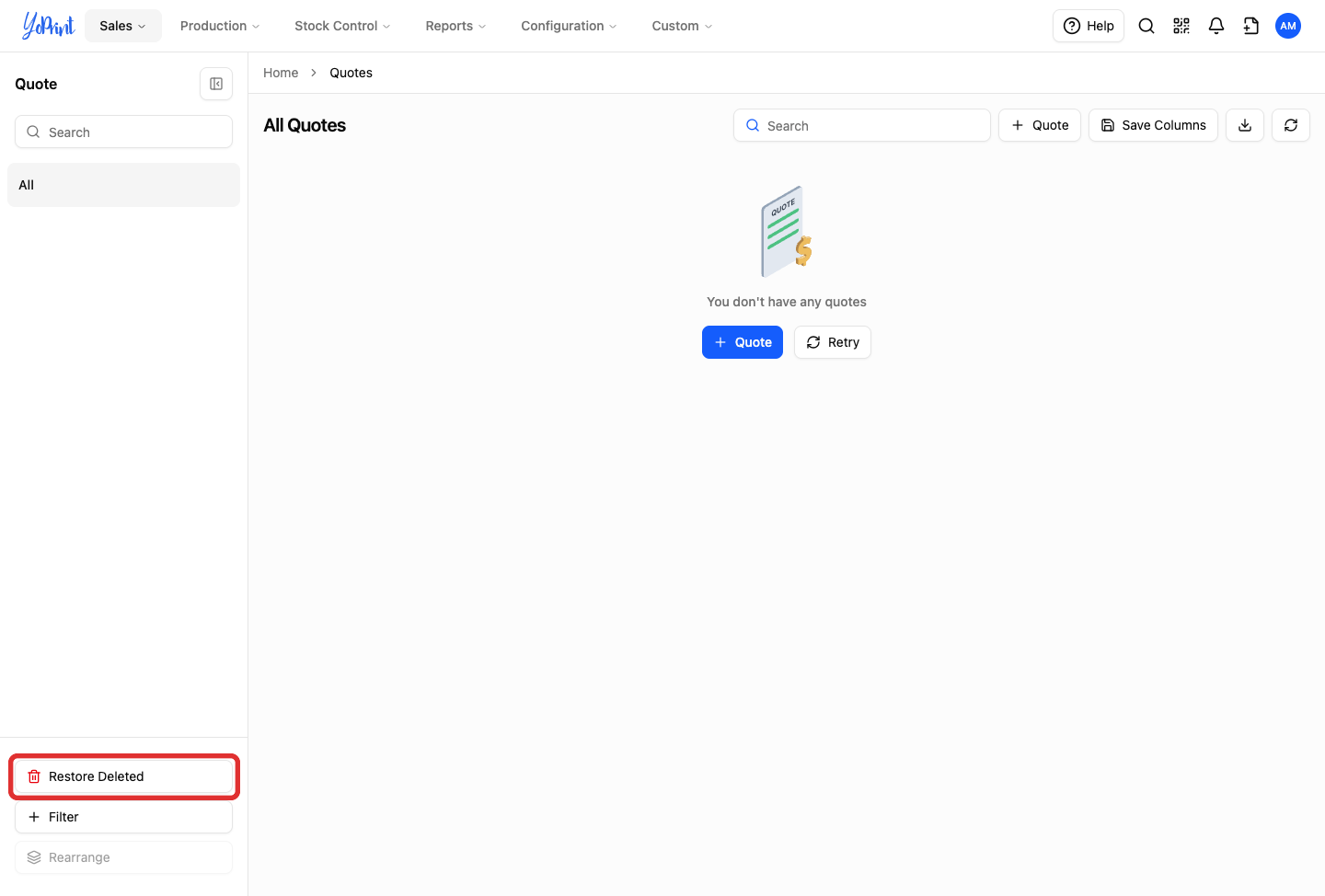
In Sales > Quotes, click Restore Deleted (marked with a red trash can icon) at the bottom of the left sidebar.
-
In the Deleted Quotes window, click Restore on the quote's row.
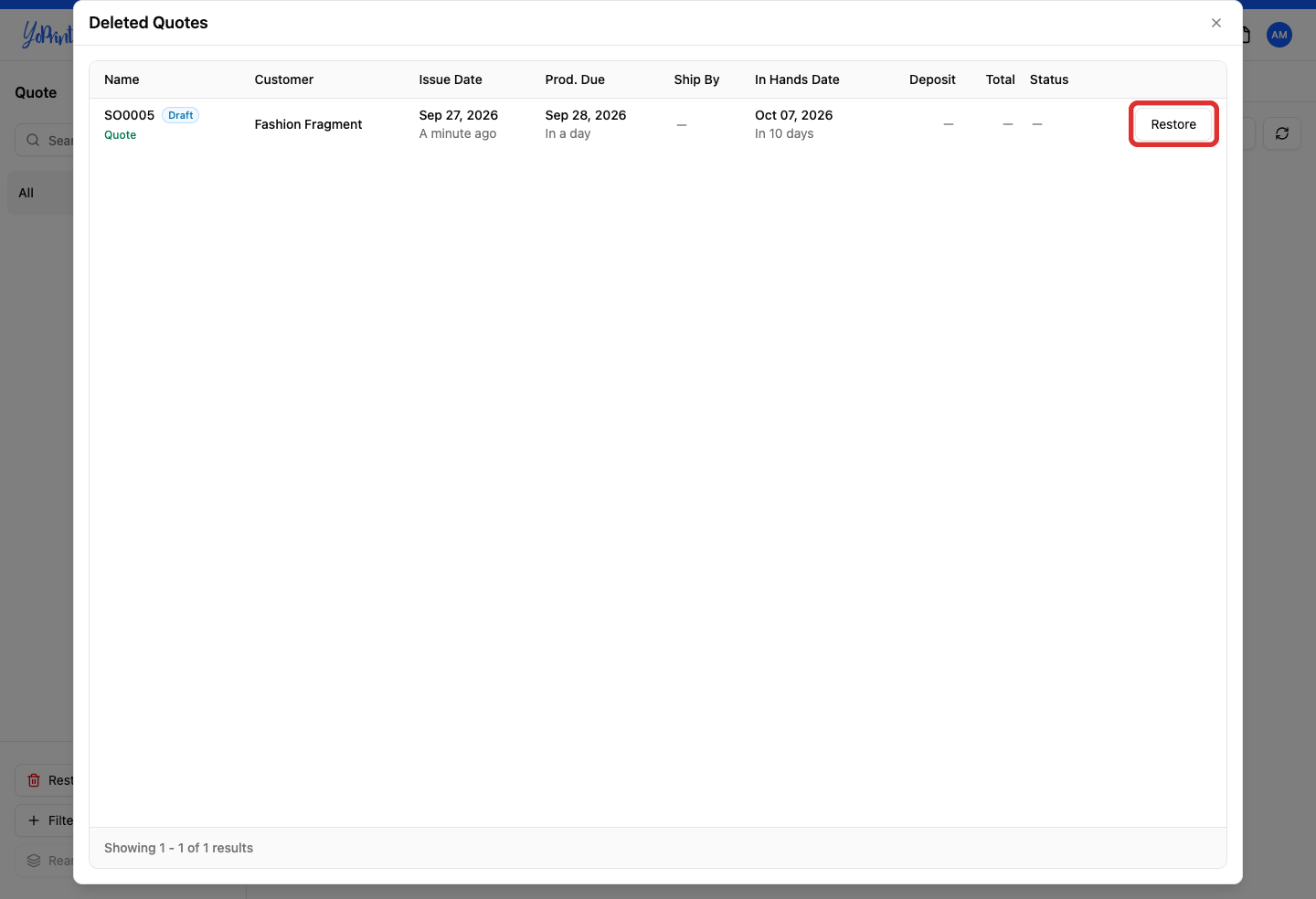
YoPrint restores the quote and opens its detail page. The quote is active again in its previous status, ready to review, send to the customer, or convert to a sales order.
