QuickBooks Online Sync Error: 6240 – Duplicate Name Exists
In this article
Error 6240: Duplicate Name Exists Error means QuickBooks already has a record with the name YoPrint is trying to send. To resolve a customer name conflict, link the YoPrint customer to the correct QuickBooks customer. Then sync the sales order again.
Identify the name conflict
Check the error details in your QuickBooks sync logs. Look for code 6240 and Duplicate Name Exists Error. A customer, vendor or employee may already use the name in QuickBooks.
Find the correct customer in QuickBooks
In QuickBooks Online
Find the customer in QuickBooks Online. Its screens may have changed since earlier versions of this article. Follow Intuit's guide to finding and fixing duplicate names.
If the customer already exists, use that record when you map the customer in YoPrint.
If the customer does not exist, create it in QuickBooks with a unique name.
Check the conflicting record before renaming it. Keep the customer and vendor records separate.
Map the customer in YoPrint
Manual mapping links the YoPrint customer to an existing QuickBooks customer.
After manual mapping
YoPrint no longer updates that customer's details in QuickBooks. Keep those details up to date in QuickBooks. After saving the mapping, sync the order's invoice.
-
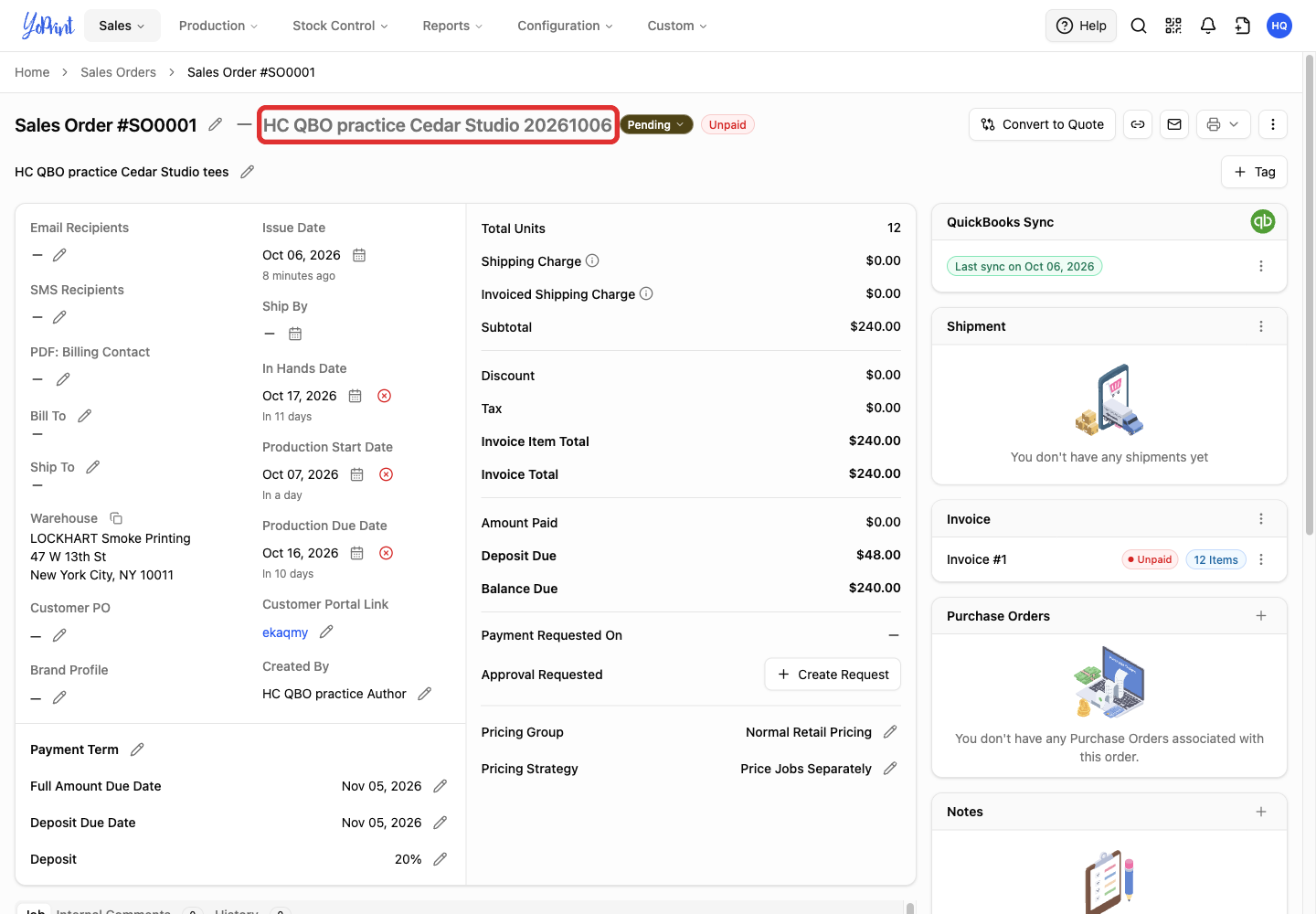
Open the sales order with the sync error. Select the customer name.
-
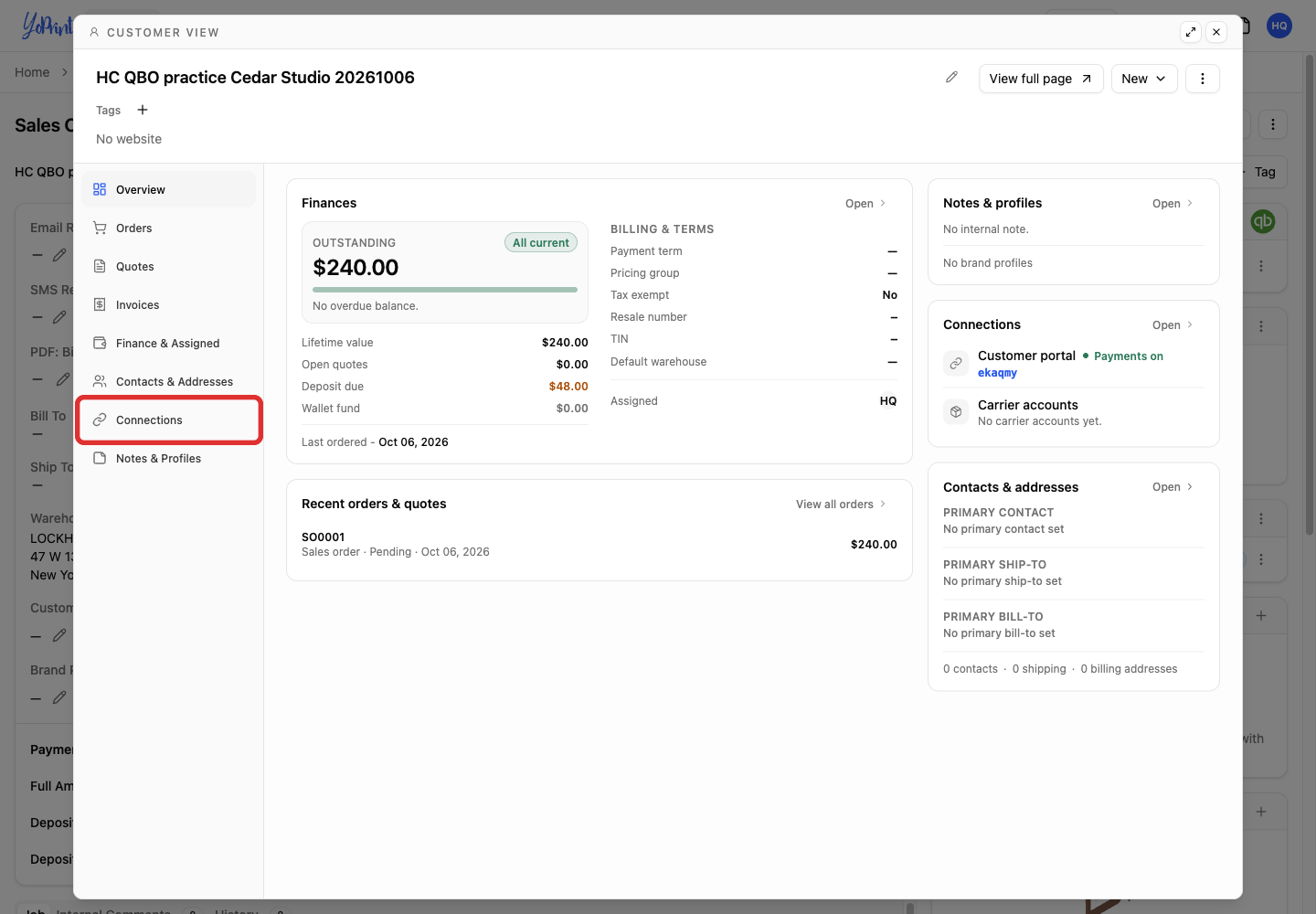
Select Connections in the customer view.
-
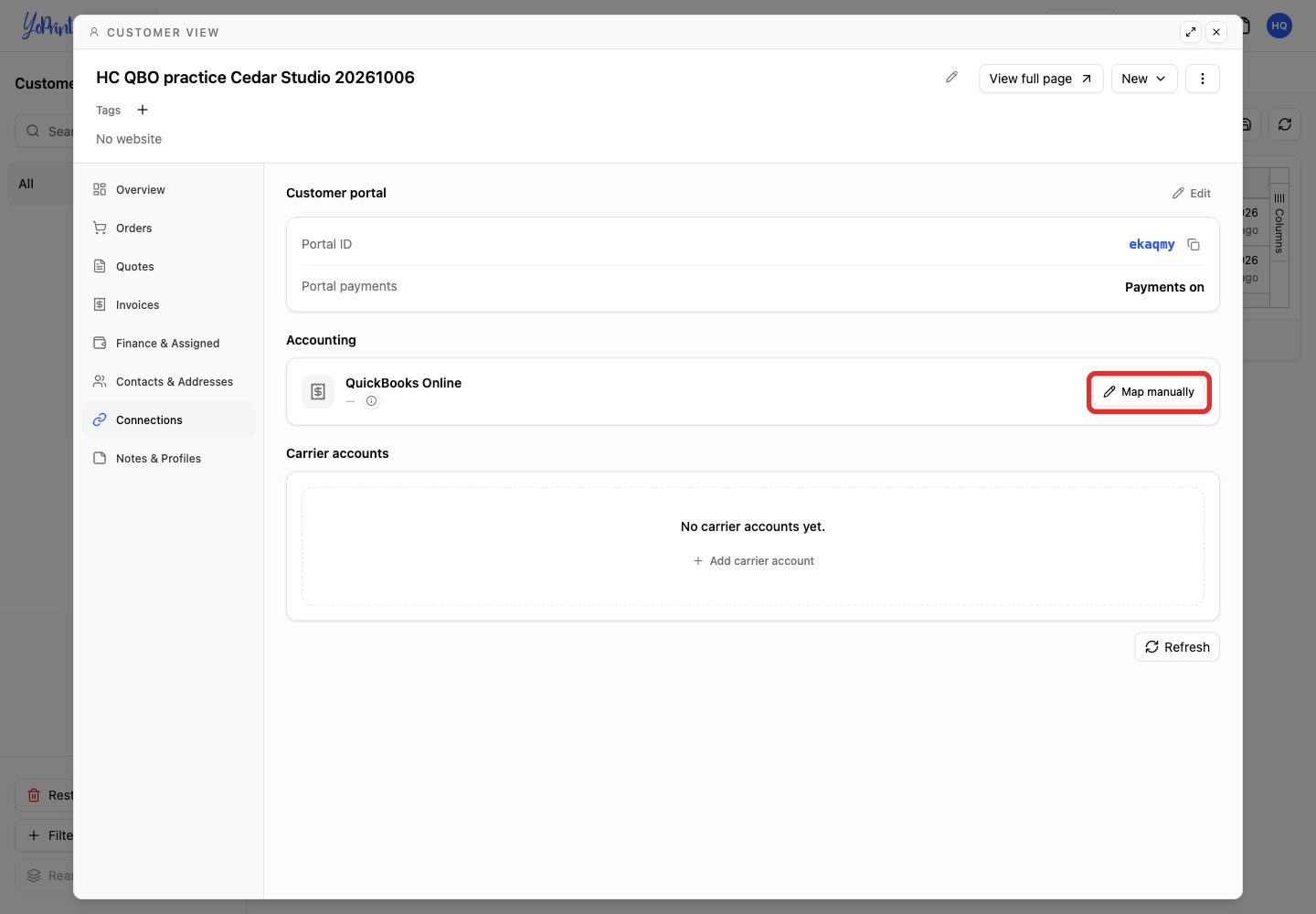
Under Accounting, select Map manually.
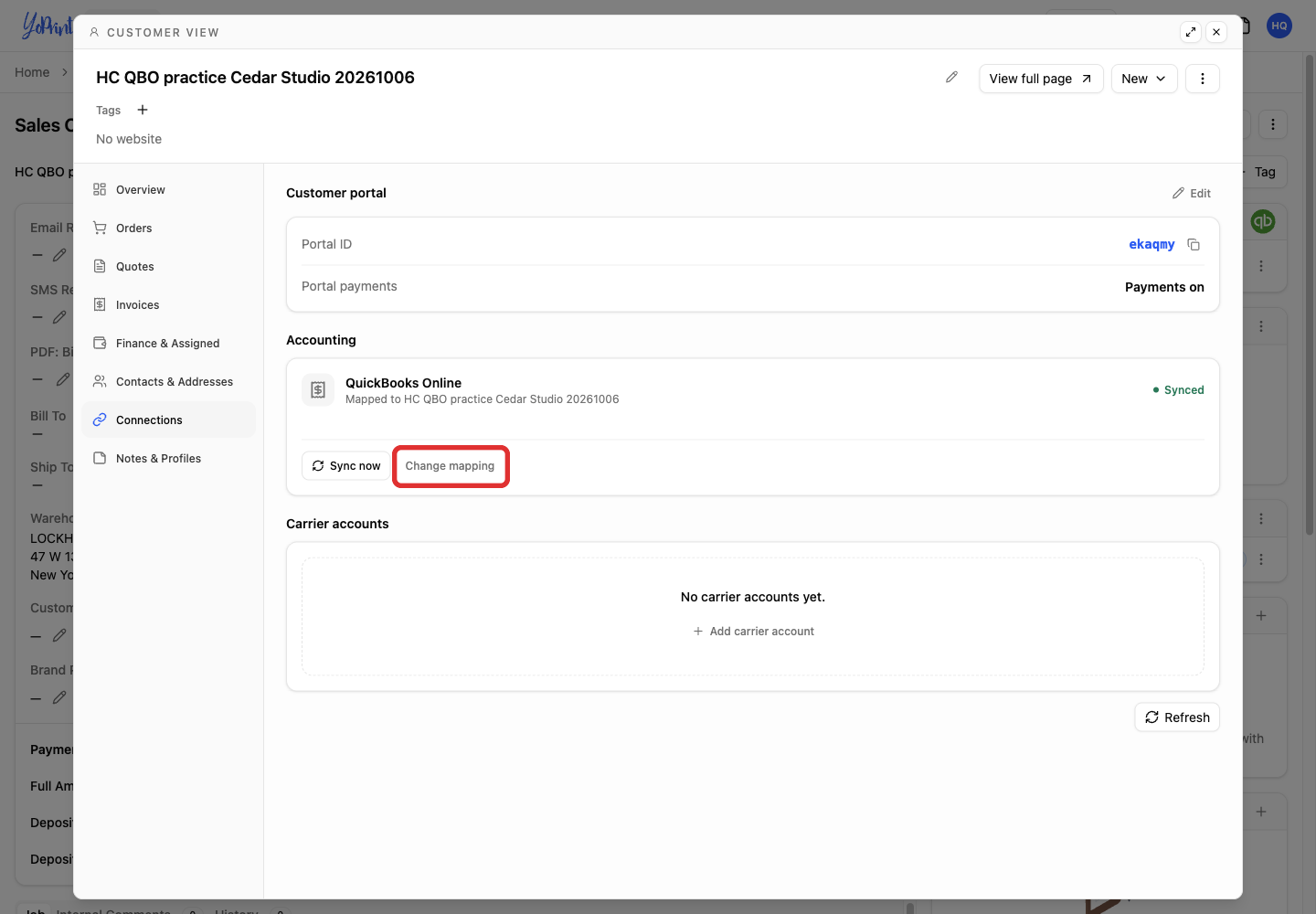
A customer is already mapped
Select Change mapping instead.
-
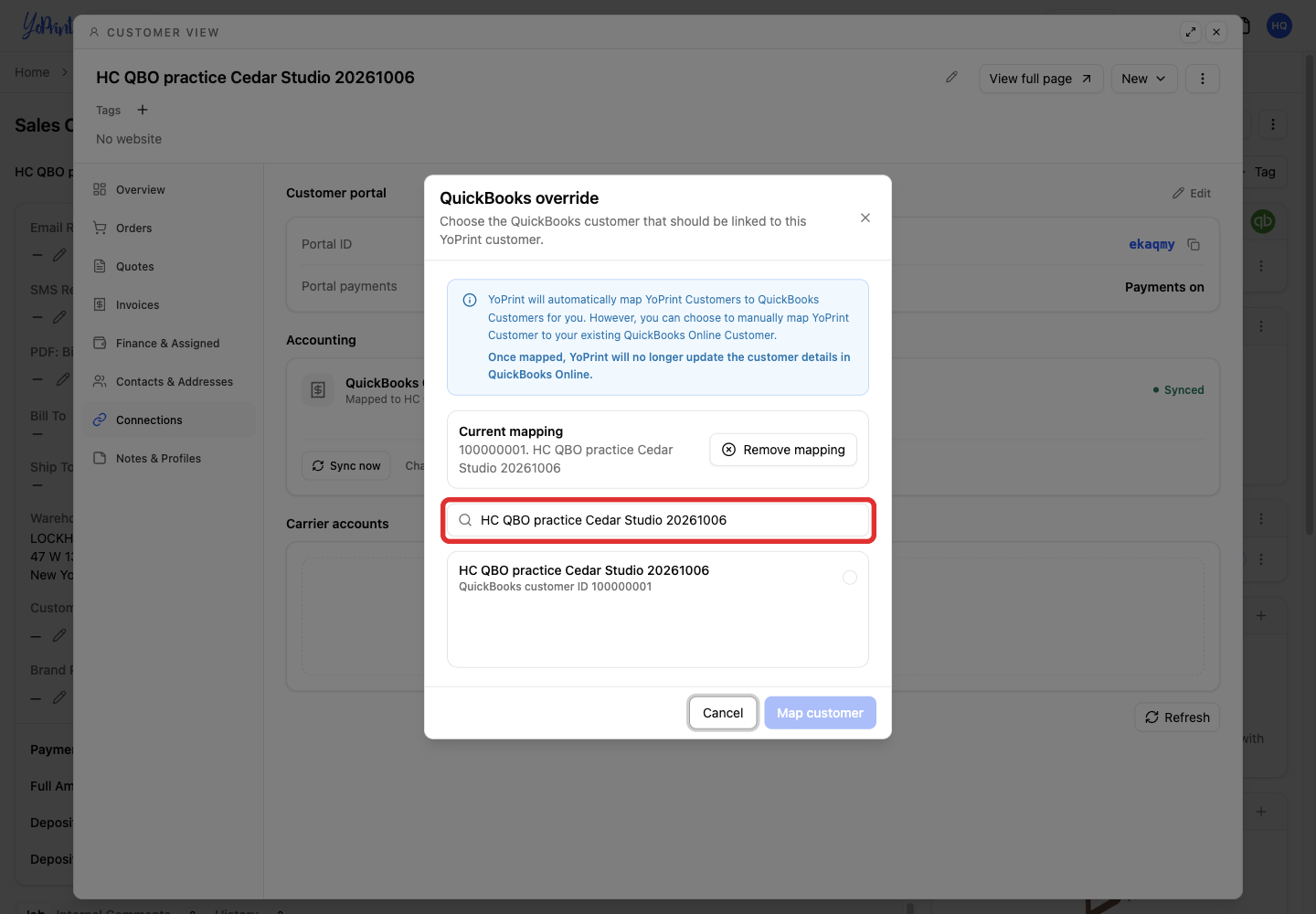
In QuickBooks override, search for the customer you identified in QuickBooks.
-
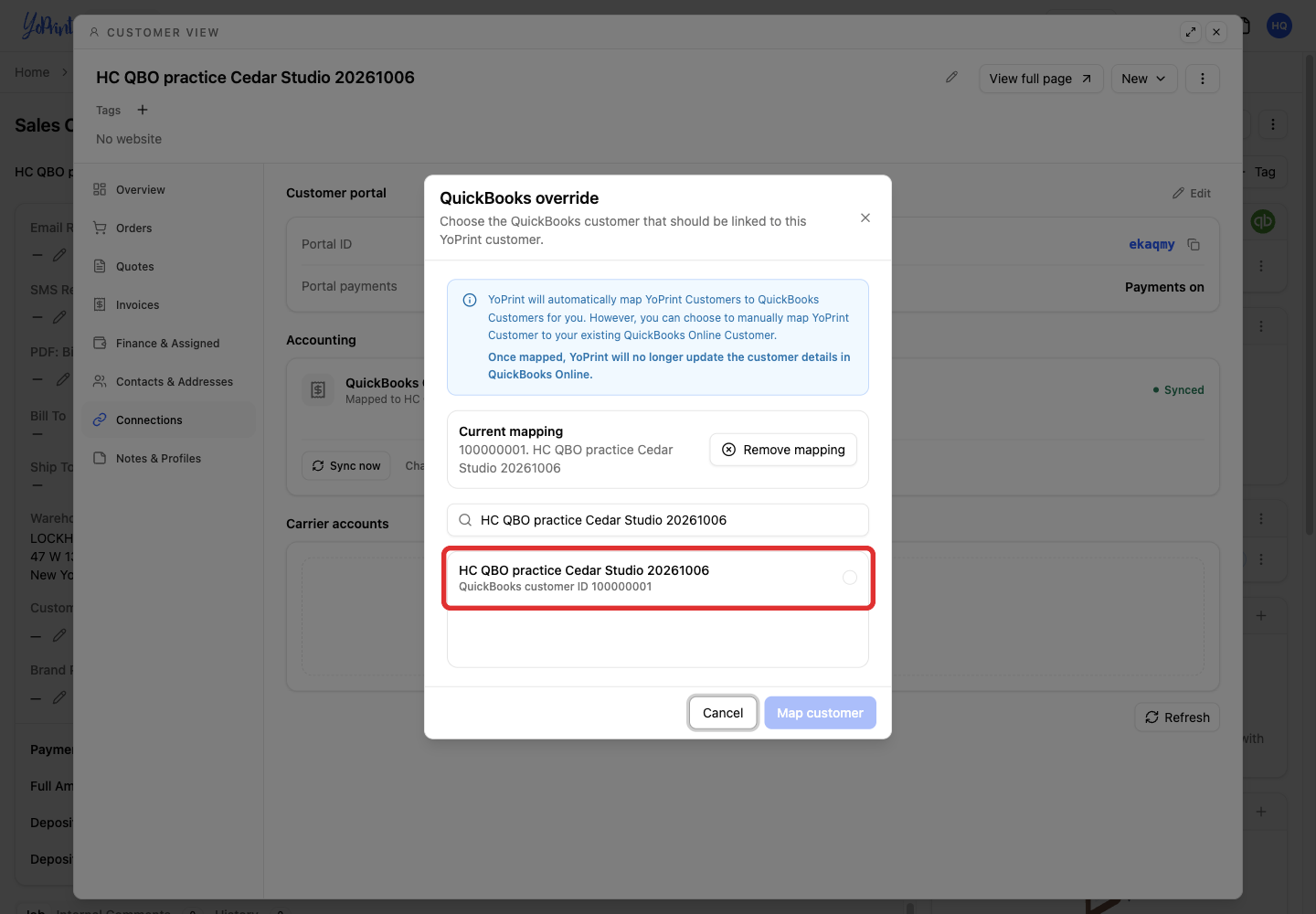
Check the customer's name and QuickBooks customer ID in the search result. The ID appears below the name. Select the matching customer.
-
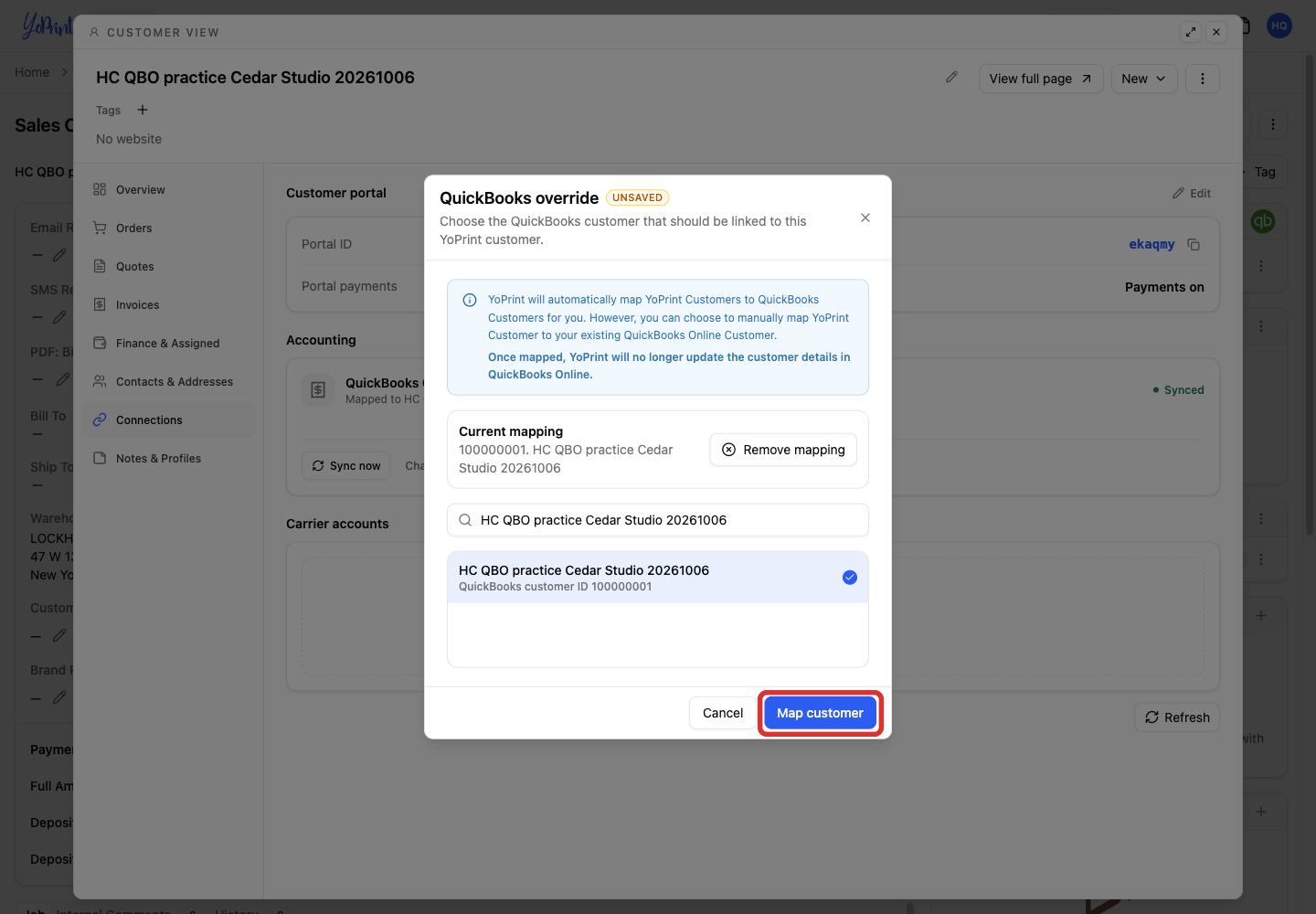
Select Map customer.
Sync the order again
-
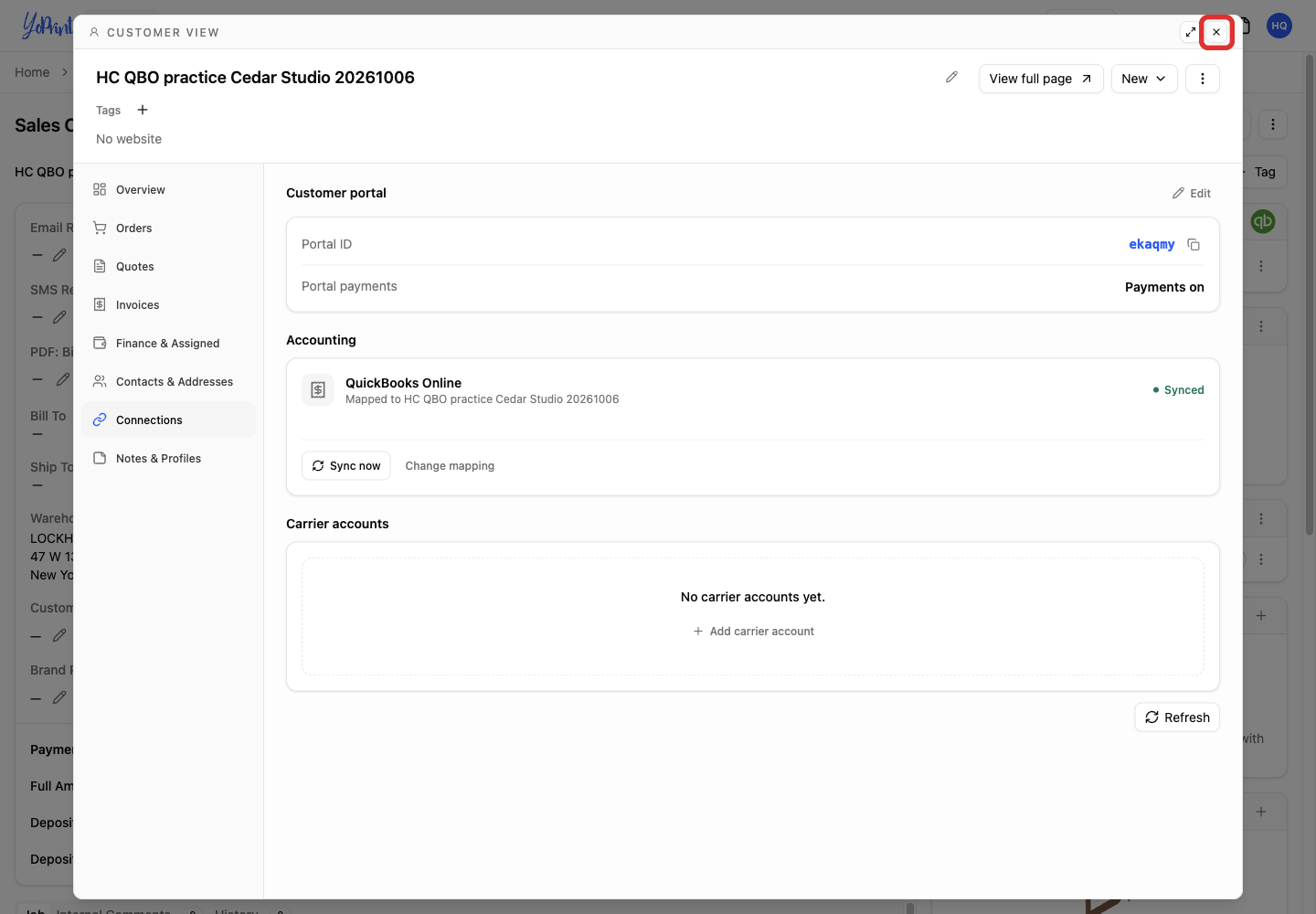
Close the customer view to return to the order.
-
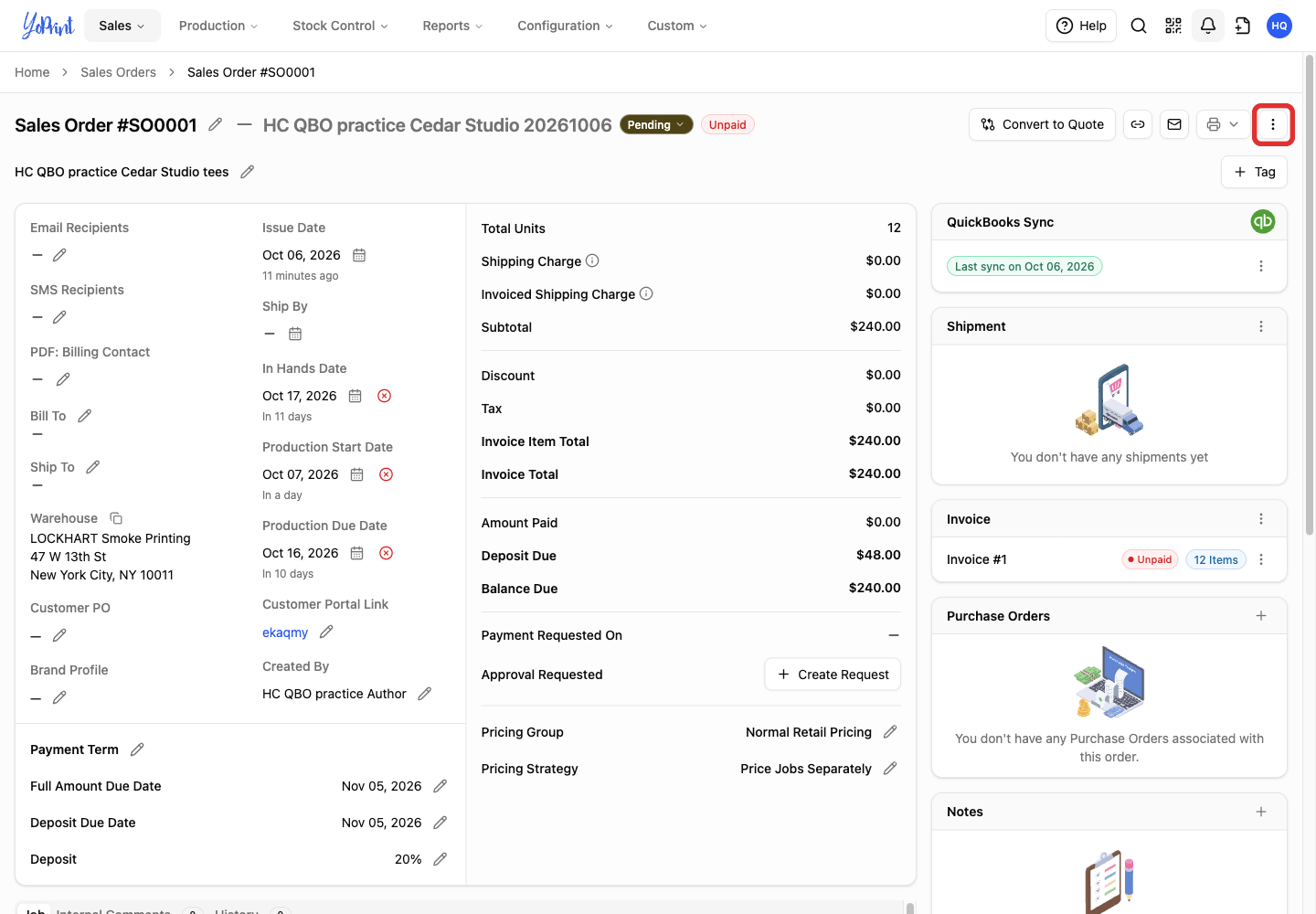
Open the order's Quick Actions menu.
-
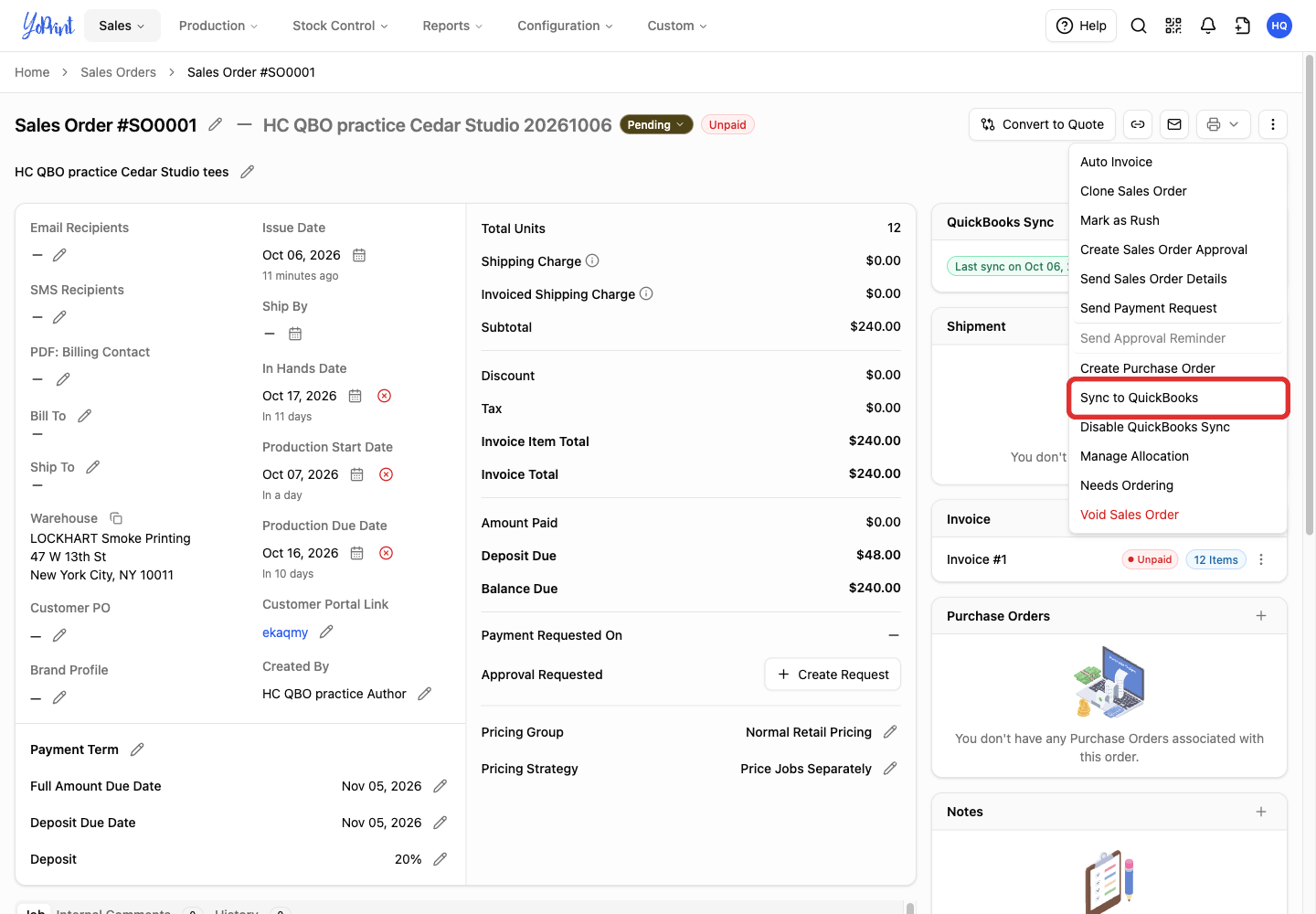
Select Sync to QuickBooks.
In the order's QuickBooks Sync panel, confirm that the error message is gone and the status displays Last sync on. Because the panel shows the date of the last successful sync, a same-day date alone does not confirm that this retry succeeded. Follow manual syncing and checking the invoice to confirm the invoice in QuickBooks.
If another error appears, read its details before retrying.
If you still need help, contact YoPrint Support with the order number and error message.