How to Configure Sales Order, Quote and Invoice Starting Numbers
In this article
YoPrint automatically numbers your orders and invoices with whole numbers. New teams start at 1 by default. Sales orders and quotes share one continuous sequence, so converted quotes keep their number and new orders take the next available number. Invoices and purchase orders each use their own separate sequence. Sequences use plain numbers without custom letter prefixes.
Keep the default sequence unless you want a higher starting number or need to continue numbering from another system. Changing these numbers does not stop YoPrint from working, but an unnecessary change can make it harder for your team to follow the order of records. Lowering a sequence below existing records can cause duplicate numbers.
Open the number settings
-
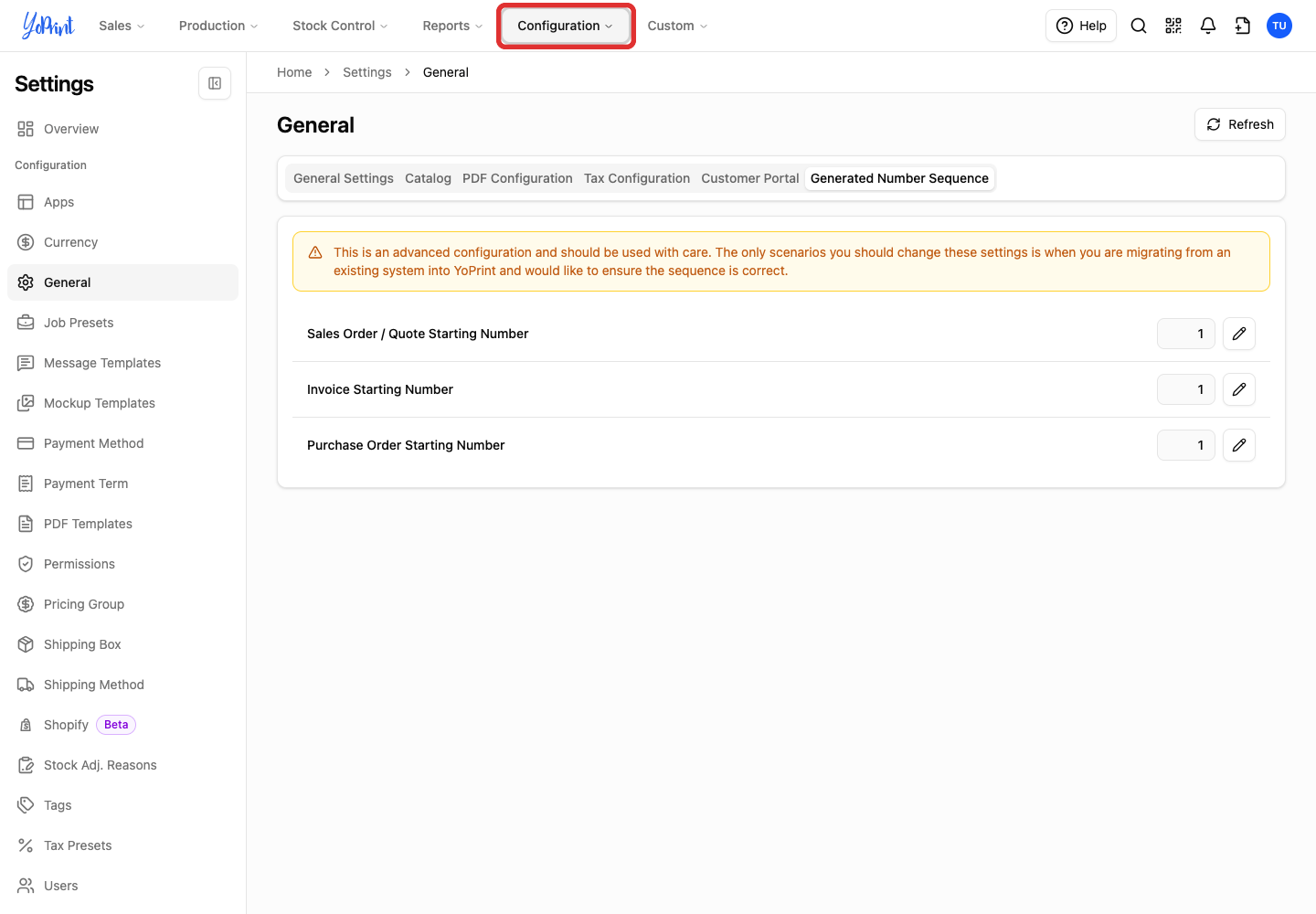
Click Configuration in the top navigation bar to open the menu.
-
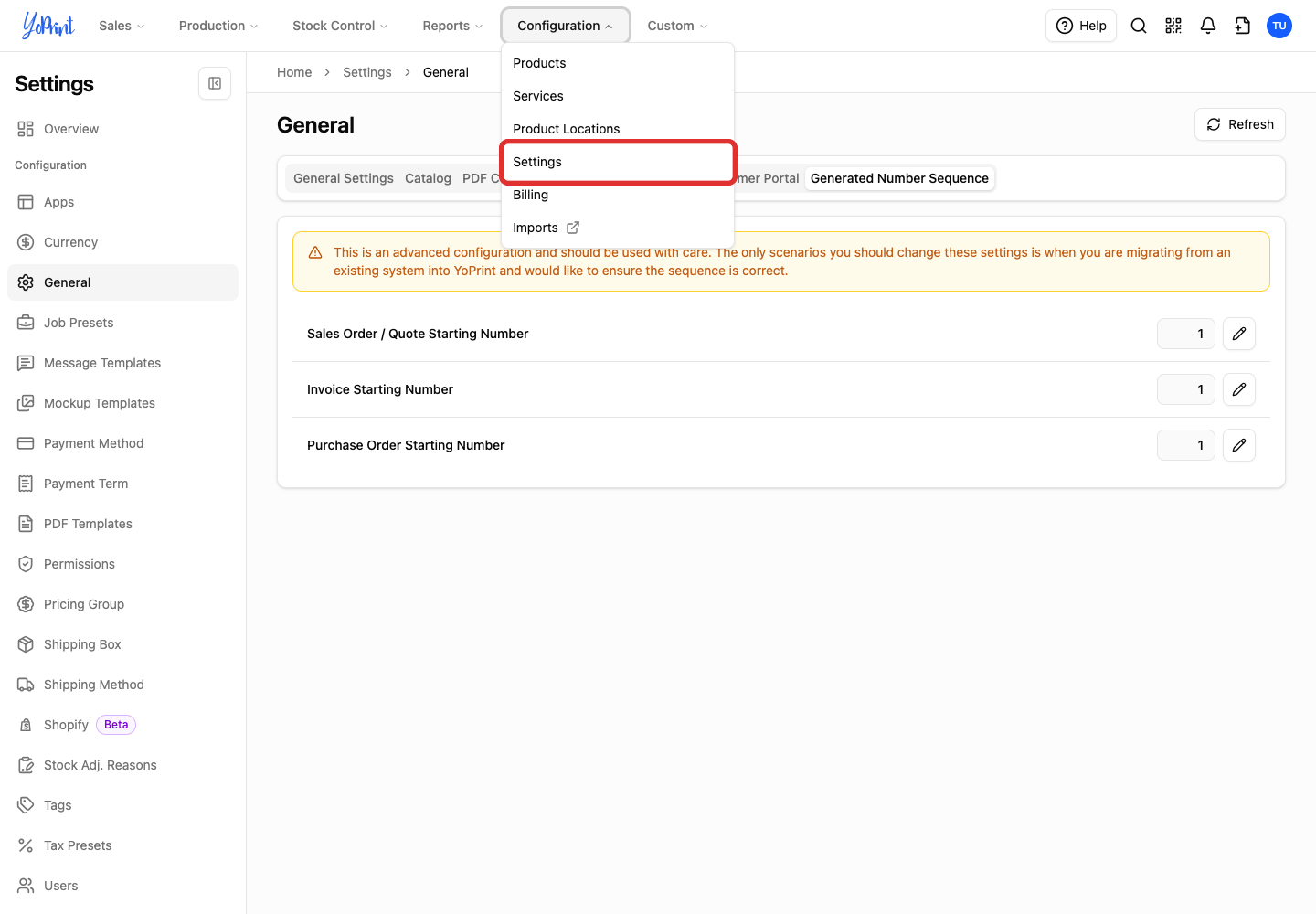
Choose Settings.
-
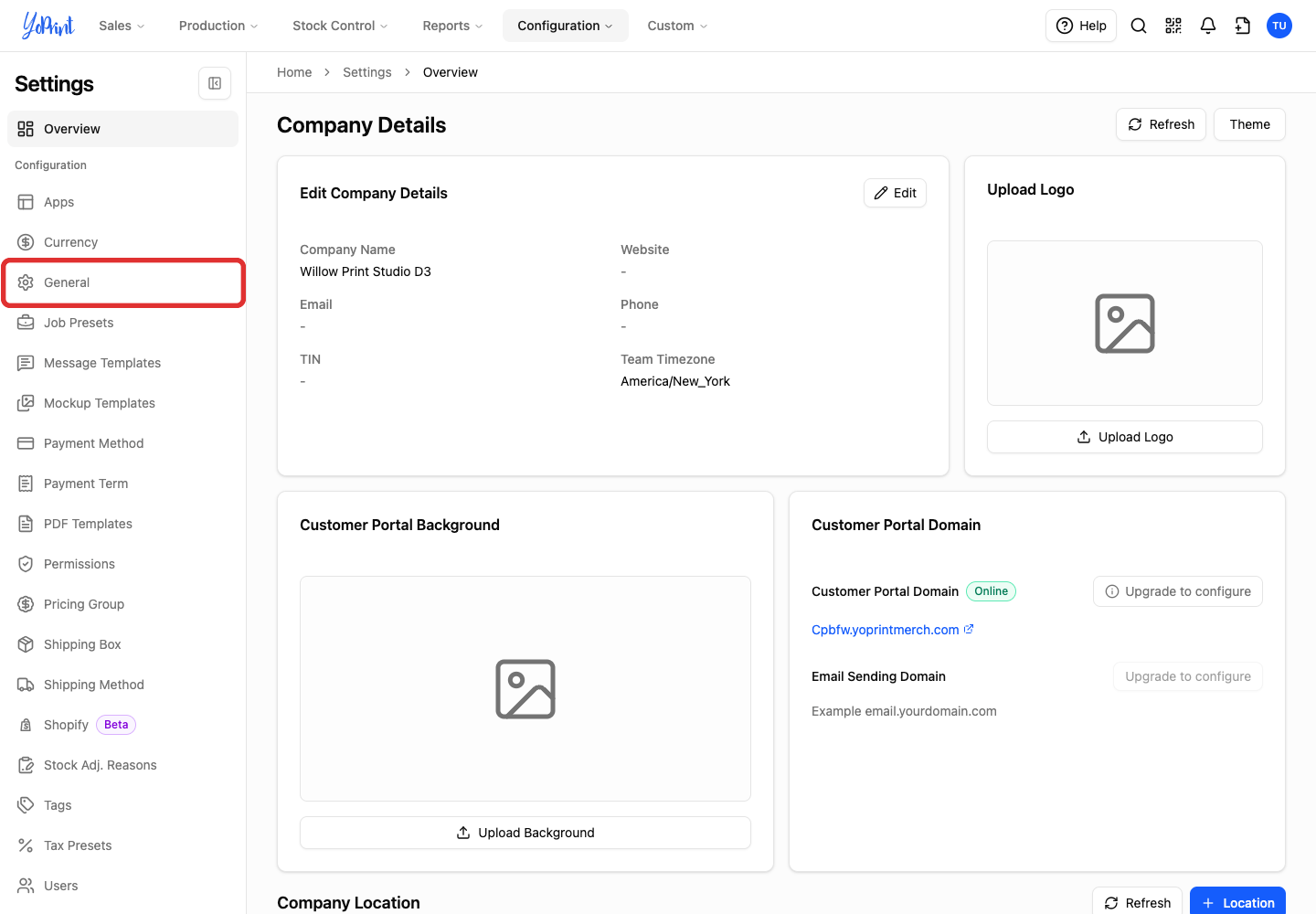
Choose General in the sidebar.
-
Select Generated Number Sequence.
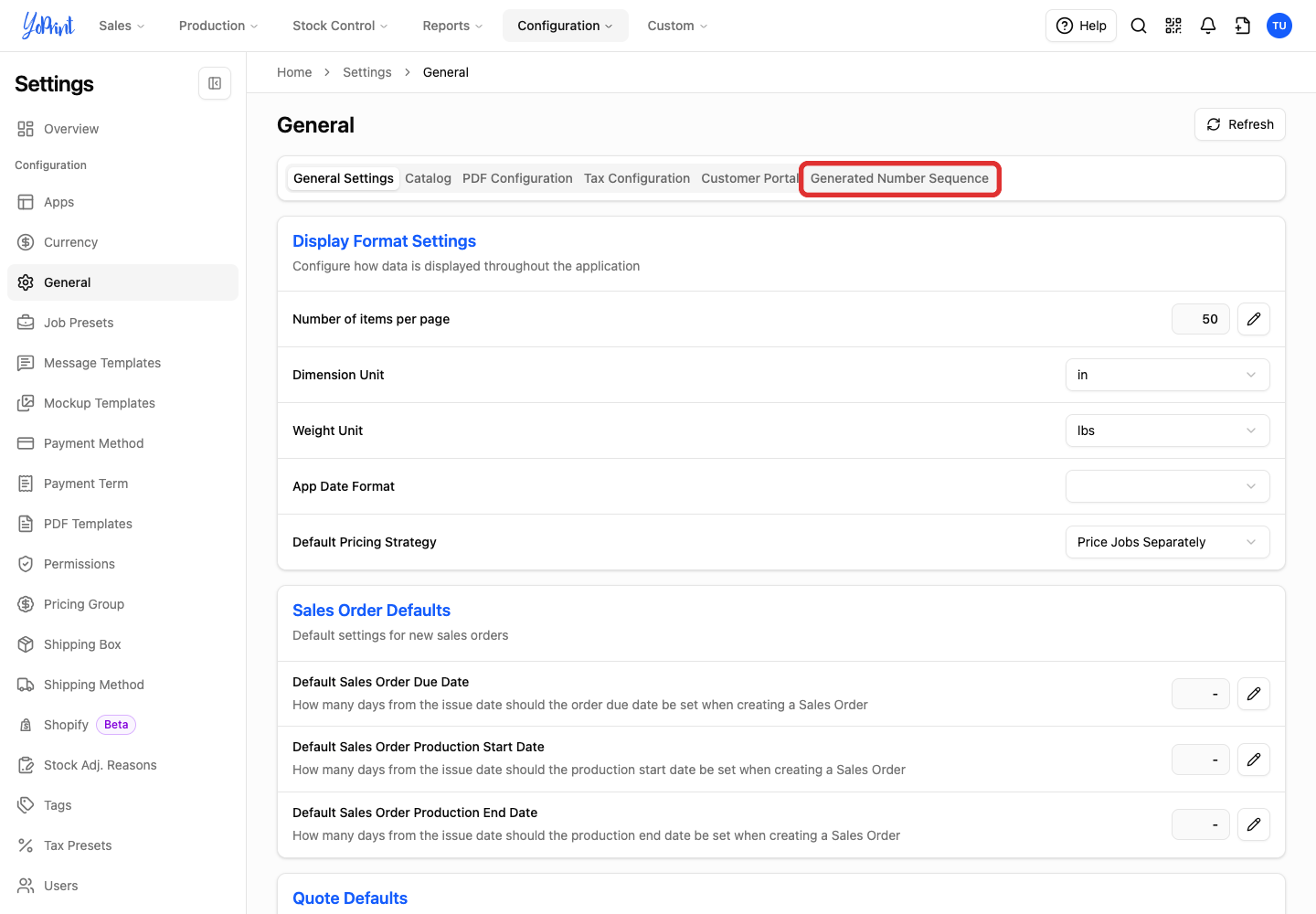
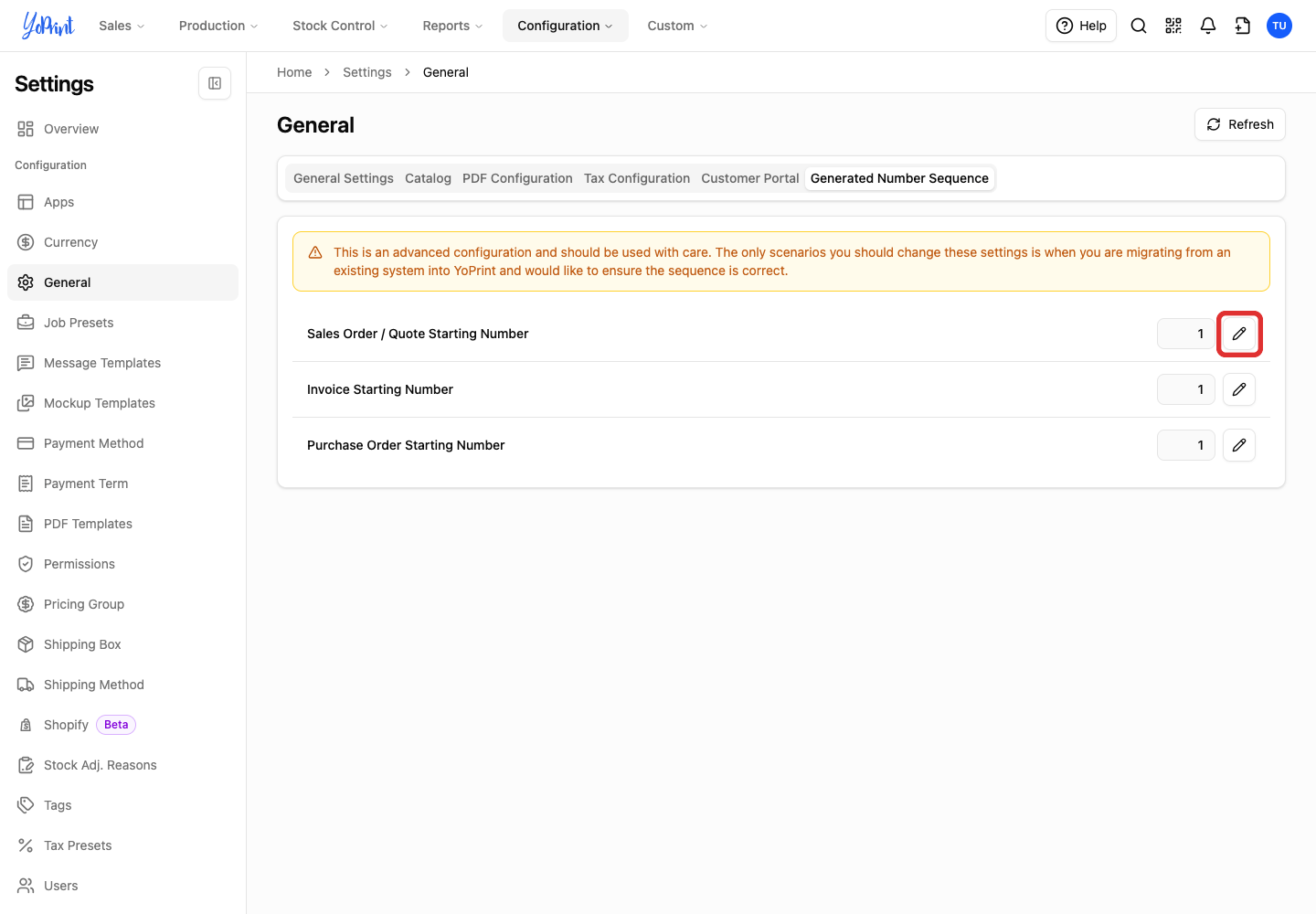
A warning banner indicates that sequence changes are intended for migrating from an existing system.
Set the sales order and quote starting number
-
Click the pencil beside Sales Order / Quote Starting Number. The dialog opens as Change Sales Order / Quote Running Number.
-
Enter the next number you want to use in New Starting Value. Use a whole number of 1 or higher, above any existing orders. For example, enter 1001 to continue after 1000.
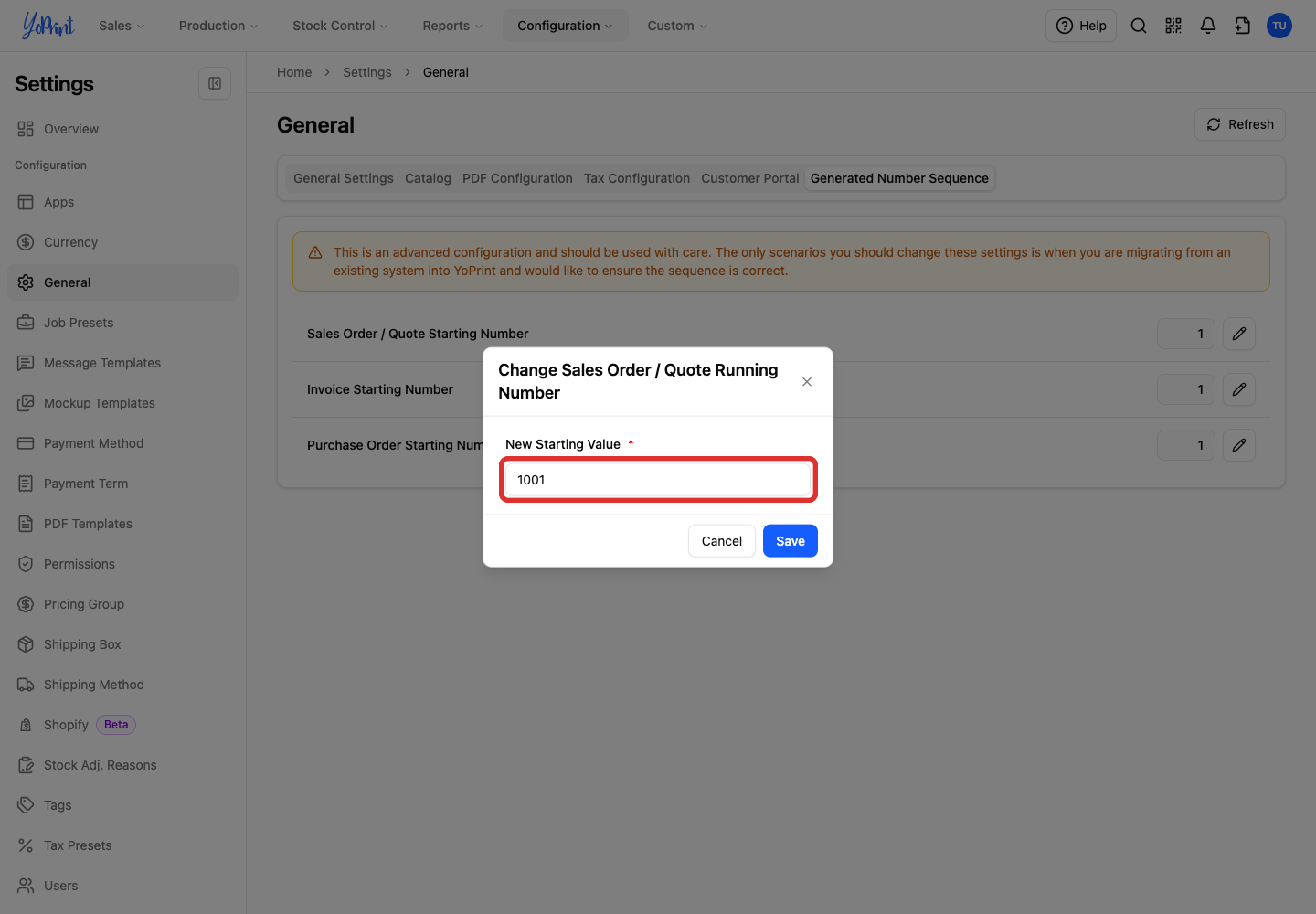
Entering a value lower than the current running value displays a duplicate-ID warning. Check the Sales Orders list or the current counter in the field before saving.
-
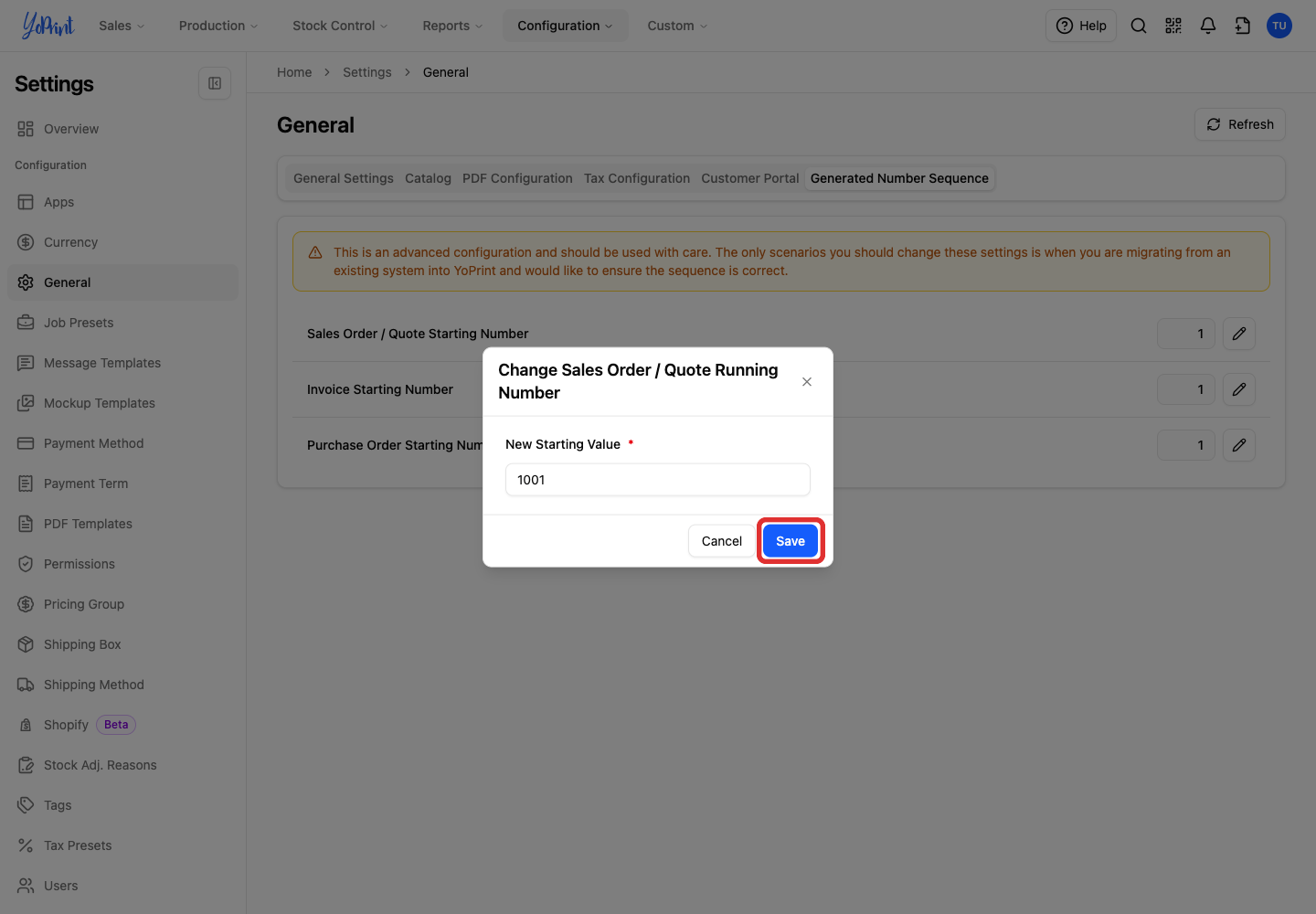
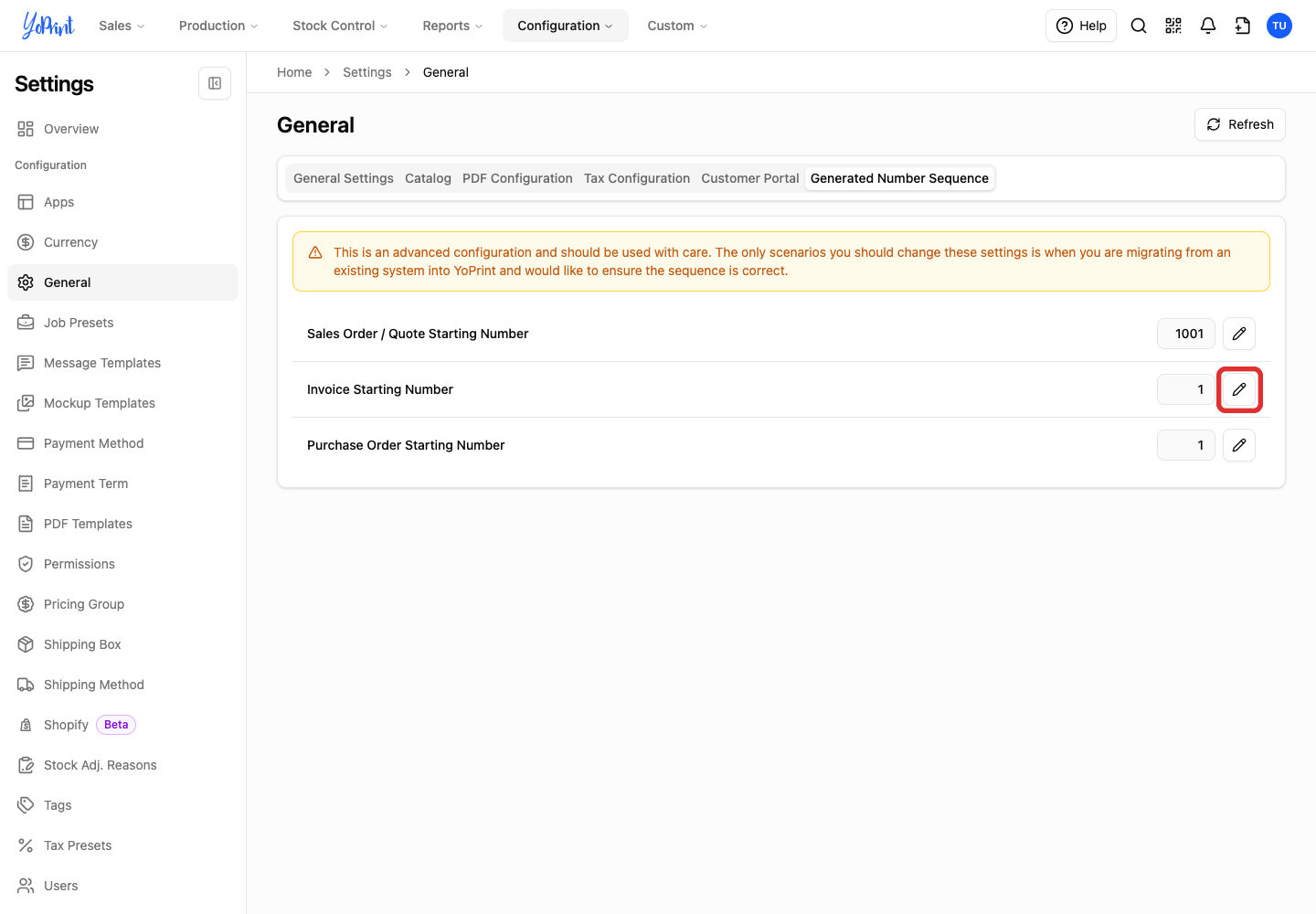
Click Save. The new starting number appears in the row.
Set the invoice starting number
-
Click the pencil beside Invoice Starting Number. The dialog opens as Change Invoice Running Number.
-
Enter the next invoice number in New Starting Value. Use a whole number of 1 or higher. For example, enter 2001 to continue after 2000.
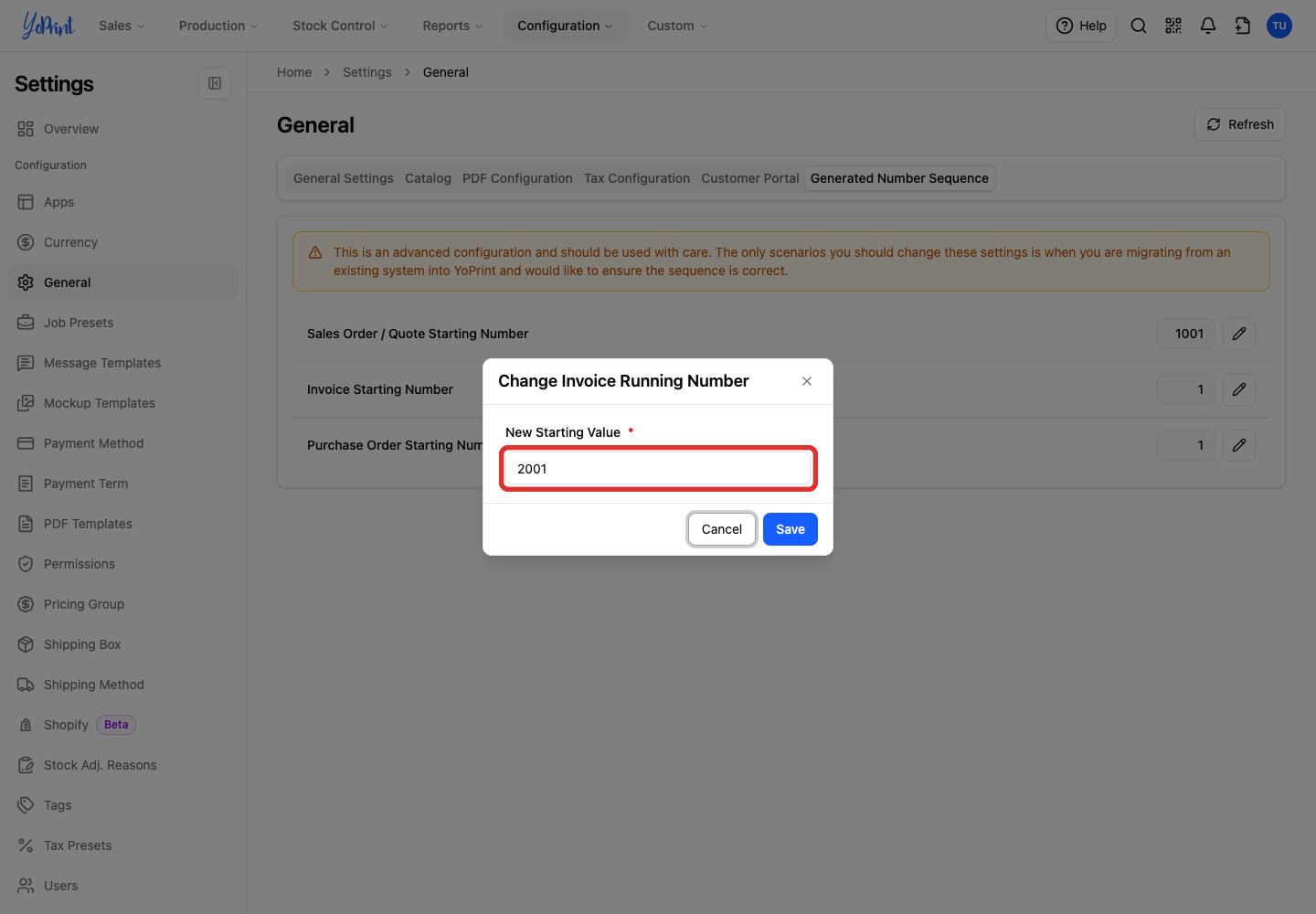
Entering a value lower than the current running value displays a duplicate-ID warning.
-
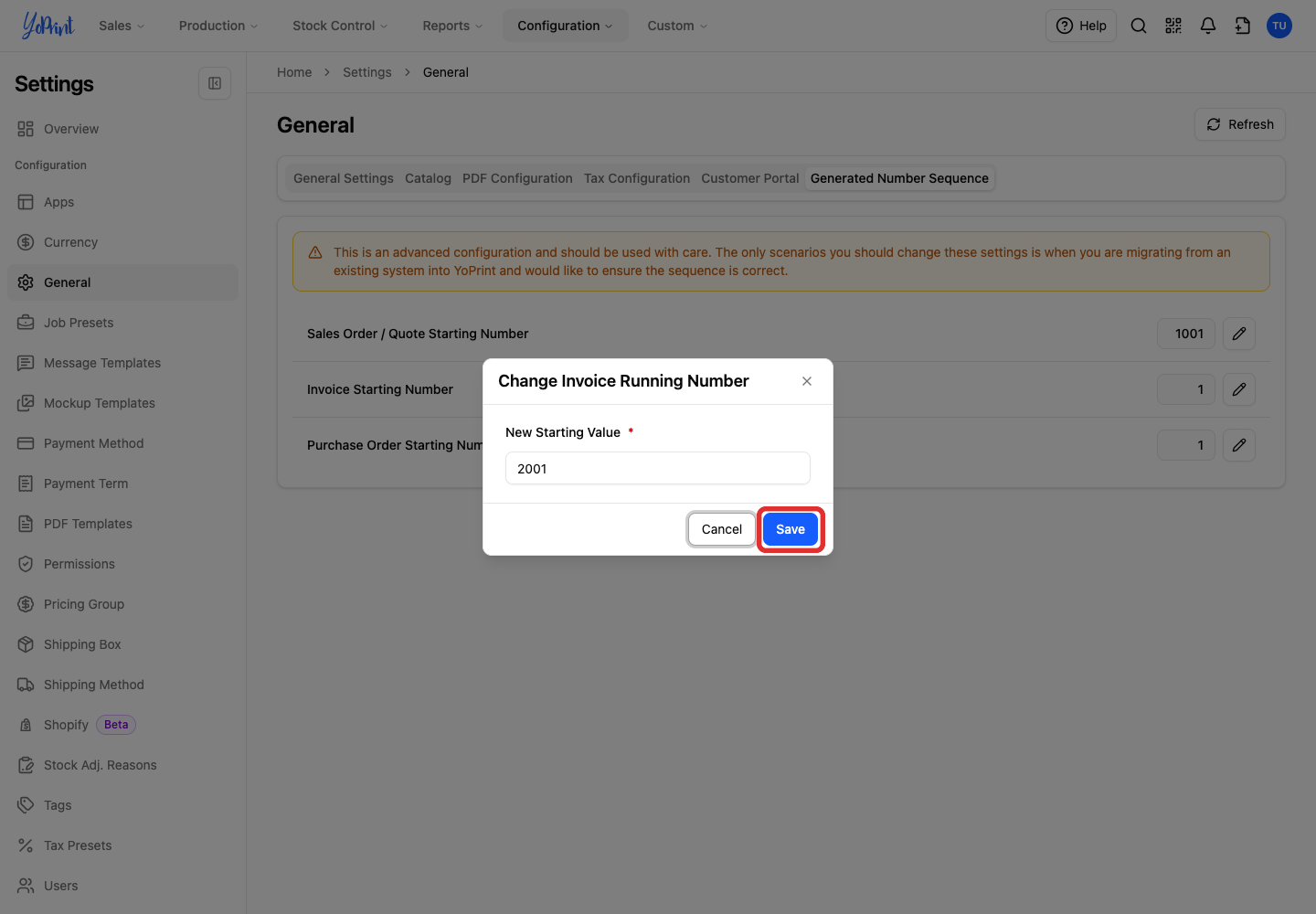
Click Save. The new starting number appears in the row.
Set the purchase order starting number
-
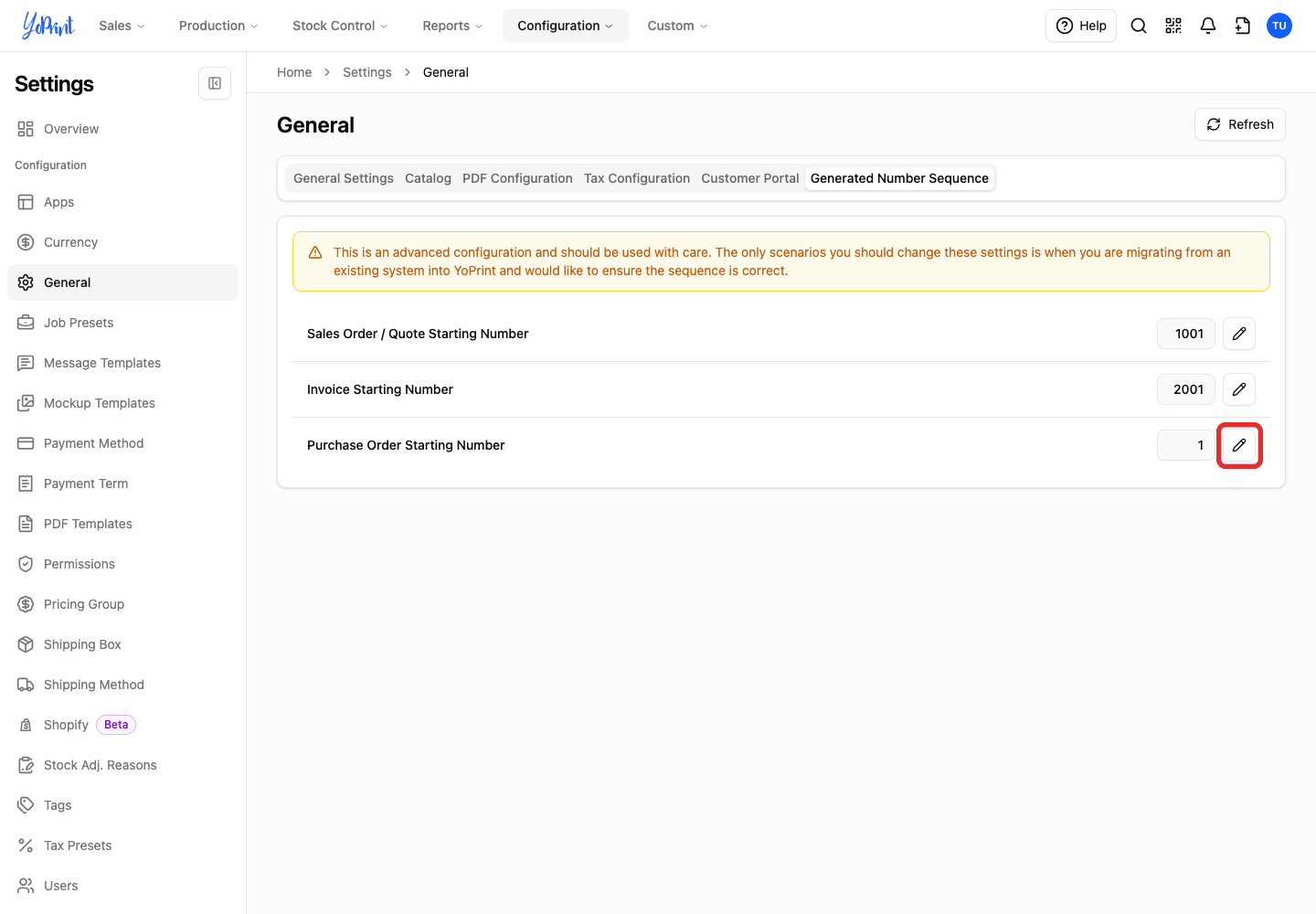
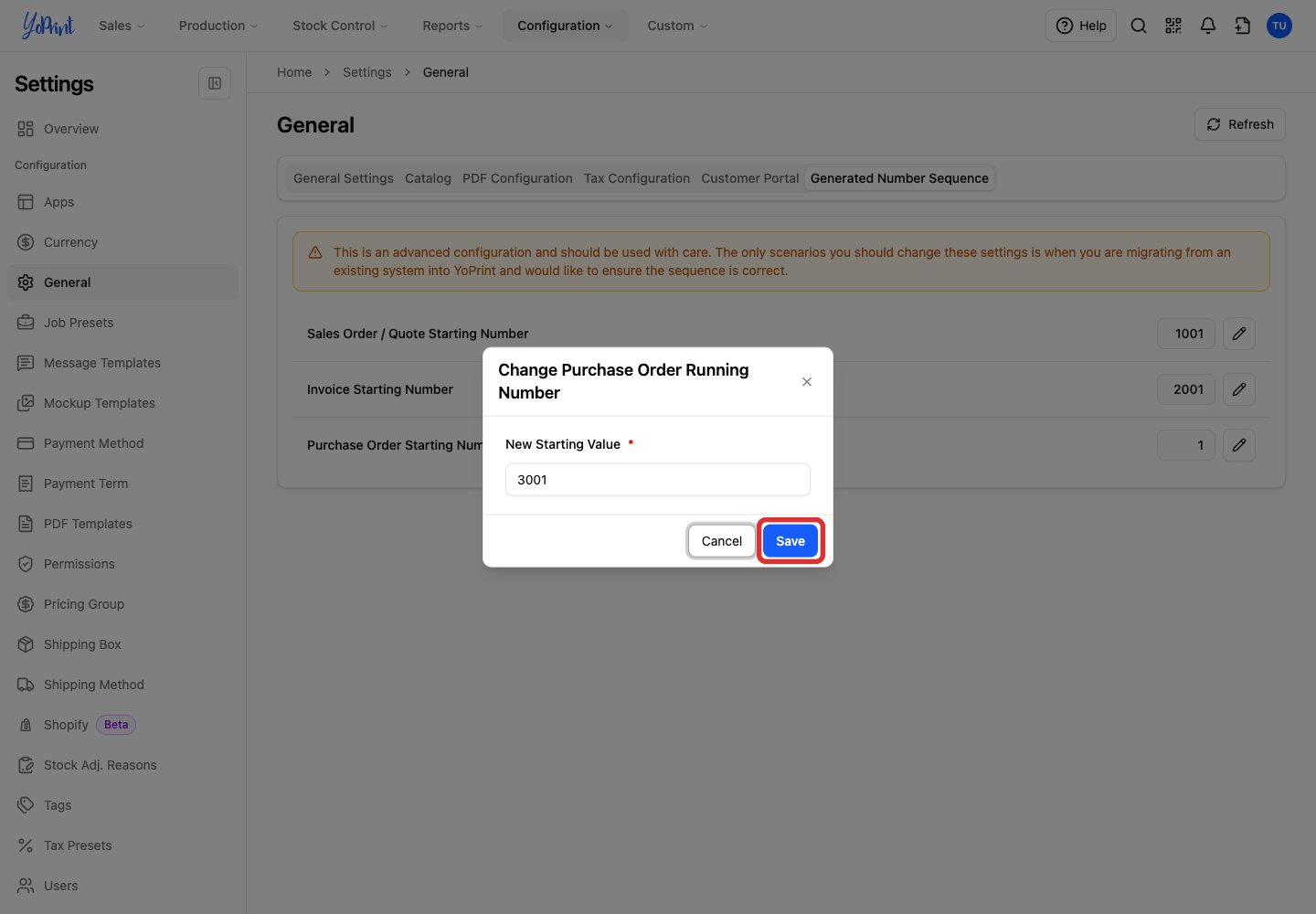
Click the pencil beside Purchase Order Starting Number. The dialog opens as Change Purchase Order Running Number.
-
Enter the next purchase order number in New Starting Value. Use a whole number of 1 or higher. For example, enter 3001 to continue after 3000.
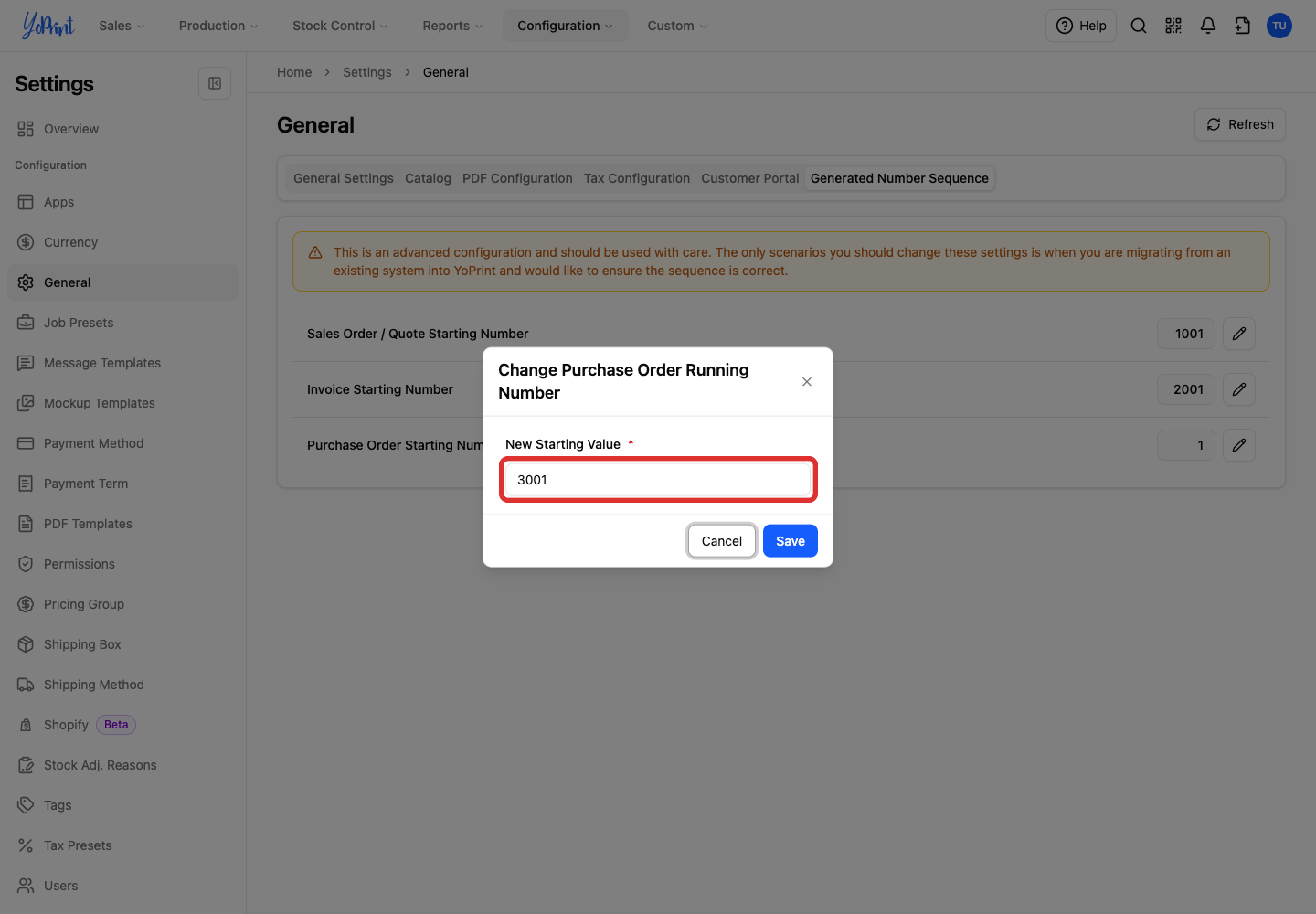
Entering a value lower than the current running value displays a duplicate-ID warning.
-
Click Save. The new starting number appears in the row.
You can change a starting number again at any time. Existing orders and invoices keep their original numbers, while future records follow the updated sequence. Cancel closes the dialog without saving a change.
To change the ID of an invoice that already exists, see Change Invoice IDs.