Customer Fund / Credit Management
In this article
Customer funds, customer credit, and the Wallet balance refer to the credit a customer has with your shop. Use it to pay an order or hold an overpayment for later. Deposit and Withdraw change the recorded balance without charging or refunding a card or bank account.
| Action | What happens |
|---|---|
| Deposit | Adds to the customer's wallet balance. |
| Withdraw | Reduces the wallet balance. |
| Apply Credit | Moves credit from the wallet to an order payment. |
| Issue Credit | Moves an available overpayment from the order back to the wallet. |
Add or remove customer funds
-
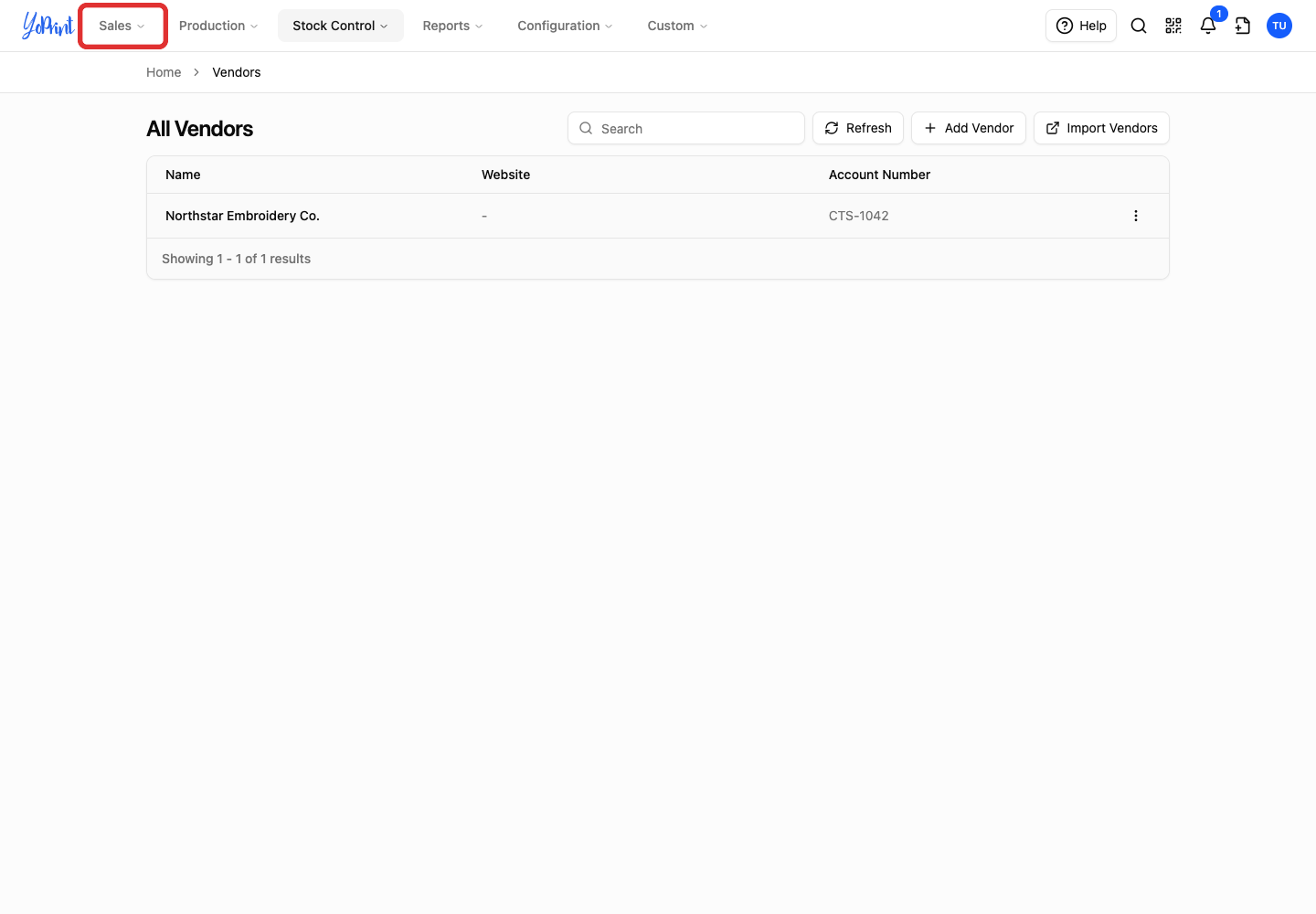
Open Sales in the top menu.
-
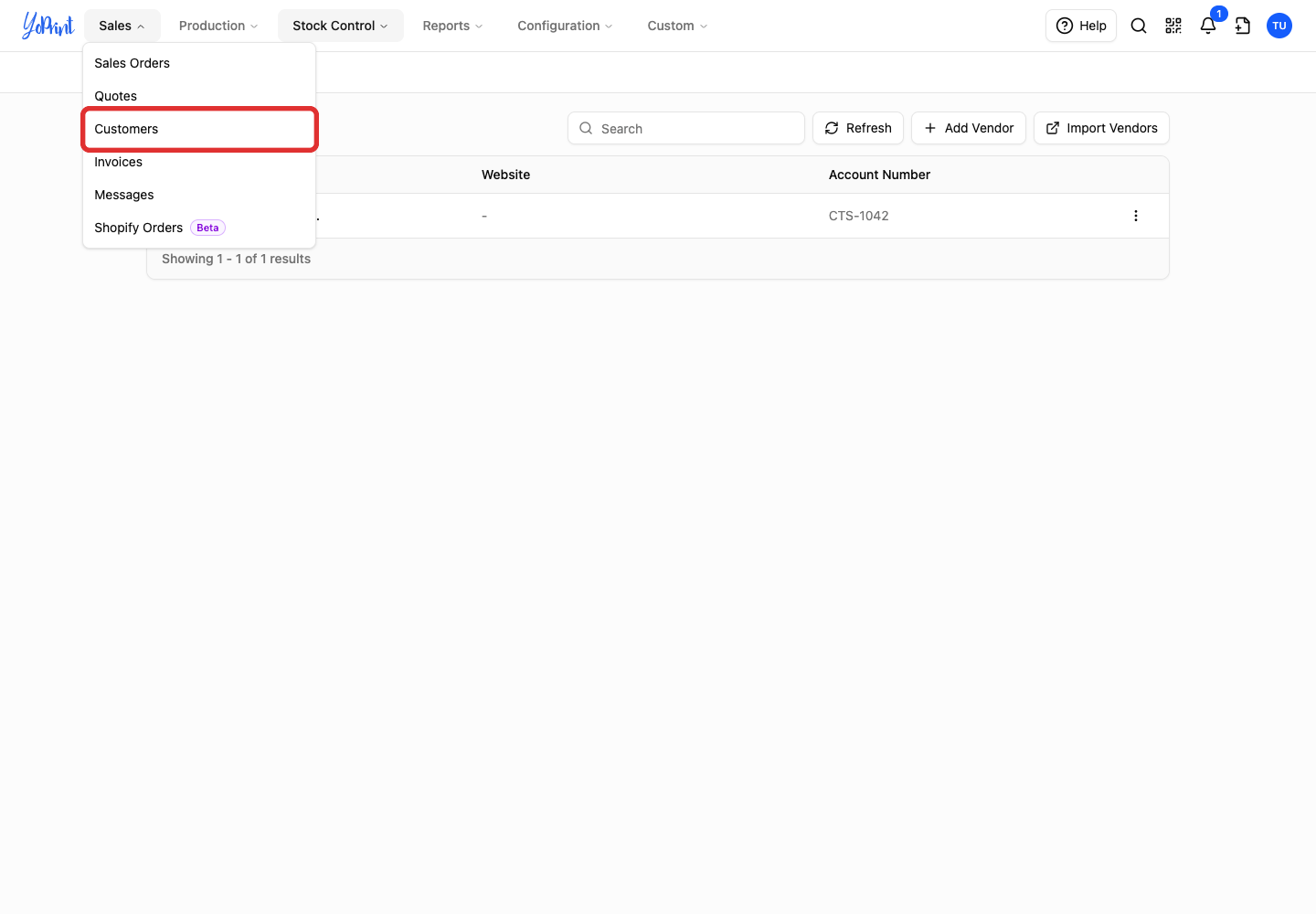
Choose Customers.
-
Double-click the customer's row to open their details.
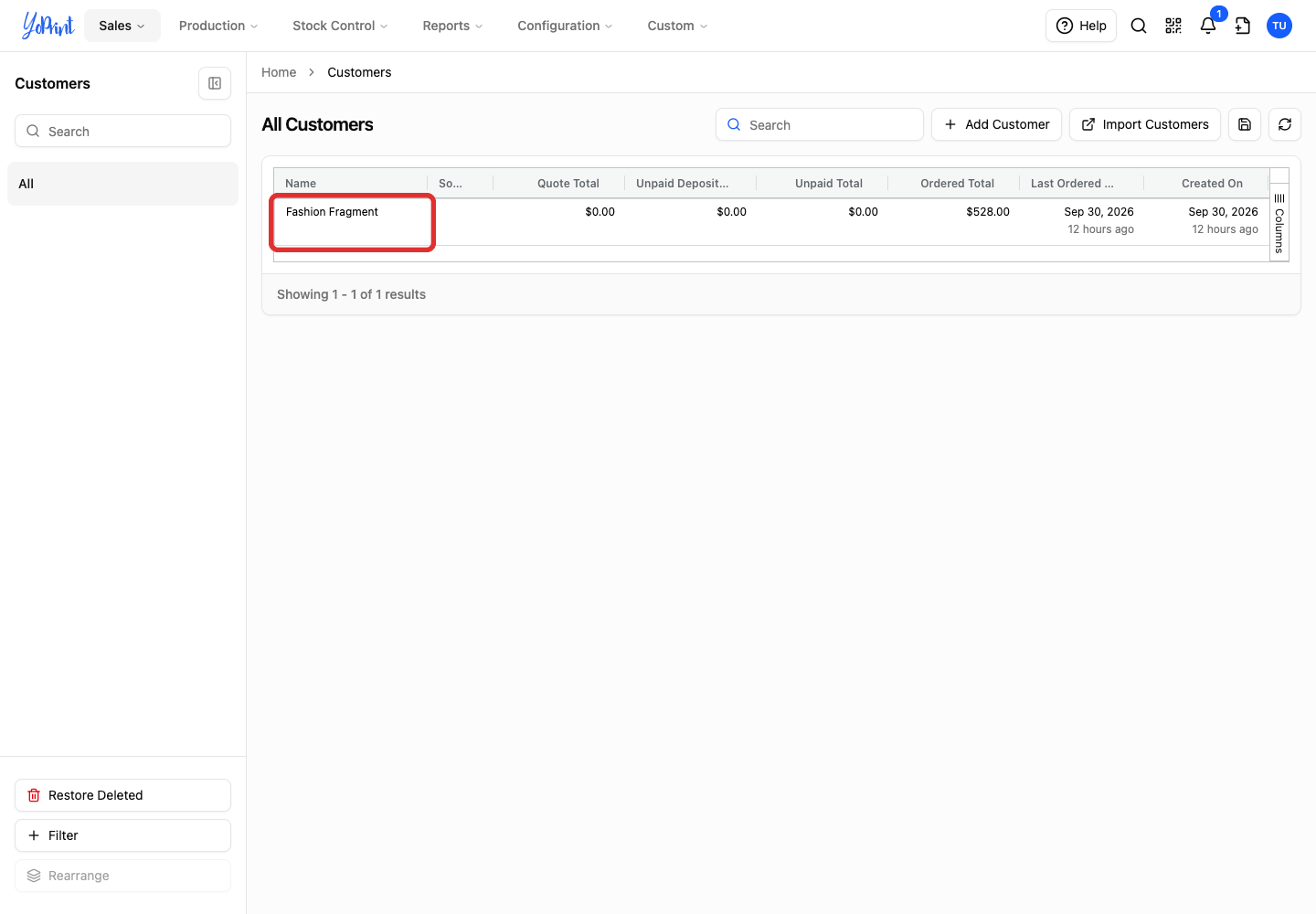
A single click does not open the row.
-
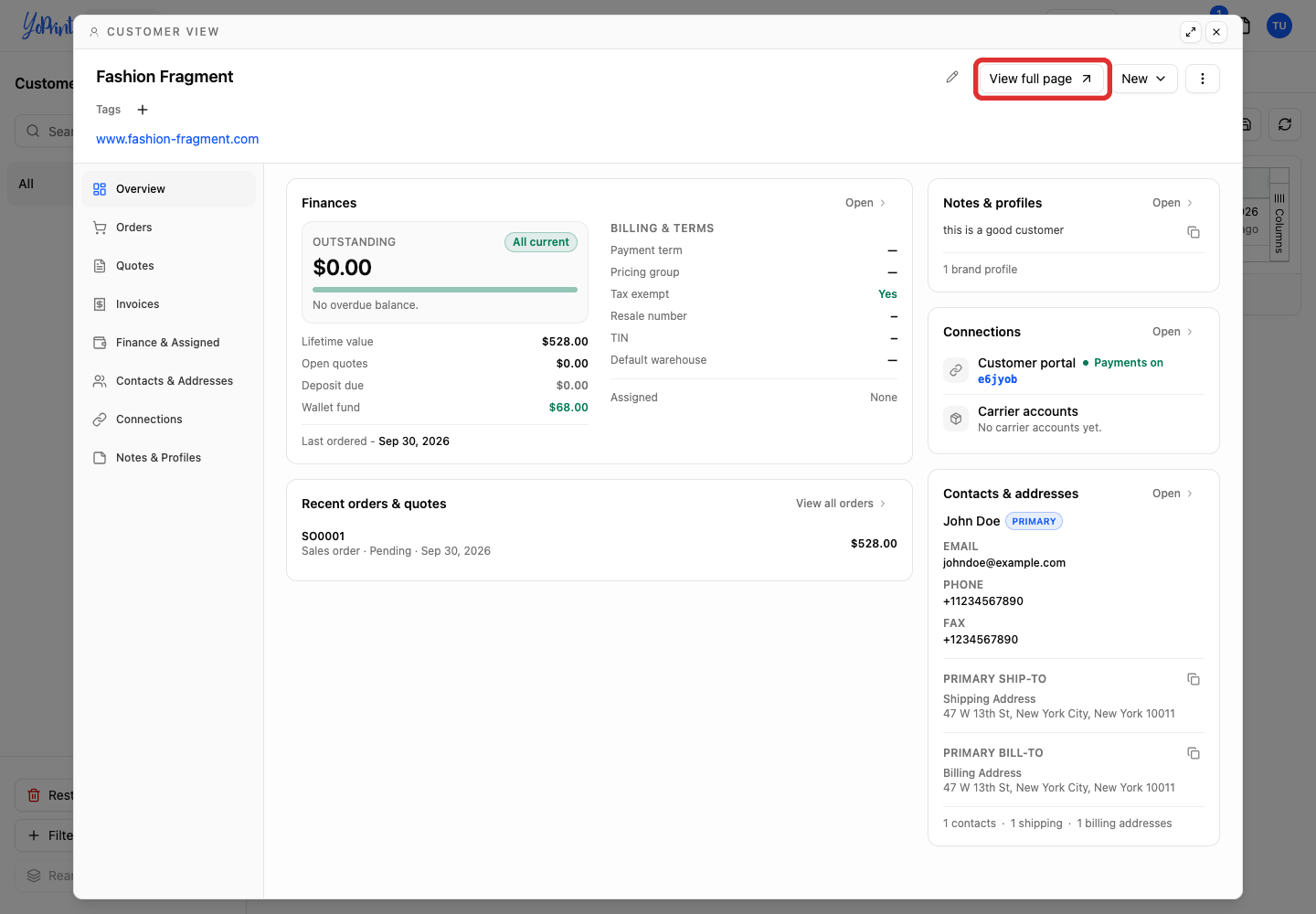
Click View full page.
-
Open Finance & Assigned.
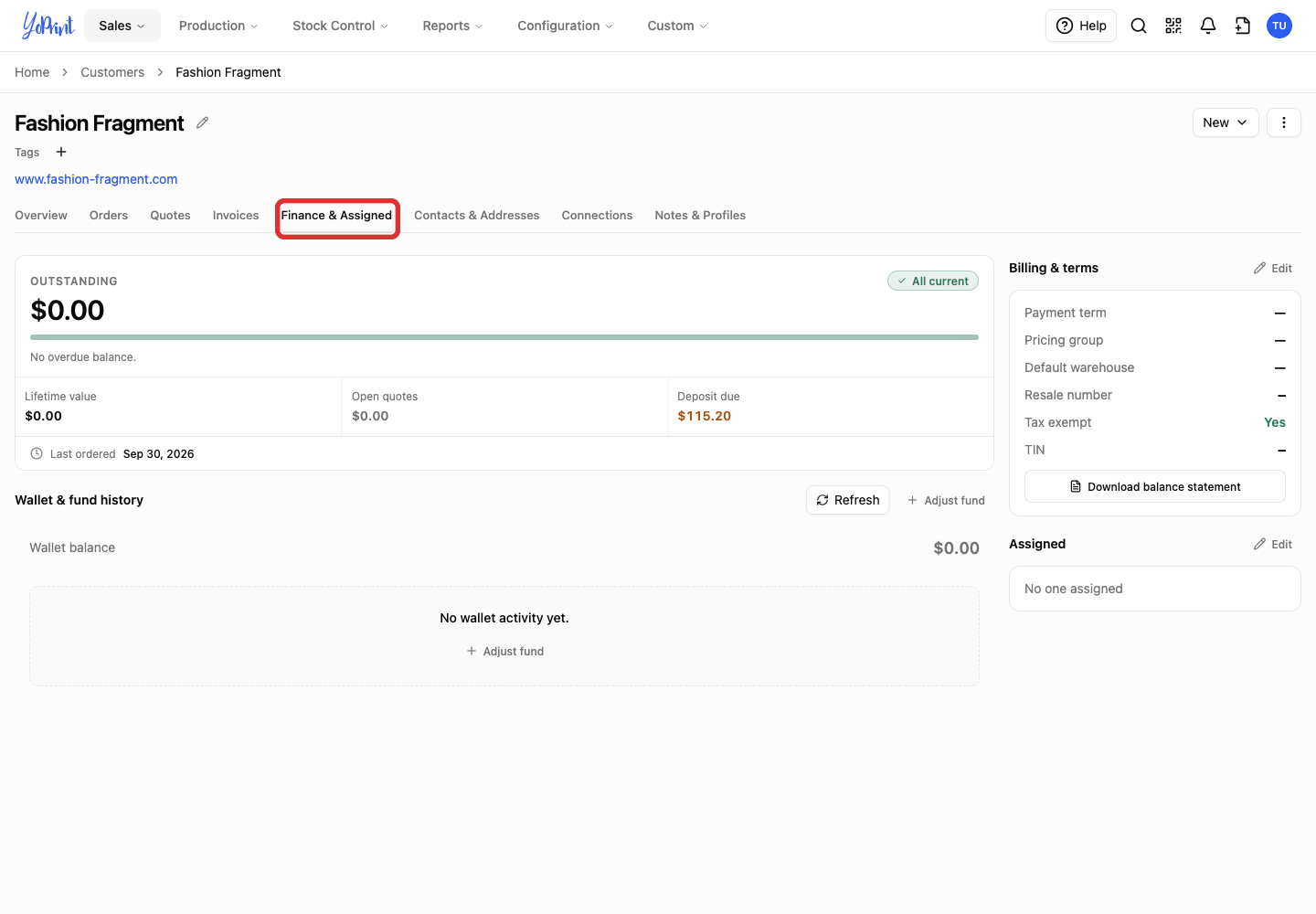
-
Beside Wallet & fund history, click Adjust fund.
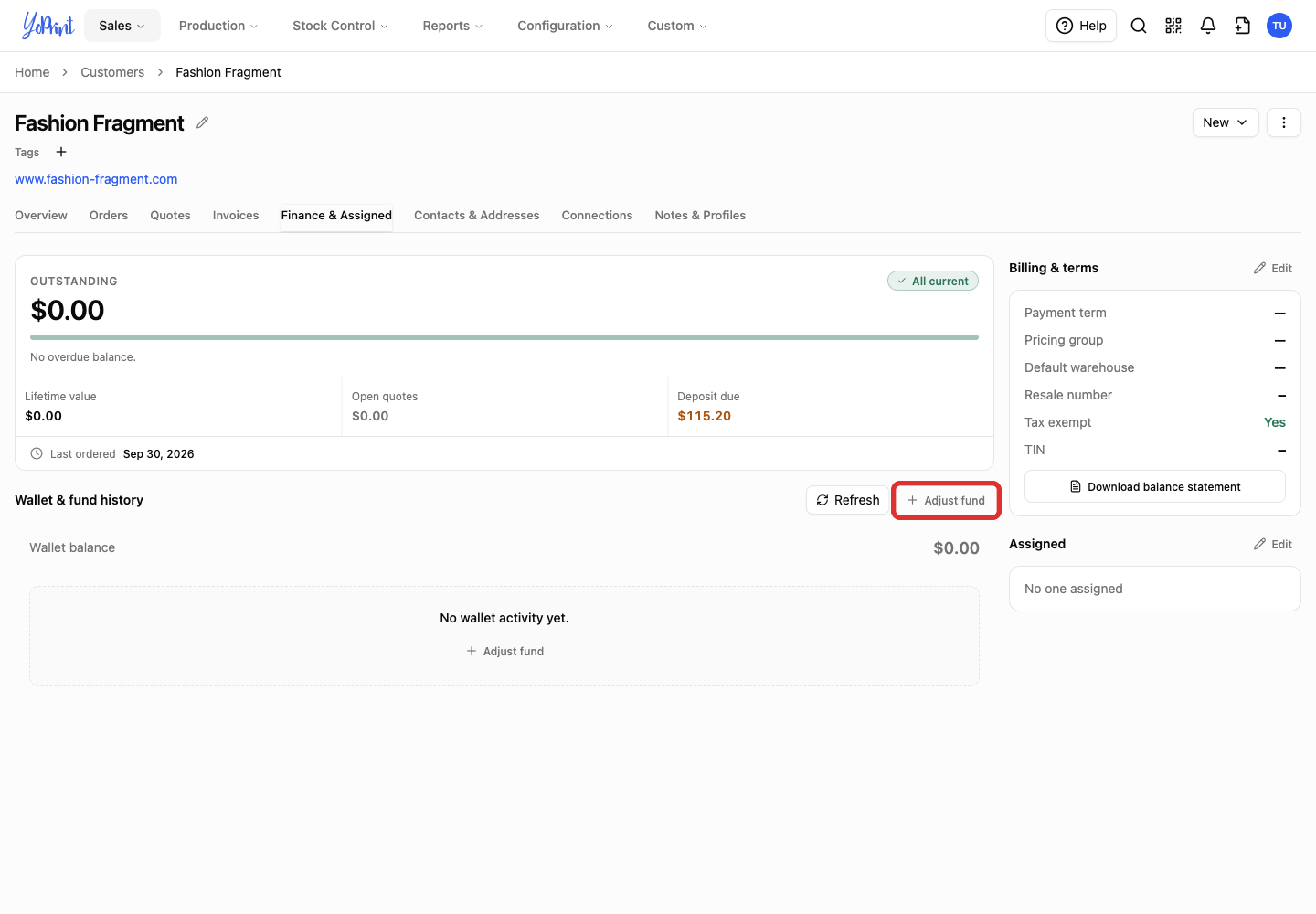
Choose Add funds or Remove funds below. Saving closes Adjust fund; repeat step 6 to make another adjustment. Cancel leaves the balance unchanged.
Add funds
-
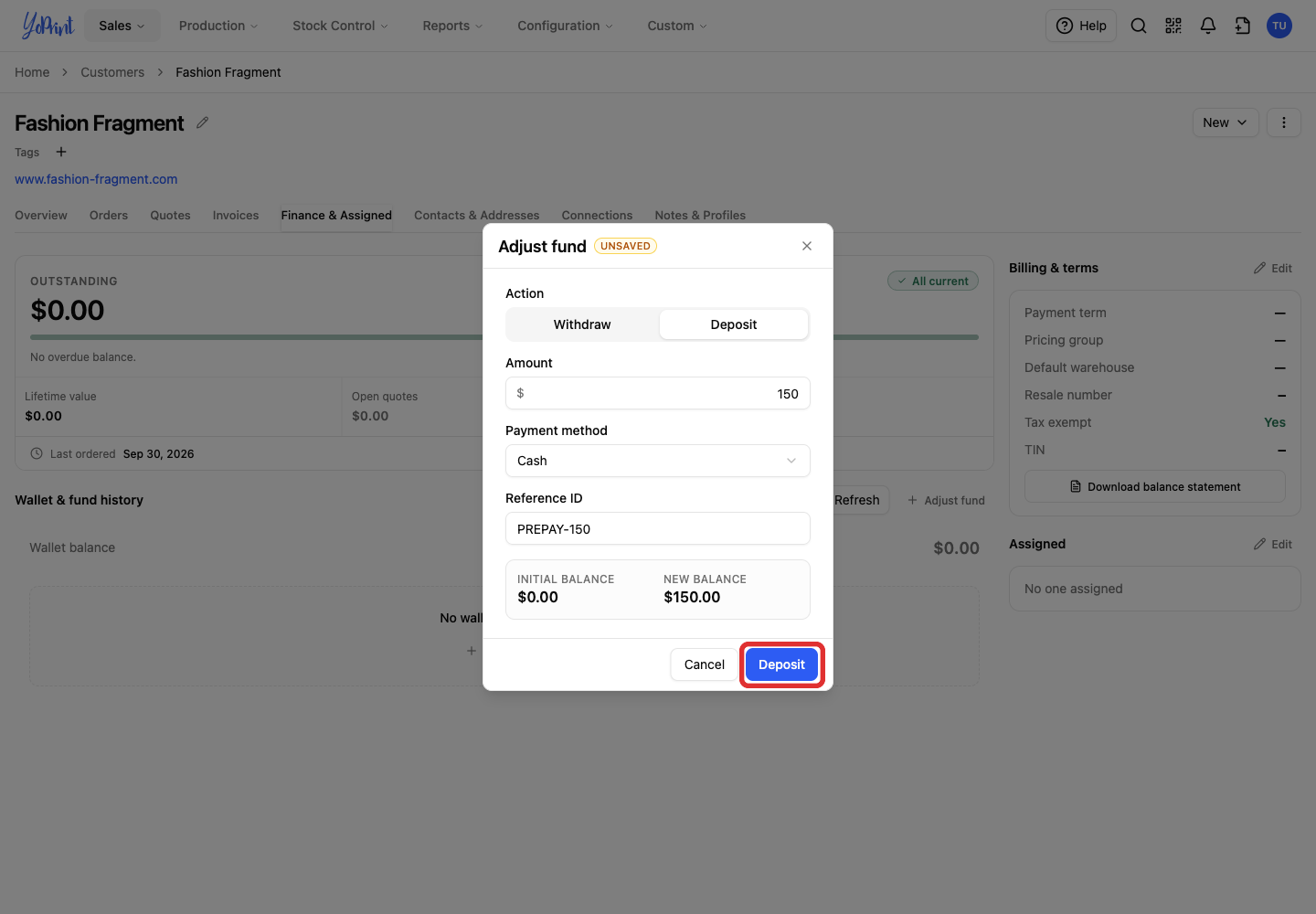
Choose Deposit instead of the preselected Withdraw.
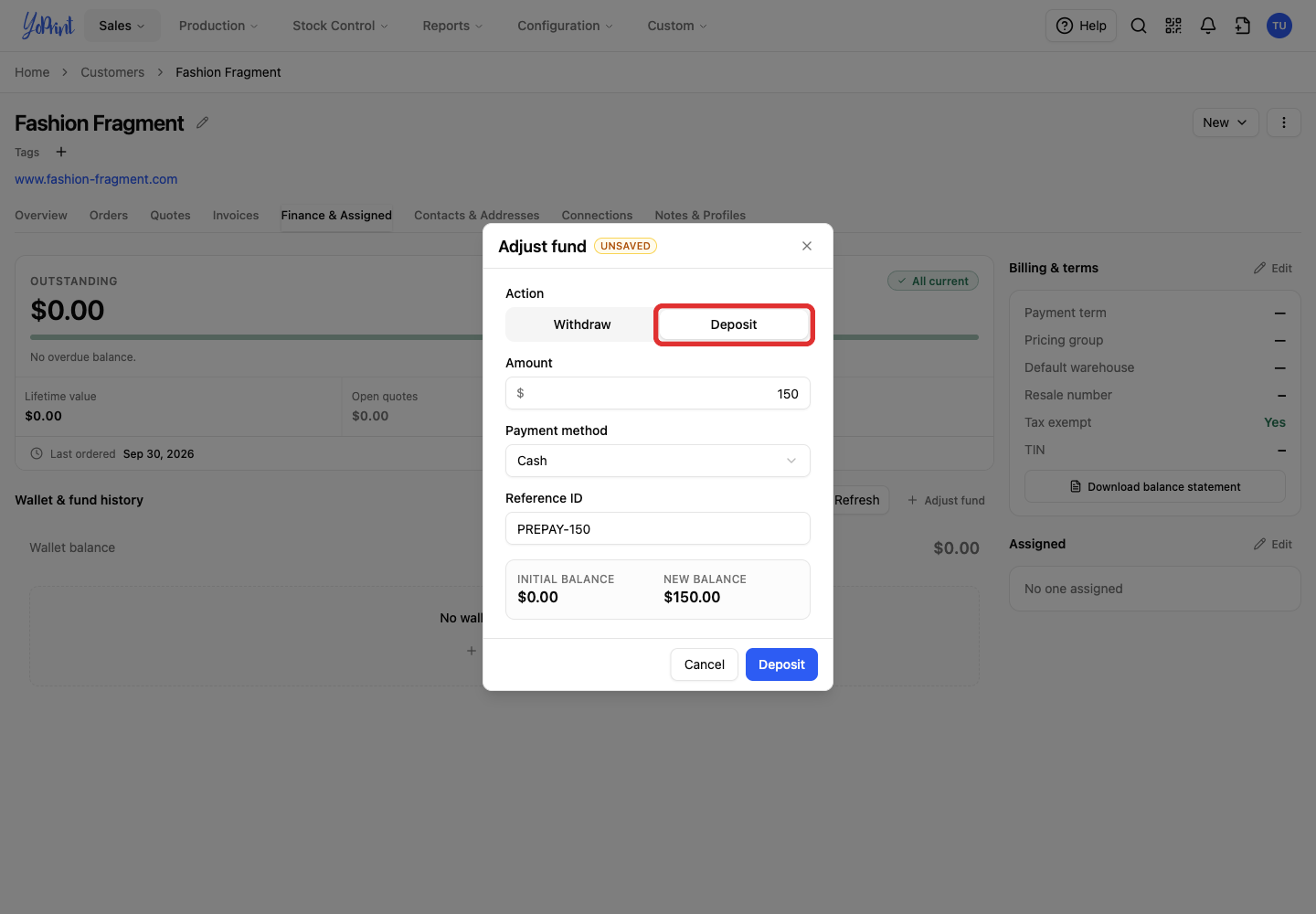
-
Enter the Amount to add.
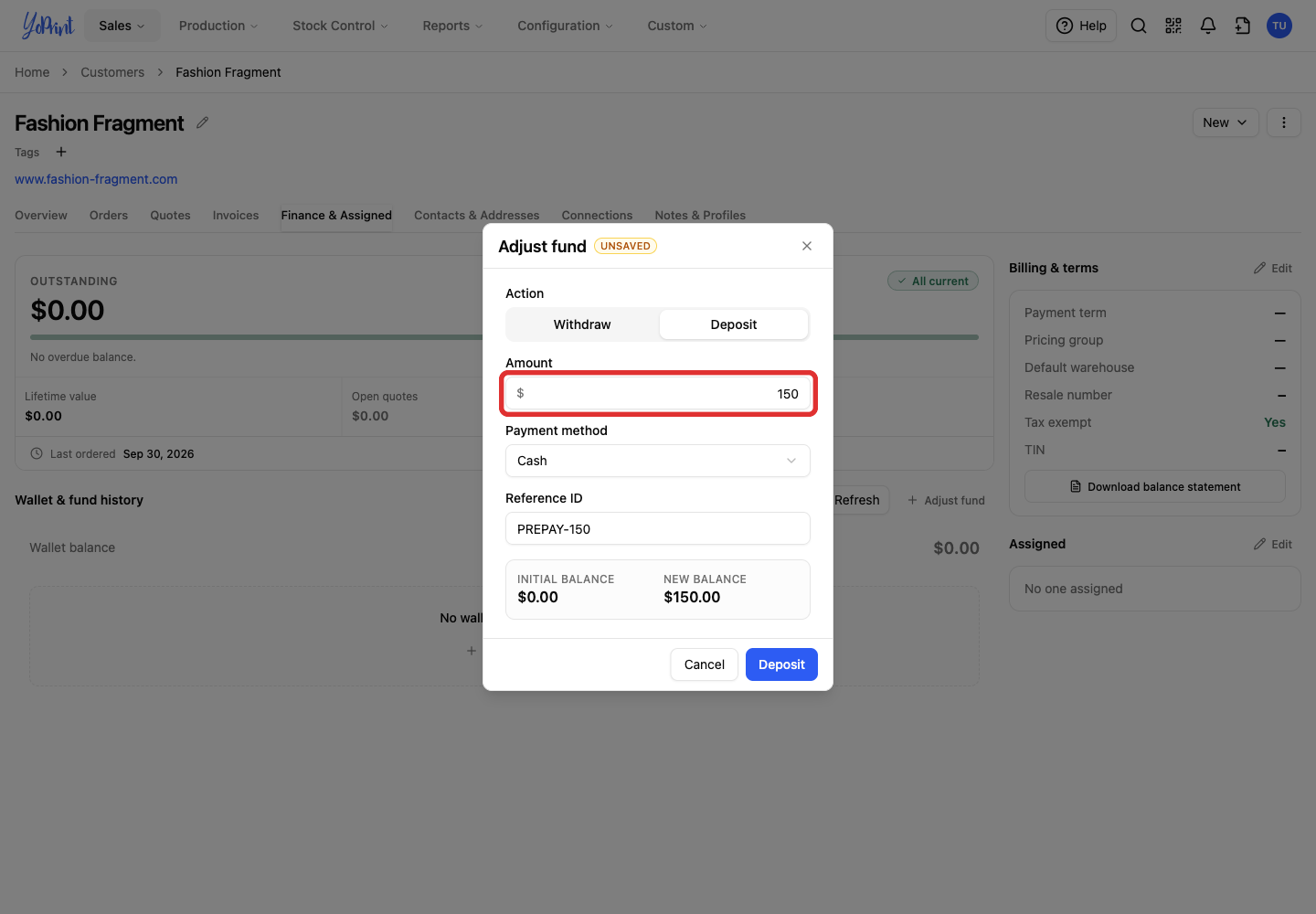
Payment method records how you received the money; it does not process a payment or send a receipt. Use the optional Reference ID for a bank transfer ID, check number, or cash receipt number.
-
Check New balance, then click Deposit.
Remove funds
-
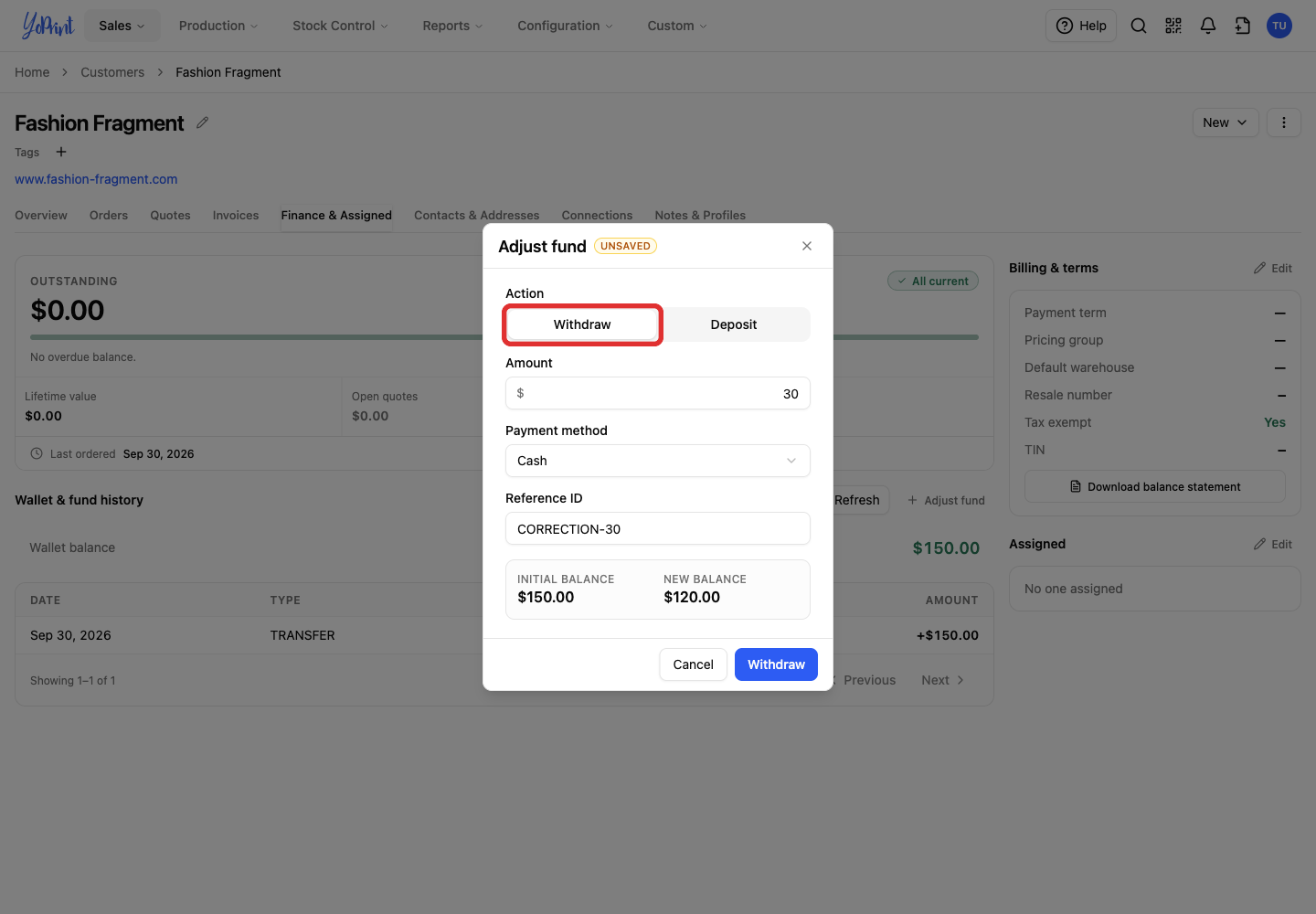
Keep Withdraw selected in Adjust fund.
-
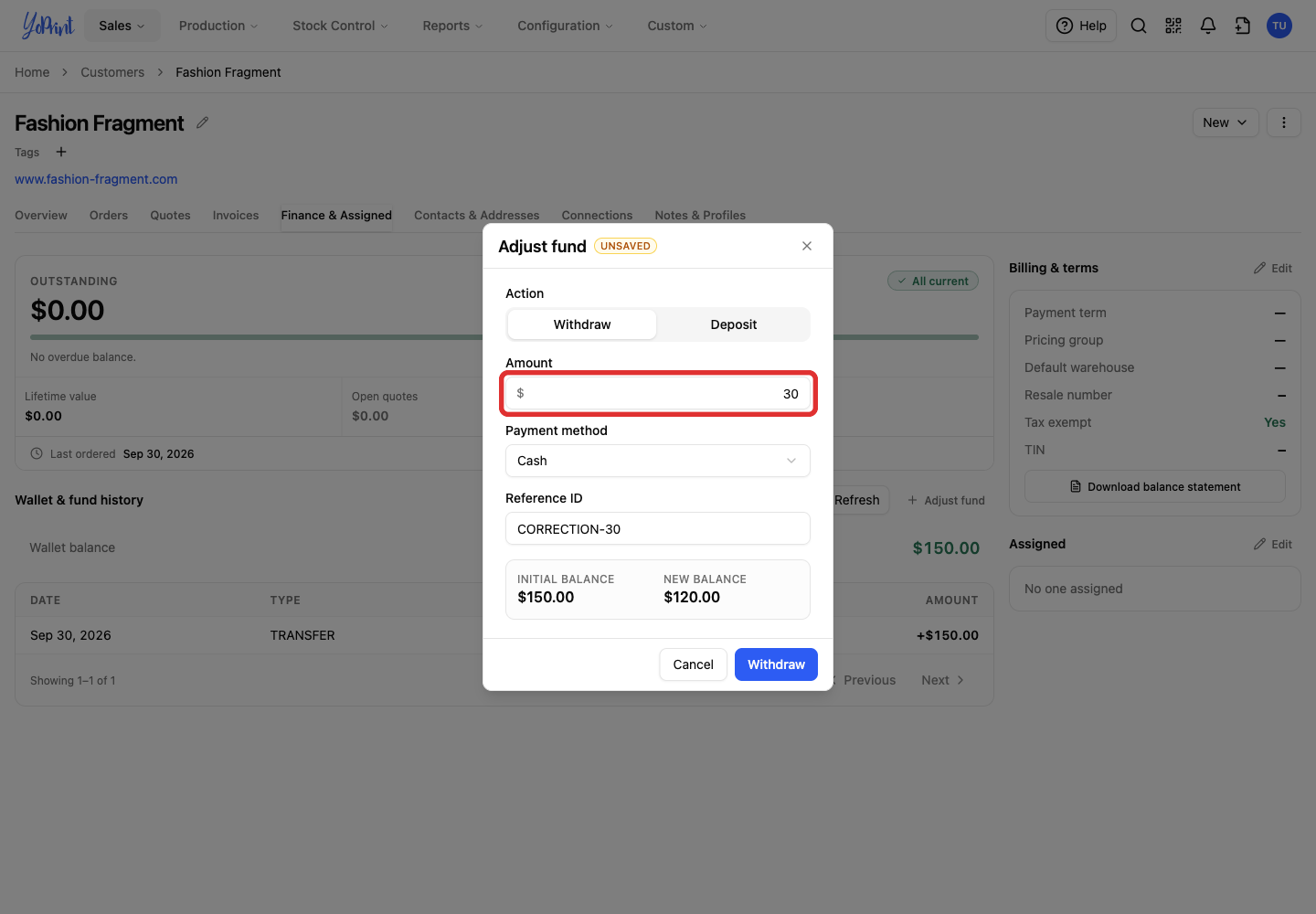
Enter the Amount to remove.
-
Check New balance, then click Withdraw.
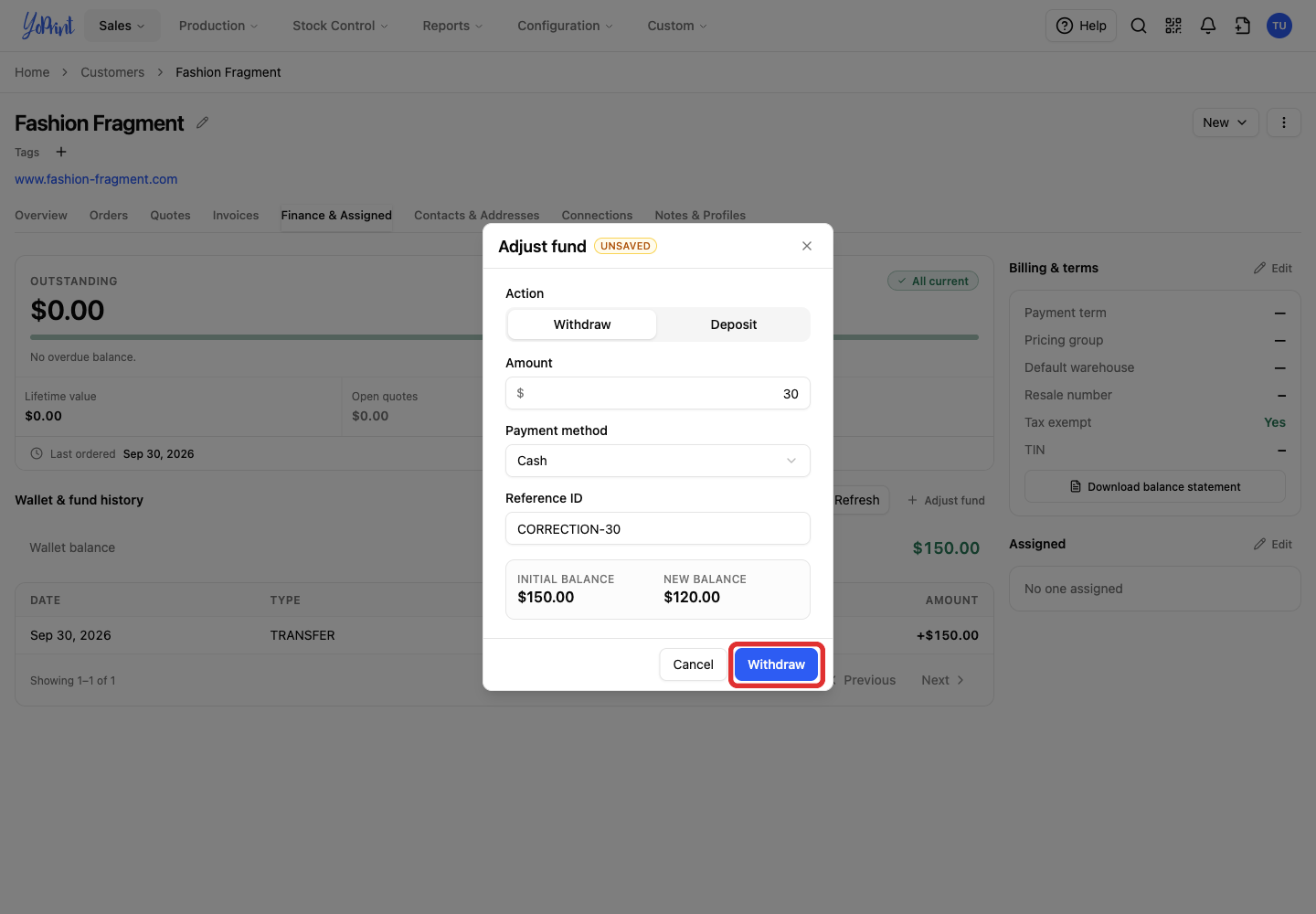
Process any refund through the original payment method separately, and use its transaction ID as the withdrawal's Reference ID to match the records.
Apply credit to an order
Use Apply Credit when the customer has available credit and an unpaid amount to cover. A partial credit payment leaves the remaining balance payable by another payment method.
-
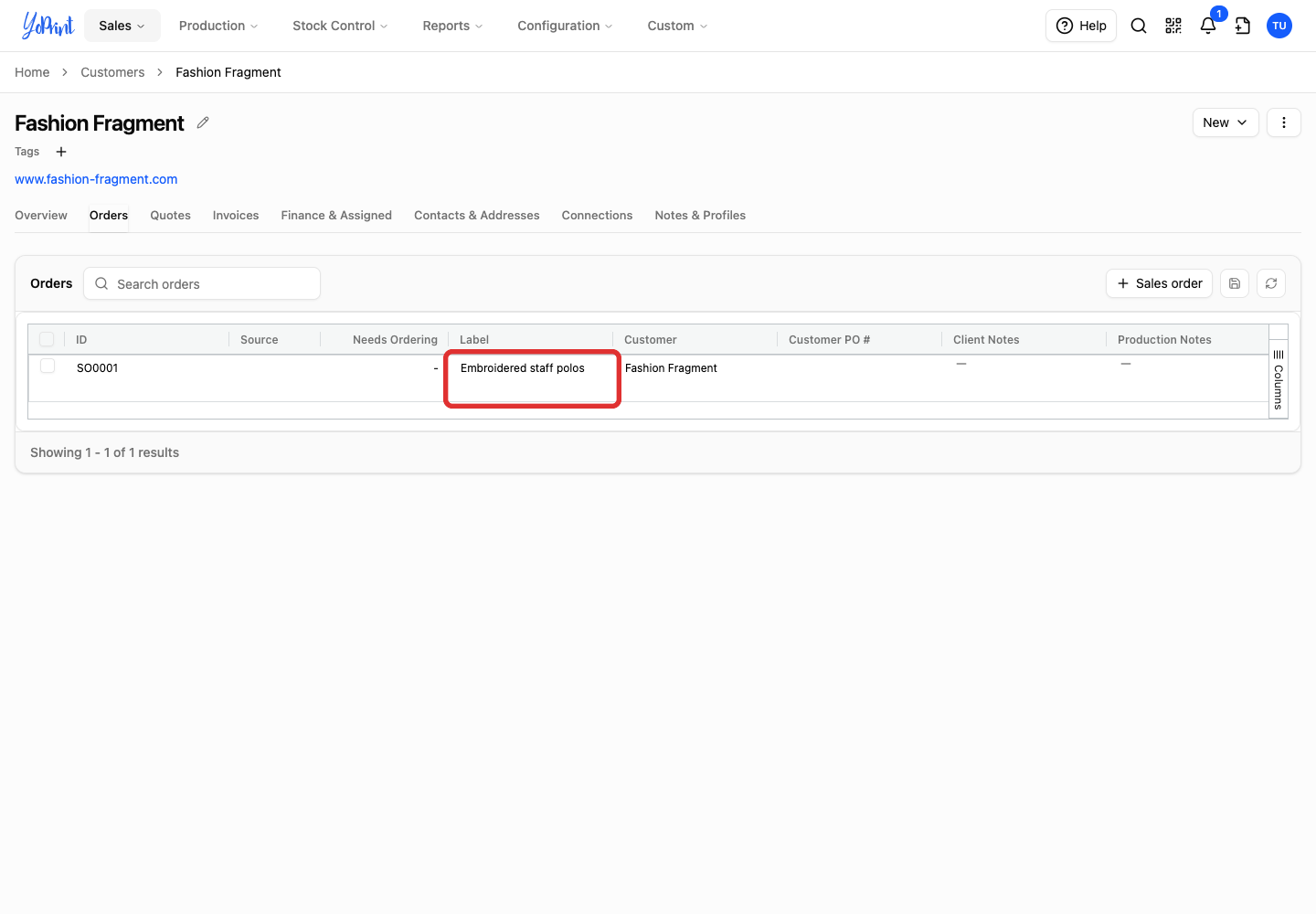
On the customer's full page, open Orders.

-
Double-click the order you want to pay.
-
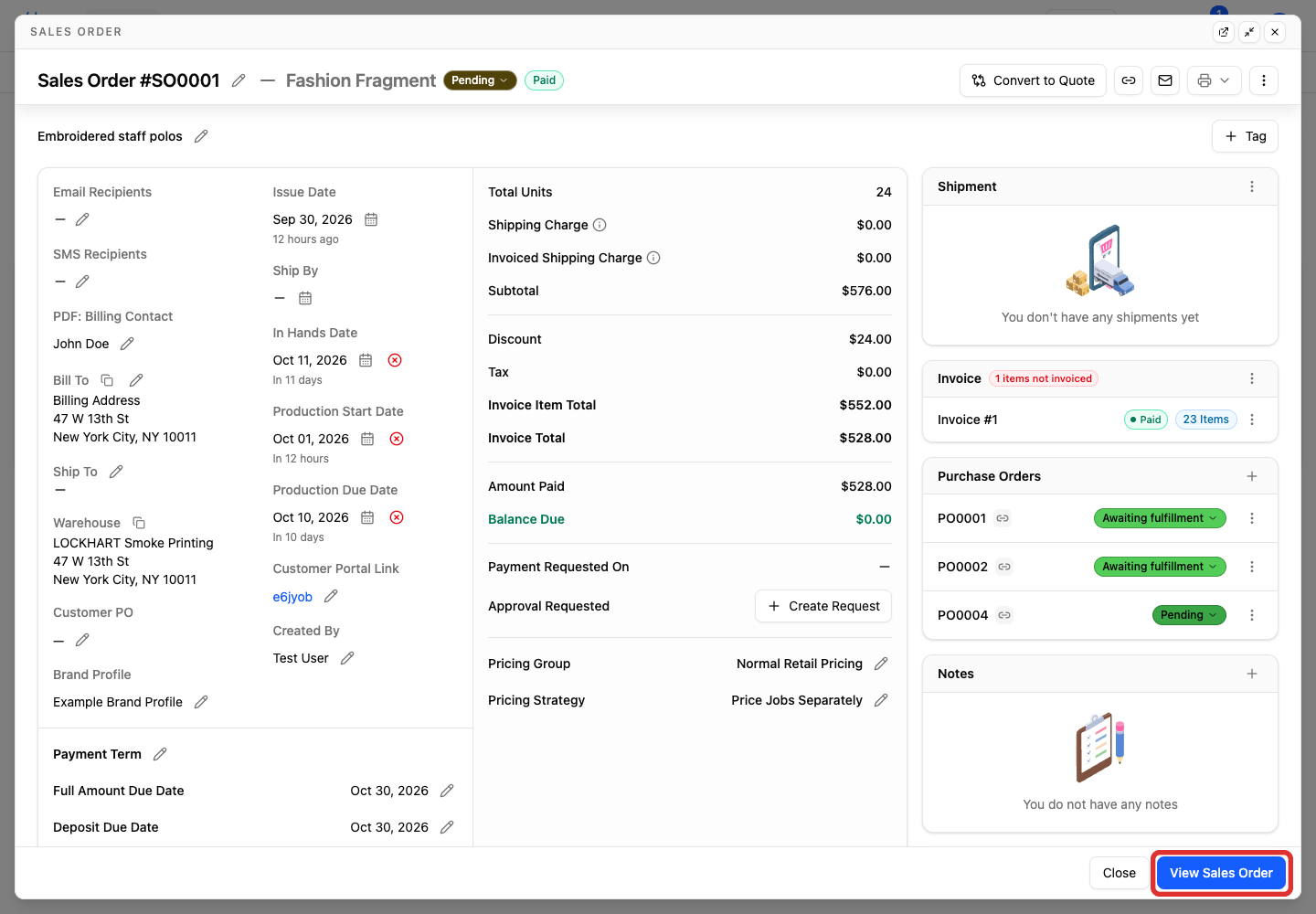
Click View Sales Order at the bottom of the order window.
-
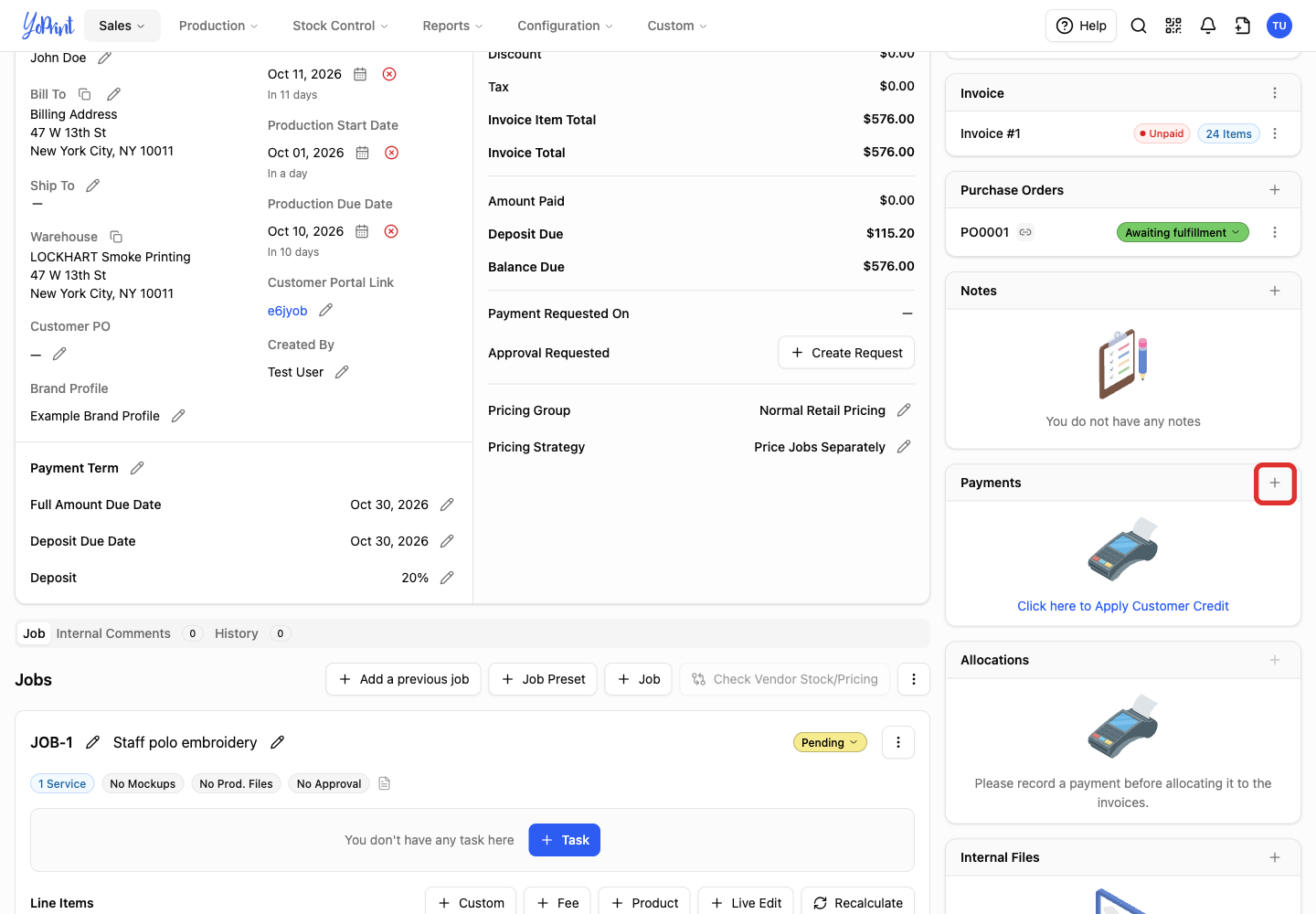
Click Add (+) beside Payments.
-
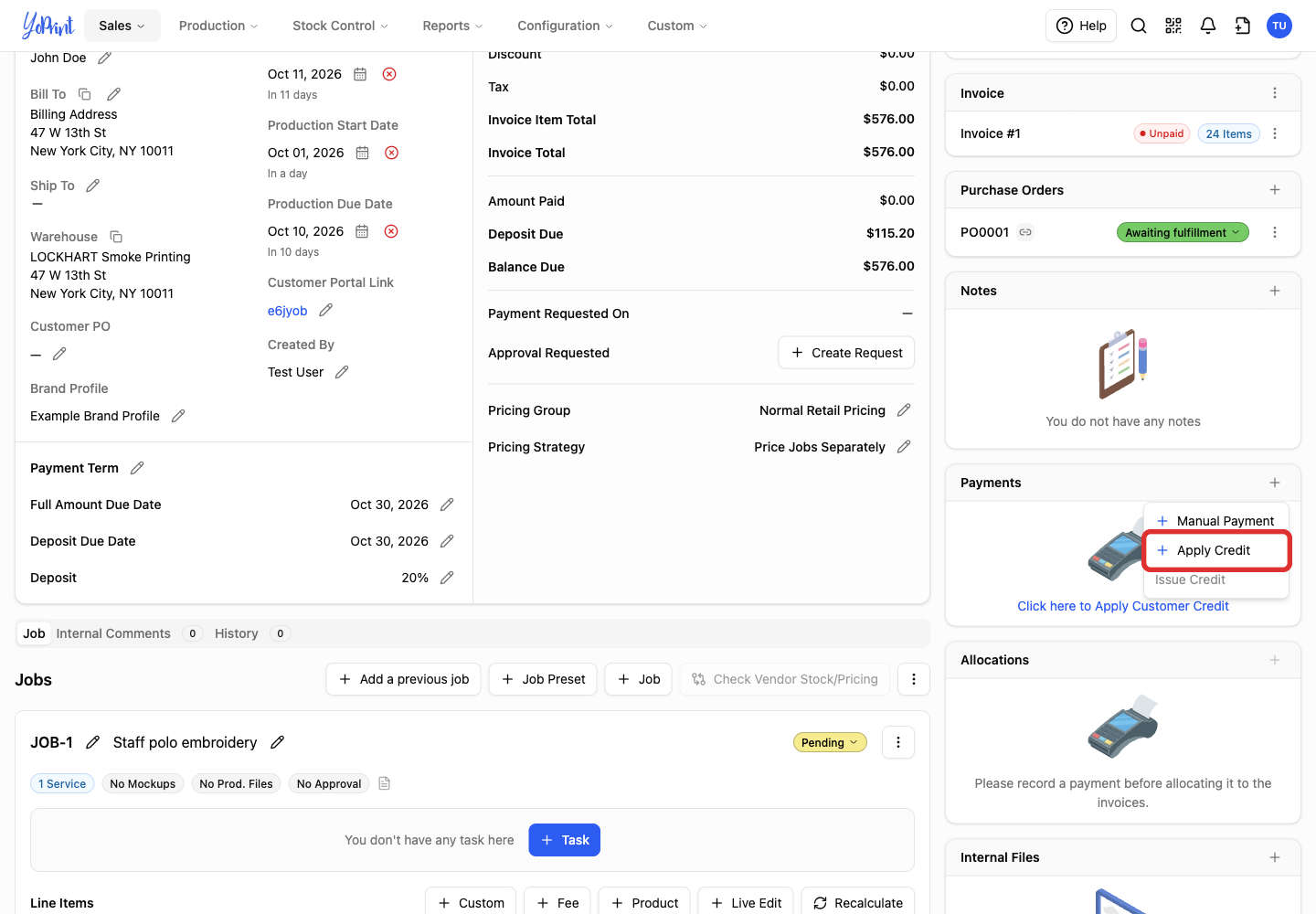
Choose Apply Credit.
-
Choose the amount option you need.
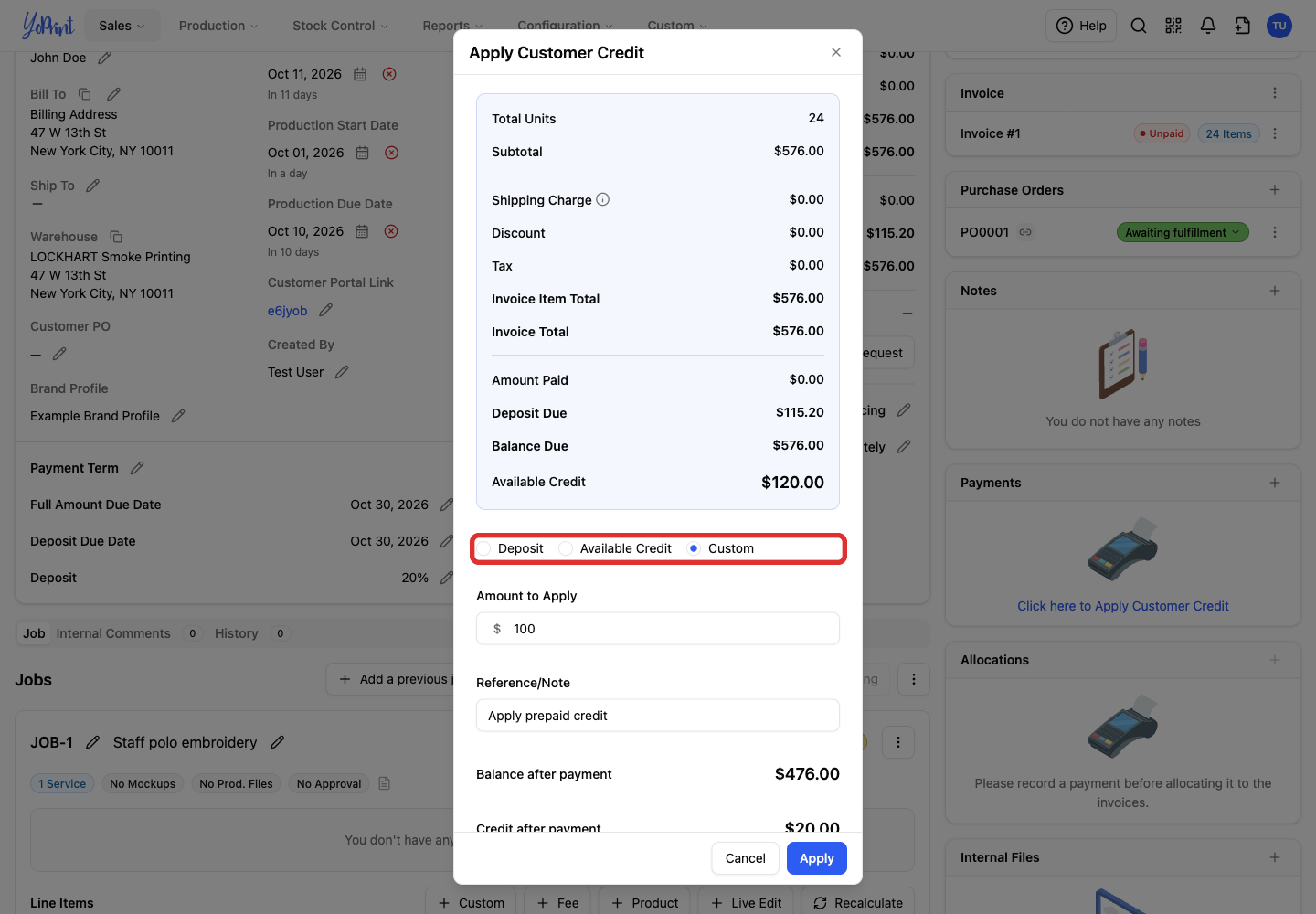
Deposit covers a deposit due when credit allows; Available Credit uses the wallet balance when it cannot cover the amount due. Full Amount covers the remaining balance; Custom lets you choose an amount. Only the options for that order appear.
On a fully paid order, Apply Credit still opens with Full Amount set to $0; click Cancel.
-
Check Amount to Apply, or enter your amount for Custom. The amount cannot exceed the customer's available credit.
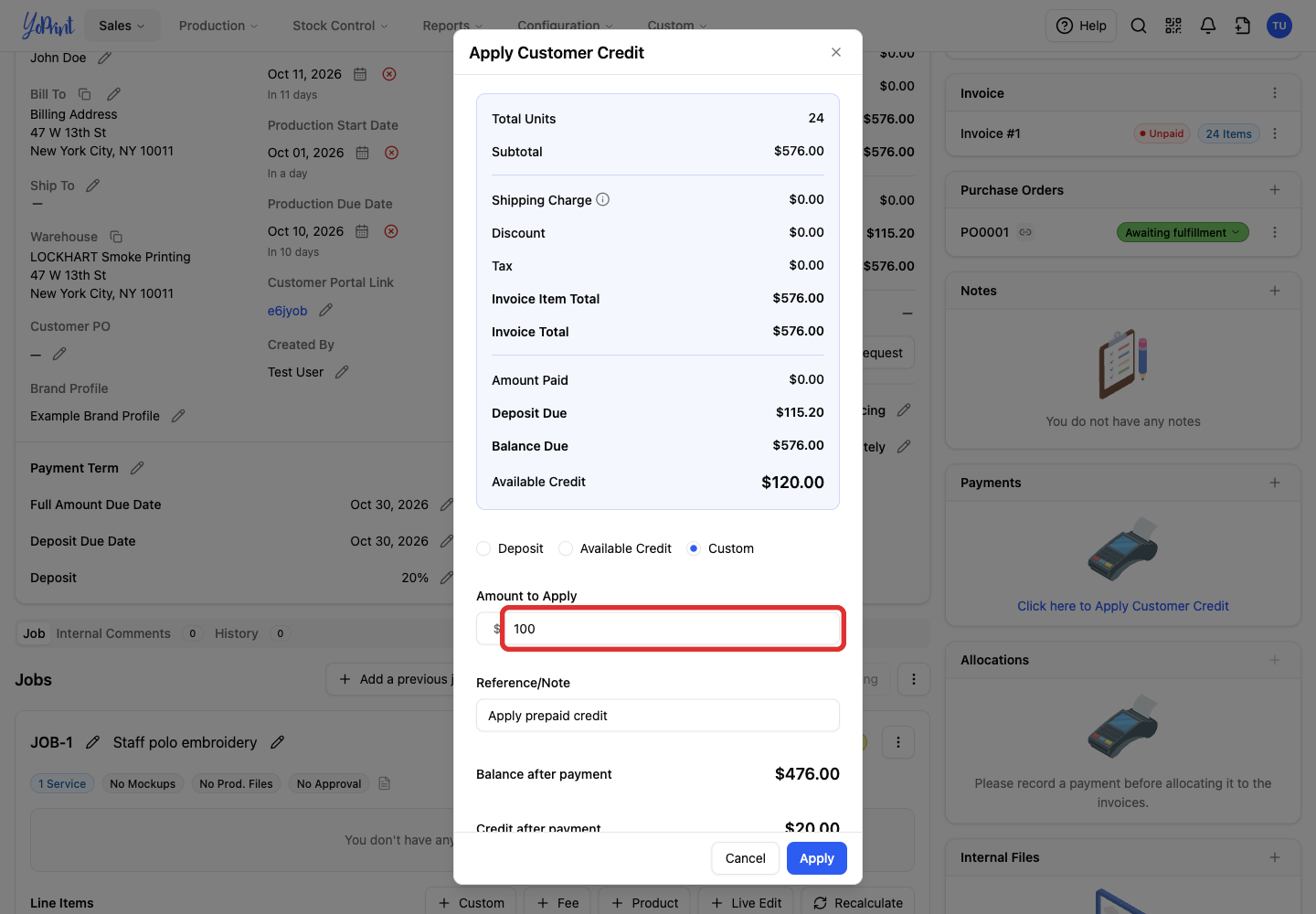
-
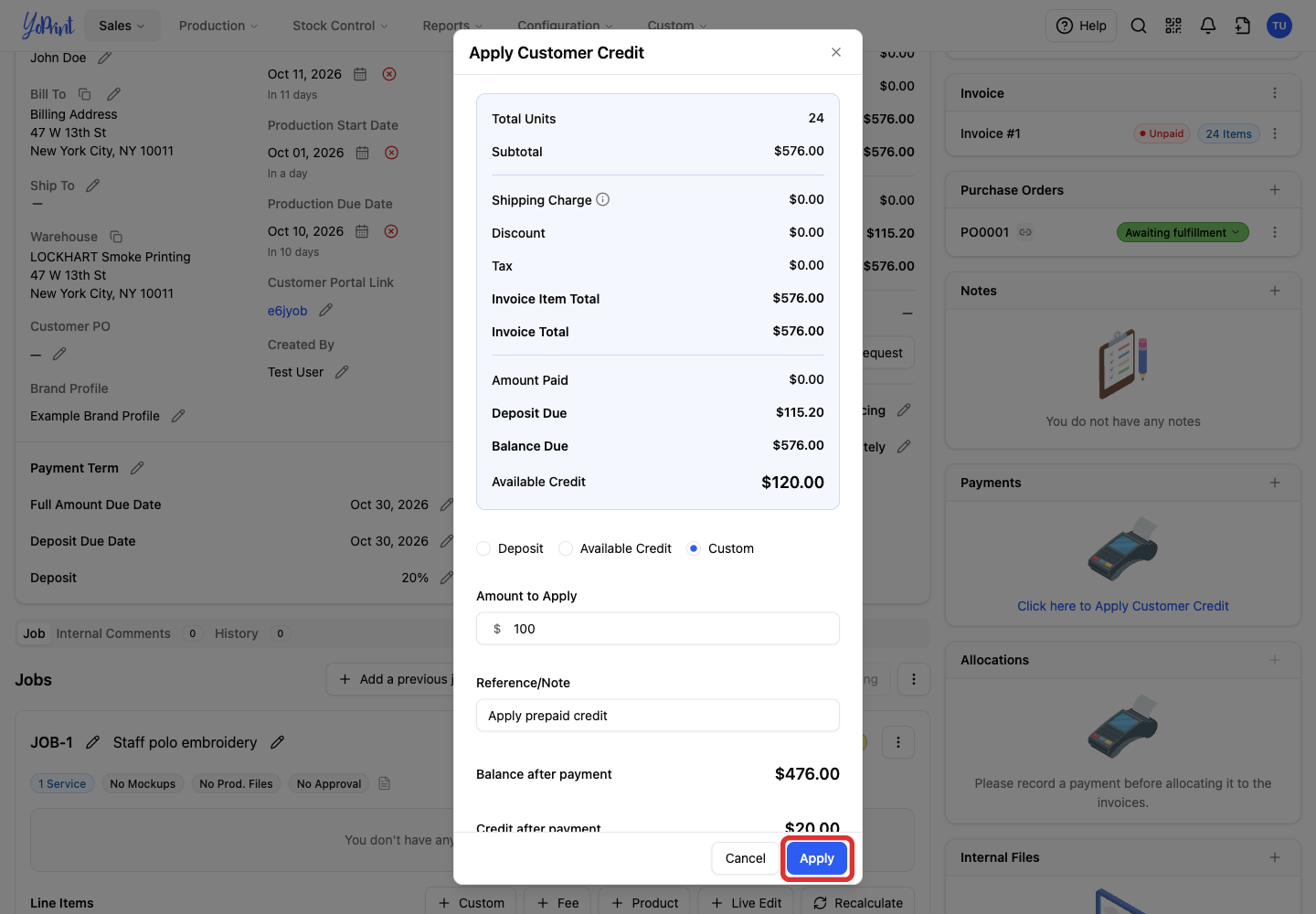
Review the balance and credit remaining, then click Apply.
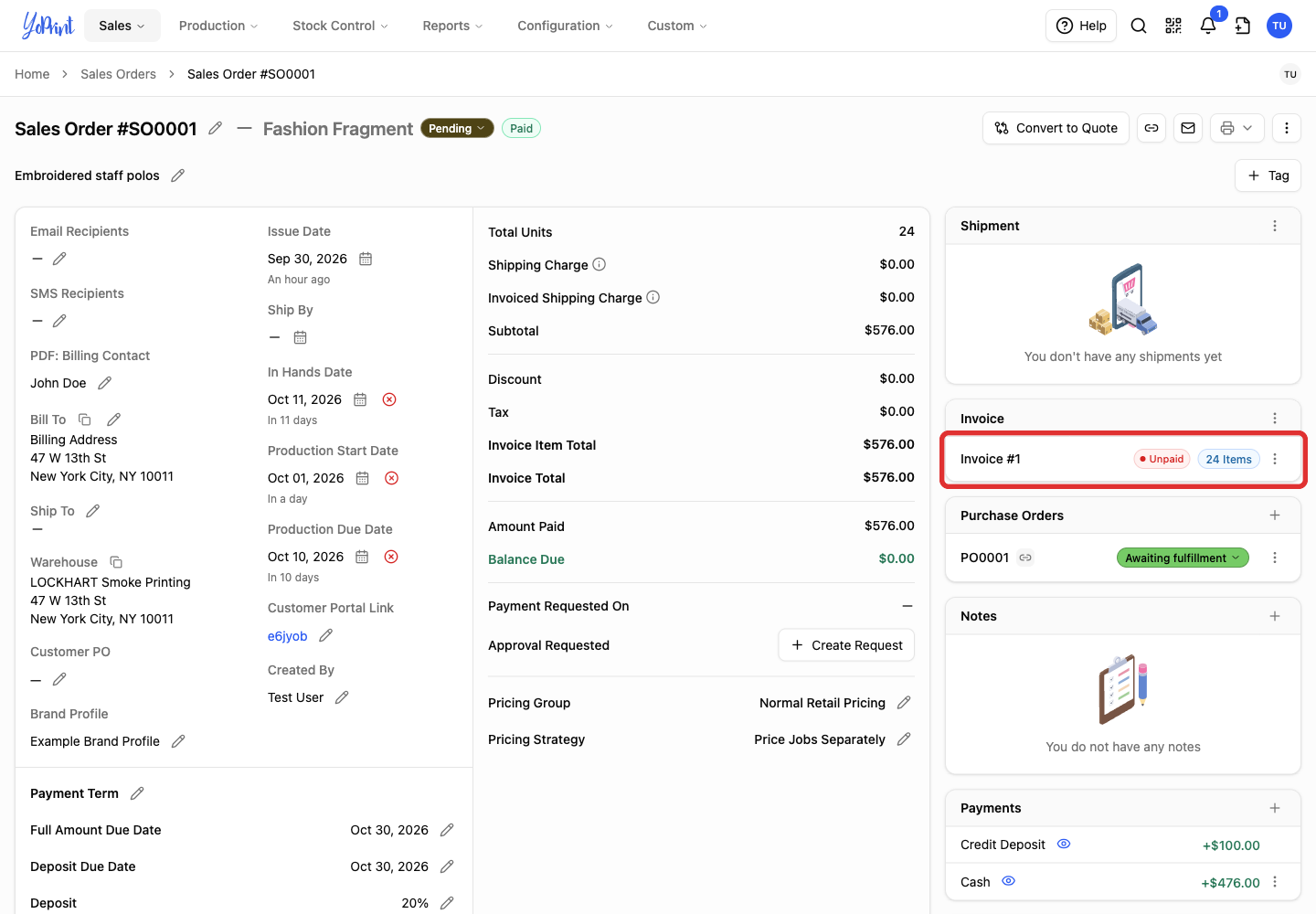
Credit Deposit means credit moved into the order payment from the wallet.
Correct an invoice before issuing credit
For a paid order, correcting the invoice can leave an overpayment that you can return as customer credit. The invoice has its own quantities, so make billing corrections there.
-
Double-click the invoice row on the sales order; a single click does not open it.
-
Click Edit in the invoice window.
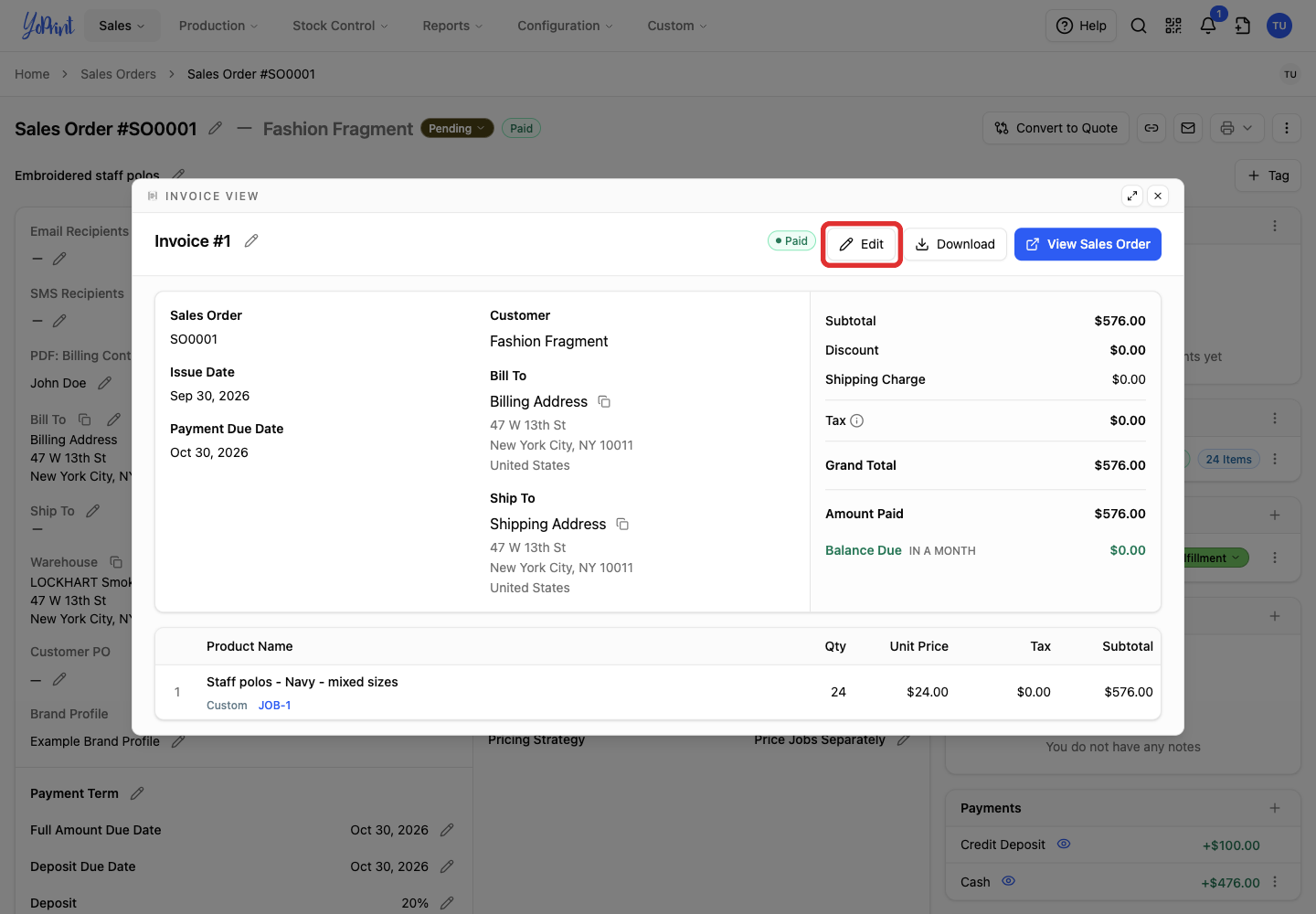
Choose a quantity correction or a discount below. To make another correction after Save and Close, repeat steps 1 and 2 to reopen the invoice editor.
Reduce the invoiced quantity
-
Reduce Qty for the affected line item.
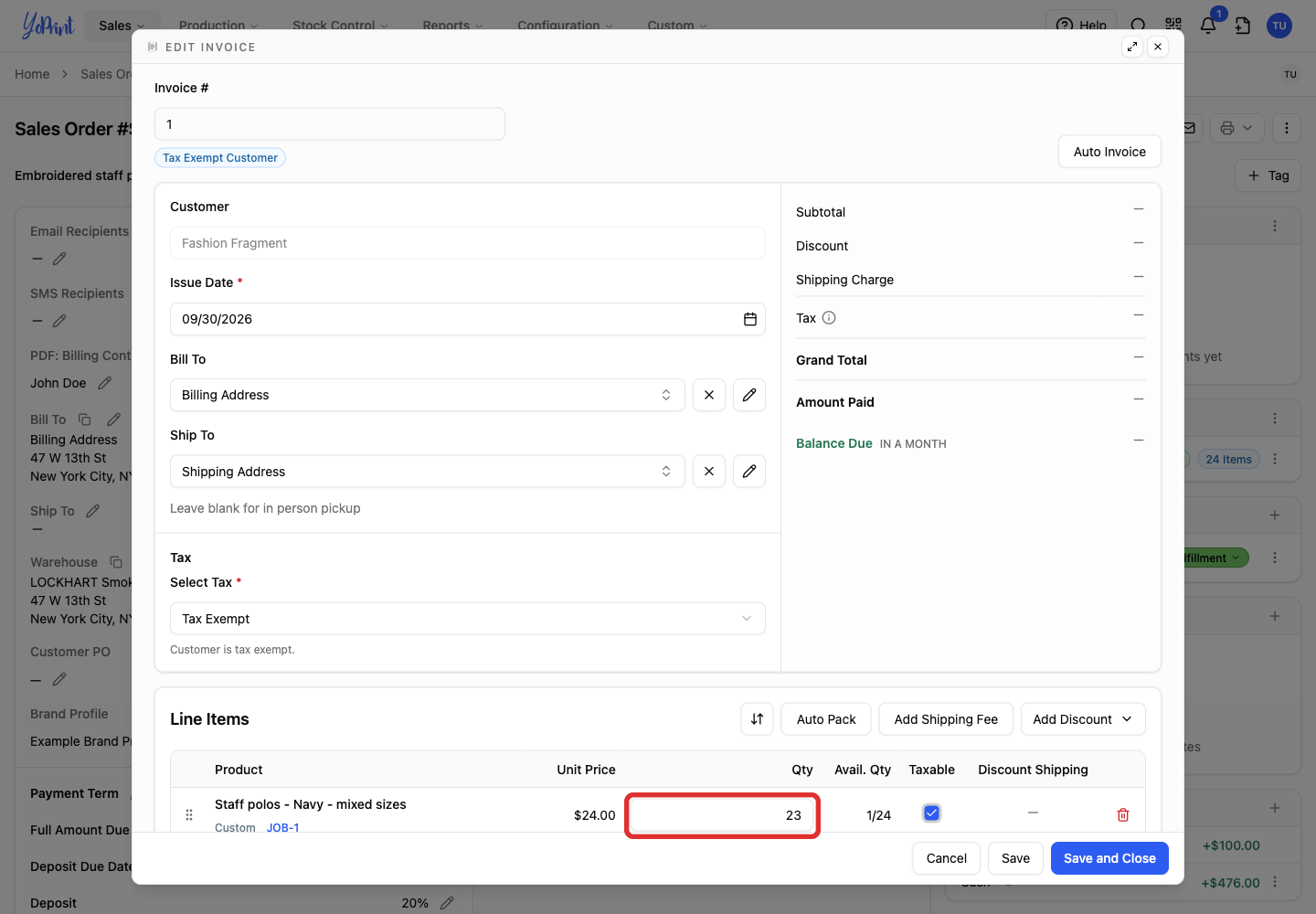
-
Click Save and Close.
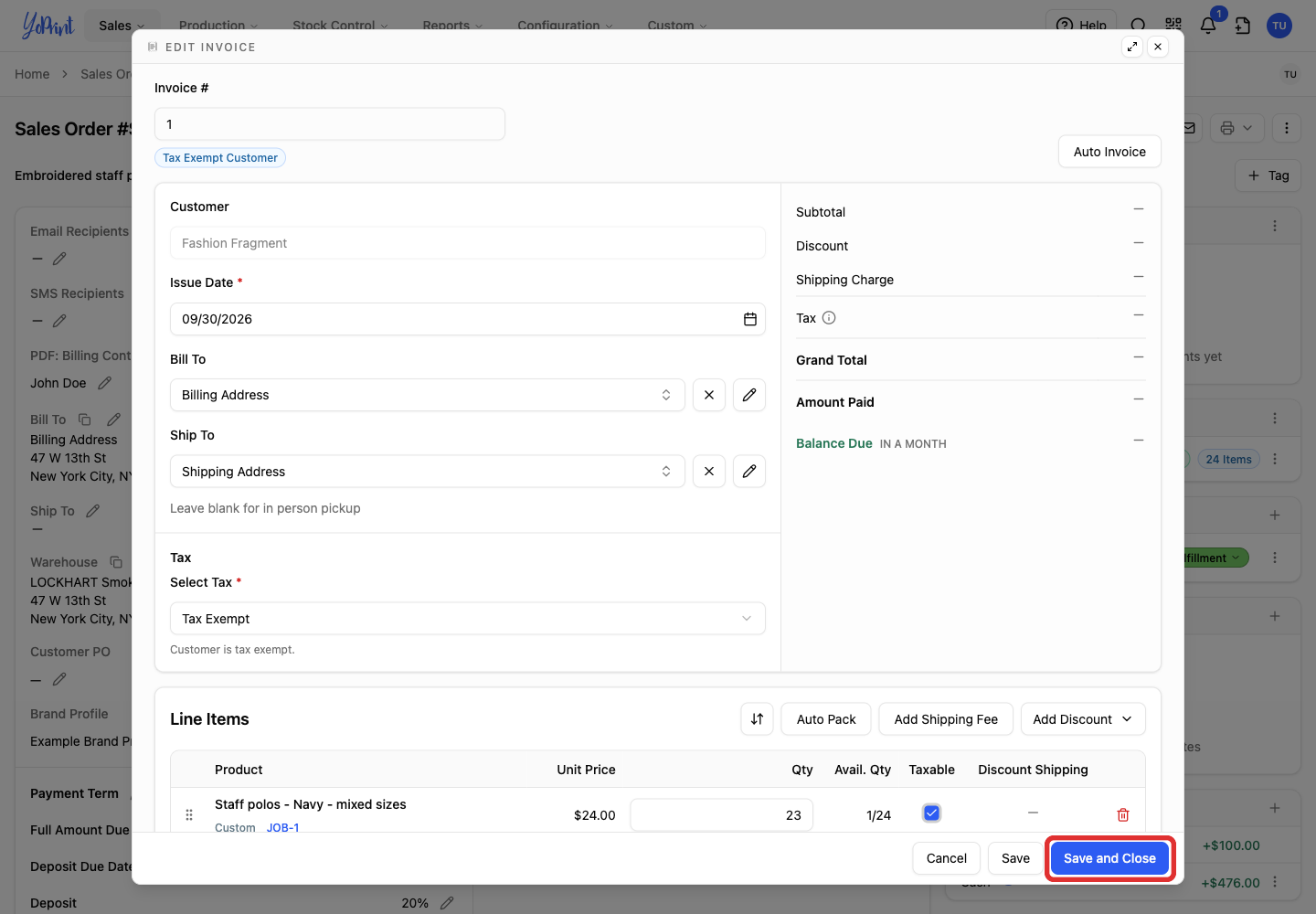
The invoice total falls by the value of the removed quantity.
Apply a value discount
-
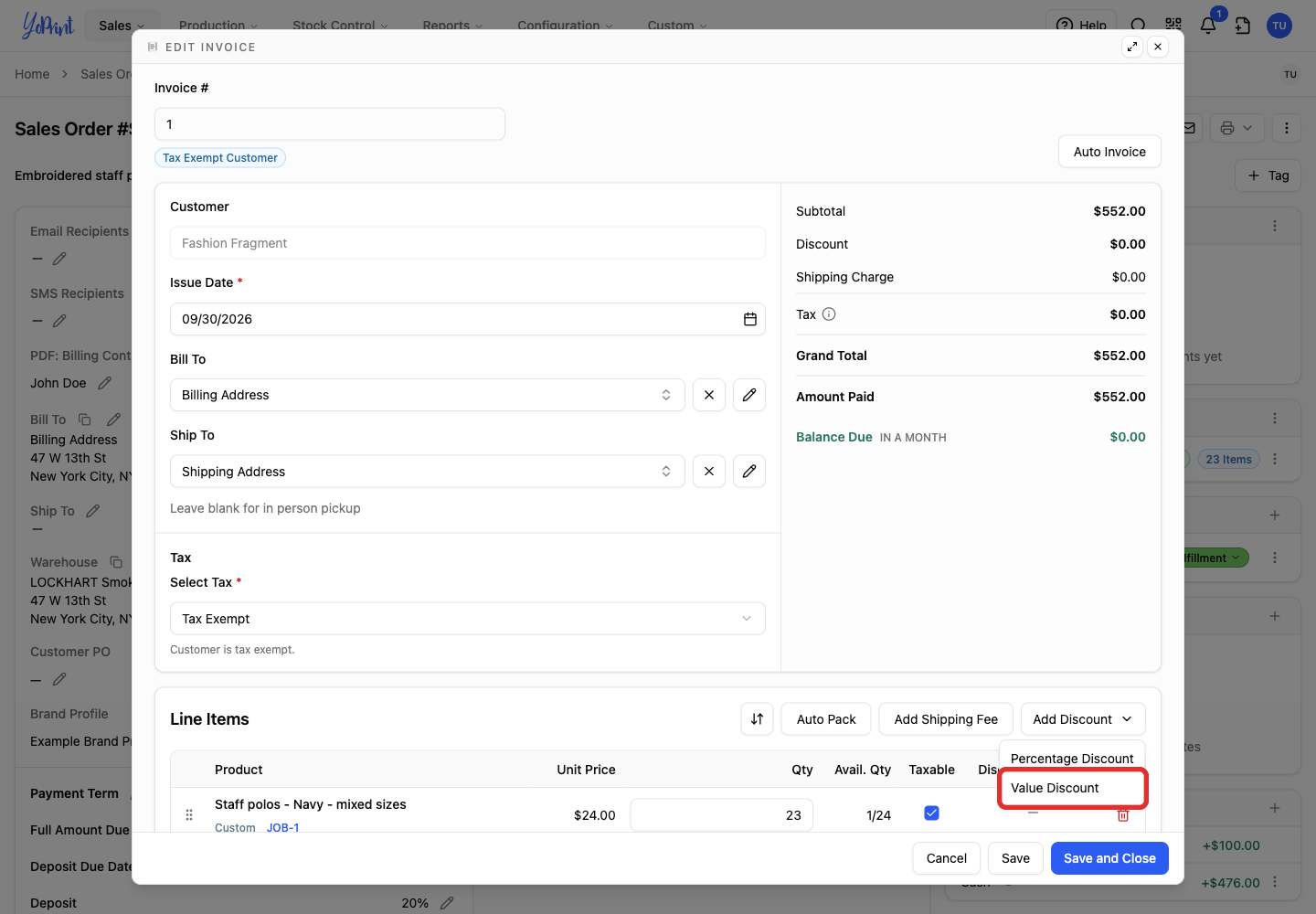
In the invoice editor, open Add Discount.
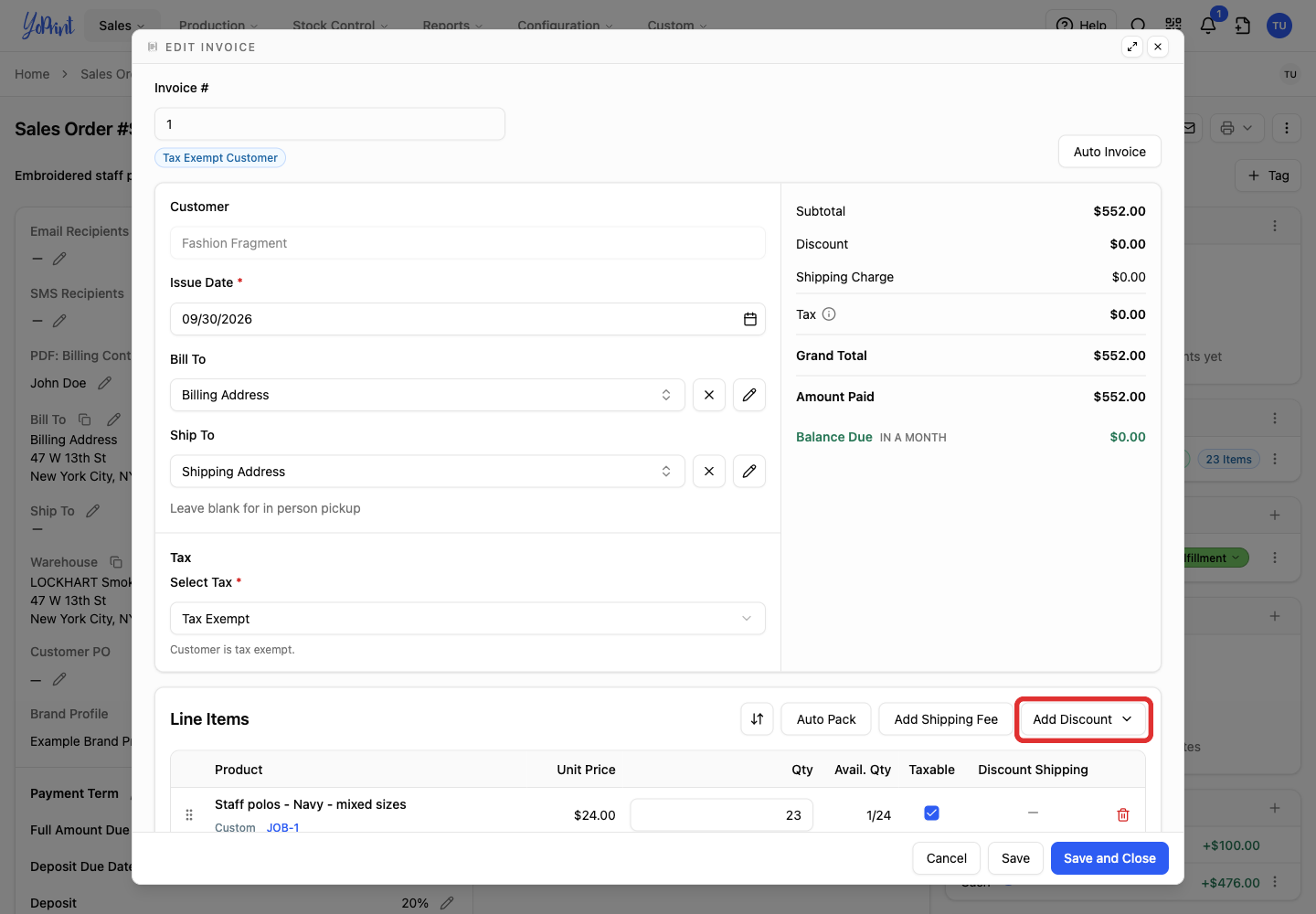
-
Choose Value Discount.
-
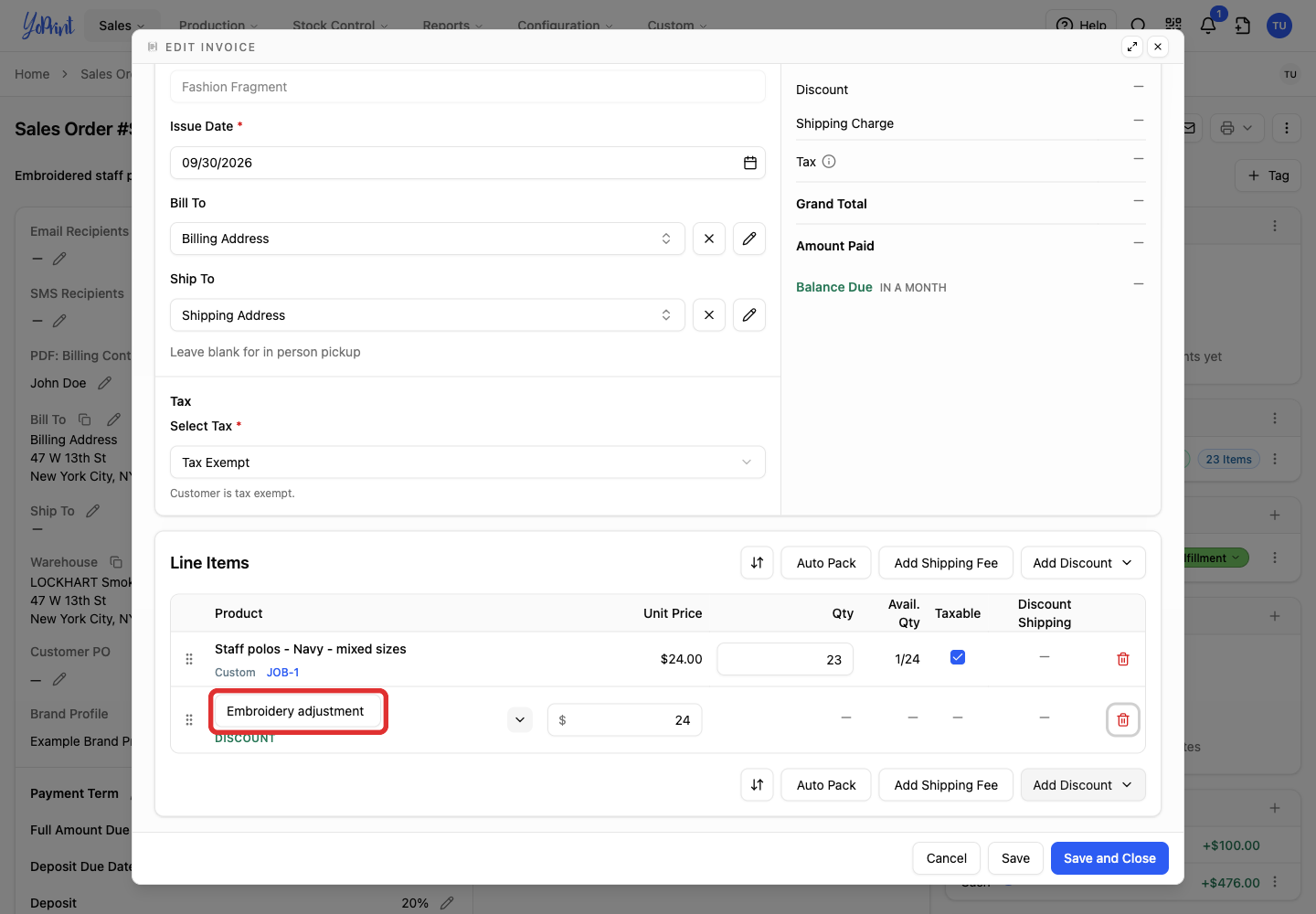
Give the discount a description that explains the adjustment.
-
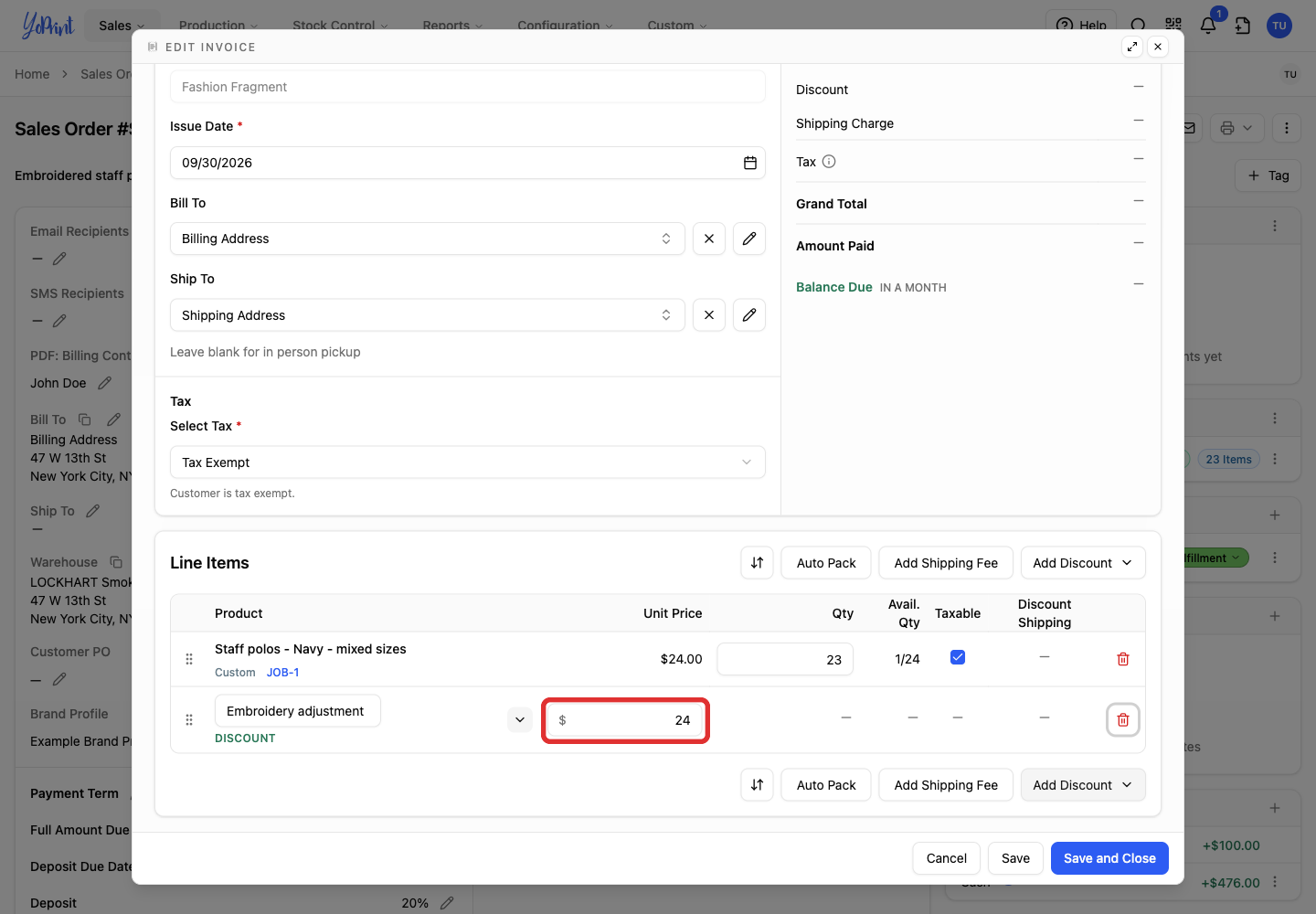
Enter the discount amount.
-
Click Save and Close.
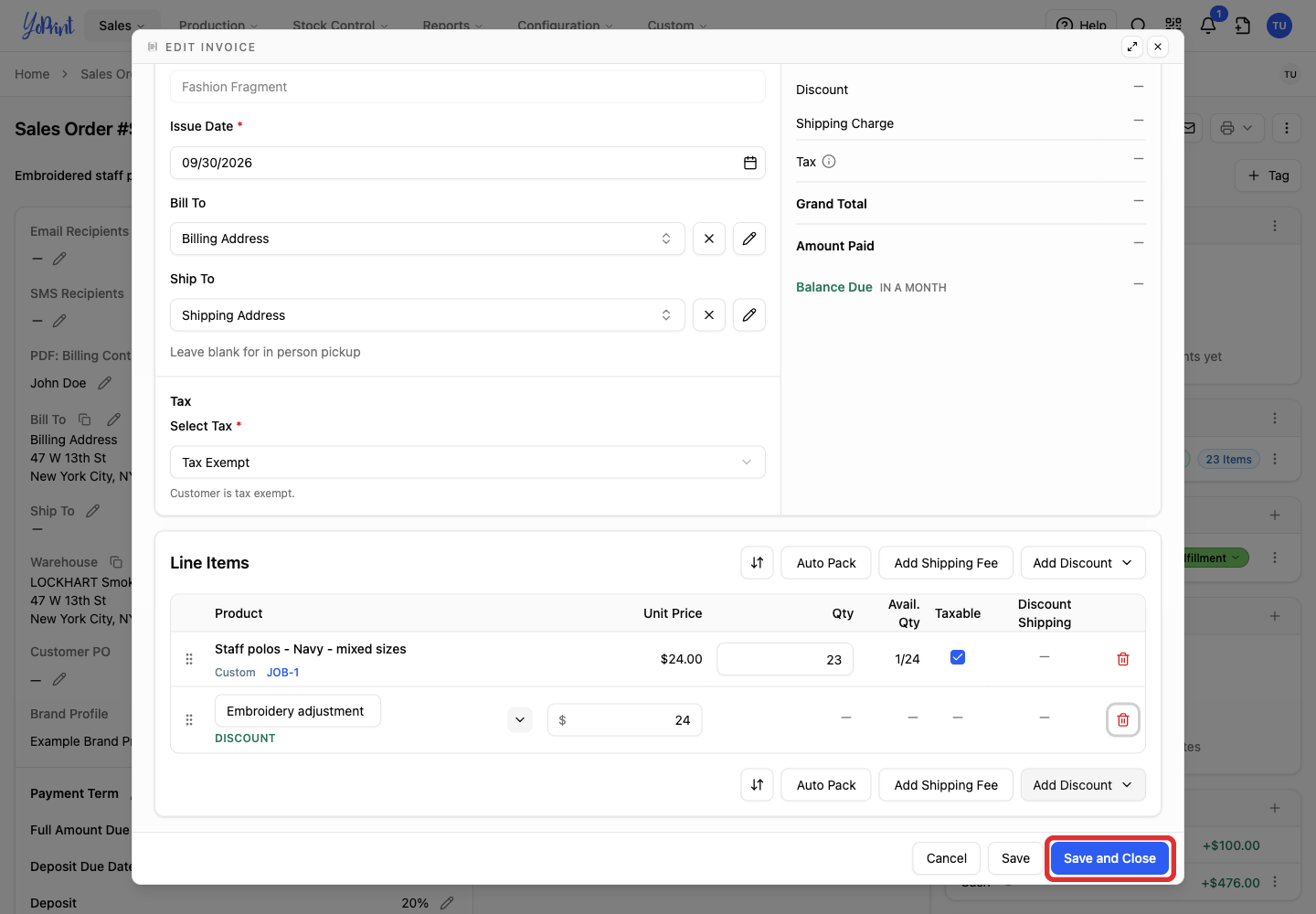
The discount reduces the invoice total. When payments exceed the corrected total, the sales order shows Overpaid.
Issue the overpayment as credit
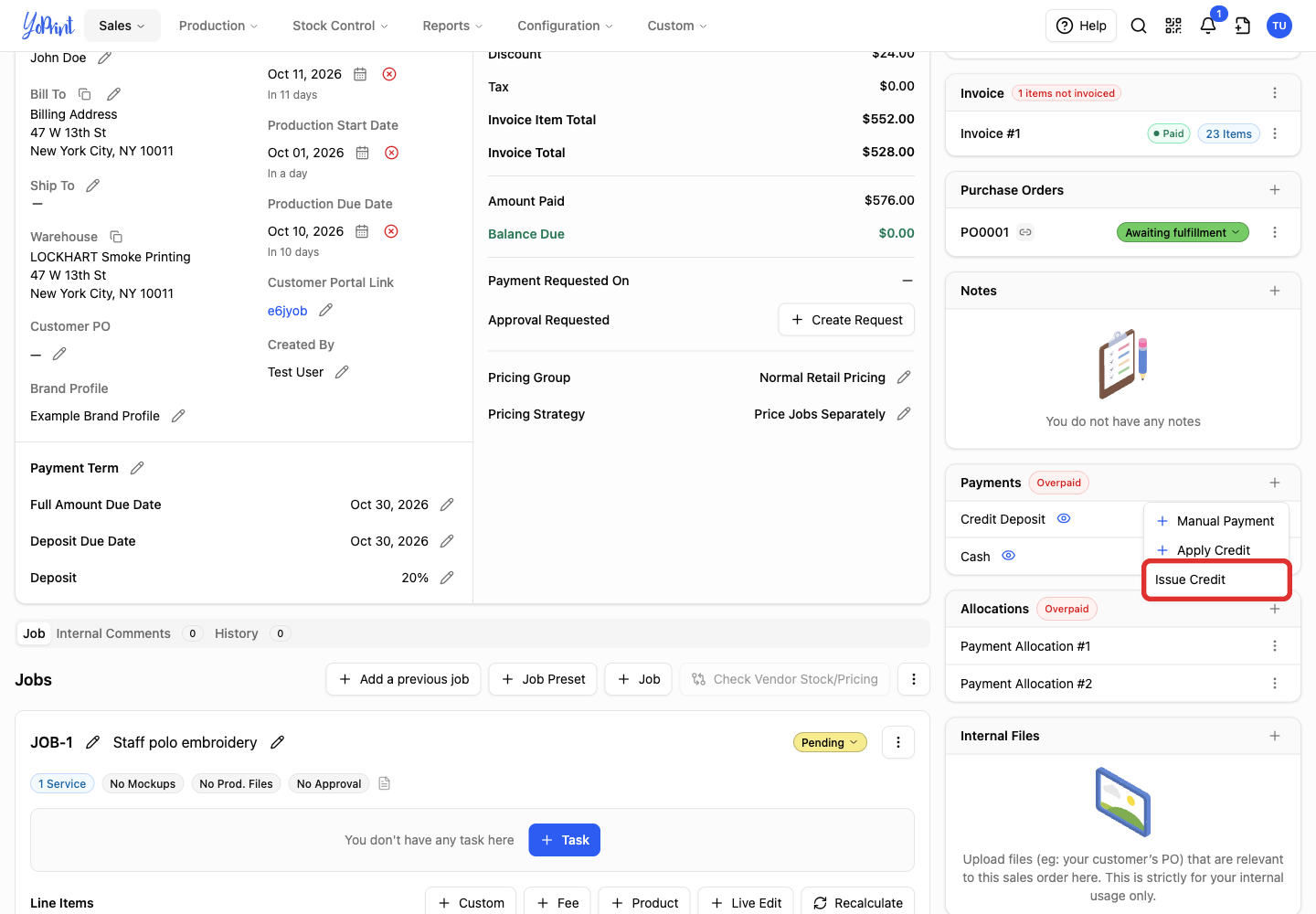
Issue Credit is disabled when the order has no overpayment left to return.
-
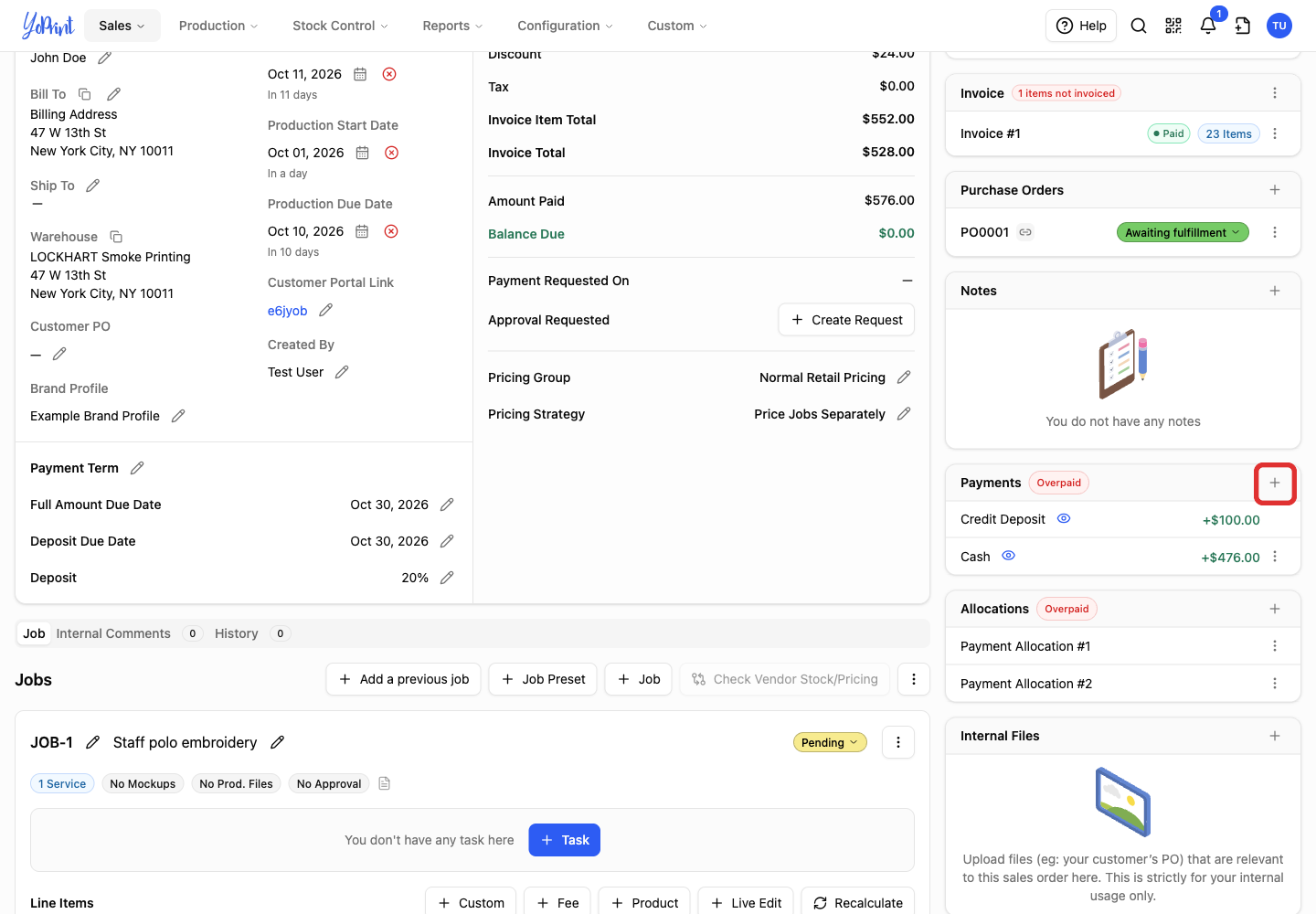
On the sales order, click Add (+) beside Payments.
-
Choose Issue Credit.
-
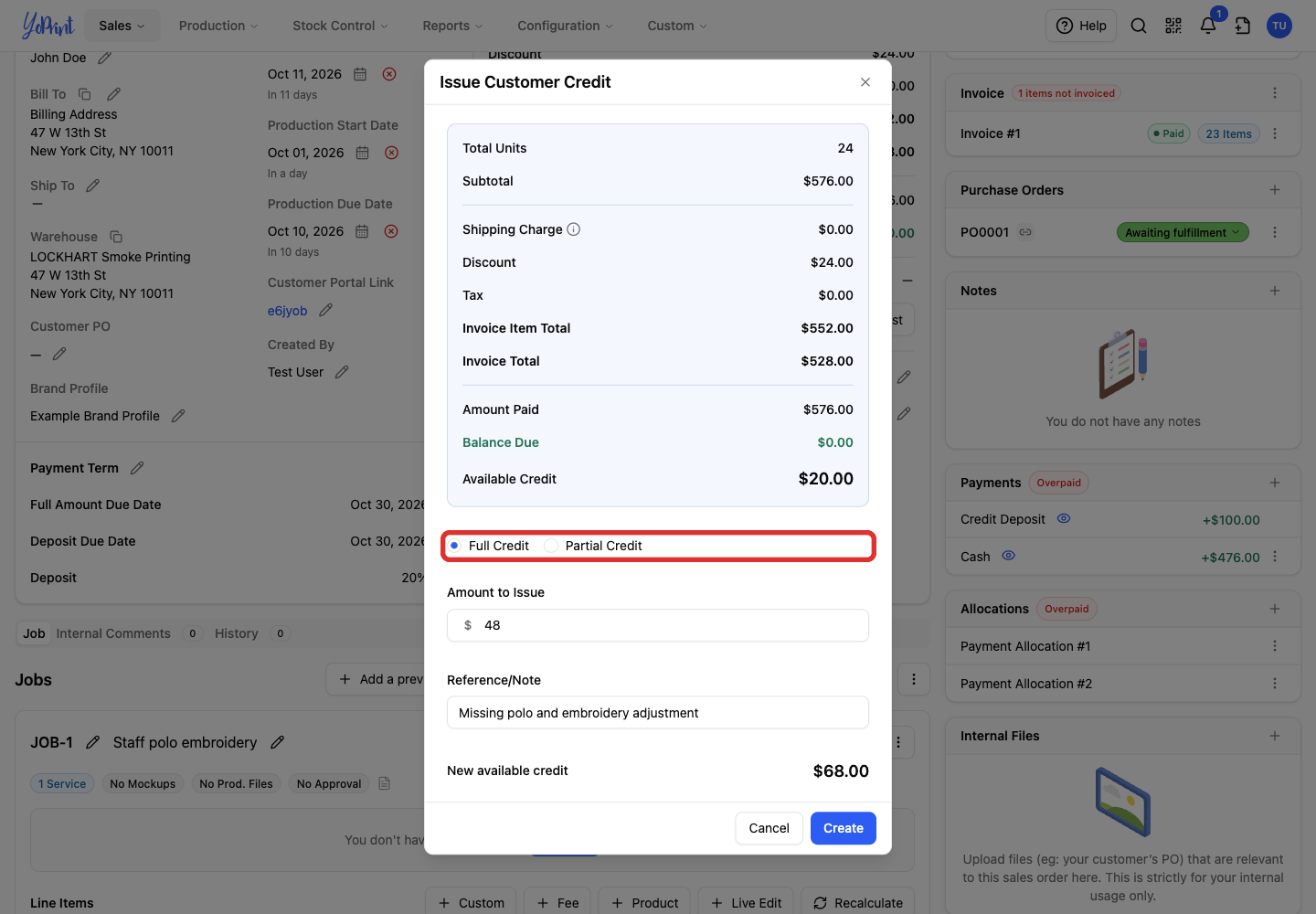
Choose Full Credit for the amount available to credit, or Partial Credit for a smaller amount.
-
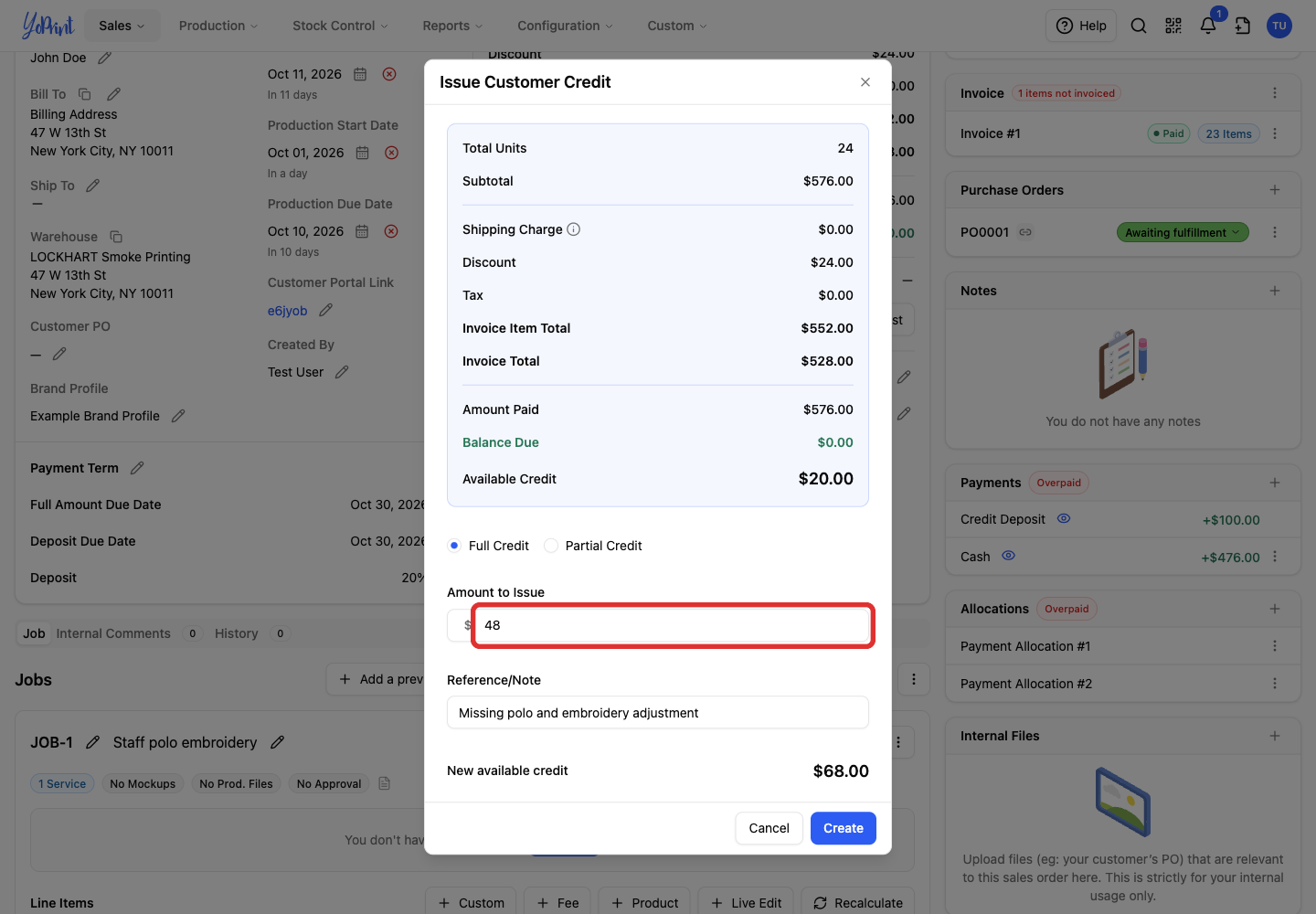
Check Amount to Issue. For a partial credit, enter the amount you want to return to the wallet. Reference/Note lets you record the reason.
-
Check New available credit, then click Create.
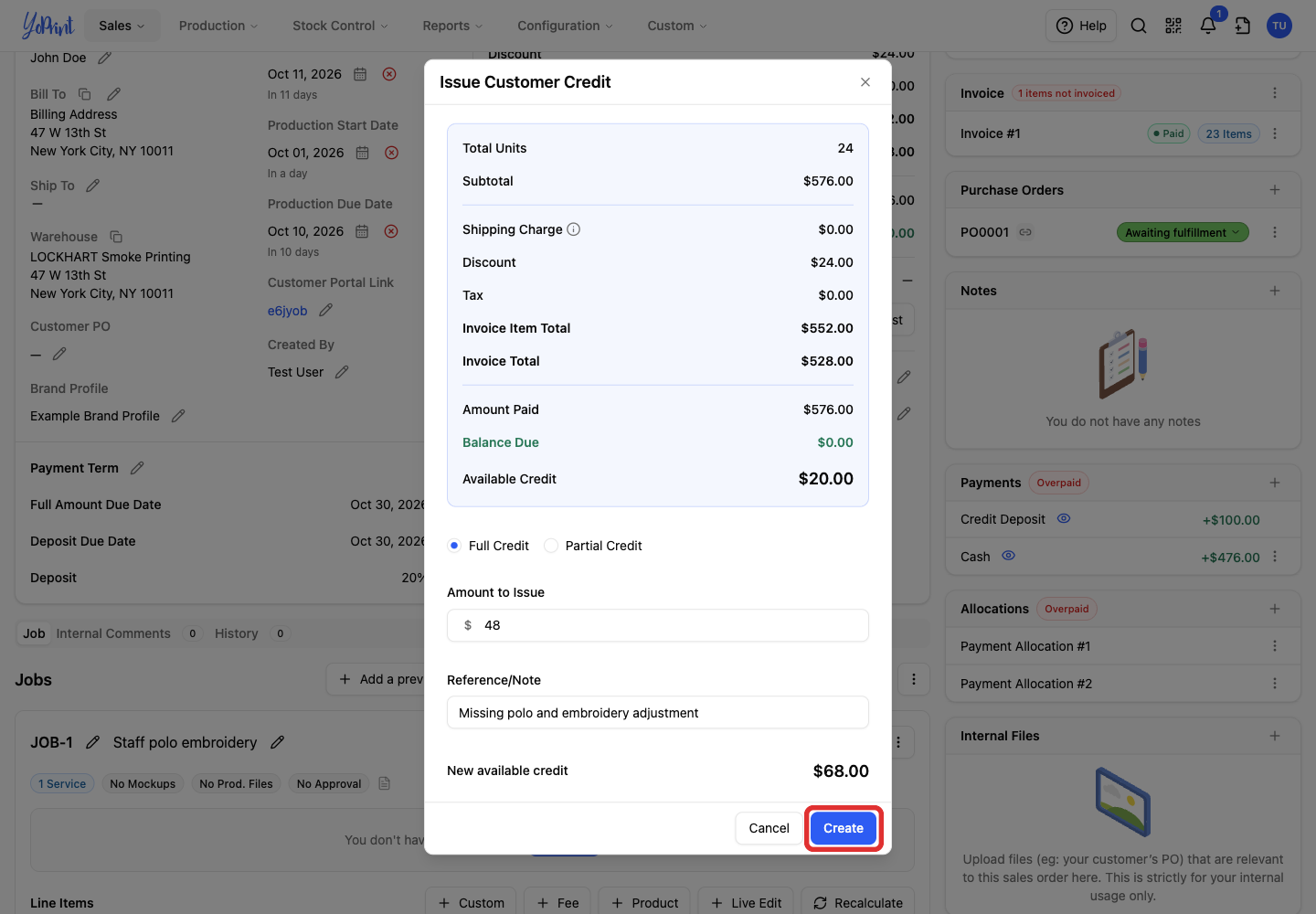
Credit Withdraw means credit moved out of the order payment and back into the wallet for another order.
Review fund history
Wallet & fund history on Finance & Assigned lists deposits, withdrawals, credit applied to orders, and credit returned from orders. The Type column shows TRANSFER for every entry; use Reference and the signed amount to identify the change.

A plus amount adds to the wallet; a minus amount reduces it. In this example, $150 added, $30 withdrawn, $100 applied, and $48 returned leave a $68 wallet balance.
What customers see in the Customer Portal
Customer Portal screens
The Customer Portal screens may have changed since this picture was taken. See the Customer Portal guide for an overview.
The Customer Portal dashboard shows Available Credit, the balance the customer can use toward future orders.

Your shop applies the credit from the sales order. Customers cannot apply wallet credit themselves during checkout, so ask them to request it from your shop before paying online. They can review payment transactions on their orders; your team reviews the full wallet history under Finance & Assigned.
Common questions
Can I manually correct the customer's credit?
Yes. Use Deposit or Withdraw in Adjust fund and include a reference that explains the correction.
What happens when I void a paid order?
For an order created in YoPrint, voiding the order transfers its remaining payments to the customer's wallet. Shopify orders follow separate payment handling; this automatic wallet transfer does not apply to them. For a money refund, record a withdrawal from the wallet and refund the original payment separately.
Can credit cover only part of an order?
Yes. Apply a custom amount of available credit, then record the remaining payment through the method the customer uses.
Can I refund the customer's credit balance?
Yes. Record a Withdraw adjustment for the amount being returned, and process the refund externally. The wallet adjustment does not send money to the customer.
Is there a credit-limit setting?
Neither Adjust fund nor Billing & terms has a credit-limit field. The wallet records the credit your shop holds for that customer.
Will the customer receive an automatic credit notification?
YoPrint does not automatically email the customer when you adjust their wallet credit. Let the customer know separately when they need an update.