Use Internal Comments in Sales Orders and Quotes
In this article
Add an internal comment
Internal comments keep your team up to date on a sales order or quote. Any team member with access to the order can view them. Customers cannot see internal comments.
To open a sales order or quote from the dashboard, select Sales > Sales Order (or Sales > Quote), click the order, and choose View Sales Order.
-
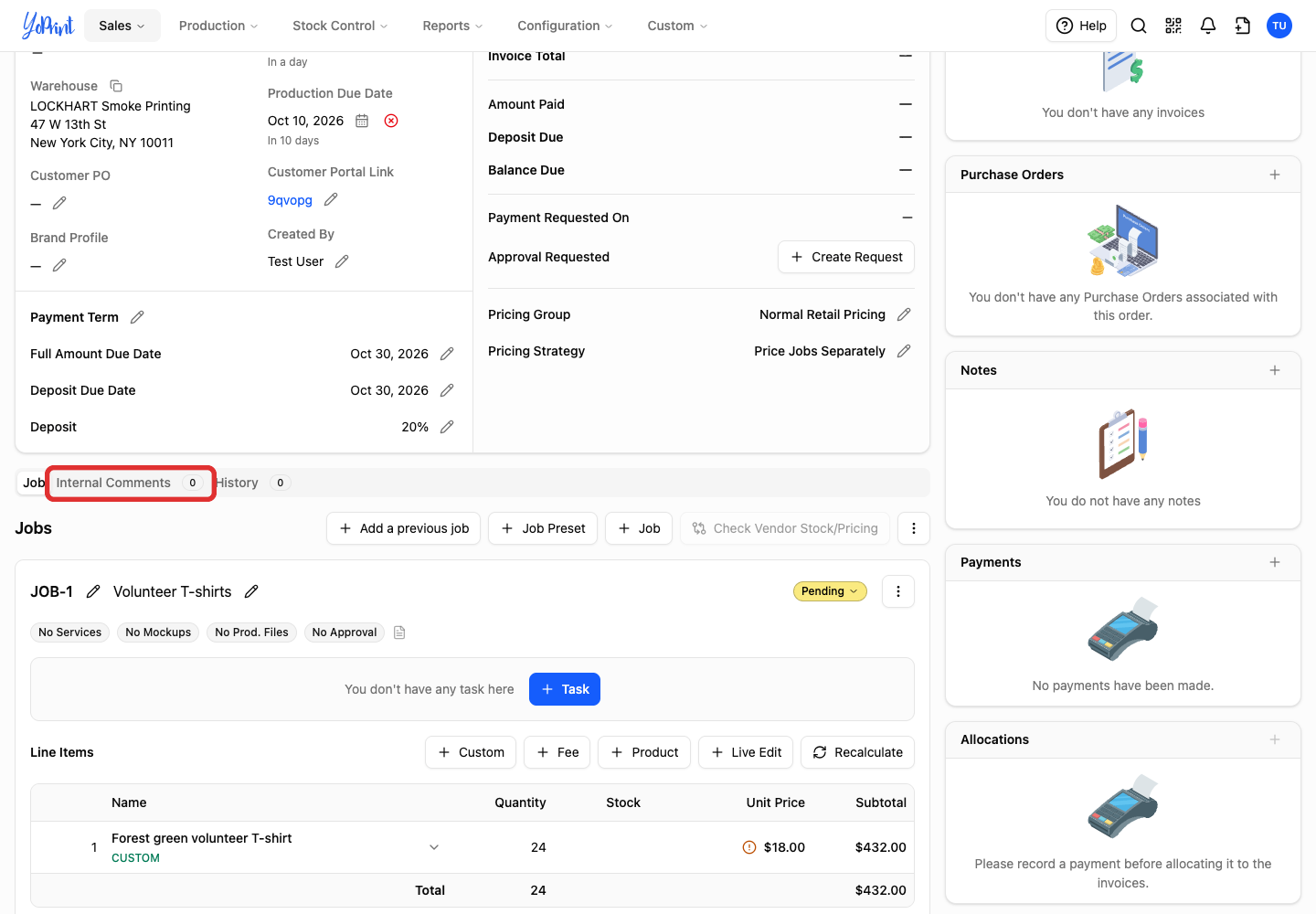
Scroll down past the order details and select Internal Comments. The badge shows the number of comments on the order.
-
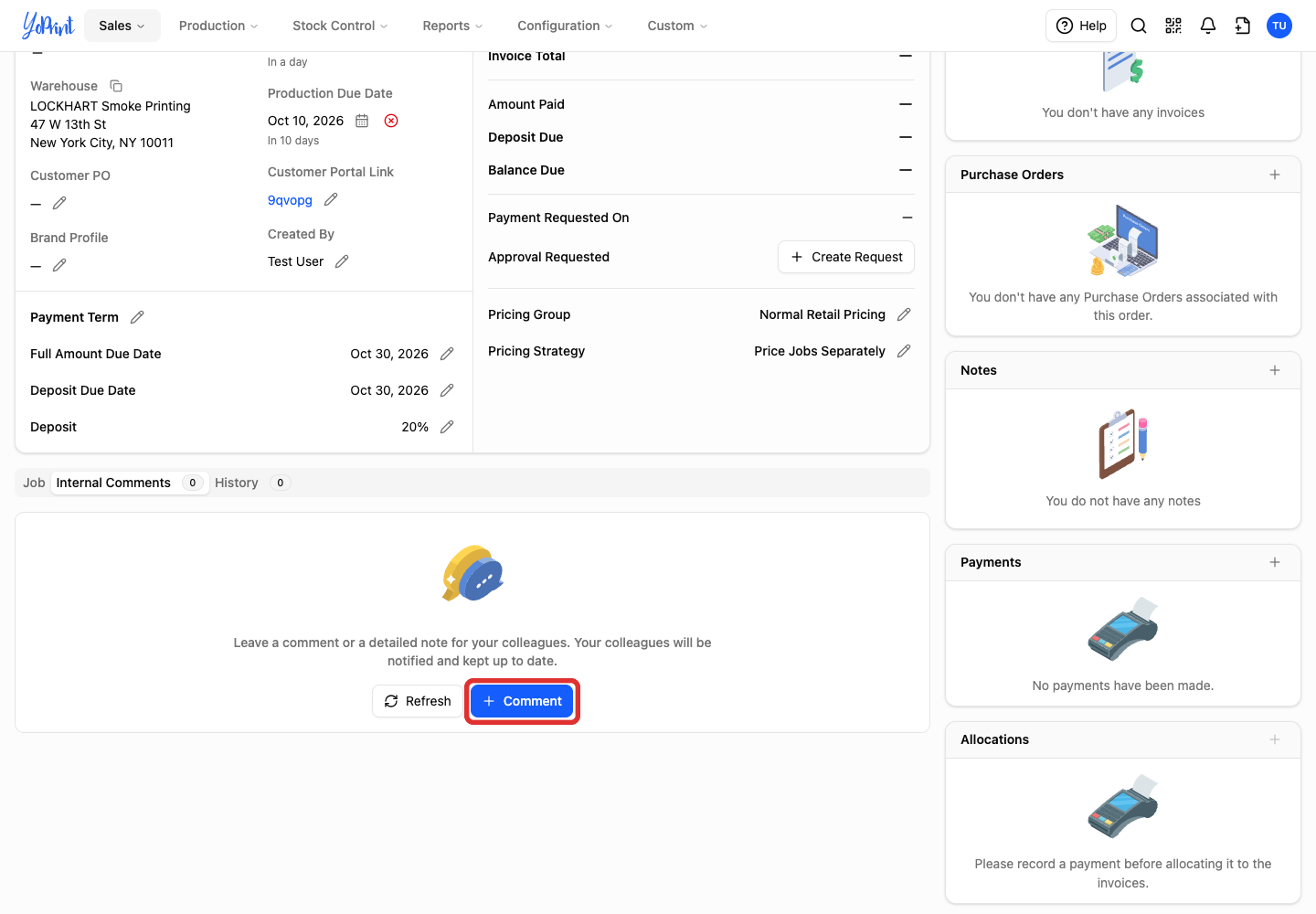
Click + Comment. If earlier comments exist, + Comment appears at the top right of the comments card.
-
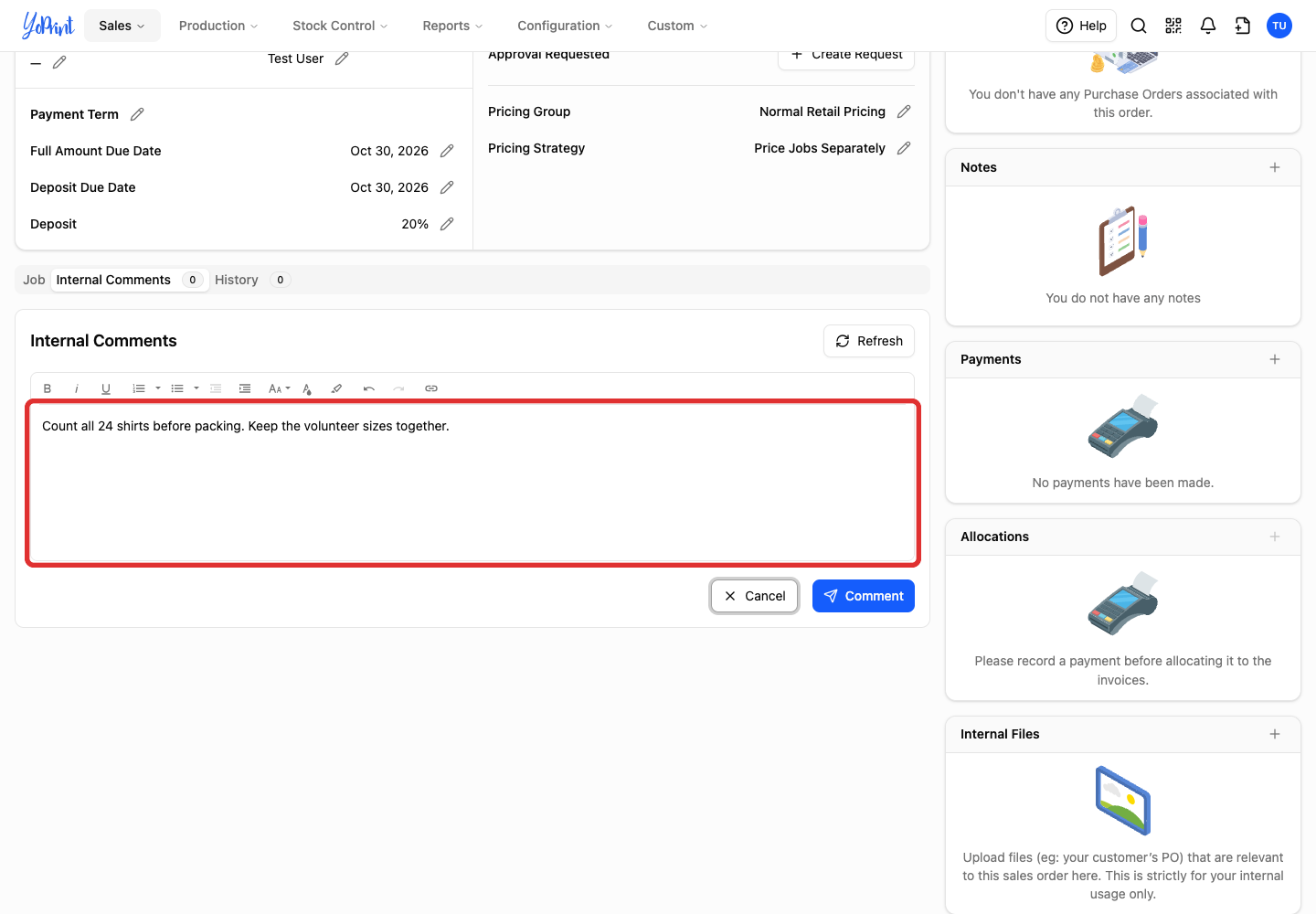
Write your comment. Use the toolbar if you want to format the text or add a link.
-
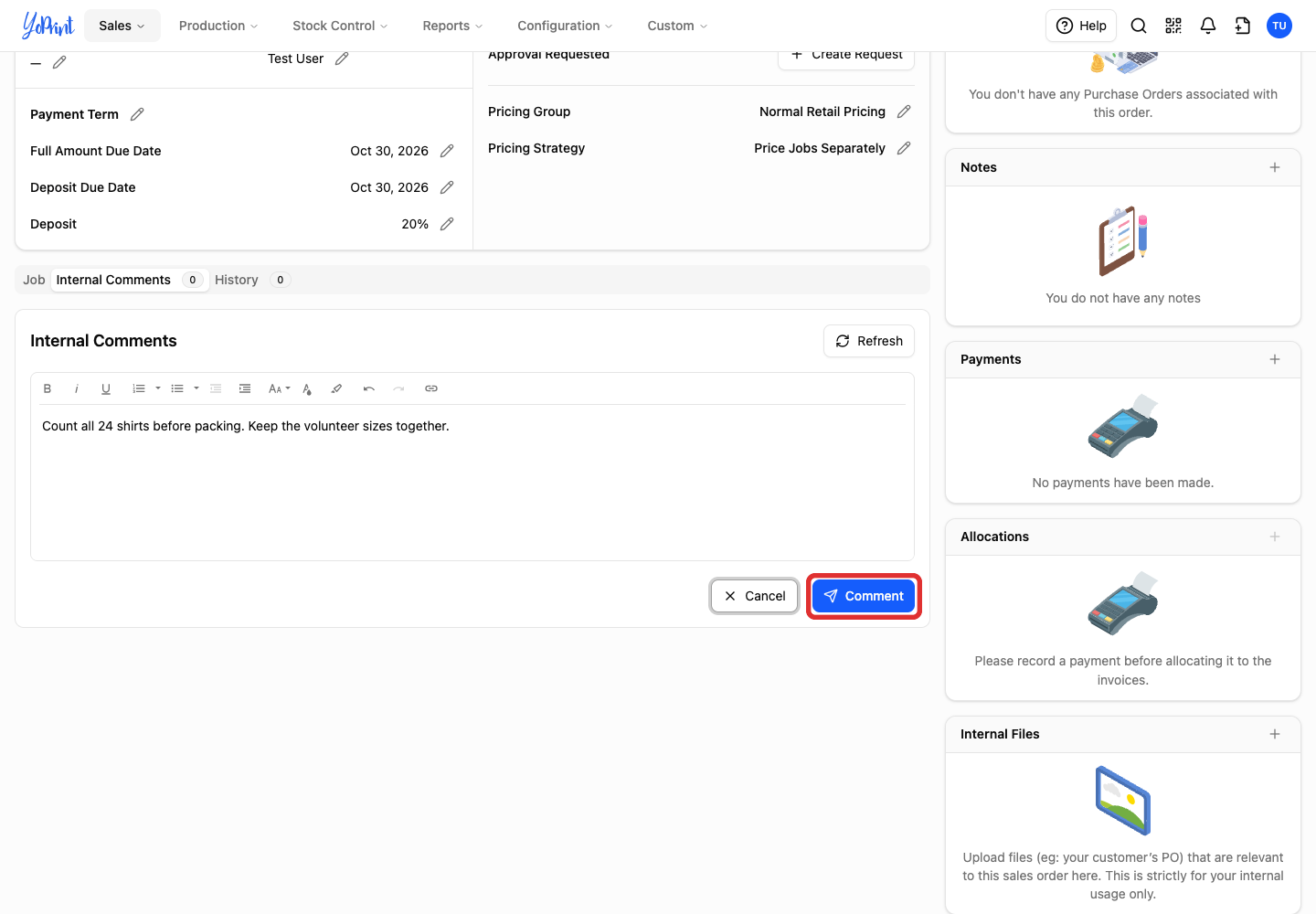
Click Comment to save it. The button activates once you enter text.
The comment appears with its author and timestamp. Comments do not support user mentions or tags, and they appear in a chronological list rather than threaded replies. Return to Internal Comments on the same order or quote to read the conversation.
Edit a comment
-
Open the comment's three-dot Comment actions menu.
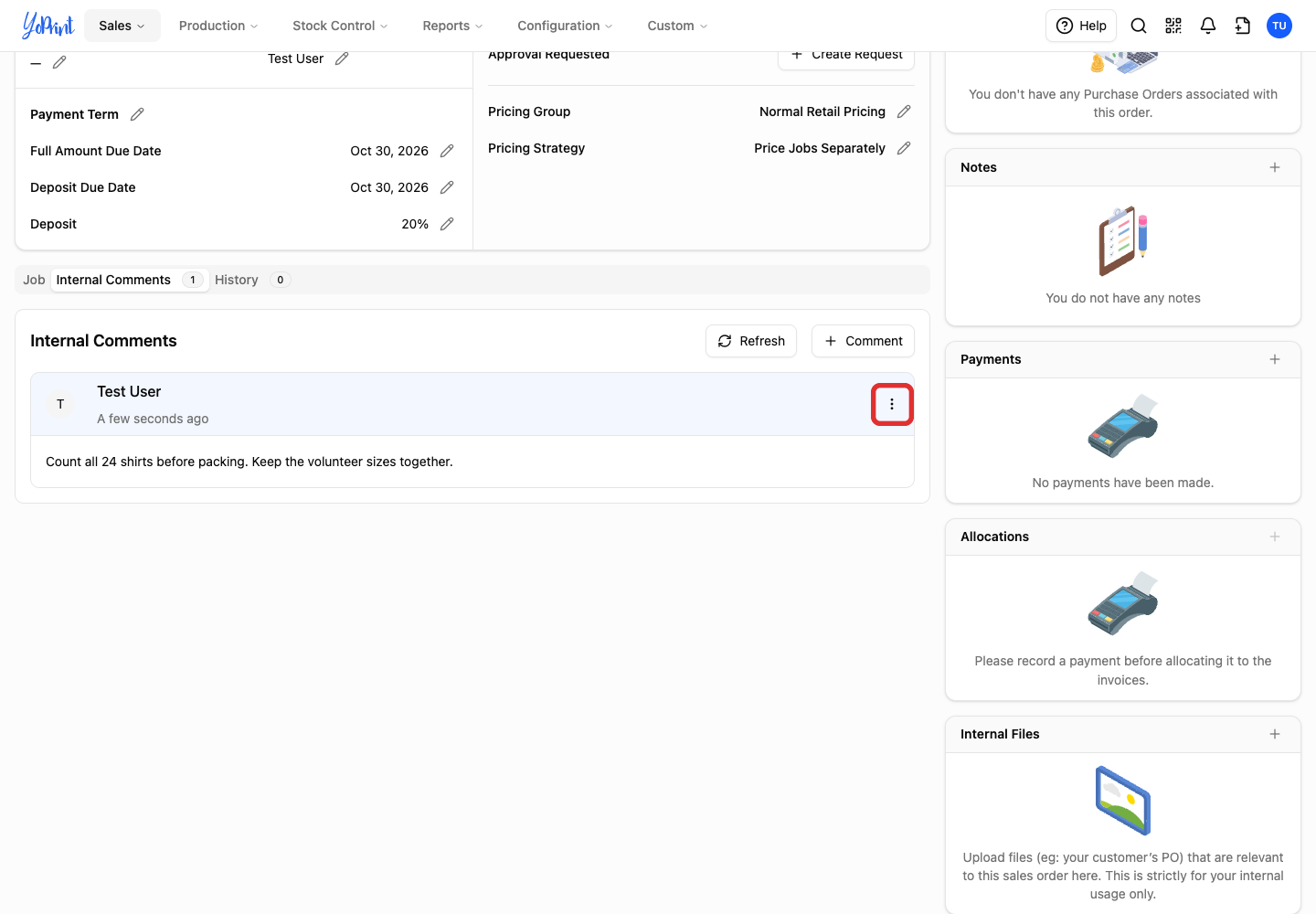
-
Choose Edit.
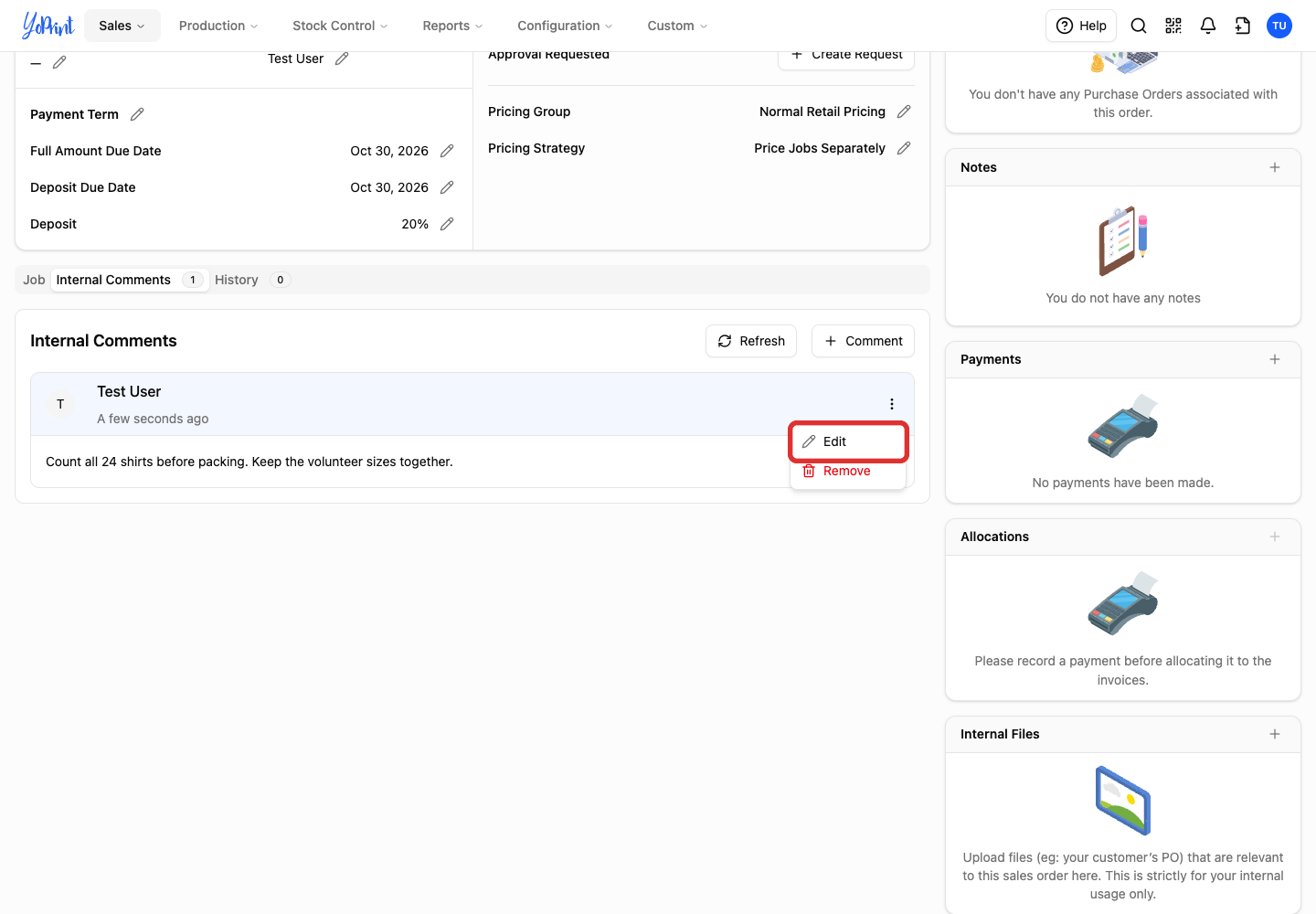
-
Change the text.
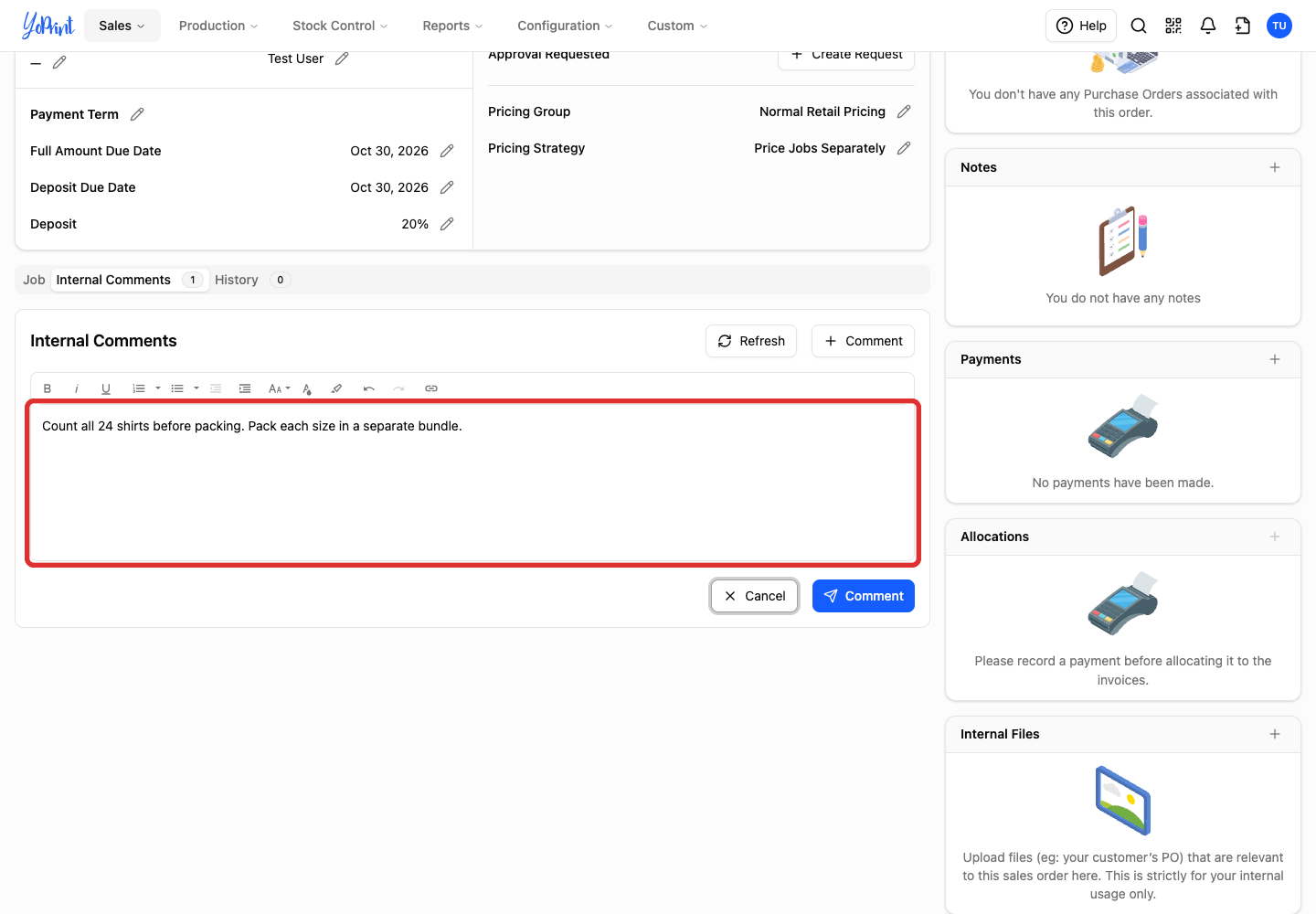
-
Click Comment to save your changes. The button keeps the Comment label when editing. Choose Cancel to keep the previous text.
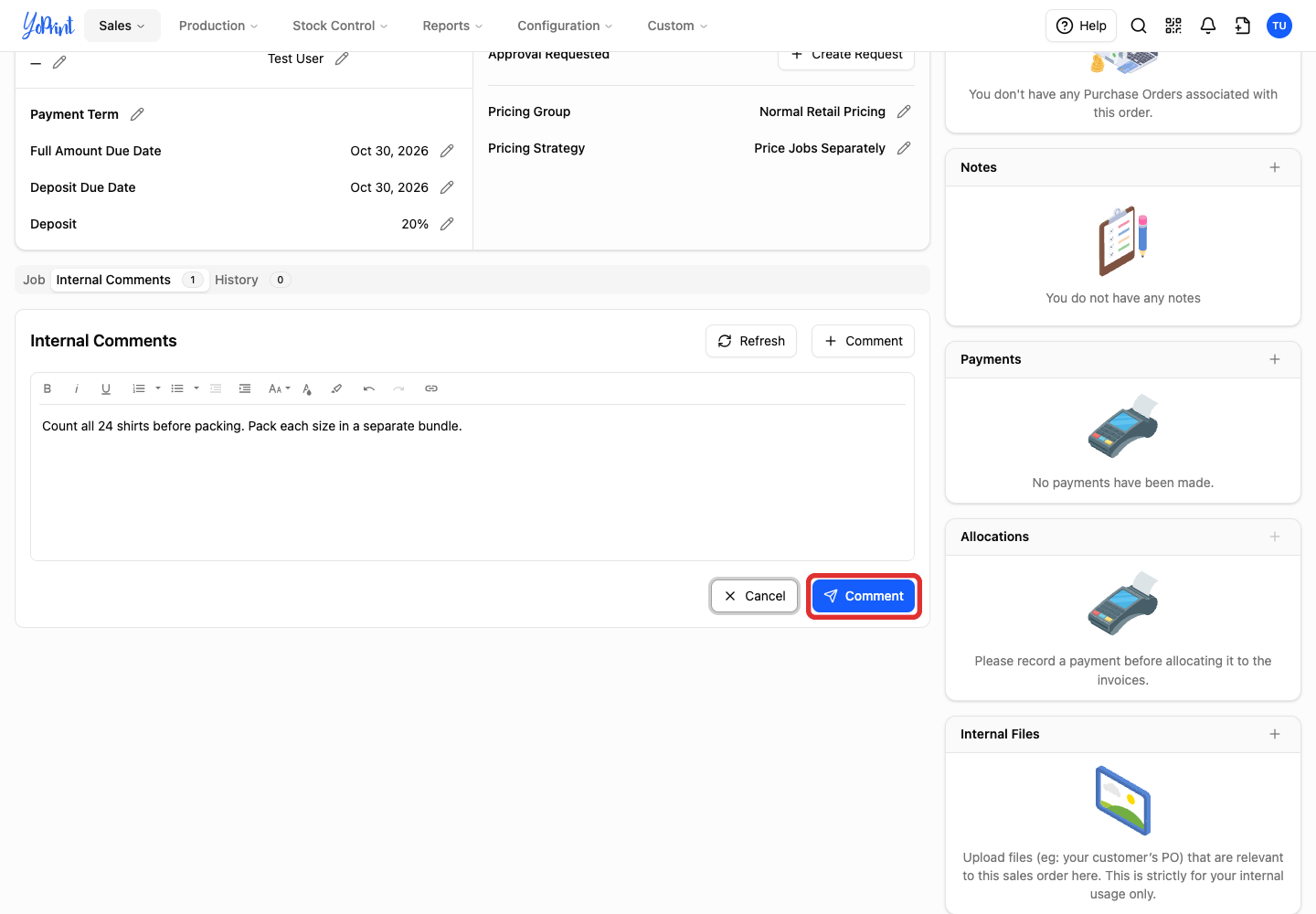
An (edited) label appears on the updated comment.
Remove a comment
Removing a comment is permanent. Any team member who can edit the order can remove a comment, and removed comments do not appear in the History tab.
-
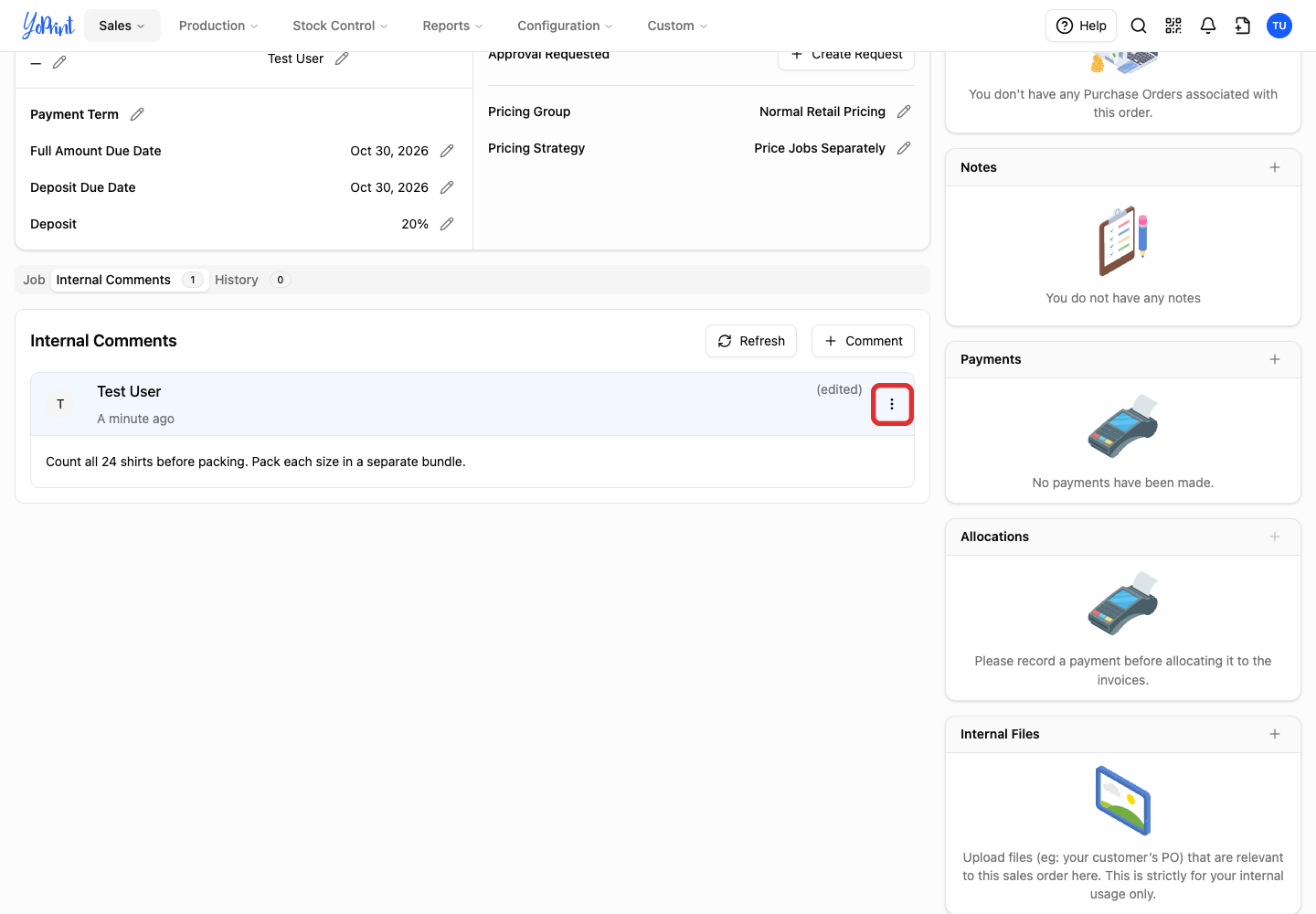
Open the comment's three-dot Comment actions menu.
-
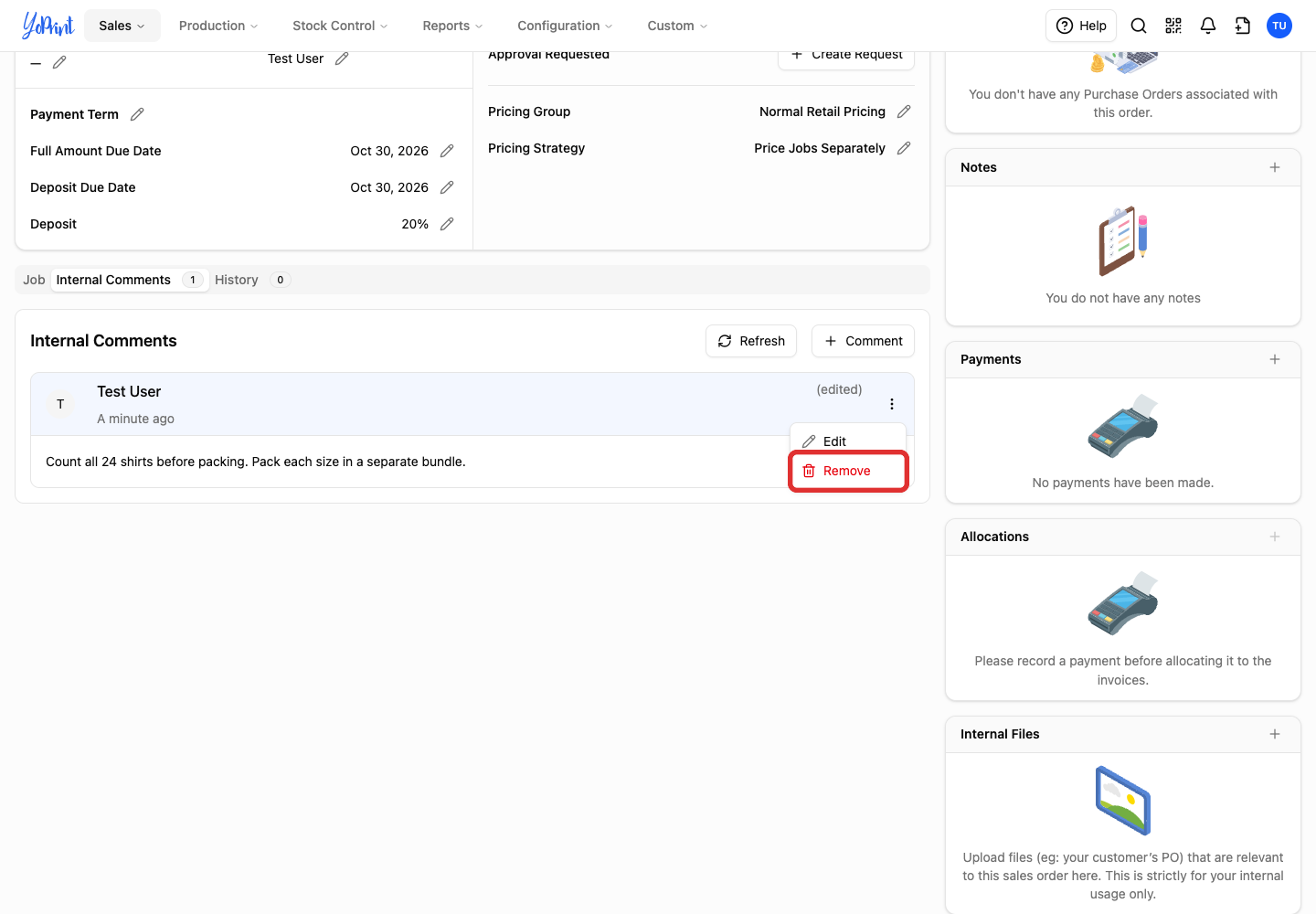
Choose Remove.
-
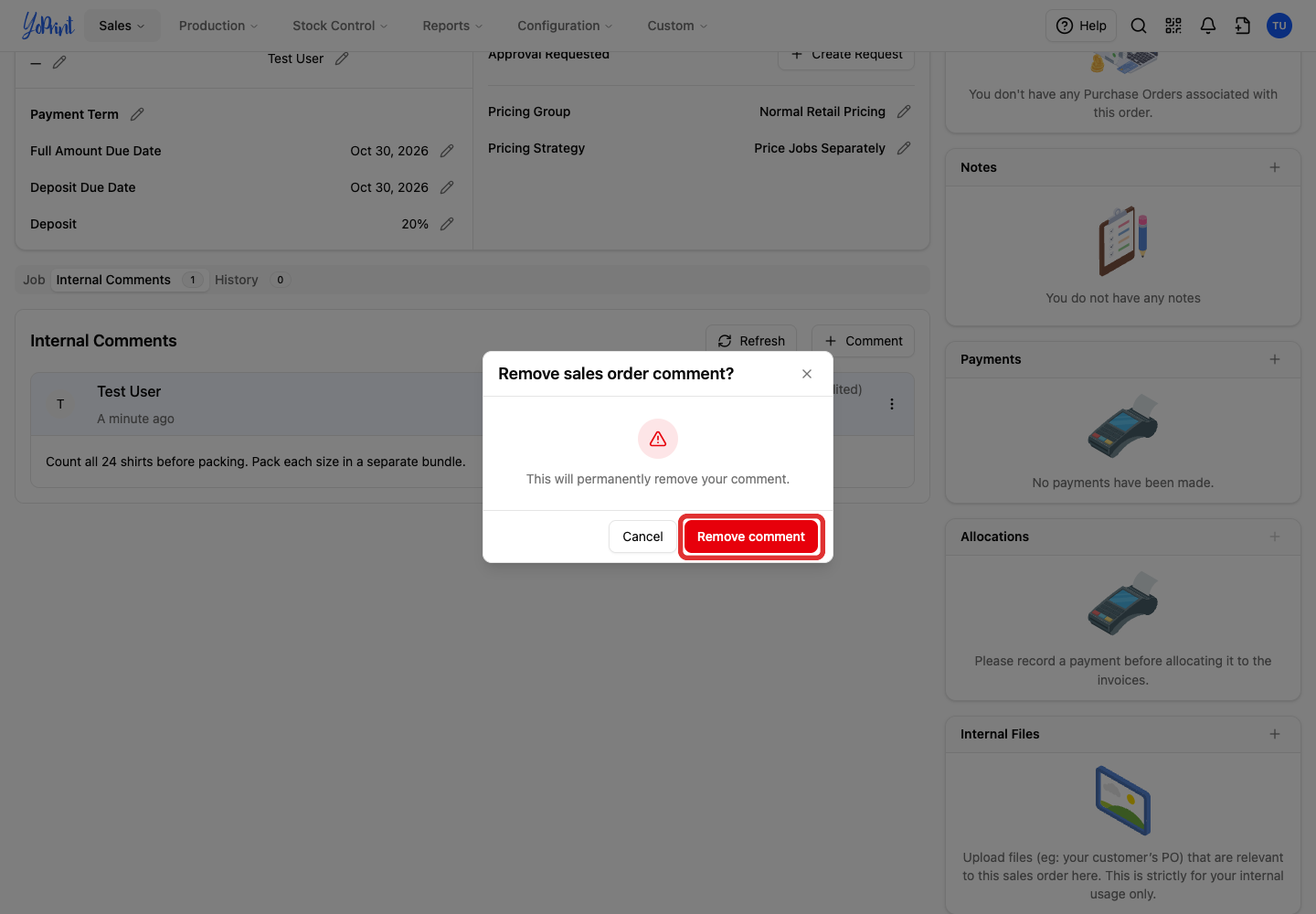
Click Remove comment to confirm. Choose Cancel if you want to keep it.
Reply to a comment by email
In your email app
These steps happen in your email app. The Gmail screen below may have changed since this picture was taken. See Gmail's guide to replying to messages for its current controls.
Team members assigned to the customer in Sales > Customers can receive email notifications when another team member comments, if internal comment alerts are enabled in Settings > Notifications. YoPrint does not email you about your own comments.
- Open the comment notification in your inbox.
- Choose Reply.
- Write your response. YoPrint strips quoted email headers and signatures from the imported note.
- Click Send. Your reply is added to the order's internal comments.

An email reply usually appears within a few minutes. Refresh the sales order or quote page to see new comments.