Remove Duplicate Customers
In this article
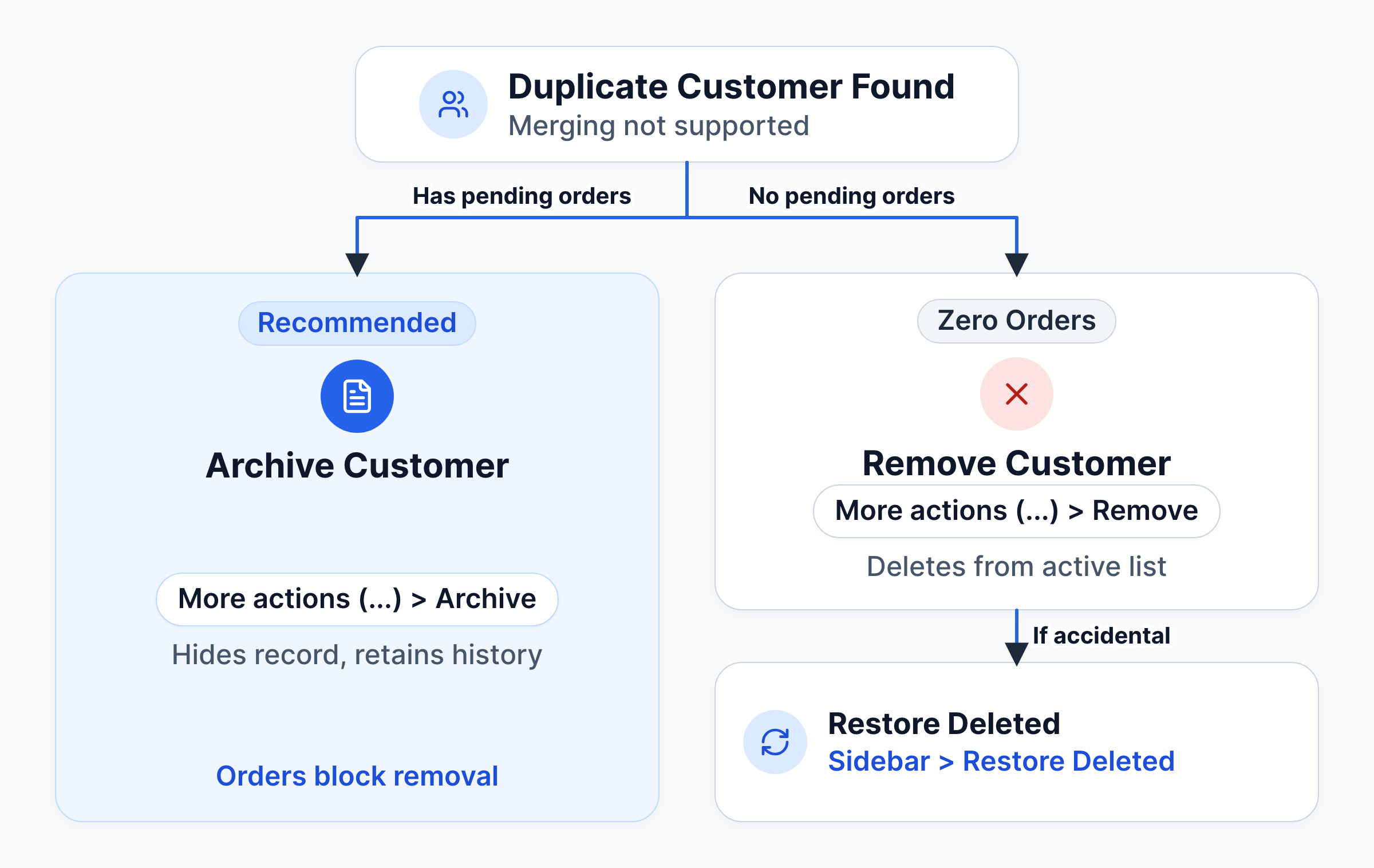
YoPrint does not merge customer records. When you find duplicate records in your shop, you can either Archive the duplicate or Remove it:
- Archive hides the customer from search menus when you create quotes and sales orders, while keeping all order history, invoices, and payments intact. Past orders remain attached to the duplicate record for historical reference.
- Remove deletes the customer record from your active customer list. You cannot remove a customer who has pending quotes or sales orders. If you delete a customer by mistake, you can restore them at any time from the left sidebar.
YoPrint also includes duplicate detection to help you catch matching records before creating a new customer.
Find duplicate customers
-
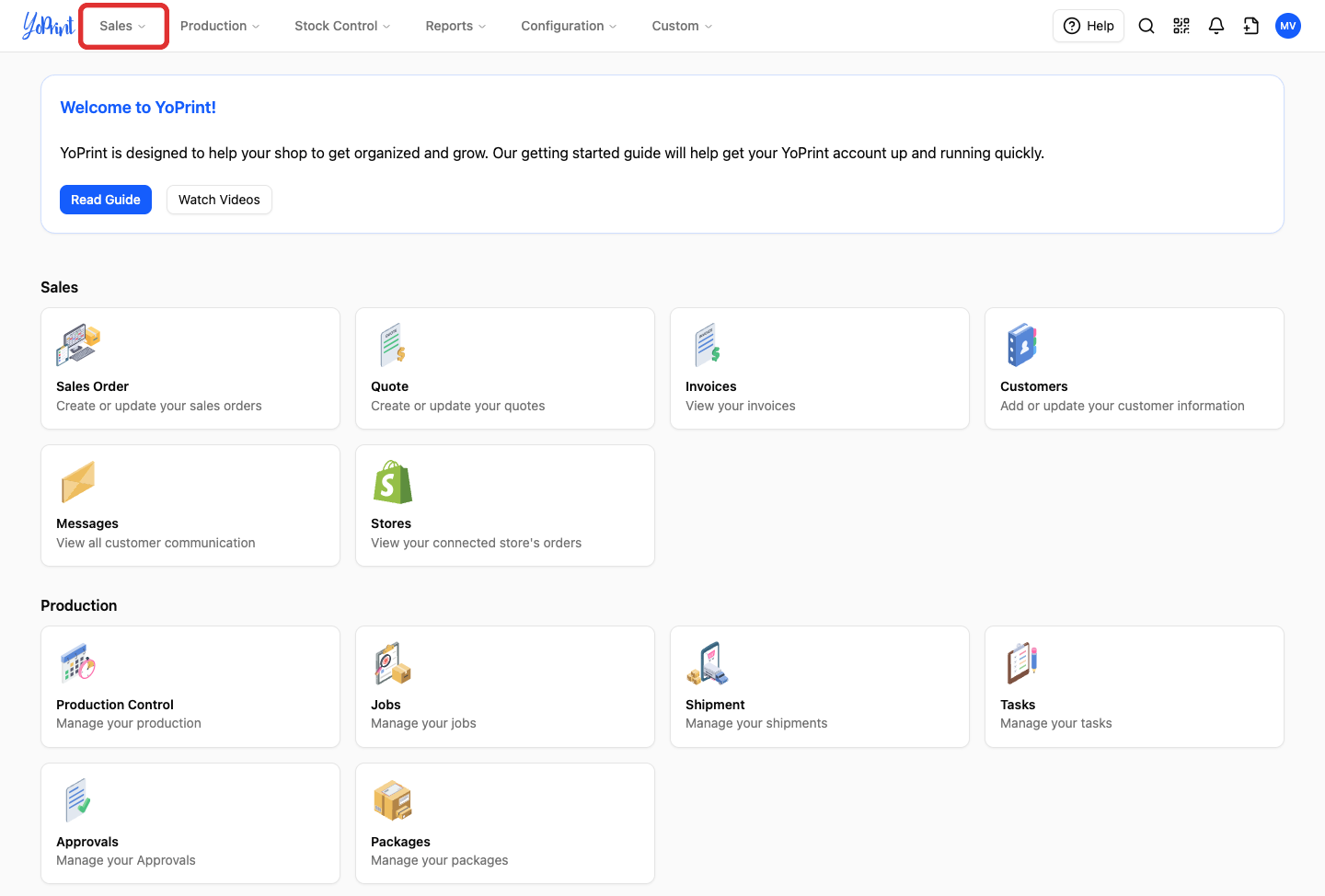
In the top navigation bar, click Sales.
-
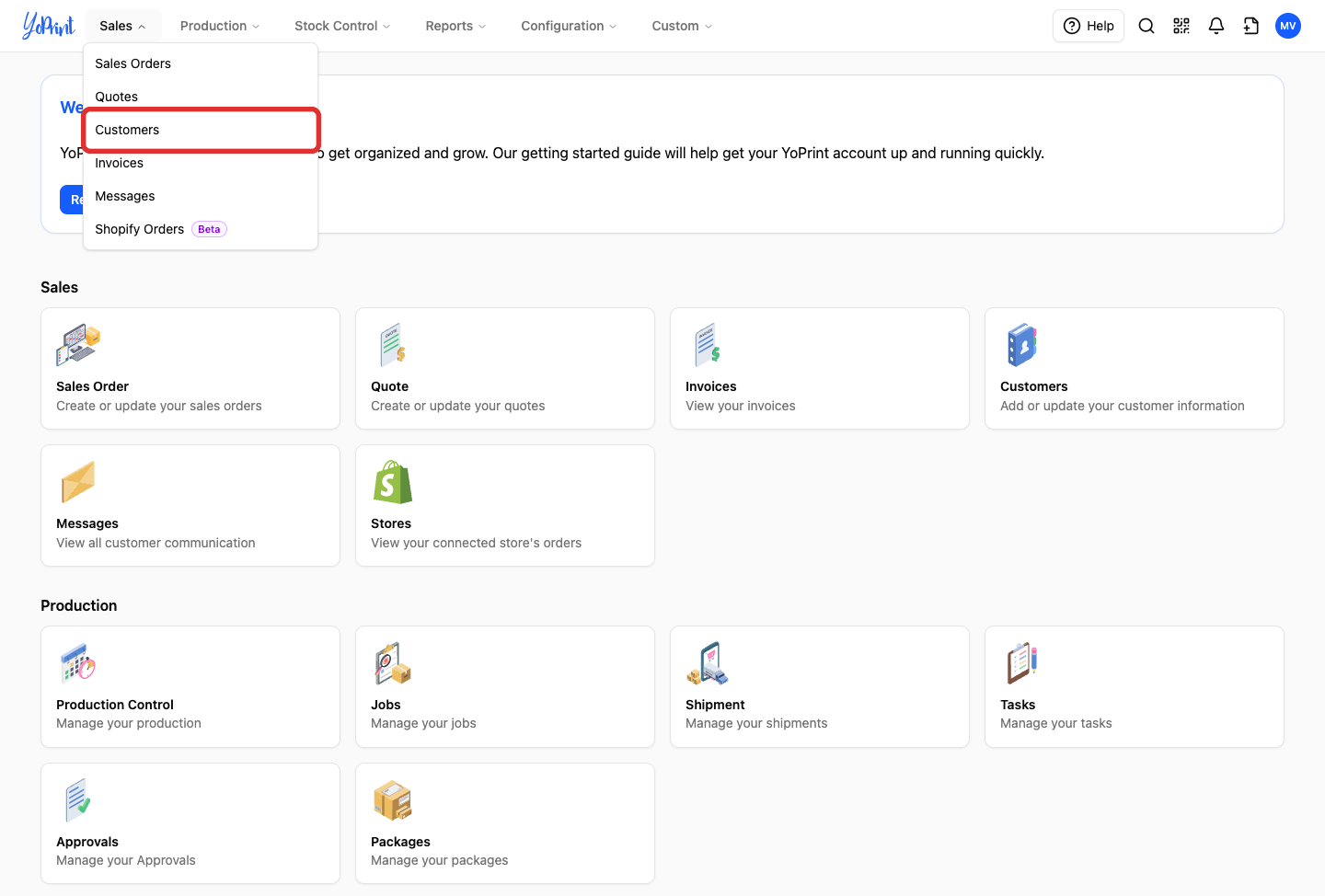
Select Customers from the Sales menu.
-
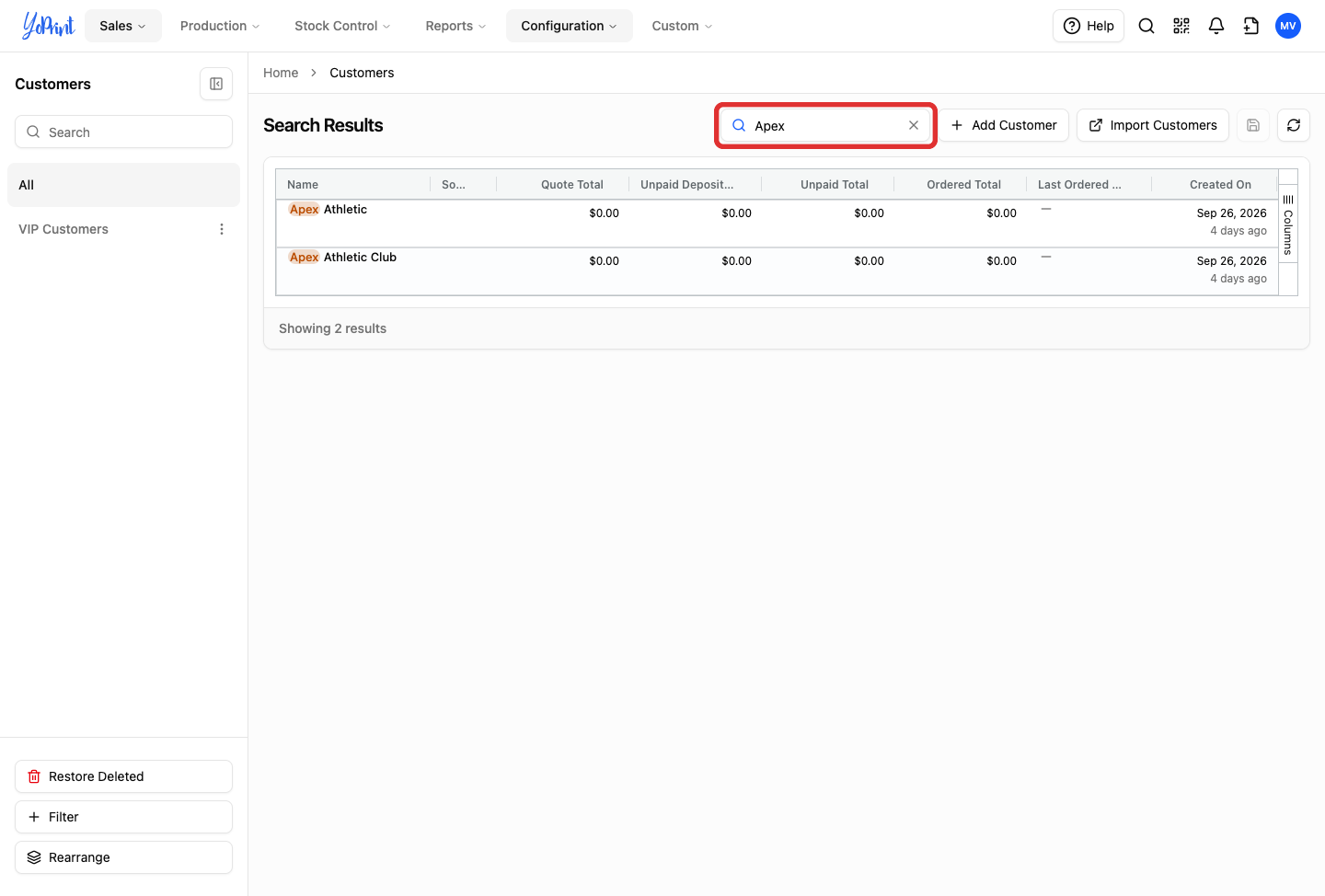
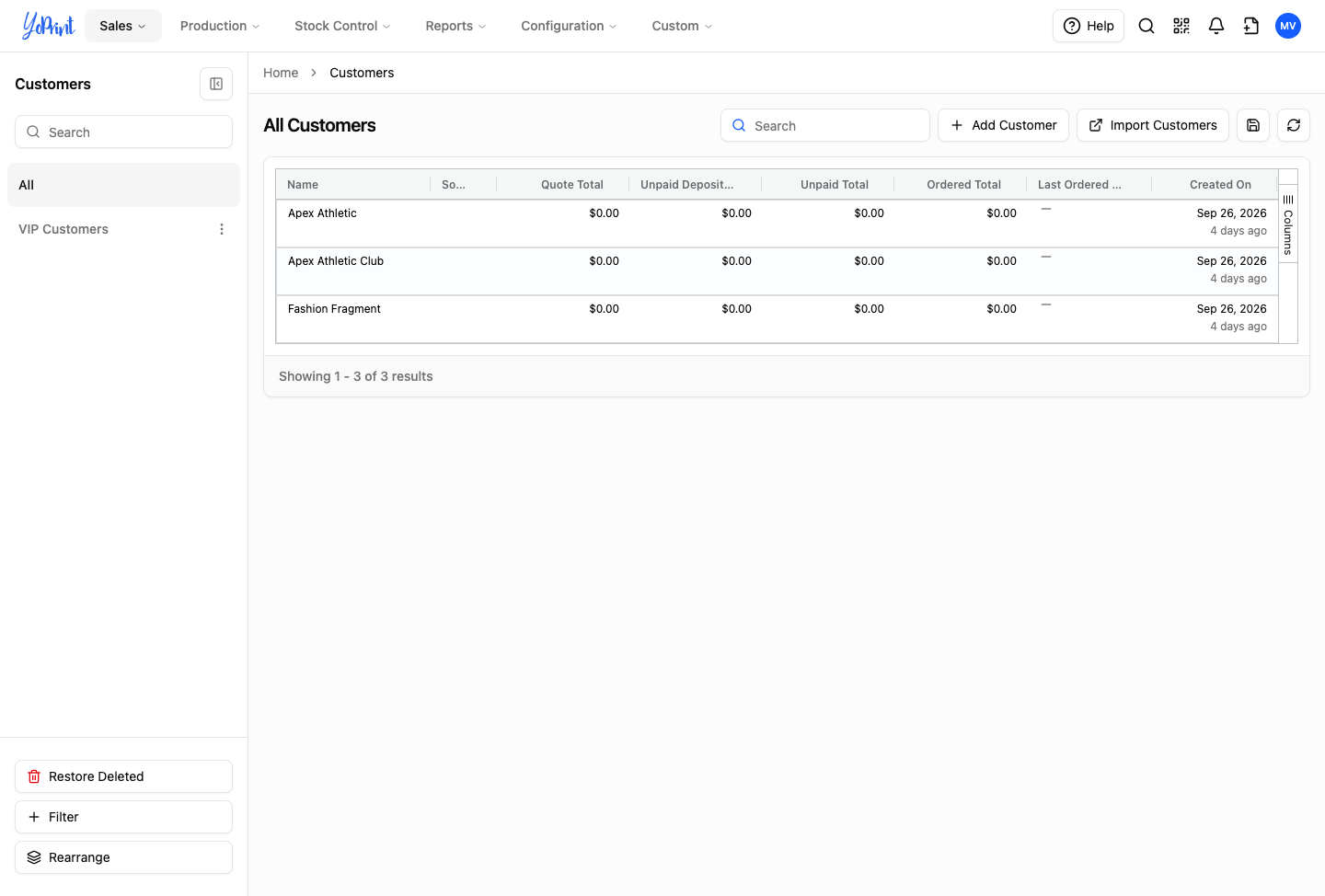
In the search box above the customer list table, type the customer's name.
-
Review the search results to compare the matching customer records.
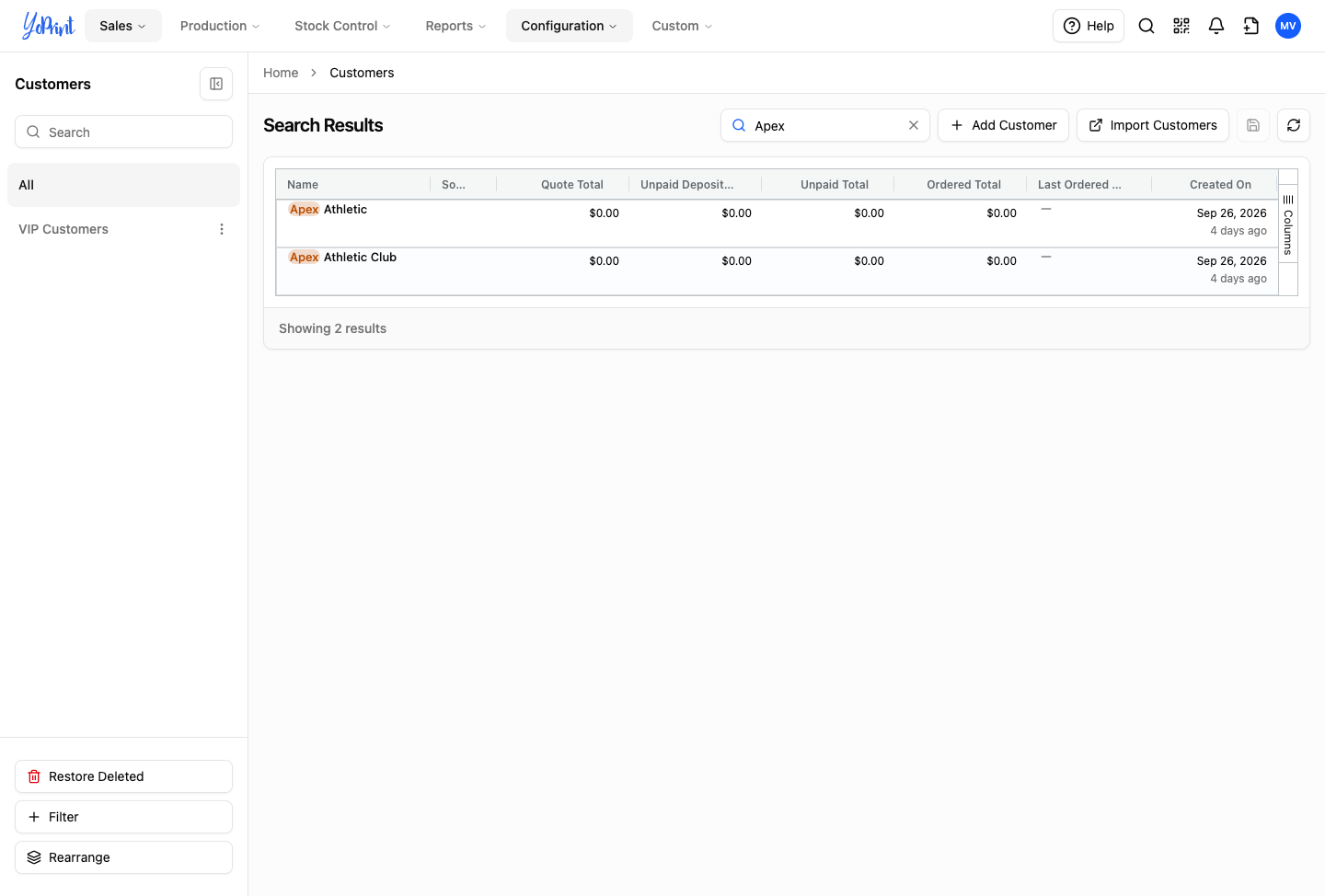
Double-click a customer's row or click More actions (...) > View to inspect their contact details and order history. If the duplicate record contains newer contact information or delivery addresses, manually copy those details into the primary customer record under Contacts & Addresses before archiving or removing the duplicate.
Archive a duplicate customer
Archive a duplicate customer when the record contains past orders, quotes, or transactions that your shop needs to keep. Past orders remain attached to the archived customer rather than merging into the primary record.
-
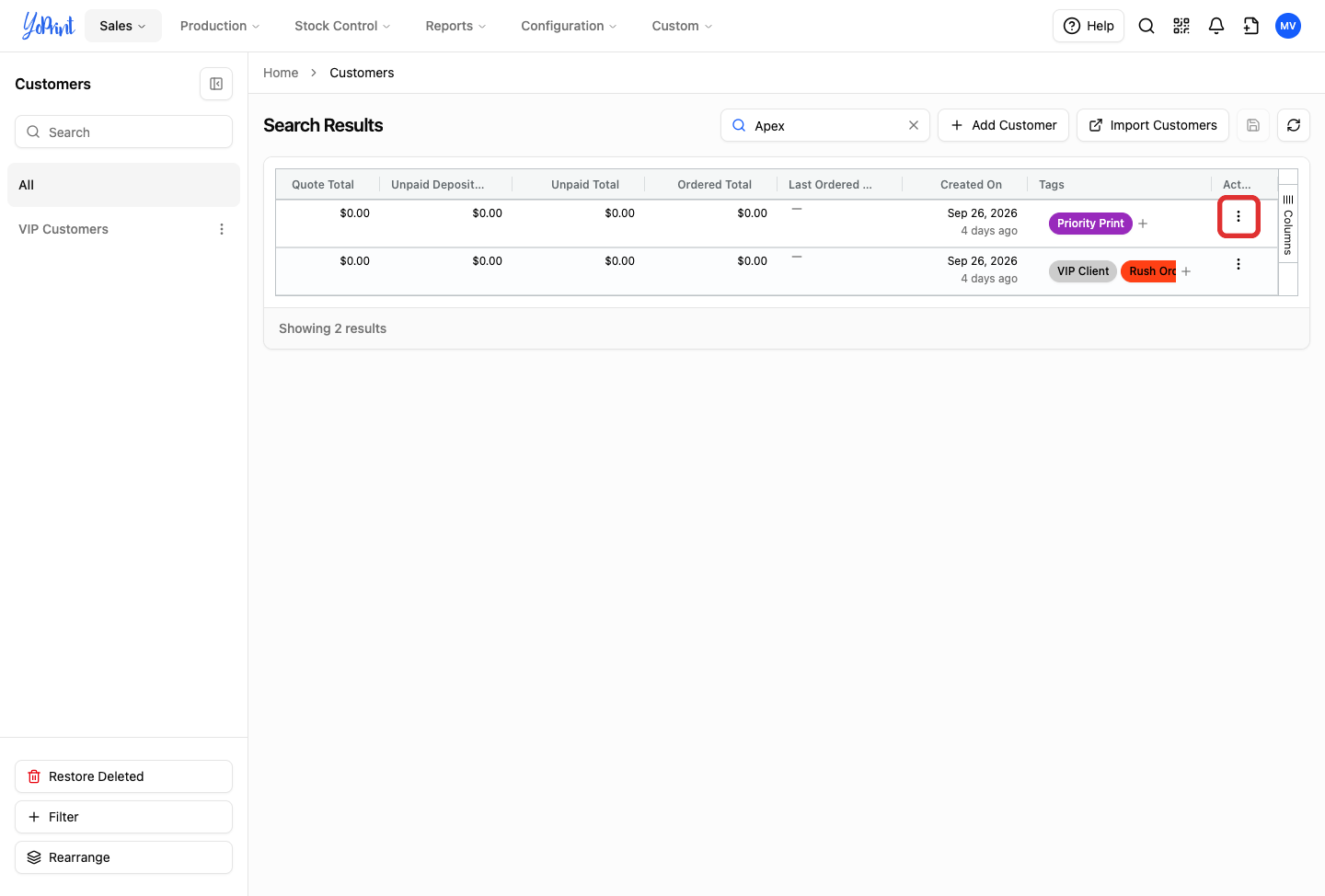
In the Customers list, click the More actions button (...) on the duplicate customer's row.
-
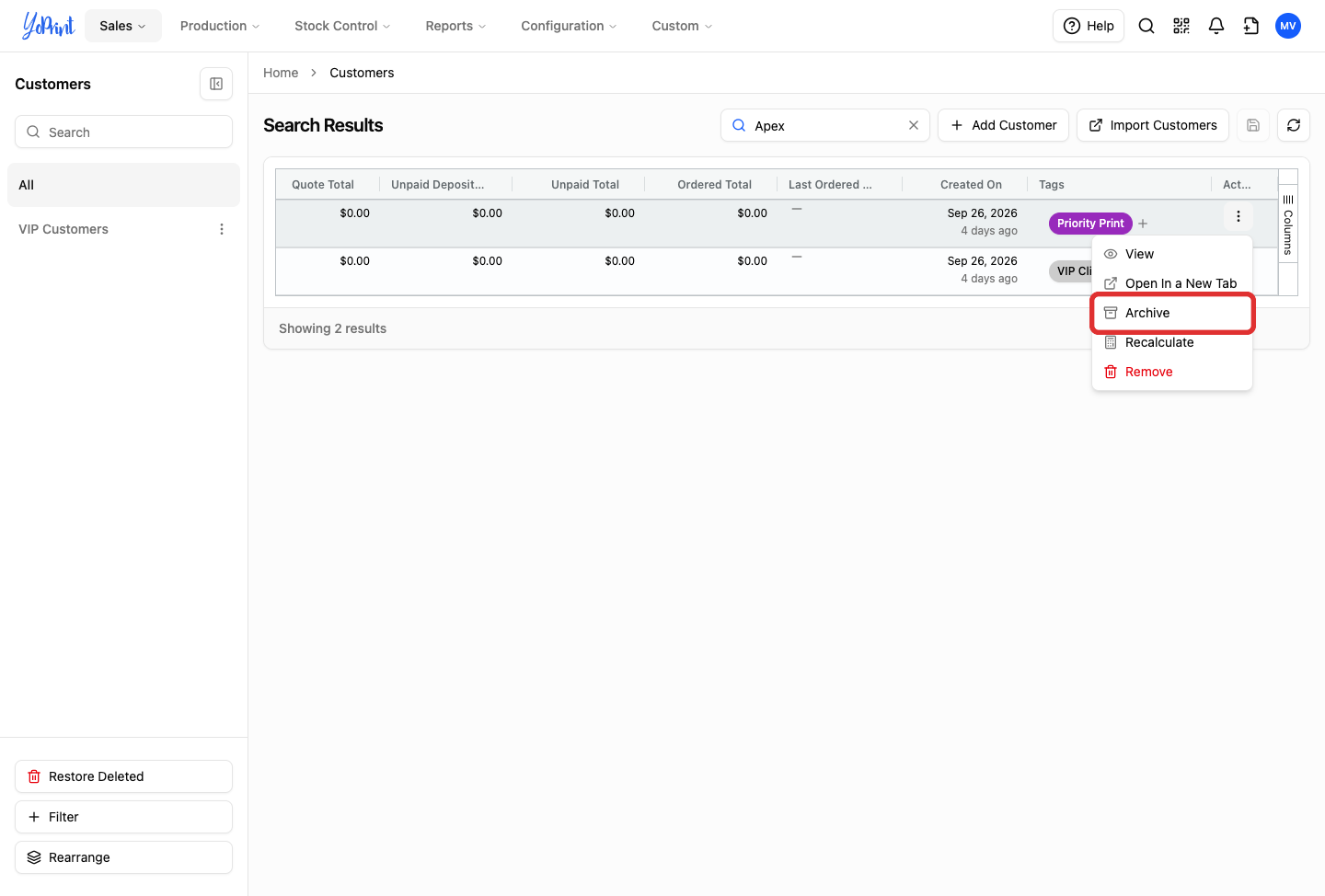
Select Archive from the dropdown menu.
-
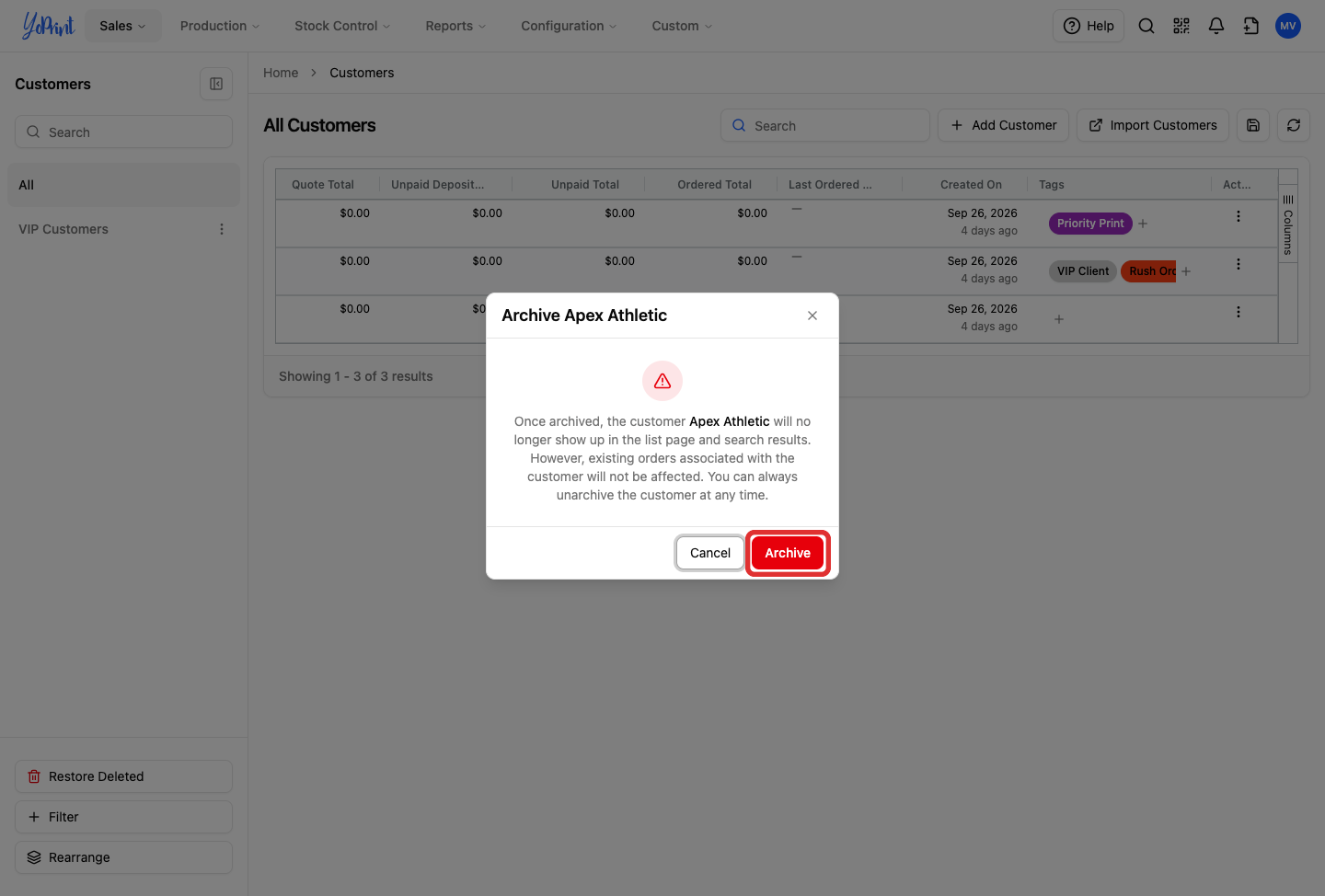
In the confirmation dialog, click Archive.
-
Review the customer list to confirm the duplicate record is archived.
Archiving hides the customer from search dropdowns when creating new quotes and sales orders. The row's More actions (...) menu updates to display Unarchive.
Locate archived customers
Archived customers do not appear in normal search dropdowns. To view archived records in the customer list, click Filter in the left sidebar, add a rule with Archived set to true, and click Create or Run Filter. To reactivate an archived customer, click More actions (...) on their row and select Unarchive.
Remove a duplicate customer
Pending quotes and orders
You cannot remove a customer who has pending quotes or sales orders. Quotes and sales orders cannot be reassigned to another customer record. Complete or cancel any open documents first, or archive the customer instead.
-
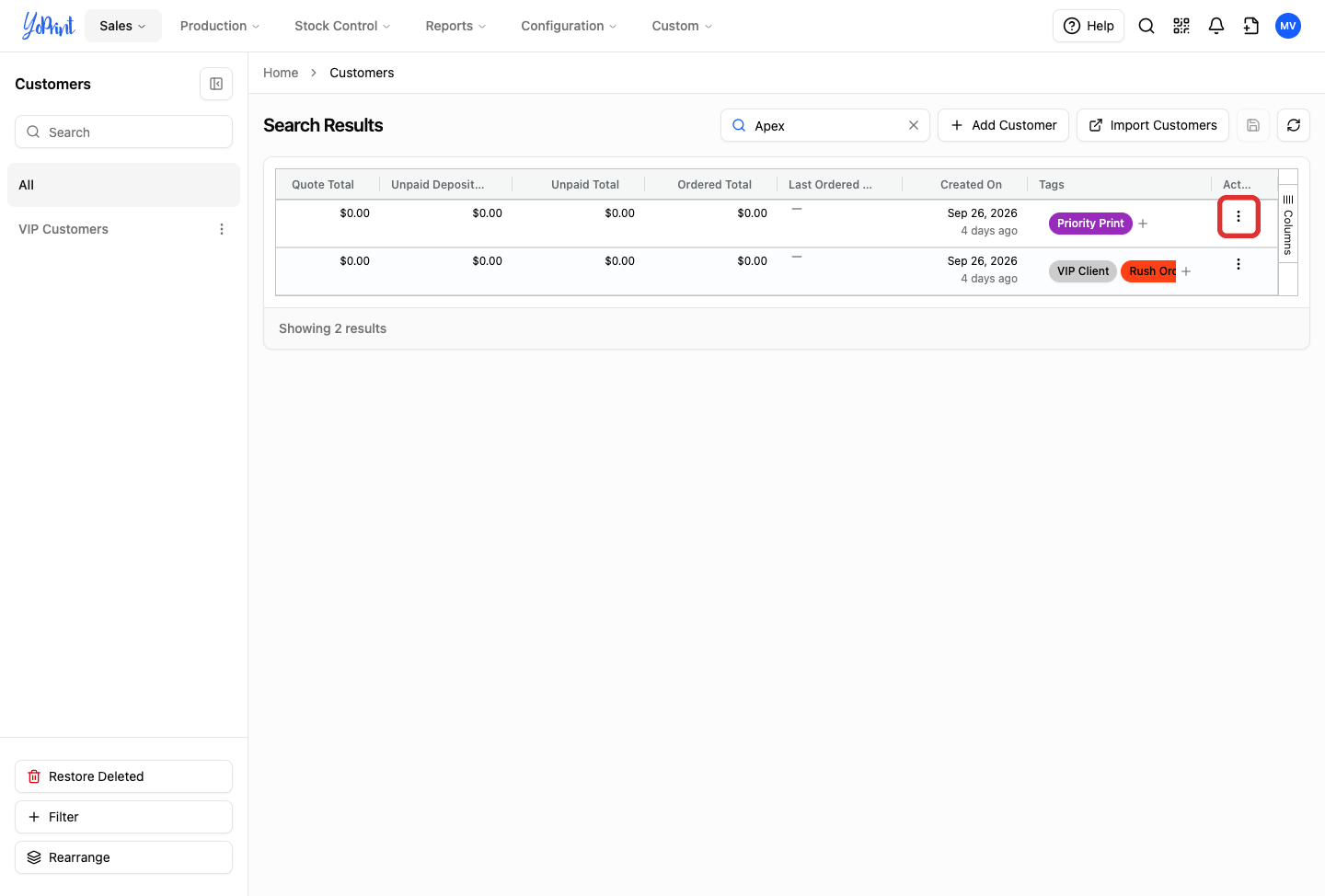
In the Customers list, click the More actions button (...) on the duplicate customer's row.
-
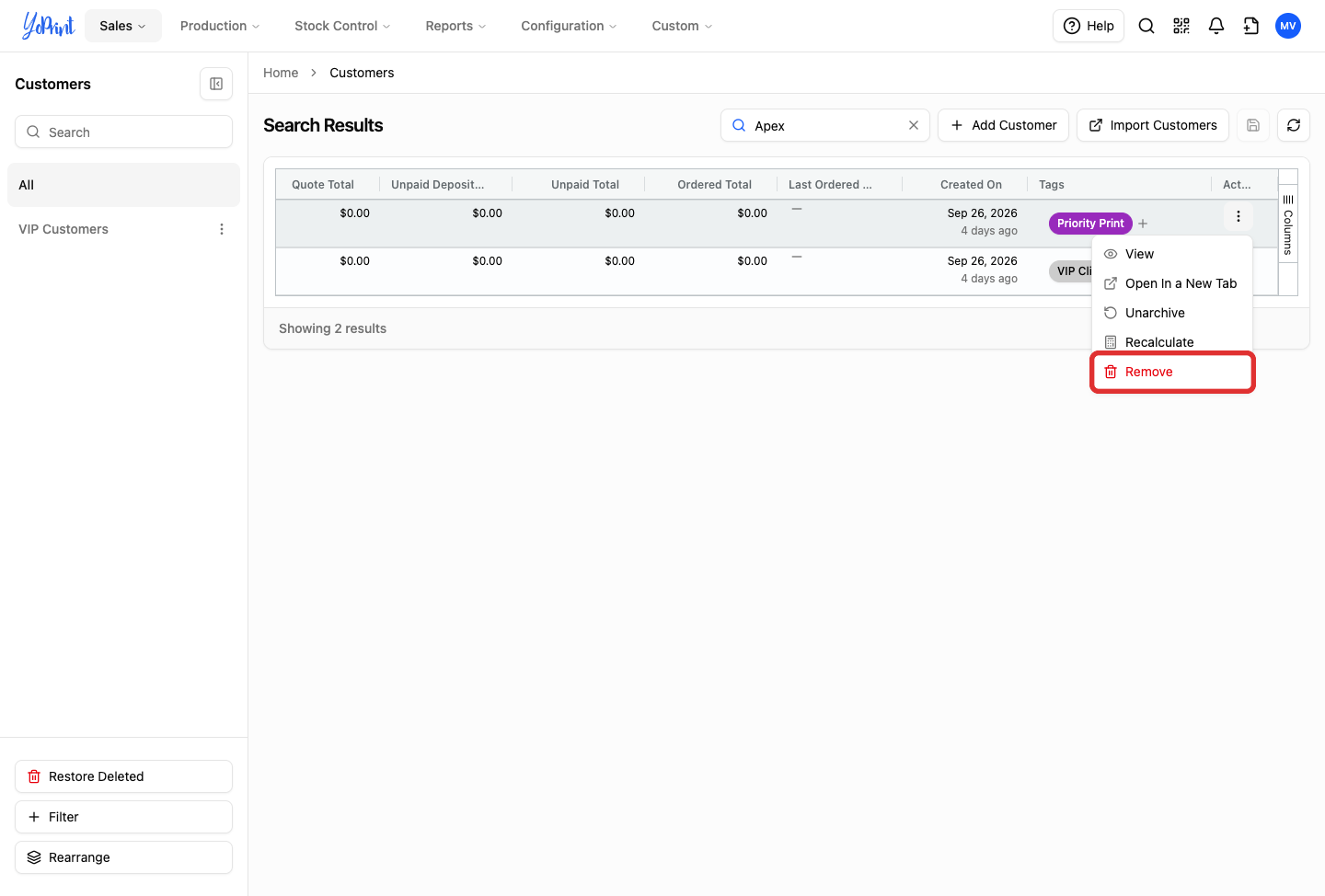
Select Remove from the dropdown menu.
-
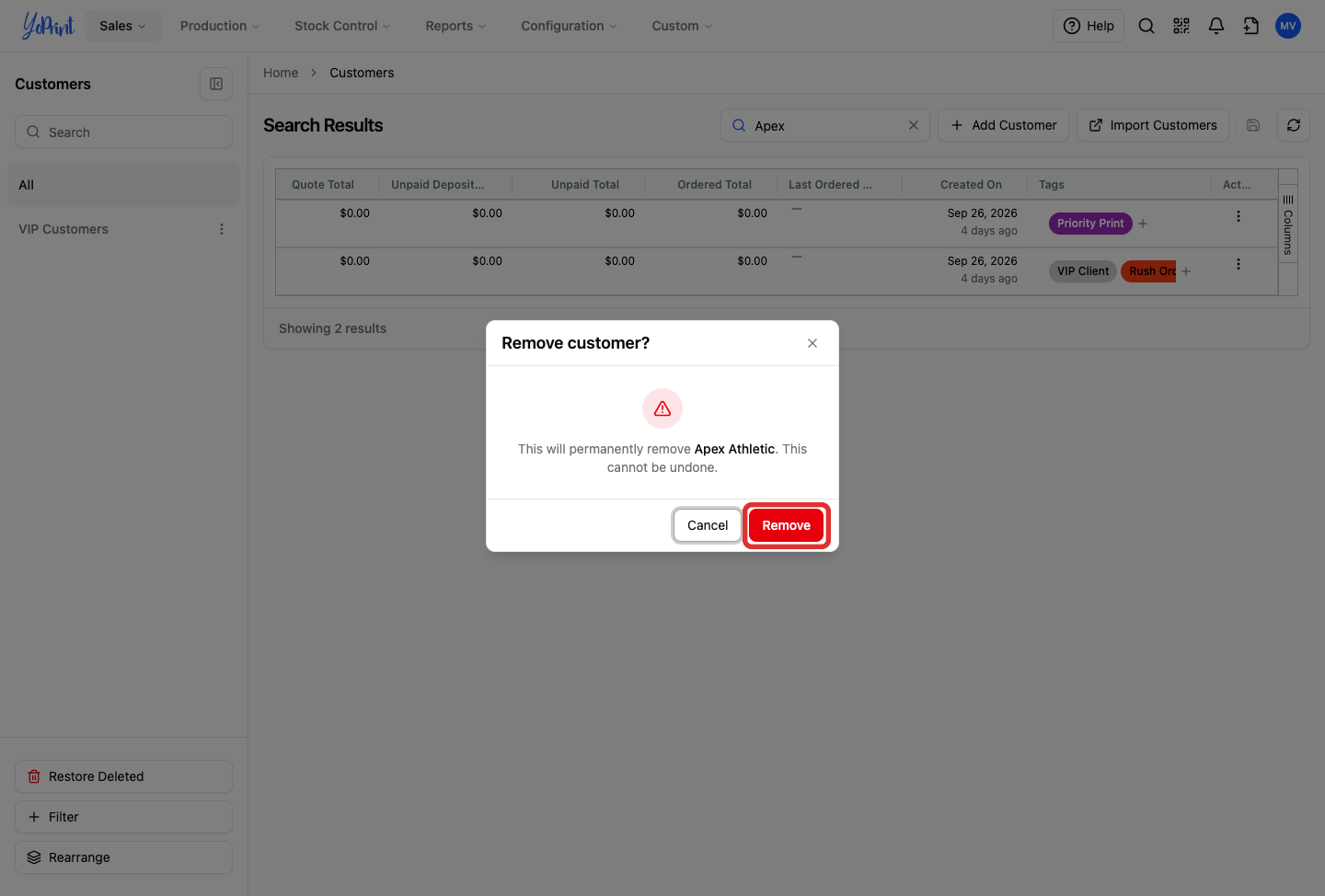
In the confirmation dialog, click Remove to delete the customer record from your active list.
Restoring removed records
The confirmation dialog warns that this action cannot be undone. However, removing a customer only takes them off your active list. You can restore the customer at any time from the Customers page as long as they had no pending orders.
Restore a removed customer
If you delete a customer record, restore it from the Customers page at any time.
-
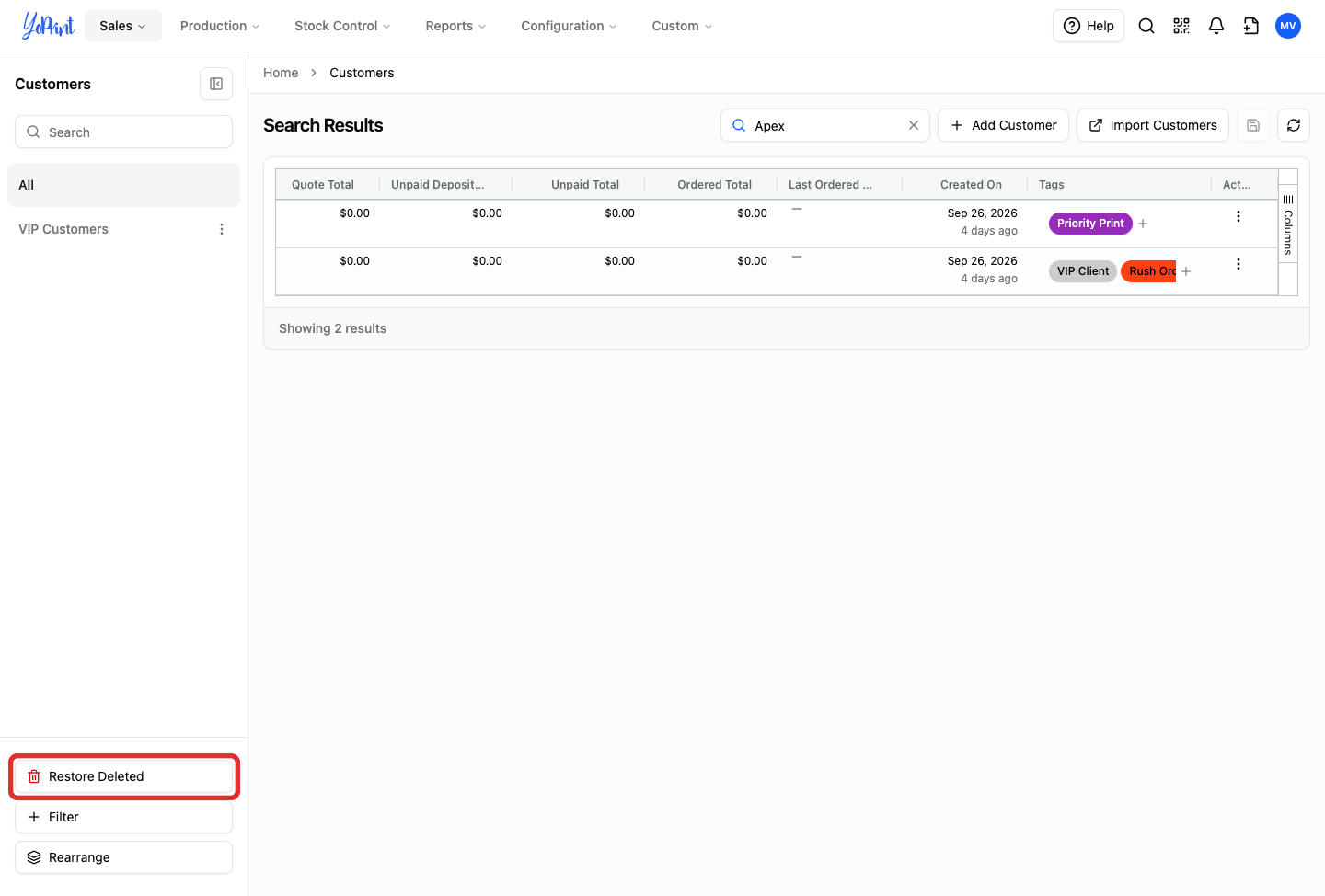
In the left sidebar of the Customers page, click Restore Deleted.
-
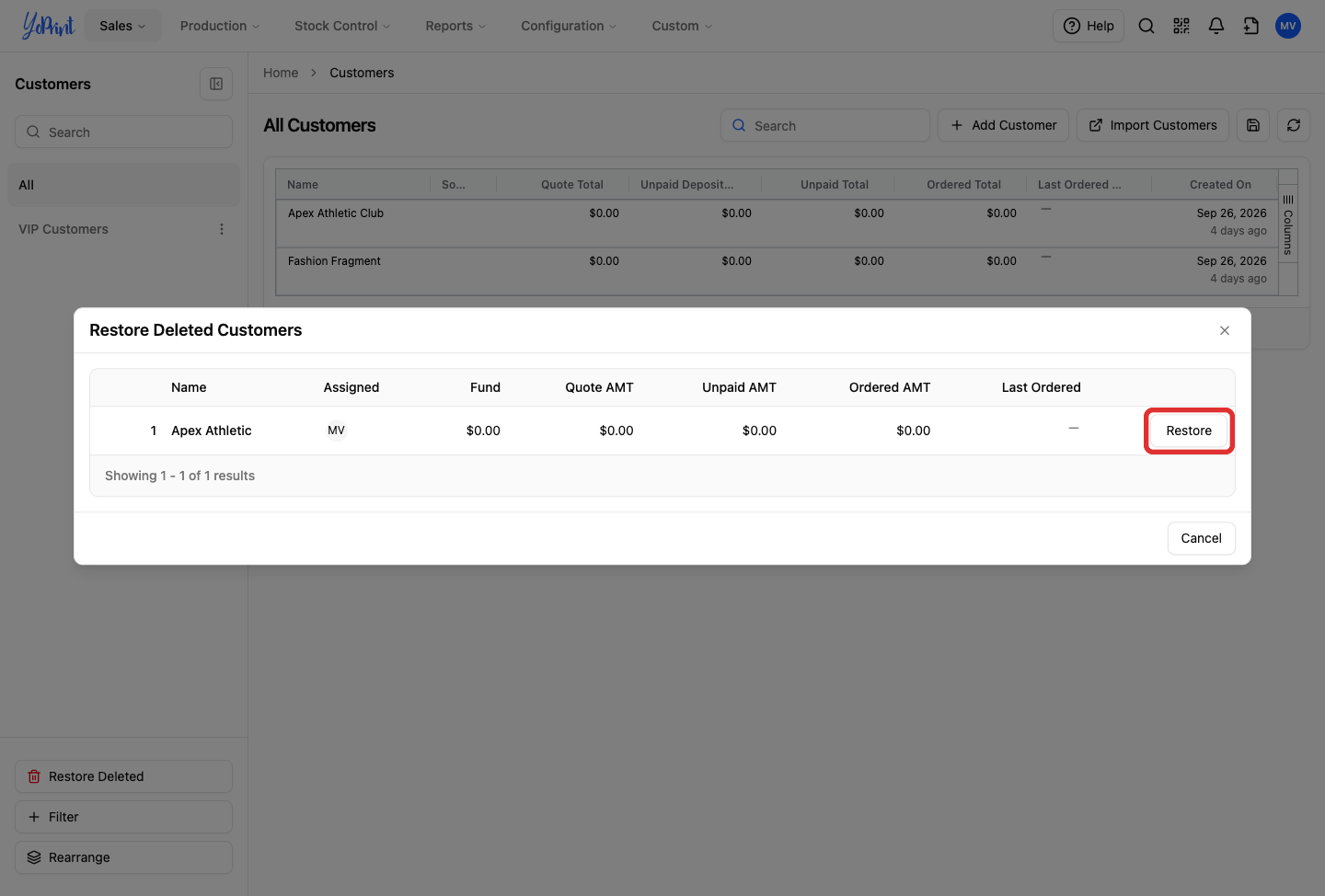
In the Restore Deleted Customers dialog, locate the customer and click Restore.
-
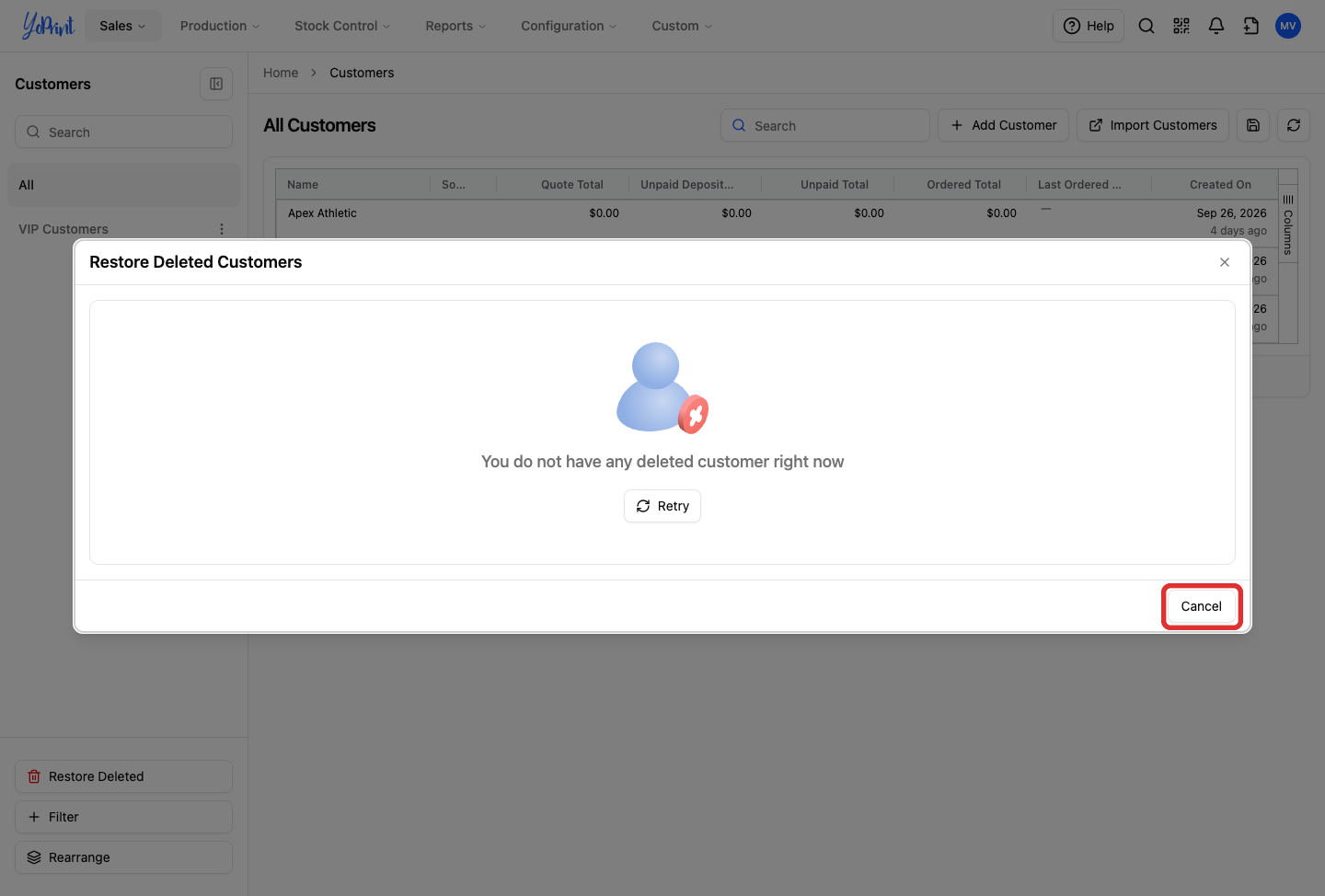
Click Cancel (or the Close button) to dismiss the dialog and return to the Customers page.
-
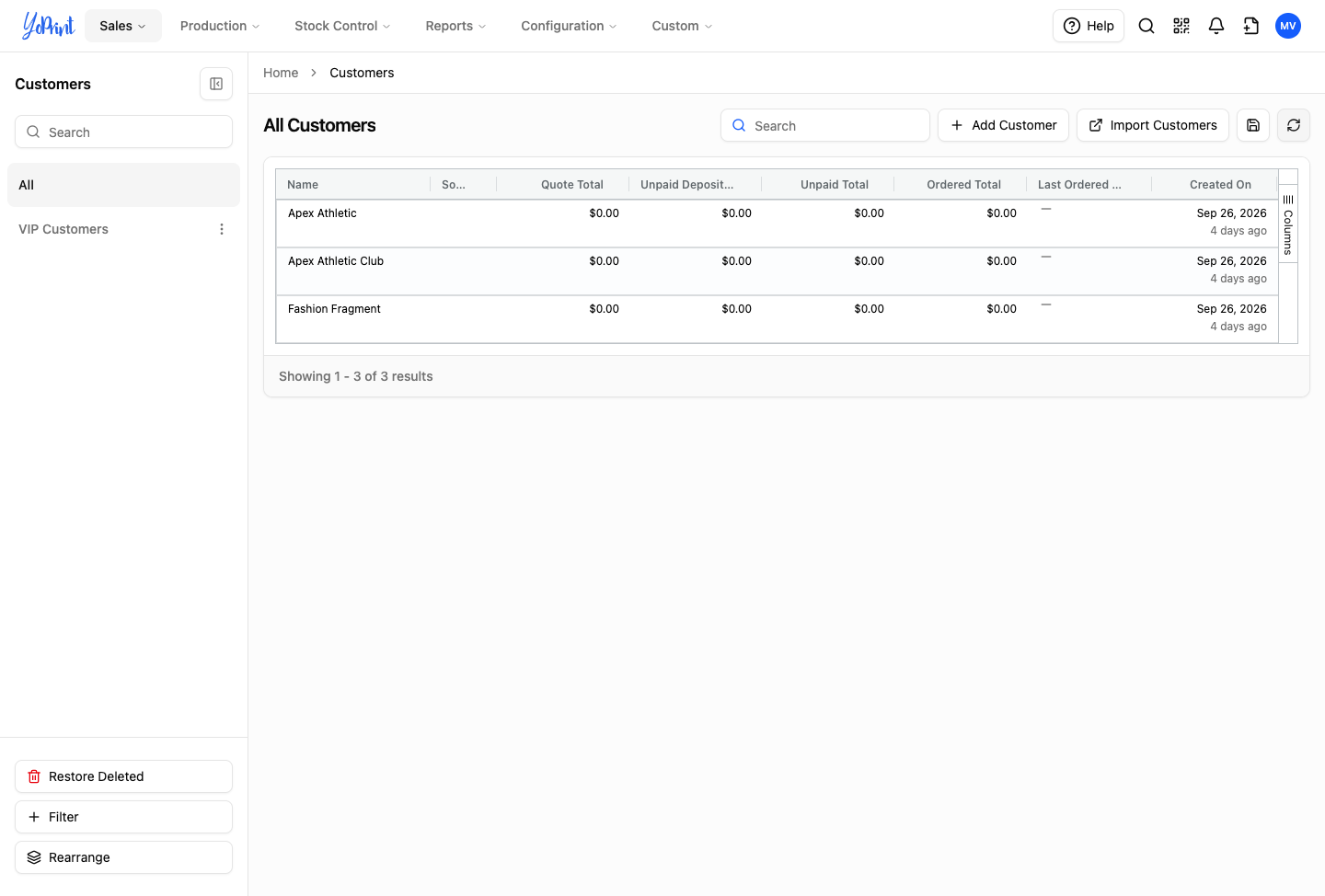
Review the customer list to confirm the restored customer record is active.
Prevent duplicates when creating a customer
-
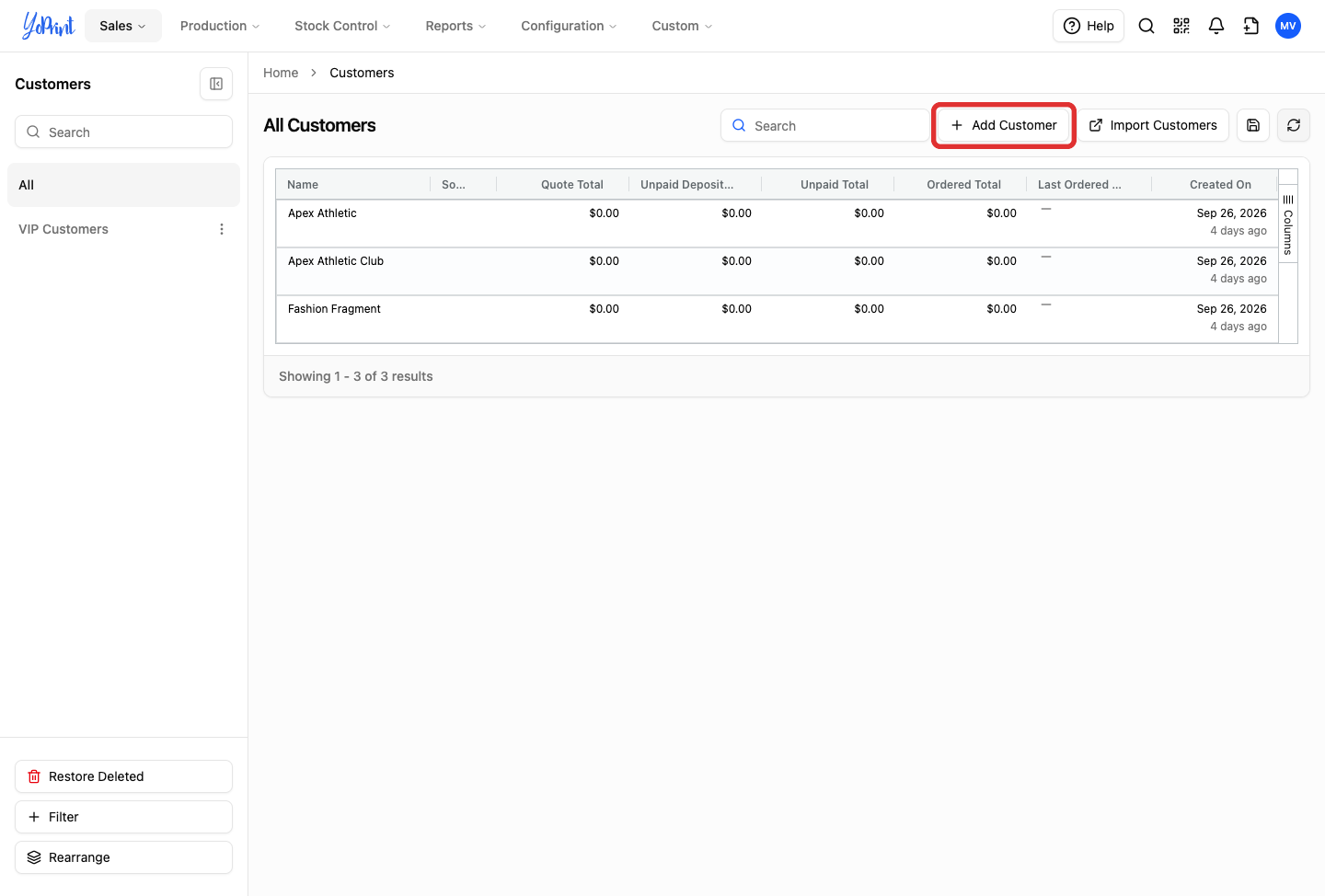
On the Customers page, click Add Customer.
-
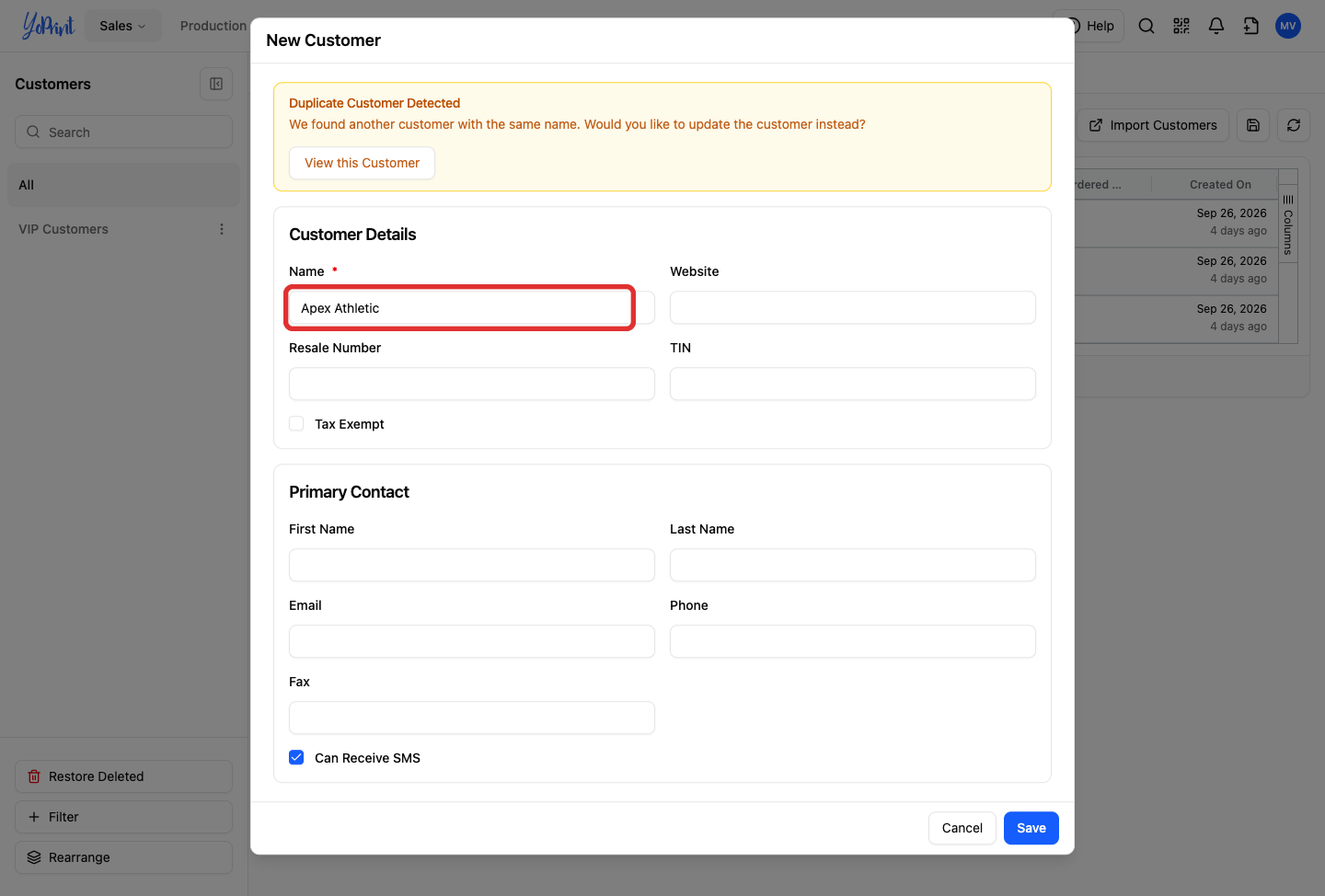
Type the customer's name into the Name field.
Duplicate name detection
If YoPrint detects an existing customer with the same name, a Duplicate Customer Detected warning banner appears at the top of the dialog, above Customer Details. Detection checks for an exact, case-insensitive match on the business name. It does not match partial names, email addresses, or phone numbers.
-
In the warning banner, click View this Customer to open the existing customer record.
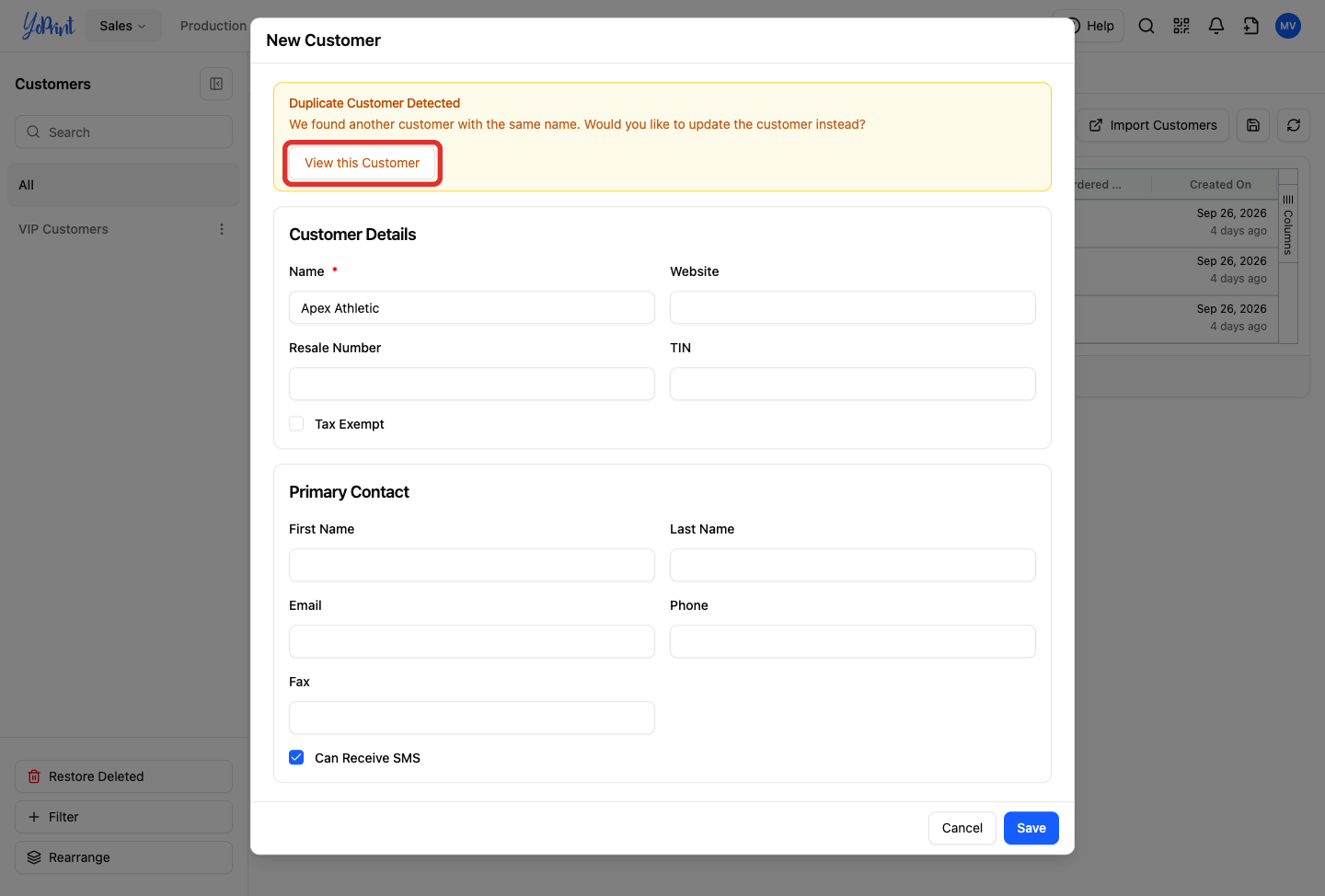
Clicking View this Customer closes the creation form without saving newly typed information and opens the existing customer's detail drawer, where you can update their contact details, addresses, and notes directly.
