Navigate the Main Dashboard in YoPrint
In this article
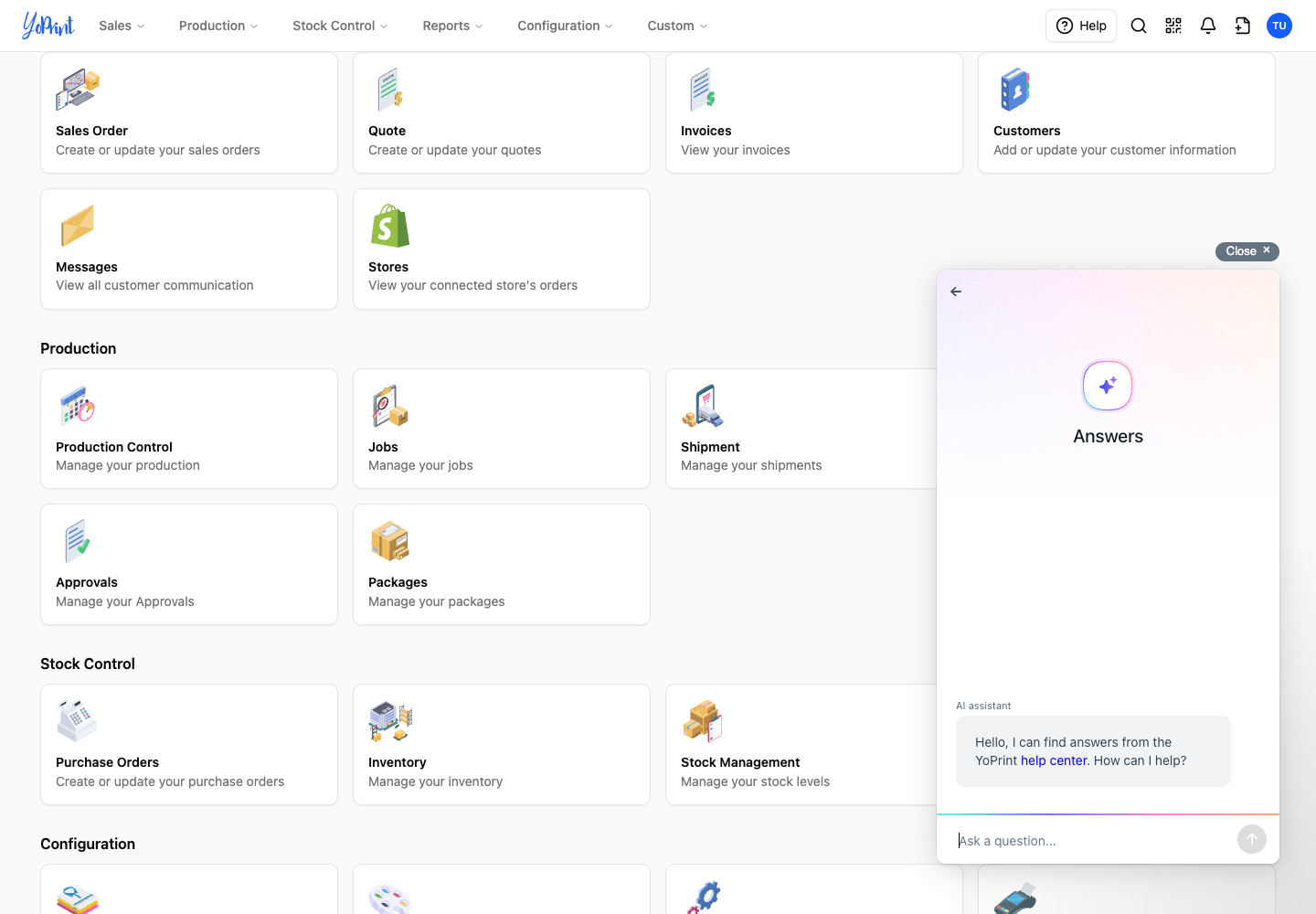
The dashboard is your starting point for sales, production, stock control, and shop settings. Its cards open each work area. The top navigation bar stays available as you move between pages.
Dashboard cards
- Sales: quotes, sales orders, invoices, customers, messages, and connected stores.
- Production: Production Control, jobs, shipments, tasks, approvals, and packages.
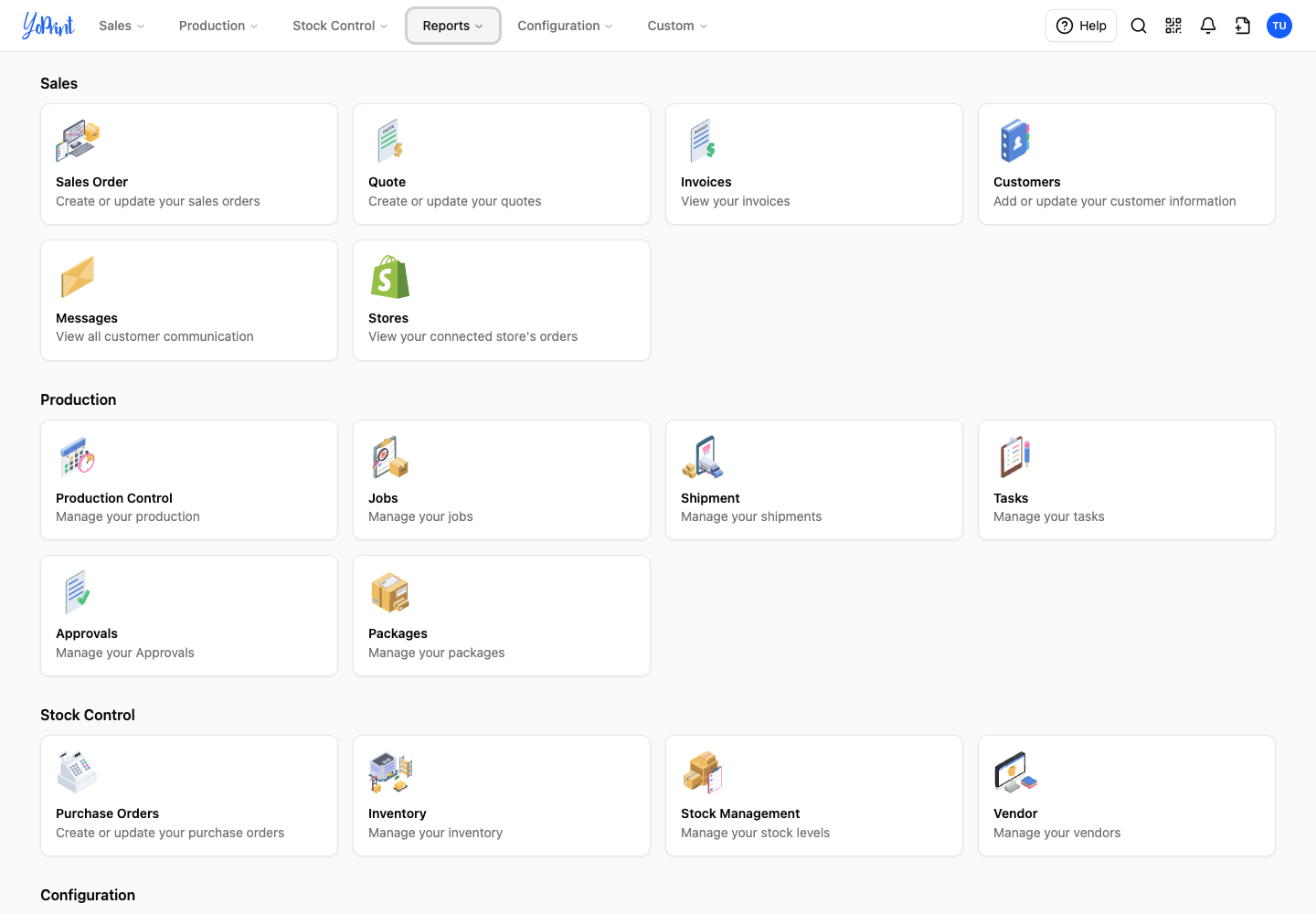
Production Control is the production planning view. The other cards open lists for each type of work.
- Stock Control: purchase orders, inventory, stock management, and vendors.
- Configuration: products, services, settings, payment terms, taxes, and pricing groups.
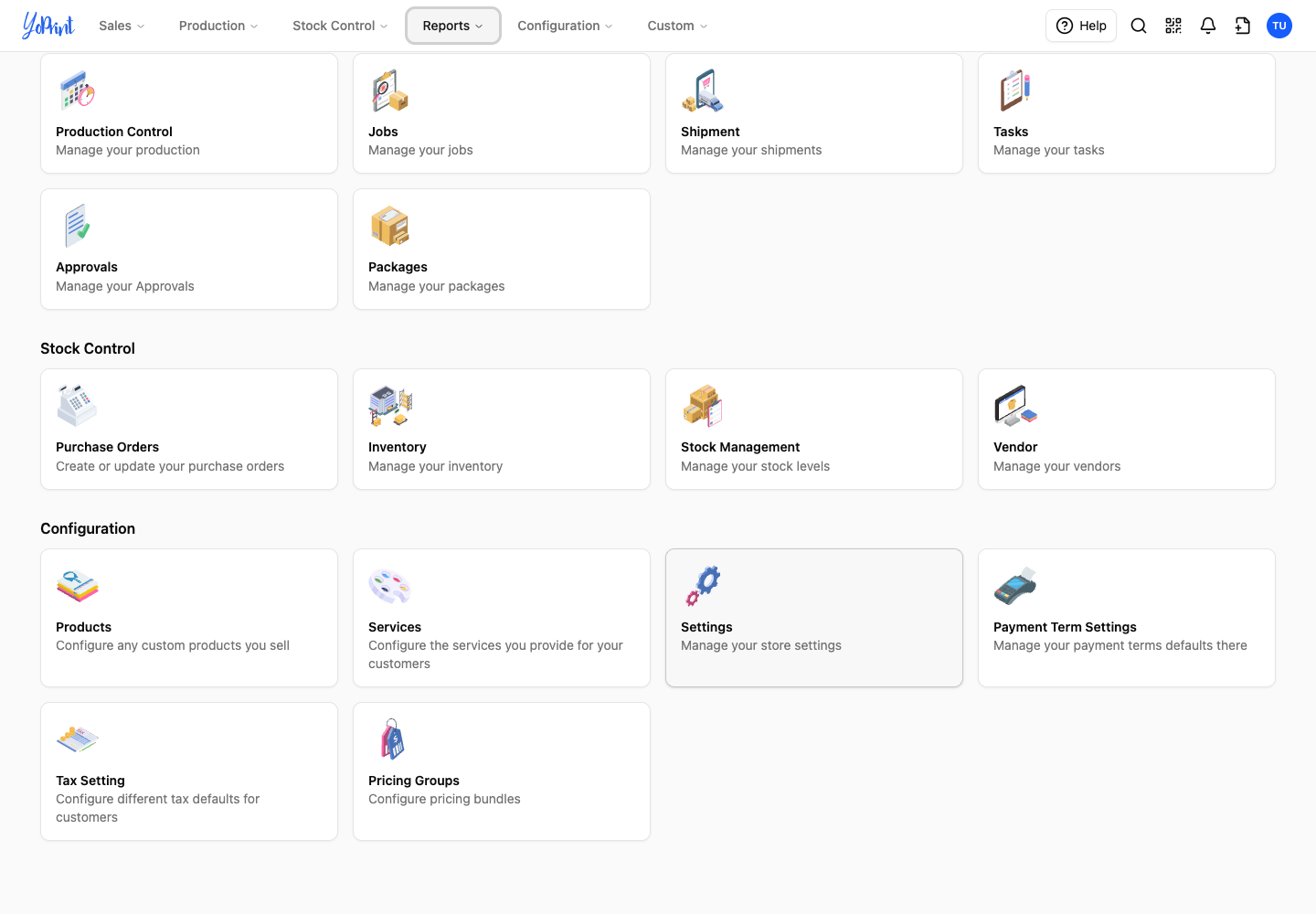
To create a new quote, follow Create a Quote. To configure your shop, follow Setting Up Your Account. Overview explains the onboarding path.
Top menus
The top navigation menus give you quick access to the same areas from pages with the top navigation bar. Menu labels might vary slightly from dashboard cards (such as Sales Orders instead of Sales Order, or All Jobs instead of Jobs), but they open the same lists and records.
The Sales menu has links to orders, quotes, customers, invoices, messages, and Shopify orders.
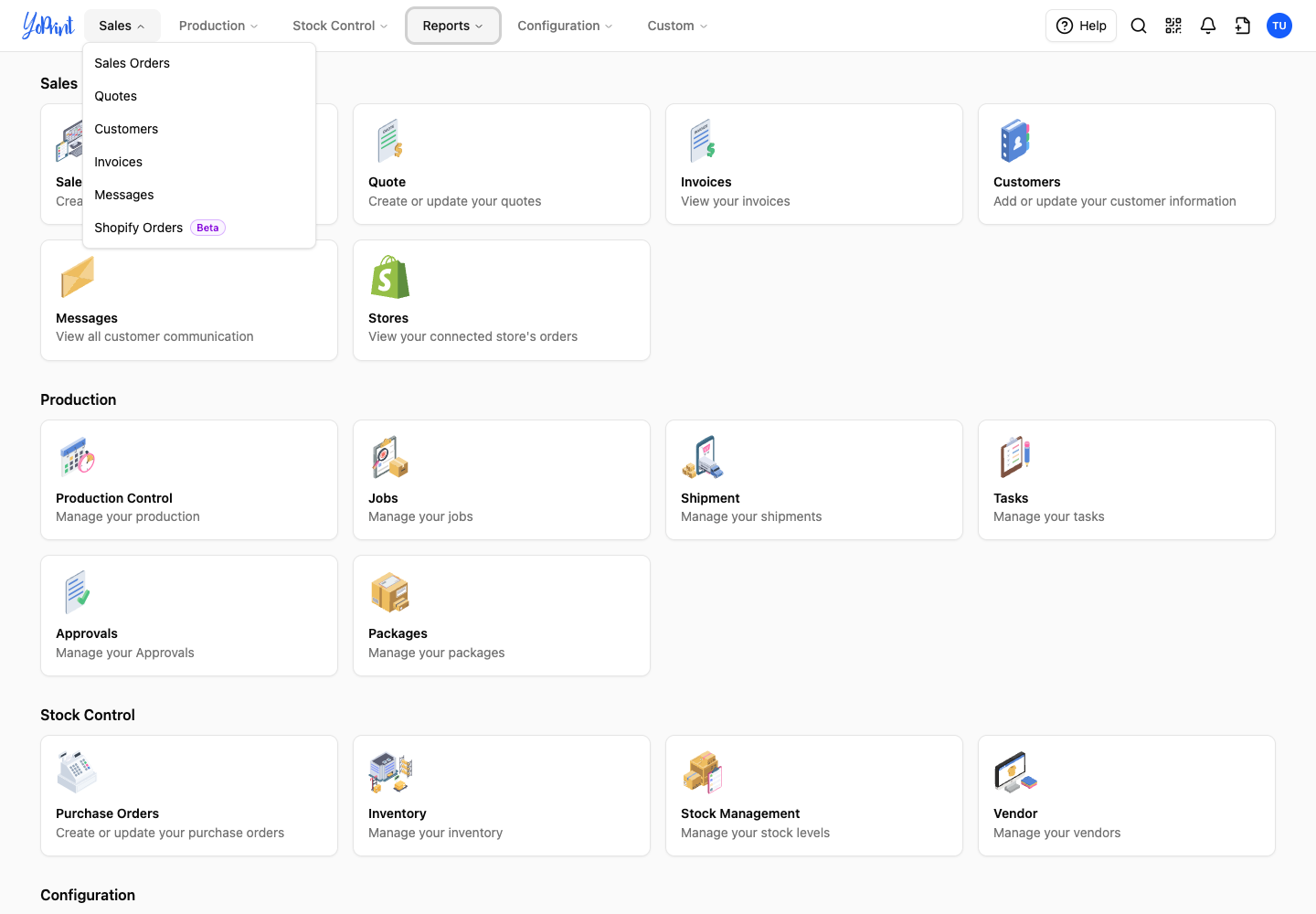
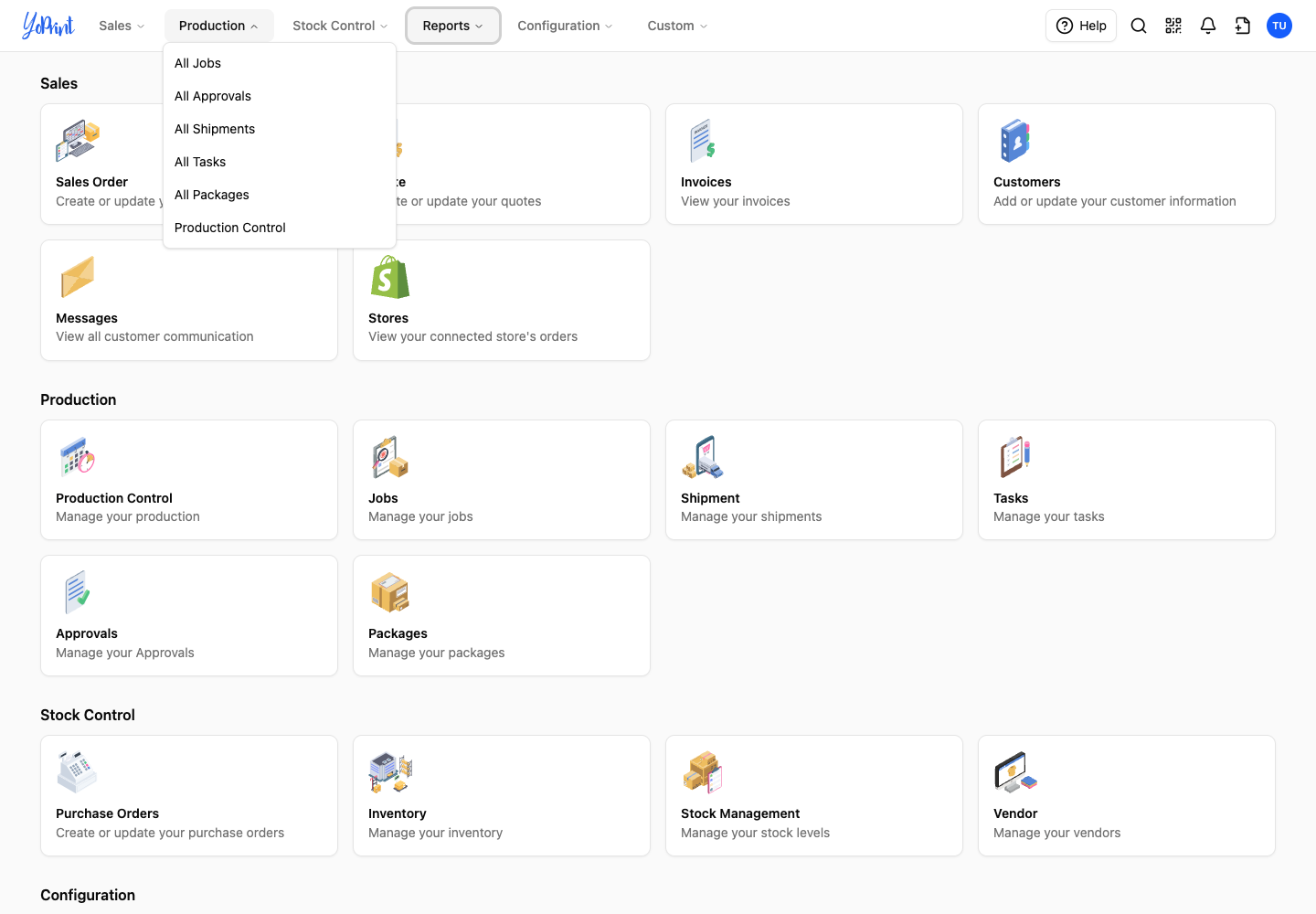
The Production menu links to jobs, approvals, shipments, tasks, packages, and Production Control.
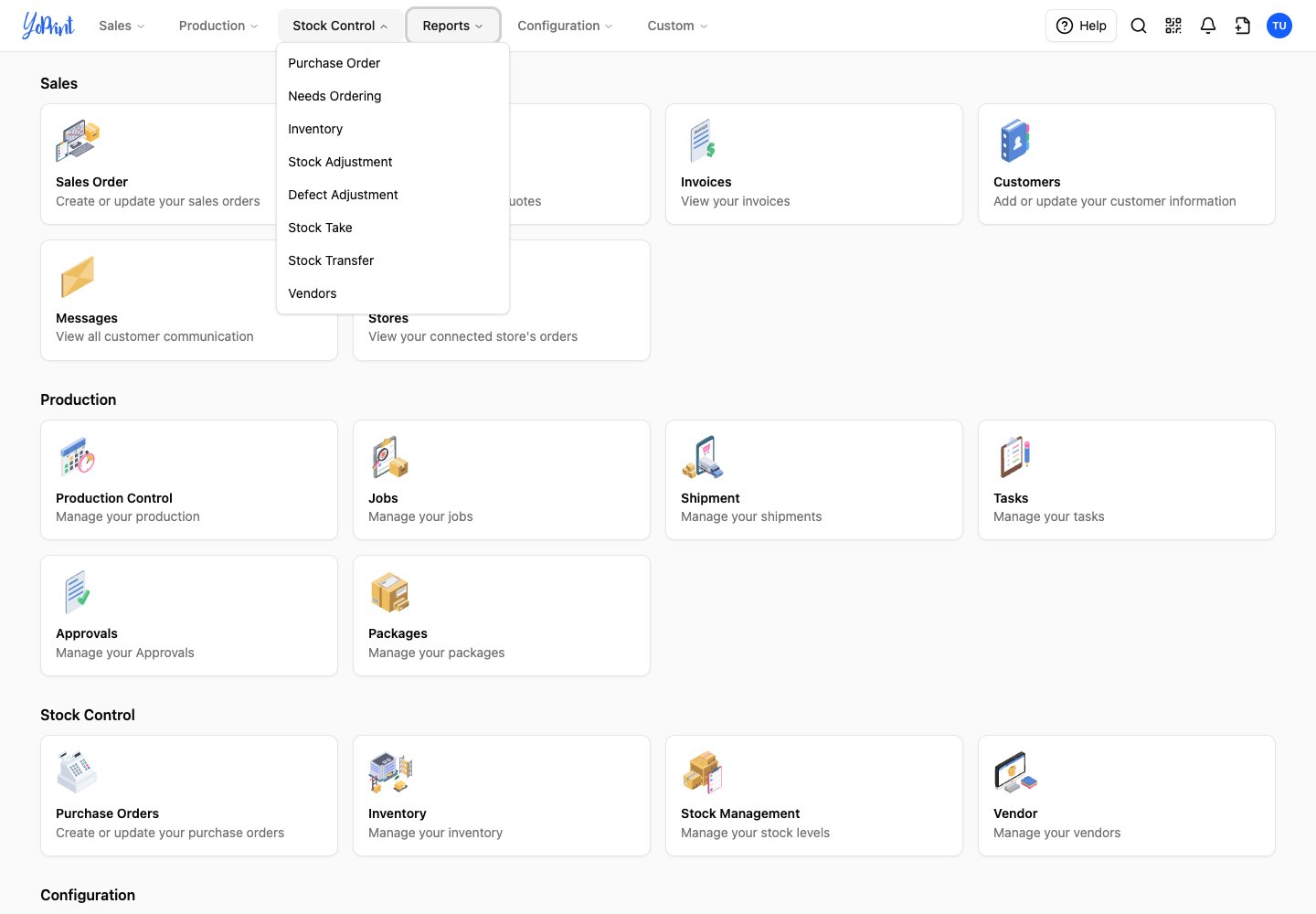
The Stock Control menu also has Needs Ordering, alongside stock adjustment, defect adjustment, stock take, and stock transfer pages.
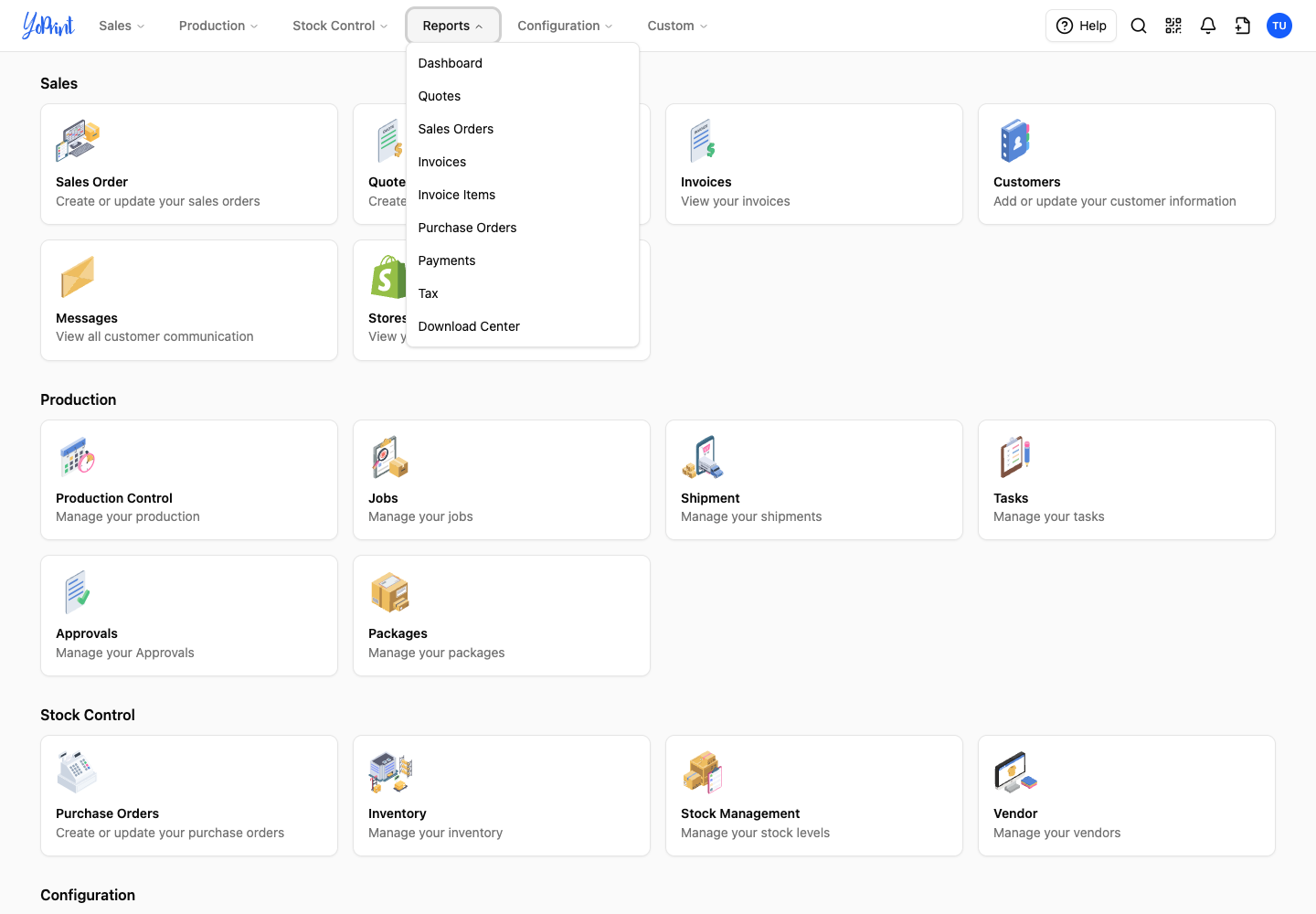
The Reports menu includes a reports analytics dashboard, report links, and the Download Center for data downloads. The Download Center stores export files you generate across YoPrint, such as customer lists and financial summaries.
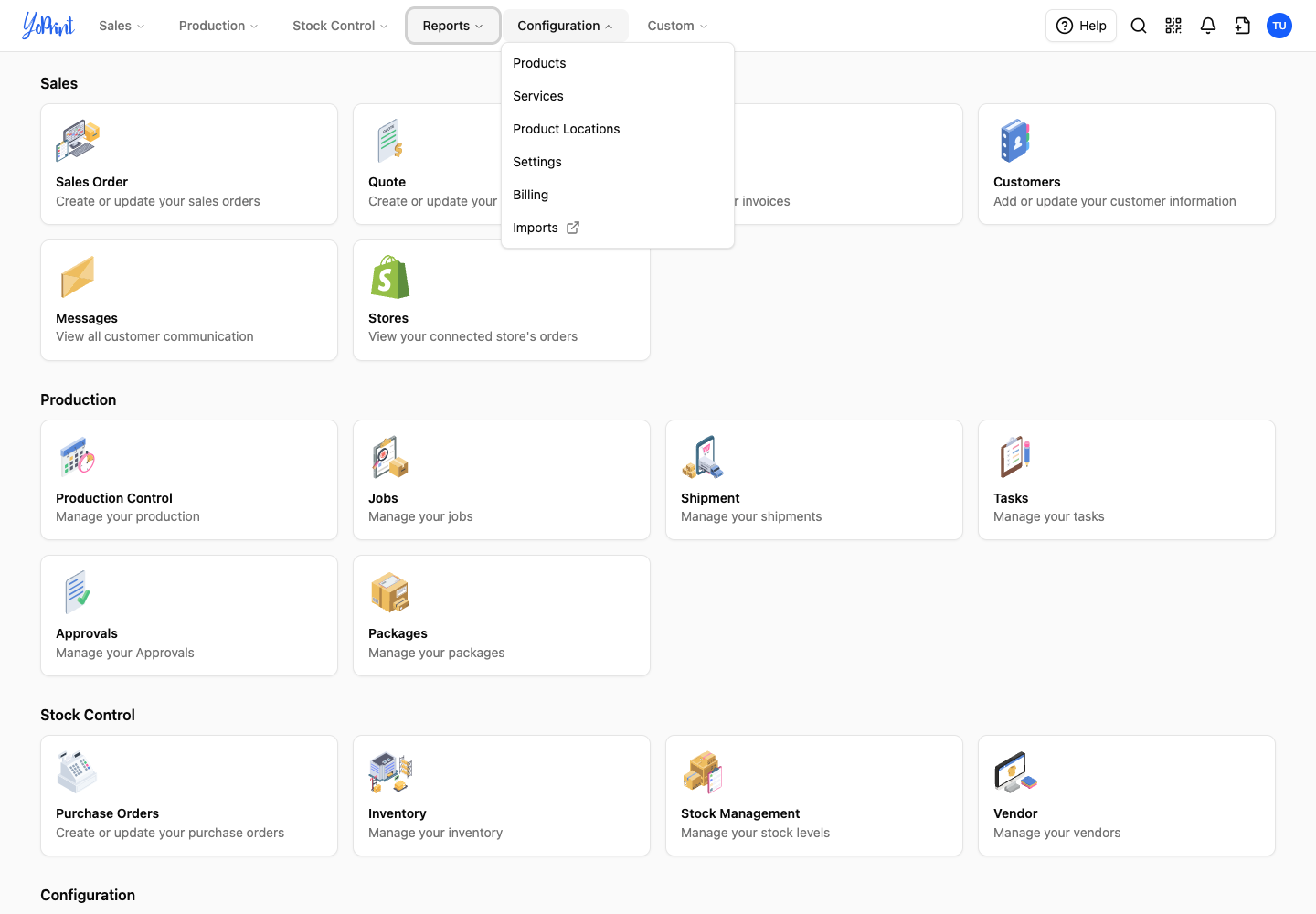
The Configuration menu includes Product Locations, Billing for your subscription plan, and Imports for bringing data into YoPrint, alongside products, services, and settings. In the top navigation, payment terms, taxes, and pricing groups are located inside Settings.
Quick Add and Custom
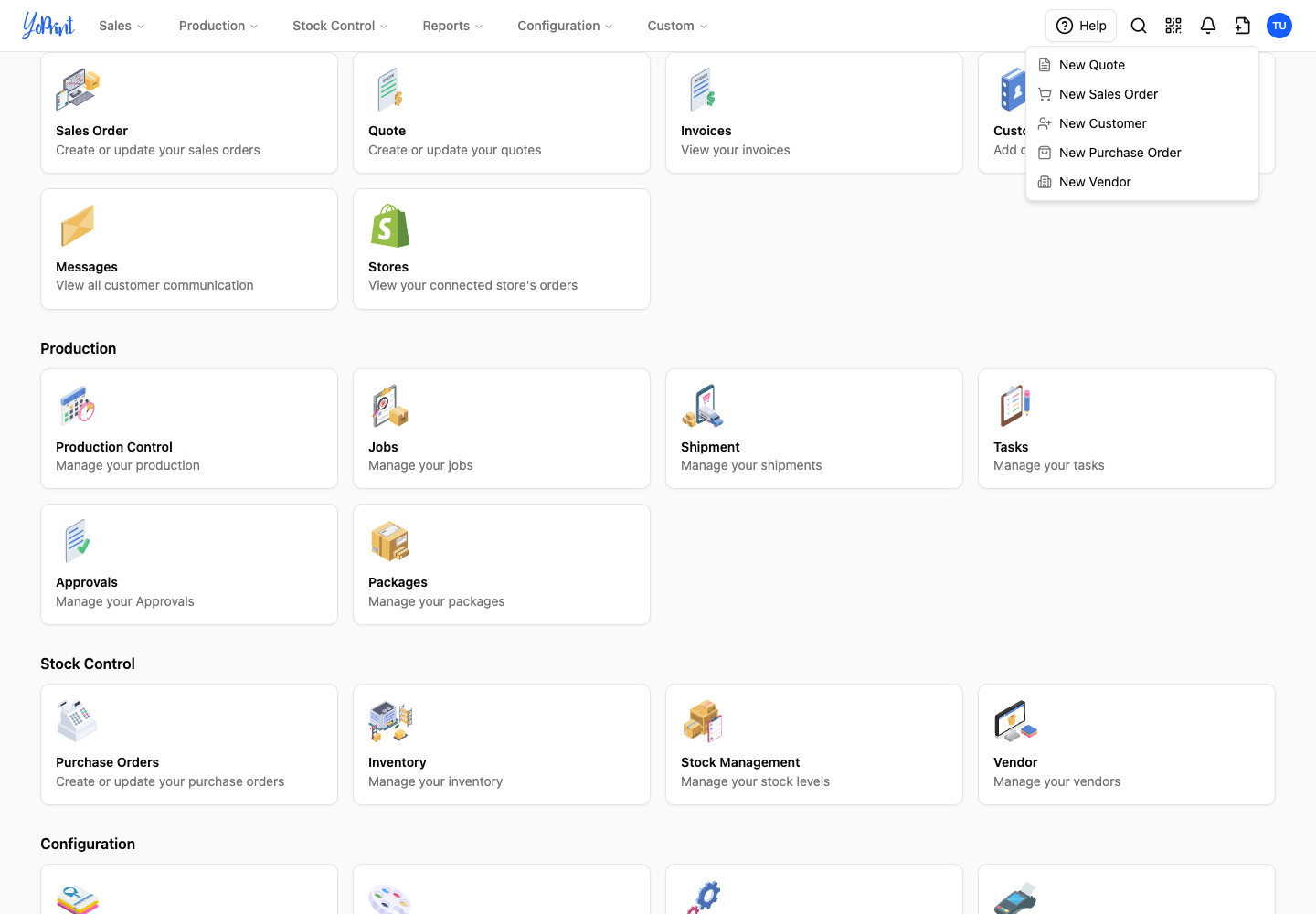
Quick Add, located between the bell and your profile avatar, has shortcuts for a new quote, sales order, customer, purchase order, or vendor.
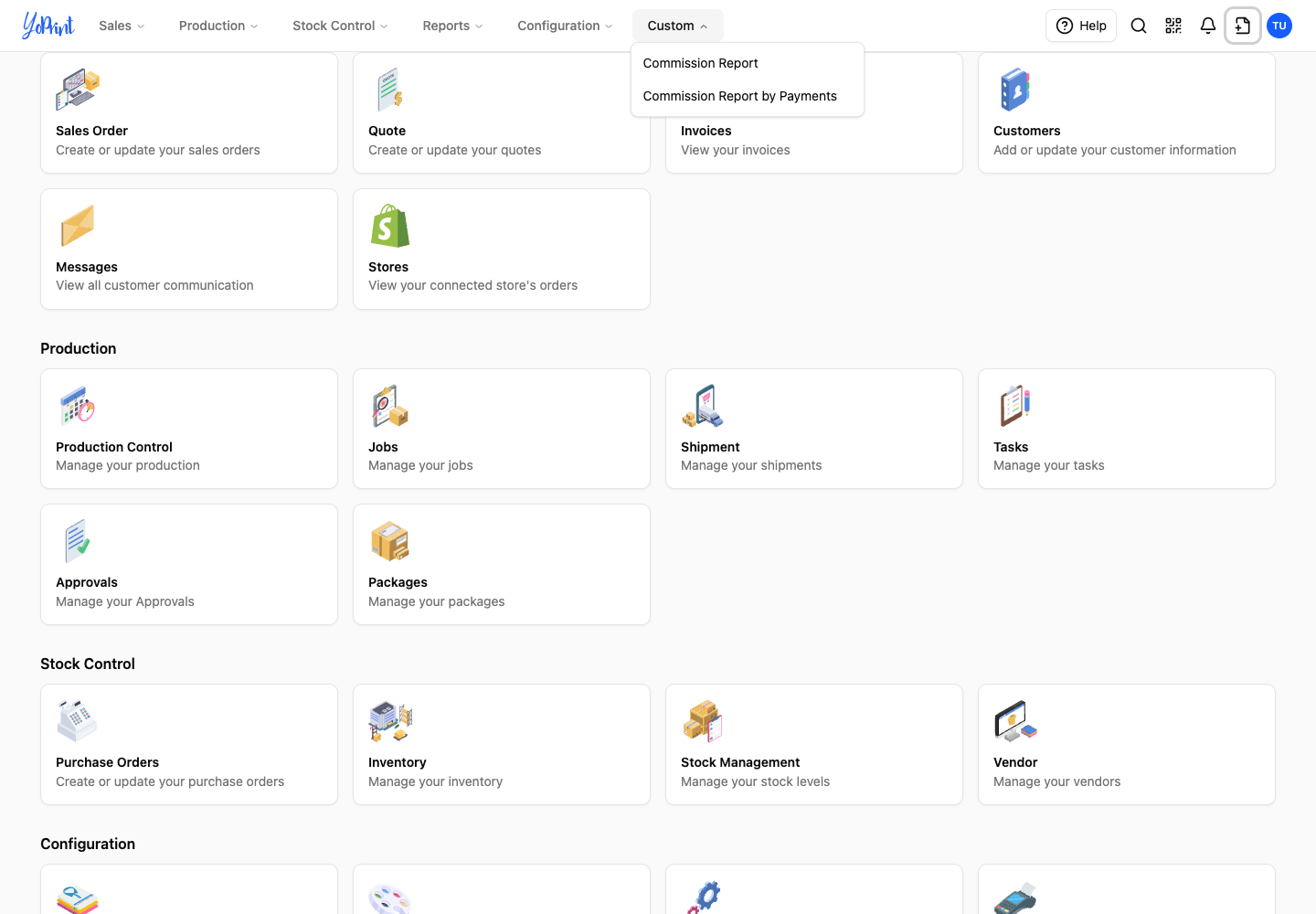
If configured for your team, Custom lists additional tools, such as commission reports.
Search
-
Click the magnifying glass in the top bar to open Search.
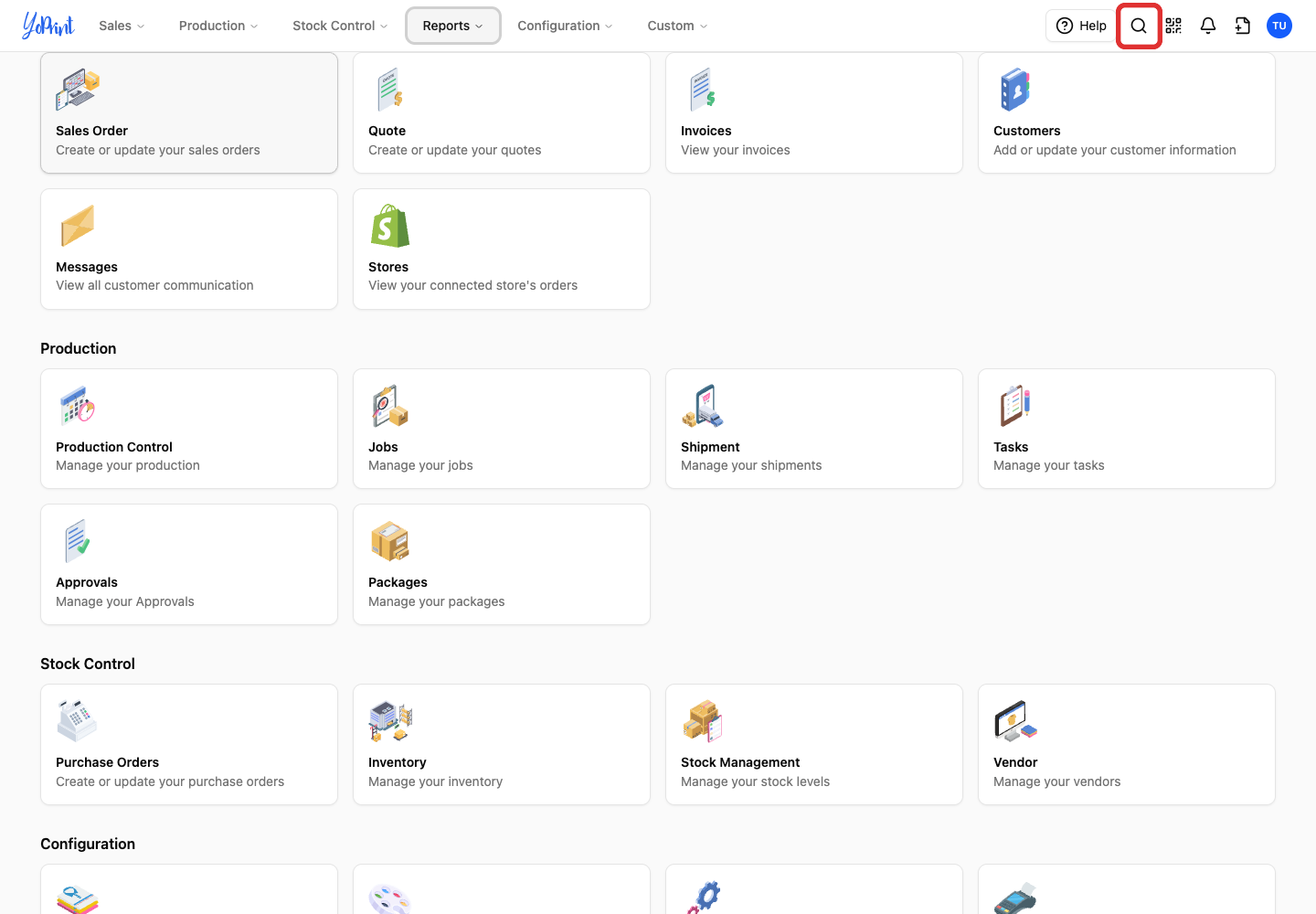
Search finds customers, orders, quotes, jobs, shipments, purchase orders, vendors, and invoices. To search, filter, and open these records, follow Search in YoPrint.
Profile
-
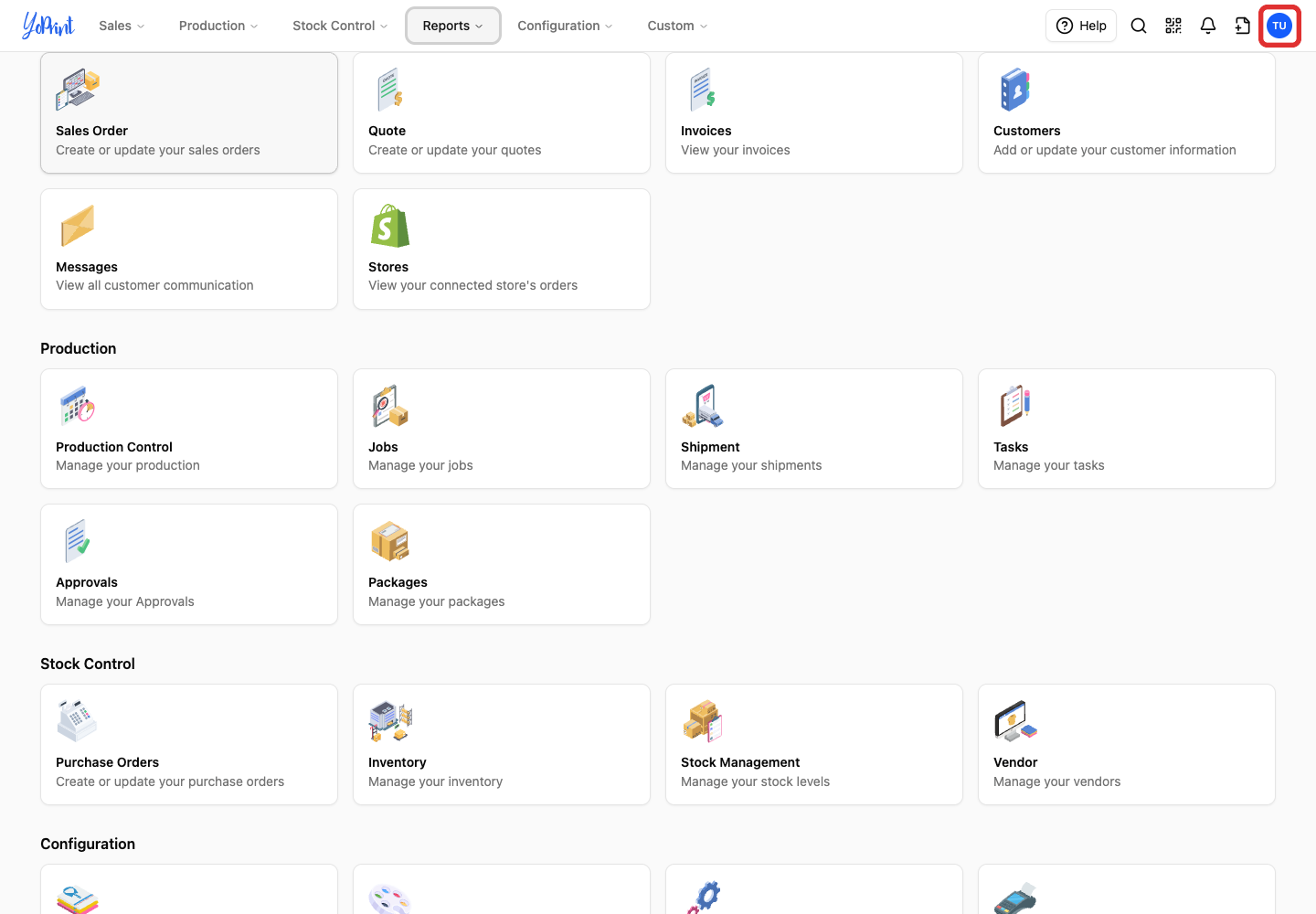
Click your profile picture or initials to open the user menu. It contains Profile, theme choices, Switch Team, and sign-out options.
Notifications
-
Click the bell to open your notifications panel.
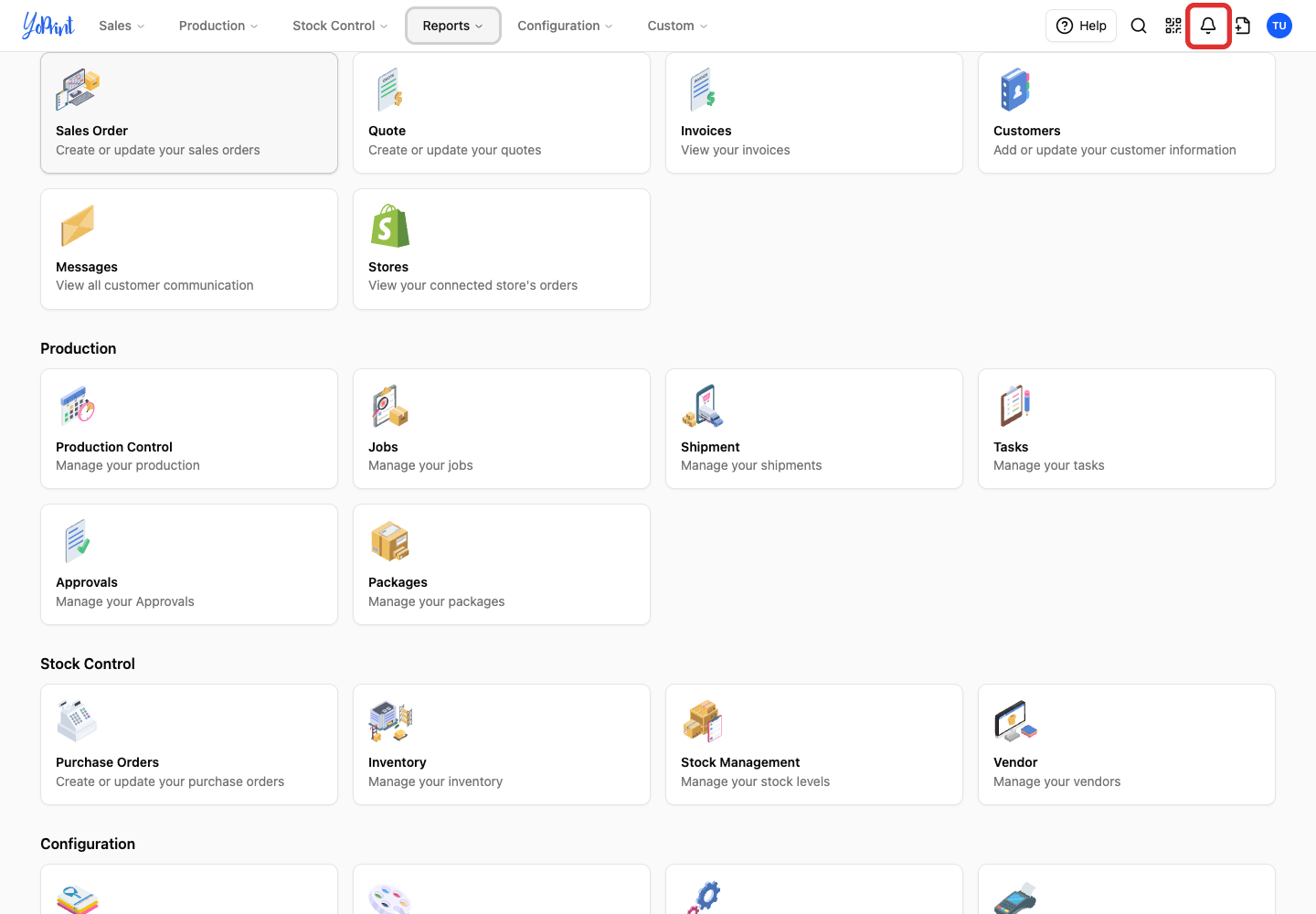
The notifications drawer lists recent updates with options to filter, archive, or mark notifications as read.
Barcode scanner
-
Click the barcode icon to open the camera scanner. Scanning needs camera access.
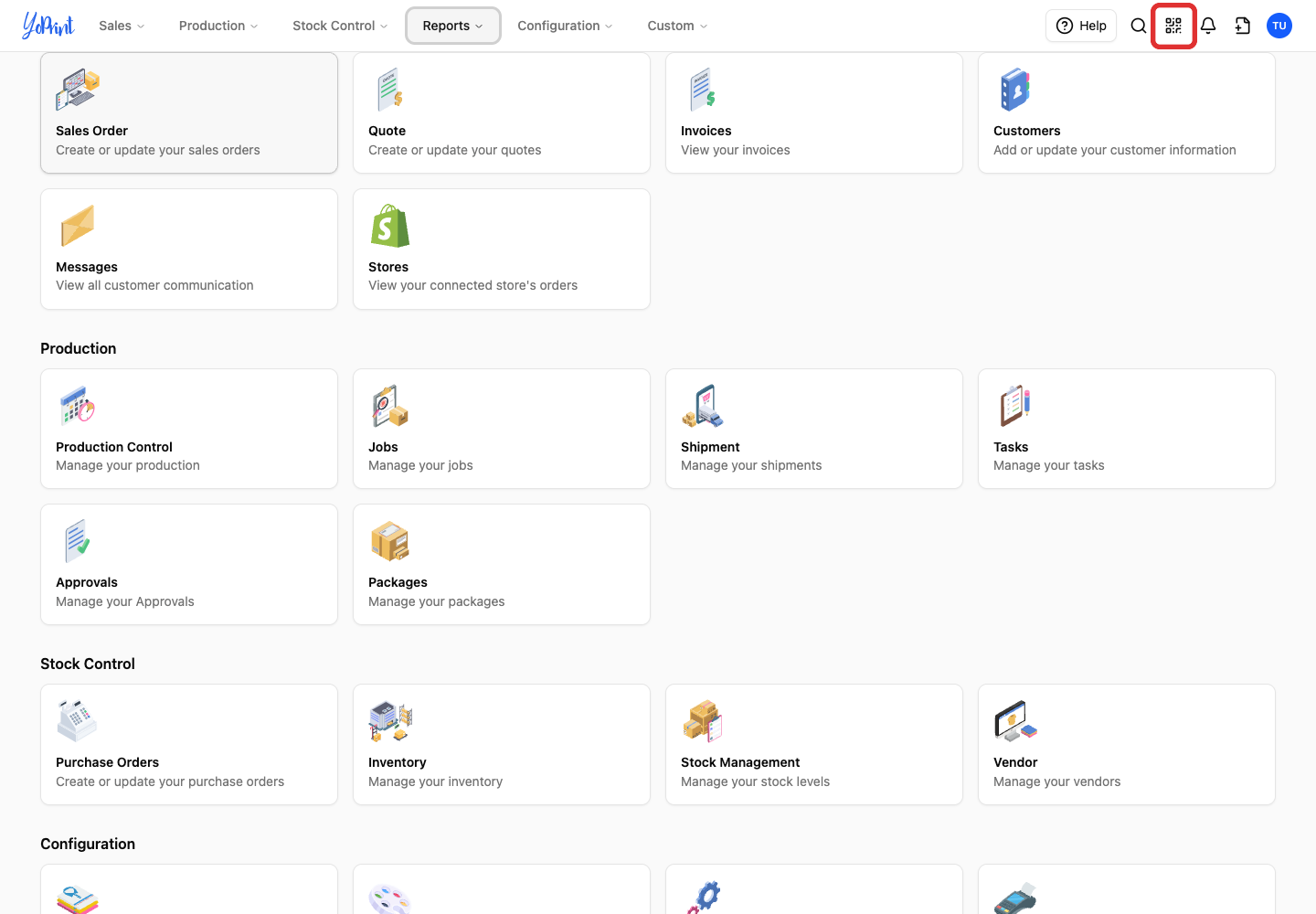
If your browser blocks camera permissions, allow camera access in your browser settings to scan. Handheld barcode scanners configured for keyboard input work directly across YoPrint without opening this scanner dialog.
To learn how YoPrint uses barcodes and QR codes, see Understanding QR Codes vs. Code 128.
Return to the dashboard
-
Click the YoPrint logo at the top left to return to the dashboard.
You can click the logo from any page with the top navigation bar to return to the home screen.
Get help
-
Click Help in the top navigation to open the support panel.
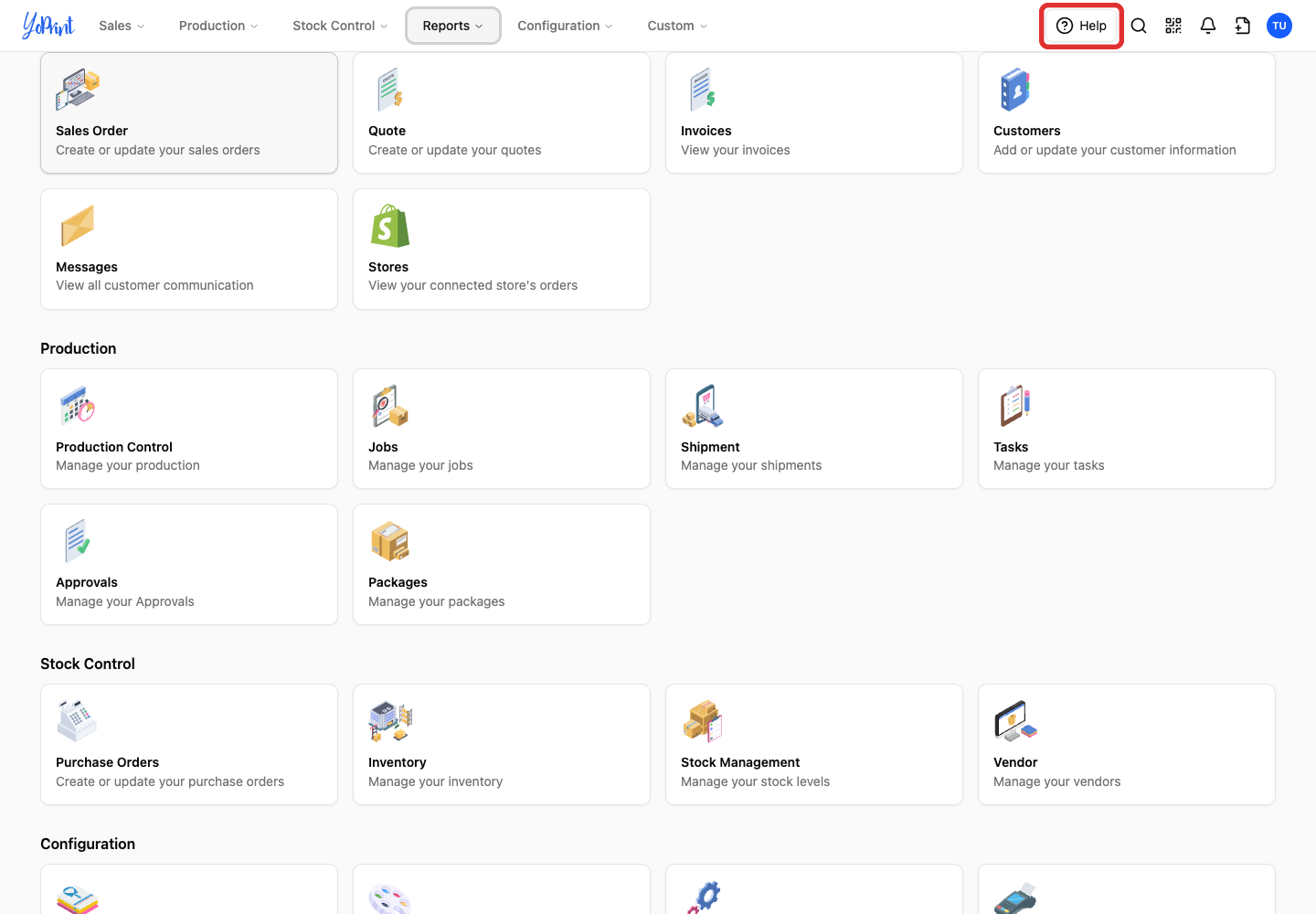
The panel offers three support channels:
- Answers lets you ask questions about YoPrint.
- Help docs opens the knowledge base search.
- Email opens a form for your support message.
Choose Email to write to the support team.
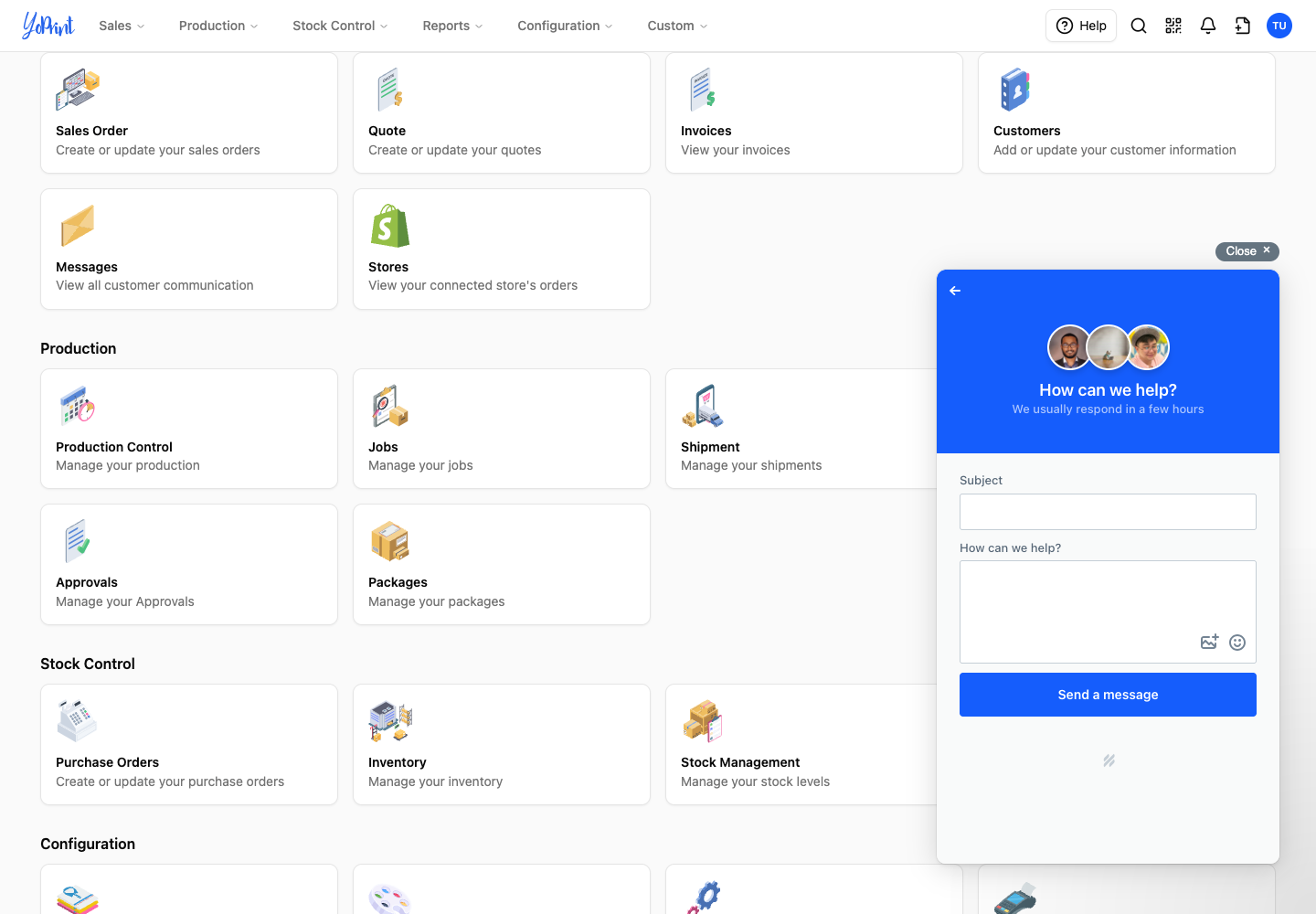
Choose Answers to ask a question about YoPrint. Help docs opens the knowledge base search. Use the back arrow at the top of either screen to return to the channel menu.