Assign Team Members to a Customer
In this article
Assign the people in your shop who are responsible for a customer. Assigning team members helps you filter customers by representative and identify account ownership. You can assign more than one team member, for example, a sales representative and a colleague who covers their time away.
Open the customer’s assignments
-
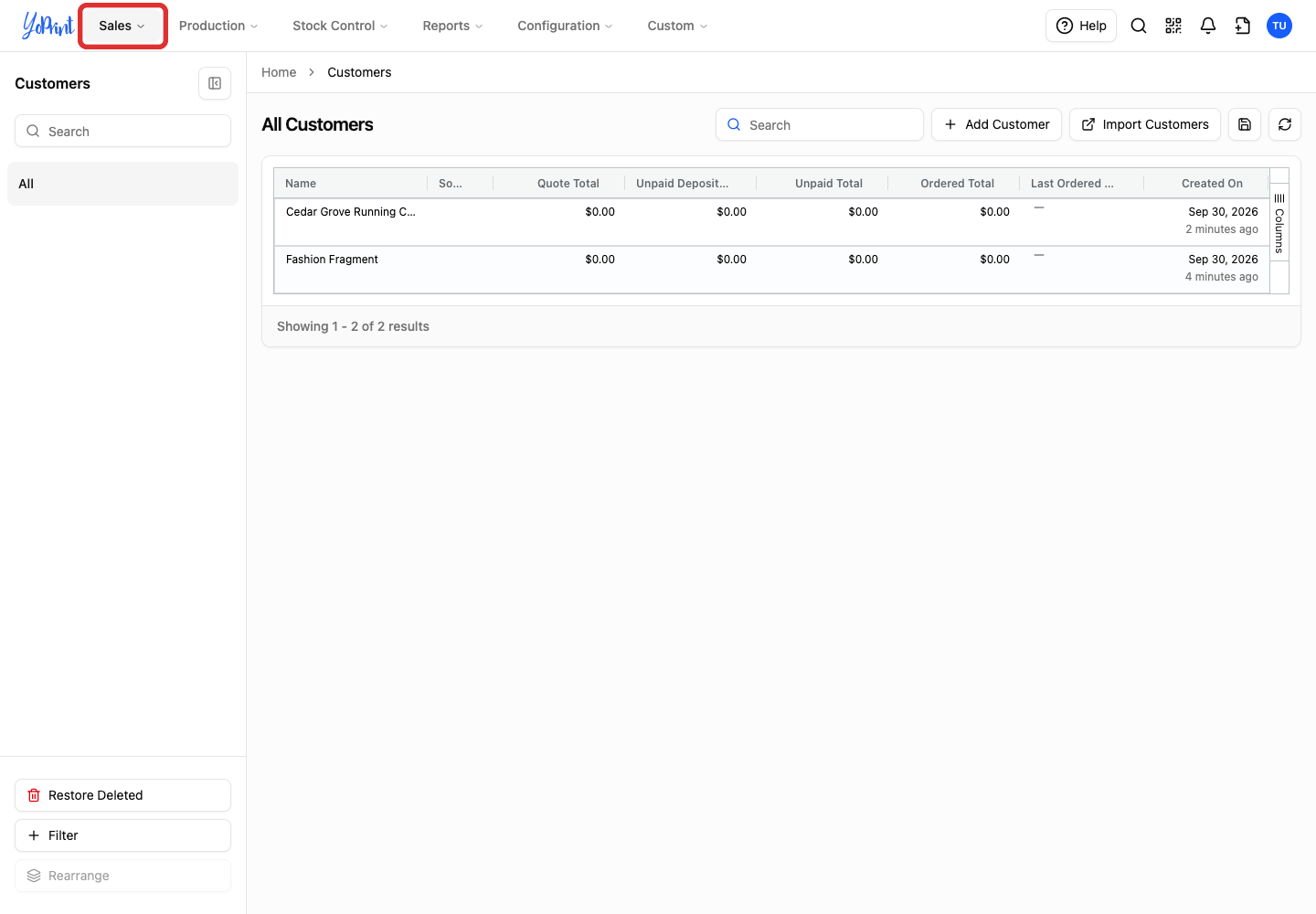
Open the Sales menu.
-
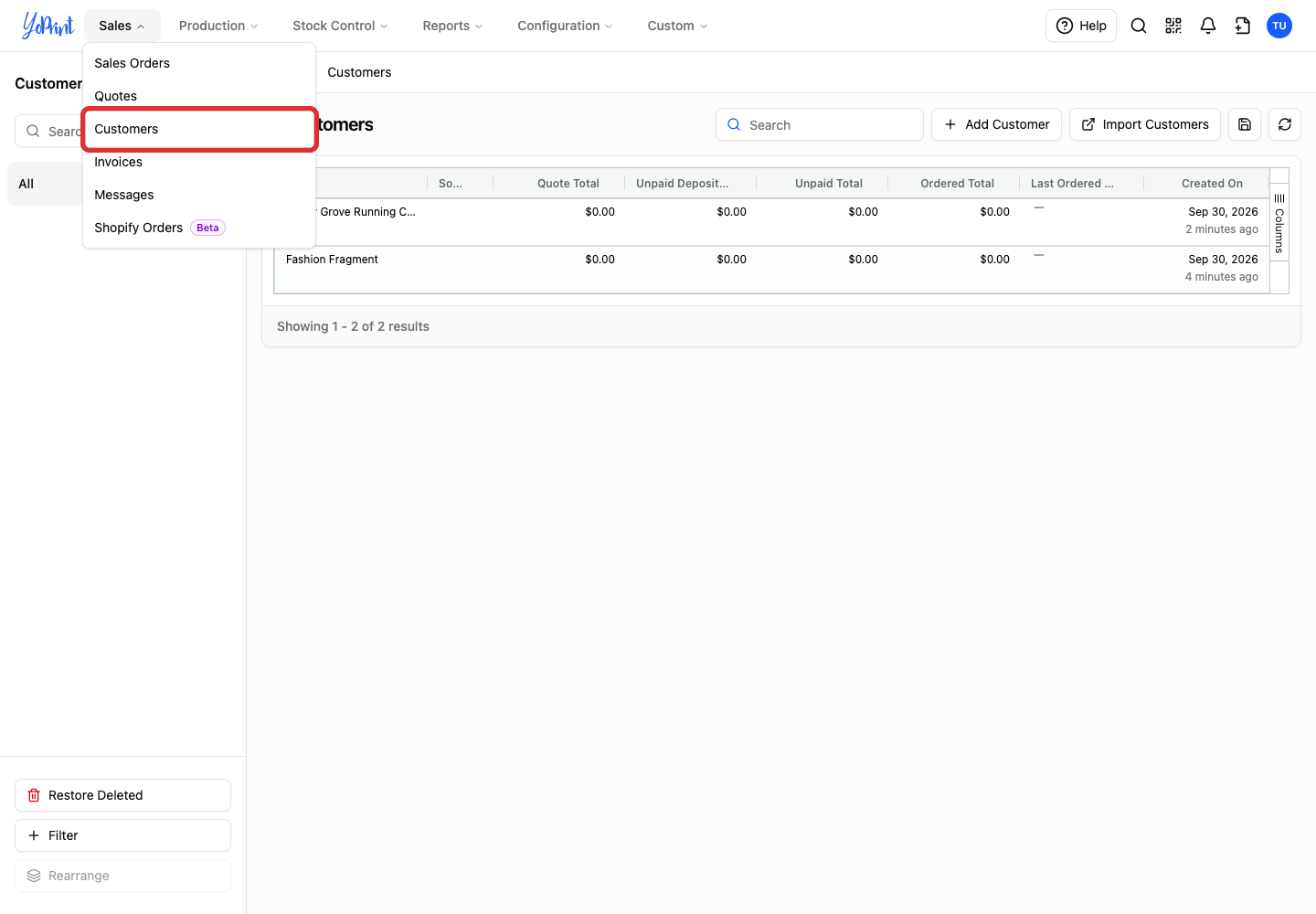
Choose Customers.
-
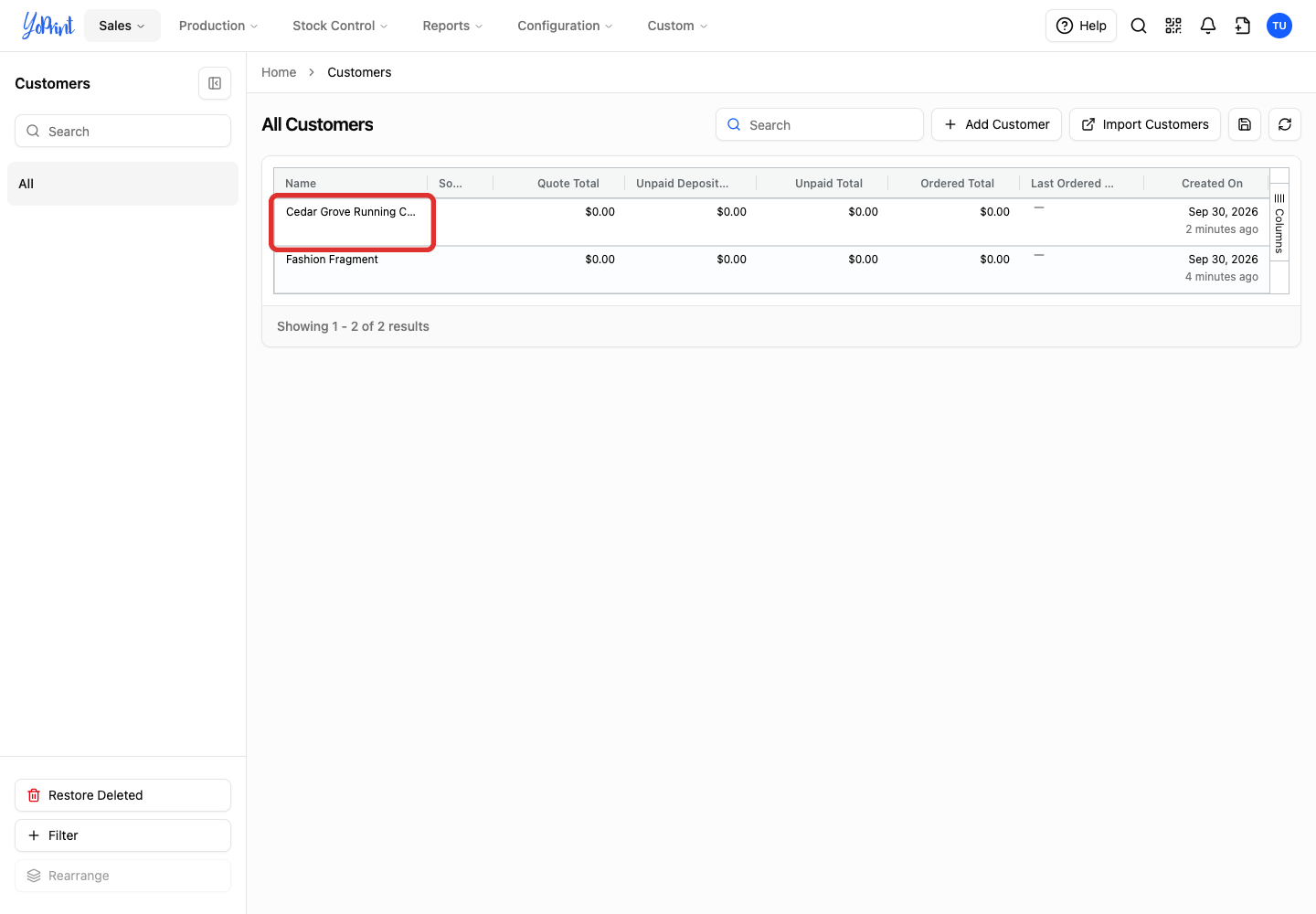
Double-click the customer’s name. This opens the customer view drawer.
-
Click View full page. You can manage assignments on the full page or directly within the drawer.

-
Choose Finance & Assigned.

Assign team members
-
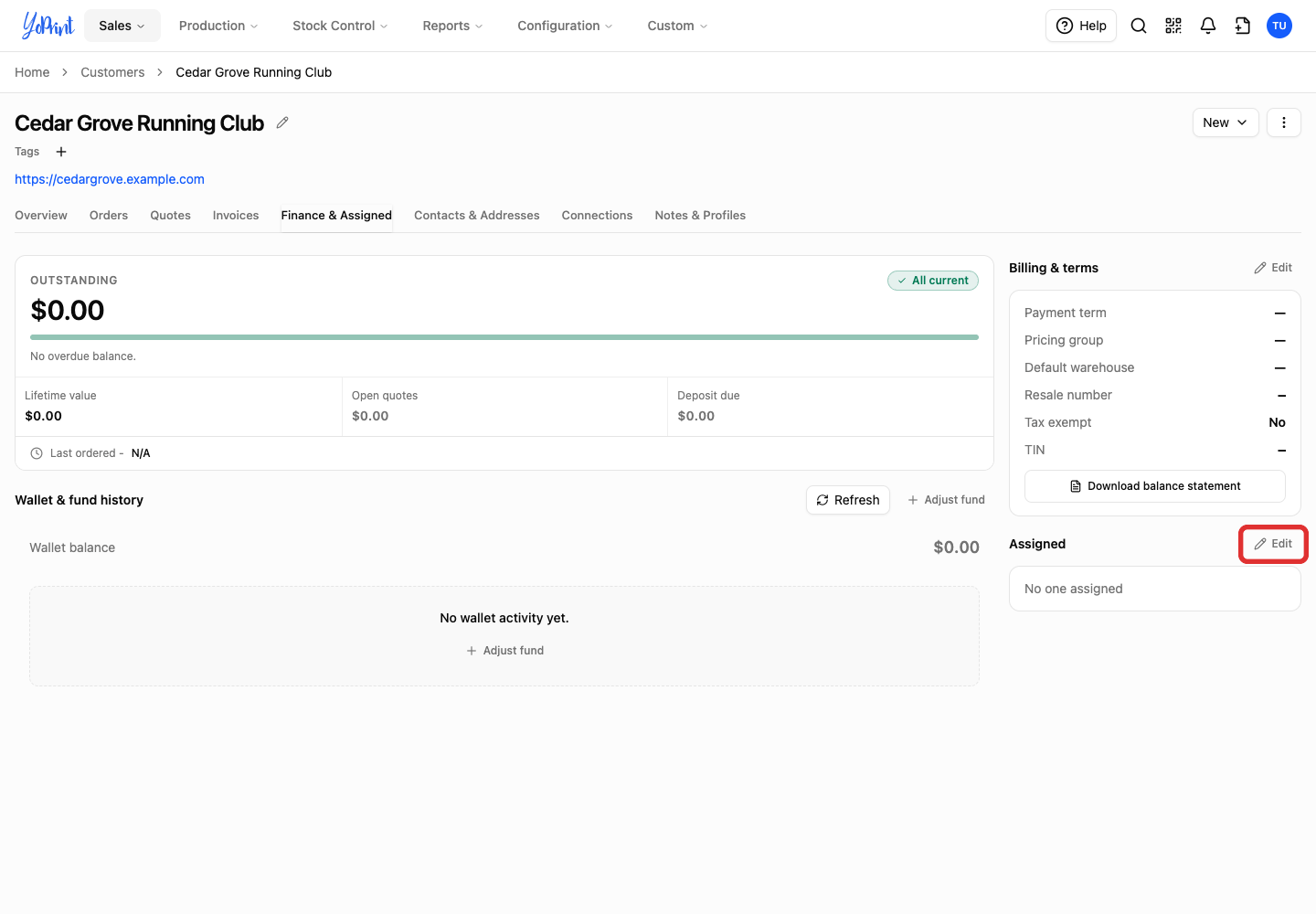
Click Edit beside Assigned. The Assign users dialog opens.
-
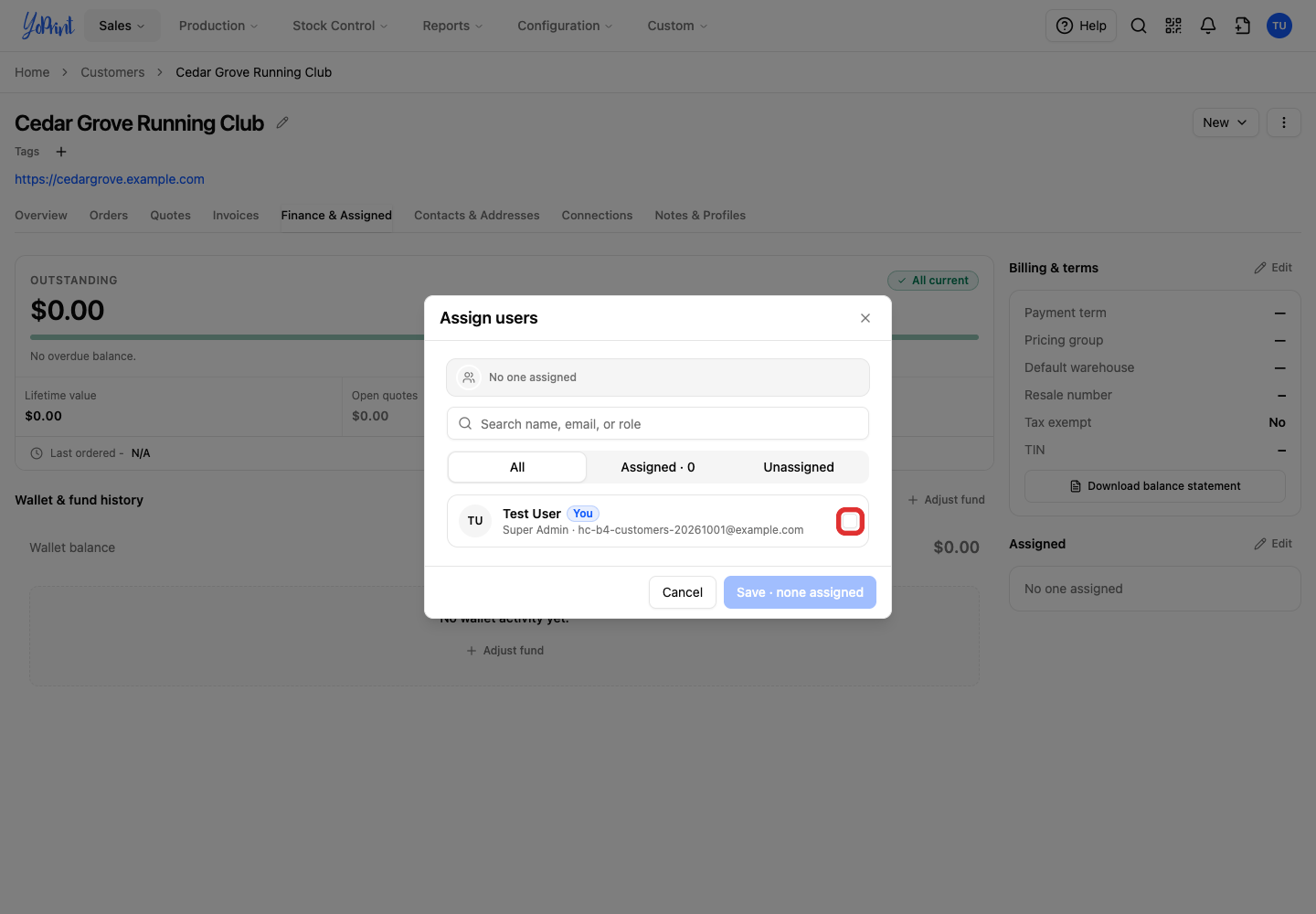
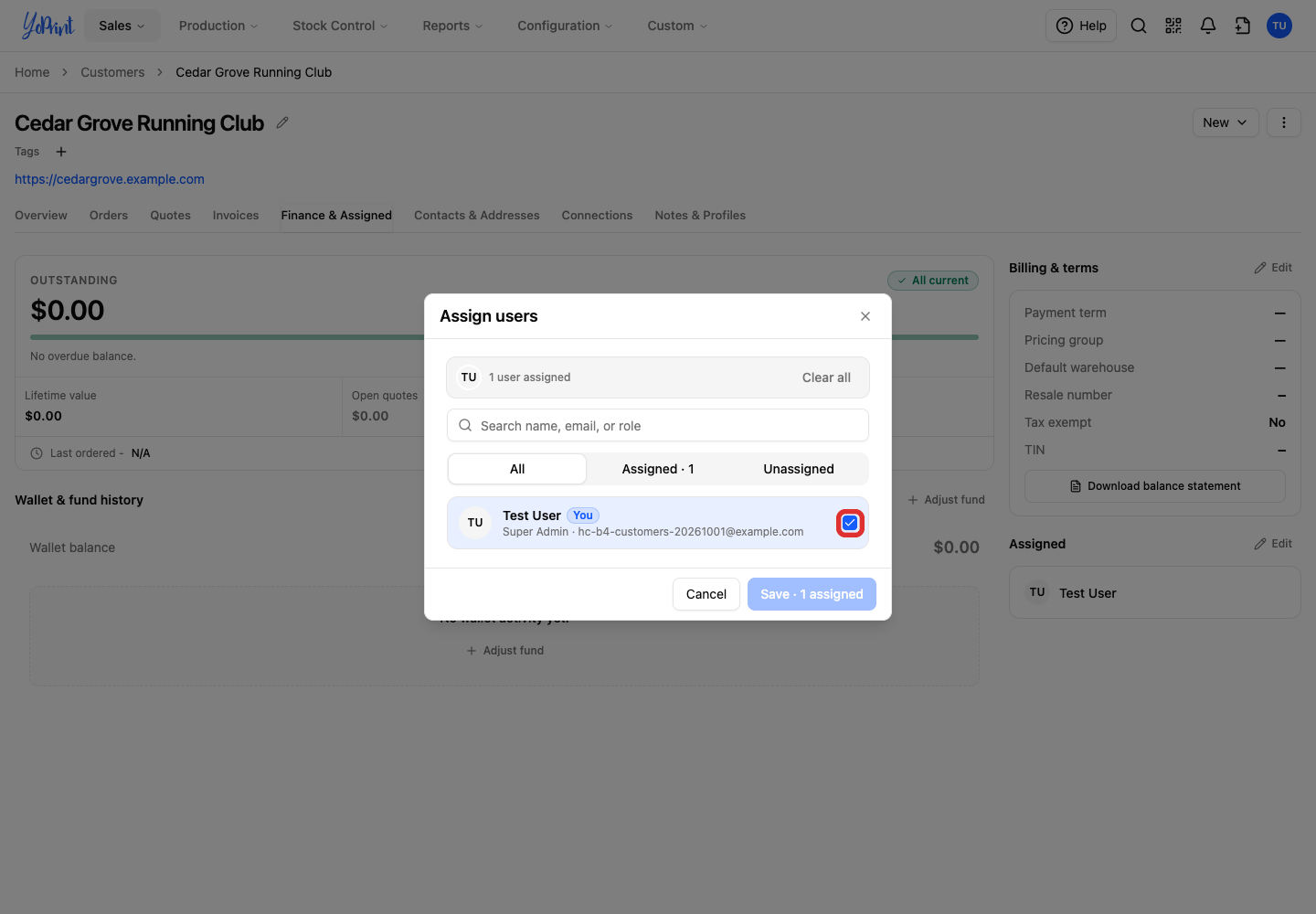
Select the checkbox beside each team member you want to assign.
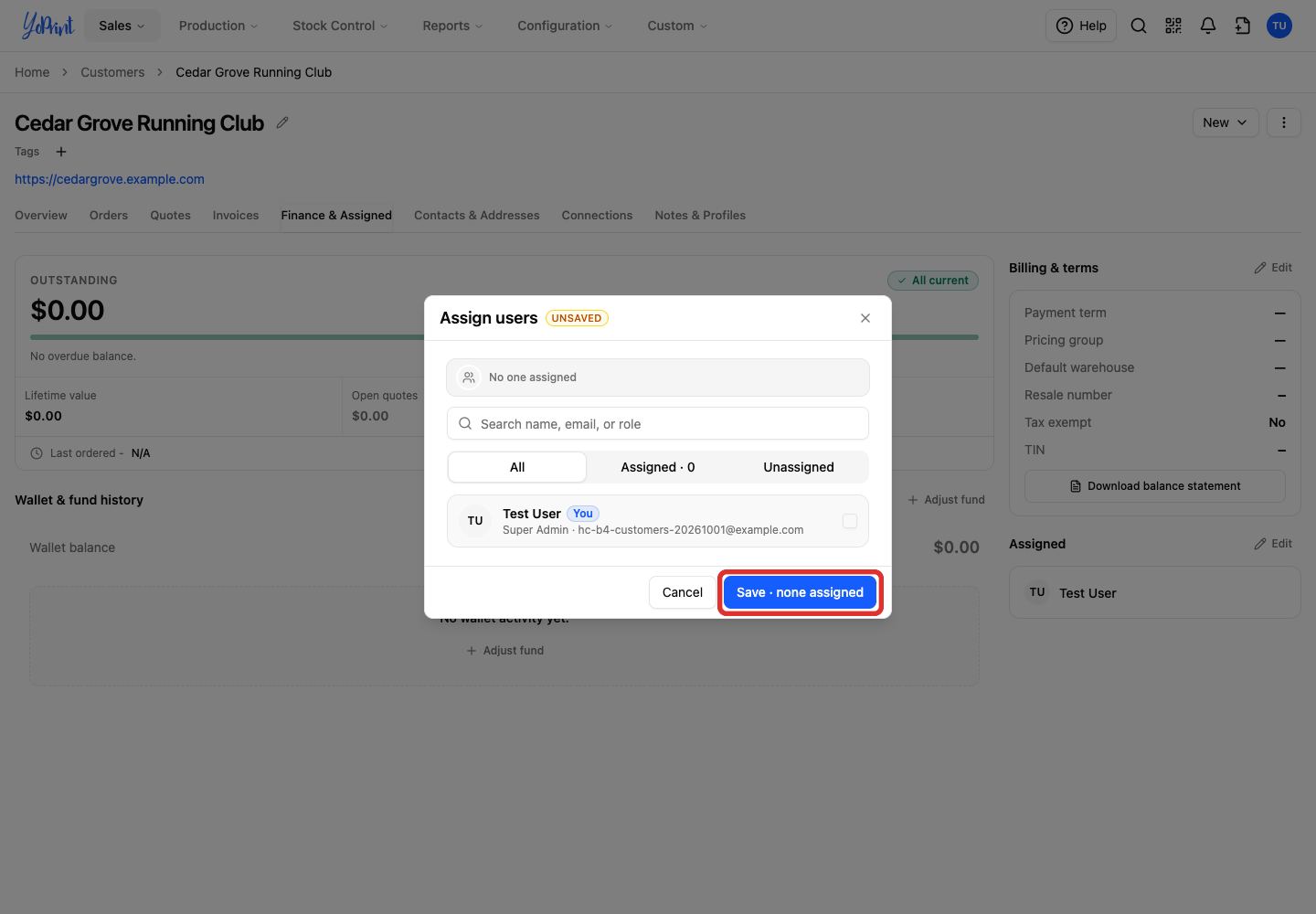
The list includes all active users from your shop team regardless of role. Any uncommitted selection displays an UNSAVED badge in the header. The search field matches a name, email address, or role. All, Assigned (with a count), and Unassigned filter the list.
-
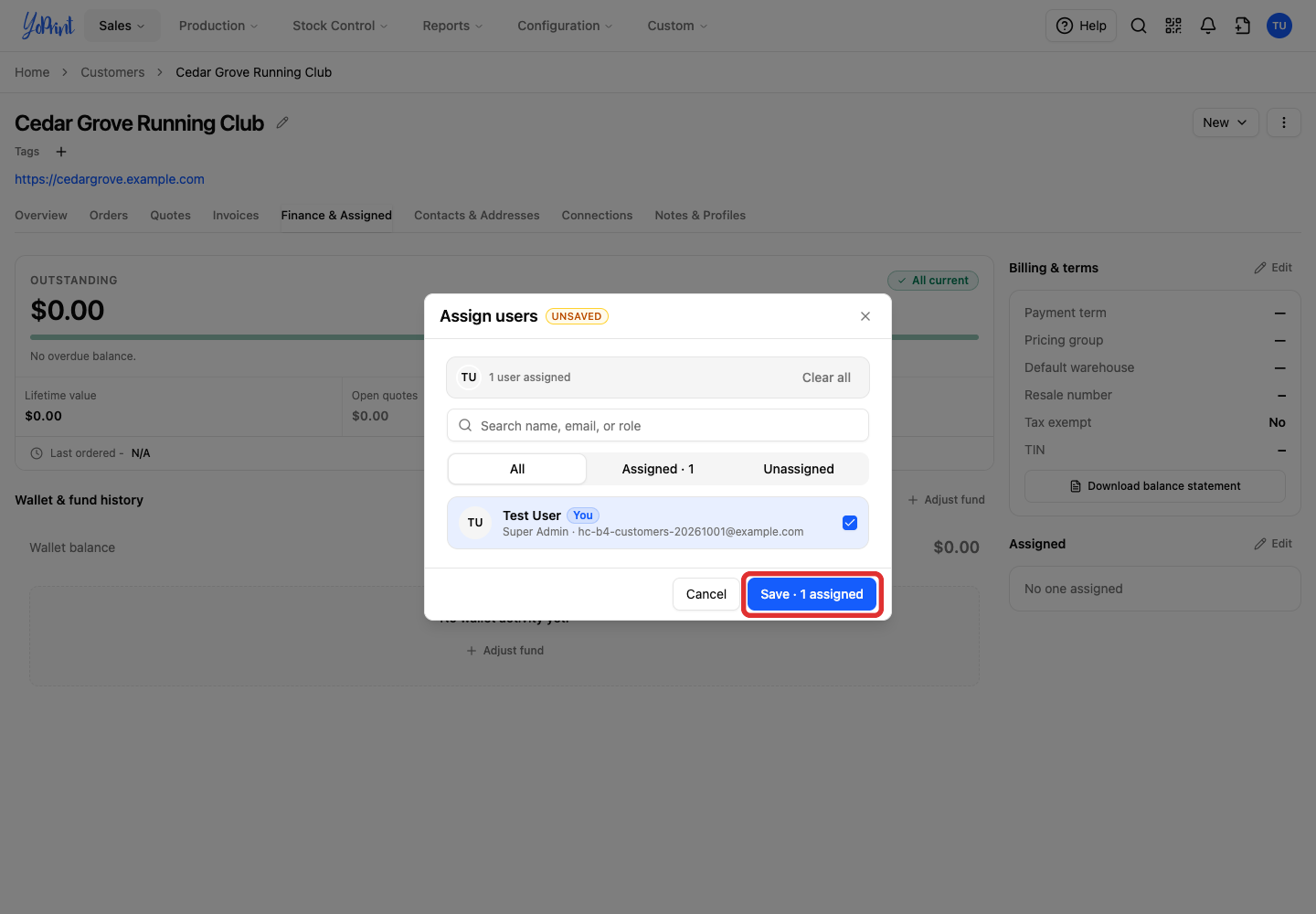
Click Save. The button shows how many people will be assigned. Their names appear under Assigned.
The button activates once you change a selection. Their avatar and name appear under Assigned in alphabetical order.
Remove an assignment
When no one is assigned, the customer displays No one assigned, and all staff with customer permissions can still view and manage the record.
-
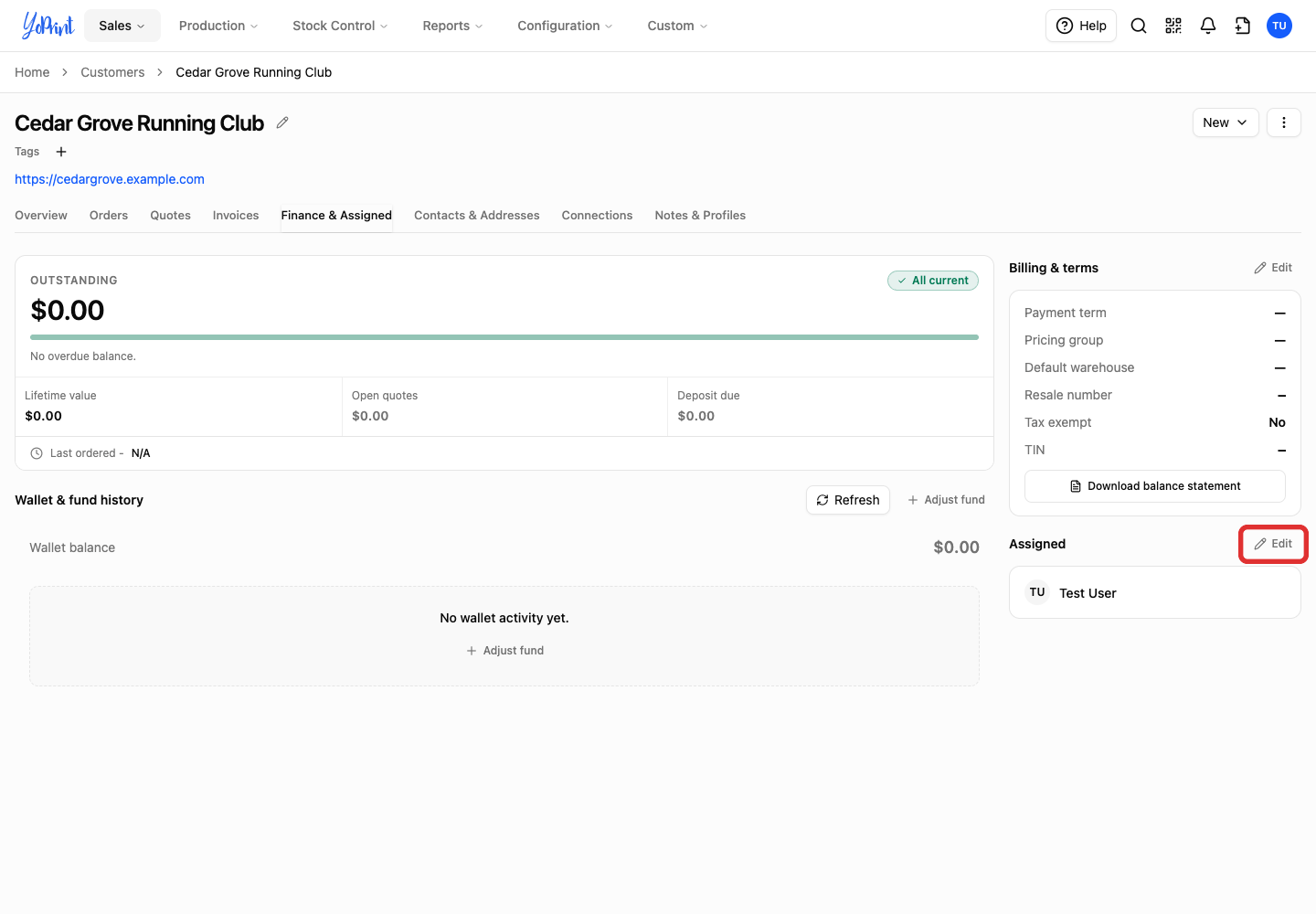
Click Edit beside Assigned.
-
Clear the checkbox beside each person you want to remove. You can also click Clear all to uncheck everyone at once.
-
Click Save. If you remove everyone, the button reads Save · none assigned.
Use the customer menu instead
You can assign team members from any customer tab without switching to Finance & Assigned.
-
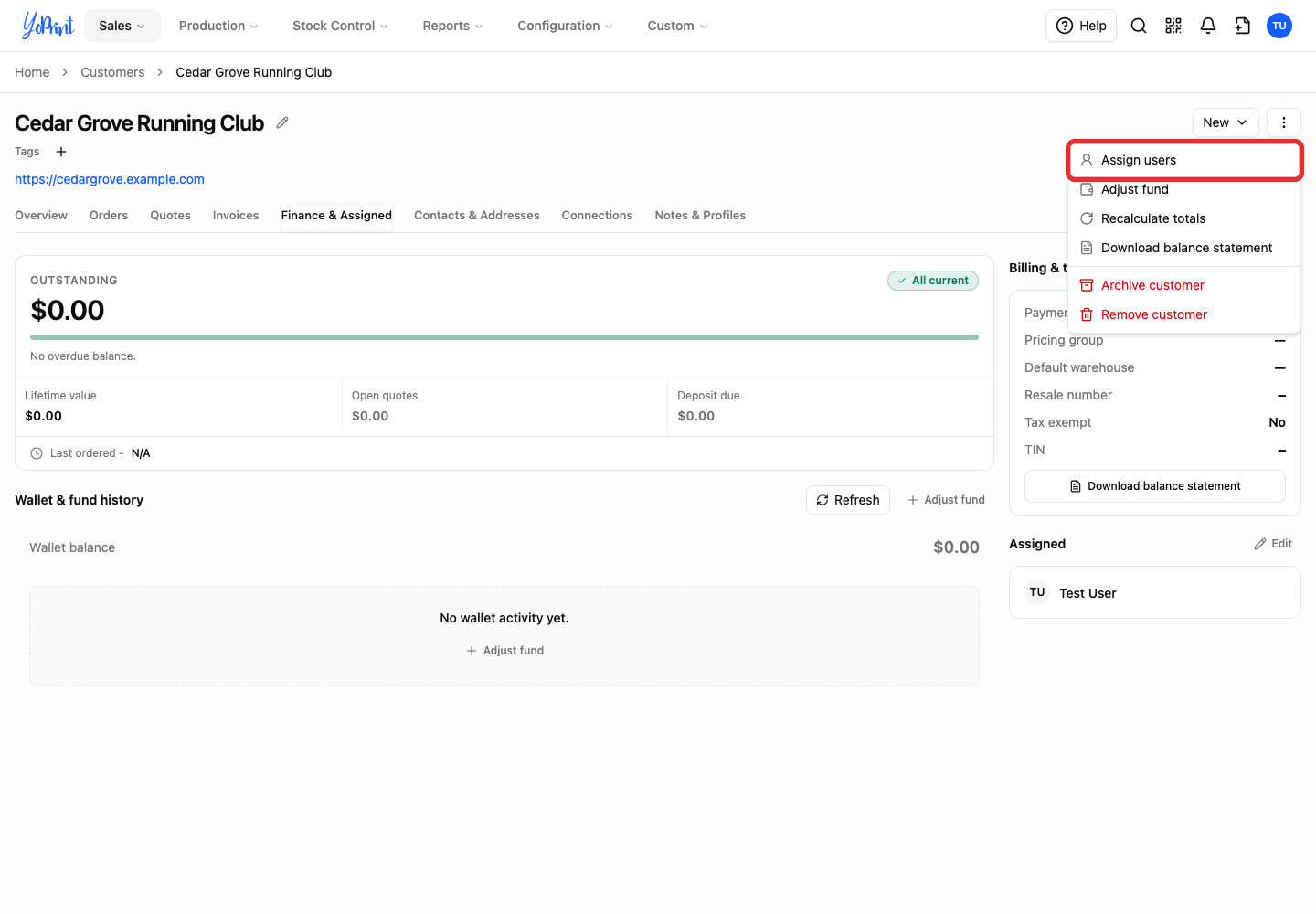
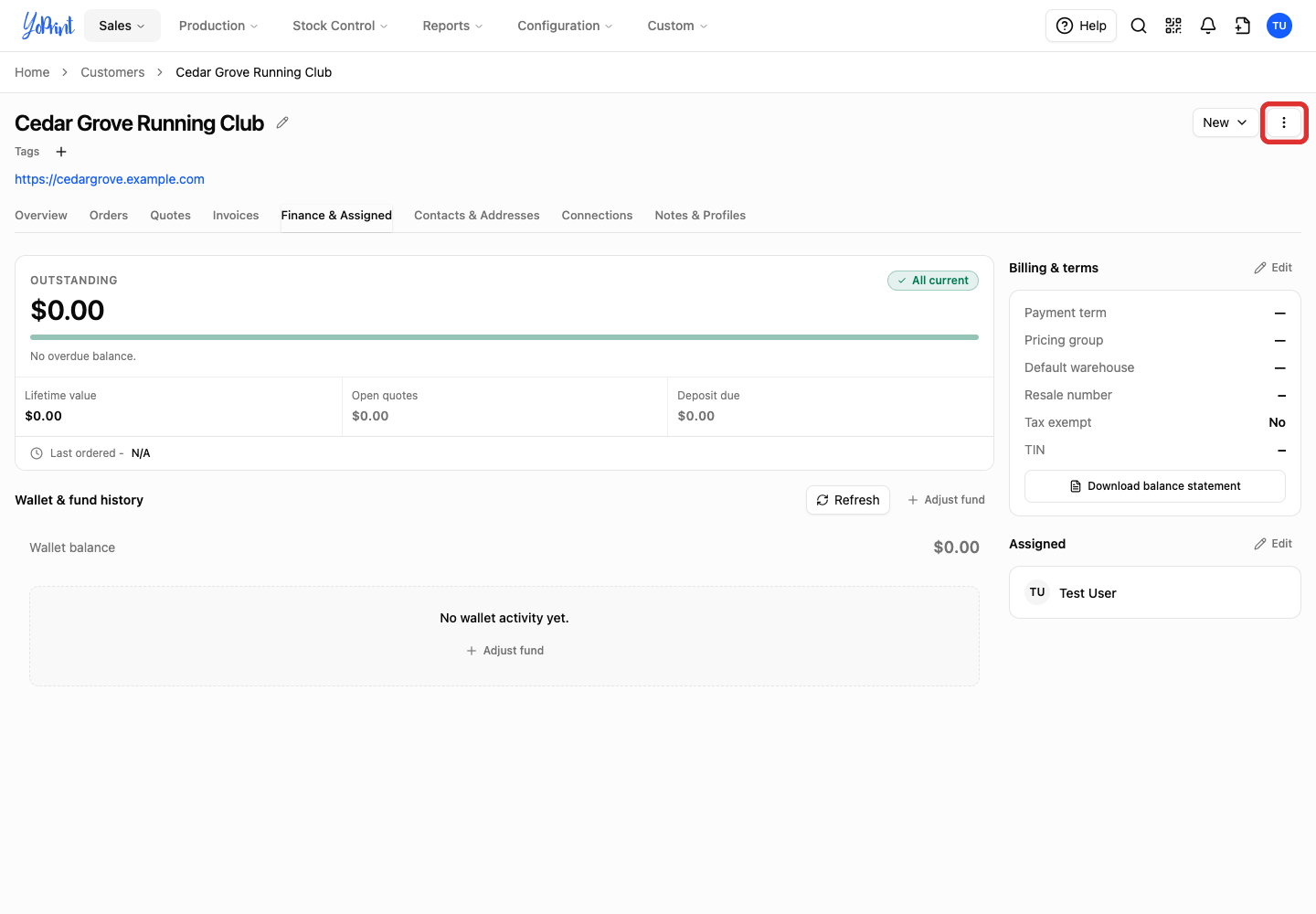
In the customer header beside New, open the three-dot More customer actions menu.
-
Choose Assign users. Continue with the selections and Save step above.