Mockup vs Production Files
In this article
A mockup file is the proof the customer reviews and approves and can appear on quote and sales order PDFs. A production file is what the shop prints from, stays internal, and never appears on customer PDFs or in the portal. A job keeps customer-facing proof artwork and internal print files in separate places. Reusable mockup templates, blank product canvases used to build mockup designs, stay in Settings for use across future jobs.

See both counts on the job
-
On the quote or sales order, locate the job card to review its file counts.
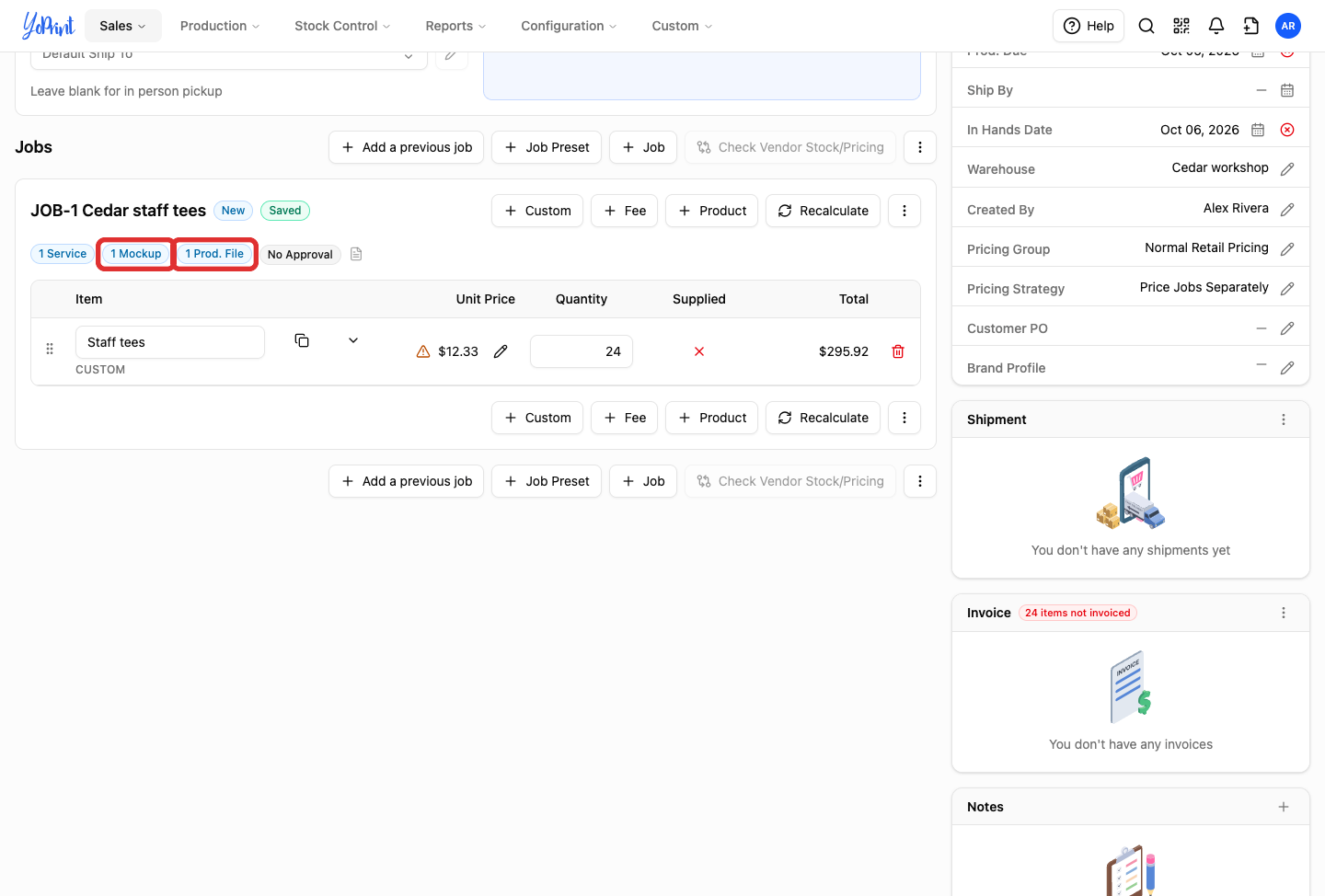
The Mockup pill displays the number of customer-facing proof designs. The Prod. File pill displays the number of internal production files attached to the job.
No Approval indicates that artwork approval has not been requested yet. Artwork approval is not required to upload or manage files. You can add mockup and production files at any stage of the order. To request approval or manage customer pricing visibility, see Customer Portal Overview and How to Request Artwork Approval from Your Customer.
Mockup files
-
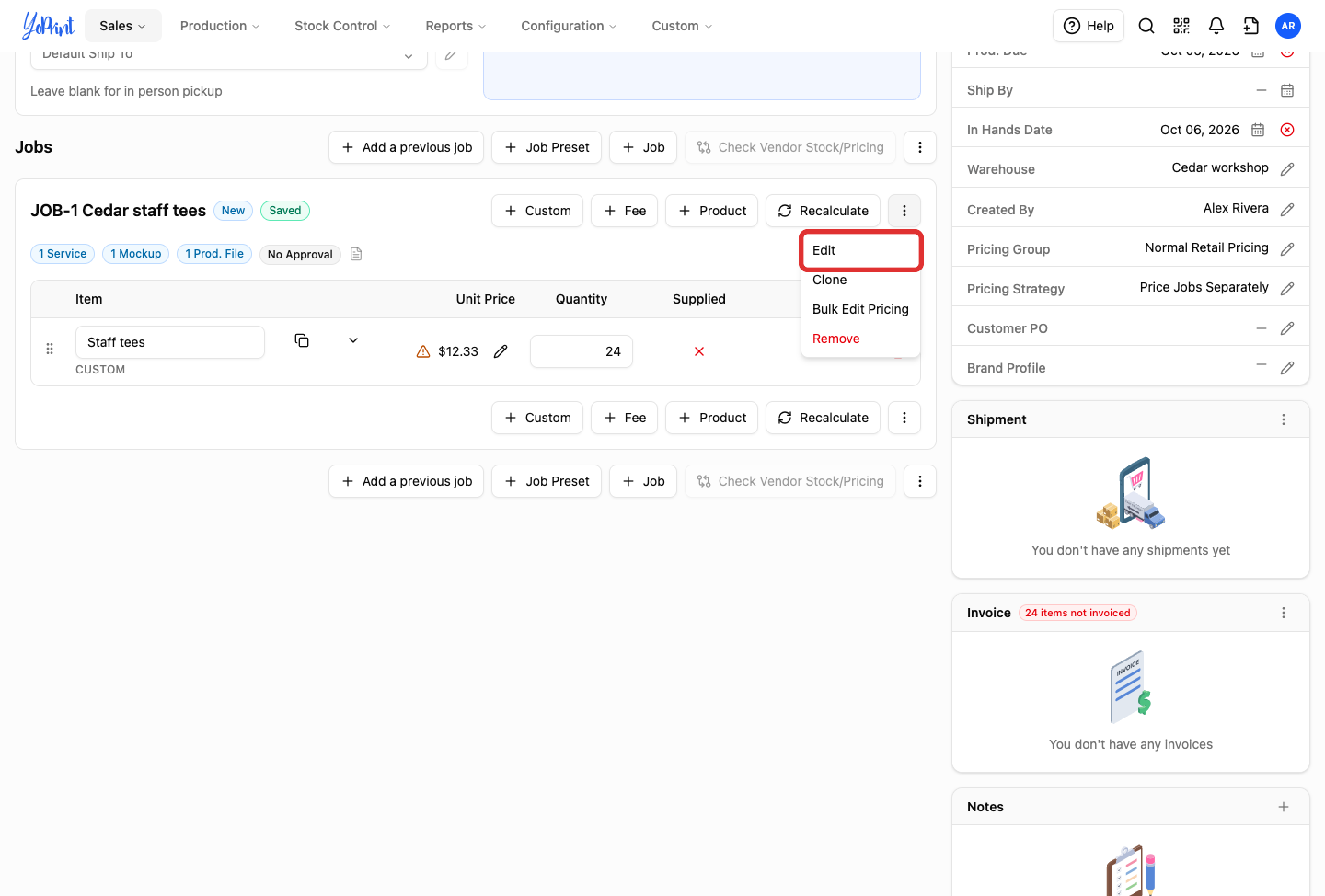
On the quote or sales order, open the job menu and click Edit (or click the job name header).
-
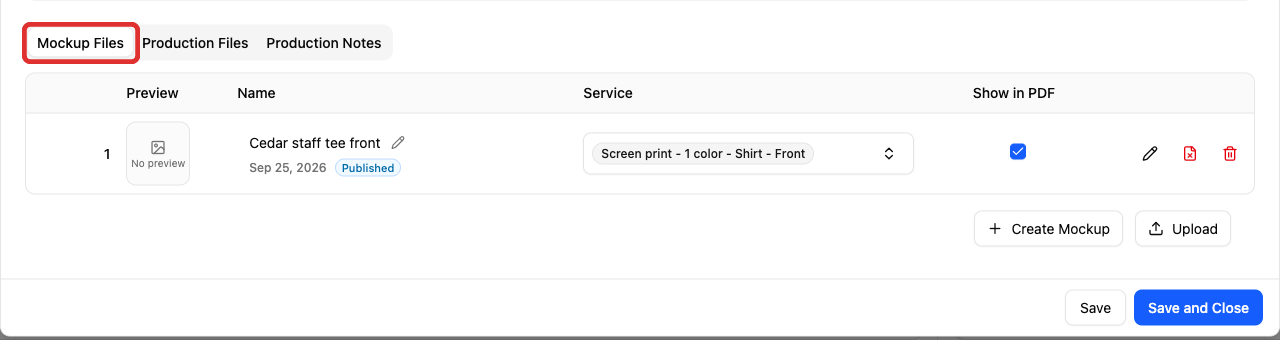
Click the Mockup Files tab (selected by default when opening the job).
-
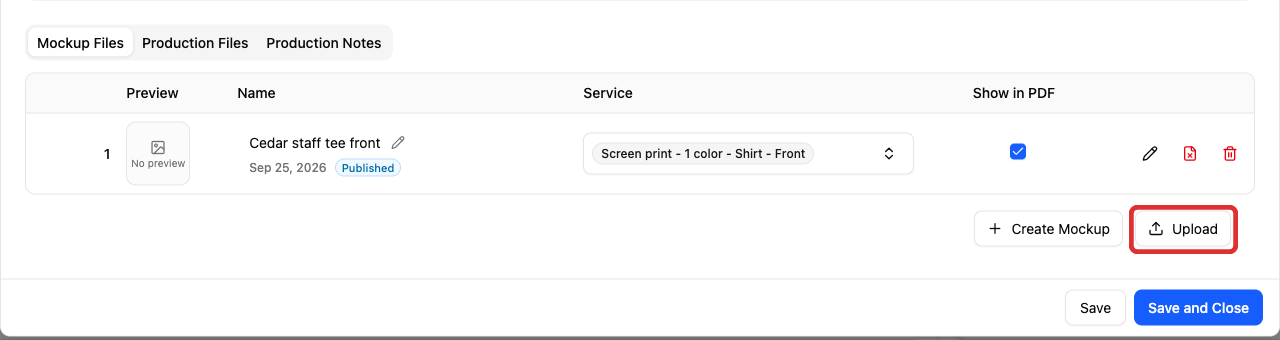
Click Upload to add your own mockup file.
-
Select and upload your mockup file.
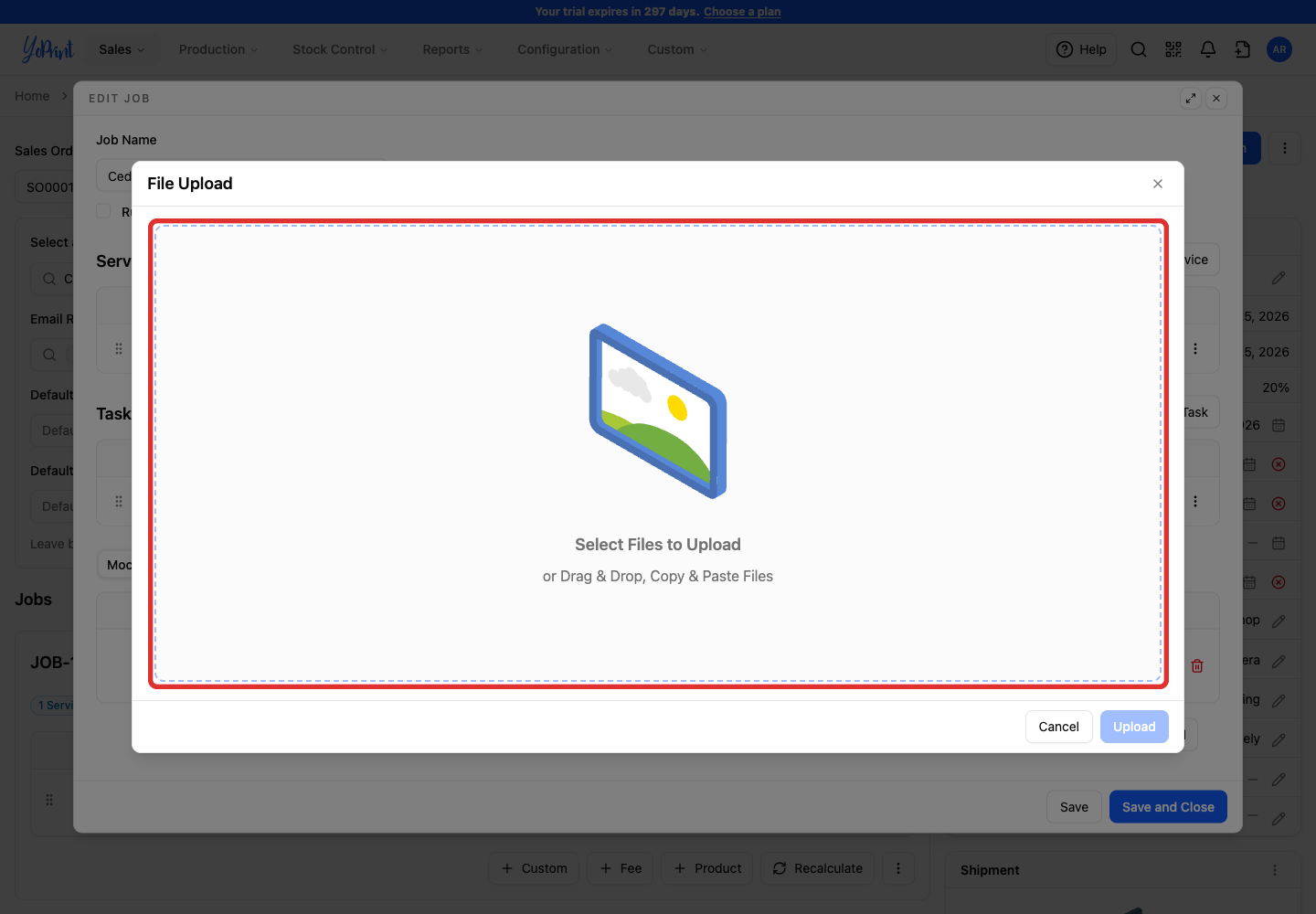
Mockup files accept JPG, PNG, GIF, TIFF, BMP, and PDF formats. These customer-facing proof files can be displayed on customer quotes and sales order PDFs and sent for artwork approval.
Designs created in Mockup Creator appear in this list. While a design is in Draft status, Show in PDF remains disabled. Publishing the design automatically checks Show in PDF so the mockup appears on quote and sales order PDFs.
Keep the mockup off customer PDFs
To keep a published mockup on the job without showing it on customer-facing PDFs, uncheck Show in PDF. You can also click the unpublish icon on the row to return a design to draft.
To learn how to open Mockup Creator, publish artwork, and save reusable templates, see How to access the Mockup Creator.
Production files
-
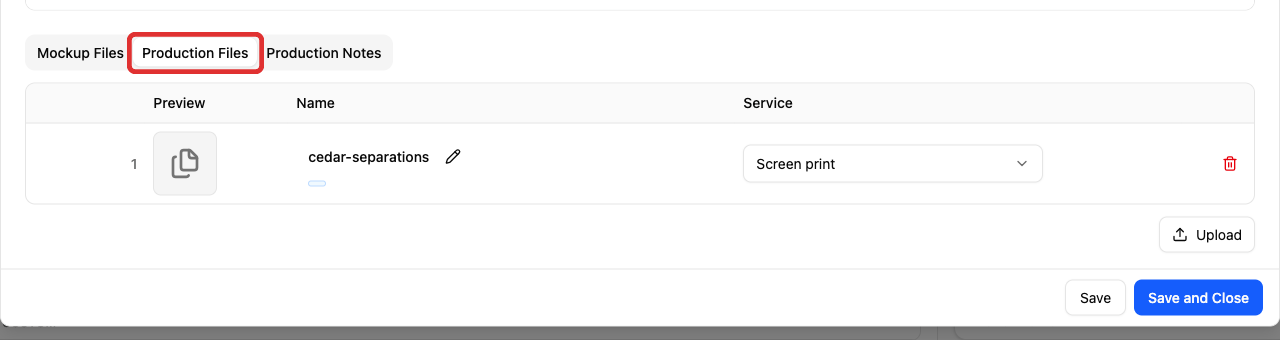
Inside the job, click the Production Files tab.
-
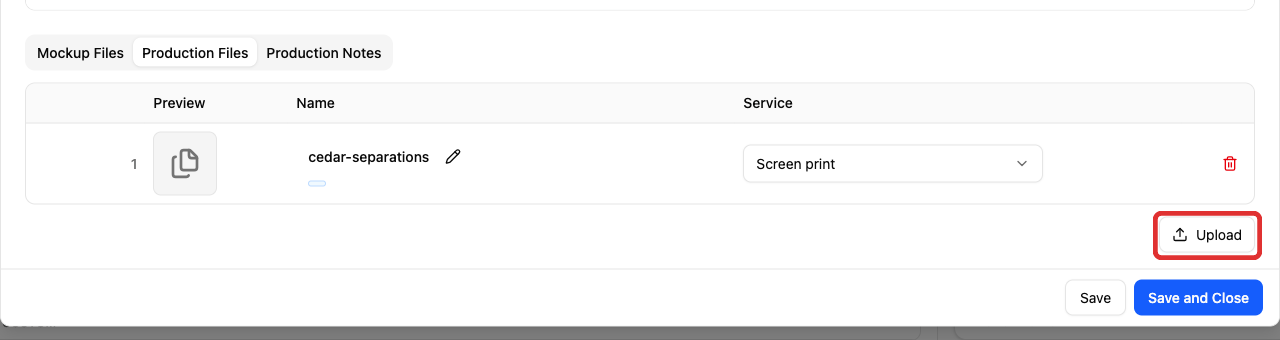
Click Upload.
-
Select and upload your shop print file.
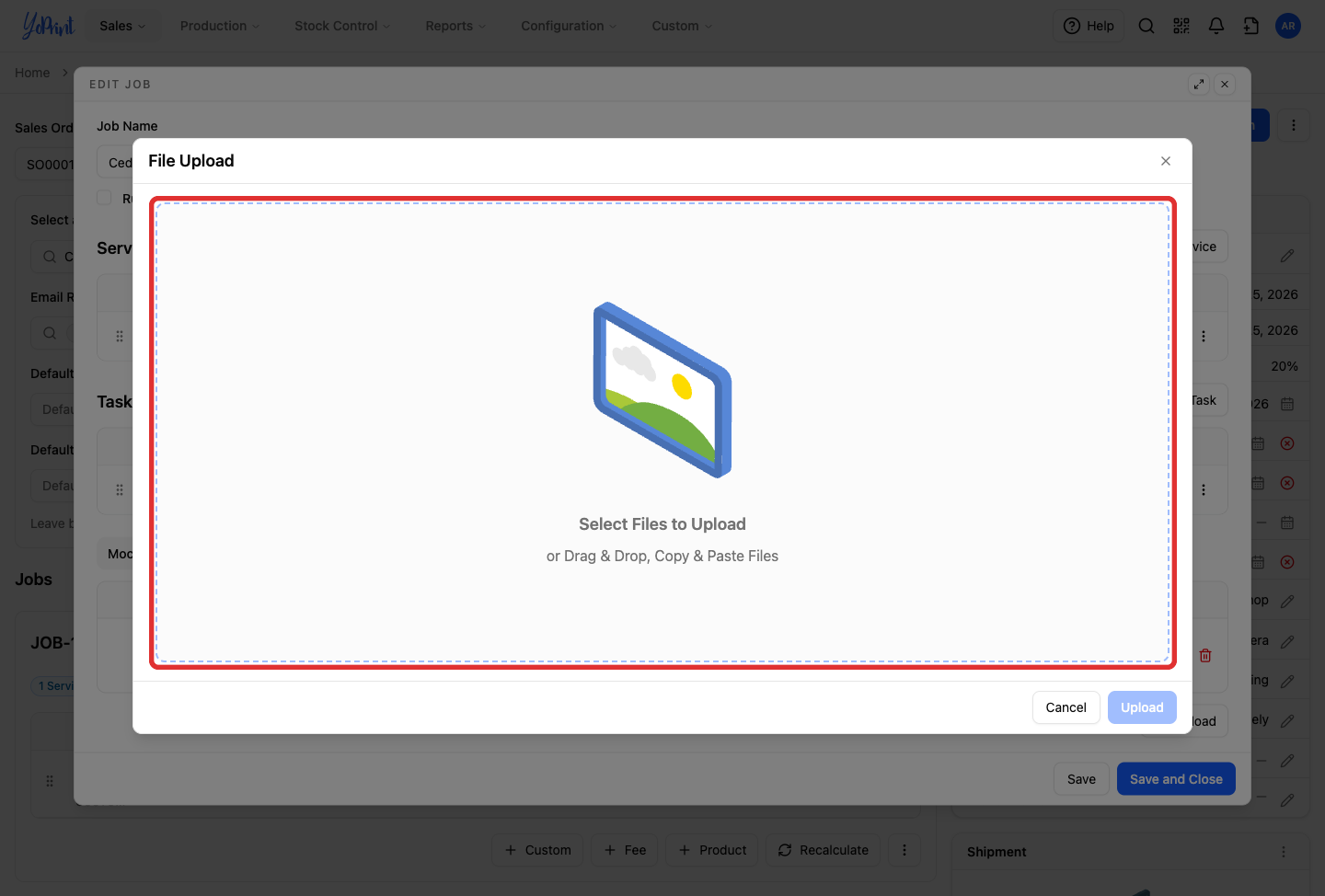
Production files take any file type because they are for the shop's own reference.
-
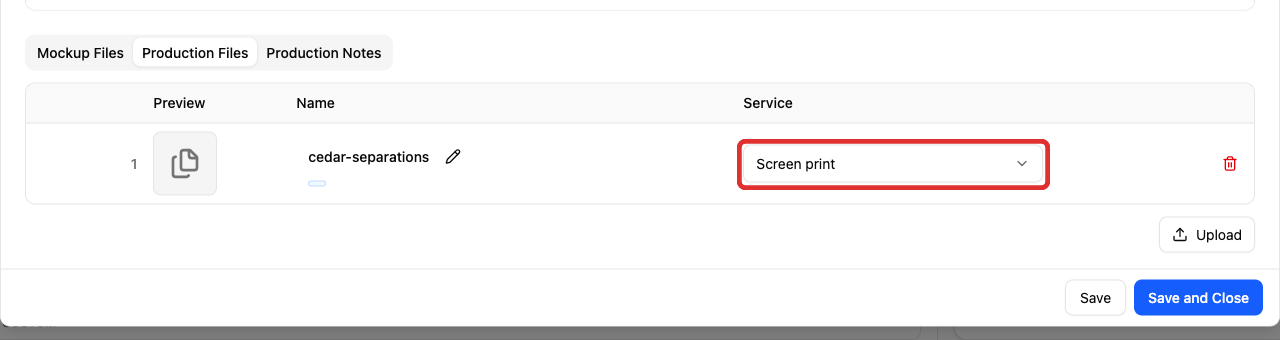
On the file row, click the Service dropdown.
-
Select the service that corresponds to this production file.
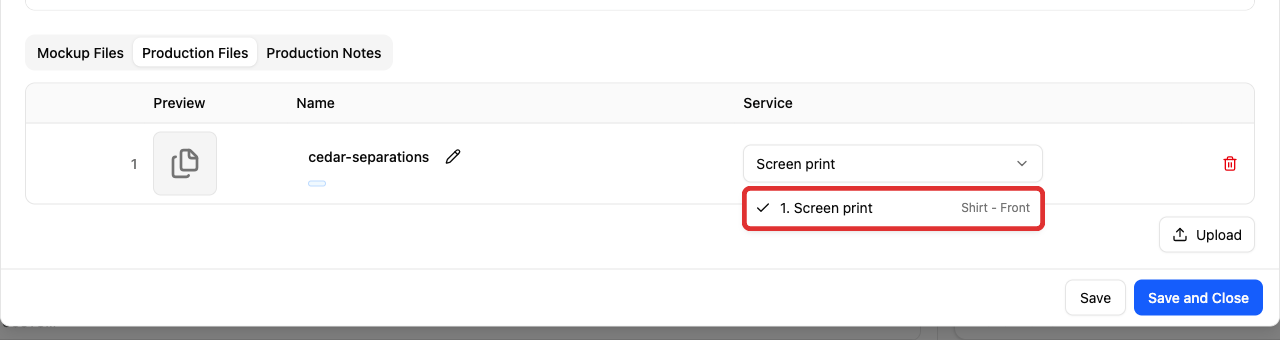
You can check one service or multiple services if the same production file applies to more than one process on the job.
The uploaded file appears in the list. Production files, such as PDFs, remain internal and do not have a Show in PDF option.
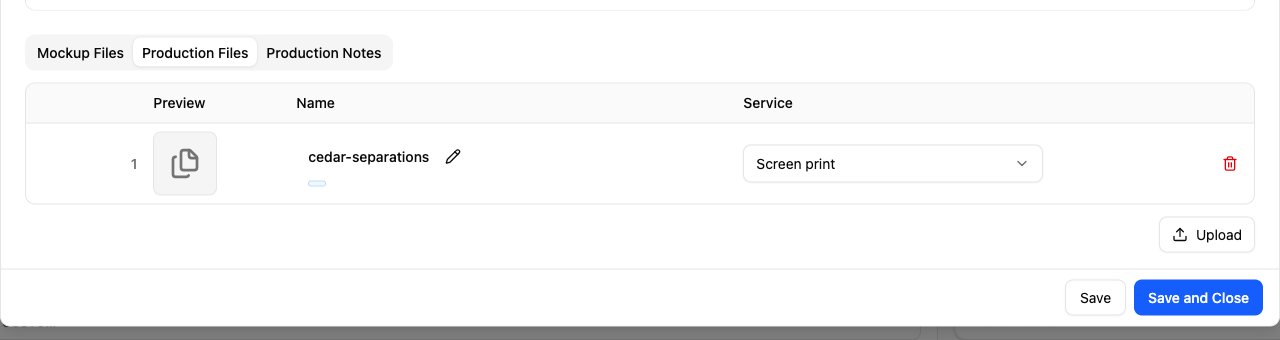
Production files are strictly for internal shop reference during production. They do not appear on customer PDFs or in the customer portal.
Mockup templates, the reusable blank product layouts used to build mockup designs, are managed separately under Settings > Mockup Templates. Creating or publishing a mockup design provides the visual proof for the customer, but it does not generate your shop's print-ready production file; upload your actual print file (such as a color separation or vector cut file) directly to the Production Files tab.