Connect YoPrint with QuickBooks Online
In this article
Connect your QuickBooks Online company to YoPrint, match its accounts and taxes, and choose when invoices and purchase orders sync.
Prepare your QuickBooks company
In QuickBooks Online
These steps happen in QuickBooks Online. Its screens may have changed since these pictures were taken. See Intuit's guides to company settings, sales tax, and VAT setup.
-
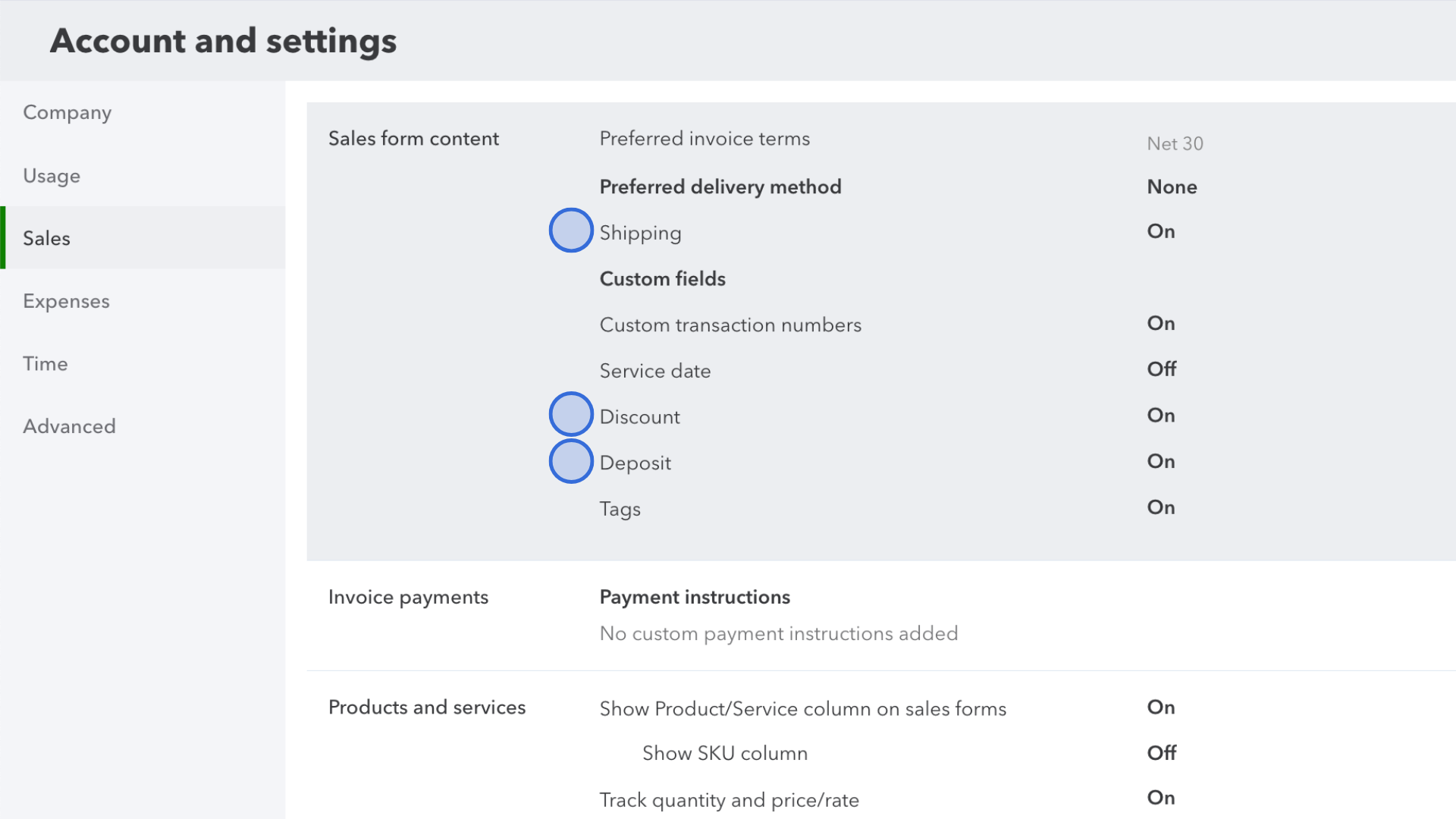
In QuickBooks Settings > Account and settings > Sales, enable Shipping, Discount, and Deposit in Sales form content. Save your changes.
-
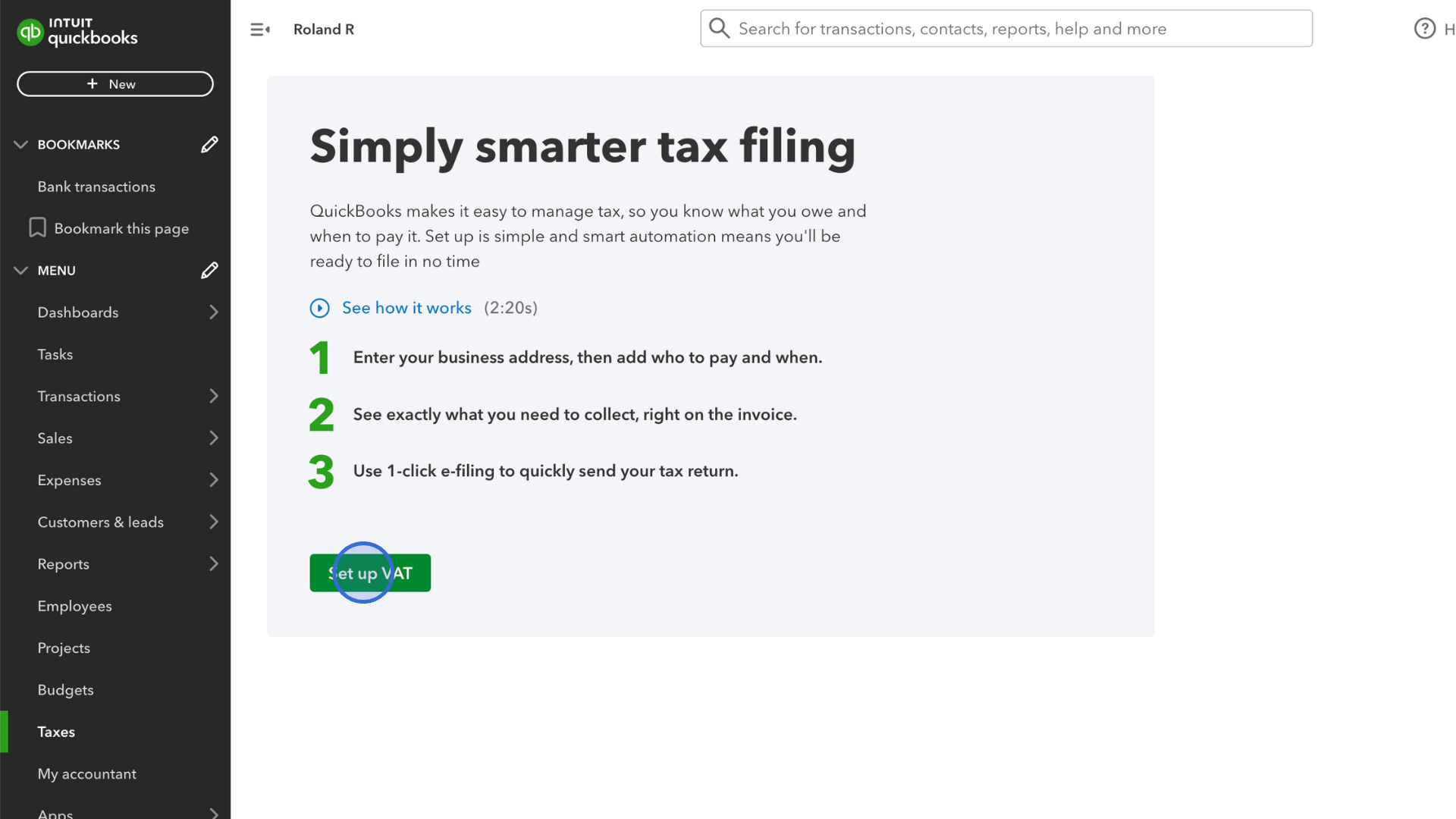
Complete the tax setup for your QuickBooks company. Use the sales tax or VAT guide above for your region. The picture below shows the VAT setup screen.
Start the connection in YoPrint
-
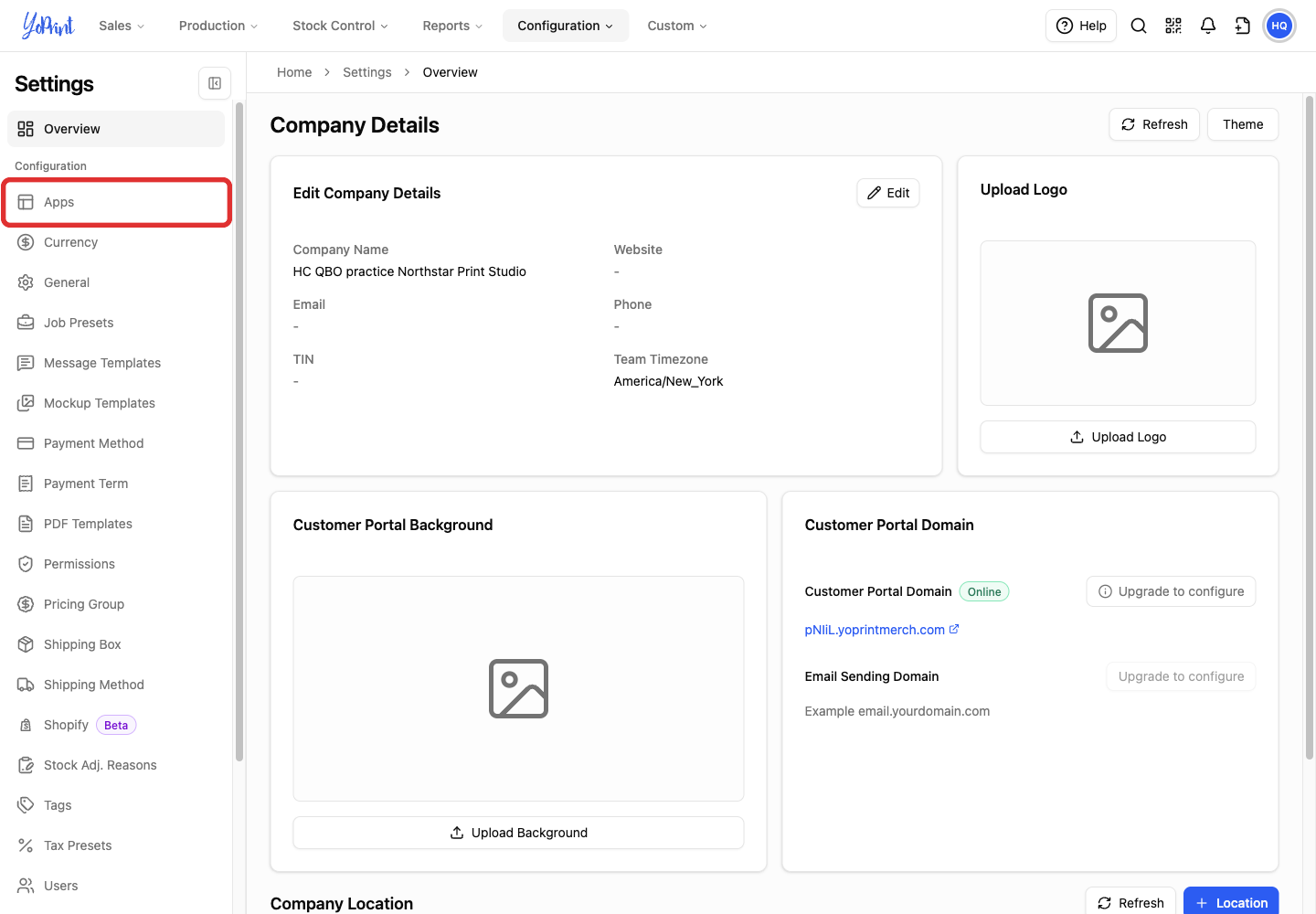
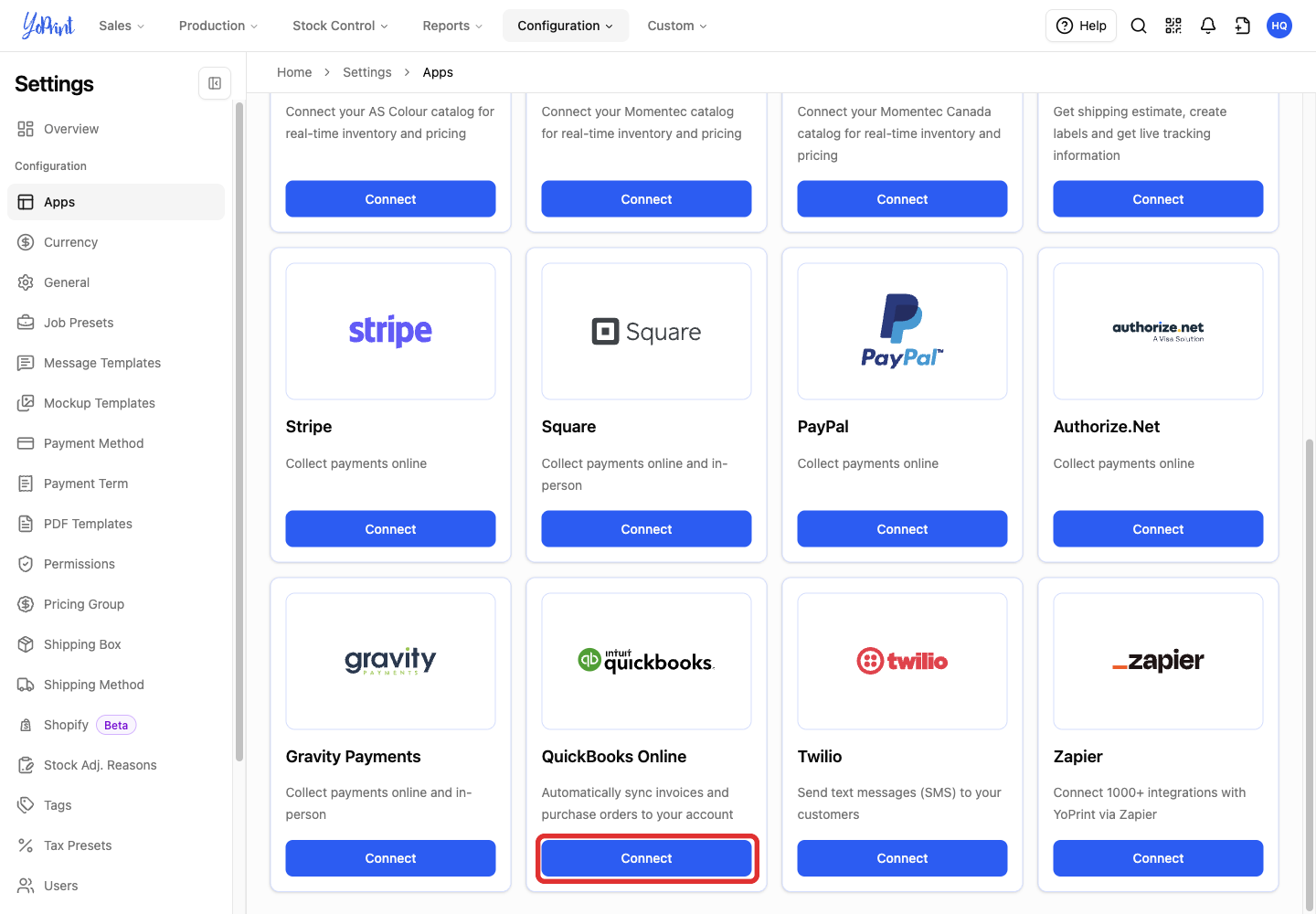
In YoPrint Settings, select Apps.
-
Find QuickBooks Online and select Connect.
Authorize your company in Intuit
In Intuit
These steps happen in Intuit. Its screens may have changed since these pictures were taken. See Intuit's guide to connecting apps. Sign in to your QuickBooks account if prompted.
-
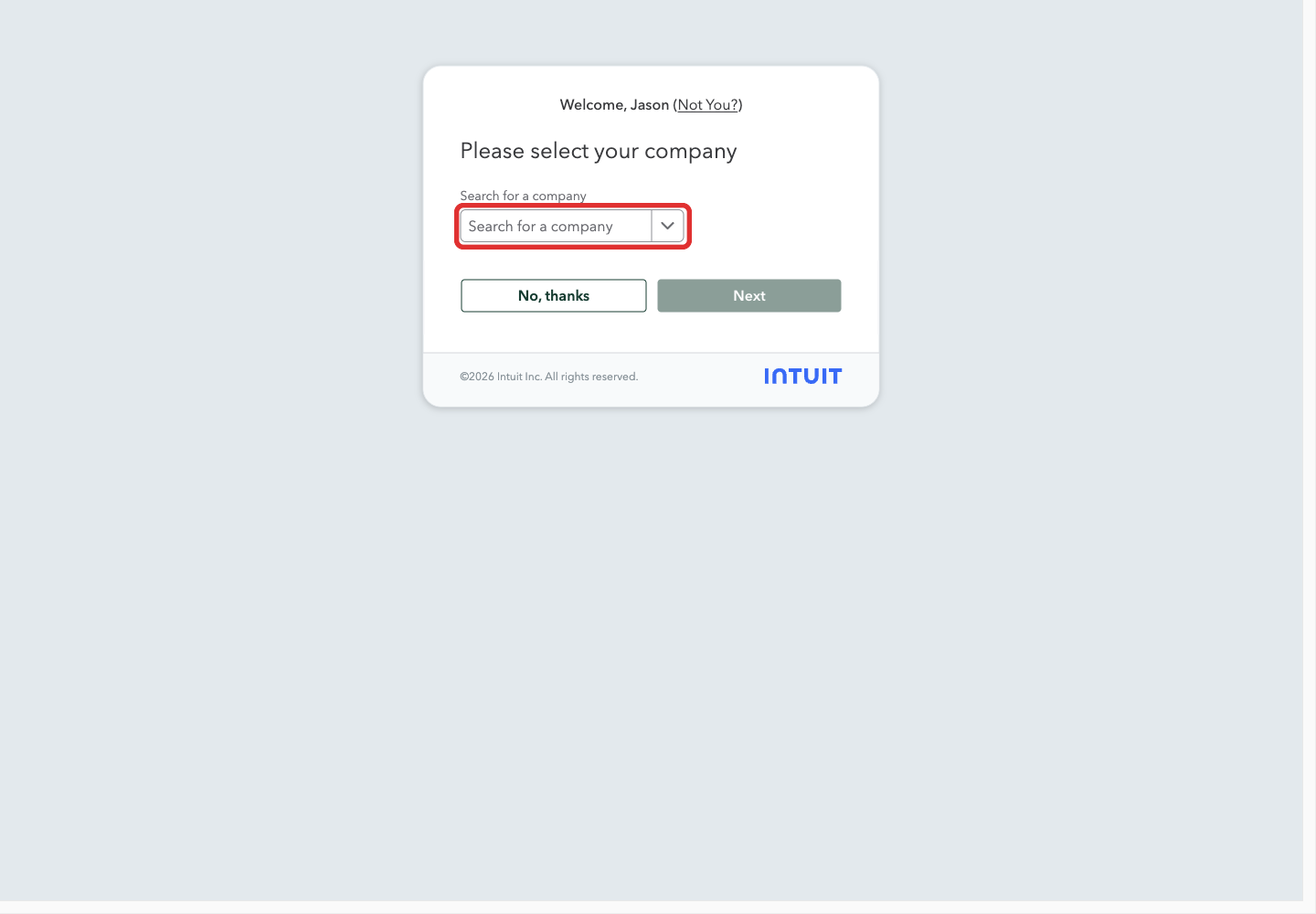
Open the company selector.
-
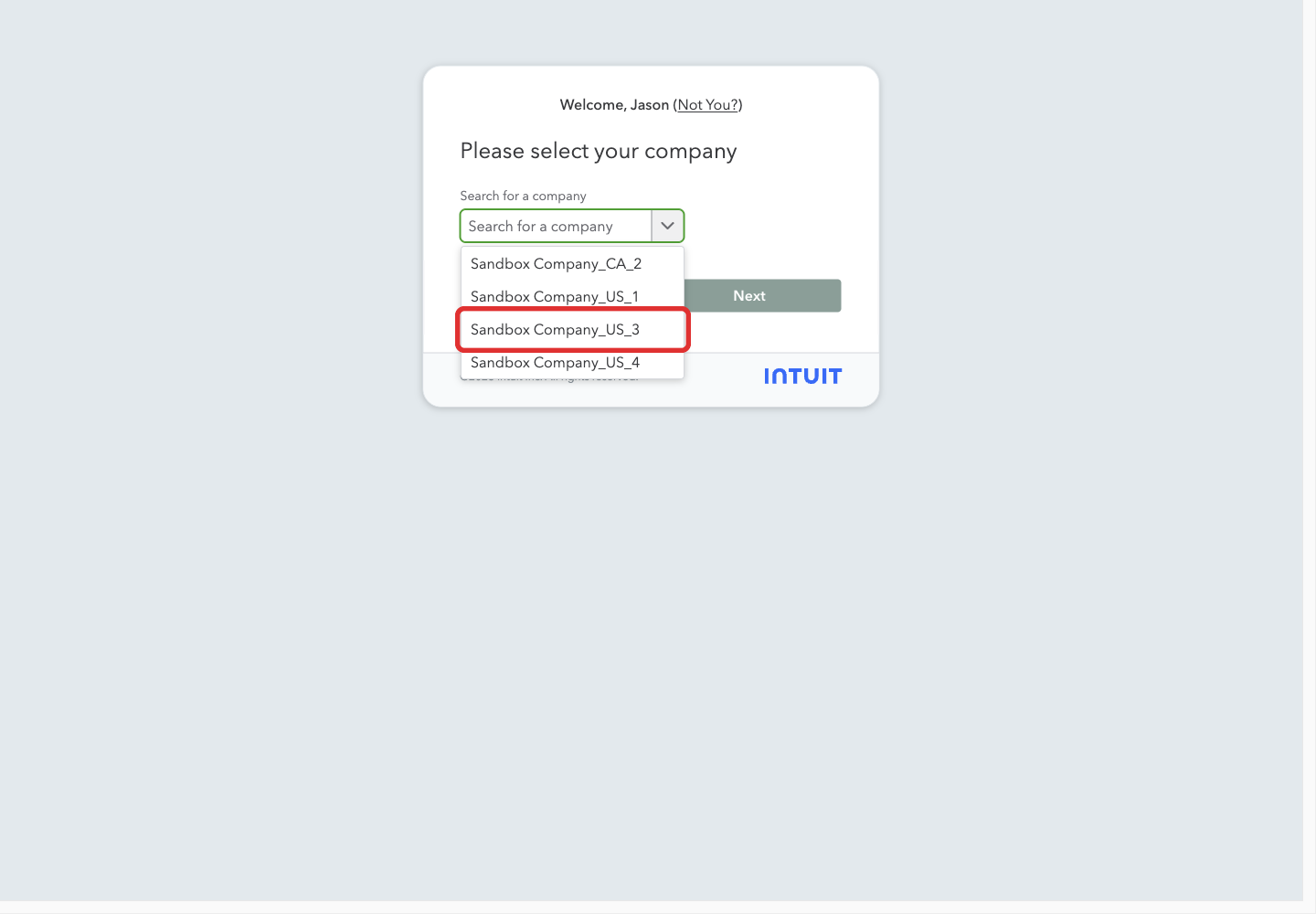
Select the company you want to connect.
-
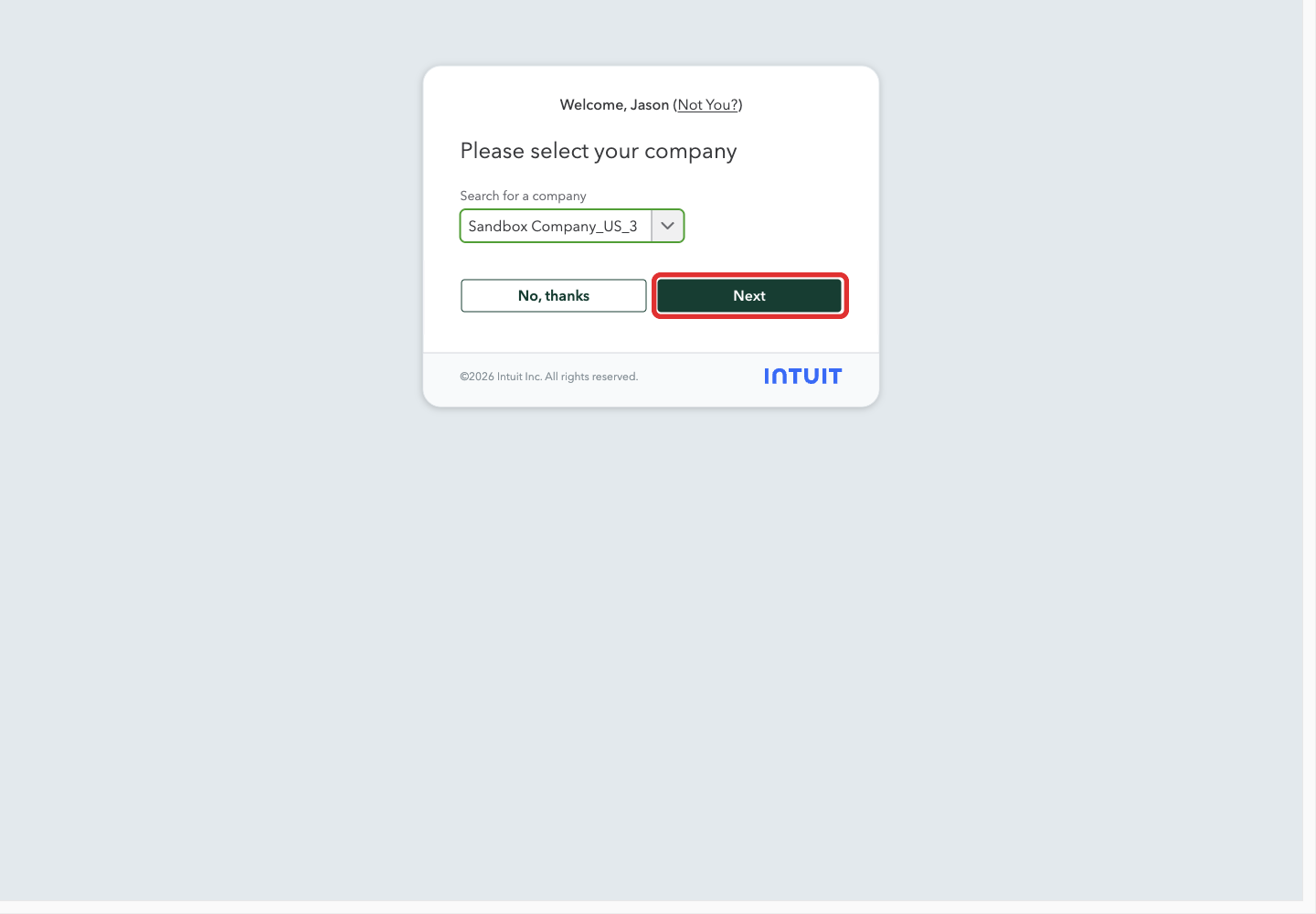
Select Next.
-
Check the company name on the consent screen, then select Connect.
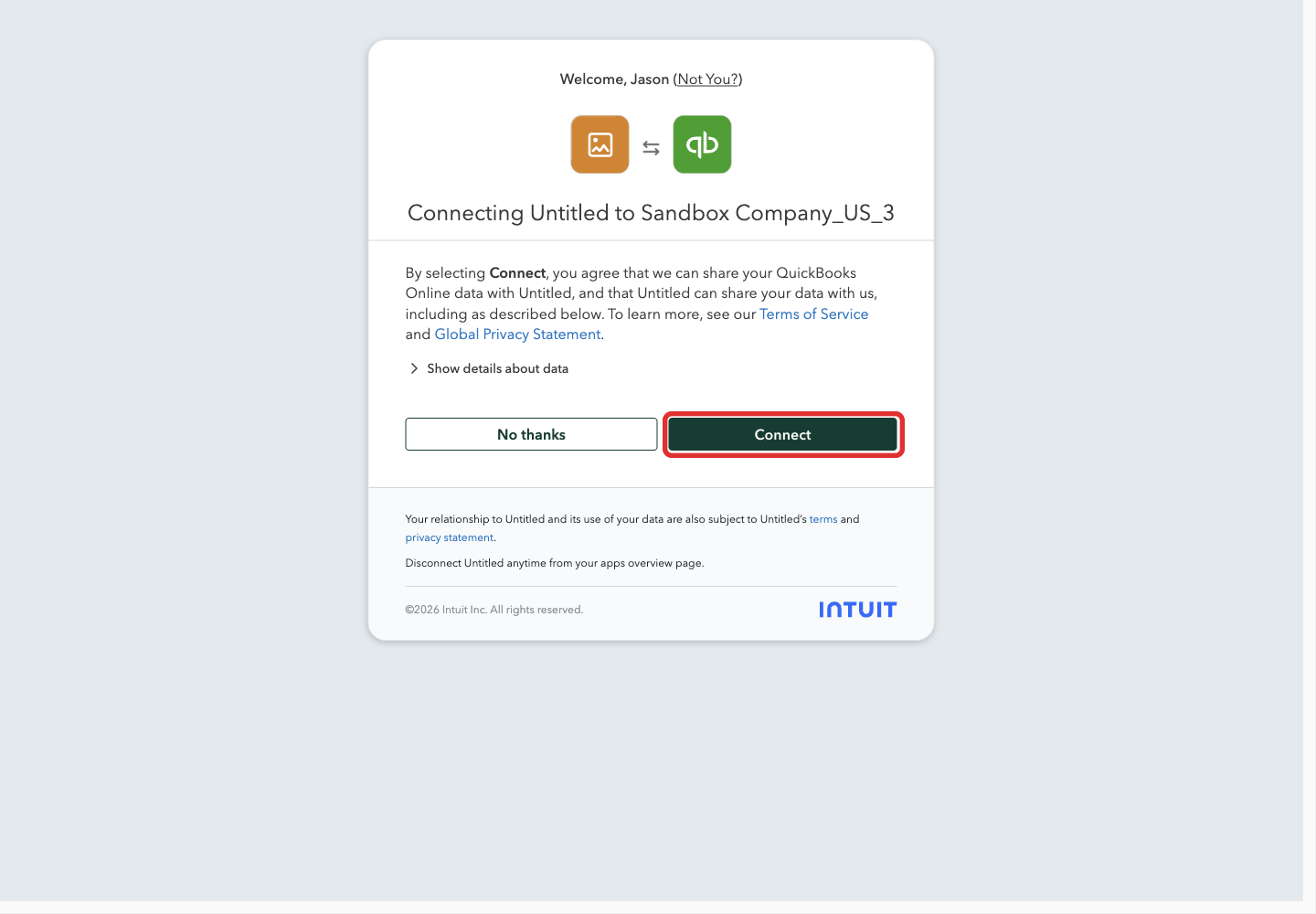
YoPrint opens QuickBooks Configuration when authorization finishes.
Choose the QuickBooks accounts
Complete all three fields to save the configuration, even if purchase-order syncing is off.
-
On the Accounts tab, open Sales Account.
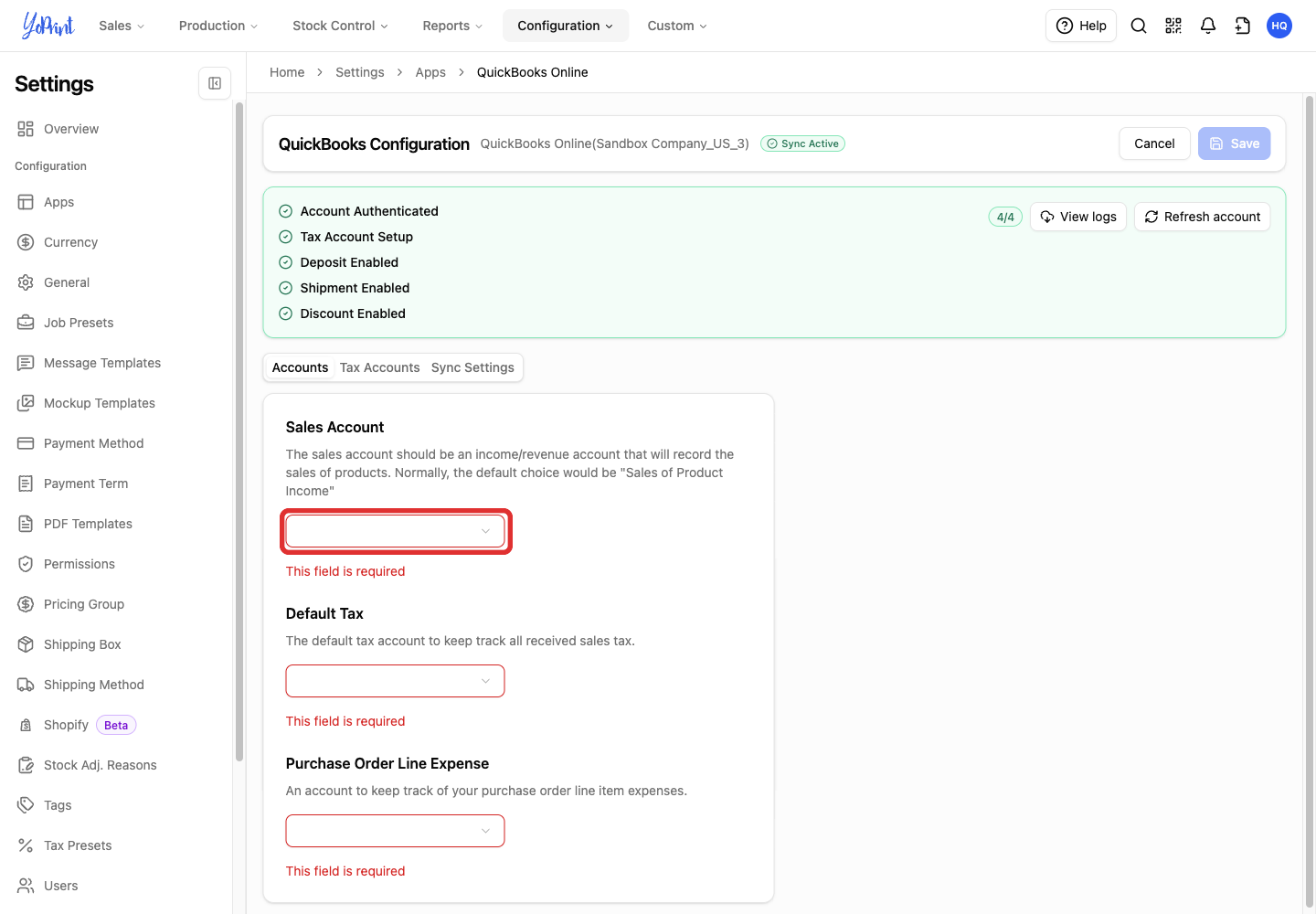
-
Choose the income account for product sales. The field's suggested choice is Sales of Product Income.
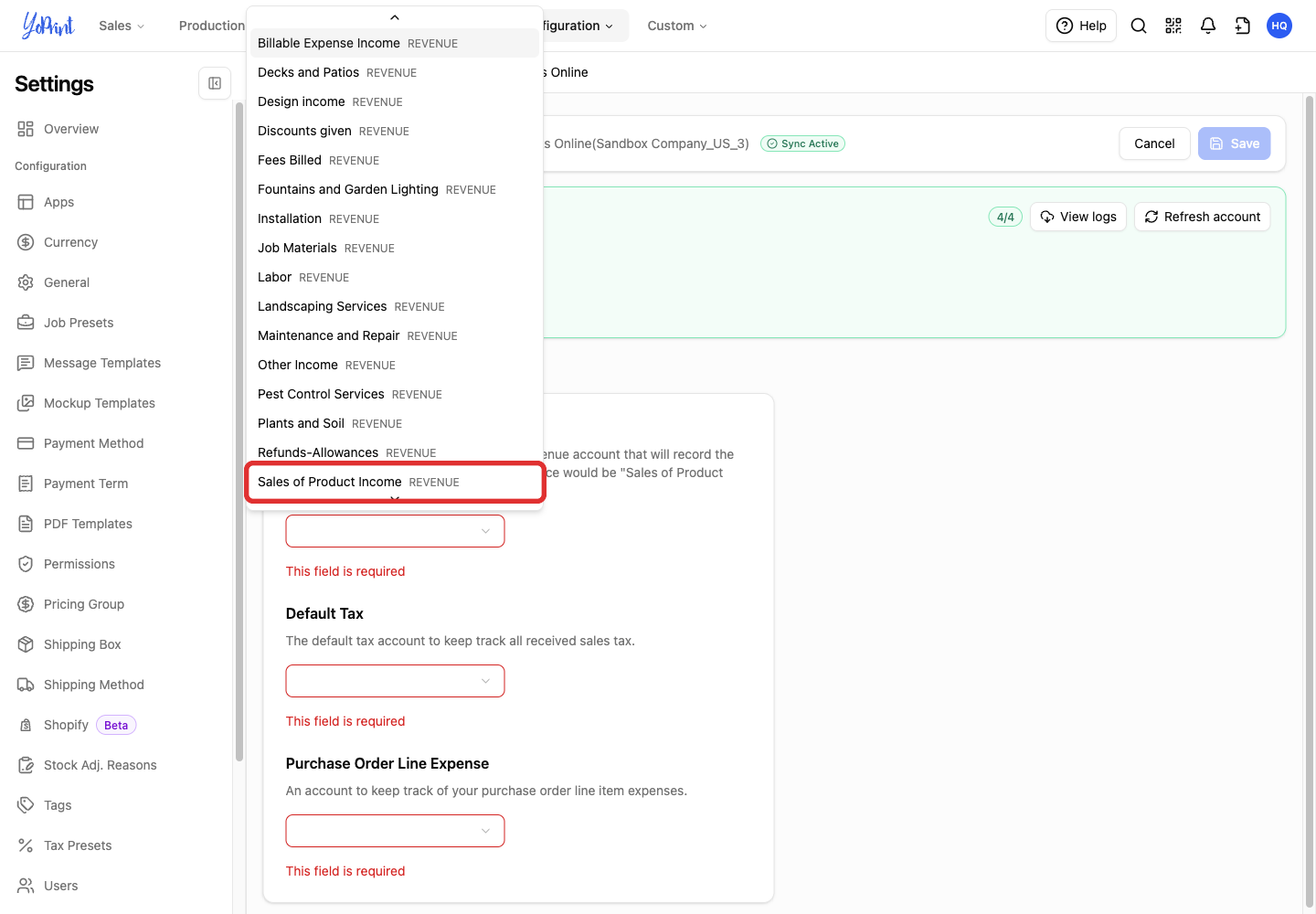
The list shows every income account in your QuickBooks company, so the names depend on your country and how your books are set up. All YoPrint sales land in the one account you pick here. YoPrint does not split products, services or shipping into different accounts.
Choose the income account where you want print sales to appear on the profit and loss report. In a US company, that is usually Sales of Product Income. Other companies see names such as Sales or Revenue - General. If unsure, ask your accountant which account they use for sales.
-
Open Default Tax.
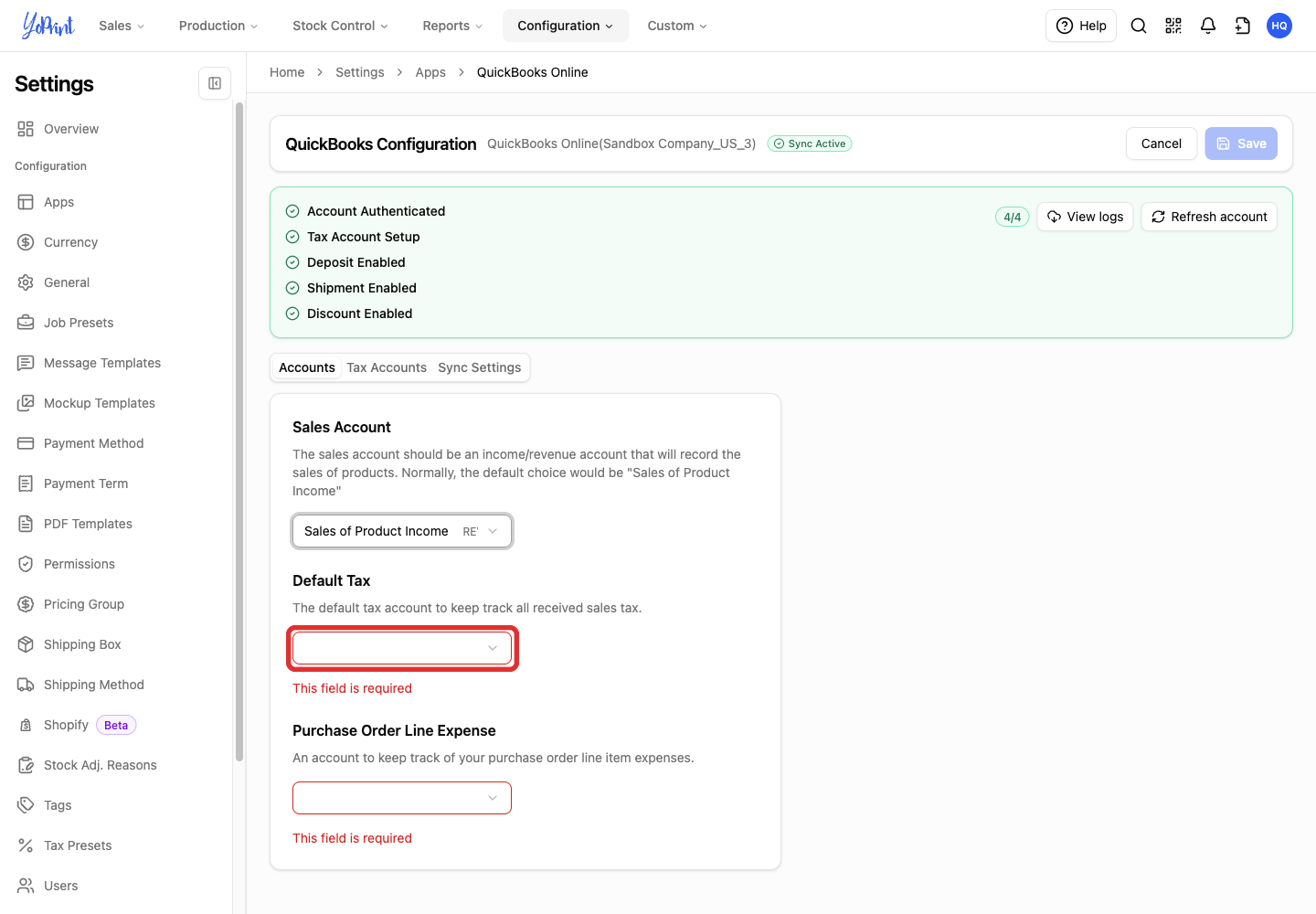
-
Select the default QuickBooks tax code for your company’s setup.
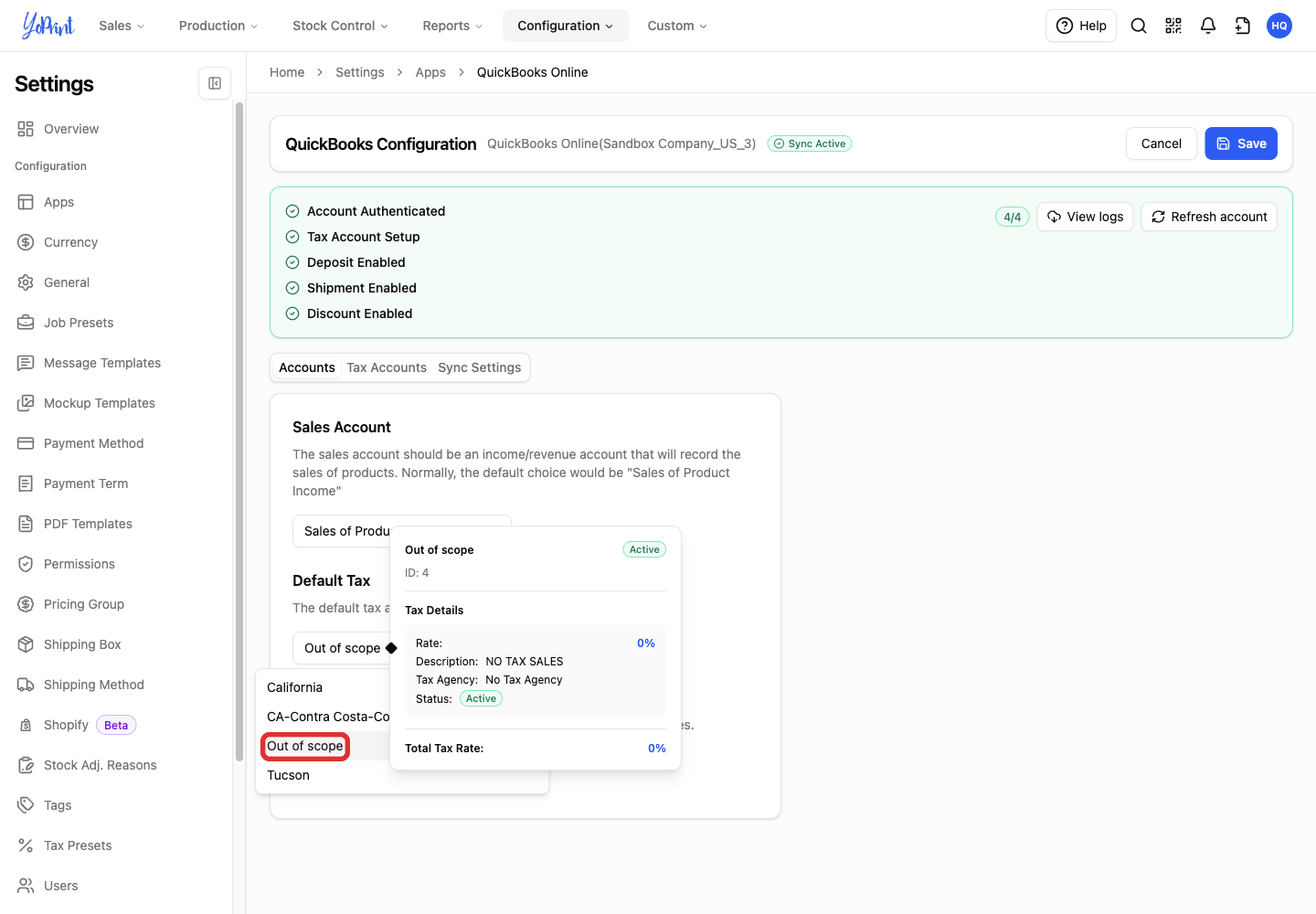
YoPrint uses this QuickBooks tax code for an invoice when no mapped custom tax applies. The code shown in the picture is an example. Choose the code that matches your company’s tax setup.
-
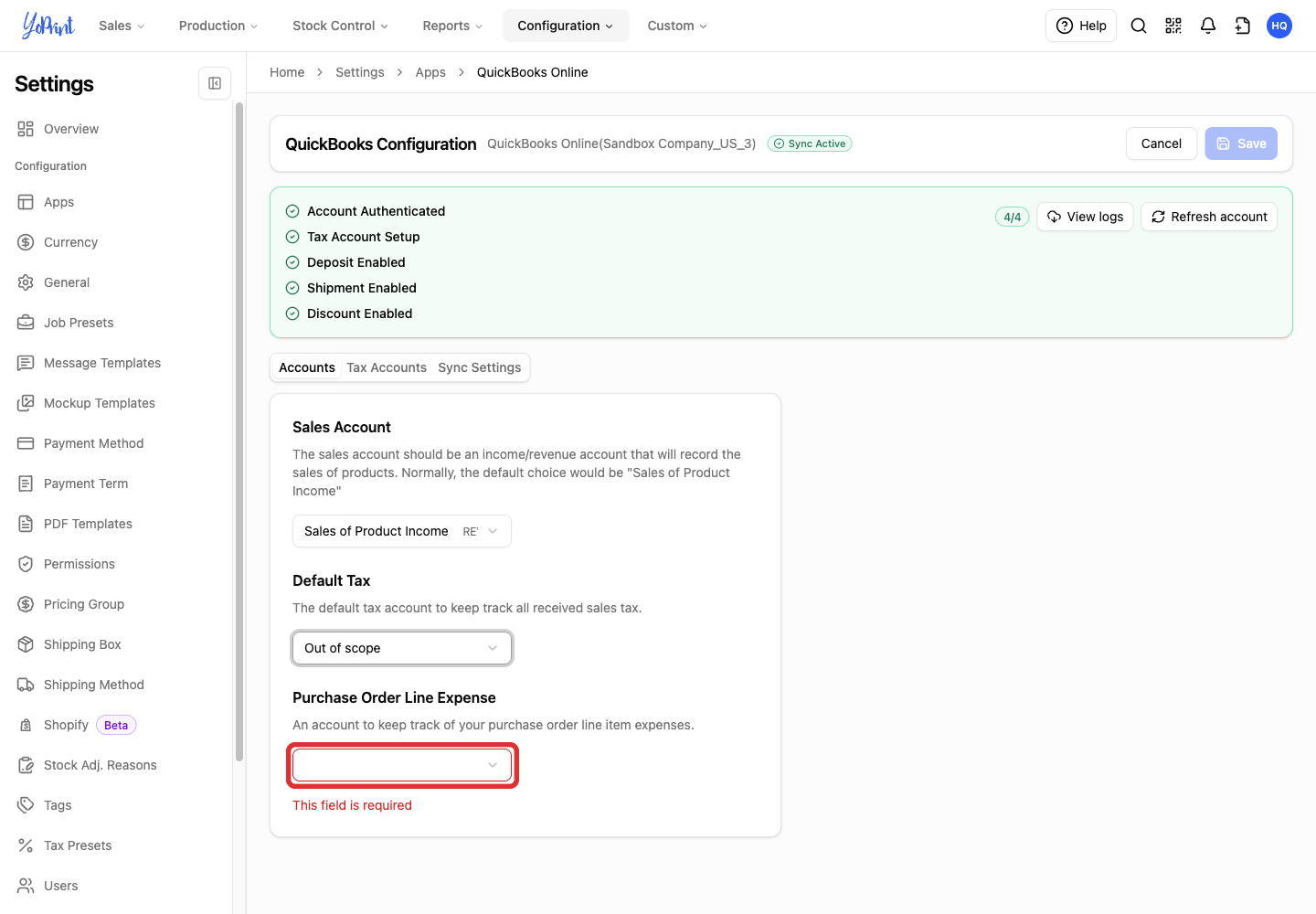
Open Purchase Order Line Expense.
-
Choose the account for purchase-order line expenses.
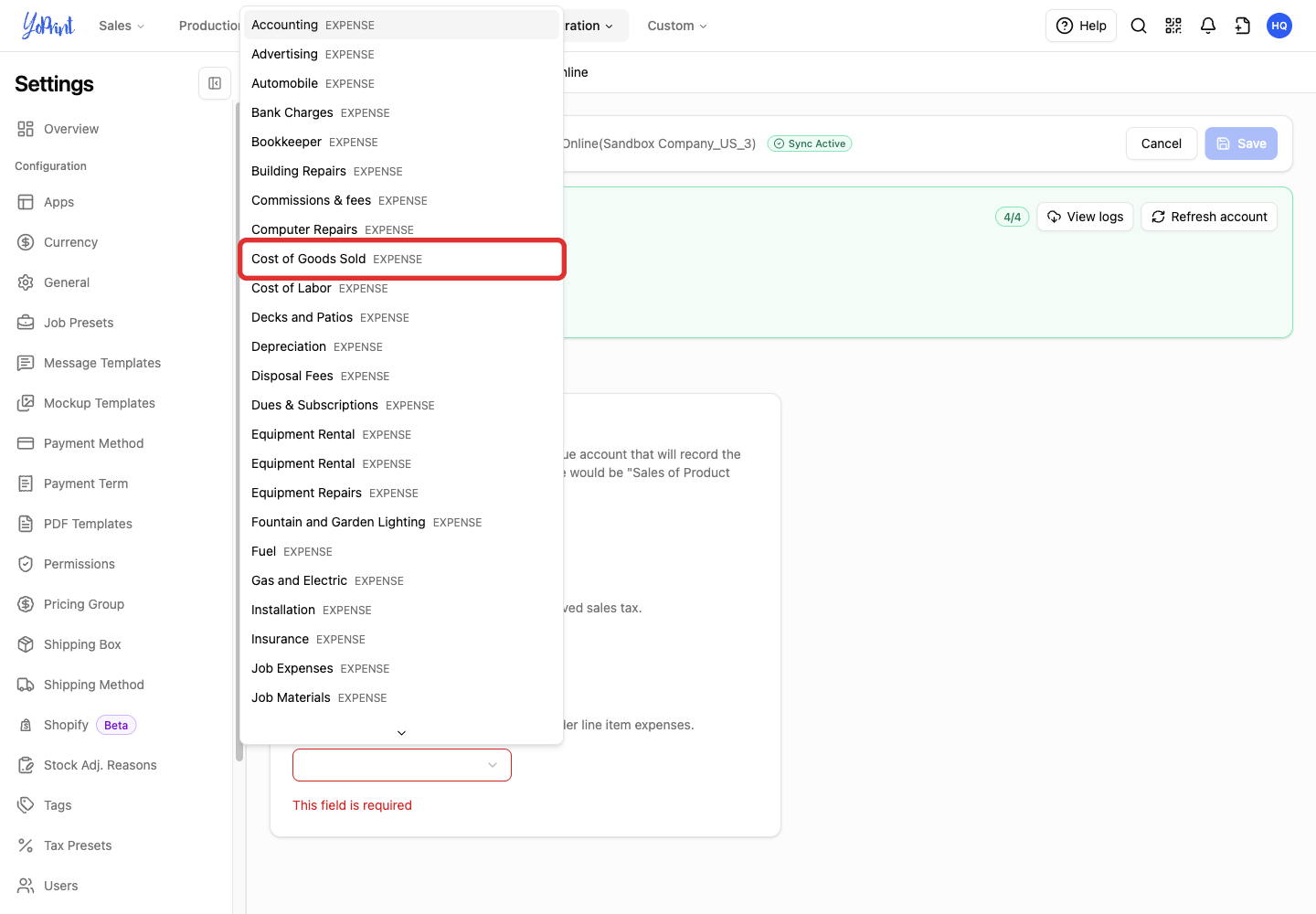
Select the expense or cost-of-goods account that tracks line items on your purchase orders, such as Cost of Goods Sold. You must make a selection here to save the configuration, even if you keep purchase-order syncing off.
Match your tax presets
-
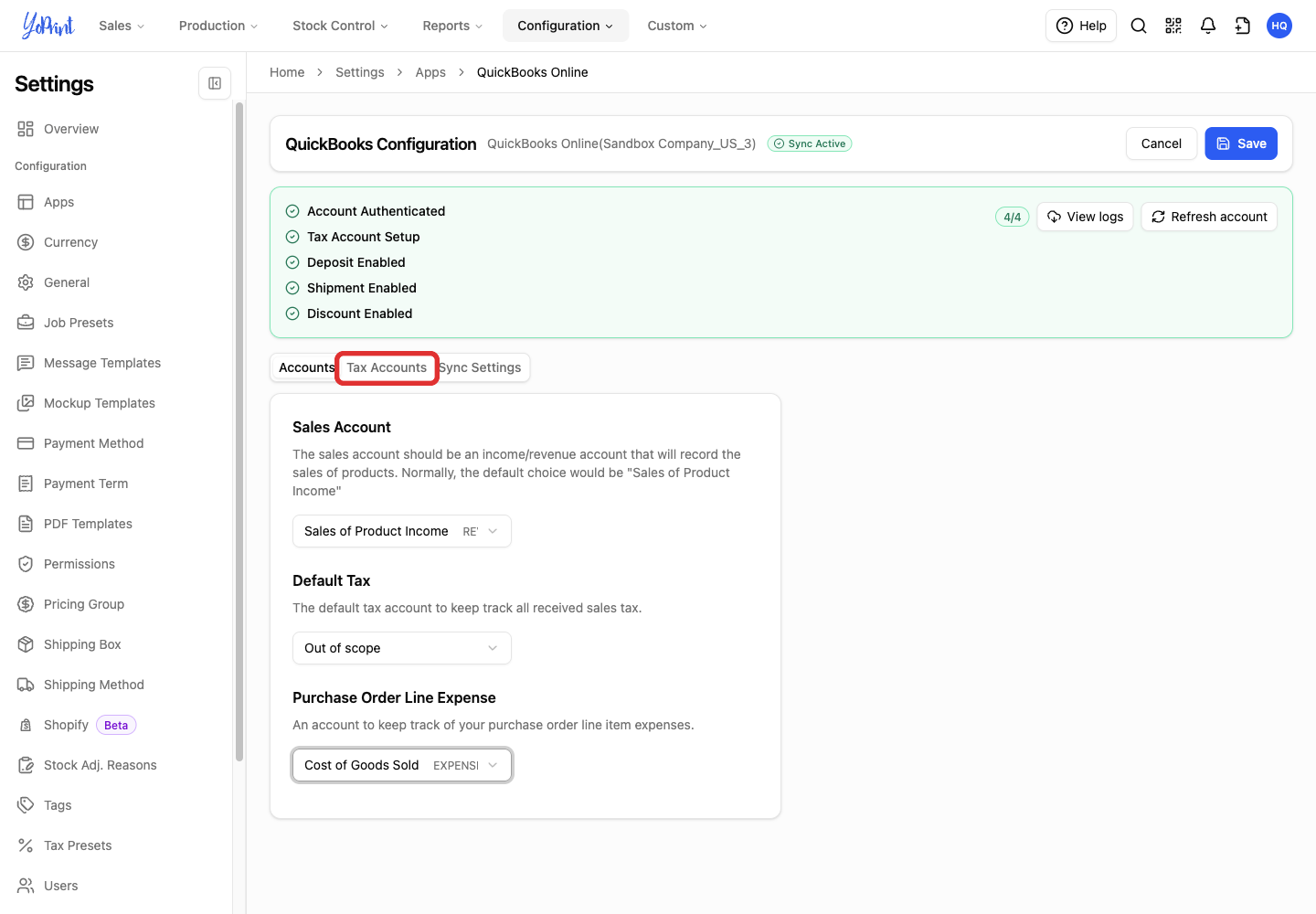
Open Tax Accounts.
-
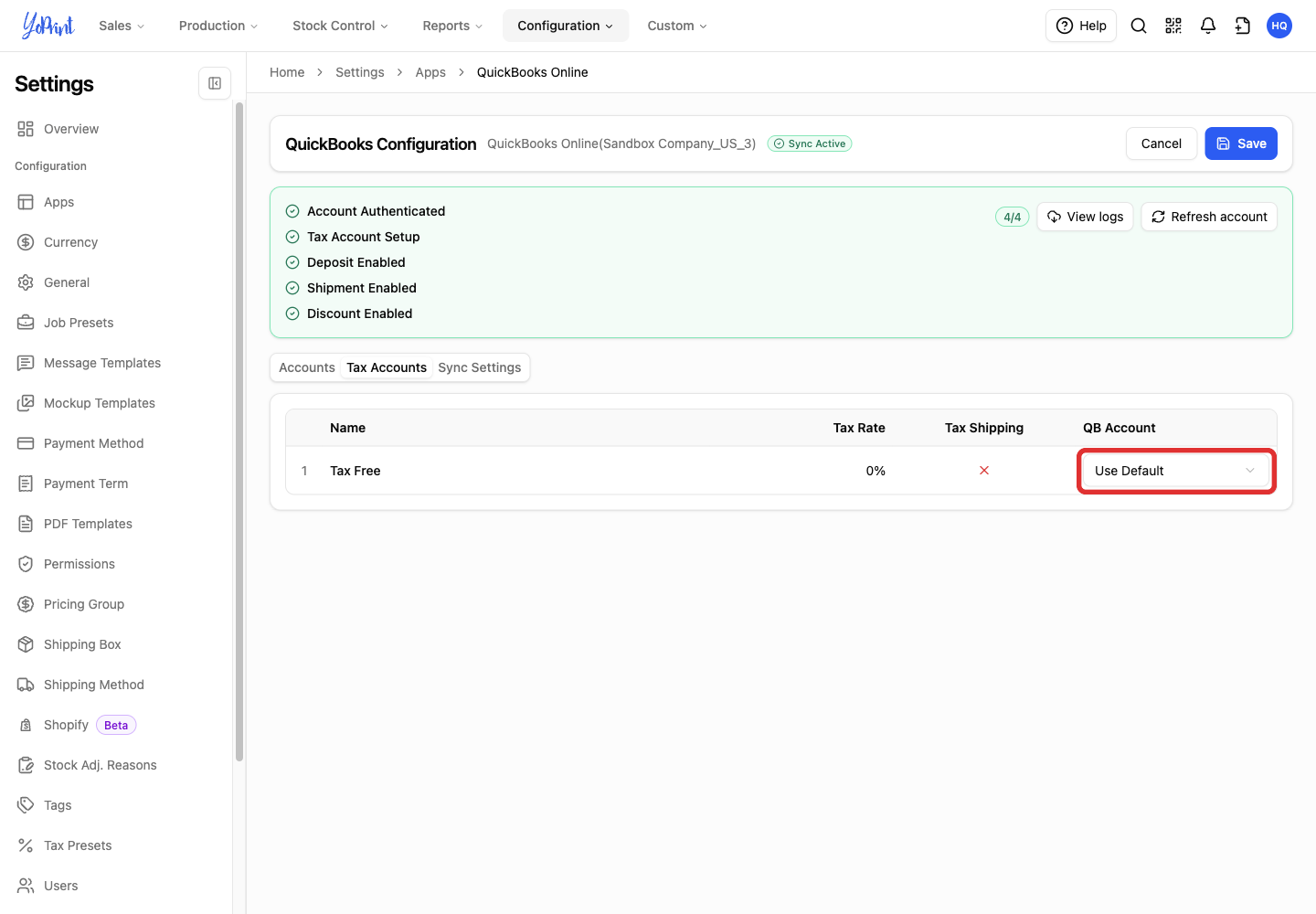
Open QB Account beside the tax preset you want to map.
-
Choose the matching QuickBooks tax code, or Use Default to keep the Default Tax mapping from the Accounts tab.
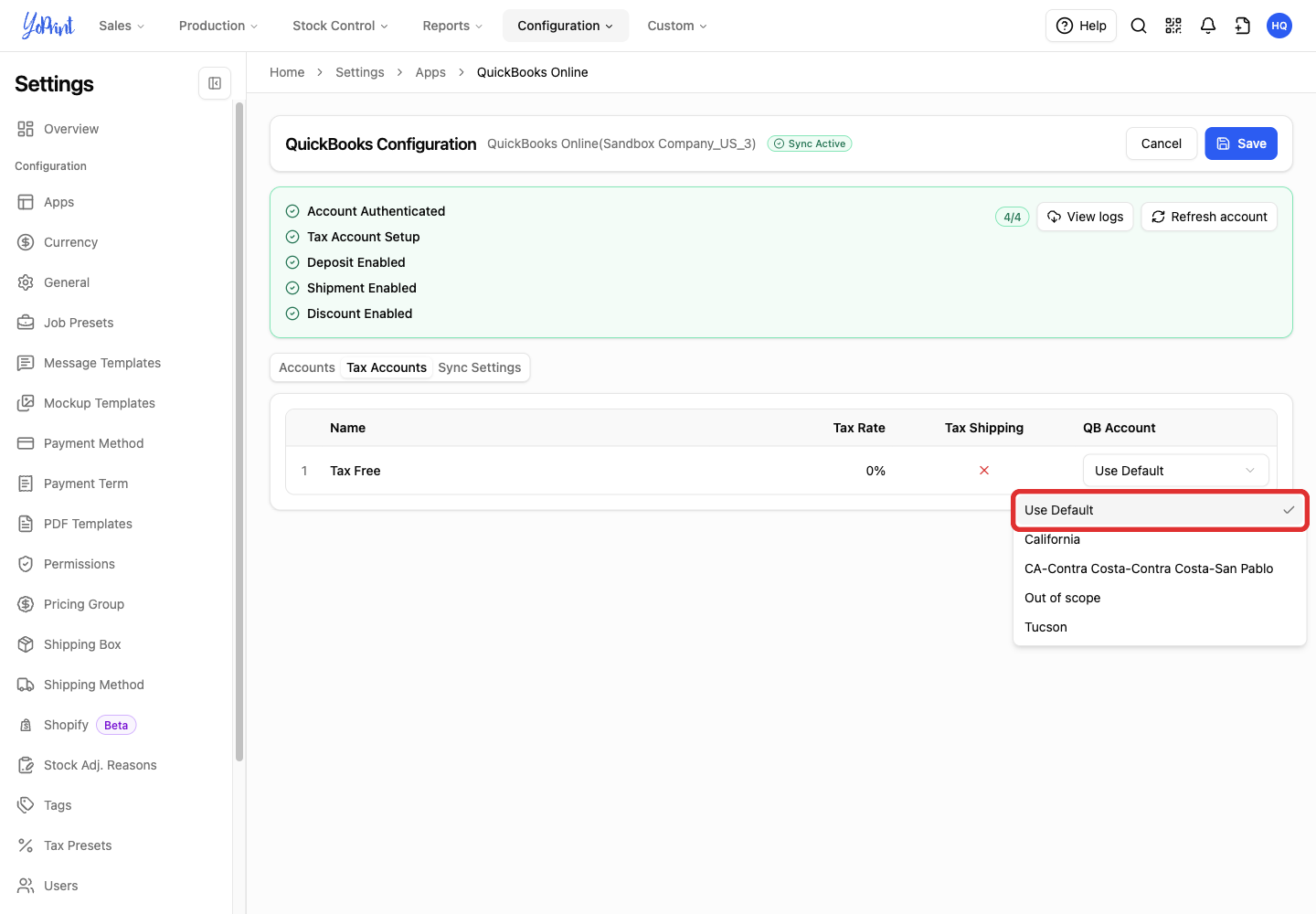
Use Default keeps the default QuickBooks tax-code mapping. It does not change the tax amount calculated in YoPrint.
If a preset needs a different QuickBooks tax code, choose the matching code. Exempt, zero-rated and out-of-scope codes are different tax treatments.
Choose invoice dates
-
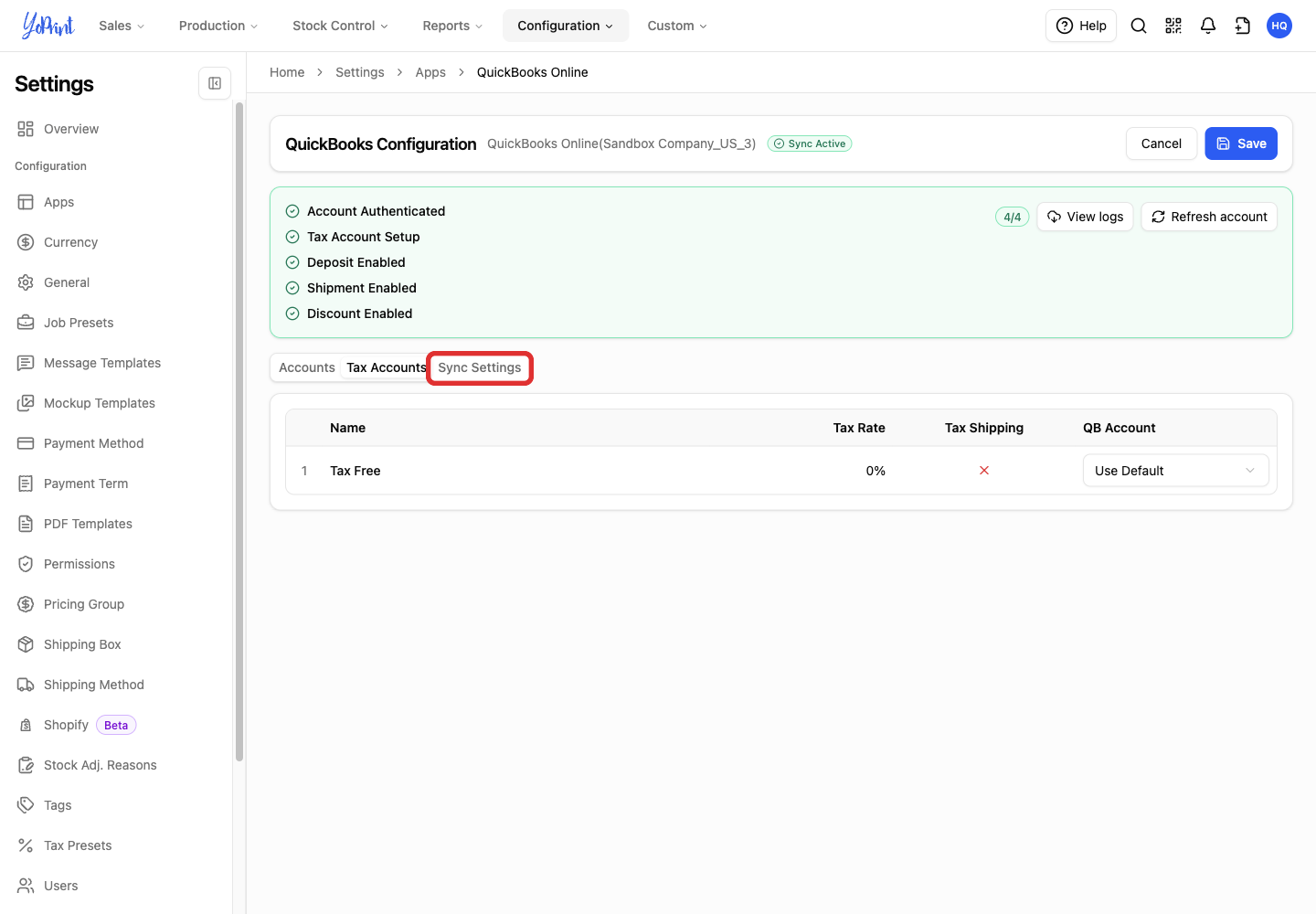
Open Sync Settings.
-
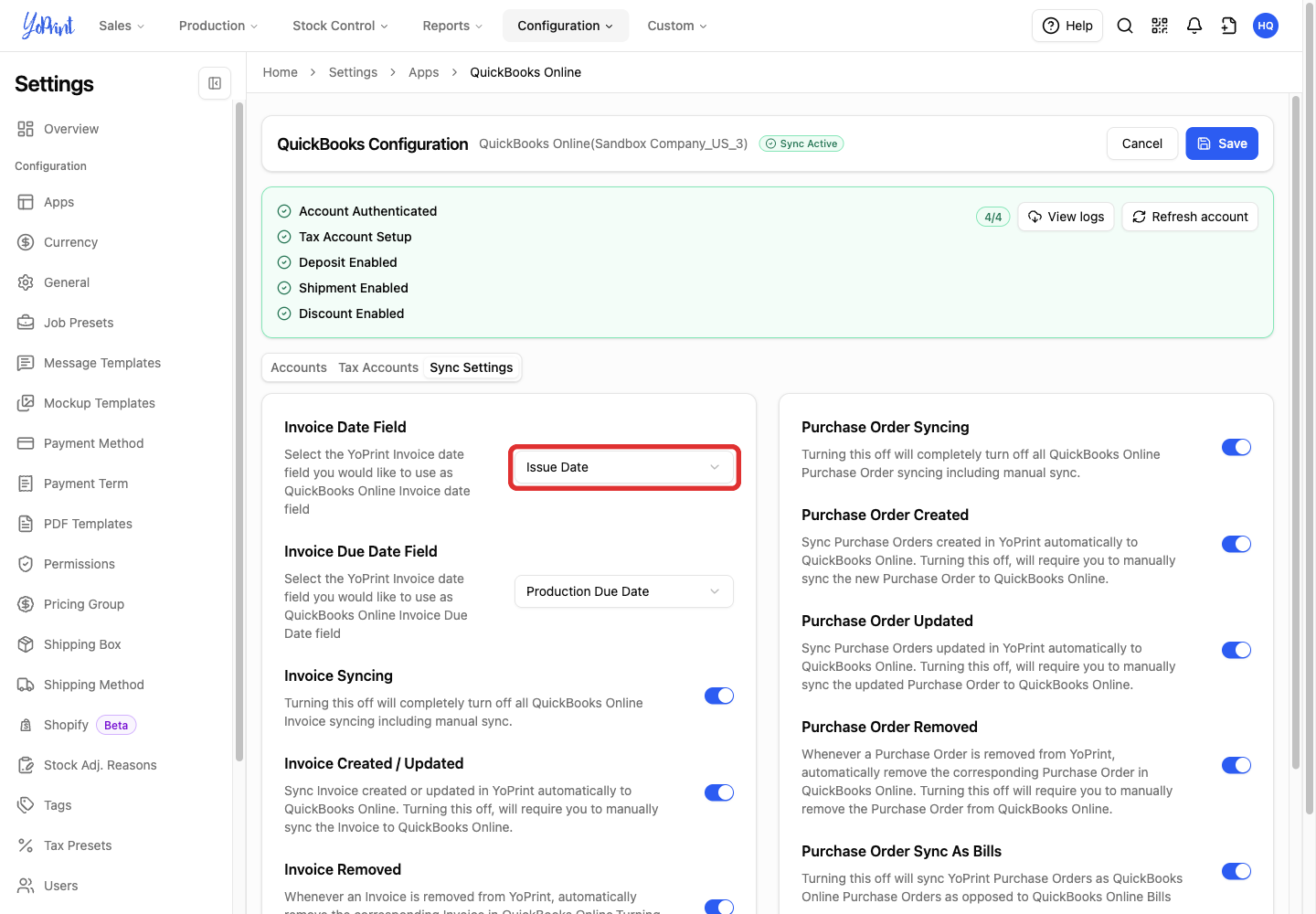
Open Invoice Date Field.
-
Choose Issue Date or In Hands Date for the QuickBooks invoice date.
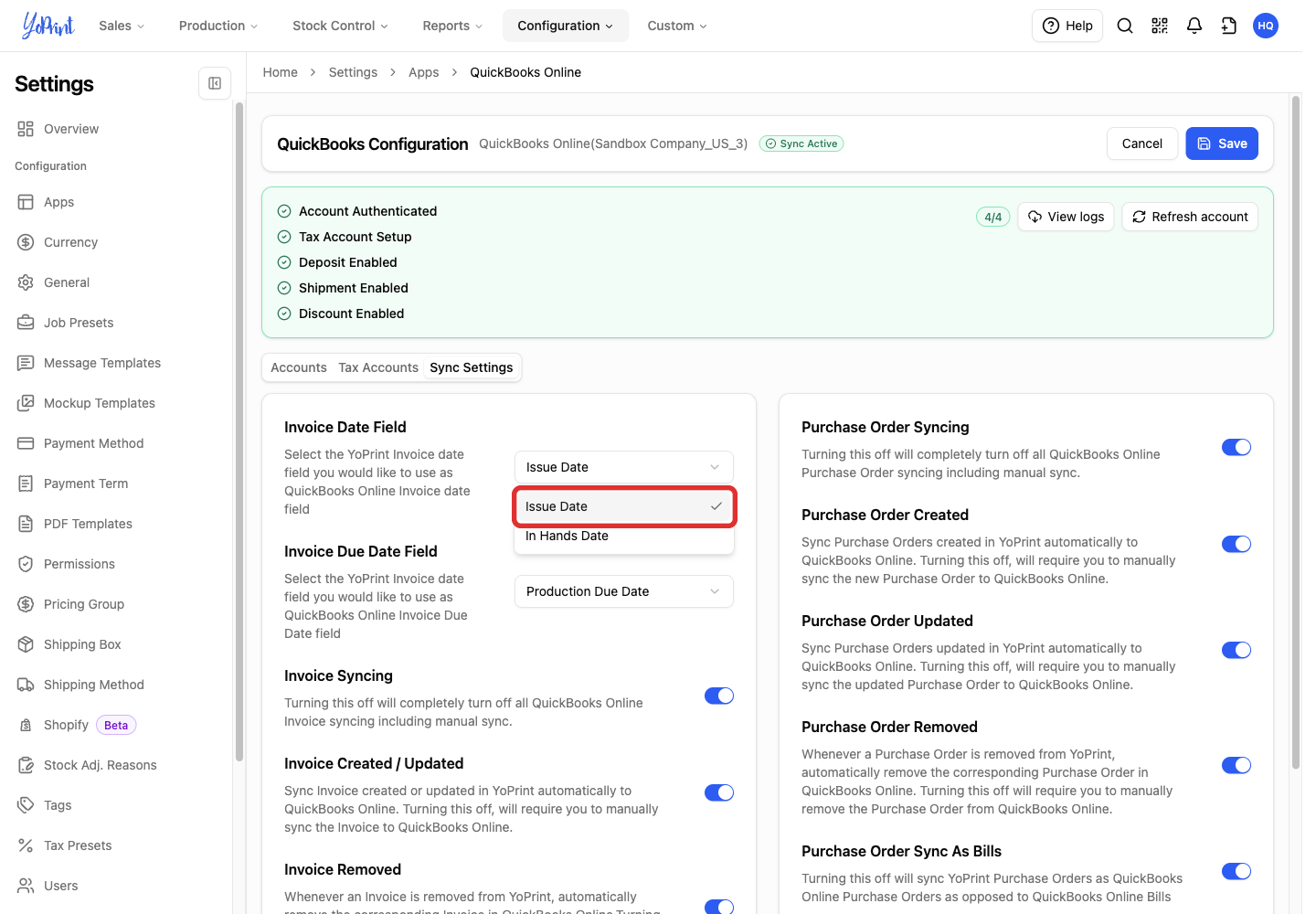
- Issue Date: uses the sales order’s issue date.
- In Hands Date: uses the delivery or pickup deadline requested by the customer.
-
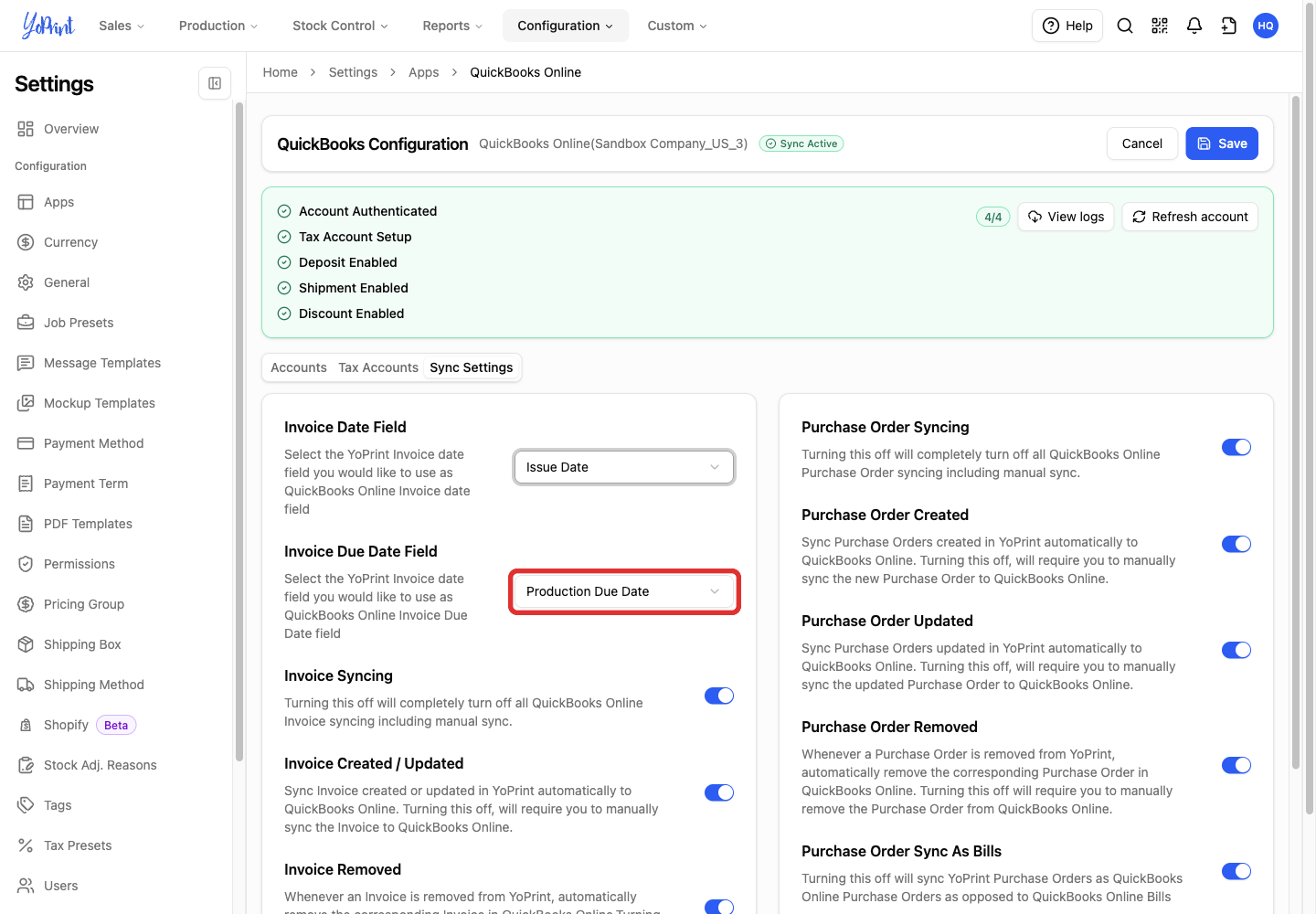
Open Invoice Due Date Field.
-
Choose Production Due Date or Full Amount Due Date for the QuickBooks invoice due date.
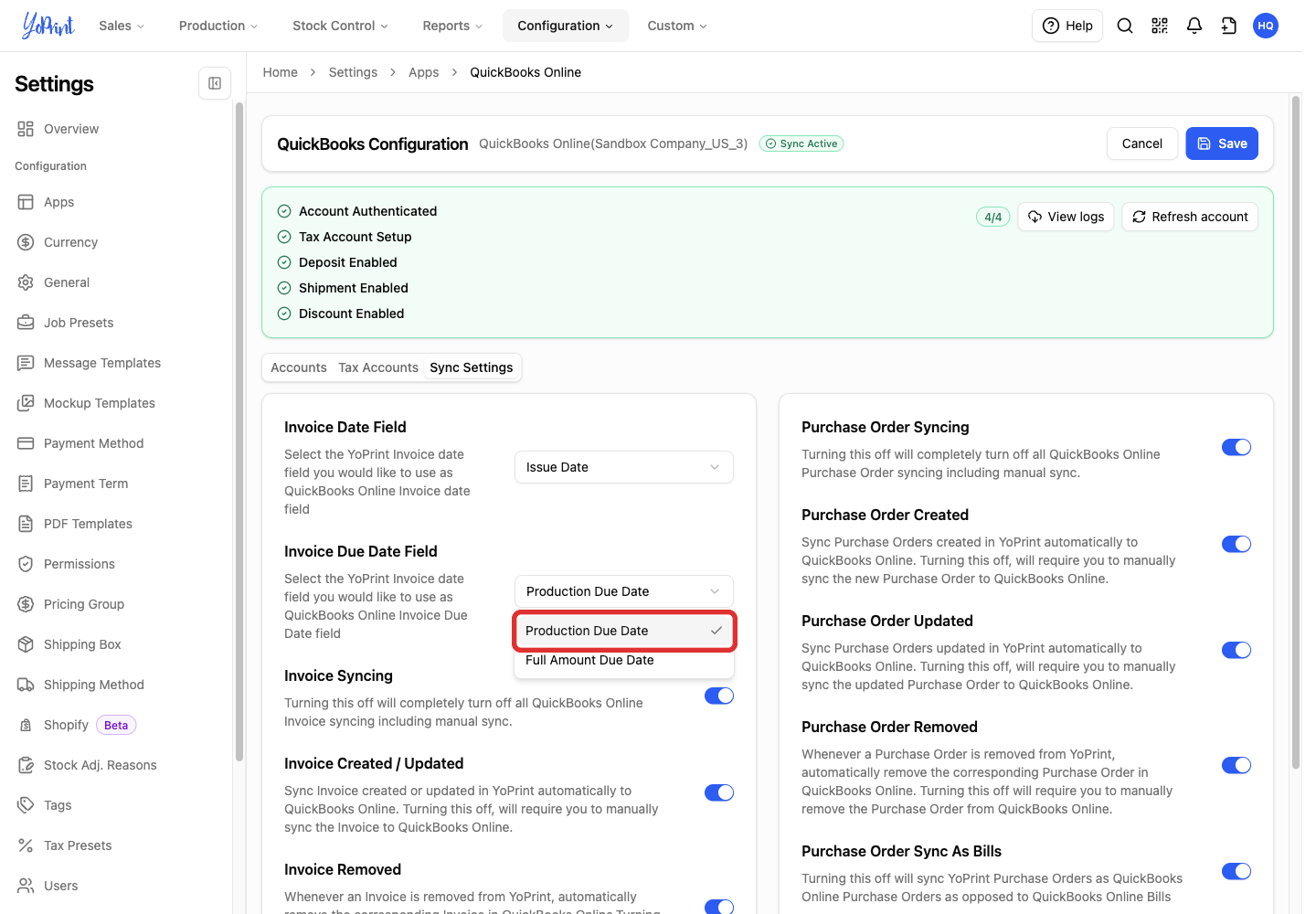
- Full Amount Due Date: uses the payment deadline when the customer's balance is due.
- Production Due Date: uses the scheduled completion date for production.
Choose what syncs automatically
YoPrint sends invoices, purchase orders and payment records to QuickBooks. Changes to those records in QuickBooks do not sync back to YoPrint.
An invoice can sync automatically when:
- Its sales order is published.
- The QuickBooks connection is active.
- Invoice Syncing and Invoice Created / Updated are on.
- Syncing is enabled for the order.
Changes to billing details or order items can trigger sync. Connecting does not copy historical orders to QuickBooks. An older order can still sync automatically after a relevant change if it meets the conditions above. To send an older order without making a change, sync it manually.
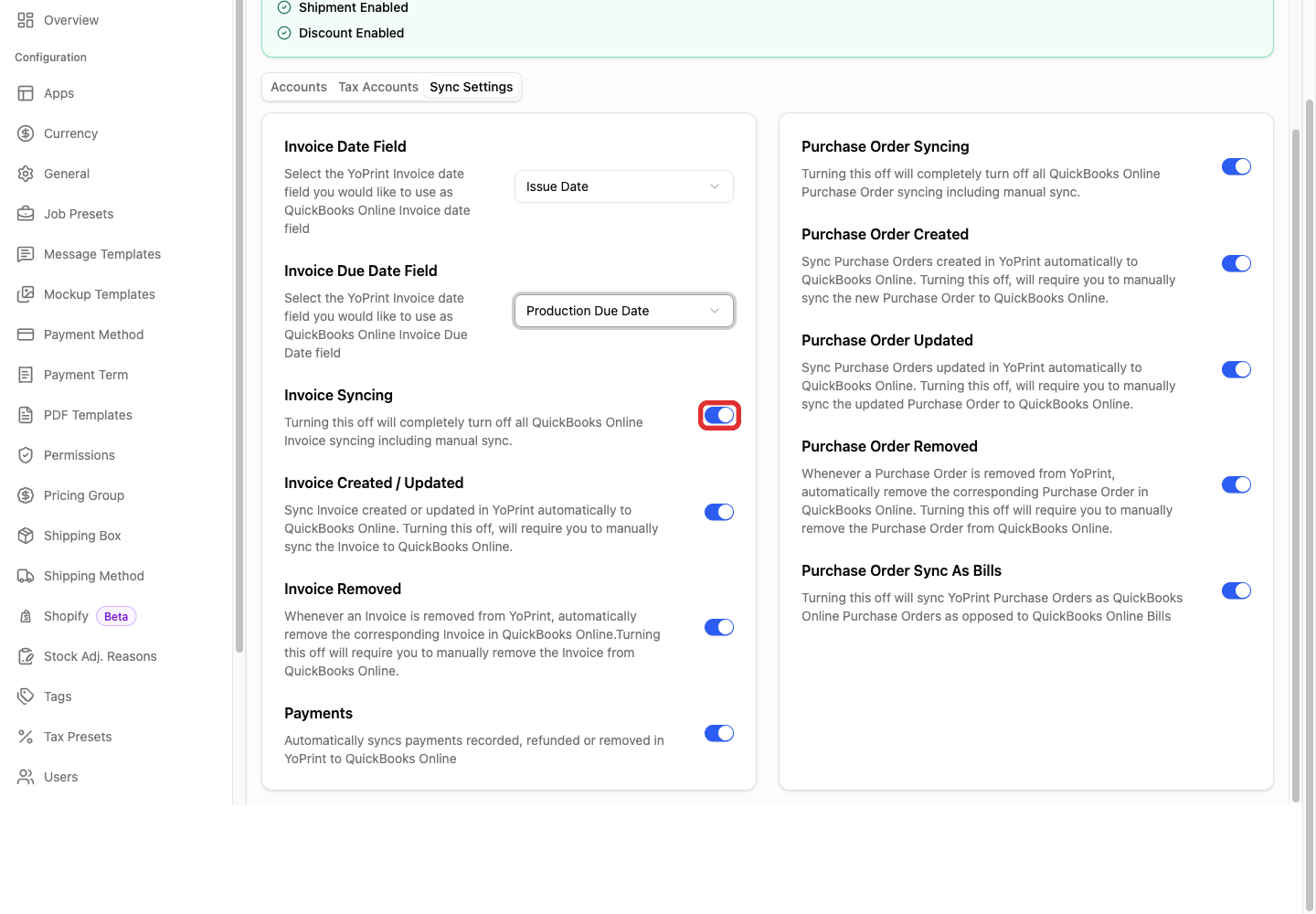
Choose the switches for the records your shop needs to sync.
Invoice Syncing controls invoice syncing as a whole. It must be on for both automatic and manual invoice sync.
| Setting | What it controls |
|---|---|
| Invoice Created / Updated | Controls automatic invoice sync for published orders. The conditions above apply. When off, sync them manually. |
| Payments | Syncs payment records and their current amounts, including changes from refunds. Automatic payment sync also depends on the invoice-sync conditions above. |
Purchase Order Syncing controls both automatic and manual purchase-order sync.
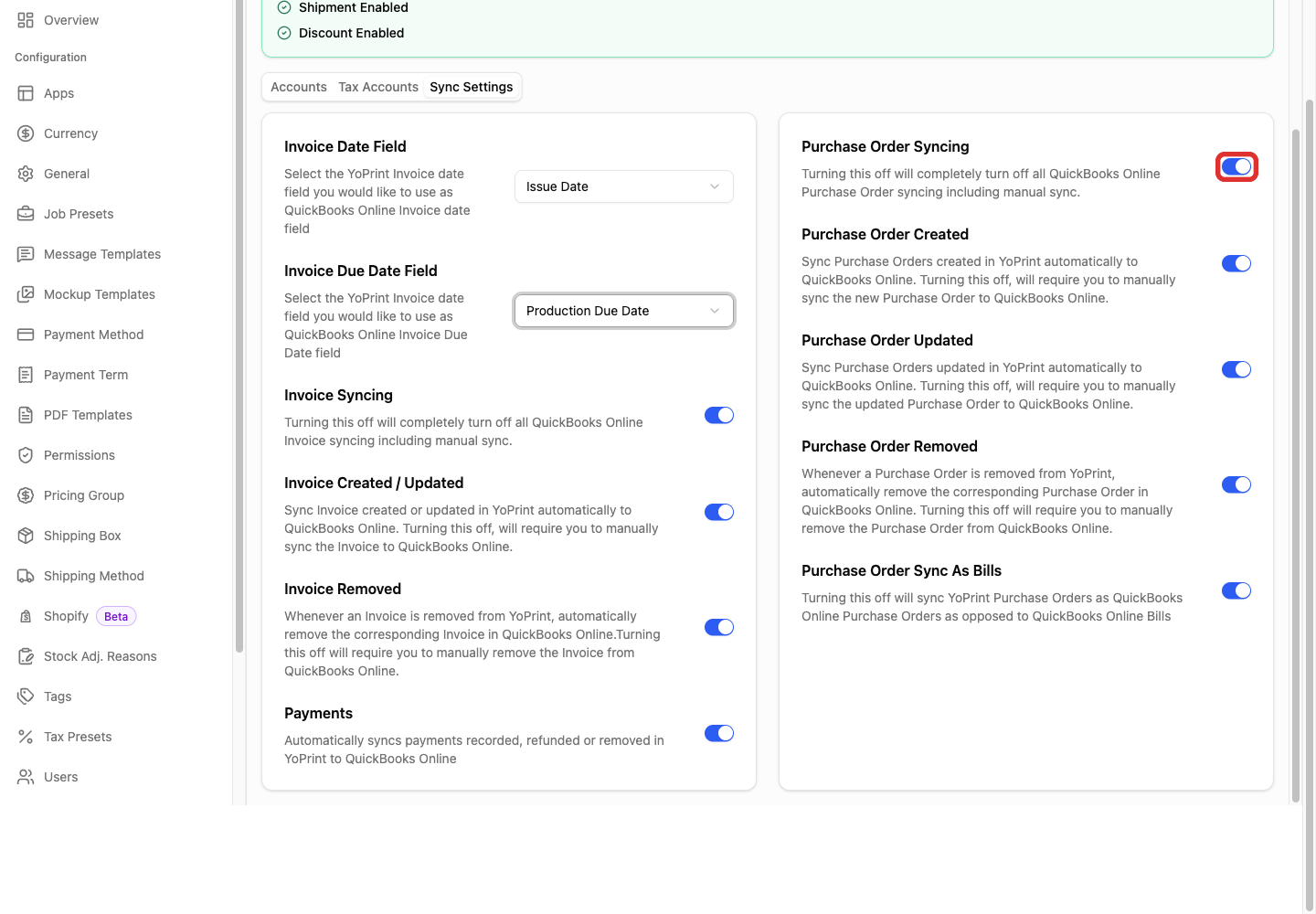
| Setting | What it controls |
|---|---|
| Purchase Order Created | Automatically syncs new purchase orders. When off, sync them manually. |
| Purchase Order Updated | Automatically syncs supported changes, including dates, vendor, tax details, document number and items. When off, sync them manually. |
| Purchase Order Removed | Controls removal of the matching QuickBooks bill or purchase order when you remove the purchase order in YoPrint. |
| Purchase Order Sync As Bills | Syncs purchase orders as QuickBooks bills when on, or as QuickBooks purchase orders when off. This setting is on by default. |
When a purchase order syncs with Purchase Order Sync As Bills on, YoPrint creates a QuickBooks bill. A bill tracks the amount you owe the vendor. Payment is a separate action.
When the switch is off, the sync creates a QuickBooks purchase order instead.
Save the connection
-
Select Save.
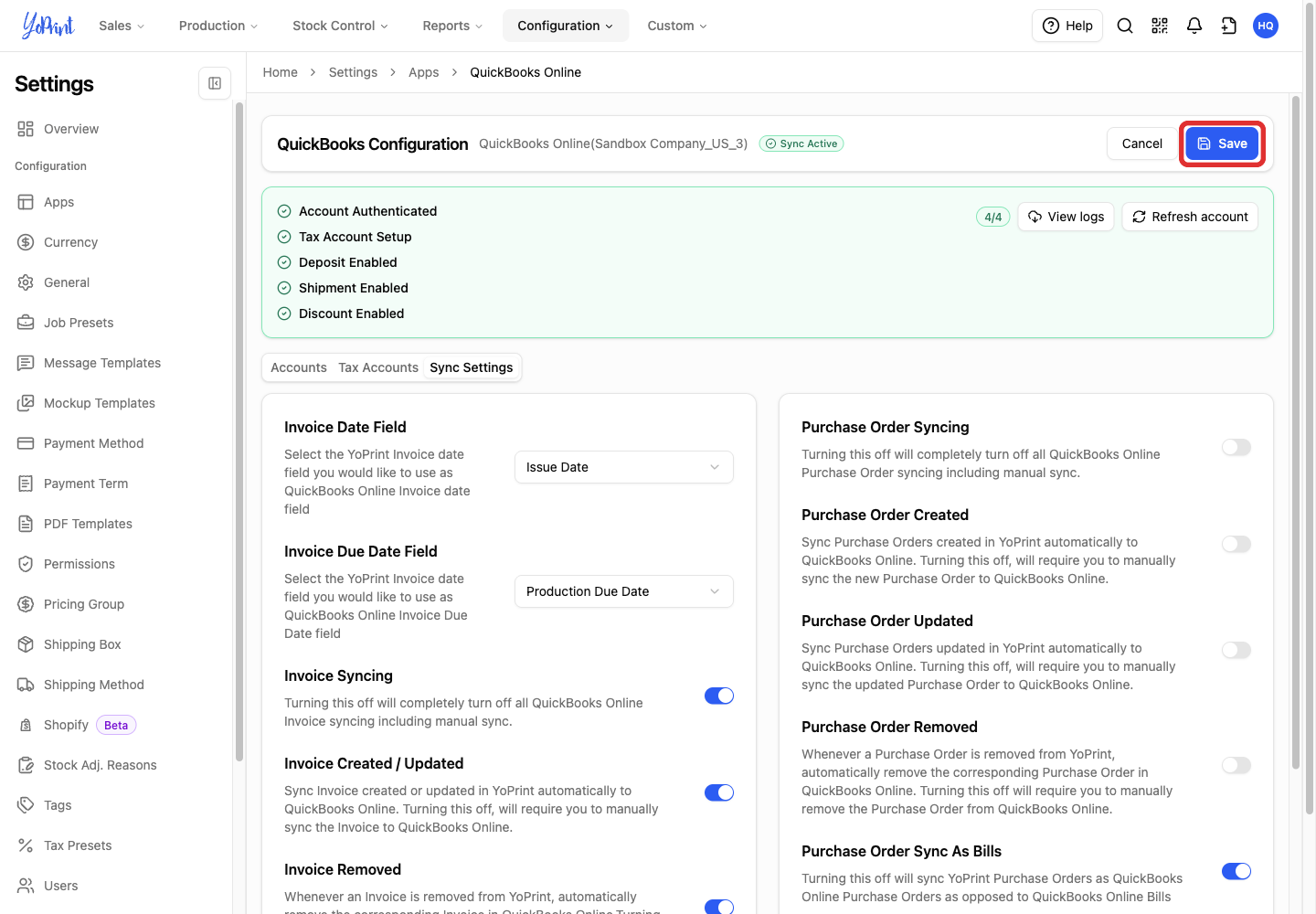
YoPrint confirms that the configuration was saved. Check the company name in QuickBooks Configuration. The example below shows Sync Active.
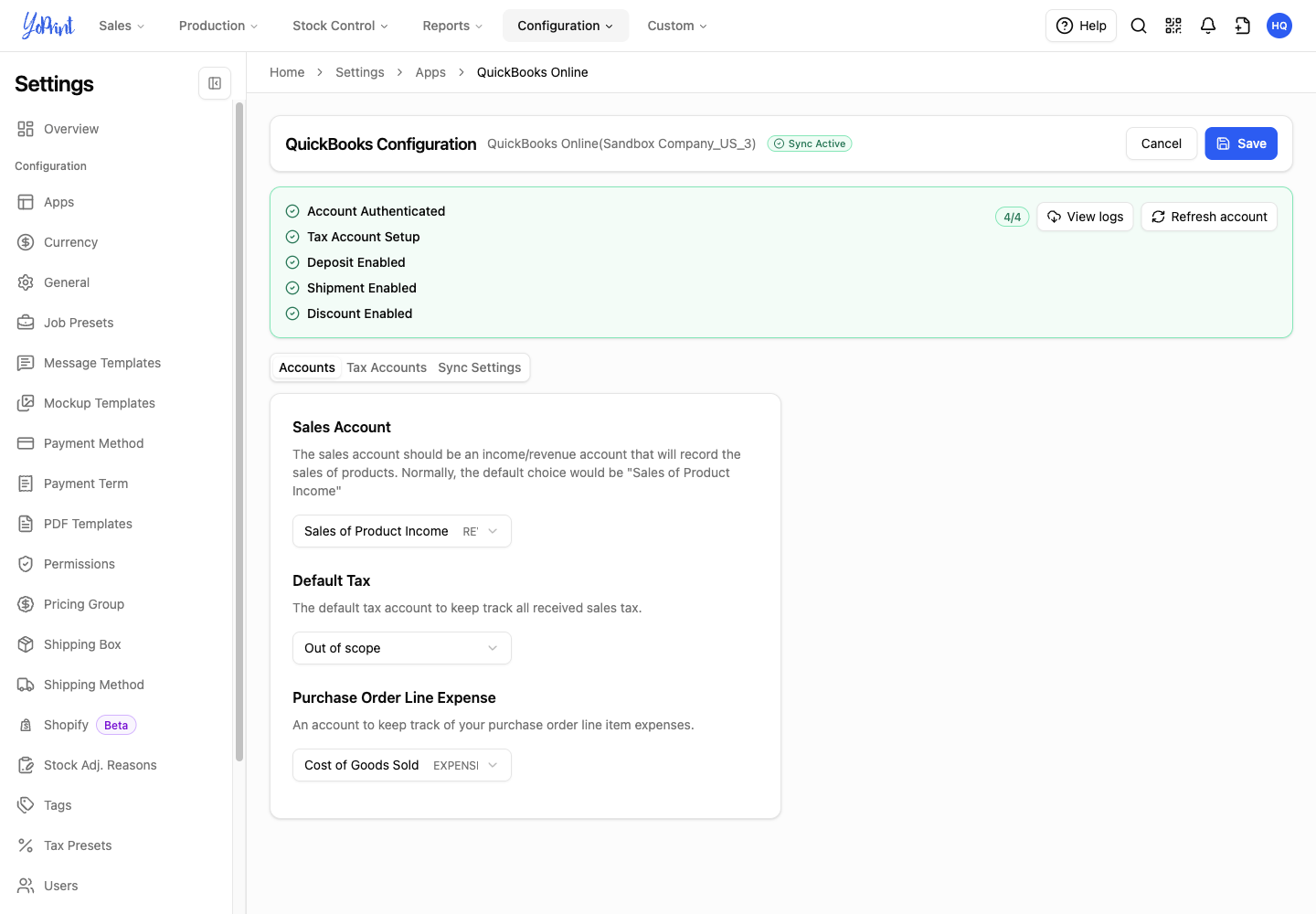
For manual sync instructions, see Troubleshooting QuickBooks Integration Issues and More Tips. For setup errors, see Common Setup and Sync Issues.
Change these settings later
-
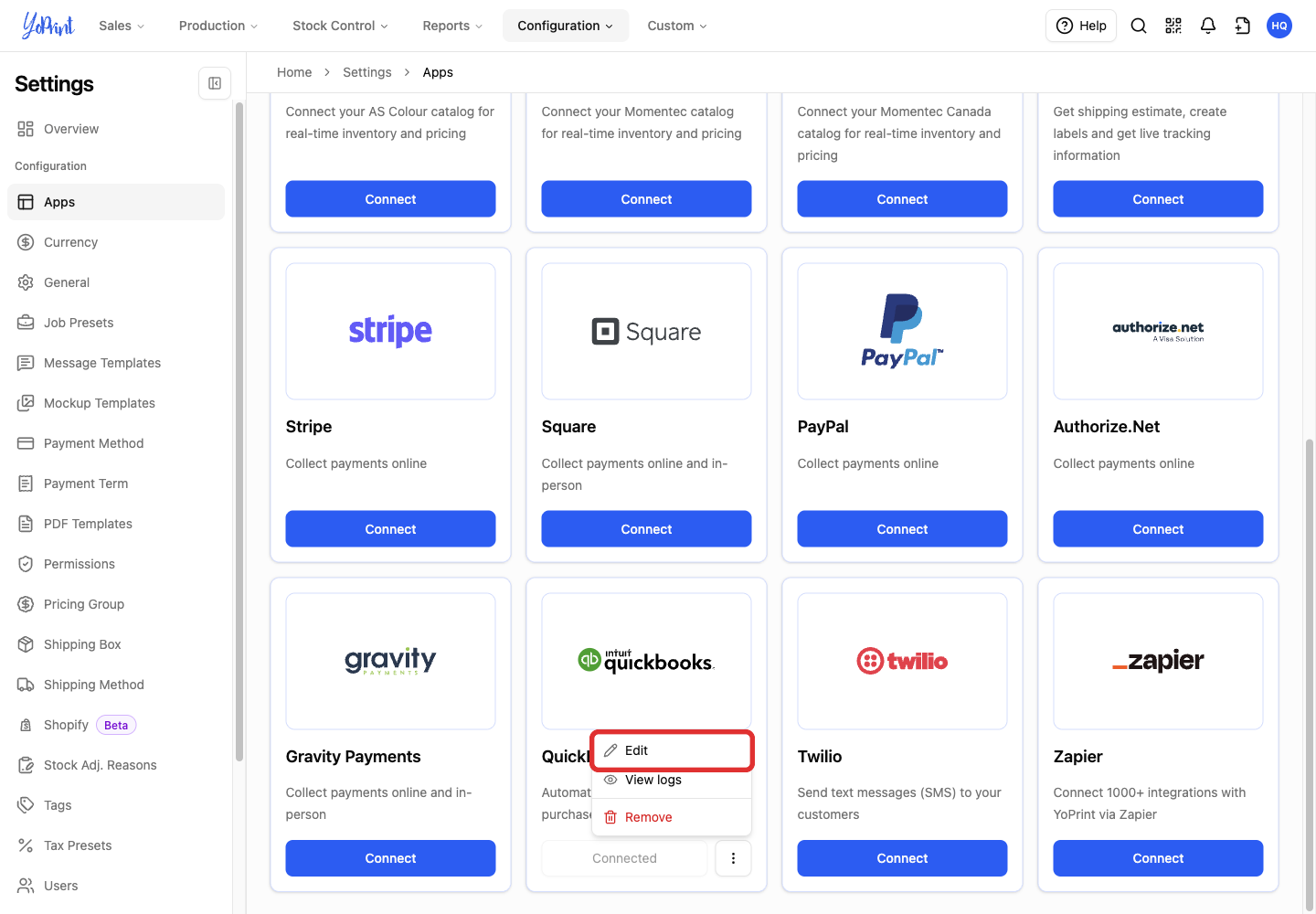
Return to Settings > Apps and open the three-dot menu on QuickBooks Online.
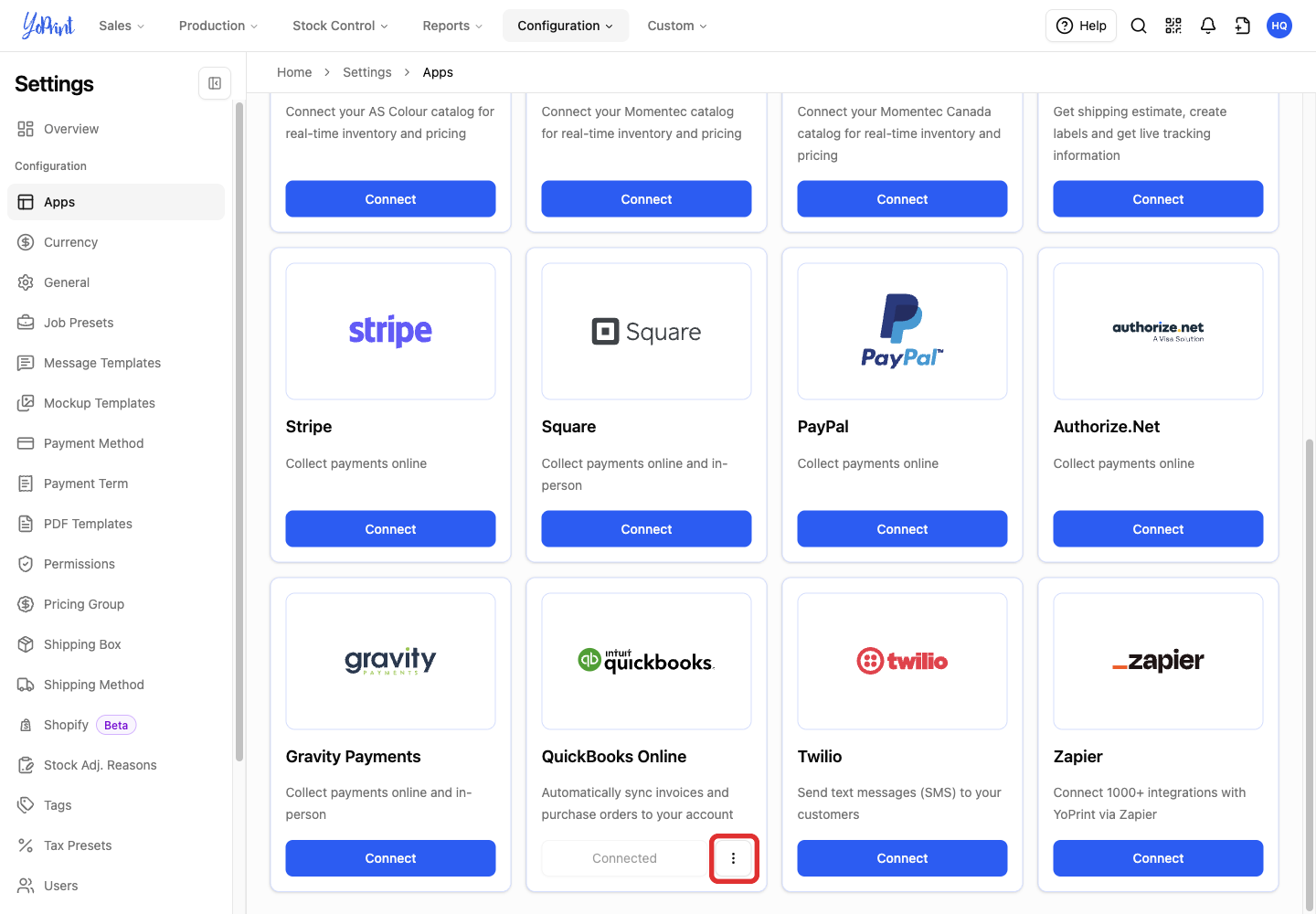
-
Select Edit.