Customer Portal Overview
In this article
The customer portal gives each customer a place to review their quotes and orders, respond to approval requests, find invoices and check shipments. This guide shows what your customers see after opening an order link from your shop.
Share an order with your customer
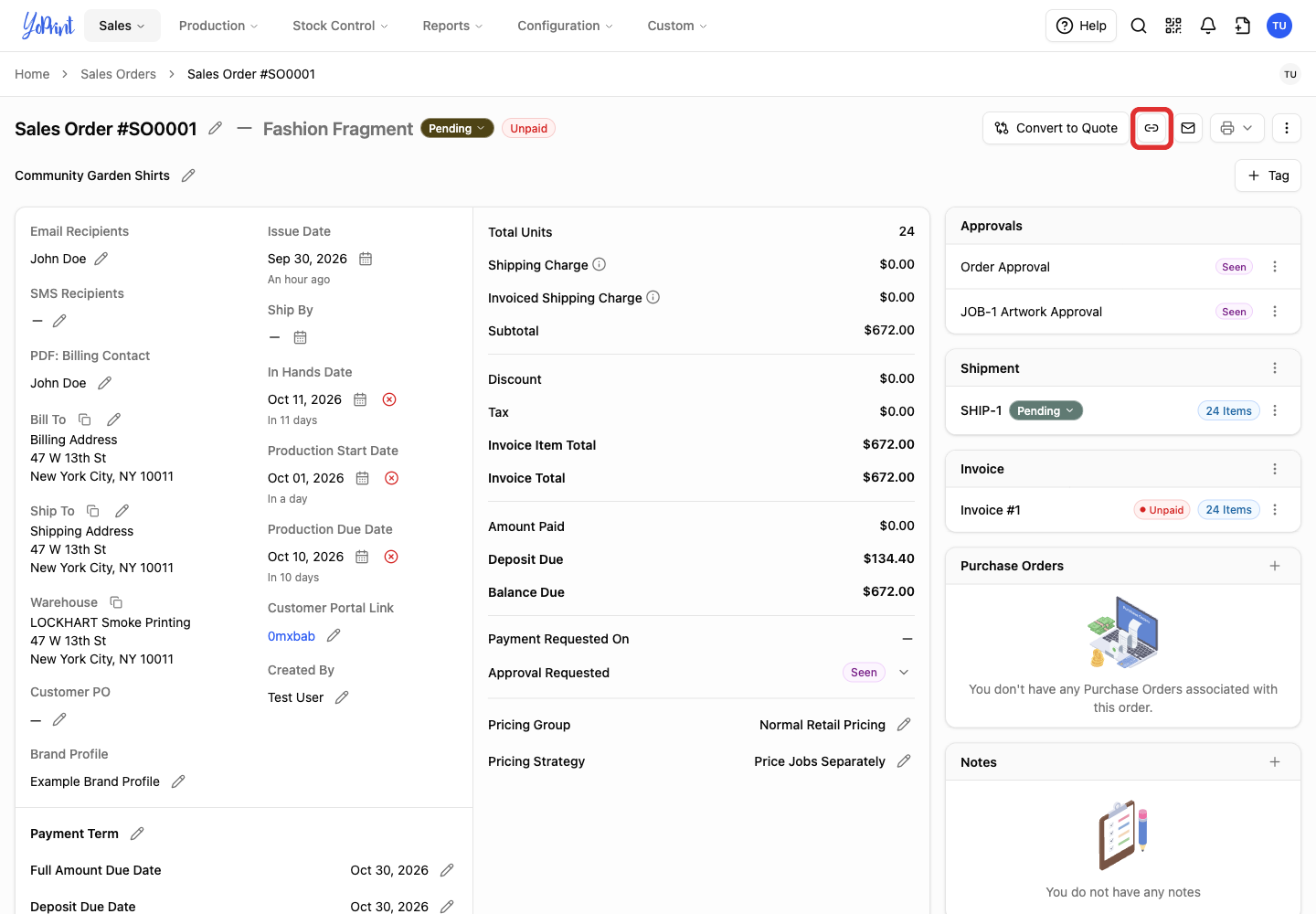
From an open quote or sales order in YoPrint, click the chain-link icon (Copy order link) beside the order number. Paste the link into a private browser tab to preview what the customer sees, or send it to the customer. Opening the link displays their order in the customer portal.
Customers: search and filter orders
The Dashboard has separate Quotes and Sales Orders lists. Invoices and Shipments have their own pages, with search and filters too. If you are viewing an individual order, click Dashboard in the top navigation to reach the search bar and lists.
-
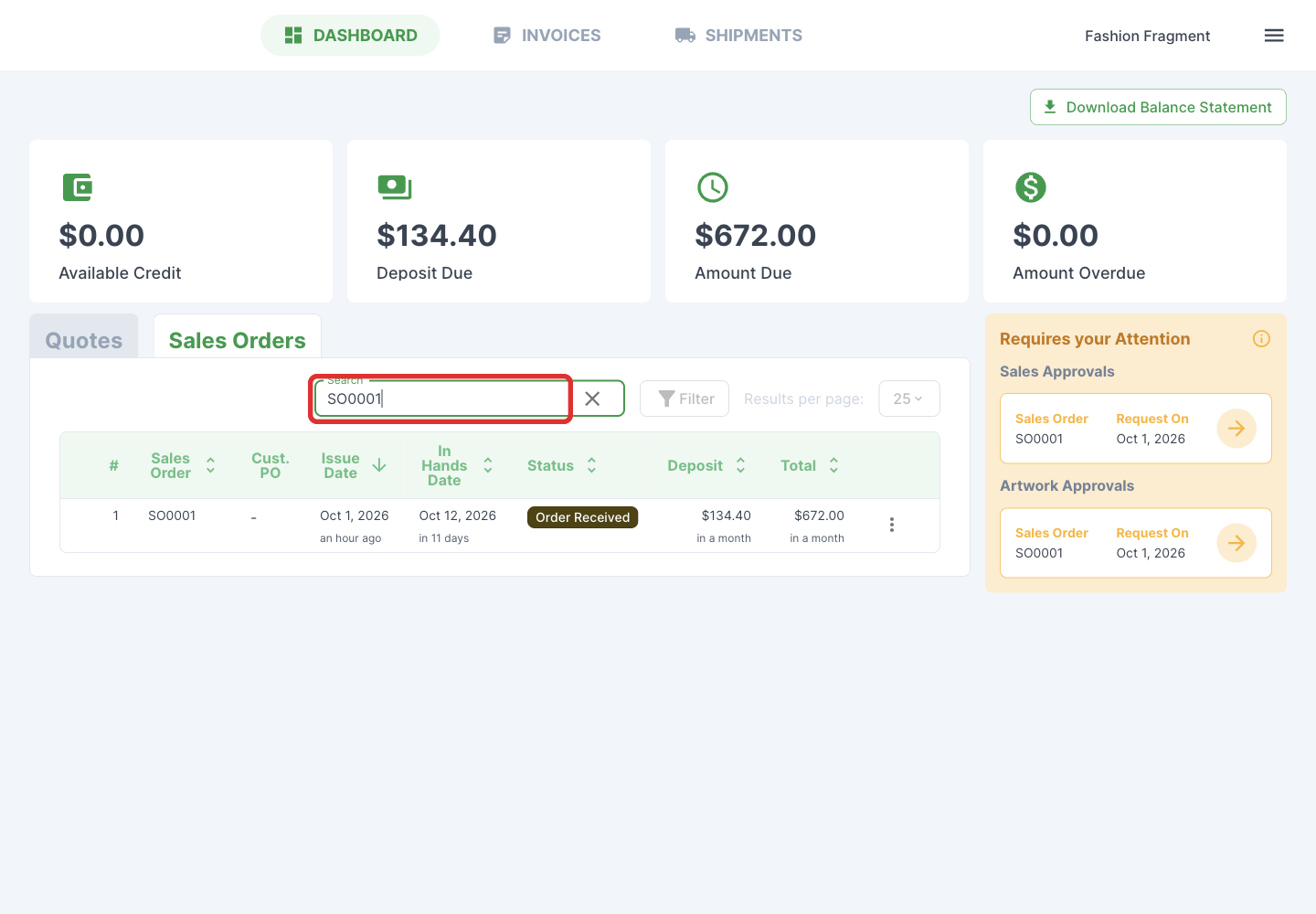
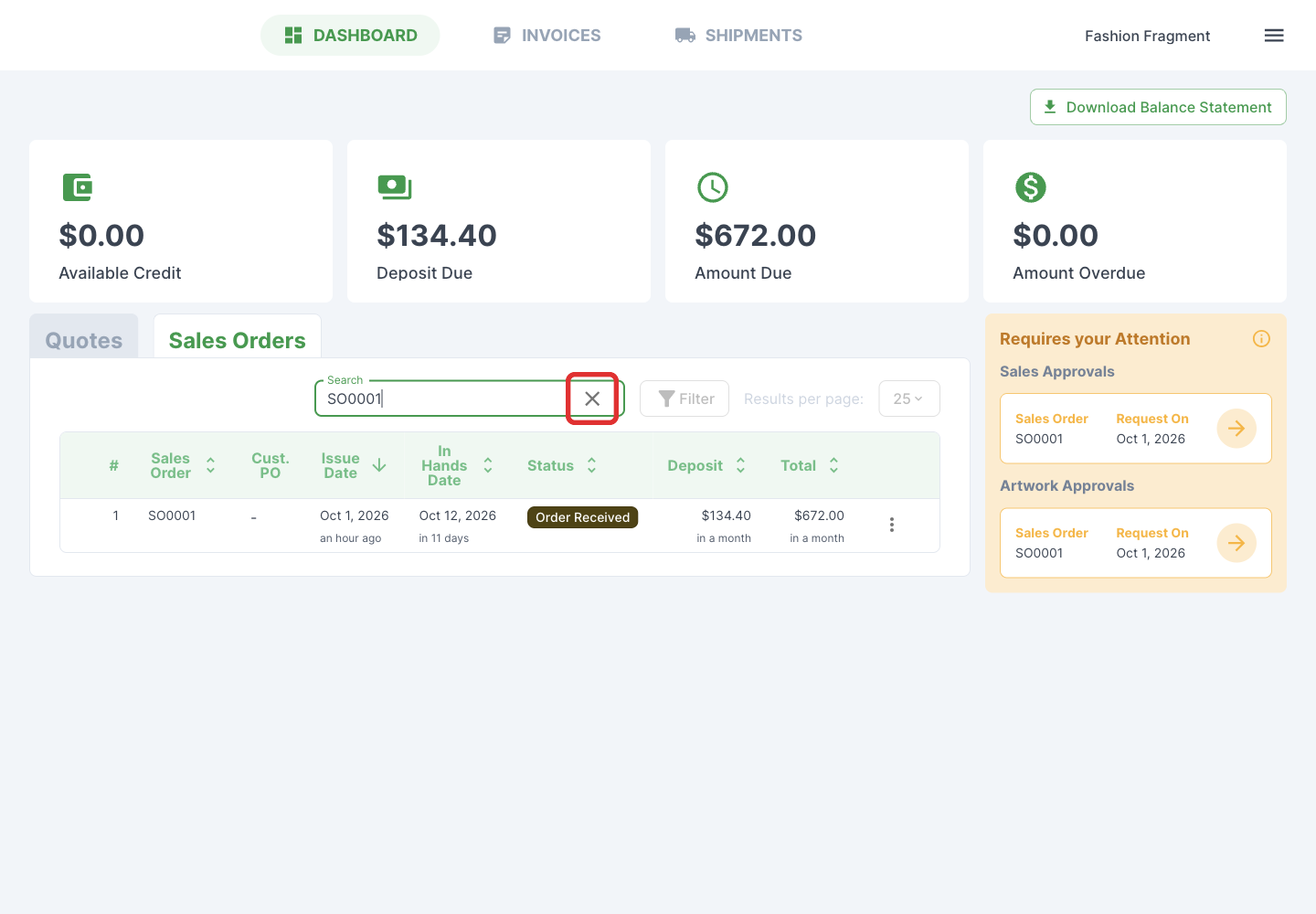
Enter an order number, customer PO number or order name in Search.
-
To return to the full list, click × in the search field. Filters are unavailable while a search is active.
-
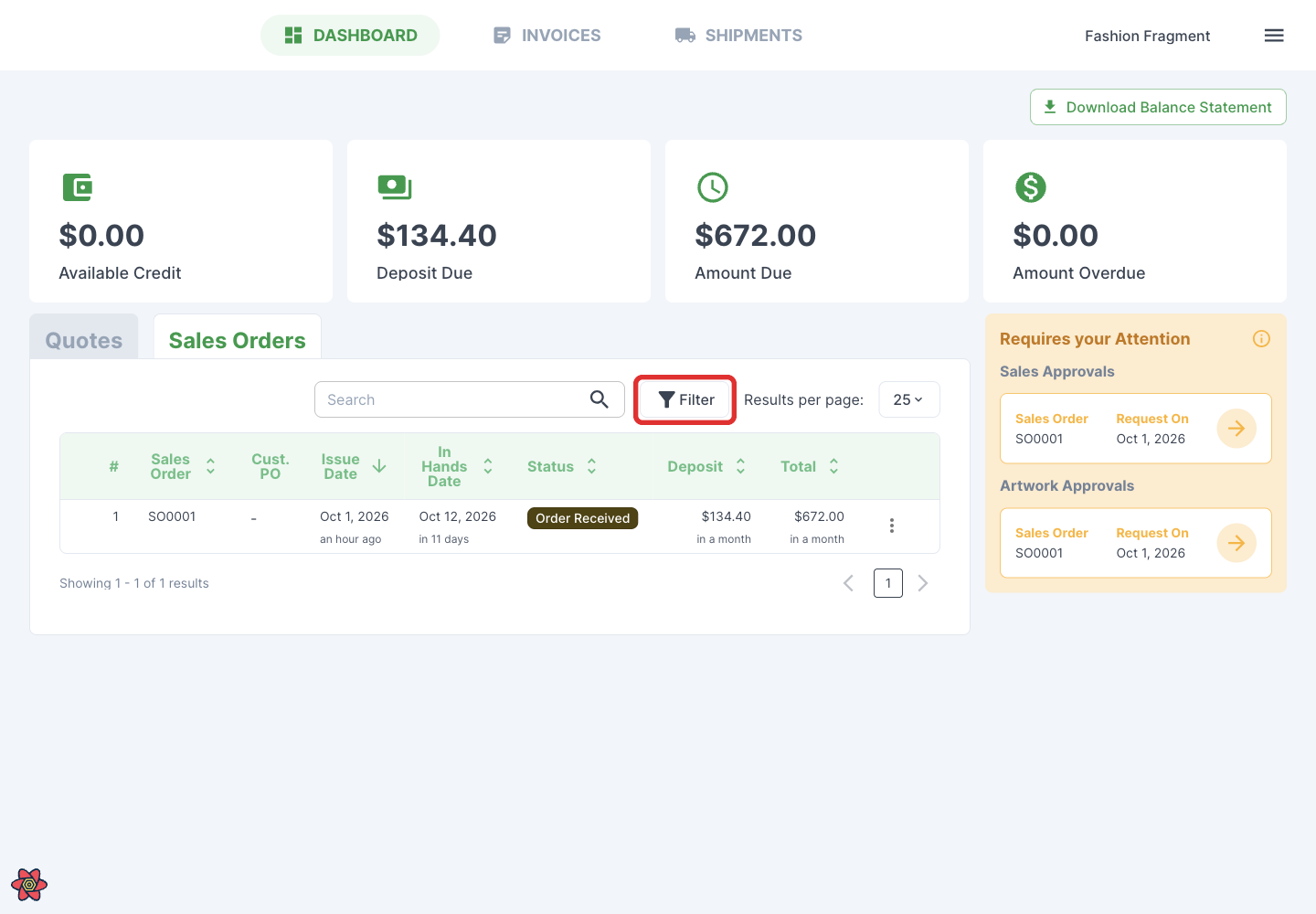
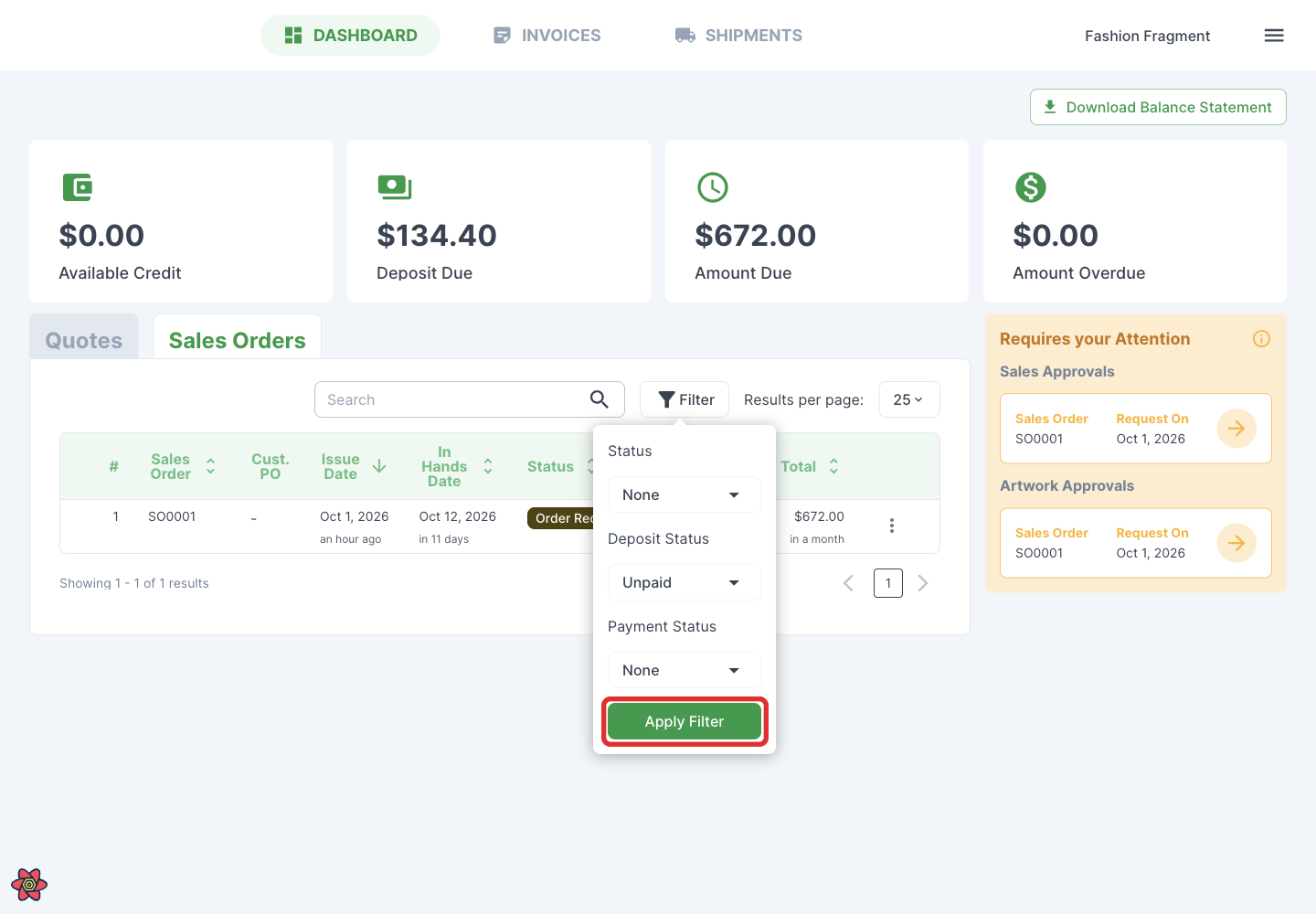
Click Filter to narrow the list by status.
-
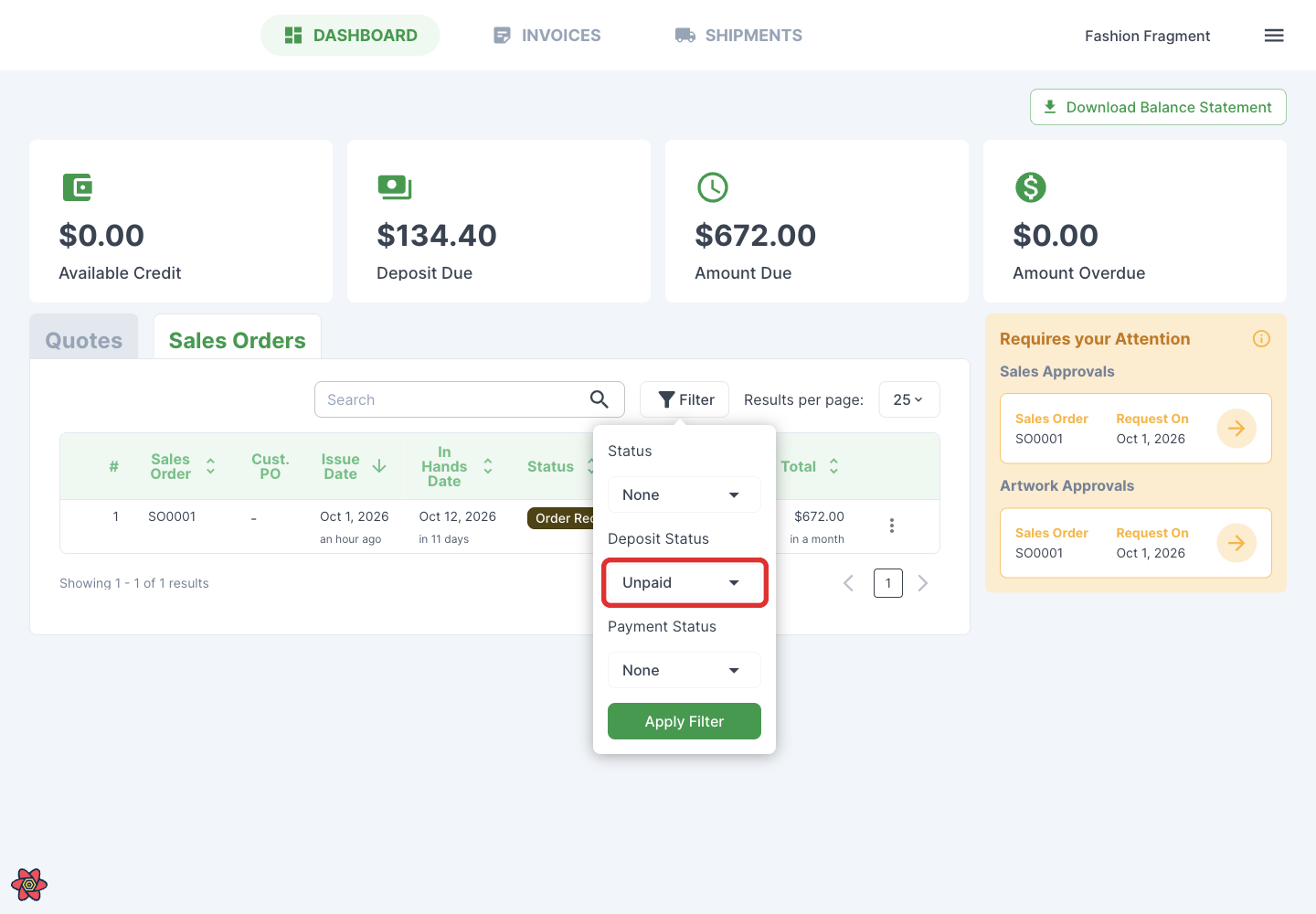
Under the filter you need, such as Deposit Status, click None to open the choices.
-
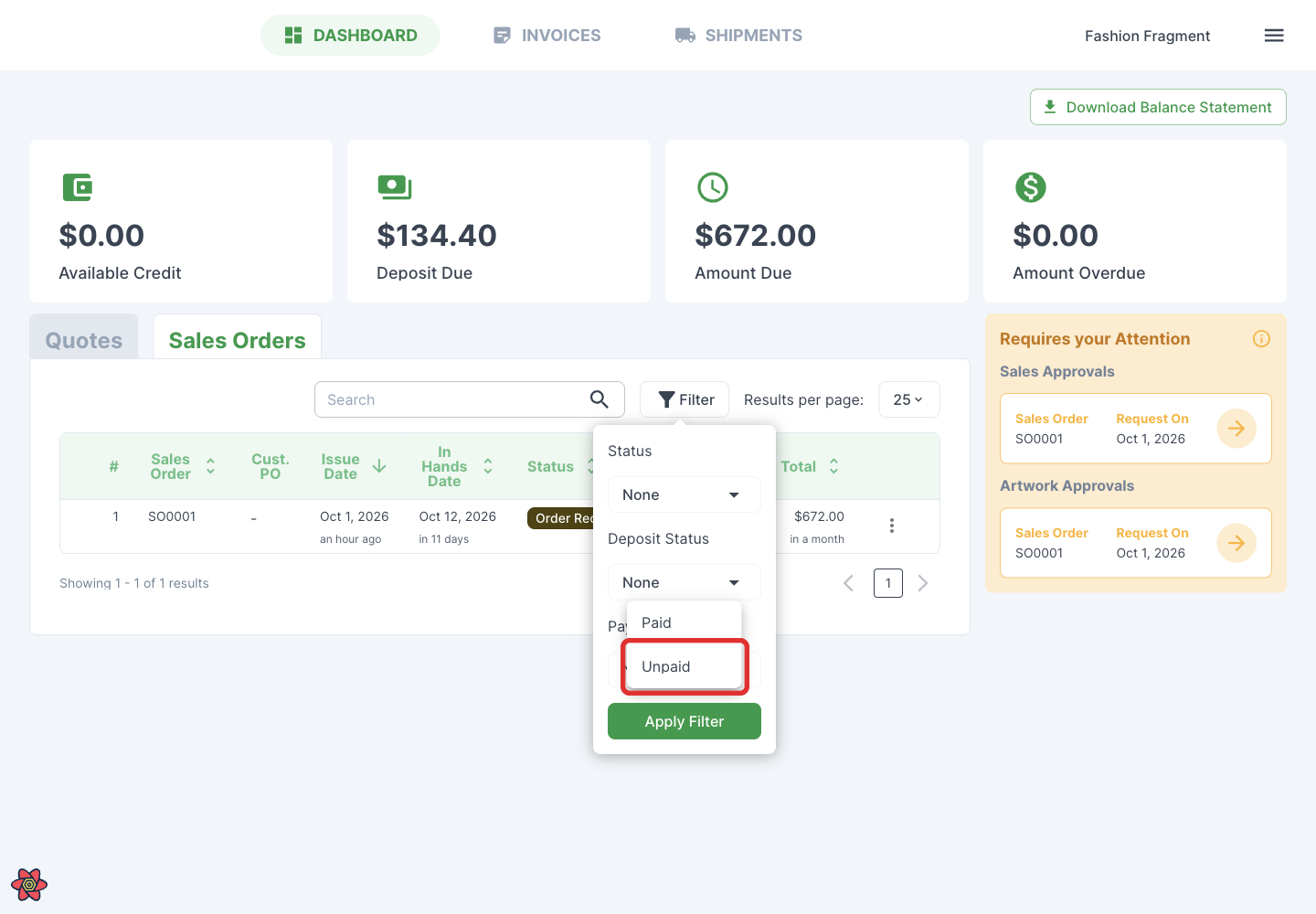
Select a value, such as Unpaid. Select it again to remove it. Press Escape or click outside the dropdown to close the choices.
-
Click Apply Filter.
-
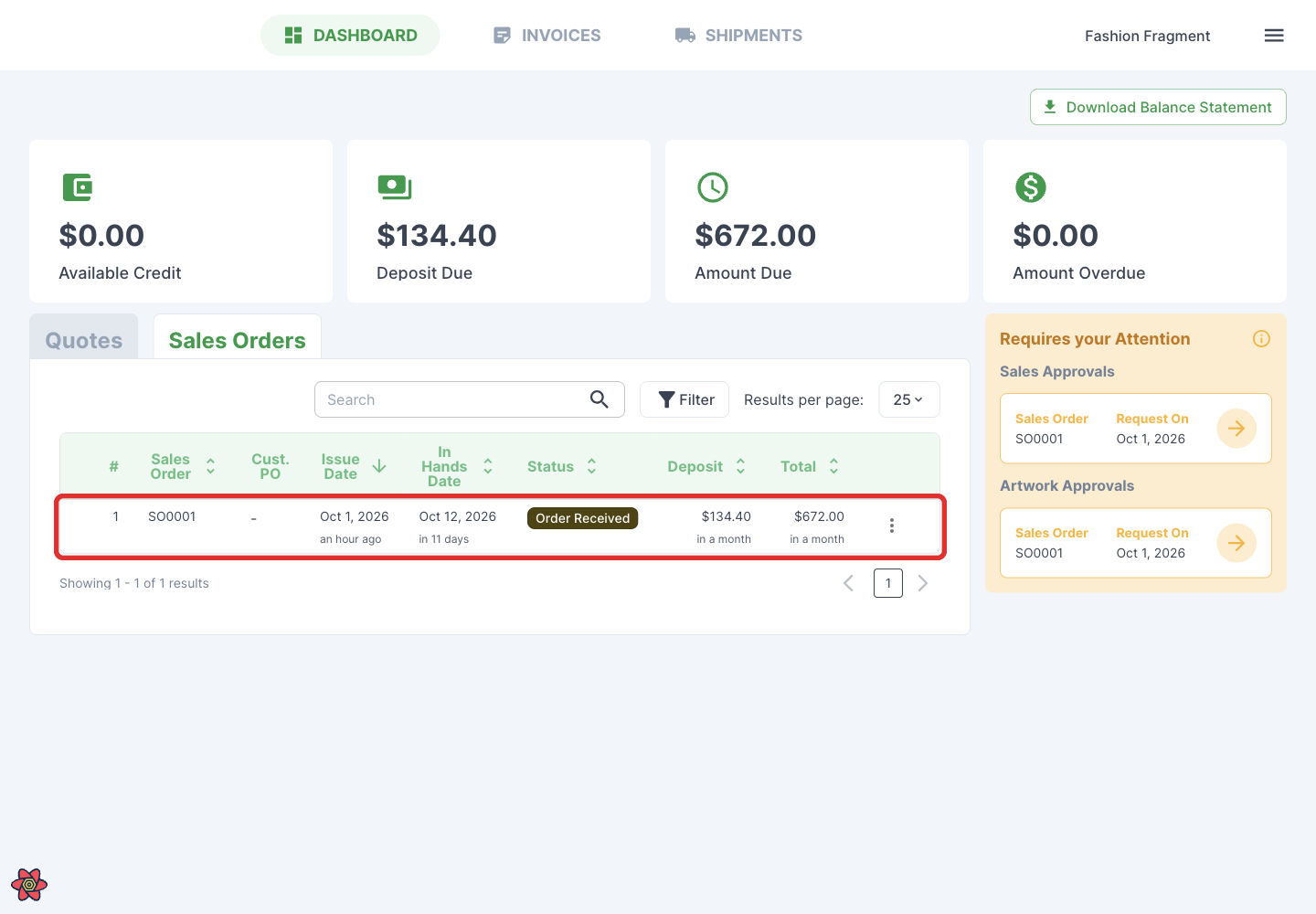
Click an order to open its details.
Customers: review order details
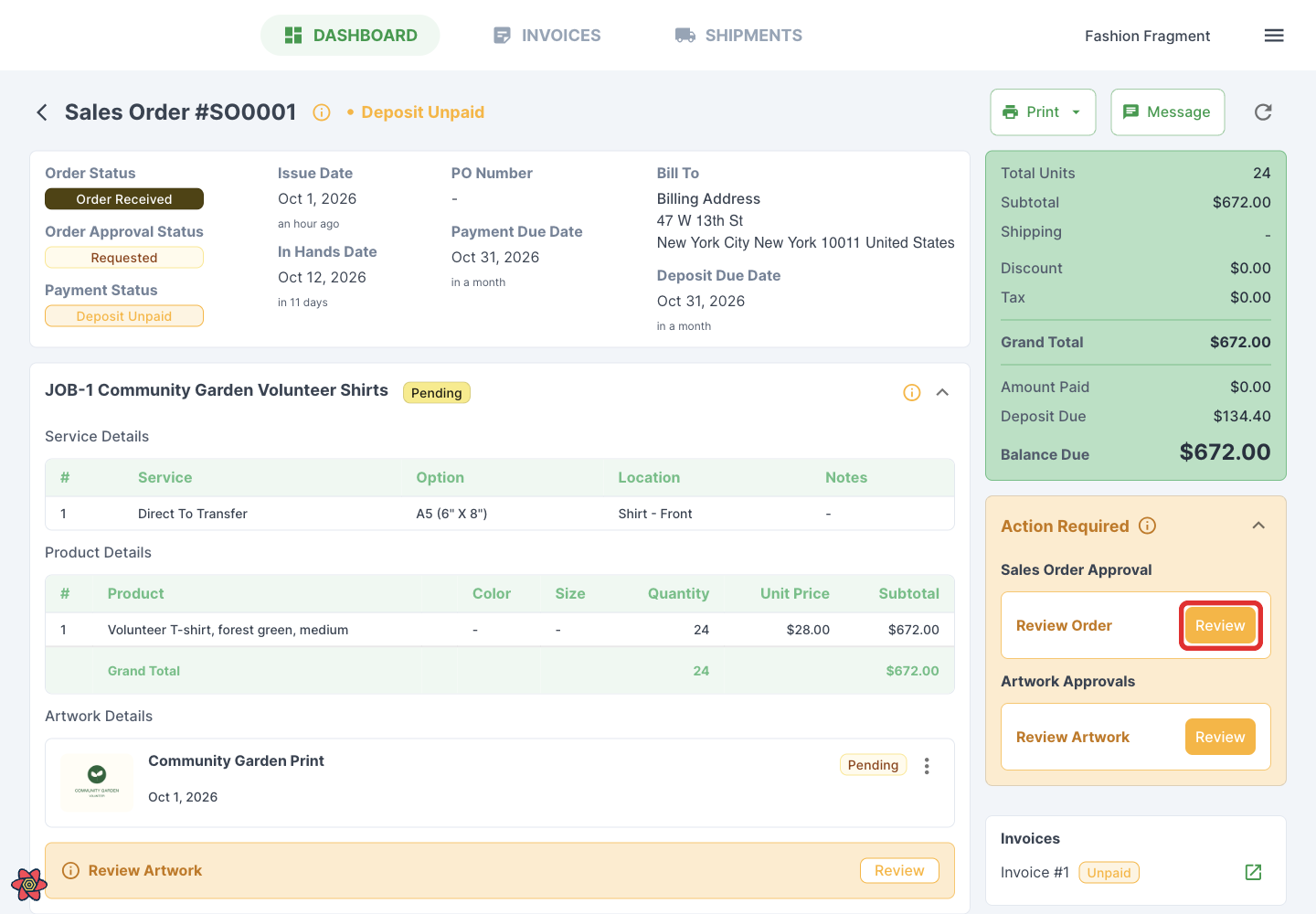
The order page brings together:
- Order, approval and payment status; dates, customer PO number and billing address.
- Jobs, services, products, quantities, prices and mockups.
- A price breakdown, amount paid, deposit due and balance due.
- Outstanding approvals, linked invoices and shipments, and previous payments when present.
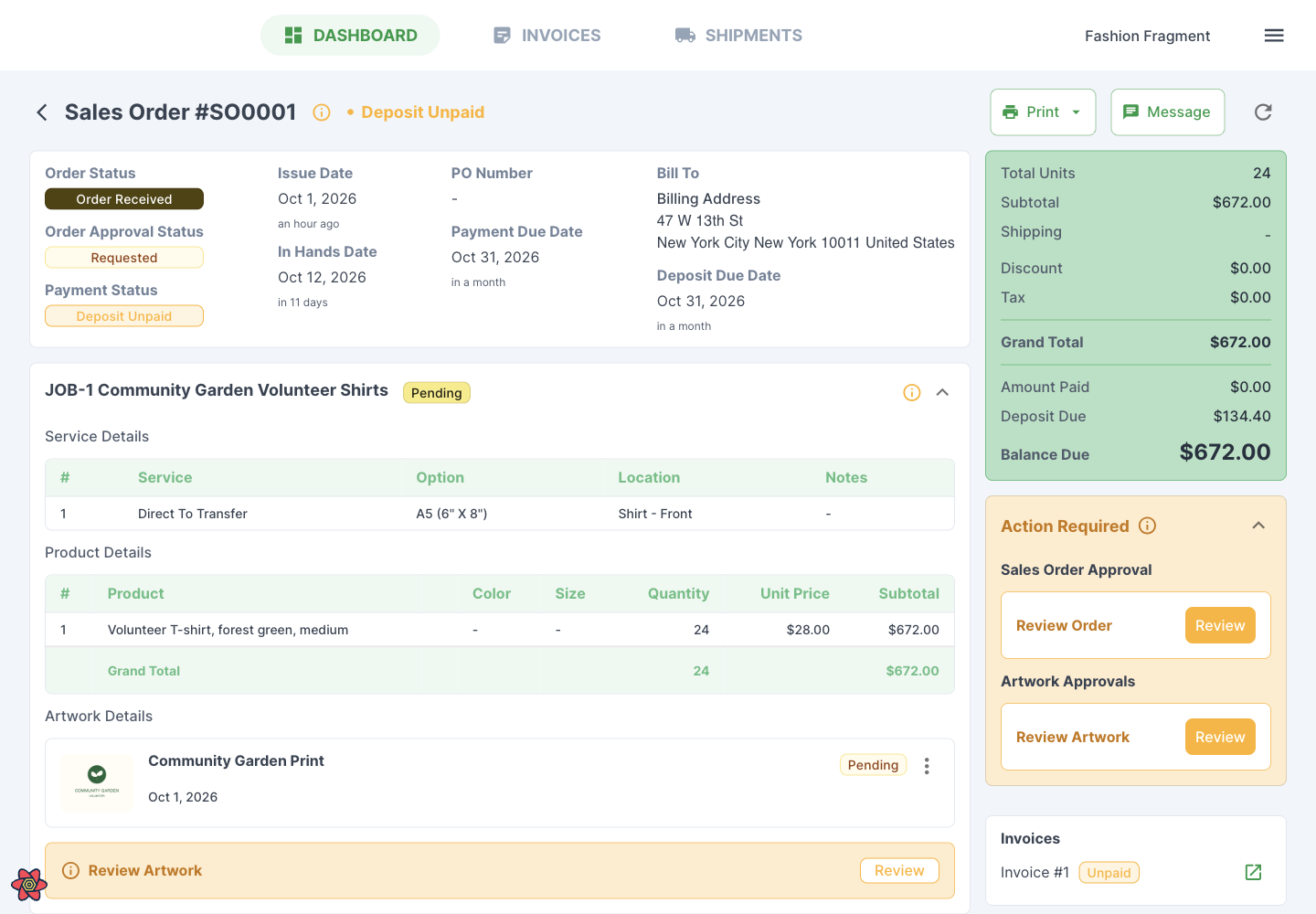
Print offers the order's documents. Message opens a conversation with your shop, and replies appear in your shop's Messages in YoPrint. When online payment is available for the order, Pay Now lets the customer make a payment. It appears when your shop connects an online payment gateway and the order has a balance due.
Customers: review artwork
-
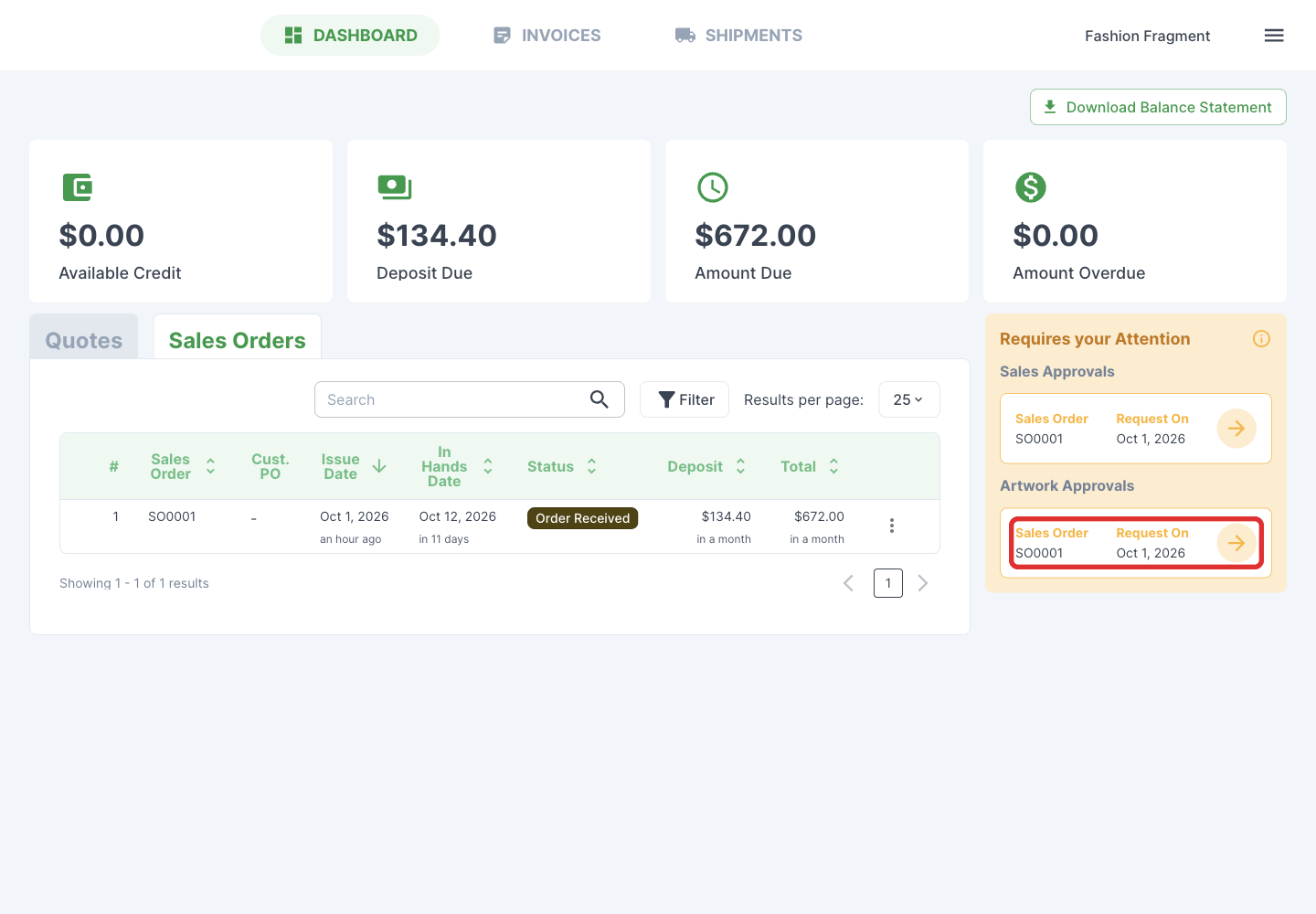
Under Action Required on the order page, click Review beside Review Artwork. It opens the order and its artwork review. You can also open pending requests under Requires your Attention on the dashboard.
-
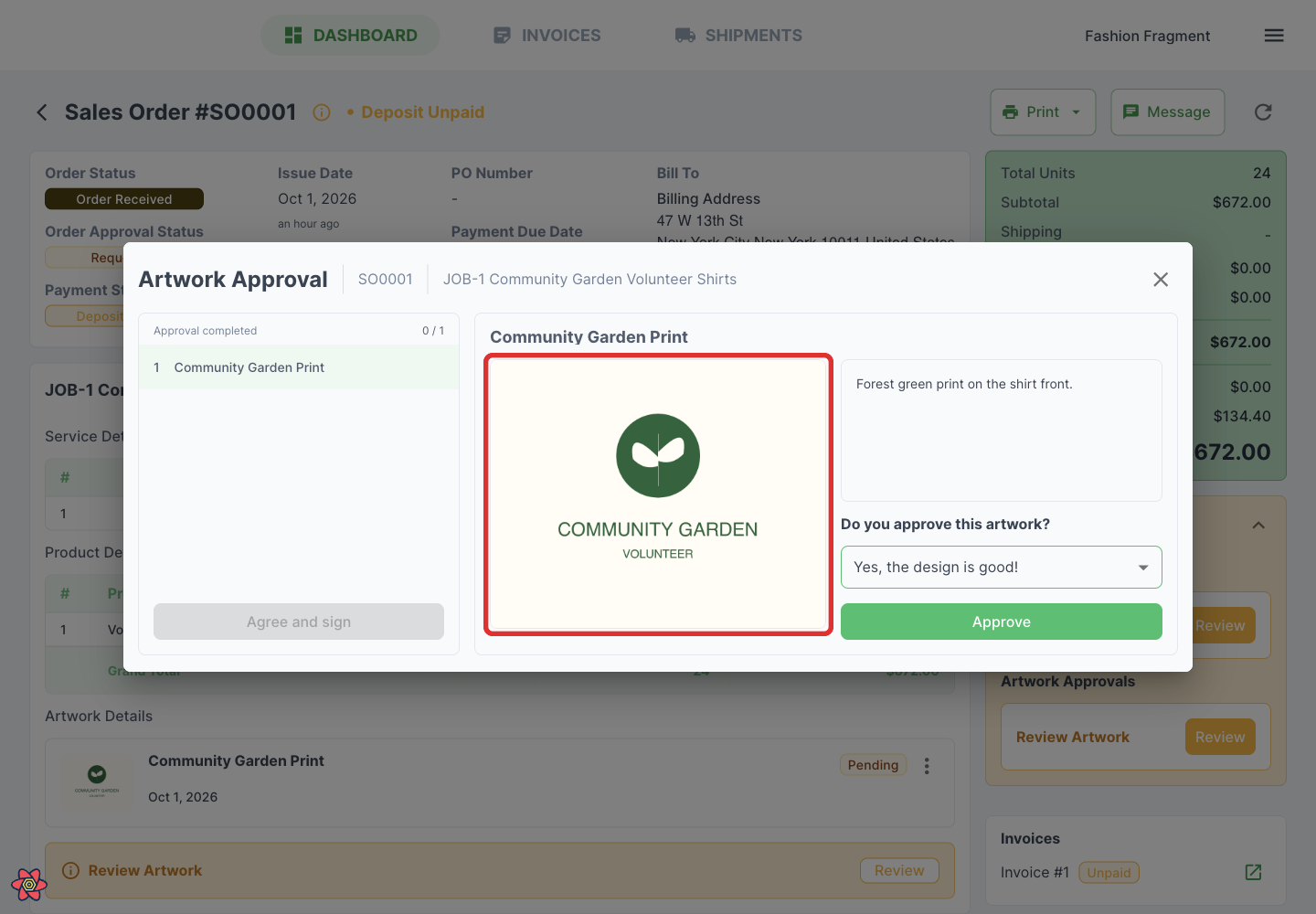
Click the artwork preview to enlarge it.
-
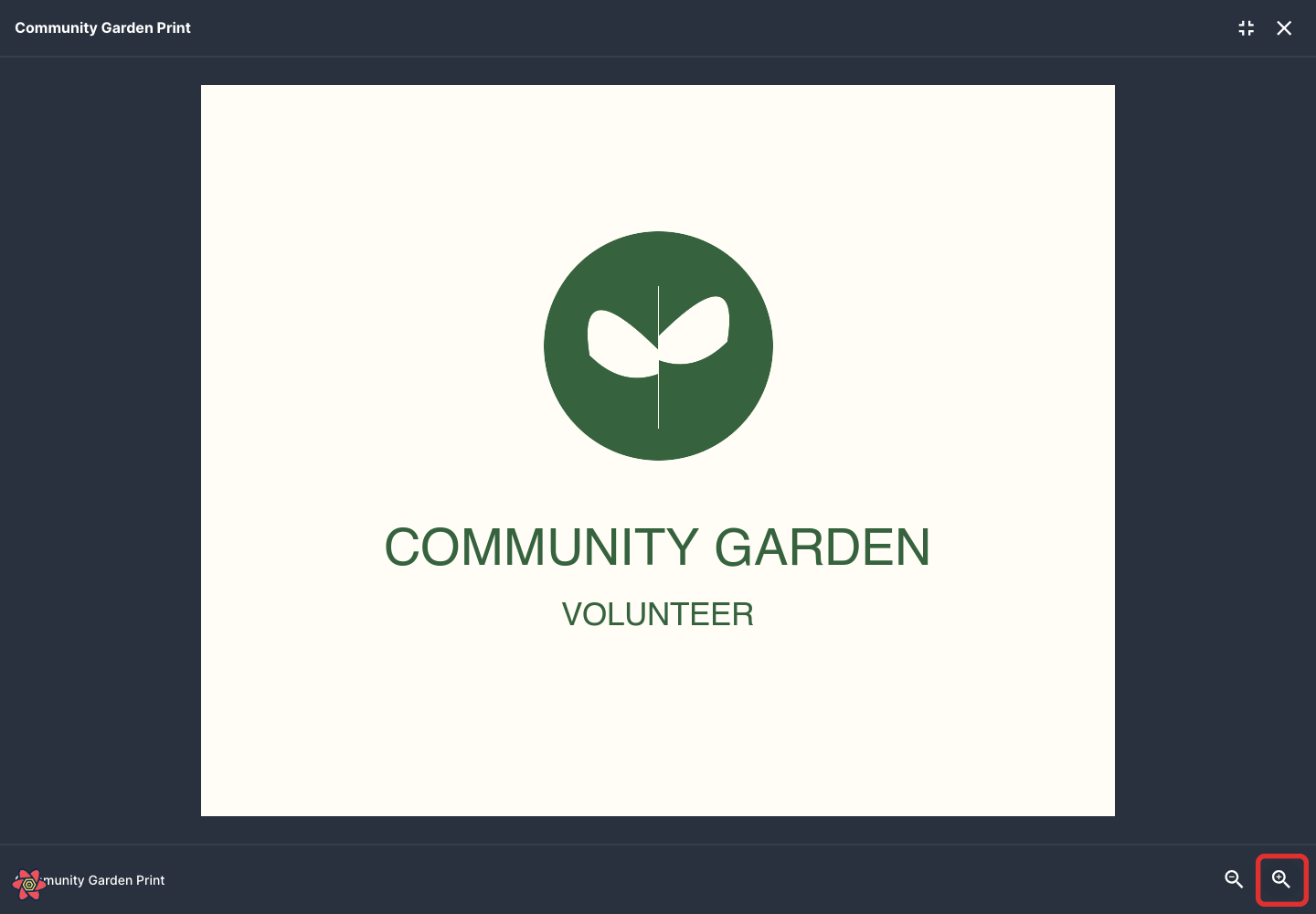
Use + to zoom in.
-
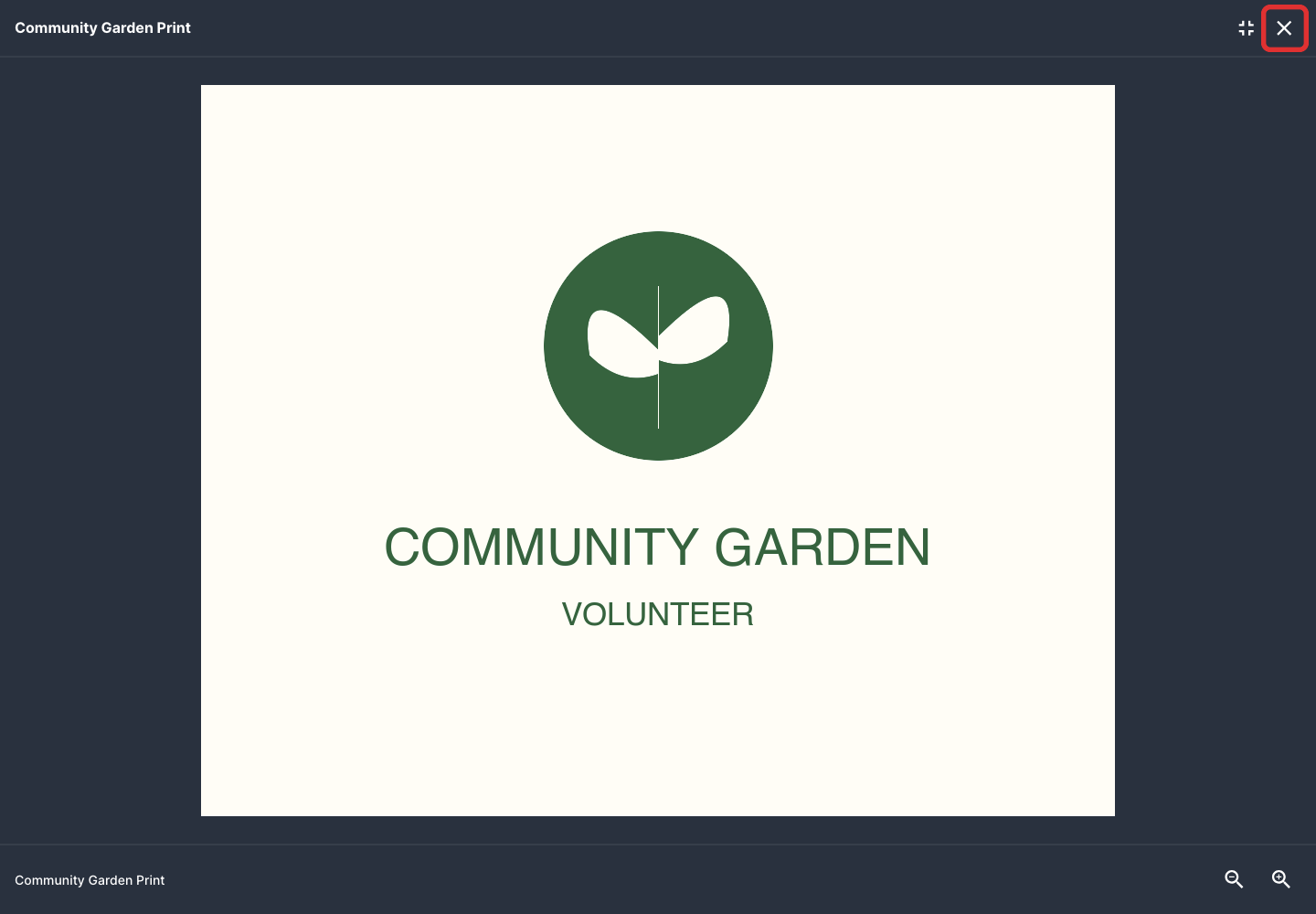
Close the preview with × to return to the review.
-
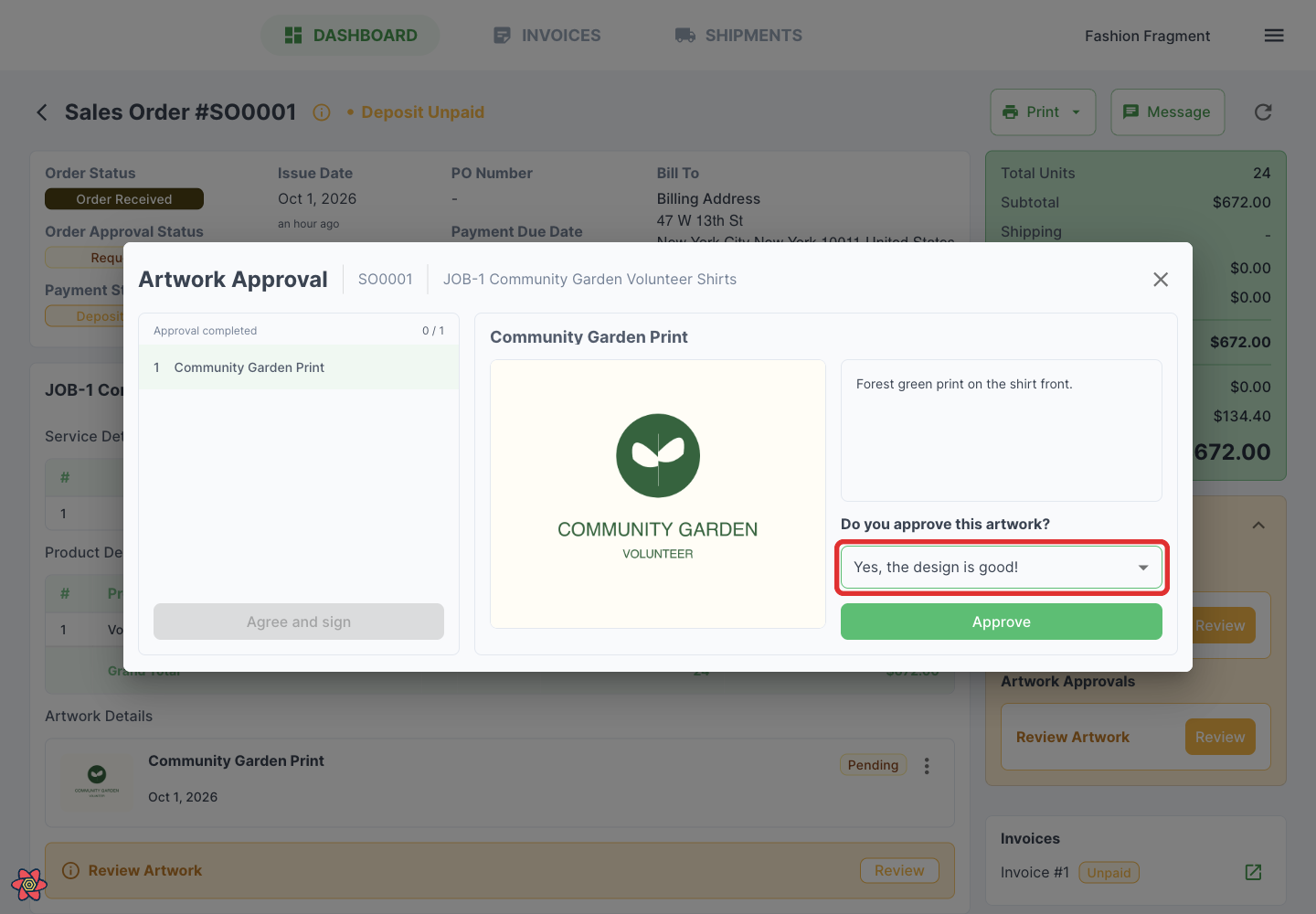
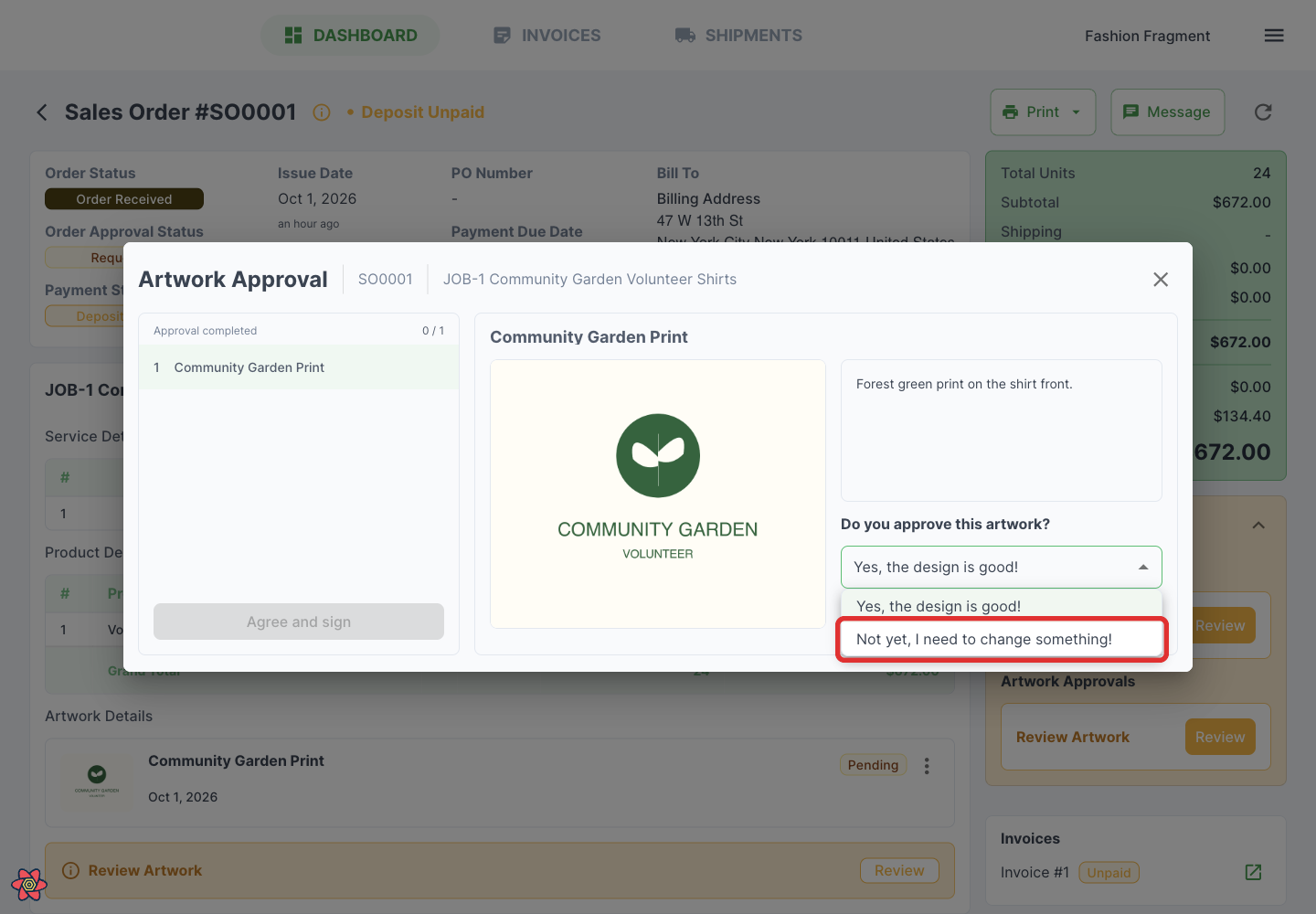
Open the answer beneath Do you approve this artwork?
-
Choose Yes, the design is good! to approve it, or Not yet, I need to change something! to request a change.
-
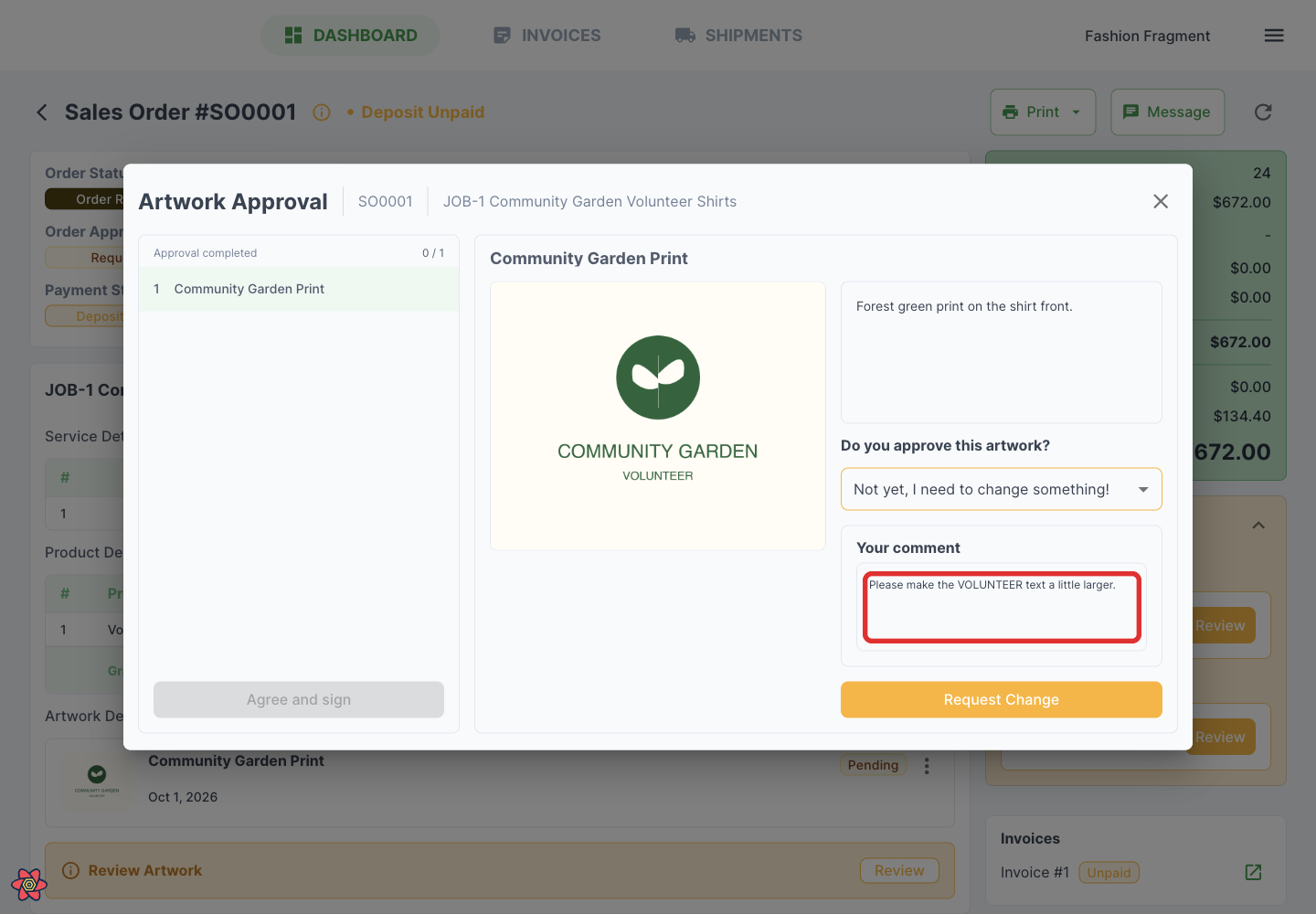
If you need a change, explain it in the comment box (Type here …). Comments are available for change requests, not for an approved design.
-
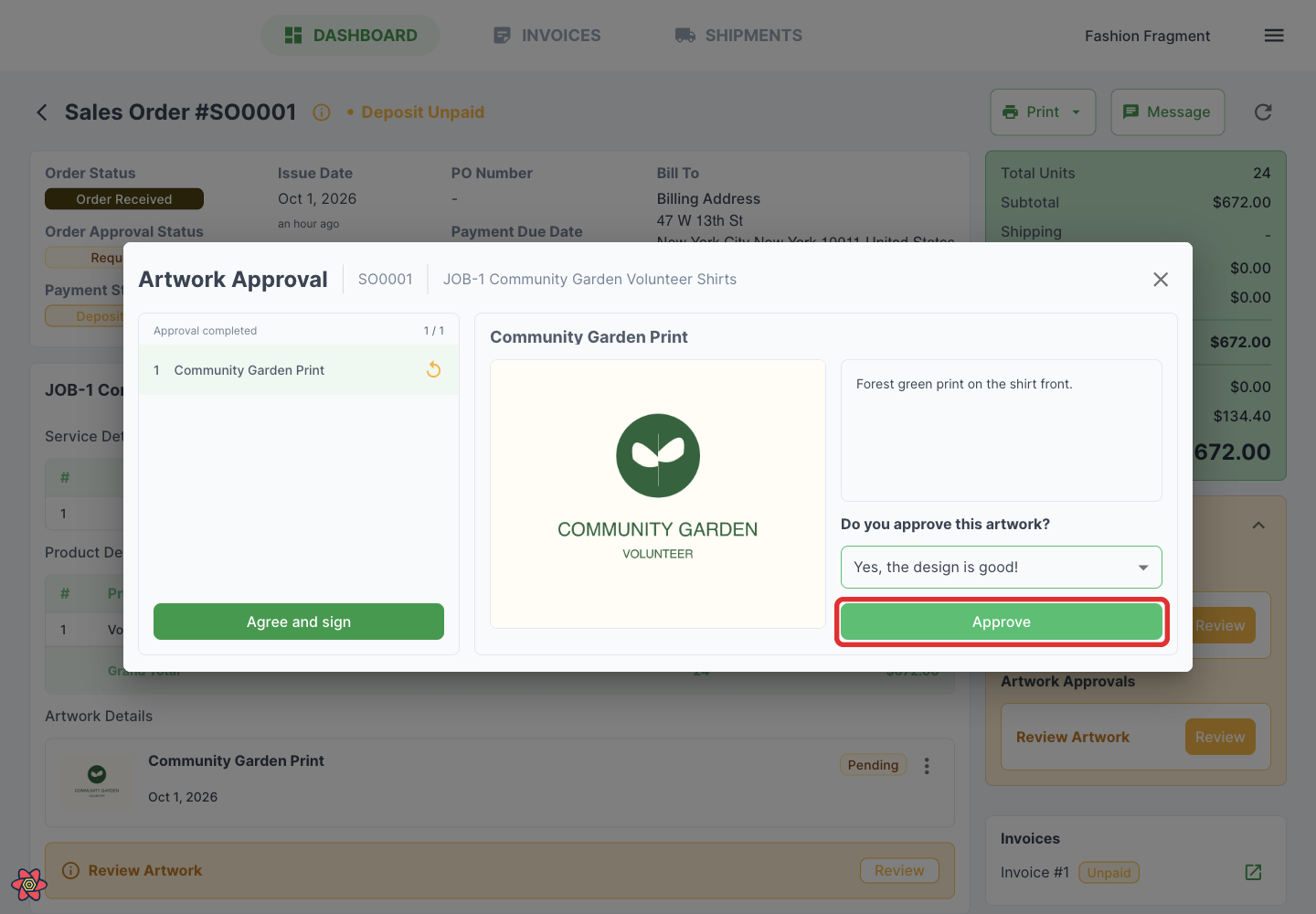
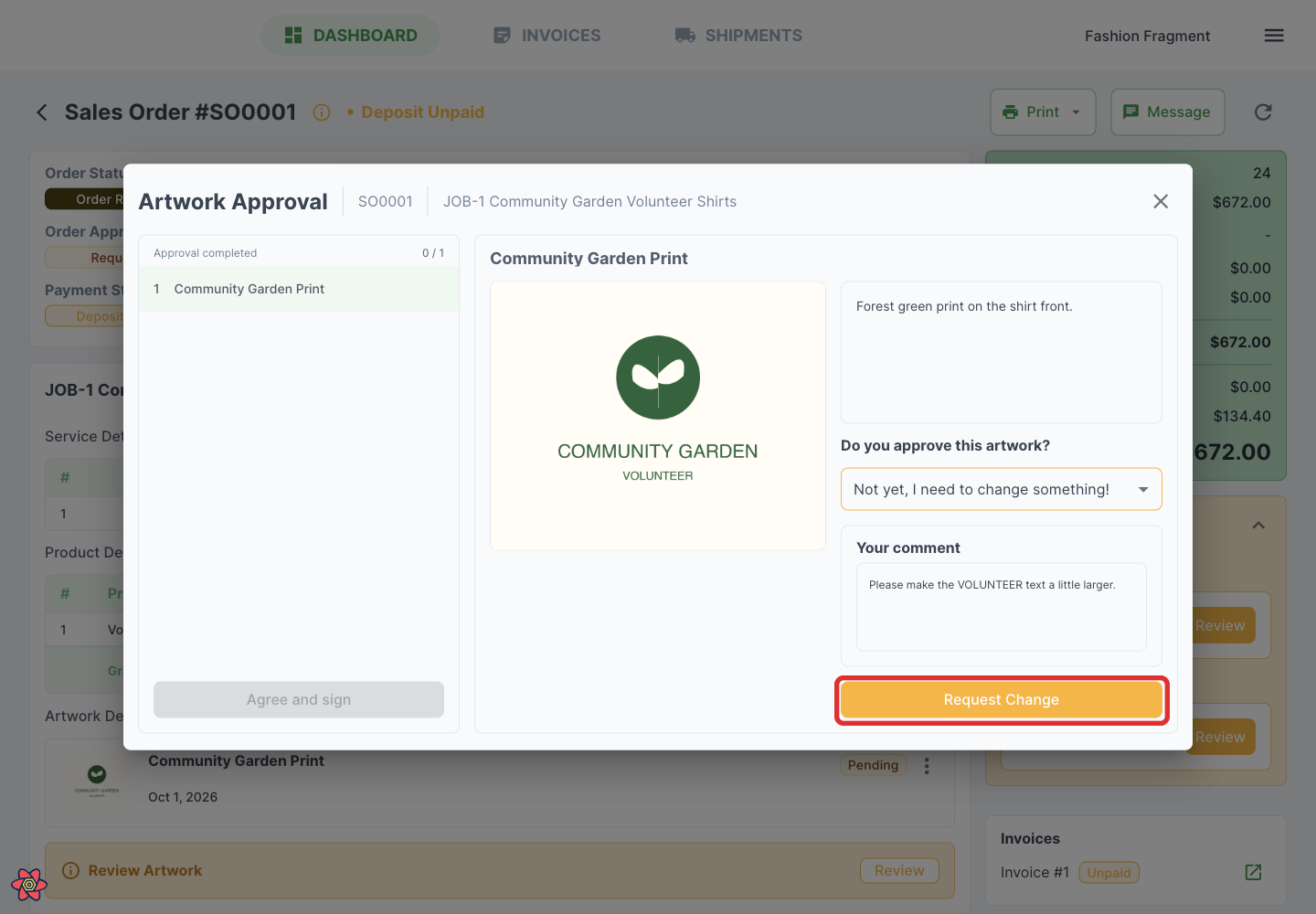
Click Approve for an accepted design, or Request Change for one that needs work. Repeat for each artwork in the request.
-
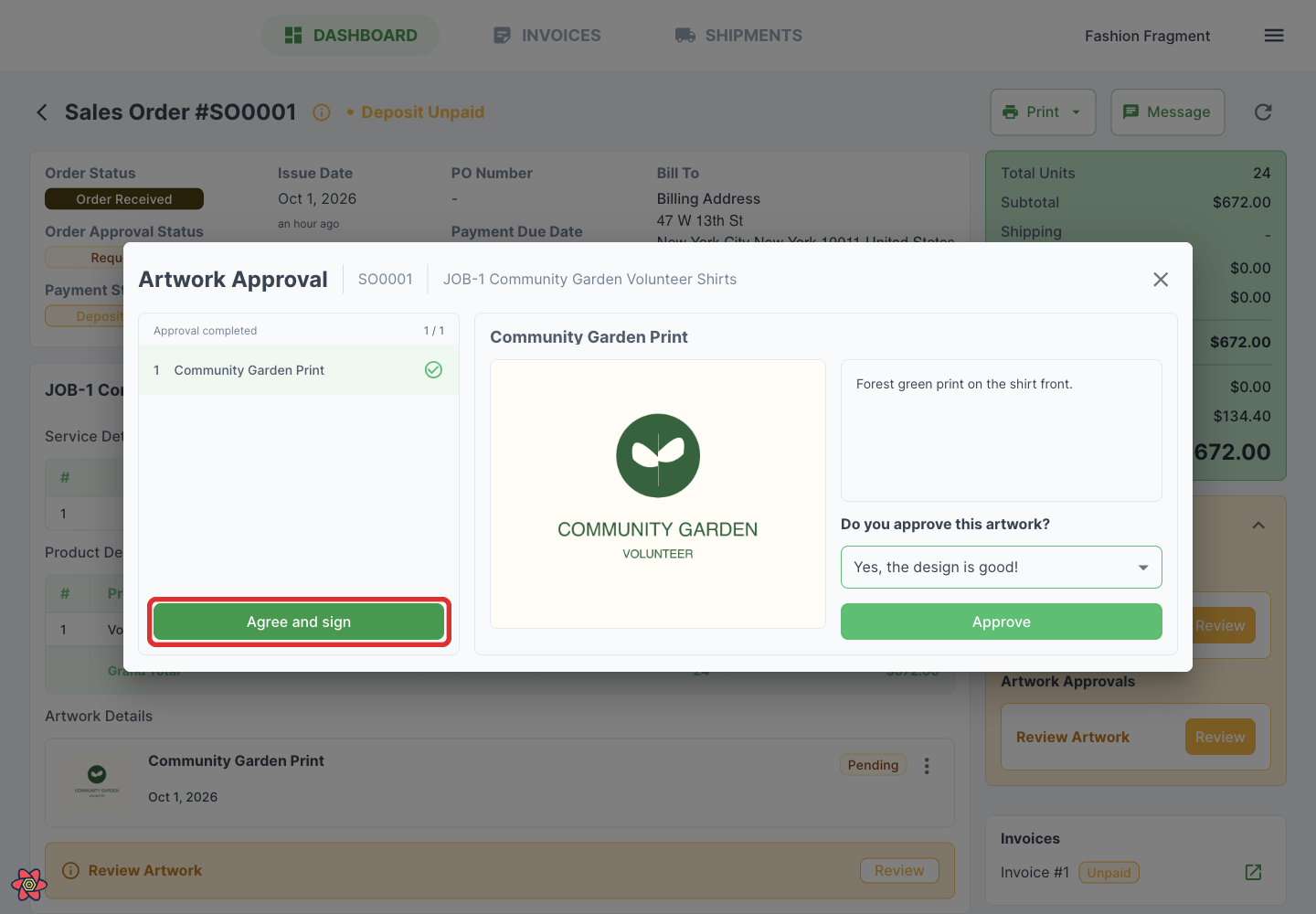
Click Agree and sign when every artwork has a response. The signature screen may open automatically after the last response.
-
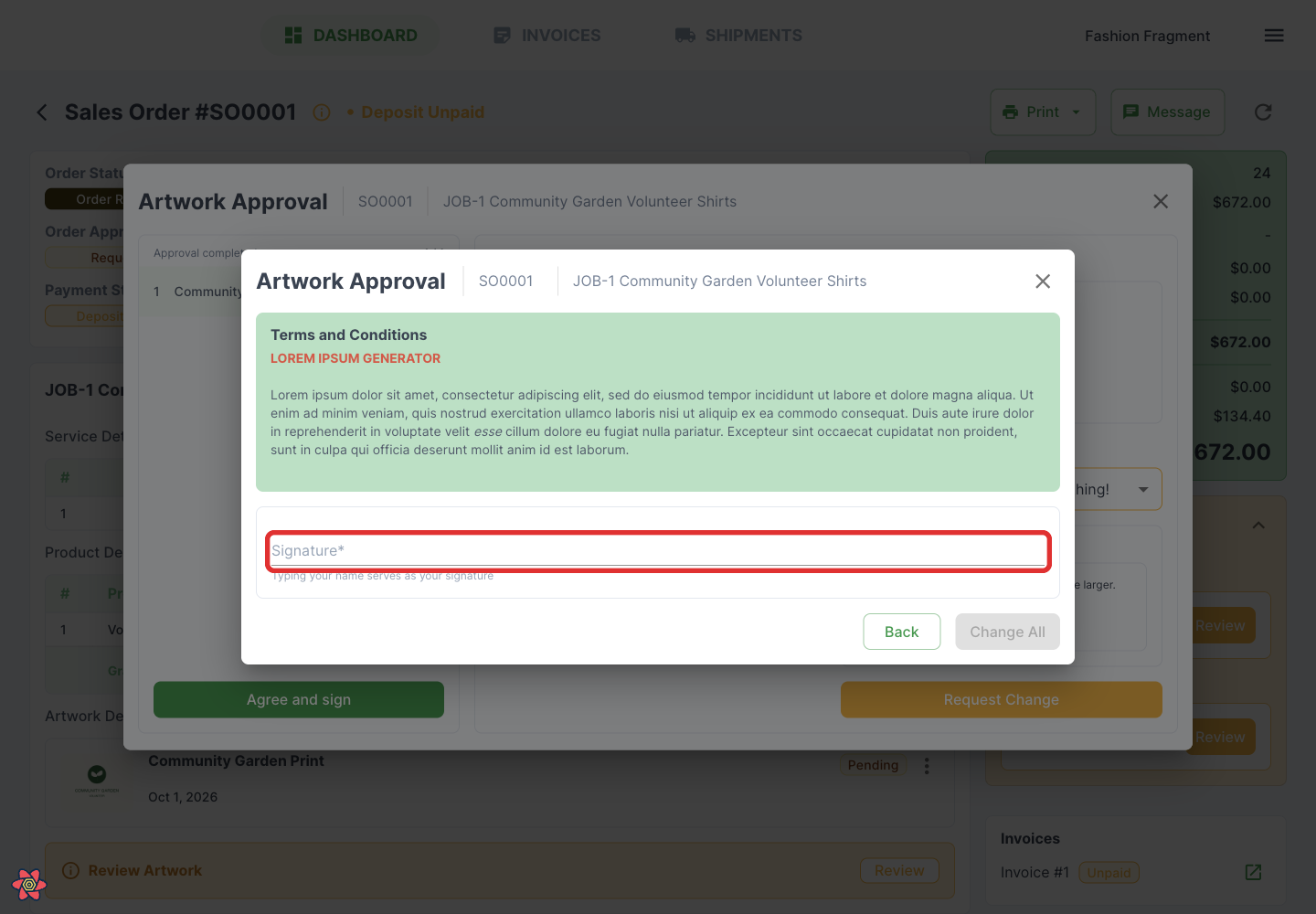
Read the displayed terms and type your name in Signature.
-
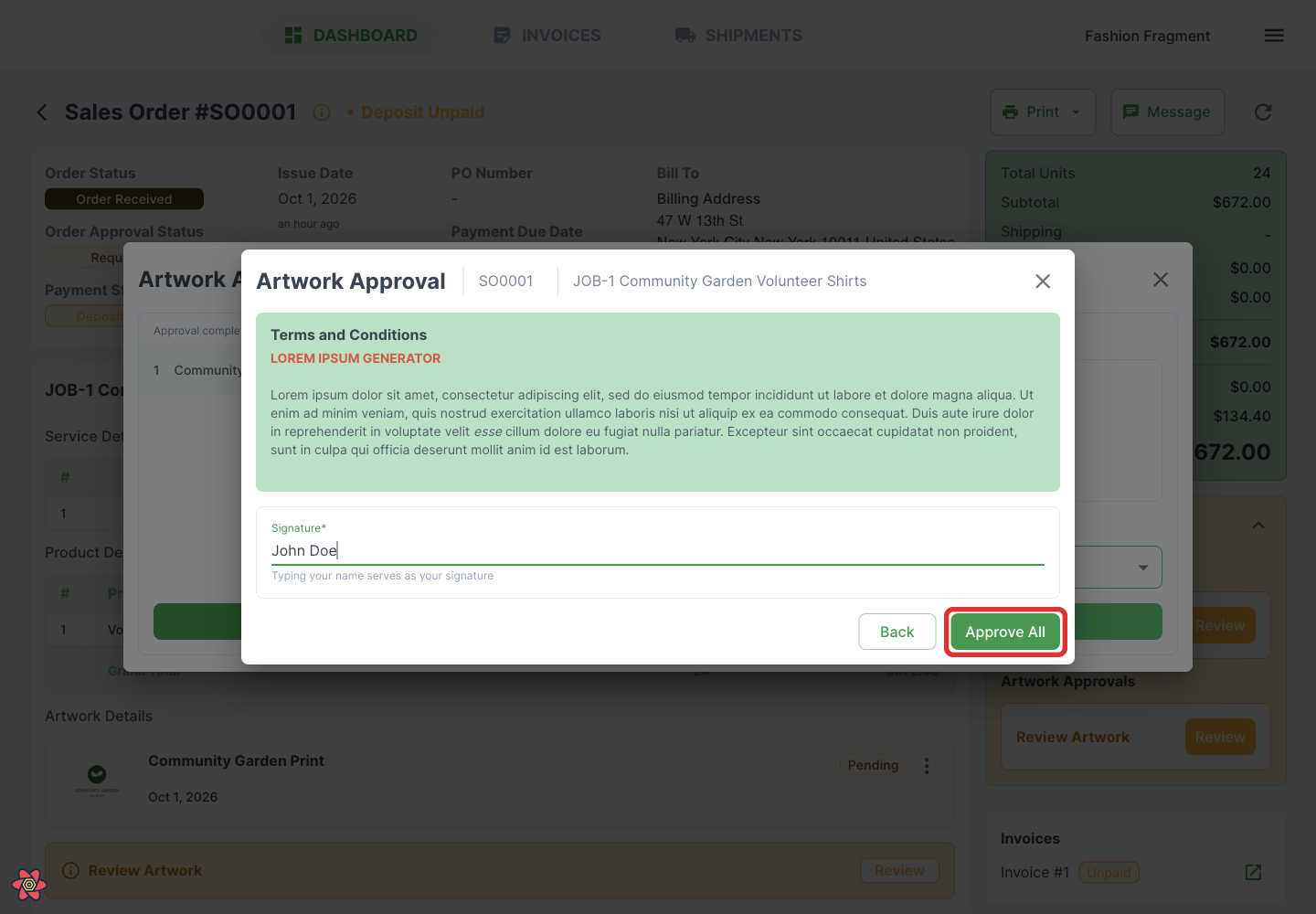
Submit your review with the final button. It says Approve All when every design is approved, Change All when all need changes, or shows the number needing changes for a mixed response.
Leaving before you finish
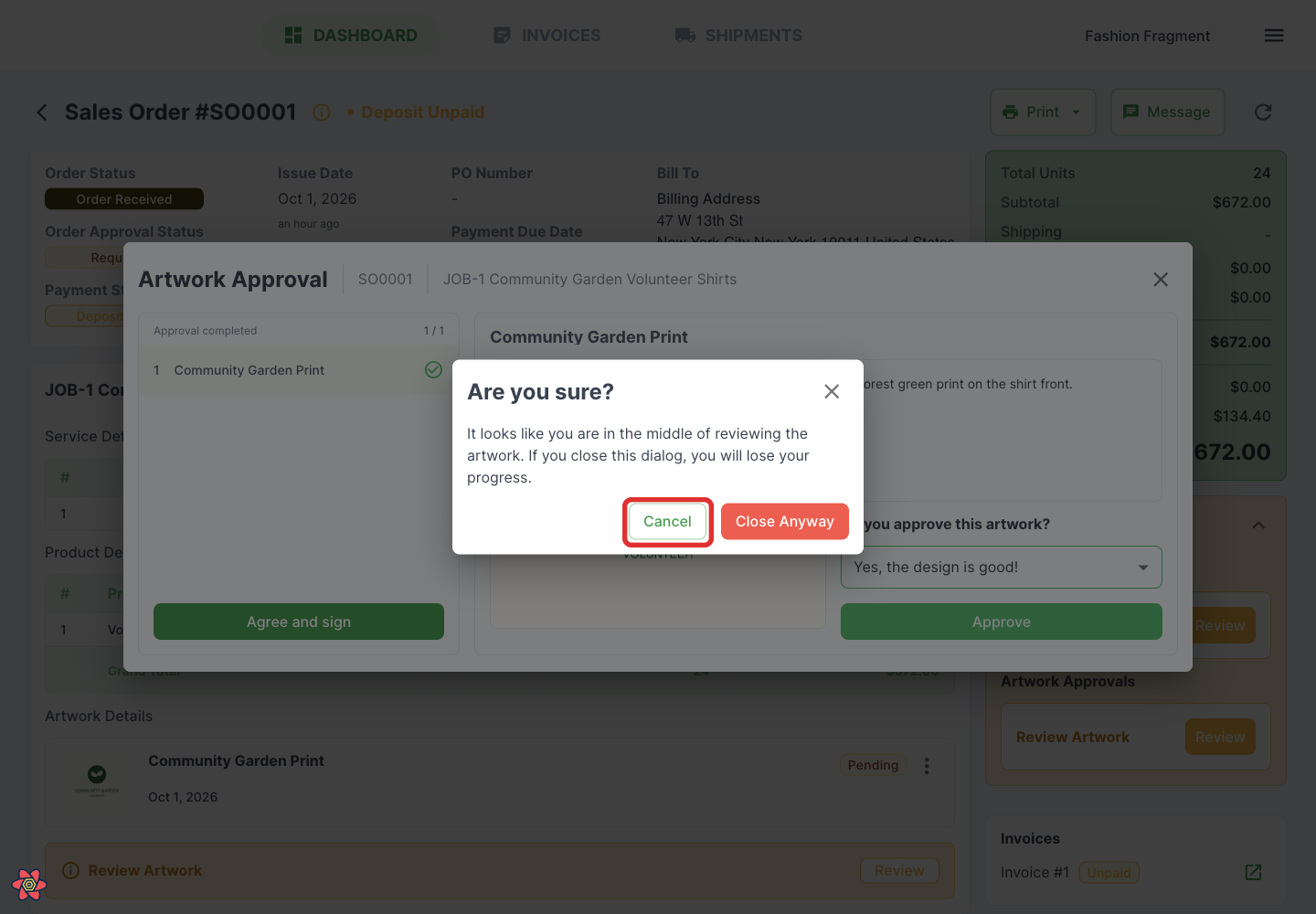
If you close an unfinished artwork review, YoPrint asks for confirmation. Cancel returns to the review. Close Anyway discards that unfinished progress.
Customers: approve a quote or order
Pending quote and order requests also appear in Requires your Attention on the dashboard. On the order page:
-
Click Review beside Review Order.
-
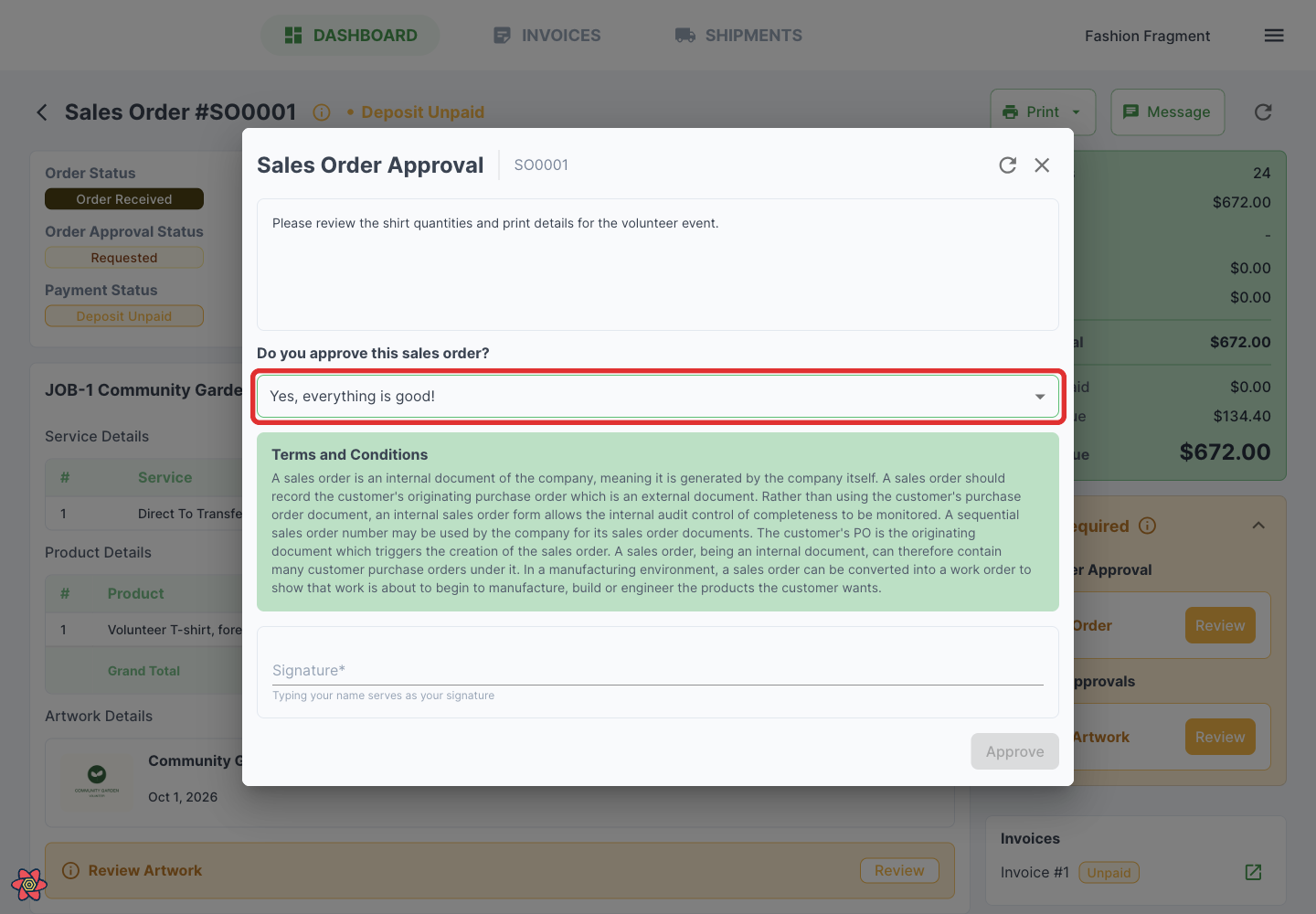
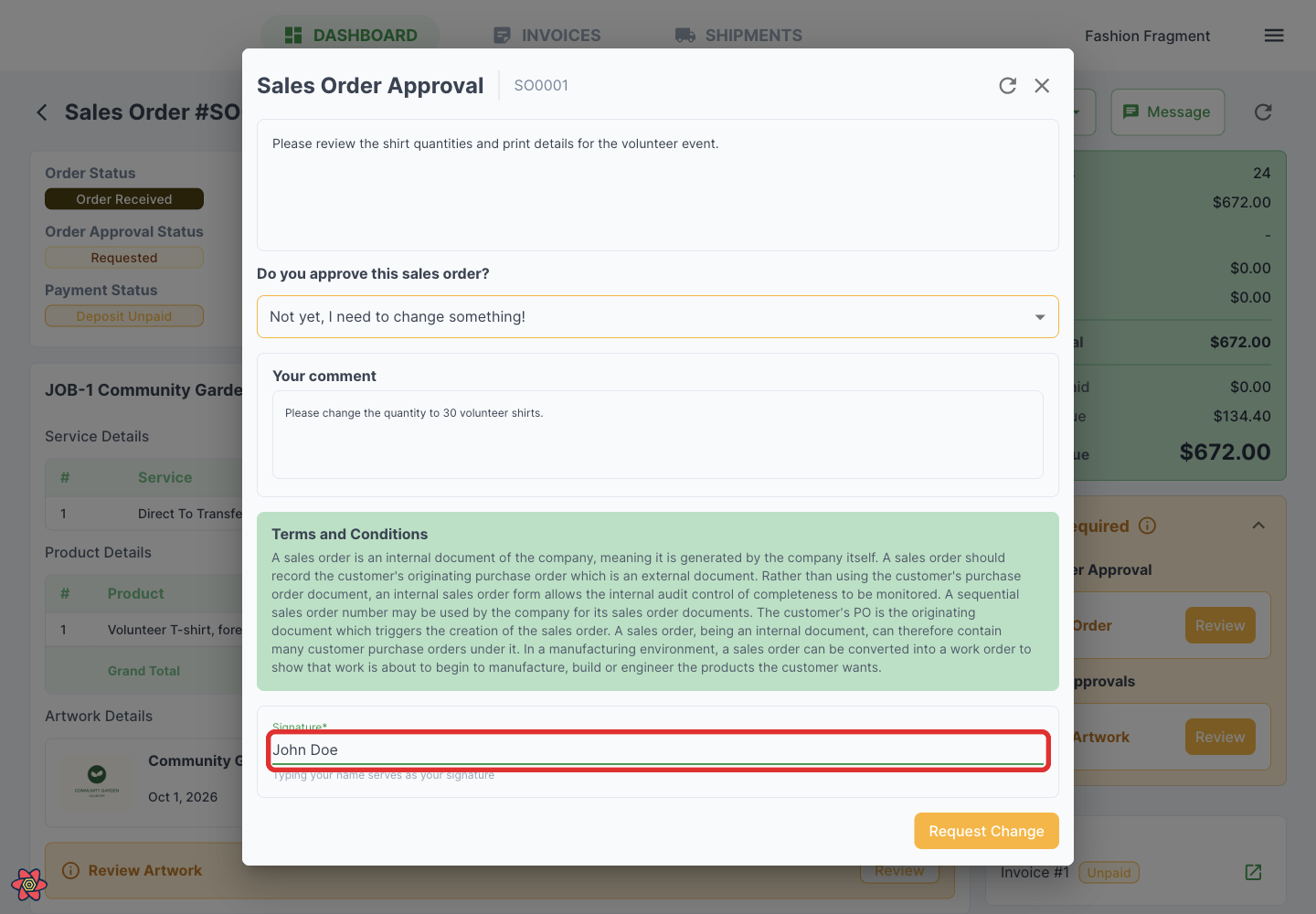
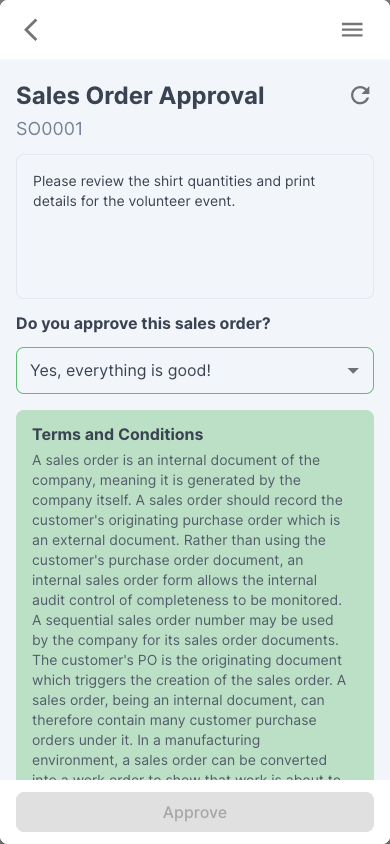
Open the answer beneath Do you approve this sales order?
-
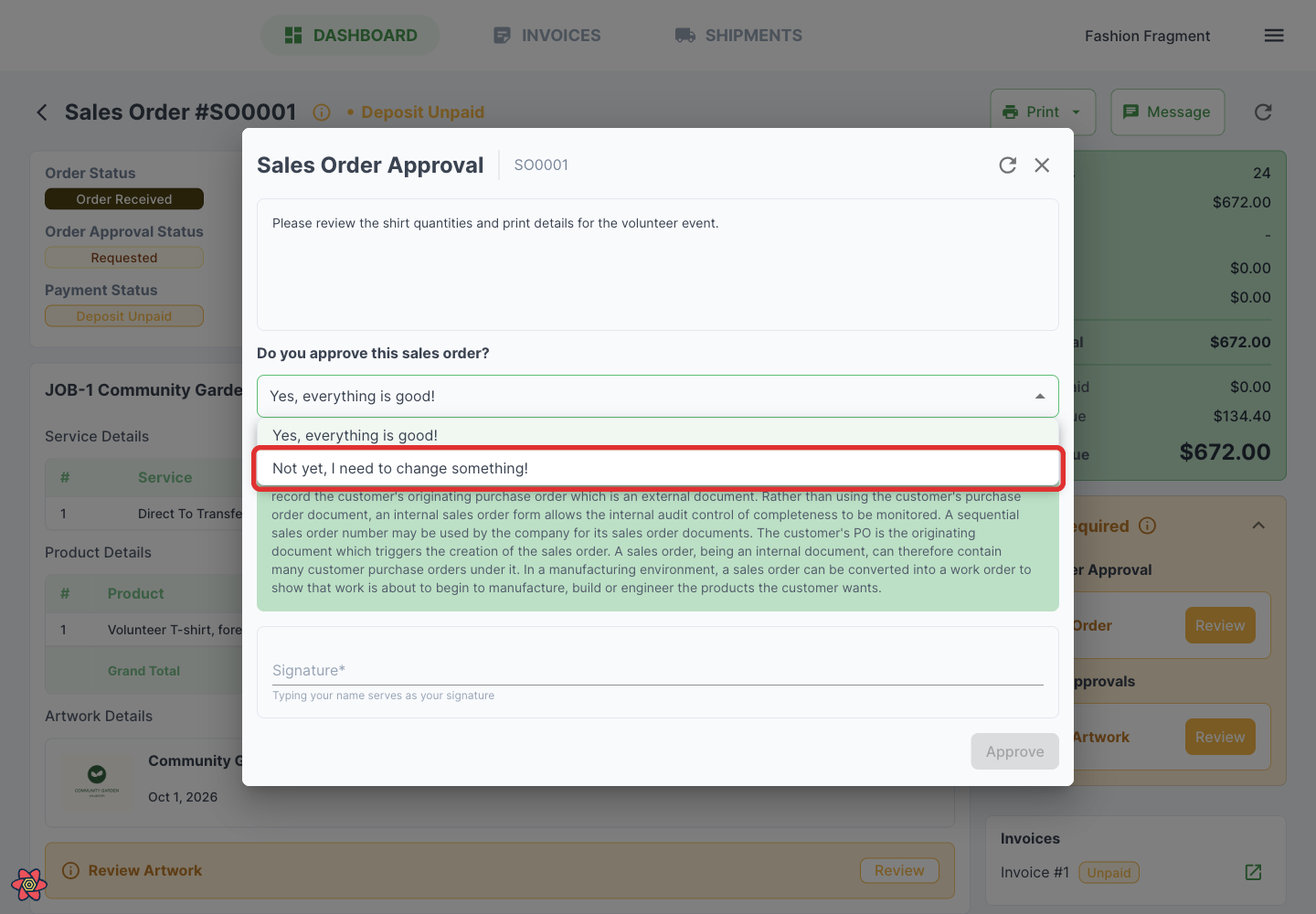
Choose Yes, everything is good! or Not yet, I need to change something!
-
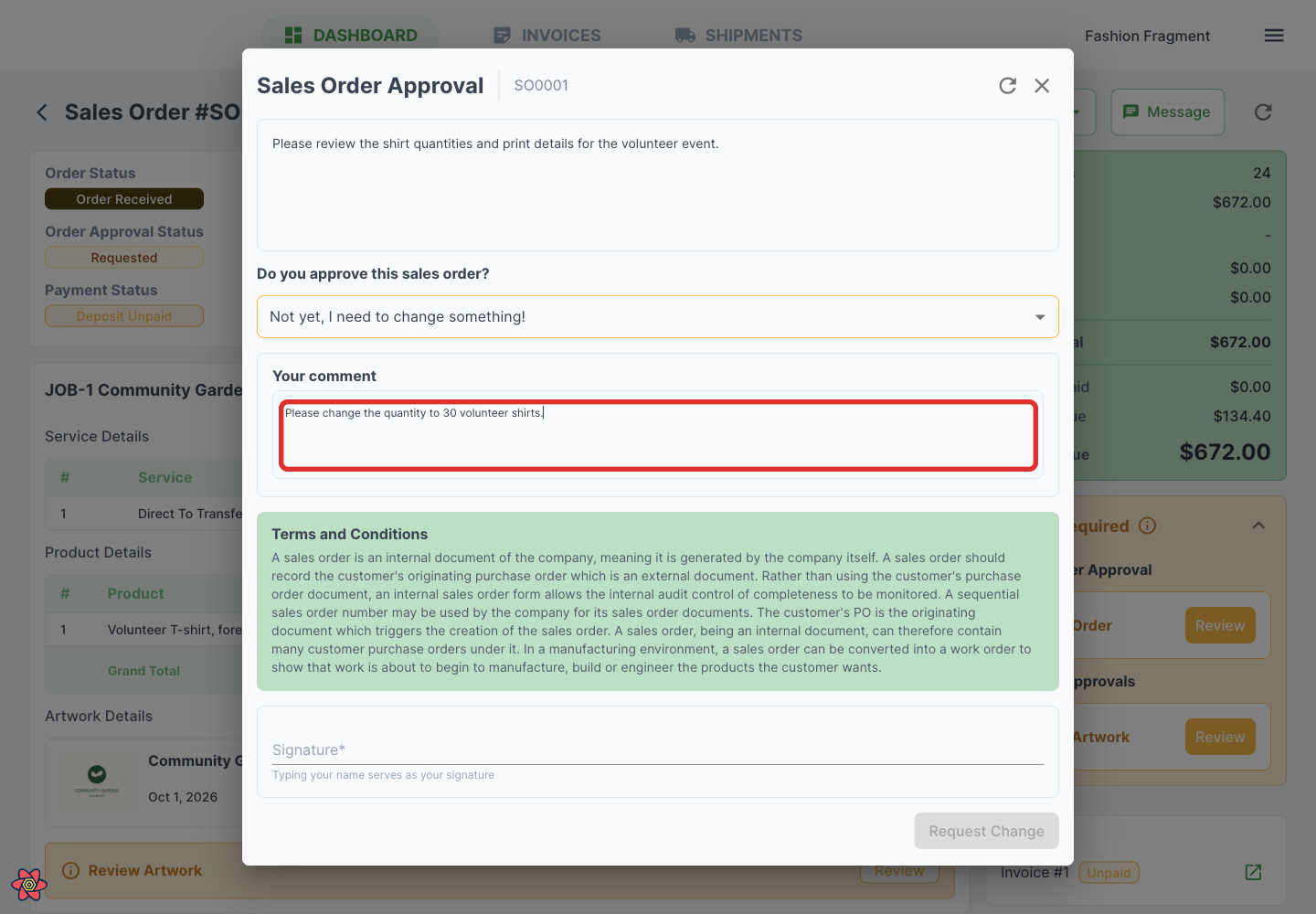
If you need changes, describe them in the comment box (Type here …).
-
Read the terms and type your name in Signature.
-
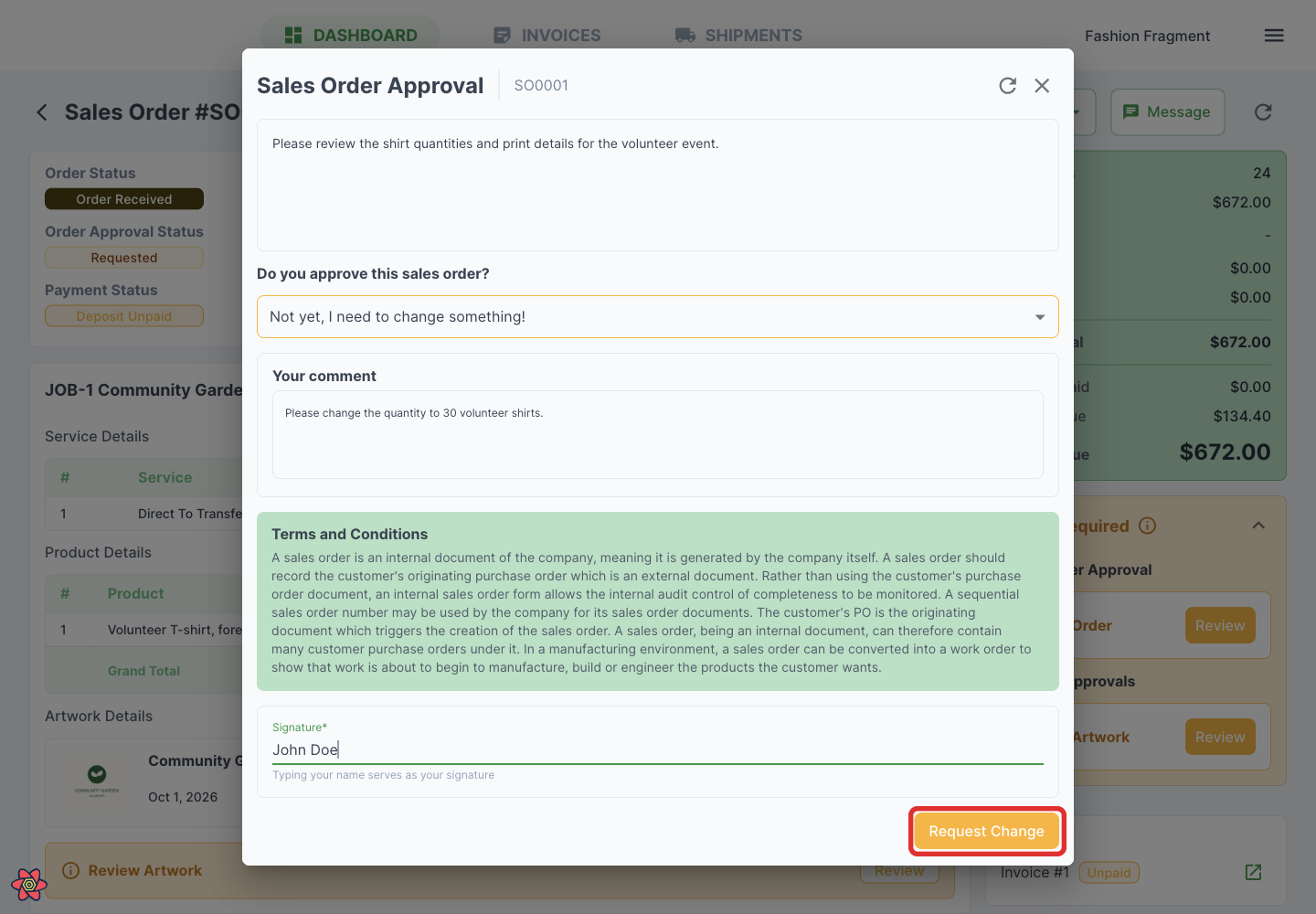
Click Approve or Request Change, depending on your answer, to send the response to the shop.
Customers: view and download invoices
-
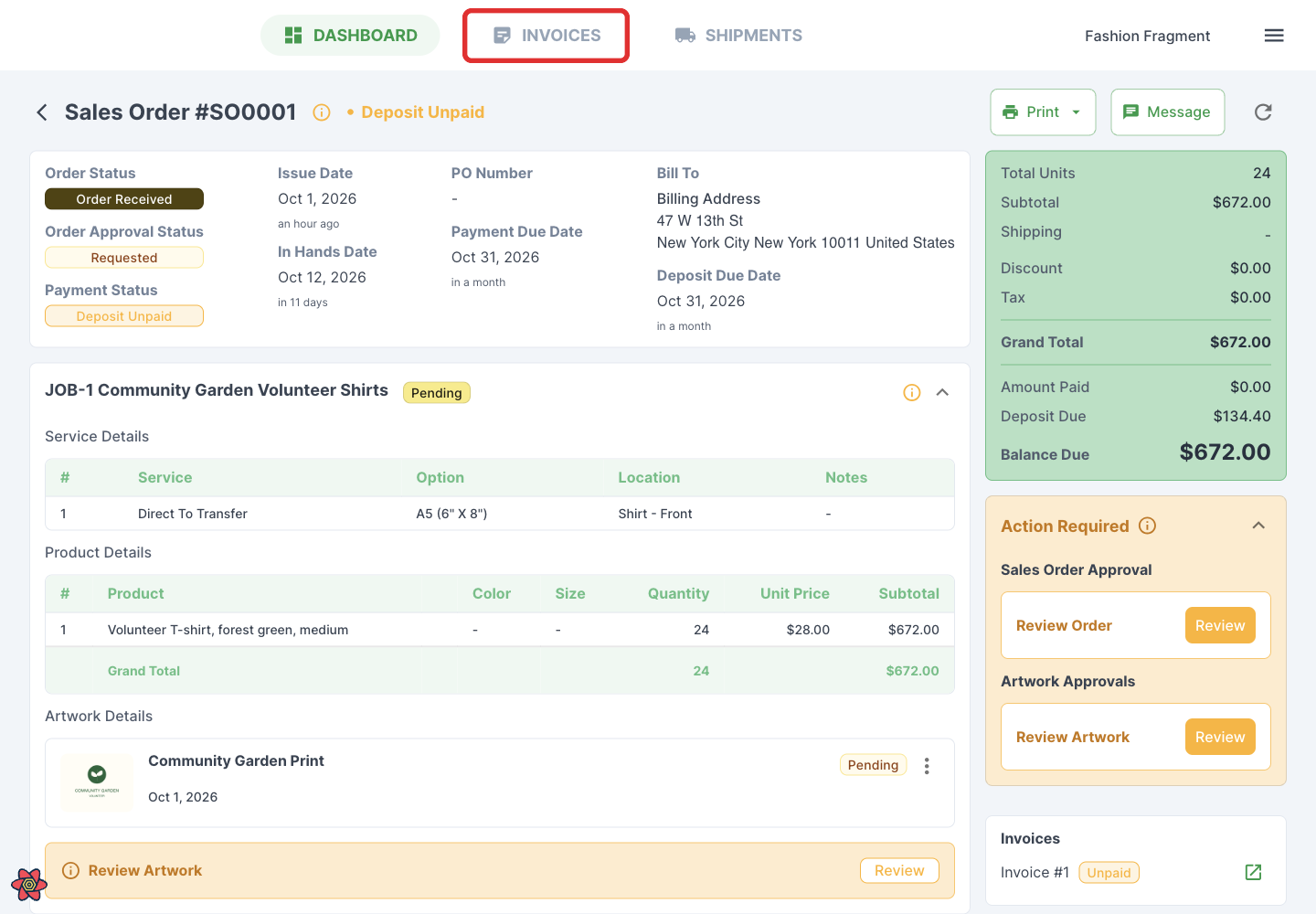
Open Invoices.
-
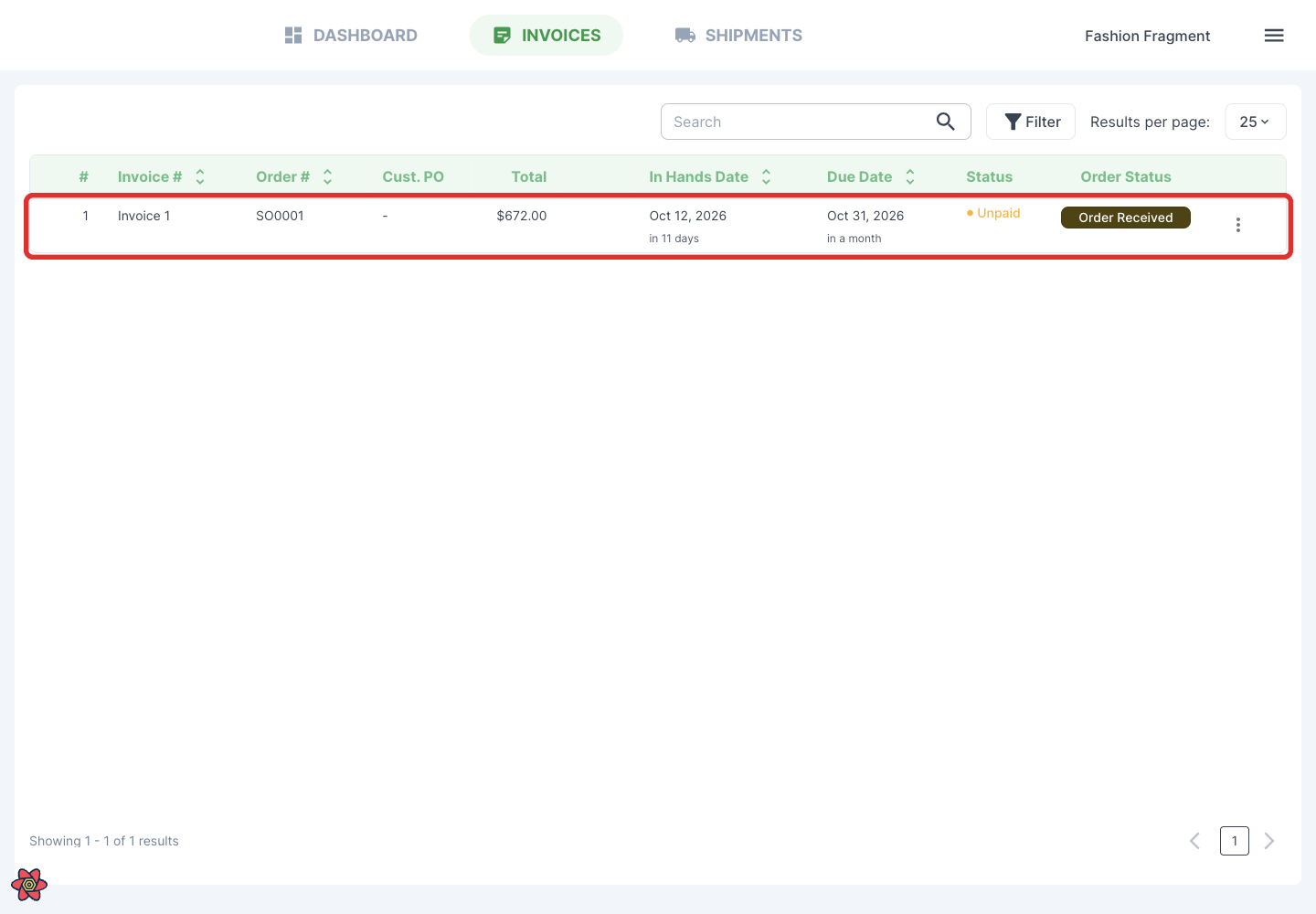
Click an invoice to see its linked sales order, billing and shipping addresses, products, jobs, payment totals and balance.
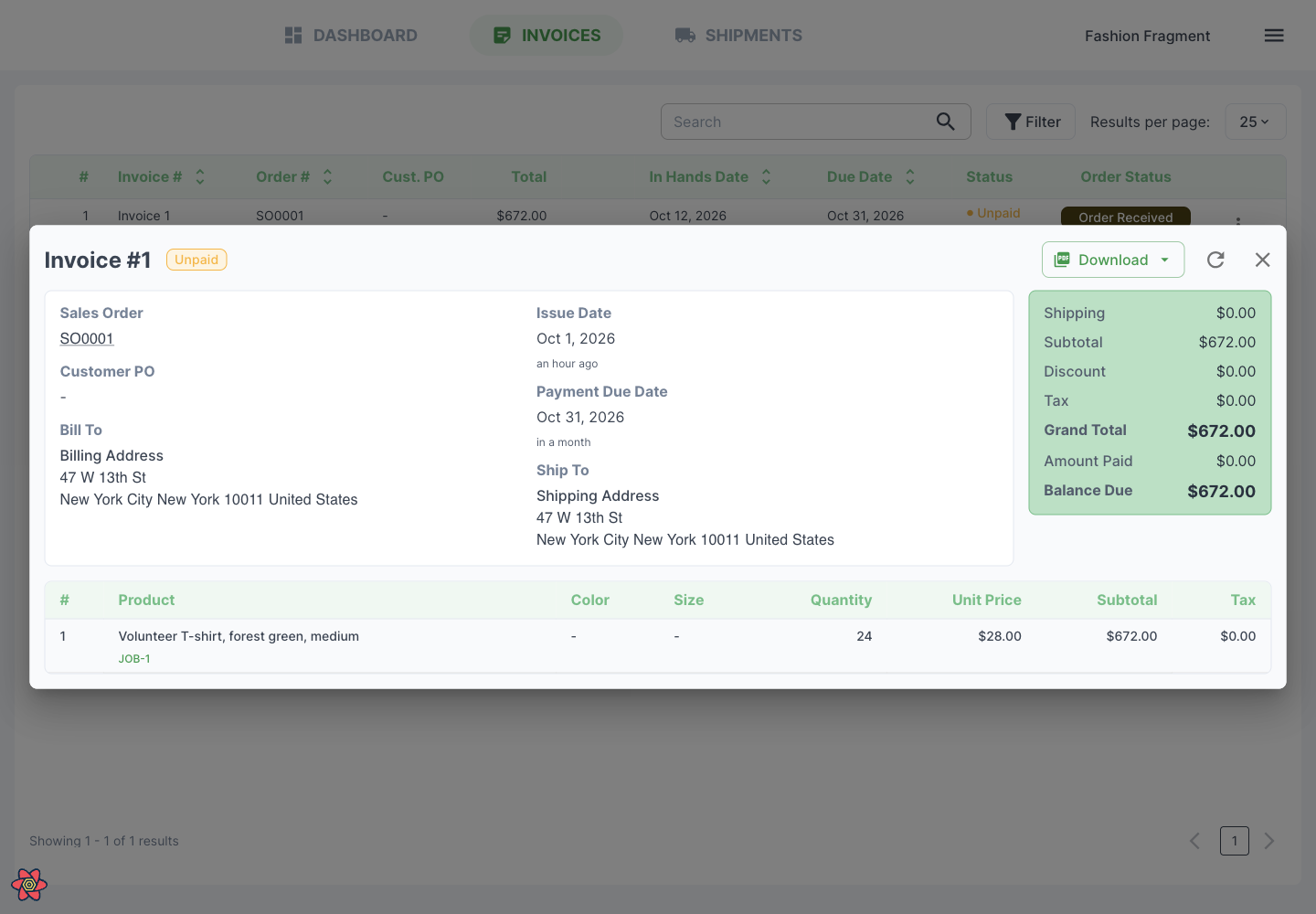
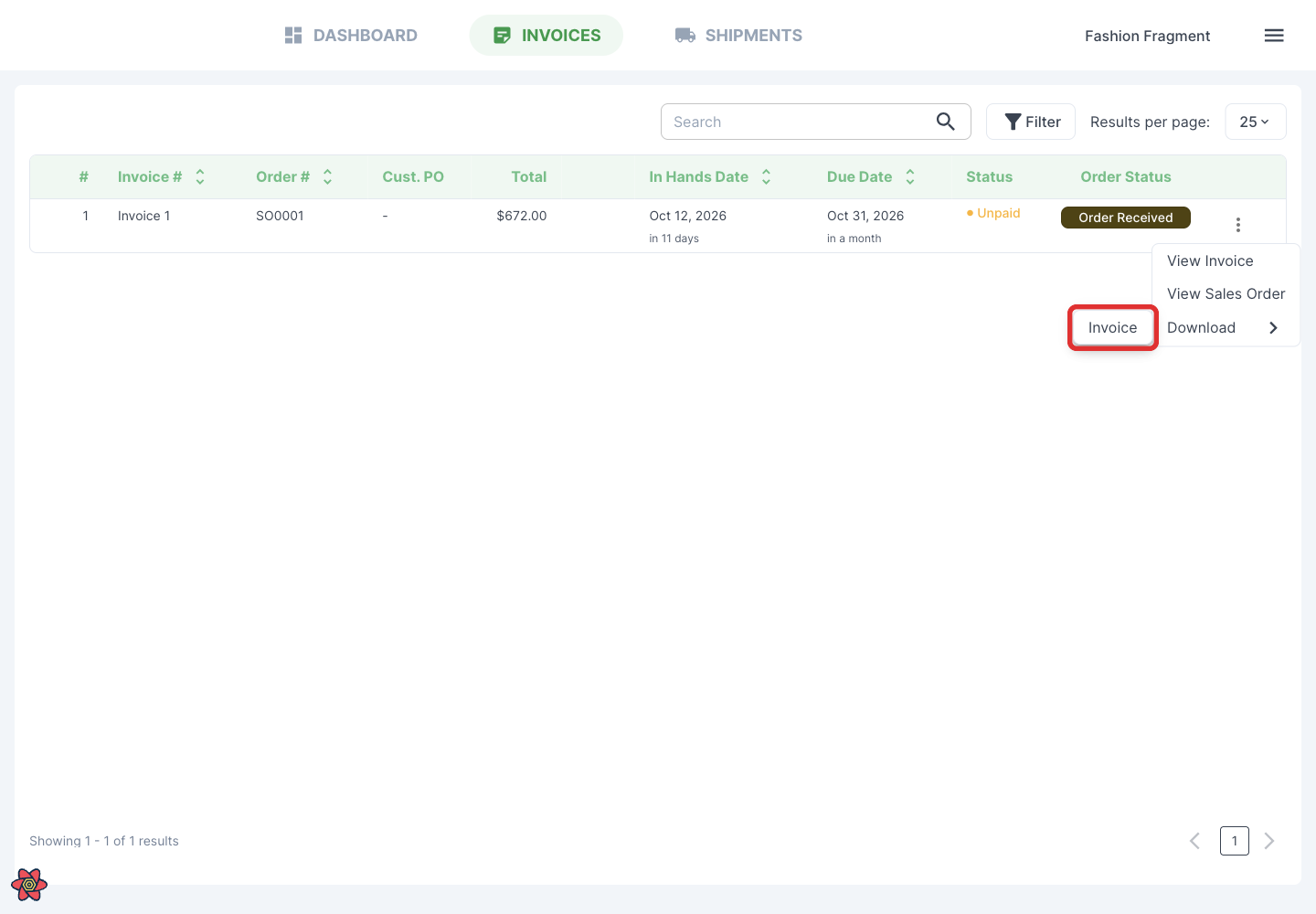
The invoice's Download menu offers the available document formats. Choose Invoice to open the PDF in a new browser tab to save or print. To download from the list:
-
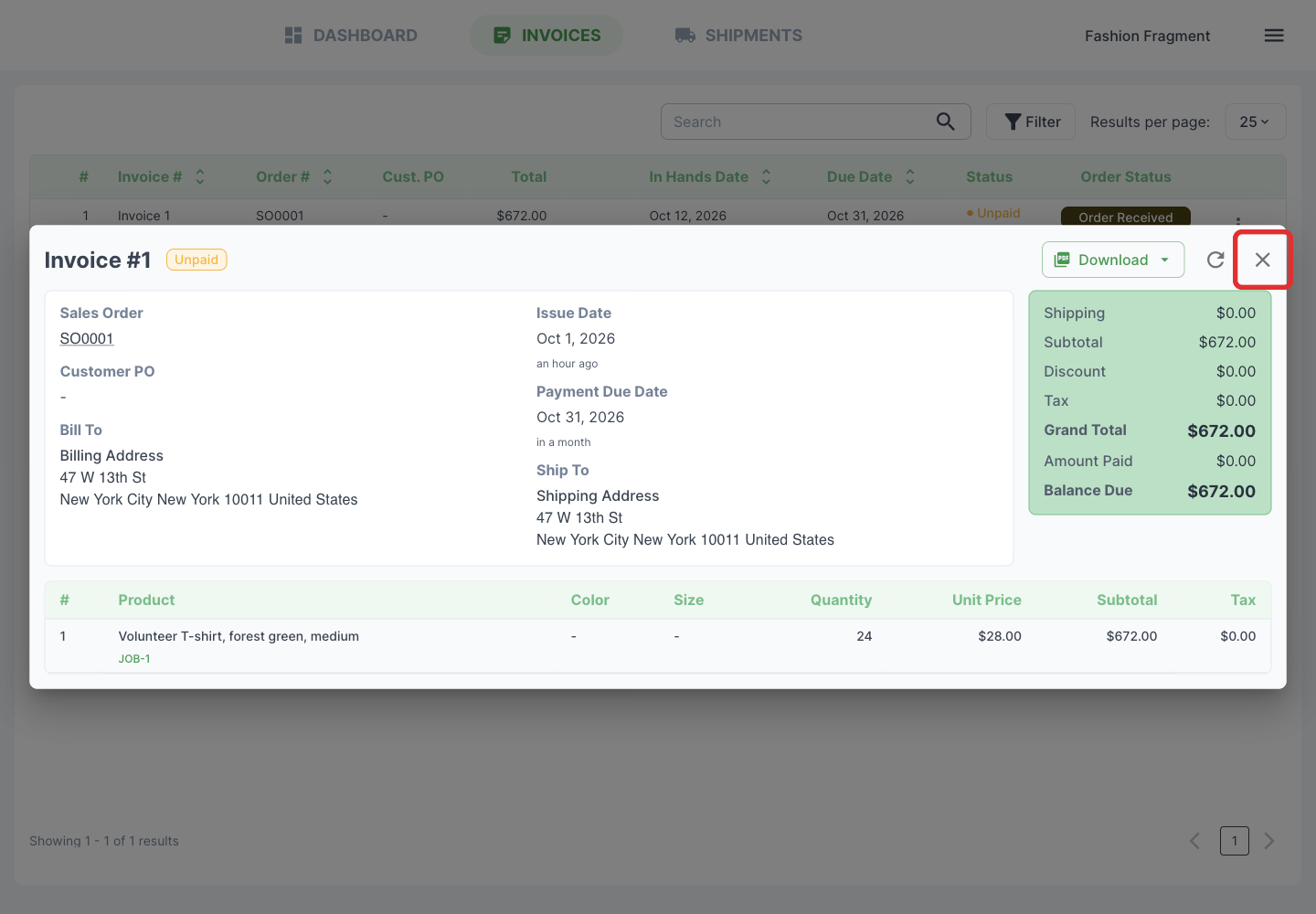
Close the invoice details with ×.
-
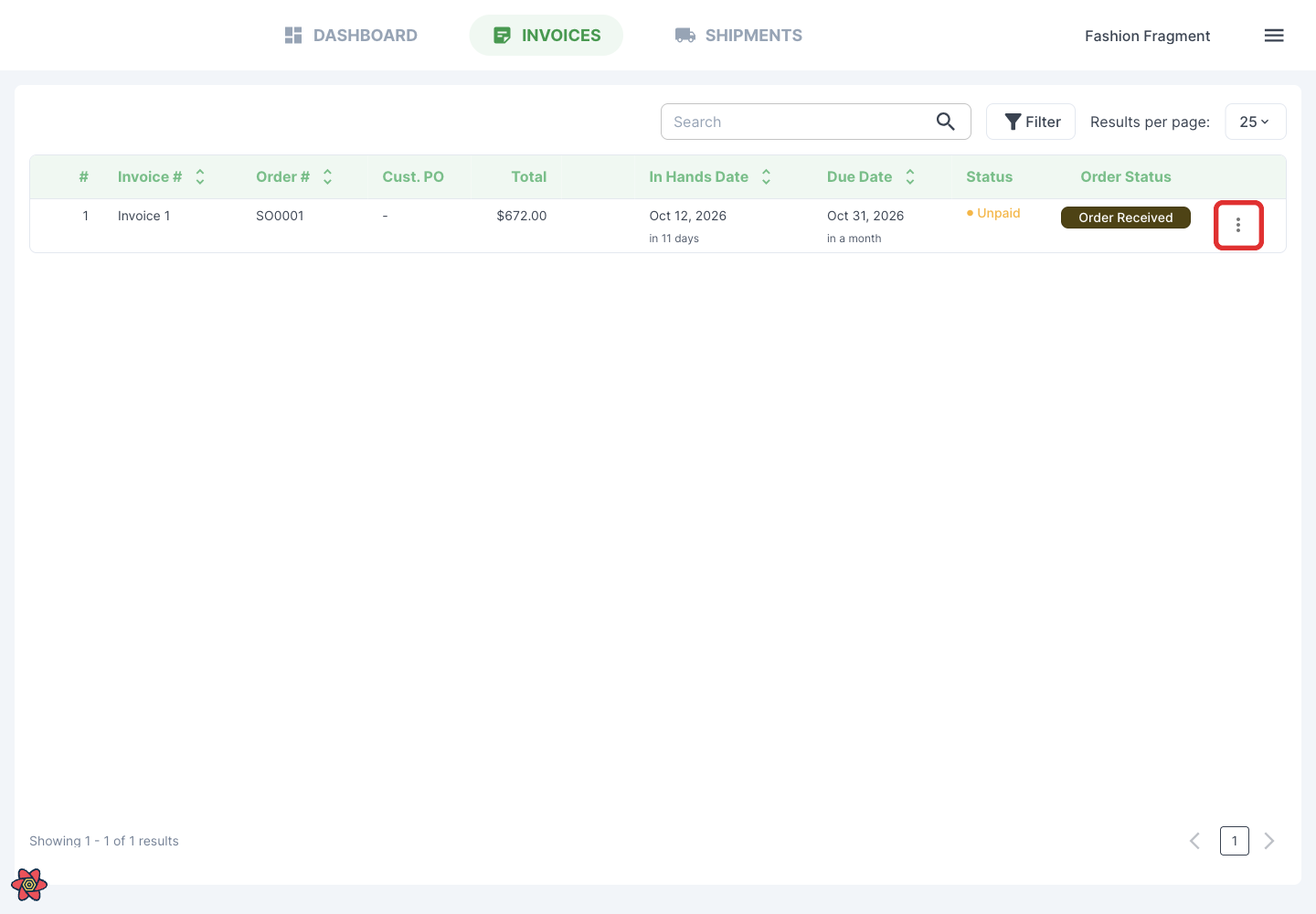
Open ⋮ on the invoice row.
-
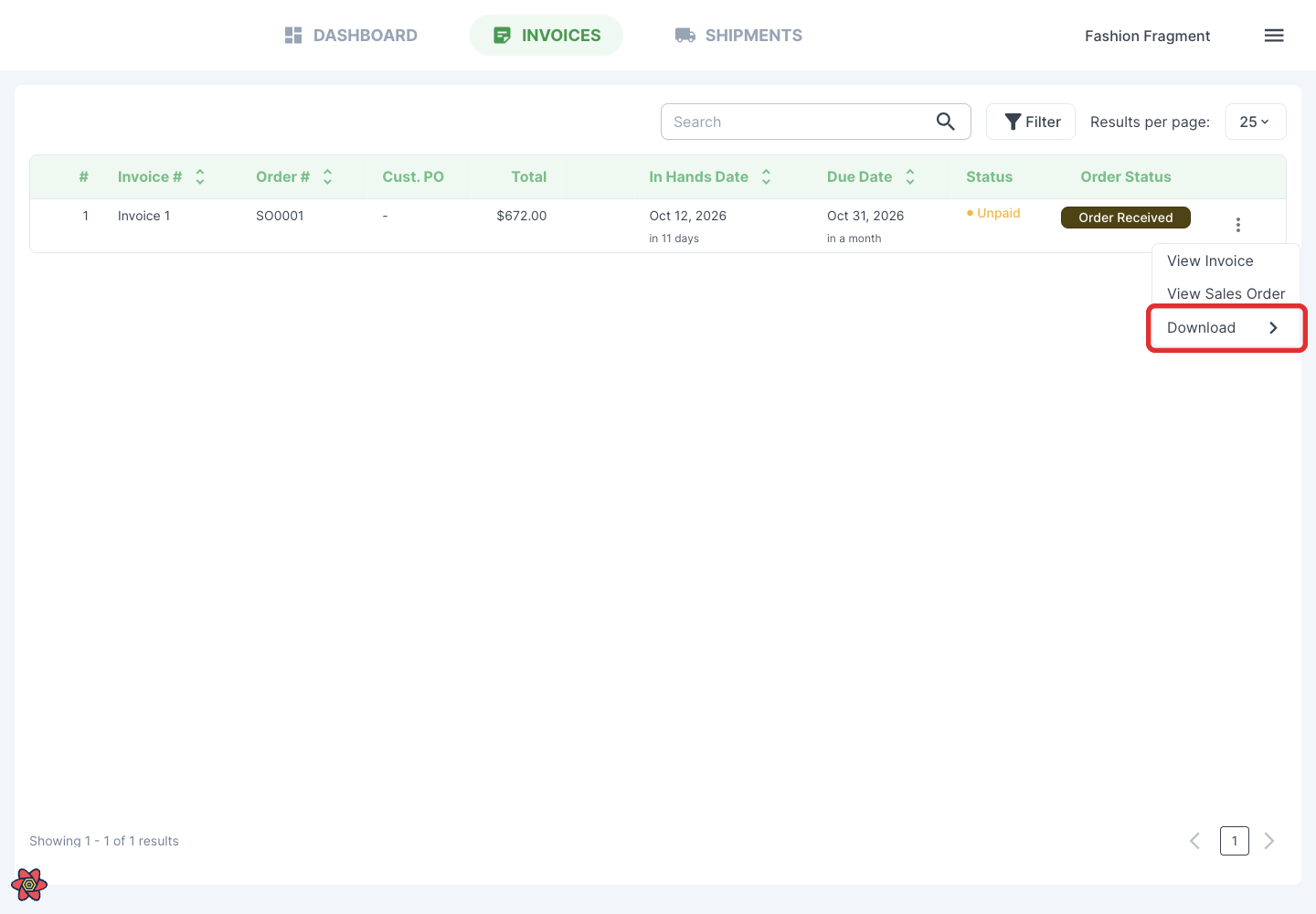
Choose Download.
-
Choose Invoice to open its document.
Customers: check shipments
-
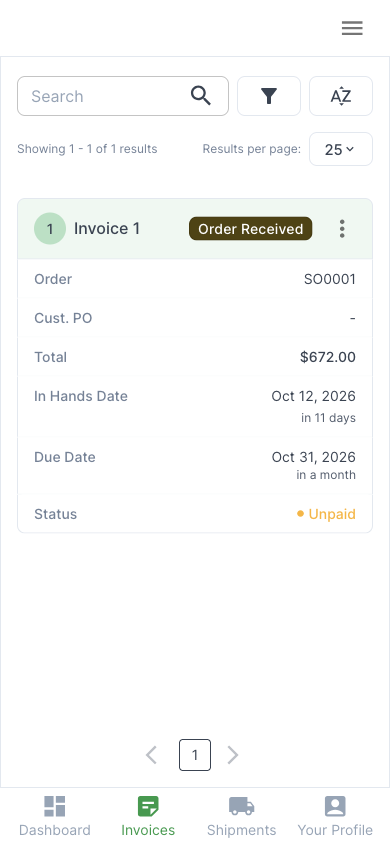
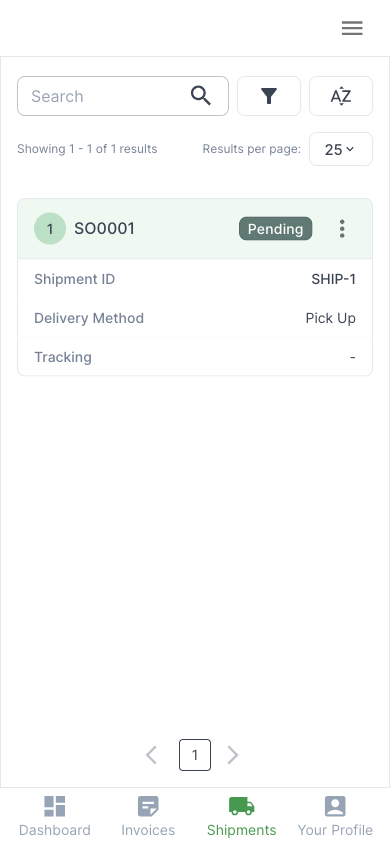
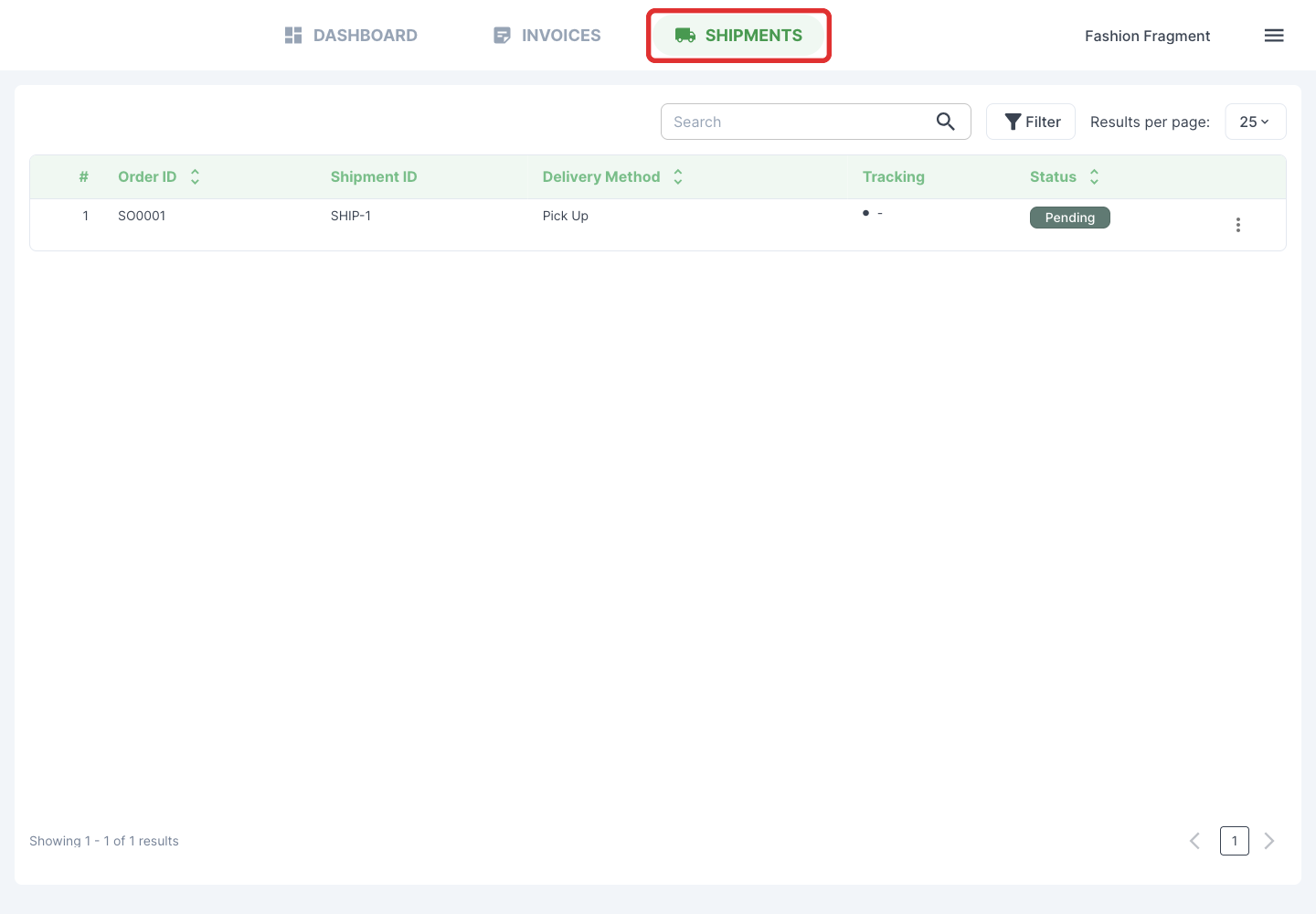
Open Shipments. The list shows shipment IDs, delivery methods, tracking numbers when available, and status.
-
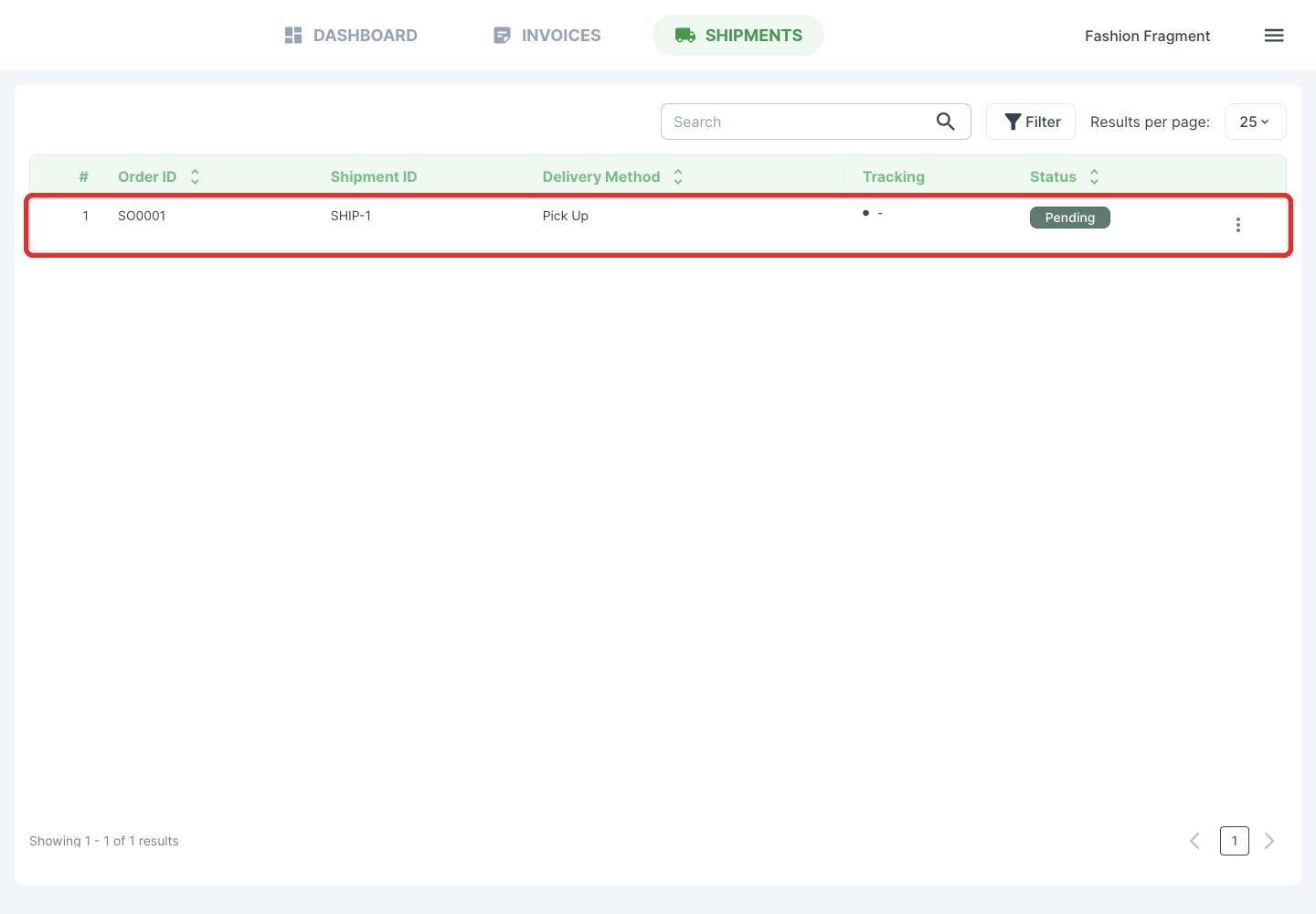
Click a shipment to see its products, quantities, delivery address and package tracking.
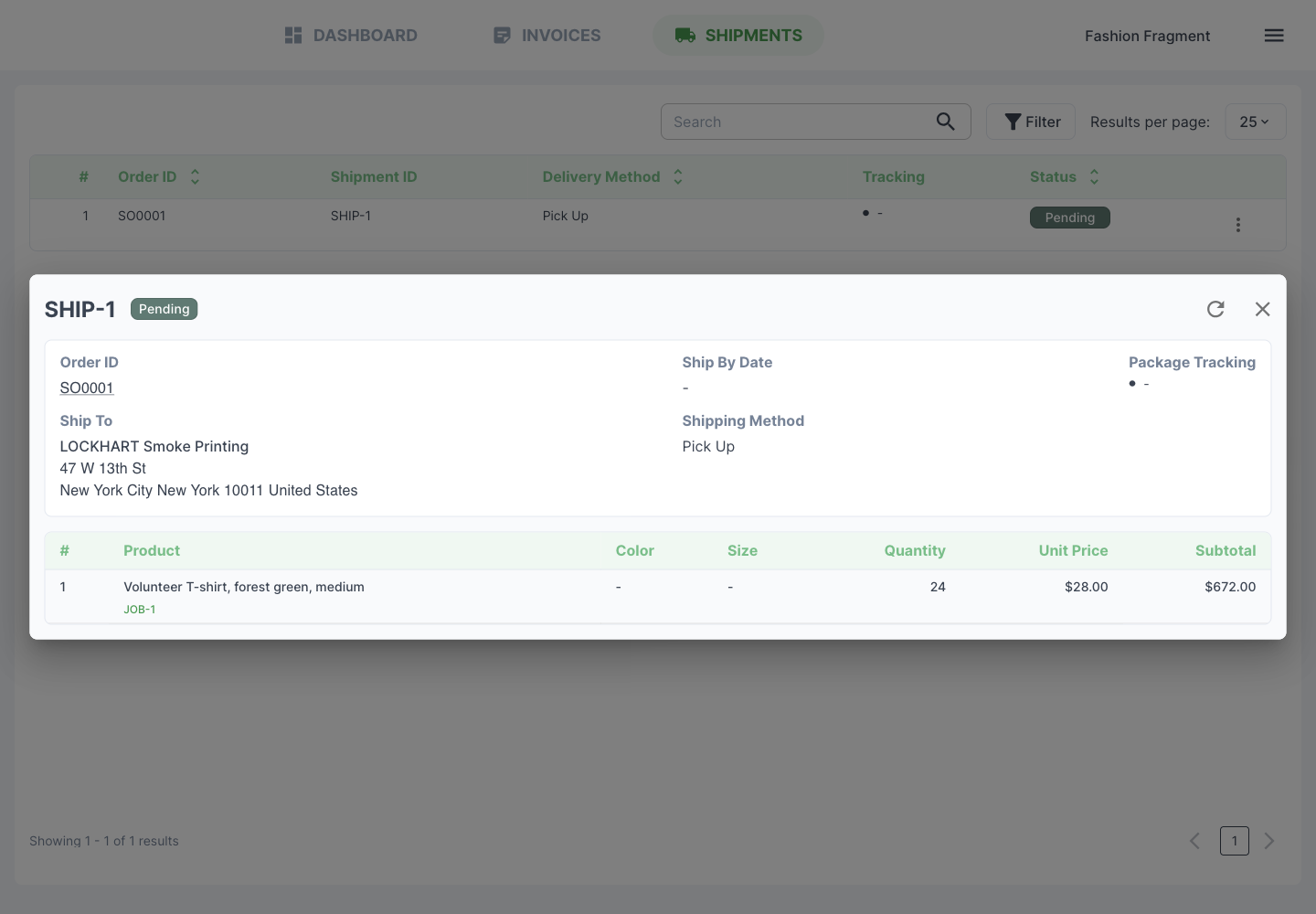
For a tracked shipment, a tracking number opens the package's tracking details. Supported UPS and FedEx shipments can show carrier tracking updates. For other carriers, customers can use the displayed tracking number to track on the carrier's website. A pickup, like this example, does not have a tracking number. To return to the order, close the shipment details and click Dashboard; clicking the order ID link inside the shipment details opens a new tab that requires a login.
Customers: use the portal on a phone
Customers open the shared link directly in their mobile browser without installing an app. On a phone, order information stacks vertically and Print and Message sit at the bottom of the order page.
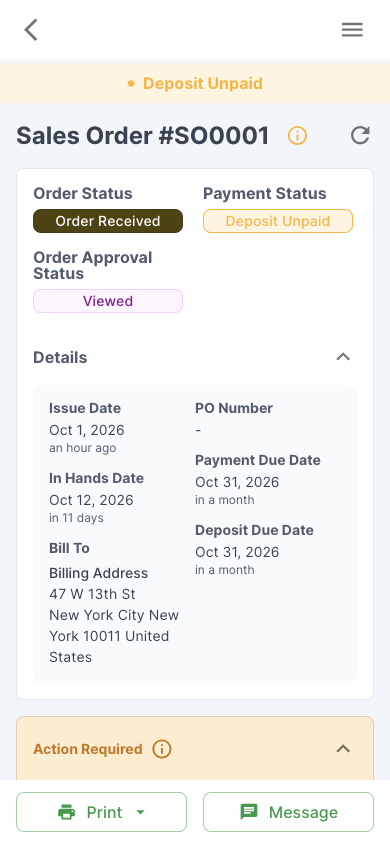
Approvals use the same choices and signature, arranged for the smaller screen. Scroll through the review to see the remaining fields.
Invoices and Shipments are in the bottom navigation. Their lists use cards instead of desktop rows.