Add and Manage Customer Records
In this article
Keep a customer record for each business or individual your shop works with. The record brings their contacts, orders, addresses, and account details together. Once you create a customer, you can add extra contacts under Manage Customer Contacts in YoPrint.
Add a customer
-
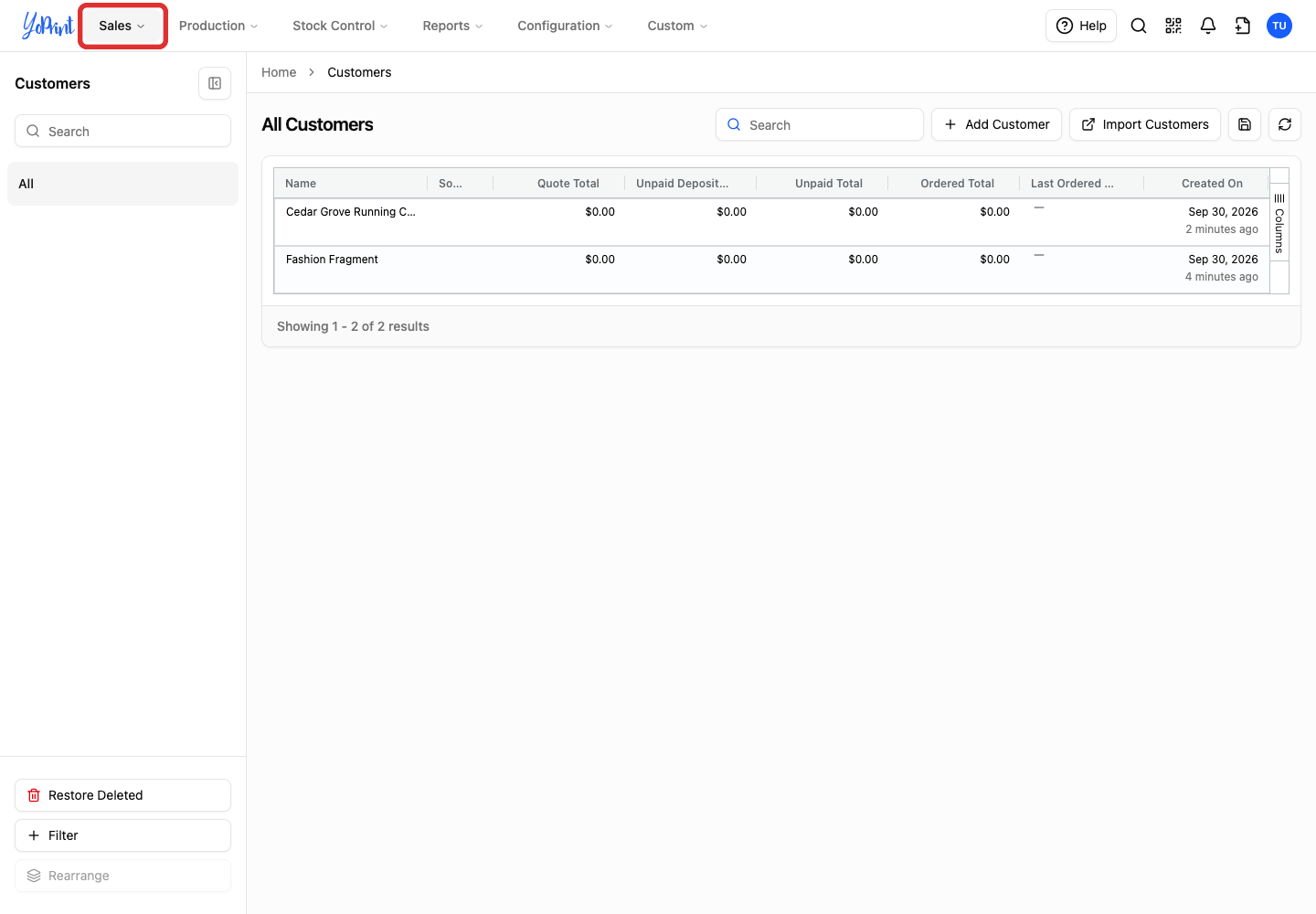
Open the Sales menu.
-
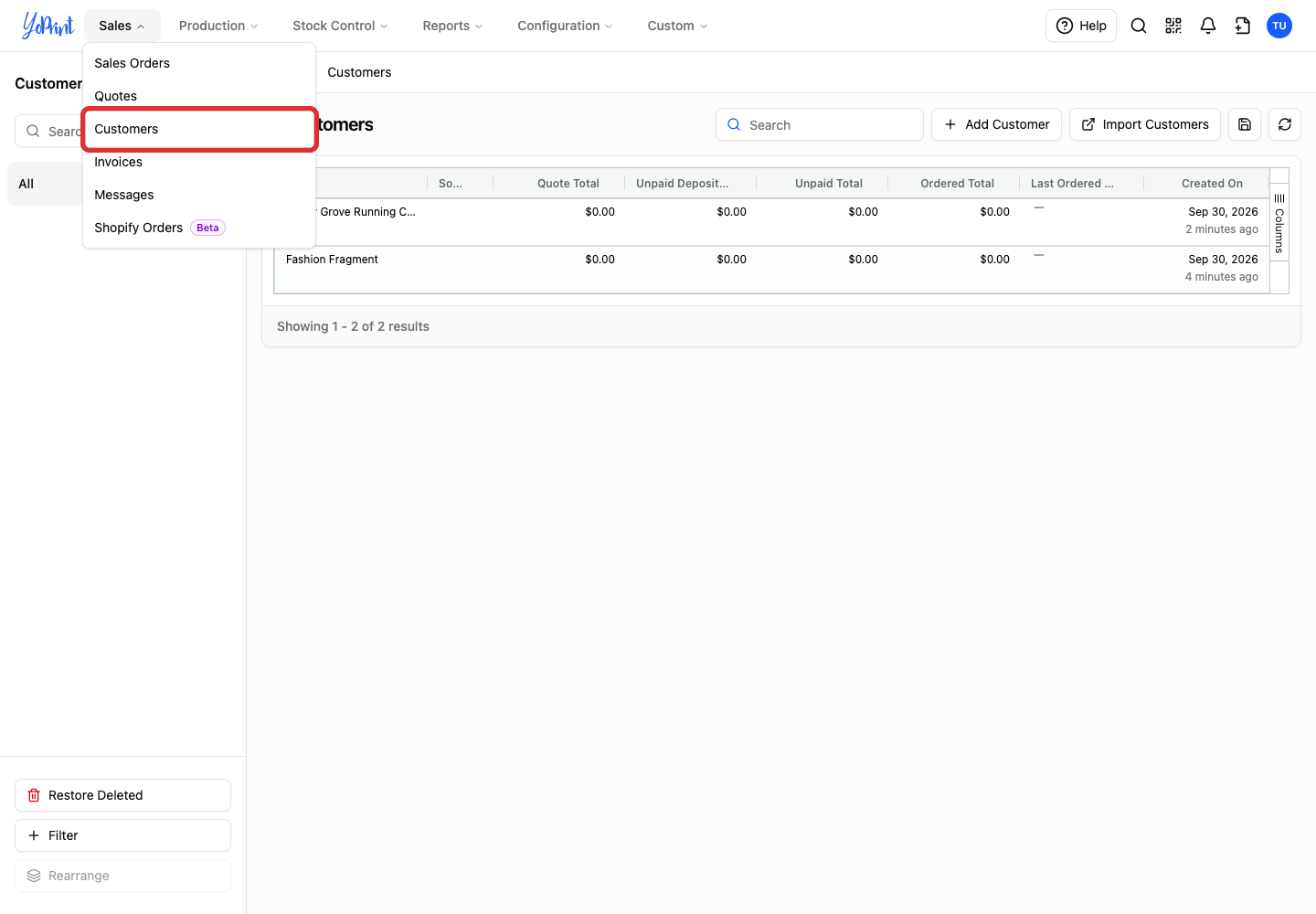
Choose Customers.
-
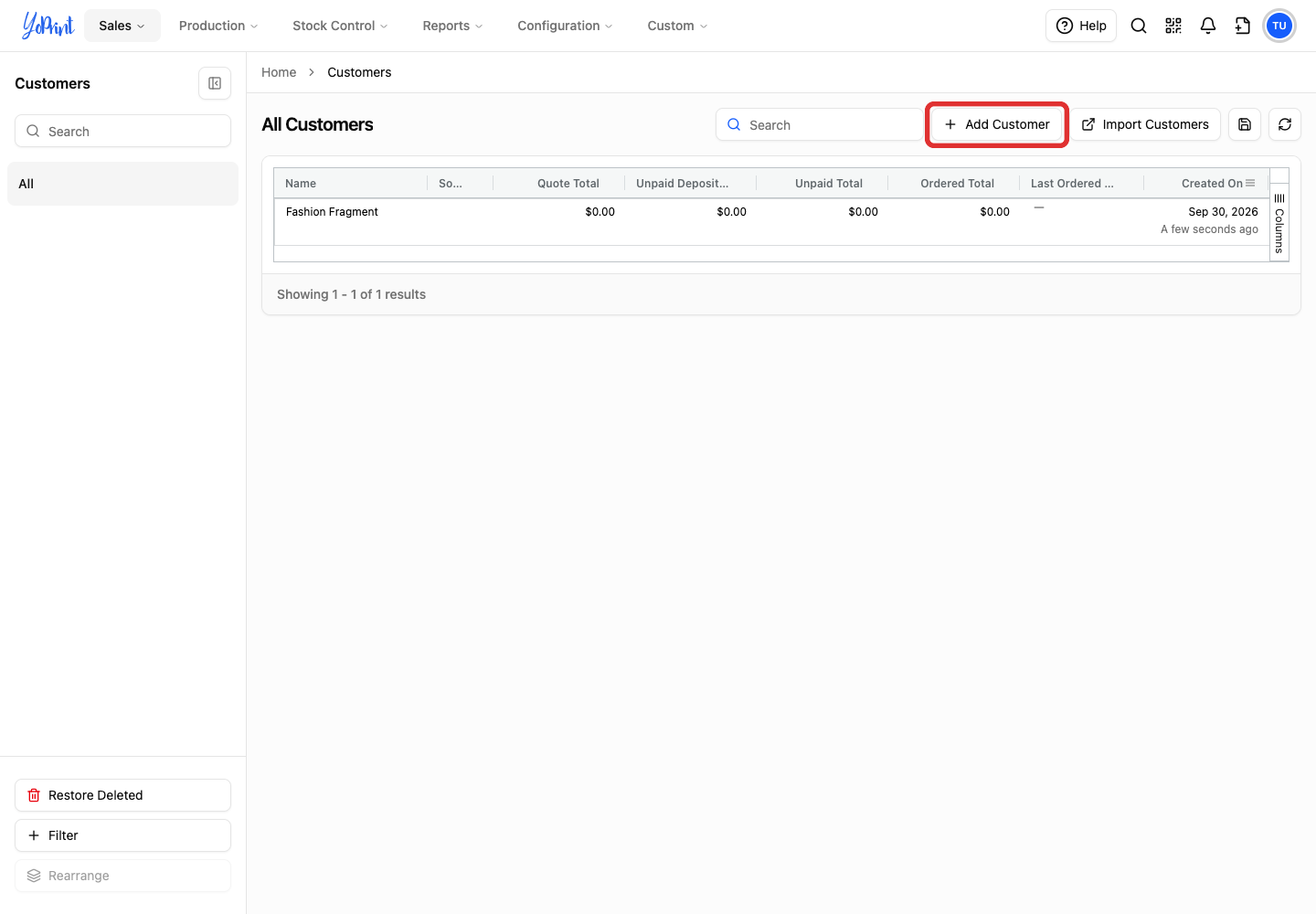
Click Add Customer.
-
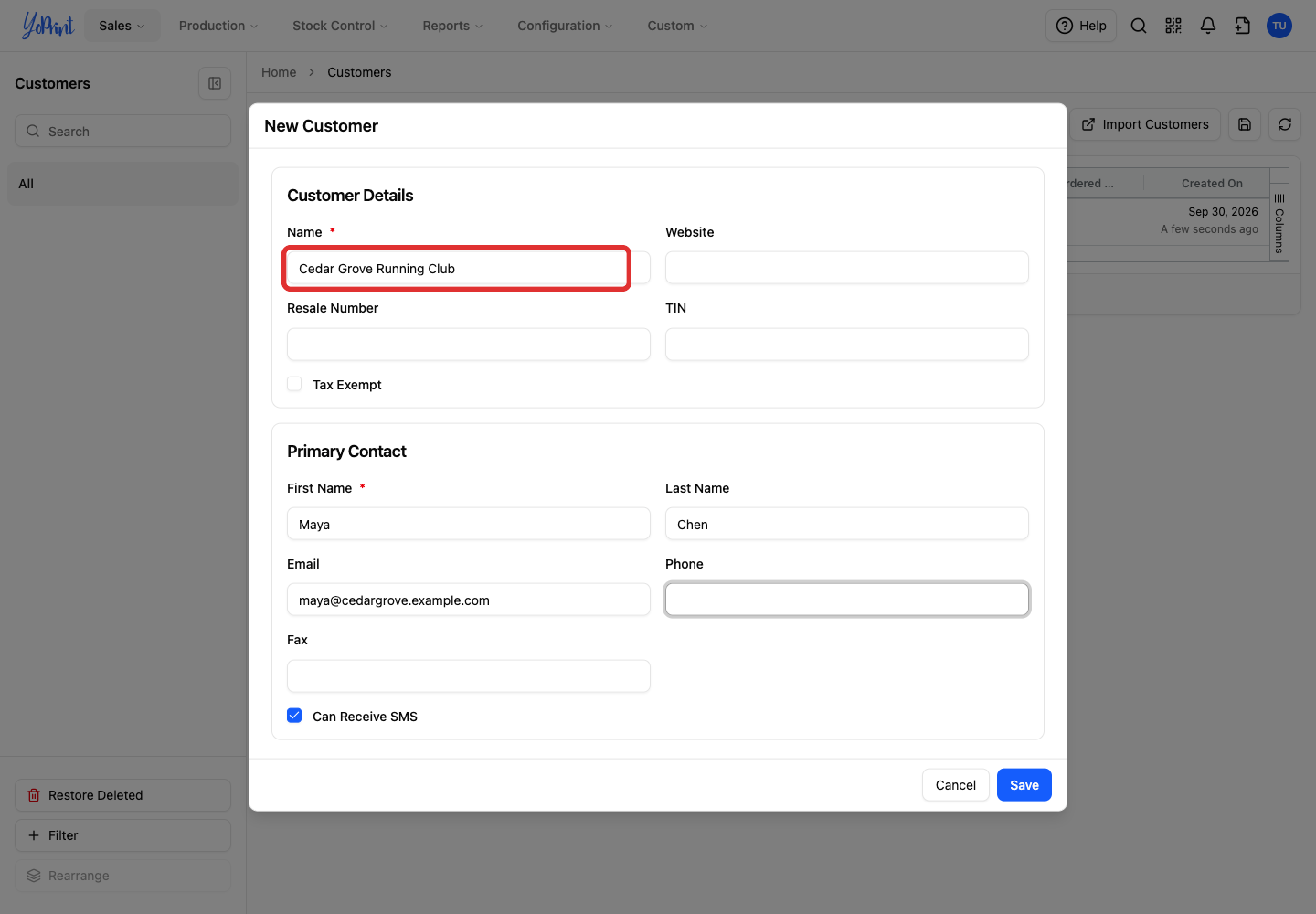
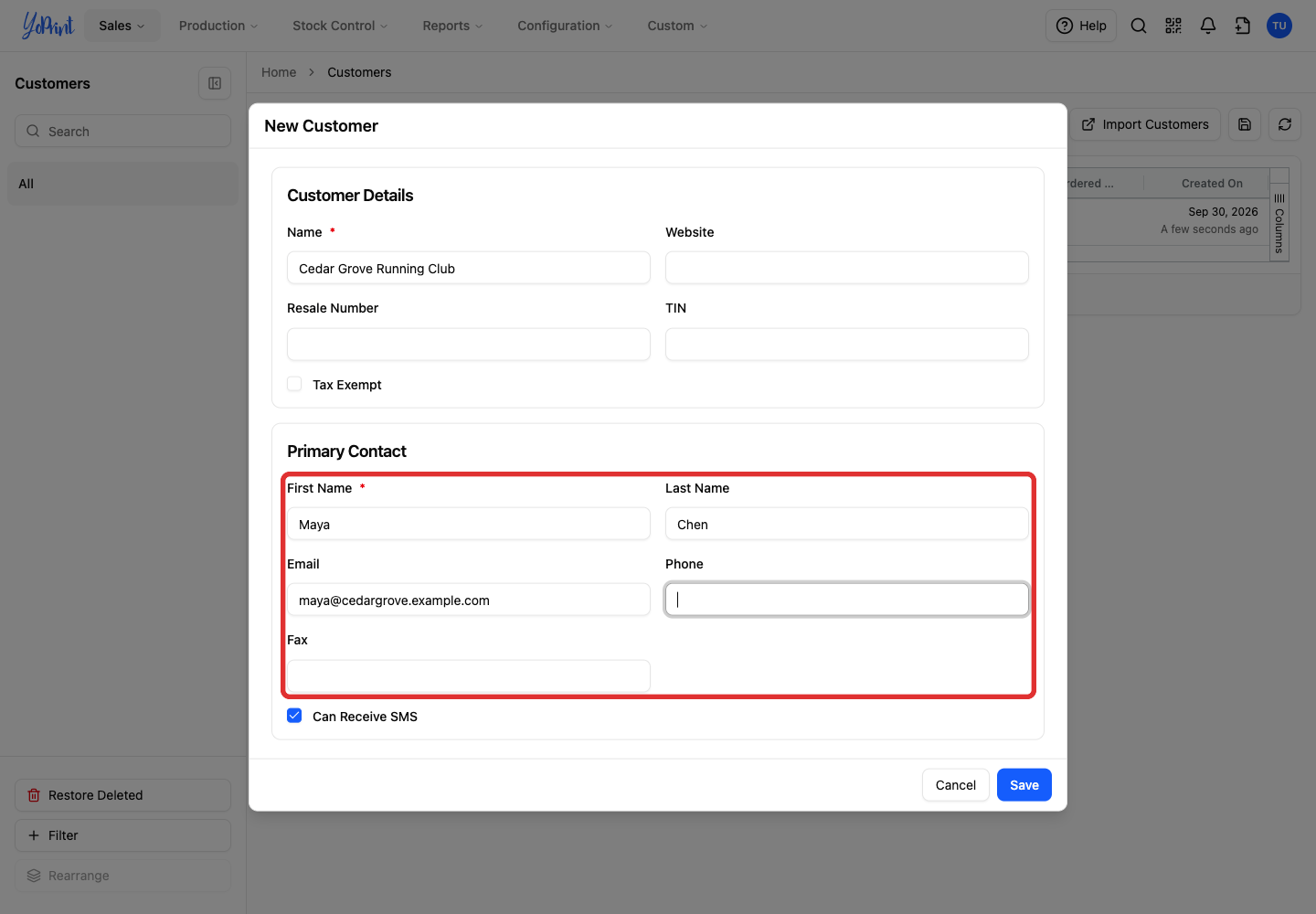
Enter the customer’s Name.
Website, Resale Number, and TIN (Taxpayer Identification Number) are optional. Checking Tax Exempt waives sales tax on future quotes and orders for this customer.
-
If you know the main person you deal with, enter their details under Primary Contact.
A contact requires a first name and either an email address or a full 10-digit phone number. Last name and fax are optional. If a phone number is incomplete, the app displays an "Unable to Save" message instead of highlighting the field. Can Receive SMS allows text order updates; saving the contact does not send an immediate message. You can also leave this section empty and add contacts later.
-
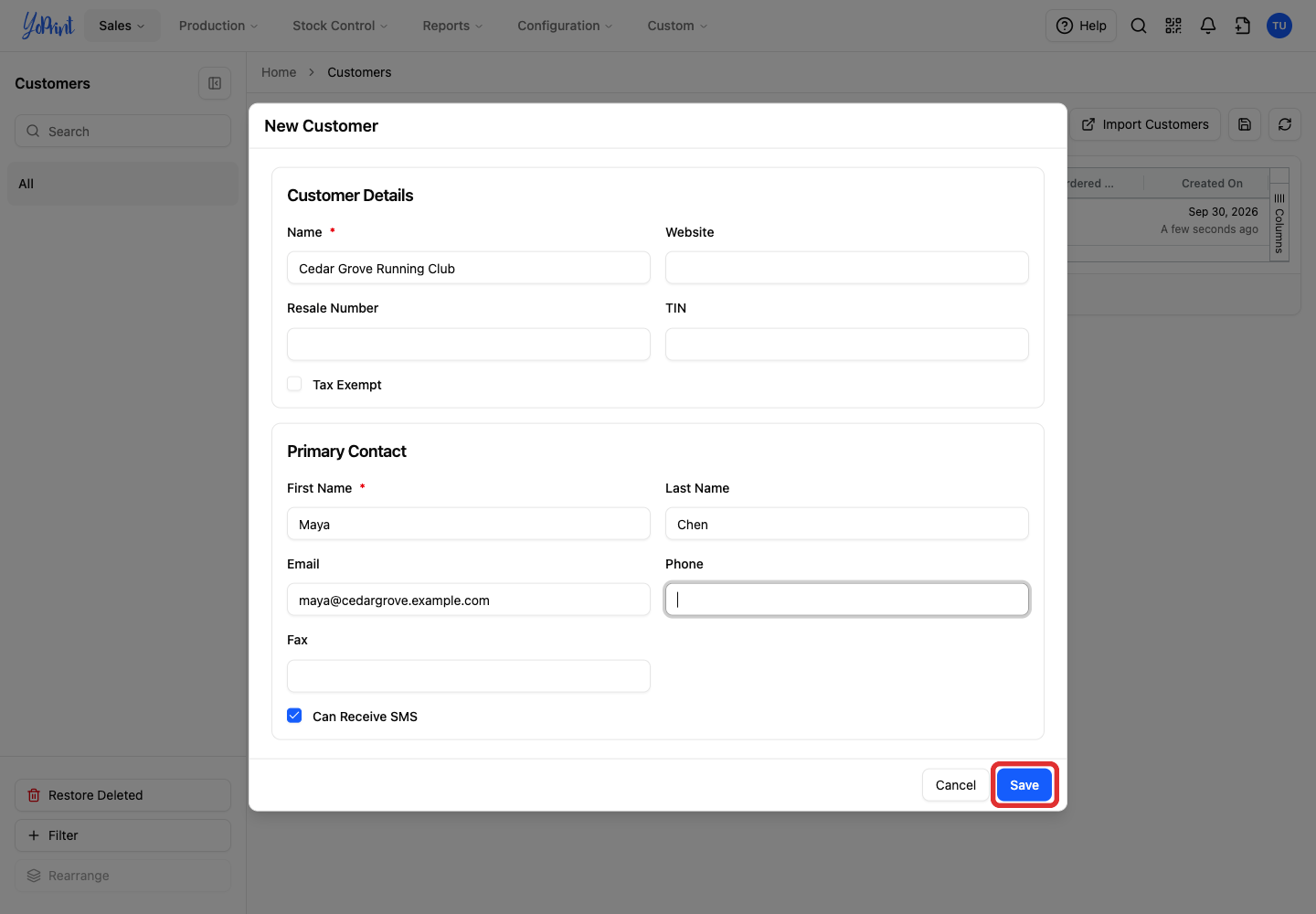
Click Save. The customer view opens.
Open an existing customer
-
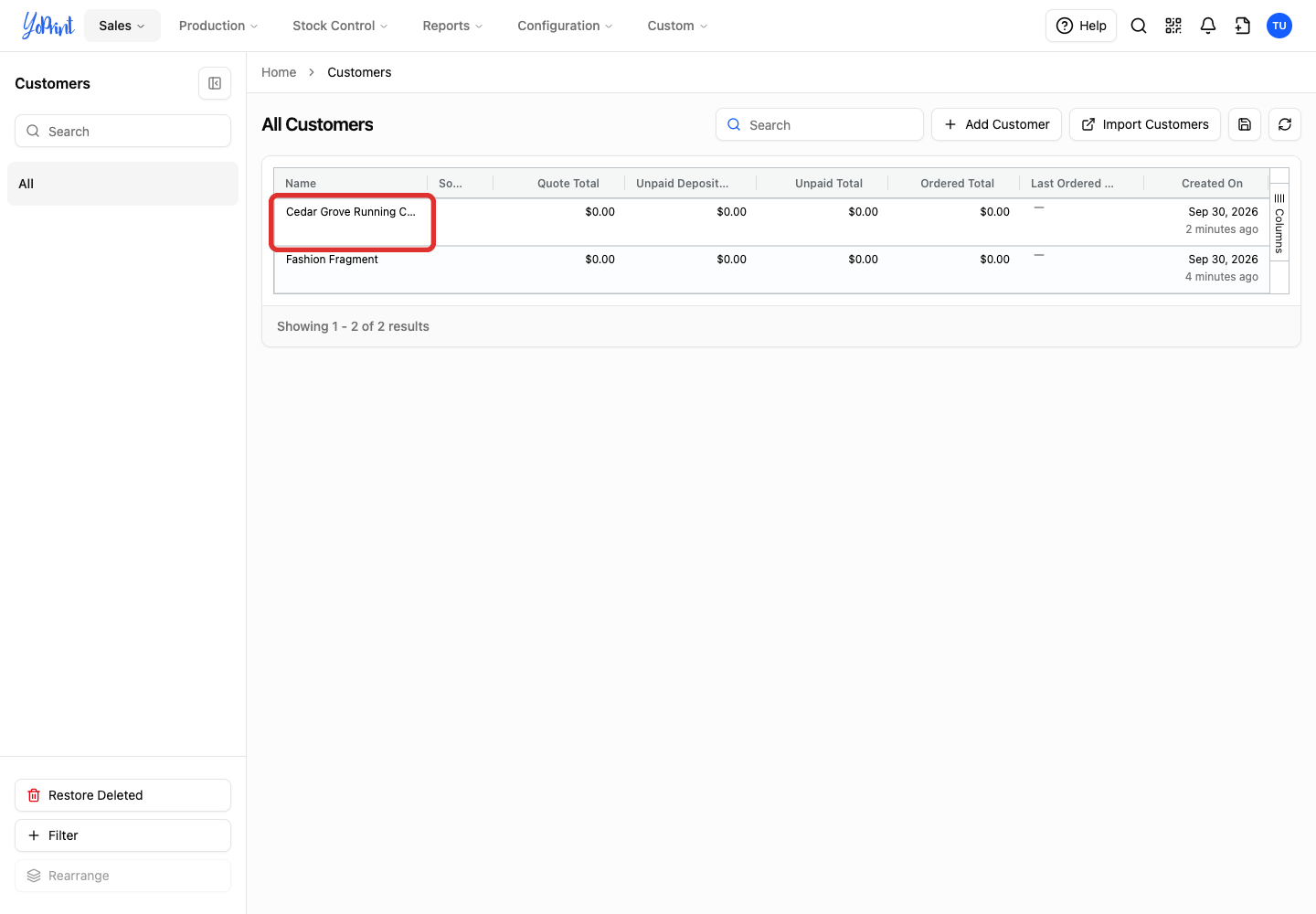
Double-click the customer’s name in the Customers list.
If a customer view is already open, click the X button to close it first.
-
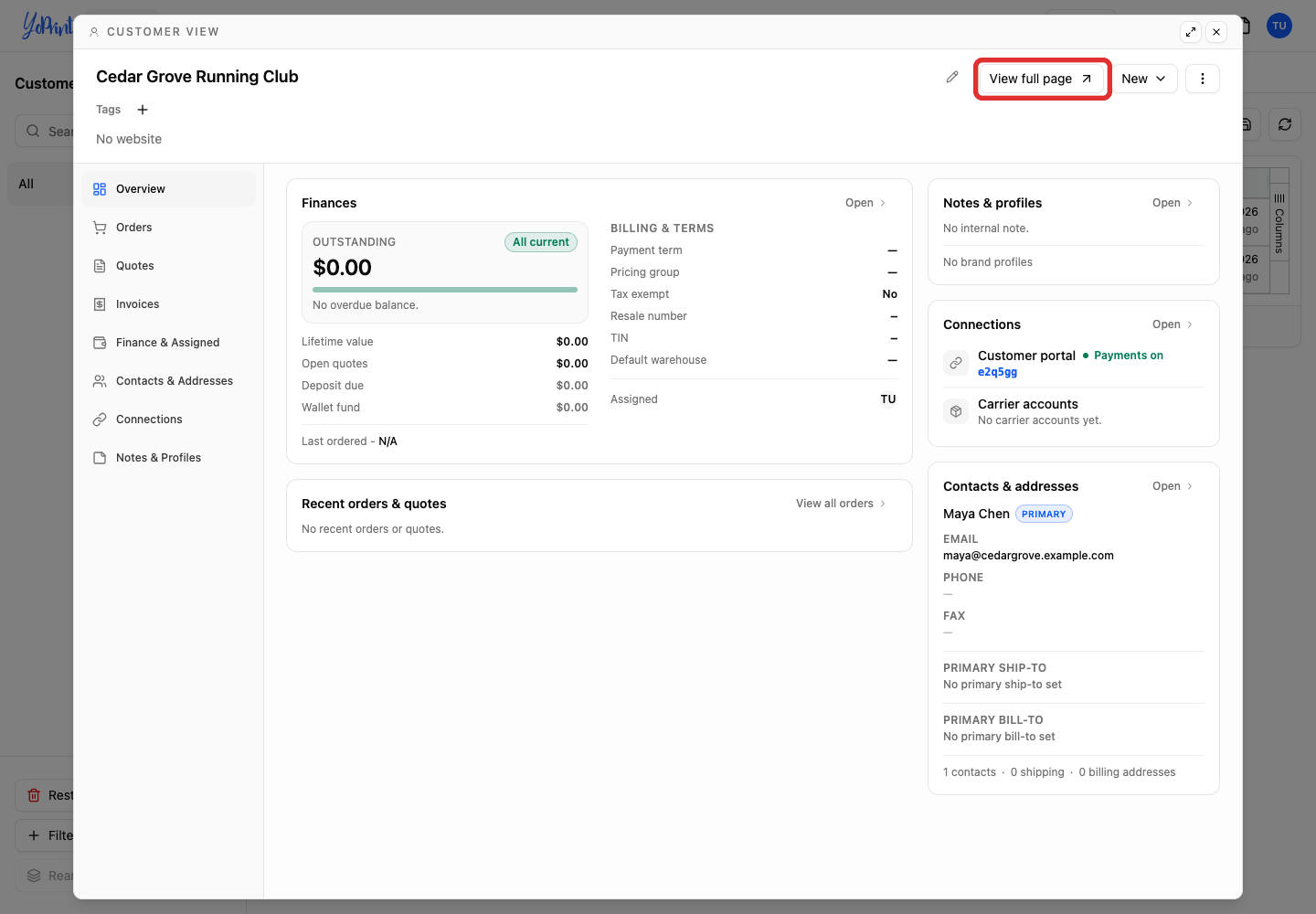
Click View full page in the customer view.
Edit a customer
-
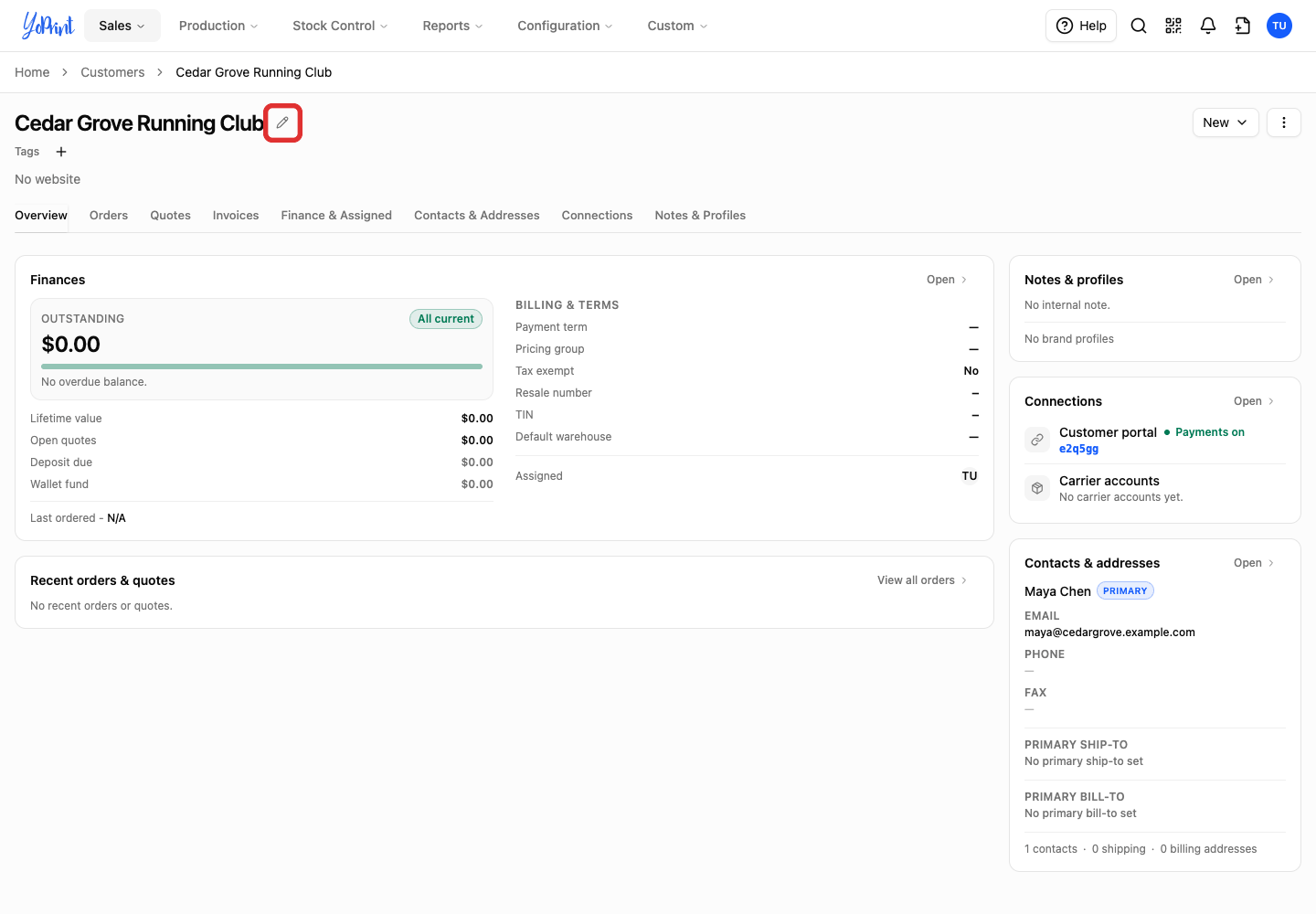
Click the pencil beside the customer’s name.
-
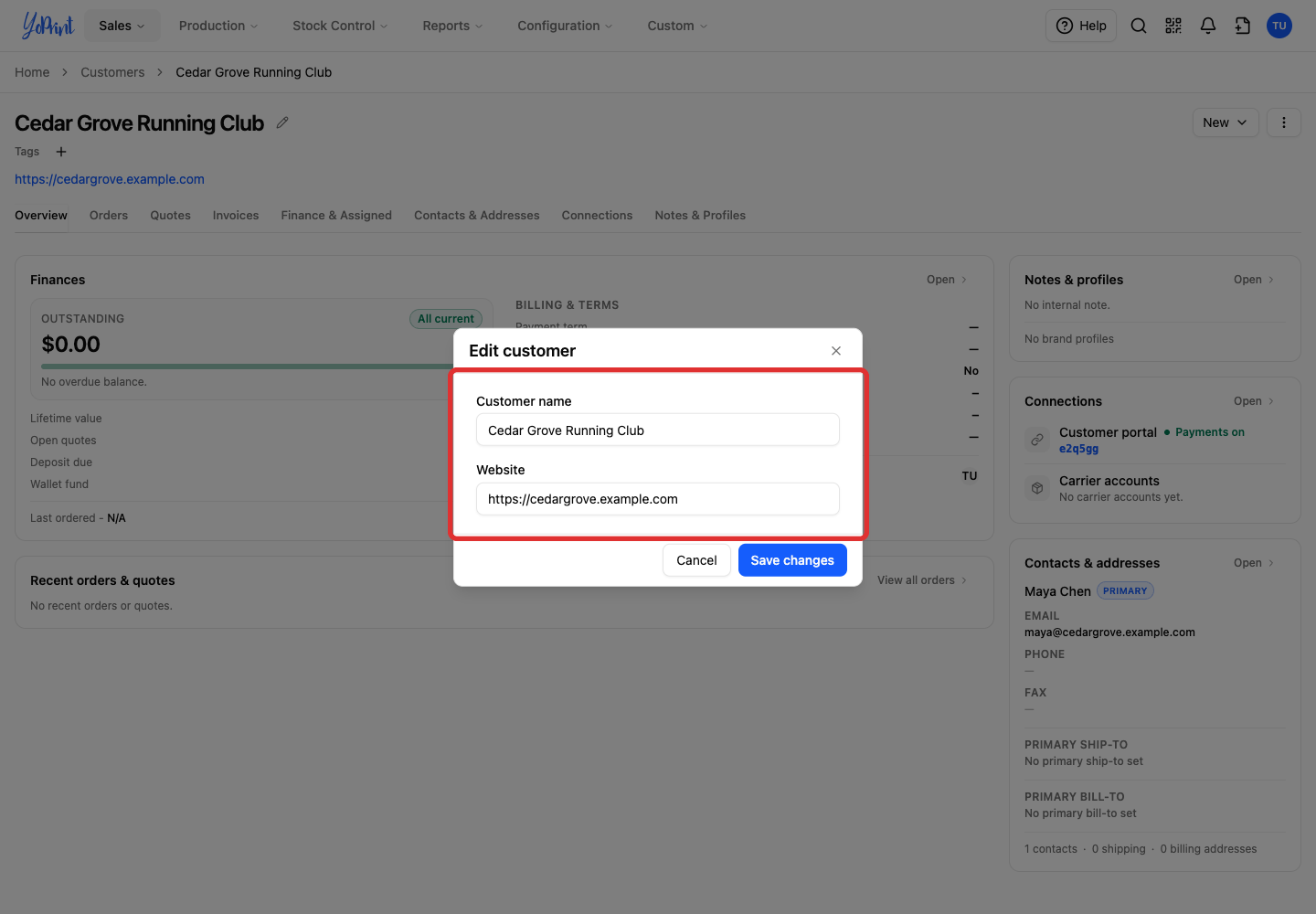
Change the Website or Customer name.
To update resale numbers, tax identification, or tax exemption, edit them under Finance & Assigned > Billing & terms.
-
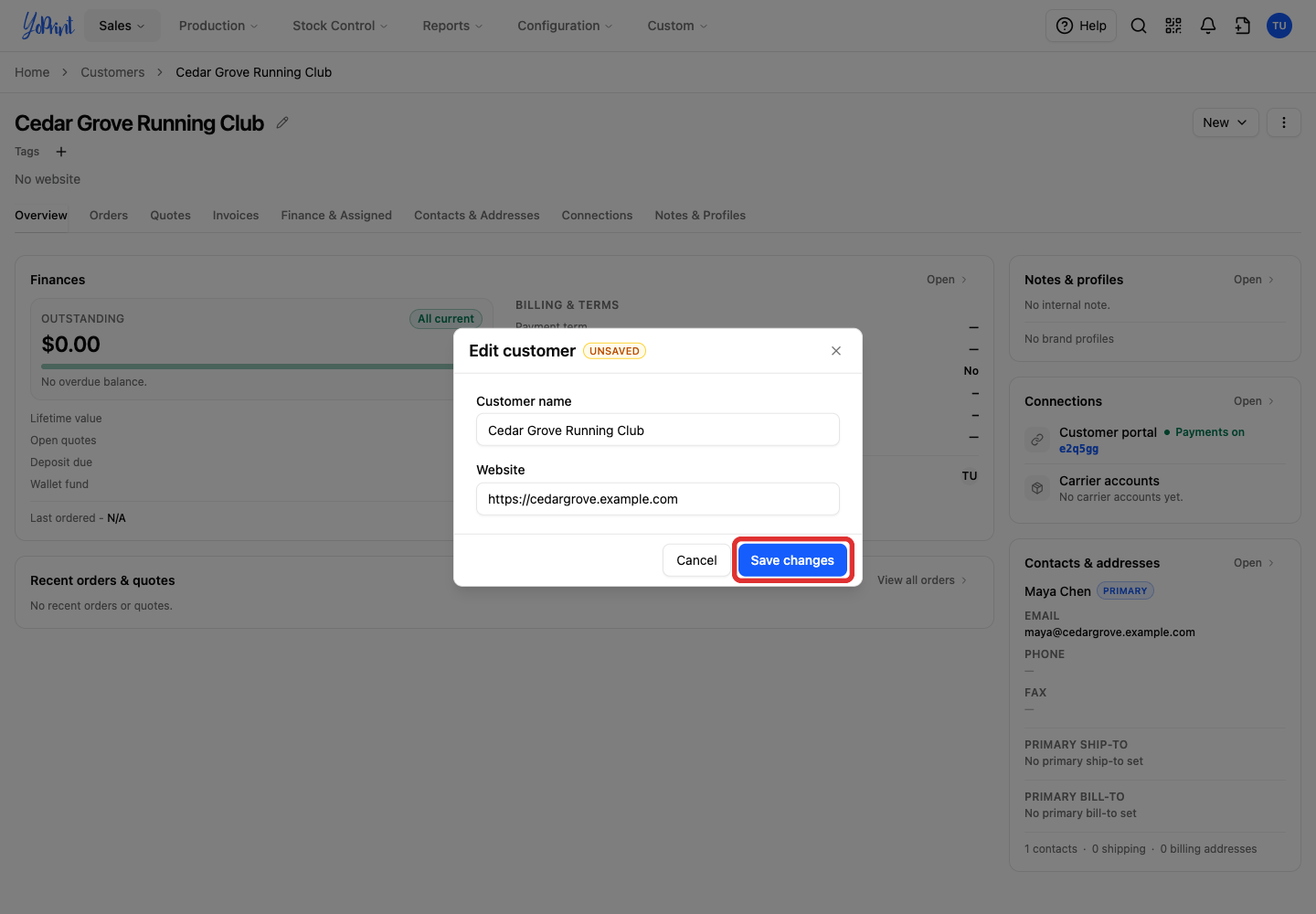
Click Save changes.
Archive an inactive customer
Archived customers are hidden from normal customer lists. You can reopen them using their direct URL or by filtering for Archived on the Customers page.
-
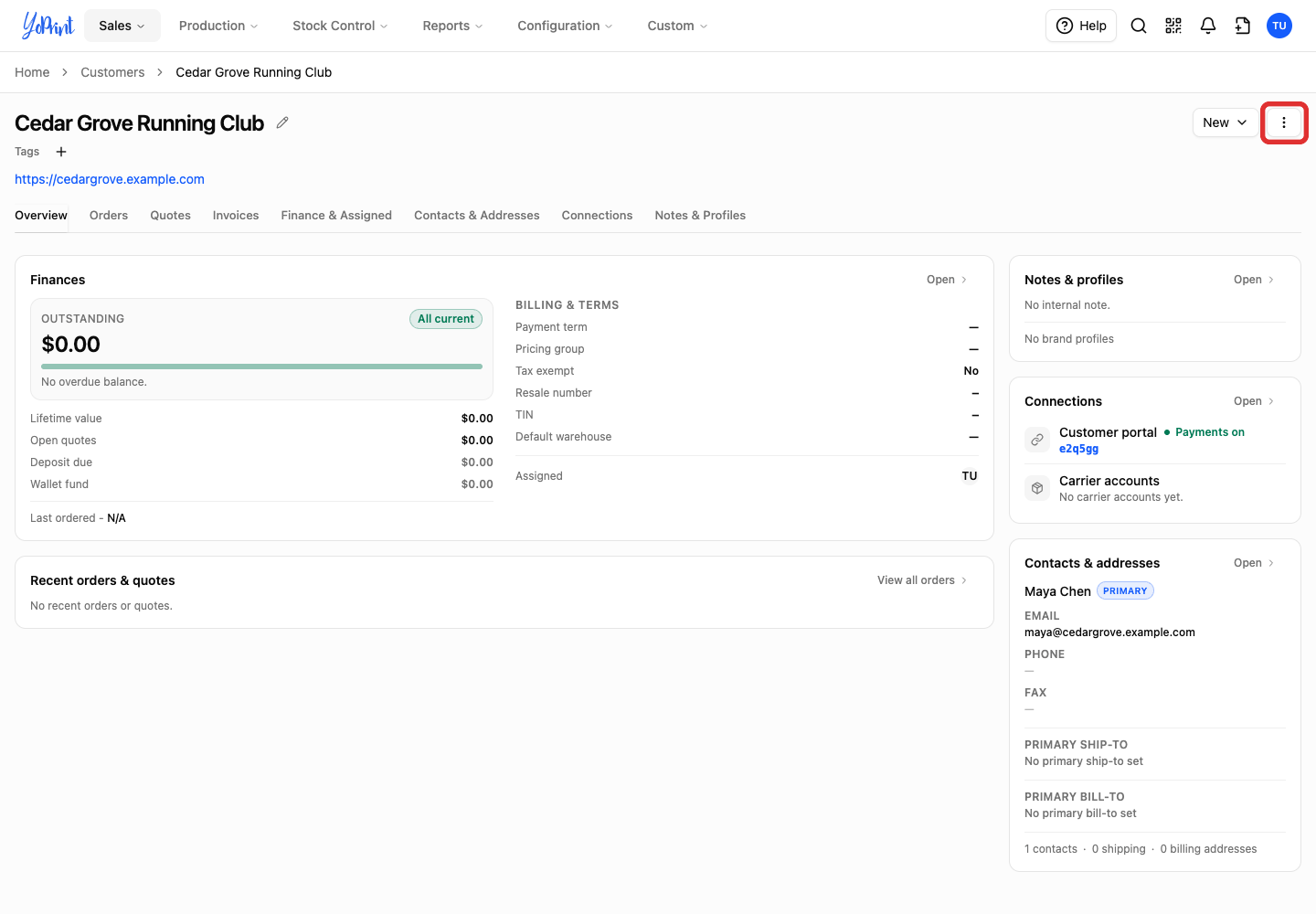
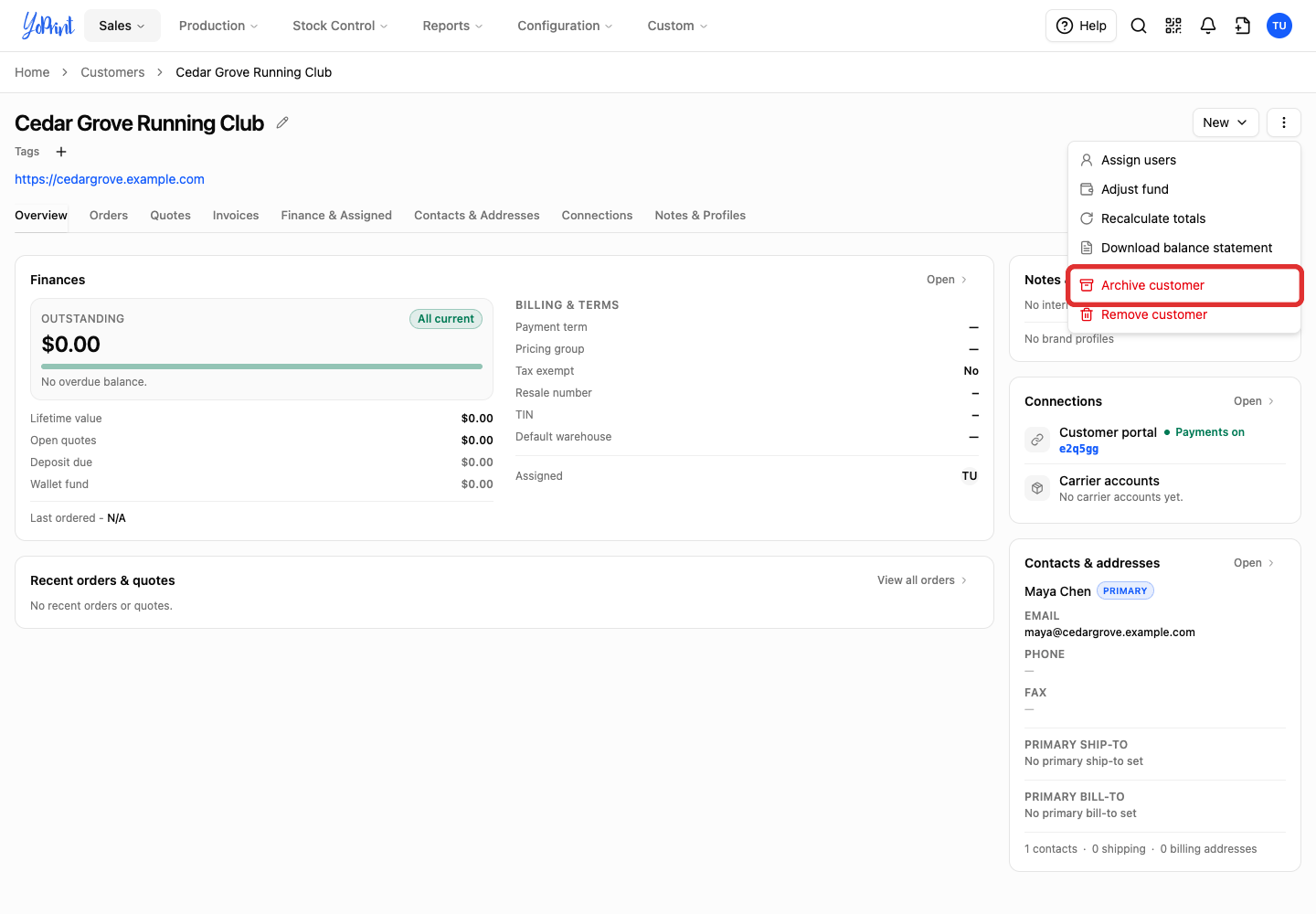
Open the customer’s three-dot More customer actions menu.
-
Choose Archive customer.
-
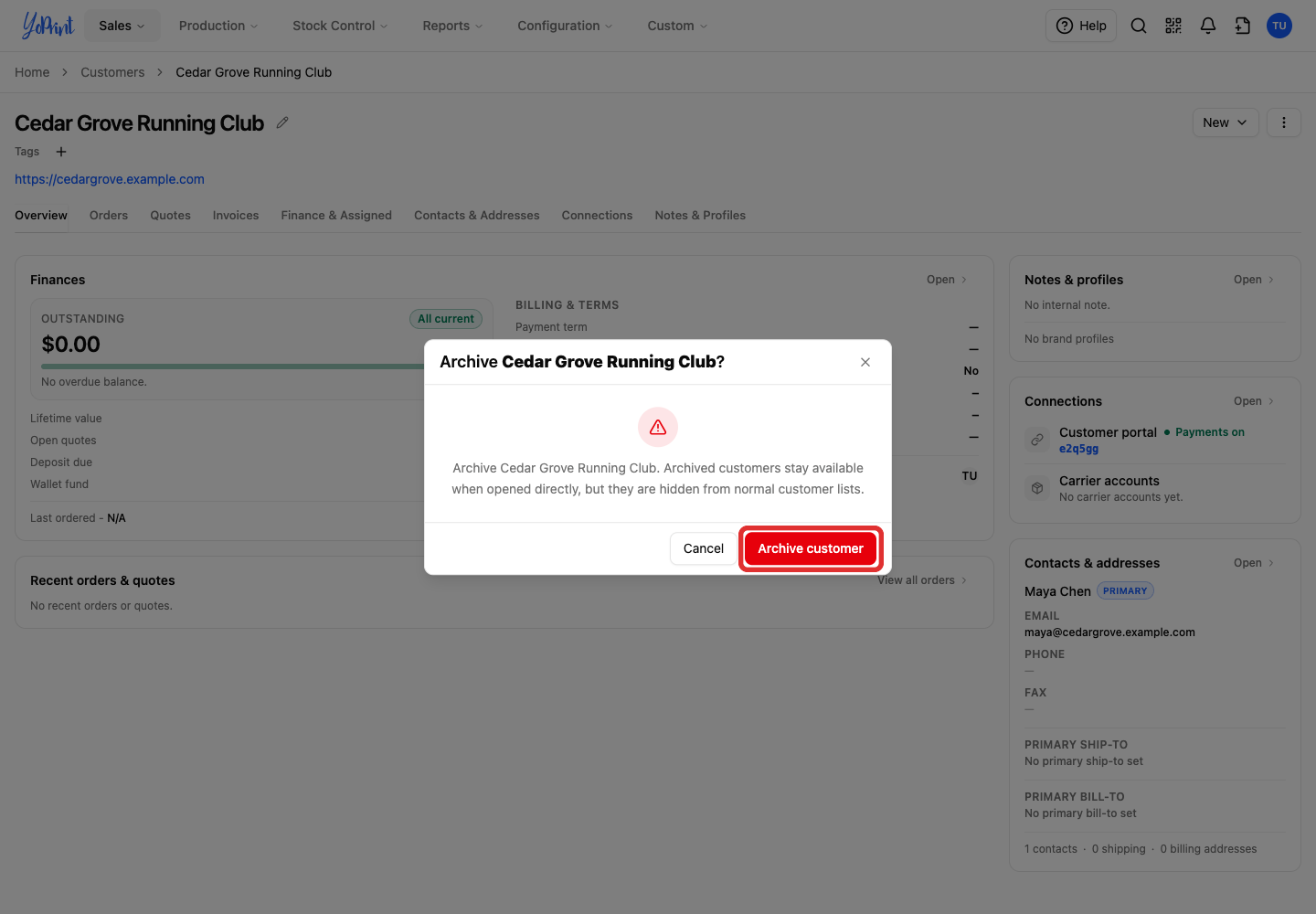
Click Archive customer to confirm. The customer is marked Archived.
Unarchive a customer
Open the archived customer through its direct link or the Archived filter to make it active again.
-
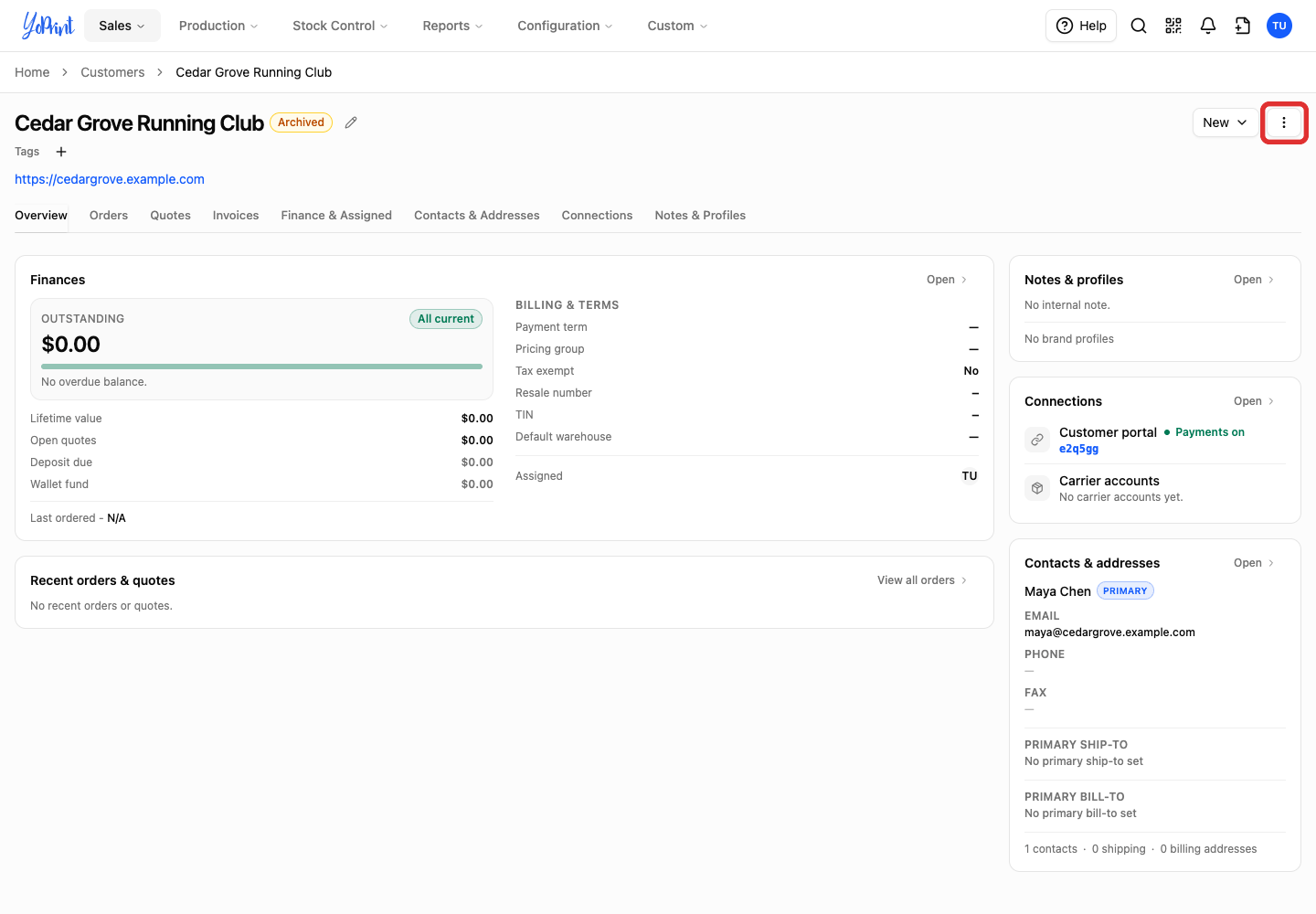
Open the three-dot More customer actions menu.
-
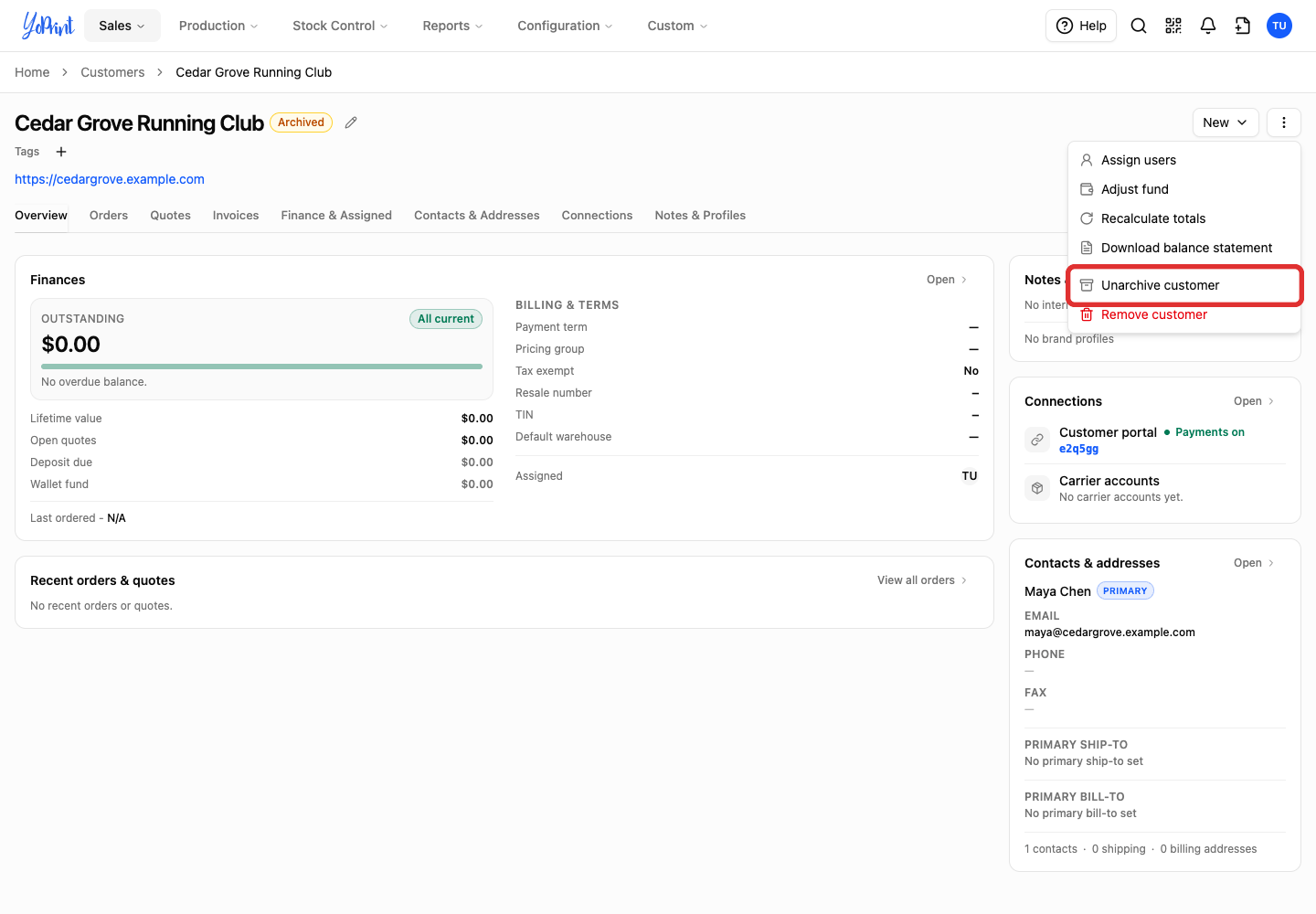
Choose Unarchive customer. The customer unarchives immediately without a confirmation prompt, and the Archived label disappears.
Remove a customer
Removing a customer hides them and preserves their past orders and invoices, which you can recover with Restore Deleted.
-
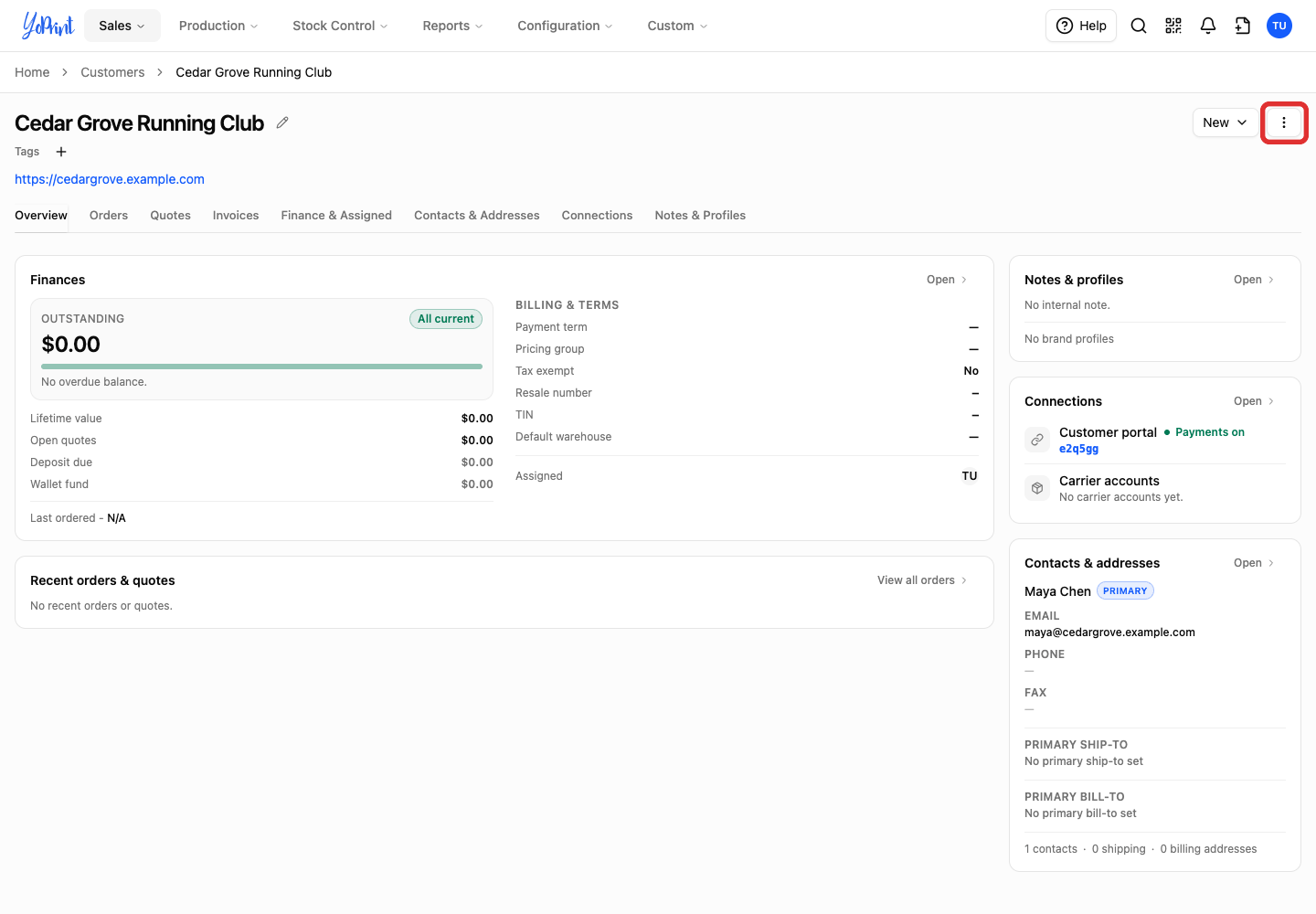
Open the three-dot More customer actions menu.
-
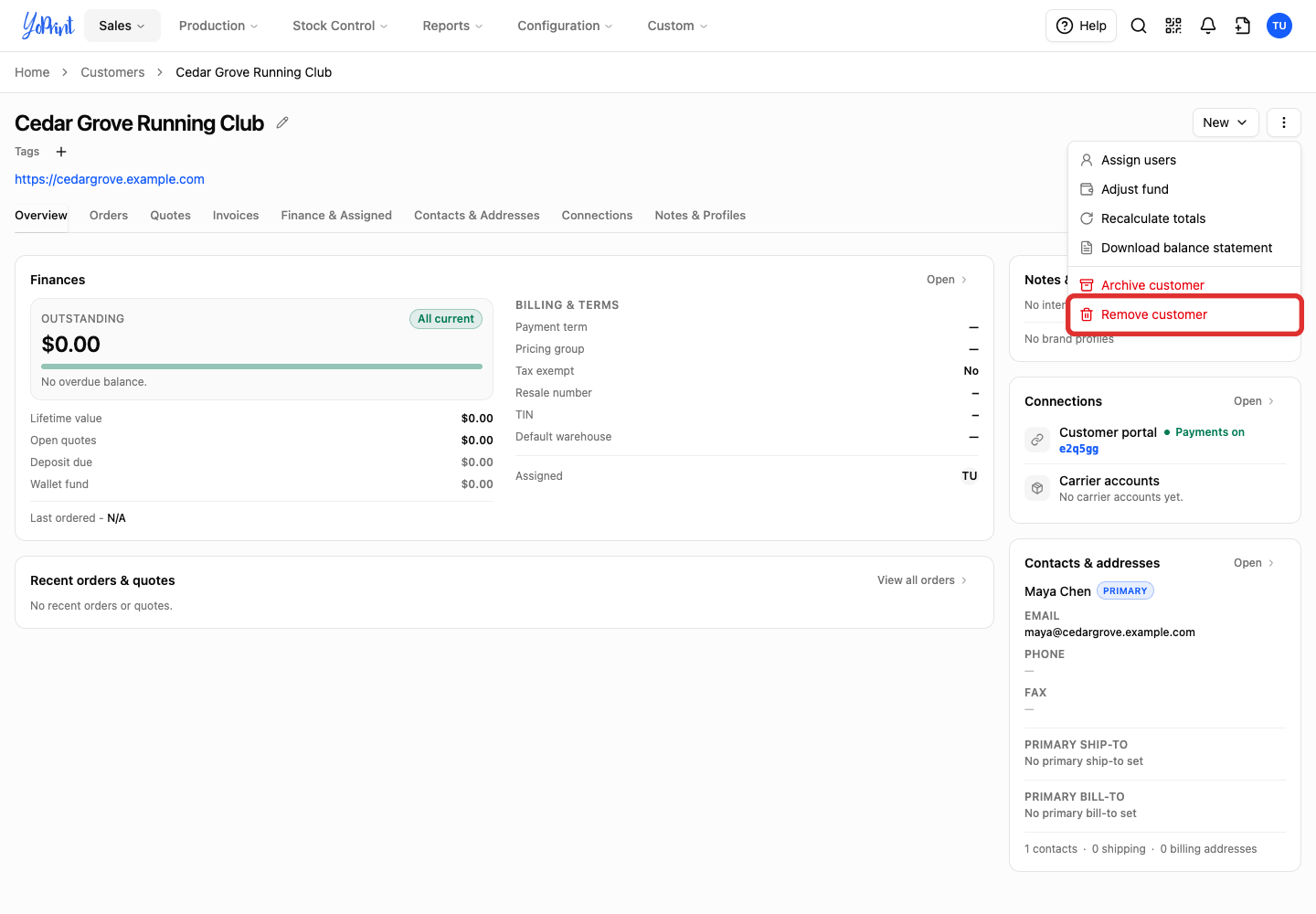
Choose Remove customer.
-
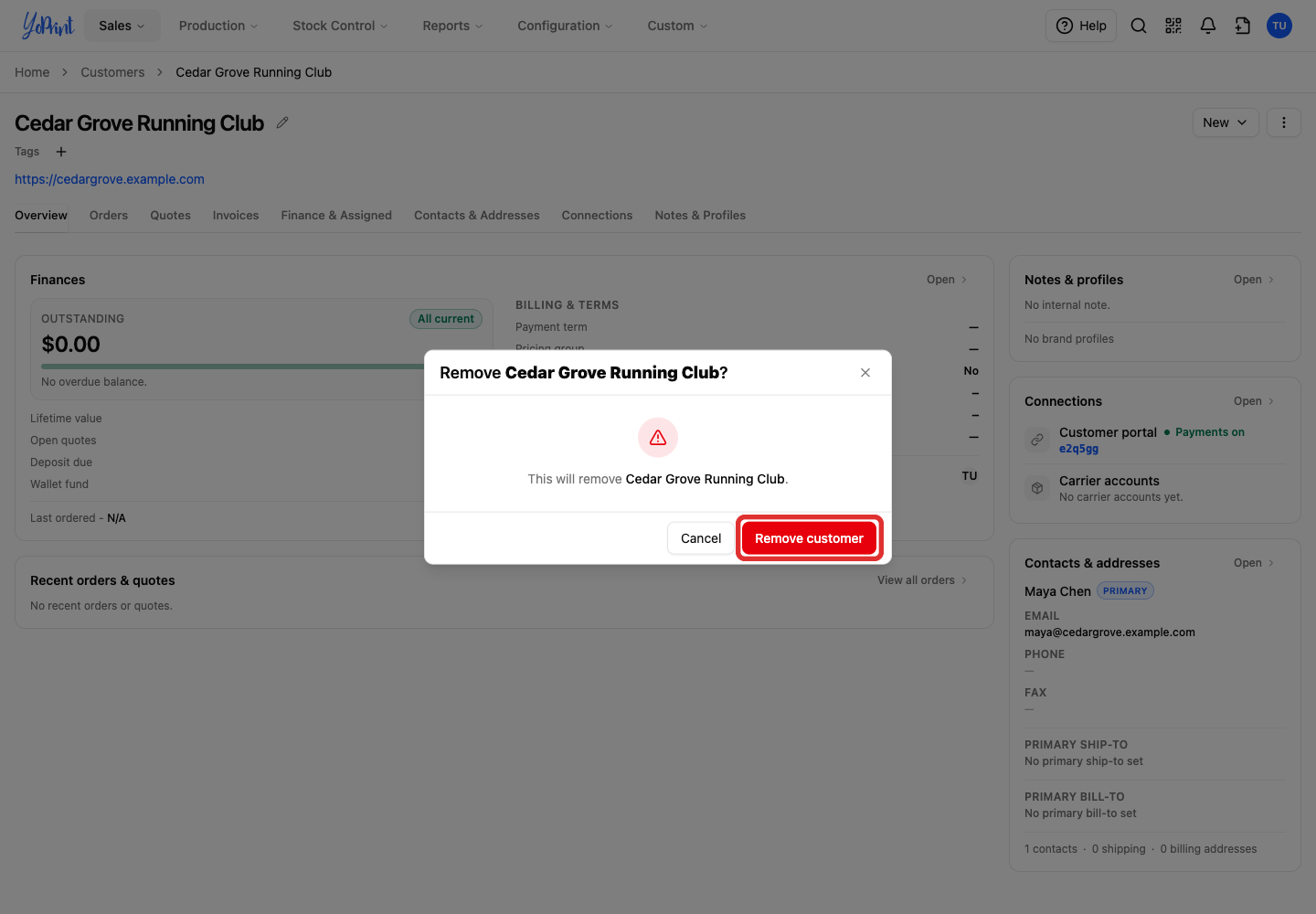
Verify the customer name in the dialog, then click Remove customer.
Restore a removed customer
-
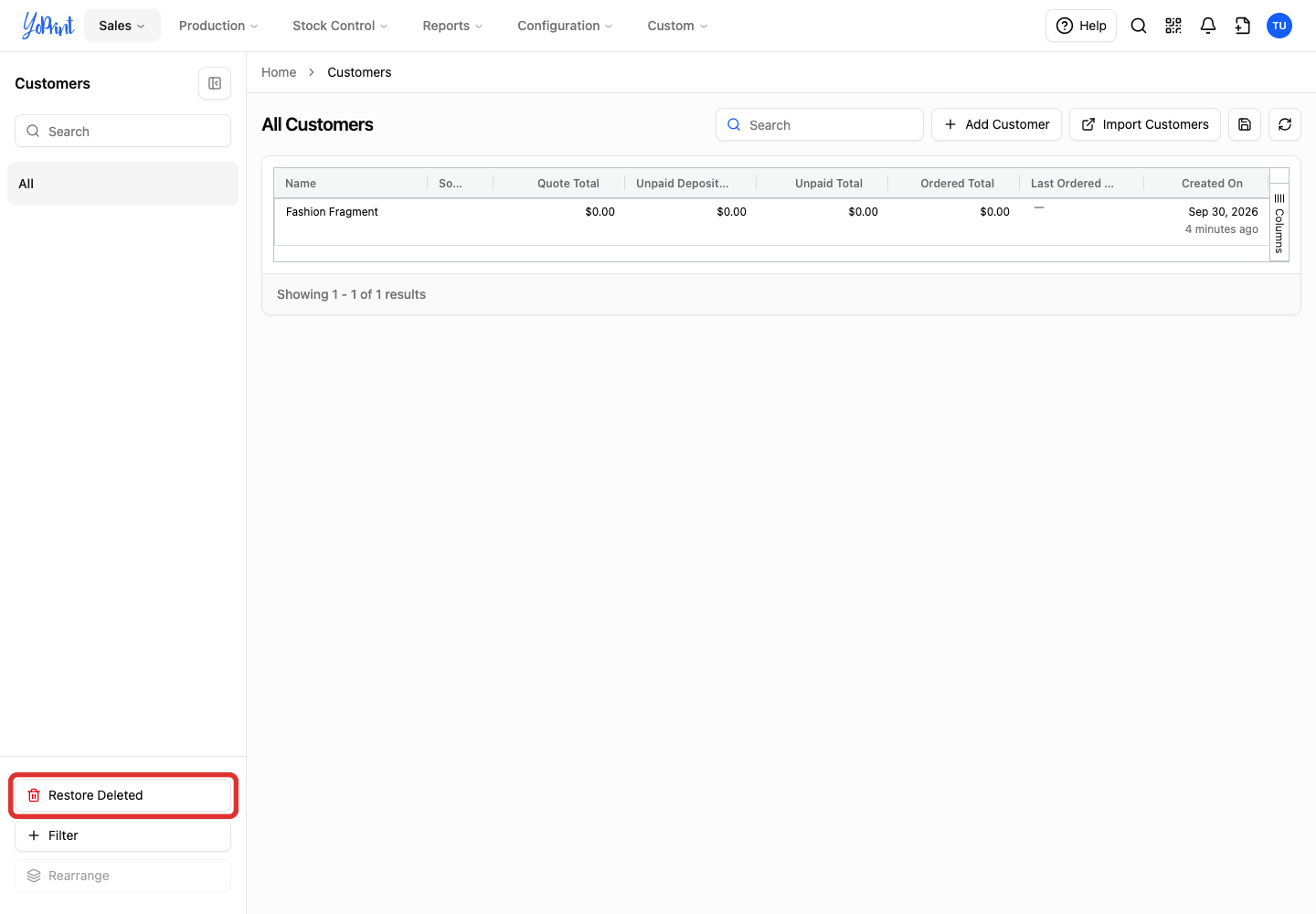
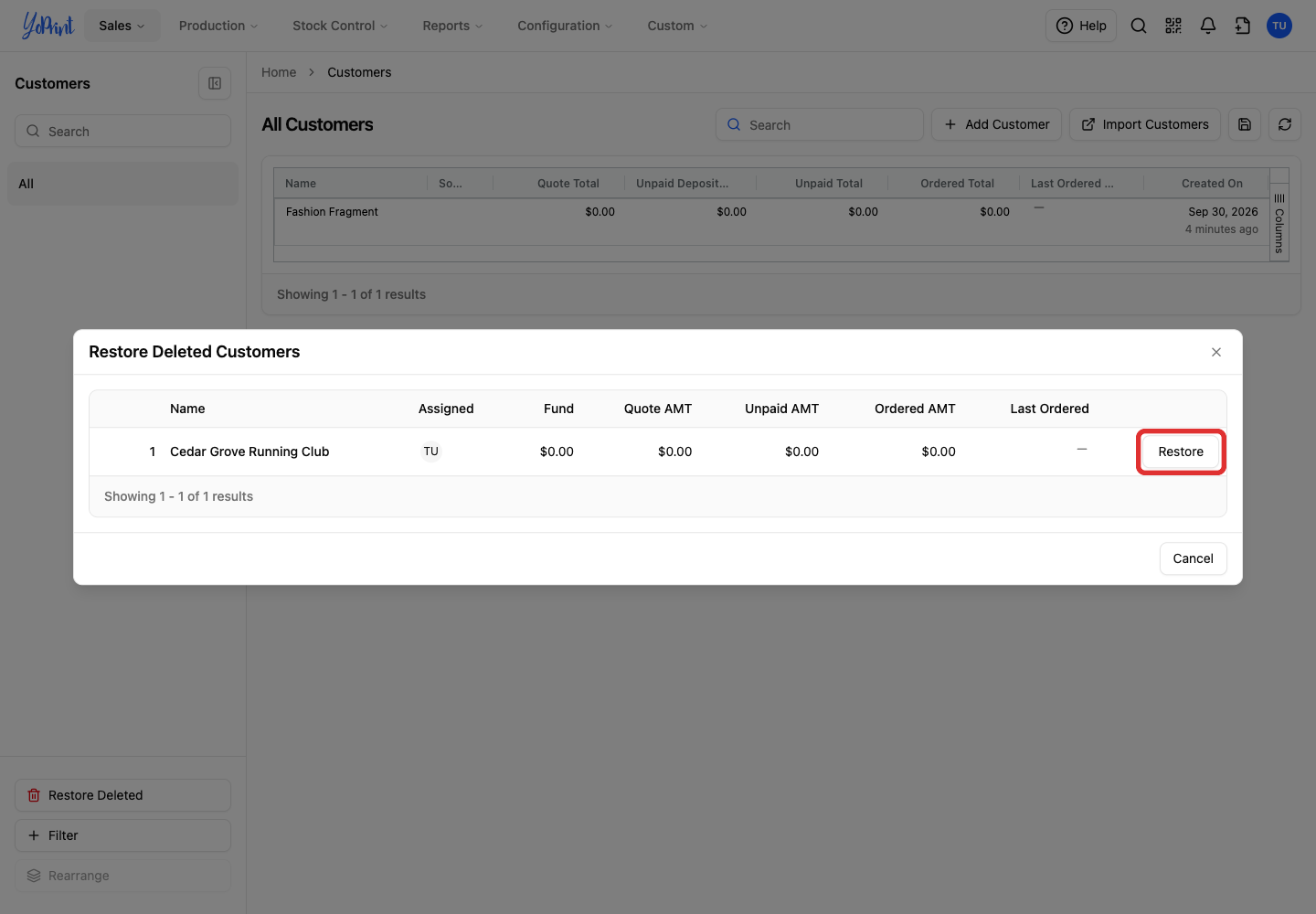
On the Customers page, click Restore Deleted.
-
Click Restore beside the customer.
The customer returns to the Customers table. Click Close or Cancel to dismiss the dialog.
Add a customer while creating a sales order
You can create a customer from a new sales order without returning to the Customers page.
-
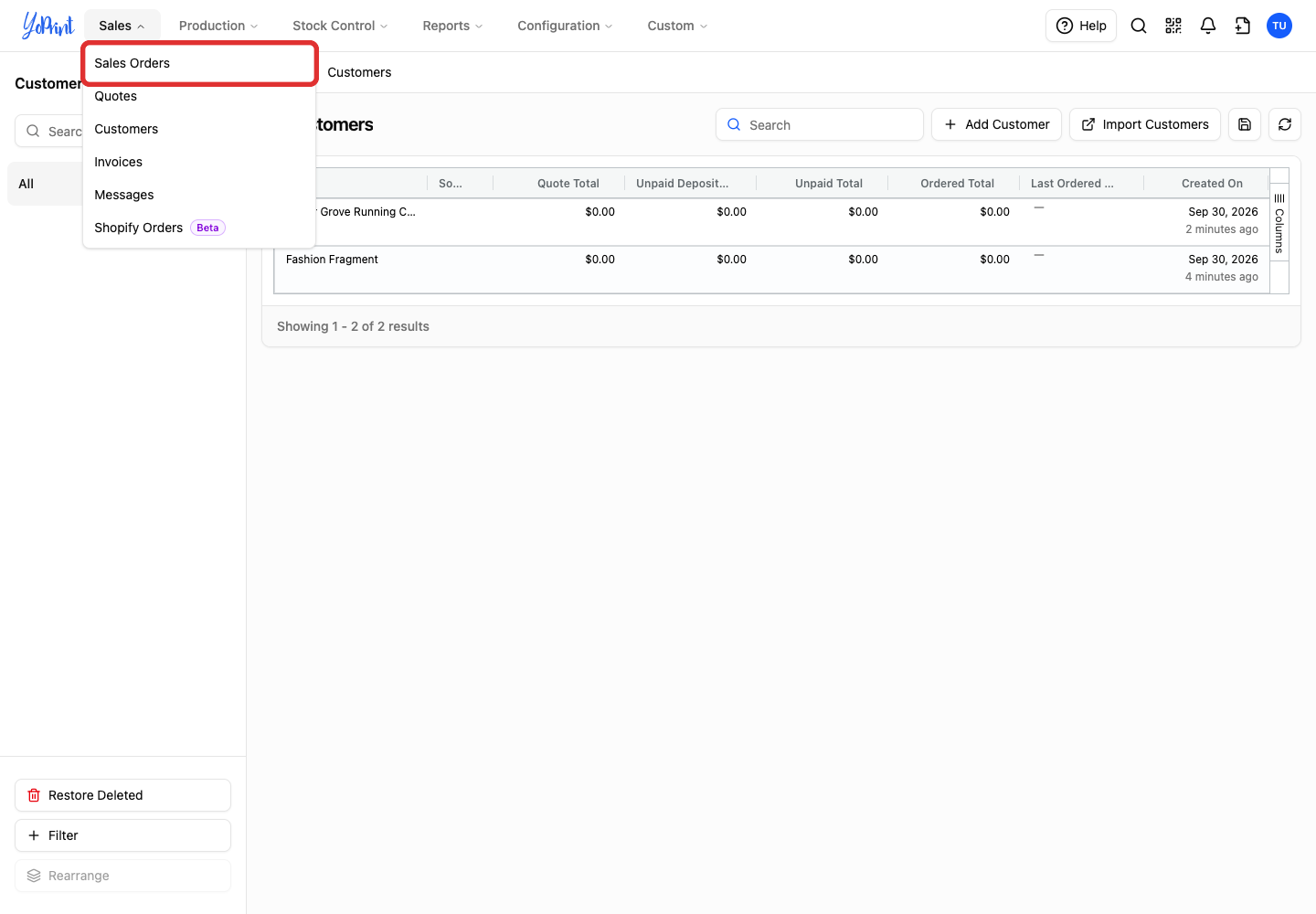
In the Sales menu, choose Sales Orders.
-
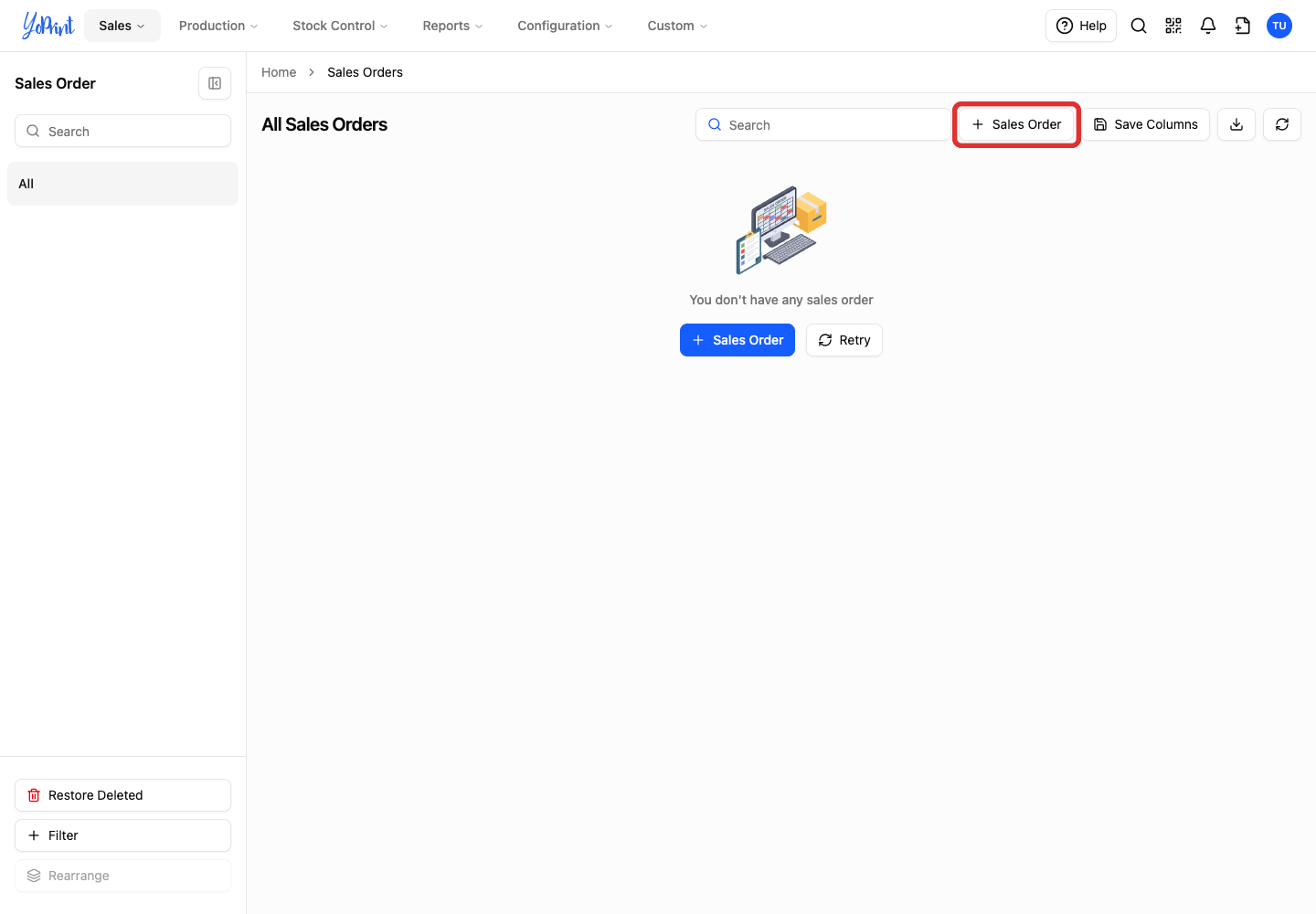
Click Sales Order.
-
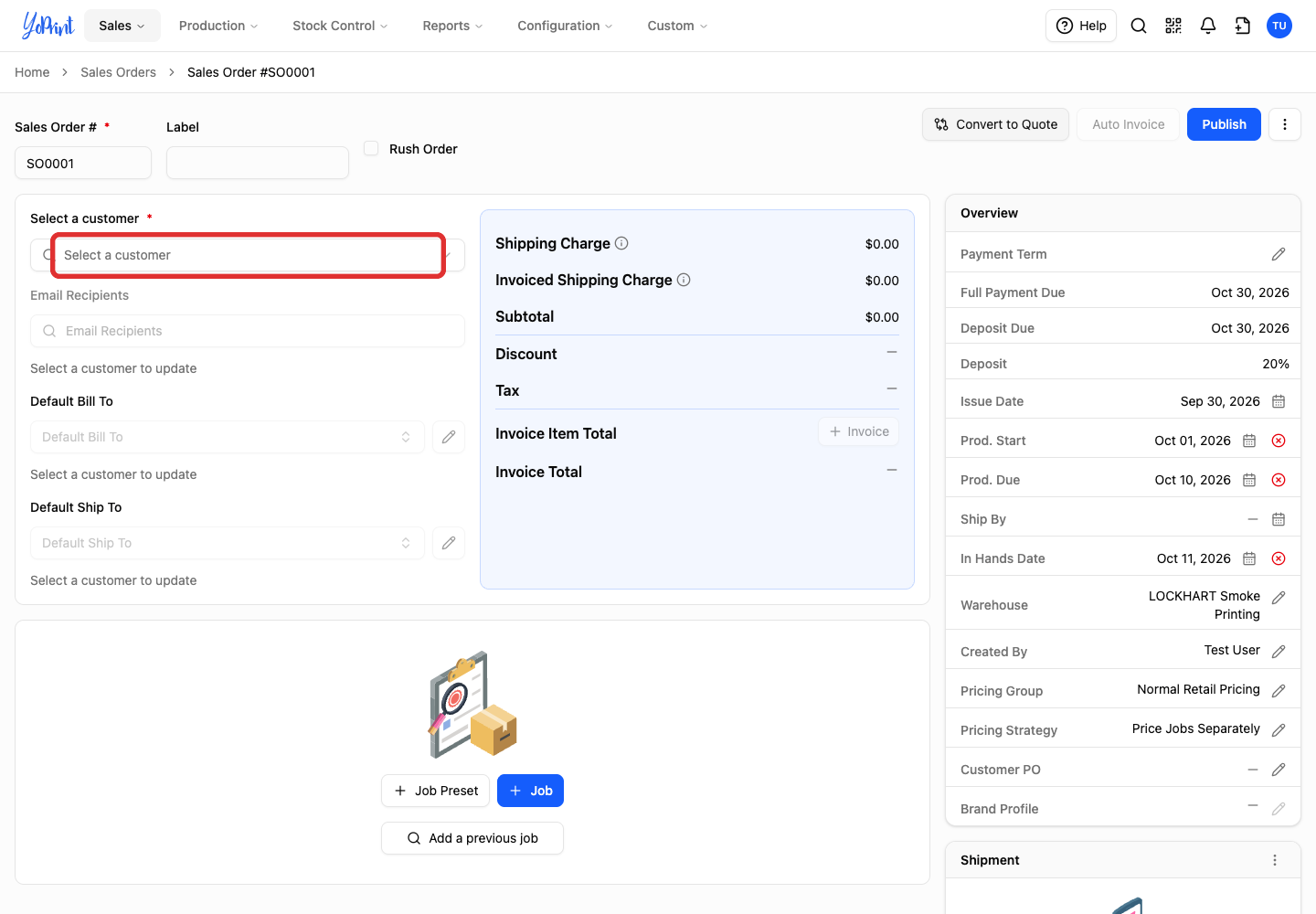
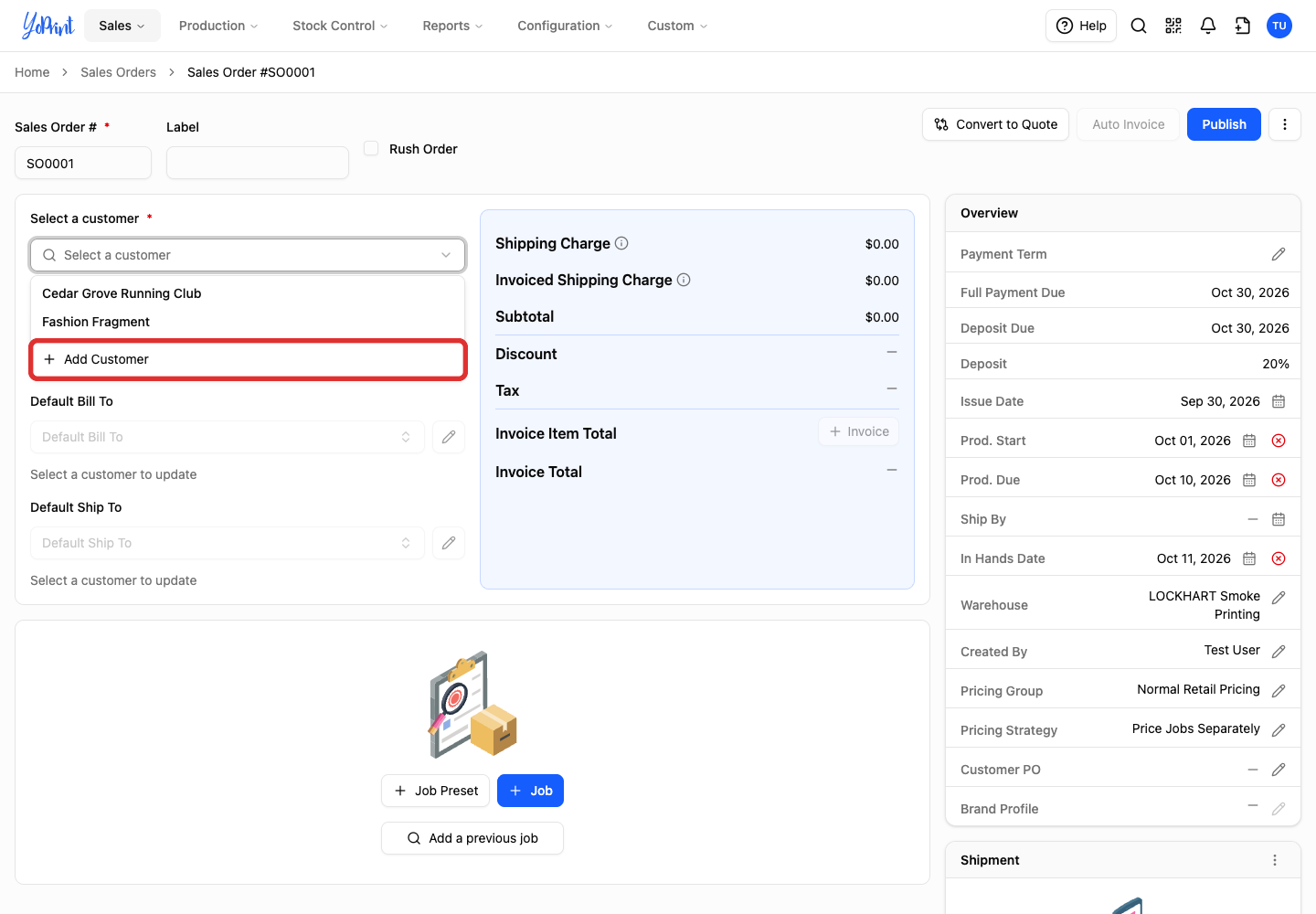
Open Select a customer.
-
Choose Add Customer.
-
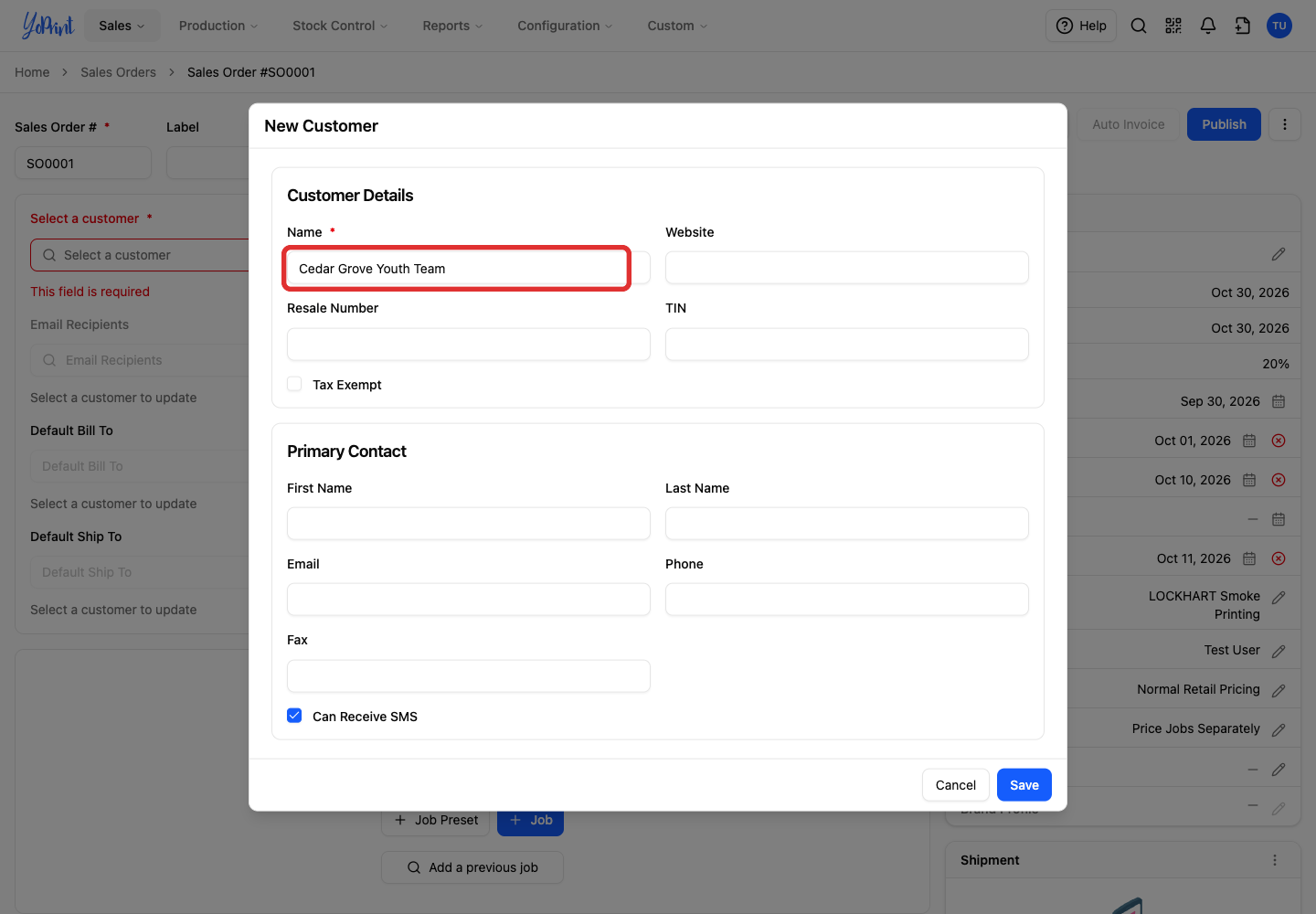
Enter the customer’s Name and any other details you have.
-
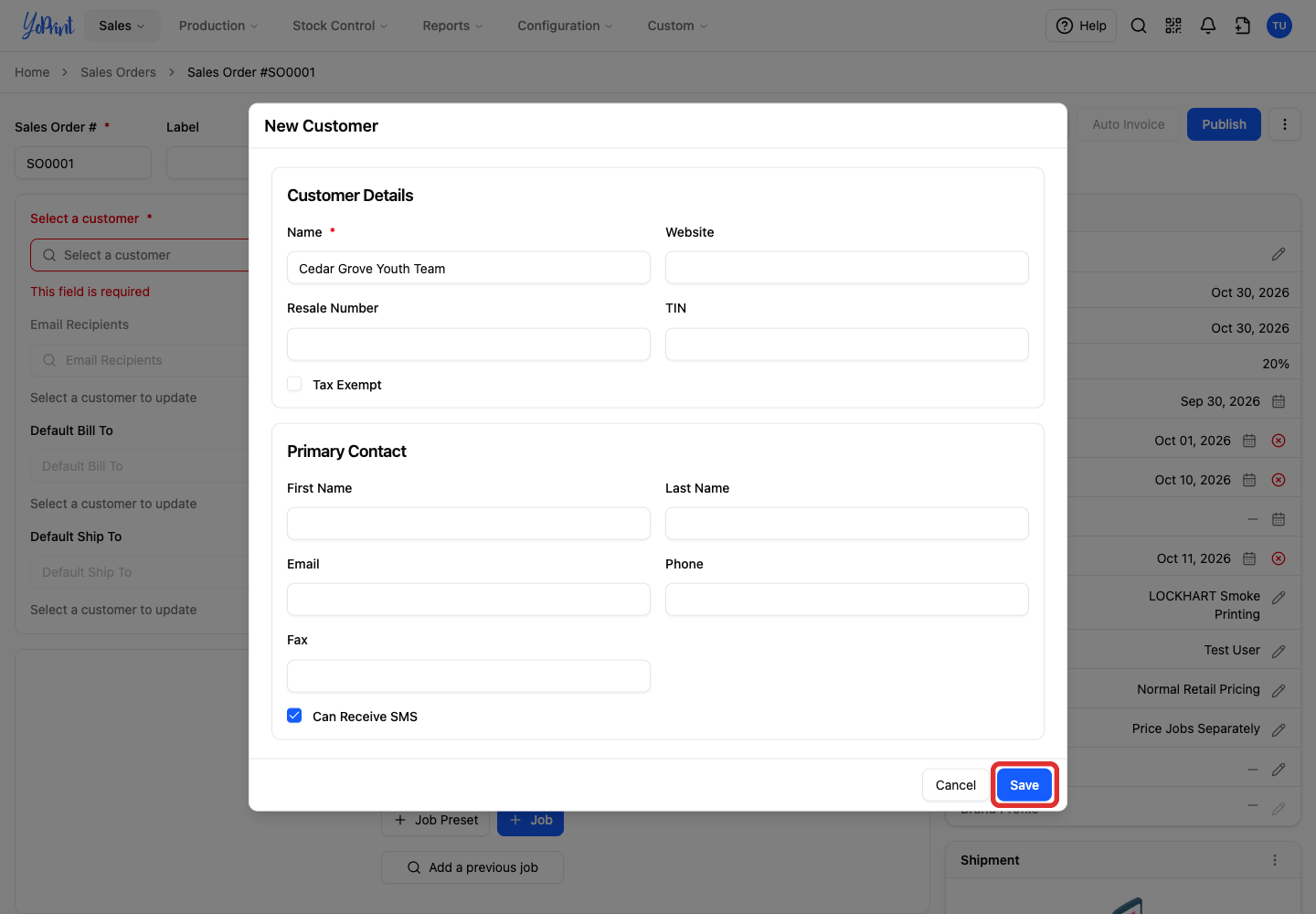
Click Save. The new customer is selected on the order.
Import customers from a CSV file
From Customers, use Import Customers and follow Import Customers Using CSV.
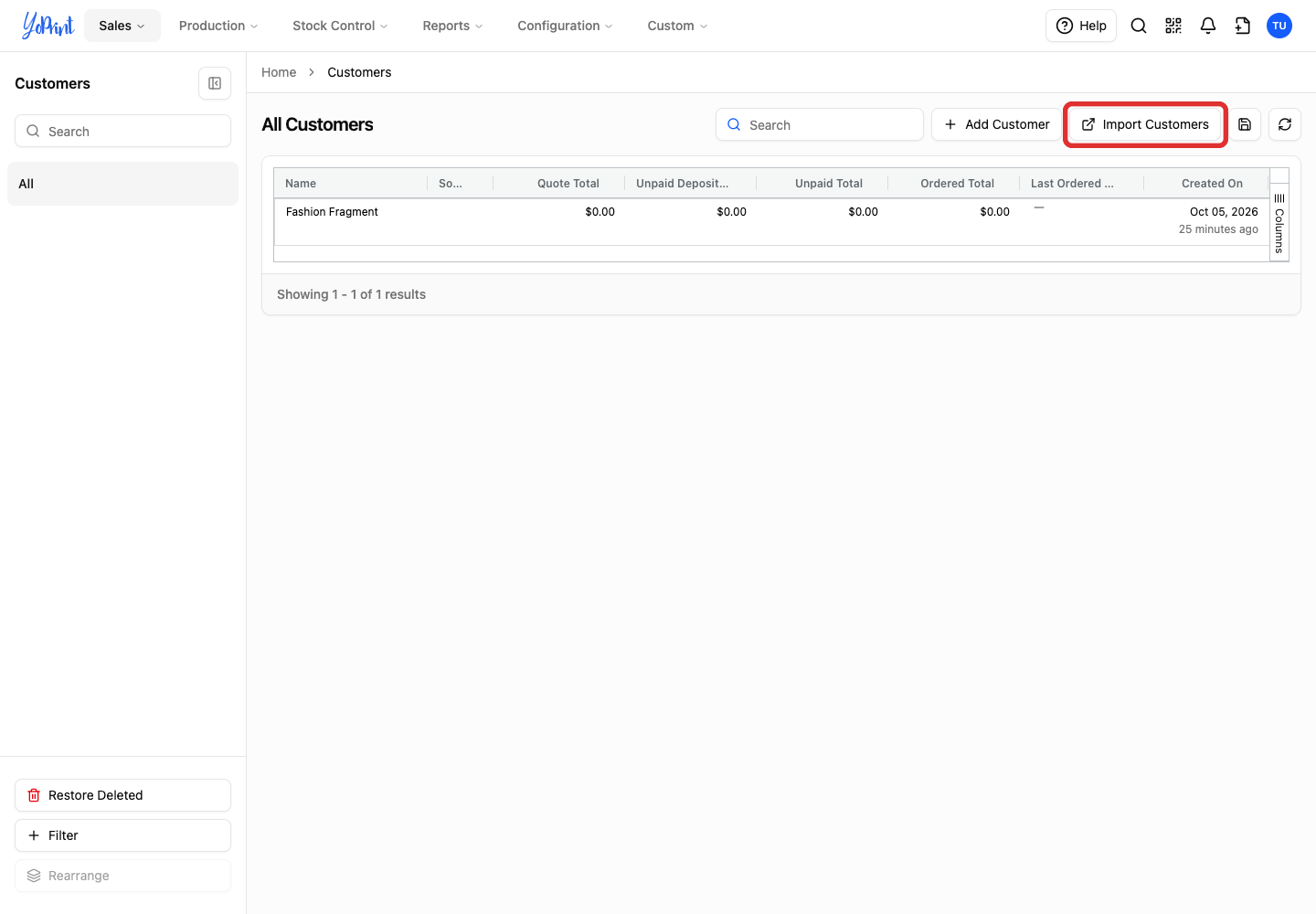
Clicking Import Customers opens the YoPrint Import Portal in a new browser tab. Complete the upload, mapping, and review steps in the portal.
Once your import is complete, close the Import Portal tab and return to your original YoPrint tab. Click Refresh on the toolbar above the Customers table to display the newly imported customers.
Customer template tips
- Supported fields: The customer CSV template includes full billing and shipping address columns and internal notes. It does not include a TIN column. Add TINs and secondary contacts directly on the customer record in YoPrint.
- Tax exempt format: Enter
TRUEorFALSEin thecustomer_tax_exemptcolumn. The template usesFALSEas an example value. - Phone validation: Phone numbers are optional, but any number you enter must be valid for the contact's country. The importer flags invalid phone numbers during the review step so you can correct them before importing.
- Existing customers: In the review step, YoPrint identifies existing customers by name and reports them as already existing rather than updating them.