Manage Customer Contacts in YoPrint
In this article
Contacts are the people you deal with at a customer’s business. Keep separate contacts for each person you work with at a customer. The primary contact is preselected by default when sending quotes and invoices, but you can choose any contact when emailing.
You’ll need a customer record first. See Add and Manage Customer Records if you haven’t created one yet.
Open a customer’s contacts
-
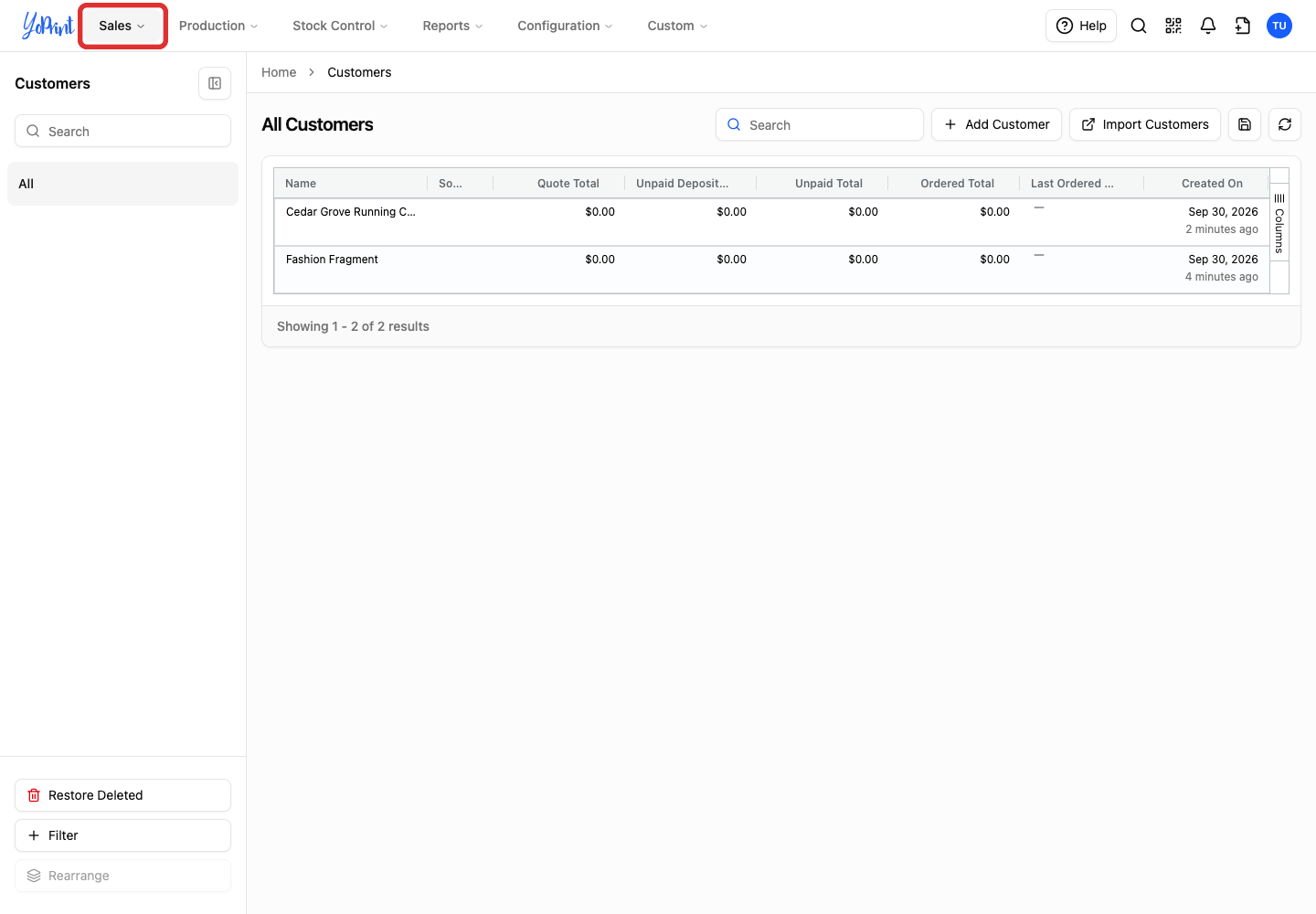
In the top navigation bar, open the Sales menu.
-
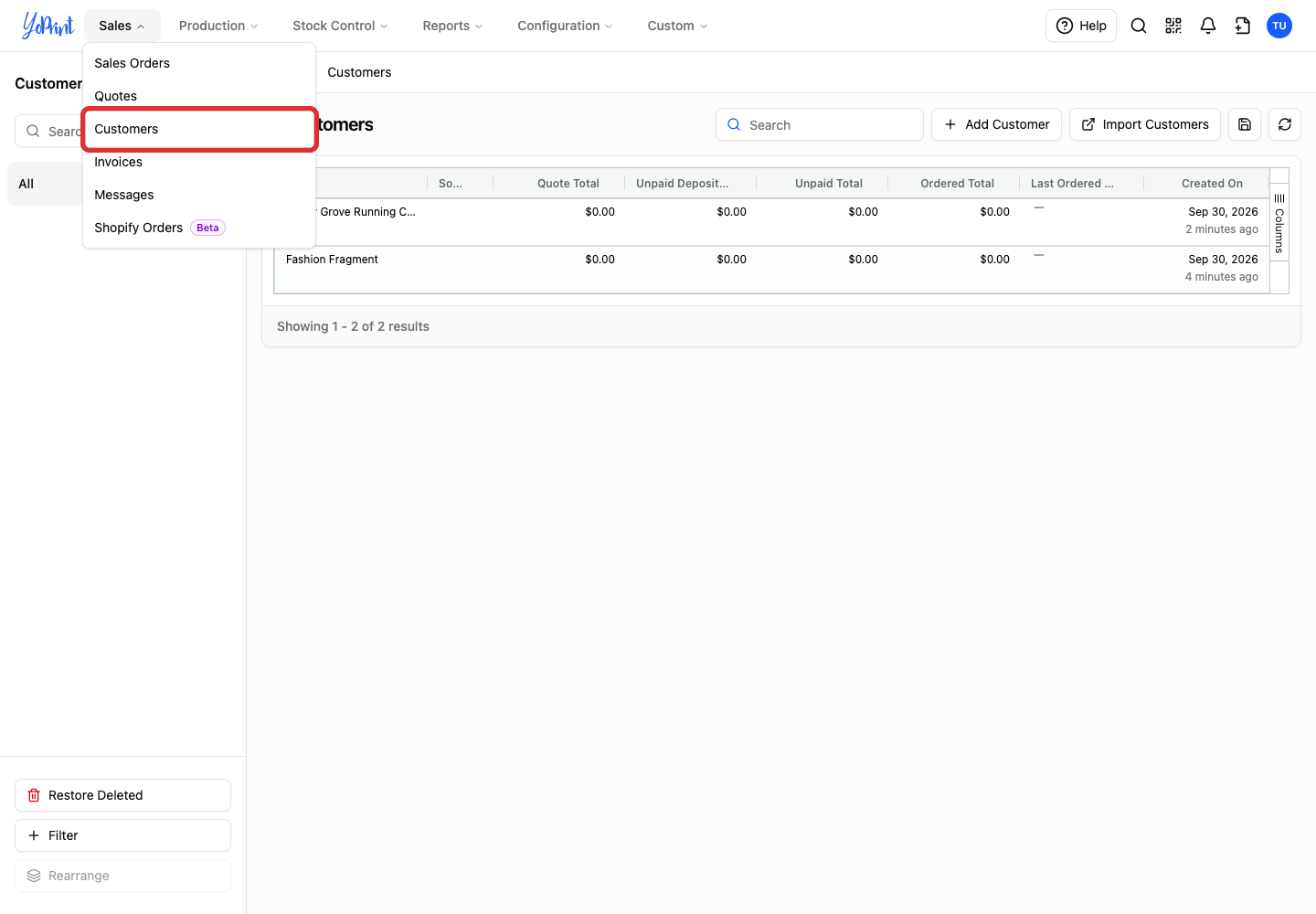
Choose Customers.
-
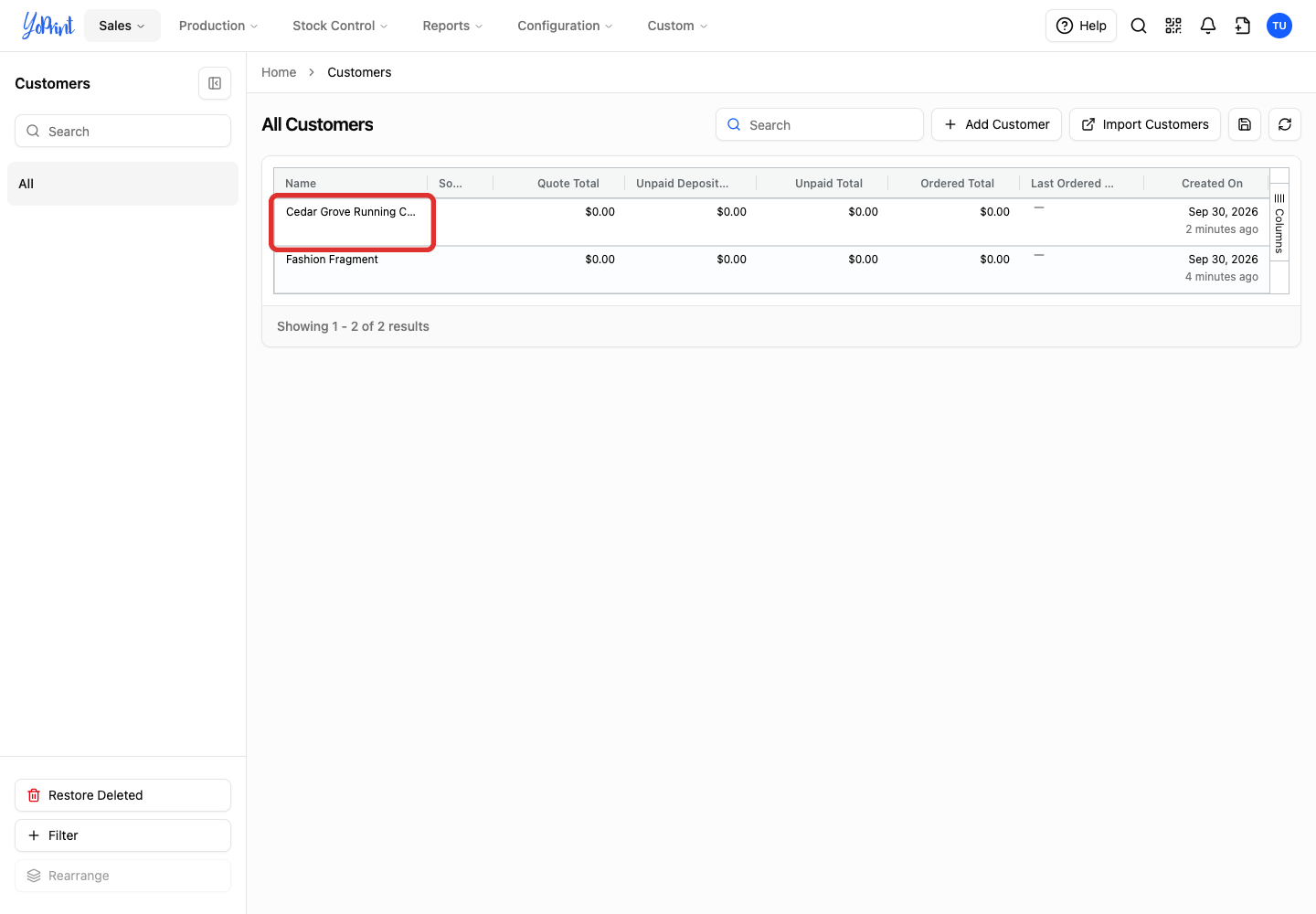
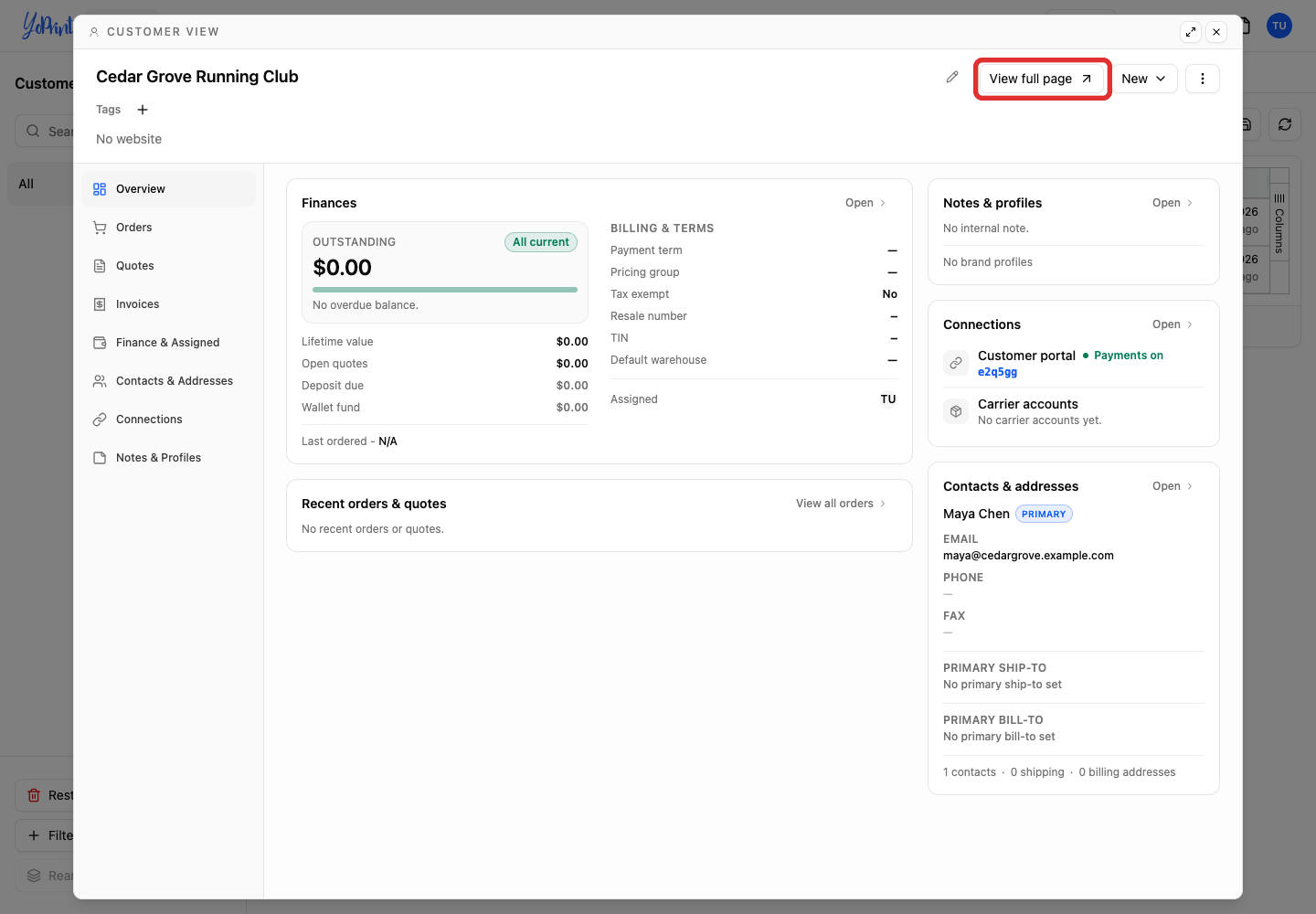
Double-click the customer’s name to open the customer view drawer.
-
Click View full page. This opens the full record in the current tab.
-
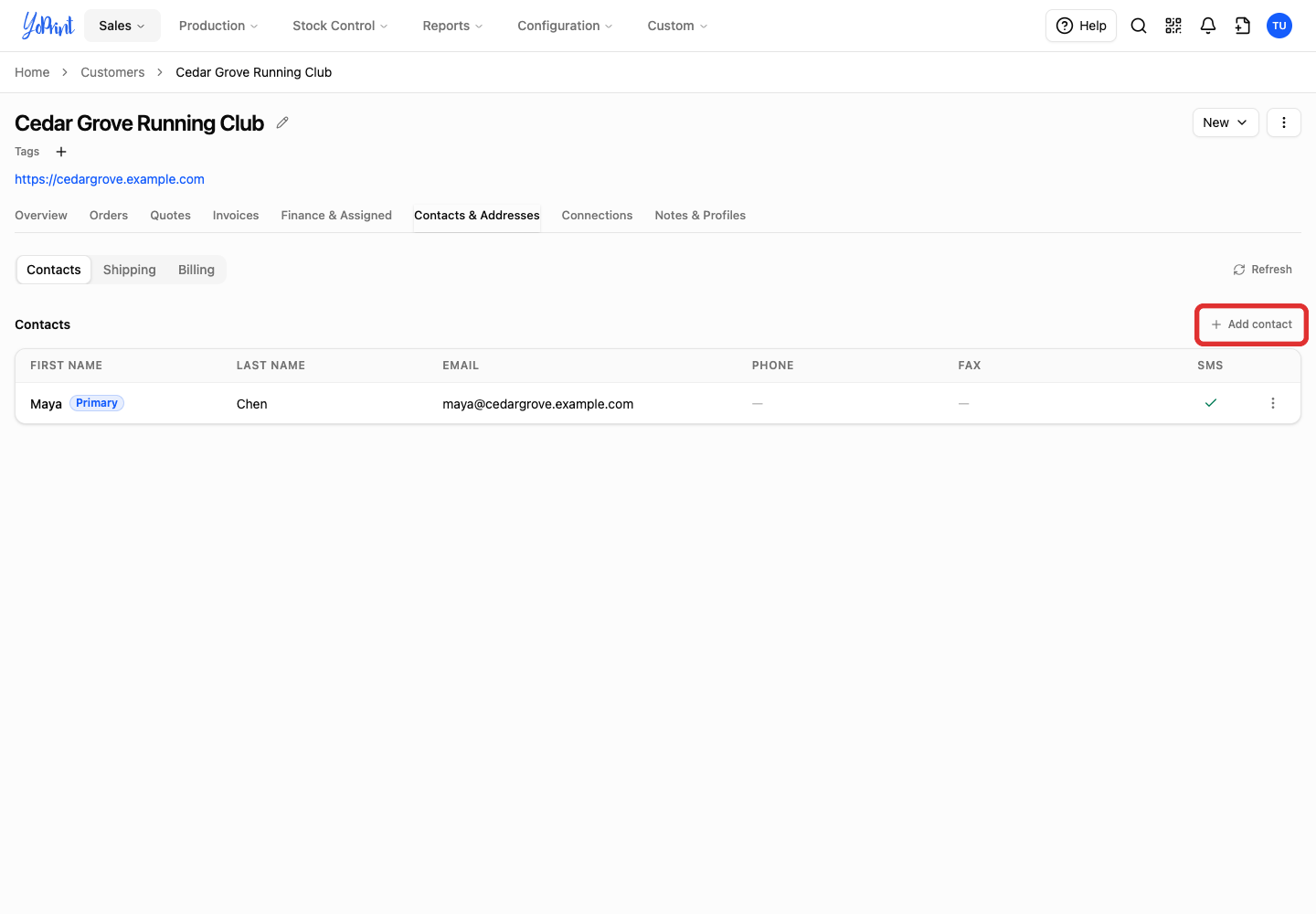
Choose Contacts & Addresses. The Contacts tab opens.

Add a contact
-
Click Add contact.
-
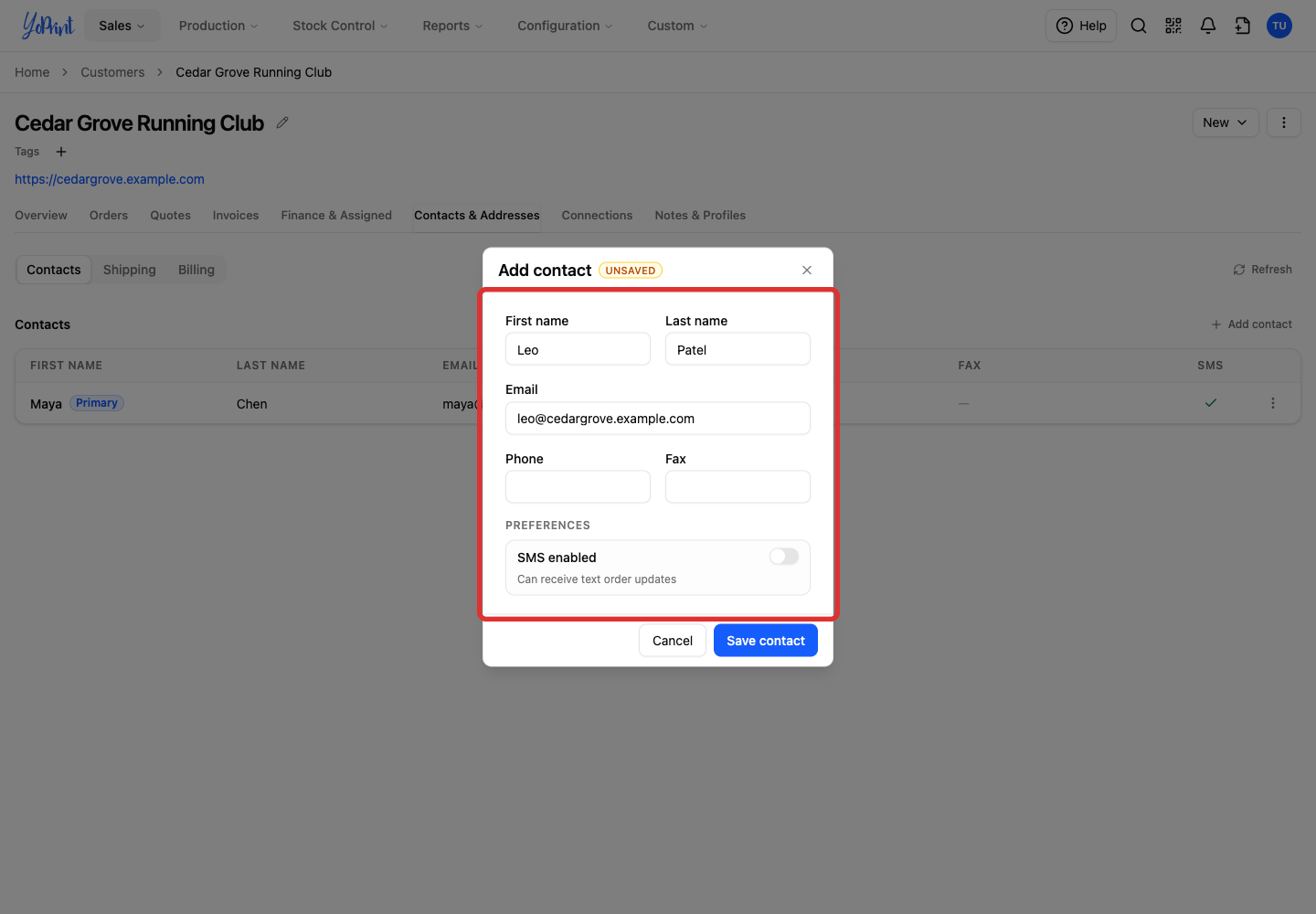
Enter the contact’s details.
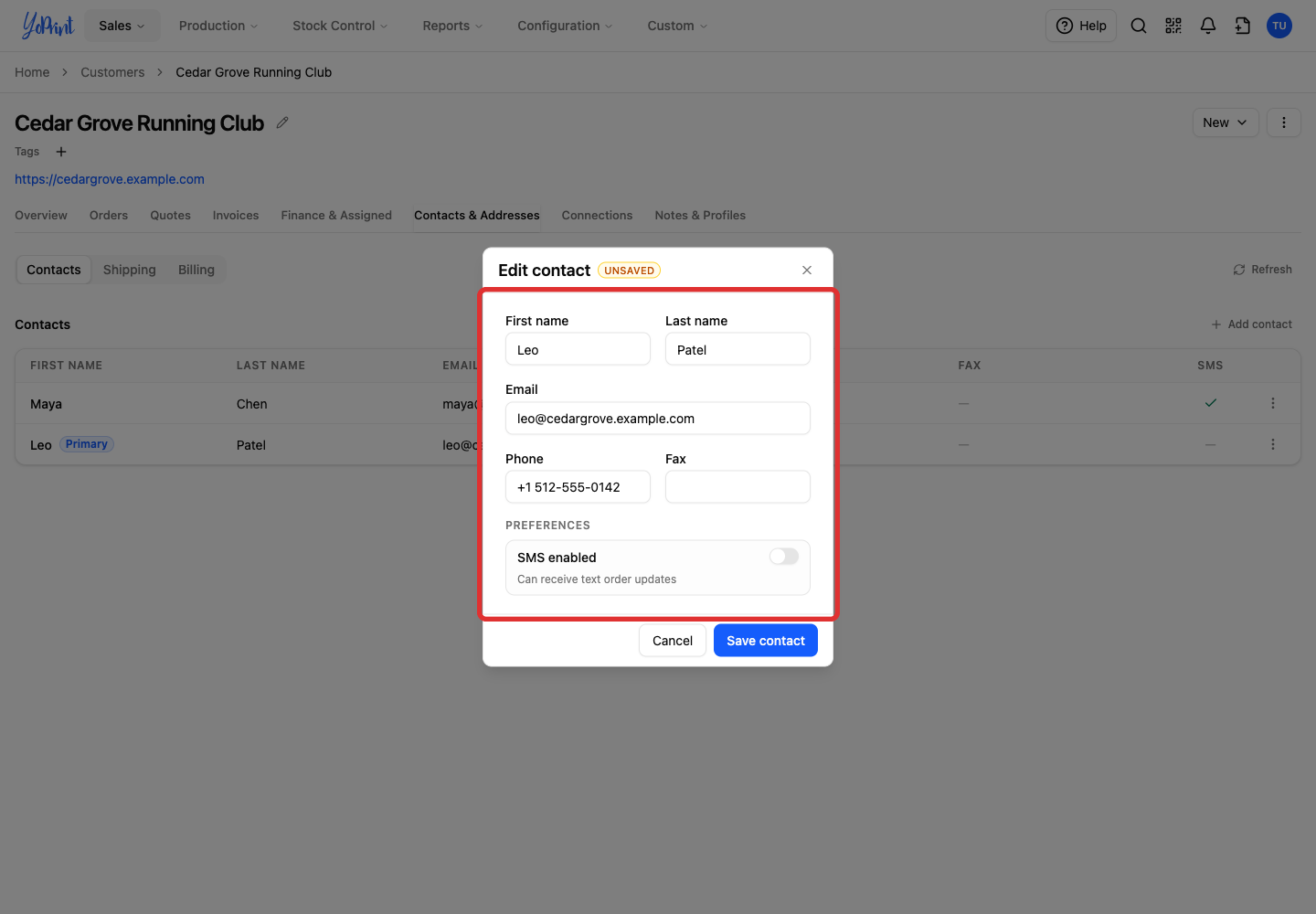
Only First name is required, though contacts need an email address to receive emailed quotes and invoices. You can add a last name, email address, phone number, and fax number. SMS enabled allows the contact to receive text order status updates if they have a valid phone number.
-
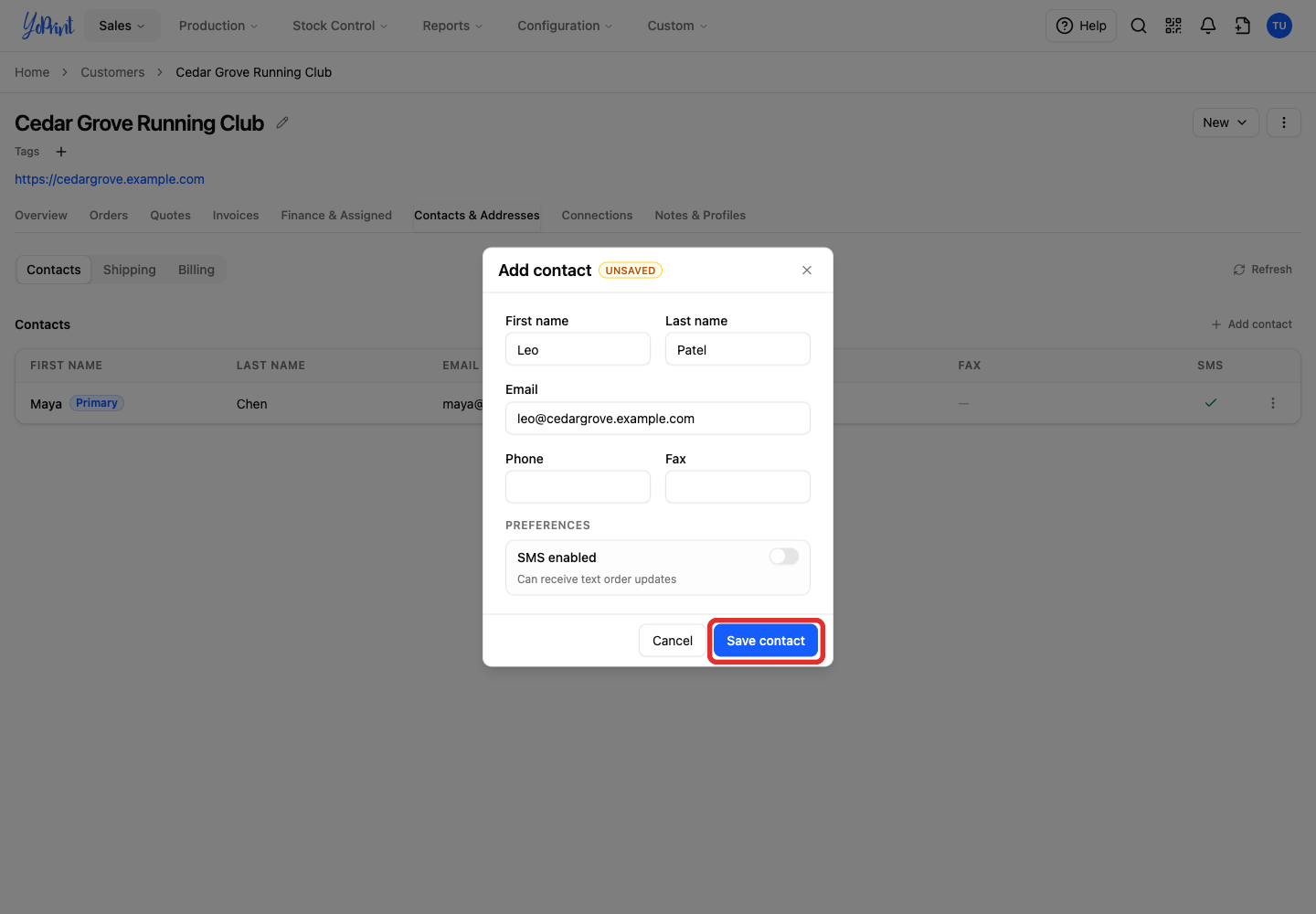
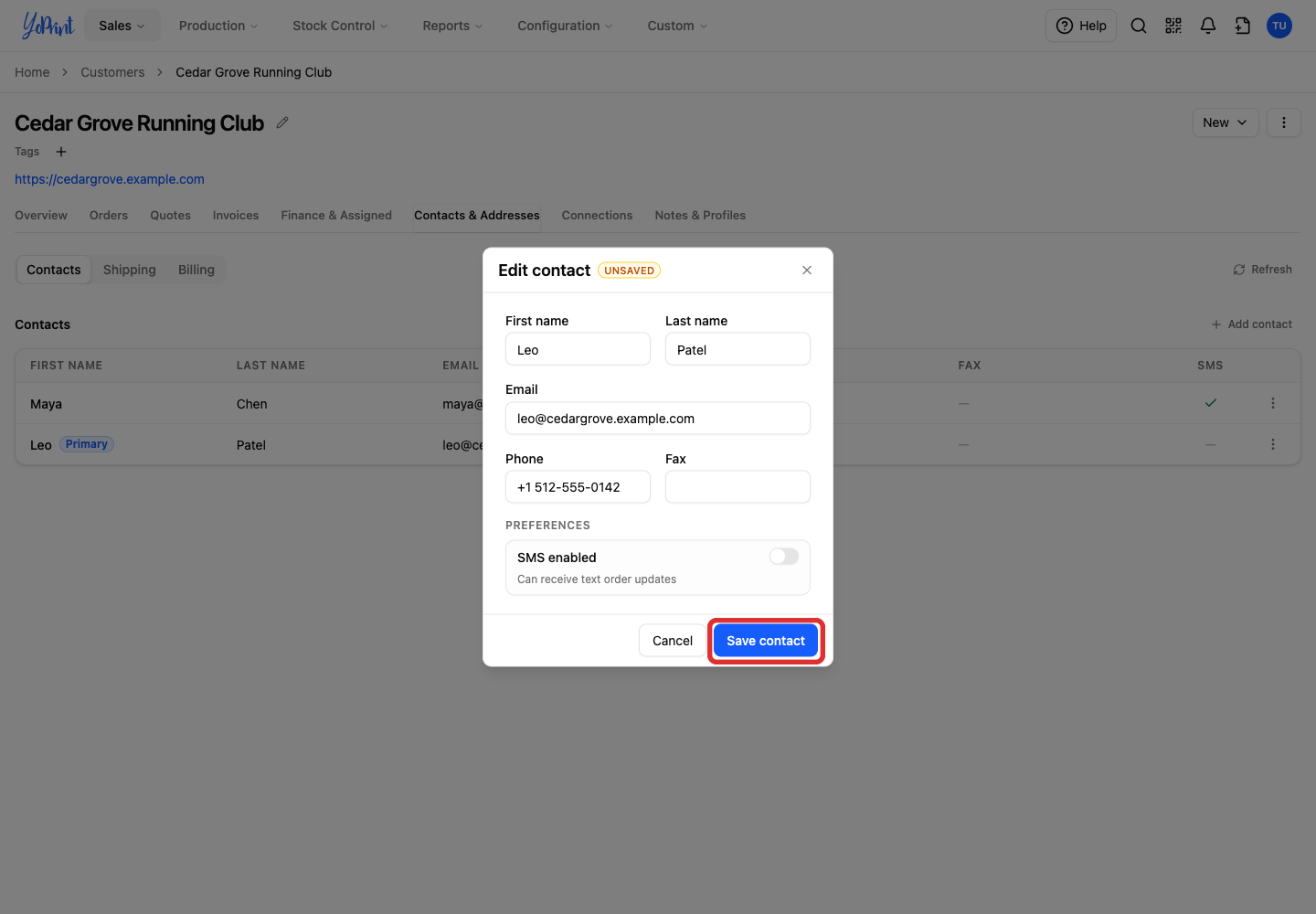
Click Save contact. The contact appears in the table.
Choose the primary contact
A customer has one primary contact, and the first contact you add becomes primary automatically. The Primary label shows who is currently selected.
-
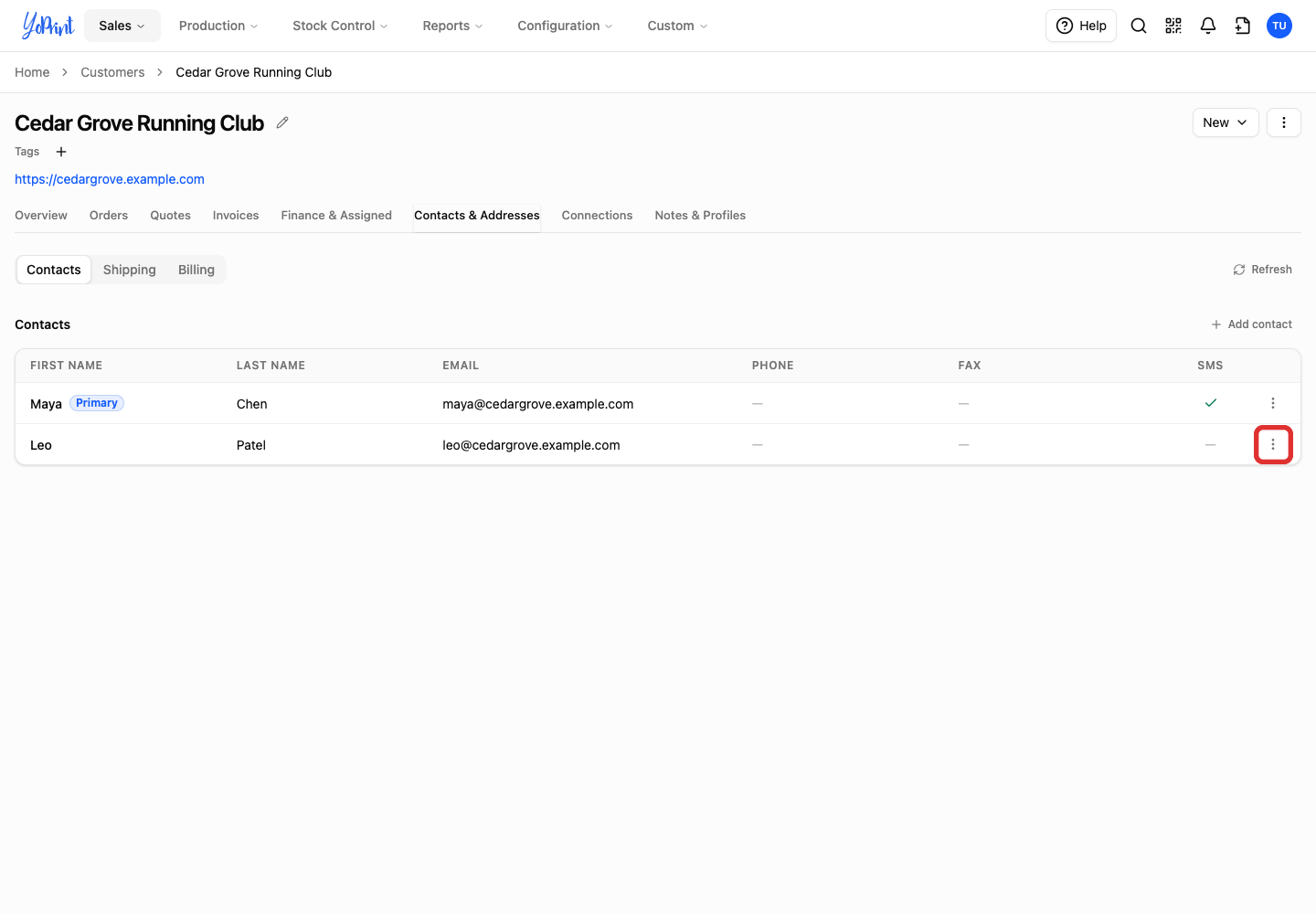
Open the three-dot menu beside the contact you want to make primary.
-
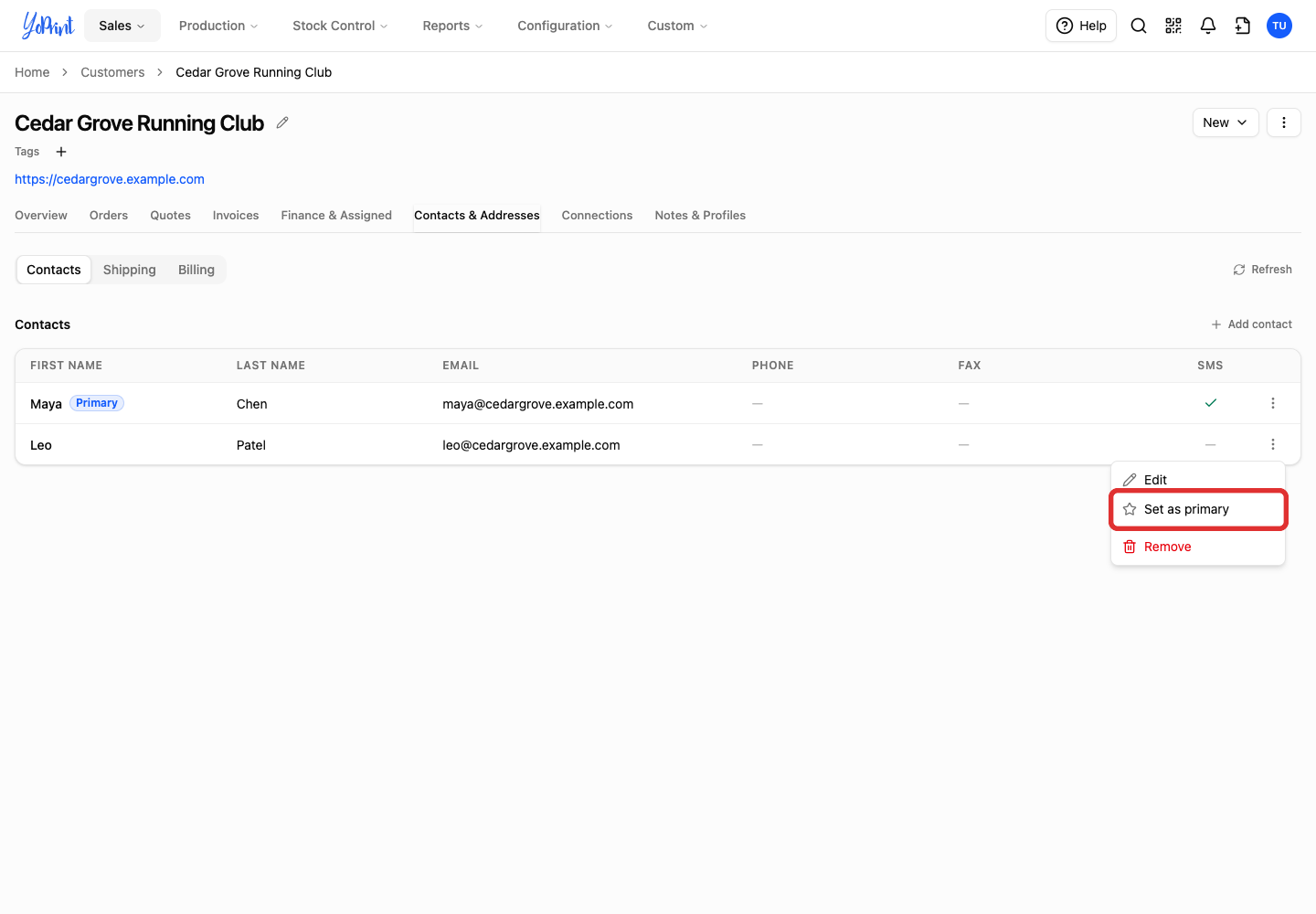
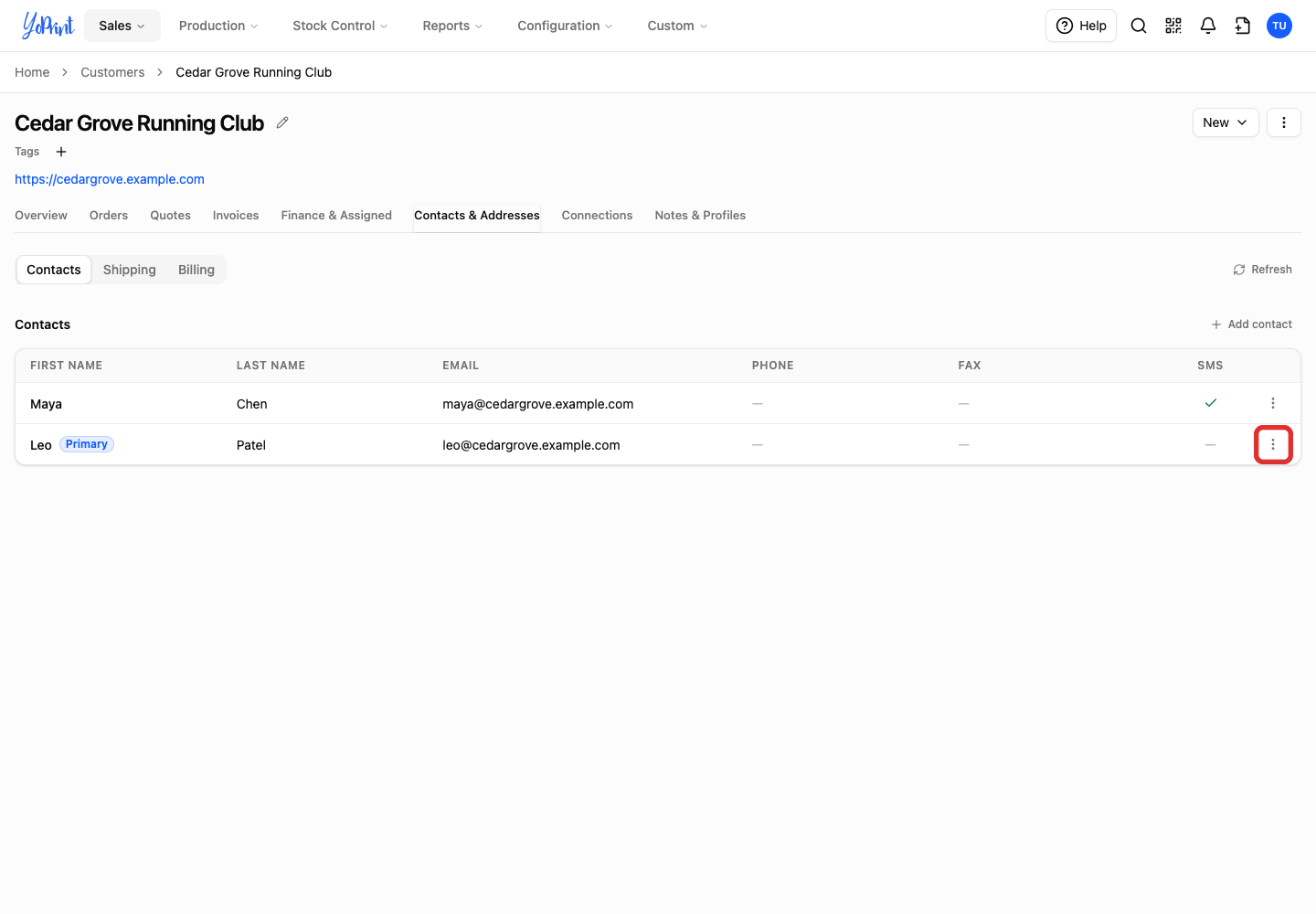
Choose Set as primary. The Primary label moves to that contact.
Edit a contact
-
Open the three-dot menu beside the contact.
-
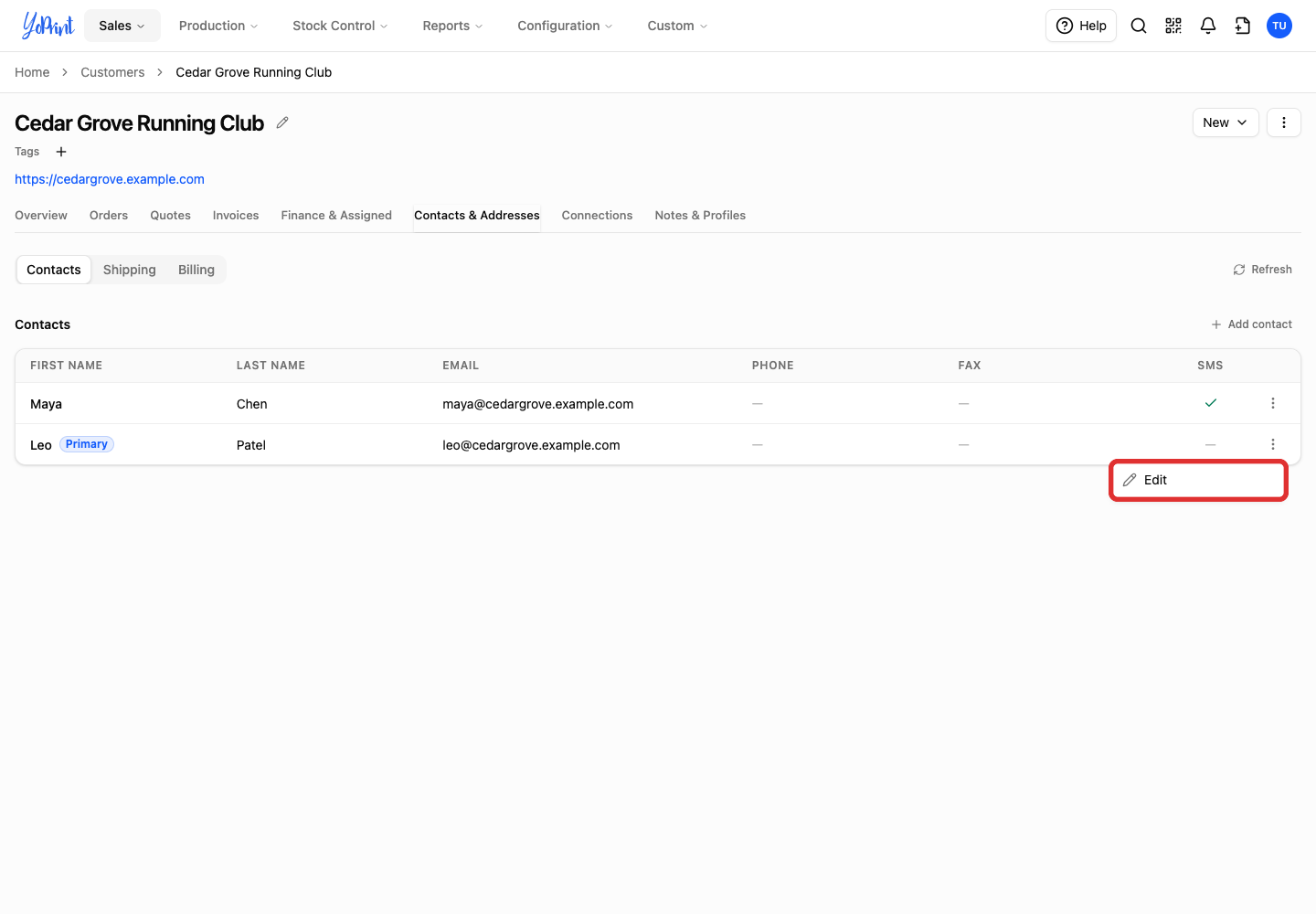
Choose Edit.
-
Update the contact details or SMS preference.
-
Click Save contact.
Remove a contact
Removing a contact deletes them from future quotes and orders while preserving past order history.
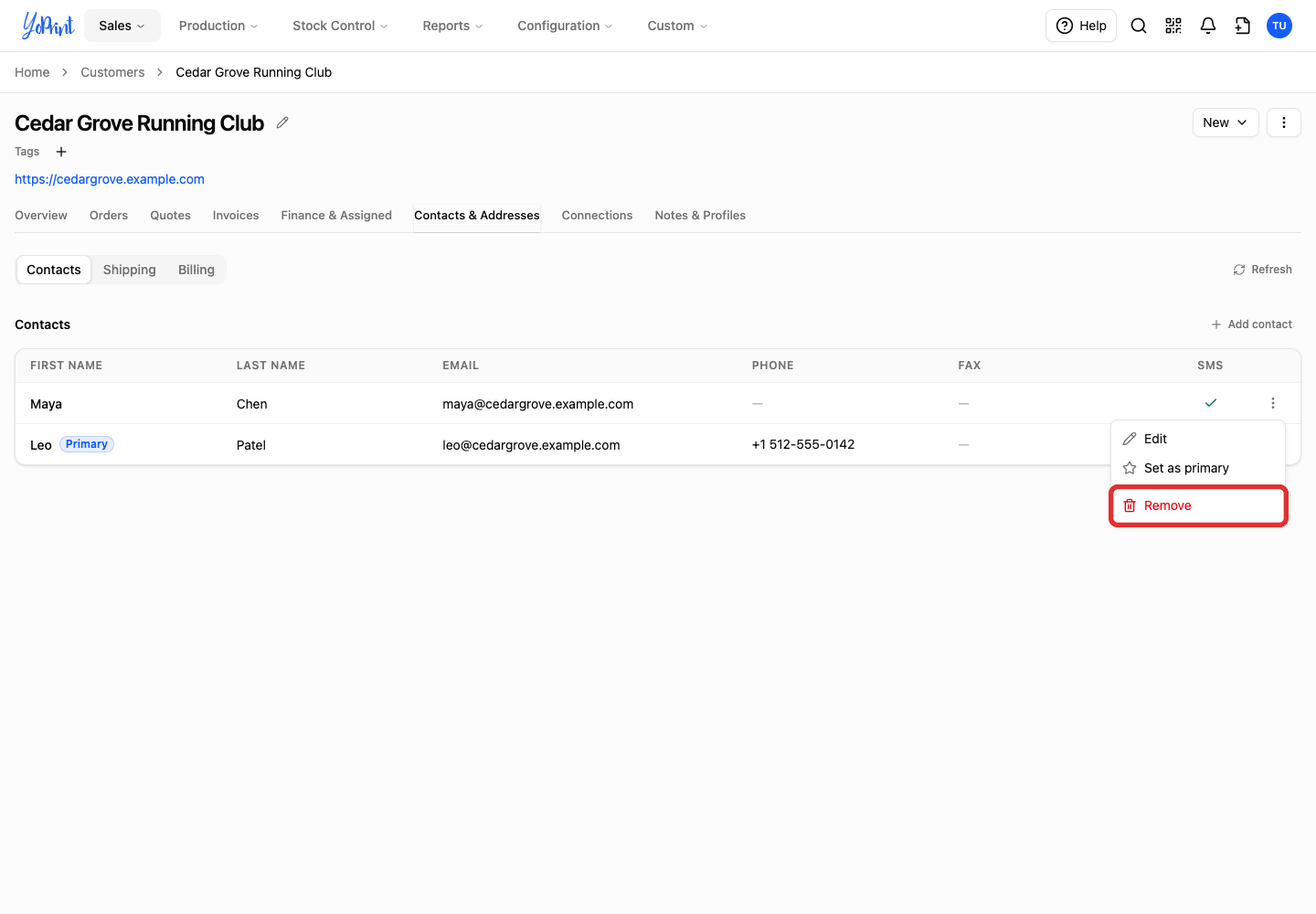
You cannot remove the primary contact. The menu hides Remove. If the customer only has one contact, add a replacement first, set them as primary, then remove the old contact.
-
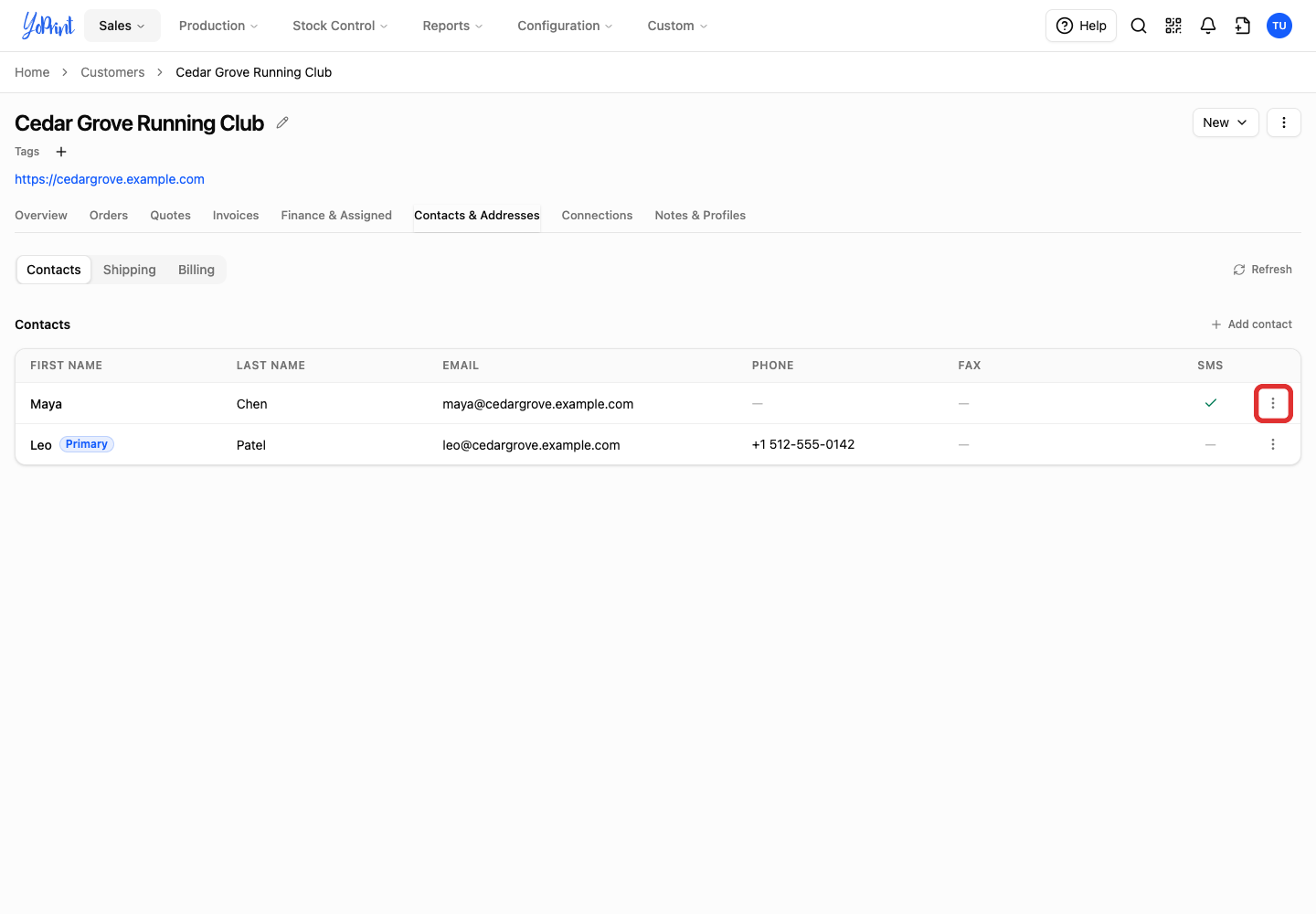
Open the three-dot menu beside the contact you want to remove.
-
Choose Remove.
-
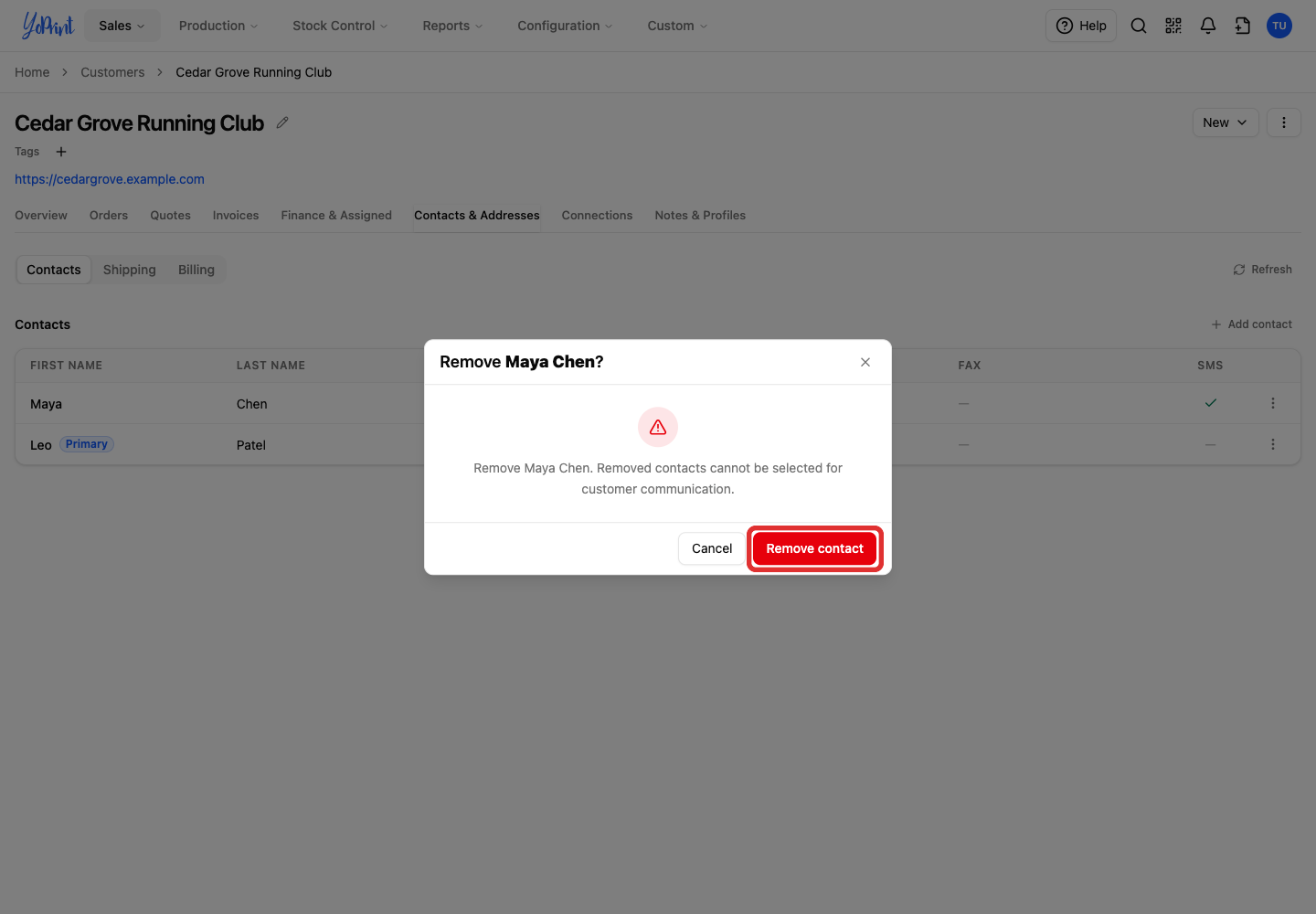
Verify the contact name in the dialog, then click Remove contact.