Sending Text Messages
In this article
Send a text message about a sales order to a customer contact, then check its status in the order's message list.
Before you start, connect Twilio and choose your sending number. The contact needs a mobile number and Can Receive SMS enabled.
Open the order's text-message composer
-
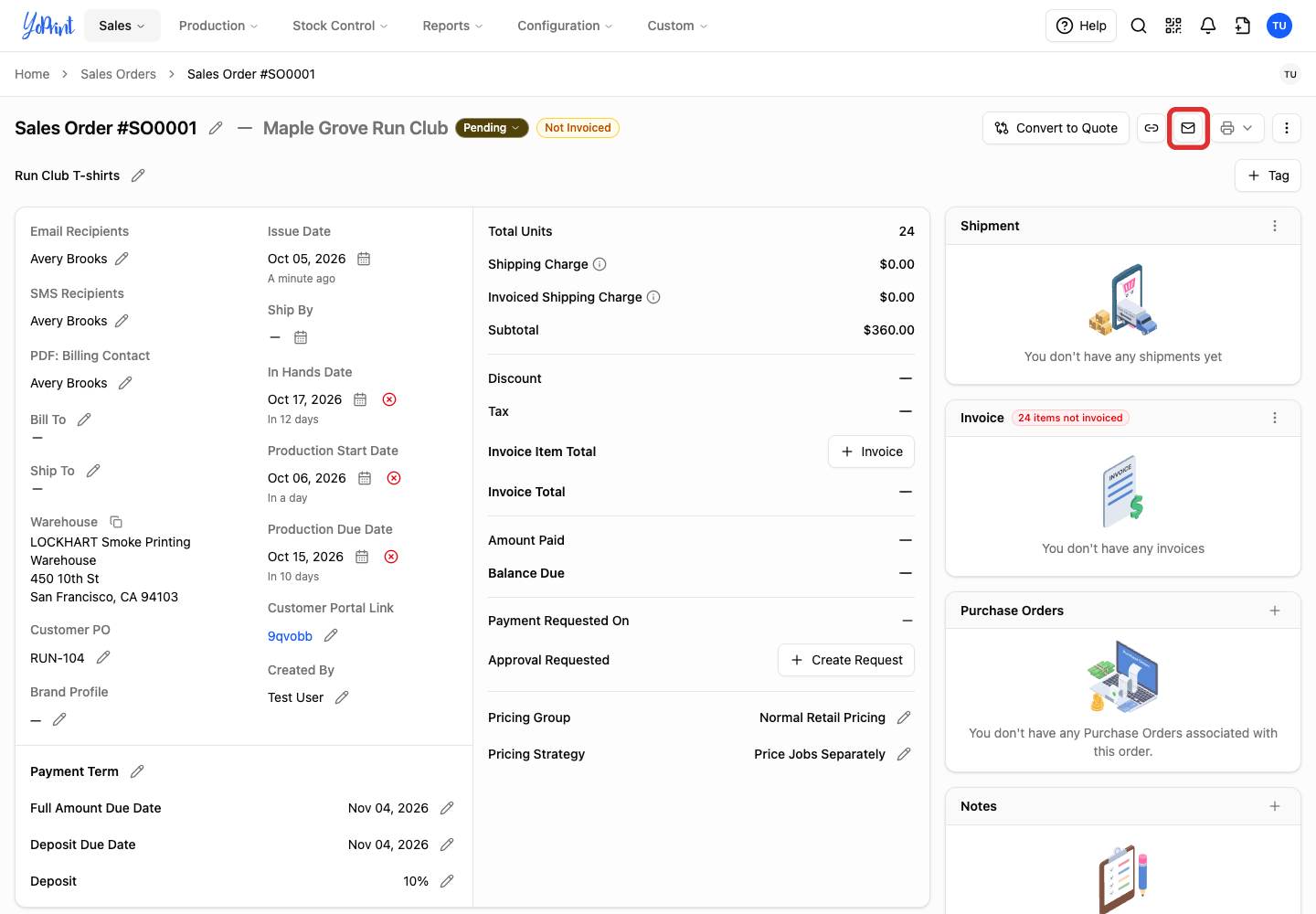
Open the sales order and click the Customer Message envelope icon near the top right.
-
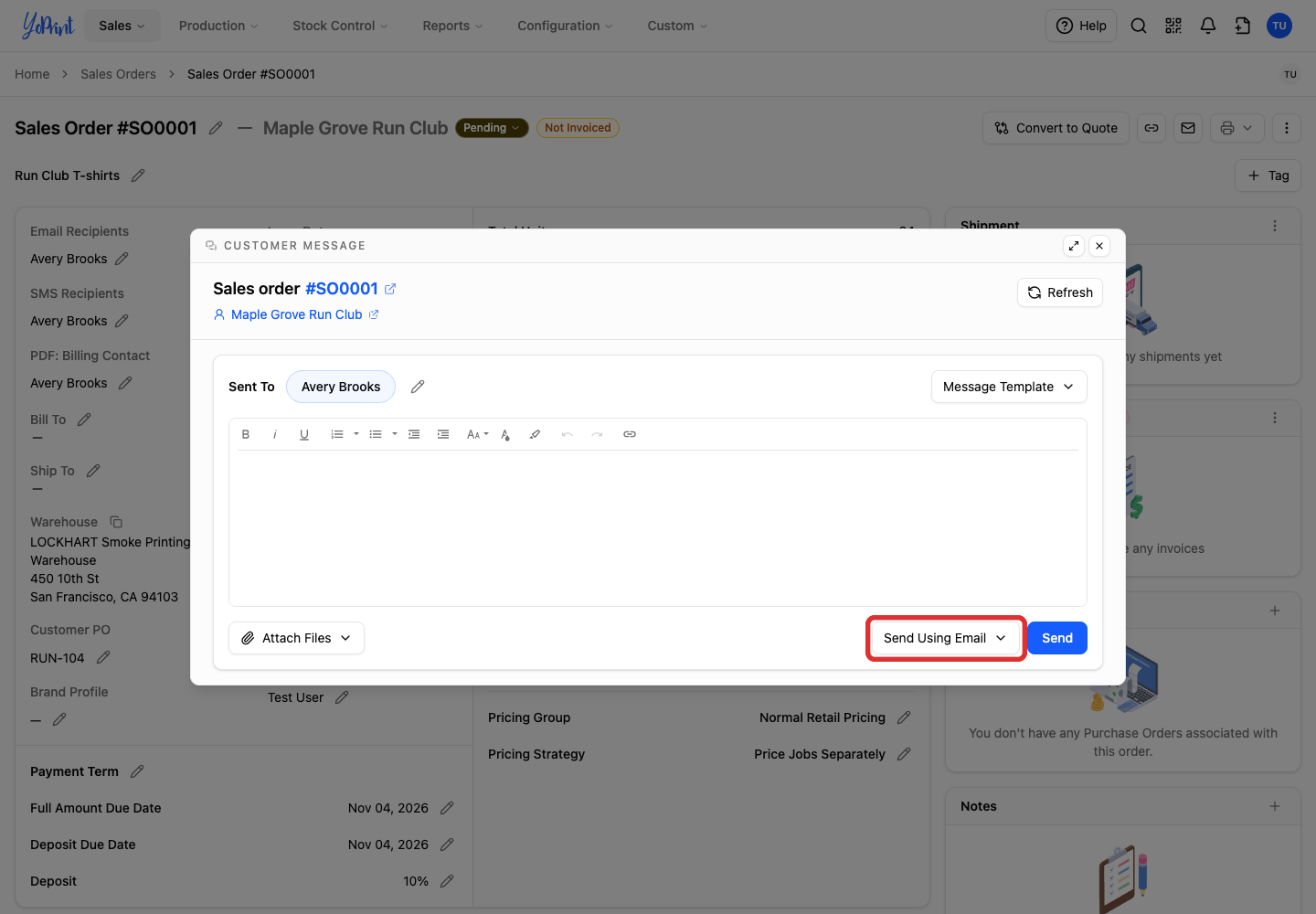
Open the Send Using Email menu below the message box.
-
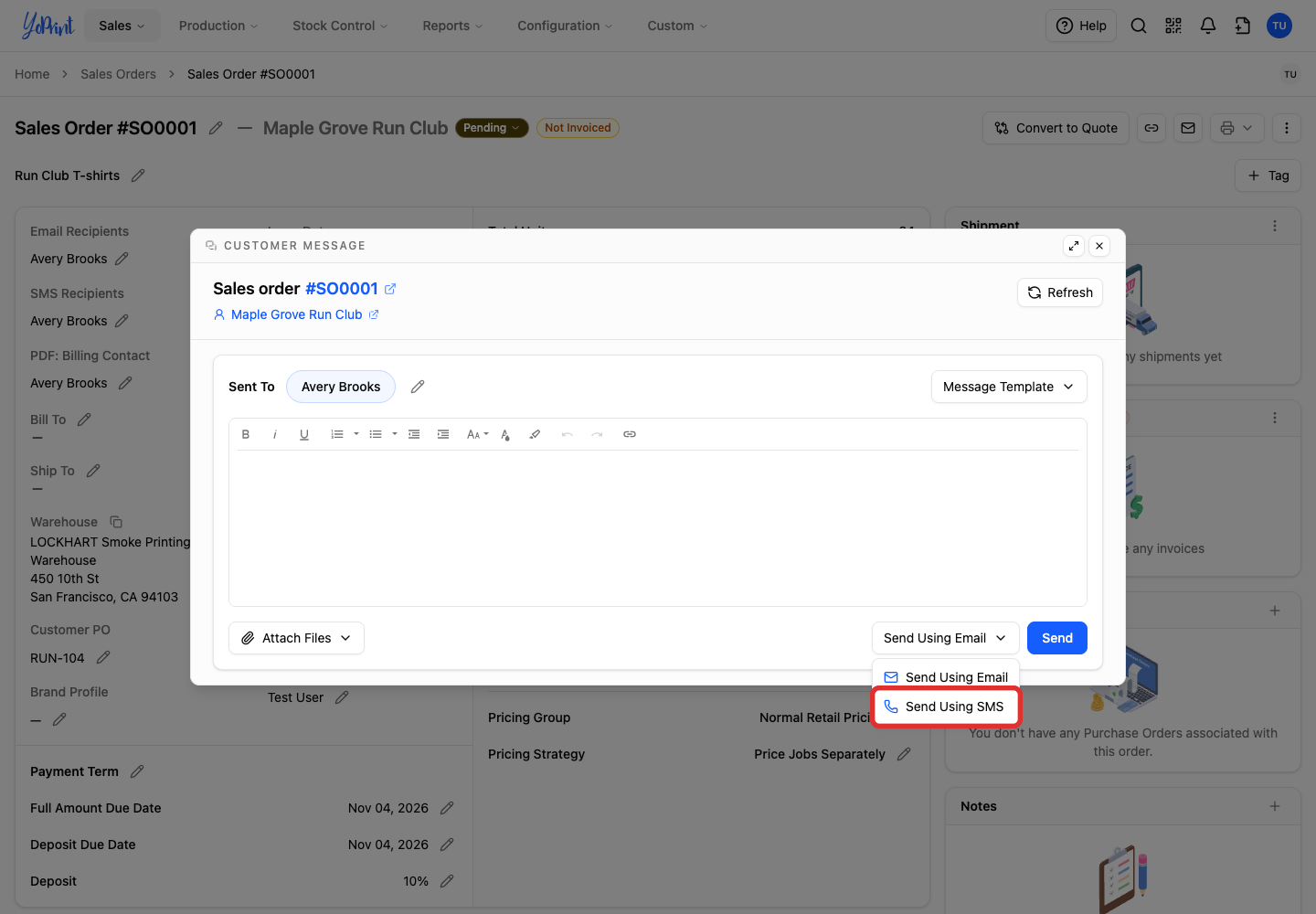
Choose Send Using SMS.
Choose the recipient
-
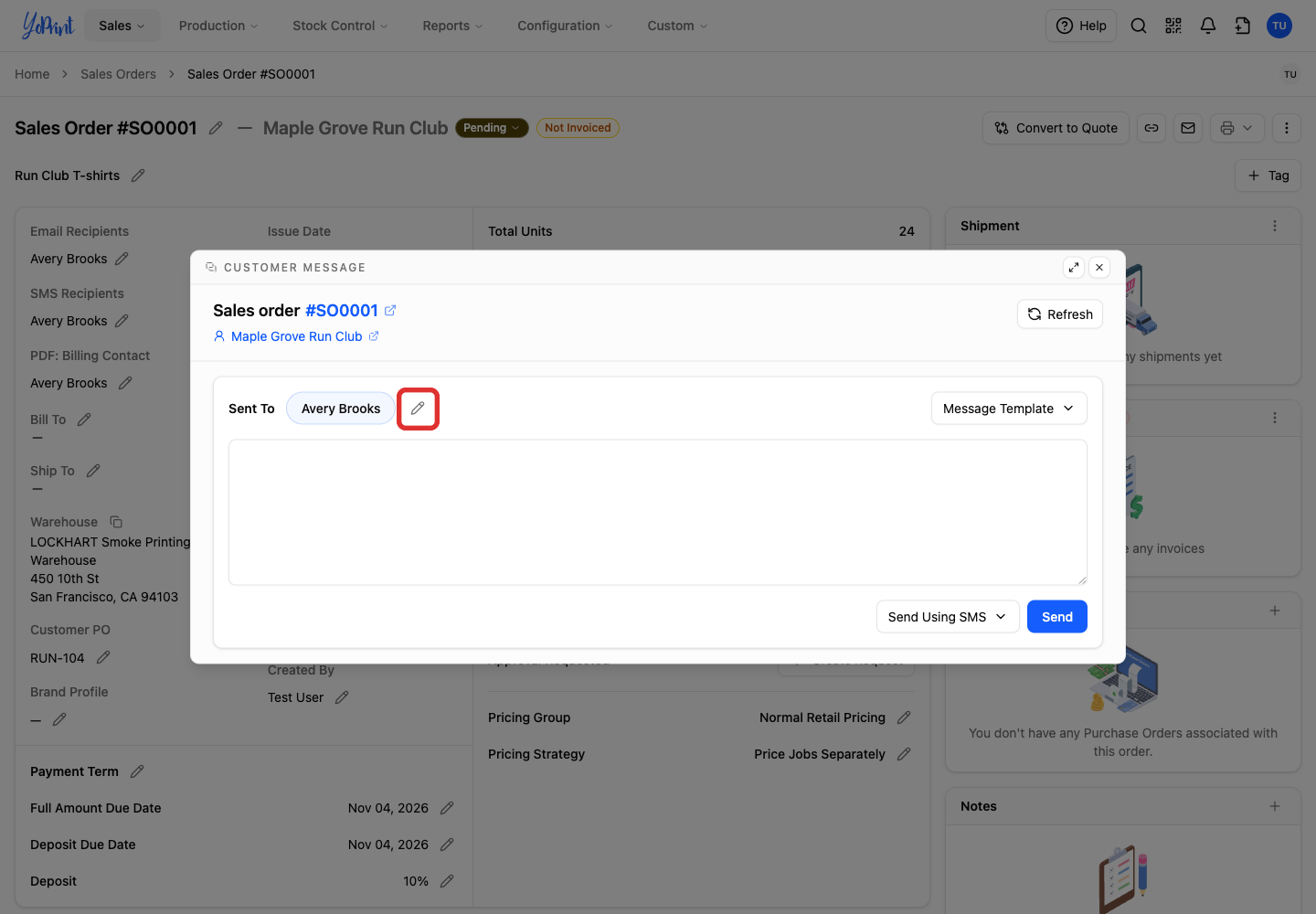
In the Sent To row, click Edit recipients, the pencil icon beside the recipient list.
-
Select the contact who should receive the message.
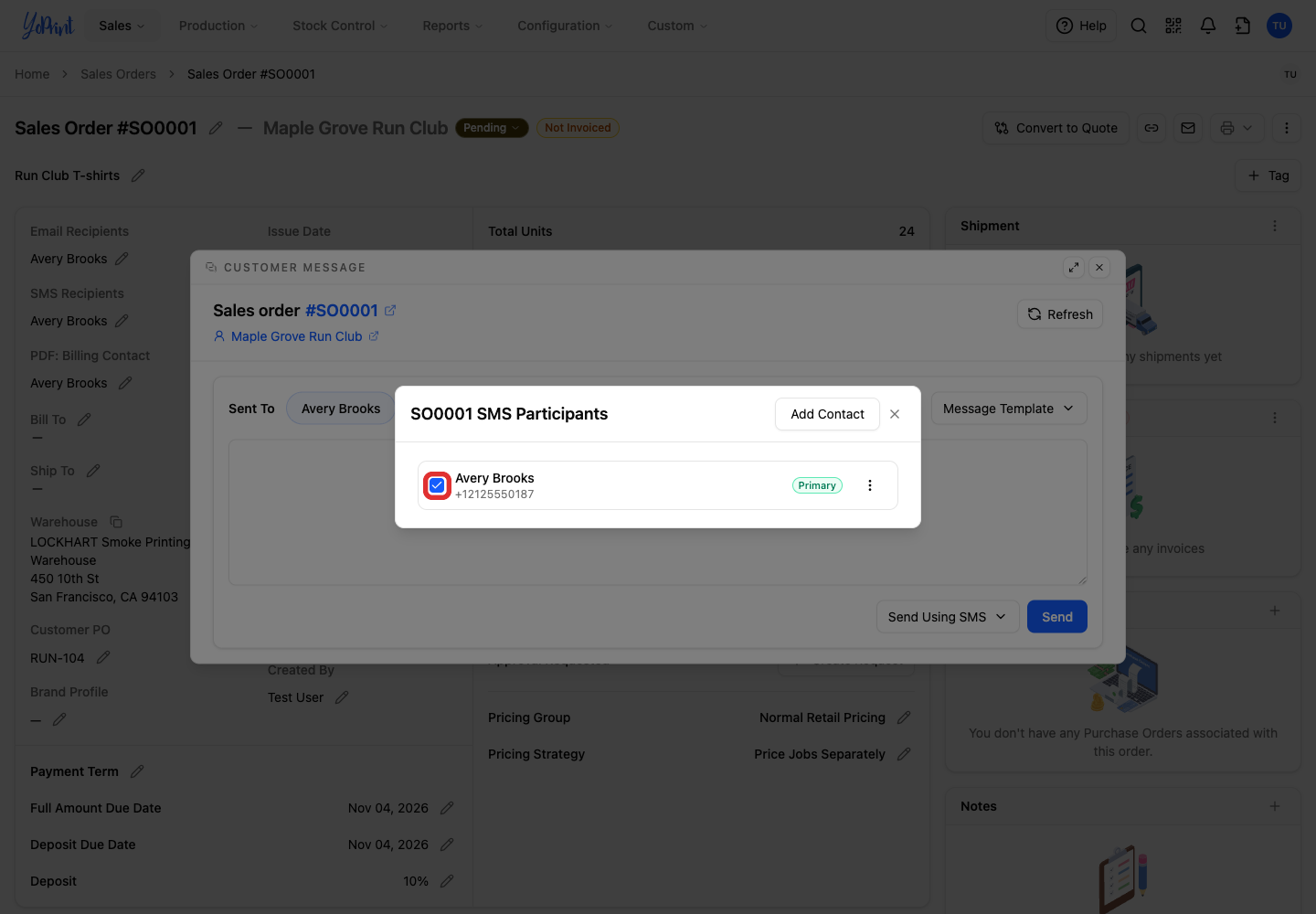
Each selected recipient receives an individual text message. YoPrint does not send group text messages.
-
Close SMS Participants when you have selected your recipients. If you need to add or update a contact first, follow the next section before closing the dialog.
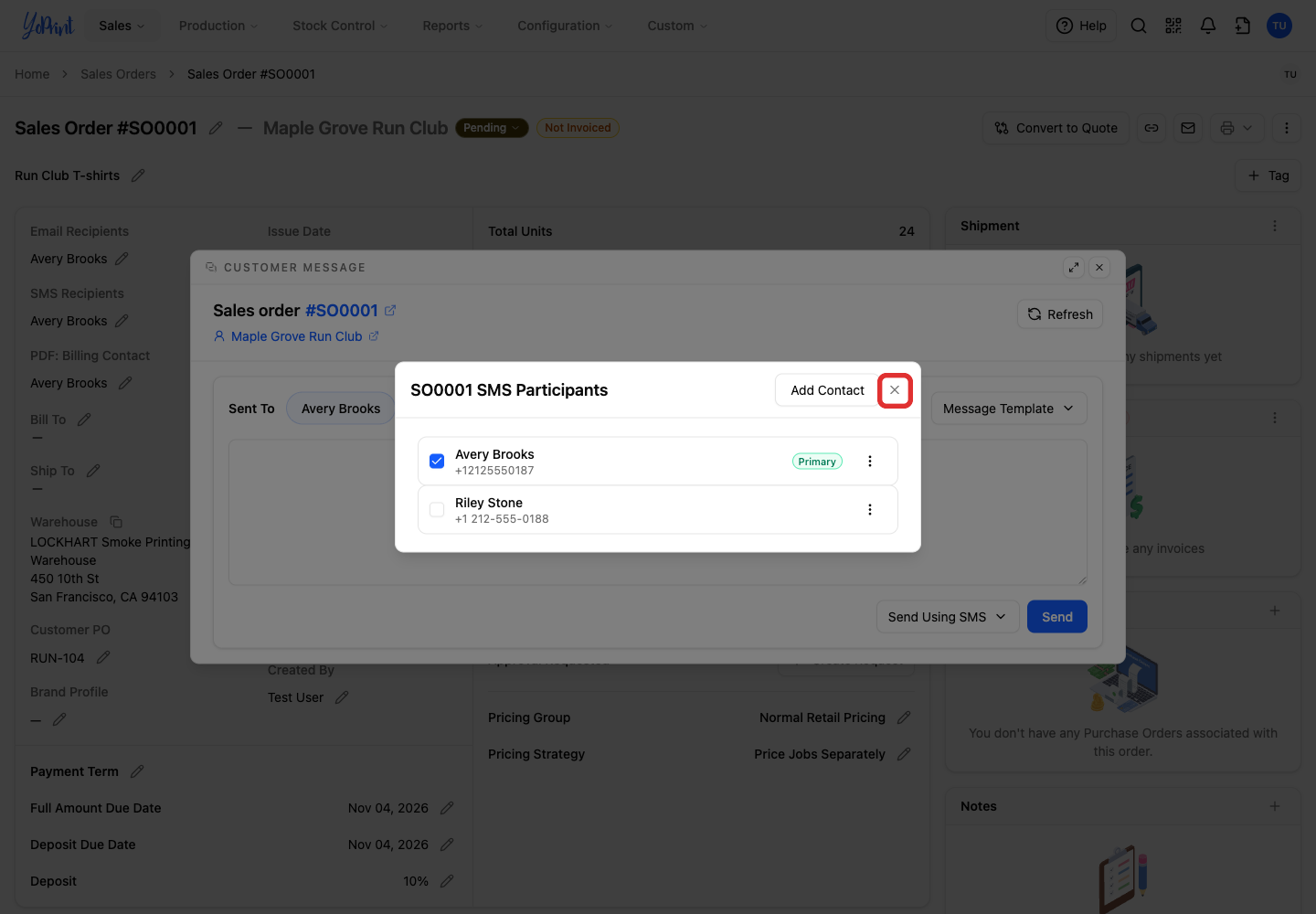
Add or update a contact's mobile number
To update an existing contact, open SMS Participants using Edit recipients as shown above.
-
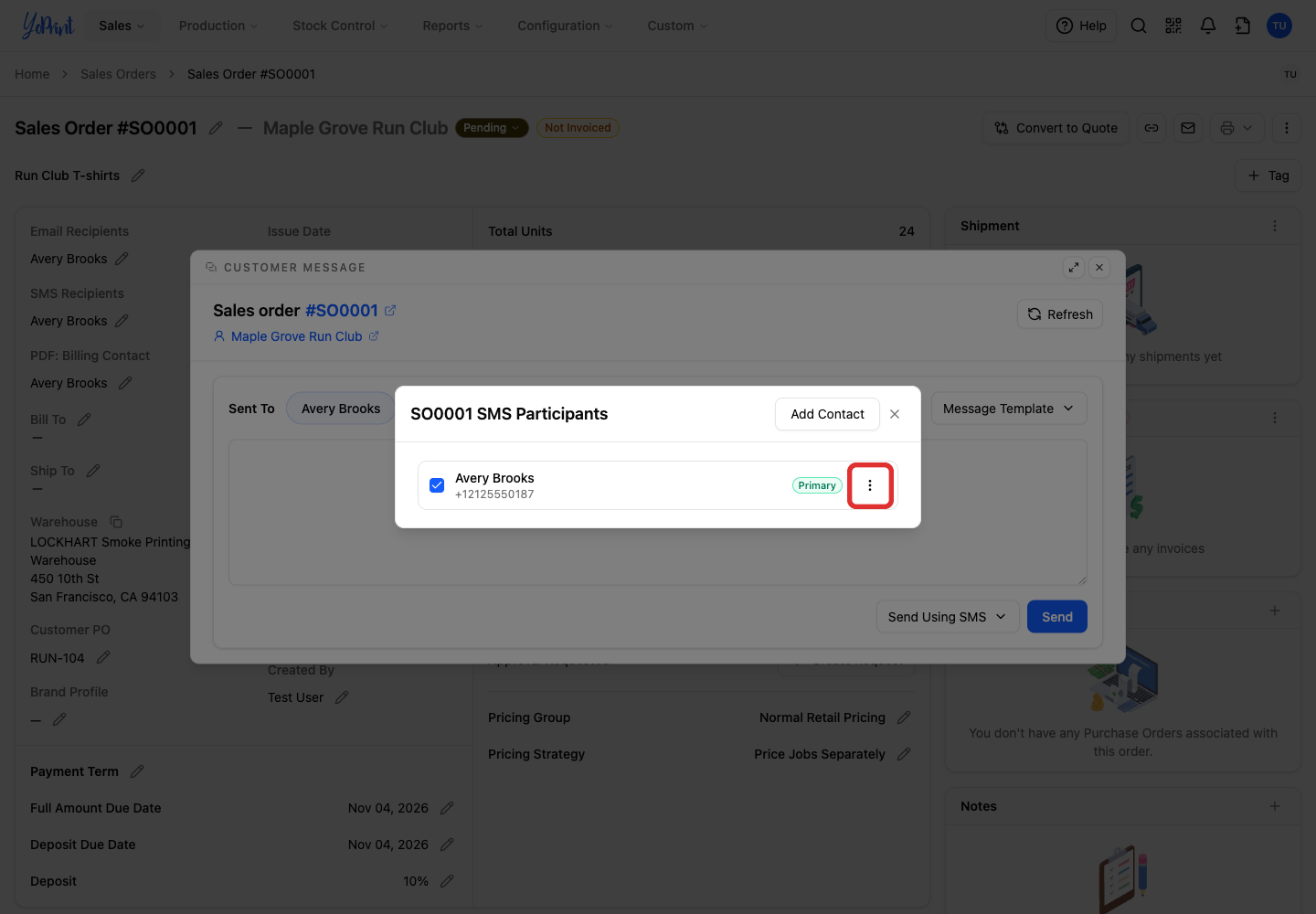
Open the contact's three-dot menu.
-
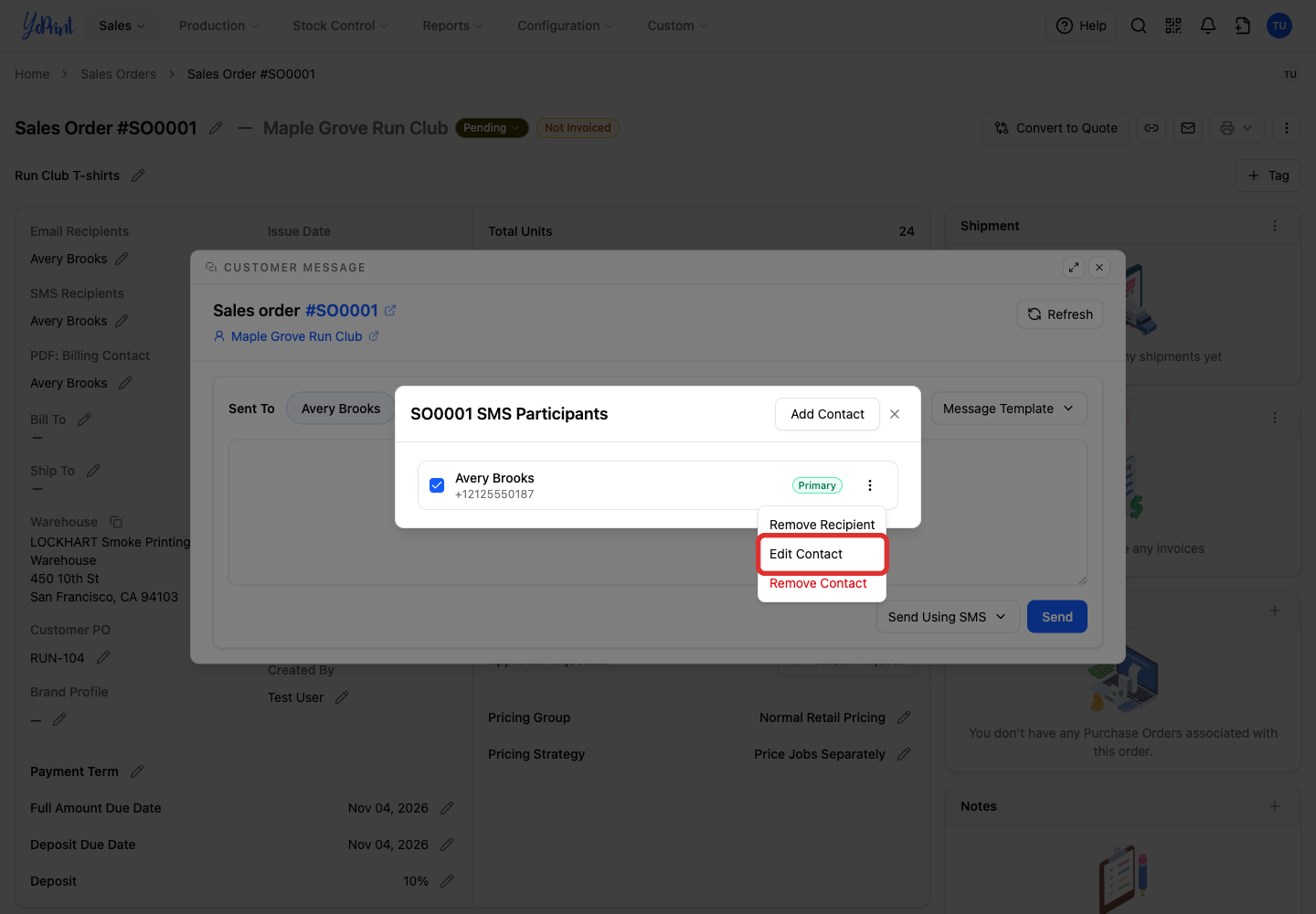
Choose Edit Contact.
-
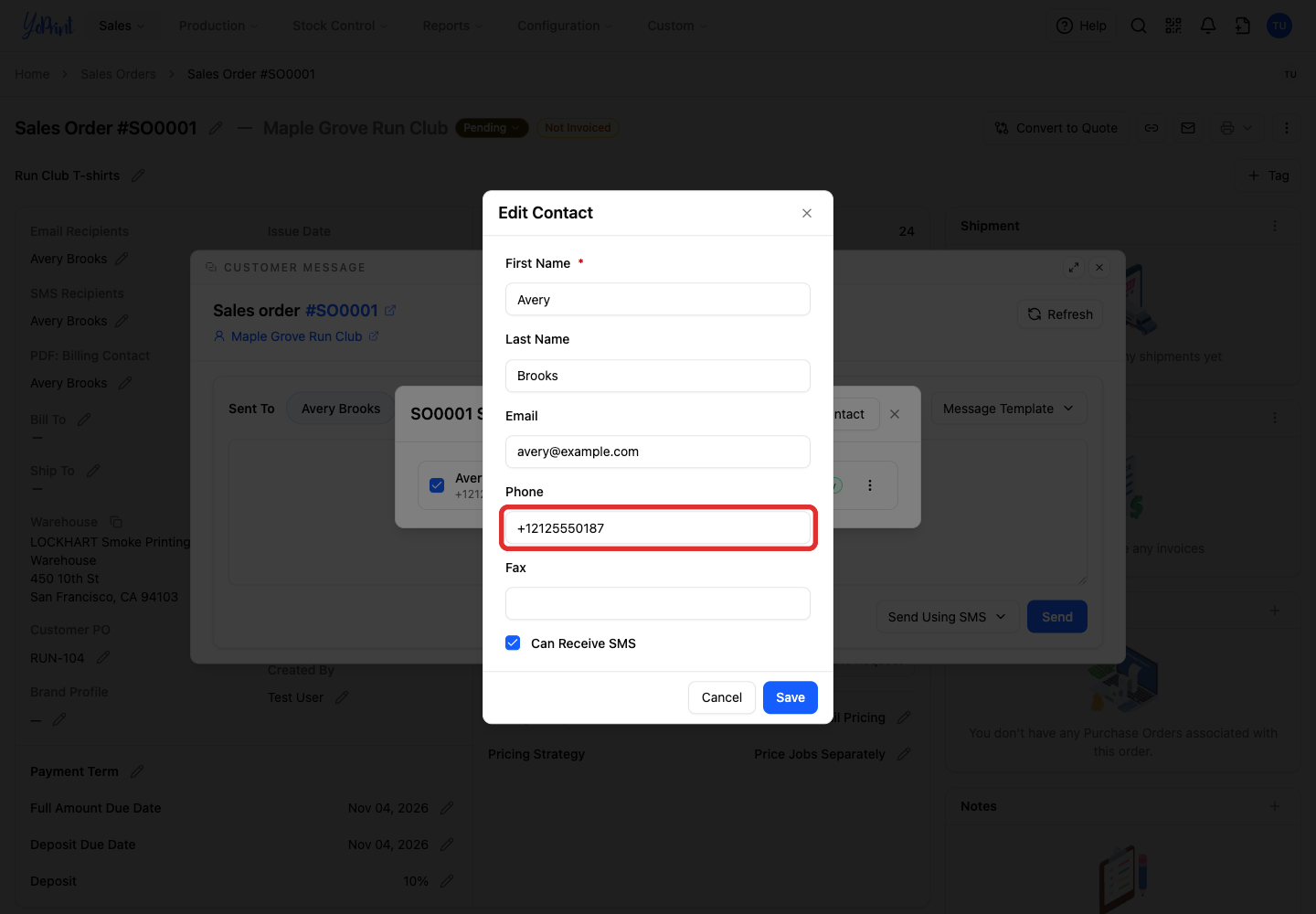
Enter the contact's mobile number in Phone, including its country code. For example, enter +1 212 555 0187.
-
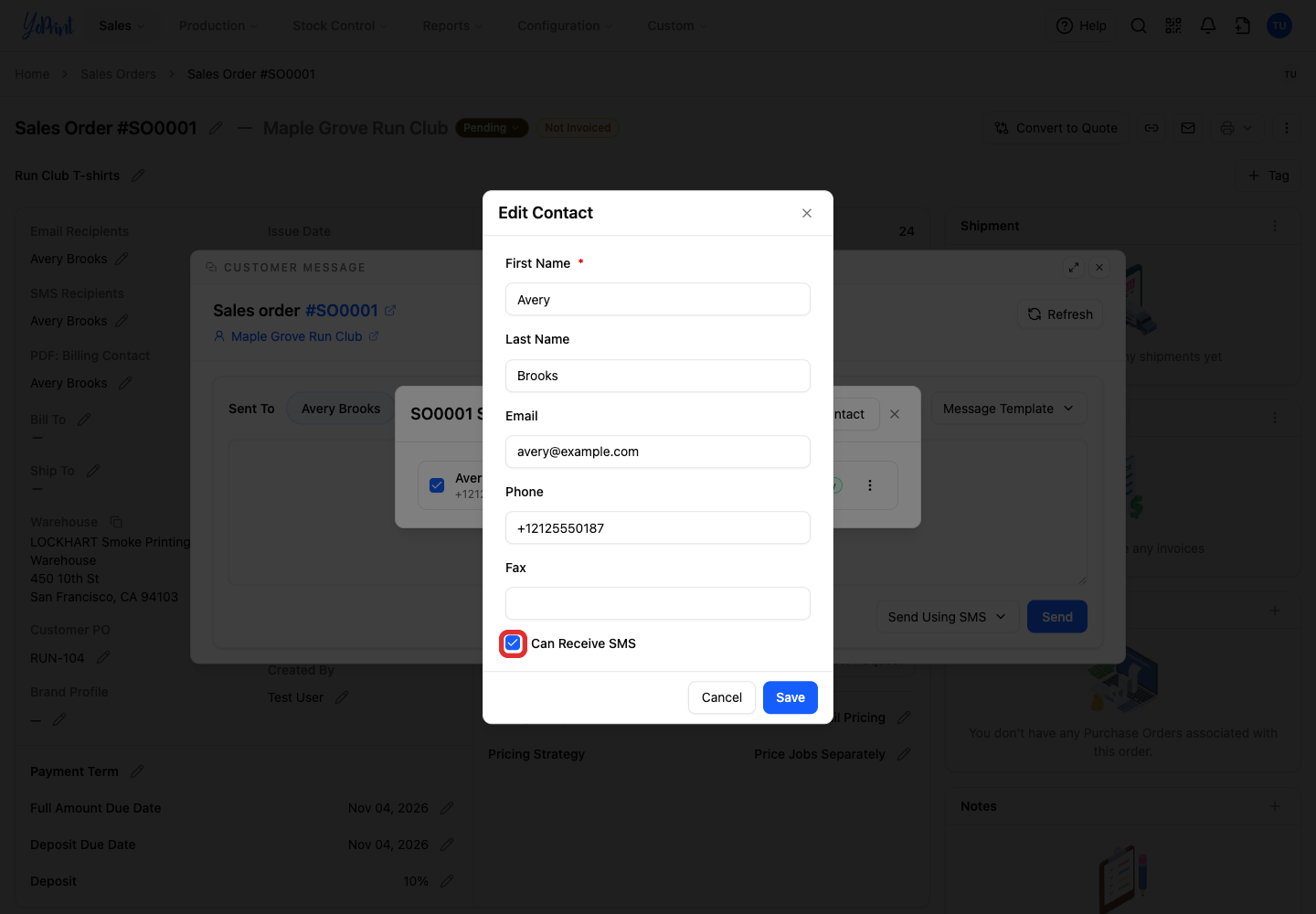
Select Can Receive SMS.
-
Click Save.
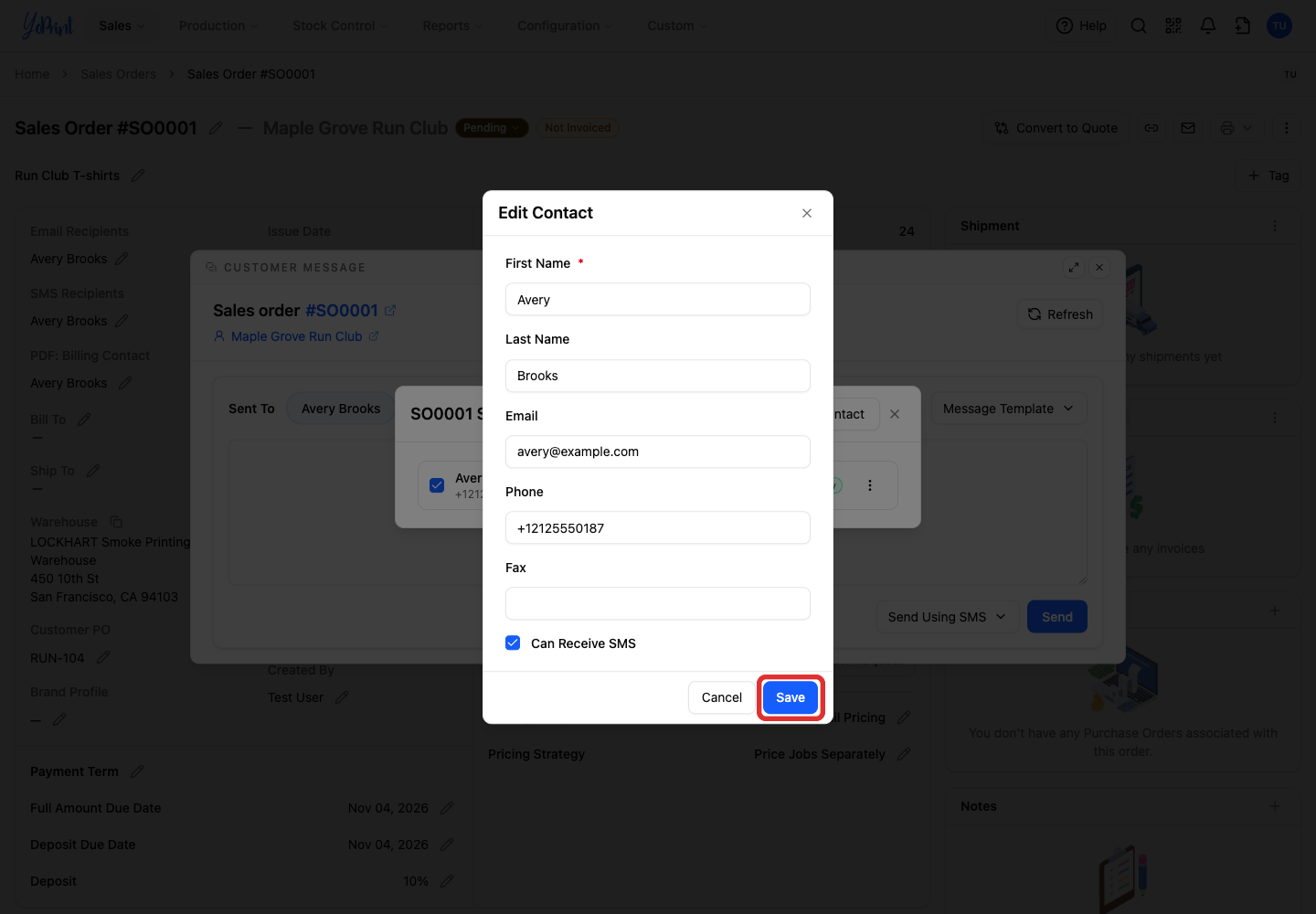
Editing a contact updates all orders that use that contact.
To create a contact instead:
-
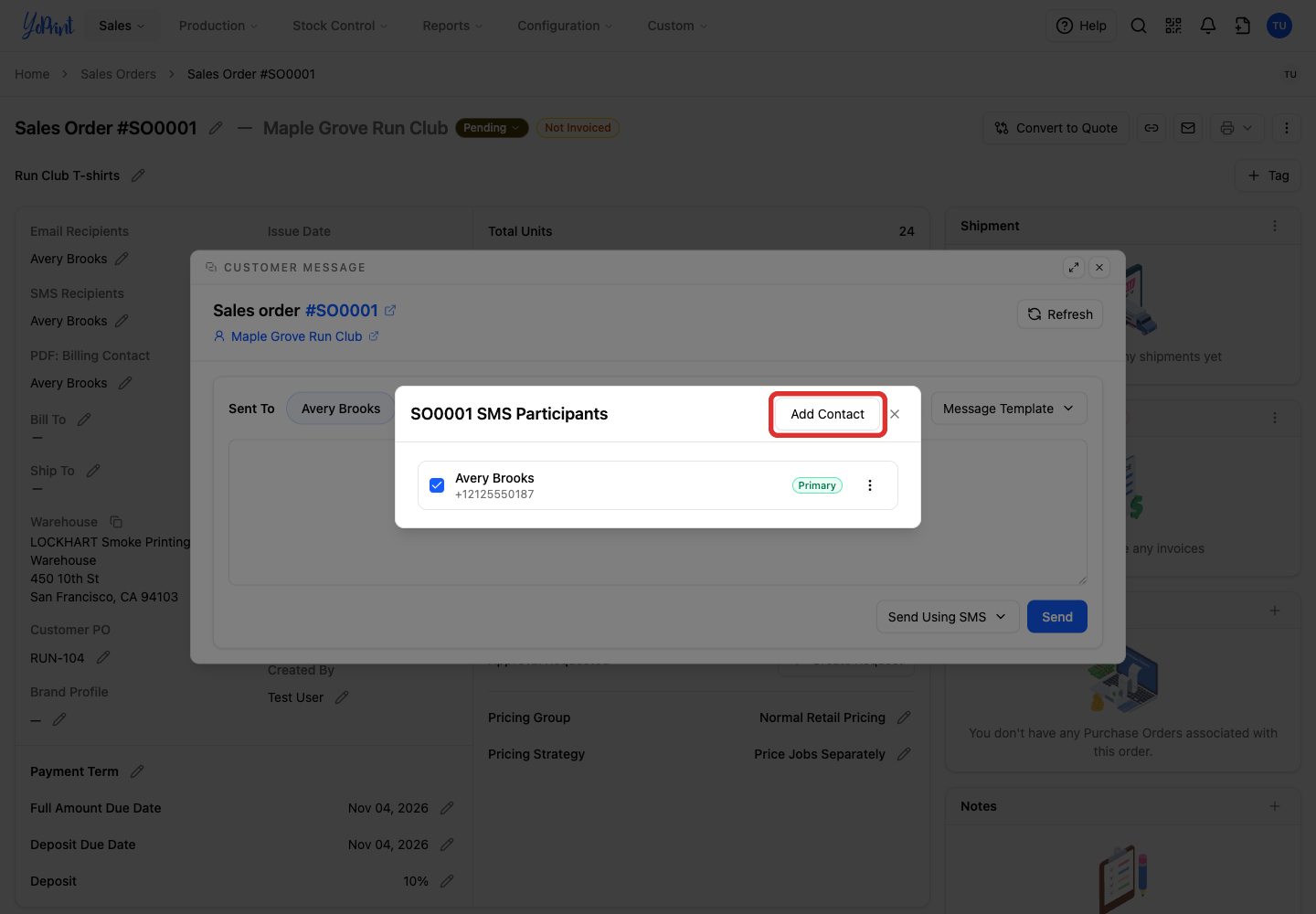
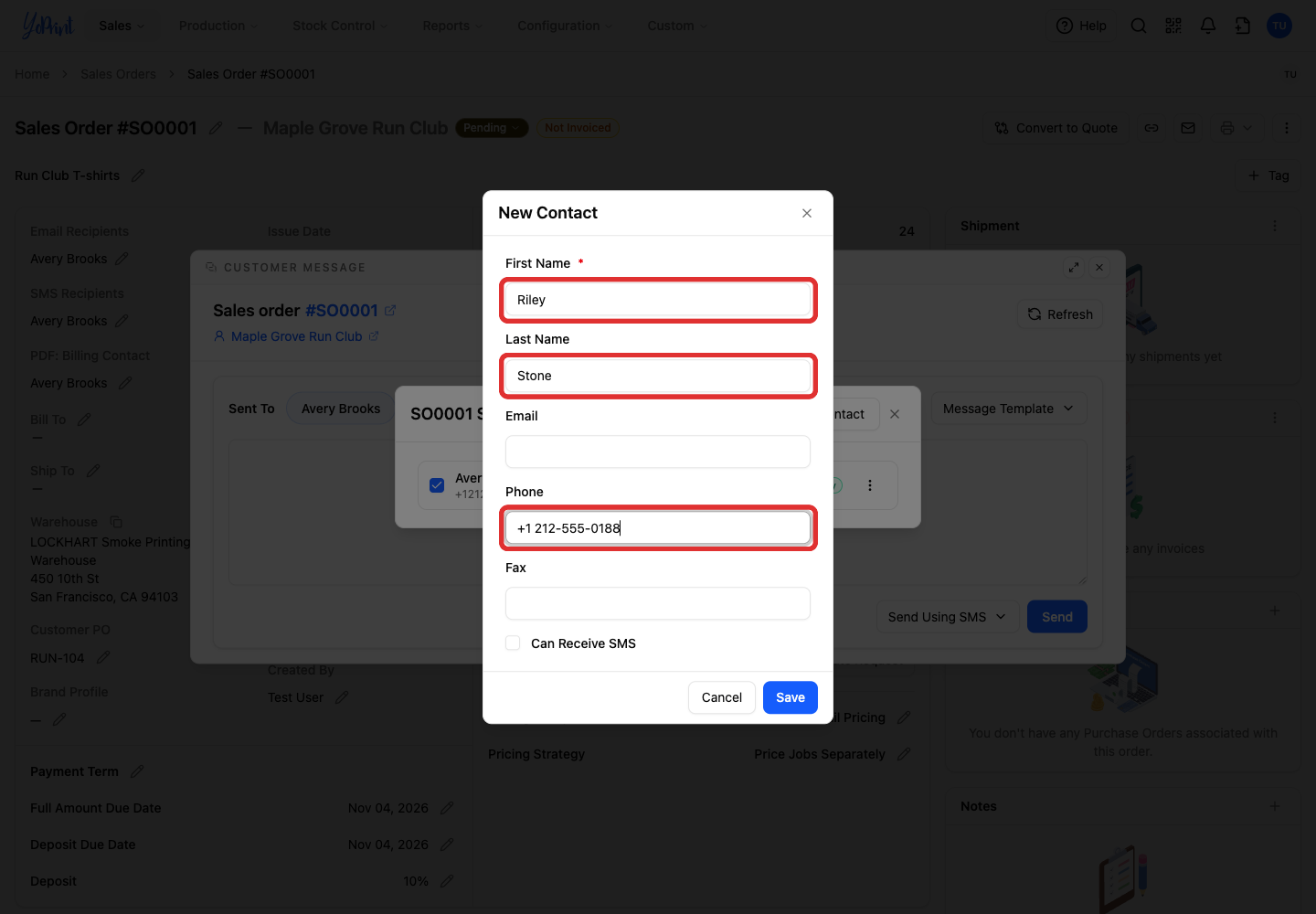
Click Add Contact in SMS Participants.
-
Enter the contact's name and mobile number.
-
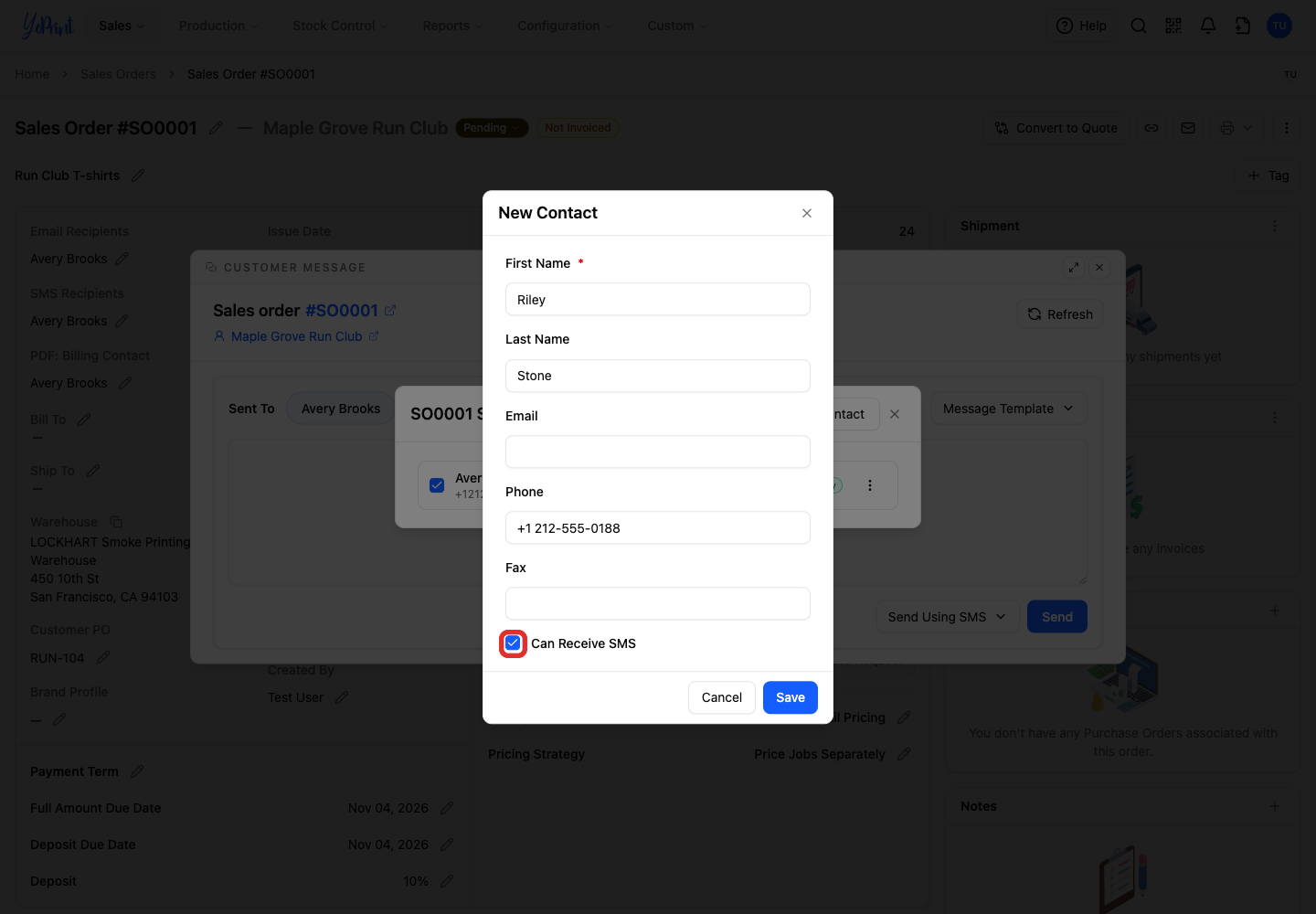
Select Can Receive SMS.
-
Click Save.
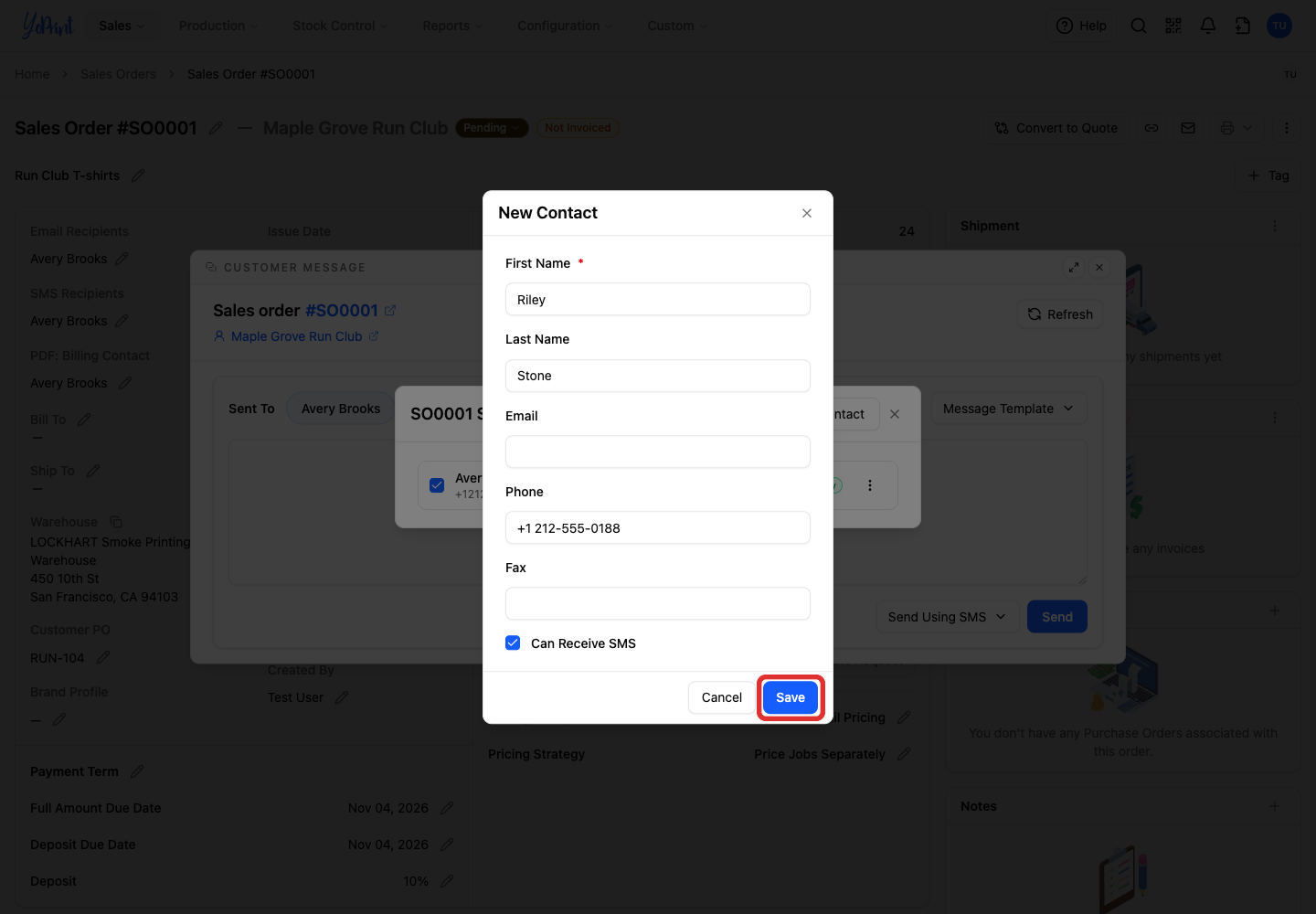
Saving adds the contact to the list with their checkbox unchecked. Follow Choose the recipient to select their checkbox and return to the message.
Write and send your message
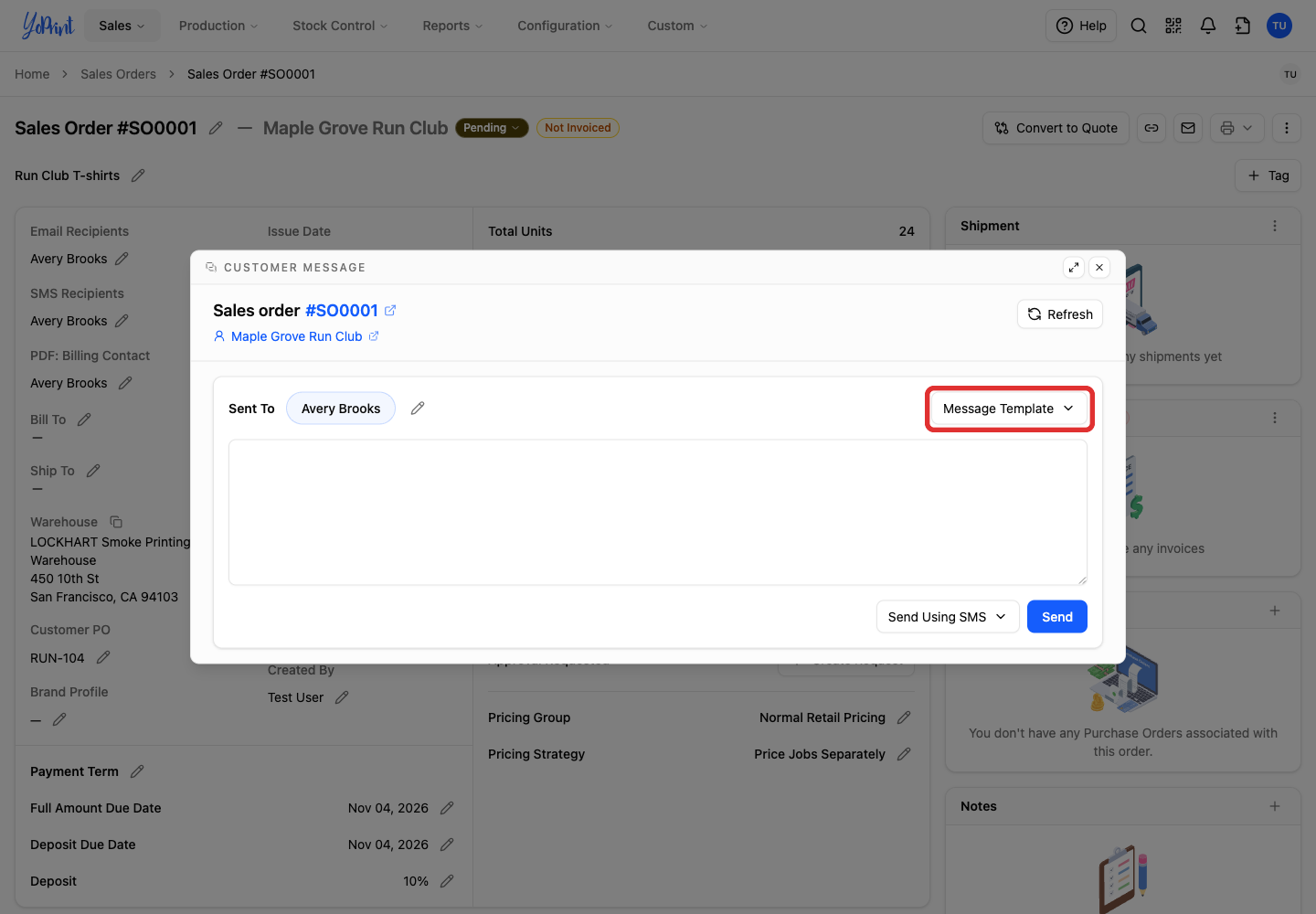
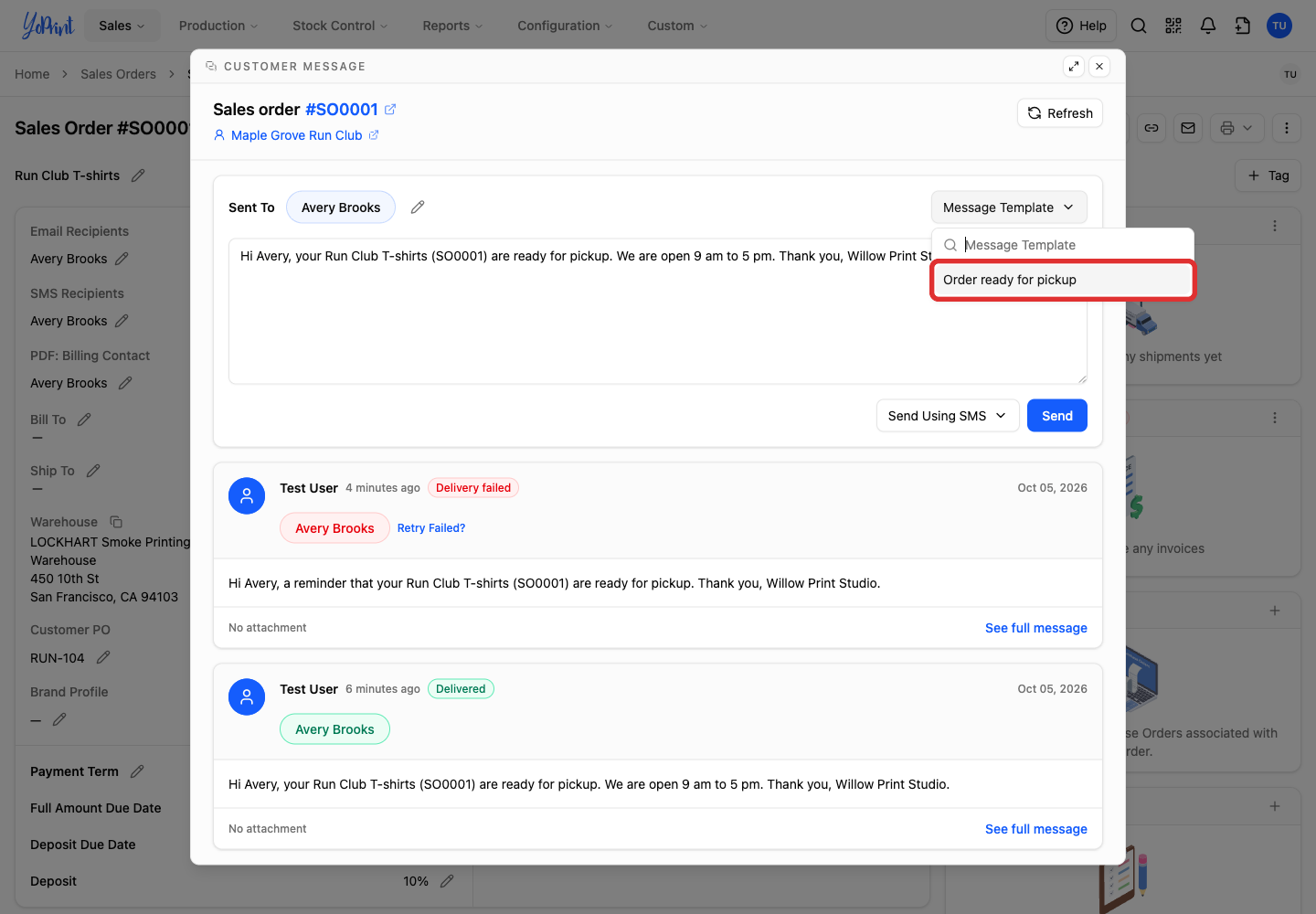
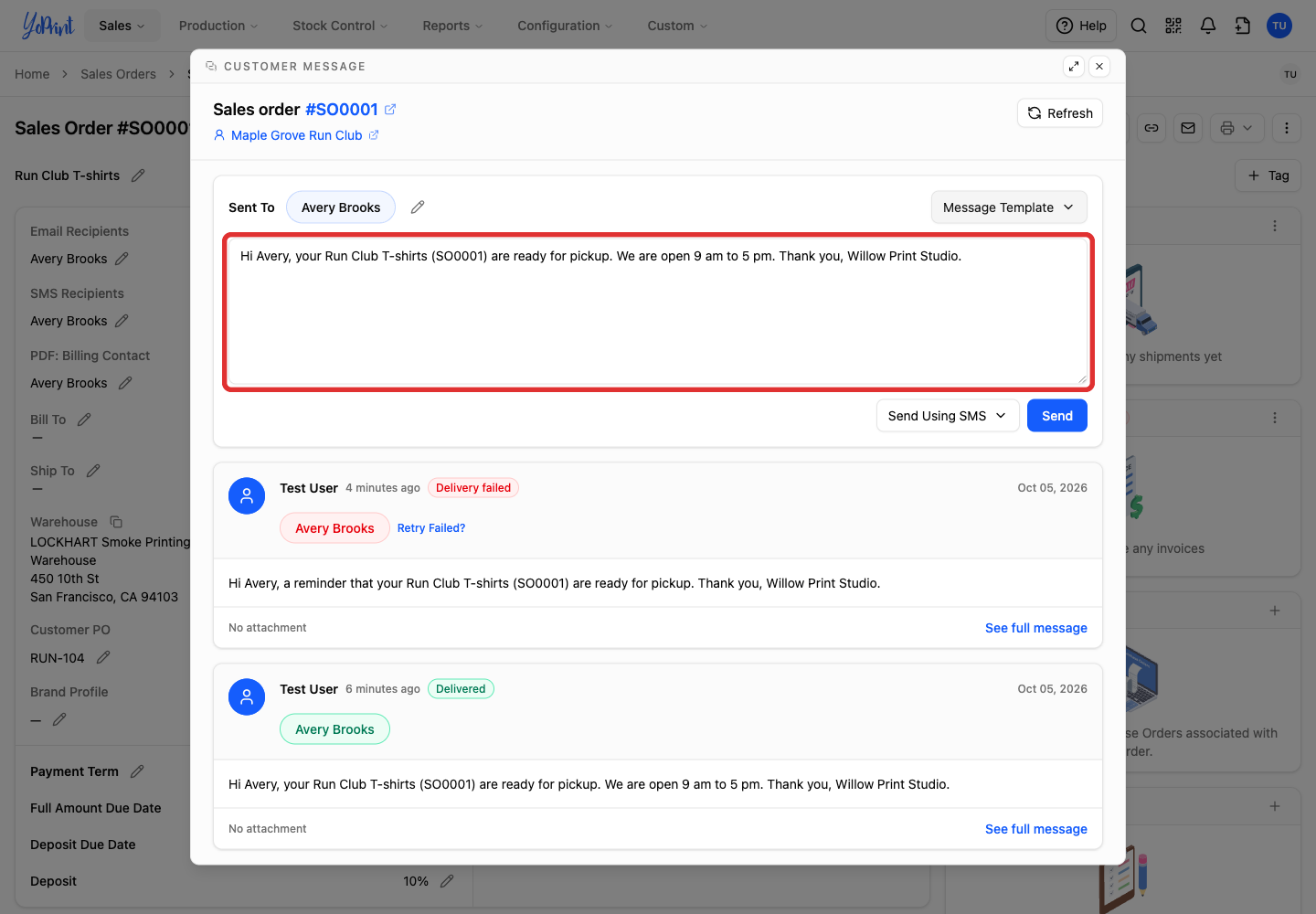
You can type directly in the message box. To start from a saved SMS template:
-
Open Message Template.
-
Choose the template you want to use.
-
Edit the text for this order. Include enough detail for the customer to recognize your shop and know what to do next.
-
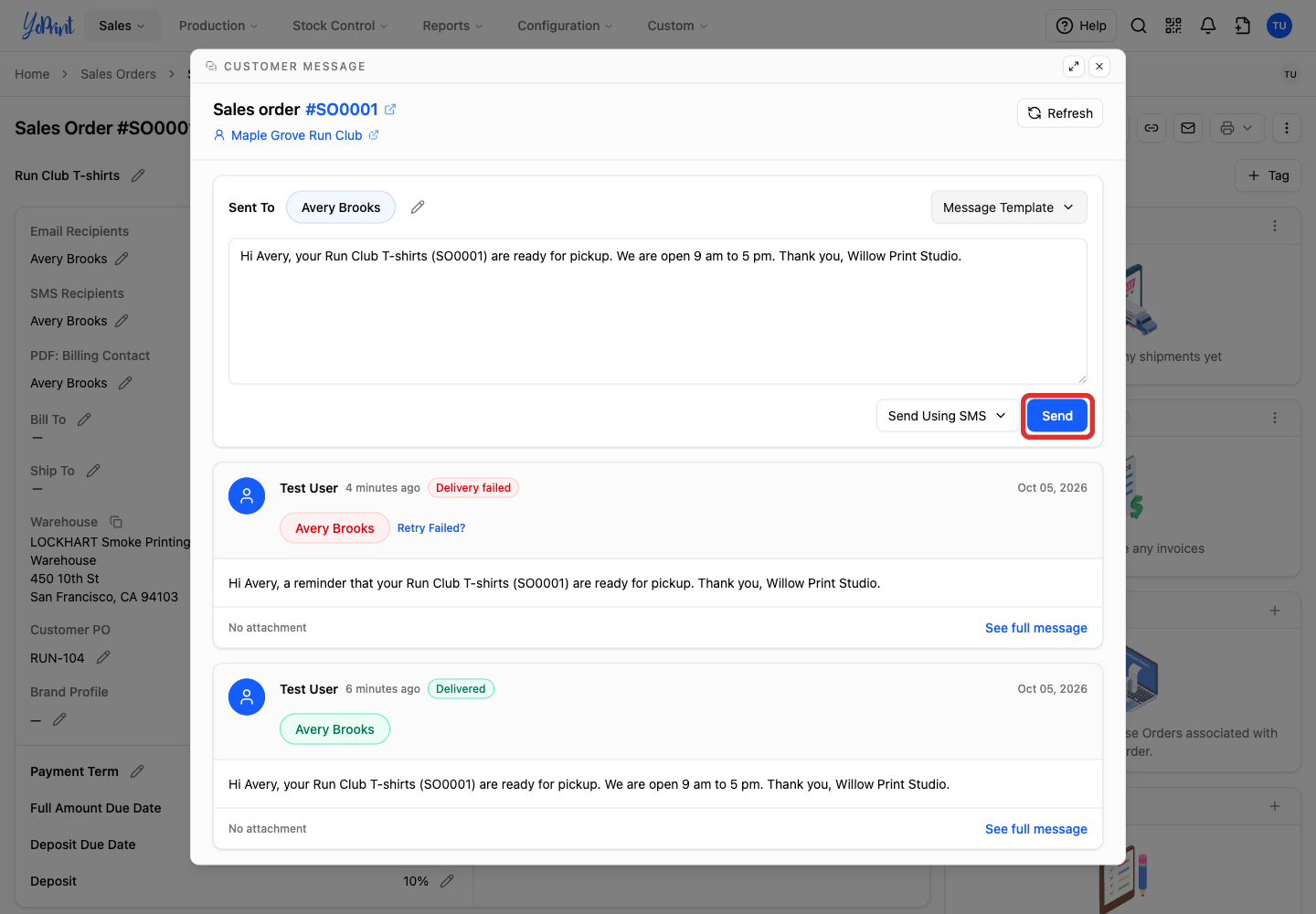
Check the recipients and message, then click Send.
Check the message's status
Sent messages appear in the message list directly below the composer in Customer Message. If you return to the order later, click the Customer Message envelope icon to view the list. Each message shows a status above its text:
- Delivered: YoPrint has recorded a successful sending status from Twilio.
- Delivery failed: YoPrint has recorded a failed delivery for the message.
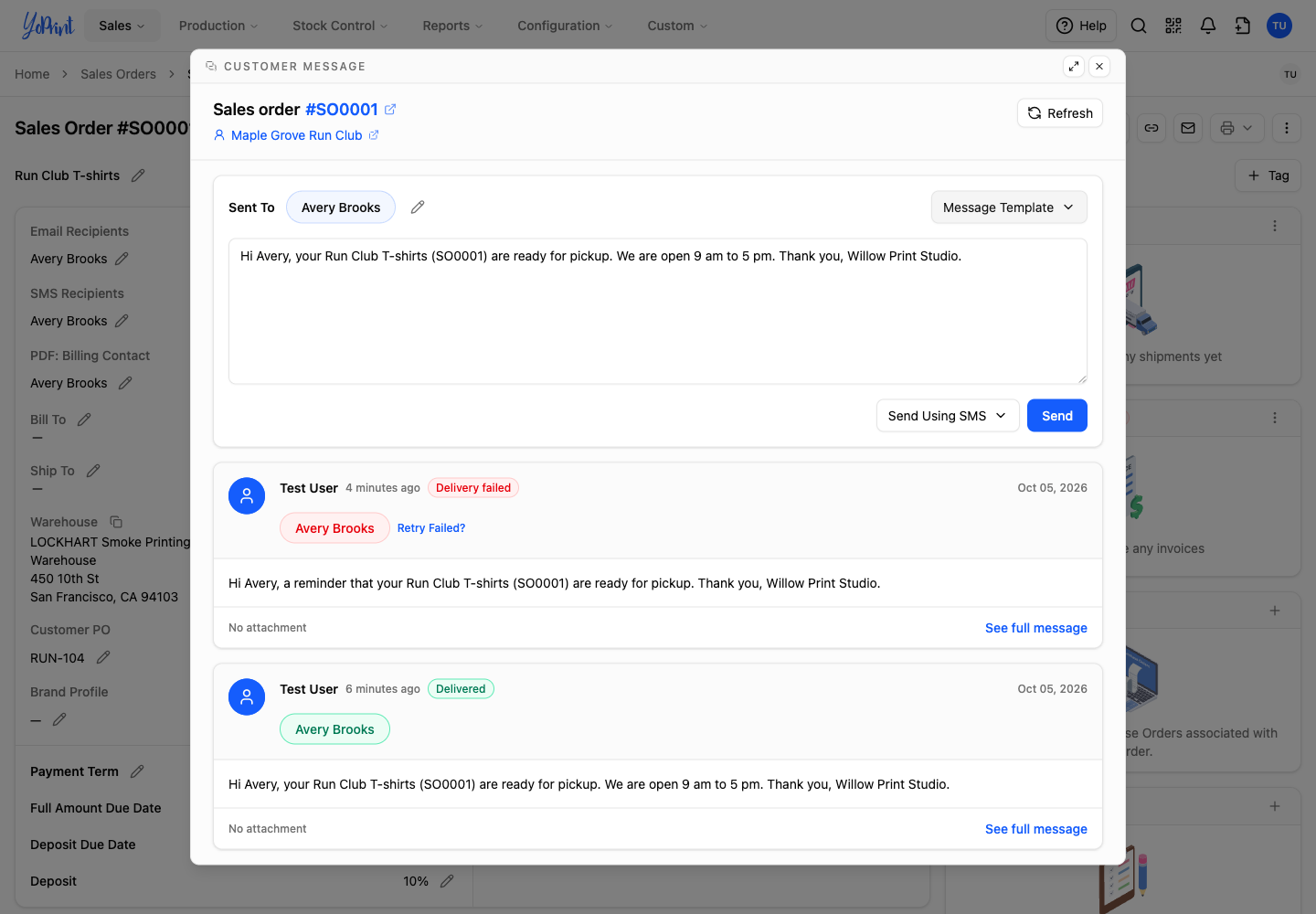
If delivery fails, check the contact's phone number and your Twilio account details and balance before trying again. Confirm the number can receive SMS. You can click Retry Failed? on the message card after correcting any phone or account issues.
YoPrint does not receive customer SMS replies. Use the Twilio reply setup to send customers an automatic response with another way to contact your shop.