Reuse a Job Order by Cloning
In this article
Clone a job when a customer repeats an order or you need another version of an existing job. You can copy a job within the same order or bring a previous job into another quote or sales order. Review the copied details and pricing before you finish.
Copy a job within the same order
Open the quote or sales order from Sales > Sales Orders (or Sales > Quotes). If it opens in a preview drawer, click View Sales Order (or View Quote) at the bottom to open the full page.
-
Open the job’s three-dot More actions menu.
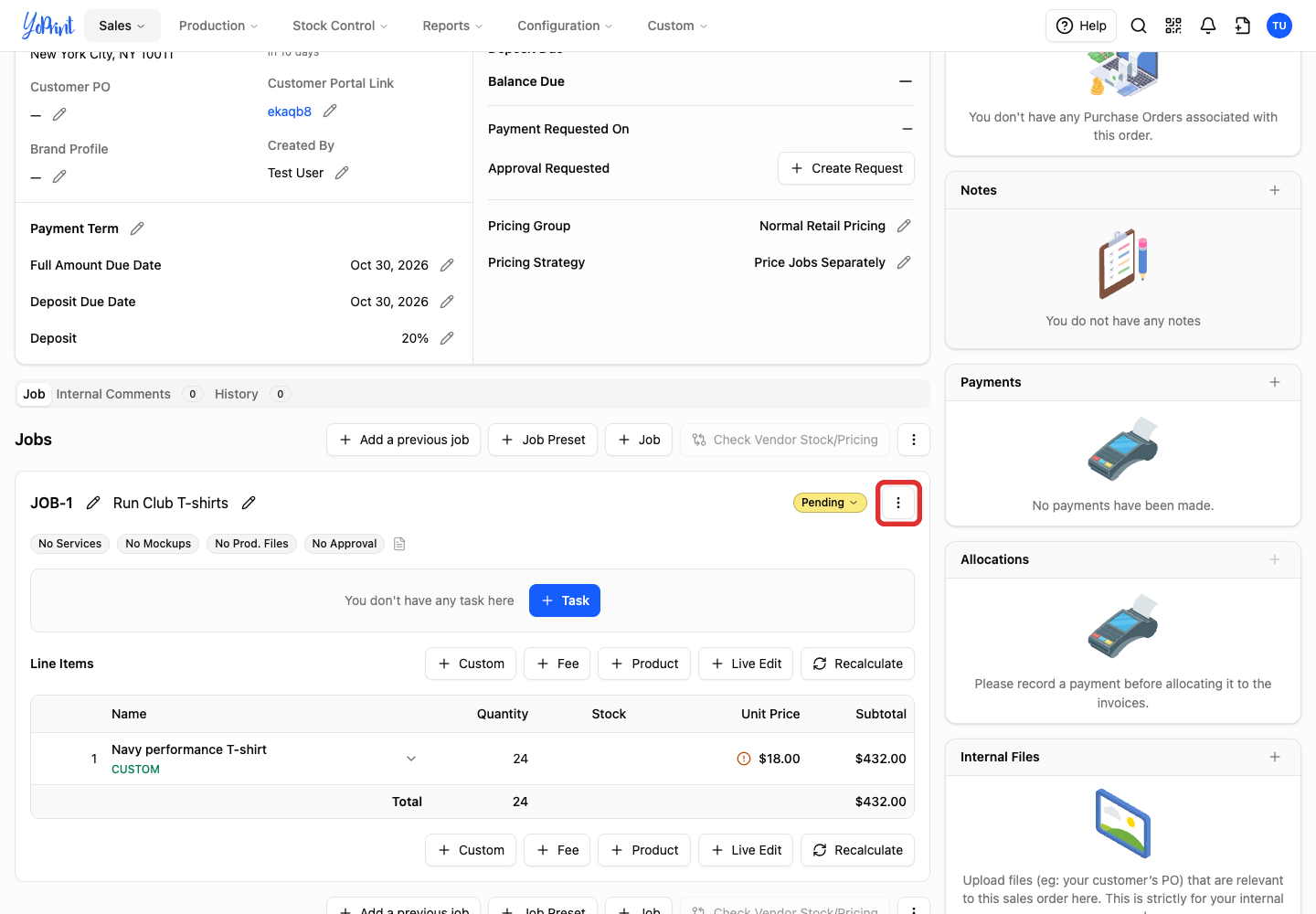
-
Choose Clone.
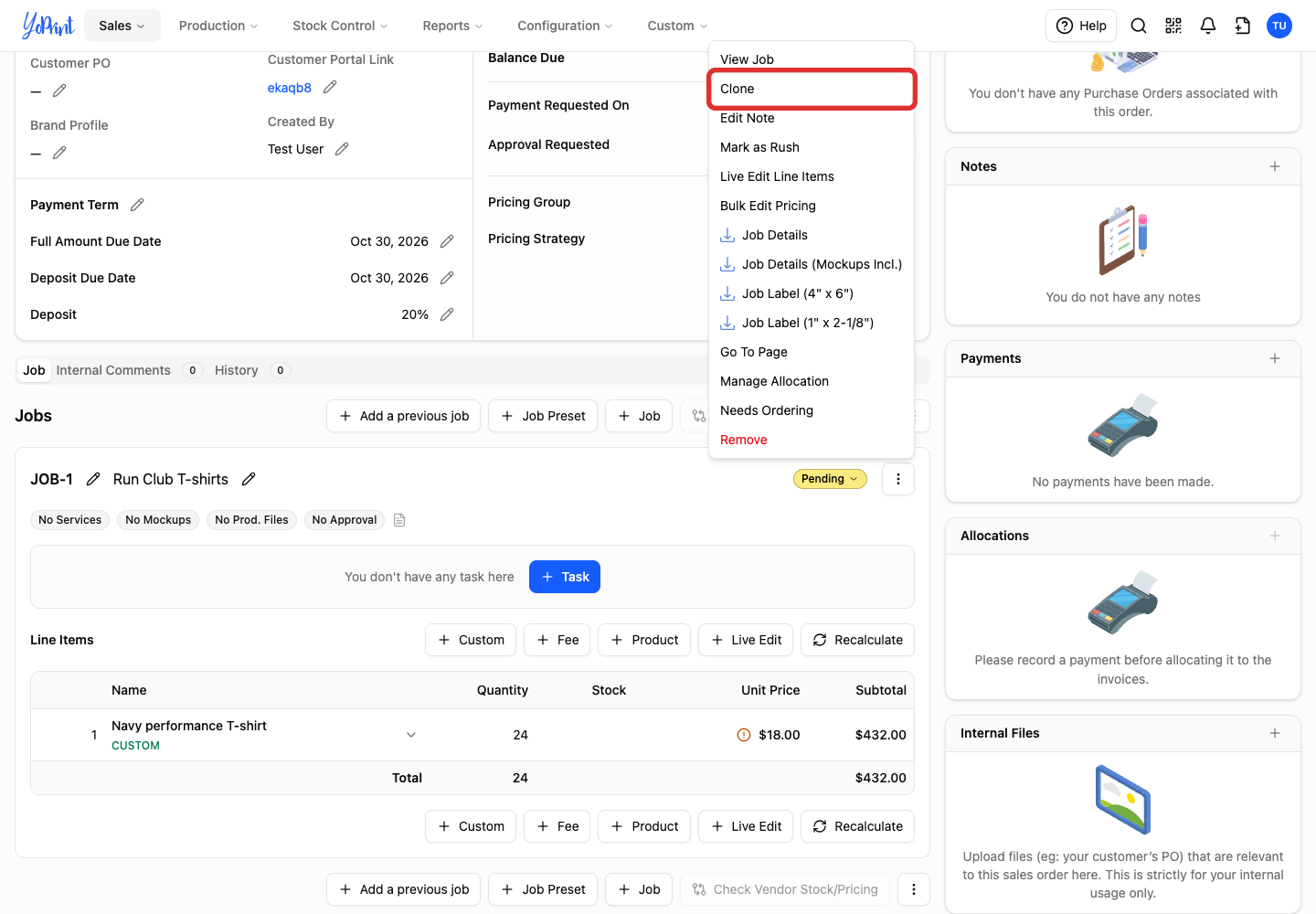
-
Check that the new job appears in the order. It has its own job number.
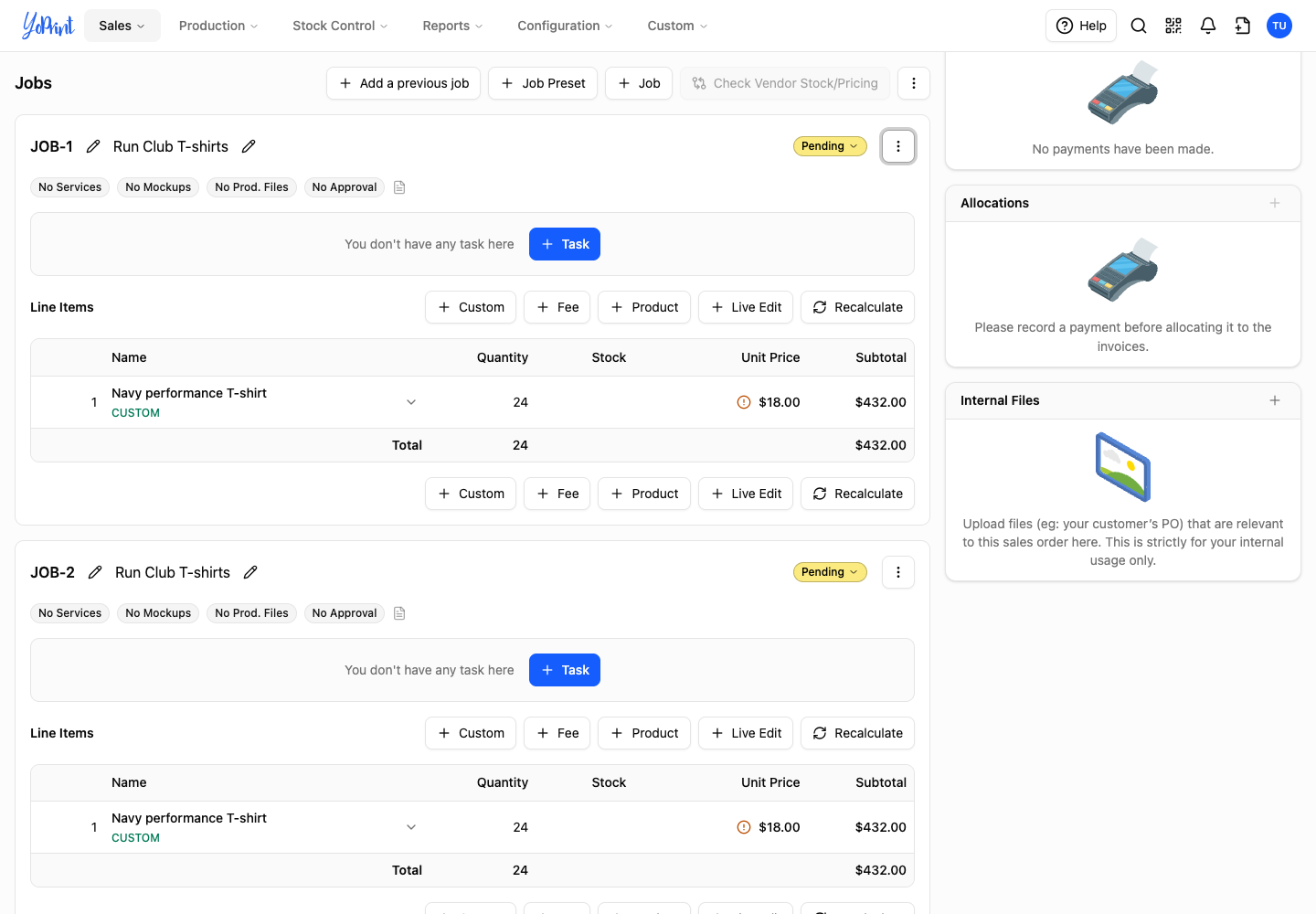
Bring a previous job into another order
Start in the destination quote or sales order with its customer selected. Select the customer first so the picker can show their past jobs. If you need a new one, follow Create a Quote. The previous-job picker is available on both quotes and sales orders.
-
Click Add a previous job in the Jobs section.
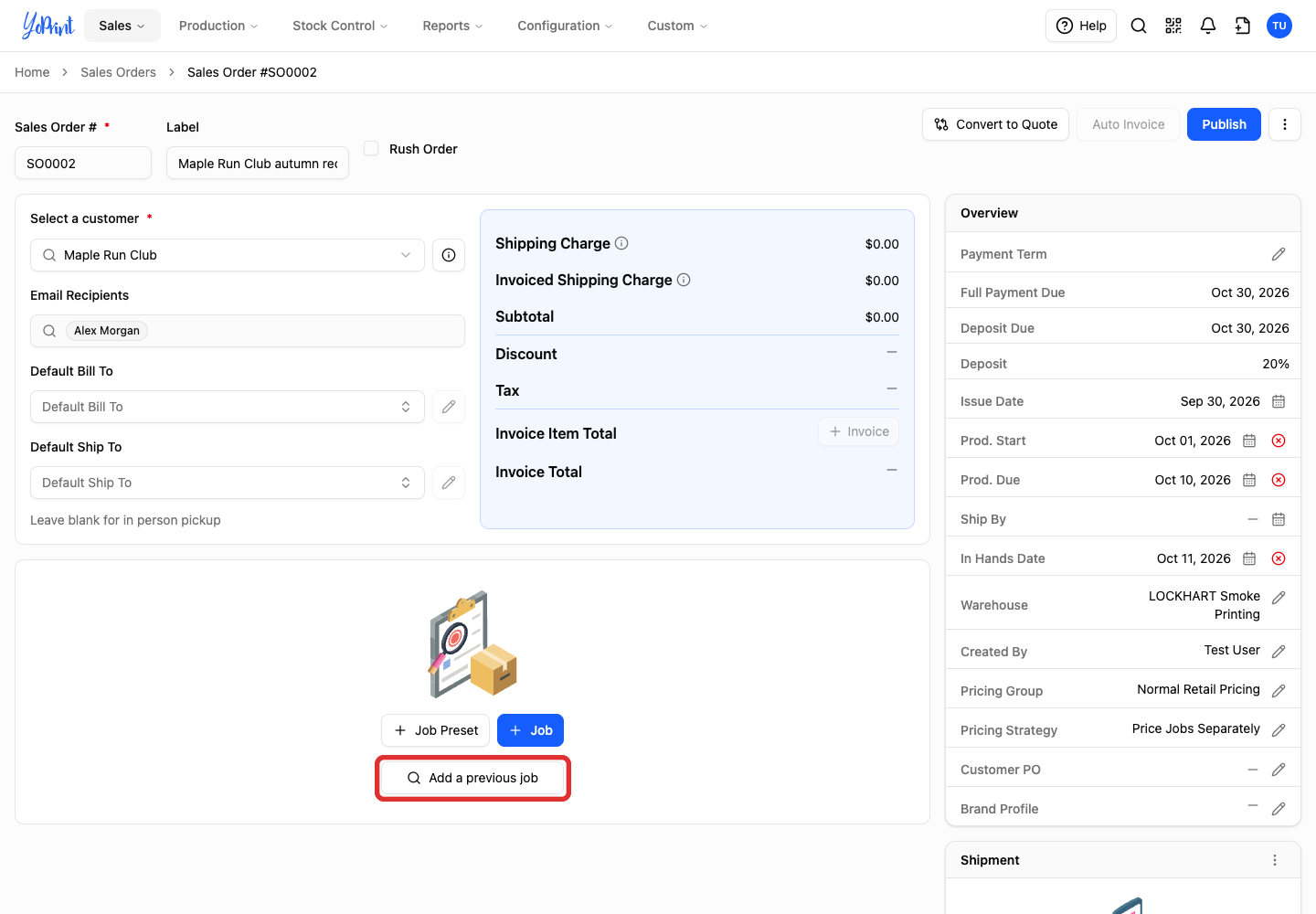
-
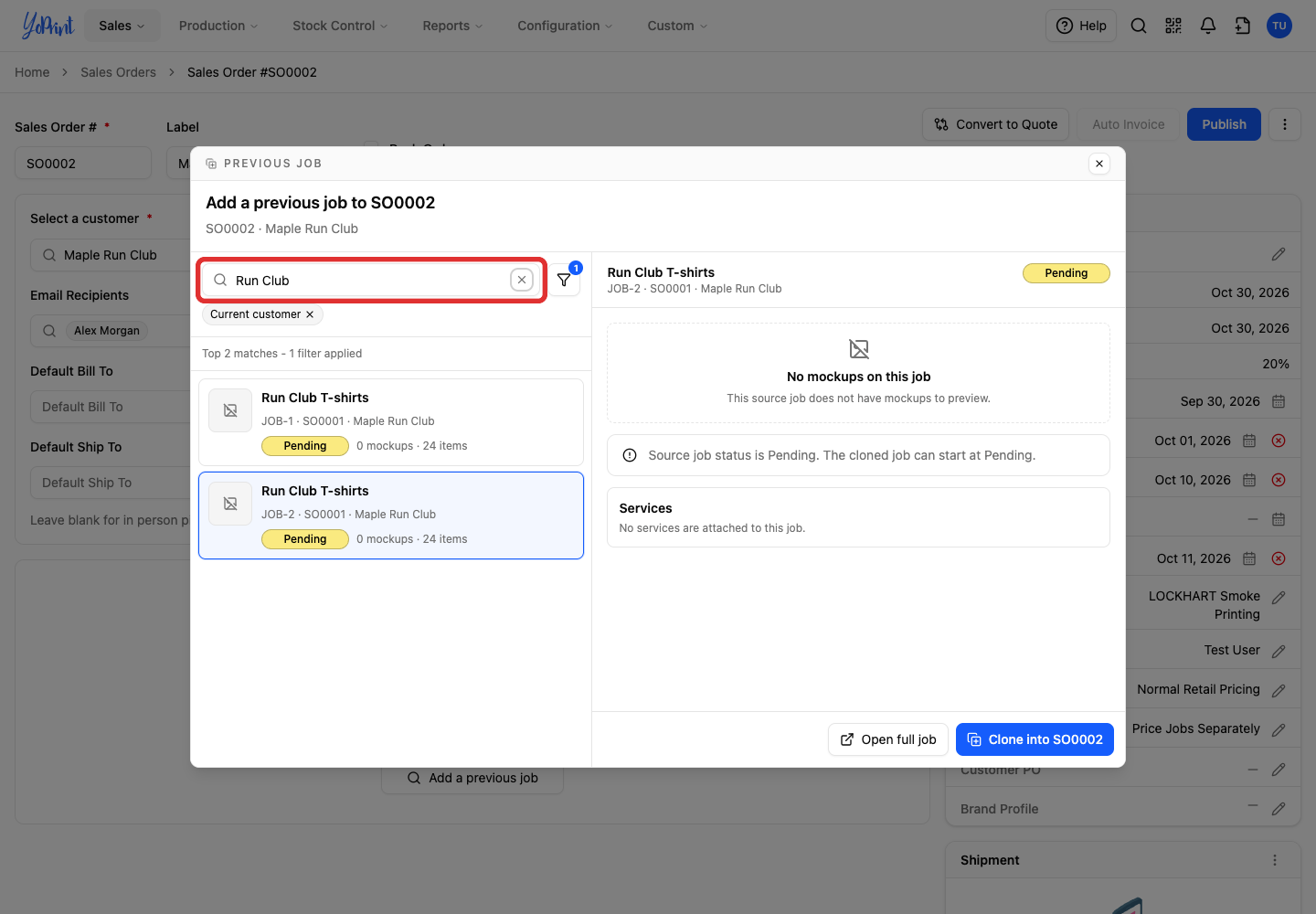
Enter a job name, order number, customer name or customer PO number in the search field.
-
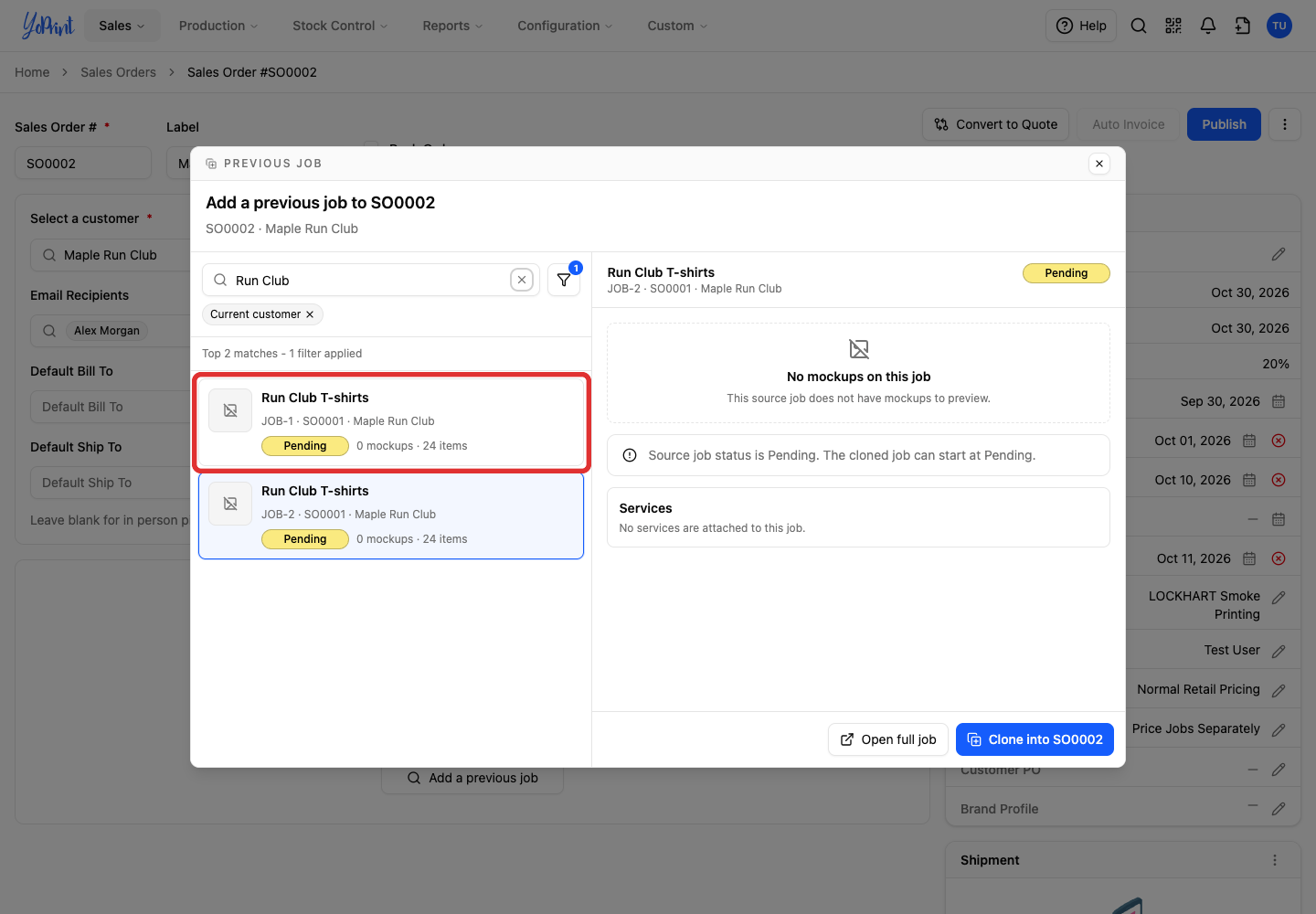
Select the job you want to copy. Check its job number, source order and customer.
-
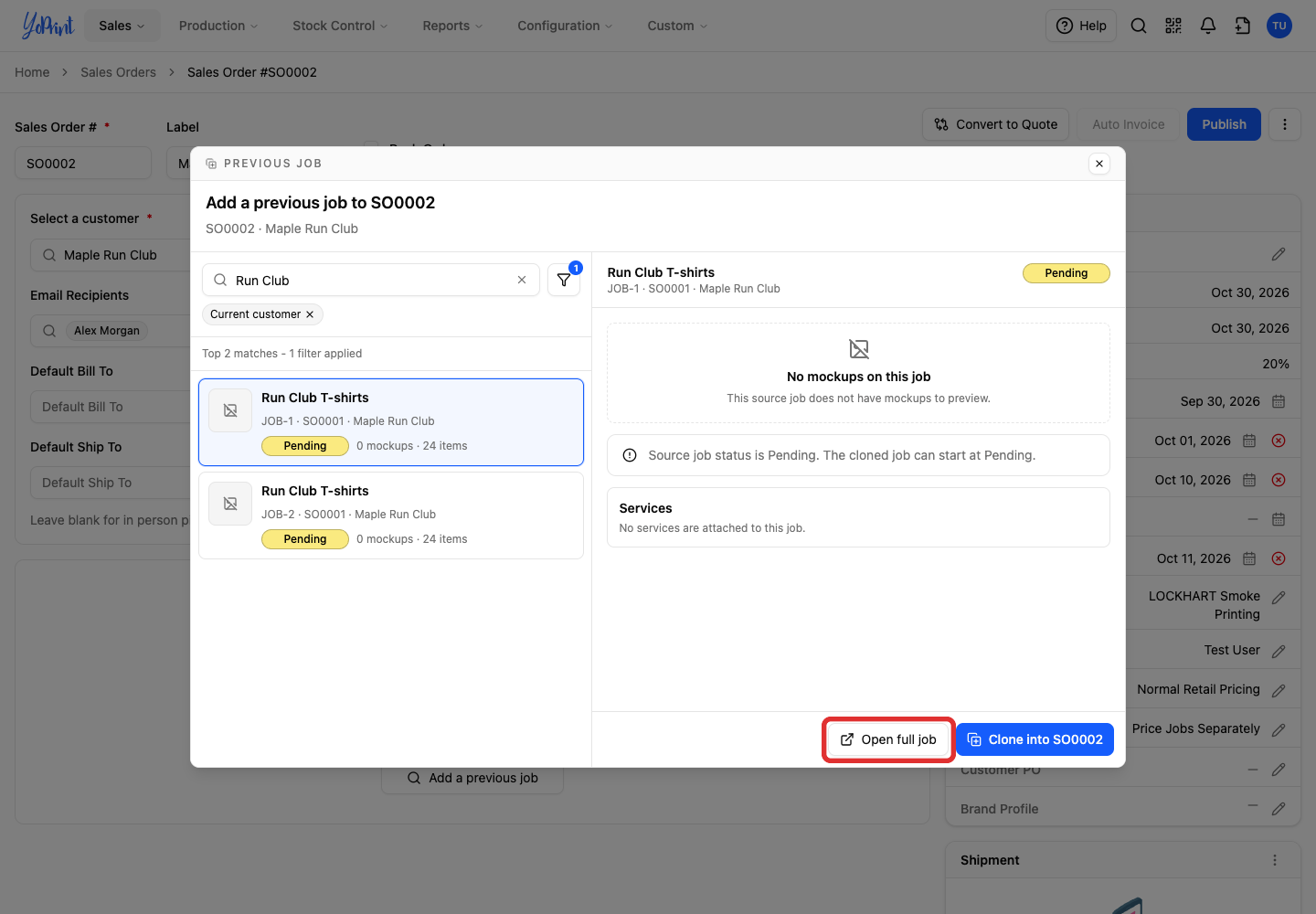
For a closer look, click Open full job.
-
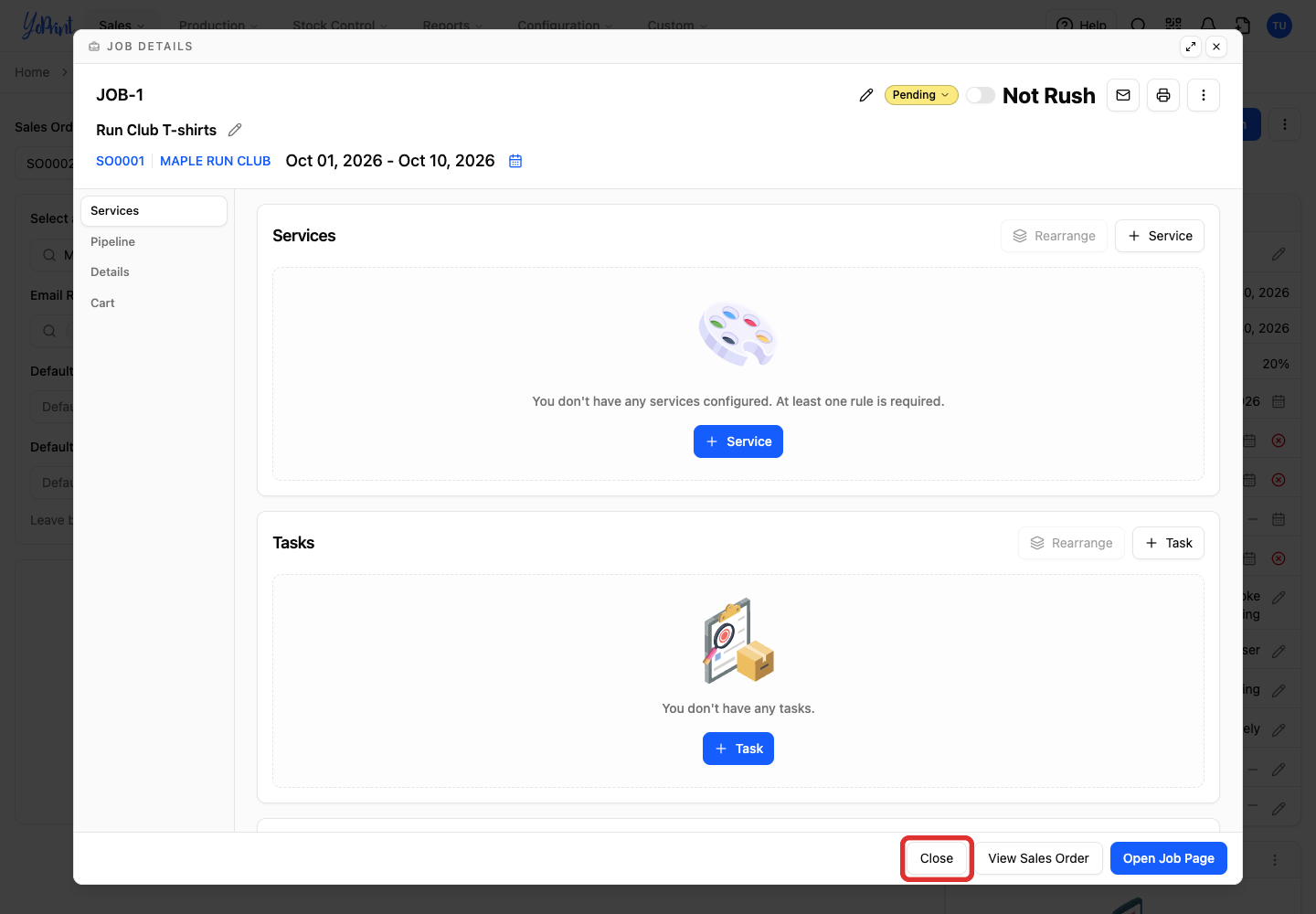
Click Close after reviewing the source job. You return to the picker.
-
Click Clone into followed by the destination order number. The picker closes when the job is added.
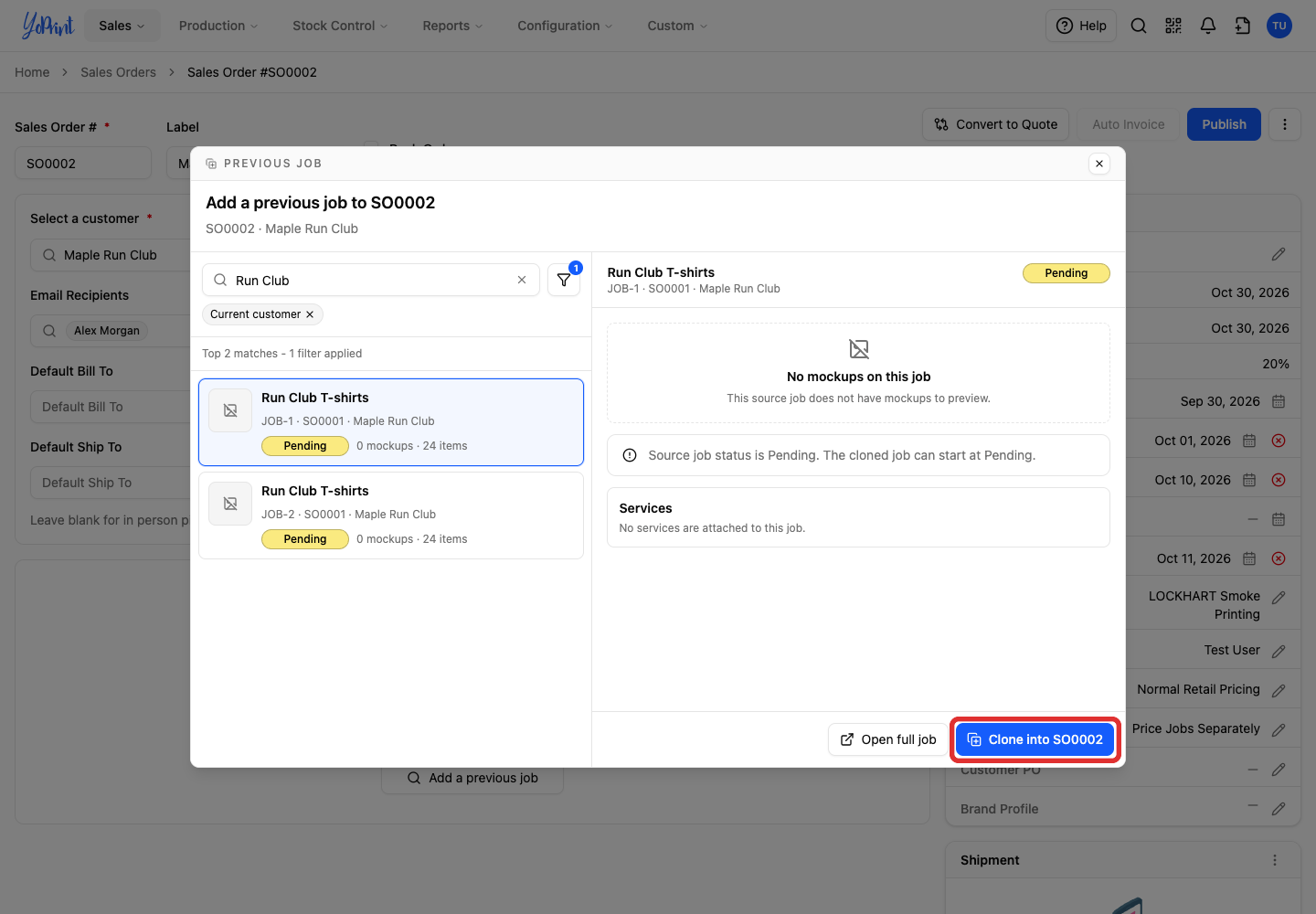
Current customer limits results to the customer on this order. Click Show filters beside the search input to filter by Job status and Has mockups. Clear Current customer if you need a job from another customer. The preview shows the source status and the status available for the new job.
Repeat Add a previous job for each additional job you need.
Edit the copied job
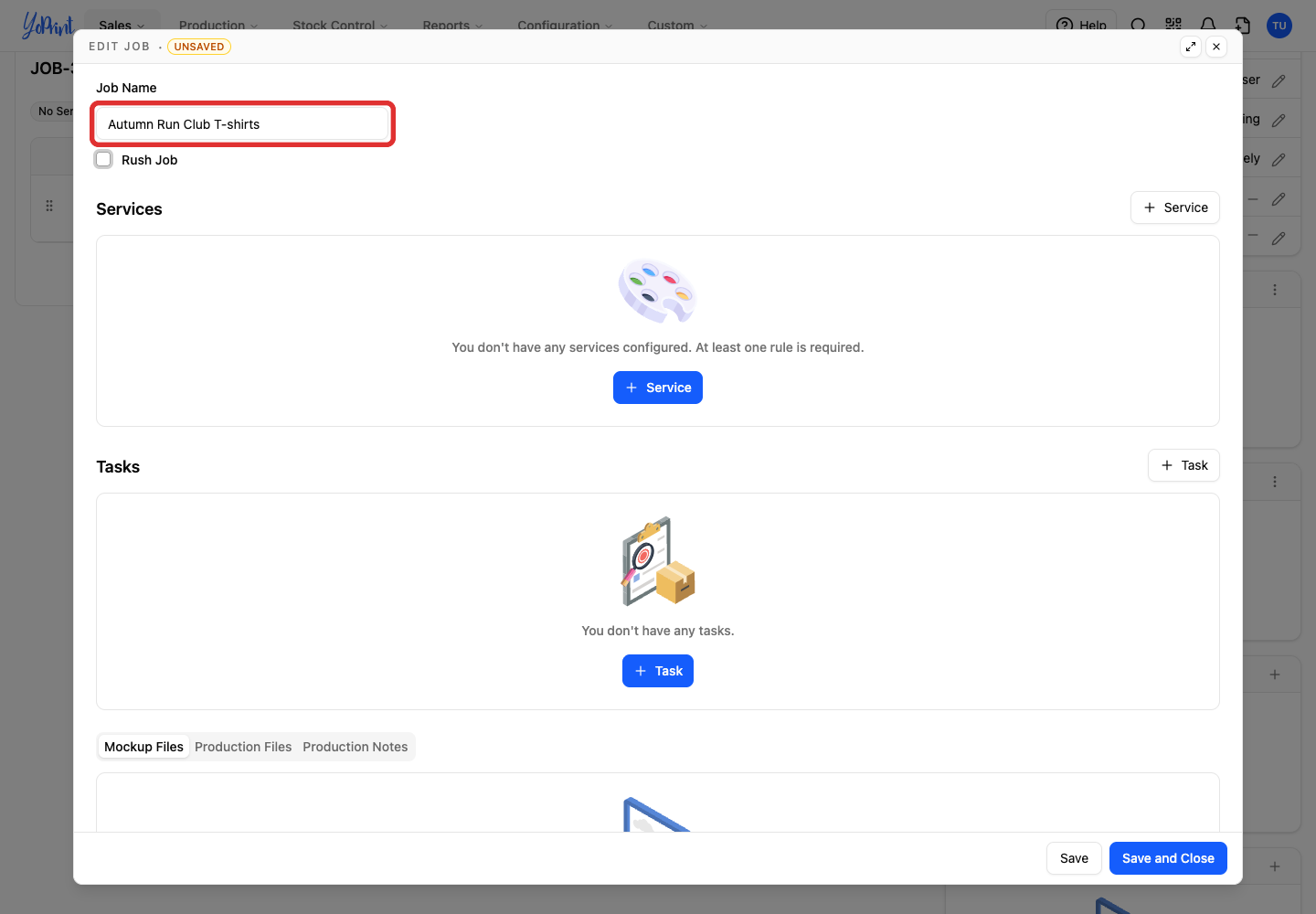
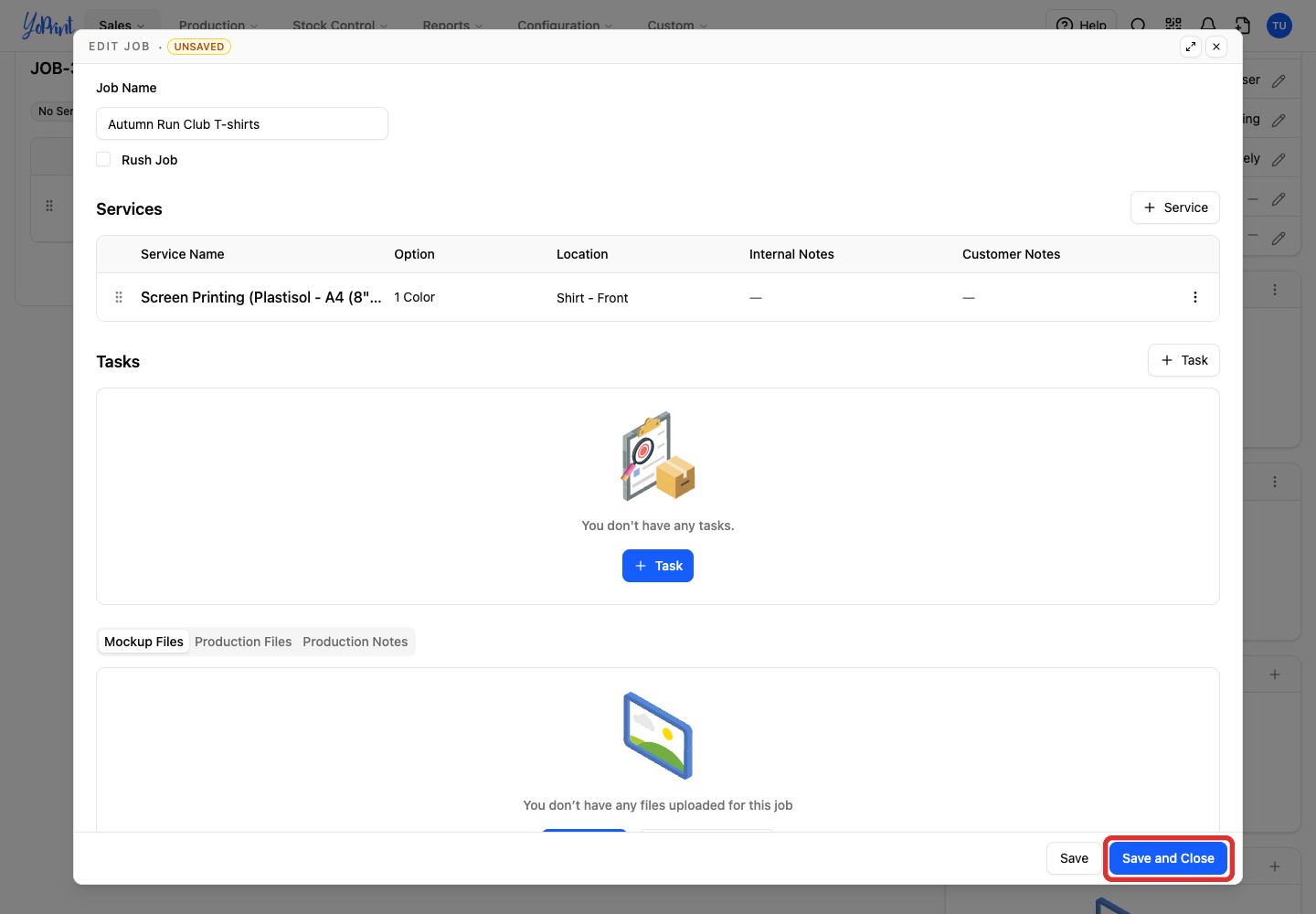
The example below changes the copied job for an autumn reorder. Review its services, tasks, mockups, production files and production notes as well as its name. In a draft order, use More actions > Edit to open the job details. On a published order, click Edit Job Label to change the name, or use Live Edit Line Items to adjust products.
-
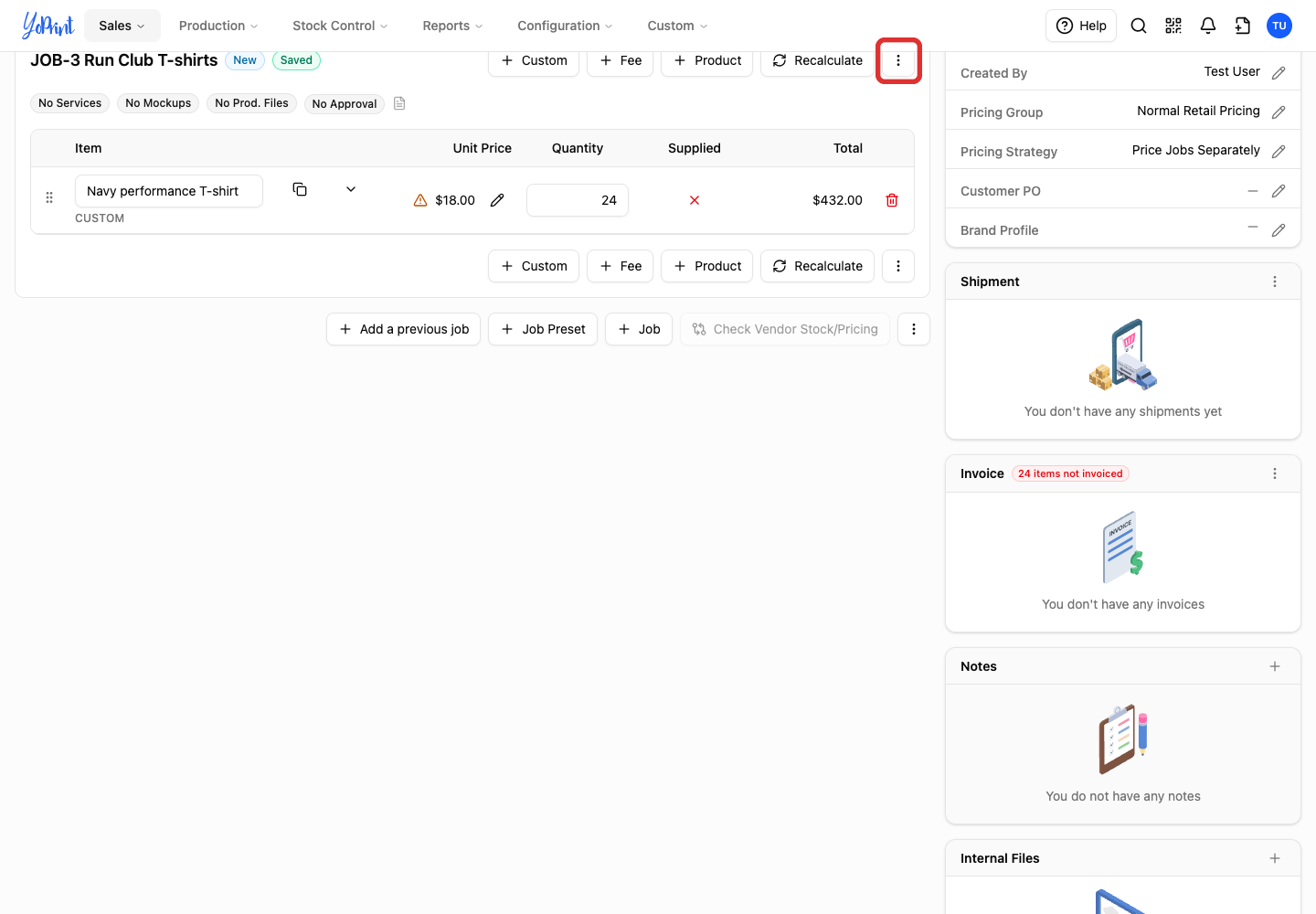
Open the copied job’s three-dot More actions menu.
-
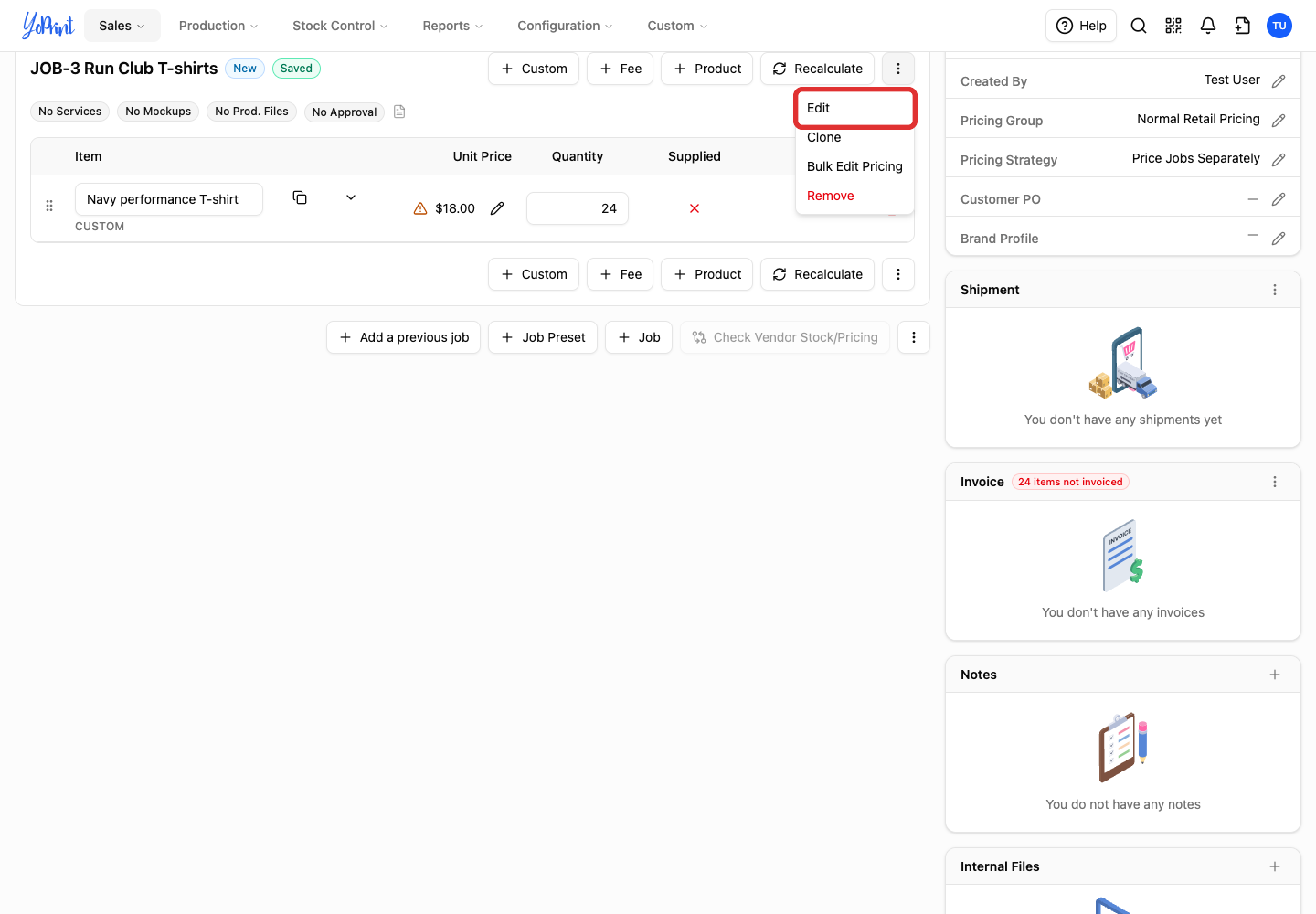
Choose Edit.
-
Update Job Name for the new order.
-
Click Save and Close when the job details are ready.
-
Update the product quantities for the new order.
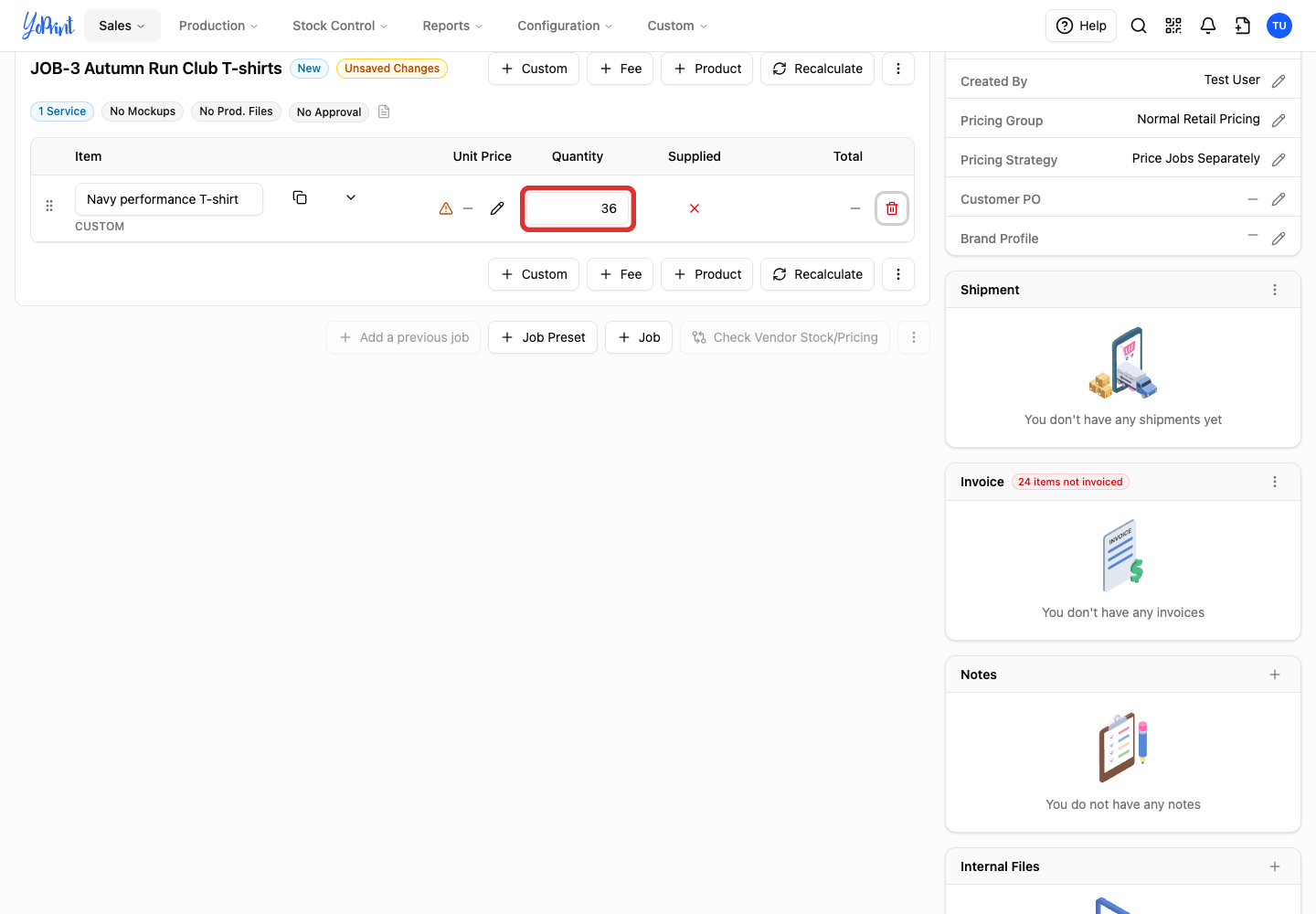
Click Recalculate on the job to update unit prices and re-enable publishing.
-
For a new order, click Publish after reviewing the order and its prices.
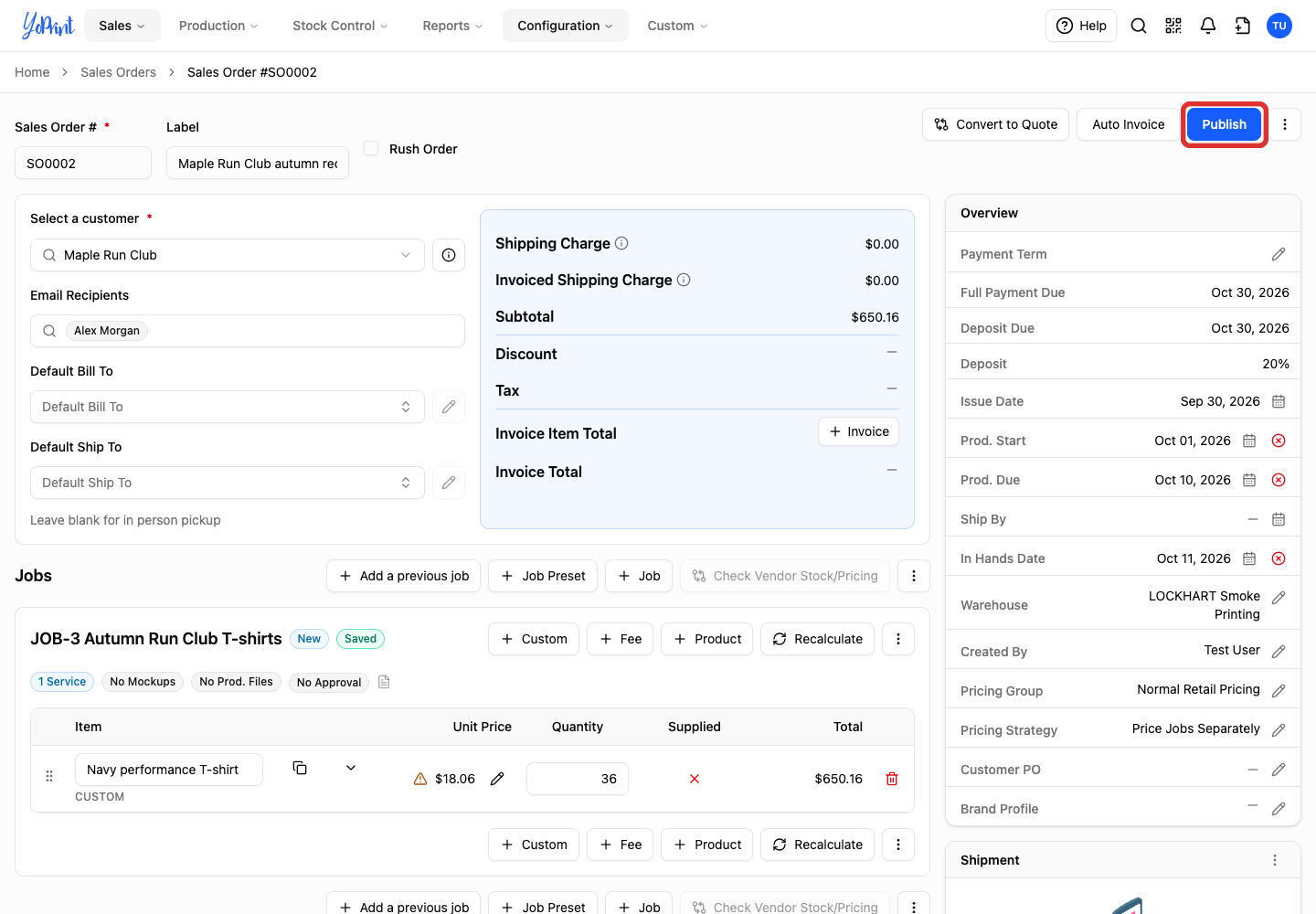
Published orders save changes immediately and do not show a Publish button. Keep the copied products that still apply. Click the trash icon to remove products you do not need. For different garments, use Add Products to a Sales Order to choose the products, colors and sizes you need. Check the final prices after changing services or quantities.
Fix a service that is no longer available
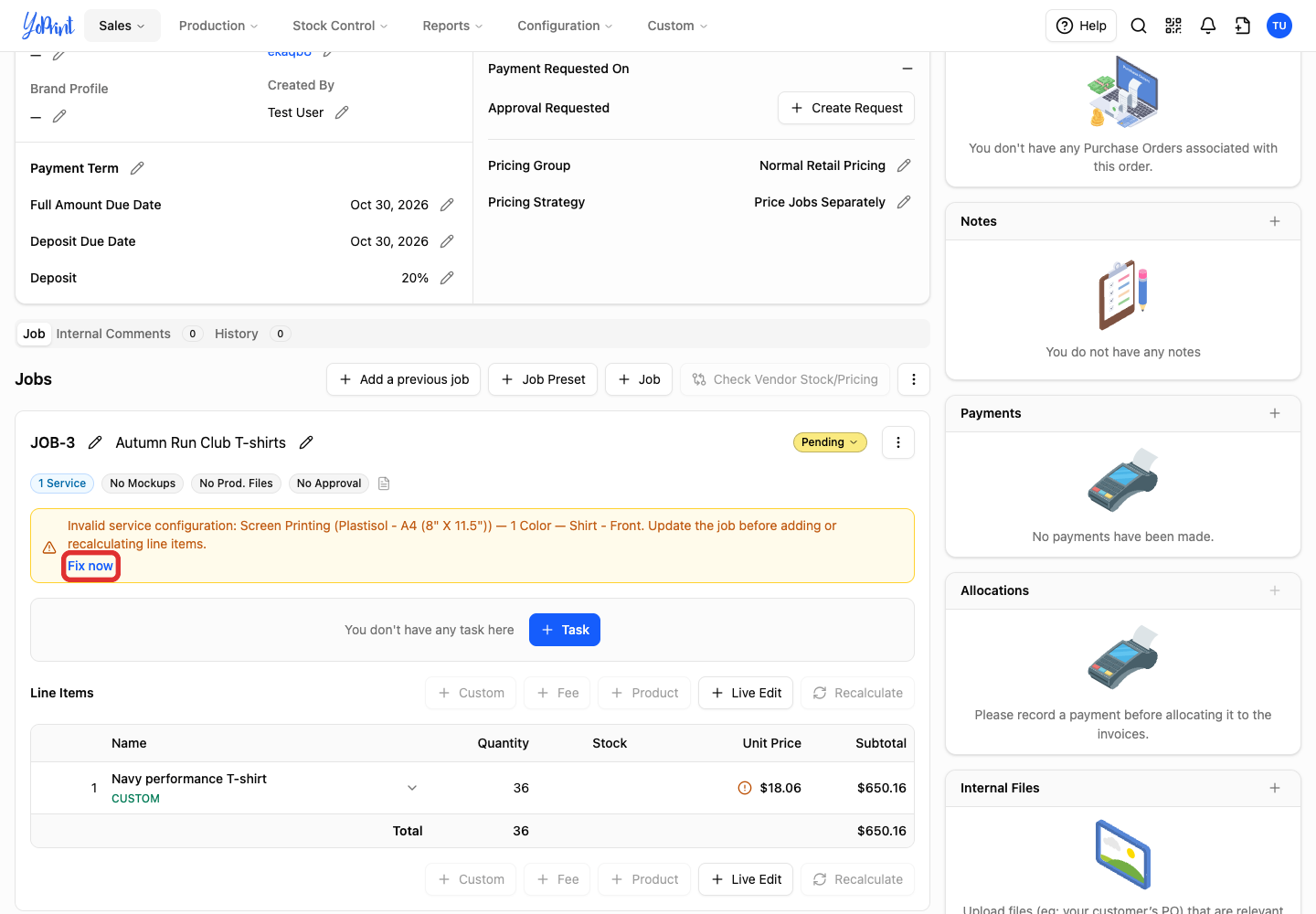
A previous job can refer to a service that your shop has removed. If the copied job shows Invalid service configuration, fix it before adding products or recalculating prices. Follow these steps only if your copied job displays this warning banner.
-
Click Fix now in the warning.
-
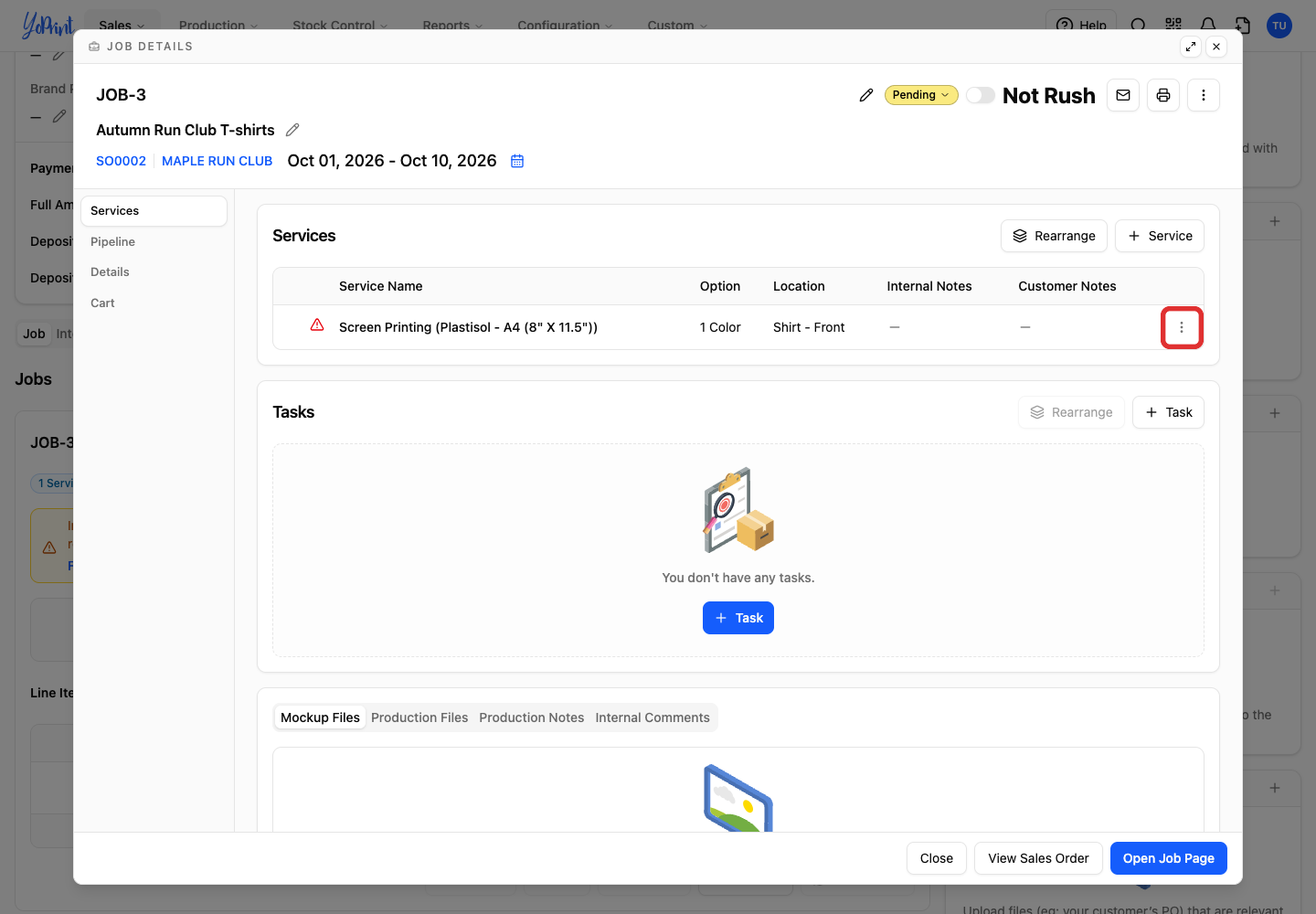
Open the three-dot menu on the affected service.
-
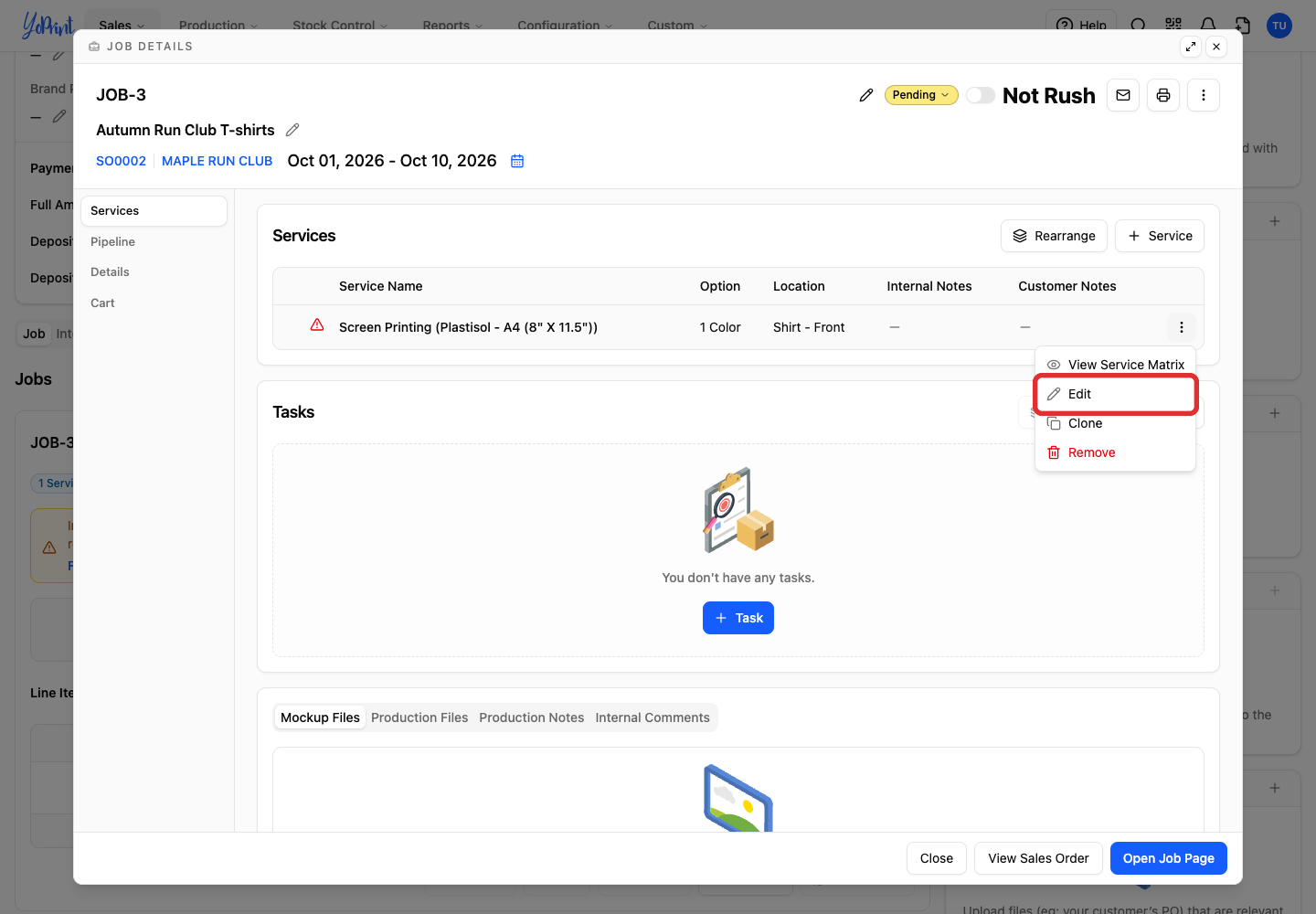
Choose Edit.
-
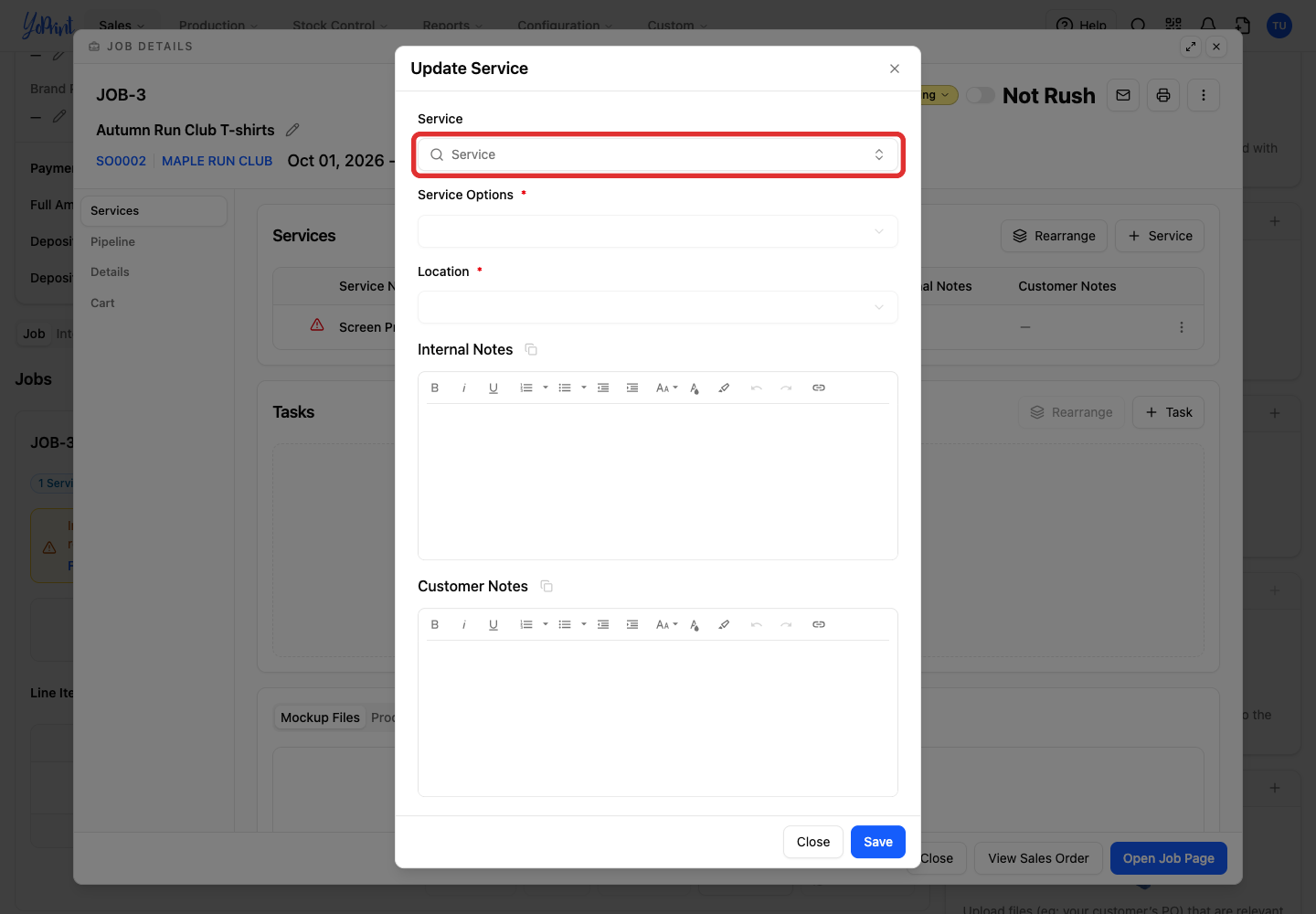
Open Service.
-
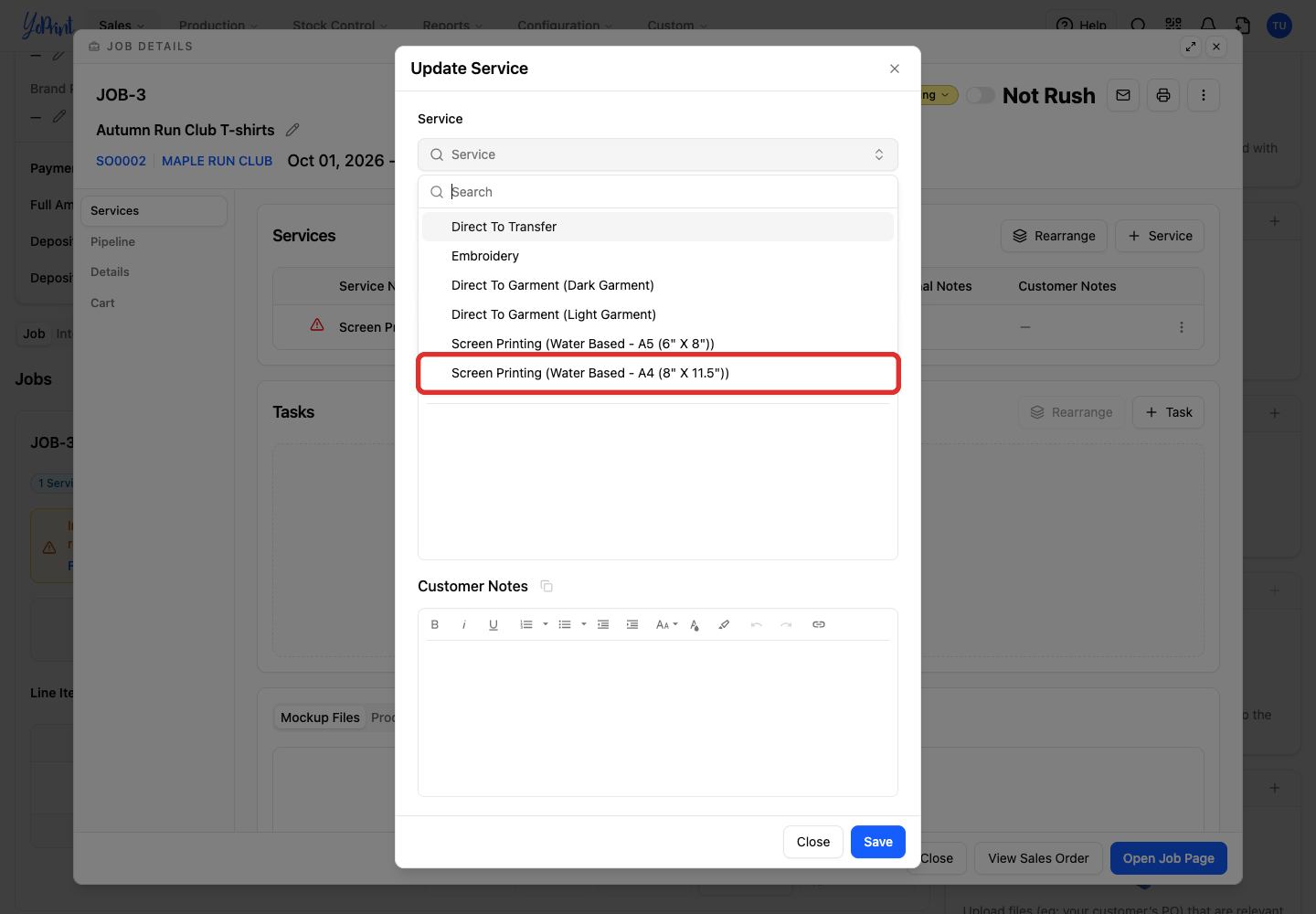
Choose the replacement service.
-
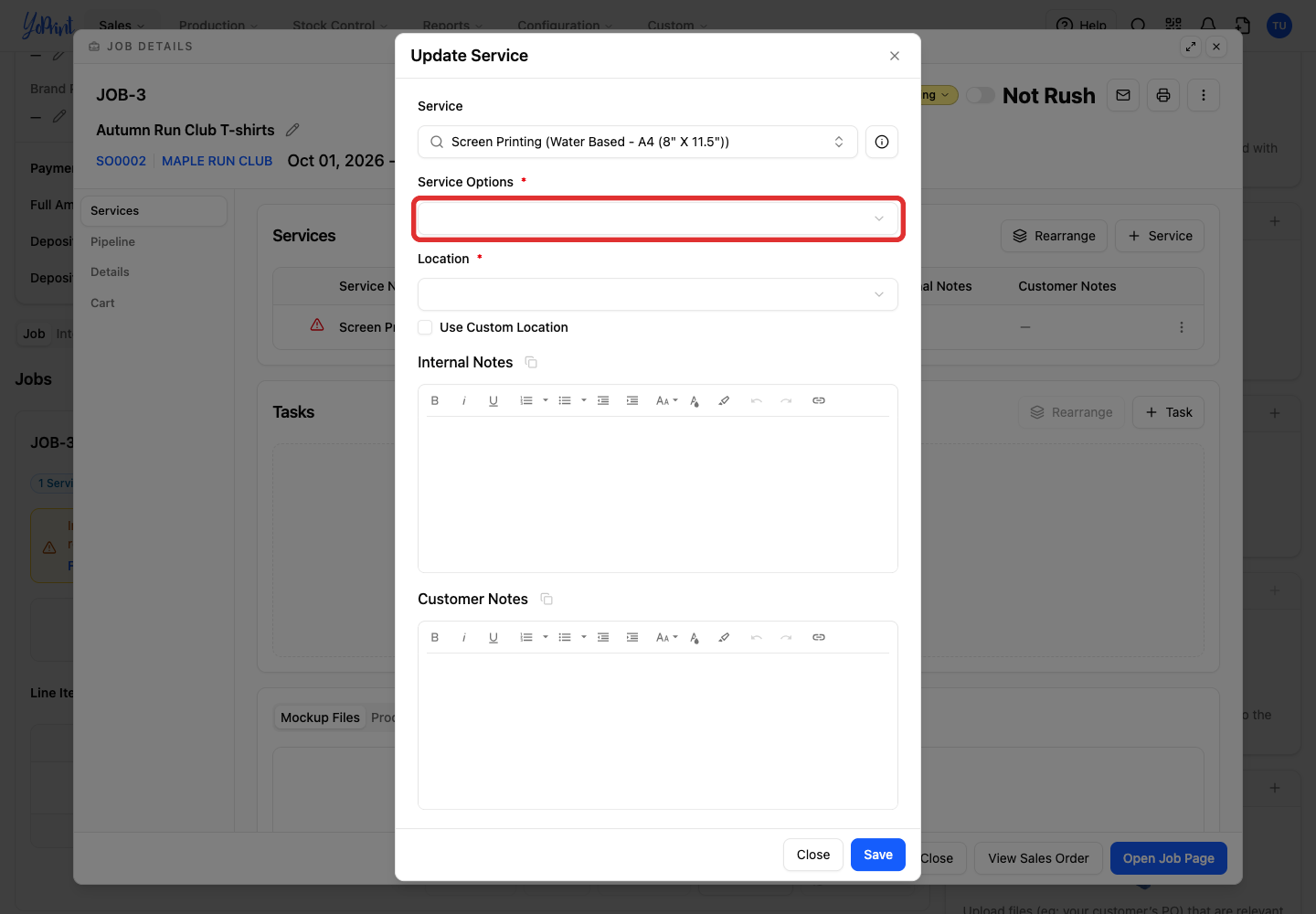
Open Service Options.
-
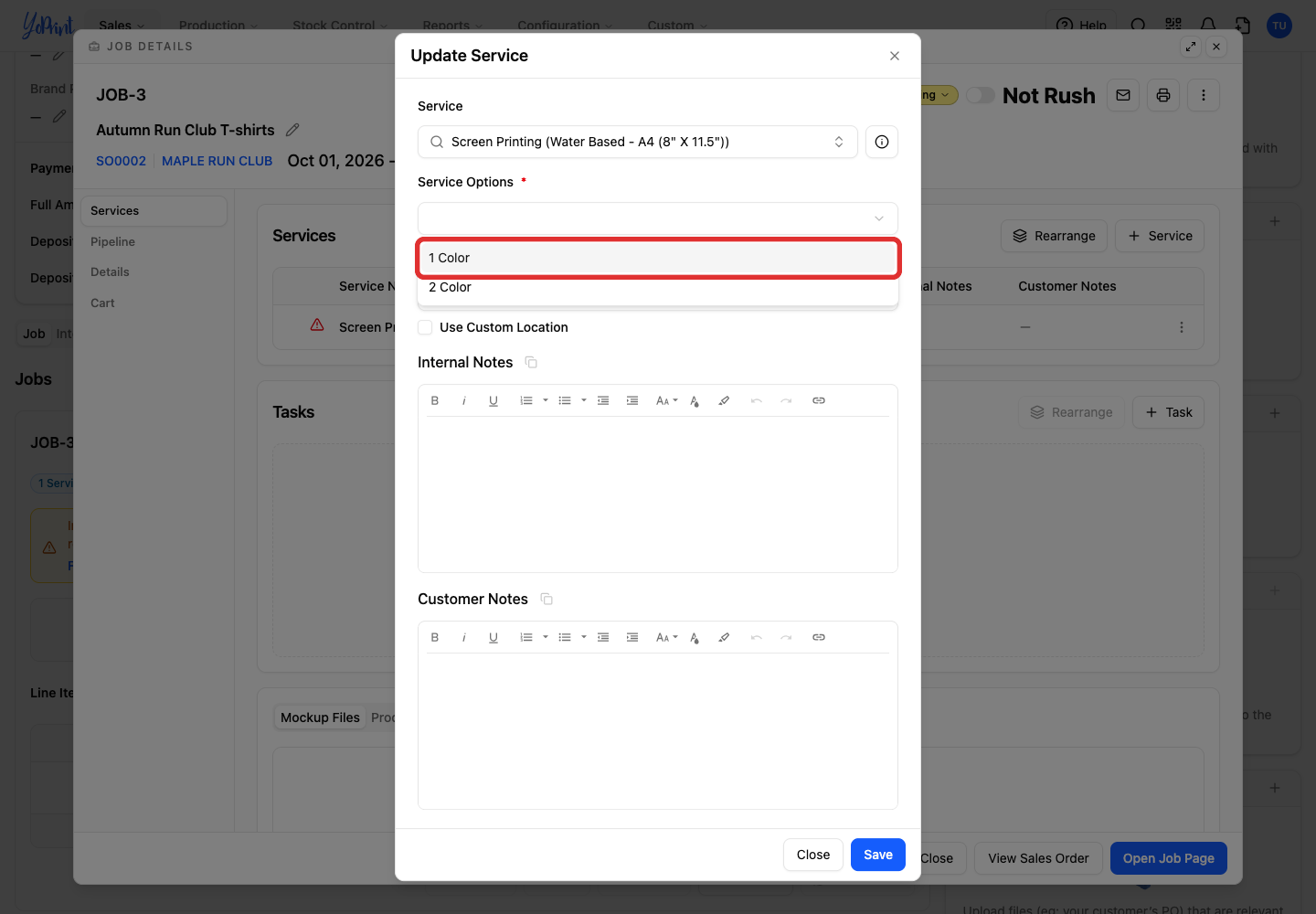
Choose the option needed for this job.
-
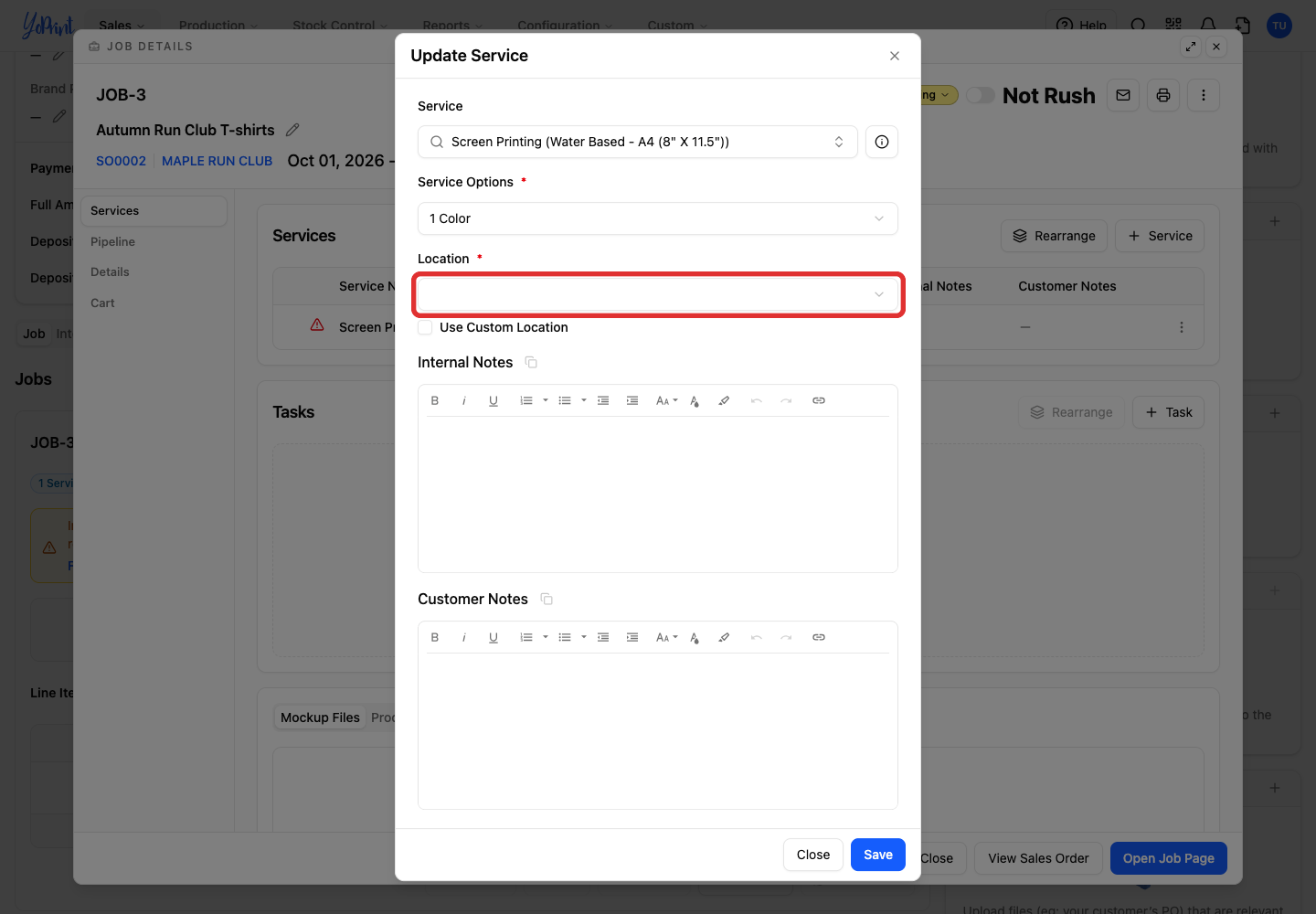
Open Location.
-
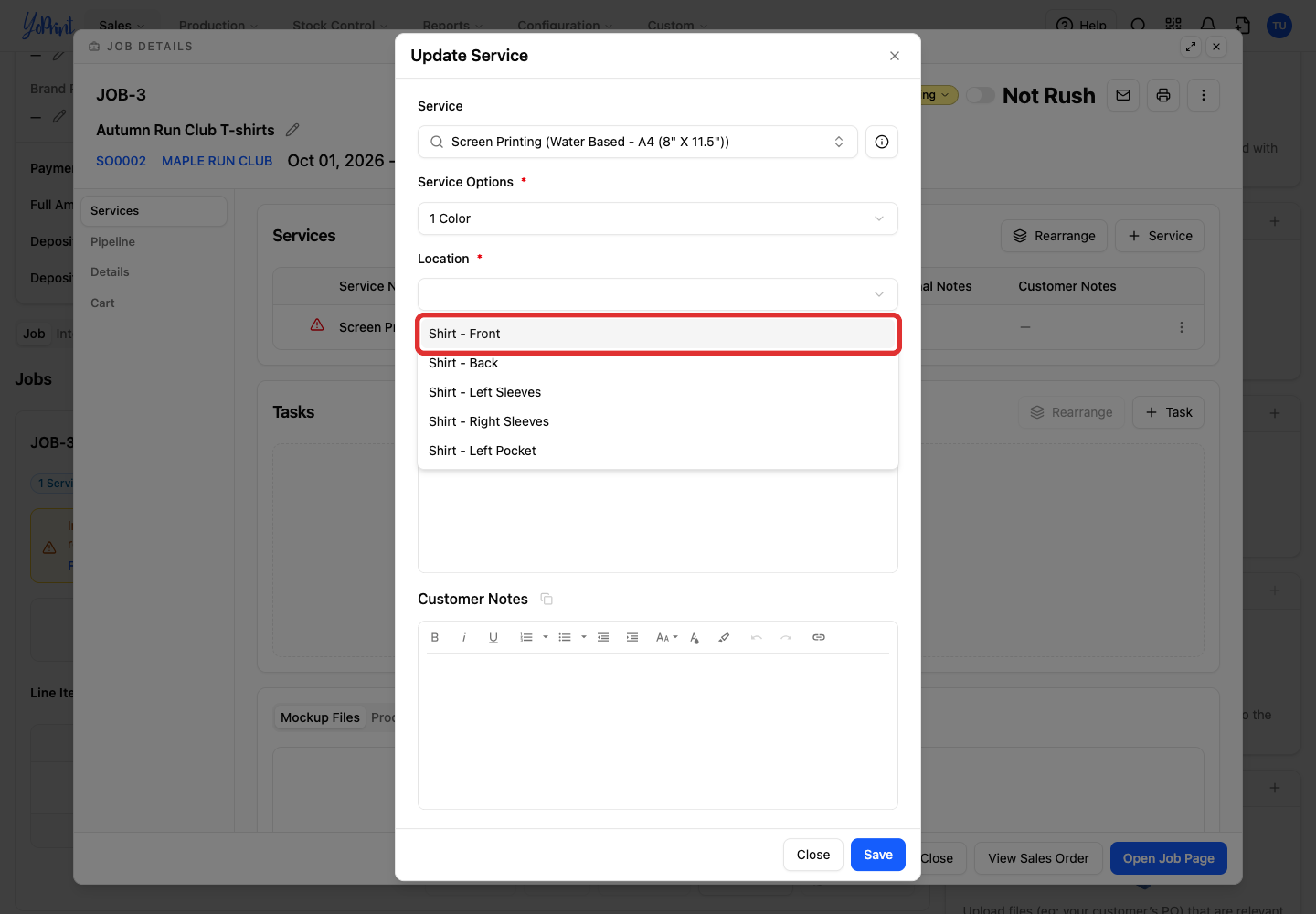
Choose where the service will be applied.
-
Click Save.

- Click Close to return to the order.

- Check that the warning has disappeared. The product and recalculation actions are available again.
