Managing Auto Invoices for Sales Orders
In this article
Auto Invoice keeps one invoice in sync with your quote or sales order. If your shop uses milestone billing with multiple invoices, manage invoices manually instead. When you save changes to order quantities or prices, YoPrint updates the managed invoice. You also choose whether shipment costs become customer shipping fees.
Turn on Auto Invoice
Turning on Auto Invoice deletes the order's existing invoices and creates a new one. Note any invoice IDs, manual shipping fees, and discounts you need before continuing.
Open the order from Sales > Sales Orders or Sales > Quote.
-
On the published quote or sales order, open Quick Actions (⋮) at the top right.
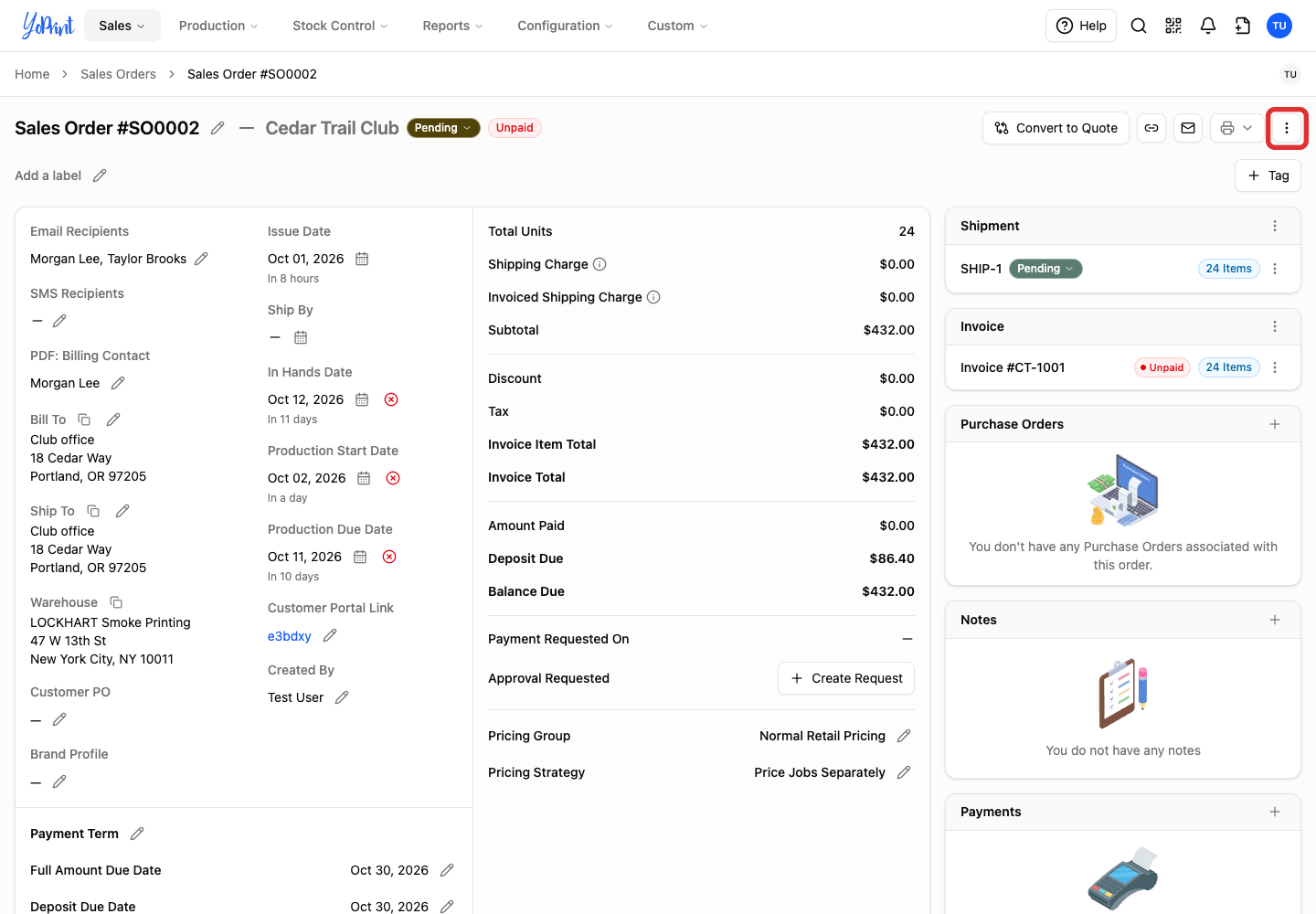
-
Select Auto Invoice.
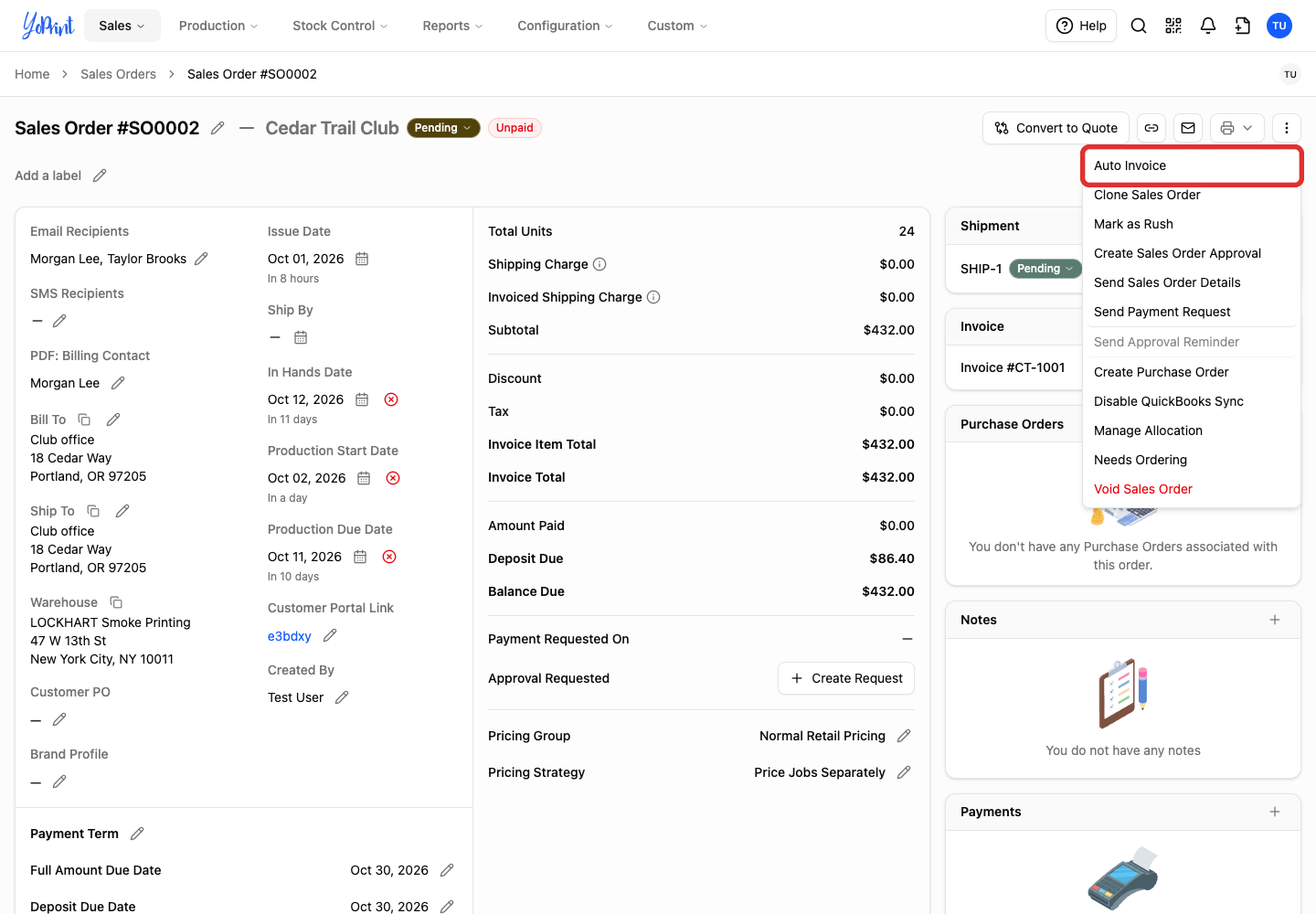
On a draft, the Auto Invoice button is beside Publish. It opens the same options before you publish the order. On a draft, YoPrint generates the invoice once you publish the order.
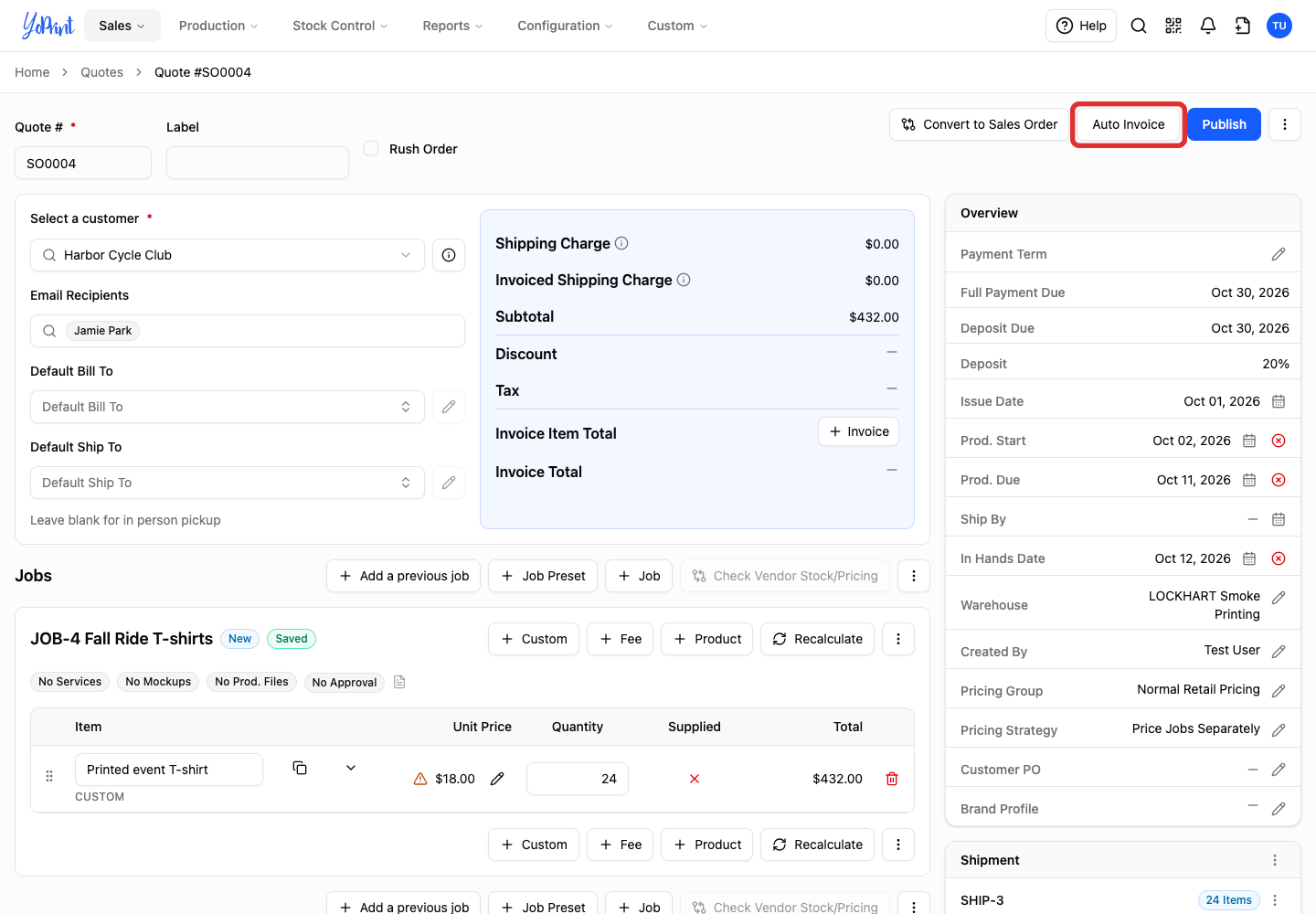
-
Turn on Automatically manage invoices so it reads Yes. Beside the prompt asking if you want YoPrint to automatically manage invoices, switch the toggle to Yes. A warning banner appears inside the window stating that existing invoices will be deleted and recreated.
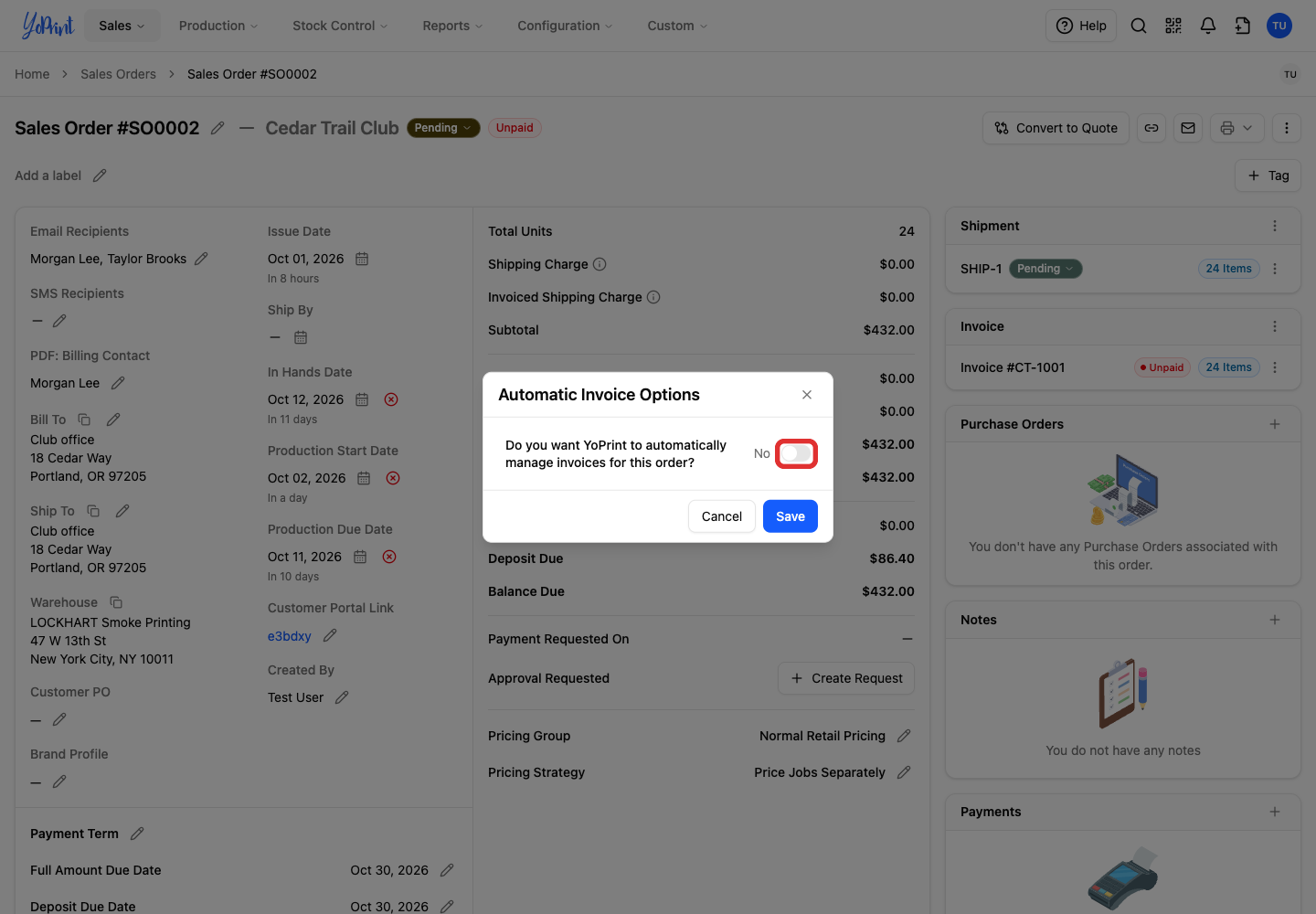
-
Open How do you want us to handle shipping cost?
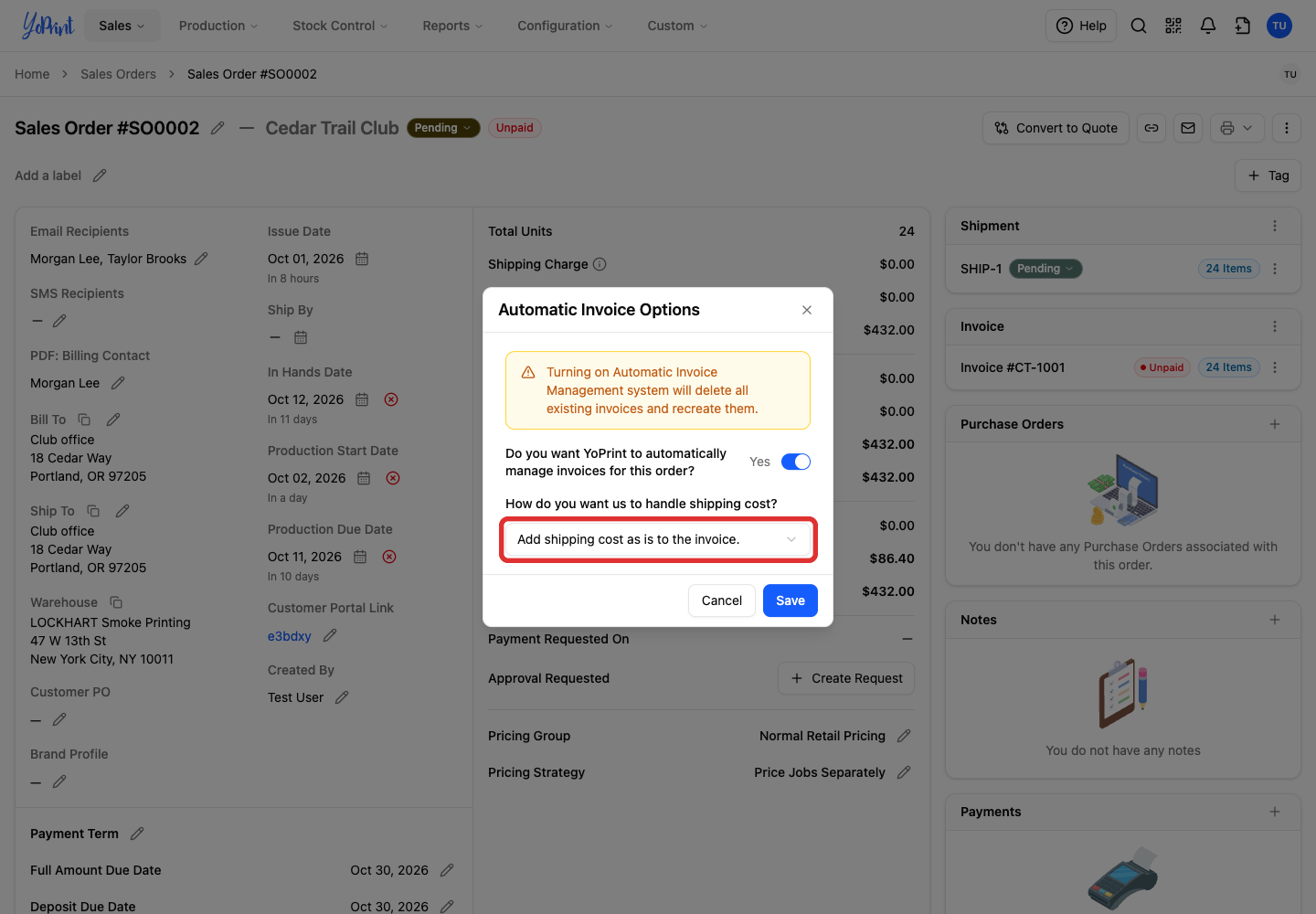
-
Choose a shipping option. The shipping comparison below explains each one.
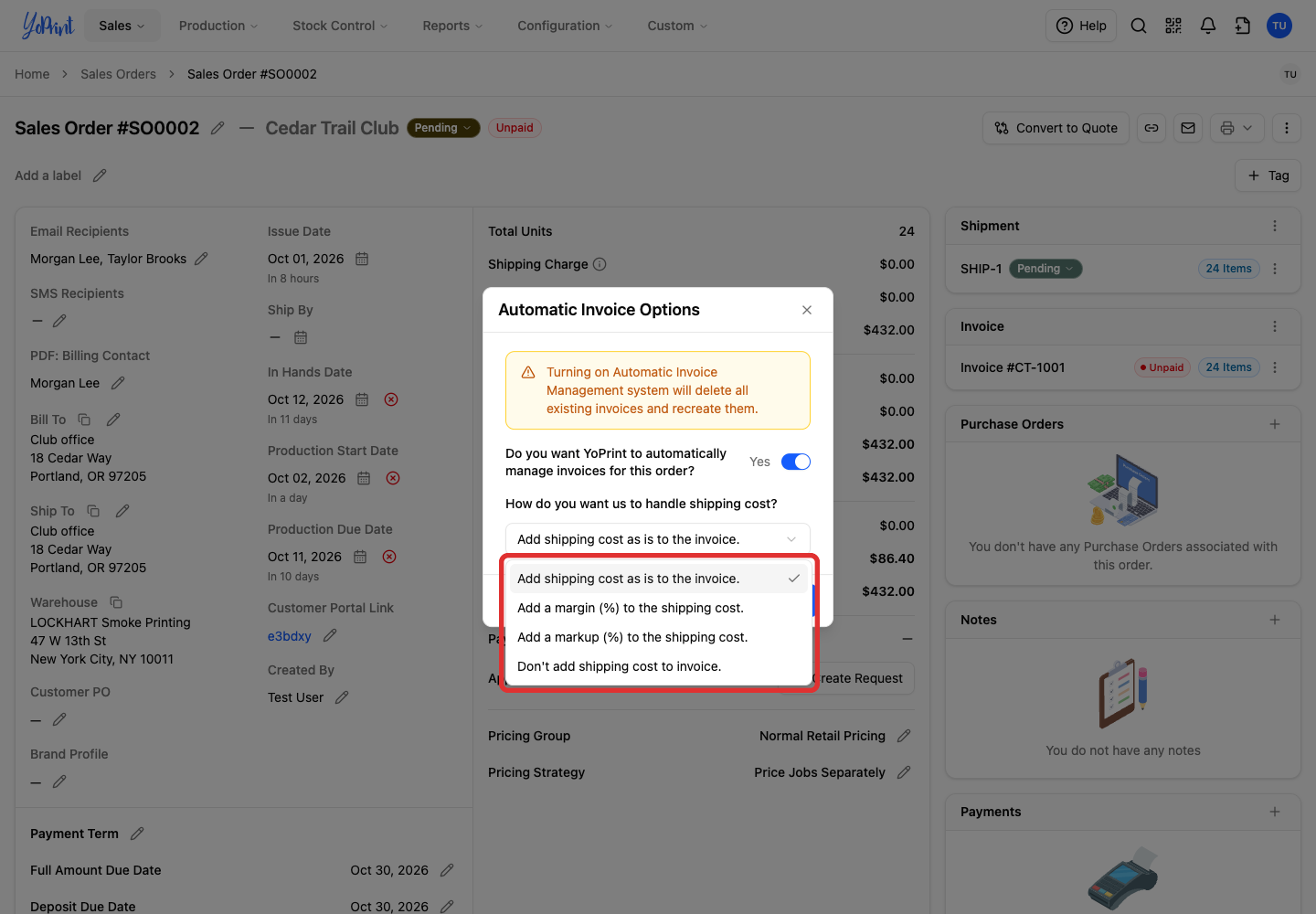
For Margin or Markup, enter the percentage in the field that appears. Margin must be below 100%; both fields accept zero or a positive value.
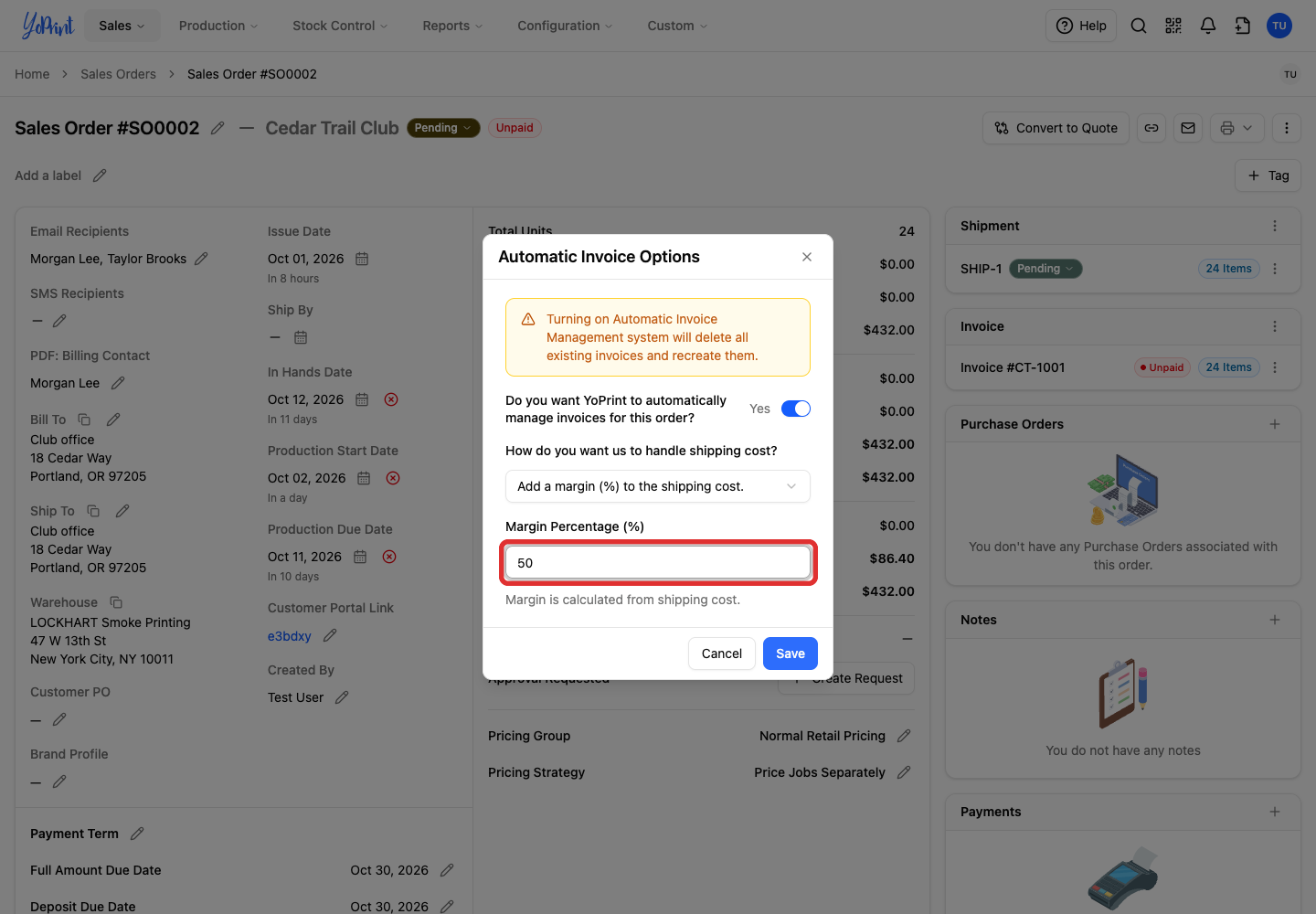
-
Click Save. YoPrint creates the invoice and opens its editor. The order's Invoice panel now shows Auto Managed.
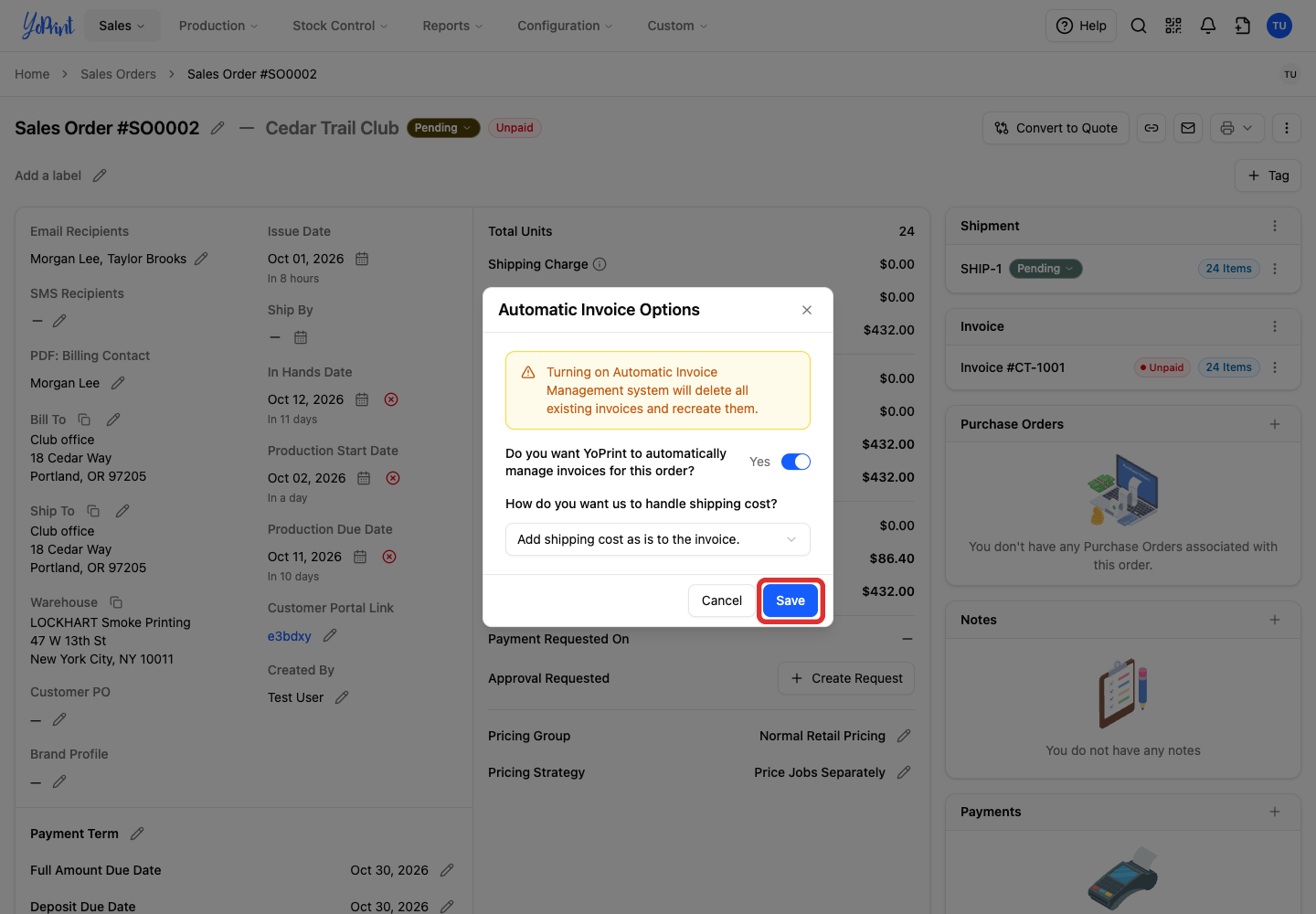
Saving creates the invoice immediately without an extra confirmation prompt. Once you close the editor, the order's Invoice panel shows the Auto Managed badge.
Choose how to bill shipping
Shipping cost is the amount your shop records to ship the order, which can be an estimate. You record it on the shipment.
Shipping fee is what you charge the customer for shipping. It appears as a line on the invoice.
For example, Cedar Trail Club orders 24 printed T-shirts for its fall ride. Your shop records a $10 shipping cost to send the shirts to the club. Compare the four options below to see what lands on the invoice for this shipment, before any manual fee.

- Add shipping cost as is to the invoice: YoPrint adds a $10 shipping fee to the invoice, matching your shop's cost. The club pays what your shop recorded on the shipment. Choose this when you pass carrier costs directly to the customer.
- Add a margin (%) to the shipping cost: At 50%, YoPrint adds a $20 shipping fee to the invoice. Your $10 cost is half of that fee. The other $10 is the difference between the fee and your recorded cost. Choose margin when you calculate the difference between the fee and your recorded cost as a percentage of the total fee on the invoice.
- Add a markup (%) to the shipping cost: At 100%, YoPrint adds a $20 shipping fee to the invoice. YoPrint adds 100% of your cost ($10) on top of the original $10 cost. The extra $10 is the difference between the fee and your recorded cost. Choose markup when you add a percentage on top of what the carrier charged.
- Don't add shipping cost to invoice: YoPrint adds no automatic shipping fee to the invoice. The club pays $0 for shipping unless you add a fee by hand. Choose this when your shop covers shipping or includes it in the T-shirt prices.
A margin or markup can help cover packaging and handling as well as the shipment itself.
You can enter the shipping cost manually. A Shippo label's charge becomes a shipment cost only when Create Shipping Cost Line Item is on and not for third-party billing. If an order has no shipments yet, no automatic shipping fee appears until you record a shipment with a cost.
Changing to Don't add shipping cost to invoice removes fees previously added by Auto Invoice. Manual shipping fees remain. To change the option later, use Auto Invoice from the same order menu.
Review and edit the invoice
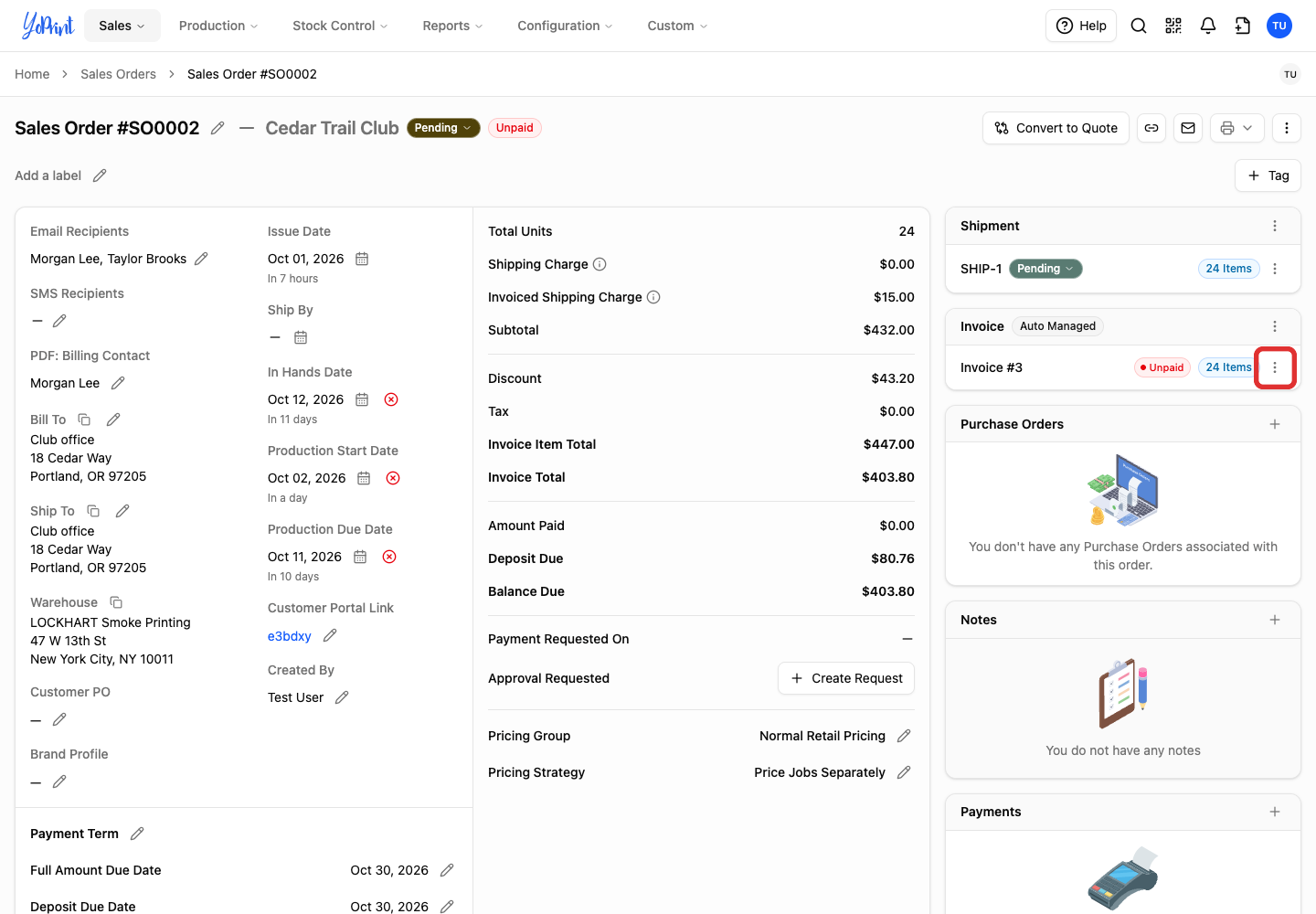
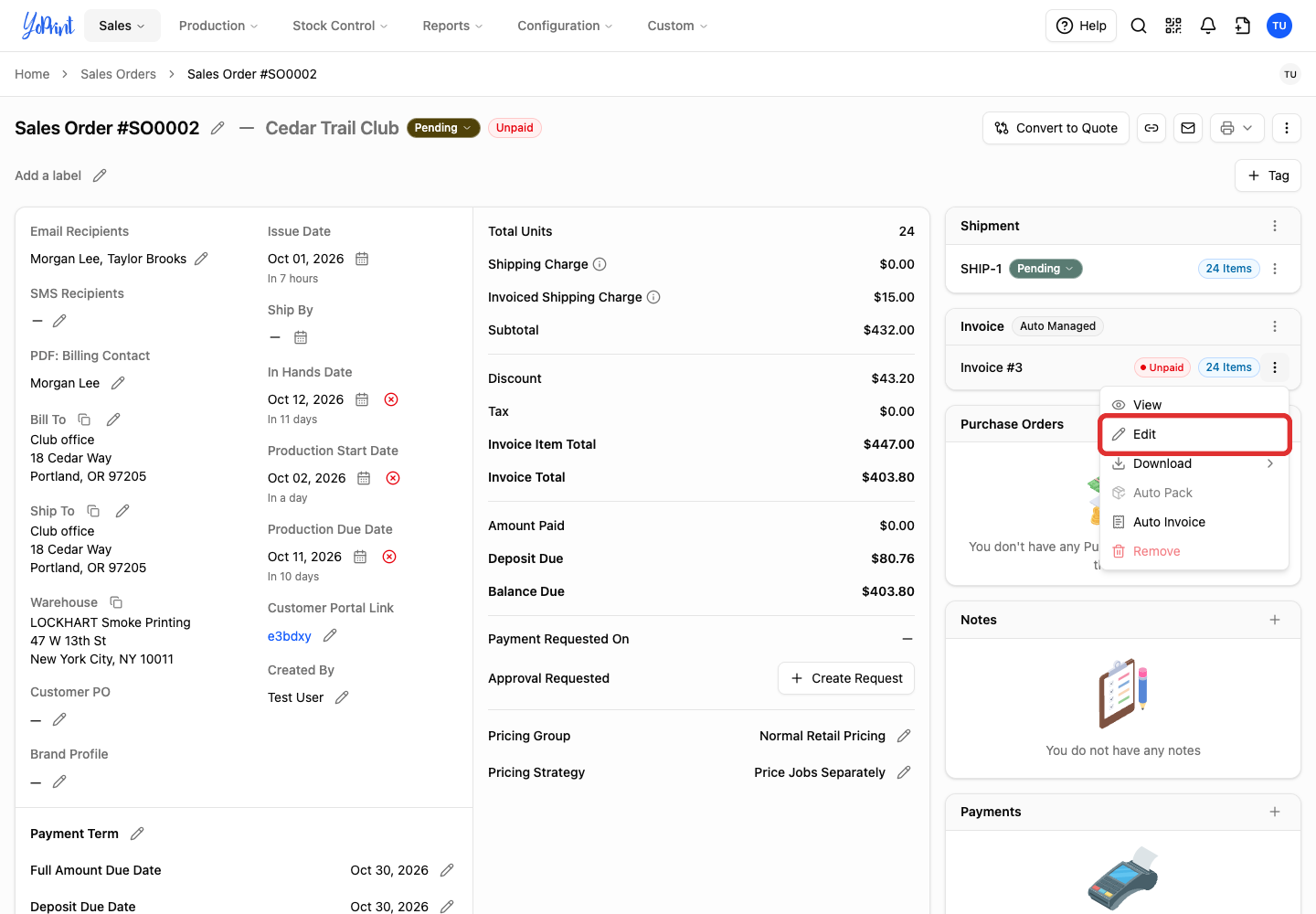
If the editor is already open from the previous step, continue directly to reviewing its fields. To reopen the editor later from the order:
-
Open the ⋮ menu beside the invoice number.
-
Select Edit.
-
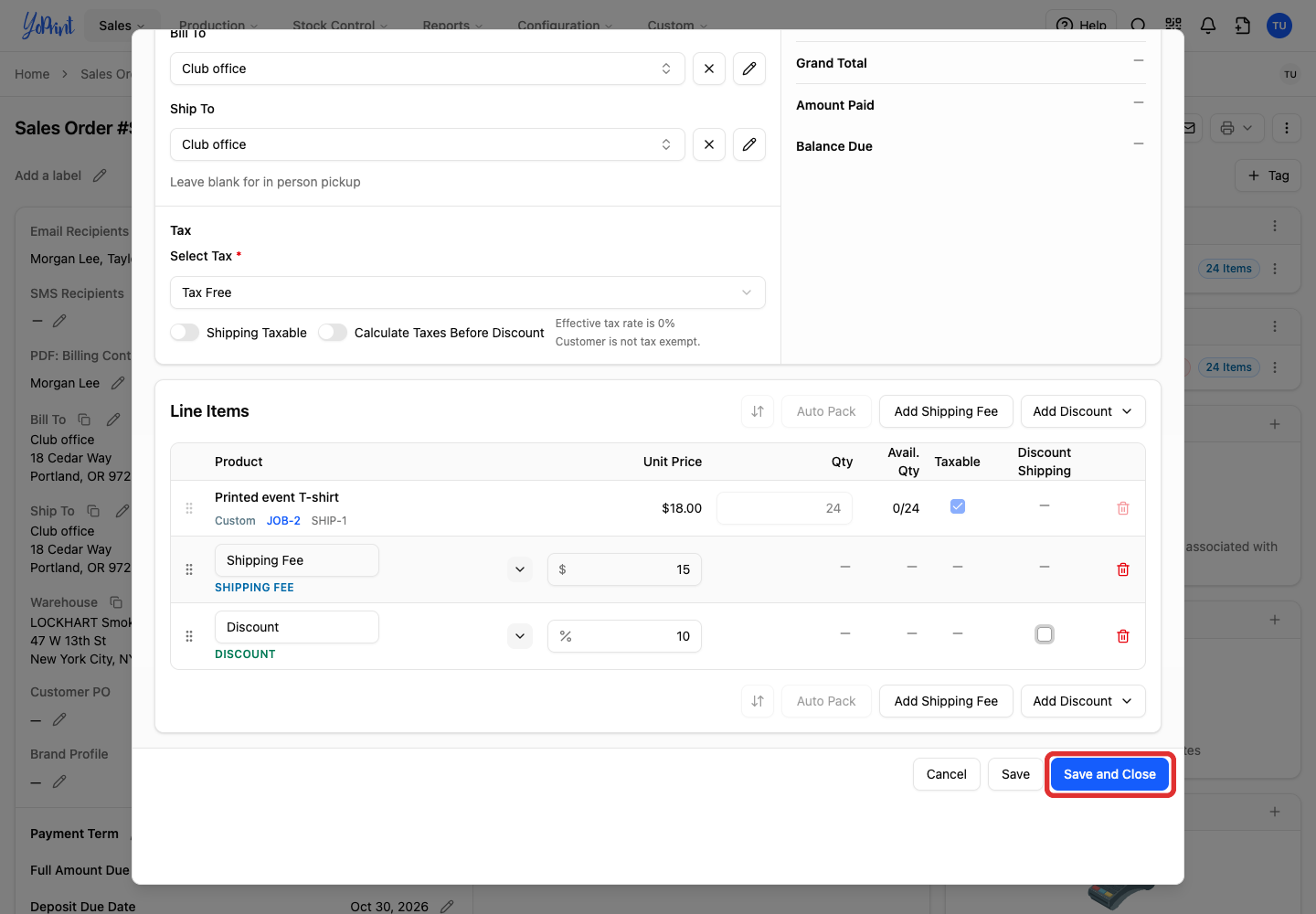
Review Bill To, Ship To, and Select Tax.
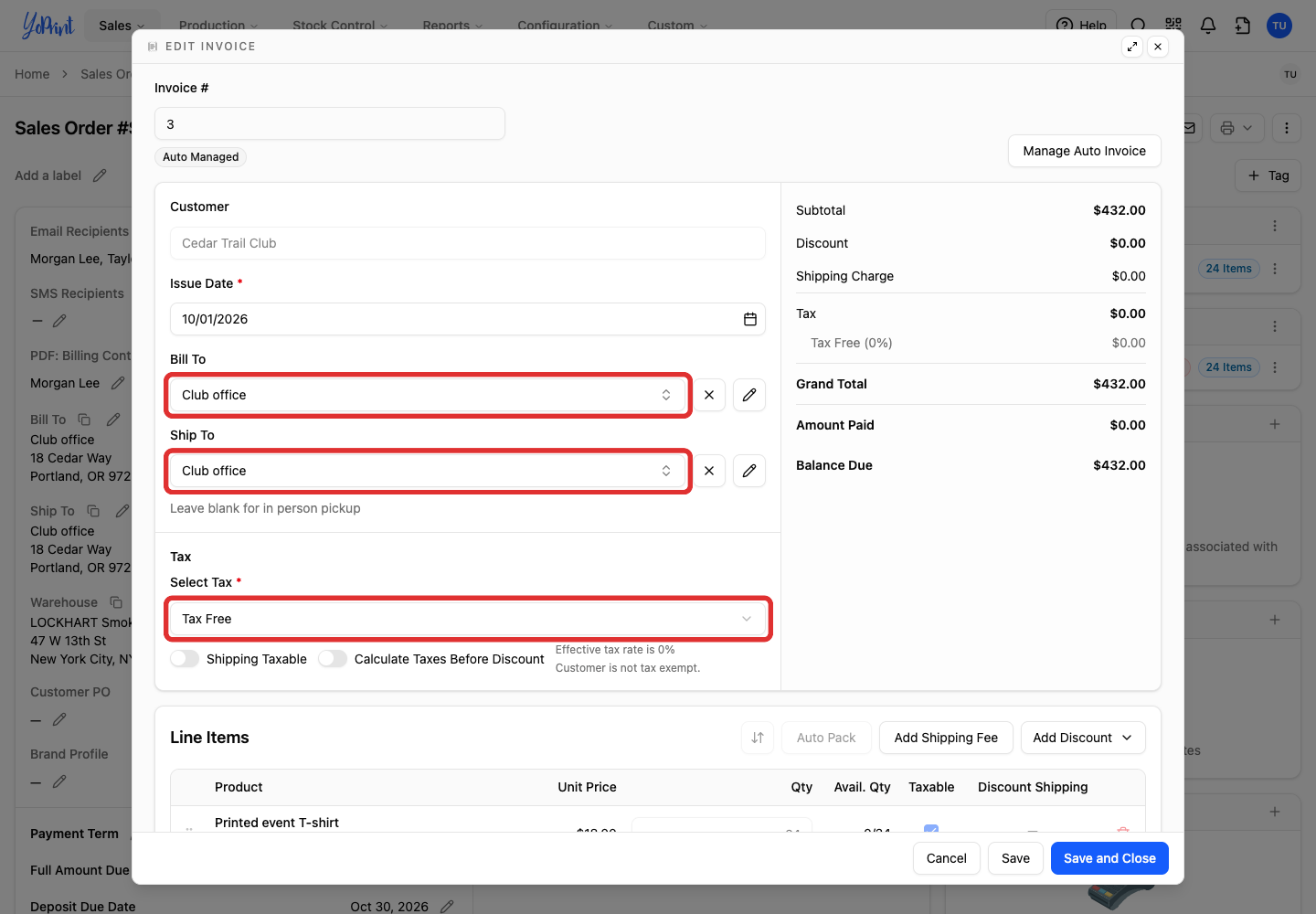
Billing uses the order's billing address or the customer's primary billing address. Shipping uses the order's shipping address. The invoice starts with your default tax settings, or Tax Exempt for a tax-exempt customer. You can choose a different tax here; manage defaults in Tax Presets. Manual edits to invoice addresses and tax stay saved when order items update.
The managed product rows are locked: you cannot change their quantity, taxable checkbox, order, or remove them in this editor. Automatic shipping fee rows are also locked. Change quantities and prices in the order's job instead. Manual shipping fees and discounts remain editable.

Add a shipping fee or discount
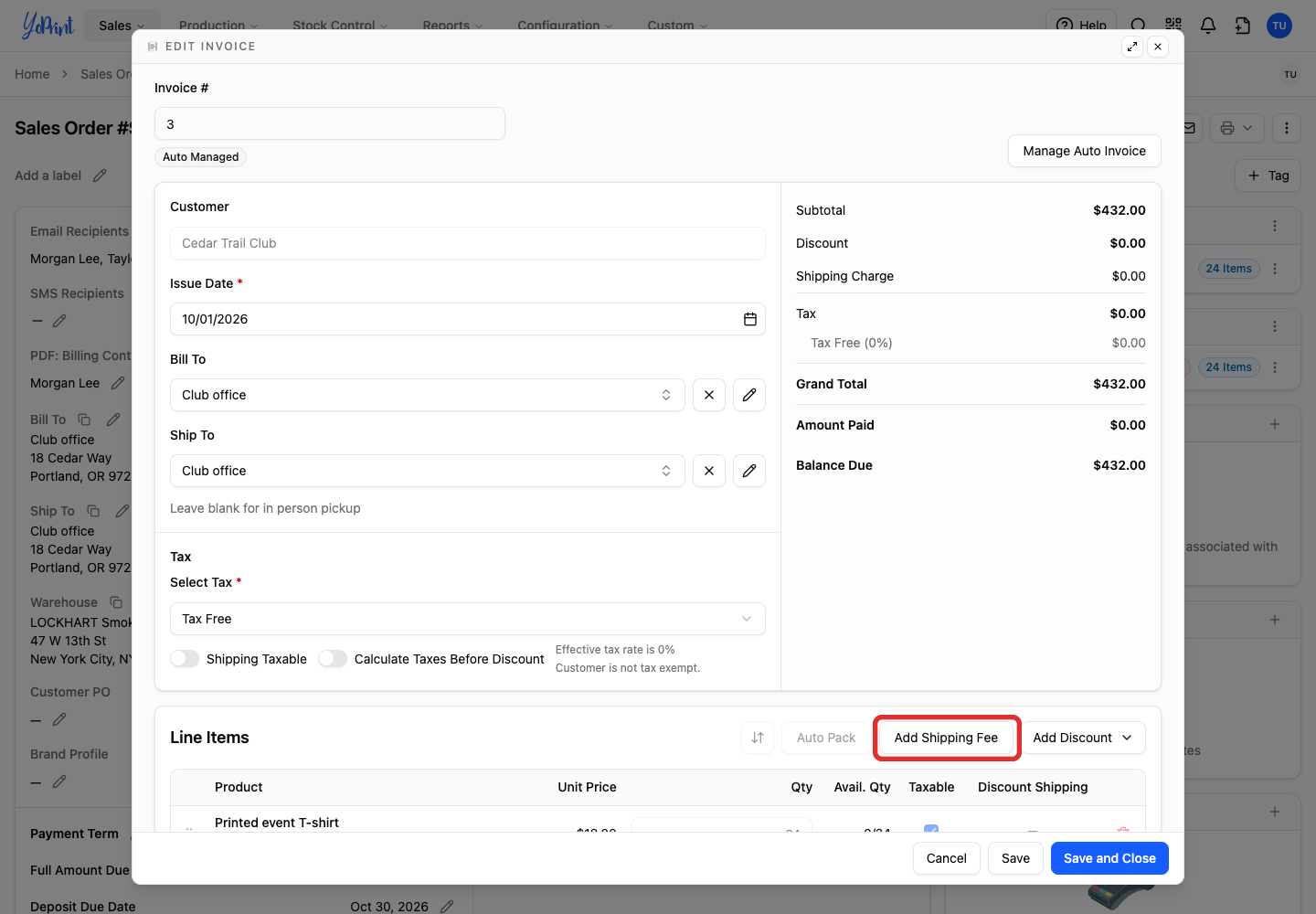
Start in the invoice editor. A manual shipping fee is added on top of any fee calculated from shipment costs.
-
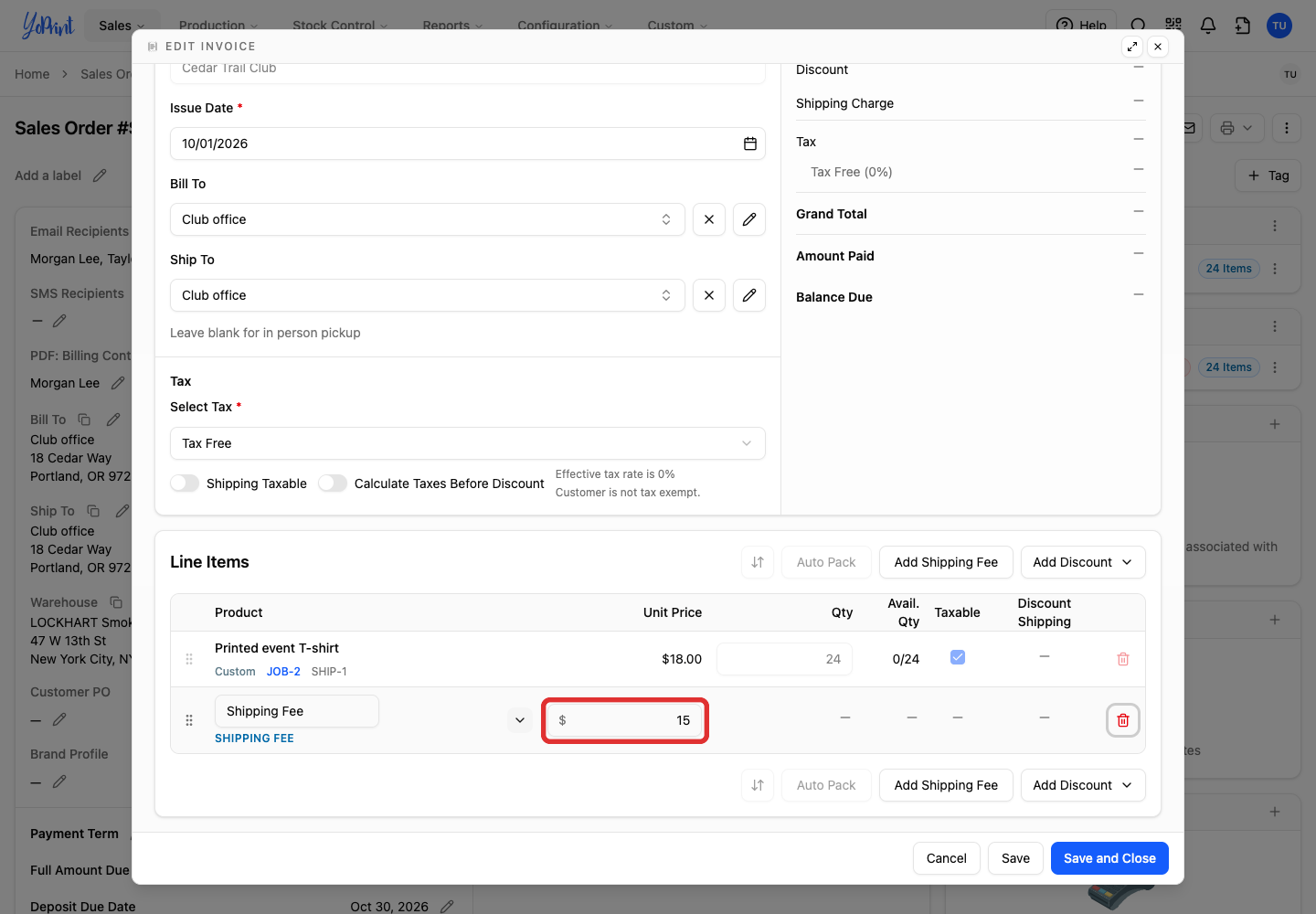
Click Add Shipping Fee.
-
Enter the fee amount. This example adds $15. Enter the amount in the dollar field on the right of the new row.
-
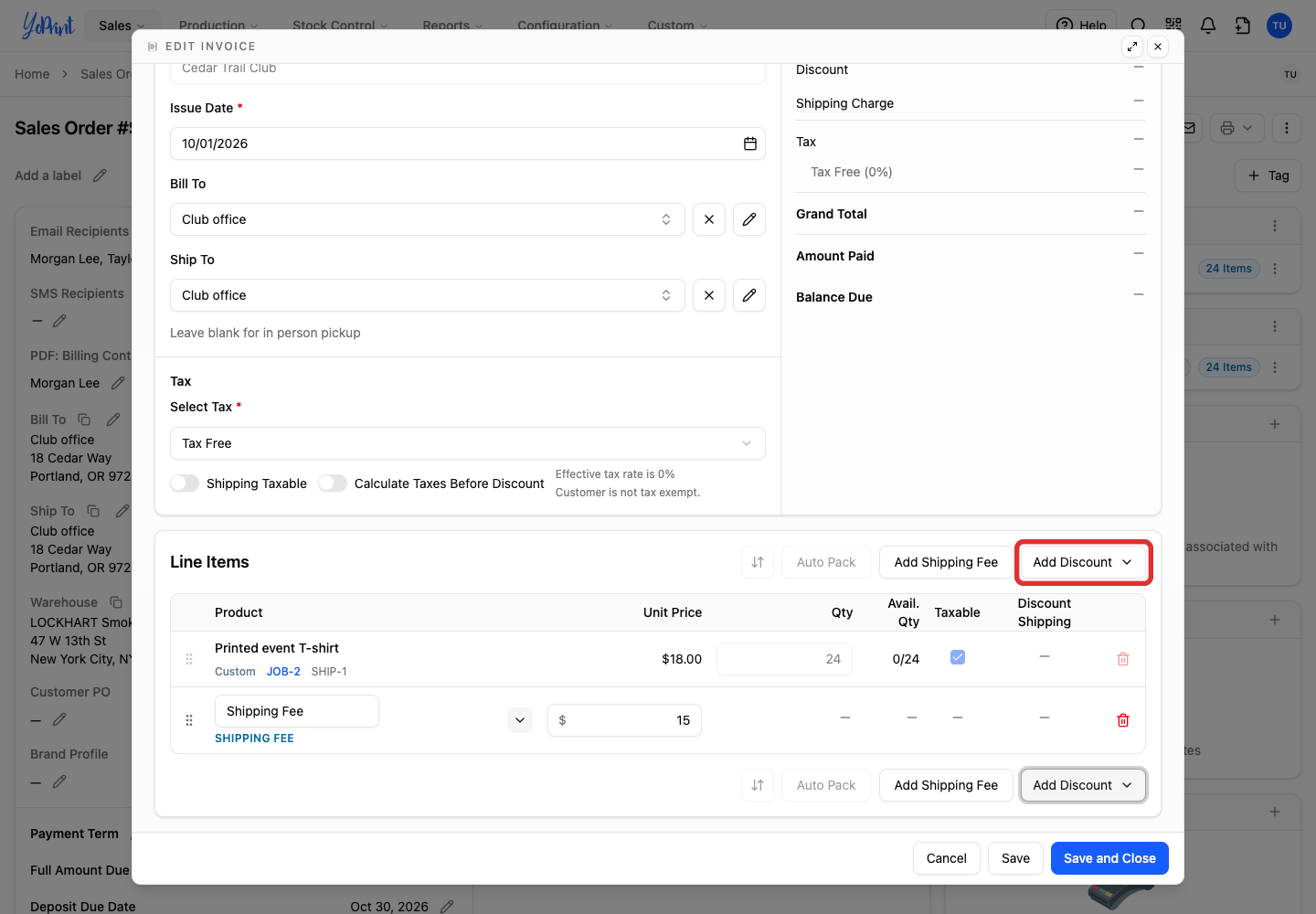
Click Add Discount.
-
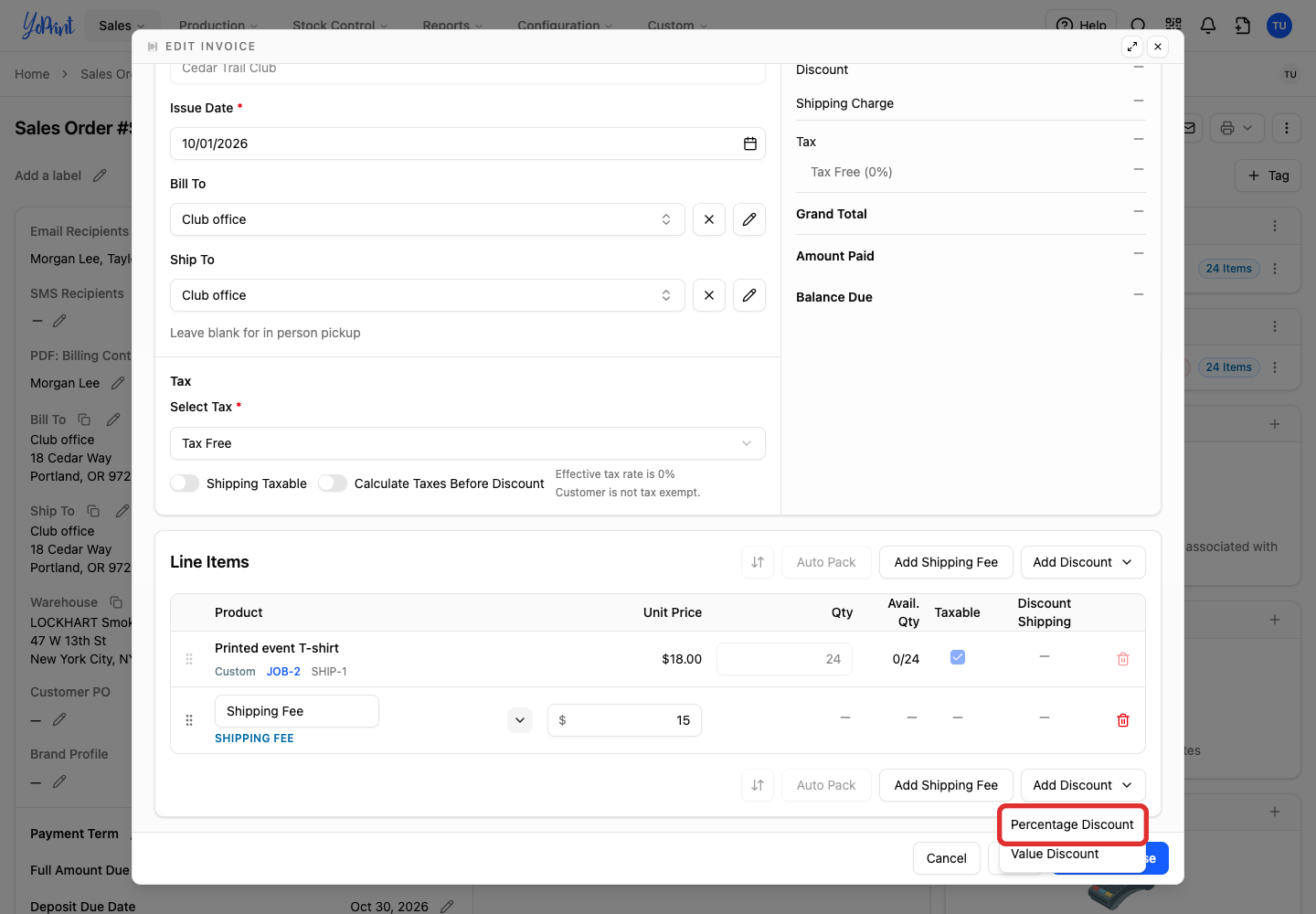
Choose Percentage Discount or Value Discount. This example uses a percentage.
-
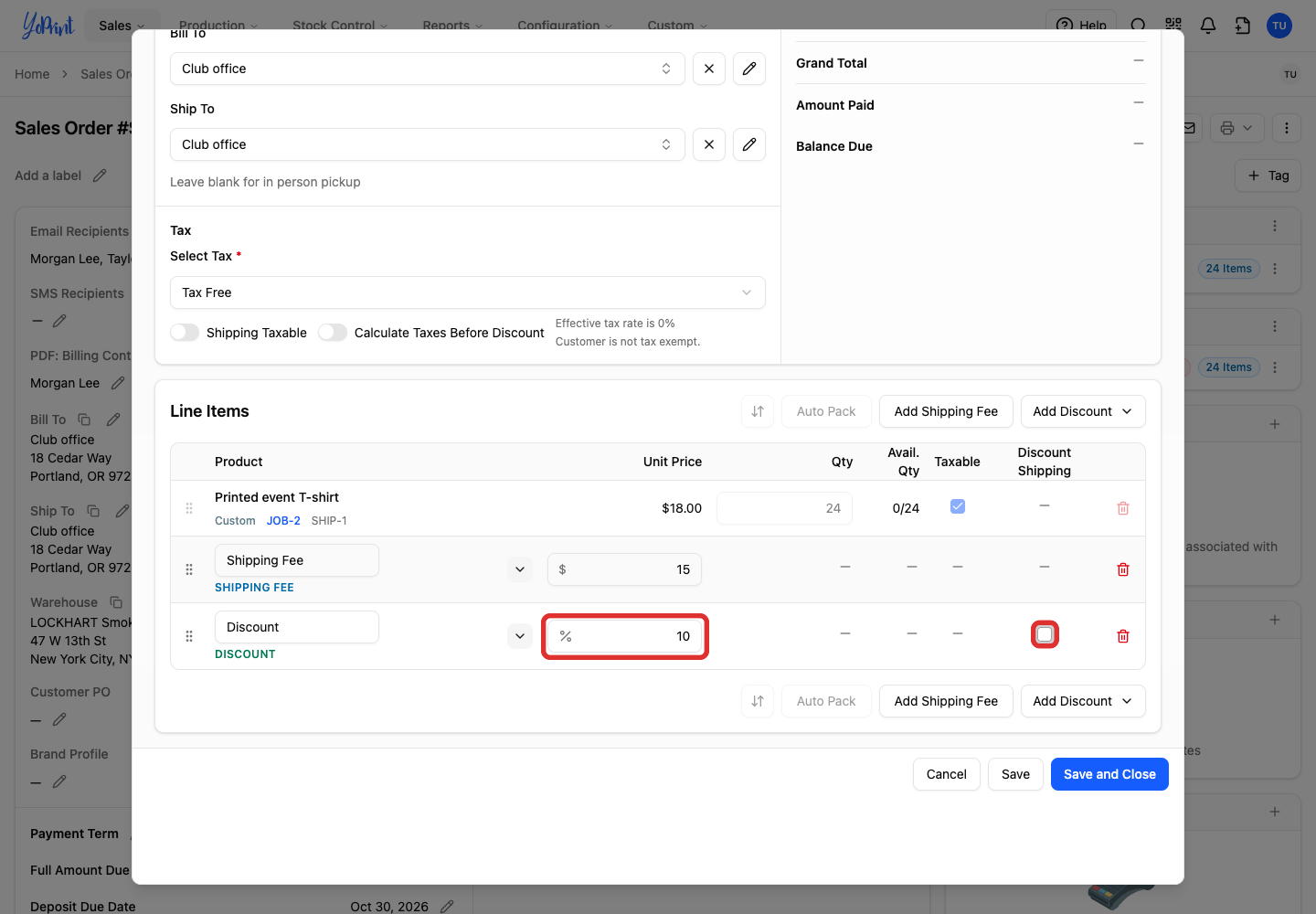
Enter the discount. Select Discount Shipping if it should also apply to shipping fees. Here, 10% applies to the products only. Leave the checkbox unchecked to discount products only.
-
Click Save and Close. Check the updated invoice total on the order. Check the total under the order overview financial summary on the left.
Change order items and check the invoice
-
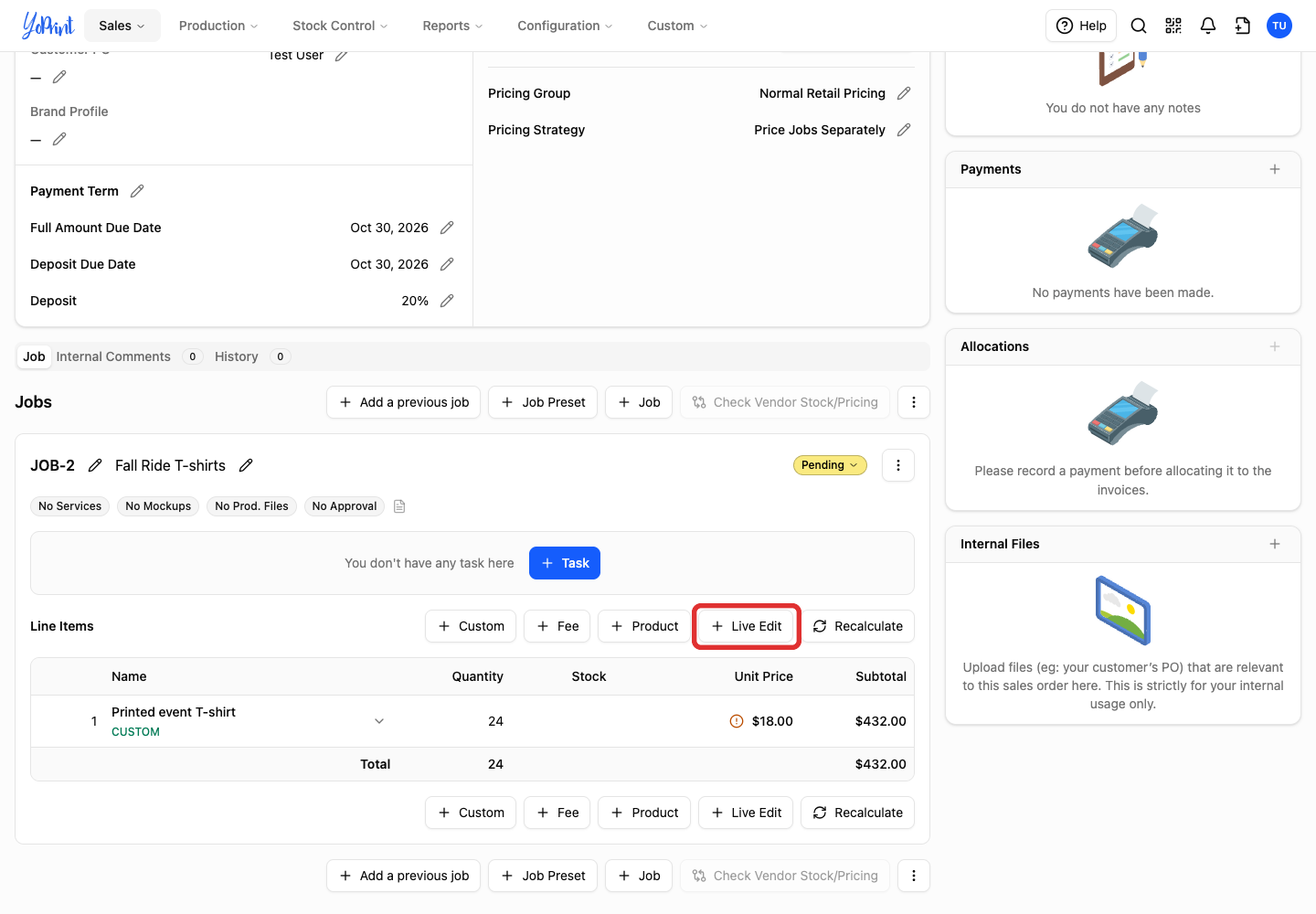
In the order's Jobs section, click Live Edit for the job.
-
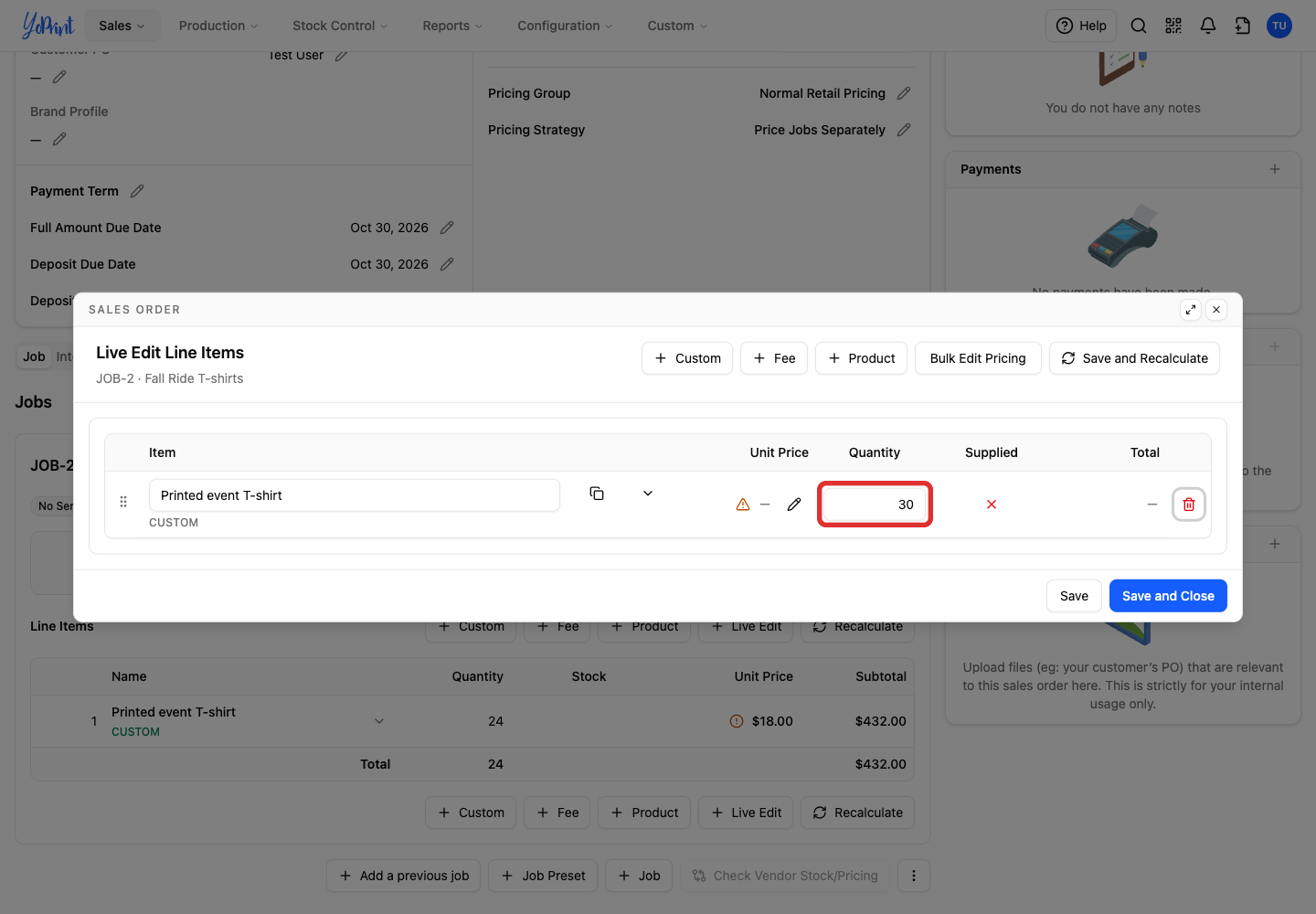
Update Quantity. Here, it changes from 24 to 30.
-
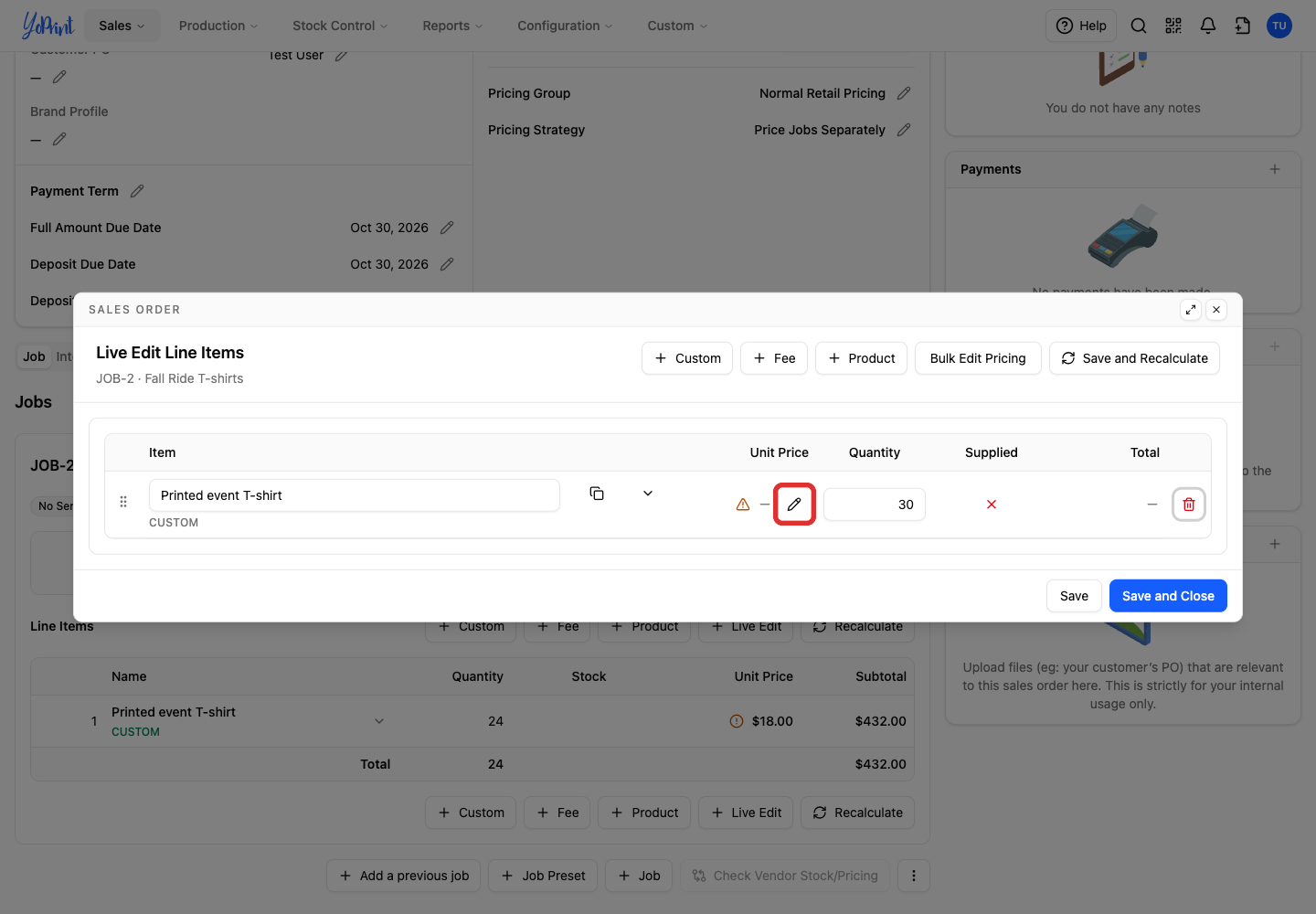
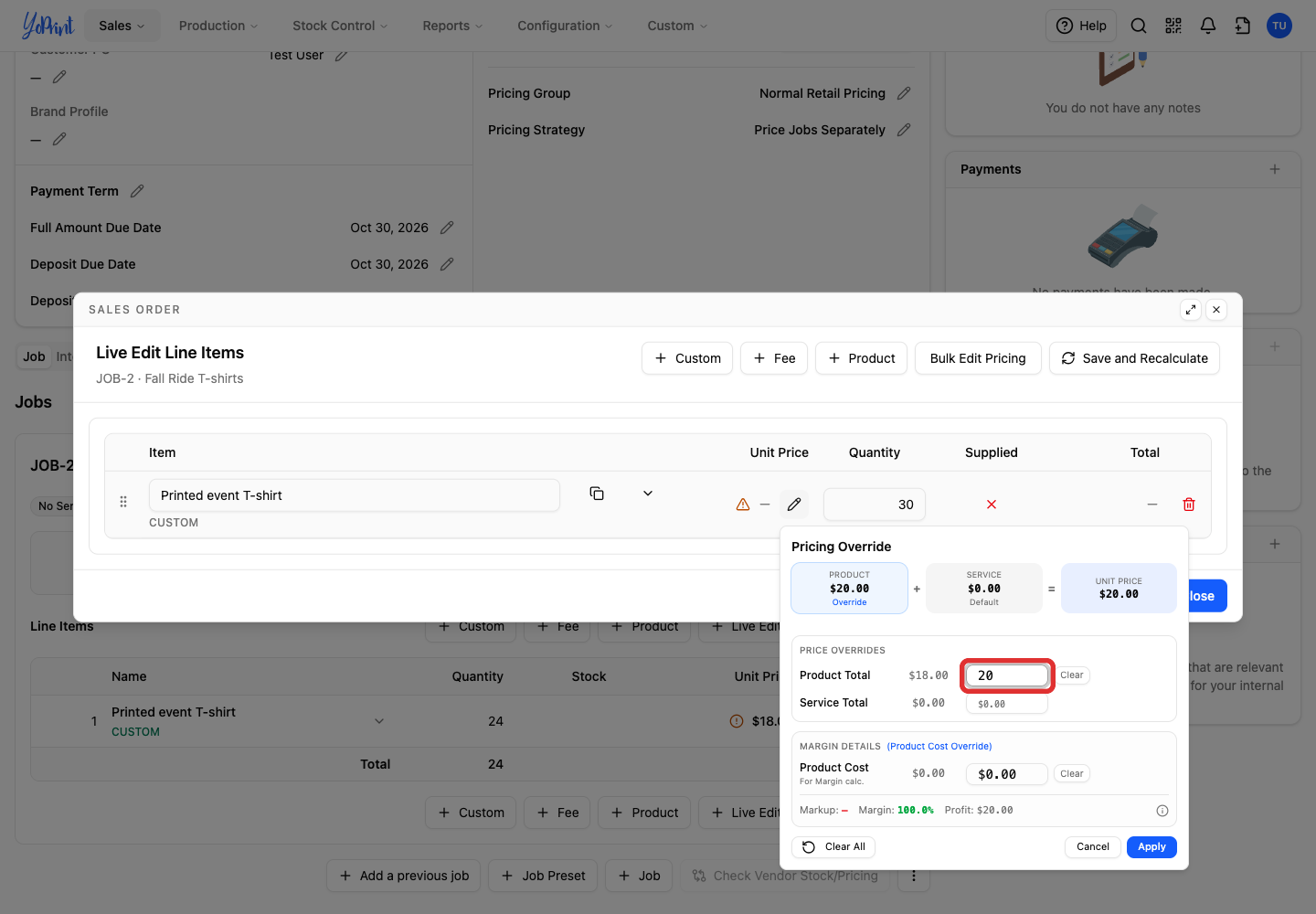
To change the price too, click the pencil under Unit Price.
-
Enter the new Product Total in Price Overrides. Here, the unit price changes from $18 to $20. Enter the unit price in the field labelled Product Total.
-
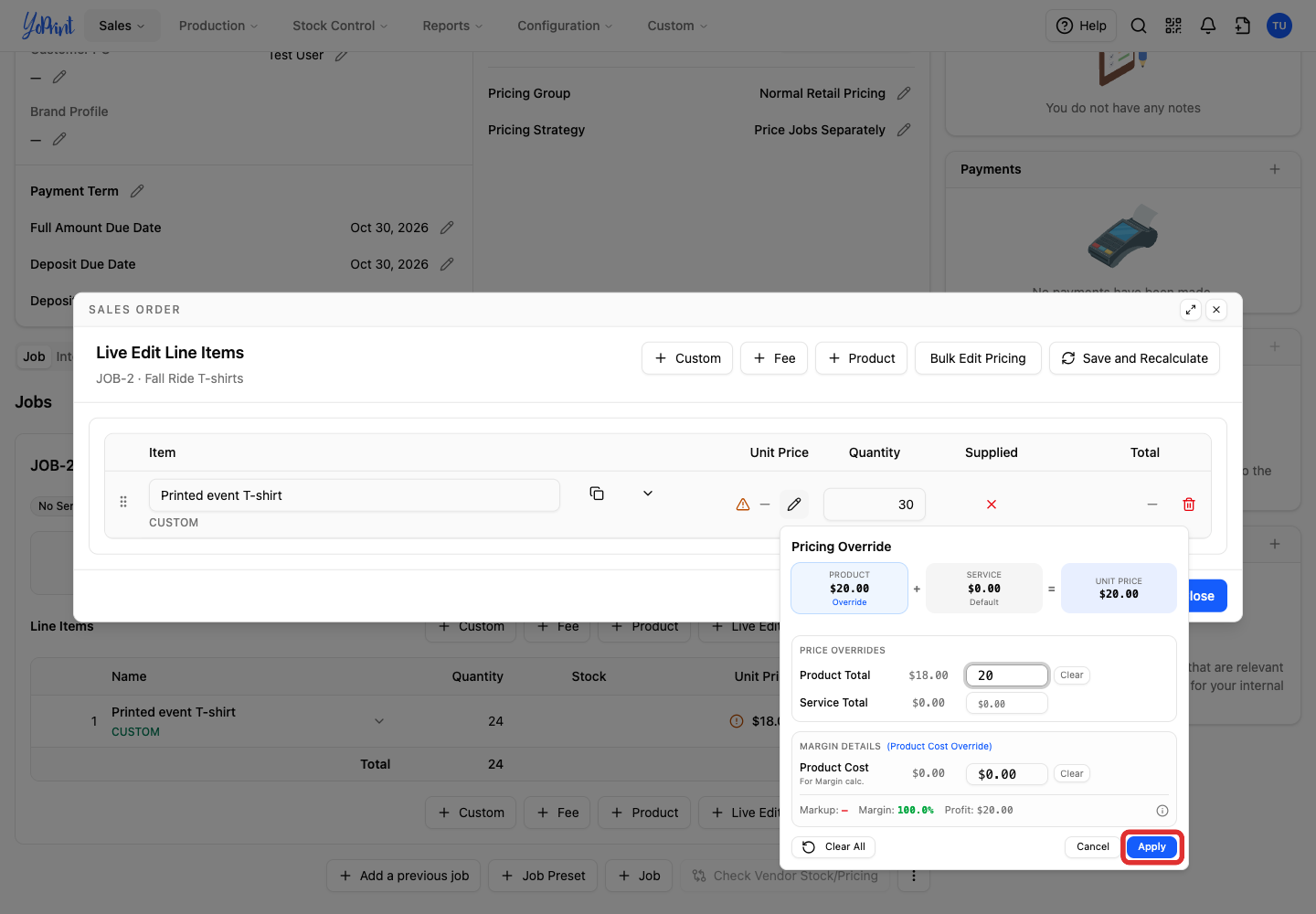
Click Apply.
-
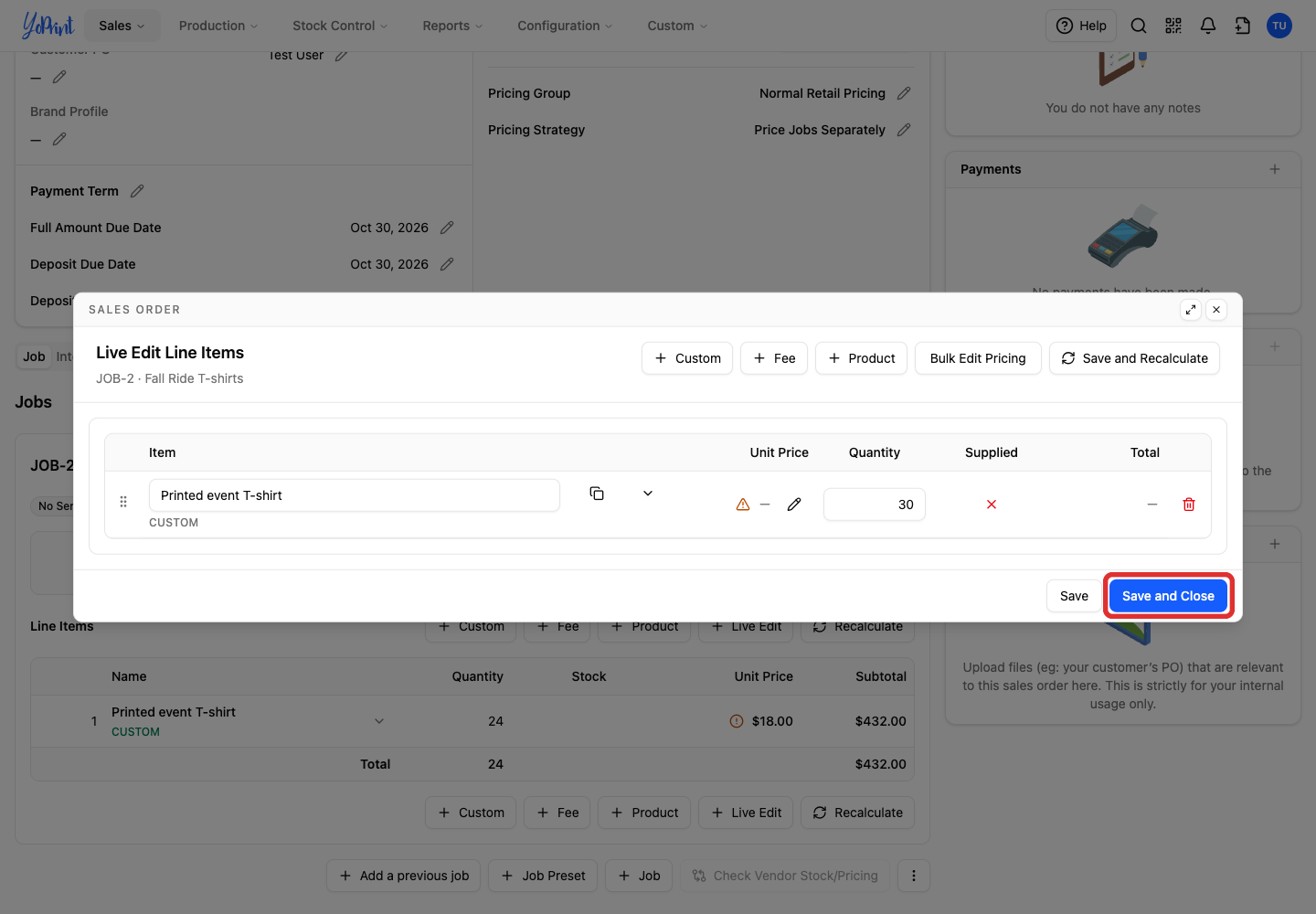
Click Save and Close.
-
Double-click the invoice on the order to check the result. This opens the read-only invoice view.
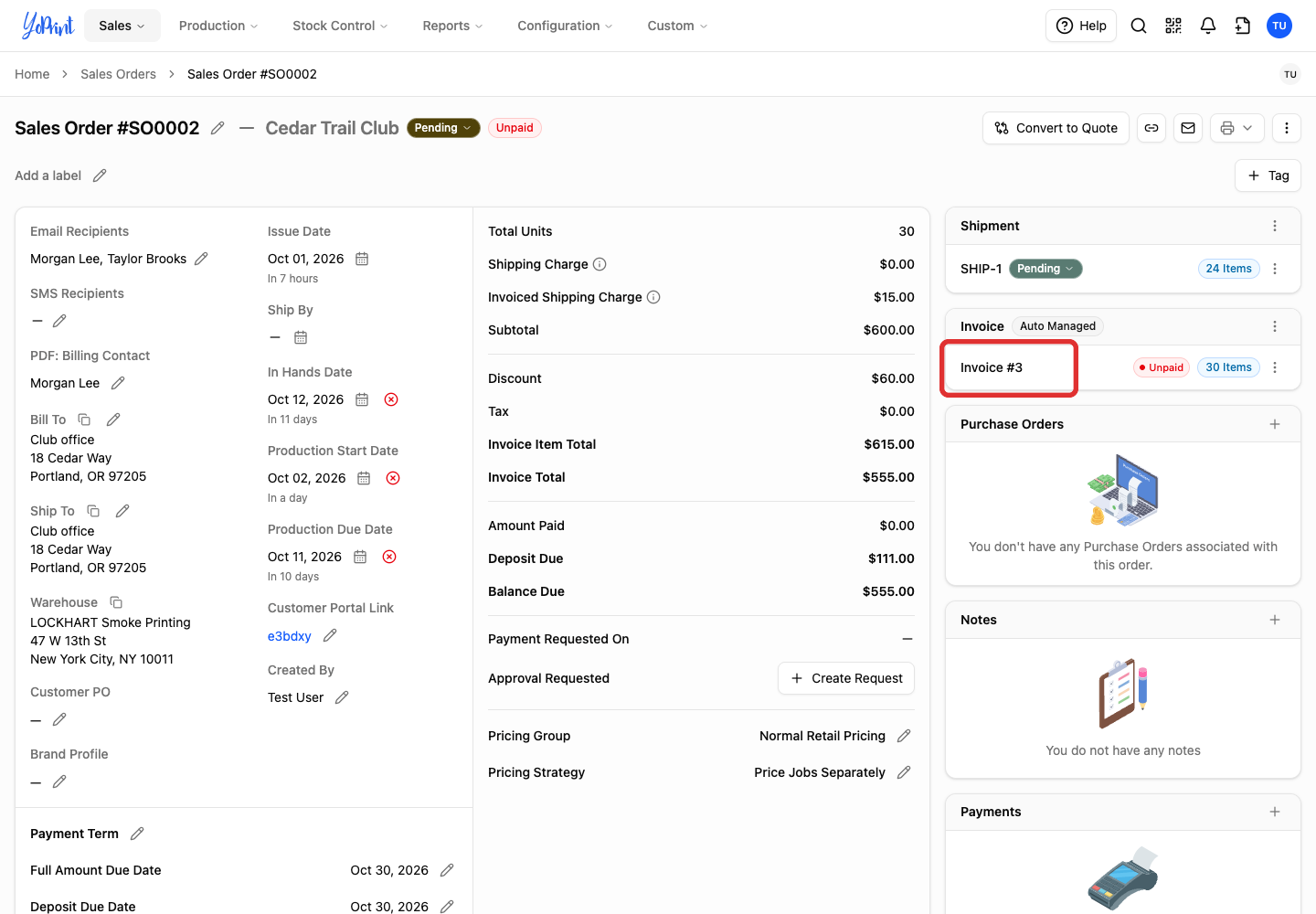
The same invoice now has 30 items at $20 each. The $15 manual shipping fee remains, and the 10% product discount recalculates to $60. The balance is $555. Shipping fees managed from shipment costs follow the shipping option you selected. If your order includes an automatic shipment fee (such as $10 under Add shipping cost as is), that amount adds to the balance for a total of $565.

Turn off Auto Invoice
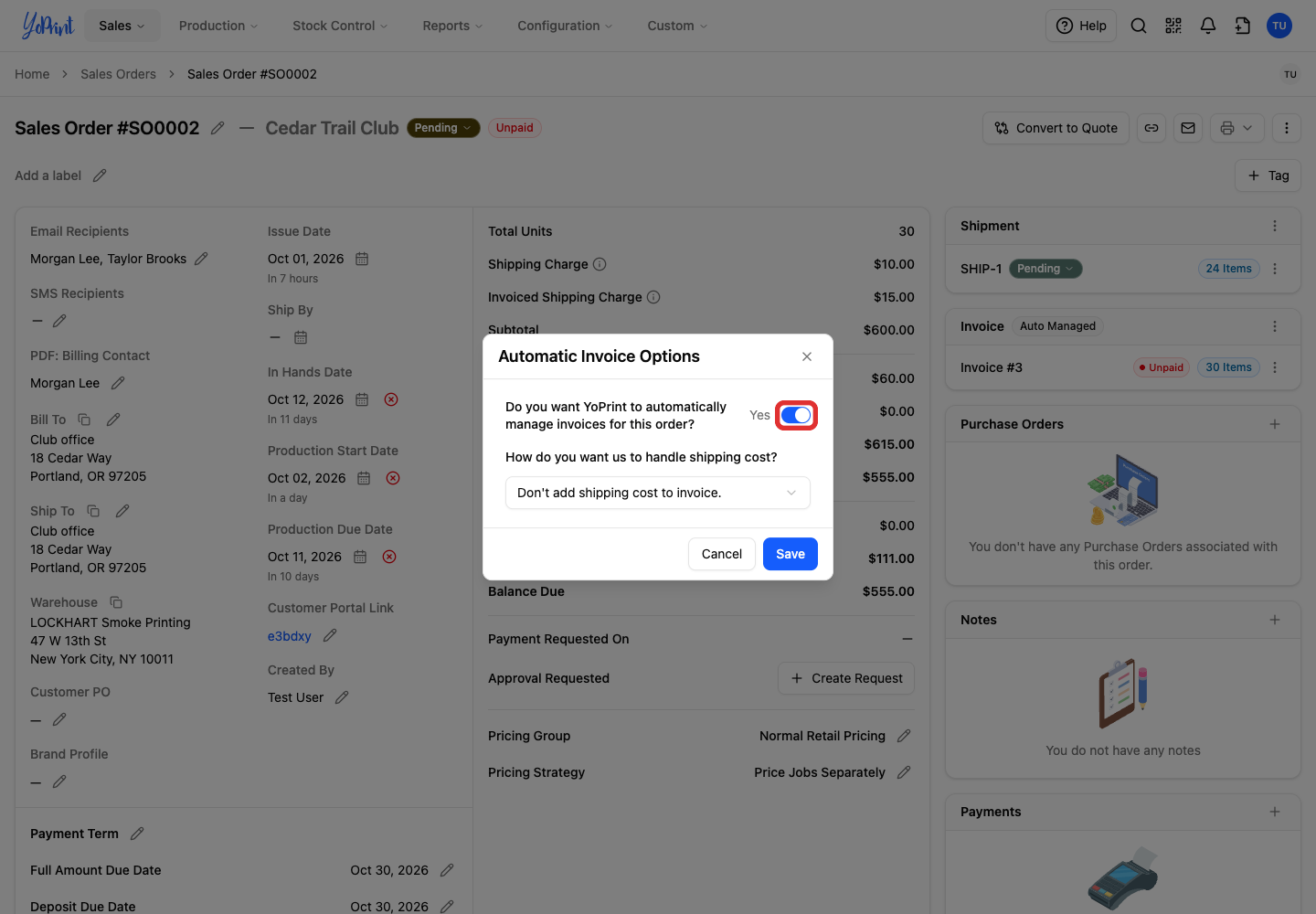
Close the invoice view if open. Start in Automatic Invoice Options, reached through Quick Actions > Auto Invoice.
-
Turn off Automatically manage invoices so it reads No.
-
Click Save.
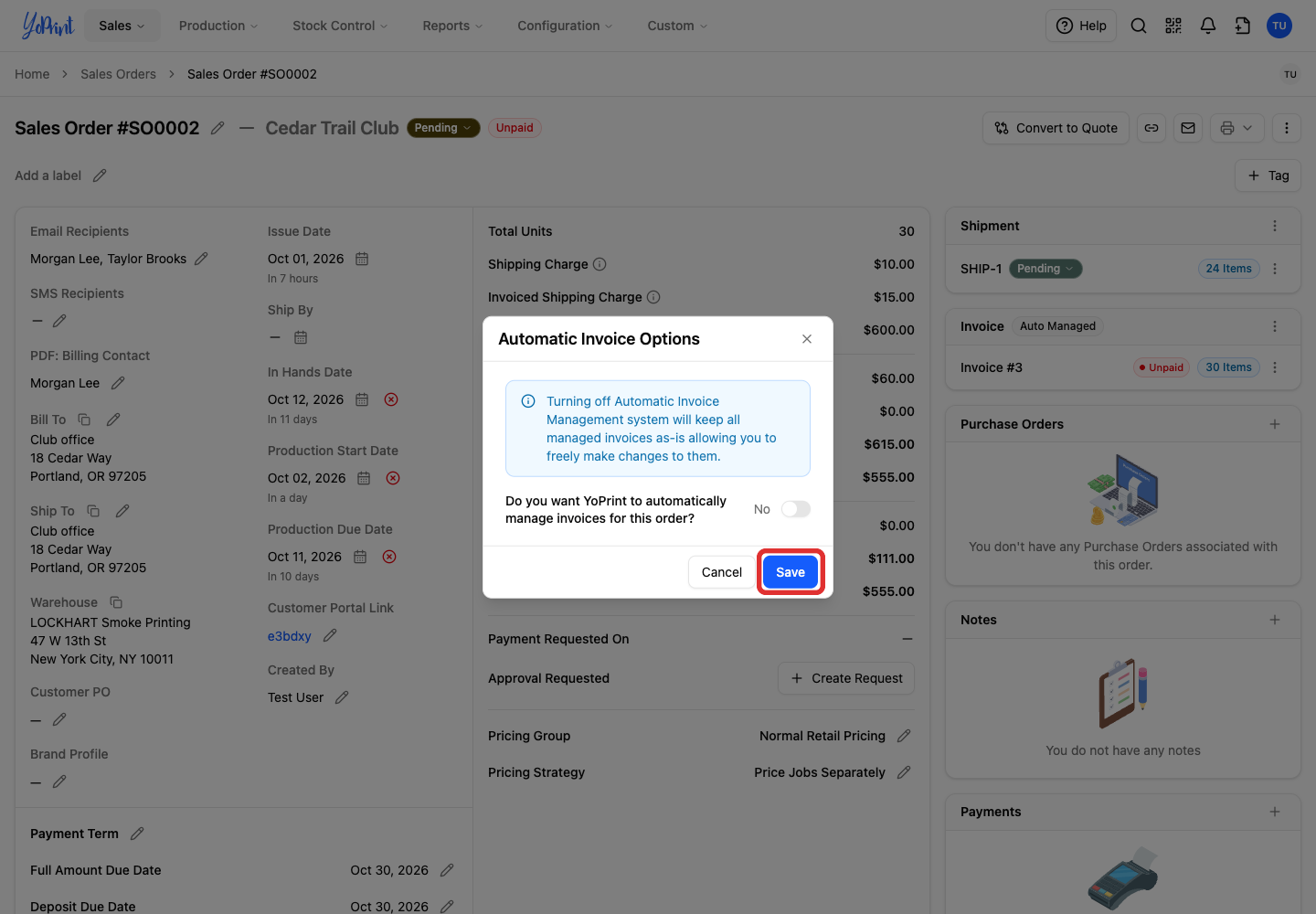
The existing invoice stays as it is. It no longer follows order changes, and its previously locked product controls become editable.
Turn Auto Invoice back on
Use the turn-on steps again. All existing invoices for that order are deleted and replaced with one new invoice, based on the latest order details. It gets a new invoice number. Re-add any manual shipping fees and discounts you still need; they do not carry over.

While Auto Invoice is on, you cannot create additional invoices manually for the same order. To bill extra charges, add them as line items or fees on the existing order.