Configure Stripe Payments
In this article
Stripe lets customers pay online through the YoPrint customer portal. Connect your Stripe account to accept credit card payments on quotes and invoices.
Create Stripe keys
In your Stripe dashboard, locate or create your Publishable Key and Secret Key. Follow Stripe's guide on how to Locate API keys in the Dashboard for the provider-side steps. Keep your Secret Key secure and never share it publicly.
Stripe dashboard
These steps happen in Stripe. Stripe's screens may have changed since we took these pictures. If something looks different, follow Stripe's guide: Locate API keys in the Dashboard.
Test mode API keys
To test payments before accepting real cards, turn on Test mode in your Stripe dashboard. Copy your test API keys (starting with pk_test_ and sk_test_ ) into YoPrint. When you are ready to accept real payments, switch to live mode in Stripe, copy your live API keys (starting with pk_live_ and sk_live_ ), and update your connection in YoPrint.
-
Log in to your Stripe Dashboard.
-
Navigate to Settings > Developers.
-
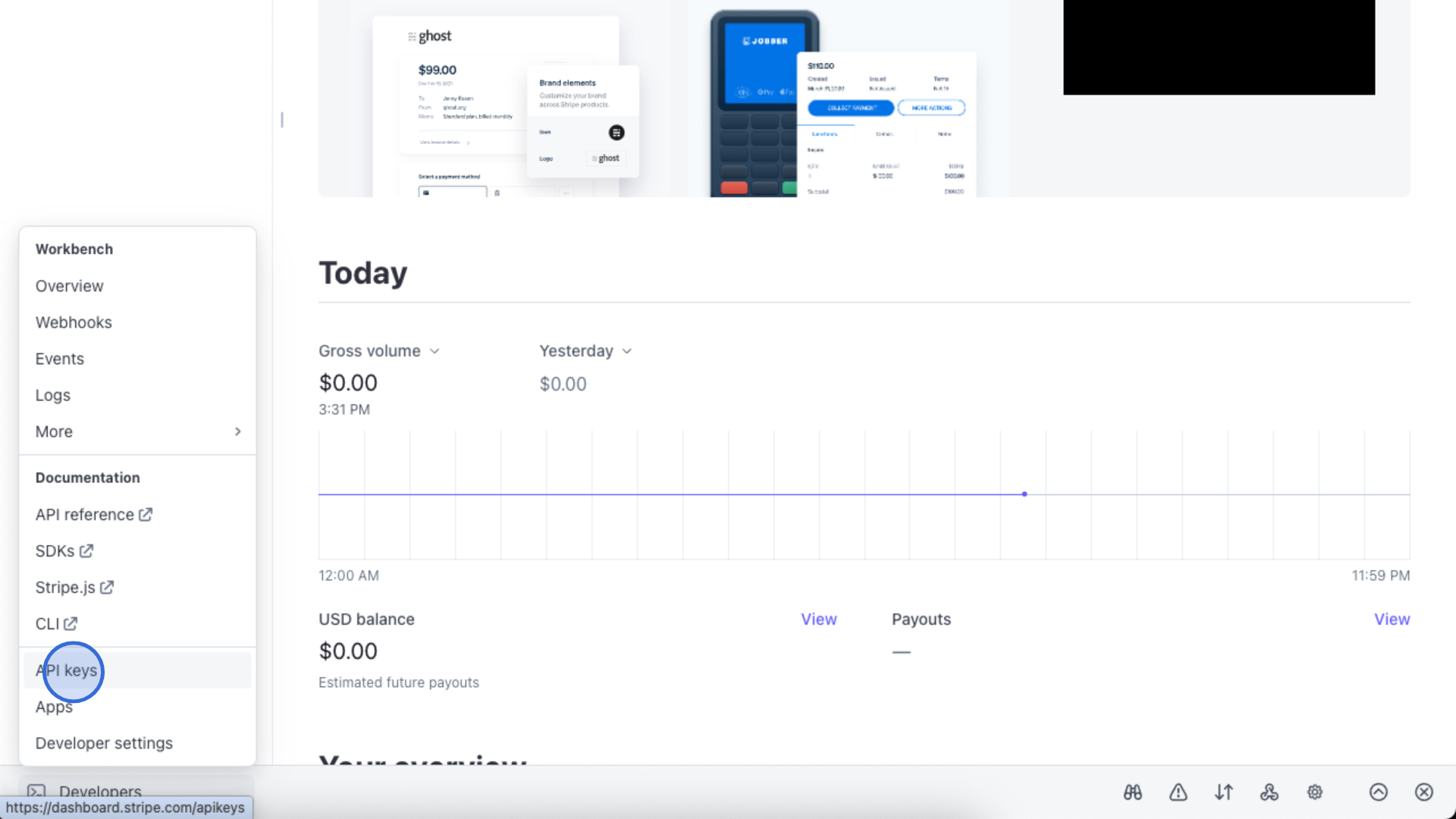
Under Developers, go to API keys.
-
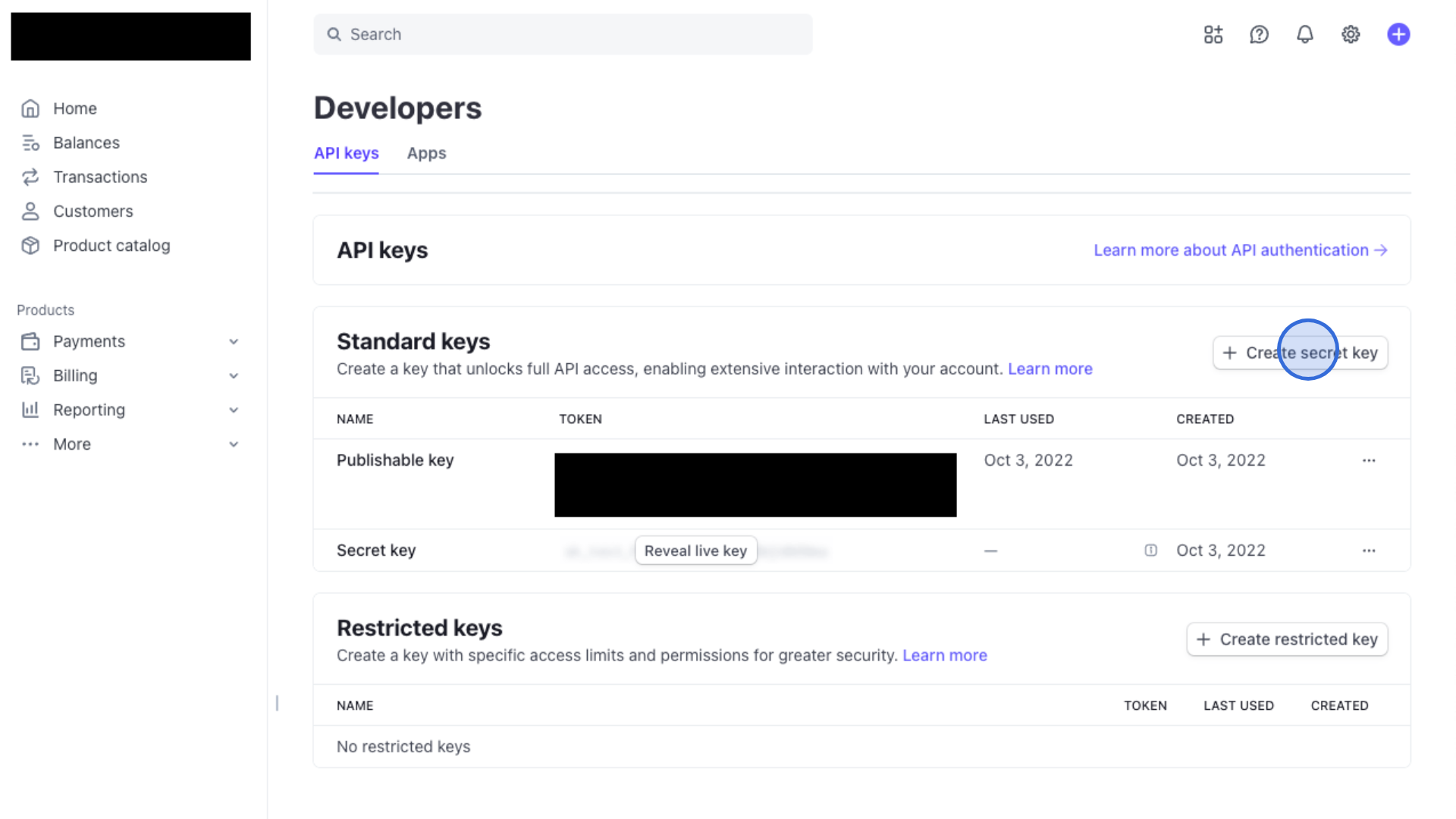
Select + Create secret key. Your Publishable Key is also on this page.
-
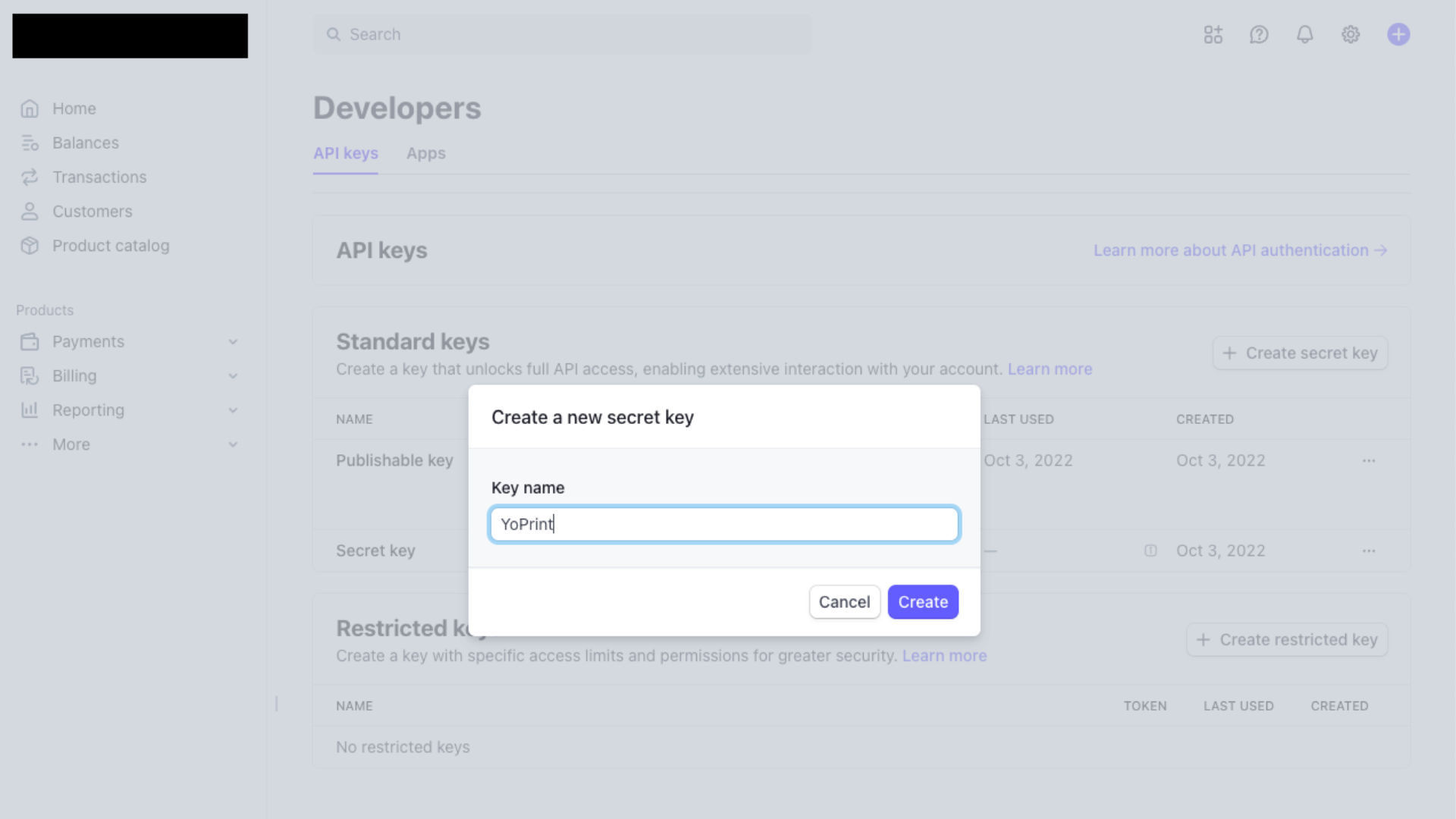
Enter a key name.
-
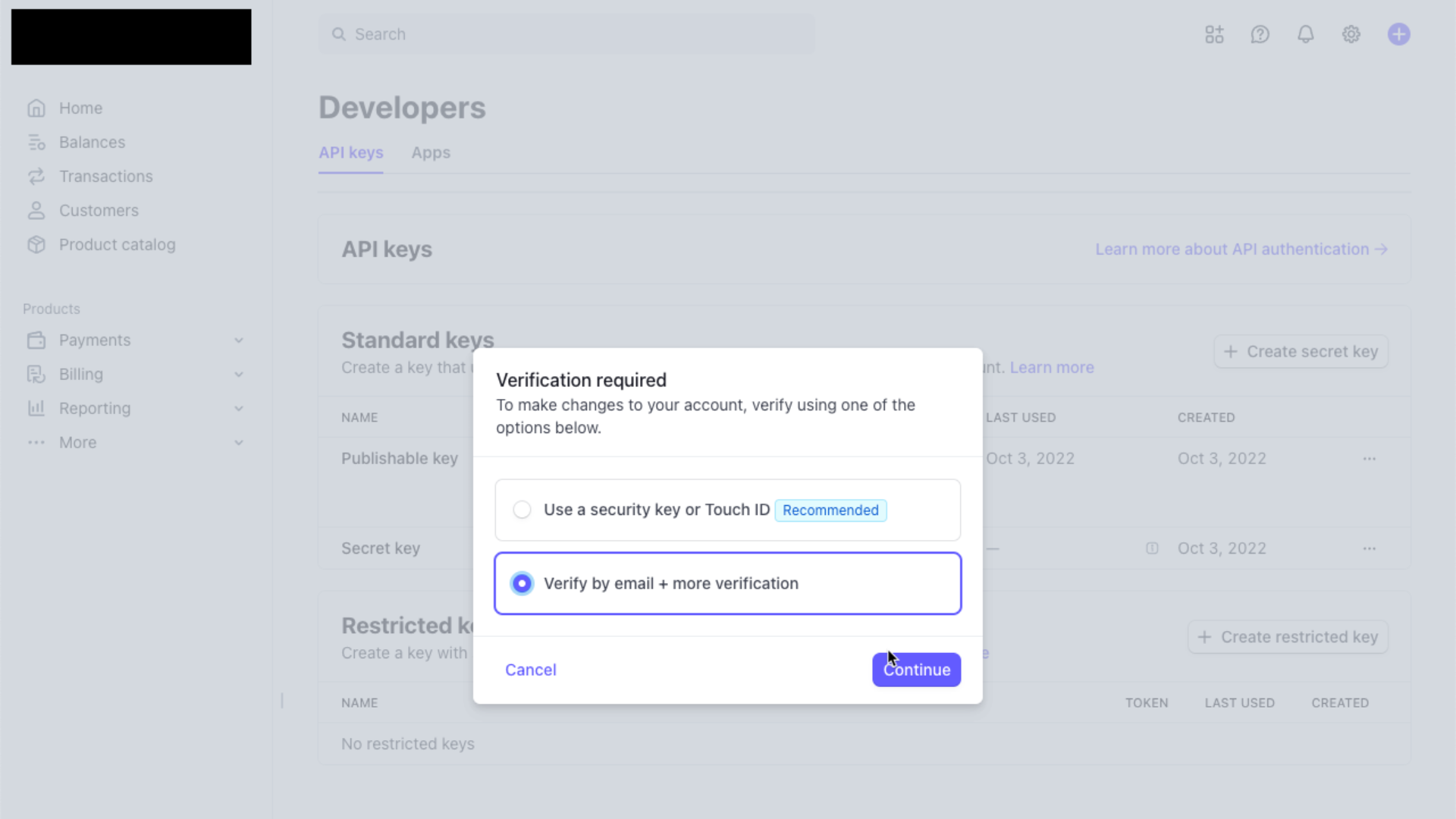
Select Verify by email + more verification and follow the verification prompts.
-
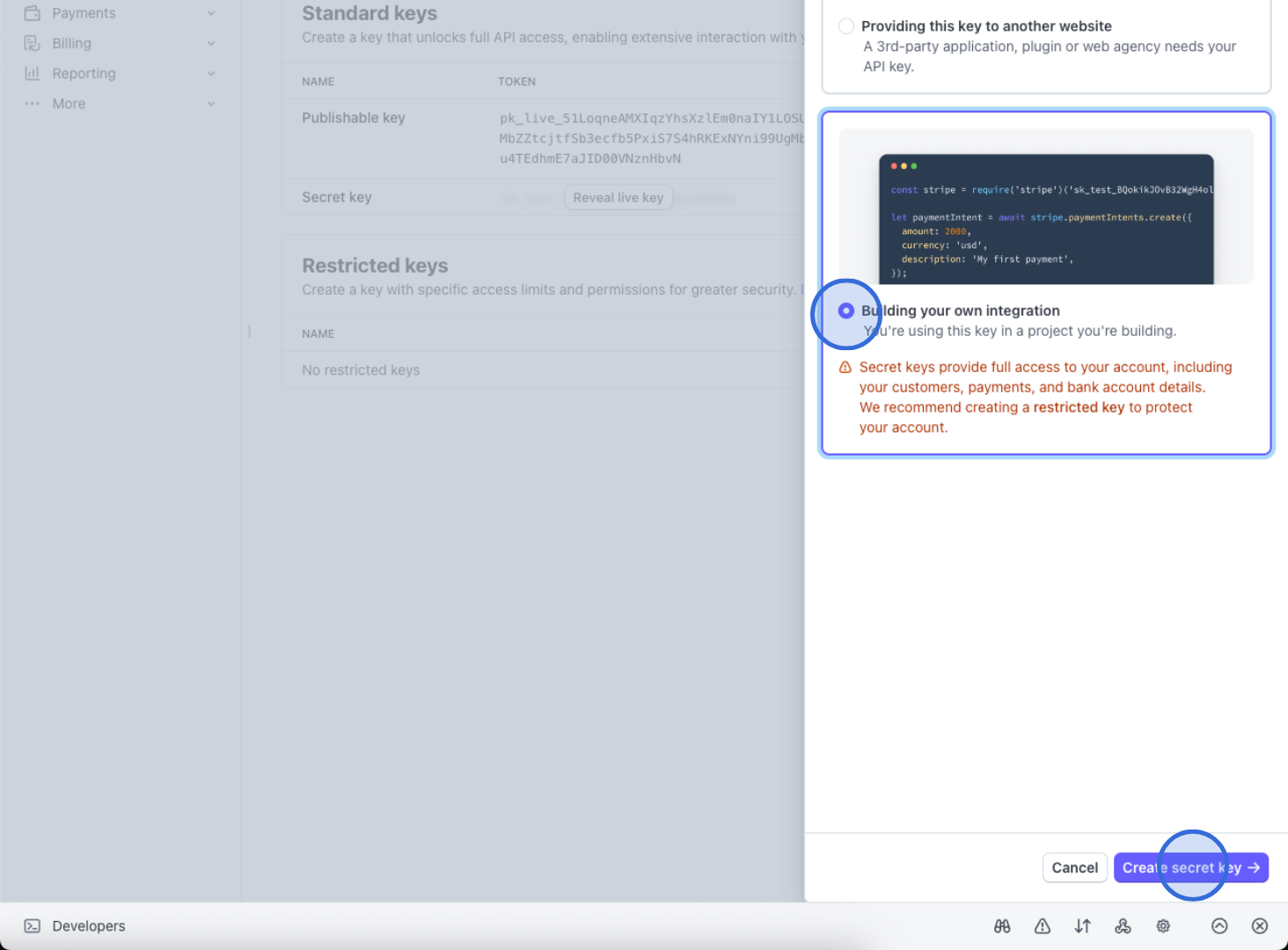
Select Building your own integration, then select Create secret key.
-
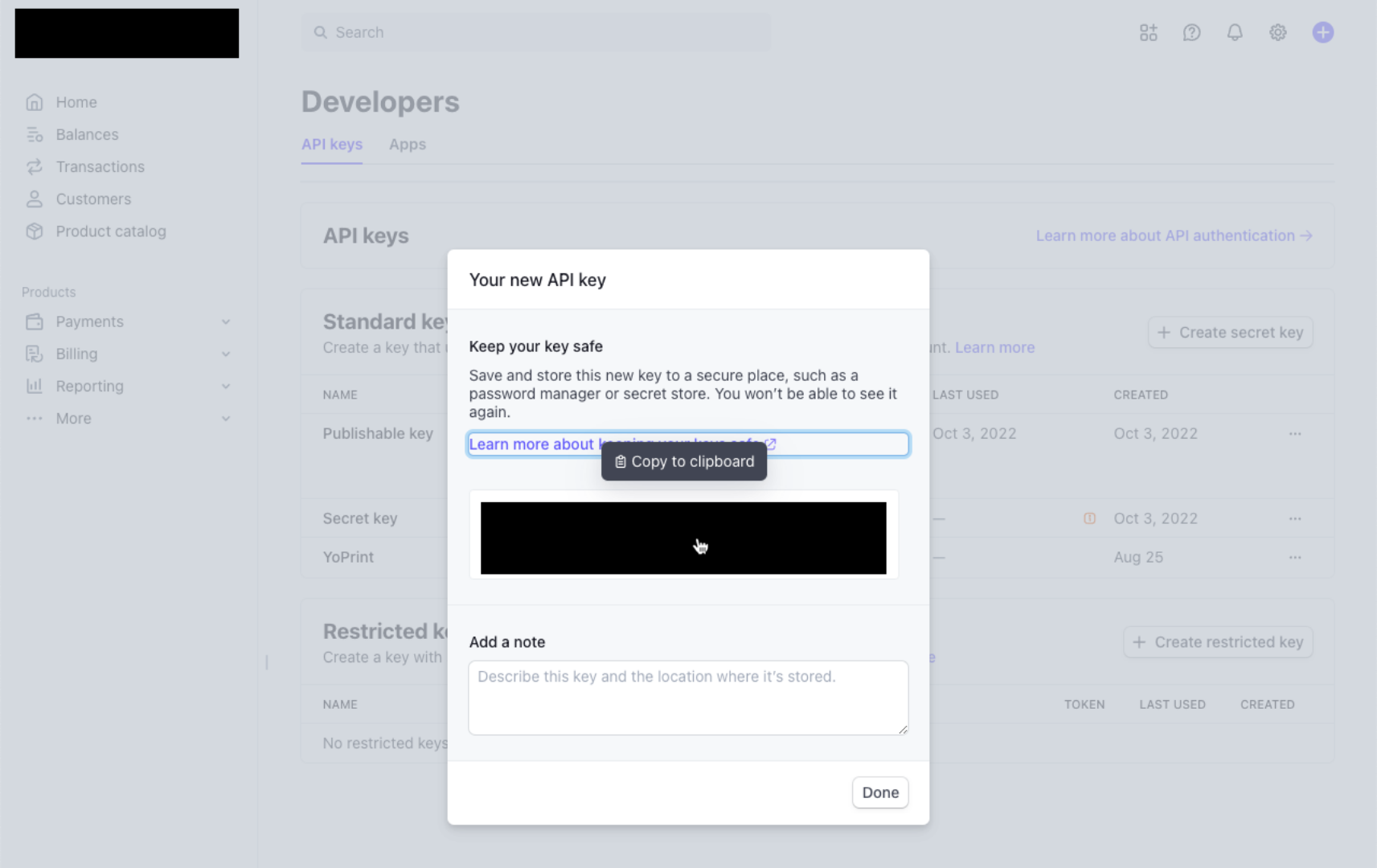
Copy your new secret key and select Done.
Connect Stripe in YoPrint
-
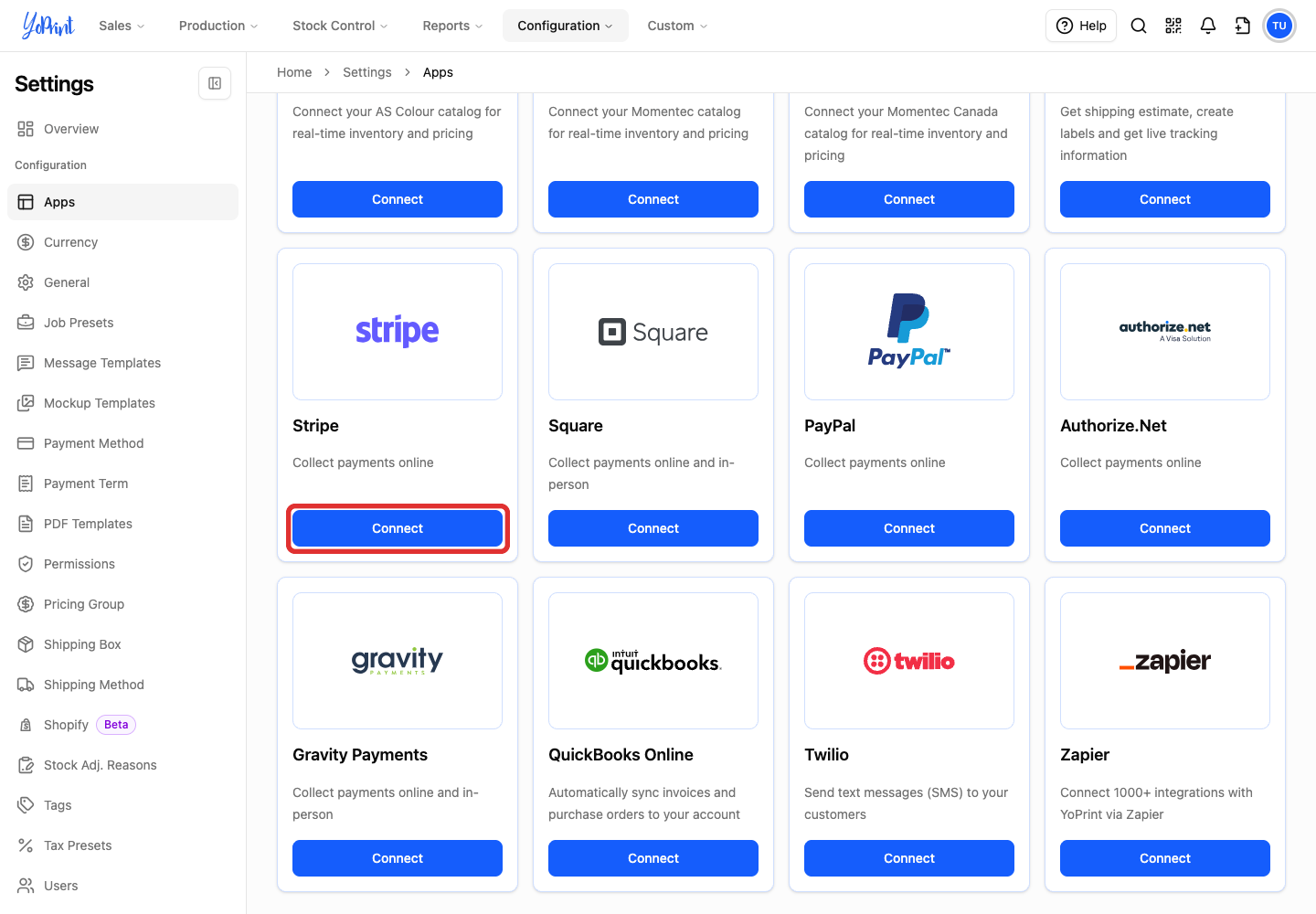
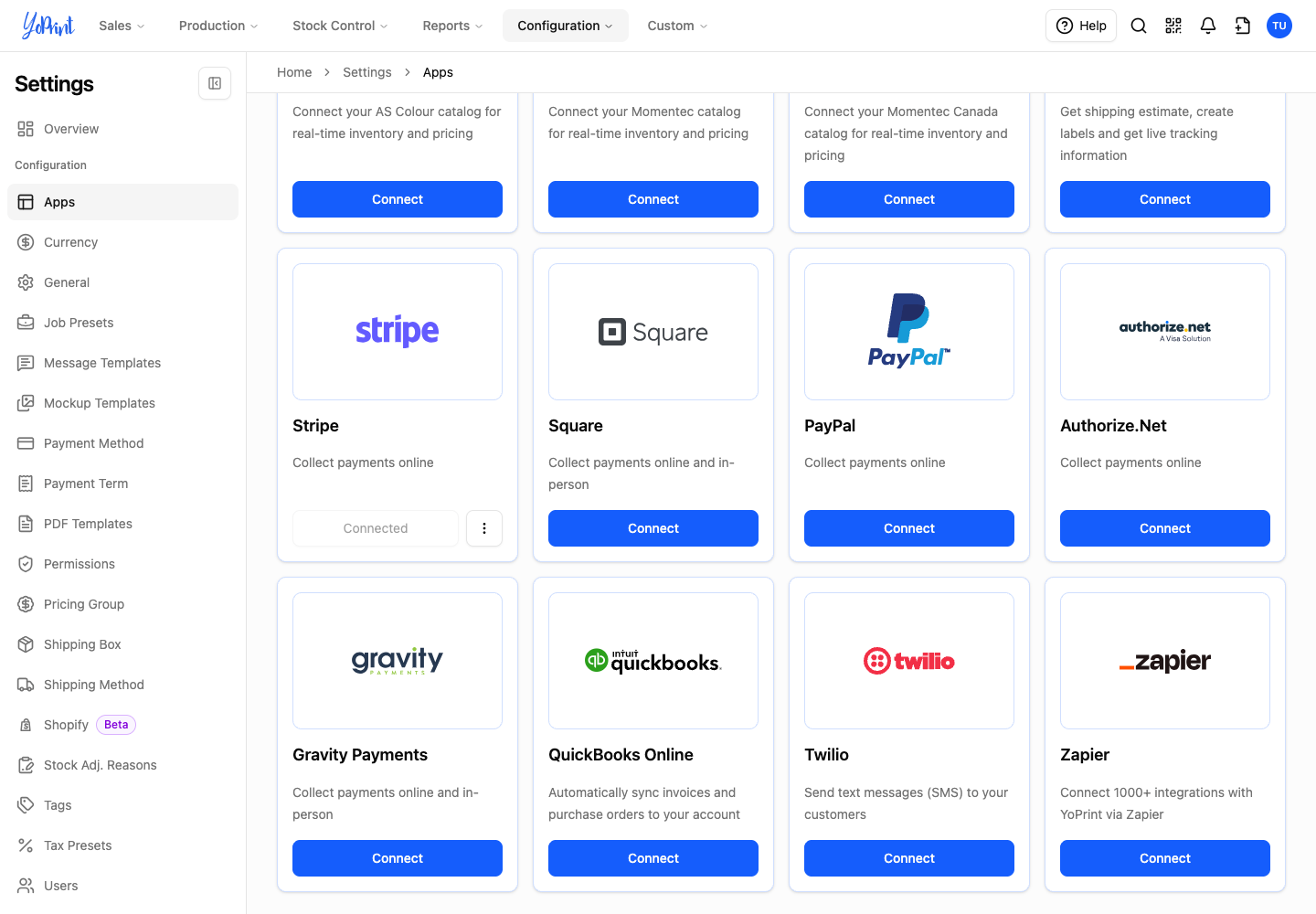
On the Connected Apps page (Configuration > Settings > Apps), scroll to the Stripe card and select Connect.
Stripe is already connected
If your shop already connected Stripe, the card displays a disabled Connected button and a three-dot menu (Open integration actions). To view or update your keys, select Open integration actions > Edit. To disconnect Stripe, select Open integration actions > Remove.
-
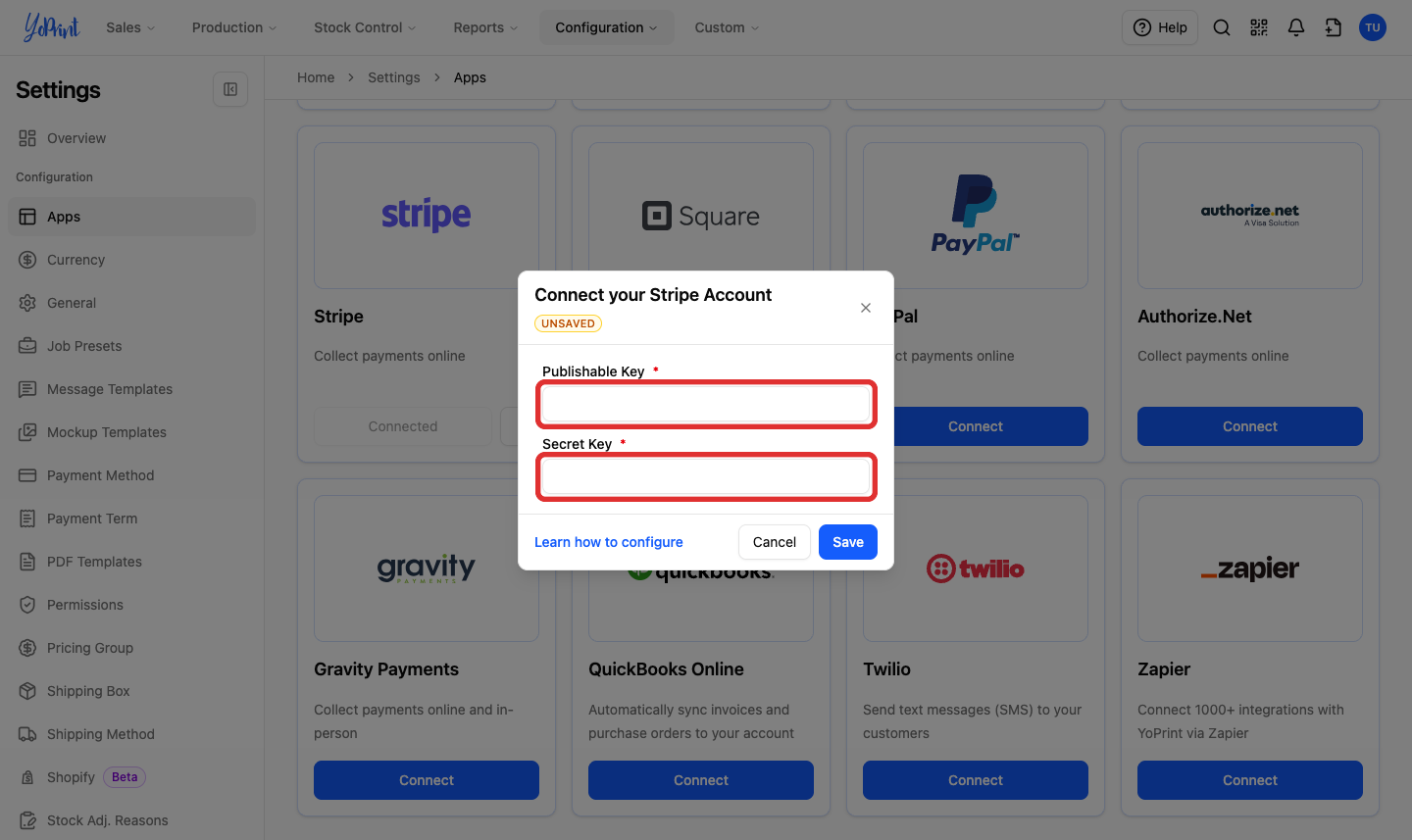
In the Connect your Stripe Account dialog, enter your Publishable Key and Secret Key, then select Save.
-
Confirm that the Stripe card displays Connected. The button is disabled because the integration is active.
After you connect Stripe
Once Stripe is connected, customers can select Credit Card to pay outstanding quotes and invoices in the customer portal. Follow Customer Portal Overview for customer payment instructions.
YoPrint automatically configures a webhook with Stripe during connection. When a customer pays through the portal, Stripe confirms the transaction, and YoPrint records the payment against the order and updates the balance. YoPrint records the full payment amount on the invoice. Stripe deducts payment processing fees and manages payouts in your Stripe account.
To issue a refund from YoPrint, follow All About Refunds in YoPrint. If you issue a refund in Stripe's dashboard instead, Stripe notifies YoPrint through the webhook and records the refund against the order.