Turn Off the Customer Portal for One Customer
In this article
Turn off the customer portal when you want to stop every contact for one customer from using it. Other customers keep their access. The customer's records and Online payments setting stay saved.
To manage access for one contact instead, open Contacts & Addresses > Contacts in the customer's record.
Turn off the portal for one customer
-
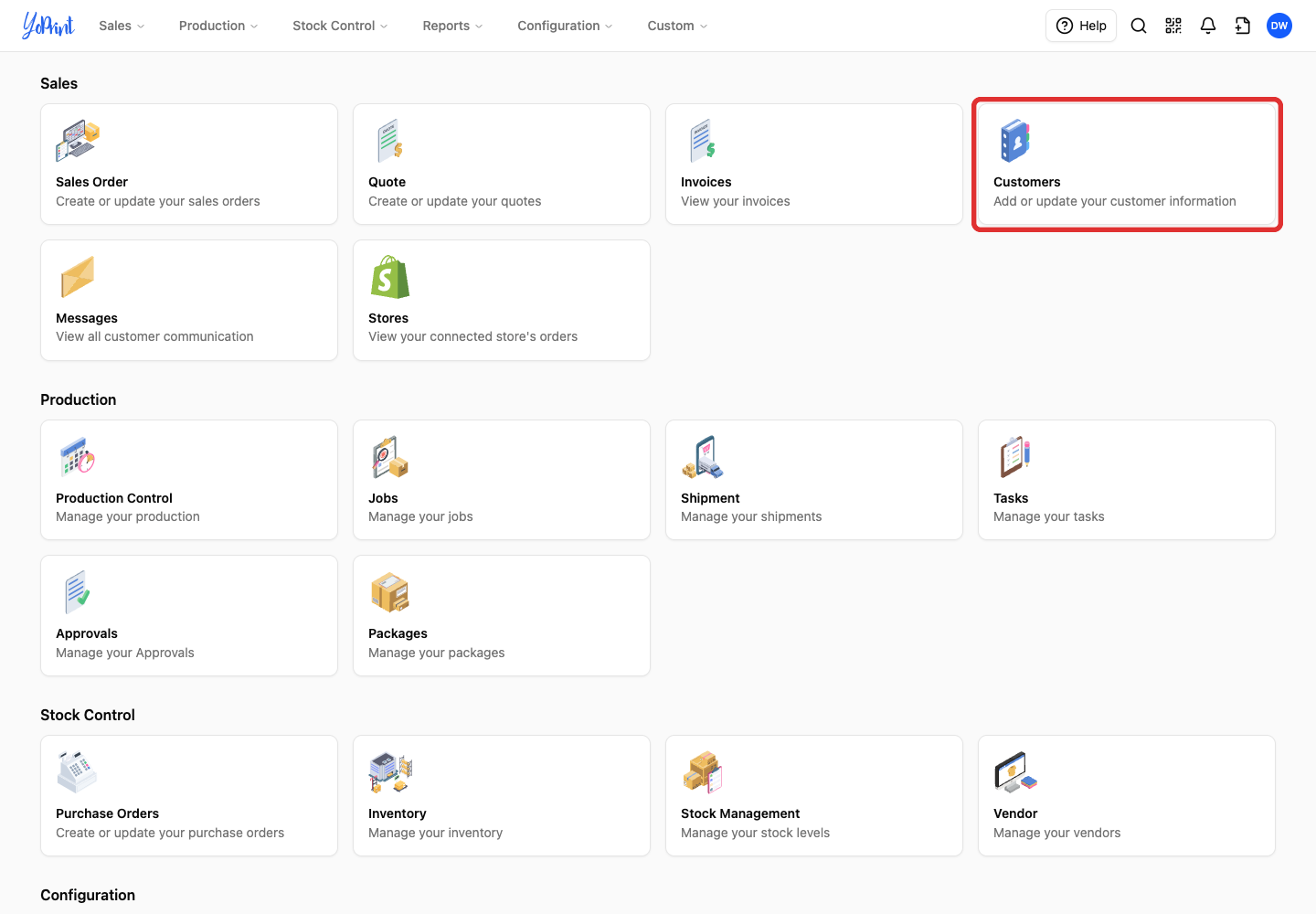
On the Admin home screen, click Customers.
-
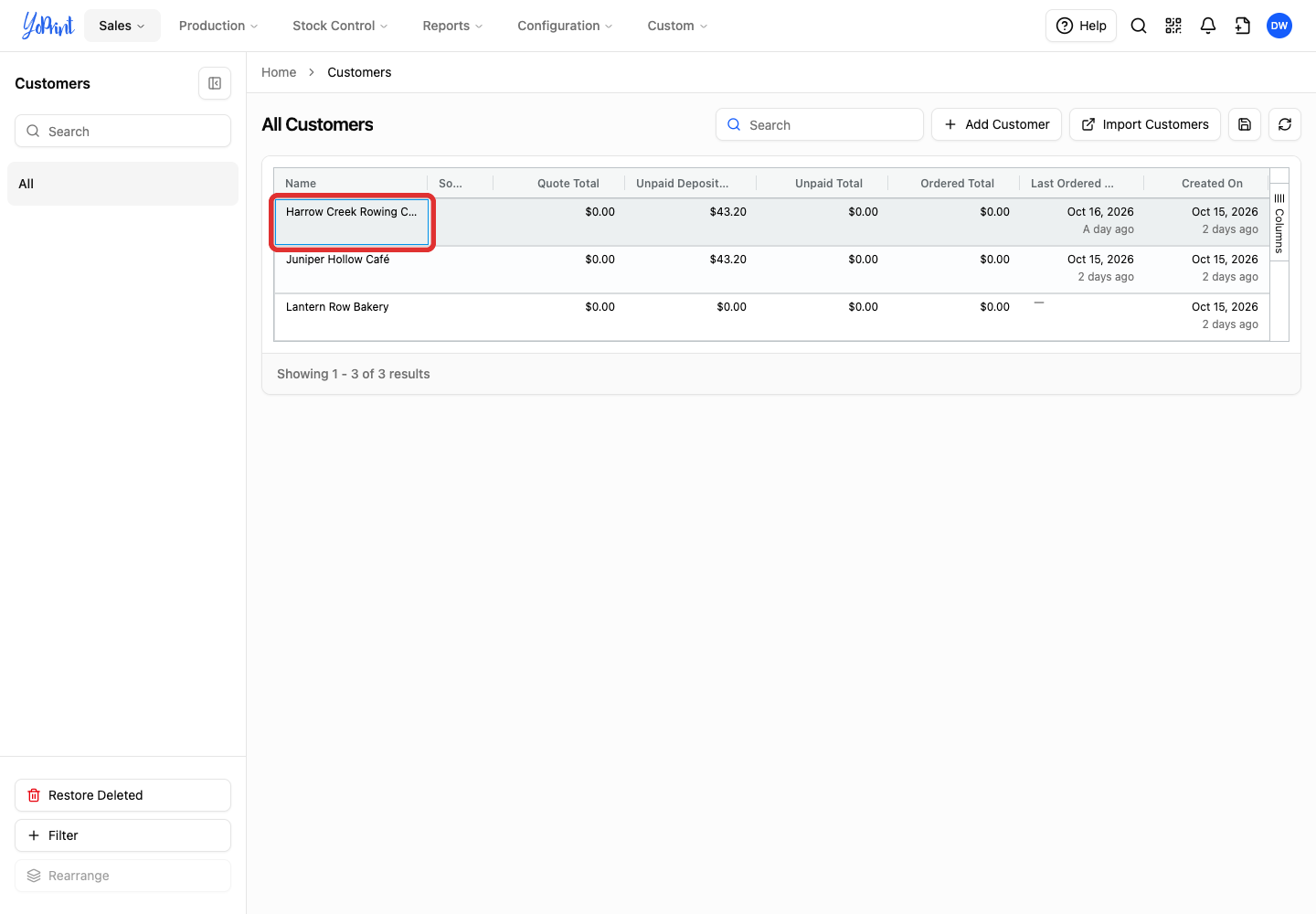
Double-click the customer's name.
-
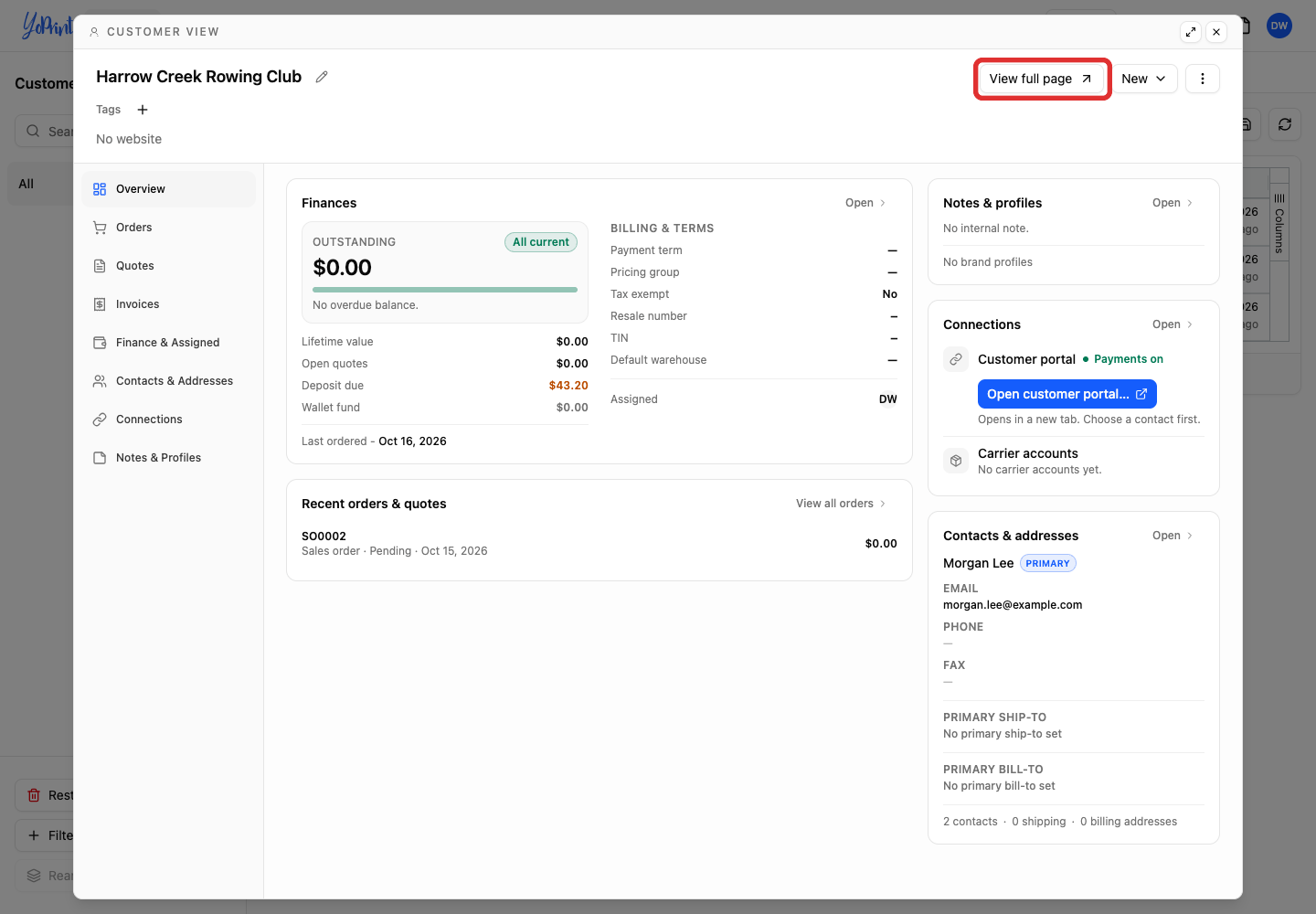
Click View full page.
-
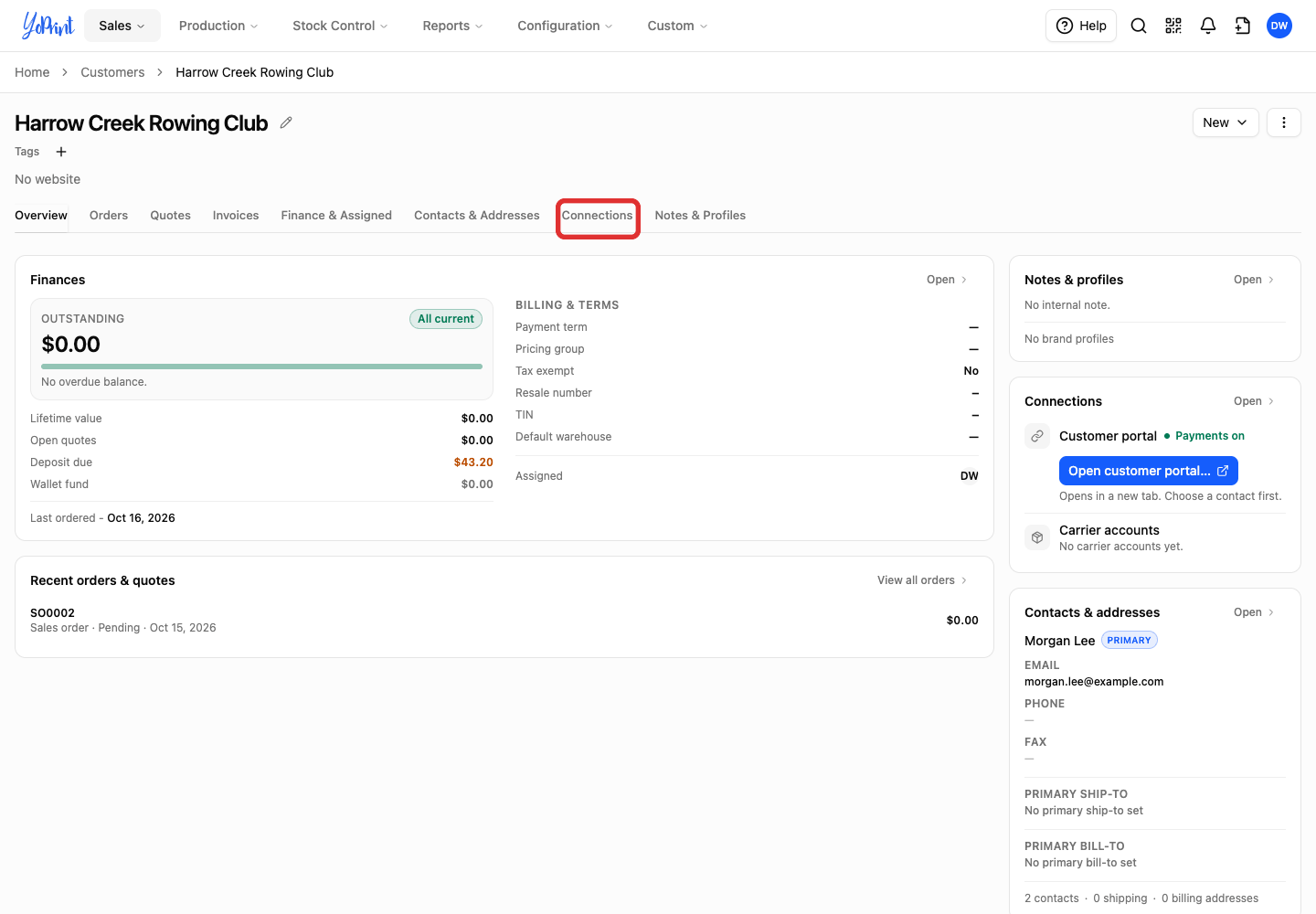
Select the Connections tab.
-
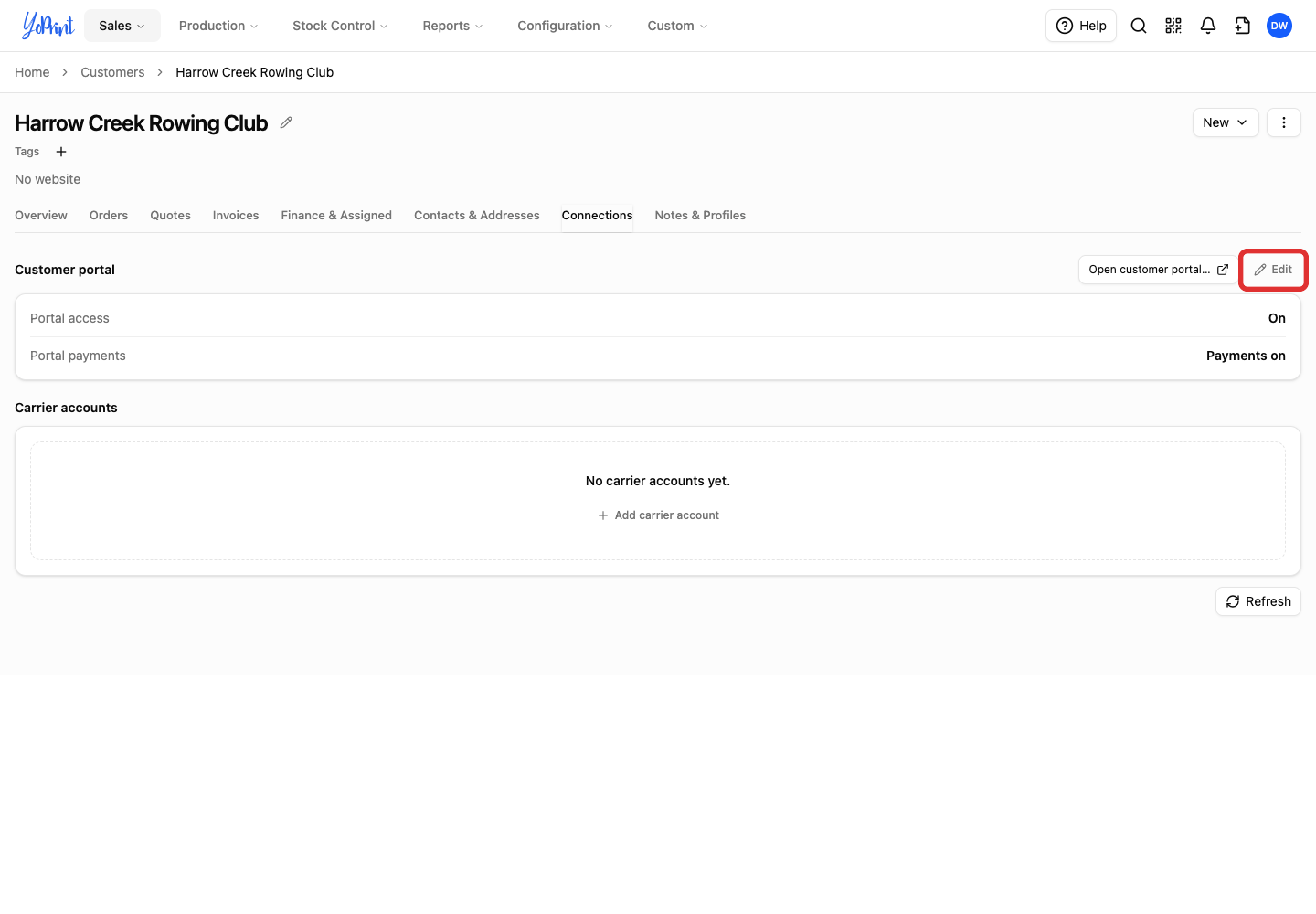
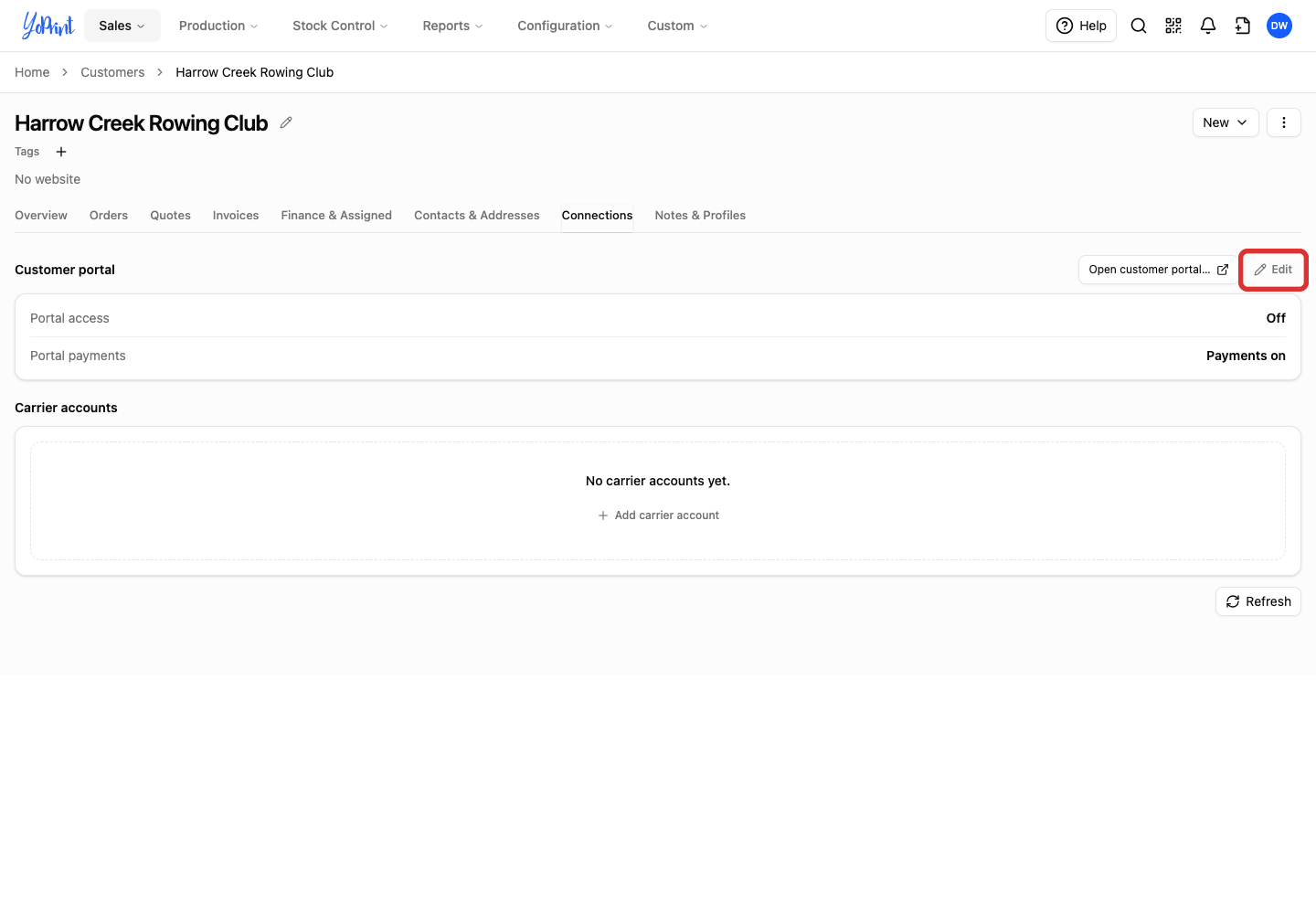
Click Edit beside Customer portal.
-
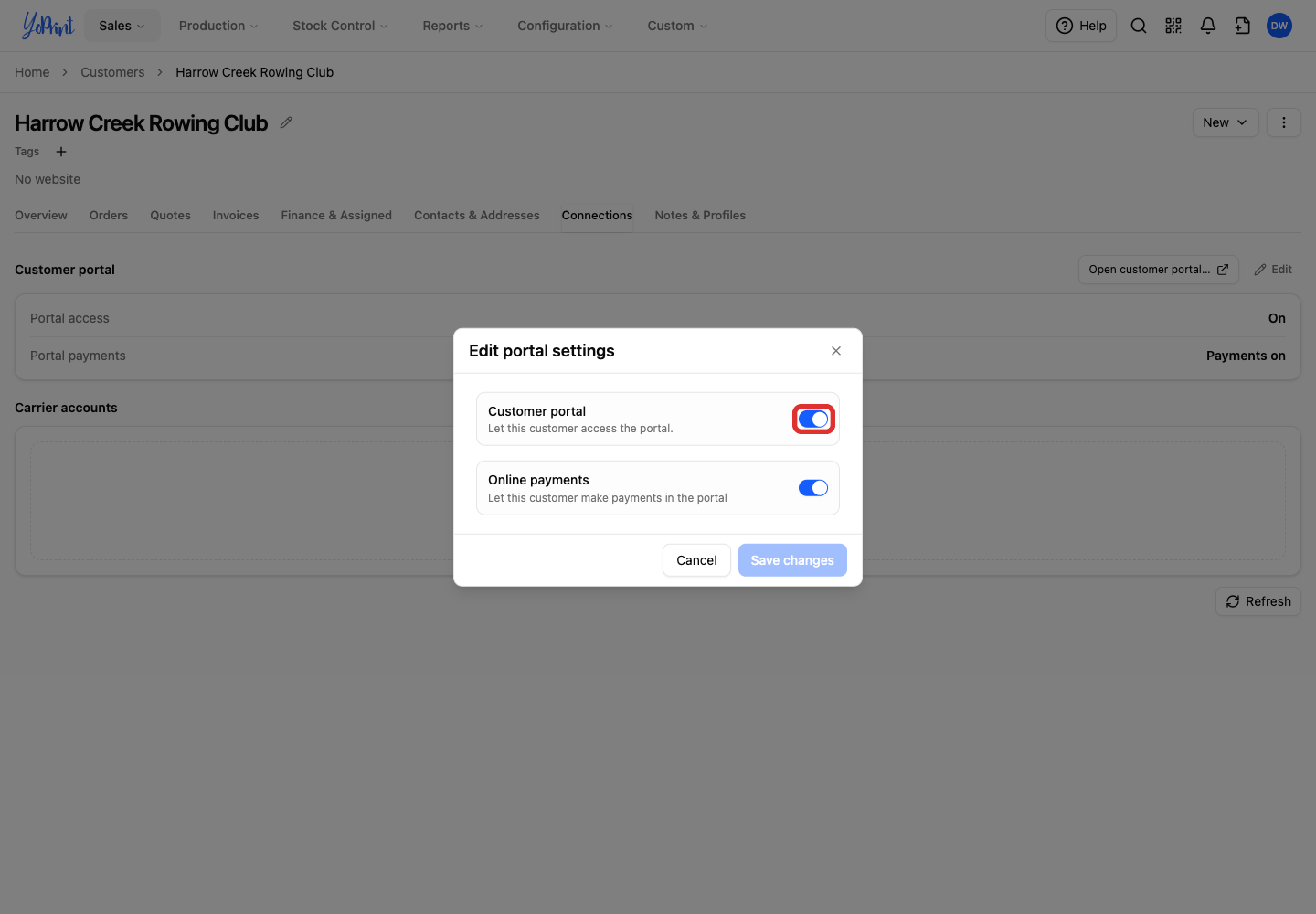
Turn Customer portal off.
-
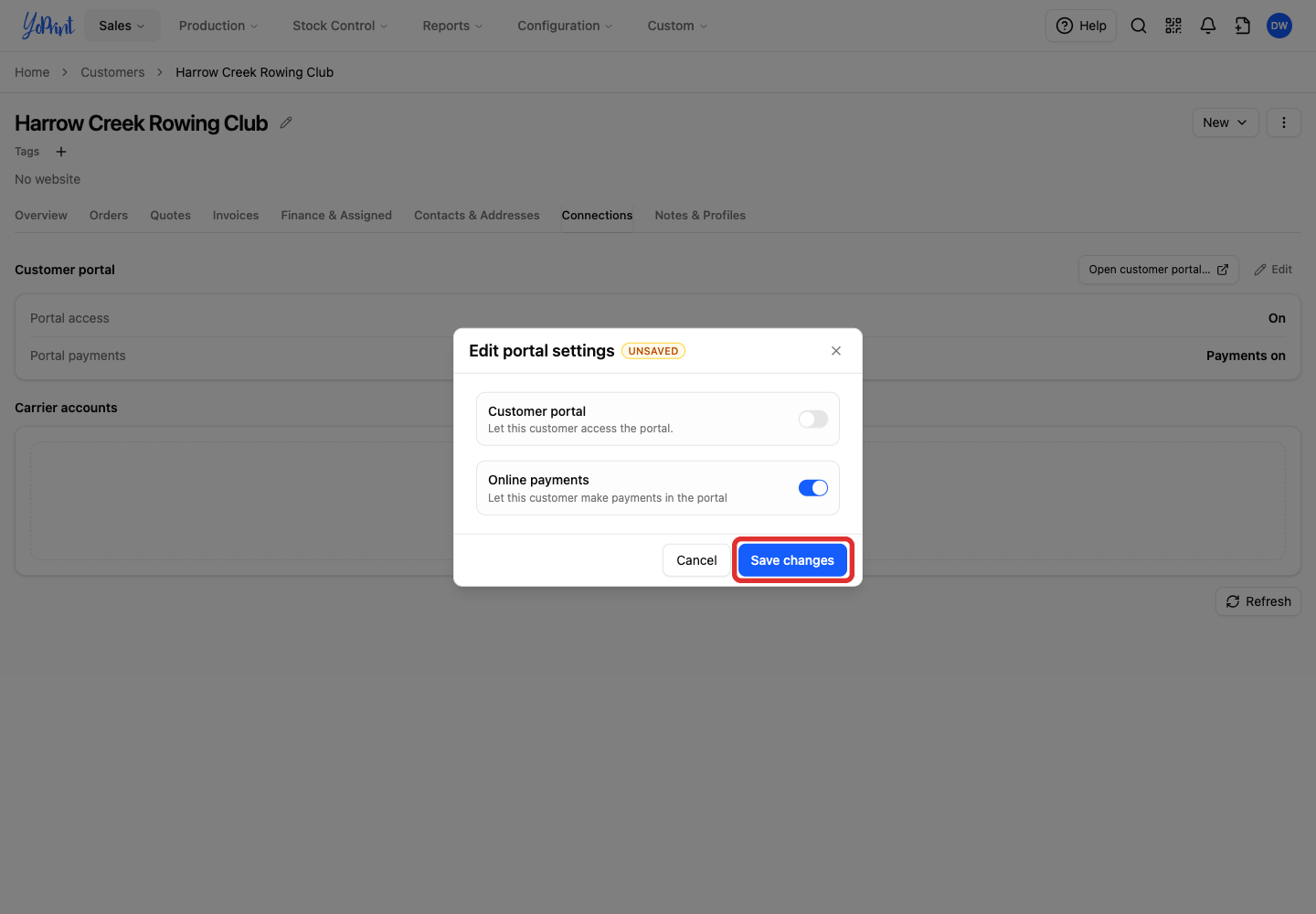
Click Save changes.
-
Click Turn off portal to confirm.
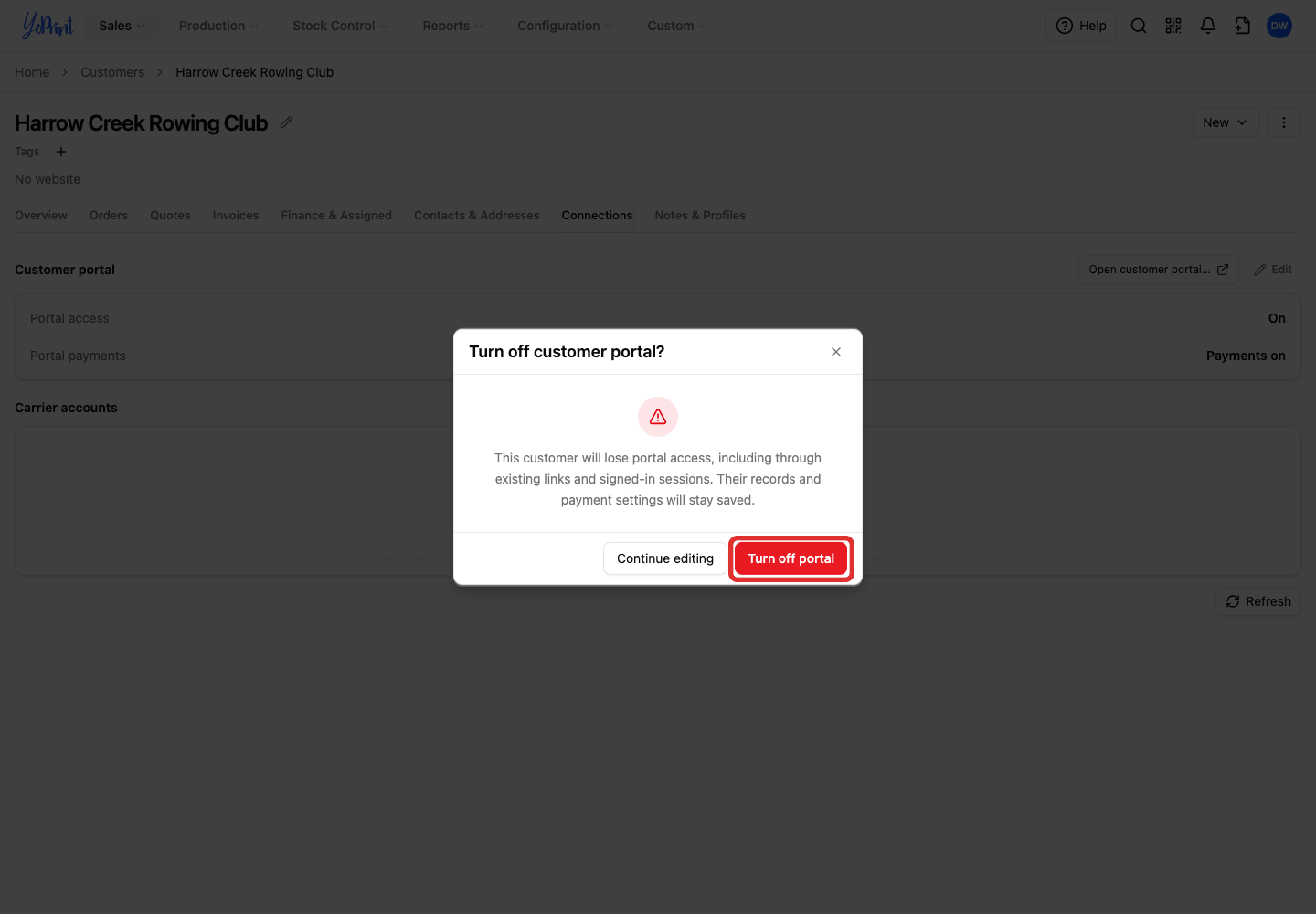
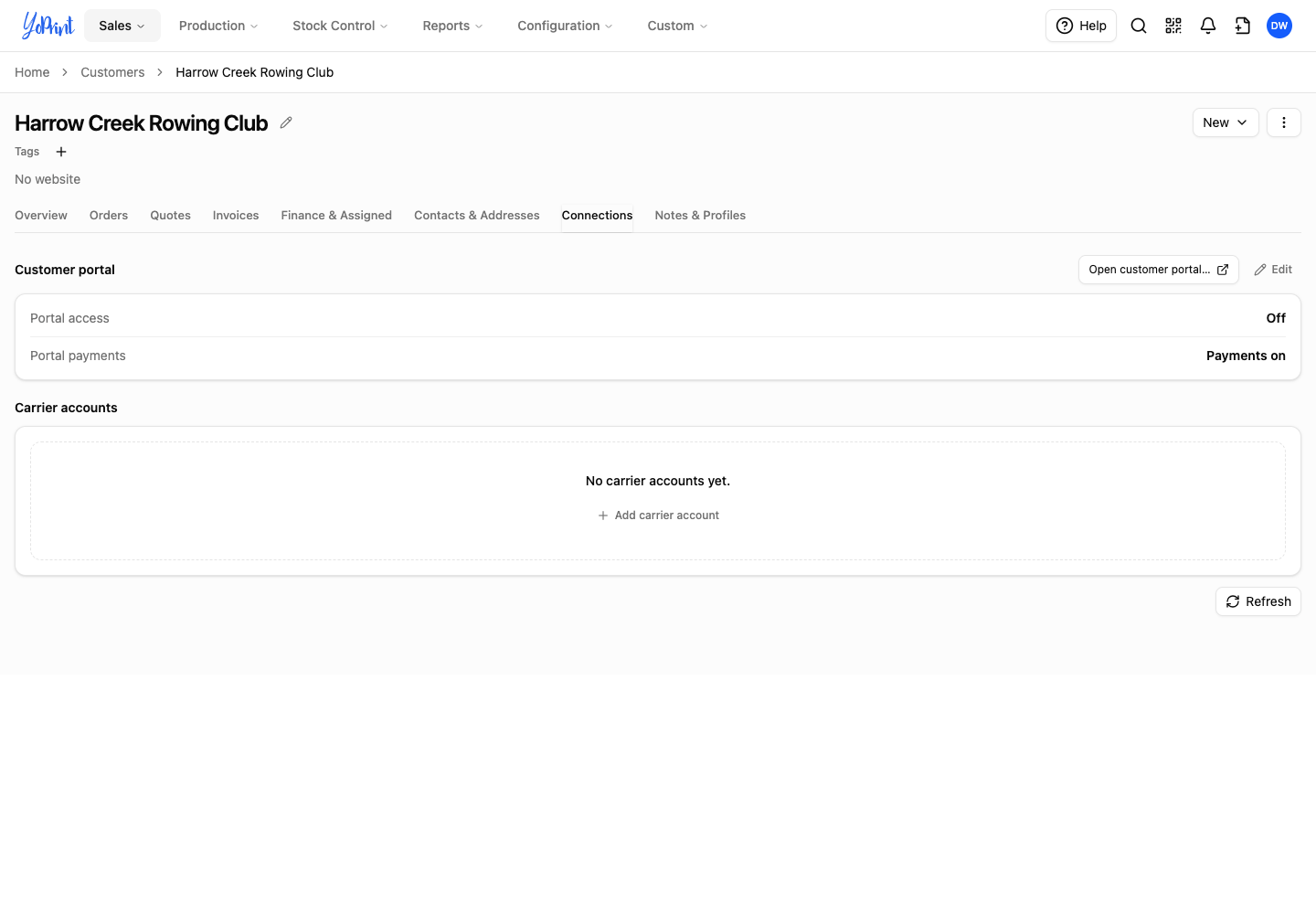
Portal access now reads Off in the Connections tab. Return here to check whether the customer's portal is on or off.
What your customer sees
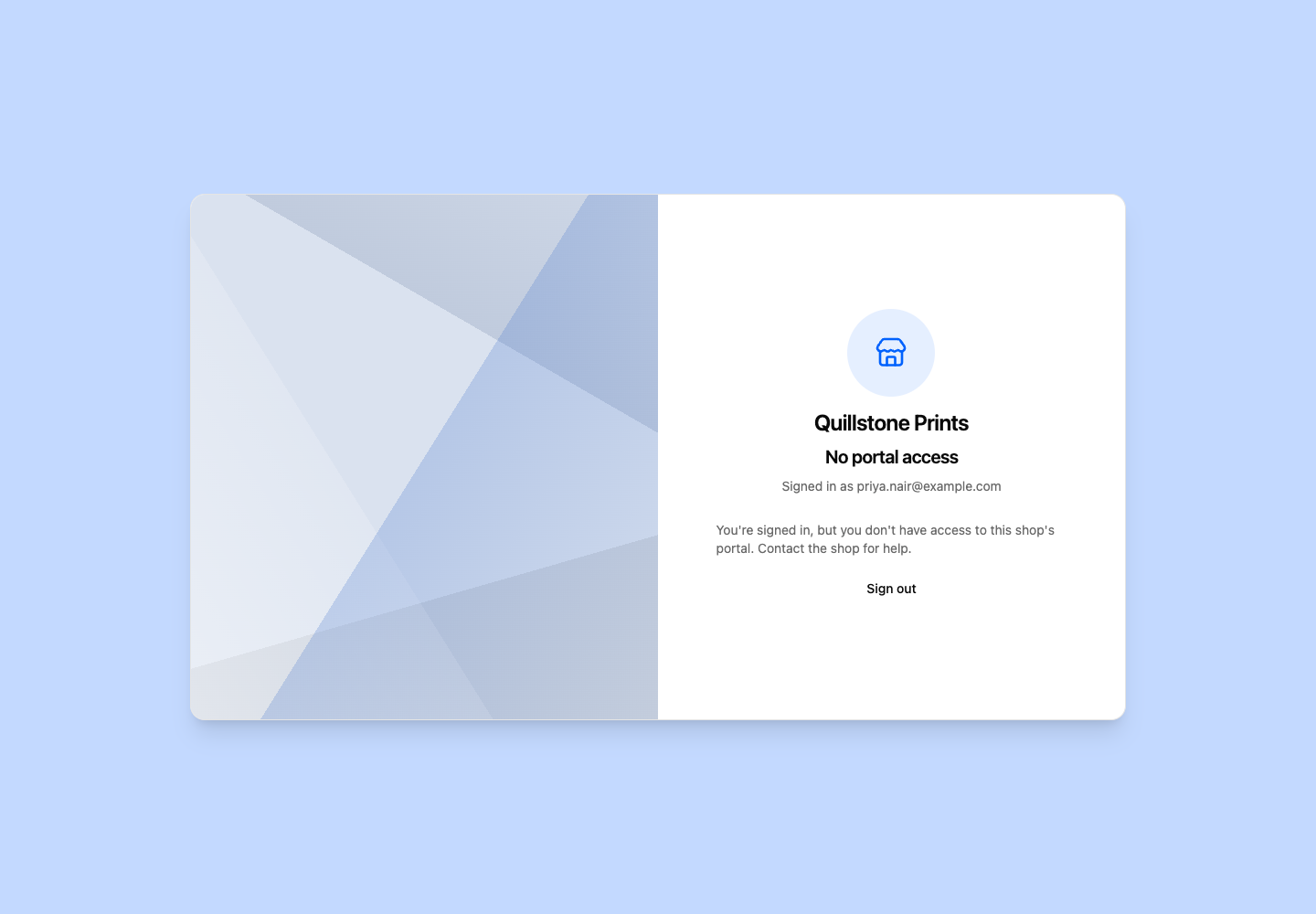
The customer's contacts cannot access the portal, including through links you sent earlier. A signed-in contact sees No portal access and a message to contact your shop for help.
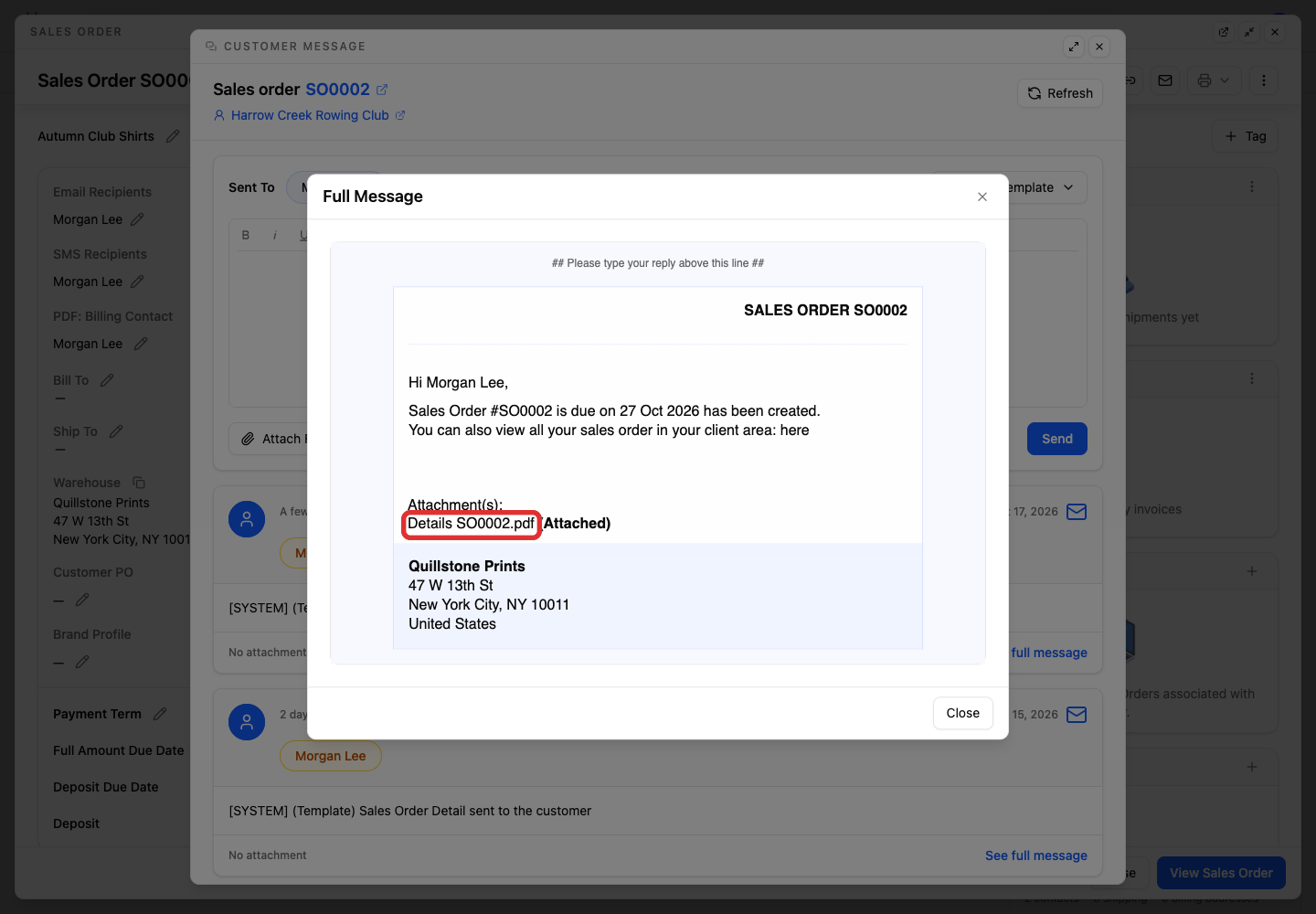
Order emails still work. Customers can open the PDF link under Attachment(s) in those emails while the portal is off. They cannot use the client-area link in the email because it opens the portal.
Turn the portal back on for one customer
-
In Connections, click Edit beside Customer portal.
-
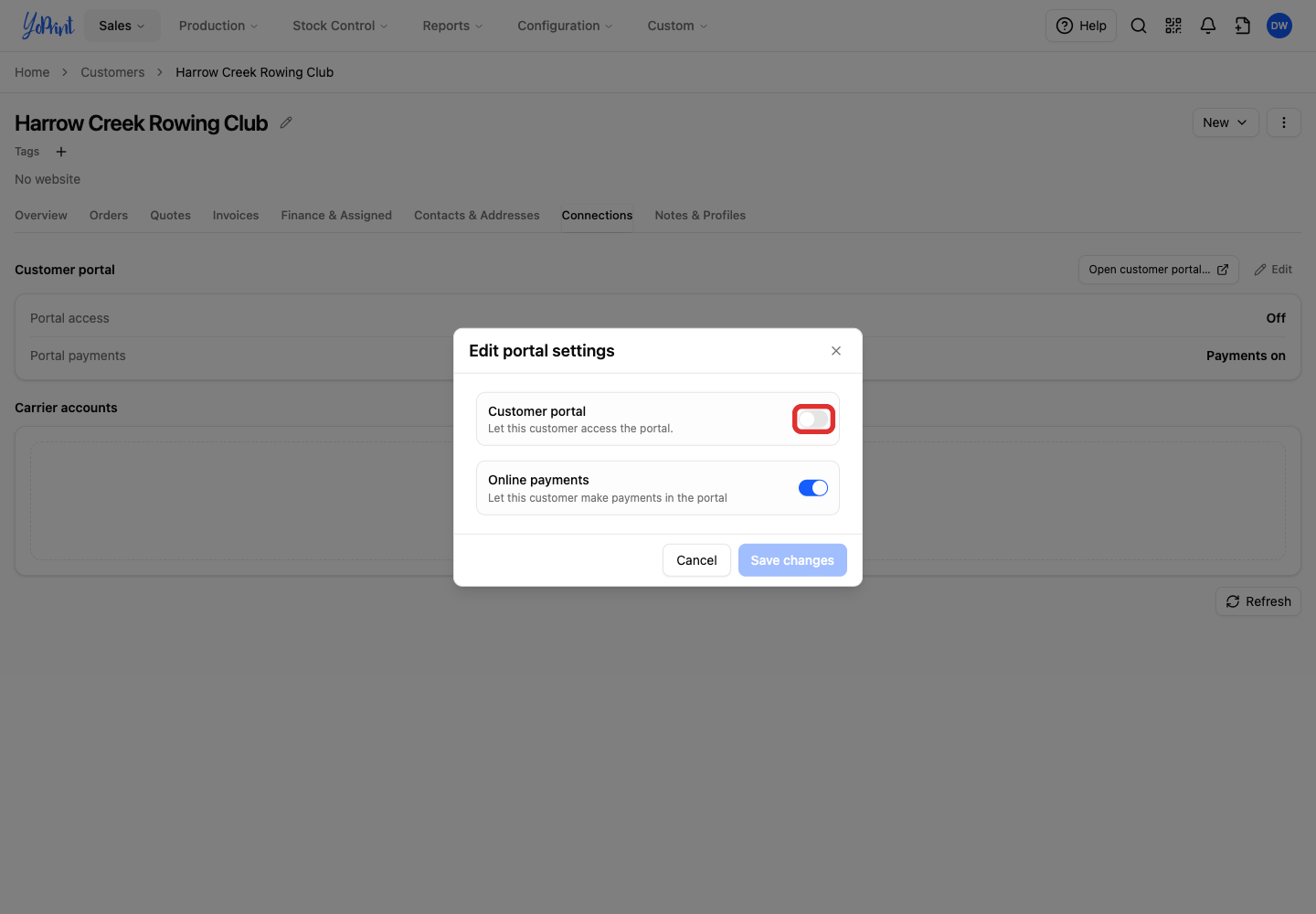
Turn Customer portal on.
-
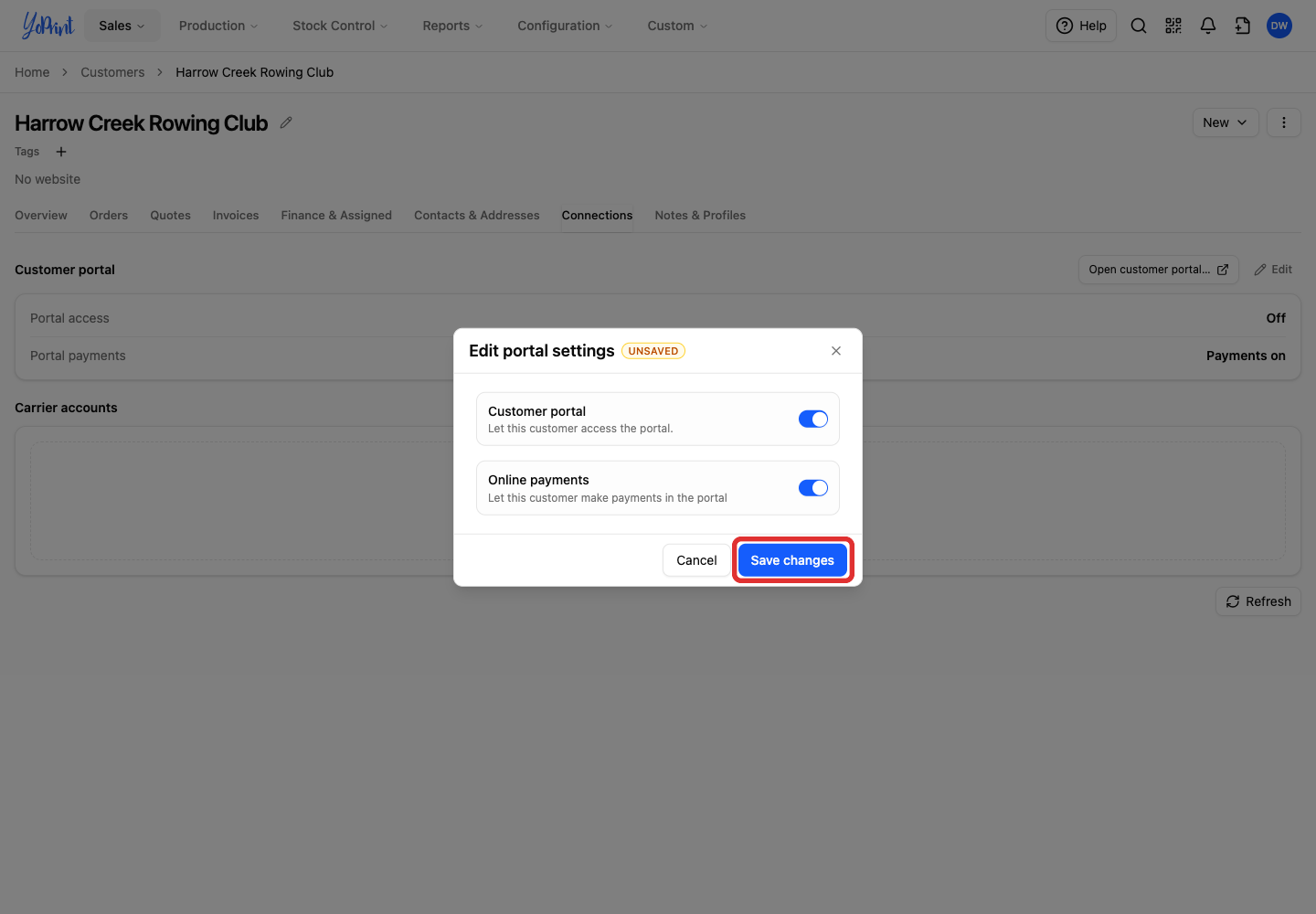
Click Save changes.
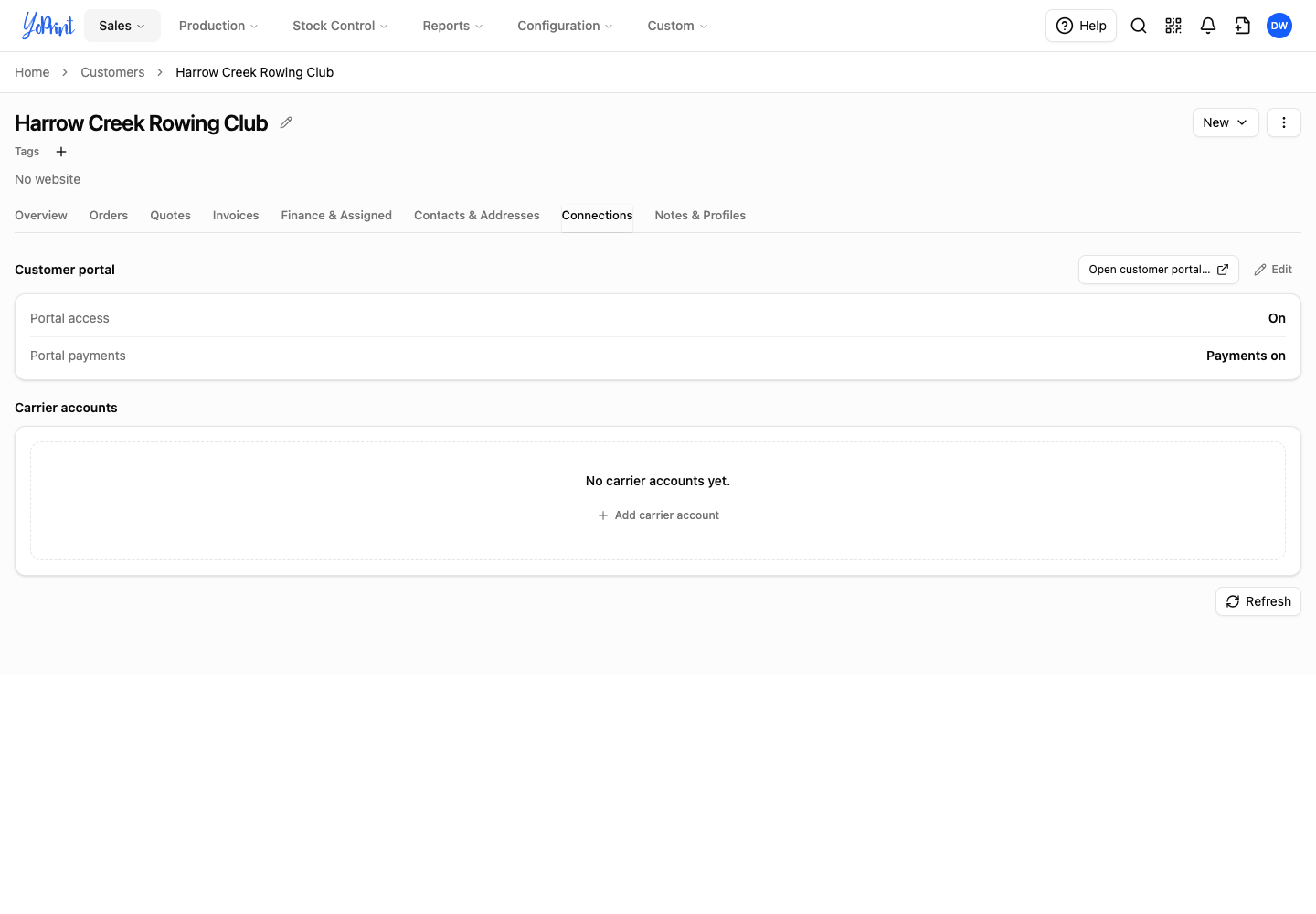
Portal access returns to On.
Contacts who had access can use the portal again. Contacts whose access you denied individually stay denied.
Signed-in contacts can refresh the page to return to the portal. Signed-out contacts can sign in with the email address your shop has on file. They can open their order from Orders.
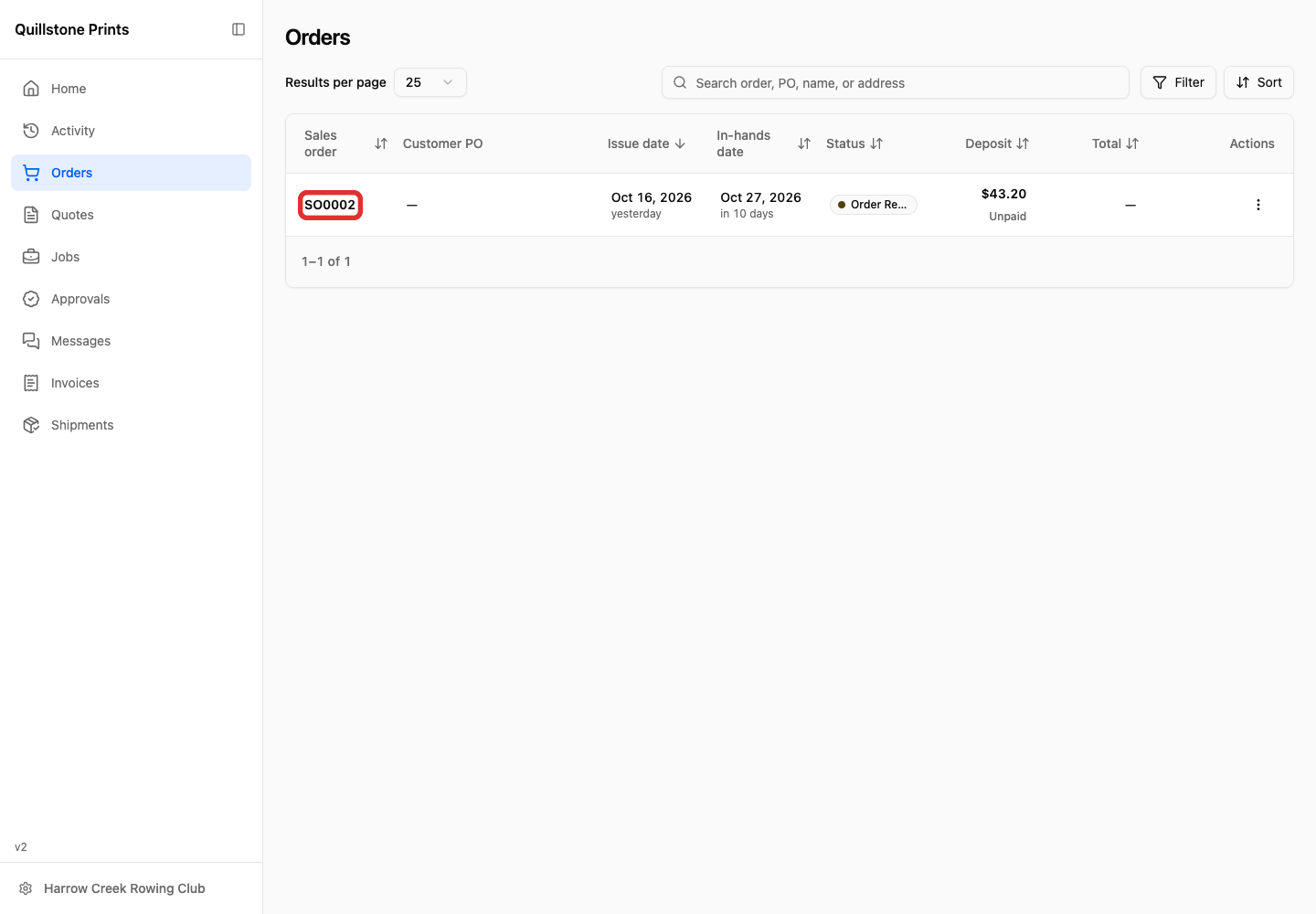
For how customers sign in and browse, see Customer Portal Overview.