Configure Square Payments
In this article
- Open Square in YoPrint
- Give YoPrint permission in Square
- Choose your Square payment locations
- Change your Square payment settings
- Recover if you return without connecting
- Open a Square card payment on a sales order
- Register a Square Terminal in YoPrint
- Sign in on your Square Terminal
- Start a payment on Square Terminal from YoPrint
- Have the customer pay on Square Terminal
- Use other Square readers and accessories
Square lets your business collect payments online and in person. Start the connection in YoPrint, then sign in to Square to give YoPrint permission to use your account.
Open Square in YoPrint
-
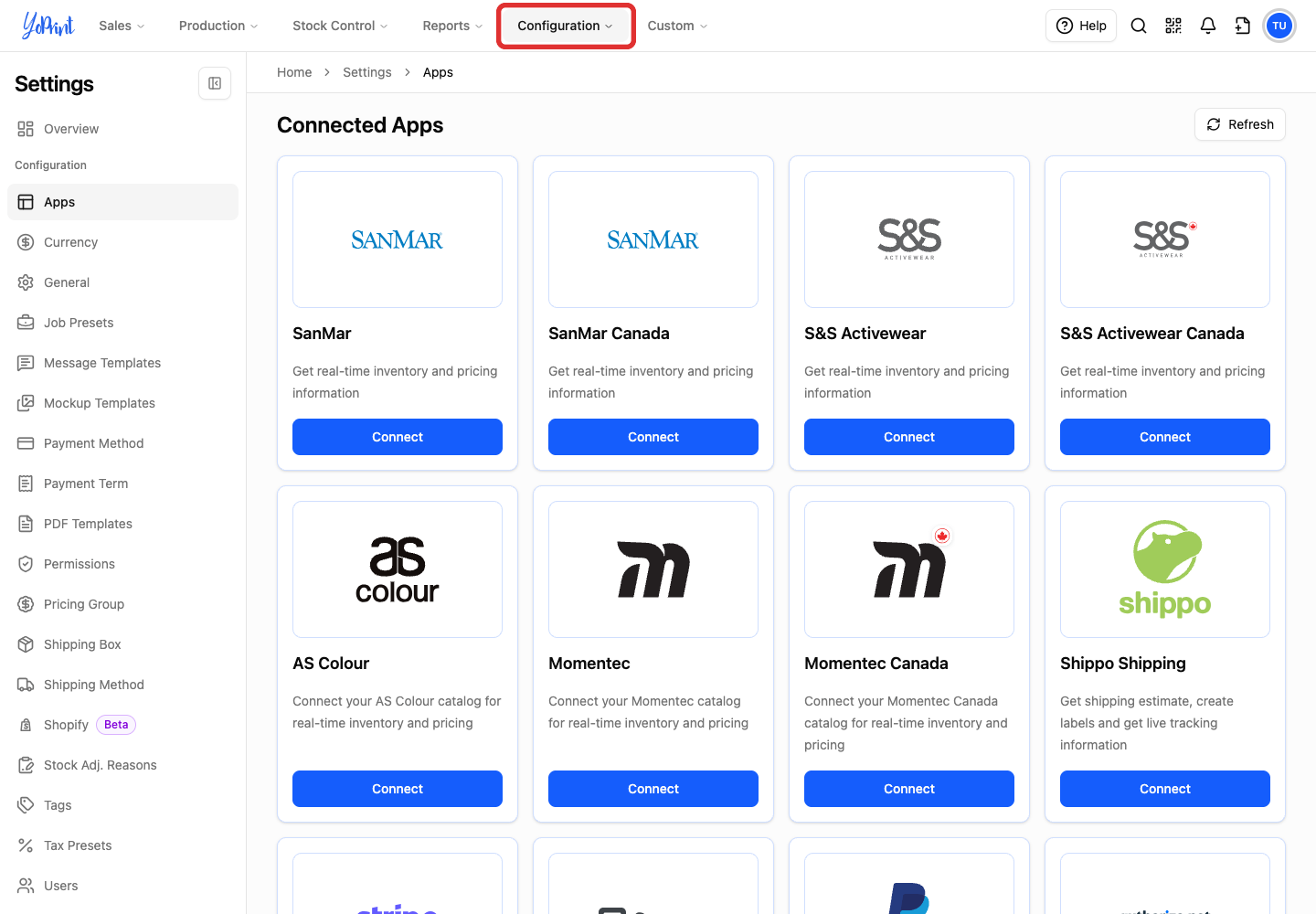
In the top navigation, click Configuration.
-
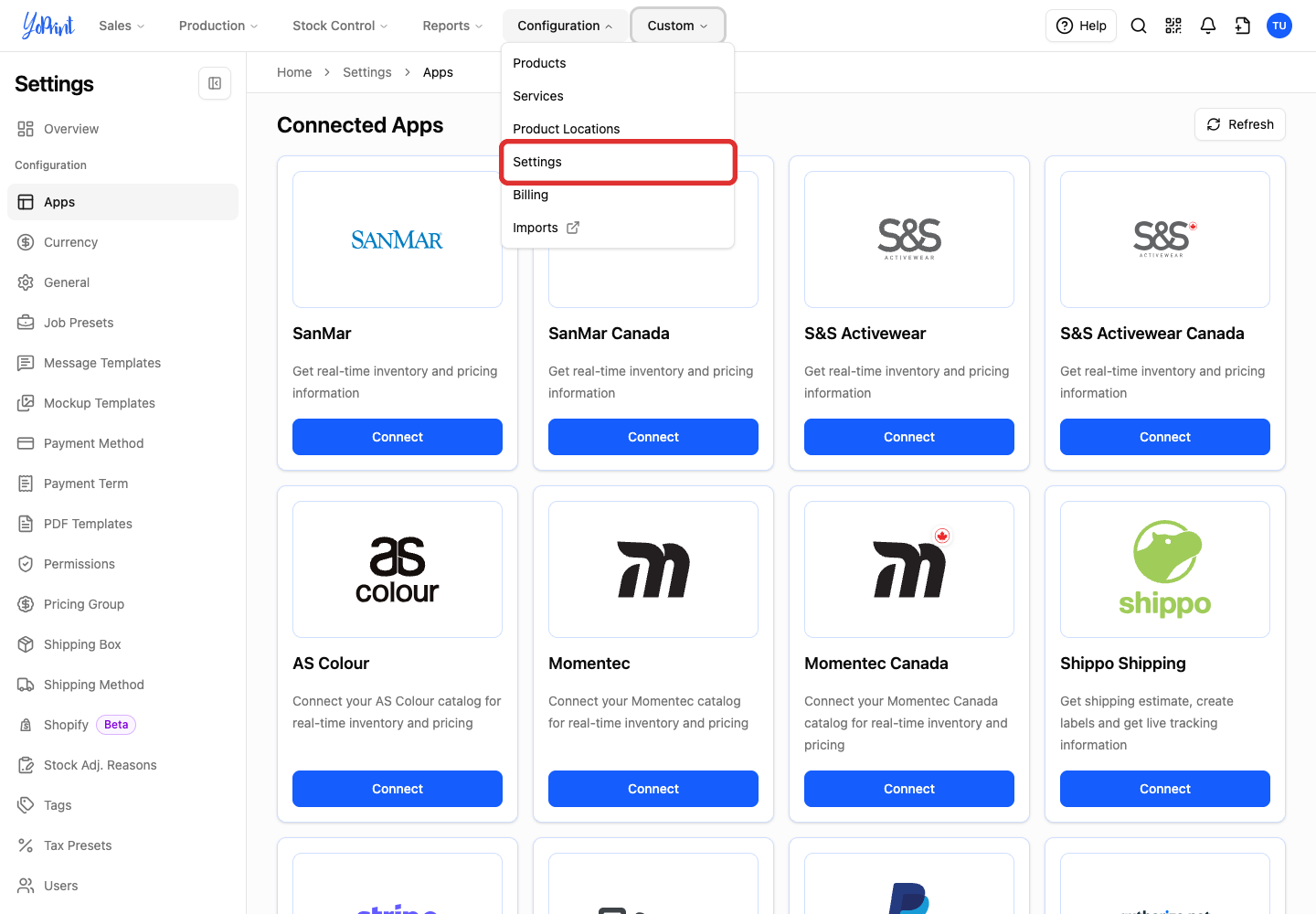
In the menu, click Settings.
-
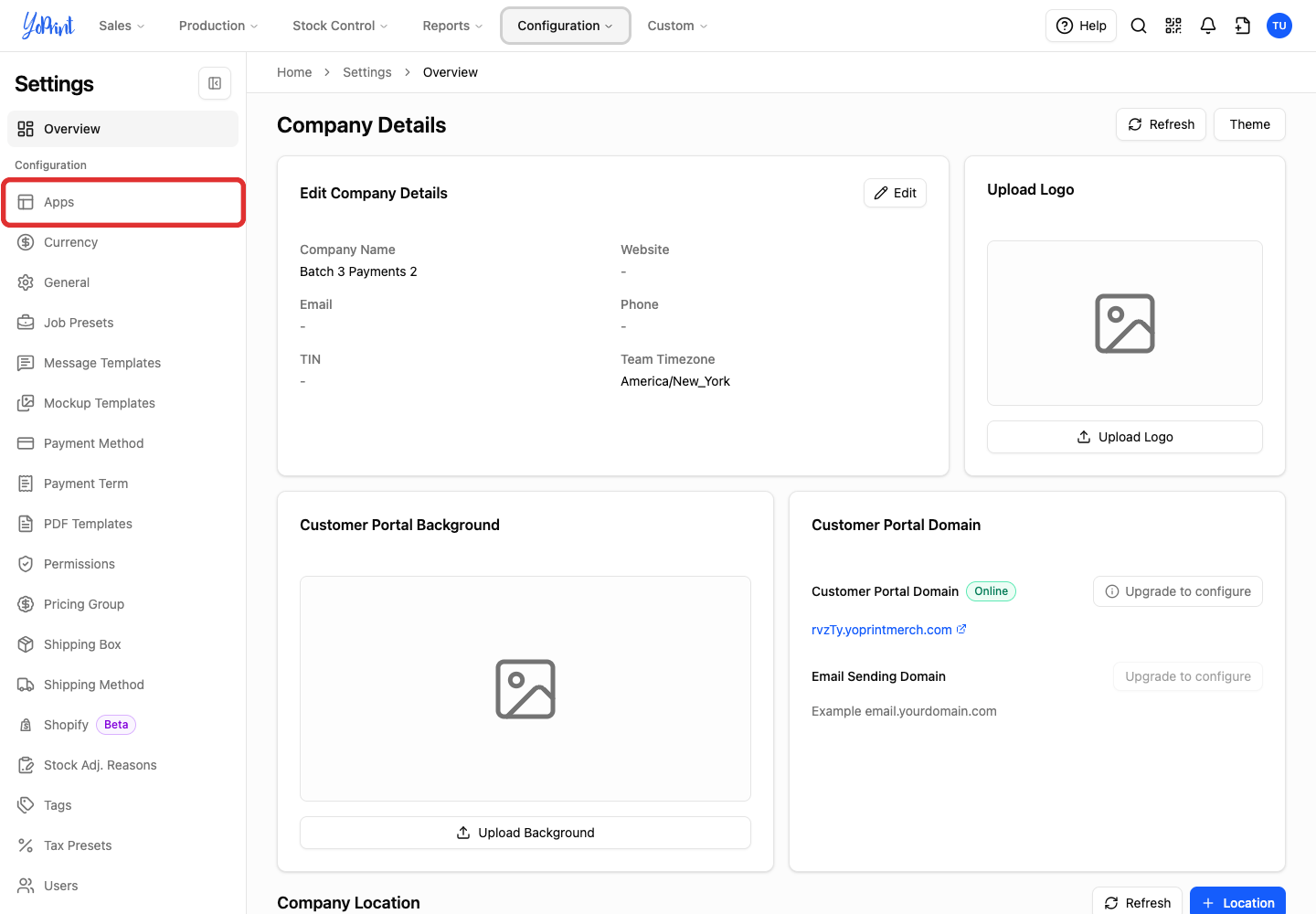
In the Settings sidebar, click Apps.
-
Scroll to the Square card and click Connect.
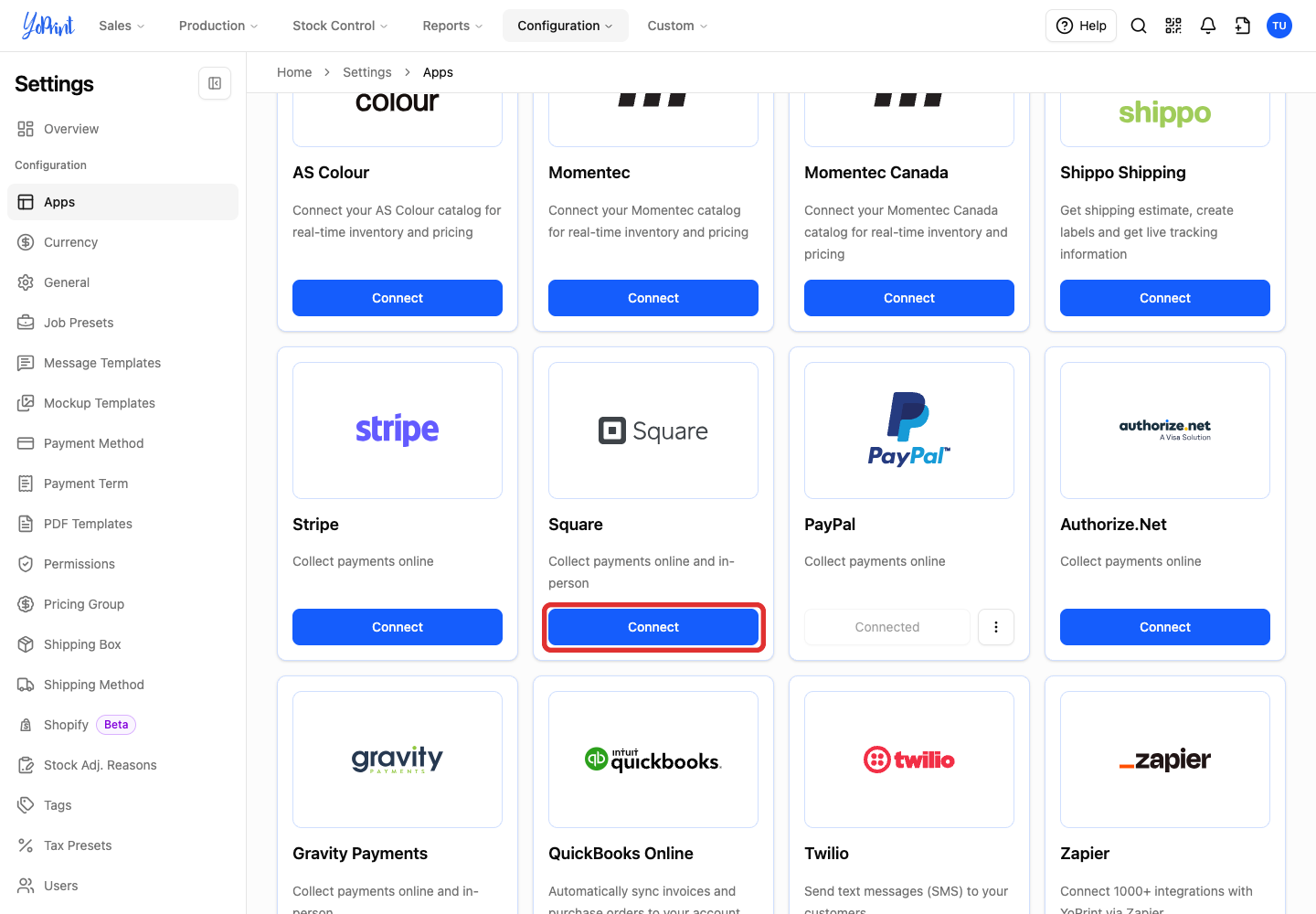
If your shop connected Square under the older integration, this button says Upgrade.
When you click Connect, YoPrint briefly shows Contacting Square.... The browser then opens Square's website in the same tab.
Give YoPrint permission in Square
These steps happen in Square. Square's screens may have changed since these pictures were taken. If something looks different, follow Square's guide: Connect other apps to Square.
- If Square asks you to sign in, use the Square account your shop uses to receive payments.
Enter your Square sign-in details on Square's website. You do not need to paste connection keys into YoPrint.
-
Click Allow to give YoPrint permission to access your Square account.
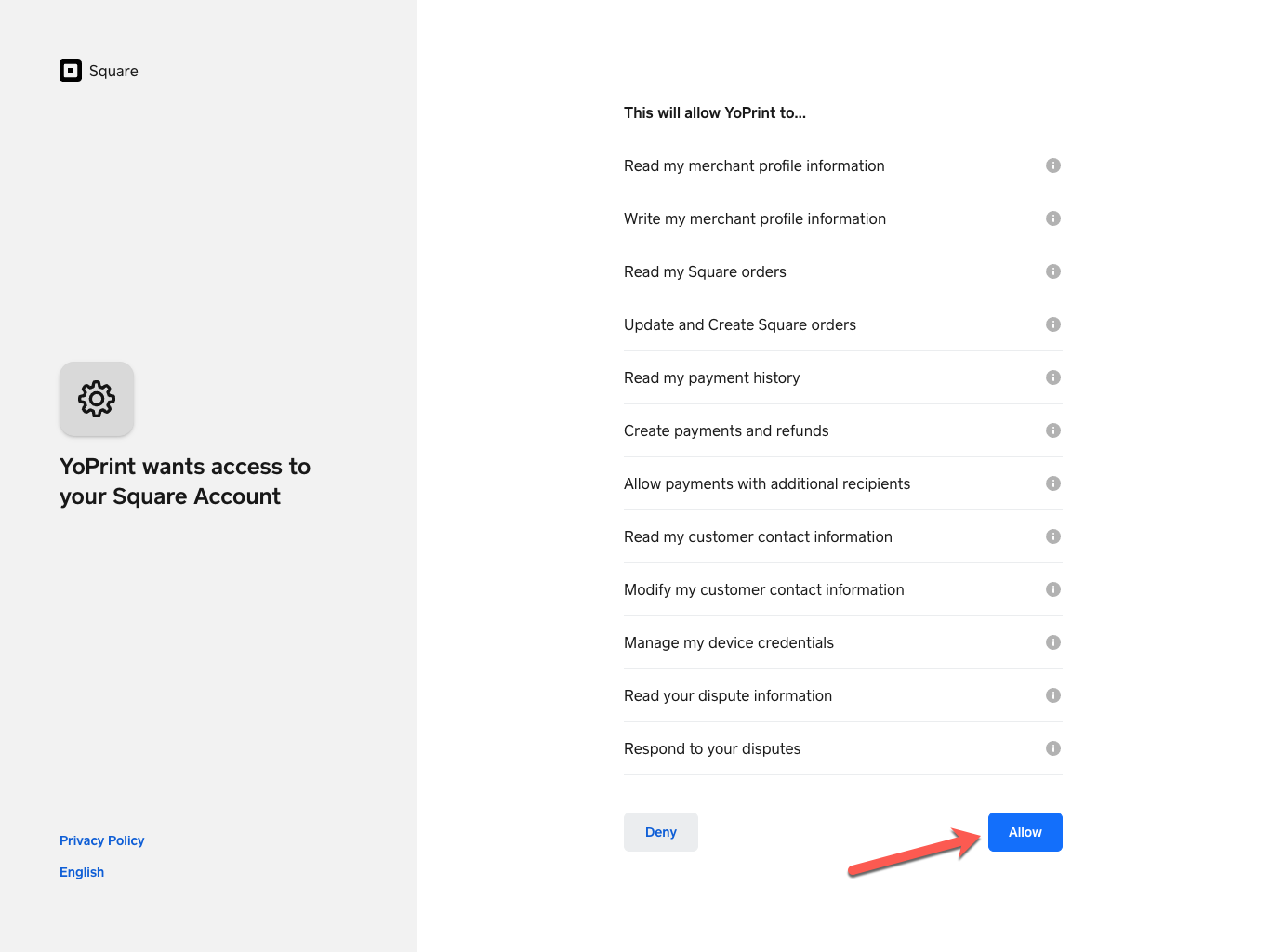
If your account already allows the connection, Square can return you to YoPrint without another permission screen.
When Square returns you to YoPrint, Square payment settings opens so you can choose the locations to use.
Choose your Square payment locations
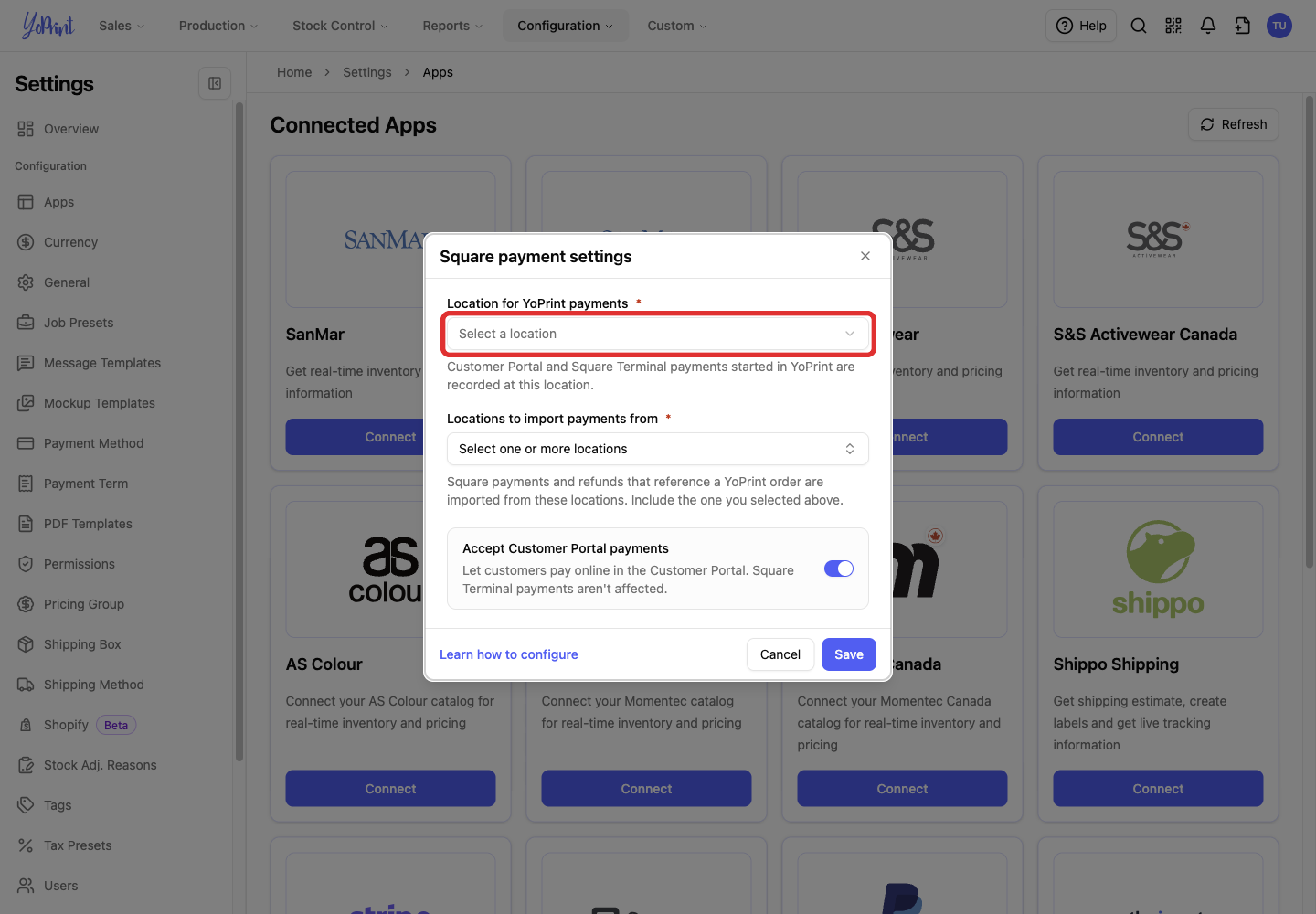
Location for YoPrint payments is the Square location used for Customer Portal and Square Terminal payments started in YoPrint. Locations to import payments from tells YoPrint which Square locations to use when importing payments and refunds that reference a YoPrint order.
-
Open Location for YoPrint payments.
-
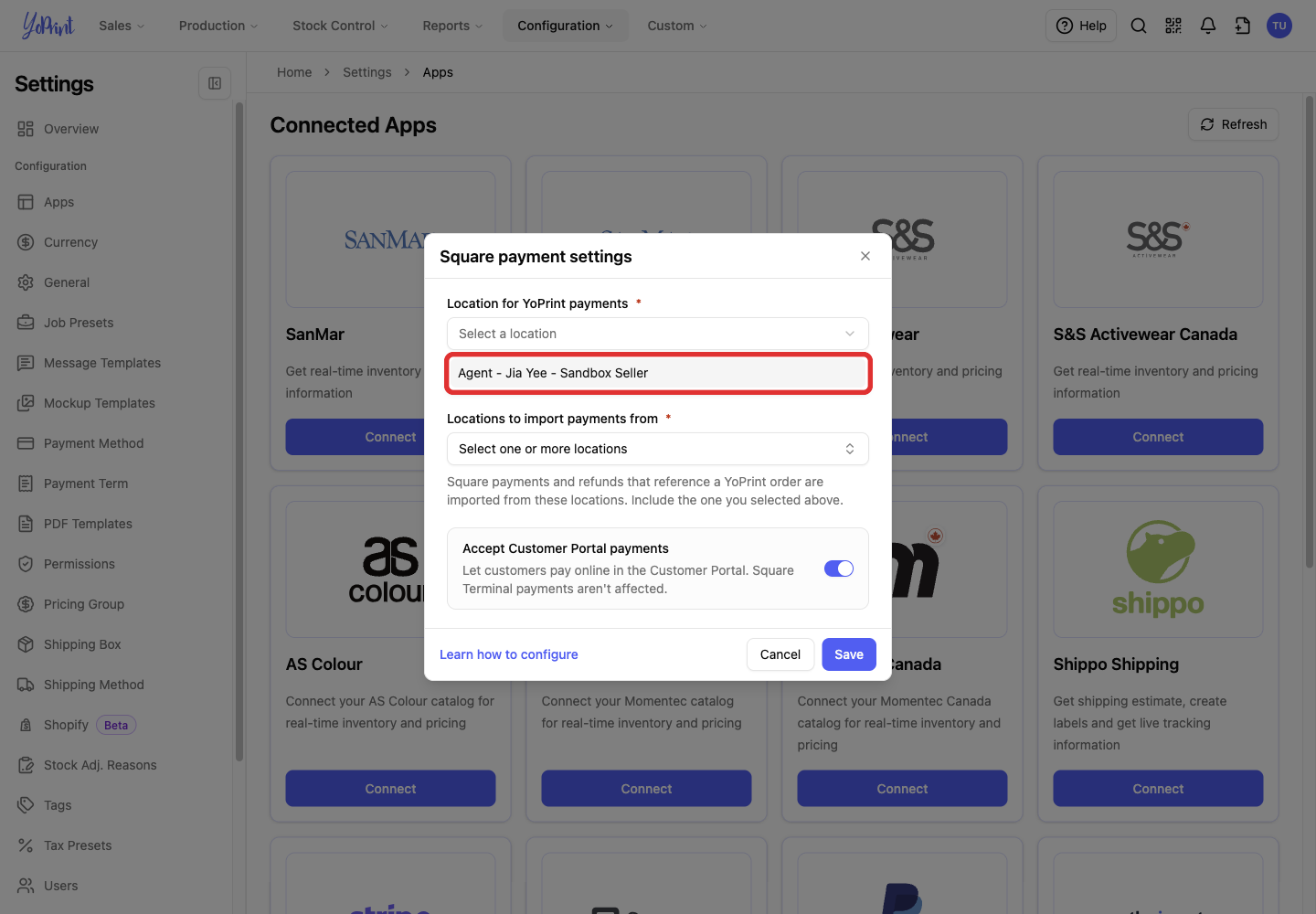
Select the Square location your shop uses for YoPrint payments.
-
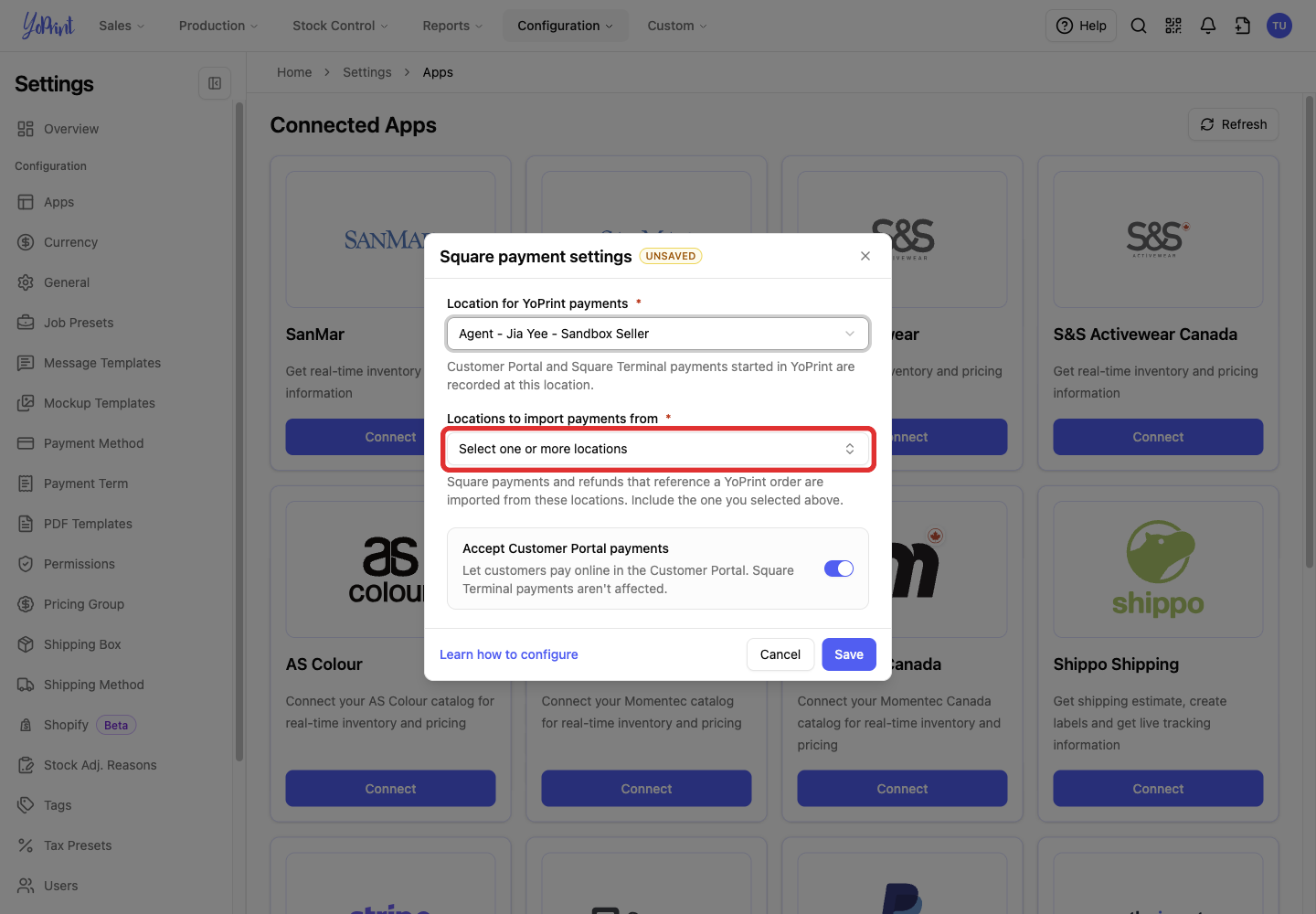
Open Locations to import payments from.
-
Select the locations whose payments and refunds YoPrint should import. Include the payment location you selected above.
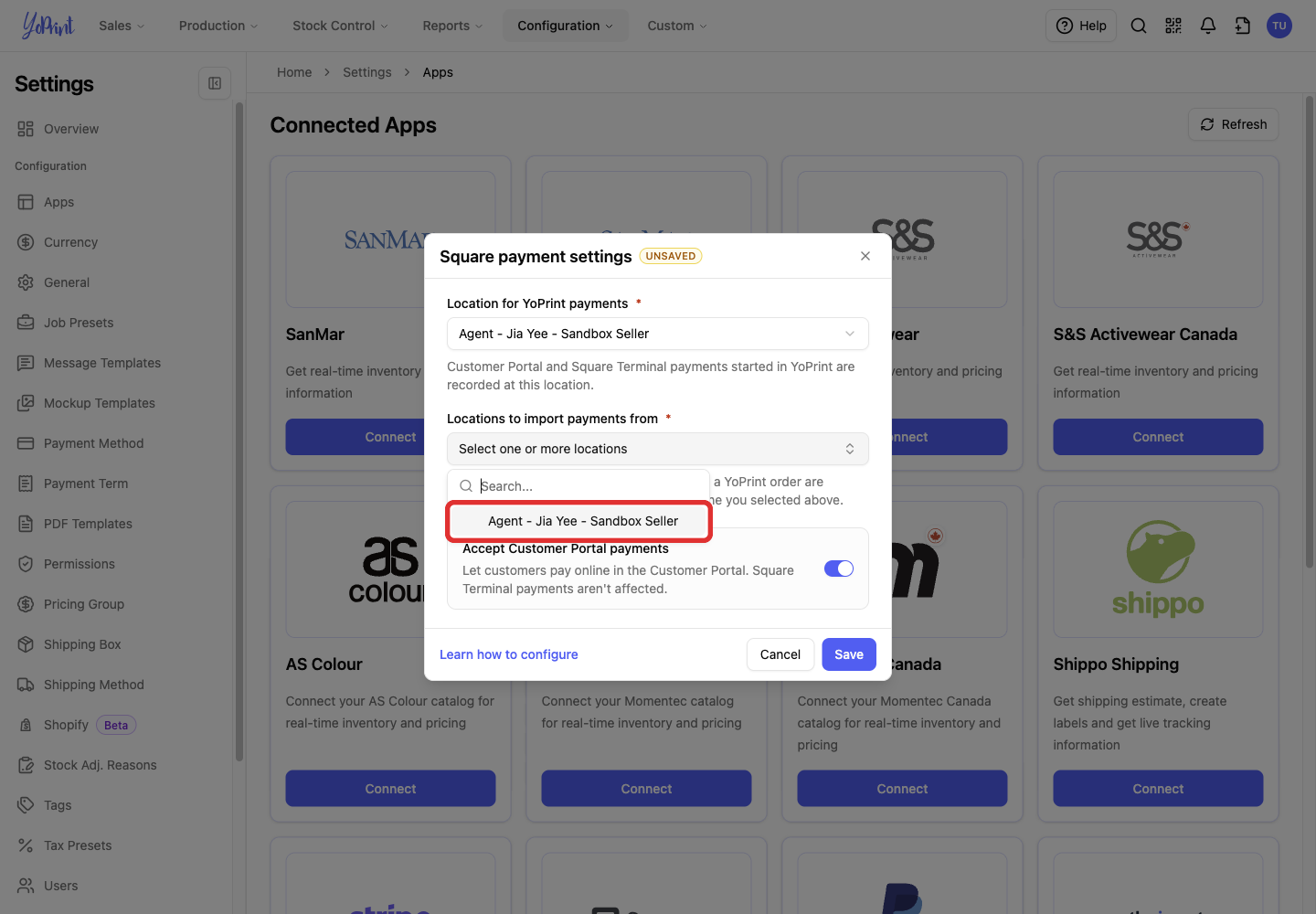
-
Press Escape to close the location menu.
-
Choose whether to Accept Customer Portal payments. Leave it on to let customers pay with Square in the Customer Portal, or turn it off if you do not want to offer that option. This setting does not affect Square Terminal payments.
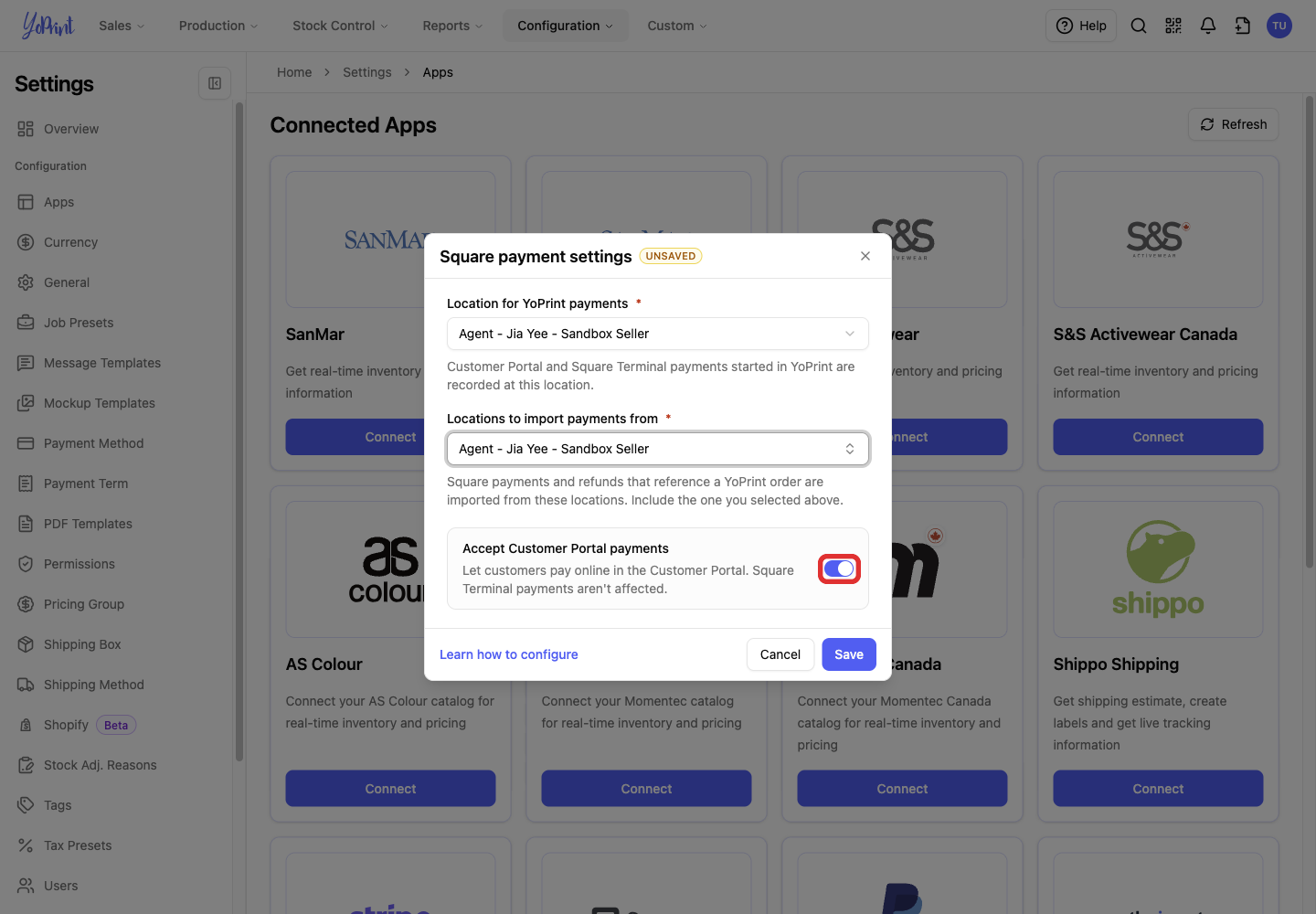
-
Click Save.
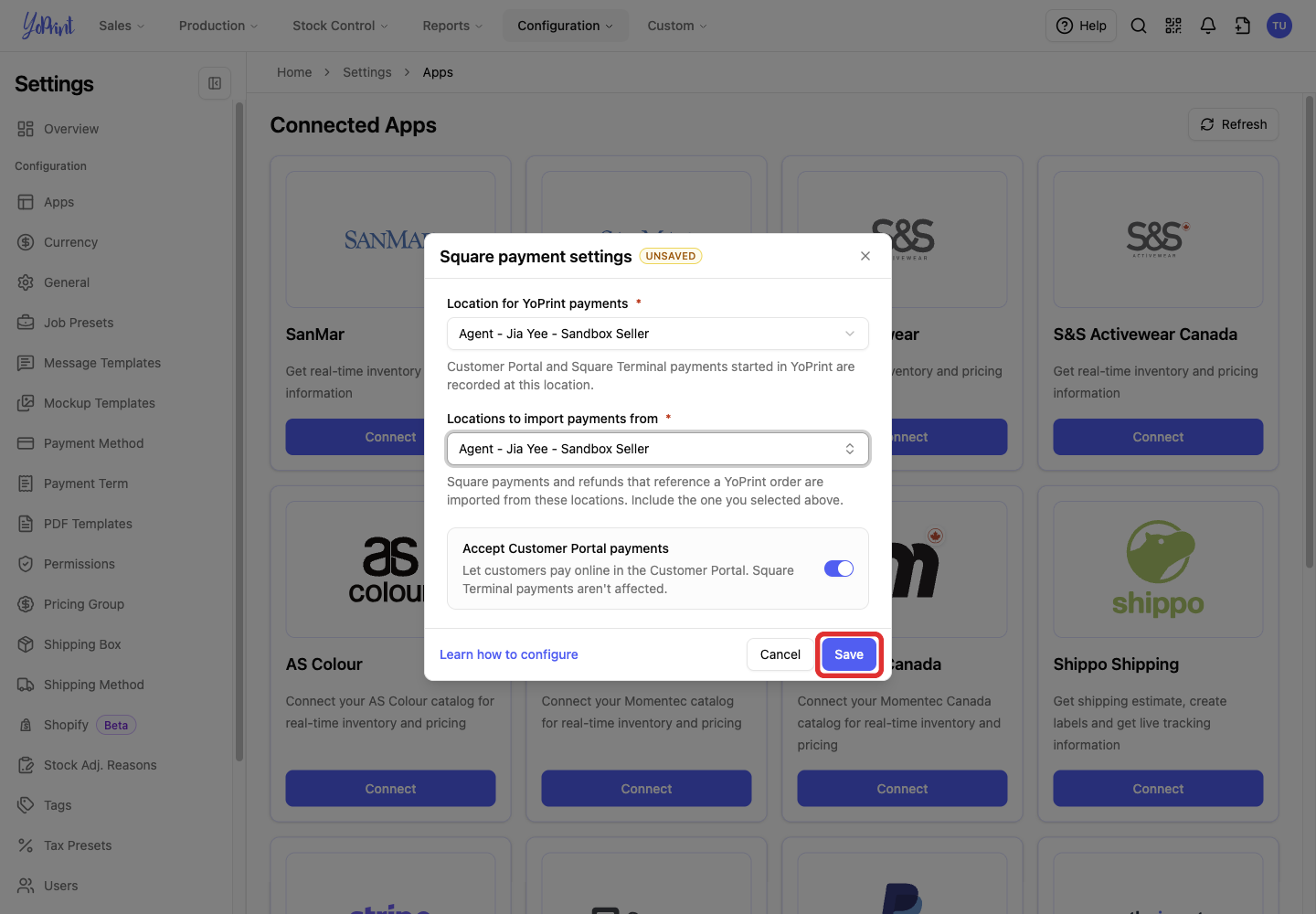
The dialog closes. The Square card shows Connected and a three-dot actions button.
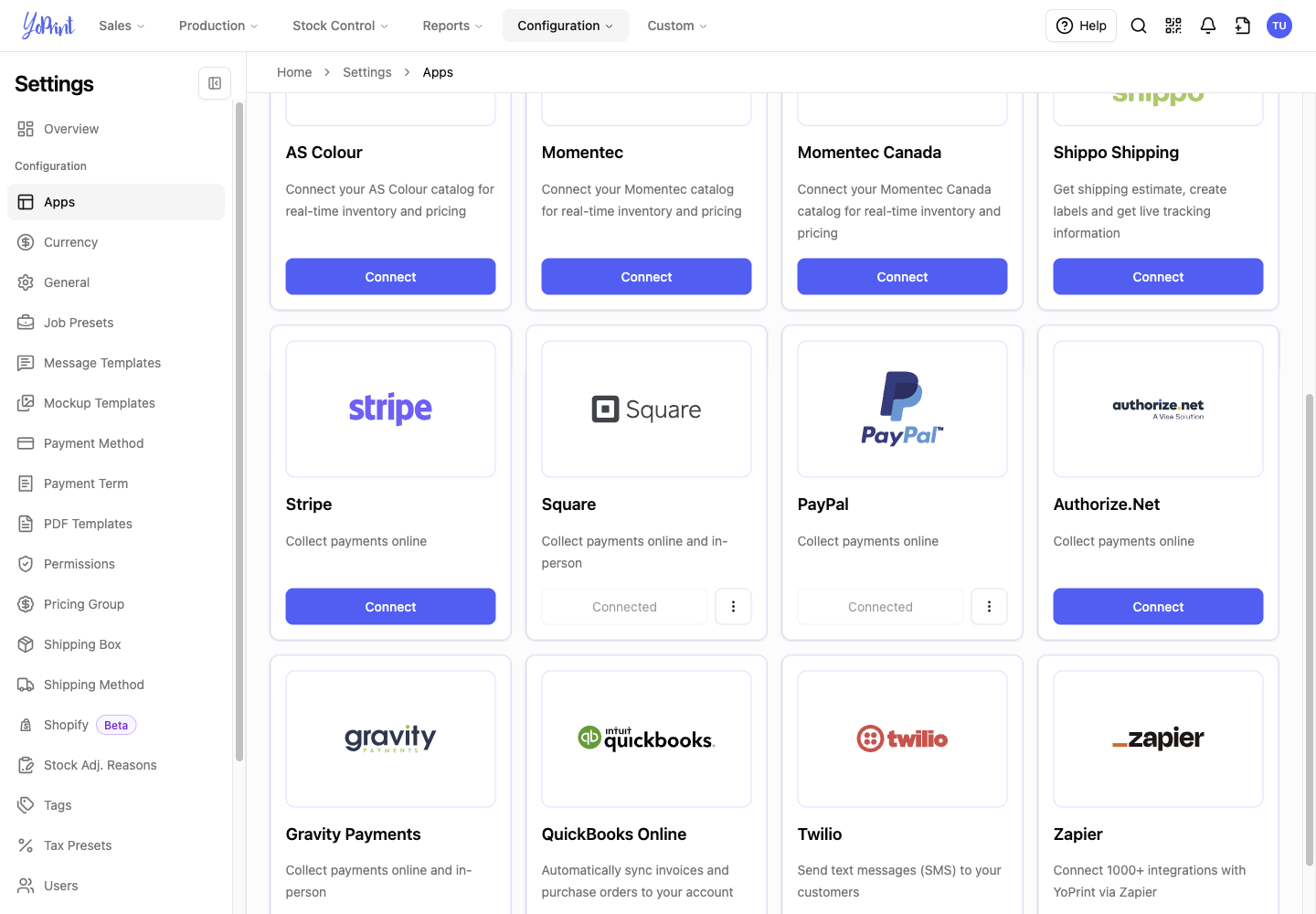
Change your Square payment settings
-
On the Square card in Configuration > Settings > Apps, click the three-dot actions button.
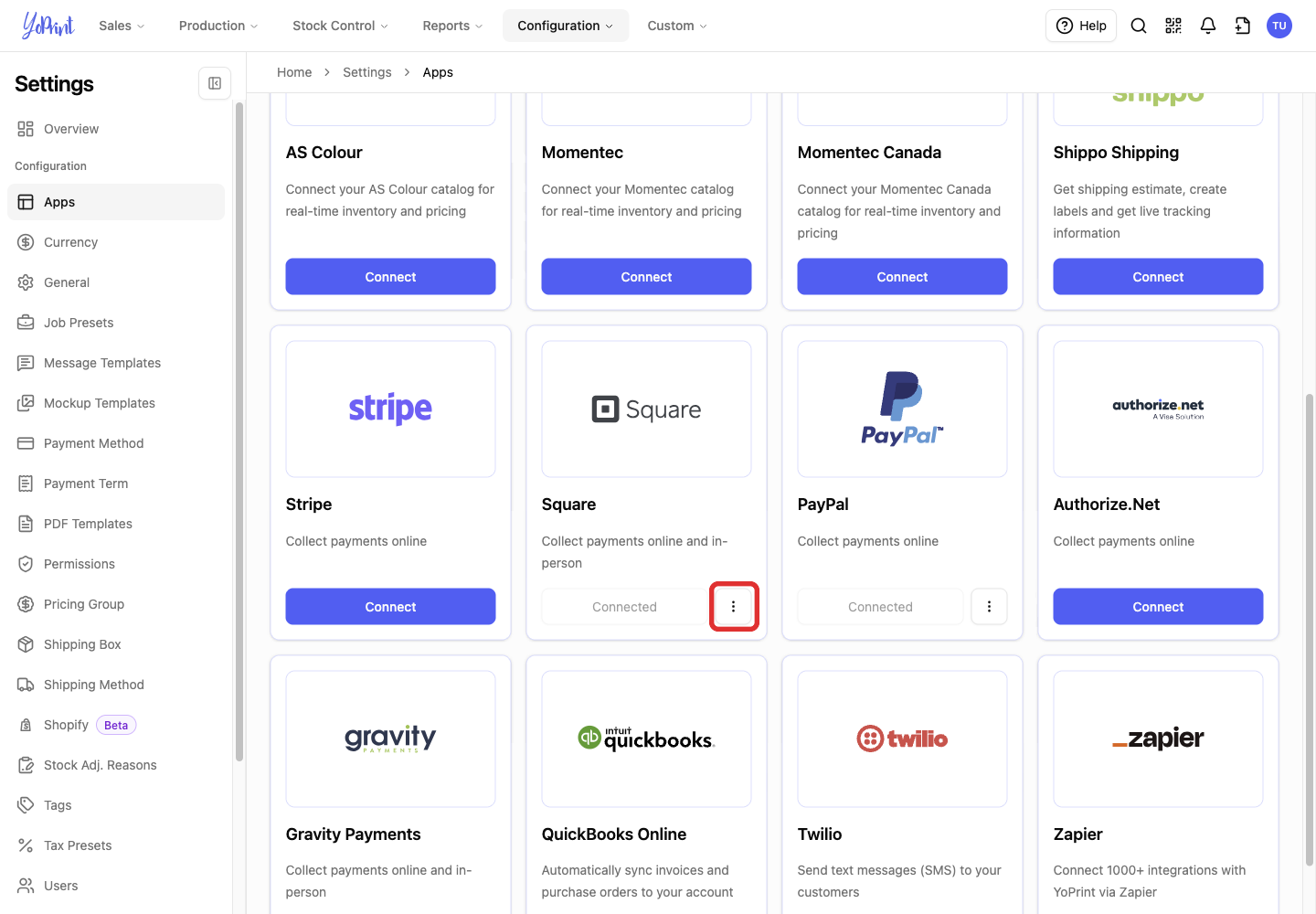
-
Click Edit.
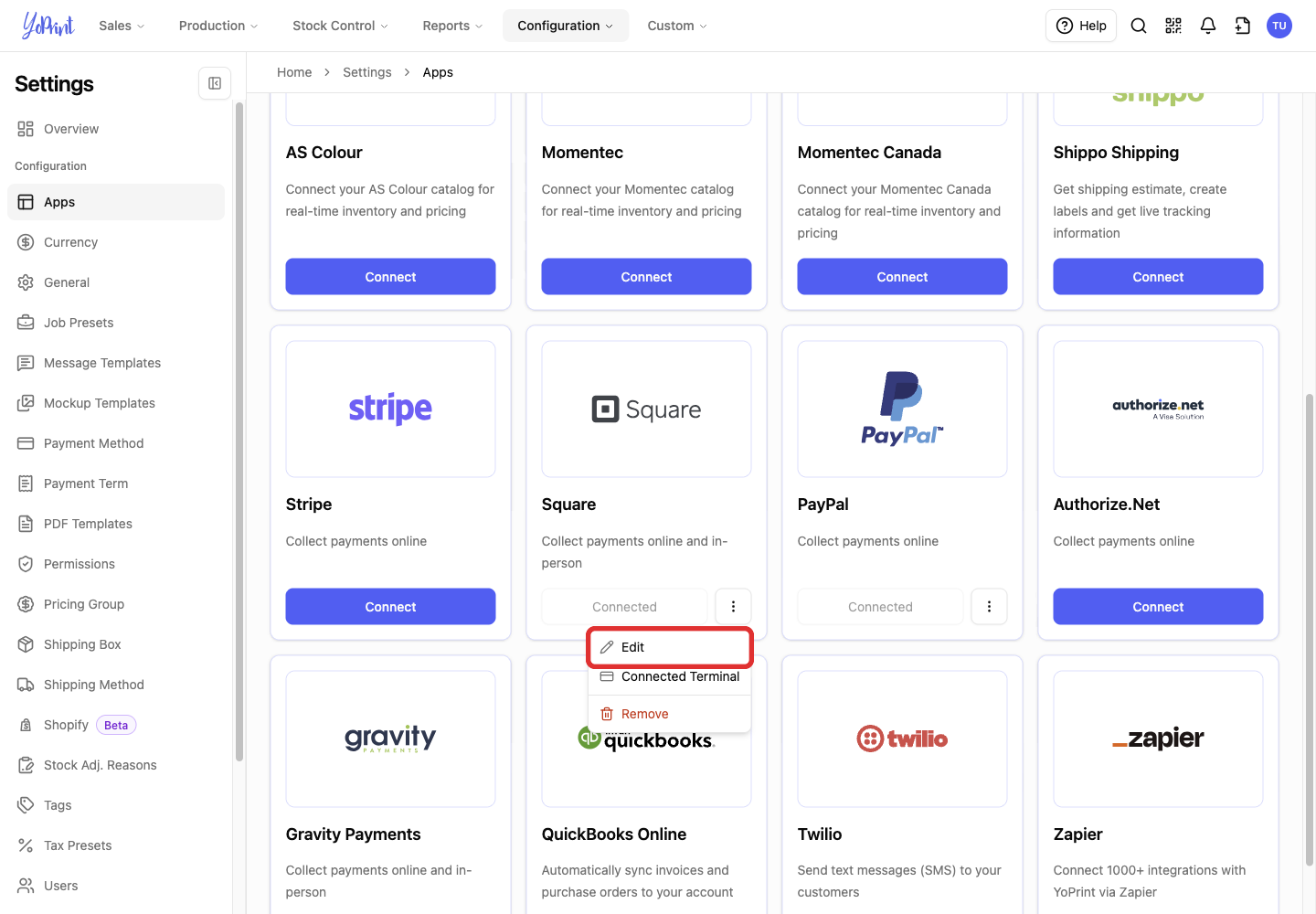
Square payment settings opens with your saved choices. Add a location here if you also want to import order payments or refunds made there. A Square Terminal payment started in YoPrint uses the payment location you selected.
Change the payment locations or Customer Portal setting, then click Save.
Recover if you return without connecting
-
Use your browser's Back button to return to YoPrint.
-
If Contacting Square... stays on screen, reload the page in your browser.
-
On the Square card, click Connect to start again when you are ready to finish signing in to Square.
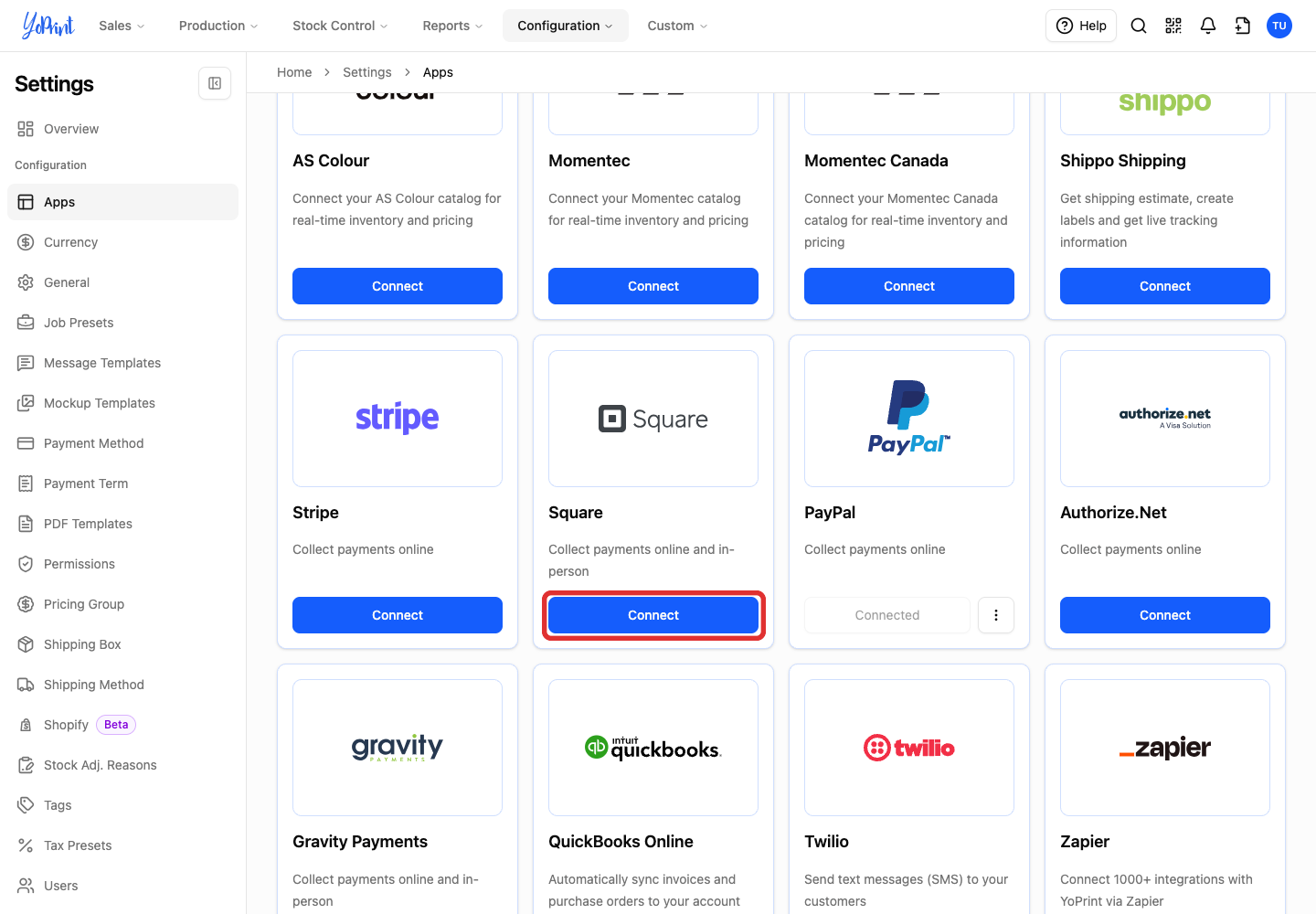
If Square shows an error, note its message before leaving the page. Contact YoPrint support if you cannot finish the connection. Include the error message and the step where you stopped.
Open a Square card payment on a sales order
Start with a saved sales order and Square connected in Apps. If you just connected Square and its payment choices do not appear, reload the sales order page.
-
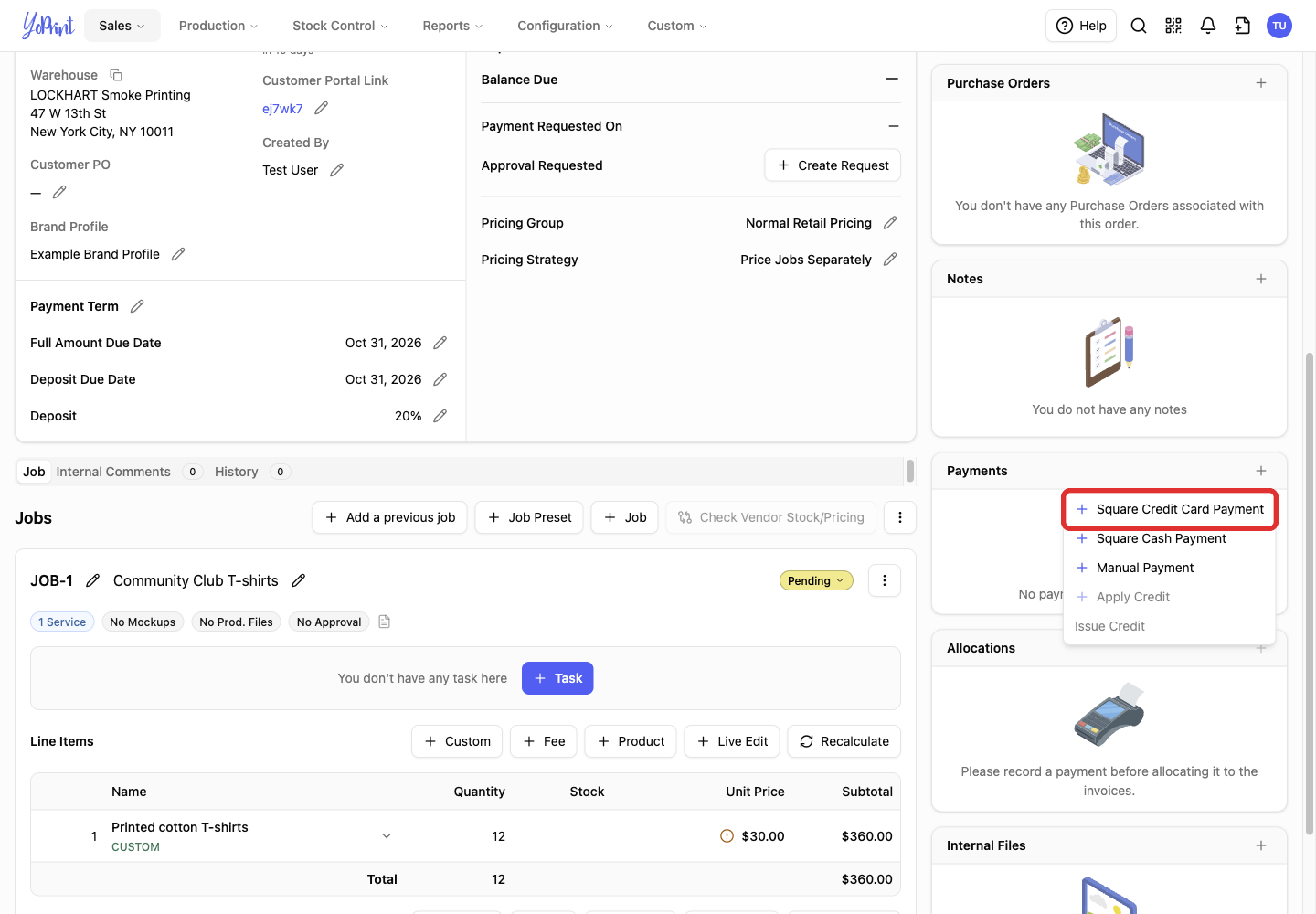
On the sales order, scroll to Payments and click +.
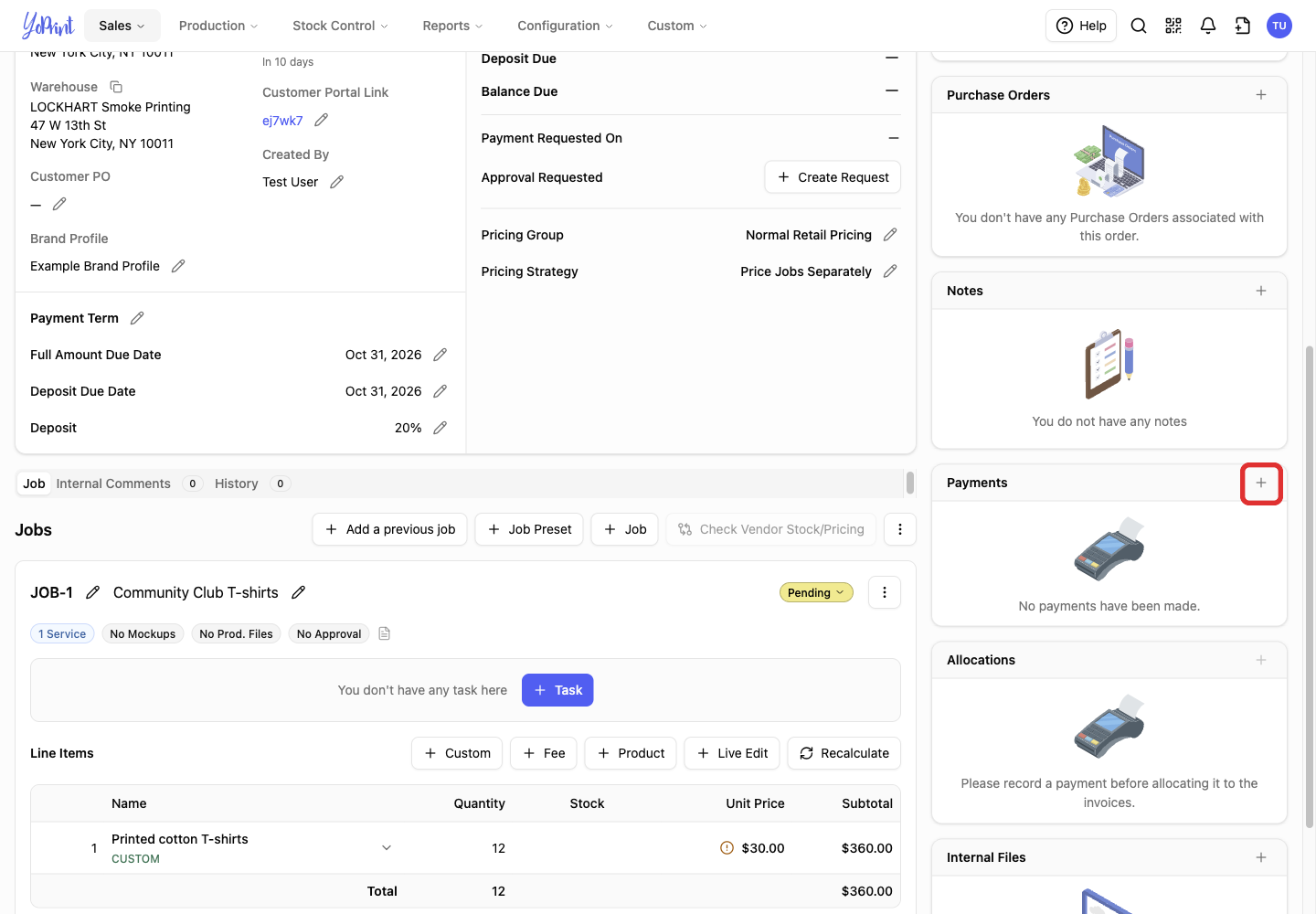
-
Choose Square Credit Card Payment.
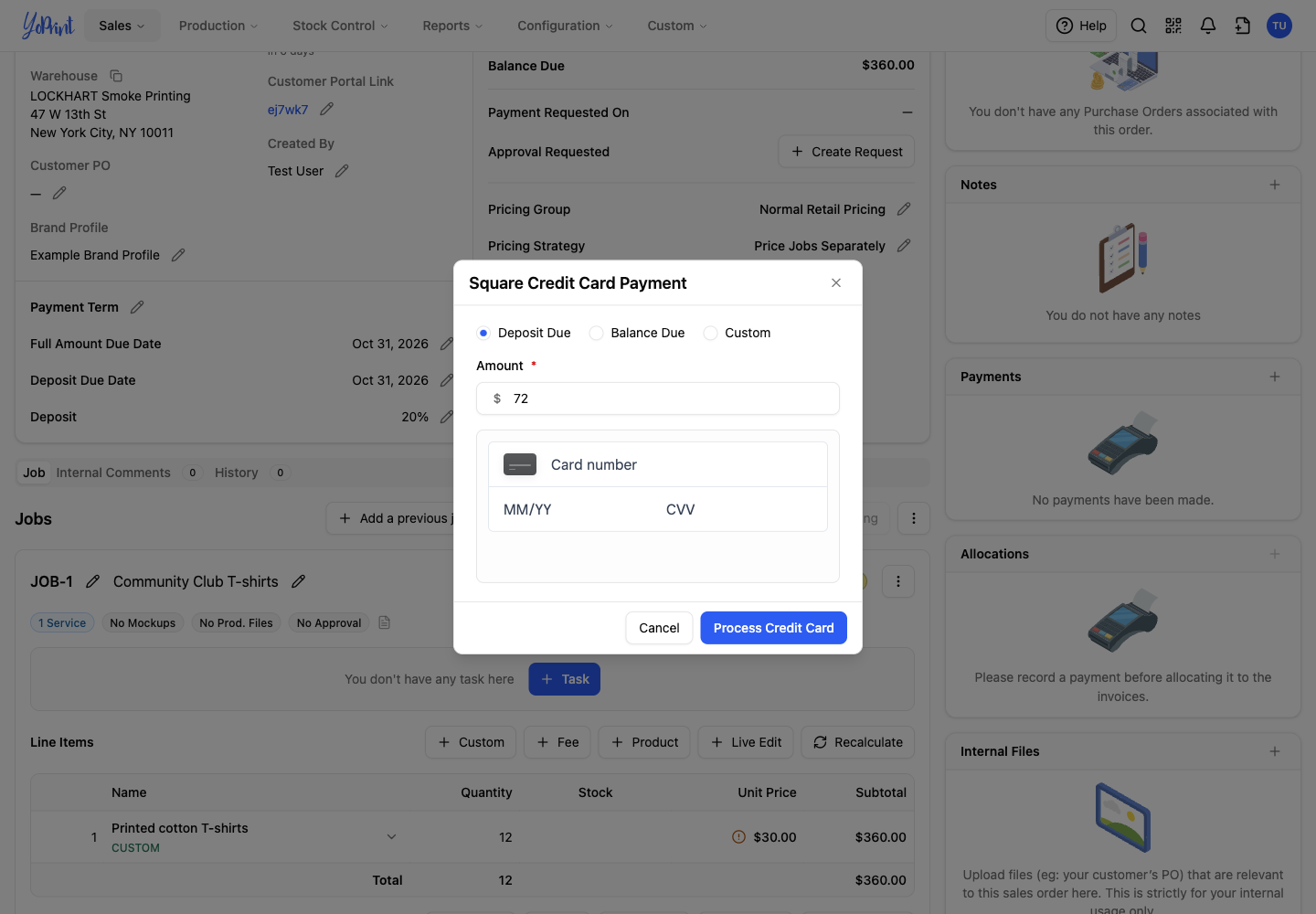
The Square Credit Card Payment dialog has an amount field and fields for the card number, expiry date and CVV. Opening this dialog does not collect money. Process Credit Card submits the payment.
For payment requests and customer checkout, see Collect and Record Payments.
Register a Square Terminal in YoPrint
Connect your Square account before you register a terminal.
-
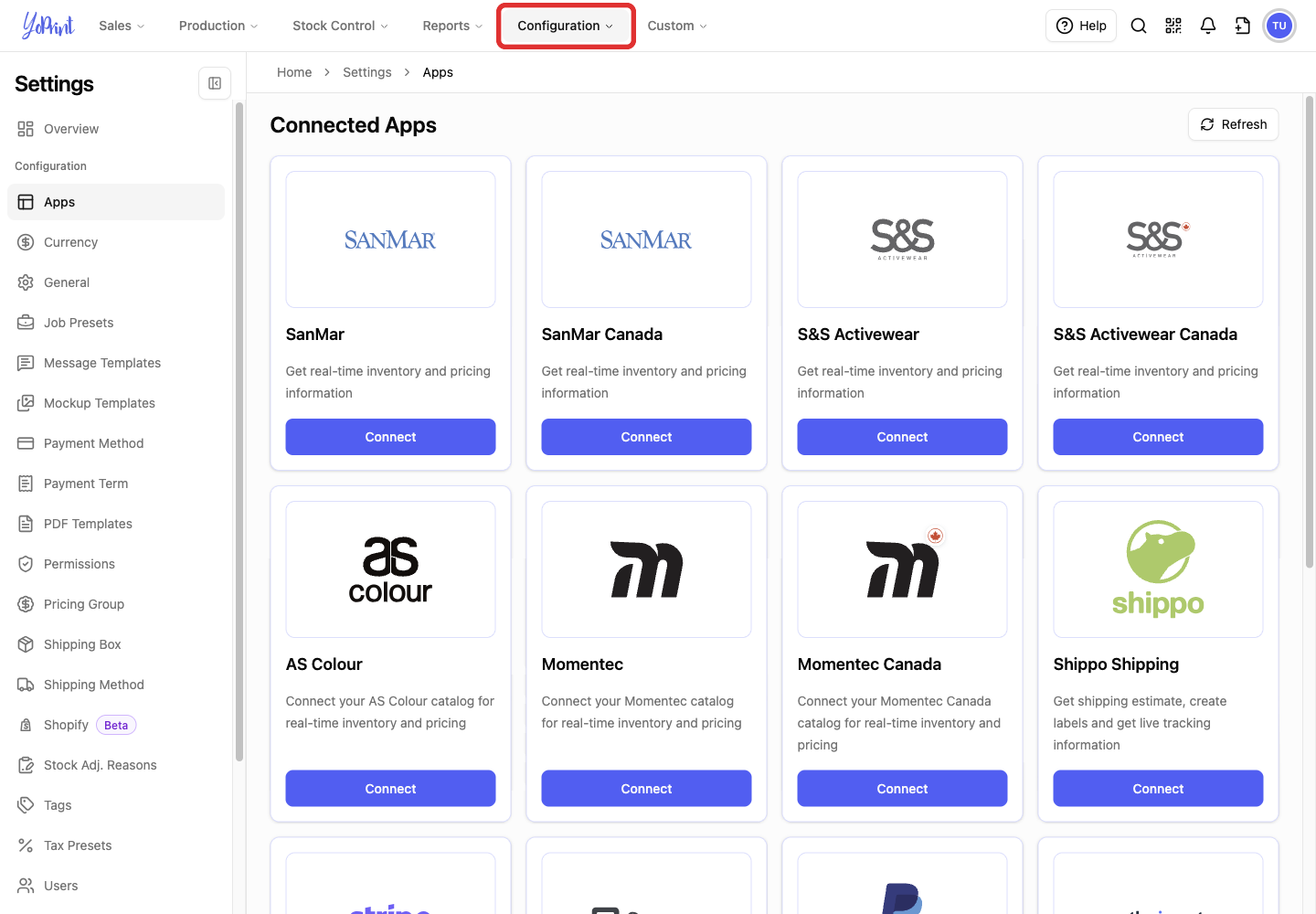
In the top navigation, click Configuration.
-
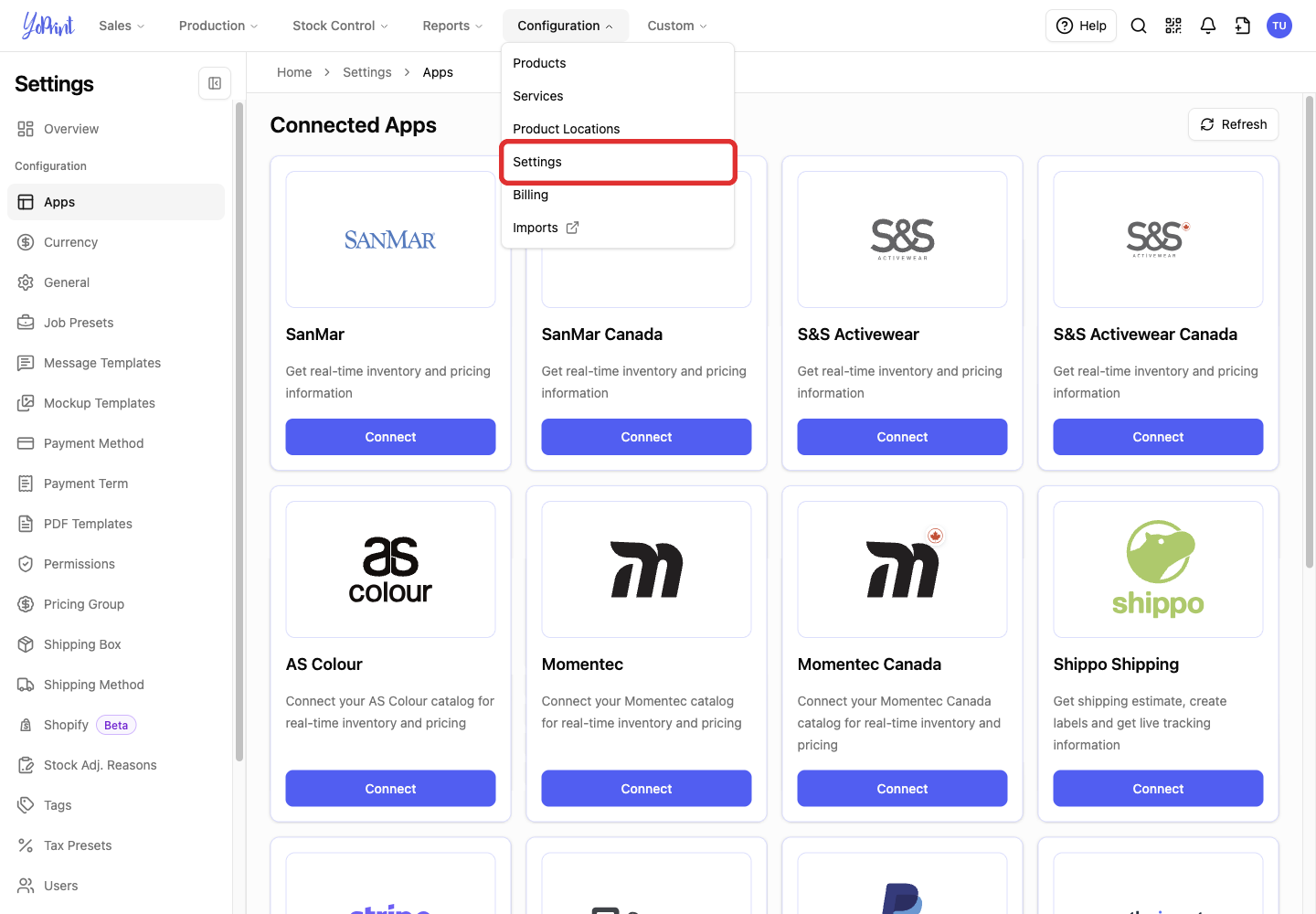
In the menu, click Settings.
-
In the Settings sidebar, click Apps.
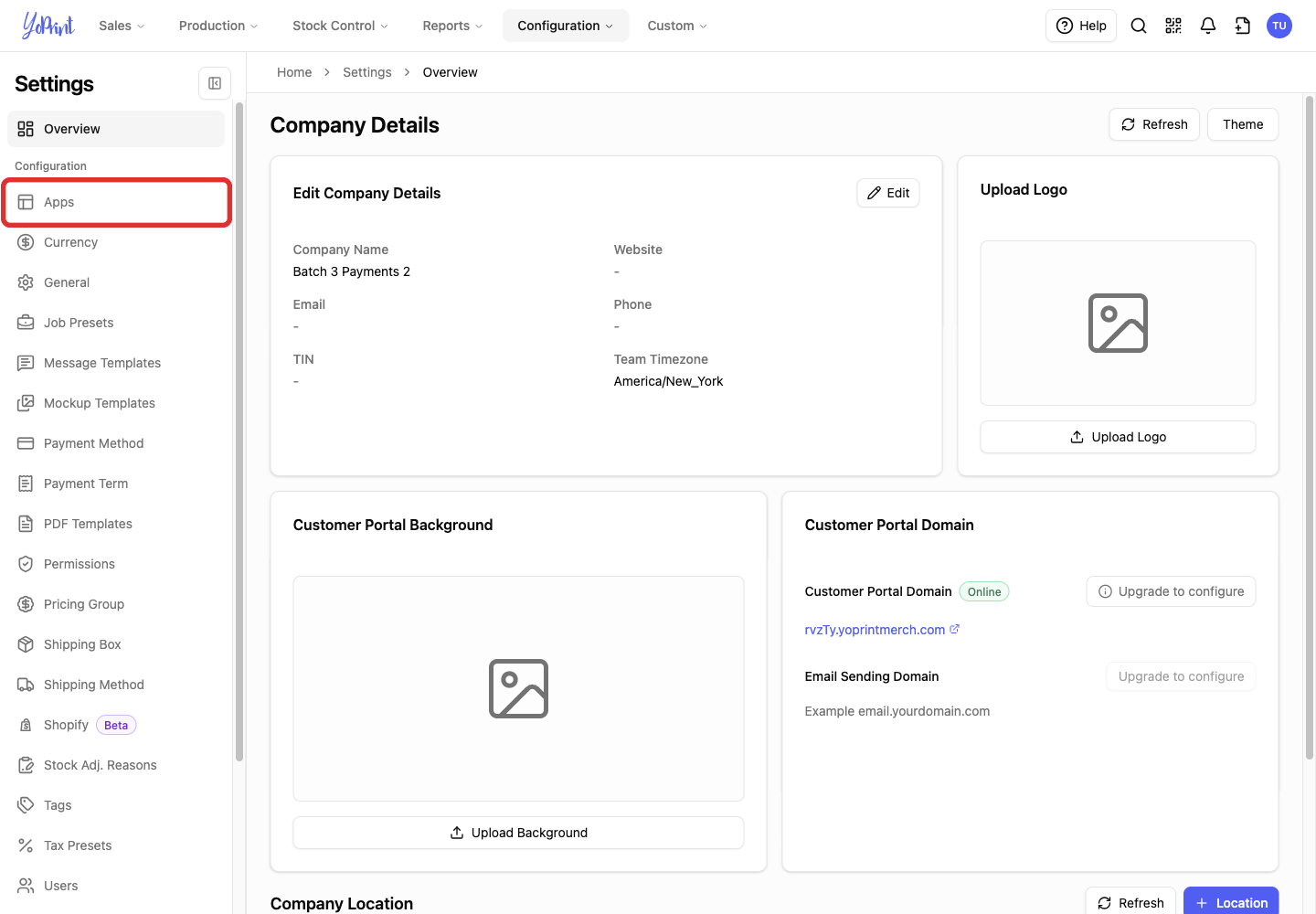
-
On the Square card, click the three-dot actions button.
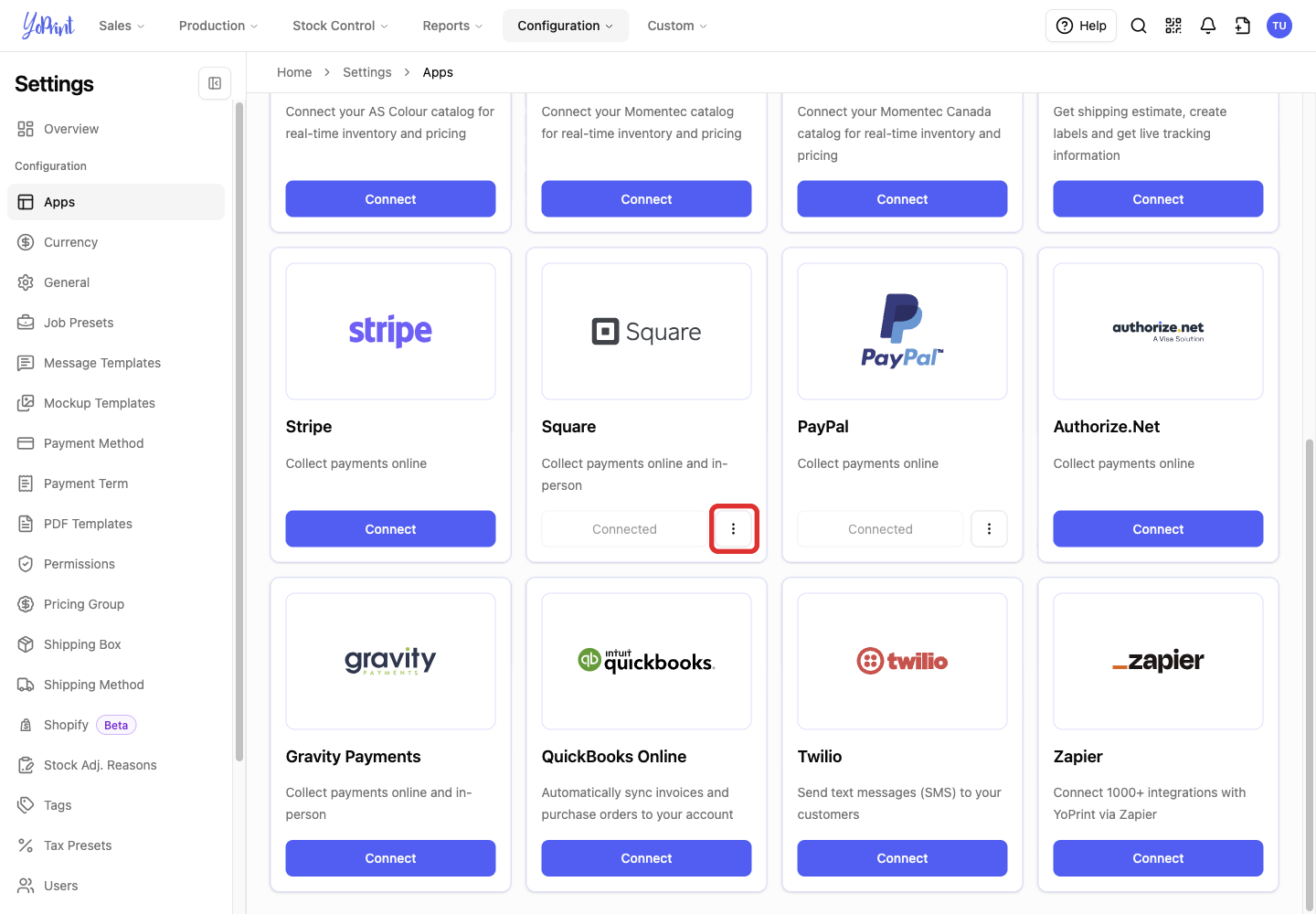
-
Click Connected Terminal.
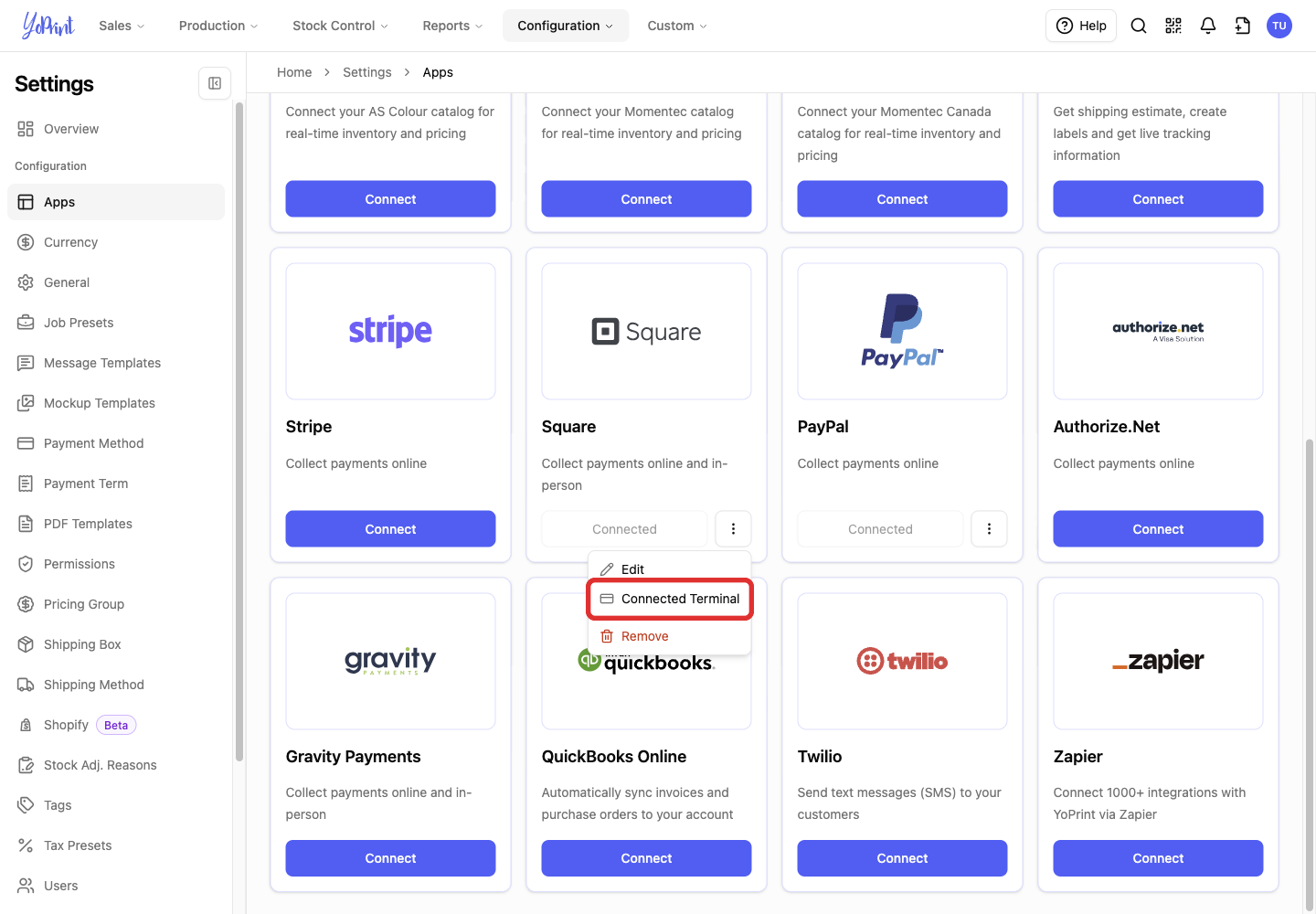
-
Click + Terminal.
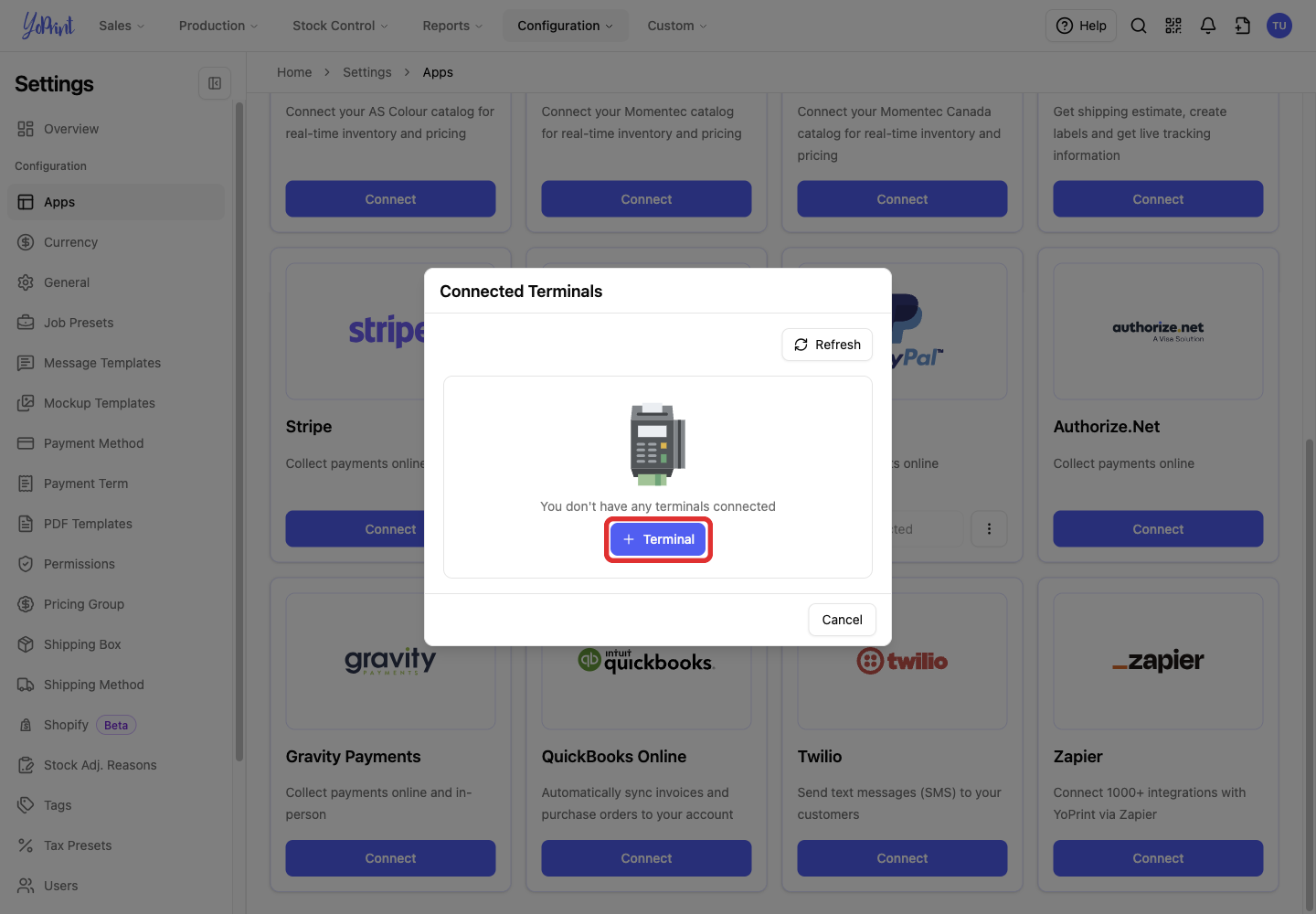
-
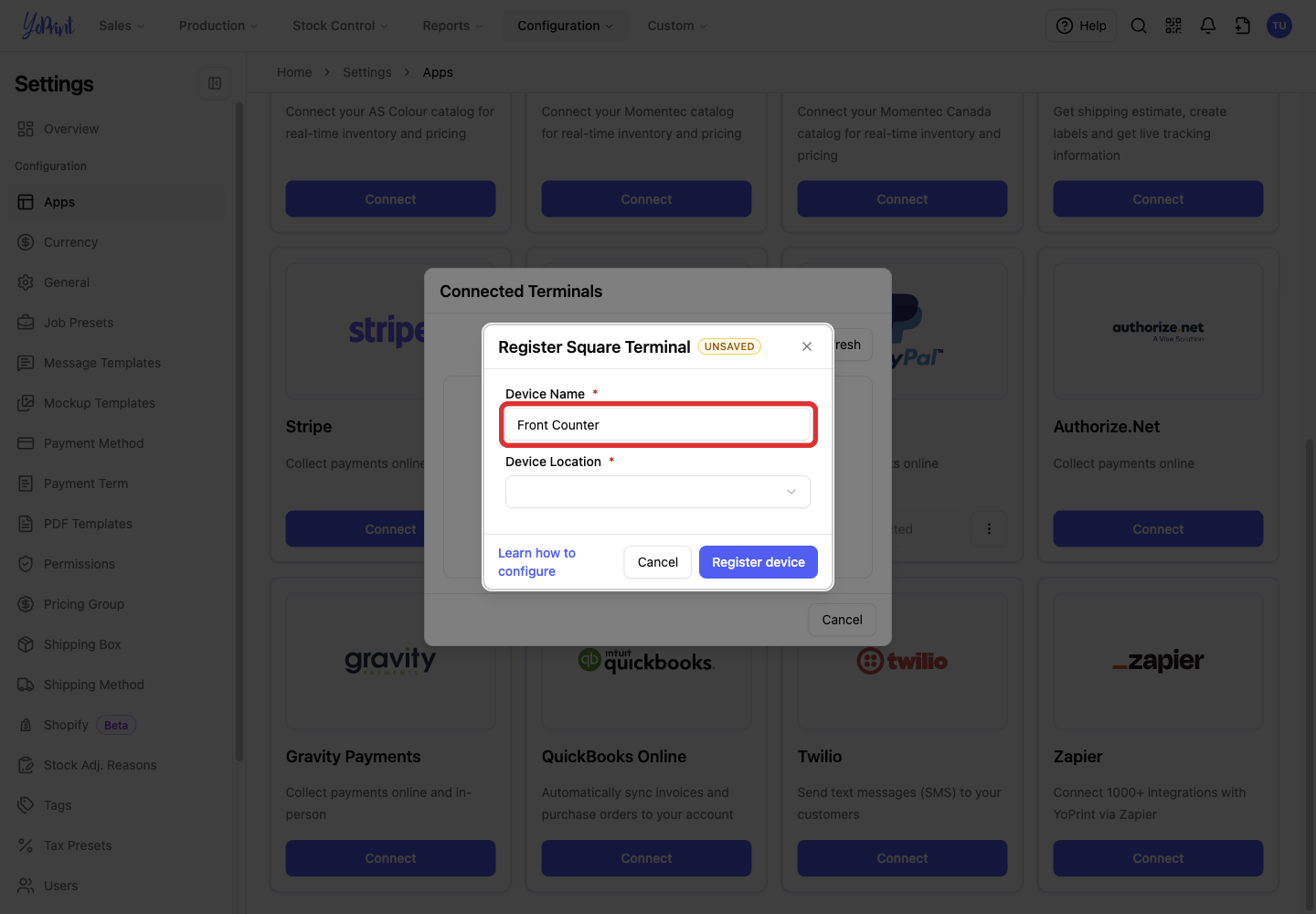
Enter a Device Name, such as Front Counter.
-
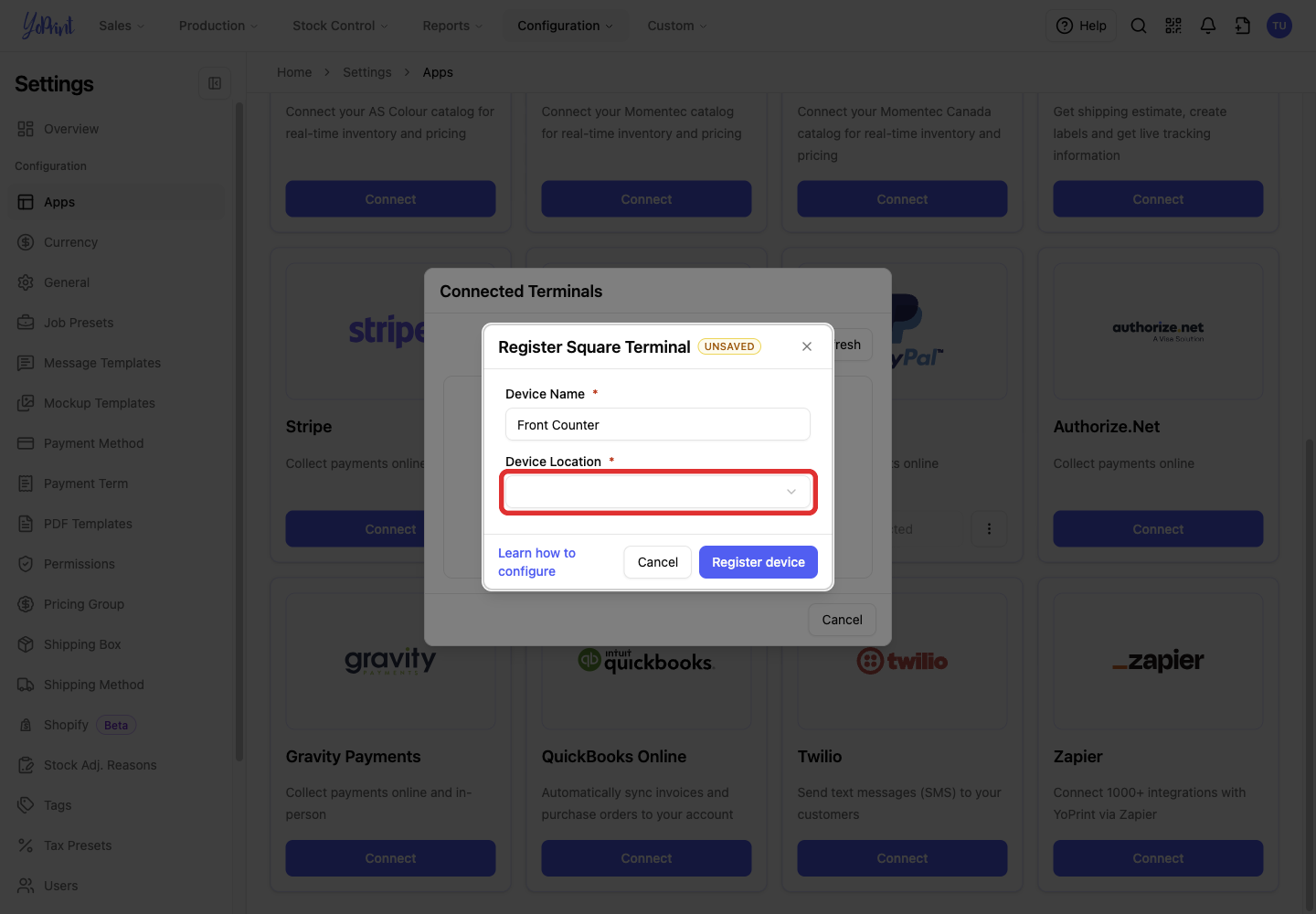
Open Device Location.
-
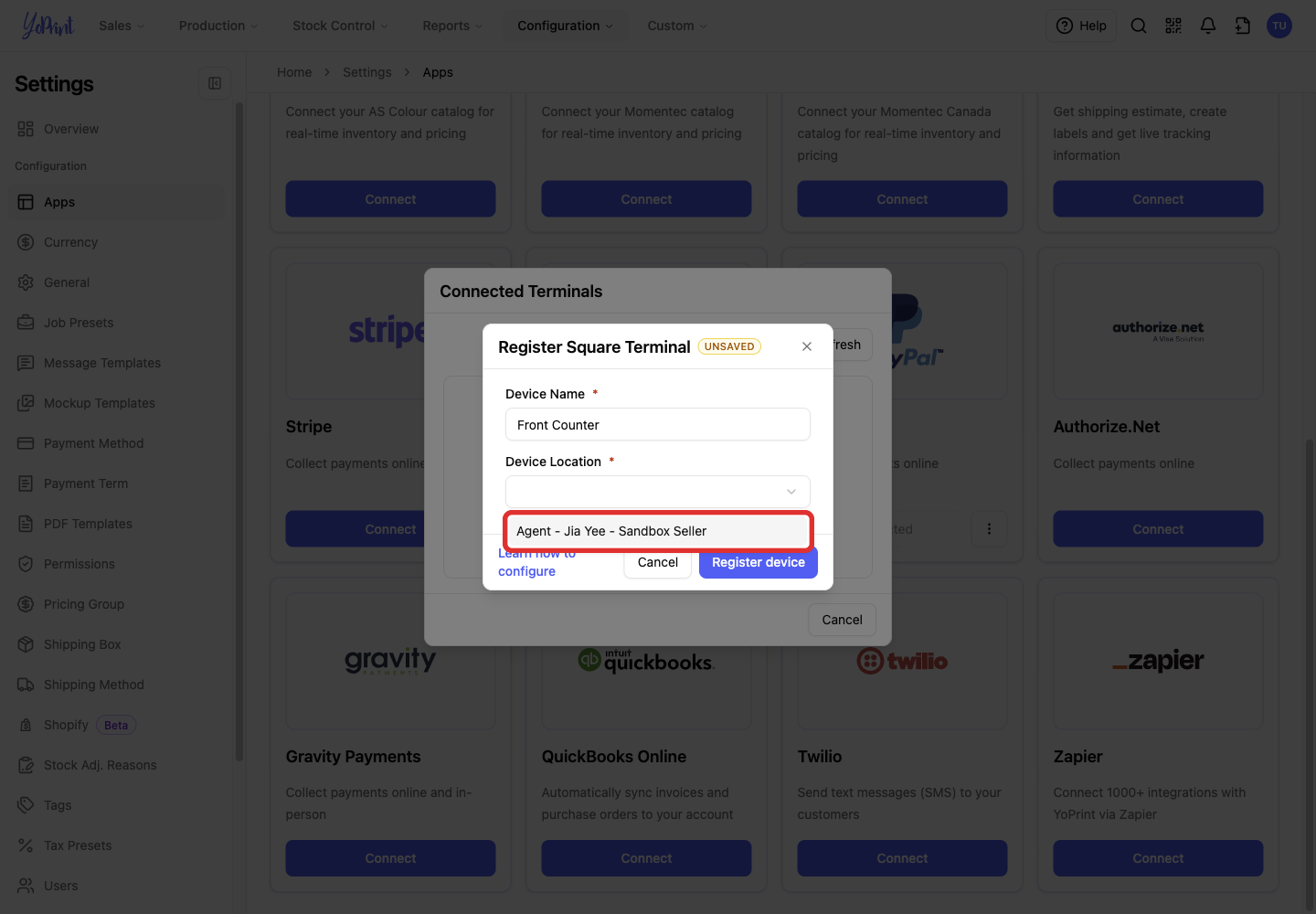
Select the Square location where you will use the terminal.
-
Click Register device.
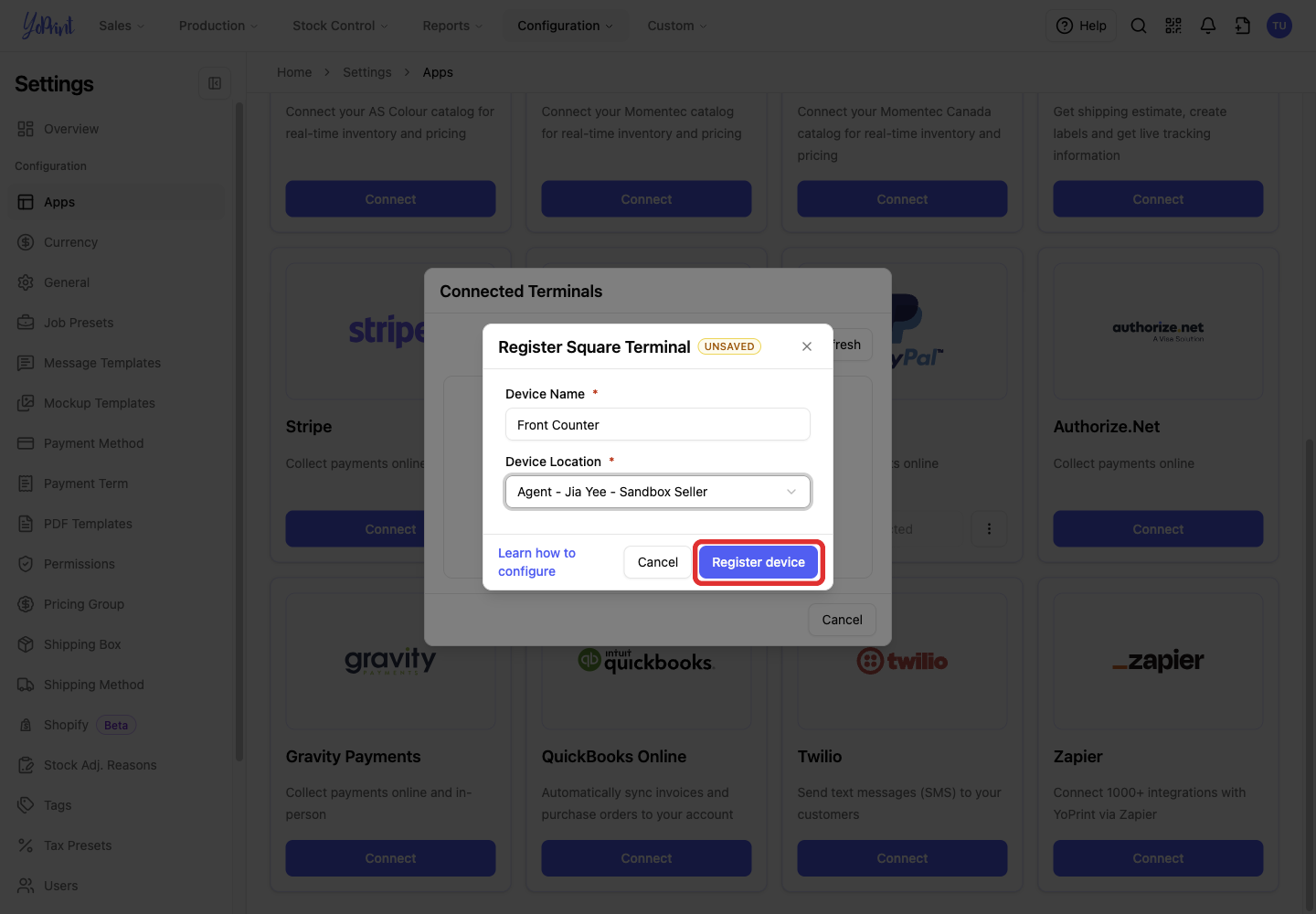
YoPrint shows a six-character device code. Keep it ready for signing in on your Square Terminal.
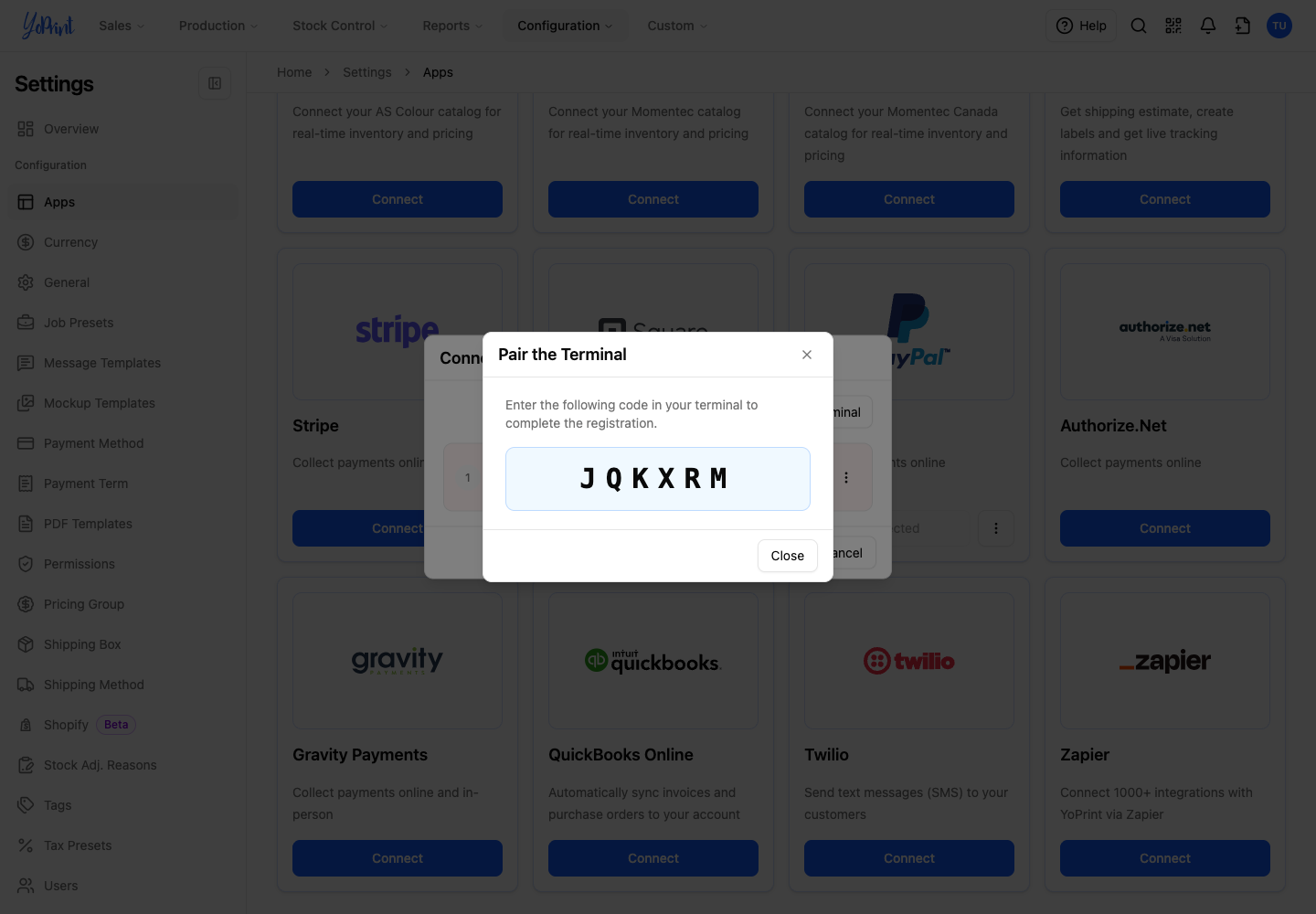
A registered Square Terminal belongs to your YoPrint account's Square connection, not to one computer. Anyone in your team with payment access can send a payment to it from any computer while it is paired. If the Terminal is signed out or paired to another app, pair it to YoPrint again before you use it. You can register more than one Terminal.
Sign in on your Square Terminal
These steps happen in Square. Square's screens may have changed since we took these pictures. If something looks different, follow Square's guide: Set up Square Terminal.
Make sure your Square Terminal is connected to the internet. Use the code from Register a Square Terminal in YoPrint, not a code created in Square Dashboard.
-
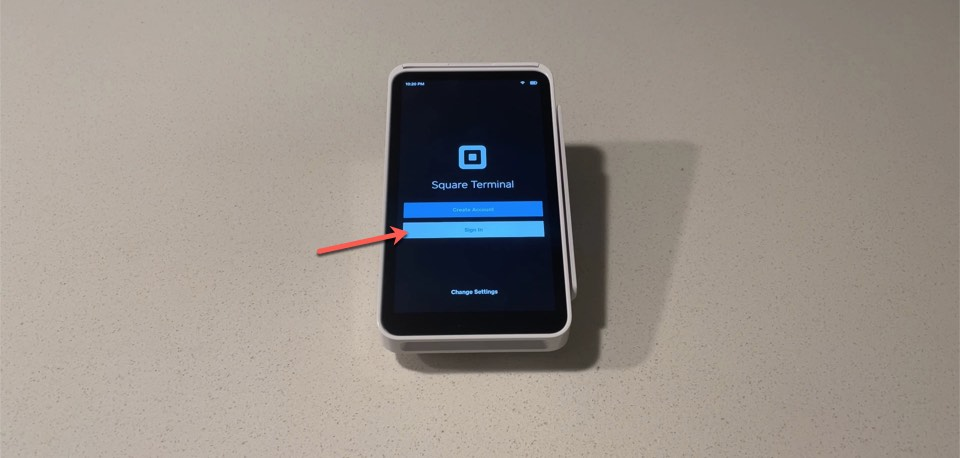
On your Square Terminal, tap Sign in.
-
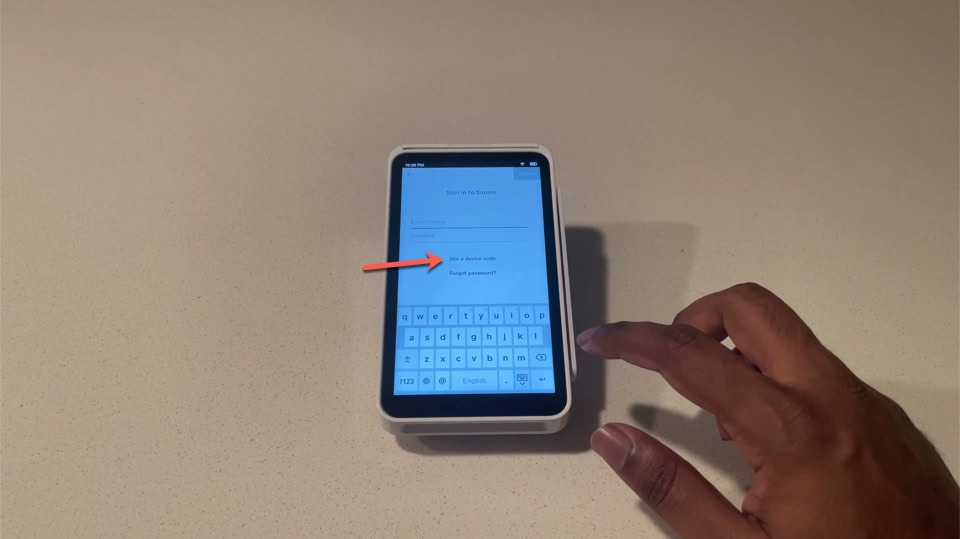
Tap Use a device code. Some screens label this Device Code.
-
Enter the device code from YoPrint in Device Code, then tap Sign in.
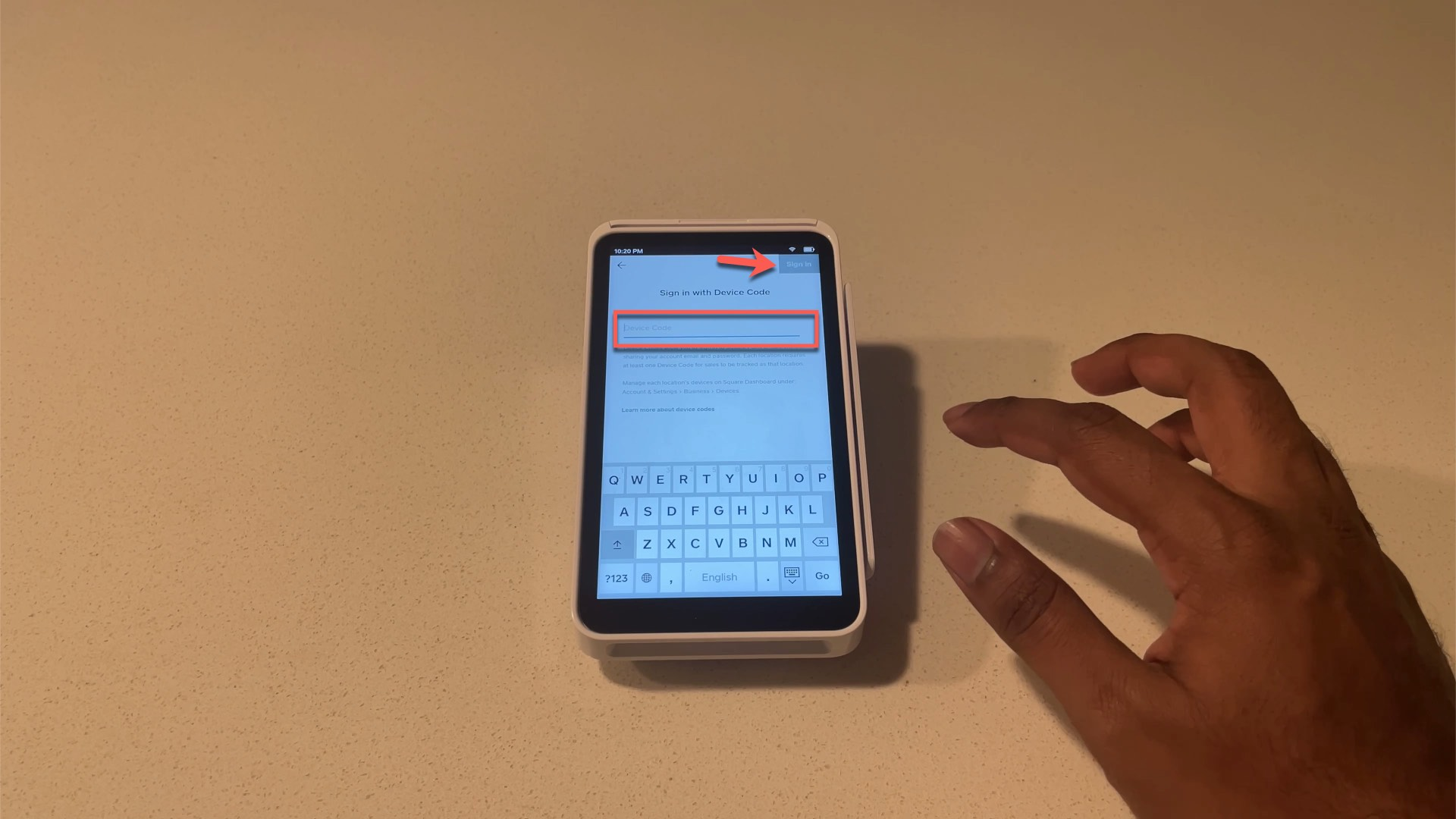
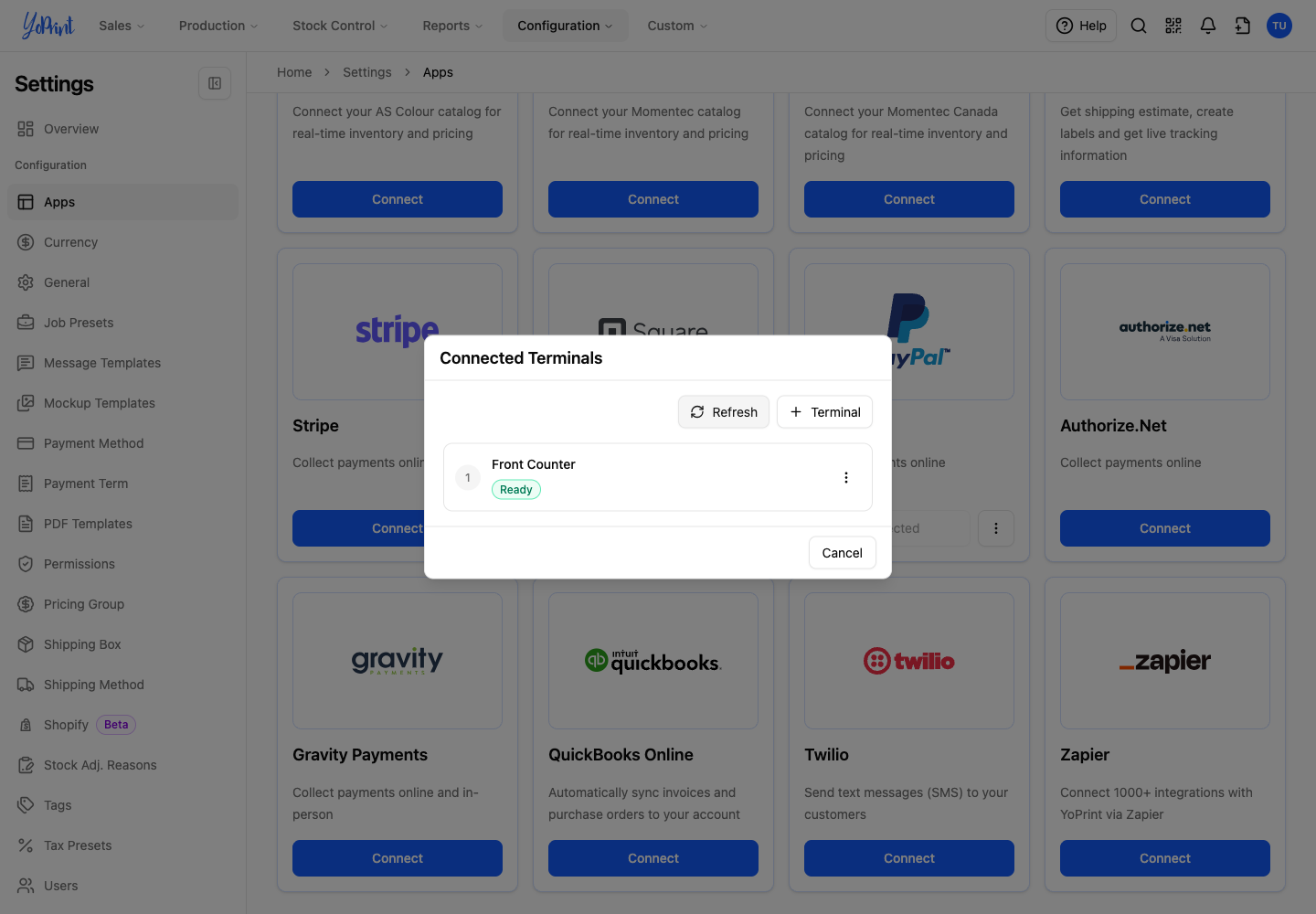
When pairing is complete, YoPrint shows your terminal as Ready in Connected Terminals.
Start a payment on Square Terminal from YoPrint
Before taking a payment, register your terminal and sign in with its device code.
-
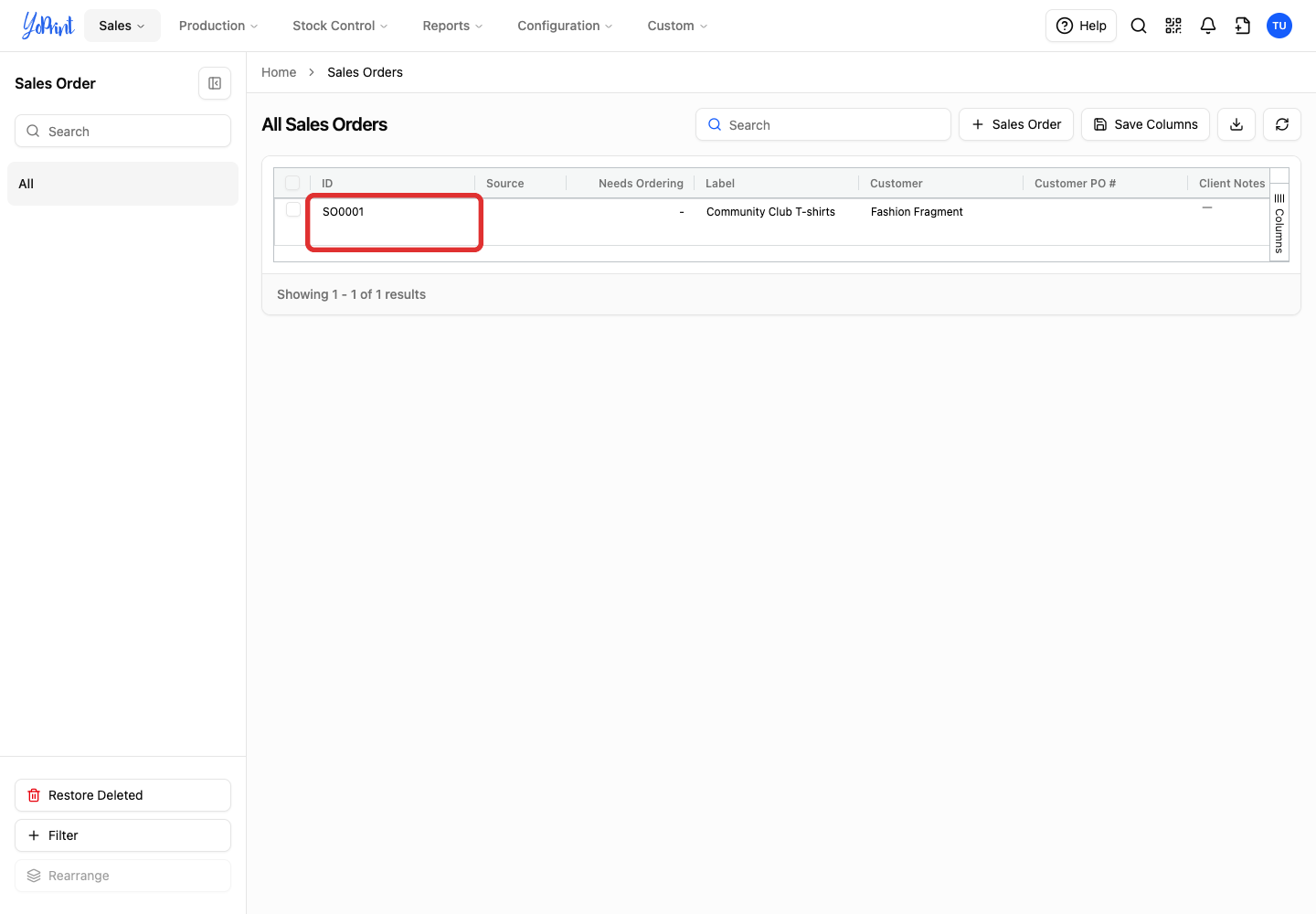
In the sales order list, double-click the order.
-
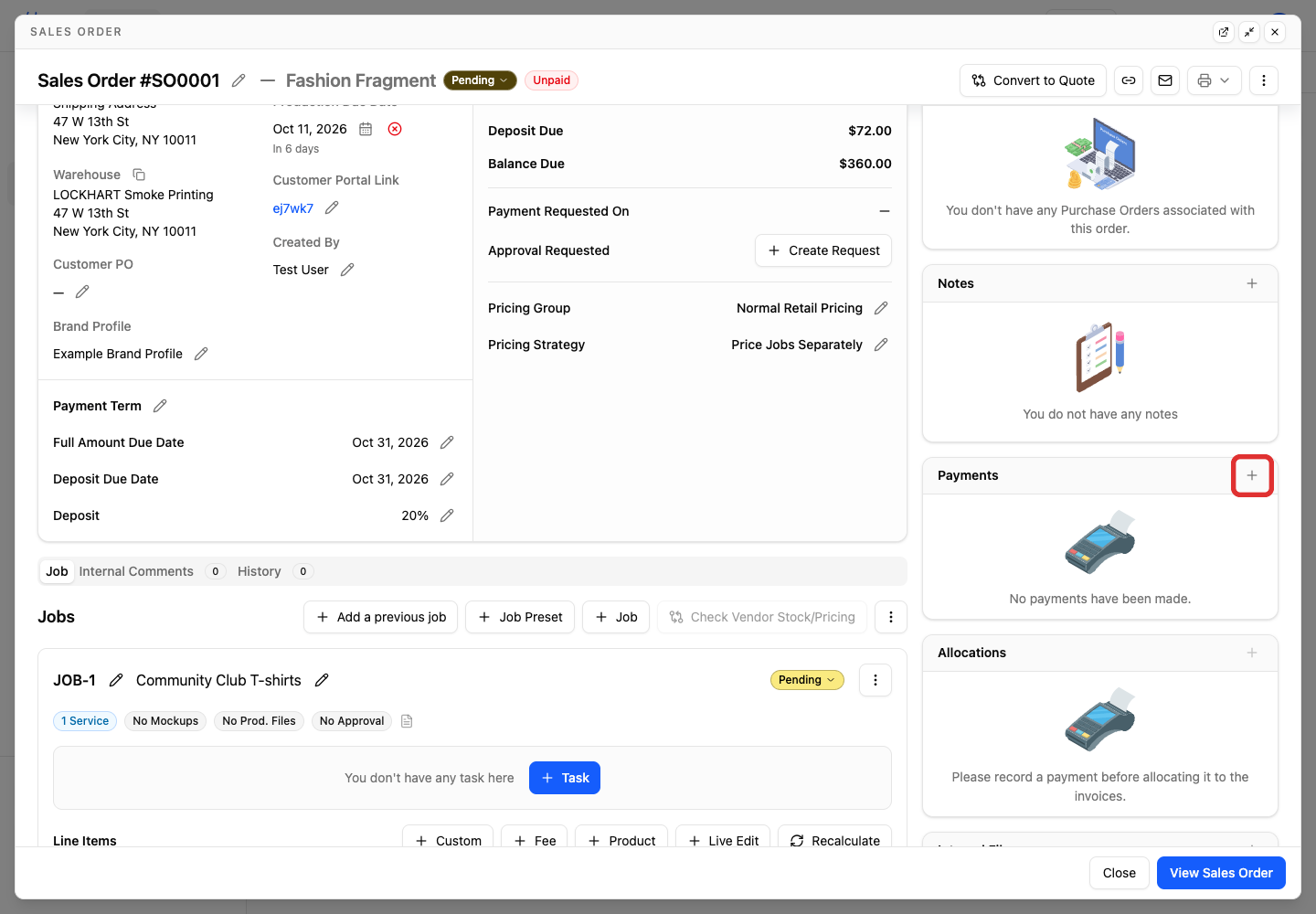
In the Payments sidebar, click +.
-
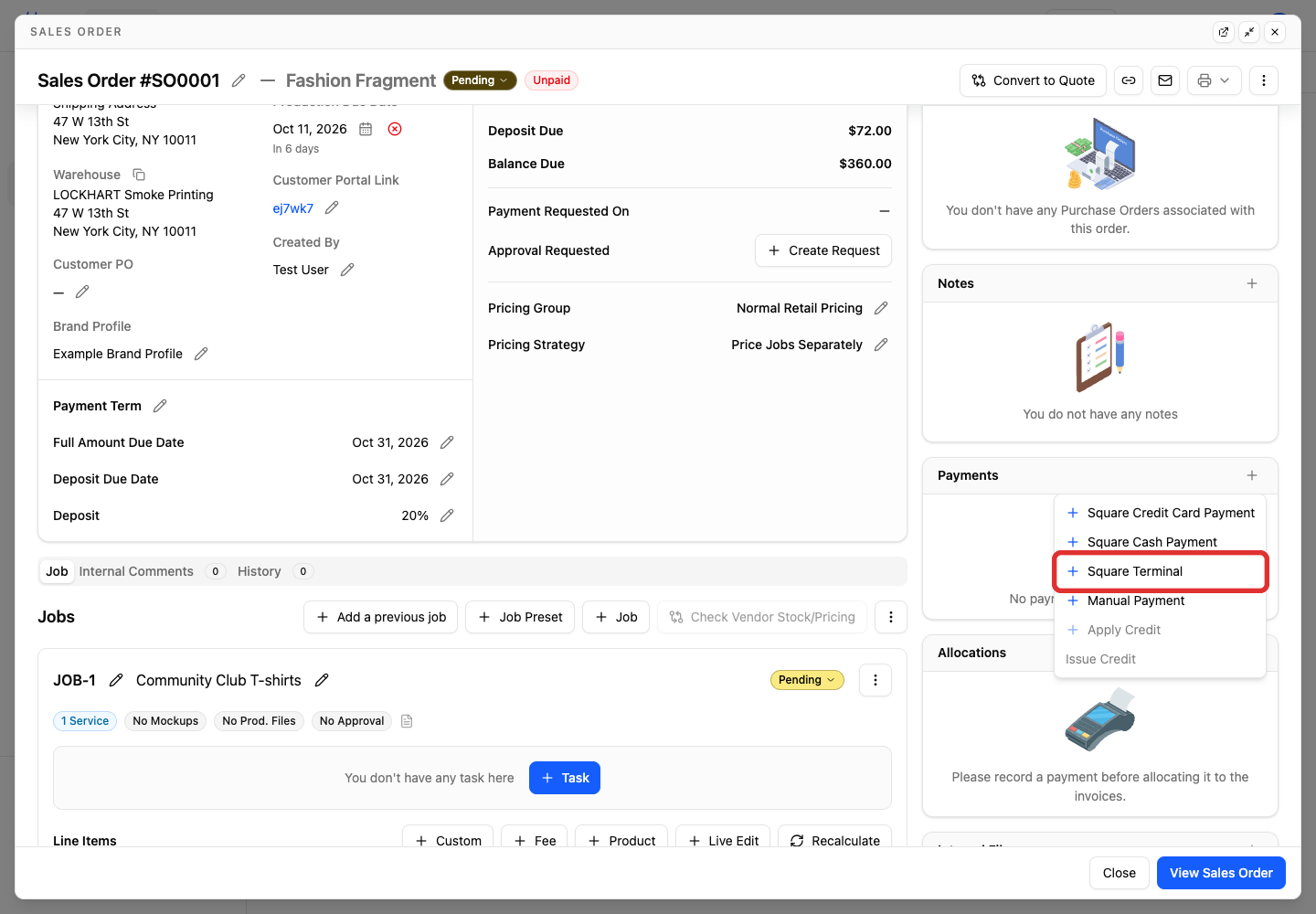
Choose Square Terminal.
-
Enter the amount you want to collect.
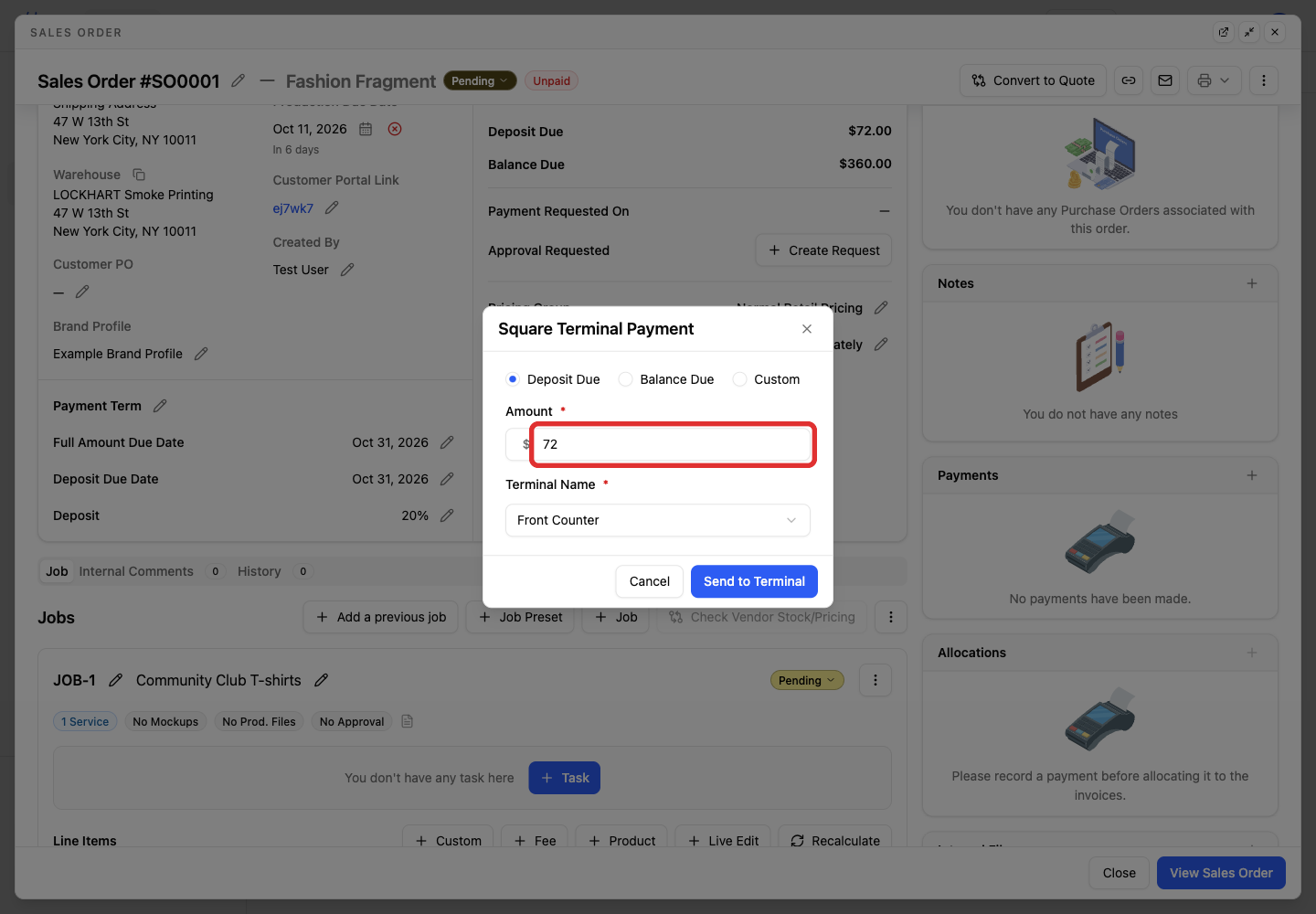
-
Open Terminal Name.
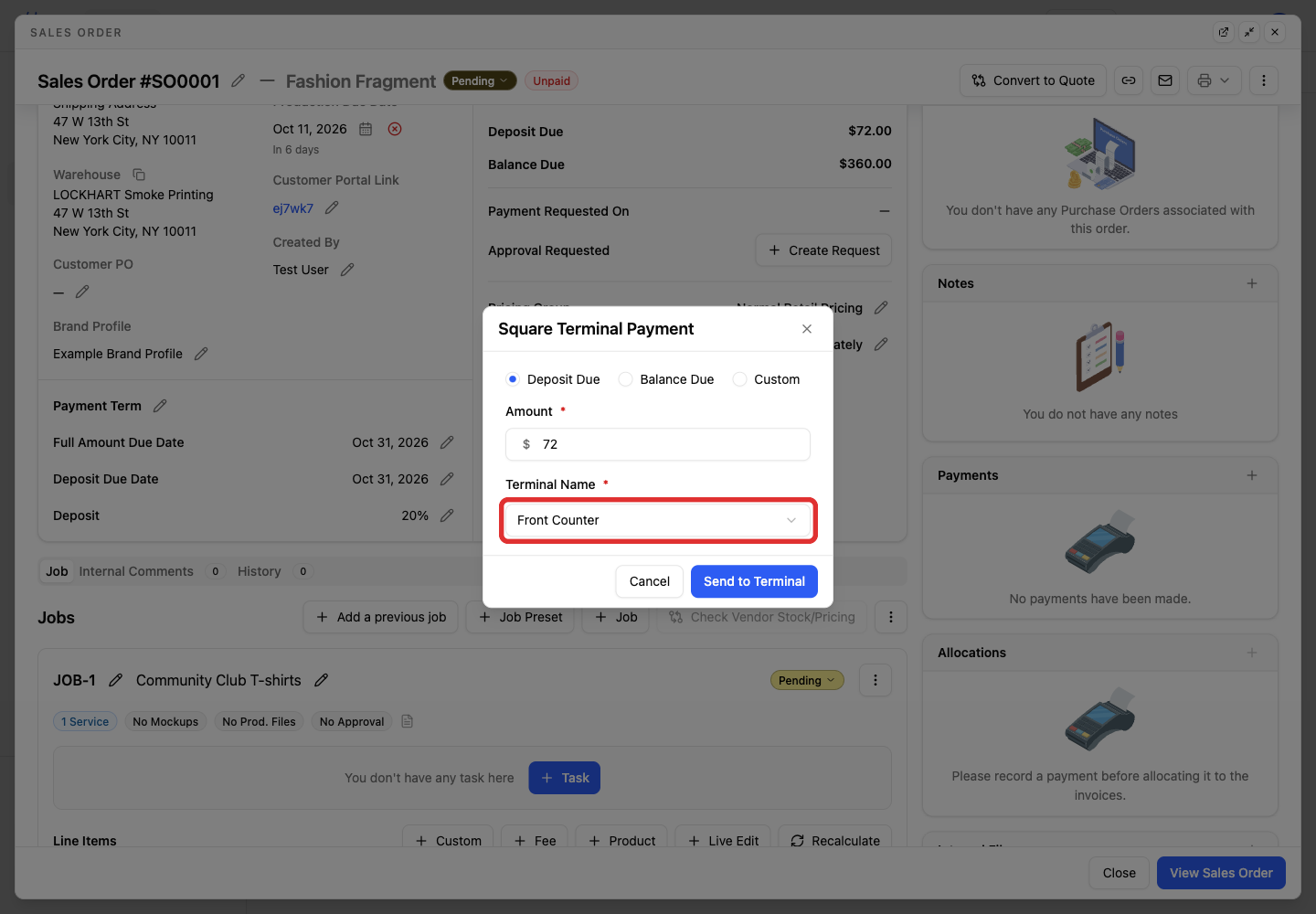
-
Select the terminal the customer will use.
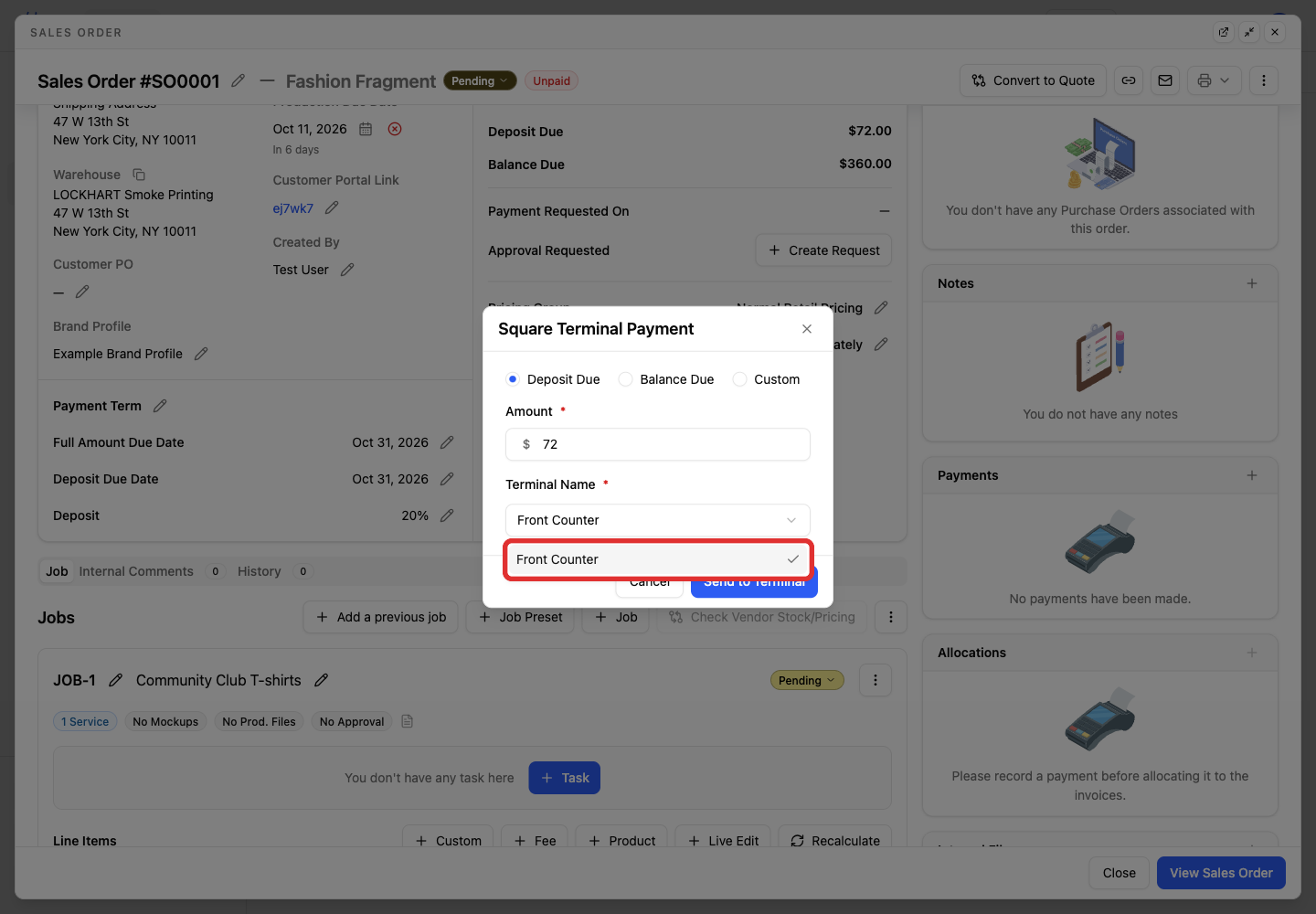
-
Click Send to Terminal.
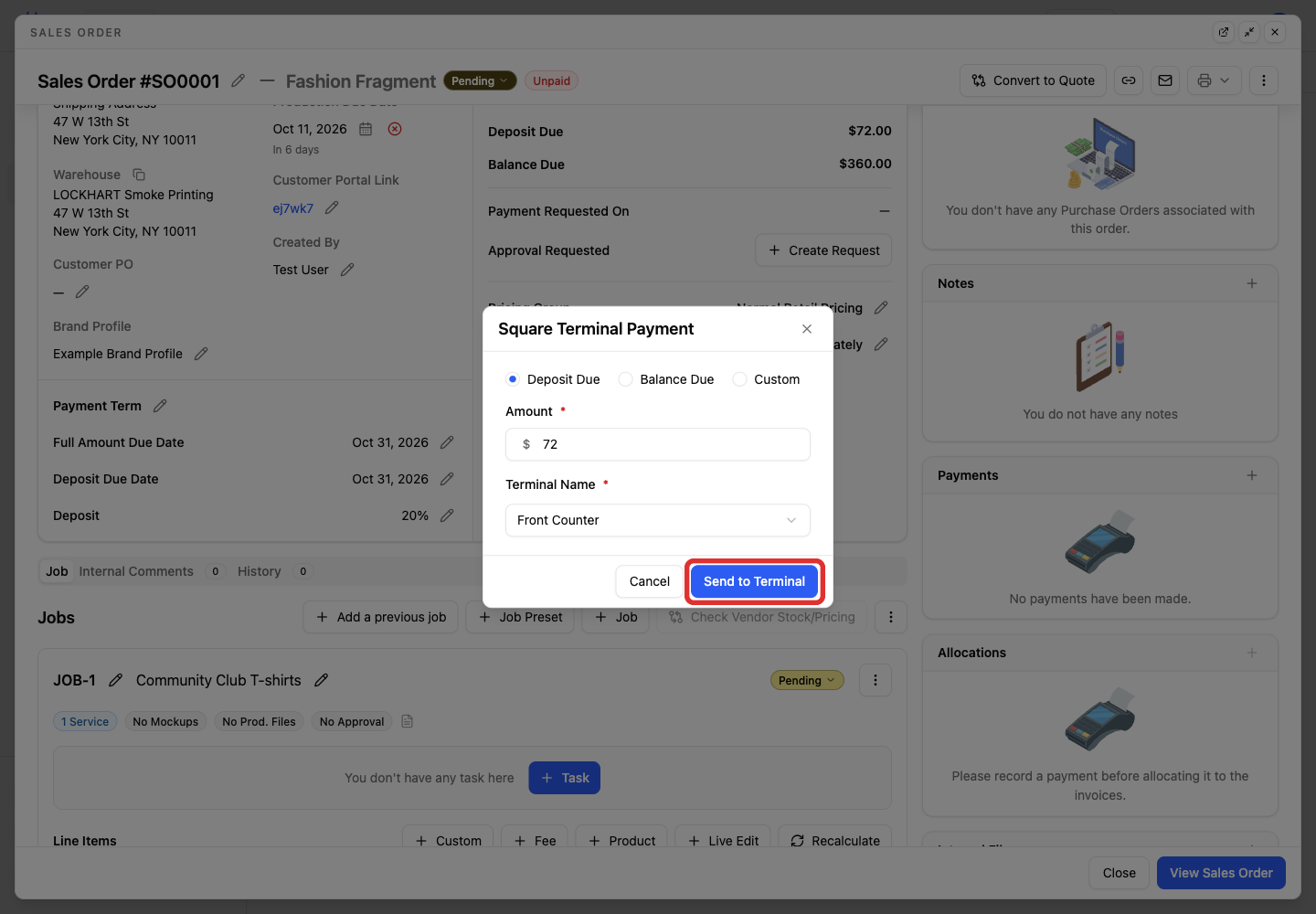
YoPrint prompts you to complete the payment on Square Terminal.
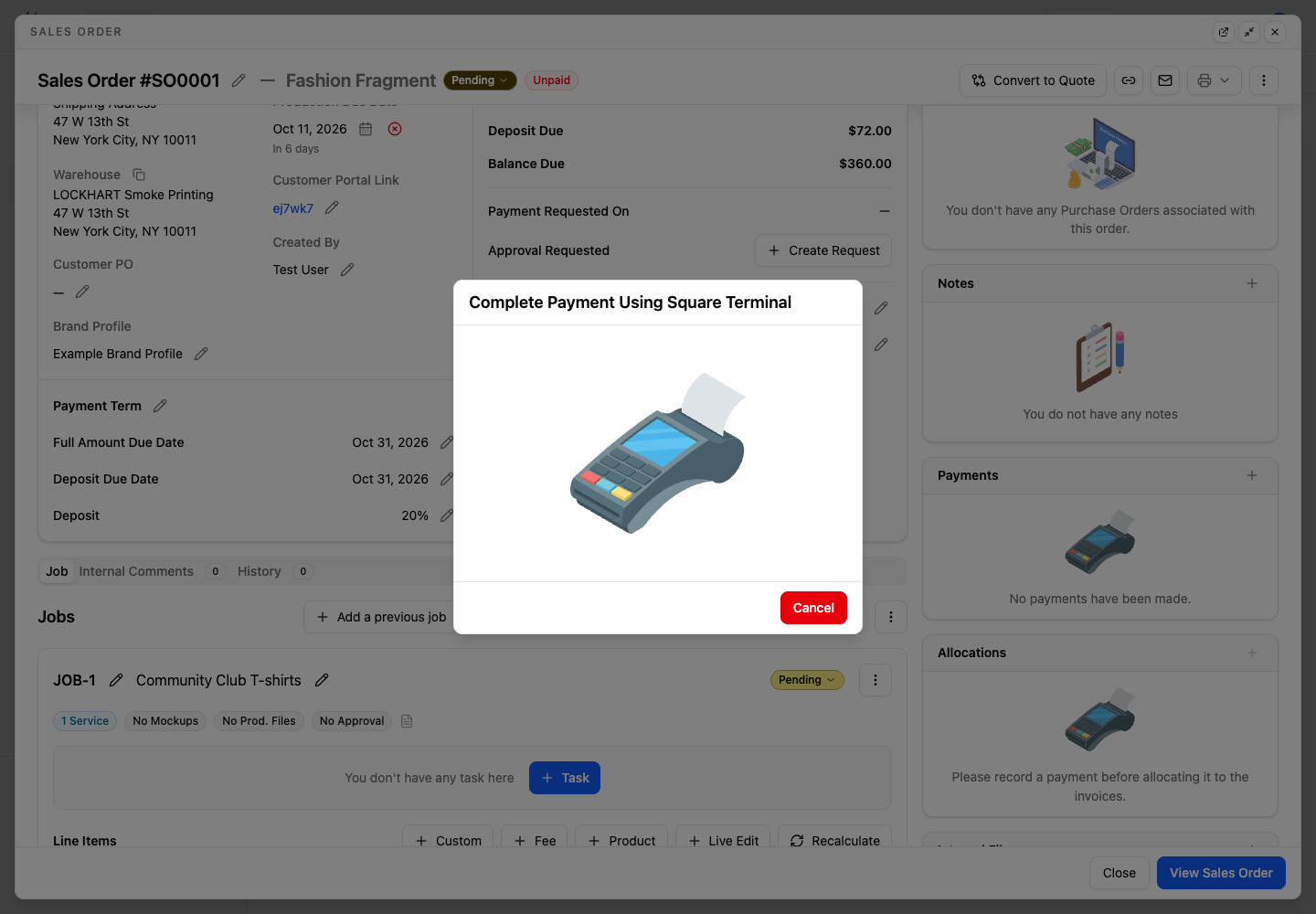
Continue with Have the customer pay on Square Terminal.
Have the customer pay on Square Terminal
These steps happen in Square. Square's screens may have changed since we took these pictures. If something looks different, follow Square's guide: Accept payments with Square Terminal.
When the payment appears on your paired Square Terminal, the customer completes it on the device.
-
Ask the customer to tap, insert, or swipe their card.
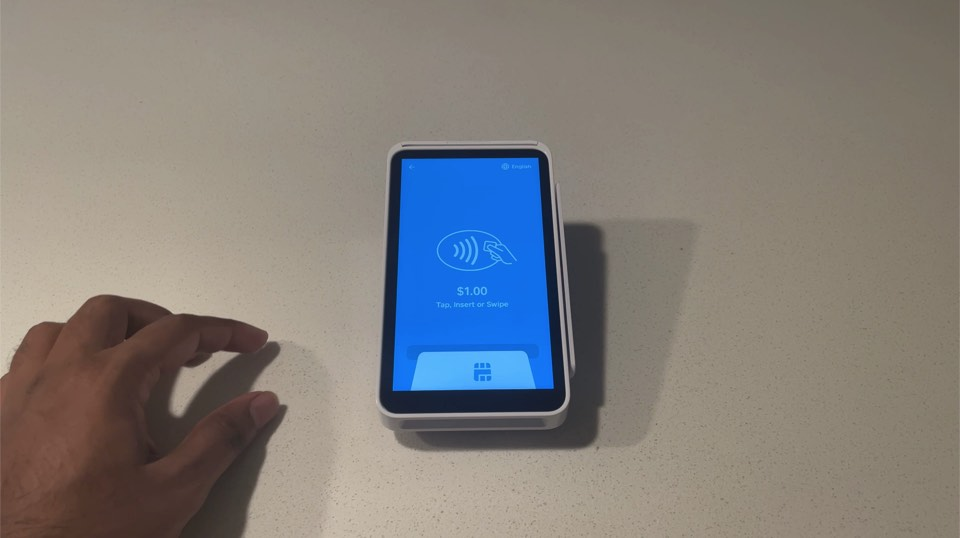
Square Terminal also accepts contactless payments with Apple Pay or Google Pay. Wait for the terminal to confirm that the payment is complete.
When Square confirms the payment, YoPrint shows Transaction Completed. Check that the payment appears on the sales order.
Use other Square readers and accessories
When you use other Square readers and accessories, YoPrint uses the note on the Square sale's line item to find the sales order.
Before you take the payment, add the sales order ID to the line-item note in Square. Type the ID, for example SO0001, or scan the barcode on the sales order PDF into that note. Use one sales order ID per line item.
Take the payment at a location included in Locations to import payments from.
To find where to add notes in Square, follow Square's guide to notes on payments and items.
A Bluetooth Square Reader connects to one phone or computer at a time through the Square app. To move it, forget it on the first device before pairing the other. YoPrint matches the Square sale to the order through the line-item note, not through the device. To set up your reader, follow Square's guide: Set up the Square Reader for contactless and chip.