Configure PayPal Payments
In this article
Connect PayPal so customers can pay an outstanding sales order through the YoPrint customer portal. You need a PayPal Business account and two connection keys: a Client ID and a Secret.
If PayPal already shows Connected, you can keep the existing connection. To replace the keys, go to Update your PayPal connection.
Get your PayPal connection keys
These steps happen in PayPal. PayPal's screens may have changed since we took these pictures. If something looks different, follow PayPal's guide: Create your PayPal connection keys.
A PayPal app is a connection you create in your PayPal account. You do not need to install a phone app or write code. The client ID identifies the connection. The secret lets YoPrint use it.
-
Open the PayPal Developer Dashboard. Sign in with your usual PayPal Business account.
-
On Apps & Credentials, select Live, then click Create App.
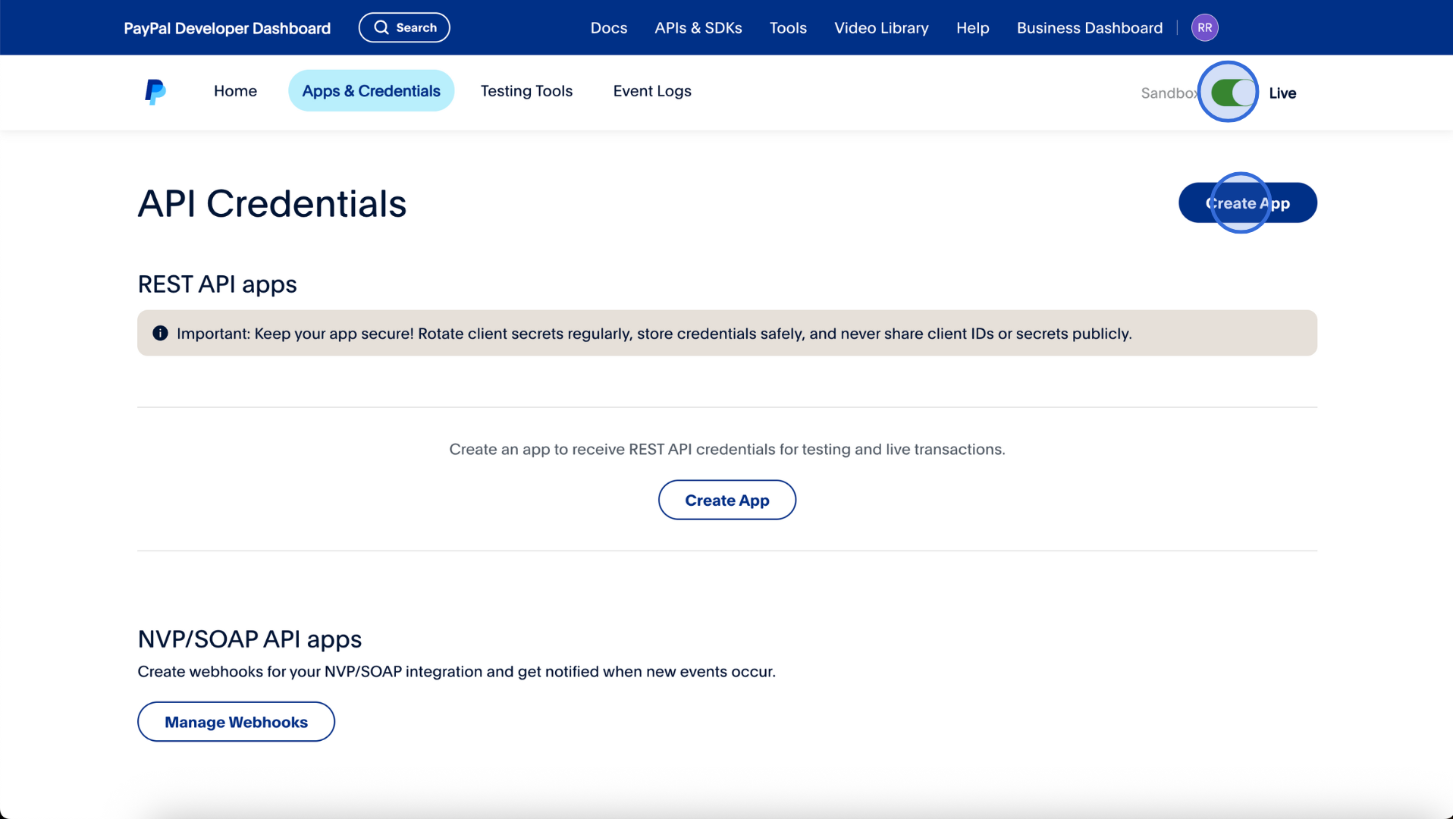
Live or Sandbox?
Choose Live. YoPrint only accepts Live credentials, including on a trial. The Sandbox tab on PayPal's page is for developers testing their own software and does not work with YoPrint.
-
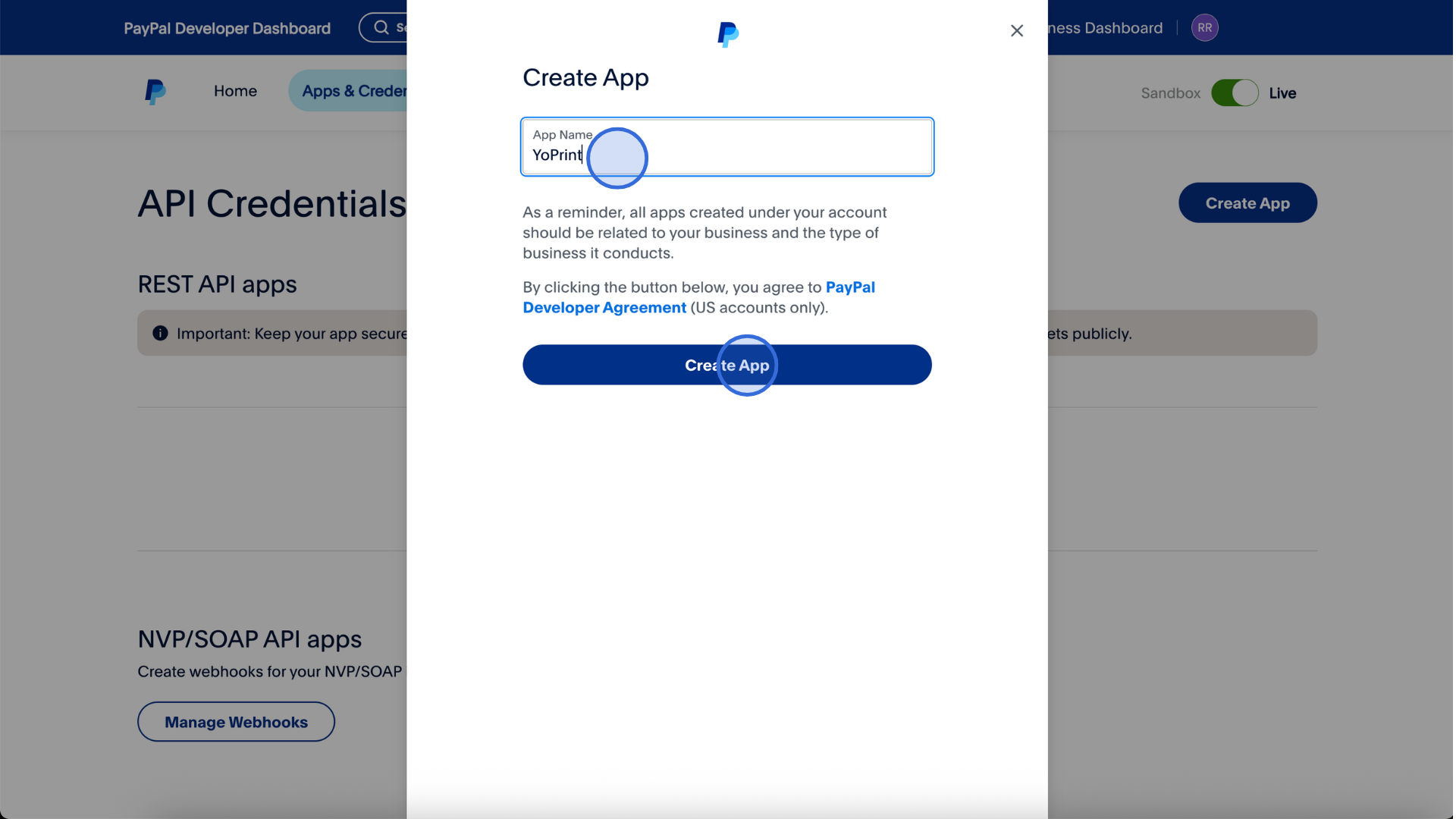
Enter YoPrint in App Name, then click Create App.
-
Copy the Client ID and Secret from the app's details.
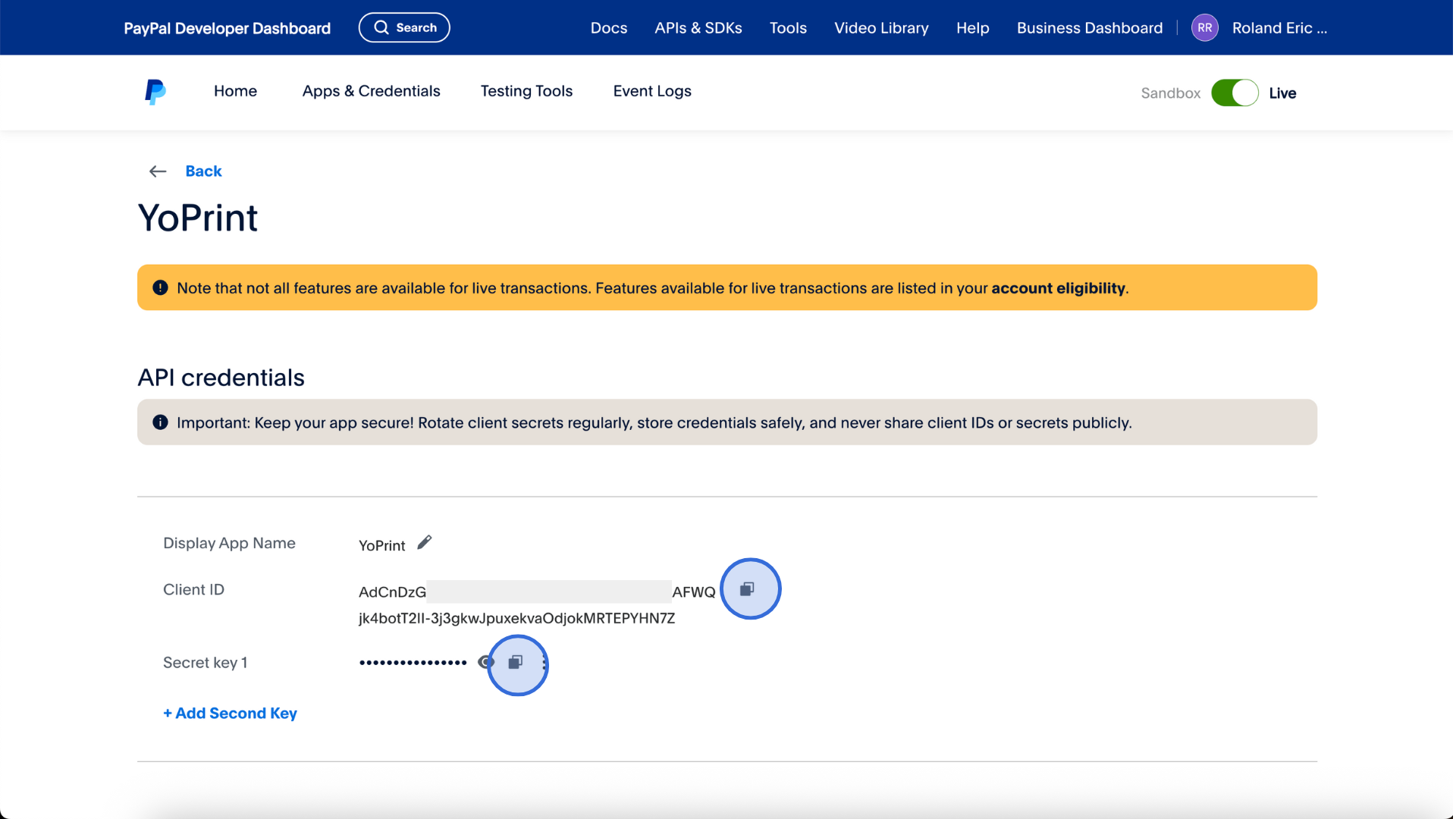
Bring the Client ID and Secret from the same app back to YoPrint. Keep the secret private.
Before connecting, make sure PayPal has verified your business account and allows it to receive payments. See PayPal's account requirements for live payments.
Open PayPal in YoPrint
-
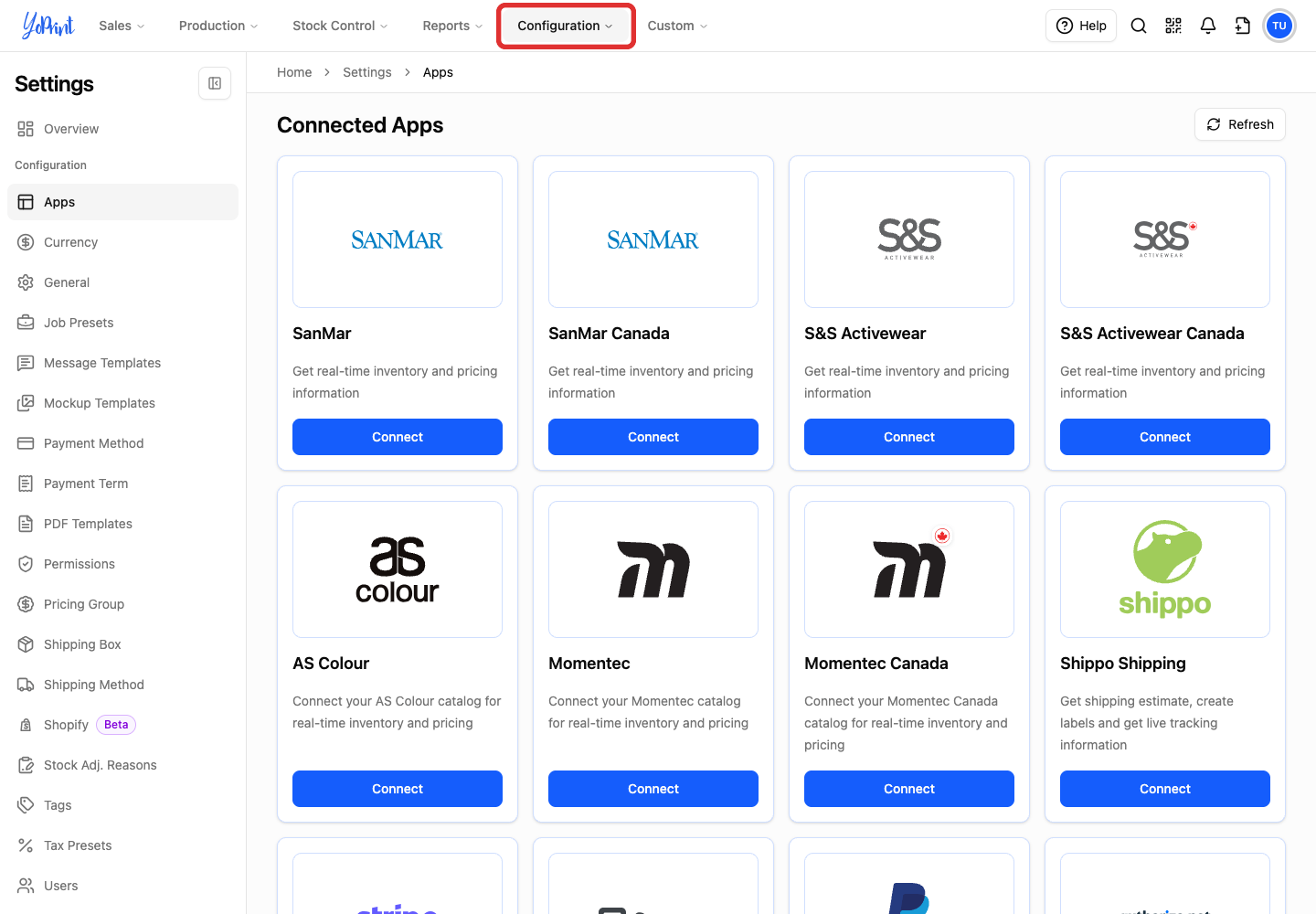
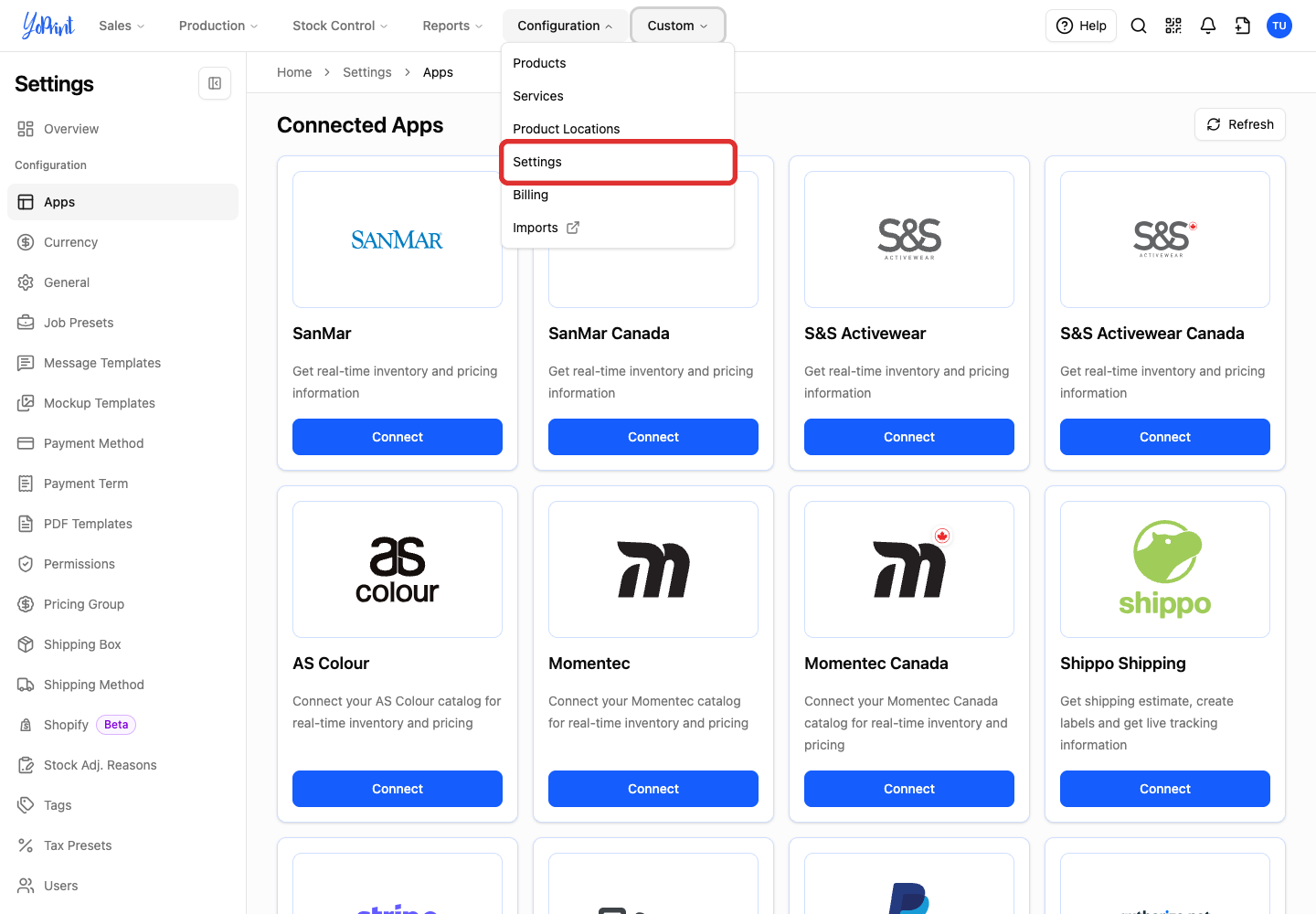
In the top navigation, click Configuration.
-
In the menu, click Settings.
-
In the Settings sidebar, click Apps.
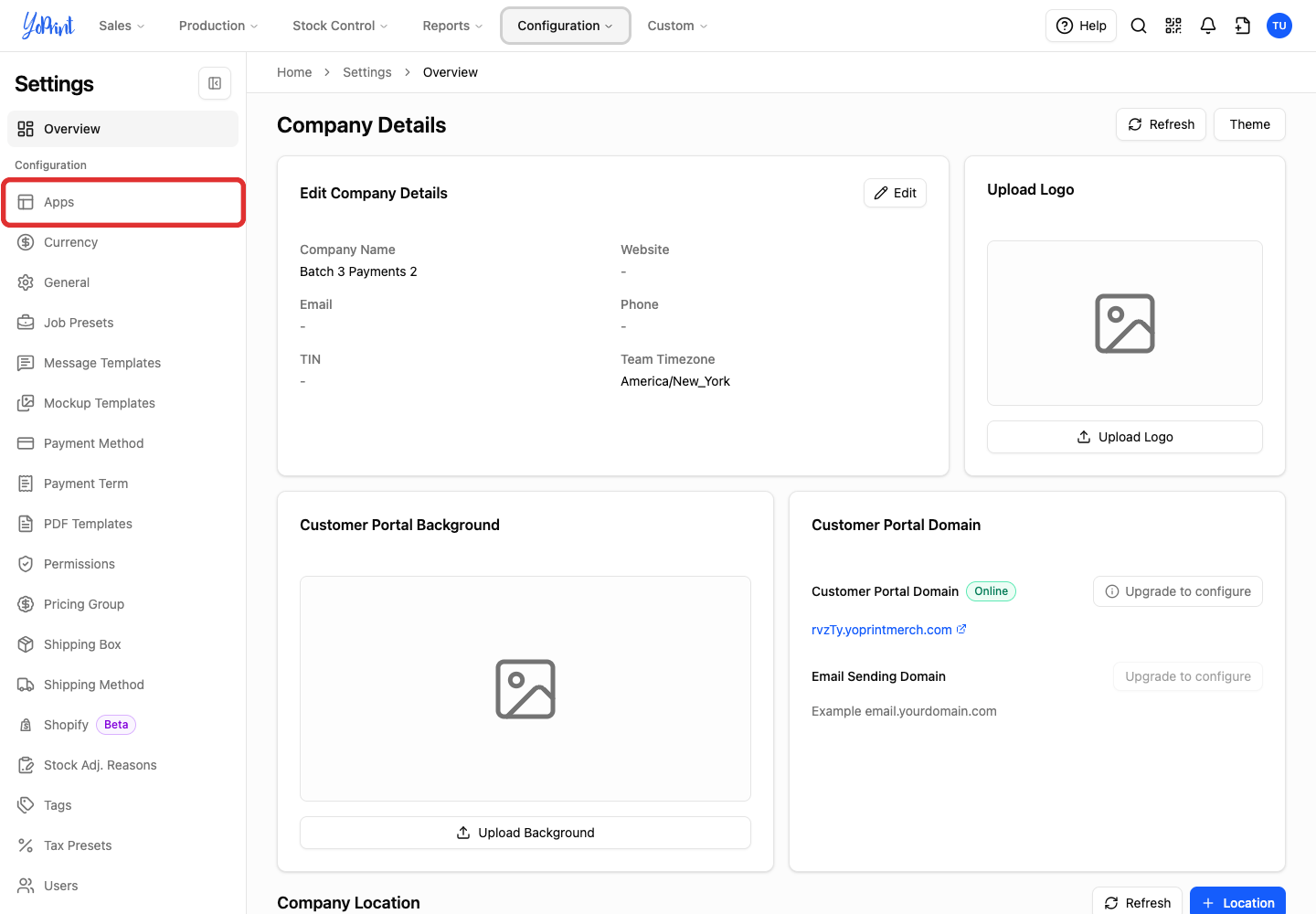
PayPal already connected?
Connected means YoPrint has saved a PayPal connection. To replace its keys, follow Update your PayPal connection. To keep it, continue to Let customers pay online.
-
Scroll to the PayPal card and click Connect.
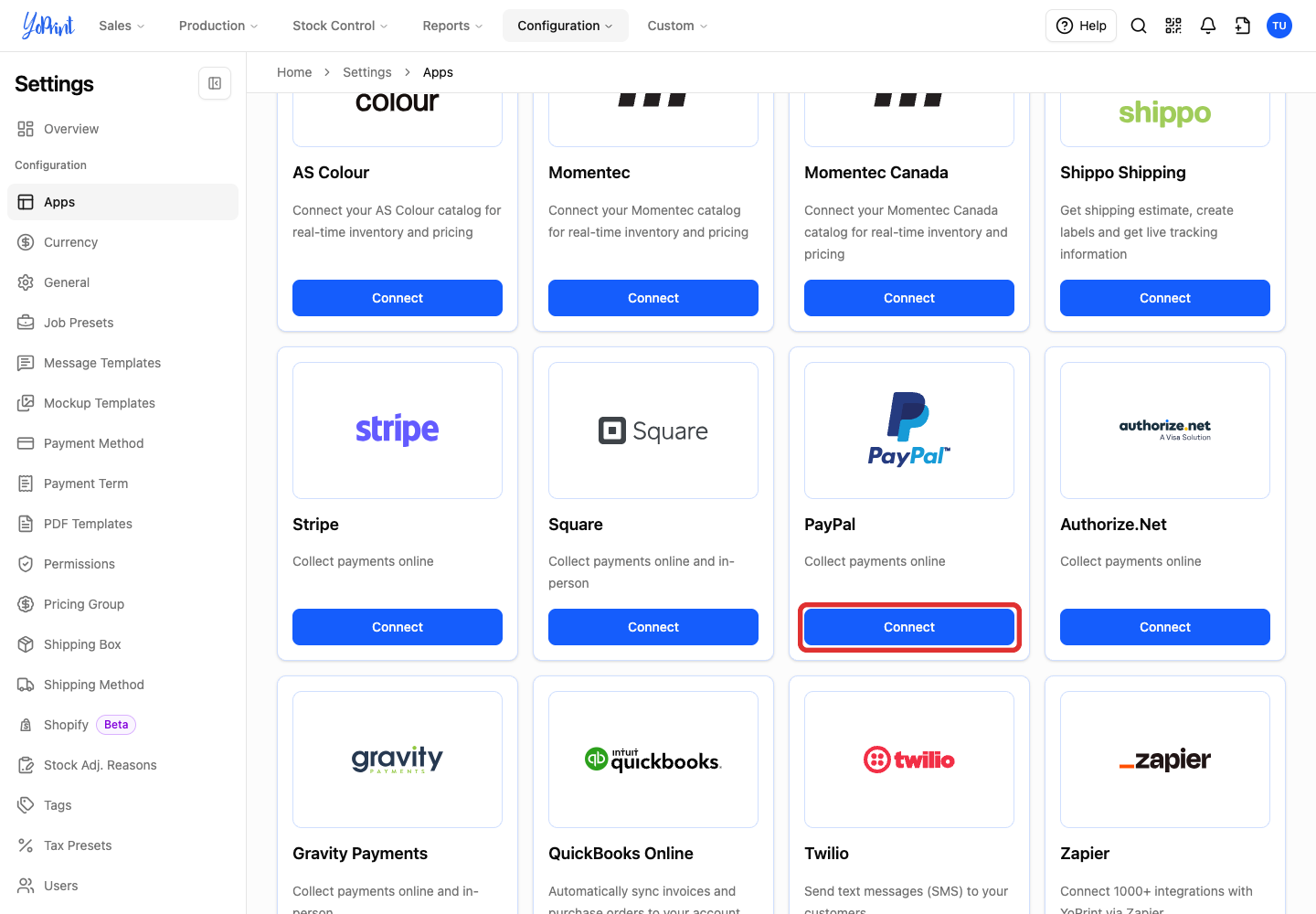
The Connect your PayPal Account dialog opens.
Enter and save your PayPal keys
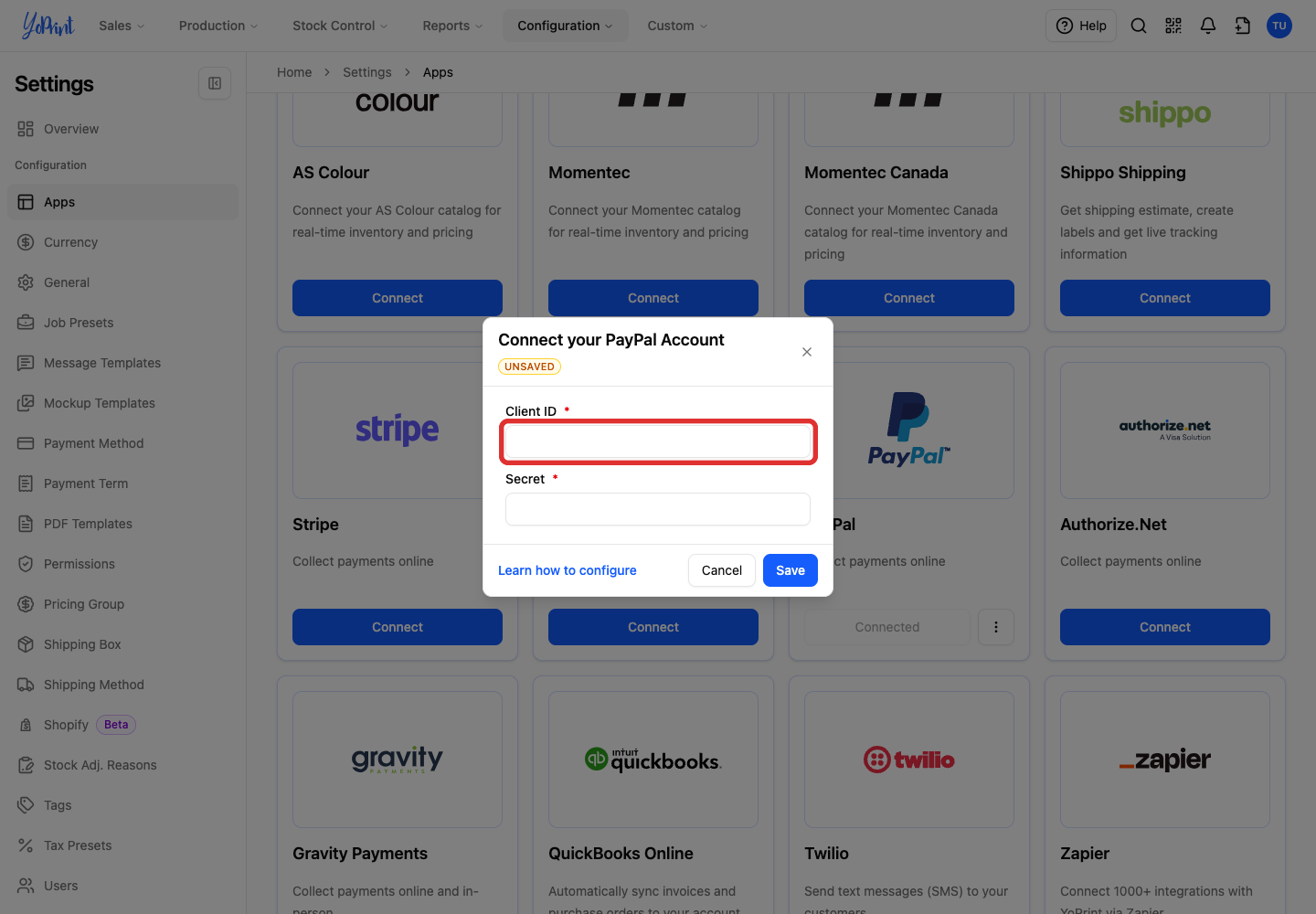
Both fields are required. The red asterisk beside each label means you must fill it in.
-
Paste your PayPal client ID into Client ID.
-
Paste the matching client secret into Secret.
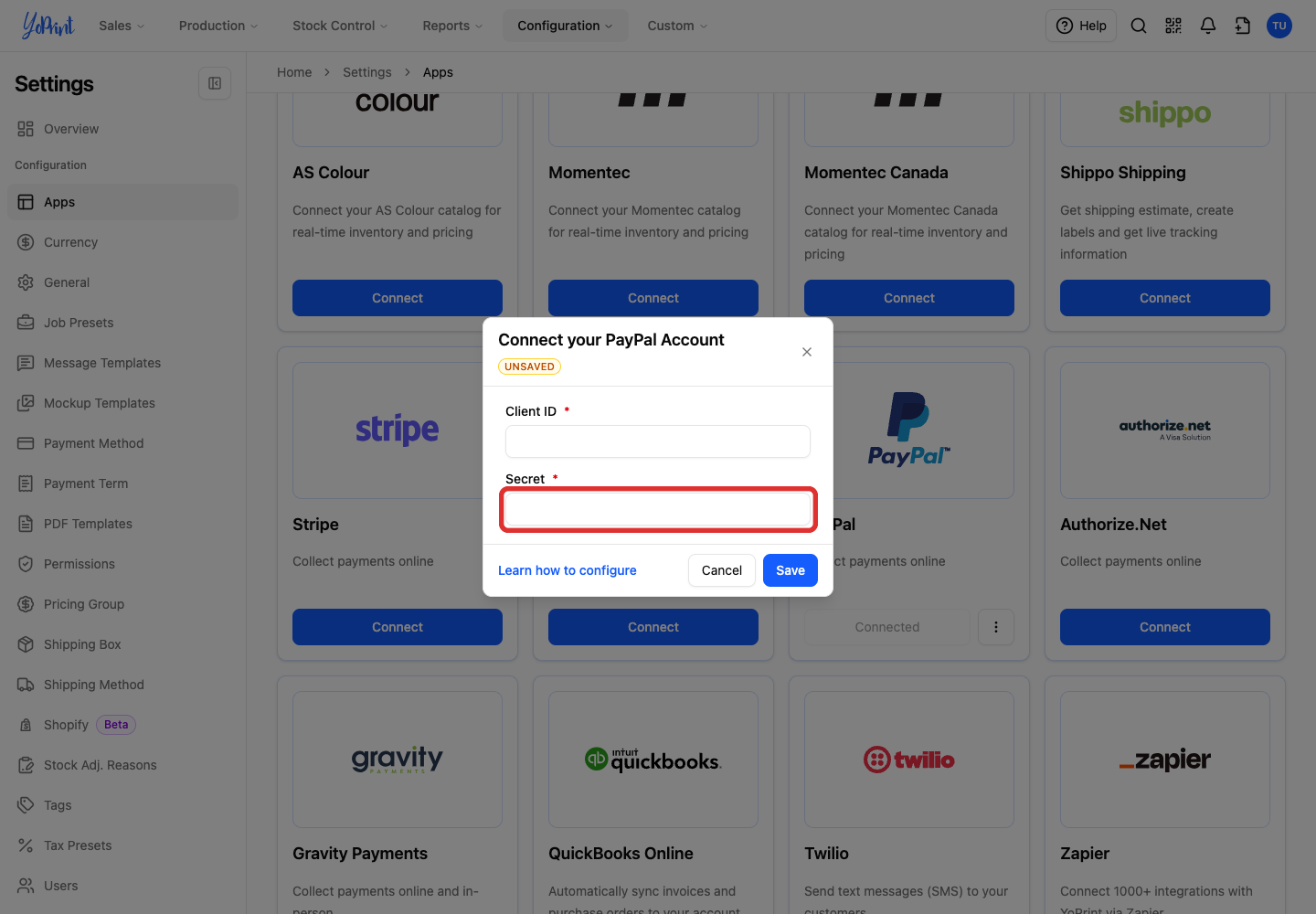
YoPrint hides the secret as dots and has no reveal button. Copy the complete value from PayPal without extra spaces. If you are unsure what you pasted, replace the whole field.
-
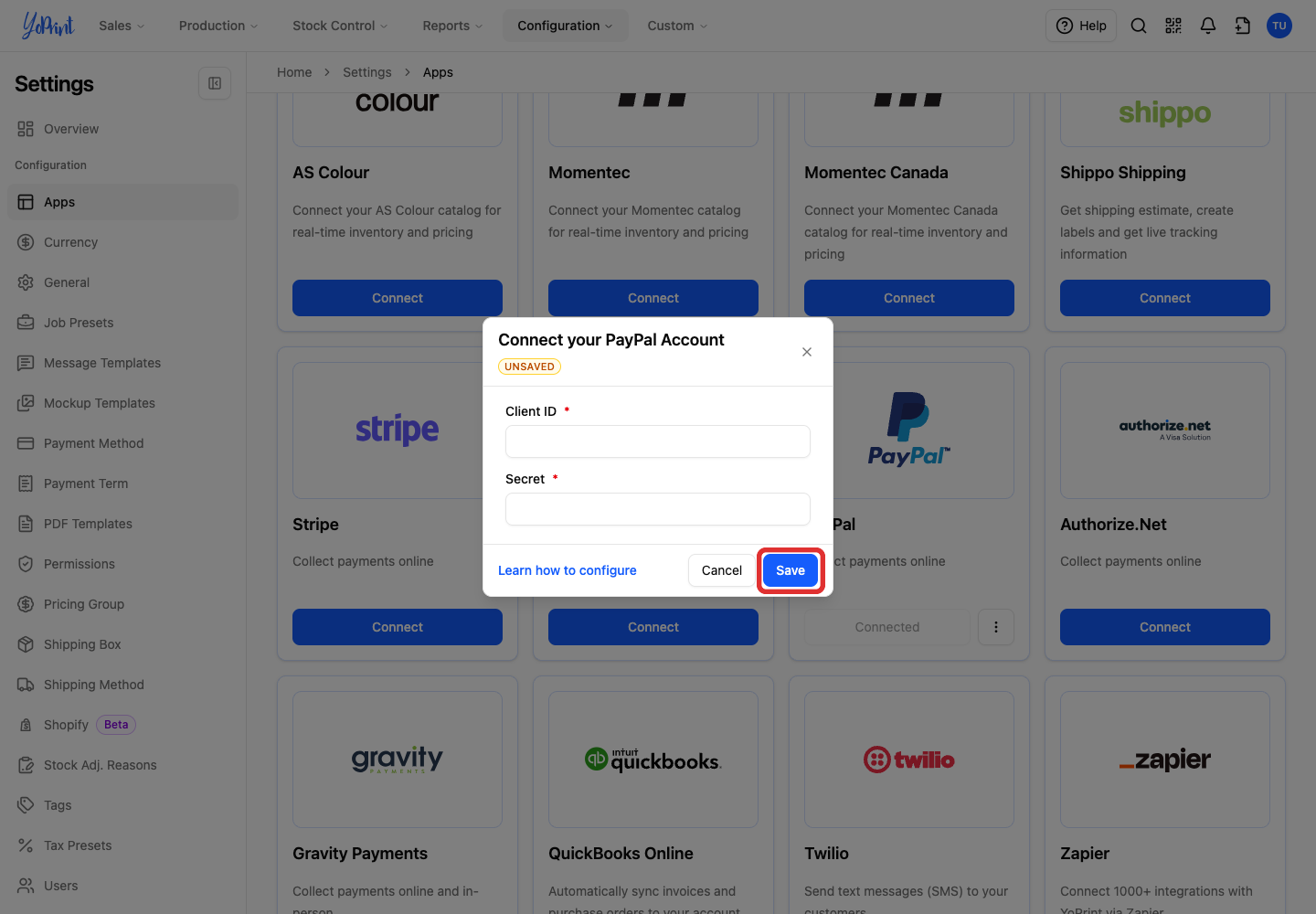
Click Save.
Confirm the connection
After the dialog closes, the PayPal card shows Connected.

Update your PayPal connection
Start on Configuration > Settings > Apps. Get the replacement keys from your PayPal app first.
-
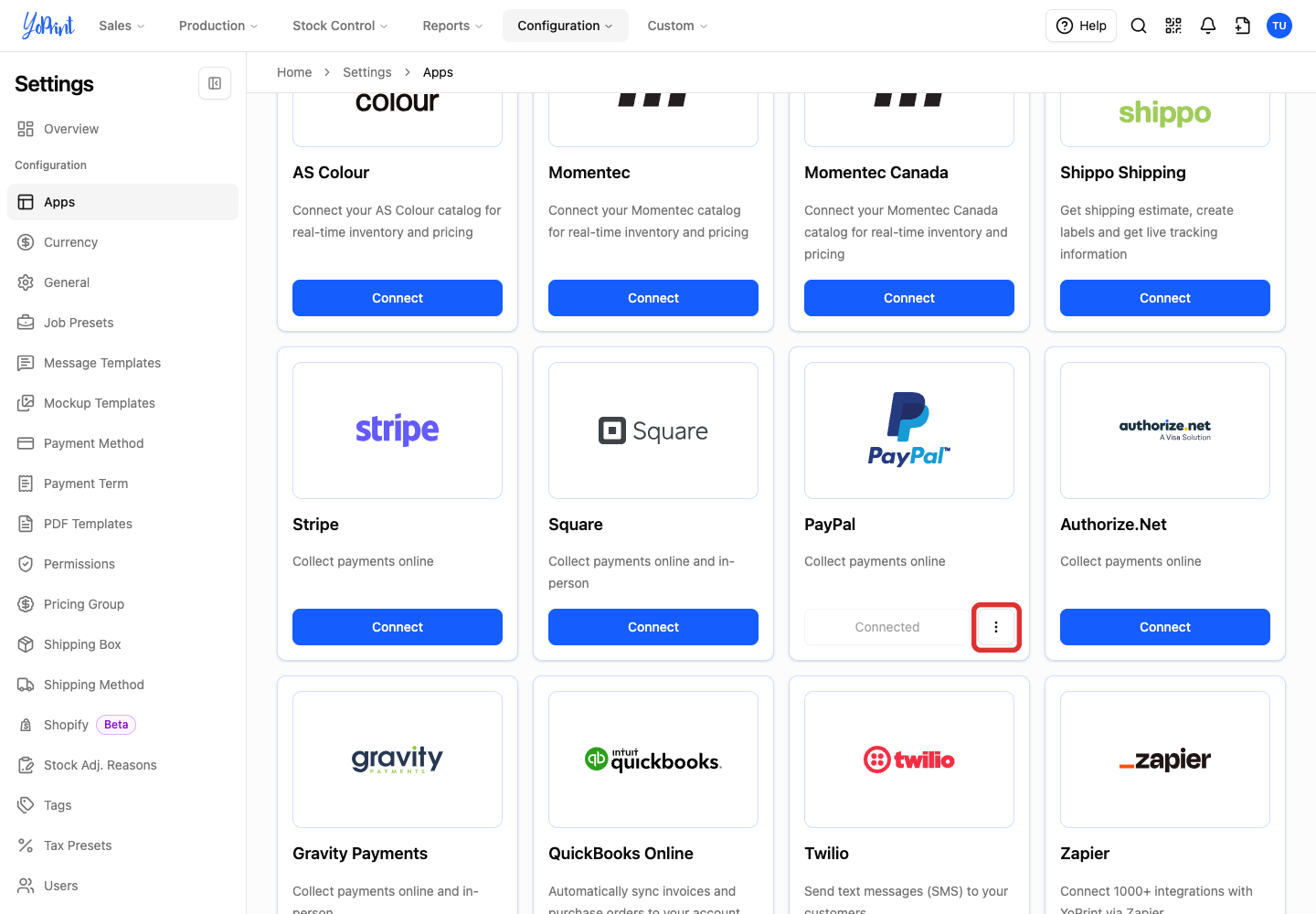
On the PayPal card, click the three-dot Open integration actions button beside Connected.
-
Click Edit.
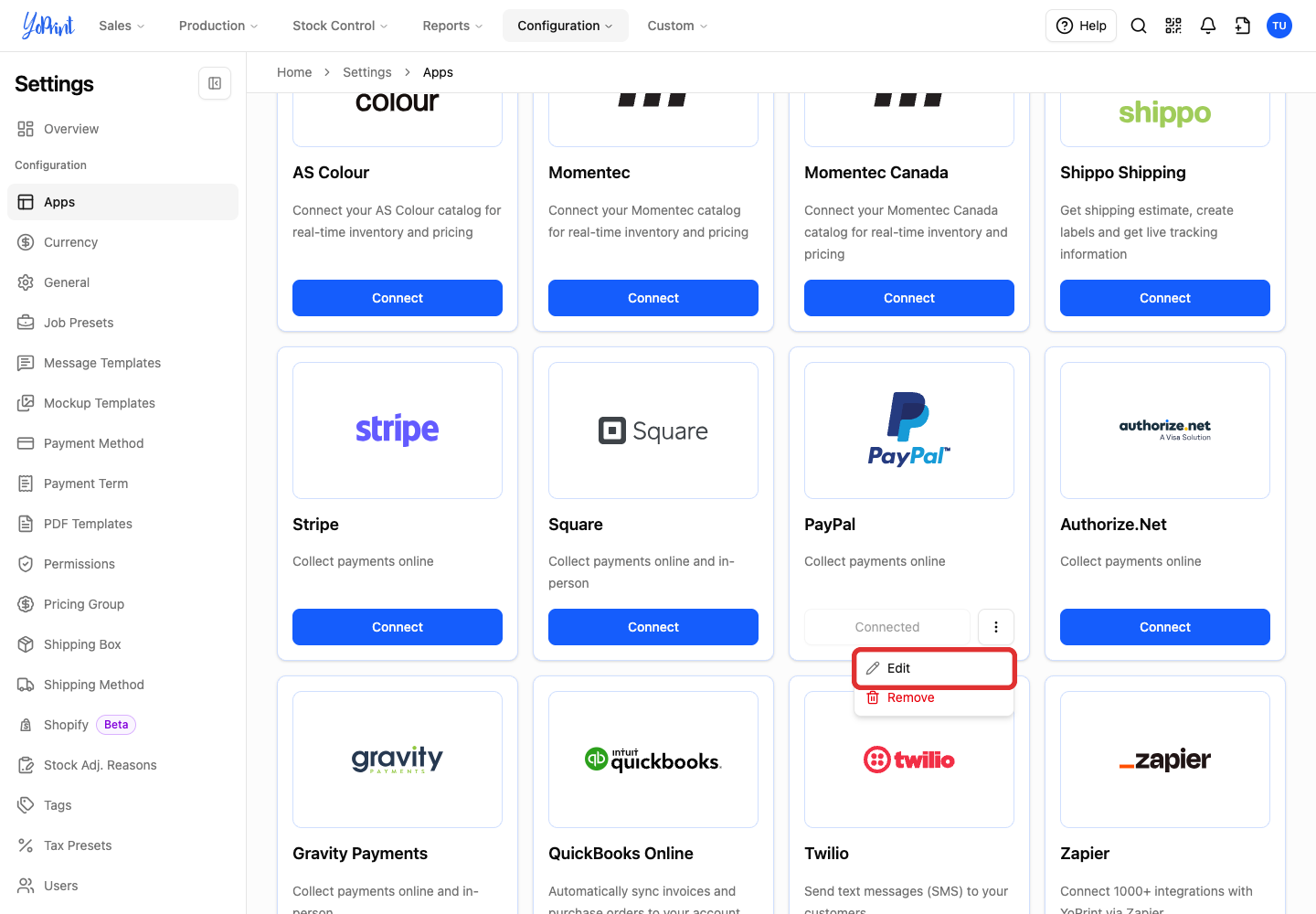
The Connect your PayPal Account dialog opens with the saved keys. Follow Enter and save your PayPal keys to replace them.
Remove your PayPal connection
-
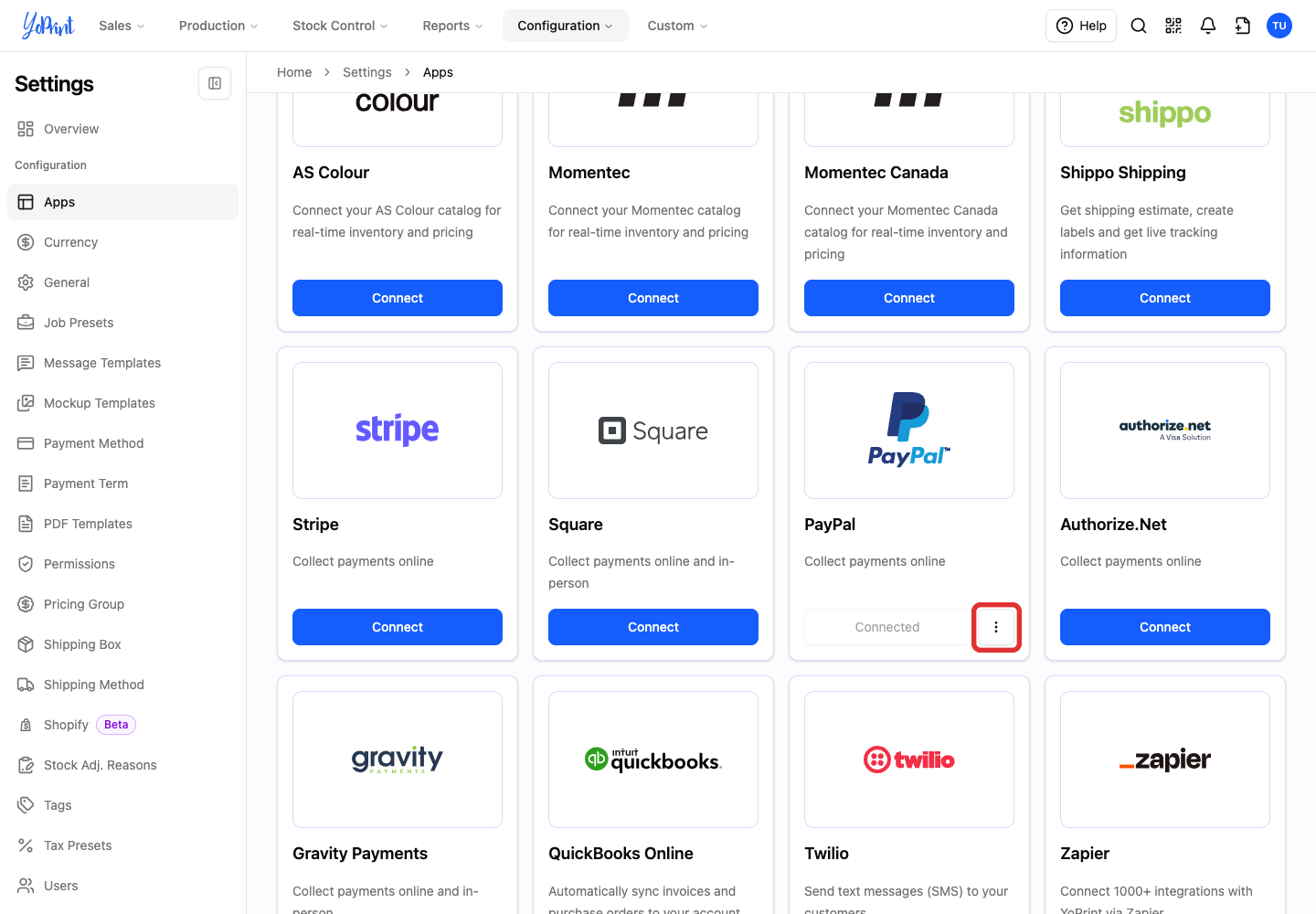
On the PayPal card, click the three-dot Open integration actions button.
-
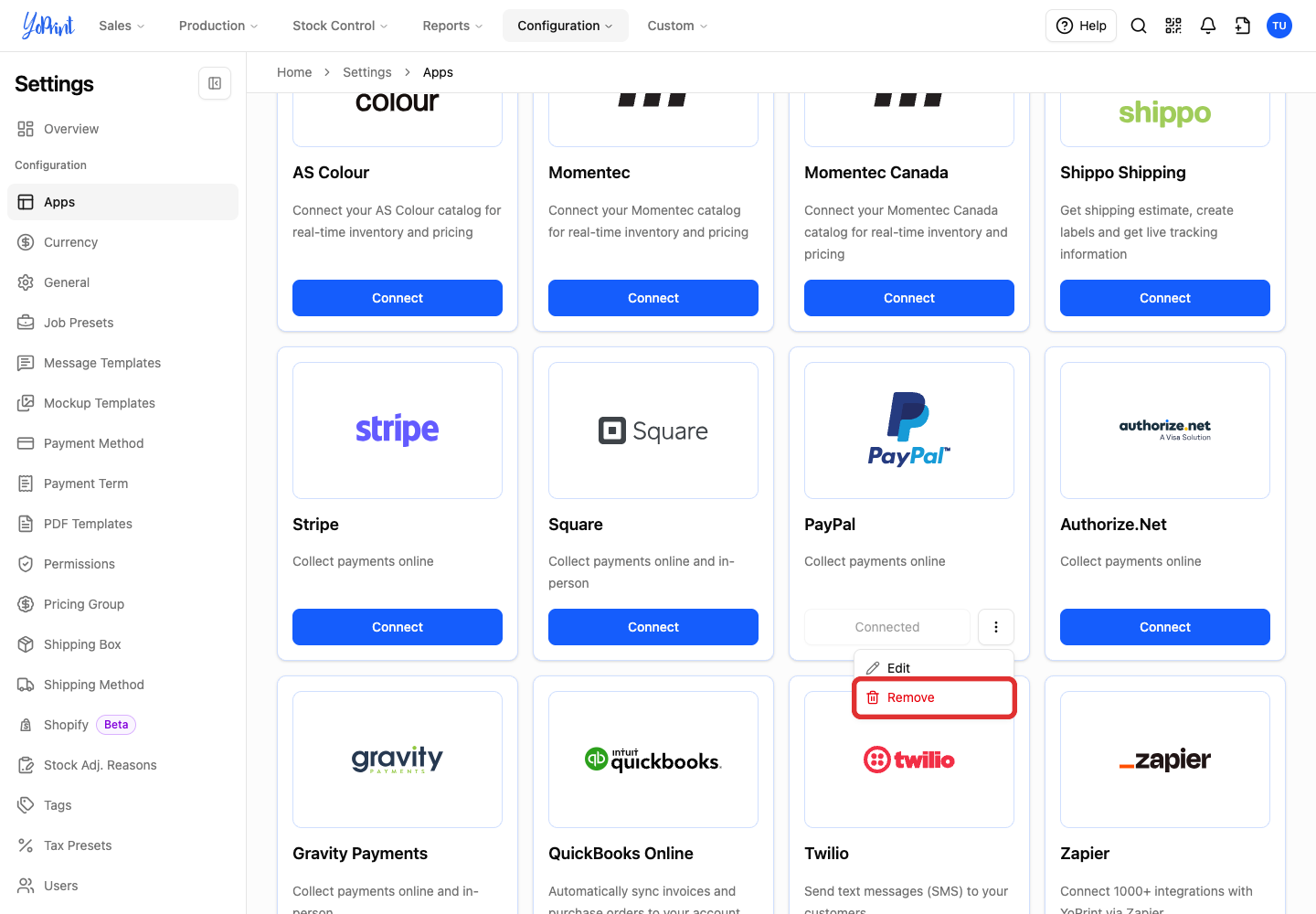
Click Remove.
-
In Remove integration?, click Remove.
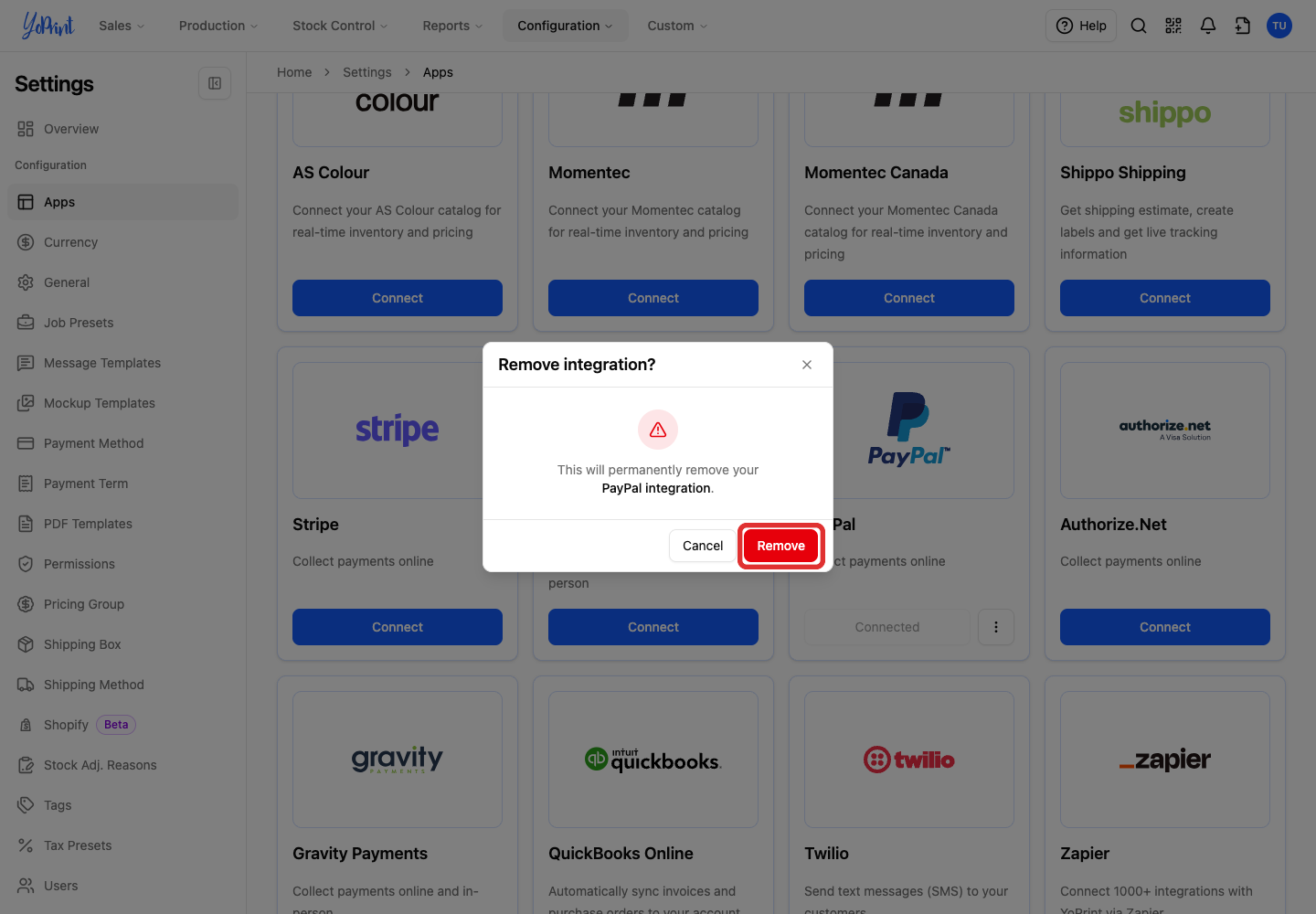
The card returns to Connect.
Let customers pay online
Customers use PayPal through the customer portal. See Collect and Record Payments for payment requests and the customer checkout steps.
What your customer sees
Customers pay from the order in the customer portal.

They choose the amount. The PayPal button opens PayPal's own checkout.

When the payment completes, it is recorded on the sales order.