Create a Bulk Purchase Order from Multiple Sales Orders
In this article
A bulk purchase order combines products from several sales orders into one purchase order for a vendor. For example, 12 matching T-shirts for one order and 8 for another become one 20-unit line, with links back to both sales orders.
Create the bulk purchase order
Go to Sales > Sales Order, or open the Sales Orders list.
-
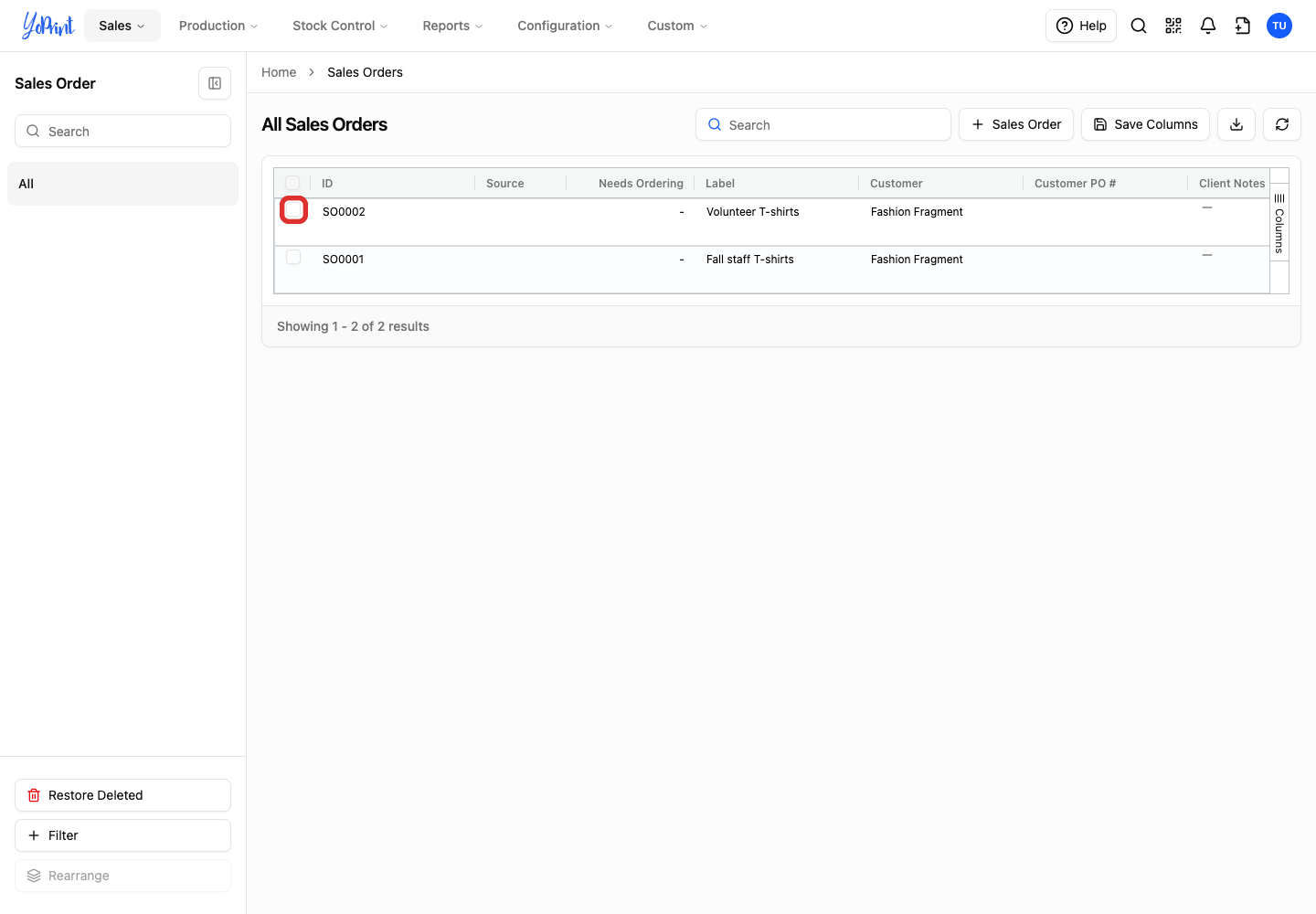
Select the checkbox beside each sales order you want to include. You can select orders with different vendors; you will choose the vendor for this purchase order in the next step.
-
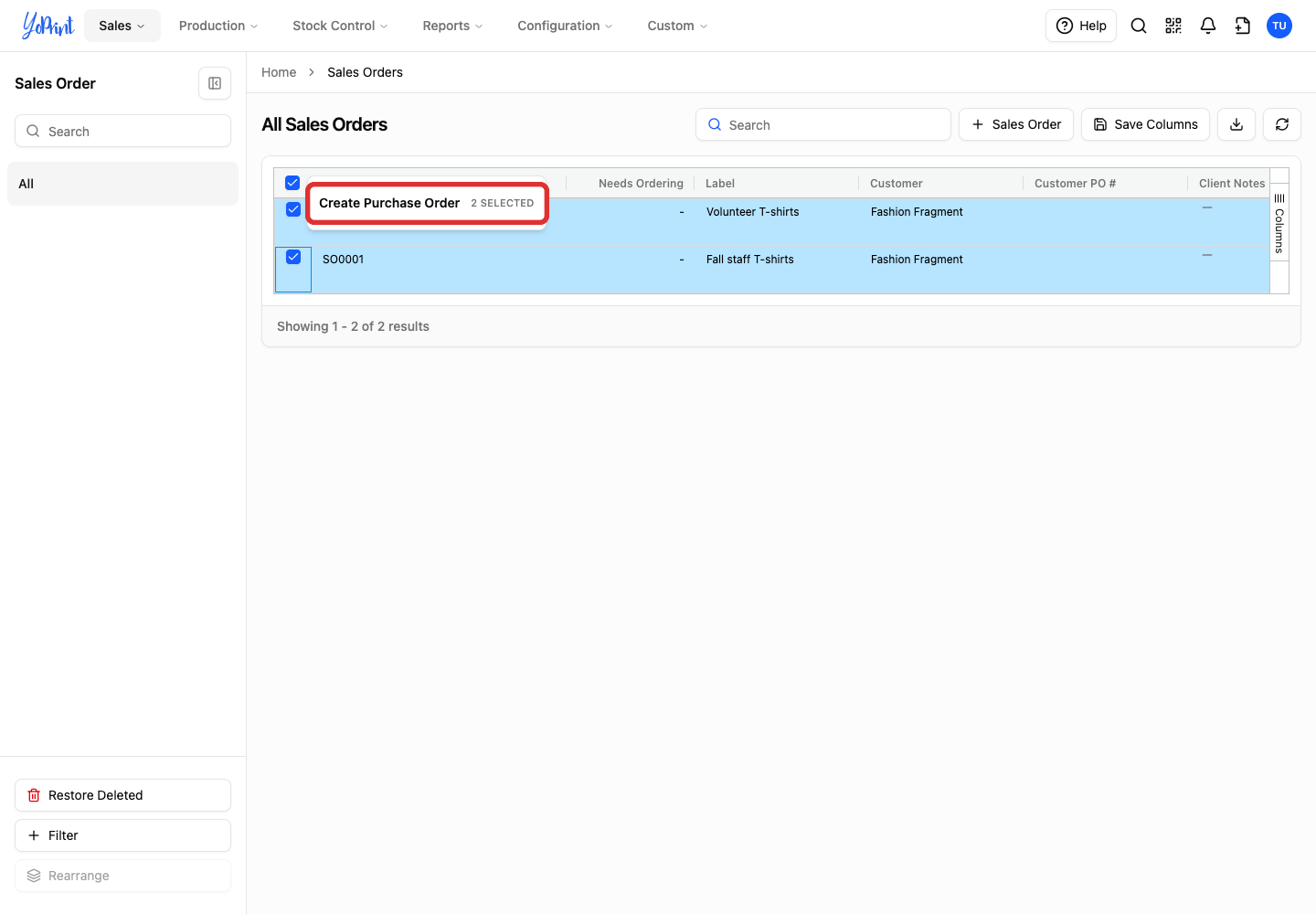
Click the floating Create Purchase Order button above the list.
-
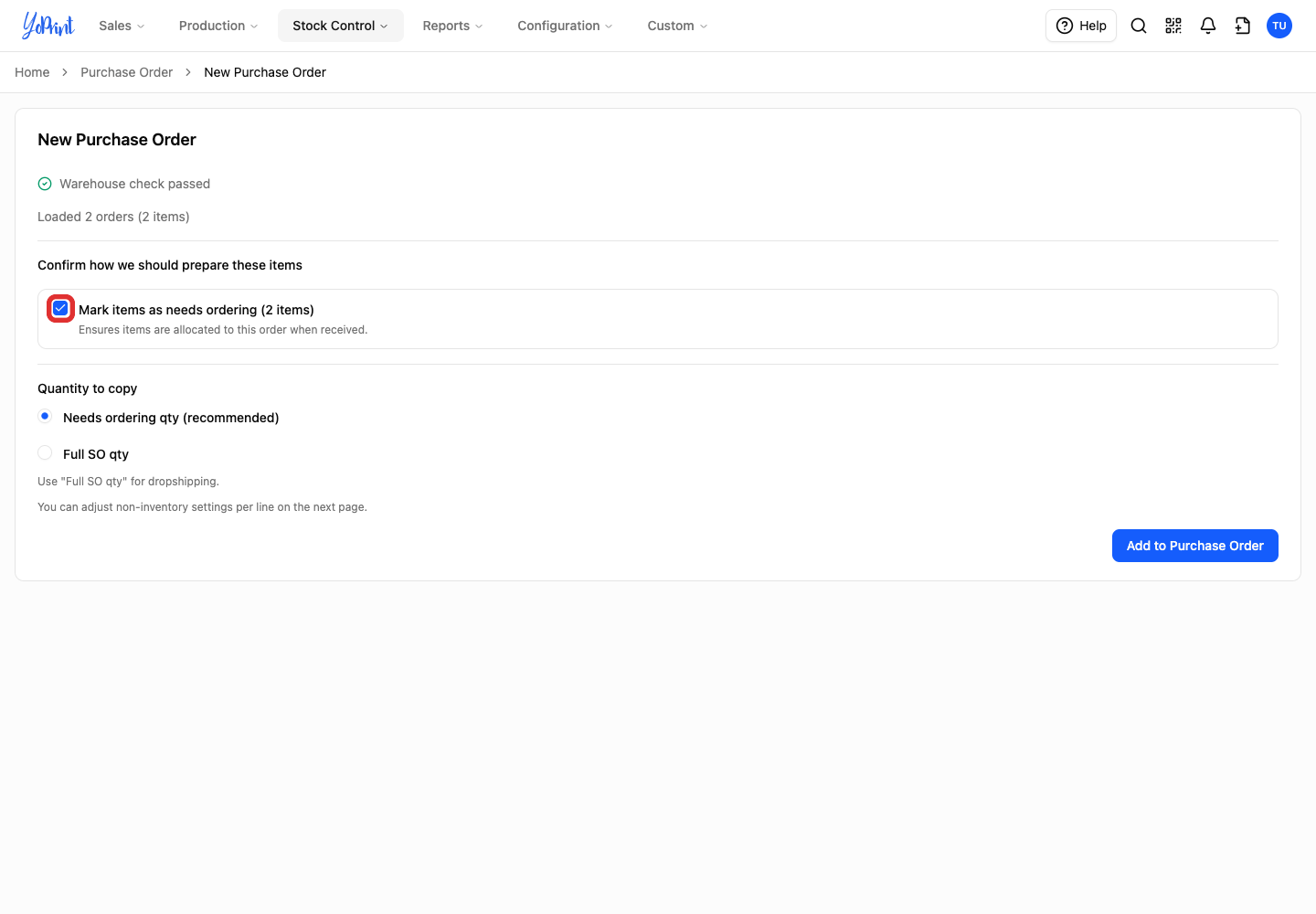
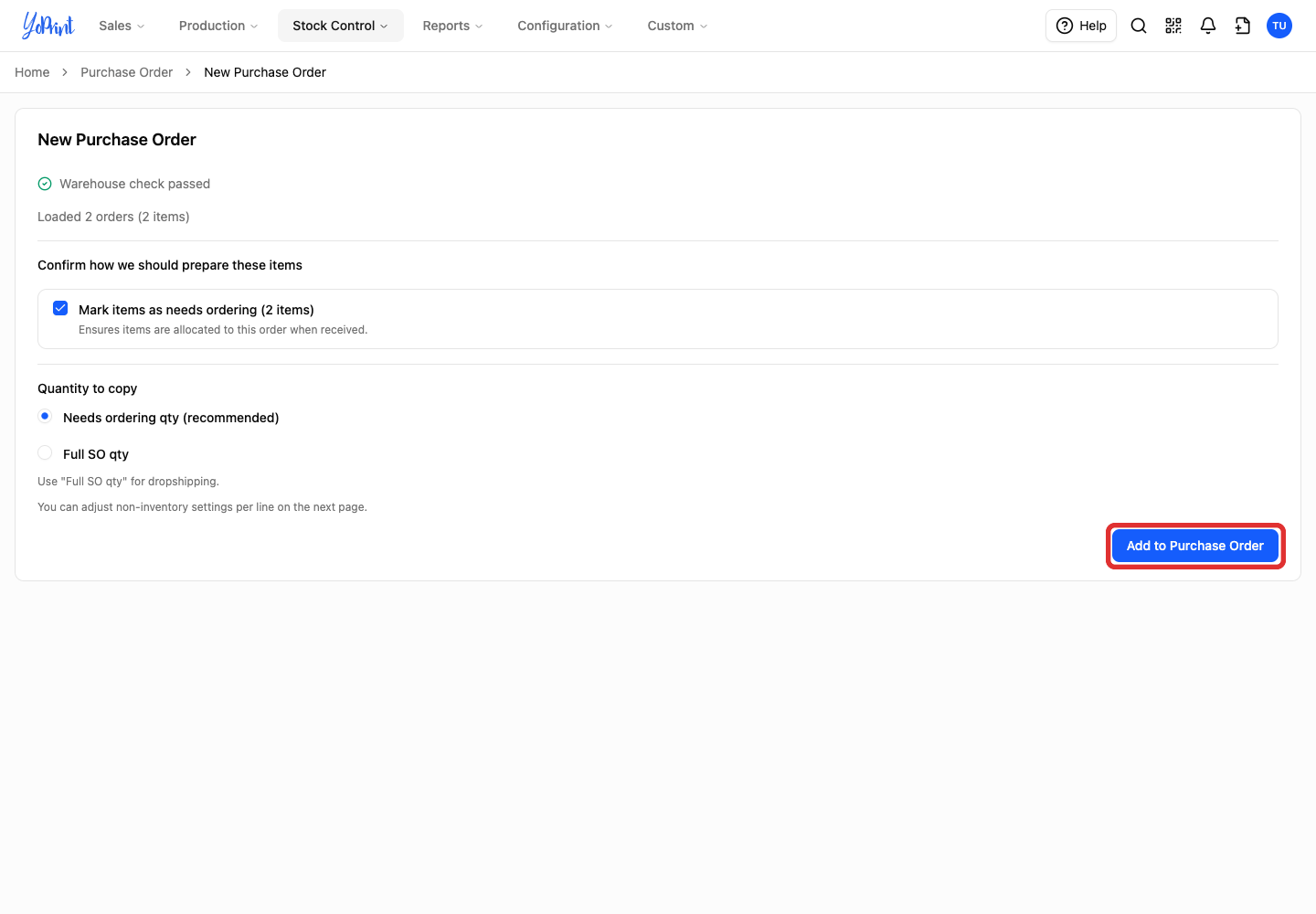
Leave Mark items as needs ordering checked to link the purchase order to these sales orders so received products reserve for them rather than general stock. The count indicates distinct catalog line items.
-
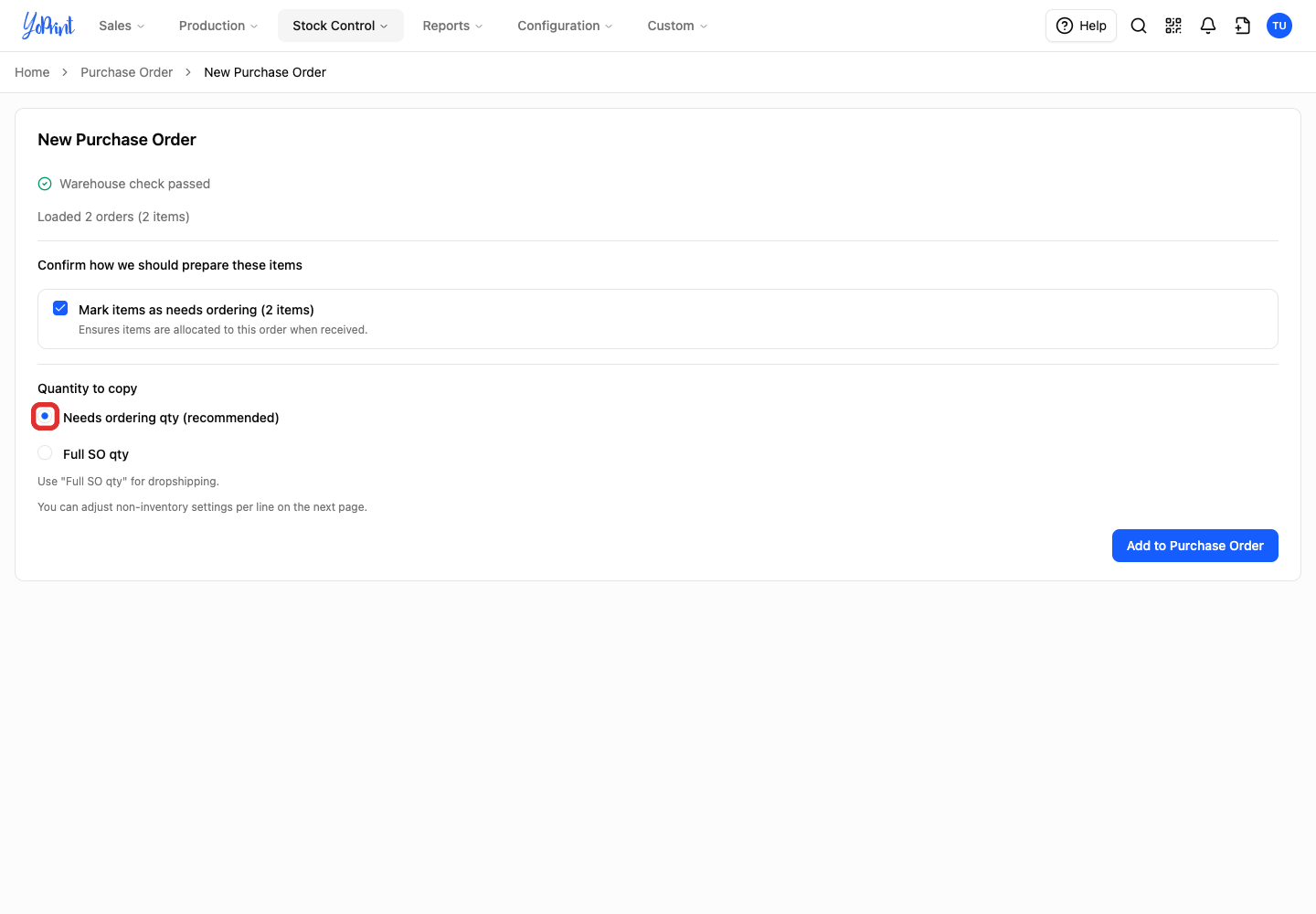
Choose Needs ordering qty (recommended) to use the quantities that need ordering. This deducts stock and existing purchase orders to prevent duplicate ordering. Choose Full SO qty if you need the full sales-order quantities, such as for dropshipping.
-
Click Add to Purchase Order.
-
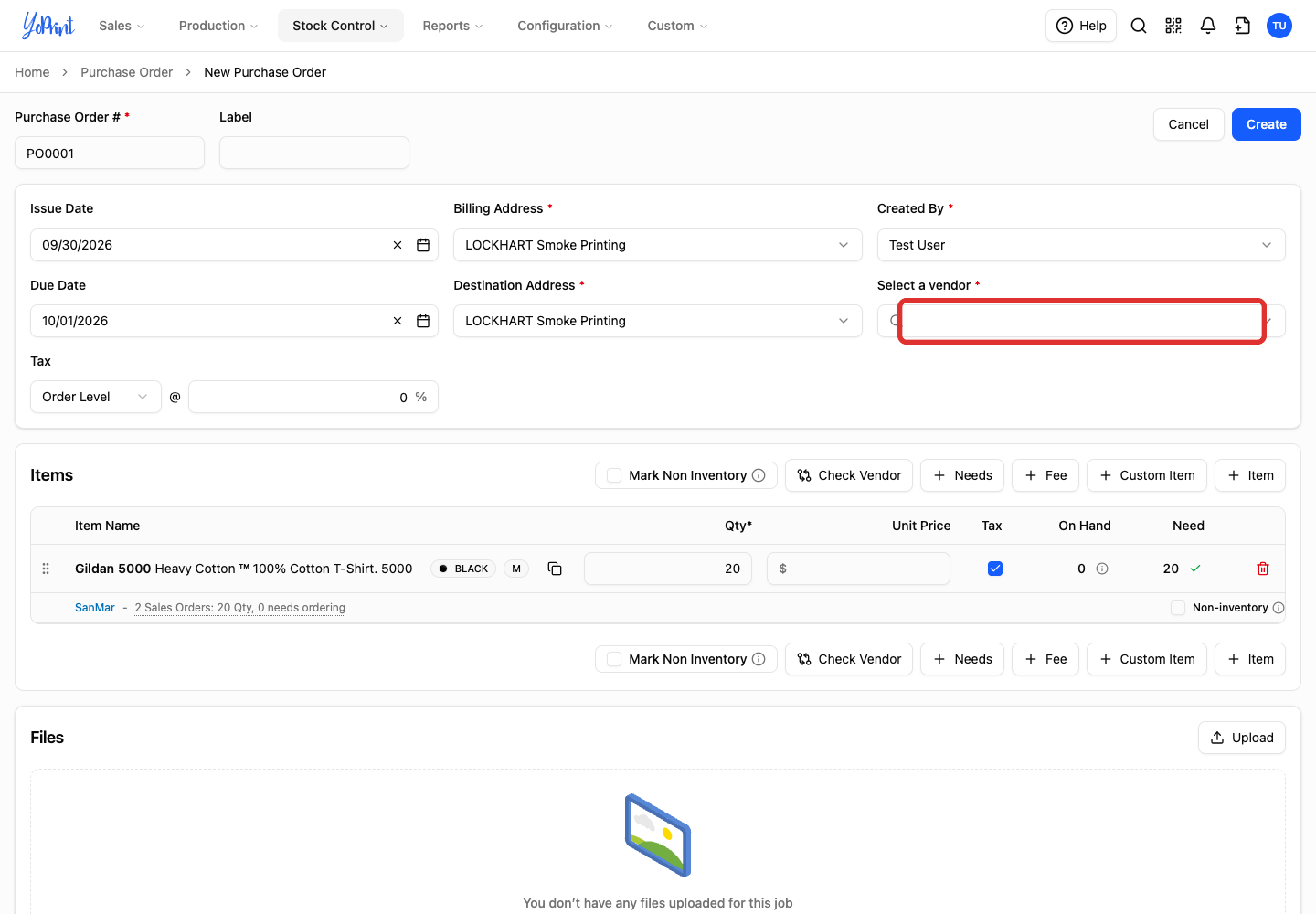
Click Select a vendor.
-
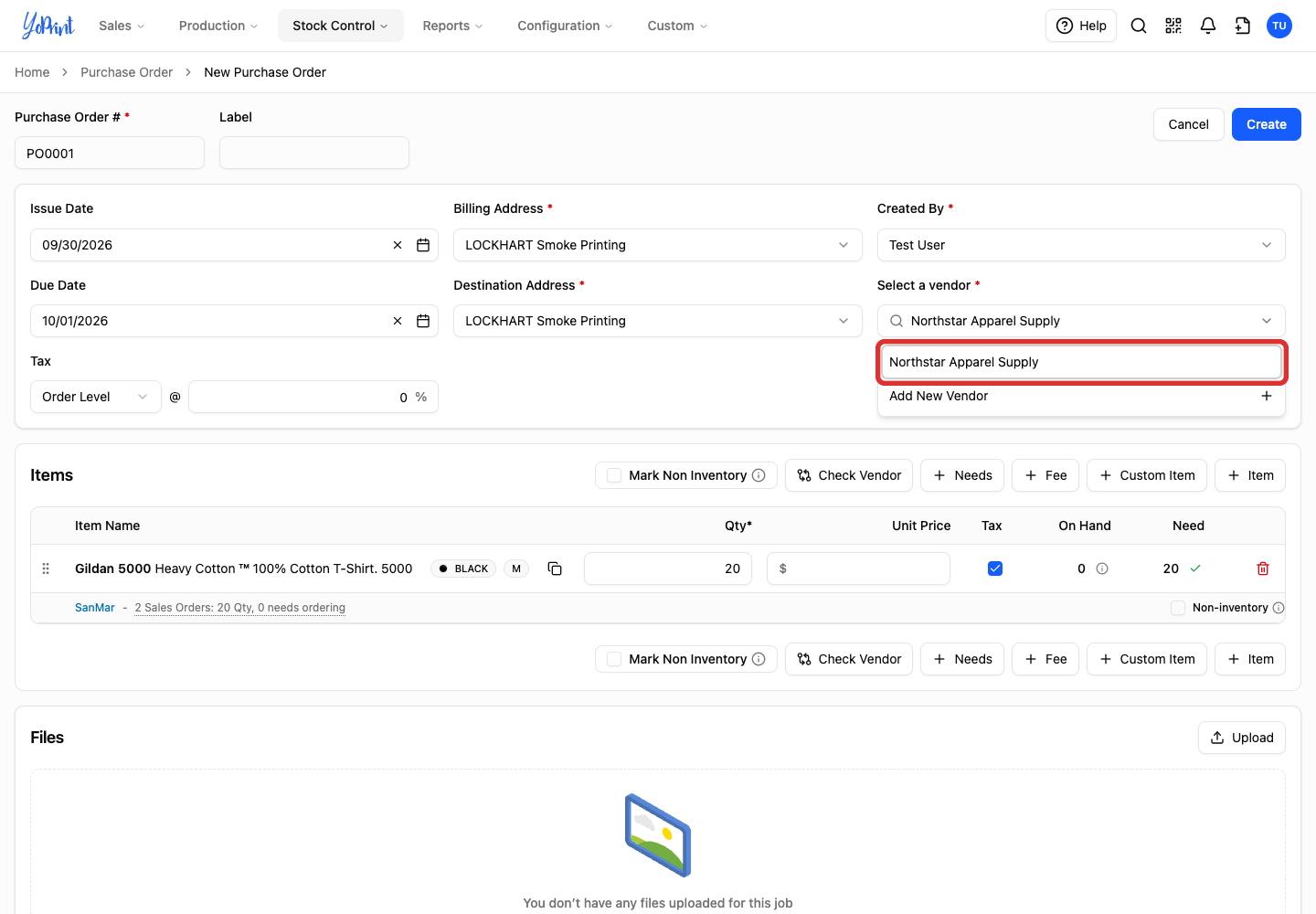
Choose the vendor for this purchase order.
-
Enter the Unit Price for each product and review the quantities. In this example, the two orders combine into 20 shirts at $4 each.
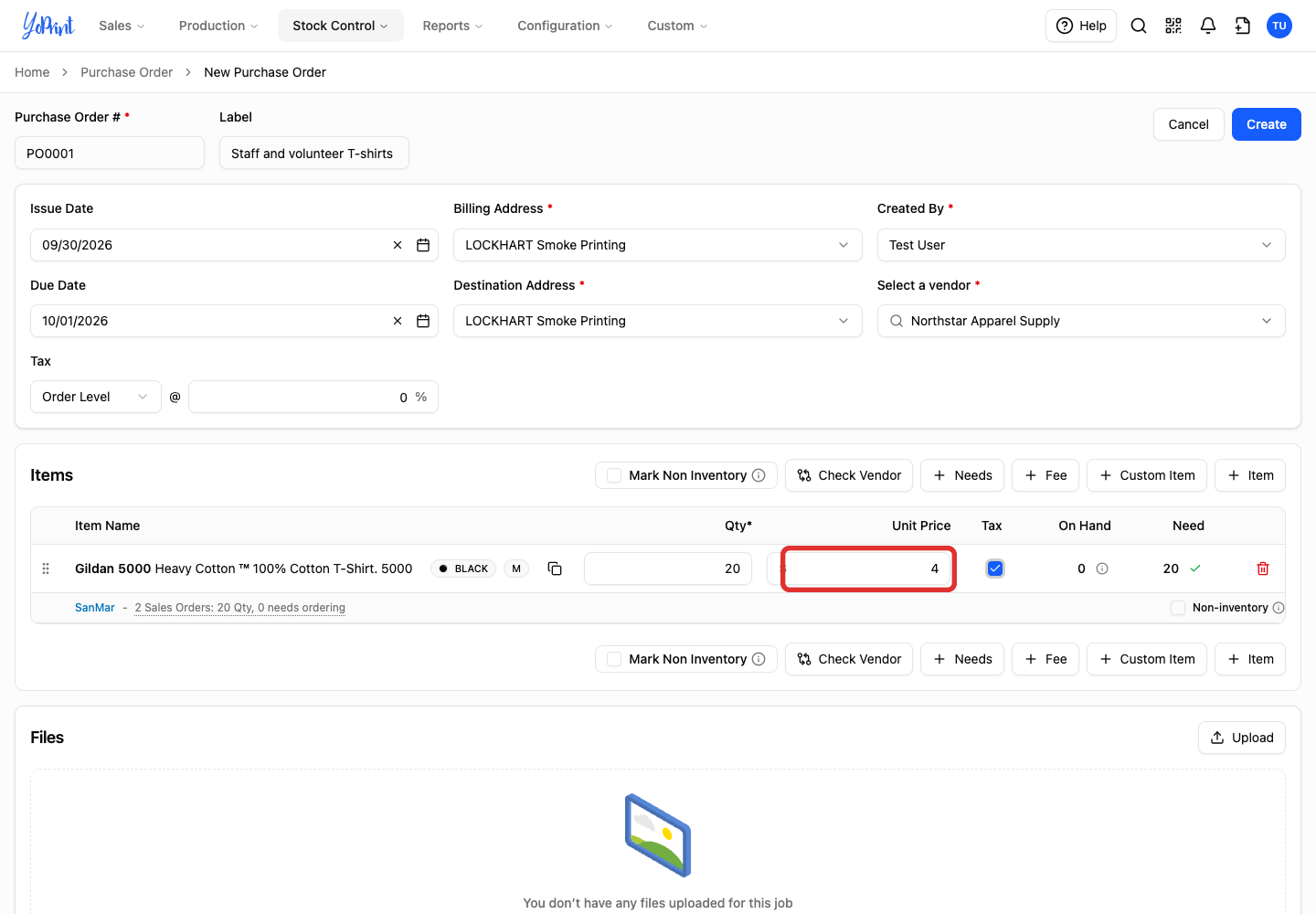
If you connect vendor integrations, click Check Vendor to fetch live pricing and stock; otherwise, enter prices manually. Check Vendor opens the vendor stock and pricing options. See How to See Accurate Vendor Pricing in YoPrint for connection and pricing details.
-
Click Create.
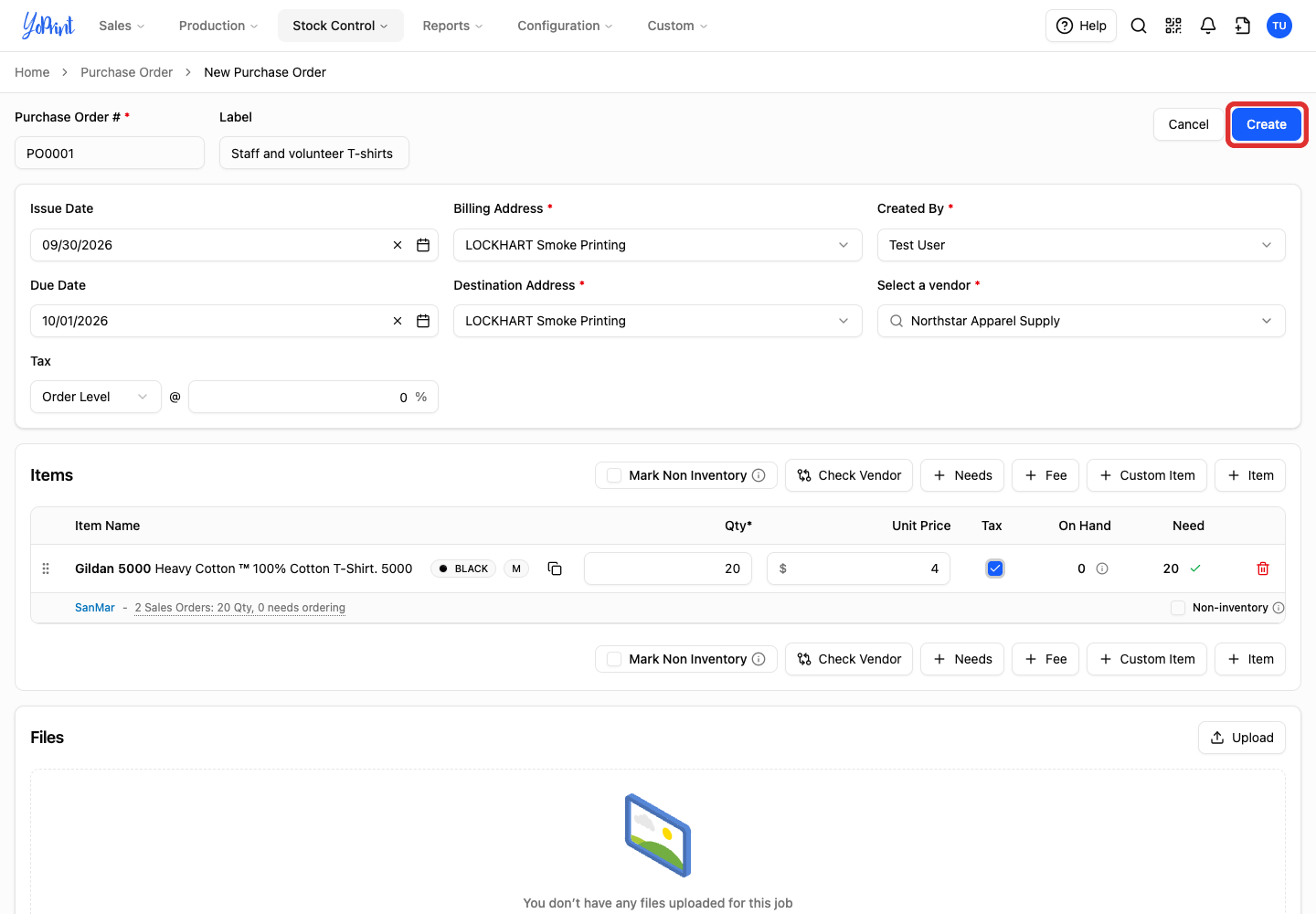
YoPrint opens the new purchase order with its products and linked sales orders.
View the linked sales orders
The purchase order lists sales orders under Related Links. For a breakdown of the quantities:
-
Click View Sales Orders below the product line.
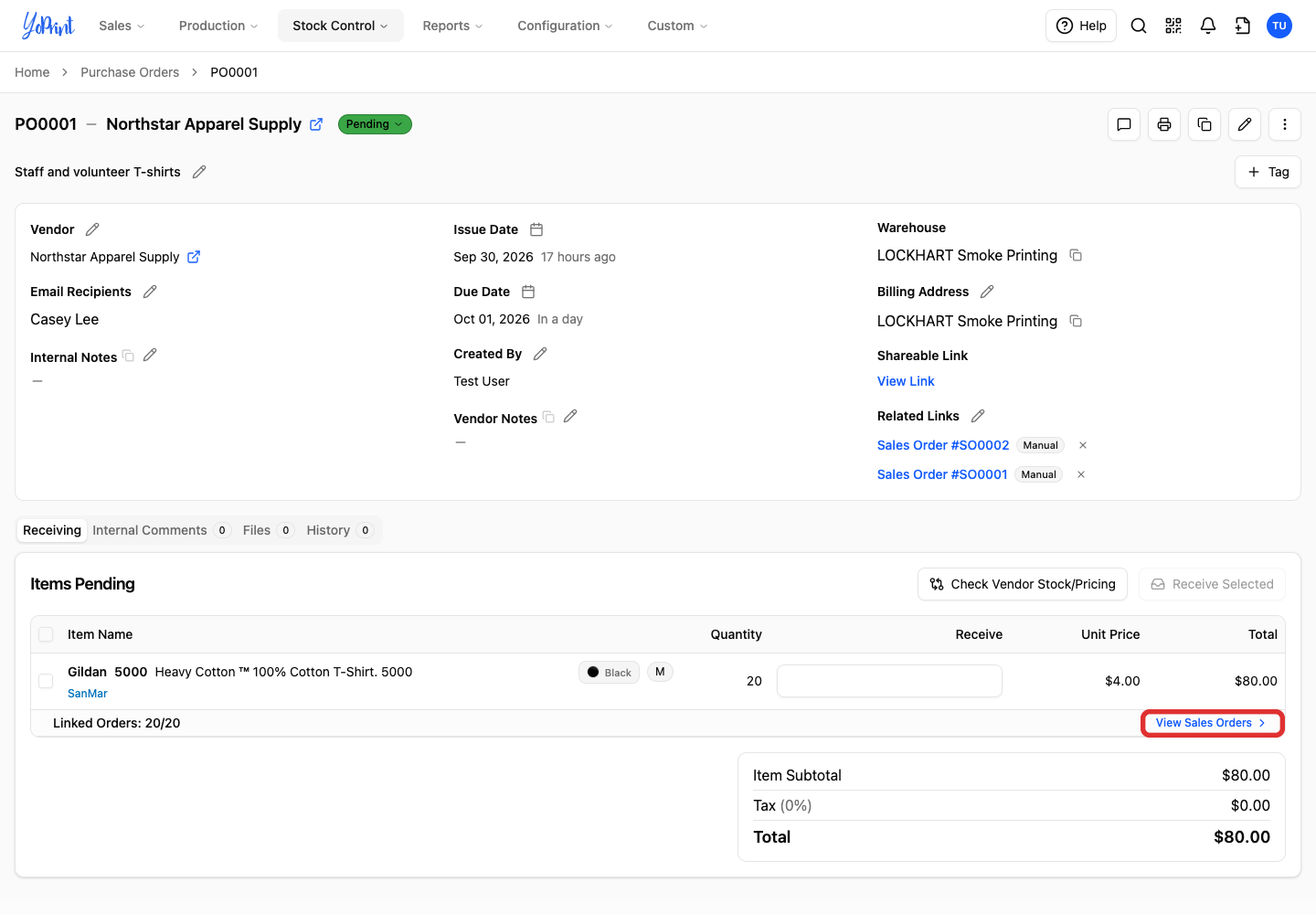
-
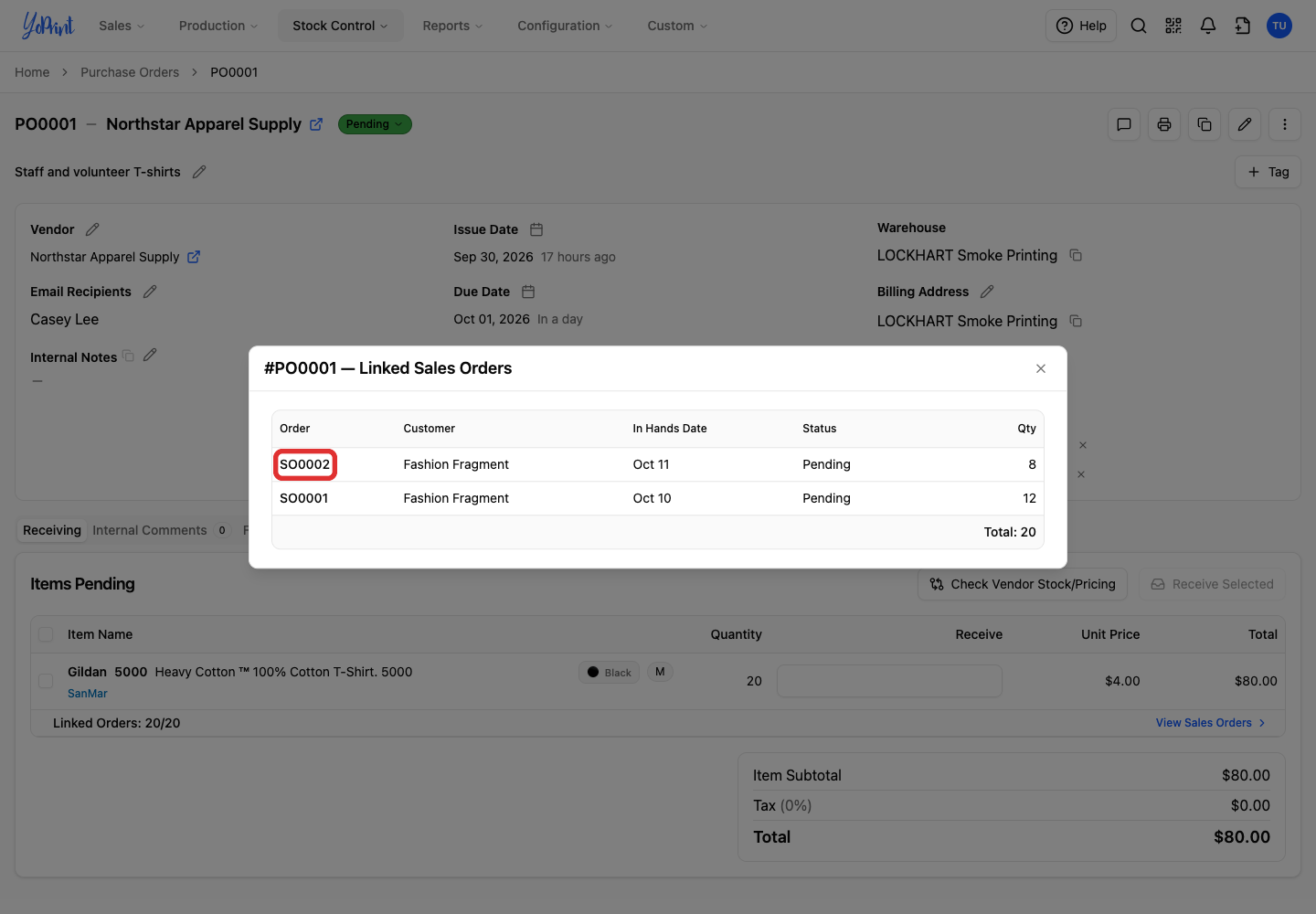
Click a sales order number to open its details. The list shows each order's quantity; here, 12 and 8 add up to 20.
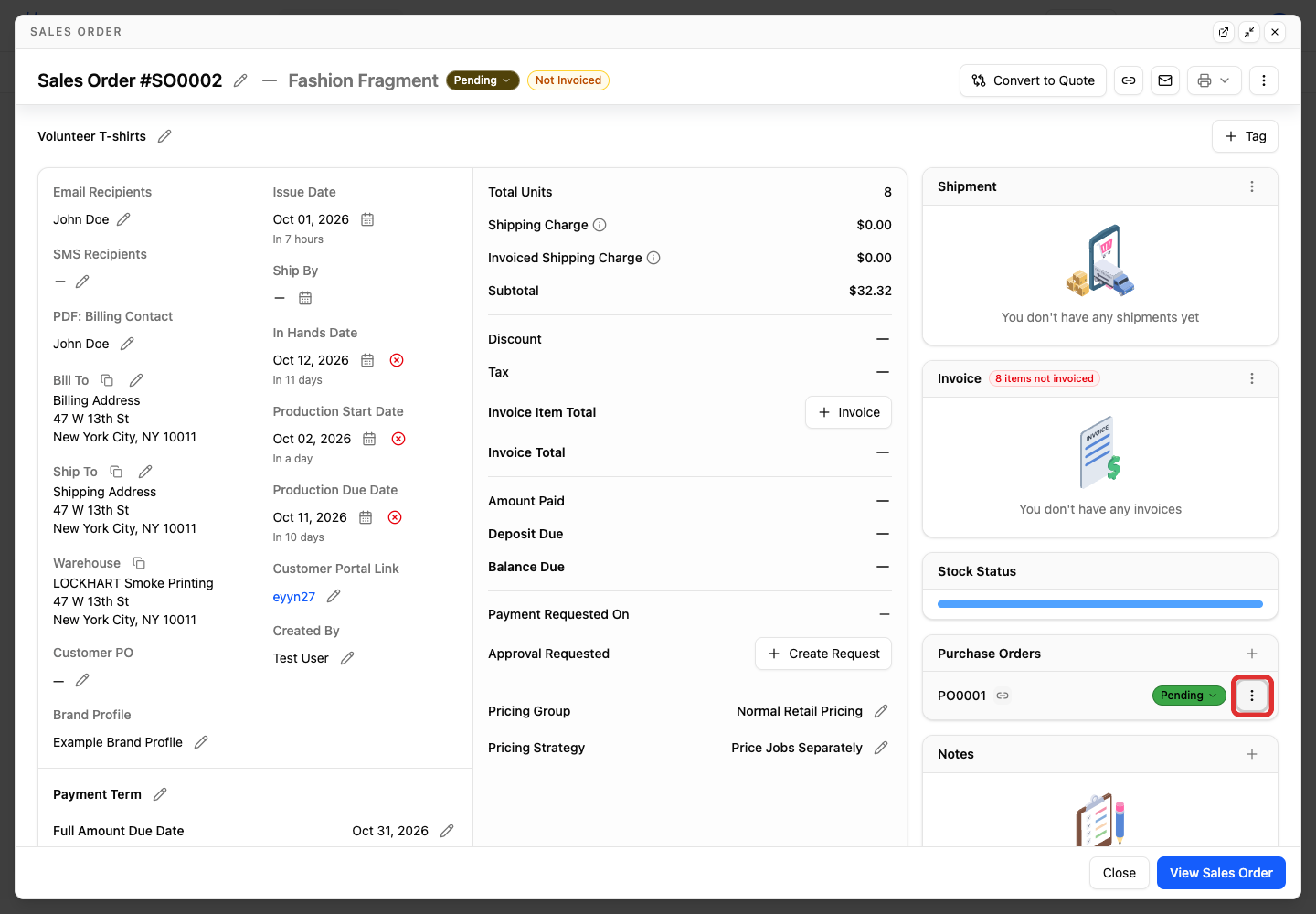
Clicking a sales order opens its details in a slide-out drawer over the purchase order. Click Close on the drawer and close the dialog to return to your purchase order.
Remove a manual link from a sales order
Removing a manual link does not remove products from the purchase order. A system link connects orders through the needs-ordering inventory workflow, while a manual link connects an order as a reference. If the orders are also linked through needs ordering, that system link remains, so the purchase order still appears on the sales order.
On the sales order, find Purchase Orders in the right sidebar.
-
Click the three-dot menu beside the purchase order.
-
Choose Remove Link. This option appears for manual links.
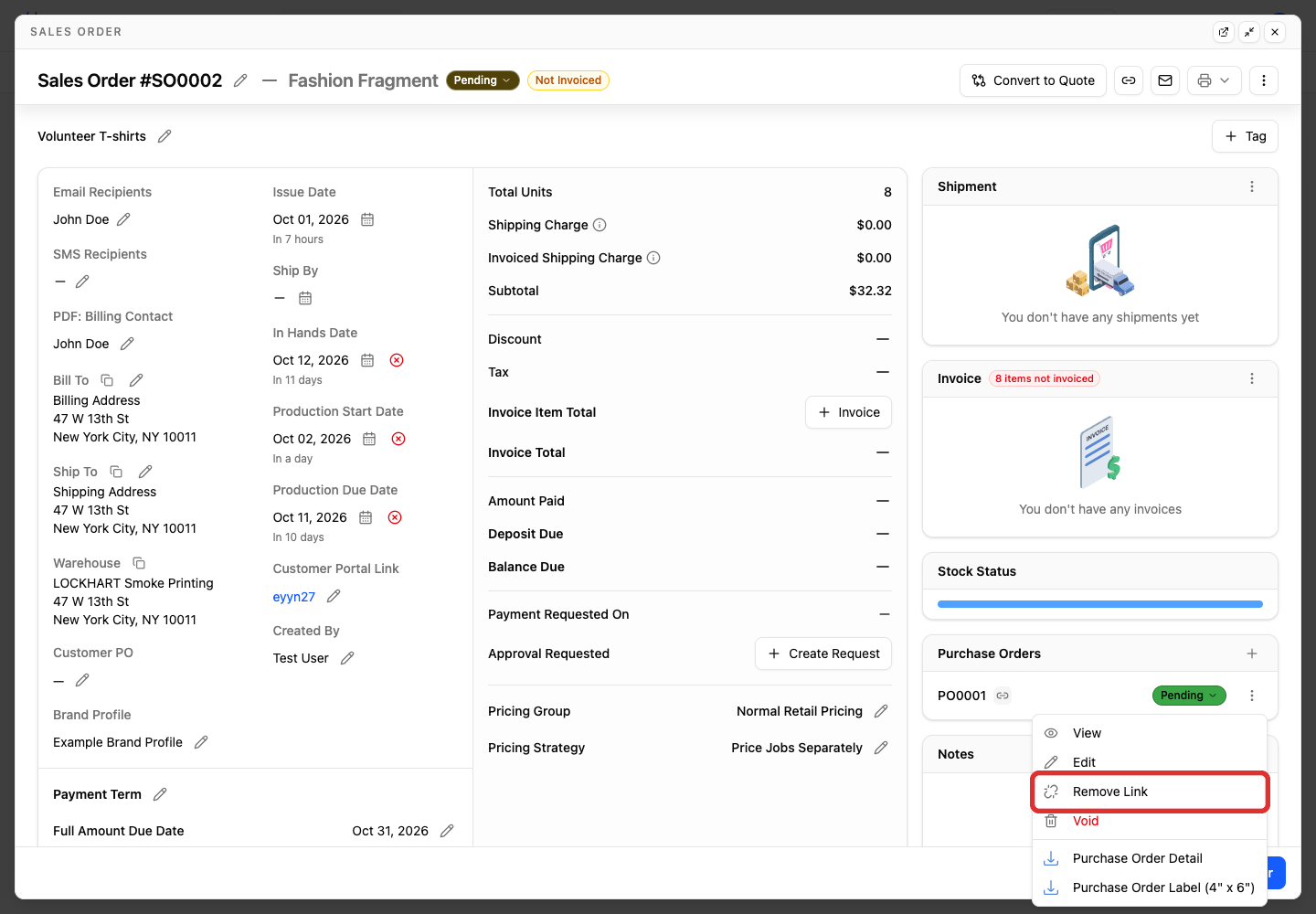
-
Check the order numbers, then click Remove. Click Cancel to keep the link.
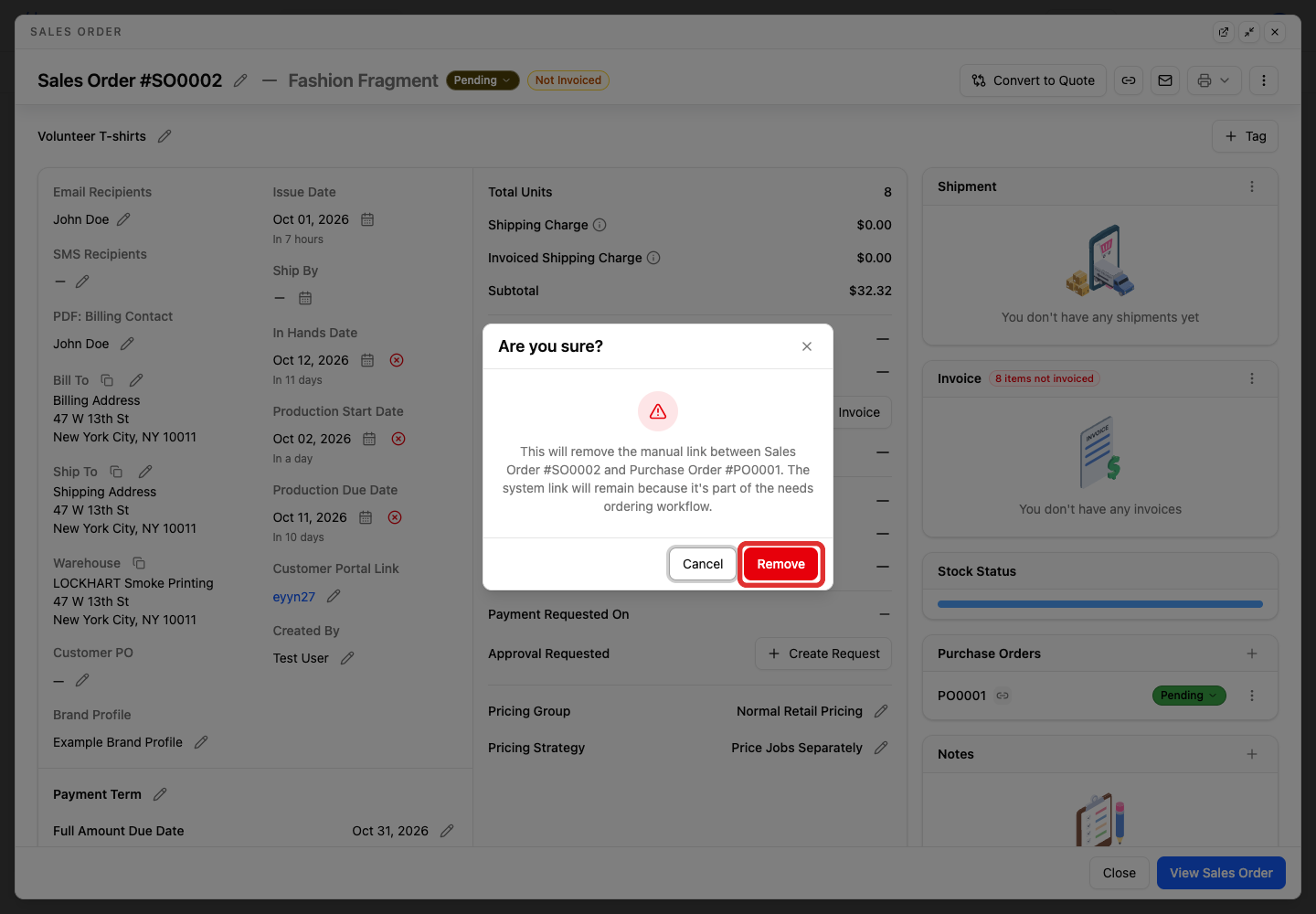
The purchase order remains in the sidebar because the system link stays active, but Remove Link disappears from its menu to confirm the manual link was removed.
Remove a manual link from a purchase order
You can also remove a manual link under Related Links on the purchase order. A Manual label and an × button identify a link you can remove here.
-
Click × beside the sales order you want to unlink.
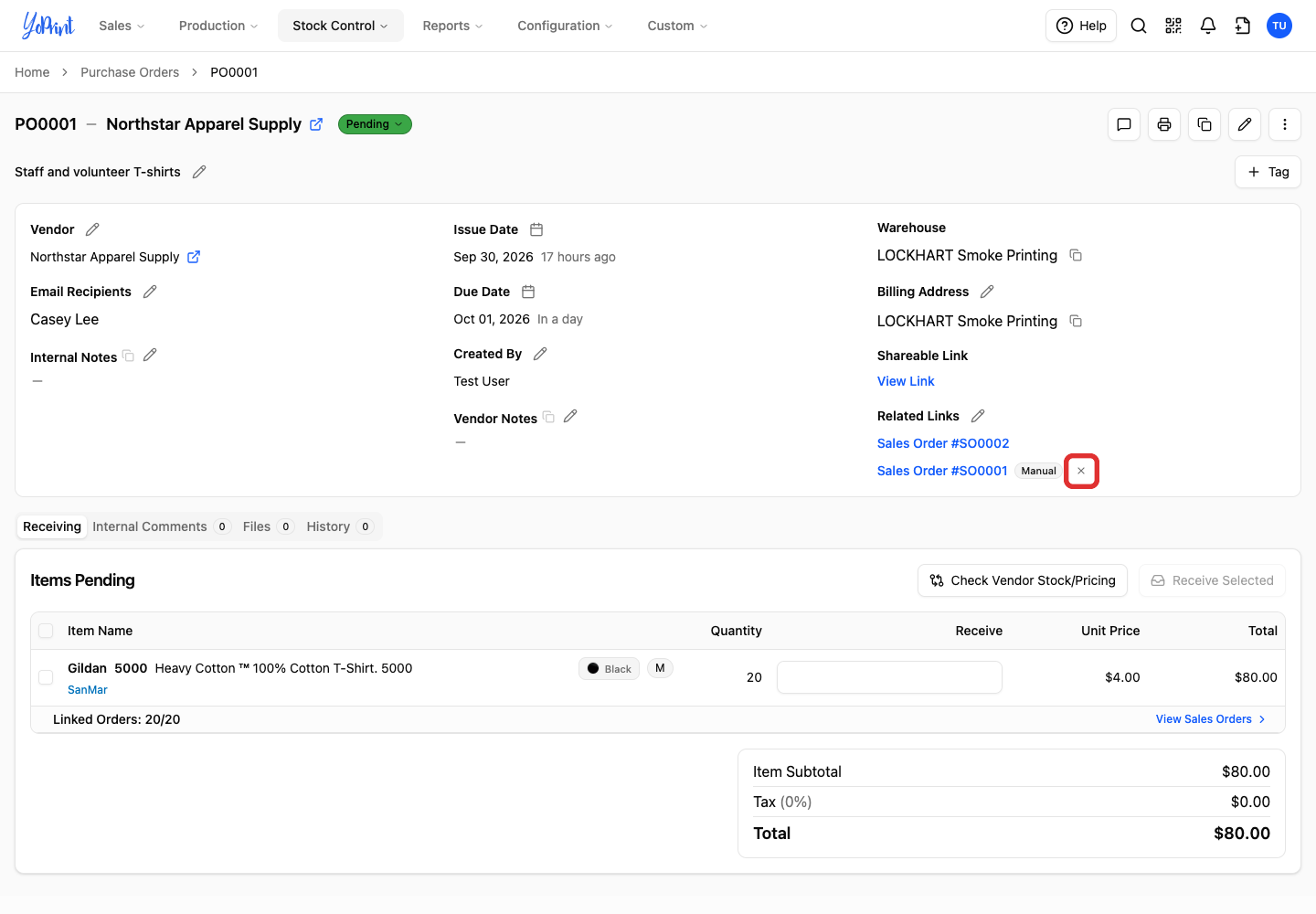
-
Check the sales order number, then click Unlink. Click Cancel to keep the link.
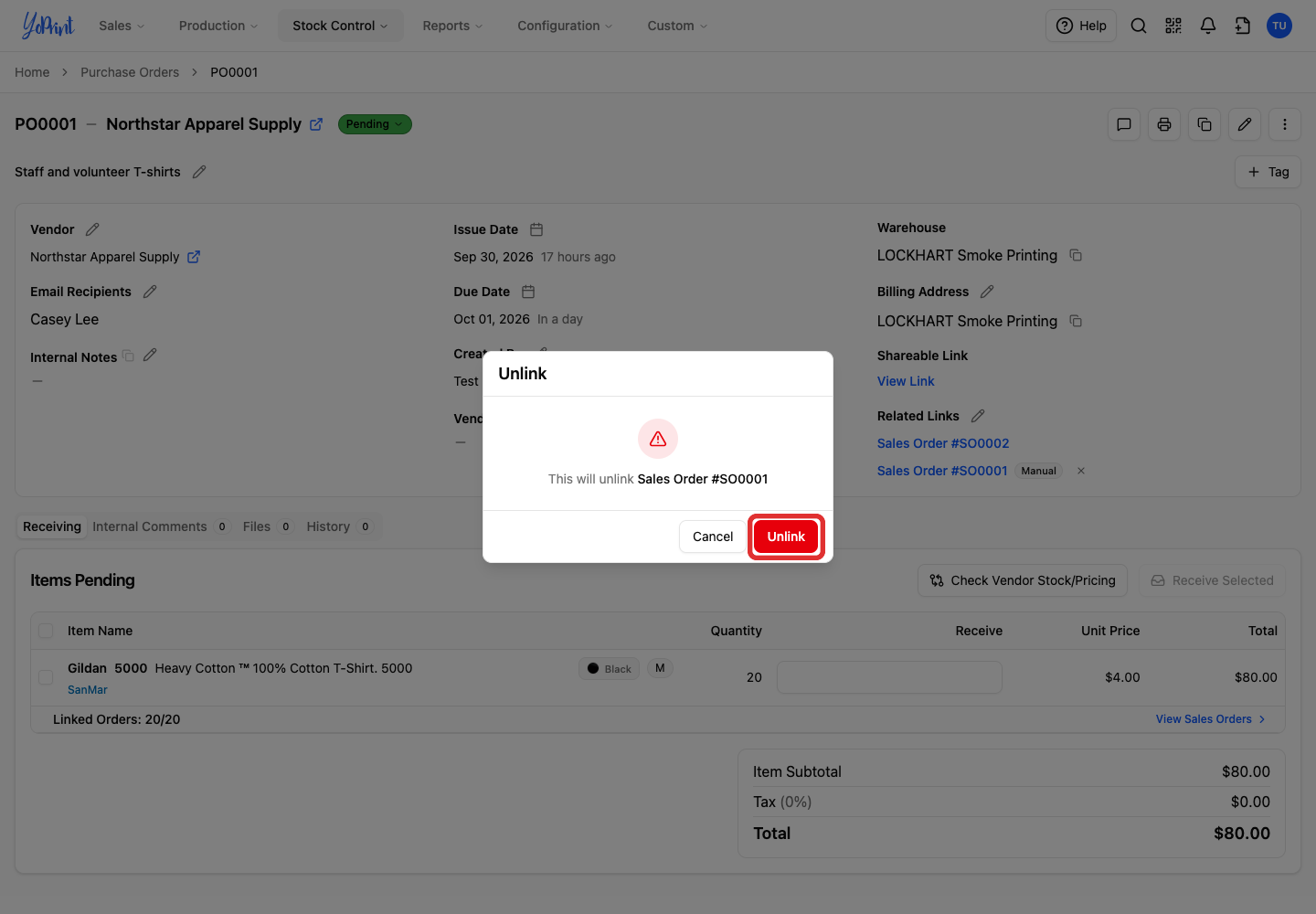
If a system link also exists, the sales order remains listed without the Manual label. If only a manual link exists, the sales order is removed from Related Links. In both cases, the products and their quantities stay on the purchase order.