Configure SanMar Integration in YoPrint
In this article
Use SanMar's catalog to find products for quotes, sales orders and purchase orders. The catalog switch controls which products appear in search. A separate account connection lets YoPrint request SanMar warehouse stock and your account's pricing.
Get your SanMar account ready
These steps happen in SanMar. SanMar's screens may have changed since we took these pictures. If something looks different, follow SanMar's guide: SanMar's Electronic Integrations page.
If you need a wholesale account, follow SanMar's customer signup instructions. The page lists the business and resale documents to provide.
SanMar requires Web Services onboarding before YoPrint can use your account. Its Getting Started section links the Web Services Integration Guide, which explains how to request access and complete the integration agreement. Contact sanmarintegrations@sanmar.com with your customer number if you need help.
-
Log in to your SanMar account.
-
Select My SanMar > Account Information at the top, or open SanMar Account Information directly.
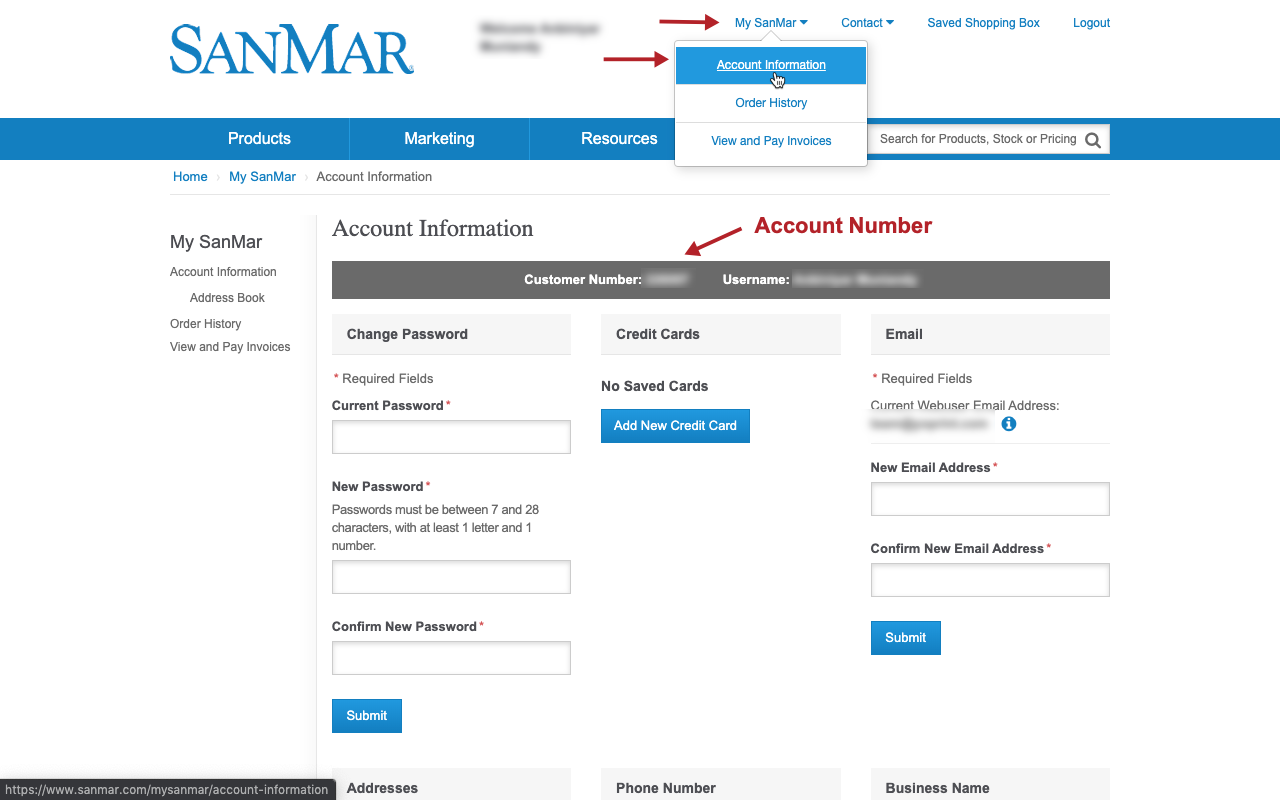
Your SanMar customer number is the Account Number in YoPrint. After SanMar confirms access, bring your customer number, SanMar website username and password back to YoPrint. Use your website credentials, not FTP credentials.
Show the SanMar catalog
This walkthrough uses a US account. For a Canadian account, use Enable Sanmar Canada Catalog here and SanMar Canada in Apps. The Canadian connection asks for Email Address instead of Username.
-
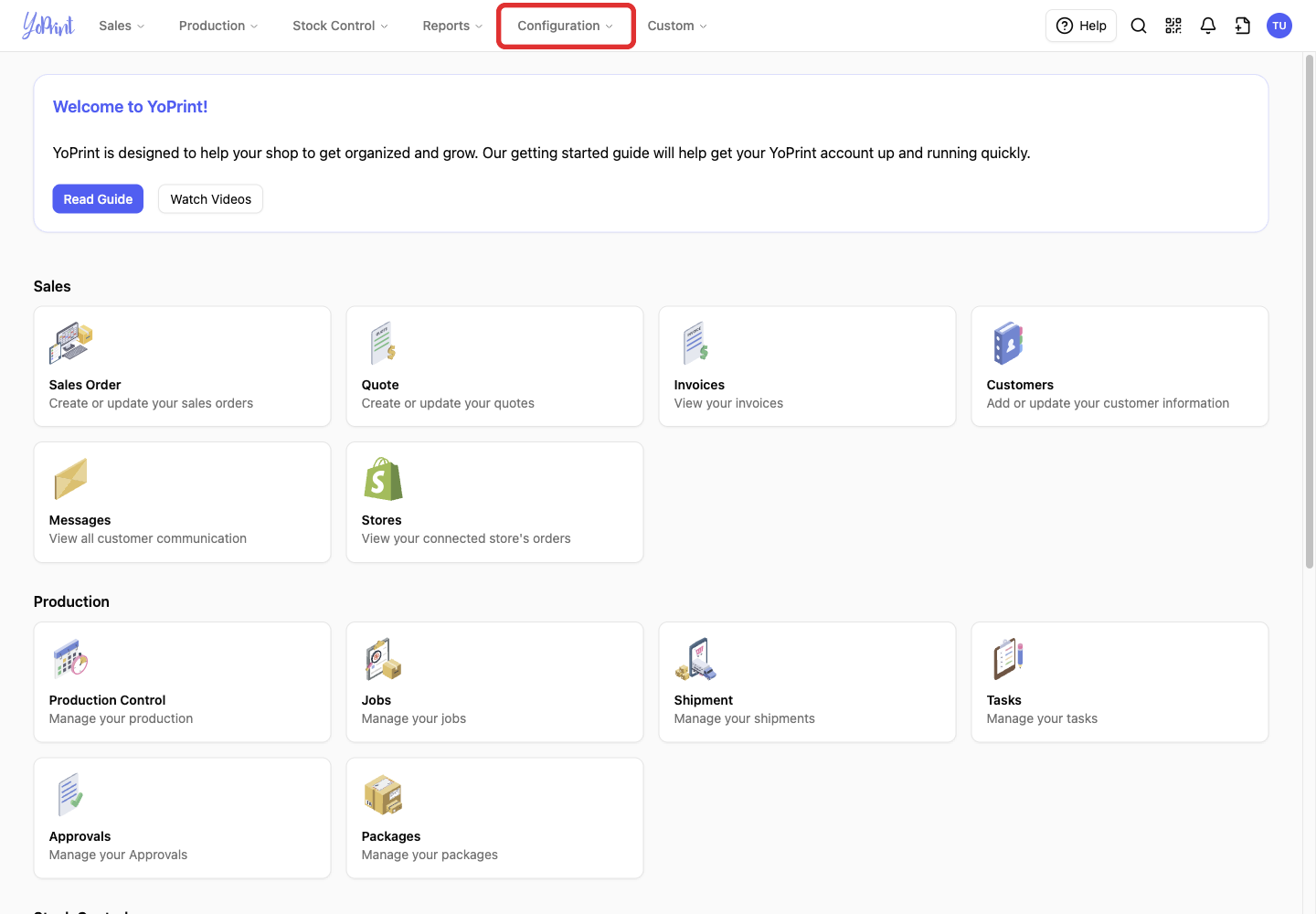
Open Configuration in the top navigation.
-
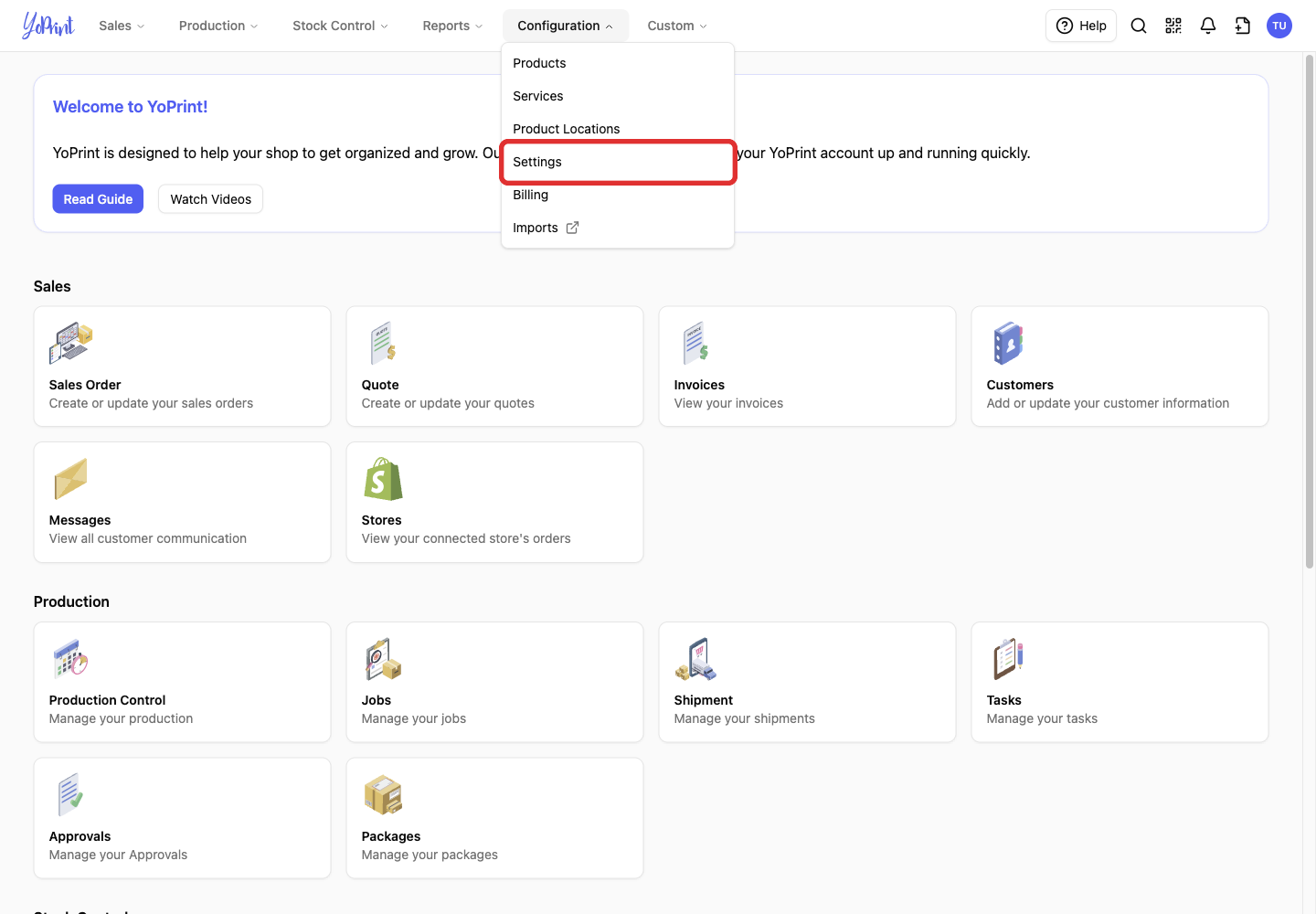
Select Settings.
-
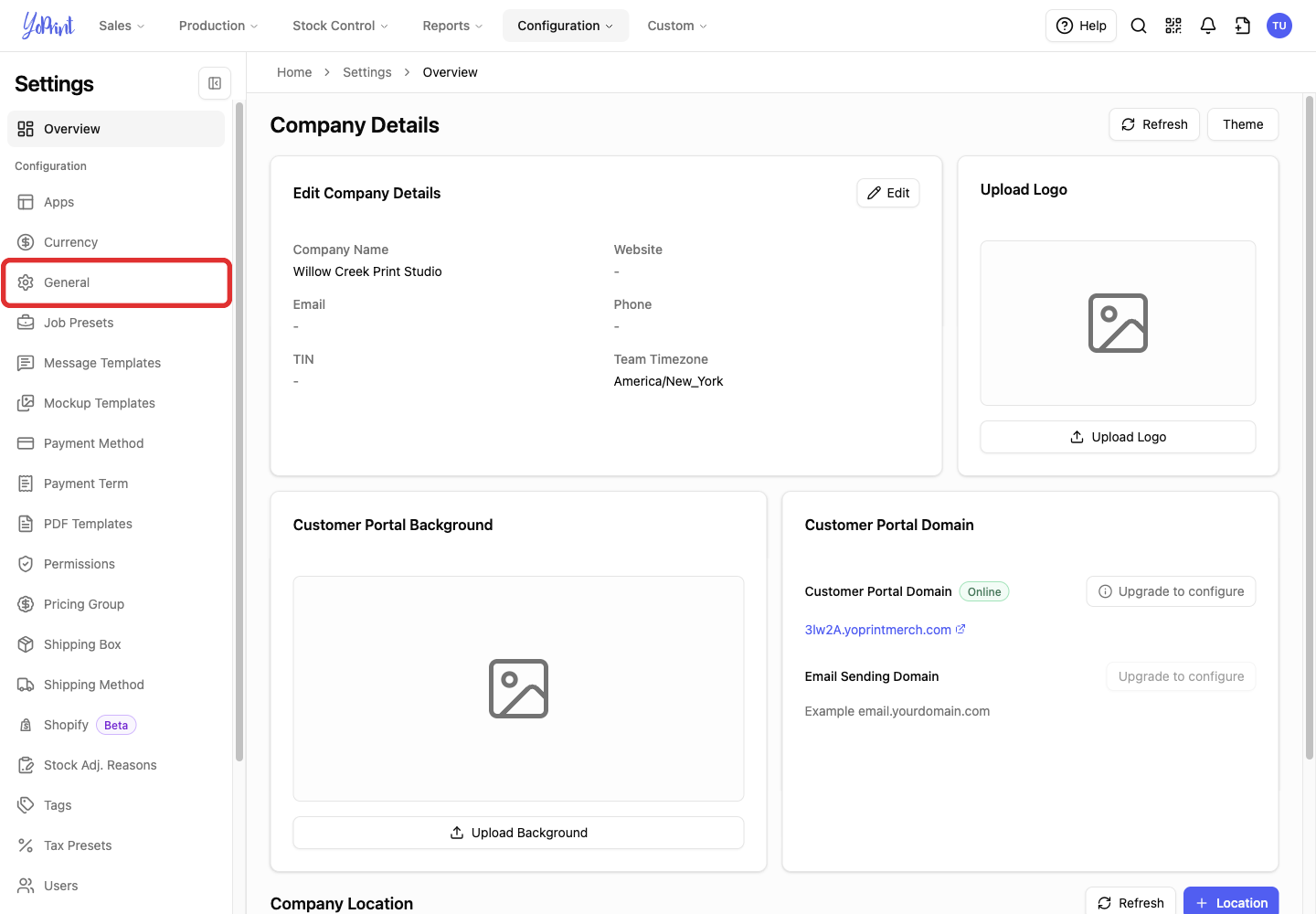
Select General in the Settings sidebar.
-
Select the Catalog tab.
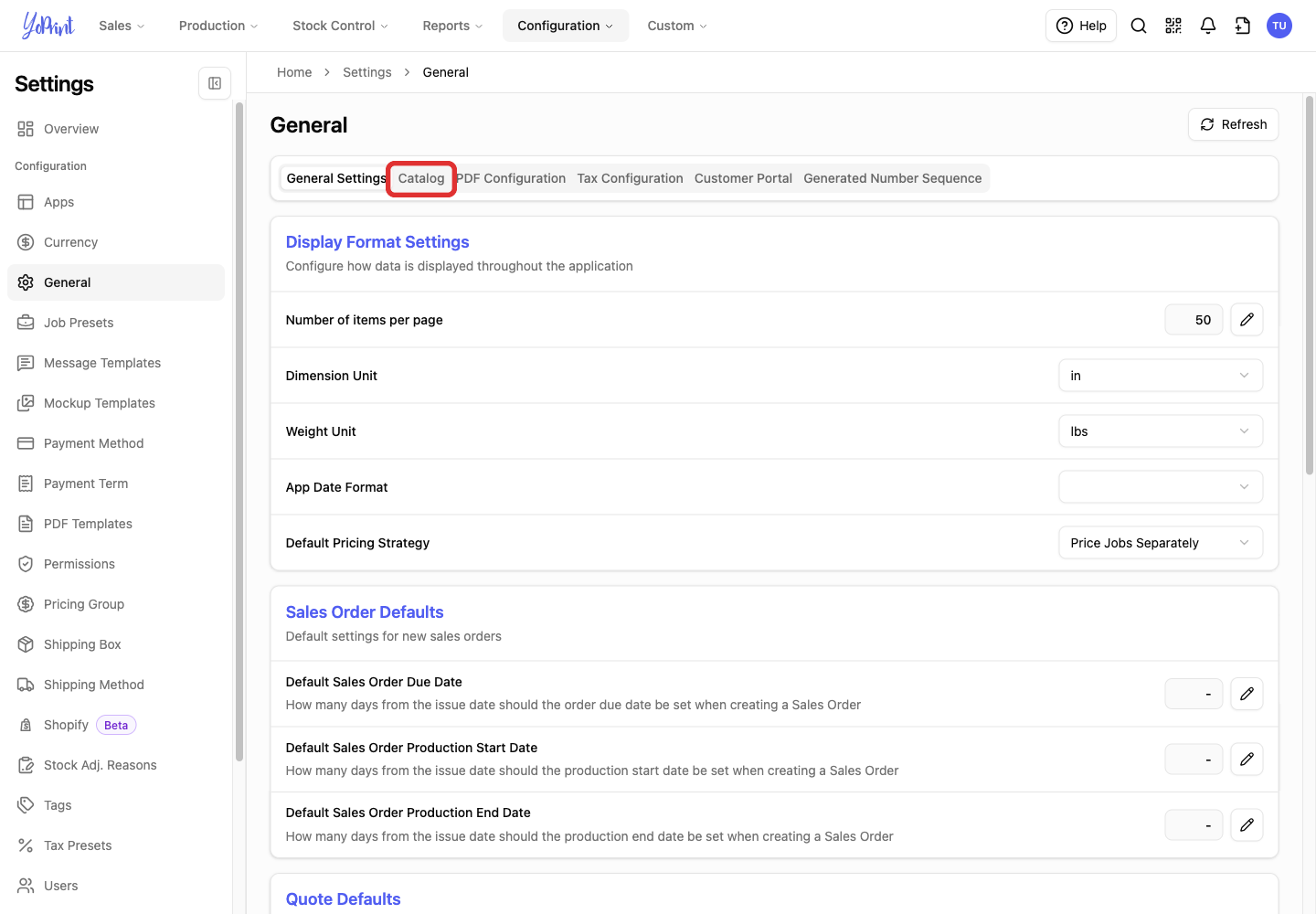
-
Turn on Enable Sanmar Catalog. If it is already on, leave it on.
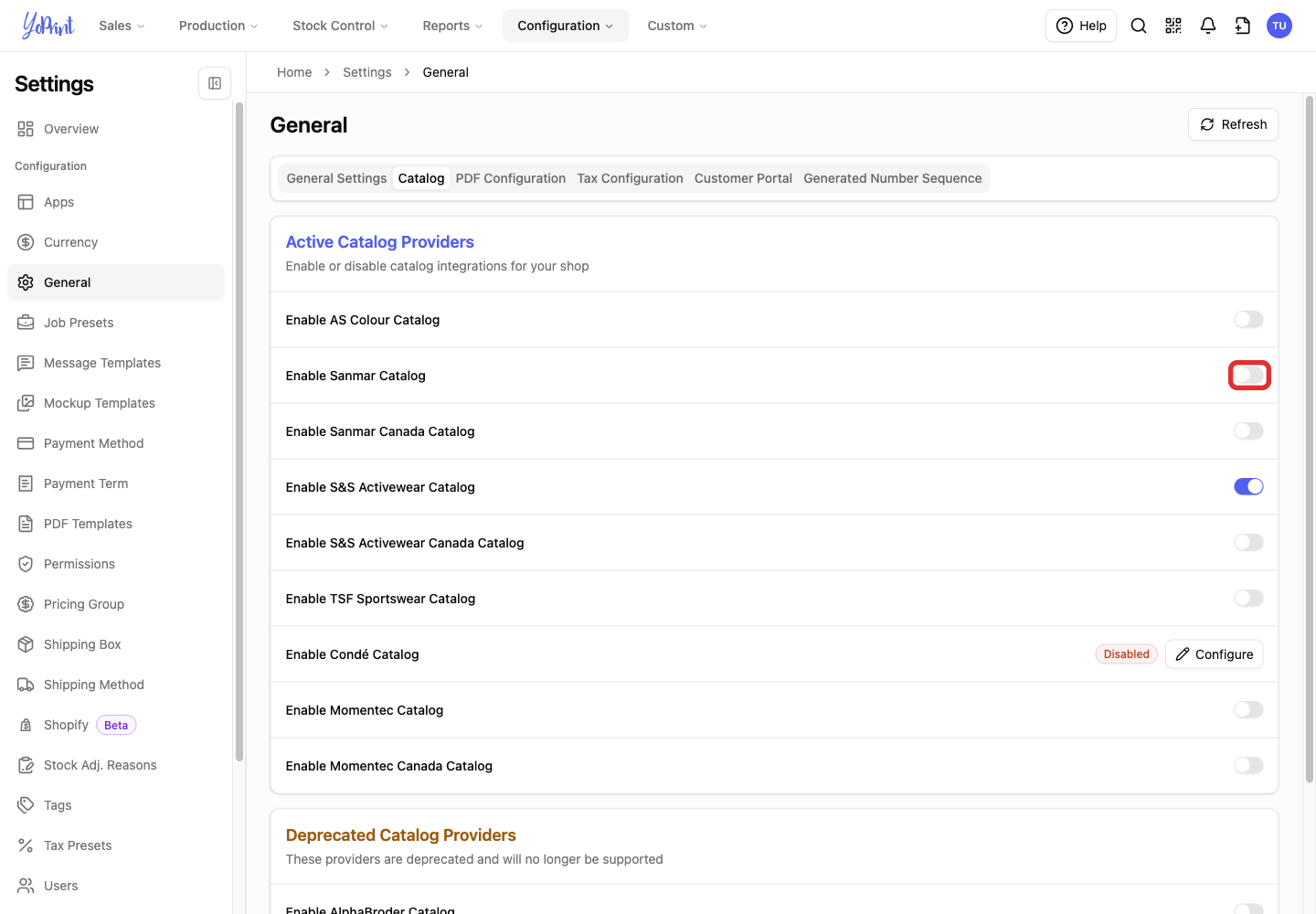
The switch saves automatically; there is no Save button. Reopen the Catalog tab to check that the switch stays on. To hide SanMar products from catalog search later, turn this switch off.
Connect your SanMar account
Have your SanMar account number, web username and password ready. Complete Get your SanMar account ready before connecting.
Already connected
If the card reads Connected, skip to Use SanMar products in an order. Use Change your SanMar account details only when you need to replace the saved credentials.
-
Select Apps in the Settings sidebar.
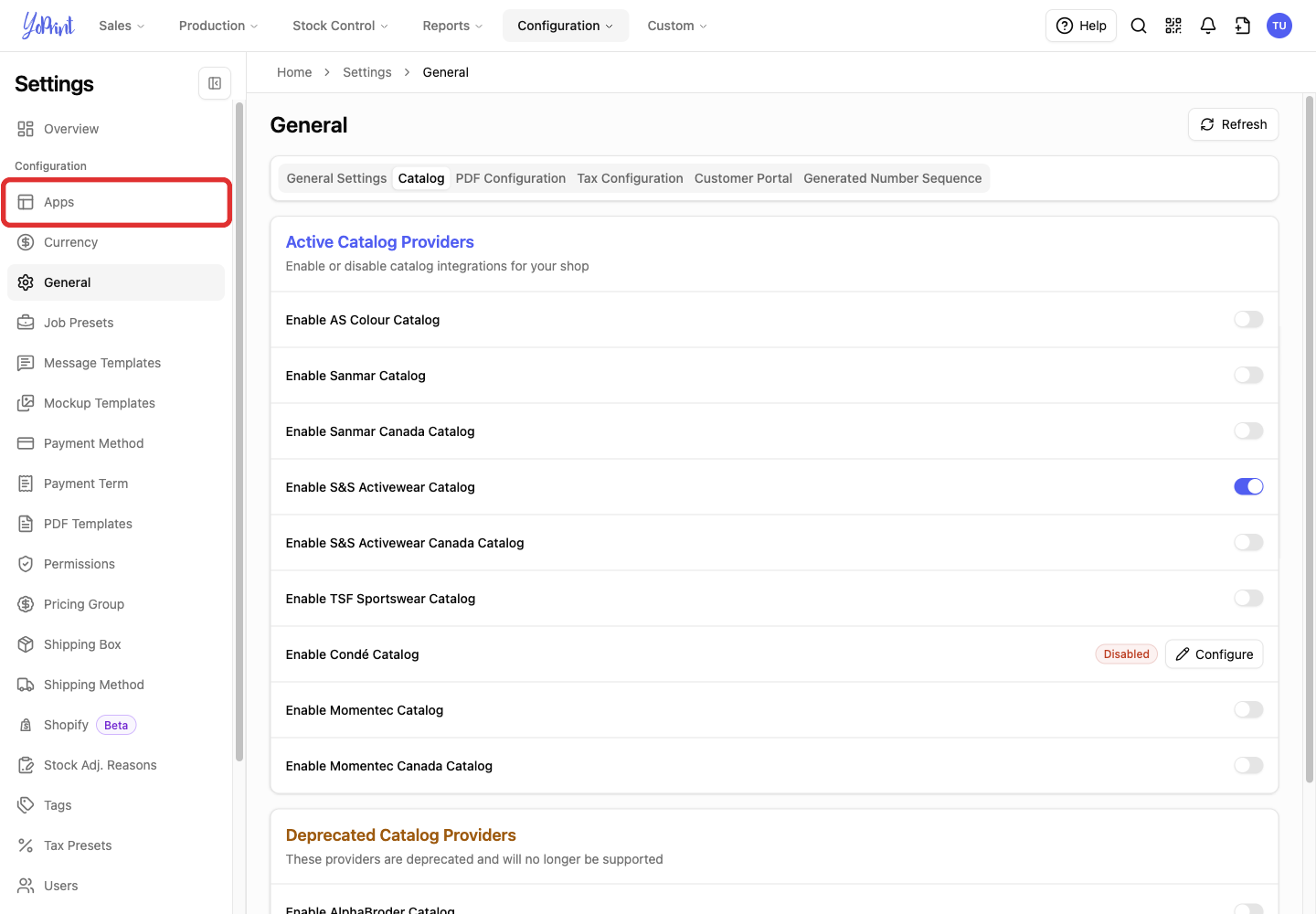
-
Click Connect on the SanMar card.
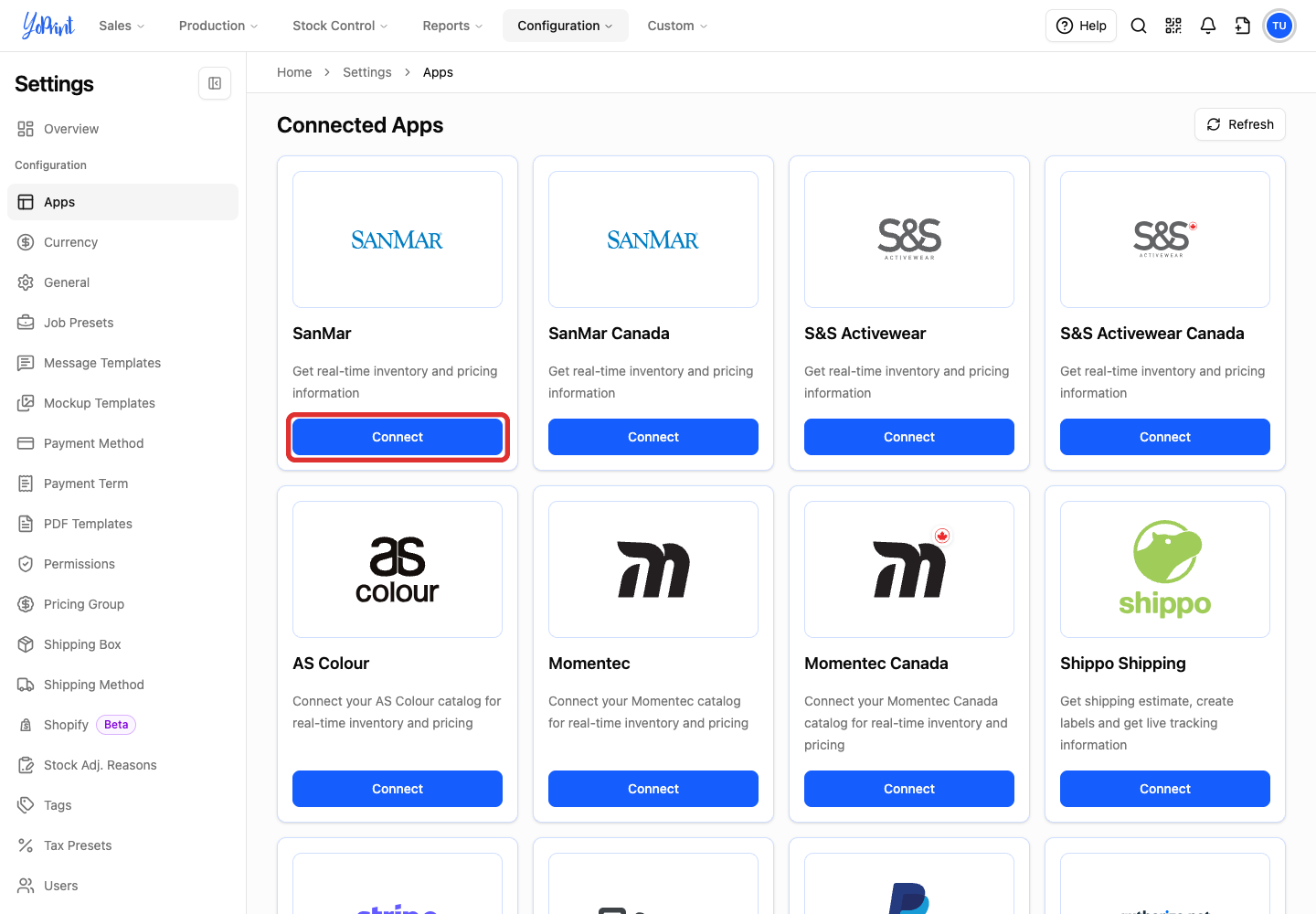
Canadian account
Use the separate SanMar Canada card for a Canadian account.
-
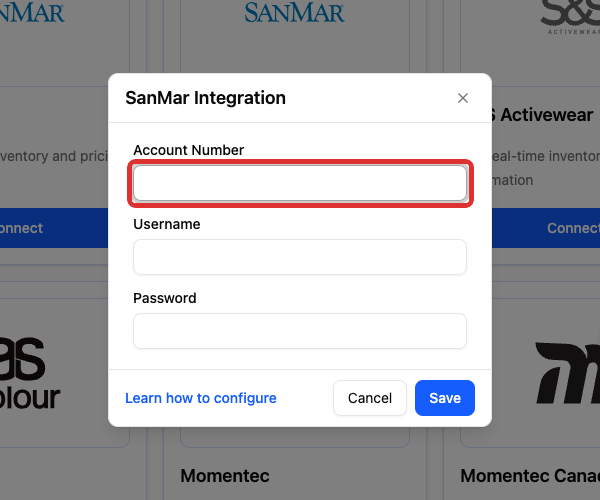
Enter your SanMar Account Number.
-
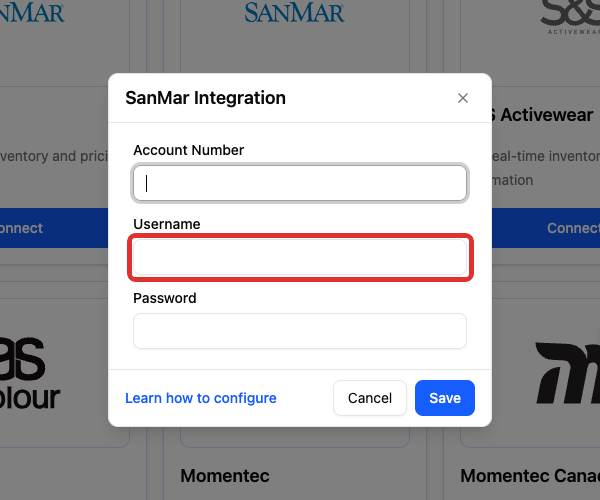
Enter your SanMar web Username.
-
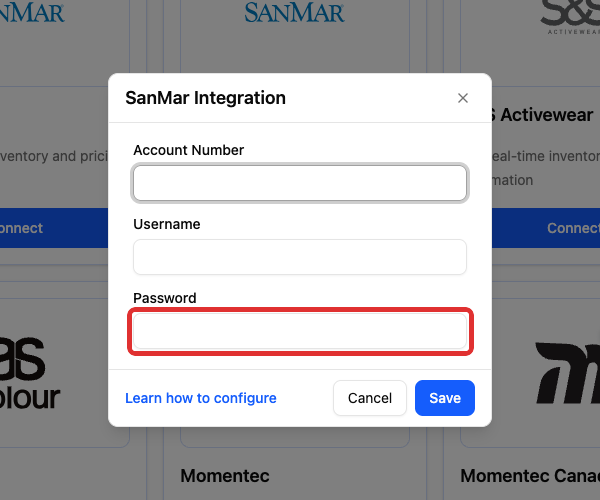
Enter your SanMar Password.
-
Click Save.
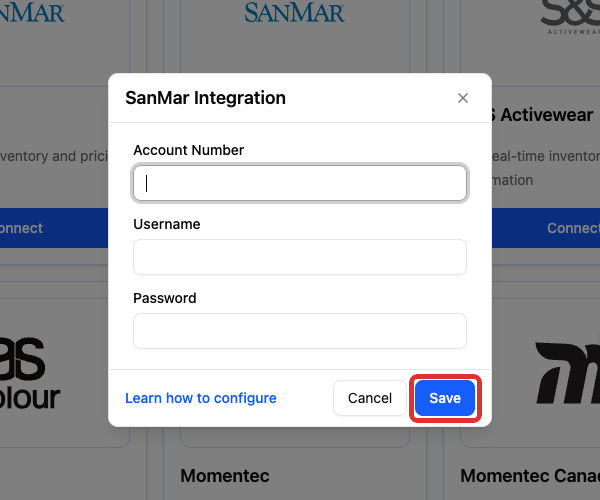
YoPrint checks the credentials when you save. After the check succeeds, the dialog closes and the SanMar card reads Connected.

Credentials are not accepted
Fill any field marked This field is required. If YoPrint reports Please check your credentials, check the account number, username and password. Confirm that SanMar has enabled Web Services access. Use Cancel to close the form without changing an existing connection. The form's Learn how to configure link returns to this article.
Change your SanMar account details
Have your SanMar password ready before editing. YoPrint does not display the saved password. You must enter it again to save, even when only the account number or username changes.
-
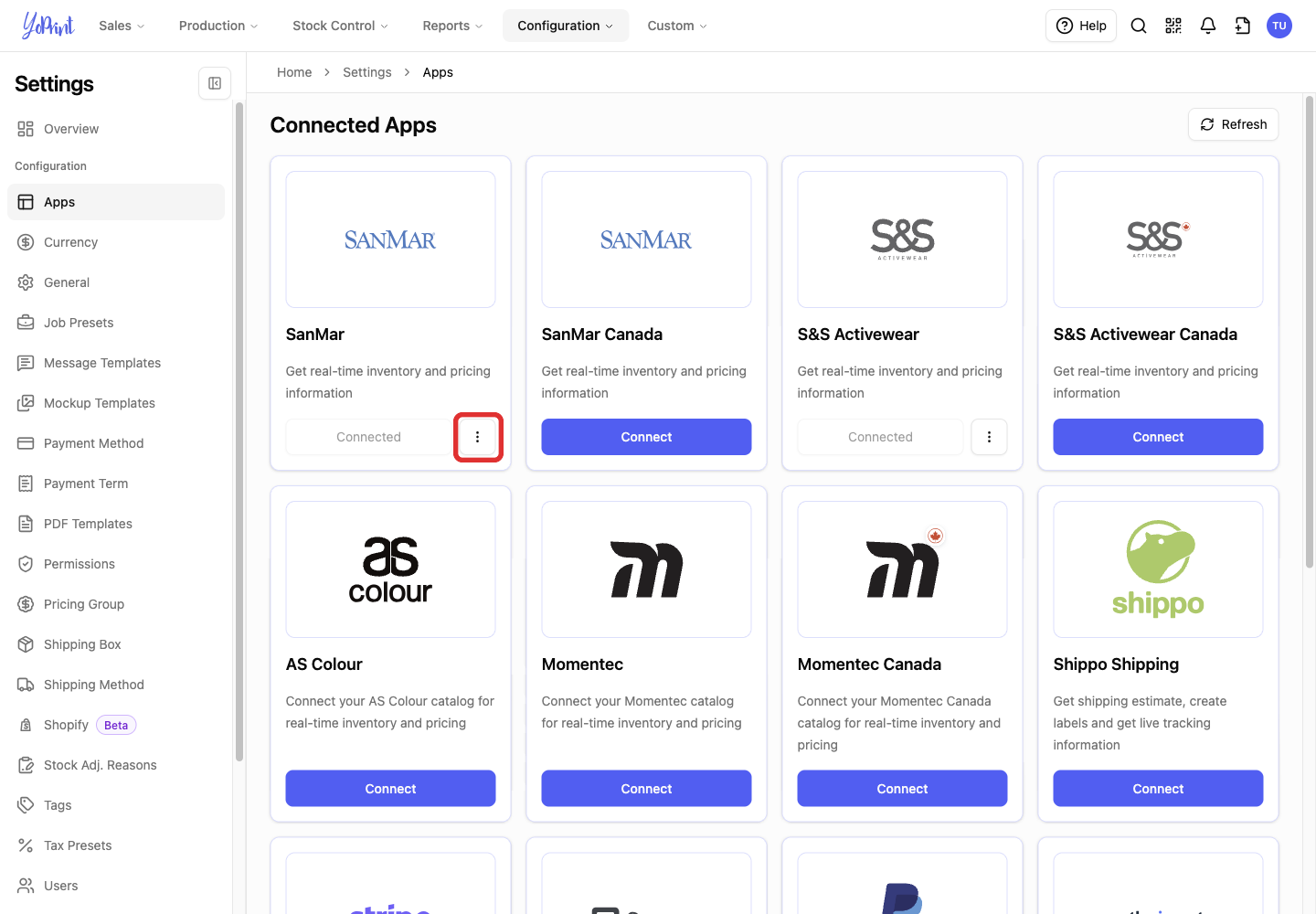
On the SanMar card in Apps, click the three-dot Open integration actions button.
-
Select Edit.
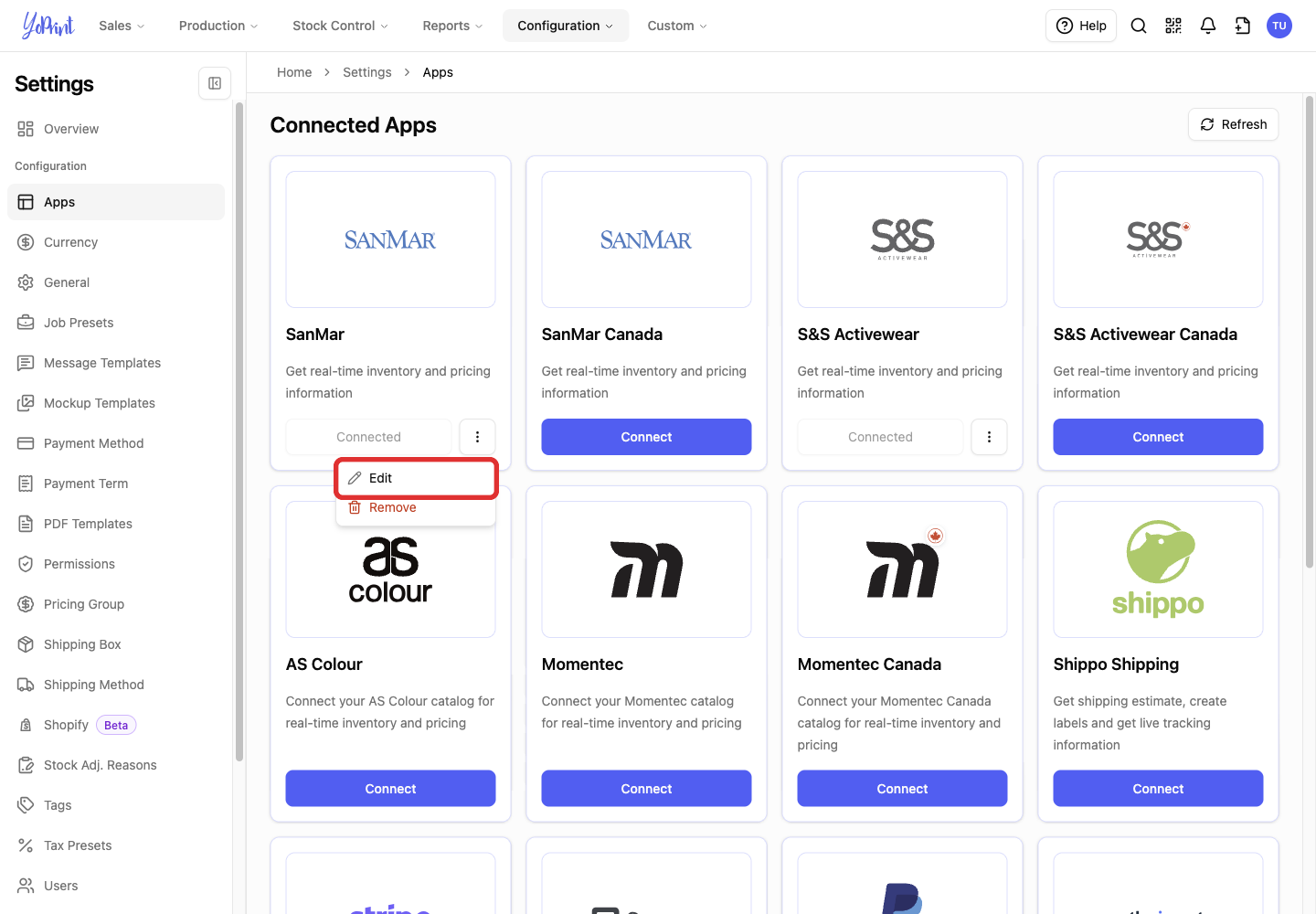
The same SanMar Integration form opens with your account number and username filled in. The password field is blank. Follow the account-field and Save steps in Connect your SanMar account, entering the password again even if only another detail changed. Use Cancel to leave the saved connection unchanged.
Remove your SanMar connection
Removing the connection stops YoPrint from using those credentials for future stock and pricing requests. It removes the integration, not your existing order line items. Catalog visibility has its own switch below.
-
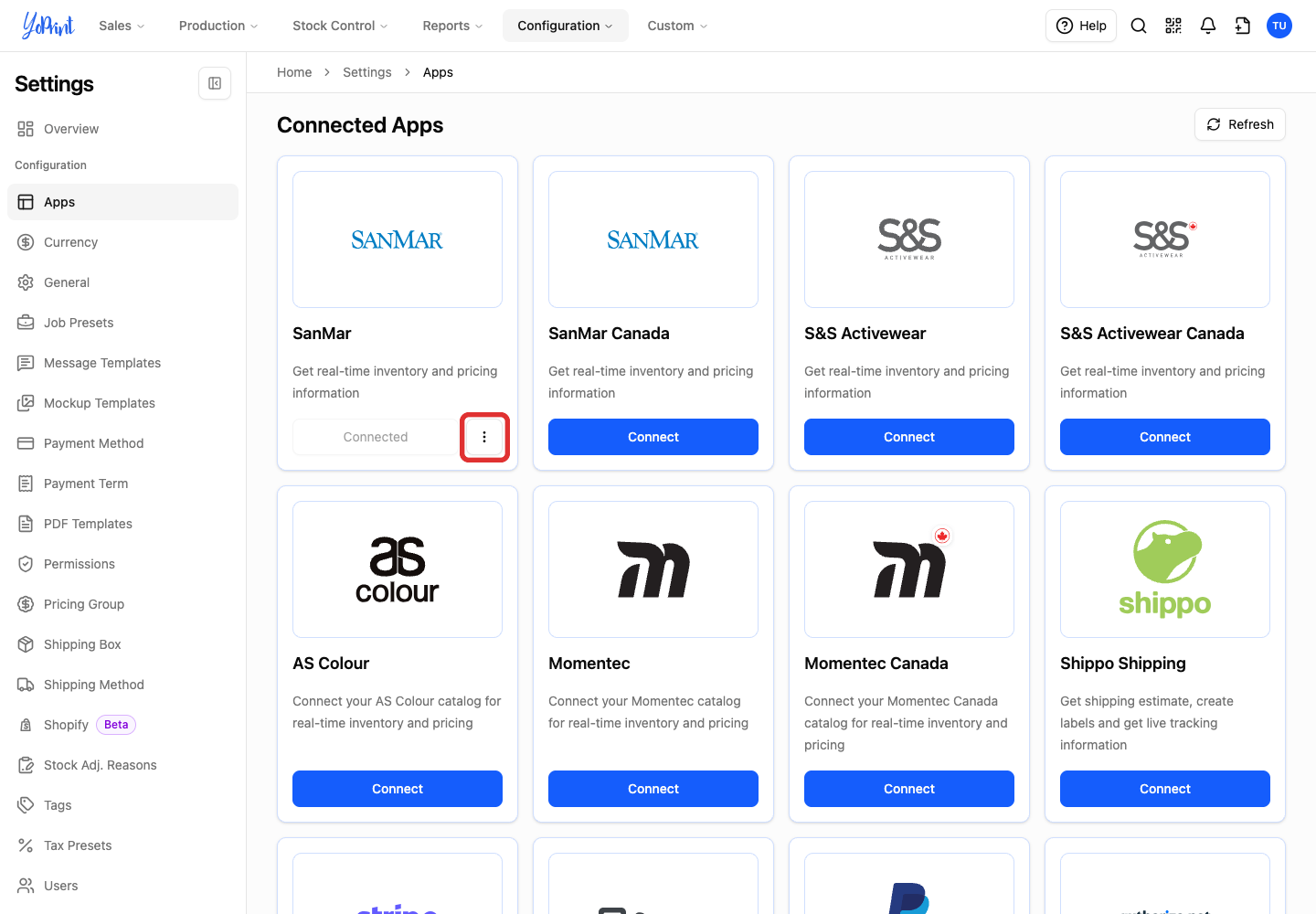
On the SanMar card in Apps, click the three-dot Open integration actions button.
-
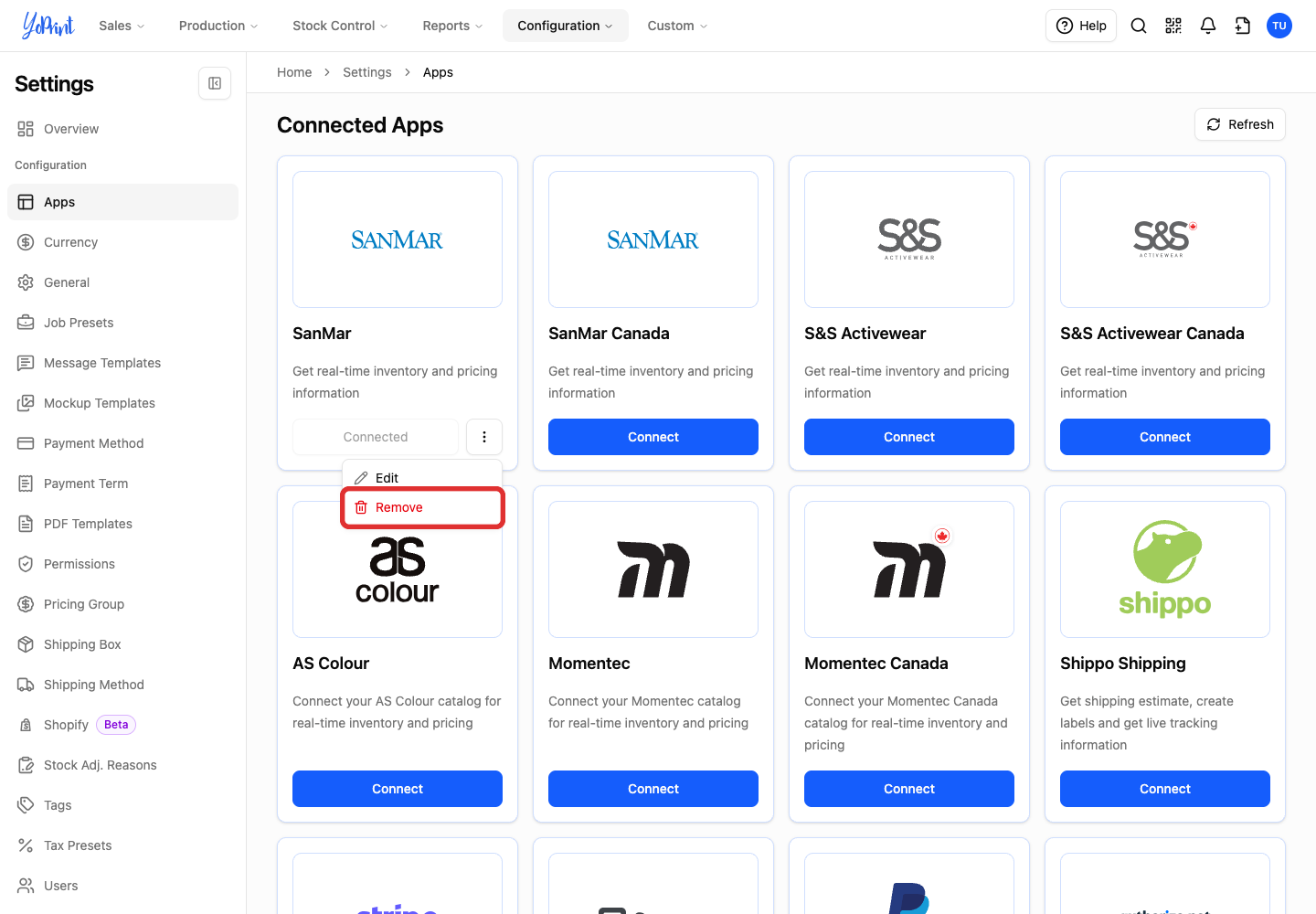
Select Remove.
-
Click Remove in the confirmation dialog. Choose Cancel if you want to keep the connection.
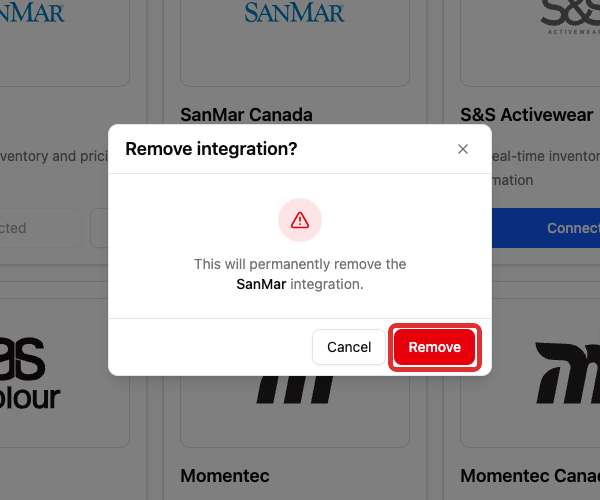
To hide the catalog as well, turn off Enable Sanmar Catalog in General settings.
Use SanMar products in an order
In a quote or sales-order job, the Product button opens the catalog picker. Choose SanMar in the catalog filter to find a product. After choosing its color, use Check Vendor Pricing for costs and Check Vendor Stock for warehouse quantities.
Follow Using catalog integrations for the pictured steps, including purchase orders.
Saving a quote or purchase order does not place an order with SanMar. Arrange the supplier order through SanMar or your usual purchasing process. See Inventory & Purchase Order Overview for sending a purchase order to a vendor.