Import Vendors Using CSV
In this article
Use a CSV file to add vendors and their contact details in bulk. This creates custom vendor records in YoPrint. If you order from catalog suppliers such as SanMar or S&S Activewear, connect them through supplier integrations instead. Download the vendor template, fill it with your records, and review the rows before importing.
Prepare the vendor file
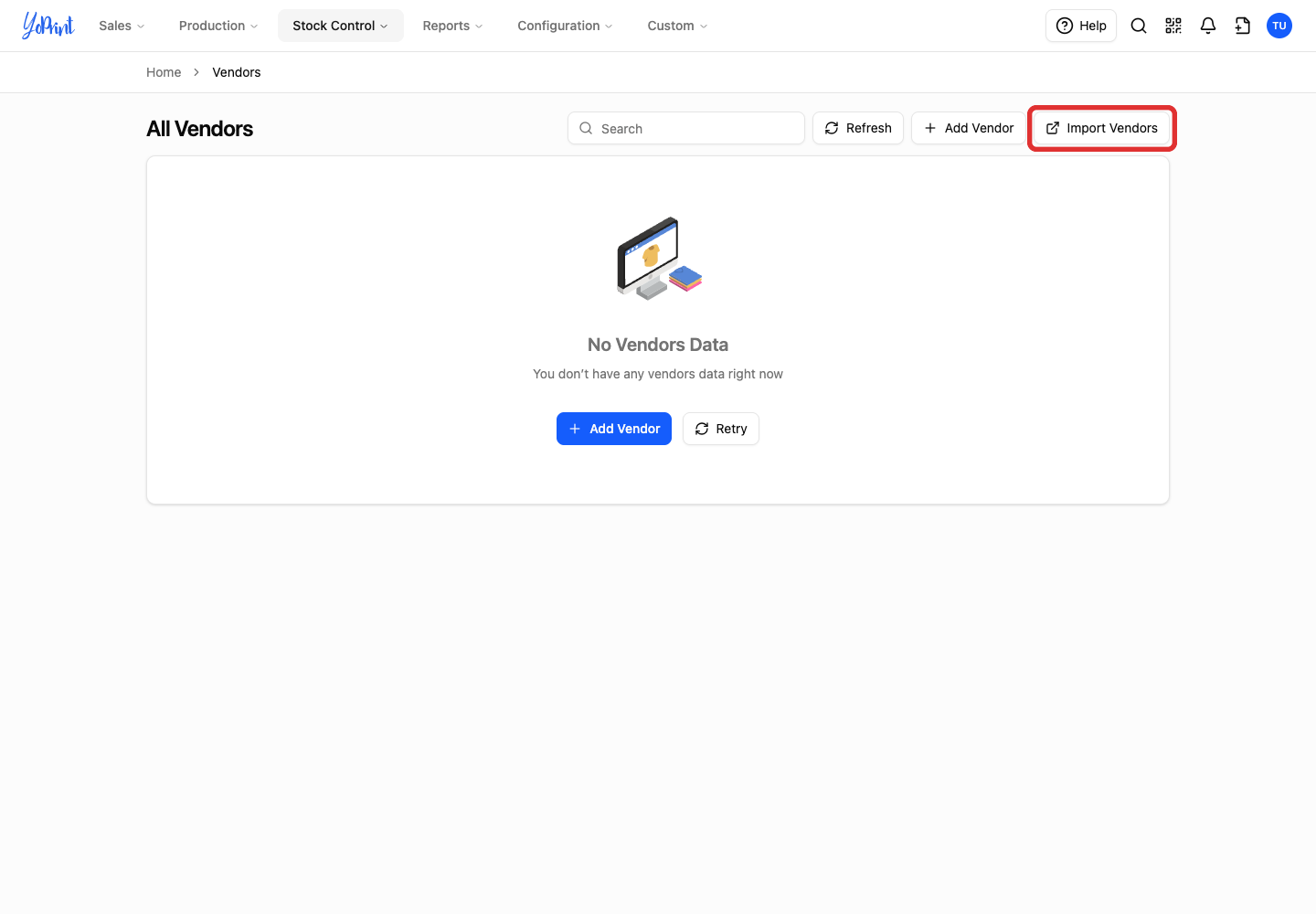
Open Stock Control > Vendors.
-
Click Import Vendors. The Import Portal opens in a new tab.
-
Click Download template.
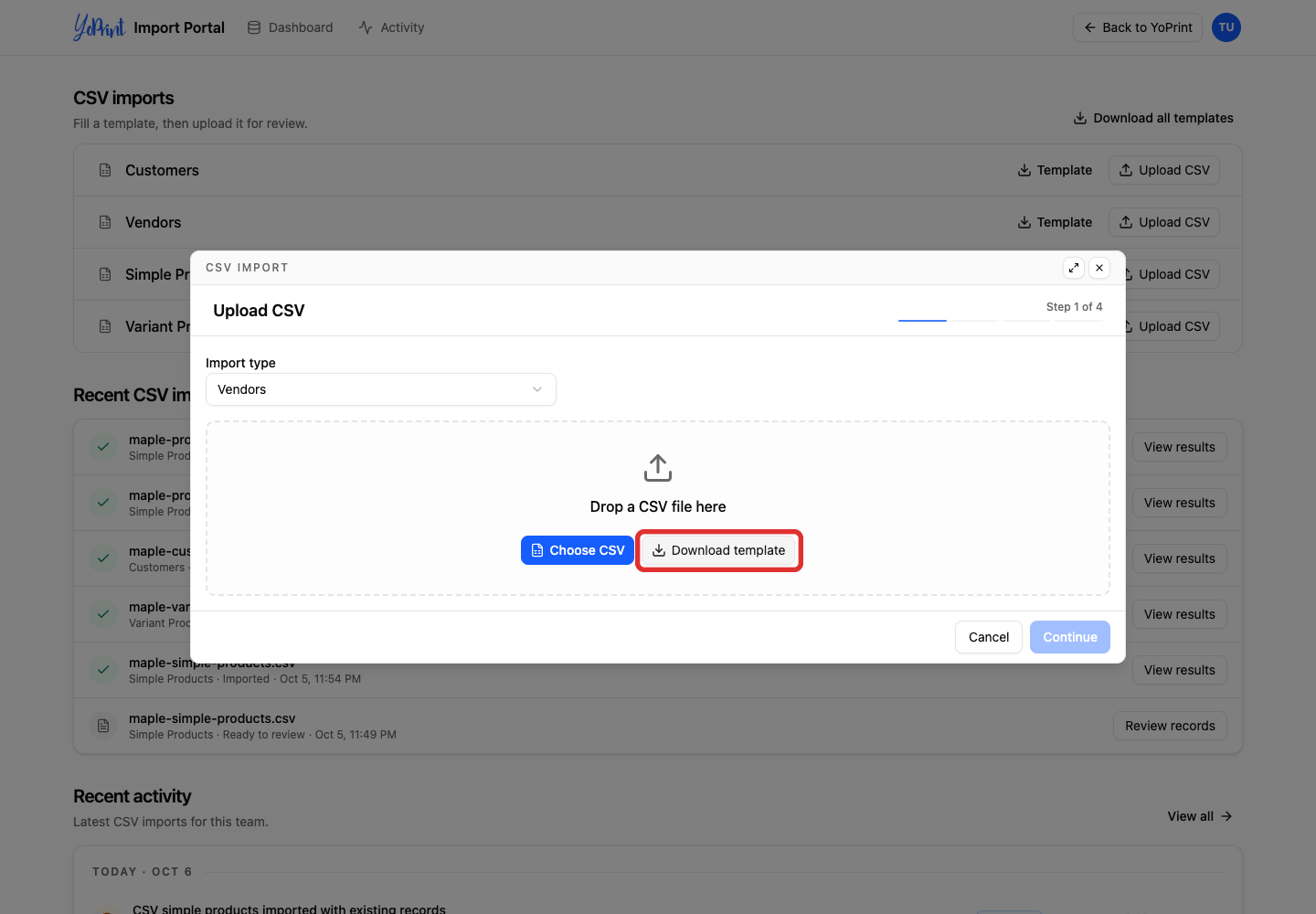
Replace the example row with your vendors. Use one row for each vendor and keep the header row. The example in this guide contains Maple Paper Supply and Harbor Blank Goods.
| Column | What to enter |
|---|---|
vendor_name |
The vendor’s name. This is required and is used to find existing vendors. |
vendor_website |
The vendor’s website, including https://. |
vendor_internal_notes |
Notes for your team about this vendor. |
vendor_default_vendor_note |
Notes for purchase orders to this vendor. These notes appear automatically when creating a purchase order. |
vendor_account_number |
Your account number with the vendor. This number appears on purchase orders so the vendor can identify your account. |
contact_first_name, contact_last_name |
The primary contact person for this vendor. |
contact_email |
That contact's email address. |
contact_phone, contact_fax |
The contact’s telephone and fax numbers. |
contact_phone_country, contact_fax_country |
The corresponding two-letter country code, such as US. |
The template covers contact and account details. It does not include vendor address columns.
Leave optional details blank when you do not have them. For a contact, enter their first name and a valid way to reach them. Keep account numbers and telephone numbers as text in your spreadsheet so leading zeros are preserved.
Save your working spreadsheet separately, then save the import copy as UTF-8 CSV.
Upload and import the vendors
-
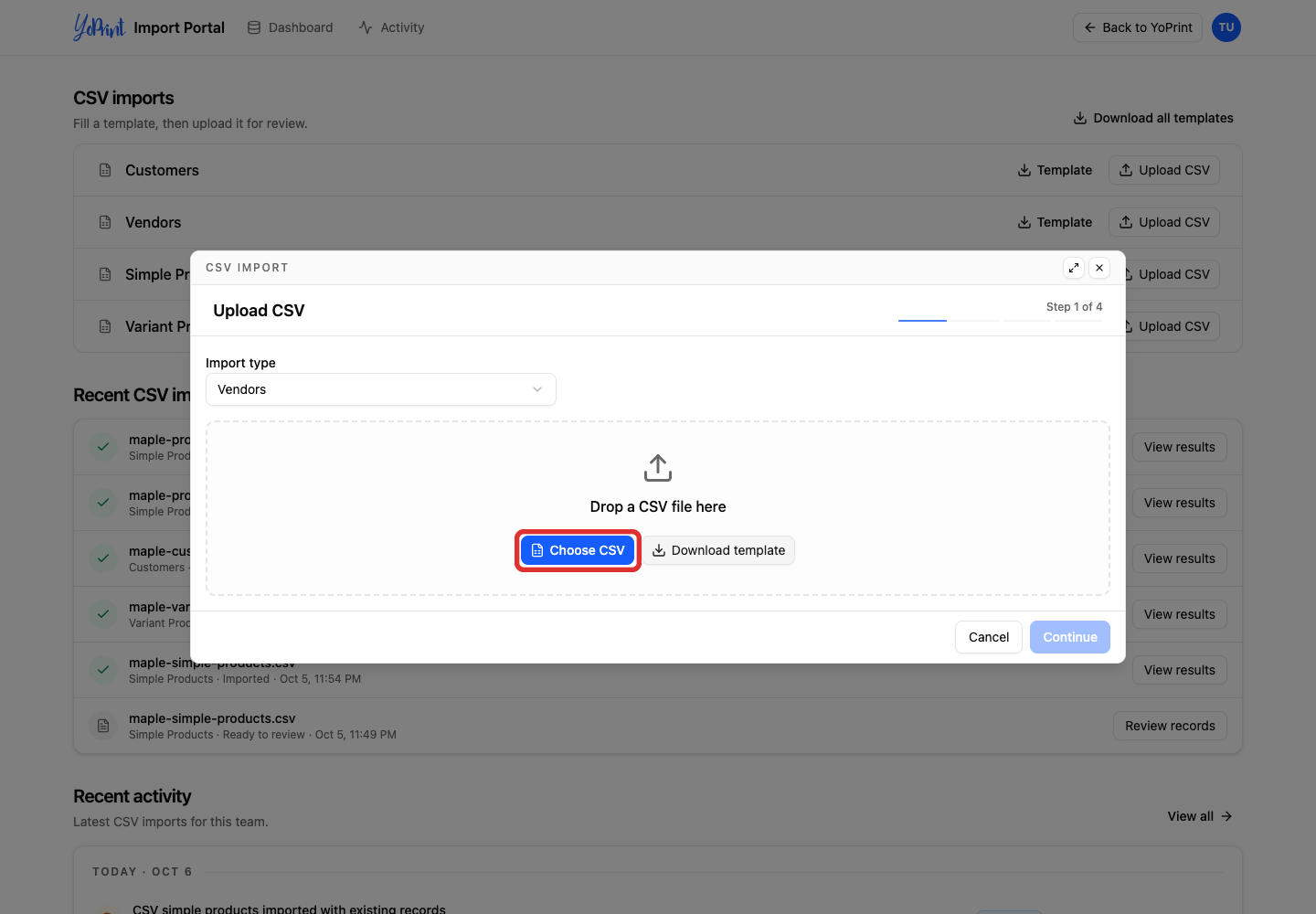
Click Choose CSV and select your filled vendor file.
-
Click Continue.
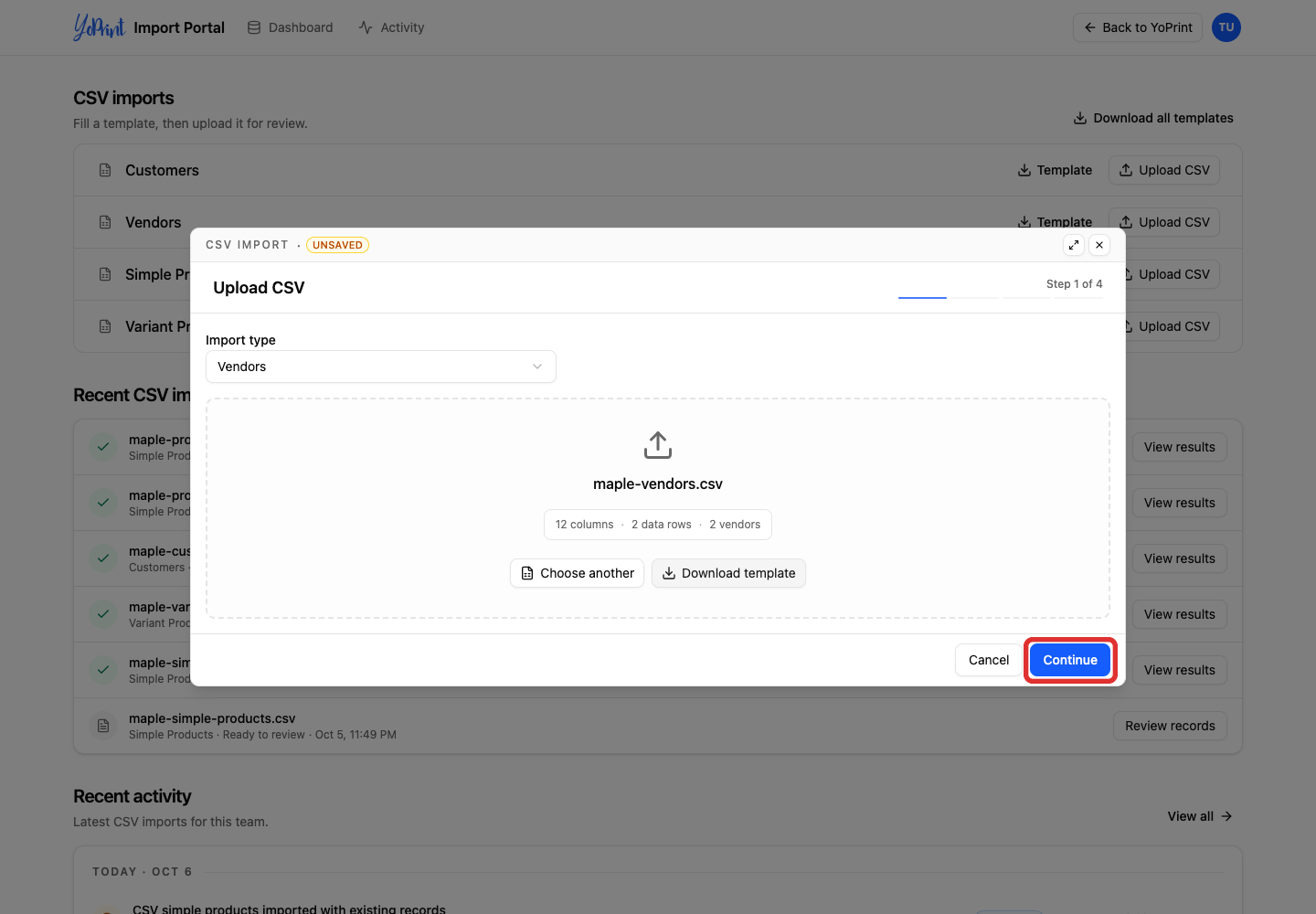
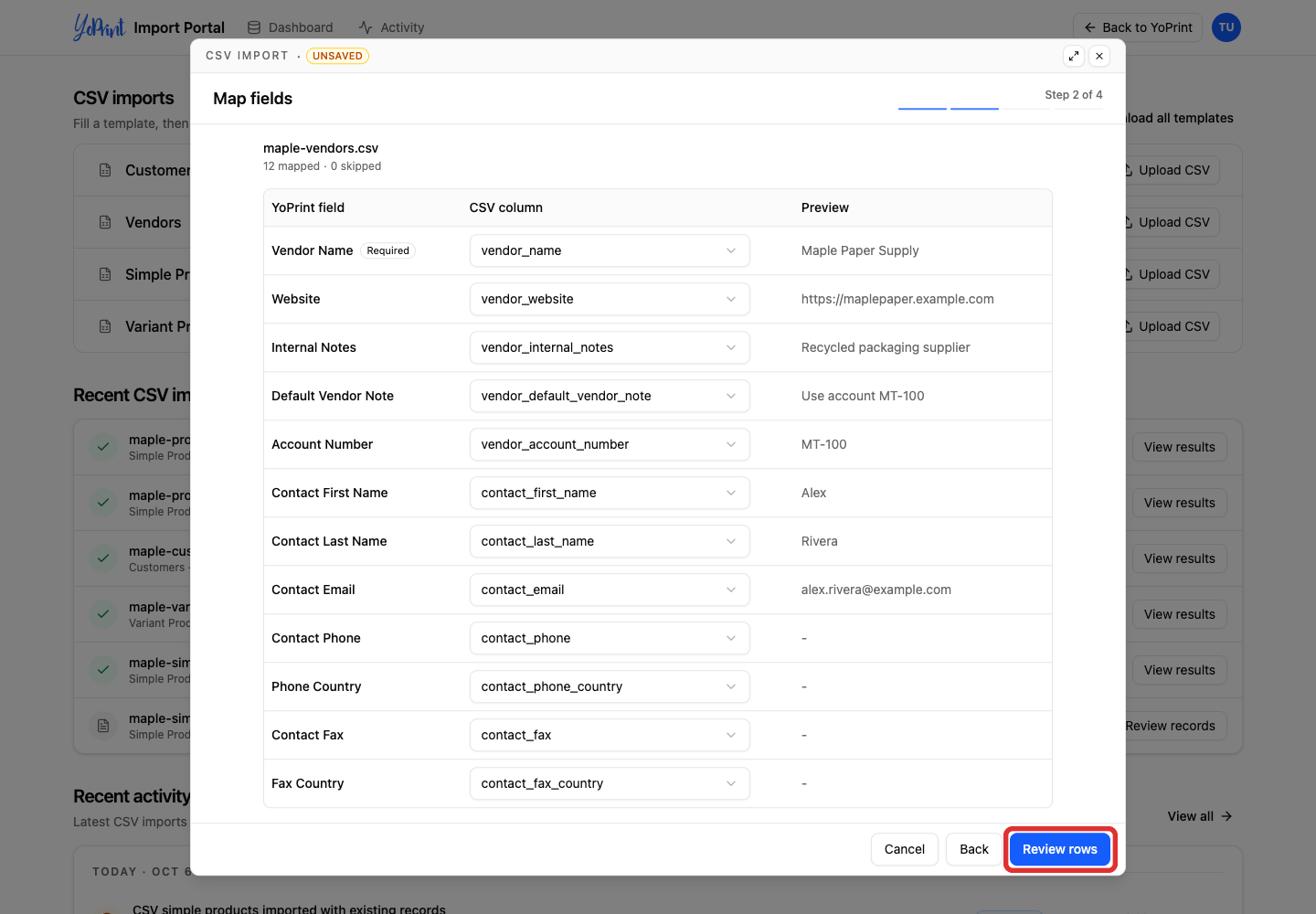
Map fields pairs each CSV column with a YoPrint field. Check the Preview values, especially Vendor Name. The current template’s headers match automatically. If a column is unmatched, choose its CSV column from the dropdown beside the appropriate YoPrint field. If a required column cannot be mapped, follow Troubleshoot CSV Import Errors.
-
Click Review rows.
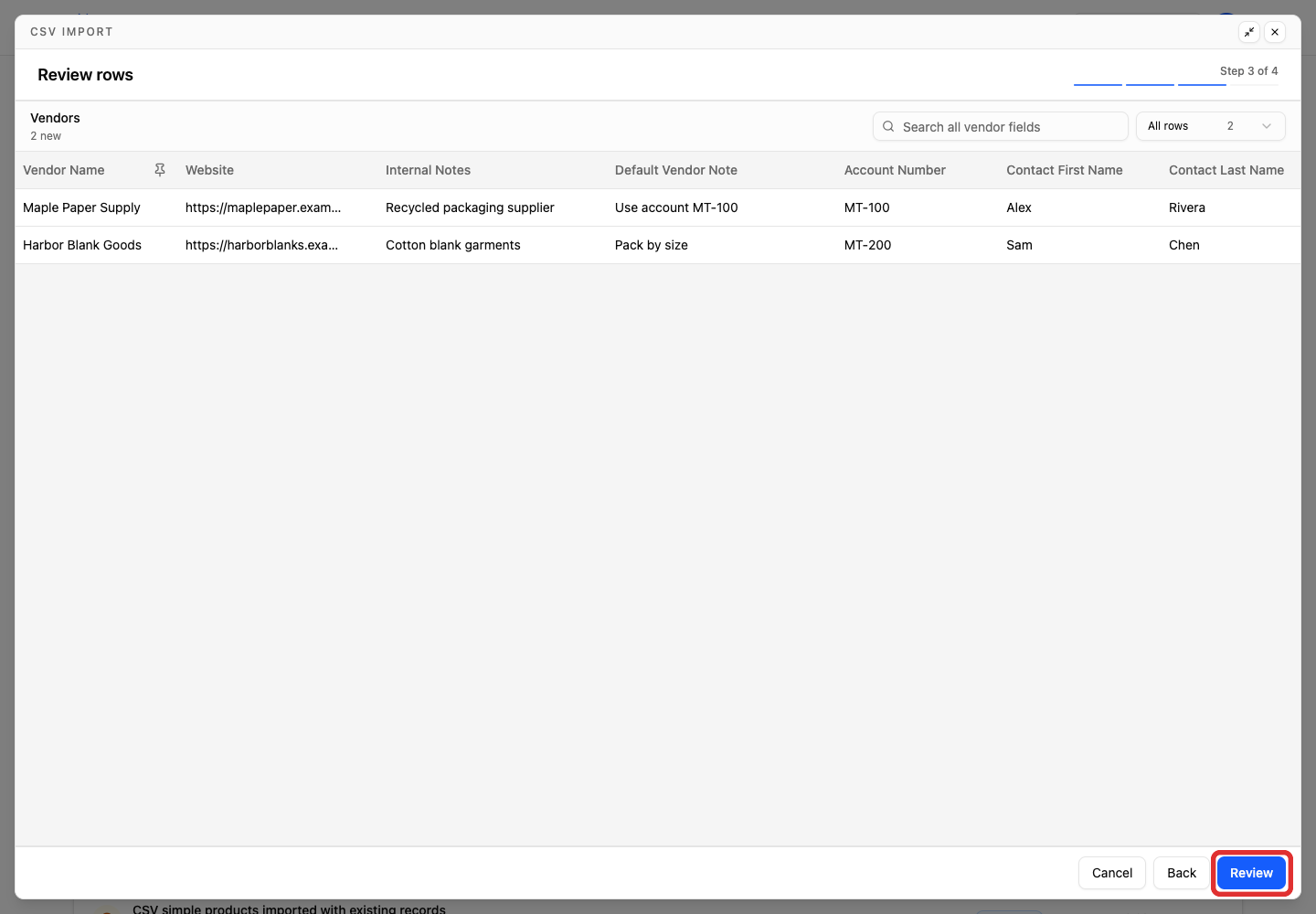
Check vendor details in Review rows. Scroll right across the table to find the Status column, where new records show Ready. In large files, use the search box, filter rows by status, or click Pin first column on the vendor name header to keep names visible while scrolling. If rows show errors, see Troubleshoot CSV Import Errors.
-
Click Review.
-
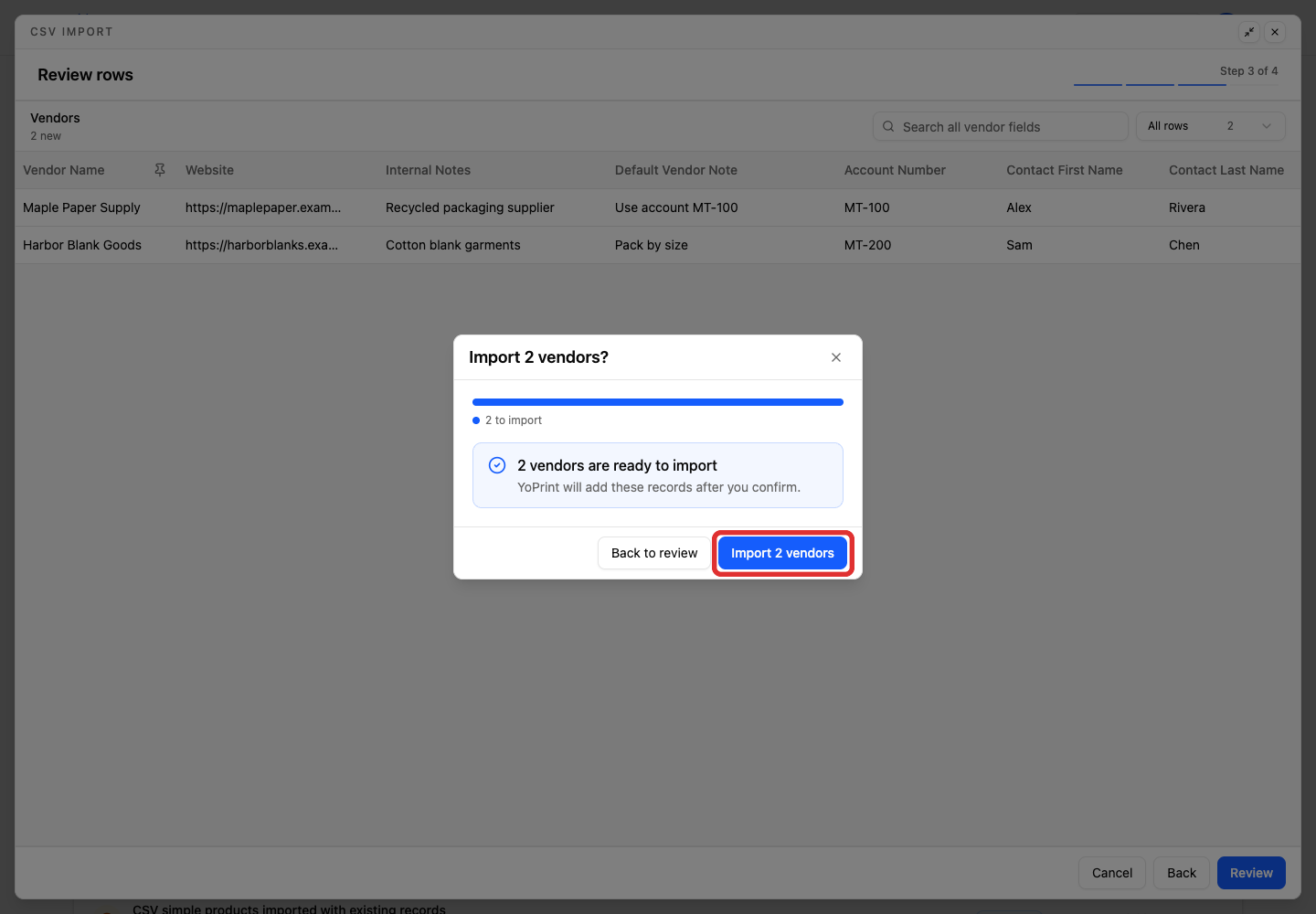
Click Import 2 vendors. The count reflects the vendors in your file that are ready to import.
Import complete shows how many vendors were imported. Click Done to close the summary. Switch back to your YoPrint browser tab, or click Back to YoPrint at the top of the portal. In YoPrint, click Refresh above the table to display your newly imported vendors.

When vendors already exist
YoPrint checks the vendor name for a match. Review the CSV RECORD and YOPRINT MATCH shown in Some records already exist. Matching vendors marked Already exists are skipped and the saved records are left unchanged.
Vendor CSV import only adds new vendors. It does not update existing vendor records in YoPrint. To edit an existing vendor, open its record in Stock Control > Vendors.
To import only the remaining vendors, click Continue without these records.

The next confirmation shows counts for vendors to import and those to skip. Confirm the import when those counts are correct. If every row already exists or needs a correction, Nothing can be imported appears instead. Click Back to review to inspect your rows, or click Close to return to the review screen. To exit the importer without saving, click Cancel and select Discard import.

Change a vendor name in your CSV only when it belongs to a separate vendor.
If the result says Partial import completed, check Records not imported for each row’s issue. Correct only the rows you still want to add, then upload the corrected file. Keep the original file until you have checked the result.