How to Request Artwork Approval from Your Customer
In this article
Send artwork from a job on a saved quote or sales order, then keep the customer’s response with that job. Artwork approval covers the designs; quote approval and sales order approval are separate requests.
Request artwork approval
Start with the mockups uploaded to the job, or add them using Upload in the job’s Mockup Files. Open the saved quote or sales order under Sales. Check the order’s Email Recipients before opening the job; approval emails go to those contacts, and you can edit them on the order if needed.
-
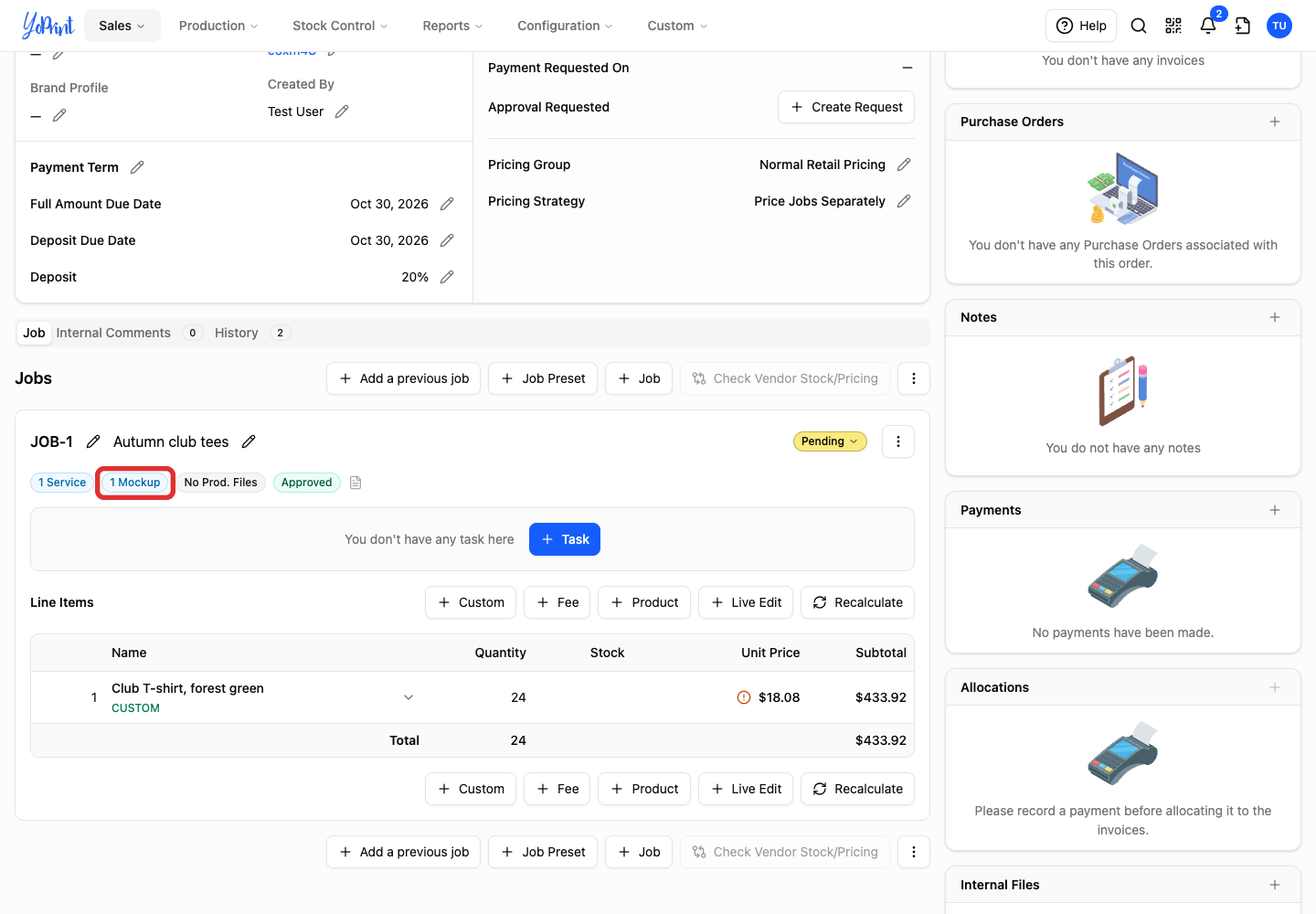
On the saved quote or sales order, click the job’s Mockup button. The number shows how many mockups the job contains.
-
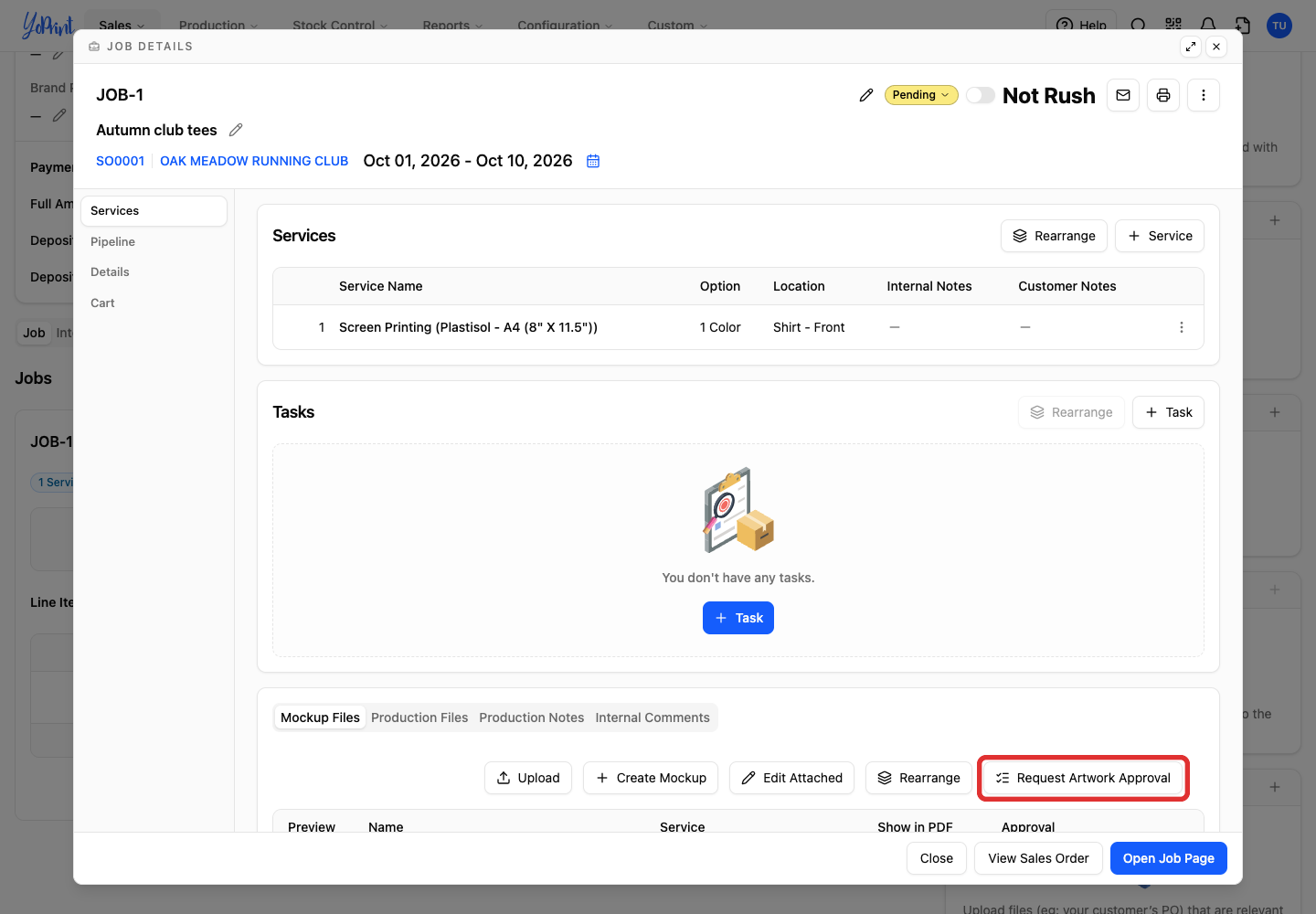
Click Request Artwork Approval in Mockup Files.
-
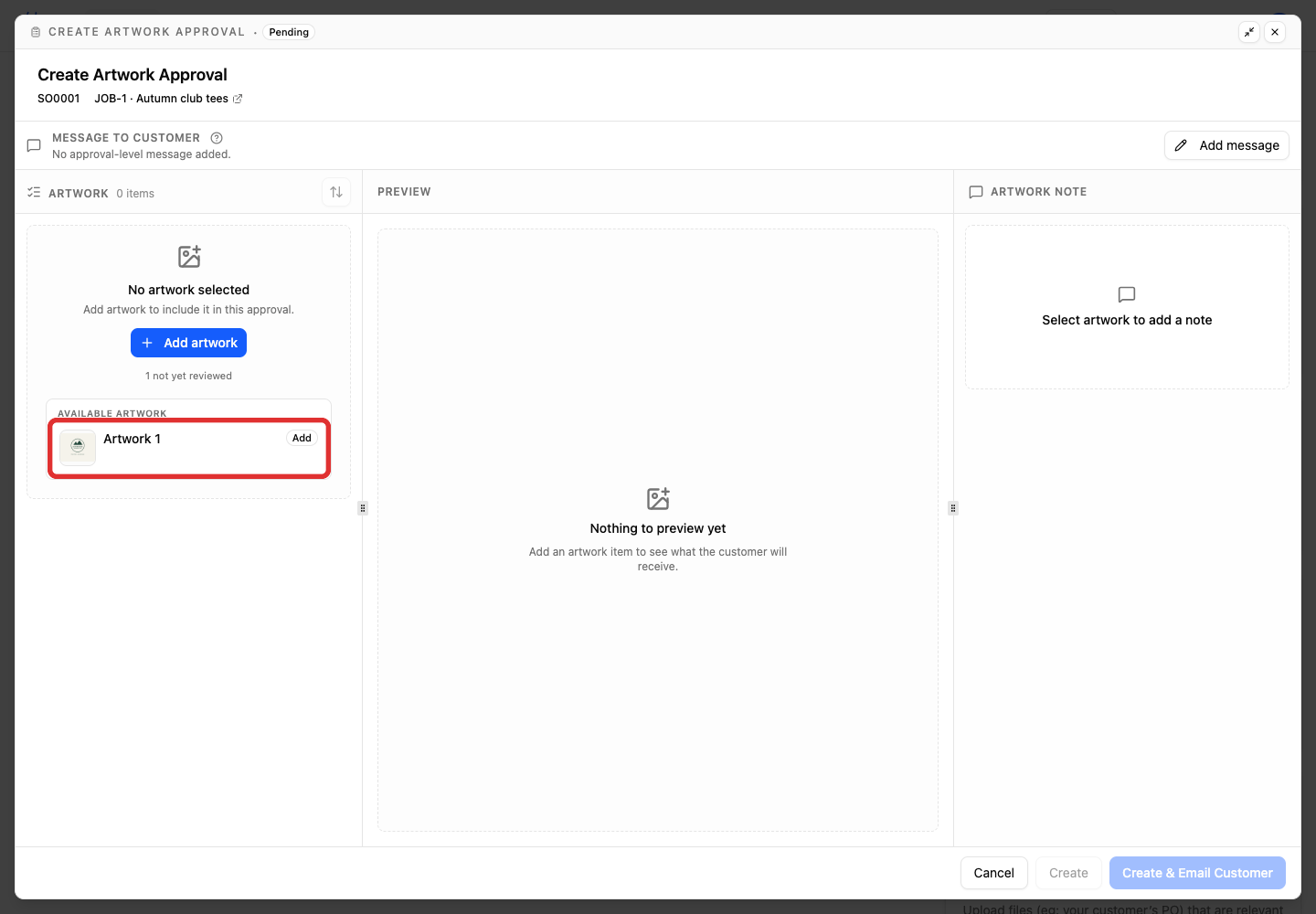
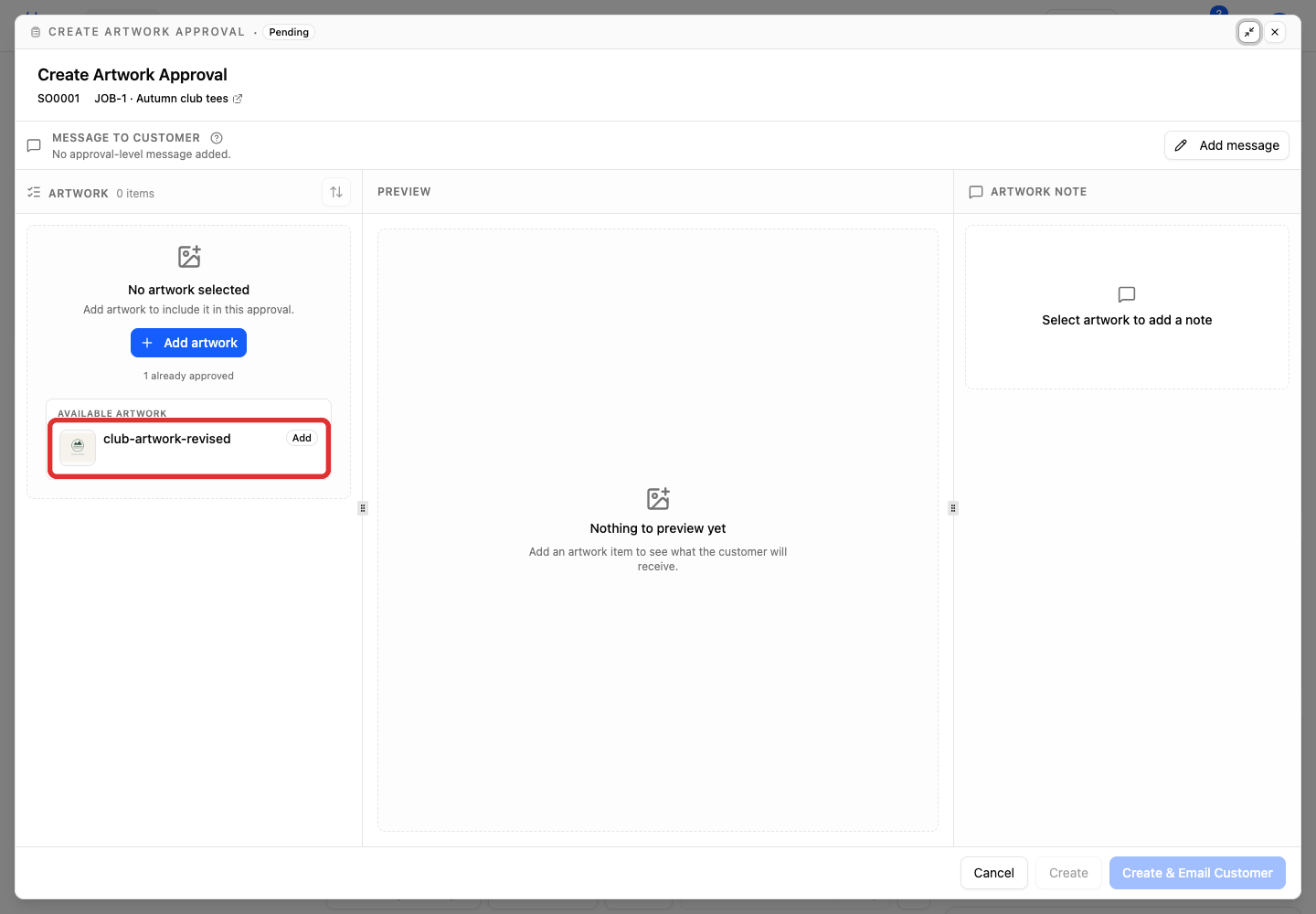
Check which artwork is included. If the mockup you want is not selected, click its Add button under Available artwork to include it and enable the create buttons.
-
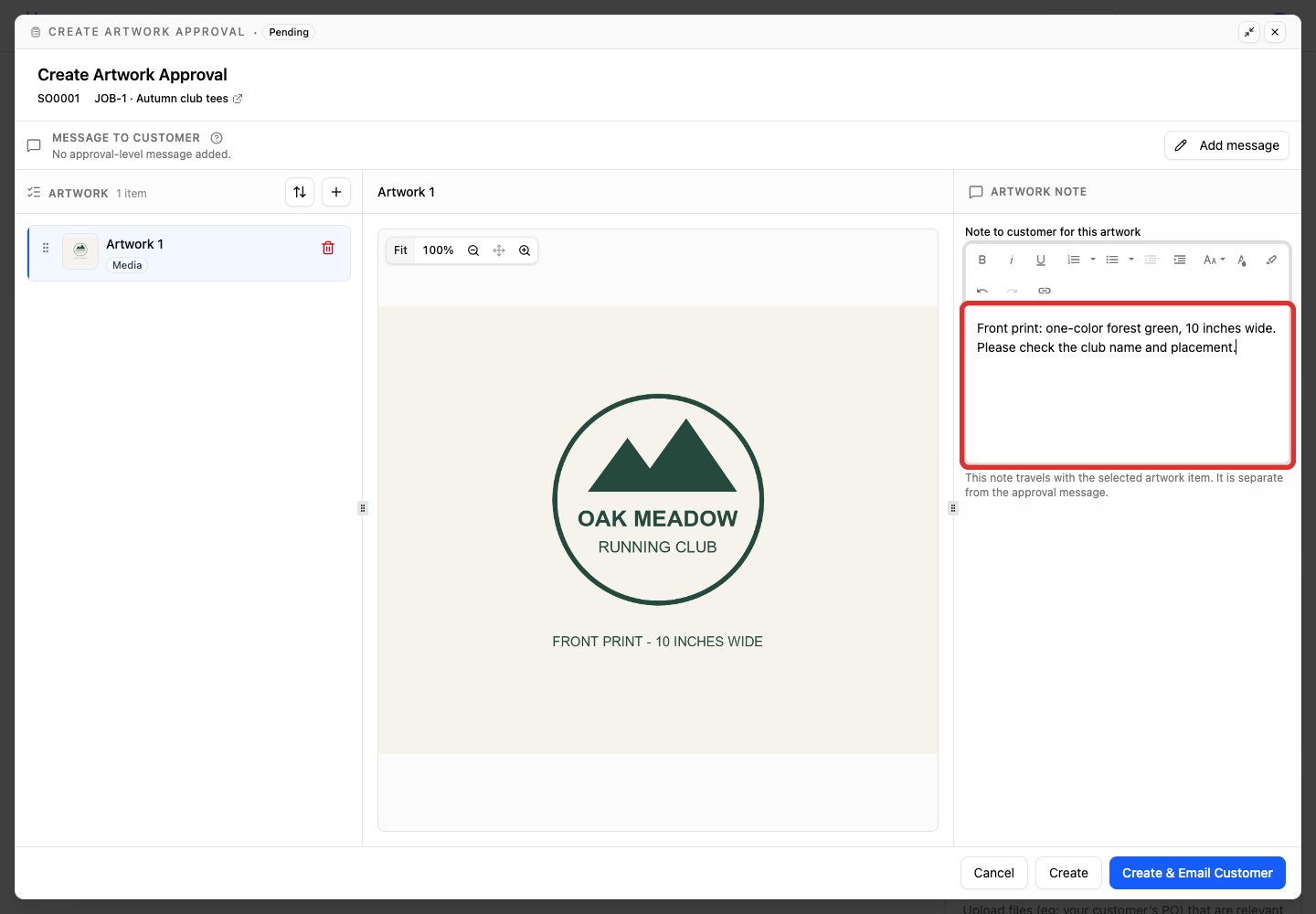
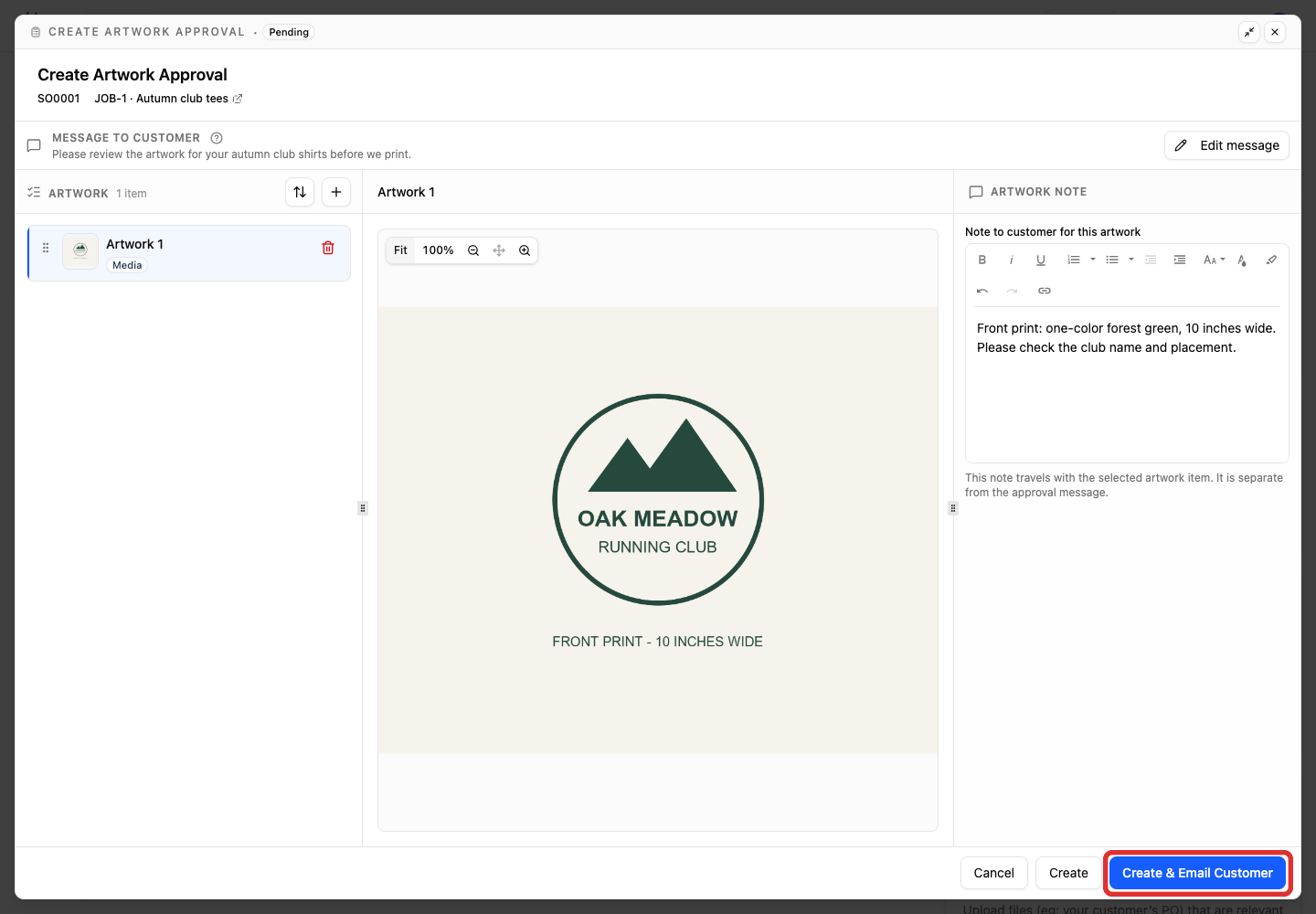
Add an optional Note to customer for this artwork. Use it for details such as print size, placement or colors; it appears beside the artwork in the portal and in the email.
-
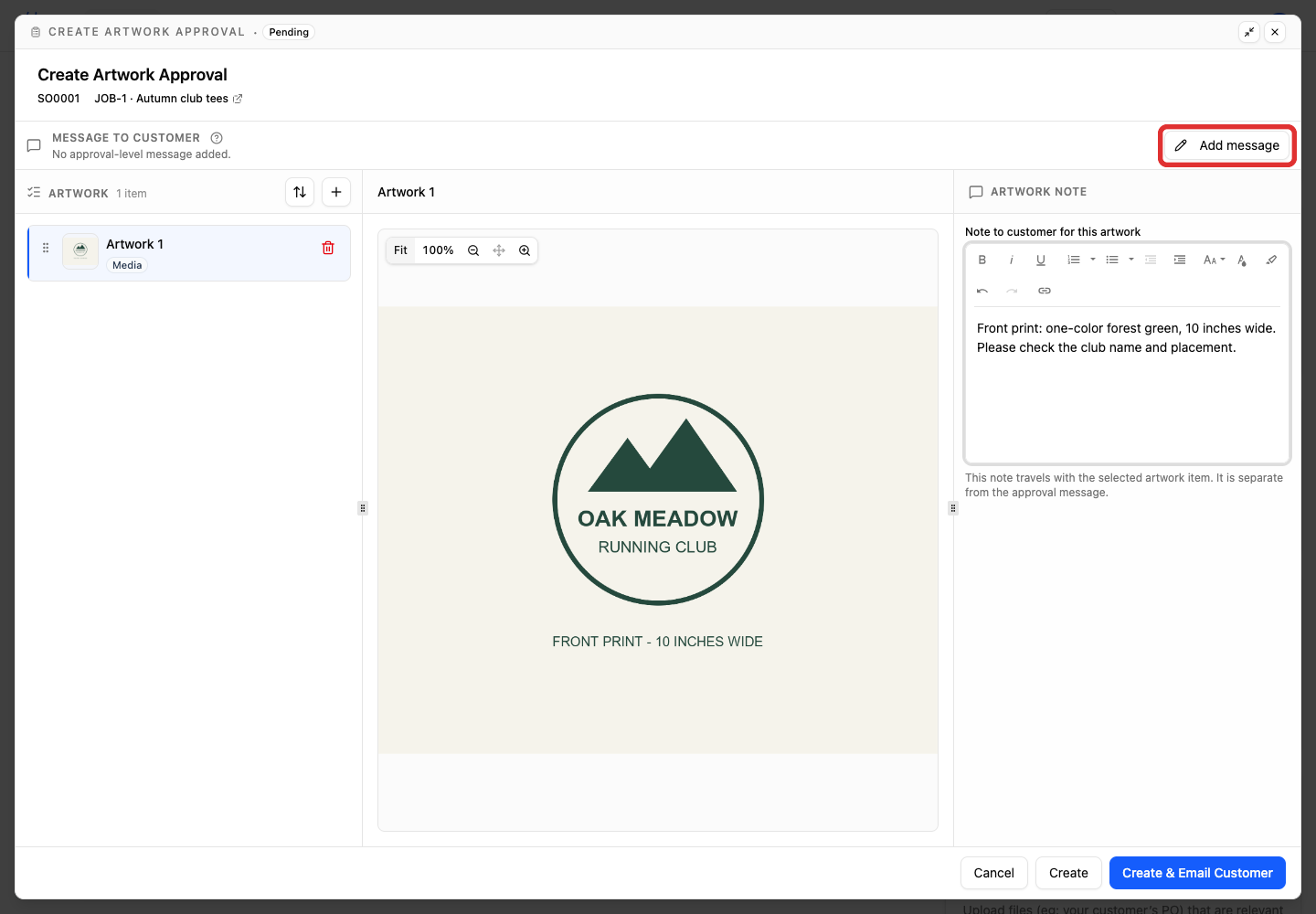
To add a message for the whole request, click Add message.
-
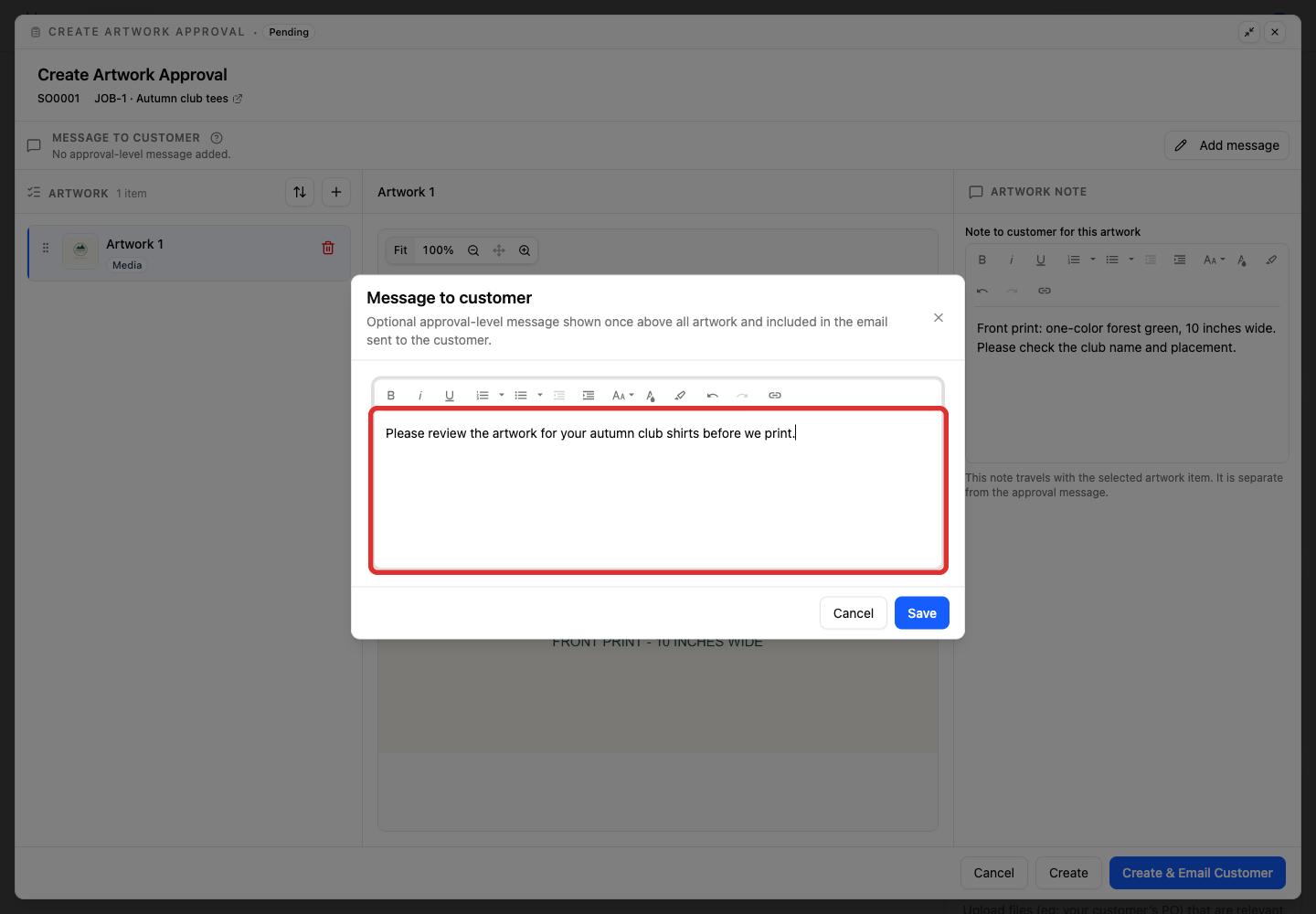
Write the message. It appears above the artwork and in the approval email.
-
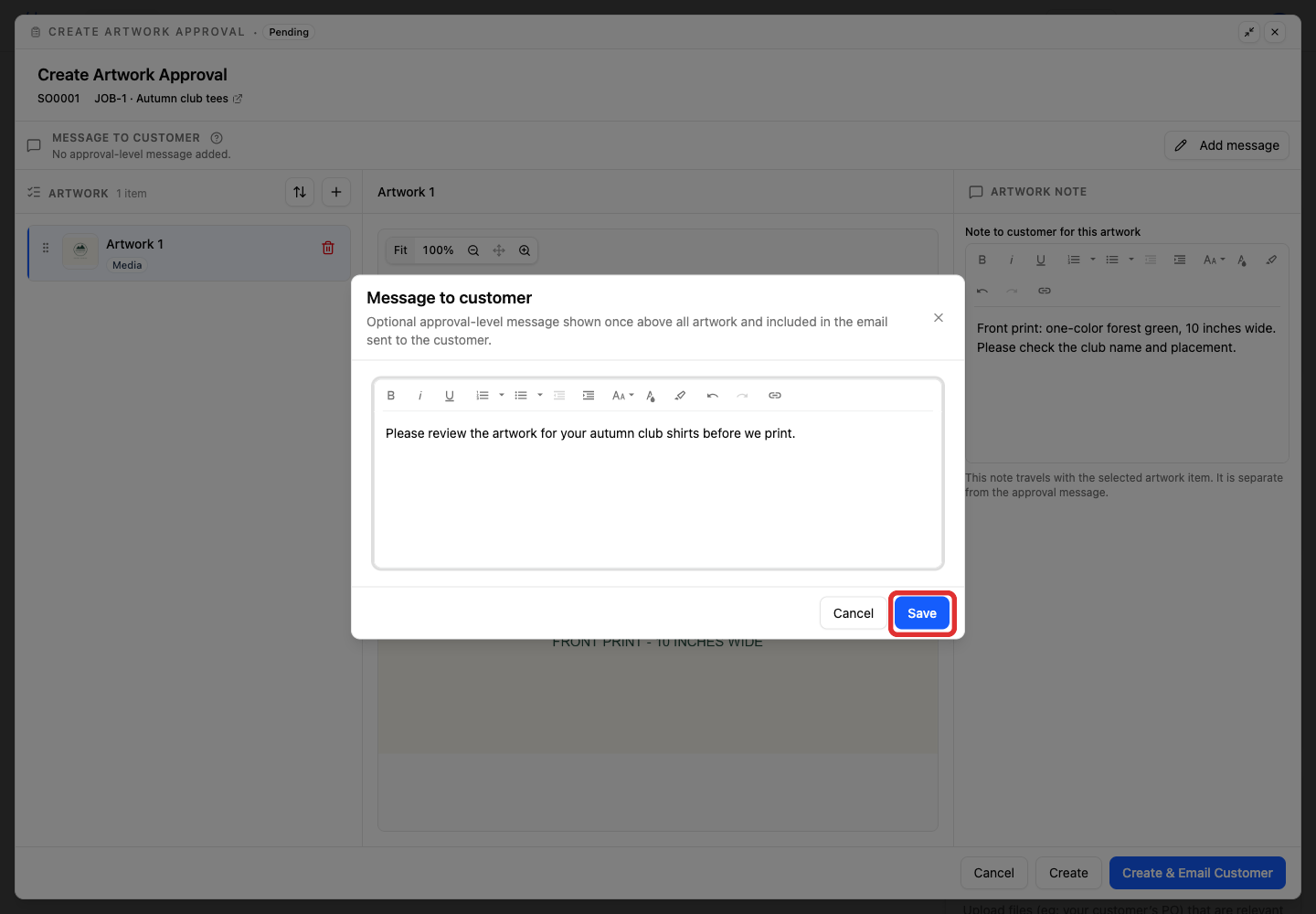
Click Save to return to the artwork request.
-
Click Create & Email Customer to save the request and email it.
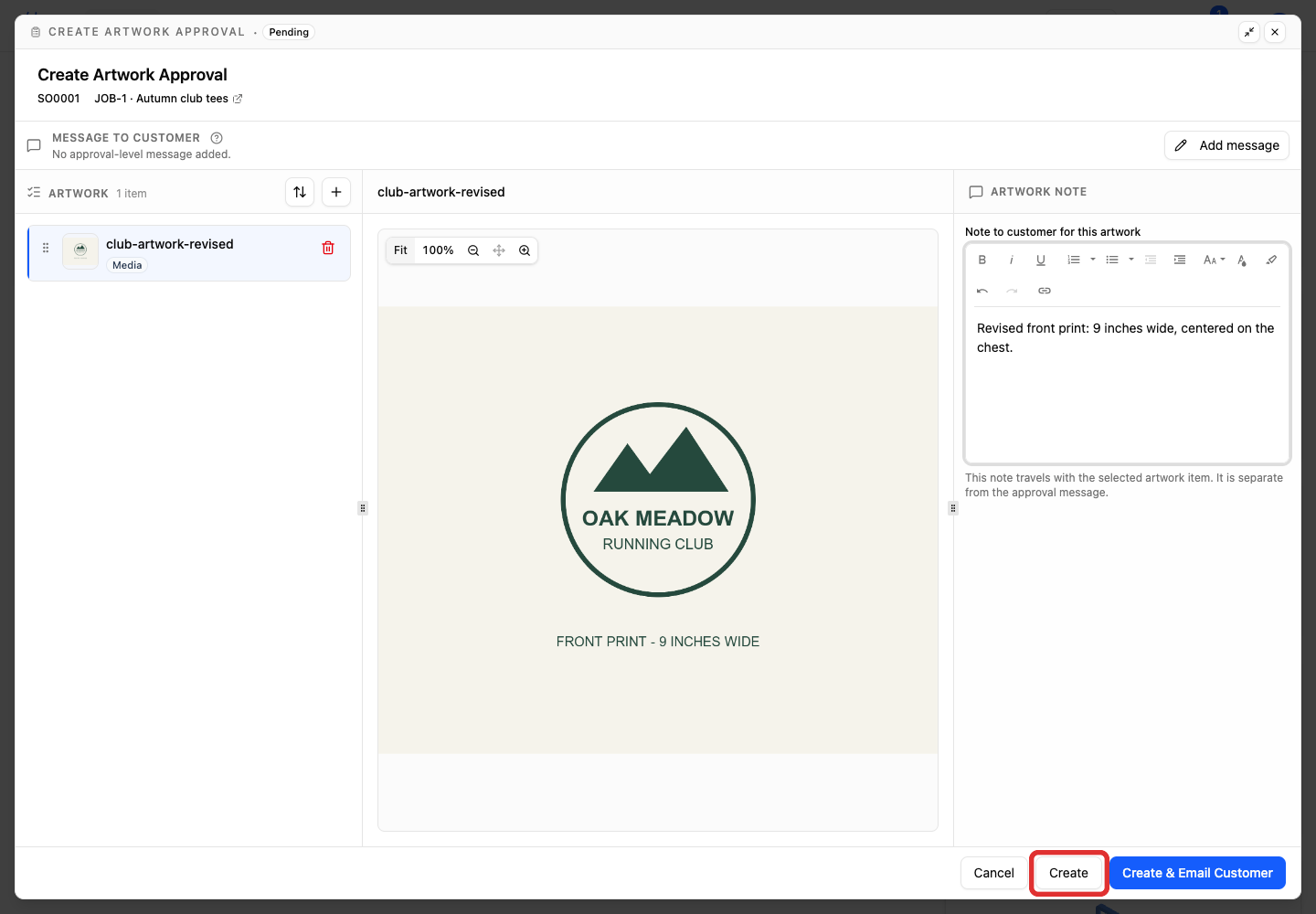
Save without emailing
Create saves the request without sending an email or showing it in the customer portal. You can send it later from the saved request’s Send to customer button.
Selected artwork appears on the left, with a preview in the center and its note on the right. You can also include already-approved artwork if you need the customer to confirm the whole set again.
If your shop has not enabled terms, the terms section is omitted from the customer’s review. To add terms, see Set artwork approval terms.
Start from the job menu
This option is available when the job does not have an active artwork approval.
-
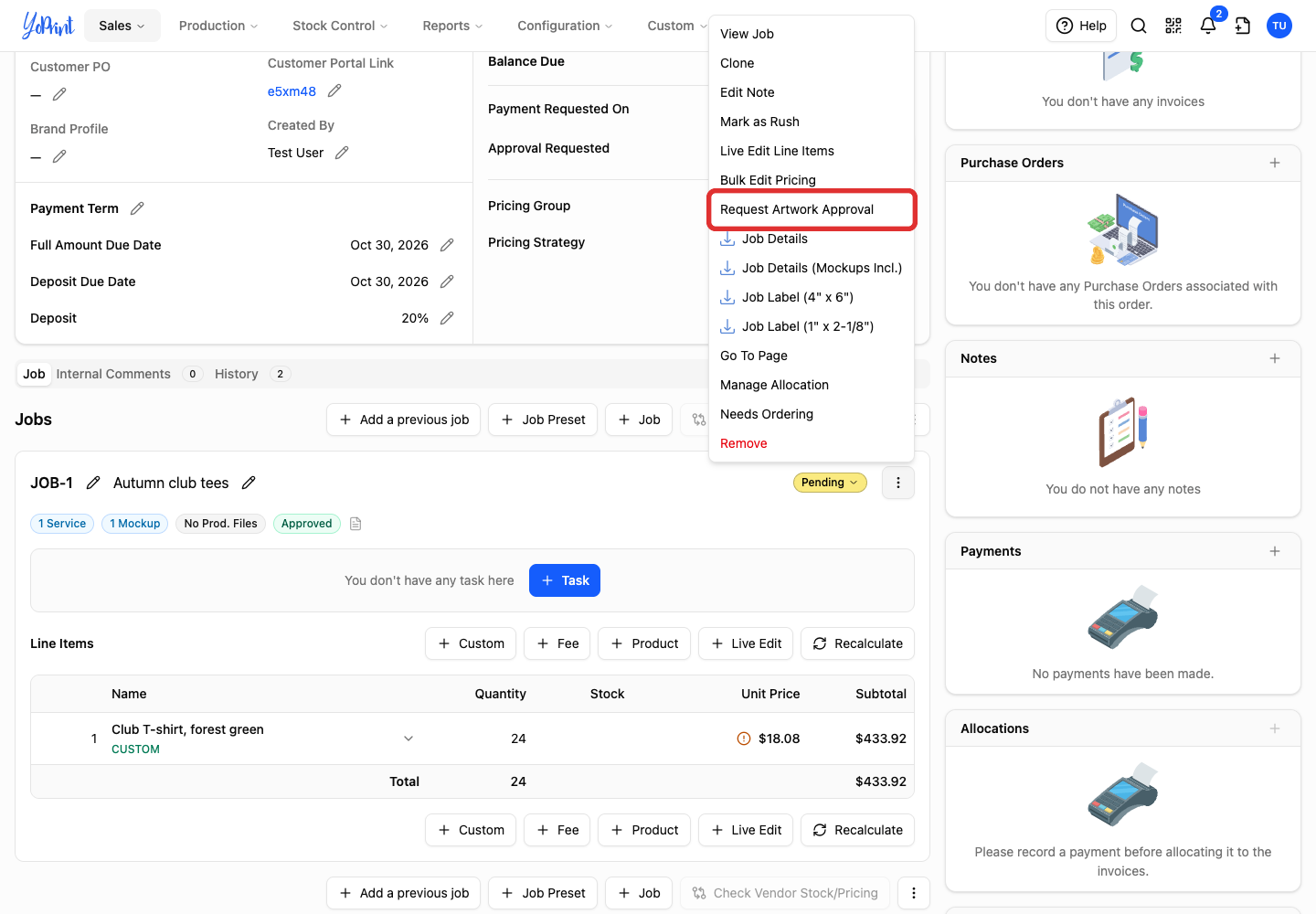
Click the job’s three-dot menu on the quote or sales order.
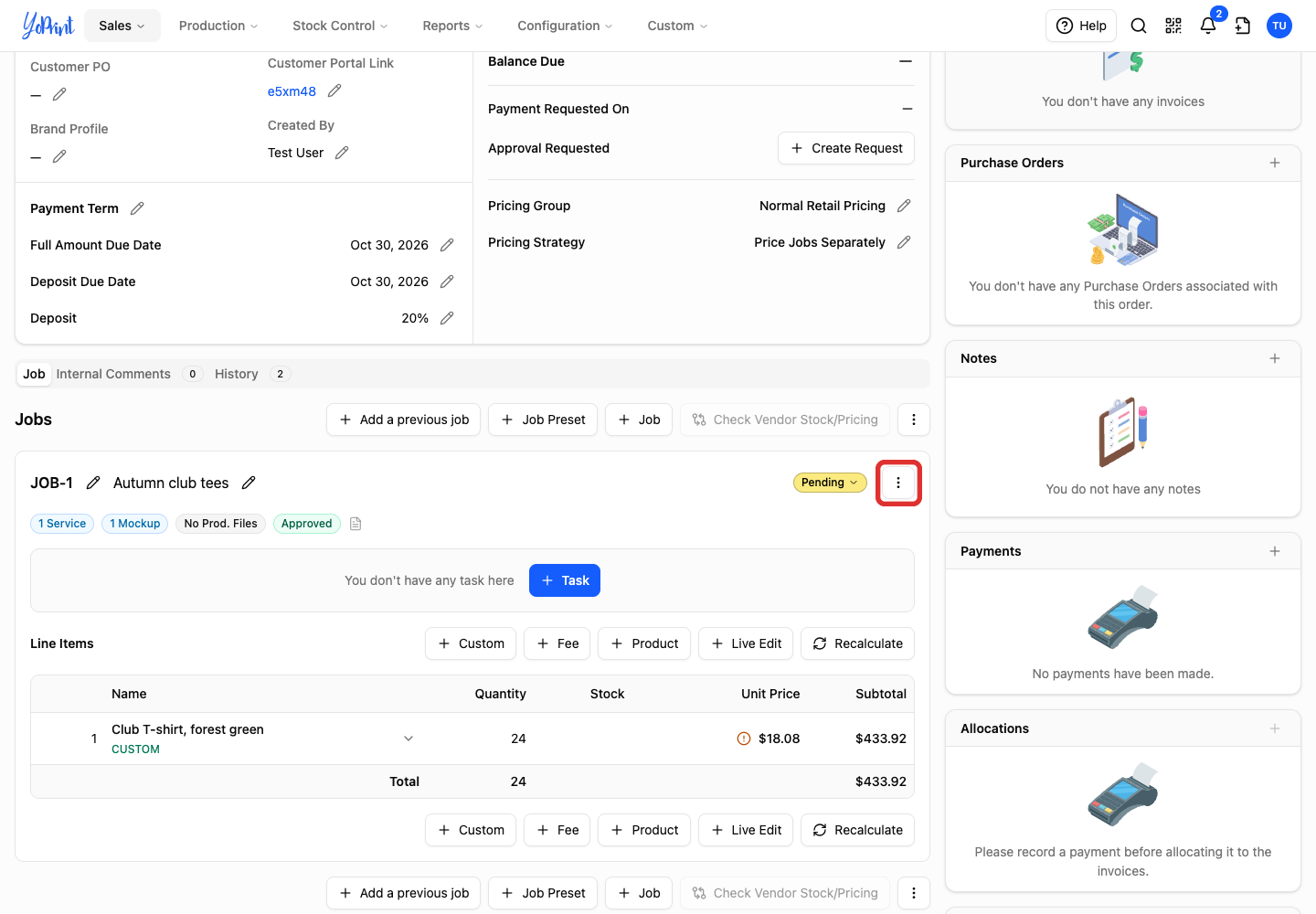
-
Choose Request Artwork Approval, then follow the request steps above.
Check the customer’s response
The customer receives an email with a link to review the artwork in the customer portal. The approval email uses your shop's branding. Customers can review the artwork on a phone. In the portal, customers can inspect each piece, approve it or request changes with a comment, then review the terms and sign. They can also review the artwork on a phone. YoPrint records the decisions and sends an in-app alert and email notification to your team when the review is completed. Once every design is approved, you can use that approval before collecting payment and starting production.
-
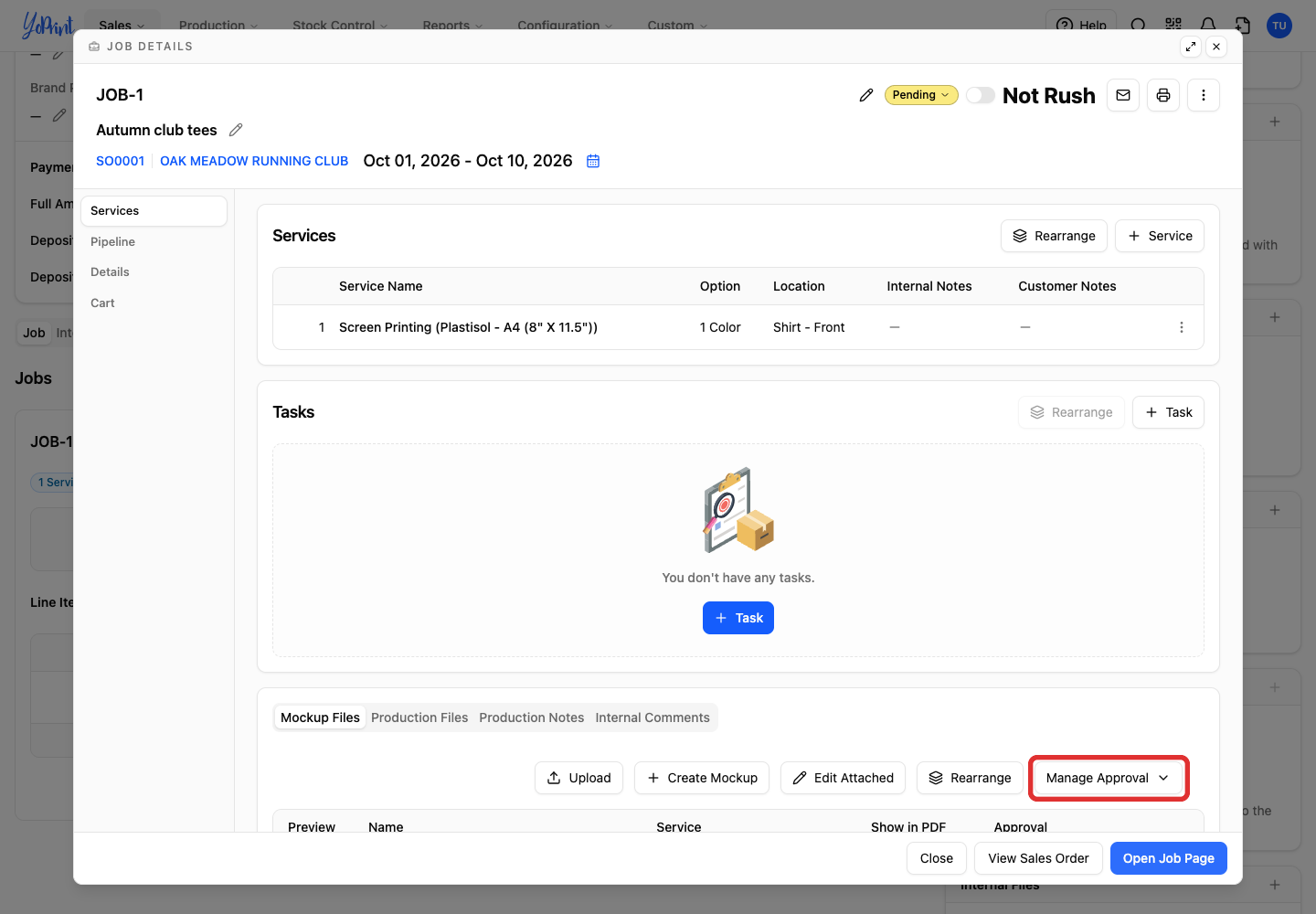
Open the job’s Mockup Files and click Manage Approval while the request is pending.
-
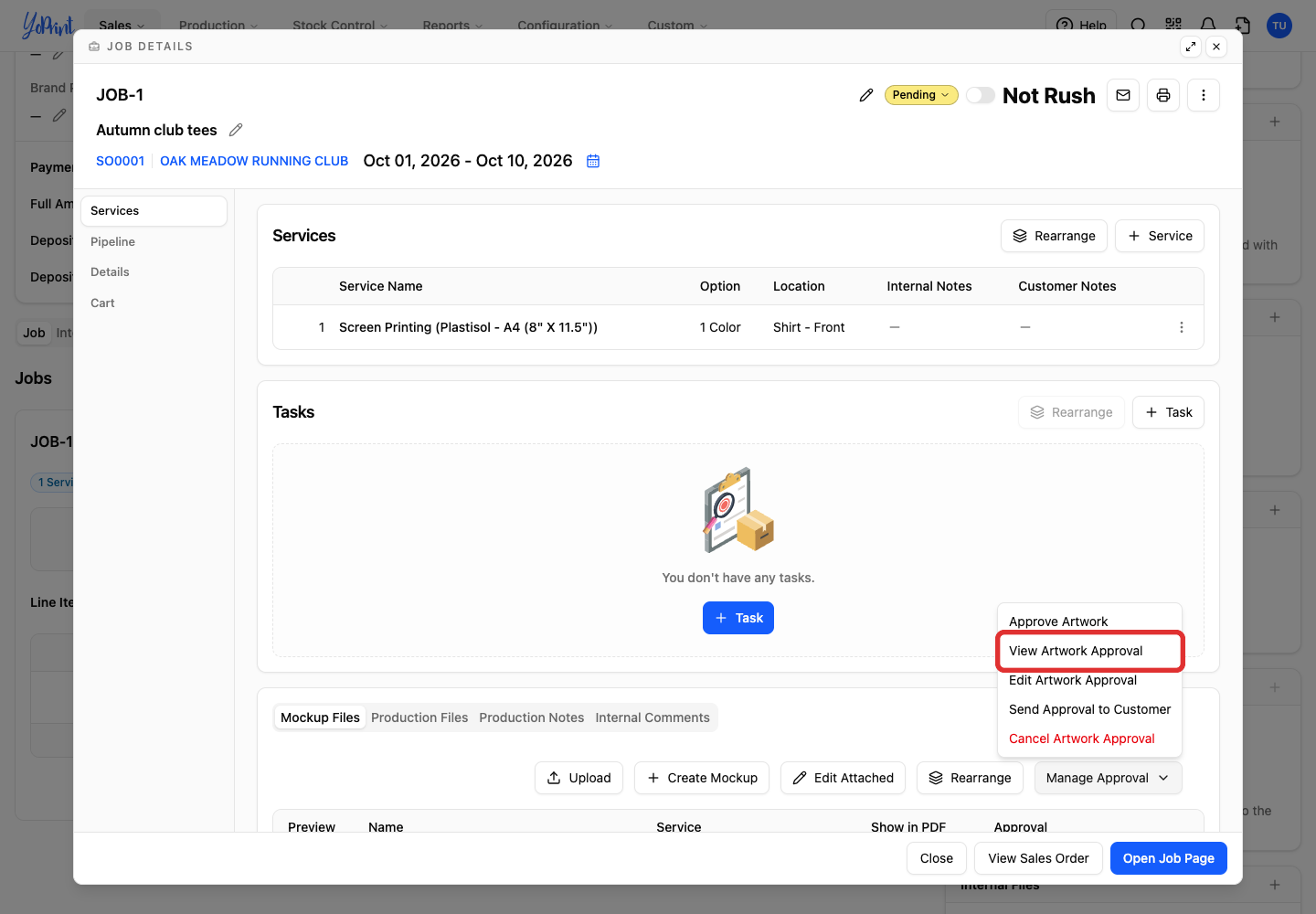
Choose View Artwork Approval.
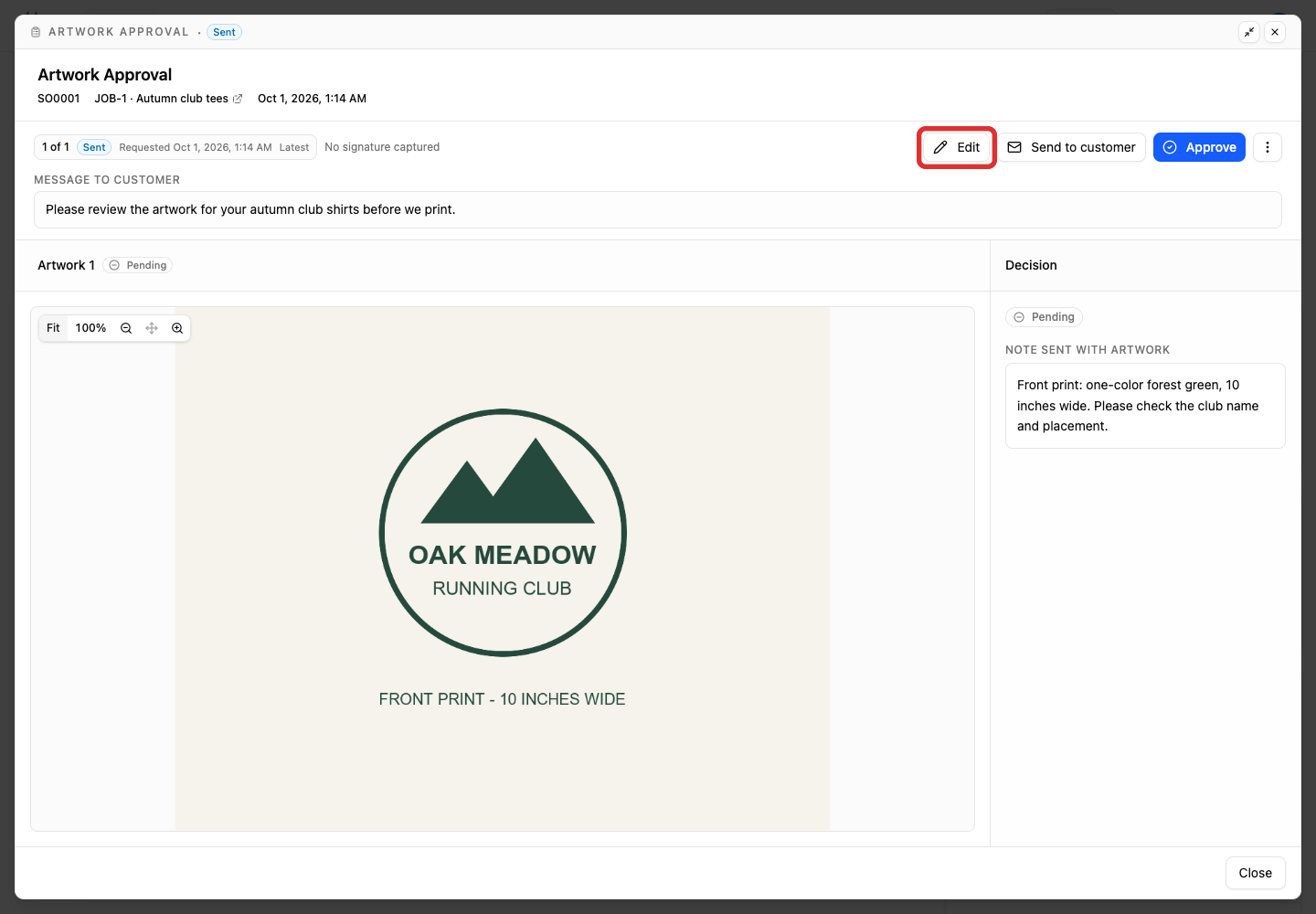
The view shows the request message, each artwork’s decision, the note sent with it and any change comment. A completed request also shows who signed and when.
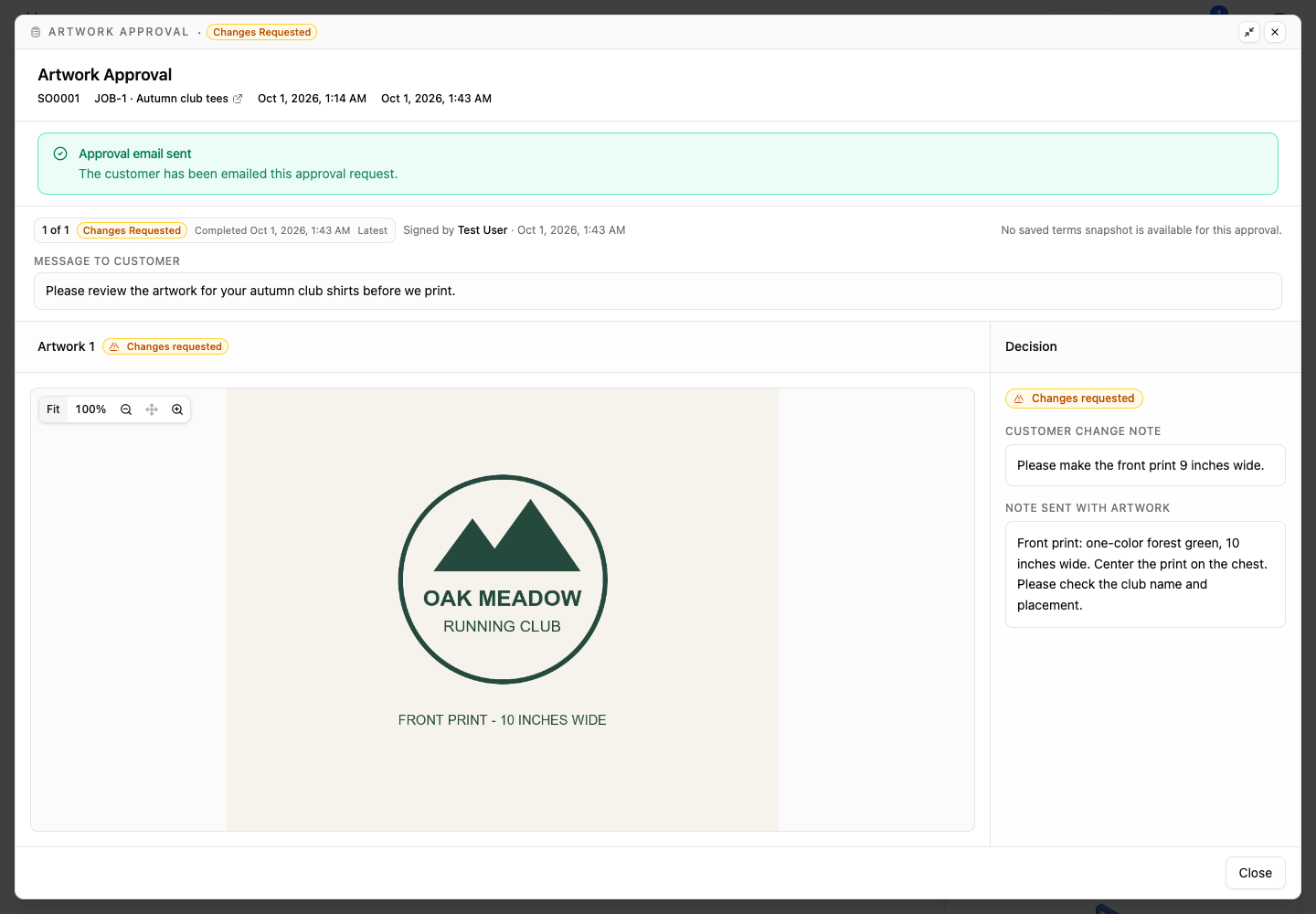
Sent means the request has been emailed. Pending means an artwork decision is still outstanding. Changes Requested means the customer asked for changes; the order and job badges label this Needs Change.
Edit or resend a pending request
You can edit or resend a request while it is awaiting a decision, whether its status is Pending or Sent.
-
In View Artwork Approval, click Edit.
-
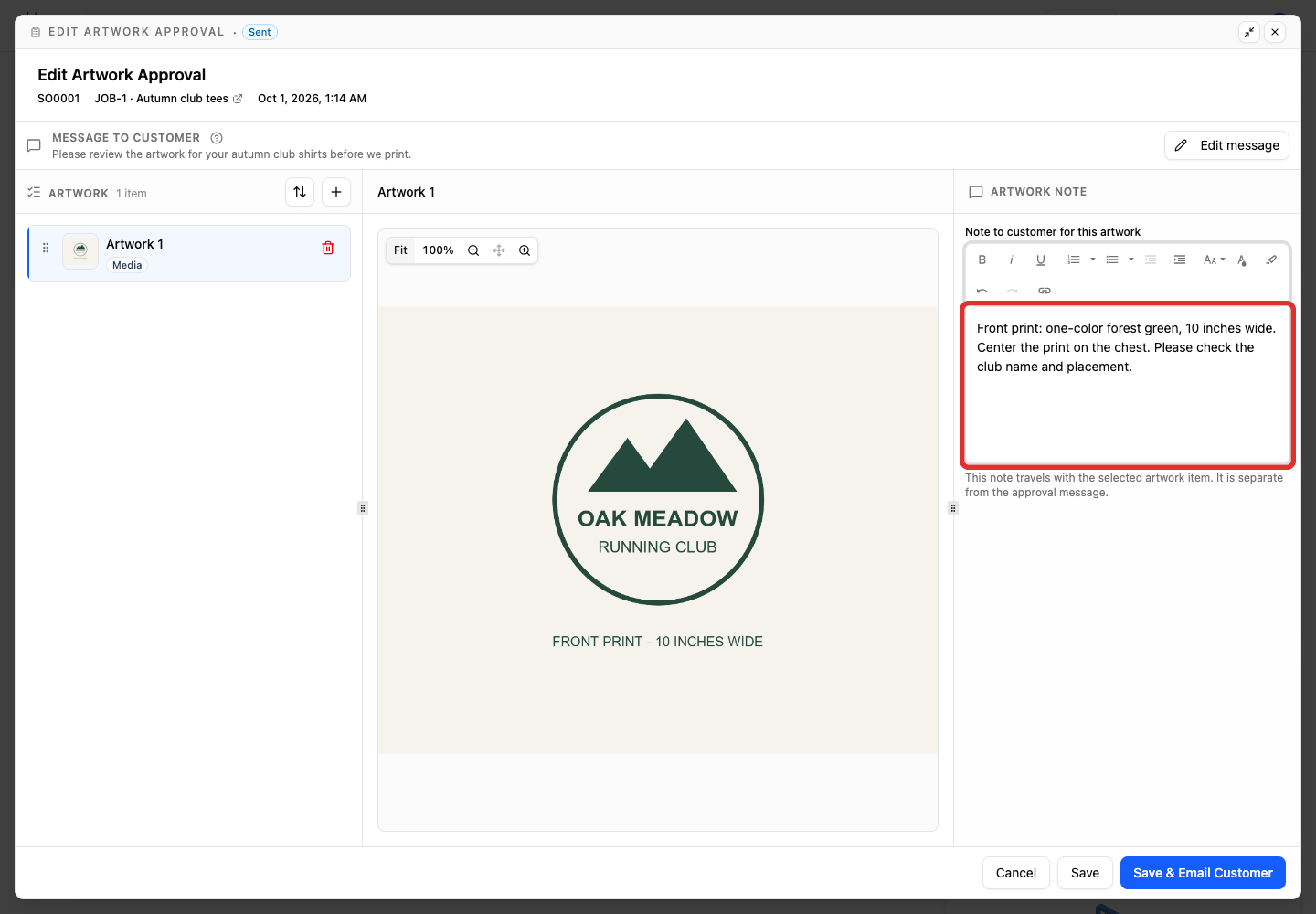
Update the artwork note or the request message as needed.
-
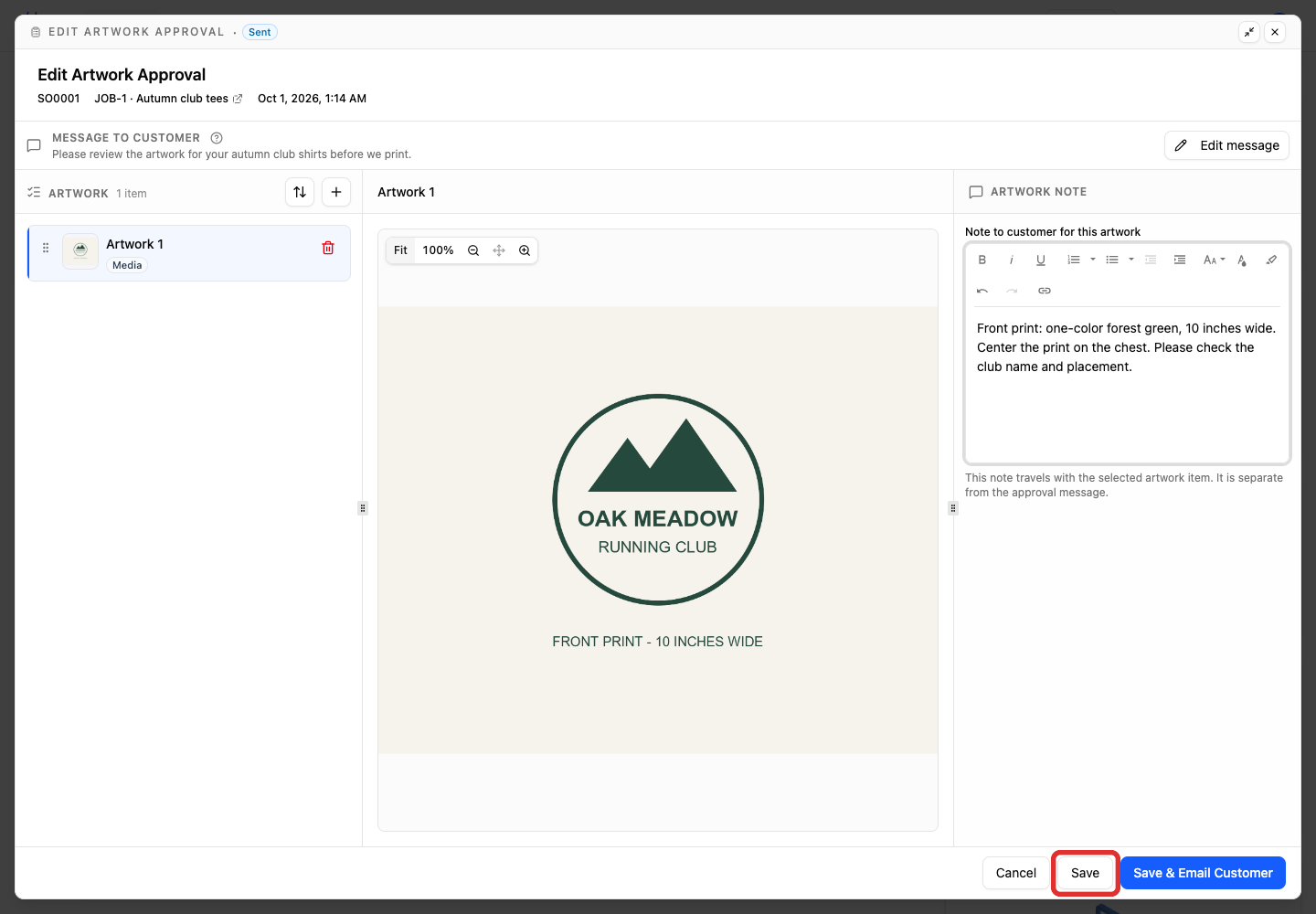
Click Save. Save & Email Customer saves and emails the changes together.
-
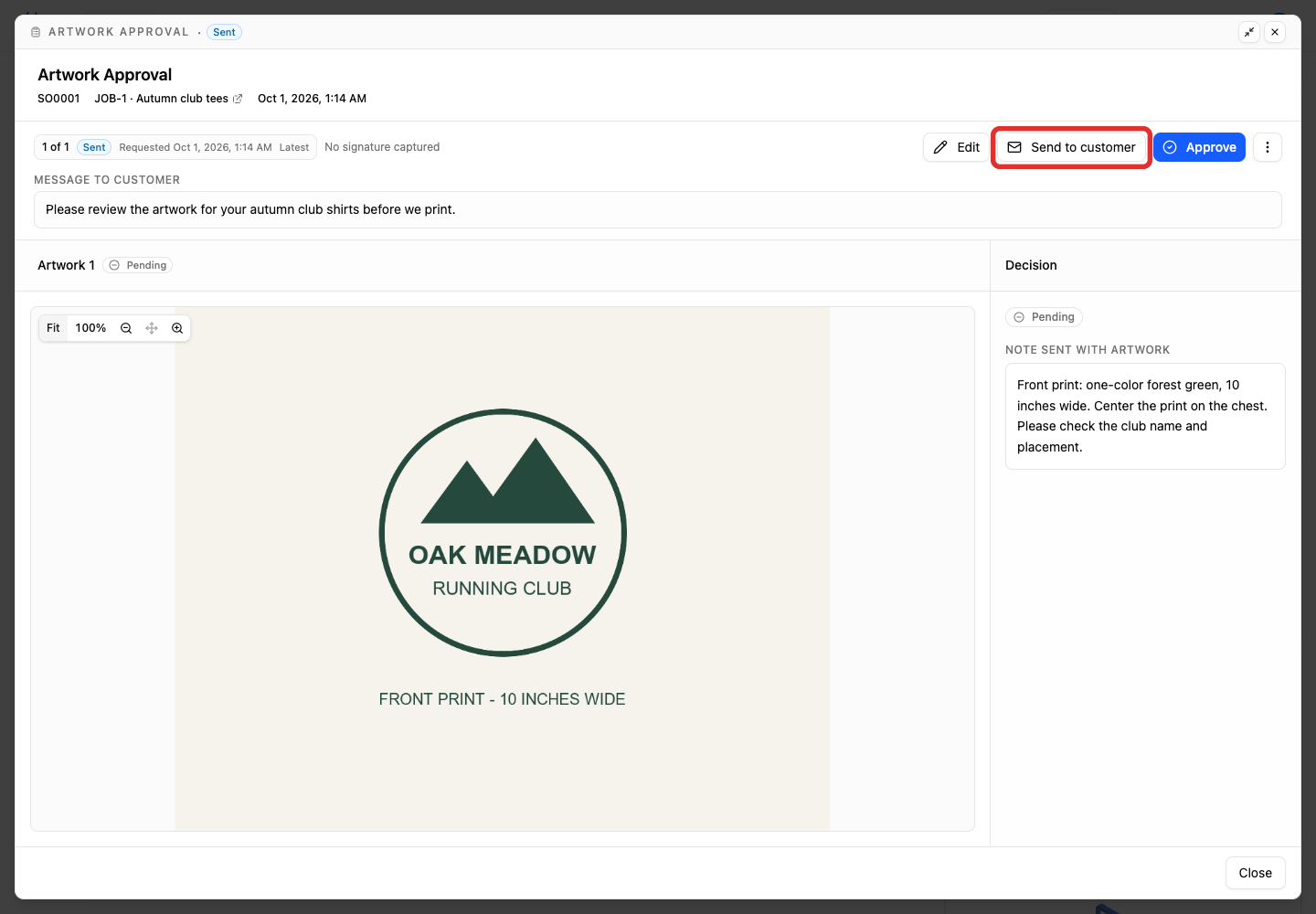
To send the saved request again, click Send to customer in its view.
Record a response received outside the portal
Use this route when you are recording a response the customer has already given. The name you enter is stored with the response.
-
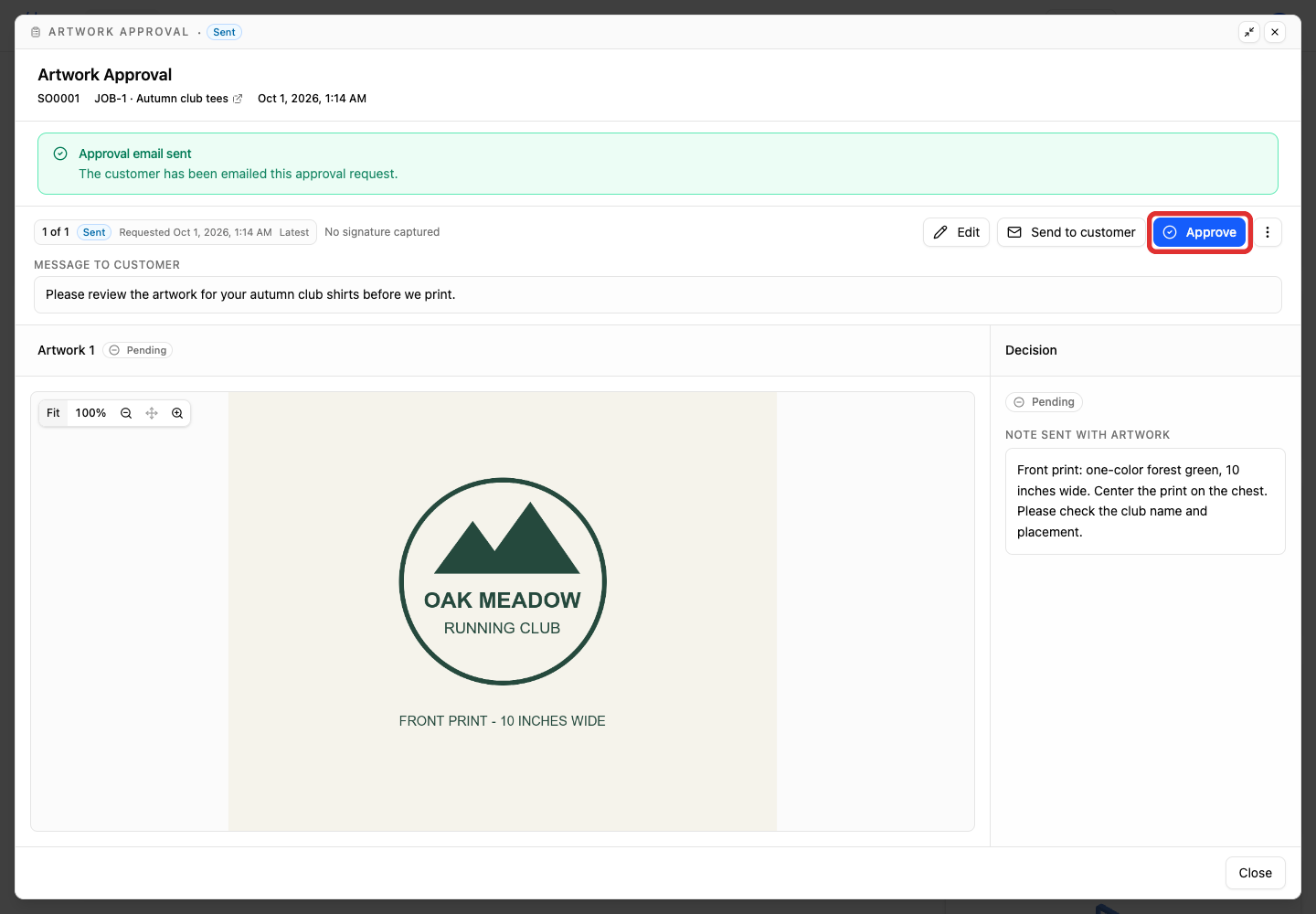
Open the saved request and click Approve. This opens the response form without approving the artwork immediately.
-
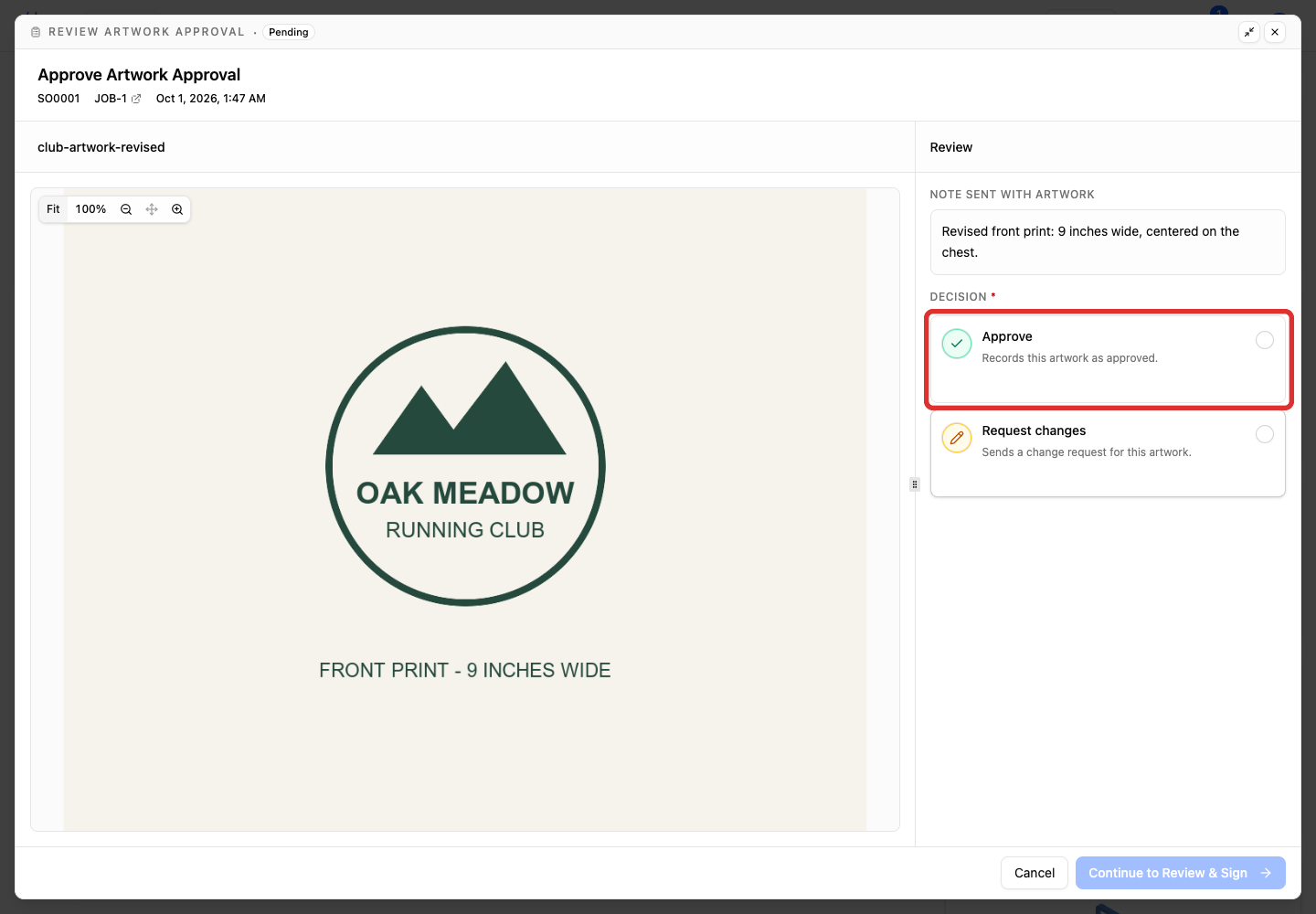
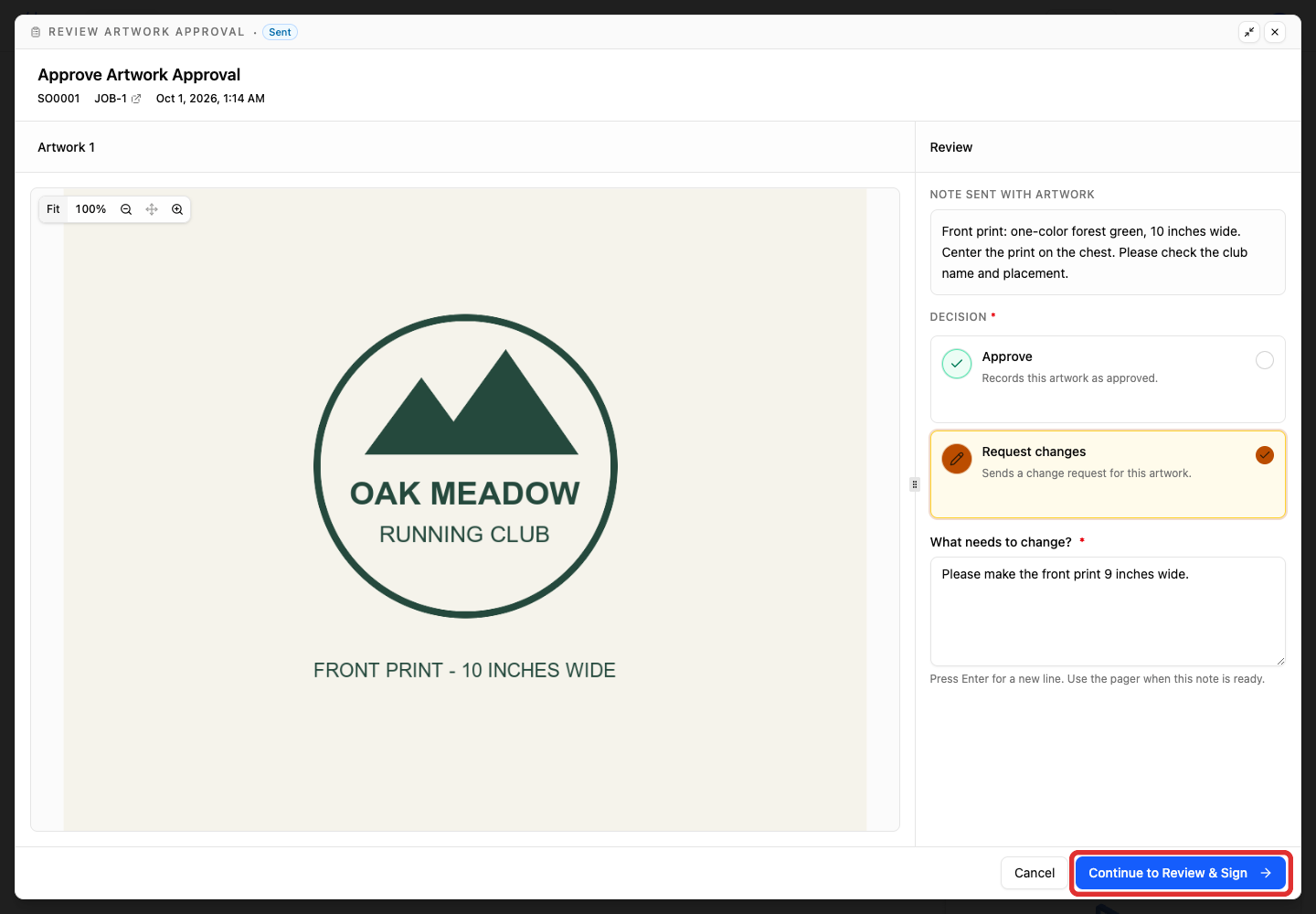
For each artwork, choose Approve if it is accepted.
-
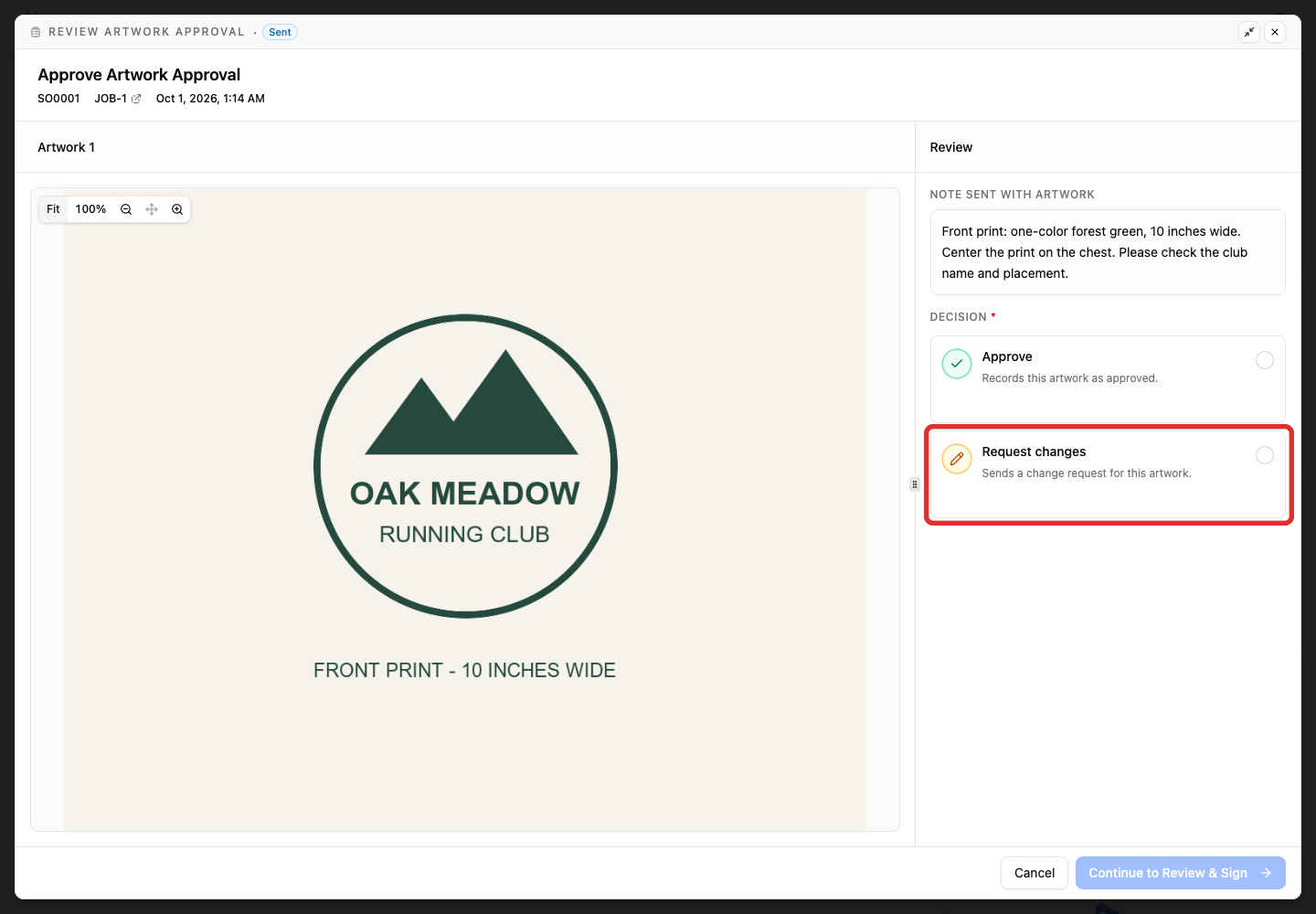
If changes are needed instead, choose Request changes.
-
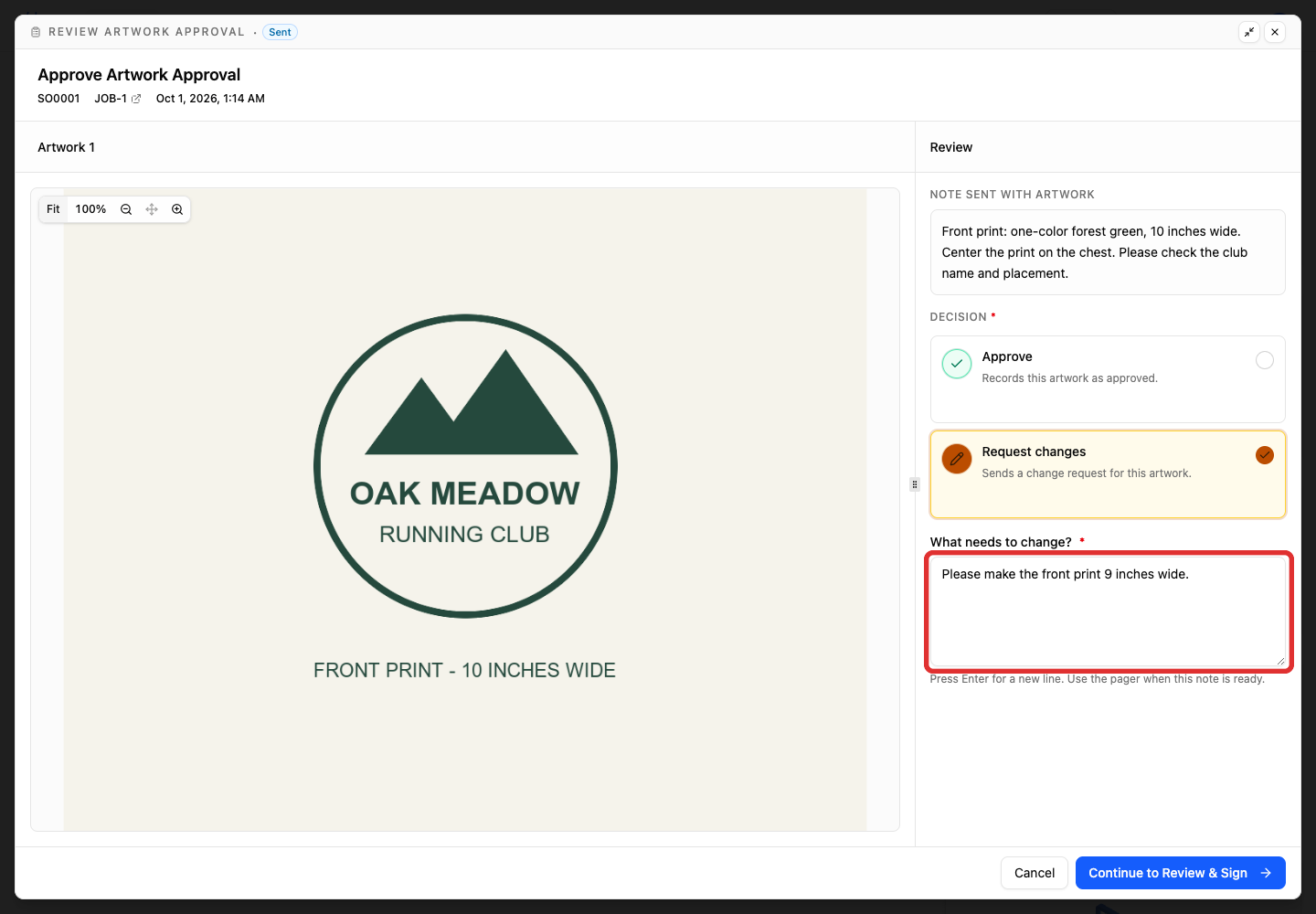
Describe what needs to change. A change request requires a comment.
-
After each artwork has a decision, review the summary. If it has not opened automatically, click Continue to Review & Sign.
-
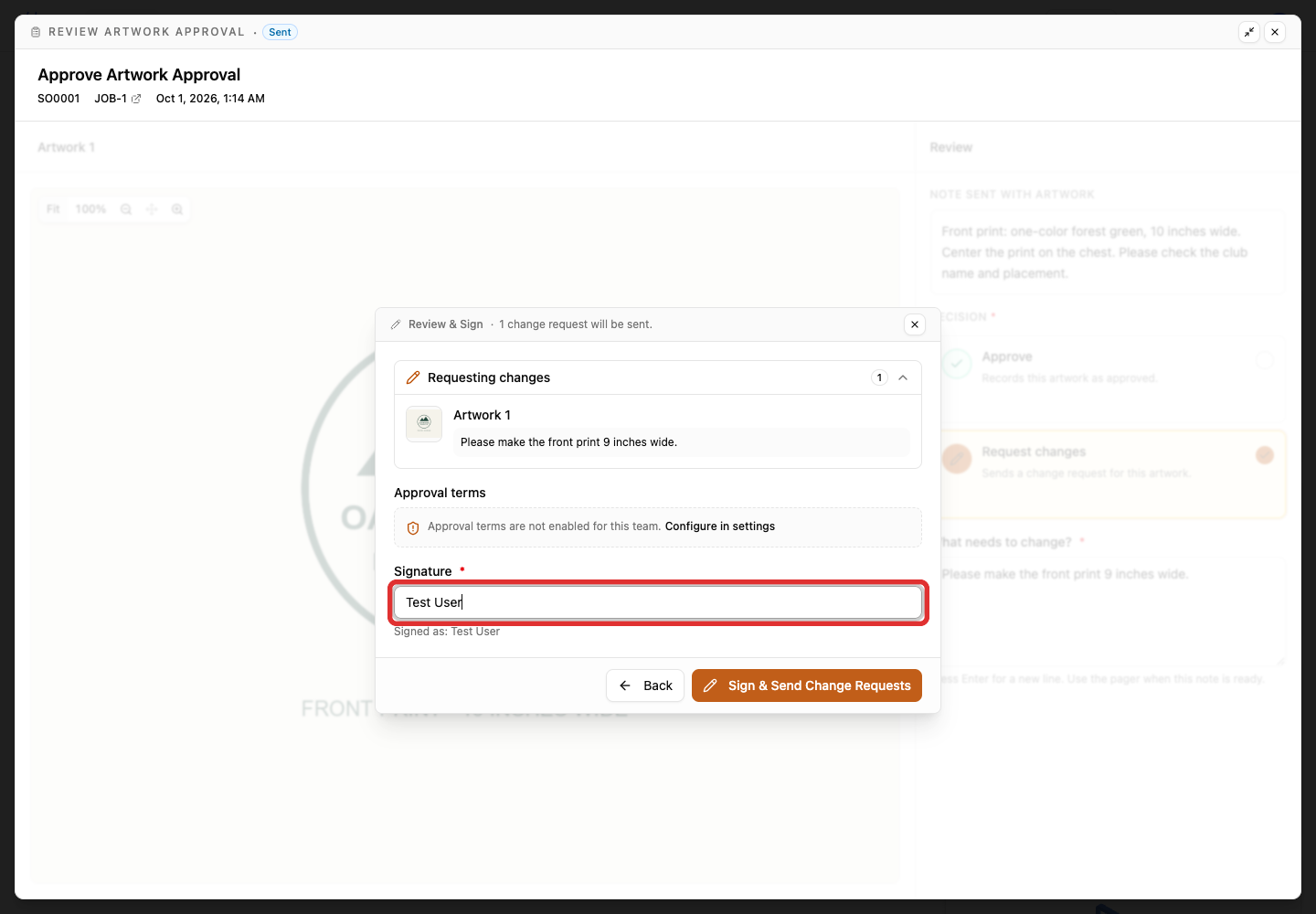
Review the decisions and any enabled approval terms, then enter your name in Signature.
-
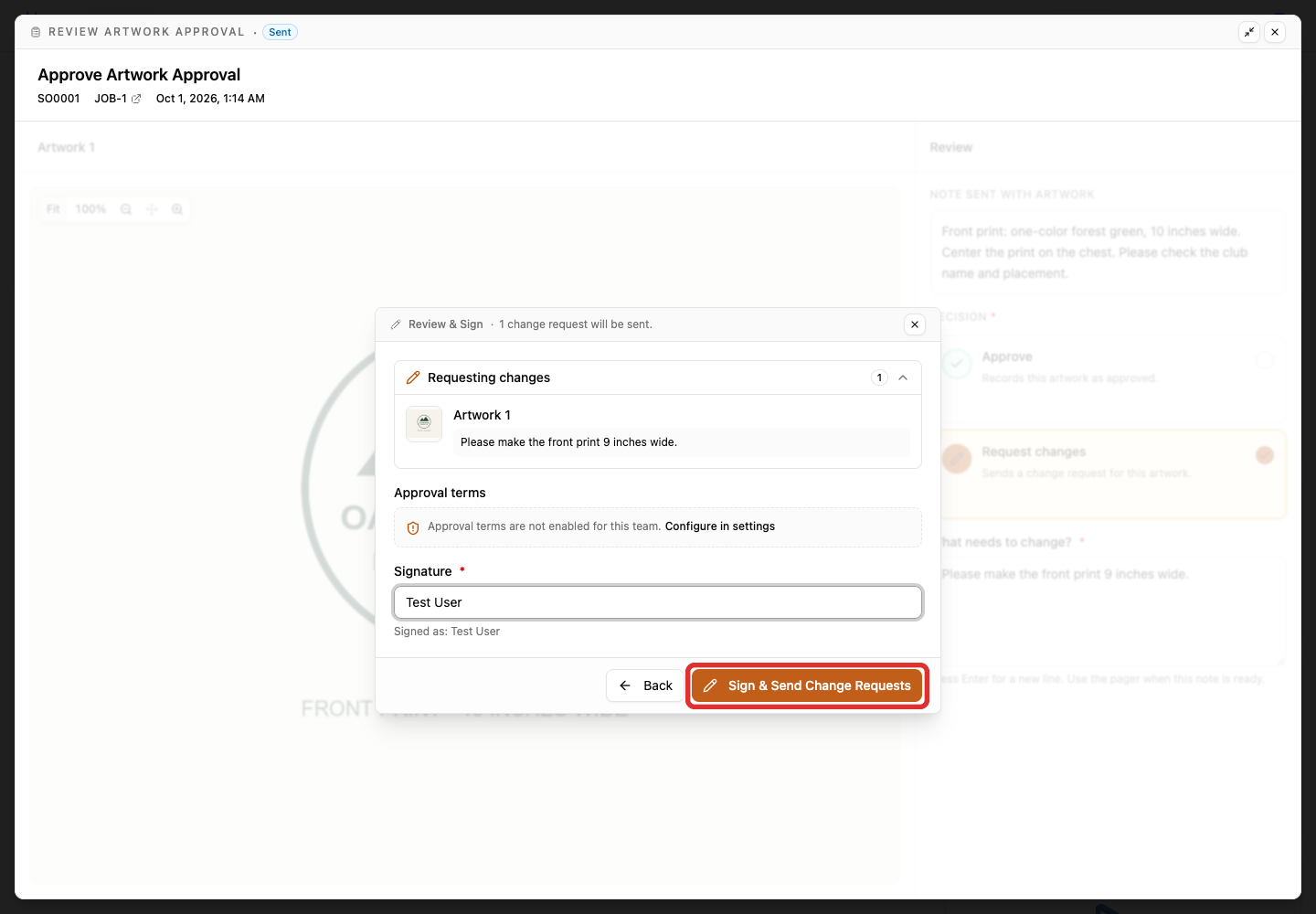
Submit the response. The final button reflects the decisions: Sign & Send Change Requests for changes, or Sign & Approve All when every artwork is approved.
Replace artwork after requested changes
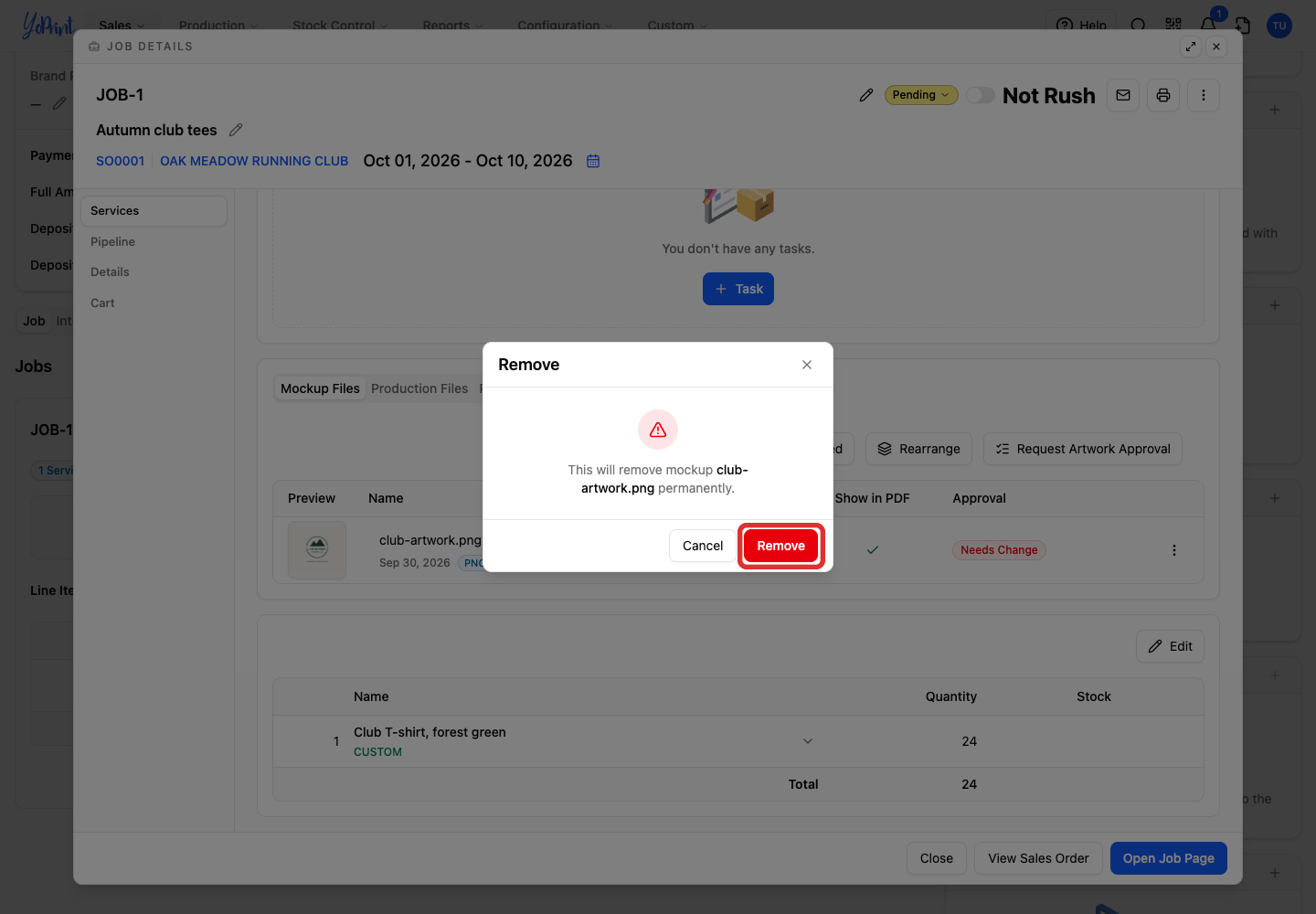
Keep the requested changes beside you while preparing the revised file. Close the approval view to return to the job’s Mockup Files. Removing a mockup from the job is permanent, but it does not remove the file from earlier requests in the approval history.
-
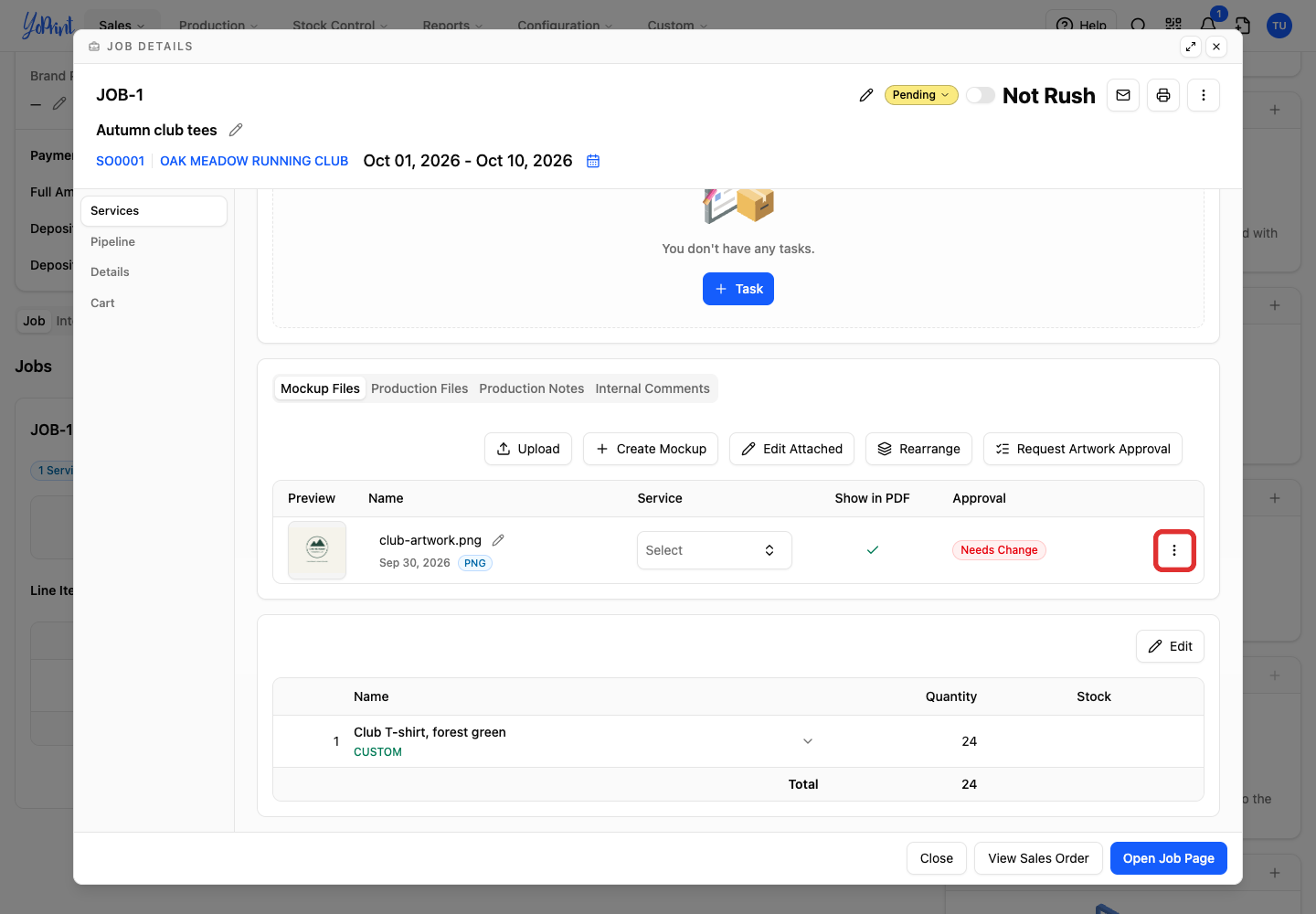
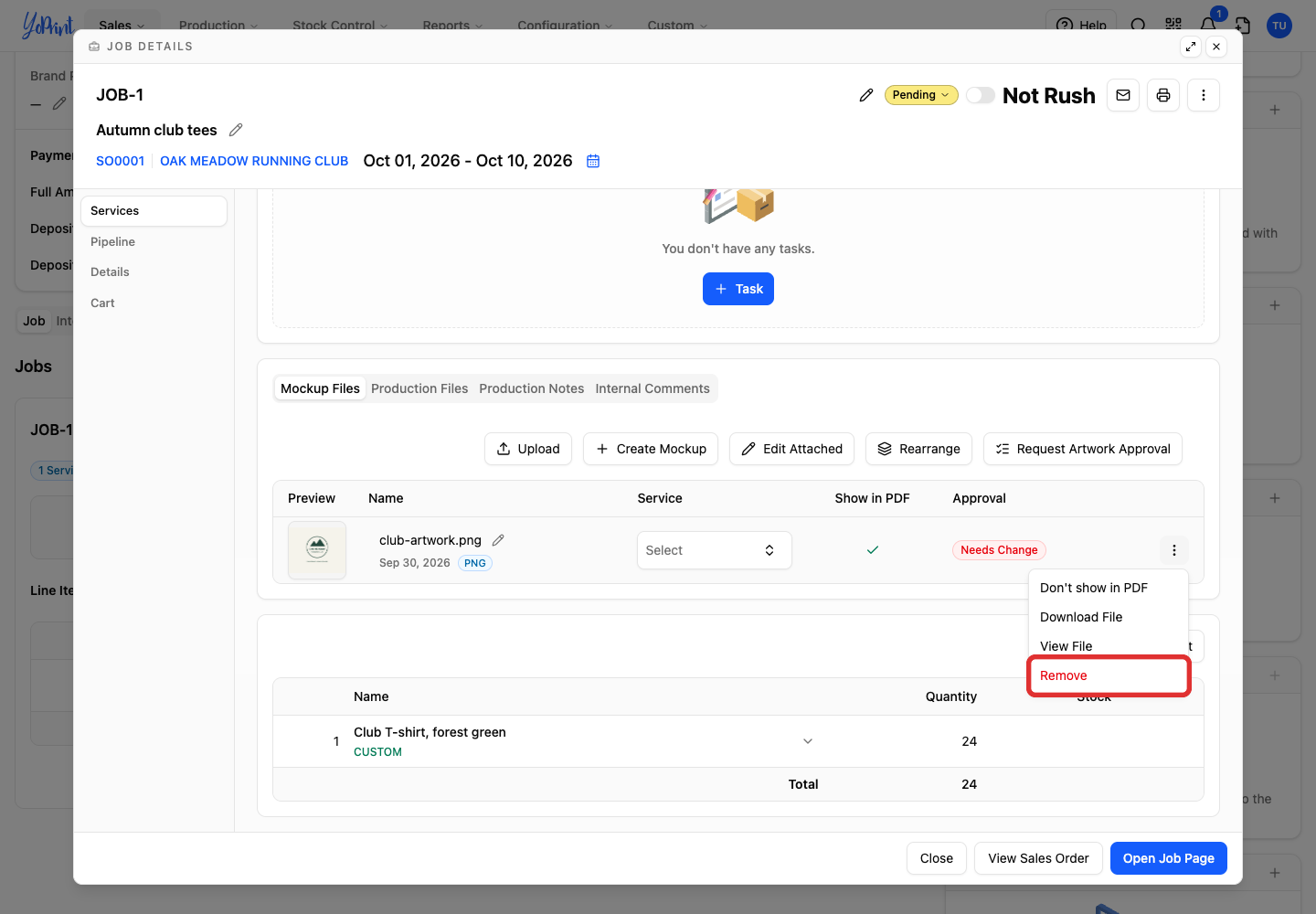
In Mockup Files, open the old file’s three-dot menu.
-
Choose Remove.
-
Check the filename and confirm Remove.
-
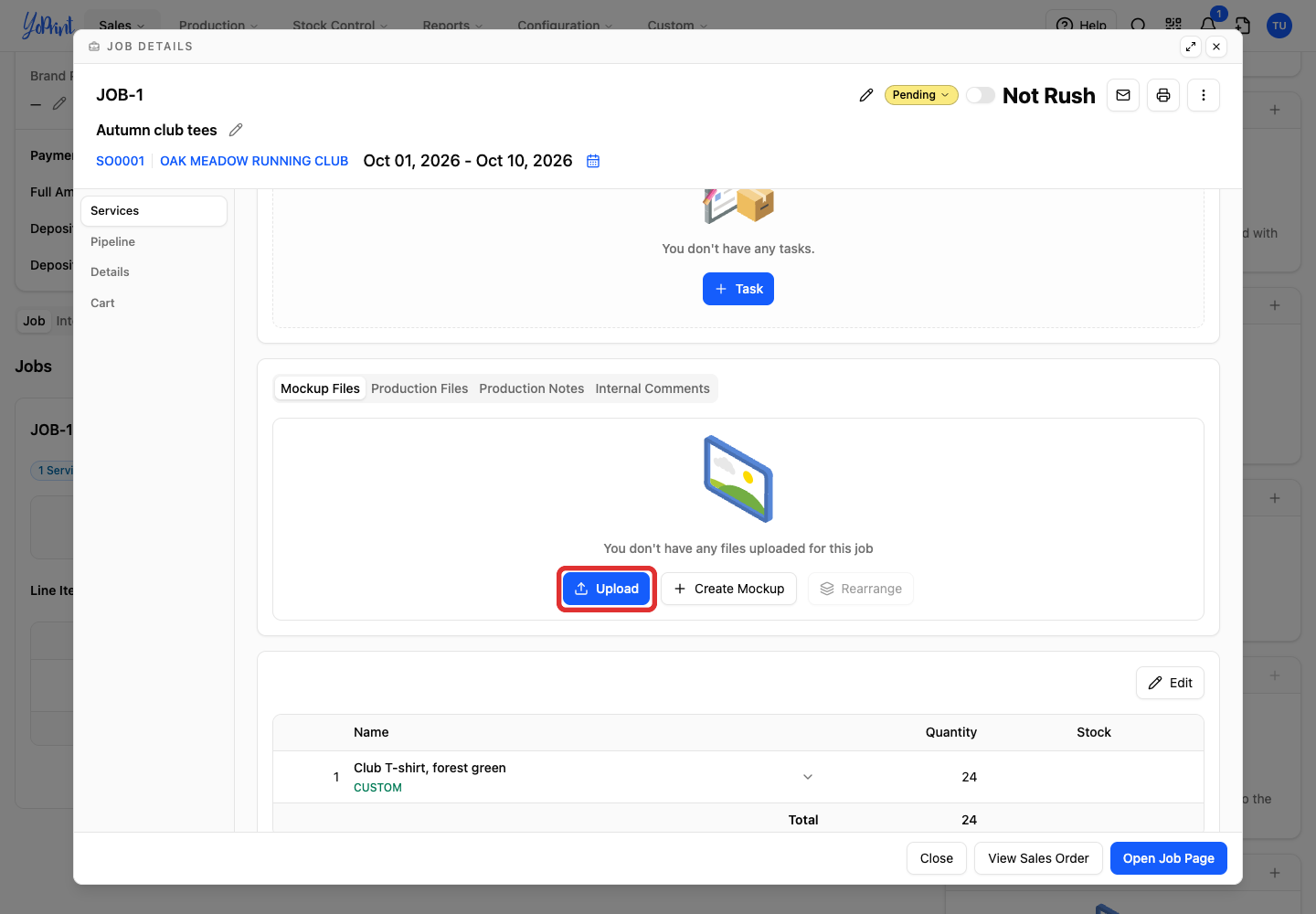
Click Upload.
-
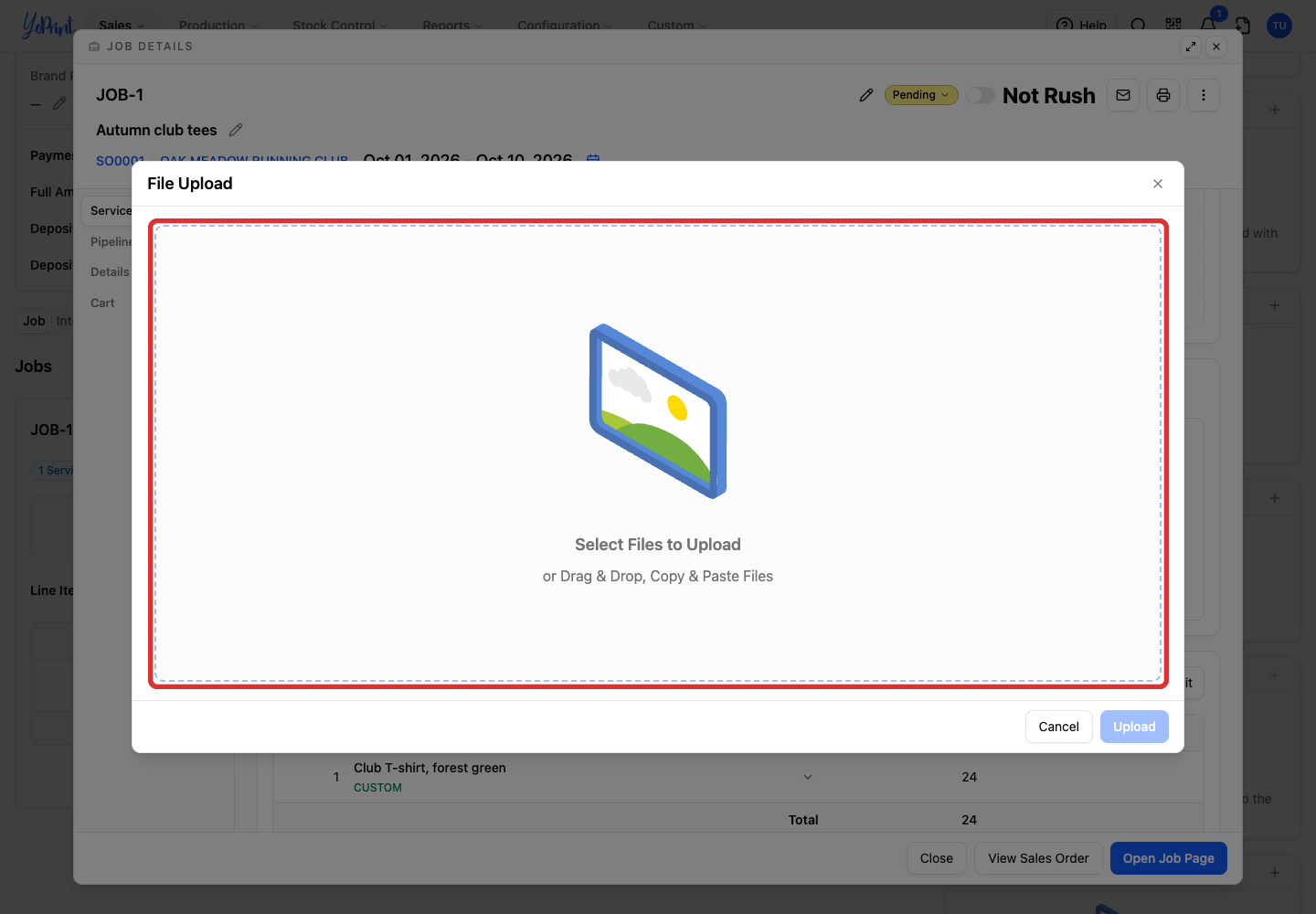
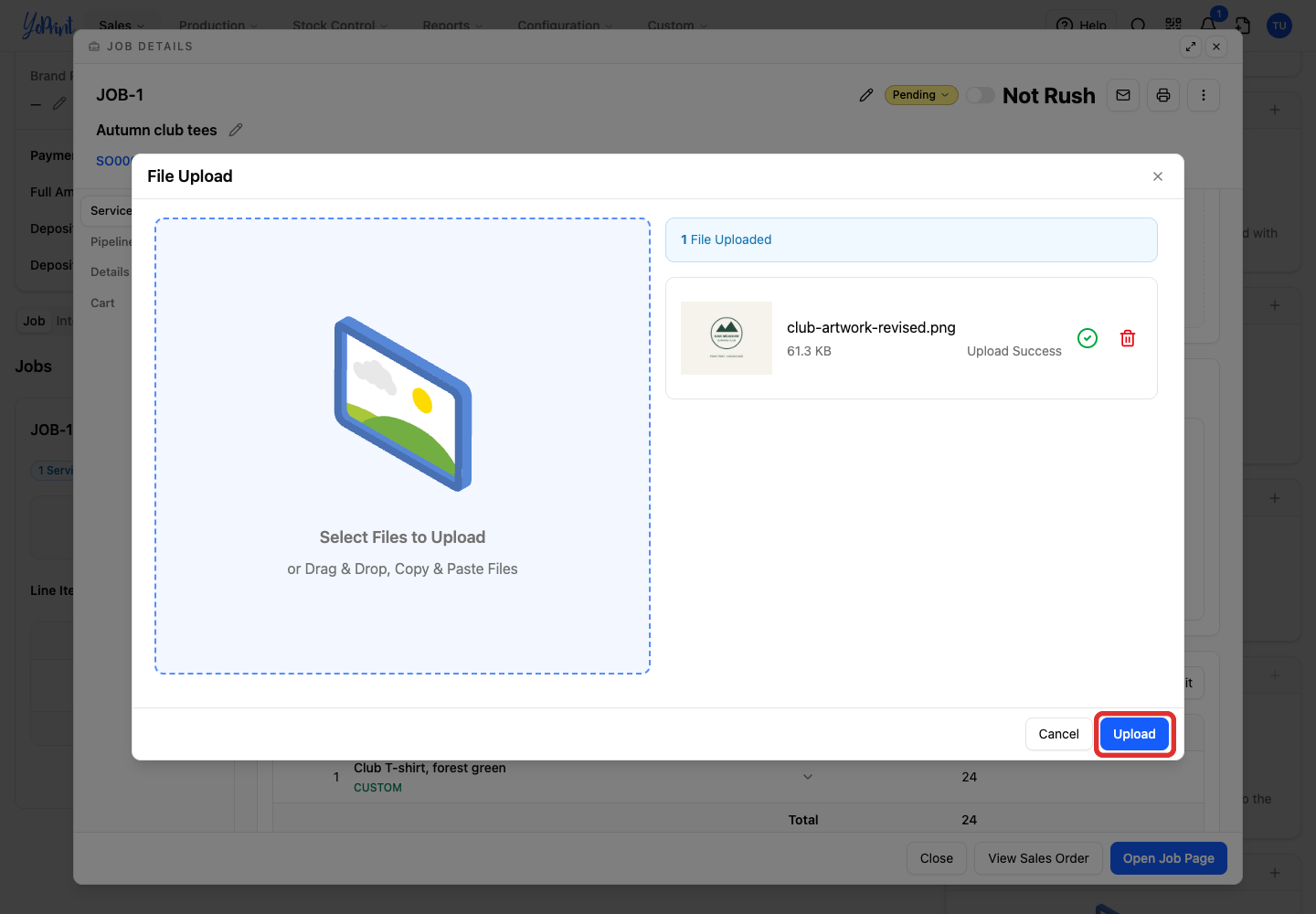
Click Select Files to Upload and choose the revised file. You can also drag it into the upload area.
-
When the file shows Upload Success, click Upload to attach it to the job.
-
Click Request Artwork Approval again. The newly uploaded artwork is included automatically.
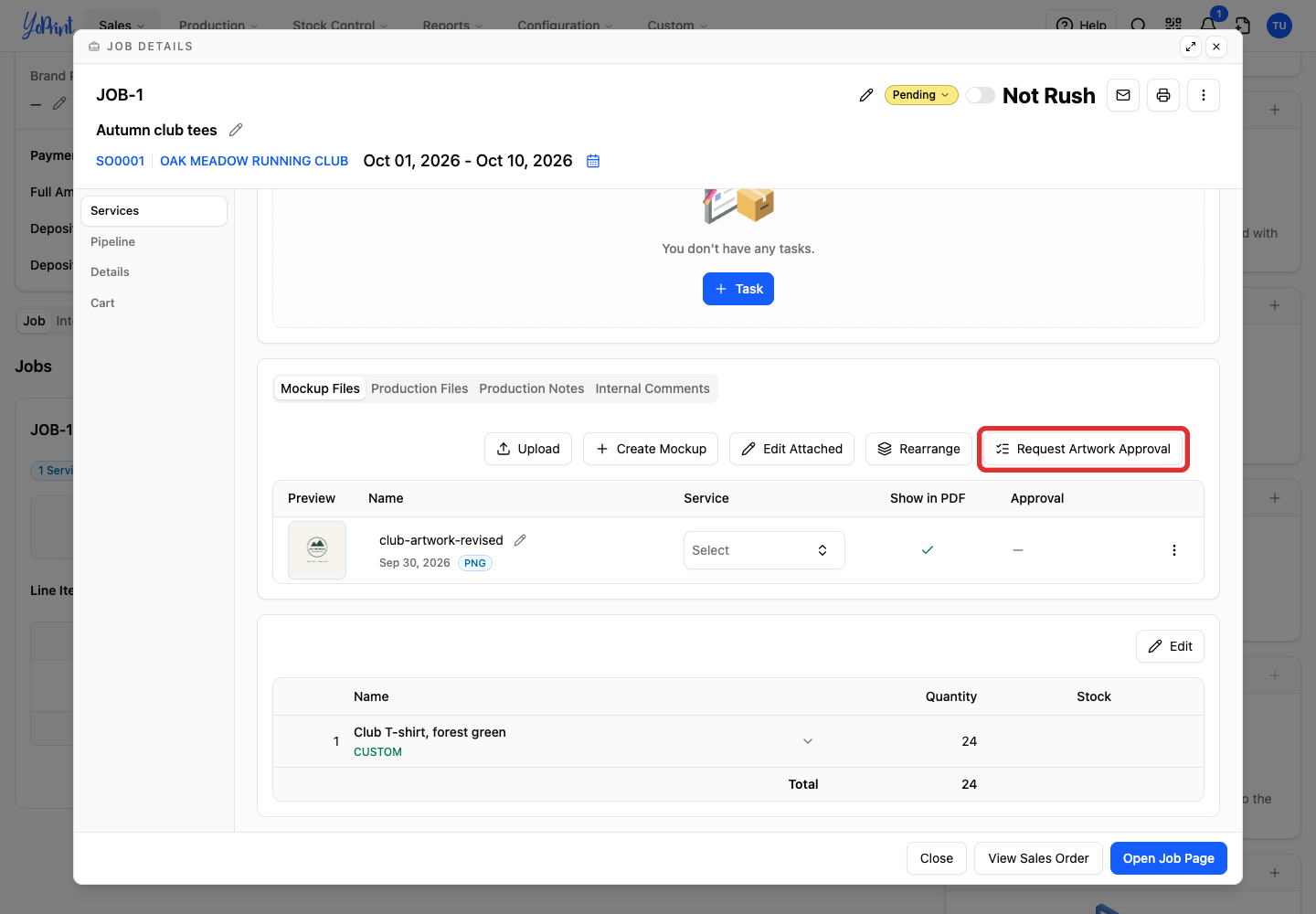
You can include only the new artwork or add other available artwork for confirmation. Previous completed requests remain in the approval history.
Review previous requests
-
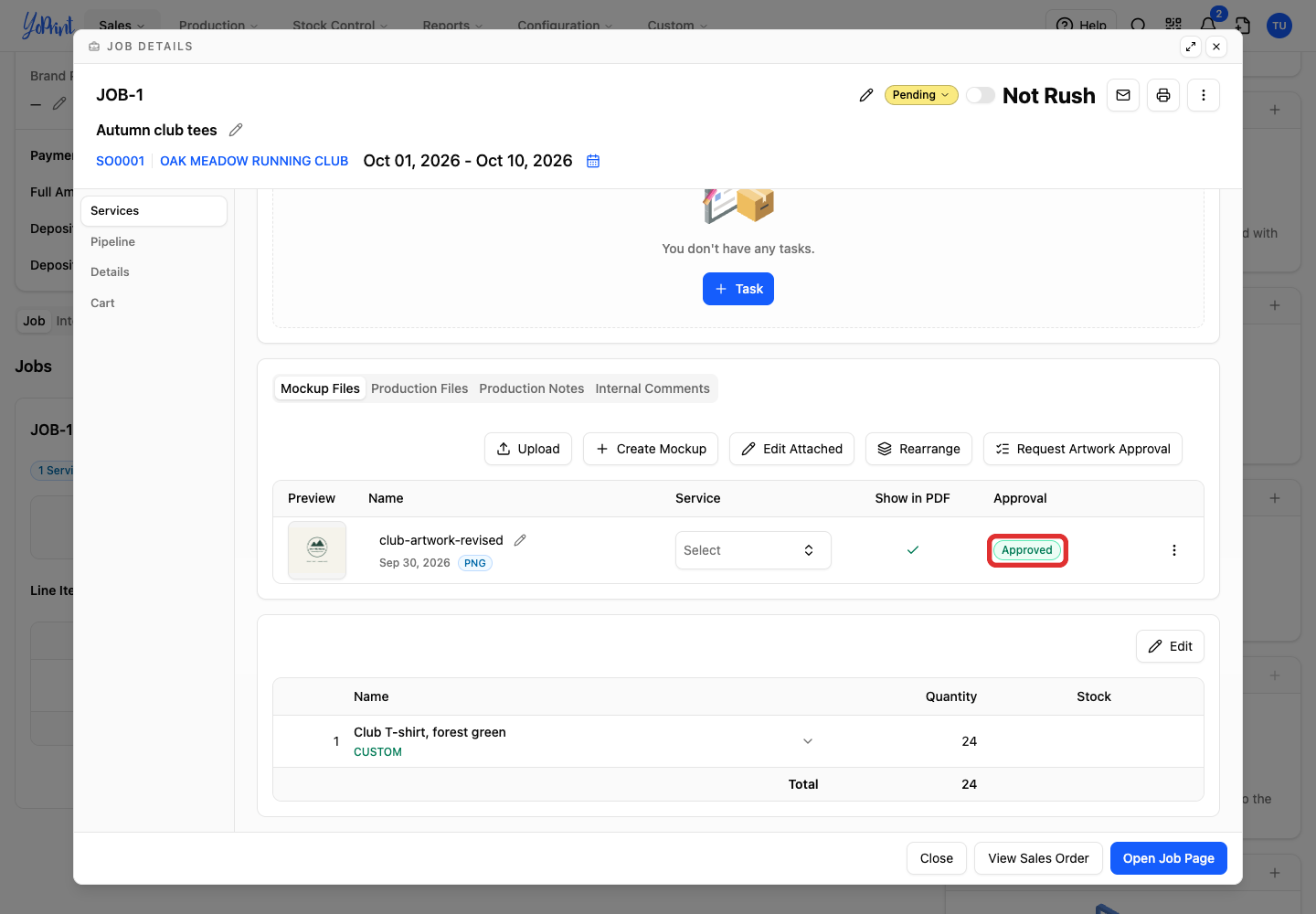
Click the artwork’s approval status in Mockup Files.
-
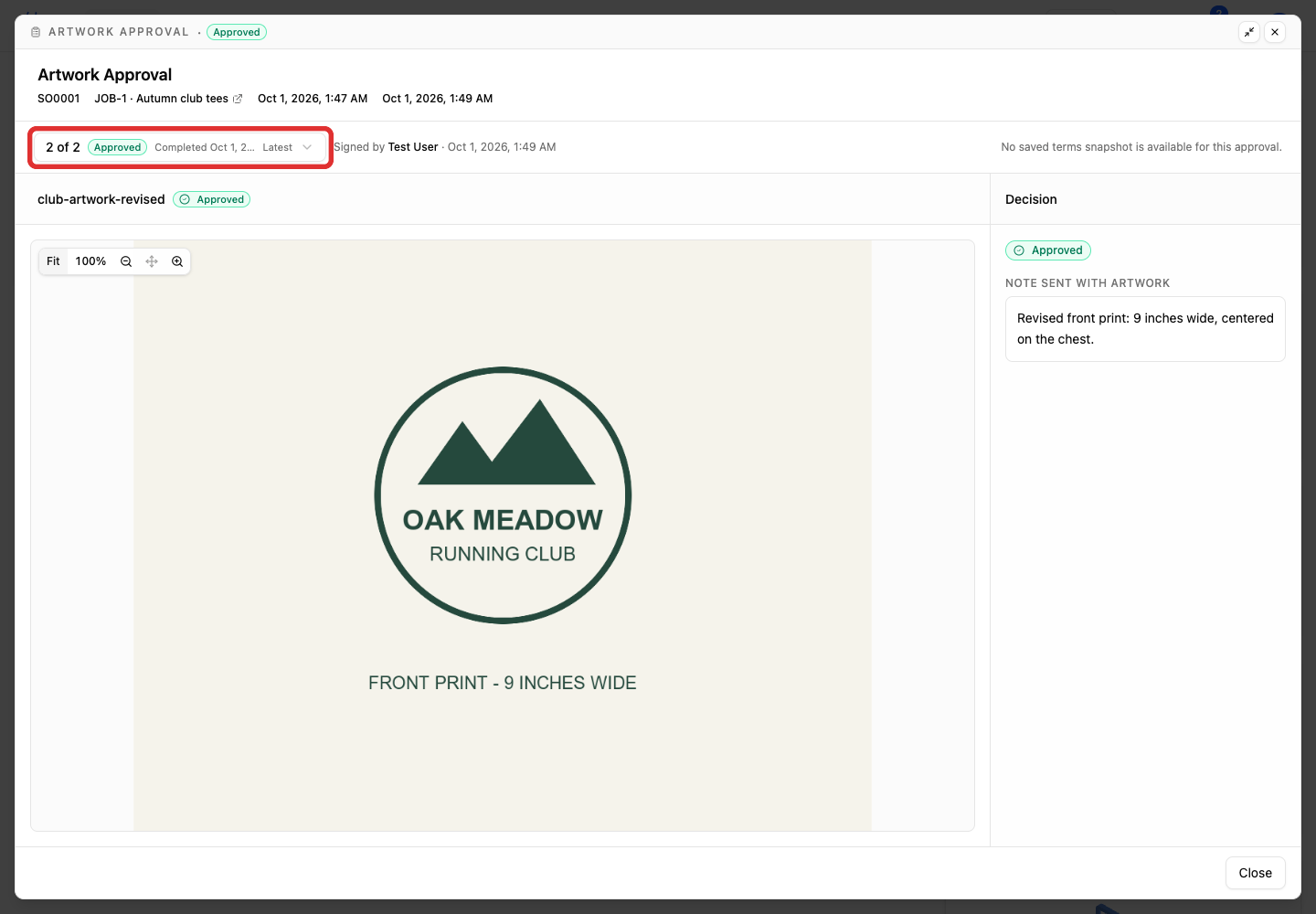
Open the Approval request selector at the top of the view.
-
Select a previous request to read its decisions, notes and signature.
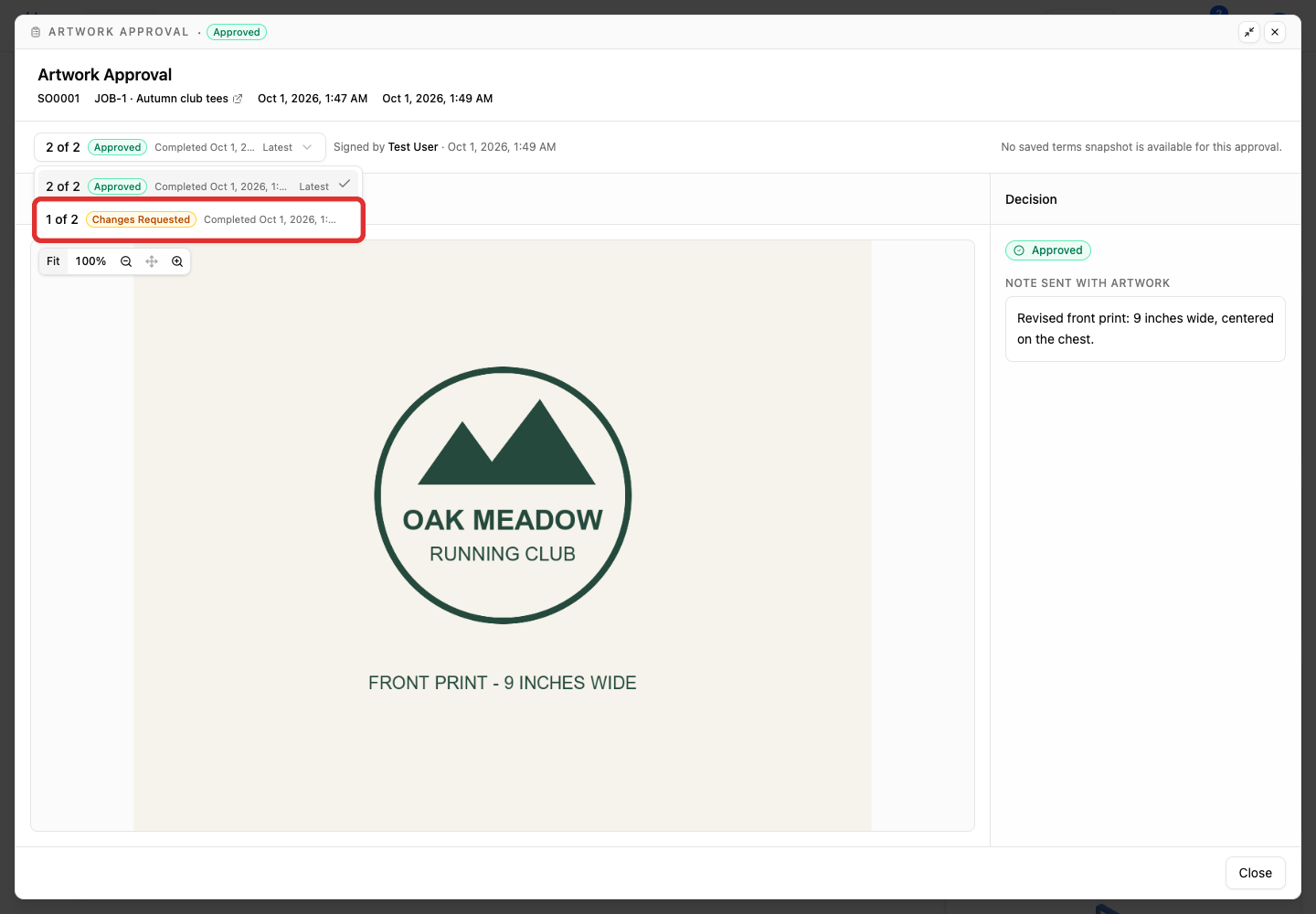
The latest request is labeled Latest. The historical view also has Jump to latest to return to it. Once every design is approved, you can use that approval before collecting payment and starting production.
Cancel a pending request
Cancellation takes effect immediately and removes the pending request. It does not remove the mockup file from the job. Close the approval view to return to Mockup Files.
-
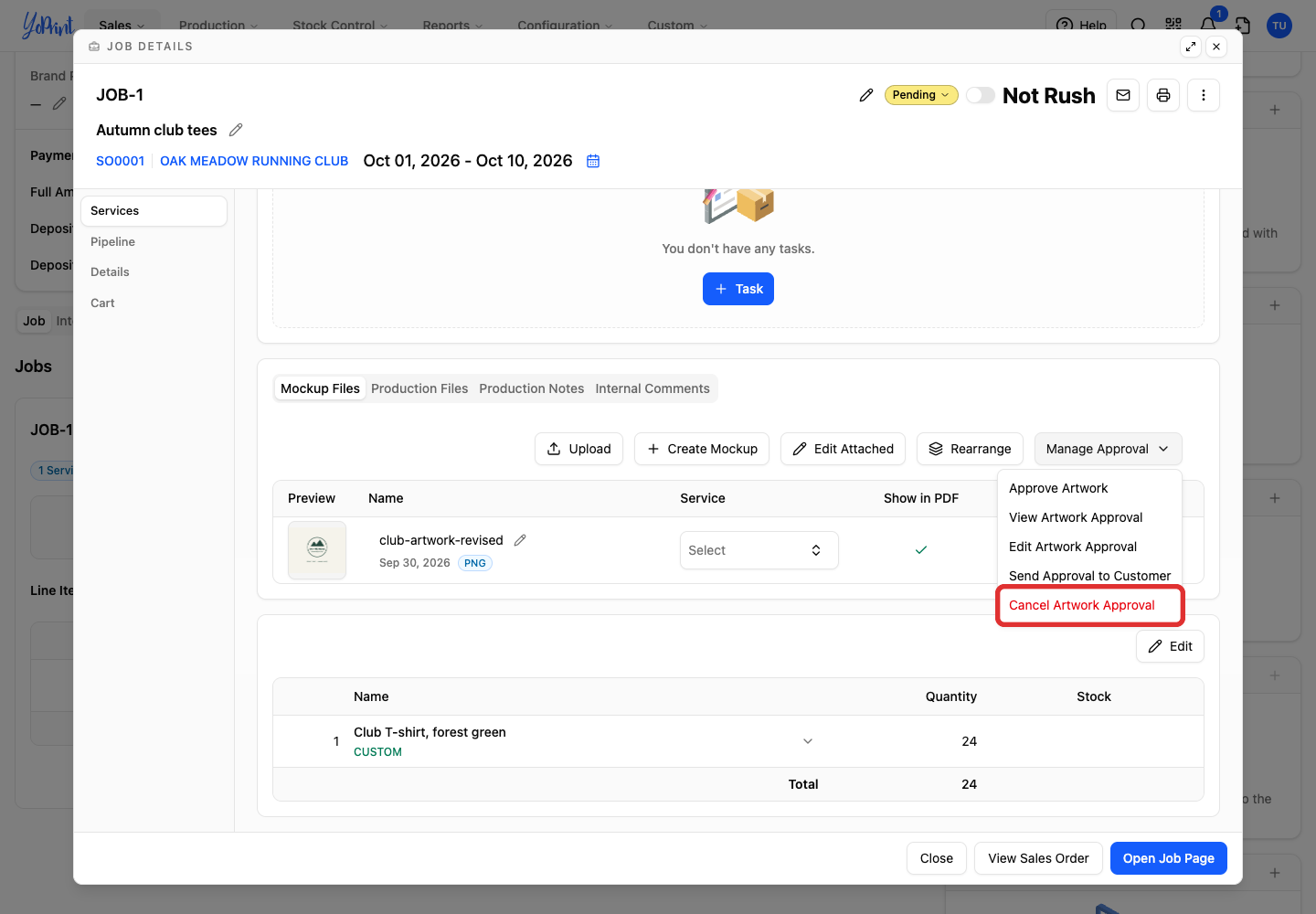
In Mockup Files, click Manage Approval.
-
Choose Cancel Artwork Approval. YoPrint deletes the request immediately without asking for confirmation.