Sales Order Approval Workflow
In this article
Use sales order approval to confirm items, quantities and job details with your customer before production. You can use sales order approval for both first-time orders and repeat orders. Artwork approval records the design decision separately.
Send a sales order approval request
Start with the published sales order you want reviewed; if the order opens in a drawer, click View Sales Order to open its full page. The email goes to every contact listed under Email Recipients in the order header; click the edit icon beside the contact name to change recipients if needed.
-
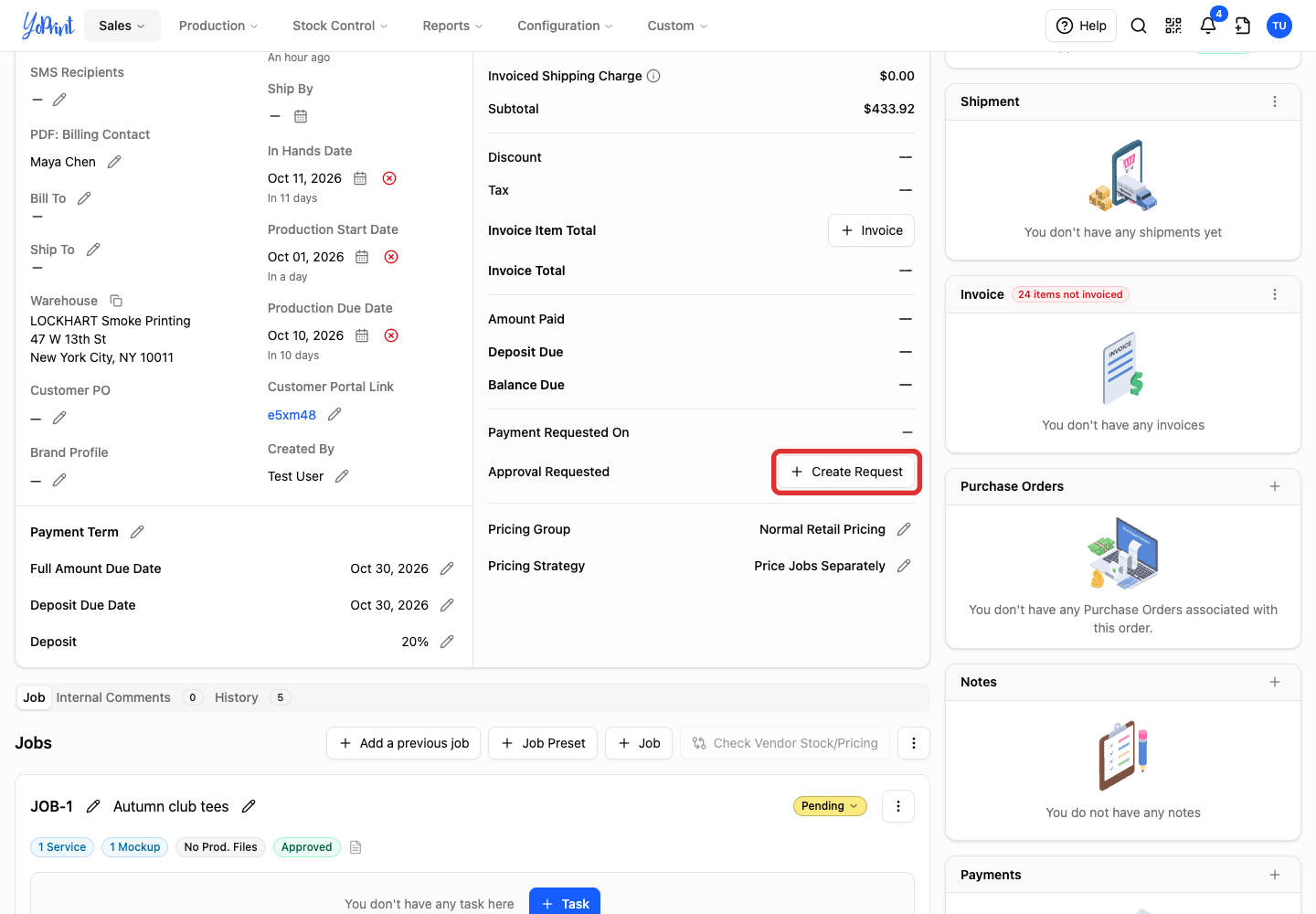
In the financial summary on the right, find the Approval Requested row and click Create Request. If an approval was already requested, this row displays its status instead.
-
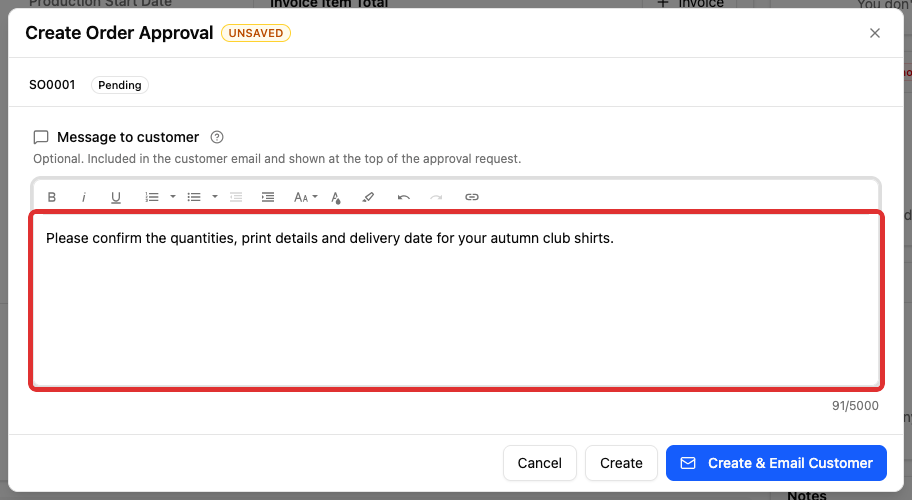
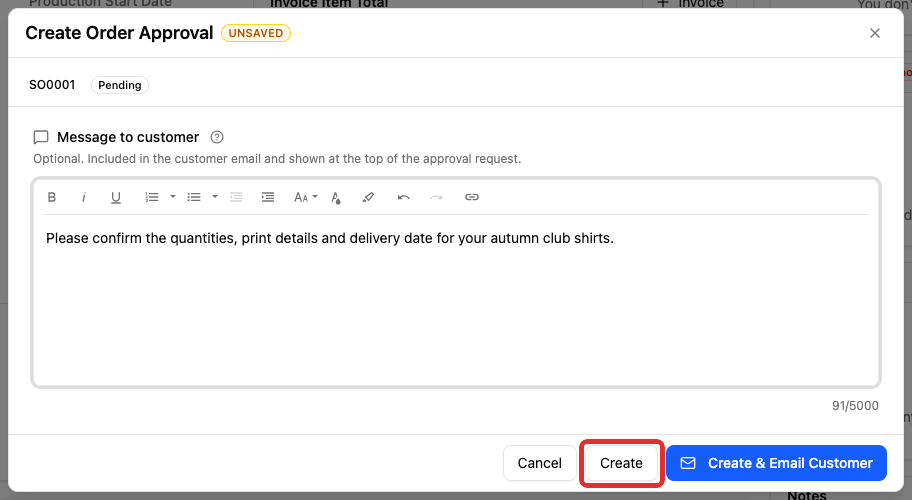
Add an optional Message to customer in the text editor. It appears in the email and at the top of the approval request.
-
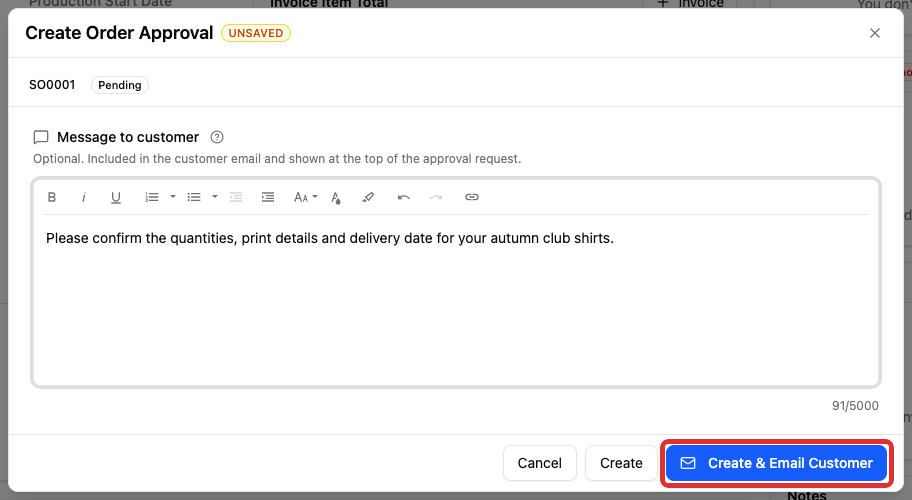
Click Create & Email Customer to email the request immediately.
Save without emailing
Create saves the request without sending it. Use Send a saved request when you are ready.
The customer reviews the request in the customer portal, approves the order or requests changes with a comment, and signs. If your shop has not enabled terms, the terms section is omitted from the review. Your team receives an email and an in-app notification when the response is completed.
Send a saved request
-
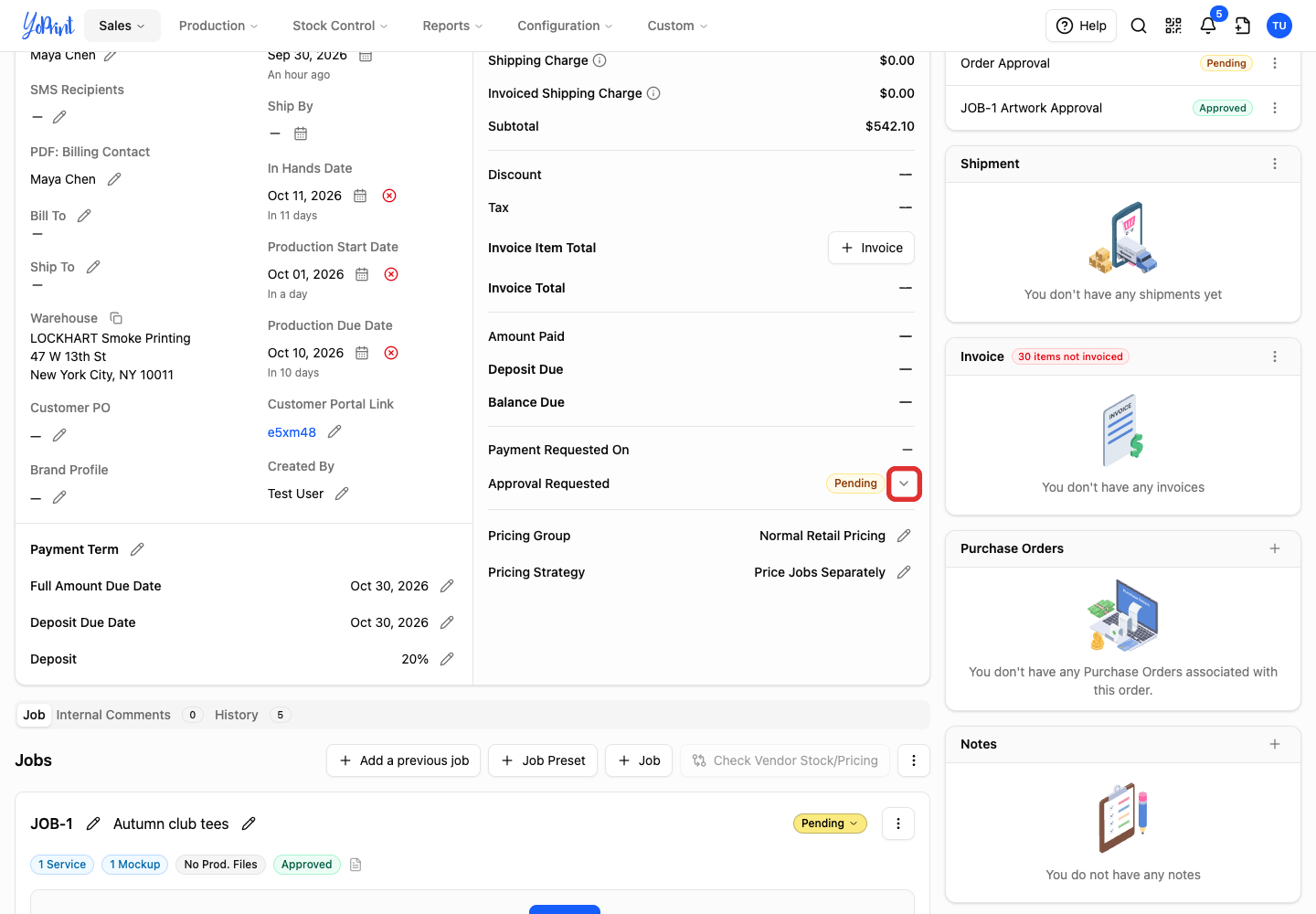
On the Approval Requested row in the financial summary, click the menu button beside the Pending status.
-
Choose Send to Customer. The email is sent immediately.
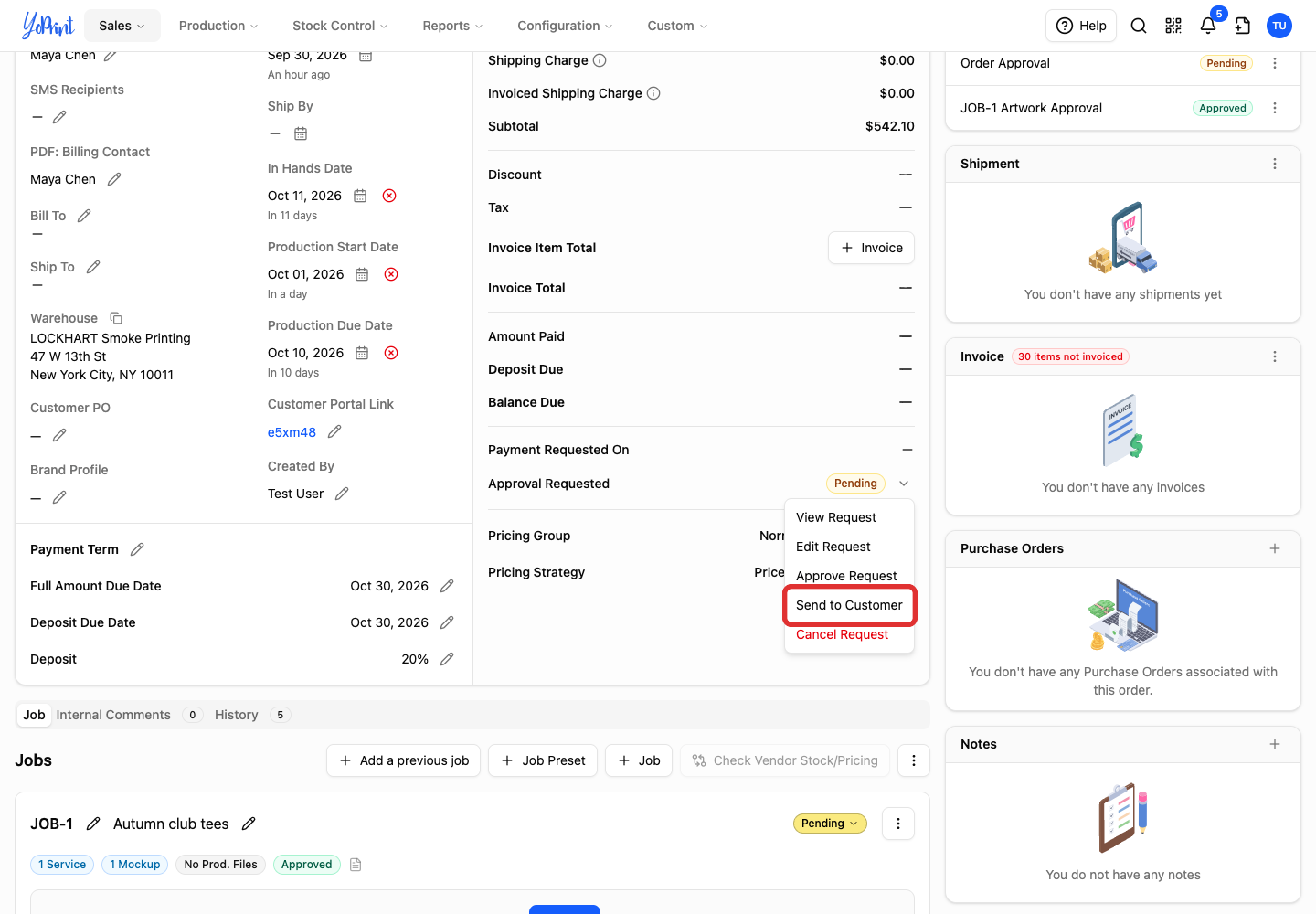
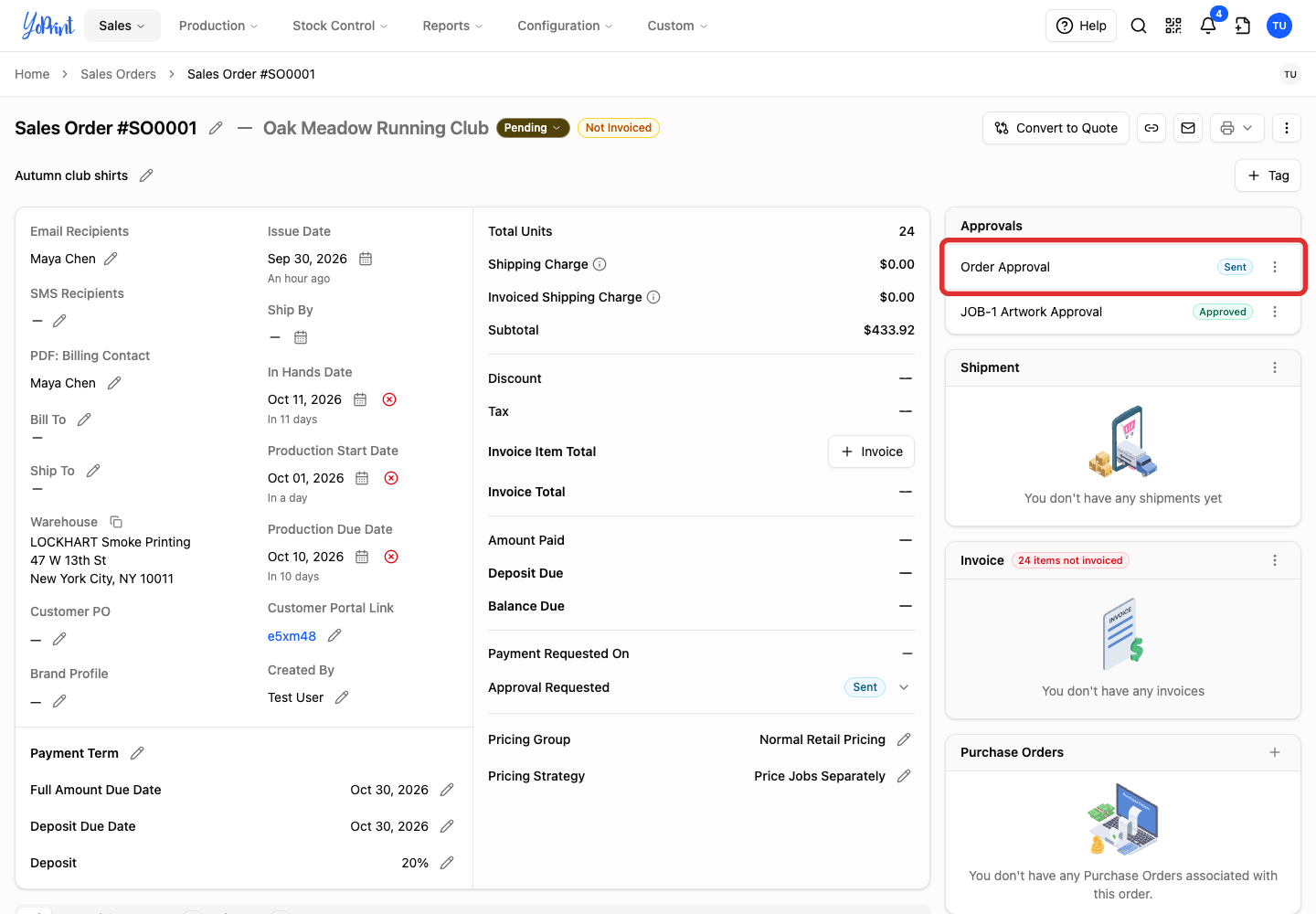
Pending means the request has not been emailed. Sent means it has been emailed and is waiting for a response. For a separate note outside the approval, you can send a message from the order.
Read the response
Once a response has been submitted, read the decision in the approval review.
-
In the Approvals panel at the bottom of the page, double-click Order Approval, or click its three-dot menu and choose View Request.
The review shows your message, the decision, the signed name and the completion time. The order summary labels this Needs Change; the review states that changes were requested and displays the customer change note.
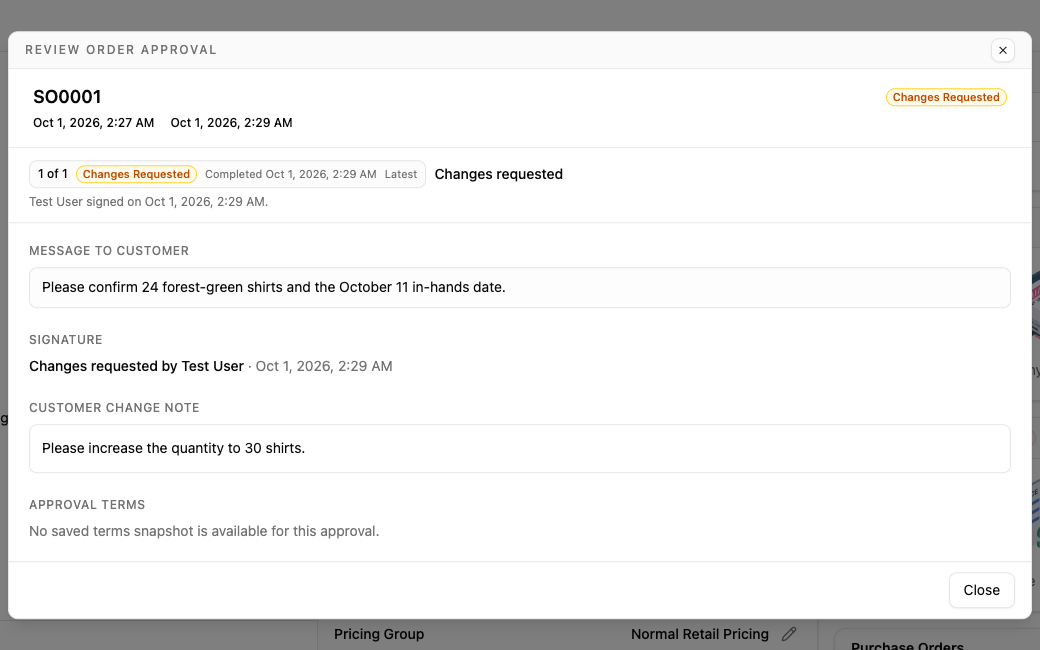
The approval request’s status is separate from the sales order’s overall status. An approved request does not itself mean the order has been produced, shipped or paid.
Edit a pending request
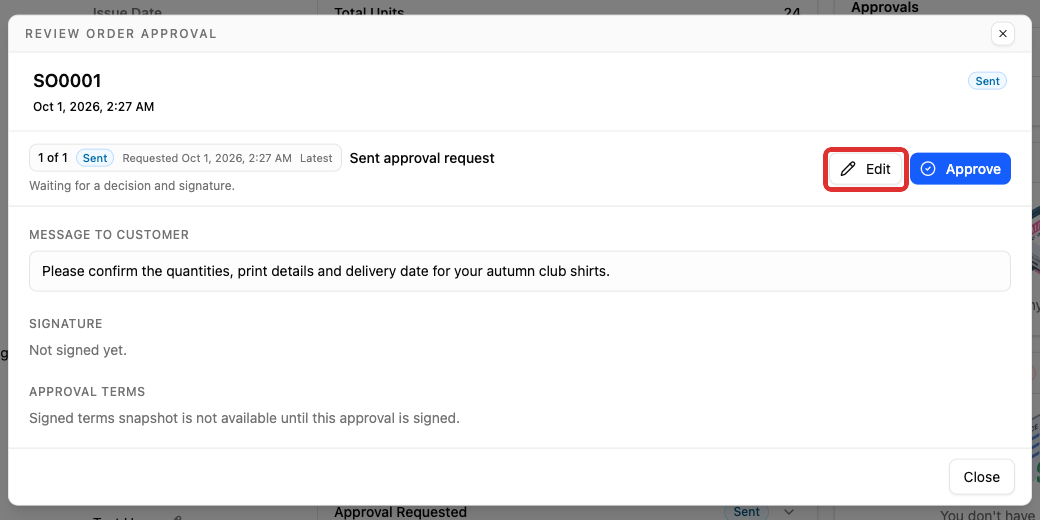
You can edit the customer message while awaiting a decision, whether the request is Pending or Sent.
-
Open the approval review and click Edit.
-
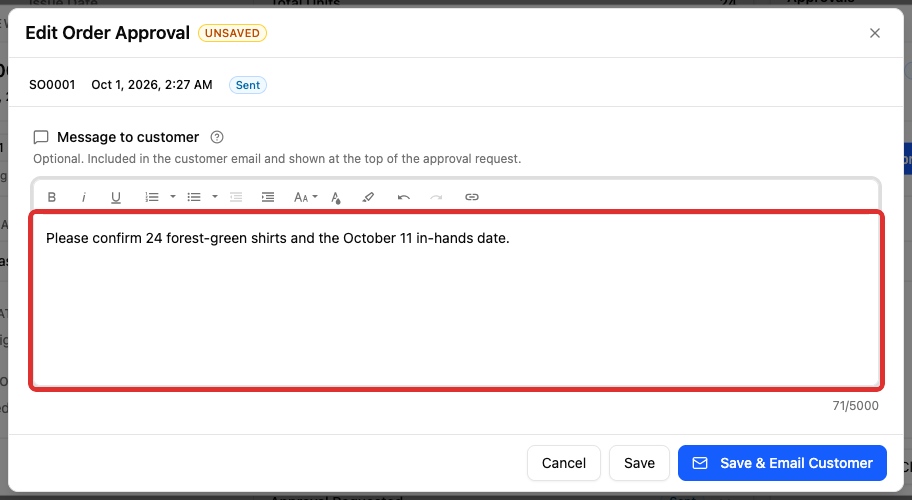
Update Message to customer.
-
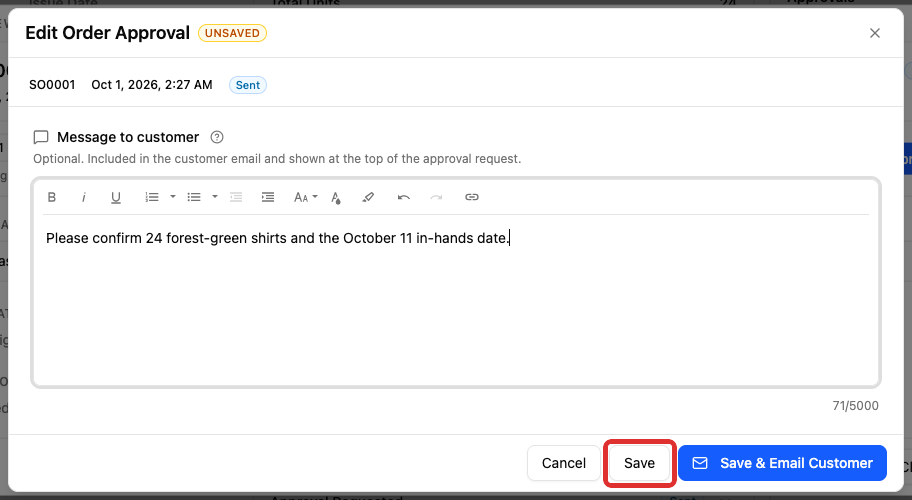
Click Save to update the message in the customer portal without sending an email. Save & Email Customer saves and emails the revised message together.
Completed requests cannot be edited. A further decision needs a new request.
Send an approval reminder
-
Close the approval review to return to the sales order page, then open the three-dot actions menu at the top right of the sales order.
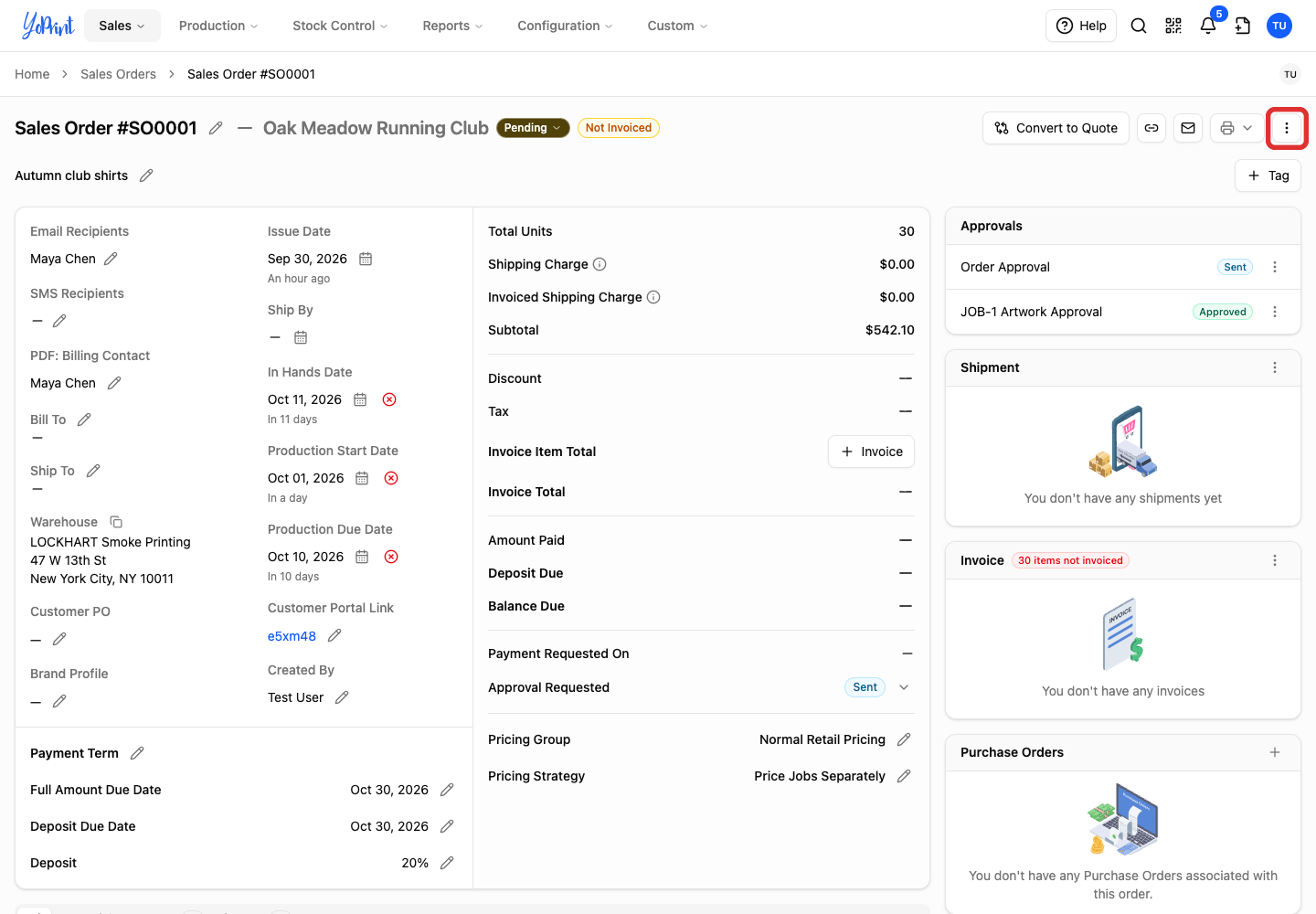
-
Choose Send Approval Reminder. The reminder email is sent immediately using YoPrint’s standard reminder message.
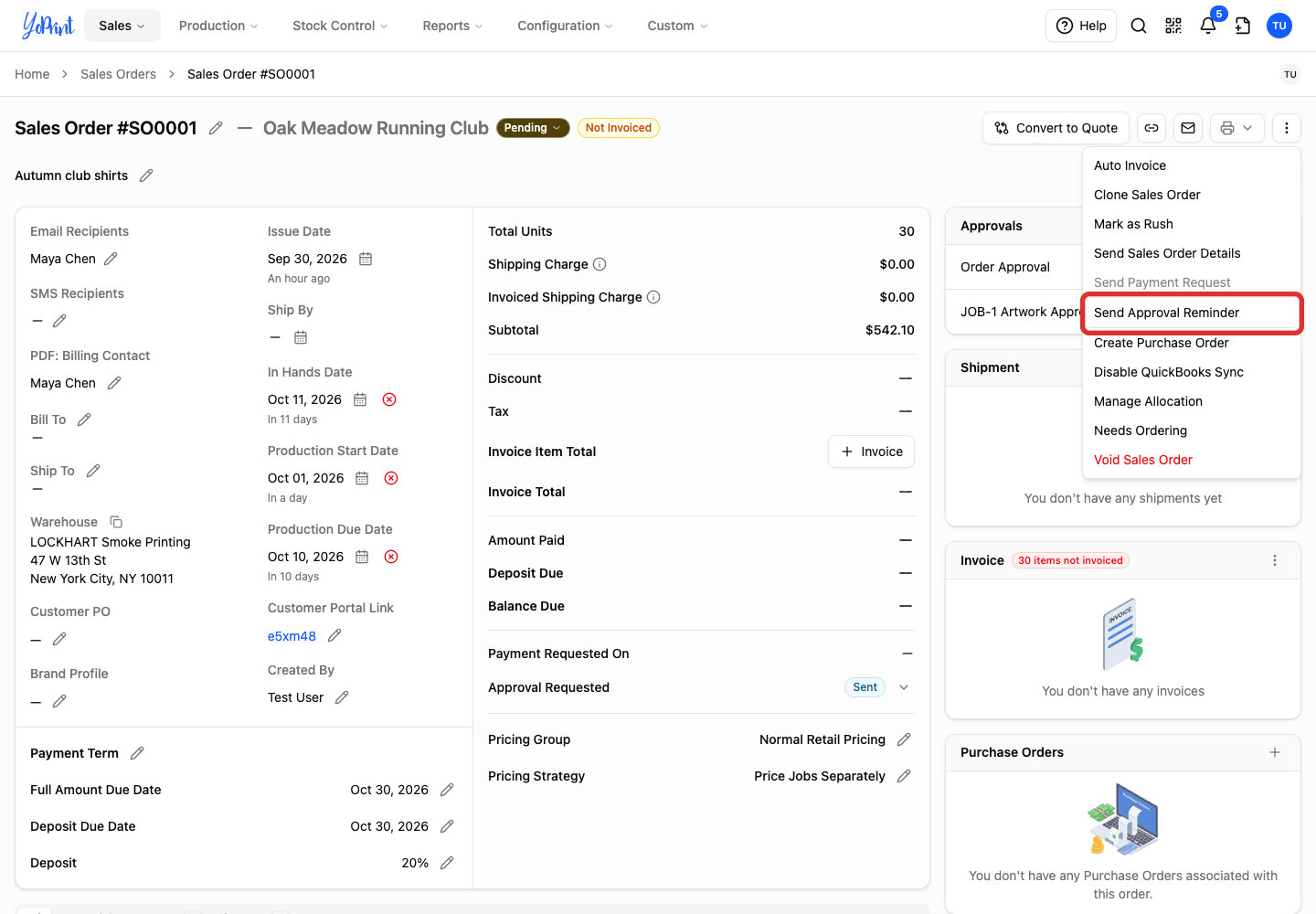
Record a response received outside the portal
Use this route for a response the customer has already given. If the review is closed, double-click Order Approval in the Approvals panel to reopen it. The typed name is recorded with the decision.
-
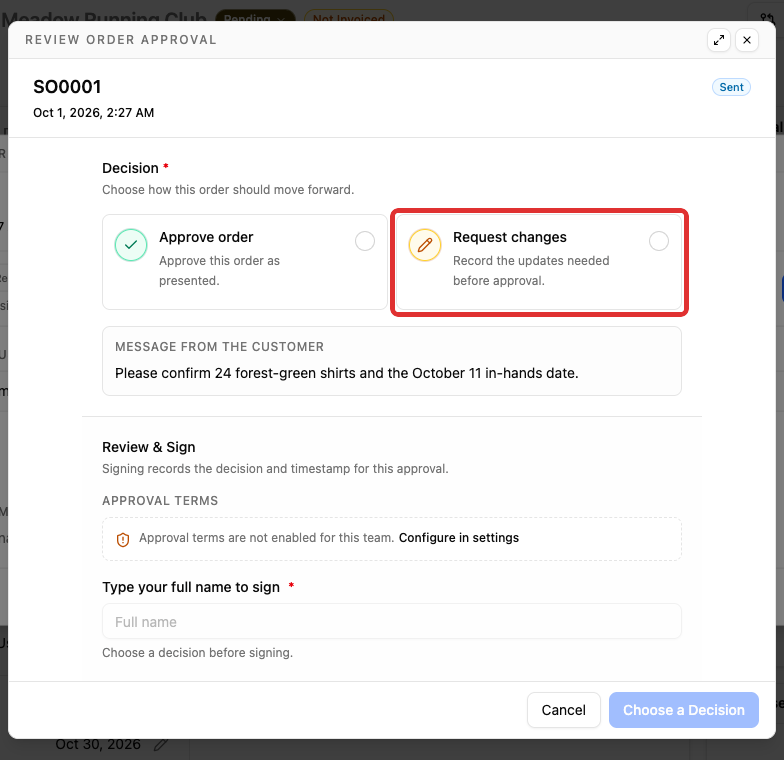
In the approval review, click Approve. This opens the response form without approving the order immediately.
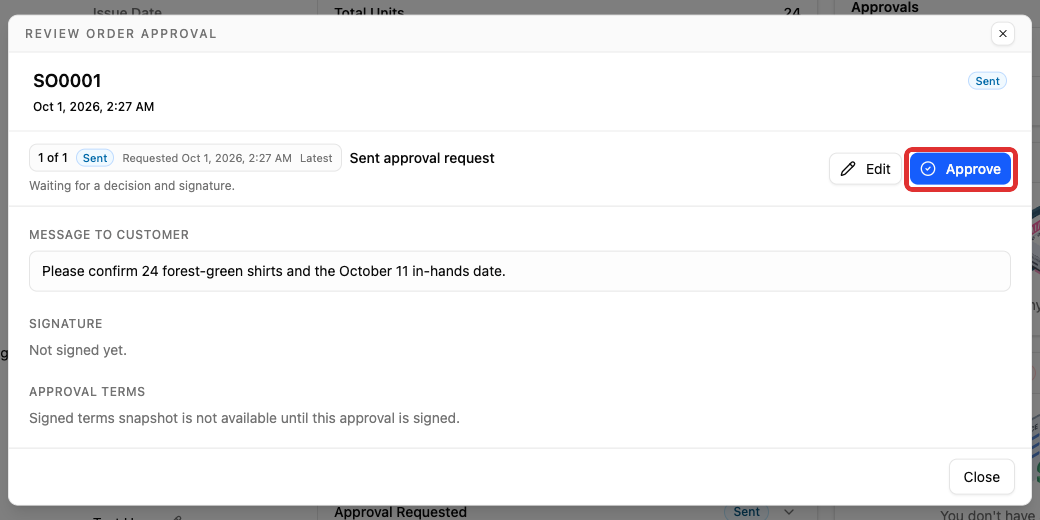
-
Choose Approve order if the order is accepted.
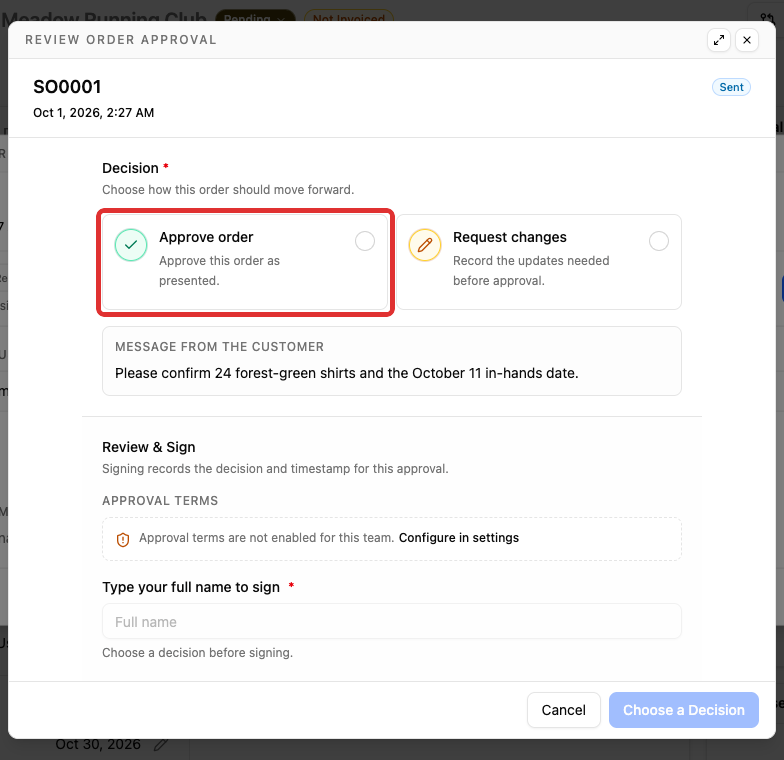
-
If updates are needed instead, choose Request changes.
-
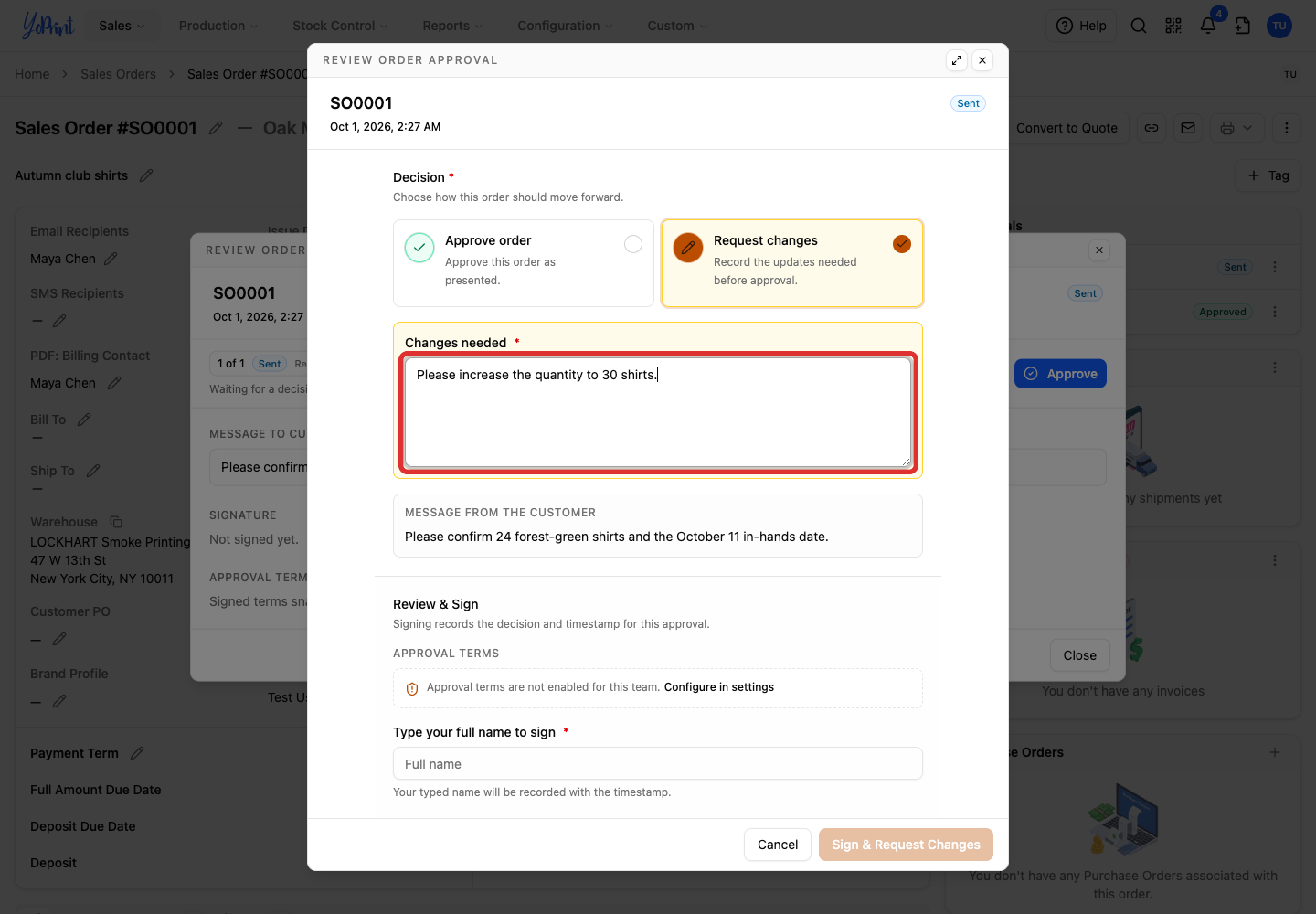
For a change request, enter the required comment in Changes needed; it is saved as the customer change note.
-
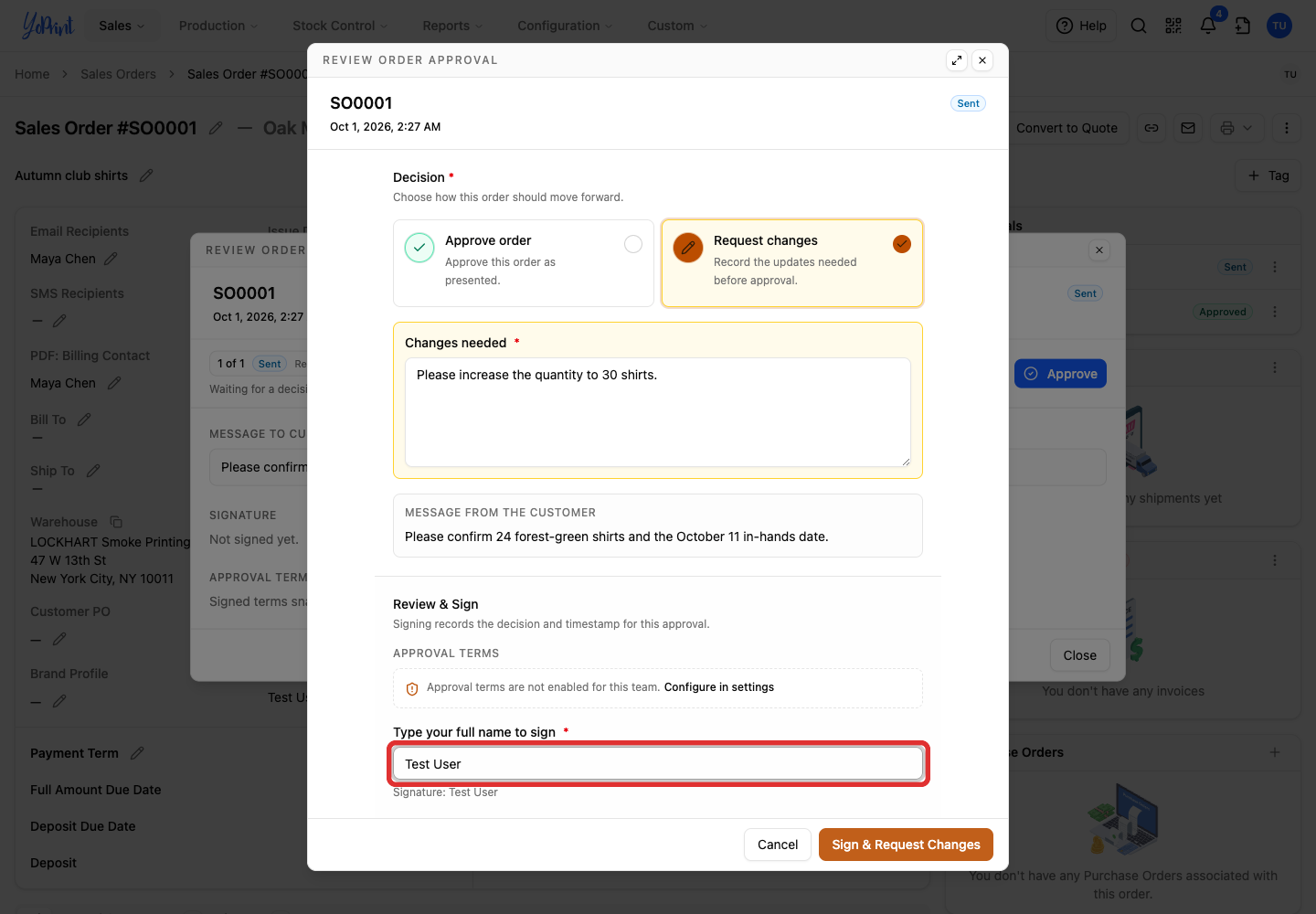
Review any enabled approval terms and type your full name to sign and certify the response.
-
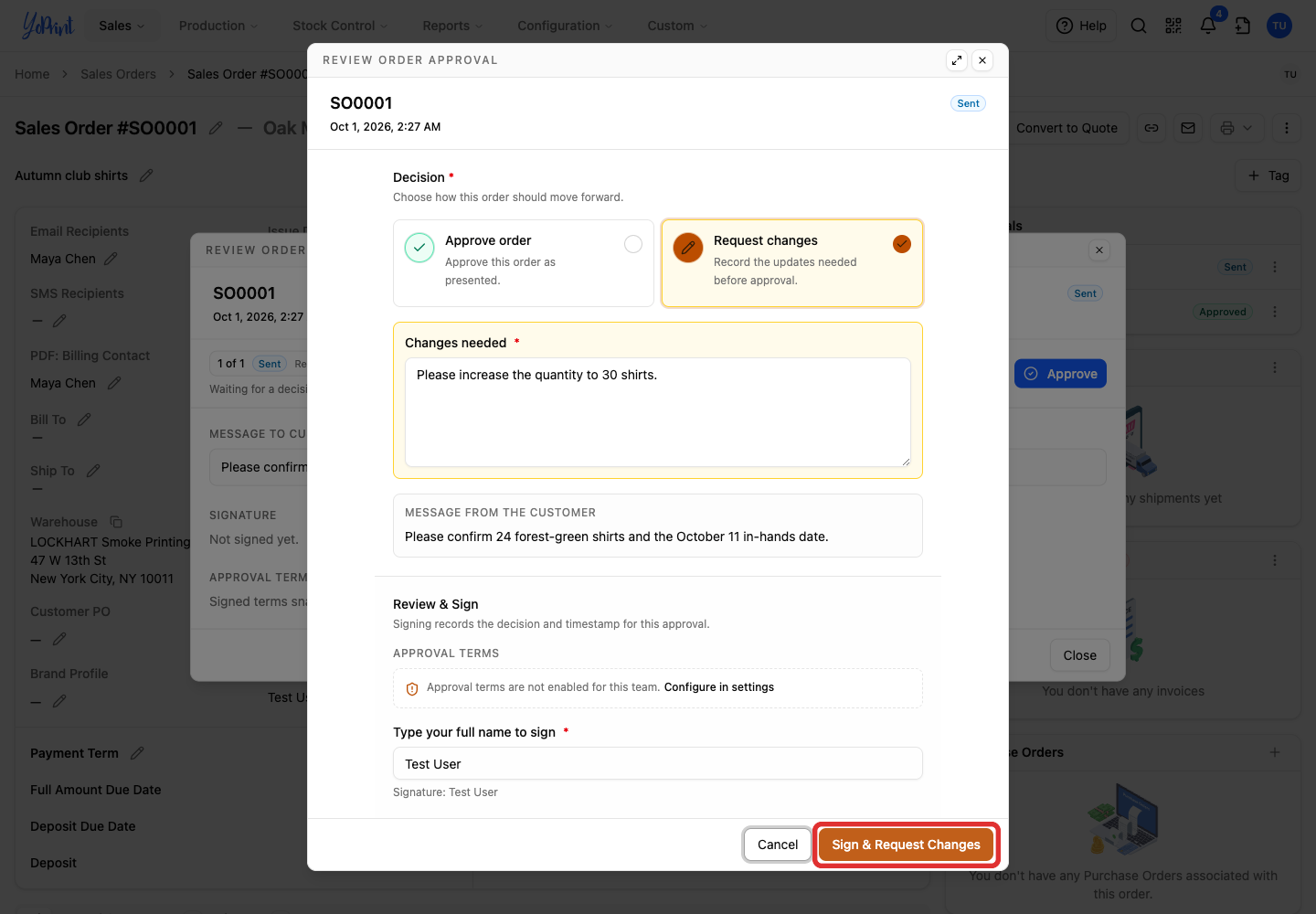
Click Sign & Request Changes to submit the change request.
Approving the order
If you chose Approve order, the final button is Sign & Approve Order.
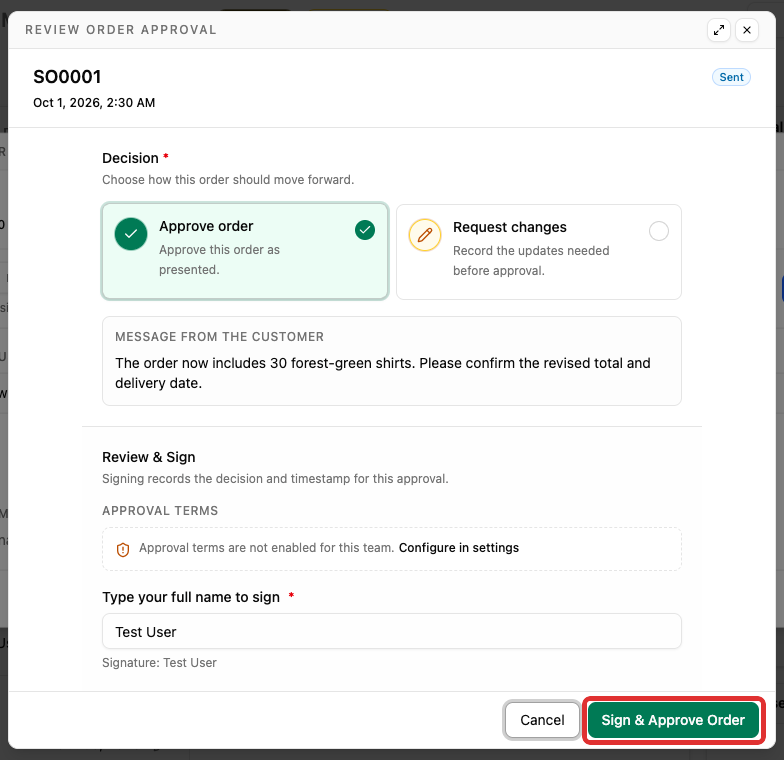
Approval terms can be customized in Settings > General and apply to new requests.
Request approval after changes
Update the items or quantities on the order, using Live Edit in Line Items if needed. Once the requested changes are saved on the order, create another approval request. The earlier completed response stays available.
-
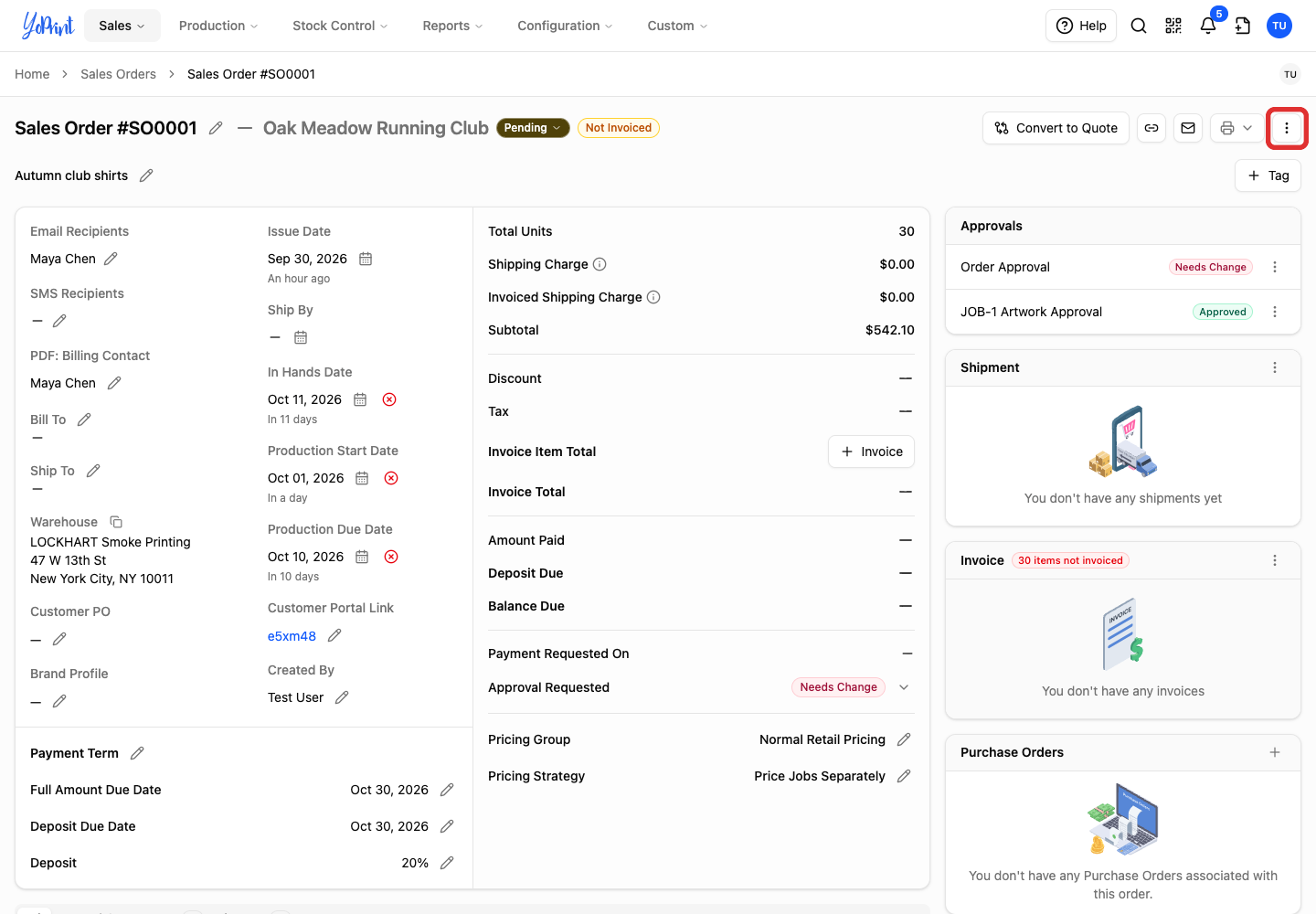
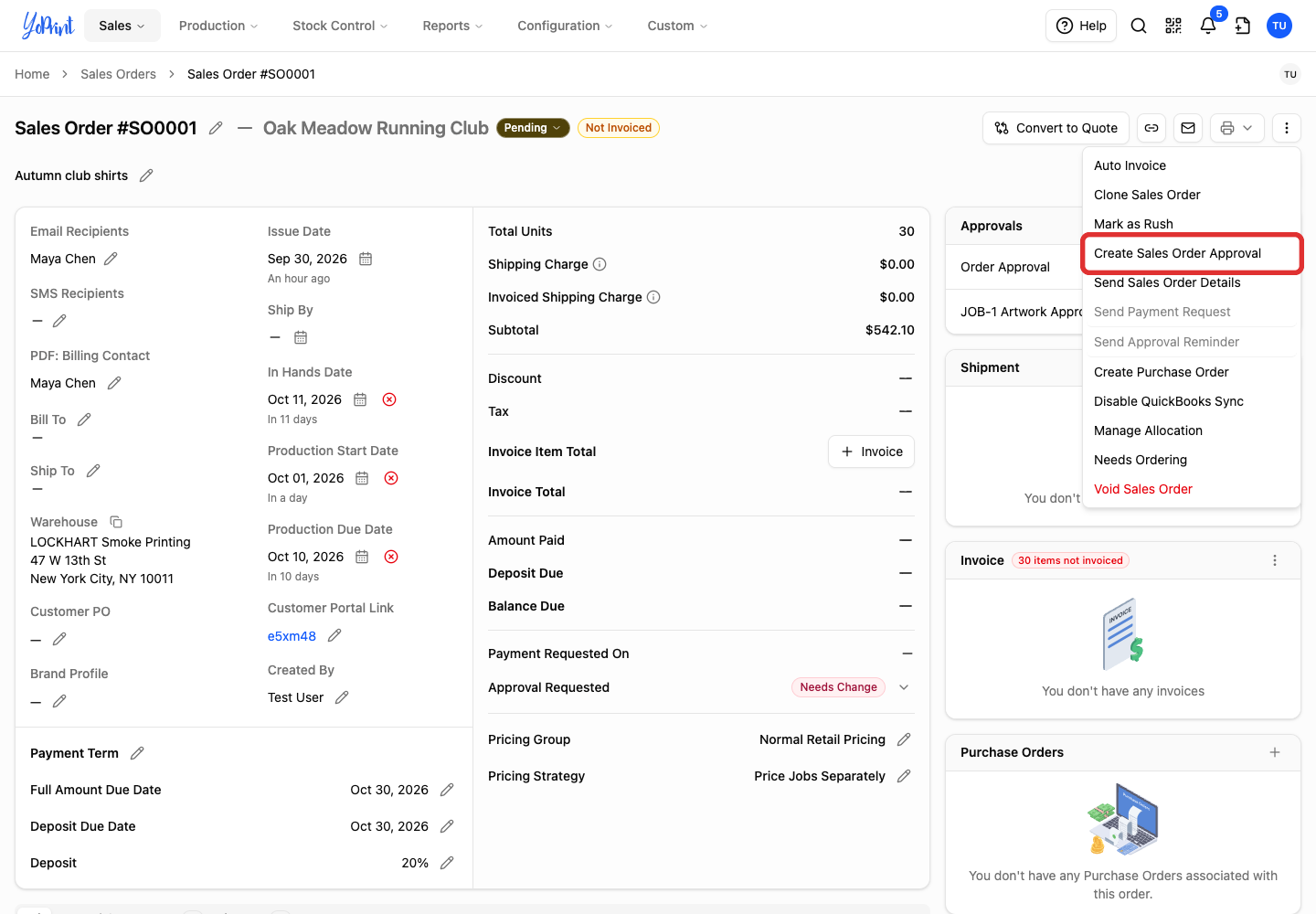
Close the review dialog to return to the order page, then open the three-dot actions menu at the top right.
-
Choose Create Sales Order Approval. Add the message and create or email it using the steps above.
Review earlier requests
If the review is closed, double-click Order Approval in the Approvals panel to reopen it. Earlier completed requests remain available as permanent read-only records.
-
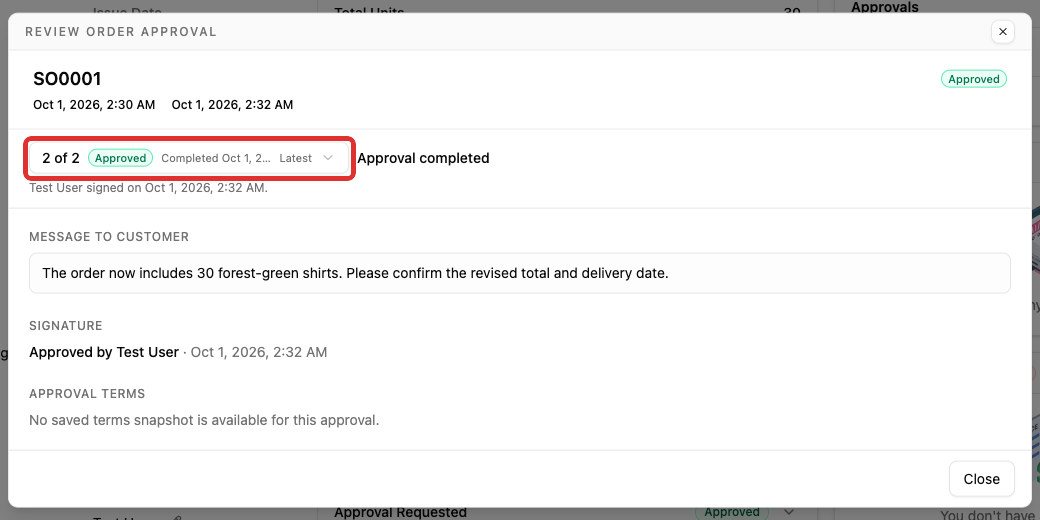
In the approval review, open the Approval request selector.
-
Choose an earlier request to read its message, signature and change comment.
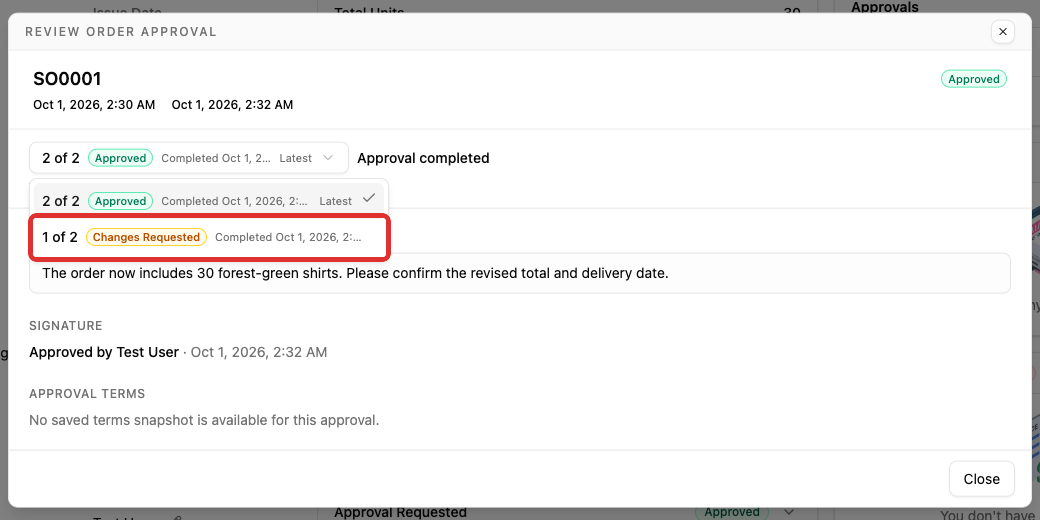
The newest request is labeled Latest. Jump to latest returns you from an older response to the current request.
Cancel a pending request
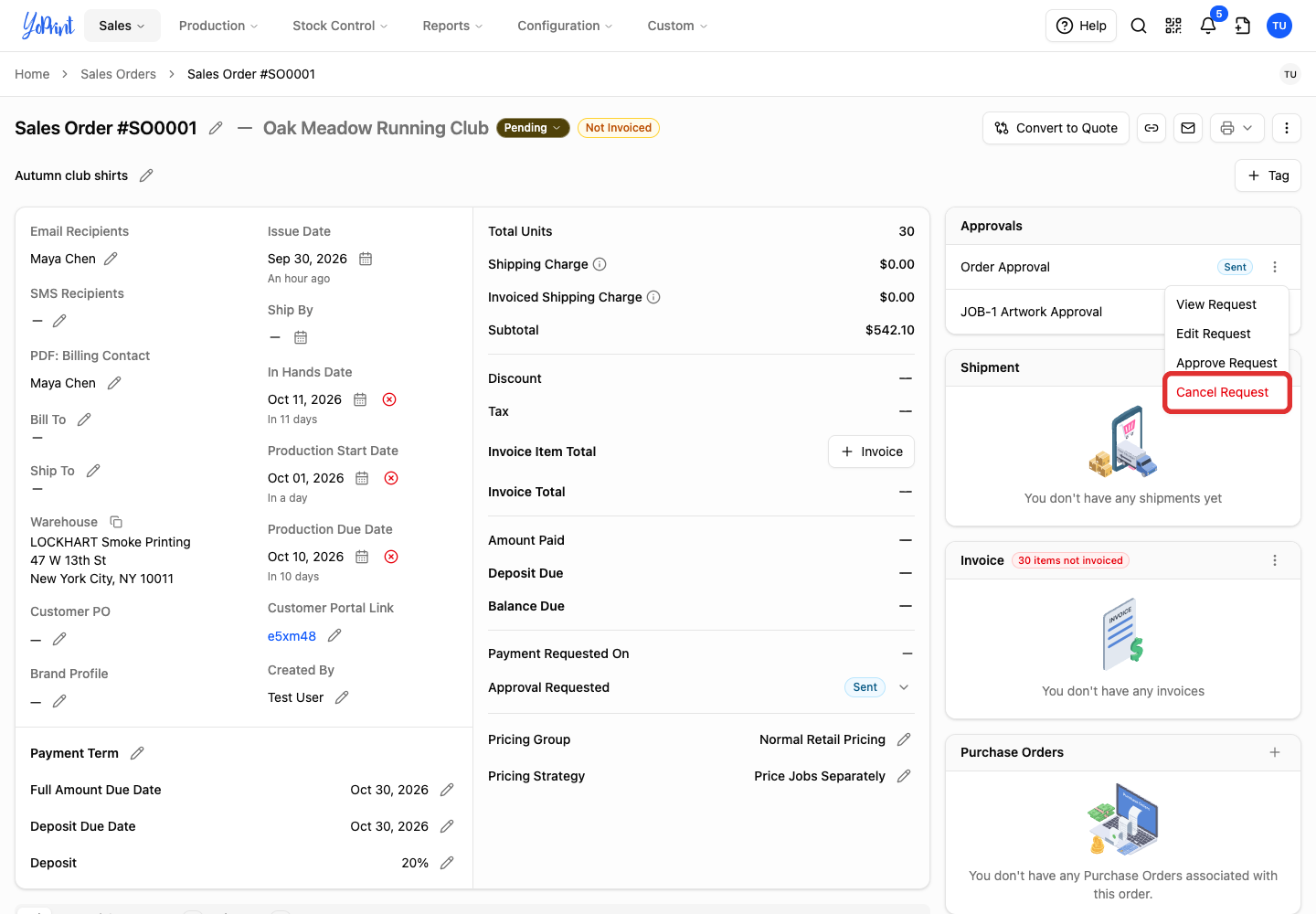
You can cancel a request that is Pending or Sent. Cancellation is immediate. YoPrint deletes the request without asking for confirmation. If a previous completed request exists, the order displays that approval again. If no previous request exists, the row returns to Create Request. Close the approval review to return to the order page.
-
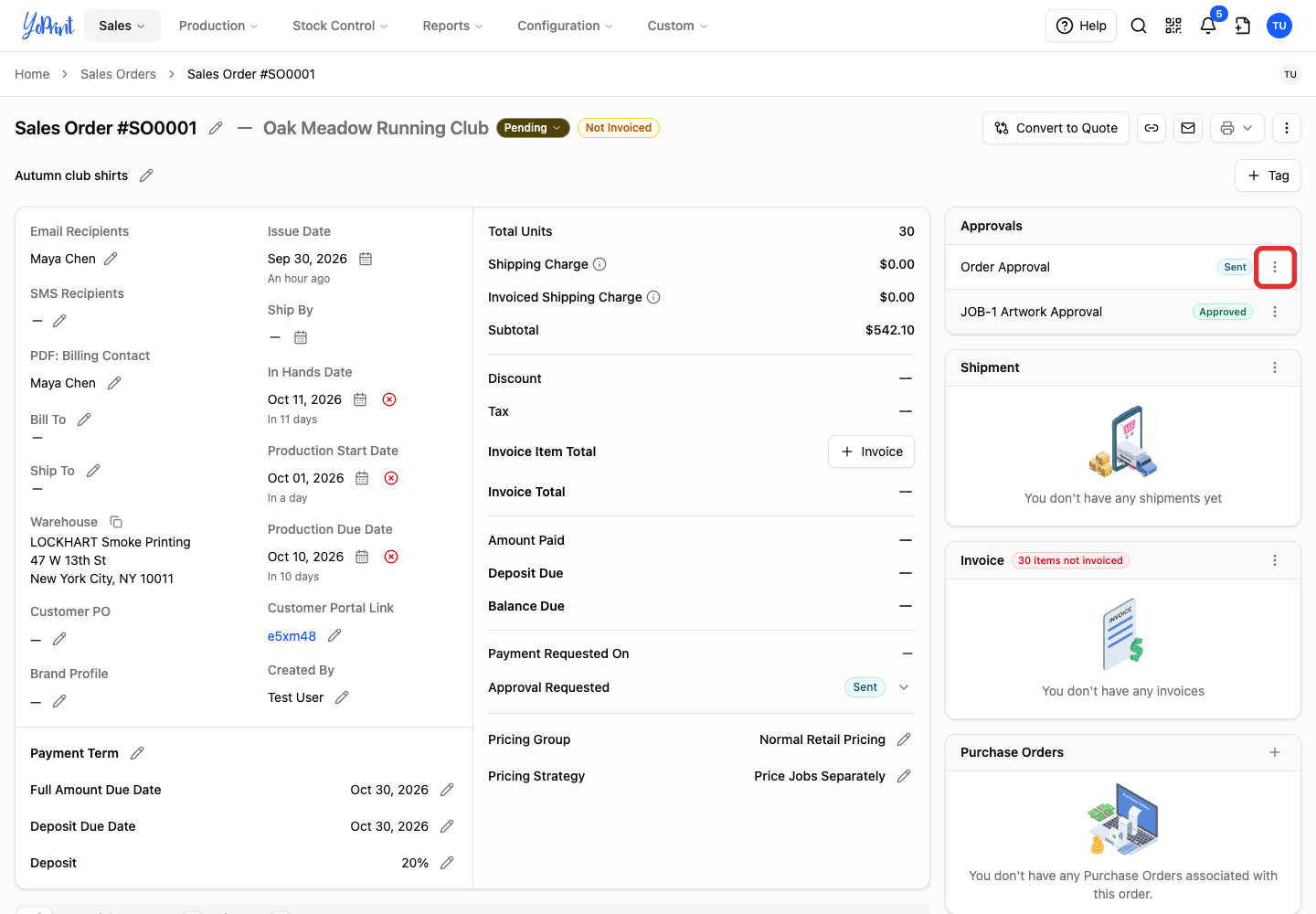
Open Approval actions, the three-dot menu beside Order Approval.
-
Choose Cancel Request.