Manage a Customer's Portal Access
In this article
Portal access lets a contact sign in to the customer portal and view the work your shop shares with that customer. They get access to that customer's portal account, not just the order link you send. Published quotes and sales orders appear in the portal. Drafts stay in your shop.
Give a contact access
Customers use the email address saved on their contact to sign in with a code. They do not need an invitation or a password. To open the Contacts and portal access table on the customer's Contacts & Addresses tab, see Open a customer's contacts. If the contact already has the correct email, check their Portal access state. If an existing contact is missing an email or needs a new one, edit the contact.
If the person is not in the contact list yet, add a contact with their sign-in email.
Customers: sign in with an email code
Send the customer a link to their order. See Customer Portal Overview for how to copy the order link.
When the customer opens the link, they sign in with their saved email address and an email code to open the order.
If Choose an account appears, they choose the customer account for the order.
If the customer cannot receive an email code, check their saved email address and Portal access state. If they no longer use that email address, update the contact.
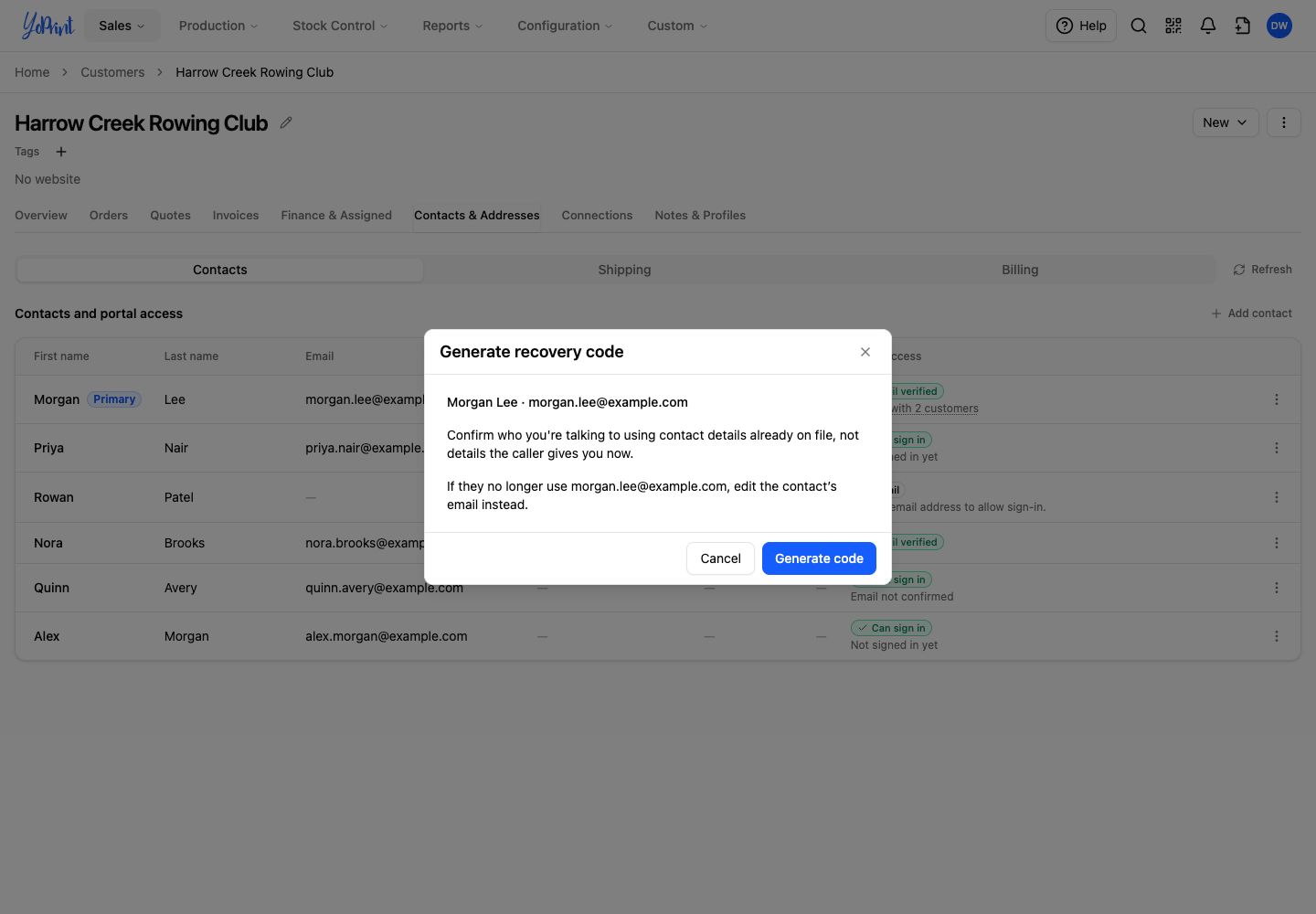
A one-time recovery code helps a customer sign in when they cannot use their inbox. Before you select Generate recovery code in the contact's Row actions menu, confirm who you are talking to using the contact details already on file.
Check portal access
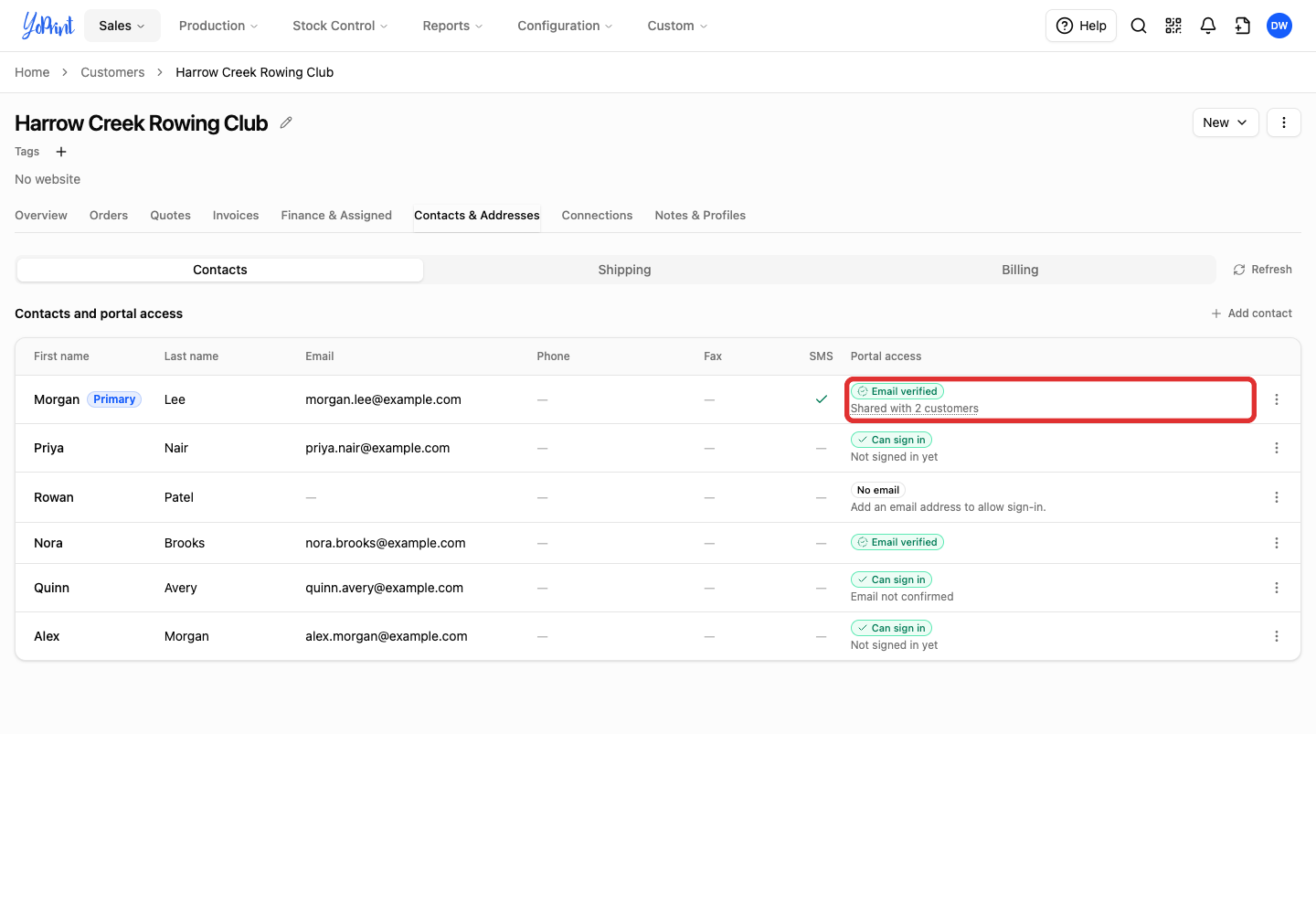
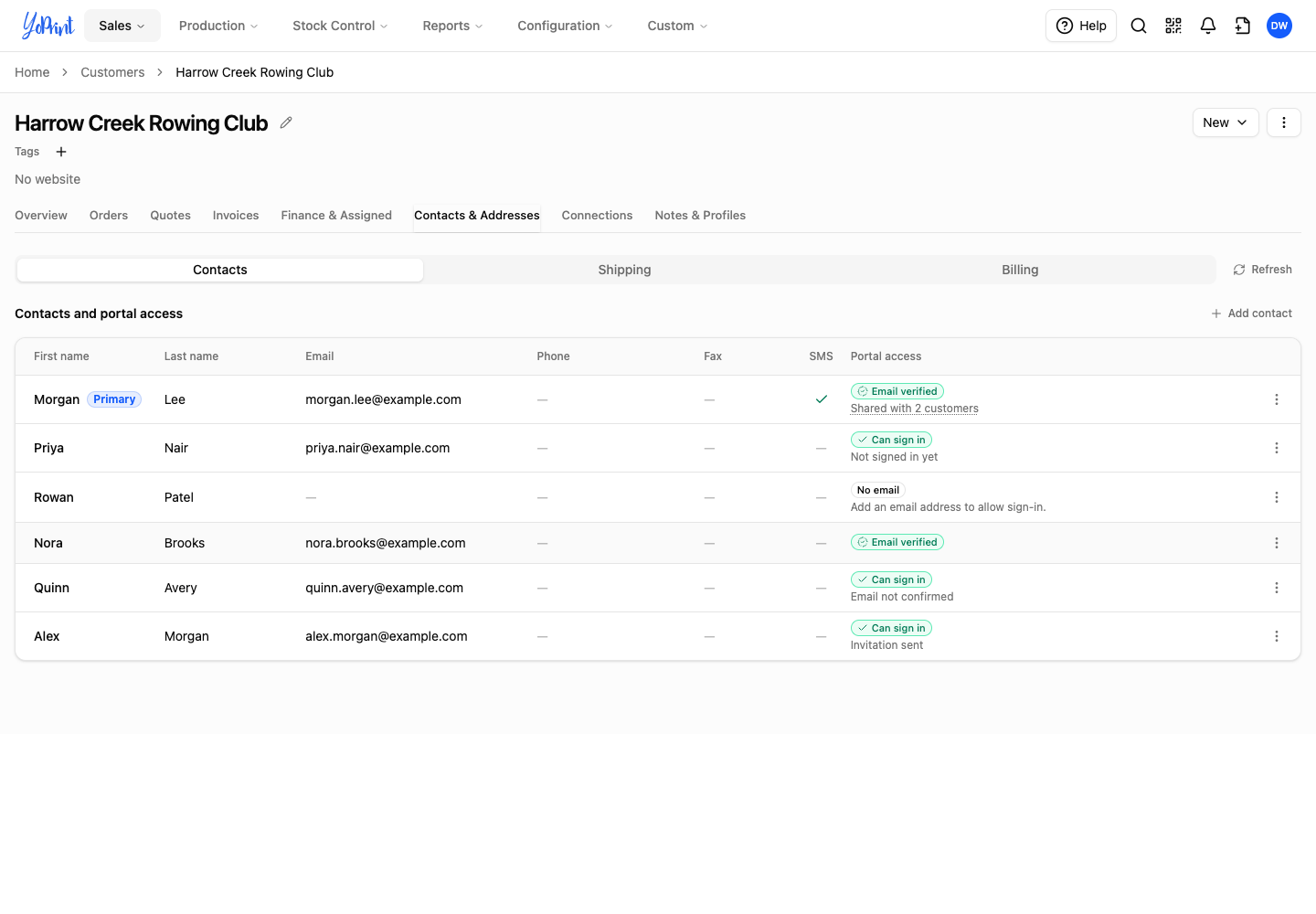
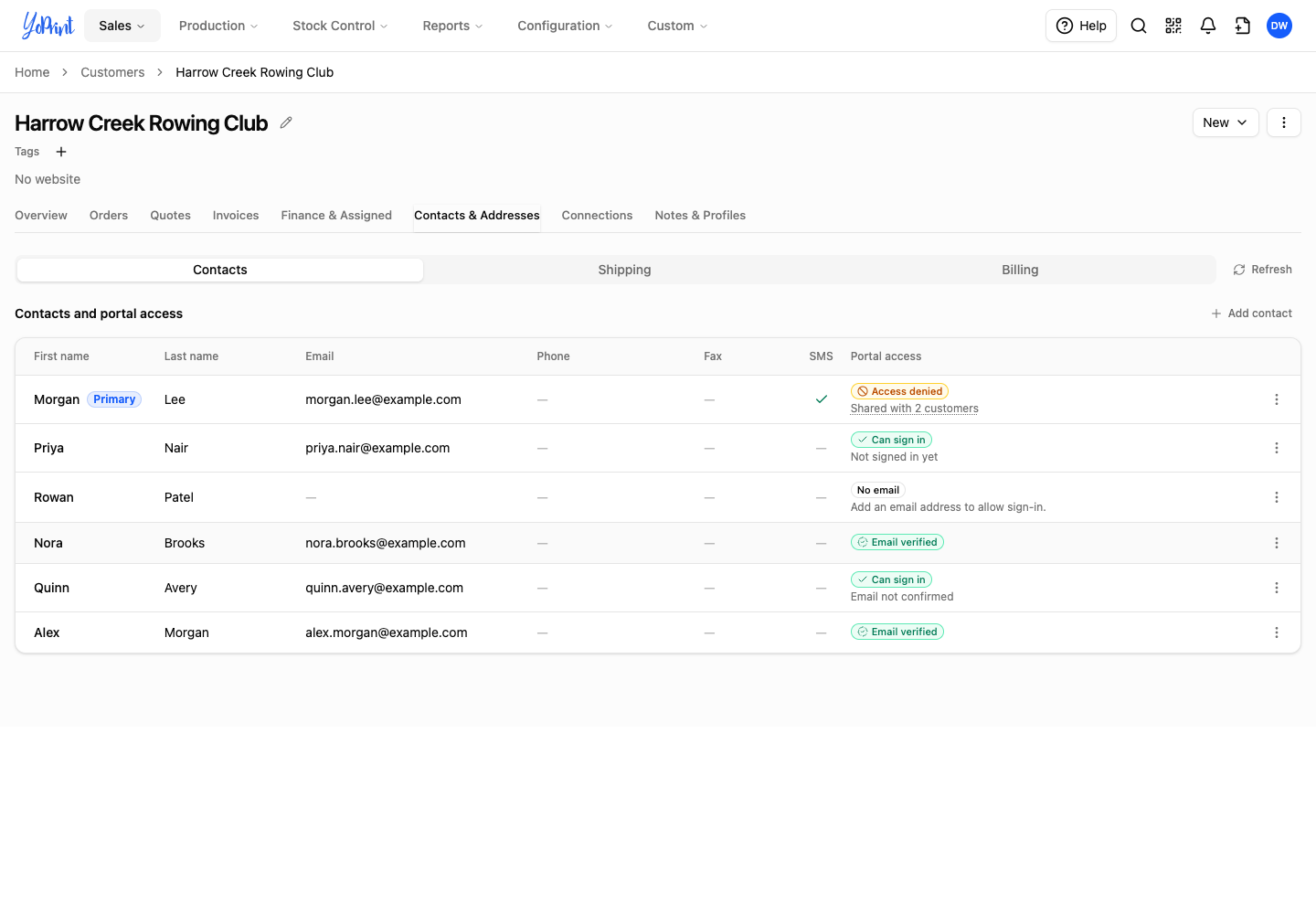
The Portal access column shows whether each contact can sign in. An invitation is not a separate permission.
| State | What it means |
|---|---|
| Can sign in · Not signed in yet | The email is on file. The contact can sign in with a code. They have not signed in yet. |
| Can sign in · Invitation sent | You sent sign-in guidance. The contact can still sign in directly with a code. |
| Email verified | The contact confirmed the email address for this account. |
| Can sign in · Email not confirmed | The contact has a password they can use to sign in, but has not confirmed their email. This can happen after using a recovery code. |
| No email | Add an email address to let this contact sign in. |
| Access denied | You blocked this contact's access to this customer. |
| Portal off | The portal is turned off for the whole customer. Check Connections → Customer portal on the customer page. |
| Managed by an integration | The contact is managed by a connected integration. Portal-access actions for this contact are unavailable here. |
| Email cannot be used for sign-in | The email format or characters are not supported for sign-in. Check the address for mistakes or update it. |
| Duplicate email | Sign-in belongs to another contact on this customer with the same email. Check the other row with that email for its access state. |
| Account unavailable | The account is closed or disabled, or portal sign-in is unavailable for your shop. |
A Shared with 2 customers label (or another count) under the access state means the email is linked to more than one customer in your shop. See When the email is shared by more than one customer before editing it.
When the portal is turned off for a customer, every contact with an email shows Portal off.
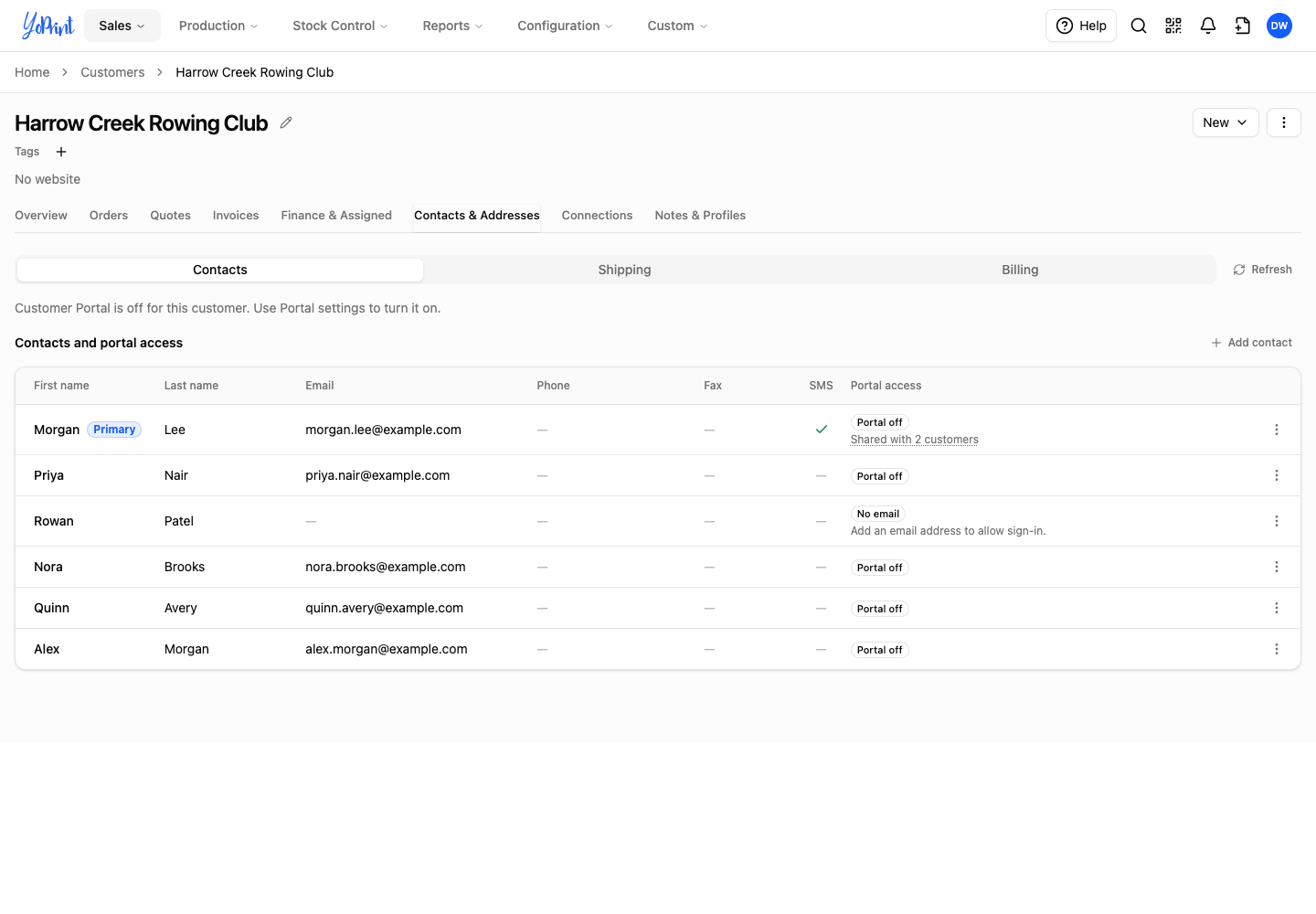
Using an emailed sign-in code confirms the contact's email. A recovery code lets the customer set a password without confirming their email, so their row shows Can sign in with Email not confirmed.
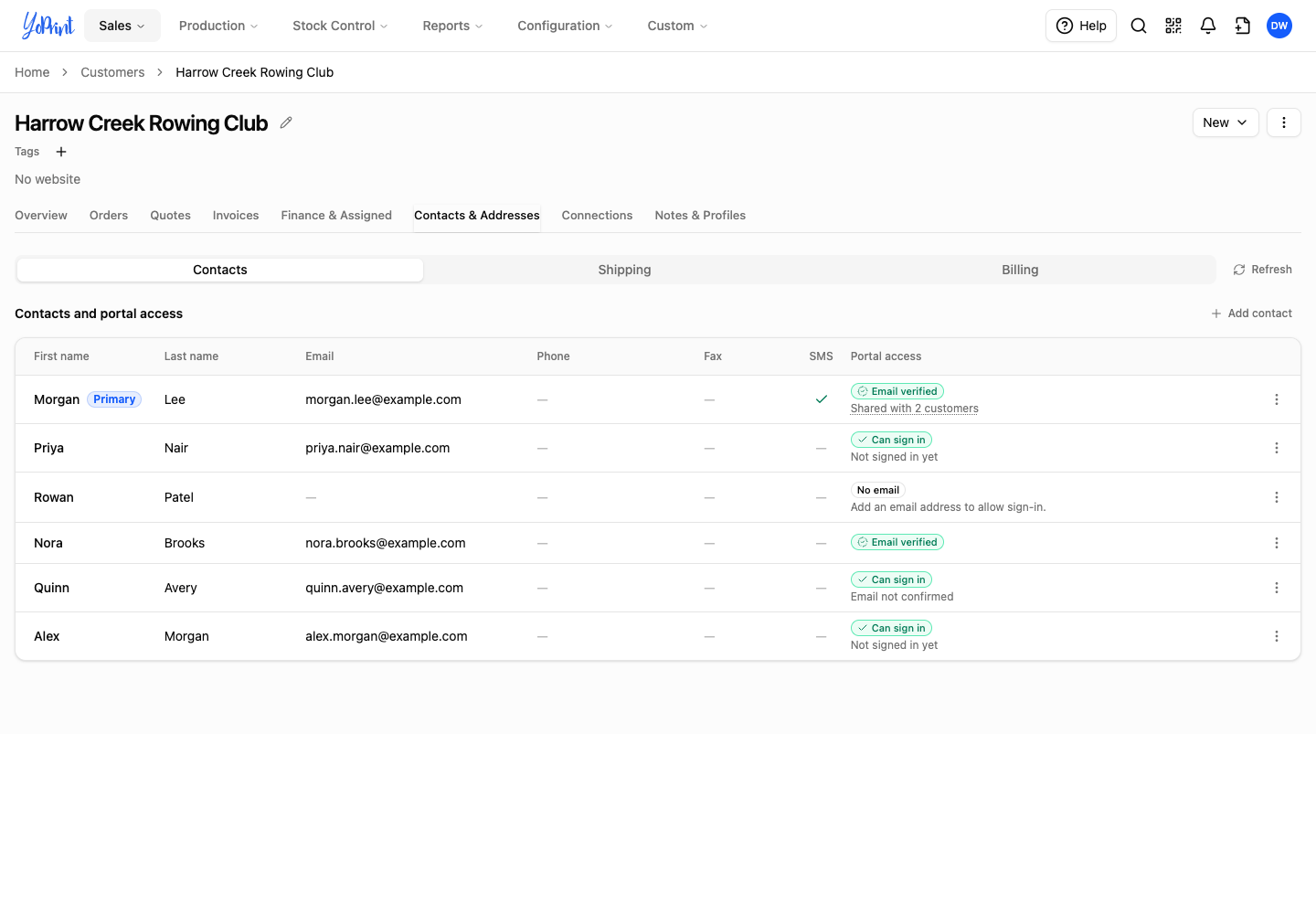
The Primary badge does not limit who can sign in. YoPrint shows portal access separately for each contact.
If your staff role can view a customer but cannot edit them, you can read the access states but cannot change them. Ask someone whose Manage Customers permission is Manage All, or Manage Assigned to User for a customer assigned to them, to make the change. Permission groups are in Settings → Permissions.
To see the portal as one of the customer's contacts, check what orders they see, or walk them through an invoice or approval request, open a support session with Open customer portal… on the customer's Connections tab, or Open in Customer Portal on a sales order: see View the Customer Portal as Your Customer. Opening a support session does not sign the customer in or verify their email for them.
Send an invitation
Send an invitation to introduce the portal or give a contact a direct way to get started. Saving their email already lets them sign in with a code. You can use Send invitation before a contact confirms their email or sets a password.
-
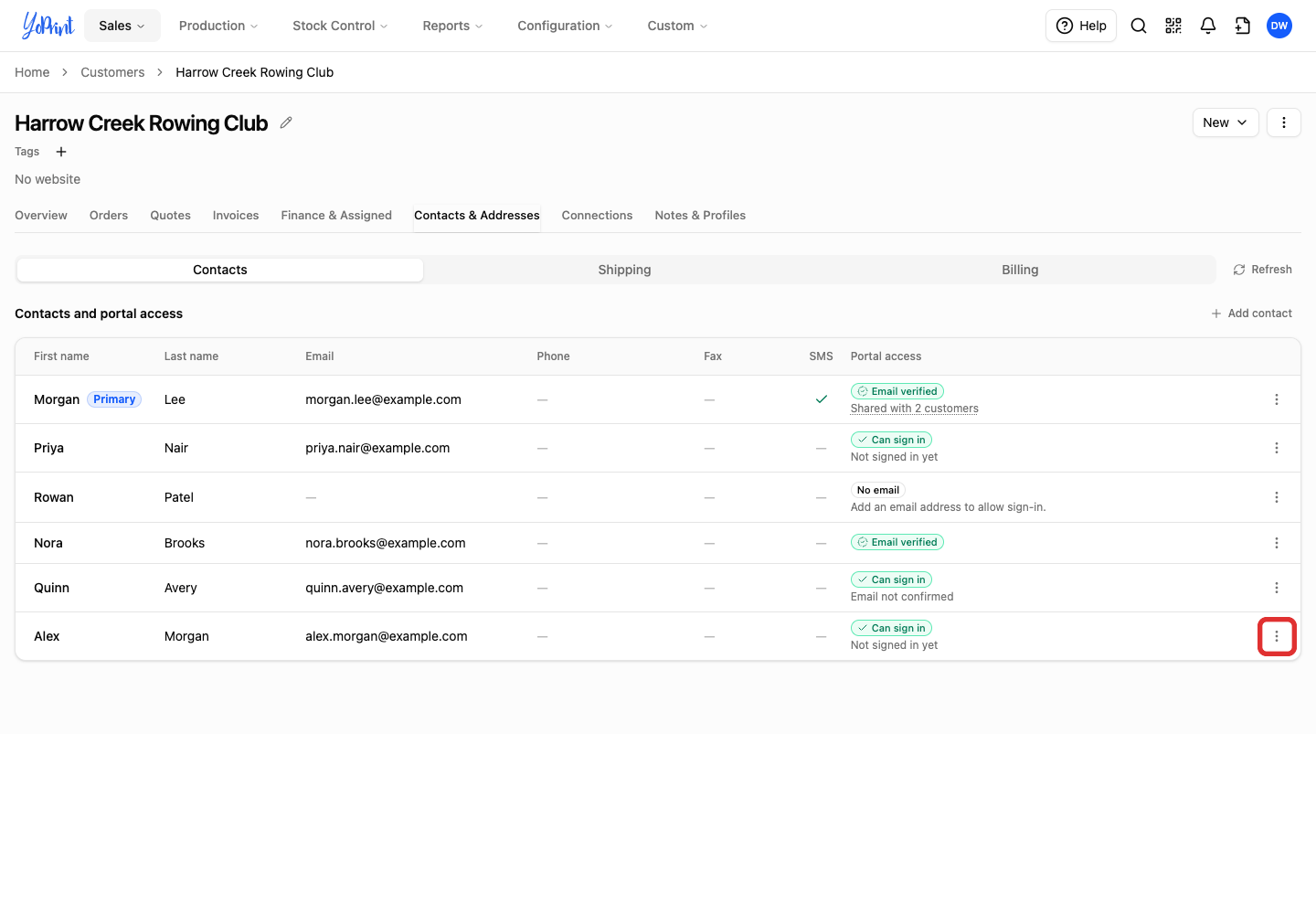
Open the contact's three-dot Row actions menu.
-
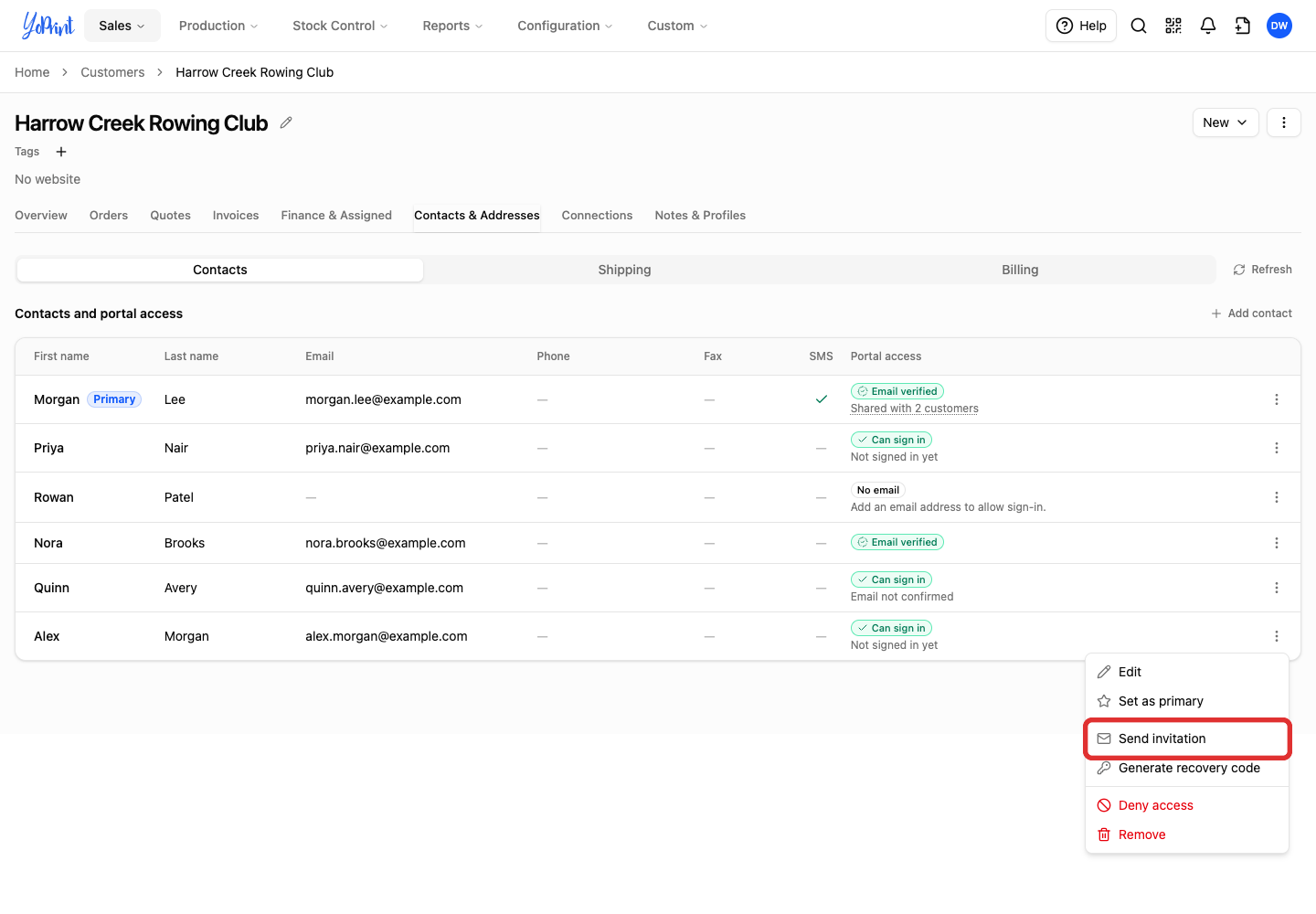
Choose Send invitation.
-
Click Send invitation to confirm.
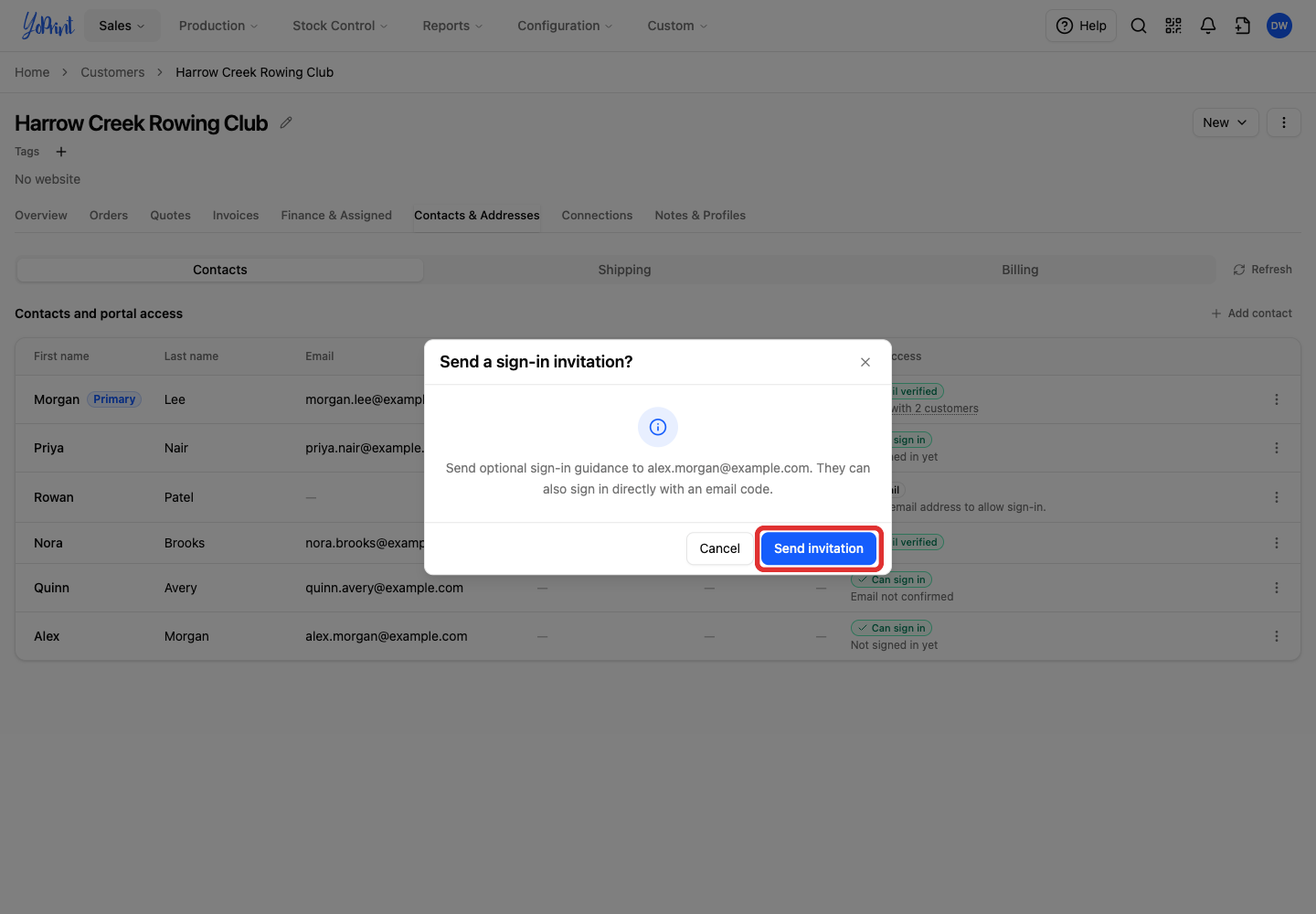
The Portal access column shows Can sign in with Invitation sent underneath. This does not mean the customer has opened the email or signed in.
Customers: accept the invitation
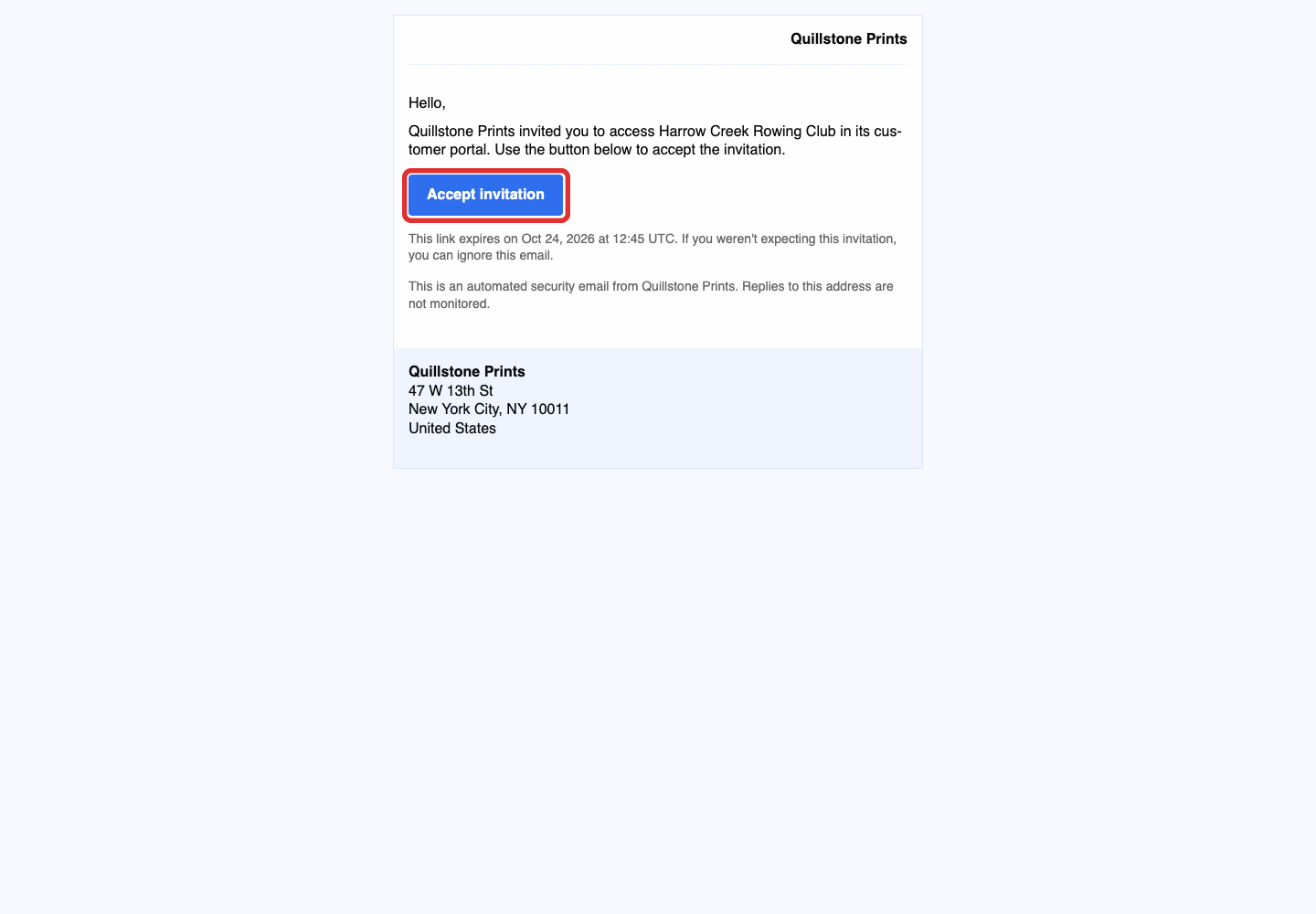
The email names your shop and the customer account your customer can access.
-
Your customer clicks Accept invitation in the email.
-
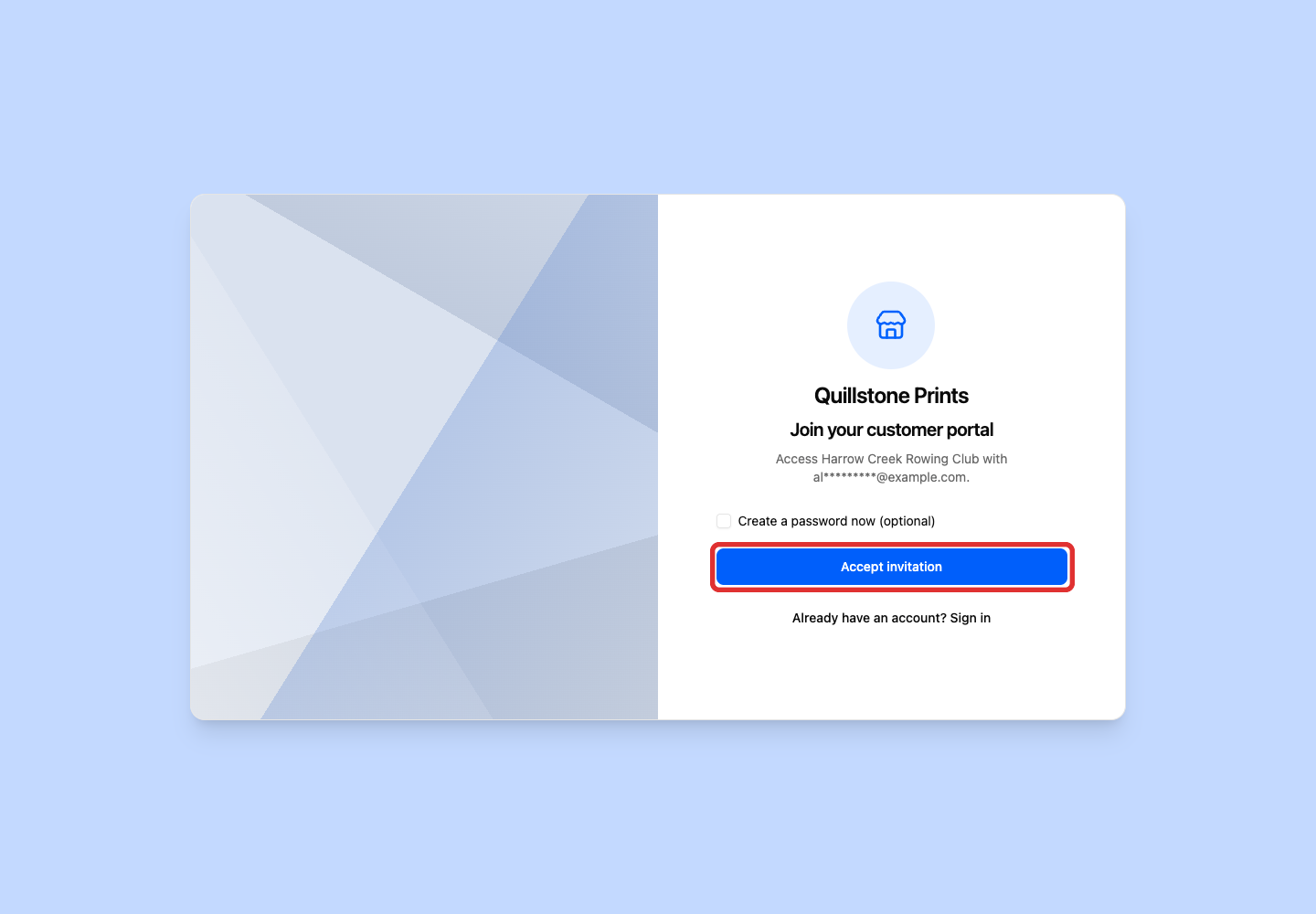
On Join your customer portal, they click Accept invitation. Creating a password is optional.
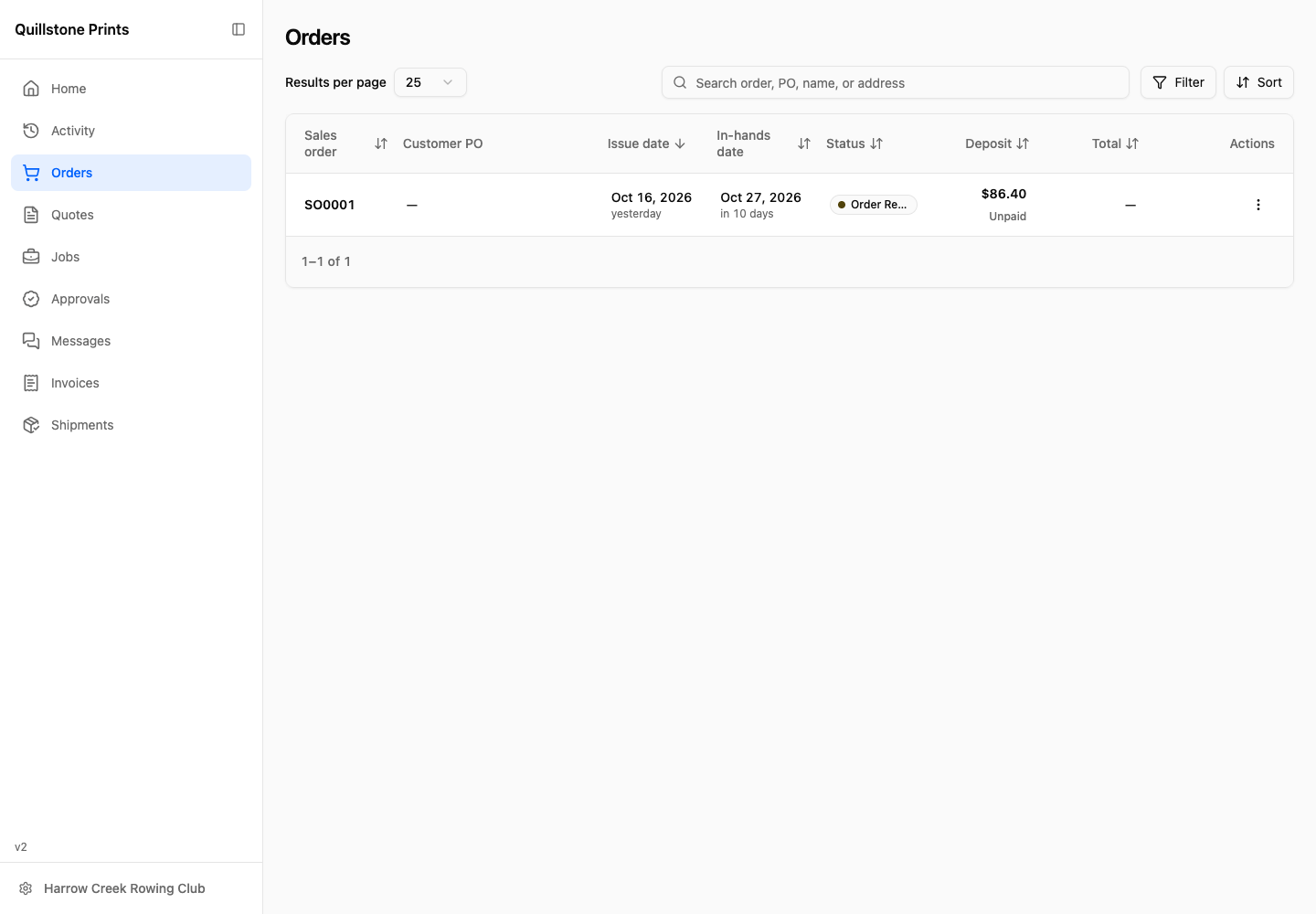
Their customer account opens in the portal. Invitation links expire after seven days.
Change a contact's email
Update the contact when their email address changes. If this is the only customer using the email, the change signs the old account out. The customer can then sign in with their new email address. Their contact history stays in place.
-
Open the contact's three-dot Row actions menu.
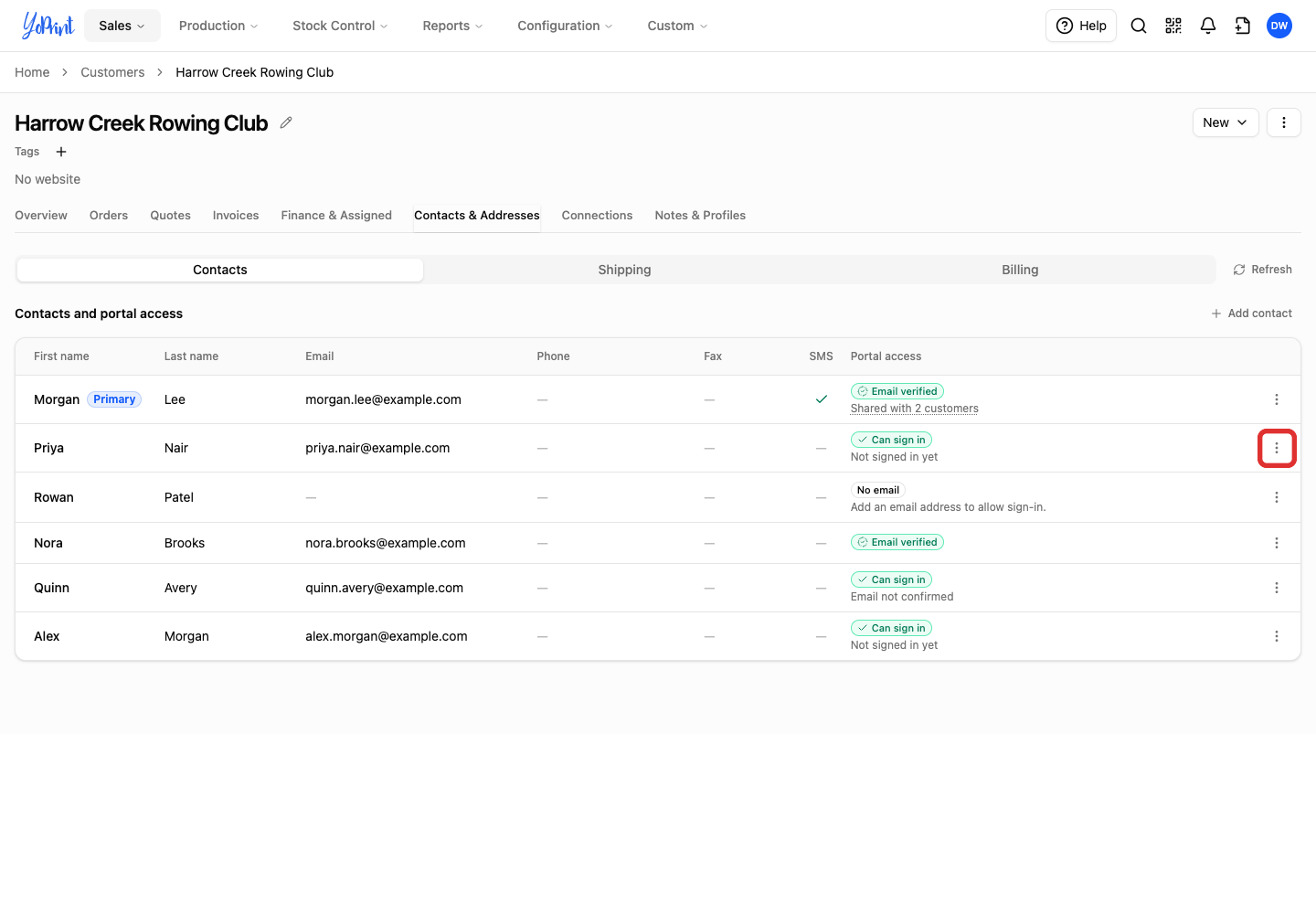
-
Choose Edit.
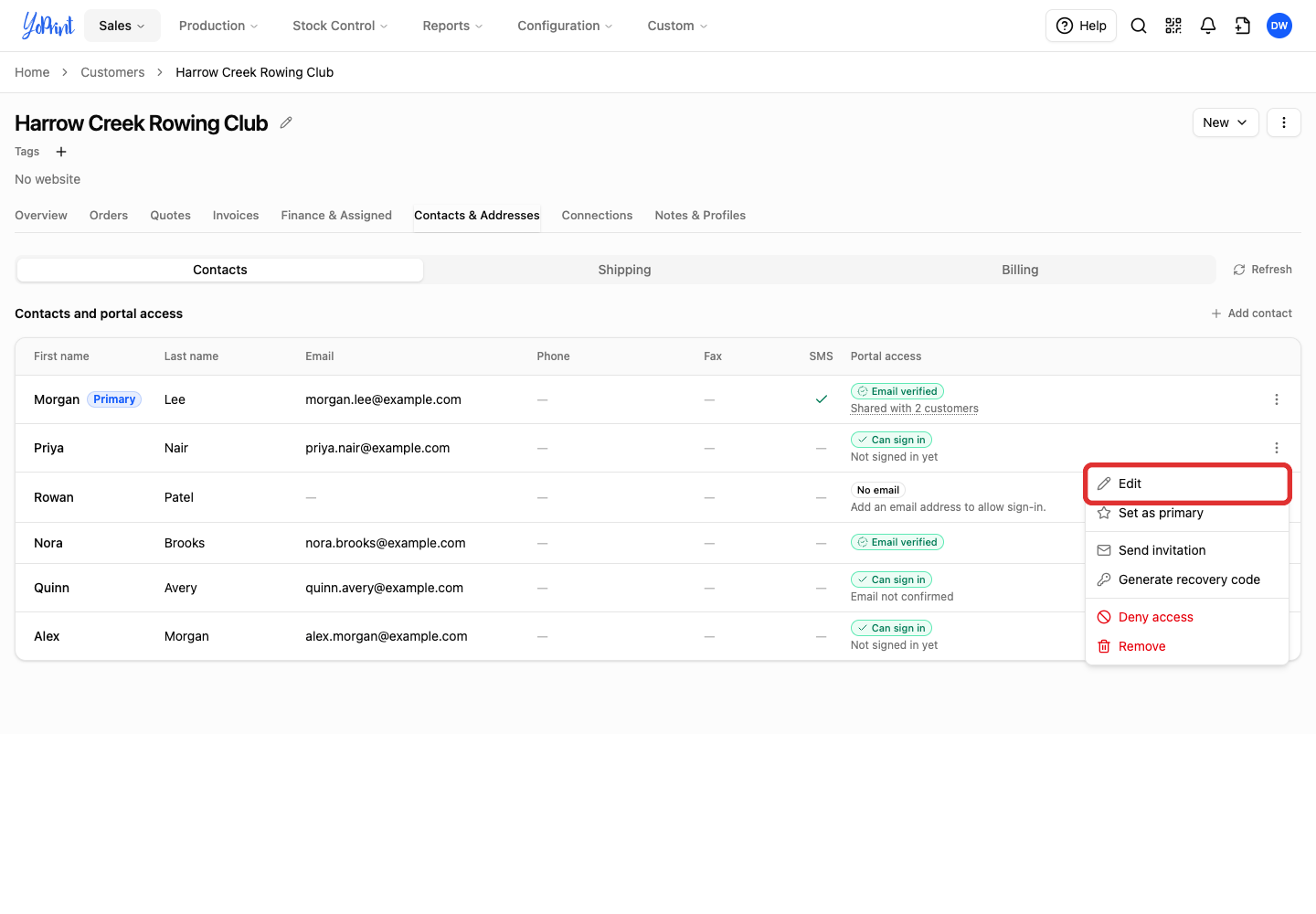
-
Enter the new Email address.
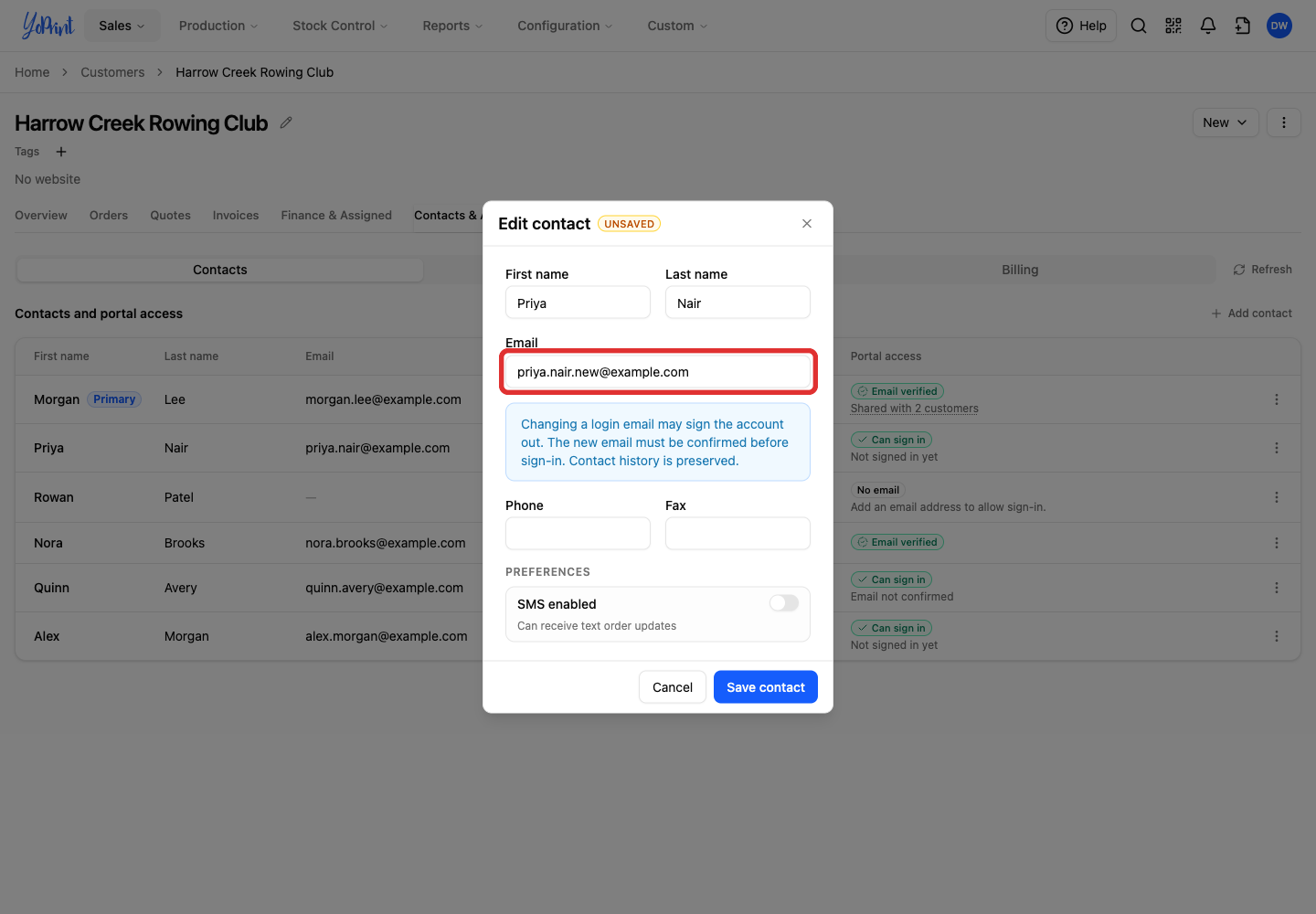
If the form asks which customers should use the new email, choose the scope before saving.
-
Click Save contact.
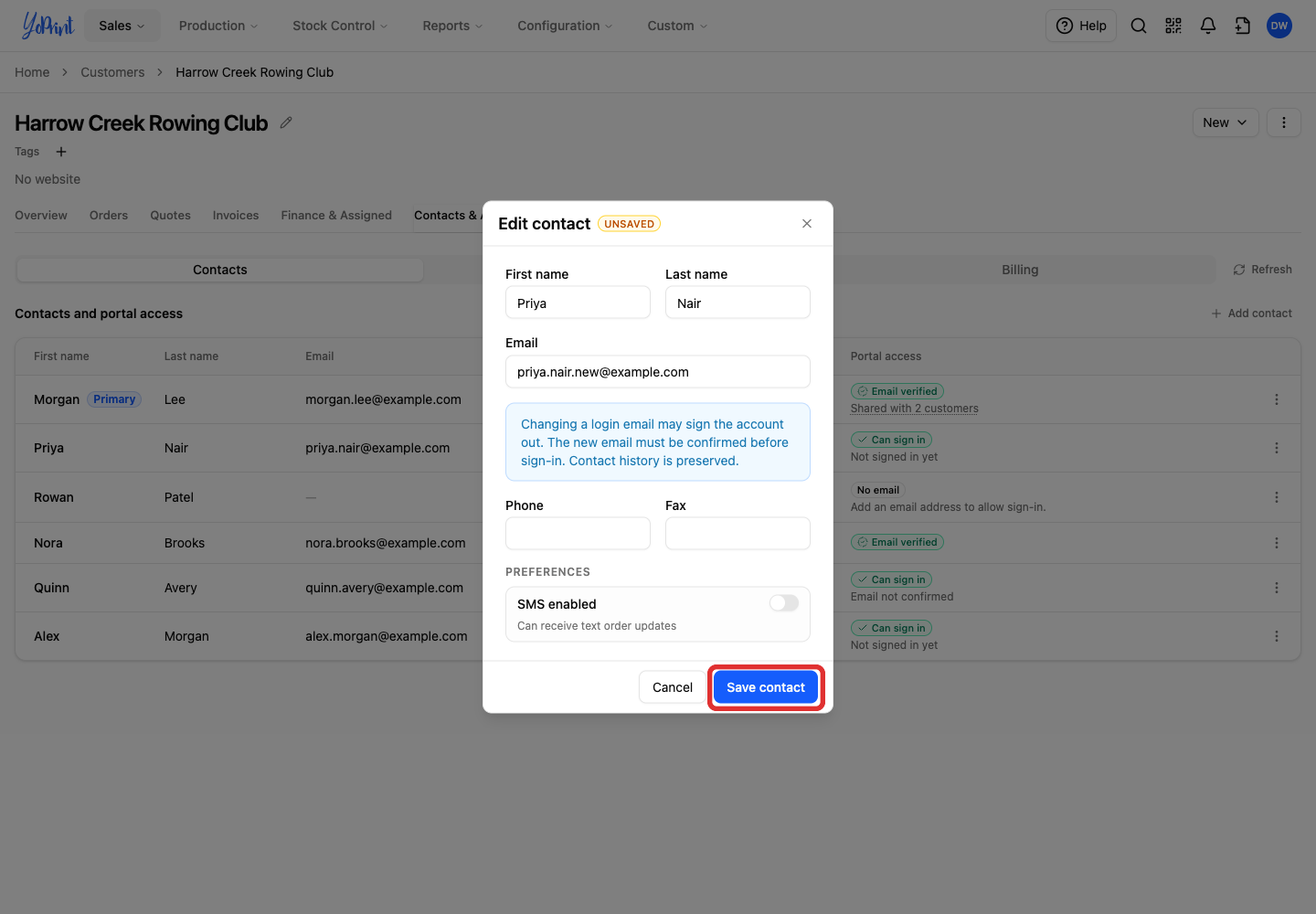
If YoPrint asks to reconnect to an existing account, confirm the reconnection.
Tell the customer to use the new email address the next time they sign in. Old invitation links stop working after the email change. The customer can sign in with an email code at their new address.
When the email is shared by more than one customer
A Shared with 2 customers label (or another count) in Portal access means more than one customer in your shop uses that email address.
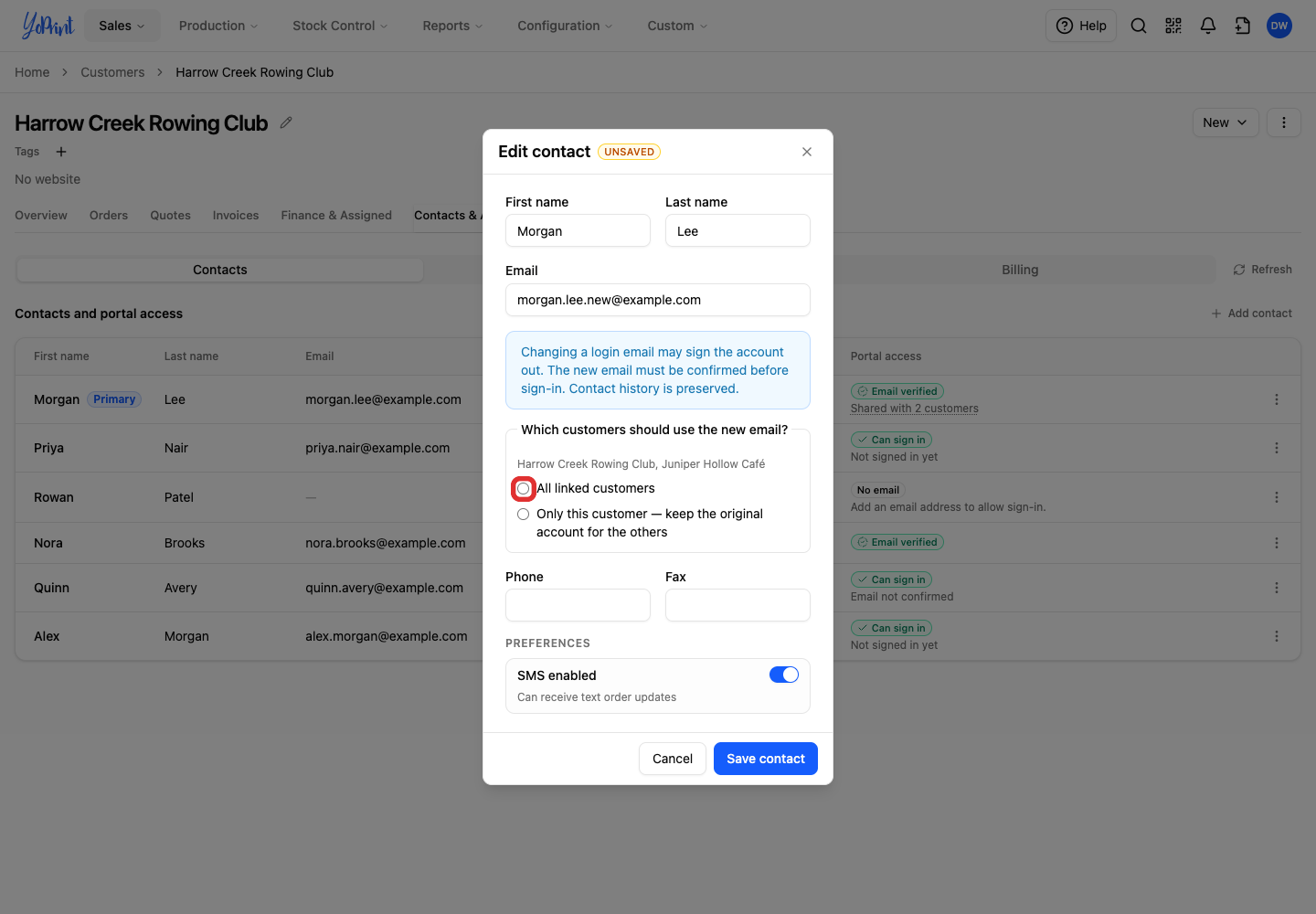
When you edit that email, the form asks Which customers should use the new email?
-
Select which customers should use the new email:
- Choose All linked customers to update the email for every customer listed in the form. This signs the old account out.
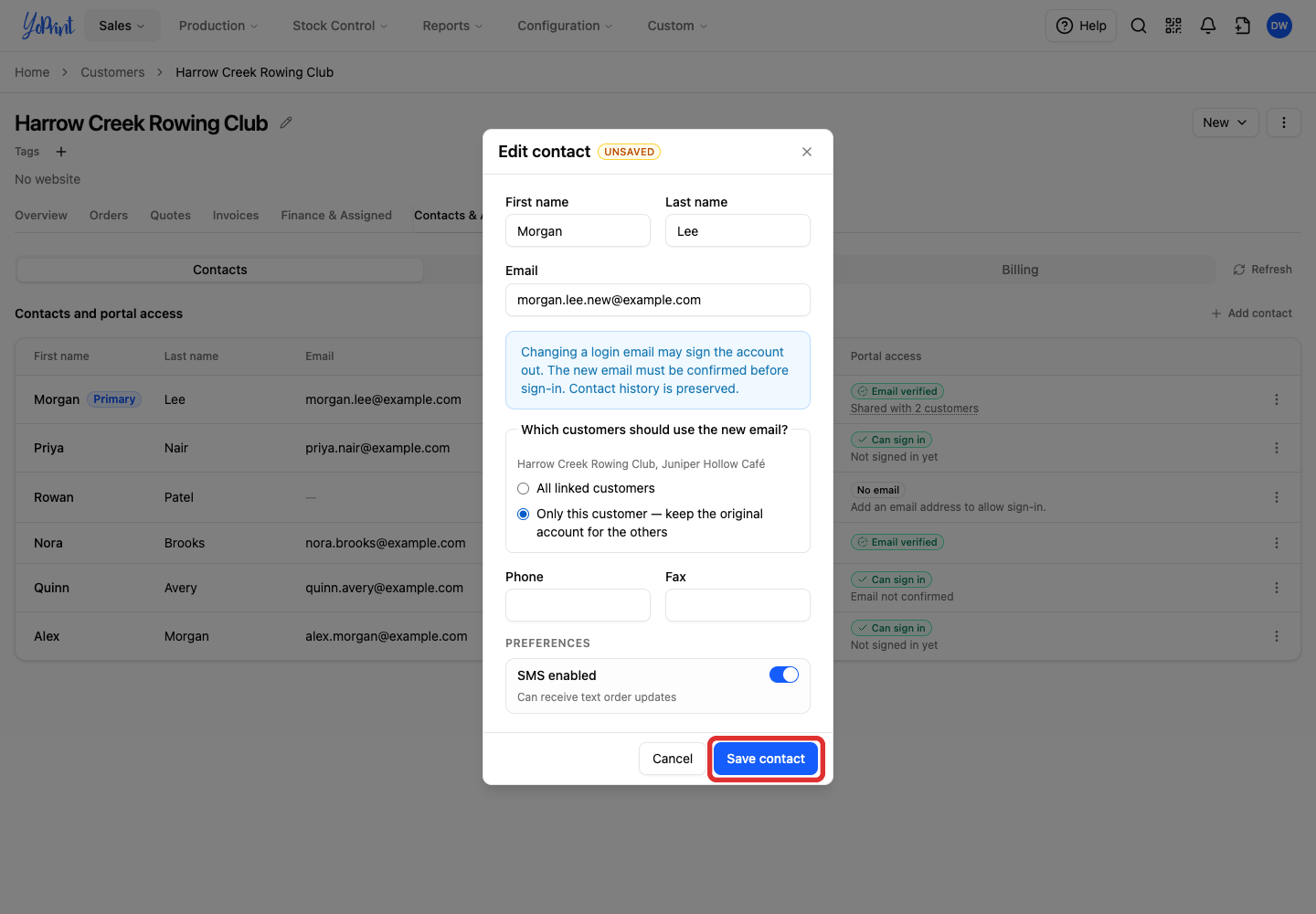
- Choose Only this customer — keep the original account for the others to update the email only for the customer you are editing. The other customers keep the original account and stay signed in.
-
Click Save contact.
When the new email already has an account
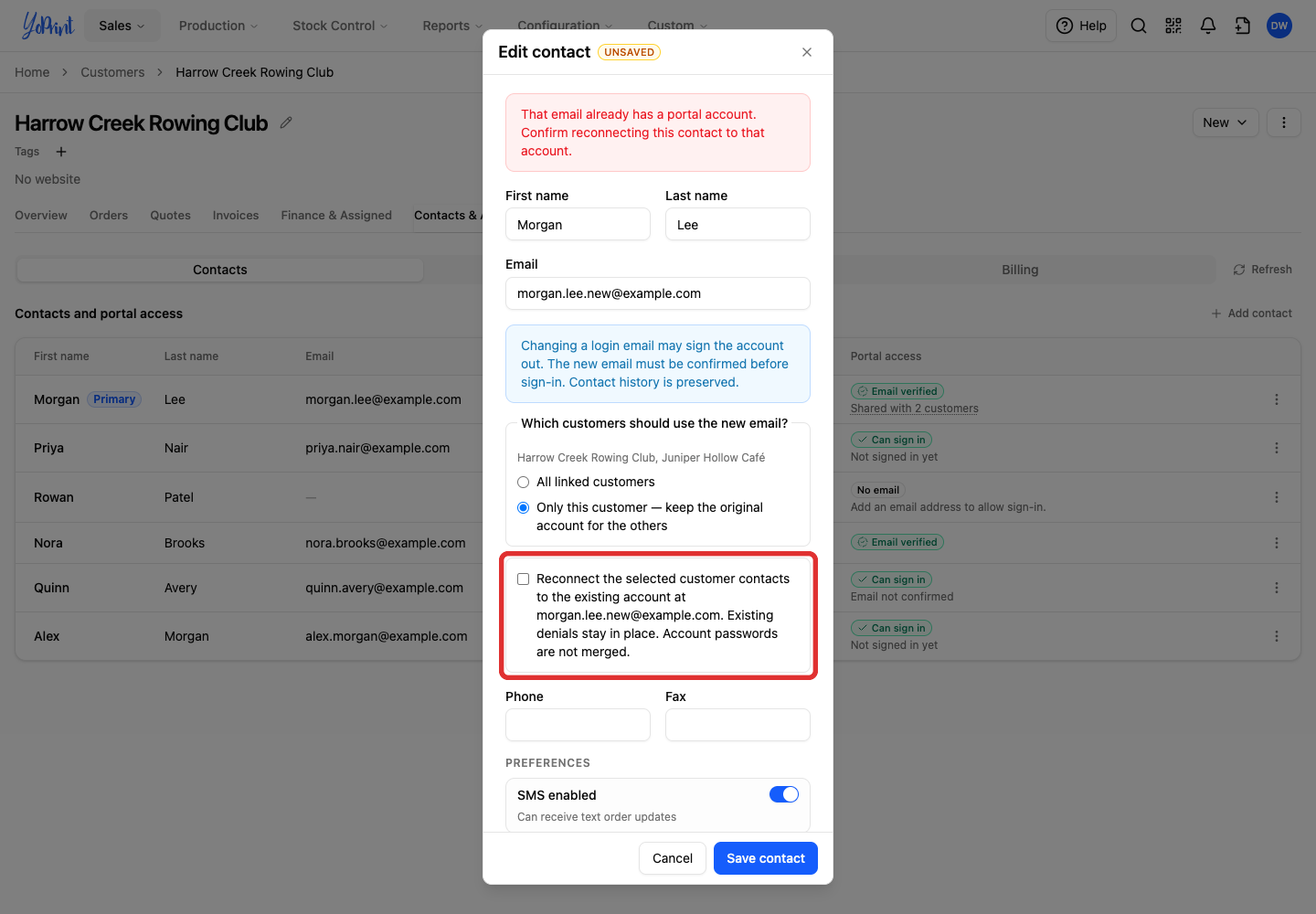
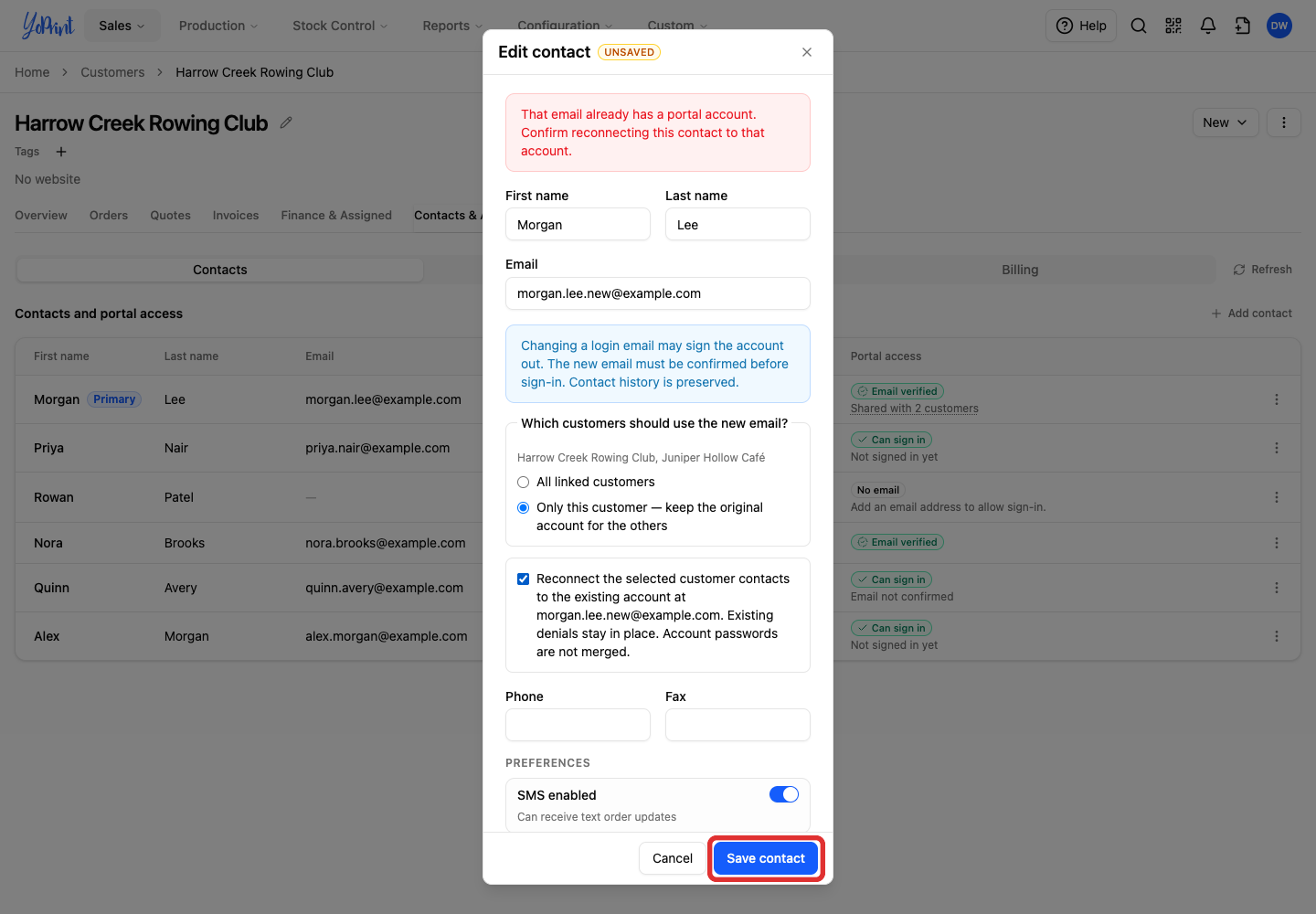
If the new email address already has a portal account, YoPrint asks you to confirm after you click Save contact. Once reconnected, the contact uses the existing account at the new email address. They can sign in with an email code or the password already set on that account. Their original account's password does not transfer.
For each customer you reconnect, access stays denied if either the original account or the existing account was denied access to that customer. Other customers keep their current access.
-
If this is the correct account, select the checkbox beginning Reconnect the selected customer contacts to the existing account.
-
Click Save contact.
Email already used on this customer
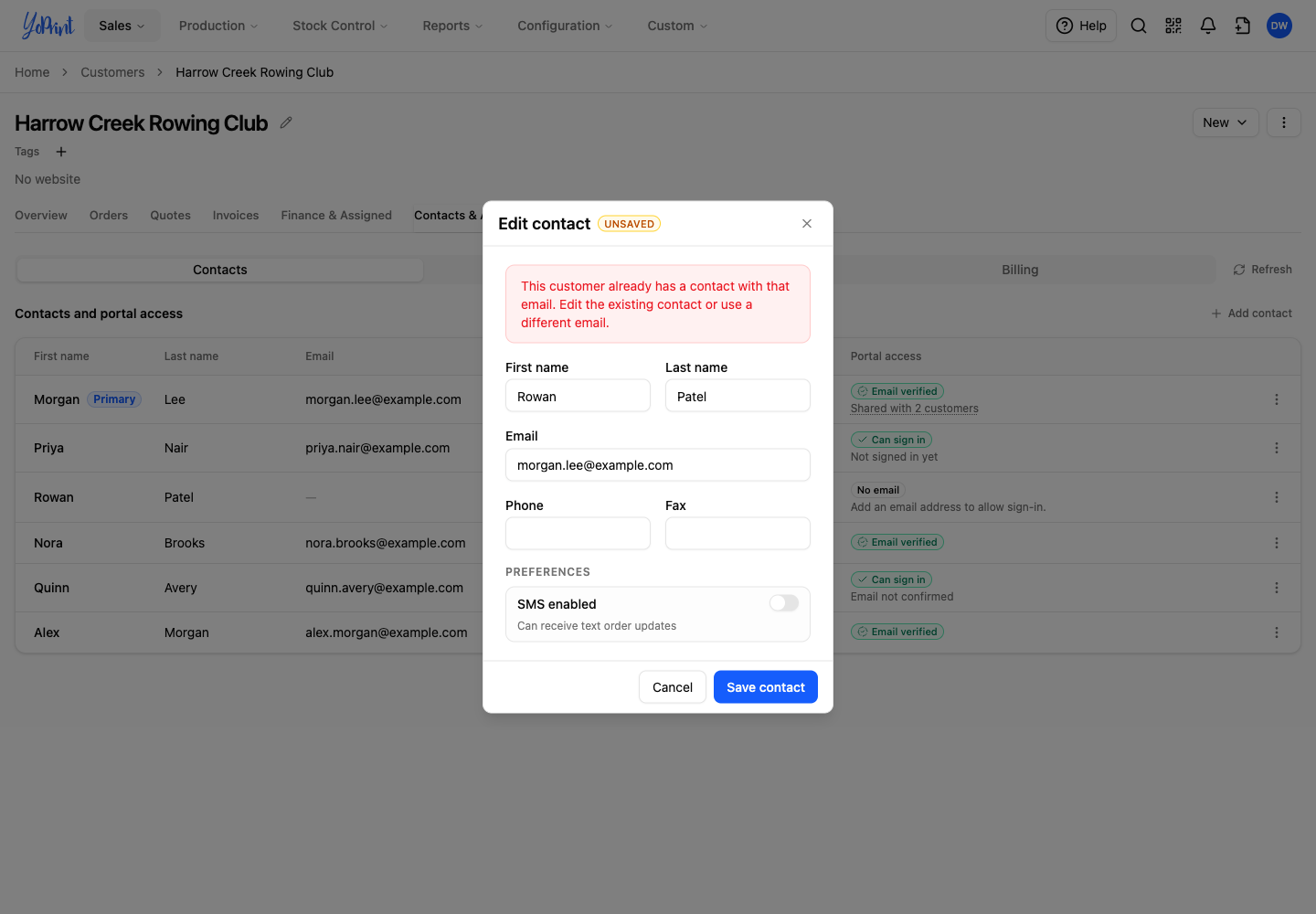
If another contact on this customer already uses the email, YoPrint asks you to edit that contact or use a different email.
Remove or restore access
Use Deny access when a contact should stay on the customer but no longer use the portal. This blocks their access to this customer only. Their access to any other customers stays unchanged.
Choosing Remove deletes the contact from the customer's contact list and removes their portal access for this customer. It also clears any access denial for this customer. If you add the same email address again later, it gets portal access by default. Keep the contact and use Deny access when you want the restriction to stay in place.
-
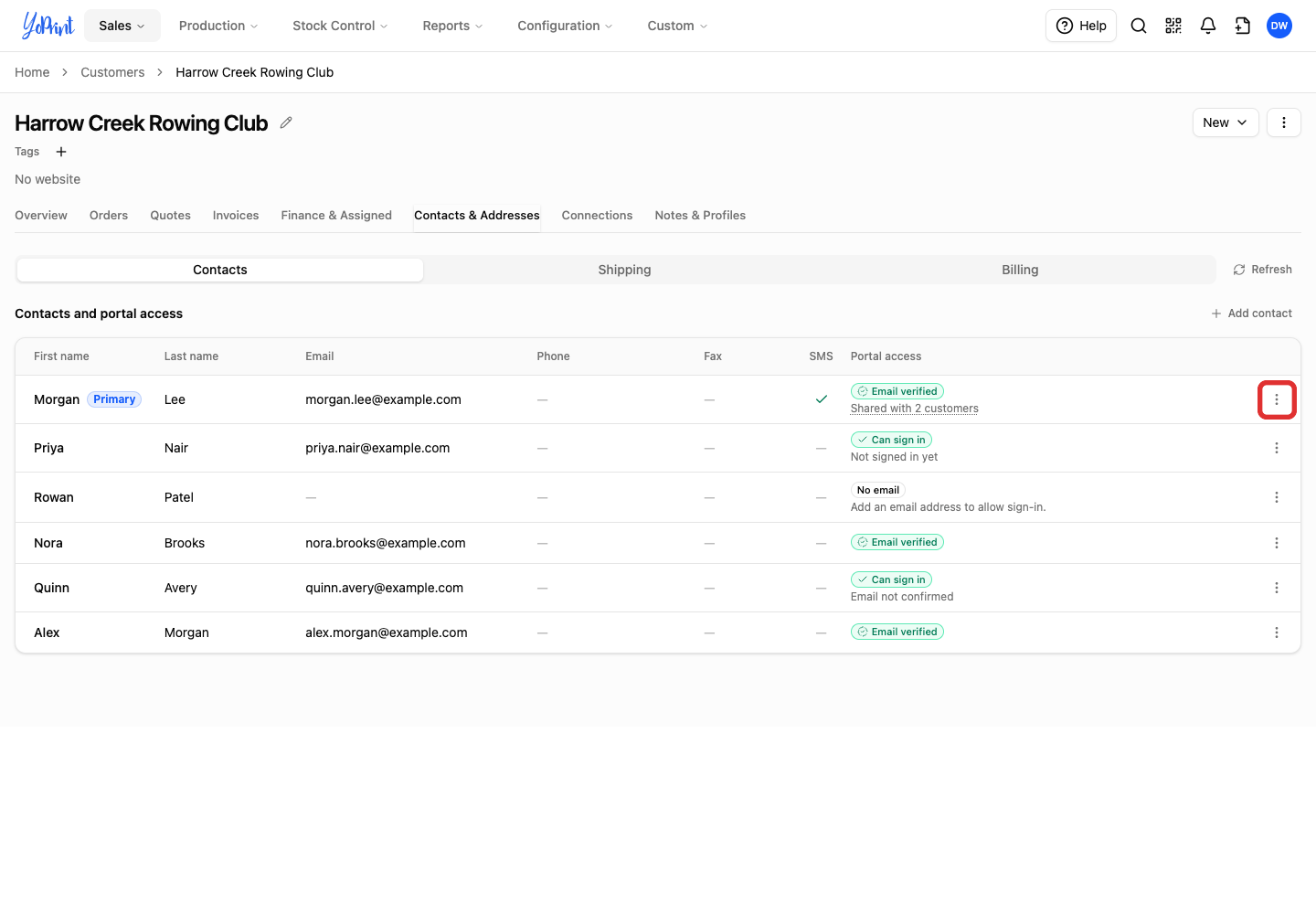
Open the contact's three-dot Row actions menu.
-
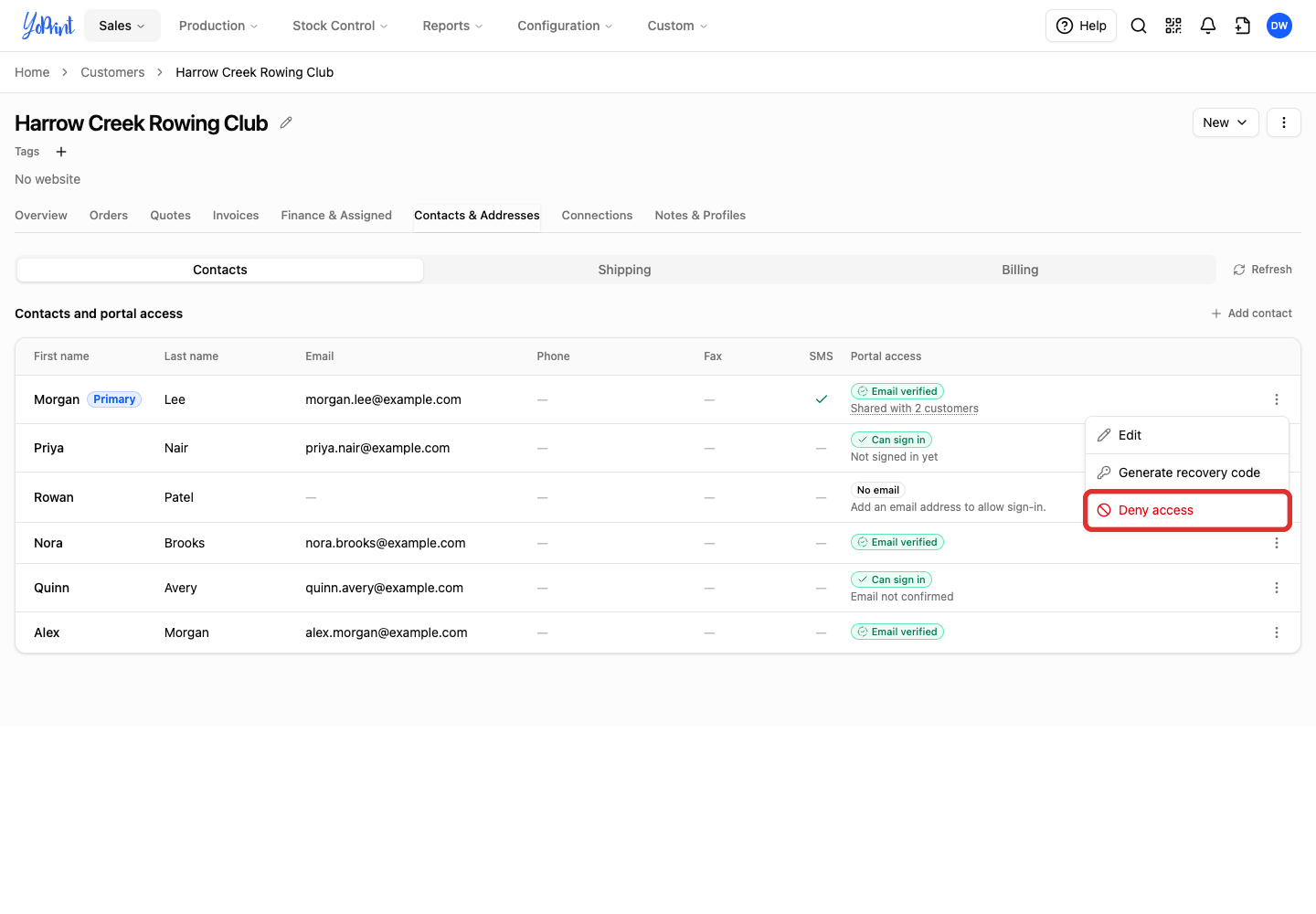
Choose Deny access.
-
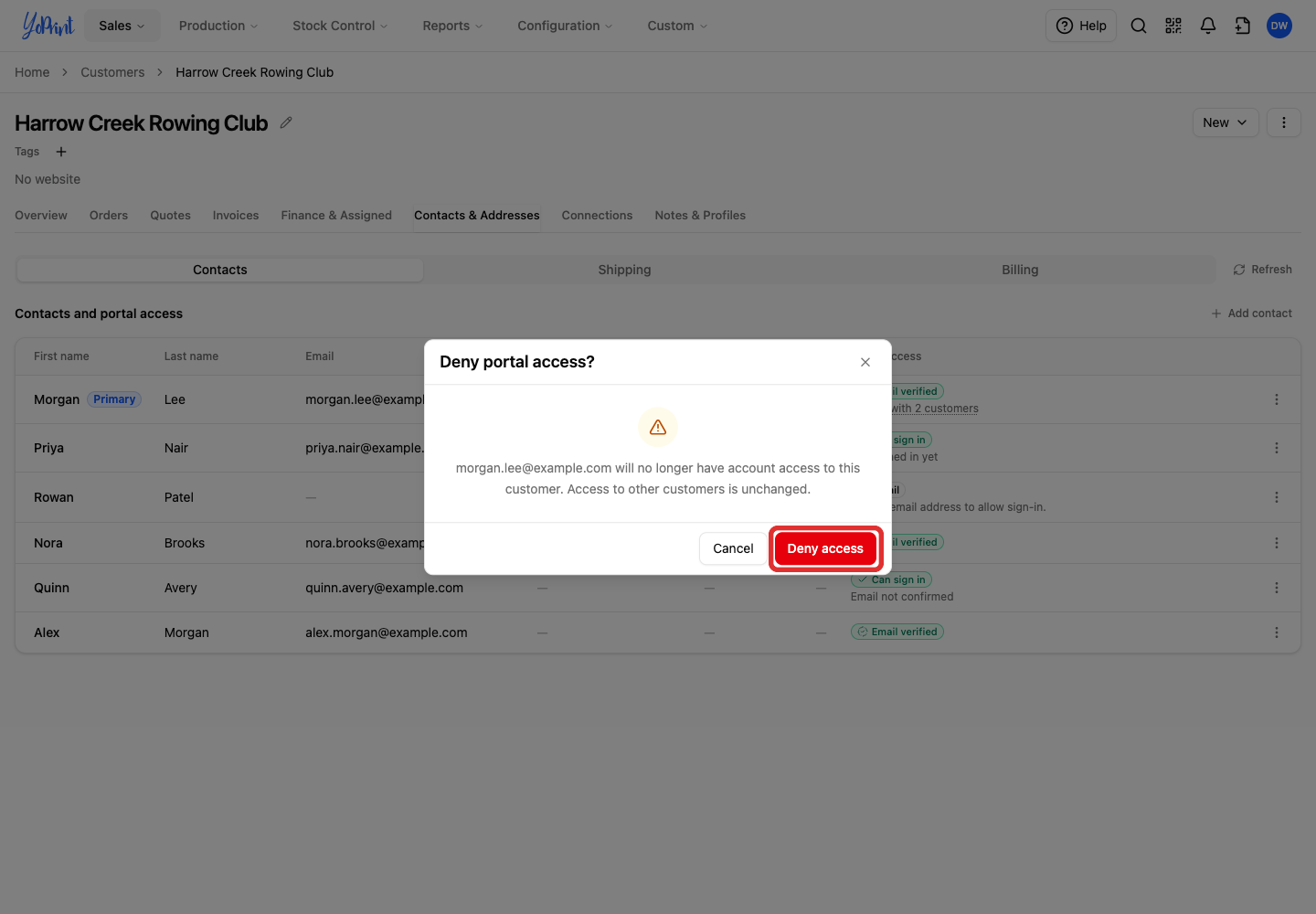
Check the email address and click Deny access.
The contact's row shows Access denied.
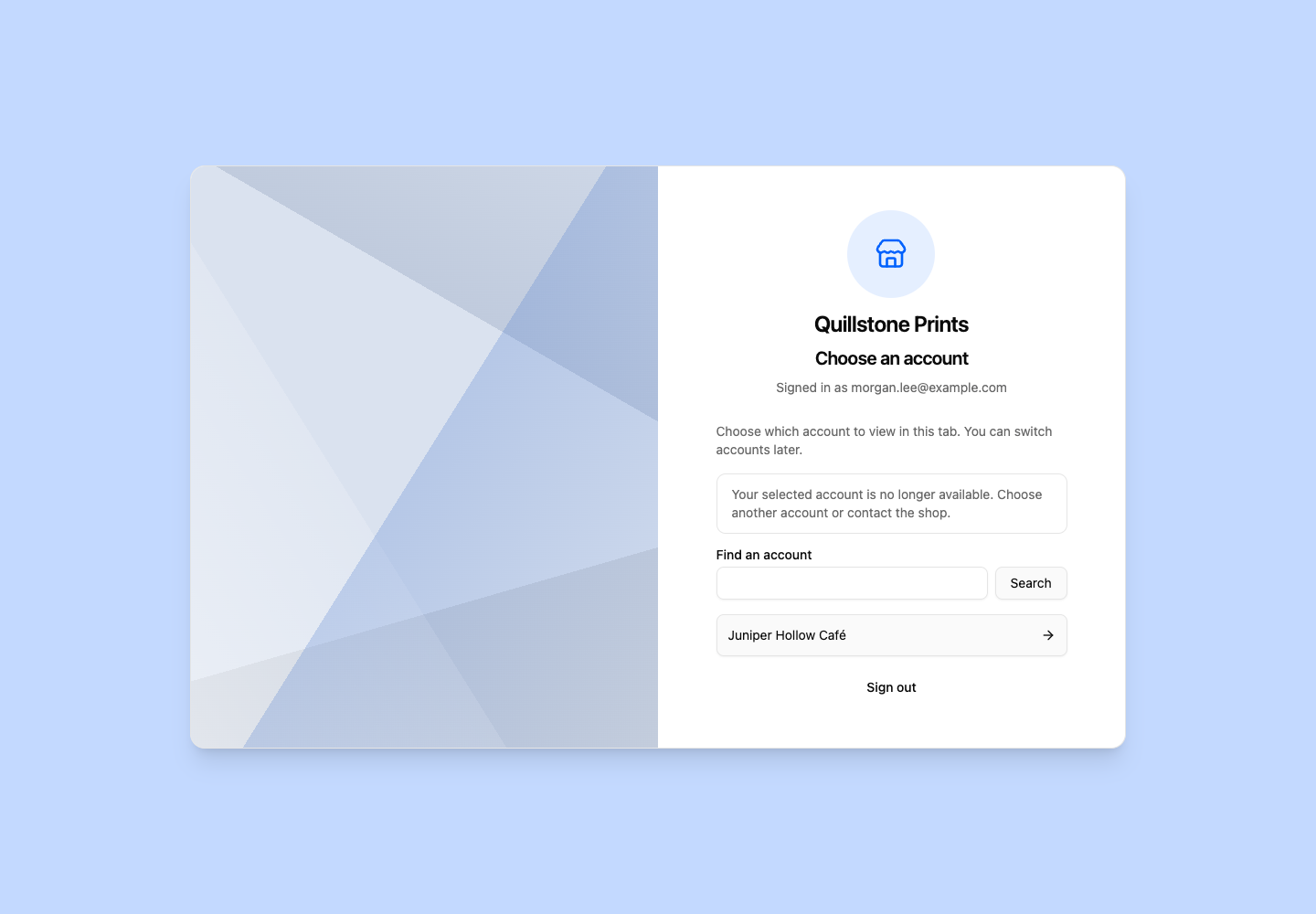
What the denied contact sees
If the contact still has access to another customer in your shop, they see Choose an account and can select that customer. The customer you denied them access to is no longer available.
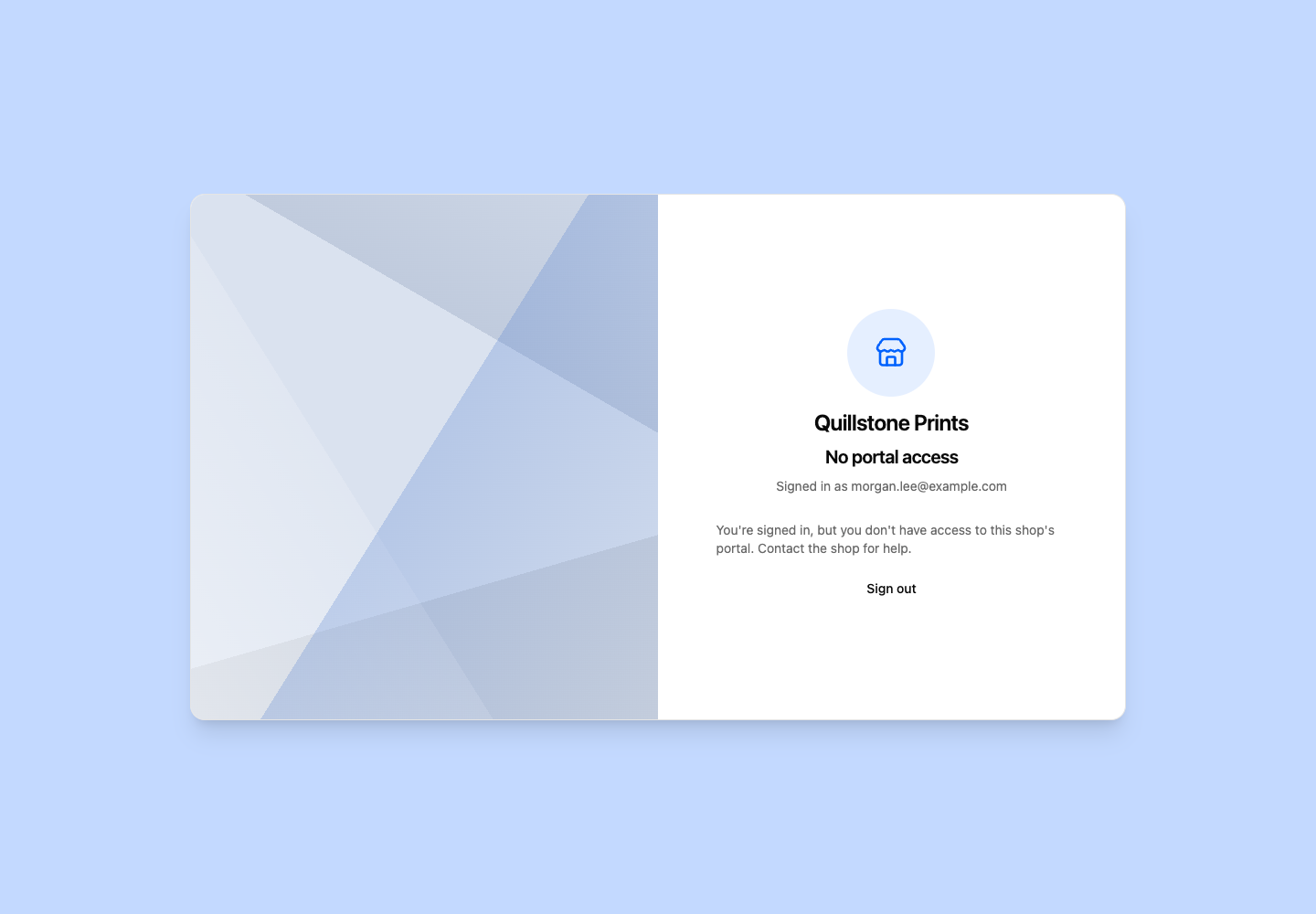
When a contact has no remaining access to your shop's portal, they see No portal access and a message to contact your shop. They cannot open the customer's orders.
To turn off portal access for every contact on a customer at once, use the Customer portal setting in Connections on the customer page.
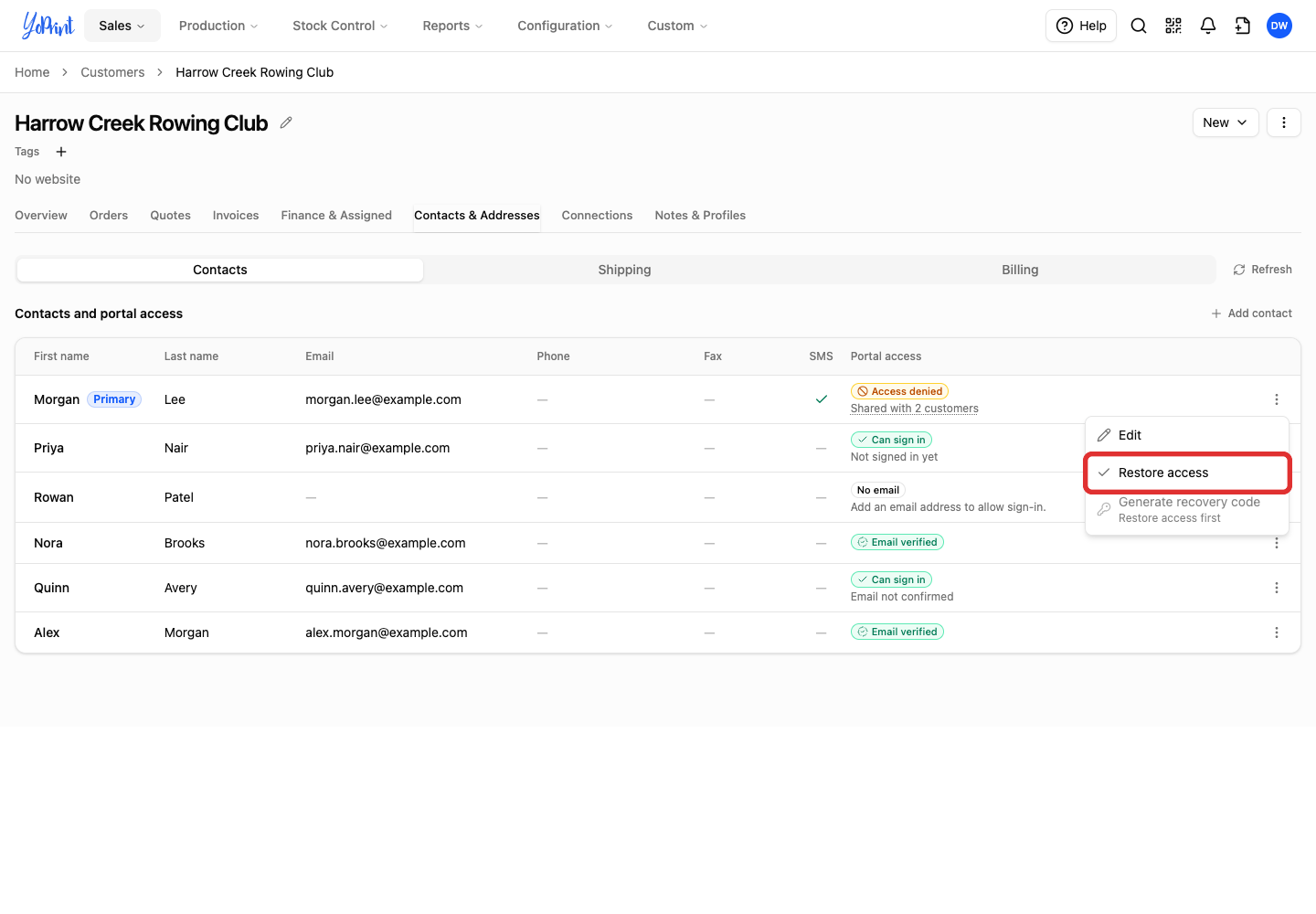
Restore a contact's access
-
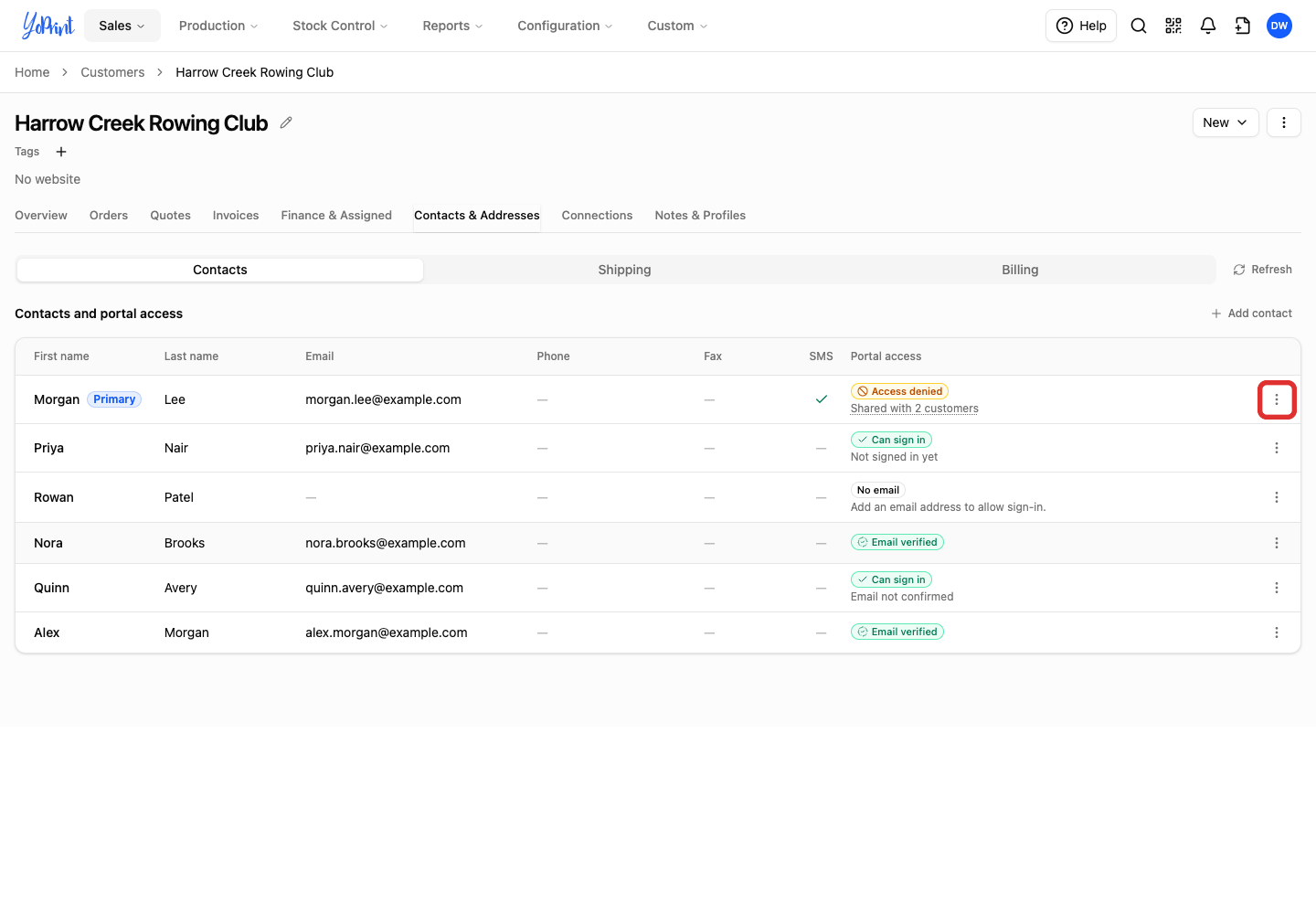
Open the denied contact's three-dot Row actions menu.
-
Choose Restore access.
-
Click Restore access to confirm.
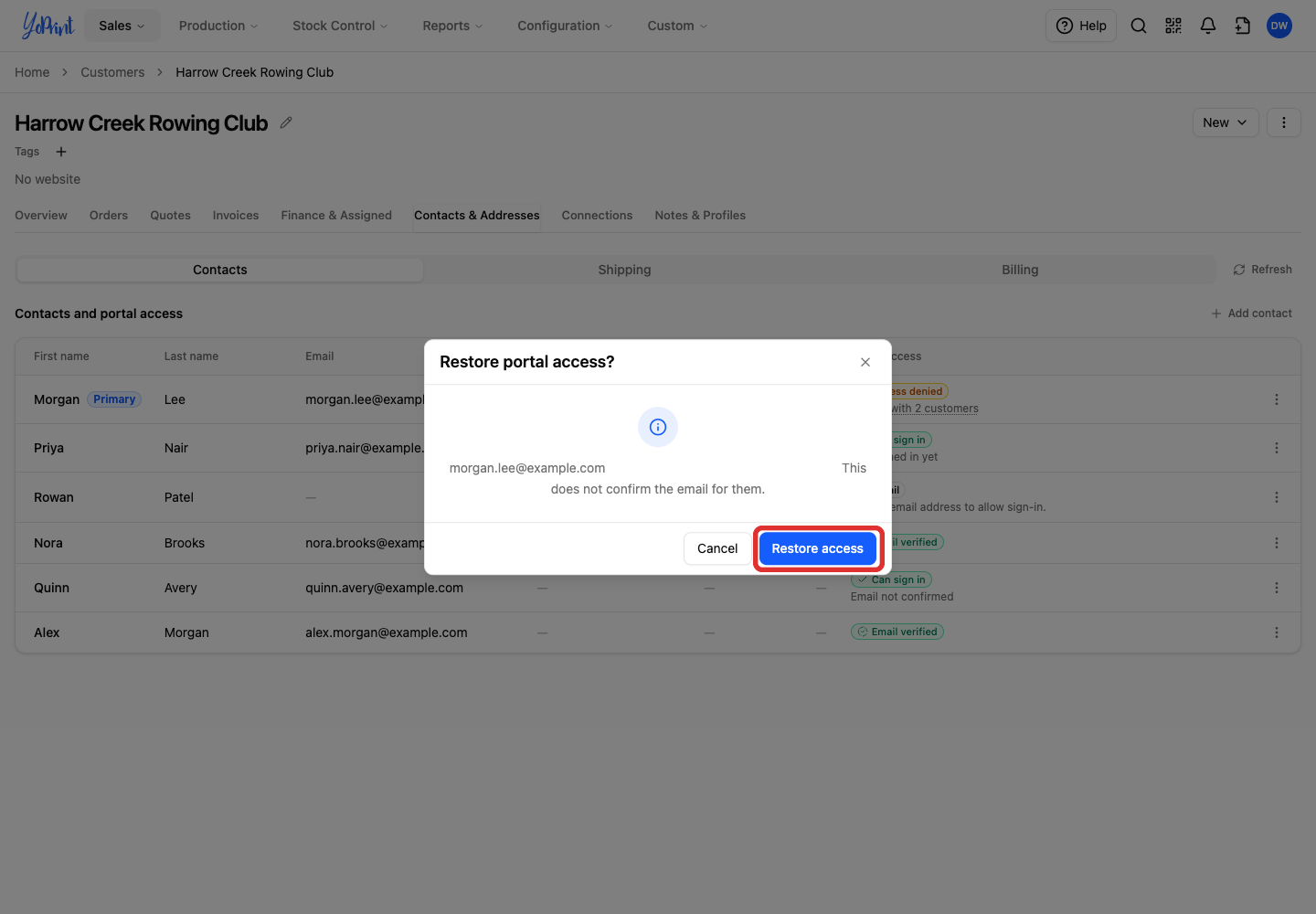
The contact can sign in again. Restoring access does not confirm their email for them. If their email was already verified, it stays Email verified.