Assign and Update a Customer Contact in Sales Orders
In this article
Email Recipients receive customer emails, approval requests, and payment notifications sent from an order. PDF: Billing Contact is printed on the order's generated PDF documents and does not add the person to email notifications. Changing one setting does not change the other.
These controls also apply to quotes. When creating a quote or sales order, select the customer first. On a draft, you can choose email recipients before publishing; the customer's primary contact automatically becomes the default PDF billing contact once published.
Choose or replace email recipients
Open the order from Sales > Sales Orders or Sales > Quote.
-
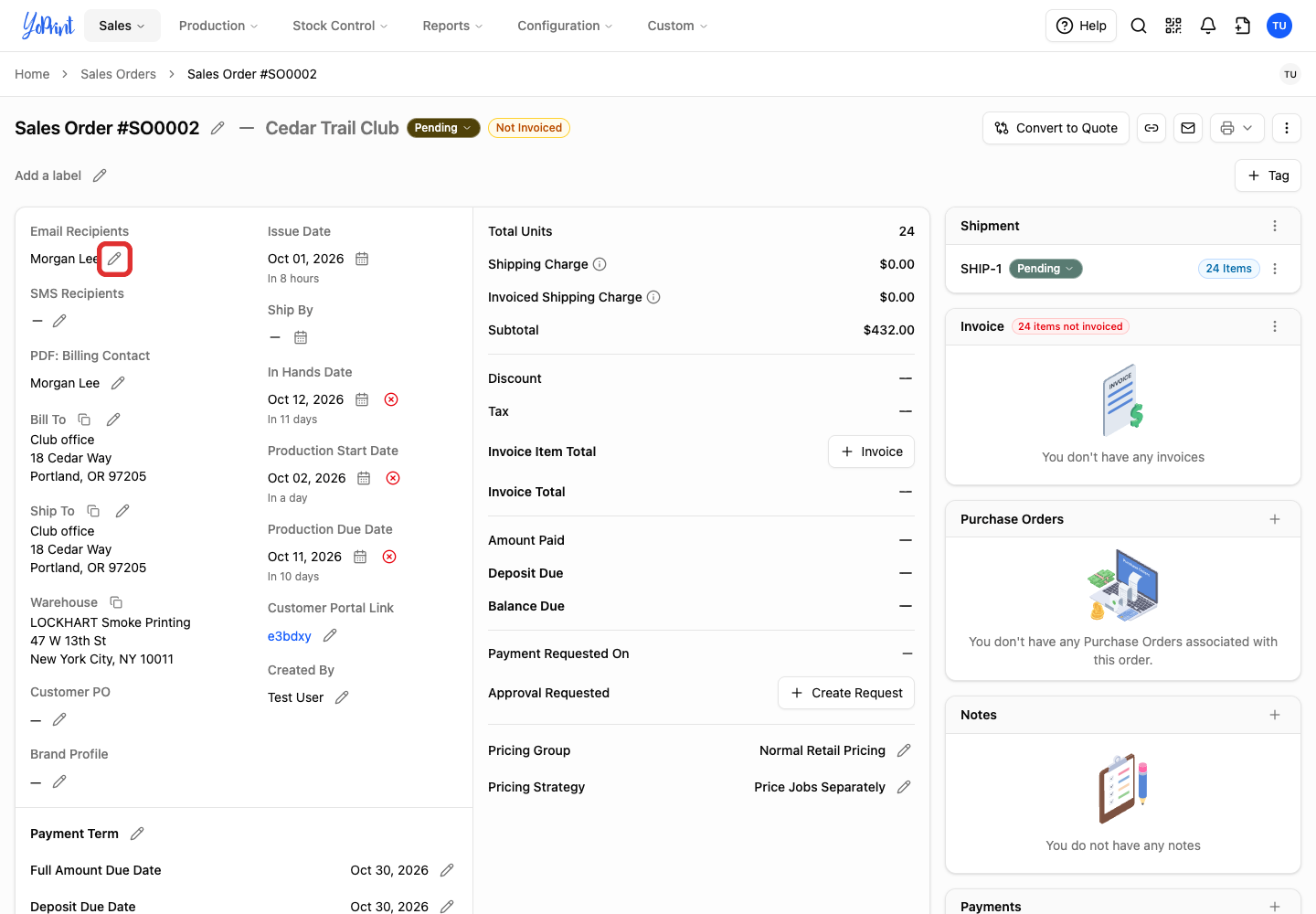
On a published order, click the pencil beside the contact name under Email Recipients. This opens the Email Participants window.
On a draft, click the Email Recipients field below the customer instead.
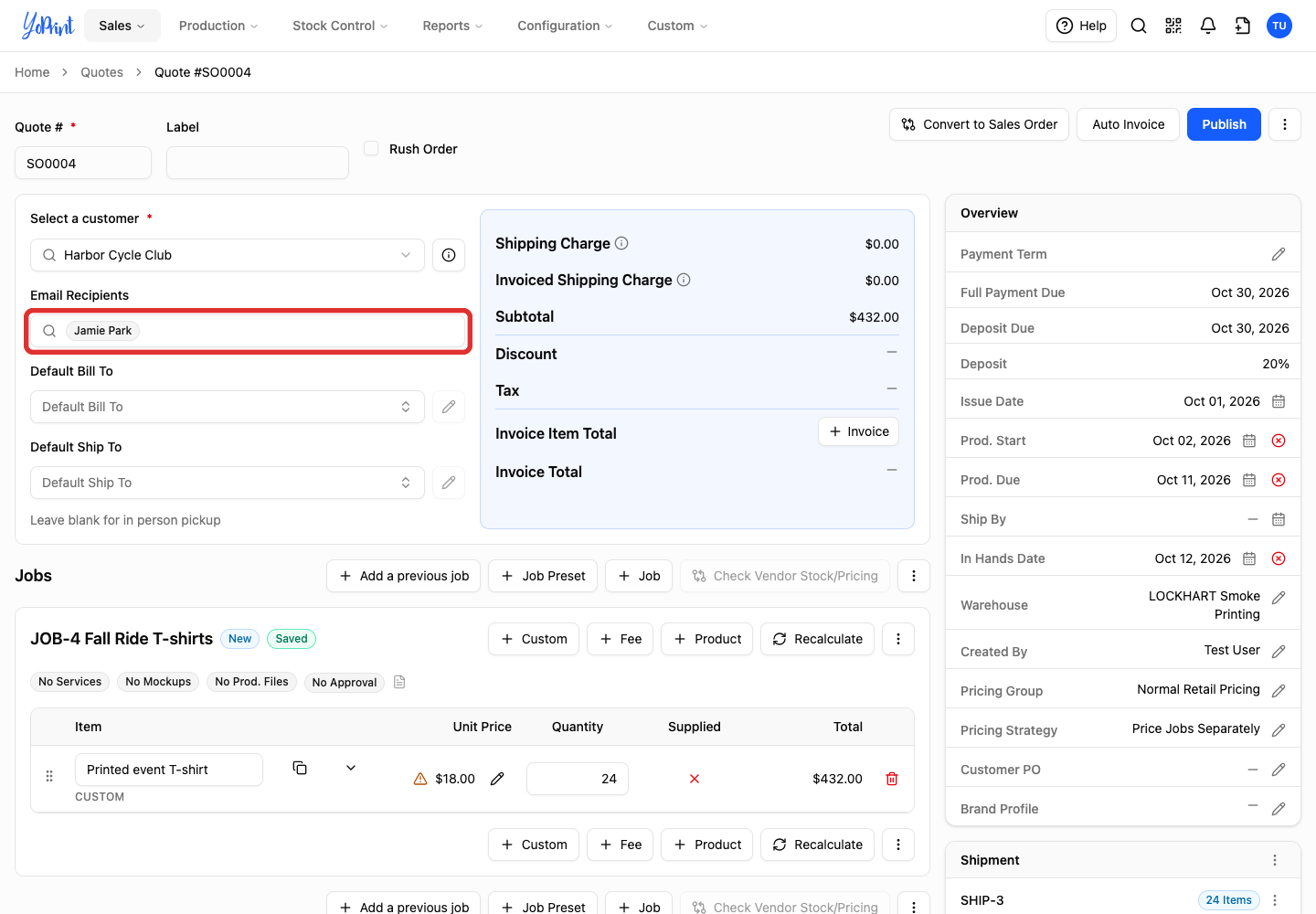
On a draft, click the open space in the field. Clicking a contact badge opens contact editing instead.
-
Select the contact you want to receive emails. You can select more than one.
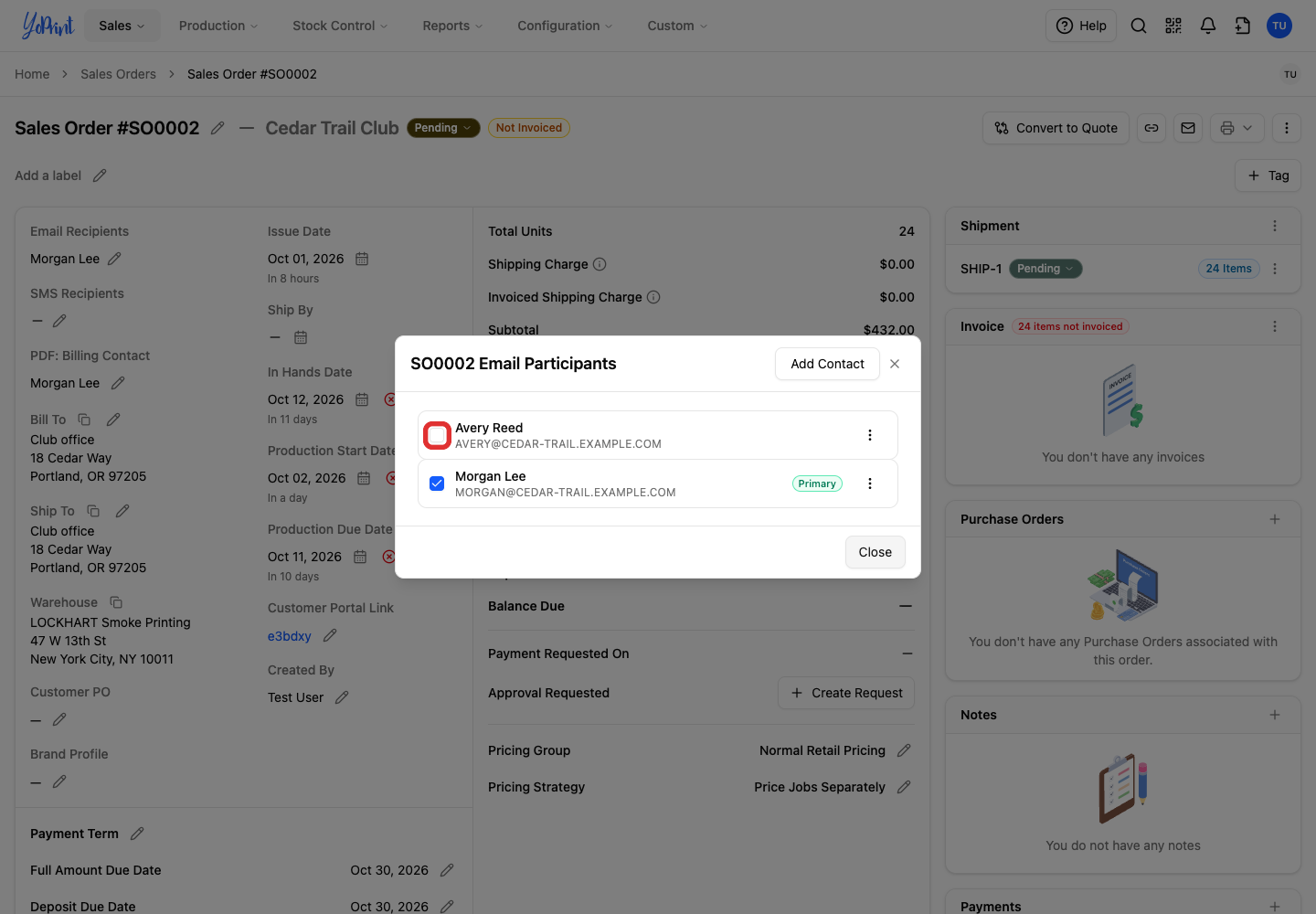
If the person is not listed, add a new contact from this window.
-
Clear the checkbox beside anyone who should no longer receive emails for this order.
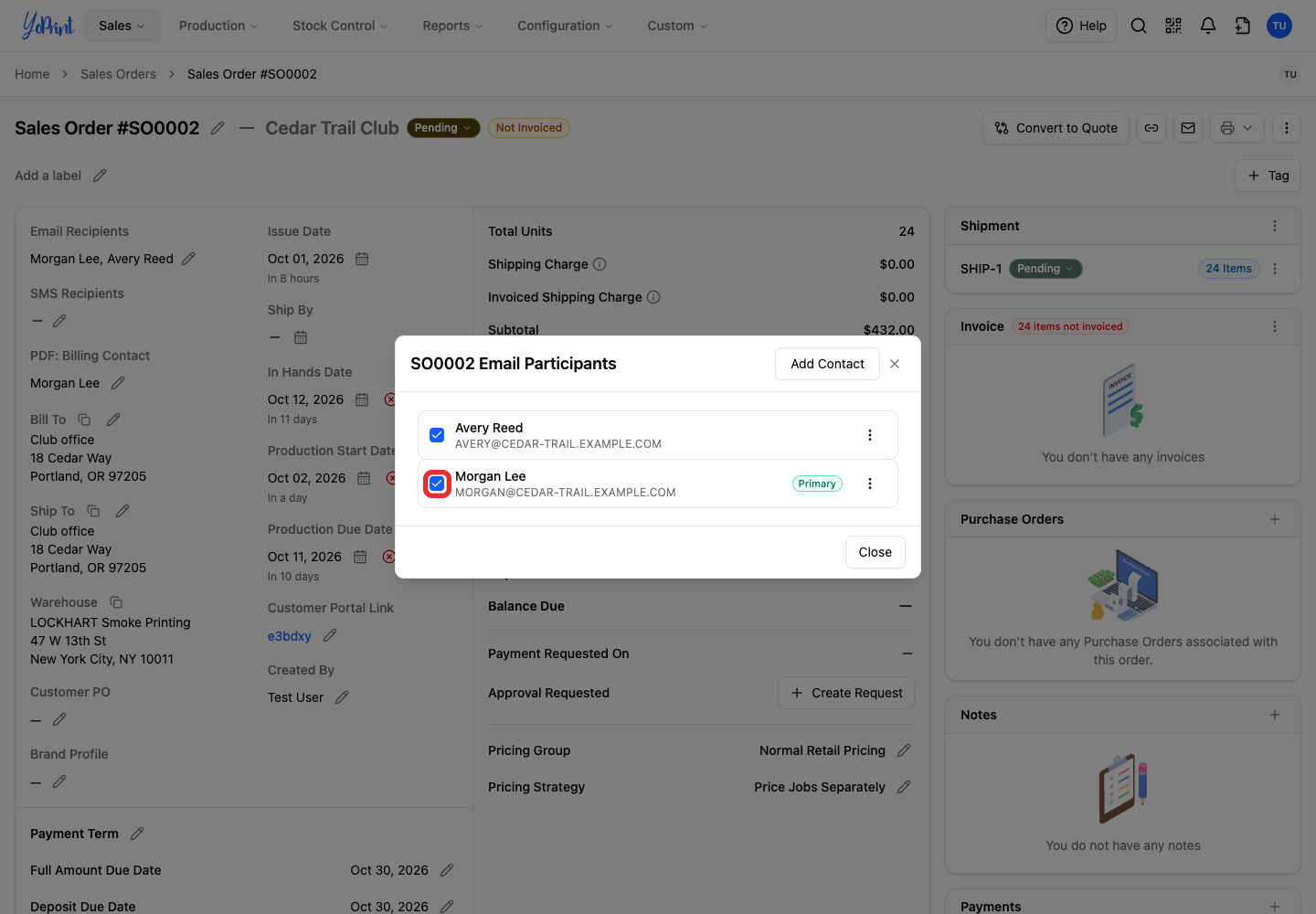
-
Click Close. The selected names appear under Email Recipients on the order.
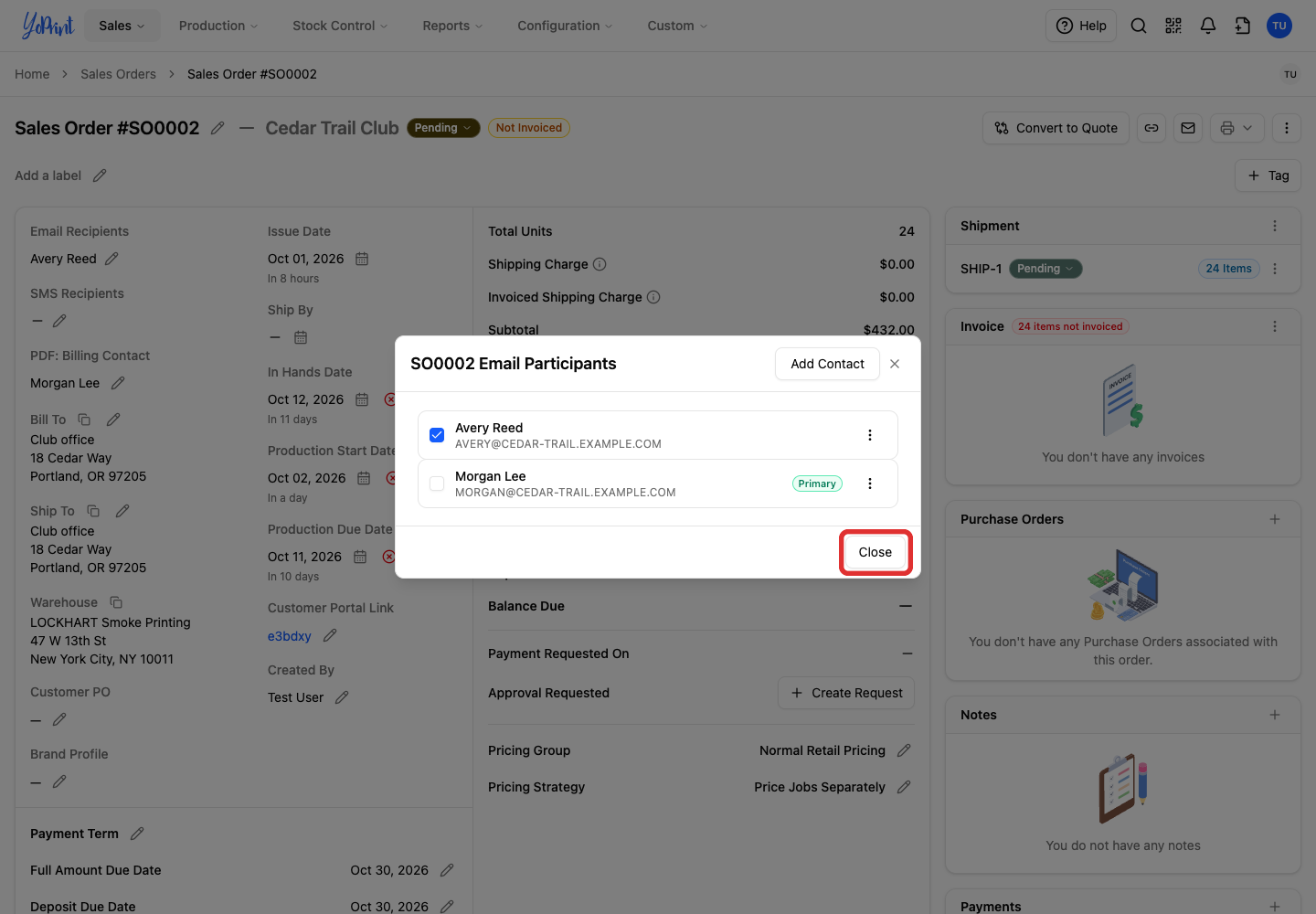
Recipient changes save as you make them; closing the window does not discard changes. Selecting a recipient designates who receives future messages, and does not send an email immediately.
Add a new contact
Start in the Email Participants window from the previous section.
-
Click Add Contact.
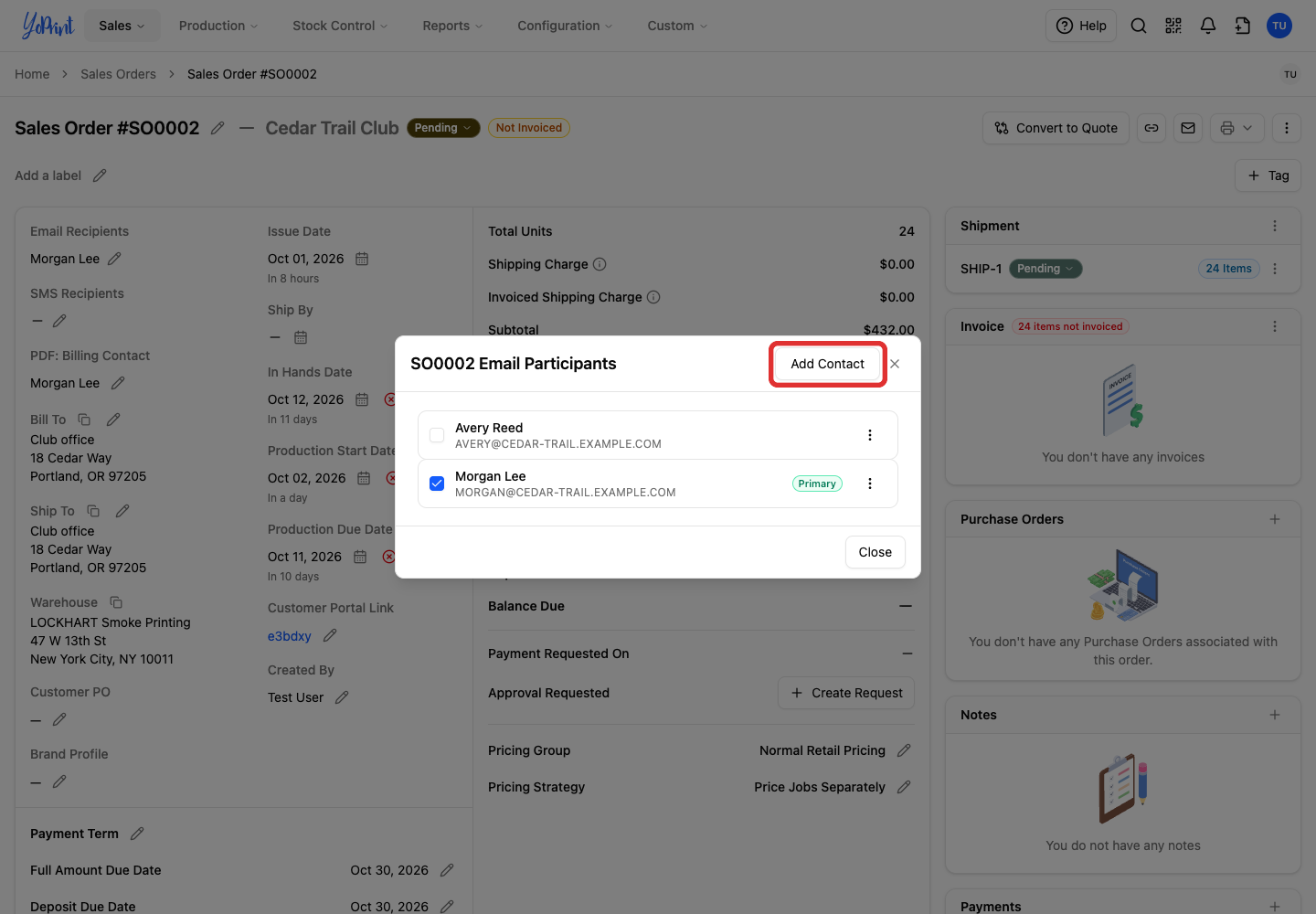
-
Enter the contact's First Name, Last Name, and Email.
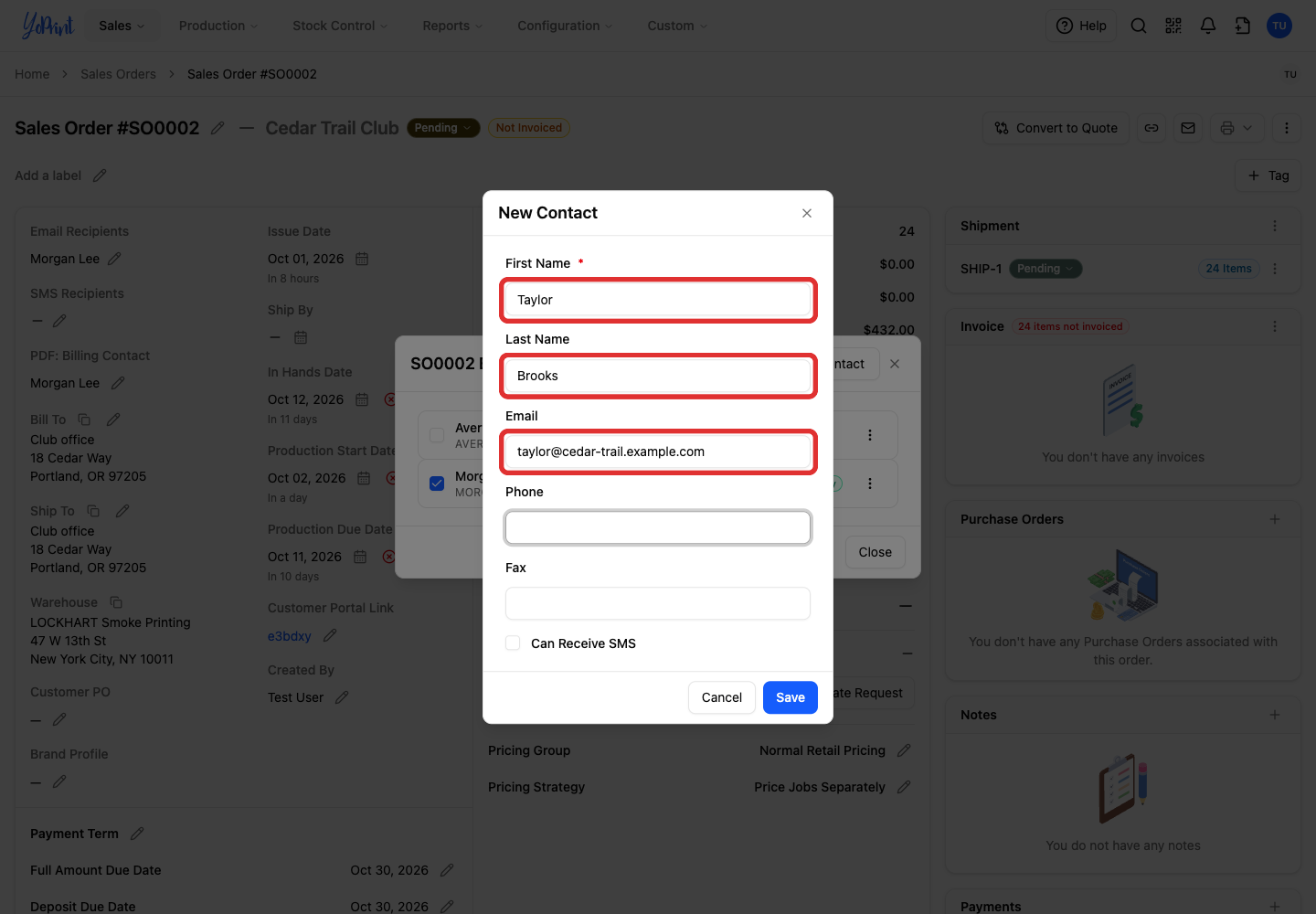
-
Click Save. The new contact is added to the customer and selected as an email recipient for this order.
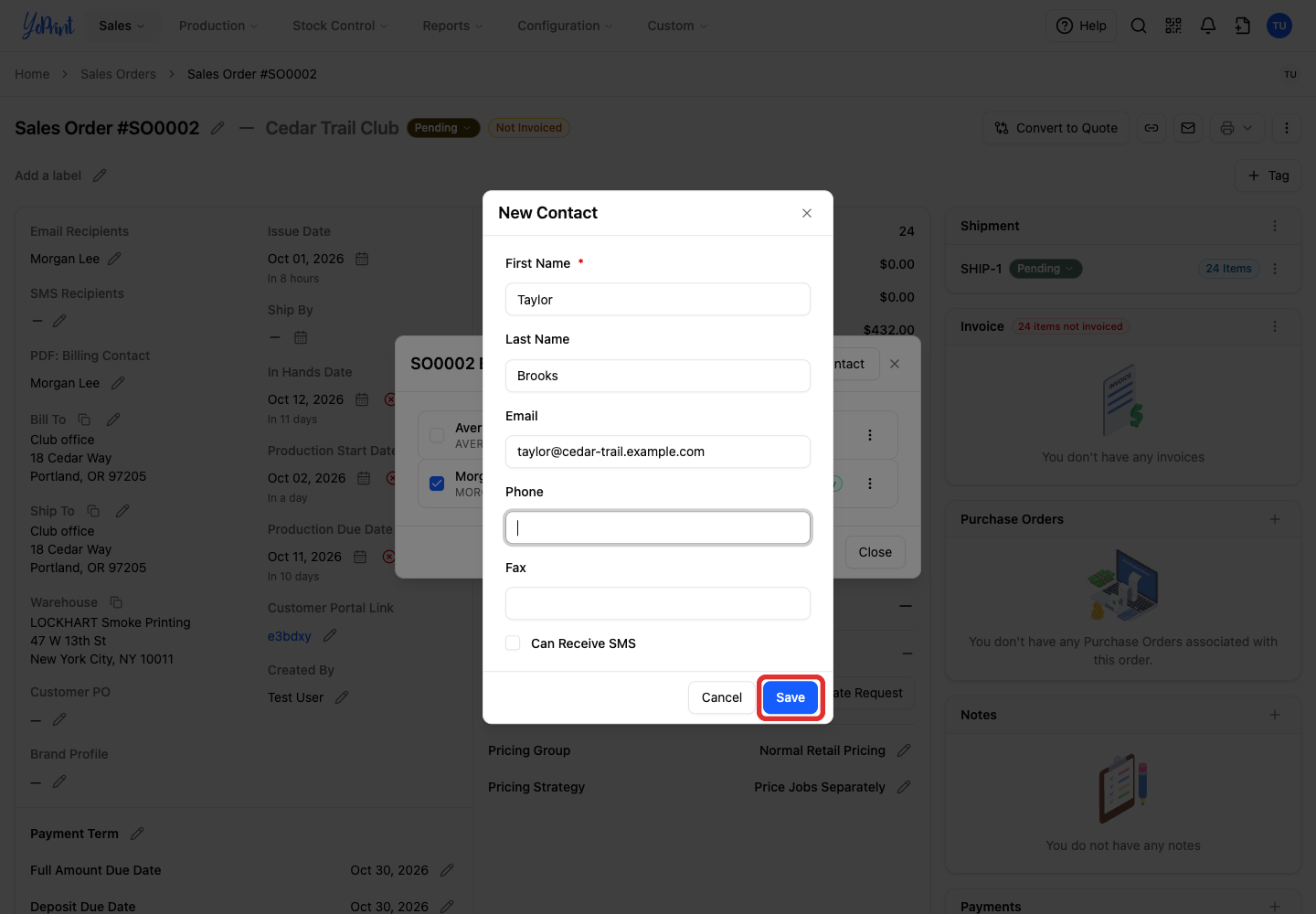
Saving the contact makes them available on all orders for this customer without changing the customer's primary contact. To edit an existing contact directly from this window, open their three-dot menu and choose Edit Contact, or see Manage customer contacts.
Choose the PDF billing contact
-
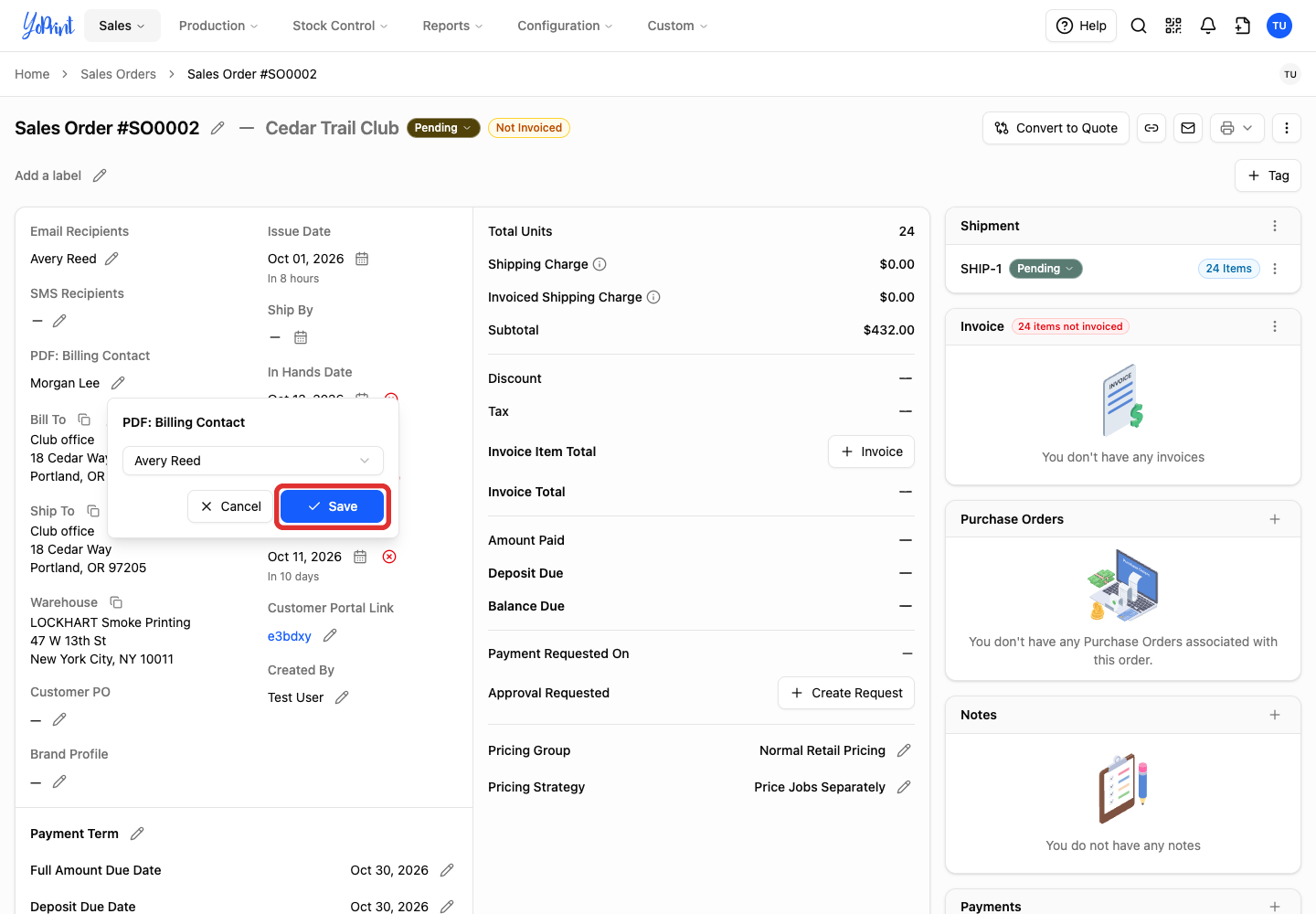
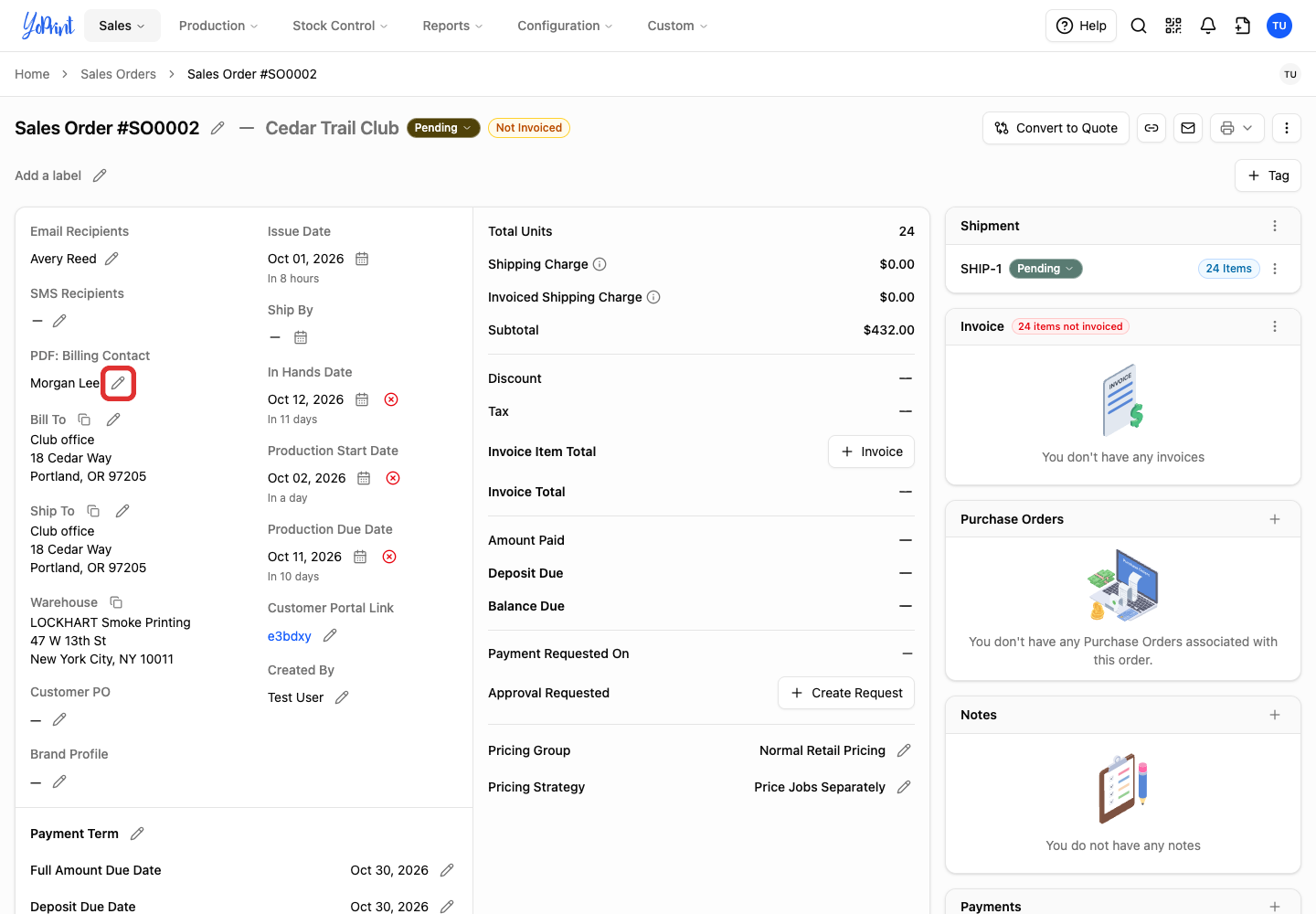
Click the pencil beside the contact name under PDF: Billing Contact on the order.
-
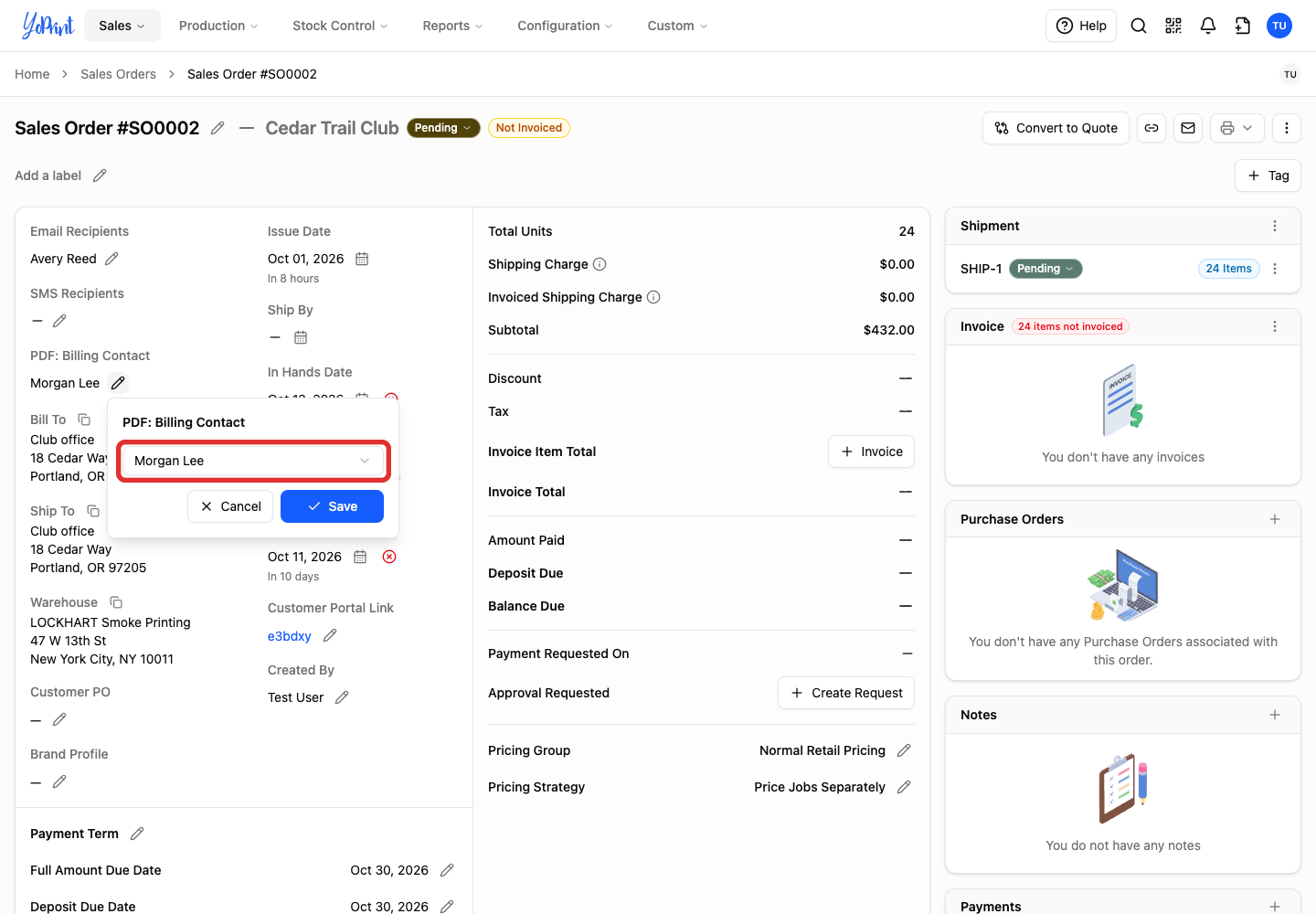
Open the PDF: Billing Contact dropdown.
-
Choose the contact.
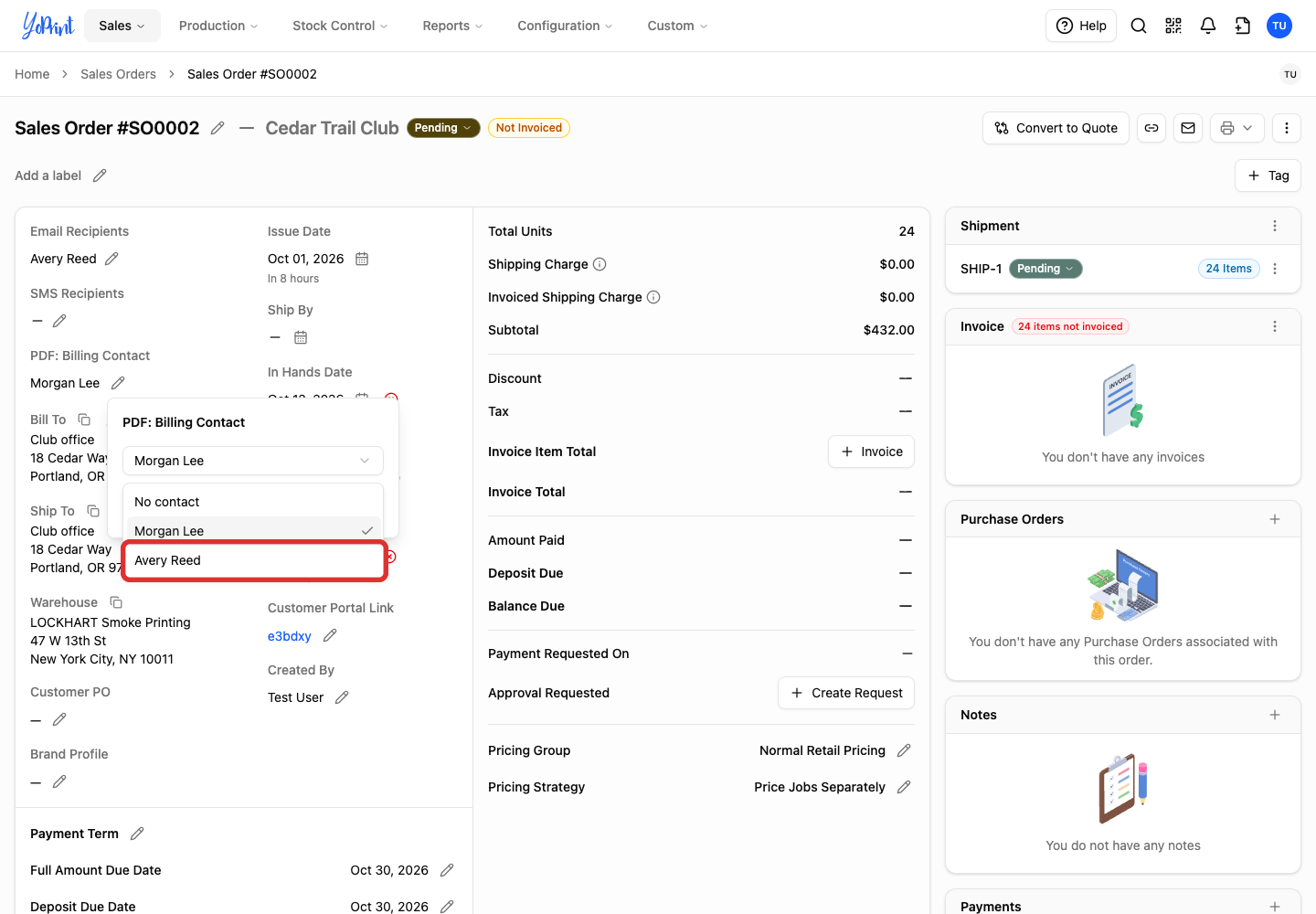
Choosing No contact falls back to the customer's primary contact on the PDF.
-
Click Save. Choose Cancel instead to leave the billing contact unchanged.