Set Sales Order and Quote Terms
In this article
- Find your terms settings
- Write the terms customers sign
- Save terms for the quote or sales order itself
- Customers: review and sign approval terms
- Turn off approval terms without deleting the wording
- Turn off quote and sales order terms without deleting the wording
- Staff: record a response received outside the portal
- What happens when you change approval terms
Set the terms your customers review when they respond to a quote or sales order approval. Order Approval Terms holds the wording customers sign; Customer Portal Order Terms holds separate wording for the quote or sales order itself. Each editor uses the same wording for quotes and sales orders.
Artwork approvals use the separate Show Artwork Approval Terms setting. Follow How to Set Artwork Approval Terms.
Find your terms settings
-
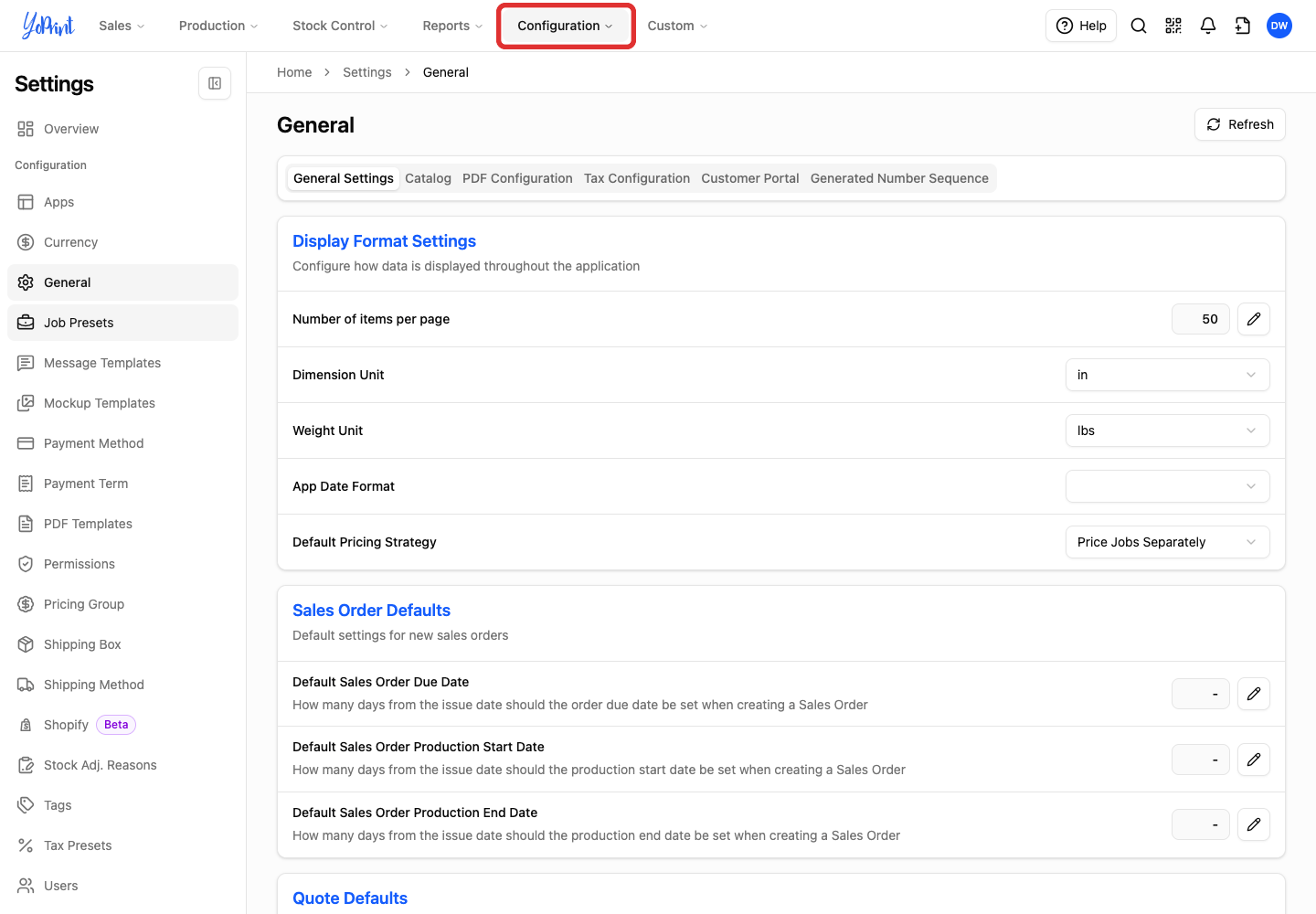
Open Configuration in the top navigation.
-
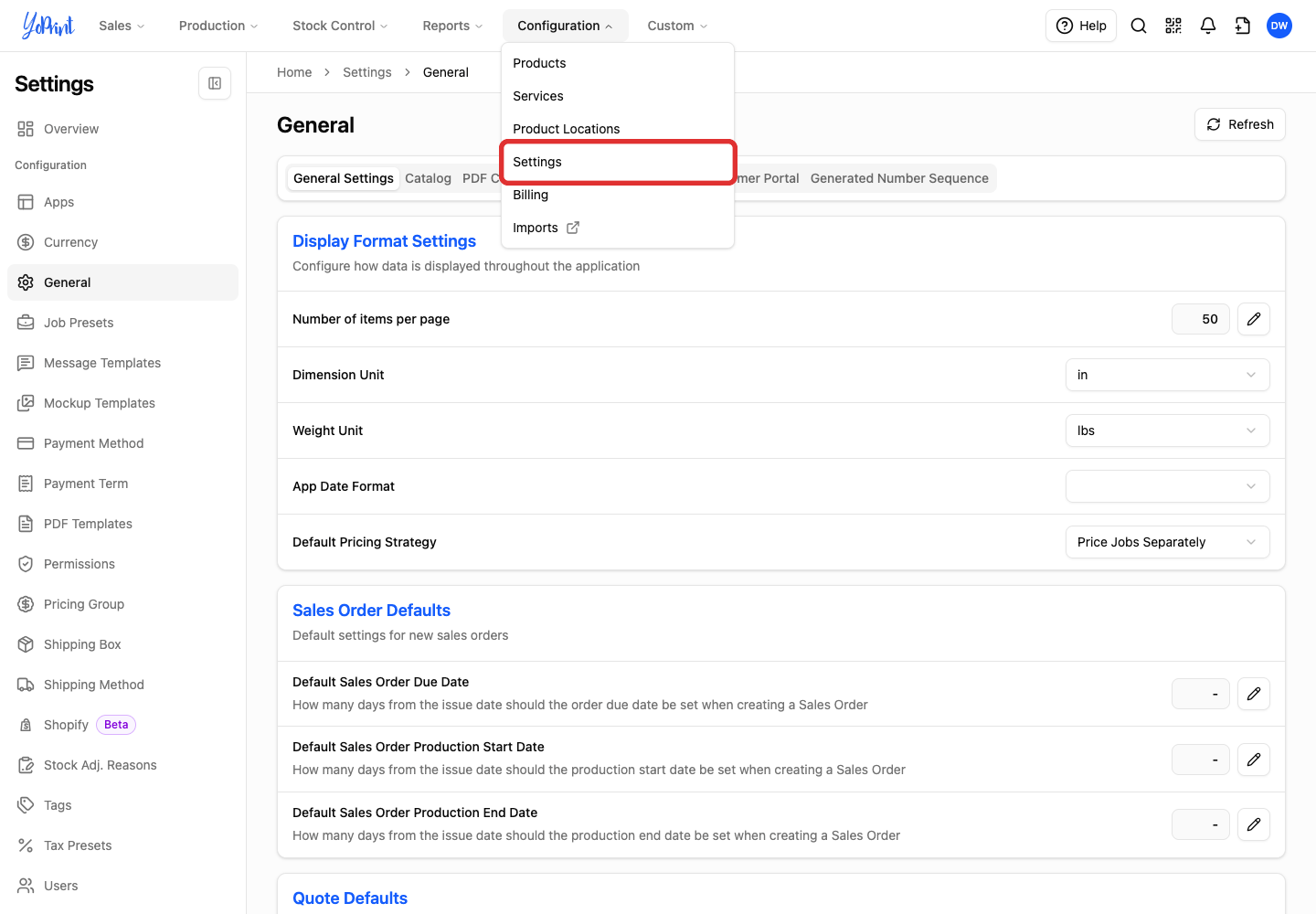
Choose Settings.
-
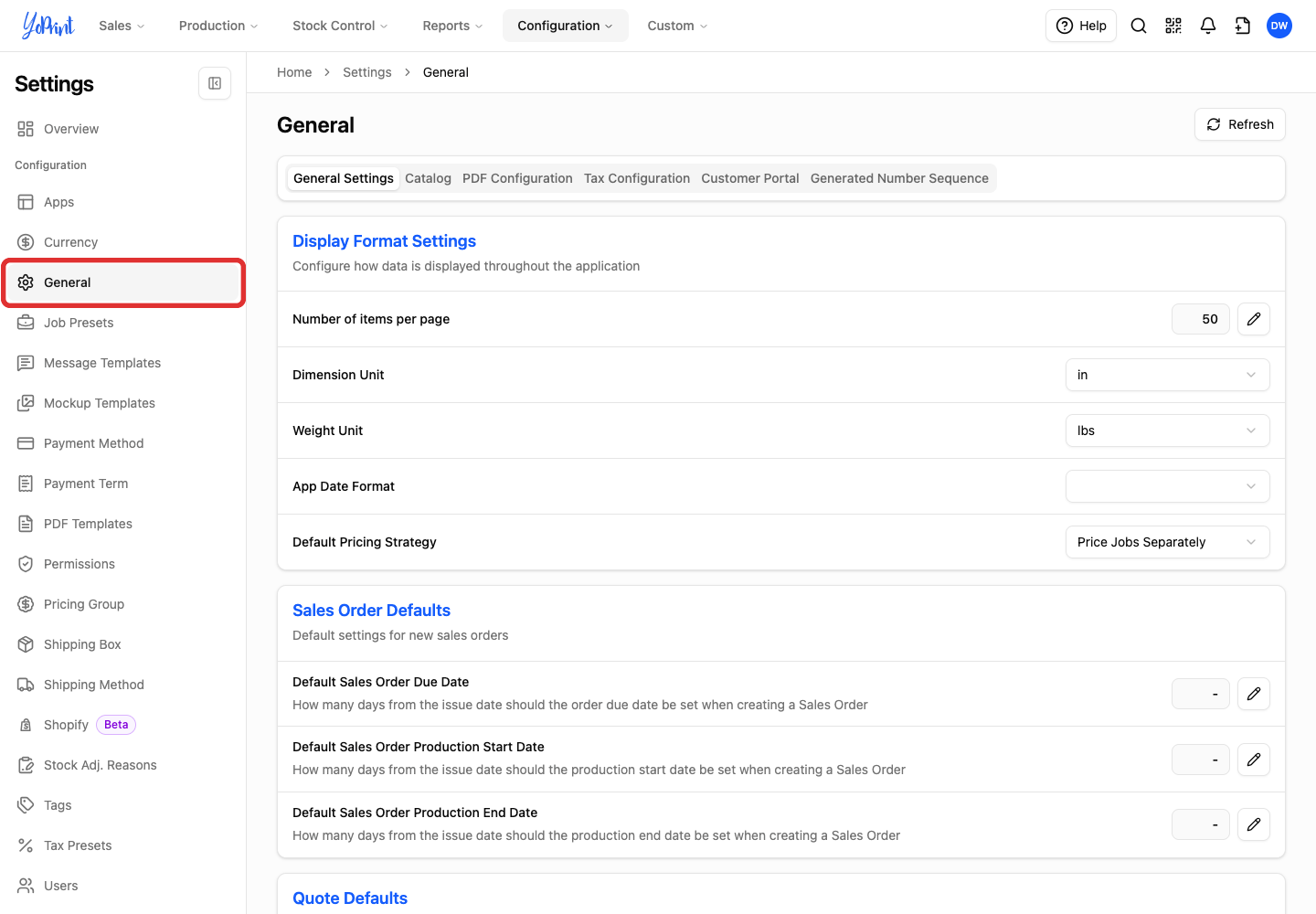
Choose General in the sidebar.
-
Open the Customer Portal tab.
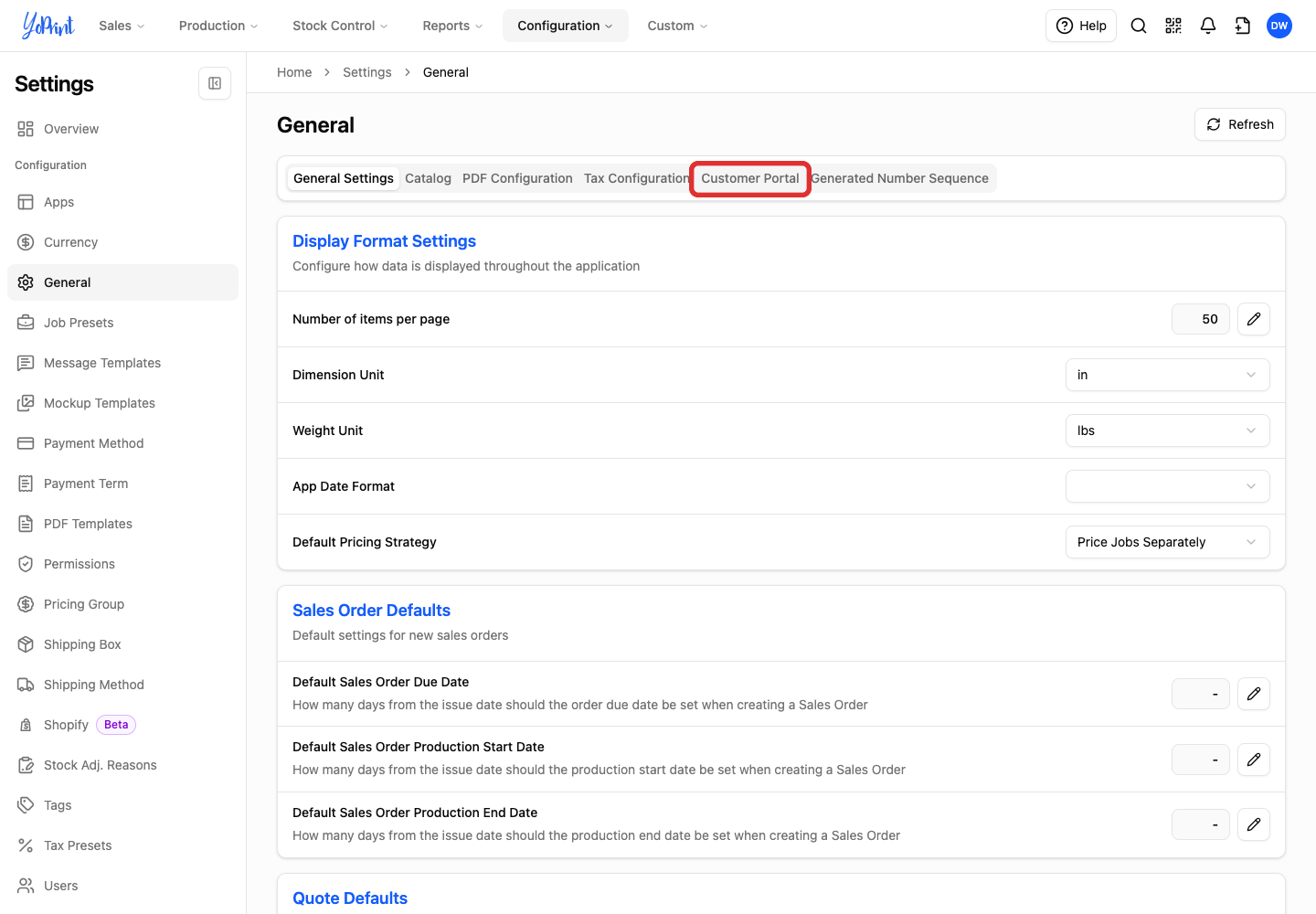
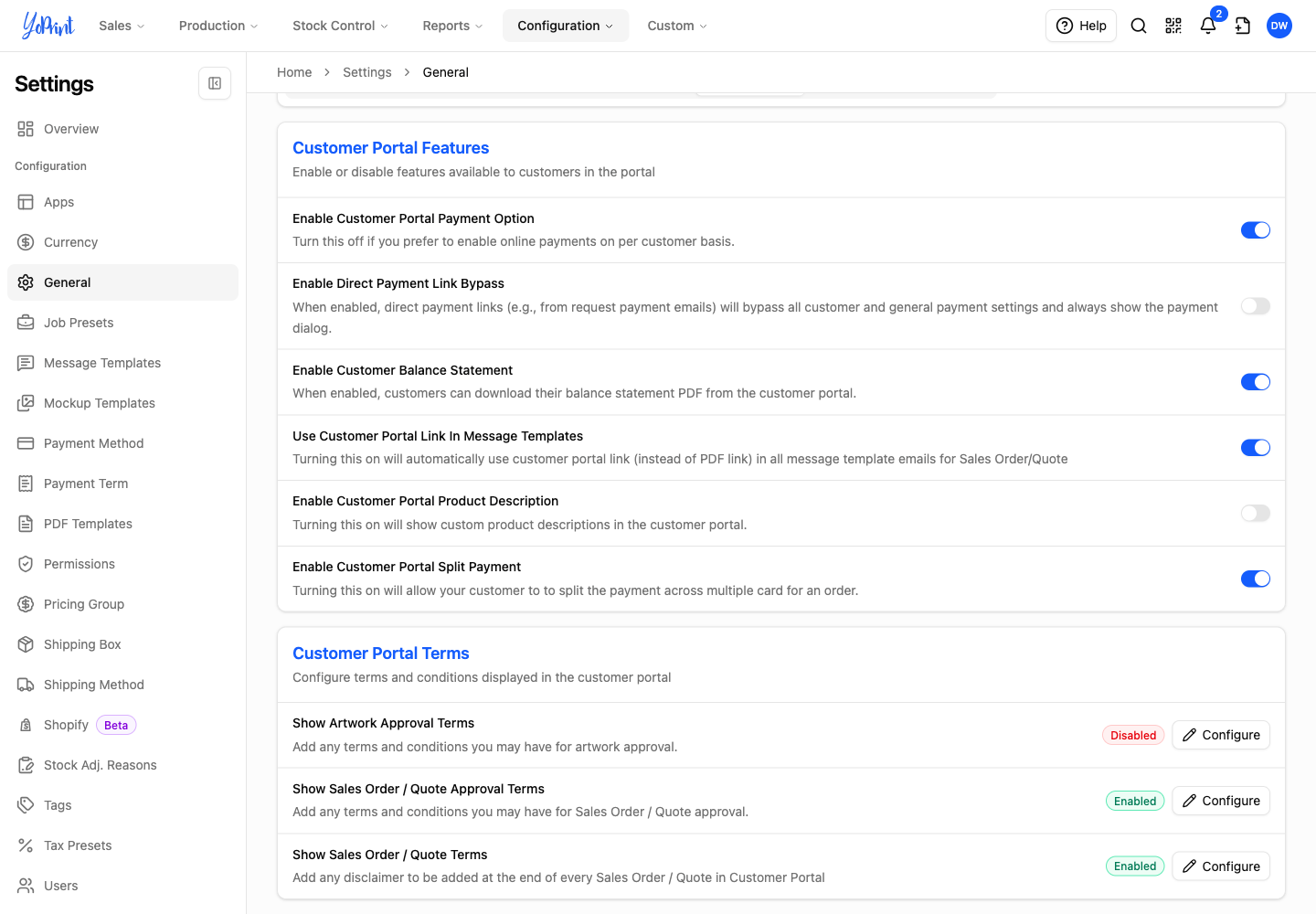
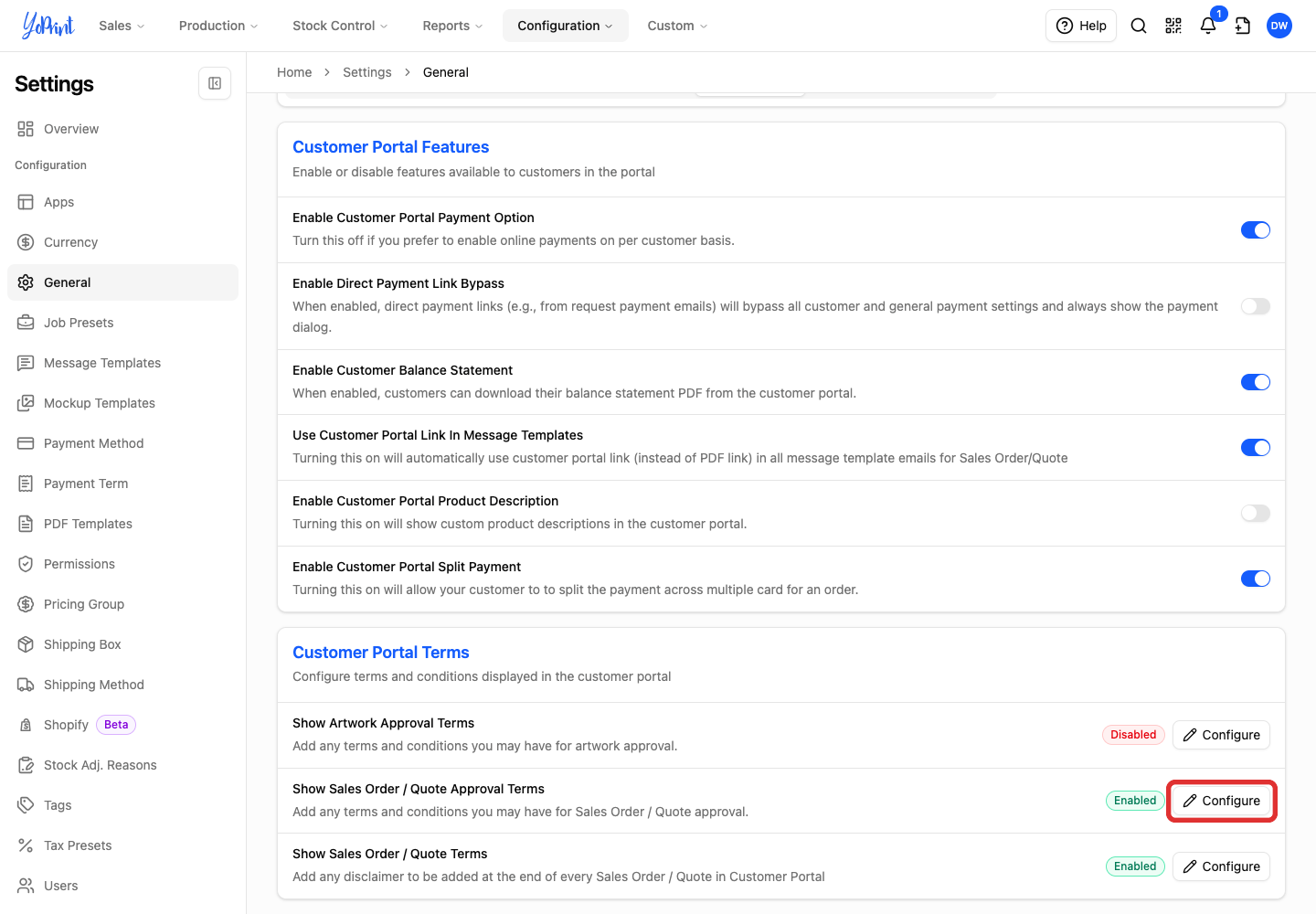
Under Customer Portal Terms, find Show Sales Order / Quote Approval Terms and Show Sales Order / Quote Terms below the artwork setting. Each row shows whether its terms are Enabled or Disabled. Click Configure on a row to open its editor with Save and Cancel.
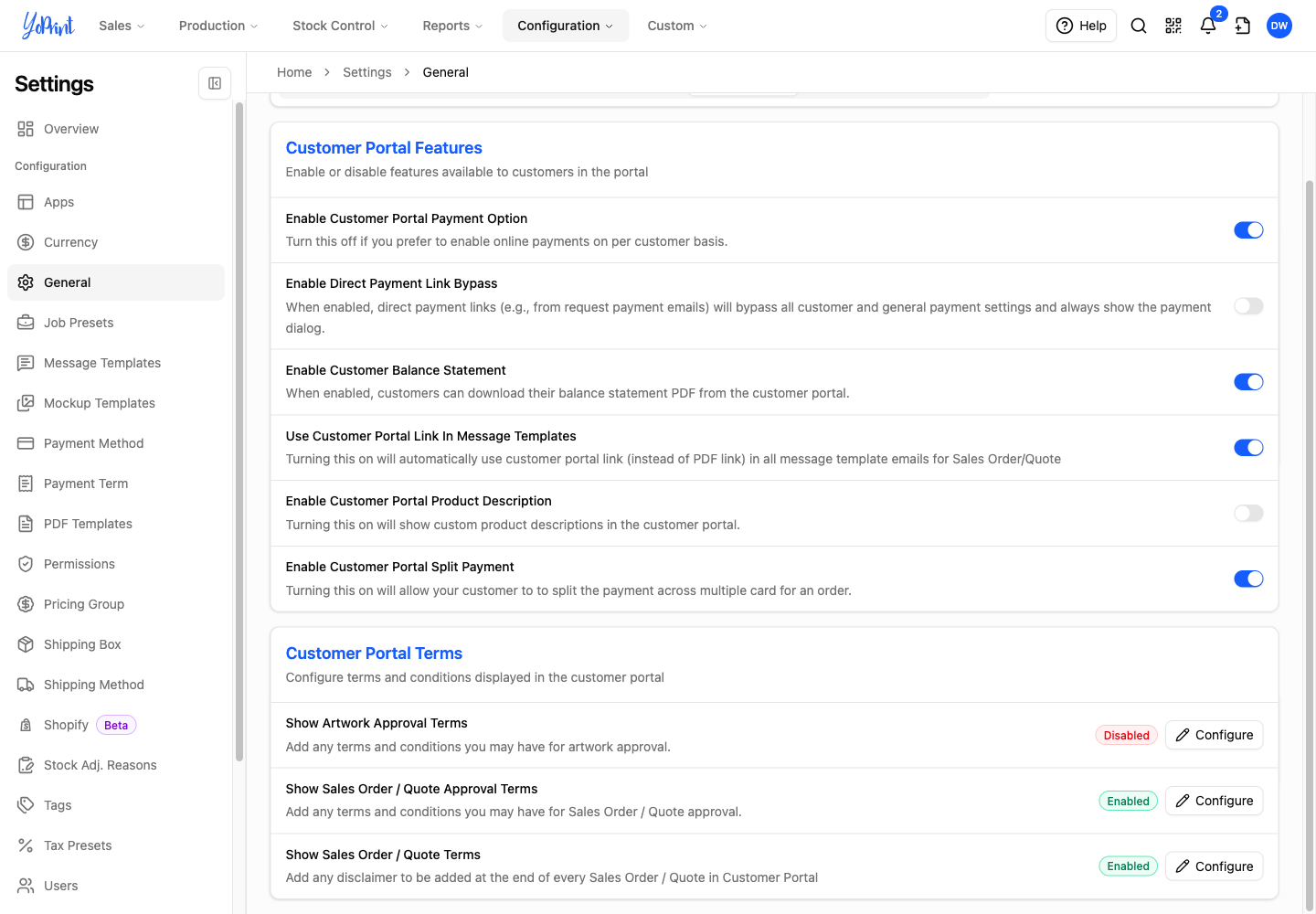
For the other options on this tab, see Customer Portal Settings.
Write the terms customers sign
Customers read these approval terms when they sign a response to an approval request. Quotes and sales orders use the same Order Approval Terms editor.
-
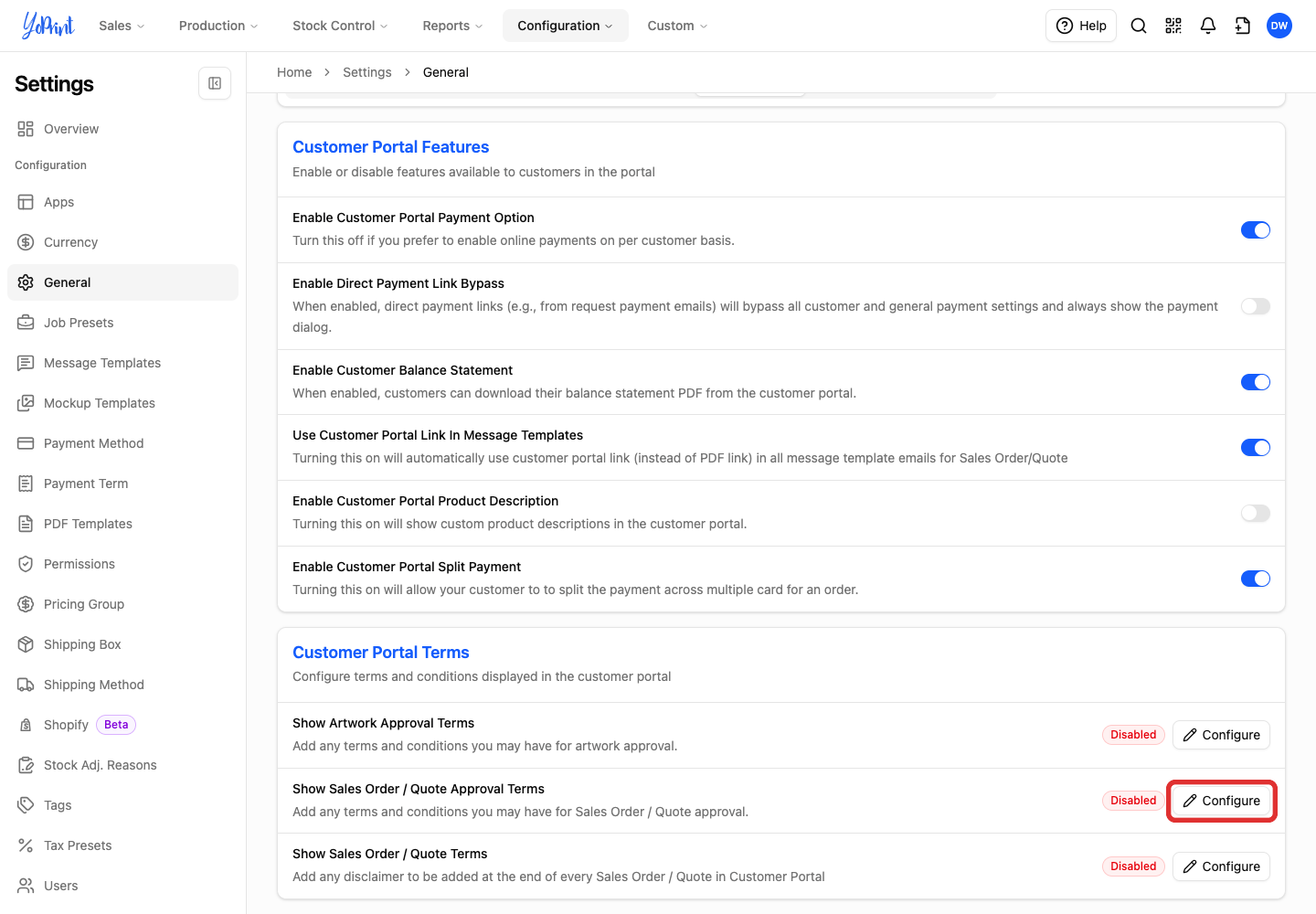
Under Customer Portal Terms, click Configure beside Show Sales Order / Quote Approval Terms.
-
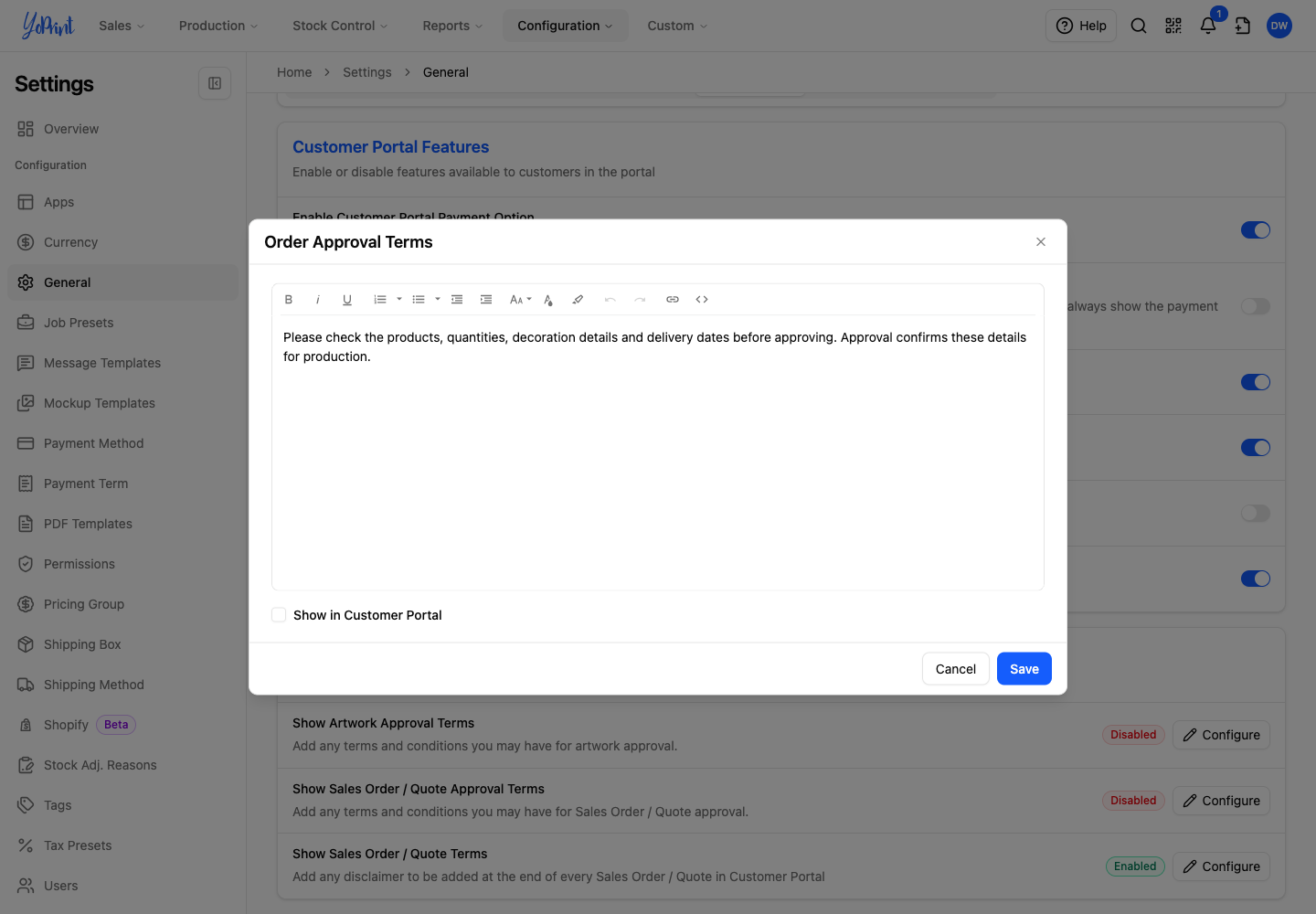
In Order Approval Terms, enter or edit your wording.
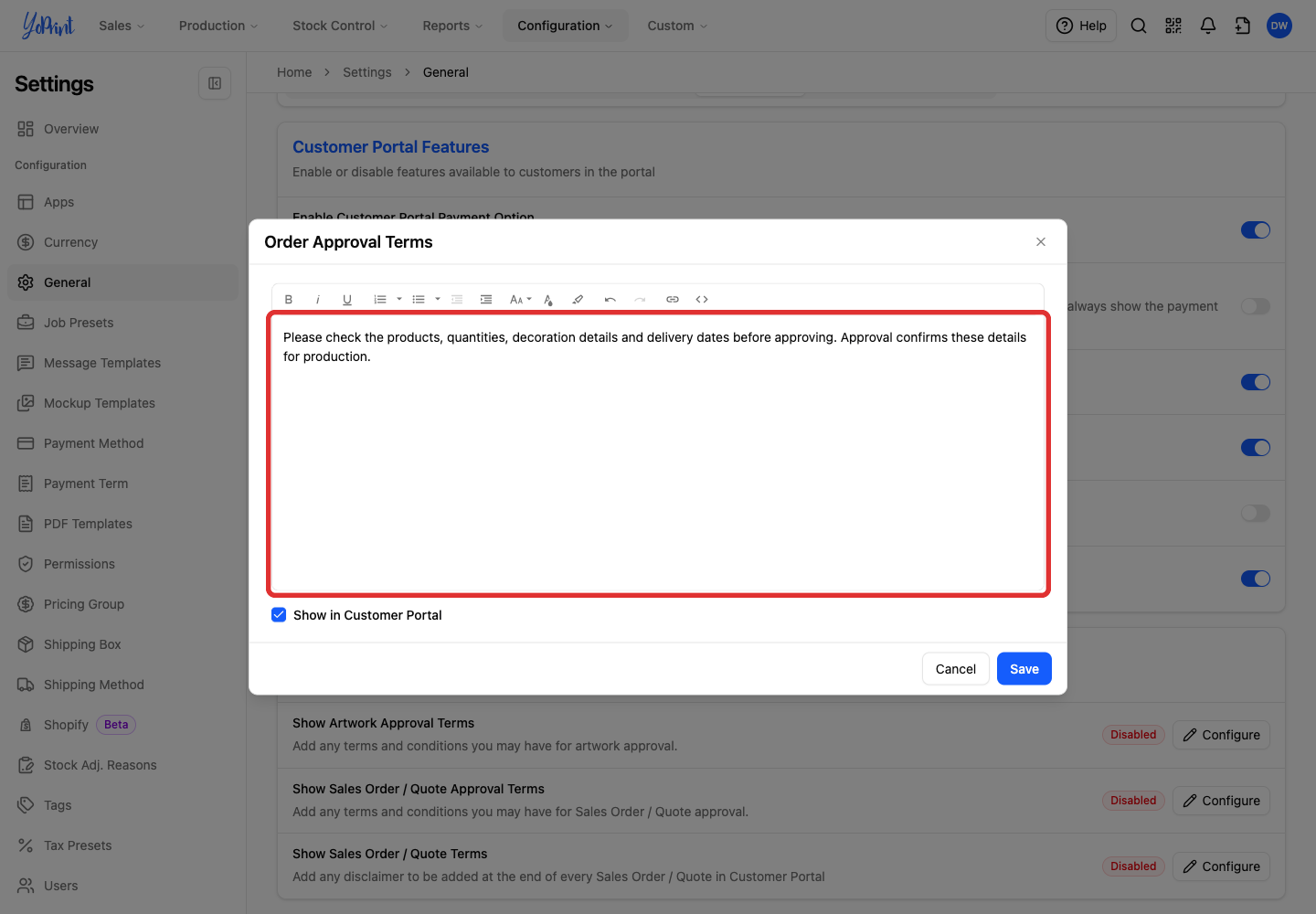
Use the toolbar to format bold text, lists and links. Both terms editors include this toolbar.
-
Select Show in Customer Portal.
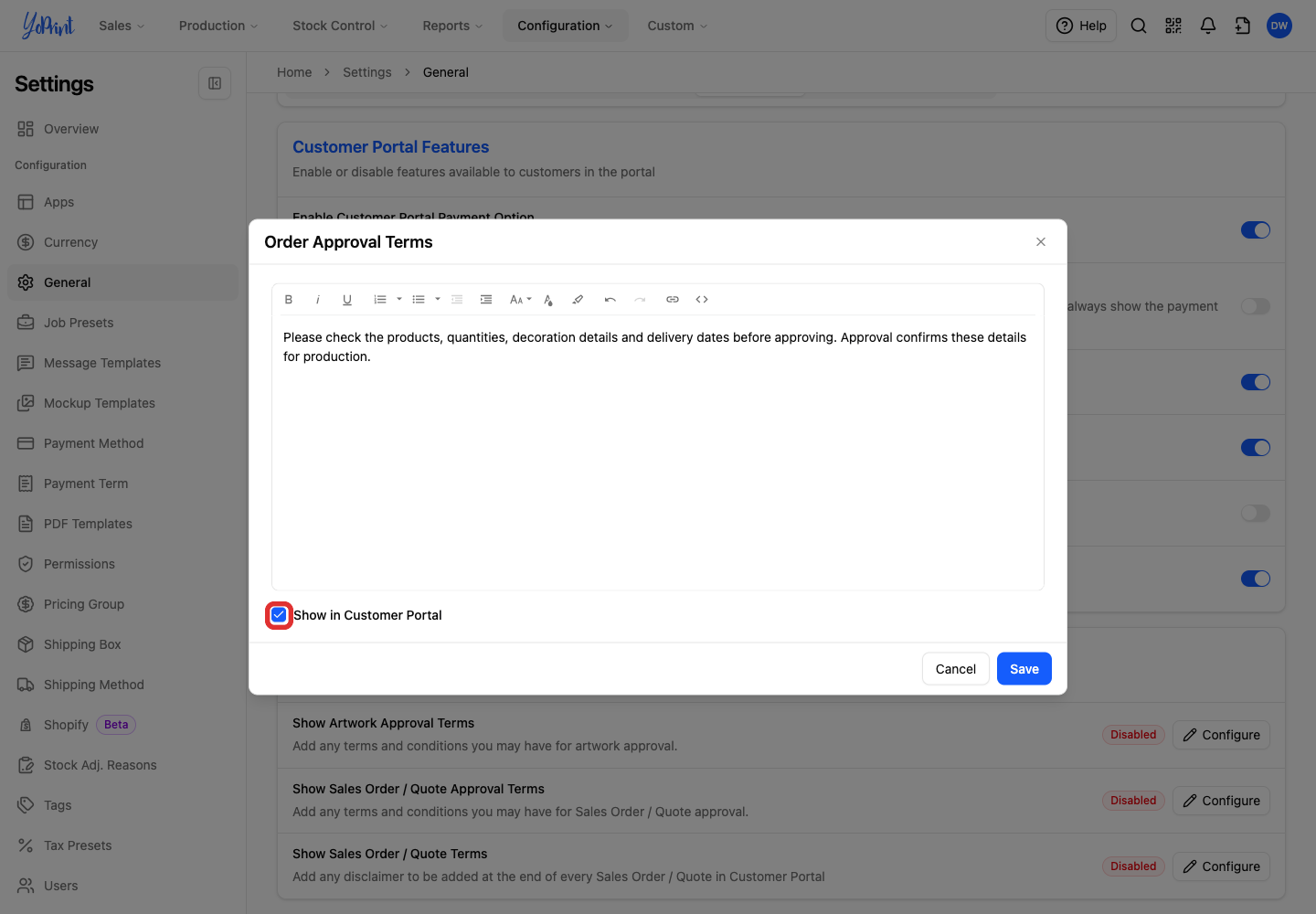
In either editor, you cannot save blank terms when Show in Customer Portal is selected. YoPrint shows This field is required and disables Save until you enter text.
-
Click Save.
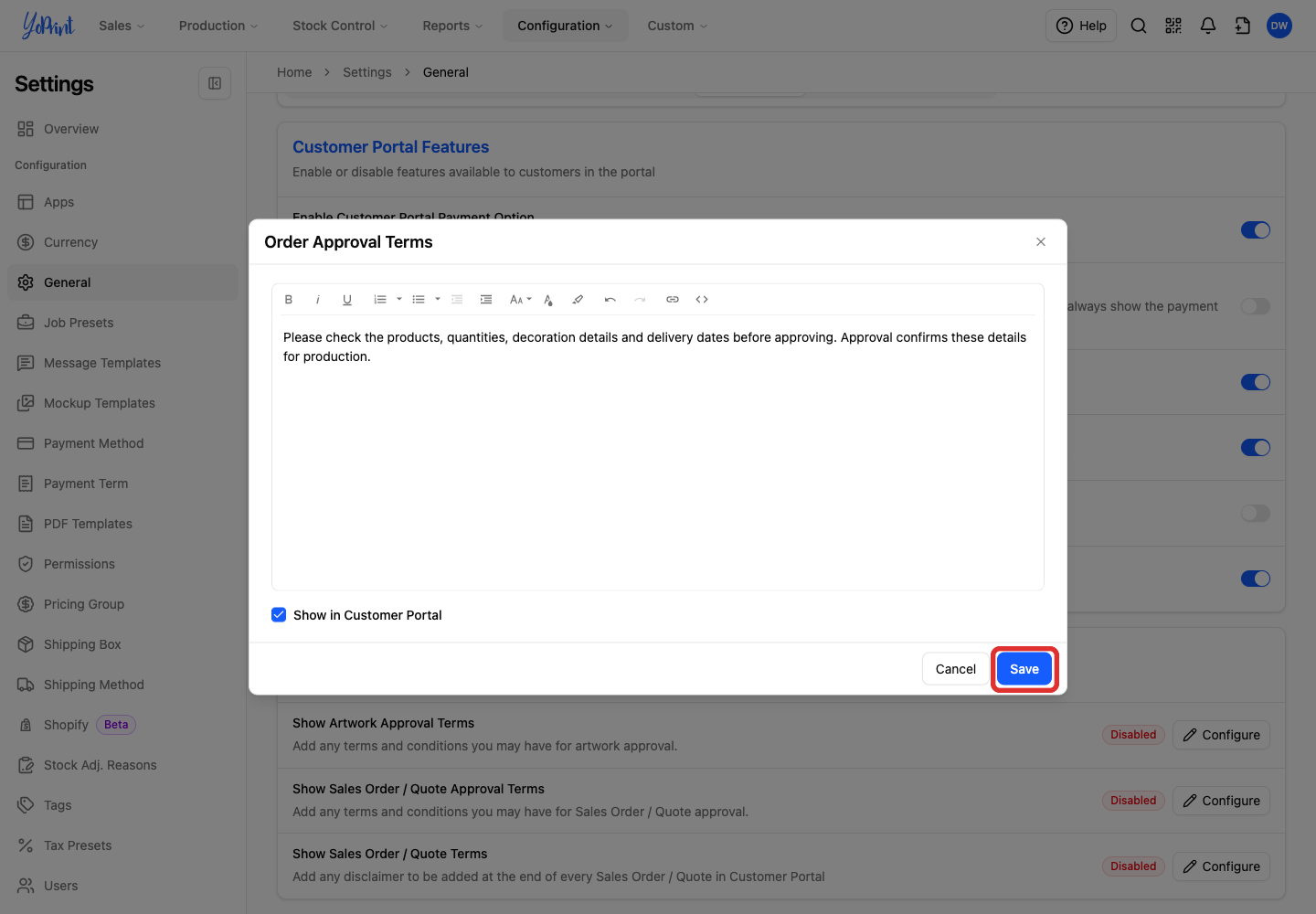
The row changes to Enabled. Settings does not include a preview of the customer approval screen.
Save terms for the quote or sales order itself
The Customer Portal Order Terms editor stores quote and sales order wording separately from approval terms. It does not replace the terms signed with an approval response.
-
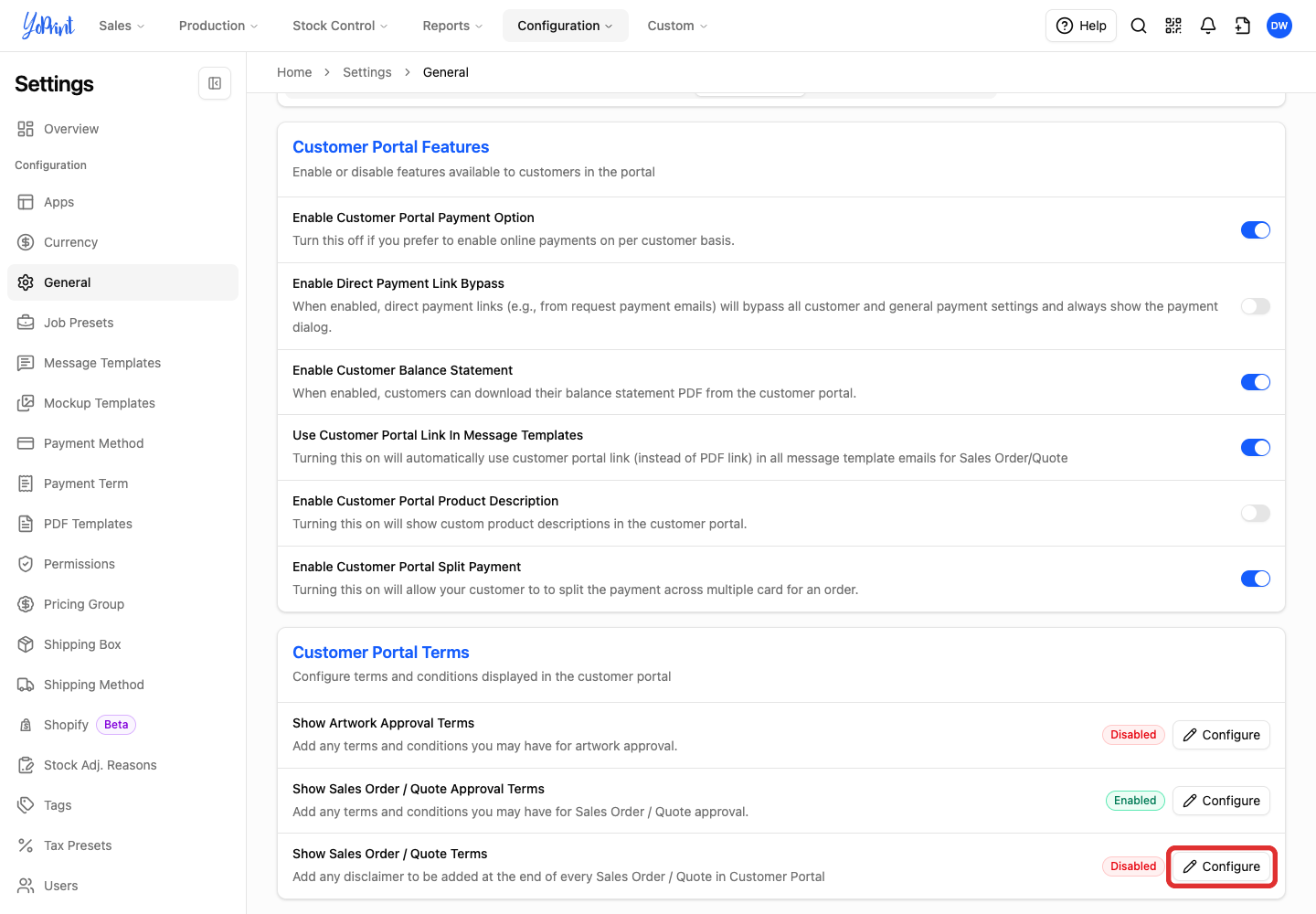
Under Customer Portal Terms, click Configure beside Show Sales Order / Quote Terms.
-
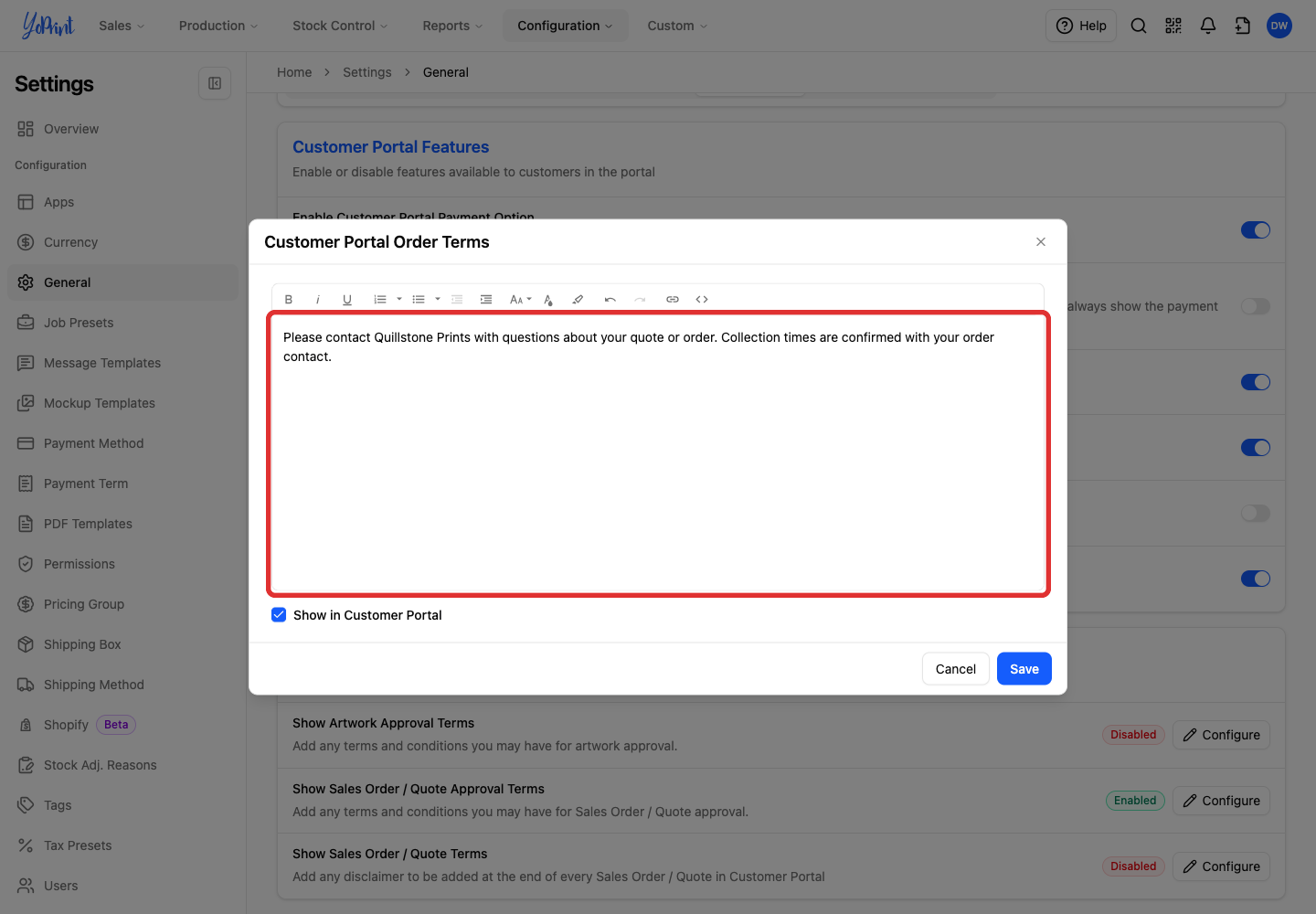
In Customer Portal Order Terms, enter or edit your wording.
-
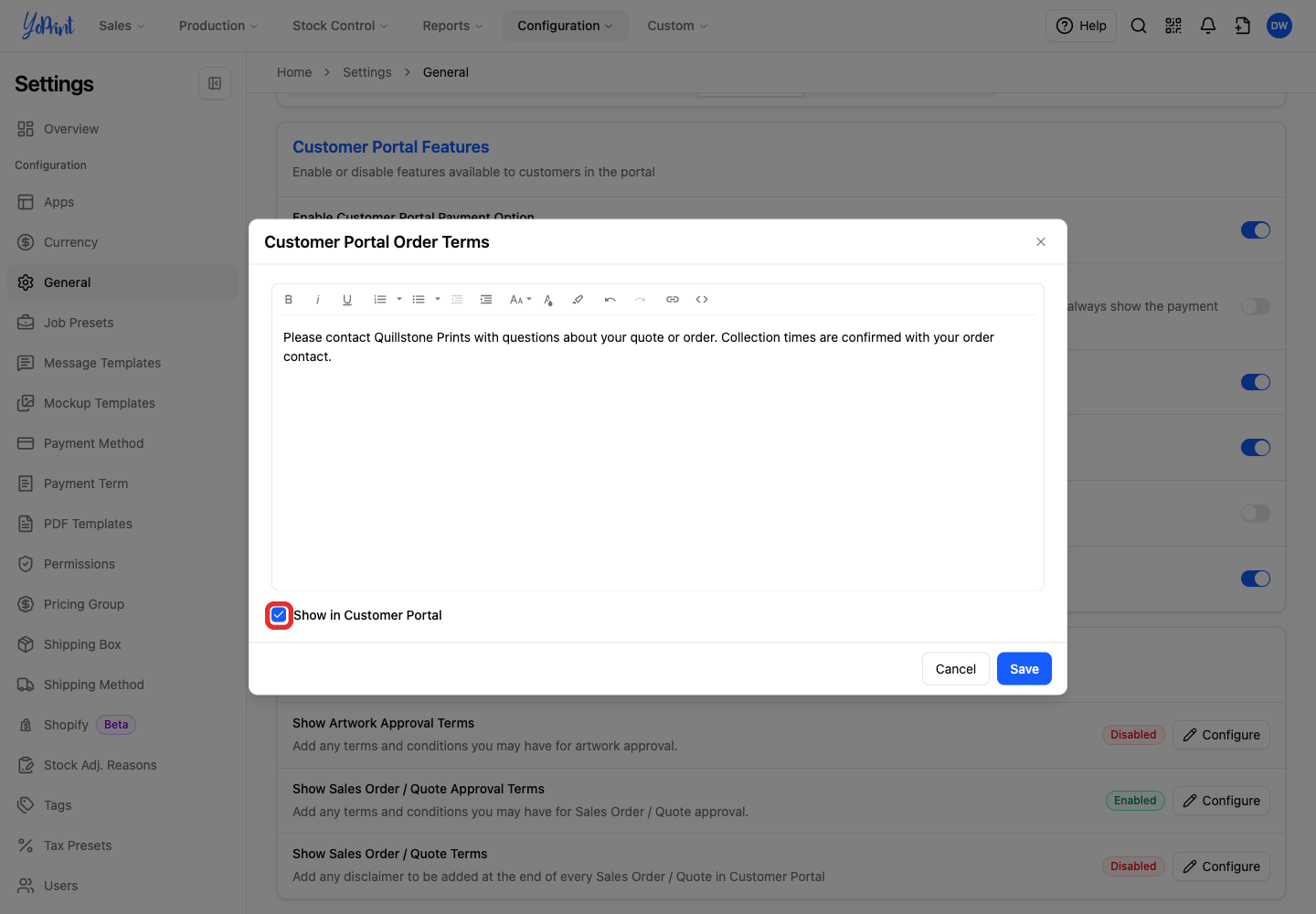
Select Show in Customer Portal.
-
Click Save.
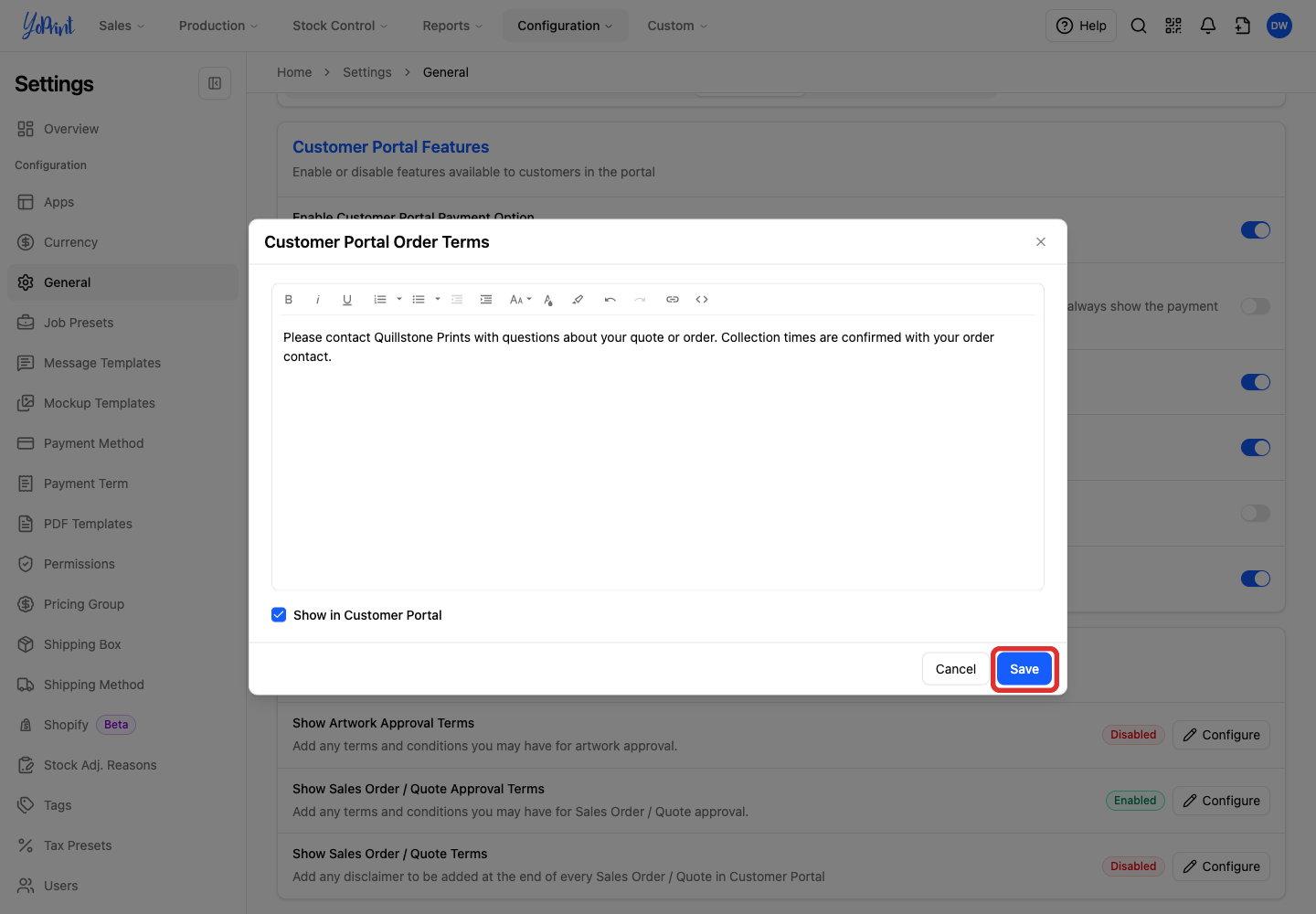
The row changes to Enabled.
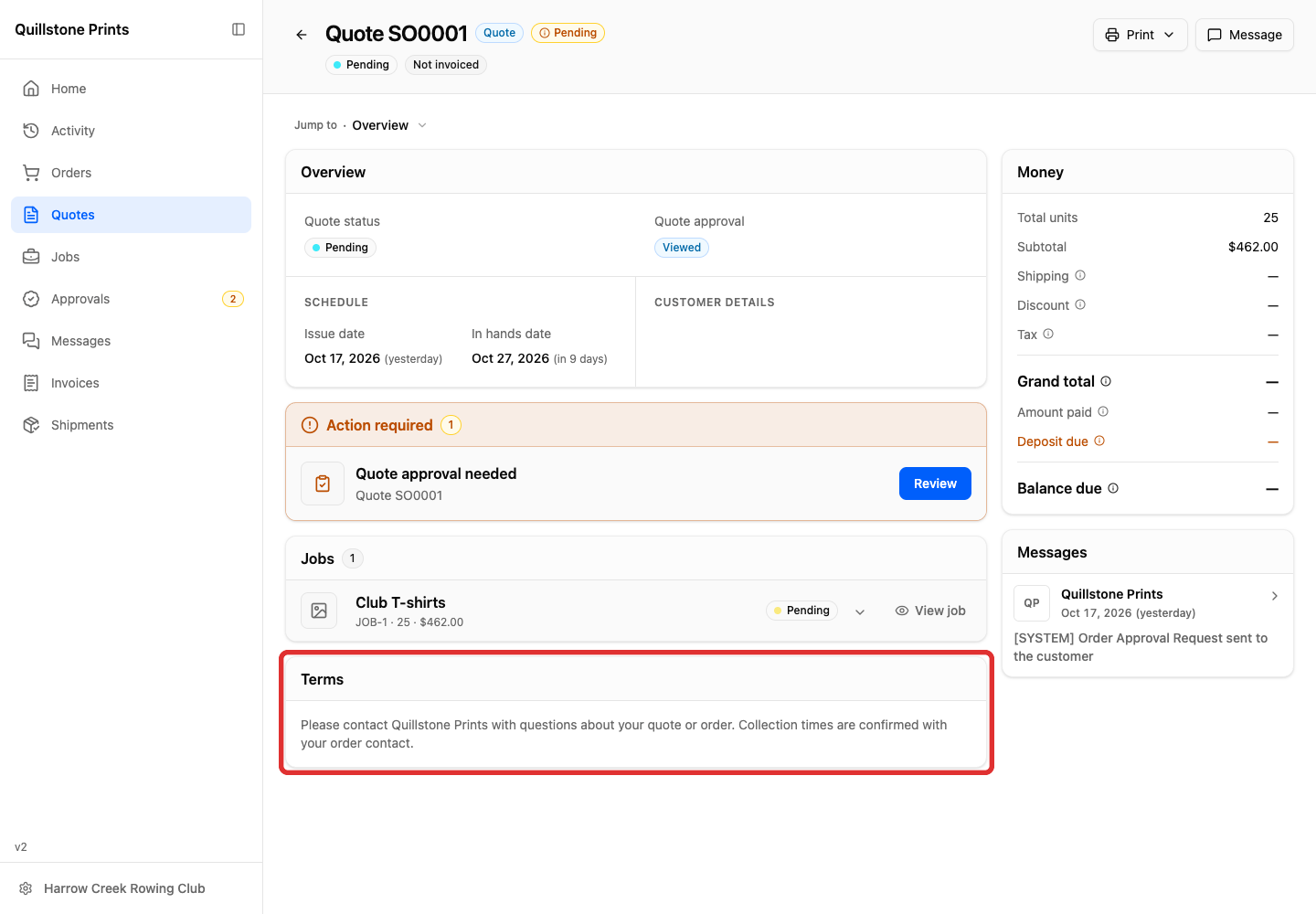
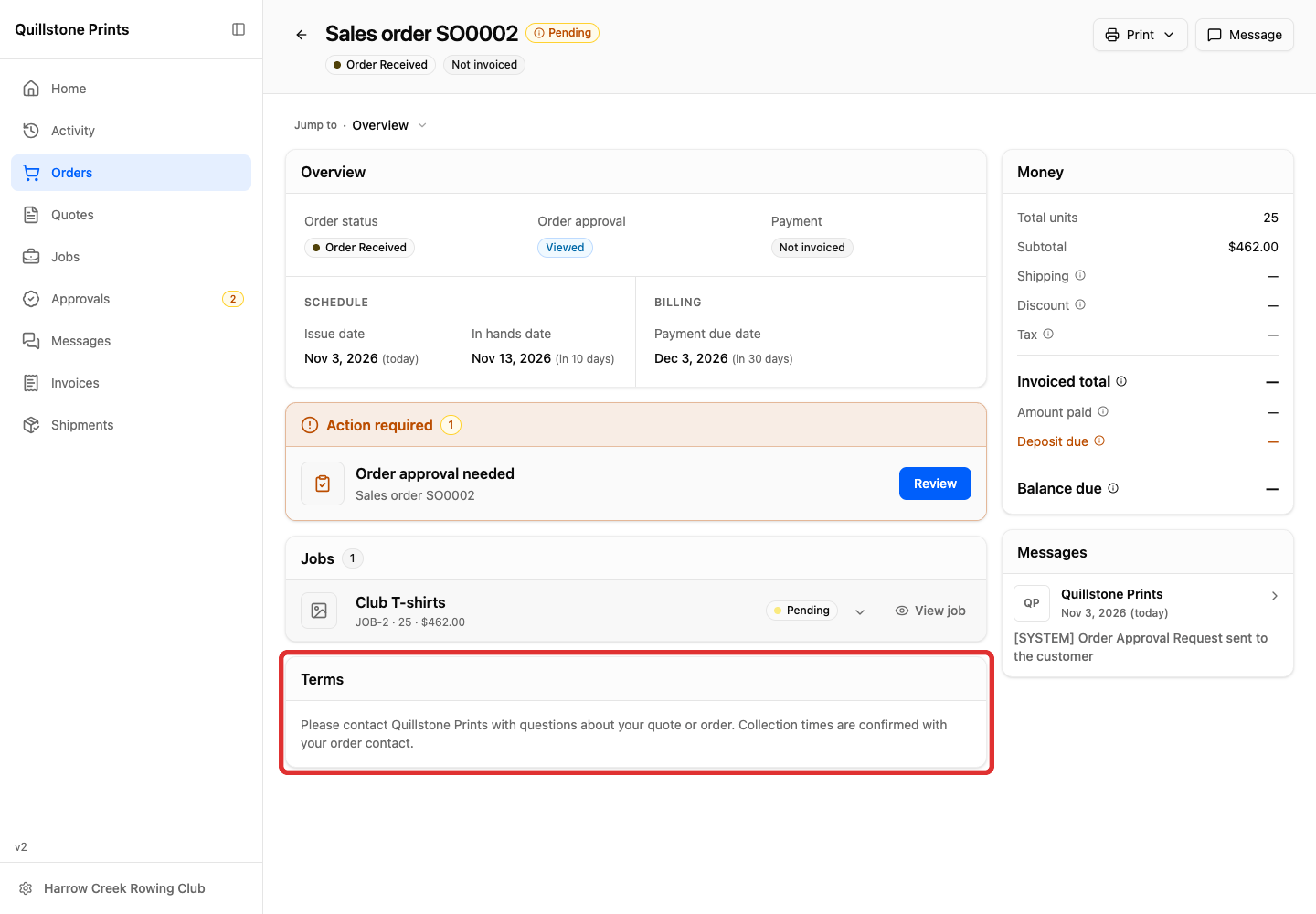
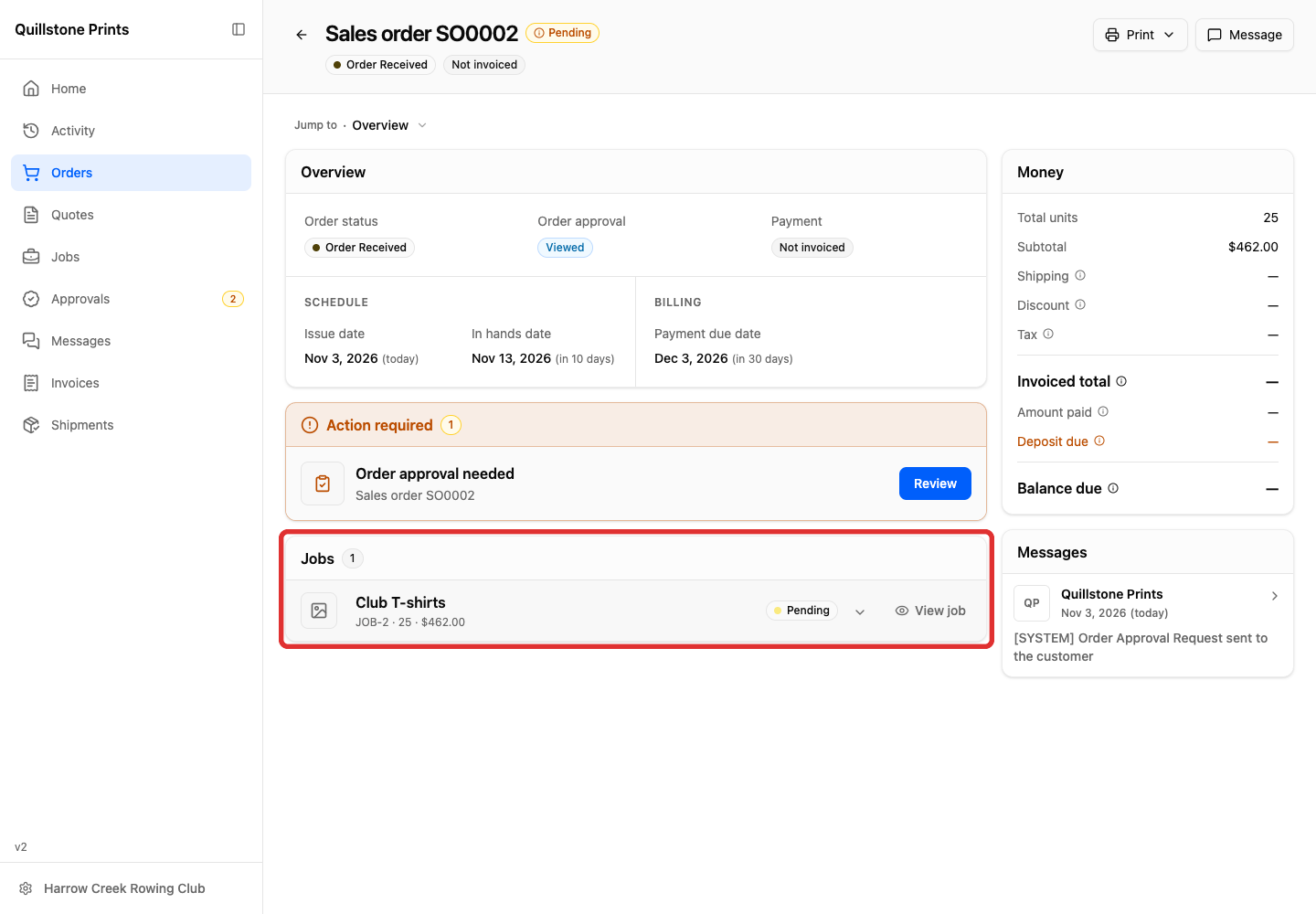
With Show in Customer Portal selected and saved, customers see this wording under Terms on both quote and sales order pages, below Jobs.
Customers: review and sign approval terms
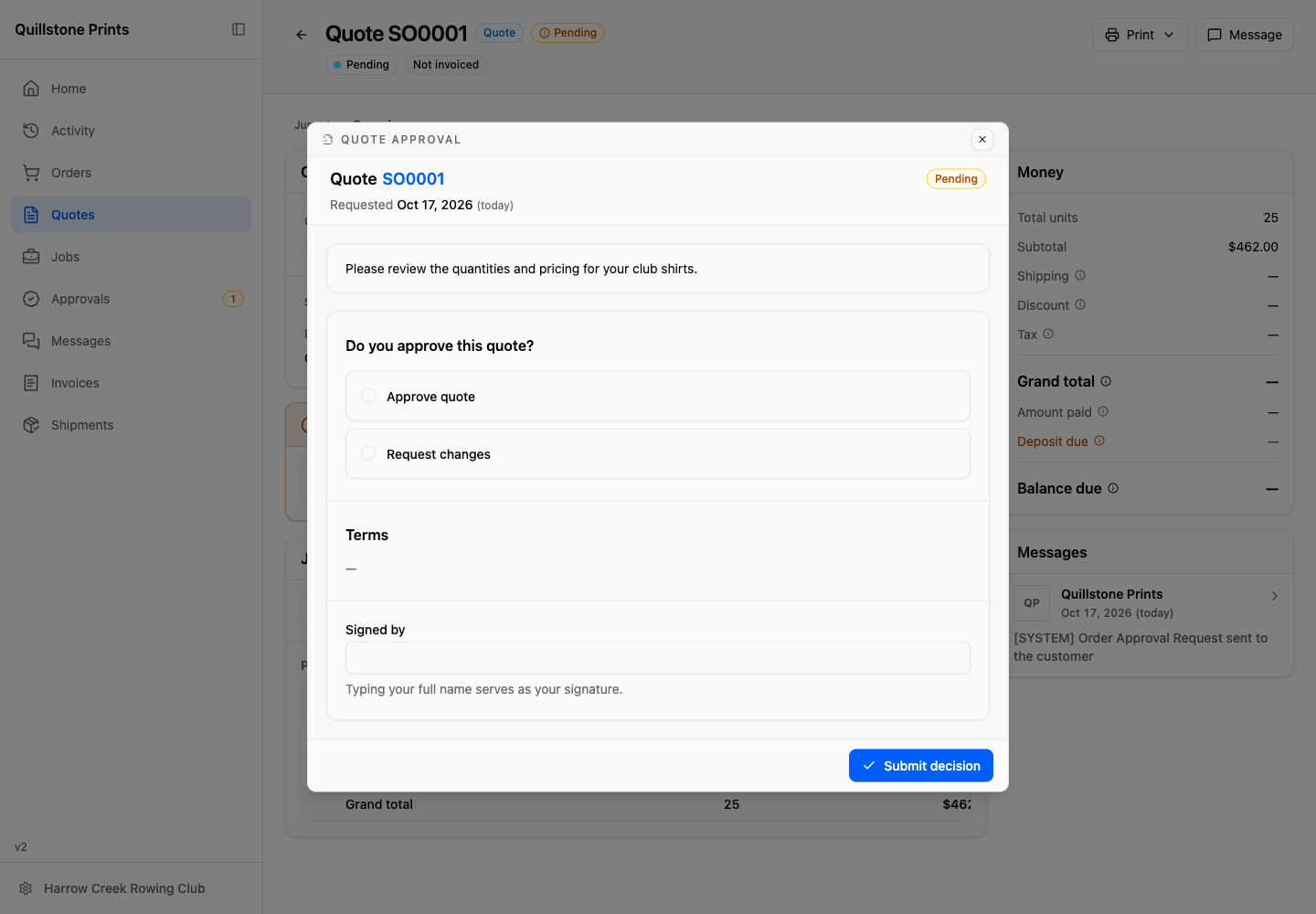
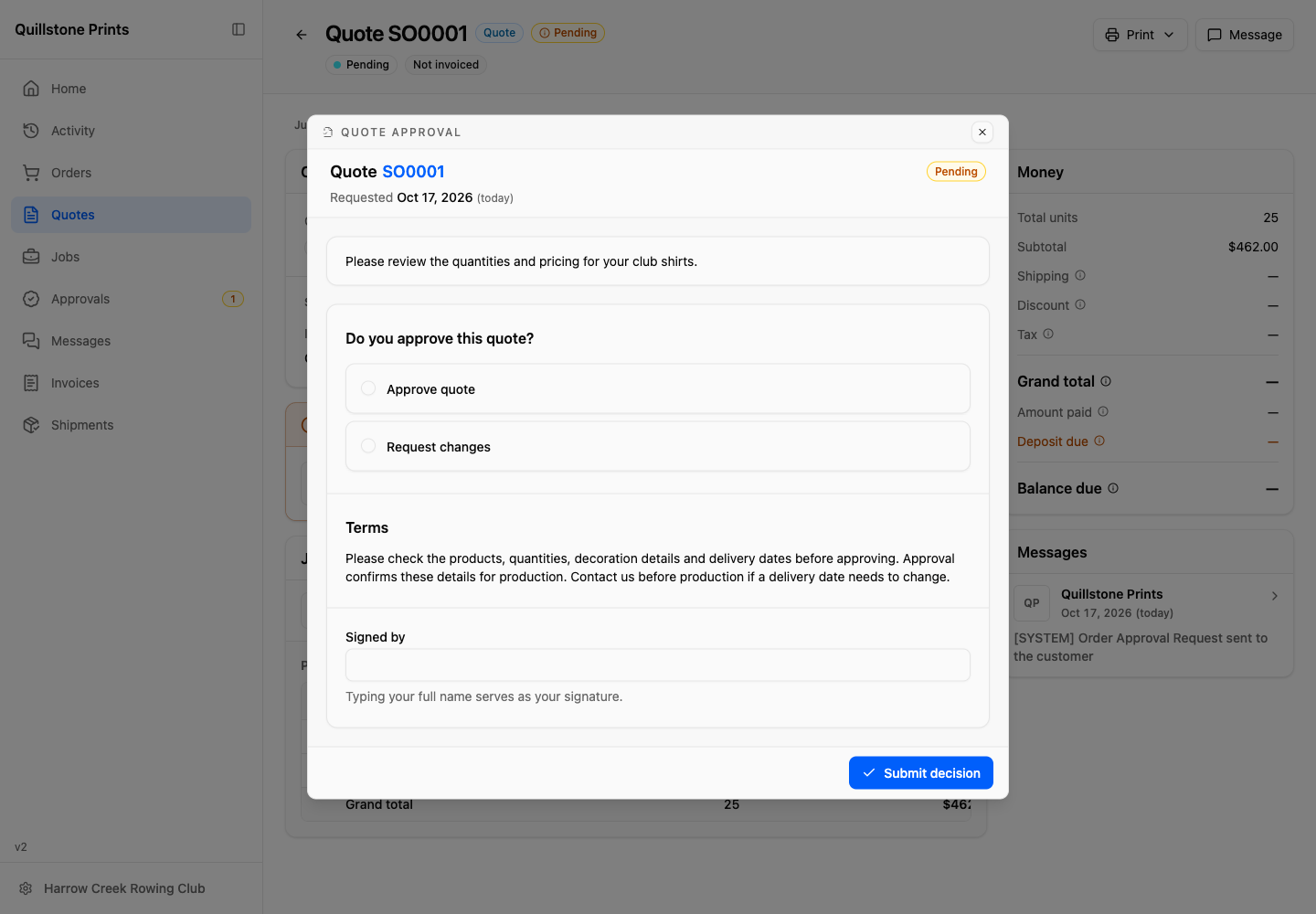
In the approval review, your customer reads your enabled Terms above Signed by before signing their response.
For the decision and submission steps, see How To Get Quote Approval From Your Customer or Sales Order Approval Workflow.
Turn off approval terms without deleting the wording
-
Click Configure beside Show Sales Order / Quote Approval Terms.
-
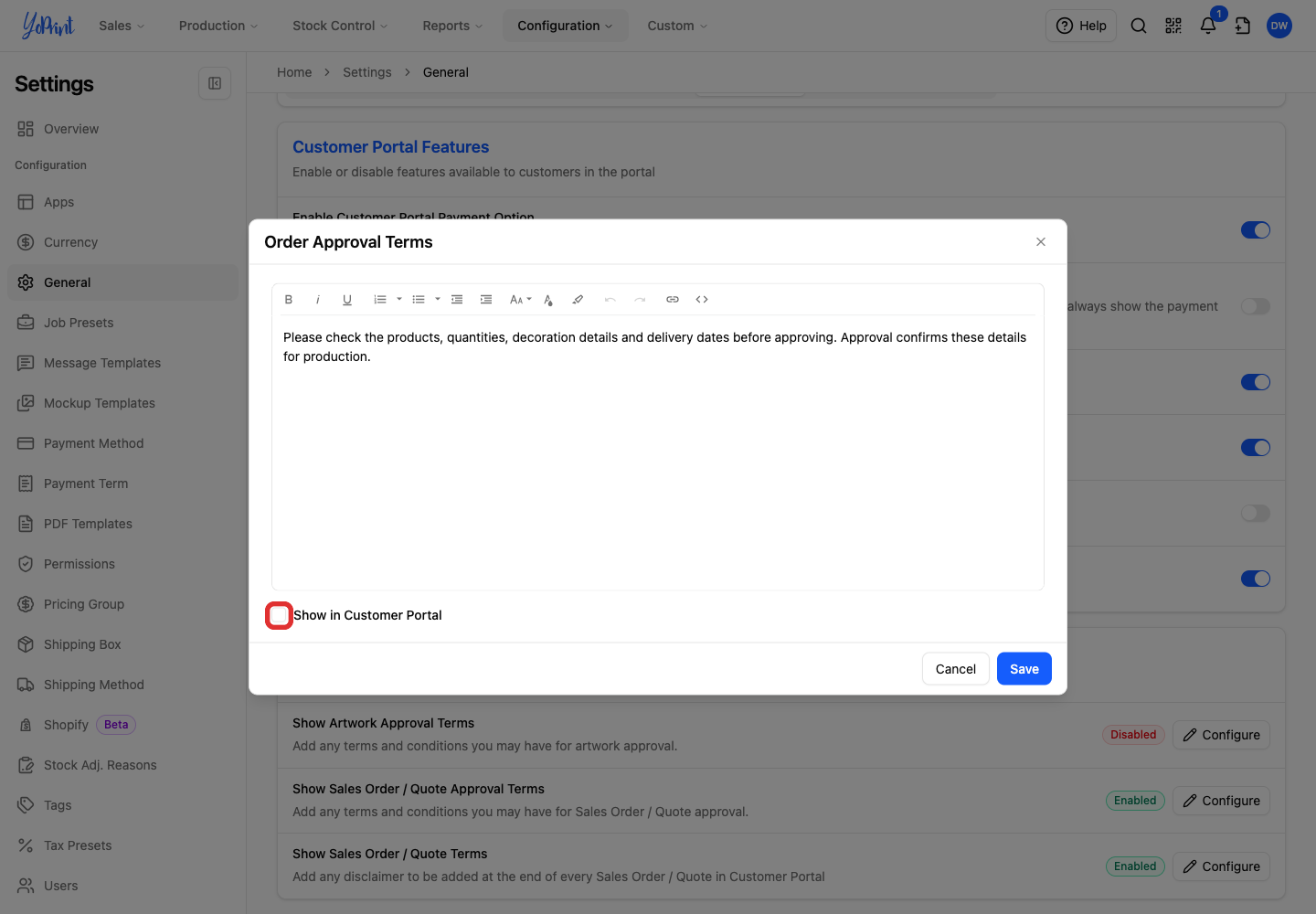
Clear Show in Customer Portal.
-
Click Save.
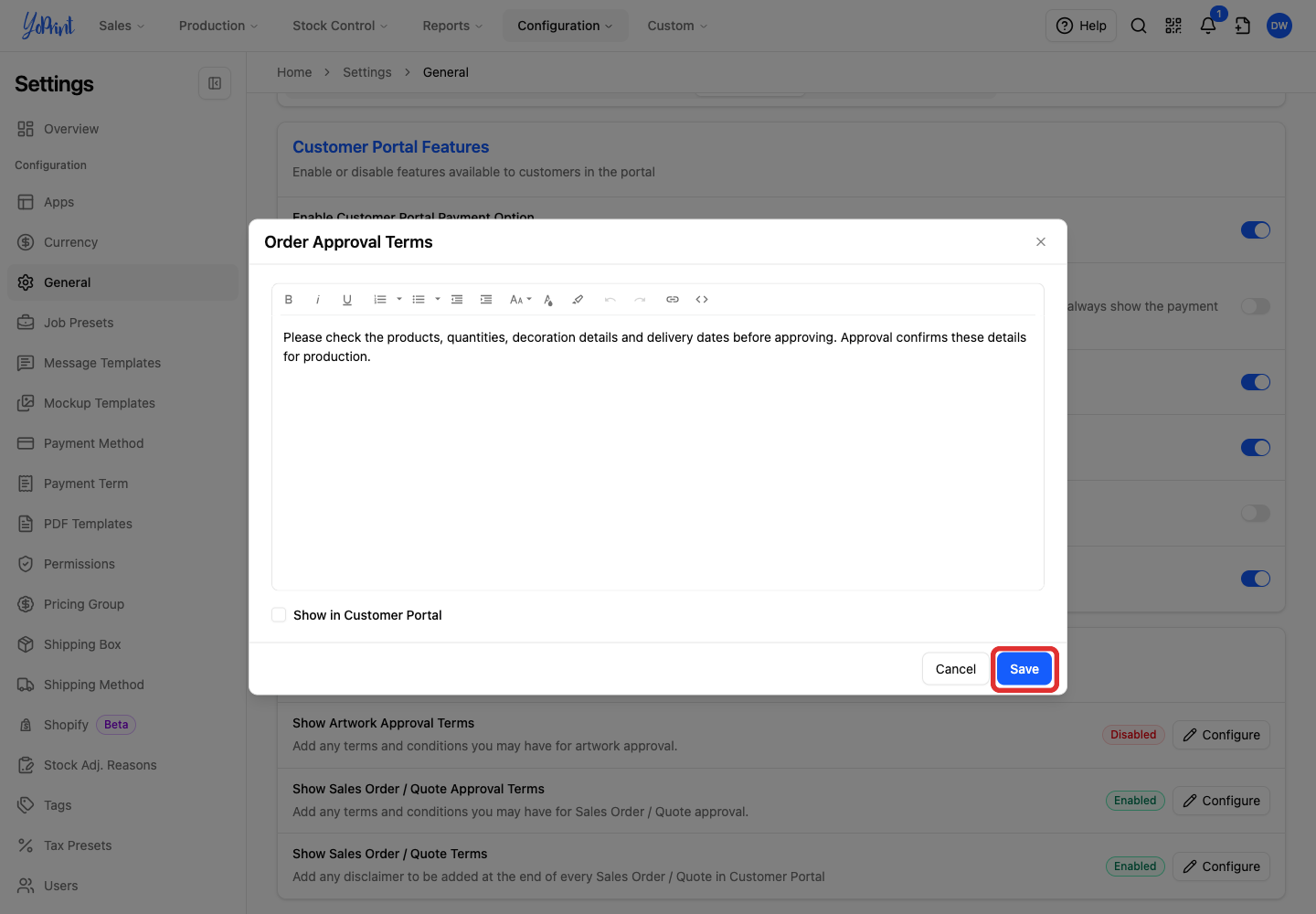
The row changes to Disabled. Your wording stays saved in the editor. To show it again, return to Write the terms customers sign.
YoPrint hides your custom approval terms from the customer's review. The customer still enters their full name in Signed by to sign the response.
Turn off quote and sales order terms without deleting the wording
-
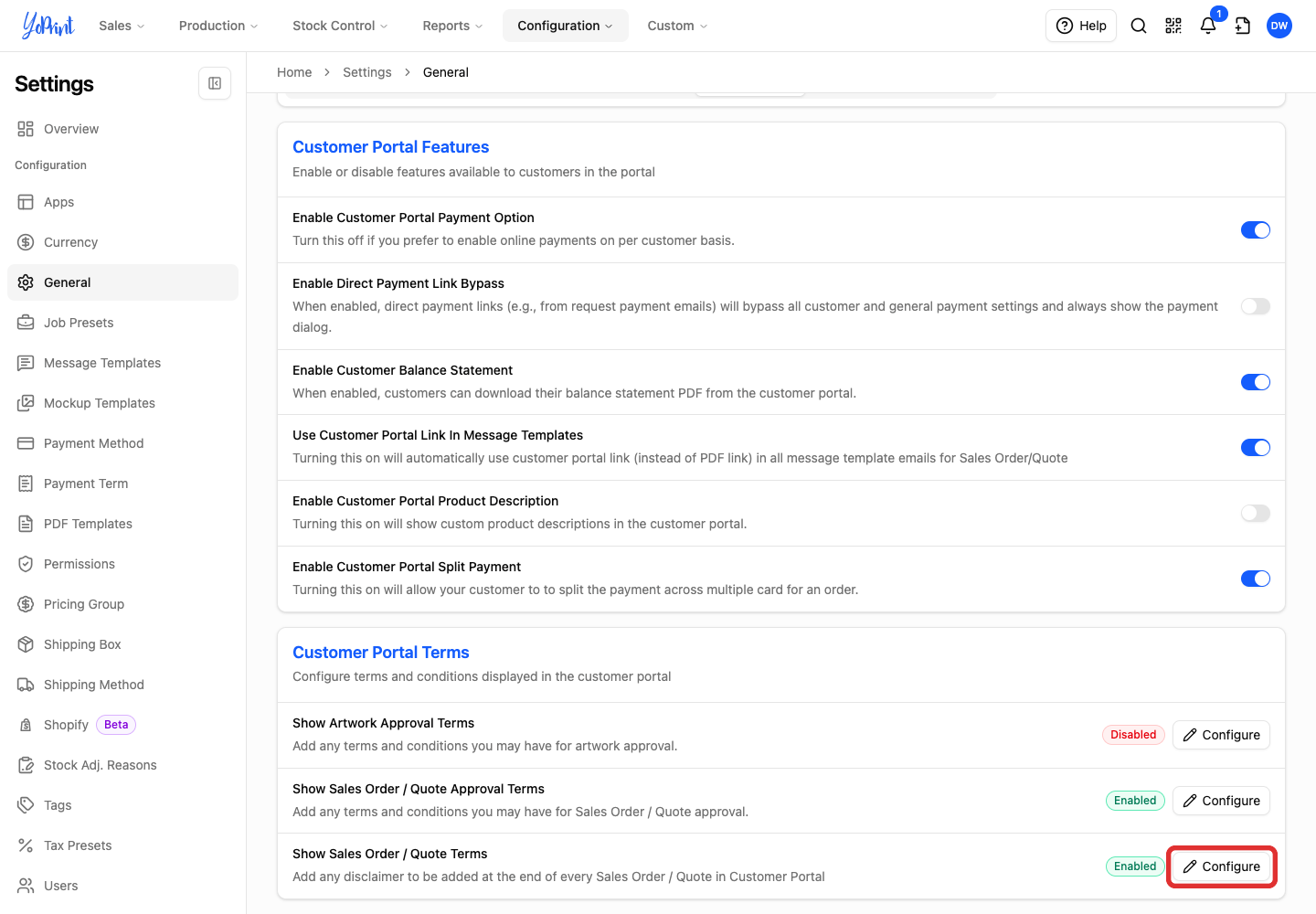
Click Configure beside Show Sales Order / Quote Terms.
-
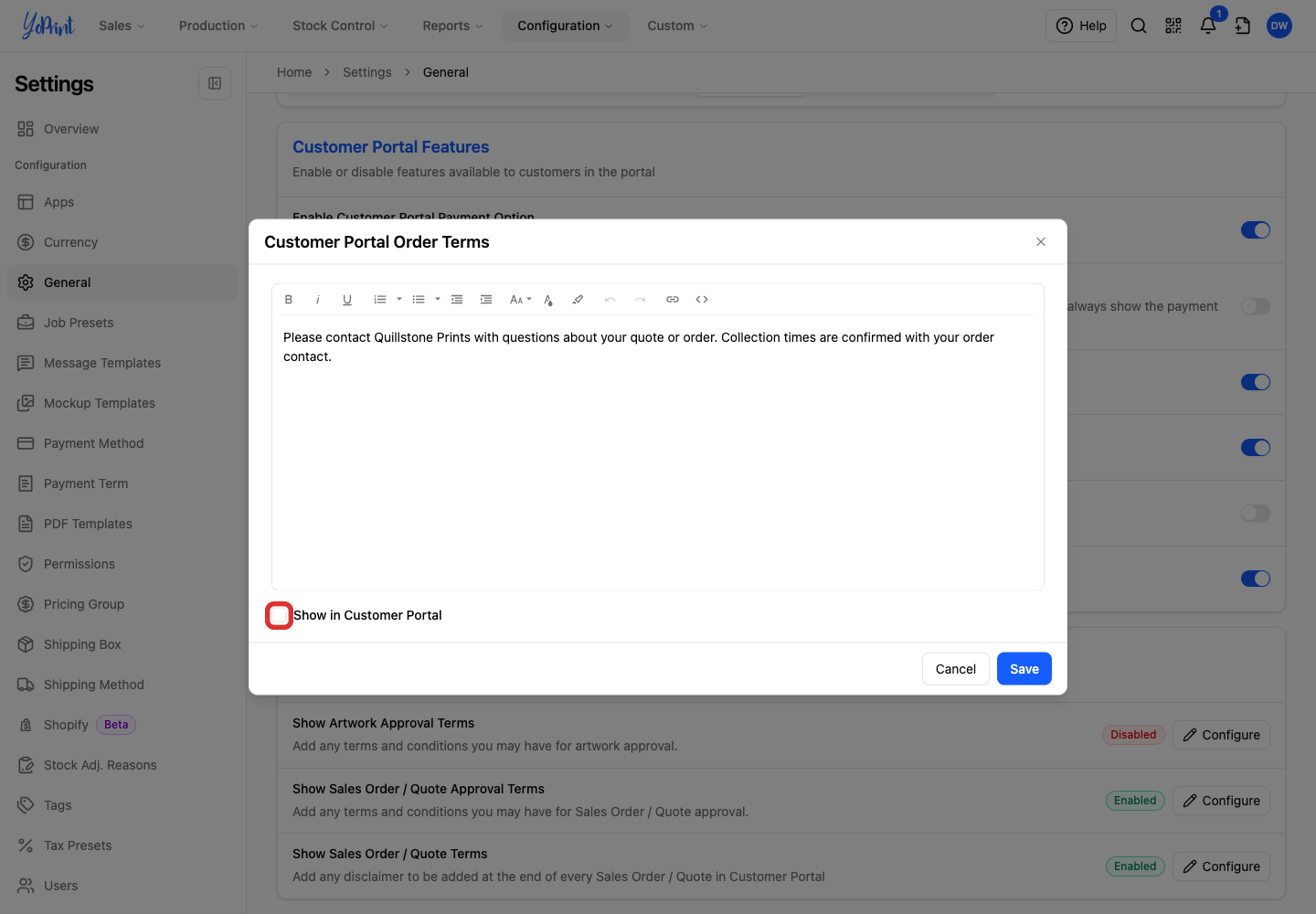
Clear Show in Customer Portal.
-
Click Save.
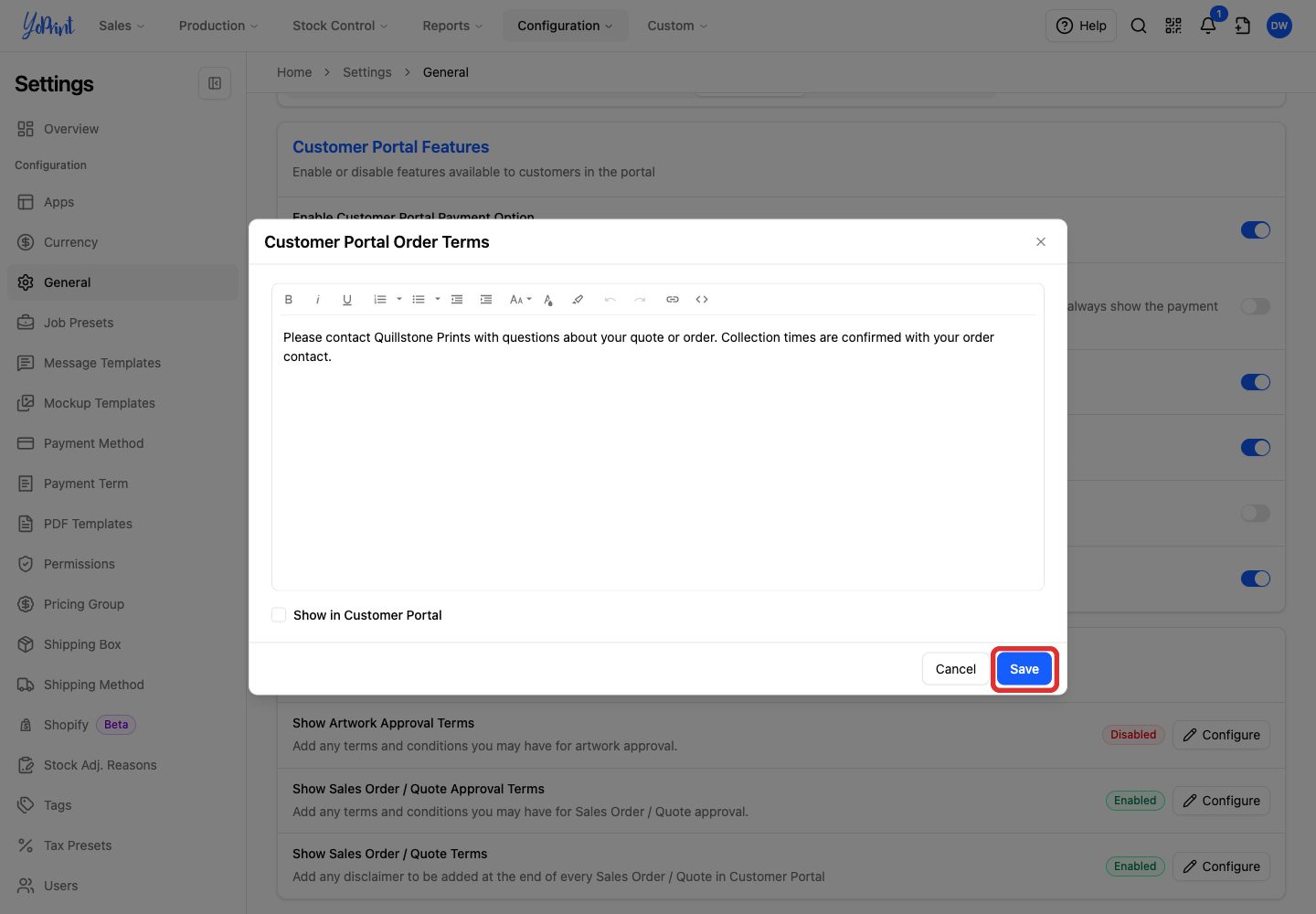
The row changes to Disabled. Your wording stays saved in the editor. To enable it again, follow Save terms for the quote or sales order itself.
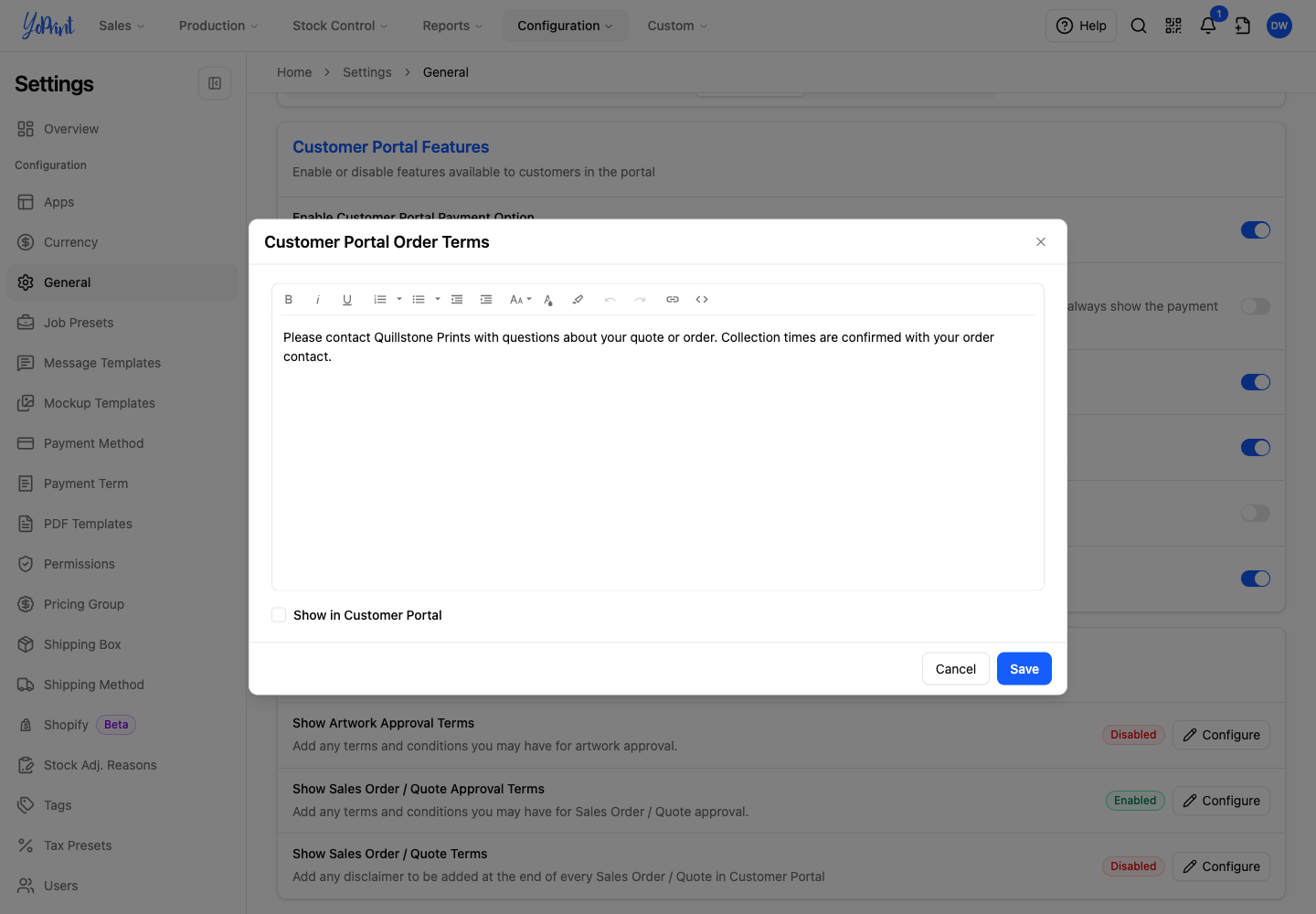
The Terms section is hidden from the customer’s quote and sales order. In this sales order, the details end after Jobs.
Staff: record a response received outside the portal
The Admin response form shows your enabled approval terms under Review & Sign. To record a customer's decision for a quote or sales order, see How To Get Quote Approval From Your Customer or Sales Order Approval Workflow.
What happens when you change approval terms
Changes to your enabled approval terms apply to new requests and requests still awaiting a decision. Edit and save the wording in Order Approval Terms.
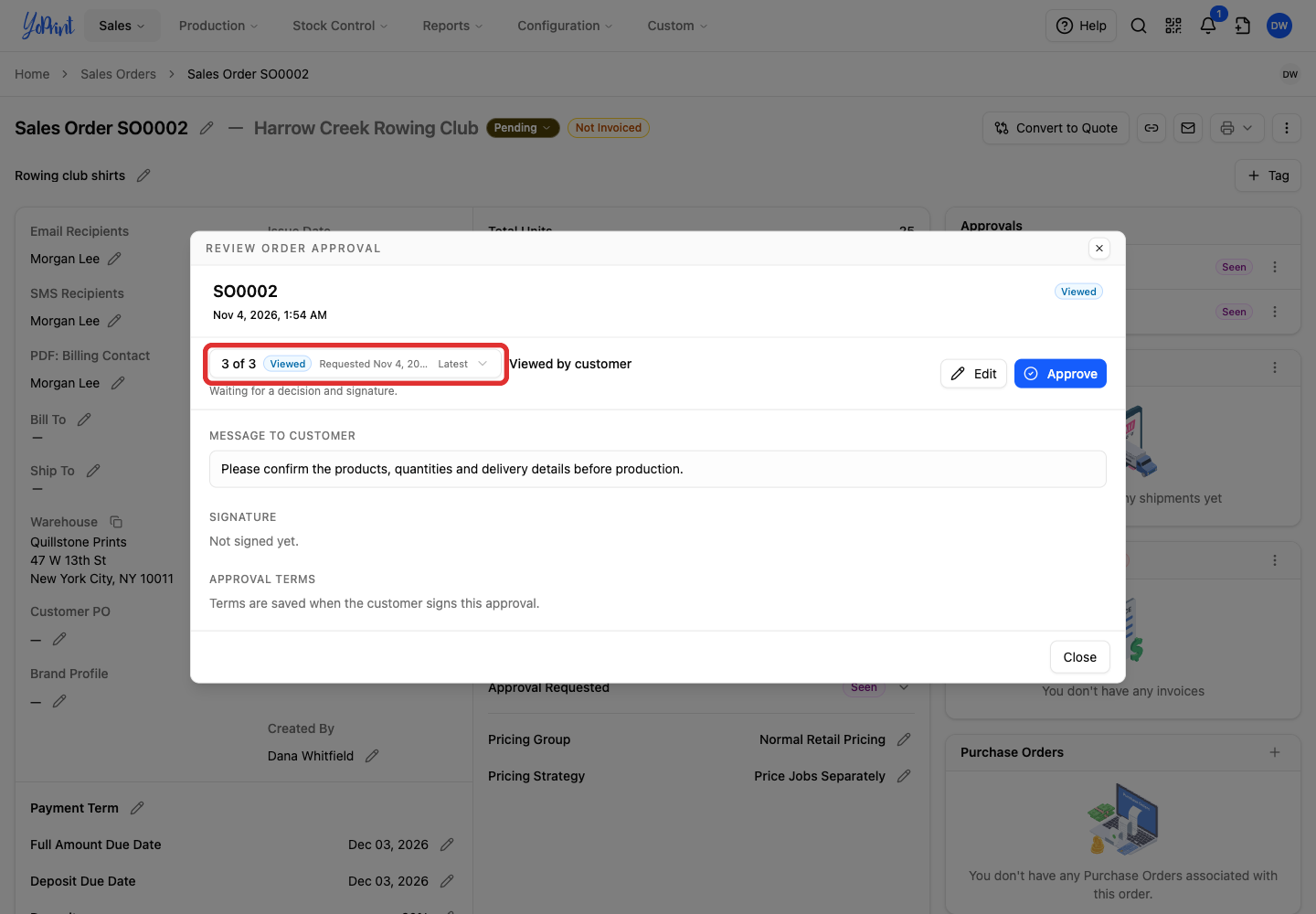
For a request still awaiting a decision, Review Order Approval shows Terms are saved when the customer signs this approval. Clicking Approve opens the staff response form, which shows the current approval terms under Review & Sign.
This quote was awaiting a decision when the shop added a sentence about delivery-date changes. When the customer opens the review, it shows the updated wording.
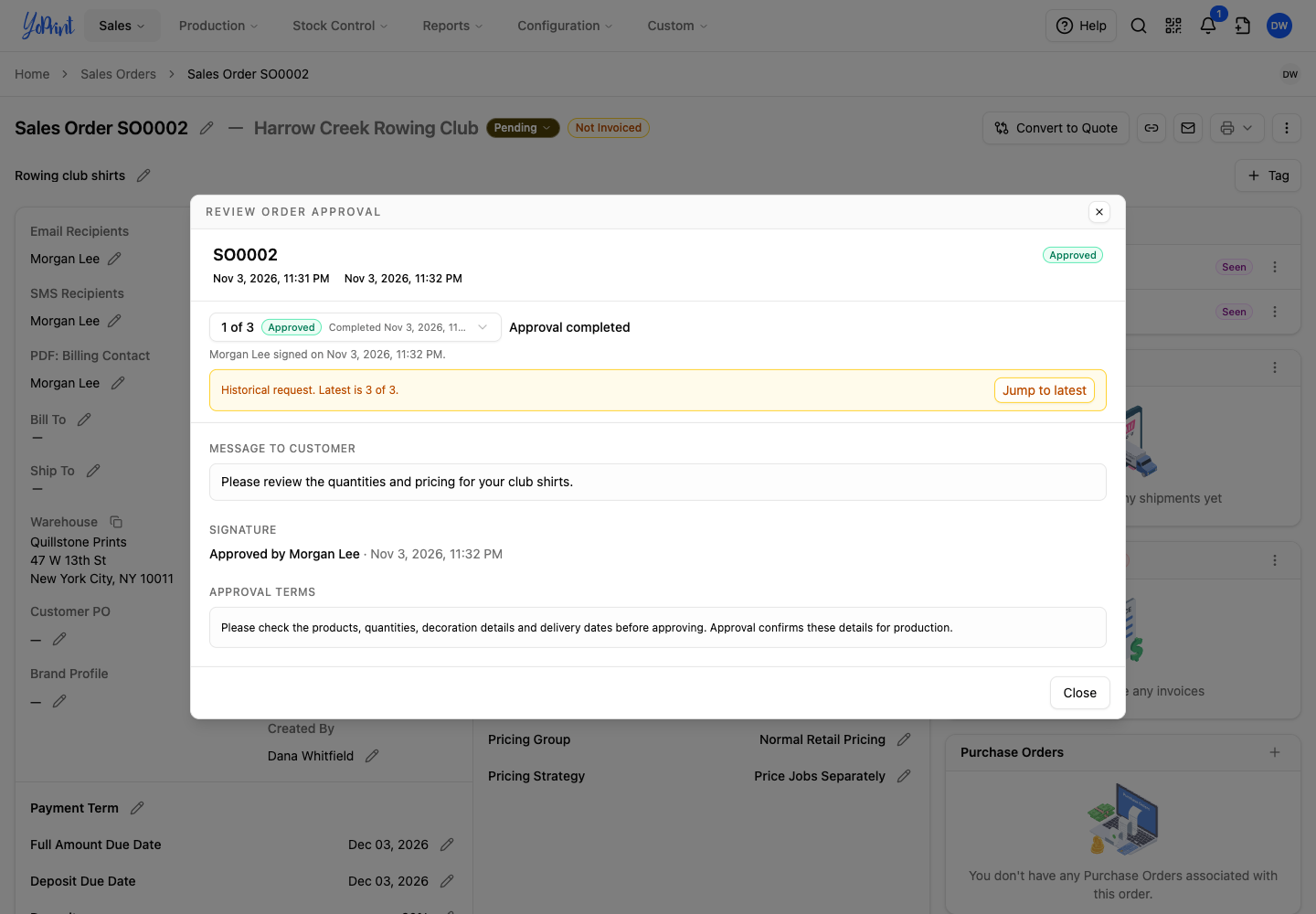
A completed response keeps the terms that were in effect when it was signed, even if you change the wording in Settings later. Staff can find the signed terms in Admin. From Sales in the top navigation, open the quote in Quotes or the sales order in Sales Orders.
-
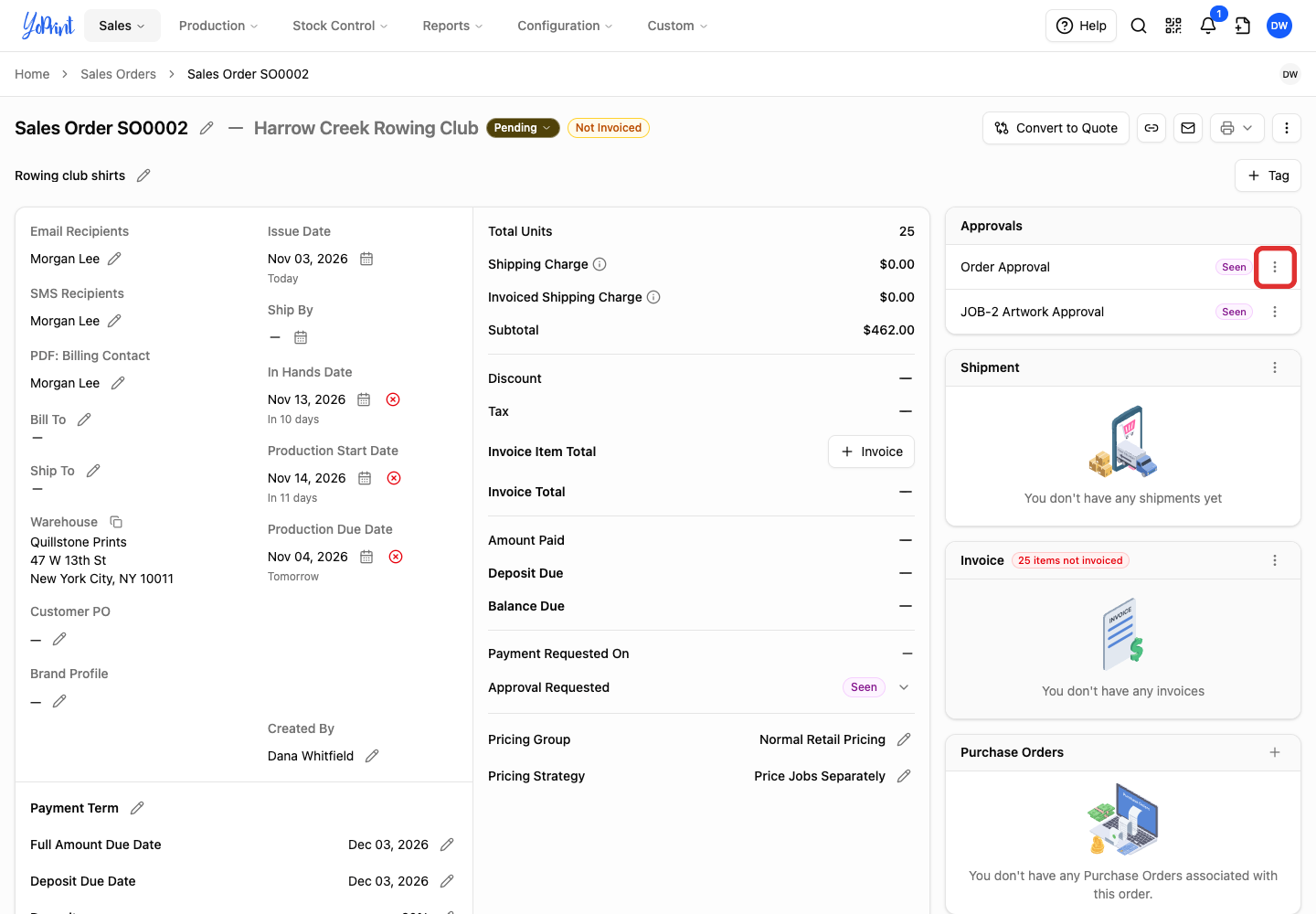
In the Approvals panel, open the three-dot menu beside Order Approval.
-
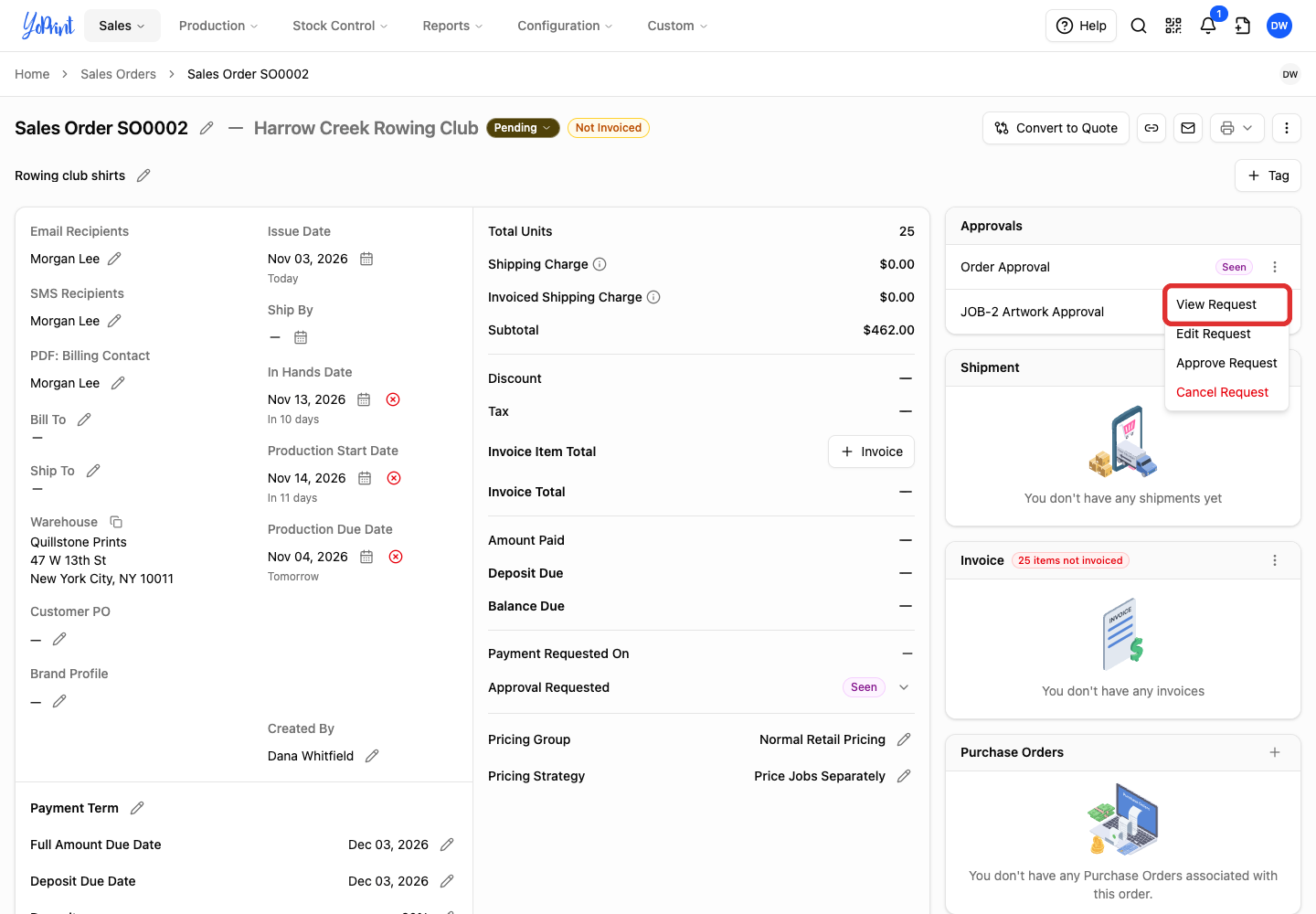
Choose View Request.
-
In Review Order Approval, open the selector showing the request count, status and date.
-
Select the completed request you want to check.
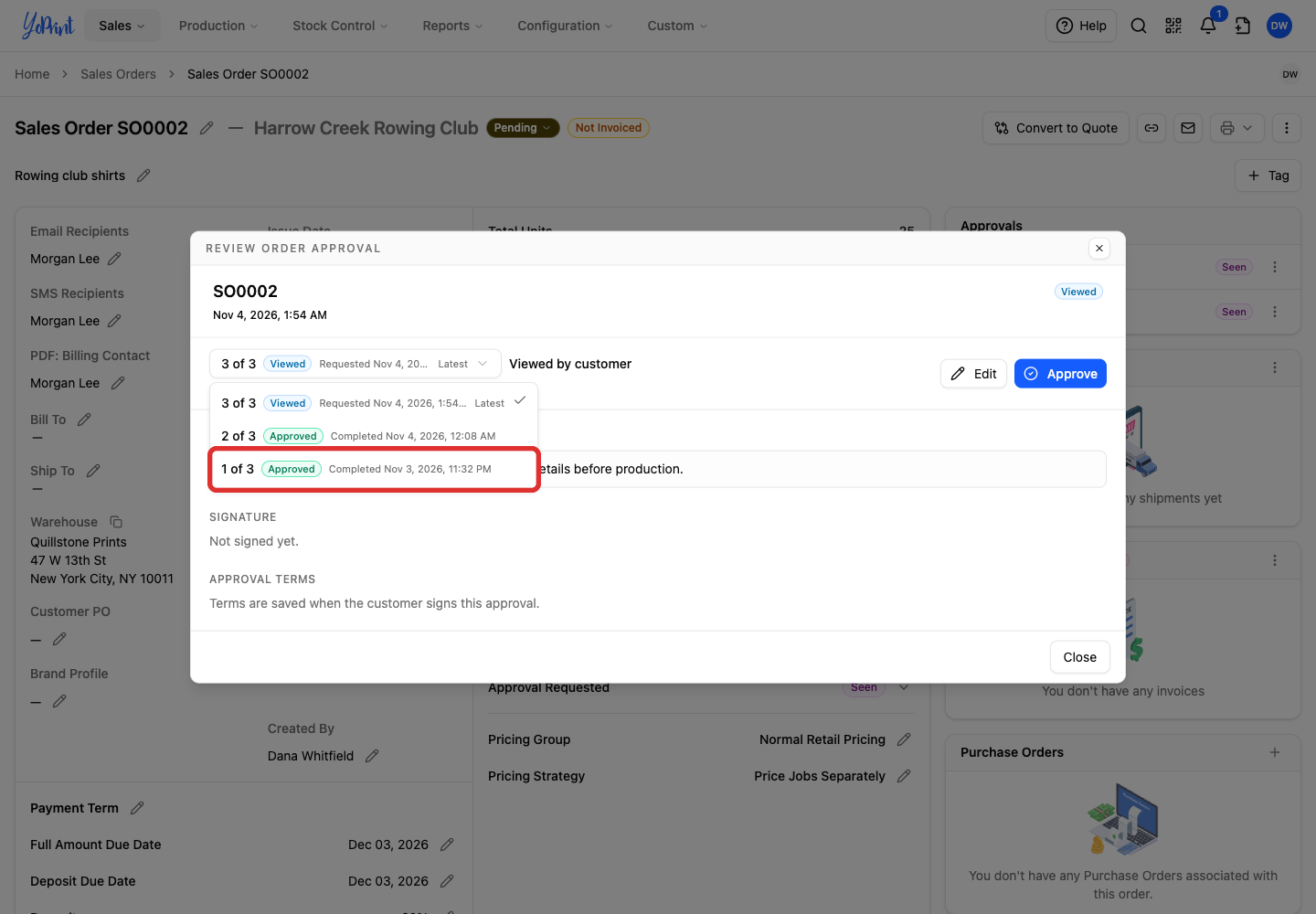
The Signature shows who signed and when. Approval terms shows the wording saved with that response. The customer signed this earlier request before the shop added the delivery-date sentence, so its saved approval still shows the earlier terms.