Switch Pricing Groups in Quotes or Sales Orders
In this article
Switch a quote or sales order to another pricing group when you need different product markups or service pricing rules. The pricing group applies to the whole quote or sales order, including all jobs on it. You cannot assign different pricing groups to individual jobs. For a different price on a single line, use a price override.
New quotes and orders automatically use the pricing group assigned to the customer, or your shop's default group. Quotes and sales orders share the same layout and pricing group controls in both draft and published states.
Set up your pricing groups before you start. See Set up Pricing Groups. The example below uses 24 totes with a $10 base price. Retail adds a 50% markup. Trade adds a 20% markup.
Change the group on a draft quote or sales order
Start with your draft open and a product added to a job.
-
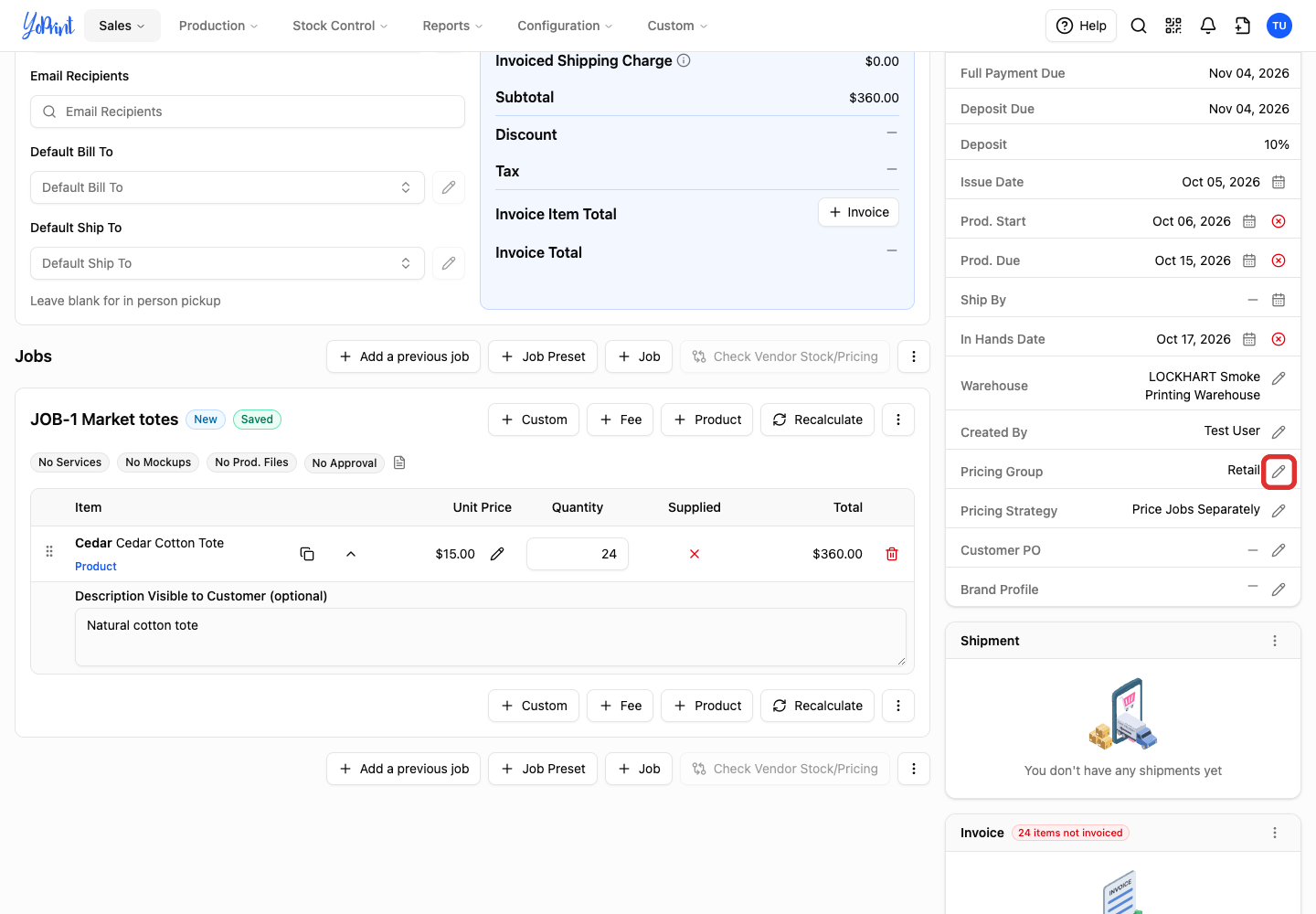
In the Overview card on the right, click the pencil beside Pricing Group.
-
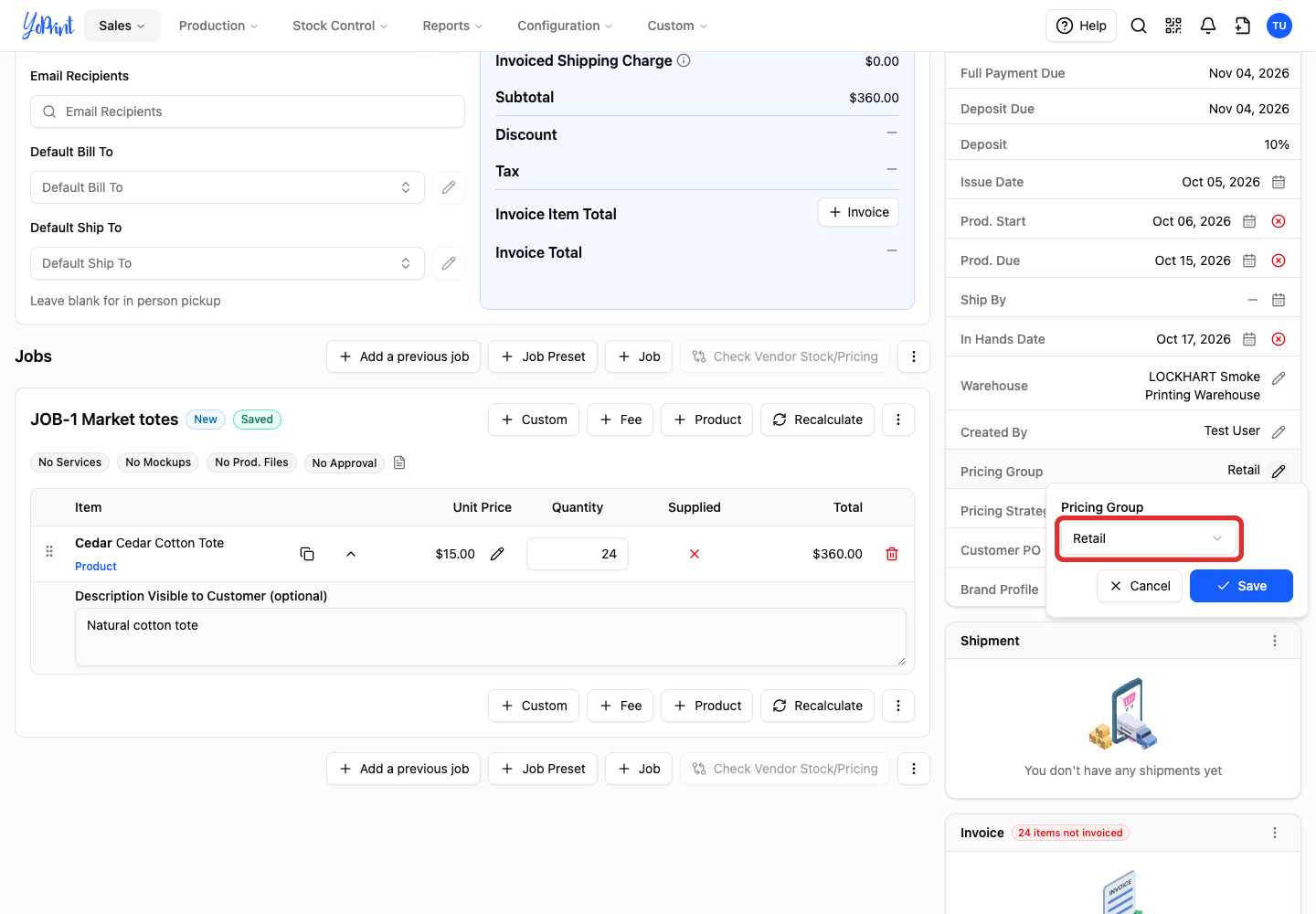
Open the Pricing Group dropdown.
-
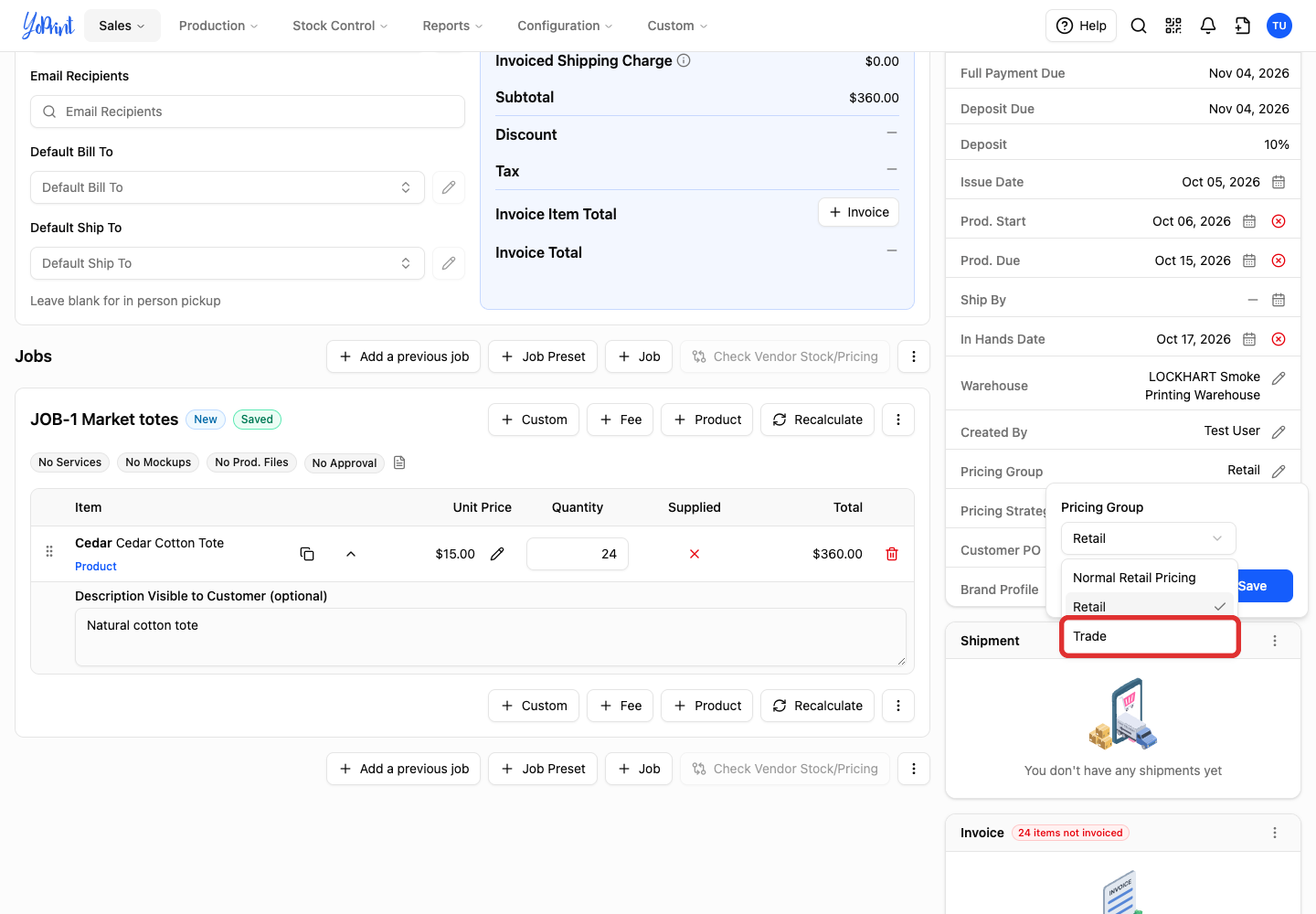
Select your pricing group. This example uses Trade.
-
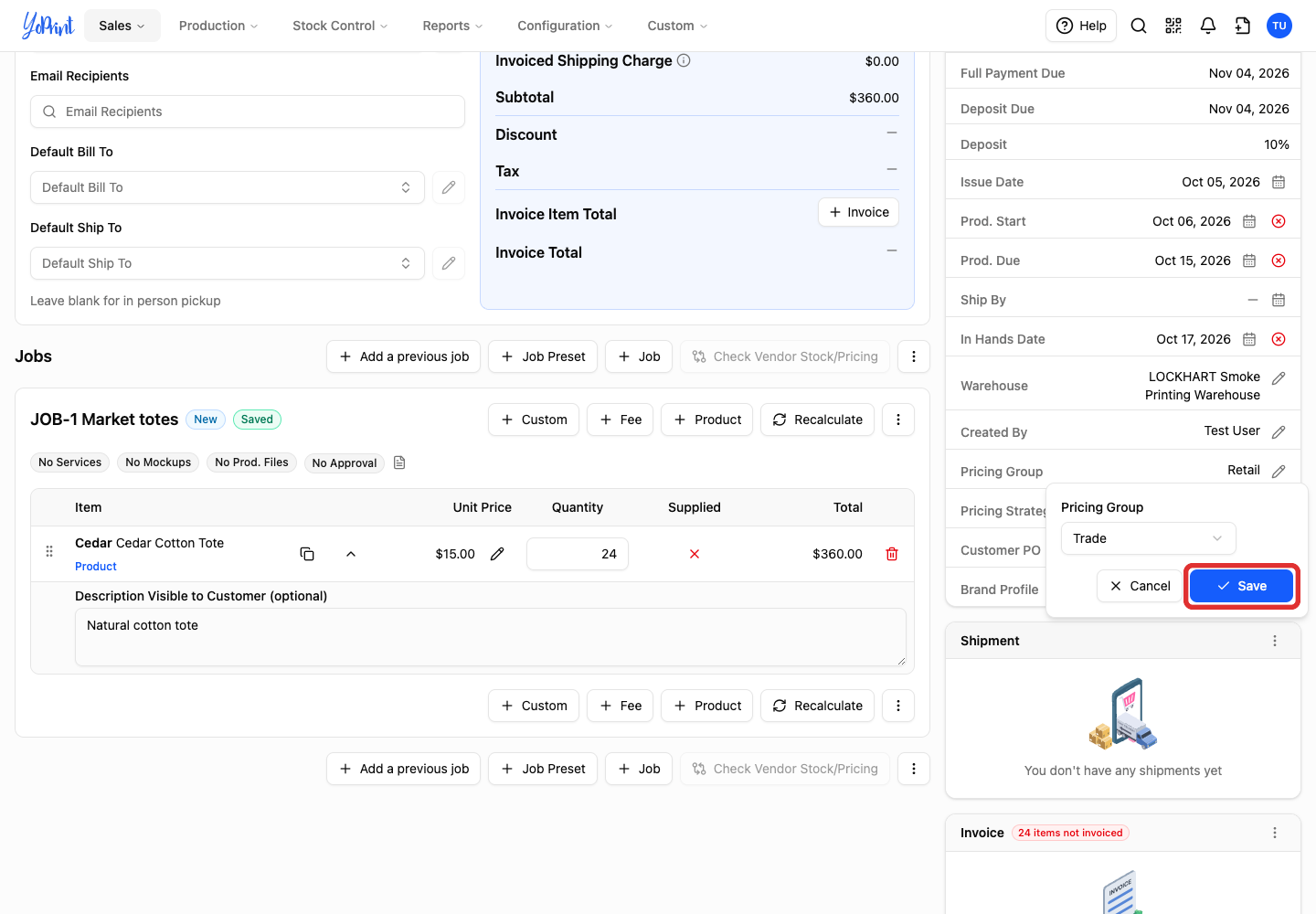
Click Save.
-
In the line items table, hover over the line's Unit Price to check the product price, markup, and service price.
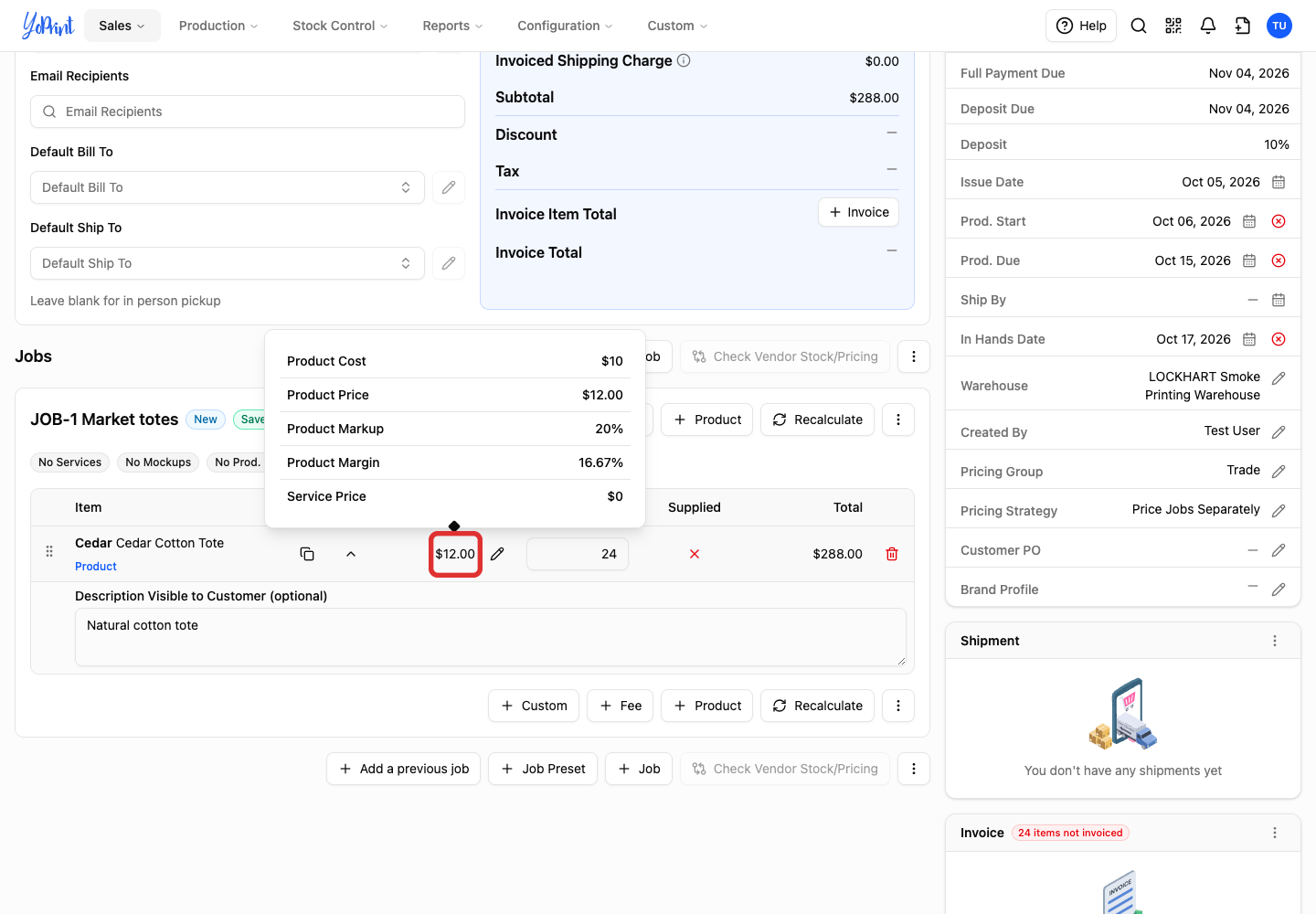
The unit price changes from $15 to $12. For 24 totes, the line total changes from $360 to $288. The quantity and the $10 base price stay the same. This job has no services, so the service price is $0.
Price calculations depend on the rules in your pricing groups. A fixed price override keeps its manual amount when you switch groups. Any lines or services without manual overrides recalculate under the new group's rules. To return to an earlier group, repeat these steps and select that group.
Pricing Strategy
Pricing Strategy appears beside Pricing Group. It controls whether quantities across jobs combine for volume discounts. It does not change your pricing group markup rules.
When the rest of the draft is ready, follow Publish a draft order.
Give one product line a different price
To set a custom price on a single line, use Pricing Override on that item. This leaves pricing group rules unchanged for the rest of the quote. This example continues in the same draft, with Trade selected.
-
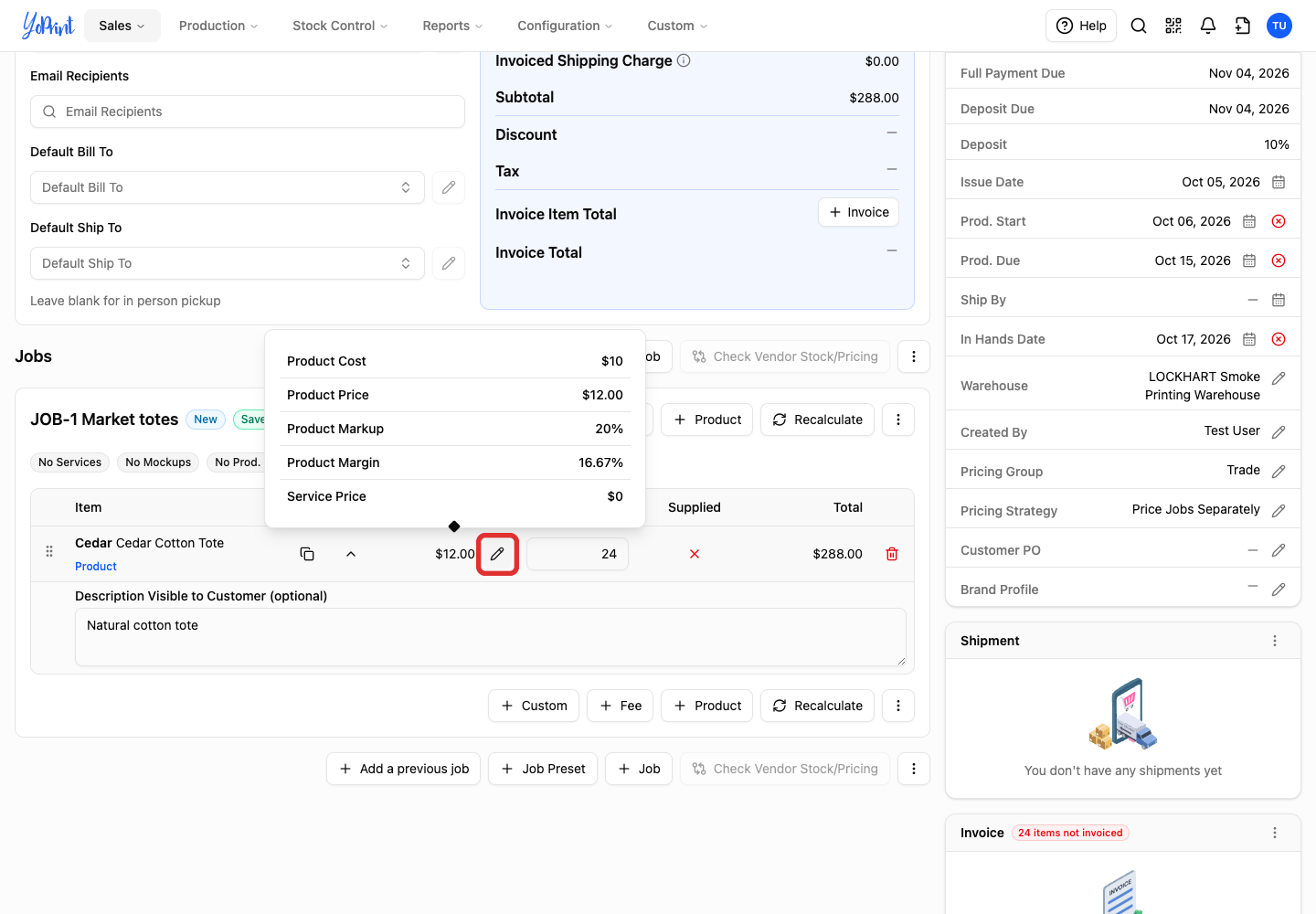
Click the pencil beside the line's Unit Price.
-
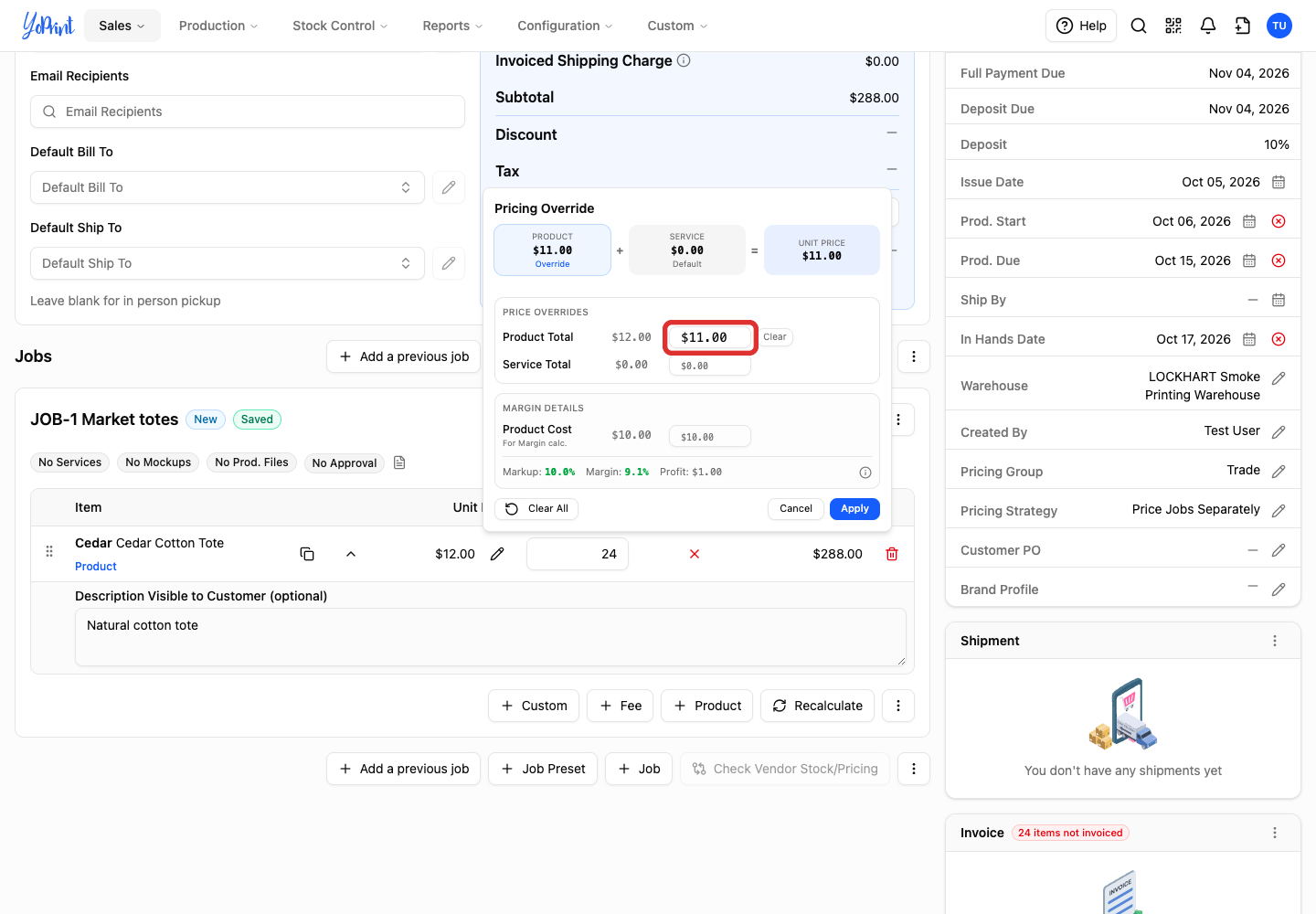
Enter the price per piece in Product Total. In this dialog, Product Total sets the unit price before services. For this example, enter 11 to charge $11 per tote before services.
-
Click Apply.
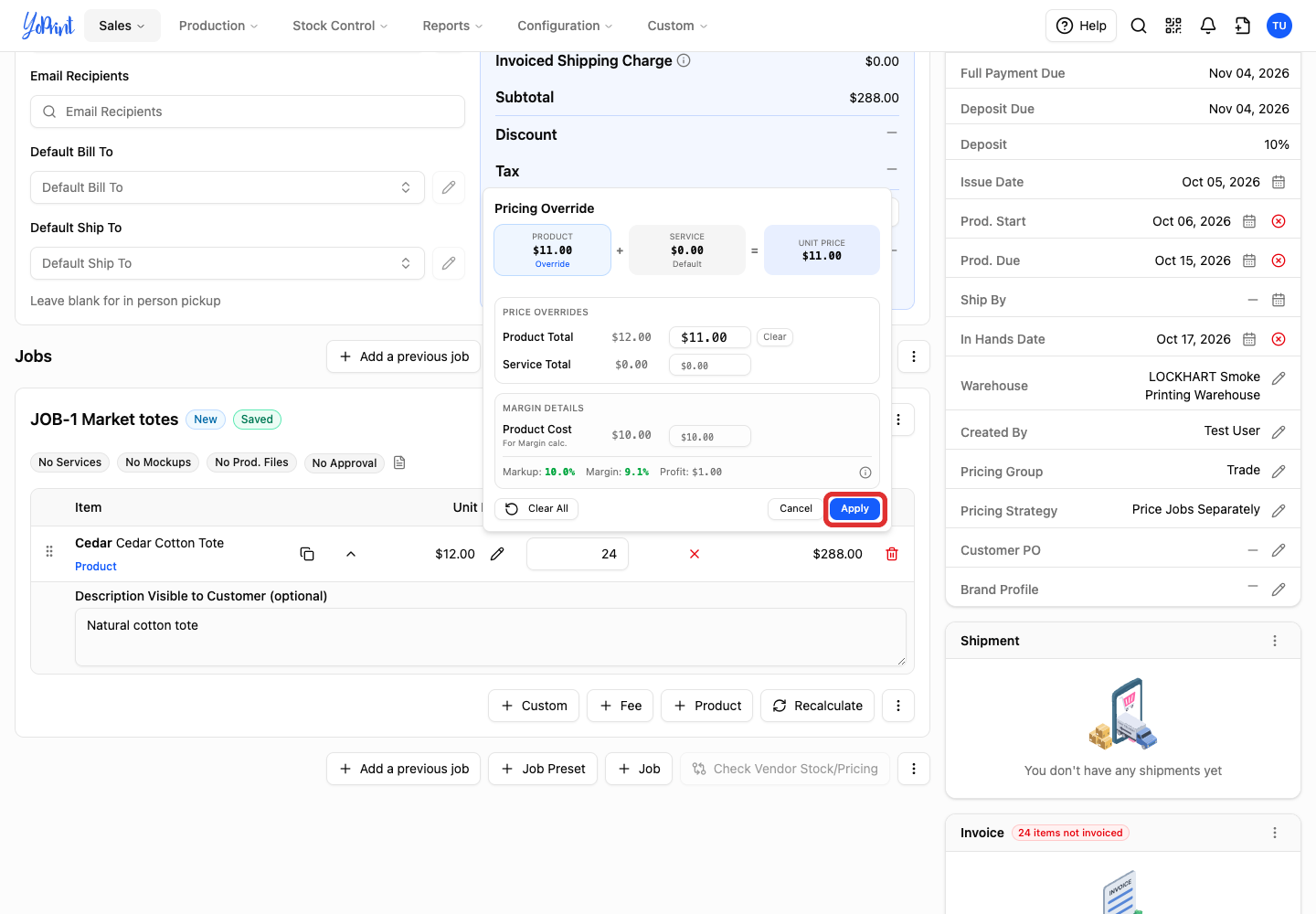
The line total updates to $264 for 24 totes. Trade remains the pricing group for the quote.
Clear a price override
To return the line to pricing group rates, click the pencil beside Unit Price, click Clear All, and click Apply.
To set service or cost overrides, see Override Line Item Pricing.
Change the group on a published quote or sales order
Open the published quote or sales order. Published records display a financial summary in the main details card instead of the draft Overview card. Saving the group changes its calculated prices immediately. This example uses a published quote with the same 24-tote setup.
-
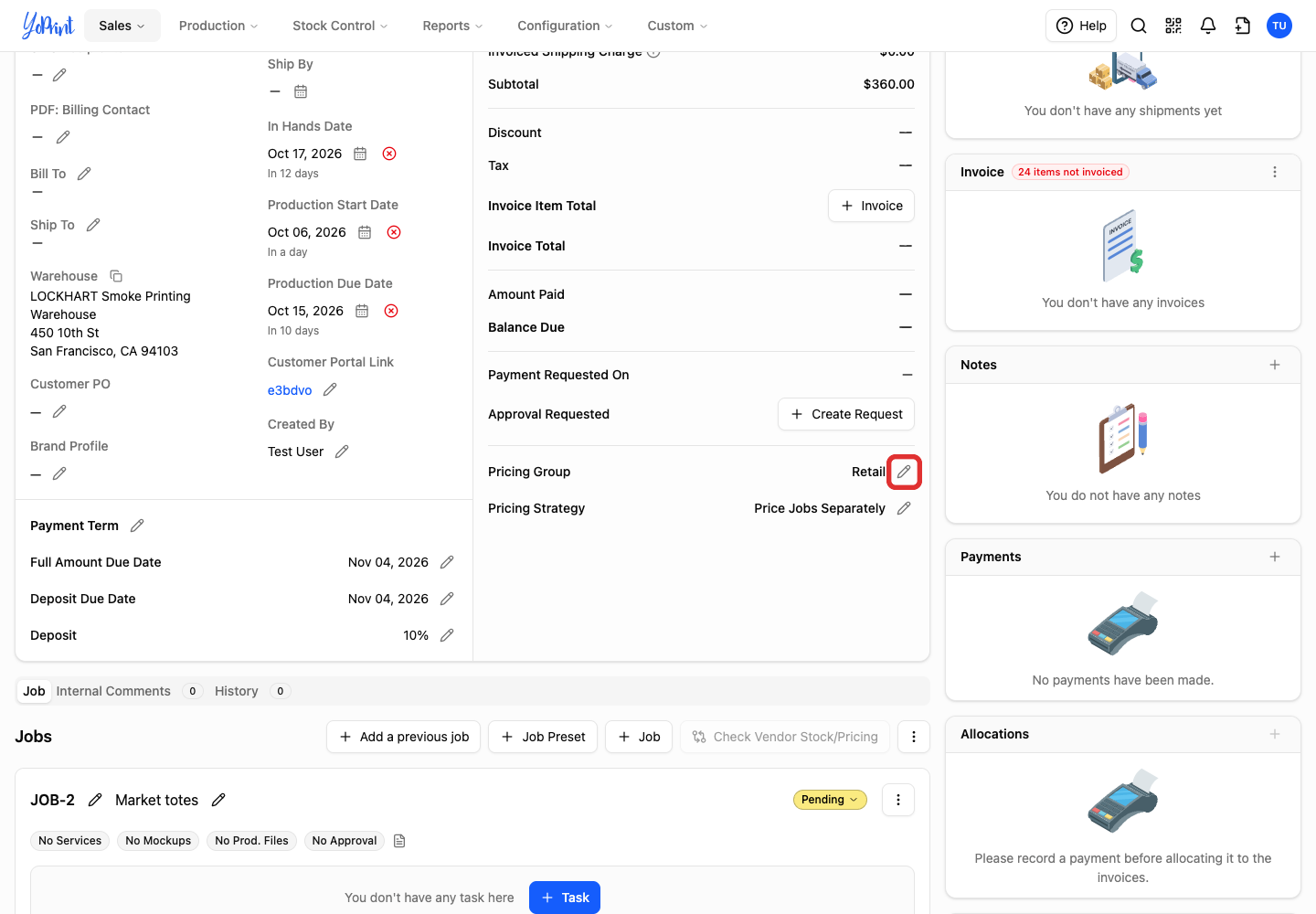
In the financial summary in the main details card, click the pencil beside Pricing Group.
-
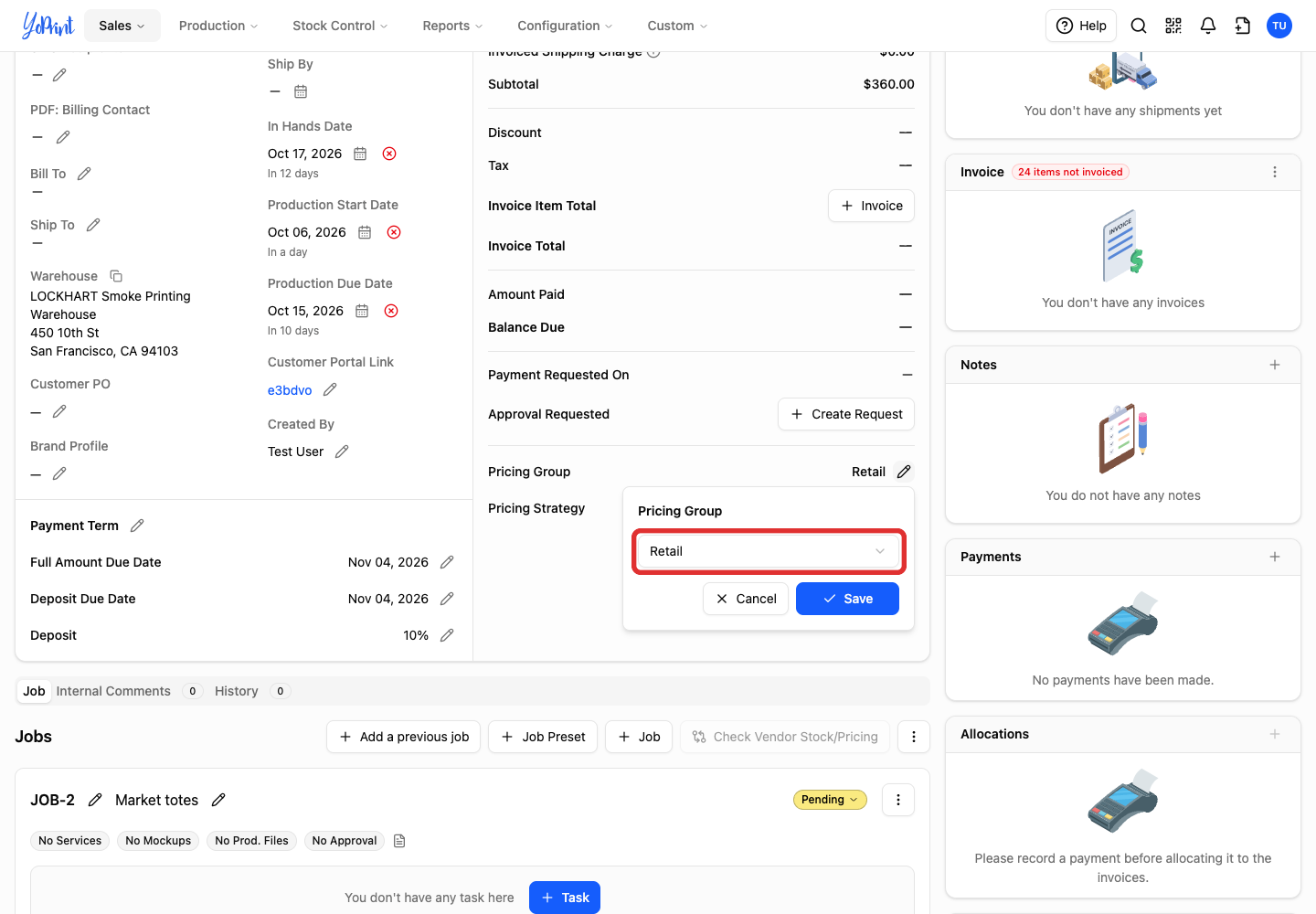
Open the Pricing Group dropdown.
-
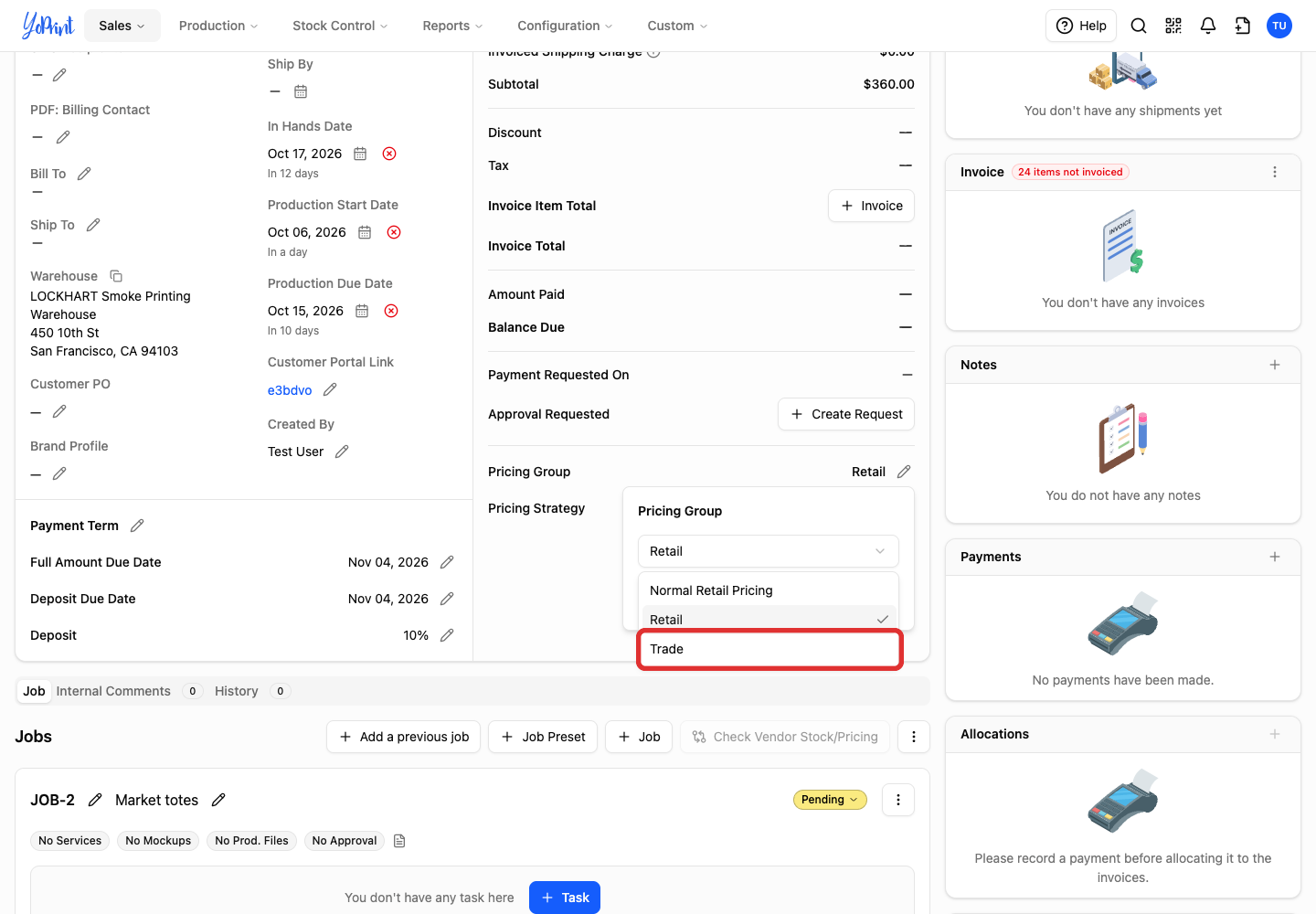
Choose the group you want to use.
-
Click Save.
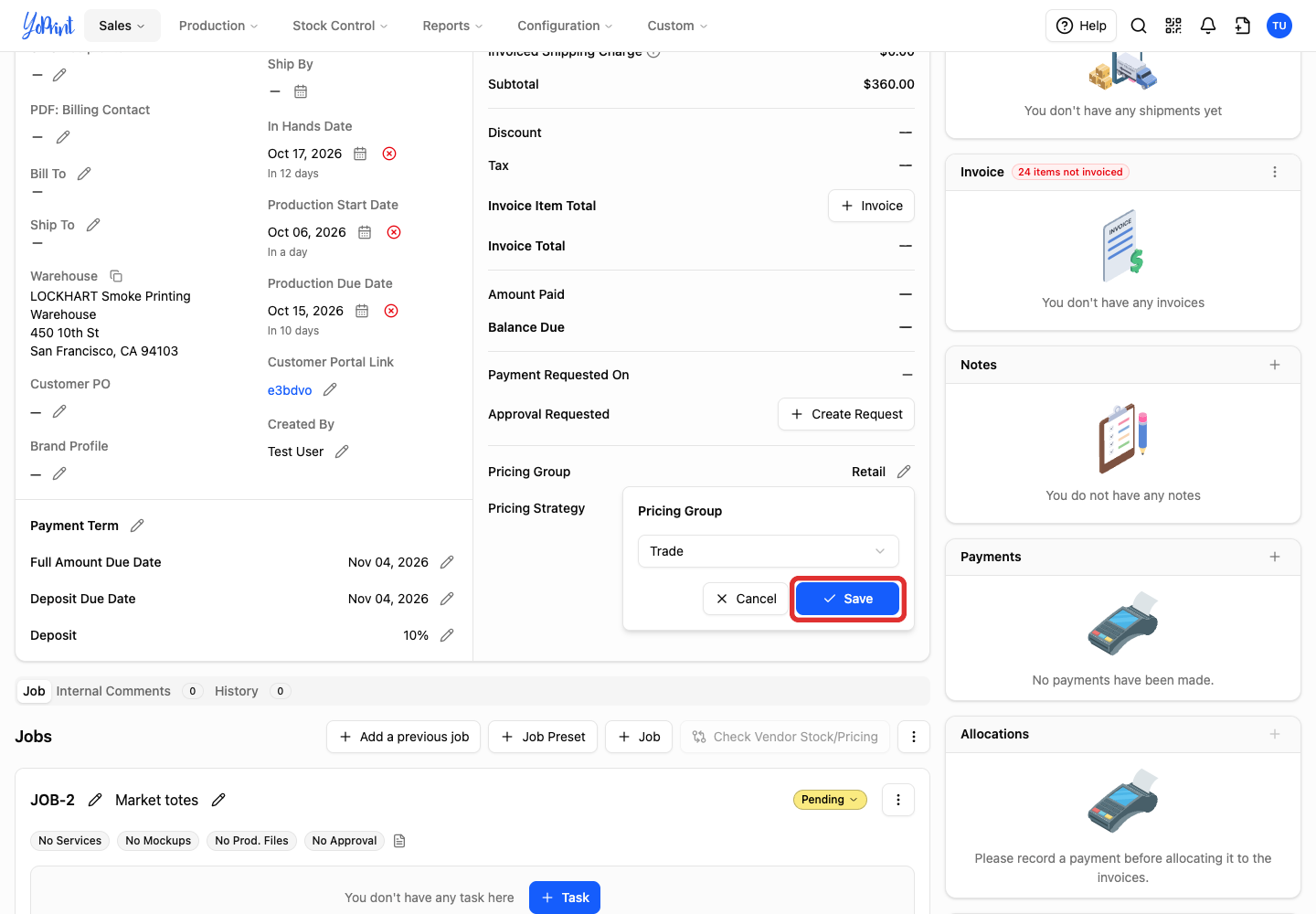
The quote updates from Retail to Trade. The unit price changes to $12, and the line total changes to $288. Check the updated prices before sharing the quote with your customer.