Delete Orders and “Reset” Order Numbers
In this article
Remove an unwanted sales order
YoPrint removes orders one at a time. There is no bulk-delete or reset-all button. To delete an order, use Void Sales Order. This hides the order from active lists while keeping it recoverable under Restore Deleted.
Go to Sales > Sales Order, or open the Sales Orders list.
Check for payments first
Voiding a sales order refunds payments to customer credit in YoPrint rather than returning funds through your payment gateway. Check the Paid column in the list or open the order before continuing.
-
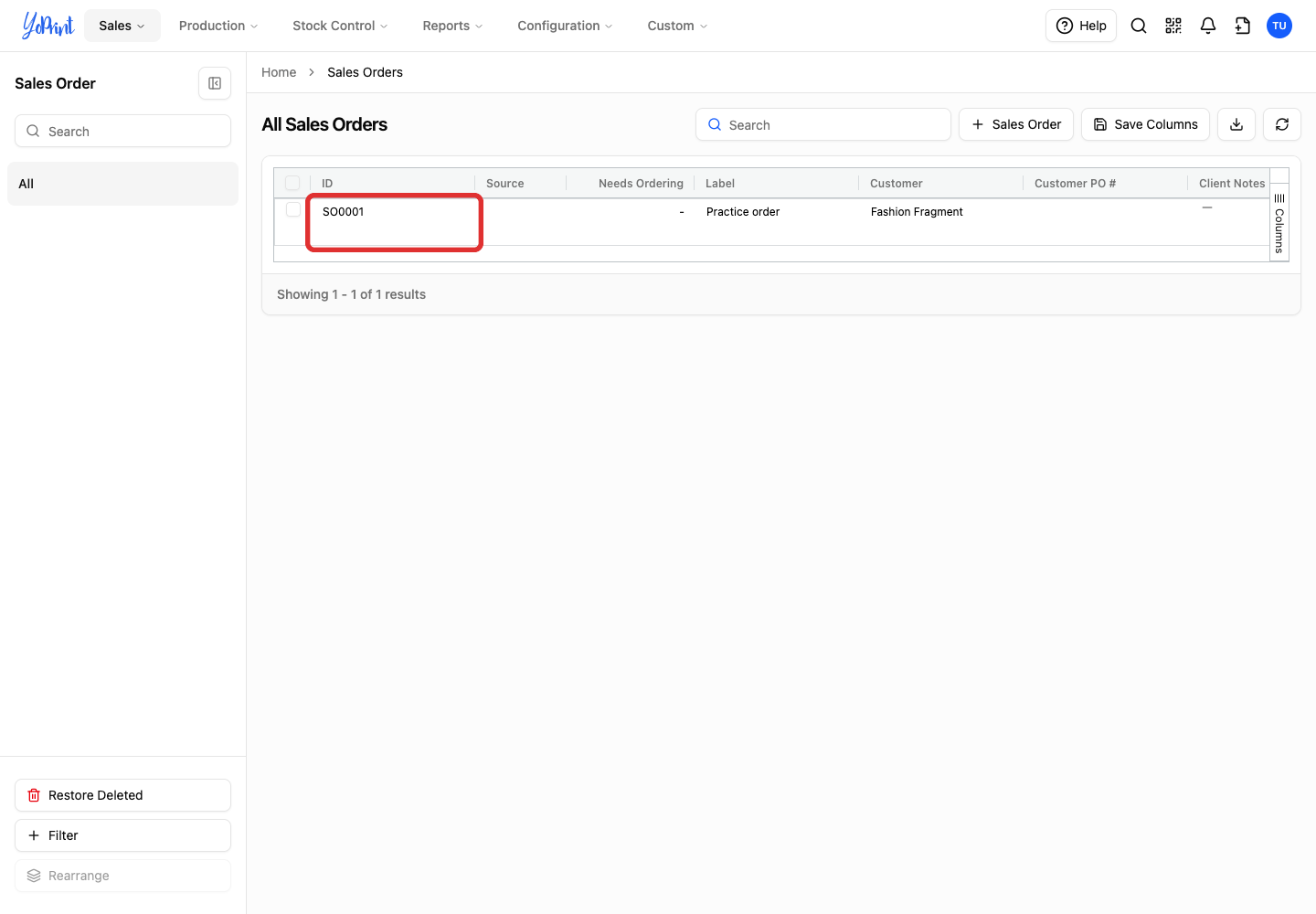
Double-click the order you want to remove. A single click selects the row without opening it.
Narrow the list with saved filters
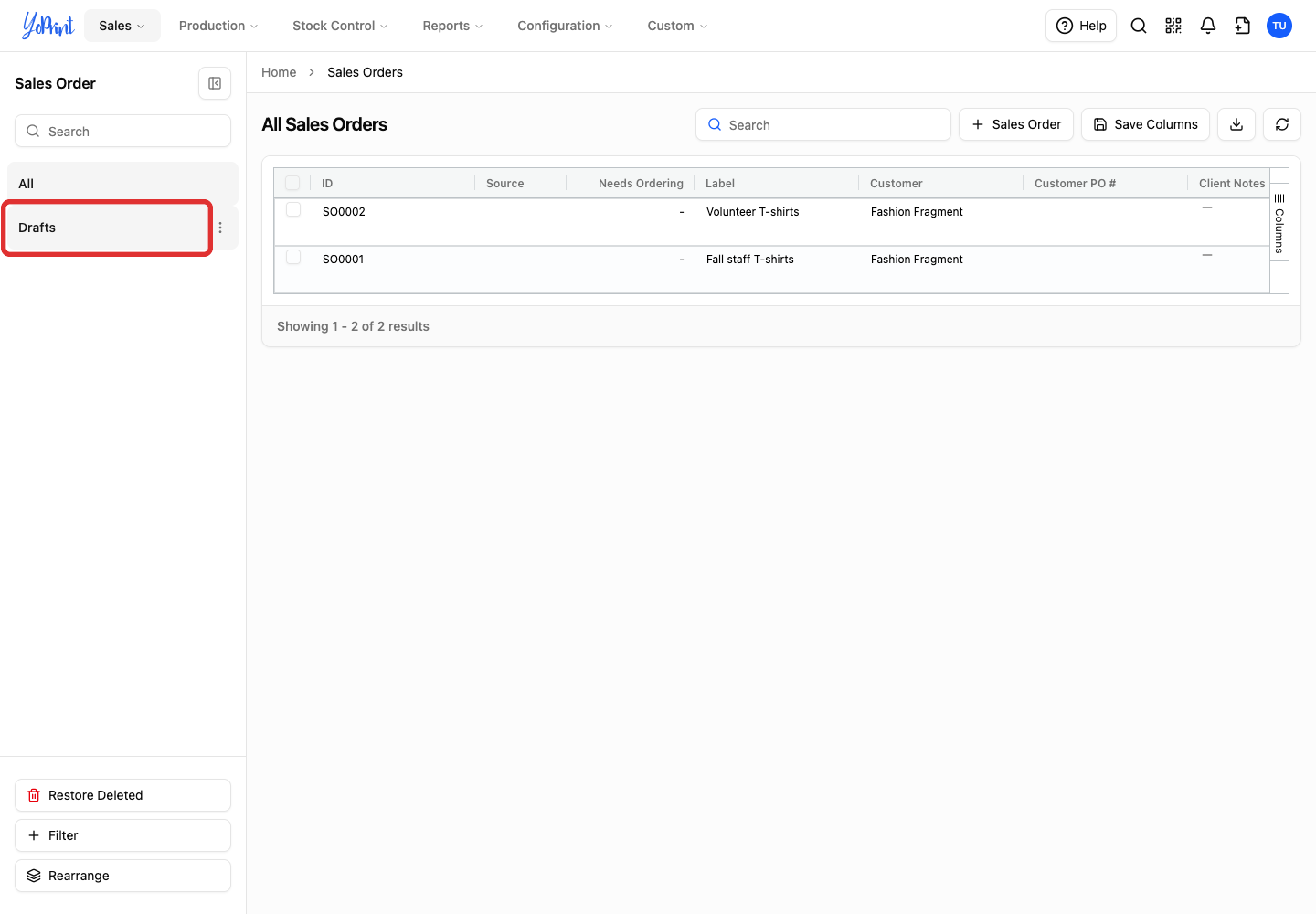
Saved filters in the left pane (such as one you make for drafts) narrow the list so you can select the right orders in one go. To create or manage saved filters, see Managing Filters.
-
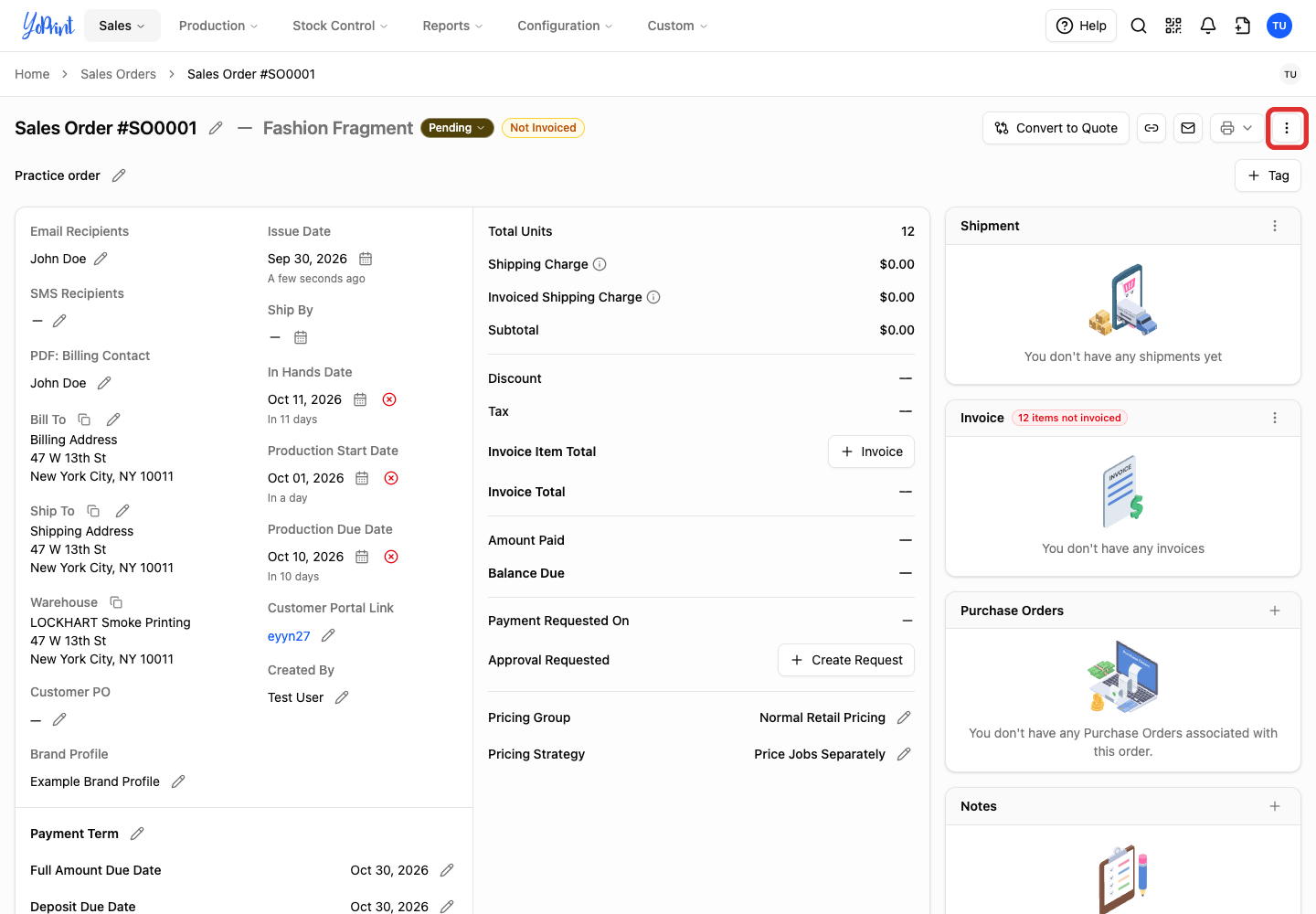
In the sales order drawer header, click the three-dot Quick Actions button.
-
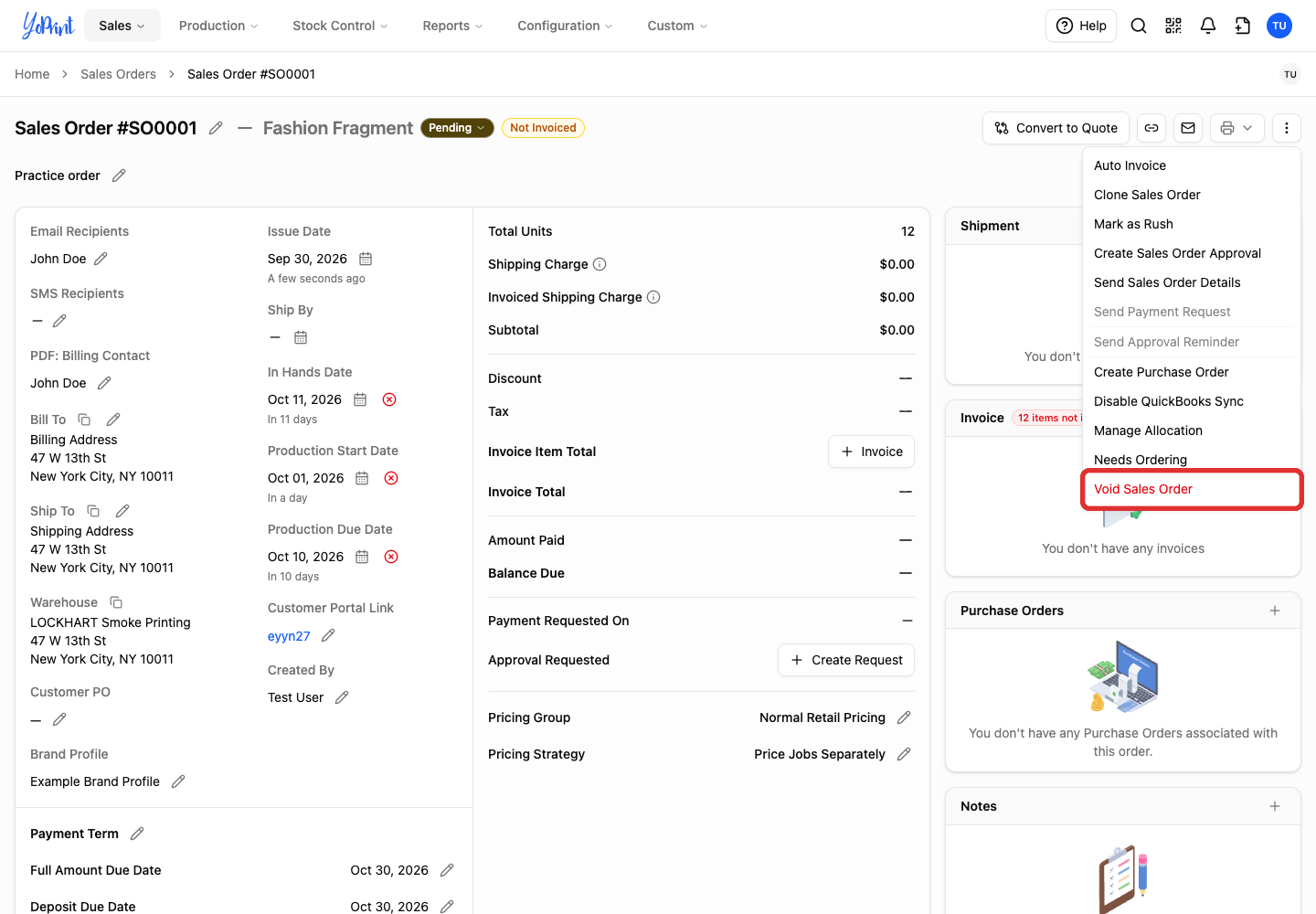
Choose Void Sales Order.
-
Check the order number, then click Void sales order to confirm. Click Cancel if you selected the wrong order.
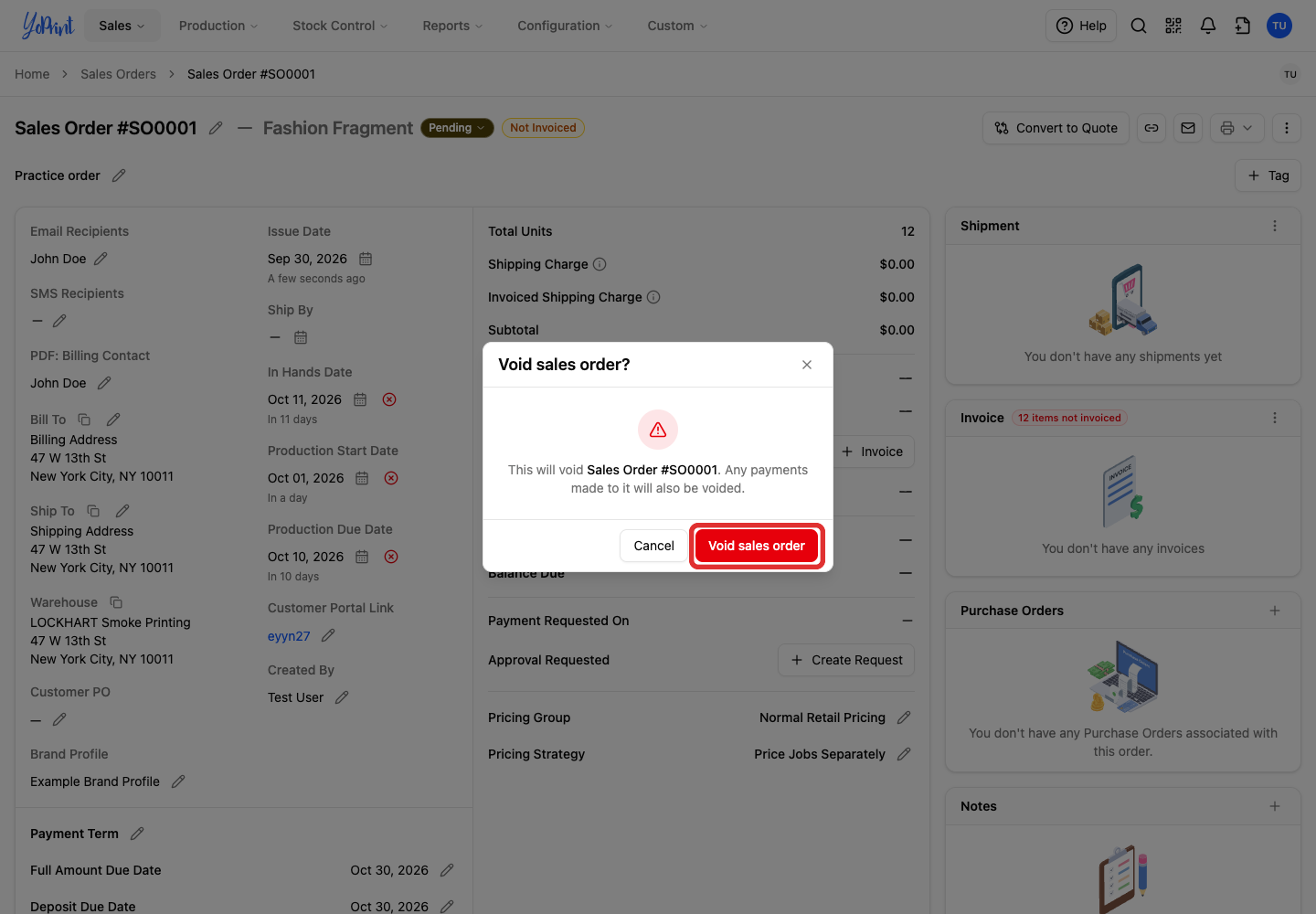
The order disappears from the active list. Repeat these steps for each unwanted order.
For purchase orders, follow Voiding/Removing a Purchase Order.
Void an order straight from the list
You can void an order straight from the list without opening it first. From Sales > Sales Orders or Sales > Quotes, open the row's More actions menu or right-click the row, choose Void, check the order number in the confirmation, and confirm. YoPrint removes orders one at a time; there is no bulk voiding from the list. The Void option may be unavailable for your role or that order.
-
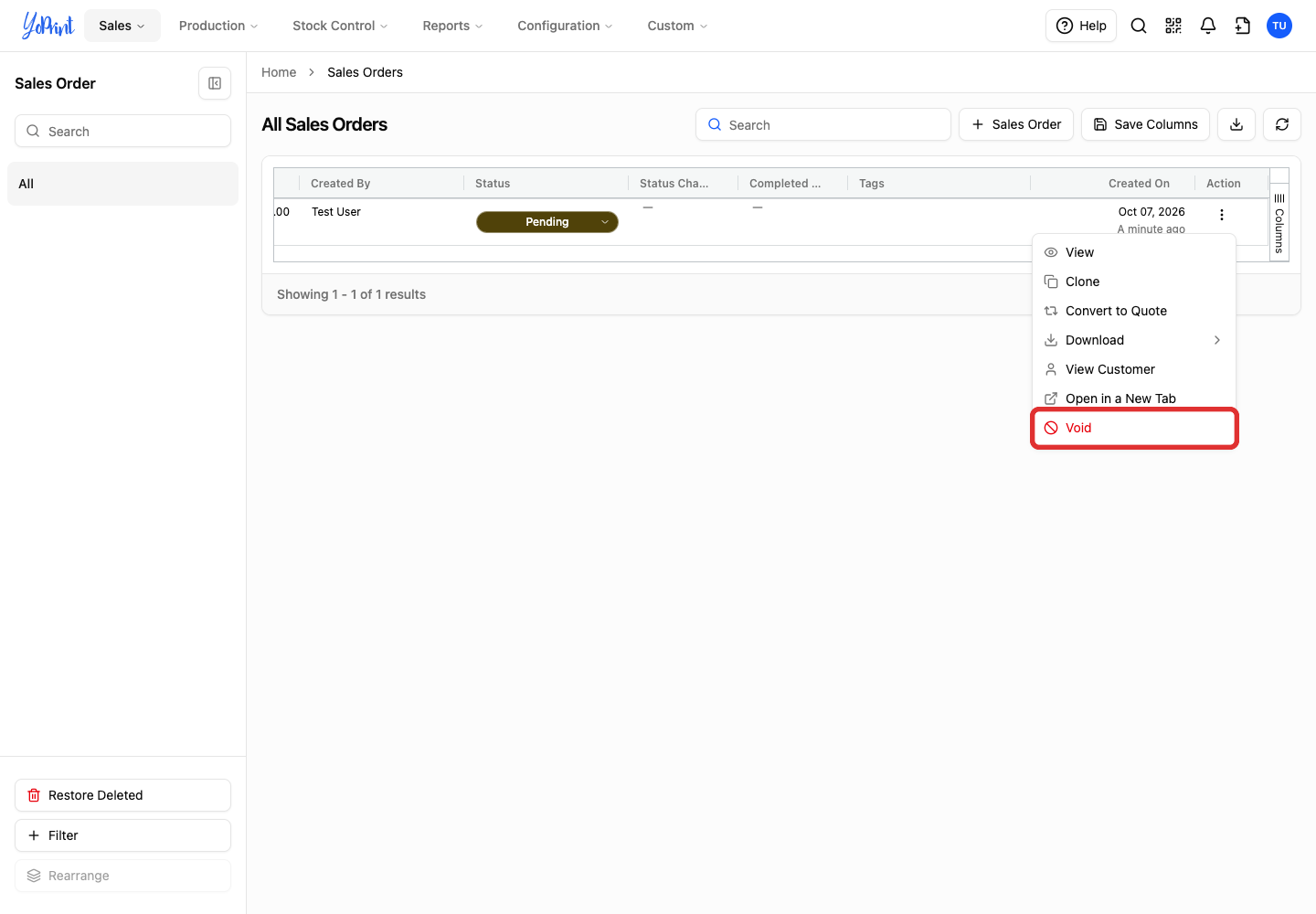
On Sales > Sales Orders, choose Void from the order row's More actions menu (the three dots).
-
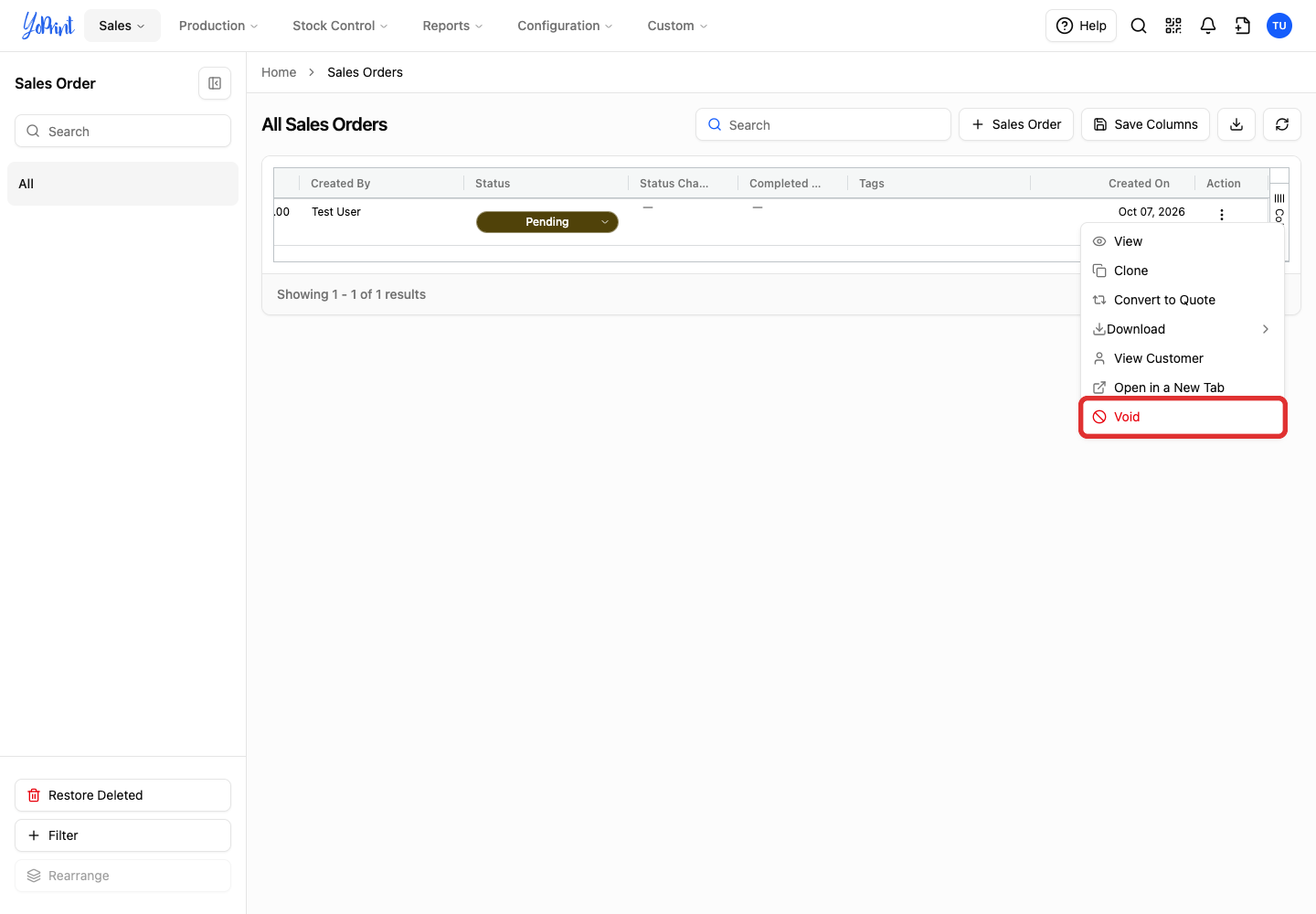
Or right-click the sales order row and choose Void.
-
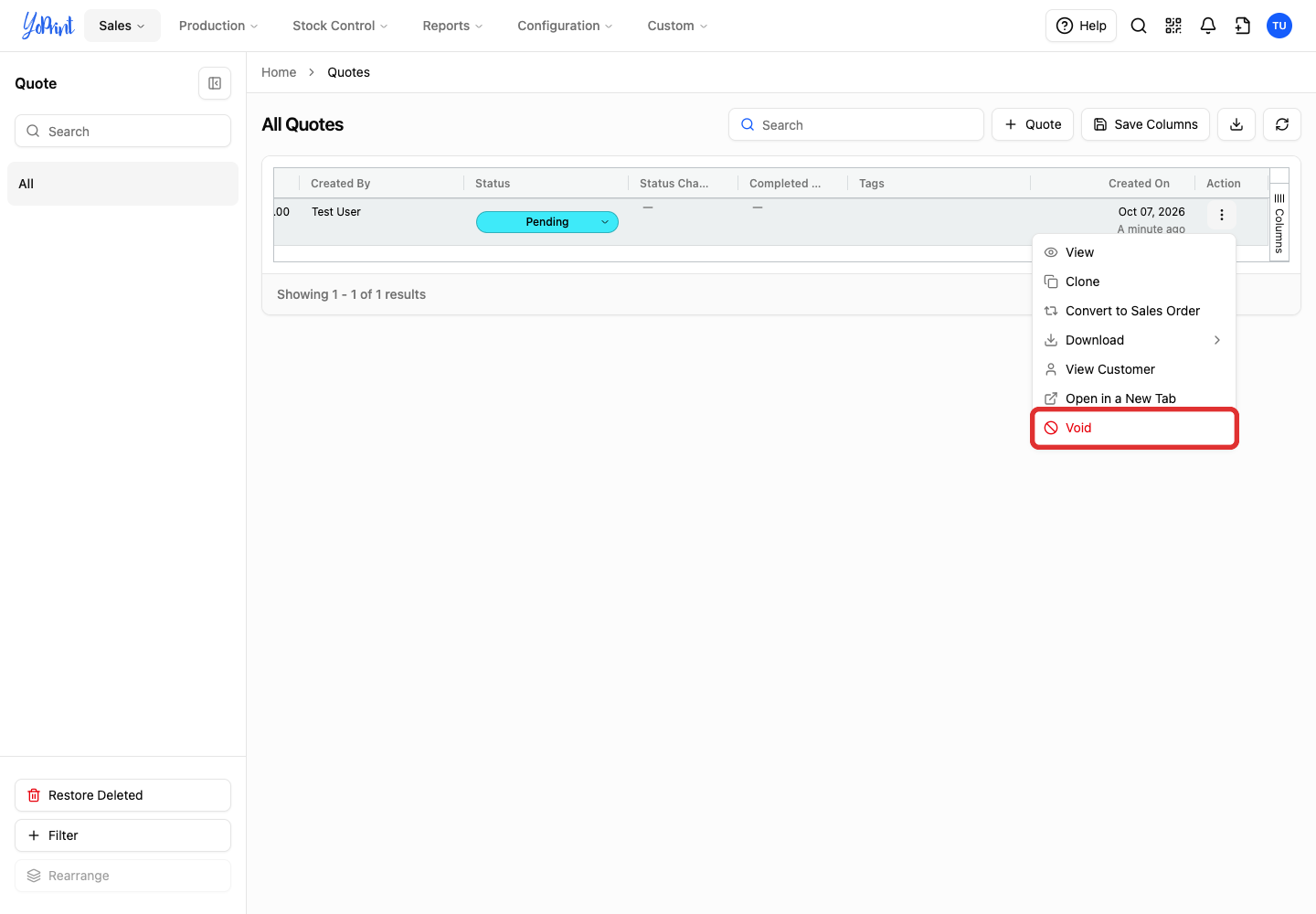
On Sales > Quotes, choose Void from the quote row's More actions menu.
-
Check the order number in the confirmation, then click Void to confirm. The confirmation also warns that any payments made to the order will be voided.
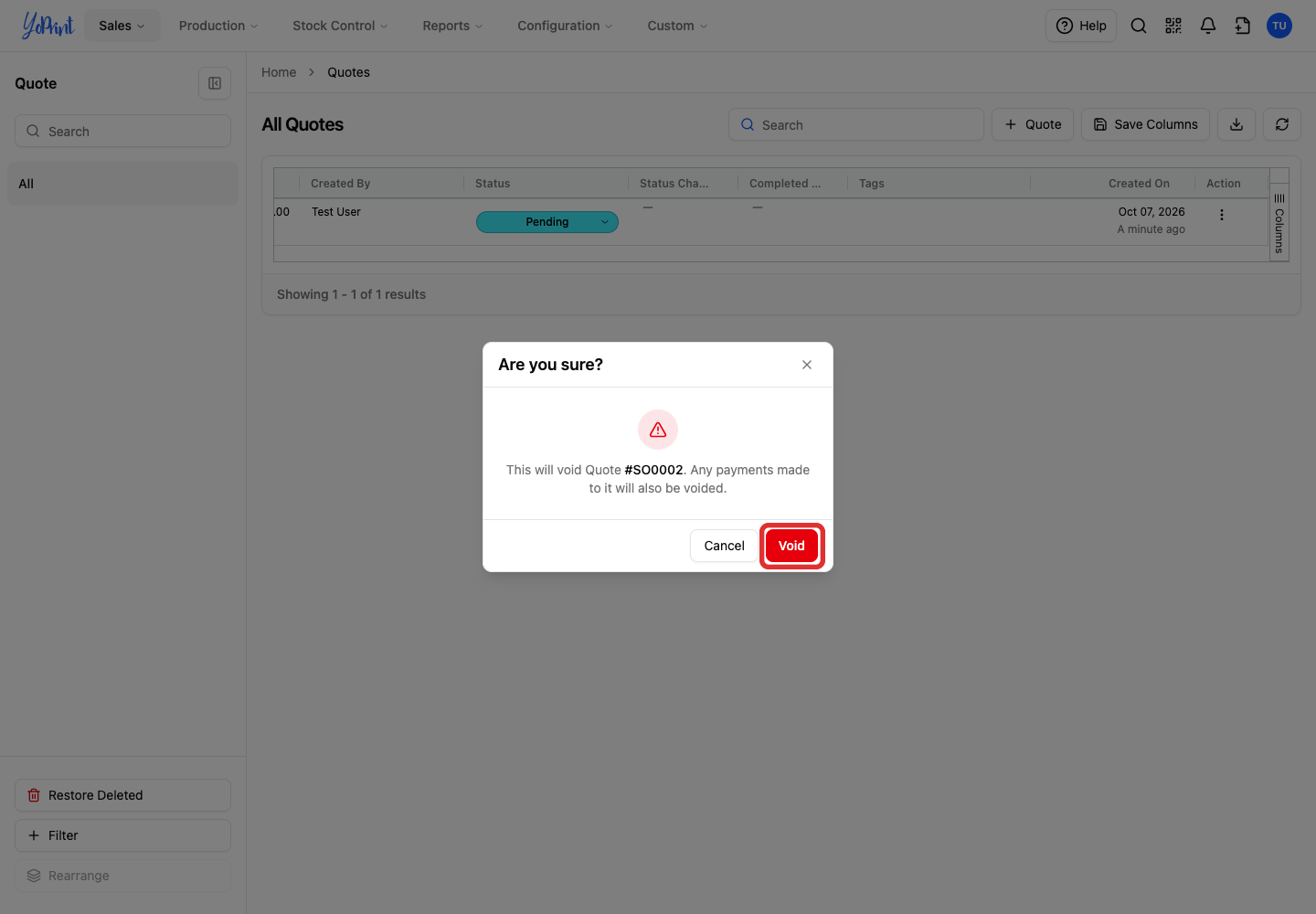
The voided order disappears from the list. To restore an order voided by mistake, follow Restore Deleted Orders.
Restore an order removed by mistake
-
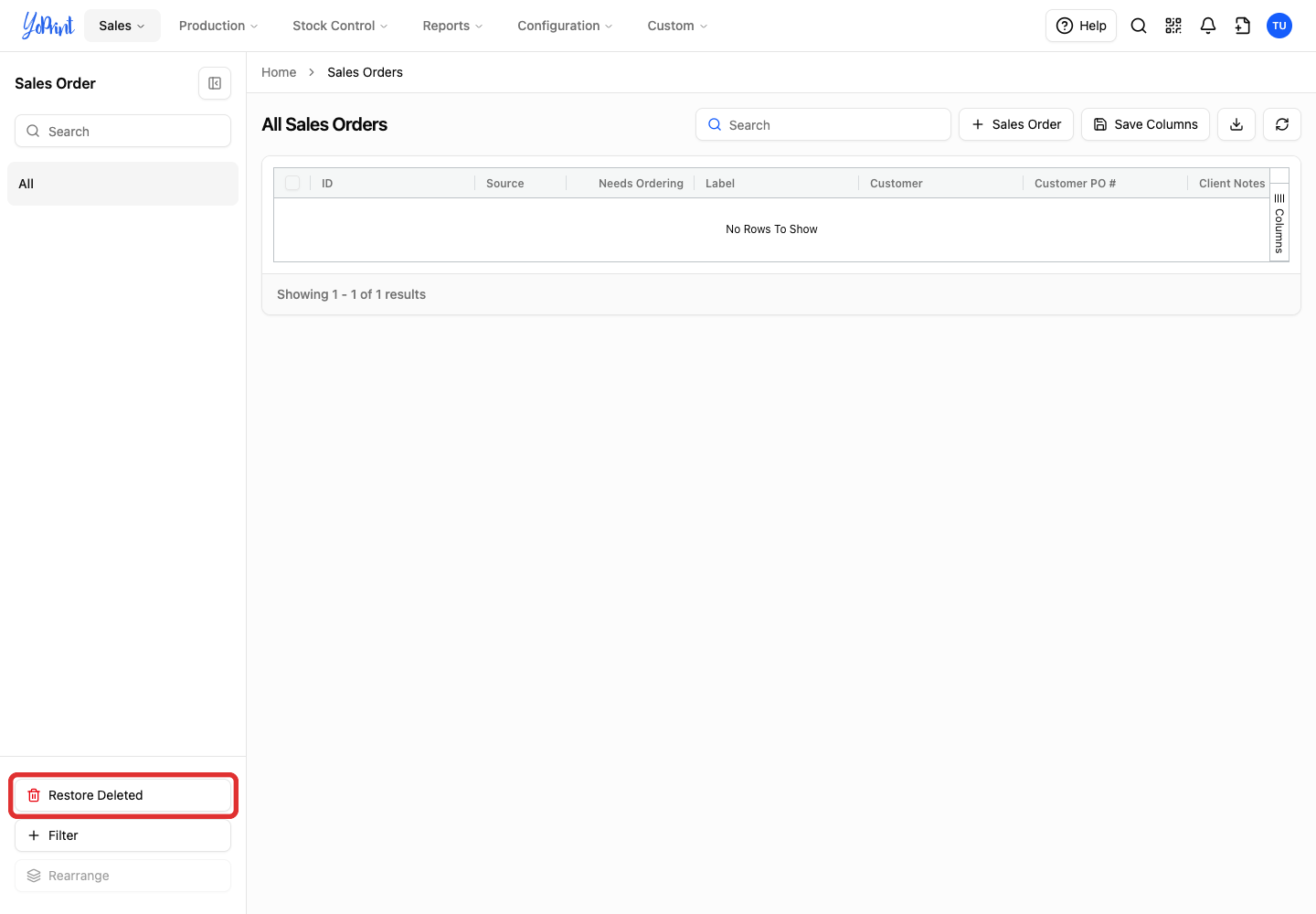
On the Sales Orders list, click Restore Deleted in the left sidebar.
-
Find the order and click Restore on its row.
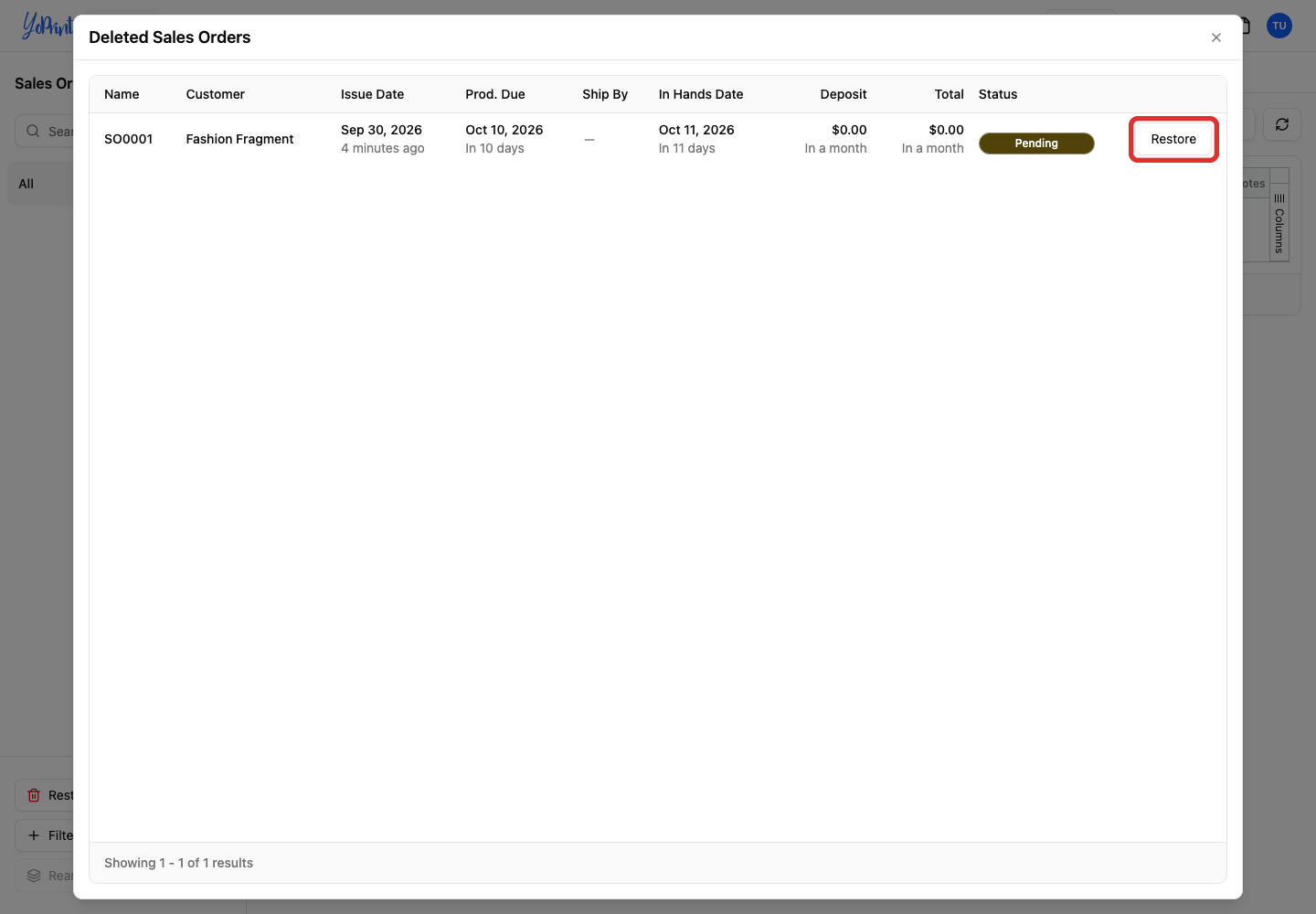
YoPrint opens the restored order in full view with its line items, jobs, and pre-void status. Line items return as uncommitted inventory, and payments previously refunded to customer credit do not return to the order. For more details, see Restore Deleted Orders.
Change the next order number
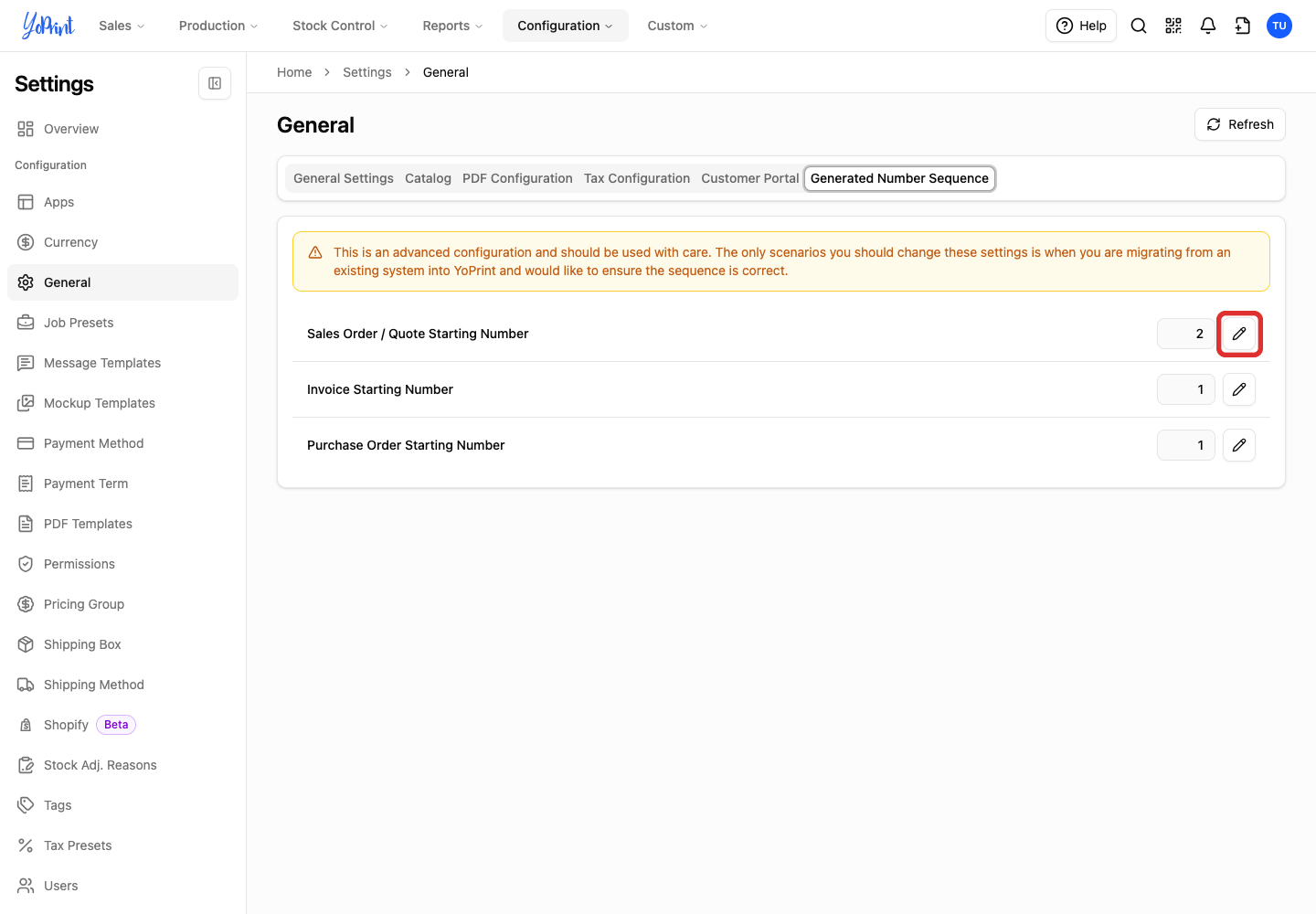
Removing an order does not reset the numbering sequence. The Sales Order / Quote Starting Number controls the next number for both sales orders and quotes. Quotes and sales orders share one counter, so each new quote or order takes the next number in sequence. Changing it does not renumber existing orders.
Use this setting with care
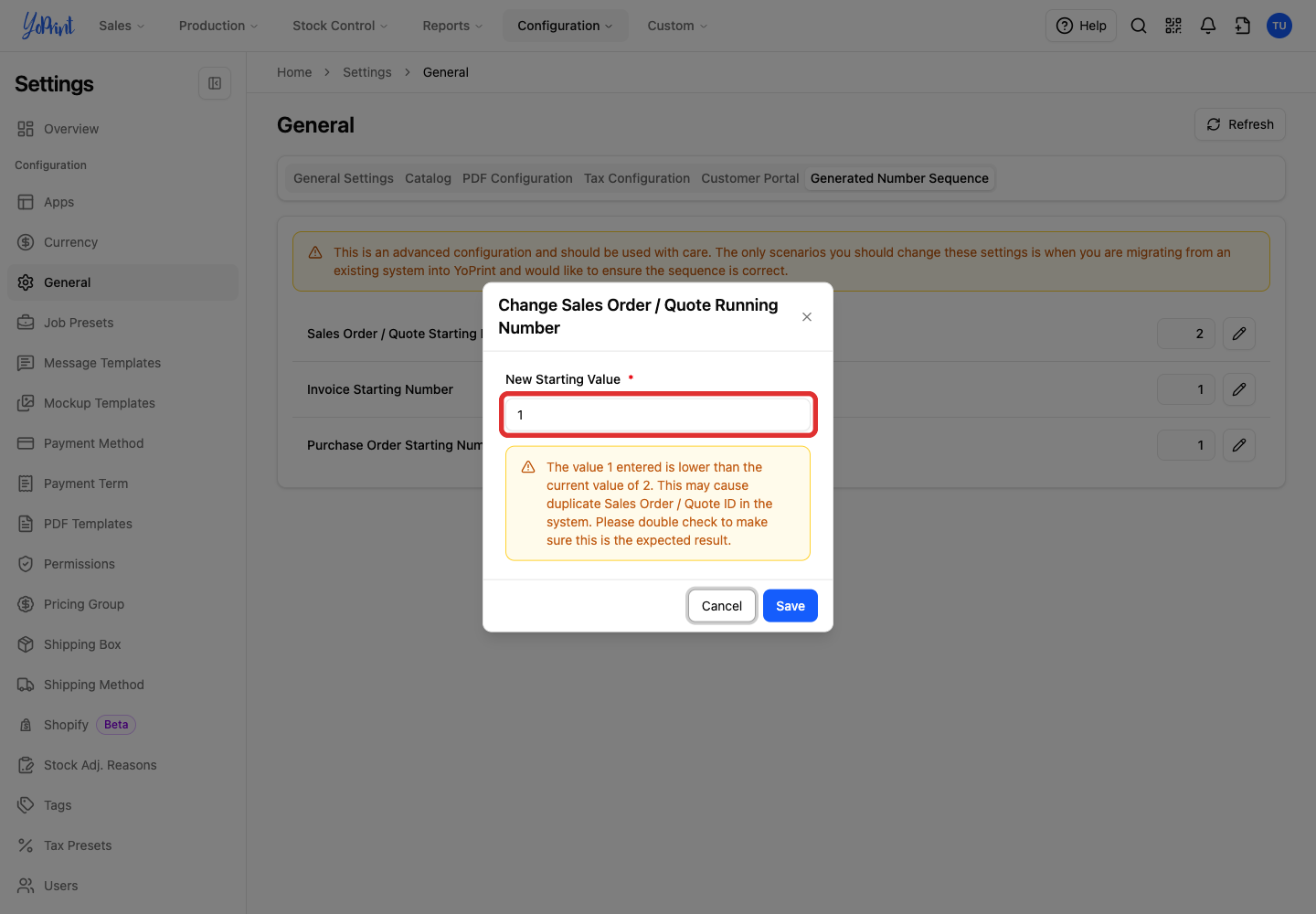
YoPrint reserves this advanced setting for aligning your numbering when migrating from another system. Lowering the value can create duplicate order IDs. If you cleared all practice orders, you can safely set the value to 1 for your first live order. If existing or restored orders already use that number, keep the value higher to avoid duplicate order IDs.
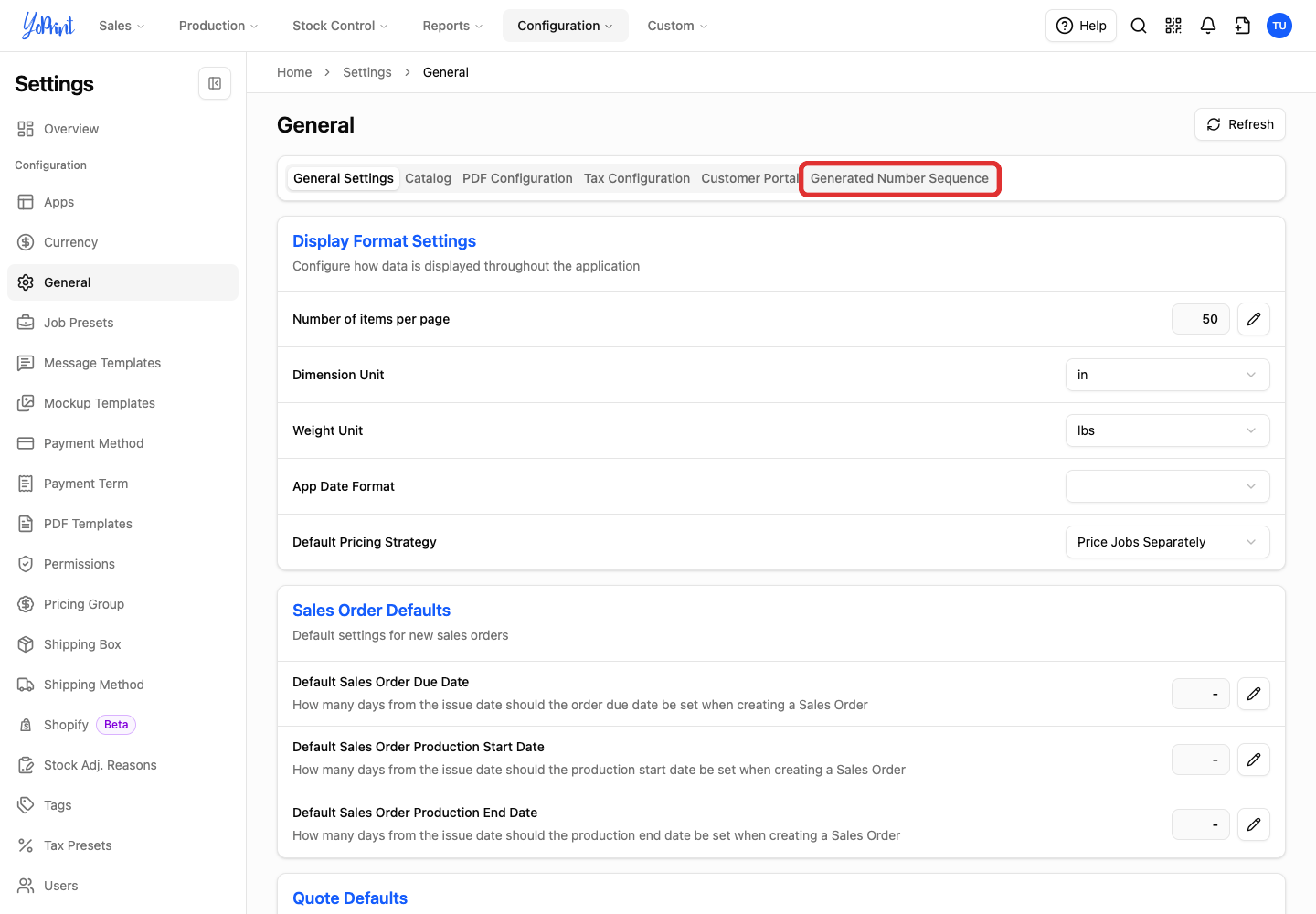
On the top bar, click Configuration > Settings, then select General from the settings sidebar. Or open General settings directly.
-
Click Generated Number Sequence.
-
Click Edit (the pencil icon) beside Sales Order / Quote Starting Number.
-
In the Change Sales Order / Quote Running Number dialog, enter the next number in New Starting Value. For example, enter 1 to start the sequence at 1.
-
Click Save.
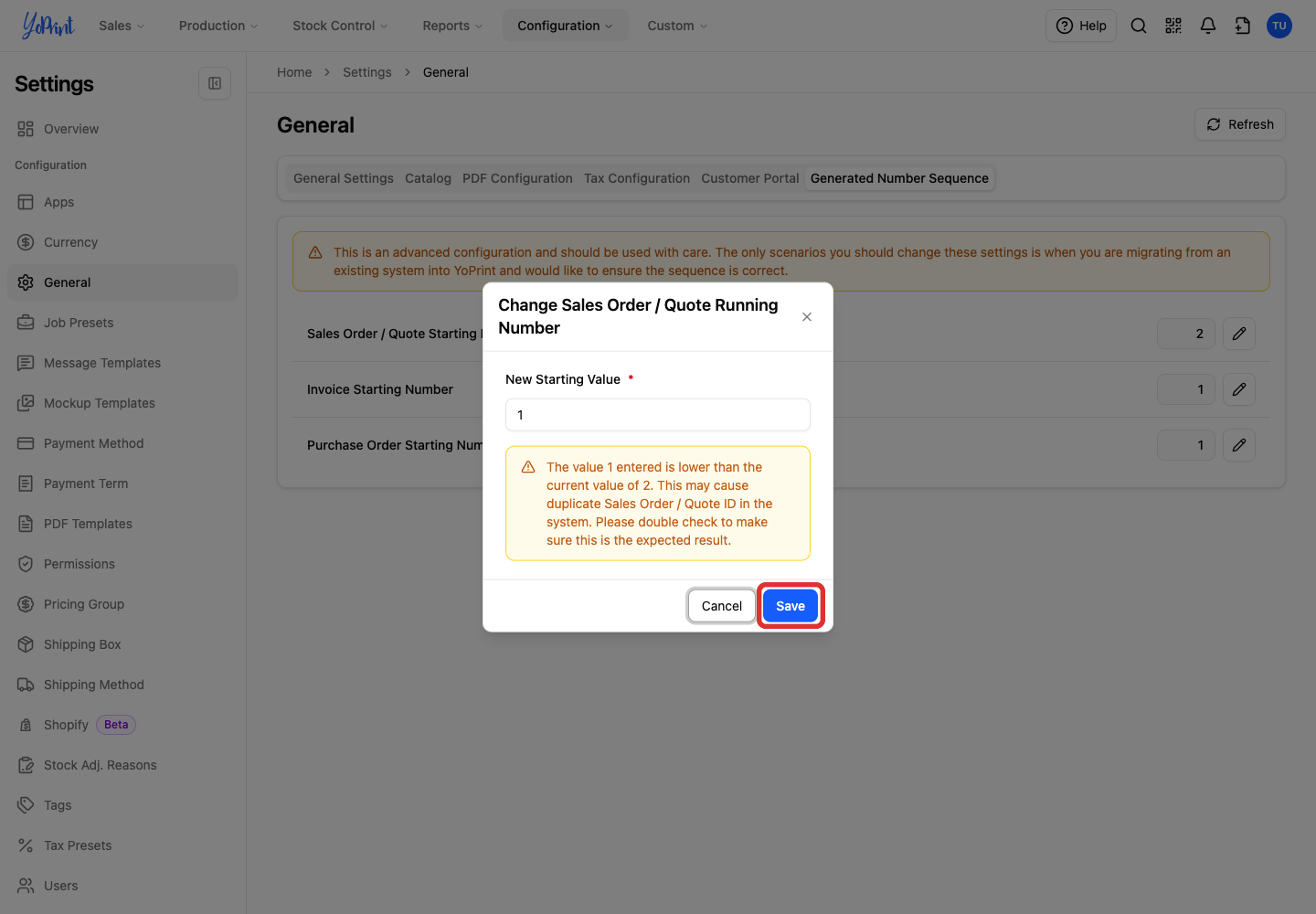
The new value appears in General settings and is used for the next order or quote you create. To change starting numbers for invoices or purchase orders, edit Invoice Starting Number or Purchase Order Starting Number on the same tab.