How Shopify Products Map to YoPrint Products and Blanks
In this article
Shopify order lines arrive as custom products in YoPrint. Because Shopify products do not map to catalog blanks automatically, choose the blanks your shop needs on a linked purchase order. Create a purchase order only when you need to purchase blanks from a vendor. For the import process, see How Shopify Orders Arrive in YoPrint.
Understand the imported product
Find your imported Shopify orders under Sales > Sales Orders. Each Shopify line arrives as a standalone custom product line. It carries the Shopify product name, unit price and quantity. YoPrint does not look up its catalog or match Shopify SKUs. Products and inventory do not sync in either direction. Manage stock in each app separately.
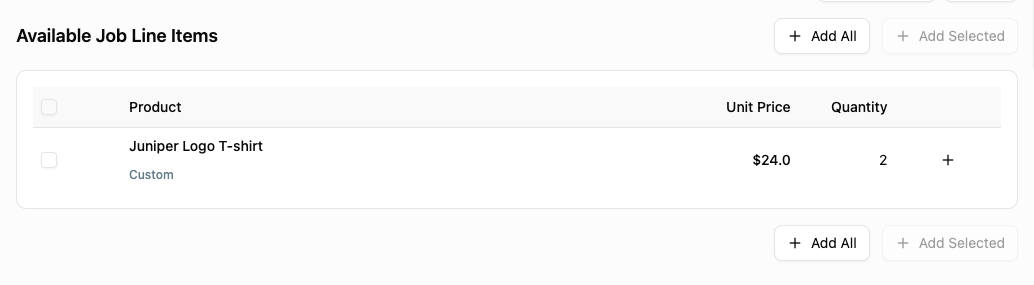
On the imported sales order, Available Job Line Items shows the product marked Custom. Imported lines sit in Available Job Line Items until you assign them to production jobs, but you can create a purchase order right away. In this example, the customer ordered two Juniper Logo T-shirts at $24 each. The line describes what the customer bought; you choose the blanks to buy for it.
Create a purchase order for the blanks
Blanks are the undecorated products you buy for the order. A Shopify line does not select blanks or create a purchase order automatically. Quick Actions copies the sales order's items as custom rows, but you can also click Item to add catalog blanks from integrated vendors. This example uses a custom item on the purchase order for two blank T-shirts.
Start on your imported sales order.
-
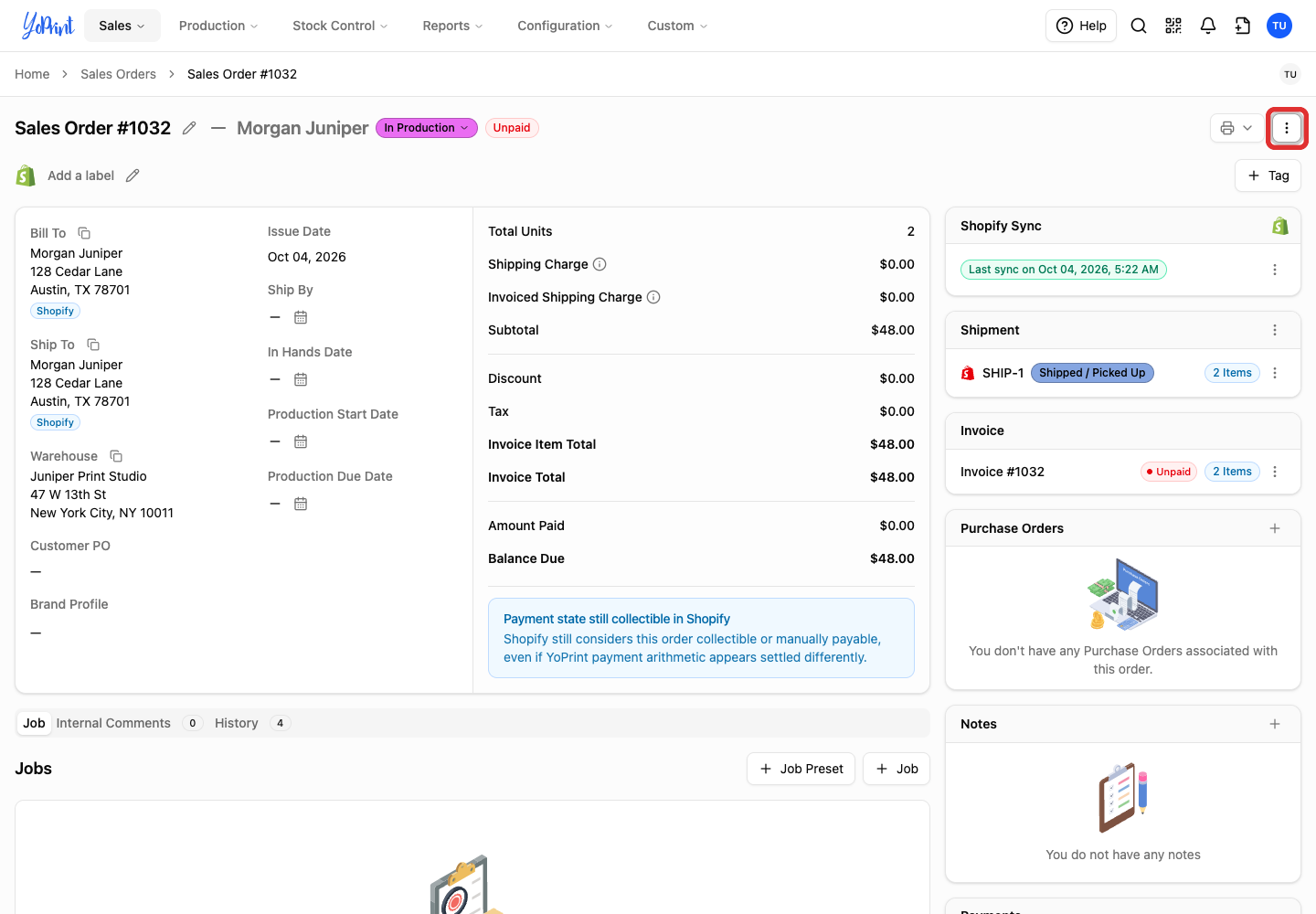
Open Quick Actions at the top right of the sales order.
-
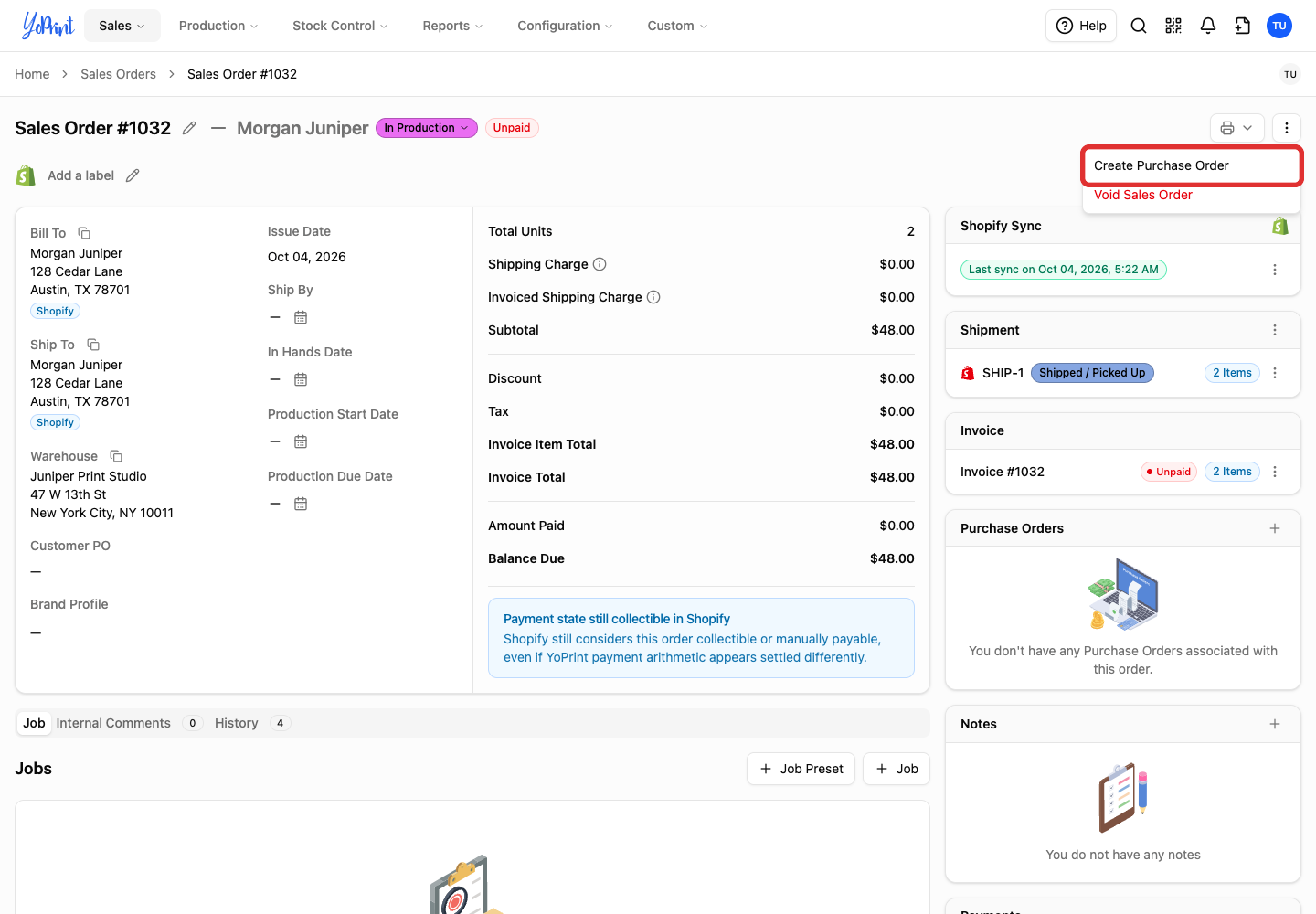
Choose Create Purchase Order.
-
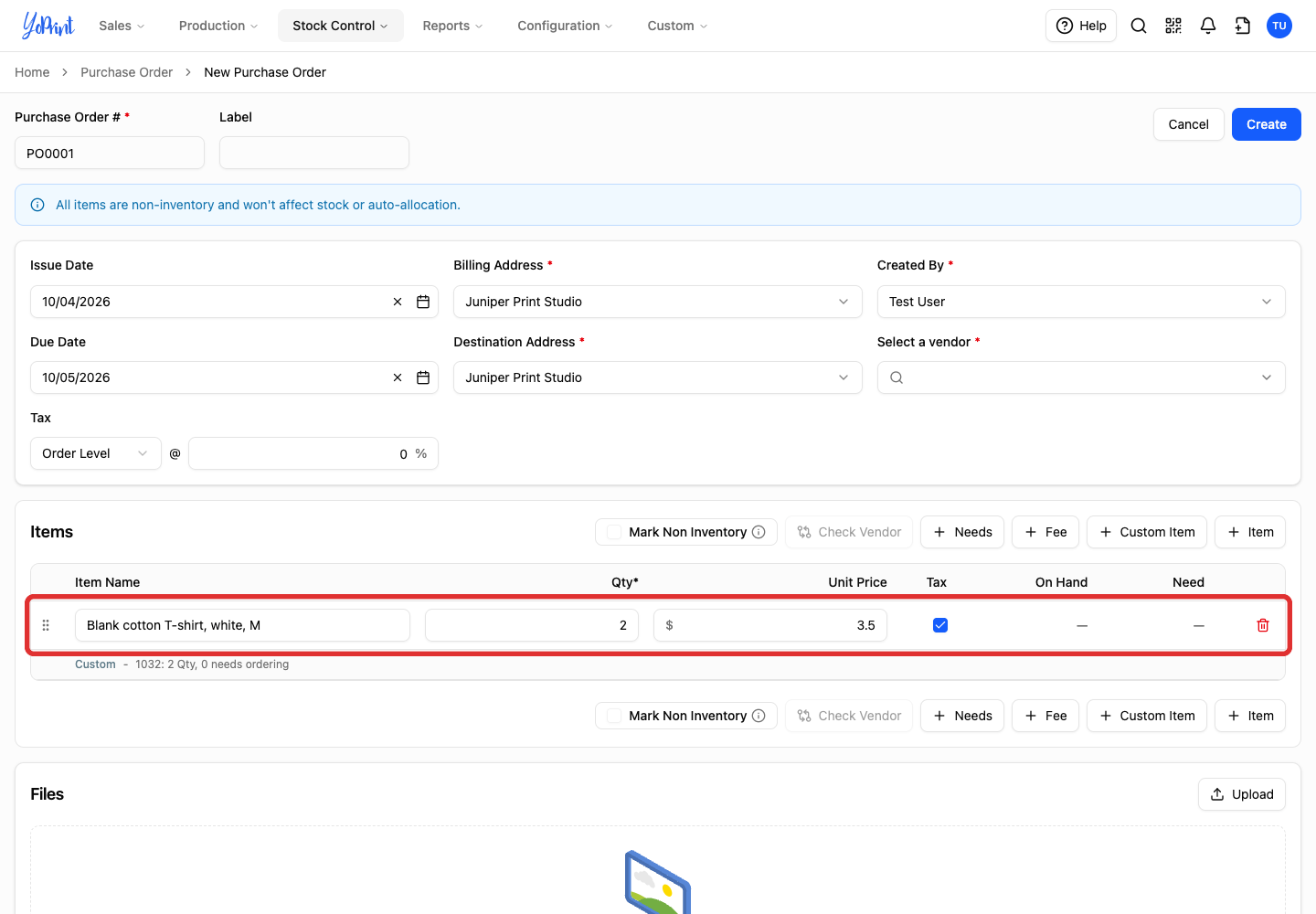
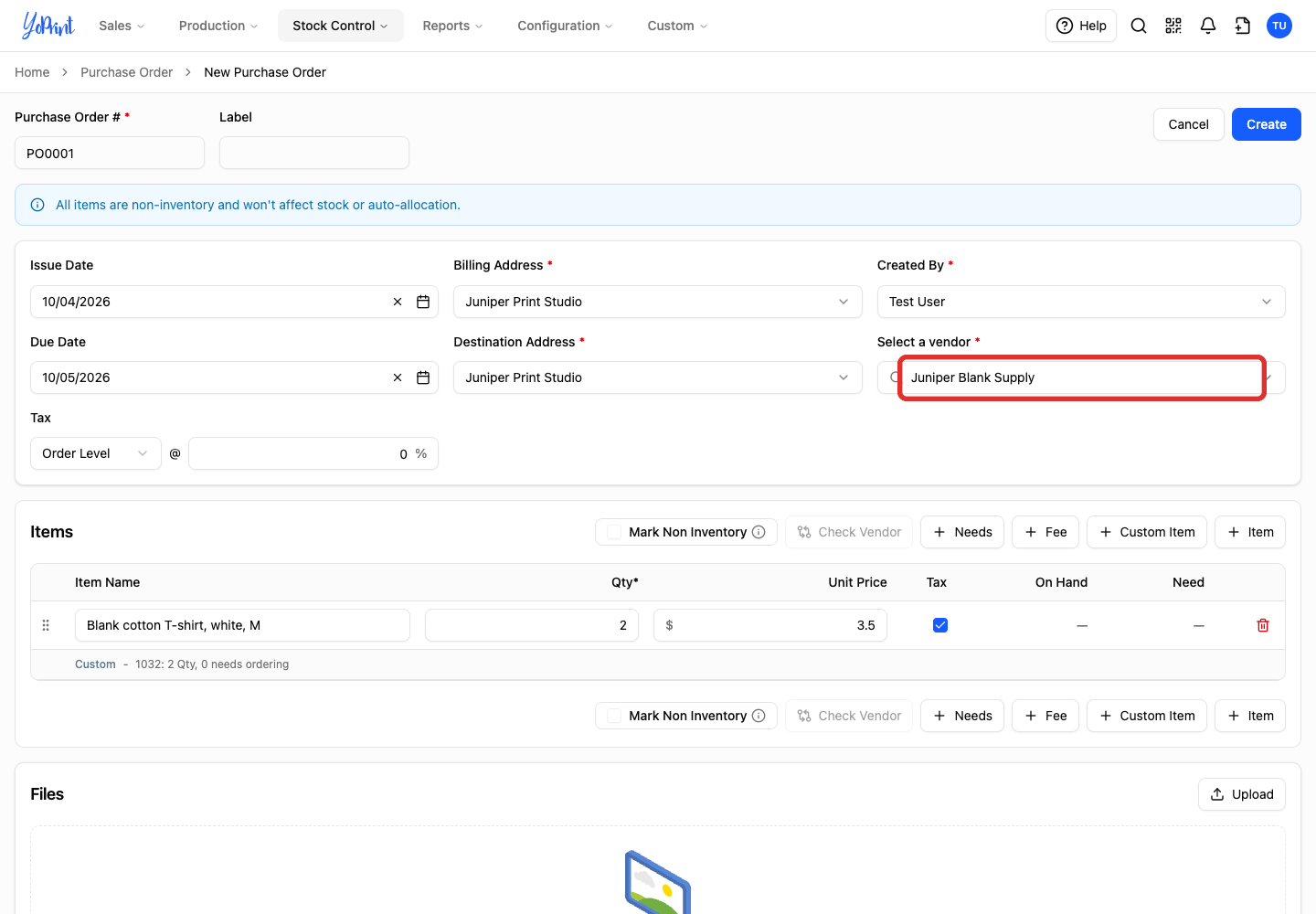
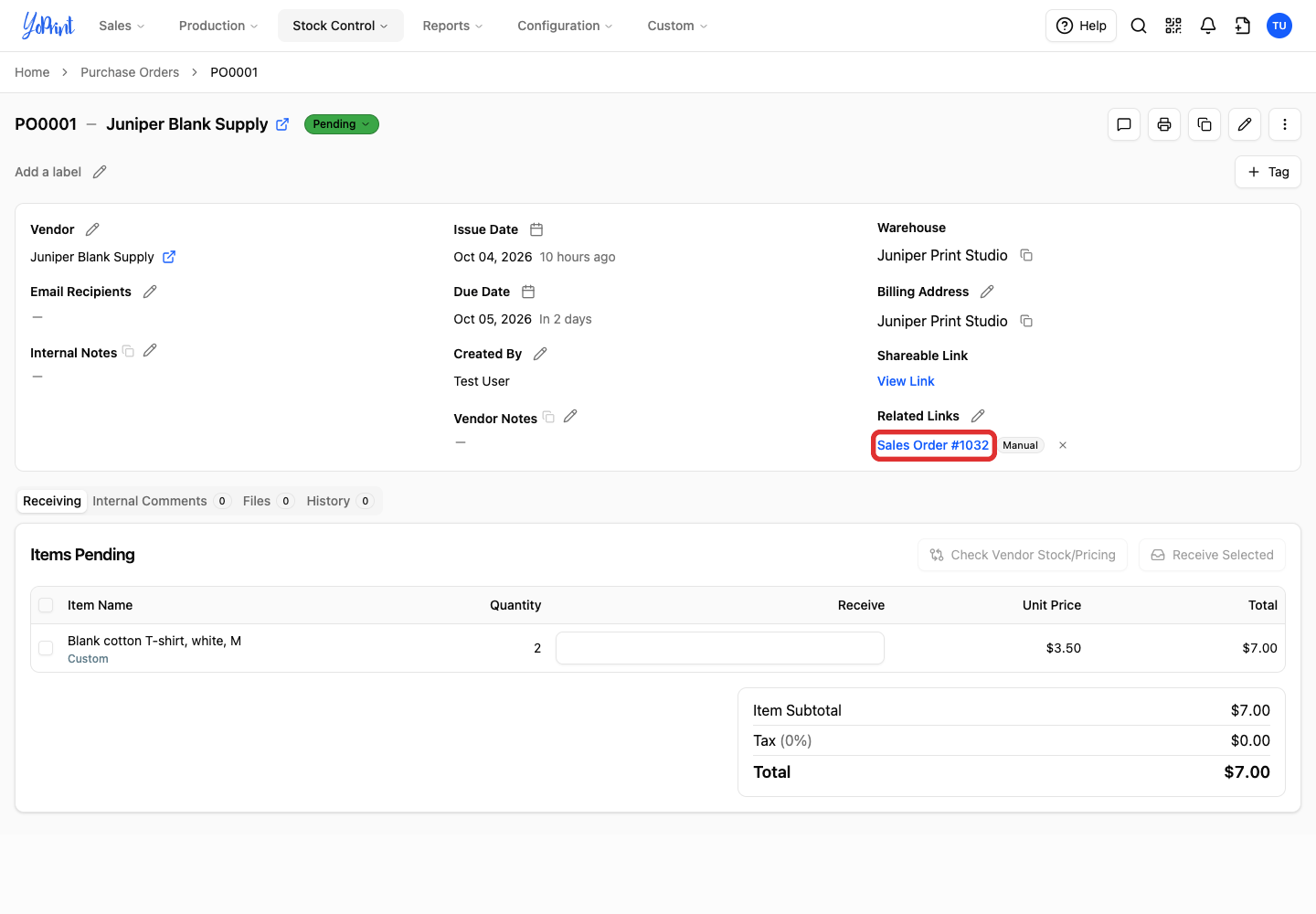
In the copied custom row, replace the retail product name with your blank's description, confirm the quantity, and enter your vendor Unit Price. In this example, replace Juniper Logo T-shirt with Blank cotton T-shirt, white, M, keep the quantity at 2, and enter 3.50 for the unit price. Because custom products do not track inventory demand, the order pill displays 0 needs ordering.
-
Open Select a vendor.
-
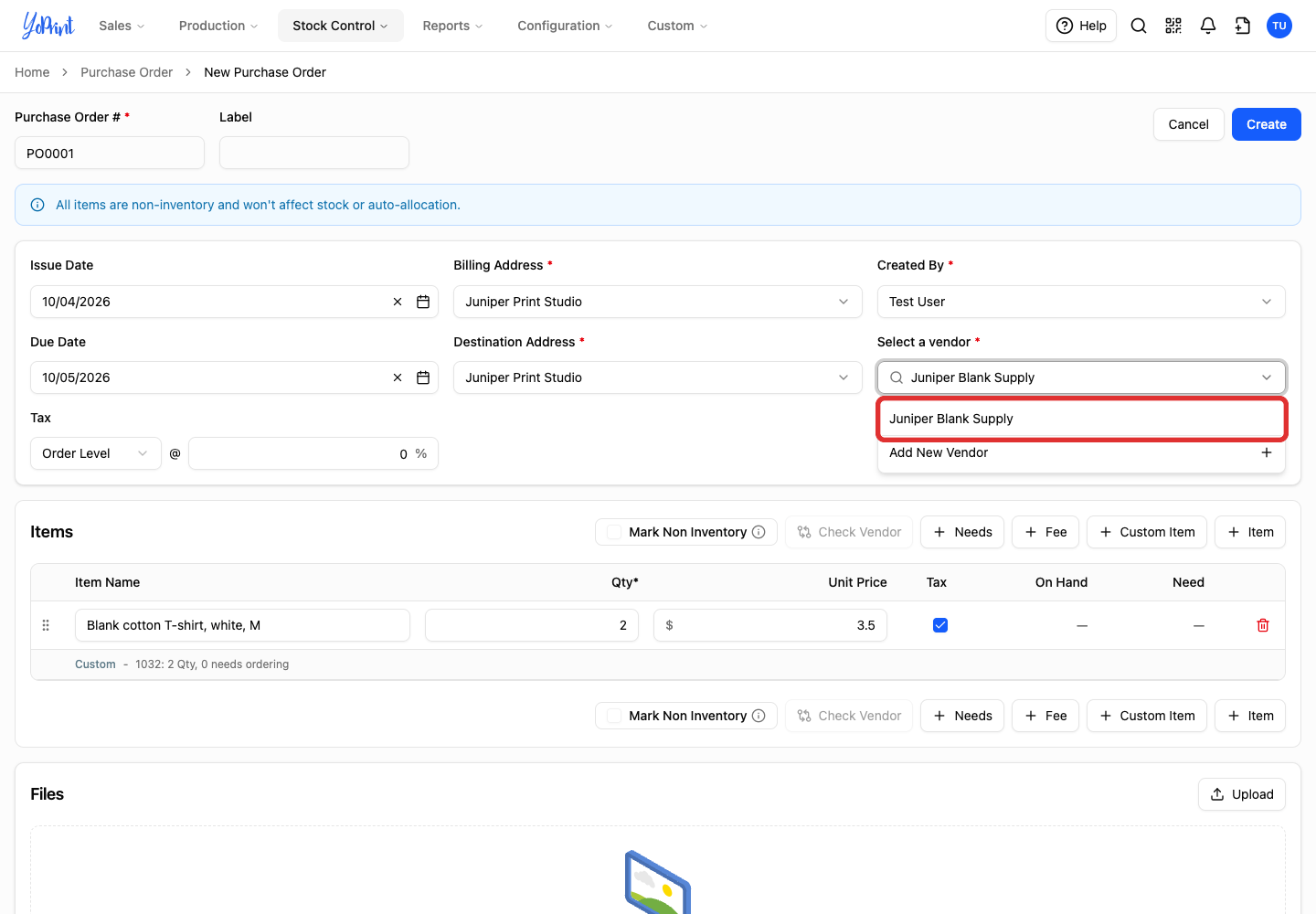
Choose the vendor supplying your blanks. If your vendor is not listed, choose Add New Vendor to create one.
-
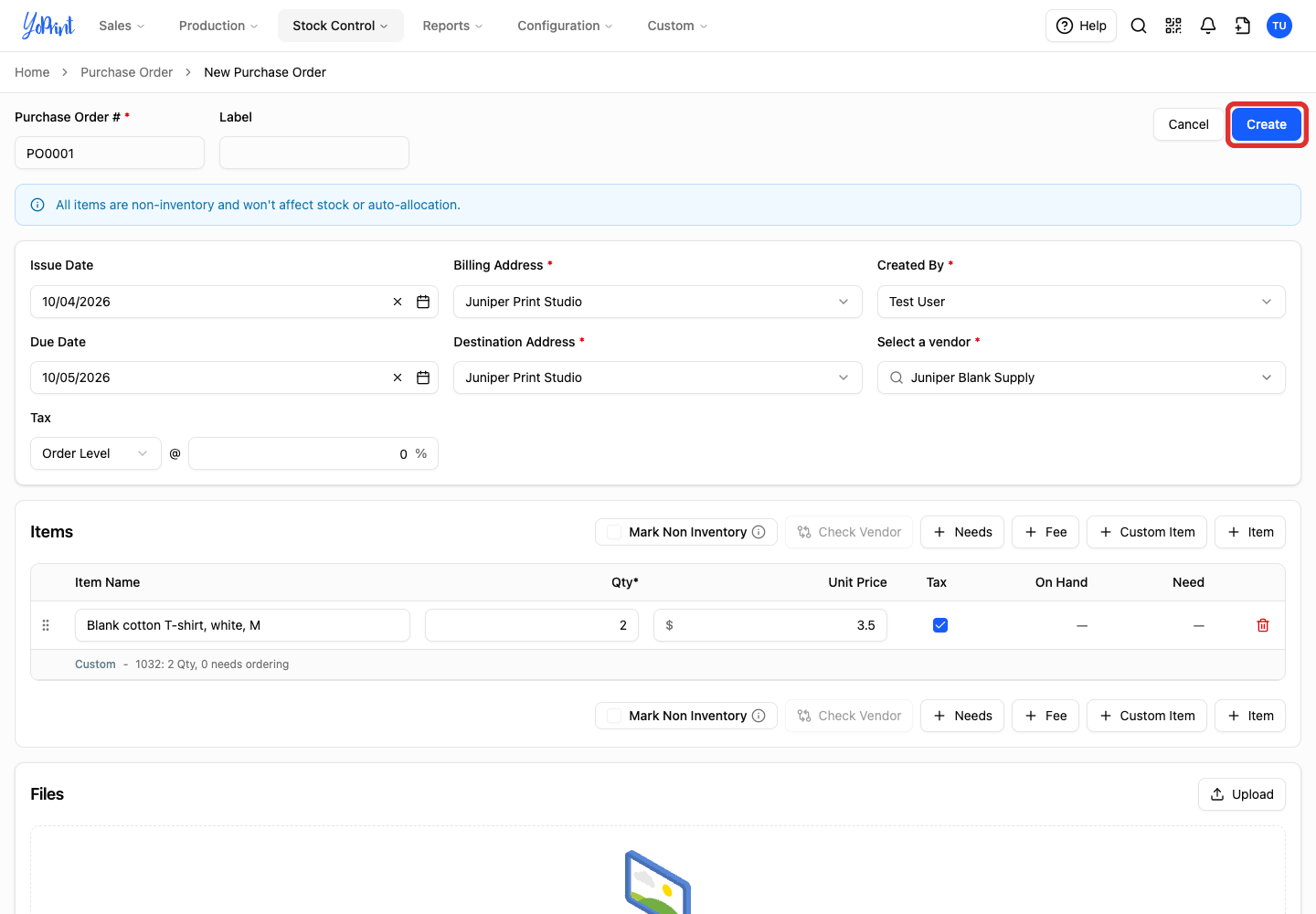
Click Create to save the purchase order.
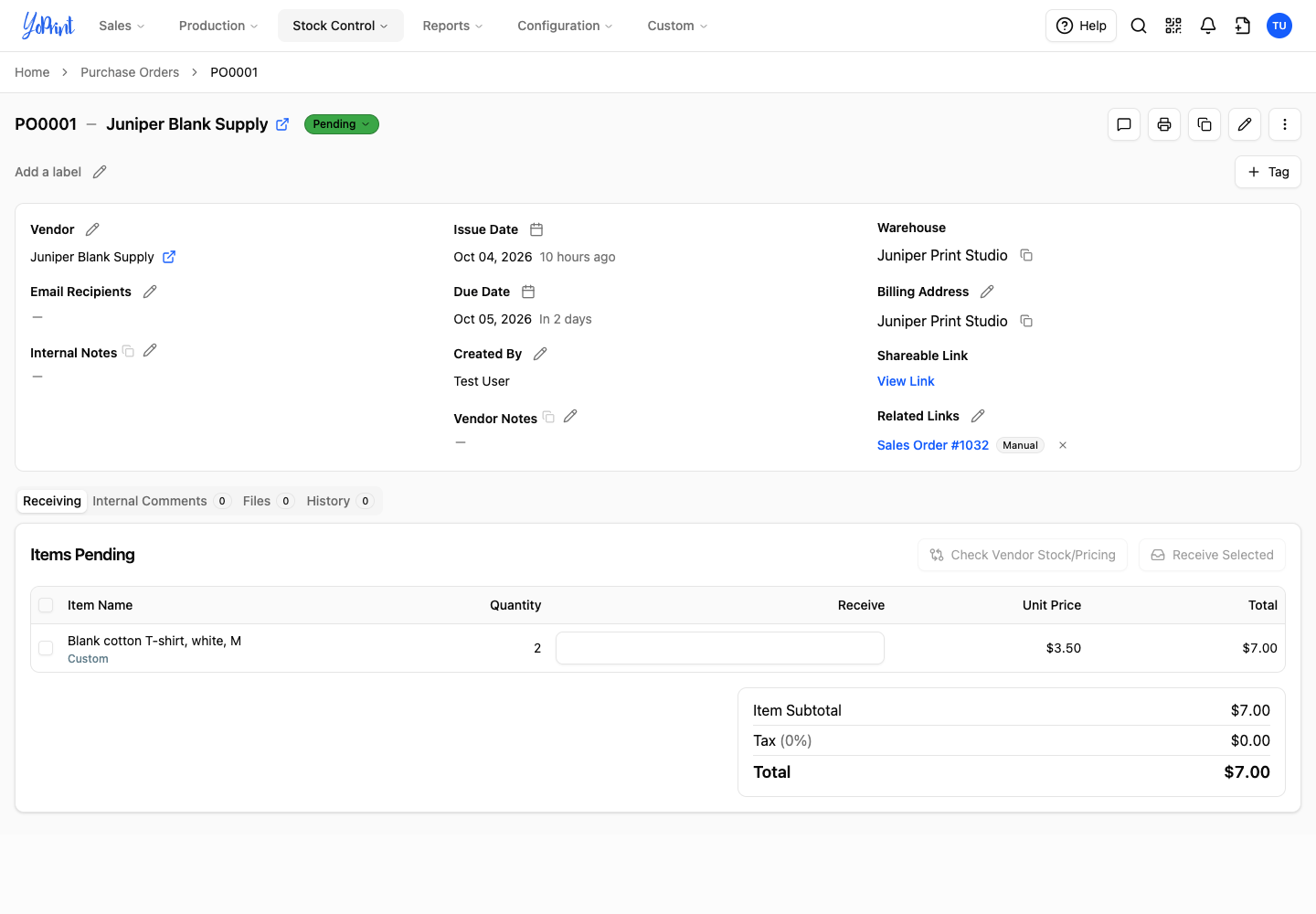
The saved purchase order lists the blanks and links to the sales order under Related Links. The link connects the purchase order to the sales order for reference so your team can track incoming blanks.
-
Click the sales order under Related Links to open its preview drawer.
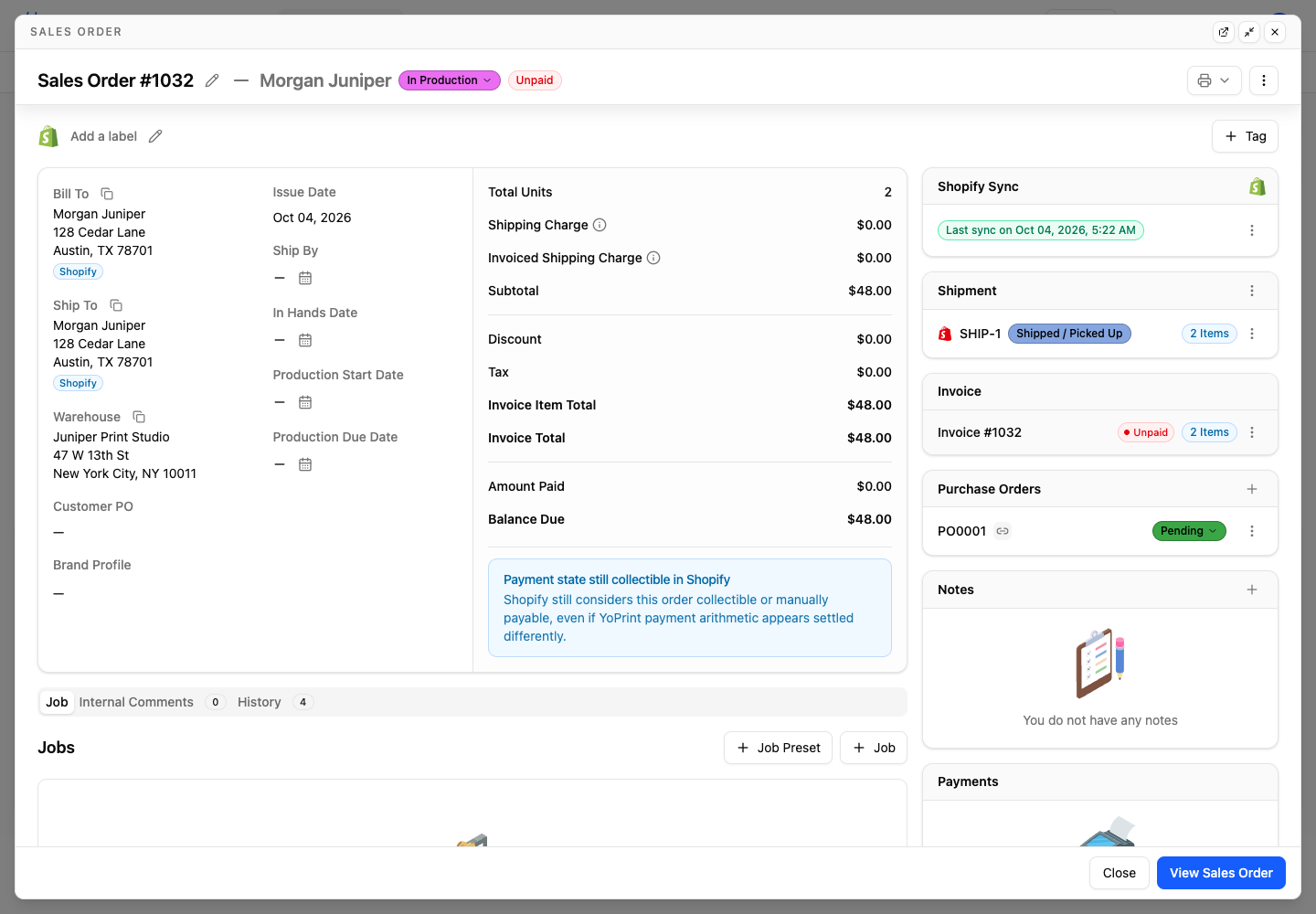
Your new PO appears in the sales order's Purchase Orders card. Click View Sales Order at the bottom of the drawer to open the full sales order page.
To combine blank purchasing across multiple orders instead of creating separate purchase orders, use a bulk purchase order. For the full workflow, including catalog products, see Creating a Purchase Order. To buy blanks for several sales orders together, see Create a Bulk Purchase Order from Multiple Sales Orders.