How Shopify Orders Arrive in YoPrint
In this article
Once your Shopify store is connected to YoPrint, new Shopify orders import automatically as sales orders. Keep Sales Order Auto Sync Enabled on under Settings > Shopify Beta. You do not need to re-enter orders in YoPrint.
A sales order brings the customer purchase into your shop's production workflow. Shopify stores purchase details; YoPrint manages production and fulfillment.
This diagram shows how orders flow into YoPrint, how production stays local, and how confirmed shipment fulfillment returns tracking to Shopify.

Find an imported Shopify order
-
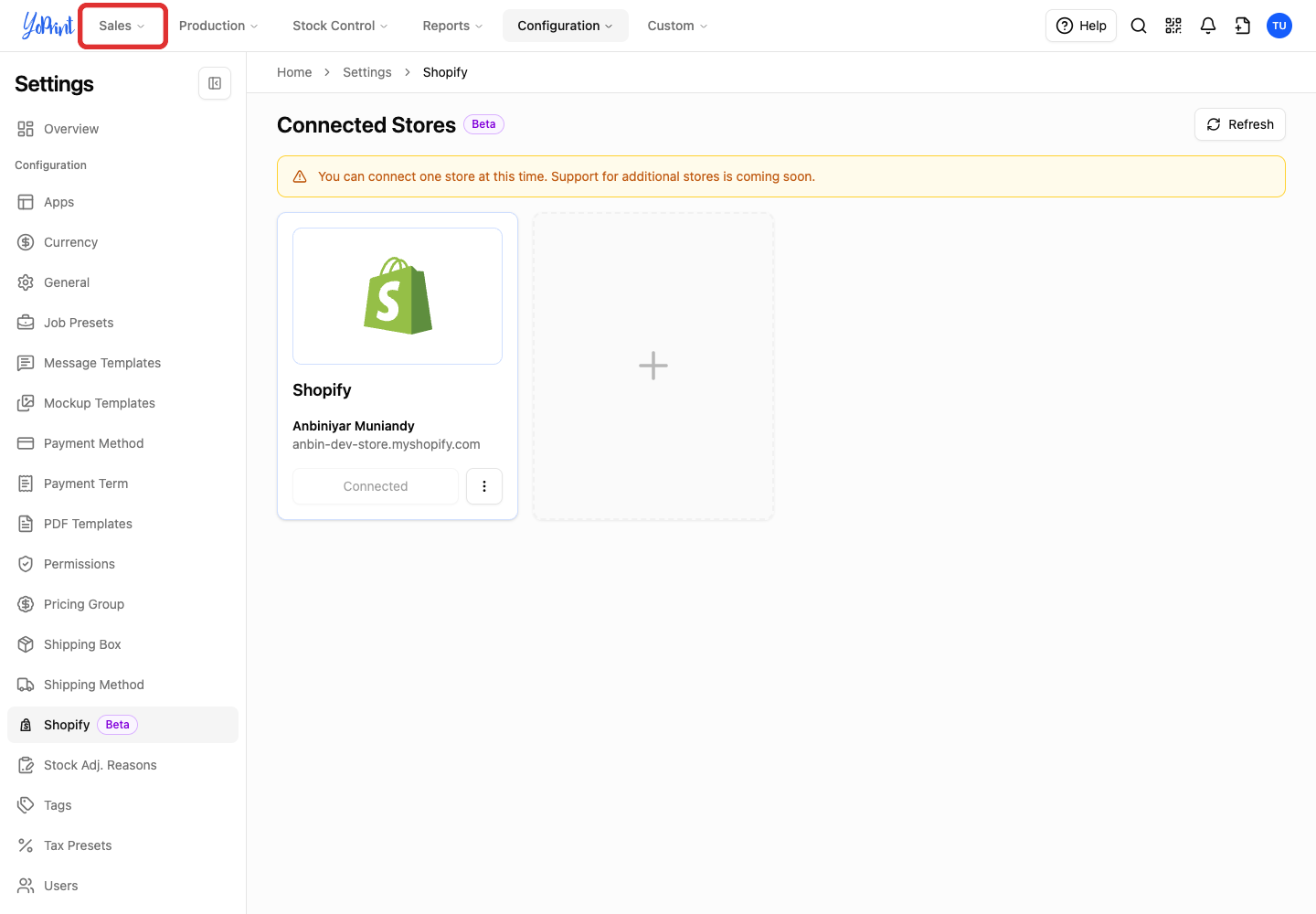
Open Sales in the top navigation.
-
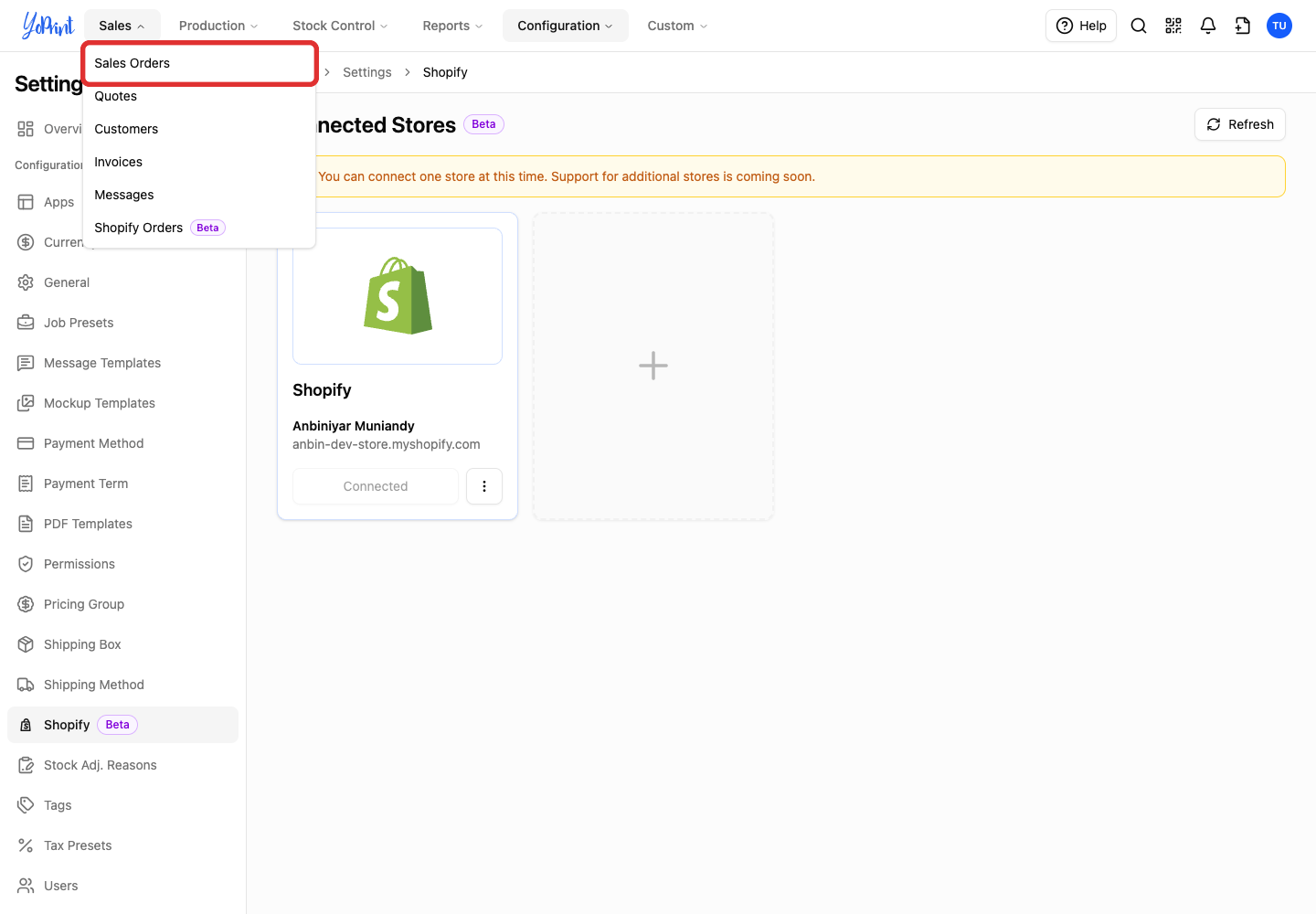
Choose Sales Orders.
-
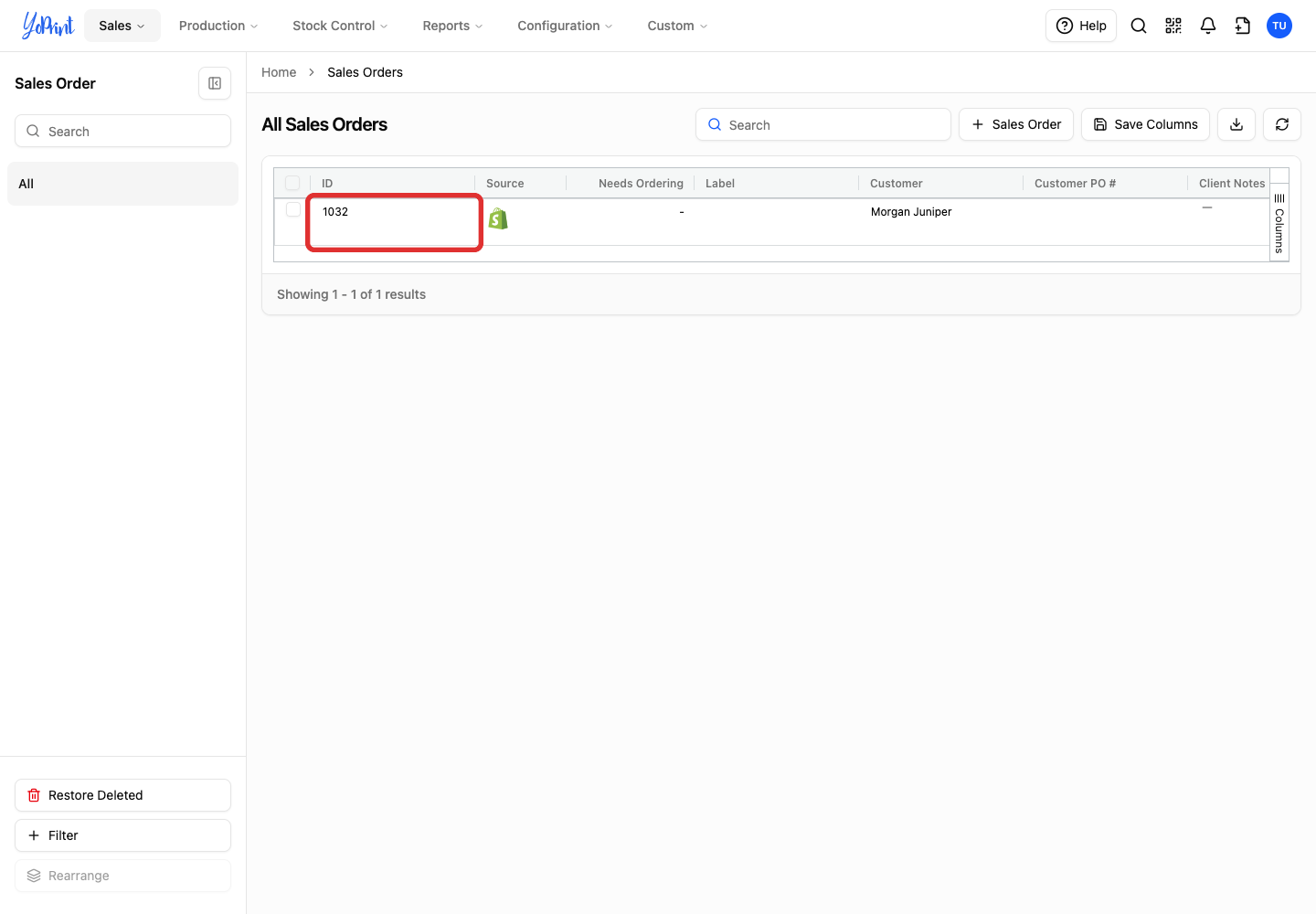
Double-click the order ID in the table to open its preview drawer. The example uses order 1032 for Morgan Juniper.
-
Click View Sales Order in the drawer footer to open the full order page.
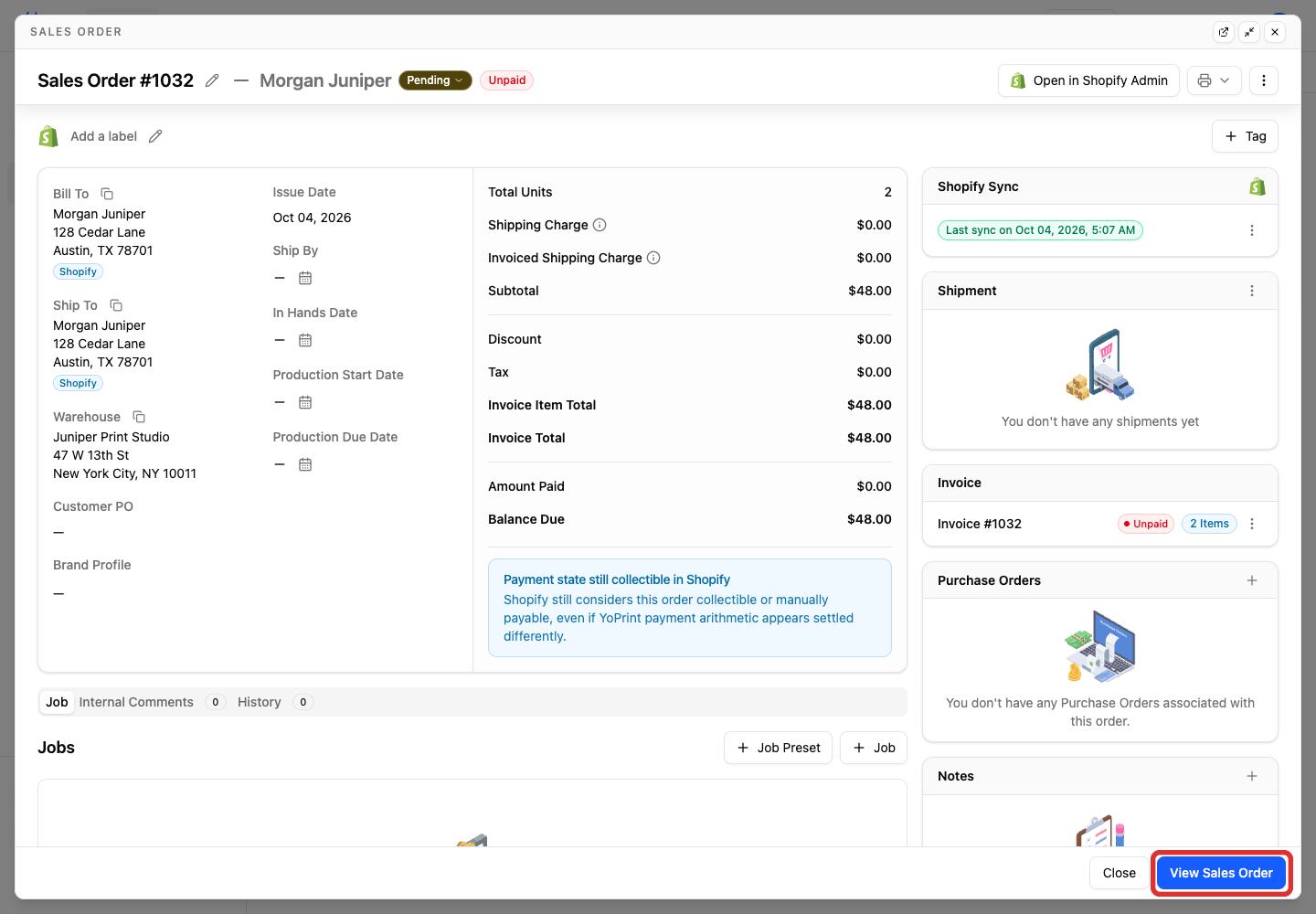
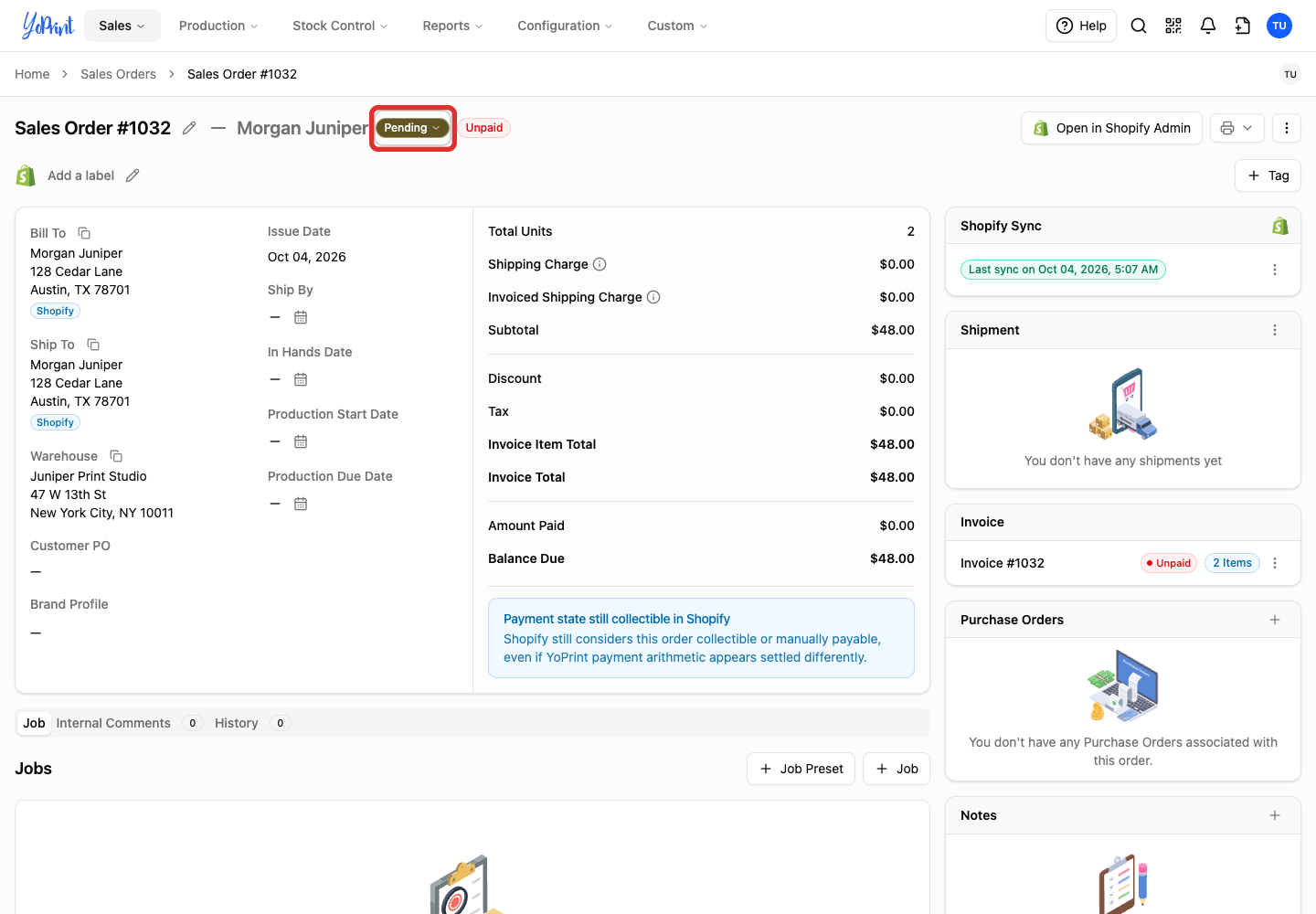
The sales order displays customer details, billing and shipping addresses, line items, and the invoice total. Shopify manages payment collection, while YoPrint imports payment status. In this example, two T-shirts at $24 each arrived as order 1032 with a $48 total.

YoPrint copies Shopify tax into one tax line without applying a YoPrint tax preset or Auto Tax. Shopify line-item discount codes appear as discount lines named Discount Code - CODE. A paid Shopify order arrives paid, with a payment record and its invoice settled. A refund in Shopify creates a refund record in YoPrint and lowers the paid amount.
For an overview of order sections and tabs, see Sales Order Page Overview. For orders you create in YoPrint, see Automatic Sales Tax and How Refunds Work in YoPrint.
Match the order number on your paperwork
Your Shopify order number is your YoPrint order number, with any store prefix you set, and appears on the order PDF, the packing slip, and YoPrint's shipping label. A carrier label bought through Shippo shows the carrier's tracking number instead.
The right-hand picture shows Shopify admin. Its screens may have changed since this picture was taken. See Shopify's guide to managing orders.

See Shopify orders on their own
Go to Sales > Shopify Orders Beta to open your store's Store Orders list.

The list shows each Shopify order number and its sync status.

In the sales order, invoice and customer lists, the Source filter separates Shopify records from YoPrint Native records.

Understand the imported details
An order with multiple items arrives as a single sales order. This second Shopify order (1033) contains three T-shirts, two totes, and a packing note.
The next picture shows Shopify admin. Its screens may have changed since this picture was taken. For orders you enter on a customer's behalf, see Shopify's guide to draft orders.

Each Shopify line item becomes a Custom Product under Available Job Line Items, ready for you to assign to a job. See How Shopify Products Map to YoPrint Products and Blanks for how to order the blanks. The Shopify order note becomes the customer note under Notes as Notes to Customer, visible on customer documents. To manage products and catalog items in YoPrint, see Different Ways to Add Your Products. To order blank garments from suppliers, see Creating a Purchase Order.

The customer name, email, and address save under Sales > Customers, and billing and shipping addresses copy to Bill To and Ship To on the order. Each order retains its own address snapshot.
When you update an address or item in Shopify, YoPrint syncs those changes to the open sales order. Shopify customer and address details are read-only in YoPrint. See Shopify's guide to editing orders.
Track production in YoPrint
Track internal production dates, jobs, and statuses in YoPrint. Item quantities, prices, and payments remain managed in Shopify.
To update production status on an open order:
-
Click the current status beside the customer name. The example shows Pending.
-
Select a status for your shop's progress, such as In Production.
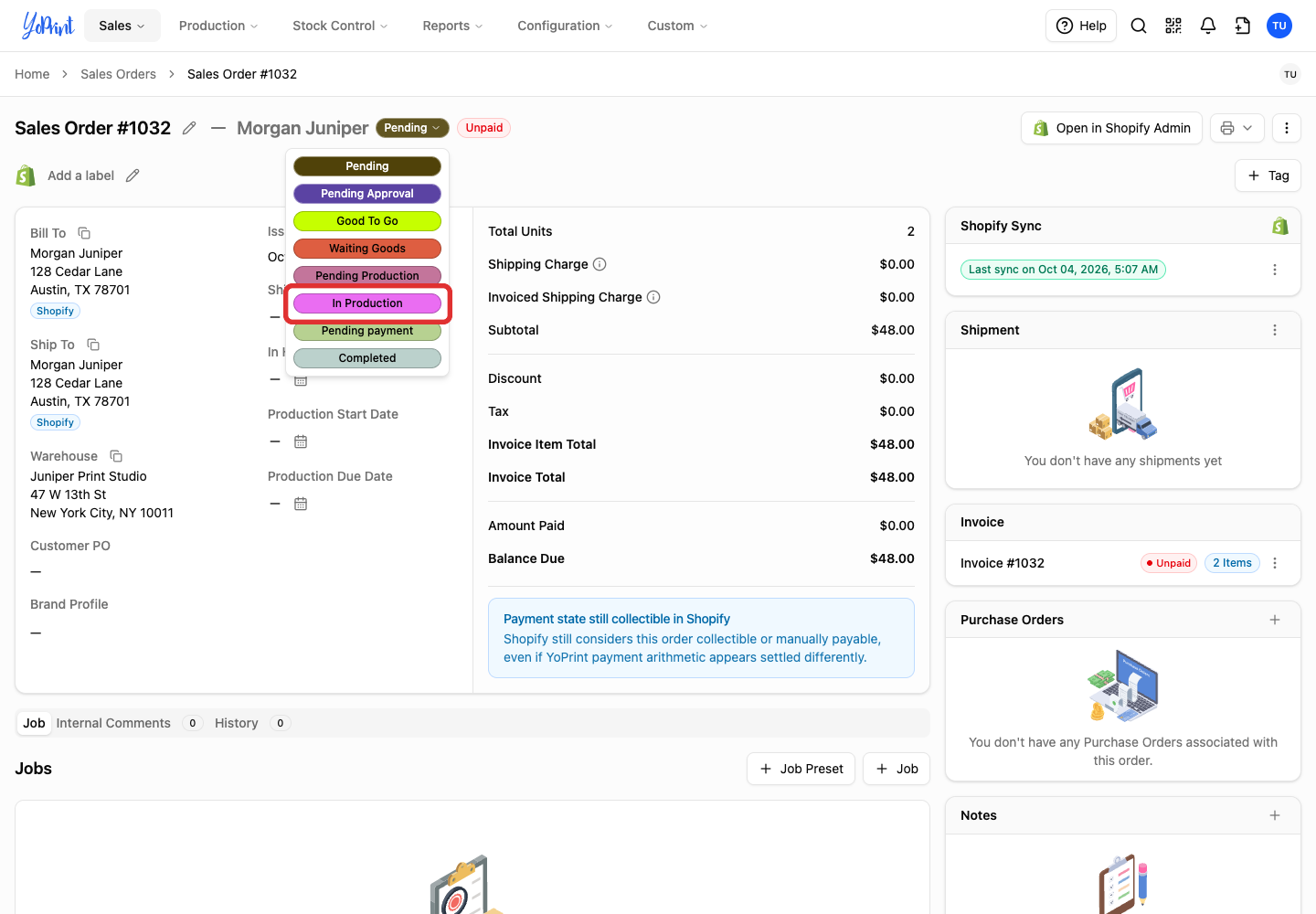
The updated status stays in YoPrint. Resyncing the order preserves this status, and it does not change payment or fulfillment in Shopify.

When items are packed, ship the order in YoPrint to send tracking back to Shopify.
Know the approval and removal limits
Shopify orders do not use YoPrint customer approval or artwork approval workflows. Send proofs and mockups directly to your customer before production. The status Pending Approval is only a local label and does not send customer requests.
To cancel a Shopify sales order in YoPrint, use Void Sales Order. If an order is canceled or deleted in Shopify, you cannot restore it in YoPrint through Restore Deleted.
Your store settings control how YoPrint handles canceled Shopify orders. Under Settings > Shopify Beta, When Shopify deletes or cancels an order offers two choices: Delete synced order removes the order, while Preserve and mark deleted externally retains the order and jobs locally and stops sync. To adjust store settings, see Connect Your Shopify Store to YoPrint.