Read a Customer Payment
In this article
Use the Customer payment details to check an online payment, see where the money was applied, and check any refunds or disputes. The customer’s receipt shows the payment from their side.
To take a payment or record money received offline, see Collect and Record Payments.
Open the payment
Open an online payment from the customer’s profile, or start from a sales order.
-
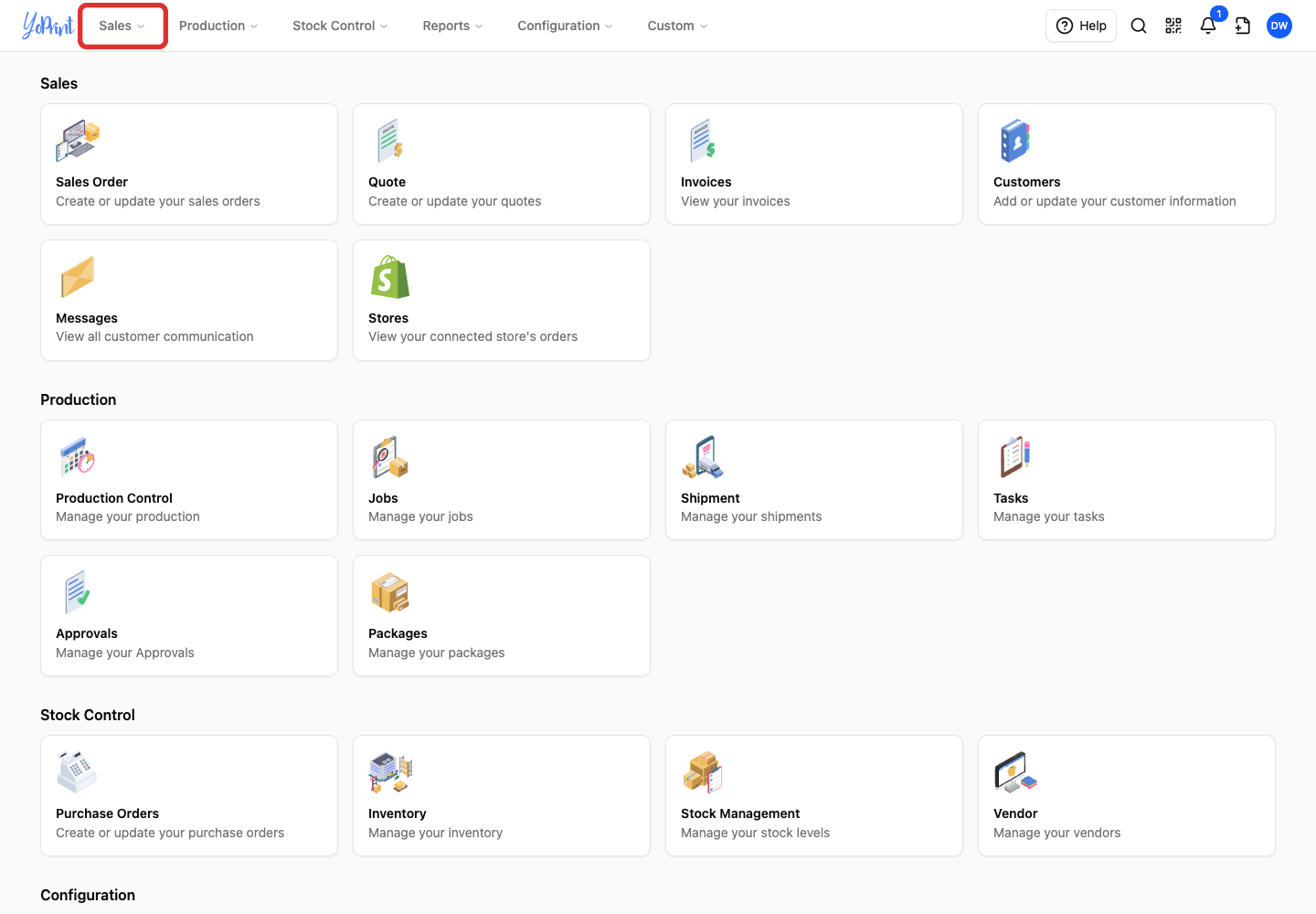
In the top navigation, click Sales.
-
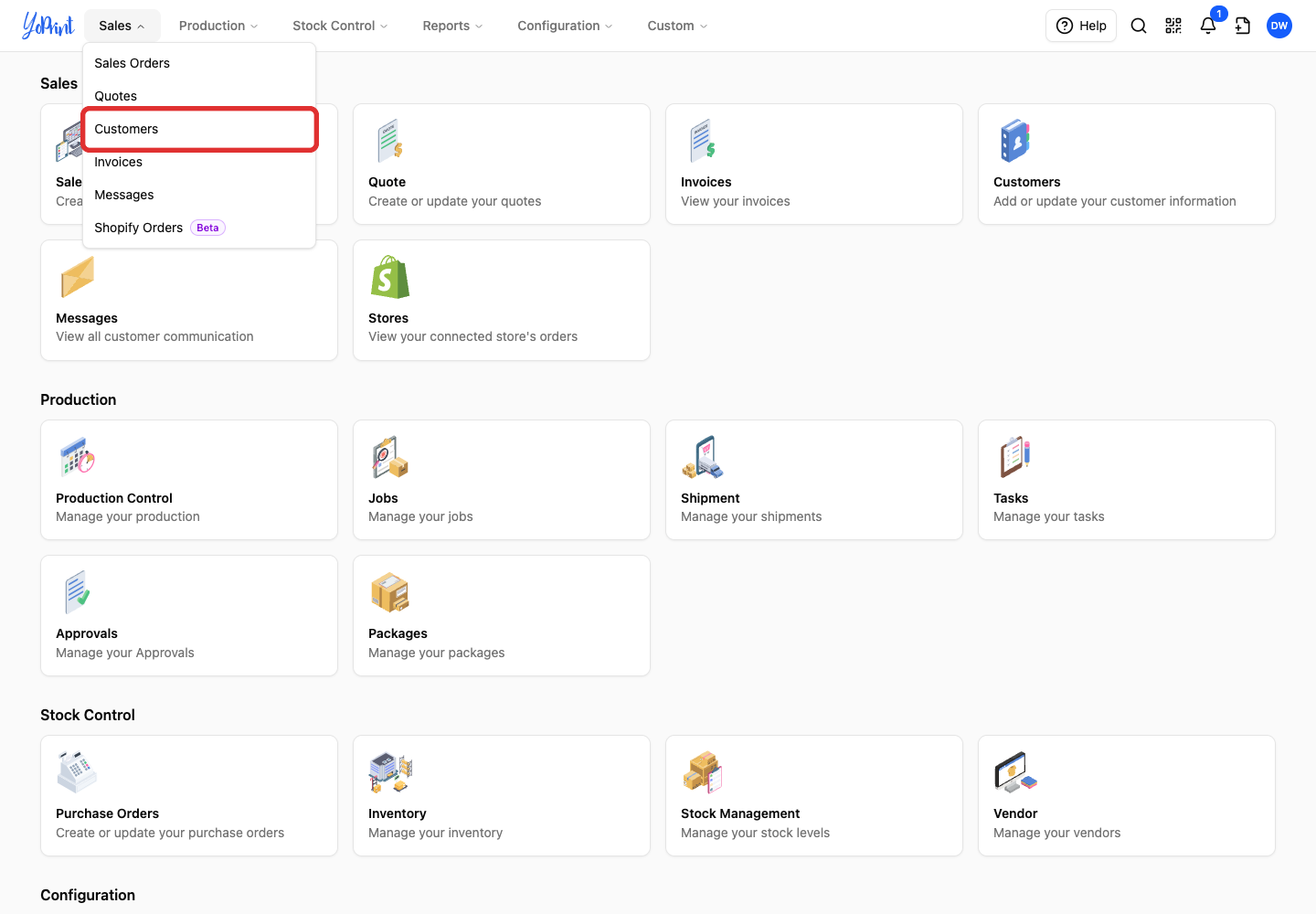
In the Sales menu, select Customers.
-
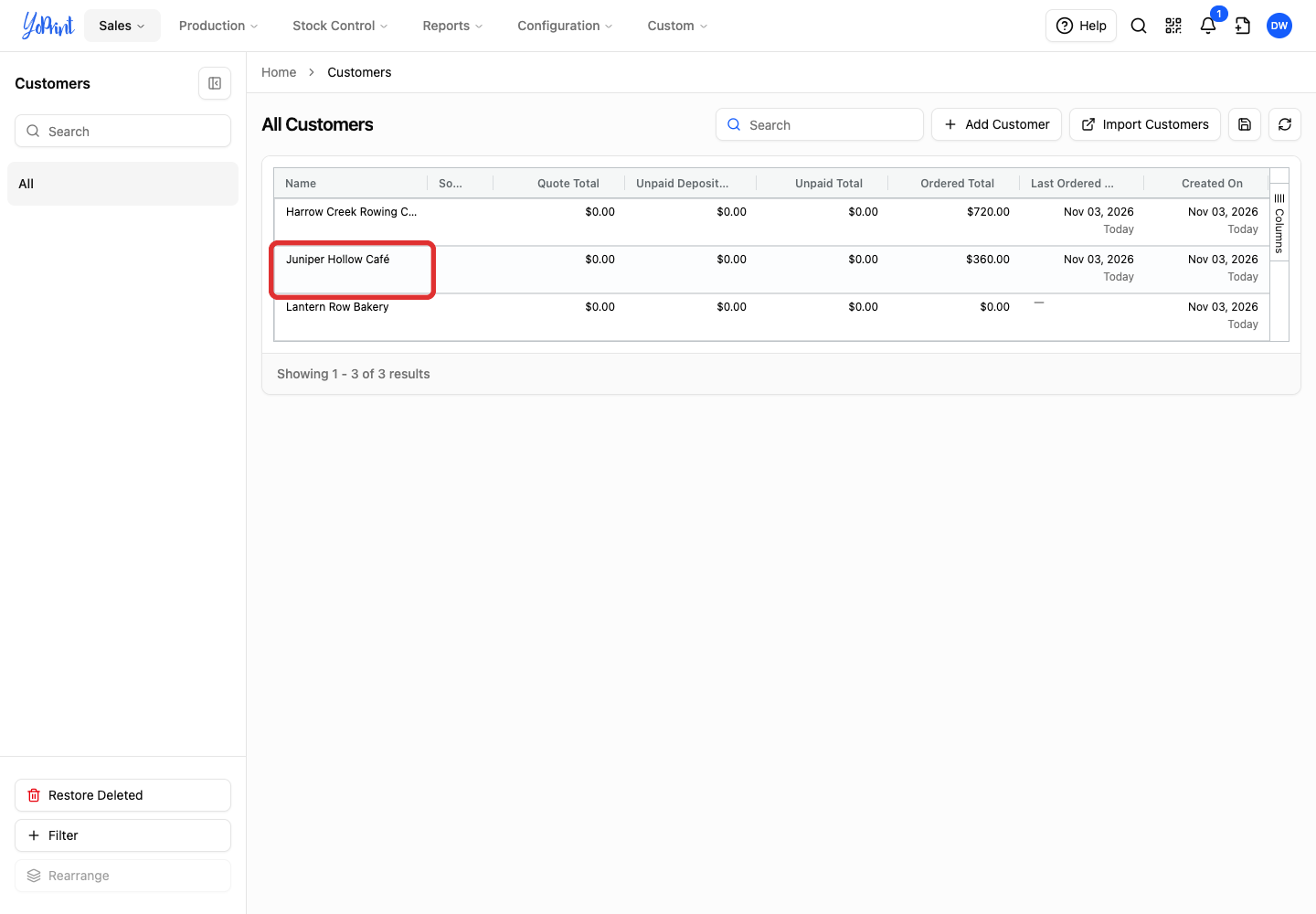
Double-click the customer’s row to open Customer View.
-
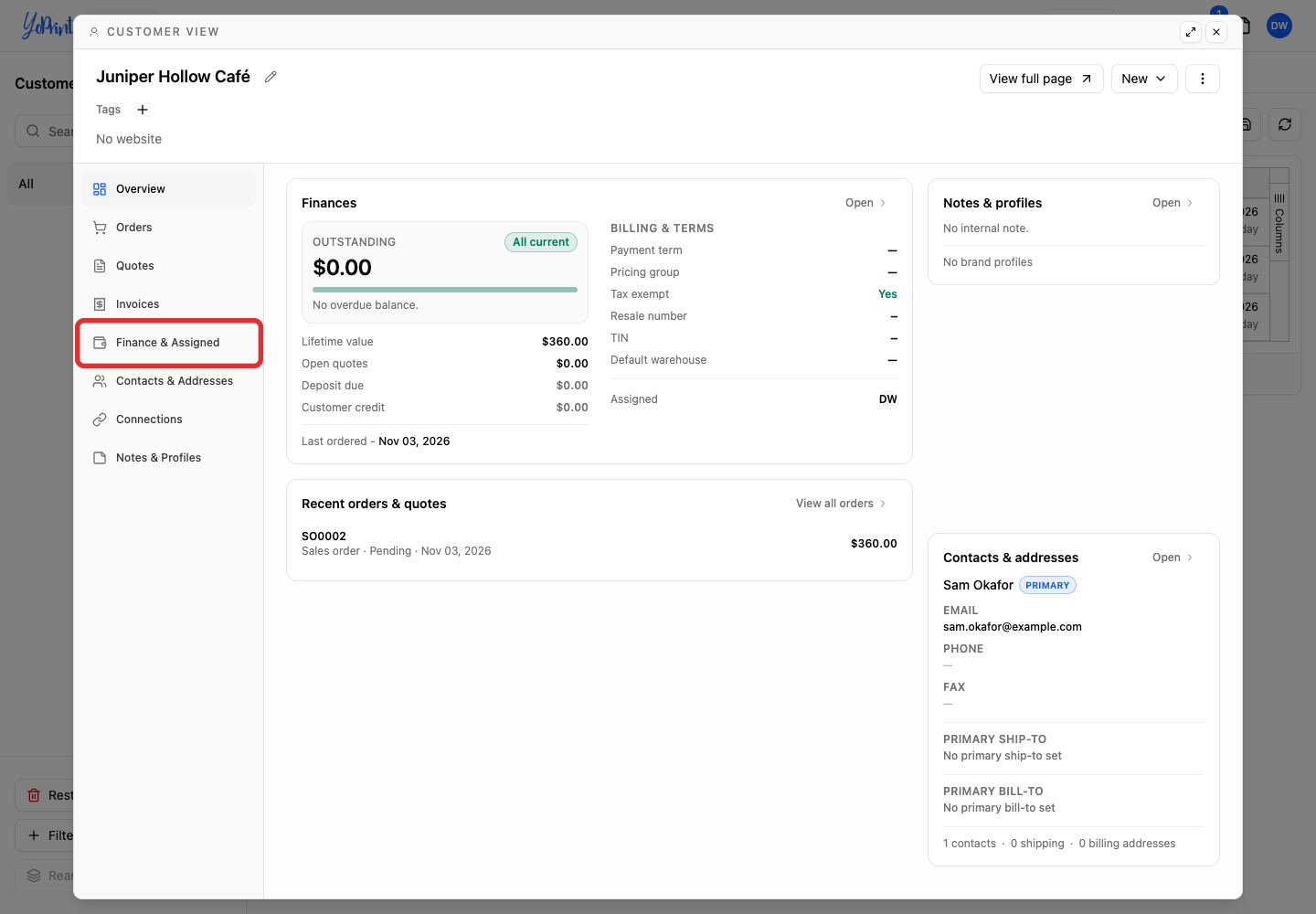
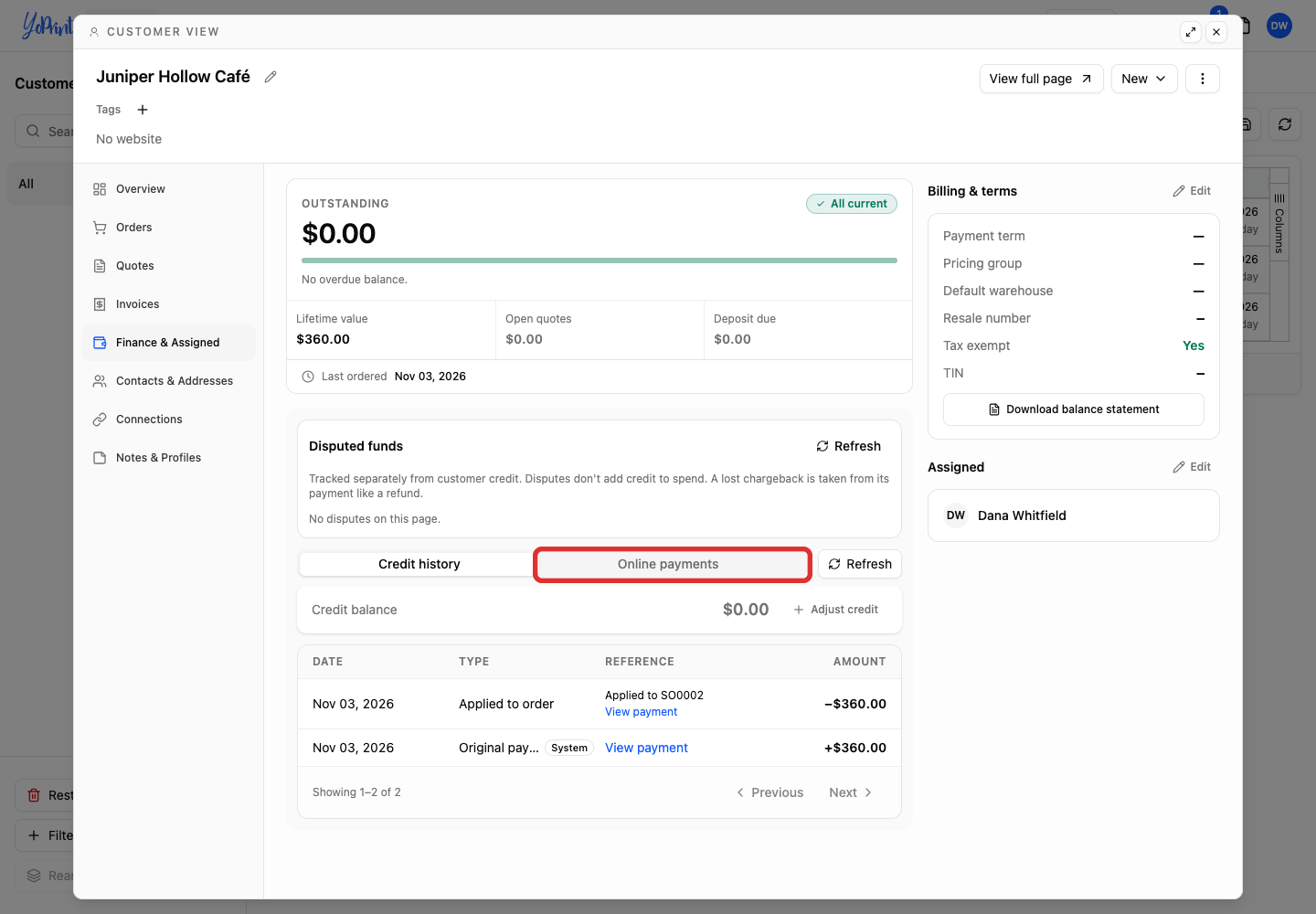
In the left sidebar, click Finance & Assigned.
-
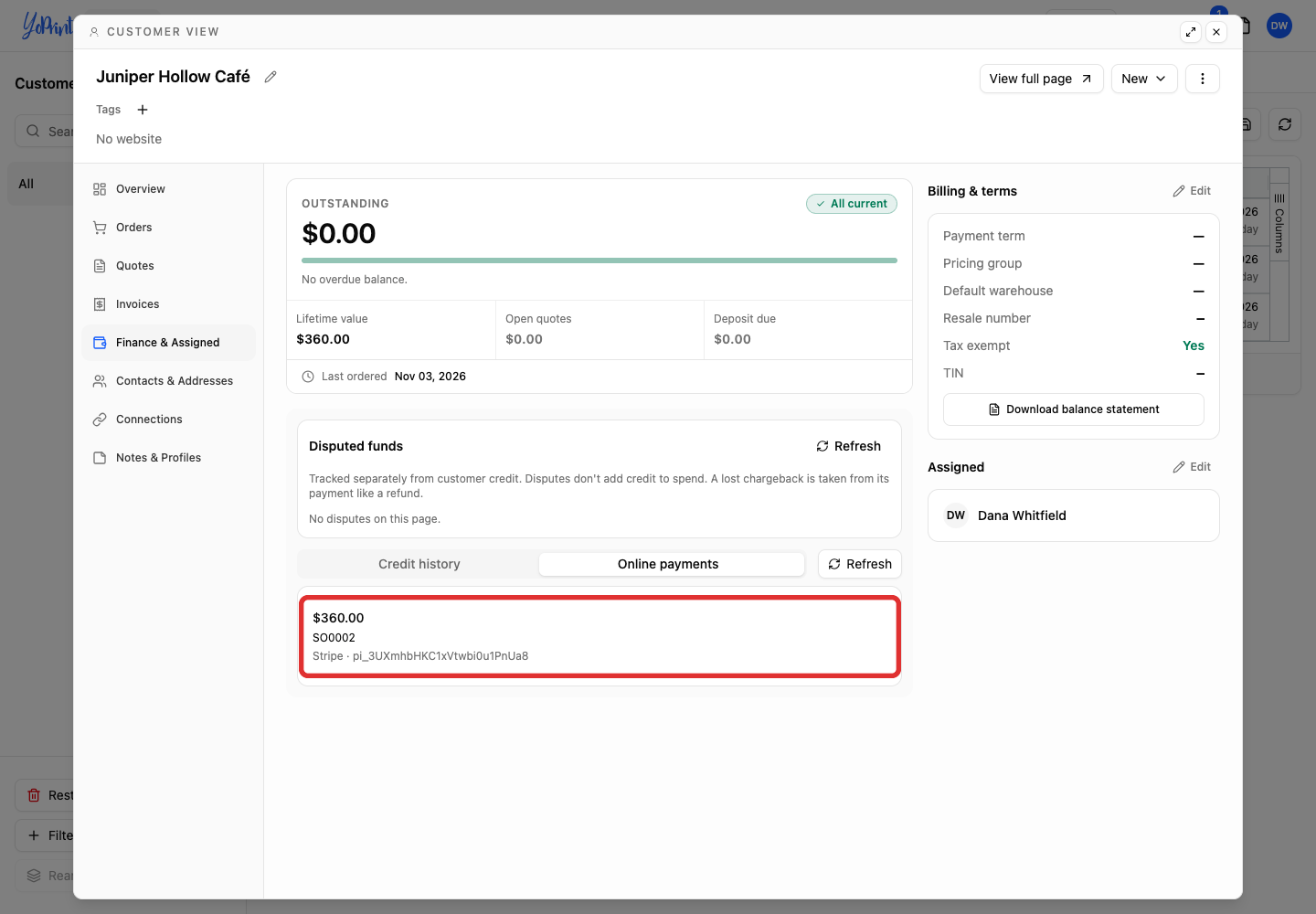
The Credit history tab opens first. Select Online payments to list online payments.
-
Select the payment row to open its details. Use the Payment reference shown after the provider name, such as Stripe, to tell payments apart when amounts match.
From a sales order
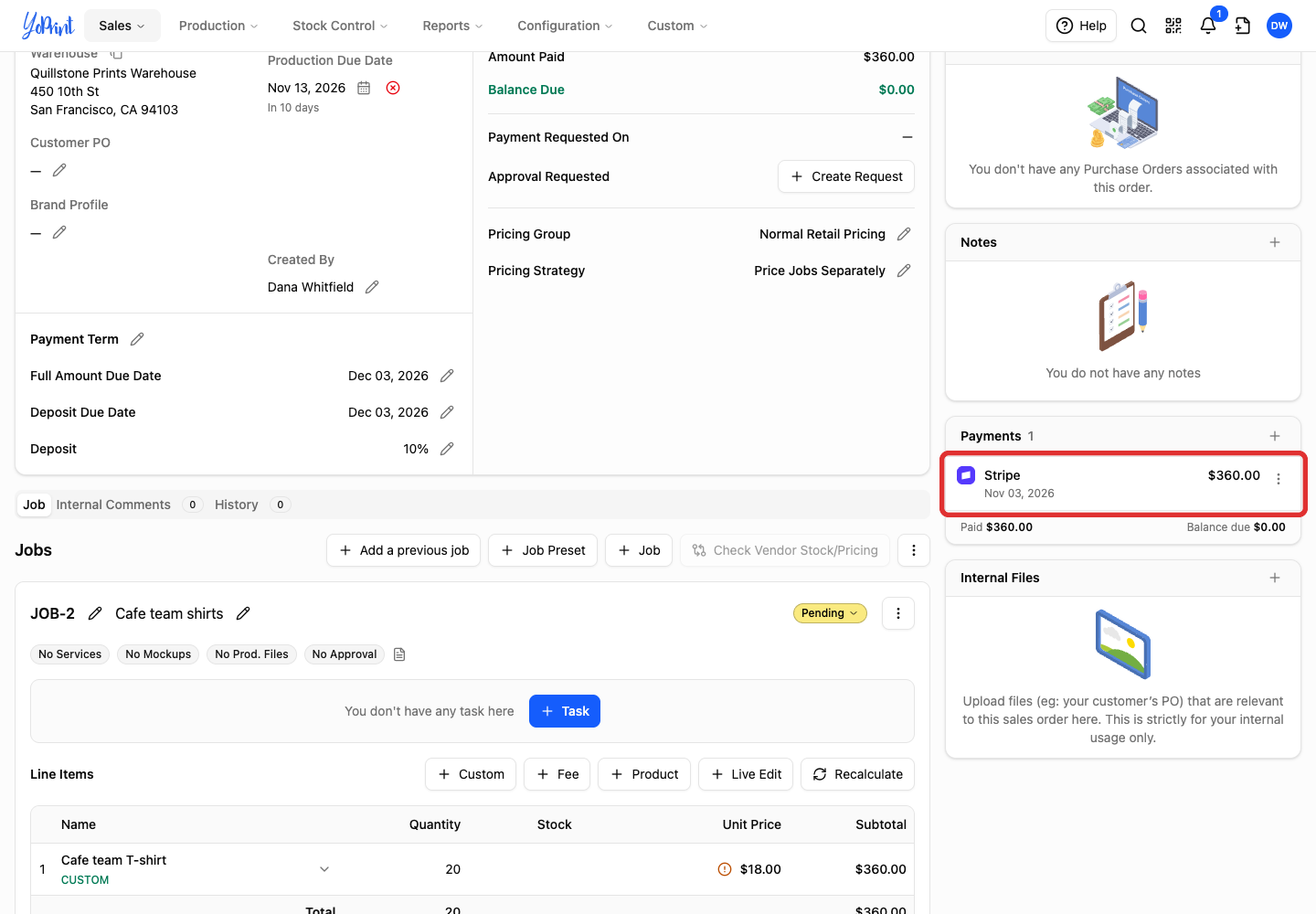
If you already have the sales order open, you can start from its payment row.
-
In Payments, double-click the online payment’s row.
-
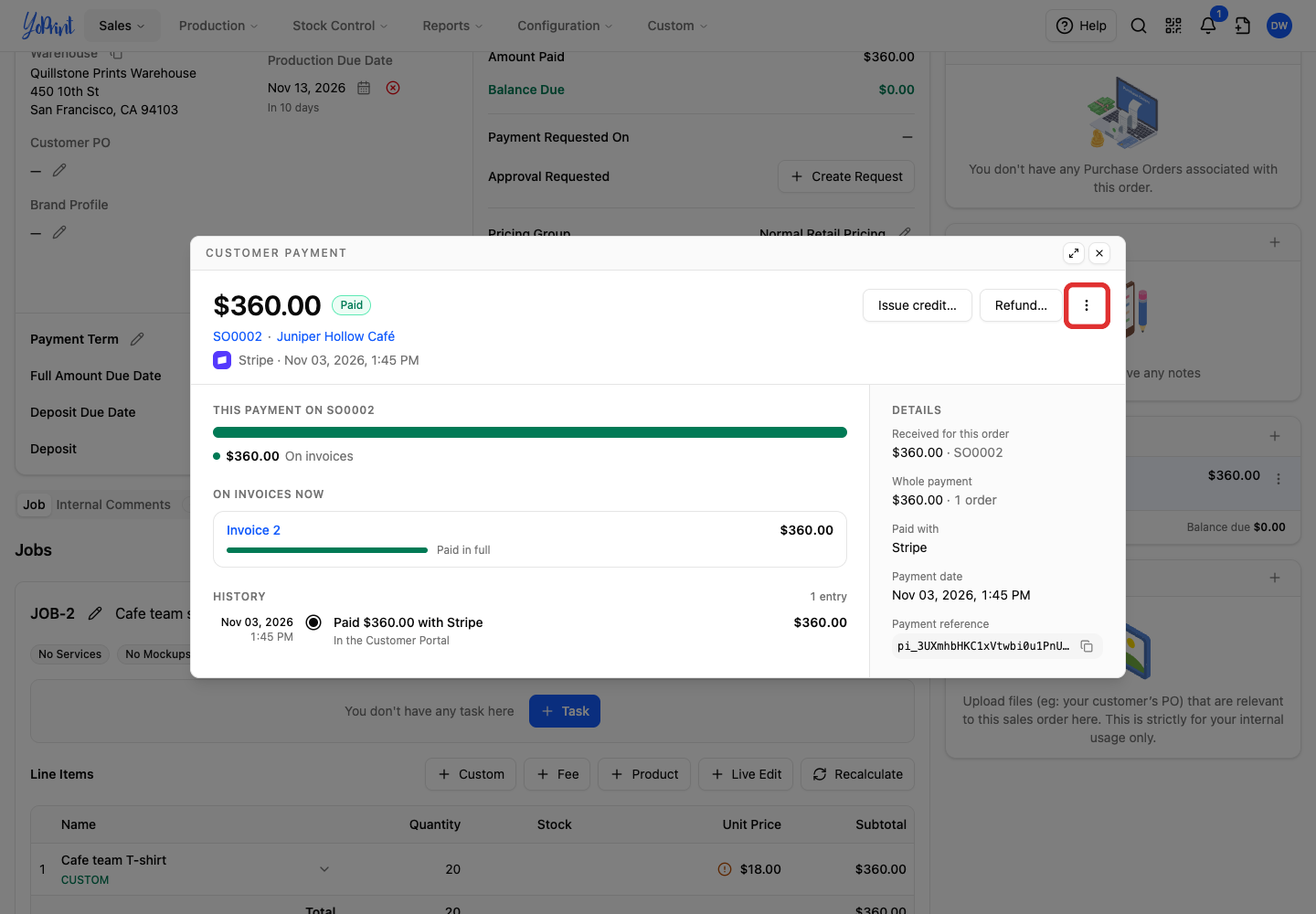
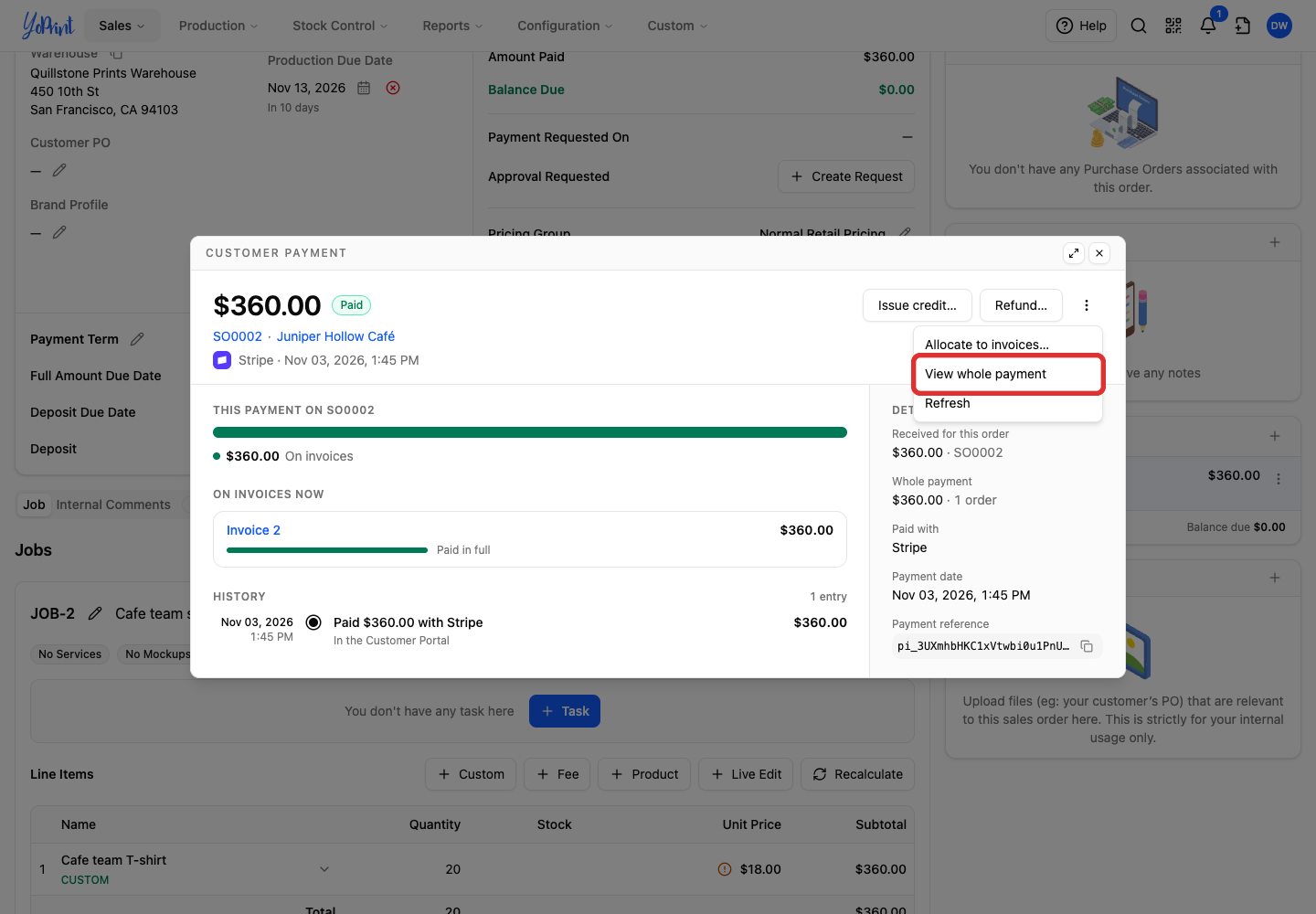
Open More actions (⋮) in the payment window. This window shows This payment on SO0002 and On invoices now for this order.
-
Choose View whole payment. This switches the Customer payment window to the whole payment across orders, showing This payment and On orders now.
Read the payment details
The Customer payment window shows the payment amount, customer, payment provider, allocation, and any refunds or disputes. Read these details in the window, or open the full page.
-
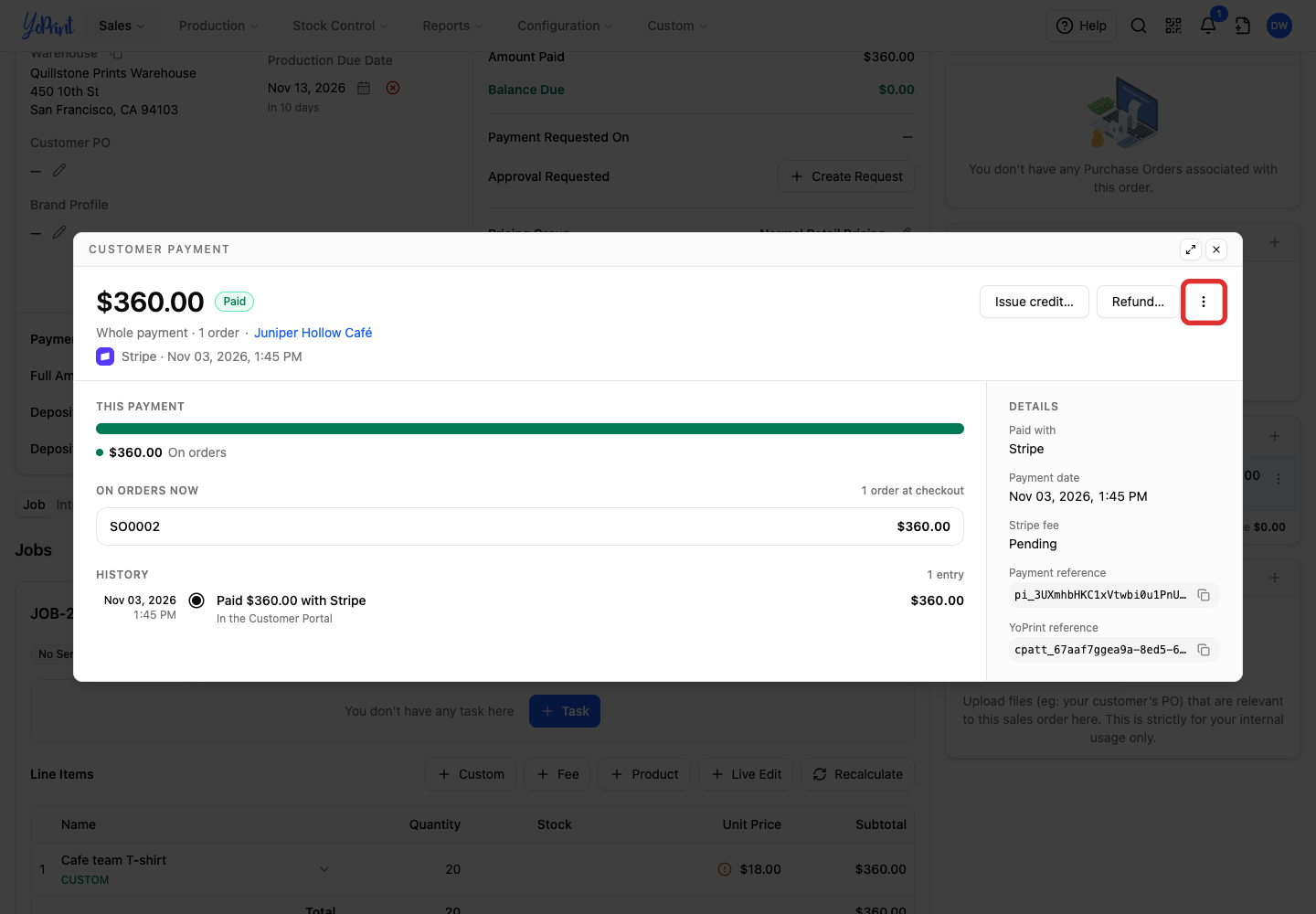
Open More actions (⋮).
-
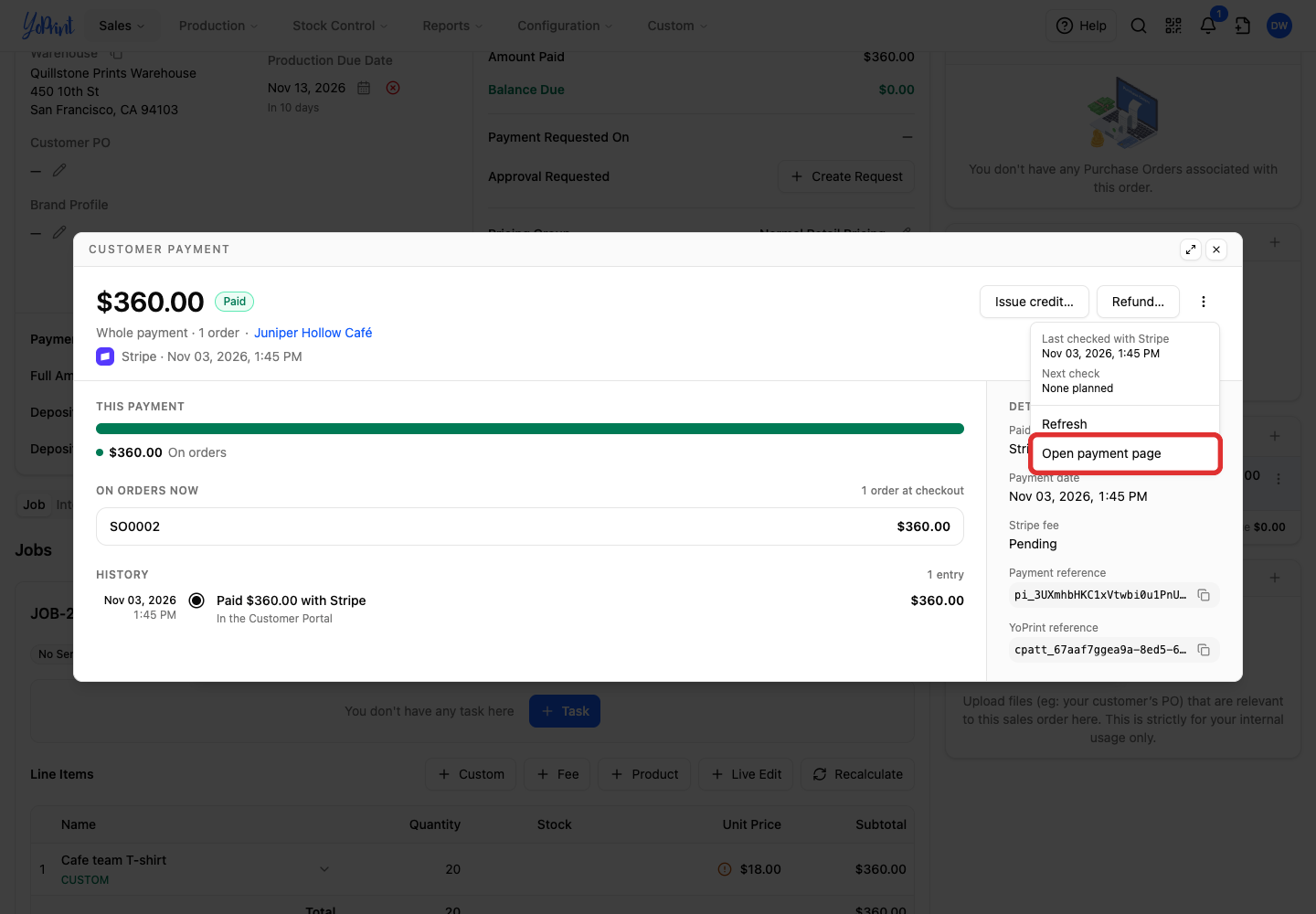
Choose Open payment page to open the payment in a separate tab.
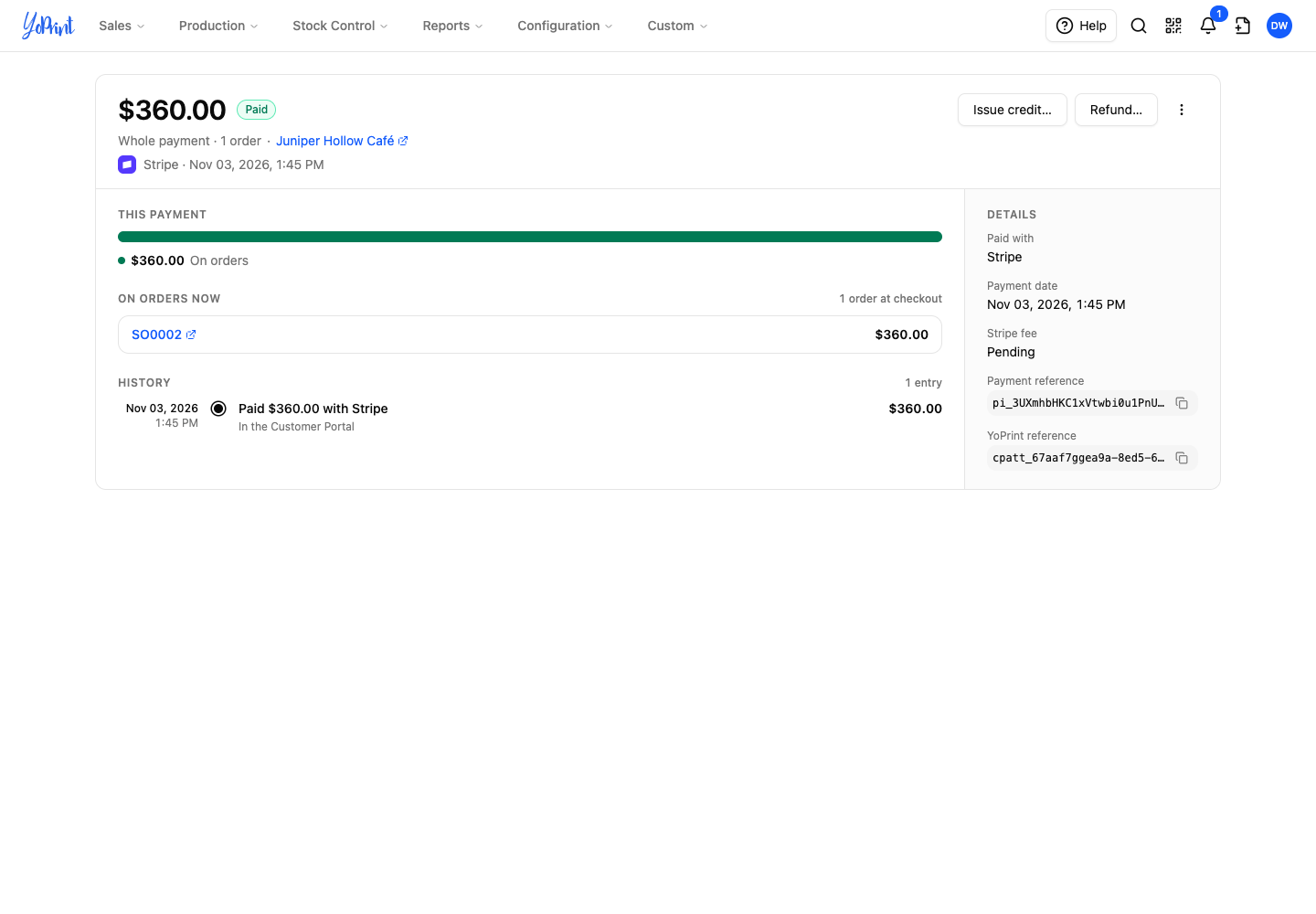
The full page shows the same payment details.
| Detail | What it tells you |
|---|---|
| Amount at the top | The amount collected from the customer. |
| Paid with | The provider that processed the payment, such as Stripe. This field is in Details. |
| Payment reference | The provider’s reference for this payment. |
| YoPrint reference | The reference that identifies the payment in YoPrint. |
| Stripe fee, or another provider’s fee | The provider fees recorded for this payment. Pending means the fee amount is not yet known. An amount marked Not final is the fee total known so far. |
Pending beside Stripe fee refers to the fees, not whether the customer paid. The payment amount, its allocation and any notices describe the payment itself.
Last checked with Stripe and Next check are under More actions. Refresh appears below them in the same menu.
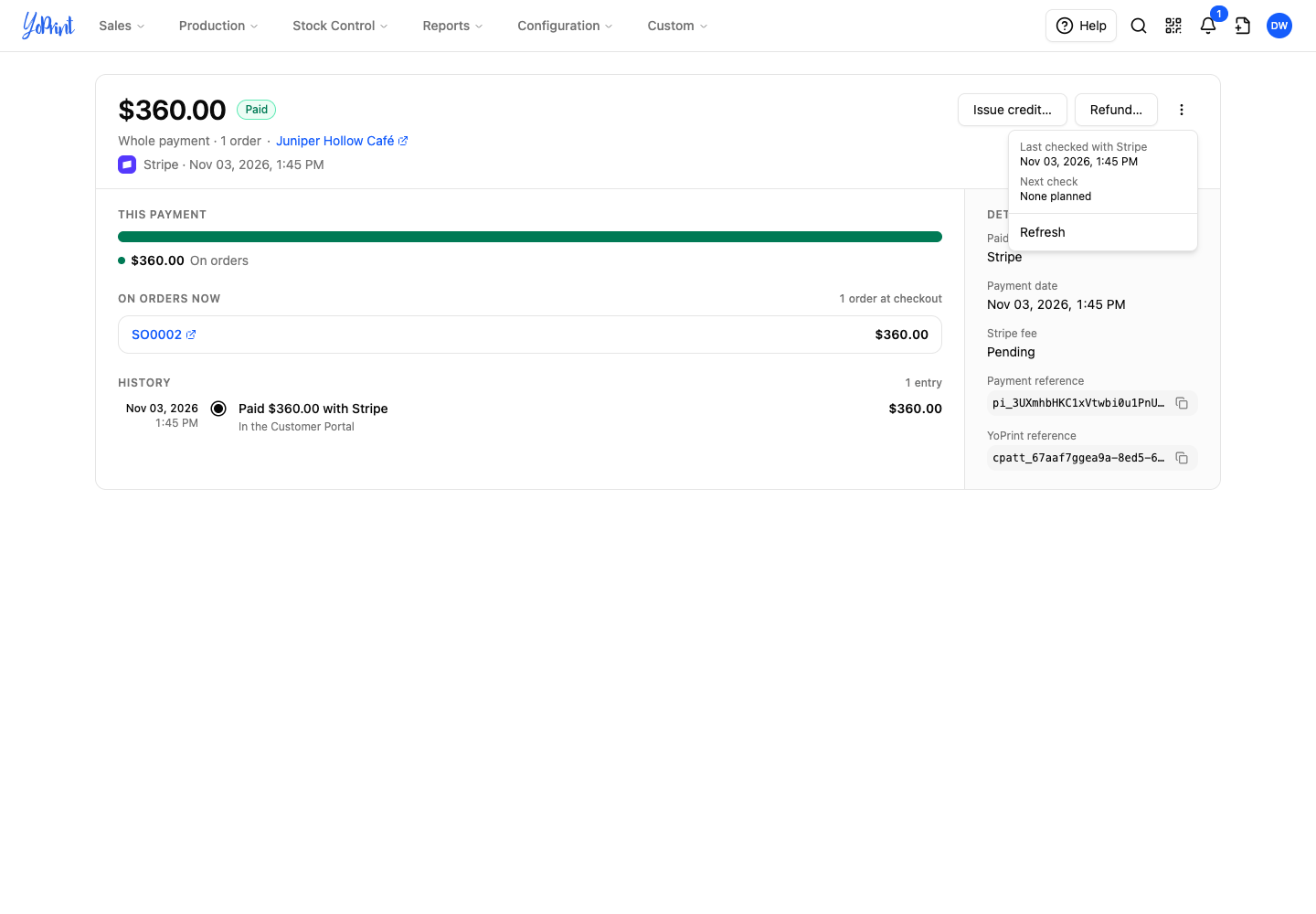
- Last checked with Stripe, or another provider: When YoPrint last checked the payment with the provider. Not yet means no check is recorded.
- Next check: The next scheduled provider check. None planned means no check is scheduled.
See where the payment was applied
This payment uses a split bar to show where the money is now:
| Amount | Meaning |
|---|---|
| On orders | Money currently applied to the orders paid at checkout. |
| Issued as credit | Money from this payment issued as customer credit. |
| Refunded | Money refunded to the customer through the payment provider. |
| Chargeback | Money taken back through a provider dispute. |
Only the relevant amounts appear. After the $60 partial refund in this example, $300 remains on the order and $60 is shown as refunded. The On orders amount in This payment matches the total currently applied in On orders now.
On orders now shows each linked sales order and the amount currently applied to it. When an order’s amount has changed, the row can show the amount planned at checkout and deductions such as a refund or credit issued.
History lists dated payment events.
-
Click the order number to open the sales order.
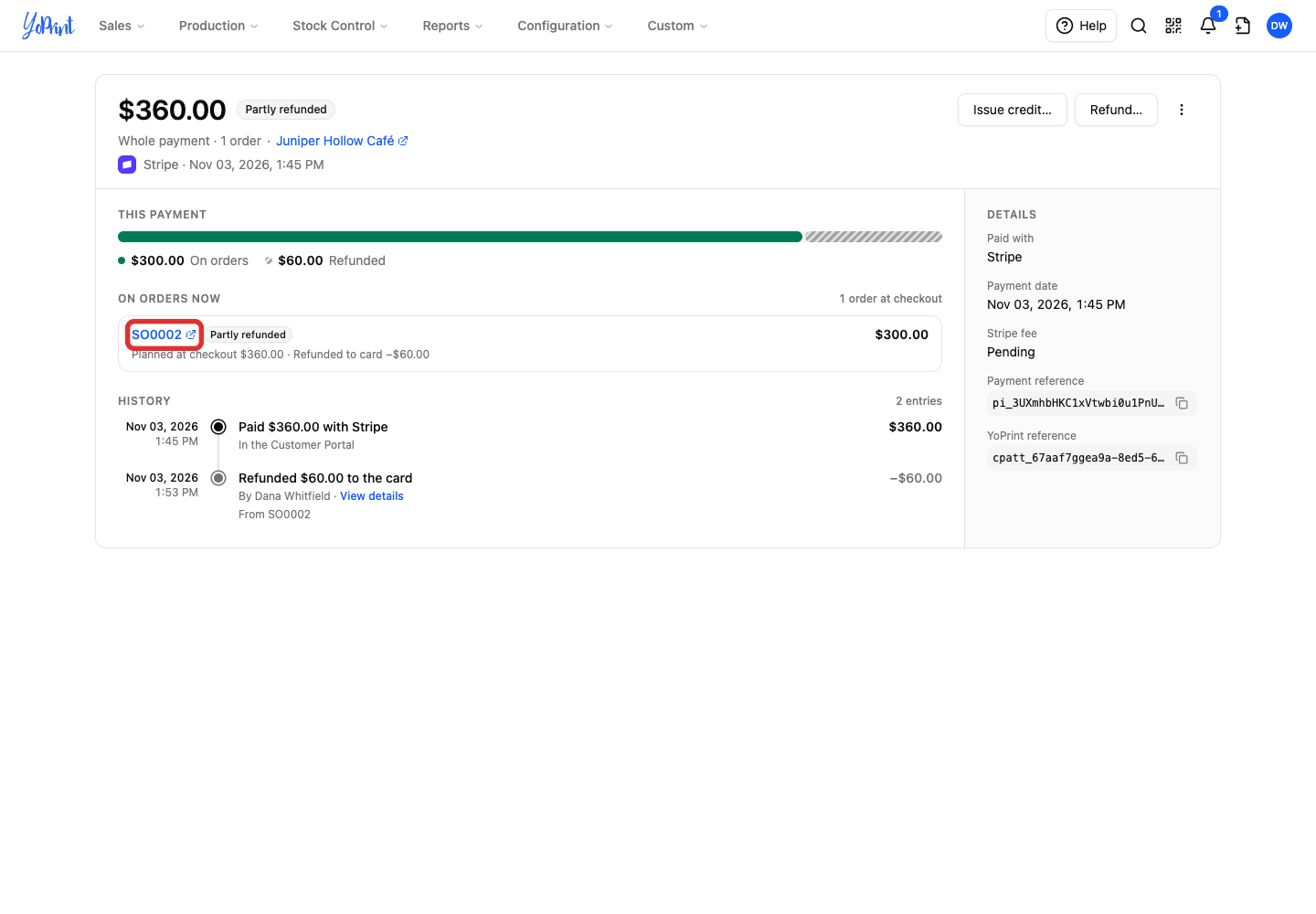
On this order, Invoice 2 is Partial, Amount Paid is $300.00, and Balance Due is $60.00. The order shows the invoice subtotal and total. Scroll down to Payments to see the payment on this order. The $60.00 refund reduced Amount Paid from $360.00 to $300.00 and left $60.00 due again in Balance Due.
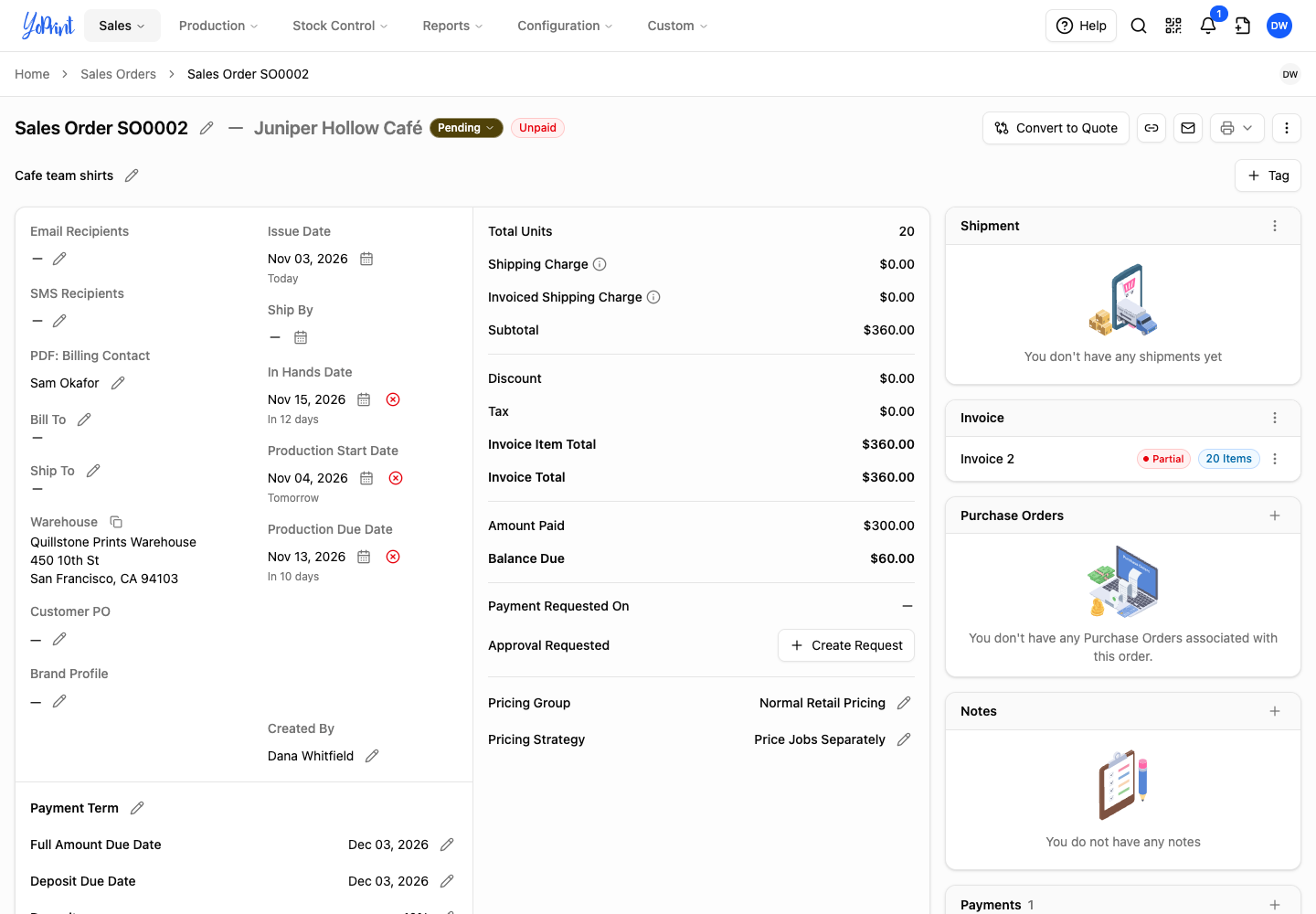
The full Customer payment page groups money by sales order under On orders now, while the sales order and the customer’s receipt show the invoice. The customer’s receipt lists the invoices under each order, as shown in What Your Customers See on a Receipt.
Understand the status labels
Return to the Customer payment tab after checking the sales order. Read each label beside the order or event it describes.
After a $60 partial refund, this payment shows $300 on SO0002, Partly refunded, and the refund in History.
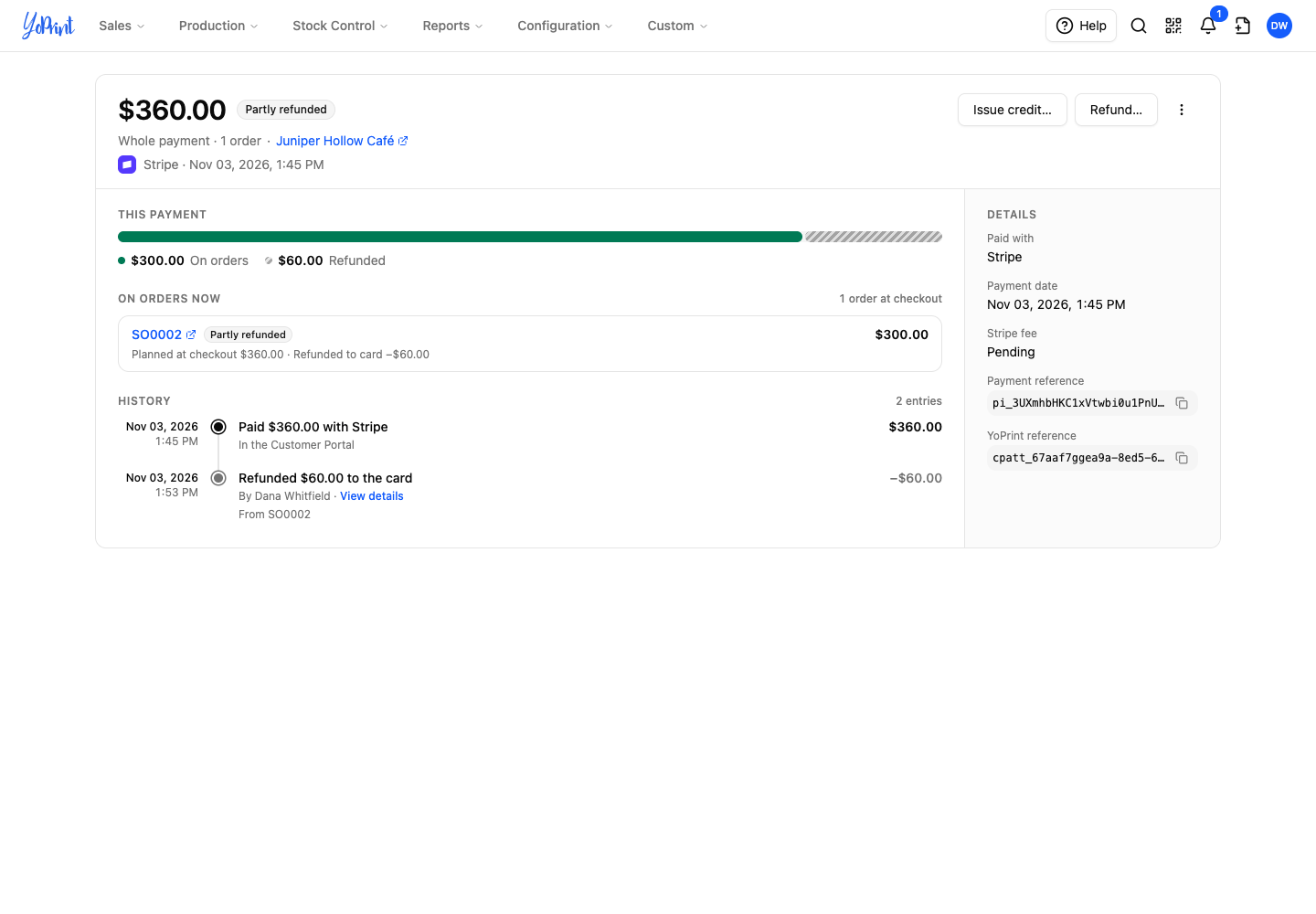
Labels beside an order
| Label | Meaning |
|---|---|
| Order deleted | The order has been deleted. |
| Credit reused | Credit from this payment was used on the order. |
| Issued as credit | Money was taken off the order and issued as customer credit. |
| Charged back | Money was taken off the order after a provider dispute. |
| Refunded | Money associated with the order was refunded through the provider. |
| Refund pending | A refund associated with this order is not yet fully settled in YoPrint. |
Refund and dispute statuses
- For a refund entry in History, click View details. How Refunds Work in YoPrint explains the refund-result labels.
- If the payment shows a dispute notice below This payment, read that notice. Handle a Disputed Payment explains its status and next action.
What your customer sees
When your customer follows an order link, they sign in with the email address your shop has on file and a code sent to that email. The order opens after sign-in.
On Payment Successful, your customer can click View payment receipt to open their receipt. The reference on the customer’s receipt matches YoPrint reference in Details. What Your Customers See on a Receipt explains its fields and matching reference.
For an earlier payment, your customer can expand the payment in the order’s Payments section in the customer portal and follow Find a receipt later. They open the order from Orders or Activity, then click View payment receipt in the expanded payment.
On the payment, click Issue credit... or Refund... to start a credit return or provider refund. To return money to credit or refund it, see How Refunds Work in YoPrint. To handle a dispute, see Handle a Disputed Payment.