What Your Customers See on a Receipt
In this article
A payment receipt shows your customer how much they paid, the payment date, and which order and invoice the payment went toward. Customers can open the receipt after paying online or find it again later.
For the payment steps, see Collect and Record Payments. To find an earlier receipt from the portal, customers open Orders and follow Find a receipt later.
If Choose an account appears after sign-in, your customer selects the account for the order. To switch companies later in the portal, your customer clicks the company name at the bottom of the sidebar. See Customer Portal Overview.
Customers: open a receipt after paying
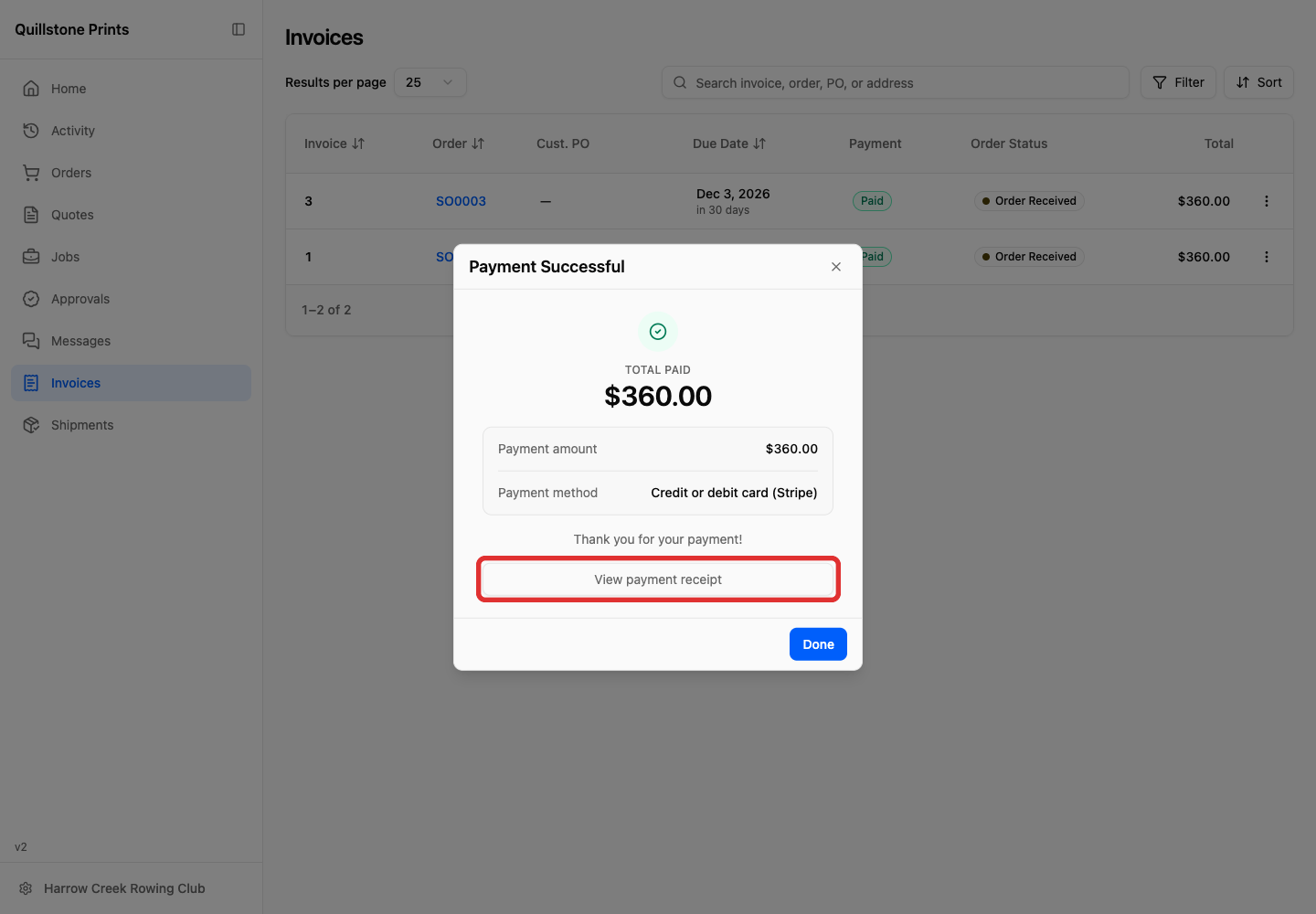
After paying online, Payment Successful confirms the payment. It shows the total paid, payment amount, and payment method.
-
Click View payment receipt.
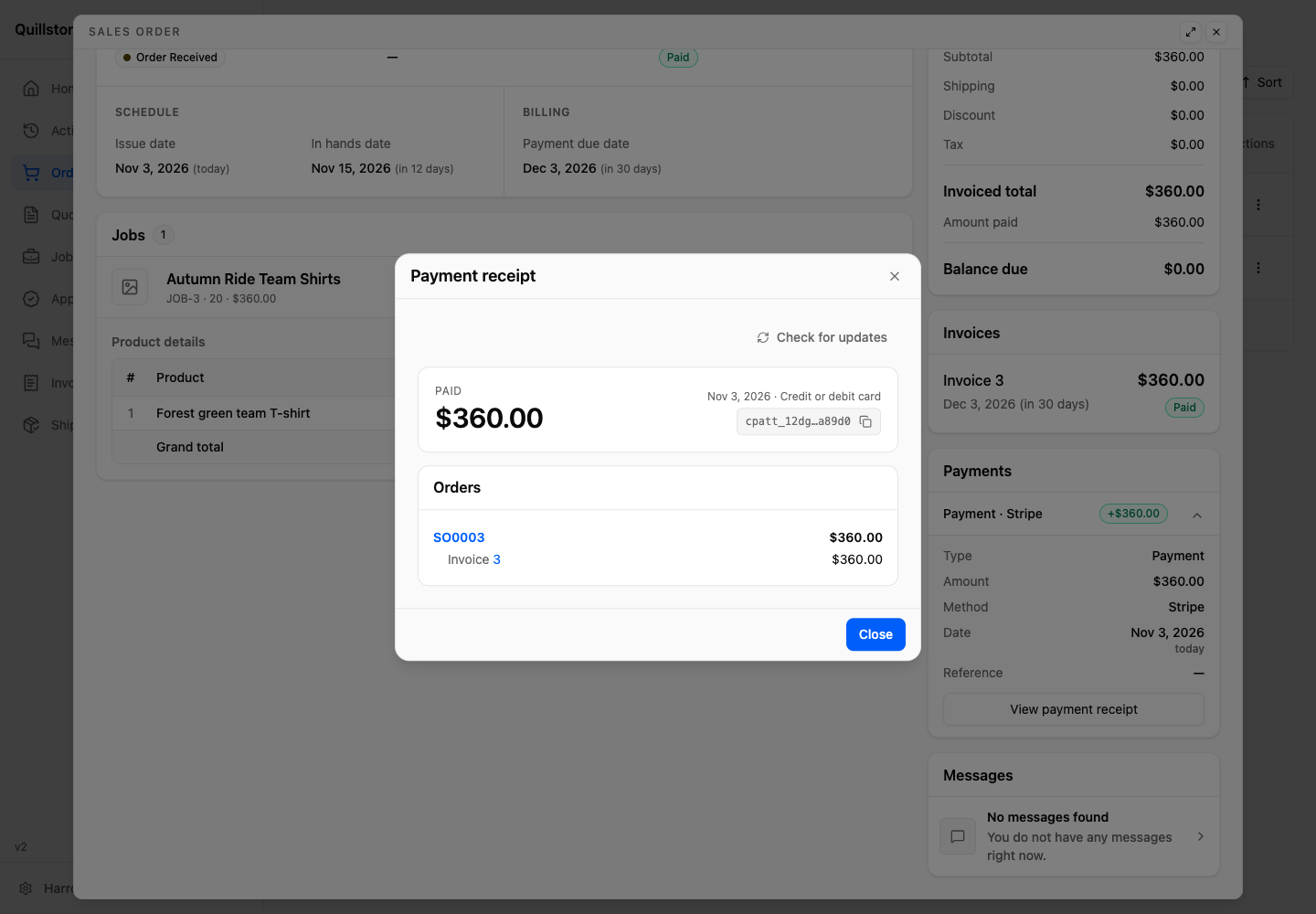
The PAID receipt shows the total paid, payment date, payment method, and reference. Under Orders, it lists the order and invoice with the amount applied to each.
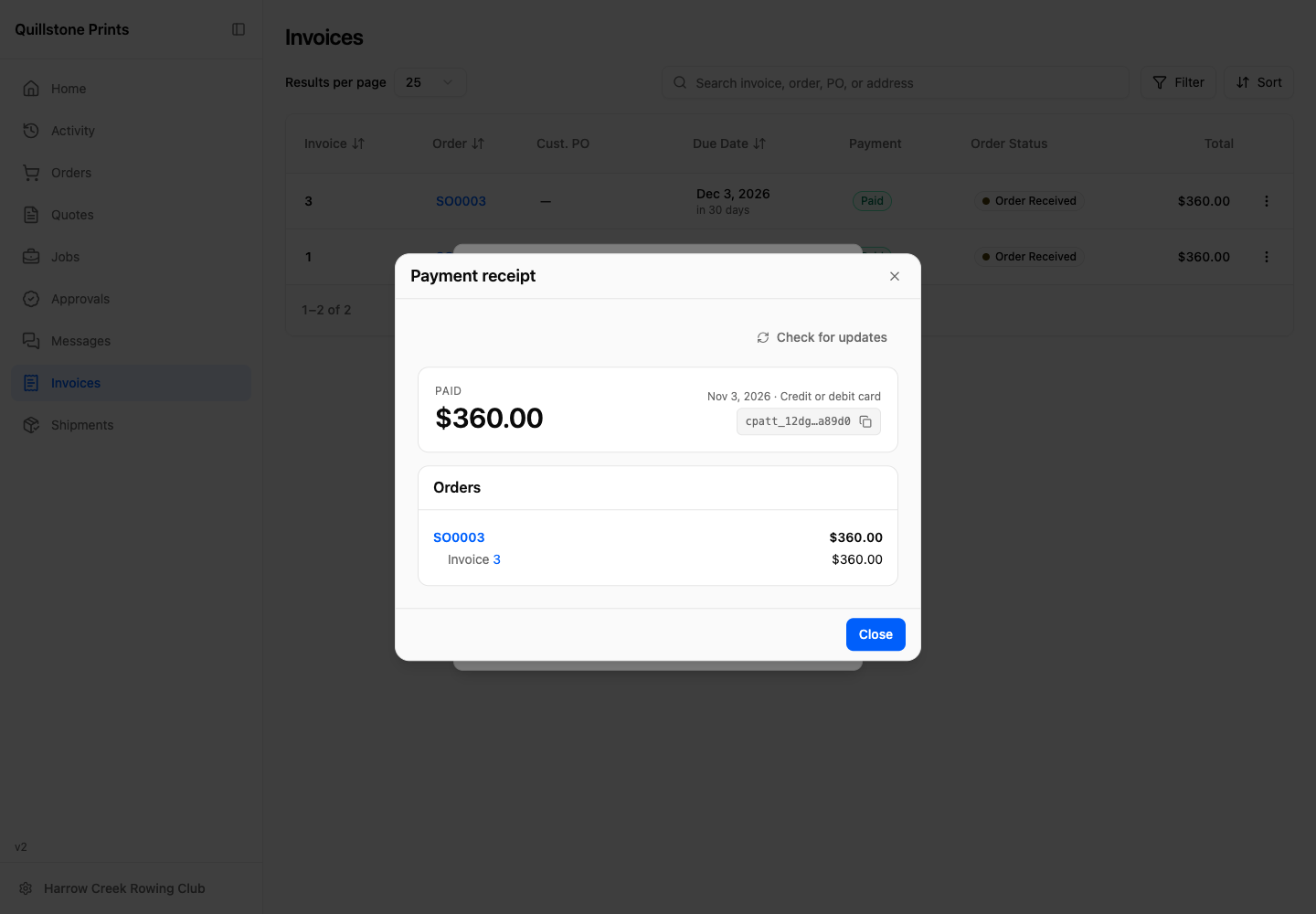
The cpatt_ code below the payment date and method is the payment reference. The reference identifies the payment. It matches YoPrint reference on your shop’s customer payment page.
-
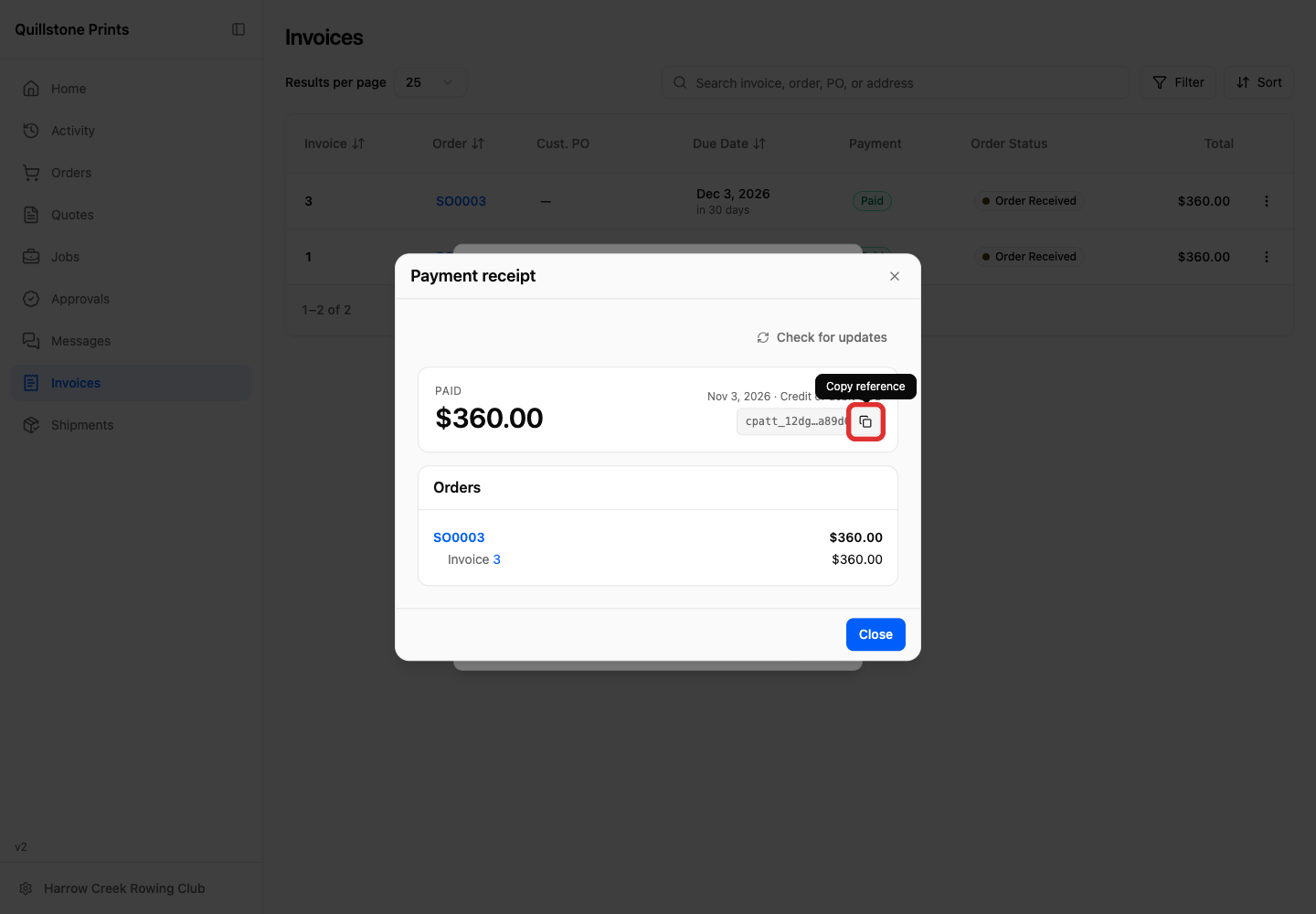
To share the reference with your shop, click the copy icon beside the reference.
Customers: view the invoice breakdown from a receipt
-
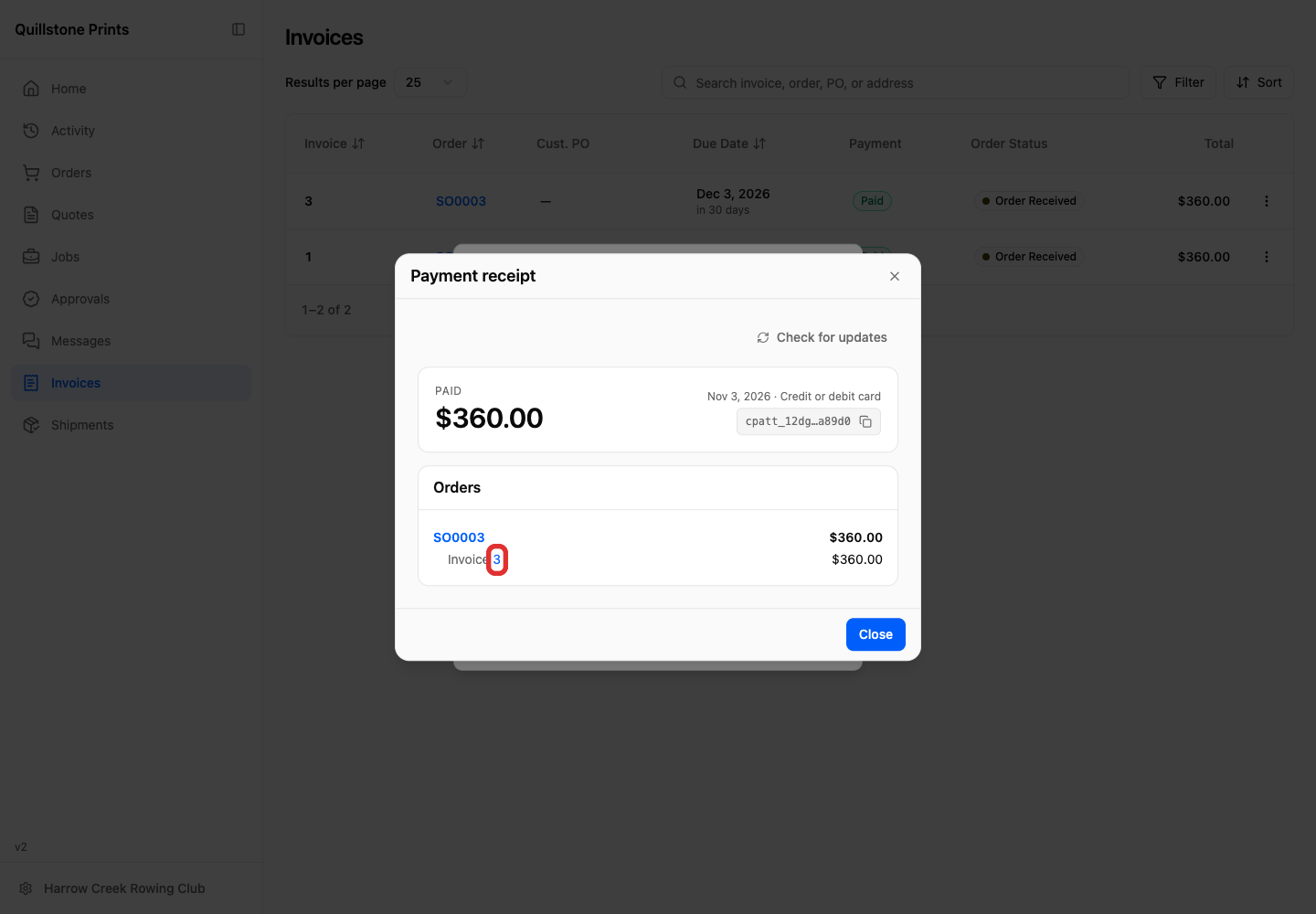
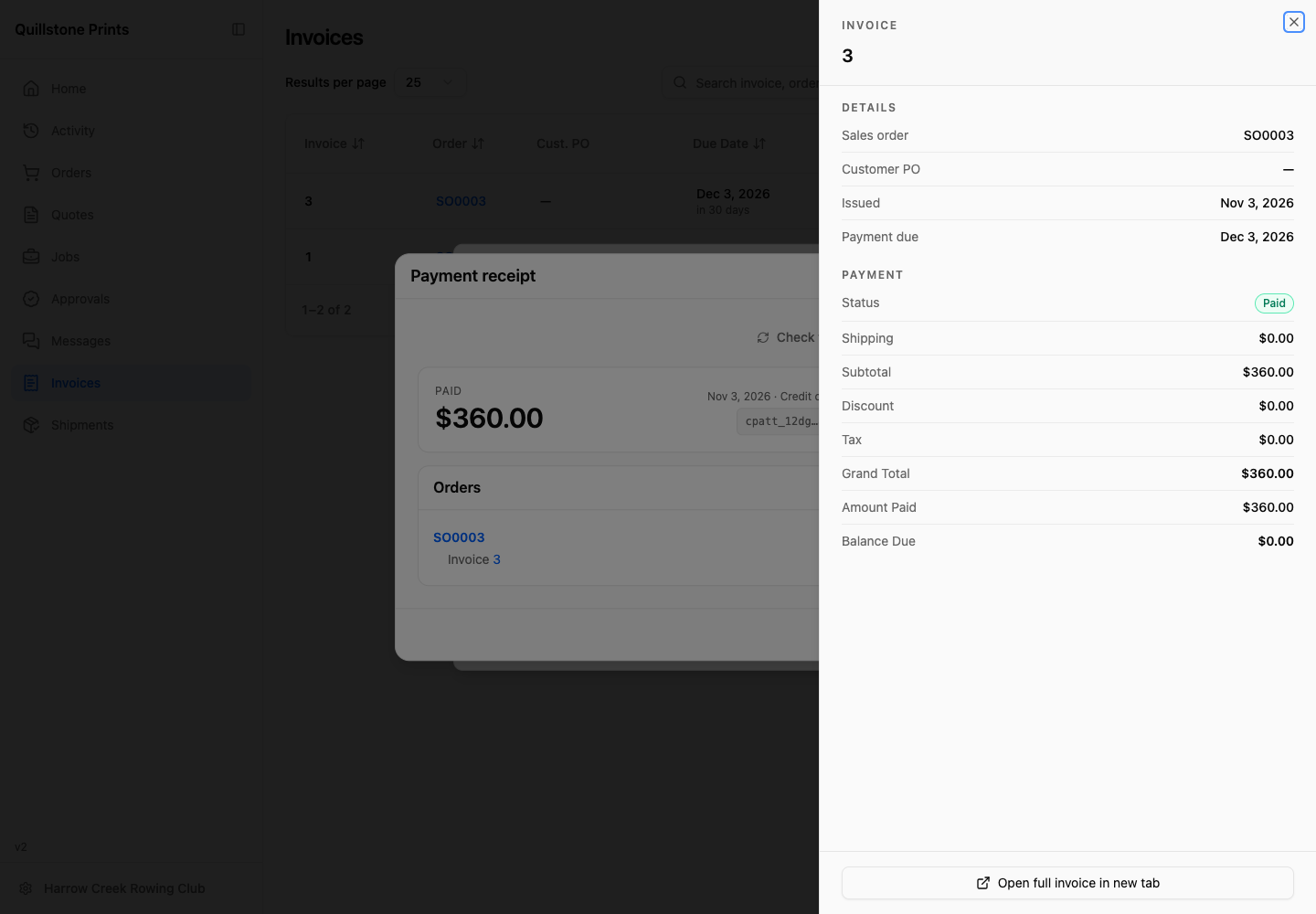
On the receipt, click the invoice number.
The invoice preview shows the payment status, subtotal, Grand Total, amount paid, and balance due. In this example, Subtotal is $360.00. Amount Paid is $360.00, leaving a Balance Due of $0.00.
Customers: find a receipt later
Customers can reopen a receipt from Orders or Activity in the customer portal.
From Orders
-
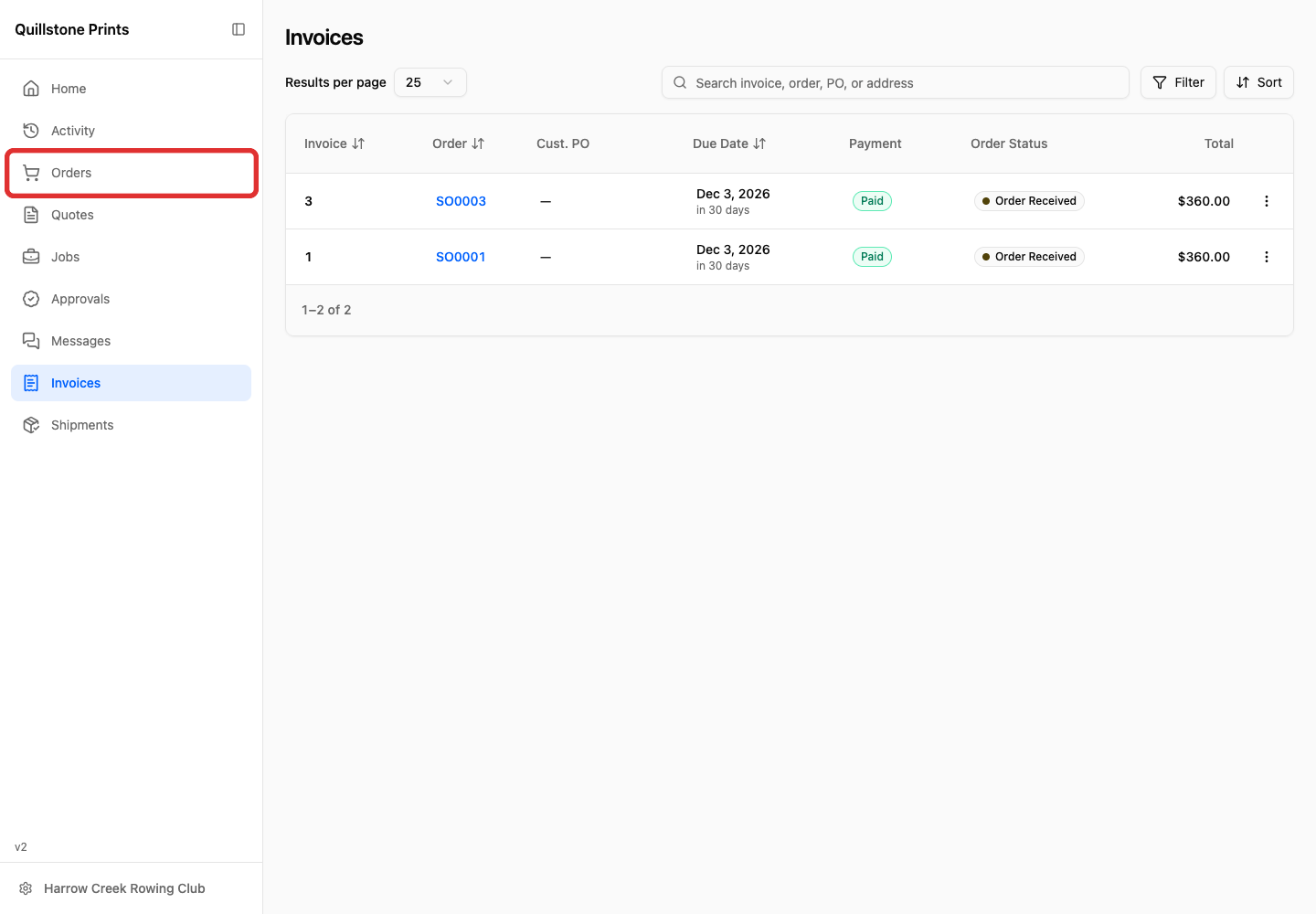
Click Orders in the sidebar.
-
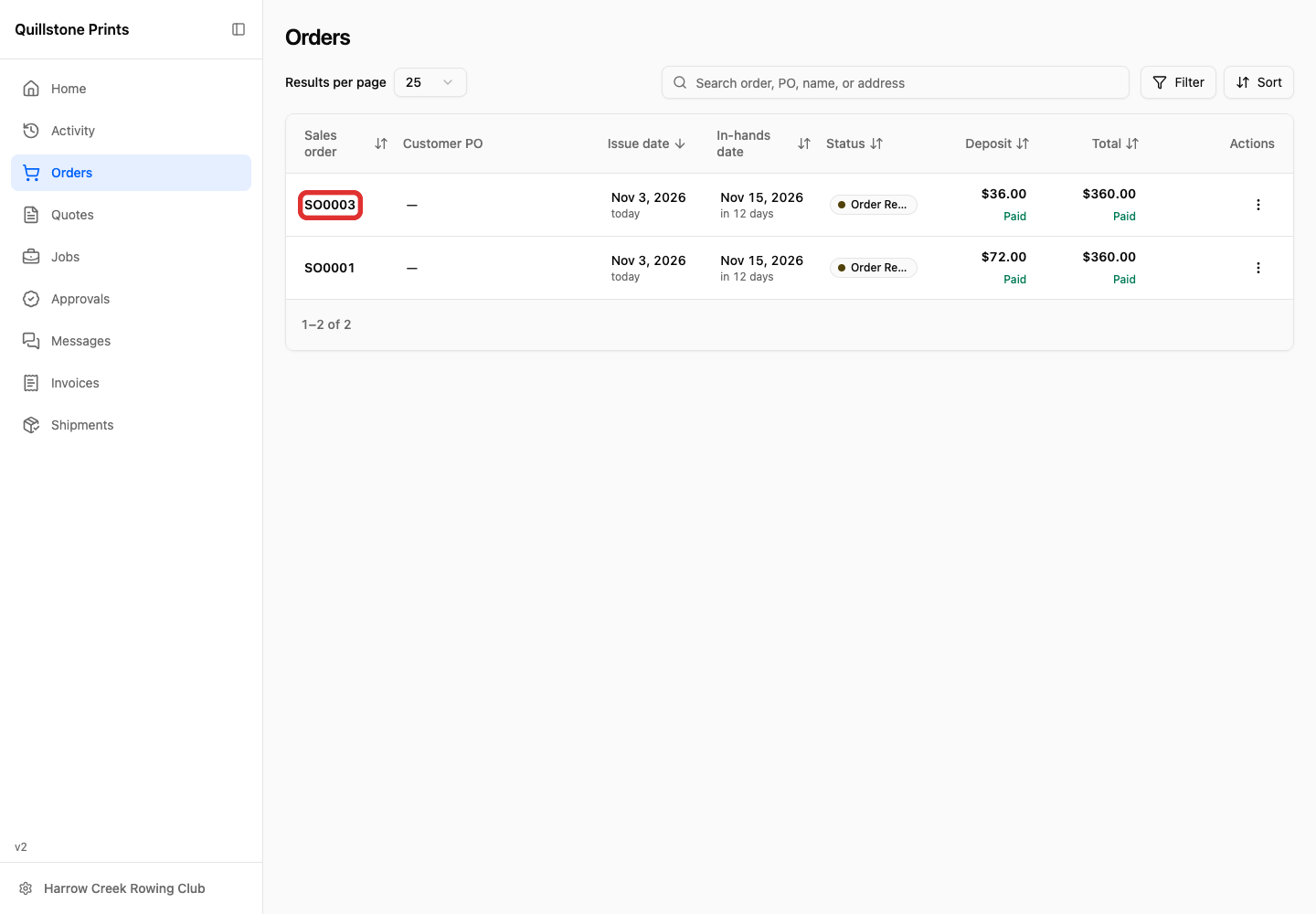
Click the order number.
-
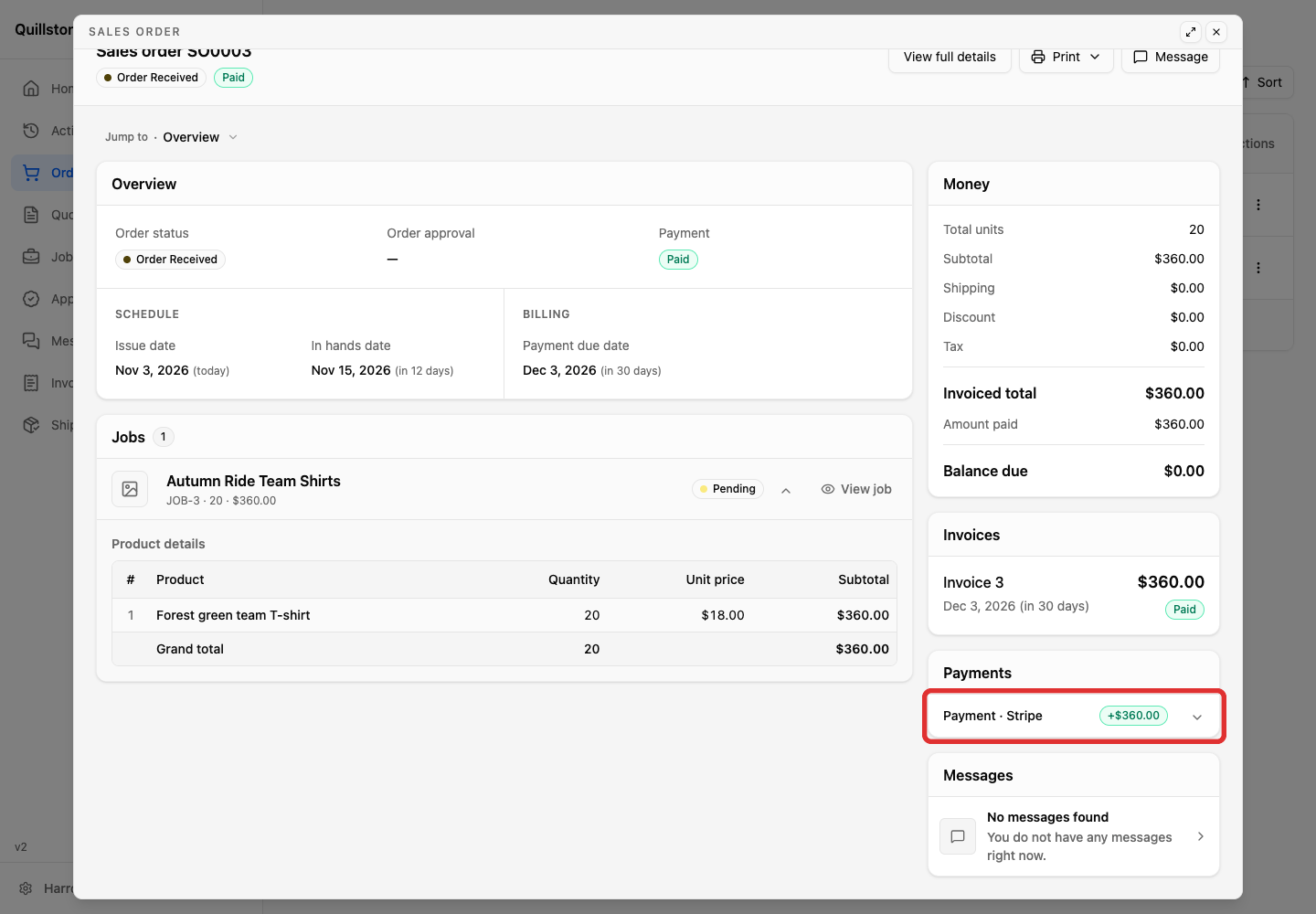
In Payments, expand the payment.
-
Click View payment receipt.
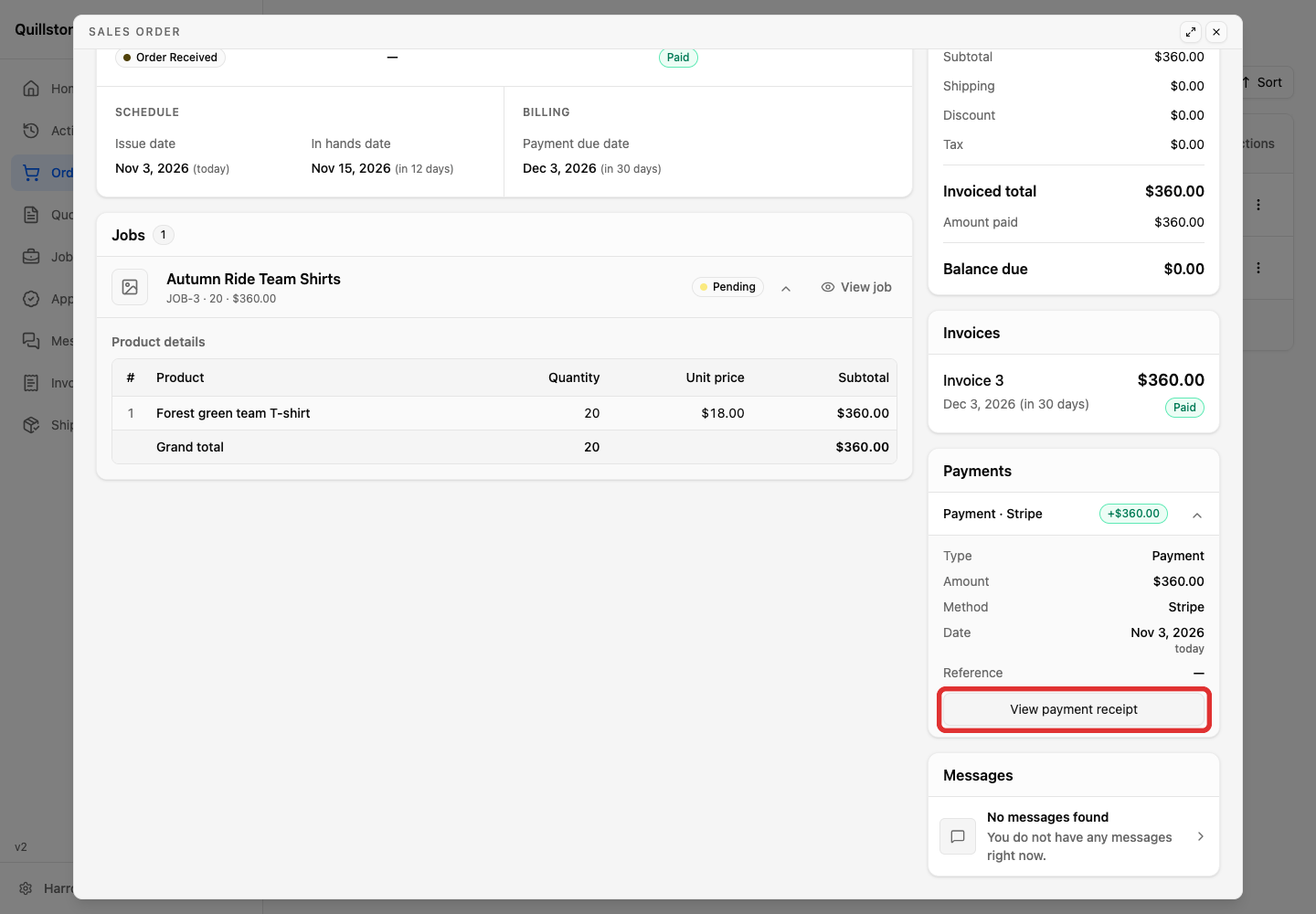
The Payment receipt opens.
From Activity
-
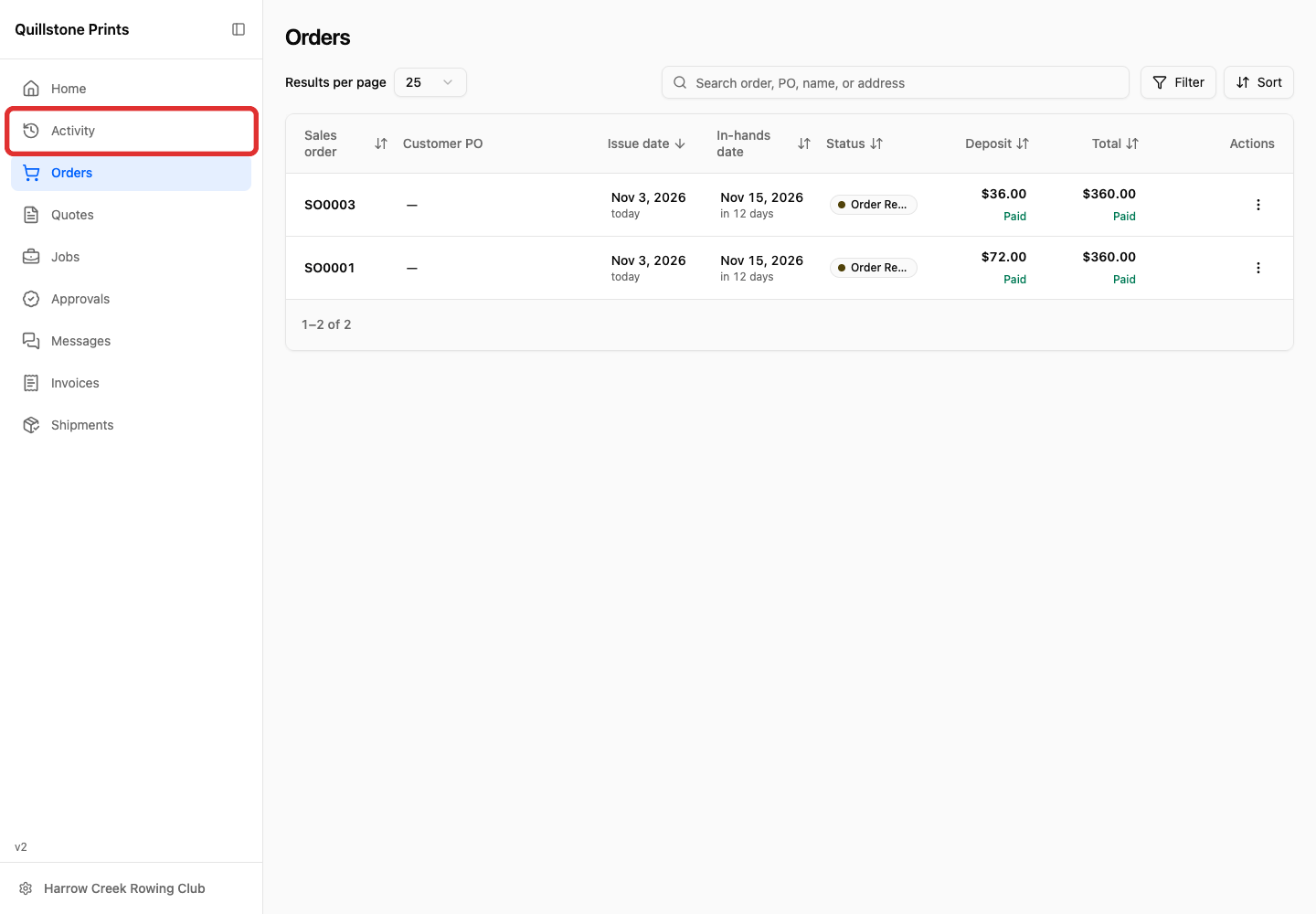
Click Activity in the sidebar.
-
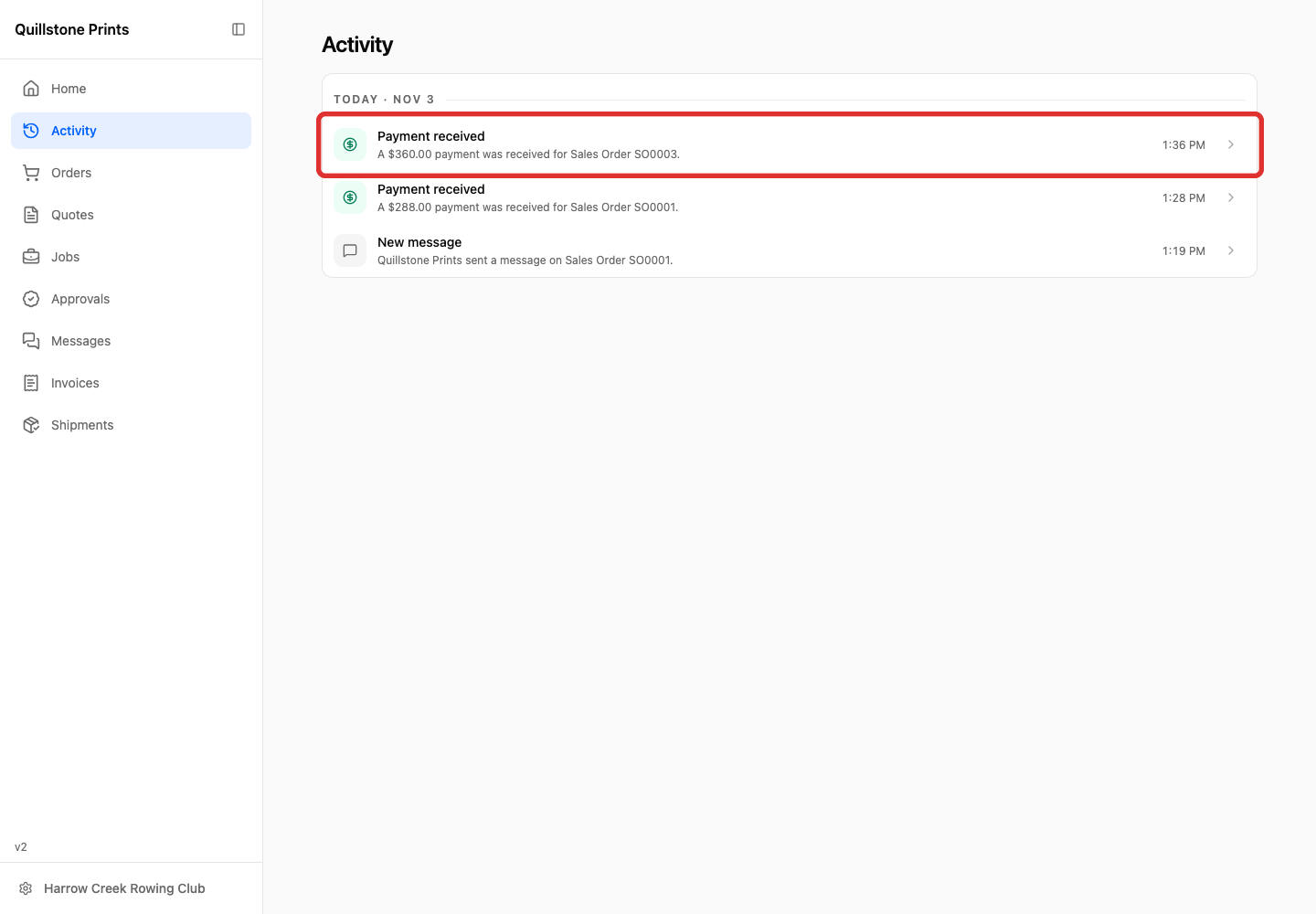
Click Payment received for the order.
-
In the order that opens, expand the payment in Payments.
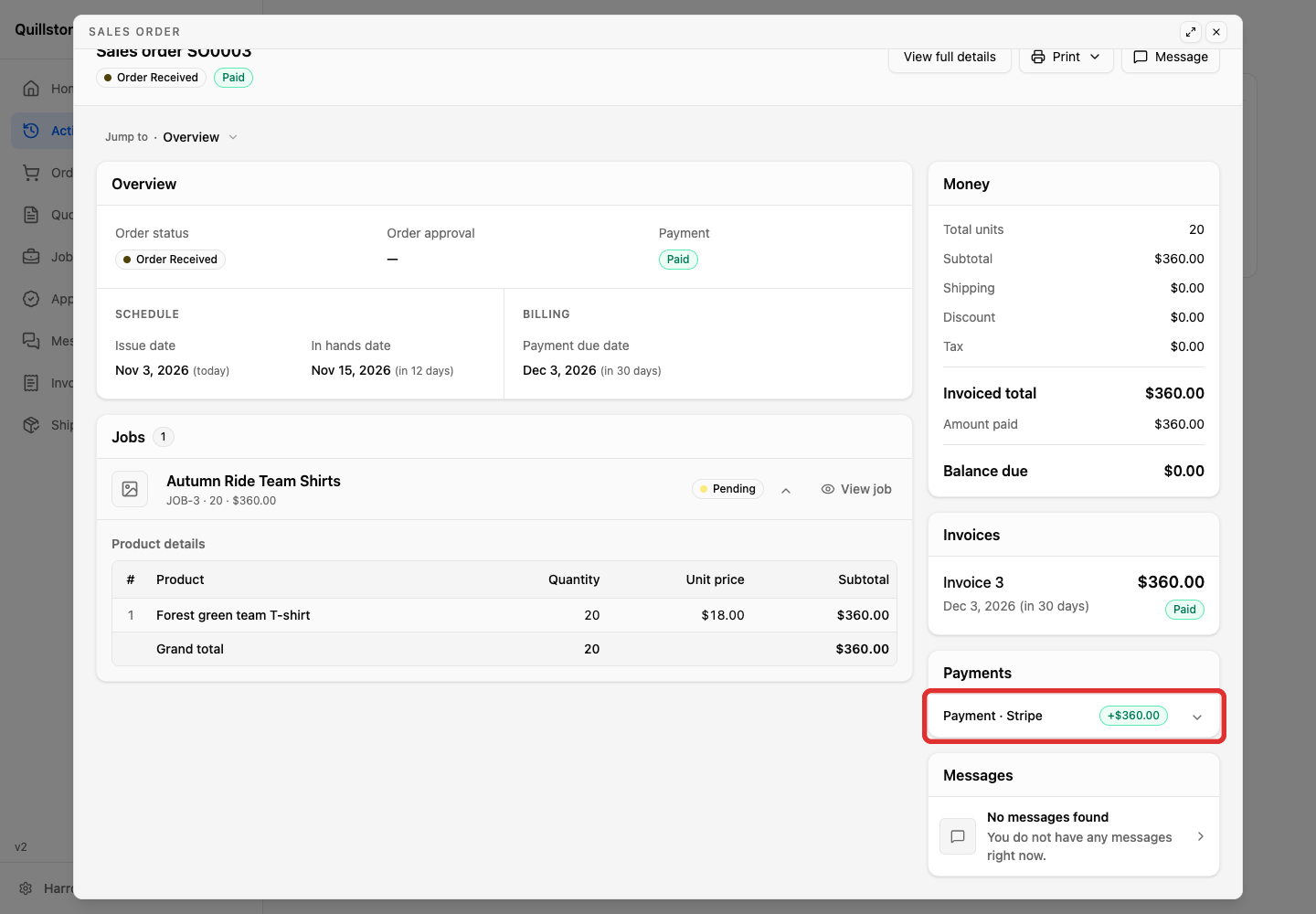
-
Click View payment receipt.
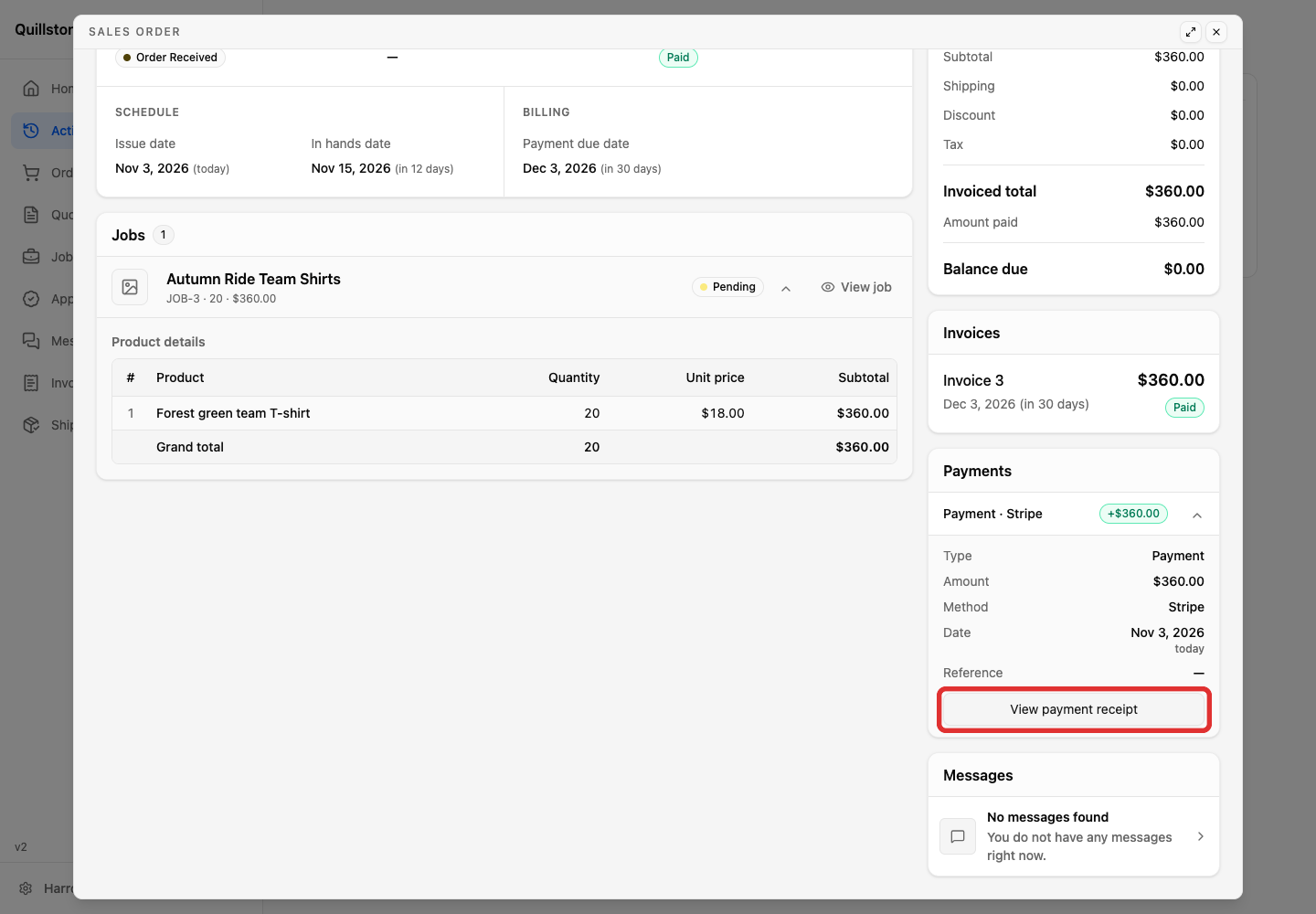
Customers: check for payment updates
Customers can refresh an open receipt to see whether the payment information has changed.
-
On the receipt, click Check for updates to load the latest payment information.
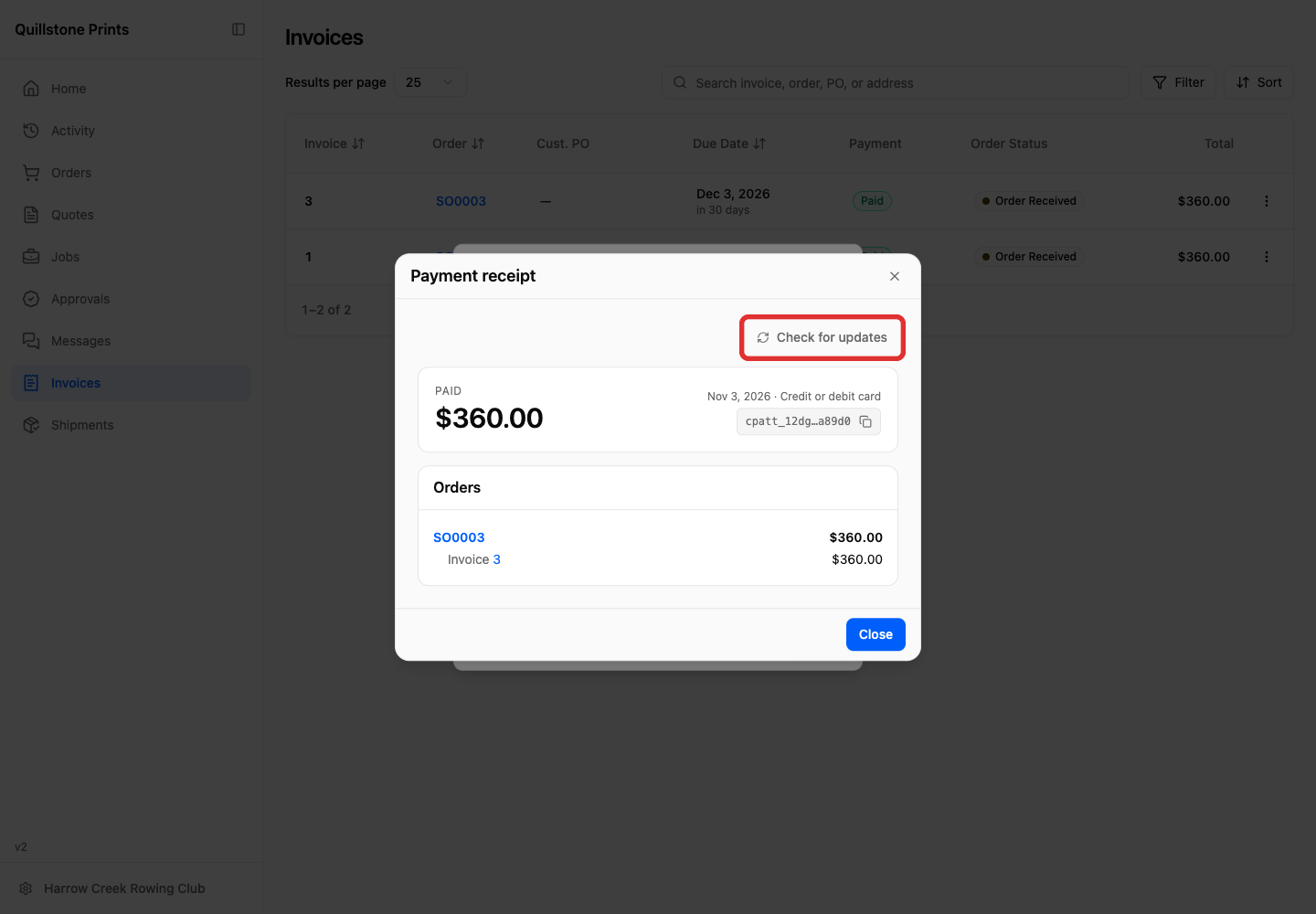
If the payment information has not changed, the receipt stays the same.
What your shop sees for the payment
On the sales order, double-click the payment in Payments, then choose More actions > View whole payment. In the payment window that opens, choose More actions > Open payment page to open the full page. To find the payment and open its full page, see Read a Customer Payment.
The customer payment page shows the amount paid online, the customer, and the payment provider. On orders now shows how much went toward the order. History lists the payment events and their dates. Match YoPrint reference here with the cpatt_ reference below the payment date and method on your customer’s receipt.
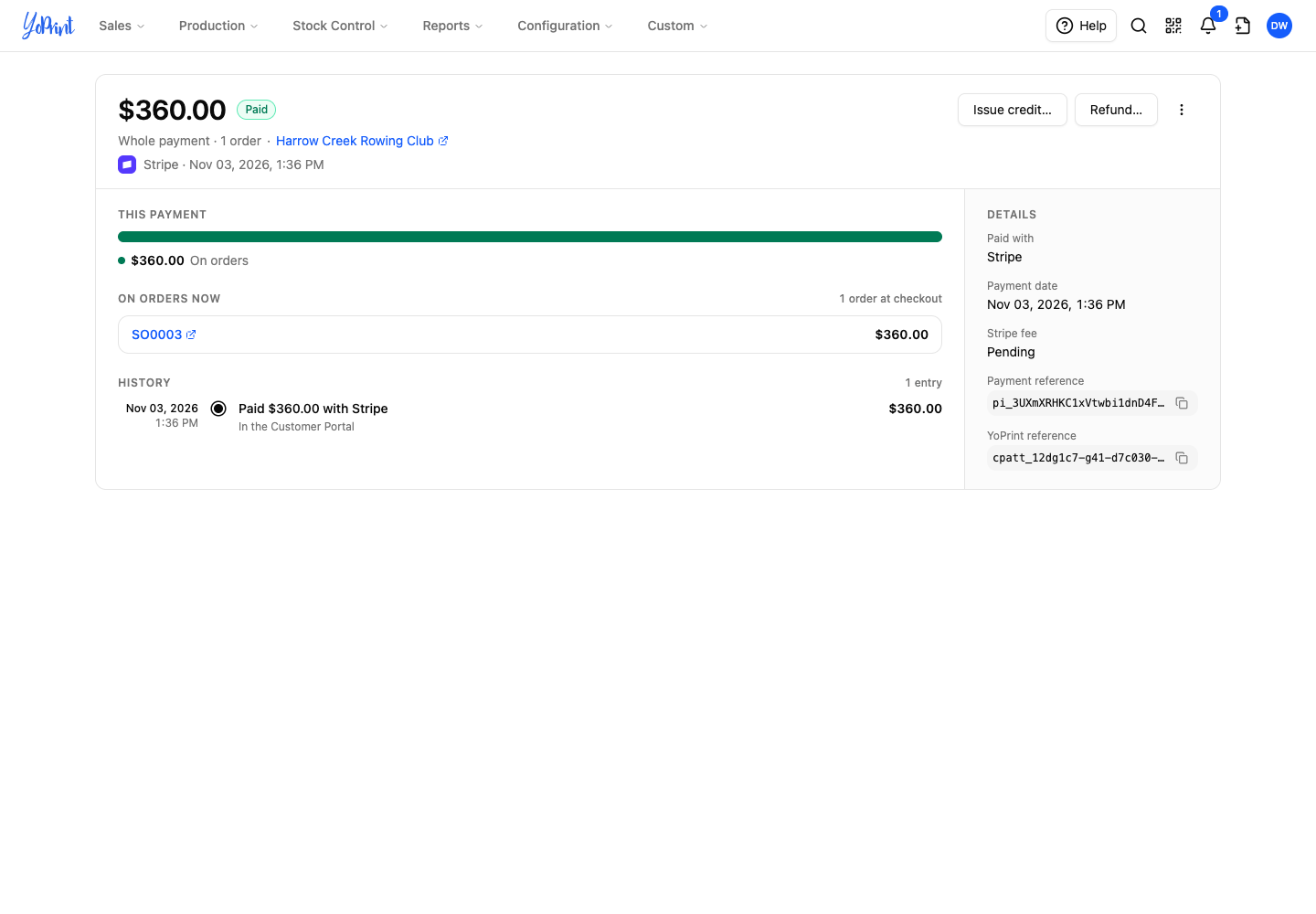
For your shop's payment workflow, see Collect and Record Payments.