Handle a Disputed Payment
In this article
A dispute starts when a customer challenges a card payment through their bank. The payment provider may take the disputed money back from your business while the bank reviews the dispute. This take-back is a chargeback. For Stripe payments, see Stripe’s guide to handling disputes.
Handle the dispute with your payment provider first. Then check how the change affects the payment, the invoice, and the customer’s credit in YoPrint.
To find an online payment with an unresolved dispute:
-
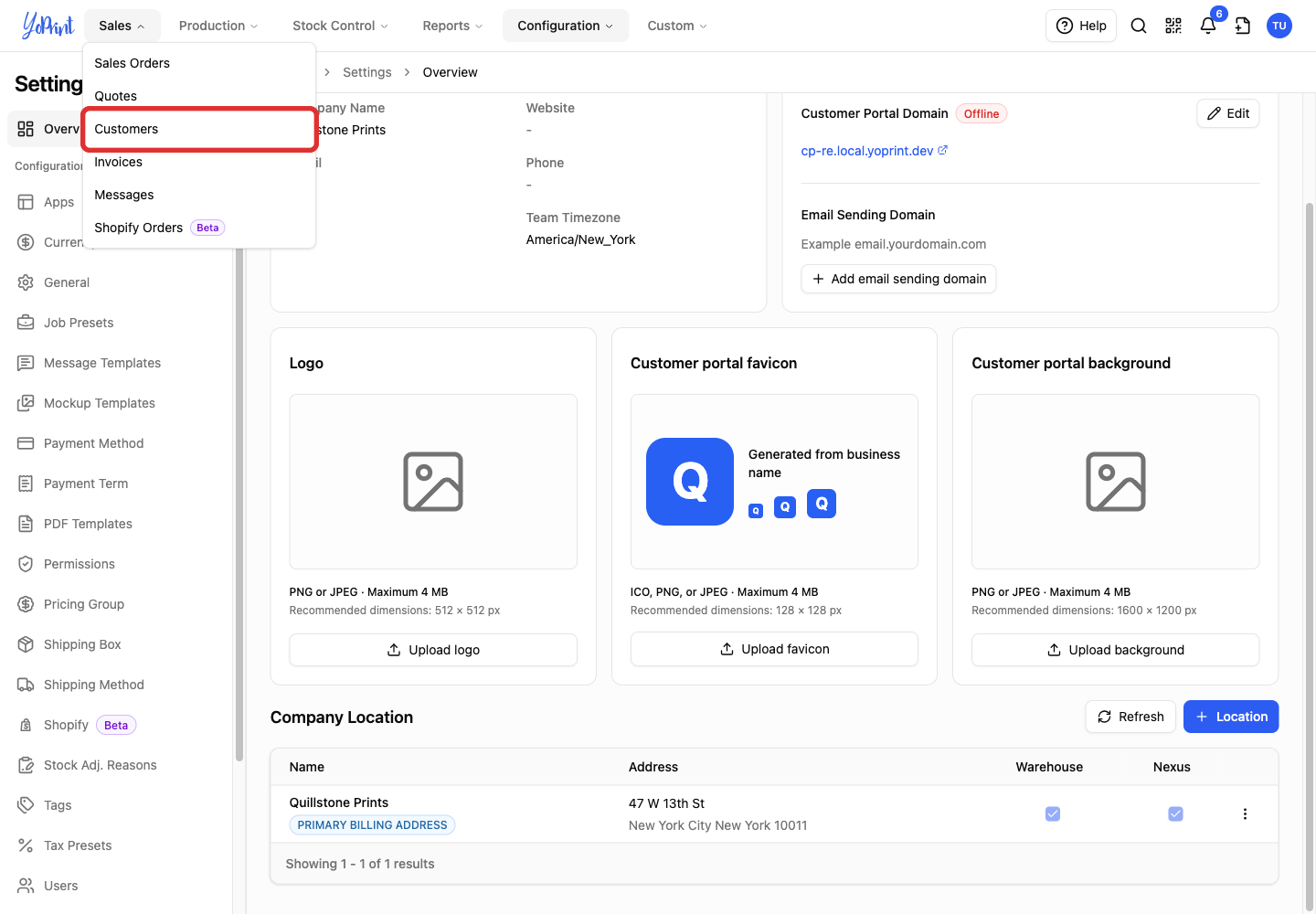
Open Customers.
-
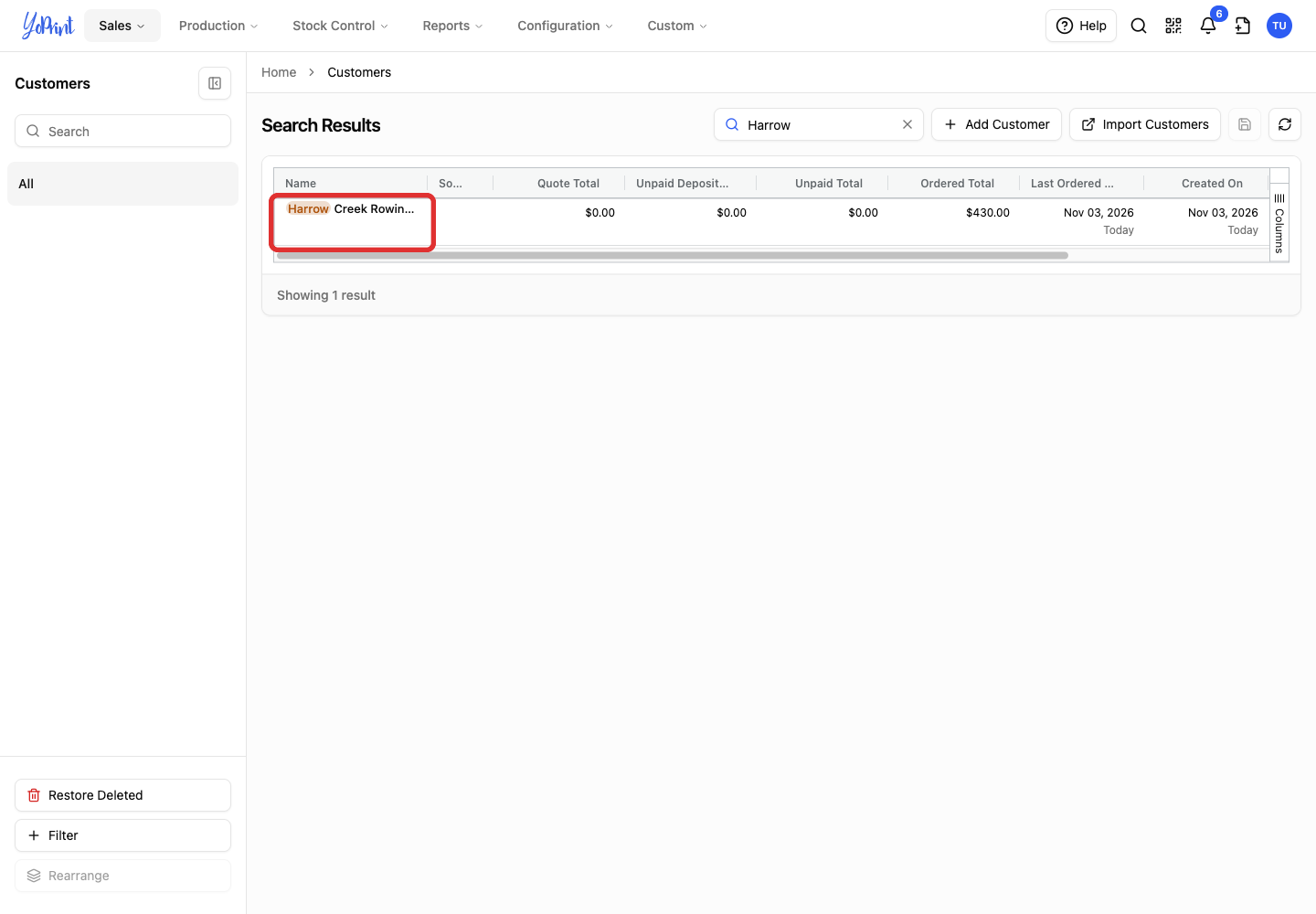
Double-click the customer’s row to open the customer view.
-
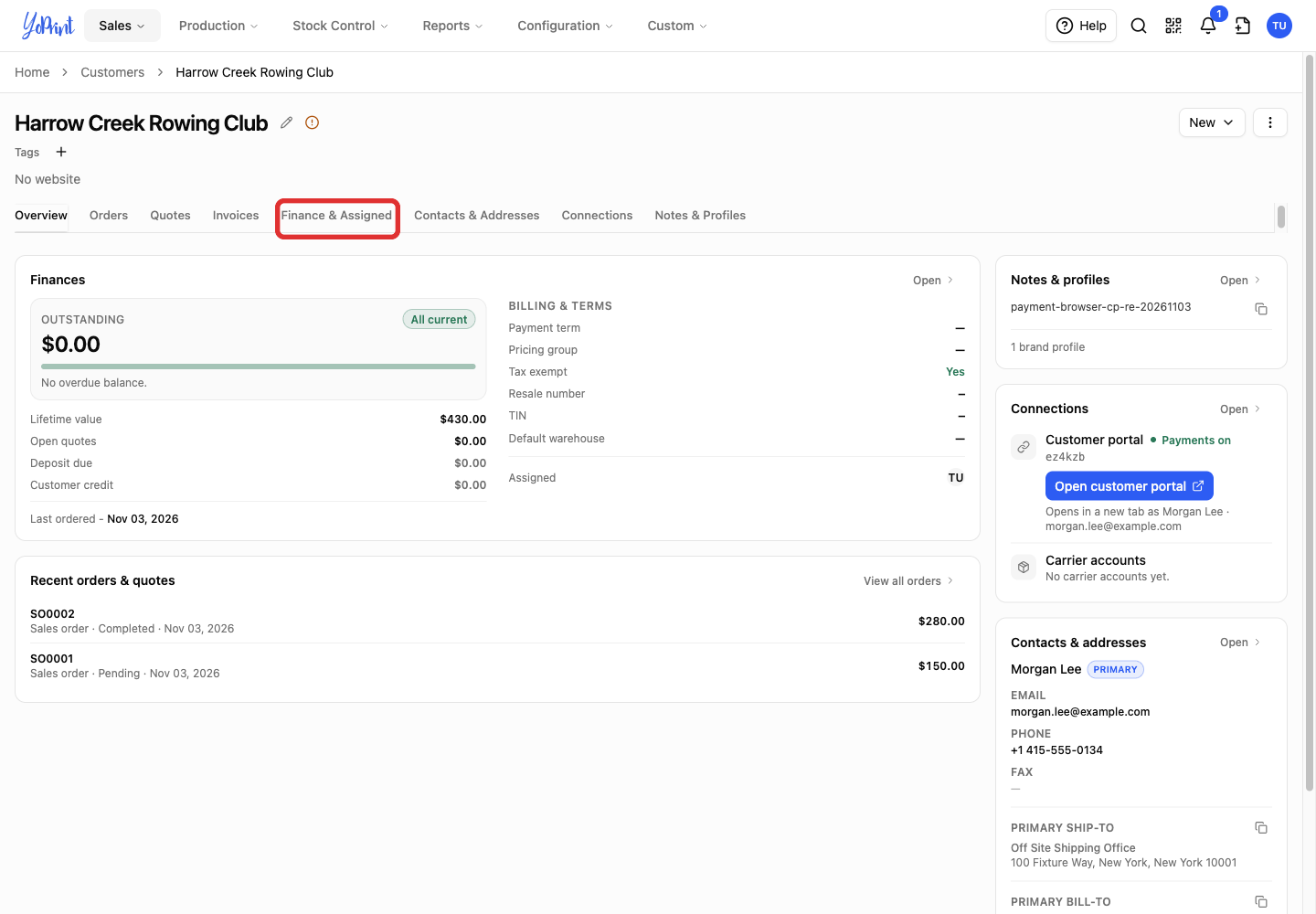
Choose Finance & Assigned.
-
Select Online payments.
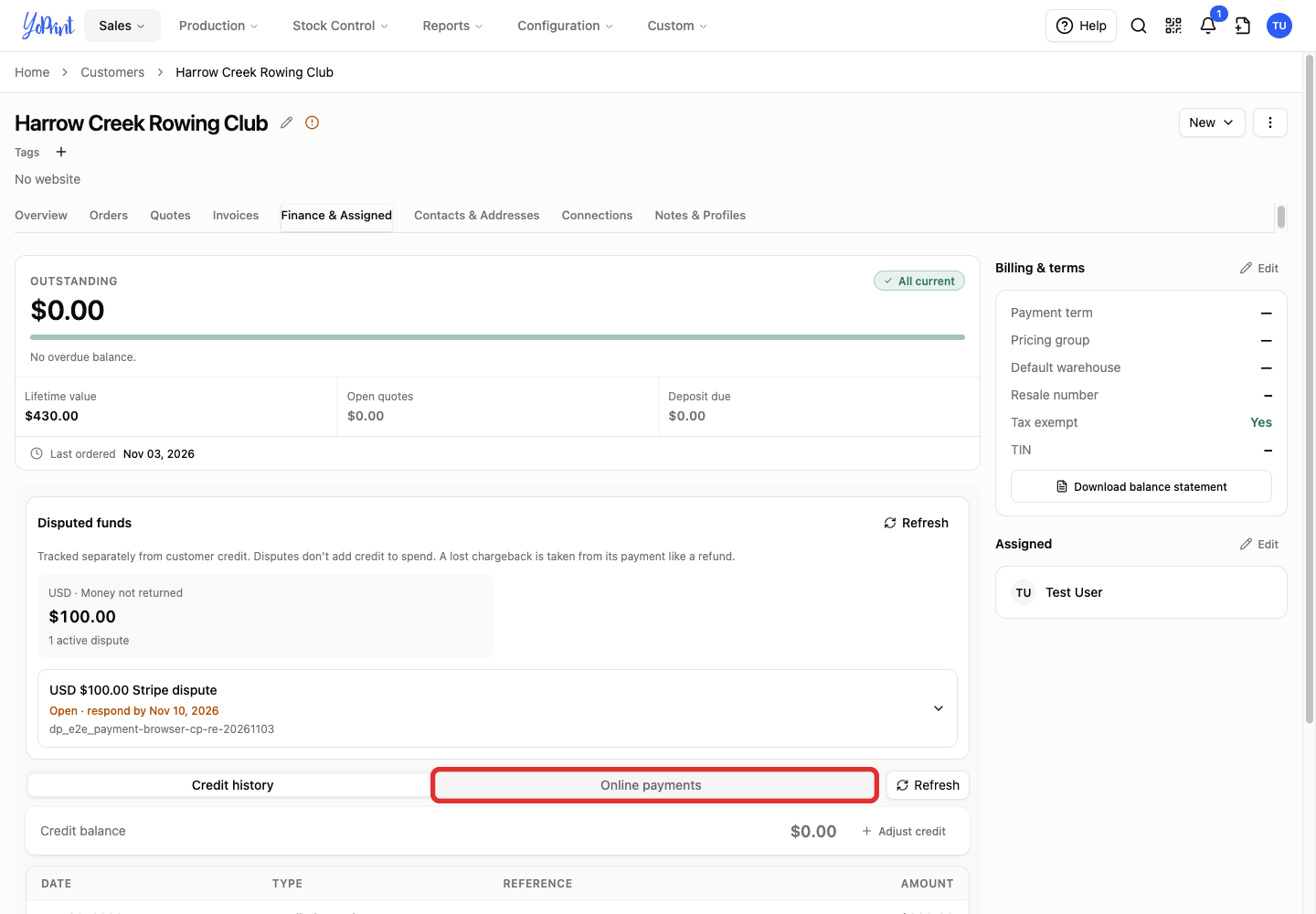
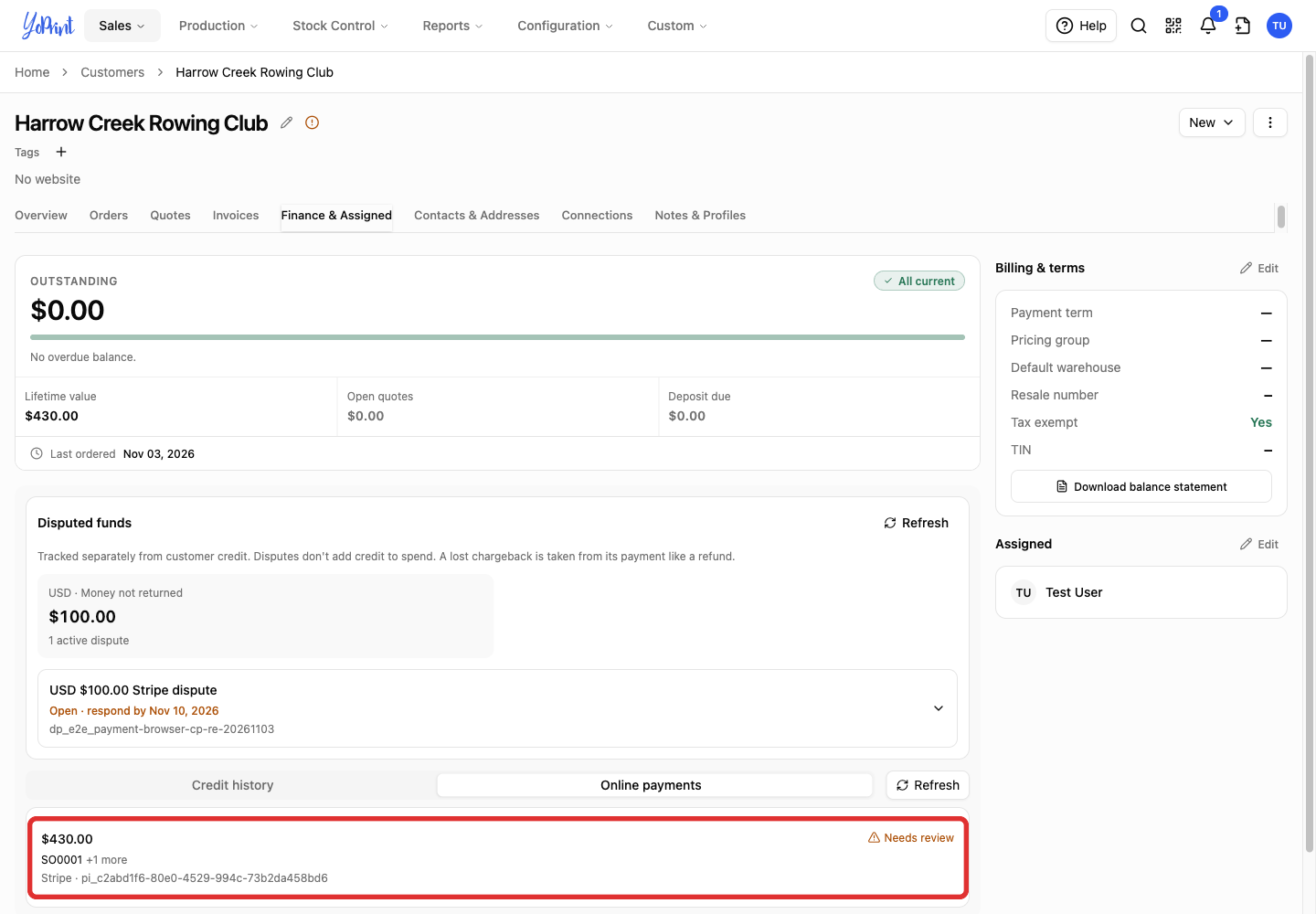
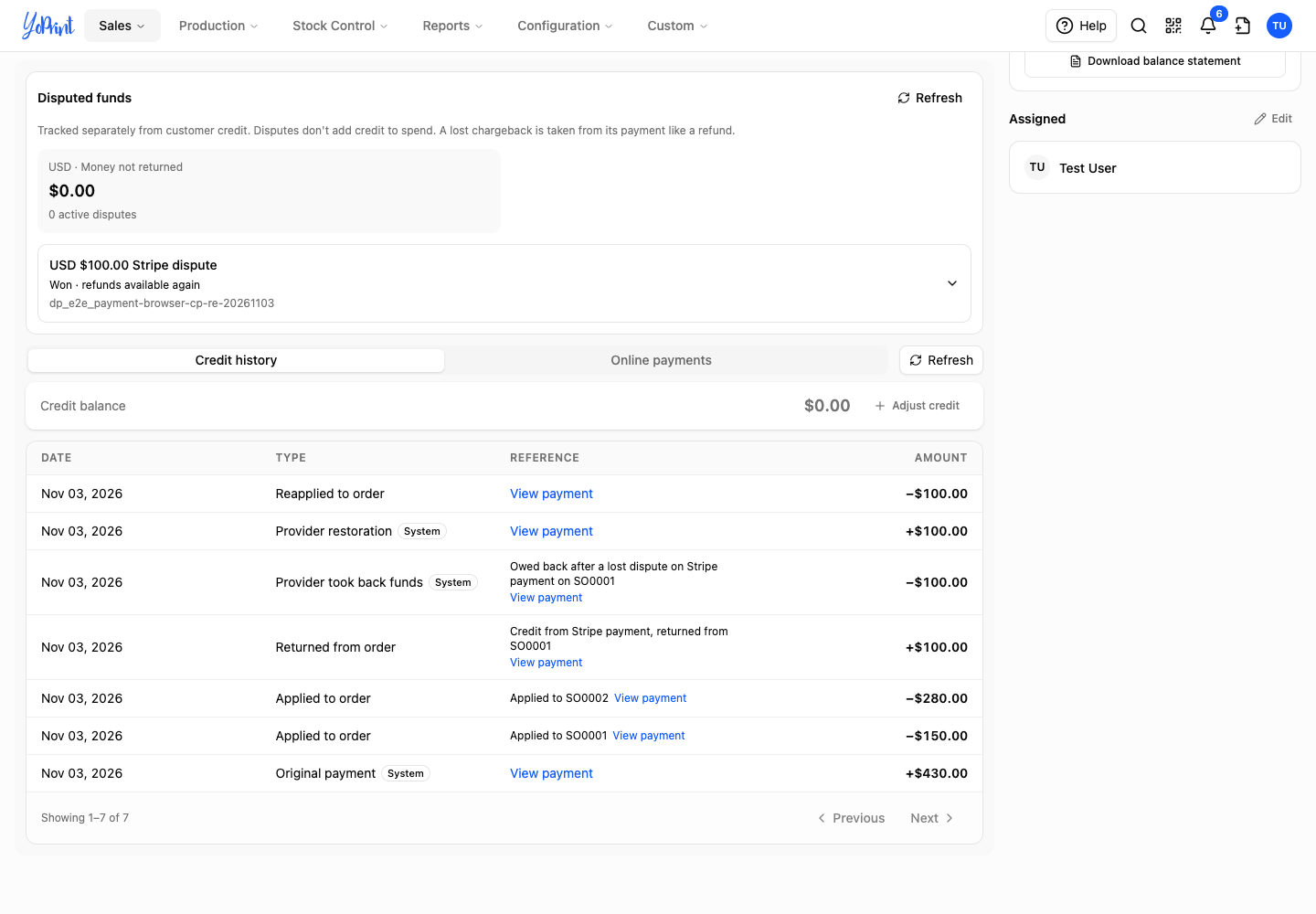
On Finance & Assigned, the Disputed funds card summarizes the customer's provider disputes separately from spendable credit, including each dispute's status, unreturned amount, dates, and View original payment link. For more on reading online payments, see Read a Customer Payment. To issue a refund from your shop, see How Refunds Work in YoPrint. A provider take-back is separate from a shop refund.
Find the dispute on the payment
-
Select the payment row to open its details.
-
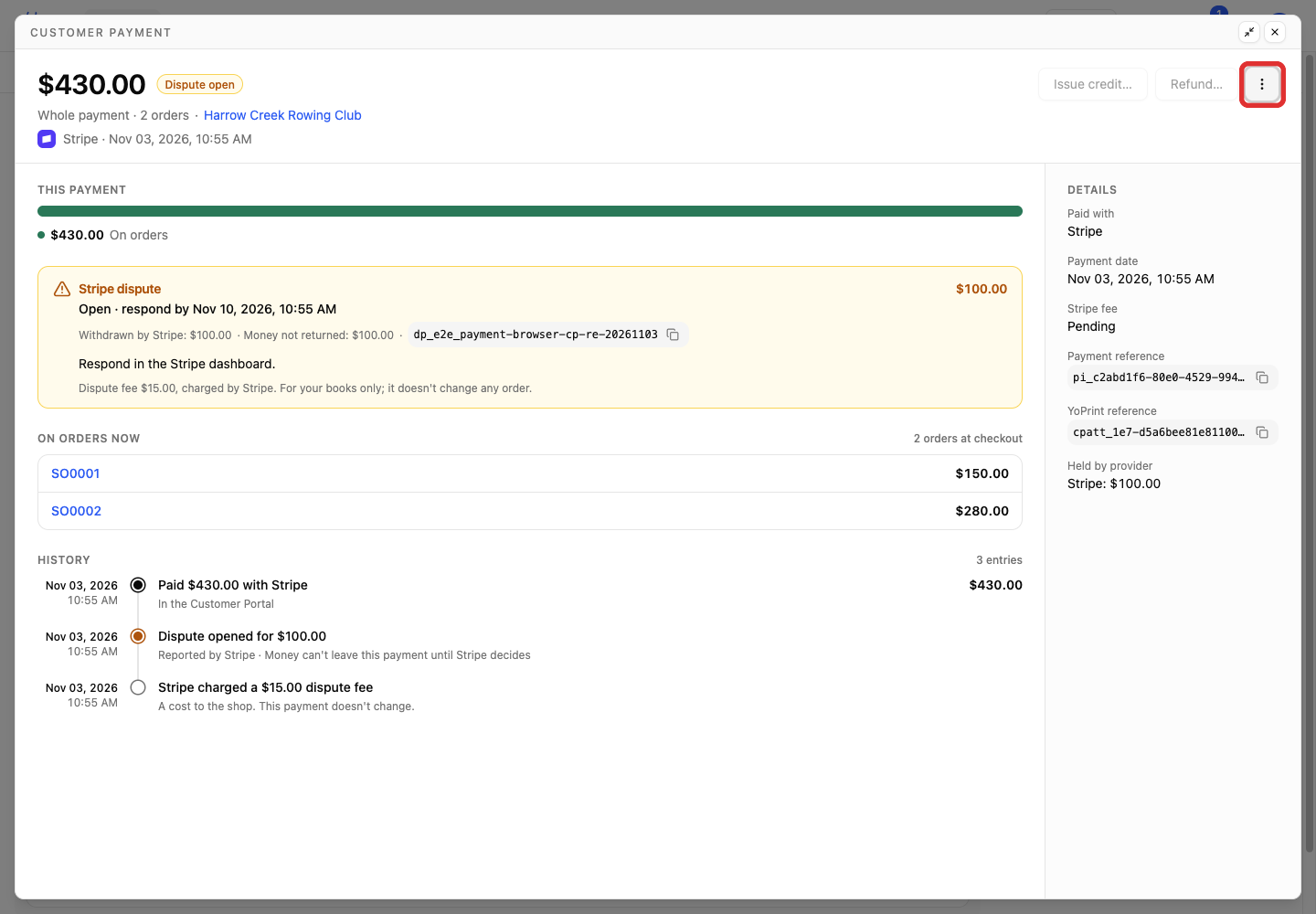
Open More actions on the payment.
-
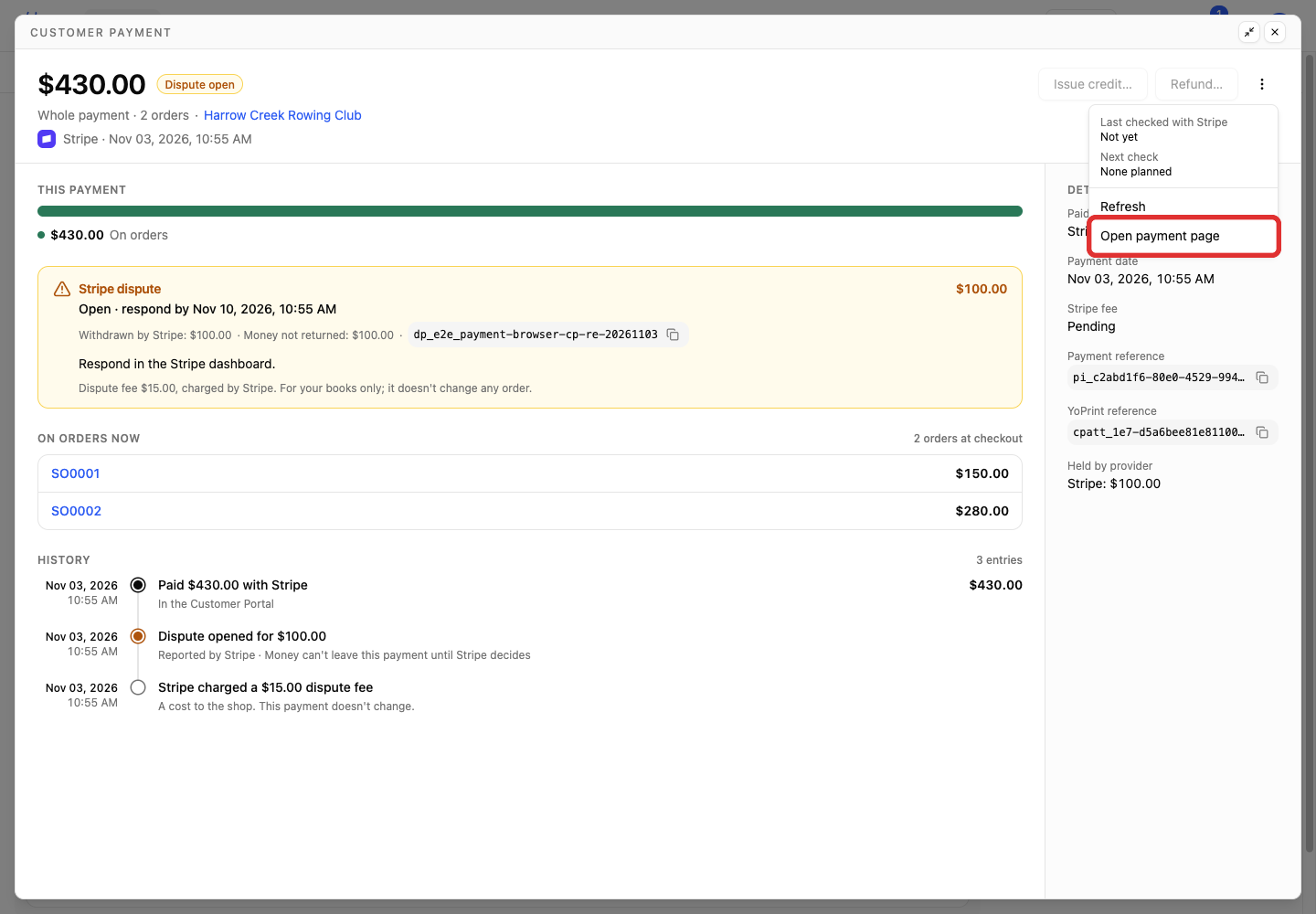
Choose Open payment page.
The payment page shows Dispute open and a Stripe dispute notice with the disputed amount, response deadline, and money the provider has not returned. While the dispute is open, refunds and issuing credit from this payment are paused.
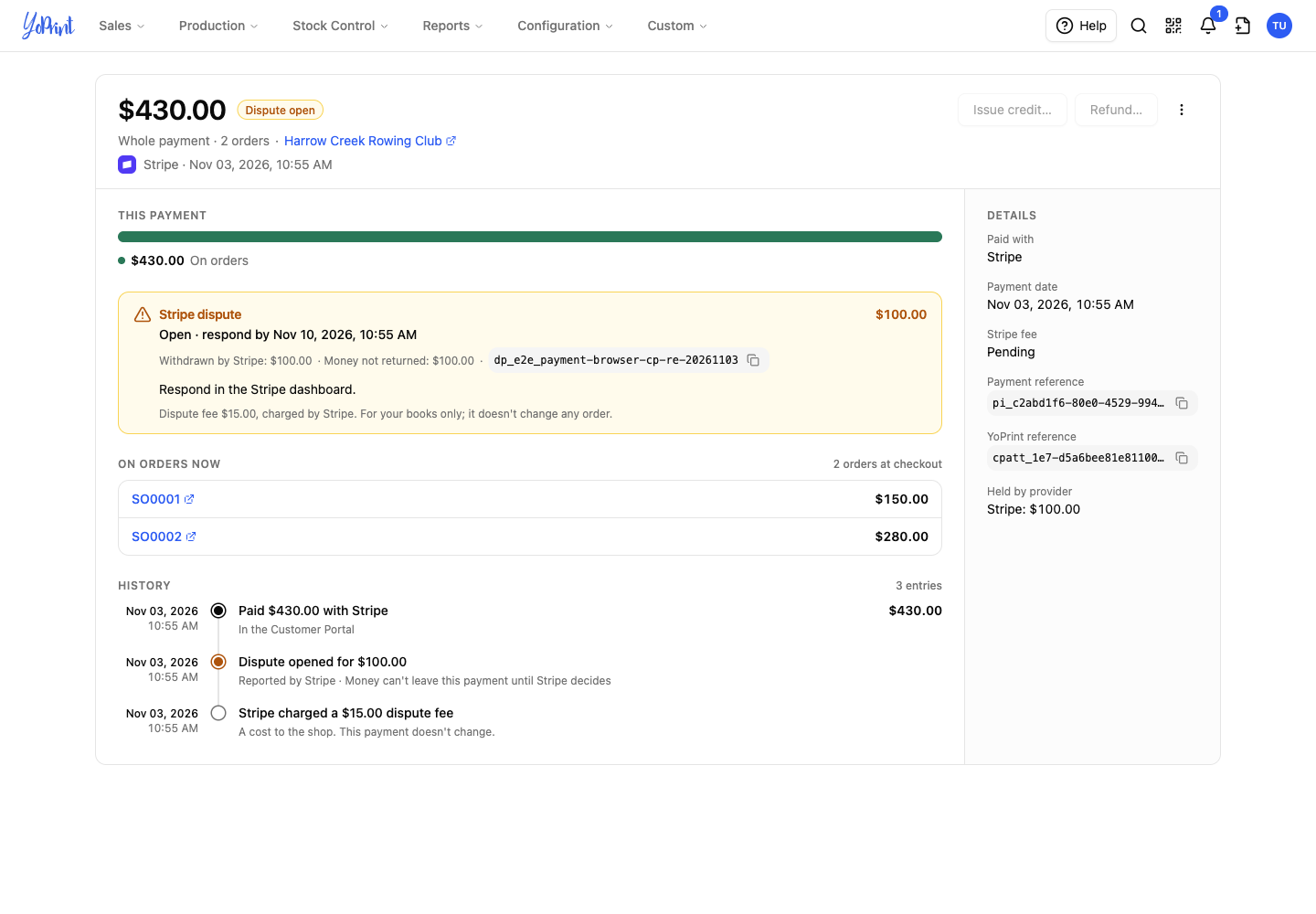
The amount at the top is the original amount collected. Opening a dispute does not create a new charge.
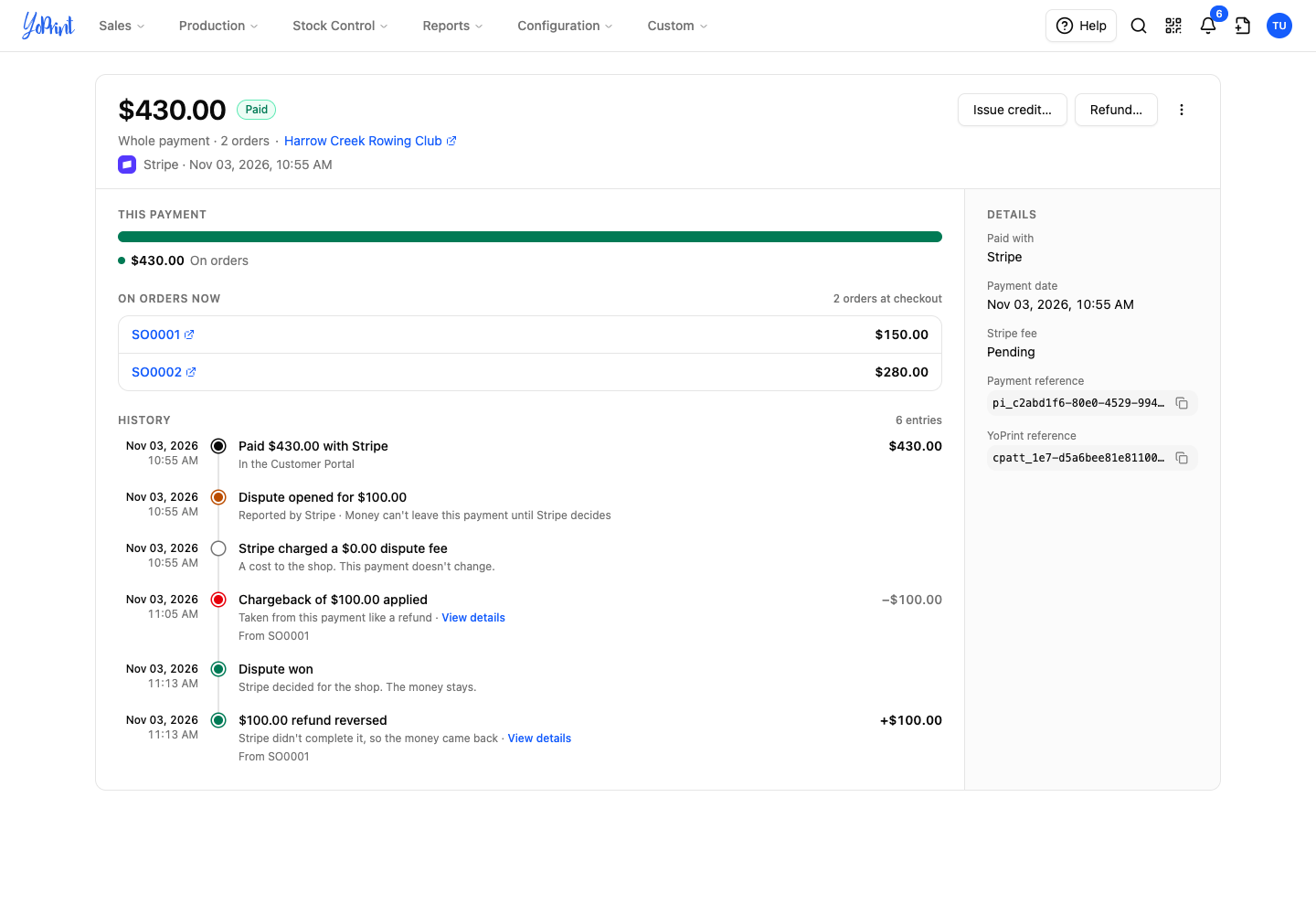
- This payment shows where the money is now.
- On orders now shows the current amounts on each order.
- History records changes to the payment.
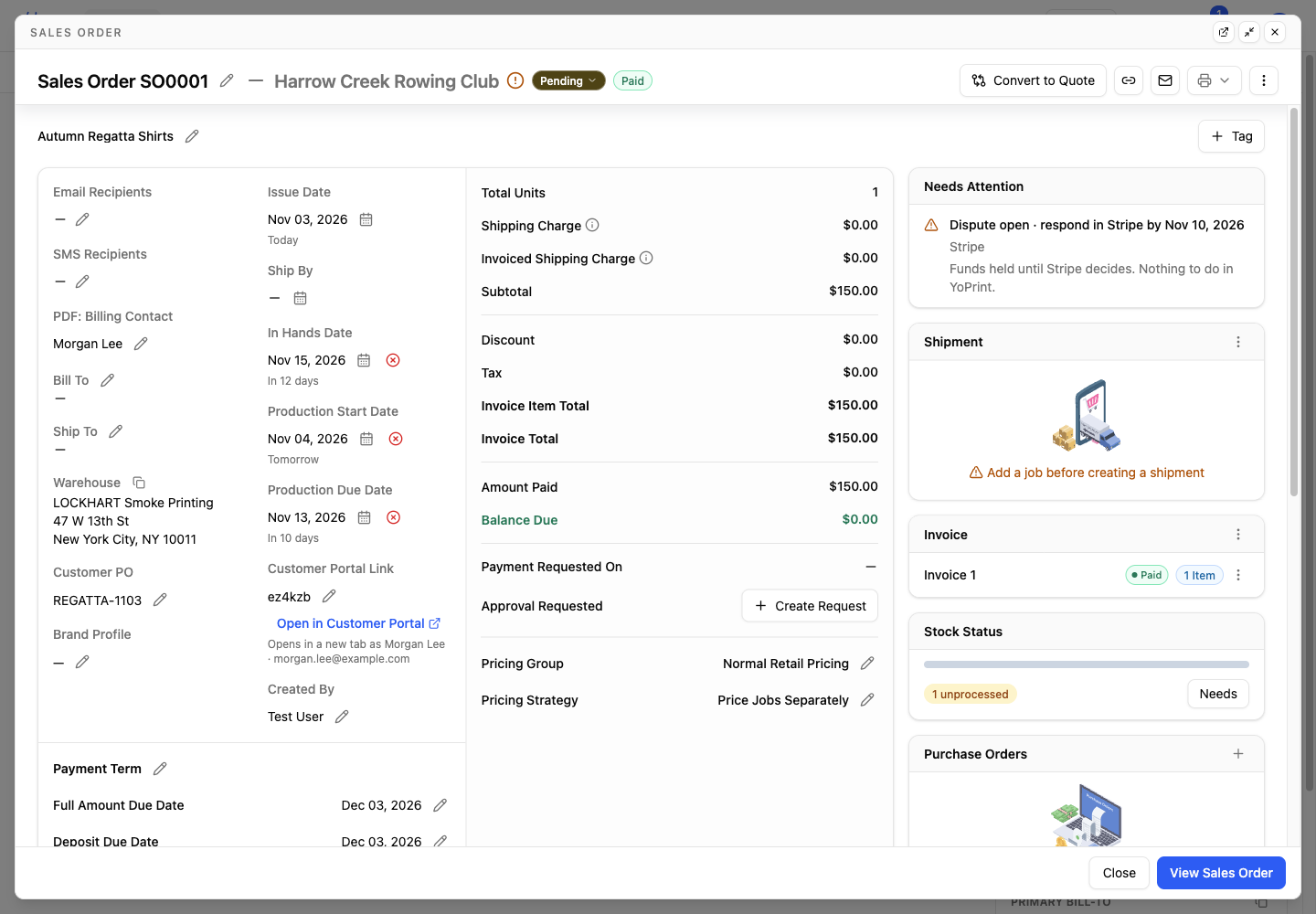
From the payment page, click SO0001 under On orders now to open the order in a new browser tab. To open the Sales Order preview shown below, click SO0001 in Recent orders & quotes on the customer's Overview tab, or click SO0001 in the Customer payment dialog. In the right column, the order's Needs Attention card also shows the open dispute and response deadline. It says that funds are held until Stripe decides and there is nothing to do in YoPrint.
Review the case and respond through the provider
Read the Stripe dispute notice on the payment page for the case's current state and disputed amount. A response deadline appears when one is available. The notice also lists the dispute fee separately from the payment.
Check the response deadline on the case and in your provider’s dashboard. For Stripe payments, submit your supporting documents and information in Stripe before the deadline. YoPrint does not submit your response, accept the dispute, or contest it for you. Stripe explains how to respond to a dispute.
To match the payment in your provider’s dashboard:
-
In Details, click the copy icon beside Payment reference.
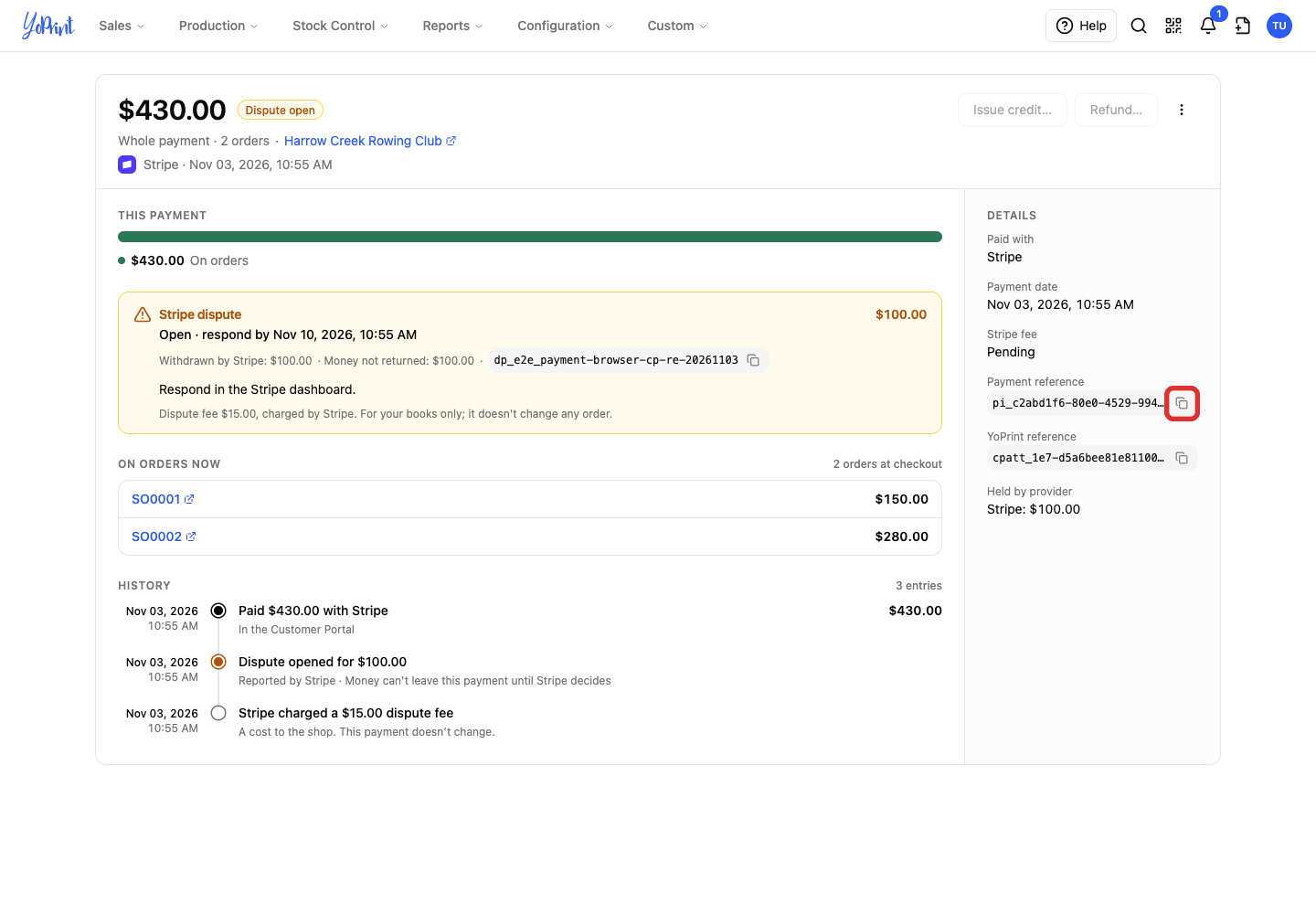
YoPrint reference identifies the payment page in YoPrint, not a provider record. Give your provider Payment reference for the underlying payment, or the dispute ID in the Stripe dispute notice for the dispute itself. Use that reference to find the payment in your provider’s dashboard. Decide there whether to accept or challenge the dispute. Accepting a Stripe dispute ends the challenge immediately. You cannot submit supporting documents afterward. Read Stripe’s acceptance guidance.
YoPrint records the provider's won or lost outcome automatically. You do not need to confirm an open dispute, a win, or a loss in YoPrint.
Partial chargeback across multiple orders
A partial take-back on a payment covering two or more orders still requires you to split the chargeback between orders. For all other disputes, continue to Check the invoice and customer credit.
Split a partial chargeback between orders
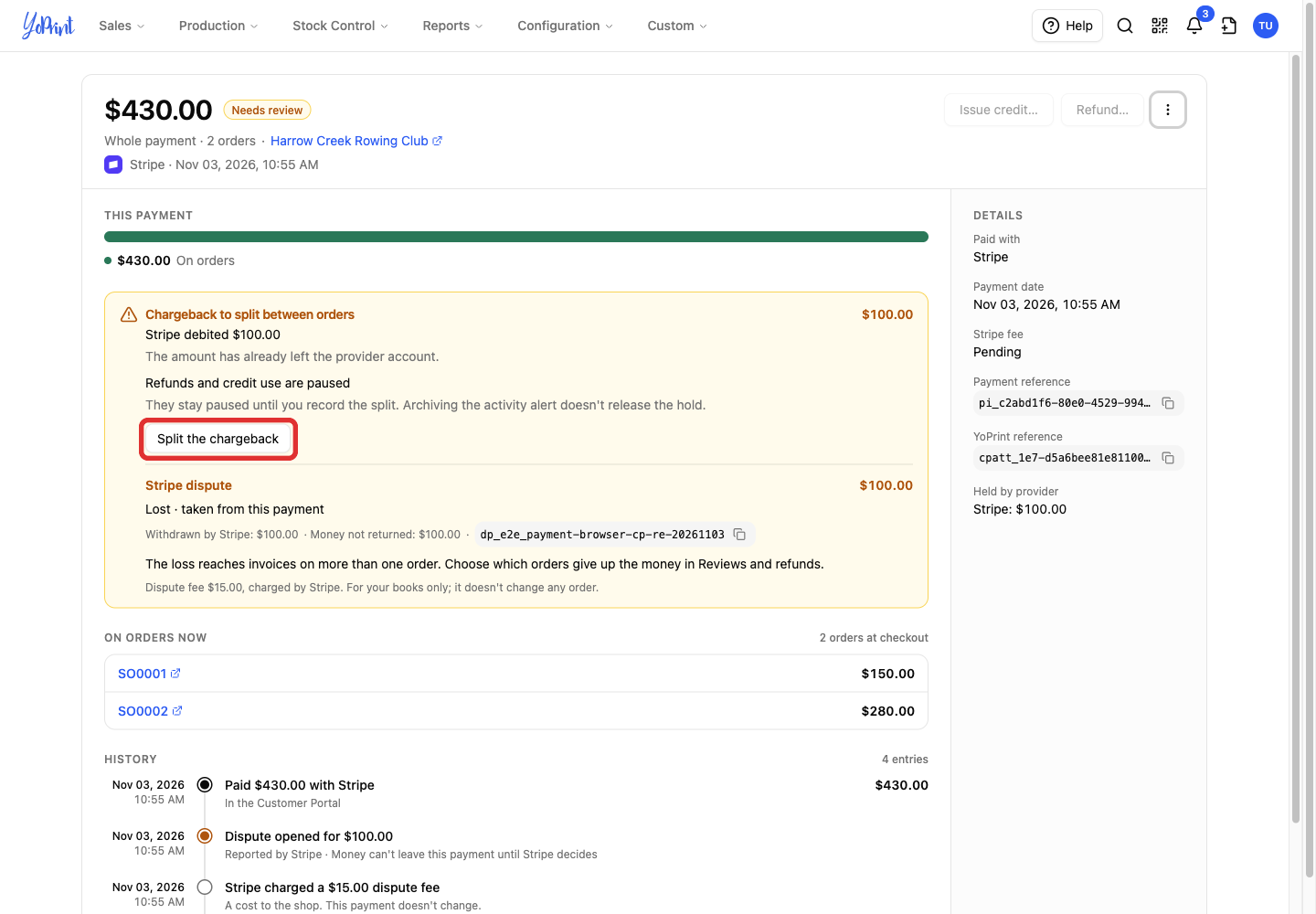
You need to split a chargeback only when a partial provider take-back reaches invoices on a payment covering two or more orders. The payment shows Chargeback to split between orders after the provider has taken the money. Refunds and credit use from that payment stay paused until you record the split.
A YoPrint allocation decision only records where the provider’s take-back belongs. It does not charge the customer, issue a refund, or accept the dispute.
-
Click Split the chargeback.
-
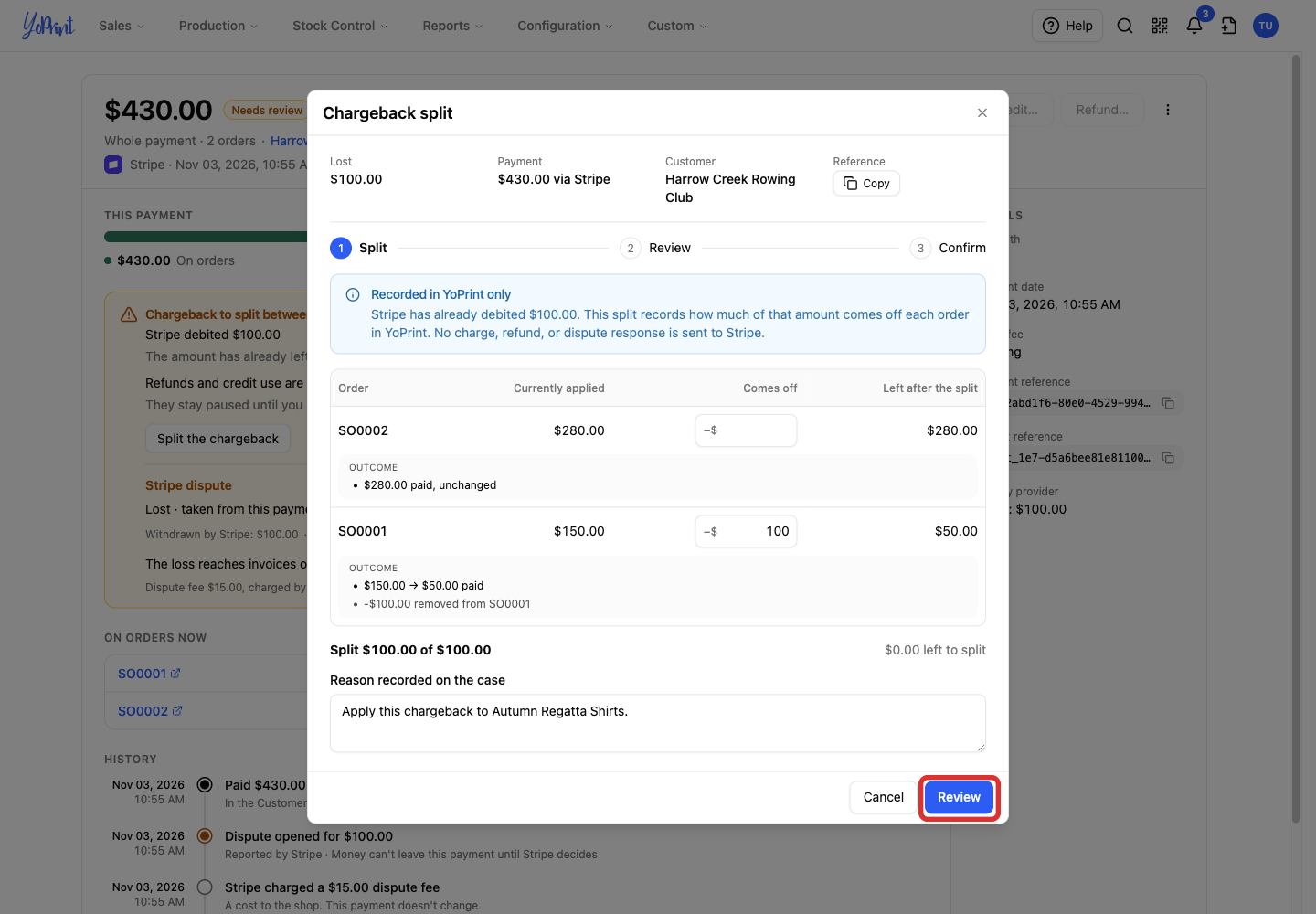
Enter the amount that comes off each order and a reason for the split. In Comes off, enter up to each order's Currently applied amount, including any completed orders, so the split totals the full chargeback.
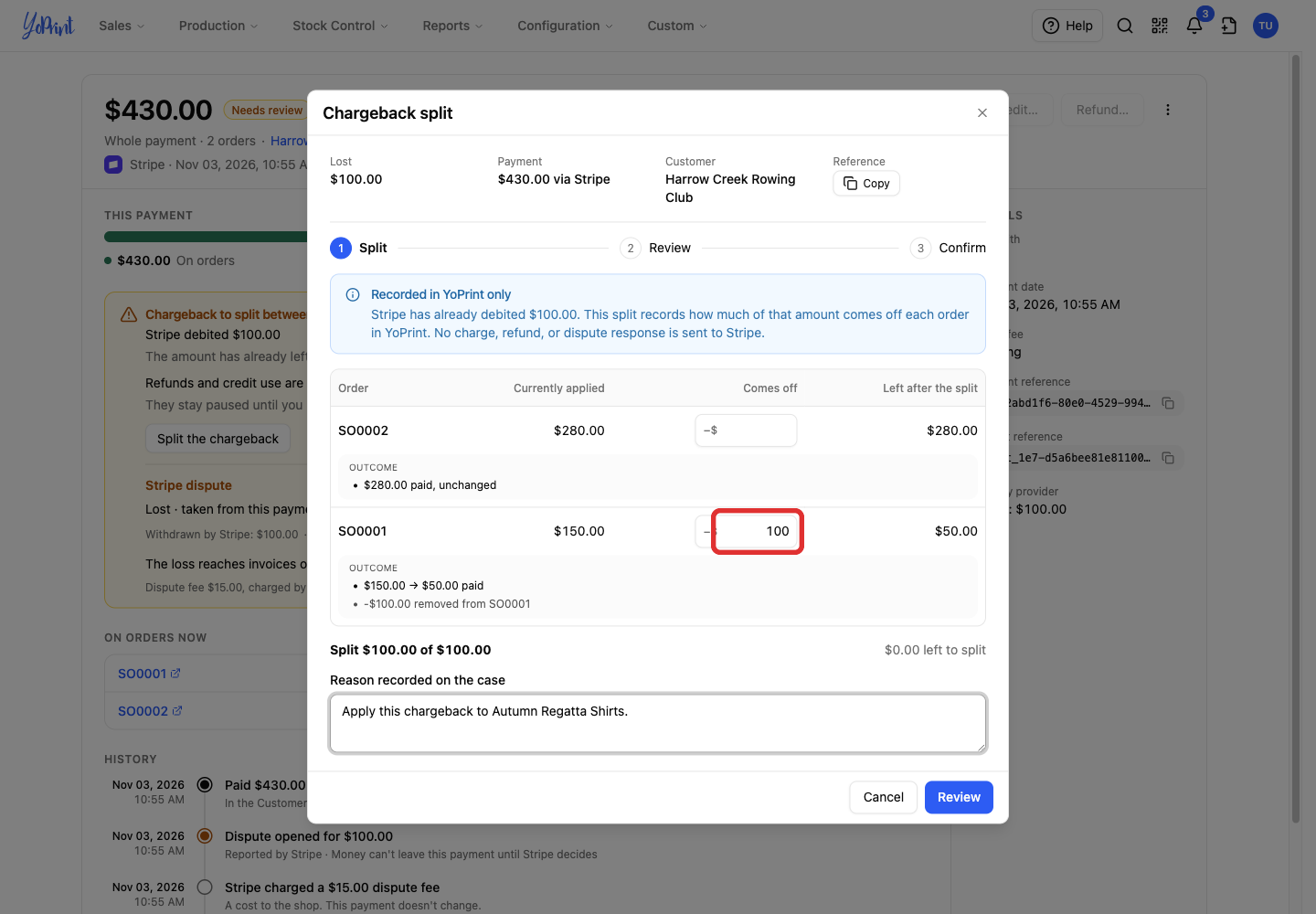
In this example, $100 comes off SO0001, leaving $50 paid. SO0002 keeps its $280 payment.
-
Click Review to check the proposed outcome.
-
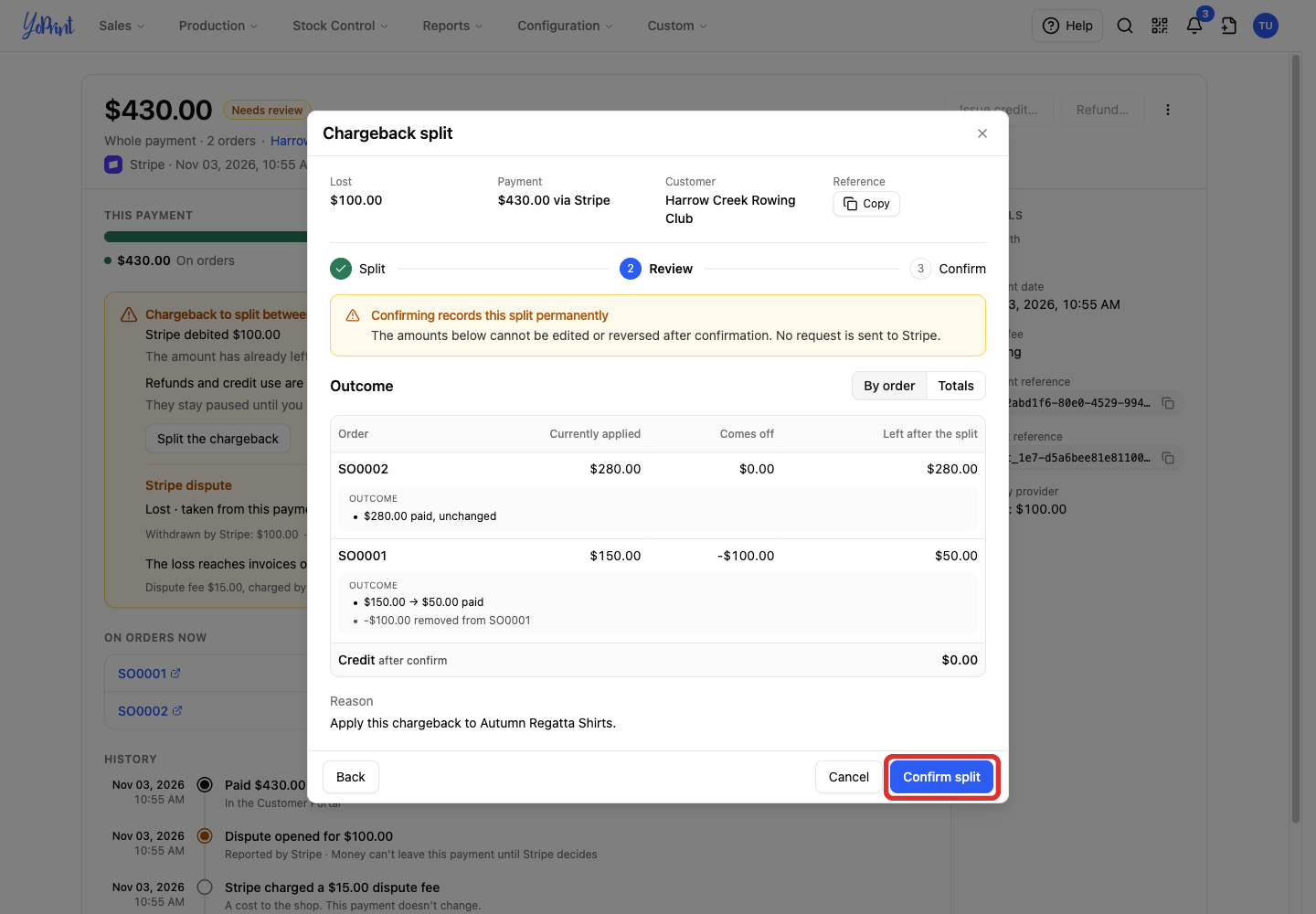
Check each order's amount before and after the split, and the credit balance. Click Confirm split to record it. A confirmed split cannot be edited or reversed.
-
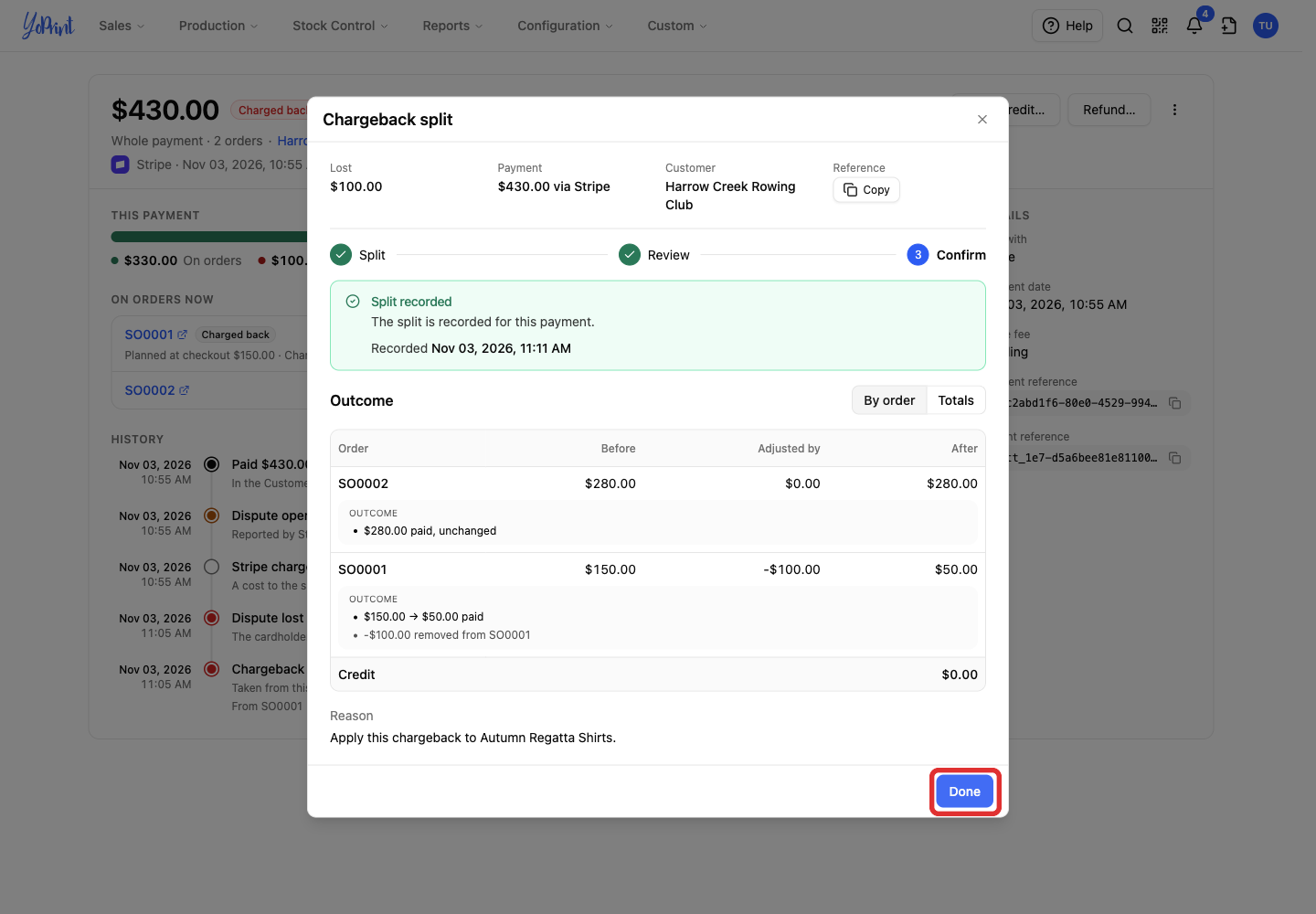
Click Done in Chargeback split to return to the payment page.
When a payment stays on hold
Some cases have no allocation decision available yet. An open dispute has no split to confirm while the provider is deciding. Closing the case view or reading an activity notification does not release the hold. Other unresolved cases can still hold funds after you review one movement.
Check the invoice and customer credit
A chargeback does not cancel an invoice or reduce its prices. It only reduces the money available to pay the invoice.
| Where the taken-back money was | What can change in YoPrint |
|---|---|
| Applied to an order | Money comes off the order and its unpaid balance can increase. |
| Still available as unused customer credit | The customer’s available credit decreases. |
Provider fees are business costs. YoPrint does not add them to the customer’s invoice or deduct them from customer credit.
If YoPrint syncs payments to QuickBooks Online, a lost dispute lowers the QuickBooks payment like a refund. YoPrint does not record processor or dispute fees in QuickBooks. To connect QuickBooks Online or change the Sync payments setting, see Connect YoPrint with QuickBooks Online.
After you record the allocation, check the affected invoice and the customer’s credit together. Open SO0001 from On orders now on the payment page or in the Sales Order preview, then double-click the Invoice 1 row in the right-hand Invoice card to open Invoice View.
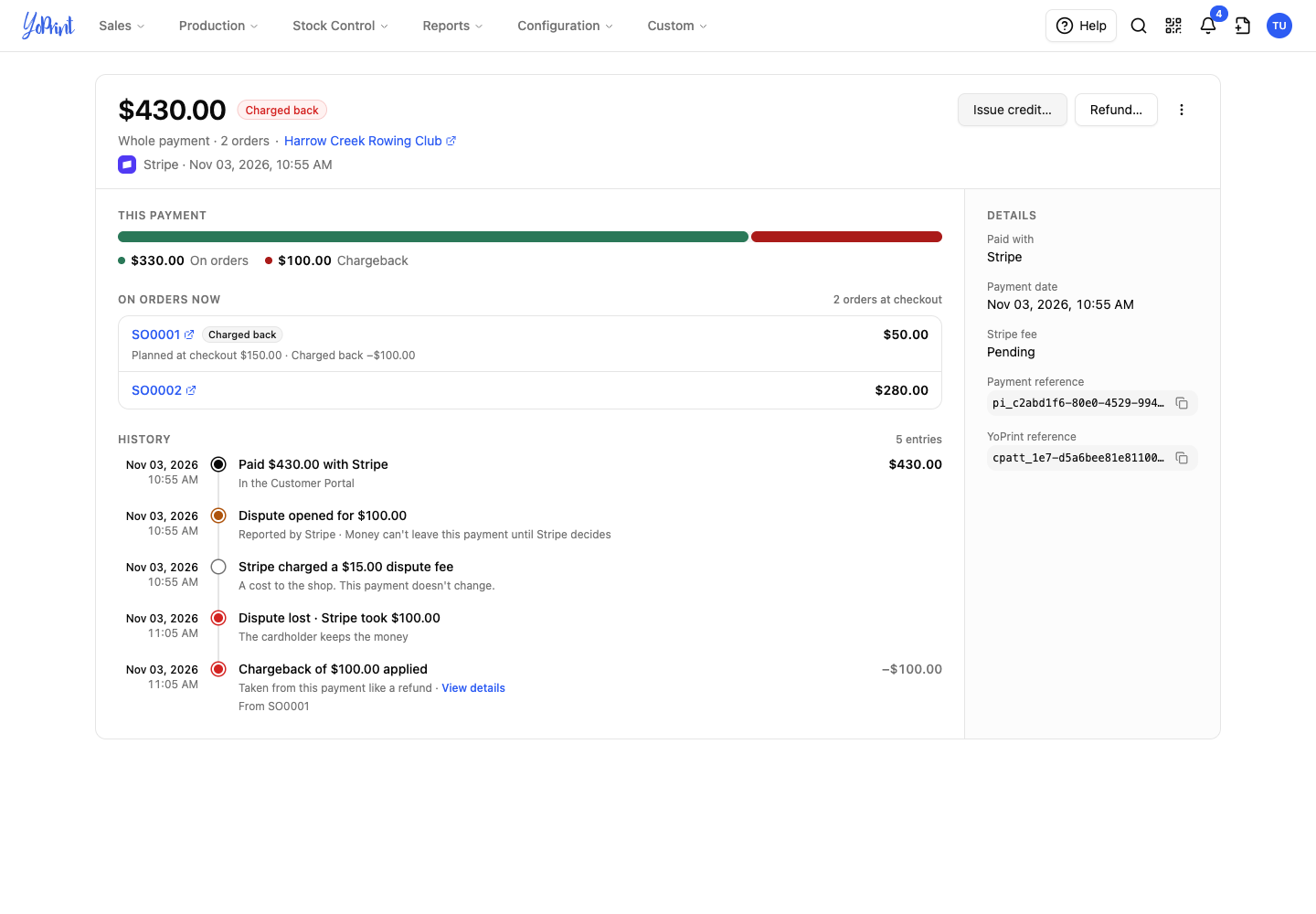
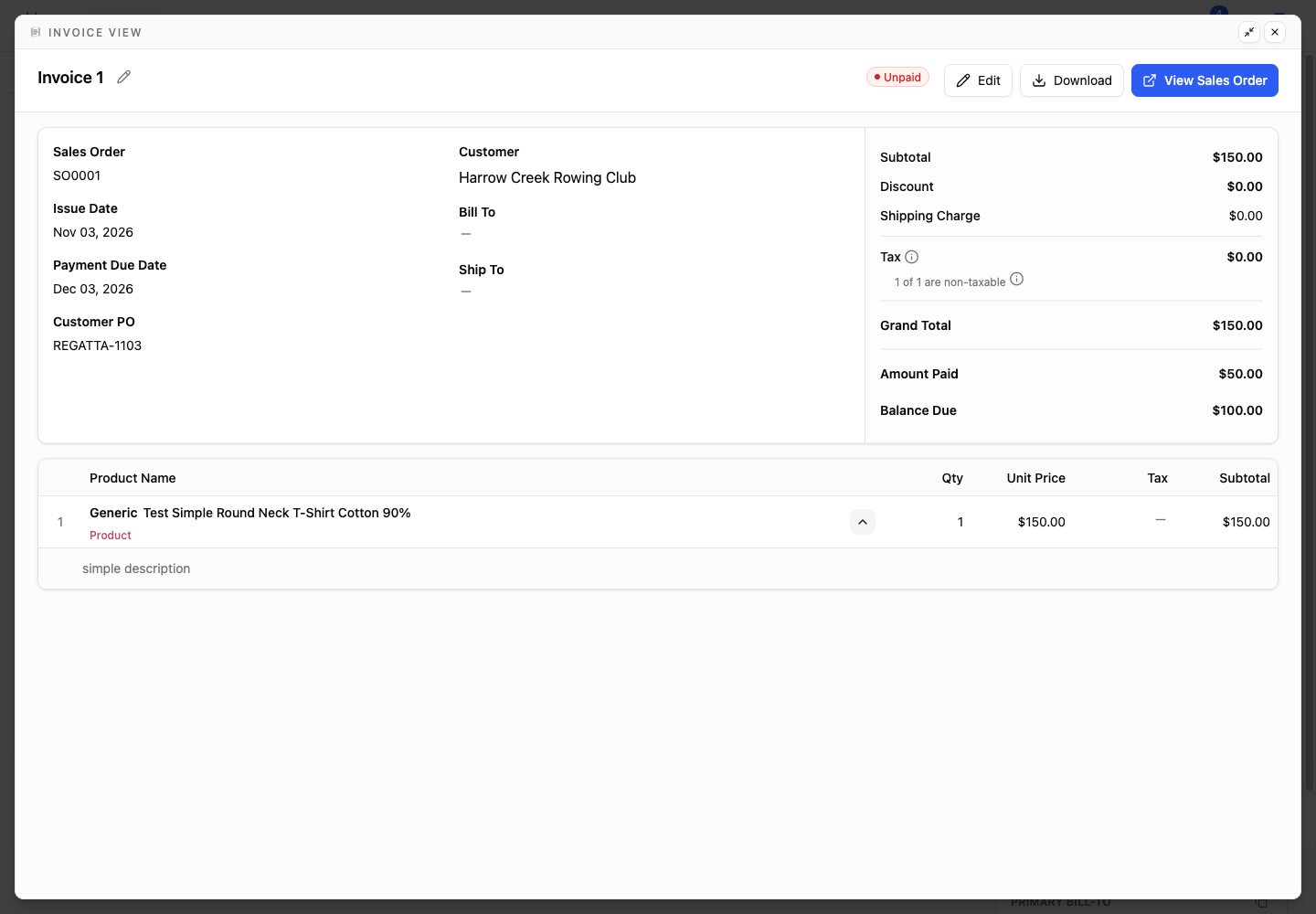
To collect the balance a chargeback leaves due, send a payment request or record the payment when the customer pays another way: Send a payment request and Record a payment you received in Collect and Record Payments.
For money already taken off an order, the provider must confirm its return. Winning the dispute does not make the money available right away. When the provider confirms that return, YoPrint restores the money automatically using the recorded split.
Review the resulting movement and the invoice or credit balance. You do not need to record a second split in YoPrint.
In the customer's Finance & Assigned view, Credit history is the customer's credit ledger. When this split moves money off an order, Returned from order adds the amount back to credit, then Provider took back funds removes it. YoPrint records any later restoration on a separate line.
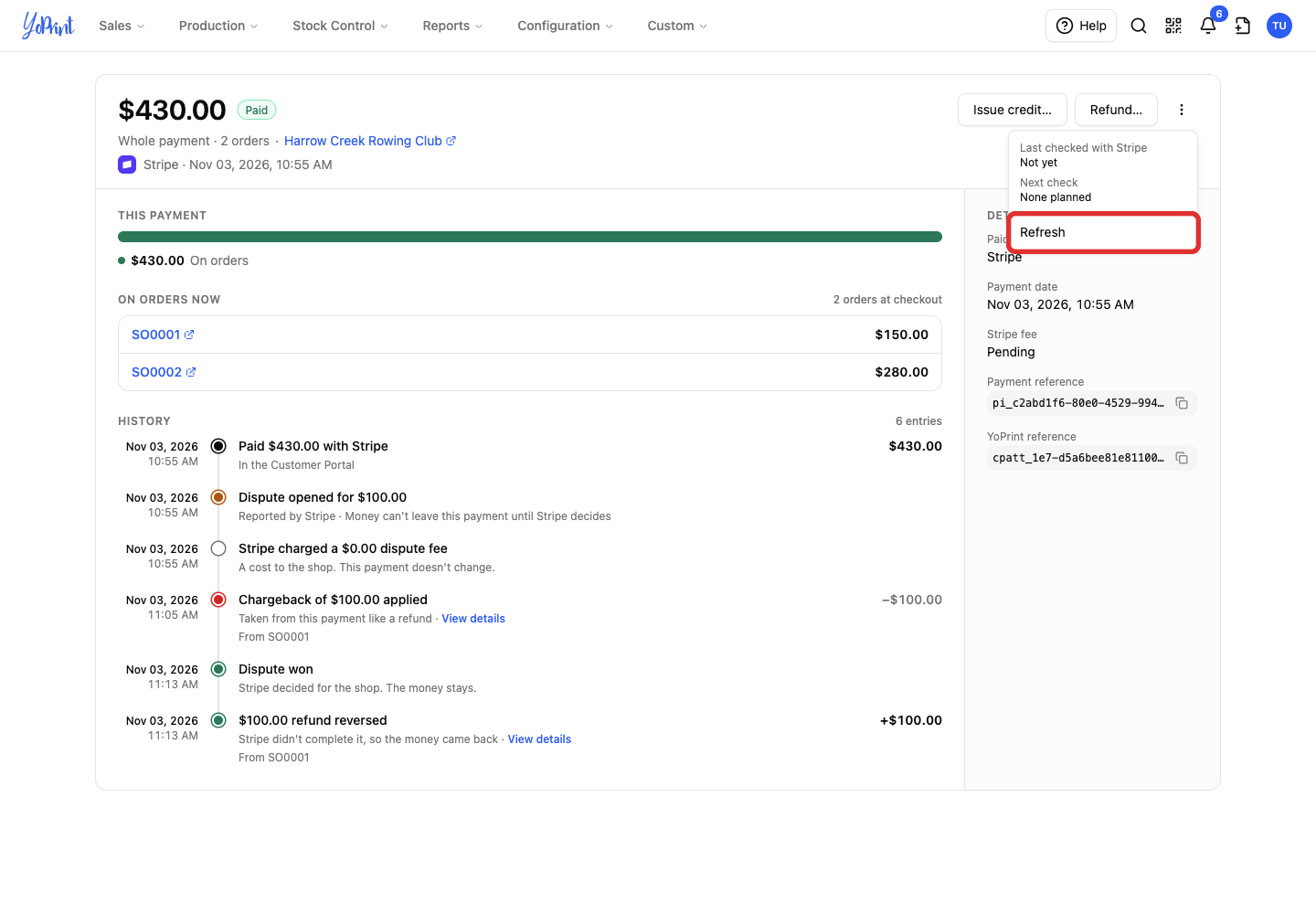
To reload the payment details, open More actions, then choose Refresh. Refreshing does not send a response to the provider.
How your customer checks the payment and balance
Your customer can find the existing receipt later in What Your Customers See on a Receipt.
The receipt shows the original payment, any chargeback or reversal entries, and the amount currently applied to each order. Expand Changed since checkout to see Removed from this order and any amount reapplied to the order.
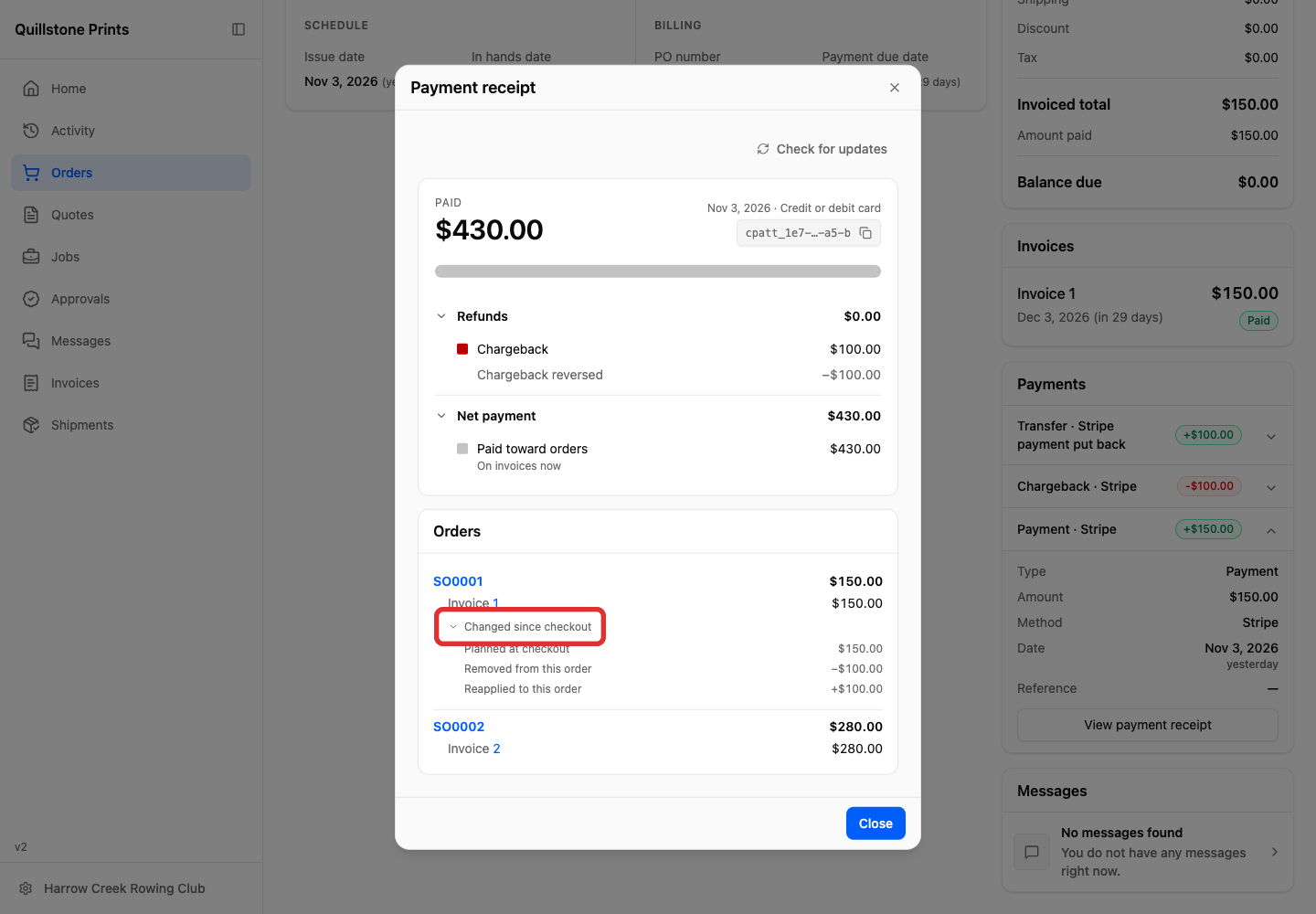
A chargeback can leave an invoice partly unpaid. Your customer can view the invoice breakdown from the receipt to check the balance.
Before paying again after a dispute changes the payment, your customer should check for payment updates and compare the latest amounts with the invoice balance.
Disputed or negative customer credit
Credit held by an open dispute is not available to spend. If a chargeback leaves a negative credit balance, the portal shows how much the customer owes back separately from unpaid invoices. For the Home cards, see What customers see in the Customer Portal.