Task Preset Colors
In this article
A task preset has an overall color for the task, such as screen printing or embroidery. Each status inside that preset also has its own color. You configure the preset color on the preset itself, and configure each status color inside the preset's status list.
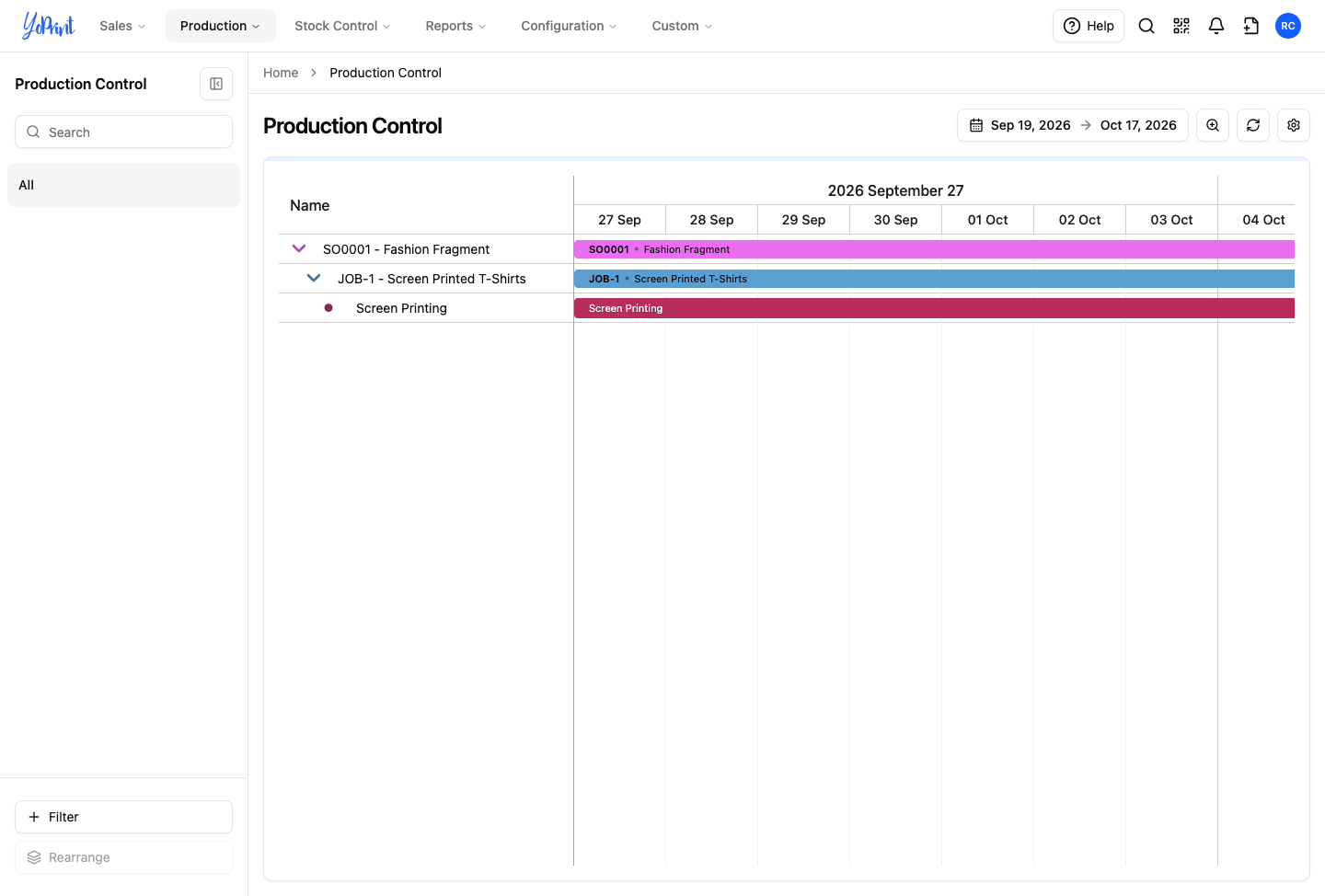
On Production Control, task bars use these colors to identify tasks on the schedule. By default, task bars display the preset color so you can tell tasks apart by department or service. You can switch the board settings to display status colors instead so you can track progress.

Set the preset color
If you need to create a new task preset before setting its color, see Task Preset. Otherwise, follow the steps below to recolor an existing preset.
-
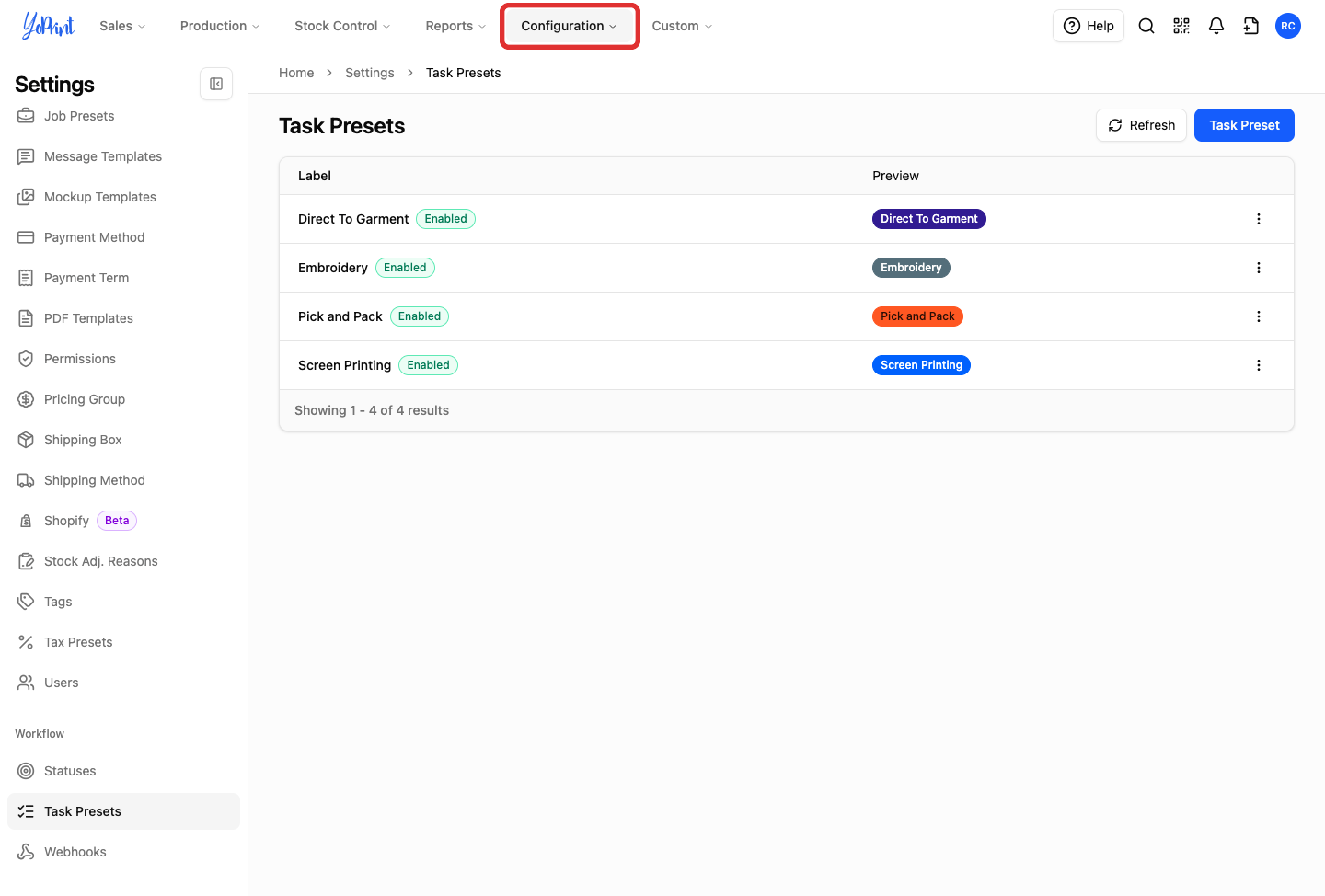
Click Configuration.
-
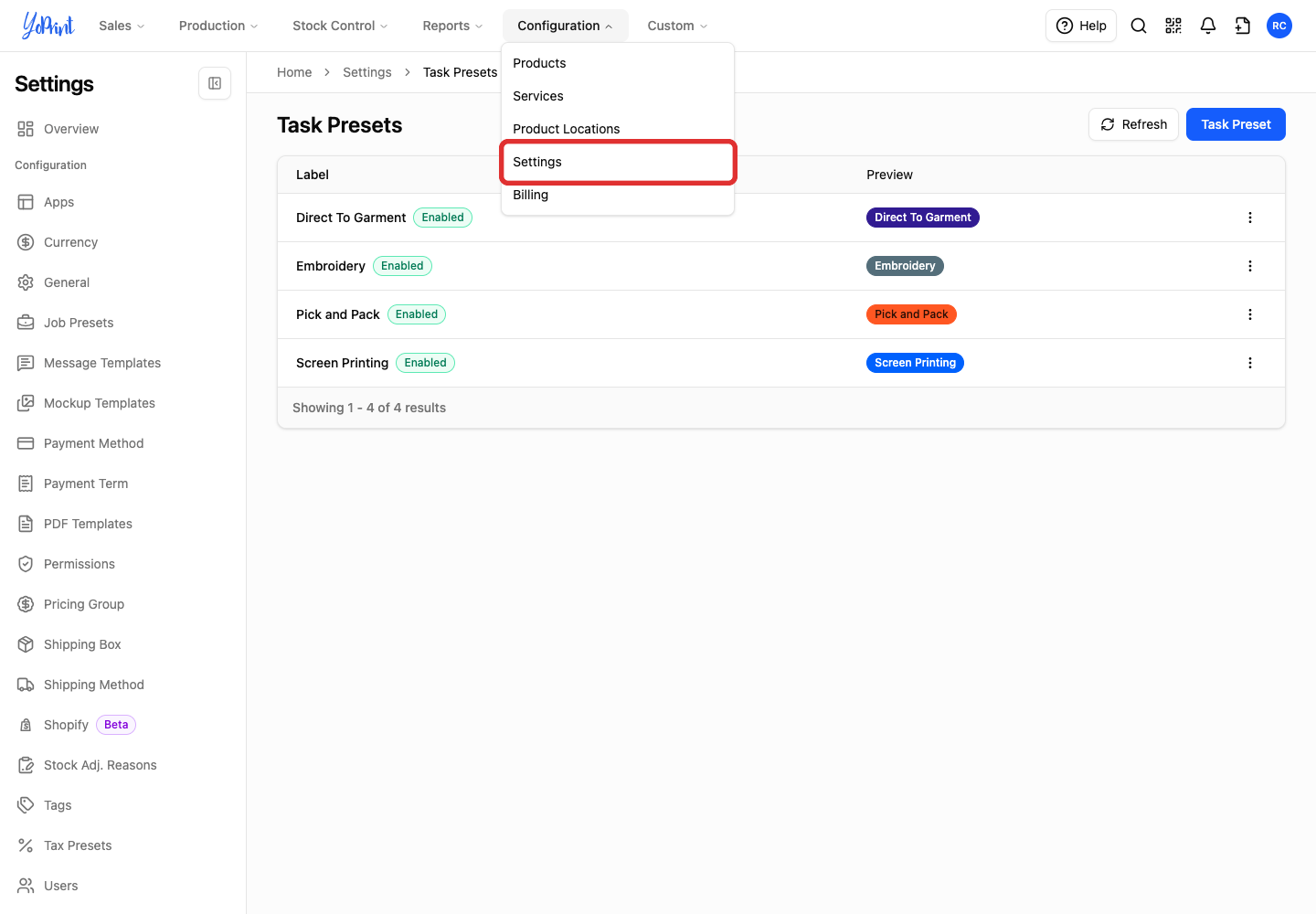
Click Settings.
-
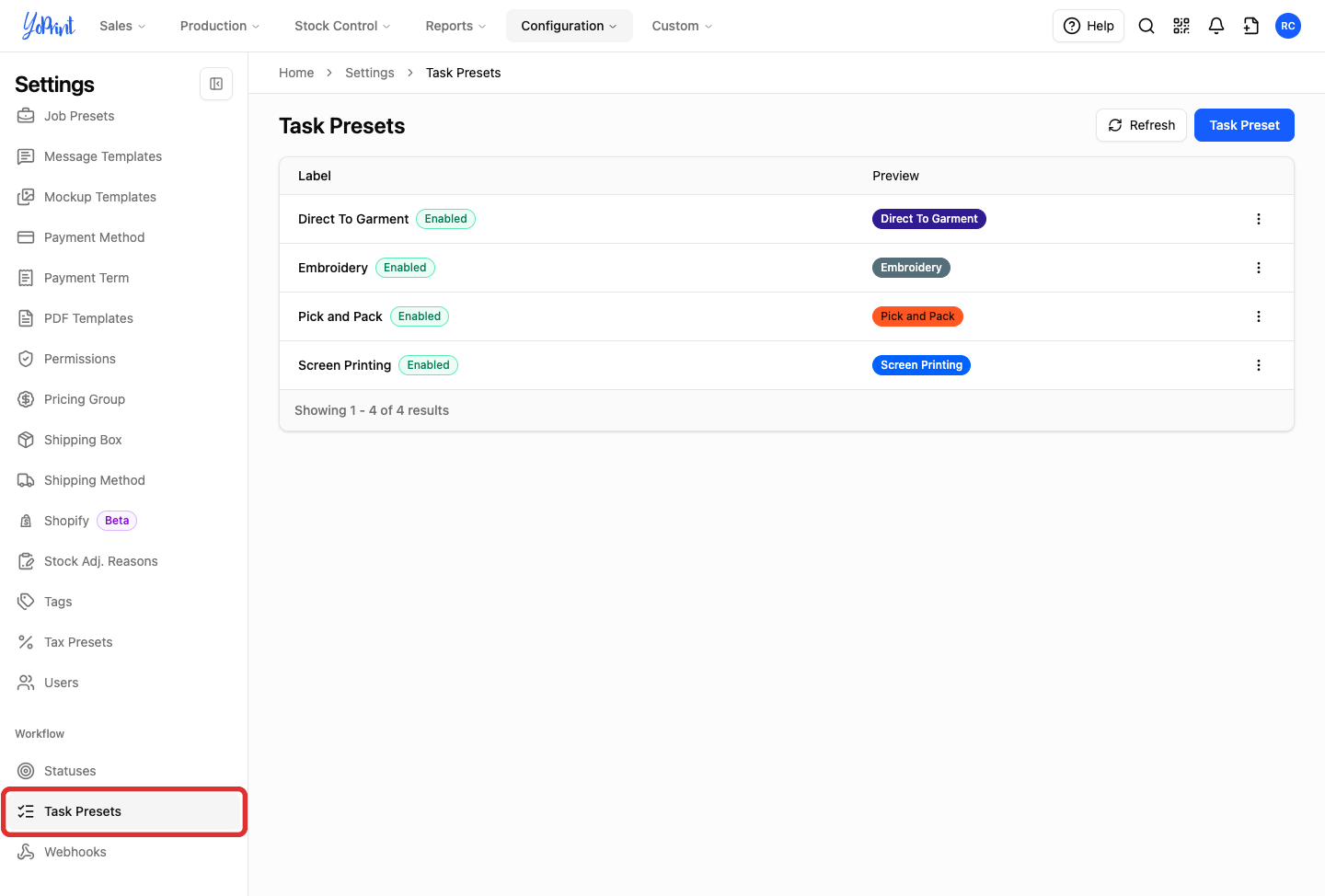
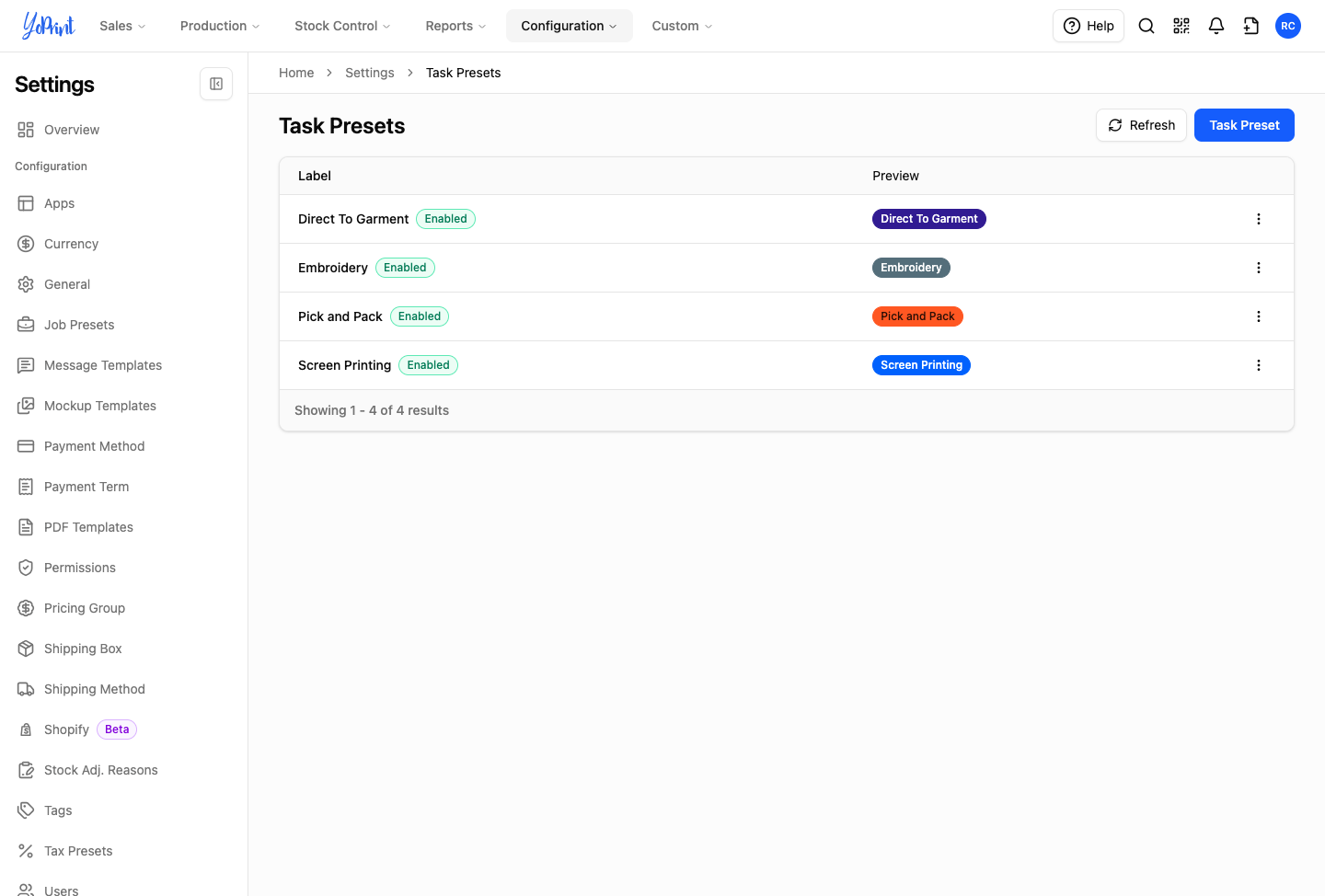
Under Workflow, click Task Presets.
The Preview column shows each preset's current color.
-
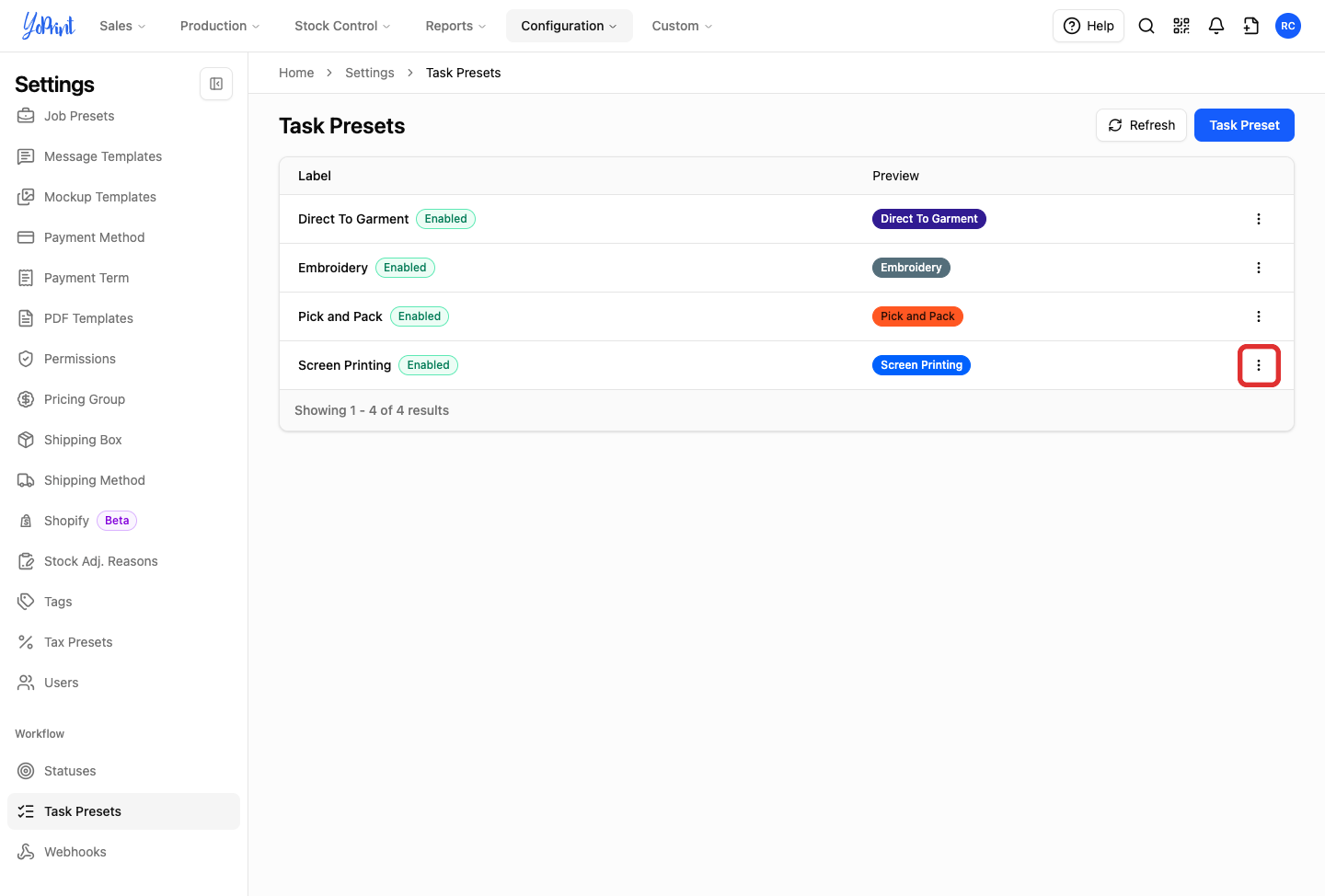
On the preset row you want to change (such as Screen Printing), click More actions (three dots).
-
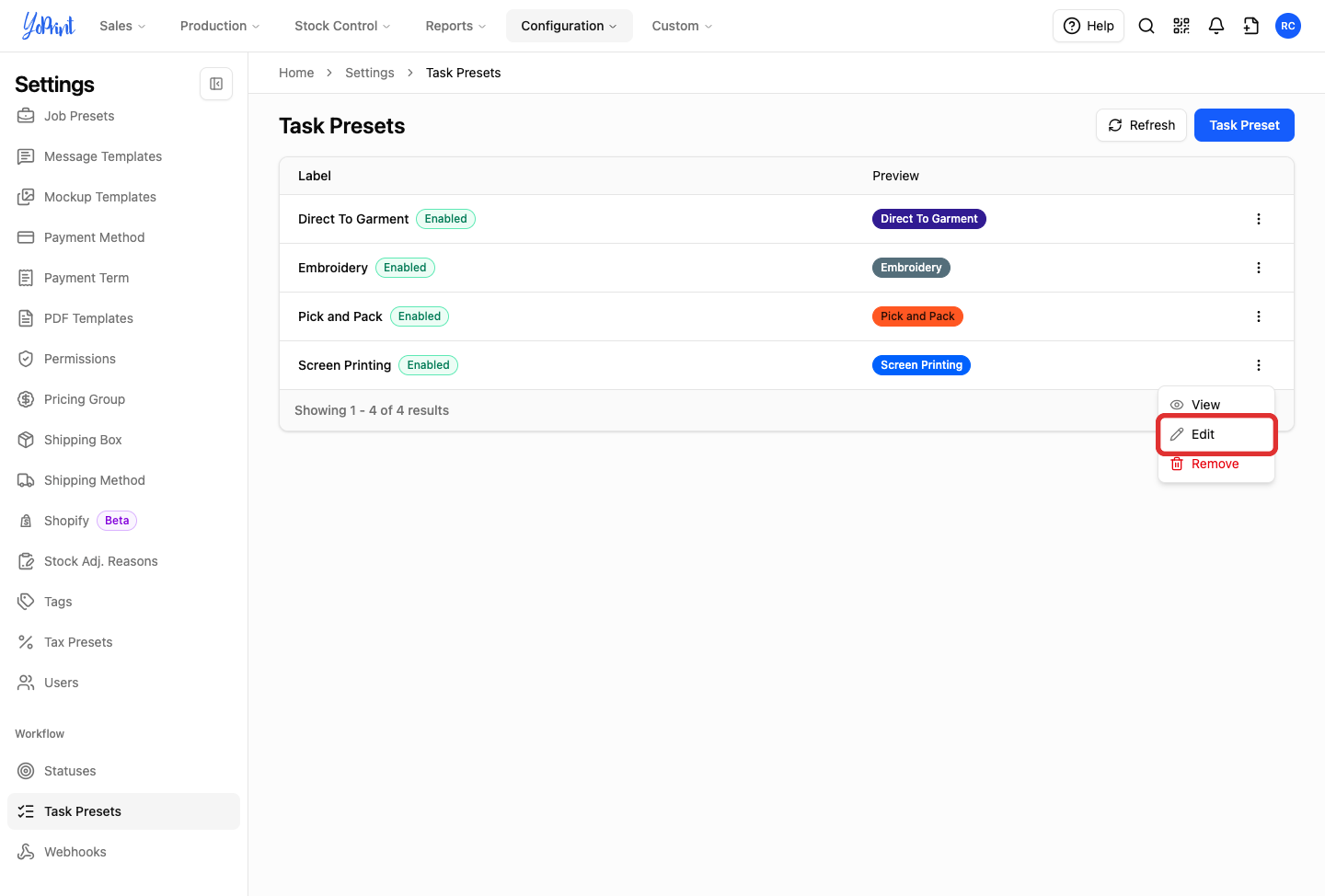
Click Edit.
-
Under Color, select a color for the preset.
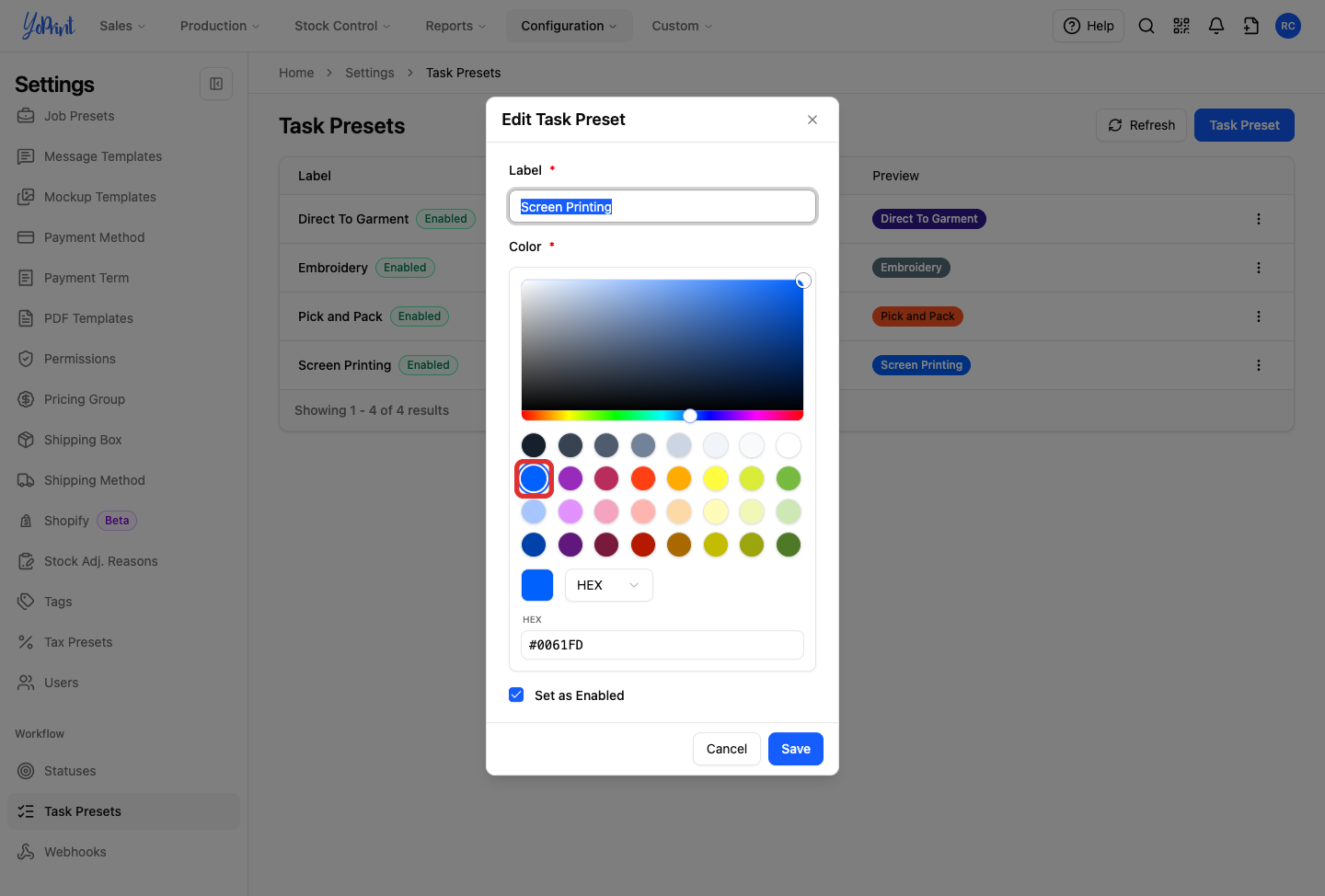
Click a color swatch, drag within the gradient area and hue slider, or enter a 6-digit hex color code.
-
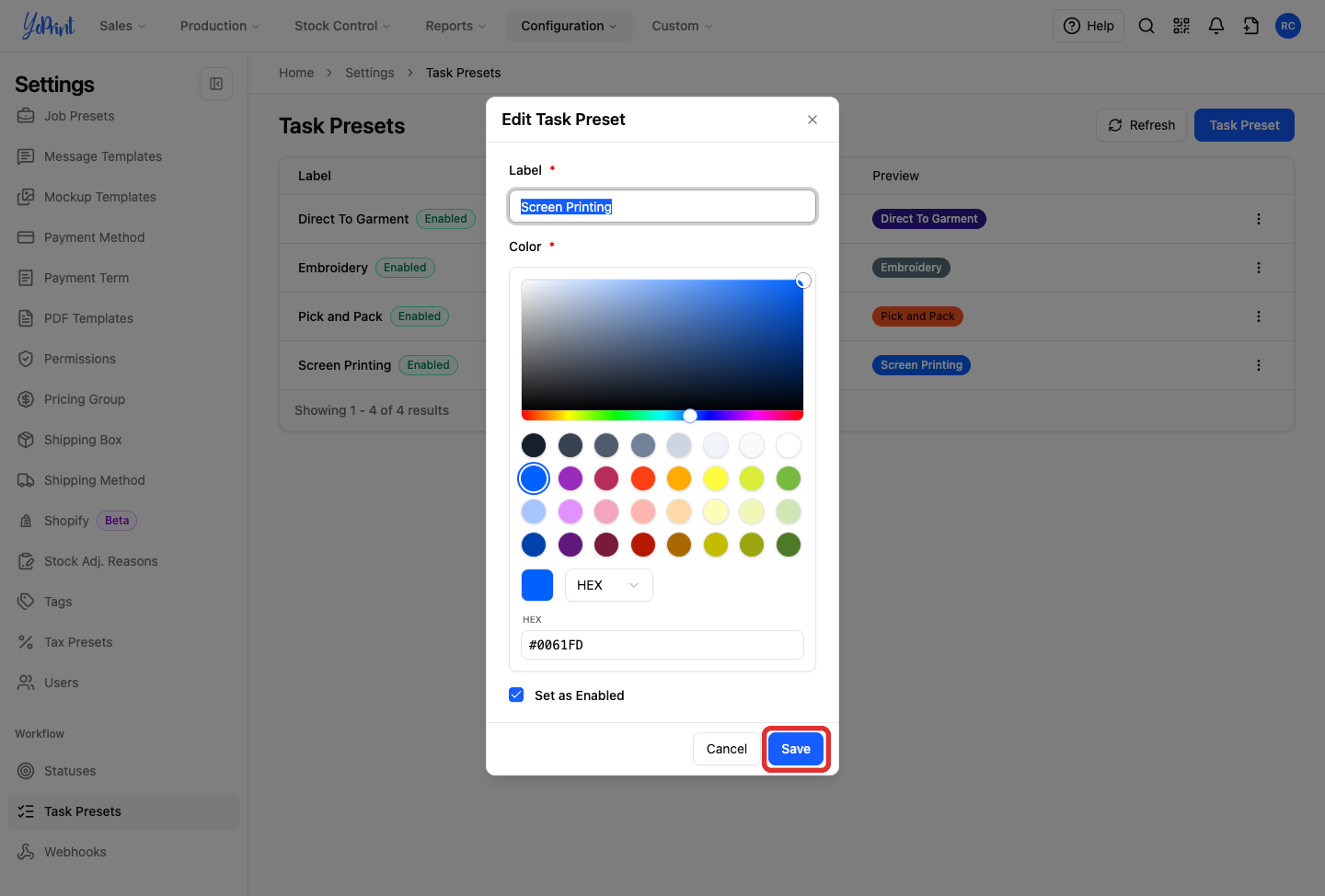
Click Save.
-
Check the Preview column to verify the updated preset color.
Set a status color
Each status inside a preset has its own color pill. Setting a status color changes only that specific status, not the overall preset color.
-
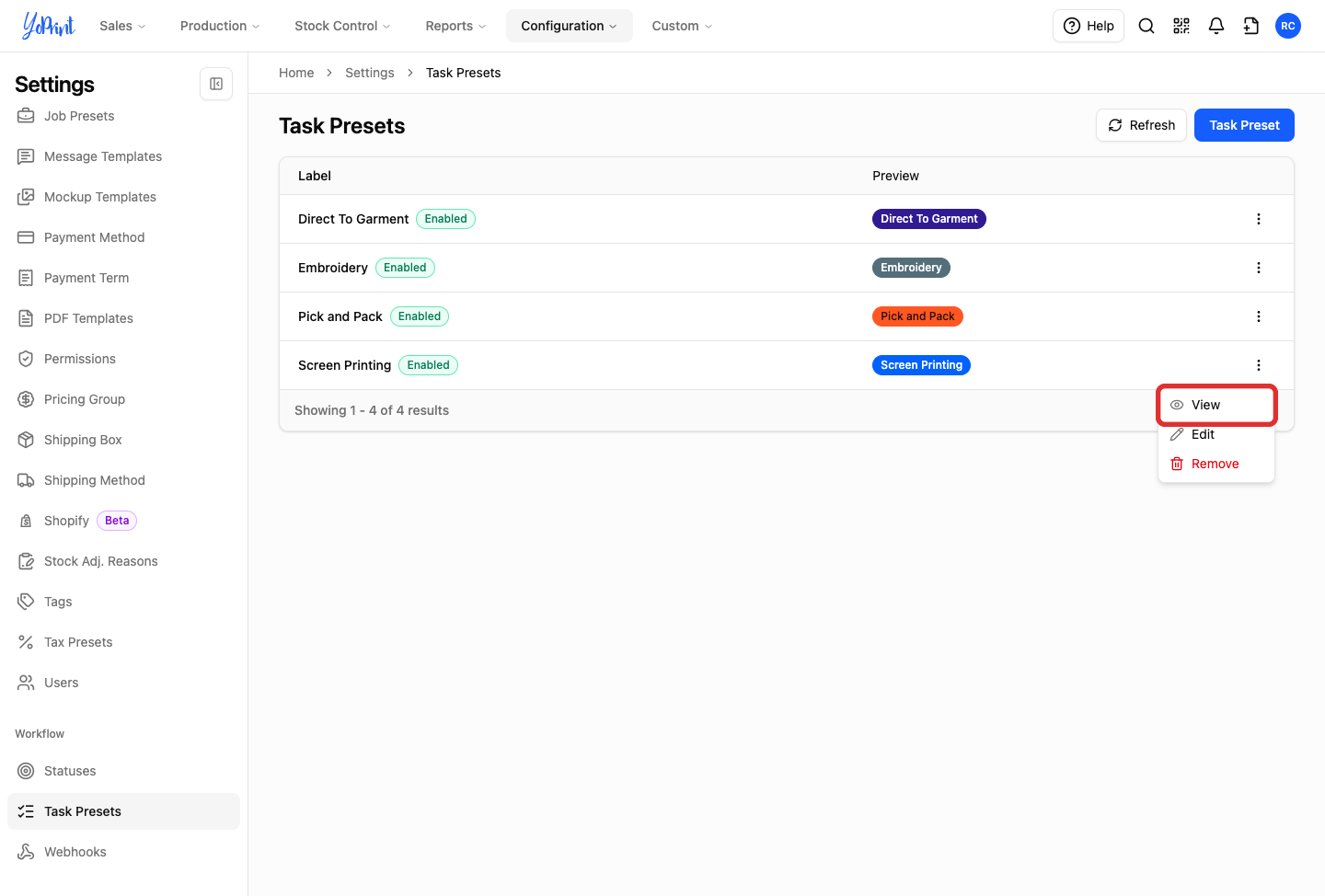
On the preset row (such as Screen Printing), click More actions (three dots).
-
Click View.
-
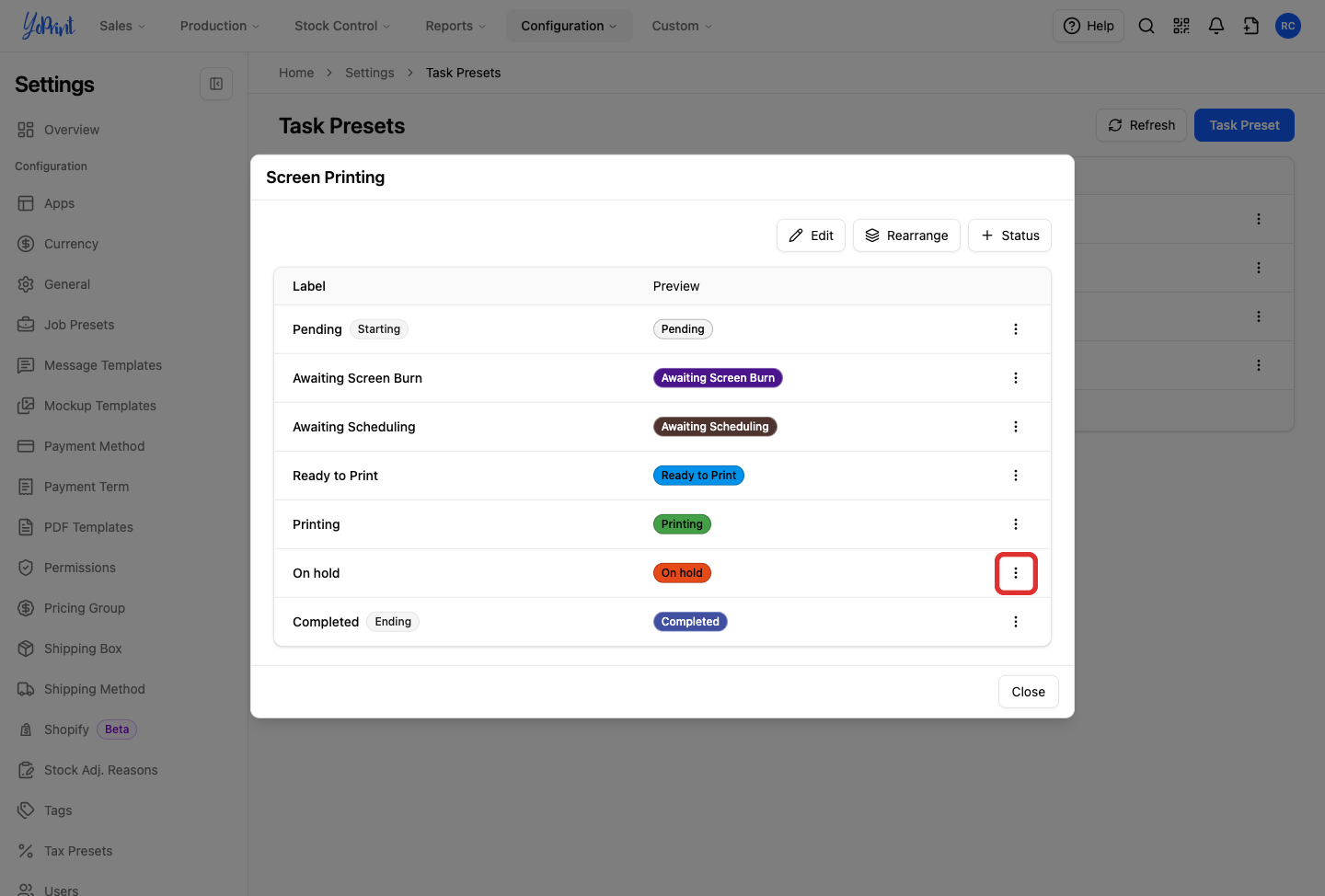
On the status row you want to change (such as On hold), click More actions (three dots).
-
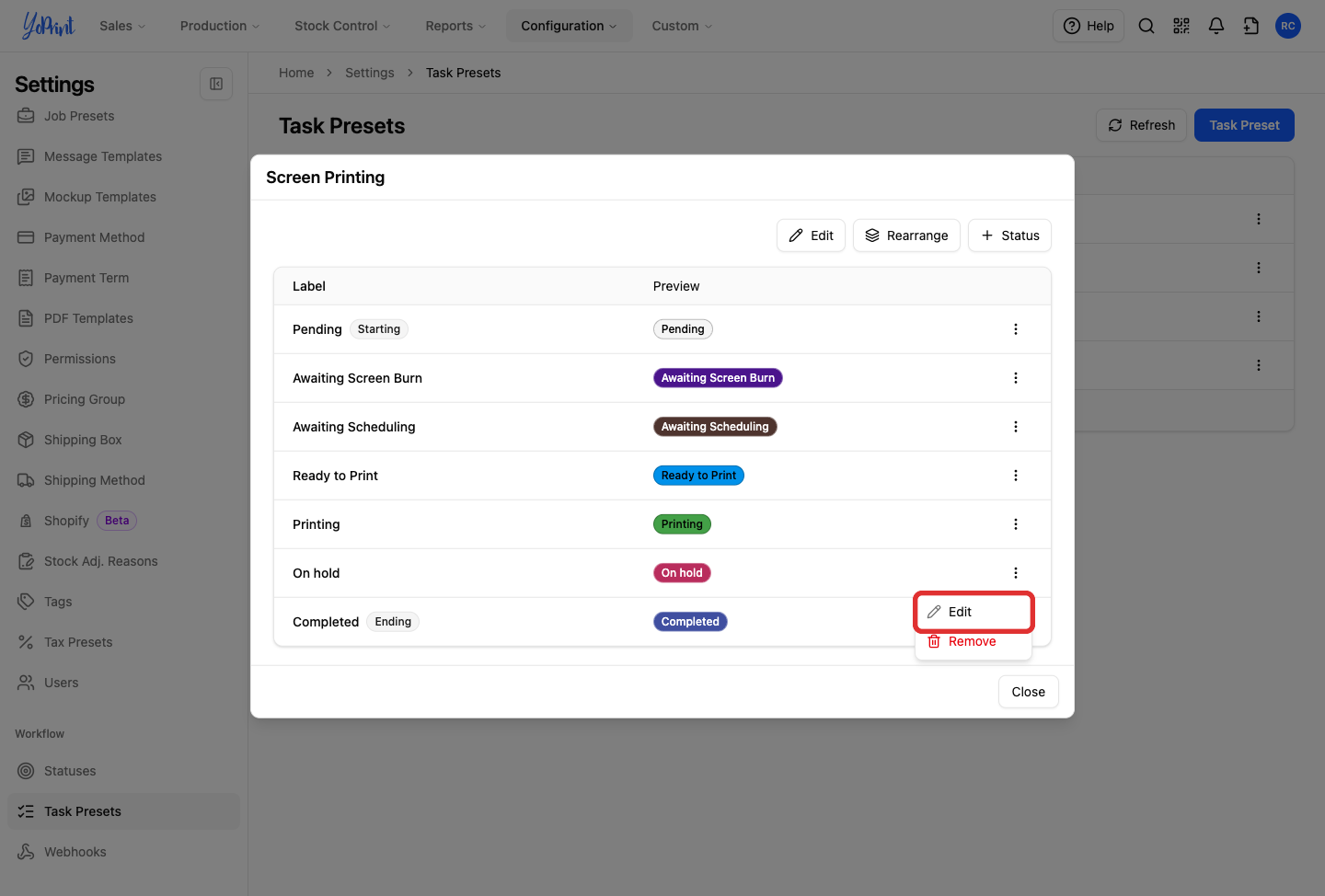
Click Edit.
-
Under Color, select a color for the status.
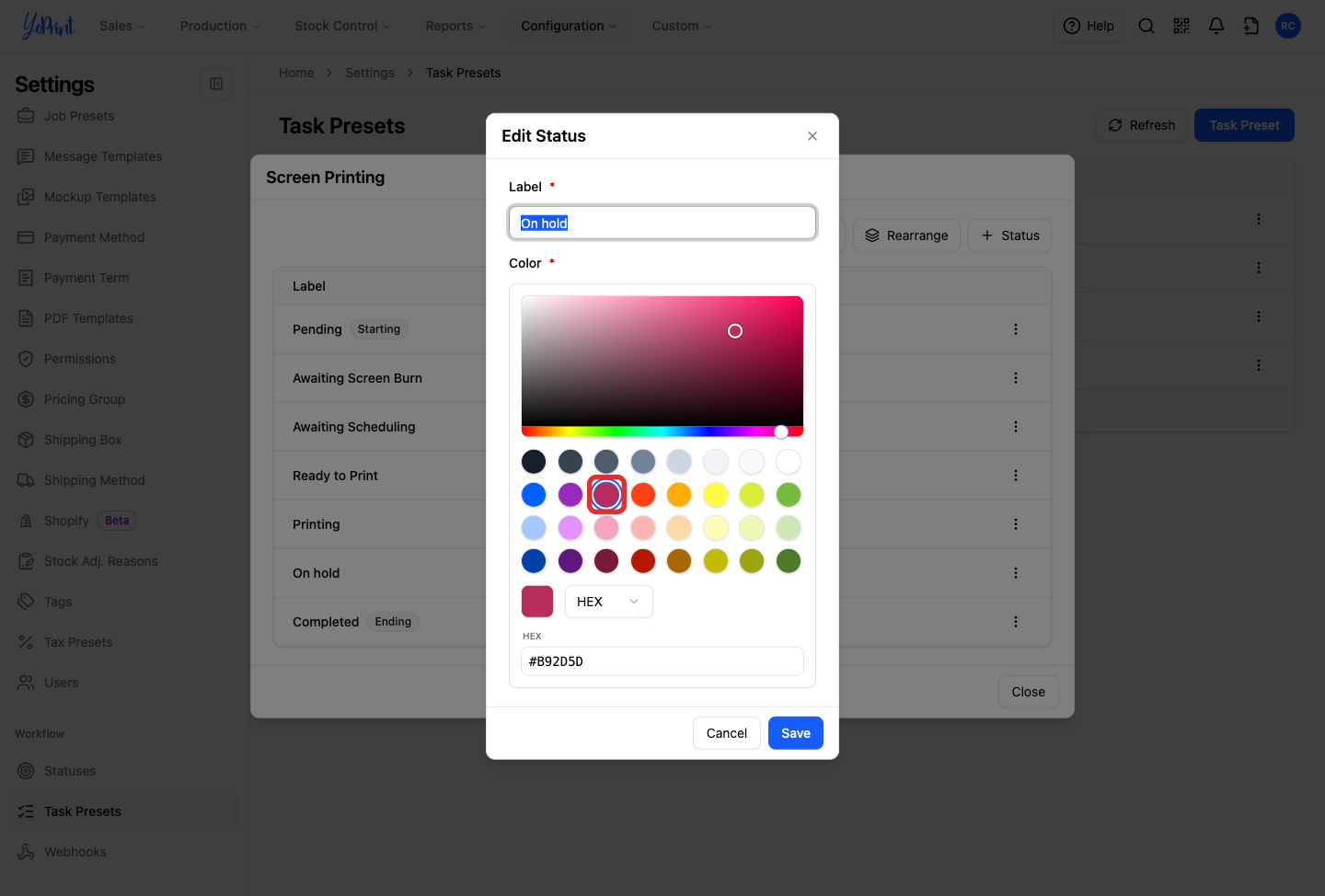
Click a color swatch, drag within the gradient area and hue slider, or enter a 6-digit hex color code.
-
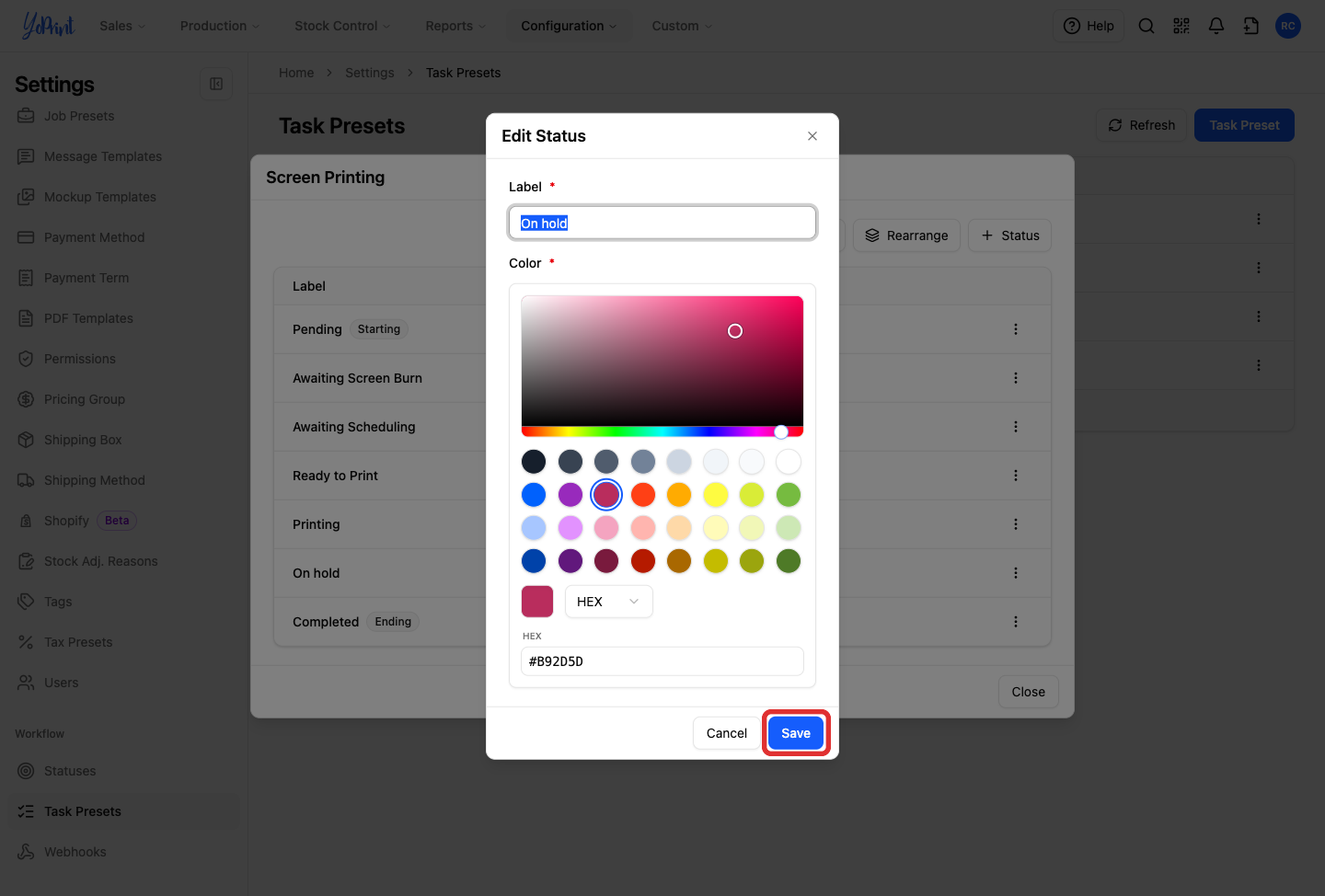
Click Save.
-
Check the status Preview column to confirm the new color.
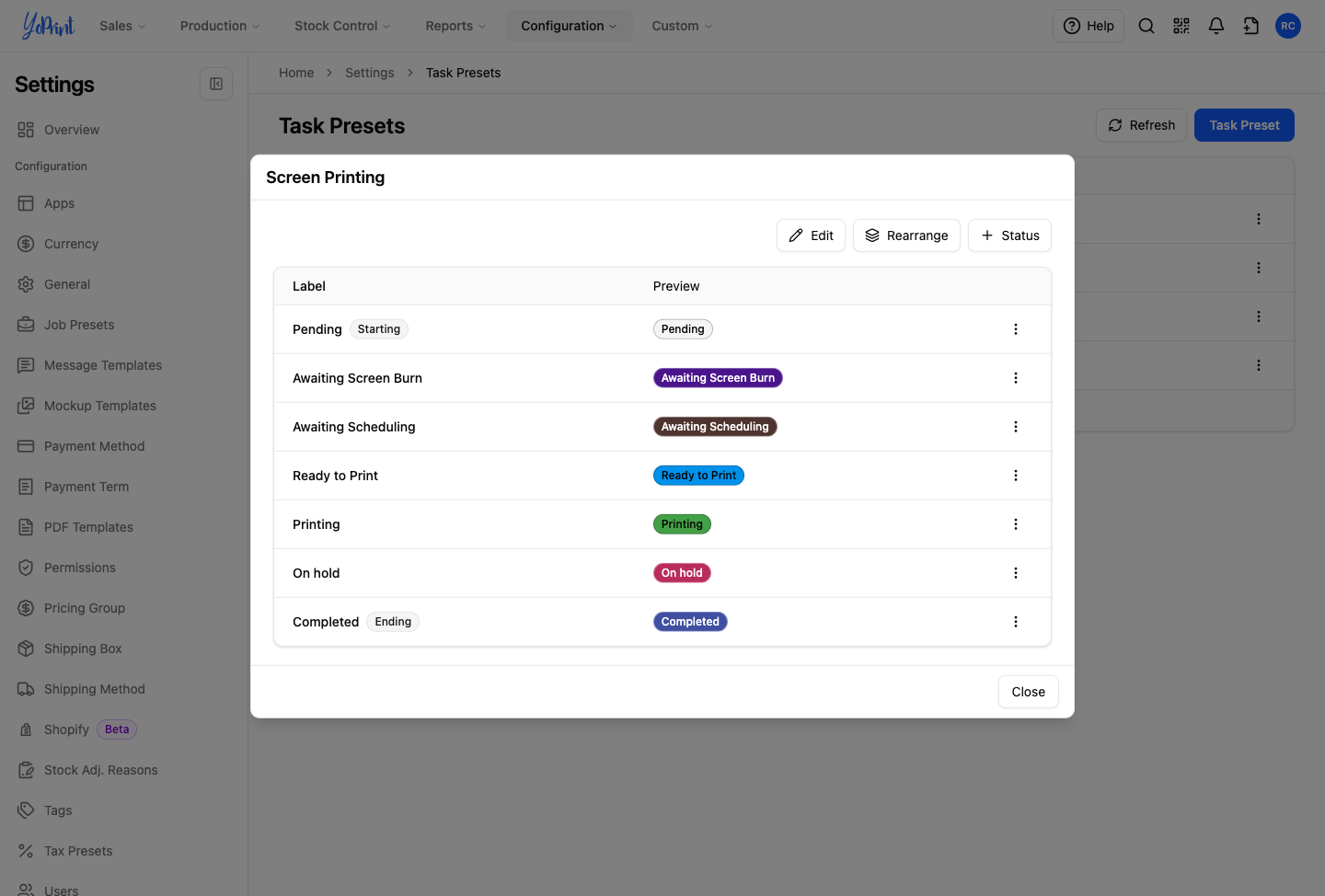
You can recolor Pending and Completed the same way. Changing a status color changes only its appearance, not its workflow position or behavior.
-
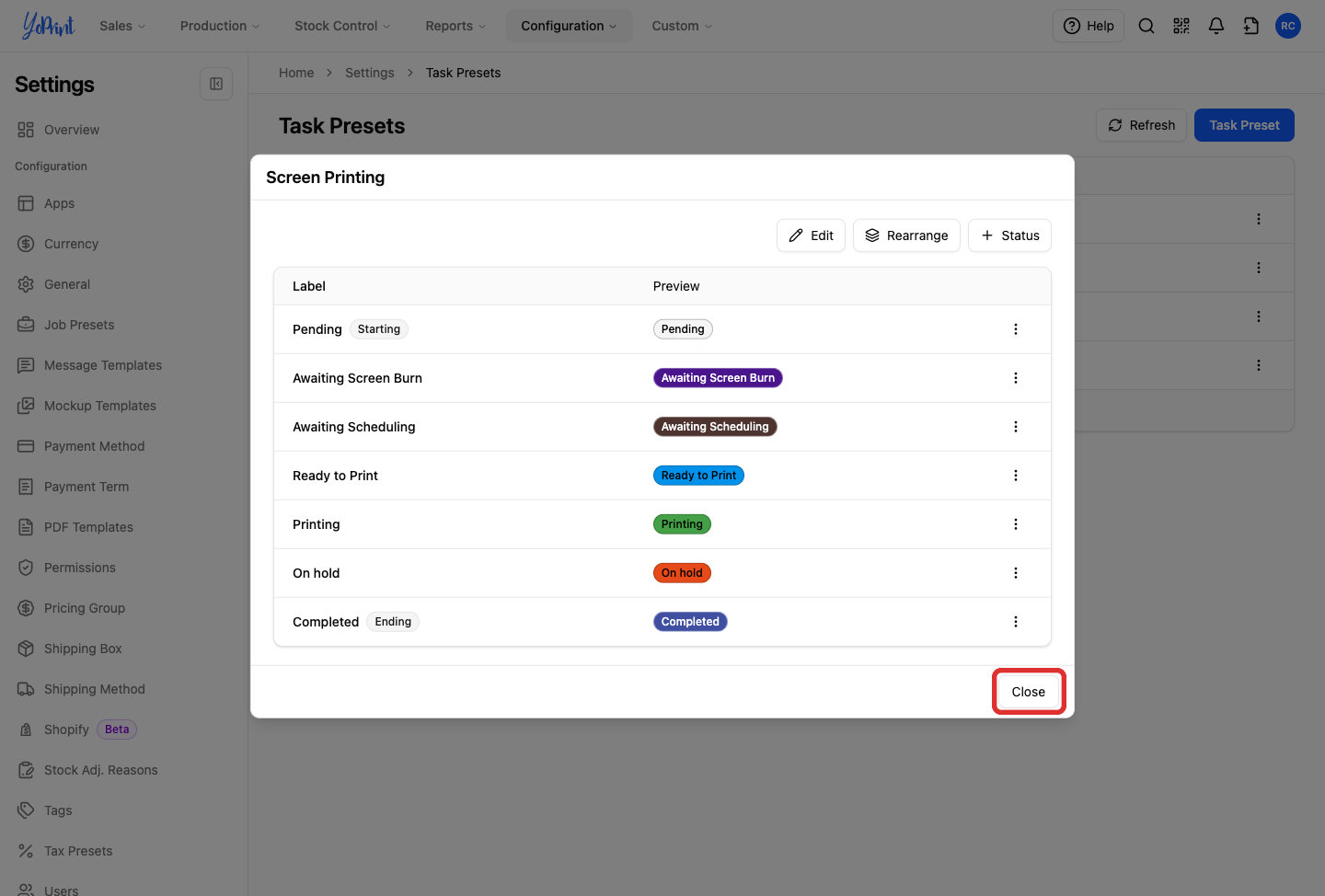
Click Close to return to Task Presets.
Order and job colors
To set status colors for sales orders, quotes, jobs, purchase orders, and shipments, see Customize Status Workflow.
See which color Production Control uses
Production Control displays task bars in the preset color by default.

-
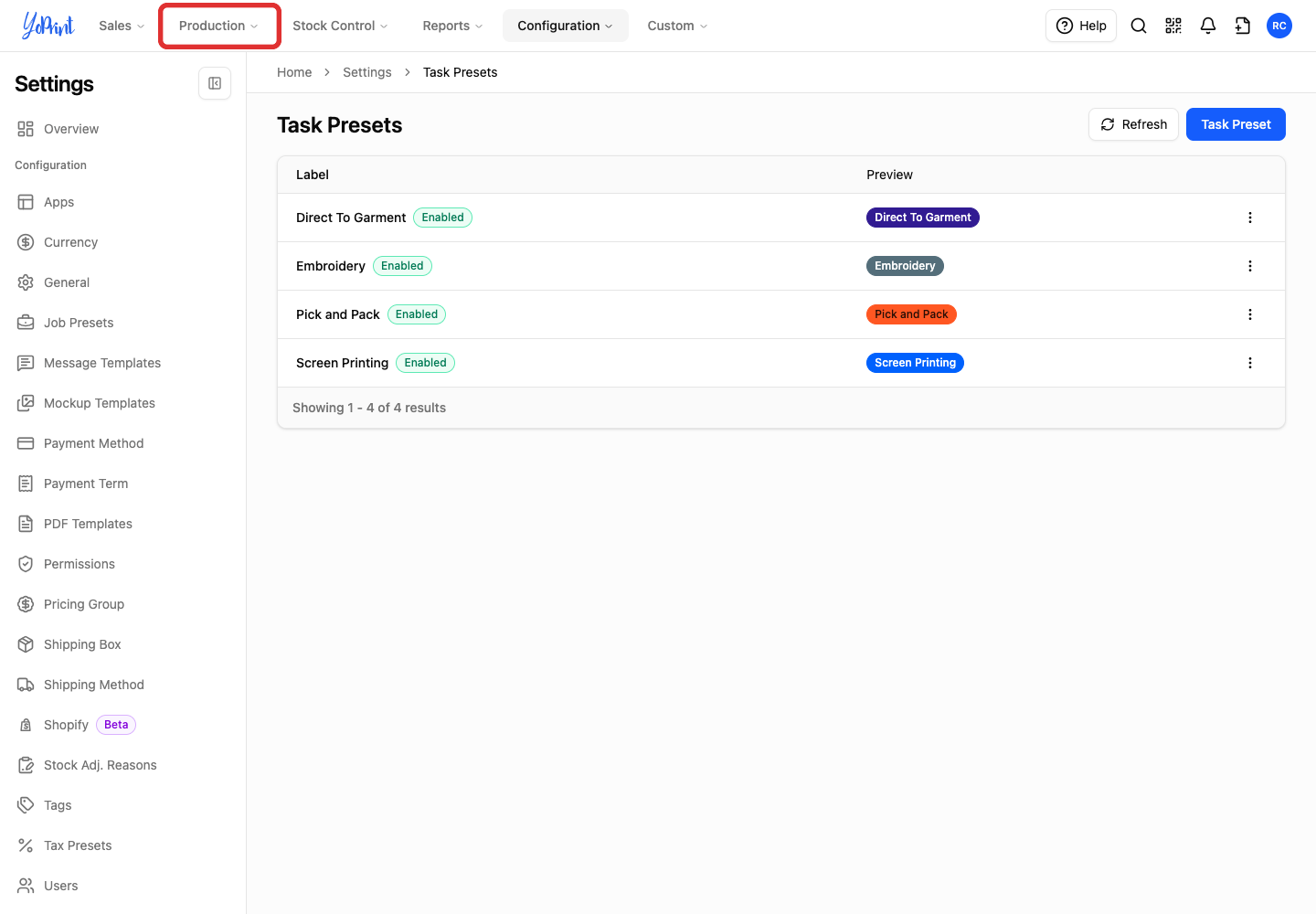
Click Production.
-
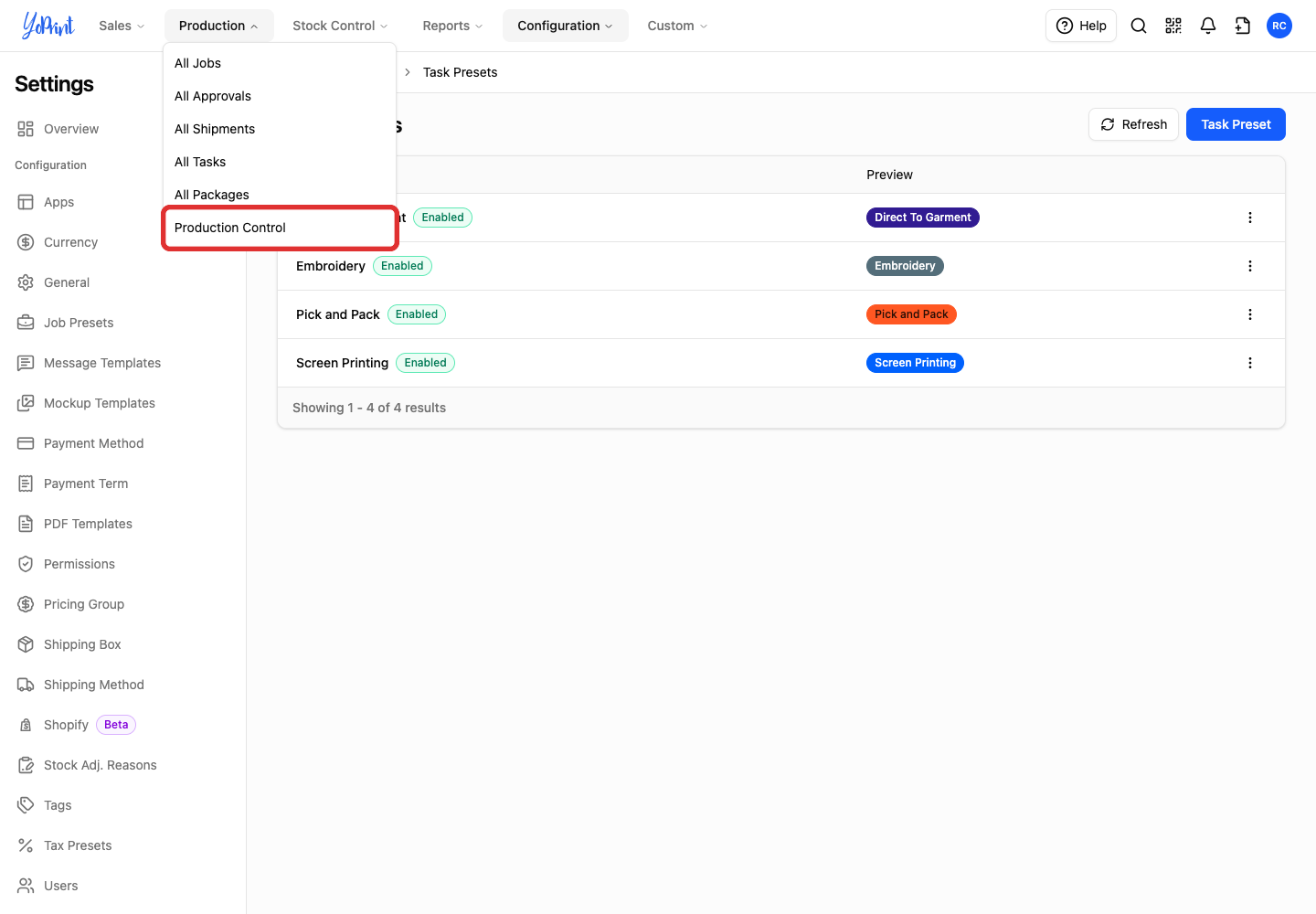
Click Production Control.
-
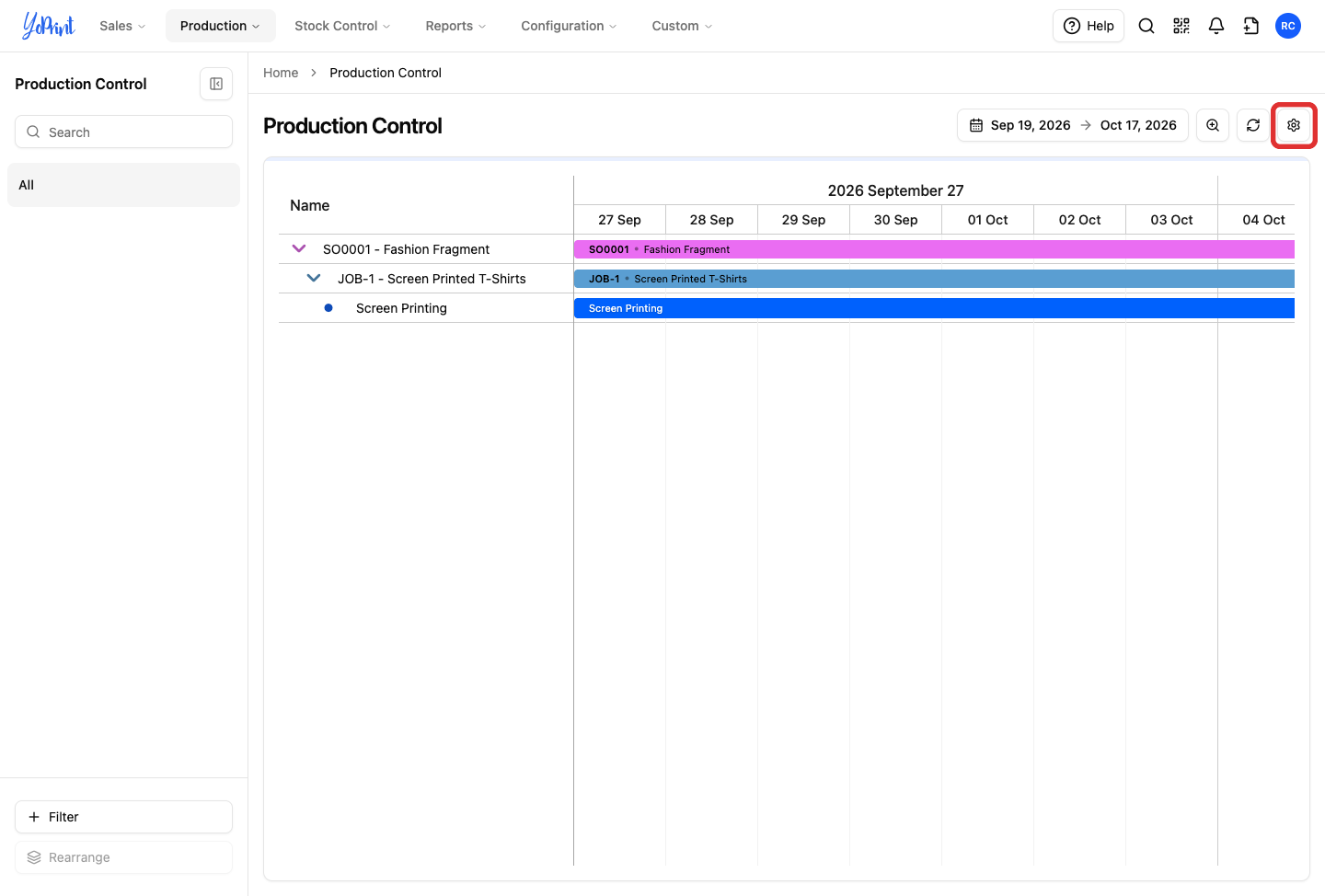
Click the settings gear icon at the top right.
-
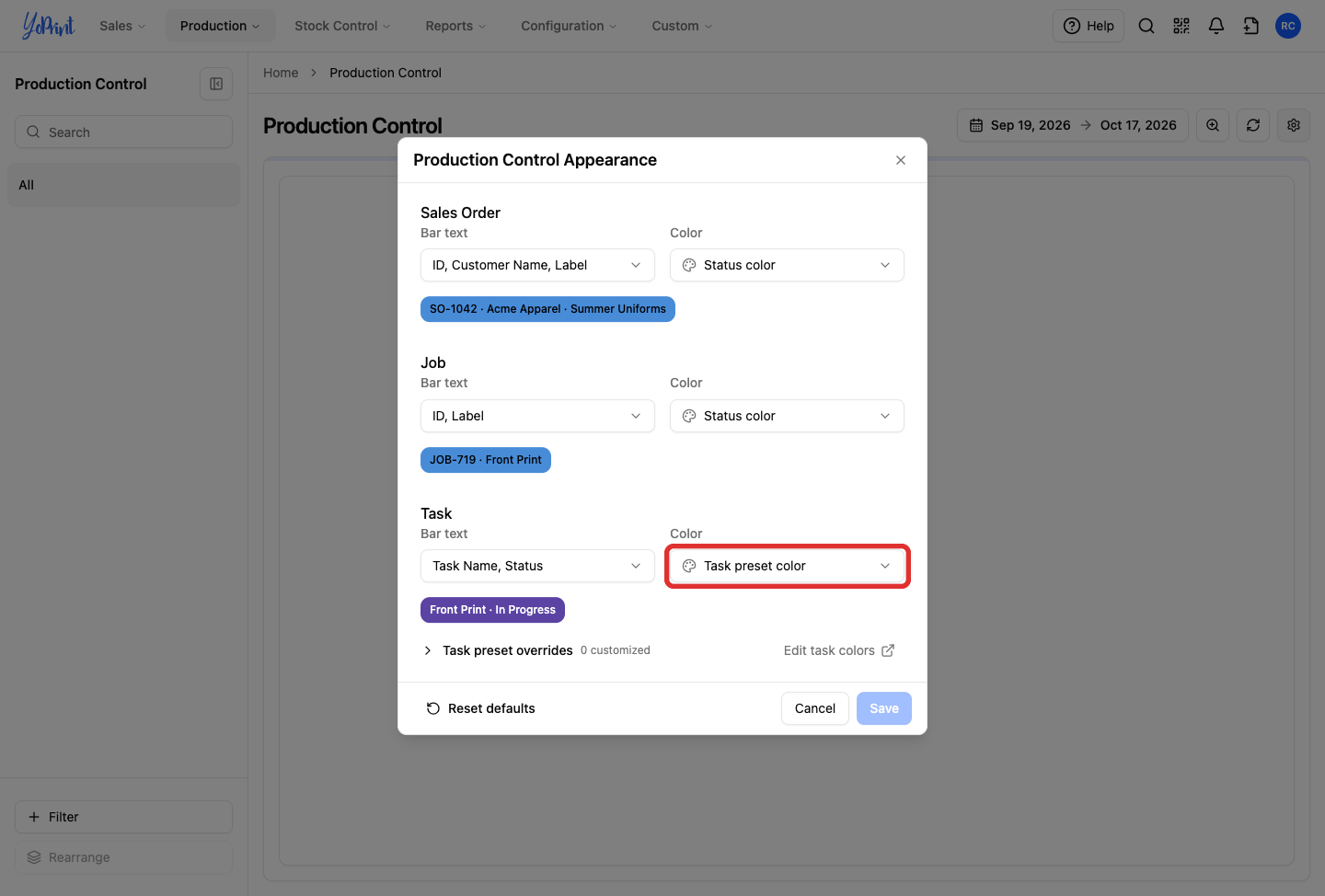
Under Task, open the Color menu.
-
Select Status color.
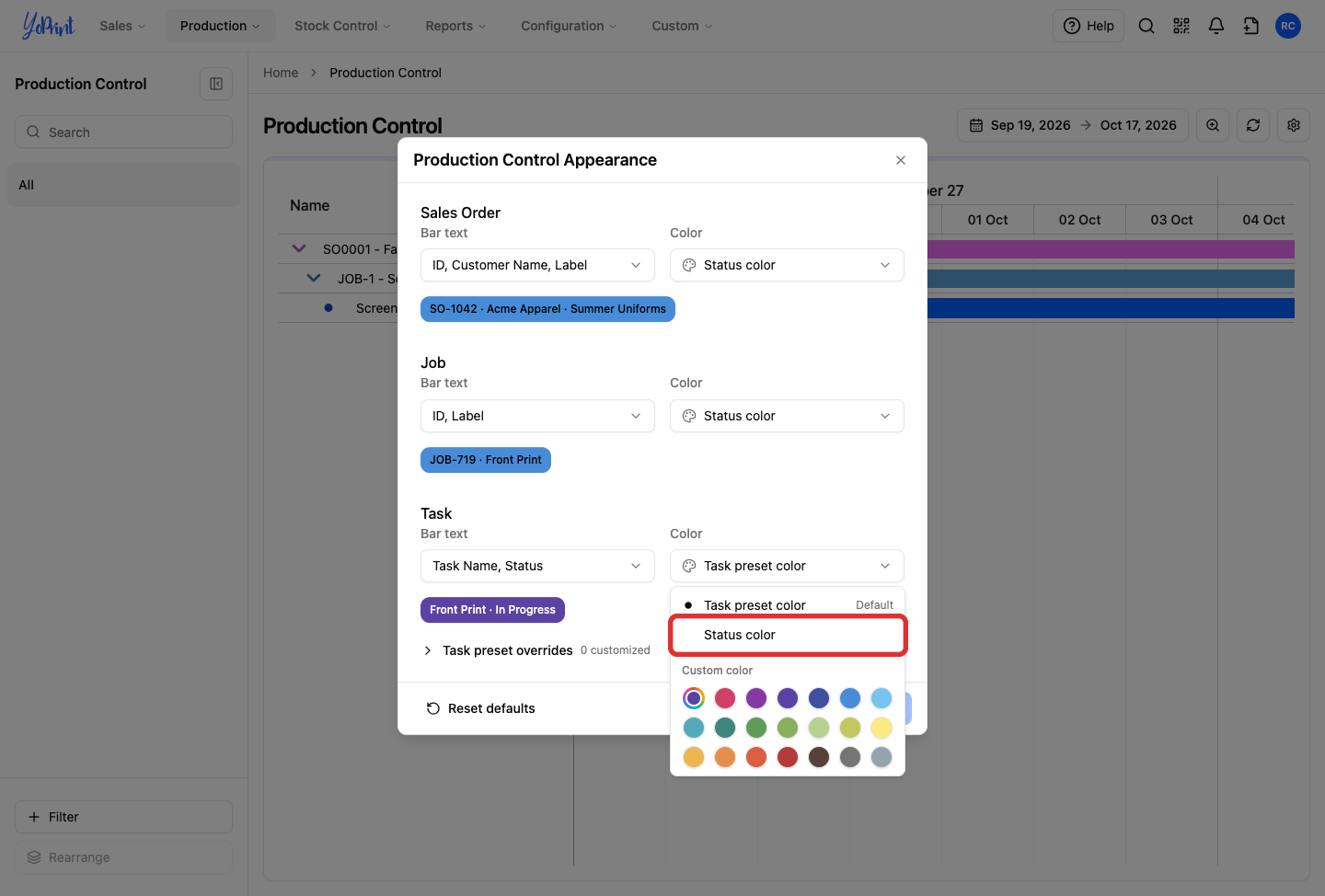
Choose Task preset color to display the overall preset color, or Status color to display the current status color. Choosing a custom color from the palette displays all task bars in that single color, overriding both preset and status colors. Sales order and job bars display their status color by default, or you can choose a custom color.
Preset overrides and color editing
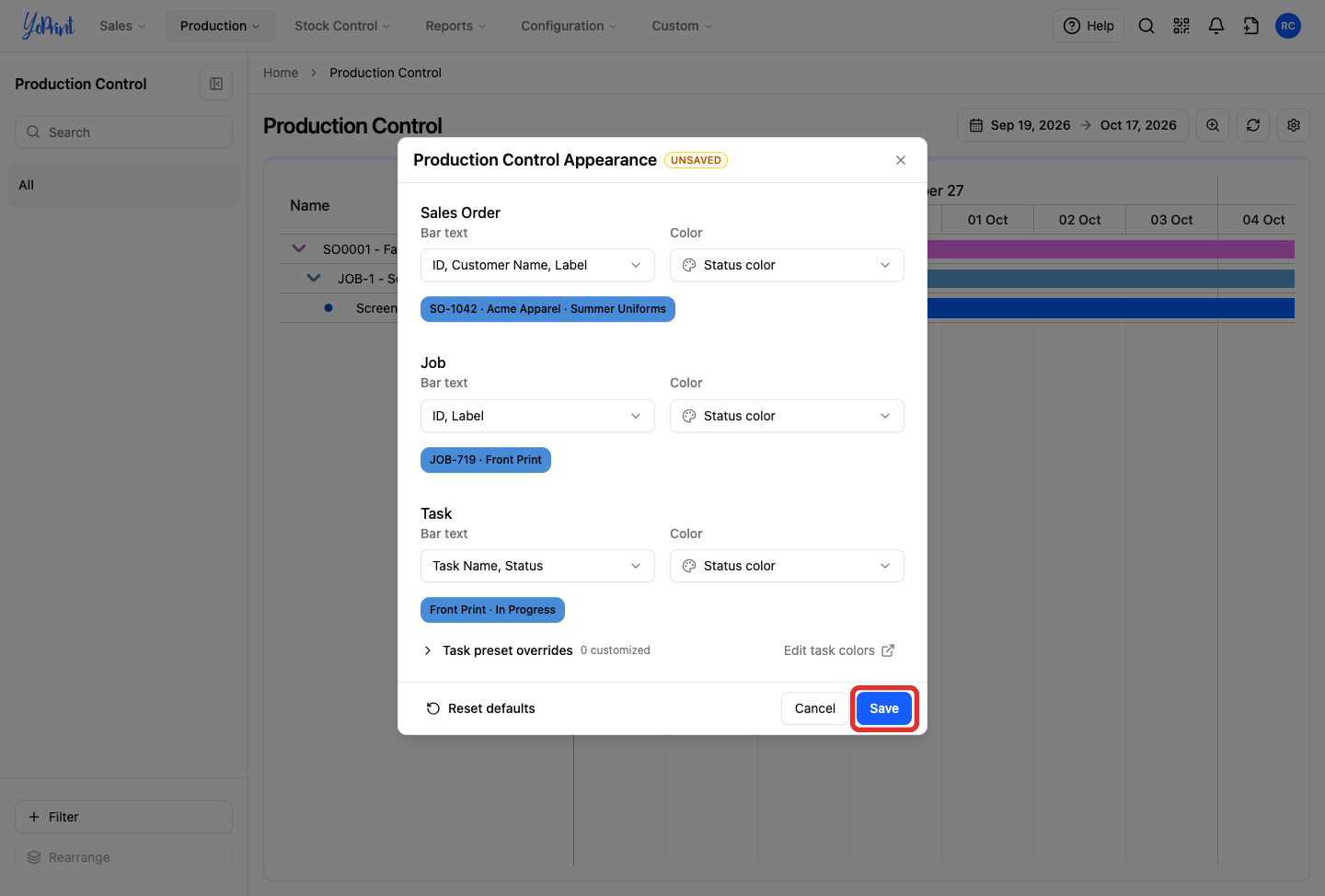
To use different color rules for specific task presets, expand Task preset overrides and choose a color for each preset individually. To change your preset or status colors directly from this dialog, click Edit task colors.
-
Click Save.
-
Review the Production Control schedule to confirm the task bar uses the status color.
To learn more about managing tasks and jobs on the board, see Production Control.