Reports
In this article
Use reports to review quotes, sales orders, invoices, purchases, payments, and tax across your shop. Choose a report, adjust the columns and rows you need, and export the spreadsheet.
Choose a report
The Reports menu contains these reports:
| Report | What it shows | Date used for the range |
|---|---|---|
| Quotes | Quotes issued to customers | Quote issue date |
| Sales Orders | Sales orders | Sales order issue date |
| Invoices | Invoices for sales orders | Sales order issue date |
| Invoice Items | Individual invoice line items, including products and services | Sales order issue date |
| Purchase Orders | Purchase orders | Purchase order issue date |
| Payments | Customer payments and refunds | Payment or refund date |
| Tax | Invoices from sales orders whose paid amount reaches the total | Latest payment date for the sales order |
The Tax report tests the sales order's paid amount against its total, including an order only when the paid amount reaches the total, and uses the date of the latest payment. Orders with partial payments or open balances do not appear on the Tax report until paid in full.
Use Invoice Items to compare product quantities, sales, costs, and service totals. These details help you investigate which garments sell most and which services generate the most revenue.
Dashboard gives you a summary of sales order counts, total revenue, top customers, and outstanding balances. Download Center creates background exports when you need larger files without waiting on screen.
Run a report
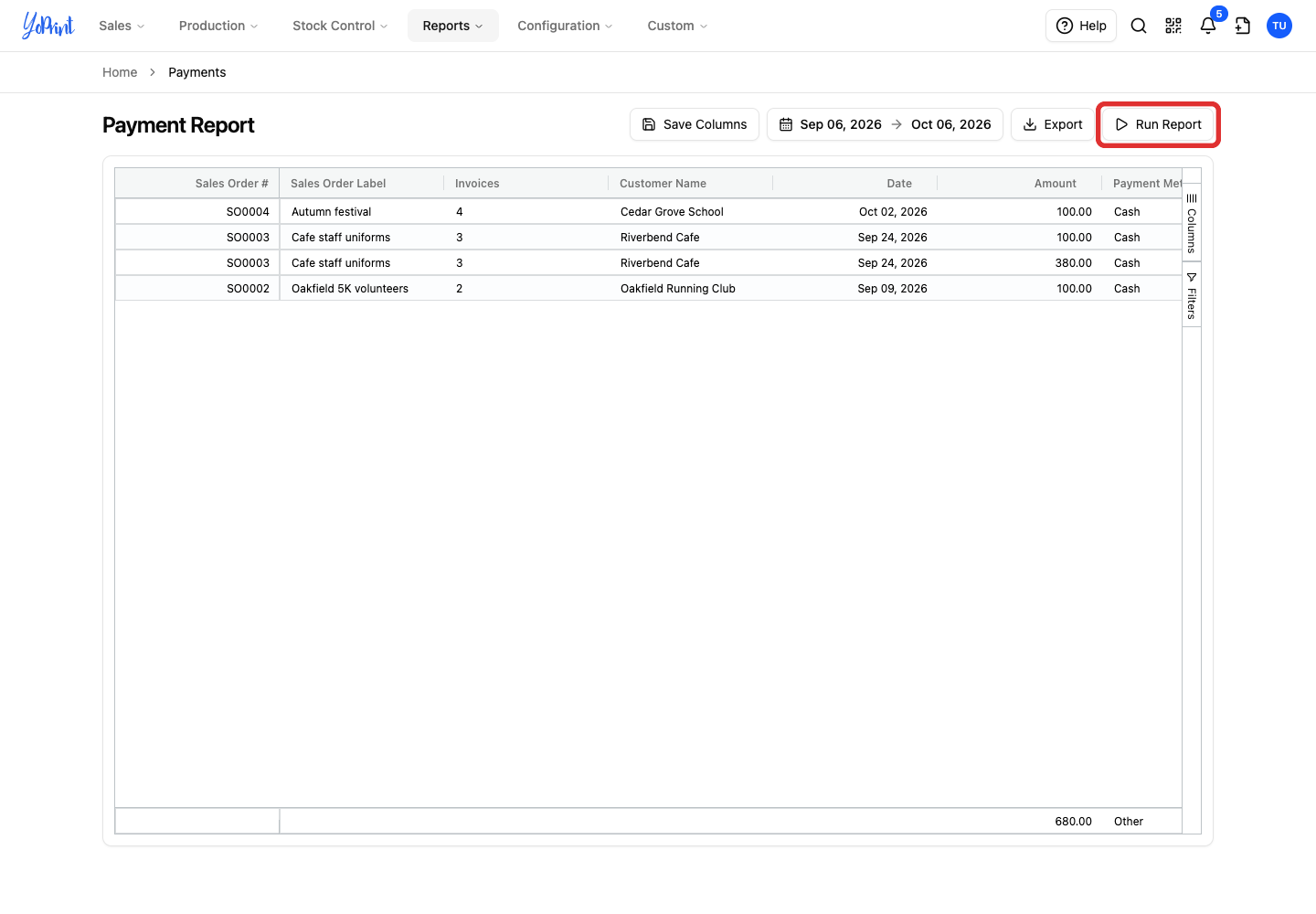
This example uses Payments. When you open a report, the table starts empty until it is run, and the Export button remains disabled until there are rows.
-
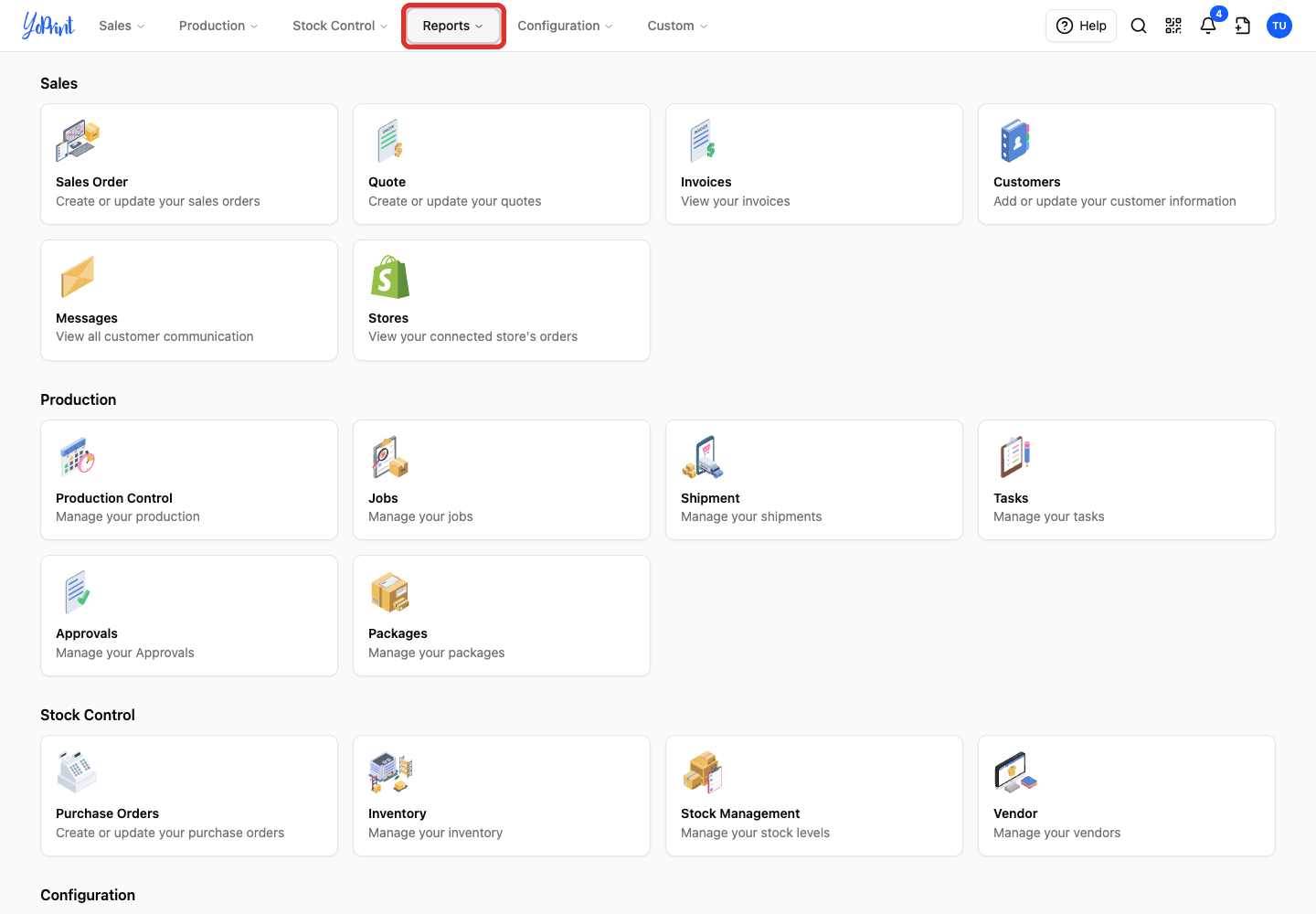
Open Reports in the top menu.
-
Choose Payments.
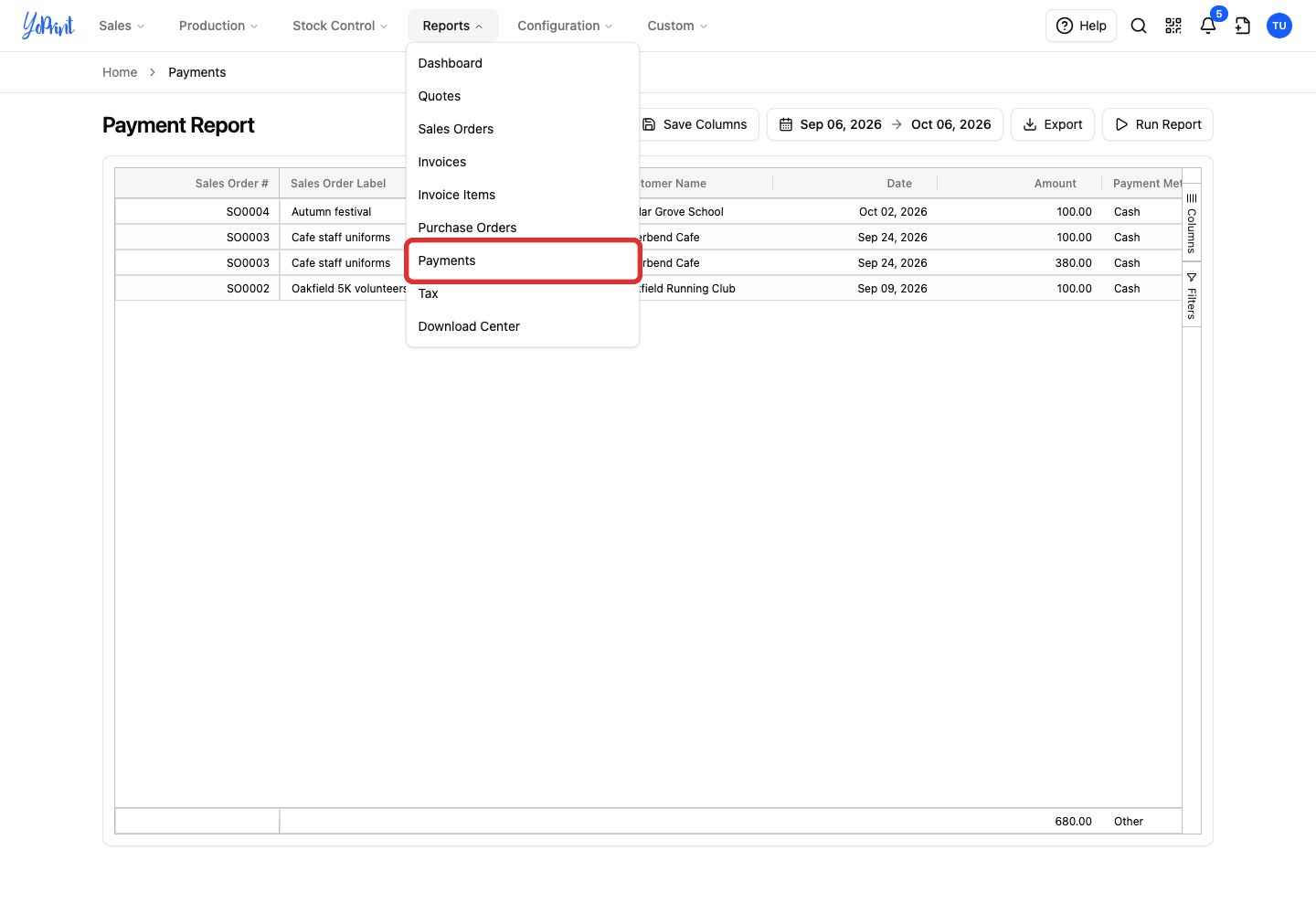
Check the date range in the top bar. To change the dates, use the date picker as explained in Filter and Export Invoice Reports by Date Range.
-
Click Run Report to load the payments for that period.
Choose columns and filter rows
-
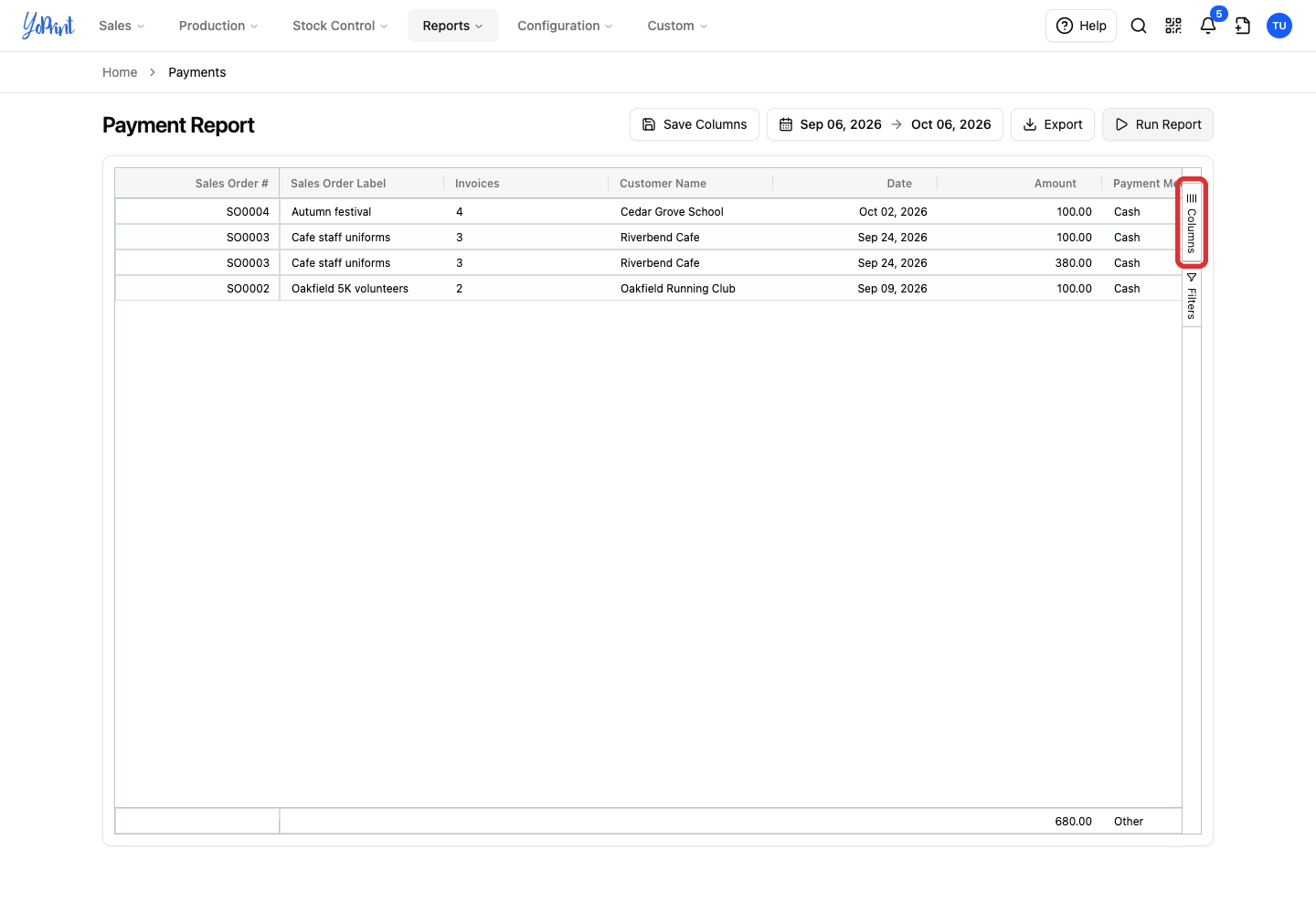
Open Columns on the right of the report.
-
Clear the checkbox for a column you want to hide, such as Reference ID.
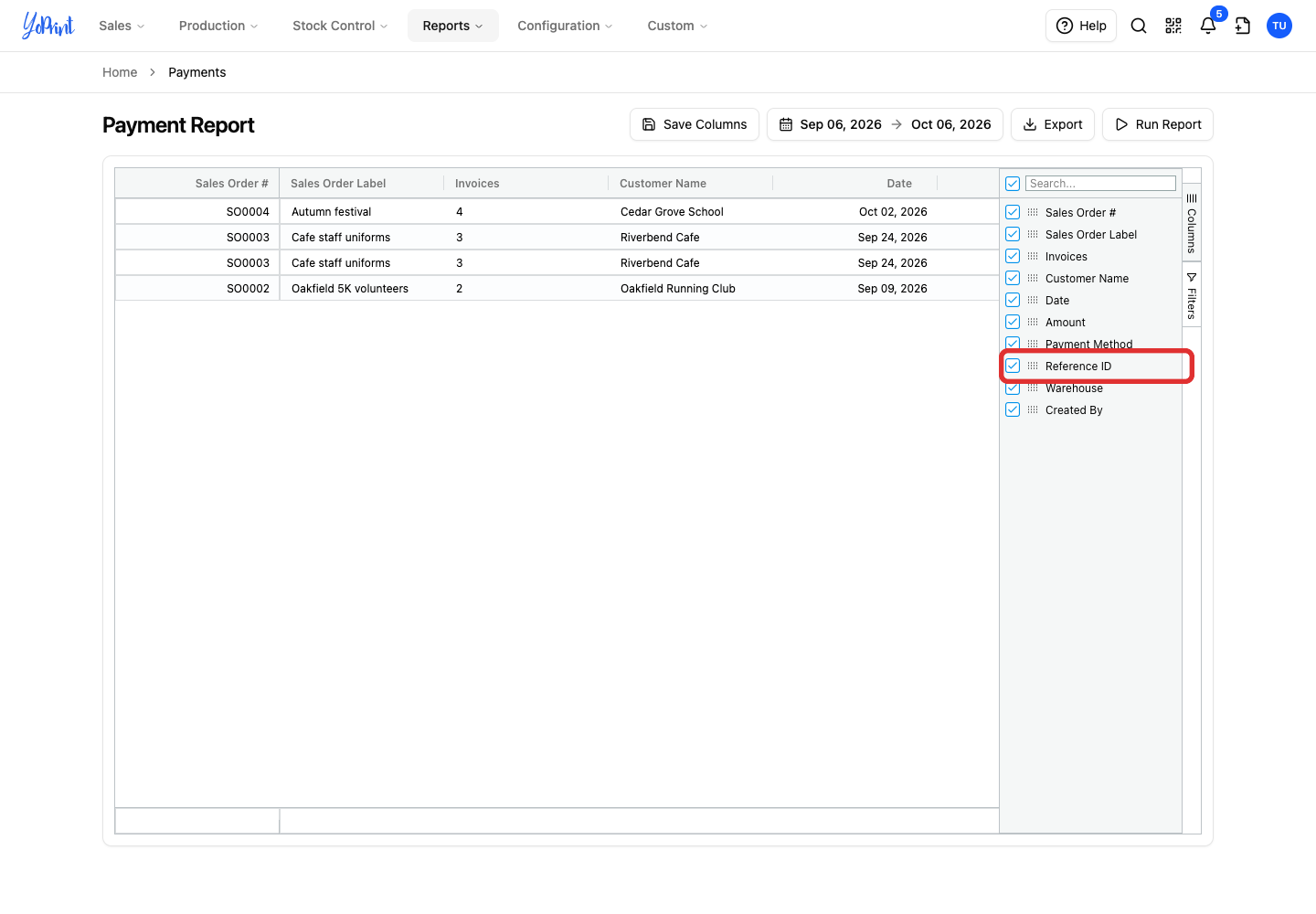
Hidden columns hide immediately in the table. To save your column layout for future visits, click Save Columns in the toolbar above the grid.
-
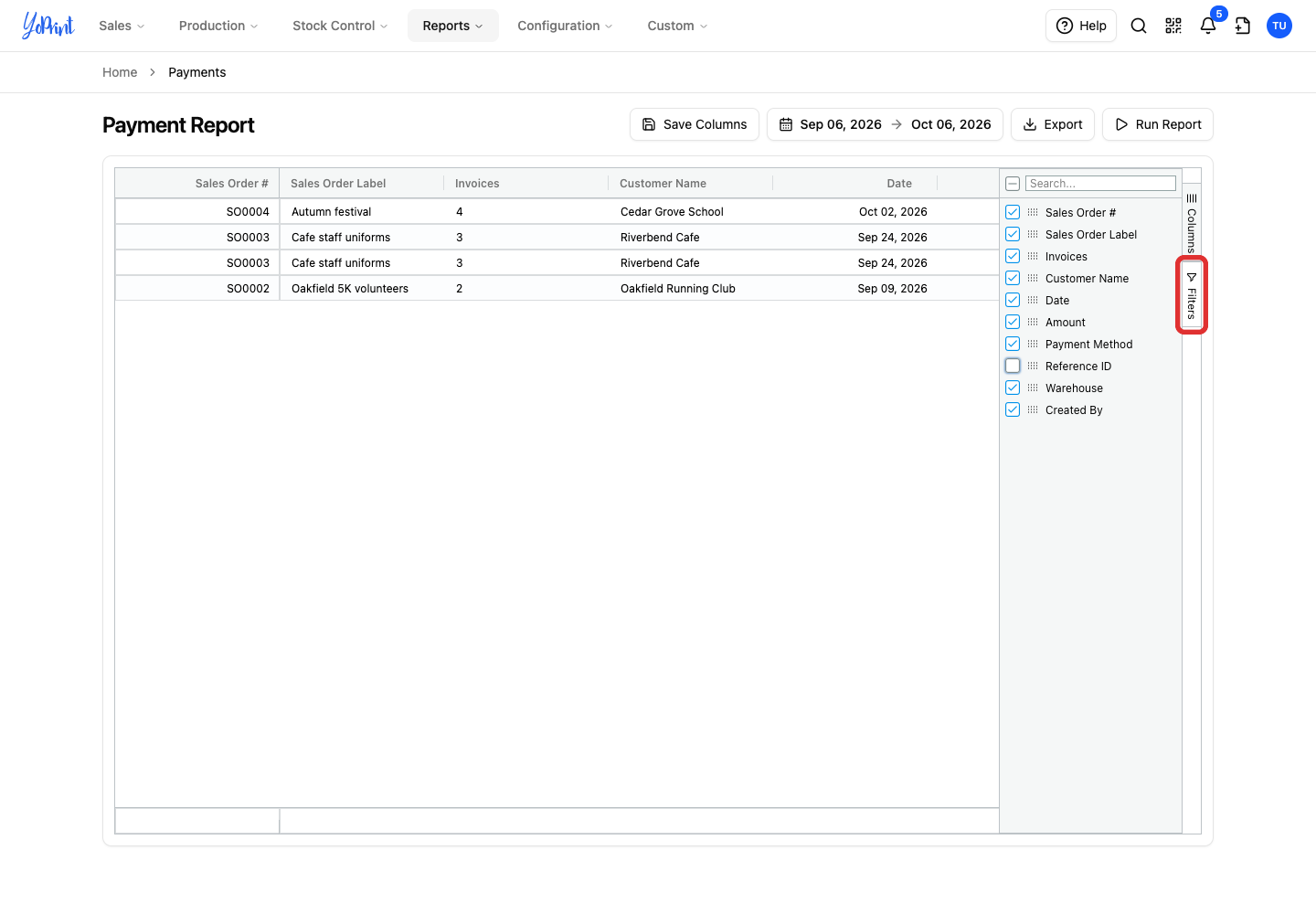
Open Filters on the right.
-
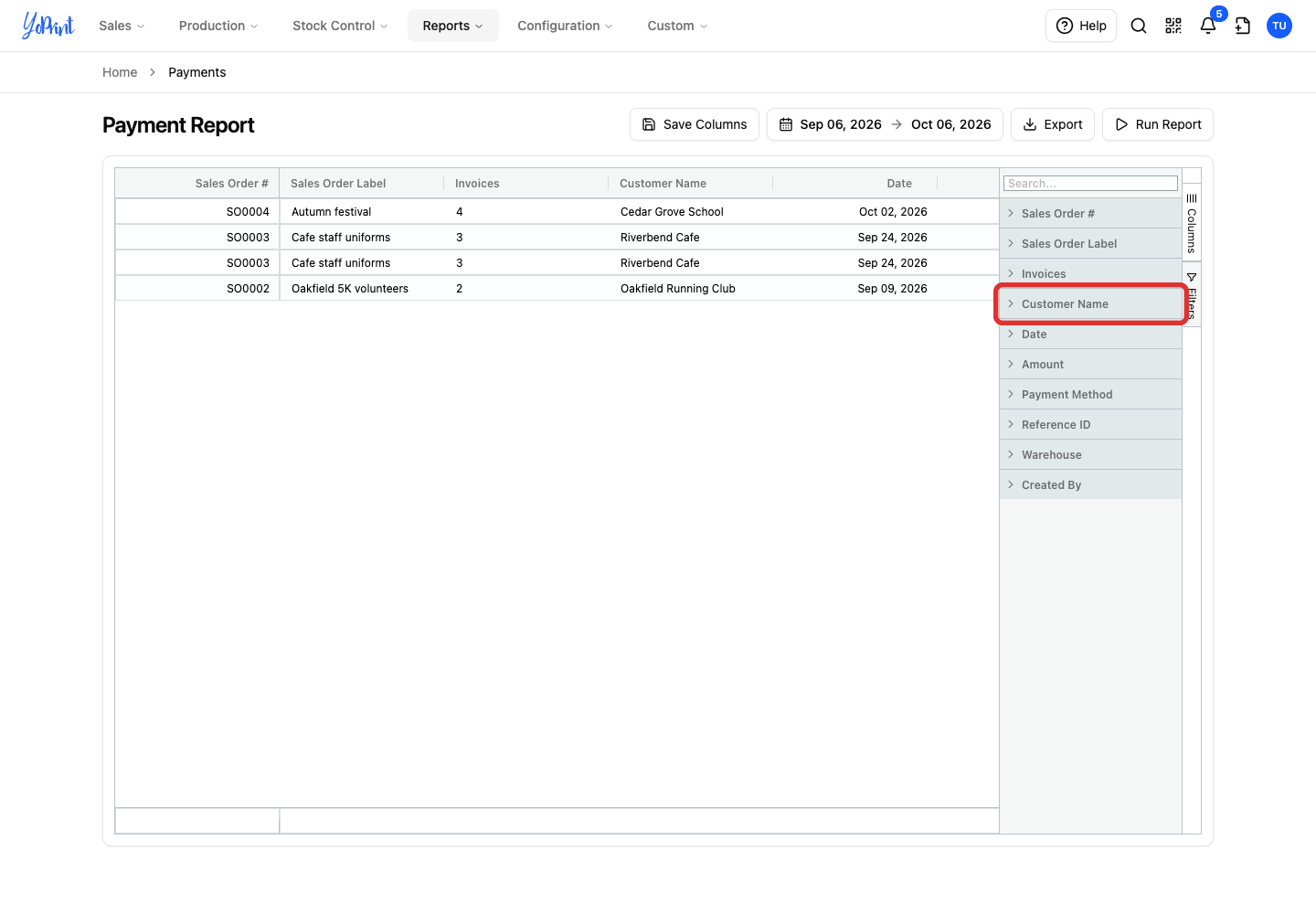
Expand the field you want to filter, such as Customer Name.
-
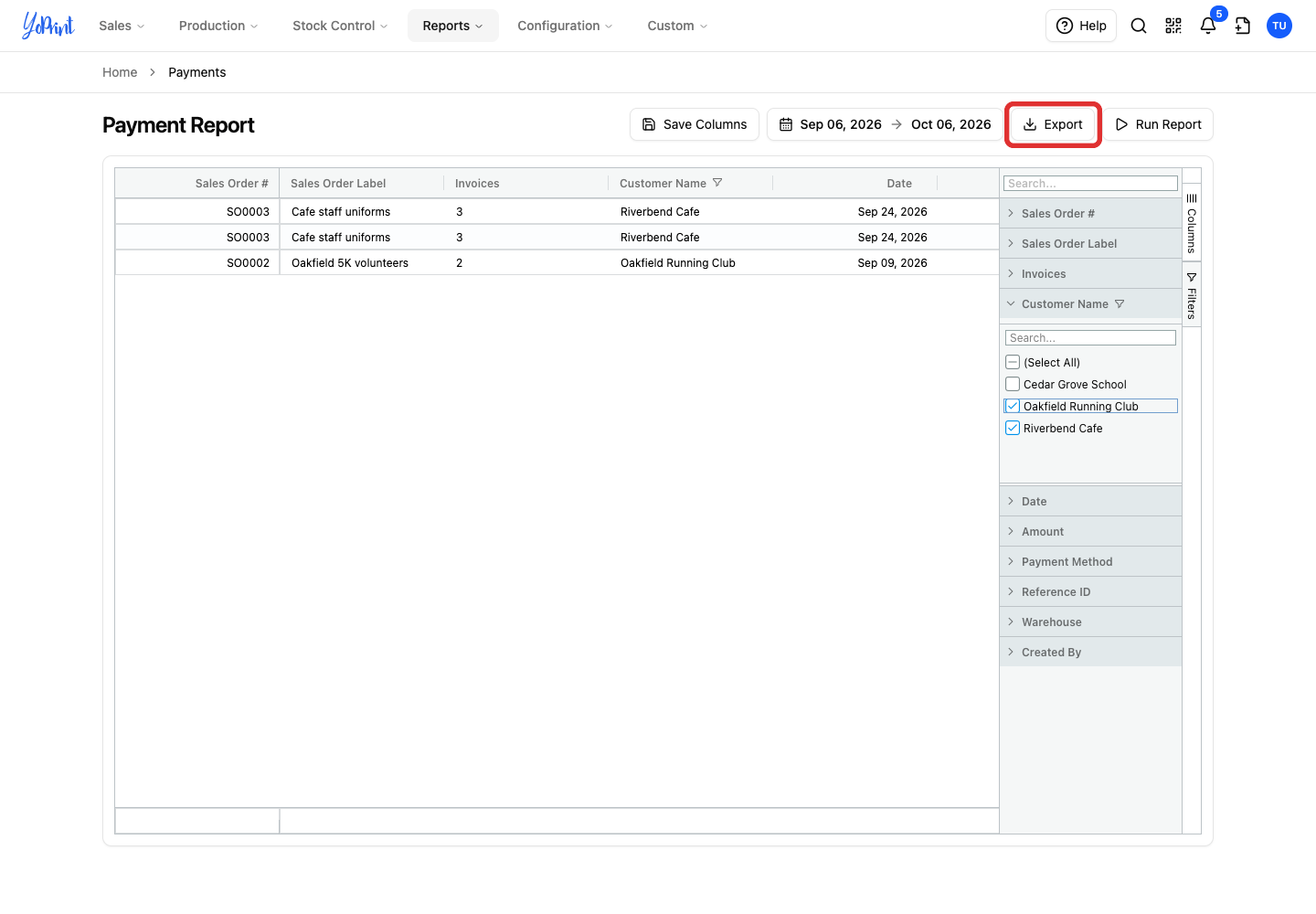
Clear the values you want to leave out. In this example, clearing Cedar Grove School leaves the other customers' payments.
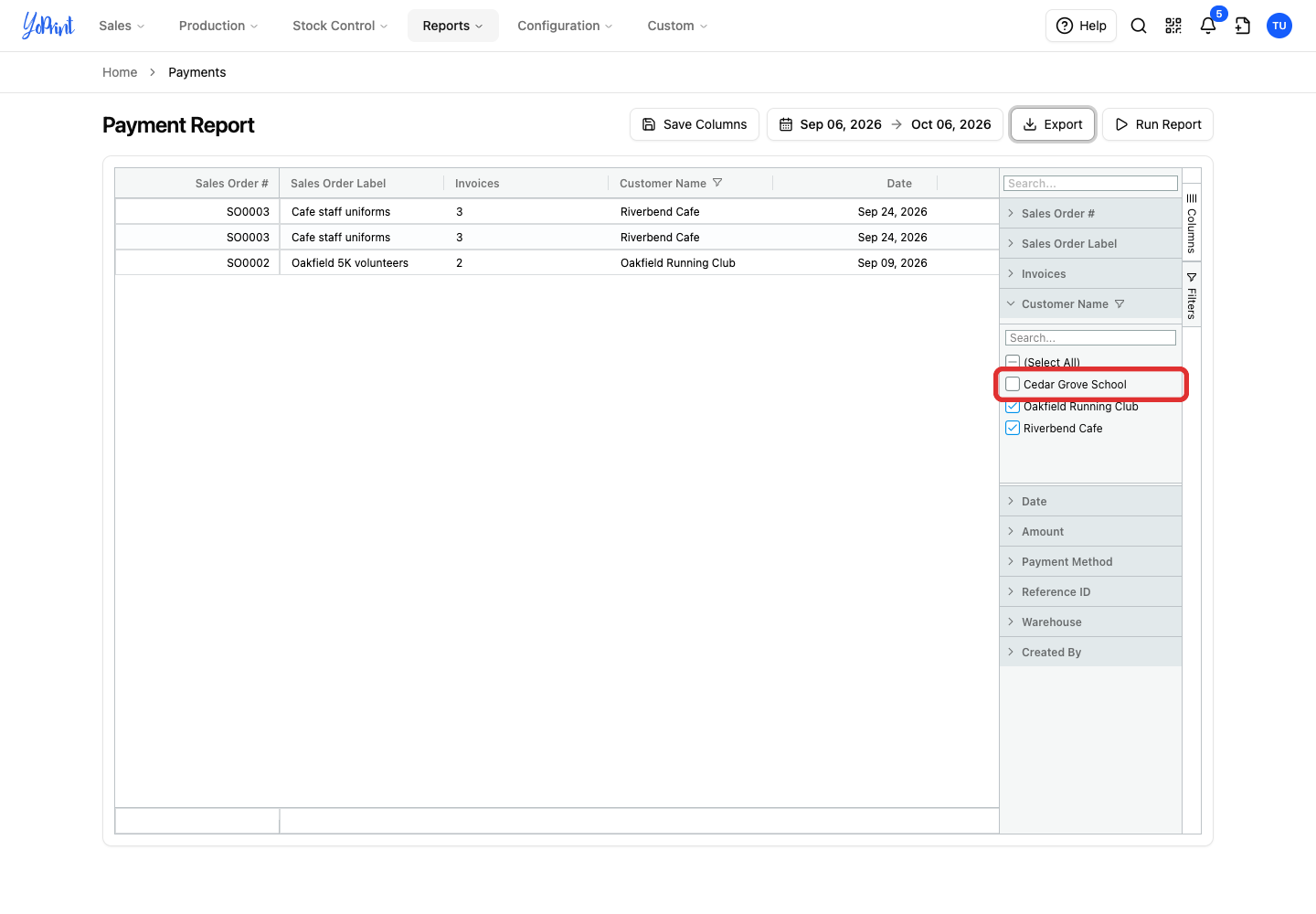
Use the search box inside the filter panel to locate values quickly in long lists. To include an excluded value again, select its checkbox, or check (Select All) to select all displayed values.
Checked values stay in the report.
Export the report
-
Click Export.
-
Choose Export as CSV.
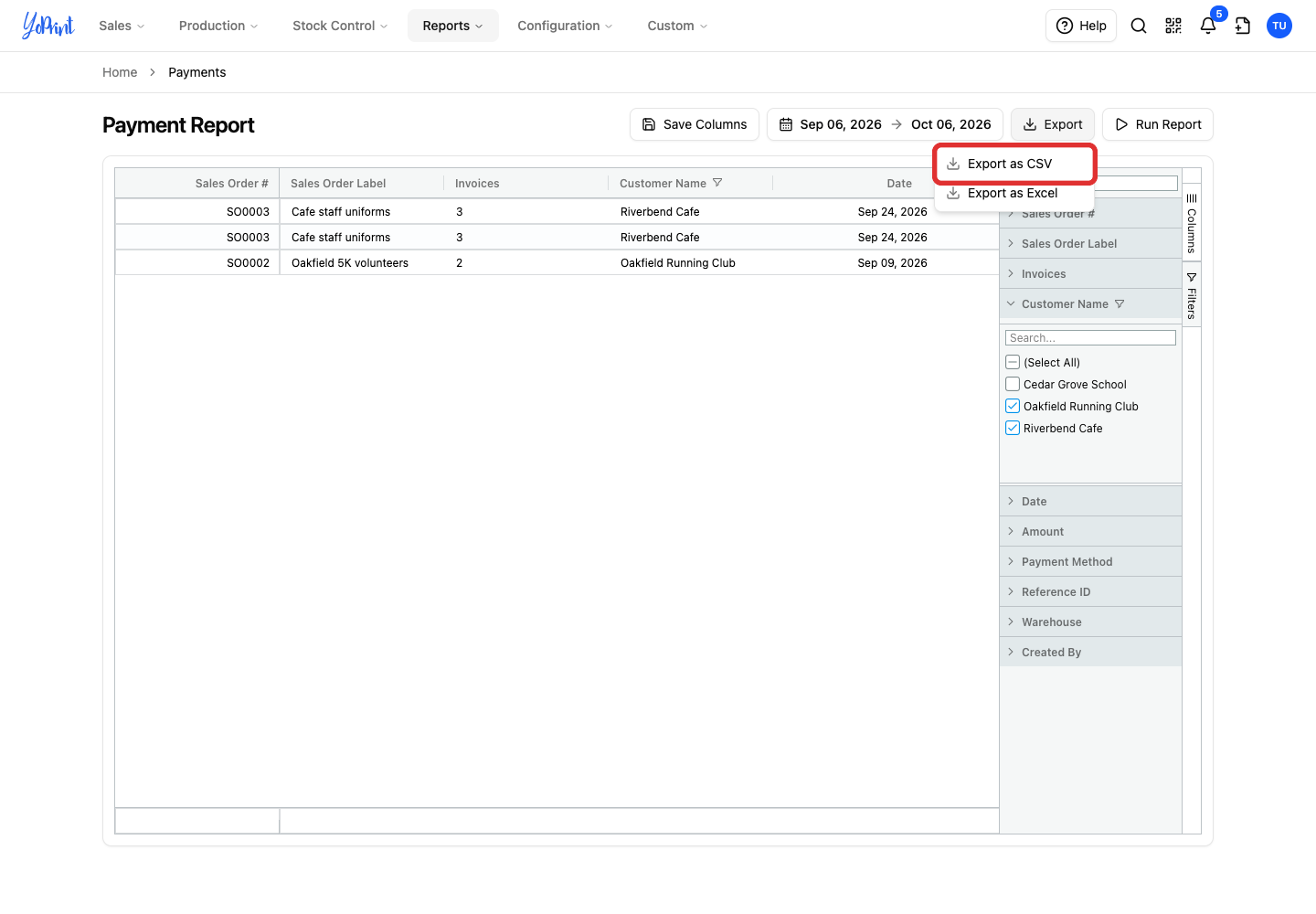
The file downloads to your computer. The menu also offers Export as Excel. Both formats use the displayed columns and the rows that match your filters, including rows outside the visible part of the grid.
On-screen export is designed for immediate downloads. For a long date range or a large export of sales orders, invoices, invoice items, purchase orders, payments, or tax, use the Download Center. It prepares the file in the background so you can collect it when it is ready.