Convert Sales Orders and Quotes
In this article
Convert an existing quote to a sales order when you are ready to proceed, or change a sales order back to a quote when it needs to be an estimate again. The record keeps its number, so you do not need to re-enter the customer and job details.
See Key Differences Between Quotes and Orders if you are deciding which type to use.
Convert a quote to a sales order
Confirm that the customer is ready to proceed before converting. See Get Quote Approval if you need their approval first. Converting does not send an email to the customer or require prior approval. If you do not have quotes yet, convert a sales order first as described below, or see Create a Quote.
-
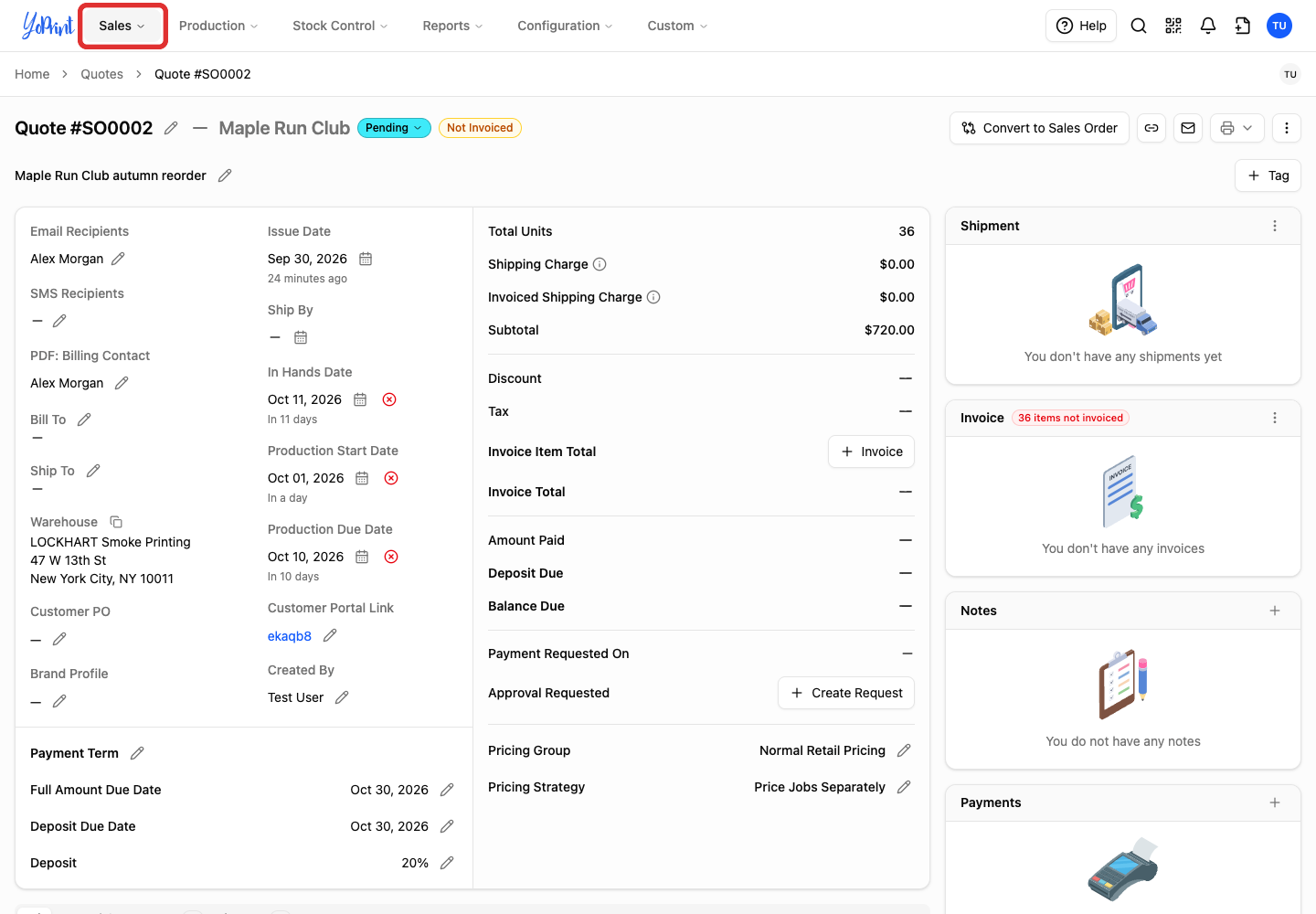
Open Sales in the navigation bar.
-
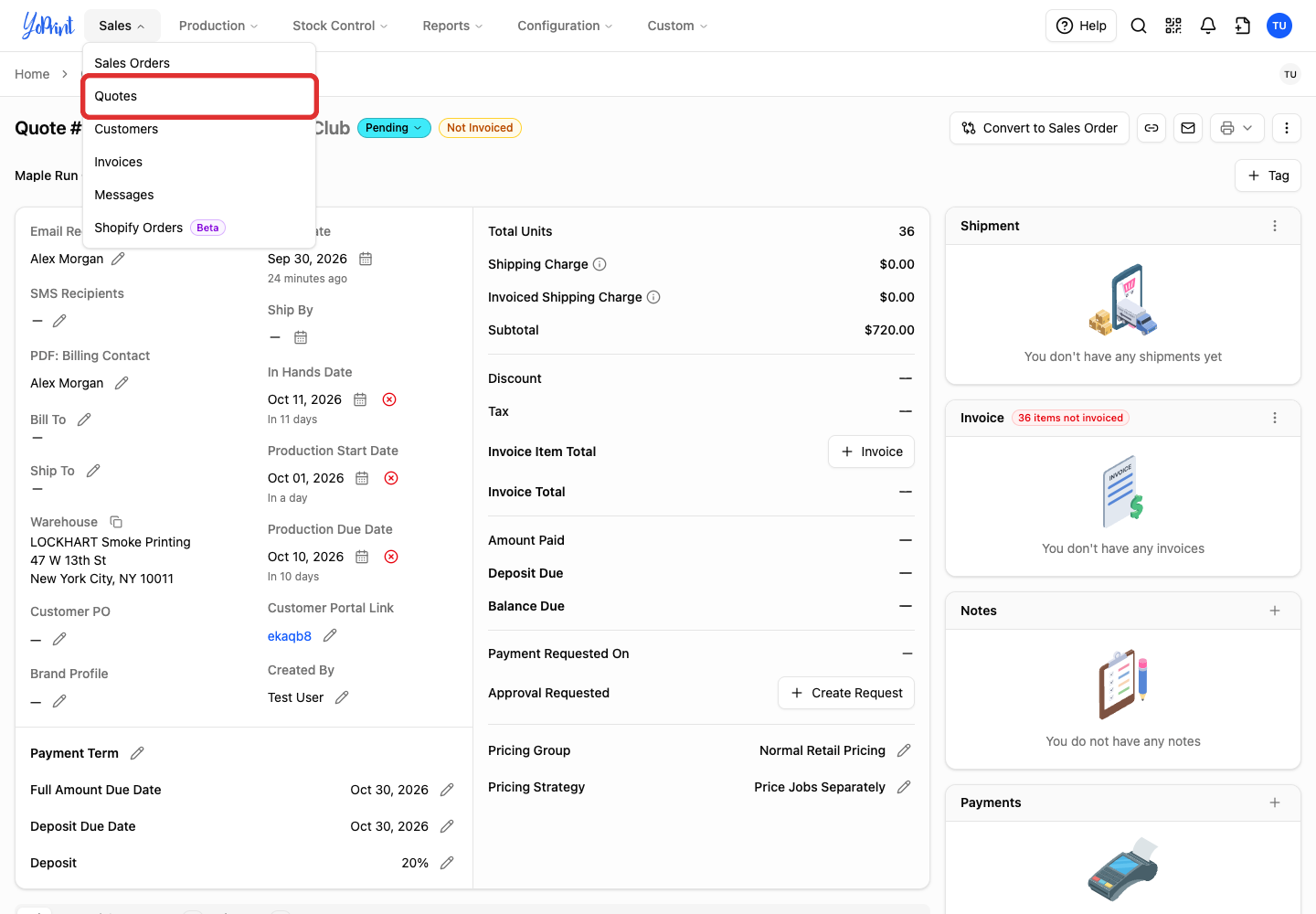
Choose Quotes.
-
Click the quote number in the list.
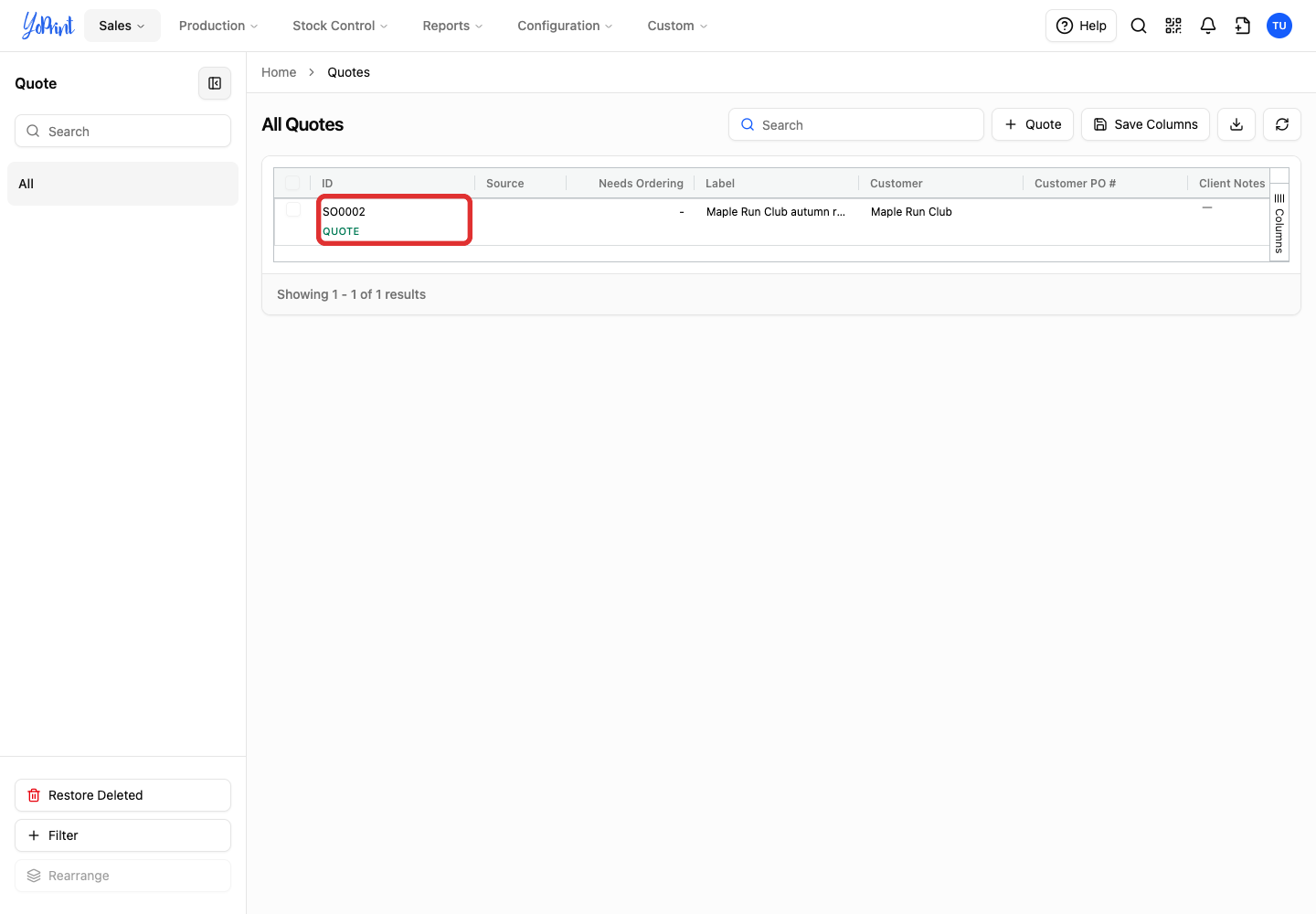
Double-click the row (or click More actions > View) to open the quote details.
-
Click View Quote to open its full page.
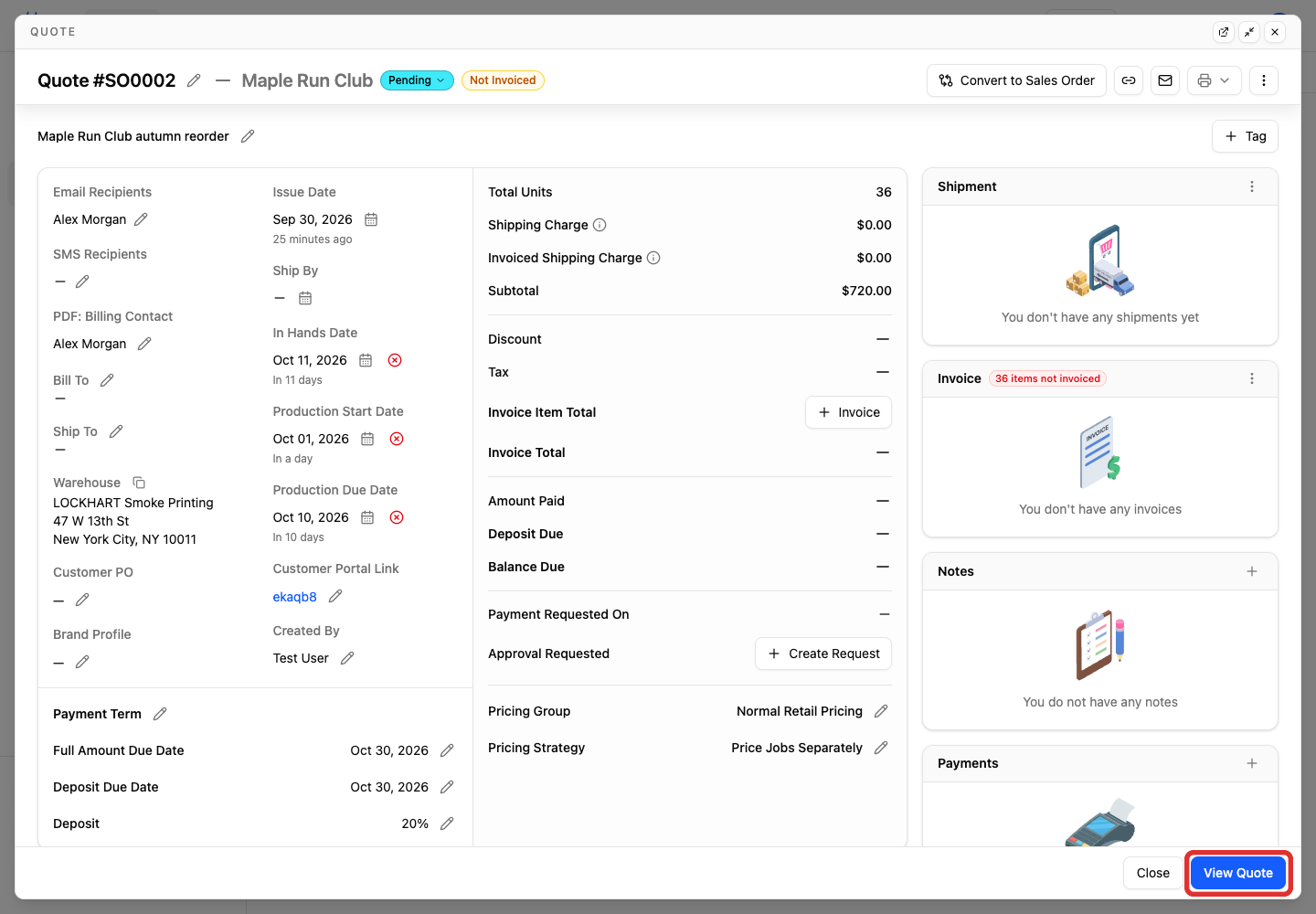
You can also click Convert to Sales Order directly at the top right of the detail window.
-
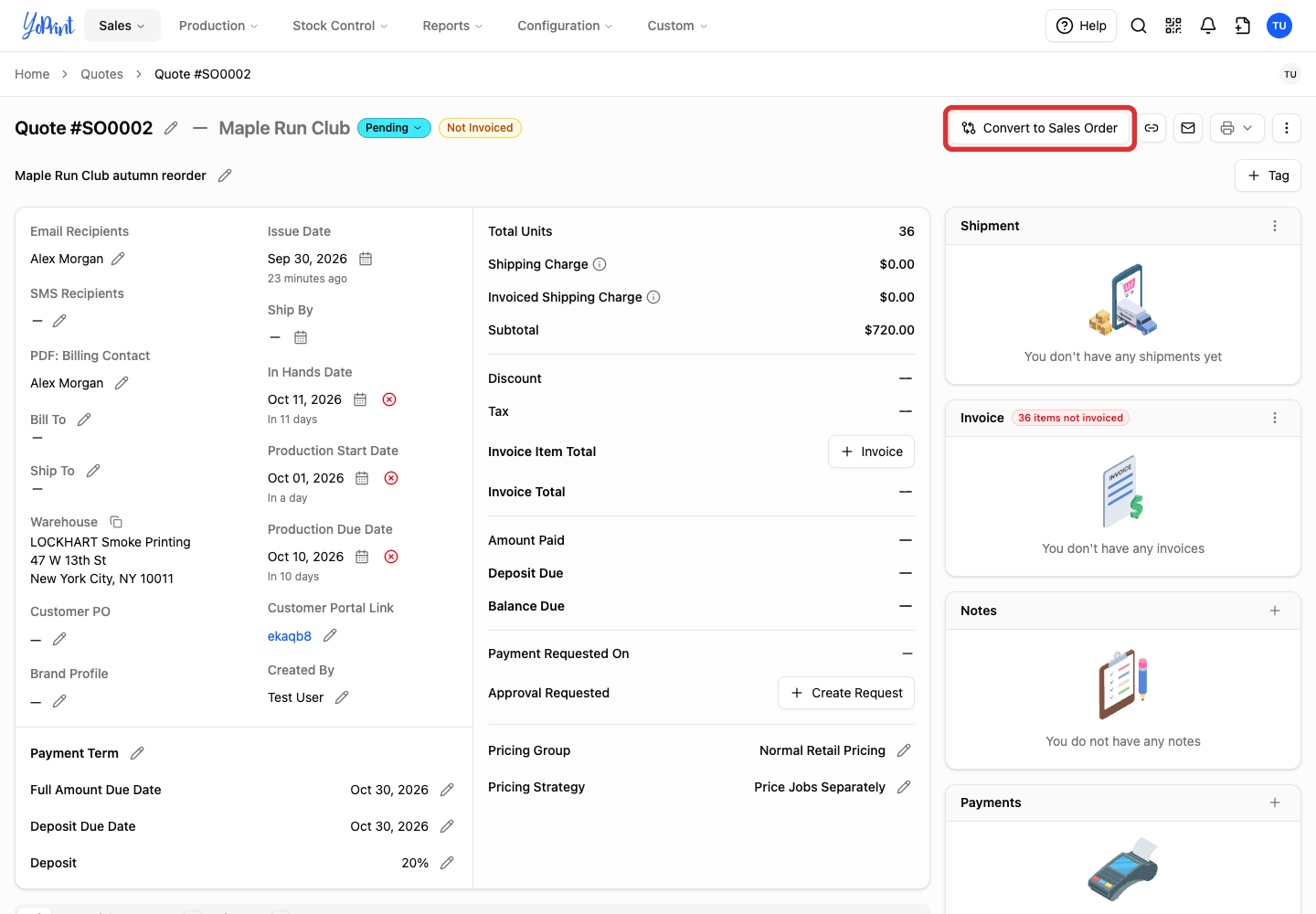
Click Convert to Sales Order at the top right.
-
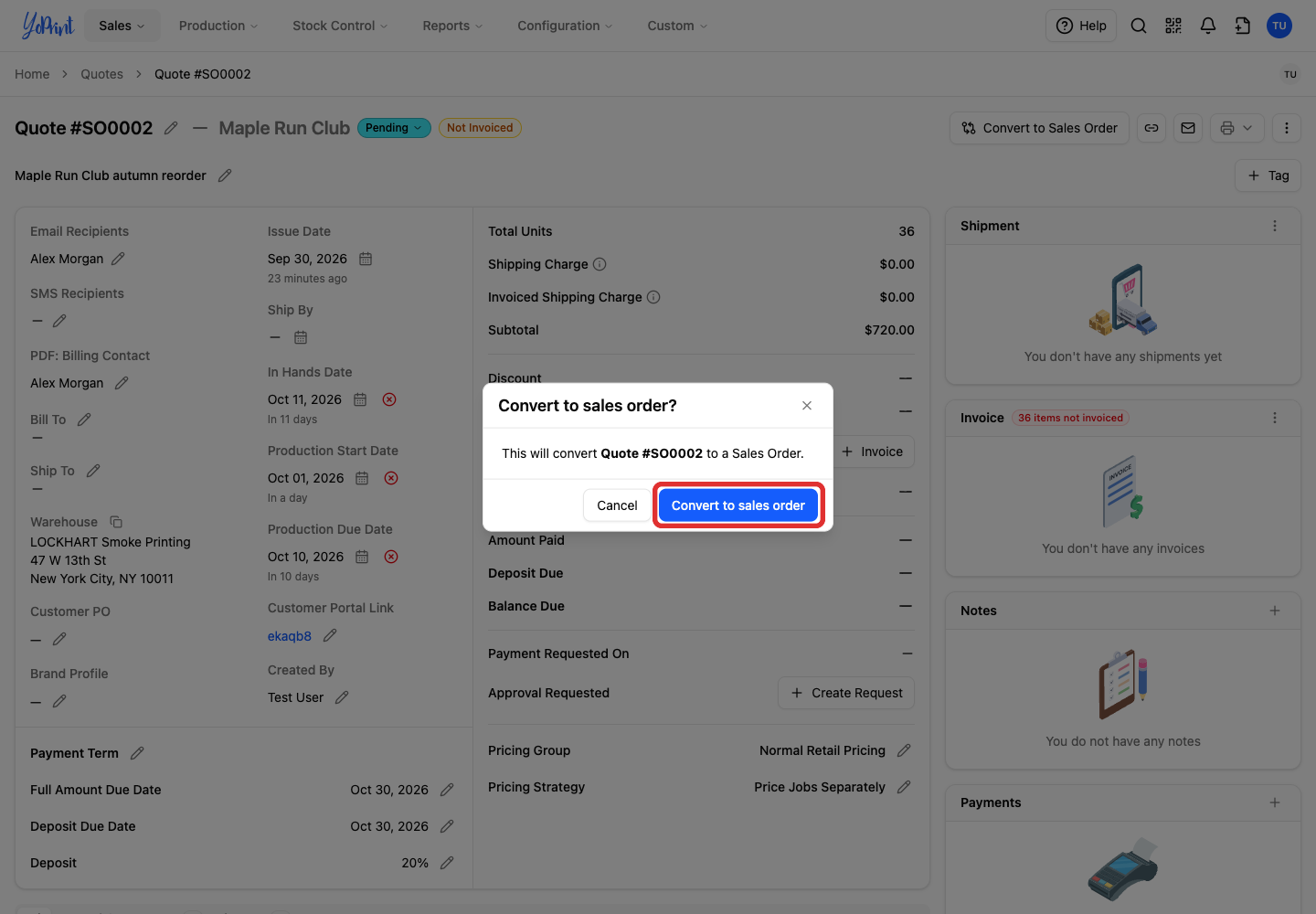
Check the number in the confirmation, then click Convert to sales order.
-
Check that the heading now says Sales Order. The number stays the same.
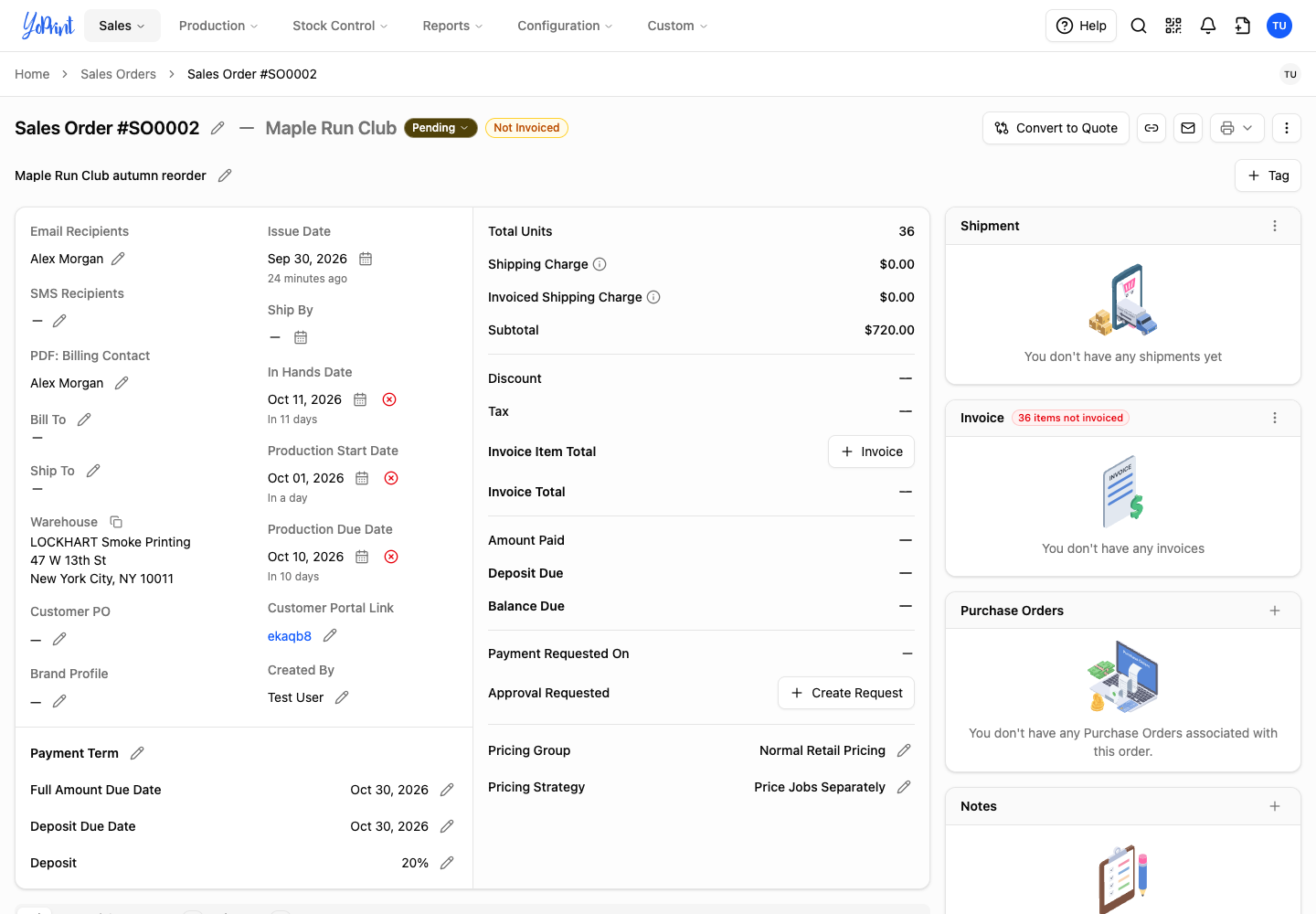
The breadcrumb trail displays Sales Order #SO0002, and the action button changes to Convert to Quote. You can now continue working on the sales order. Once converted, you can allocate inventory, link purchase orders and create shipments. Editing Sales Orders covers changes to an existing order.
Convert a sales order to a quote
Open the existing sales order from Sales > Sales Orders. Double-click the row (or click More actions > View). If it opens in a detail window, View Sales Order opens the full page. Convert a sales order back to a quote when a customer requests substantial changes that require re-estimating or fresh customer approval.
-
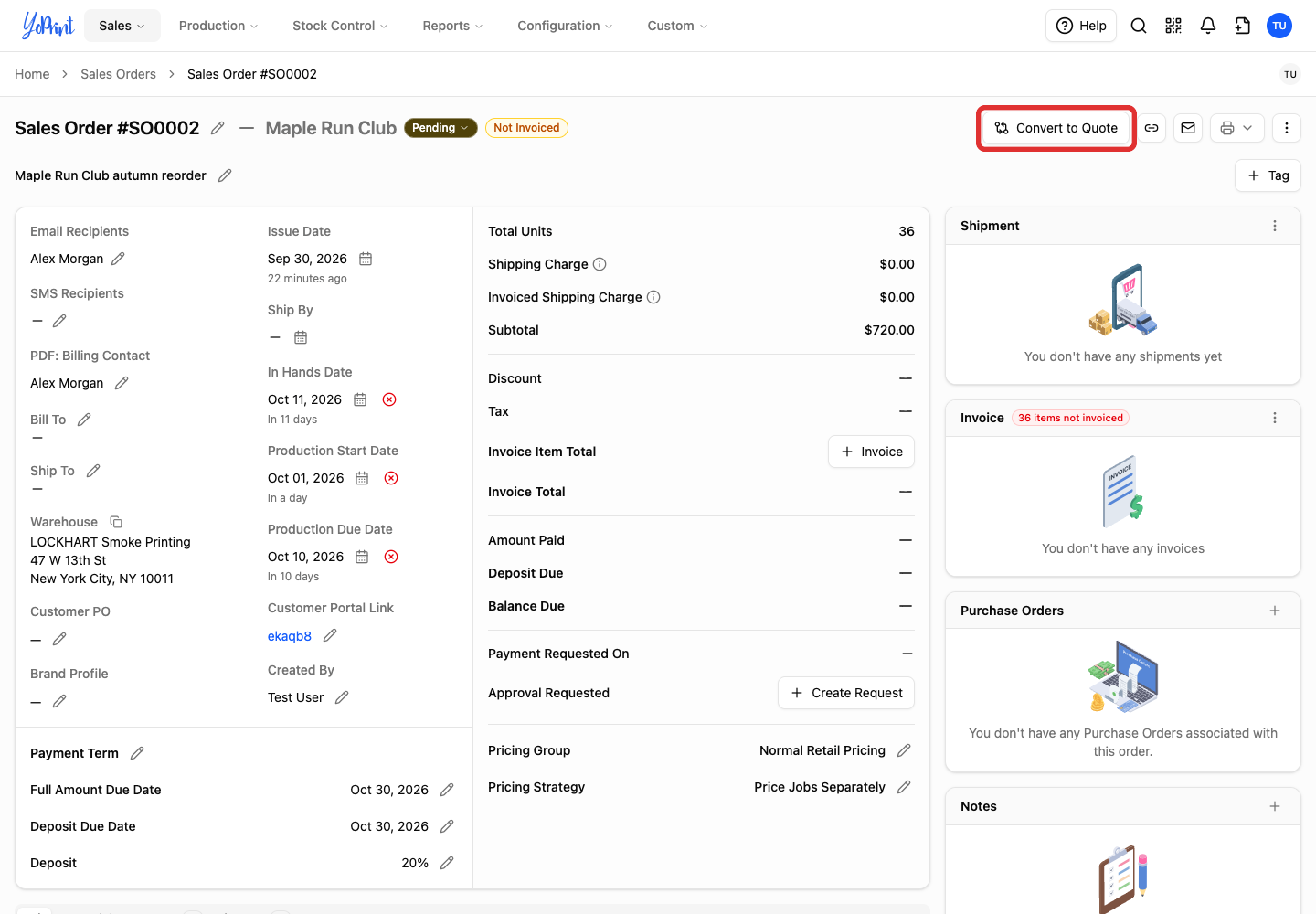
Click Convert to Quote at the top right.
-
Review the changes in the confirmation. Click Convert to quote when you are ready.
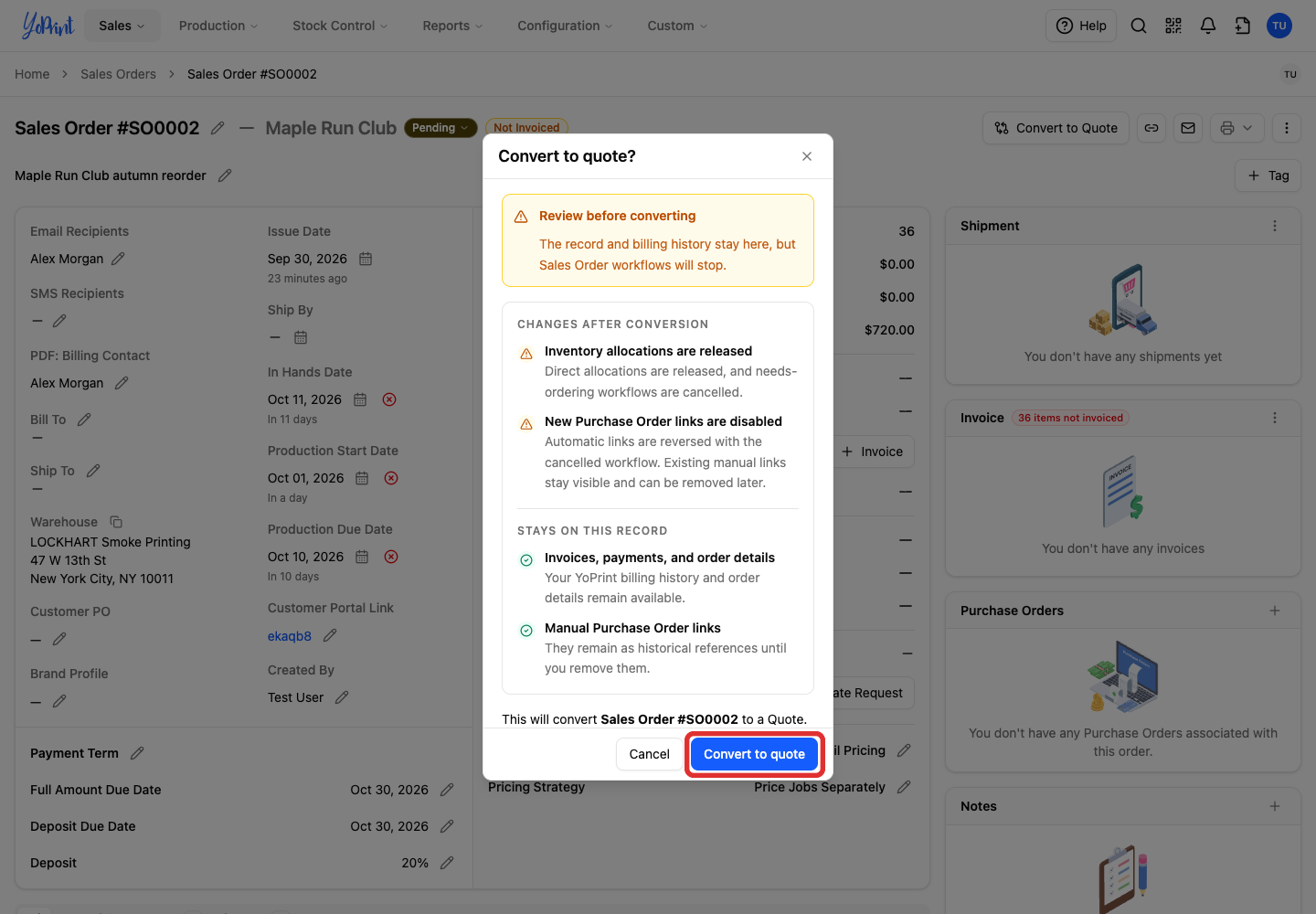
Choose Cancel if you need to review the order before making these changes. The confirmation outlines these effects:
- Direct inventory allocations are released and needs-ordering workflows are cancelled.
- New purchase-order links are disabled. Automatic links are reversed with the cancelled workflow. Existing purchase orders in Stock Control are not deleted.
- Existing manual purchase-order links remain as historical references until removed.
- YoPrint invoices, payments and order details remain on the record for accounting history.
-
Check that the heading now says Quote, with the same number.
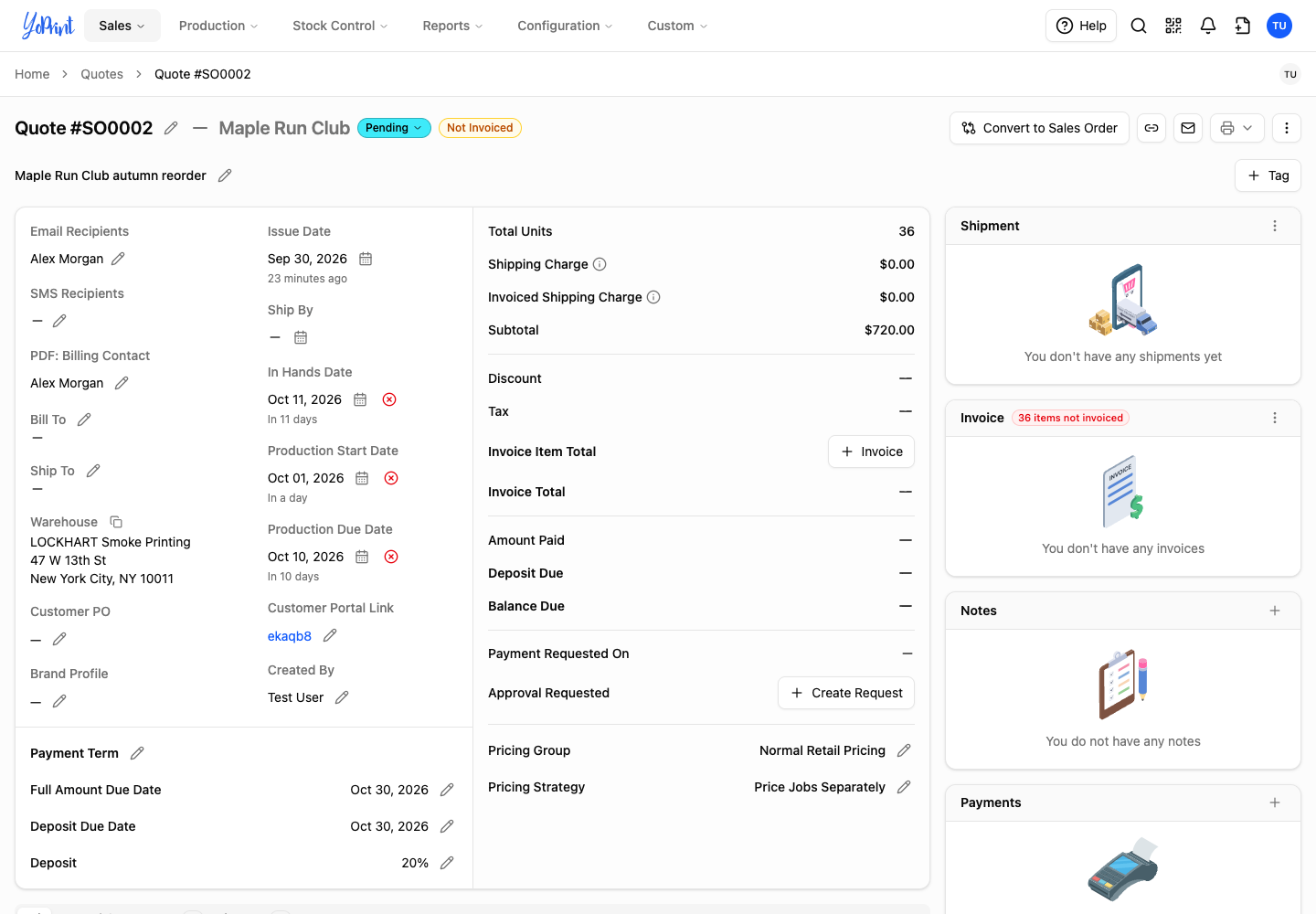
The breadcrumb trail displays Quote #SO0002, and the action button changes to Convert to Sales Order.
Common questions
Does a quote have to be approved first?
No. YoPrint allows conversion before approval. The sales order starts in Pending status. Confirm the customer’s approval before you begin work.
Can I convert back more than once?
Yes. You can change the type again as needed. Converting does not delete existing jobs, line items or customer details. Review the conversion warning each time, especially if work has already started.
Can I convert a draft?
Yes. The draft editor top bar has the same conversion button. Converting changes the type but does not publish the draft.