Key Differences Between Quotes and Sales Orders
In this article
Use a quote while the customer decides
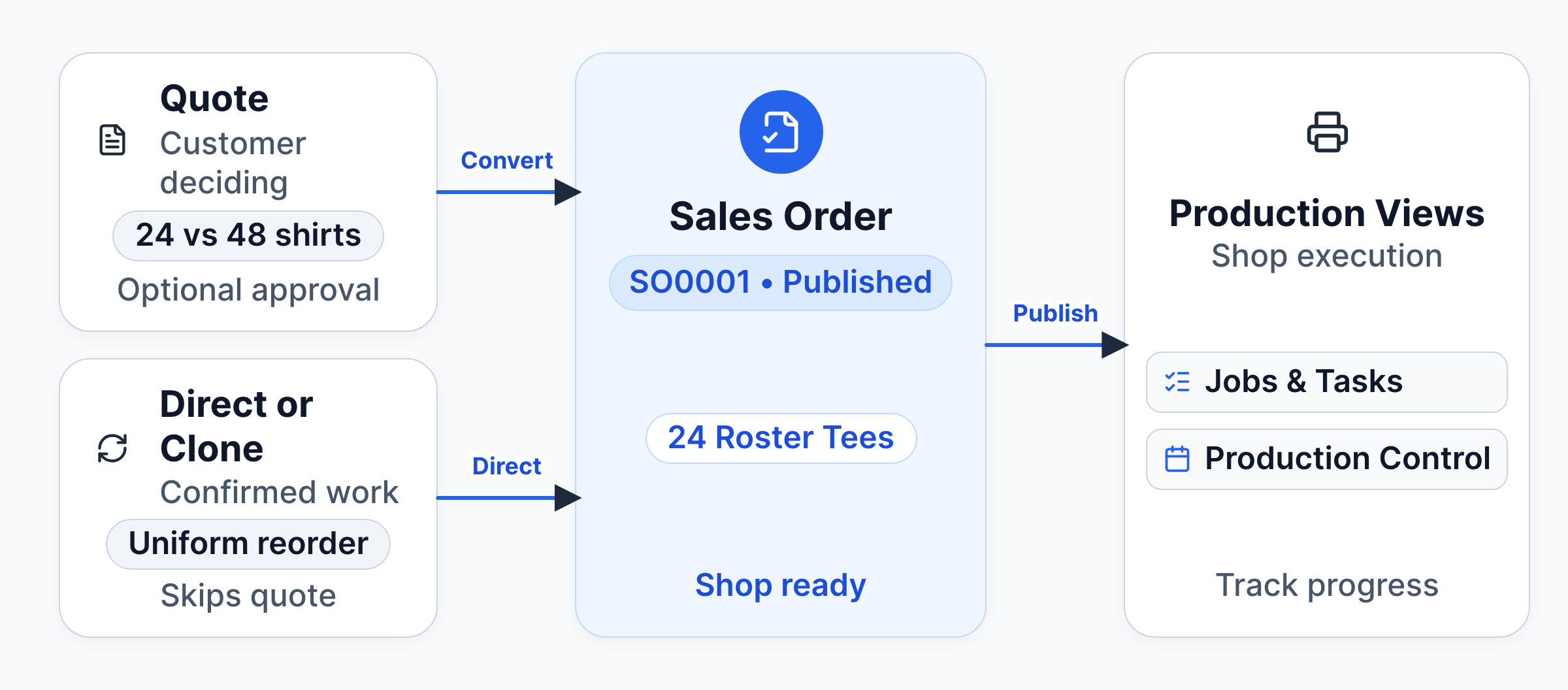
Start with a quote when you are still estimating or negotiating with your customer on quantities, garments, decoration methods, or pricing. To start a quote, go to Sales > Quote and click + Quote. For example, you can add separate jobs on the quote to compare pricing for 24 versus 48 printed shirts, or adjust quantities and decoration options as negotiations continue.
Send the quote to your customer for review using Quick Actions > Send Quote Details, or request formal customer sign-off using Quick Actions > Create Quote Approval. When the customer agrees to proceed, convert the quote into a sales order. Quote approval and quote conversion are separate actions. Customer approval records their agreement, but customer approval is optional and not enforced before conversion. You can click Convert to Sales Order at any time to transition the quote into a sales order.
When to skip a quote
Skip the quote and start directly with a sales order if the customer is ready to place an order immediately. Quotes keep unconfirmed work off your production schedule while details are unsettled. Starting directly with a sales order saves time on confirmed reorders, but publishing an unconfirmed order releases tentative jobs to your production team before artwork or quantities are final.
To create a new quote, see Creating a Quote. To collect customer sign-off on a quote, see Quote Approval Workflow.
Use a sales order for confirmed work
Create a sales order when the order is confirmed and ready for your shop to produce. You can create a sales order directly without making a quote first.
Publishing the sales order activates the order and releases its jobs to your production schedule. The order and its jobs appear immediately across your production views:
- Jobs: track job-level progress and assigned press operations.
- Tasks: monitor scheduled production tasks and team assignments.
- Shipments: prepare packing slips and shipping labels.
- Production Control: view scheduled production across your shop calendar based on job due dates.
Publishing places the order's jobs on Jobs and Production Control, but does not generate individual tasks or shipments automatically. To schedule team work or fulfillment, open the job to click + Task, or open the order to click + Shipment.
Reorder repeat work
Click Quick Actions > Clone Sales Order on an existing order (or click ⋮ > Clone in the sales orders table) to create a new draft for reorders or recurring jobs. Verify quantities, pricing, and due dates before publishing.
You can collect customer approval directly on a sales order without creating a quote first: click Quick Actions > Create Sales Order Approval on the published order.
To start an order directly, see Creating a Sales Order. To collect approval on an order, see Sales Order Approval Workflow.
Track progress with statuses
Use quote statuses to track customer discussions, estimates, and negotiations. Use sales order statuses to track production, fulfillment, and payment as work moves through your shop. Your team updates the status dropdown on the order or list as work progresses; statuses do not advance automatically. For example, change a sales order to Good To Go when materials arrive and production is ready to start, or Completed when fulfillment is finished.
You can customize status labels and colors under Configuration > Settings > Statuses to match your shop's operations. See Customize Status Workflow to configure your custom statuses.