Help a Customer Who Cannot Sign In
In this article
Check the email address on file and the customer's portal access first. Customers can sign in with an email code without a password. When they open the order link you sent, they sign in first, then the order opens.
Check the customer's email and access
-
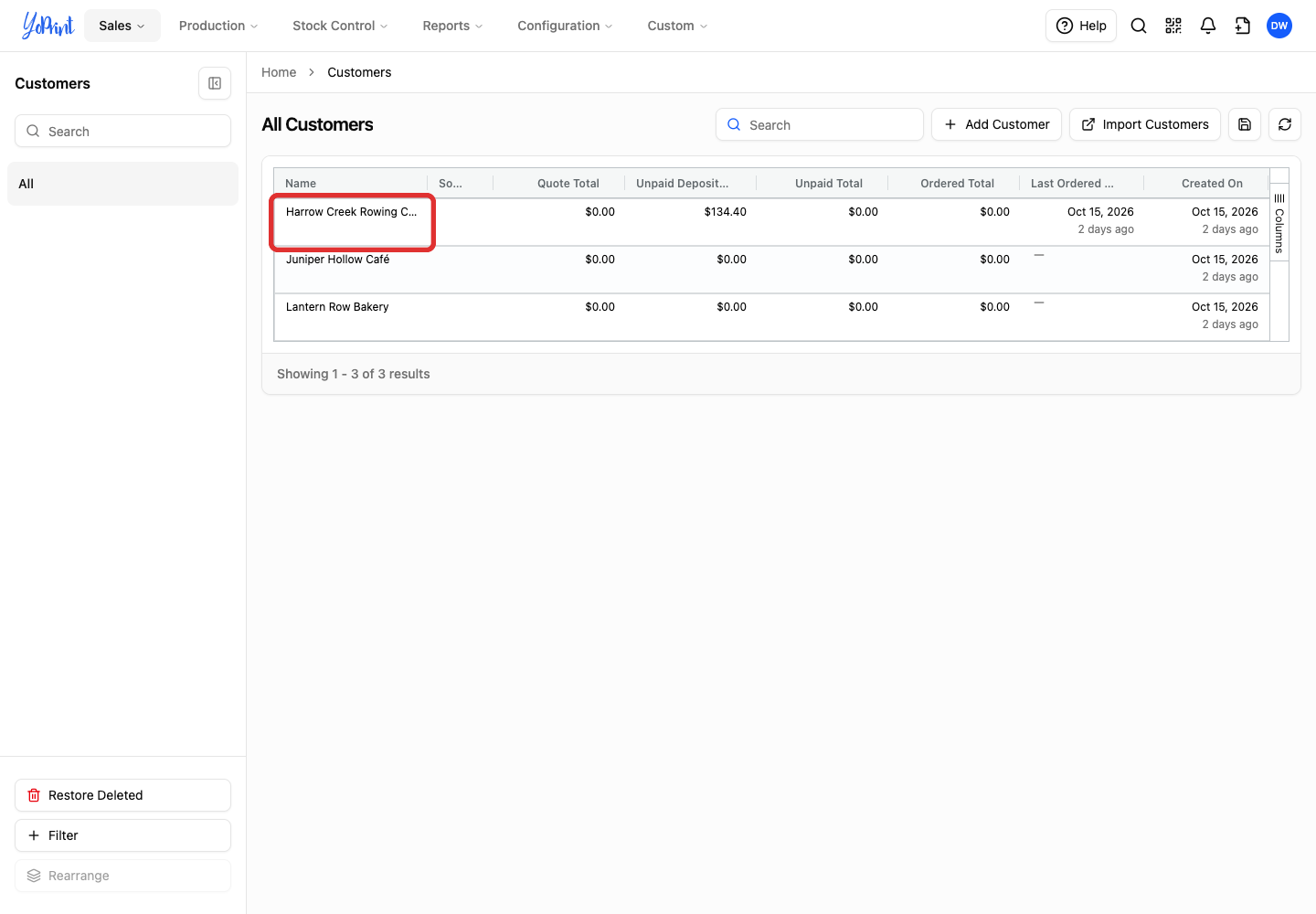
In Admin's Sales → Customers list, double-click the customer's row.
-
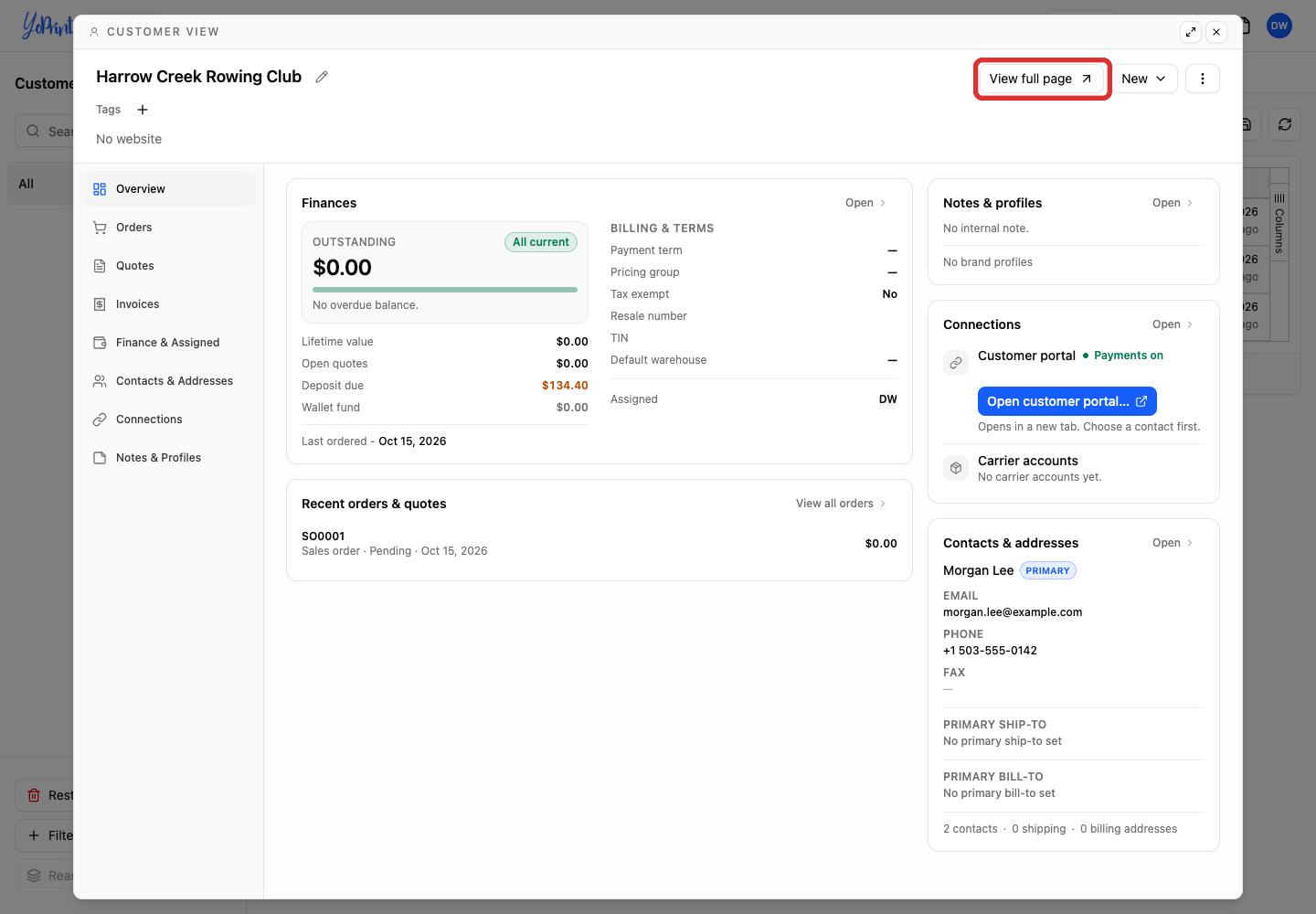
Click View full page.
-
Select Contacts & Addresses.
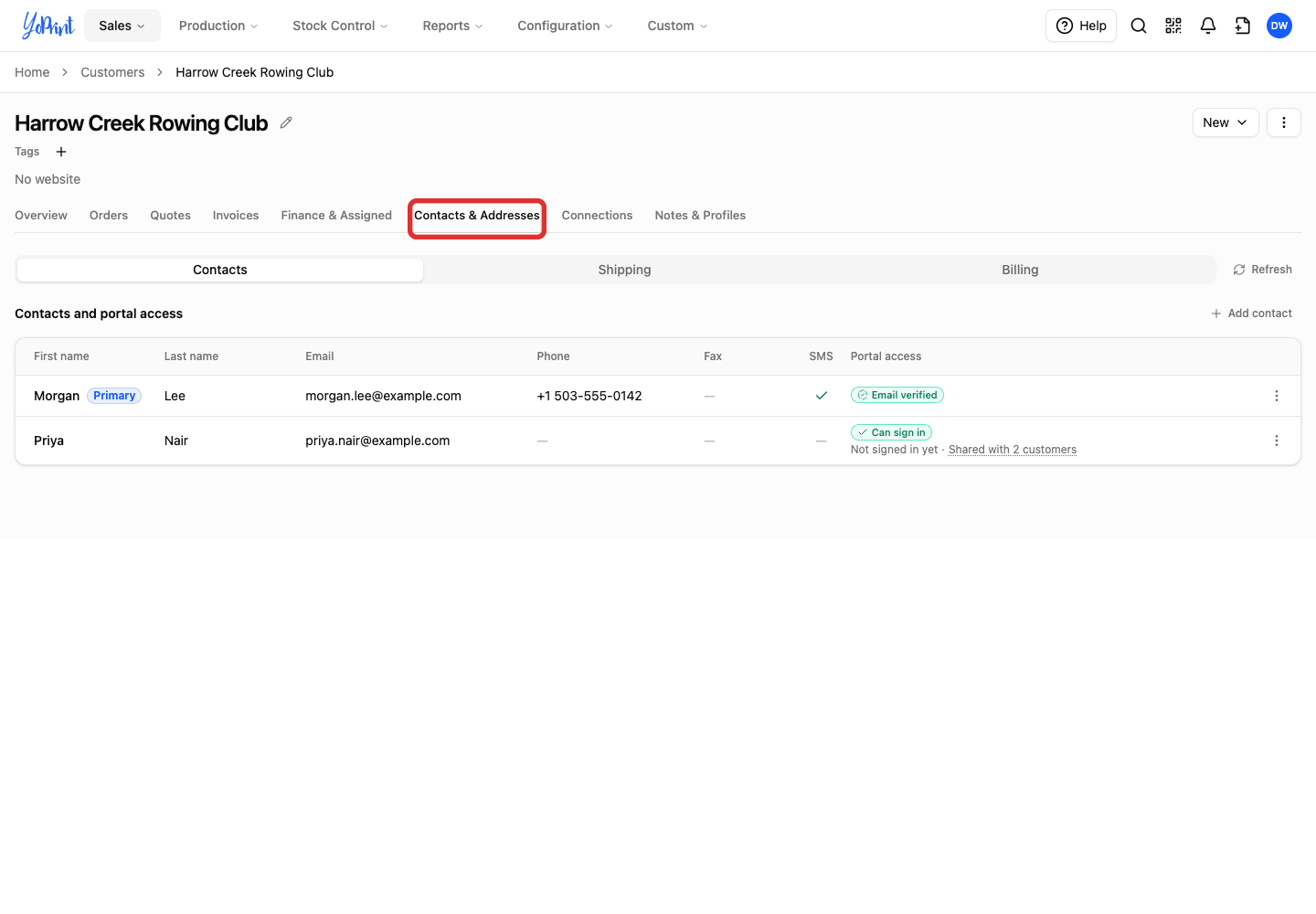
Compare the contact's Email with the address the customer is using. Email verified means the contact has confirmed their email and can sign in. They can use an email code whether or not they have a password. If Portal access shows Access denied or Portal off, restore access.
The customer did not get the code
Check that the customer entered the email address on their contact. Ask them to look in their spam or junk folder.
Customers: request a sign-in code
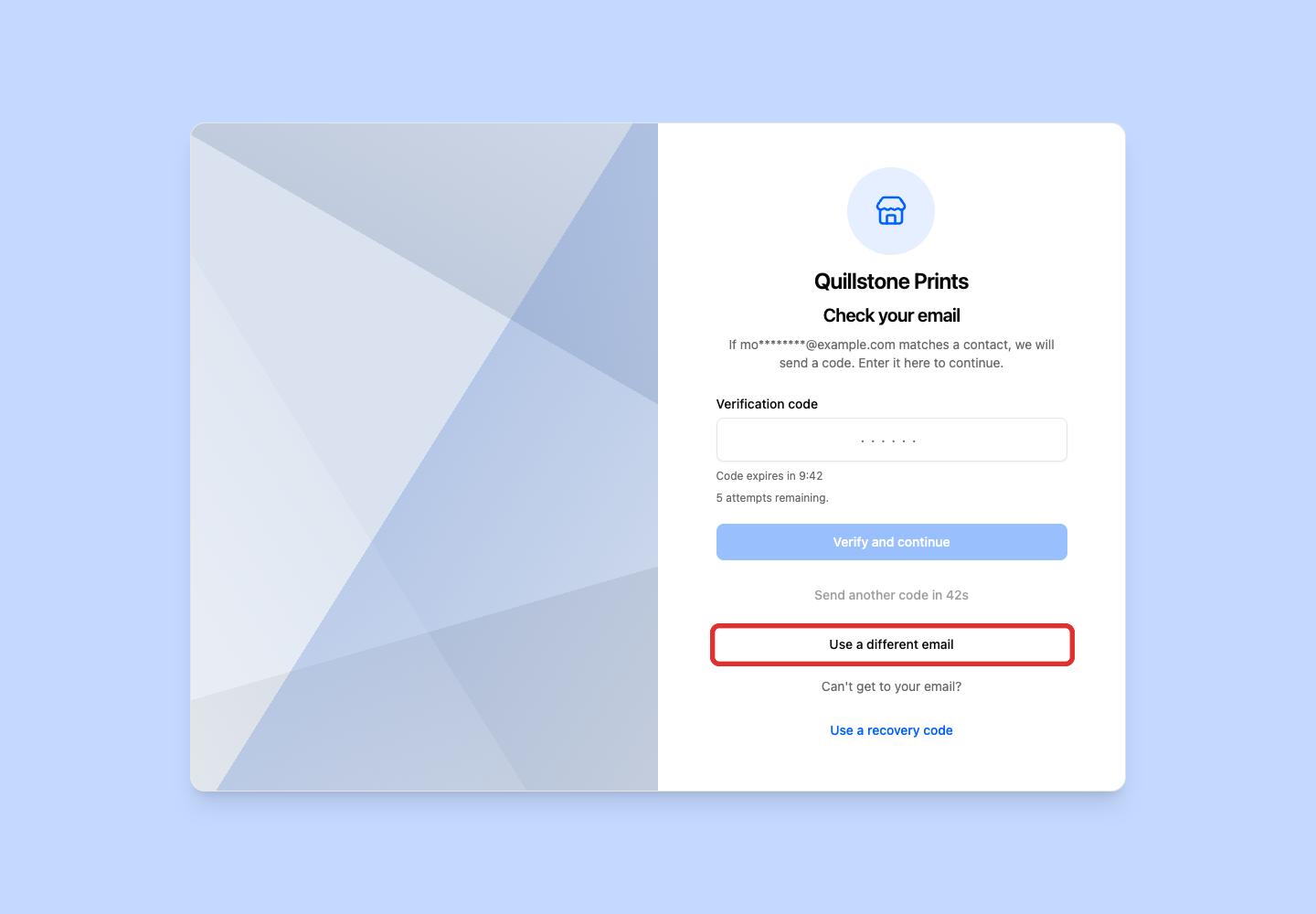
To sign in, the customer enters the email address on file and clicks Email me a code to open Check your email (see How your customers get in). On Check your email, they enter the Verification code and click Verify and continue, or request a new code below.
To check or correct the email on Check your email, click Use a different email, then request a code with the correct address.
-
If the code has not arrived, wait until the countdown on Send another code ends, then click it.
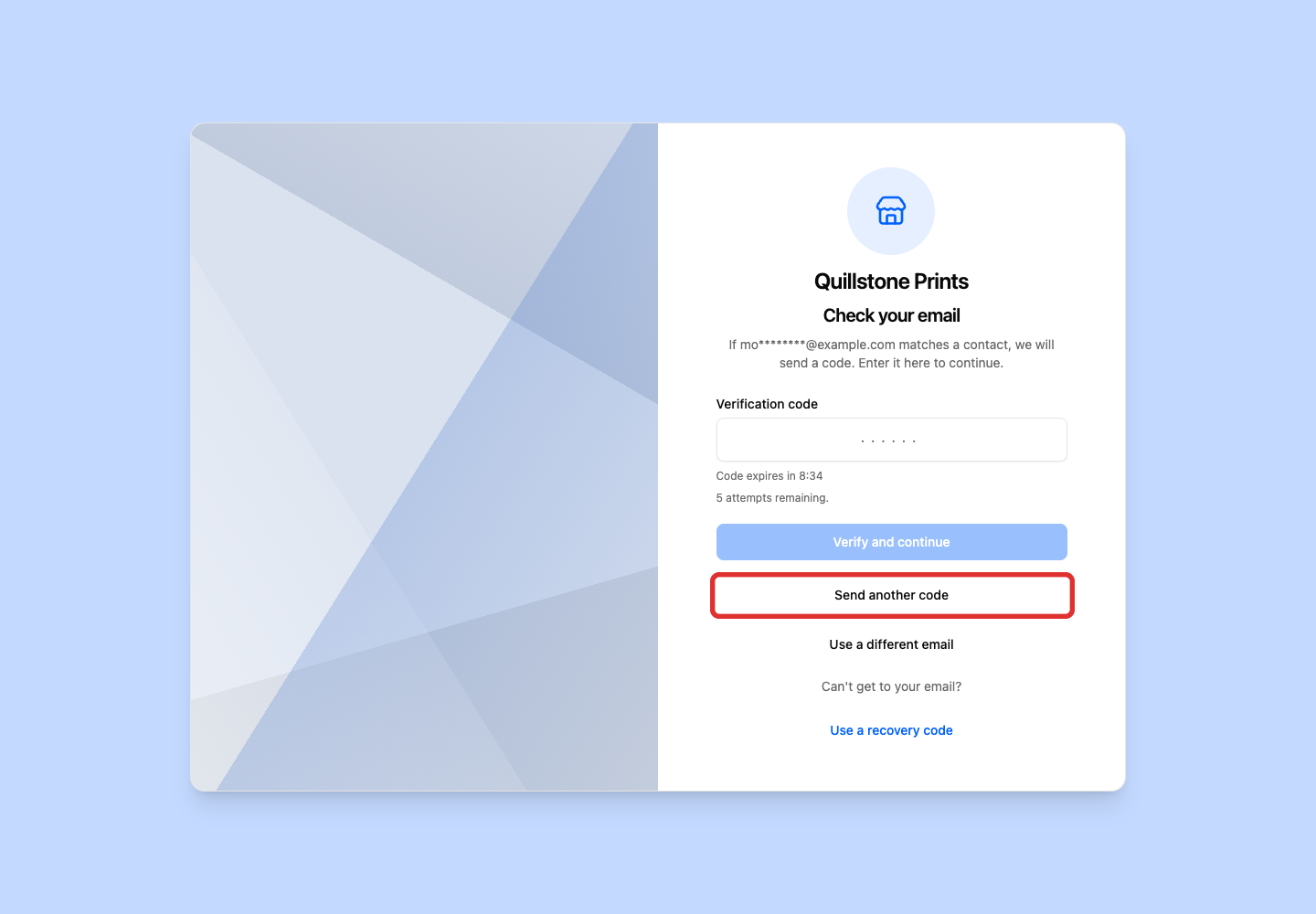
Use the newest code. Requesting another code replaces the previous one.
Tell them: “Use the email address we have on file. Check your spam folder, then request another code if it has not arrived.”
The email is wrong or shared by two customers
Two customers can share the same email address. When they do, the customer chooses which account to open after signing in. If they opened the wrong account, they can open the account menu at the bottom of the sidebar and switch to the account for the order without signing out.
If the email address on file is wrong or the customer no longer uses it, open the contact's three-dot Row actions menu in Contacts & Addresses and choose Edit to change the contact's email.
If more than one customer shares that email, choose which customers should use the new email in the Edit contact form before clicking Save contact.
The customer's access was removed or their portal is off
If the customer sees No portal access or a message that your shop has not enabled access for their email, check their contact's Portal access column in Admin.
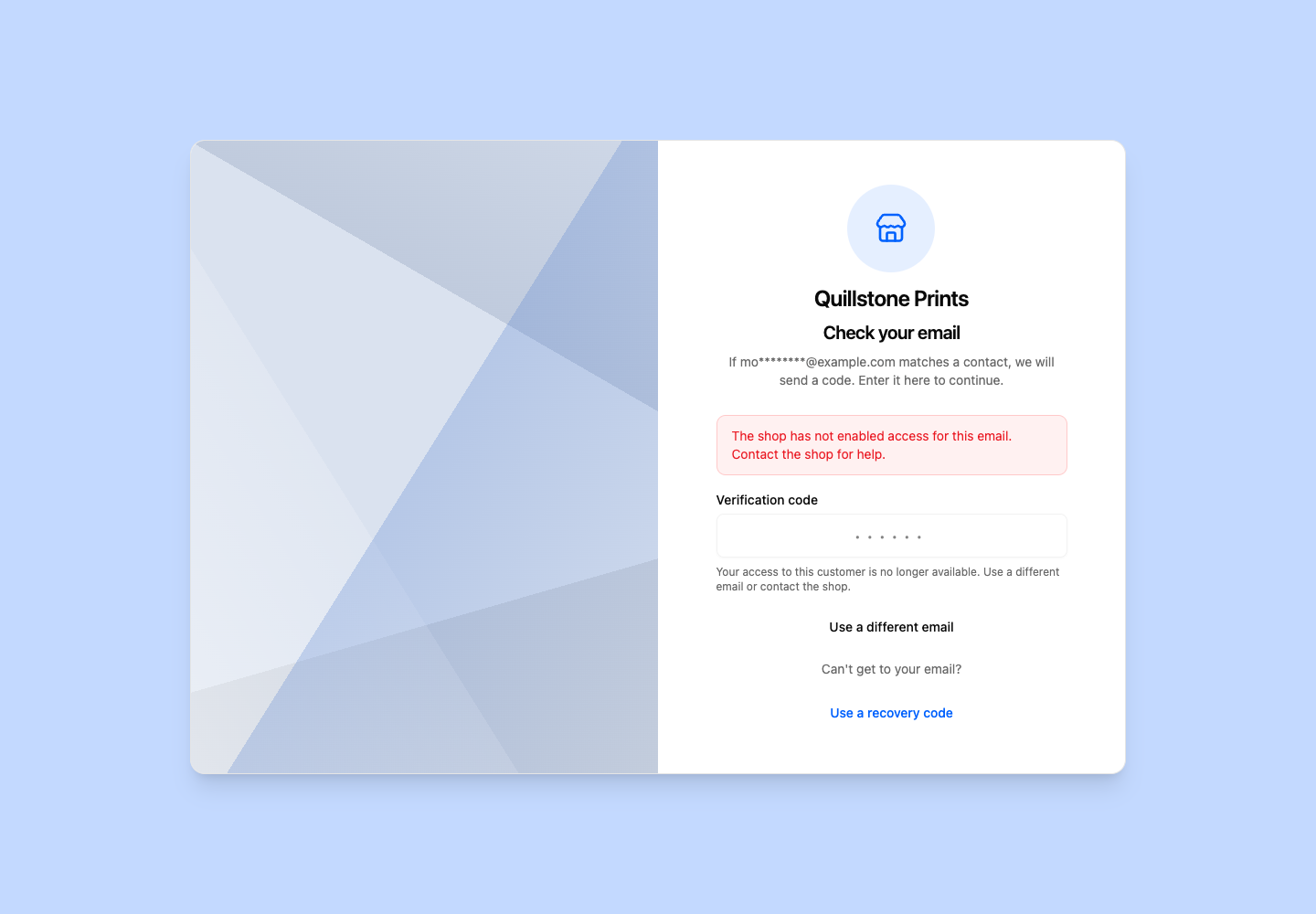
If Portal access shows Access denied and the contact should still use the portal, open their three-dot Row actions menu in Contacts & Addresses and choose Restore access to restore their access.
If Portal access shows Portal off, the portal is off for the whole customer. Select the Connections tab on the customer's page and click Edit beside Customer portal to turn the customer's portal back on.
Tell the customer when access has been restored and ask them to reopen the order link.
The customer forgot their password
The customer can still sign in with an email code. To replace a forgotten password, have them use Forgot password?. YoPrint emails them a reset link.
Customers: reset the password
-
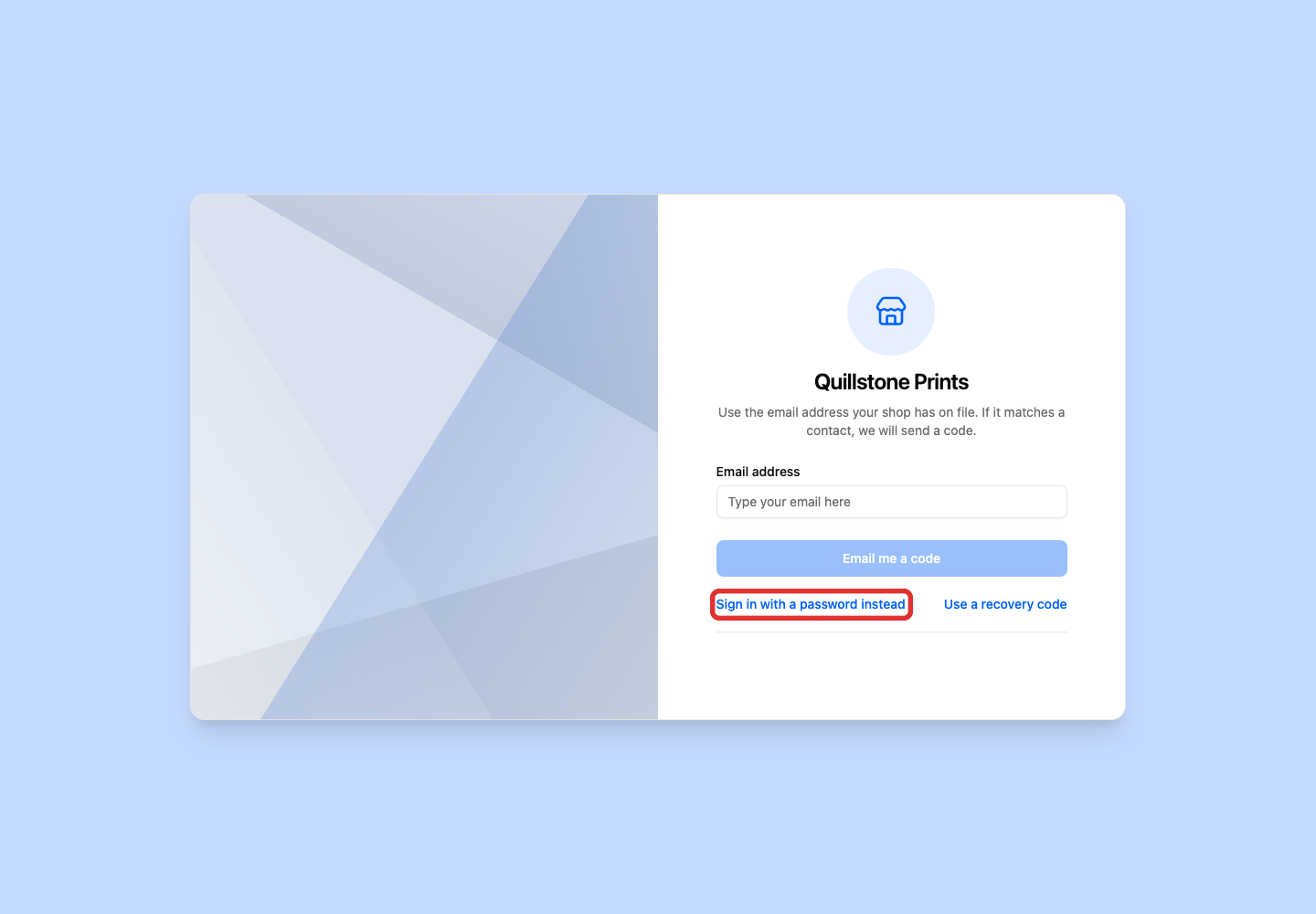
Click Sign in with a password instead.
-
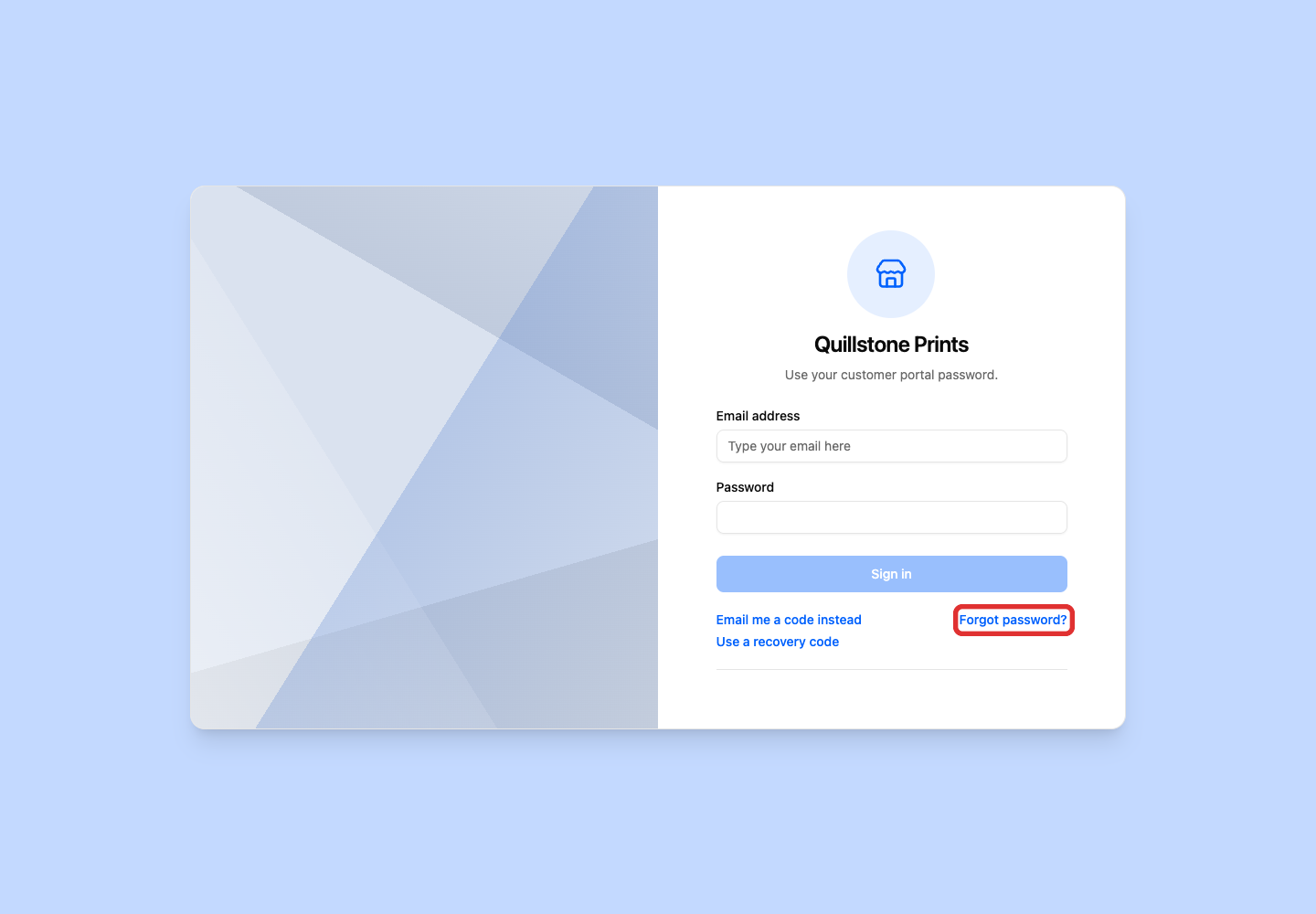
Click Forgot password?.
-
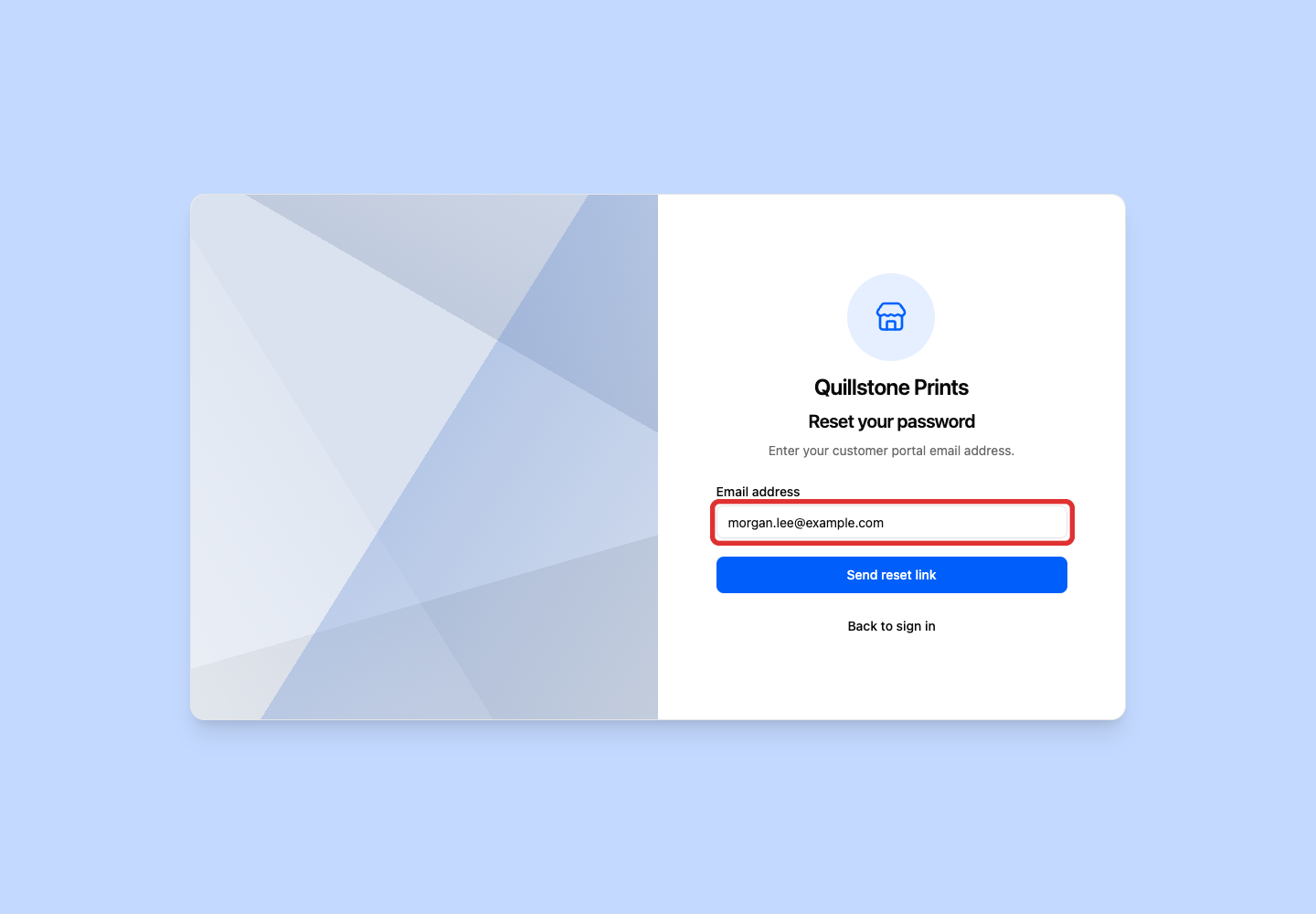
Enter the email address your shop has on file.
-
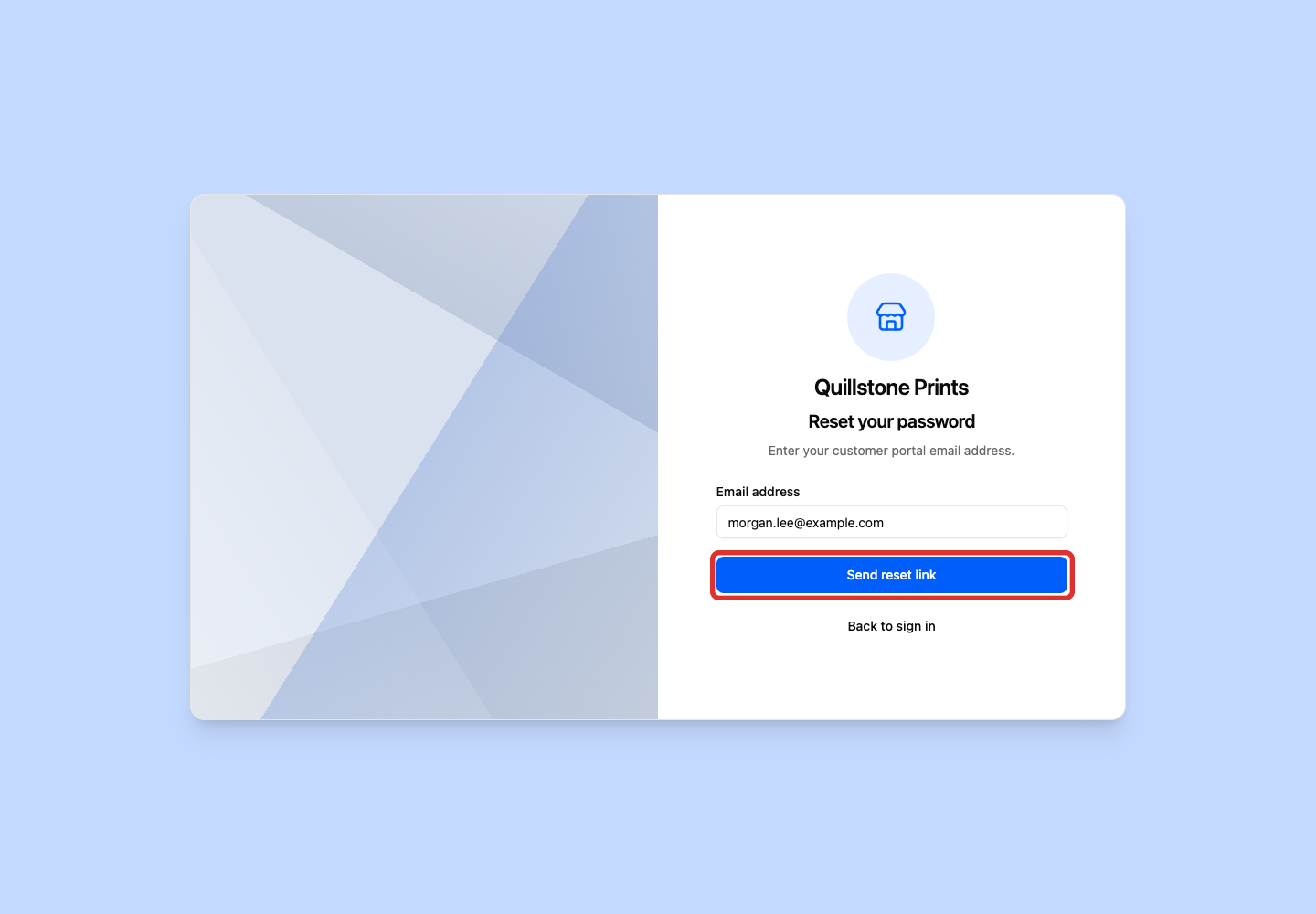
Click Send reset link.
The message says If an account matches, a reset link is on its way.
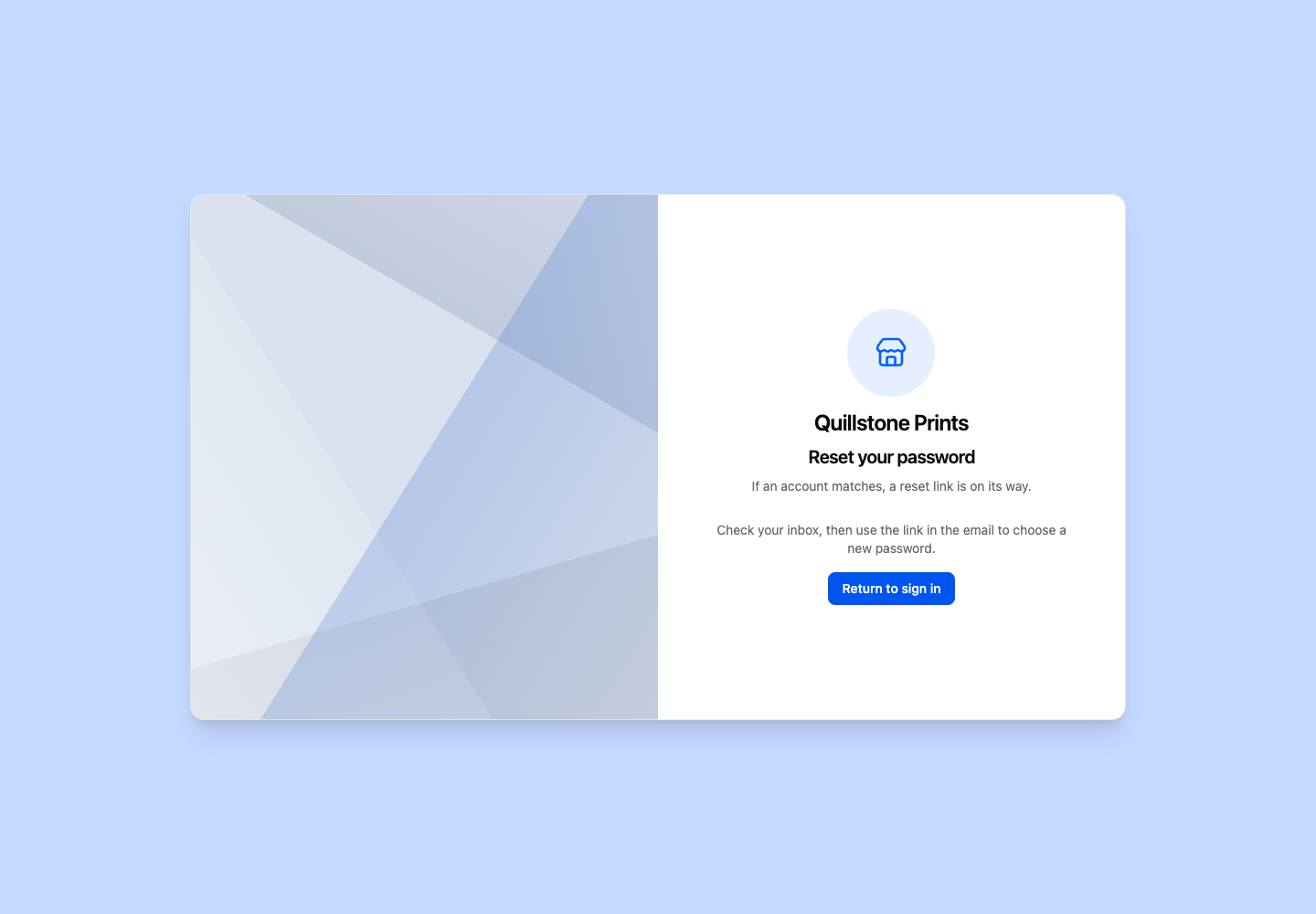
Ask the customer to check their email, including spam or junk, for the reset link.
-
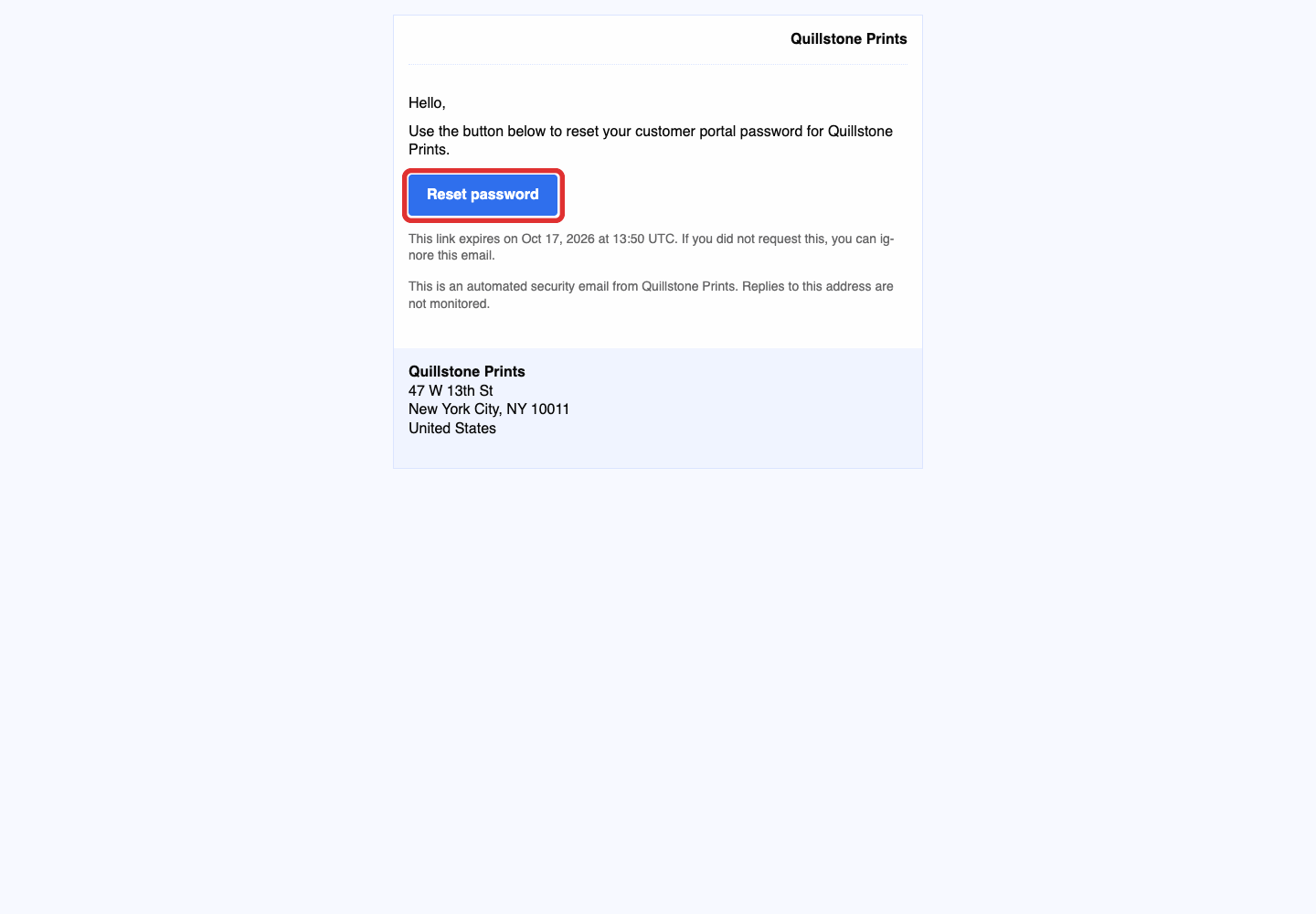
Click Reset password in the email.
-
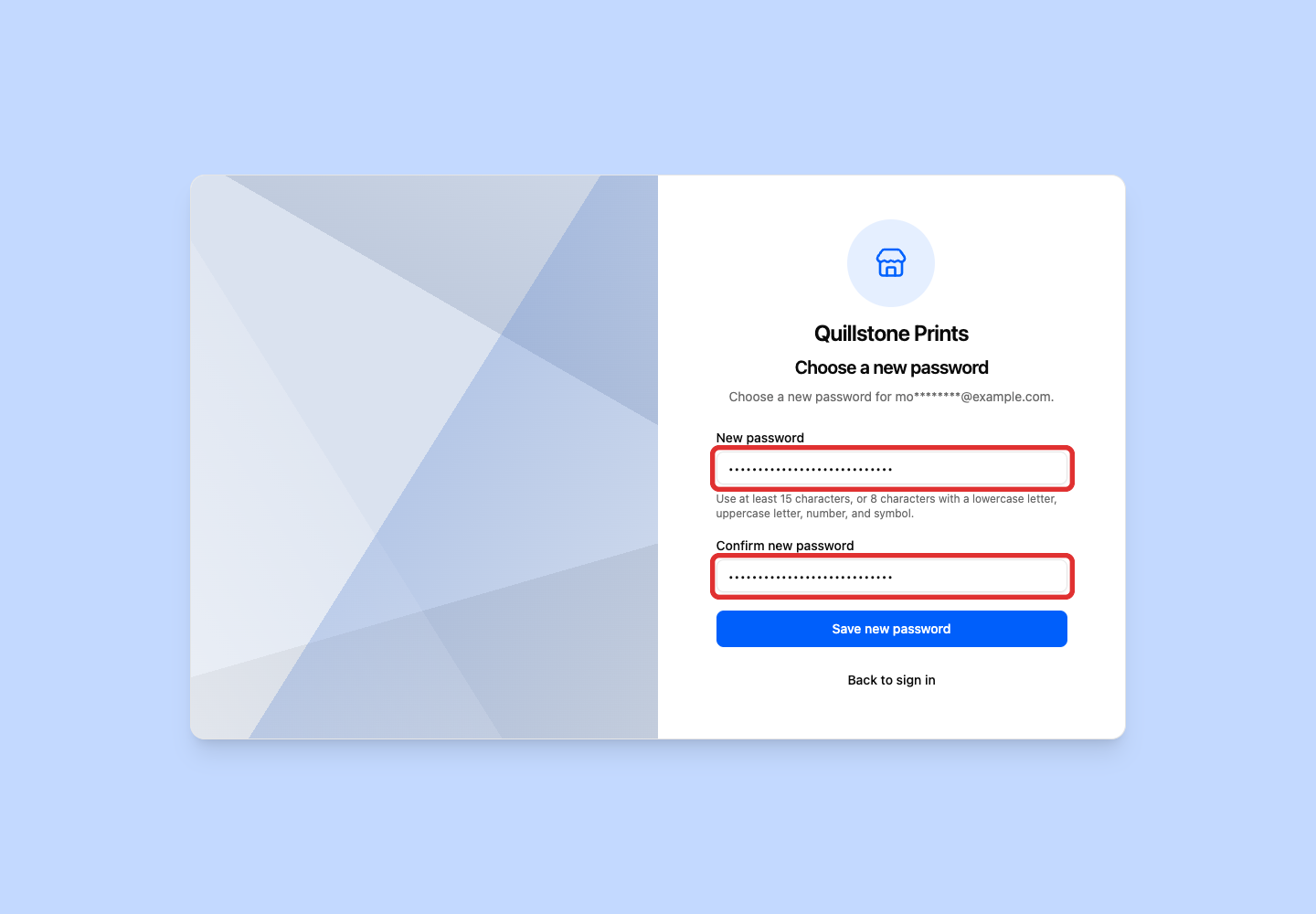
Enter a New password and repeat it in Confirm new password.
-
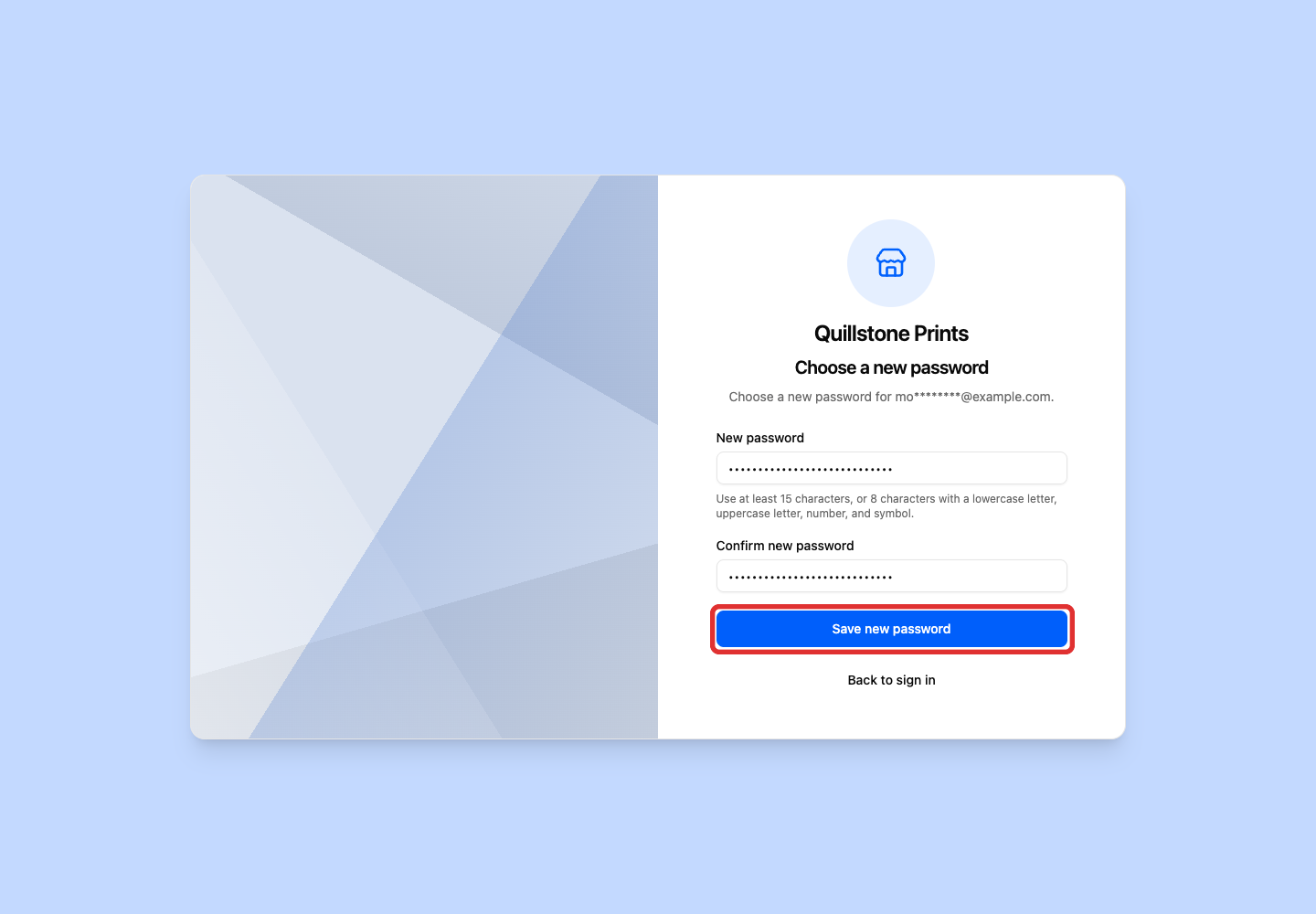
Click Save new password.
-
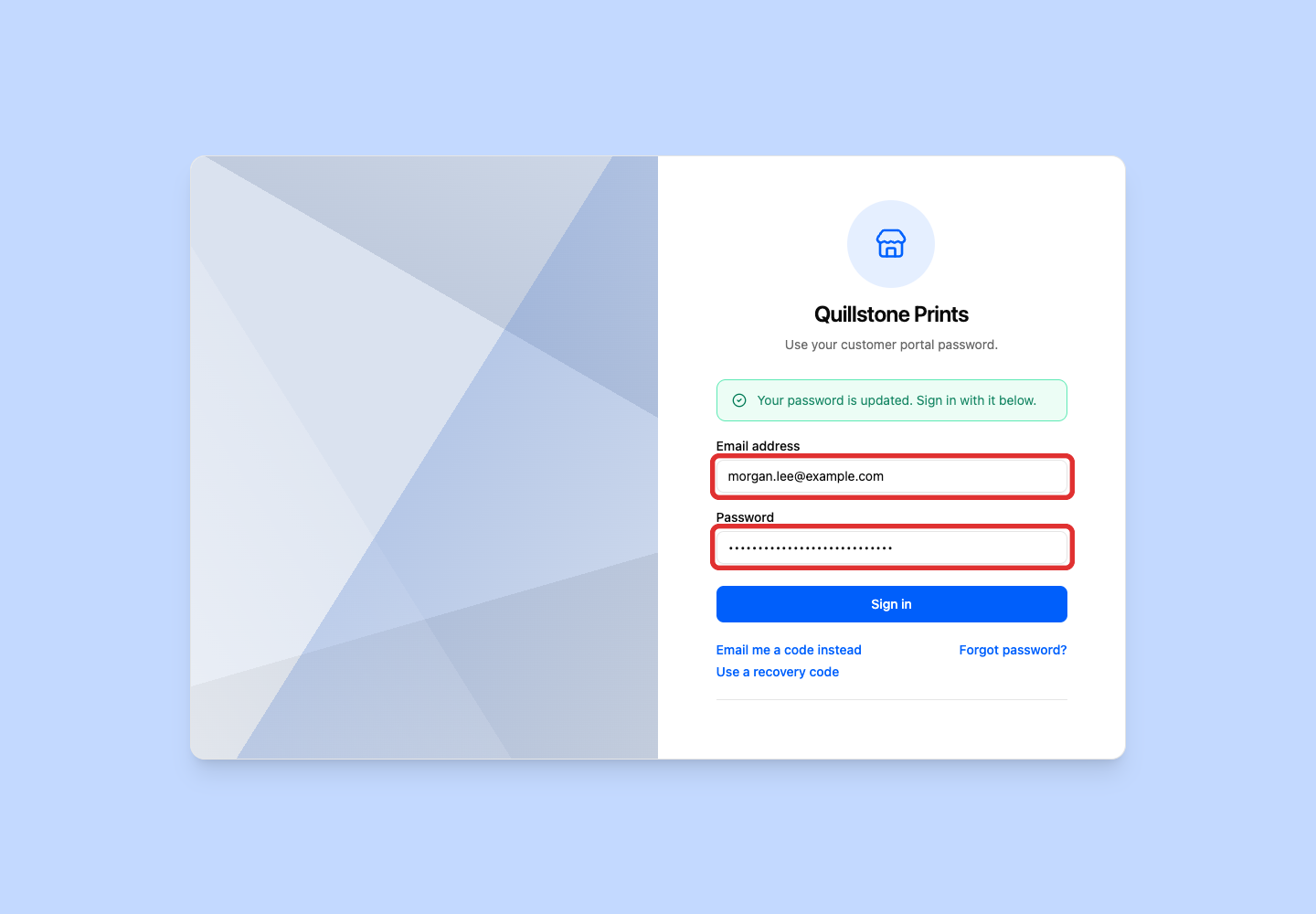
Enter your email and new password on the sign-in screen.
-
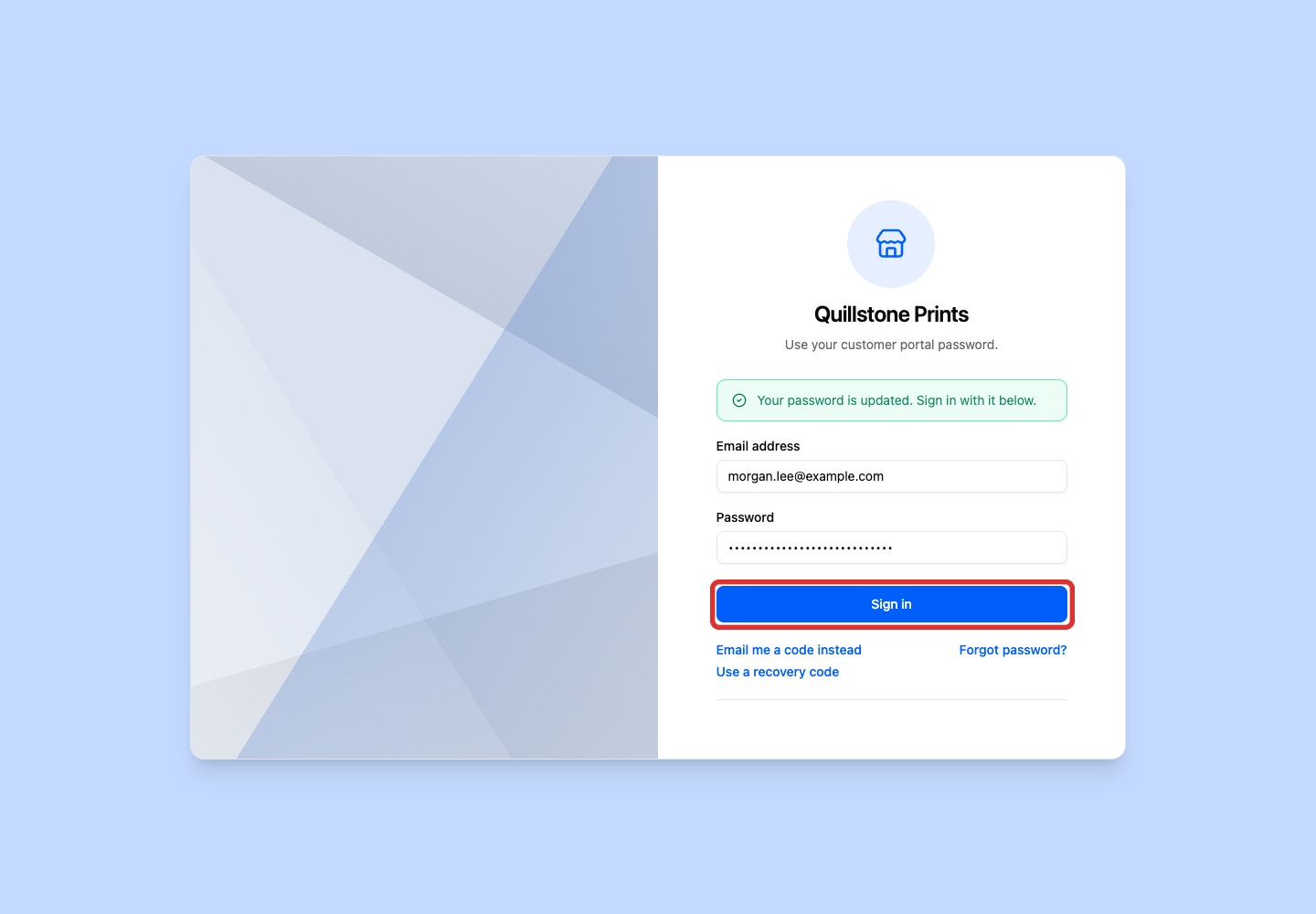
Click Sign in.
The customer cannot get to their email right now
Give the customer a recovery code if they still use the saved email address but cannot check it right now. The code lets them create a password. Before you generate a code, check that the contact has portal access. If they no longer use the saved email address, update the contact instead.
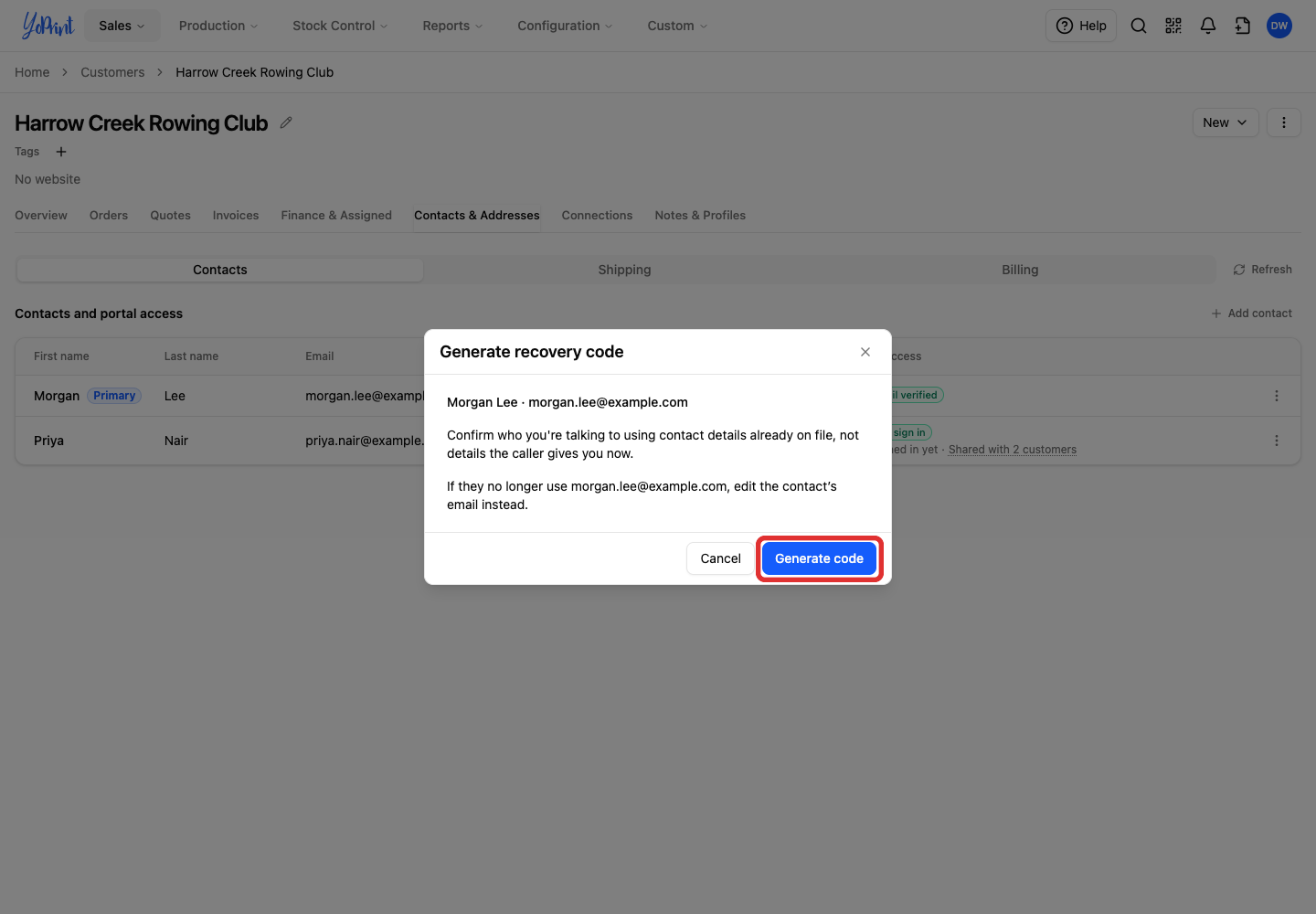
Confirm who you are talking to using contact details already on file, not new details the caller gives you.
Generate a recovery code in Admin
-
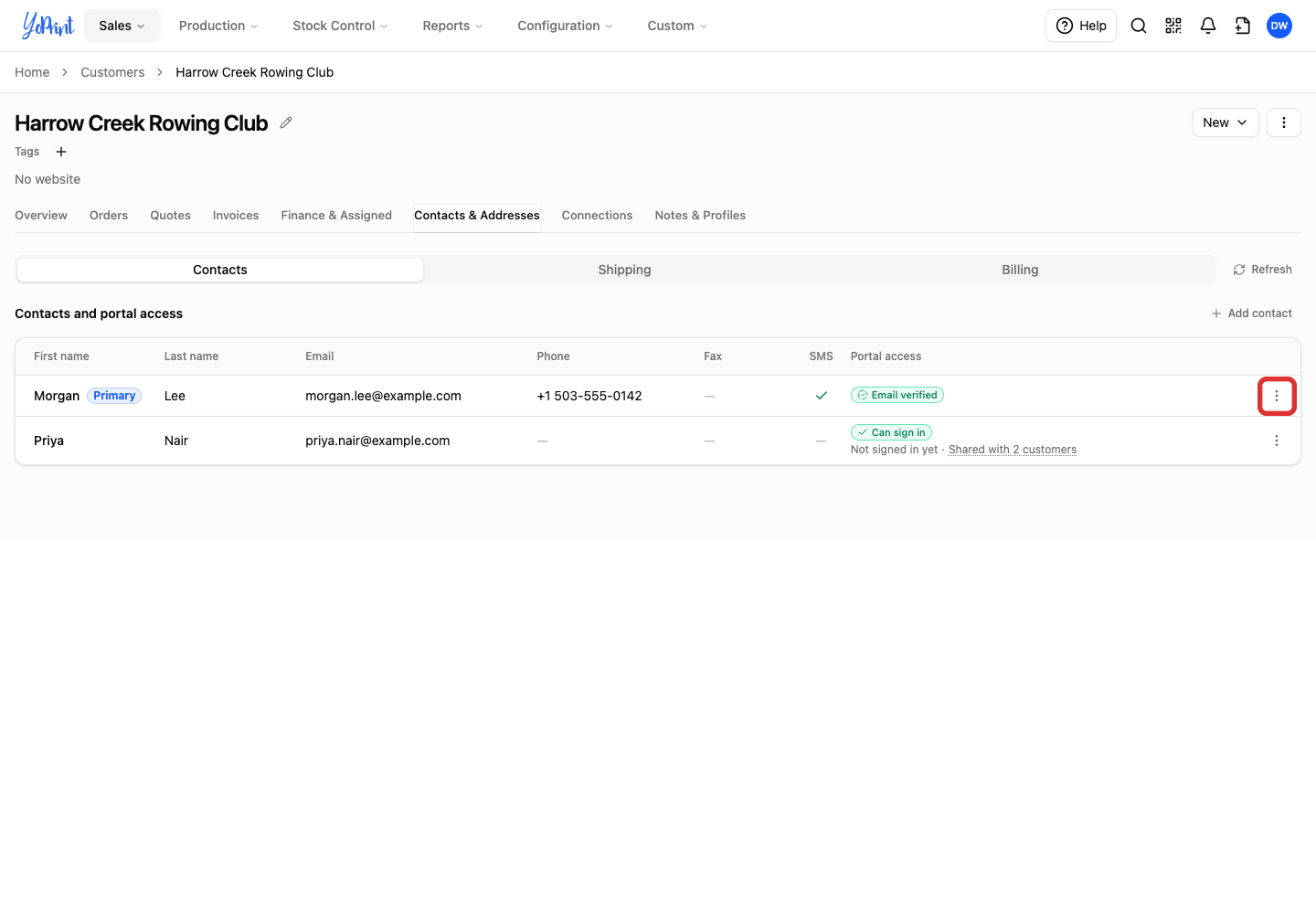
Open the contact's three-dot Row actions menu.
-
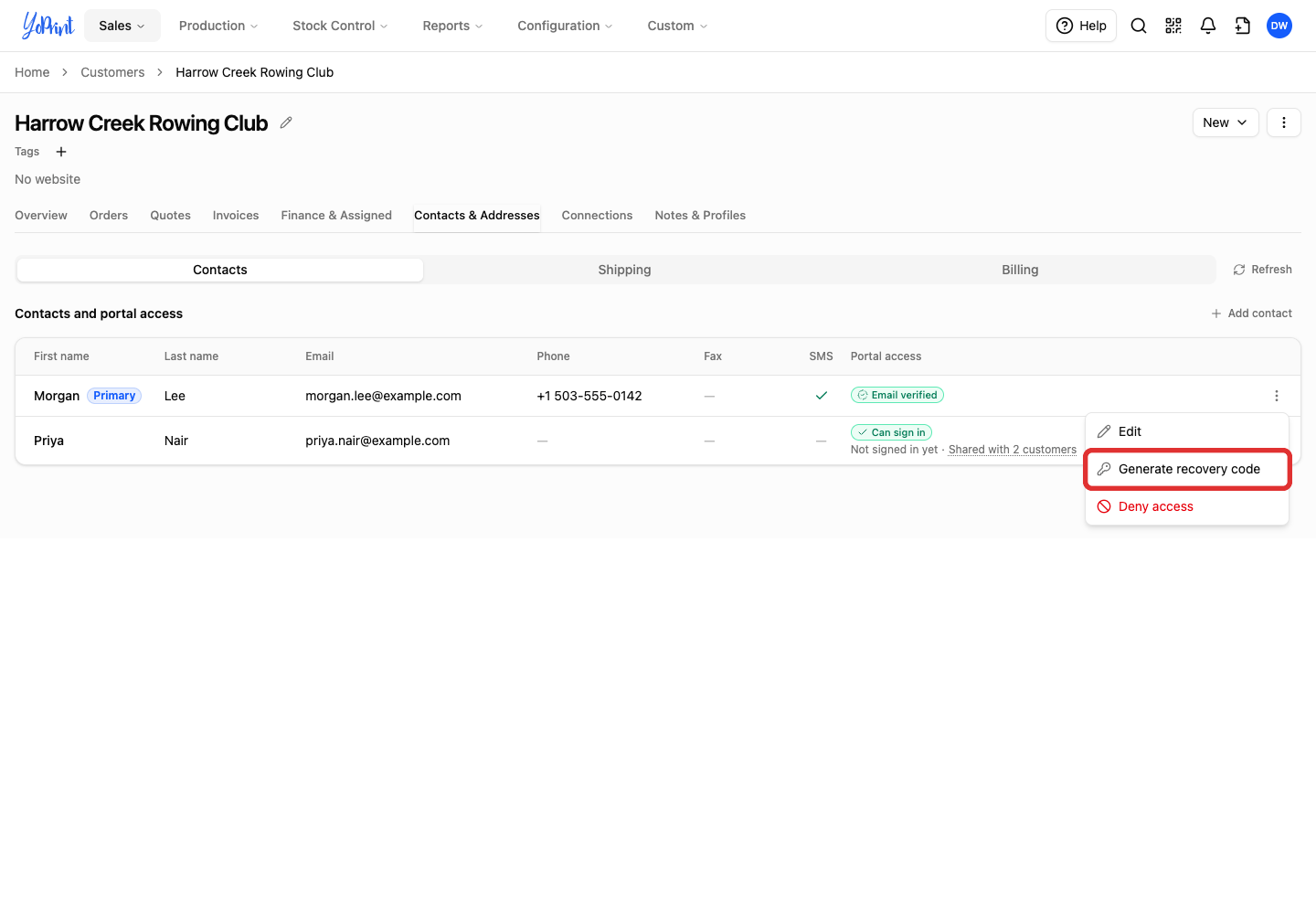
Click Generate recovery code.
-
Check the contact and email, then click Generate code.
Give the code to the customer
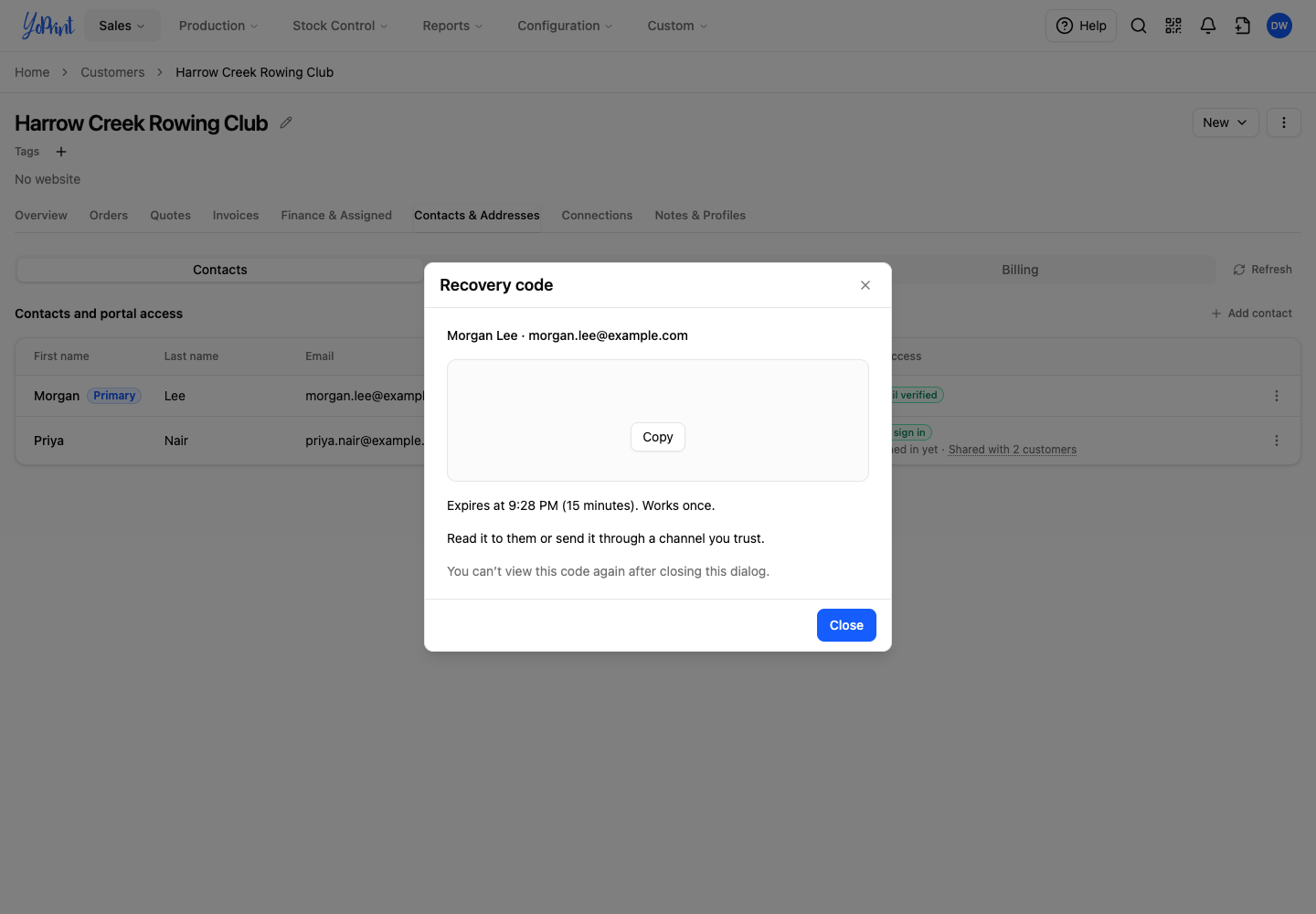
Read the code to the customer or send it through a channel you trust. The code works once and expires after 15 minutes. You cannot view it again after closing the dialog.
Tell the customer: “Use the recovery code with the email address we have on file. It lets you create a password so you can sign in while you cannot get to your email.”
Customers: use the recovery code
-
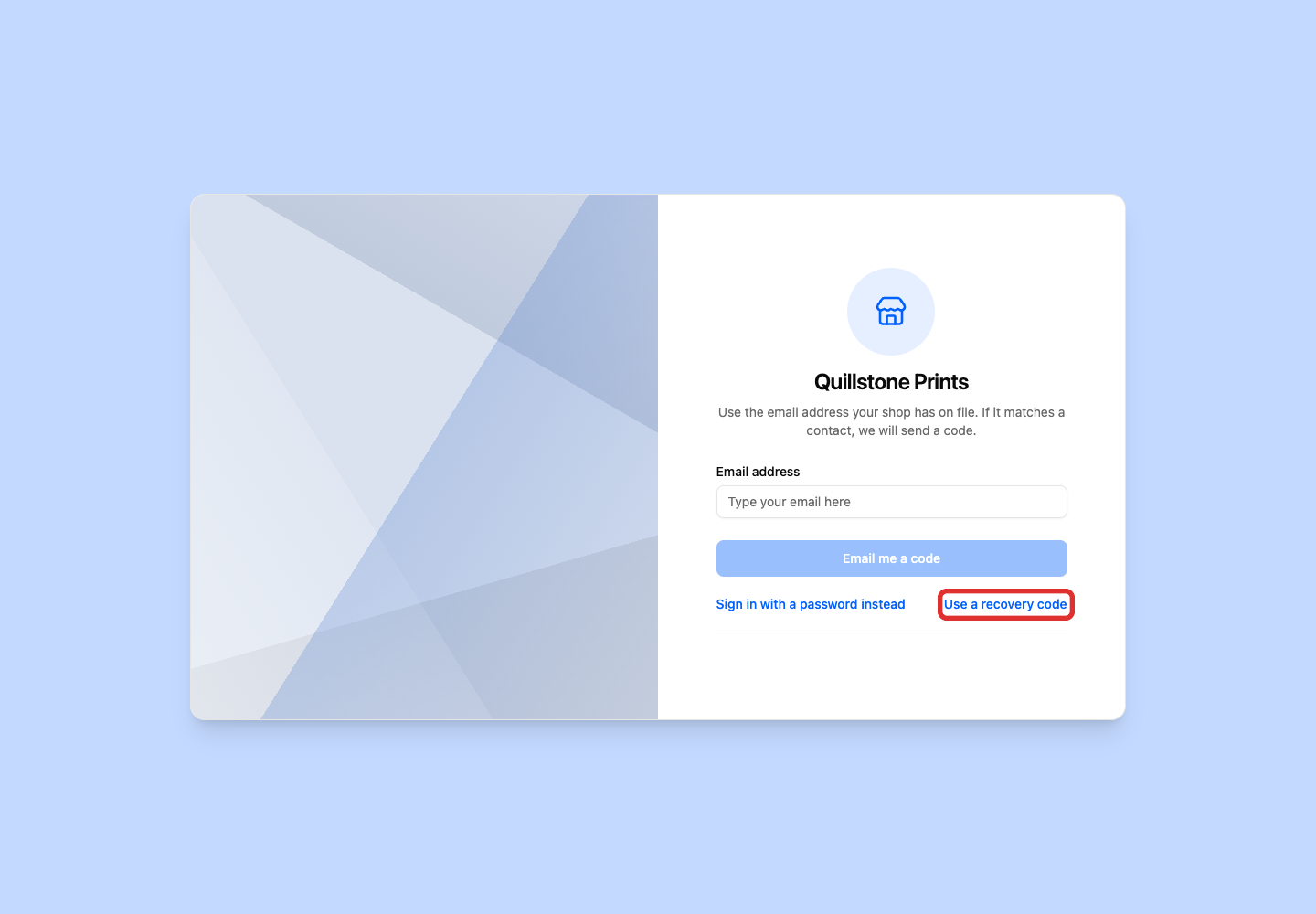
Click Use a recovery code on the sign-in page.
-
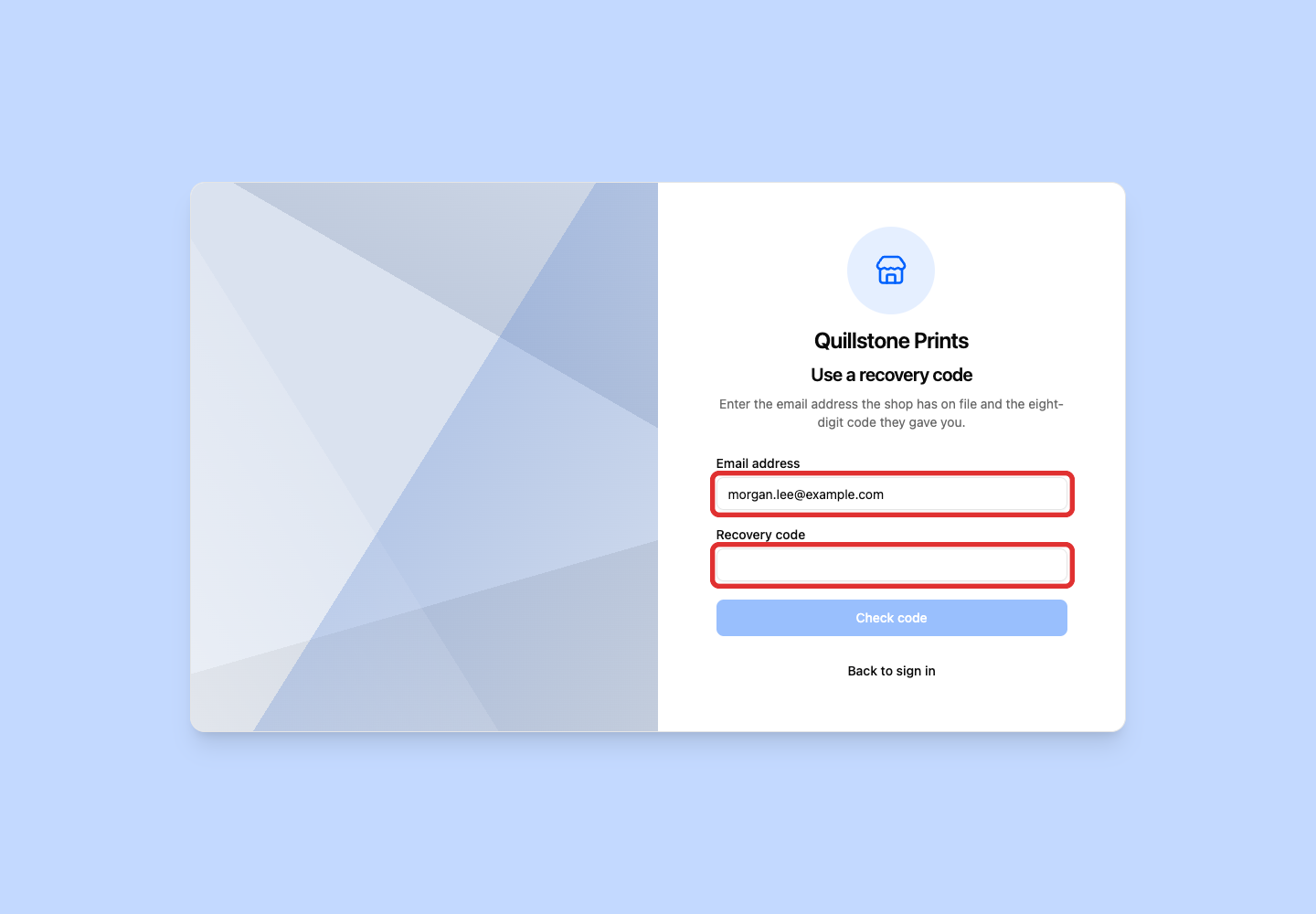
Enter the email address your shop has on file and the Recovery code.
-
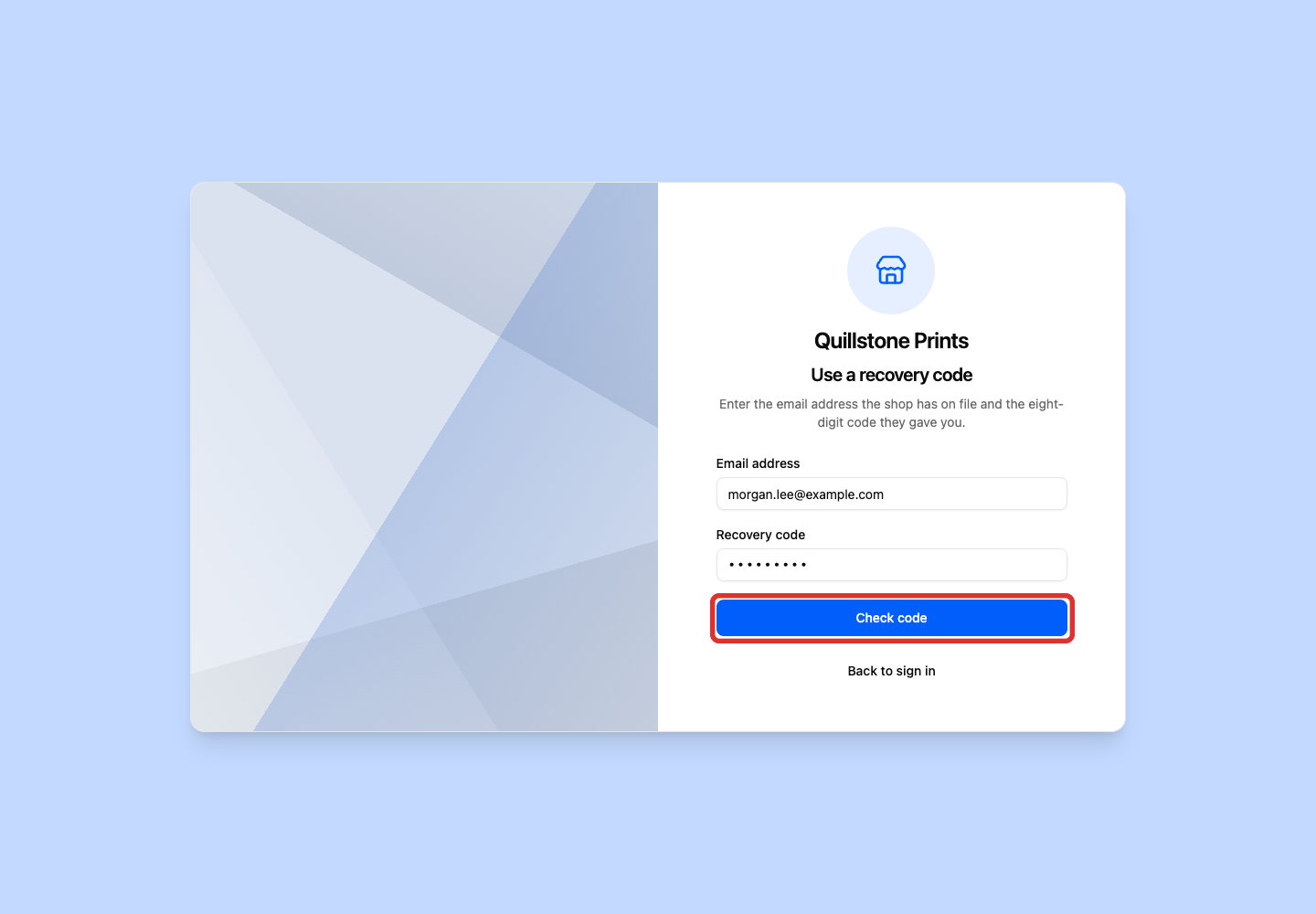
Click Check code.
-
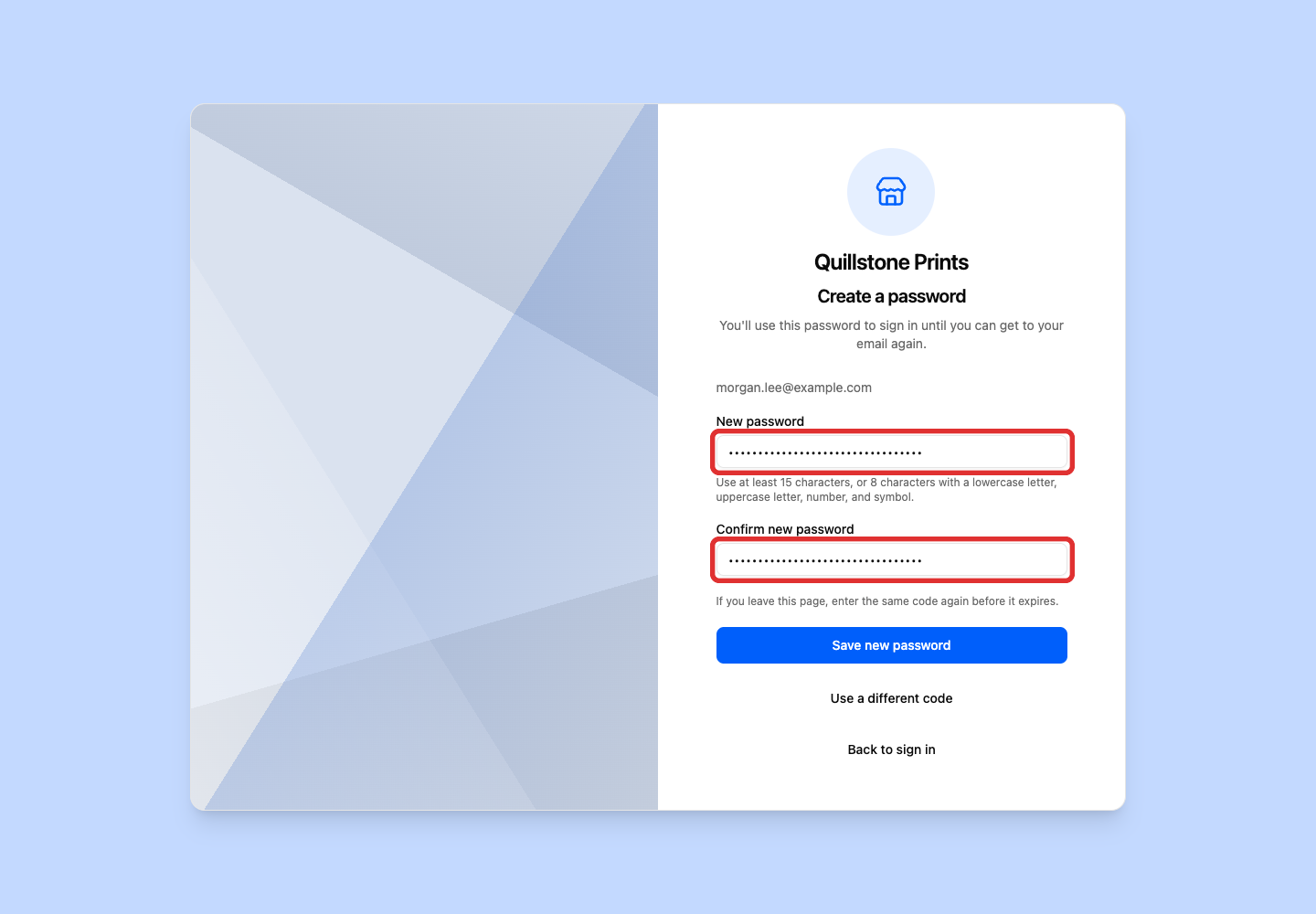
Enter a New password and repeat it in Confirm new password.
-
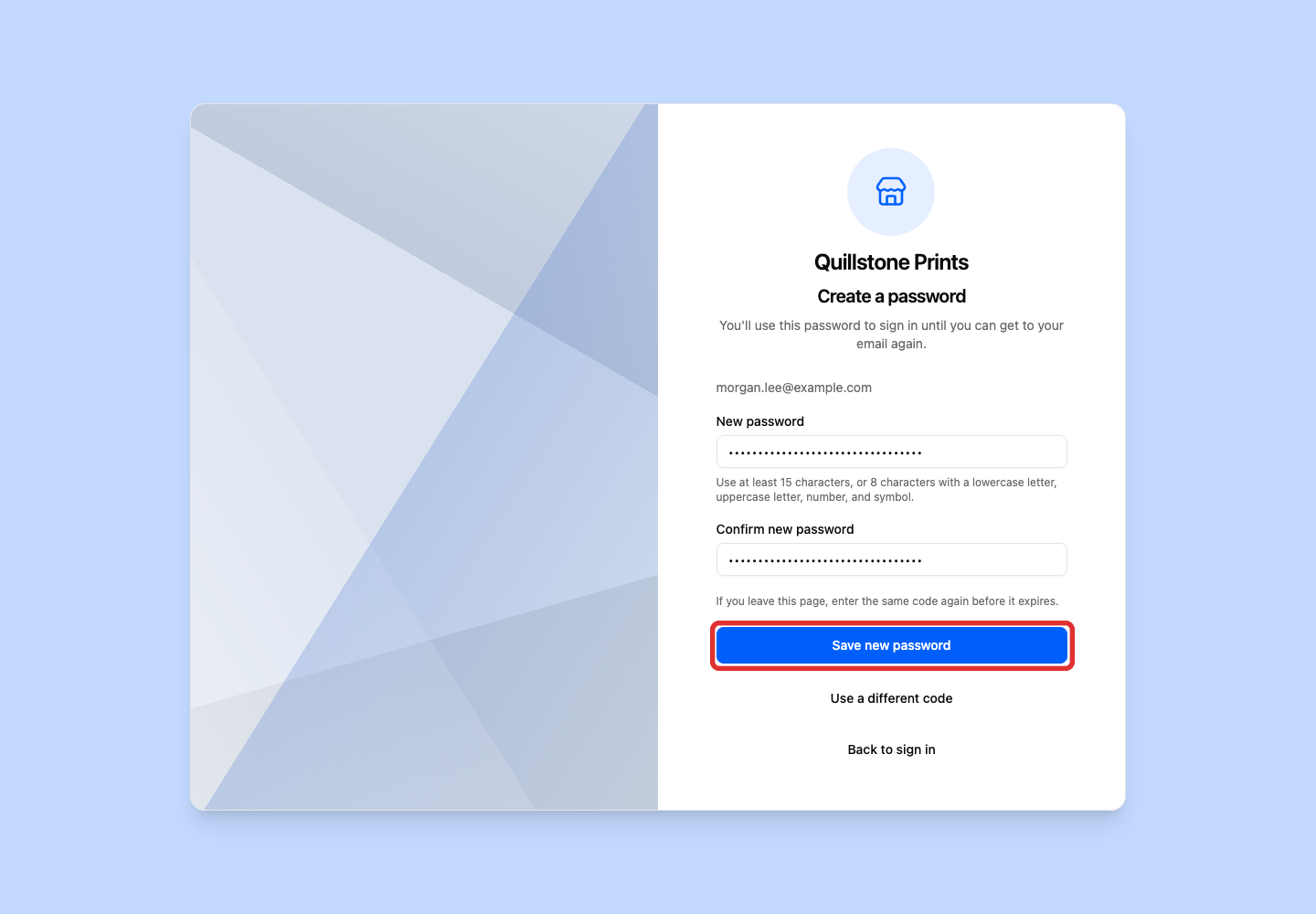
Click Save new password.
-
On Password saved, click Sign in.
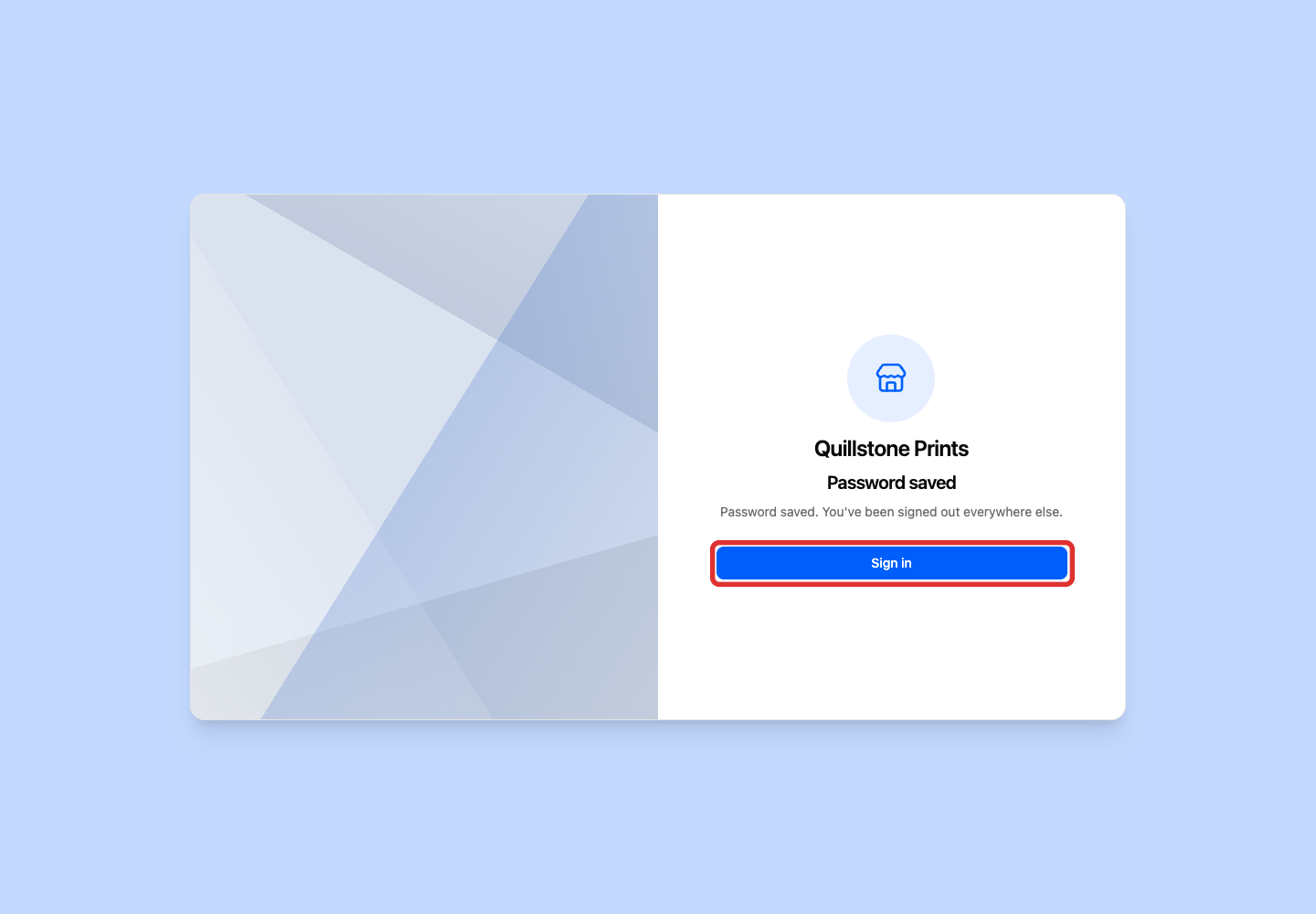
YoPrint signs the customer out everywhere else. They can now sign in with their email and new password.
After the customer has signed in, if you want to see their portal view while you walk them through an order, invoice or approval request, click Open customer portal… on the customer's Connections tab, or Open in Customer Portal on a sales order, to open a support session: View the Customer Portal as Your Customer.