Connect Your Shopify Store to YoPrint
In this article
YoPrint connects one Shopify store per shop. Shopify orders arrive in YoPrint as sales orders. When you ship those orders in YoPrint, fulfillment and tracking go back to Shopify. The YoPrint app is free to install. You need an active paid subscription; see Managing YoPrint Subscription. To manage integrations, your user role needs integration permissions; see Permission.
Before you start, sign in to the YoPrint team you want to connect. If you have multiple teams, select that team in YoPrint first. Use the same browser for Shopify and YoPrint so the connection opens in that team. You can start from the Shopify App Store, or click Add Shopify store under Settings > Shopify Beta in YoPrint to open the listing.
Install YoPrint from Shopify
These steps happen in Shopify. Its screens may have changed since these pictures were taken. See Shopify’s guide to installing apps.
-
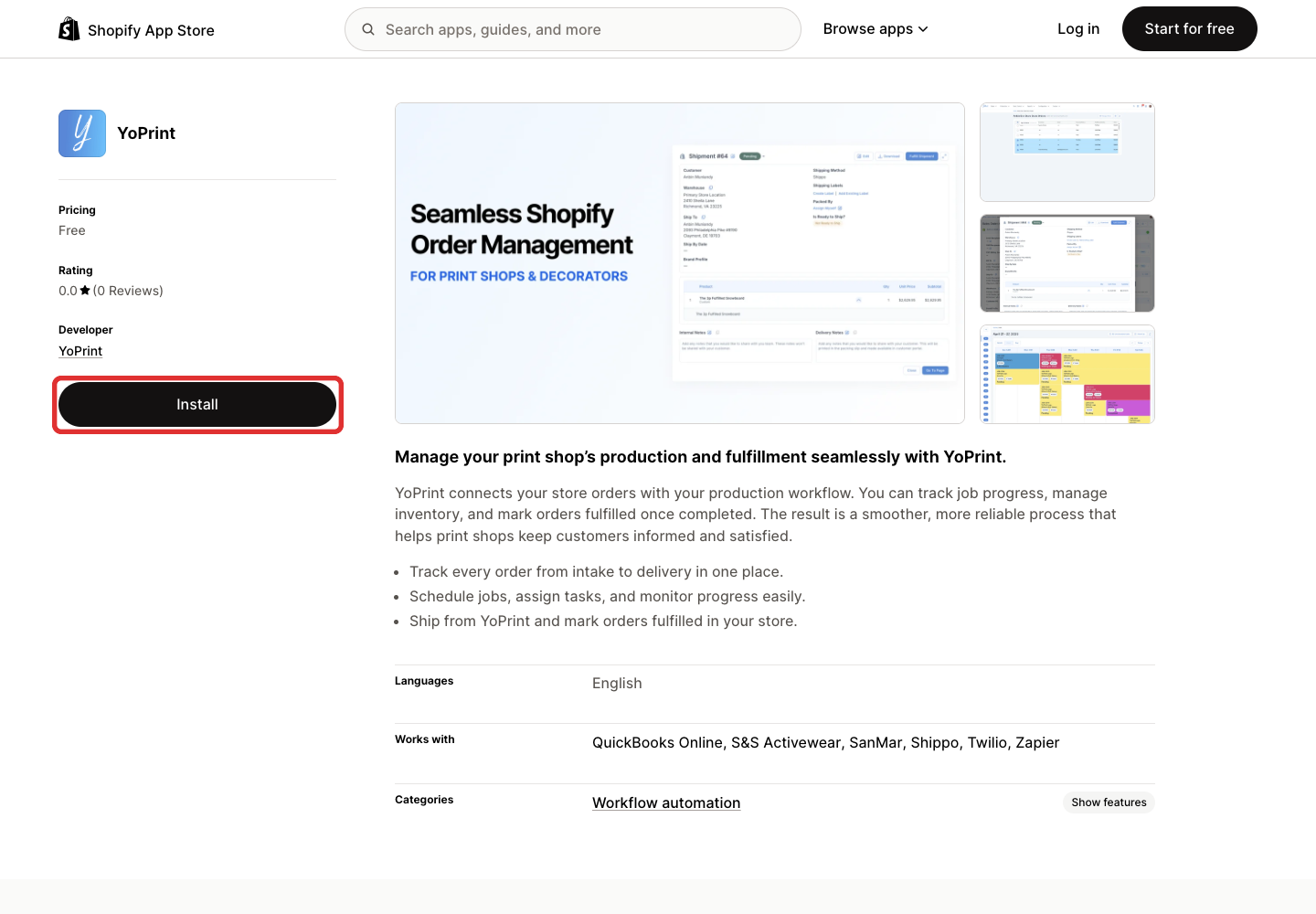
Open the YoPrint listing in the Shopify App Store and click Install. If you already added the app, open it from Shopify.
-
Review the requested permissions: orders, customer details, and fulfillments. Click Install (or Install app) on Shopify’s permission page to authorize the app.
Shopify sends you to YoPrint. Once you sign in, YoPrint opens the setup form under Connected Stores if configuration is incomplete, or goes to Store Orders if your store is already connected. If the form does not open automatically, go to Settings > Shopify Beta and click your store card to open setup.

Finish the store setup in YoPrint
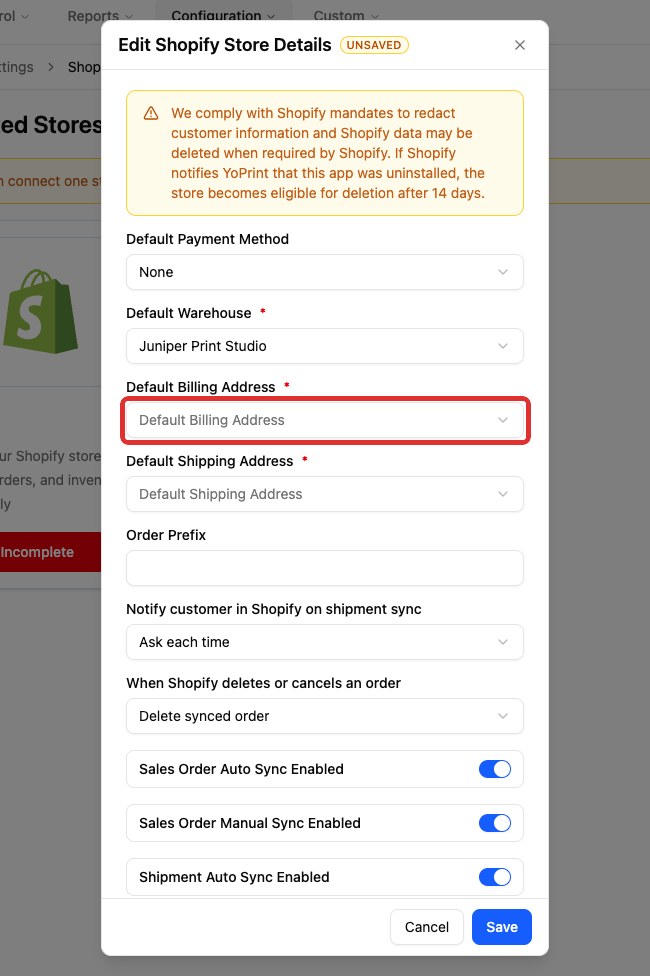
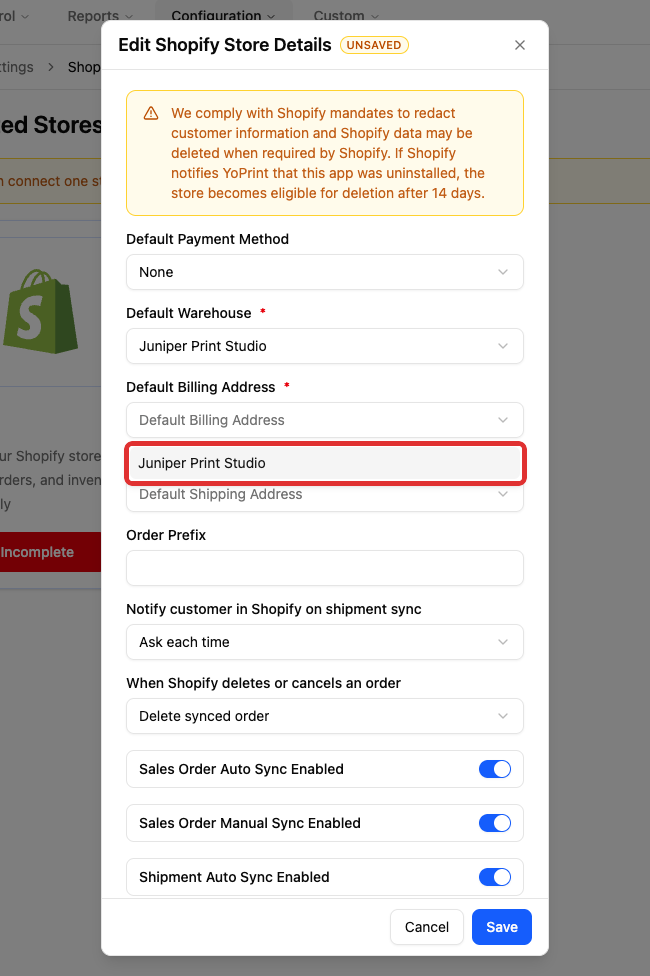
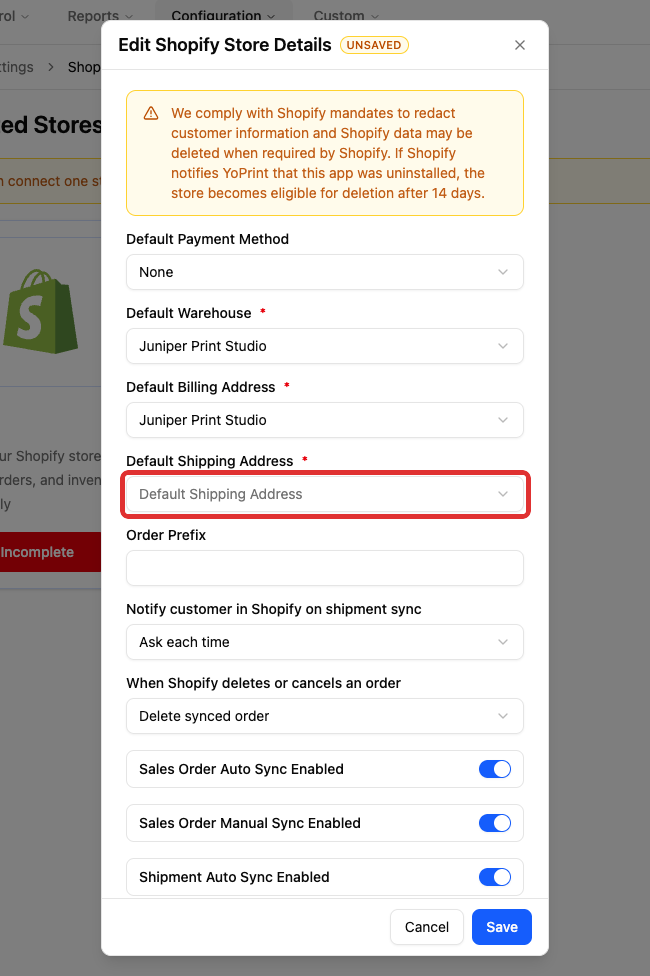
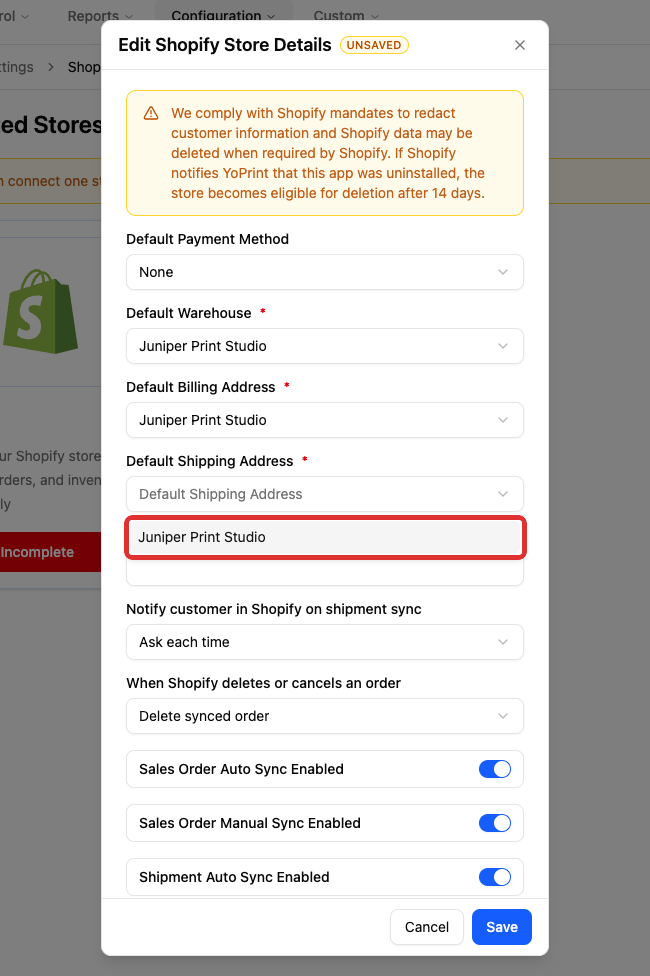
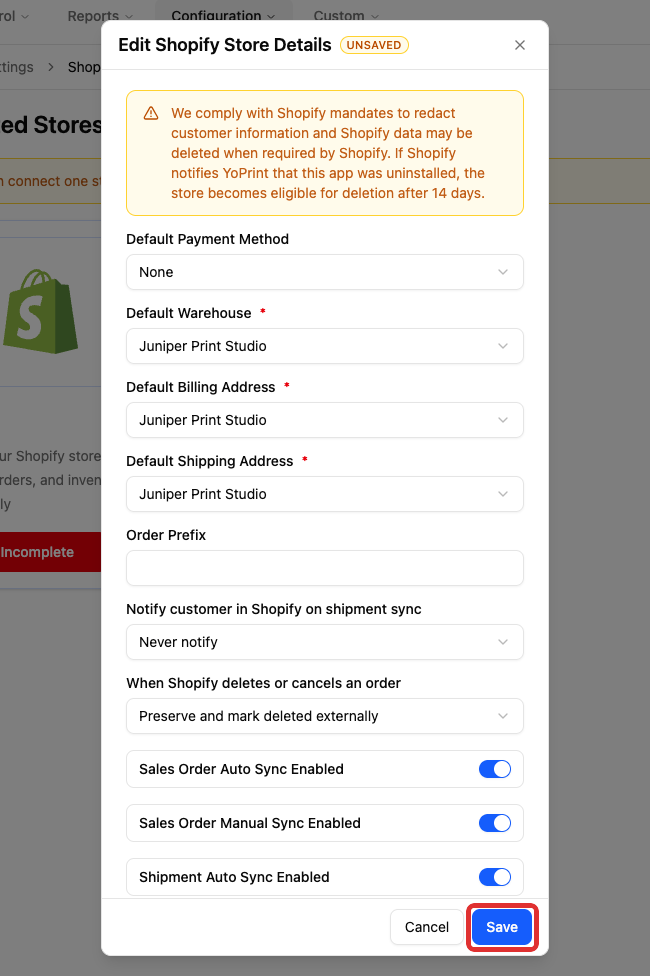
The required locations set your default warehouse, billing address, and shipping origin in YoPrint. The customer delivery address comes from Shopify. If your shop has one location, select it for all three fields. To add or edit locations in YoPrint, see Adding Company Locations & Warehouses.
-
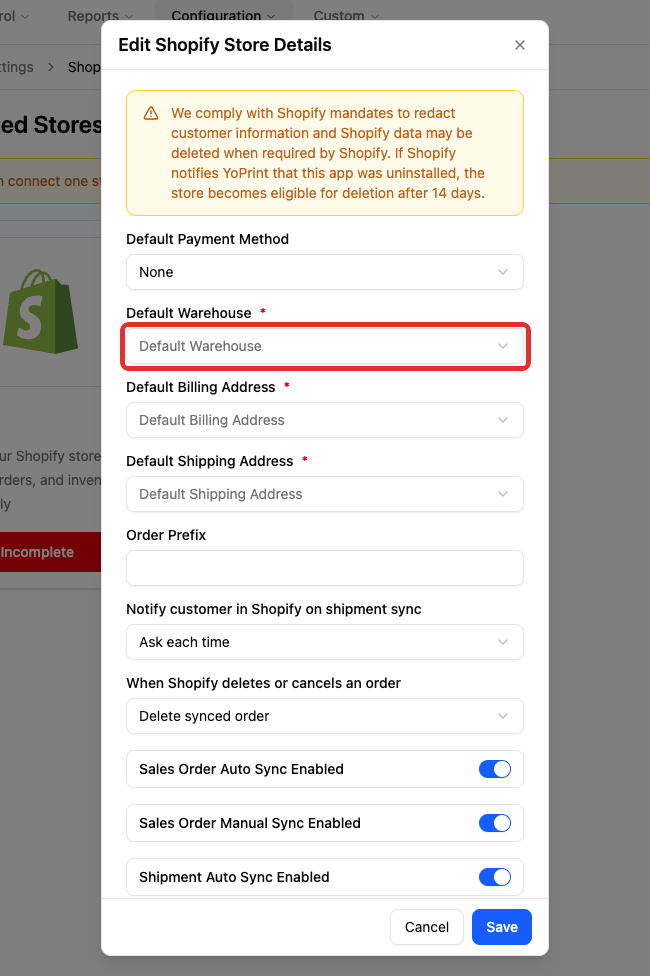
Open Default Warehouse.
-
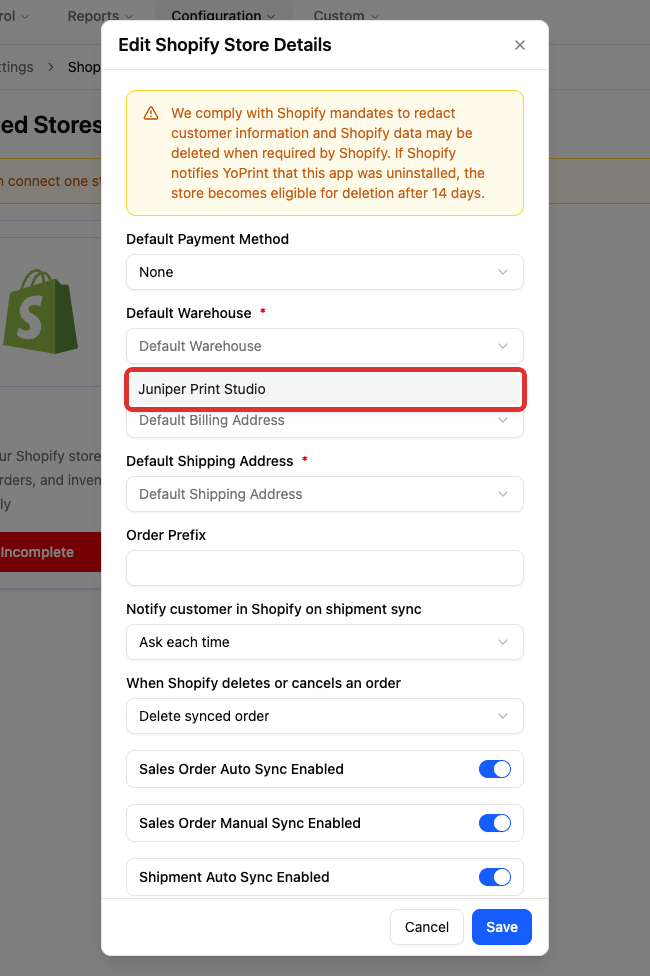
Select your warehouse. The example uses Juniper Print Studio.
-
Open Default Billing Address.
-
Select your billing location.
-
Open Default Shipping Address.
-
Select your shipping location.
-
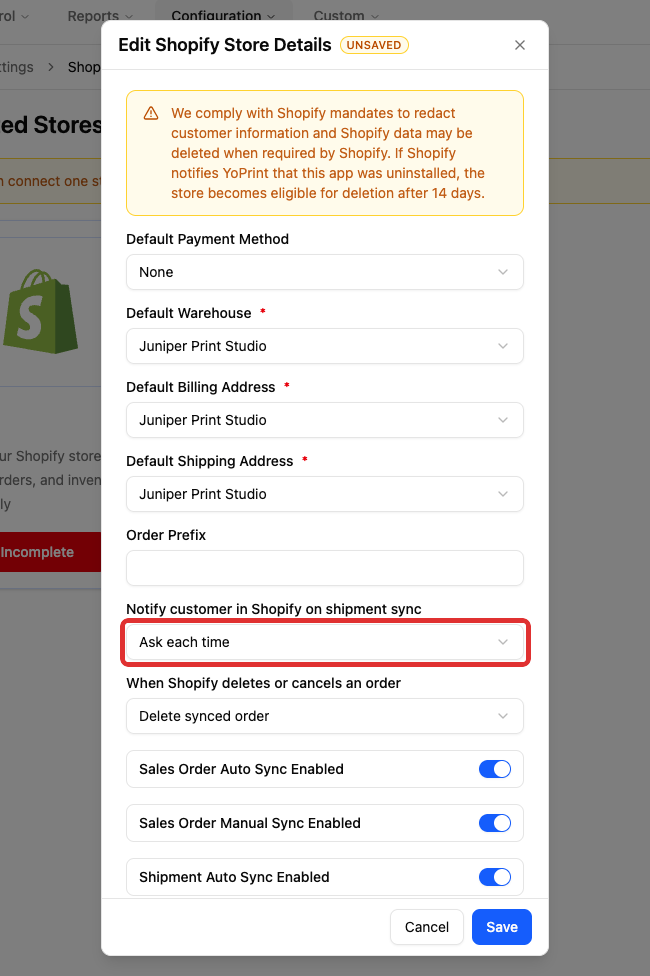
Open Notify customer in Shopify on shipment sync.
-
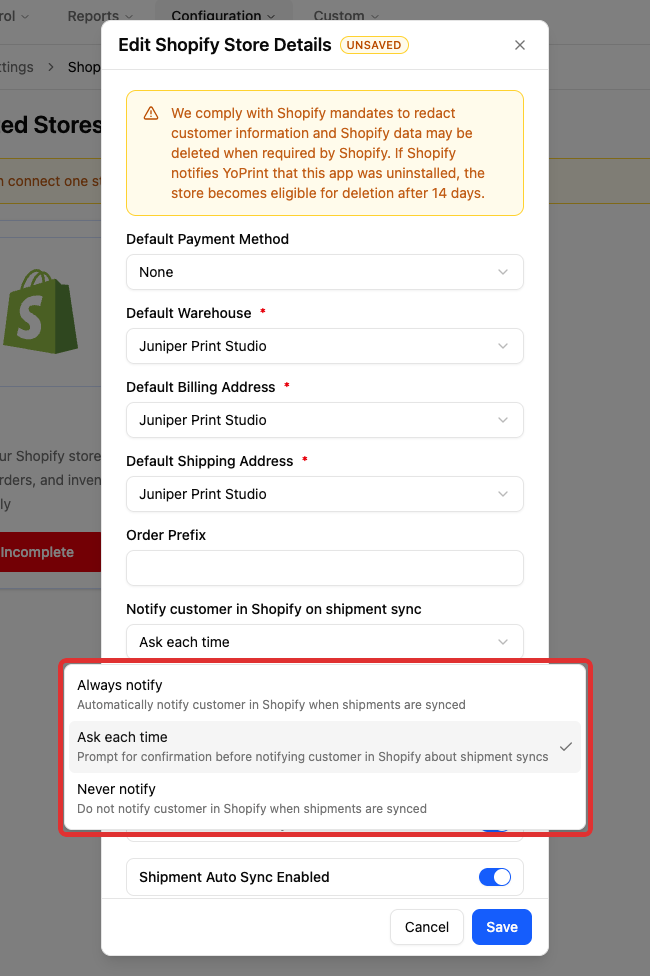
Select a notification policy. Always notify sends Shopify's shipping email on automatic tracking updates. Never notify suppresses Shopify's email on automatic tracking updates. The example uses Never notify.
-
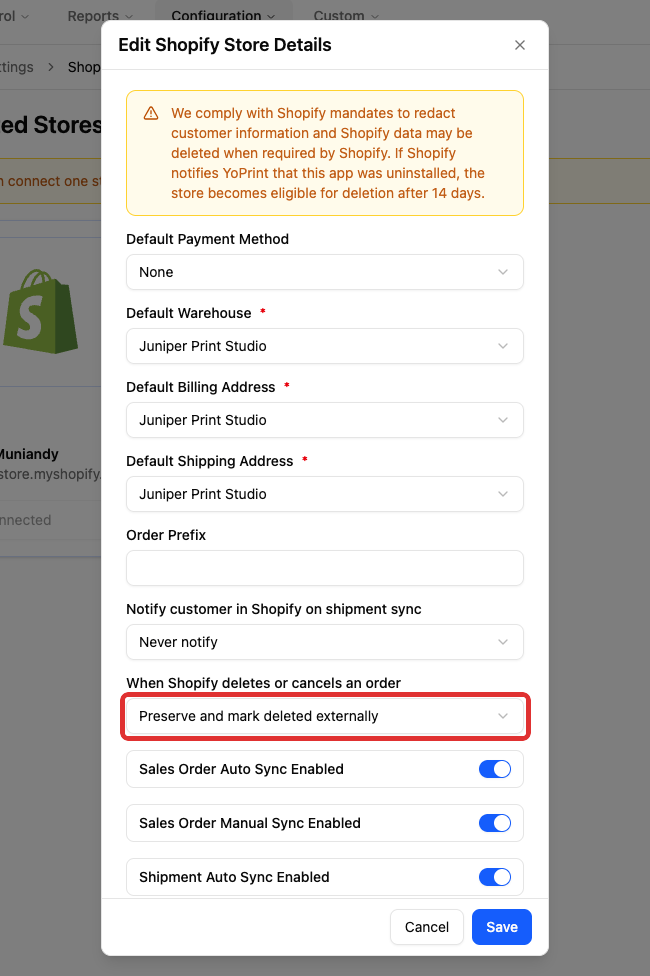
Open When Shopify deletes or cancels an order.
-
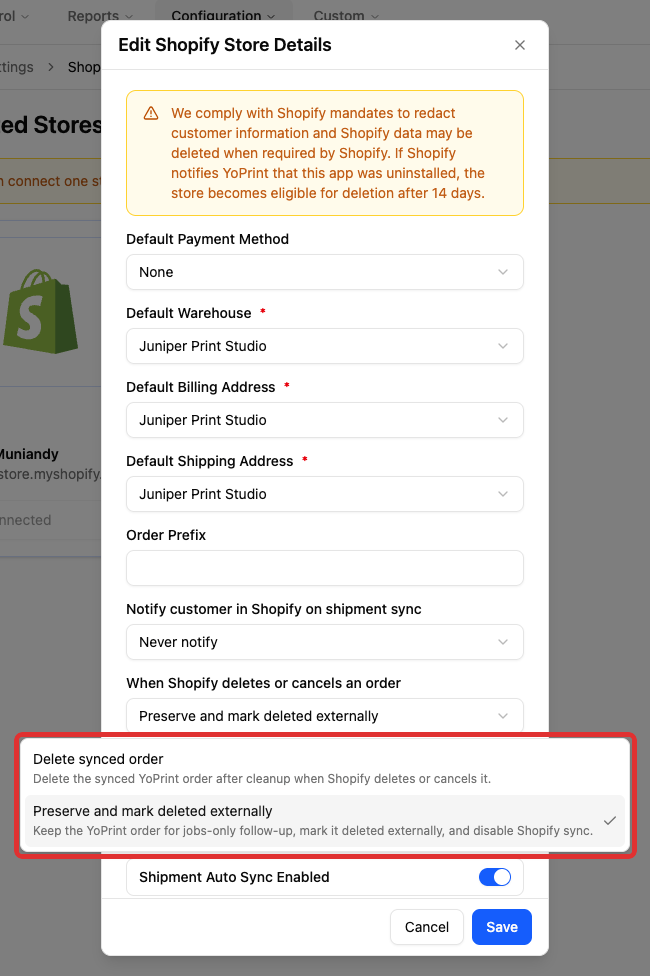
Select an order cancellation policy:
- Delete synced order removes the synced sales order, its invoices and jobs, and releases allocated inventory.
- Preserve and mark deleted externally keeps the order and jobs for follow-up, marks the order deleted externally, and stops Shopify sync. This option blocks most edits and does not release allocated inventory.
Both options cancel Shopify fulfillments created by YoPrint and remove the order's shipments.
Default Payment Method assigns the payment method for payment records imported from Shopify. Order Prefix adds text before the Shopify order number (such as SP-1032 ) to identify imported orders. Both fields are optional. To manage prefixes across YoPrint, see How to Configure Sales Order, Quote and Invoice Starting Numbers.
Three switches control sync:
- Sales Order Auto Sync imports new orders and updates automatically.
- Sales Order Manual Sync lets you fetch selected orders through Store Orders and resync an order.
- Shipment Auto Sync sends tracking updates when you add a package or label to an existing Shopify fulfillment.
Turning a switch off pauses only that sync path without deleting your existing orders or shipments. Leave all three on to import orders and send tracking updates.

-
Click Save.
The store card now shows Connected.

Return to your Shopify settings
When your store is connected, its card appears under Connected Stores.
-
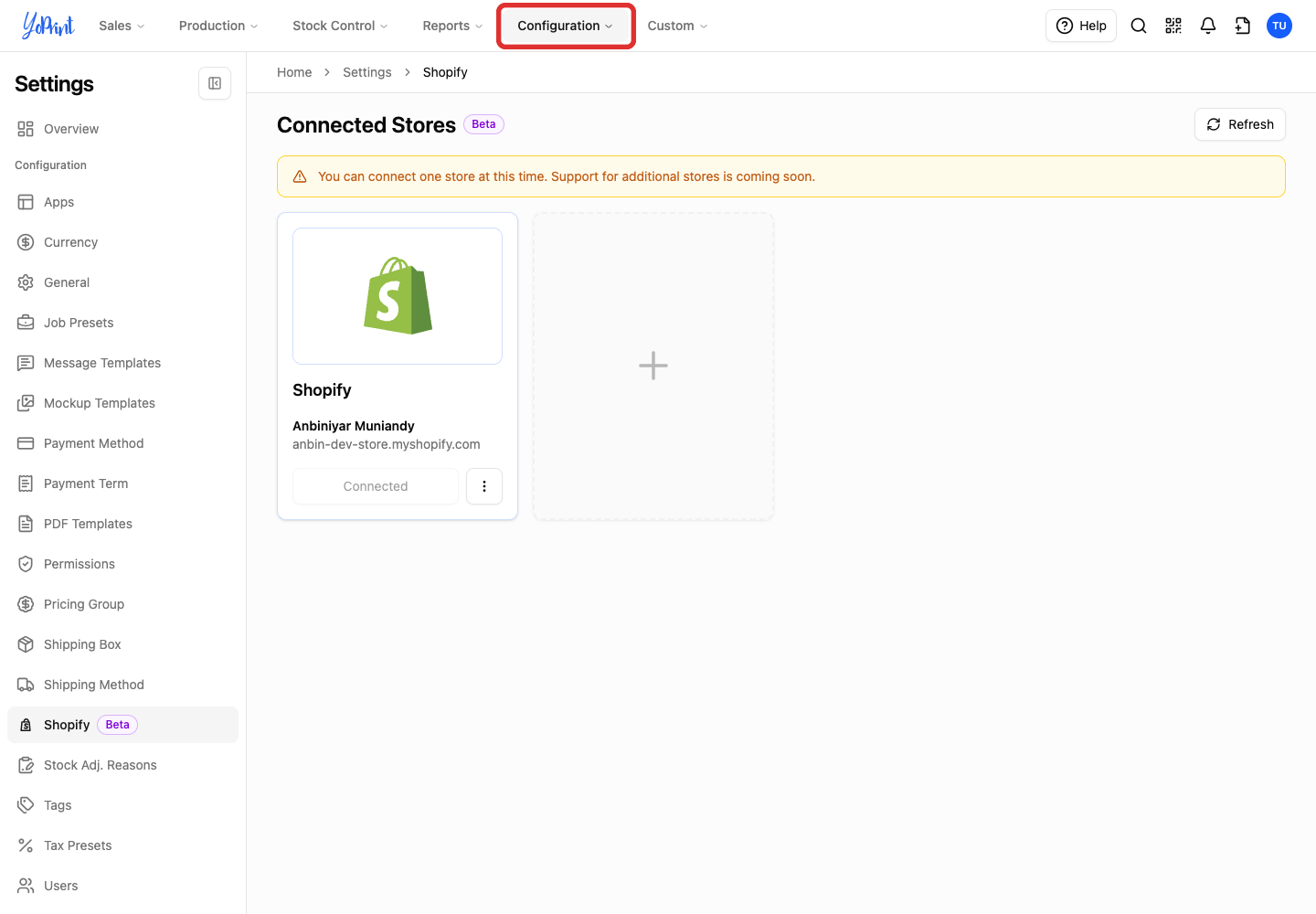
Open Configuration in the top navigation.
-
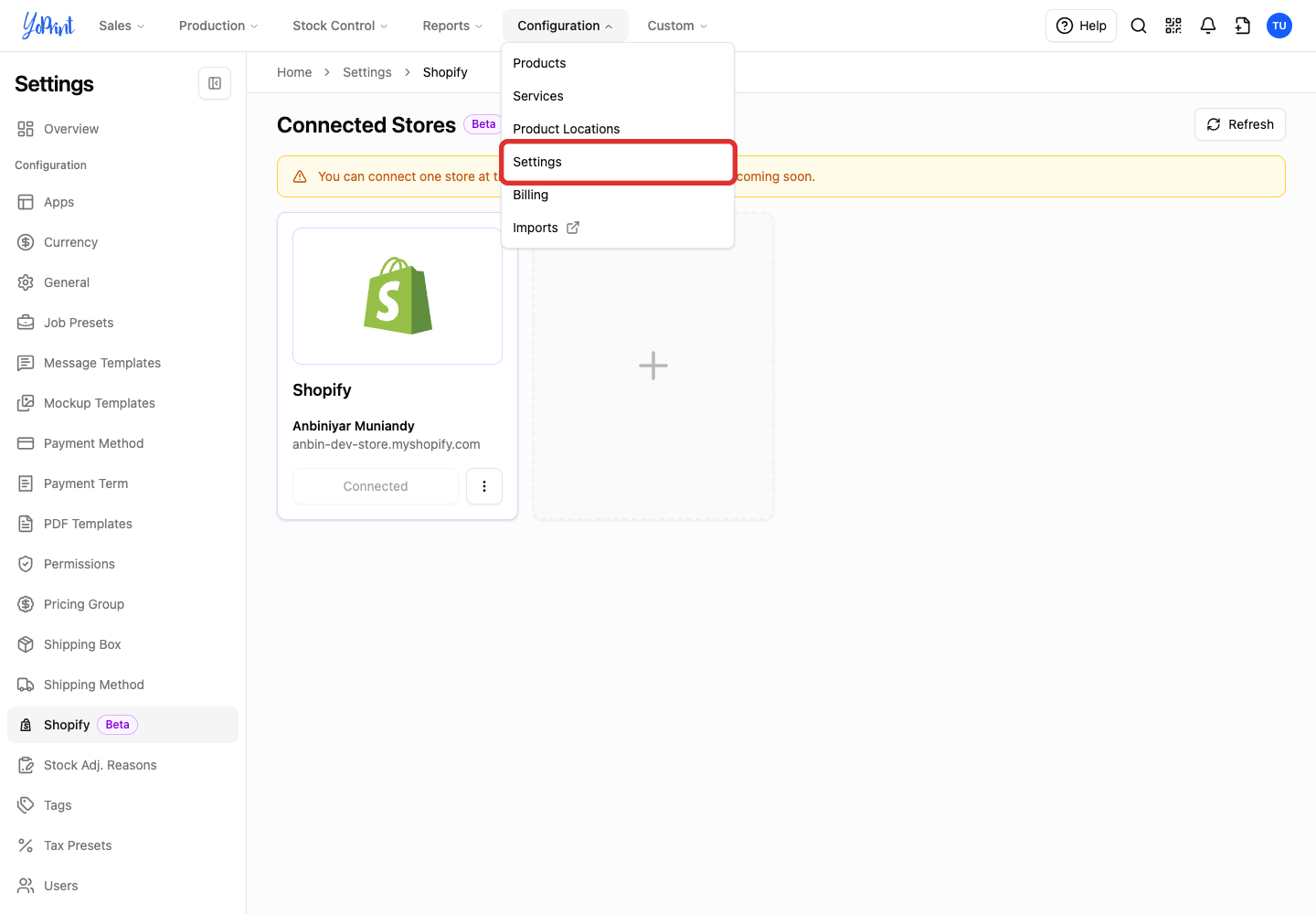
Choose Settings.
-
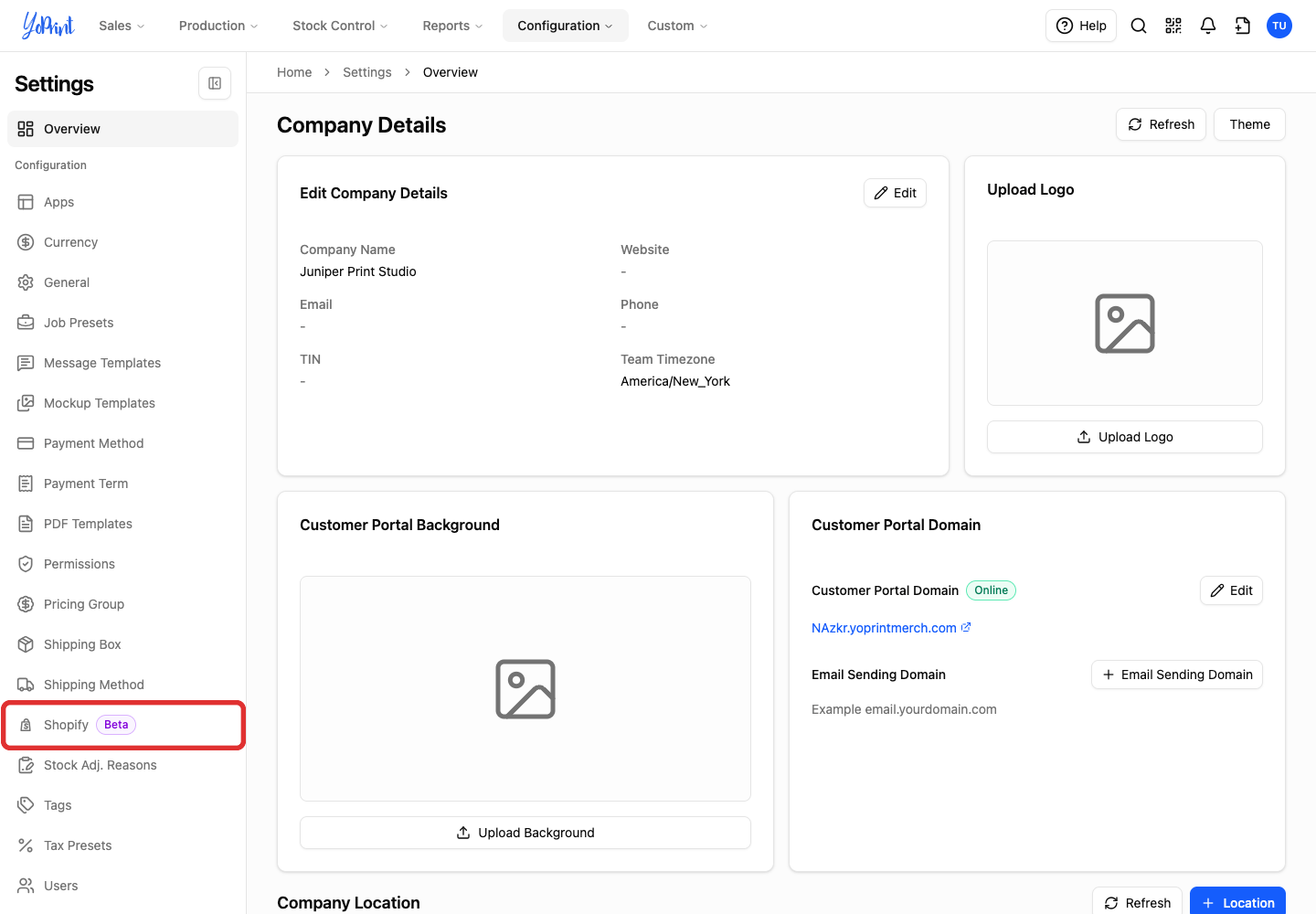
Choose Shopify Beta in the Settings sidebar.
-
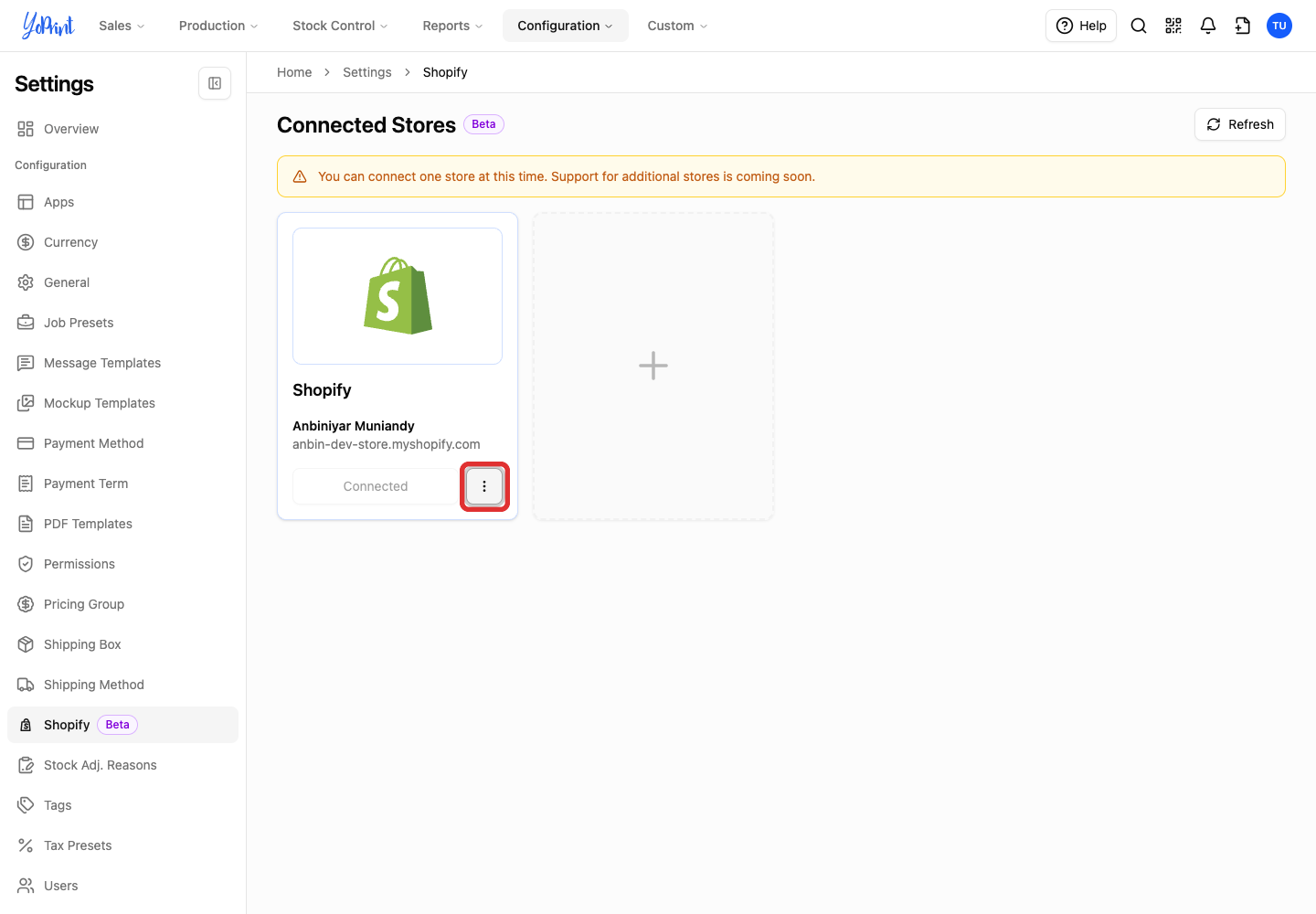
Open the three-dot menu on your store card.
-
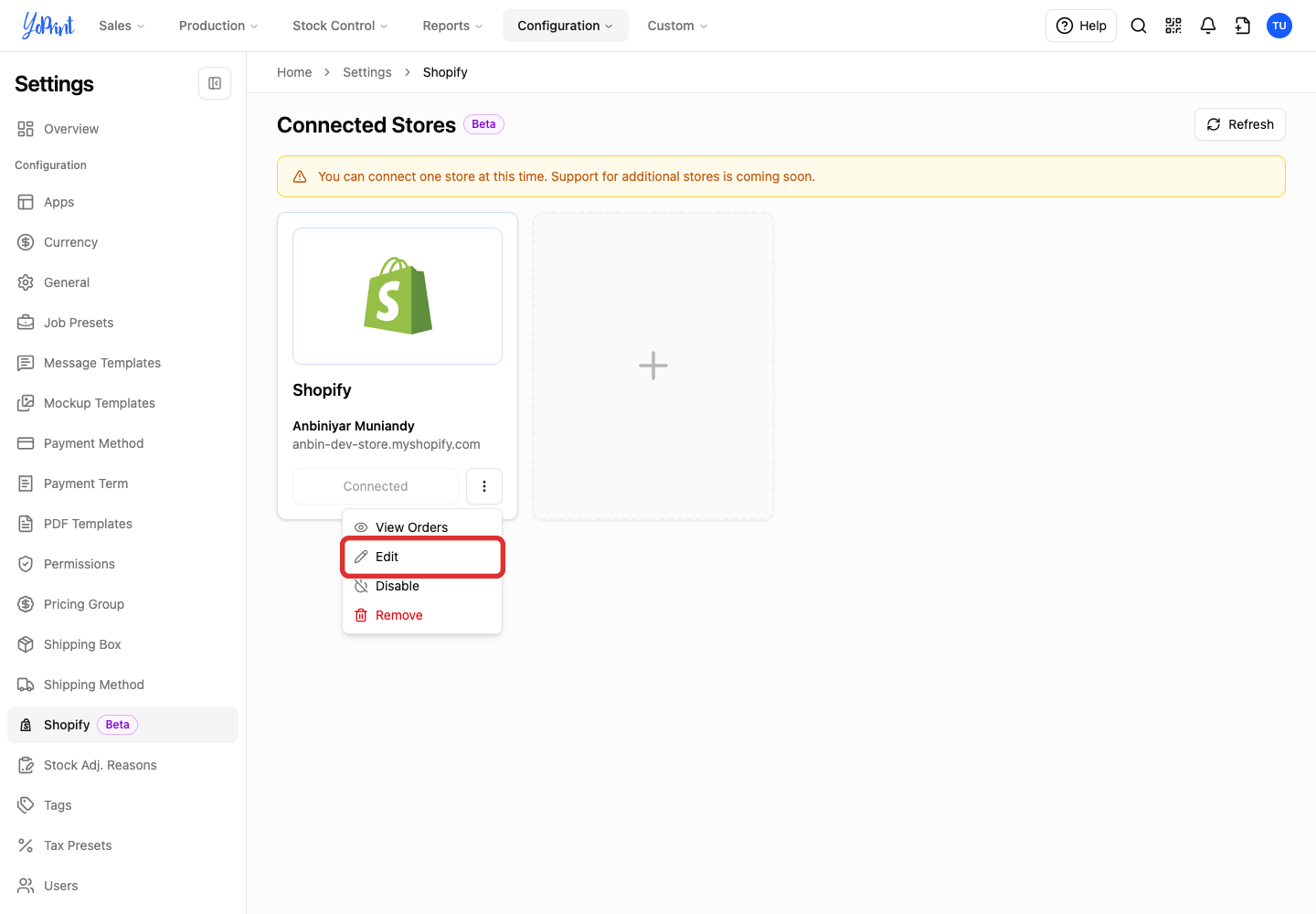
Choose Edit to reopen the setup form. After changing settings, click Save.
Reconnect your store
If the store card shows Reauthorize, YoPrint needs fresh authorization to communicate with Shopify, such as when authorization expires or permissions change. Click Reauthorize on the store card to open Shopify, approve permissions, and restore order sync.
If you uninstalled the app from Shopify, the store card shows a 14-day countdown to deletion eligibility and Reconnect once Shopify sends its deletion notice. Reinstall YoPrint from the Shopify App Store before the countdown ends to cancel scheduled deletion. Follow the installation steps above using the same store and team.
If the store card shows Setup Incomplete, click it to finish setup. Your previous settings remain saved. Once saved, the card shows Connected again.
Orders placed while the store shows Reauthorize or is disconnected do not import automatically after reconnection. Fetch missed orders from Store Orders.
To see how orders arrive after connection, see How Shopify Orders Arrive in YoPrint.
Fetch orders missed while disconnected
After reconnecting, use Stores > Store Orders to fetch orders placed during the gap. Sales Order Manual Sync must be on.
-
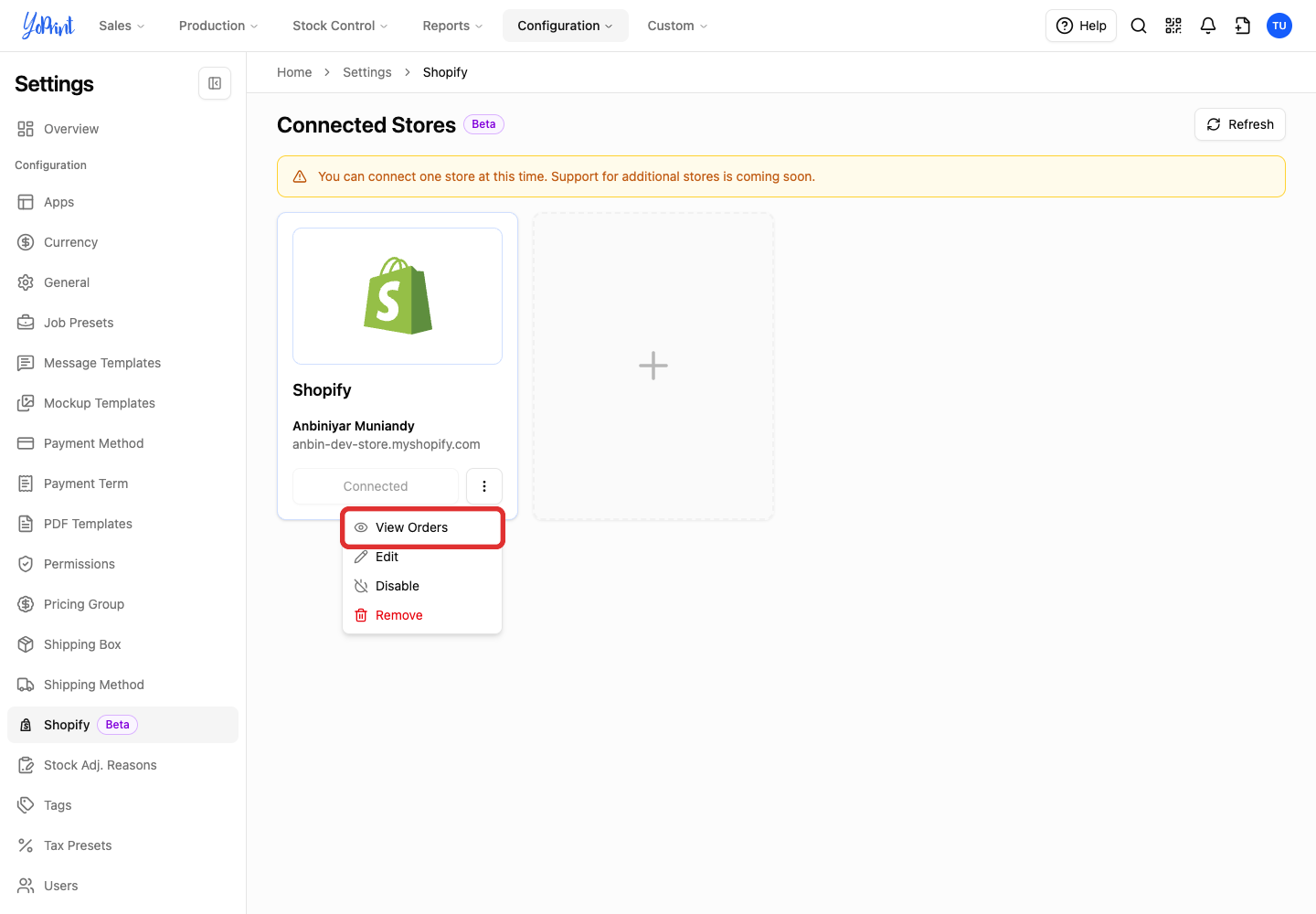
Choose View Orders from your store's three-dot menu under Settings > Shopify Beta to open Store Orders.
-
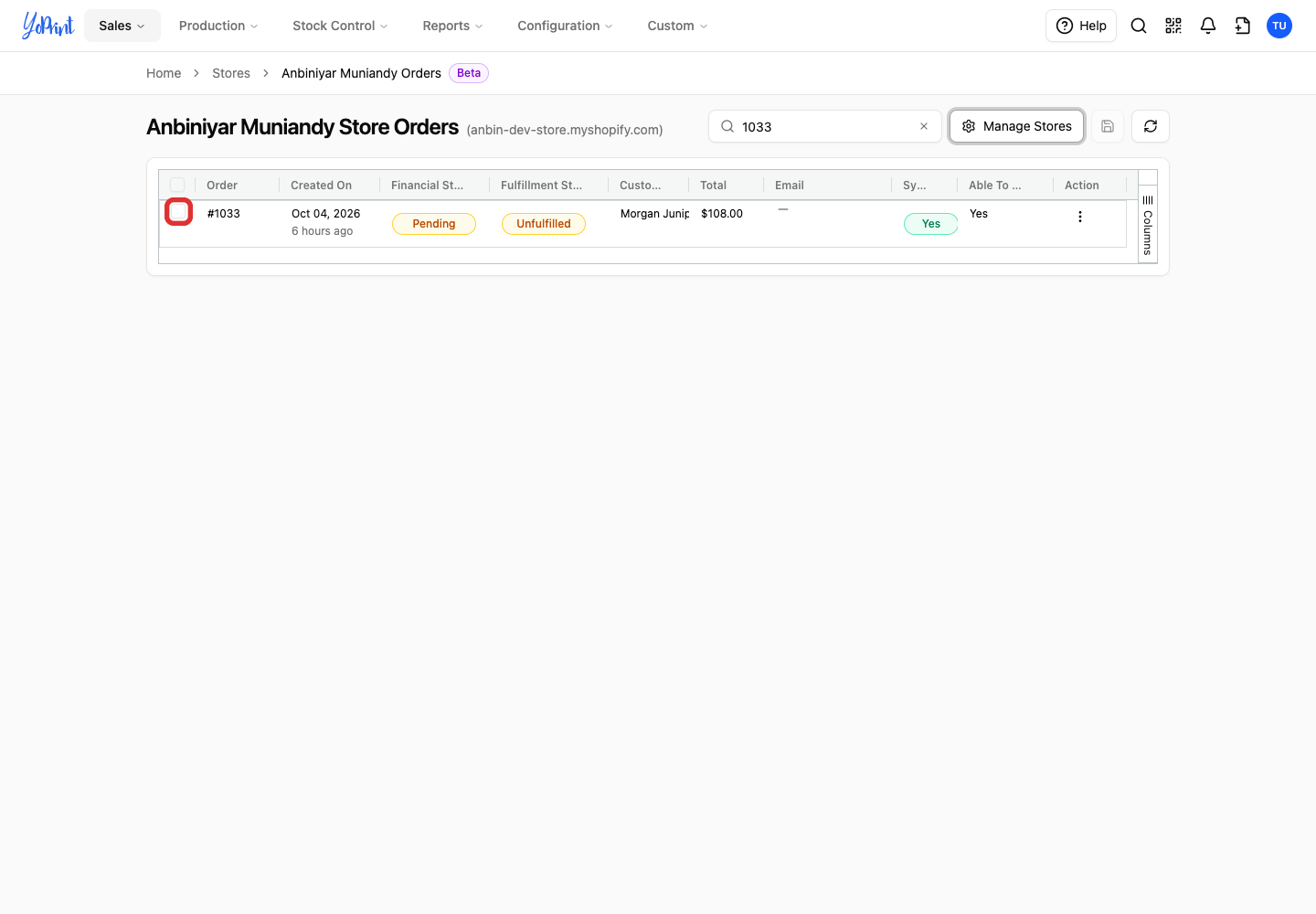
Select the orders you want to fetch.
-
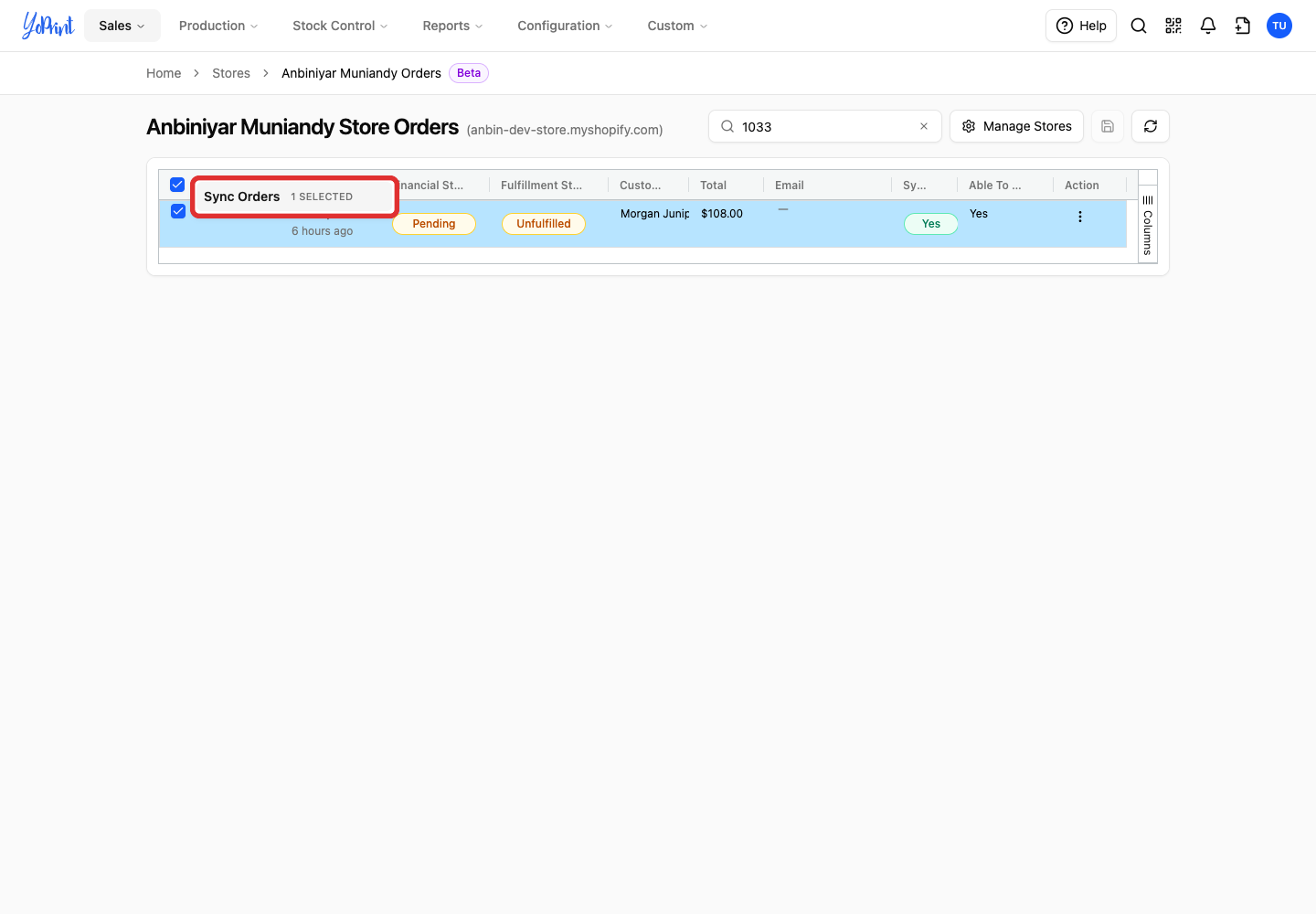
Click Sync Orders.