Ship a Shopify Order and Send Tracking Back to Shopify
In this article
Create a shipment in YoPrint to record packed items. Marking it shipped sends fulfillment and tracking details to Shopify. Use an existing carrier label, or buy a Shippo label in YoPrint. To see how orders, production, and shipping connect across both platforms, view the order and shipping flow diagram in How Shopify Orders Arrive in YoPrint.
Before you begin, confirm your Shopify store is connected under Settings > Shopify Beta, with Shipment Auto Sync on for automatic package tracking updates. In Sales > Sales Orders, open an order with unfulfilled items by choosing View from its row menu (...) or double-clicking the order ID and clicking View Sales Order. The example uses order 1032 with two T-shirts.
Create the shipment
-
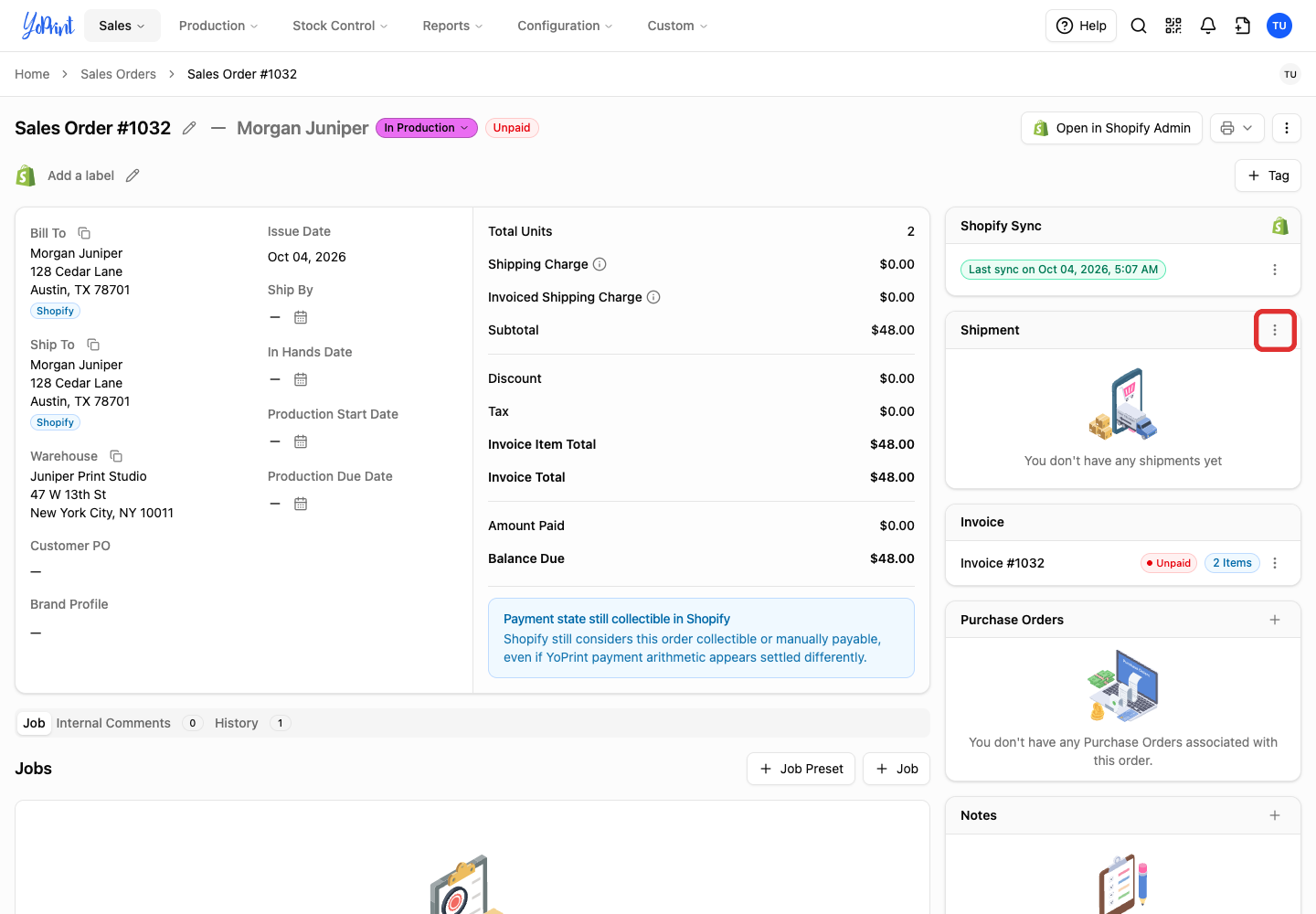
Click the three-dot menu (Shipment Actions) on the Shipment card.
-
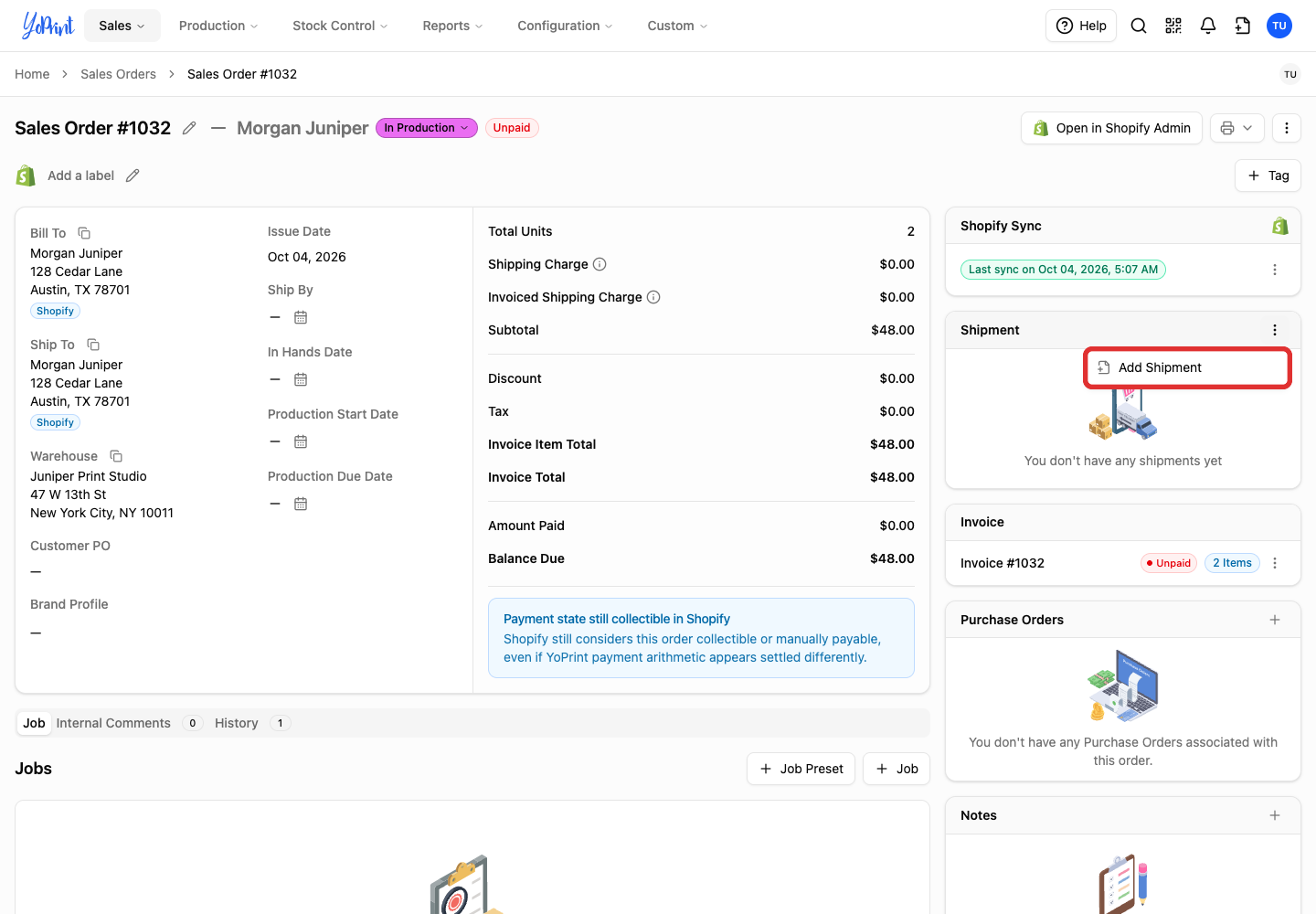
Choose Add Shipment.
-
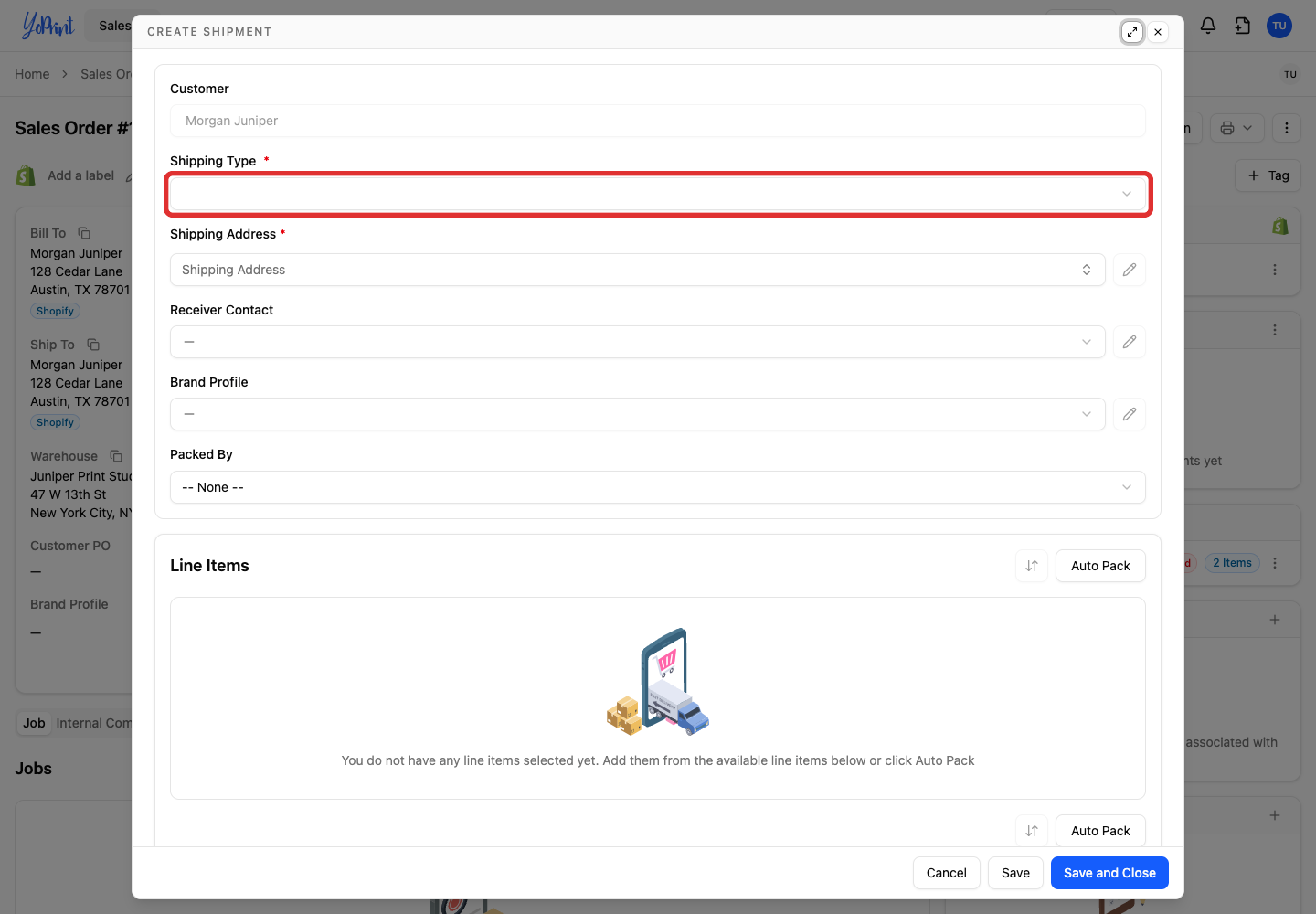
Open Shipping Type.
-
Select the delivery method. The example uses UPS.
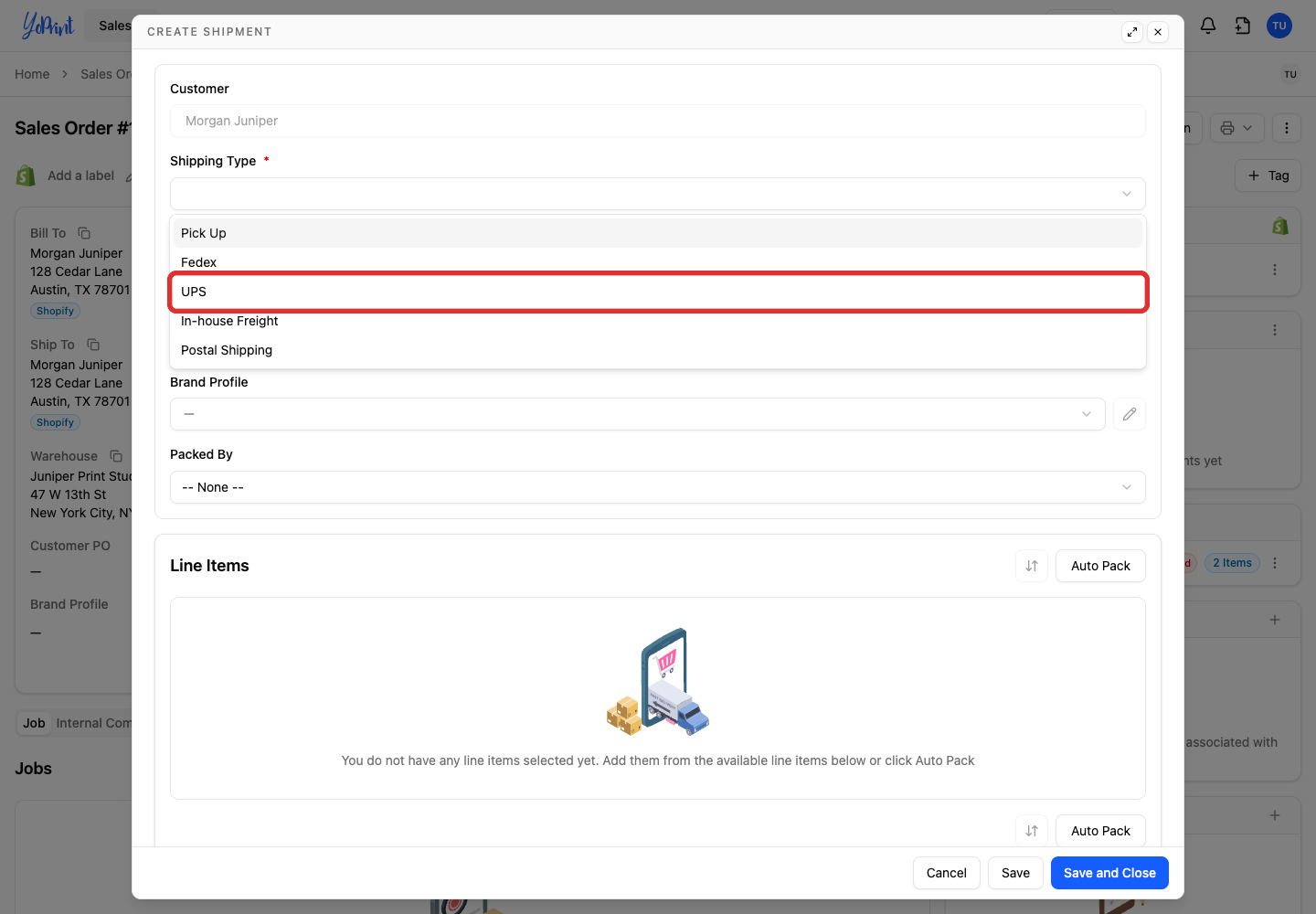
The shipment uses the customer delivery address from Shopify. Make any address changes in Shopify before shipping. For local customer pickup instead of carrier delivery, see Create Orders for Pickup. To manage shipping costs on customer invoices, see Managing Auto Invoices for Sales Orders.
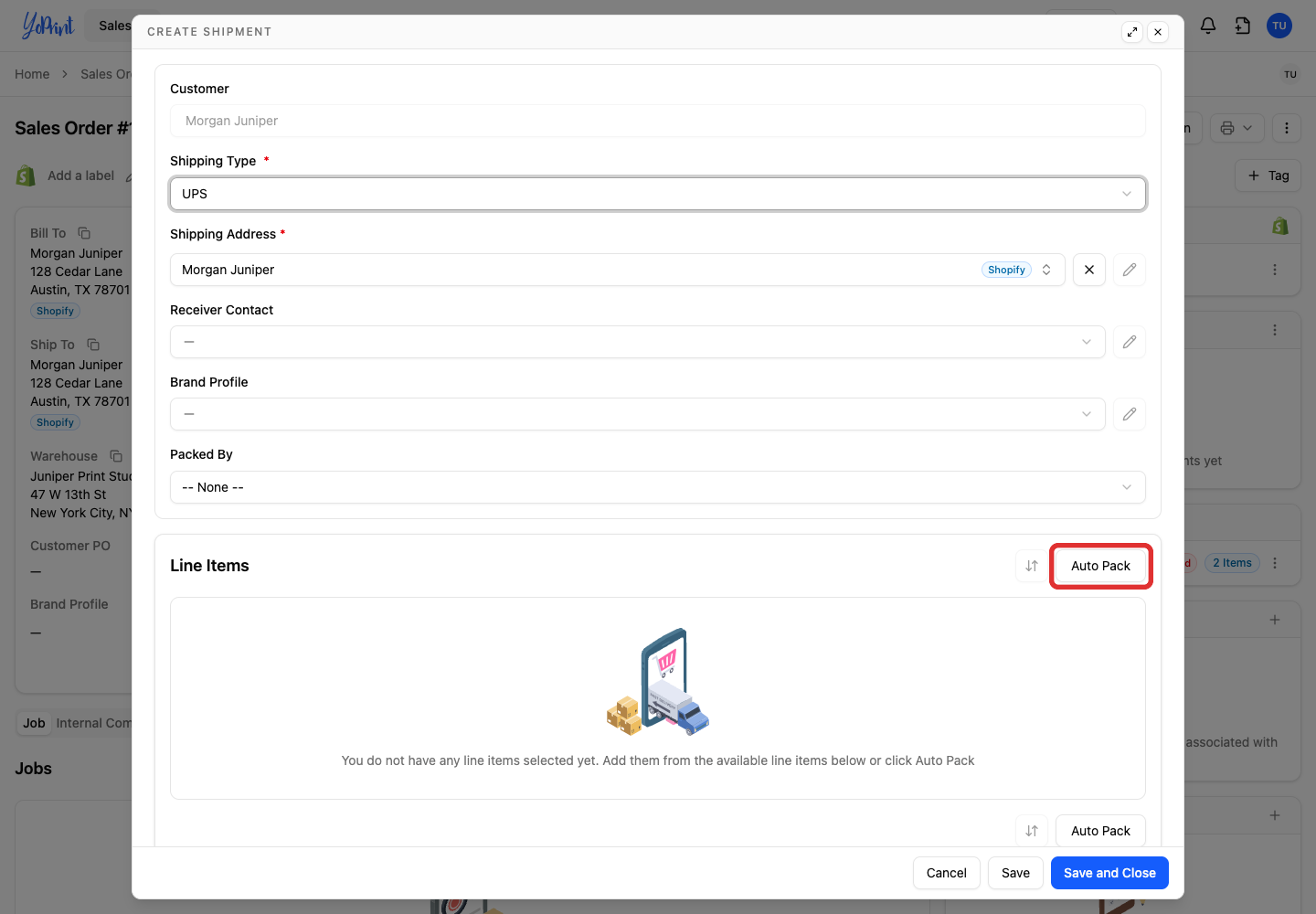
Auto Pack allocates all available items not already packed in another shipment. For a partial shipment, adjust item quantities manually. Shipping part of an order leaves it partially fulfilled in Shopify until the remaining items ship.
-
Click Auto Pack to add the available items.
-
Click Save and Close.
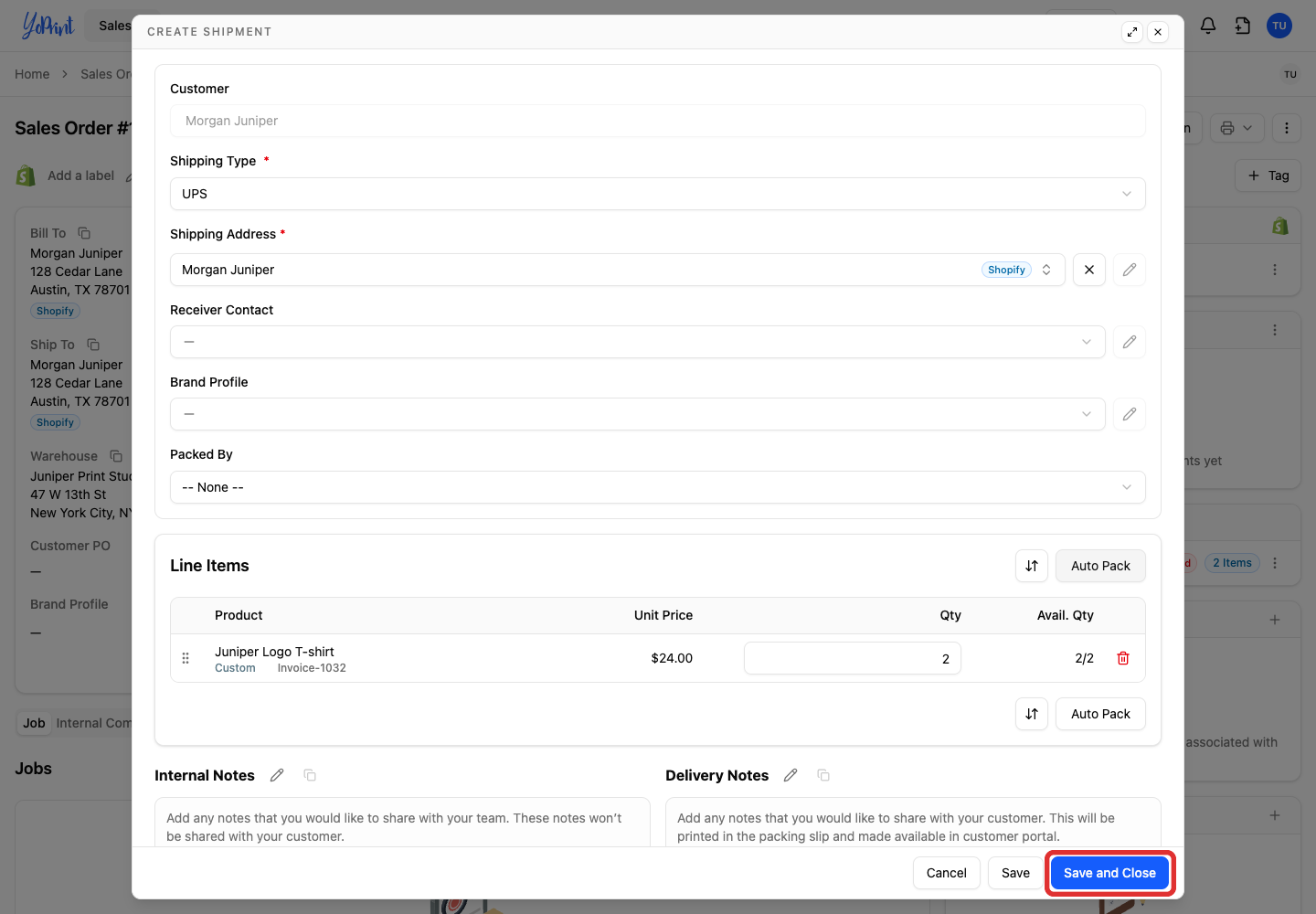
The saved shipment opens with status Pending. Saving contents does not fulfill the order in Shopify.
Add the tracking number
-
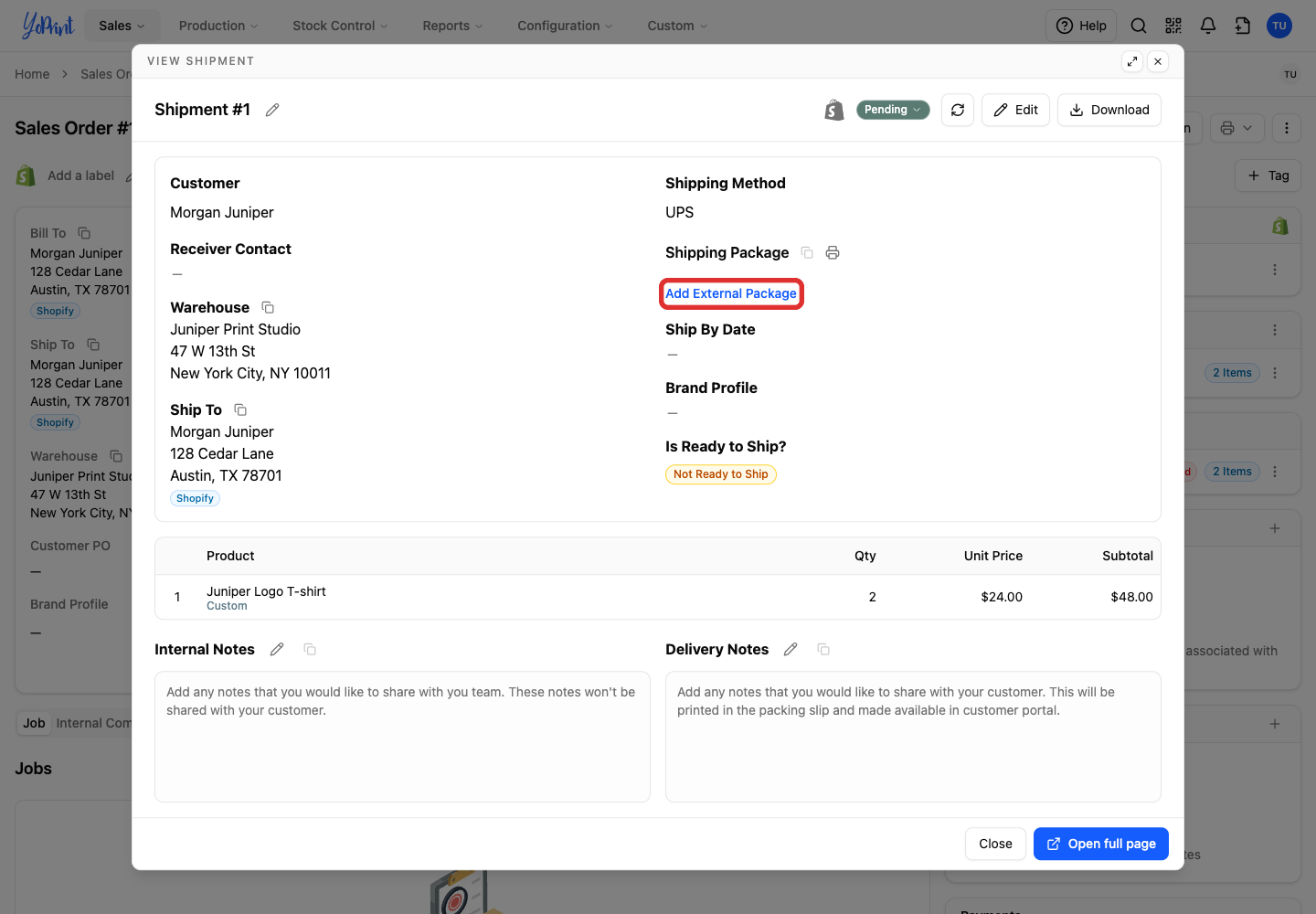
Click Add External Package under Shipping Package to open the Add Existing Label dialog.
-
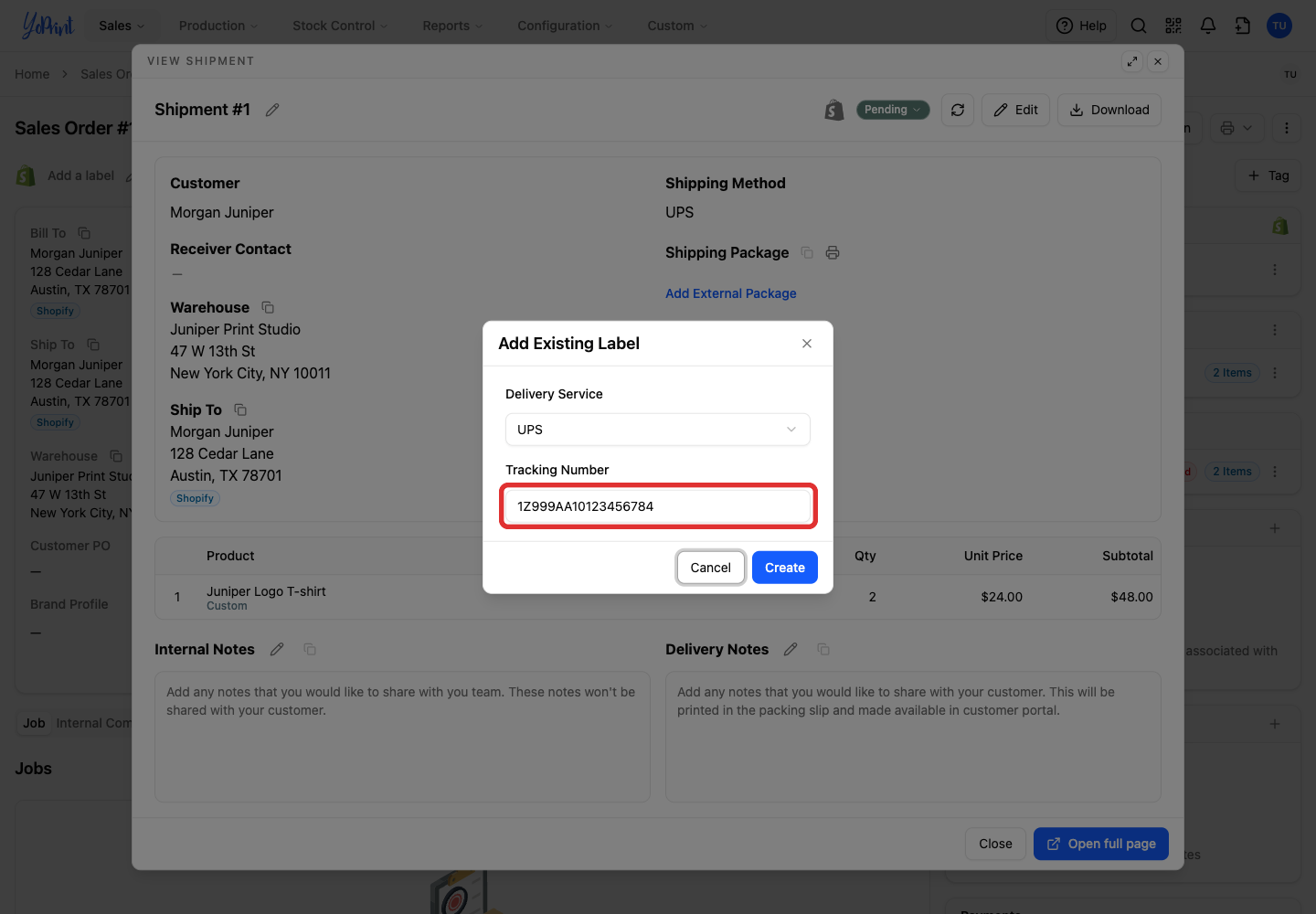
Enter your number in Tracking Number. Confirm Delivery Service matches your carrier so Shopify can generate tracking links, or choose Other if your carrier is not listed.
-
Click Create.
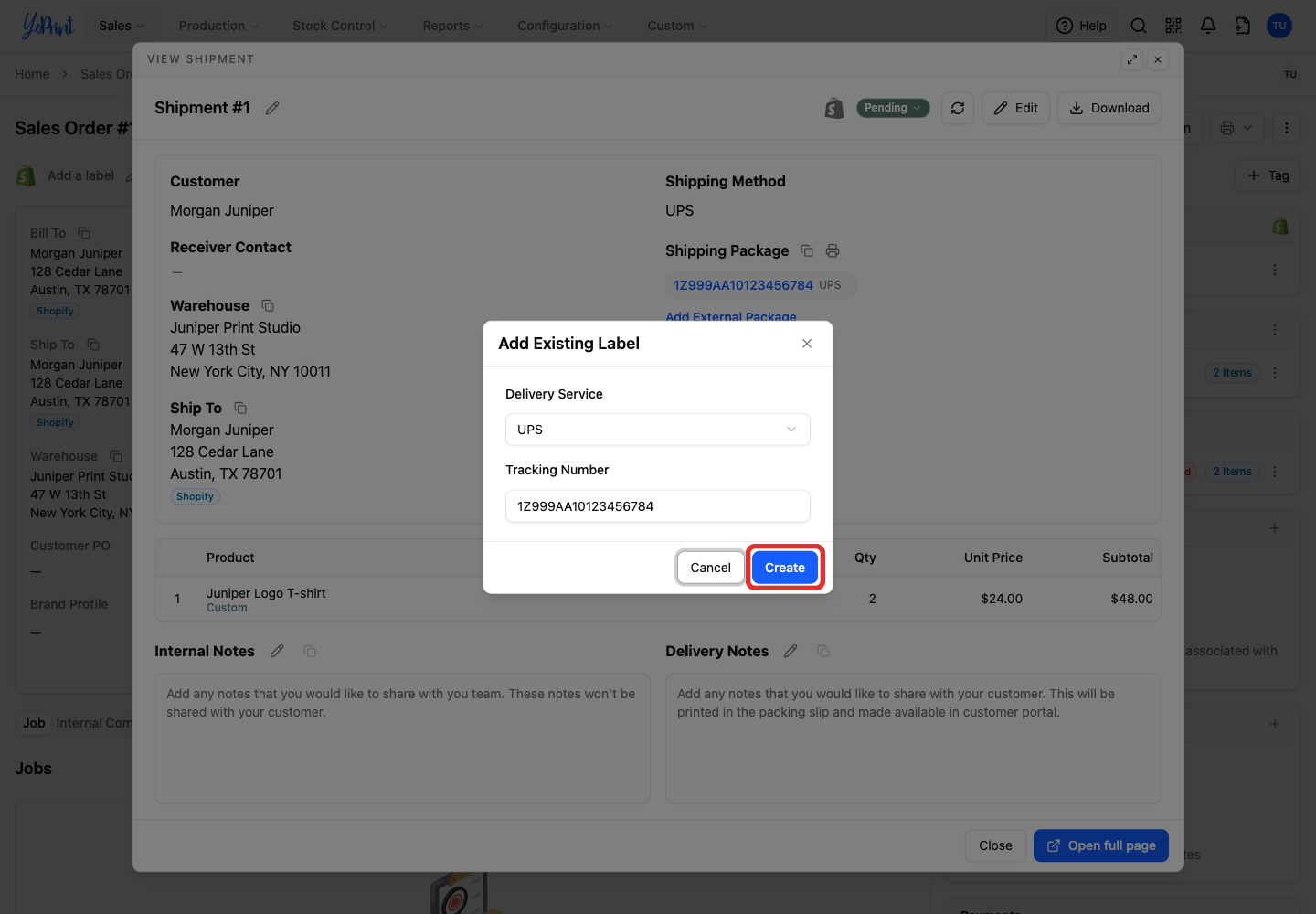
The tracking number appears under Shipping Package. For several packages in one shipment, use the same carrier for every package. YoPrint sends all their tracking numbers together.
When Shipment Auto Sync is on, a Shippo label bought for an existing YoPrint fulfillment sends tracking to Shopify automatically. To buy shipping labels directly in YoPrint instead of entering numbers manually, see How to Get Shipping Rates and Create Labels and Configuring Shippo Integration.
Mark the shipment shipped
-
Open the Pending status menu on the shipment.
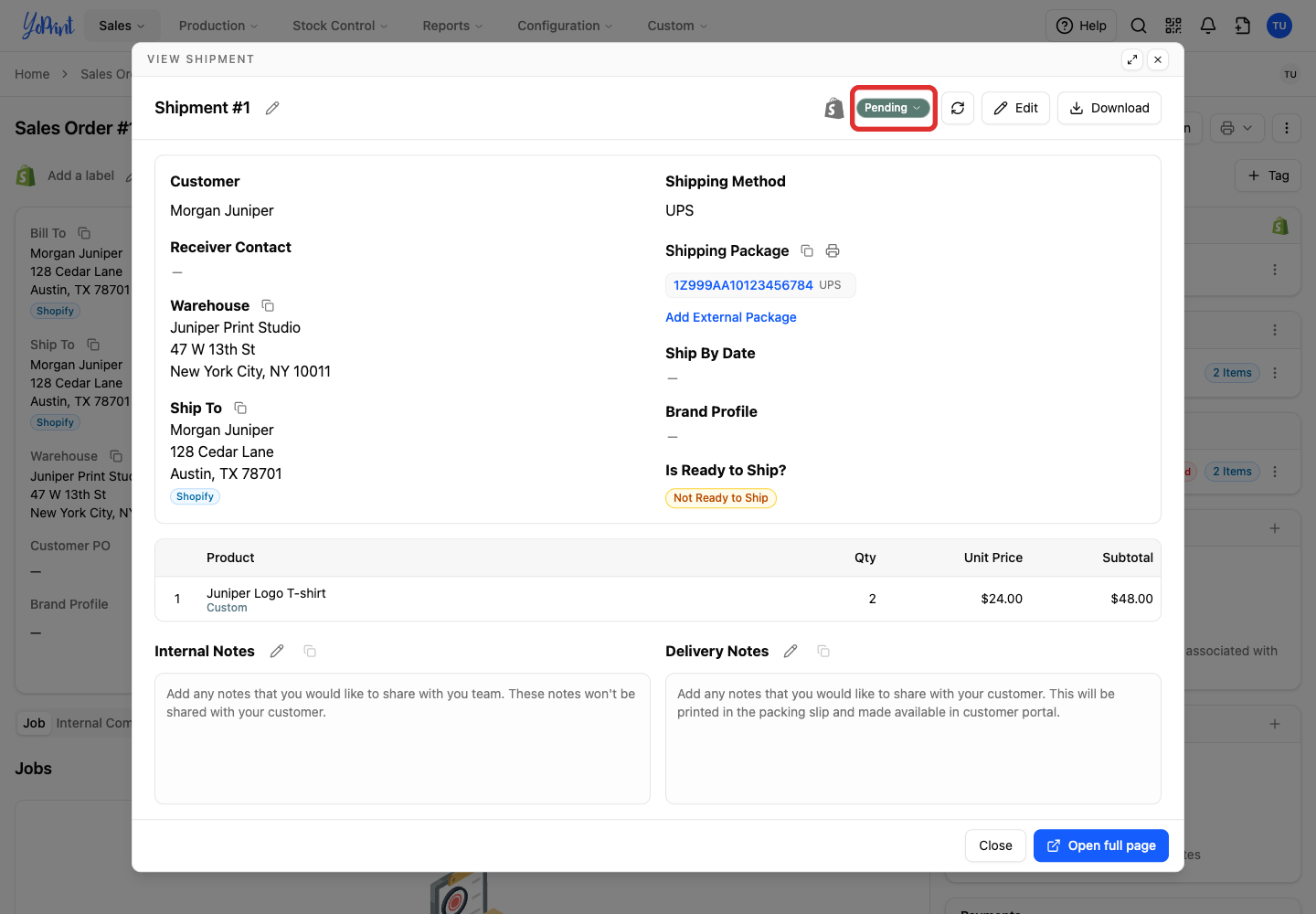
-
Choose Shipped / Picked Up.
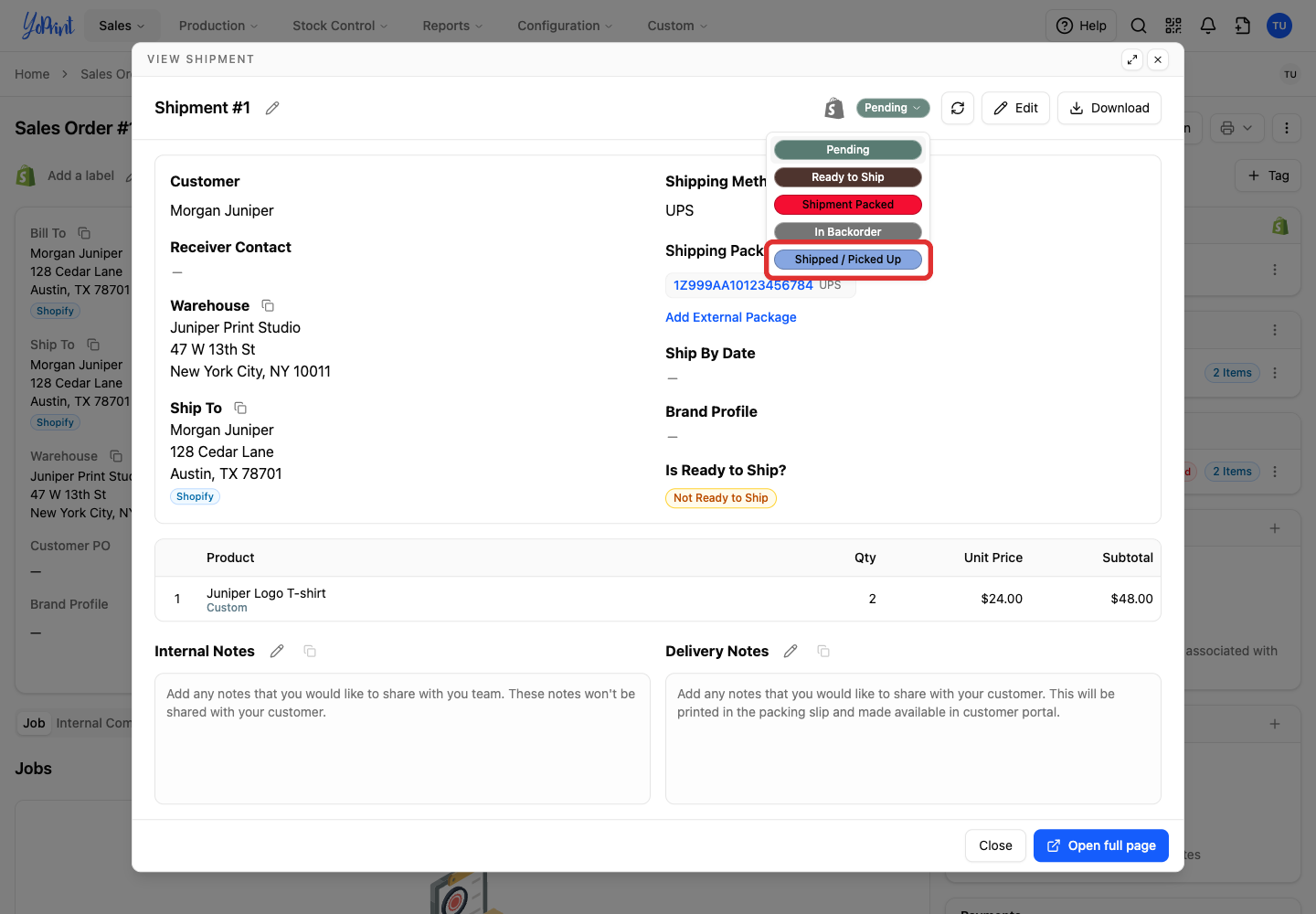
In the confirmation dialog, Notify customer in Shopify controls whether Shopify emails the customer. Leaving it unchecked suppresses Shopify's email. The example leaves it unchecked.
-
Click Create fulfillment.
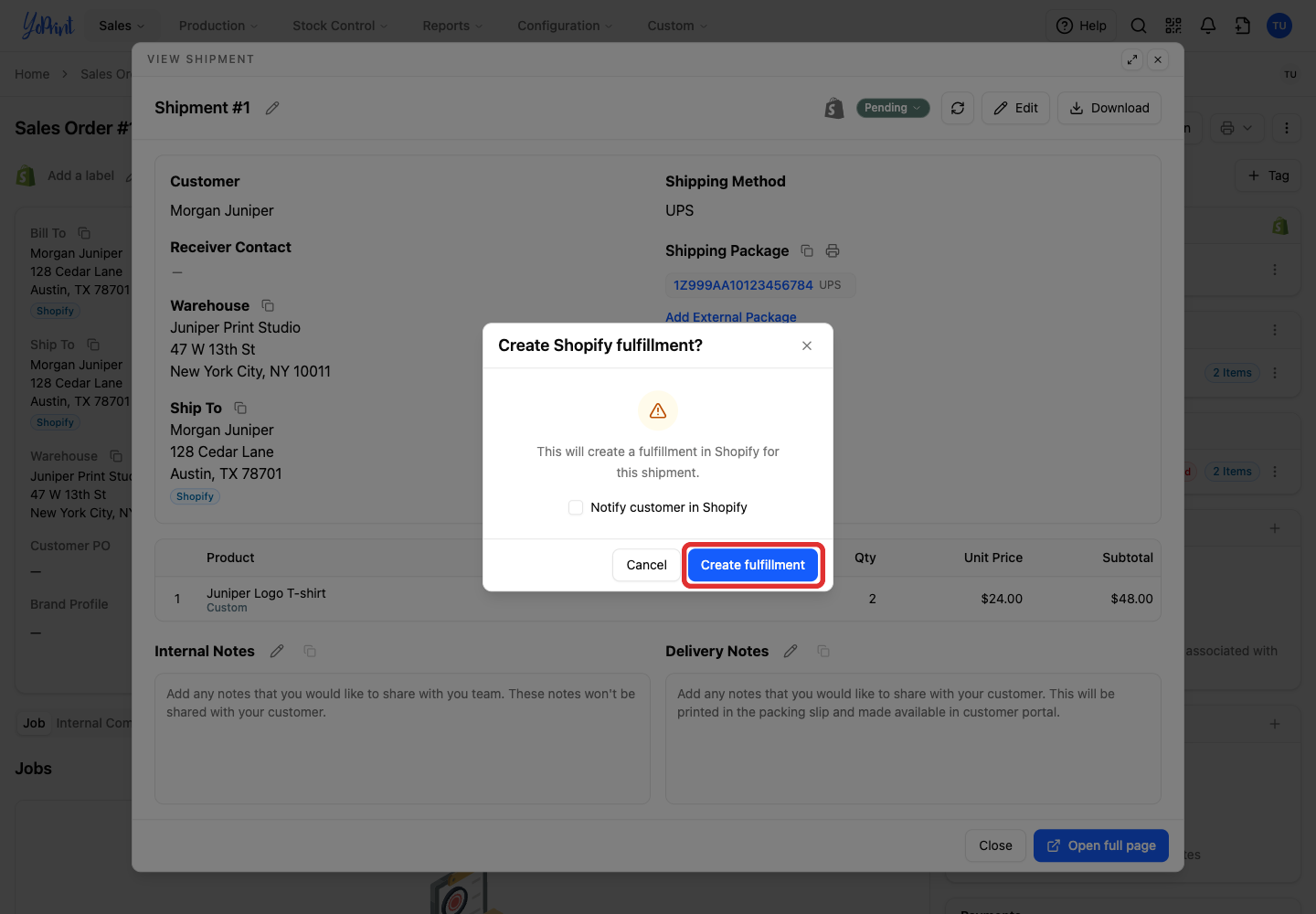
YoPrint displays Shipped / Picked Up. Fulfillment locks this shipment's items and tracking packages, while supported local order details remain editable.

The next picture shows Shopify admin. Its screens may have changed since this picture was taken. Shopify's fulfilment guide explains where fulfilled items and tracking appear on an order.
In Shopify, shipping all items changes the order status to Fulfilled with carrier and tracking details.

Buy a Shippo label for a Shopify order
Connect Shippo before buying labels in YoPrint. Follow the steps above to create a Pending shipment, but select your Shippo shipping method instead of a manual carrier. In this example, the shop uses Postal Shipping for order 1034.

One shipment uses one carrier for all its packages.
-
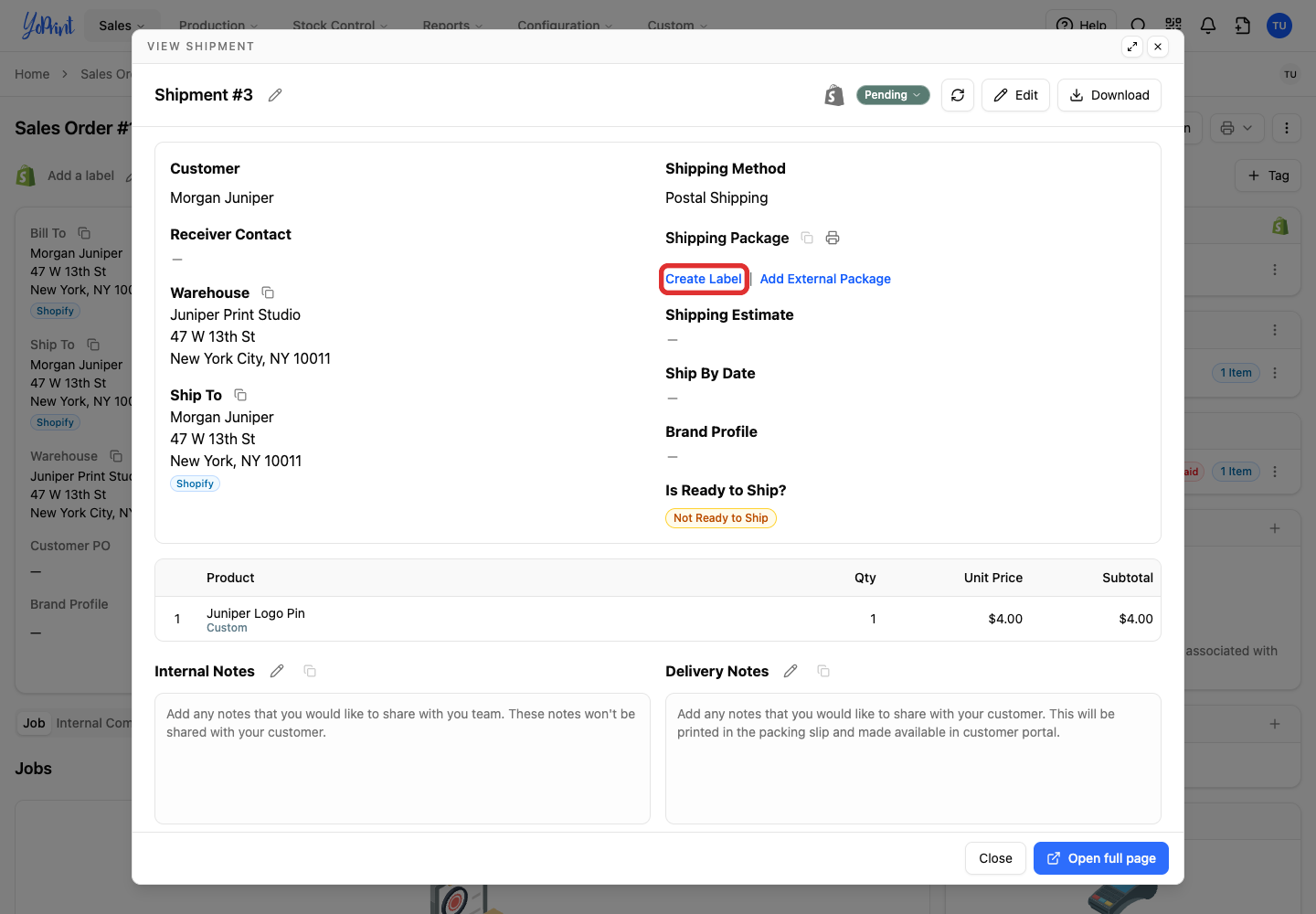
Click Create Label under Shipping Package.
-
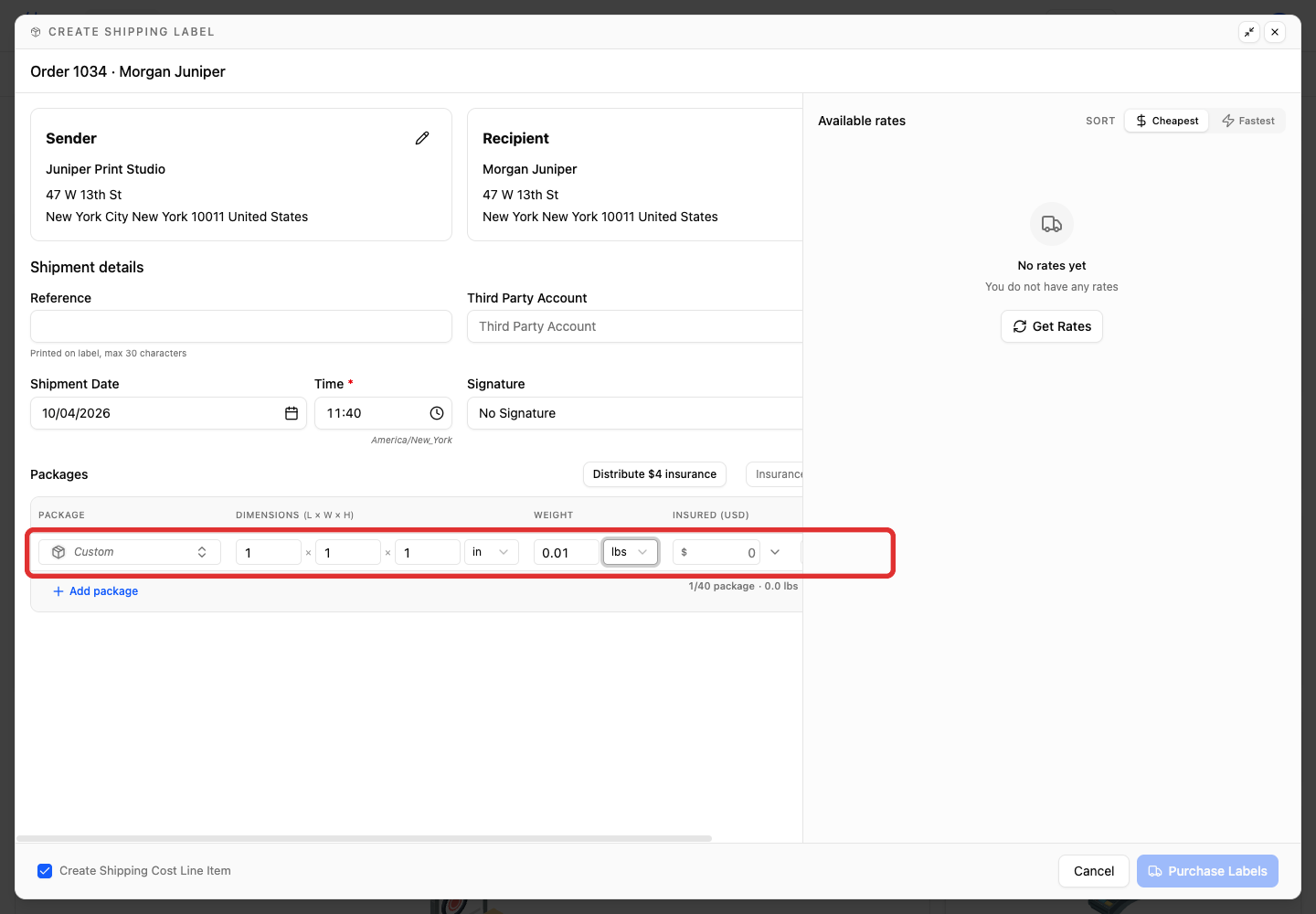
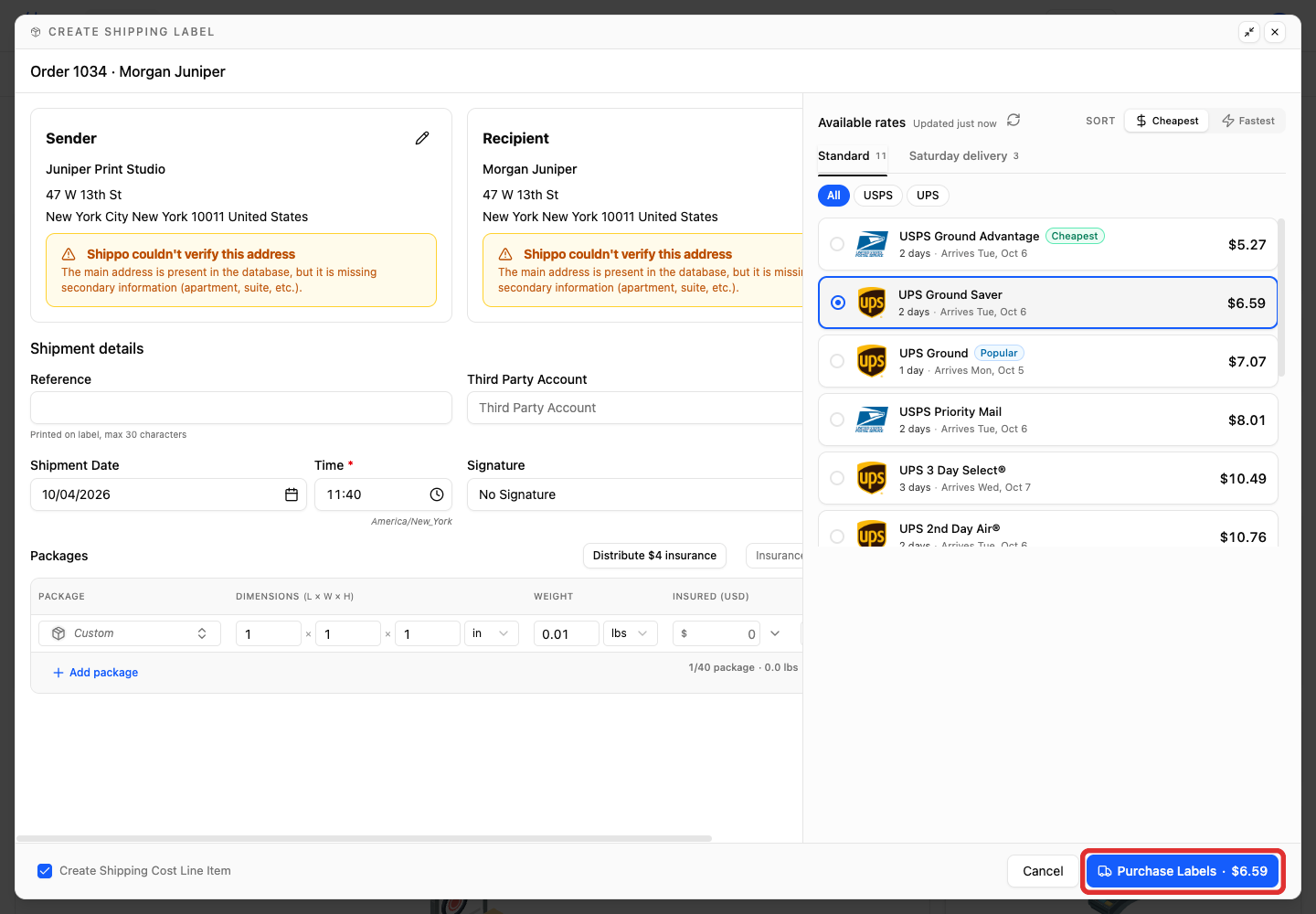
Enter the package dimensions and weight in Packages. Confirm the sender and recipient addresses.
-
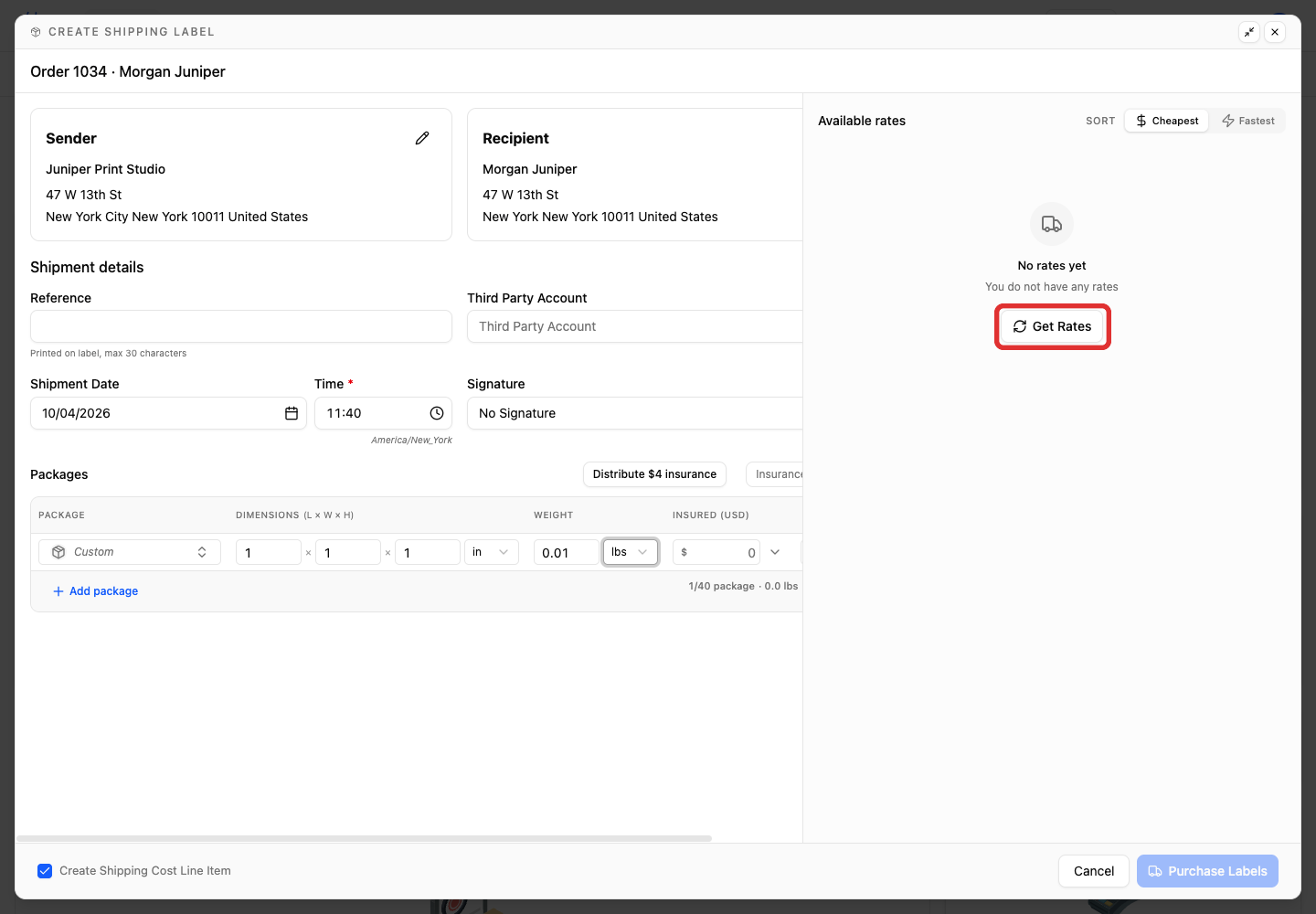
Click Get Rates.
-
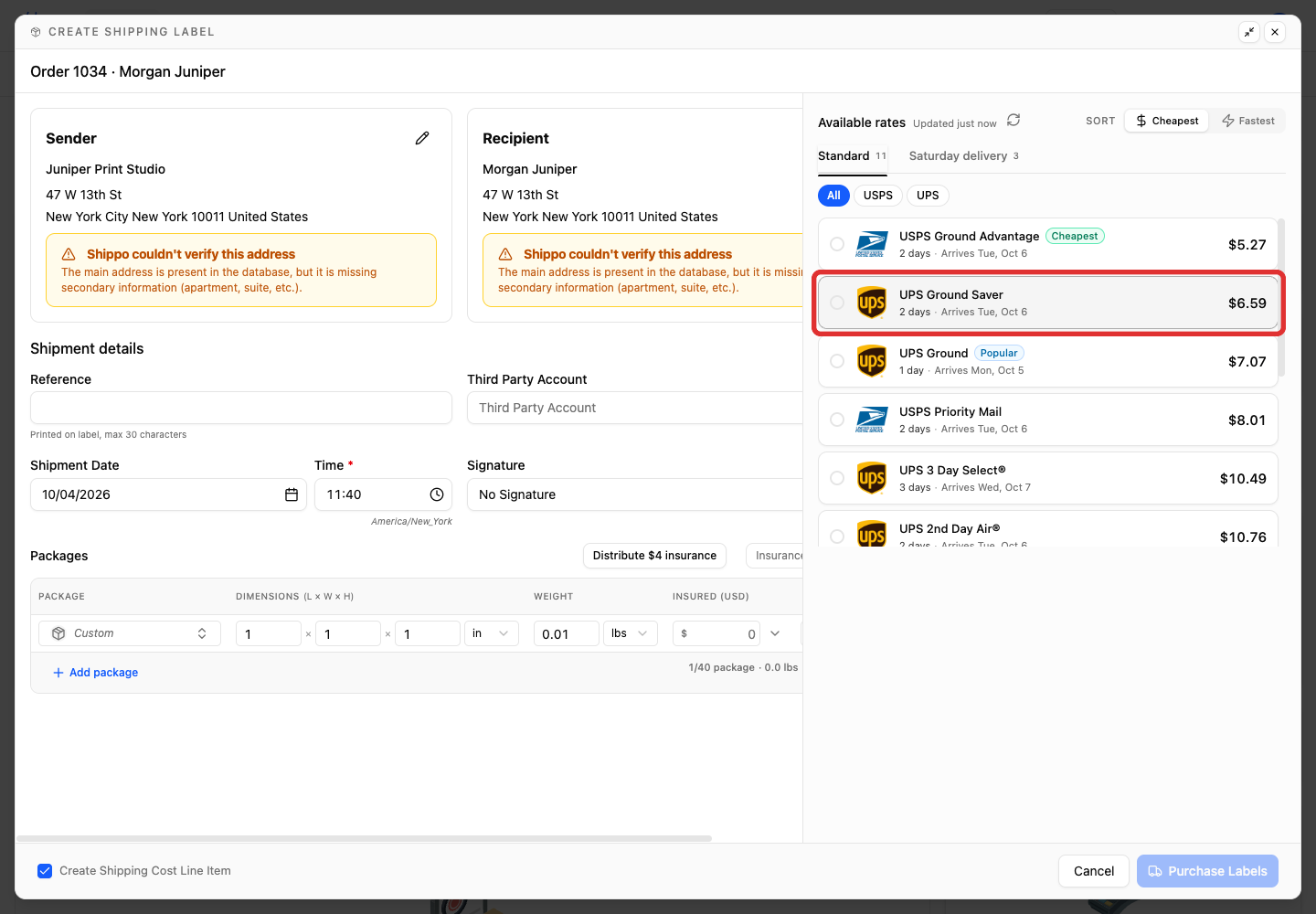
Select a carrier service. The example uses UPS Ground Saver.
-
Click Purchase Labels.
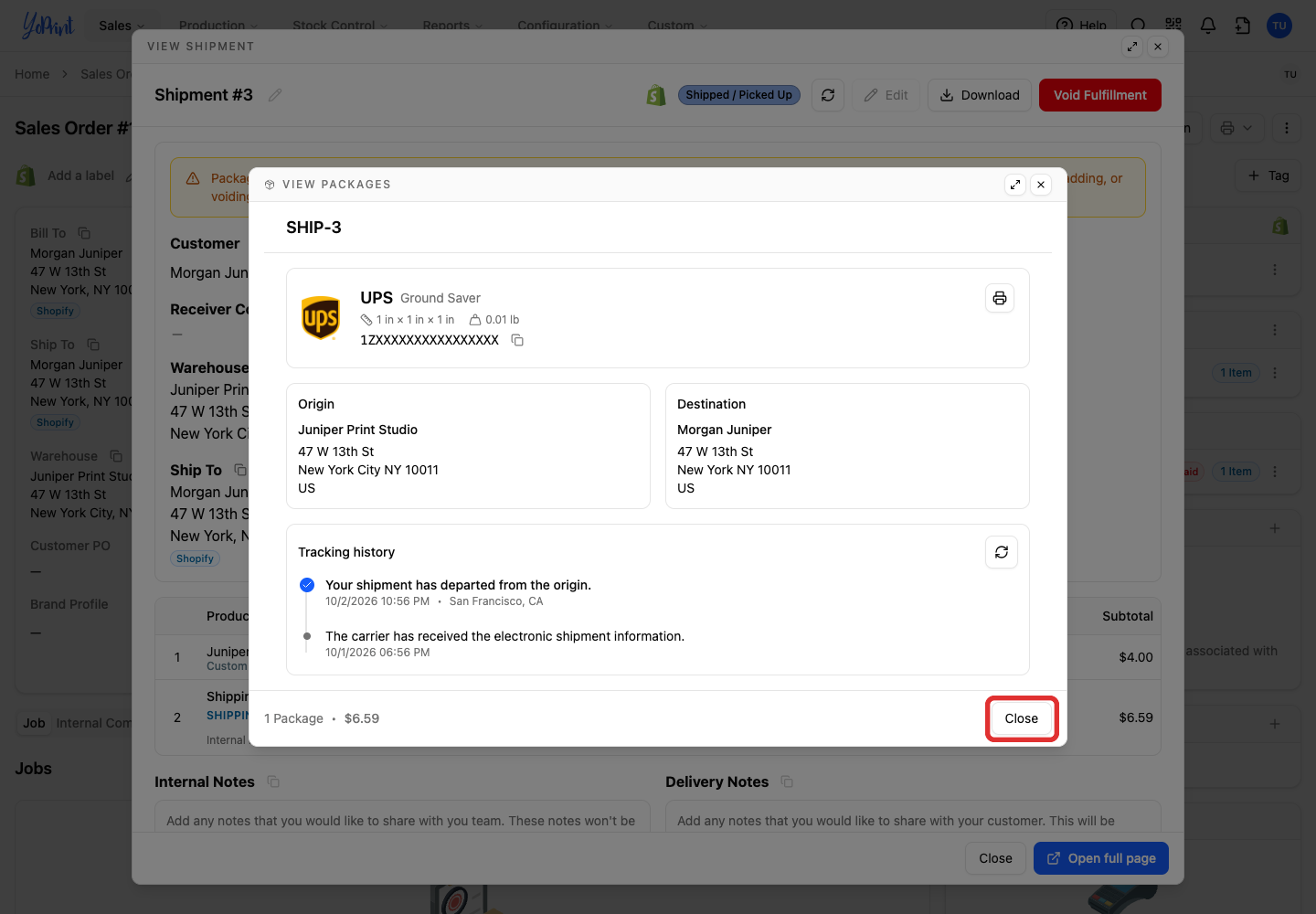
The package window displays the package details, tracking number, and label print controls.

-
Click Close to return to the shipment.
-
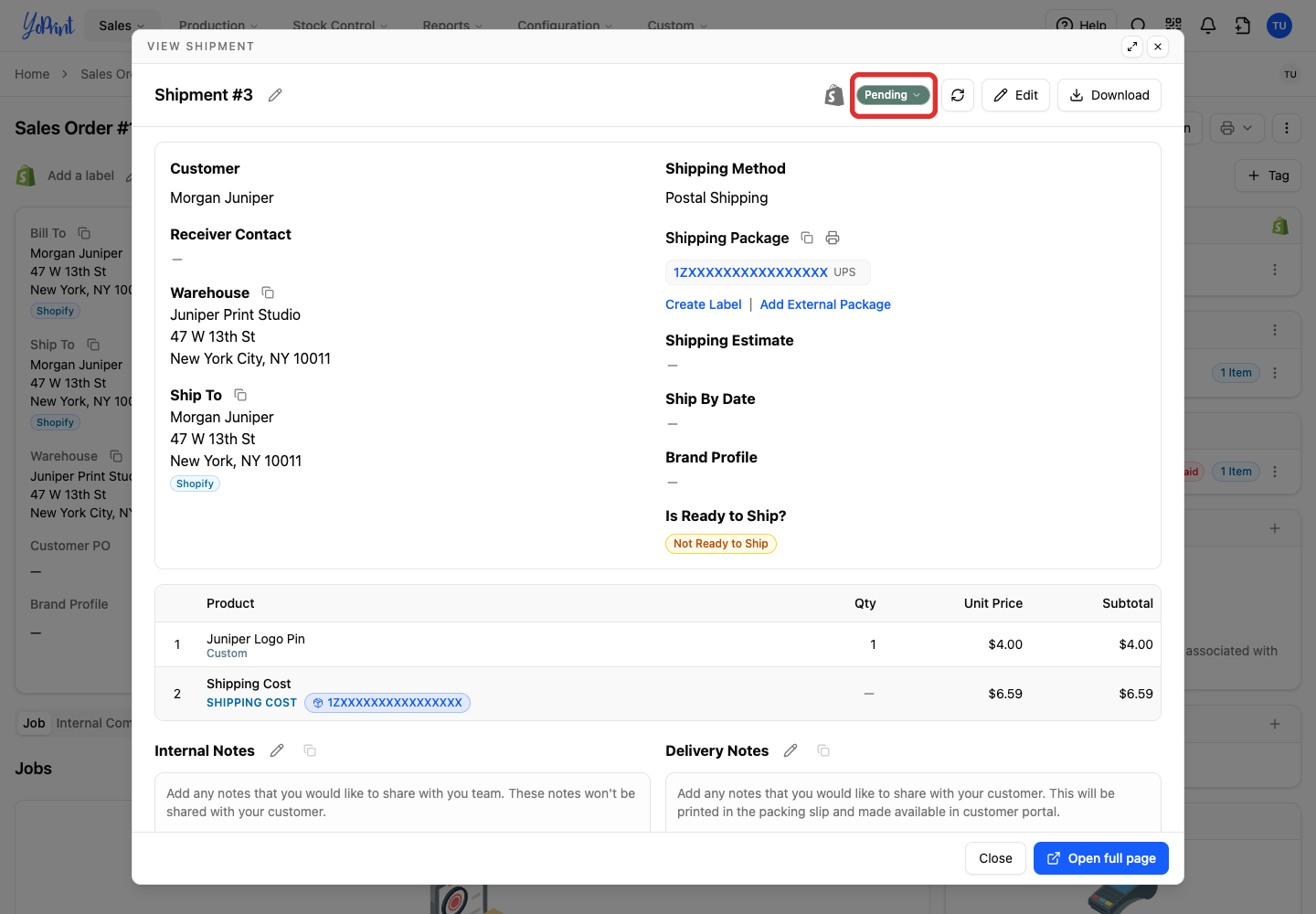
Open the Pending status menu on the shipment.
-
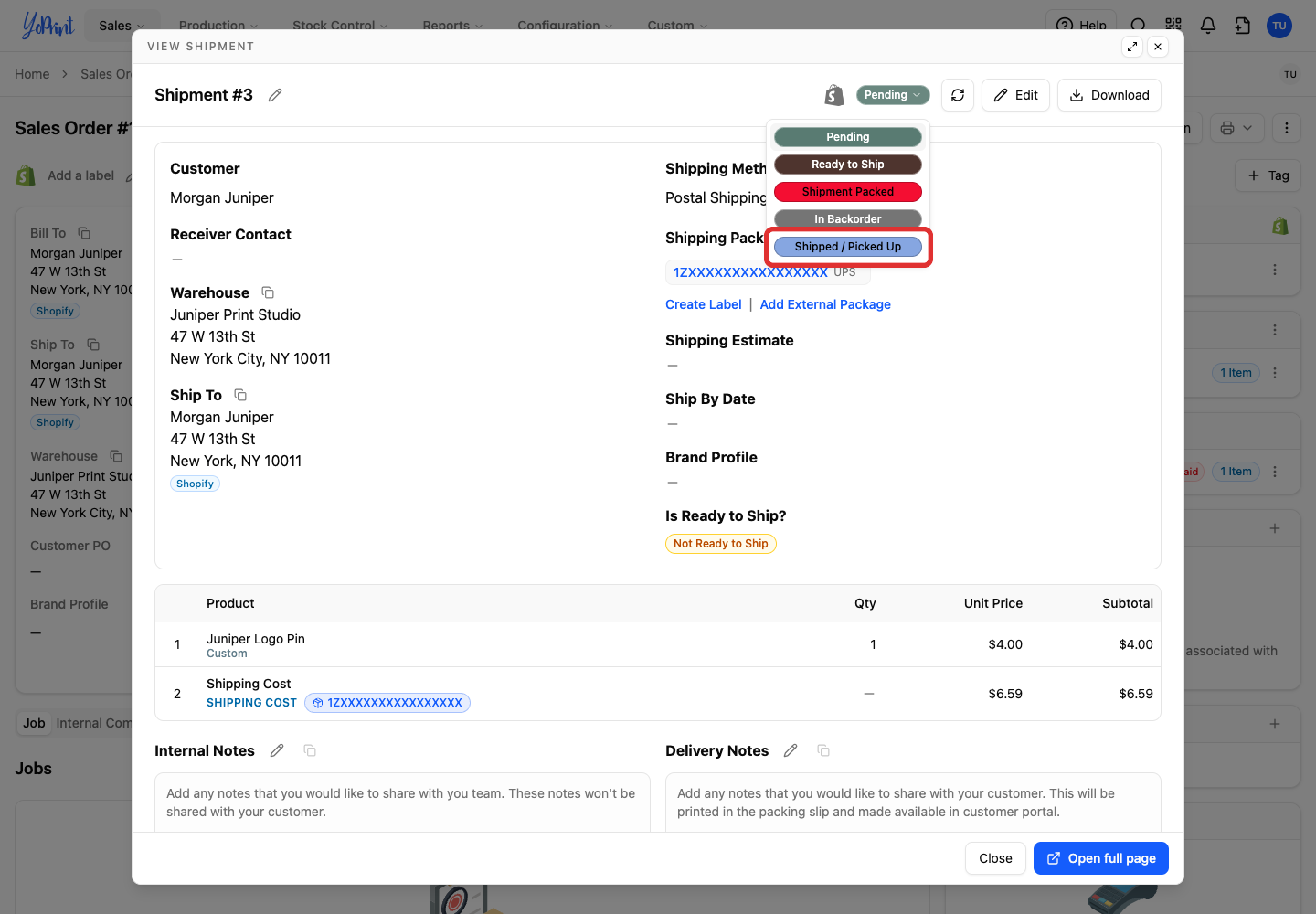
Choose Shipped / Picked Up.
Notify customer in Shopify controls whether Shopify emails the customer. The example leaves it unchecked.
-
Click Create fulfillment.
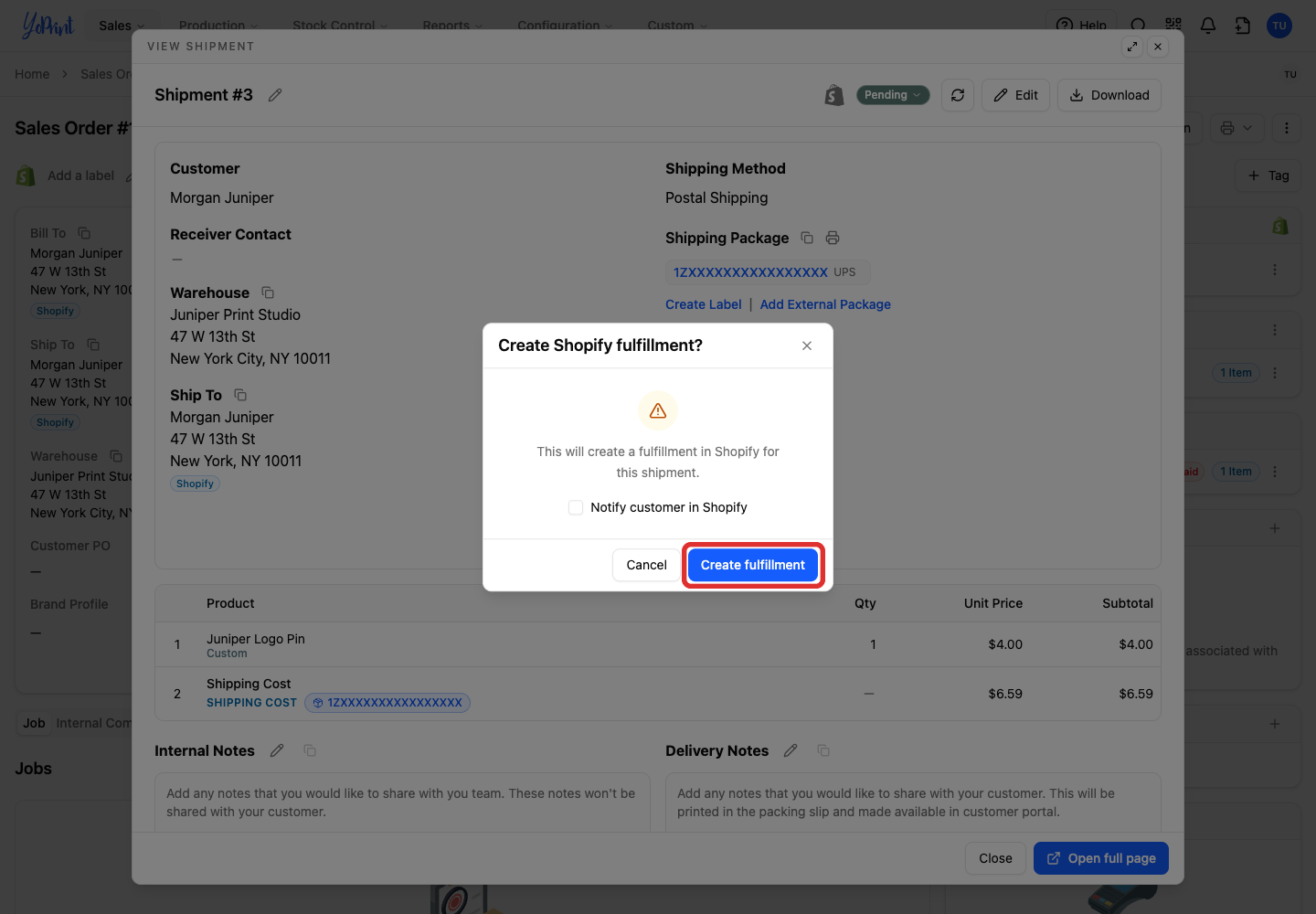
The next picture shows Shopify admin. Its screens may have changed since this picture was taken. See Shopify's fulfilment guide.
In Shopify, the order status changes to Fulfilled with the tracking number.

When Shippo processes a label refund, YoPrint cancels the linked Shopify fulfillment created for that shipment.
Void a fulfilment or correct tracking
Void Fulfillment cancels the fulfillment in Shopify and returns the YoPrint shipment to the status it had before. It does not notify the customer, cancel the order, or void carrier postage.
To correct tracking on a fulfilled shipment, void the fulfillment first. For an unfulfilled shipment, start at step 3.
-
Click Void Fulfillment on the shipment.
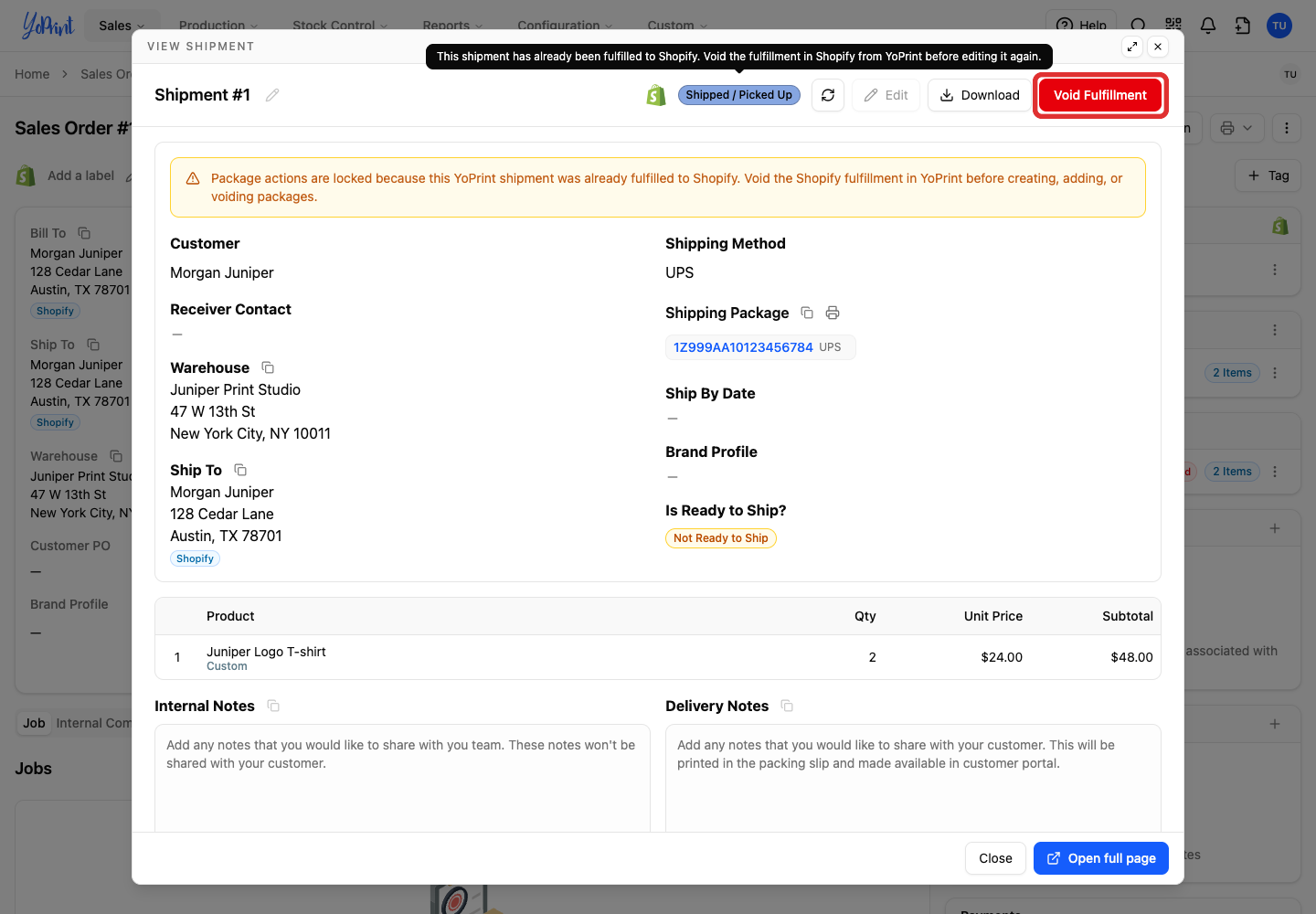
-
Click Void fulfillment in the confirmation dialog.
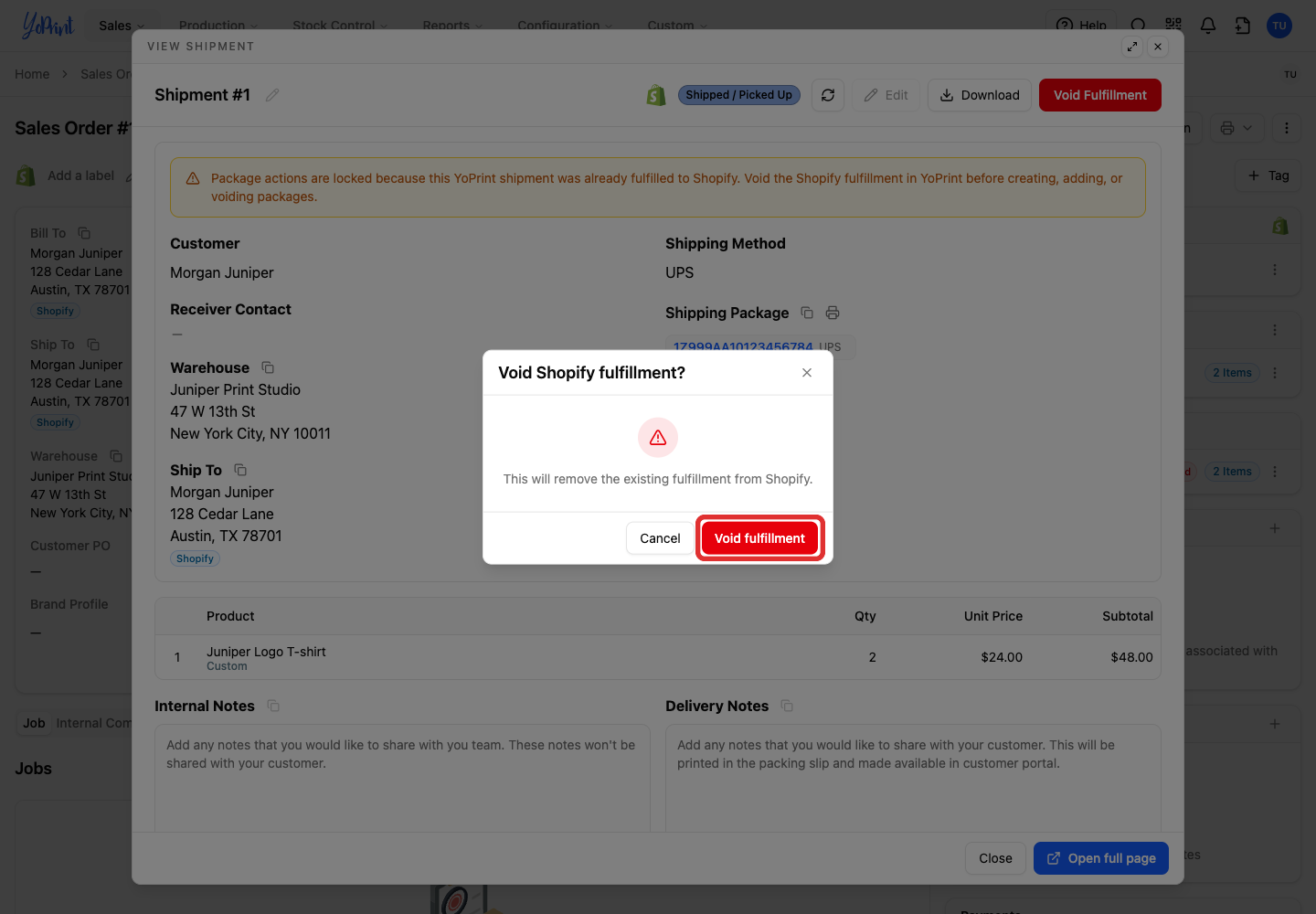
The items return to Unfulfilled in Shopify.

If you only needed to void fulfillment, stop here. To replace tracking on an external package, continue:
-
Click the tracking number under Shipping Package.
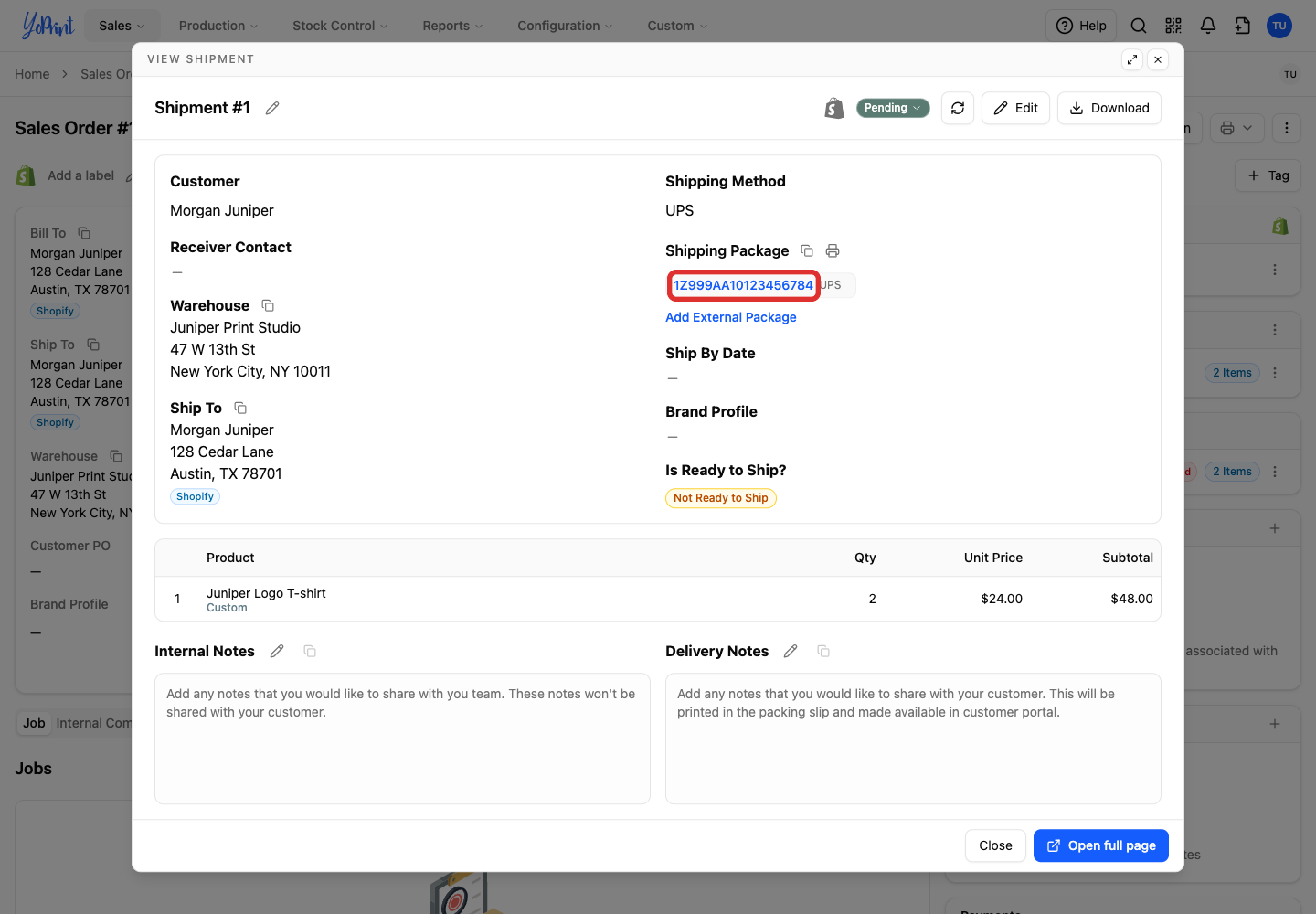
-
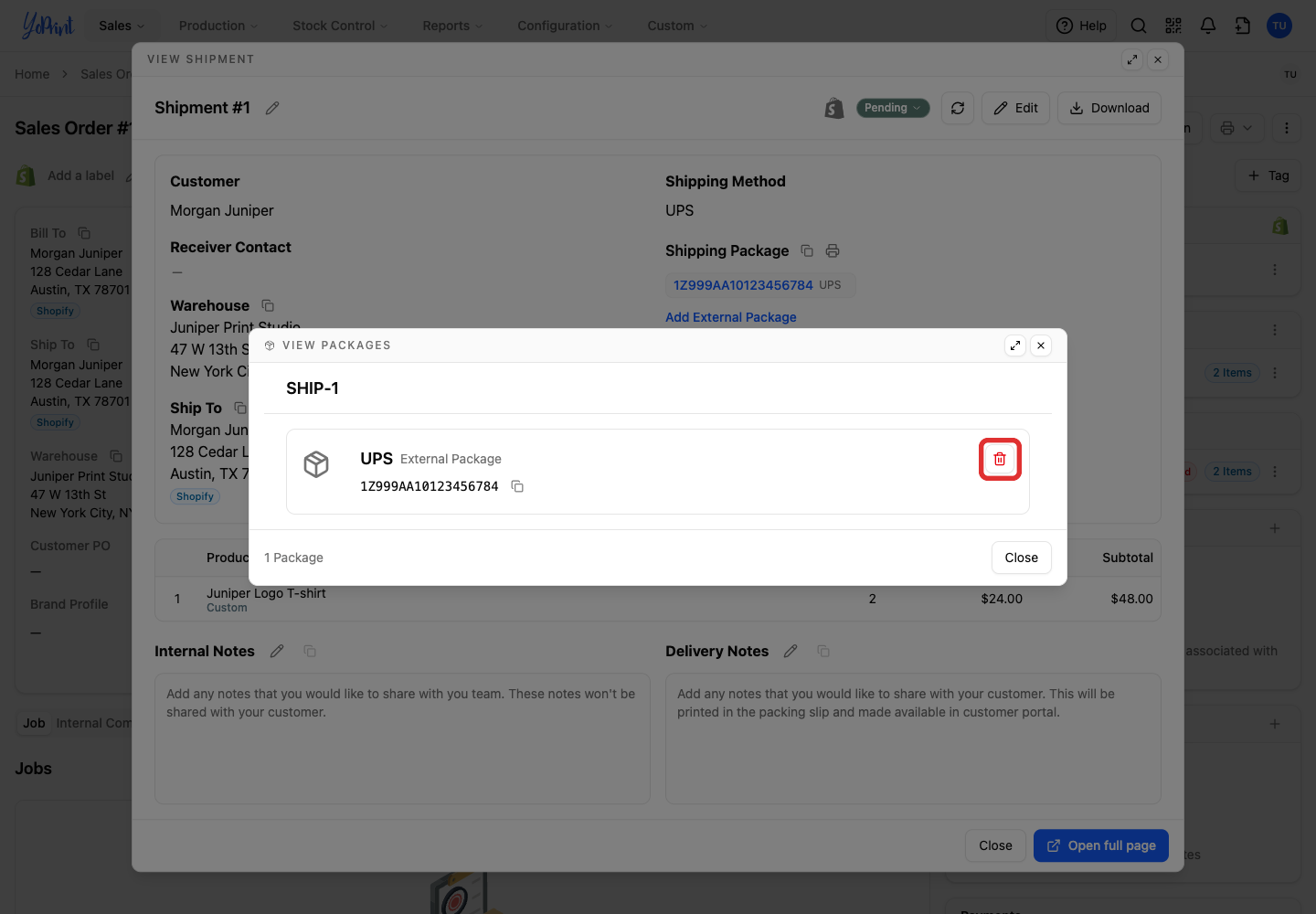
Click the red trash icon beside the package.
-
Click Delete package to confirm removal.
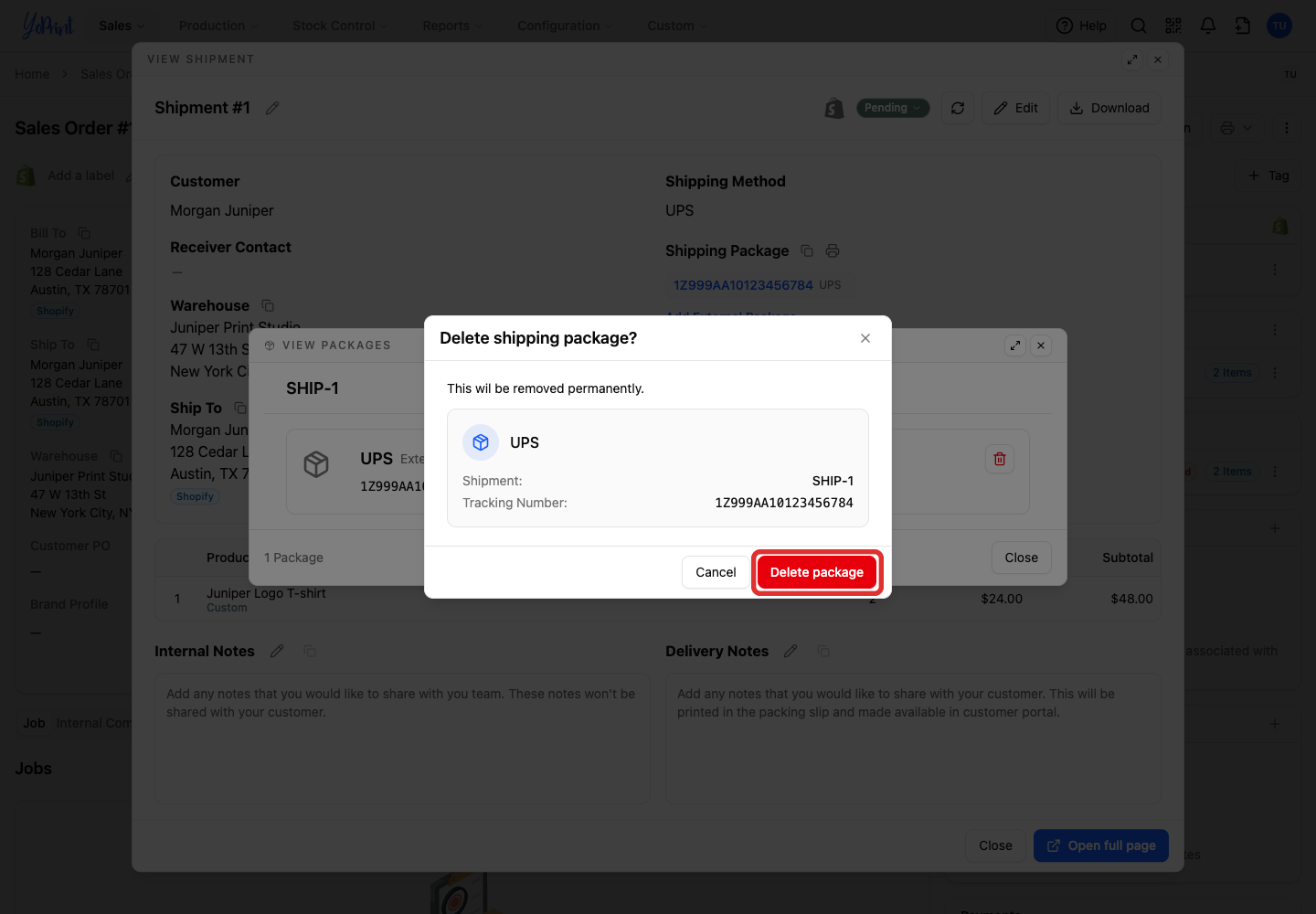
The shipment reopens. Follow Add the tracking number to enter the new number, then Mark the shipment shipped to send updated tracking to Shopify.
In the example, Shopify shows a replacement fulfillment with tracking ending in 6785.
