How to Export Products
In this article
Download the products your shop added as a CSV file from the Download Center. Use the file to check prices, keep a copy of your product list, or make bulk edits before you import the edited CSV.
This export does not include products from a supplier catalogue, stock levels, service prices, or pricing matrices. To export a pricing matrix, see Import and Export Pricing Matrix as CSV.
Choose the product export
Open the Download Center and choose one of the two product export types:
- All Variant Product: products with sizes, colors, or both.
- All Simple Product: products without size or color choices.
-
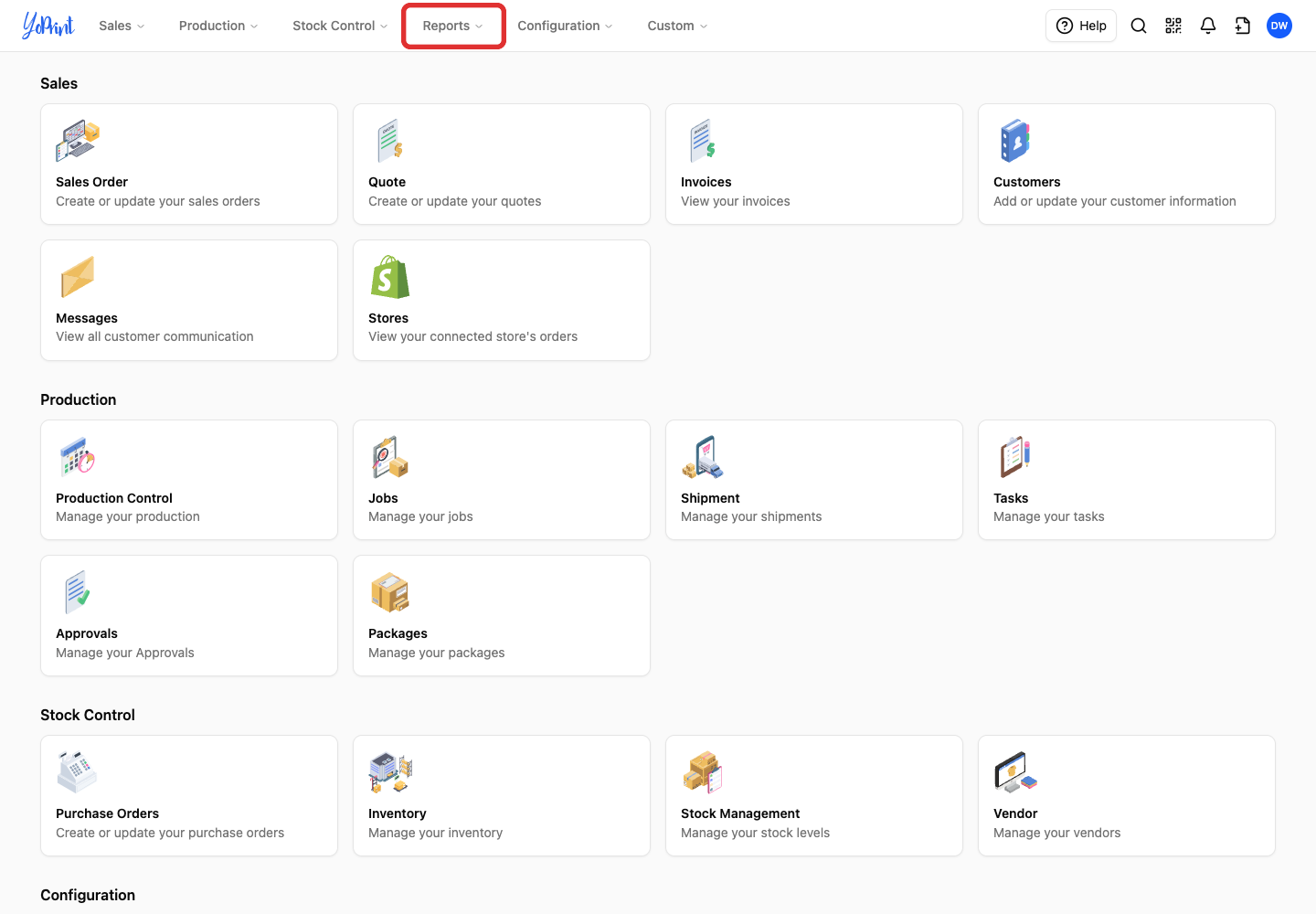
Open Reports in the top menu.
-
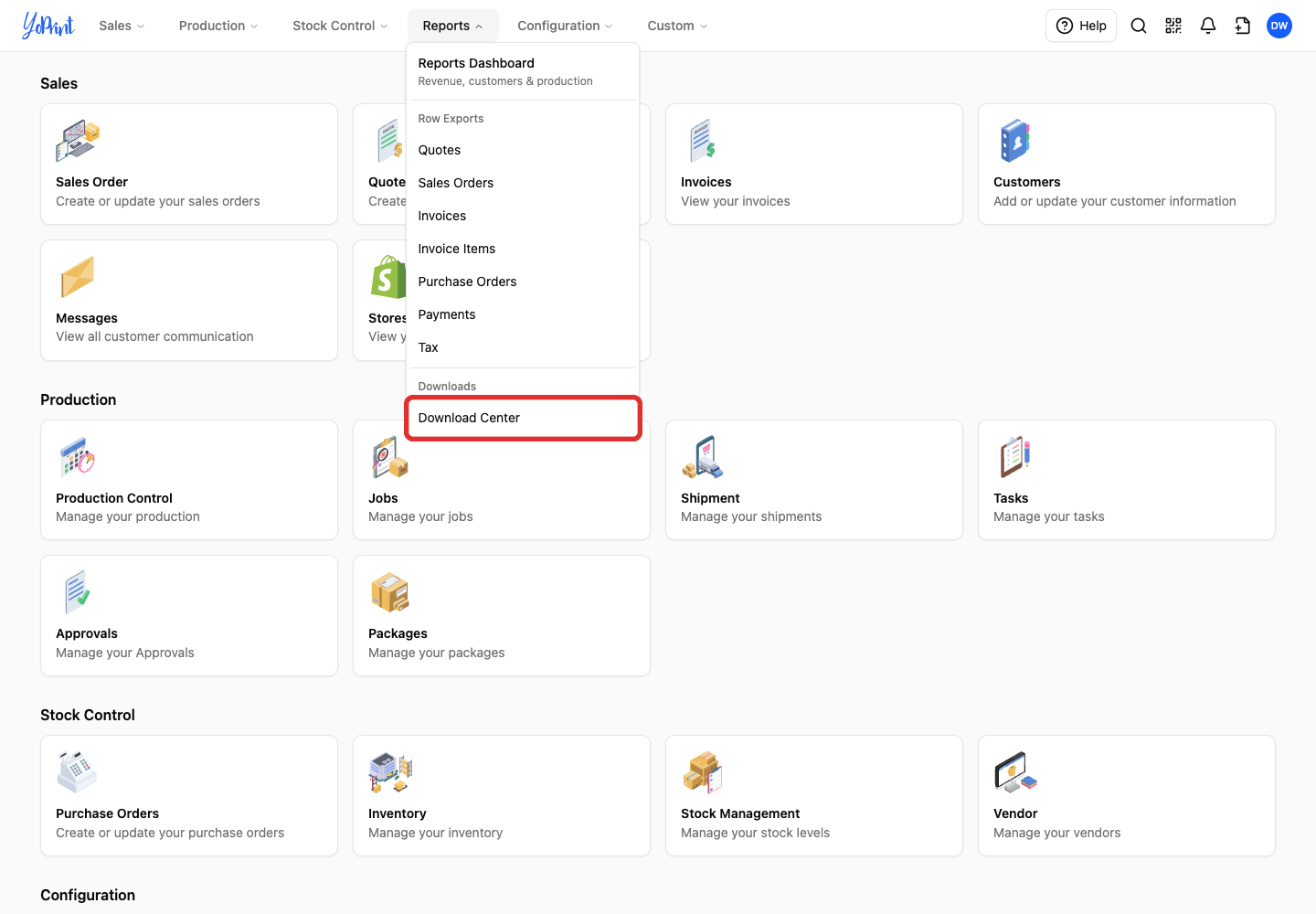
Choose Download Center under Downloads.
-
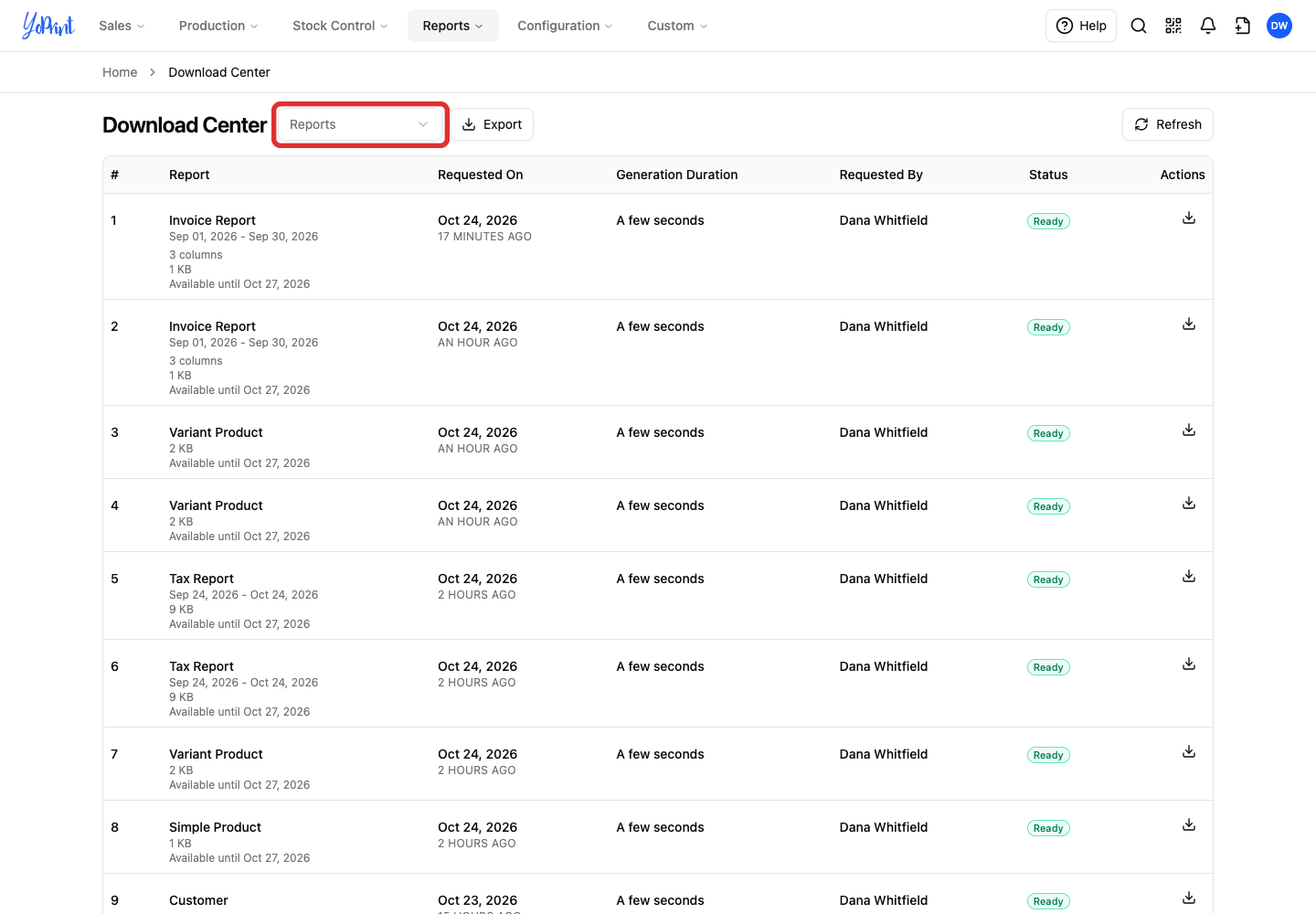
Open the Reports dropdown beside the page title.
-
Choose All Variant Product.
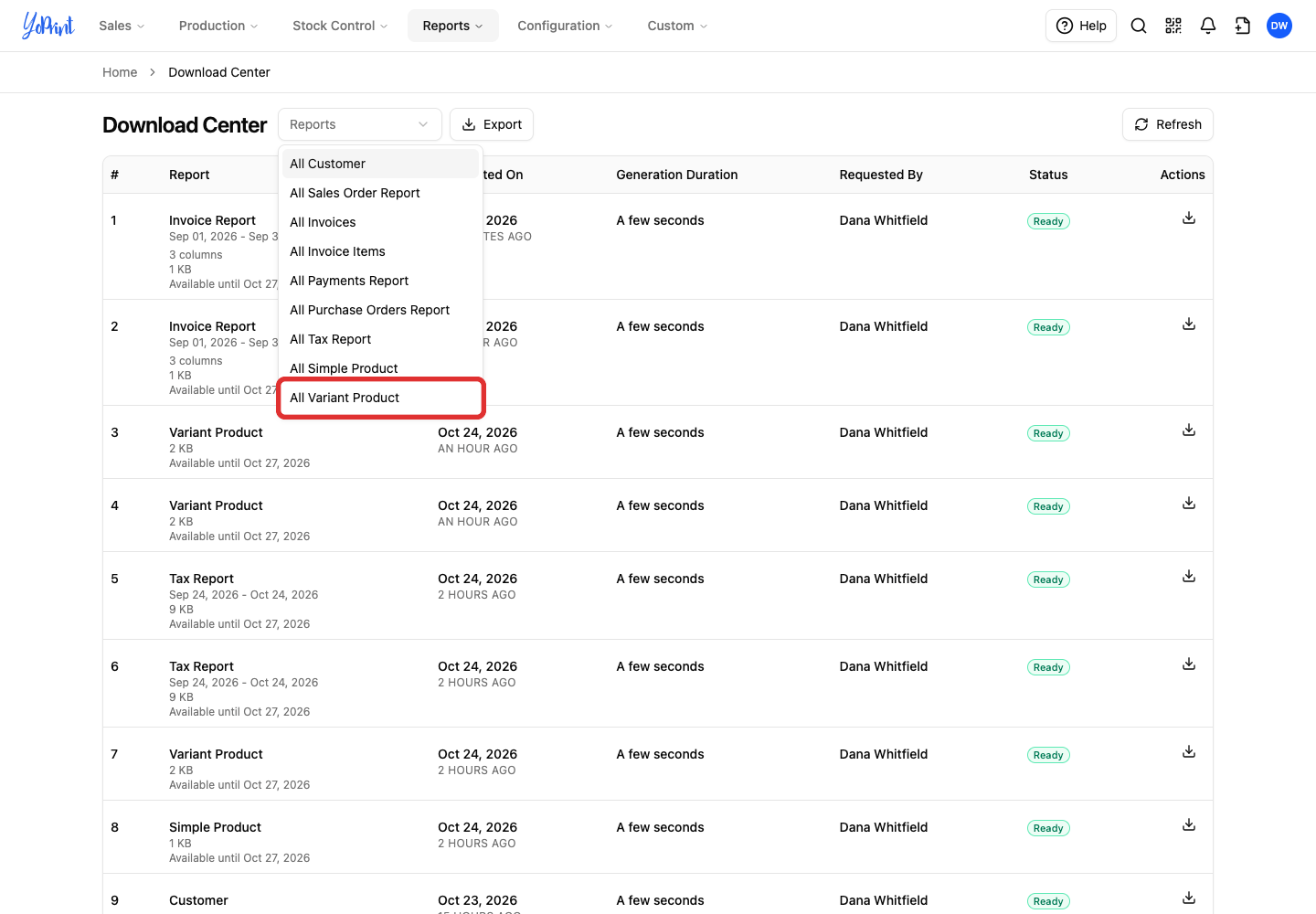
To export simple products, choose All Simple Product instead. Each export includes one product type. Run the export again with the other type to get the complete list.
Choose columns and start the export
Check the columns included in your file, then start the export.
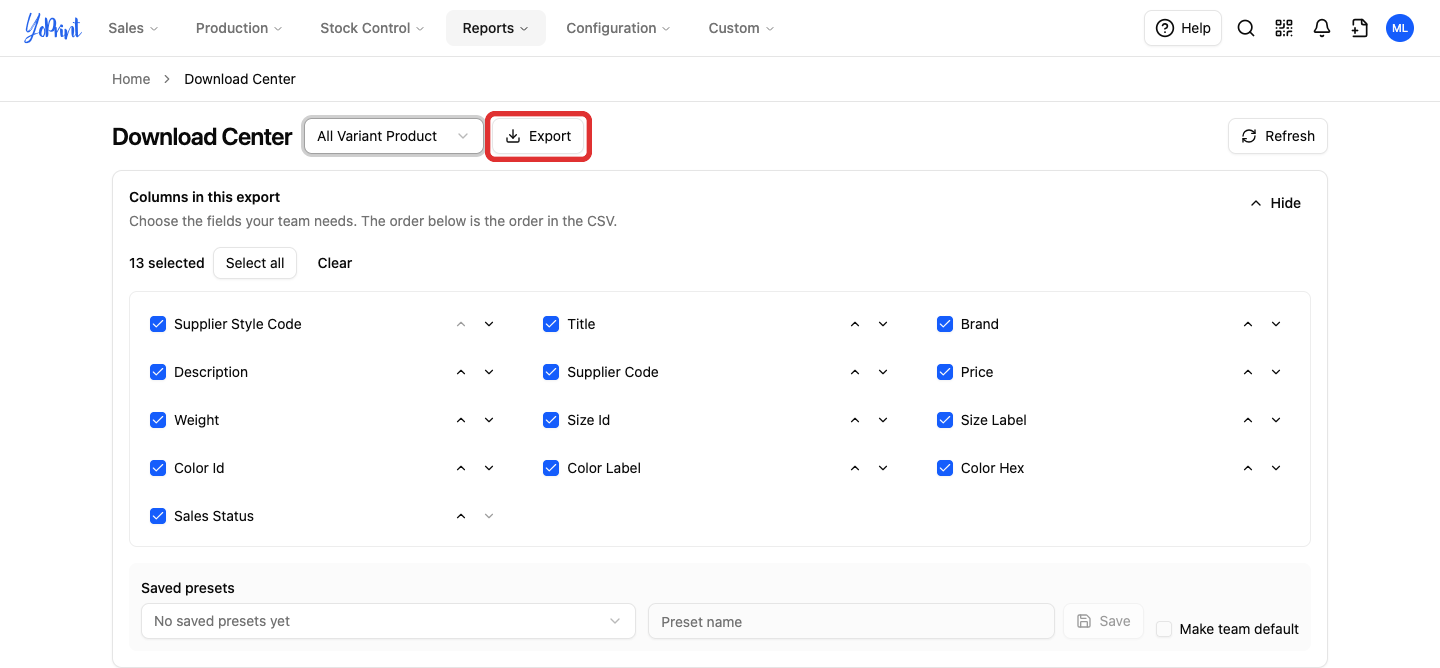
The product export has no date range. Columns in this export starts with every available column selected:
- All Variant Product: thirteen columns (Supplier Style Code, Title, Brand, Description, Supplier Code, Price, Weight, Size Id, Size Label, Color Id, Color Label, Color Hex, and Sales Status).
- All Simple Product: seven of those columns (Title, Brand, Description, Supplier Code, Weight, Price, and Sales Status).
- Price: the product's base price, a number such as 12.50, with no currency symbol.
- Sales Status: whether you still sell the product, or each size and color of it. It shows On sale or Phased out. A phased-out item can't be added to new sales orders or quotes. To learn more, see Phase Out or Delete a Product, Size or Color.
For what each other column contains, see the column tables in Import and Update Products Using a CSV Template.
Use Select all, Clear, or Saved presets to change the selection. If your team saved a default preset, the export starts with that preset's columns instead of every column. A preset saved earlier may leave Sales Status unticked. Tick it if you want the column. For details on column and preset controls across exports, see Download Center.
If you plan to edit and re-import the file, keep every column selected. If a matching column is missing, the import can create a new product instead of updating the existing one.
YoPrint matches each row to an existing product using these columns:
- All Variant Product: Brand, Title, and Supplier Style Code match the product. Size Id and Color Id match each variant.
- All Simple Product: Brand, Title, and Supplier Code match the product. When a simple product has no supplier code, Brand and Title match it.
For how matching works, see Import and Update Products Using a CSV Template.
-
Click Export.
Refresh and download the file
Wait for YoPrint to prepare your CSV file, then download it before it expires.
Your new export appears at the top of the history, named Variant Product or Simple Product. It shows Pending while YoPrint prepares the file. Click Refresh above the table until the status changes to Ready.
-
Click the Download icon (the arrow) in the Actions column of the Ready row.
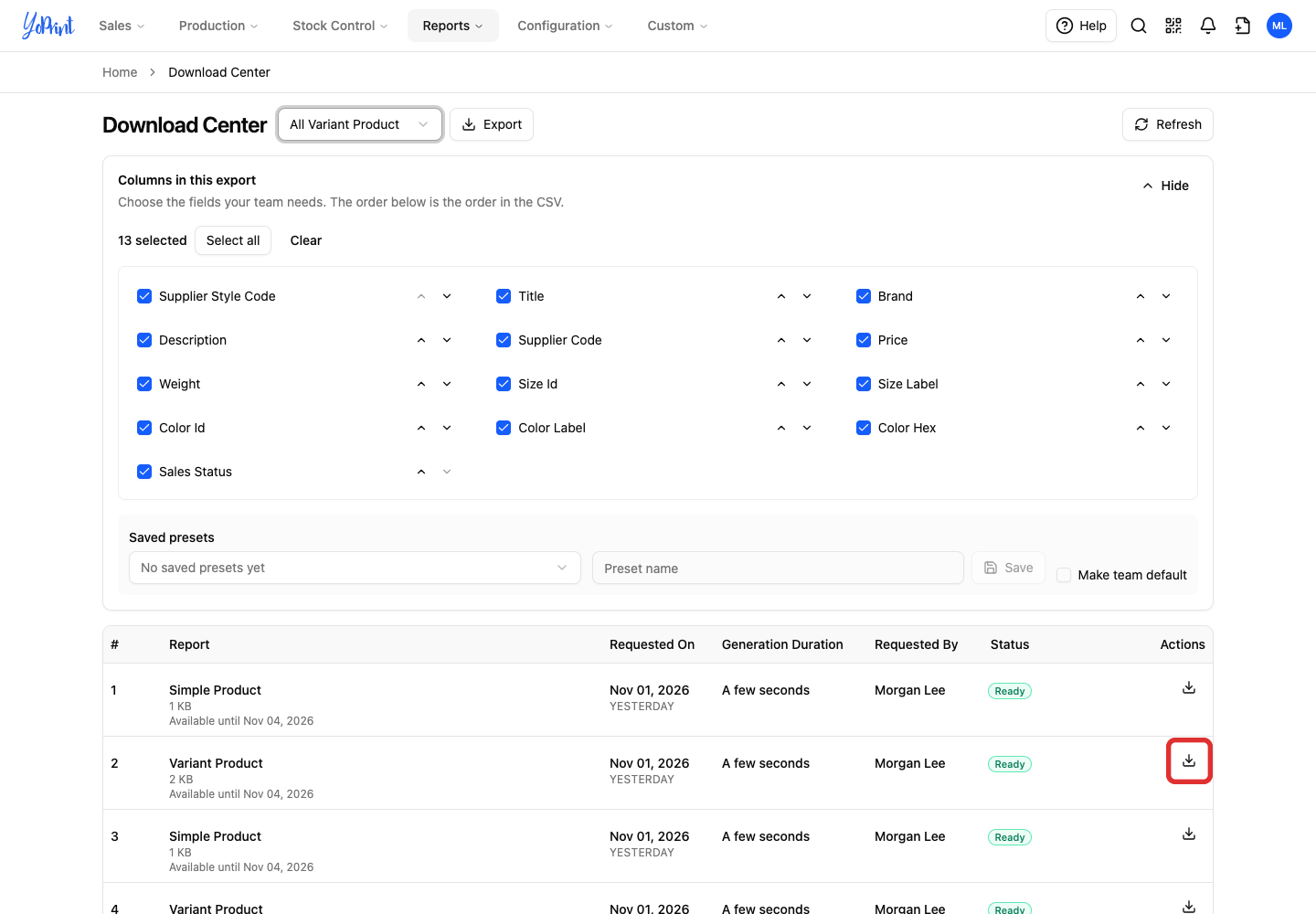
Each Ready row shows an Available until date three days after the export. Download the file before that date. The Download Center keeps the export in its history while it remains available. For background-export history and retry controls, see Download Center.
Read the CSV and choose your next step
Check the rows in your downloaded CSV file, or edit the file to update your products in bulk.
The CSV header row uses lowercase column names, such as title and supplier_code:
- Variant Product: one row per variant. Several rows can share the same
titleandsupplier_style_code. Each row shows the sales status of its own size and color. - Simple Product: one row per simple product.
The CSV header for Sales Status is status. Deleted products are not in either export.
To update your products in bulk, edit this exported file and import it back into YoPrint. Follow Import and Update Products Using a CSV Template to upload the edited file:
- You do not need a separate template.
- Keep only the rows you want to change. Importing never deletes a product.
- A new price applies to future quotes and orders. It does not change prices on existing order lines.
- Importing never changes whether an existing product, size or color is phased out, even if you edit
statusin the file. In the import review, the Sales status column still shows the value from your file, but the review marks the row Stays phased out (for a product with sizes and colors it names them, for example Stays phased out: 2XL · Black, 2XL · White). To change it, use Phase out or Resume selling in Products (see Phase Out or Delete a Product, Size or Color).
For other price changes:
- Configuration > Products: edit one or two product prices directly, as described in Different Ways to Add Your Products.
- Pricing Groups: add markups on top of these prices, as described in Set up Pricing Groups: Configure Product and Service Markups.