Phase Out or Delete a Product, Size or Color
In this article
- Choose between phase out and delete
- Phase out a product from the Products list
- Phase out a product from its Edit dialog
- Phase out a size or color
- Resume selling a phased-out item
- What happens to a phased-out item
- Publish a draft that has a phased-out item
- Clone an order that has phased-out items
- Find phased-out and deleted products
- Delete a product
- Delete a size or color
- Restore a deleted product
- Check sales status in a product export
When you stop selling a product, a size or a color, you usually want it gone from new orders without breaking the orders, purchase orders and stock that already use it. In YoPrint, that is a phase-out. A phased-out item can't be added to new sales orders or quotes. Everything that already uses it keeps working. You can resume selling it at any time.
Delete removes a product, size or color from your products. YoPrint won't delete an item that orders, purchase orders or stock work still need. When an item is in use, YoPrint offers to phase it out instead.
This page covers products your shop keeps in YoPrint. Products from a supplier catalog can't be phased out (see Different Ways to Add Your Products).
Choose between phase out and delete
Compare phase out and delete to choose the right action for your item:
| Phase out | Delete | |
|---|---|---|
| New sales orders and quotes | Can't use it | Can't use it |
| Published orders and quotes that have it | Keep working | Not allowed while it's on one |
| Purchase orders, receiving and stock | Keep working | Not allowed while a purchase order still waits to be received, a stock adjustment or transfer is pending, or your customer owns some of its stock |
| Where you find it afterwards | In Products, labelled Phased out | Products › Deleted (whole products only) |
| Undo | Resume selling at any time | Restore a deleted product; a deleted size or color can't be brought back |
Phase out anything your shop has already sold or ordered. Delete only an item that was never used, for example a product you added by mistake.
Phase out a product from the Products list
Stop selling a product directly from the product list without opening its details.
Go to Configuration › Products.
-
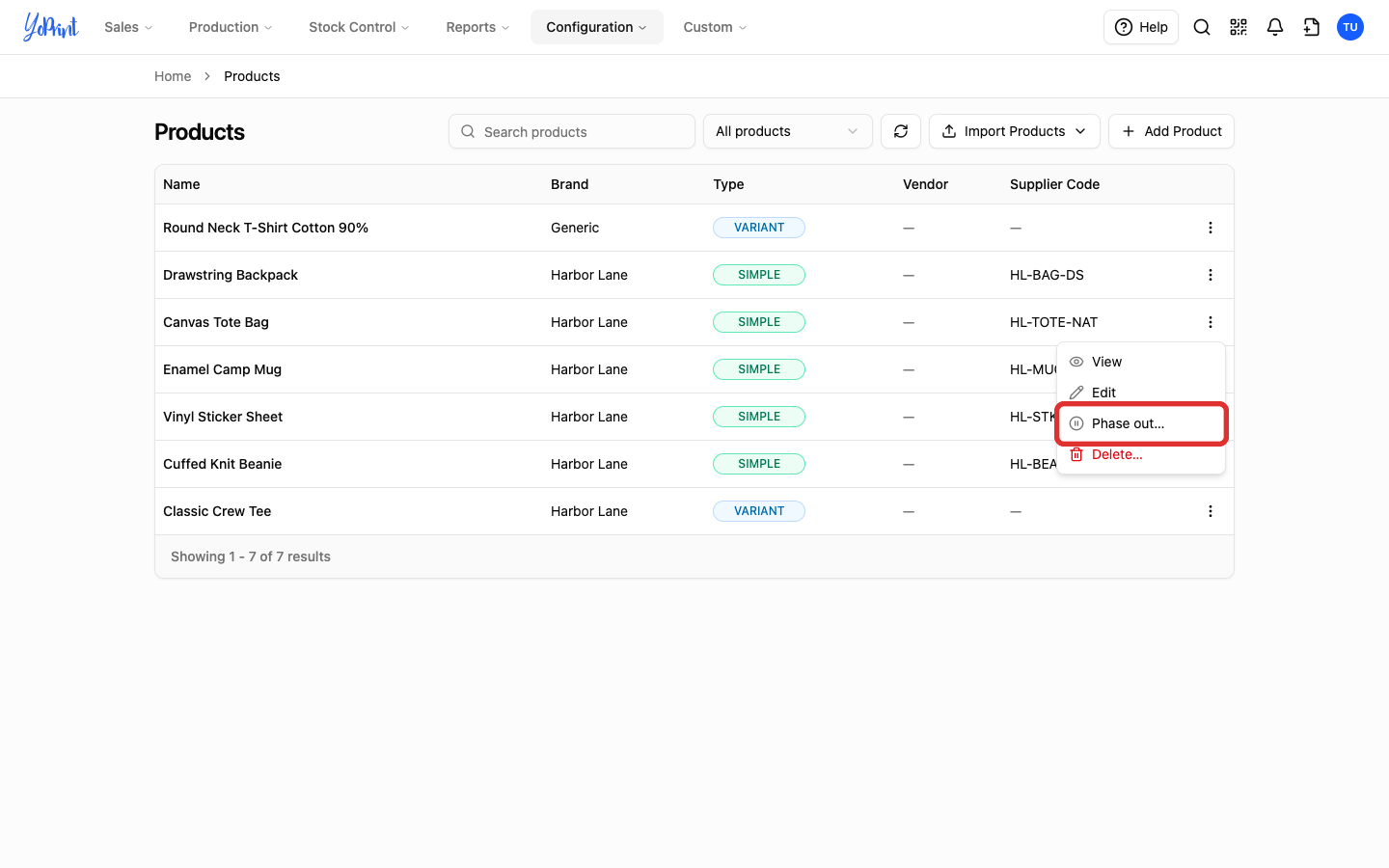
Open the product's row menu (⋮) and choose Phase out….
Products with sizes and colors
Choosing Phase out… in the row menu of a product with sizes or colors phases out every size and color of that product. After you phase out the product, its row shows Phased out. Its row menu then offers Resume selling. Choosing Resume selling there puts every size and color back on sale, including any you phased out separately before. To bring back only some sizes, use the product editor. To phase out only some sizes or colors instead, see Phase out a size or color.
-
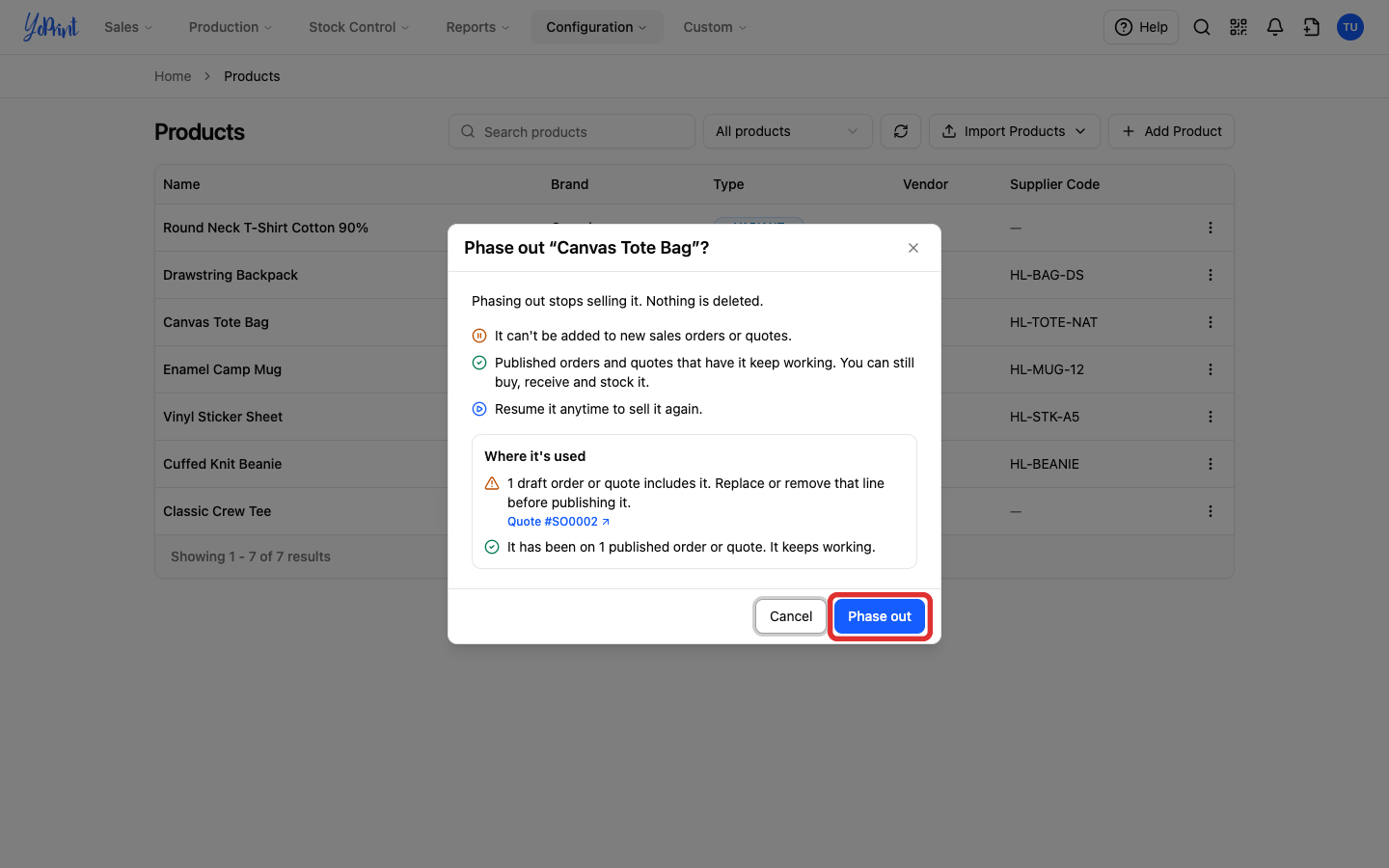
Read the warning, then click Phase out.
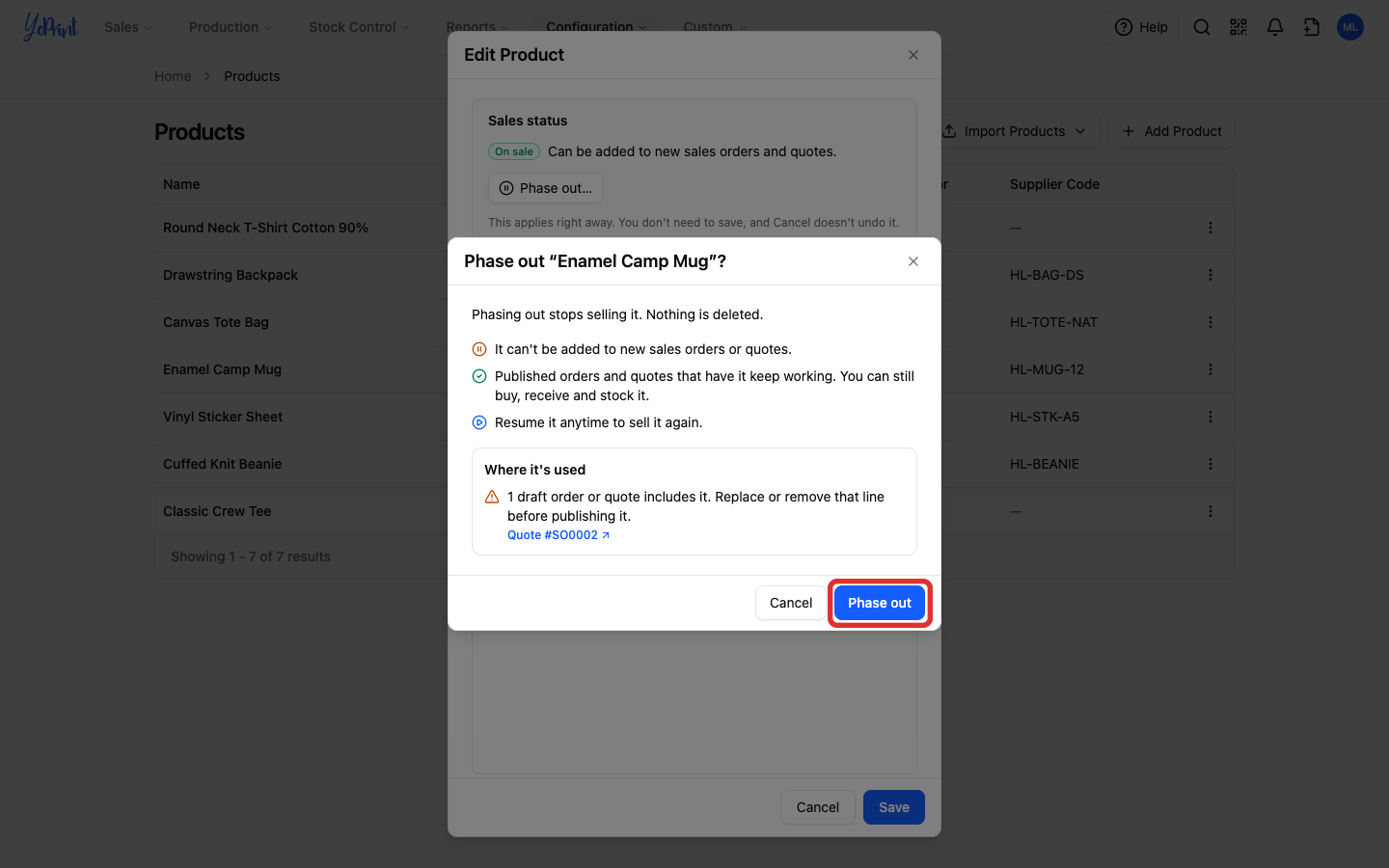
The warning summarizes what phasing out does. Under Where it's used, it lists only what applies to this product:
- Draft orders or quotes: links to each draft. Replace or remove that line before you publish the draft (see Publish a draft that has a phased-out item).
- Published orders or quotes: shows how many published orders and quotes use the product. Existing published orders and quotes continue to work.
- Purchase orders and stock: you can still receive incoming purchase orders and use existing stock.
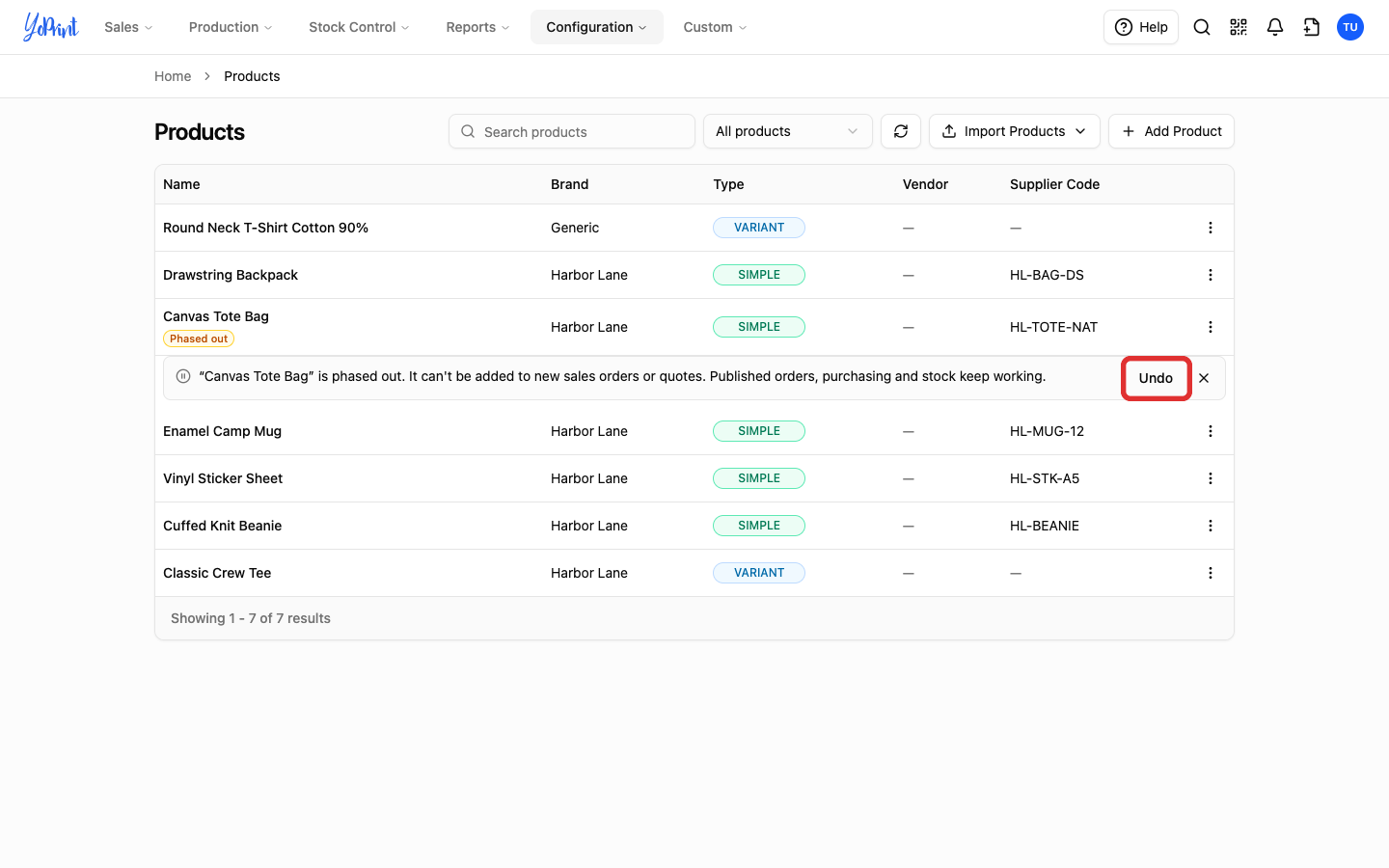
YoPrint labels the product Phased out and shows a message under its row. To change your mind straight away, click Undo in that message.
Phase out a product from its Edit dialog
Phase out a product without sizes or colors from its edit window.
-
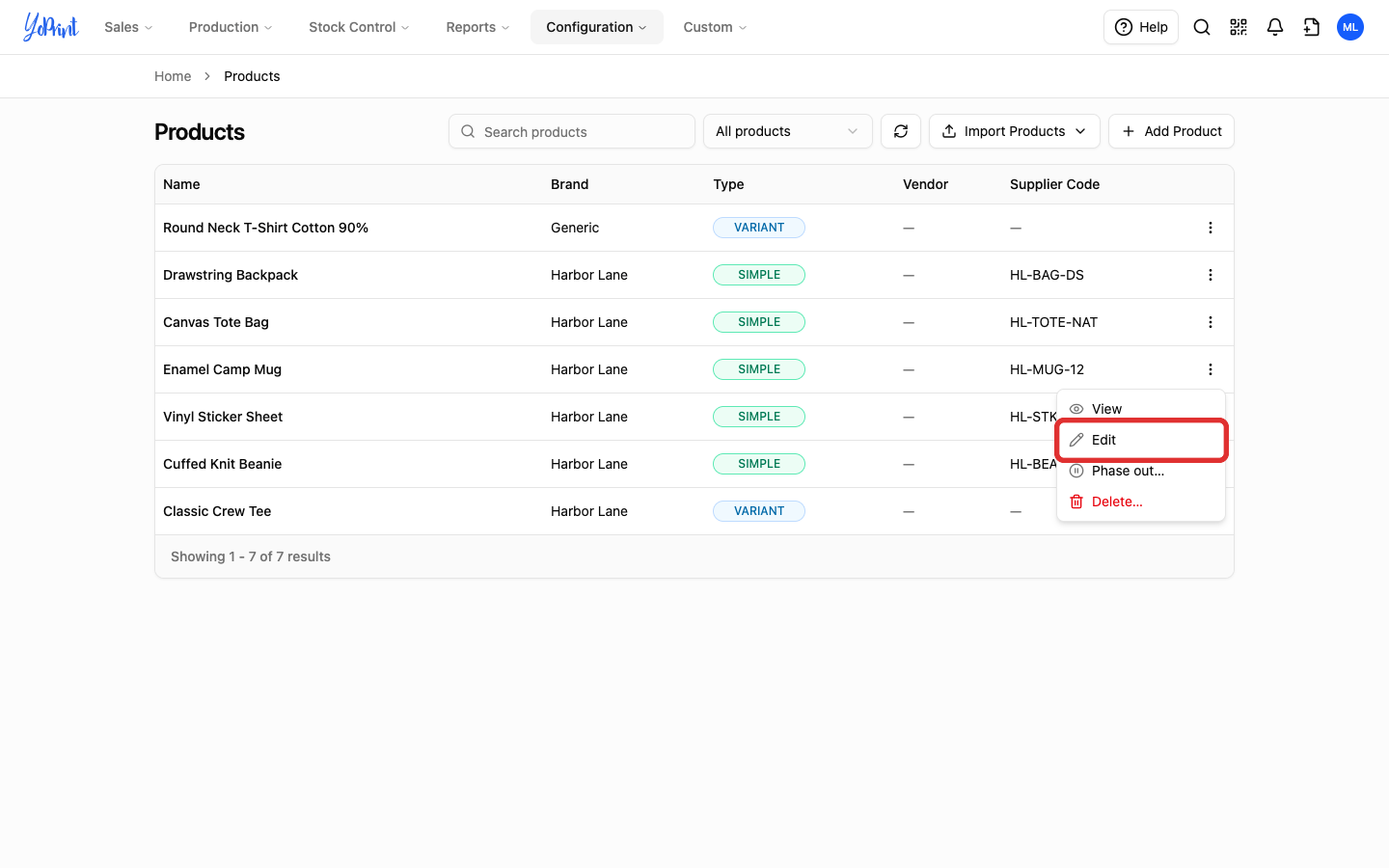
In Products, open the product's row menu and choose Edit.
Products with sizes or colors
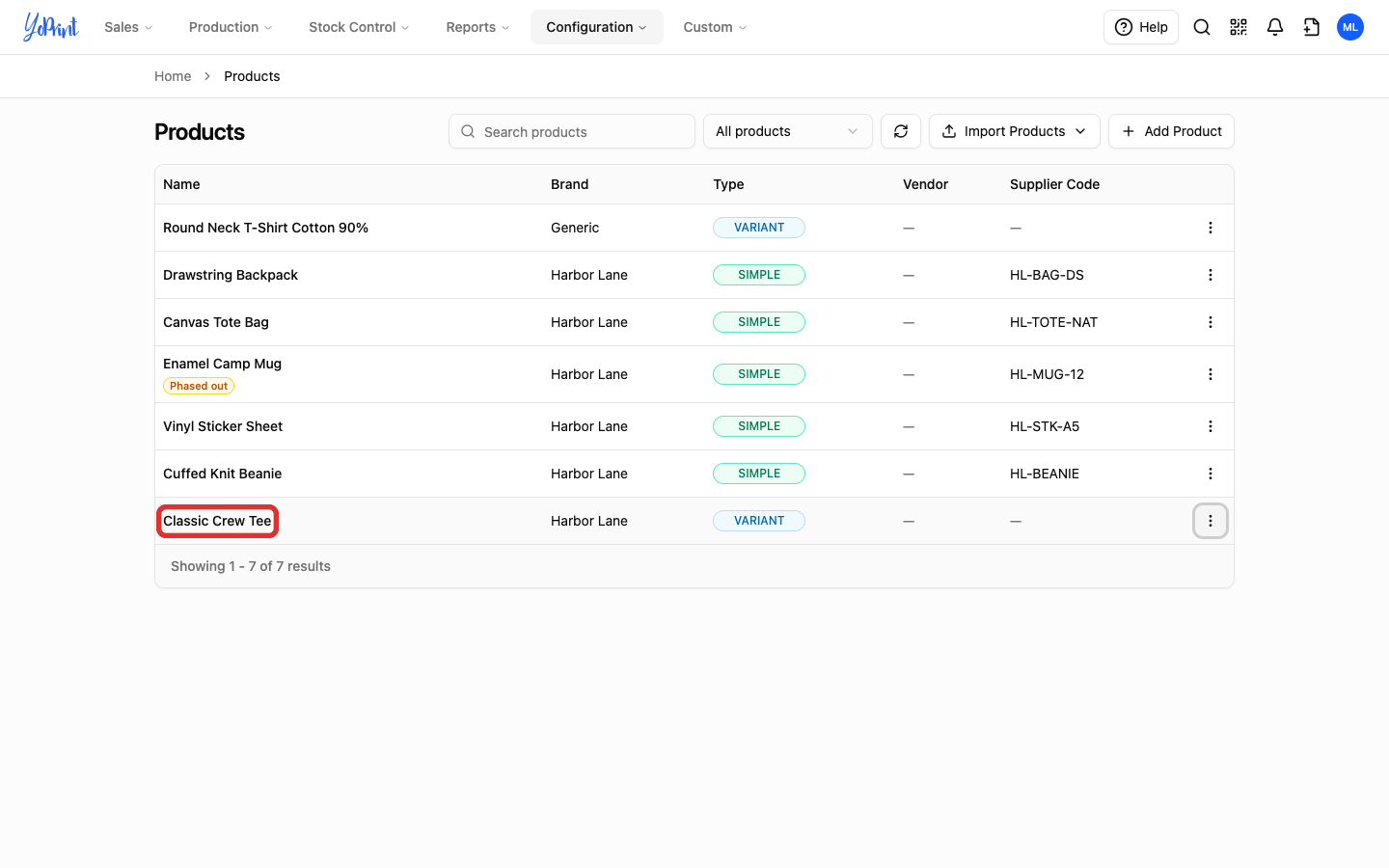
Products with sizes or colors have no Edit item in the row menu. Click the product's title to open the product editor instead (see Phase out a size or color).
-
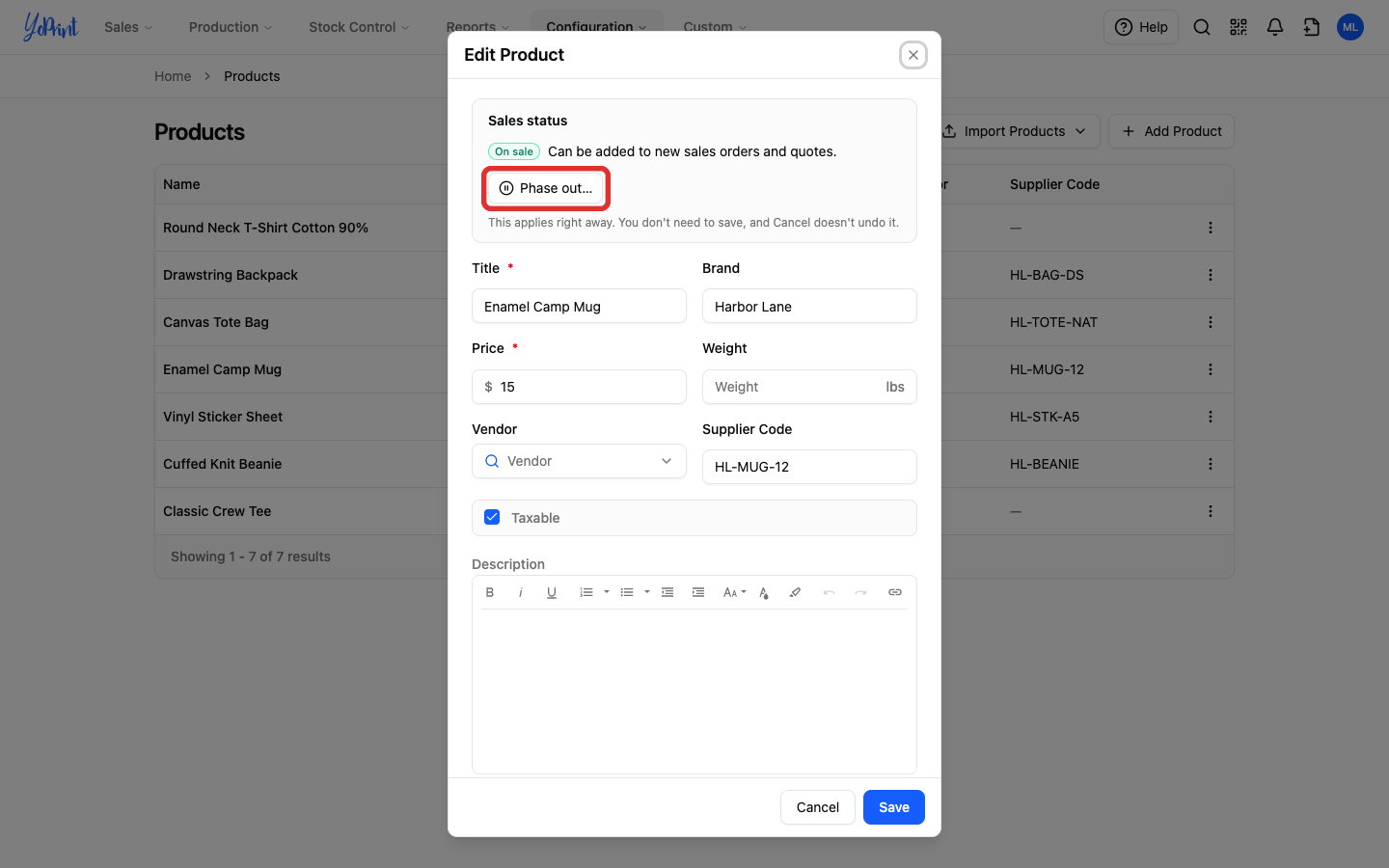
In Sales status, click Phase out….
-
Read the warning, then click Phase out.
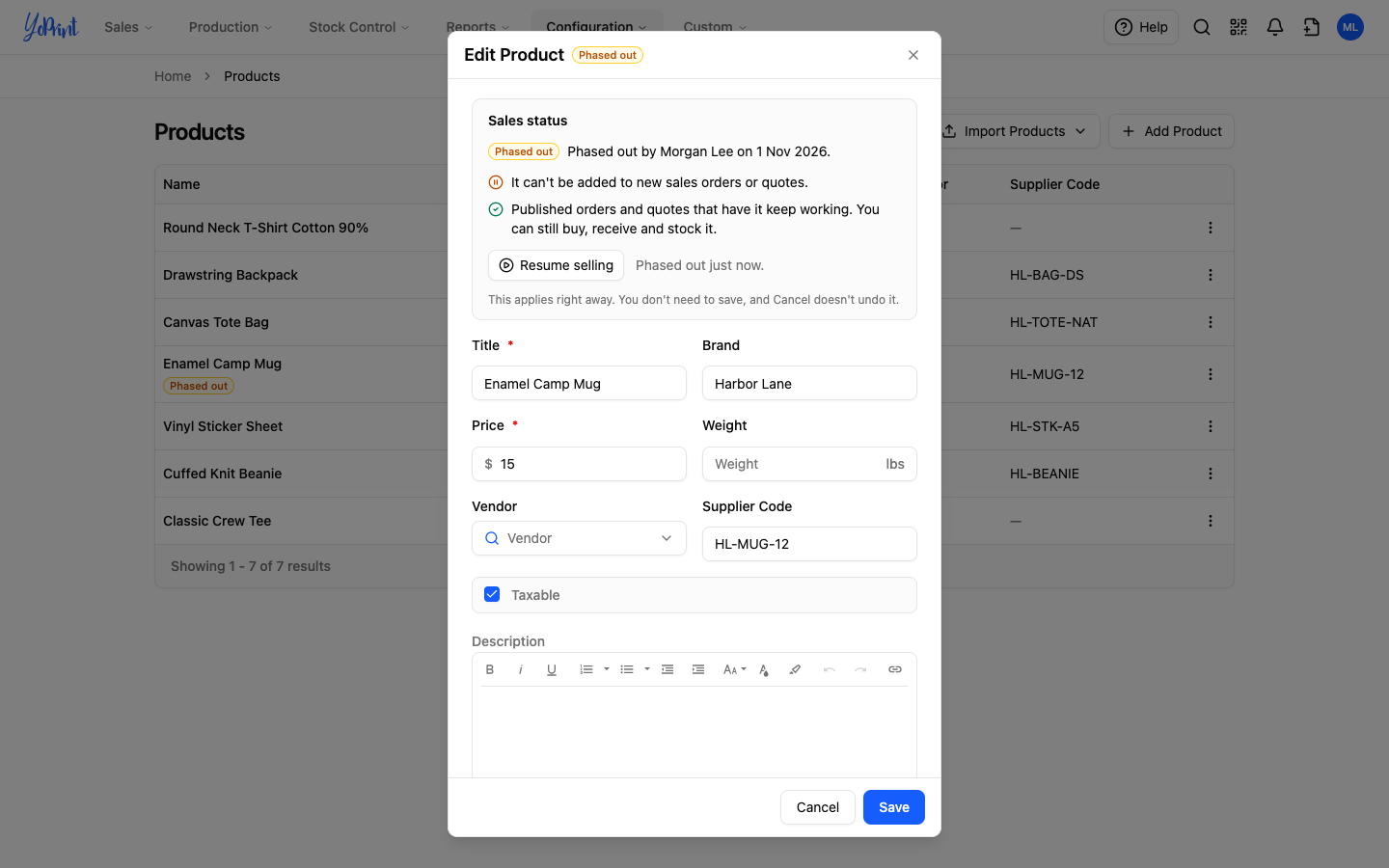
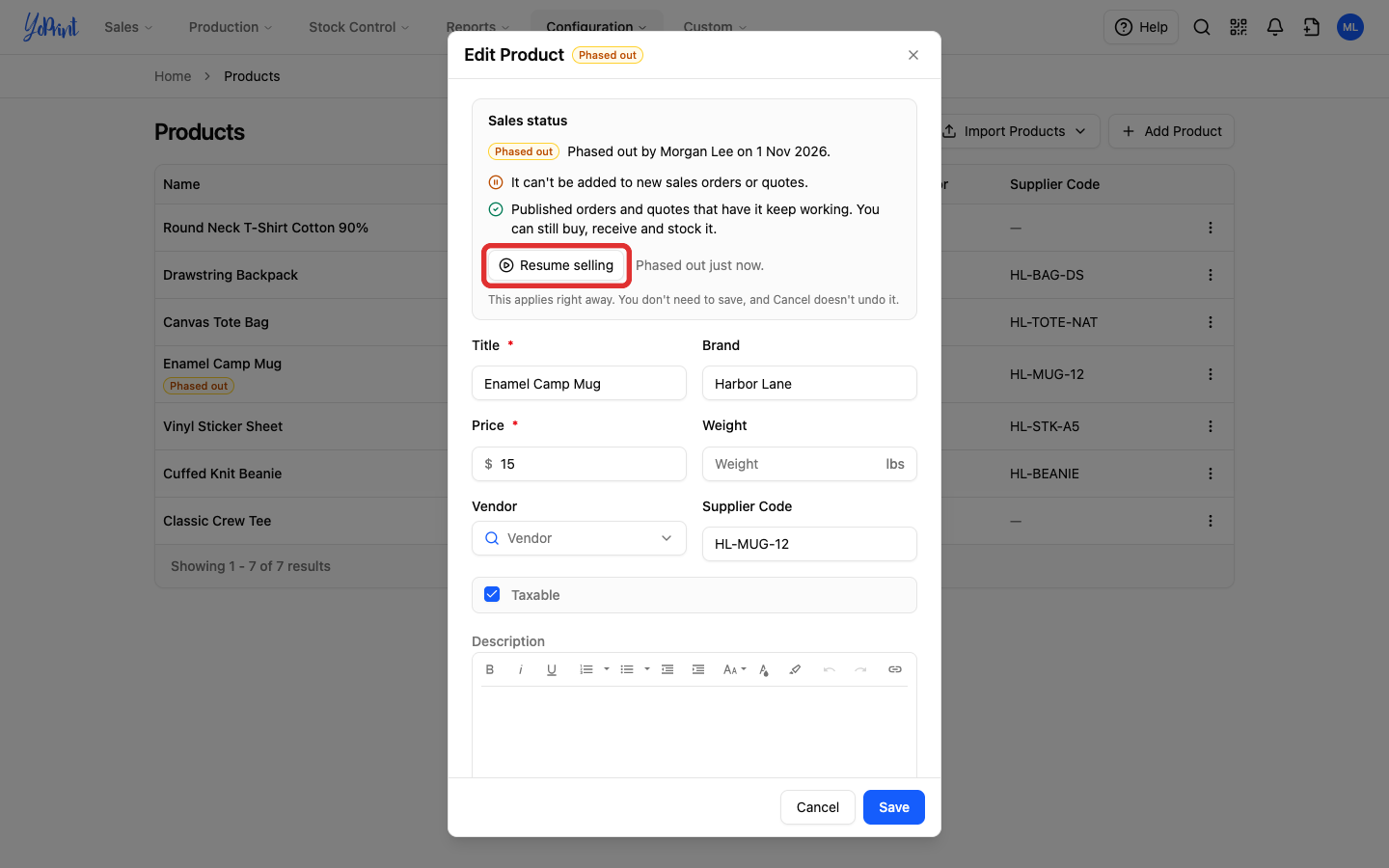
Sales status now shows Phased out, who phased it out and when. The change applies right away. You don't need to click Save, and Cancel doesn't undo it.
Phase out a size or color
Stop selling specific variants while keeping the rest of the product line active. Each size and color combination of a product is a variant, for example 2XL / Black. Phase out variants in the product editor, then save the product.
-
In Products, click the product's title.
-
In Variants, open Select and choose the size or color you are phasing out. YoPrint selects every variant of that size or color.
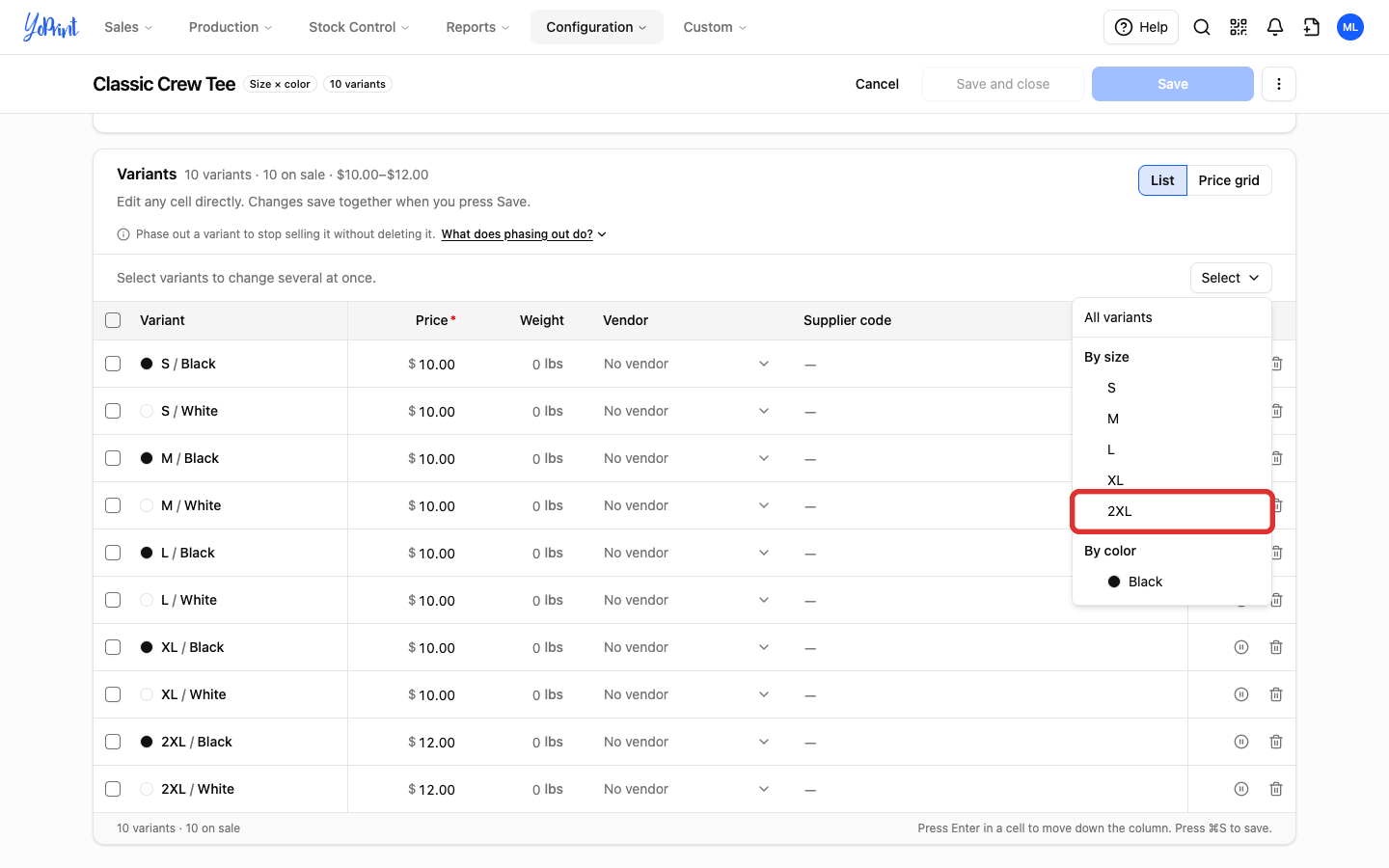
To phase out a single combination, click the pause icon at the end of its row instead, then go to step 4.
-
Click Phase out in the bar above the table. Each selected row shows Will be phased out.
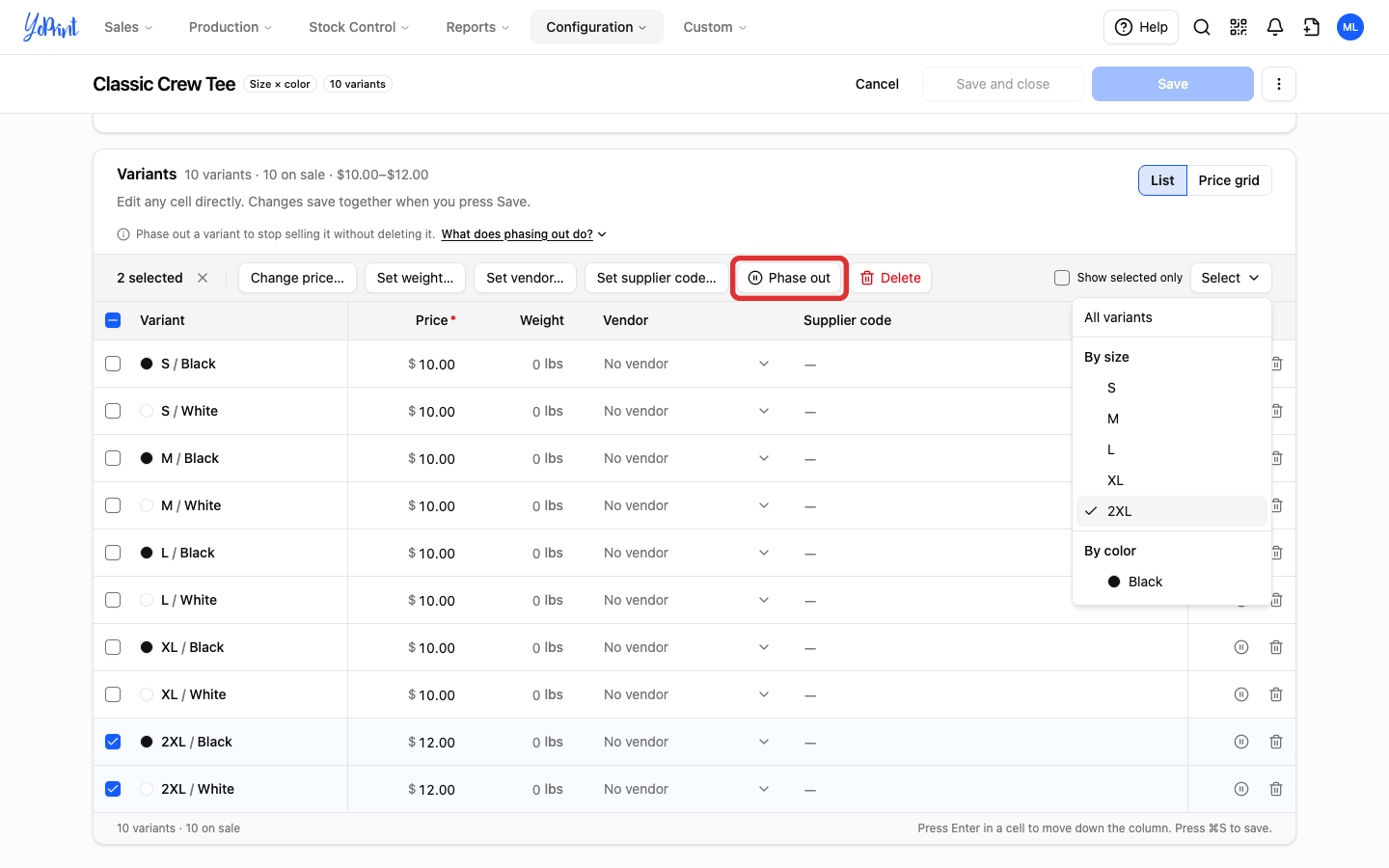
-
Click Save.
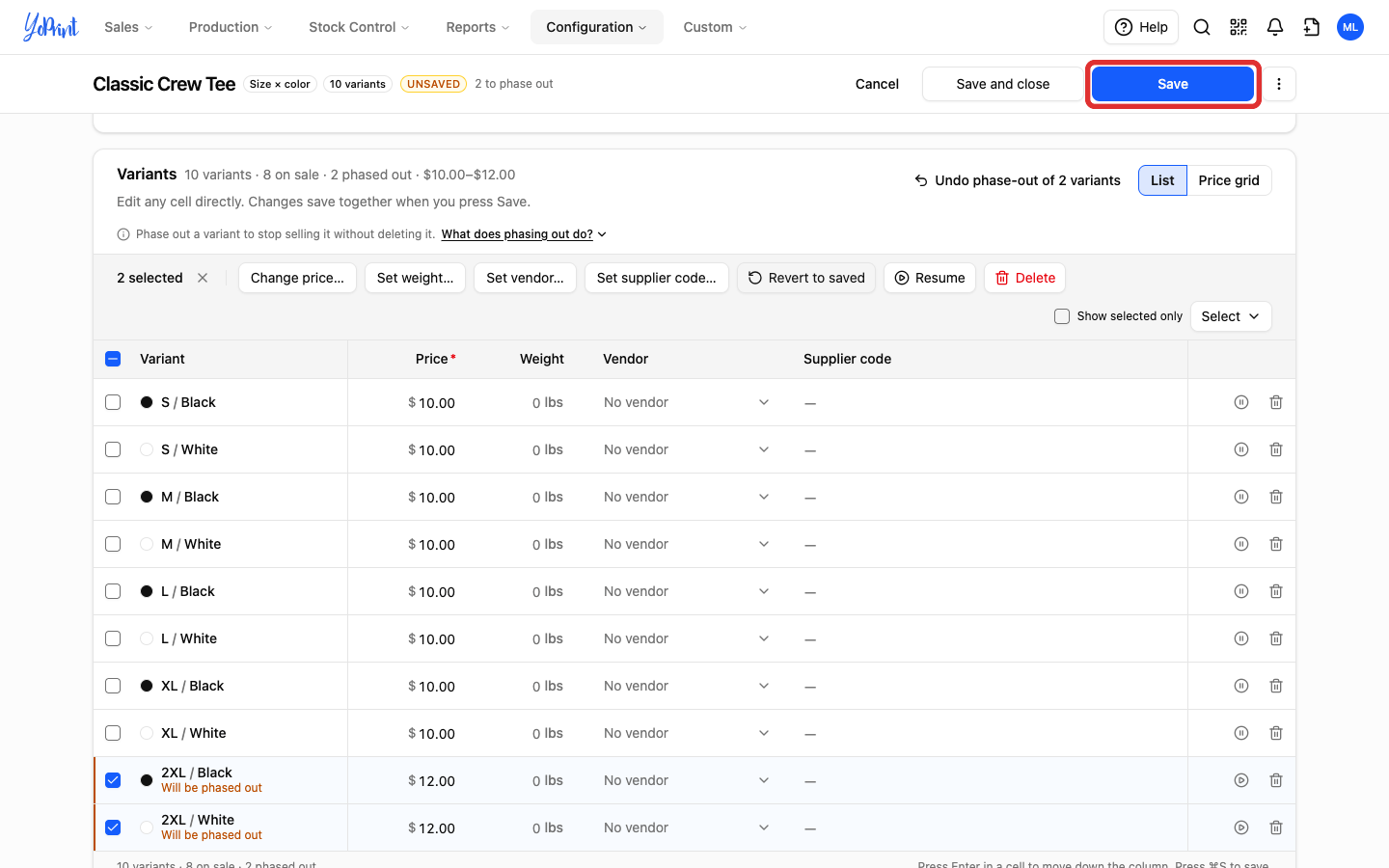
-
Check the list and the drafts it names, then click Phase out 2 and save.
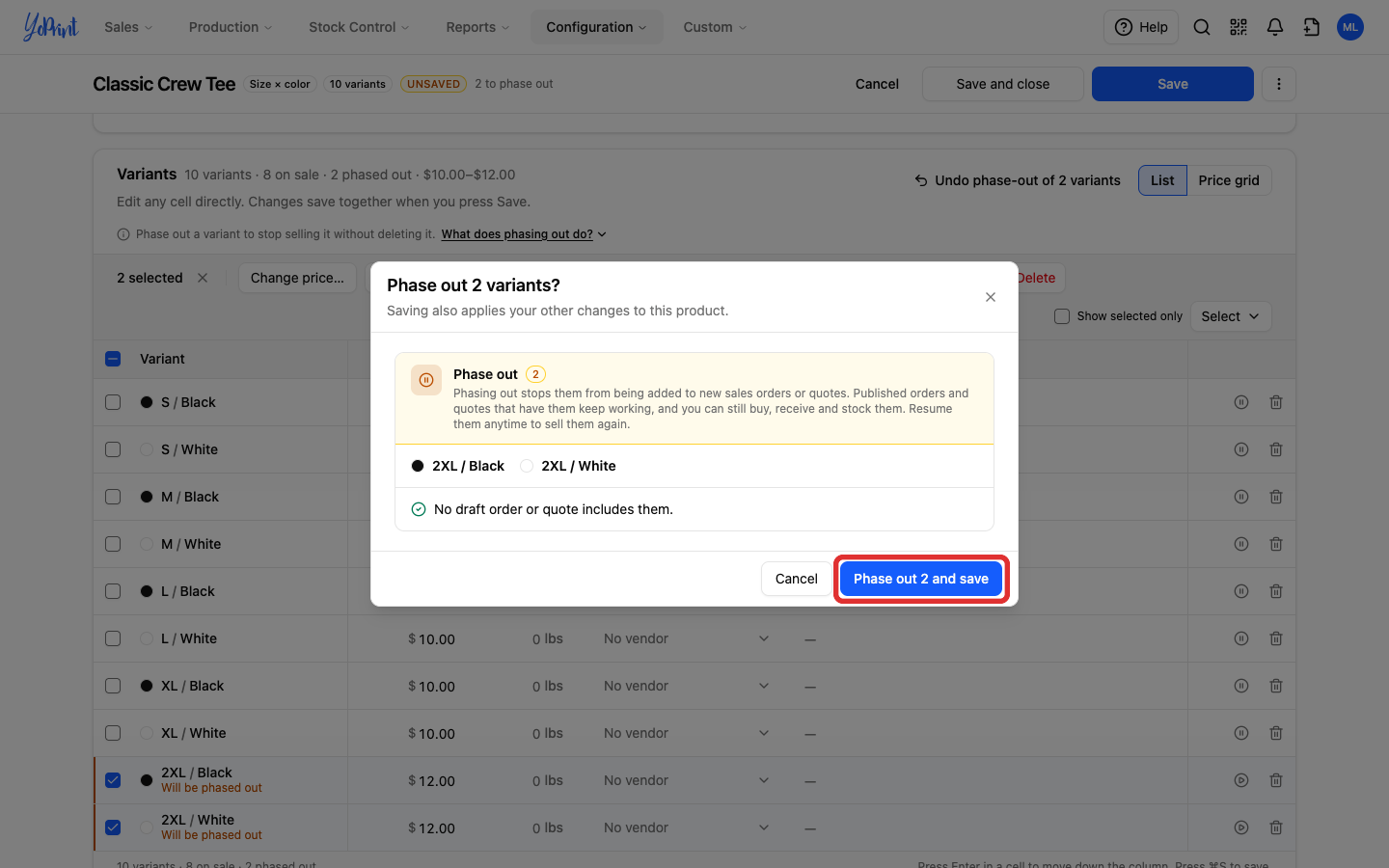
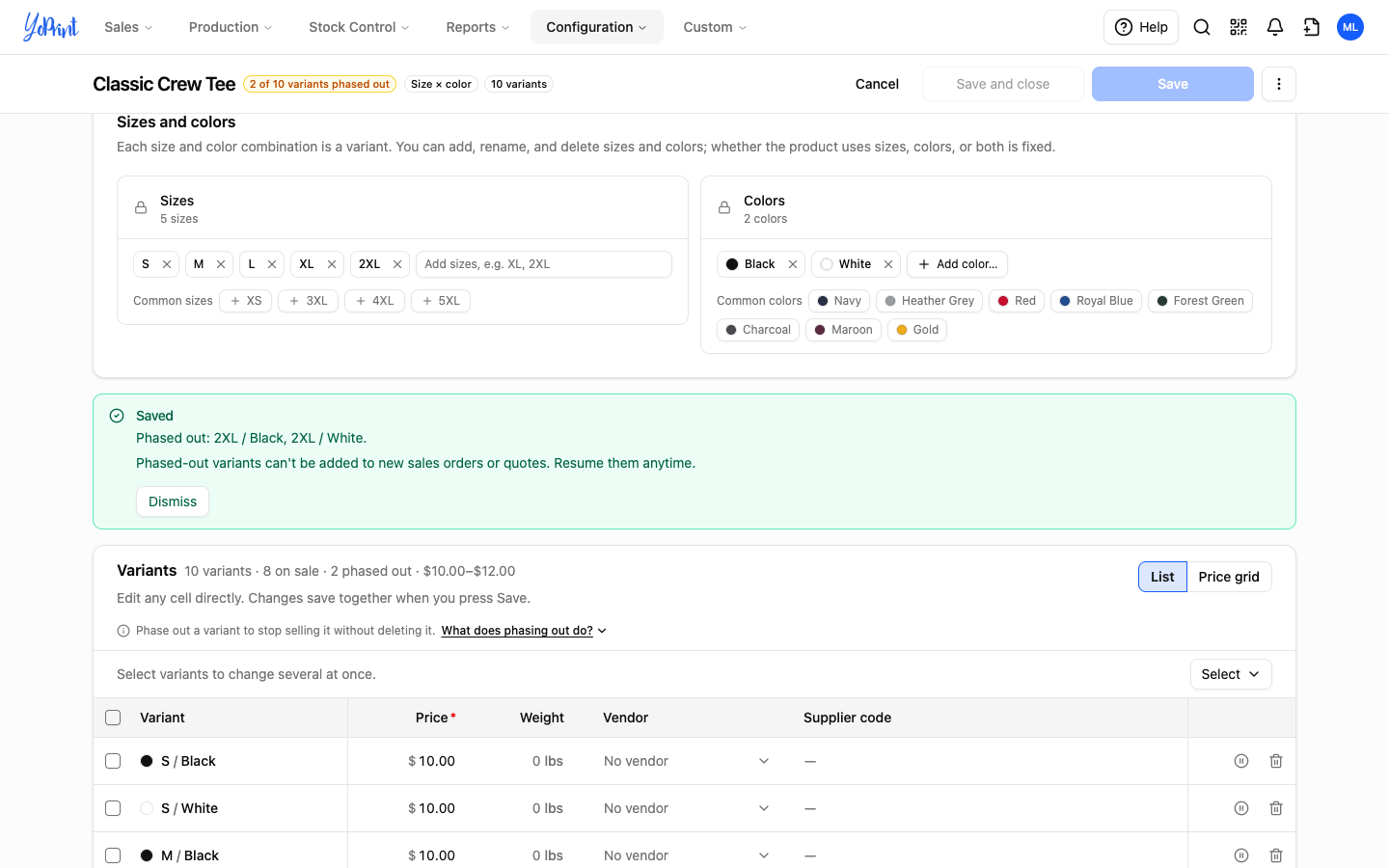
A message above Variants names what you phased out. Each phased-out row shows Phased out and the date. Phased-out variants still count among the product's variants; the counts above and below the table show how many are on sale and how many are phased out, and the Price grid view marks no individual price cell.
Resume selling a phased-out item
Resume an item when you are ready to sell it again. Your team can then add it to new sales orders and quotes again. Resuming needs no warning. Orders, purchase orders and stock that used the item while it was phased out stay as they are.
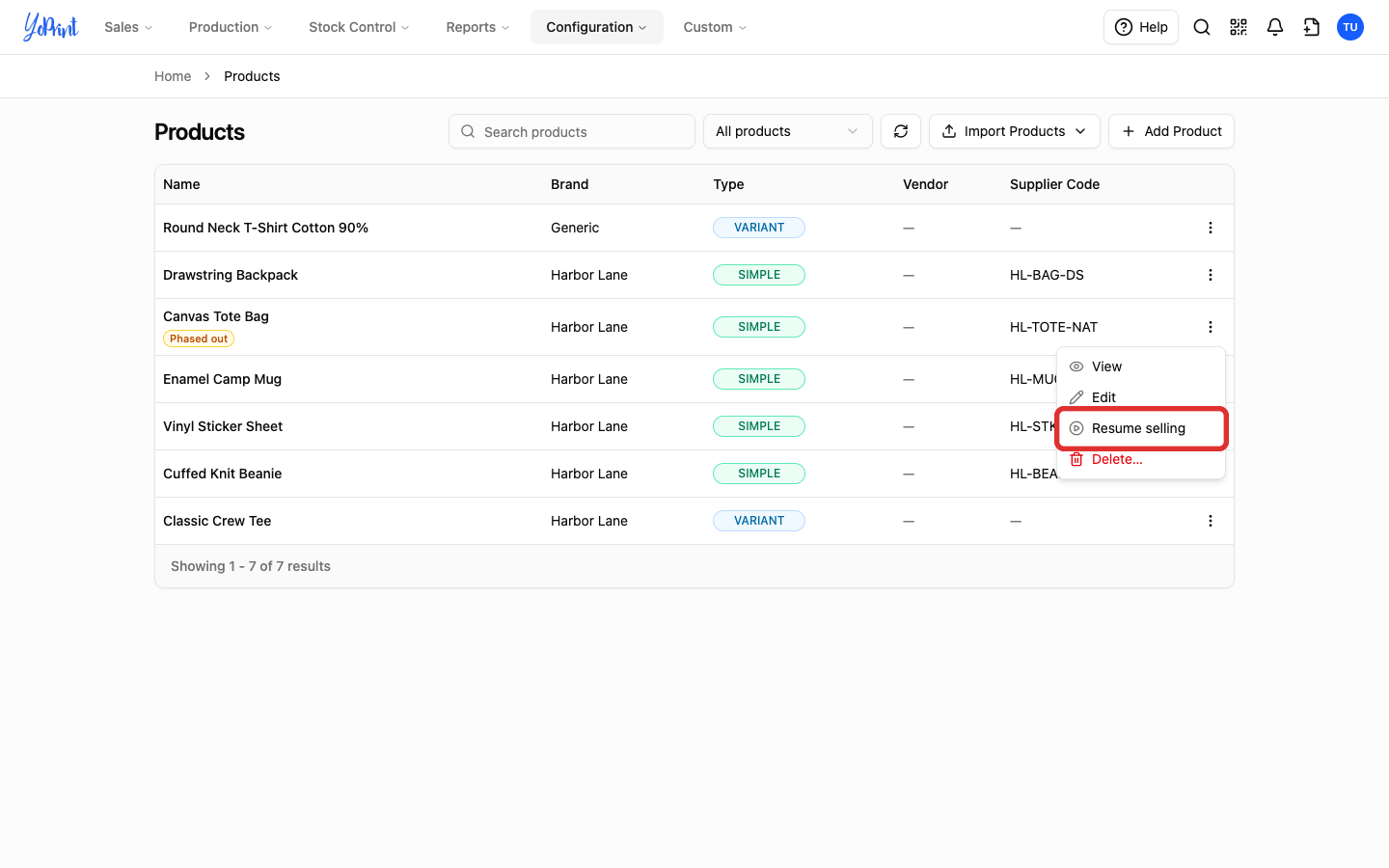
A product, from the Products list: open the product's row menu and choose Resume selling. YoPrint shows “Product name” is back on sale. under the row.
A product, from its Edit dialog: in Sales status, click Resume selling. It applies right away.
A size or color, in the product editor:
-
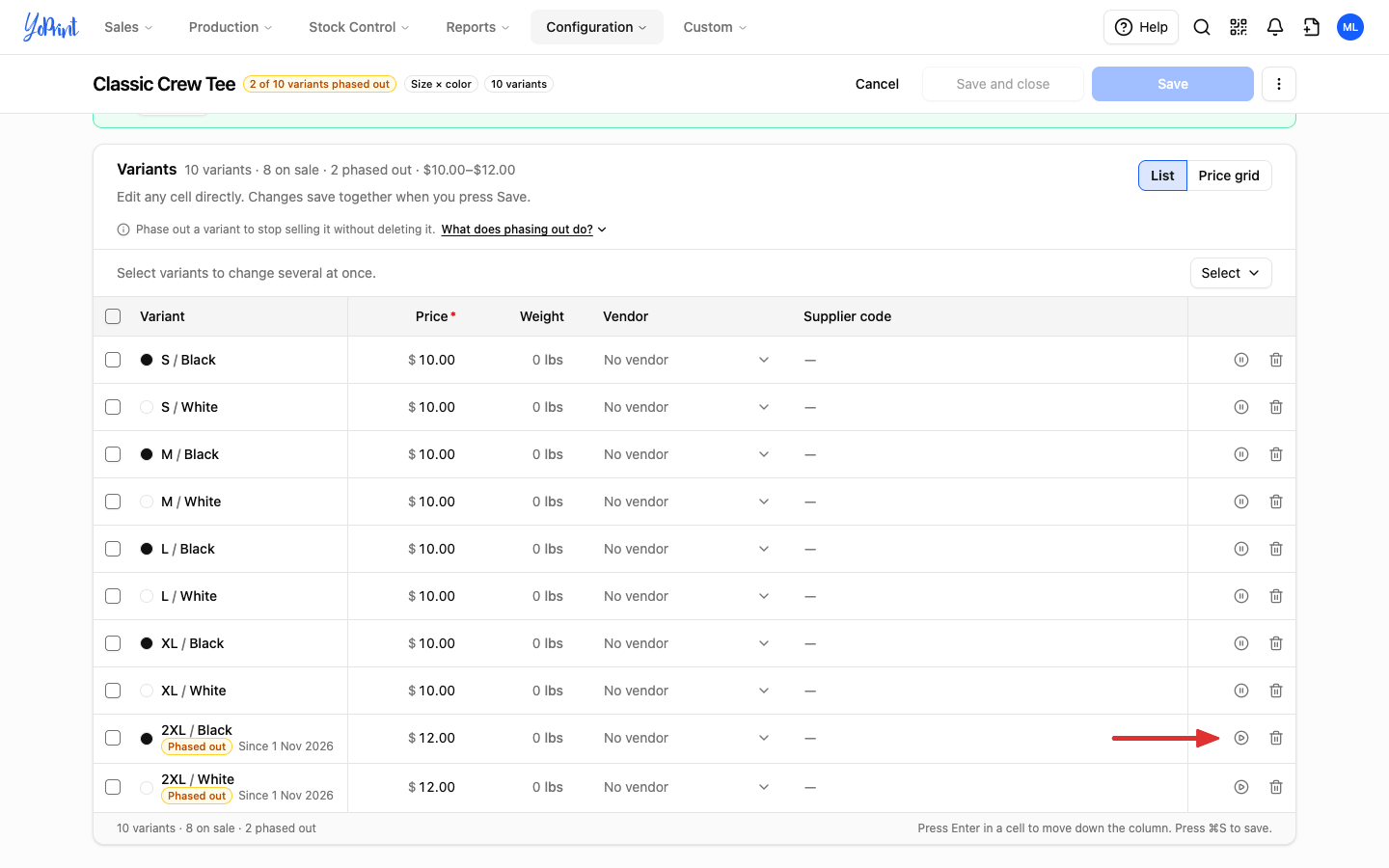
In Variants, open Select, choose the size or color, then click Resume in the bar above the table.
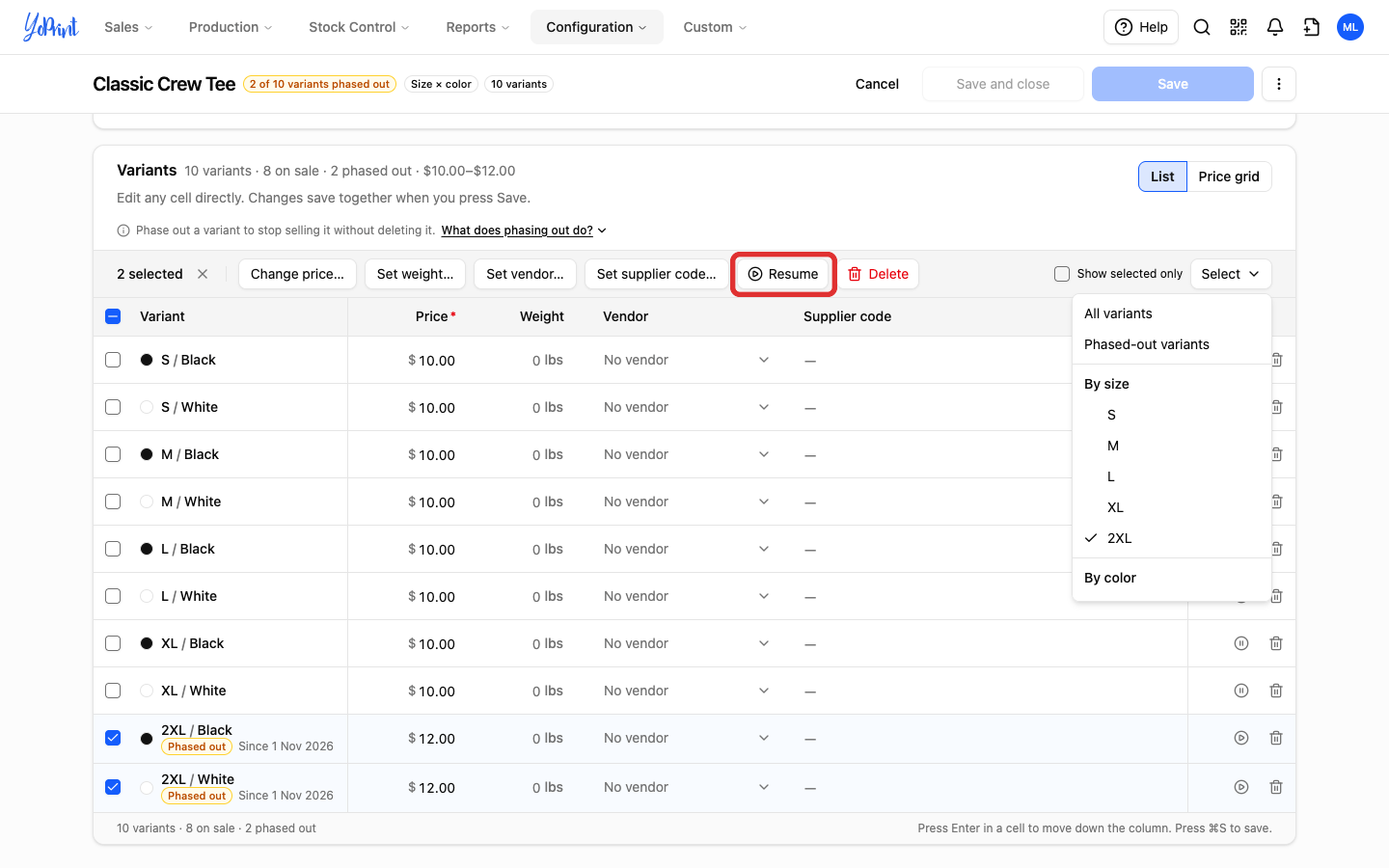
To resume a single combination, click the play icon at the end of its row (Resume selling).
-
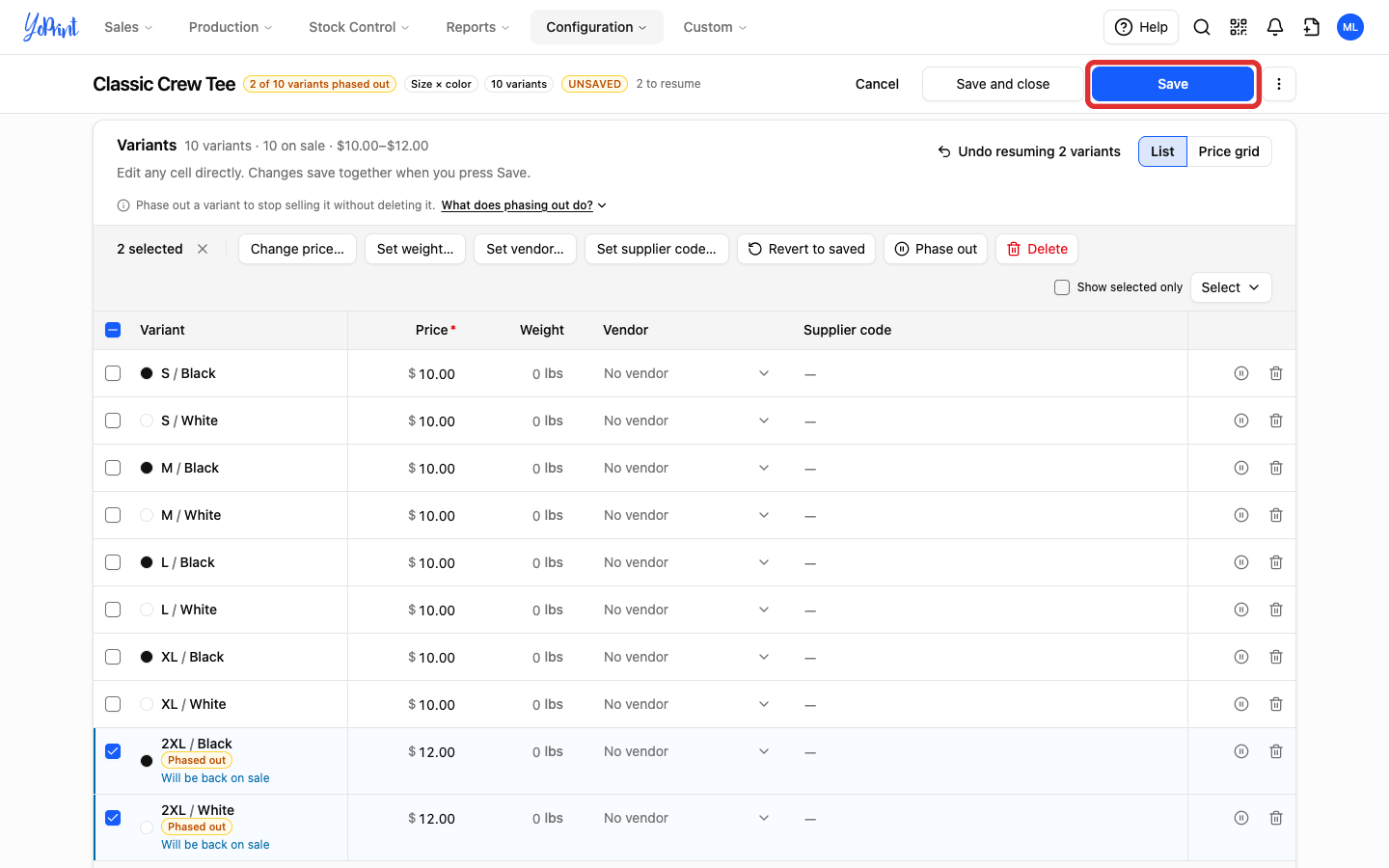
Click Save.
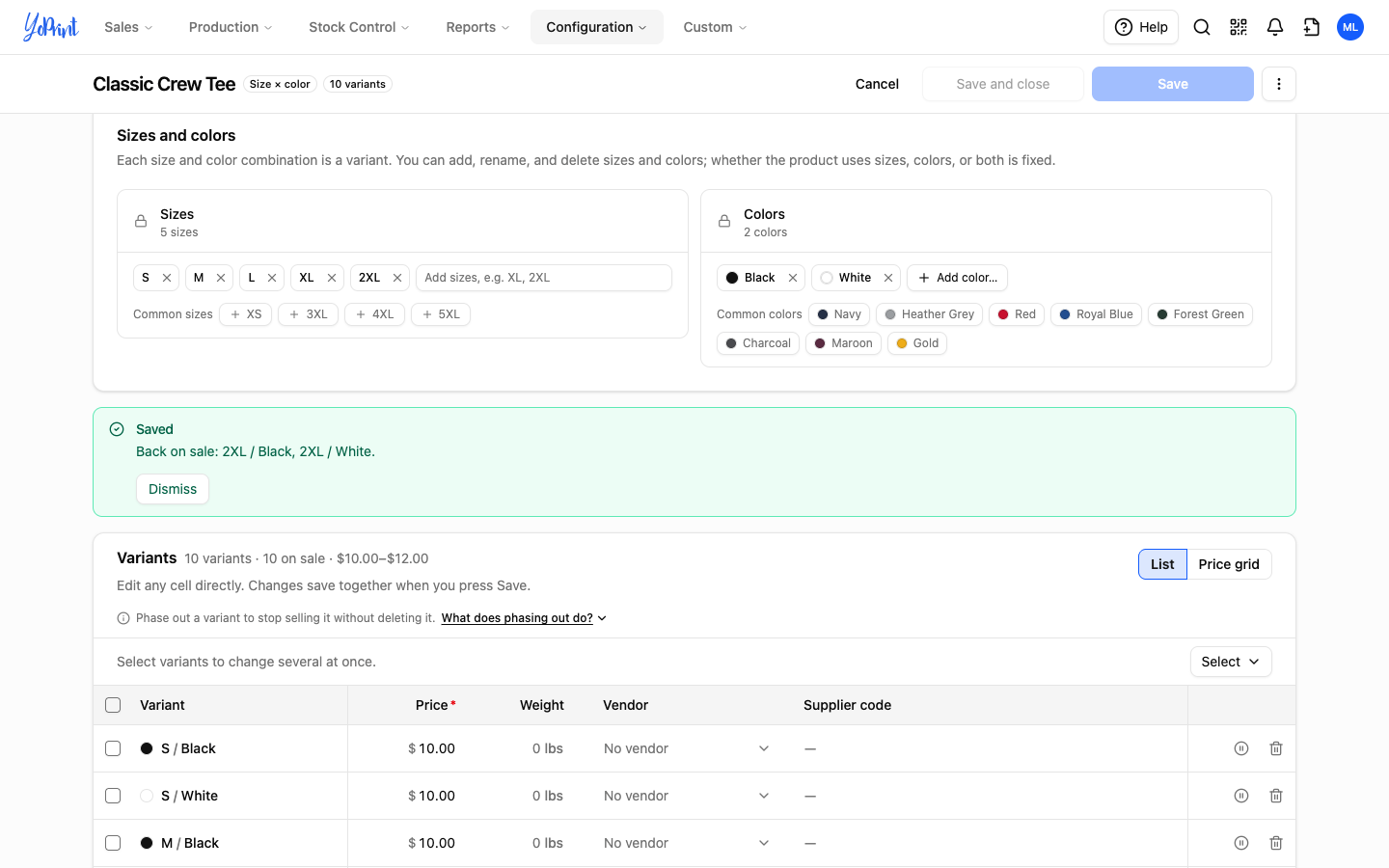
A message above Variants says Back on sale and names the variants.
What happens to a phased-out item
A phase-out stops new sales and keeps everything else running.
-
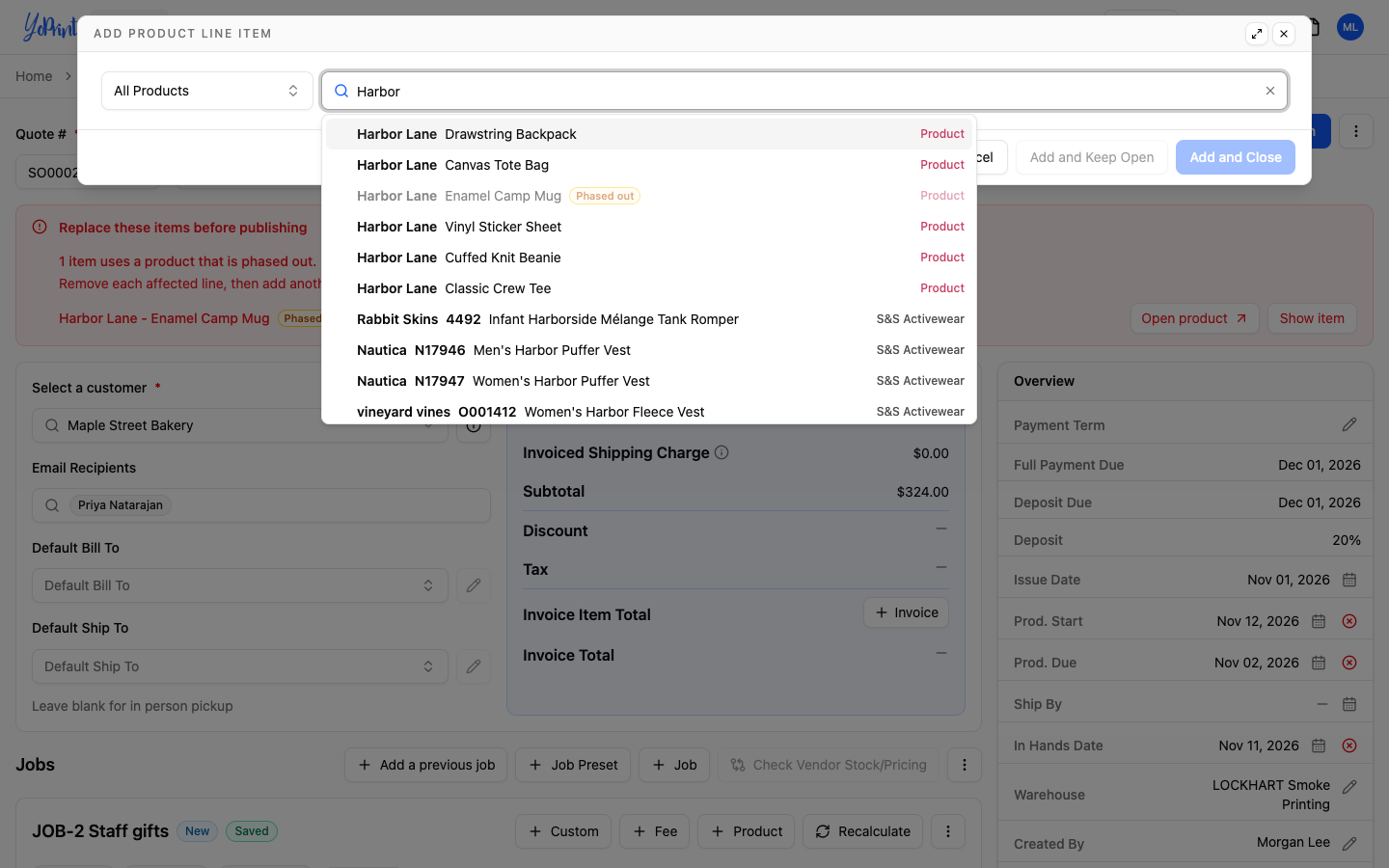
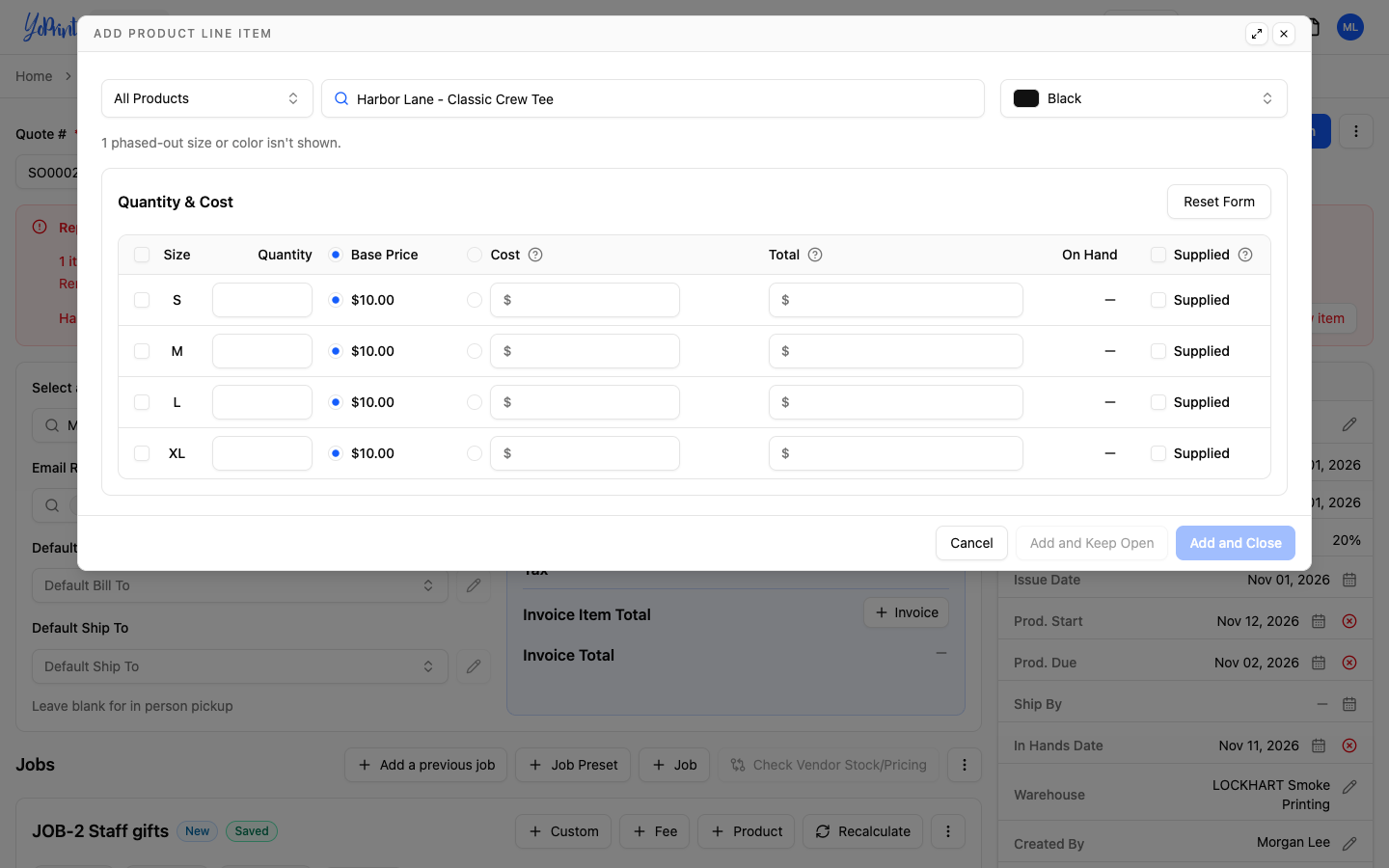
New sales orders and quotes. When your team adds a product line, a phased-out product is greyed out and labelled Phased out, so no one can pick it. A phased-out size or color is left out of the size and color choices, with a note such as 1 phased-out size or color isn't shown. The same applies when you add a line in Live Edit, or copy a line to another size or color (see How to quickly add other colors/sizes for a product in Sales Order/Quote).
-
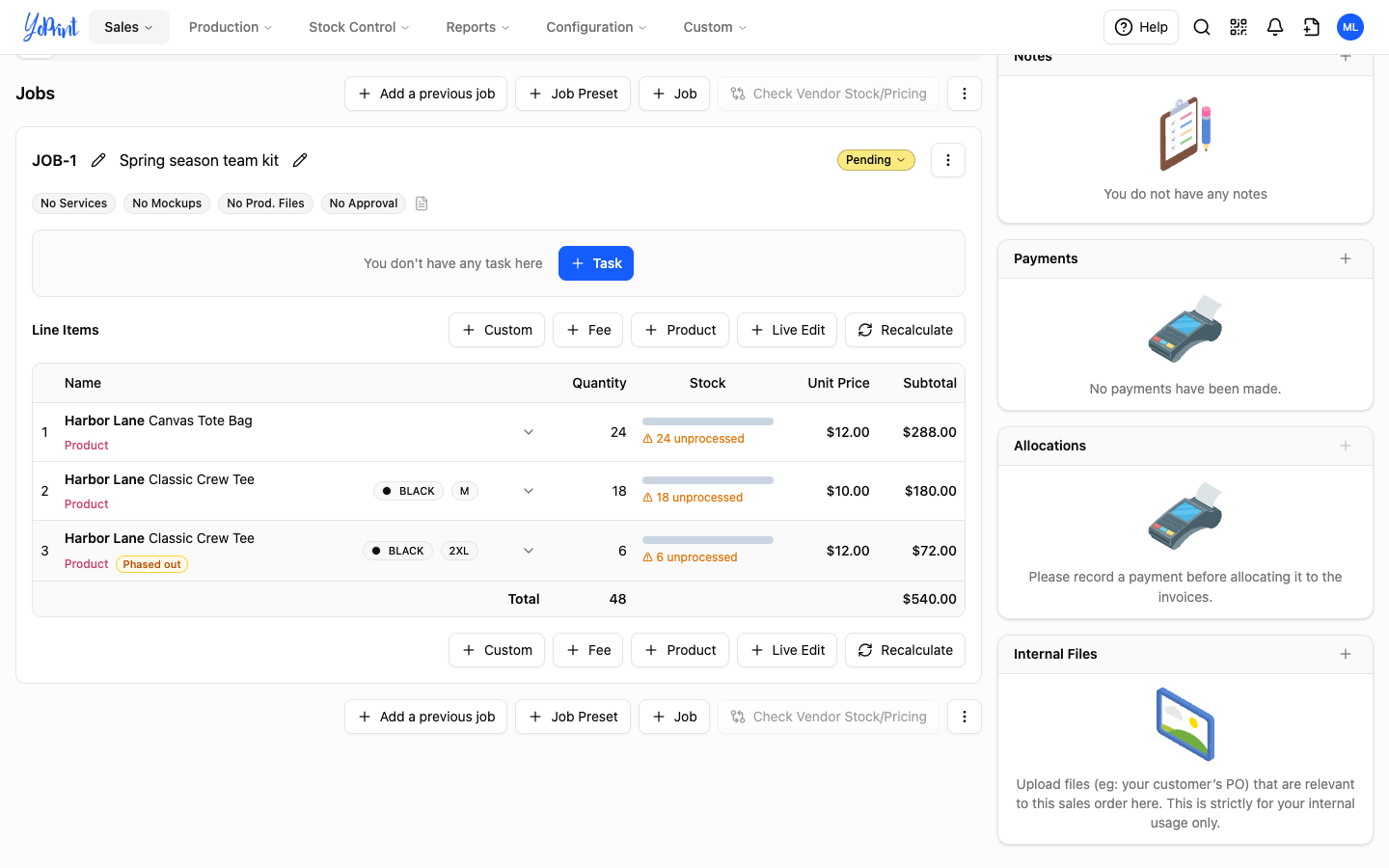
Existing orders and quotes. Lines that already use the item stay, with a Phased out label. Hover the label to read what it means. You can still change its quantity, price and description in drafts and in Live Edit. The customer can still approve a published quote that has the item, and you can convert that quote to a sales order.
-
Drafts. A draft that already has a phased-out line can't be published until you replace or remove that line (see Publish a draft that has a phased-out item).
-
Customers. Customers never see the Phased out label. It appears only on your shop's screens. The customer portal, quote and invoice PDFs, and emails to the customer show the line like any other line.
-
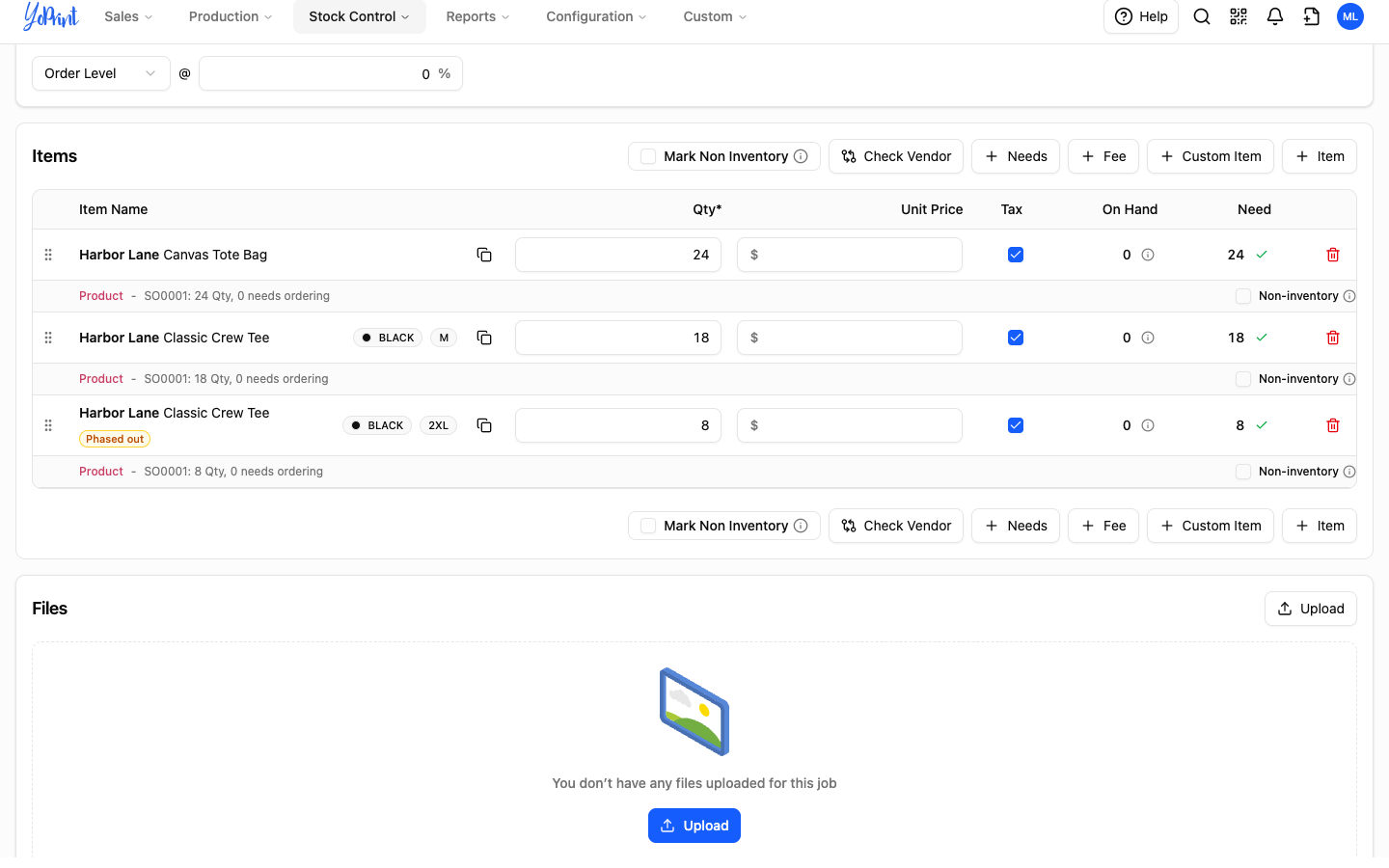
Purchase orders, receiving and stock. You can still use the item on purchase orders, receipts, stock adjustments, transfers, defects and Needs Ordering. It shows the same Phased out label.
-
Pricing rules. Rules that name the item keep applying to lines that already use it.
-
Job presets. Job presets hold services and tasks, not products, so a phase-out doesn't change them.
Publish a draft that has a phased-out item
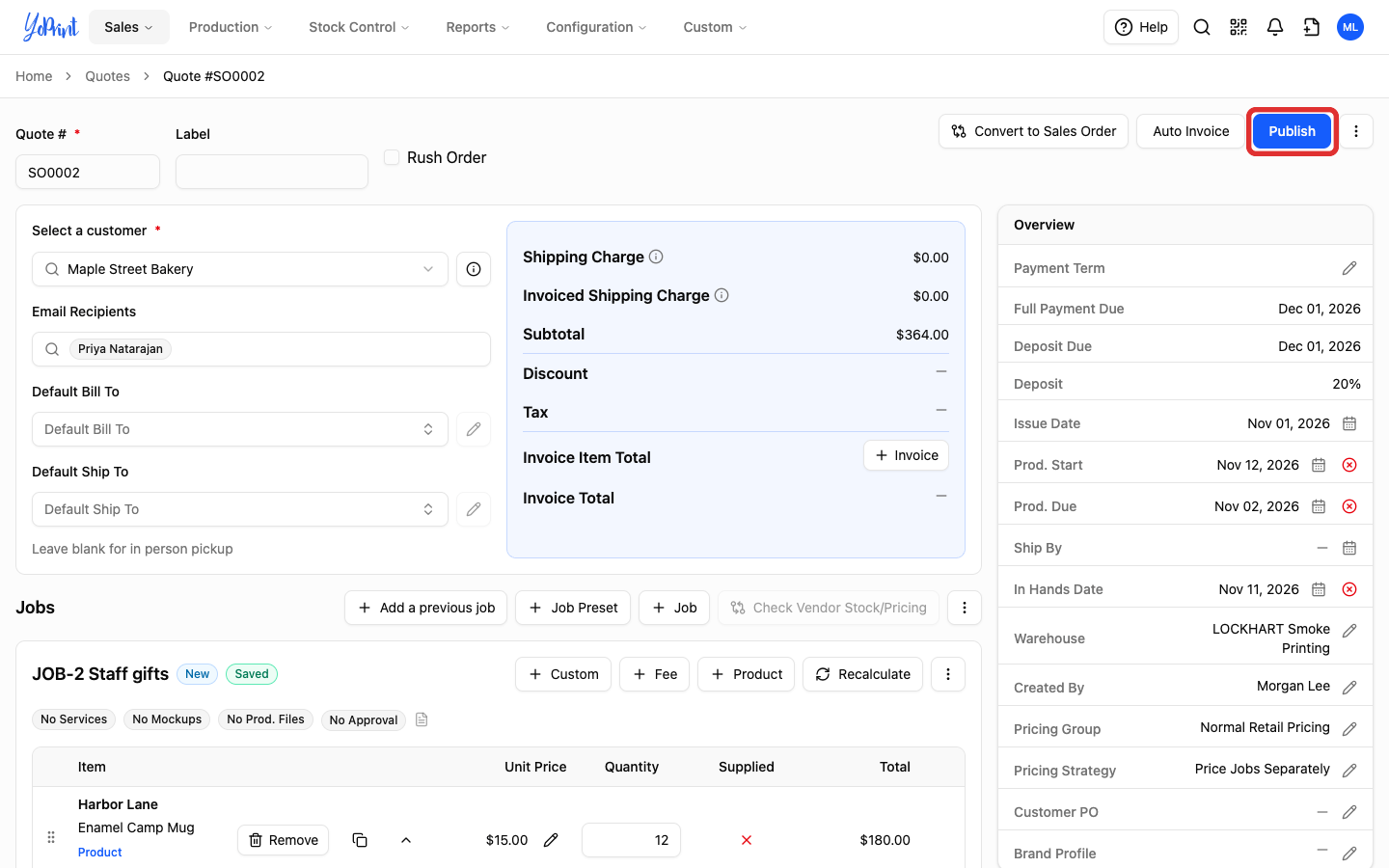
Update or remove phased-out items from draft orders or quotes before publishing. A draft can't be published while any of its lines use a phased-out or deleted item.
-
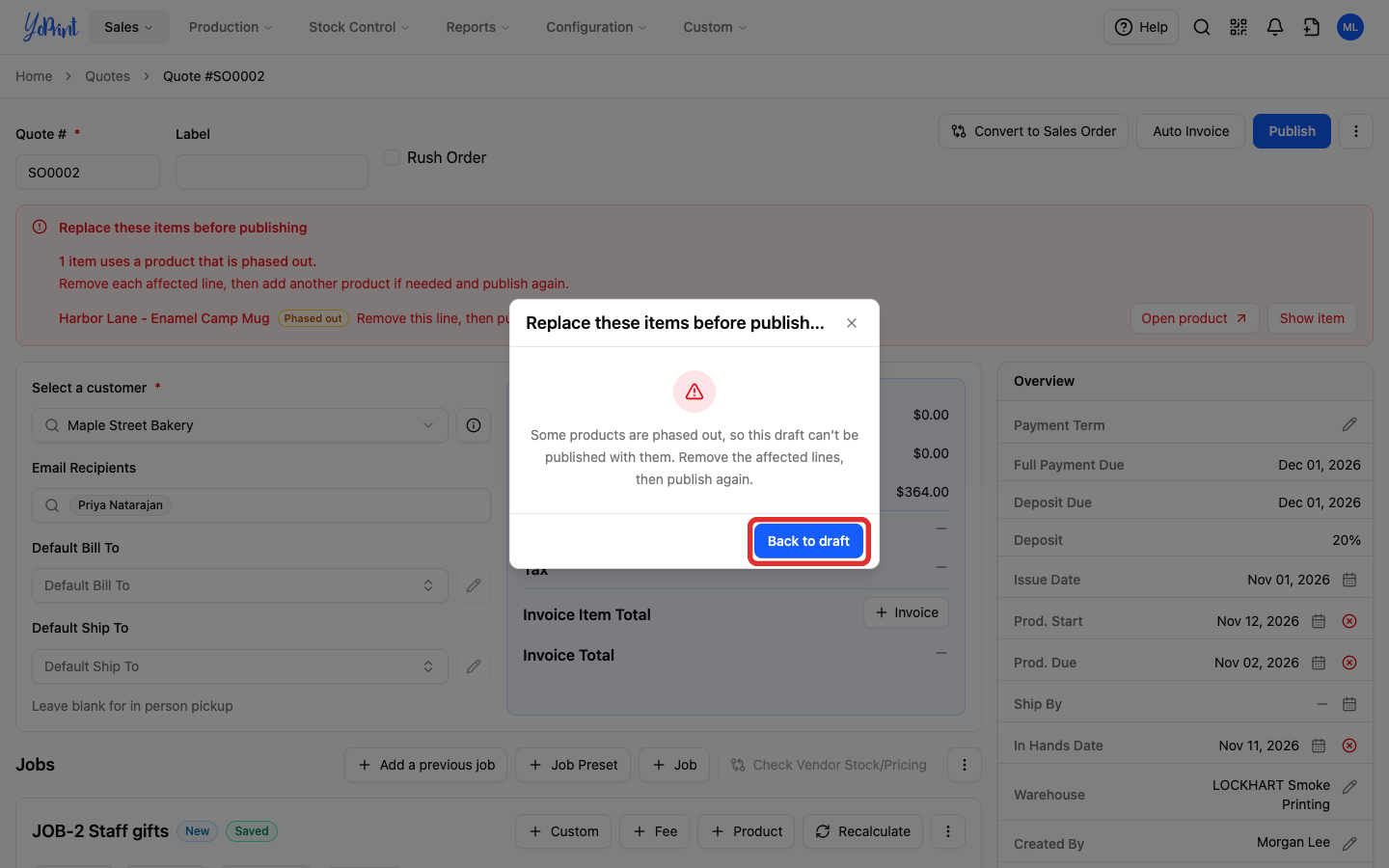
Click Publish.
-
In Replace these items before publishing, click Back to draft.
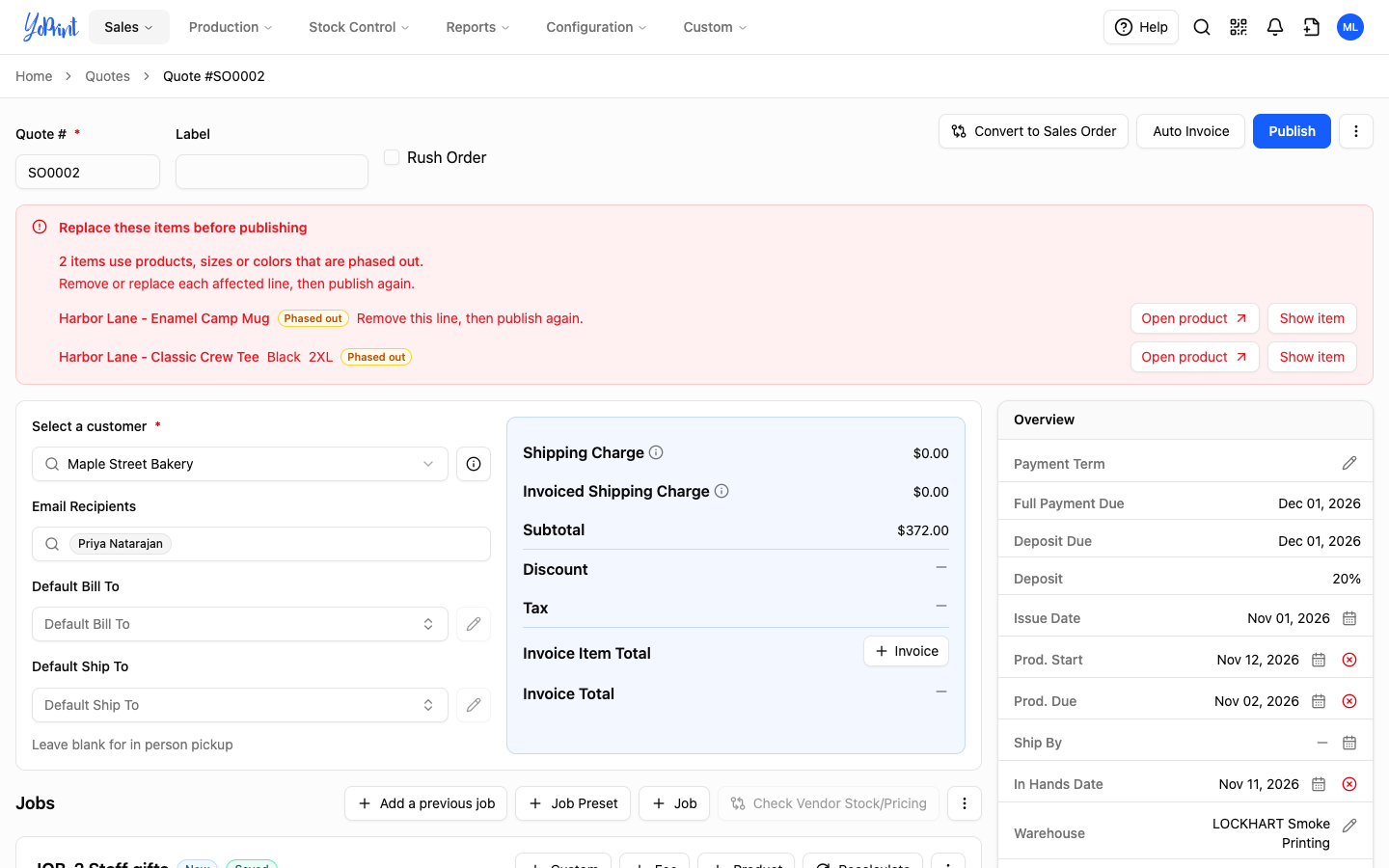
A panel at the top of the draft lists each affected line. Show item takes you to that line. Open product opens the product in a new tab.
-
On a size or color line, click Replace on the line.
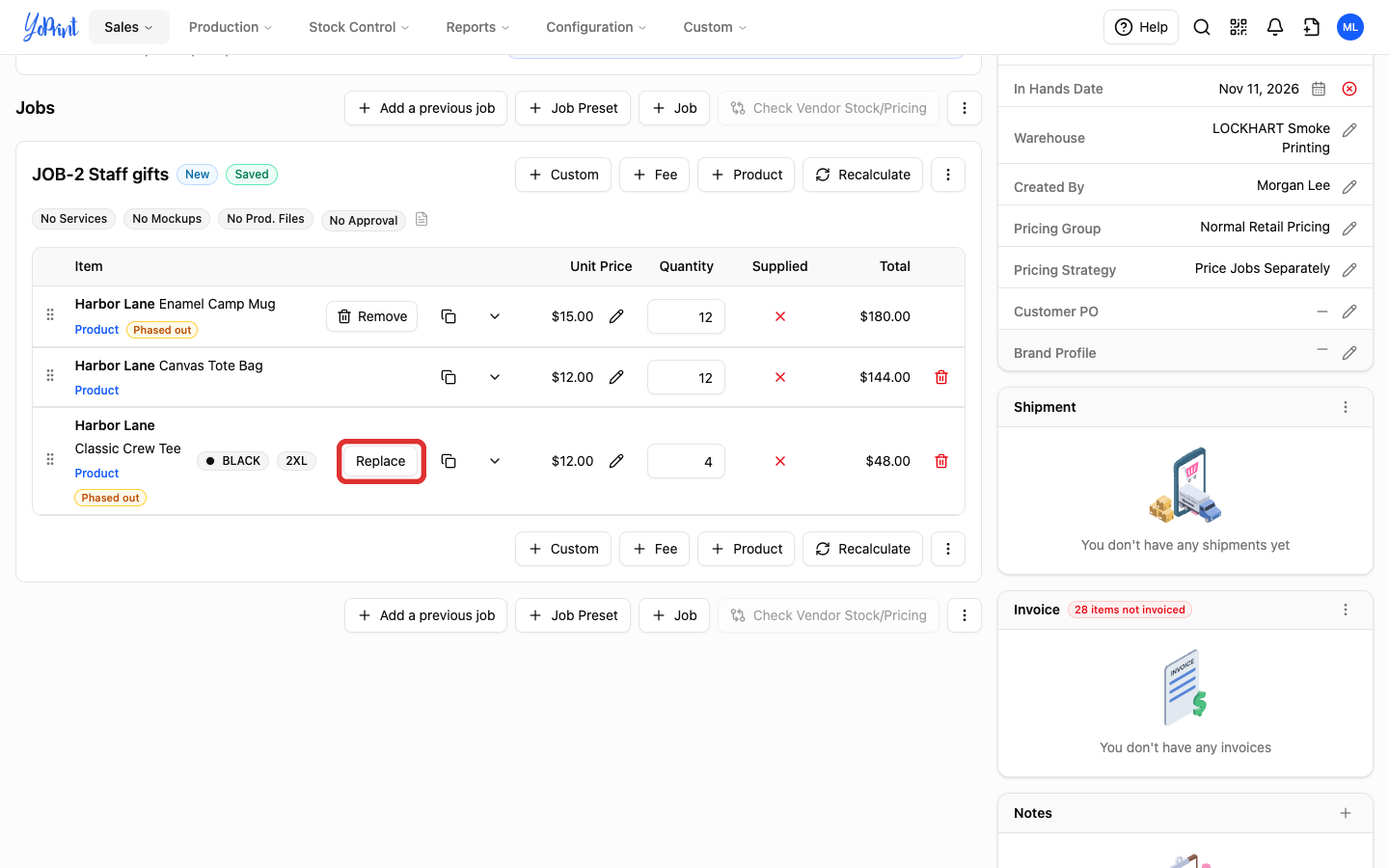
For a product without sizes or colors, click Remove on the line. Add a different product if you need one. Then skip to step 6.
-
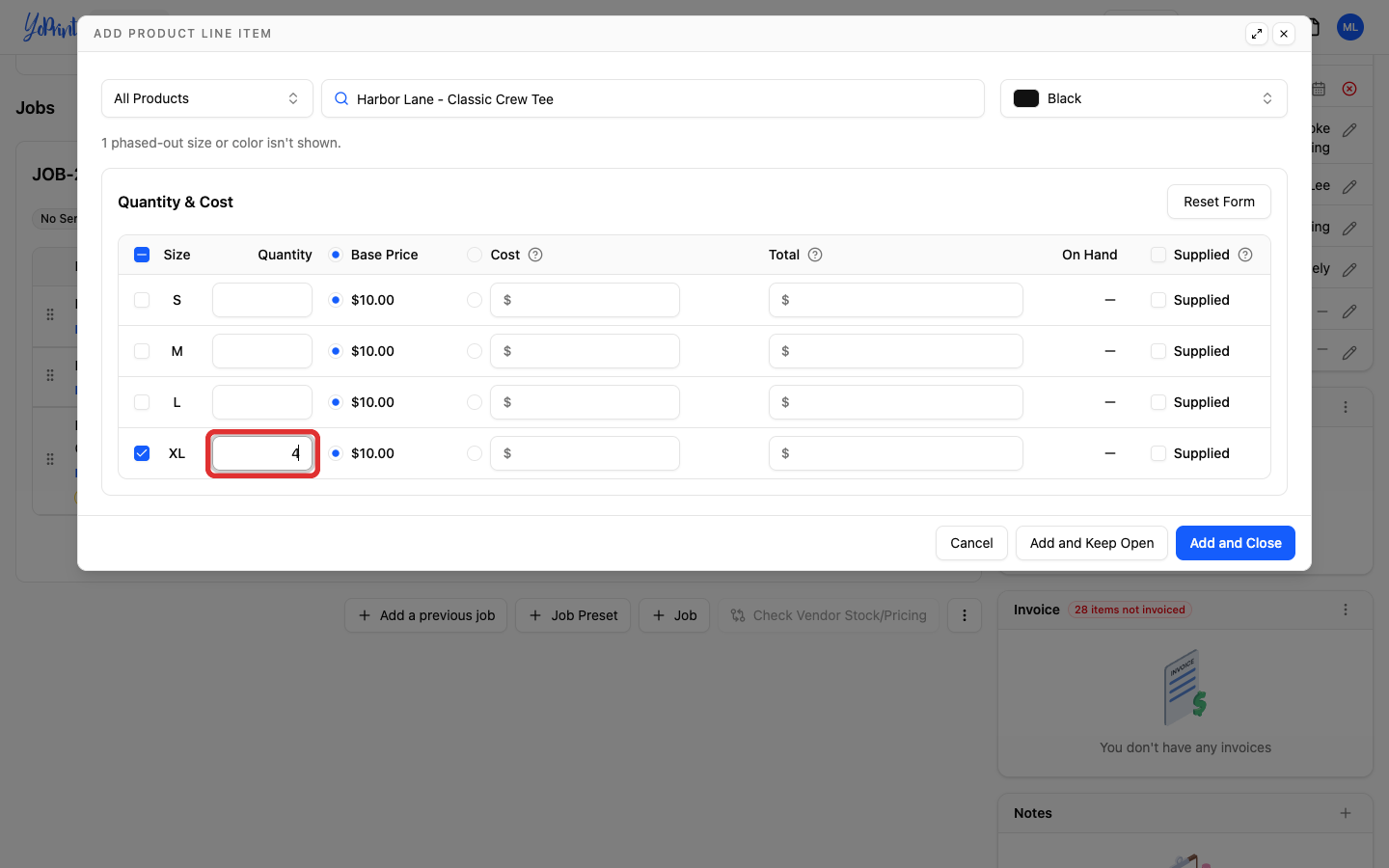
Enter the quantity for an available size or color. The phased-out size isn't listed. The new line starts fresh, so enter the quantity again, and any price or description you had changed on the old line.
-
Click Add and Close.
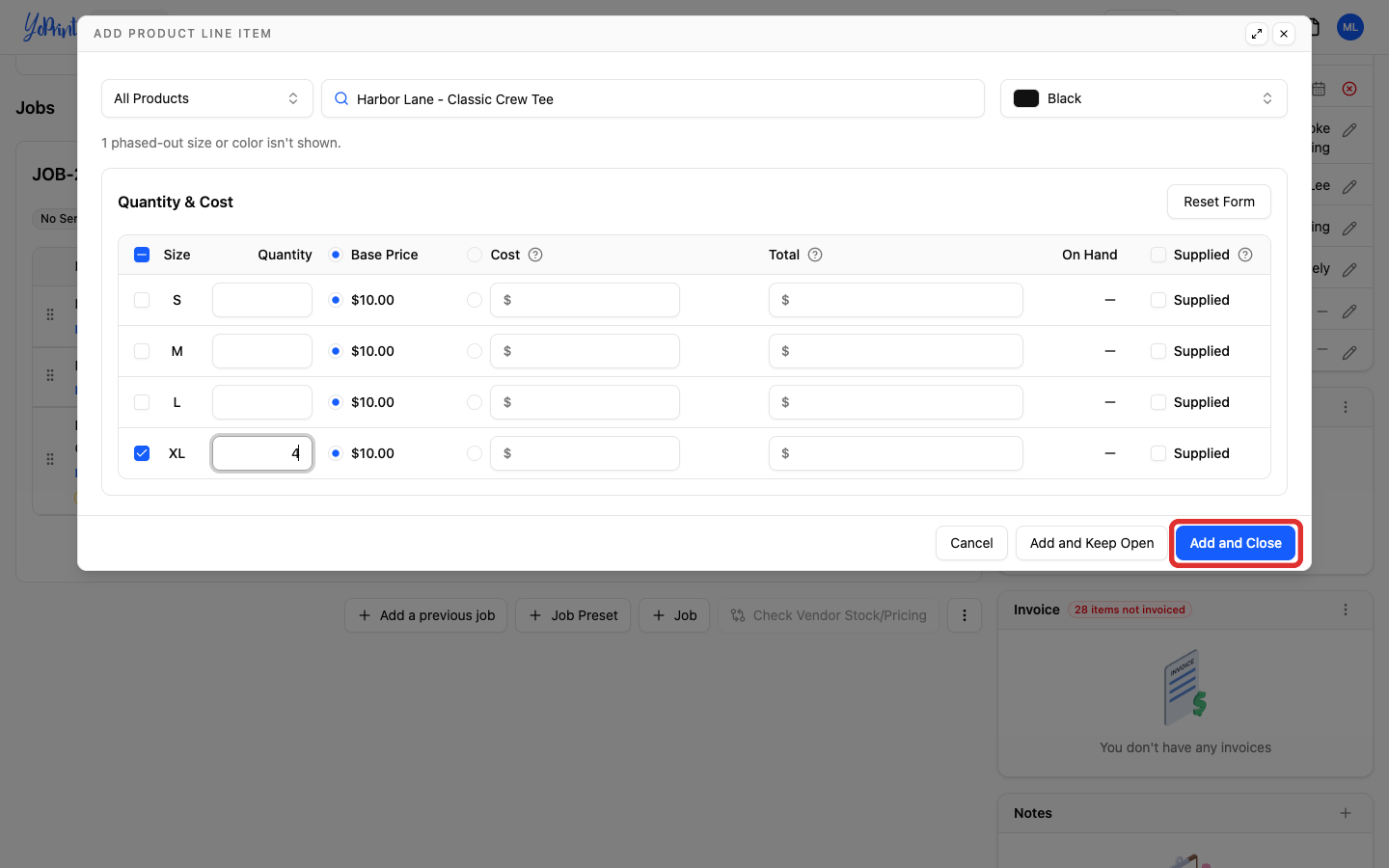
The new line takes the place of the phased-out line.
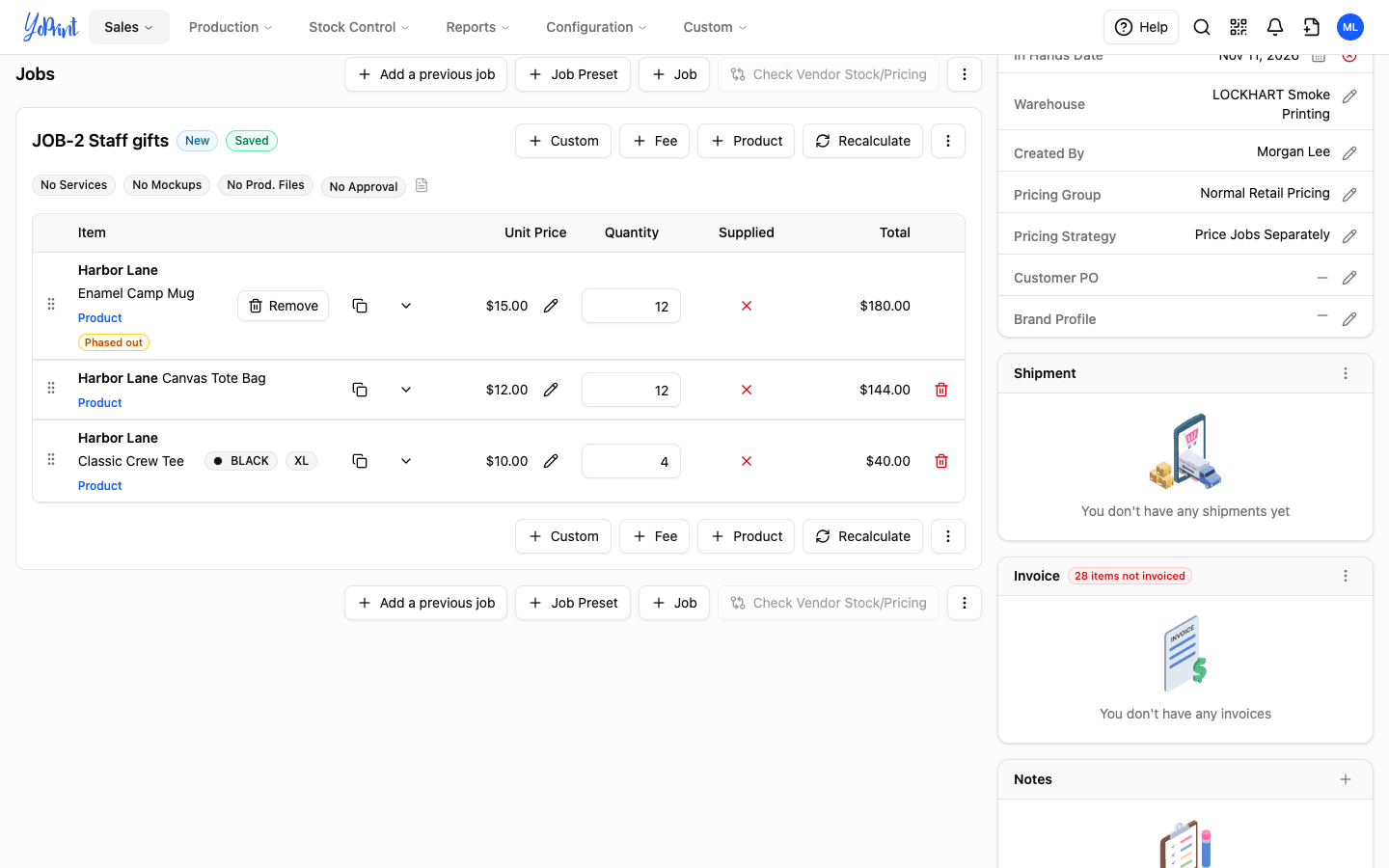
-
Click Publish again.
Clone an order that has phased-out items
Review and replace phased-out items when copying an old order. When you clone a sales order, YoPrint checks its lines first. If any line uses a phased-out or deleted item, YoPrint asks what to do before it copies anything. The same check runs when you clone a quote, clone a job from its menu, or use Add a previous job.
-
Open the sales order, click the ⋮ button at the top right of the order, and choose Clone Sales Order.
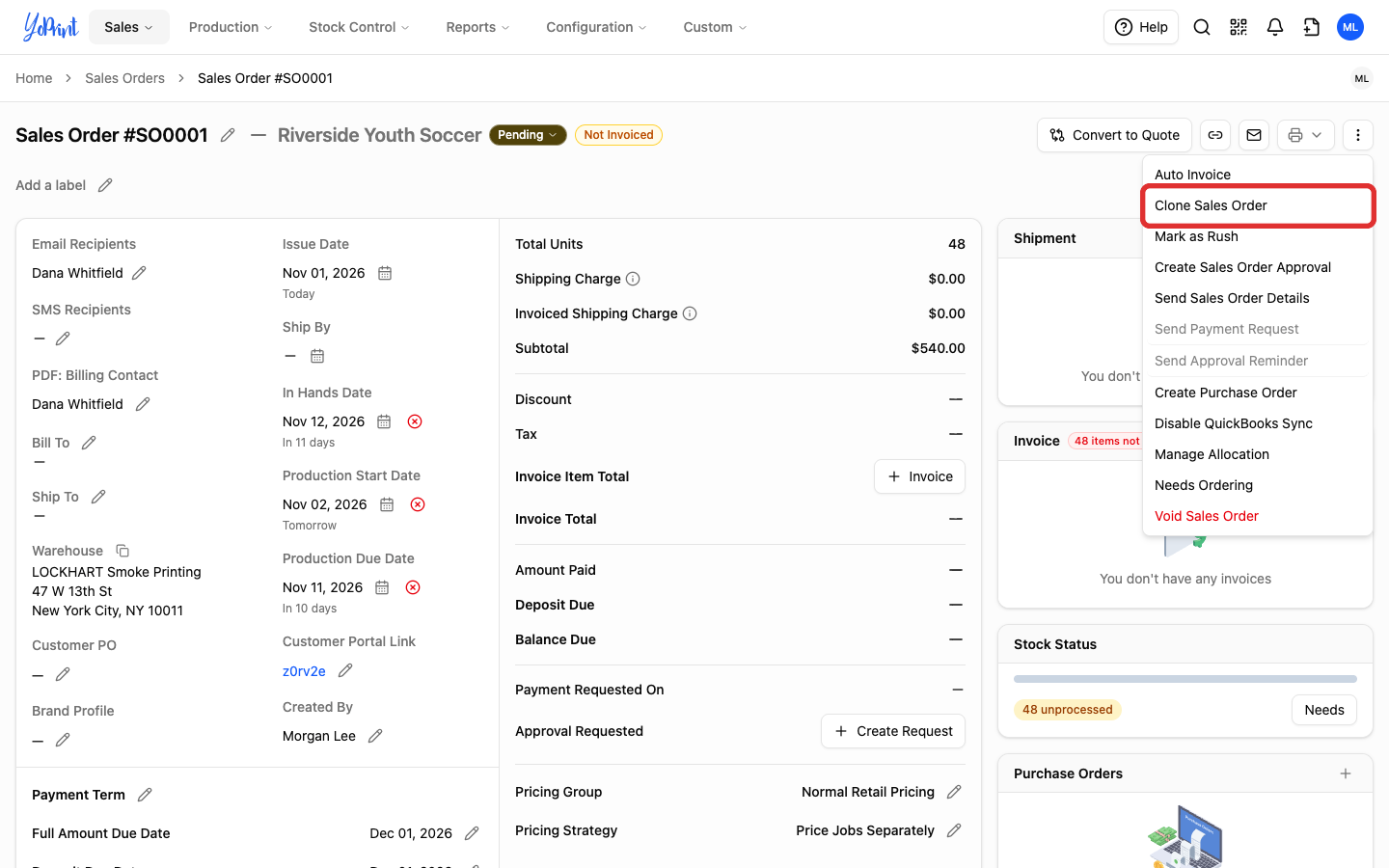
-
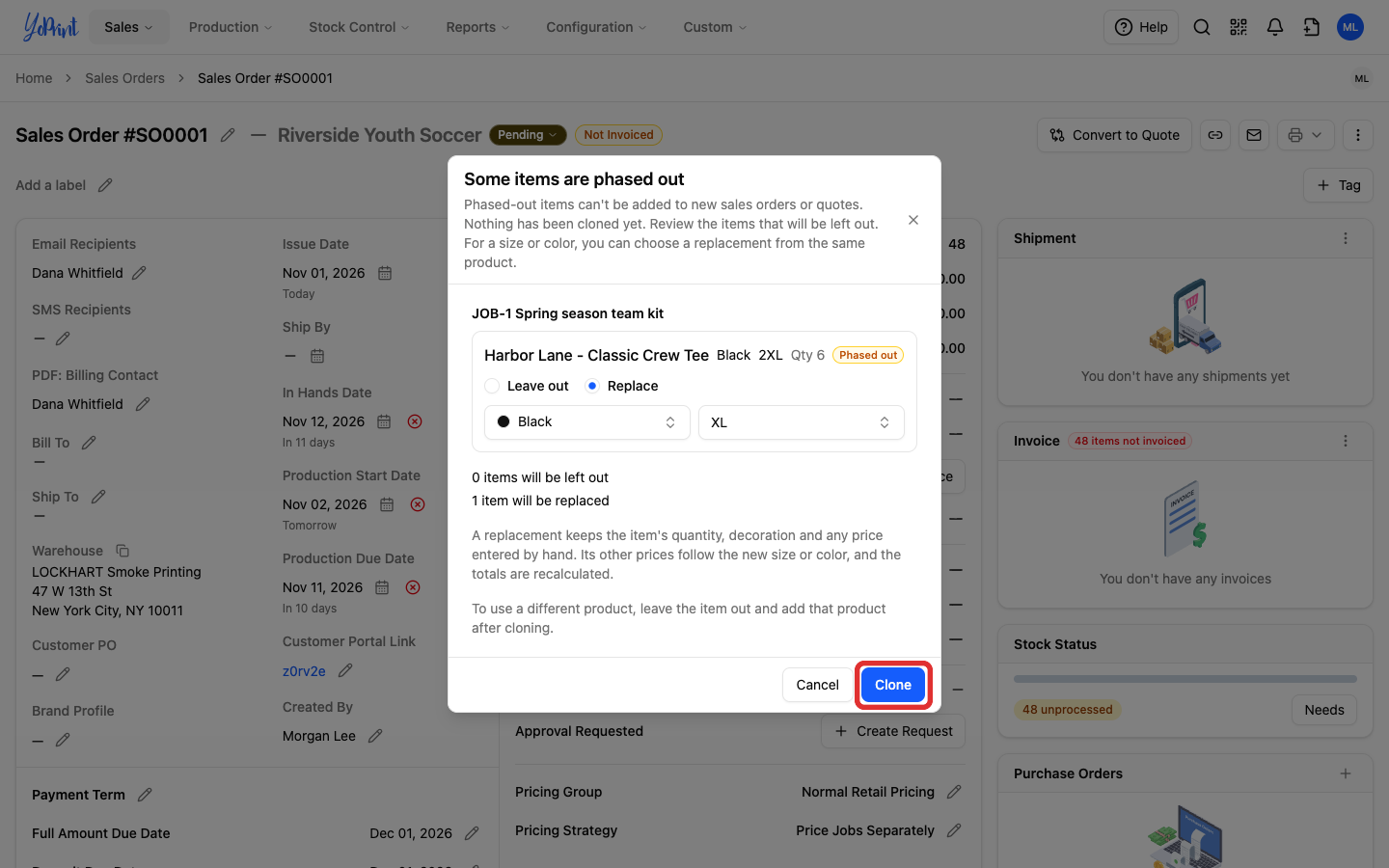
In Some items are phased out, choose how to handle each listed item:
- Leave out: the new draft doesn't get that line. A product without sizes or colors can only be left out. Add a replacement product after cloning.
- Replace: pick another size or color of the same product. After choosing Replace, pick the color and size; Clone stays unavailable until you pick one. The replacement keeps the line's quantity, decoration and any price entered by hand. Its unit price and cost update to match the new size or color.
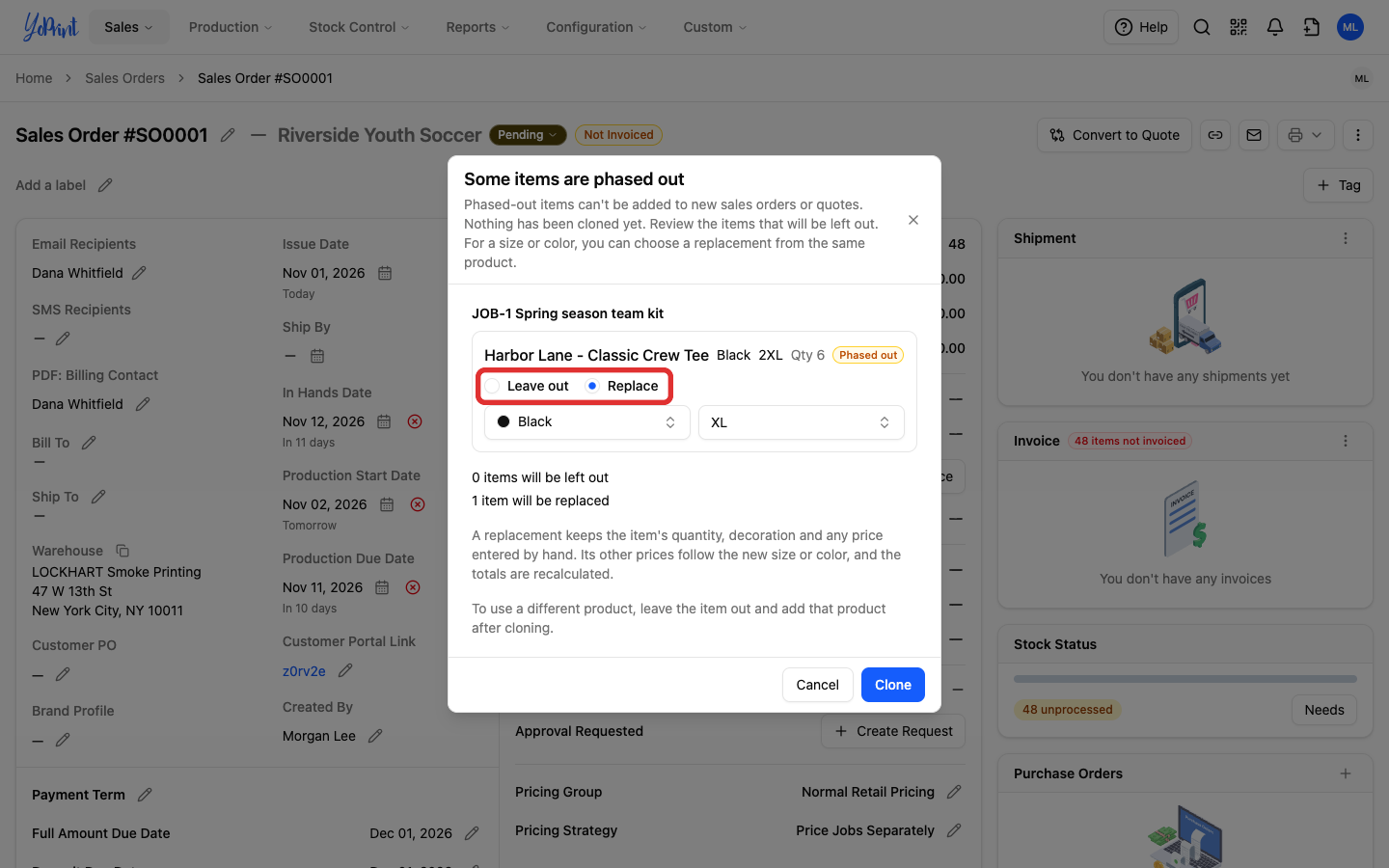
-
Click the clone button. Its label says how many items will be left out, for example Clone and leave out 1 item. The button reads Clone when nothing is left out.
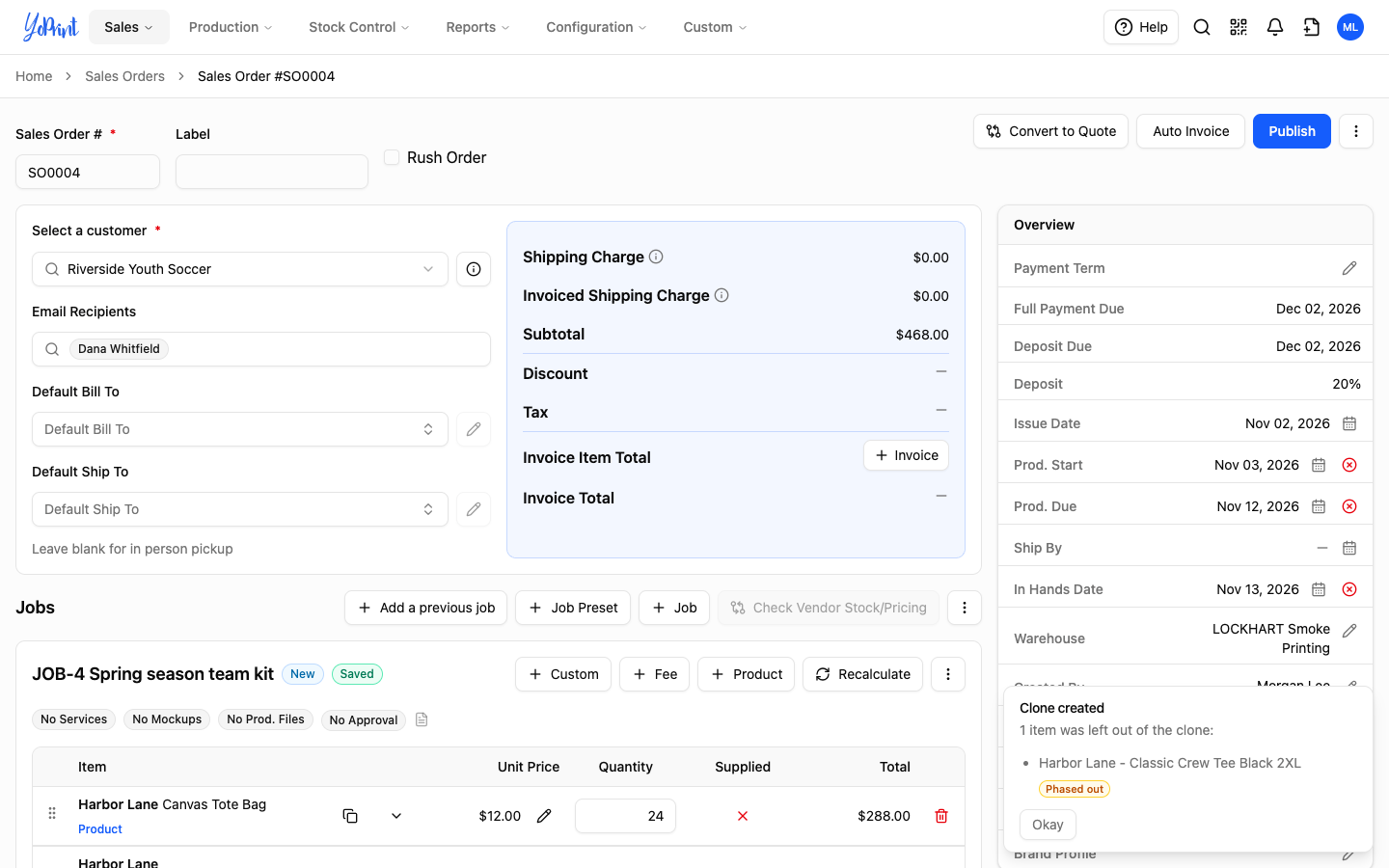
The new draft opens. If you chose Leave out, Clone created lists them. If every product on a job was left out, YoPrint still copies the job with no lines so you can add new products. For what a cloned job carries, see Reuse a Job Order by Cloning.
Find phased-out and deleted products
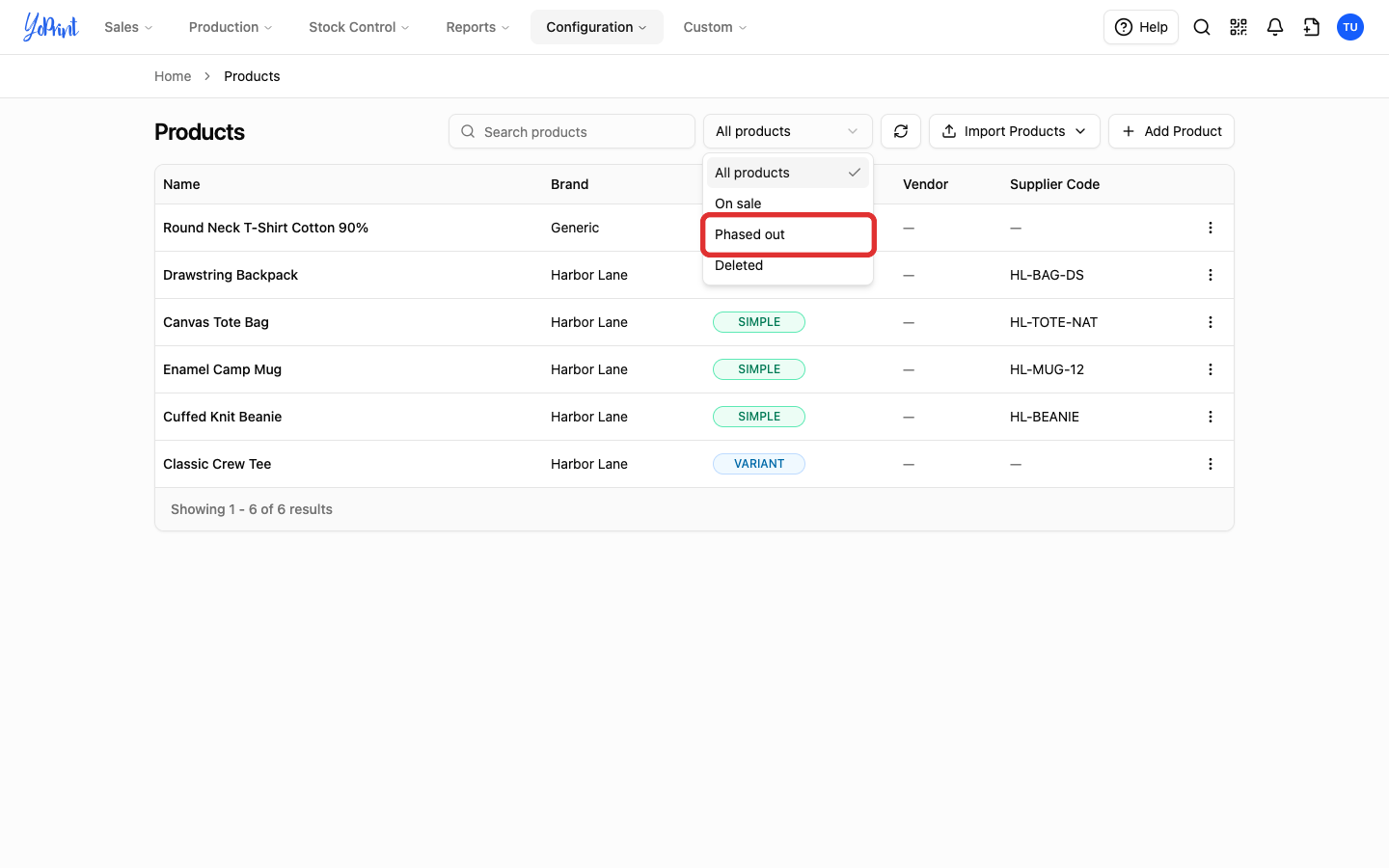
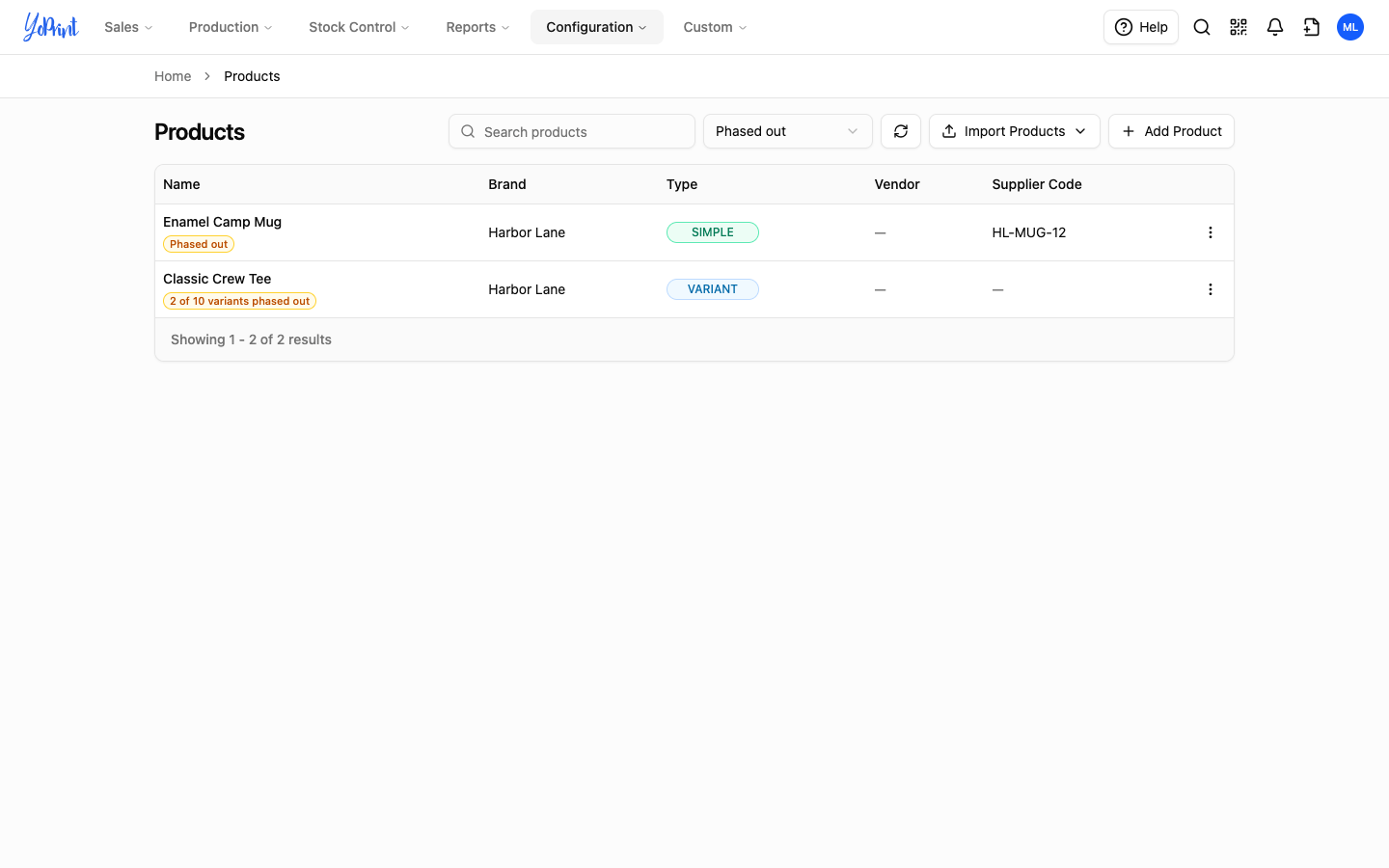
Filter the Products list to see which items are phased out, on sale, or deleted. The Products list shows All products by default, including phased-out ones. A phased-out product shows Phased out under its name. A product with some phased-out sizes or colors shows how many, for example 2 of 10 variants phased out.
-
In Products, open the filter beside the search box and choose Phased out.
The list shows phased-out products and products with at least one phased-out size or color.
Use the other choices the same way:
- On sale: products you can add to new orders. A product with some phased-out sizes appears here too.
- Deleted: deleted products, which you can restore (see Restore a deleted product).
- All products: everything except deleted products.
Delete a product
Delete a product you never used, or see why YoPrint keeps one. YoPrint checks where the product is used before it deletes anything. It keeps the product in any of these cases:
- It has been on a published sales order or quote, even one you later deleted. YoPrint keeps deleted orders so you can restore them (see Restore Deleted Orders).
- A purchase order line for it still waits to be received, or a stock adjustment or transfer is still pending.
- Some of its stock belongs to your customer (see Add Customer-Supplied Products).
-
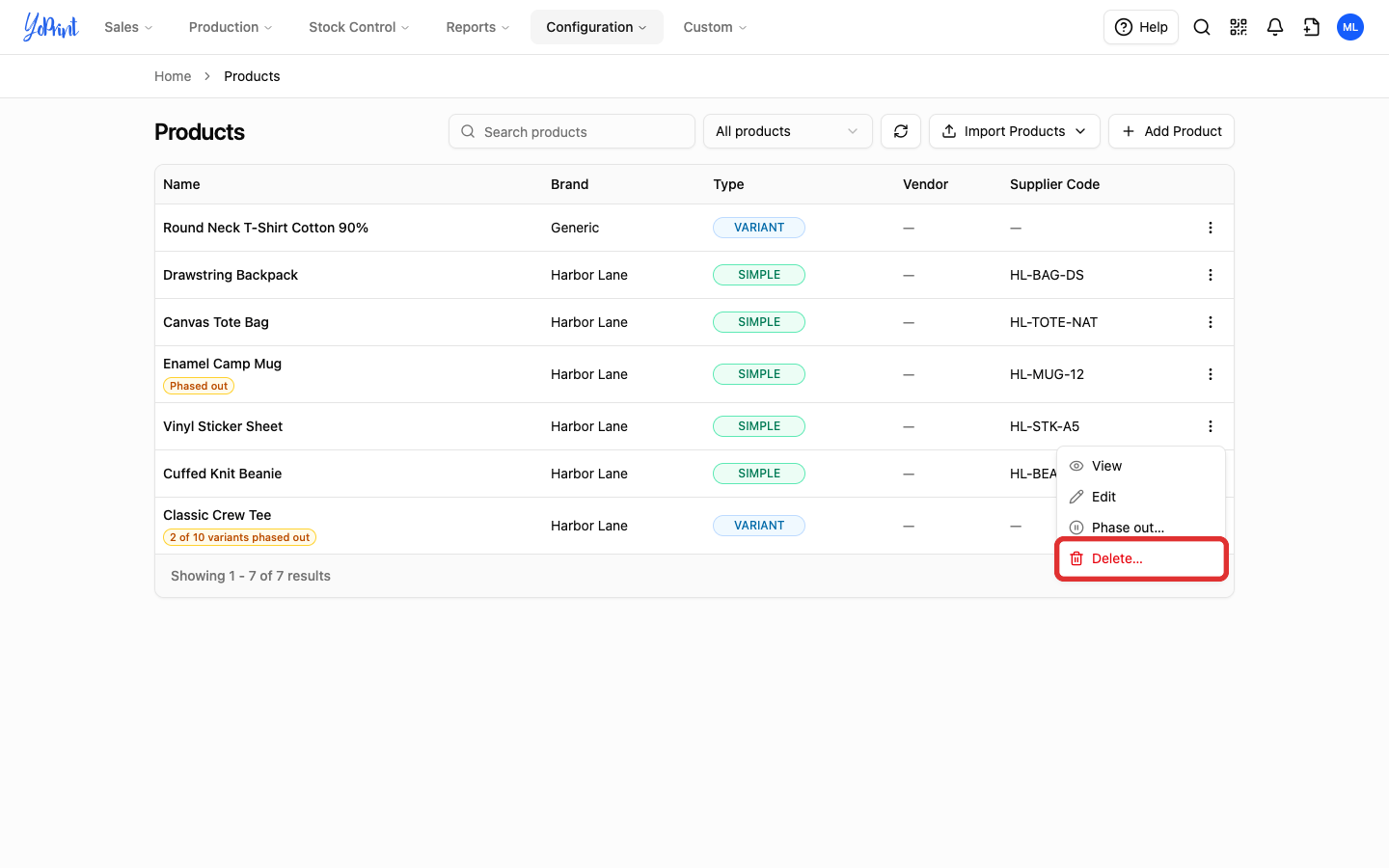
In Products, open the product's row menu and choose Delete….
-
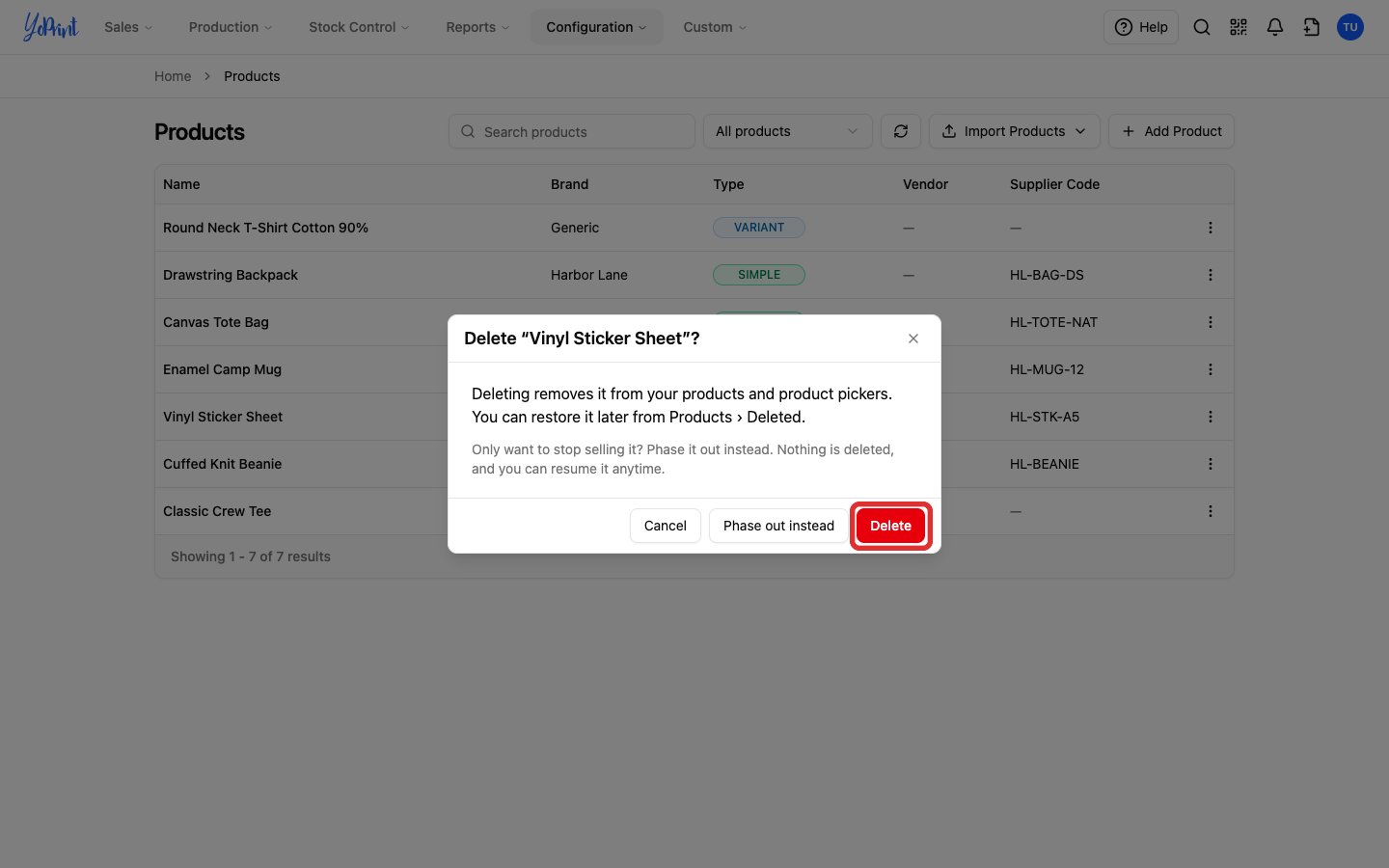
If the product is not in use, click Delete. YoPrint removes it from your products and product pickers.
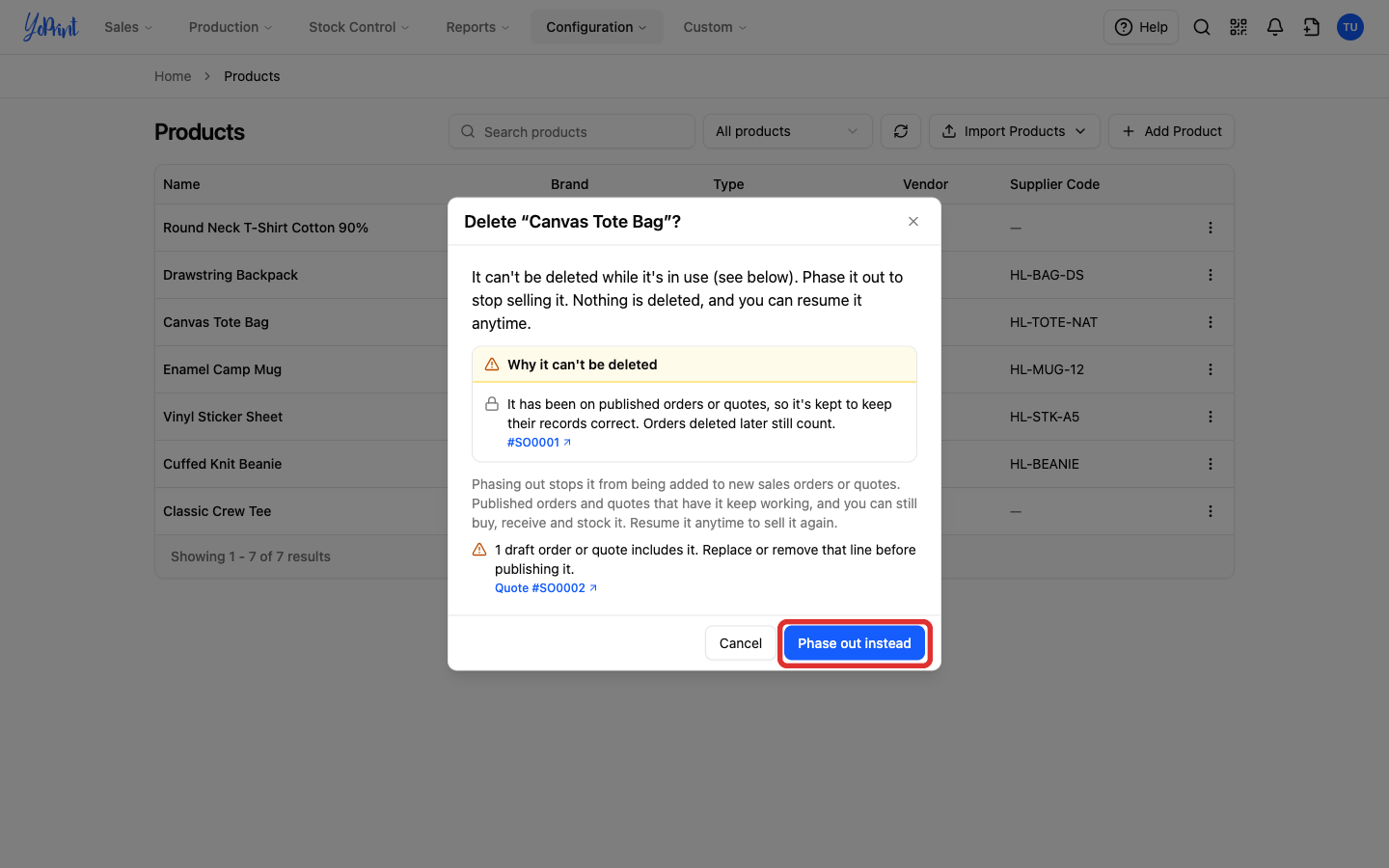
If the product is in use, the dialog says why it can't be deleted and links to each order involved. Click Phase out instead to stop selling it.
If a purchase order still to be received is the reason, receive or void it first, then delete the product (see Purchase Order Receiving and Voiding/Removing a Purchase Order).
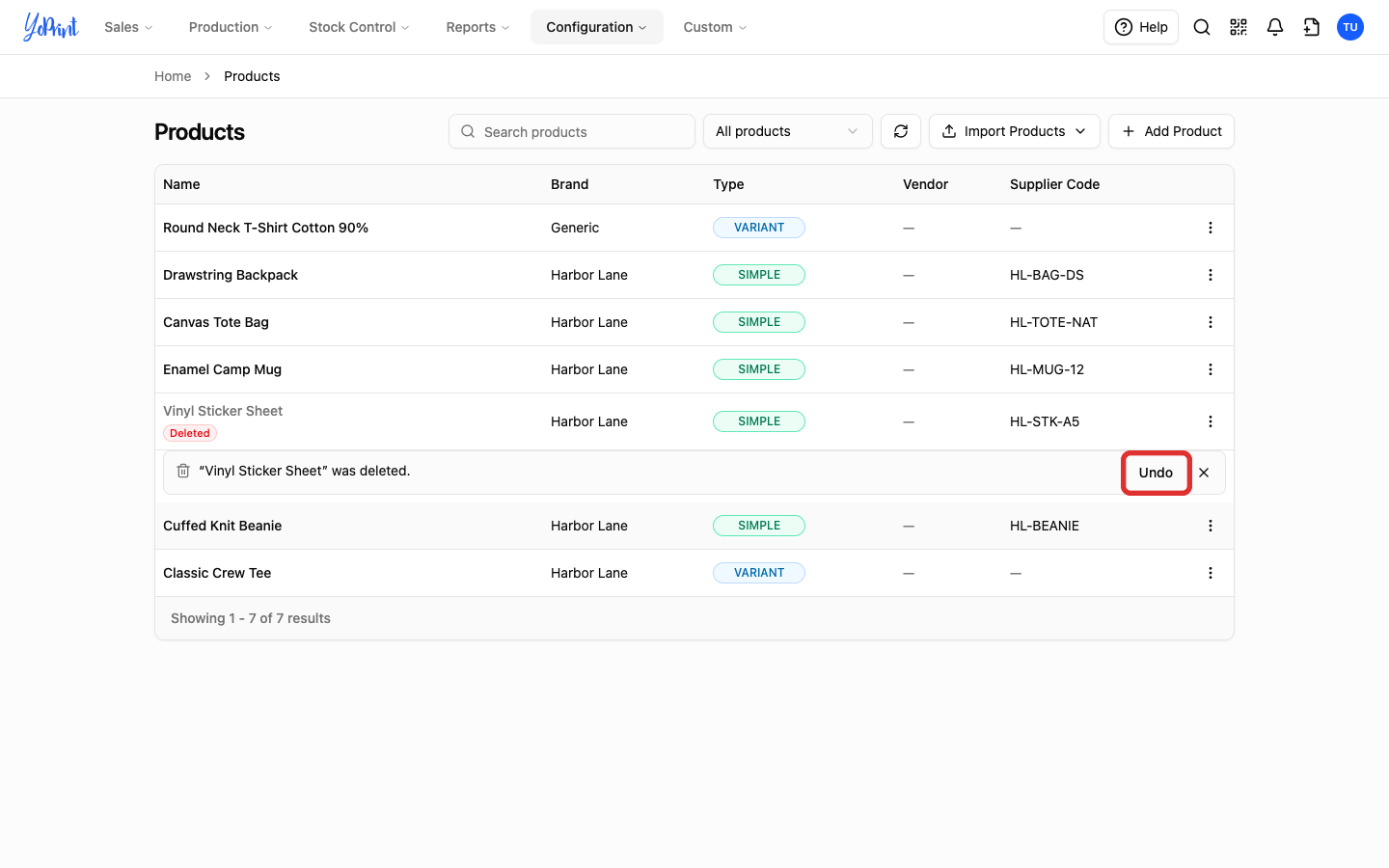
After a delete, YoPrint shows “Product name” was deleted. under the row. To bring it back straight away, click Undo.
Stock your shop holds
Stock your shop holds doesn't block a delete. Deleting the item removes its on-hand count from inventory, and YoPrint records no stock adjustment. The delete dialog says how many units will leave inventory. If you restore the product, its stock comes back. To adjust stock before you delete, see Stock Adjustments.
Delete a size or color
Delete an unused size or color permanently from the product editor. YoPrint checks where the variant is used before deleting it, and phases out any variant that is in use instead, for example one on a published order.
-
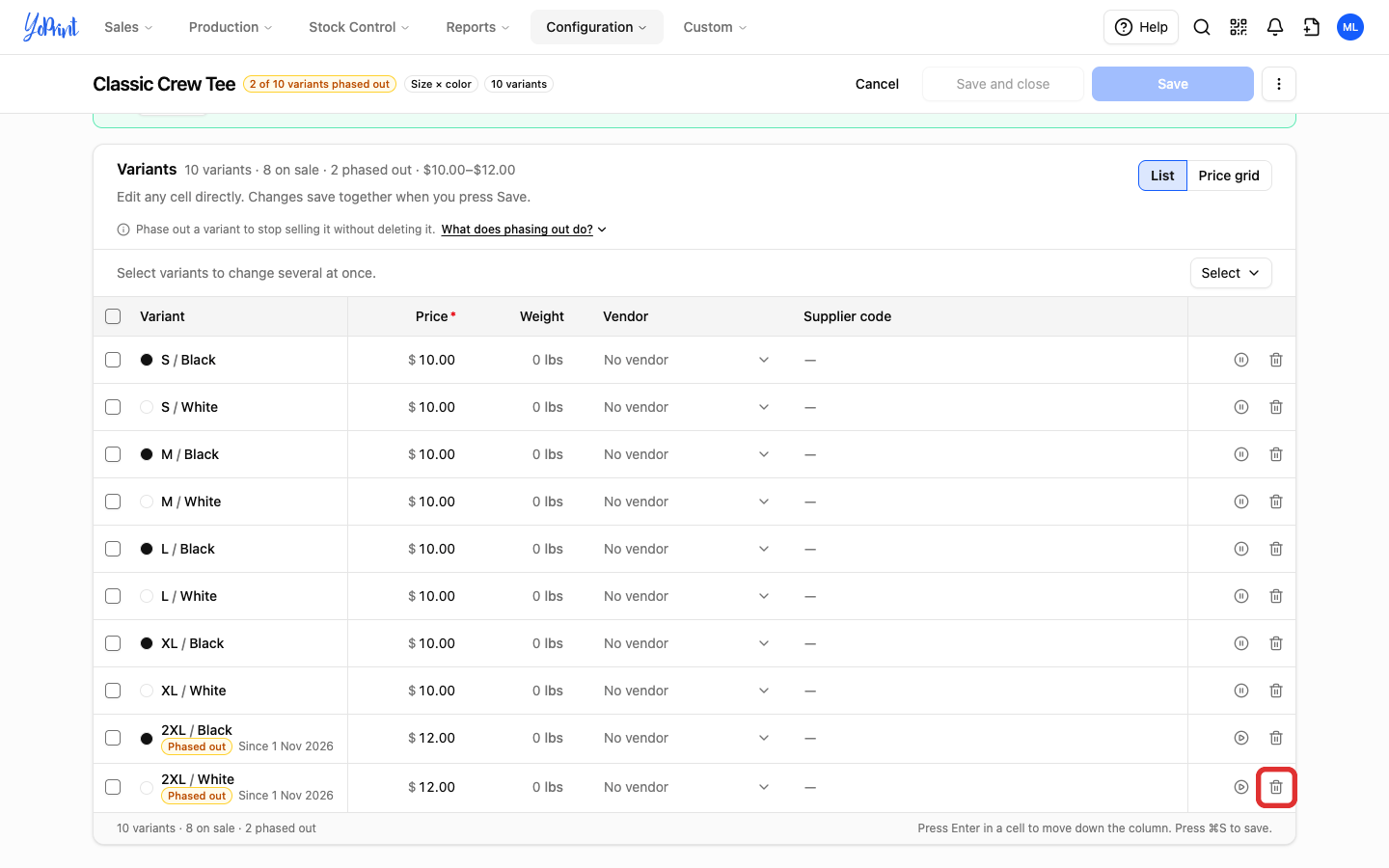
In the product editor, click the bin icon on the variant's row. To delete every combination of a size or color at once, click the × on its size or color chip.
-
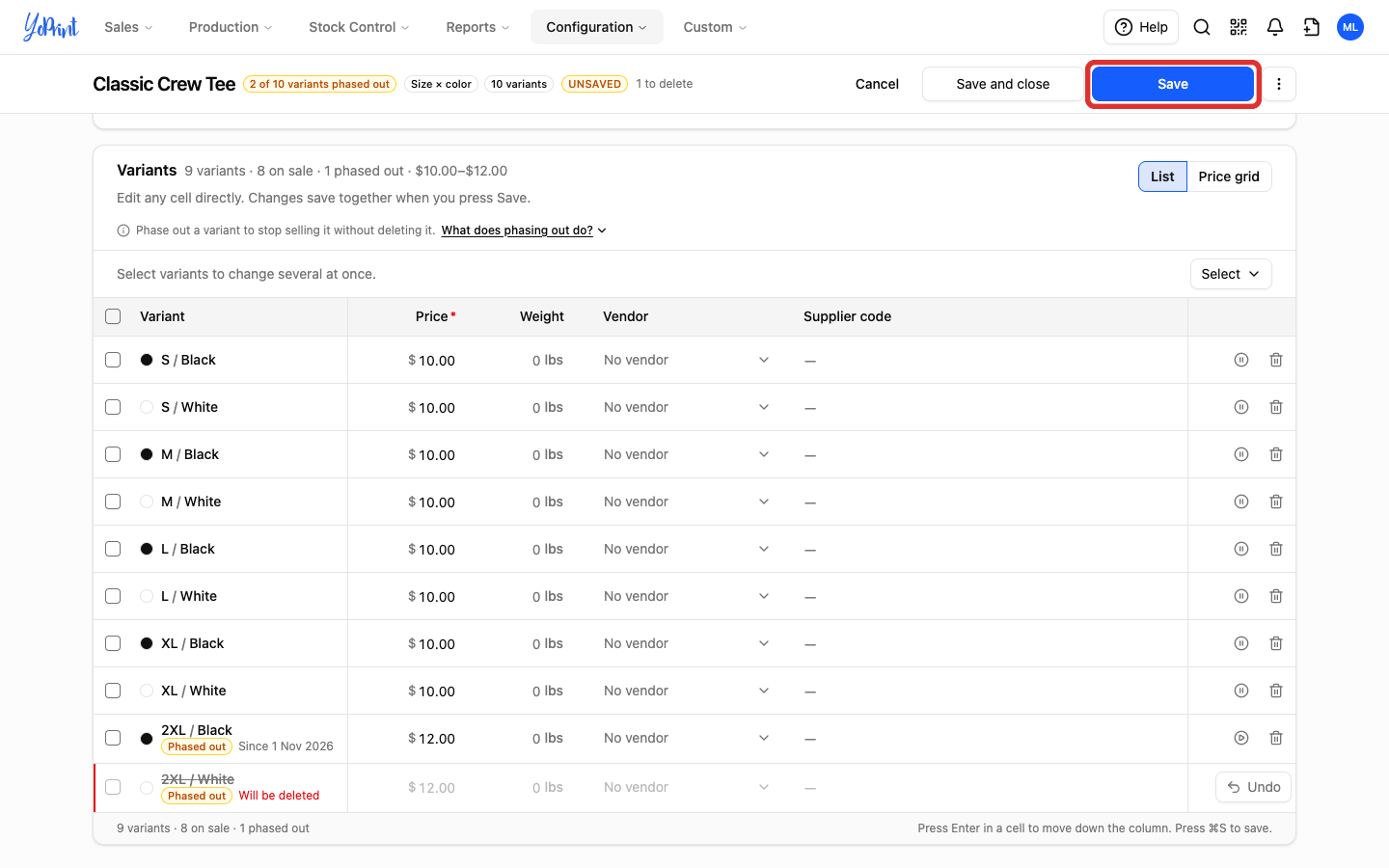
Click Save.
-
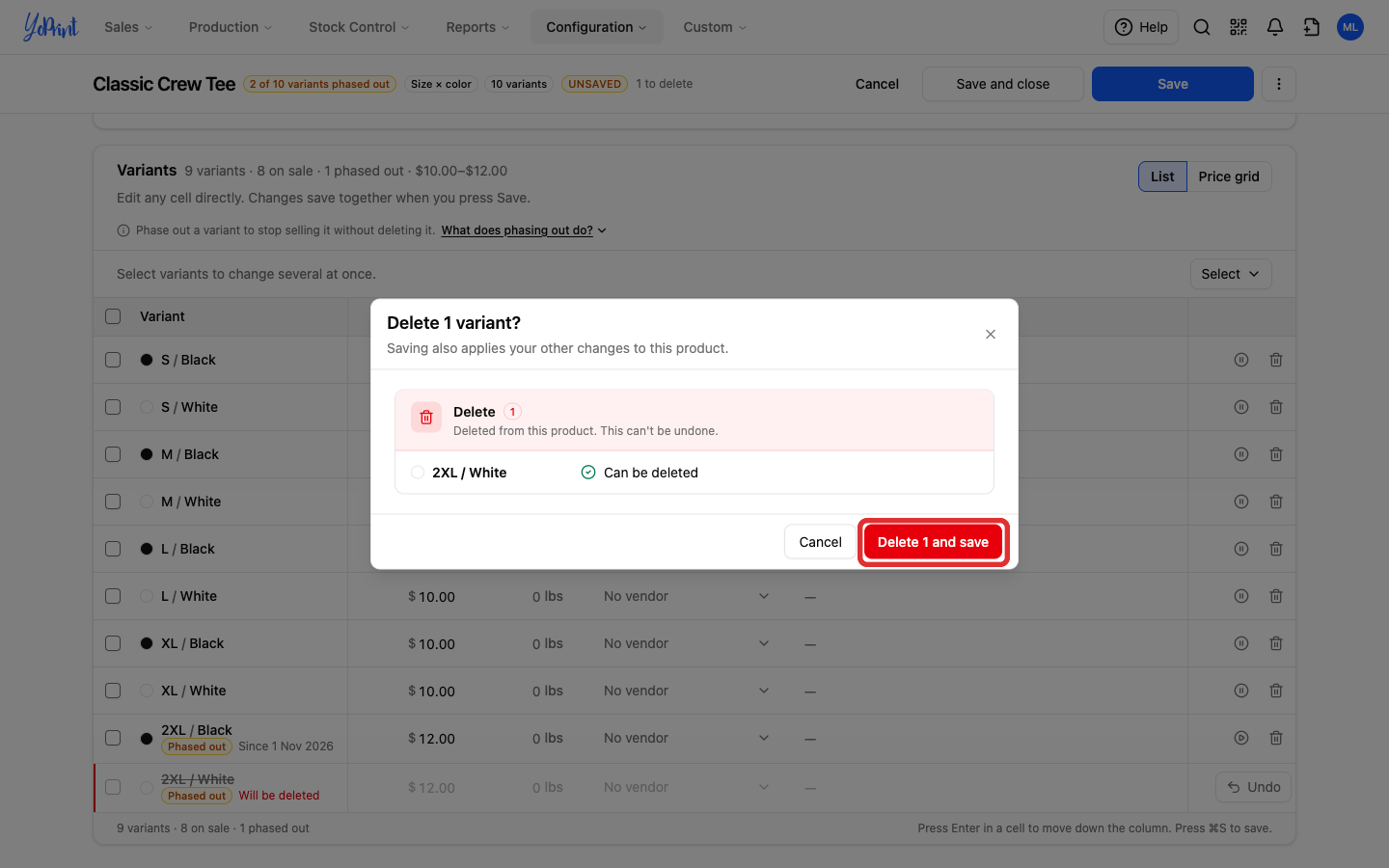
Check the list, then click Delete 1 and save. A deleted size or color can't be brought back.
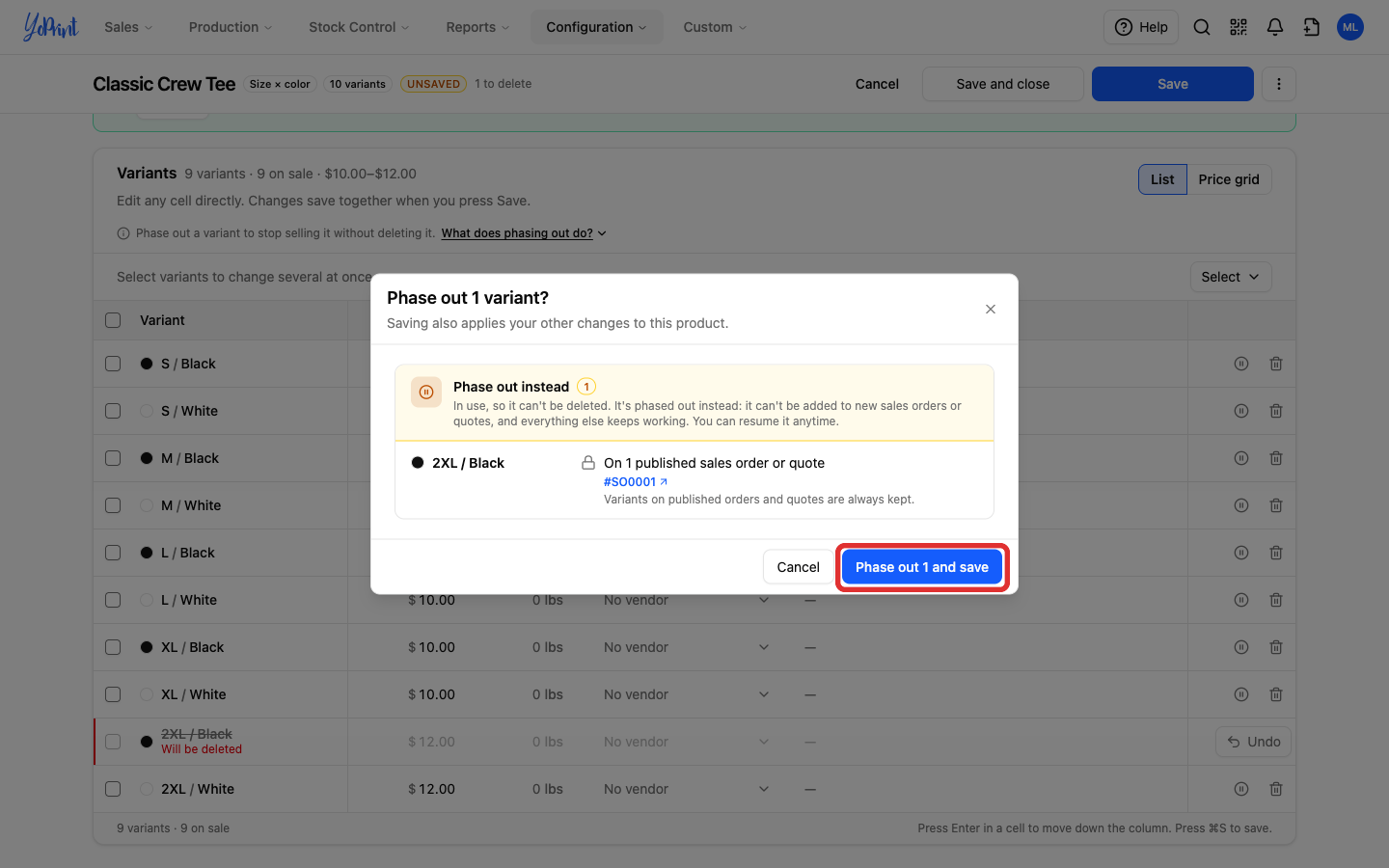
If a variant you are deleting is in use, YoPrint phases it out instead. The review lists it under Phase out instead with the orders involved, and the button changes to Phase out 1 and save. When you delete several variants and some are in use, the review splits them and the button says both, for example Delete 1, phase out 1 and save. The chip × runs the same check.
YoPrint also keeps the product's last remaining variant.
Restore a deleted product
Restore a deleted product to return it to your active product list.
-
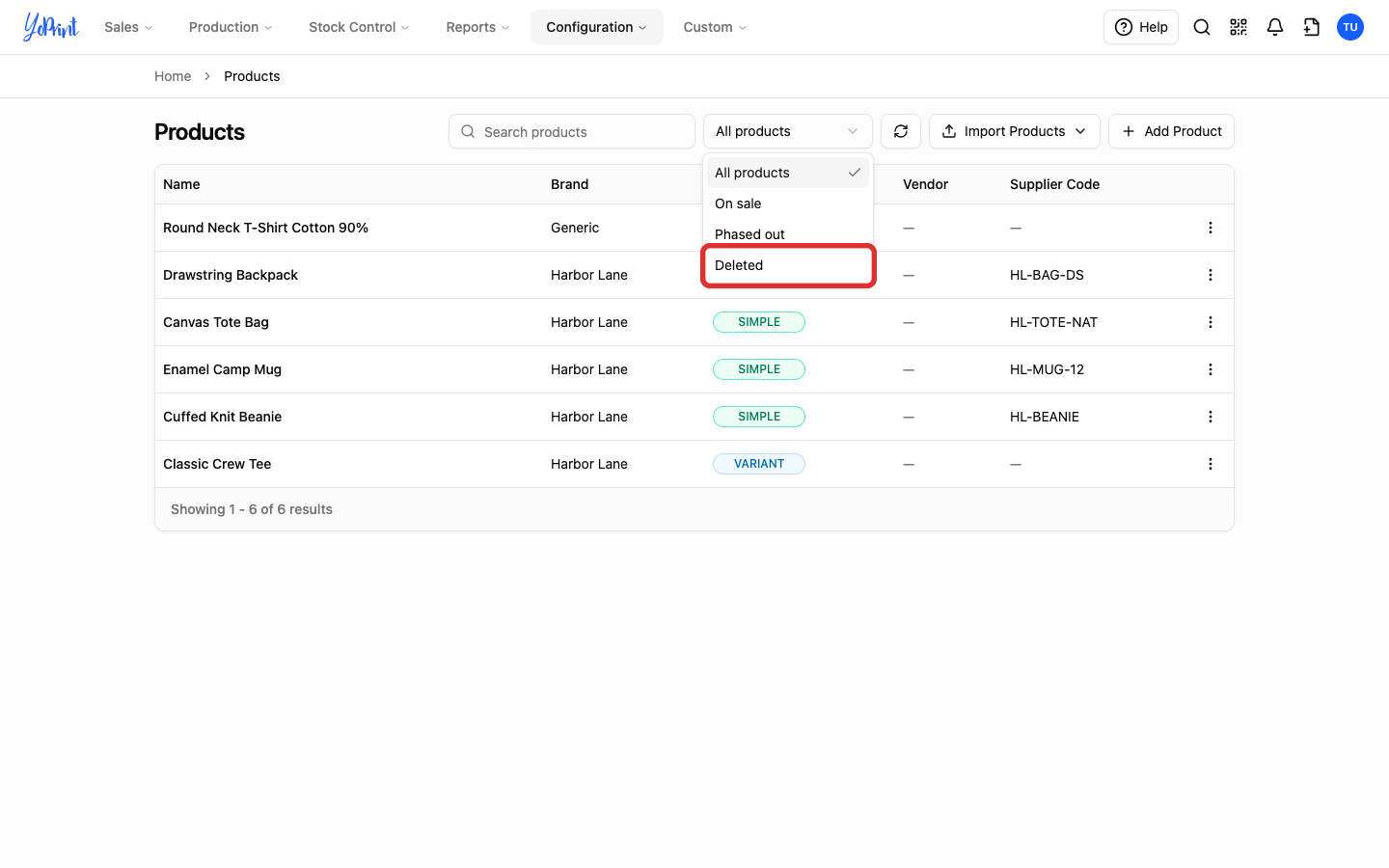
In Products, open the filter beside the search box and choose Deleted.
-
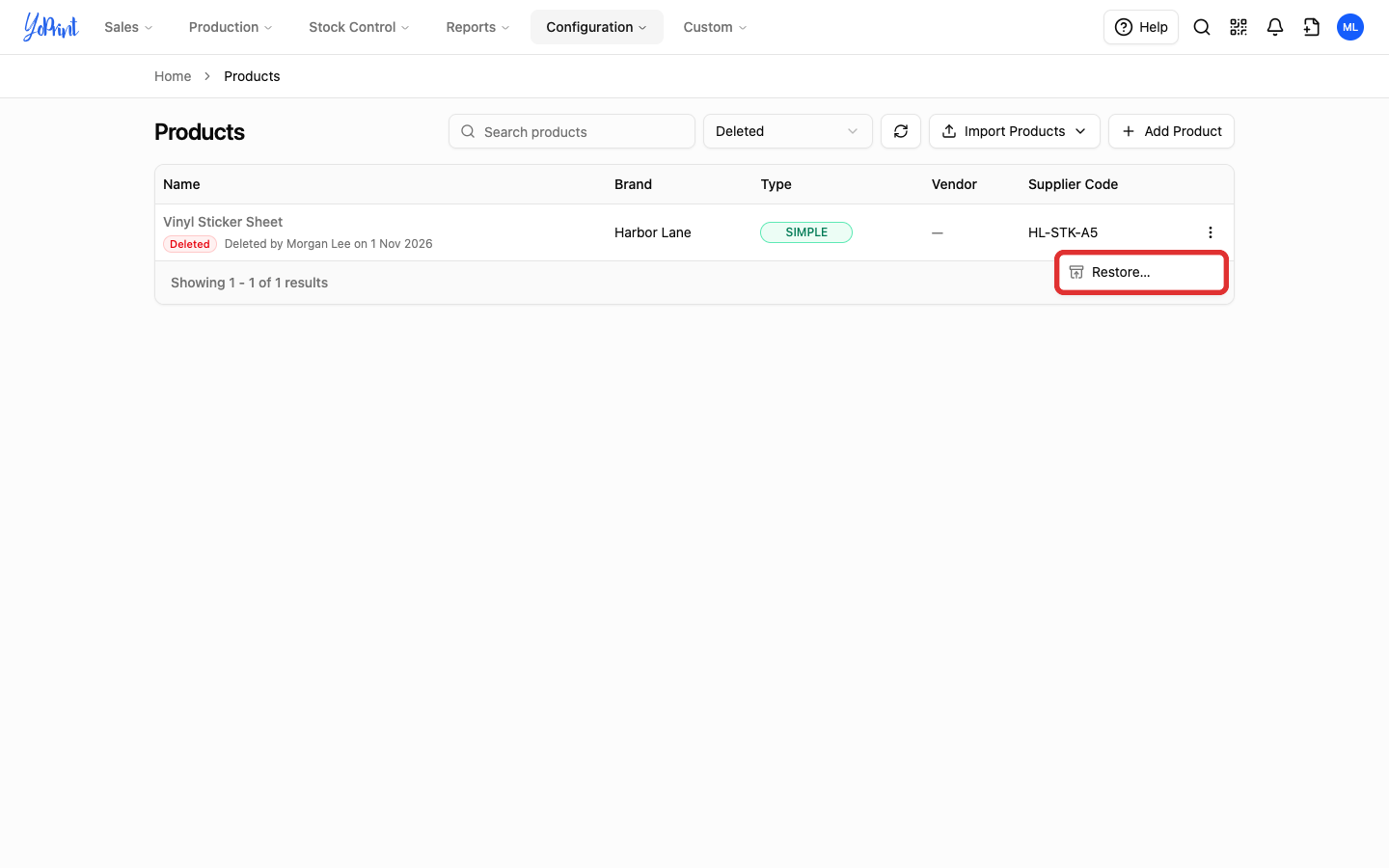
Open the product's row menu and choose Restore….
-
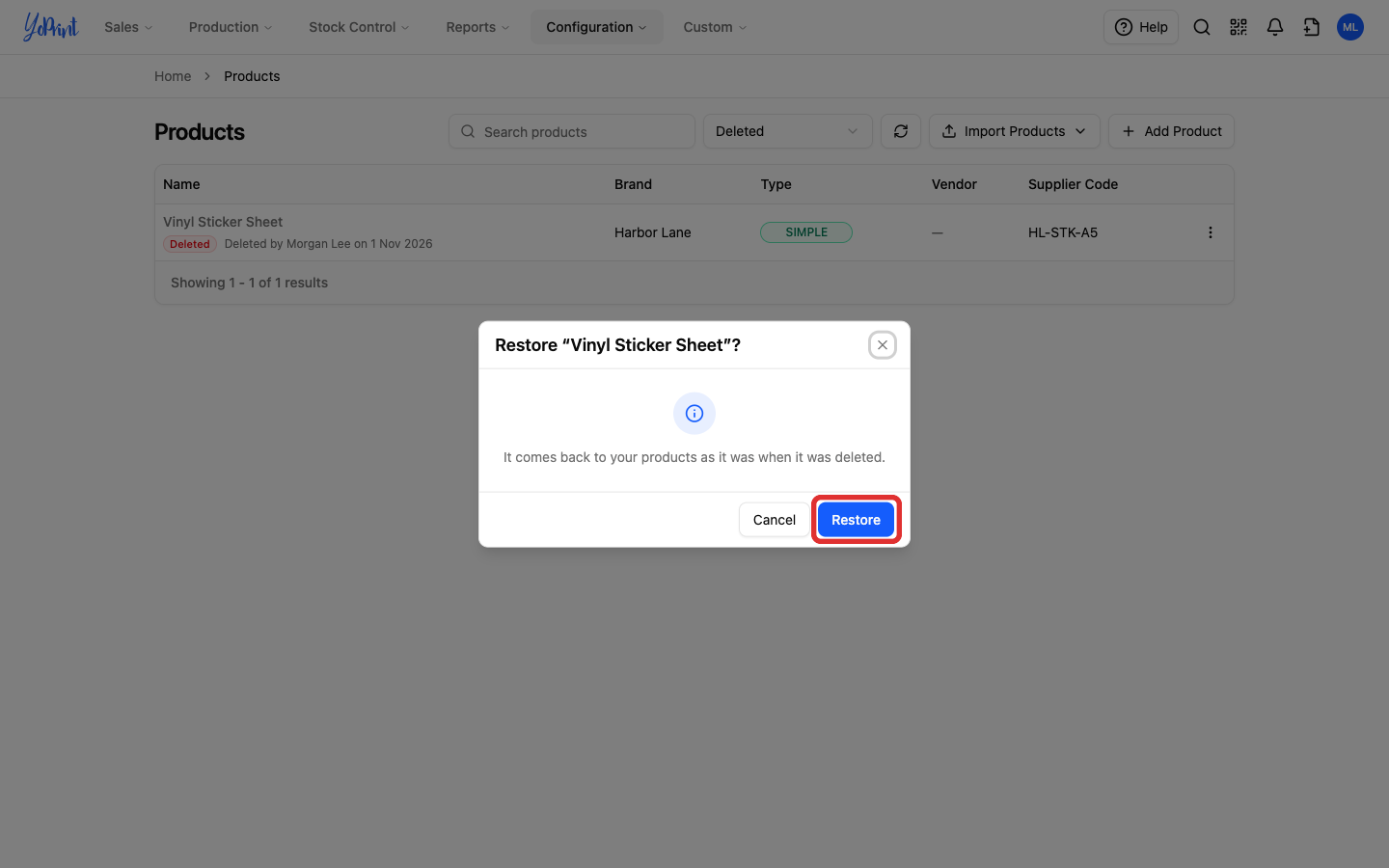
Click Restore. The product comes back as it was when it was deleted.
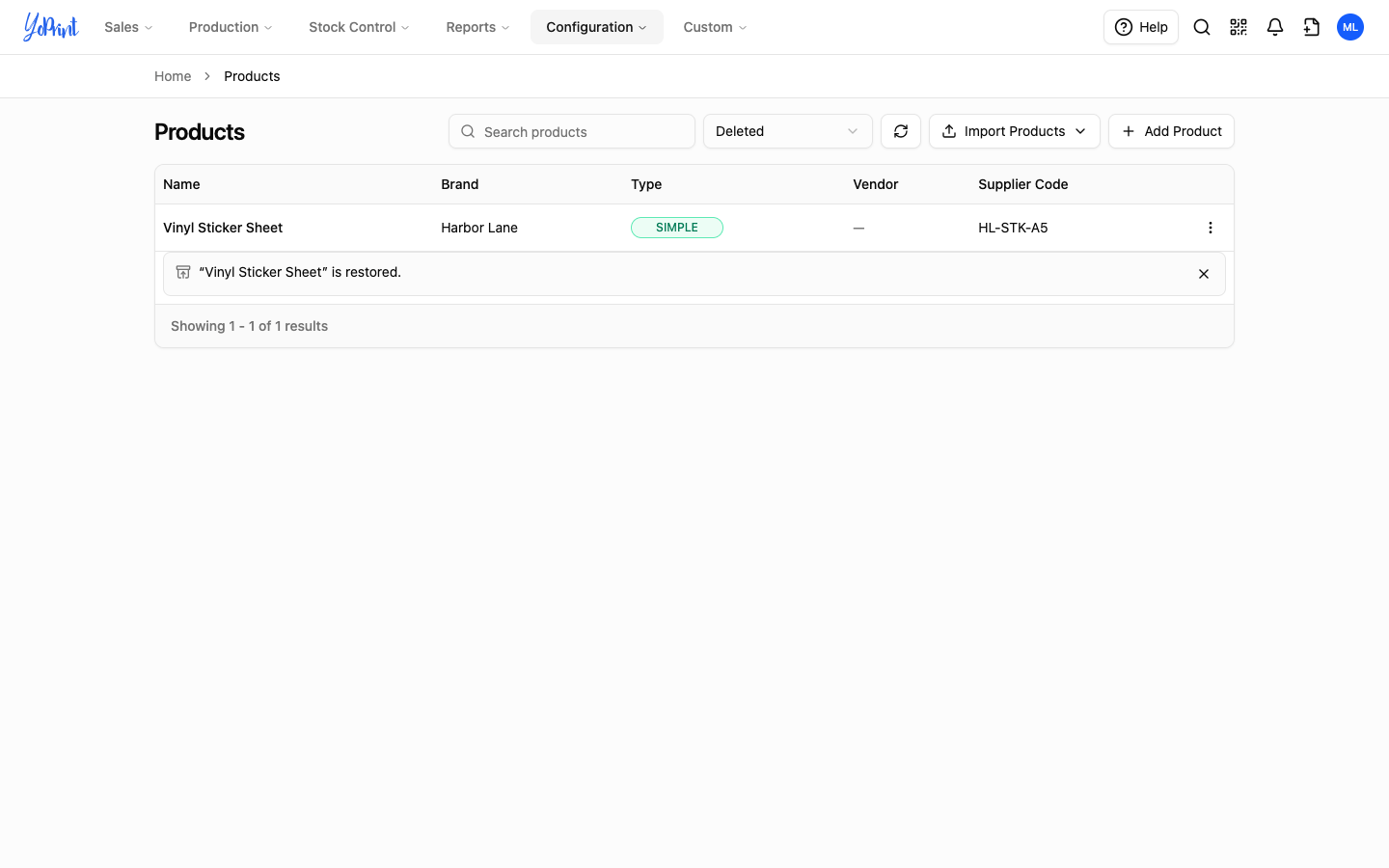
YoPrint shows “Product name” is restored. under the row.
Check sales status in a product export
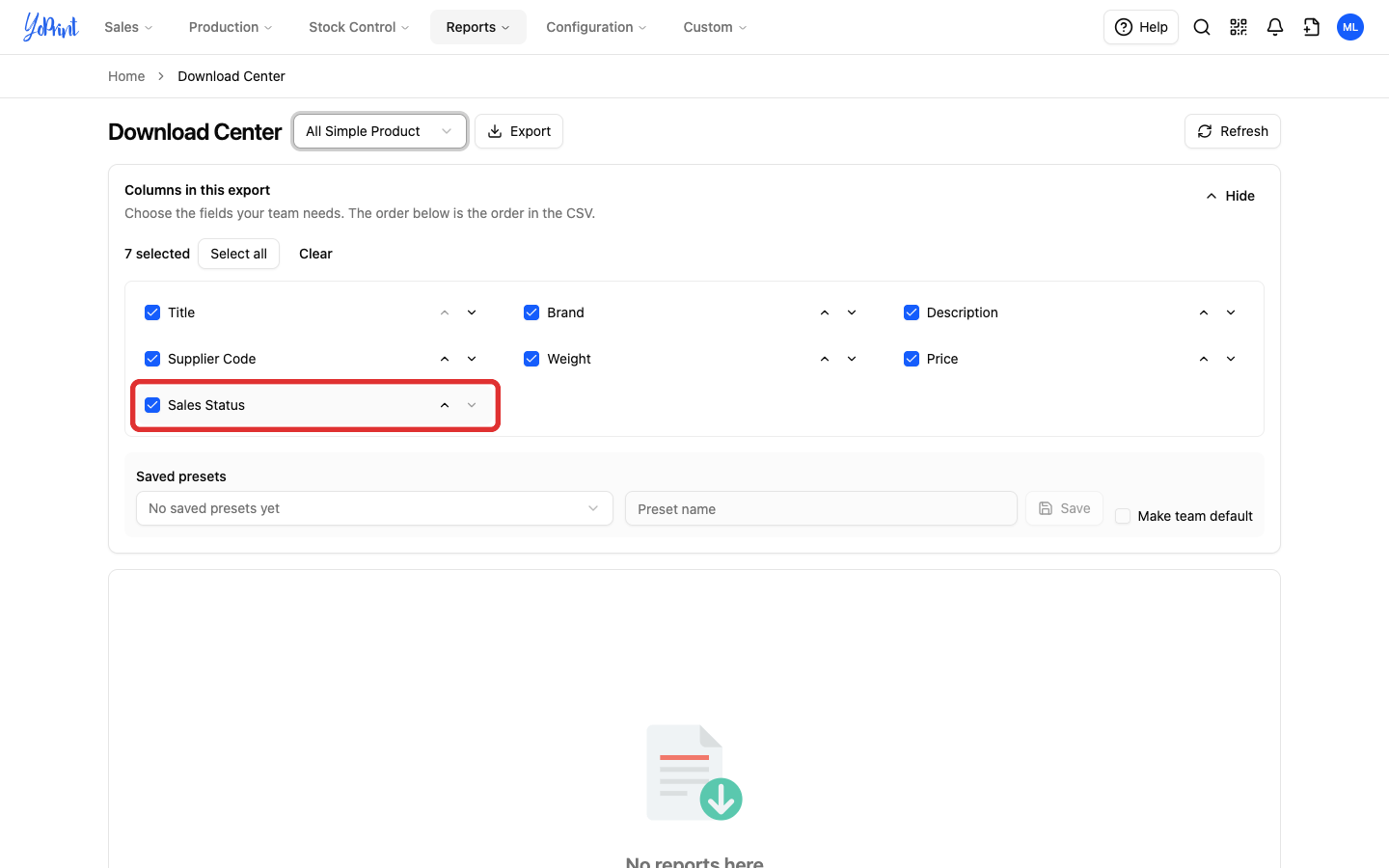
Export your product list to check the sales status of each item in a spreadsheet. The product exports in the Download Center include a Sales Status column. Each product, or each size and color of a variant product, shows On sale or Phased out. Deleted products aren't exported.
Go to Reports › Download Center.
-
Choose All Simple Product or All Variant Product and keep Sales Status ticked in Columns in this export.
For the full export steps, see How to Export Products. Importing a CSV doesn't change a product's sales status (see Import and Update Products Using a CSV Template). Use Phase out or Resume selling in Products instead.