Run a Sales Tax Report
In this article
The Tax Report lists fully paid invoices for a filing period by the sales order's last payment date. Export the rows as CSV or Excel.
To report tax by the sales order's issue date instead, use the Invoices report in Filter and Export Invoice Reports by Date Range.
Open the Tax Report for a filing period
Choose a date range to load the fully paid invoices for your filing period.
-
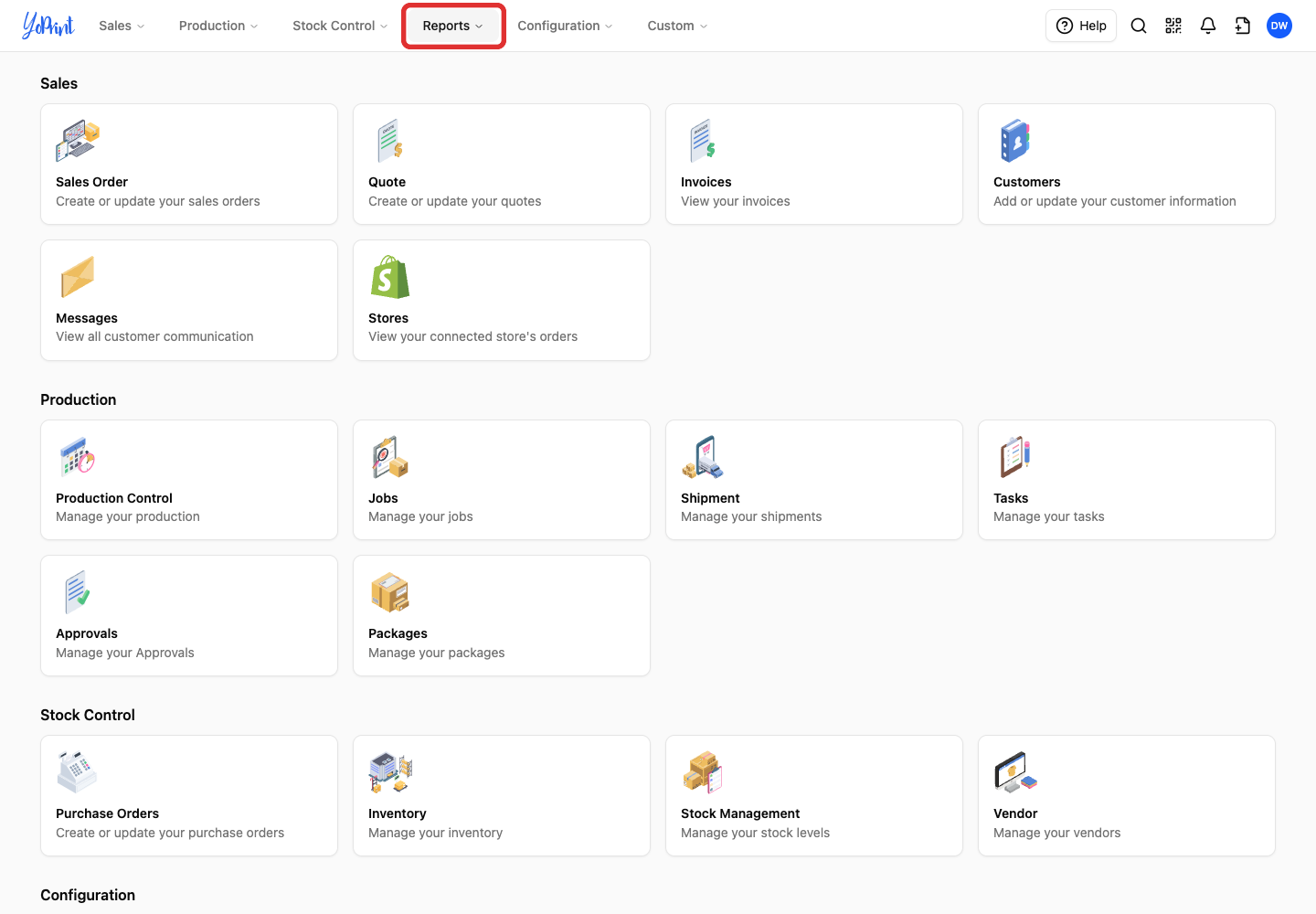
Open Reports in the top menu.
-
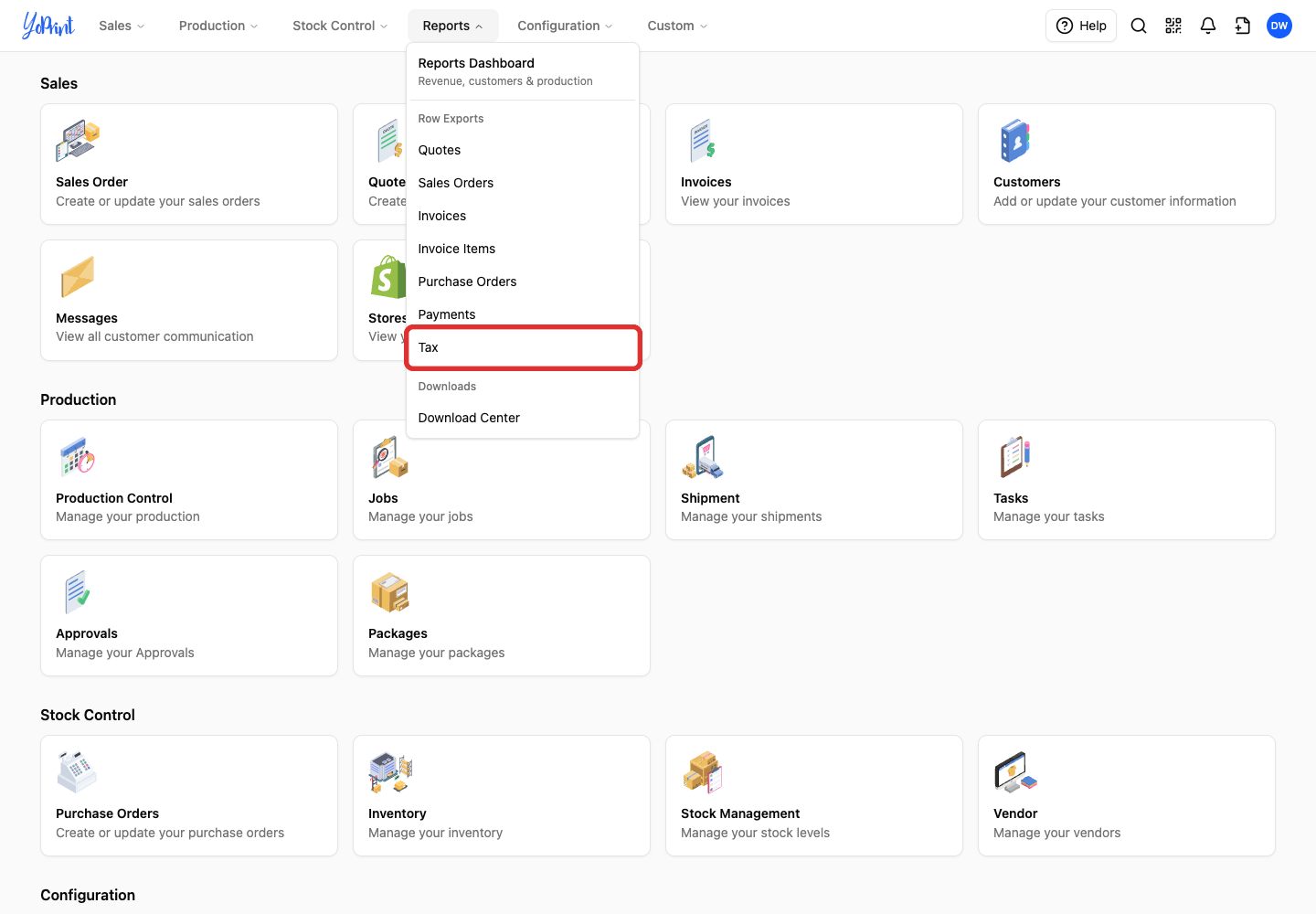
Choose Tax under Row Exports.
-
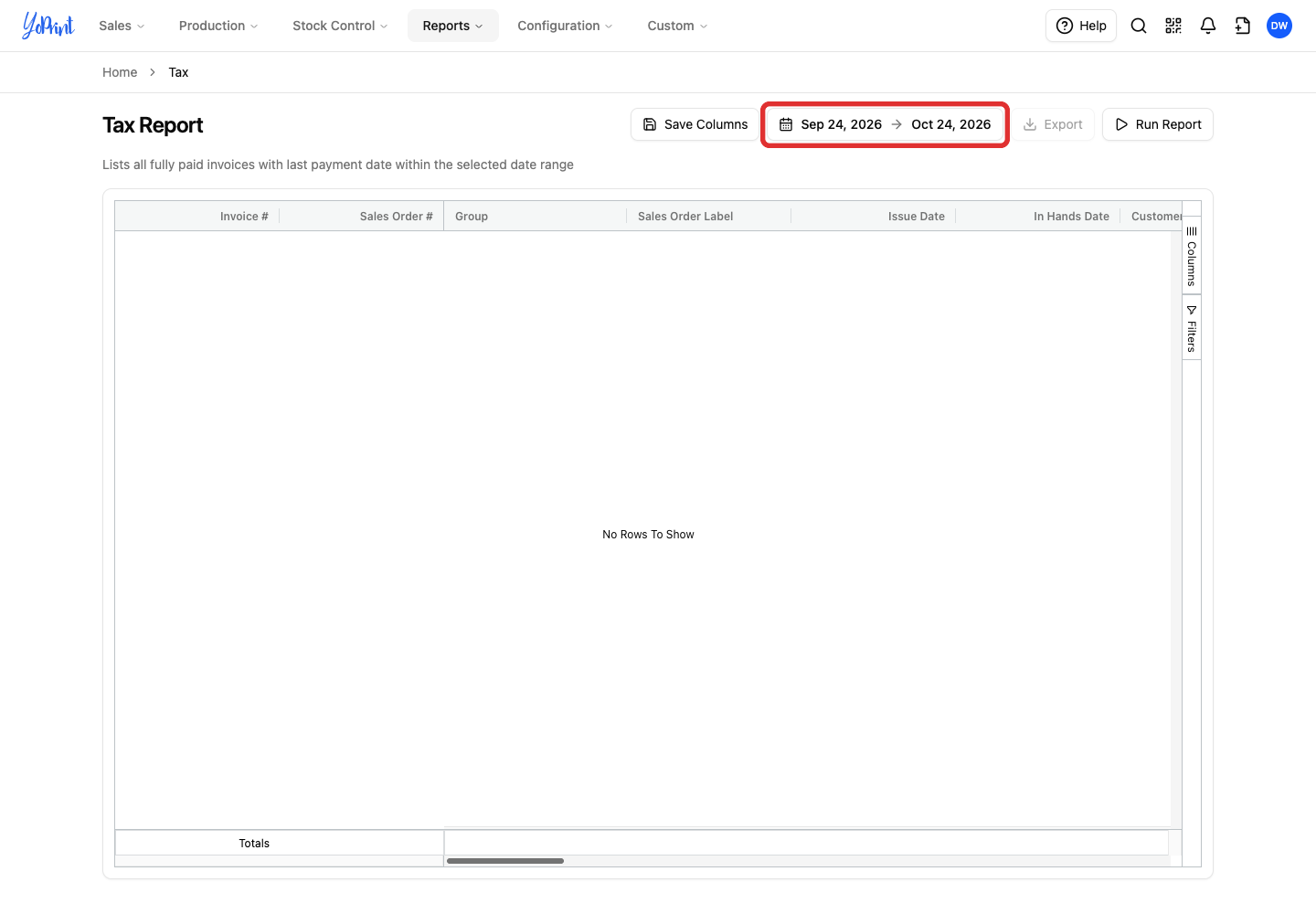
Click the date range beside Tax Report.
-
Choose Last month.
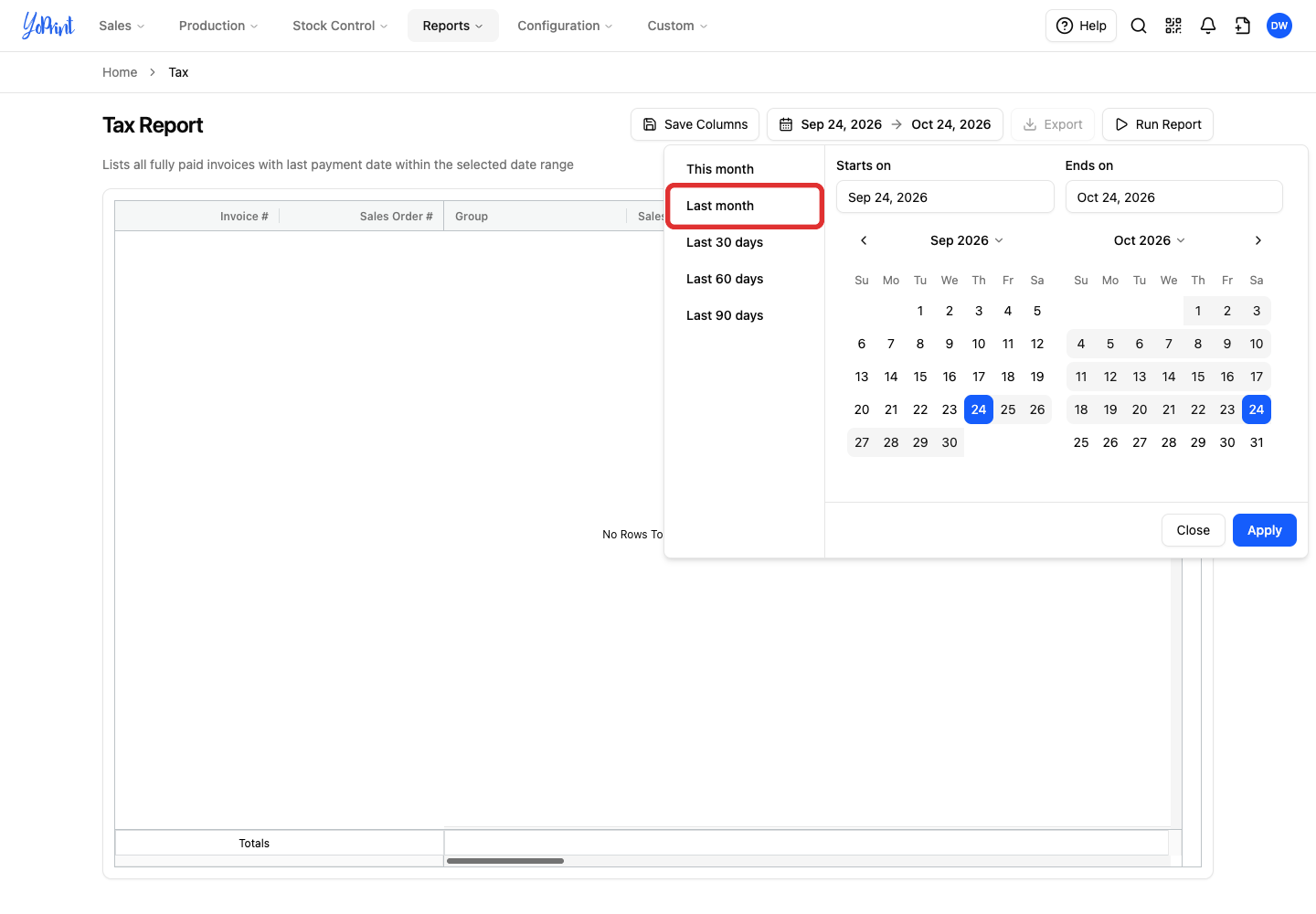
To run a quarter or another period, enter the first date in Starts on and the last date in Ends on, then click Apply.
-
Check the dates, then click Apply.
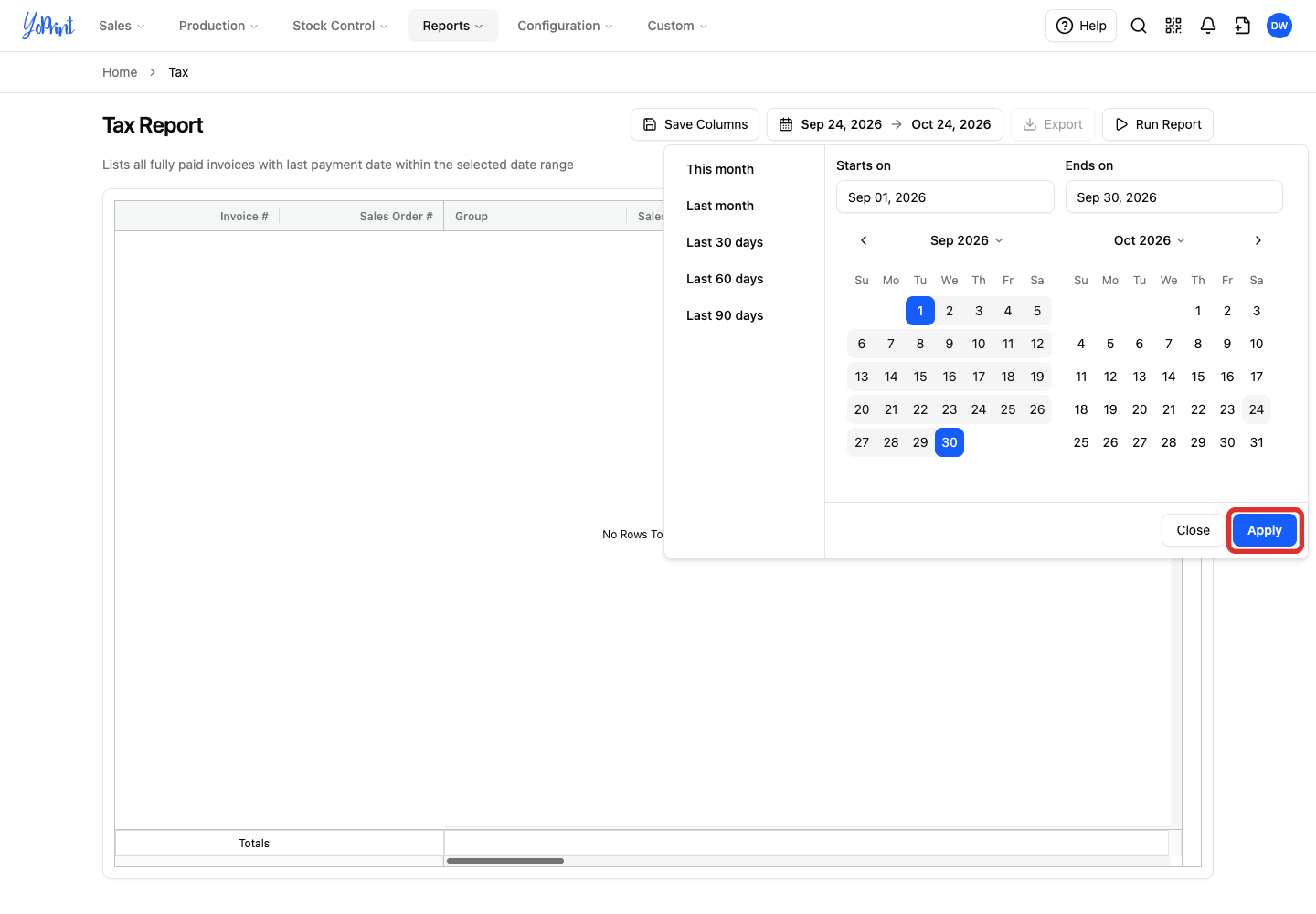
Apply loads the report. Use Run Report only to reload the same dates later.
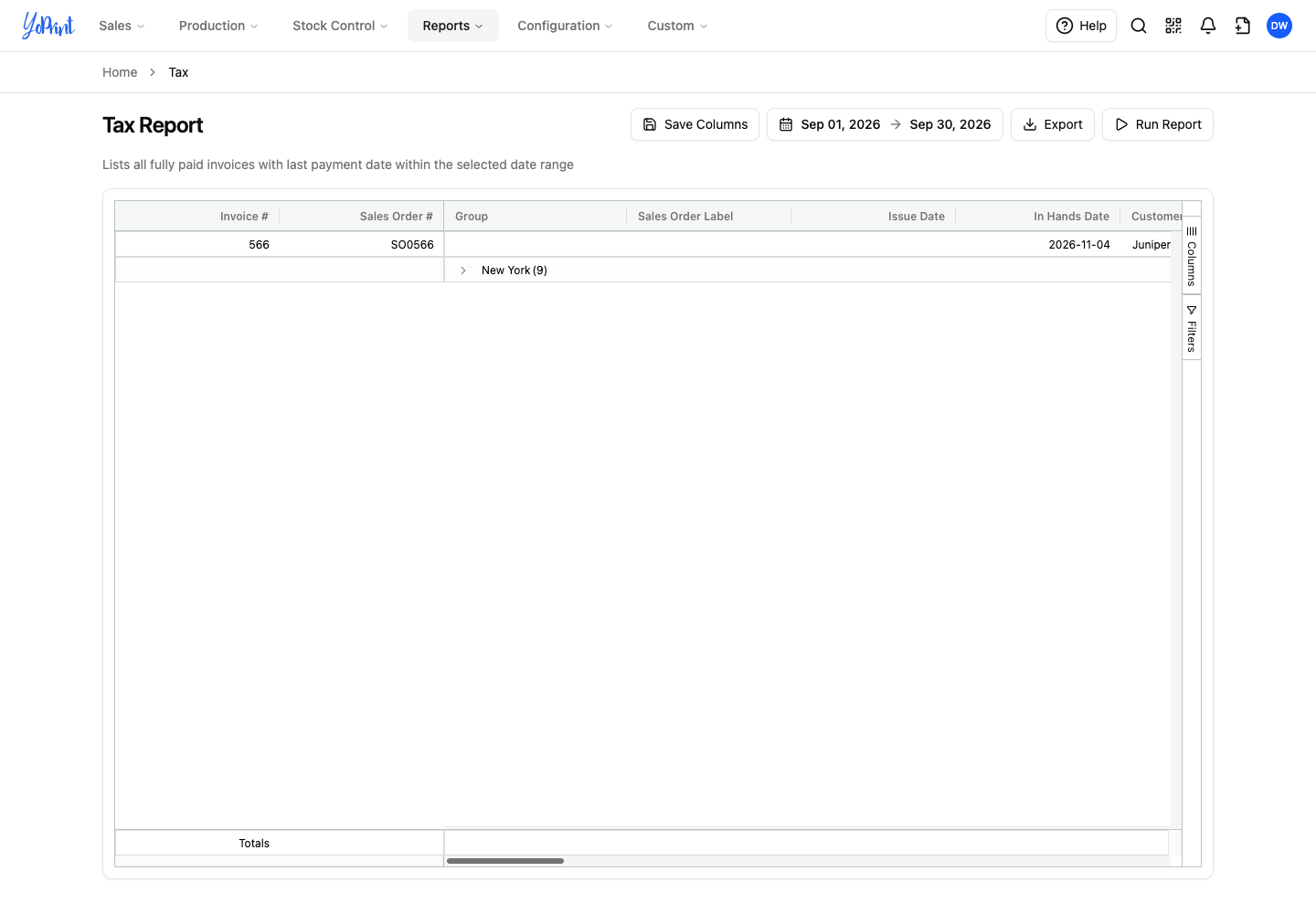
Read the report
Open the location groups to inspect individual invoices, and scroll right to read the tax and total columns.
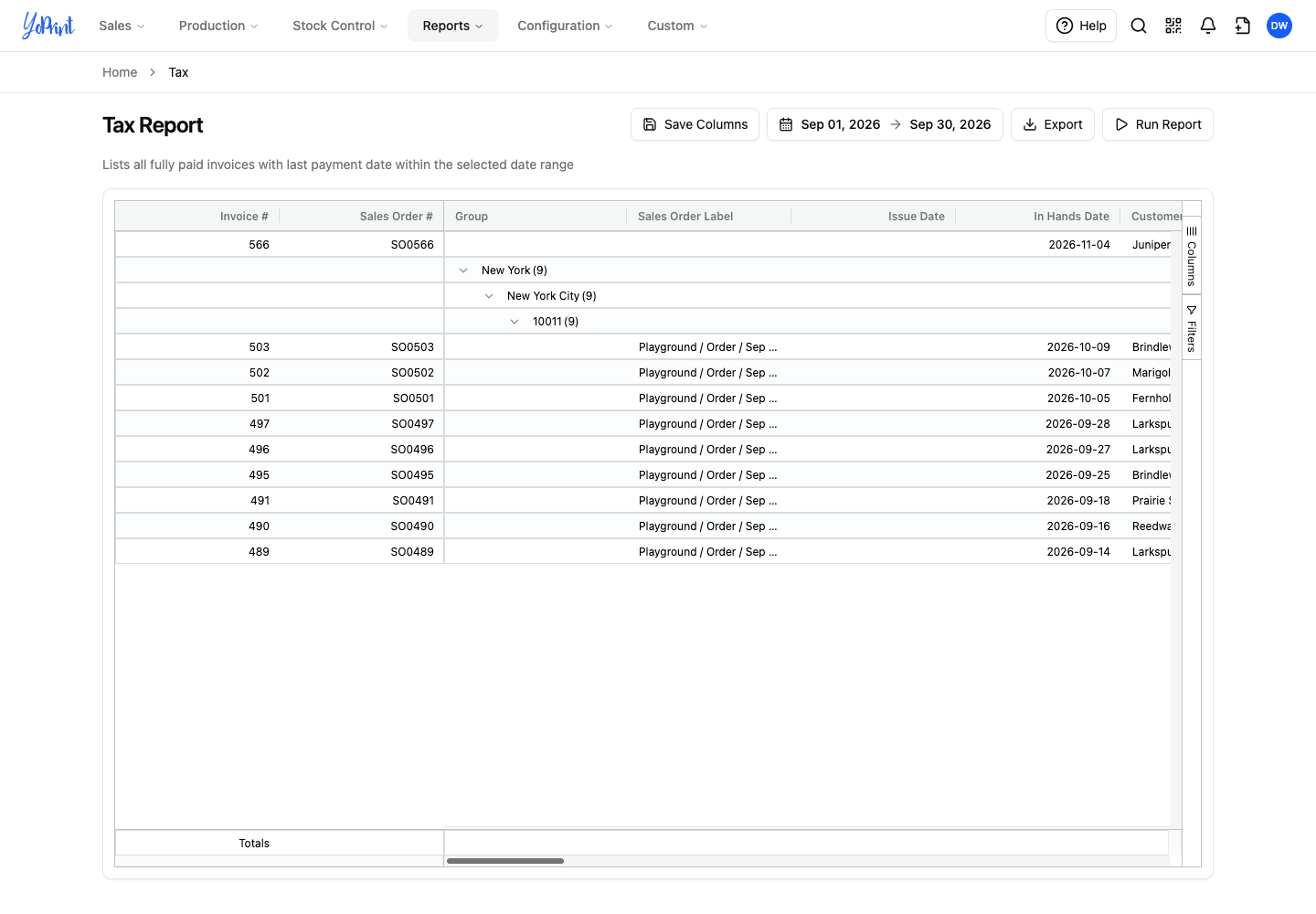
The report groups rows by Shipping State, then Shipping City, then Shipping Postcode. Each group row shows its invoice count. Click a group's arrow to open the next level, then open the postcode group to see its invoices.
YoPrint lists any invoice with no shipping address above the groups, like SO0566 in this example. To see which address YoPrint uses to calculate tax on an order with no shipping address, such as an in-person pickup, see Automatic Sales Tax.
Scroll right to see Tax, Total and Amount Paid. Group rows show their subtotals in these columns. In this example, each group contains the same nine invoices, so all three group subtotals match.
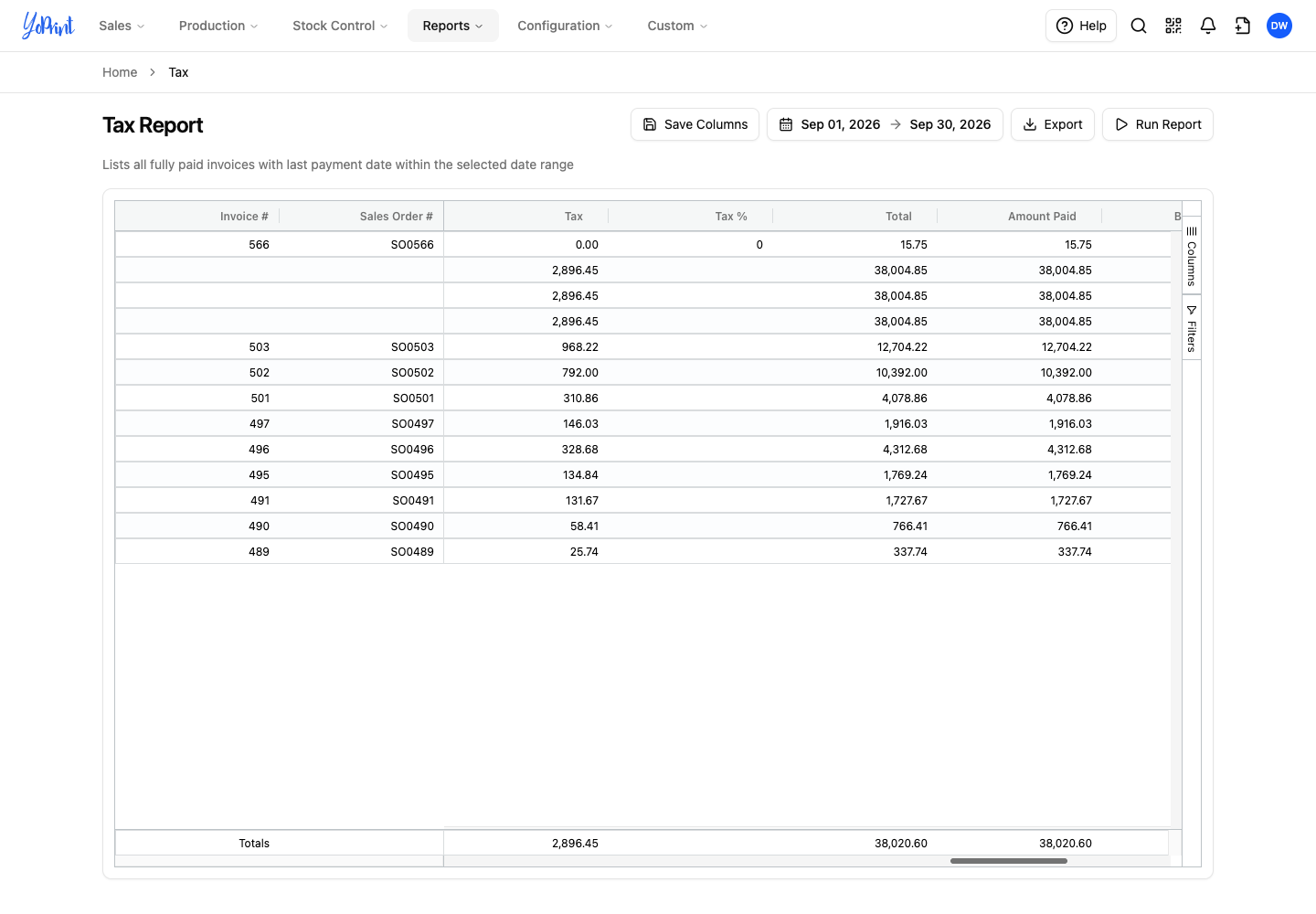
Check these columns and summary values as you scroll right:
- Subtotal: each invoice's amount before tax. When there is no discount, Subtotal plus Tax equals Total.
- Totals: the bottom row that adds Tax, Total and Amount Paid. It does not add Subtotal or Discount, so add those columns in your spreadsheet.
- Last Payment Date: the sales order's last payment date, located further right.
Find tax-exempt sales
Filter the report to list only invoices for tax-exempt customers and see their total for the period. Customer Tax Exempt shows each customer's tax-exempt setting.
-
Click Filters on the right edge of the report.
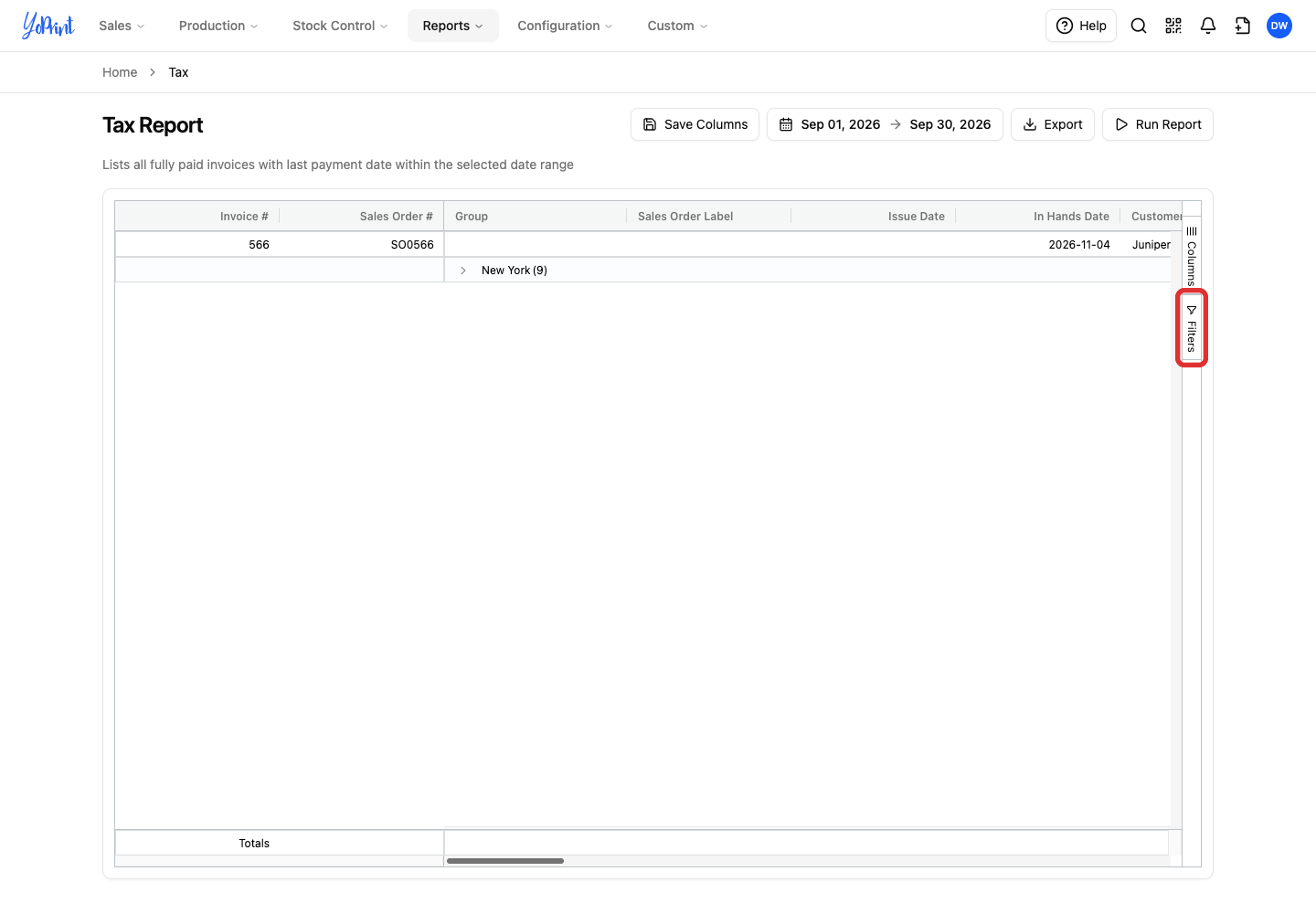
-
Open Customer Tax Exempt.
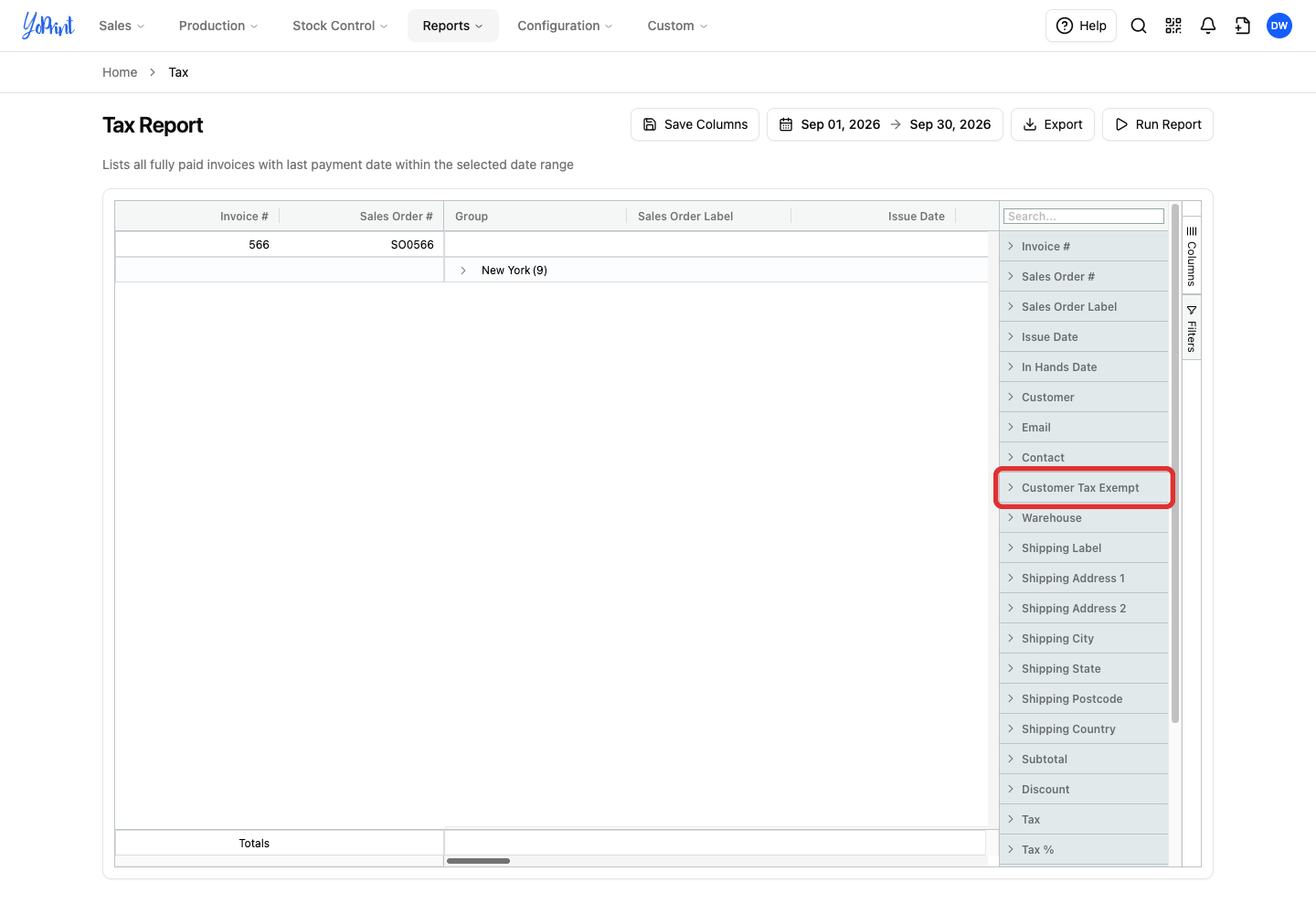
-
Clear the FALSE checkbox, leaving TRUE checked.
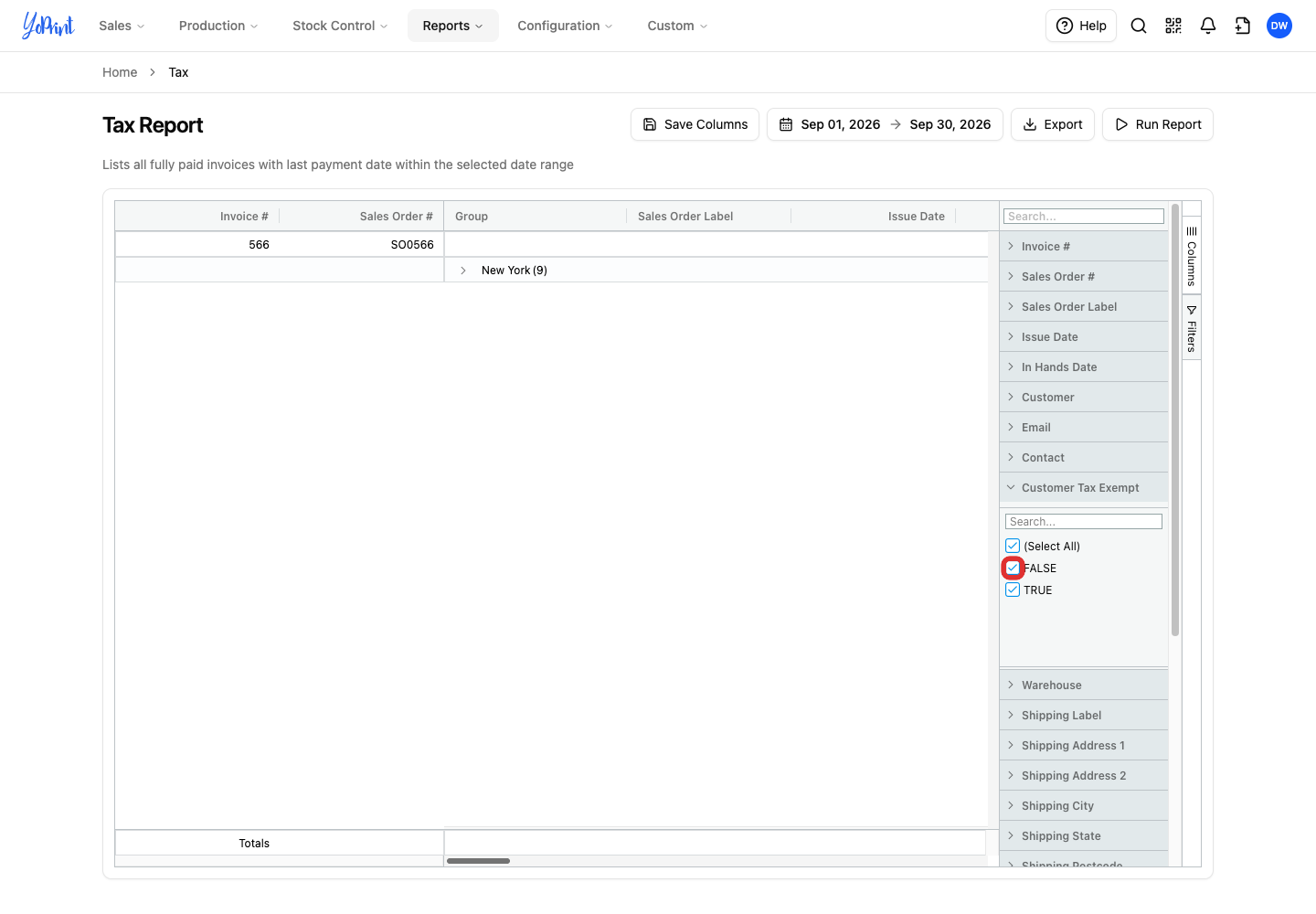
To see the total for taxed customers instead, check FALSE and clear TRUE. To clear the filter, reopen Filters > Customer Tax Exempt and check both values.
Click Filters again to close the panel, then scroll right to Tax and Total. The report now lists only invoices for customers marked tax-exempt. The Totals row shows their exempt sales total. In this example, SO0566 is the only matching invoice, with Tax of 0.00 and a Total of 15.75.
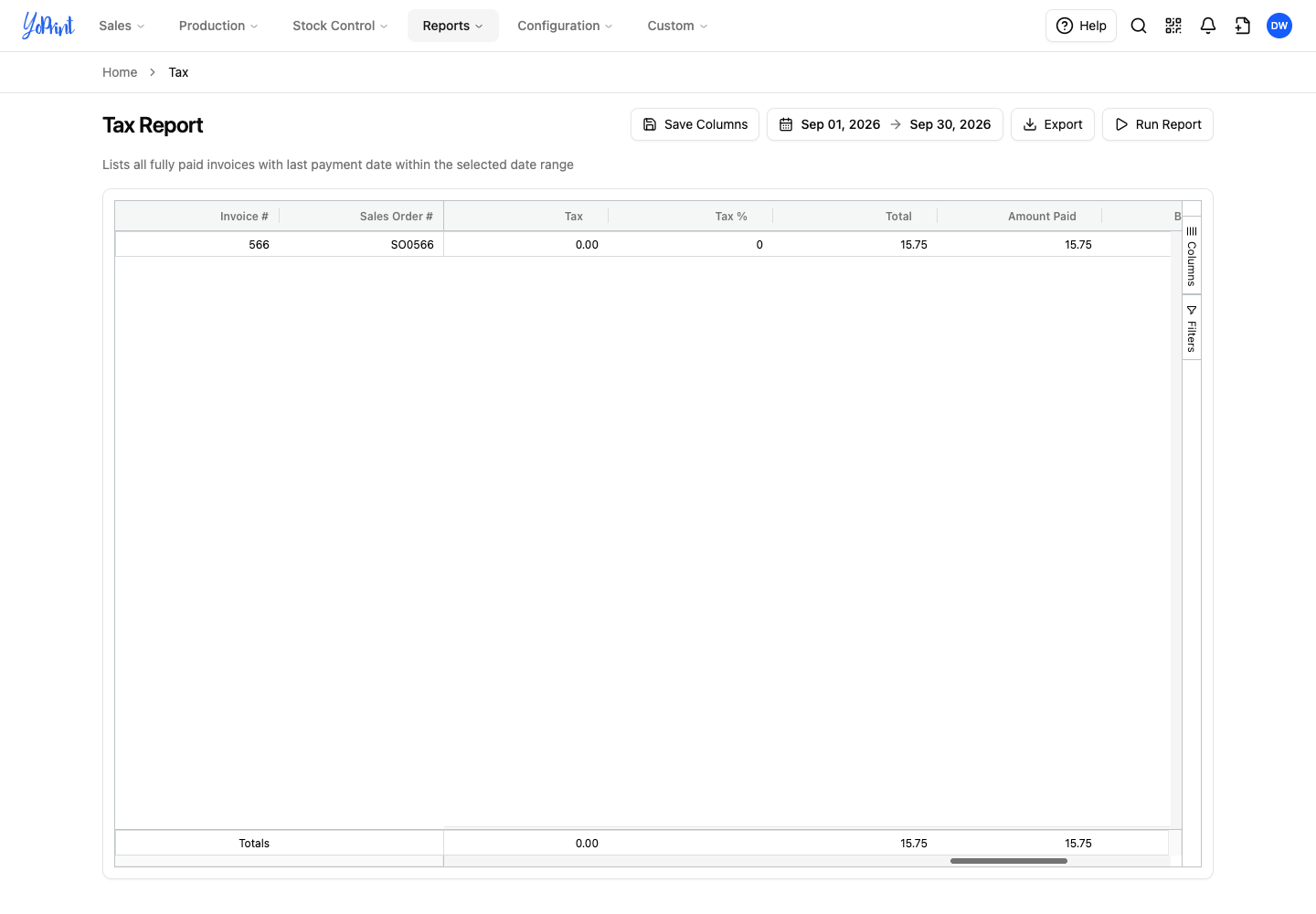
If a customer who should be tax-exempt shows FALSE, follow Automatic Sales Tax to mark them tax-exempt. Invoices already saved keep their tax. To remove or change the tax on one order, see Edit Tax in an Existing Order.
Export the rows
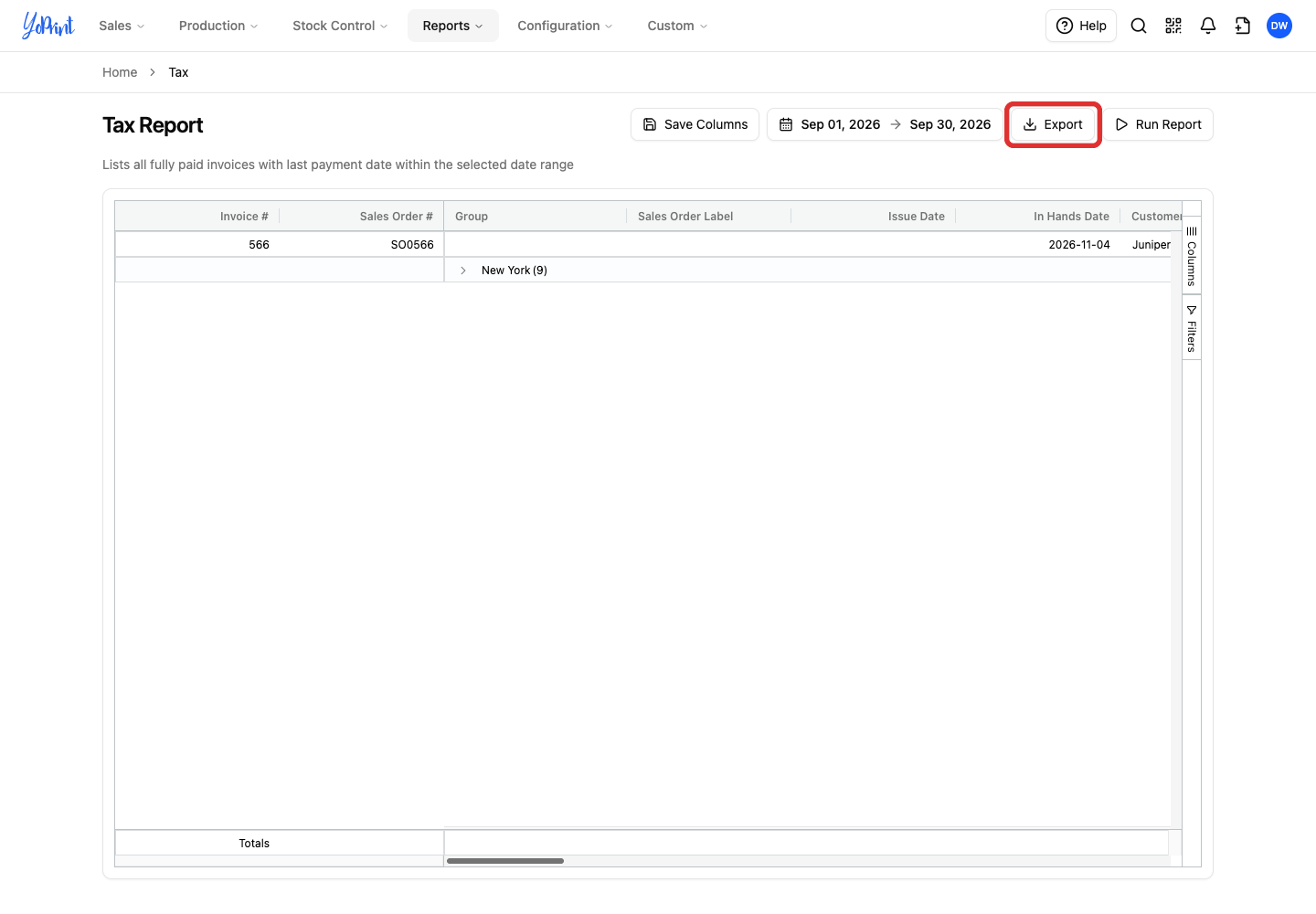
Download the current report rows as a CSV or Excel file.
-
Click Export.
-
Choose Export as CSV or Export as Excel.
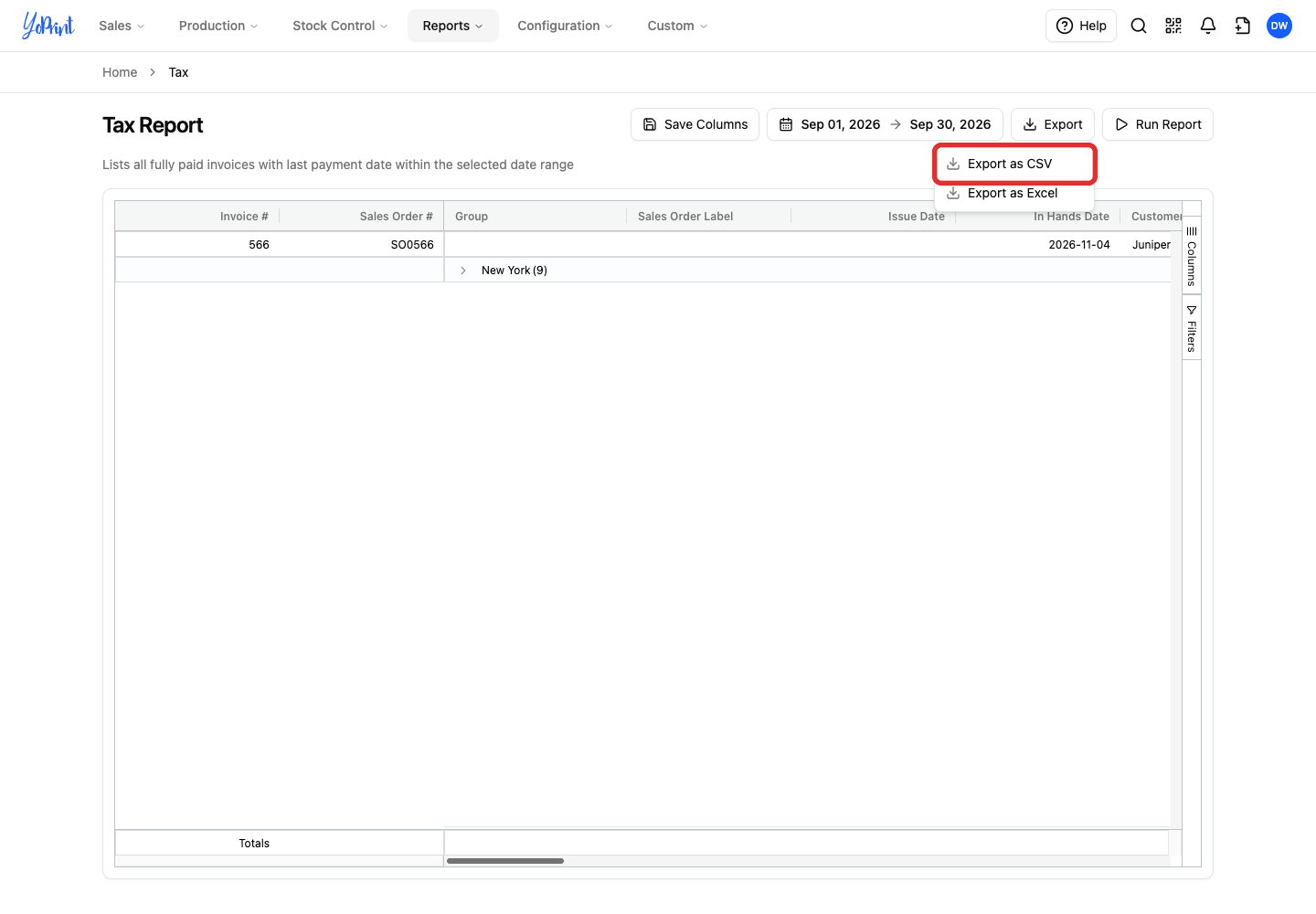
Both files contain one row per matching invoice, including invoices inside collapsed groups. Each file includes a Totals row and leaves out group or group-subtotal rows. The file also includes every selected column, even columns you need to scroll to see, such as Customer Tax Exempt.
For column choices and other filters, see Reports. To send invoices and payments to QuickBooks instead of exporting each month, see Connect YoPrint with QuickBooks Online.
Why an invoice appears in a later period
See how payment dates, open balances, and refunds affect when an invoice appears in the report.
Only fully paid invoices appear in the Tax Report. YoPrint dates each invoice by its sales order's last payment date:
- Later payment month: An order issued in one month can appear in a later month when its last payment falls in that later month.
- Balance due: An order with a balance due stays out of the report until it is paid in full.
- Refunds: A refund that leaves a balance due on the order drops the order out of the report until it is paid in full again. Keep a copy of the file you use for each filing, because running the same dates after a refund can give a different result. For how refunds work, see How Refunds Work in YoPrint.
- Earlier payment date: A payment that you record later with an earlier payment date counts on its payment date. For example, a payment saved as September 30 appears in the September report. To set a payment's date when you record it, see Collect and Record Payments.
For tax setup, see Set Up Tax Presets in YoPrint and Automatic Sales Tax.
Export a long period from the Download Center
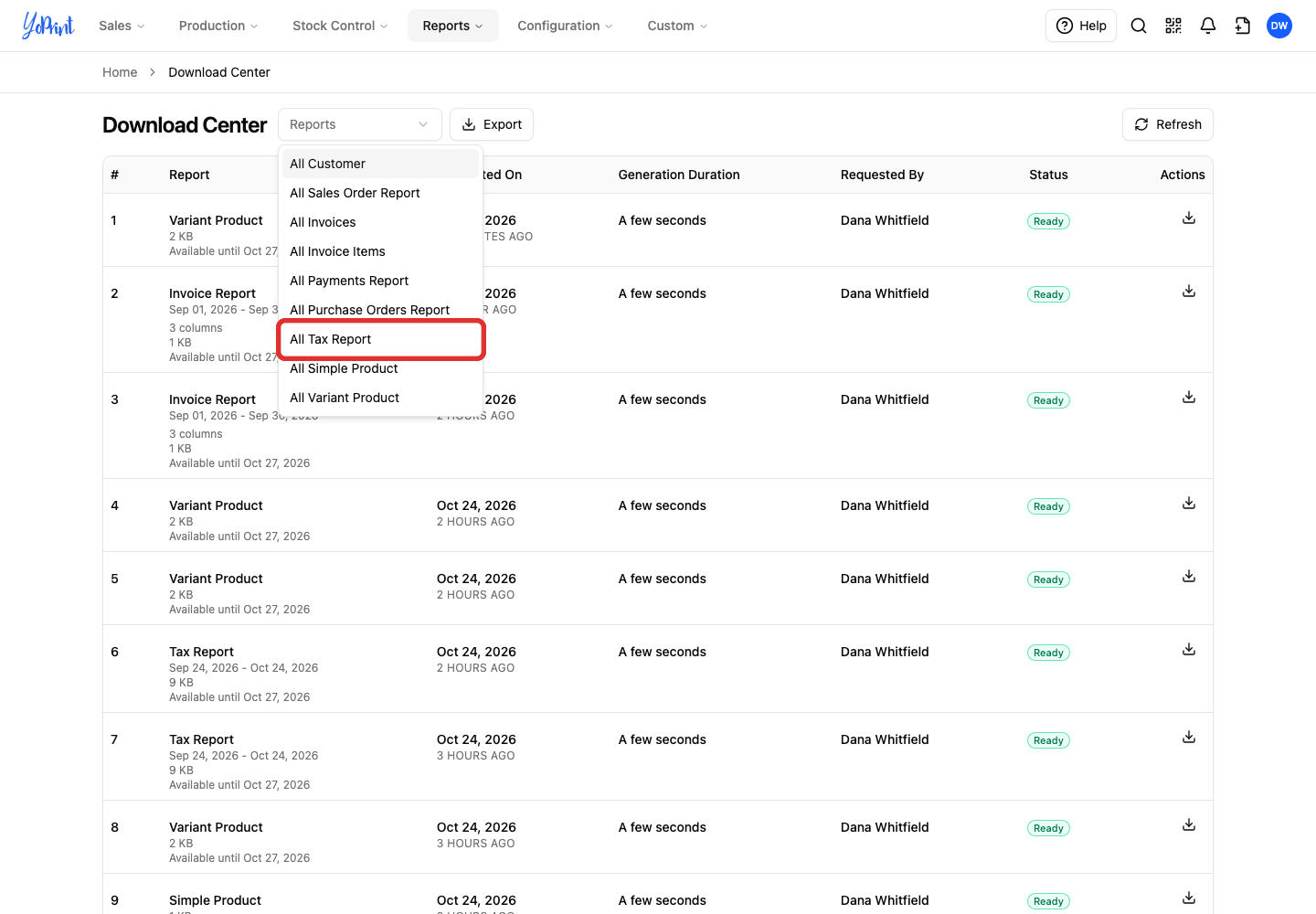
Use the Download Center to prepare a CSV in the background for a long date range, such as a year. Open Reports > Download Center. This example uses the same September period as the report above.
-
In the Reports dropdown, choose All Tax Report.
-
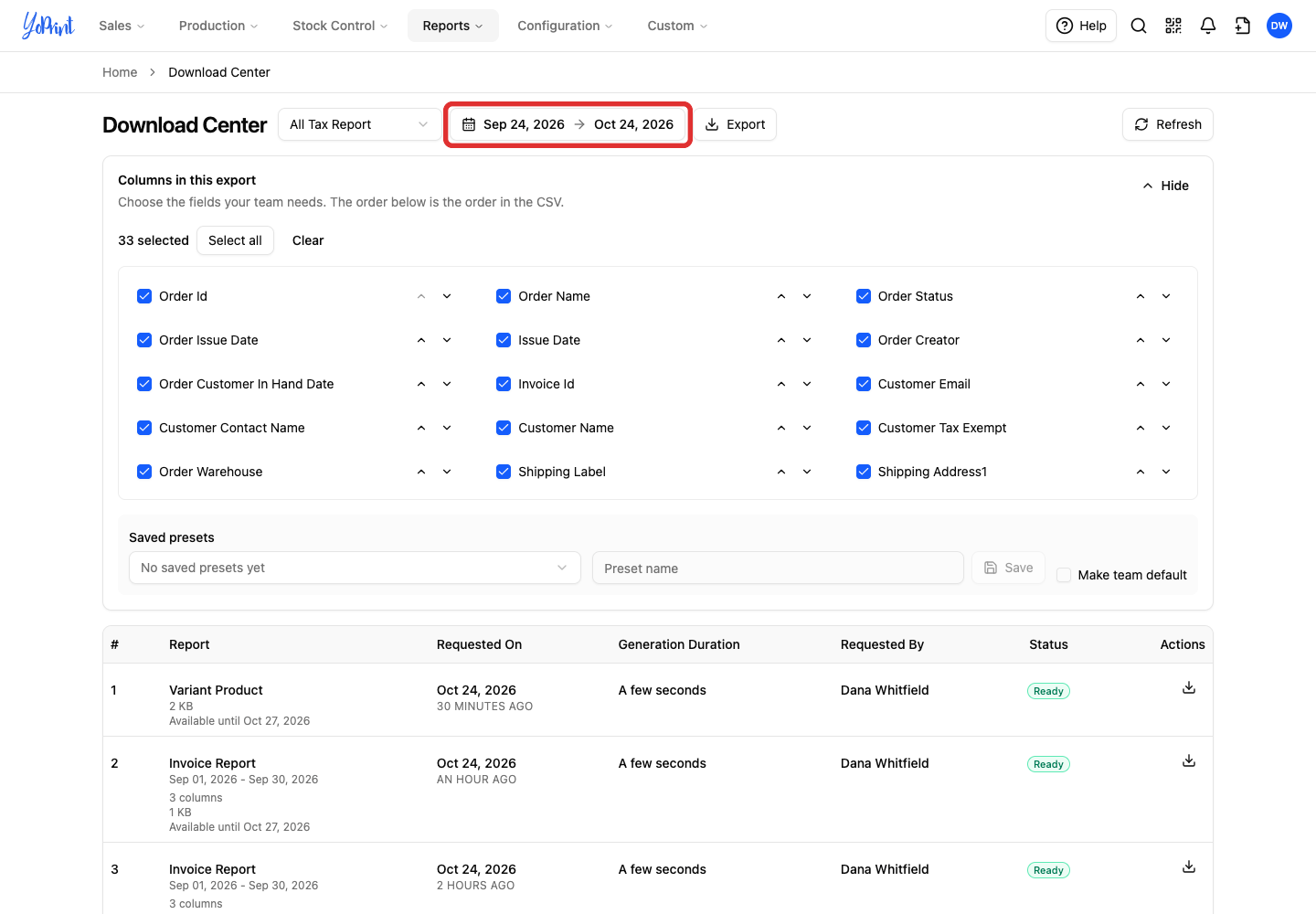
Click the date range button.
-
Choose Last month.
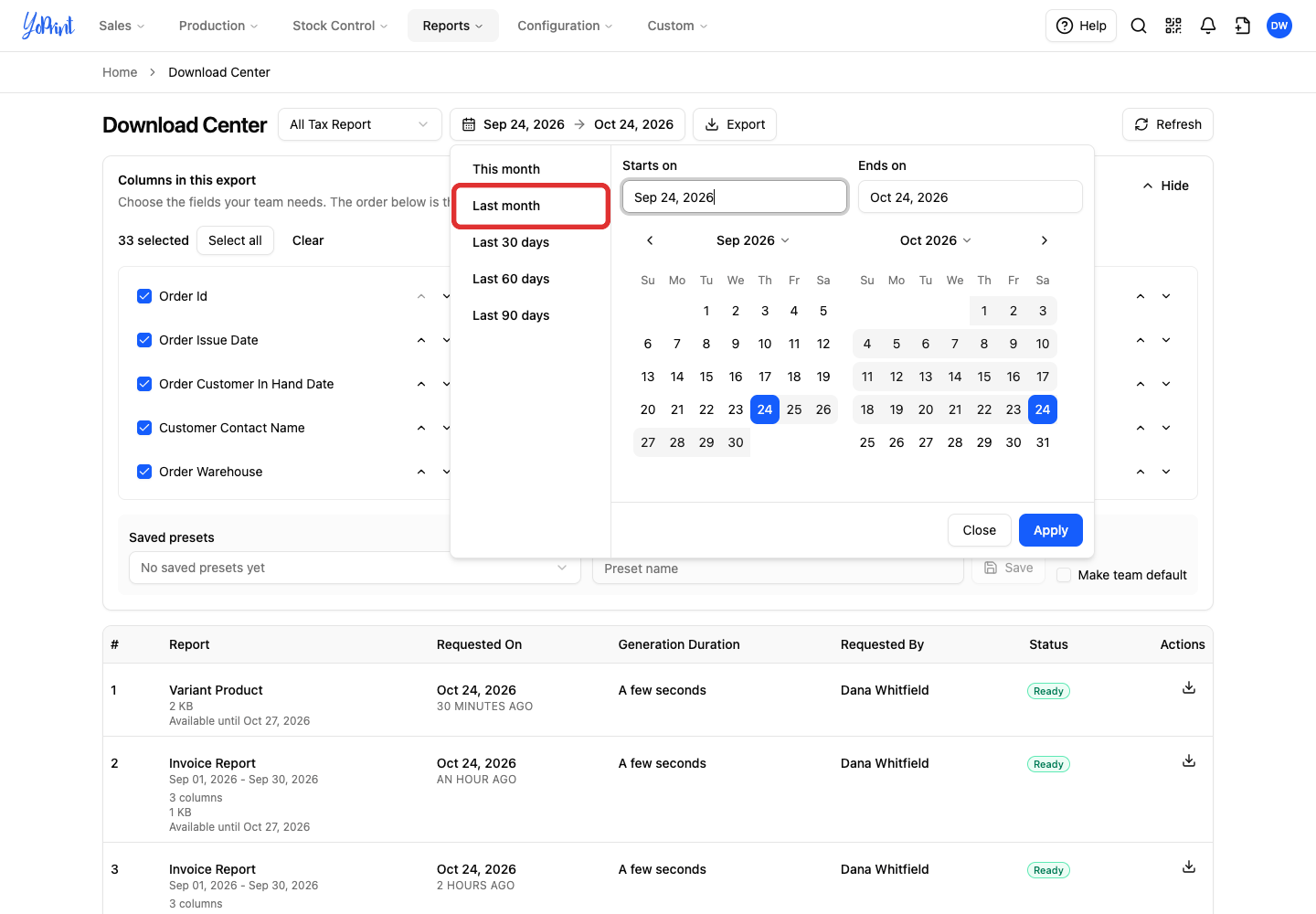
For a year or another range, enter its first date in Starts on and its last date in Ends on, then click Apply.
-
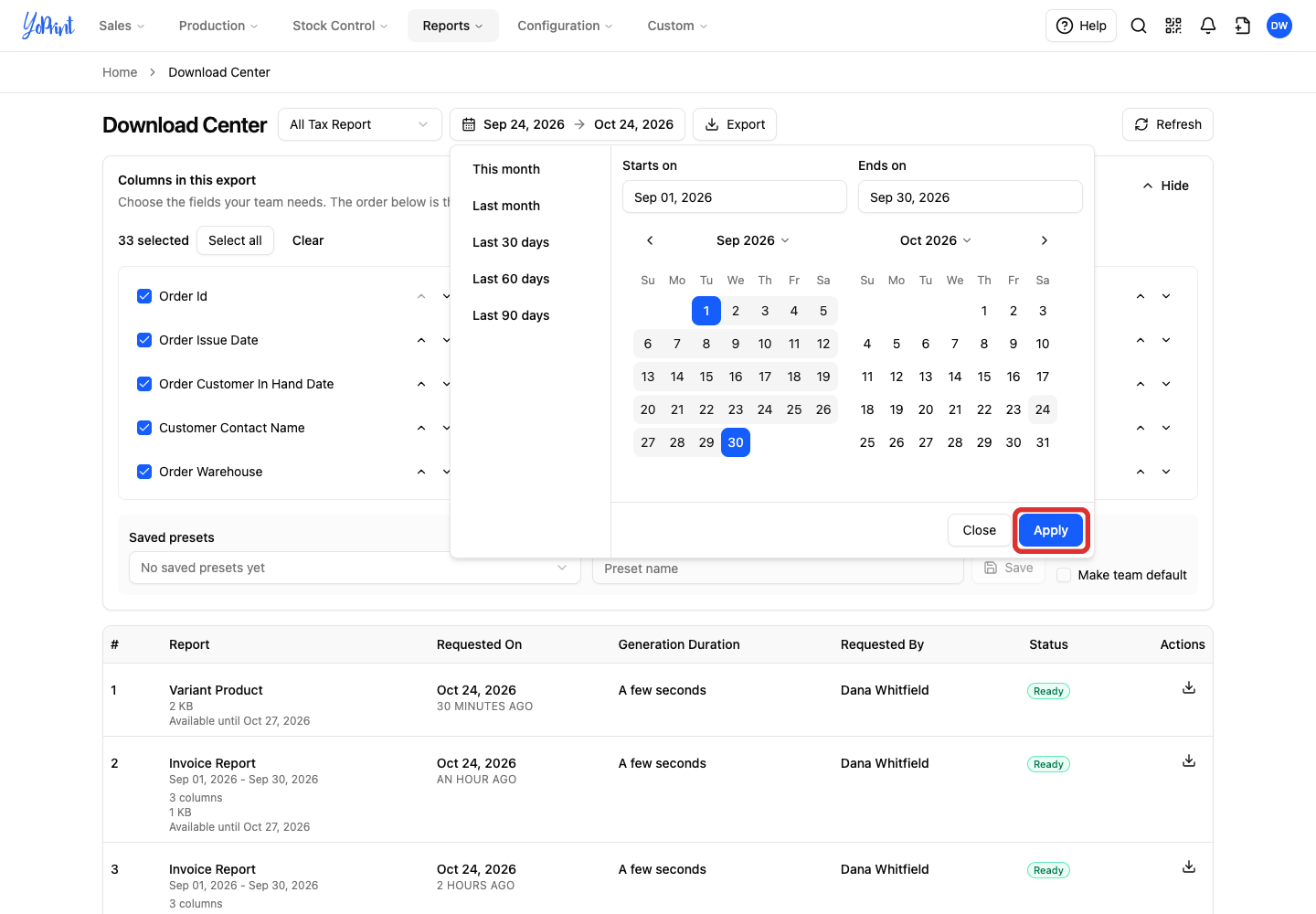
Check the dates, then click Apply.
-
Click Export.
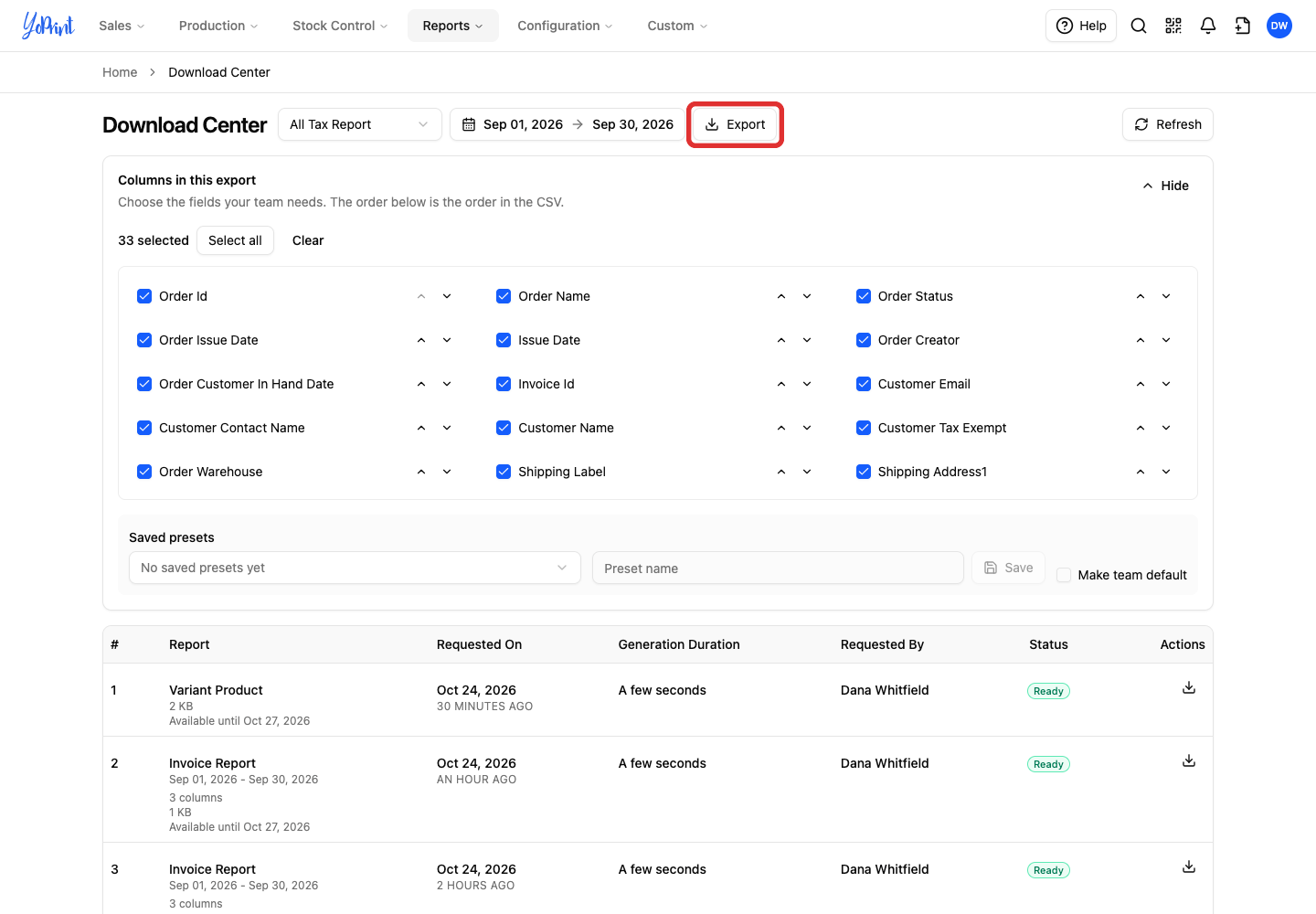
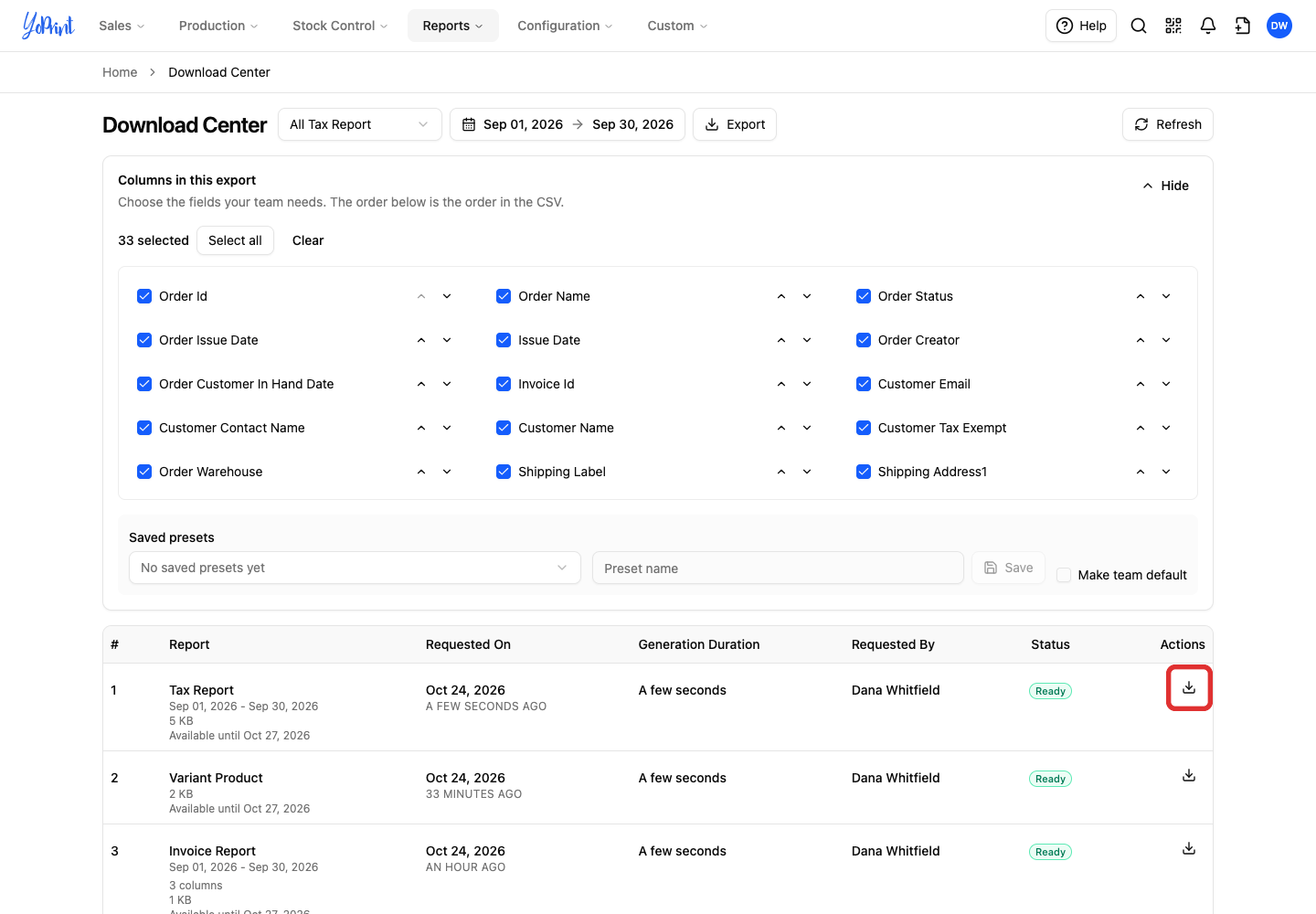
The export appears at the top of the history as Tax Report. Click Refresh until it shows Ready.
-
Click the Download icon in the Actions column.
Keep these details in mind for Download Center files:
- CSV format: The file exports as CSV only. It has one row per invoice and no Totals row.
- Available until: Download the file before this date on its row, three days after the export.
- 33 fields: The export offers 33 fields. Scroll the column list to see them all.
For column choices and presets, see Download Center.