Create a Quote
In this article
- Start a quote
- Choose a customer
- Set billing and delivery addresses
- Add a job
- Start a job from a preset
- Add products to a job
- Change or remove a product
- Add custom products and fees
- Change a price
- Check supplier stock and pricing
- Set dates and payment terms
- Arrange delivery
- Charge shipping and tax
- Publish the quote
- Find and reopen a quote
- Change a customer's details
- What to do next
Start a quote
A quote is for one customer and can hold one or more jobs, grouping products with the services done to them. A job can also carry tasks for your team, which can wait until production is planned; the diagram shows an example.

YoPrint saves the draft as you work, so you can leave it and return later.
-
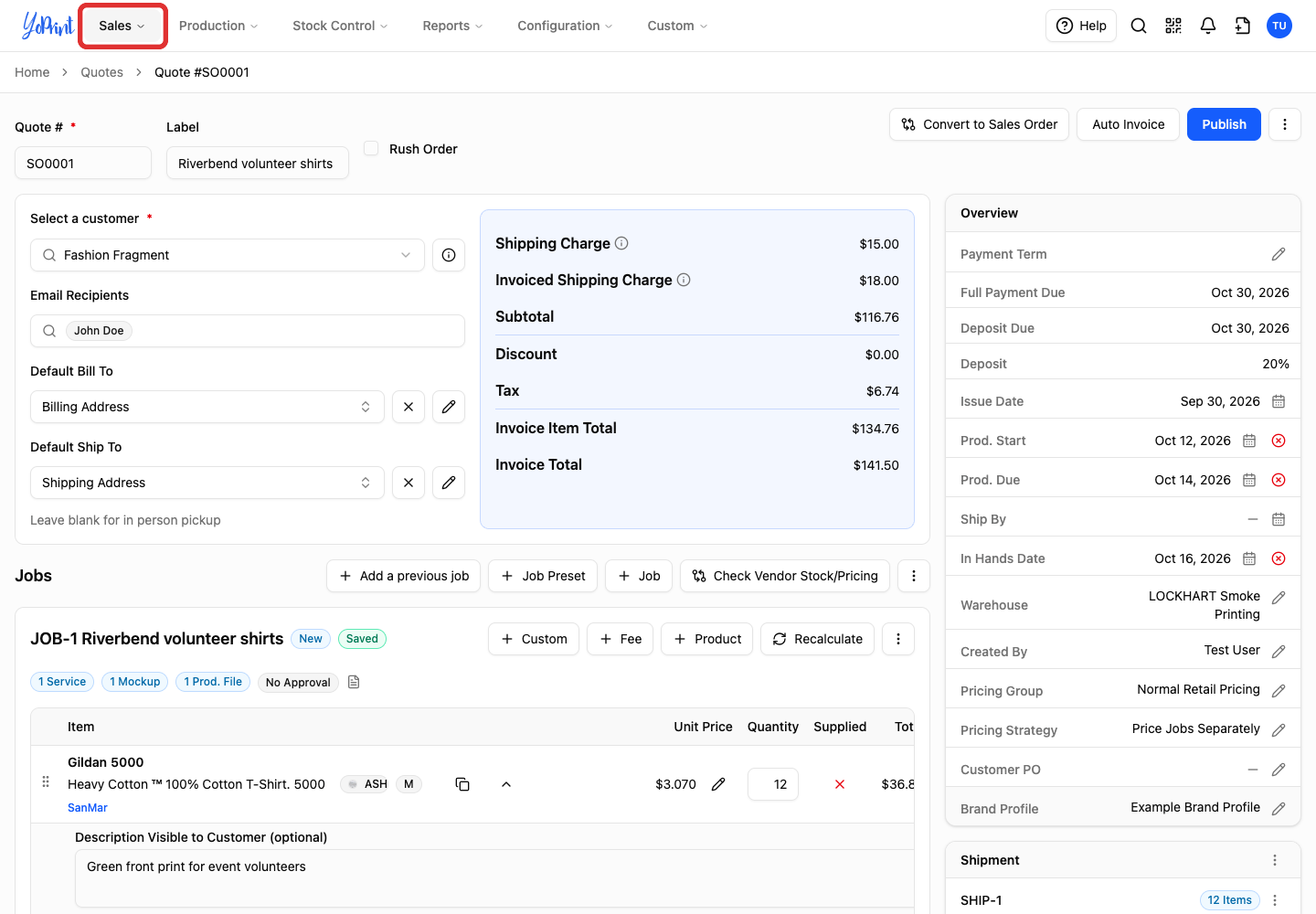
Open Sales.
-
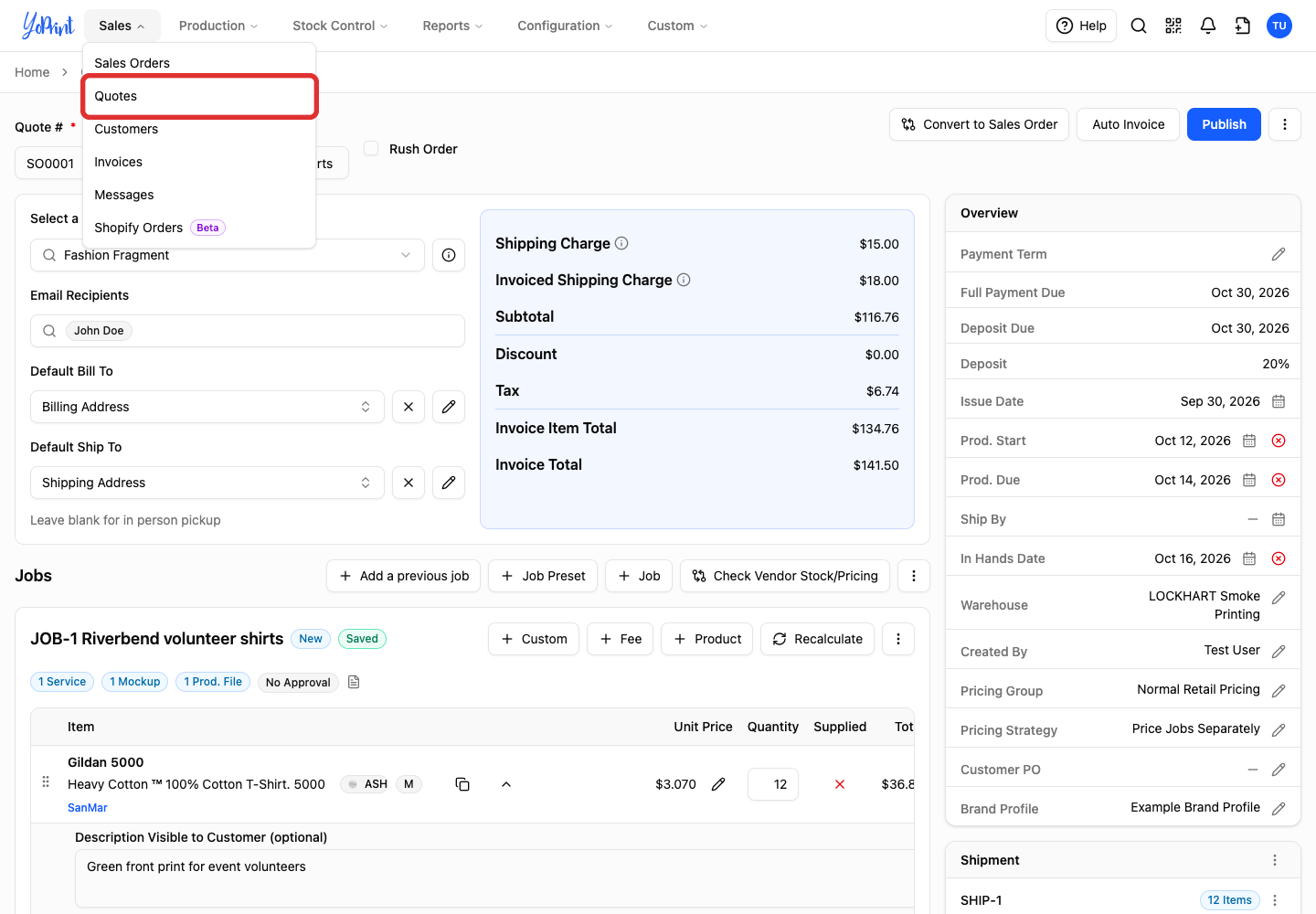
Choose Quotes.
-
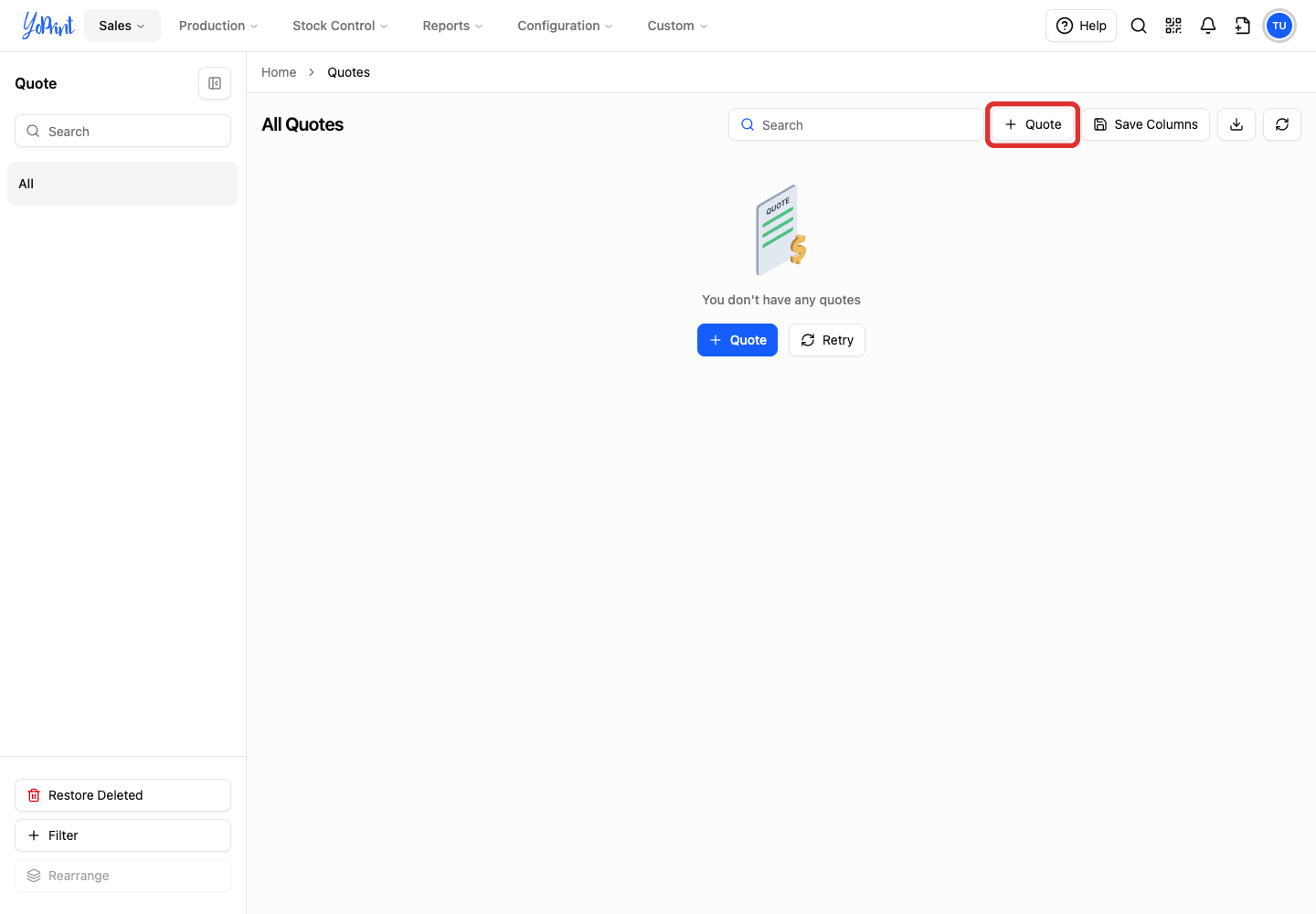
Click Quote. YoPrint assigns a quote number and opens the draft.
Choose a customer
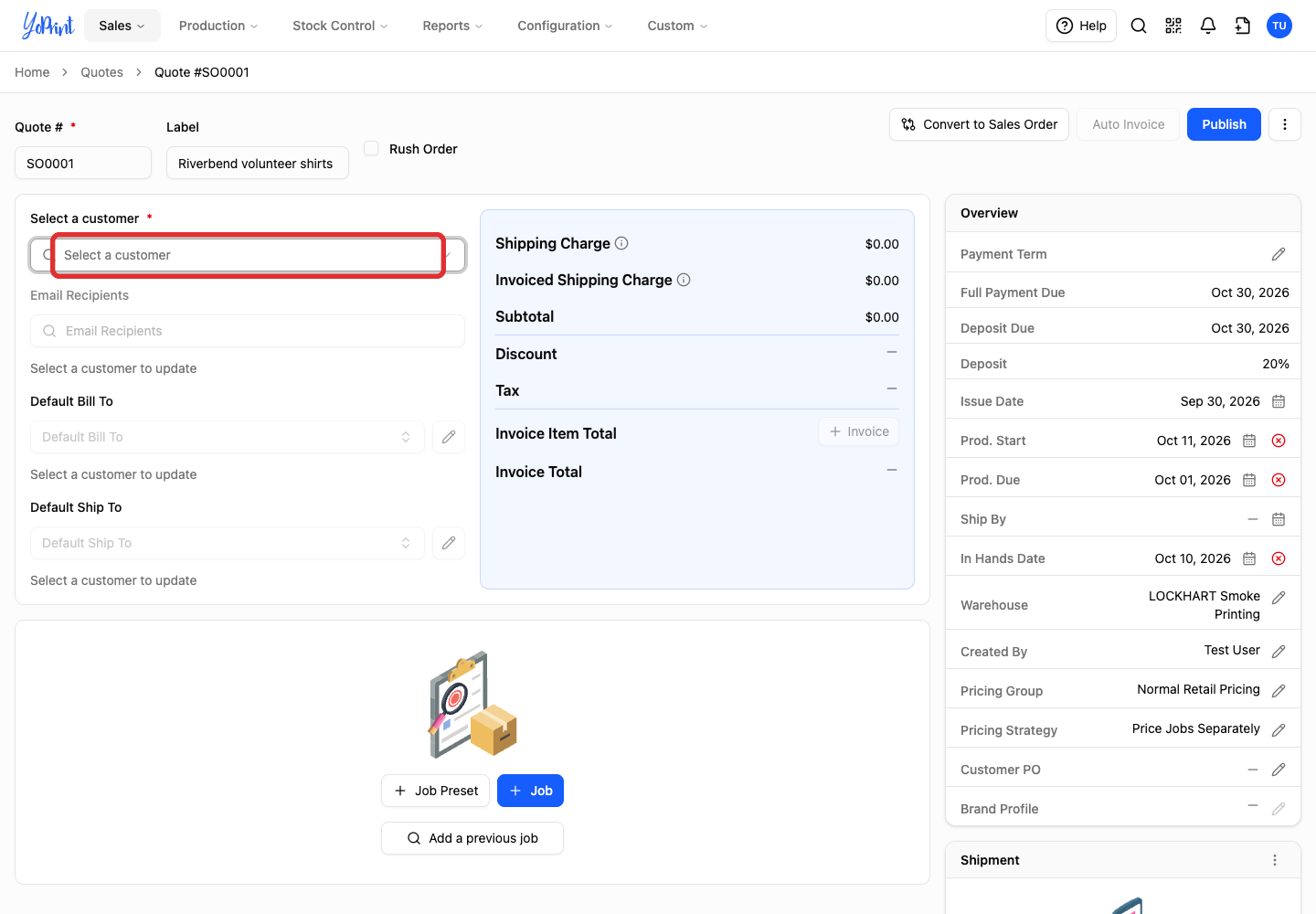
The selected customer's contact appears under Email Recipients, ready for when you send the quote.
-
Search in Select a customer.
-
Choose the customer.
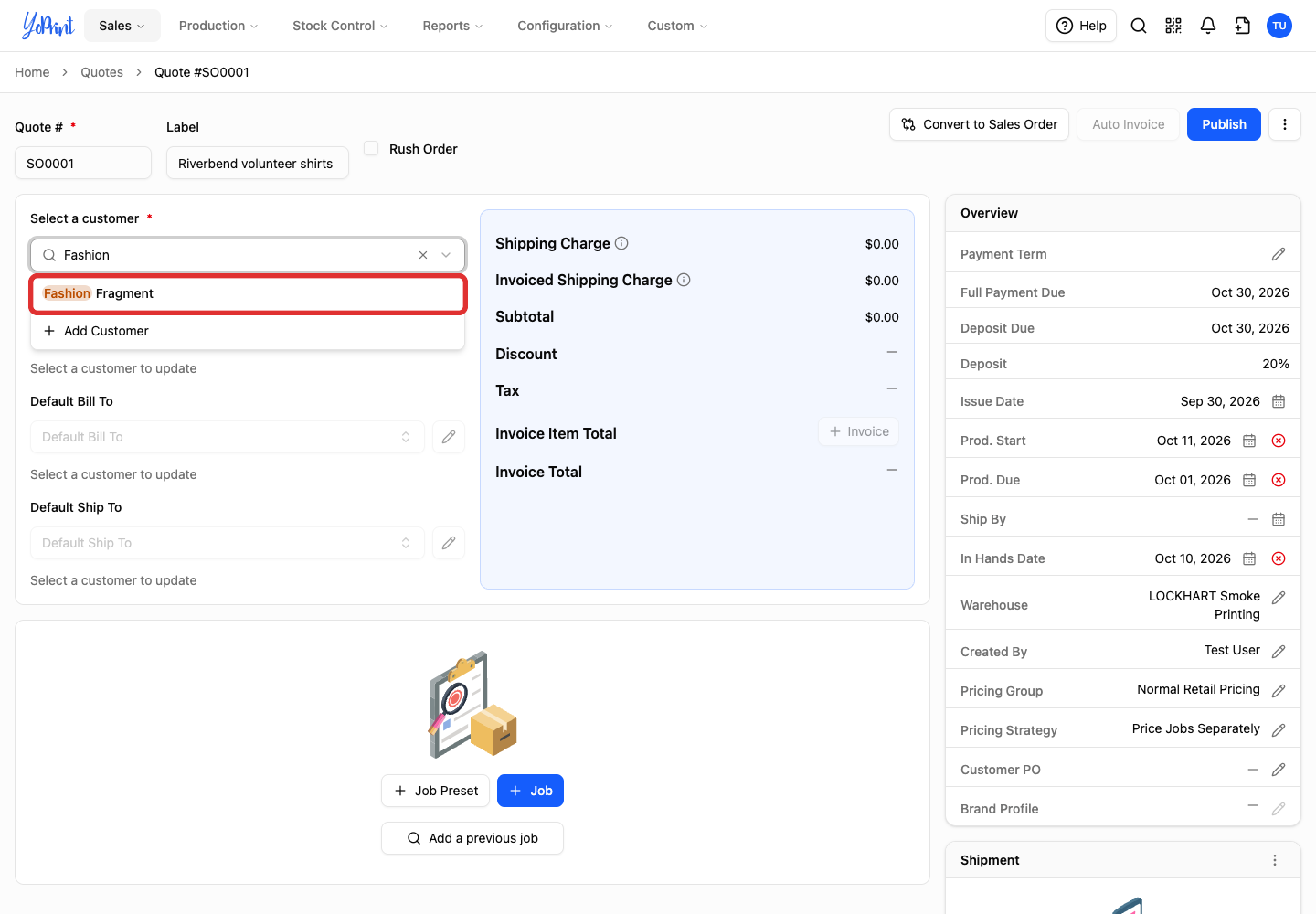
New customer
+ Add Customer opens a form for the customer and primary contact. Follow Create a Customer, then return to the quote. Saving the new customer adds them to the quote.
Set billing and delivery addresses
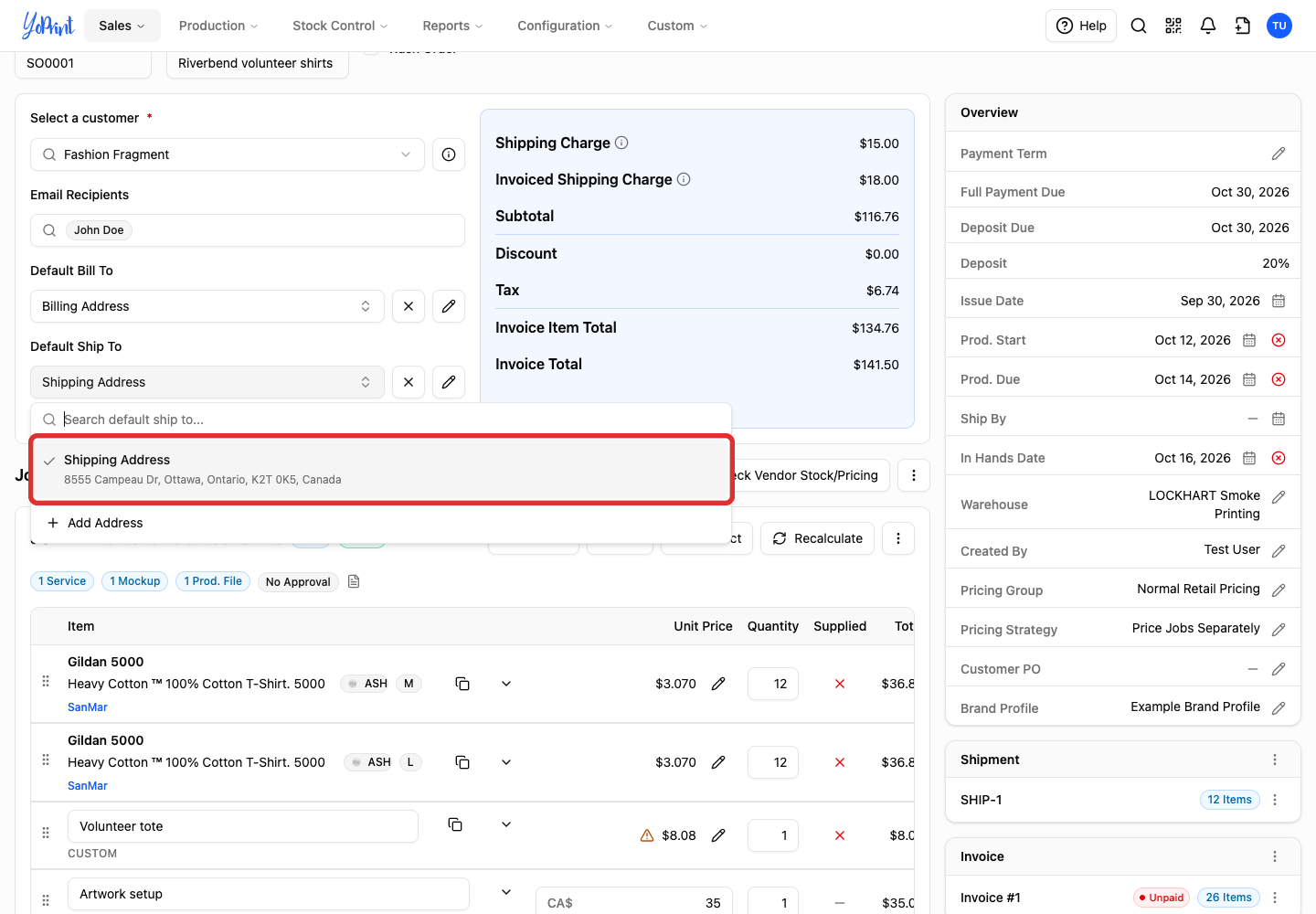
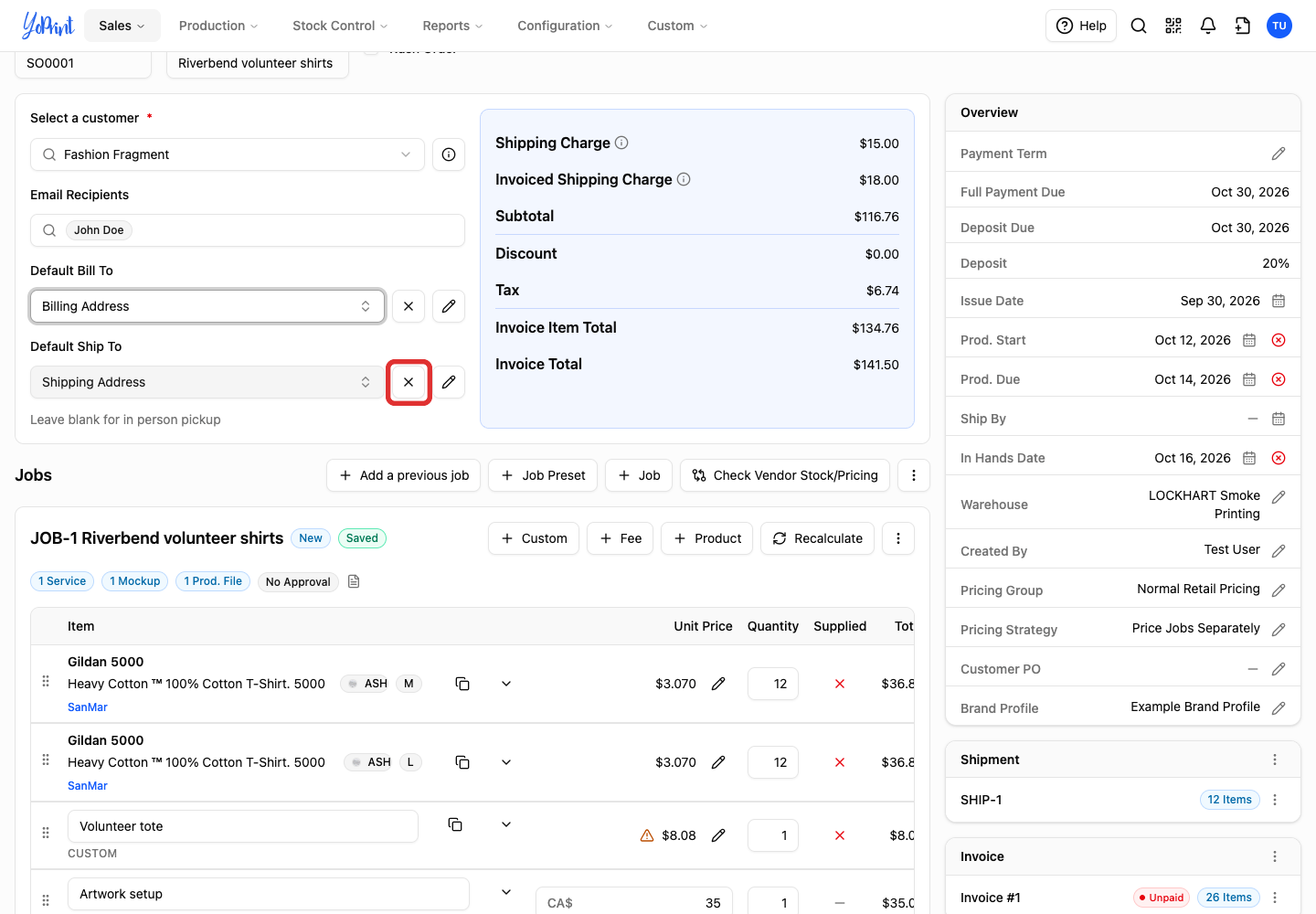
The customer can have different billing and shipping addresses. Leave Default Ship To blank for collection.
-
Open Default Bill To.
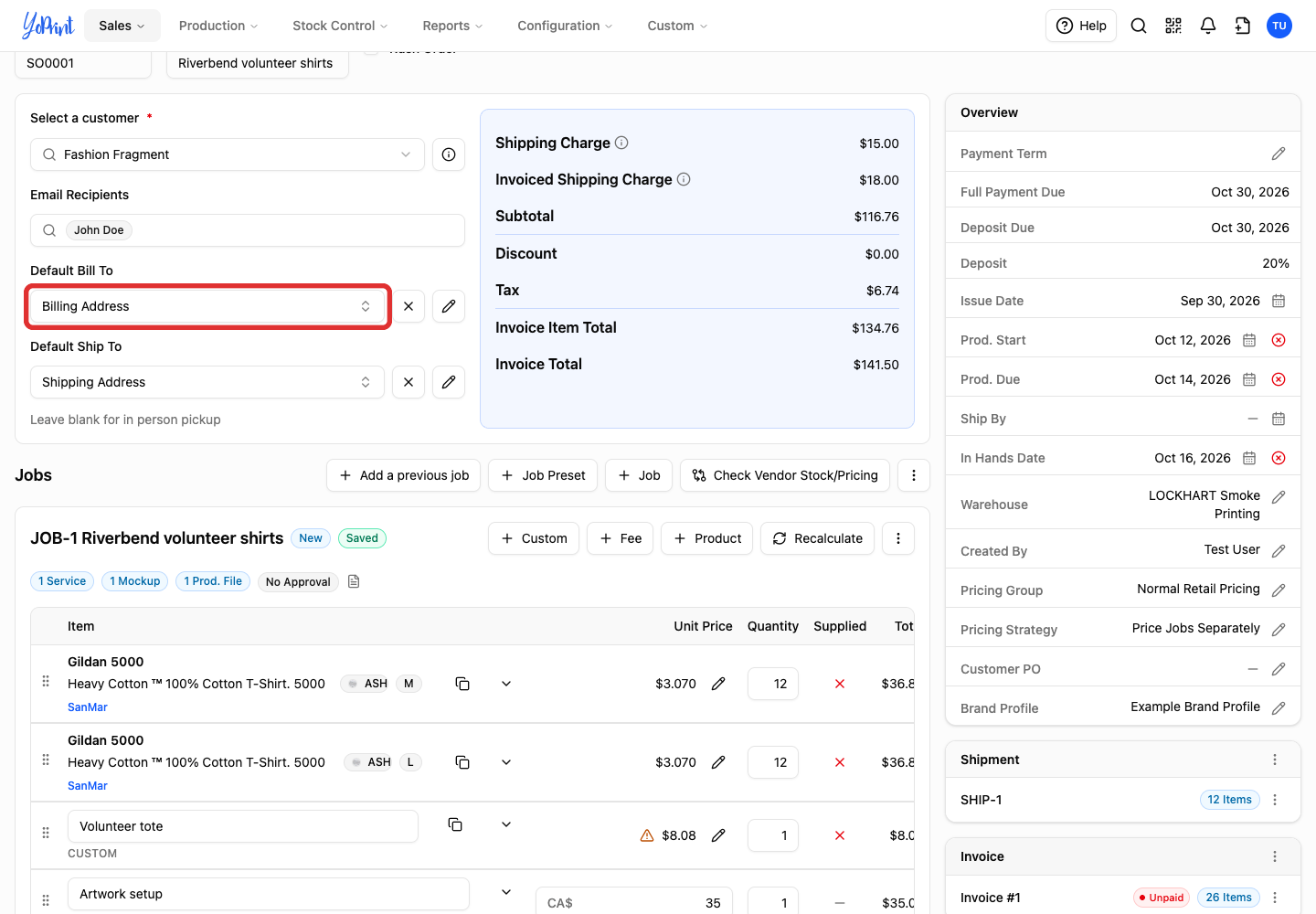
-
Choose the billing address.
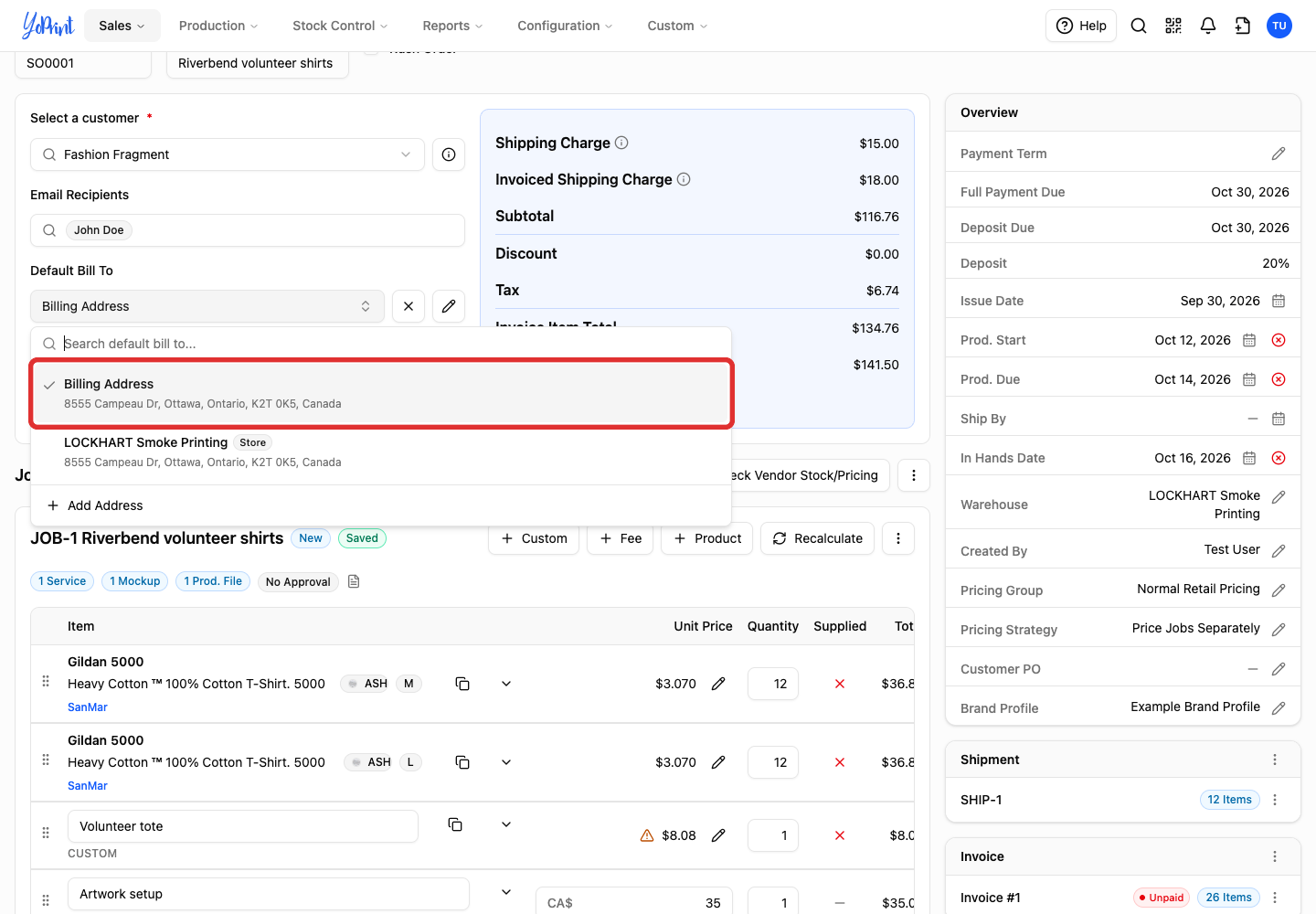
-
Open Default Ship To.
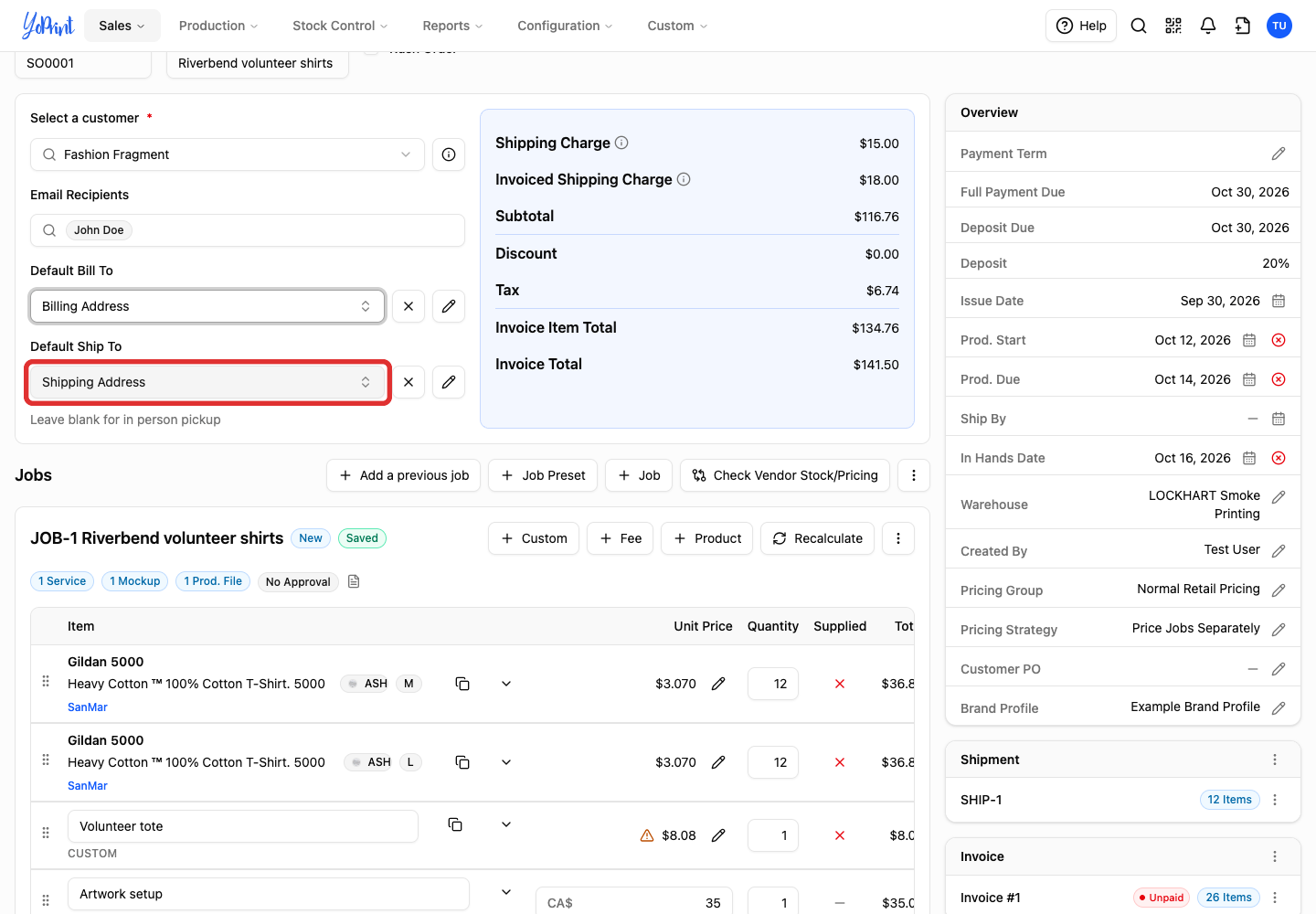
-
Choose the delivery address.
-
For collection, clear Default Ship To with its ×.
Add an address
-
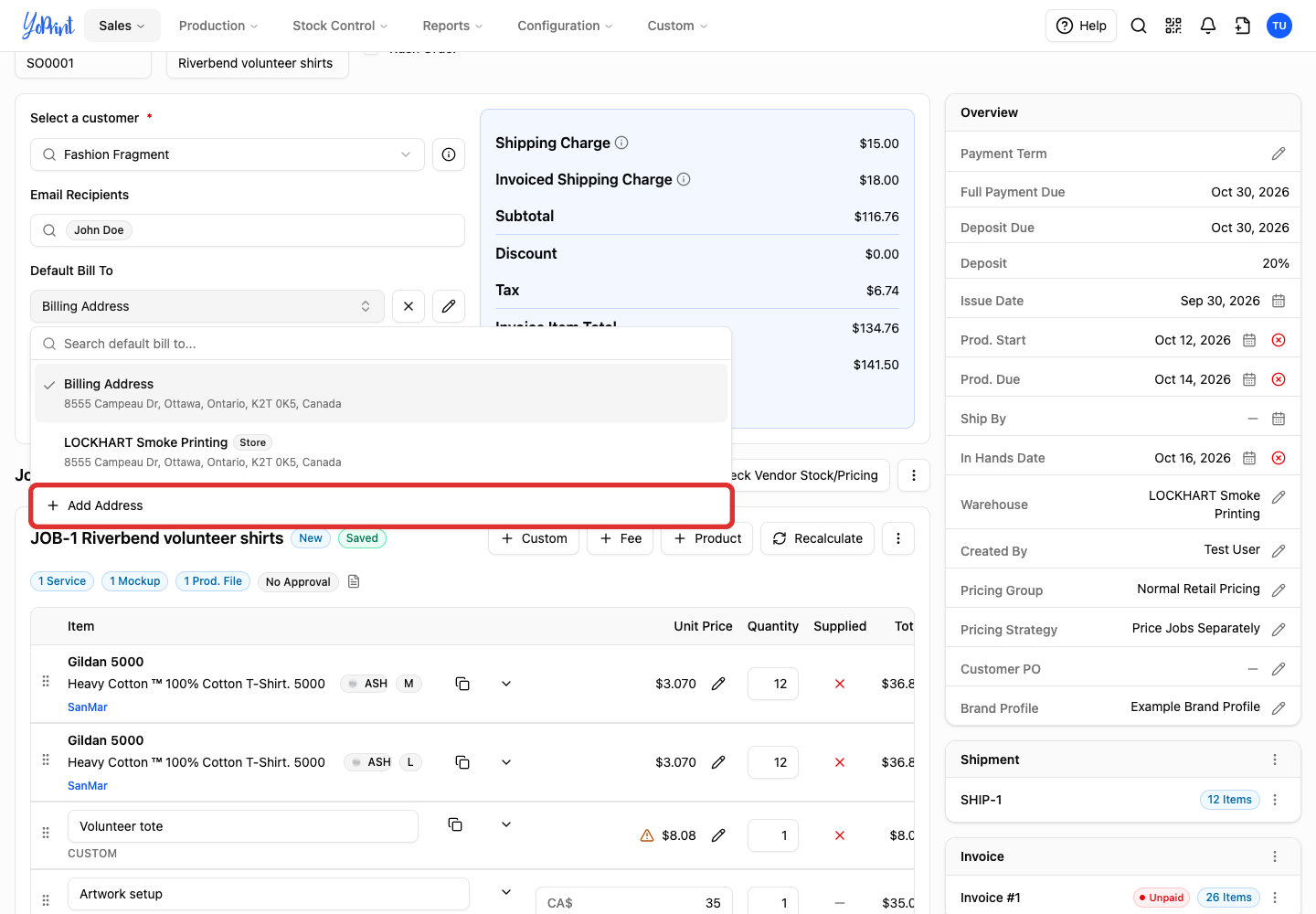
In the address menu, choose Add Address.
-
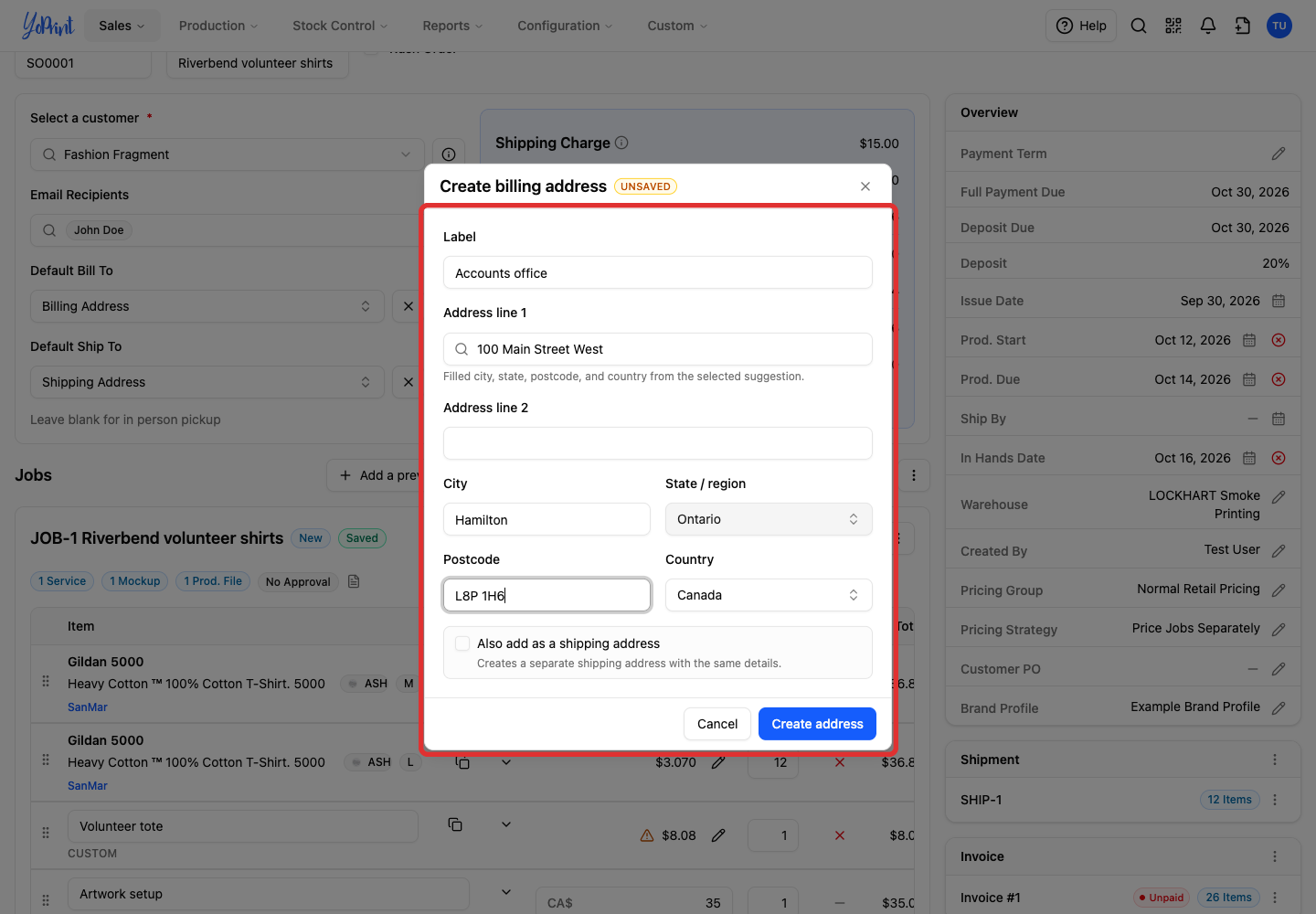
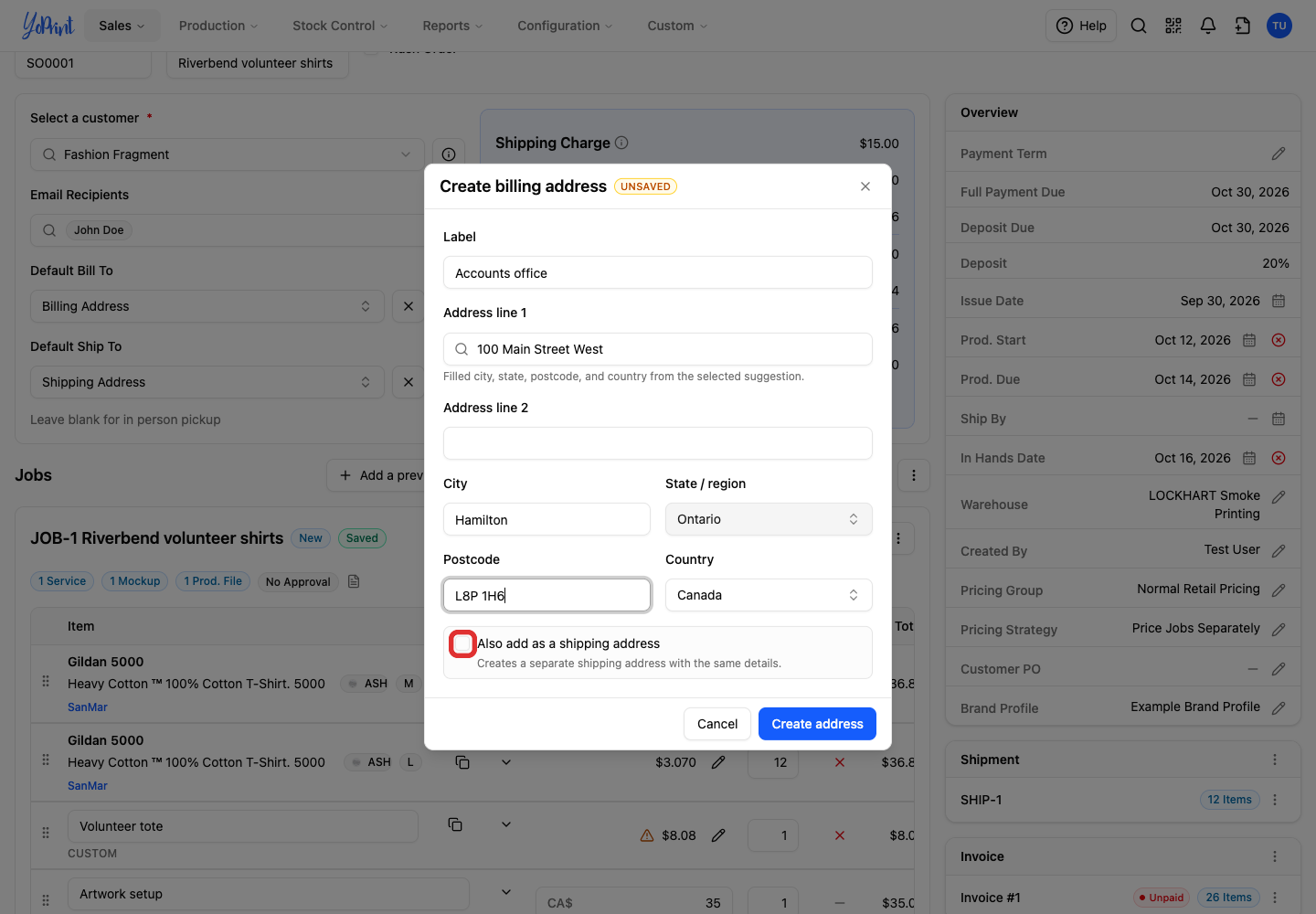
Complete the address form.
-
To use the same address for delivery, tick Also add as a shipping address.
-
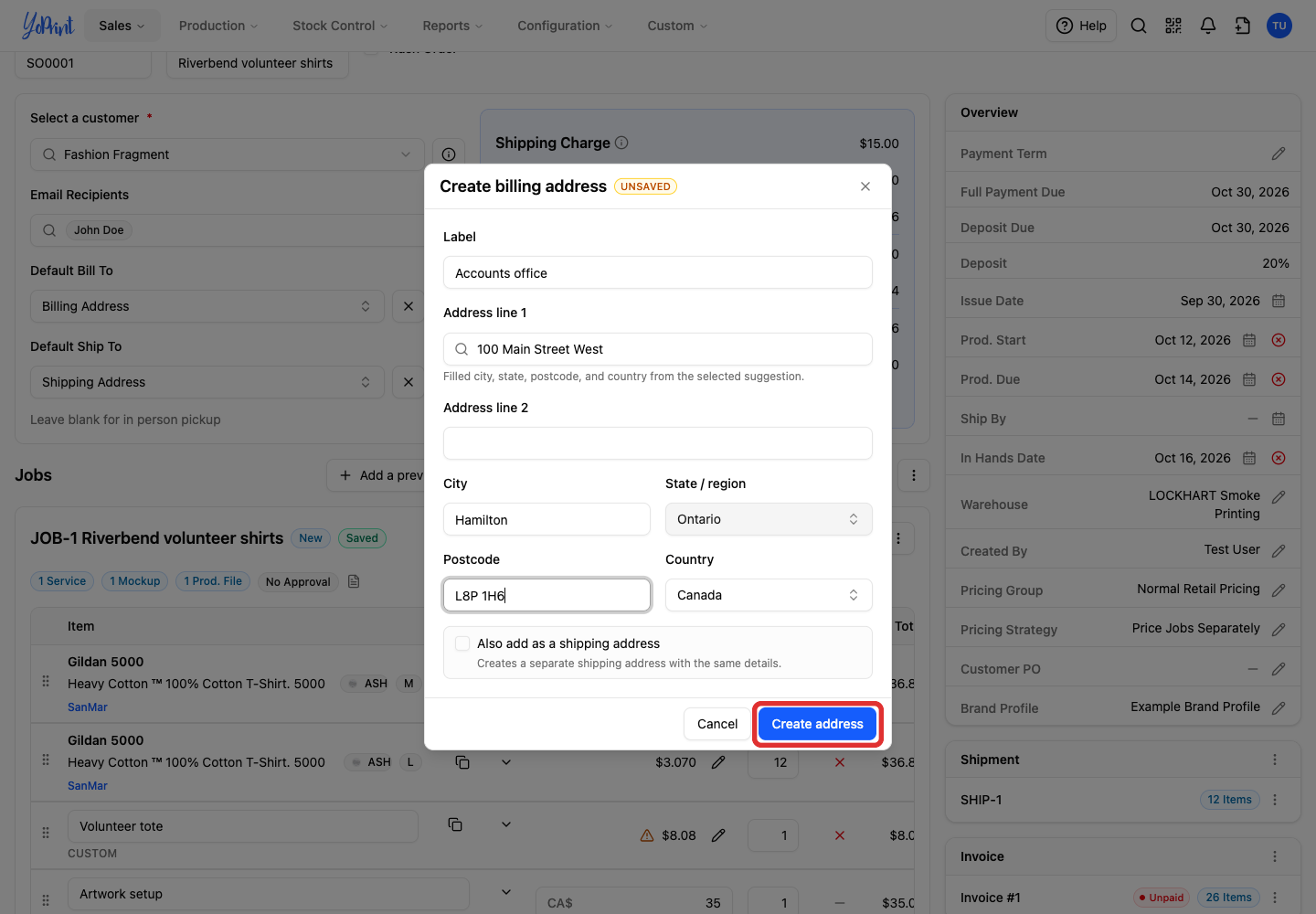
Click Create address.
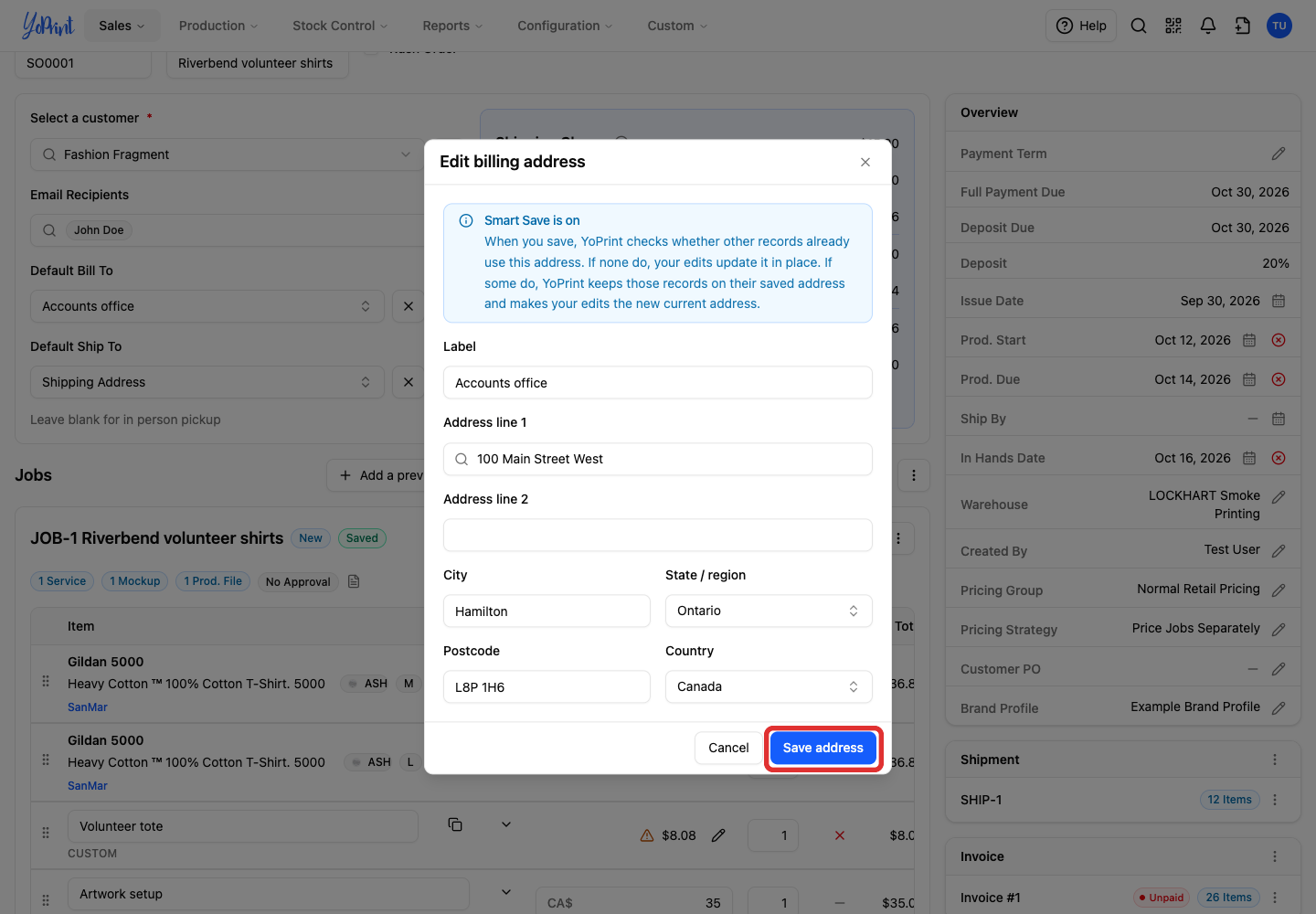
Edit an address
-
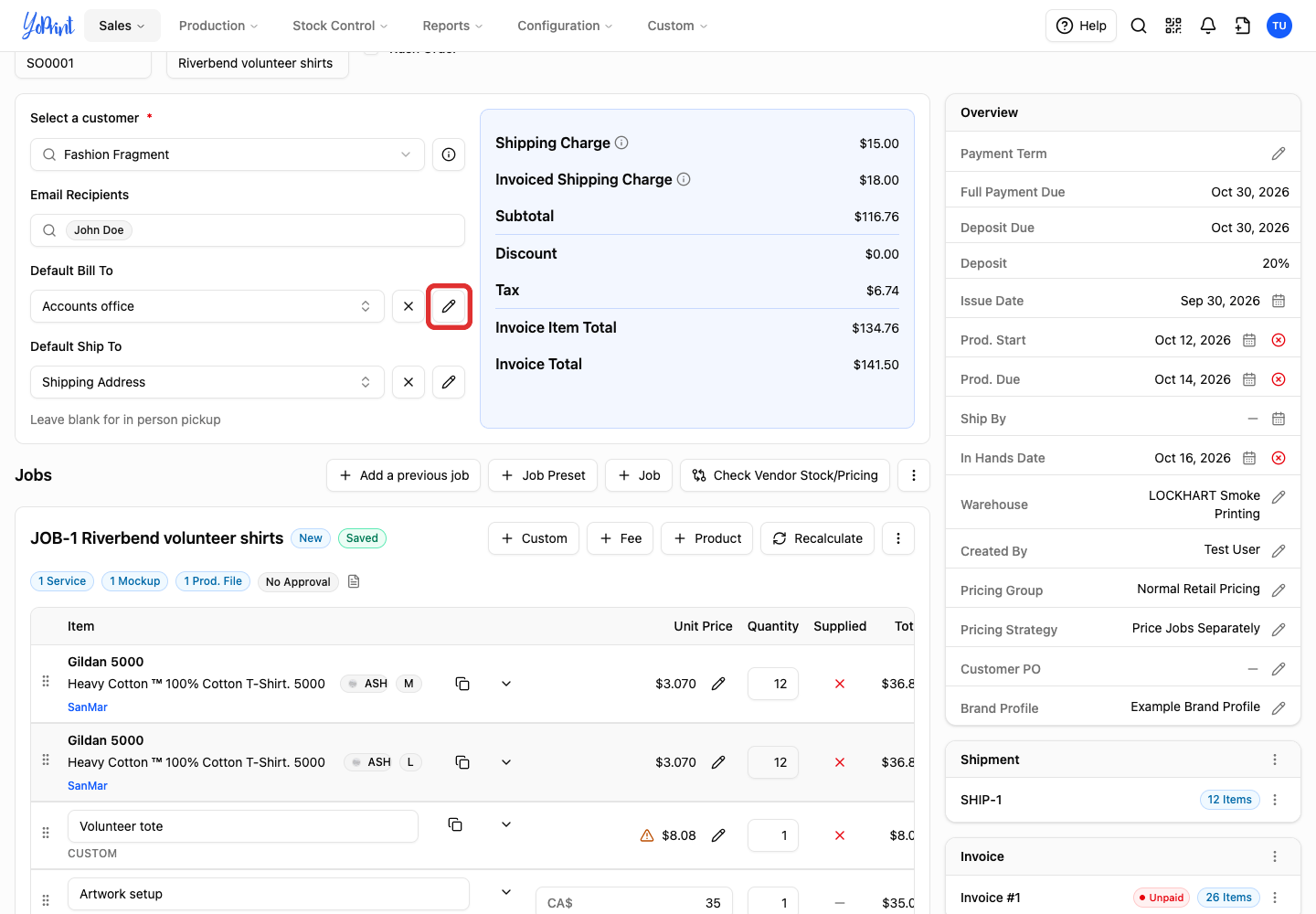
Click the pencil beside the address.
-
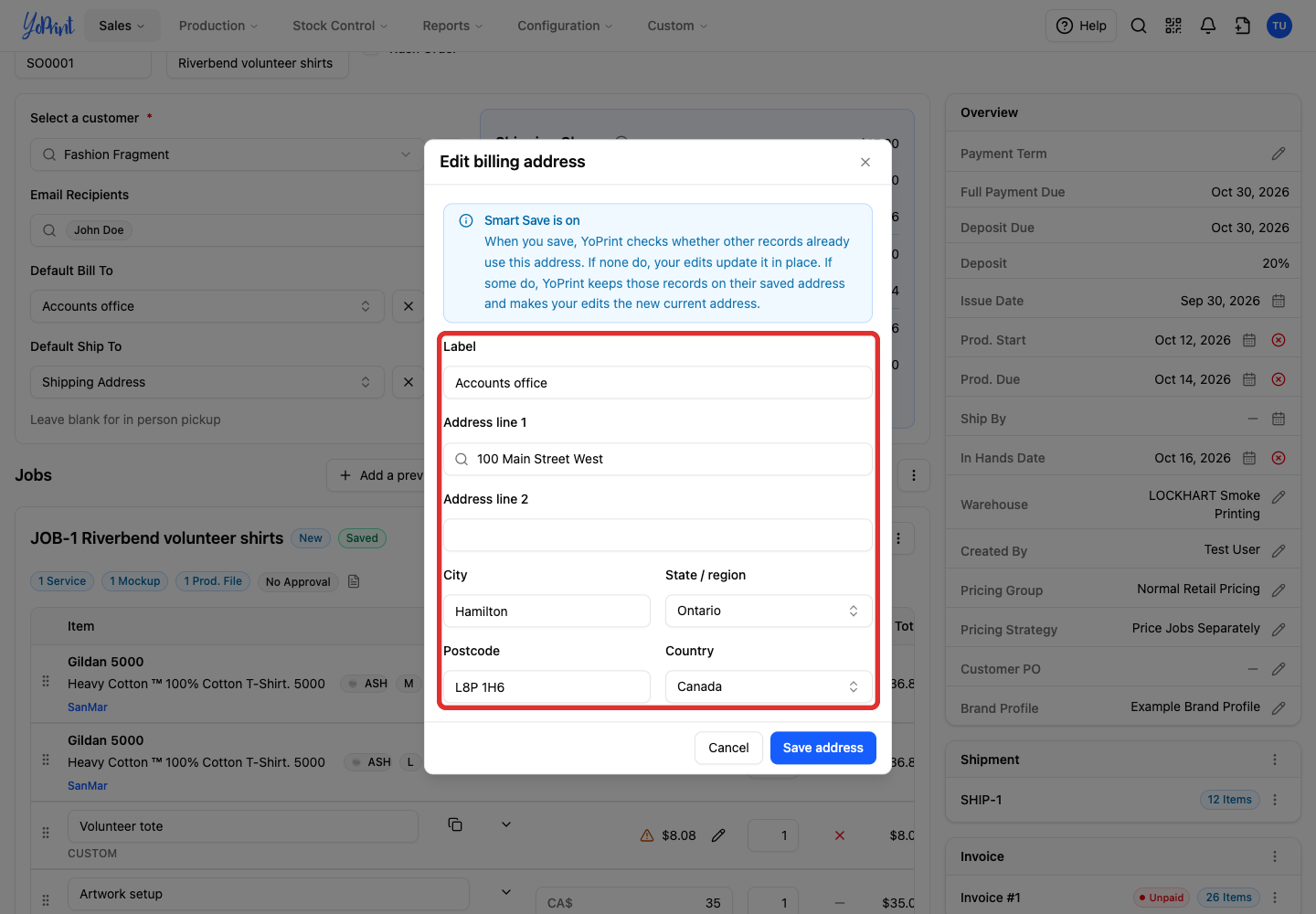
Change the address details. The Smart Save notice explains how the change affects orders, saving a new address version when needed to keep past records intact.
-
Click Save address.
Add a job
A service is the decoration work, such as screen printing or embroidery. Its rates come from your shop's pricing matrices under Configuration → Services.
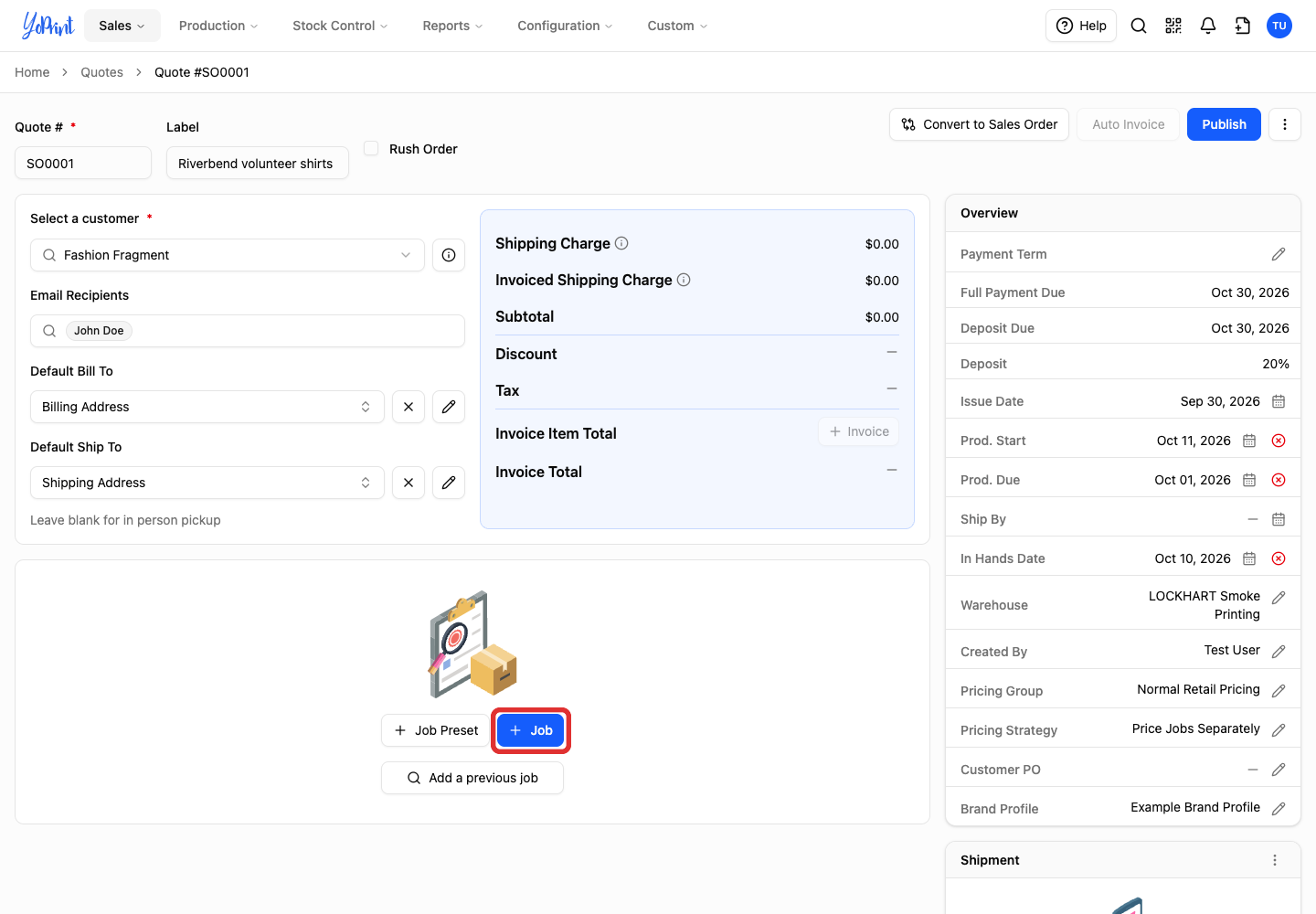
-
Click Job.
Reuse work you have already set up
Reuse a previous job, or use a job preset for a repeatable combination of services and tasks.
-
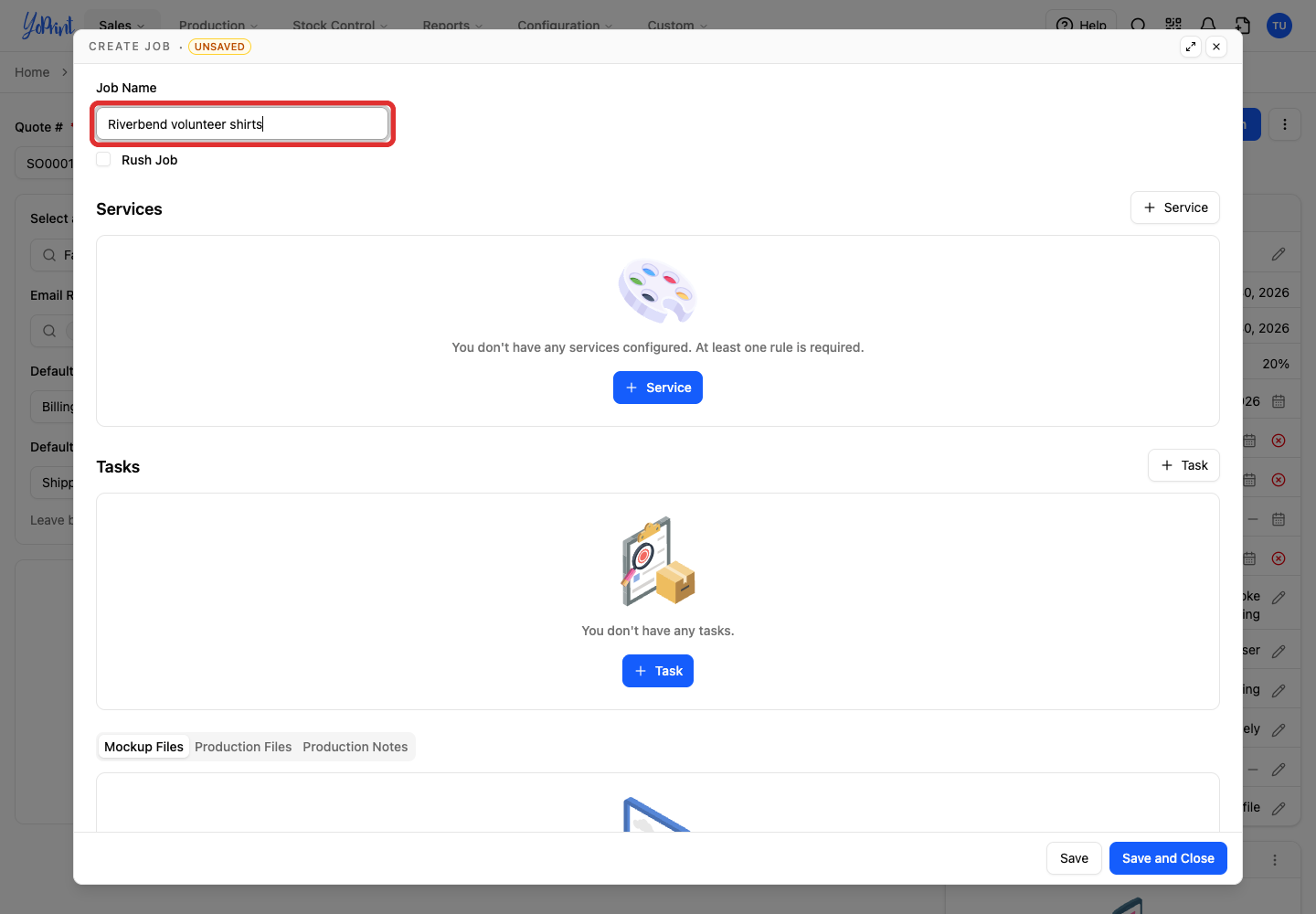
Enter a Job Name that describes the work.
-
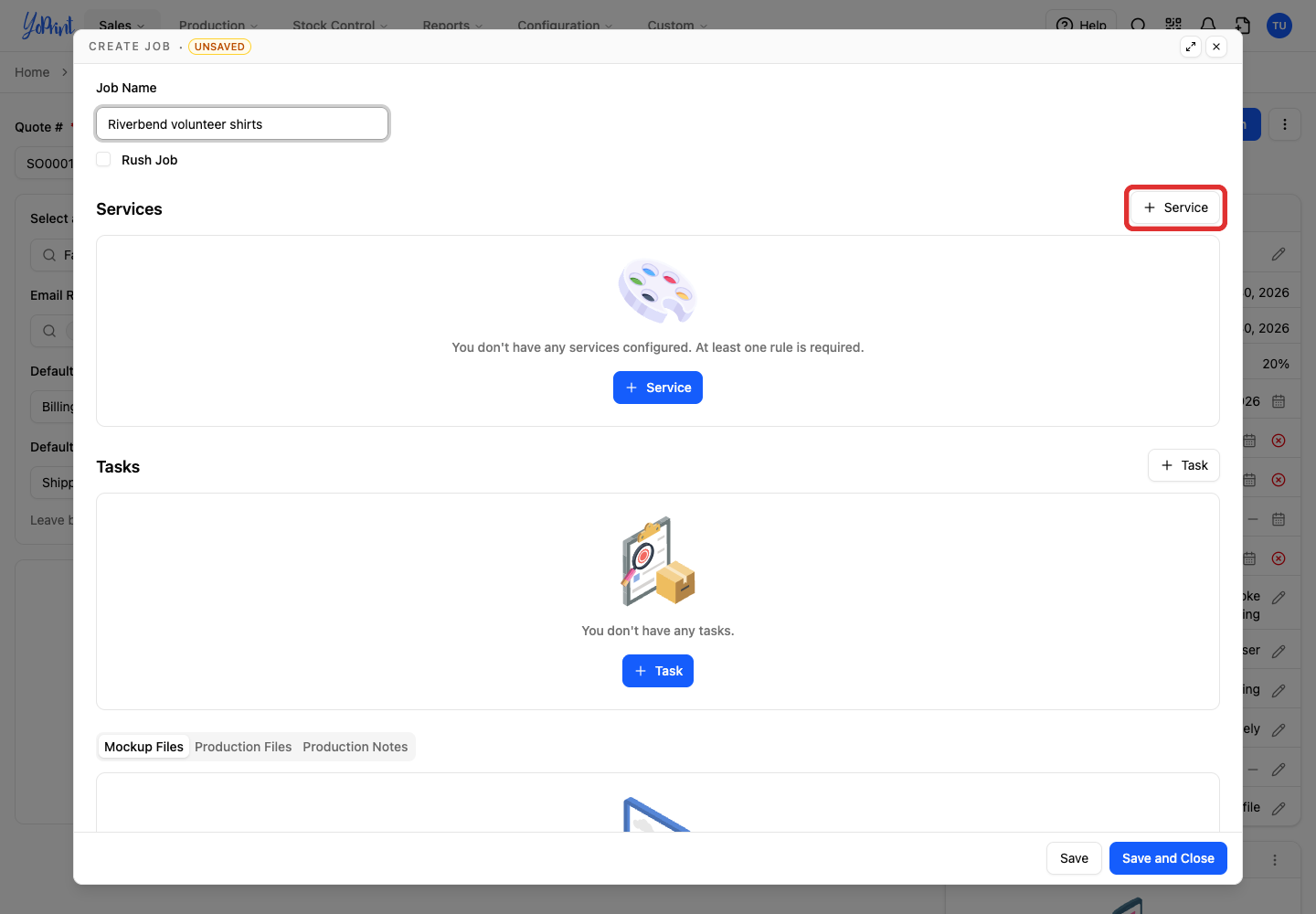
Click + Service.
-
Open the service picker.
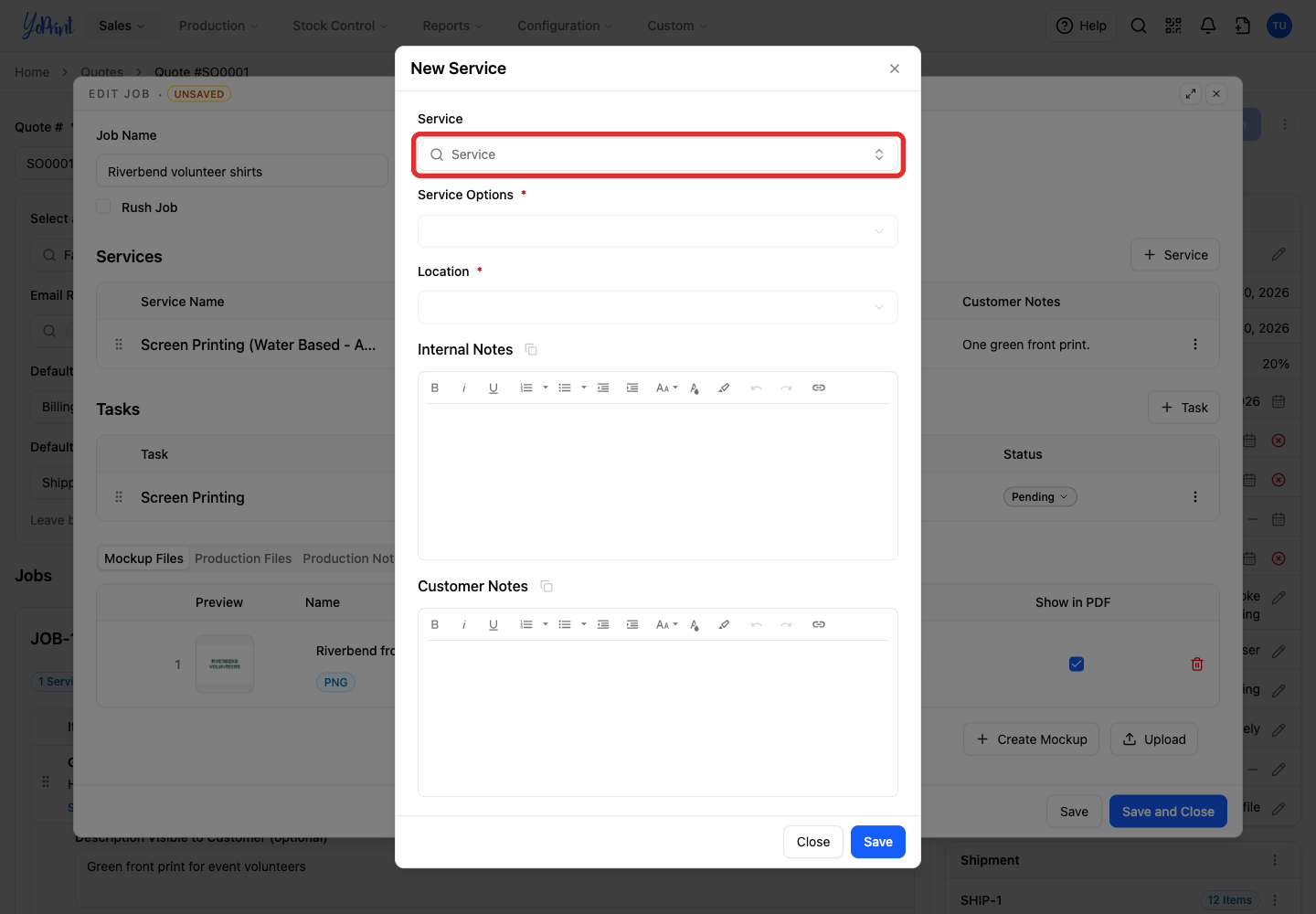
-
Choose the service.
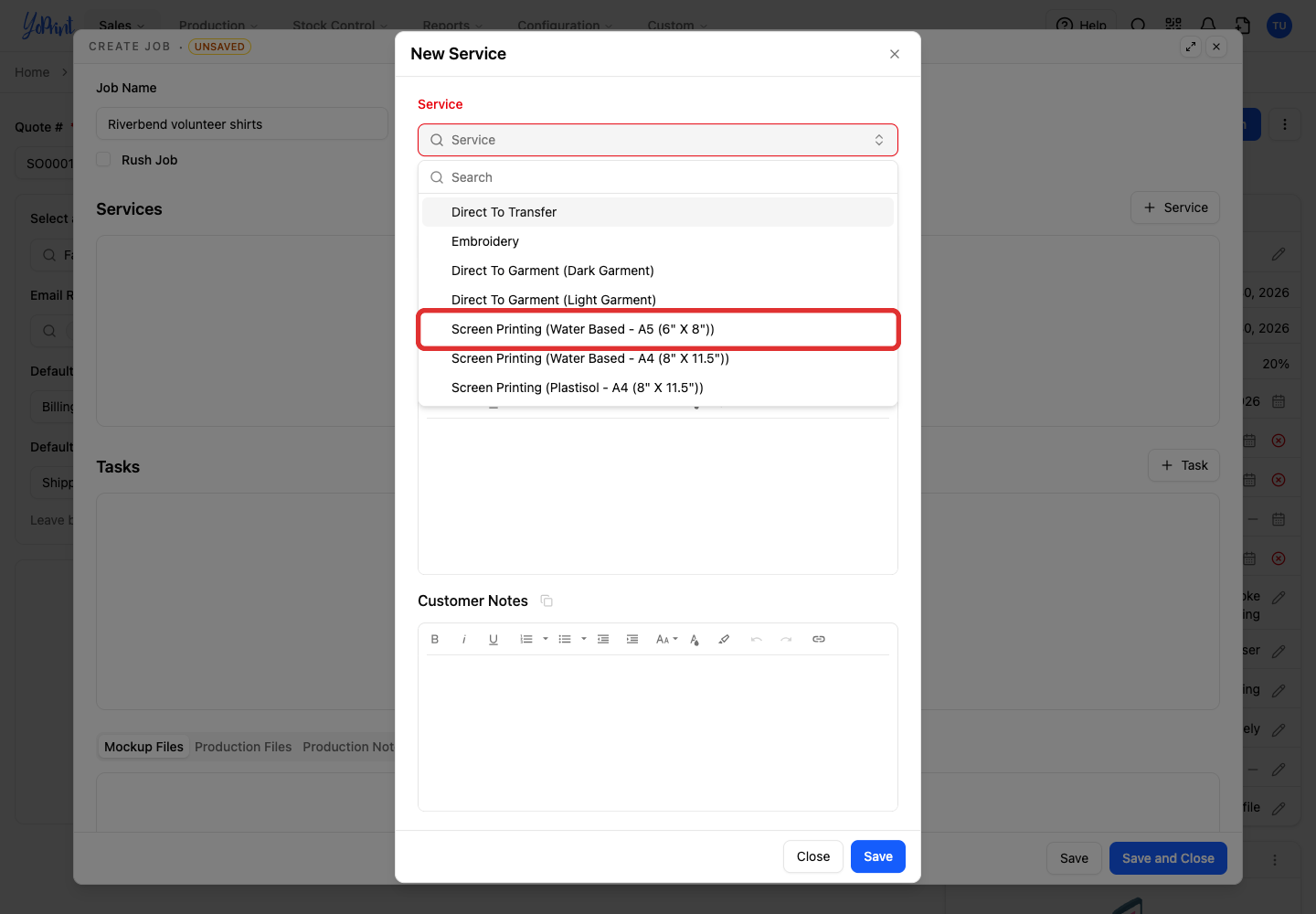
Service missing
Set it up in Pricing Matrix first.
-
Open Service Options.
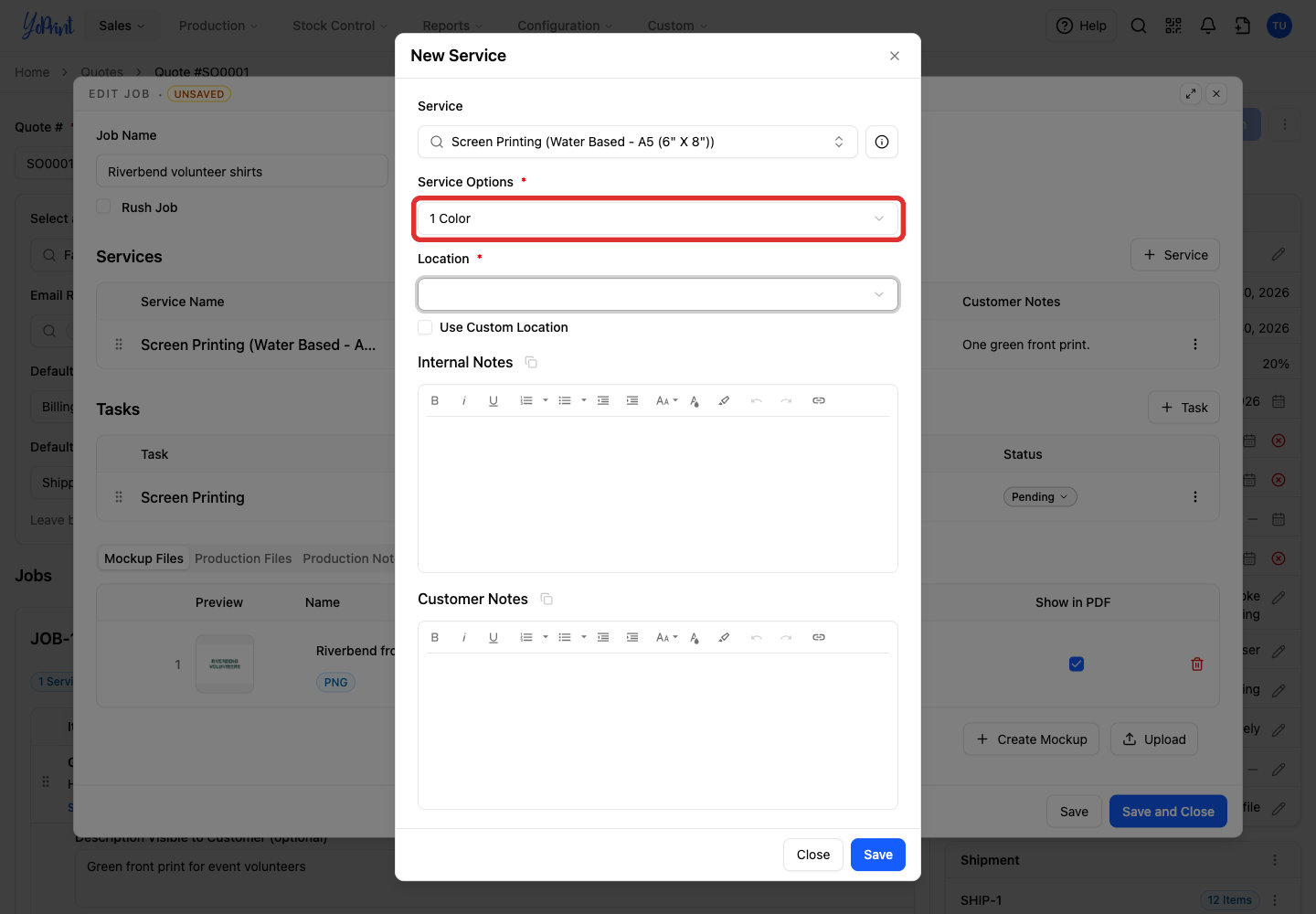
-
Choose the option for this work. For this screen-printing service, it is the number of colours.
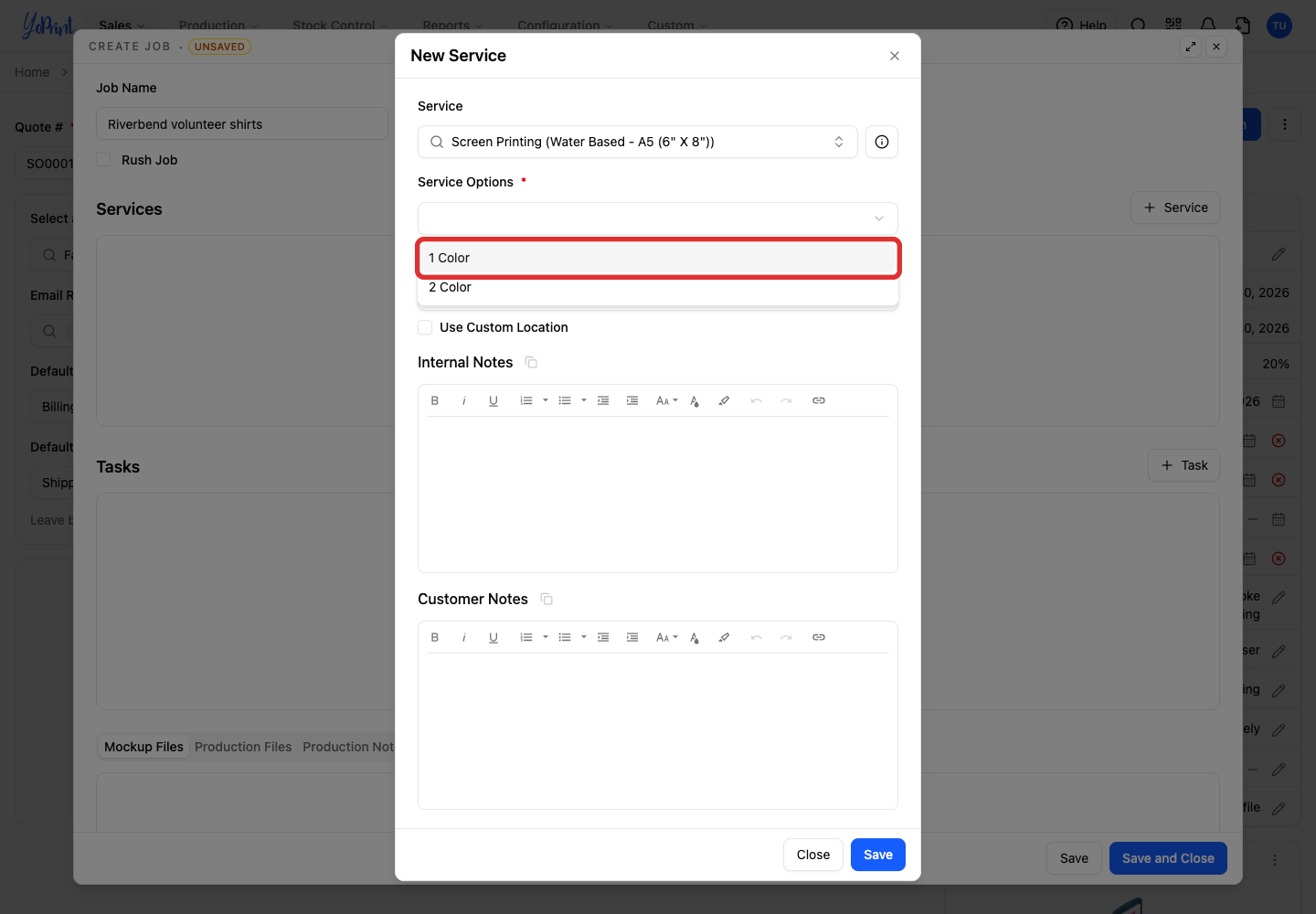
-
Open Location.
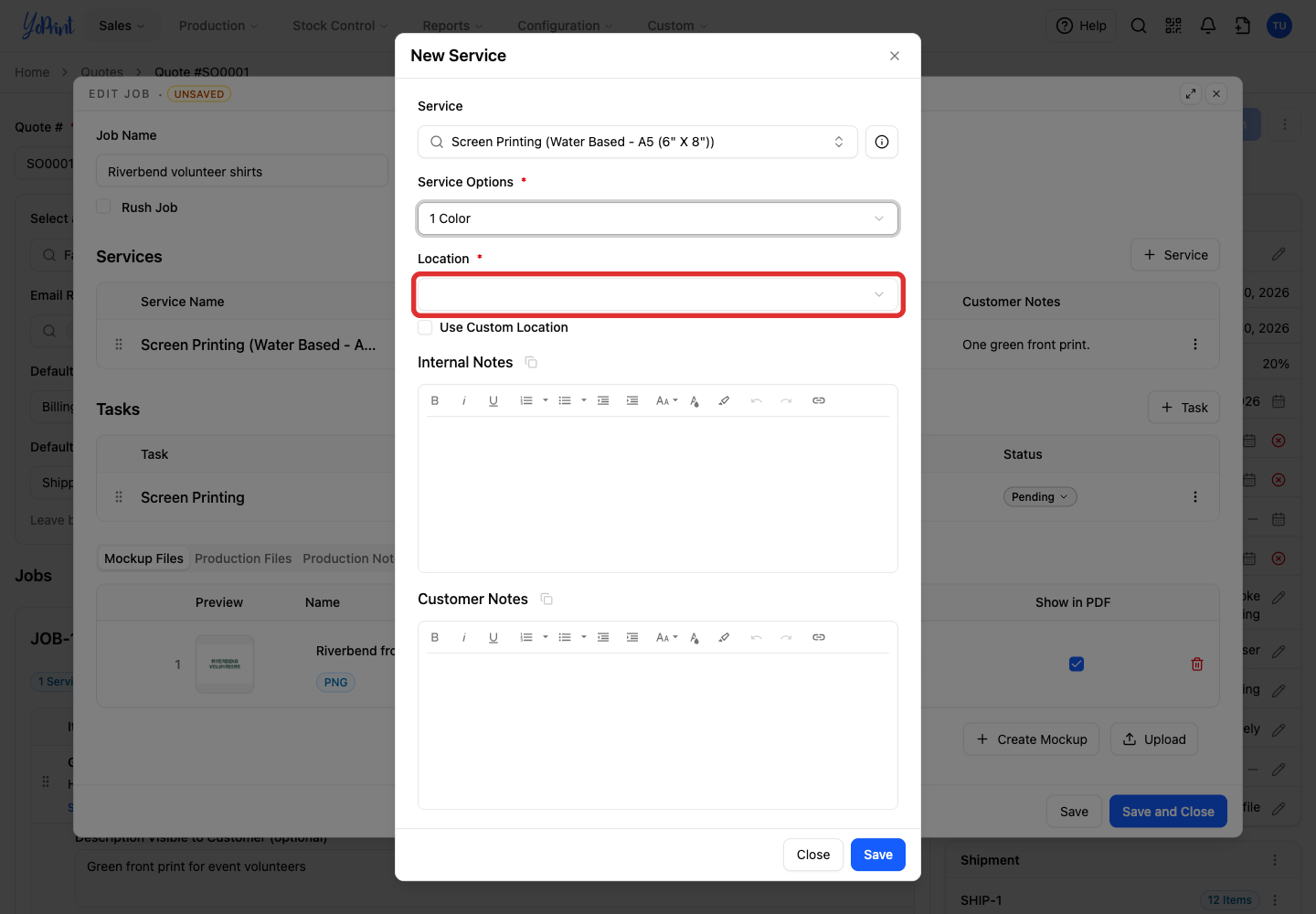
-
Choose where the decoration goes.
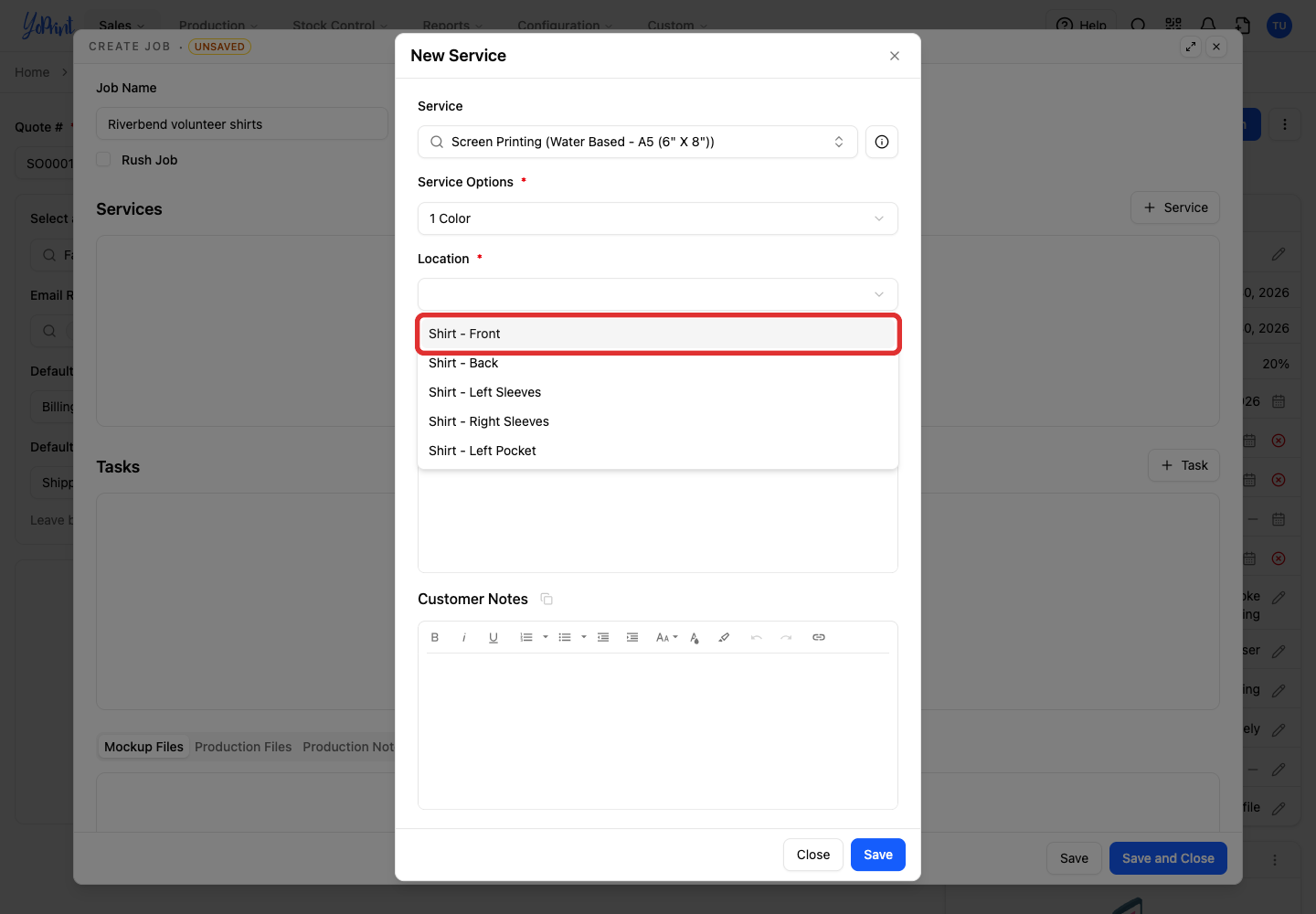
-
Click Save.
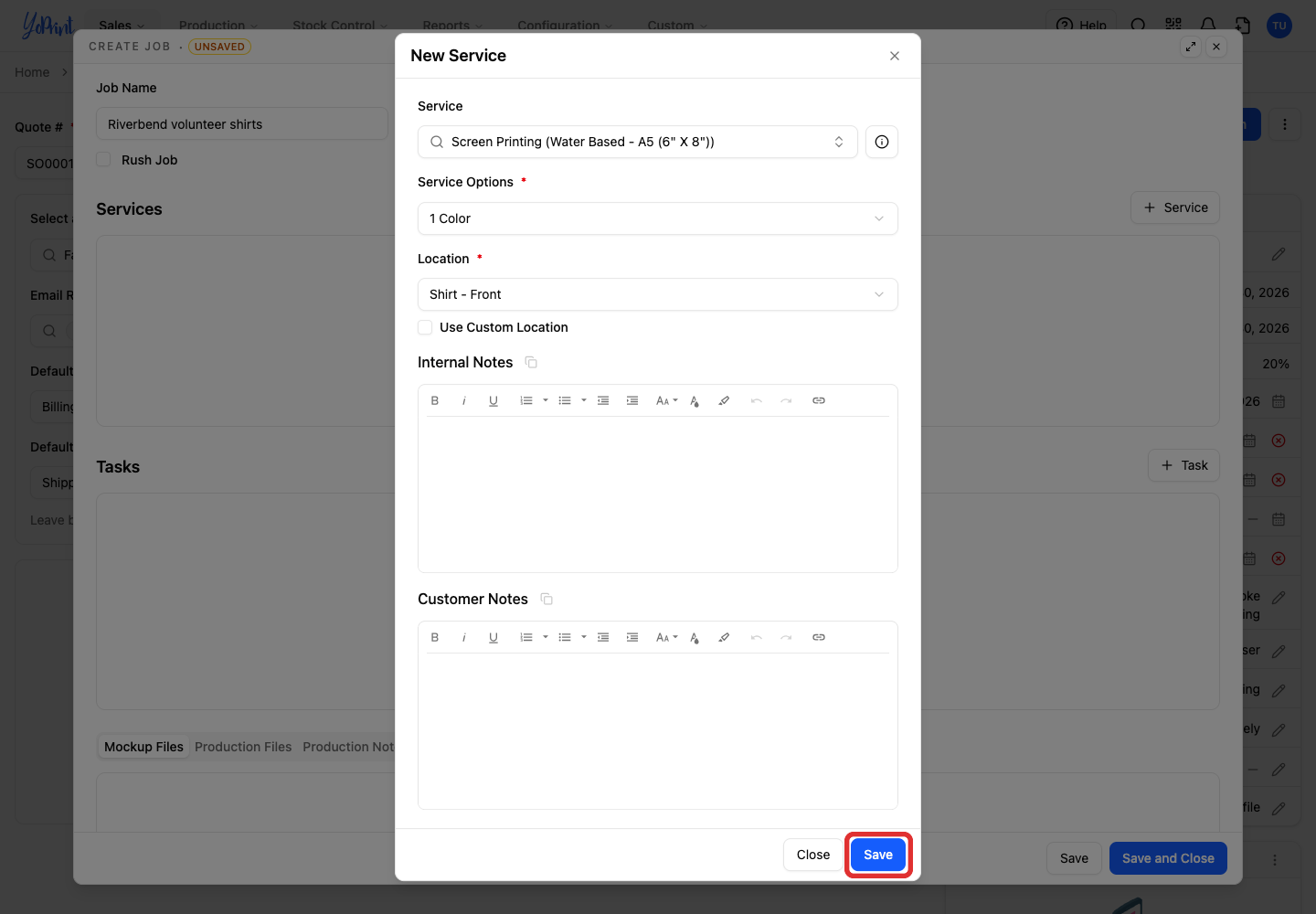
Add service notes
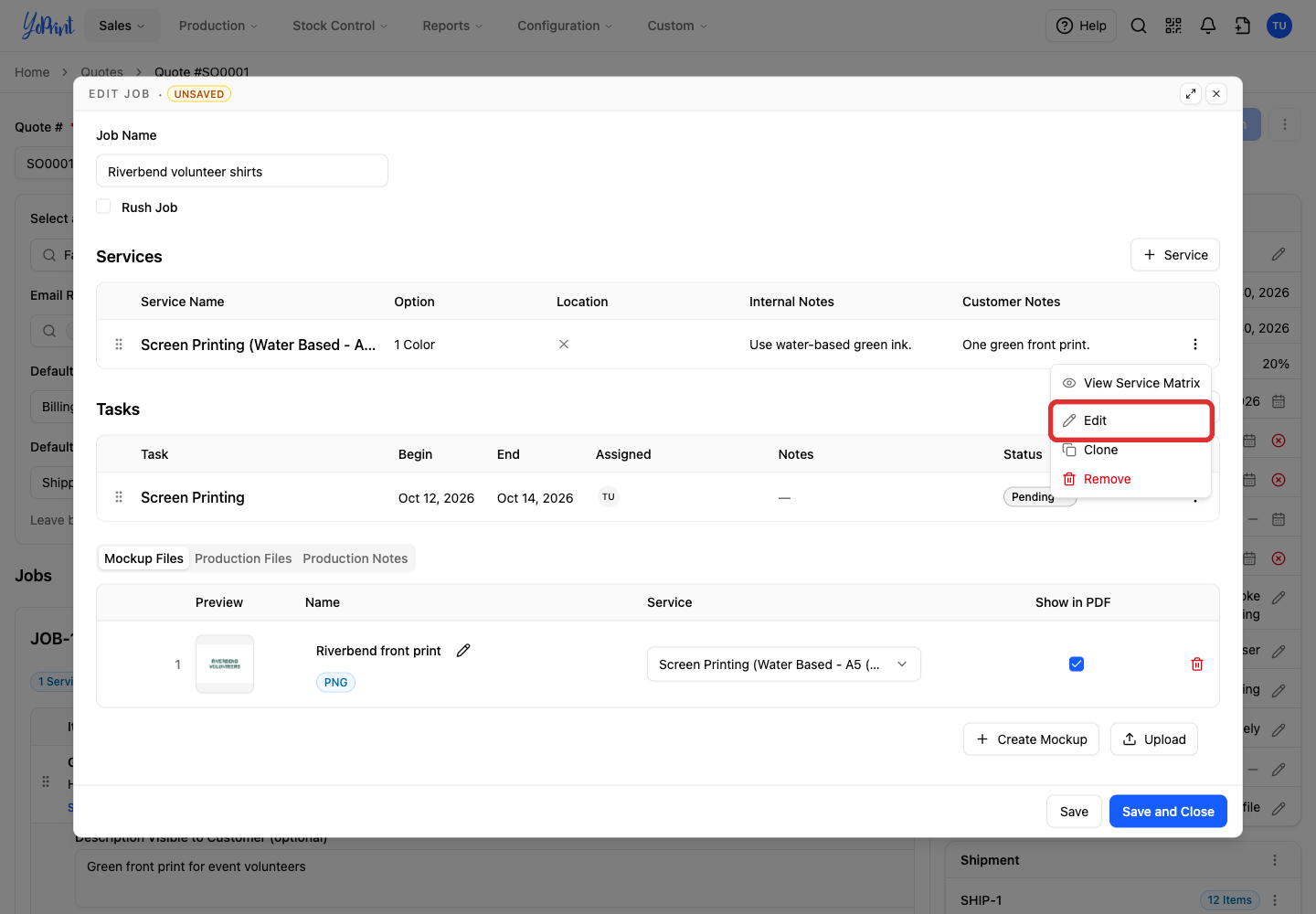
You can enter notes while creating the service, or reopen it from its actions menu to add or edit them later.
-
Open the service's actions menu.
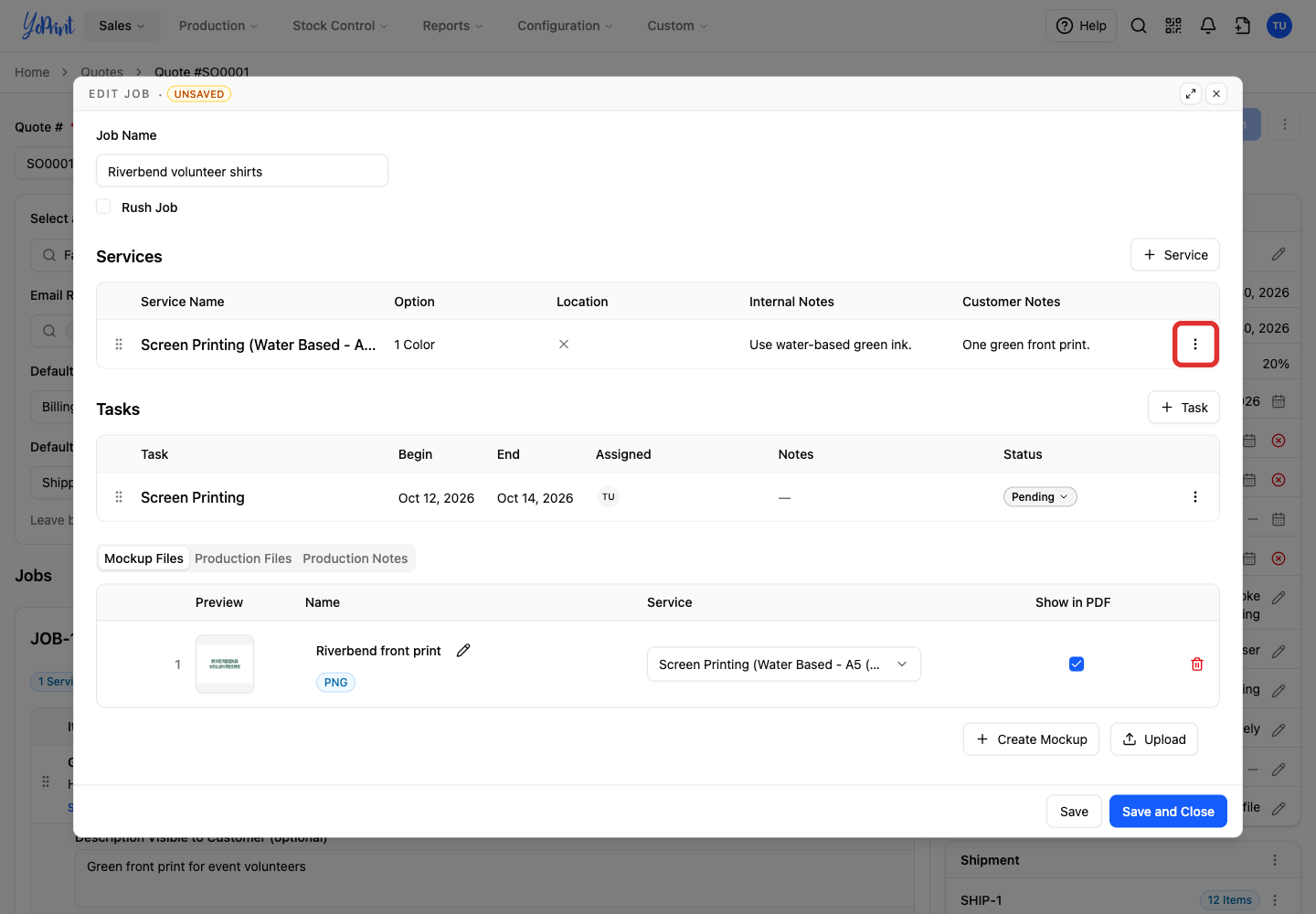
-
Choose Edit.
-
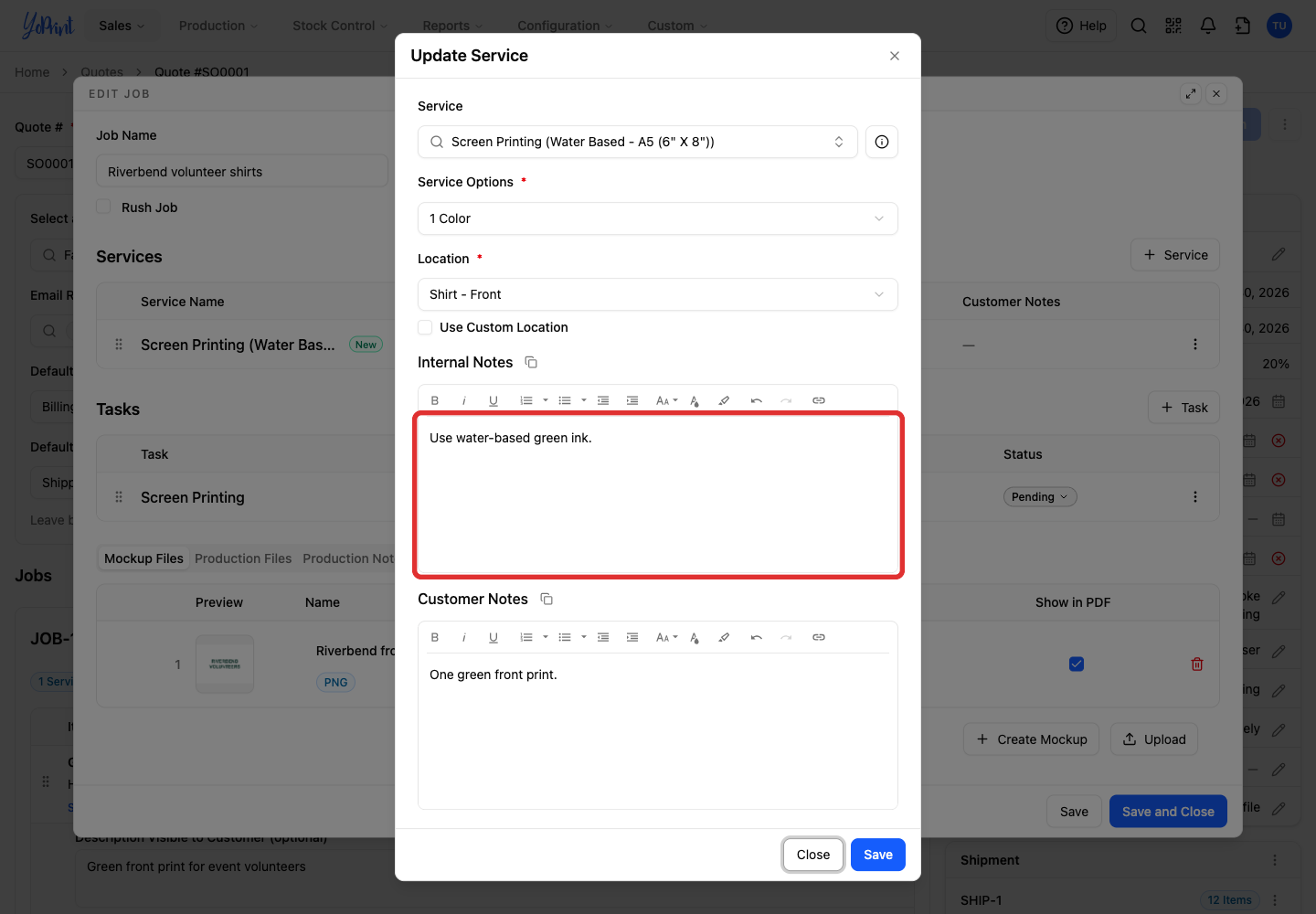
Enter Internal Notes for your team.
-
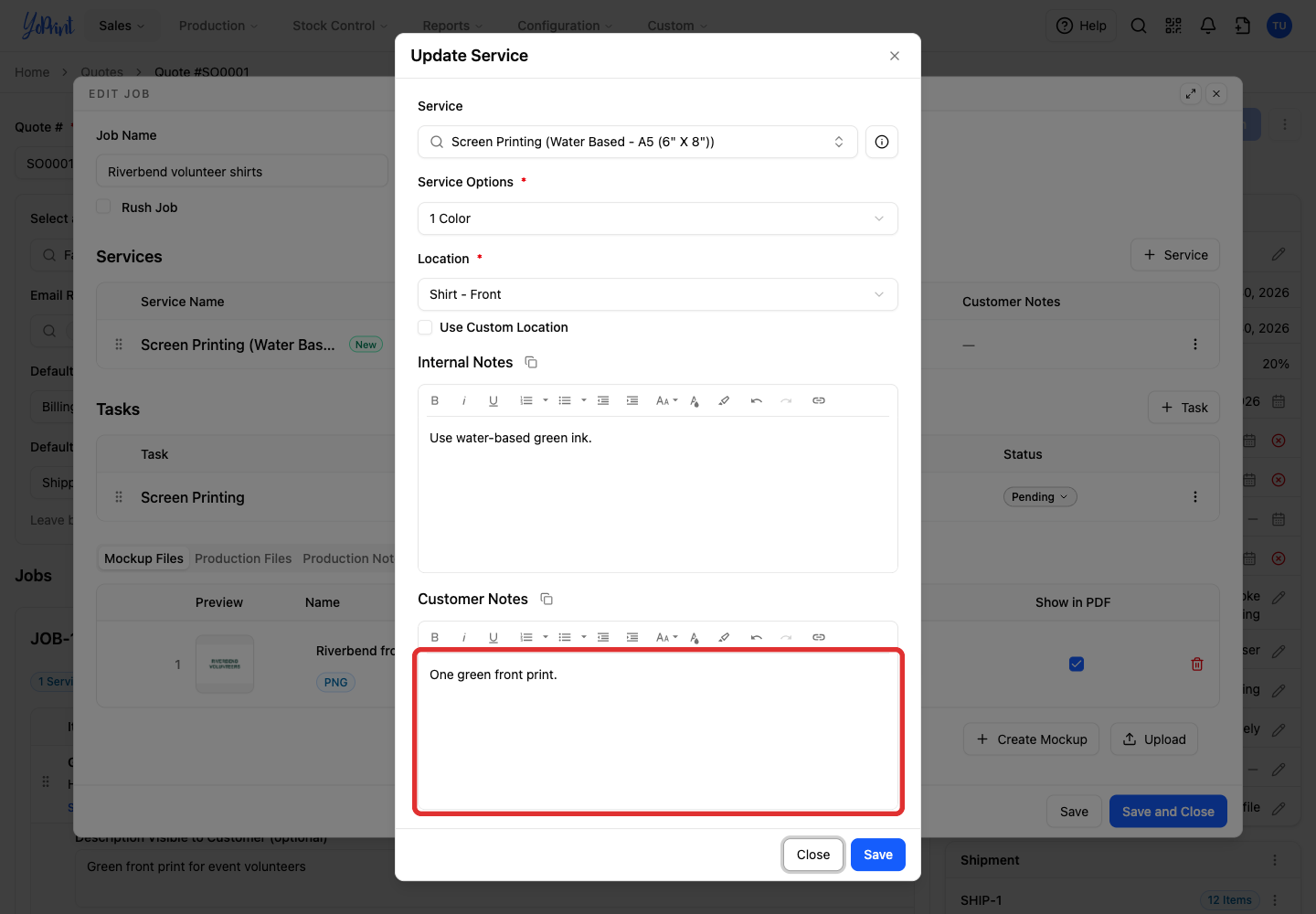
Enter Customer Notes for the customer to read.
-
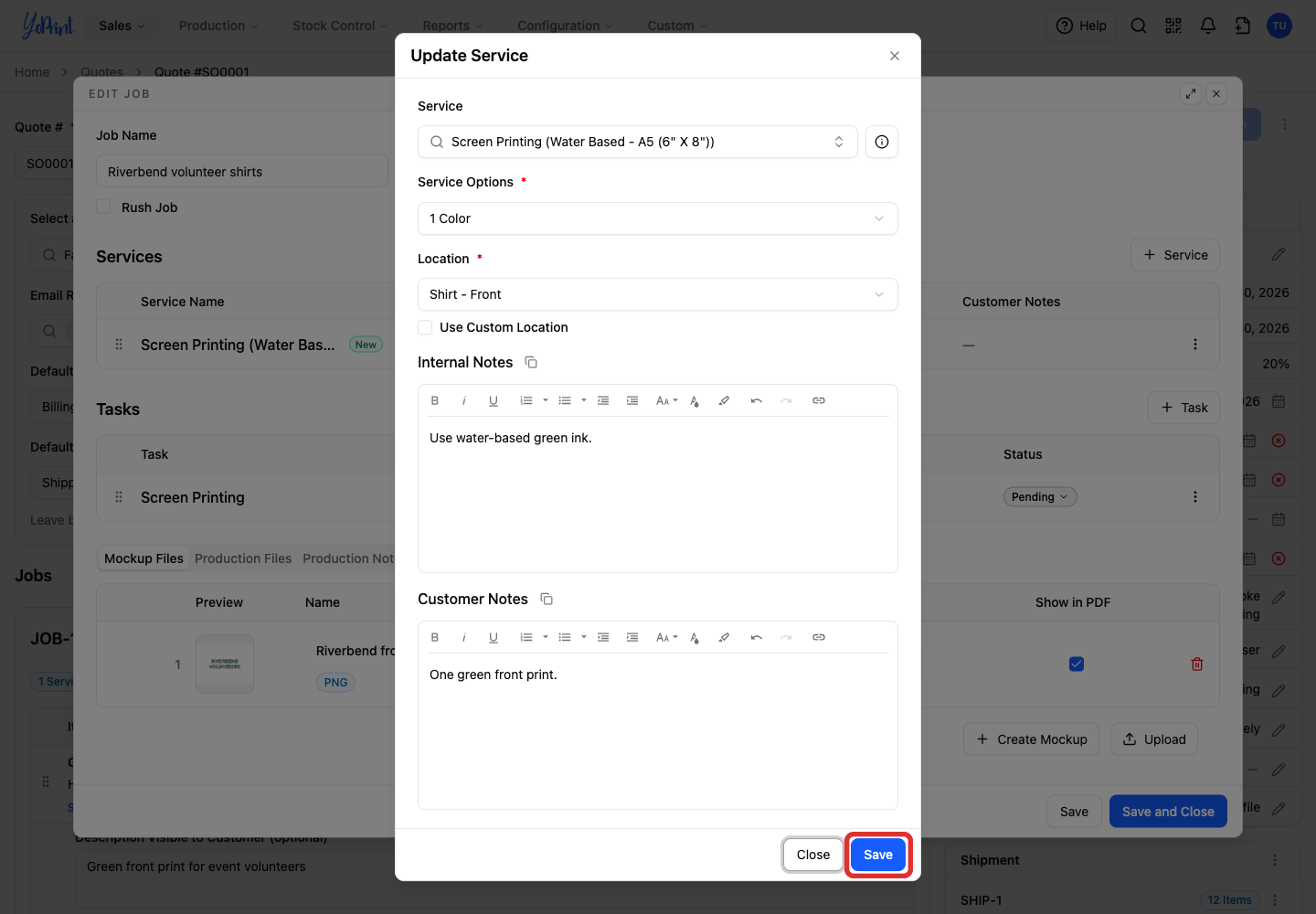
Click Save.
Check the service price
-
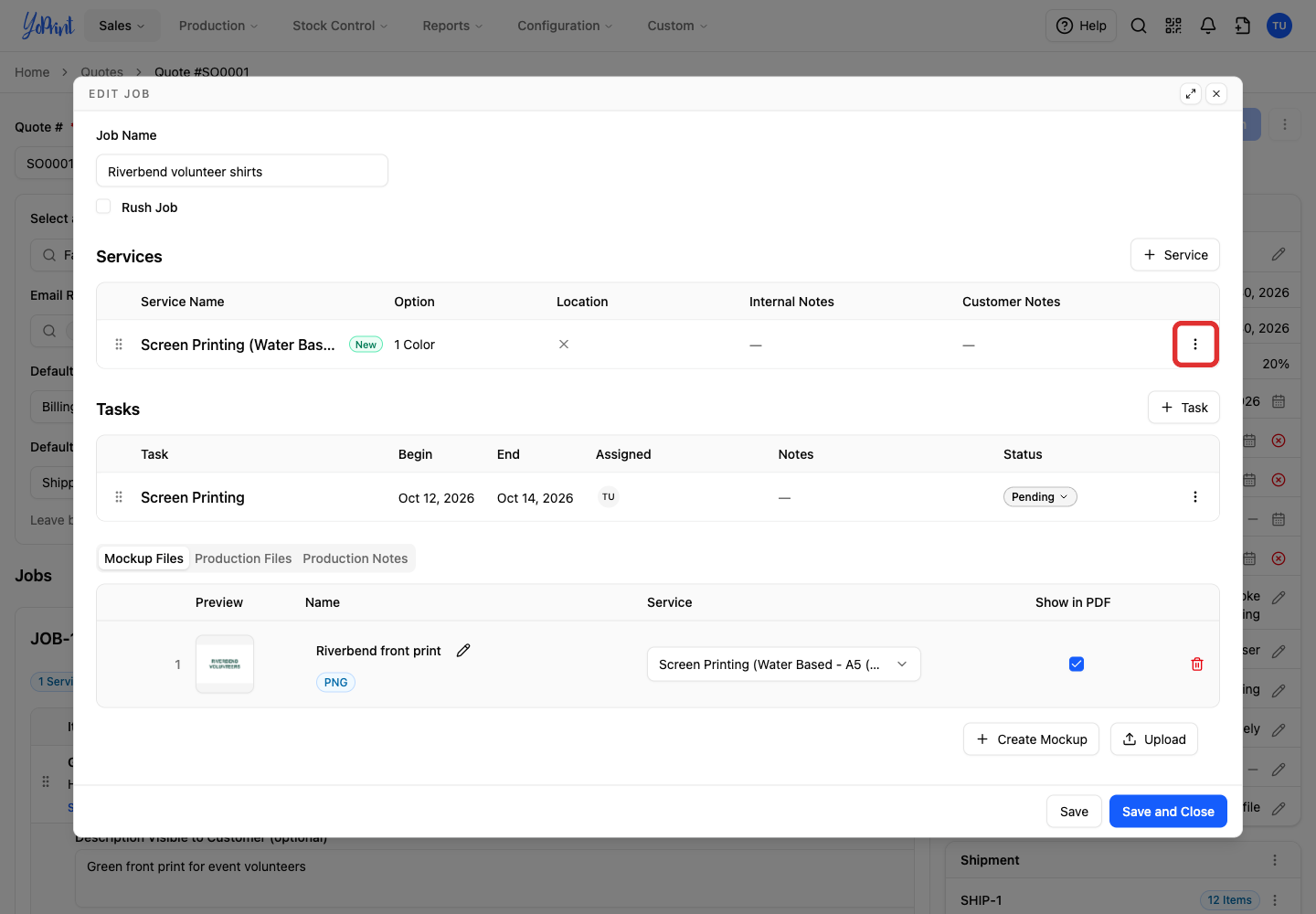
Open the service's actions menu.
-
Choose View Service Matrix to see the price for the options and quantity.
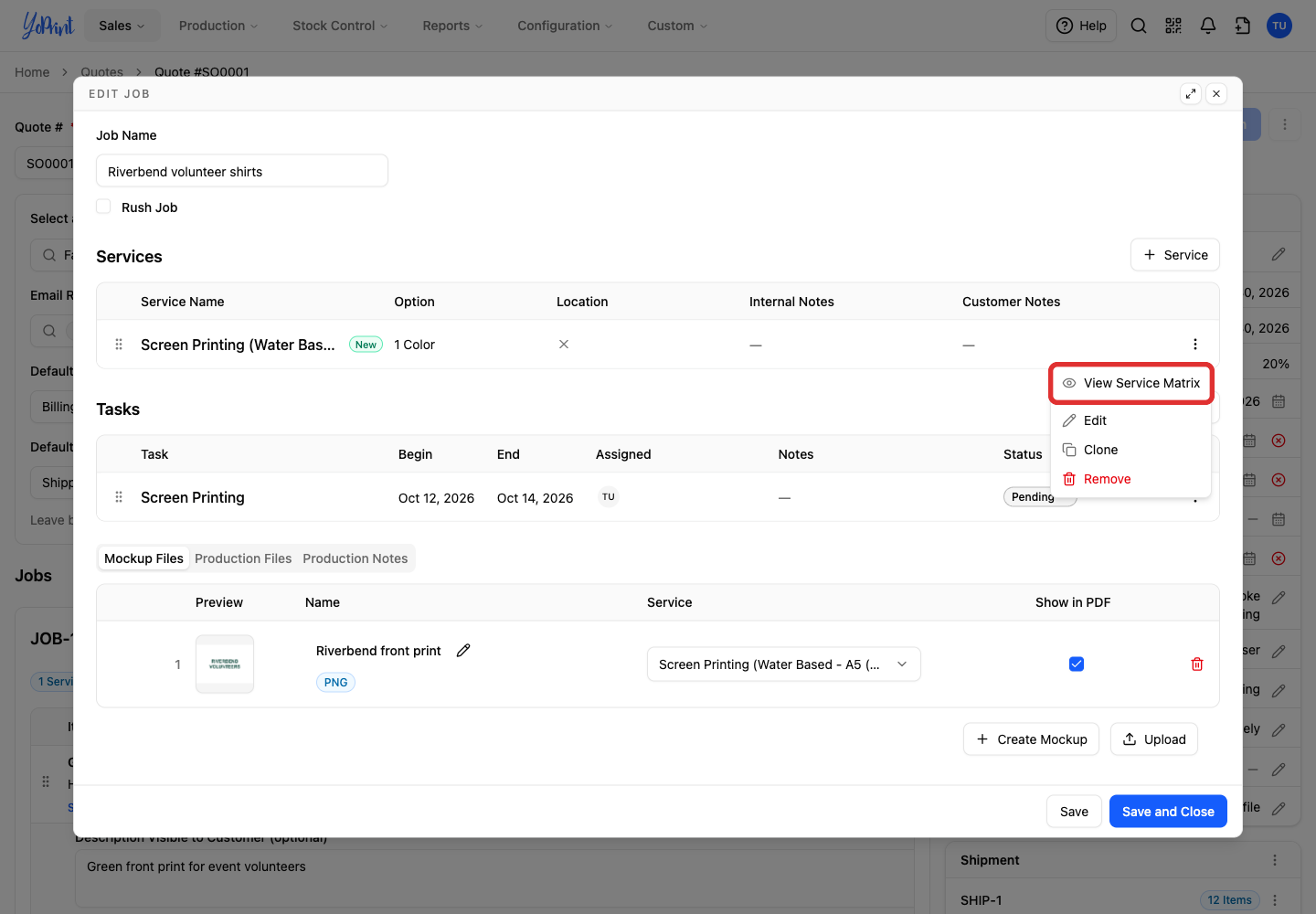
The matrix is read-only here. It shows shop-wide rates rather than customer-specific discounts. Changes to the matrix belong in your shop's service setup.
Add an optional task
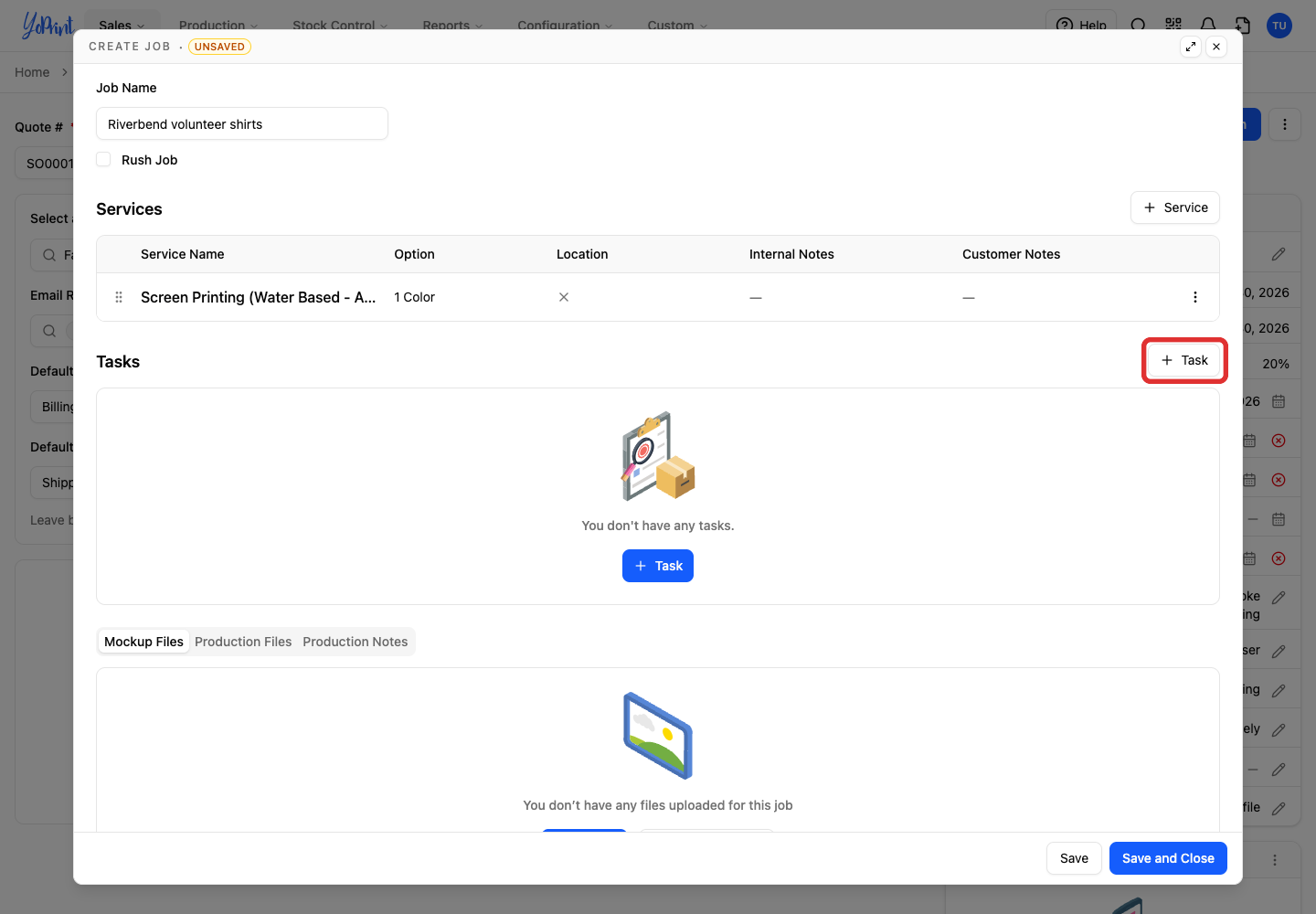
Tasks assign work to your team and track its progress. You can add them later when you plan production.
-
Click + Task.
-
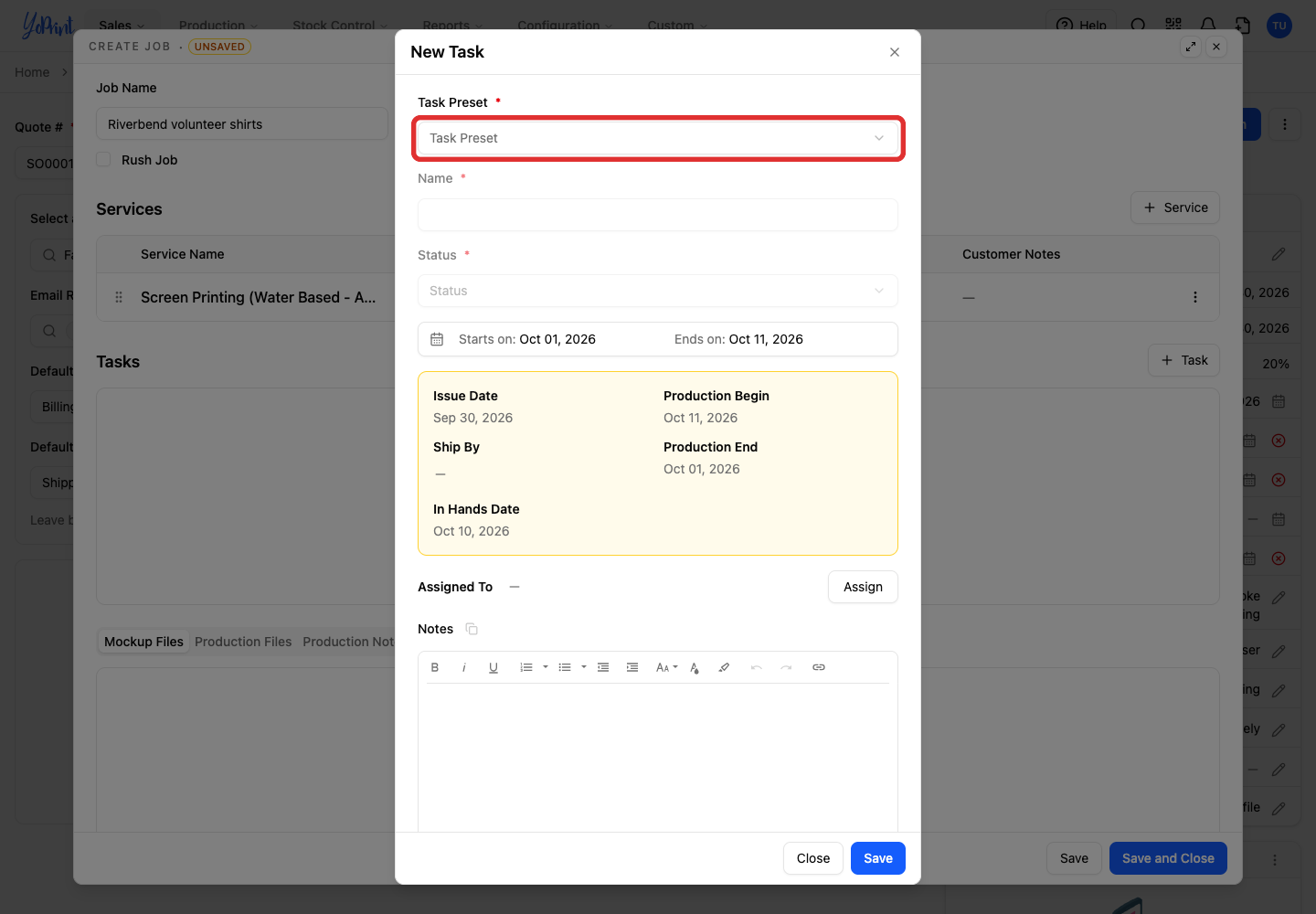
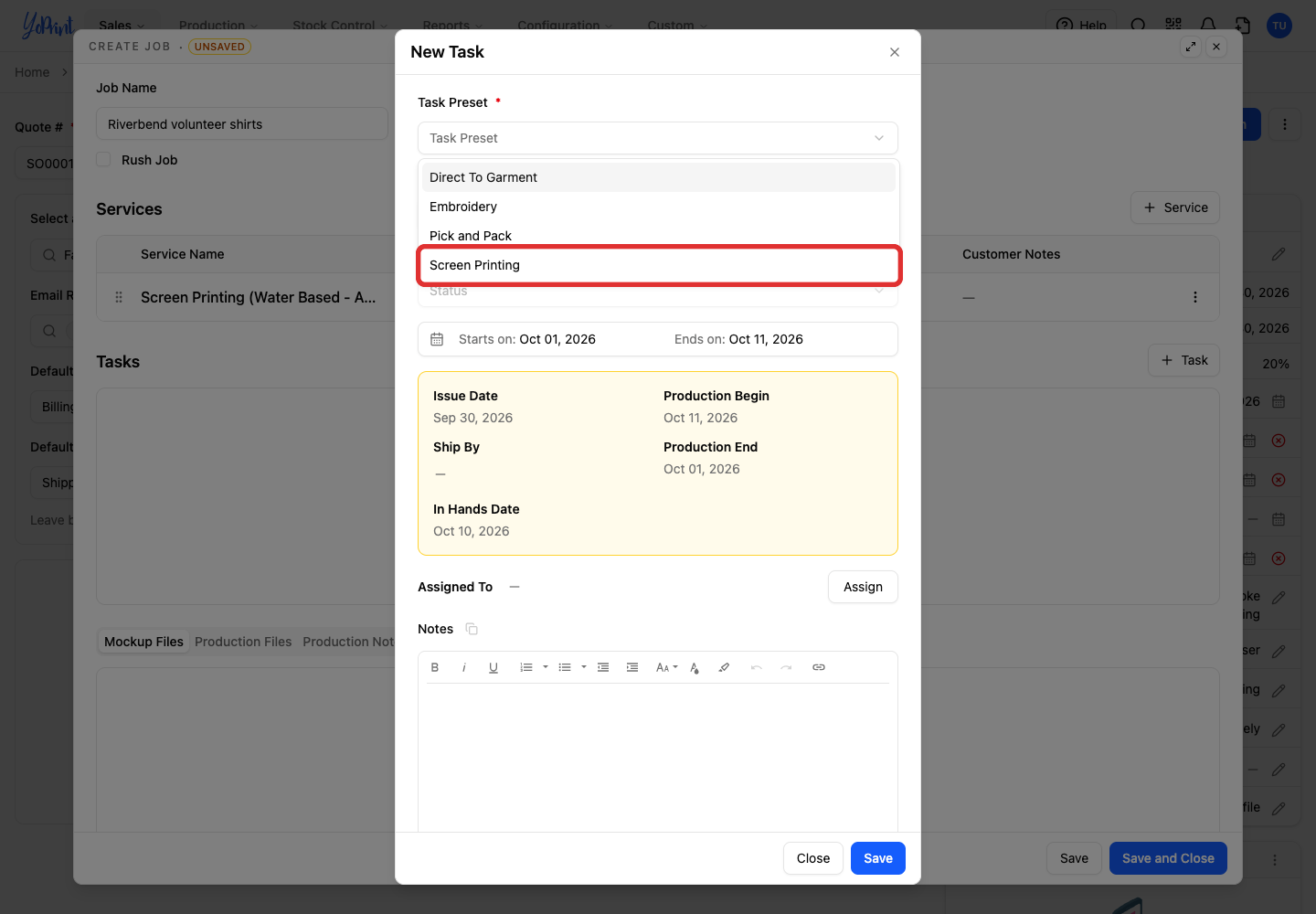
Open Task Preset.
-
Choose the preset.
-
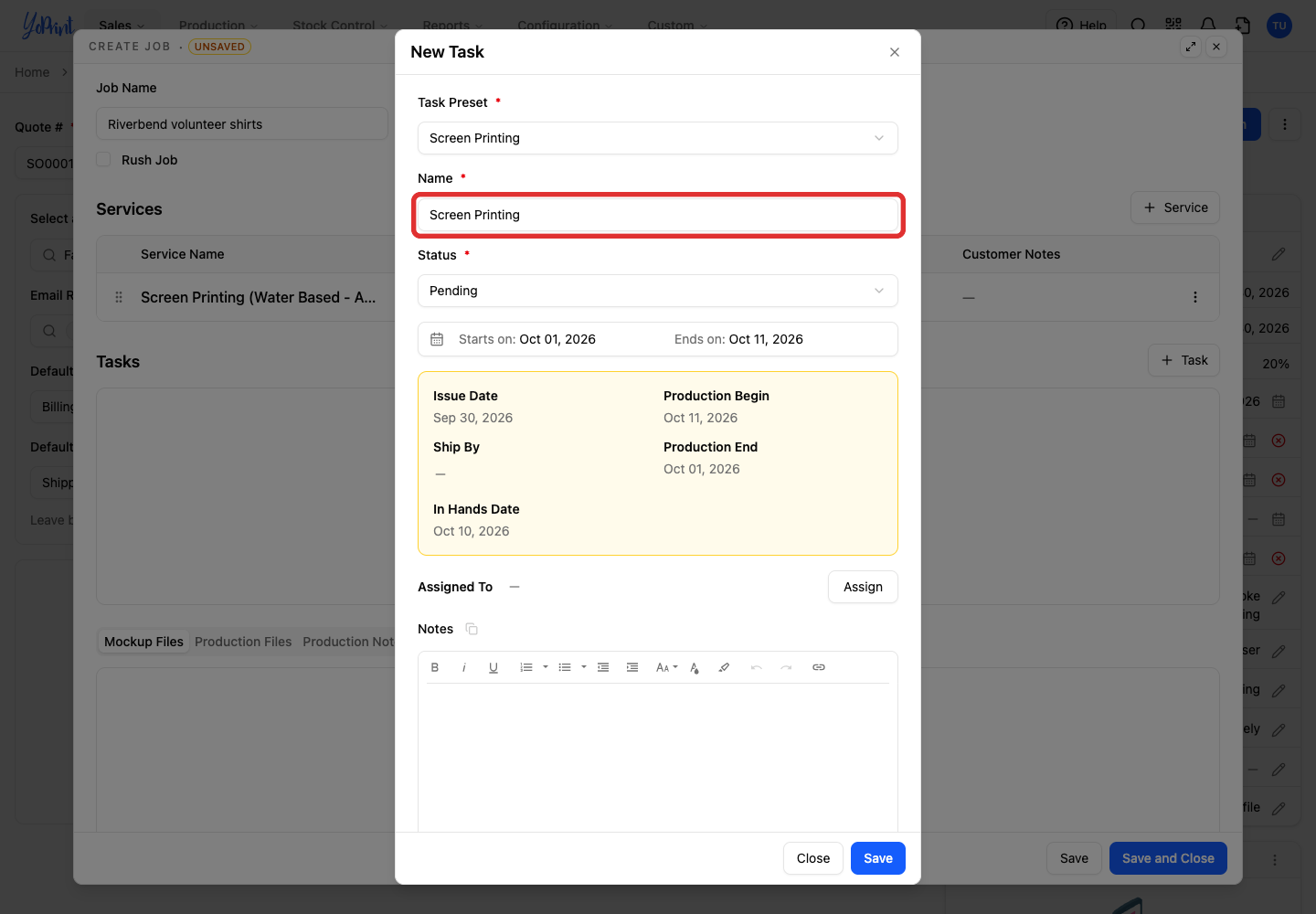
Check the Name and Status filled in from the preset. Change them if needed.
-
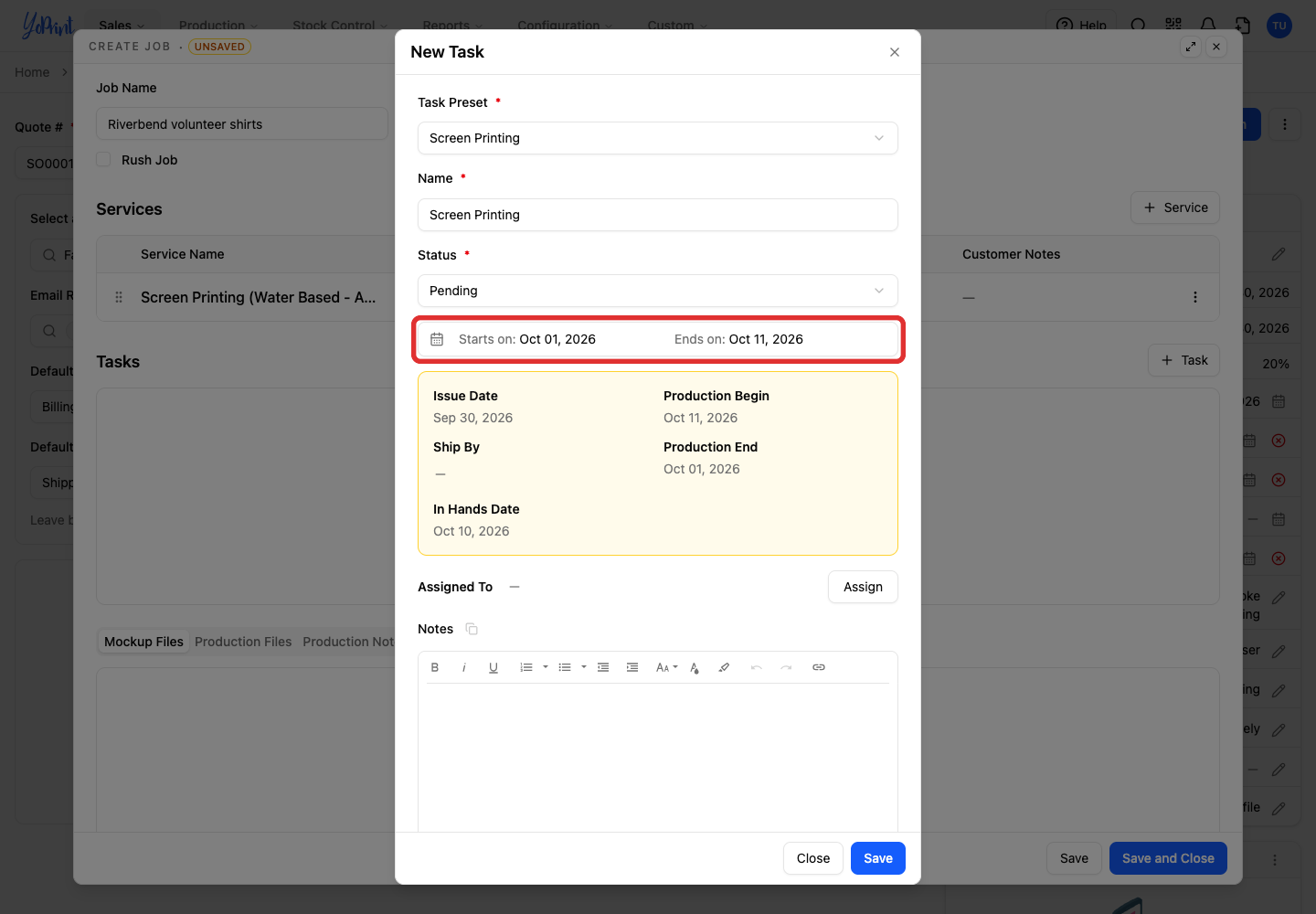
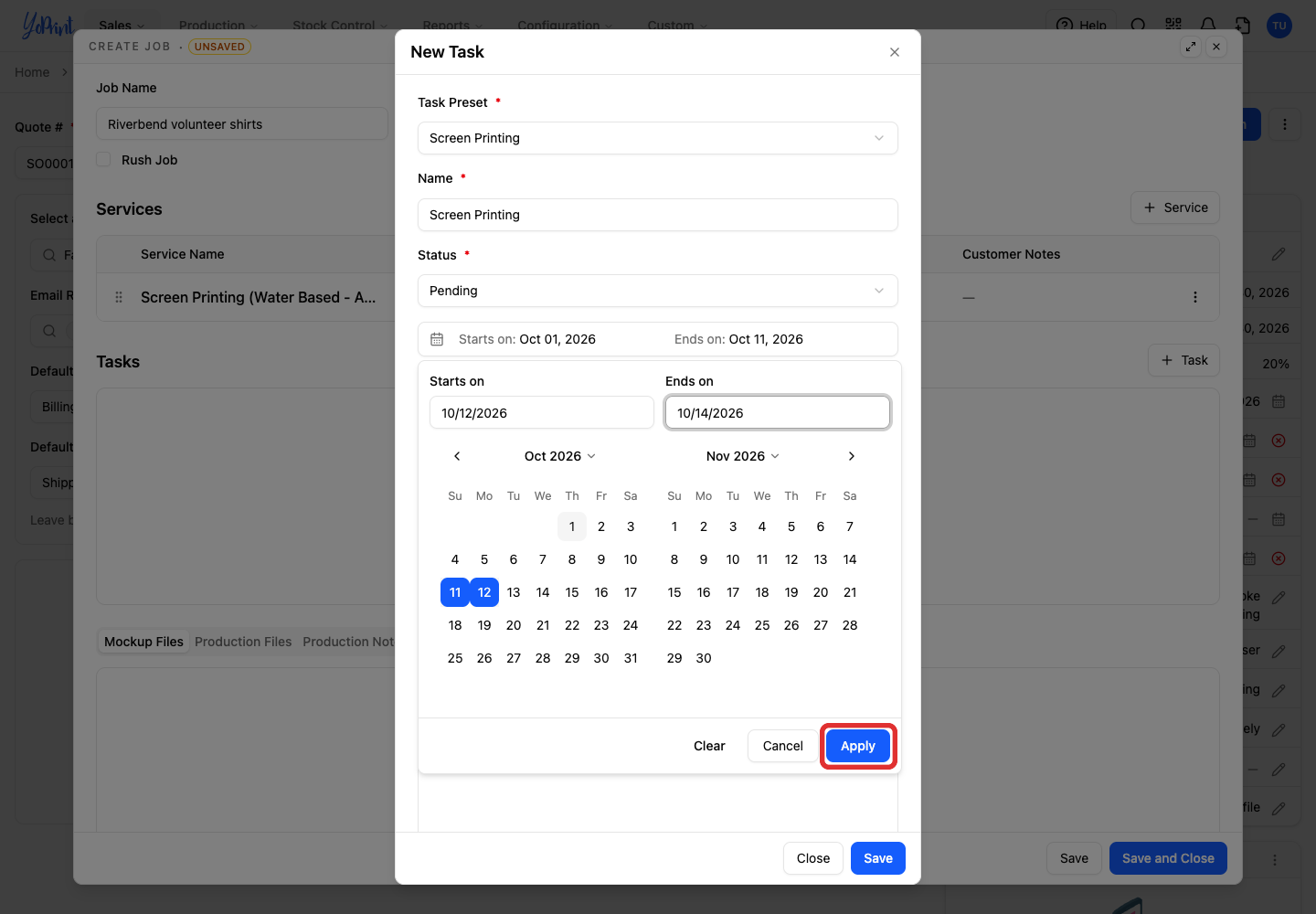
Open the task's date picker.
-
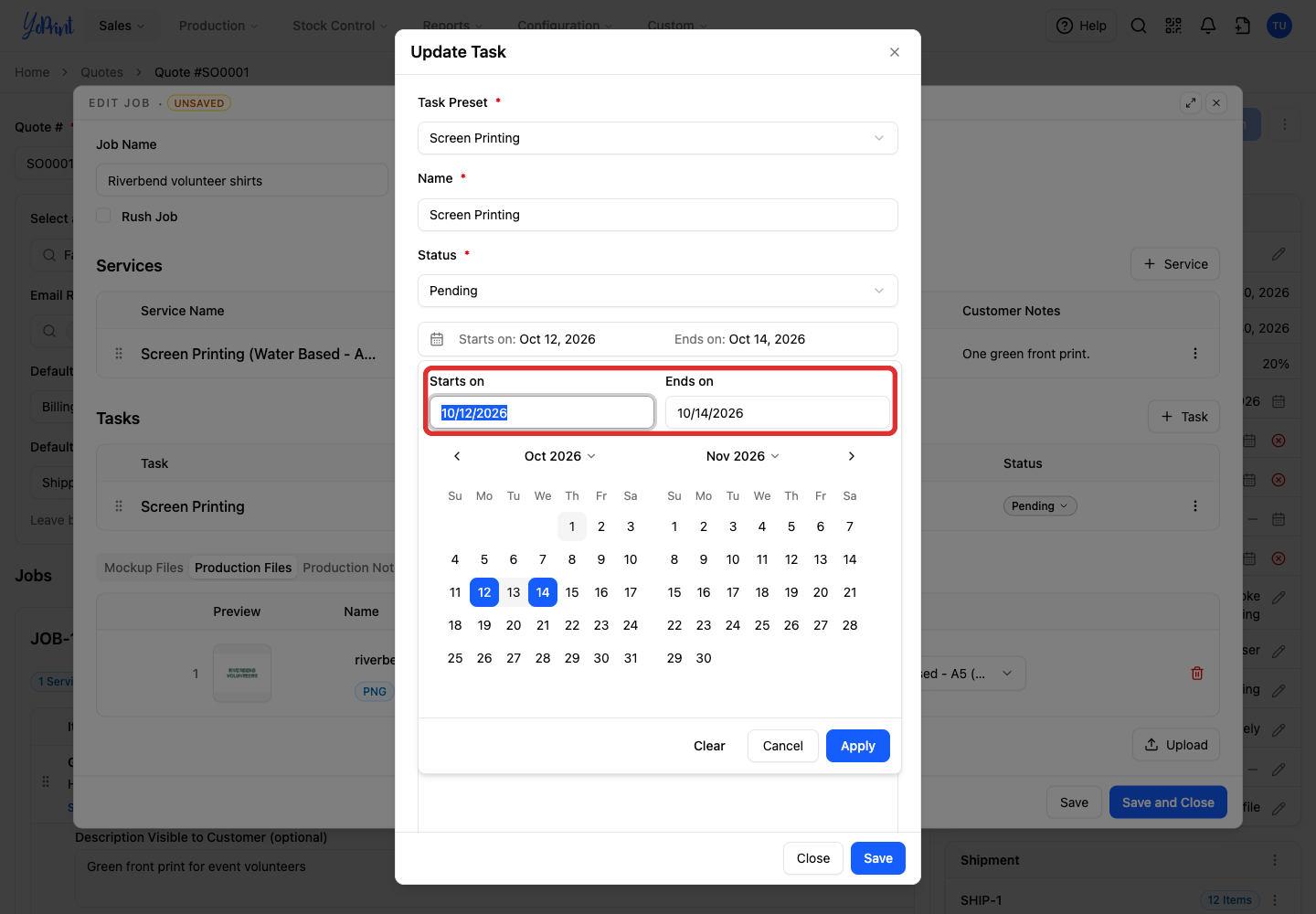
Set Starts on and Ends on.
-
Click Apply.
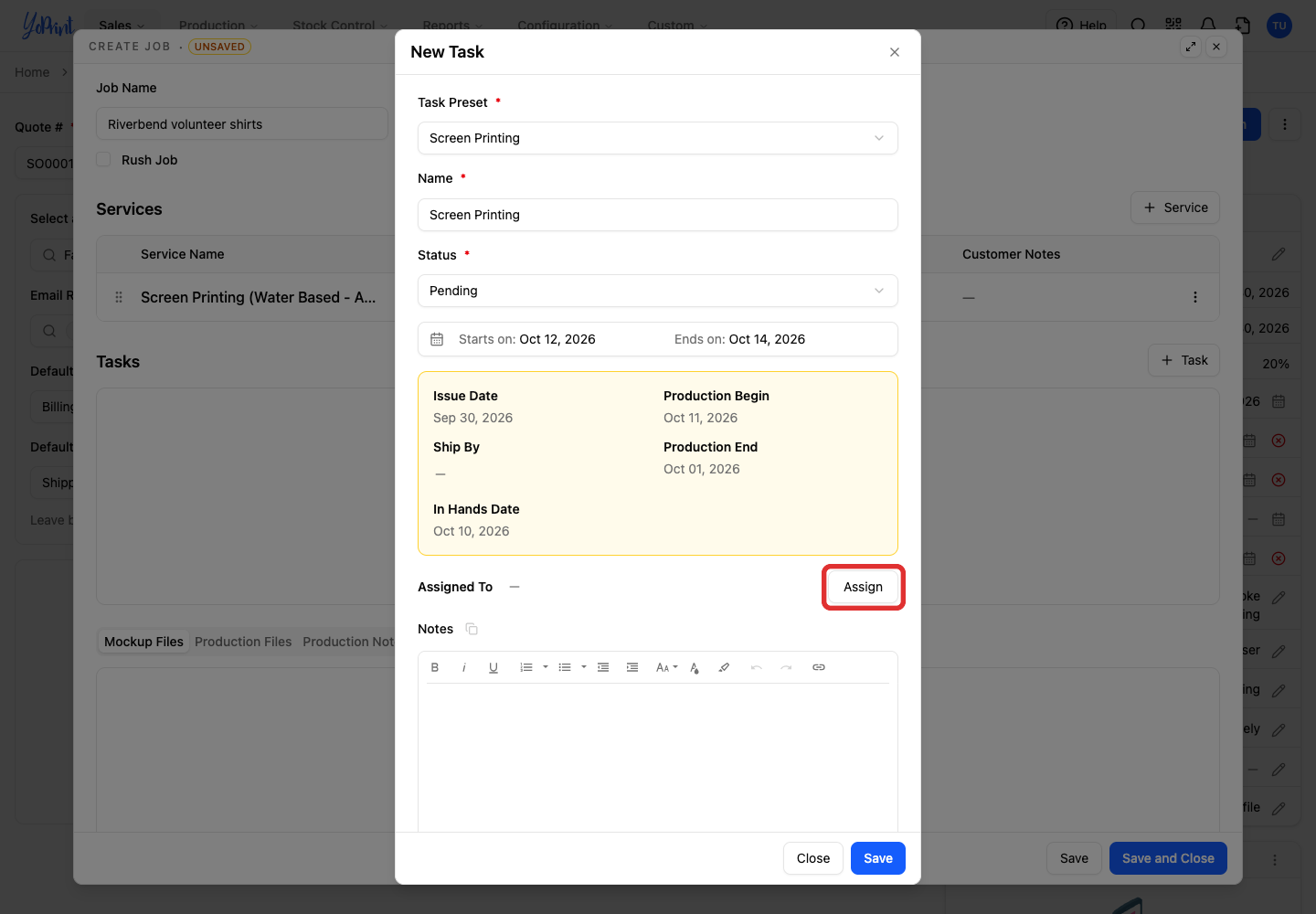
-
Open Assign.
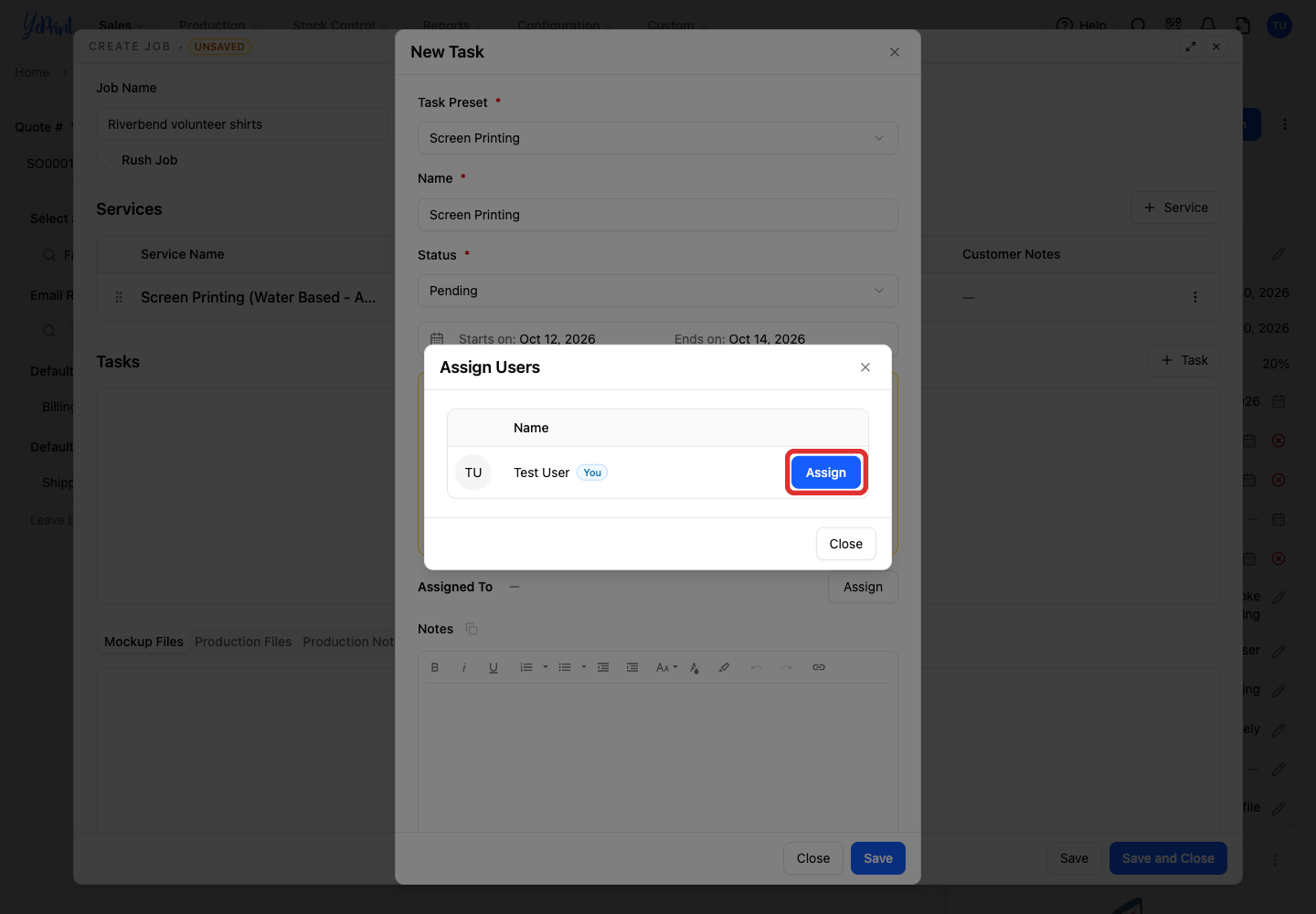
-
Choose the person doing the task, then click Close to return to the task.
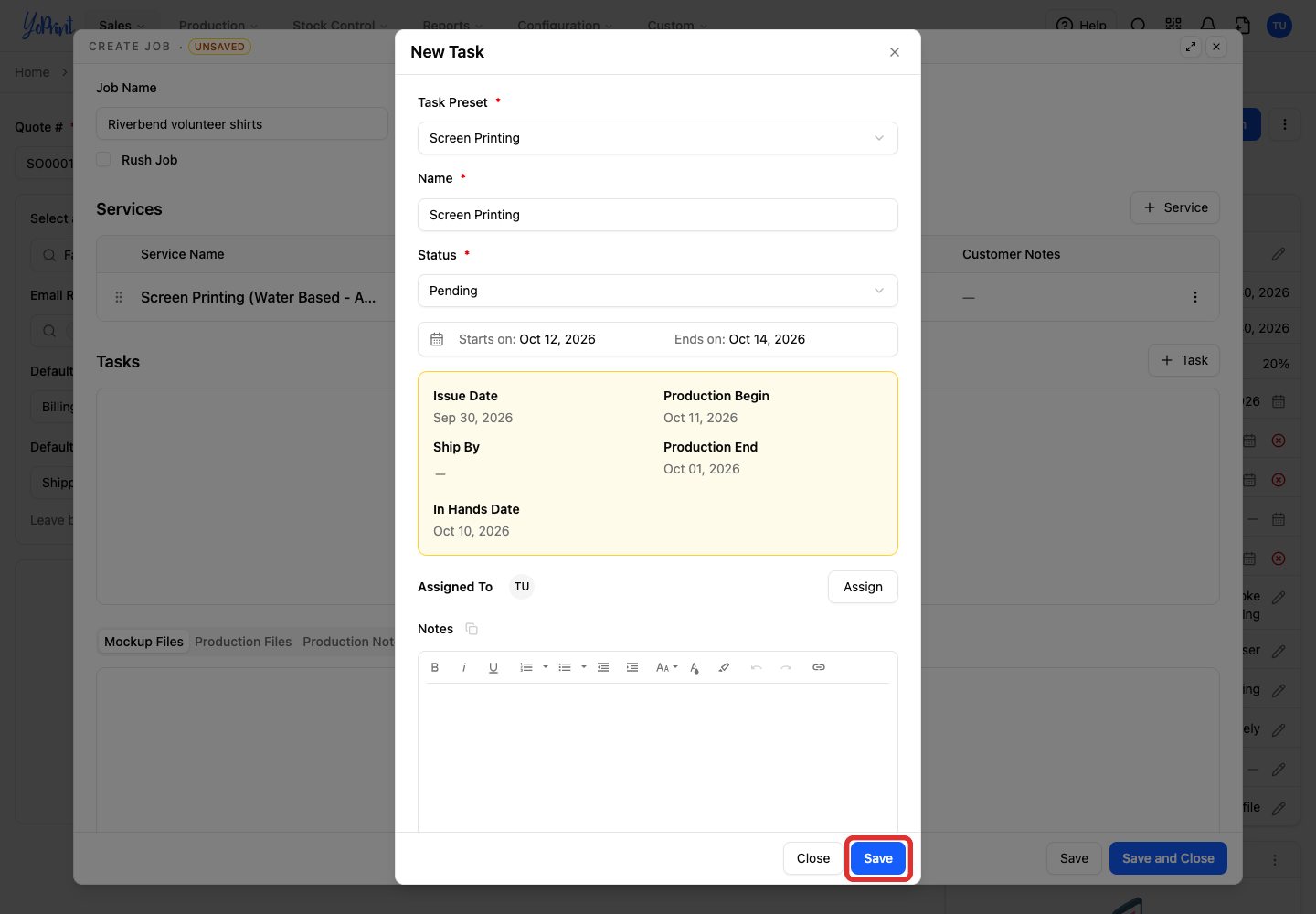
-
Click Save. Optional Notes stay with the task.
Add mockup files
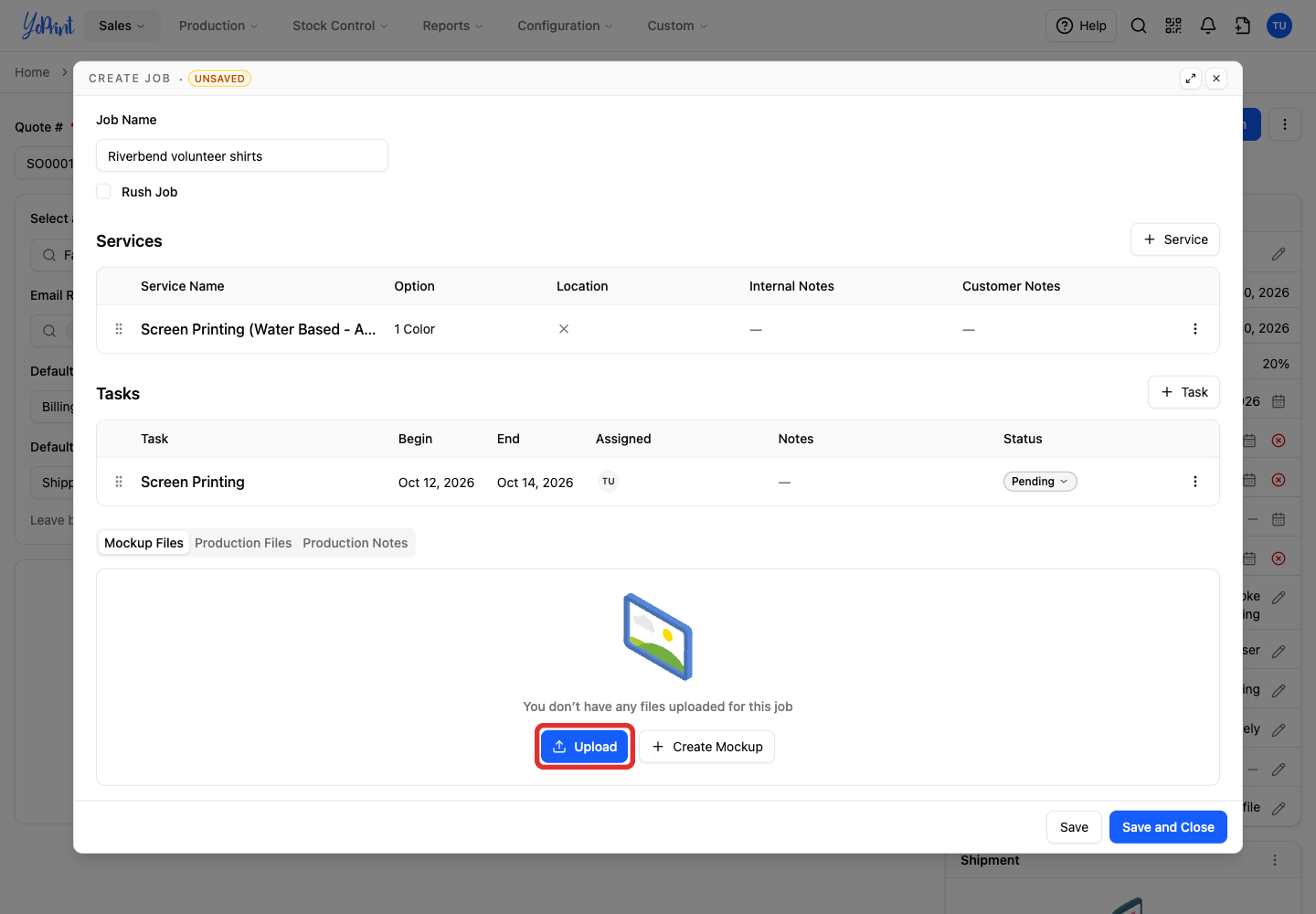
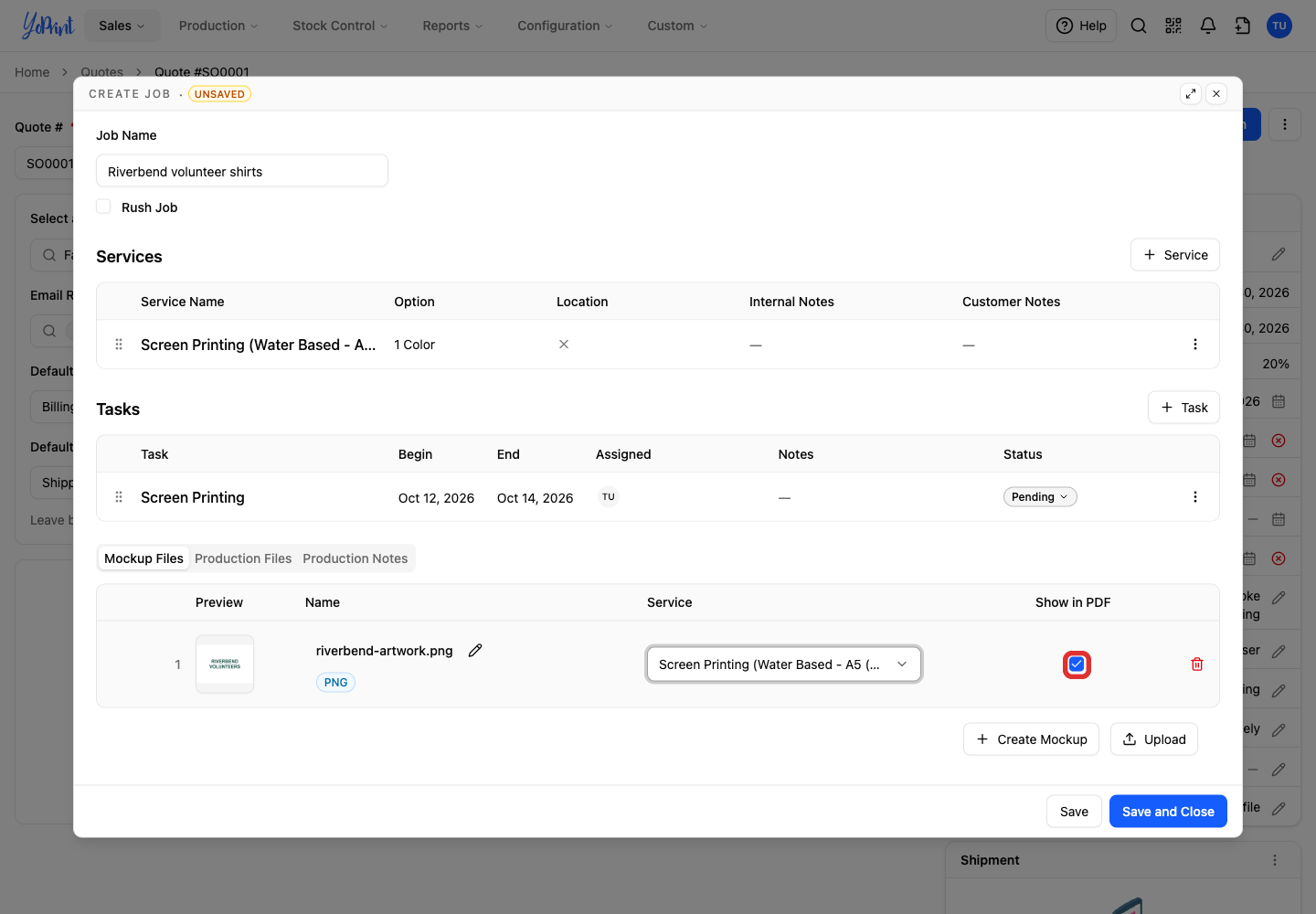
Use Mockup Files for artwork the customer can review. Image formats include JPEG, PNG, GIF, TIFF and BMP.
-
On Mockup Files, click Upload.
-
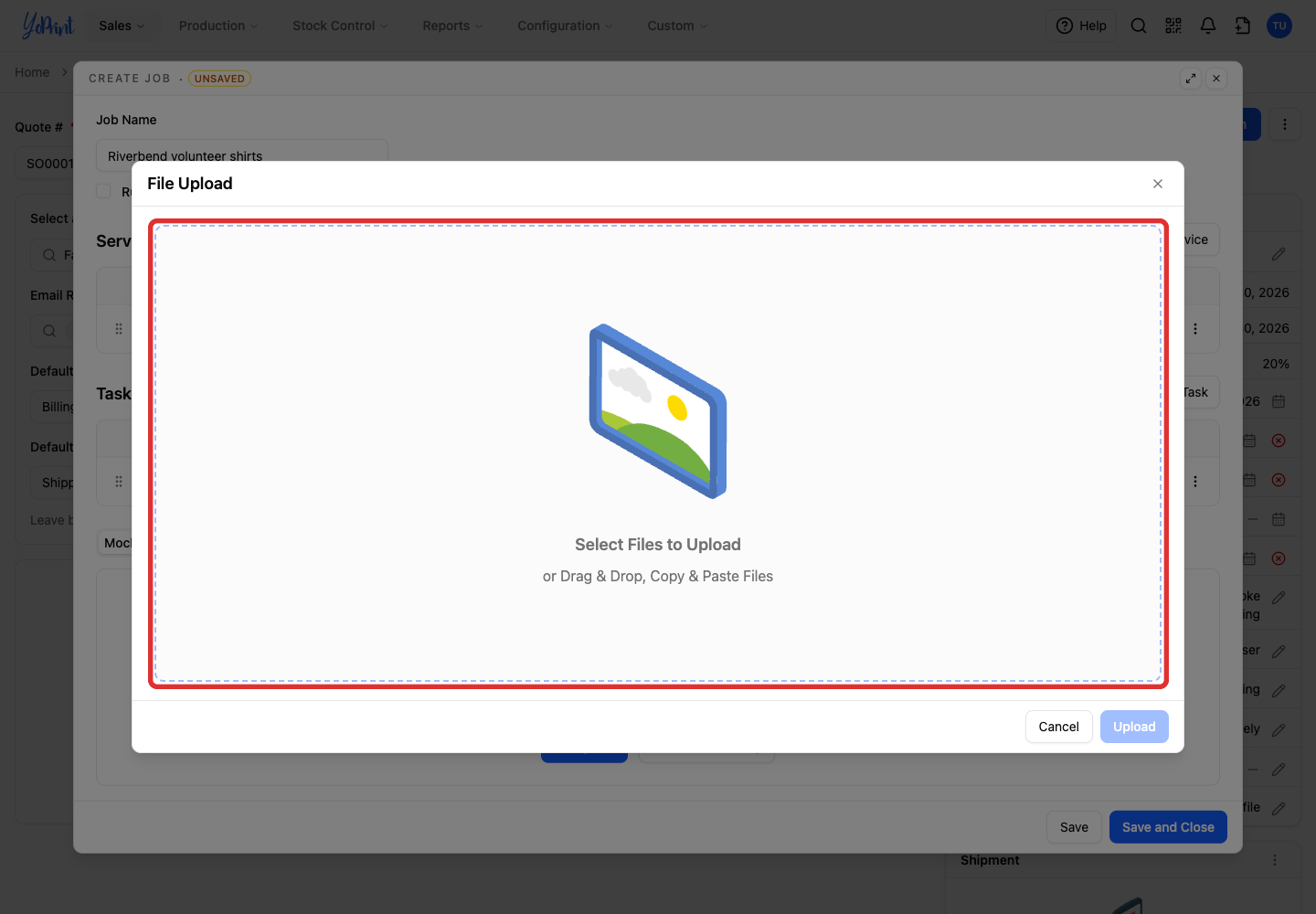
Click Select Files to Upload and choose the files, or drag them into the panel.
-
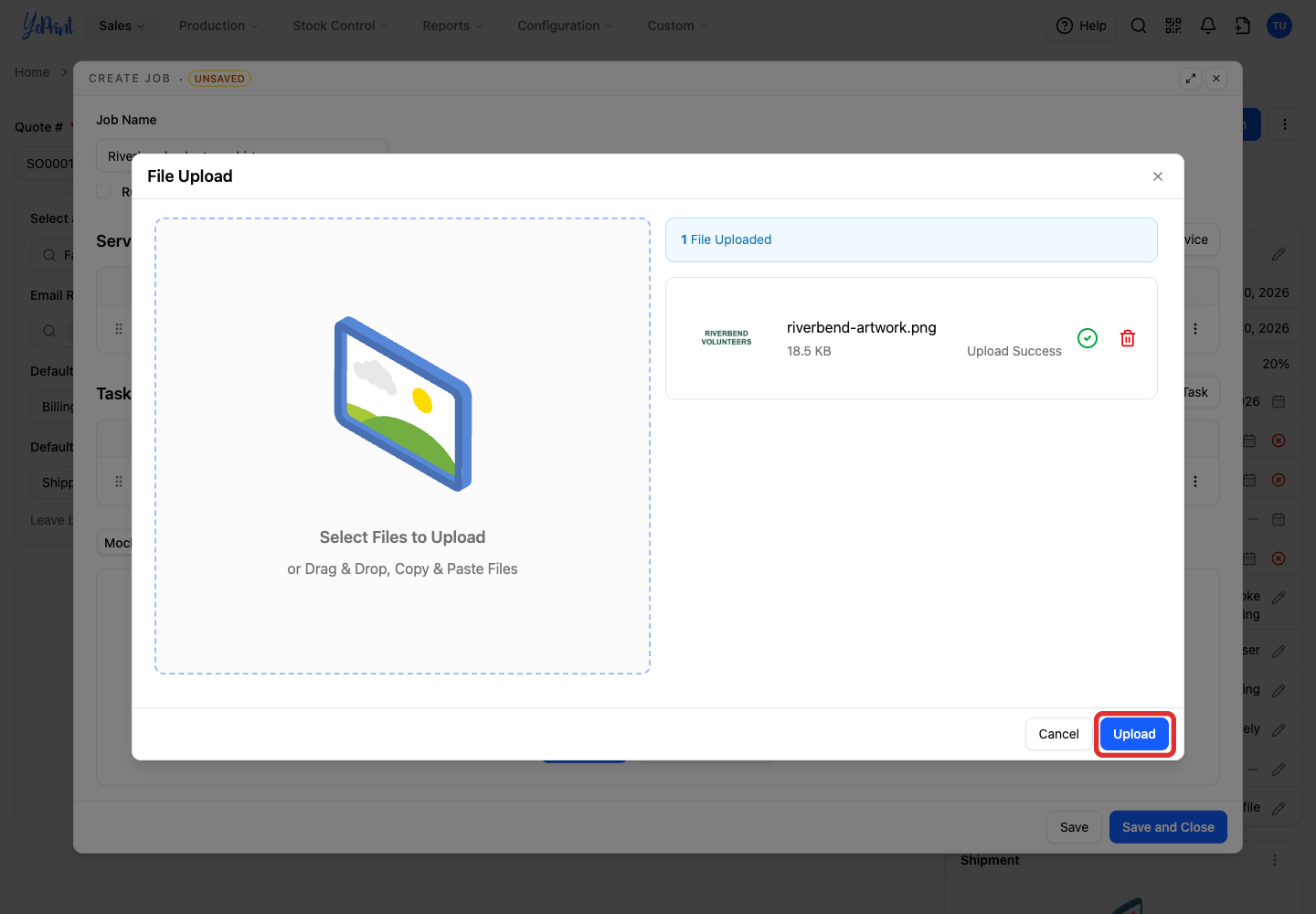
After the files transfer, click Upload.
-
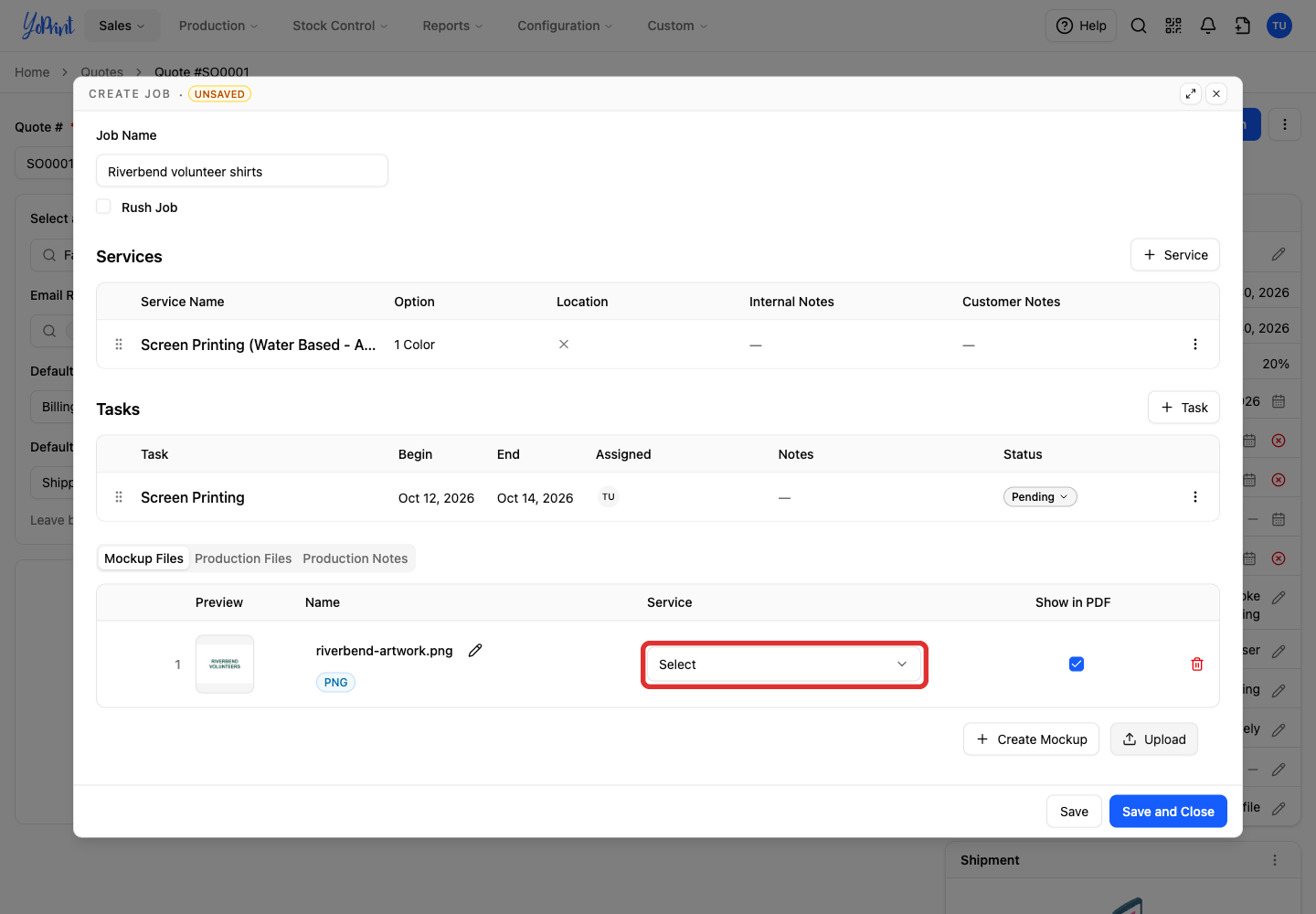
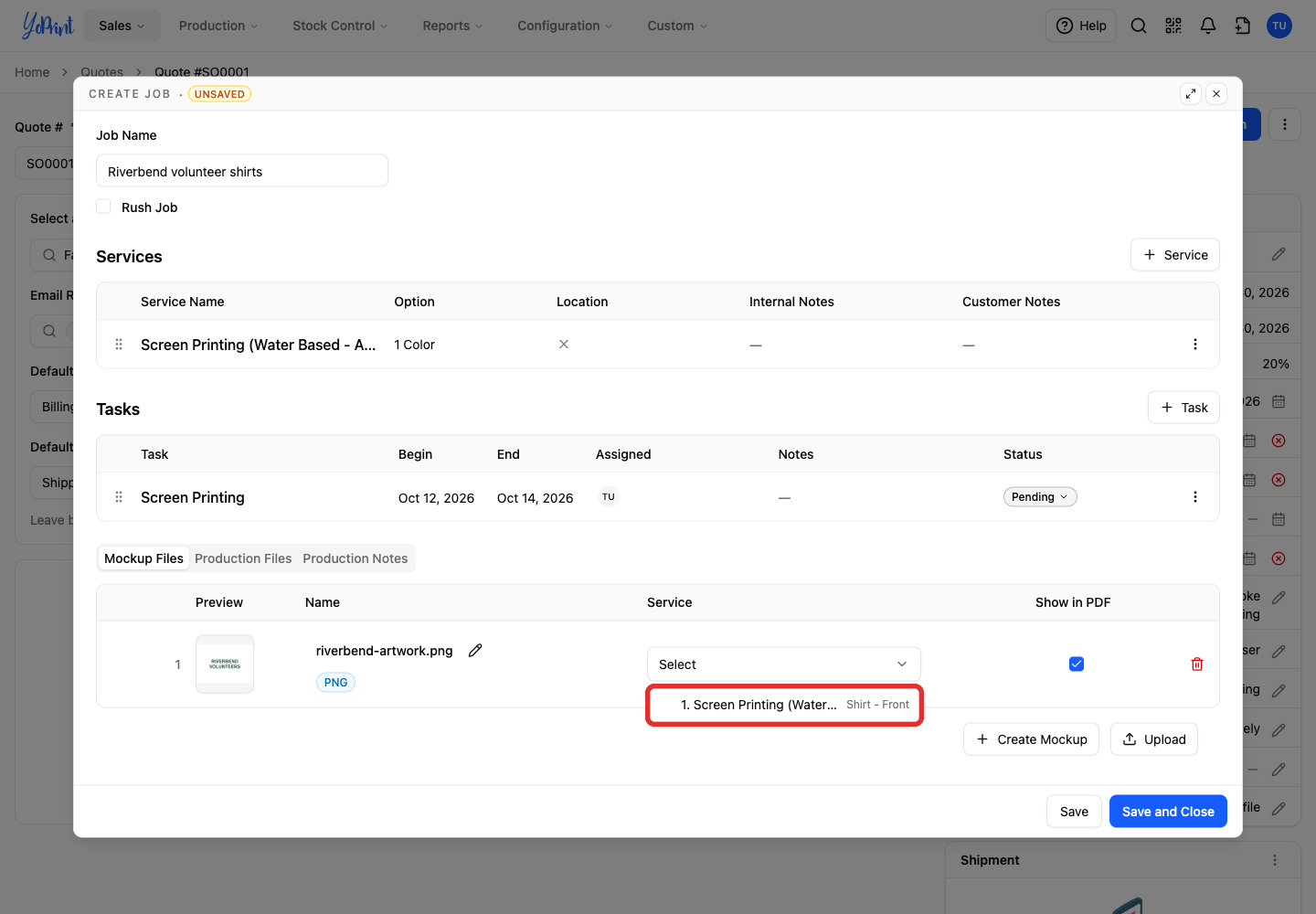
Open the file's Service picker.
-
Choose the service the mockup belongs to.
-
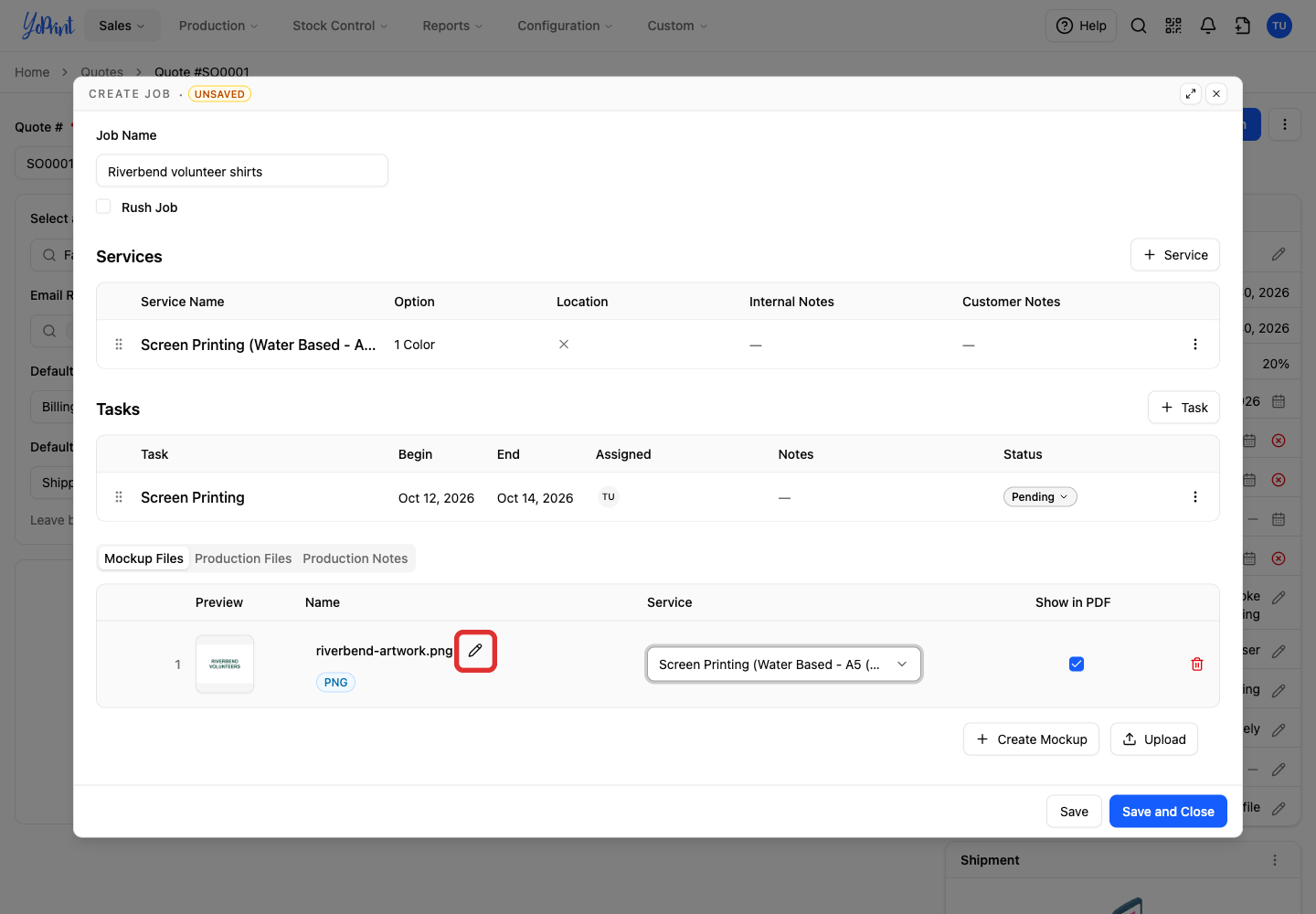
To rename the mockup, click its pencil.
-
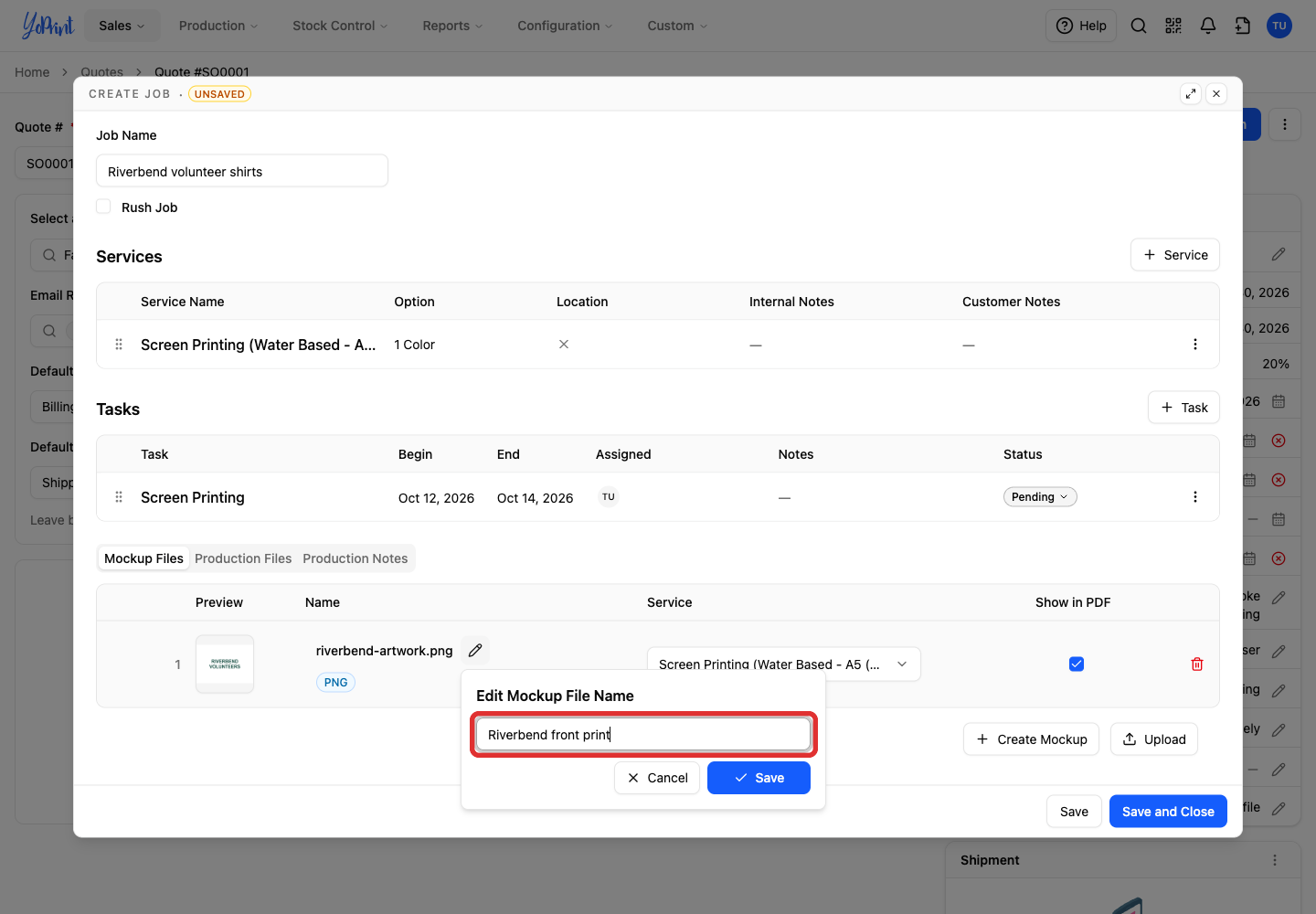
Enter the file name.
-
Click Save.
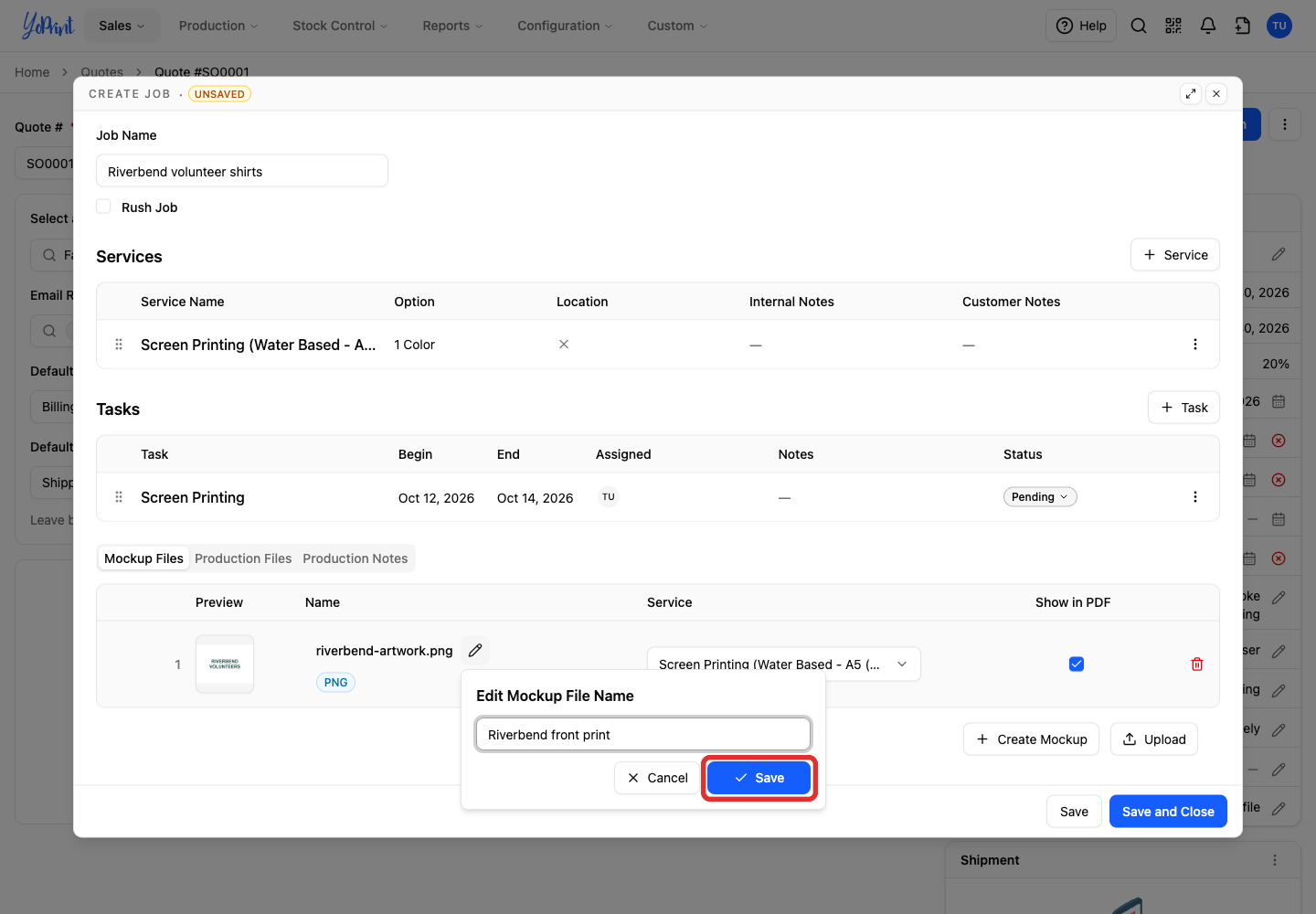
The current editor reverts the mockup file's display name to the uploaded filename after saving.
-
Tick Show in PDF if the mockup should appear on the quote PDF.
Add production files
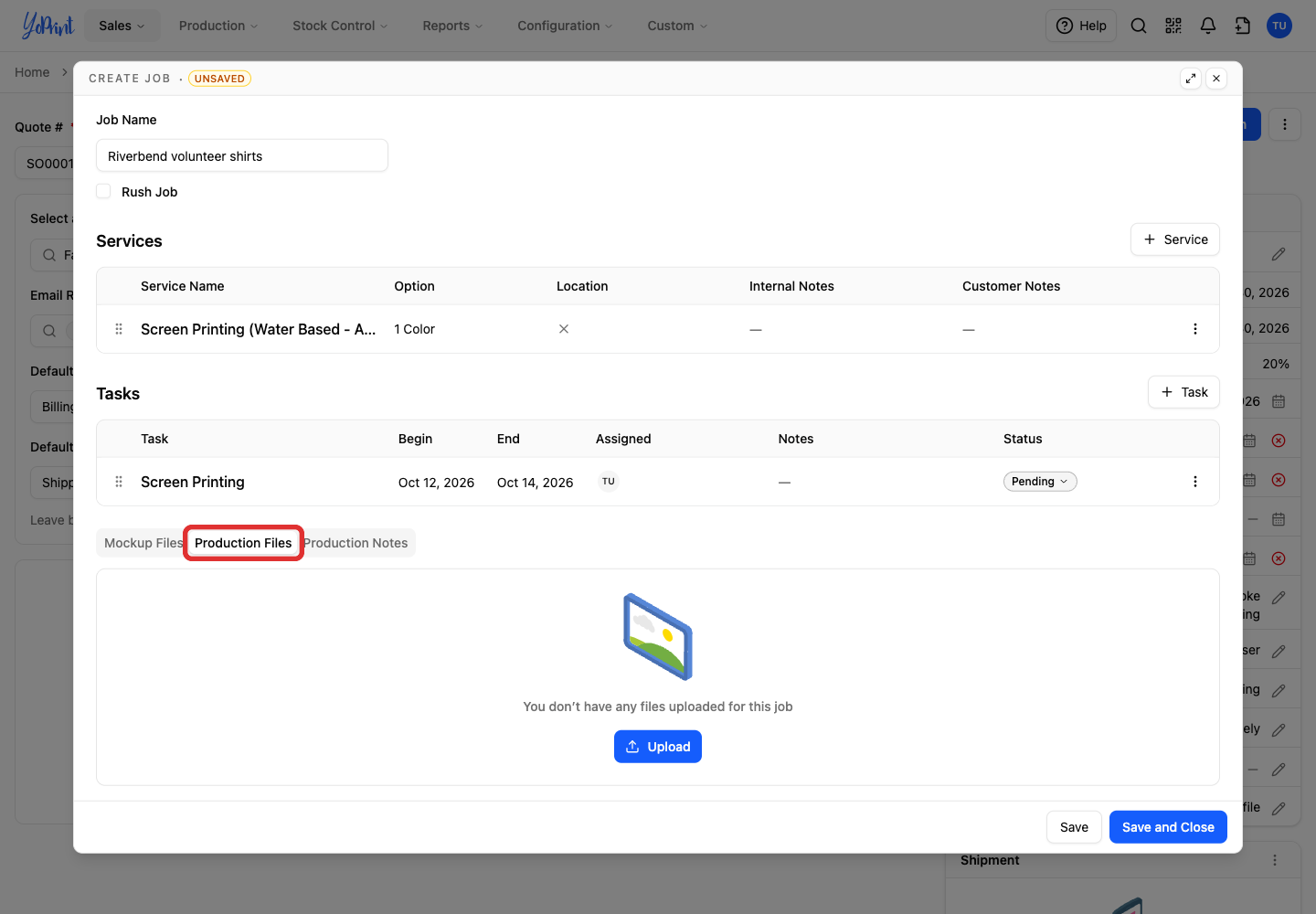
Production files are the files your shop floor works from.
-
Open Production Files.
-
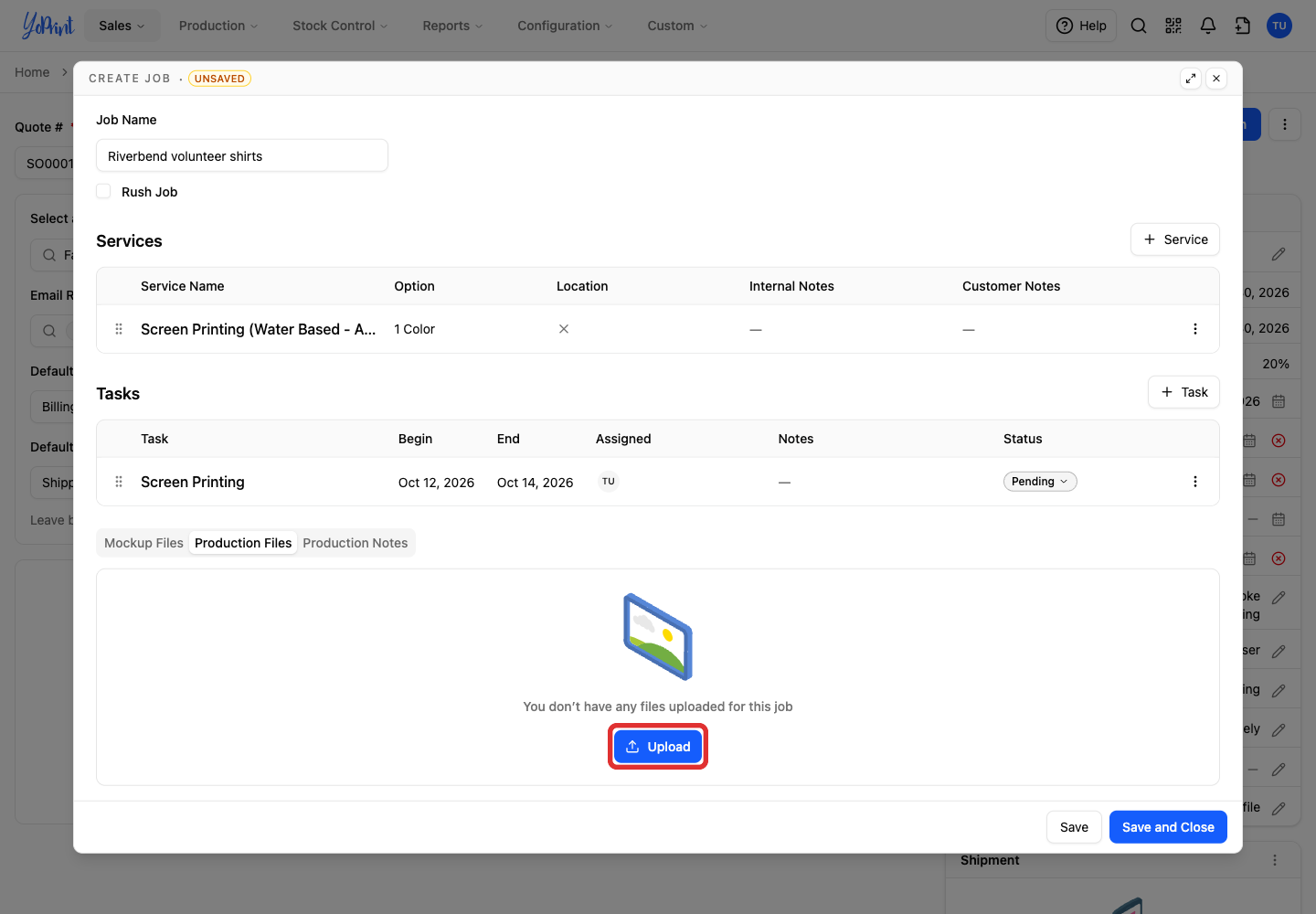
Click Upload.
-
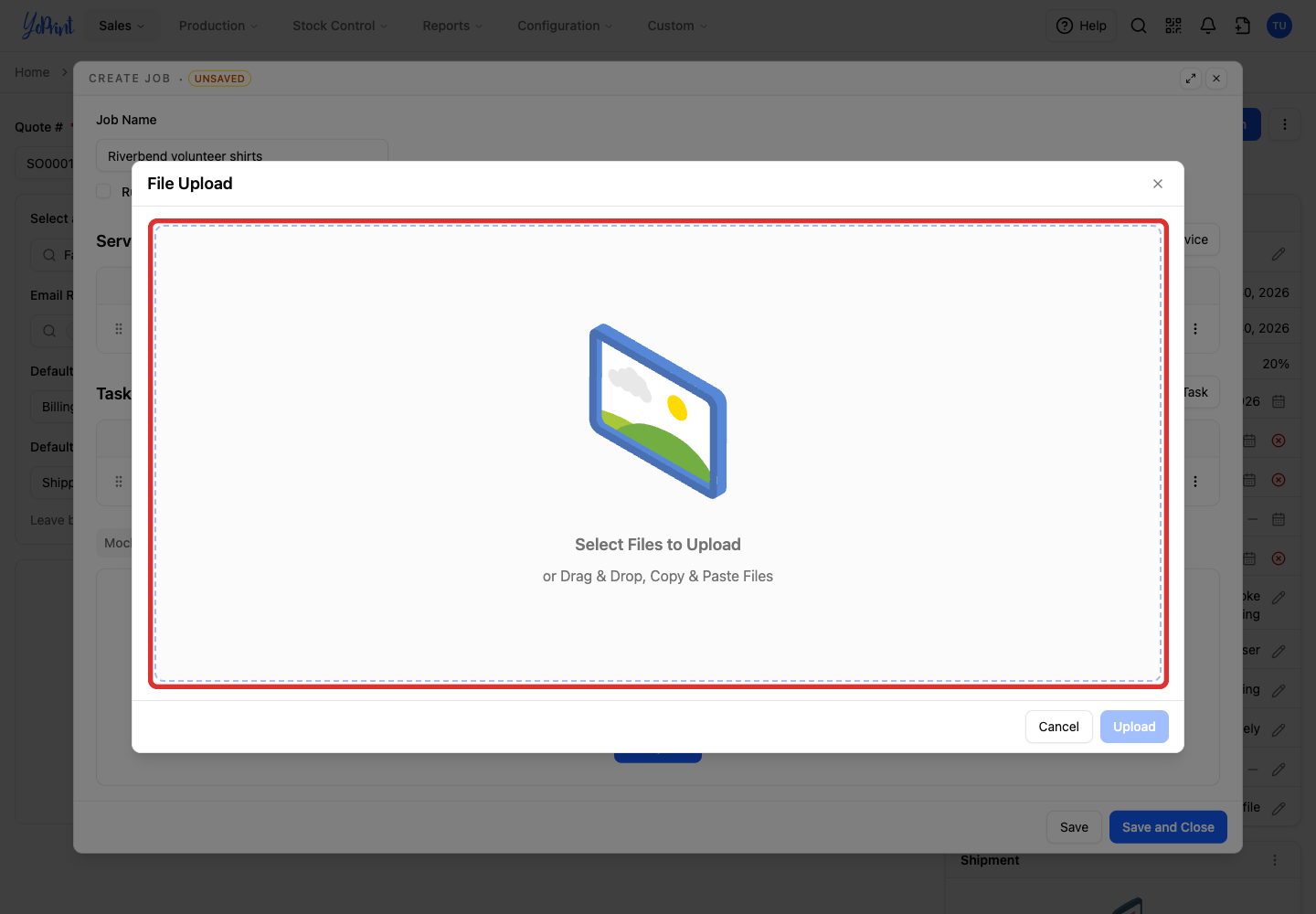
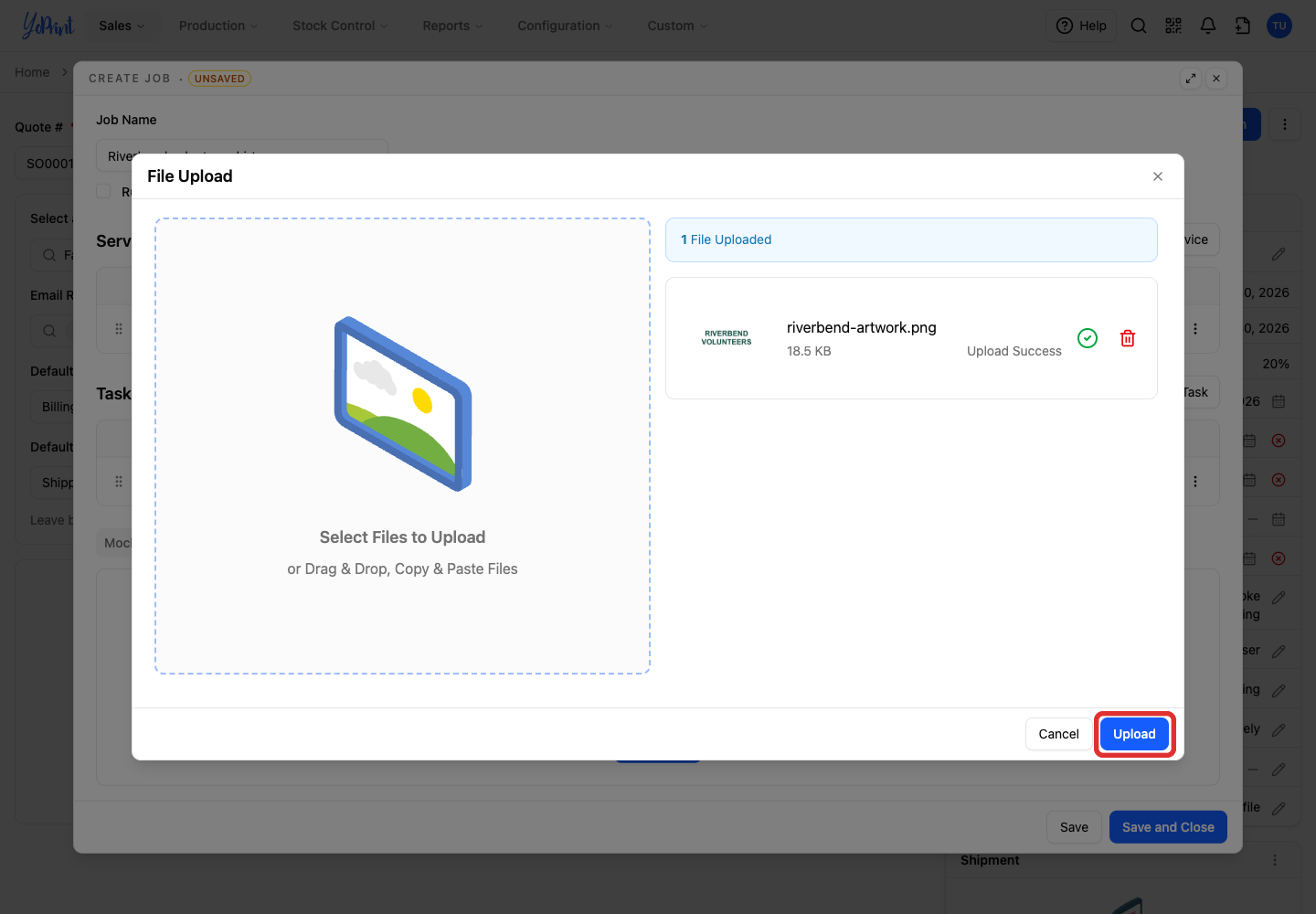
Click Select Files to Upload and choose the files, or drag them into the panel.
-
After the files transfer, click Upload.
-
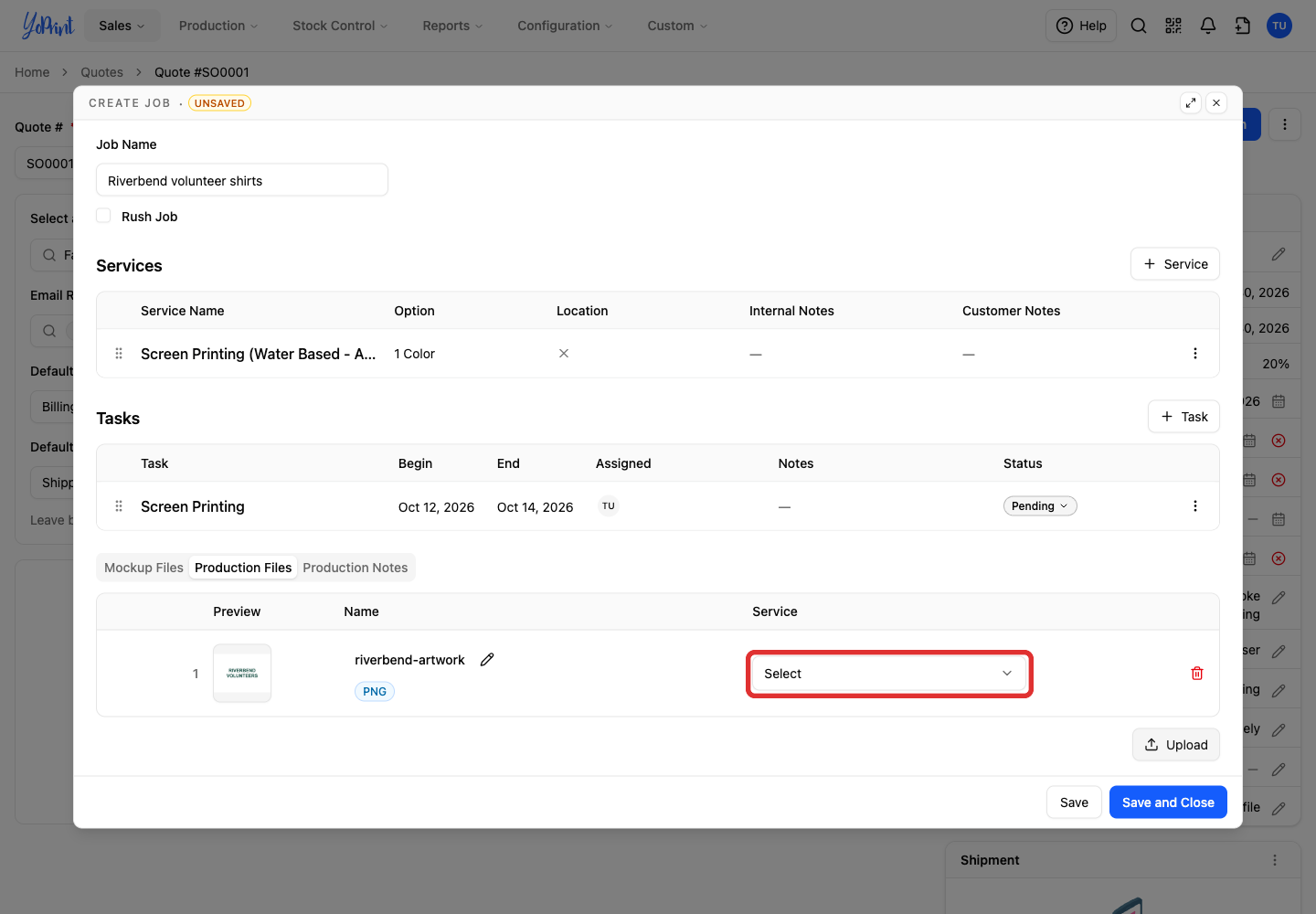
Open the file's Service picker.
-
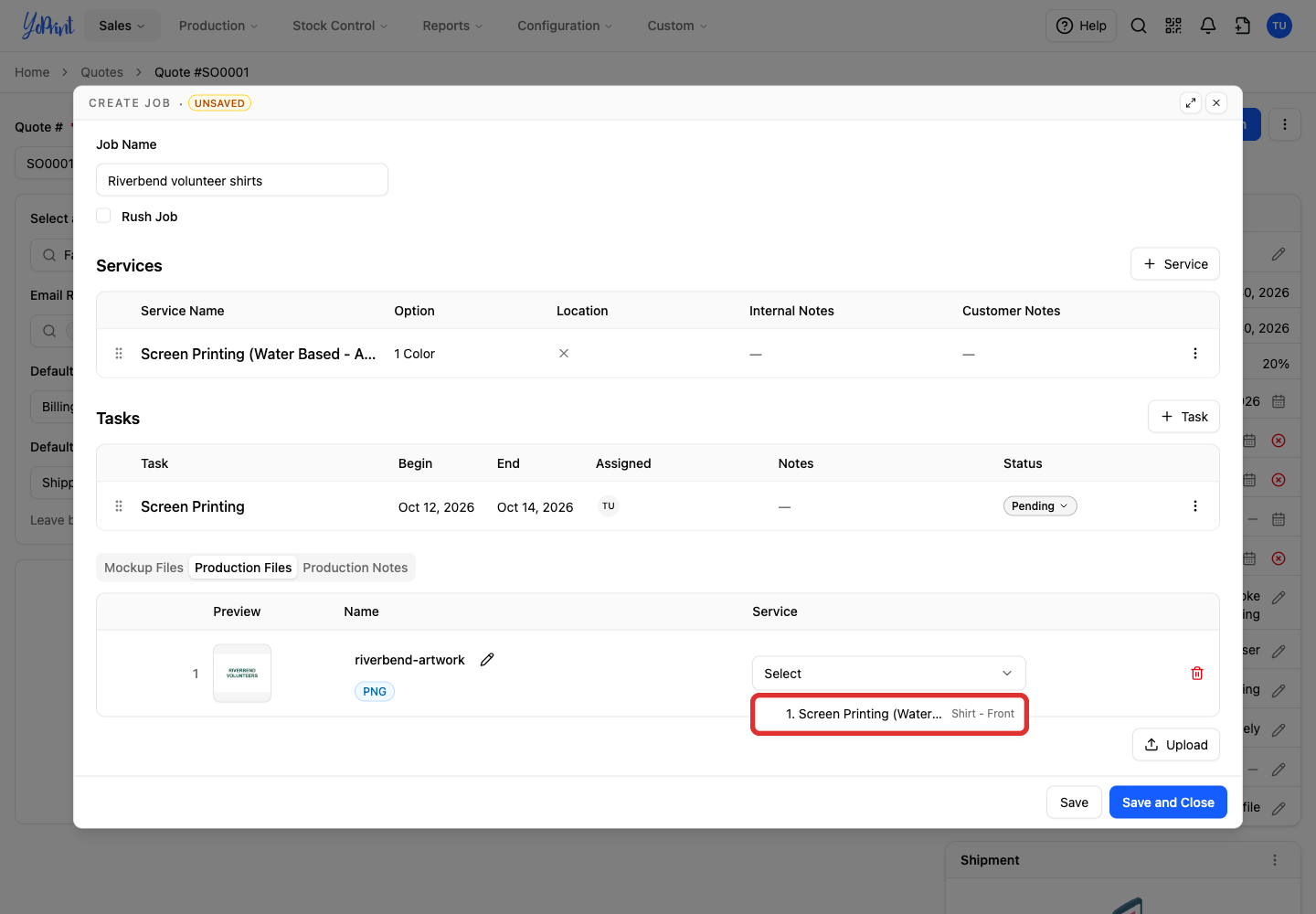
Choose the service the file belongs to.
Rename a production file after saving the job
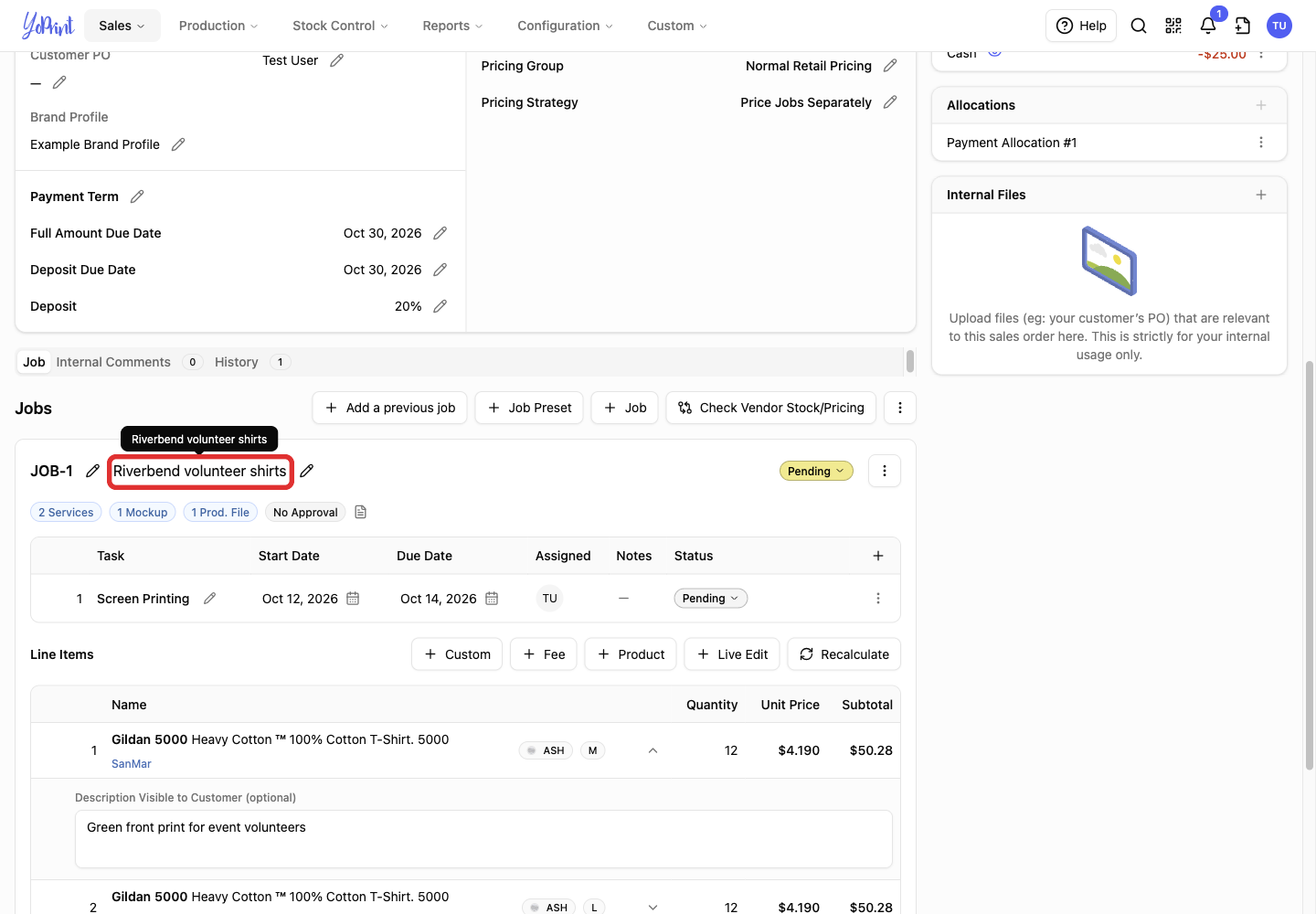
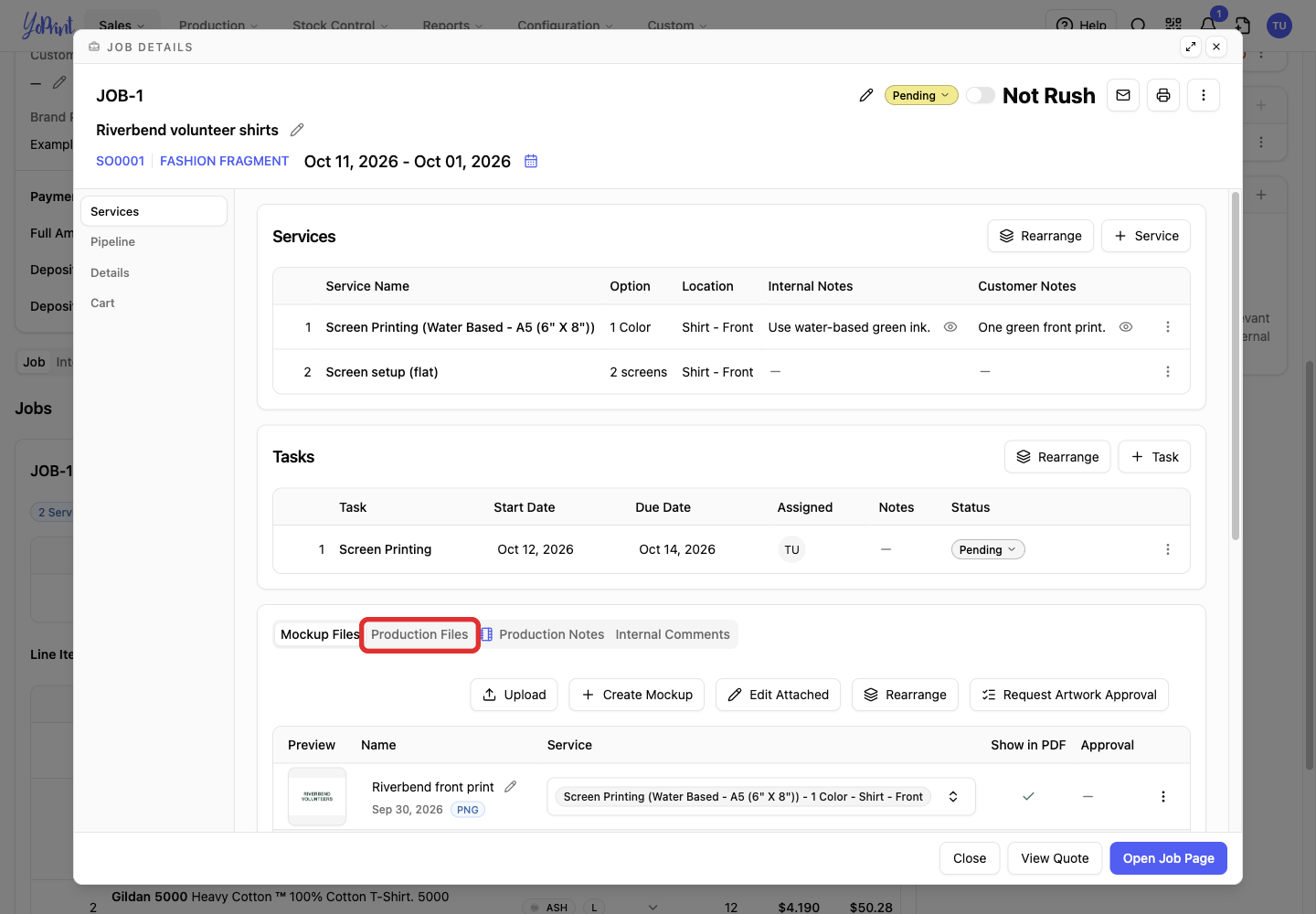
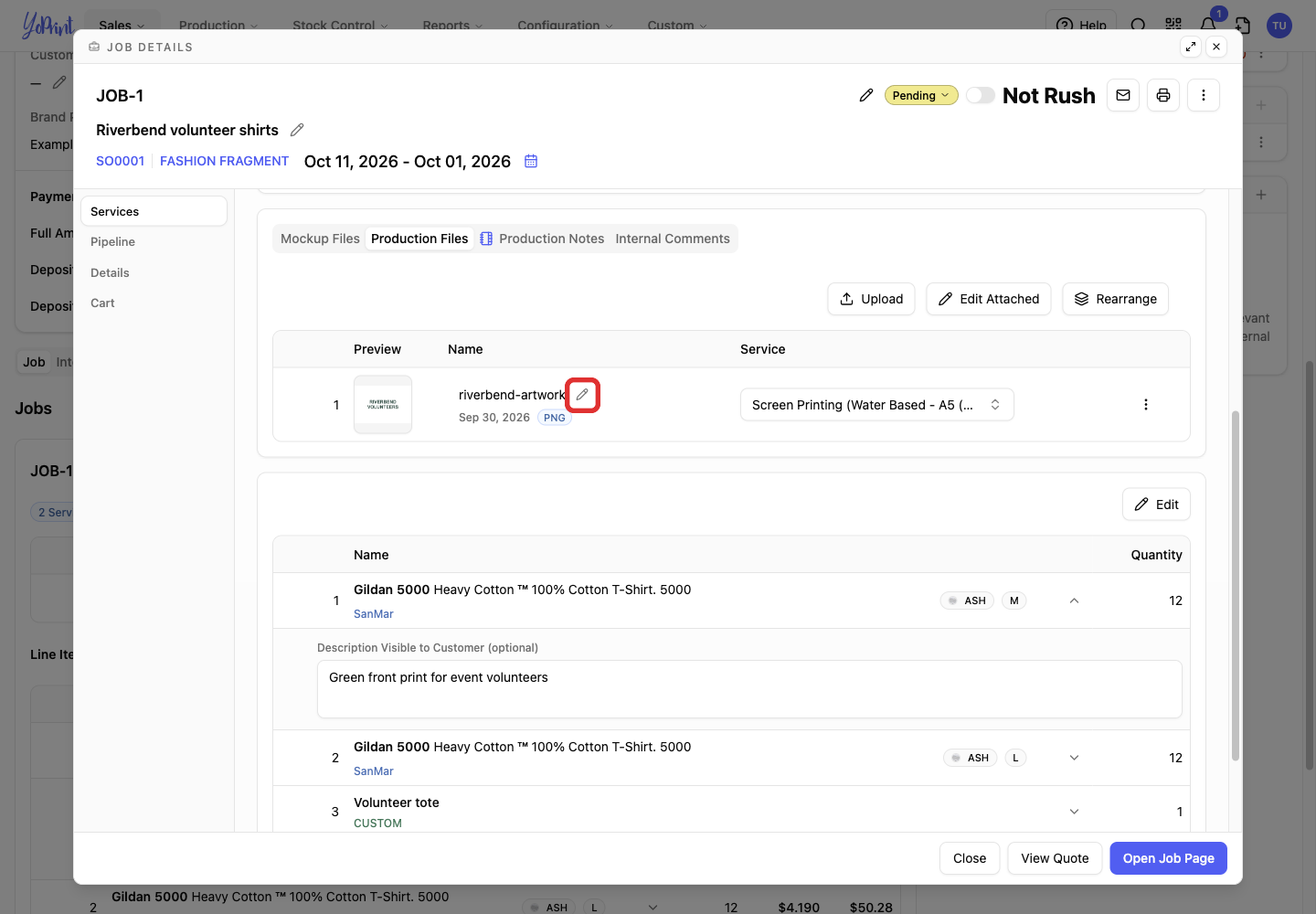
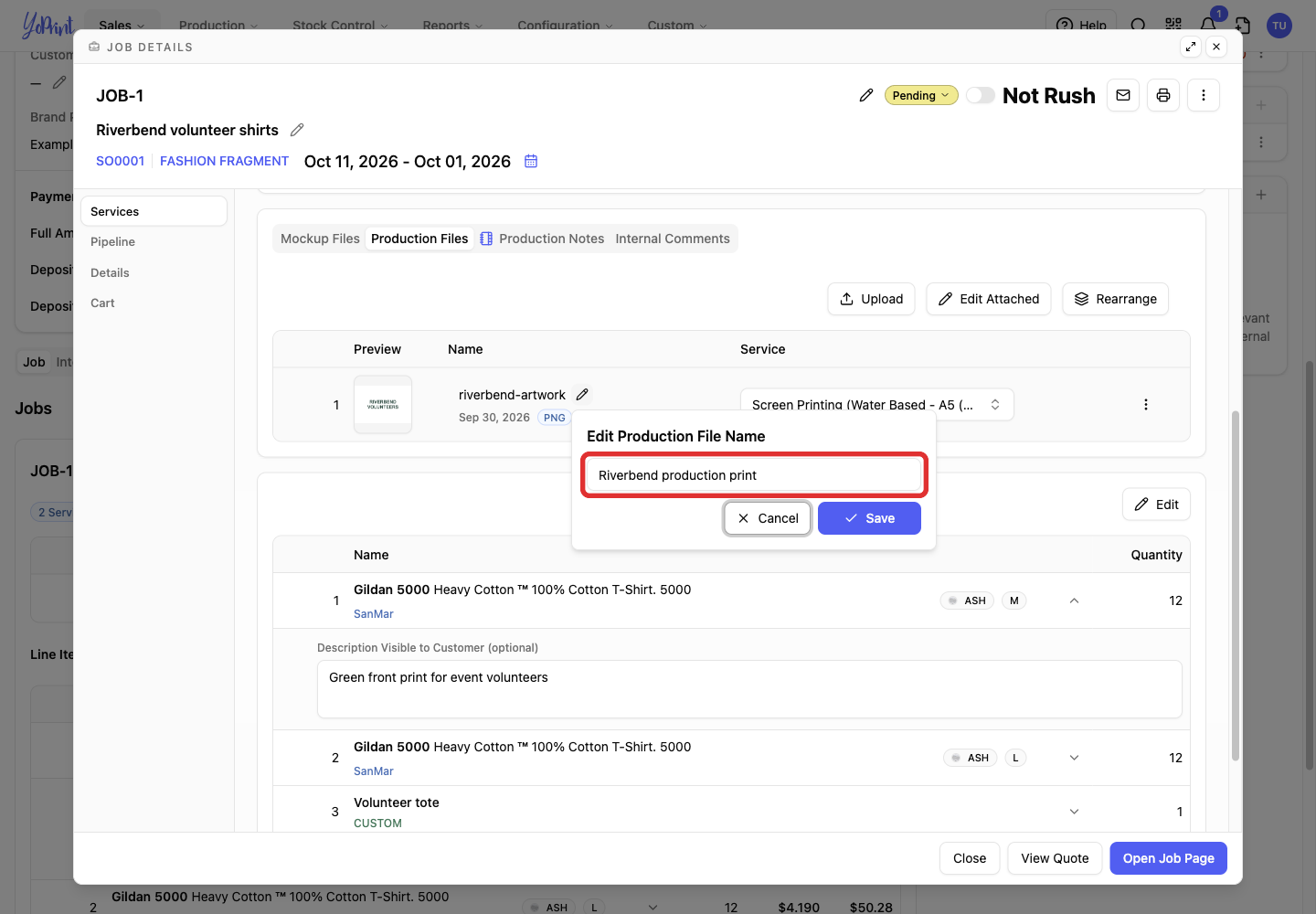
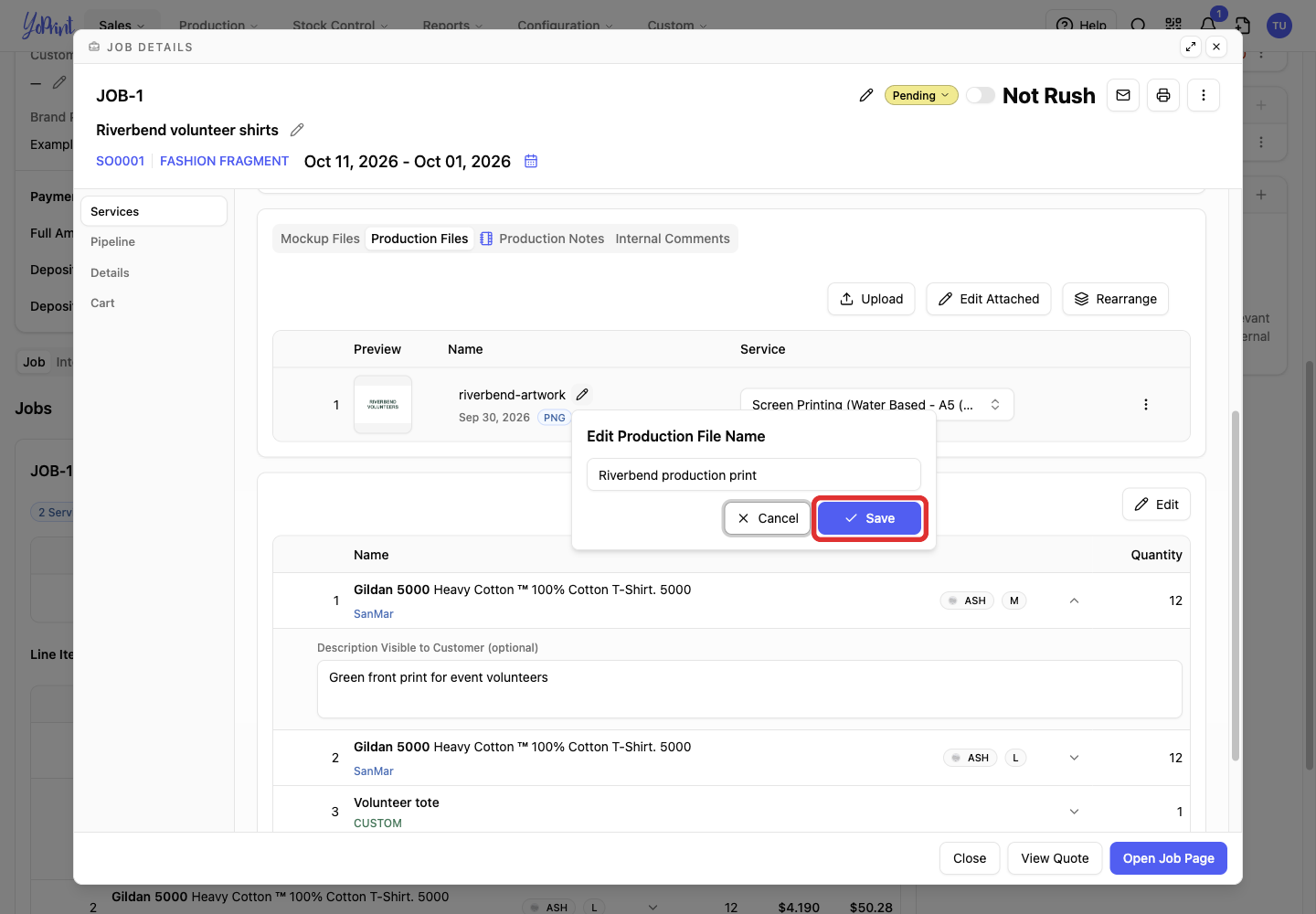
After saving the job, you can rename a production file:
-
On the quote, click the job's name.
-
Open Production Files.
-
Click the file's pencil.
-
Enter the new file name.
-
Click Save.
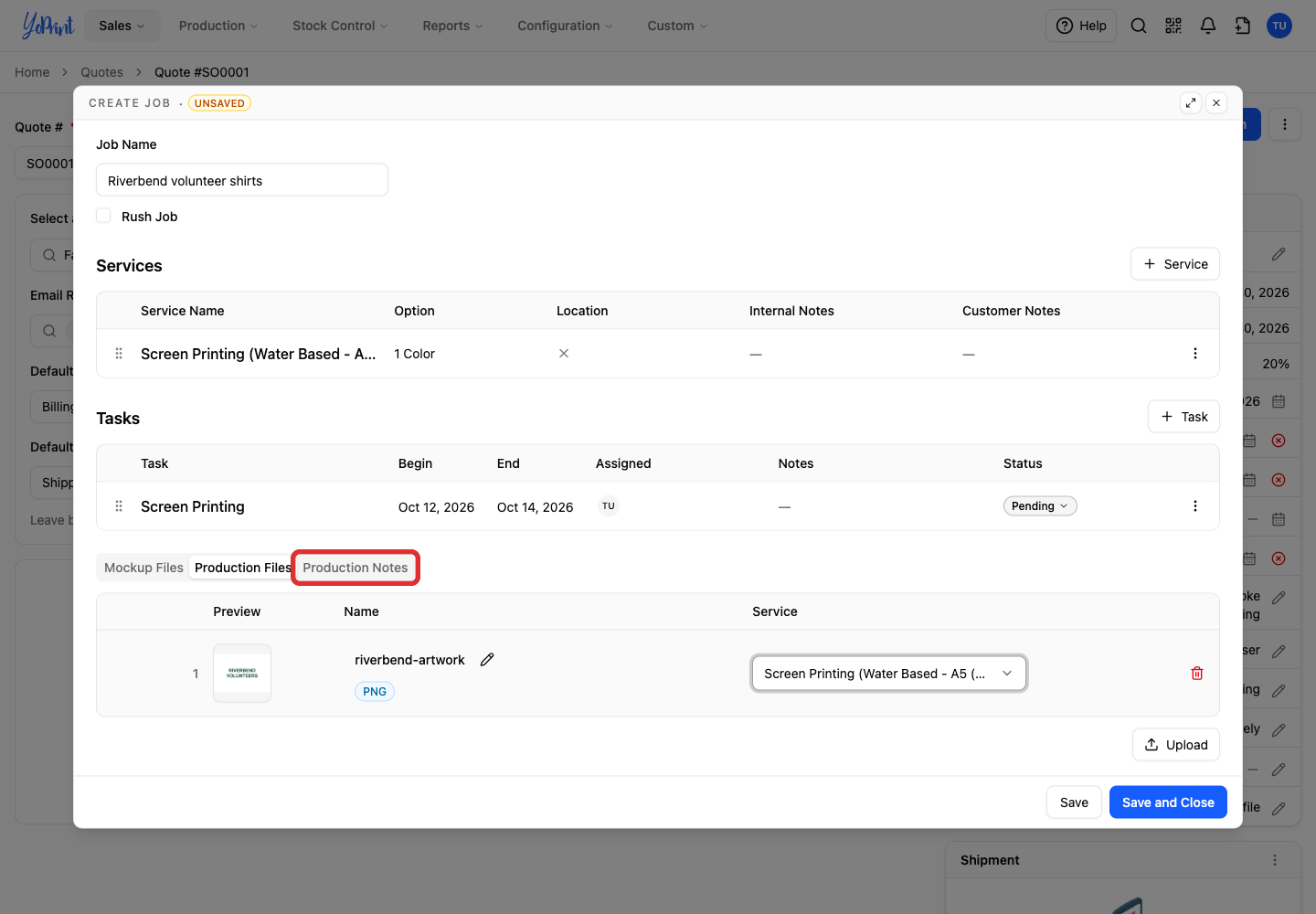
Add production notes
-
Open Production Notes.
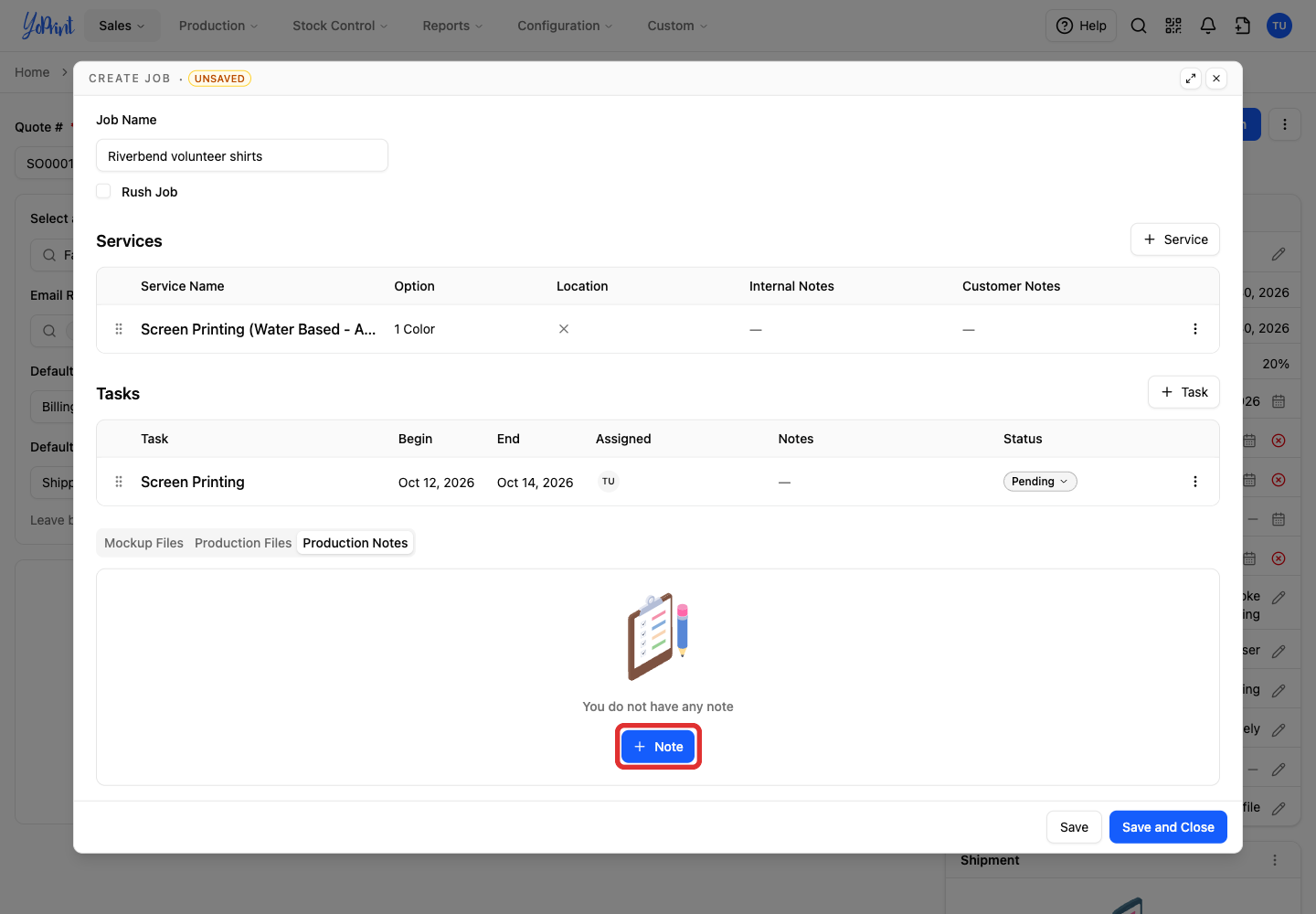
-
Click Note to open the Edit Note modal.
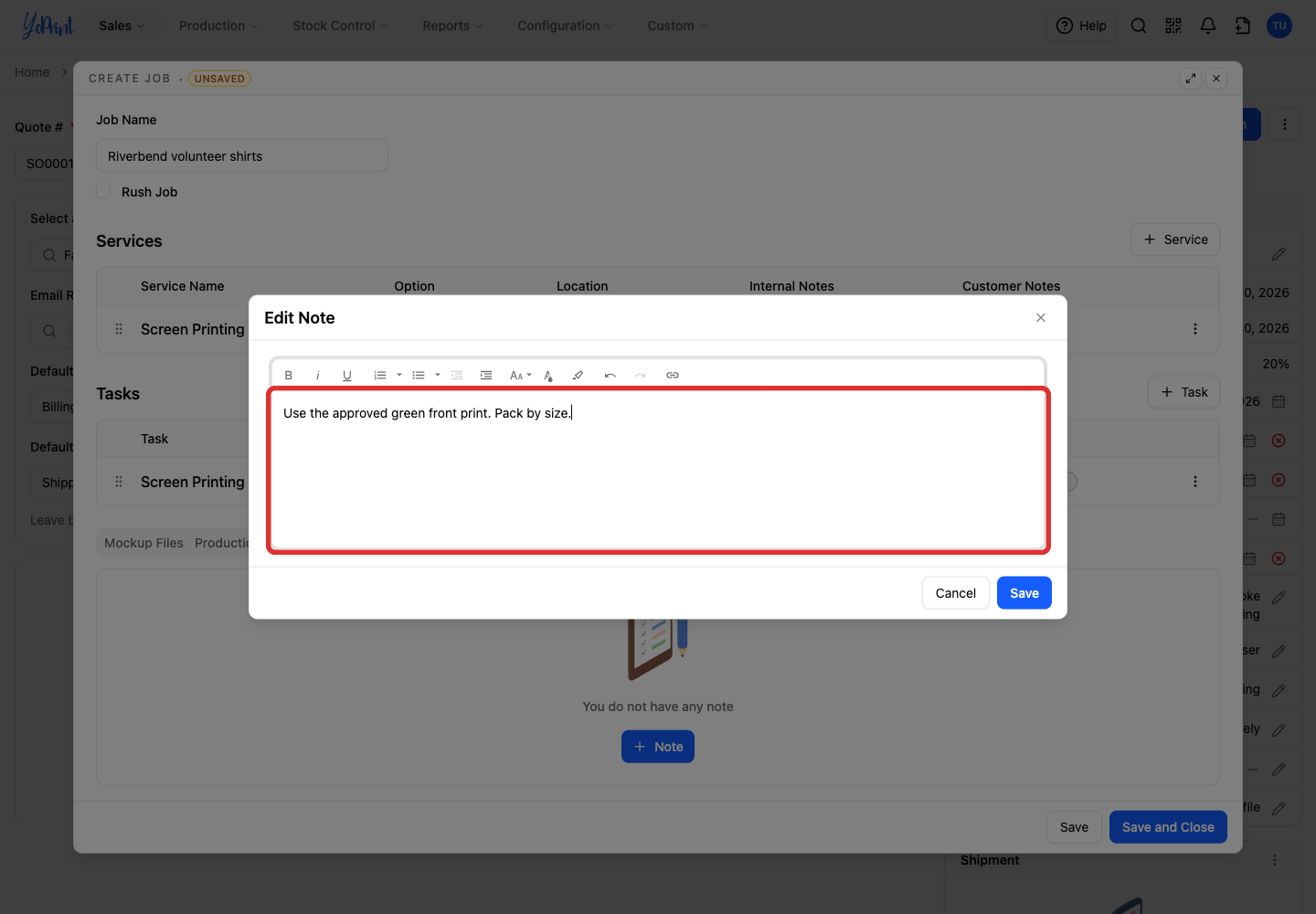
-
Write the note.
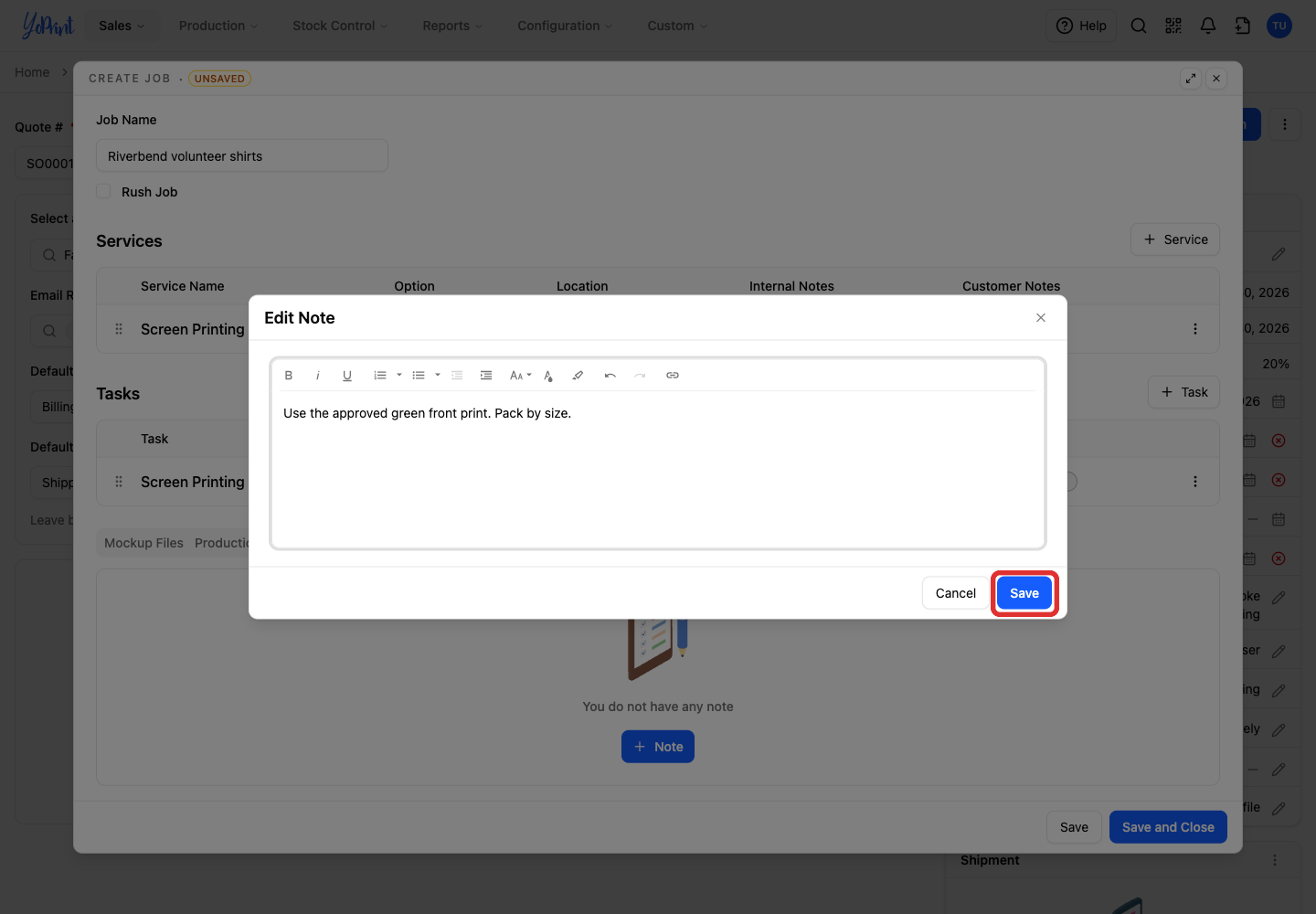
-
Click Save.
Save the job
-
Click Save and Close to save the job, including its files and notes.
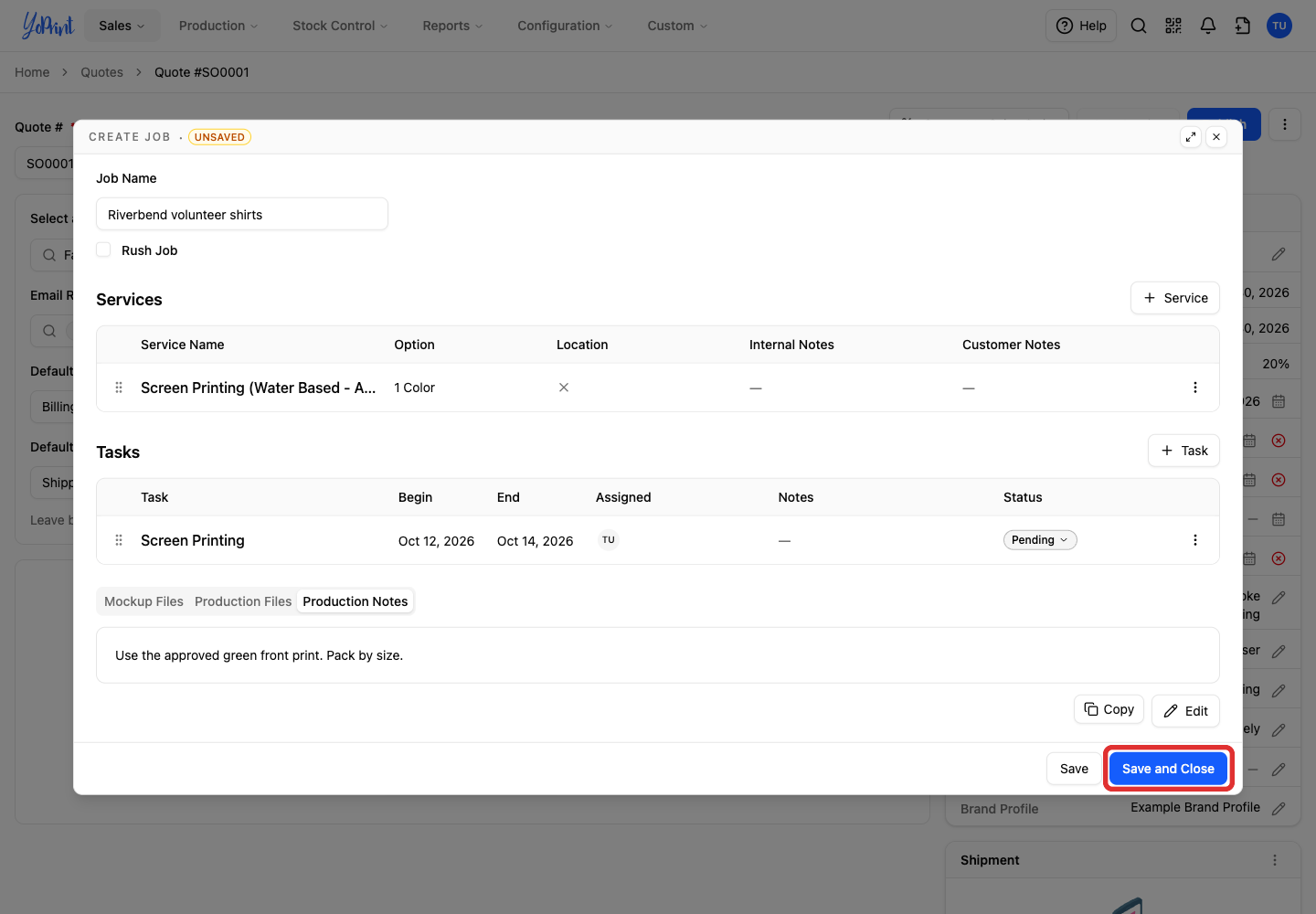
The job's name opens the editor again when you need to change it.
Start a job from a preset
A preset creates a job with its services and tasks already in place. Presets do not contain products.
-
Click + Job Preset.
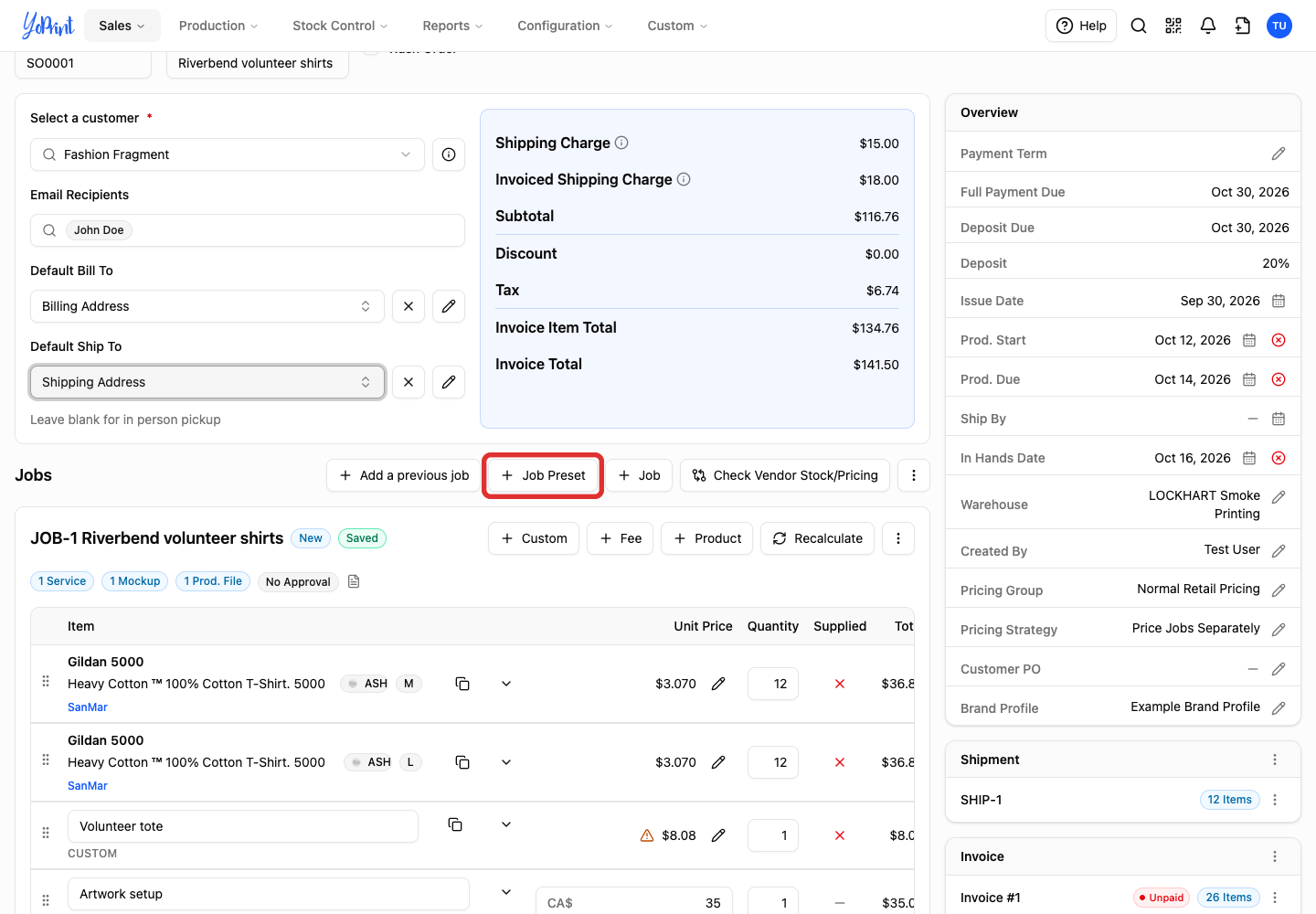
-
Click Select beside the preset. YoPrint creates the job immediately.
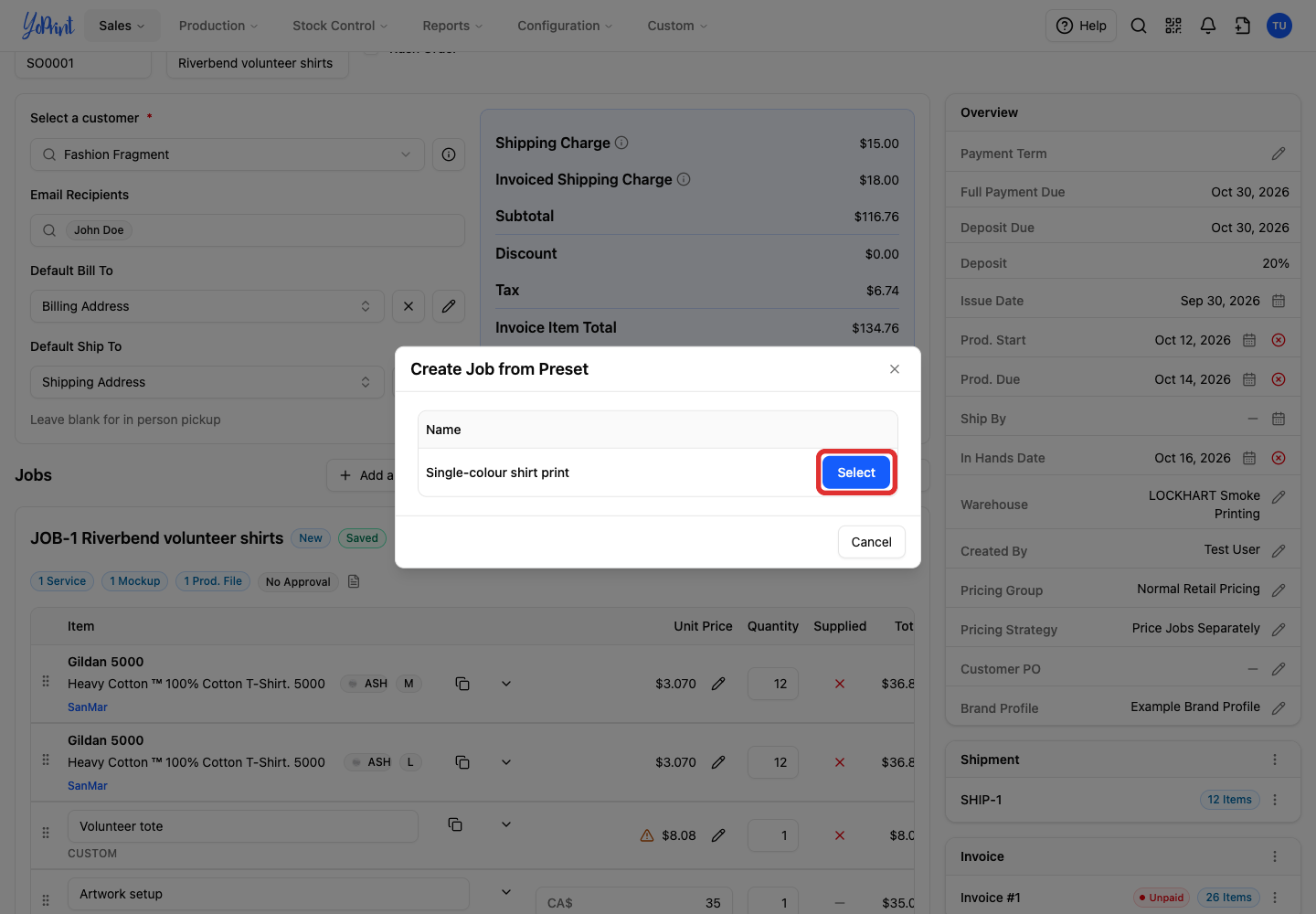
Changes made by opening this job's name affect the job, not the saved preset.
No presets yet
Follow Configure and Use a Job Preset to create one in Configuration → Settings → Job Presets.
Add products to a job
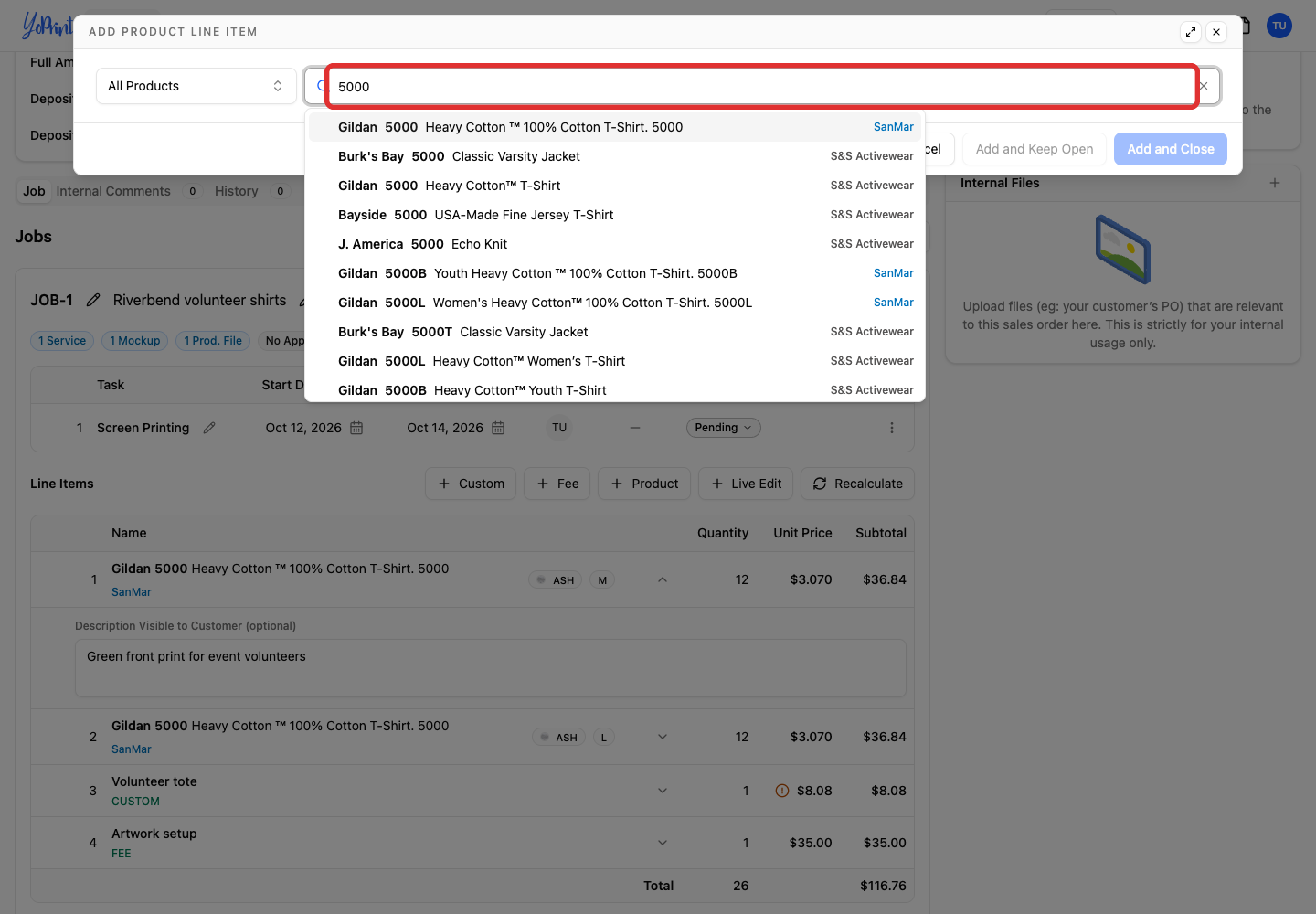
You can add catalog products without connecting a supplier. YoPrint calculates each row's selling price from the product cost, the pricing group's markup configured in Configuration → Pricing Groups, and the service price.
-
On the job, click Product.
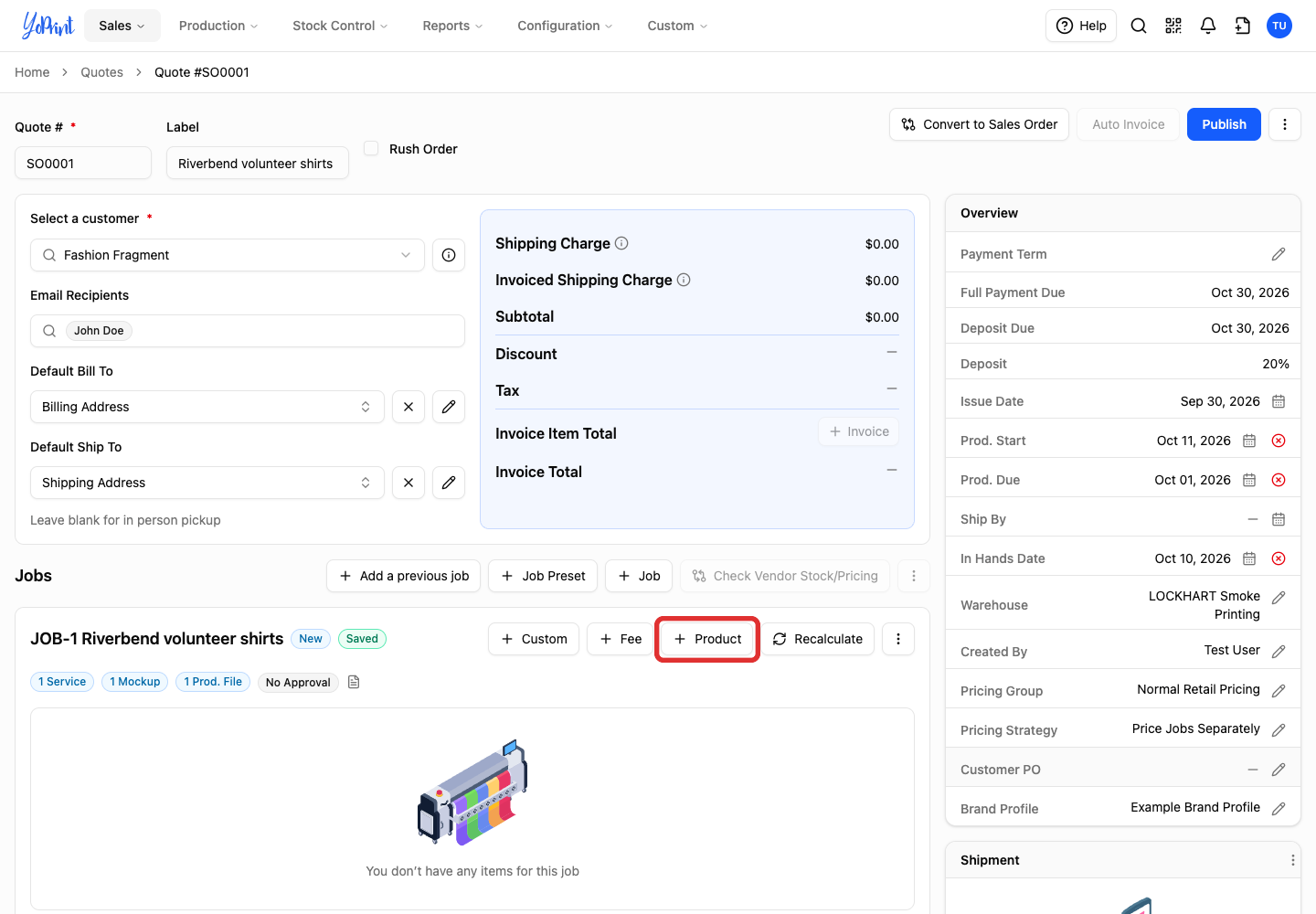
-
Search by style number or product name.
-
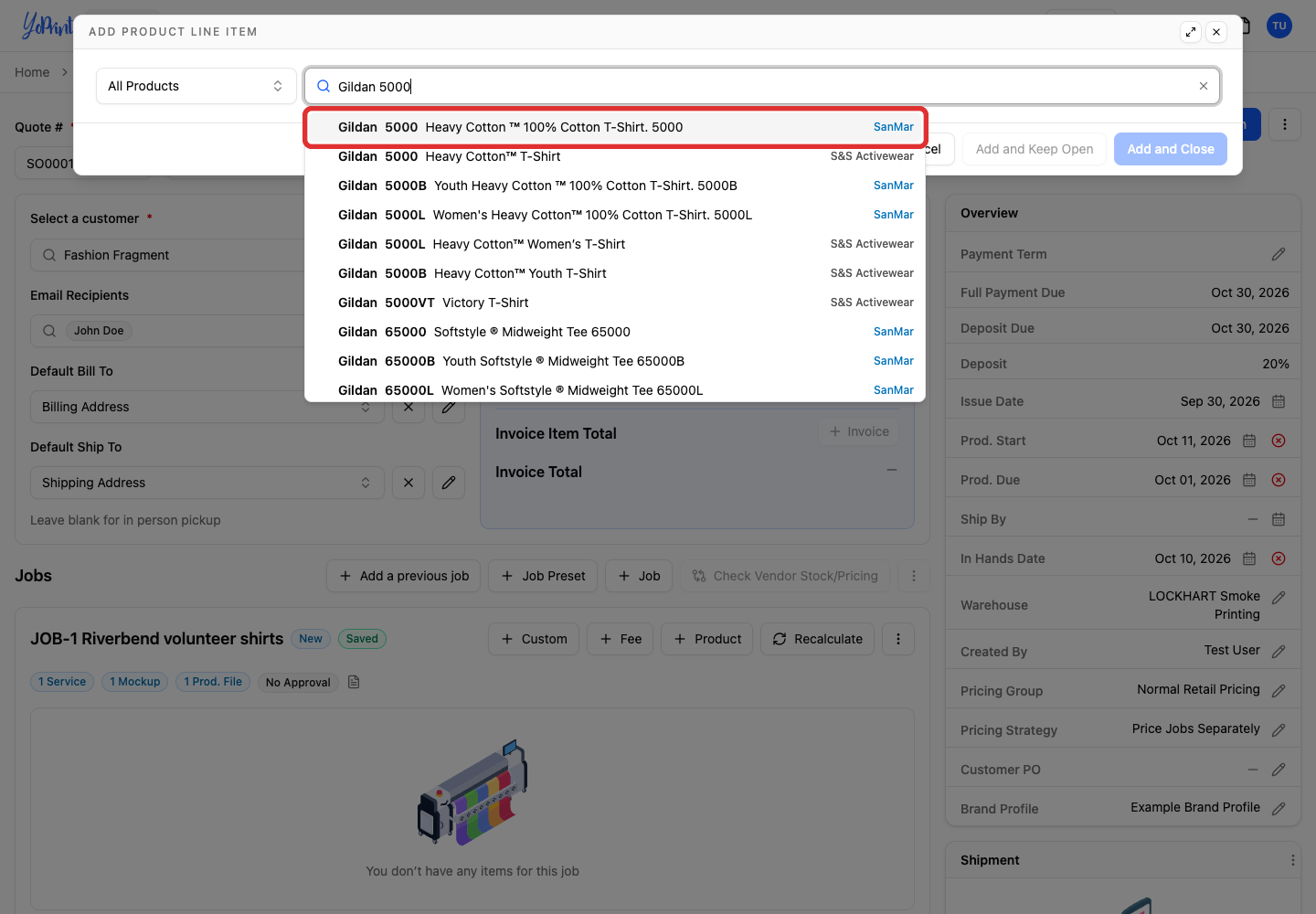
Choose the product.
-
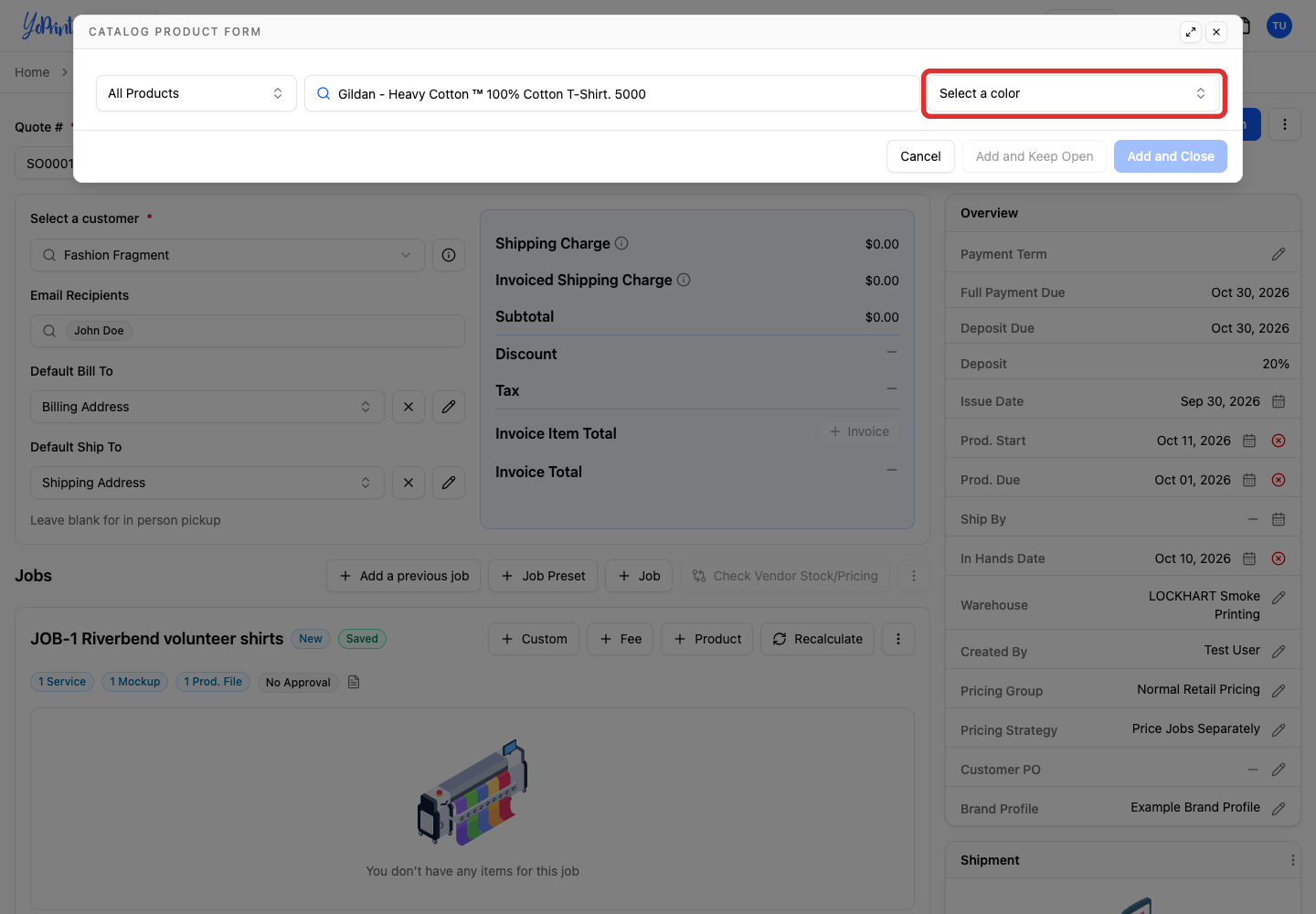
Open the colour picker.
-
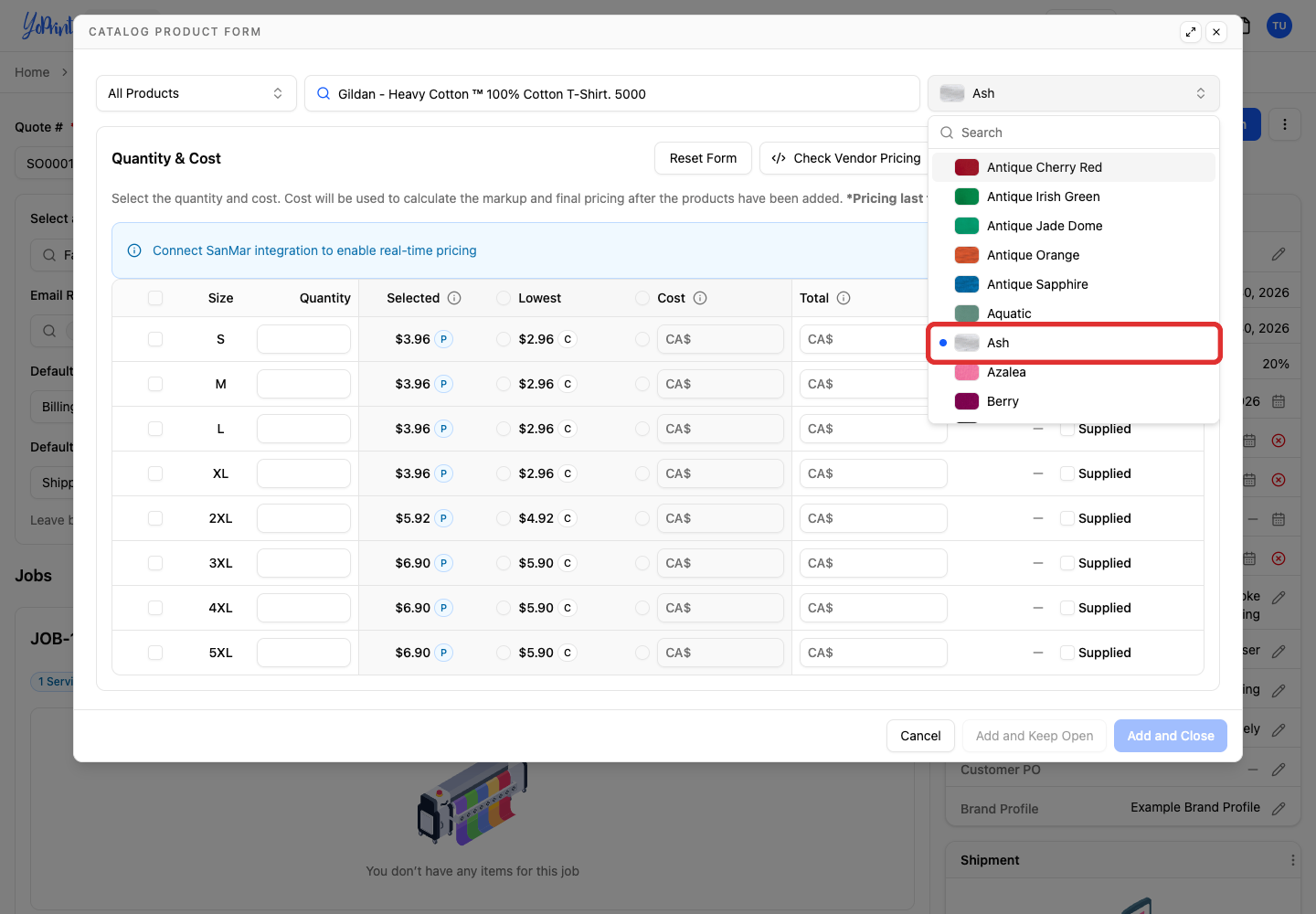
Choose the colour.
-
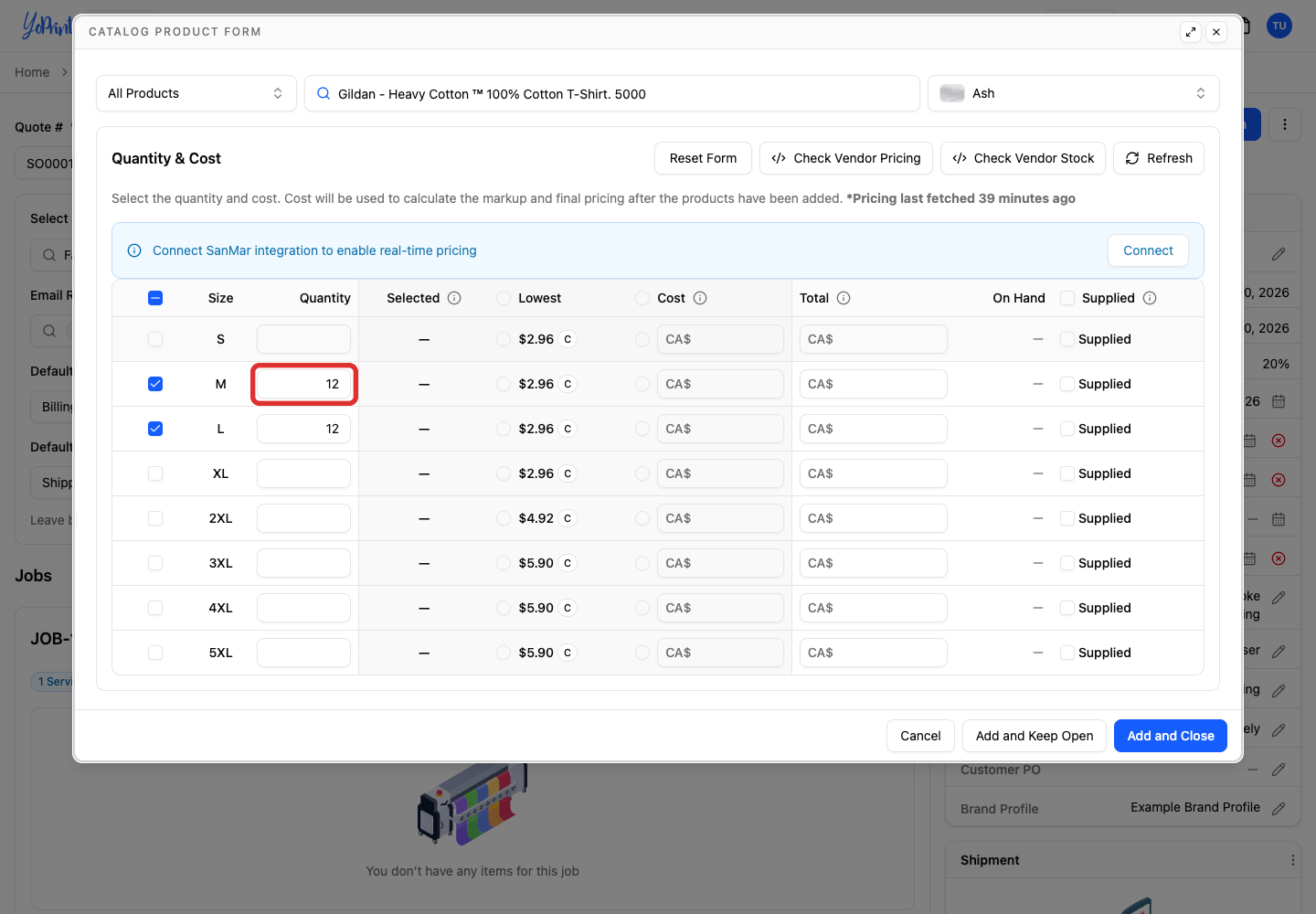
Enter a quantity for each size you need.
-
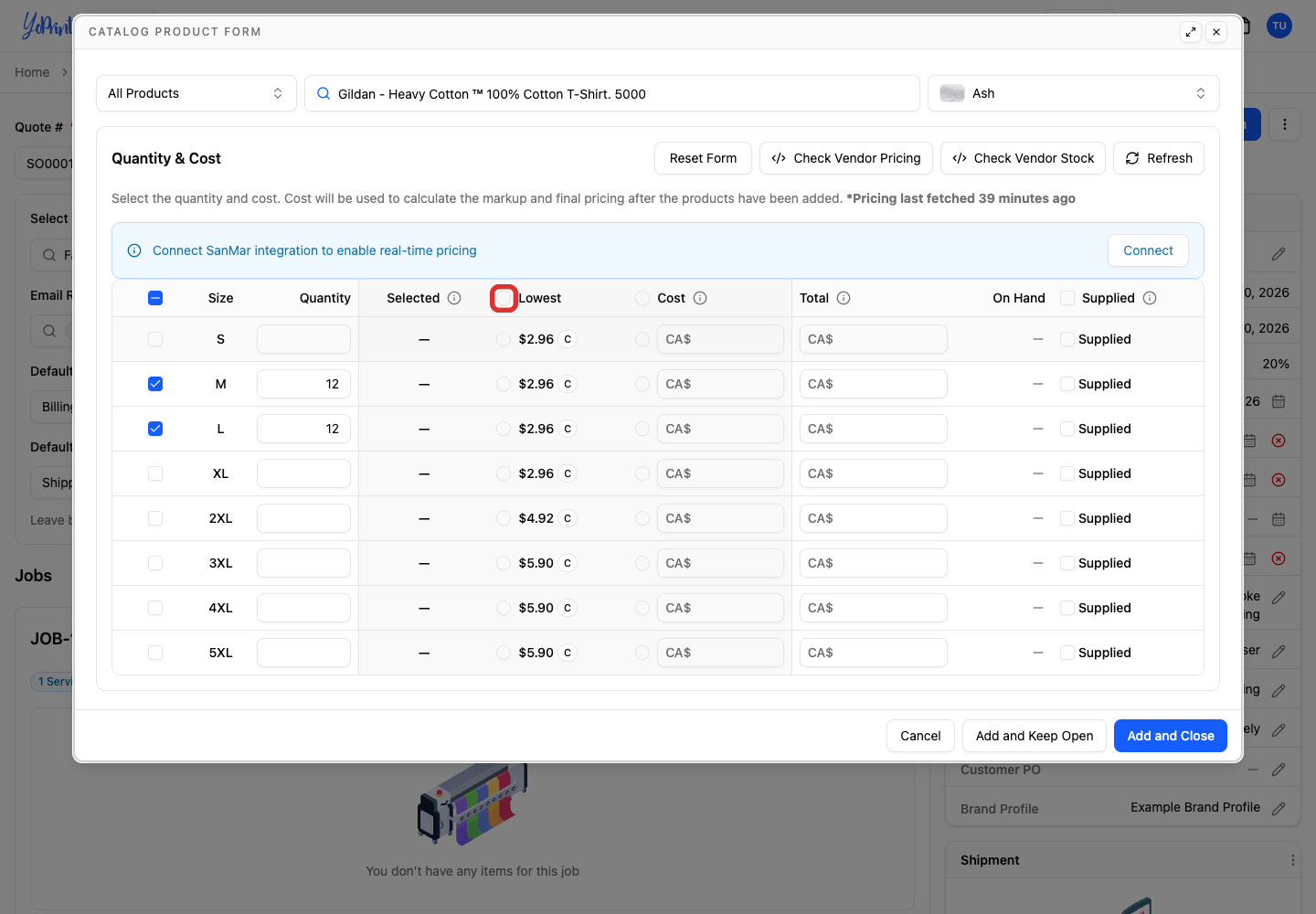
Check the cost under Selected. Choose Lowest to use the lowest catalog cost, or enter your own Cost.
Product price and customer-supplied goods
Total is the product portion of the selling price. Leaving it blank uses your pricing group's markup percentage over catalog cost. Supplied means the customer provides that size's products, so the row charges only for the service unless you set a product price yourself. See Customer-Supplied Products.
-
Click Add and Close. Each size becomes a separate row.
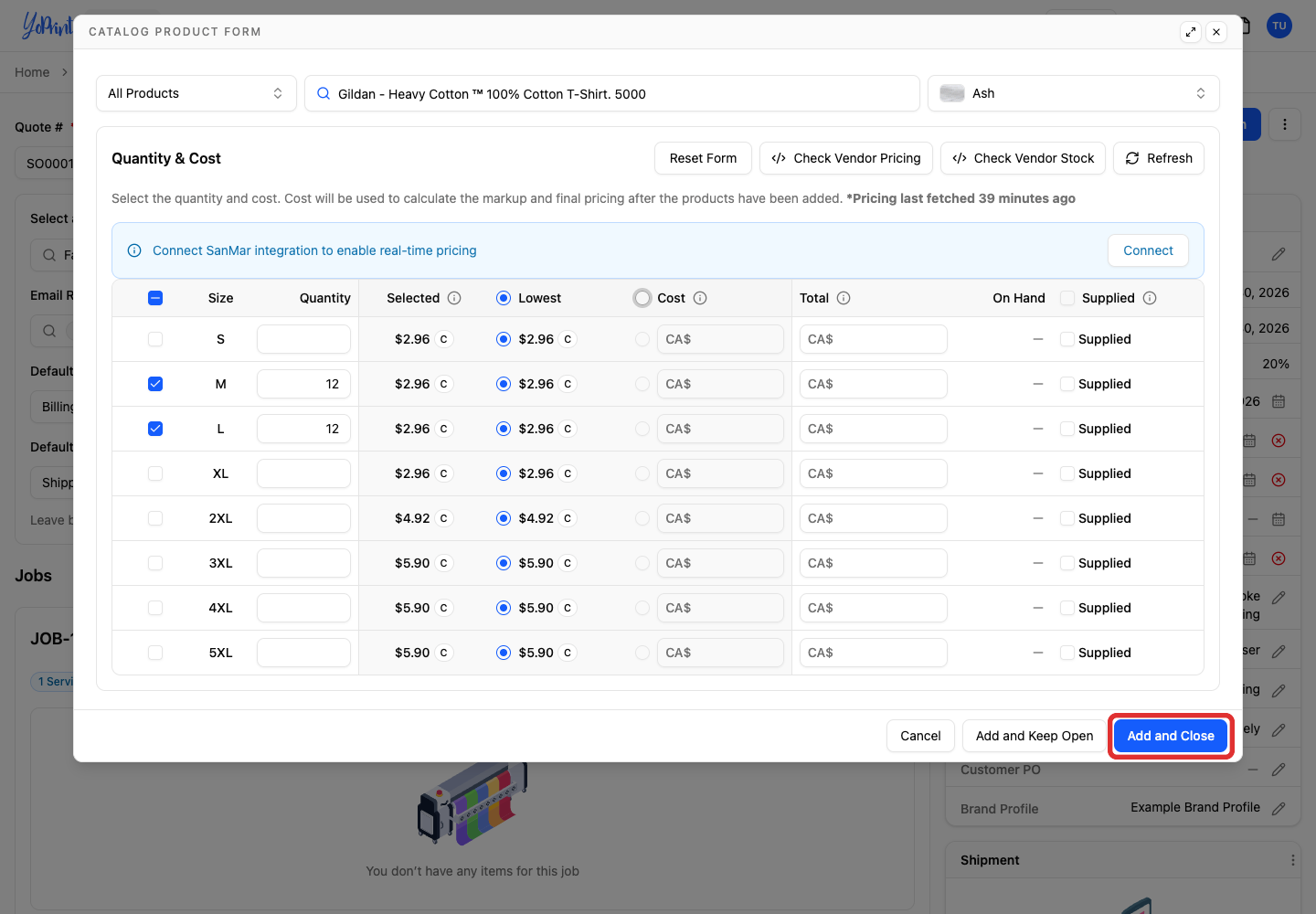
Unit Price is the customer's price for one item, including the product and service.
More styles or colours
Add and Keep Open saves the rows and keeps the same product and colour selected. Quantities and manual cost or price overrides clear for the next addition. The form handles one style and colour at a time. For another size or colour of an existing row, see Quickly Add Other Colours or Sizes.
Change or remove a product
Changes to a draft's product rows save as you work.
-
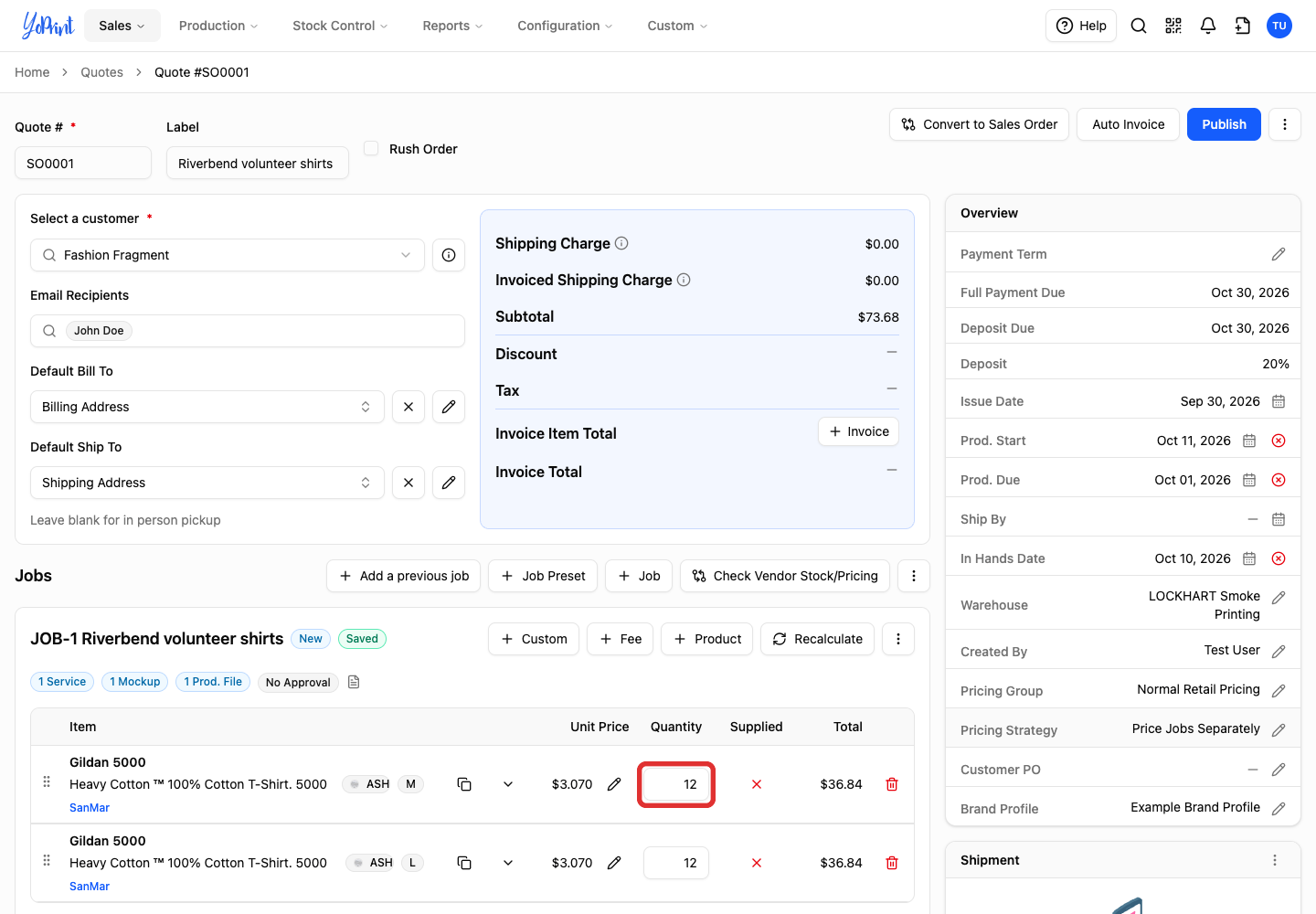
Change the row's Quantity.
-
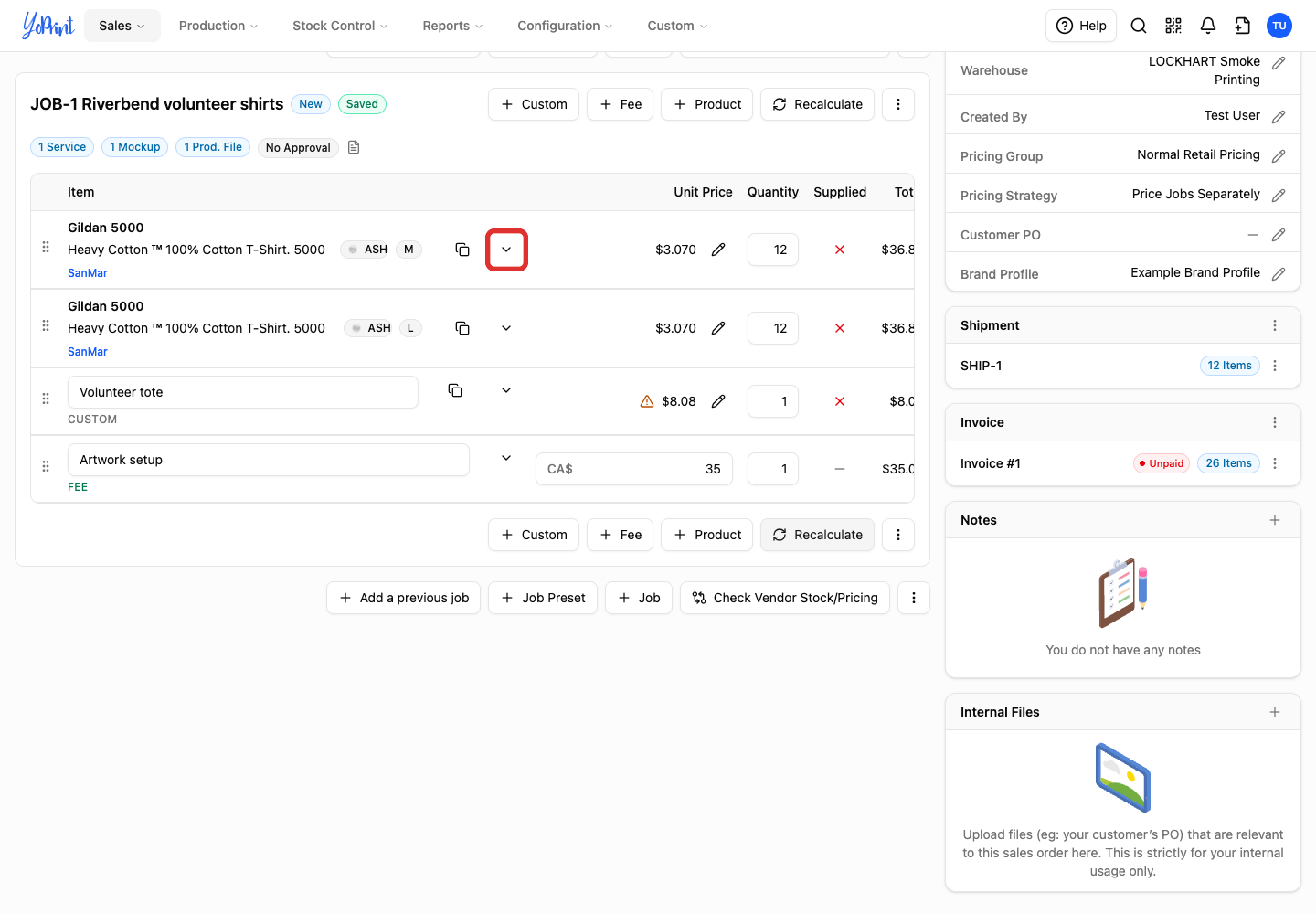
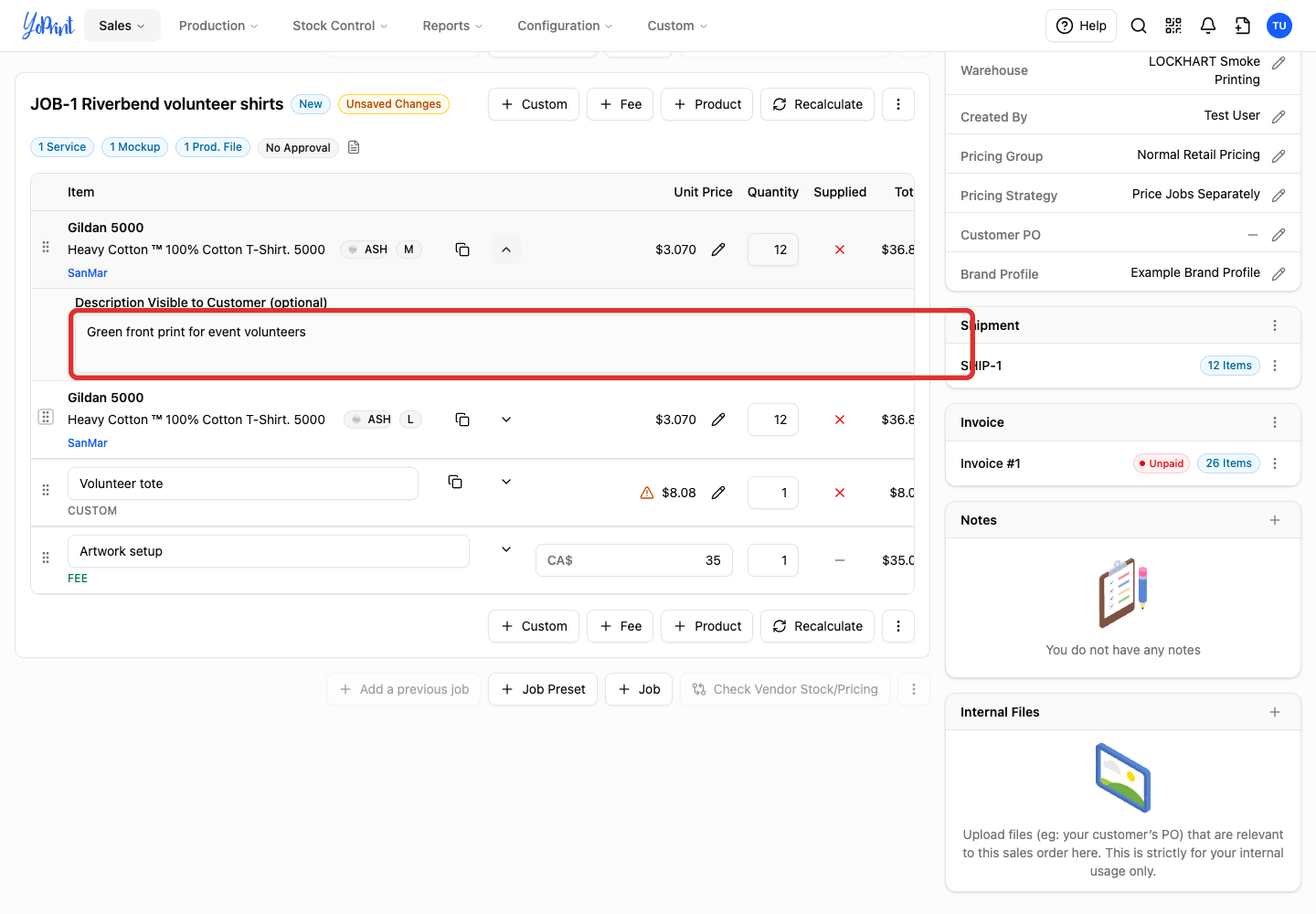
Expand the row to add a customer-facing description.
-
Fill in Description Visible to Customer.
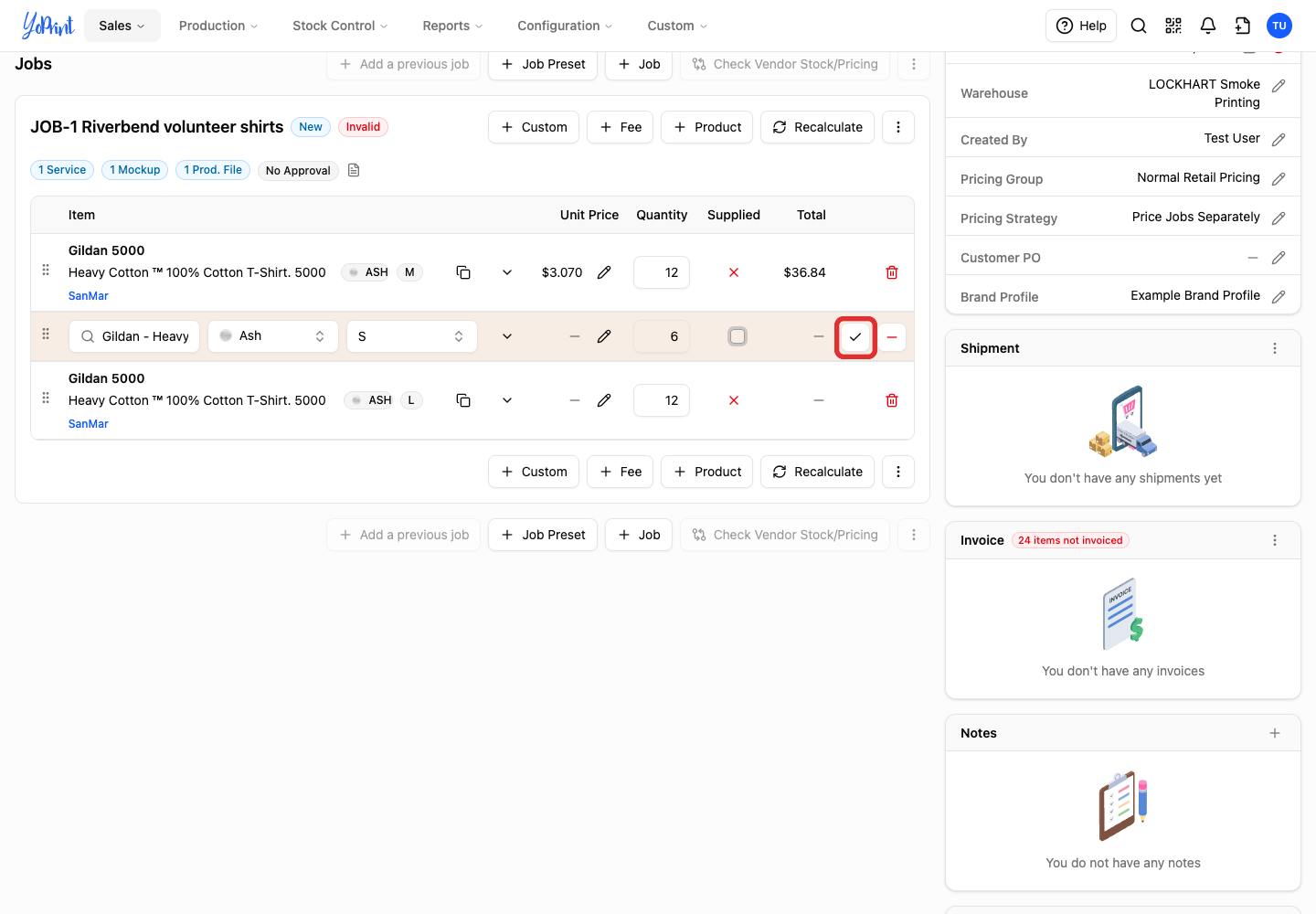
Copy a row
-
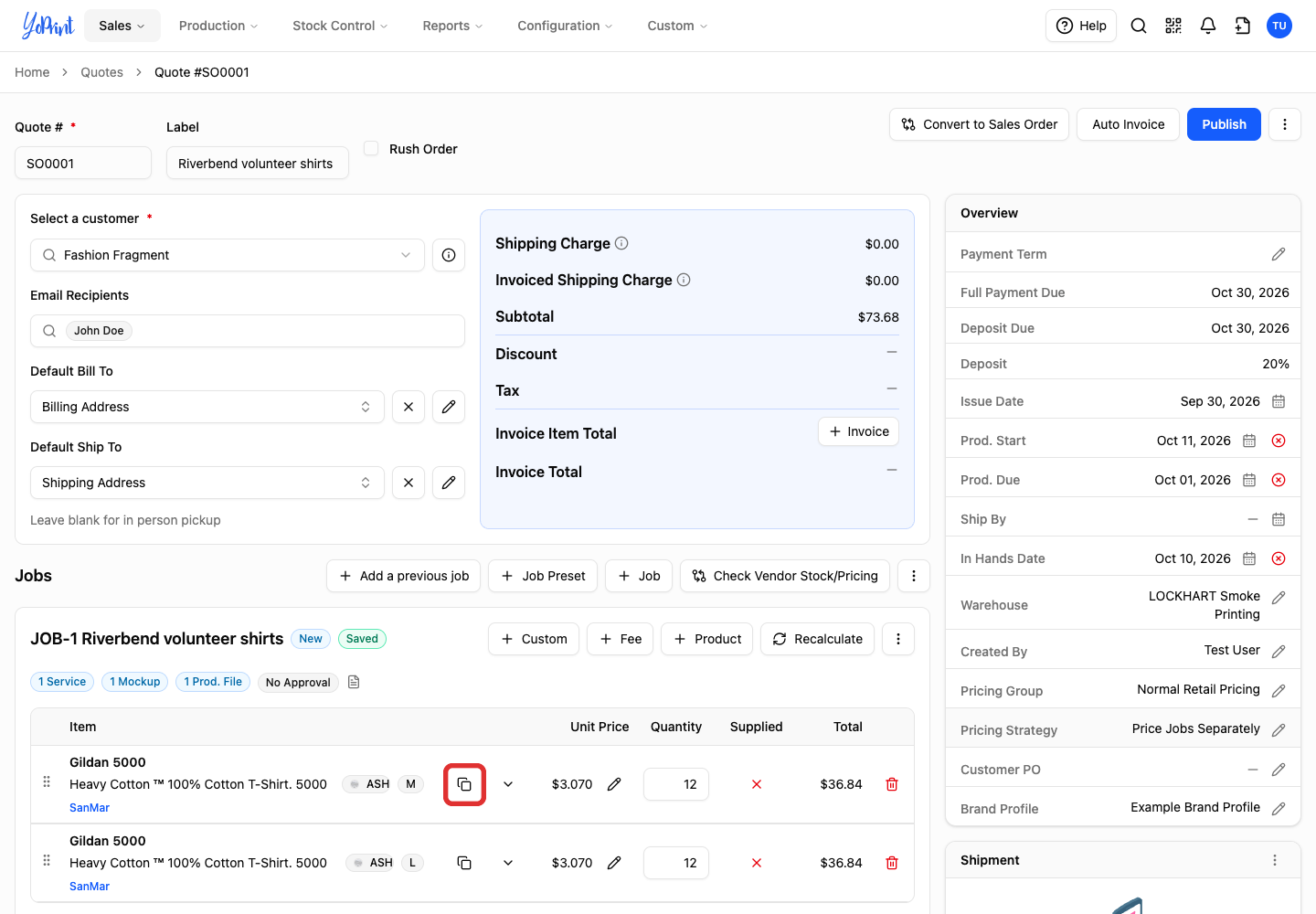
Click the row's copy icon.
-
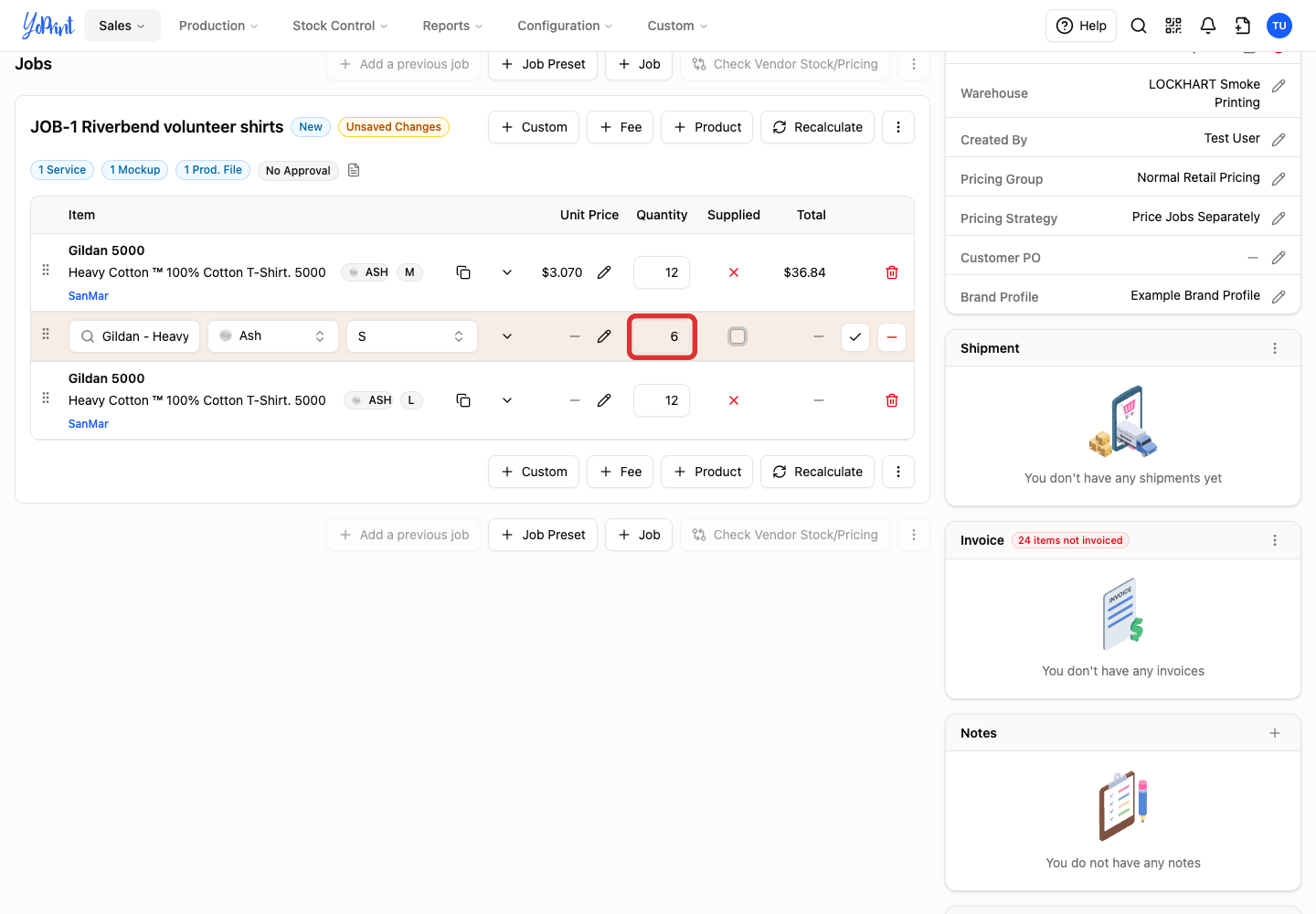
Fill in the copied row's size, colour and quantity as needed.
-
Click Confirm.
Remove a row
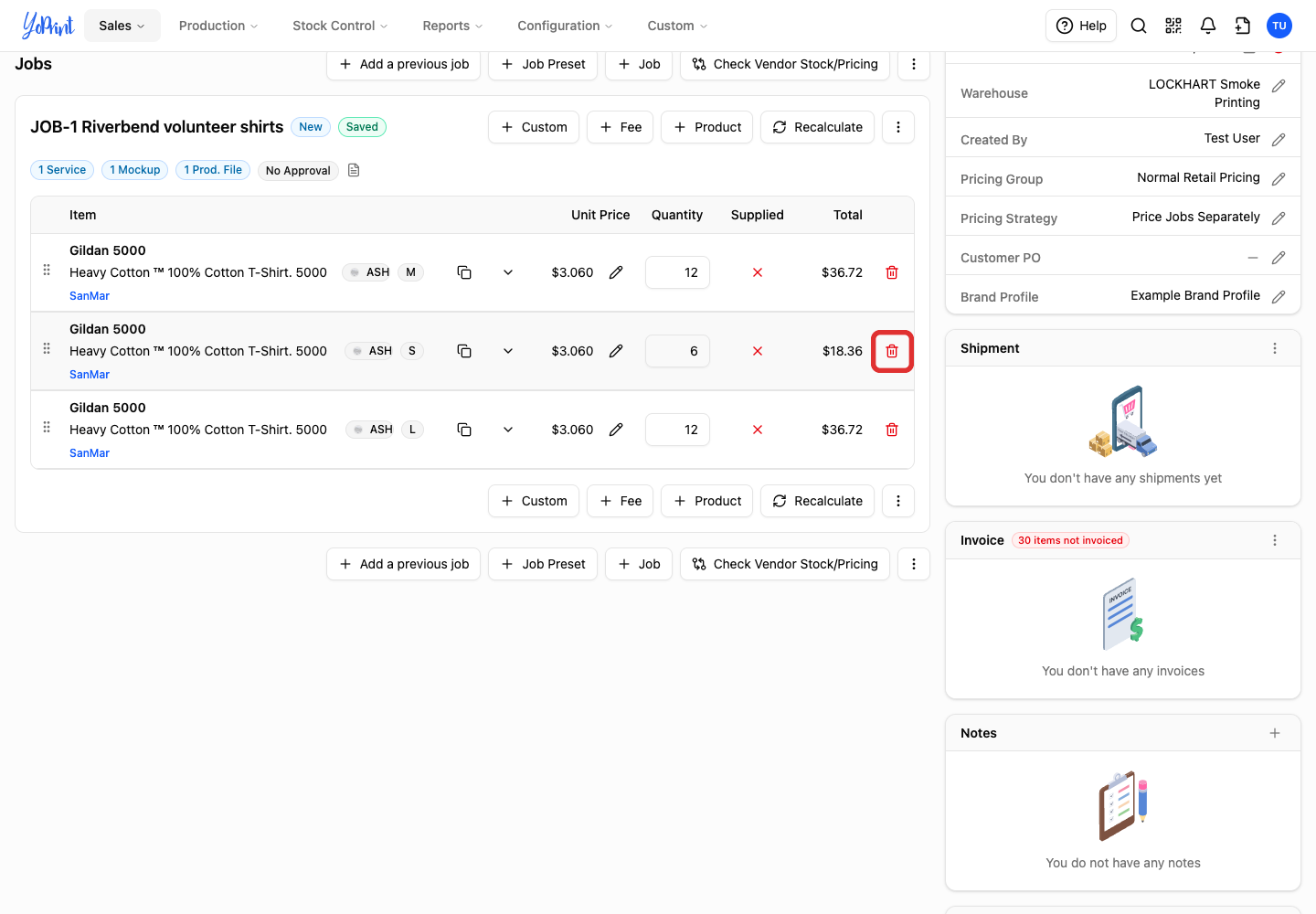
-
Click the row's remove icon.
Add custom products and fees
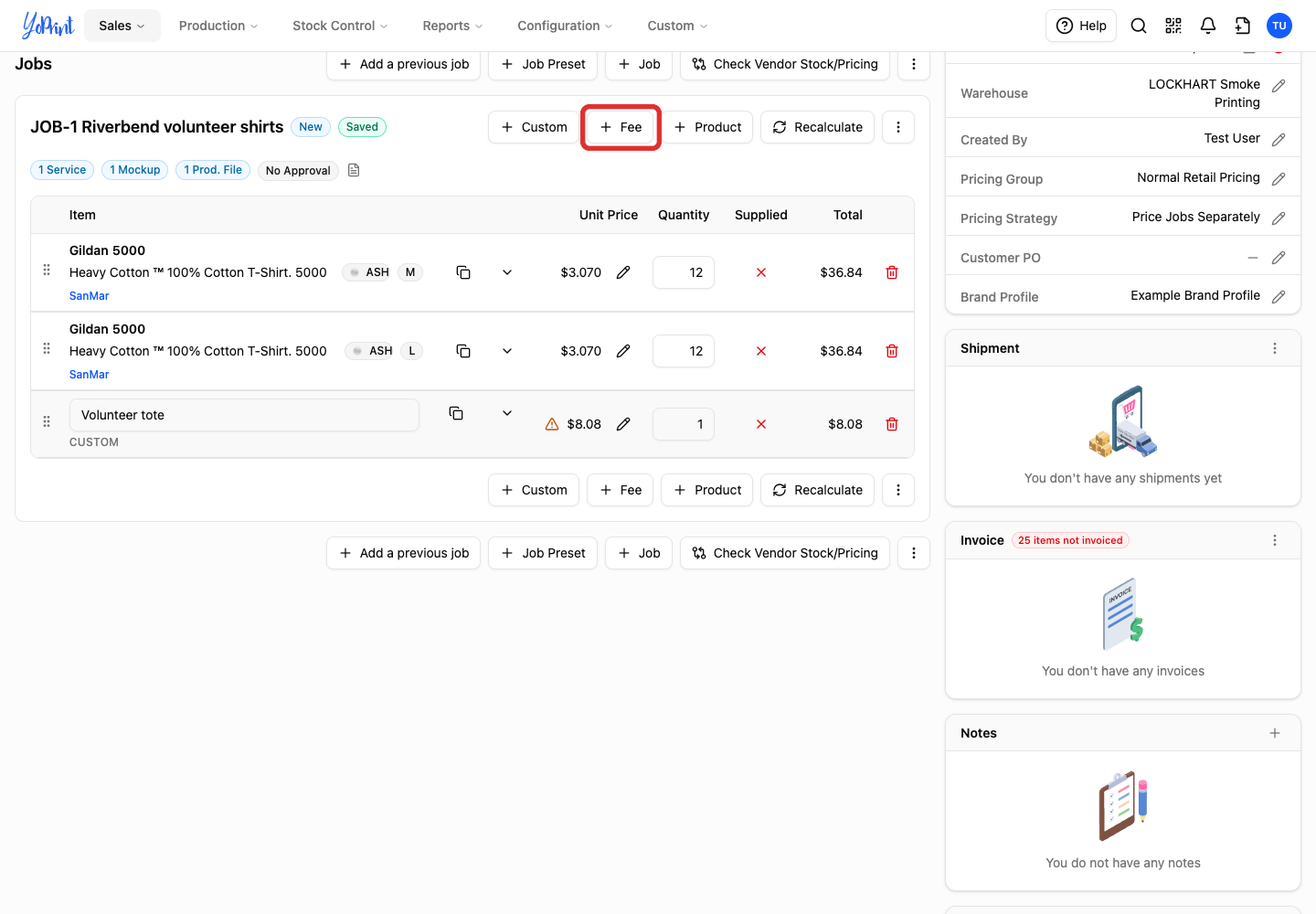
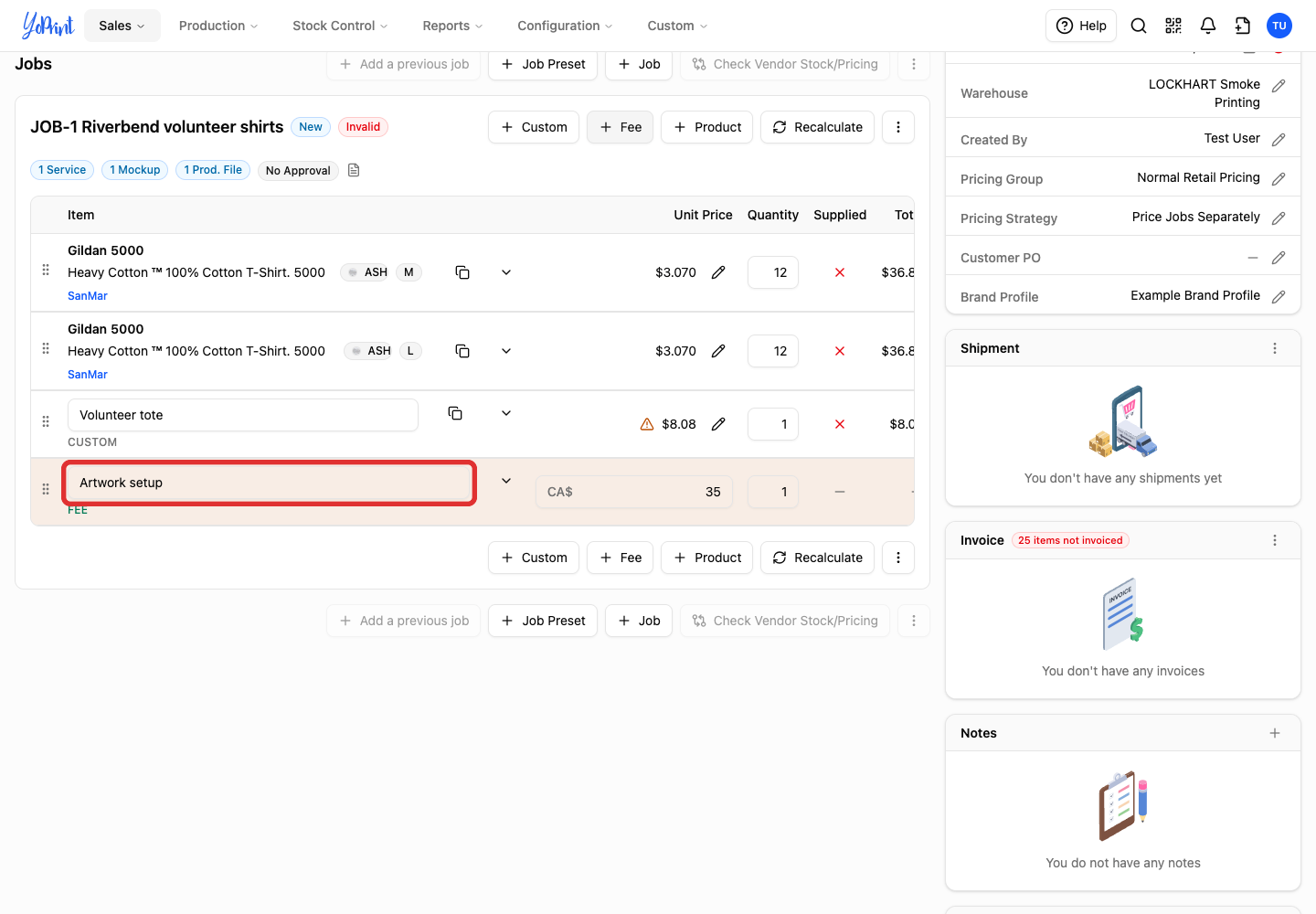
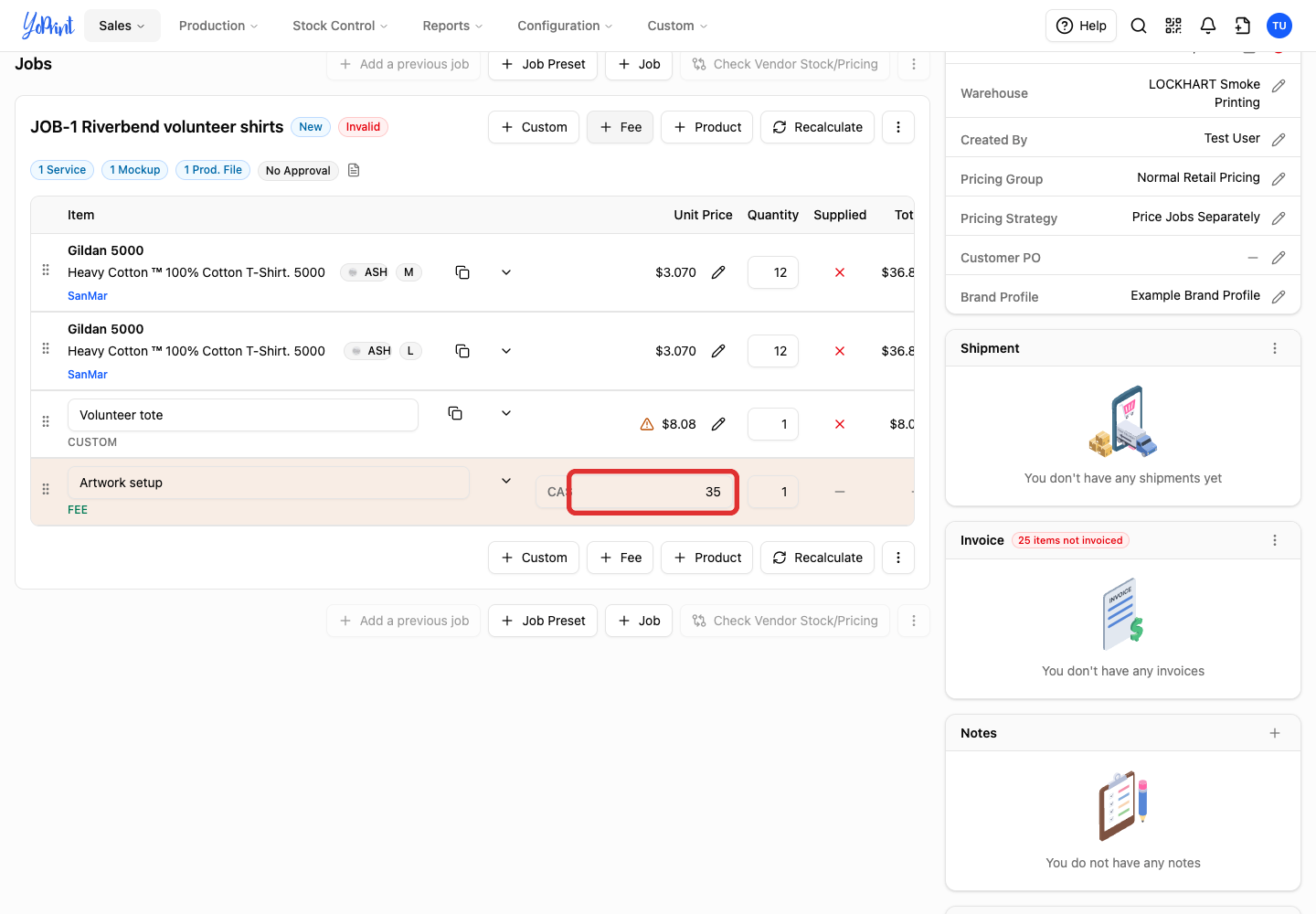
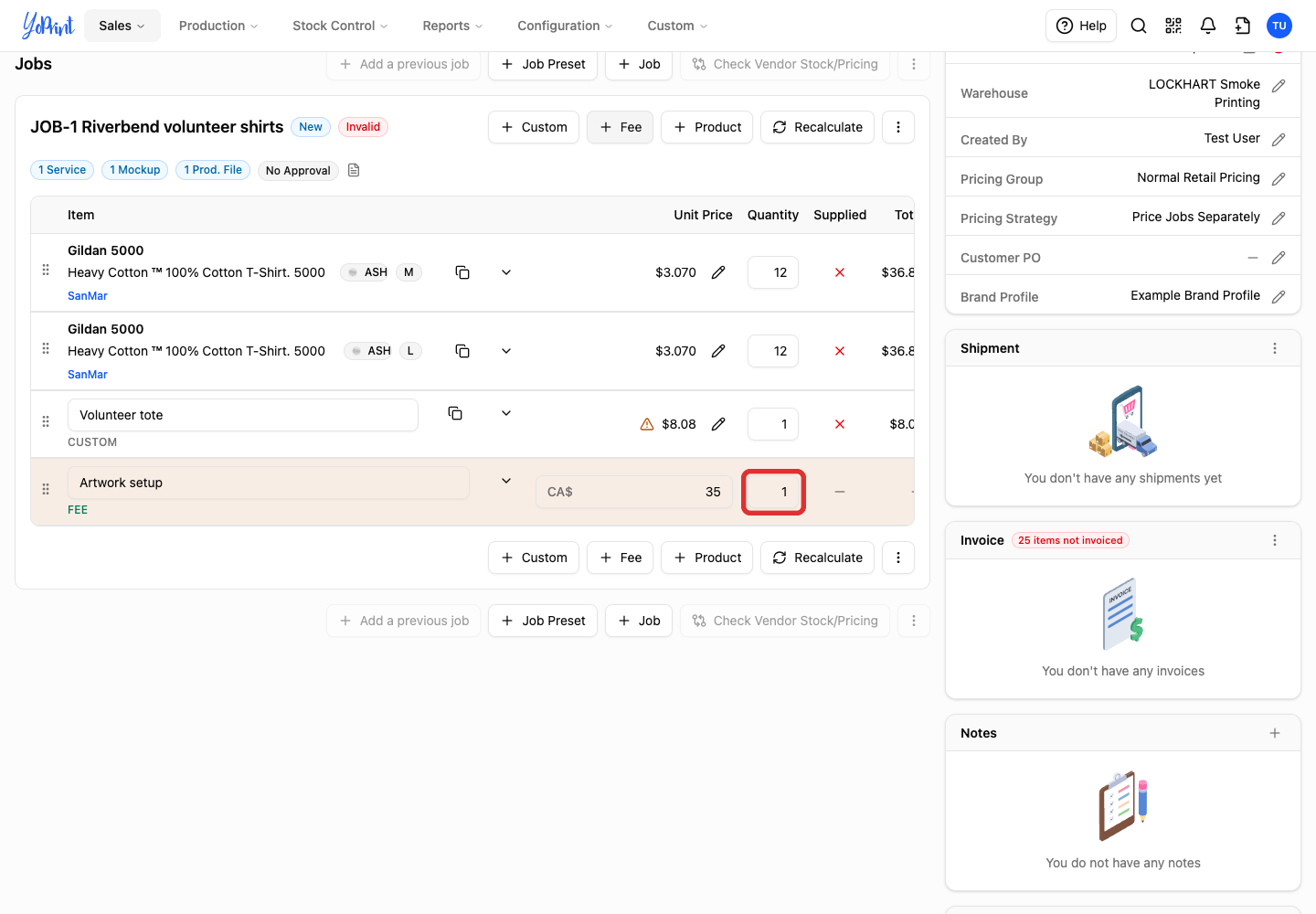
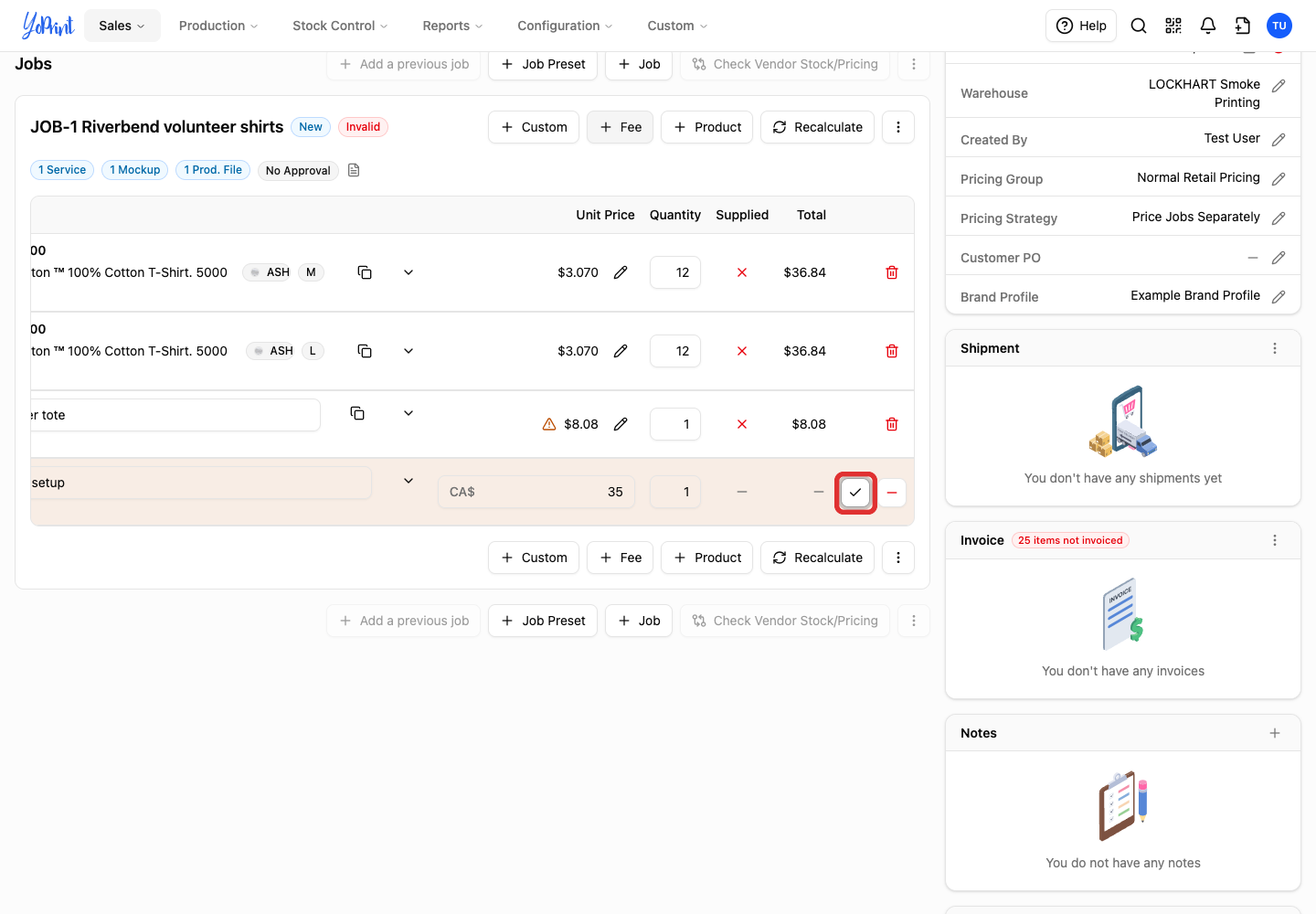
Custom products have no catalog cost or price, so you set the price. A fee is a charge rather than a product, such as artwork setup.
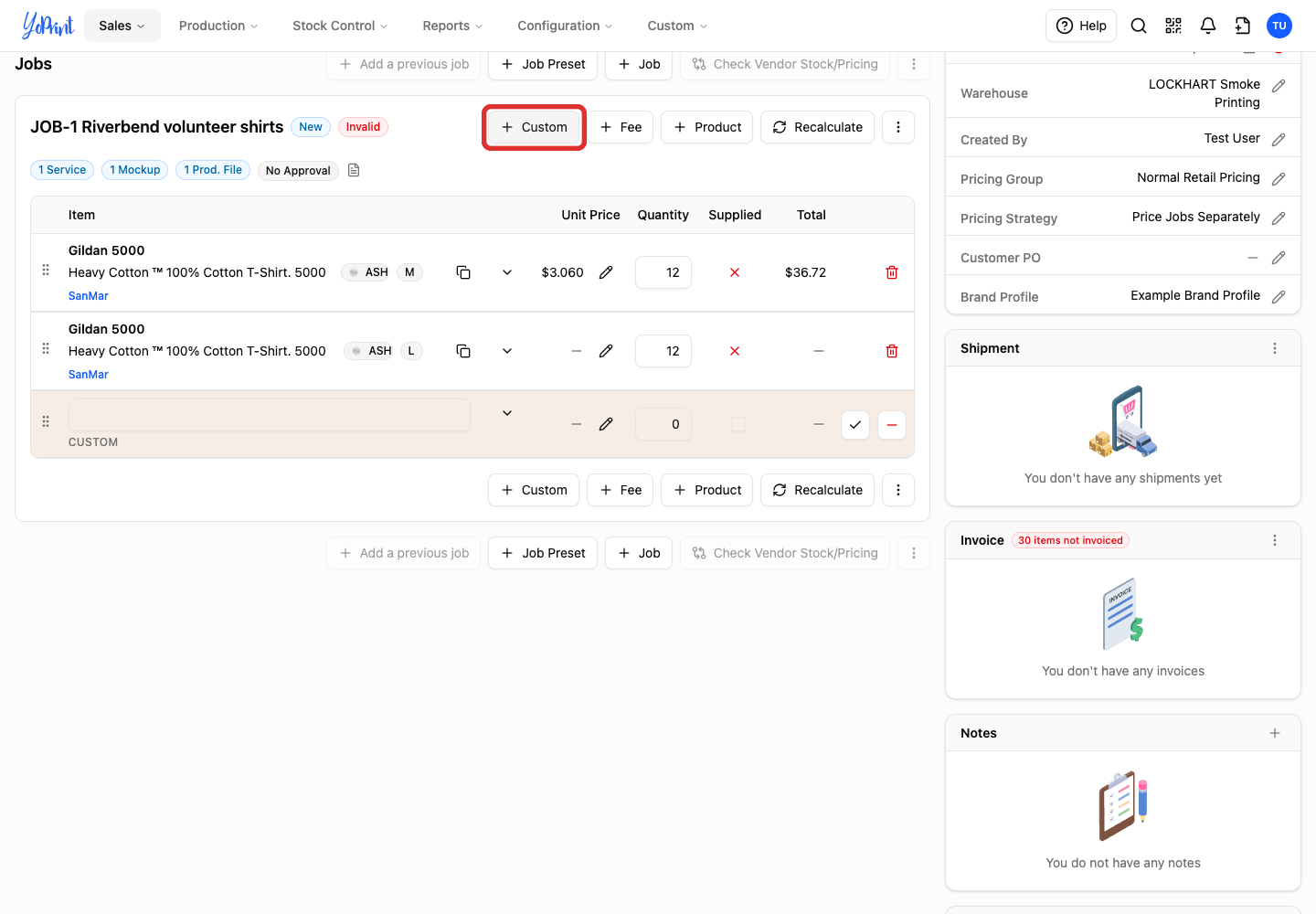
Add a custom product
-
Click Custom.
-
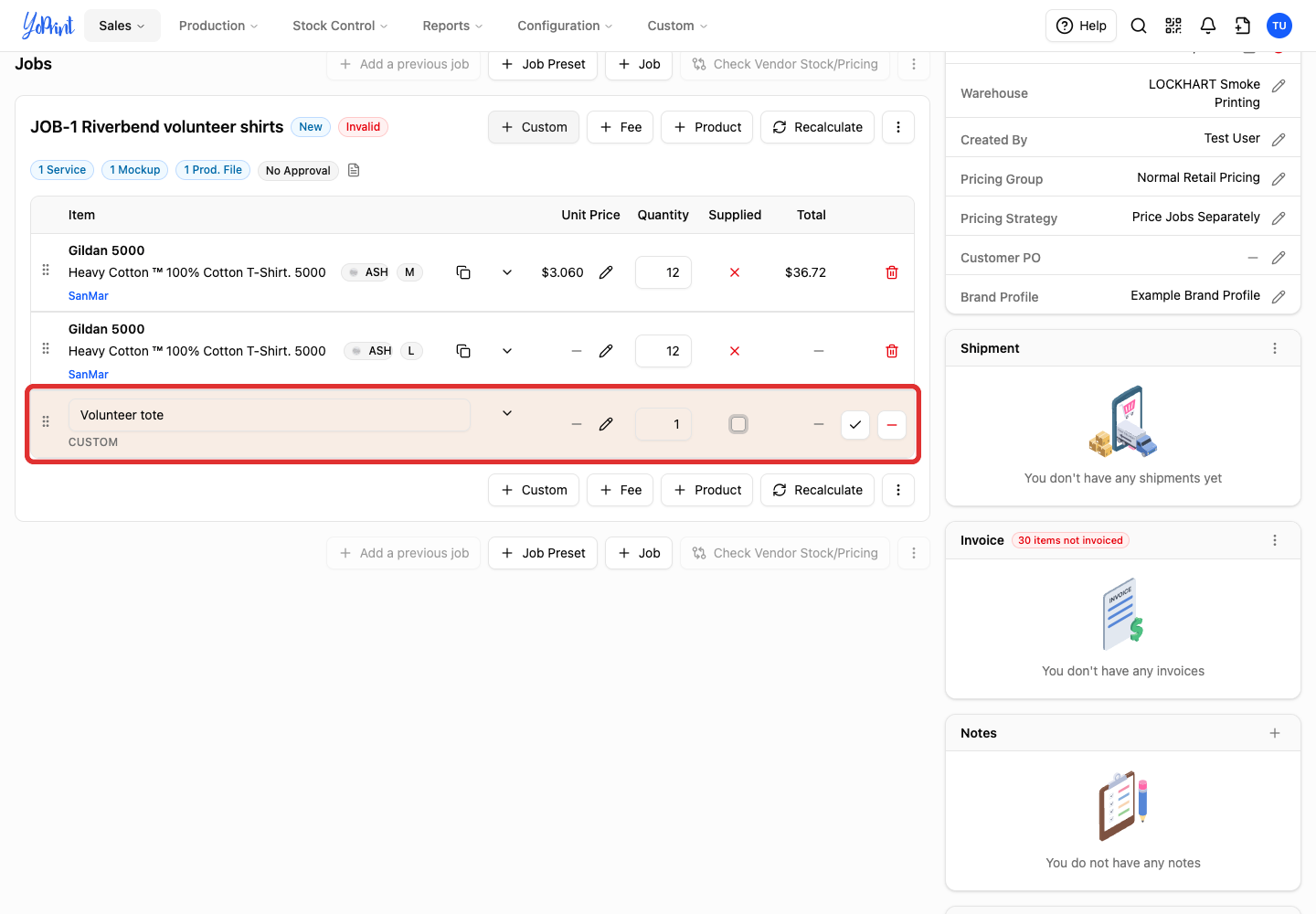
Enter a name and quantity.
-
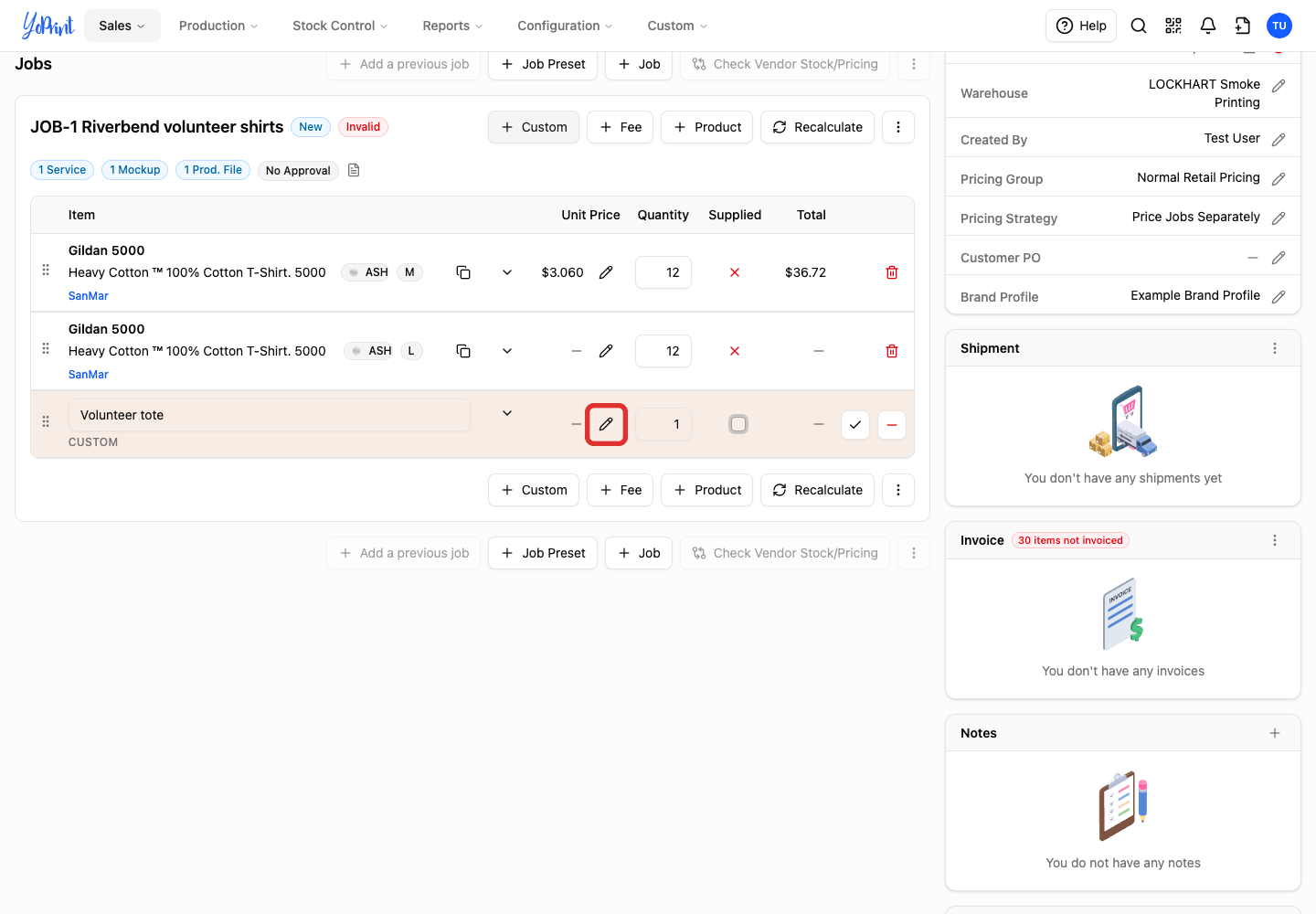
Click the row's price pencil.
-
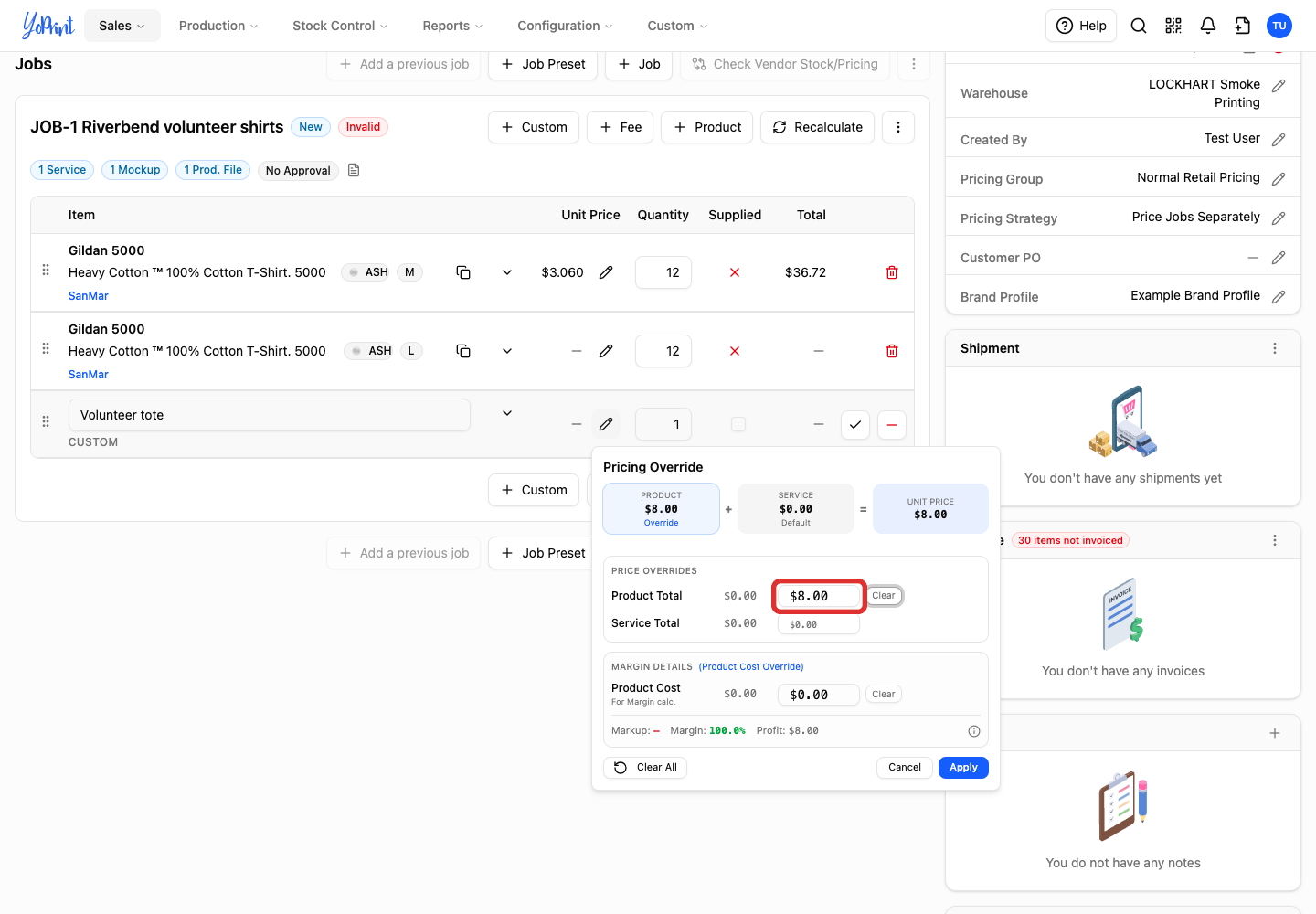
Set Product Total.
-
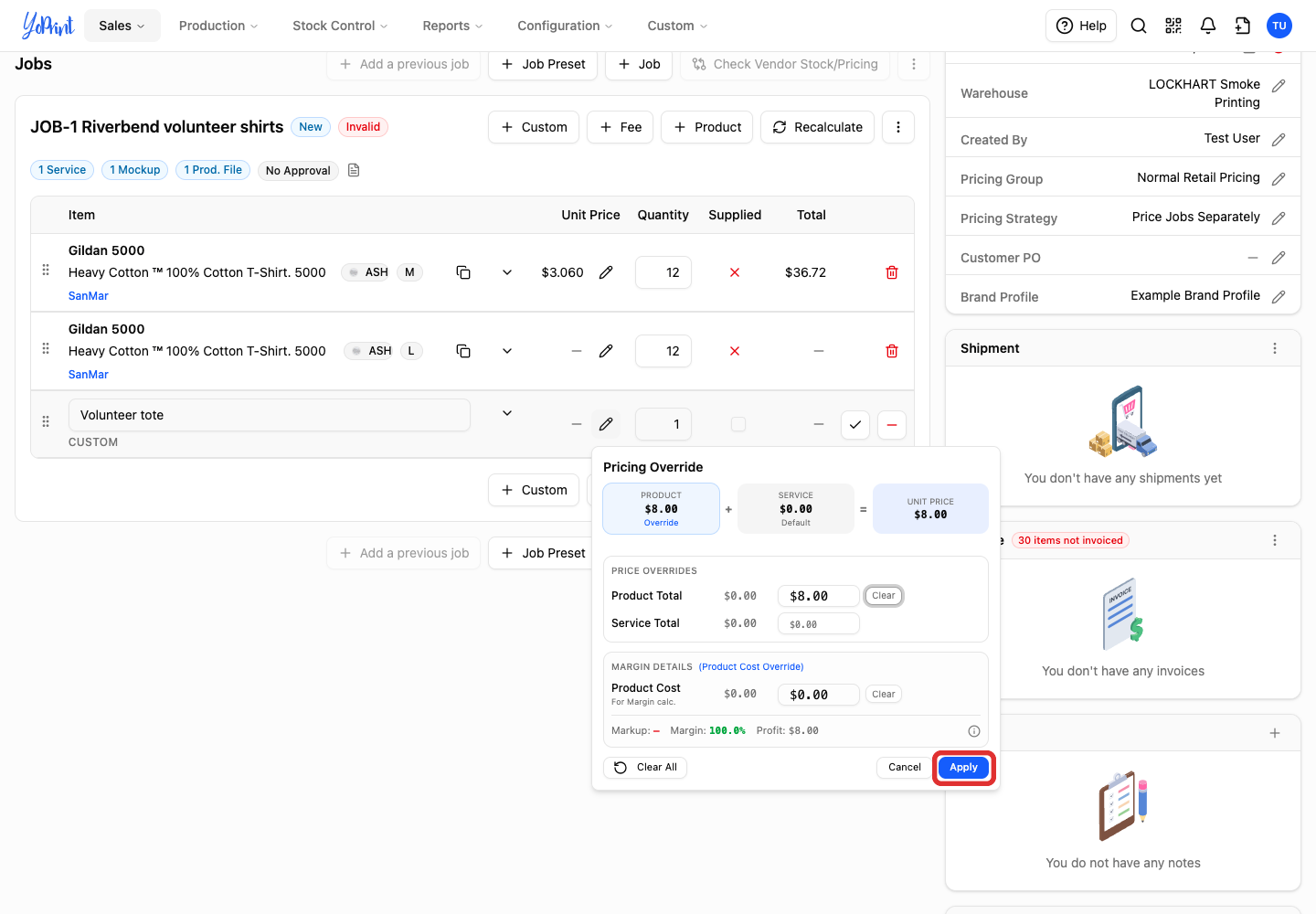
Click Apply.
-
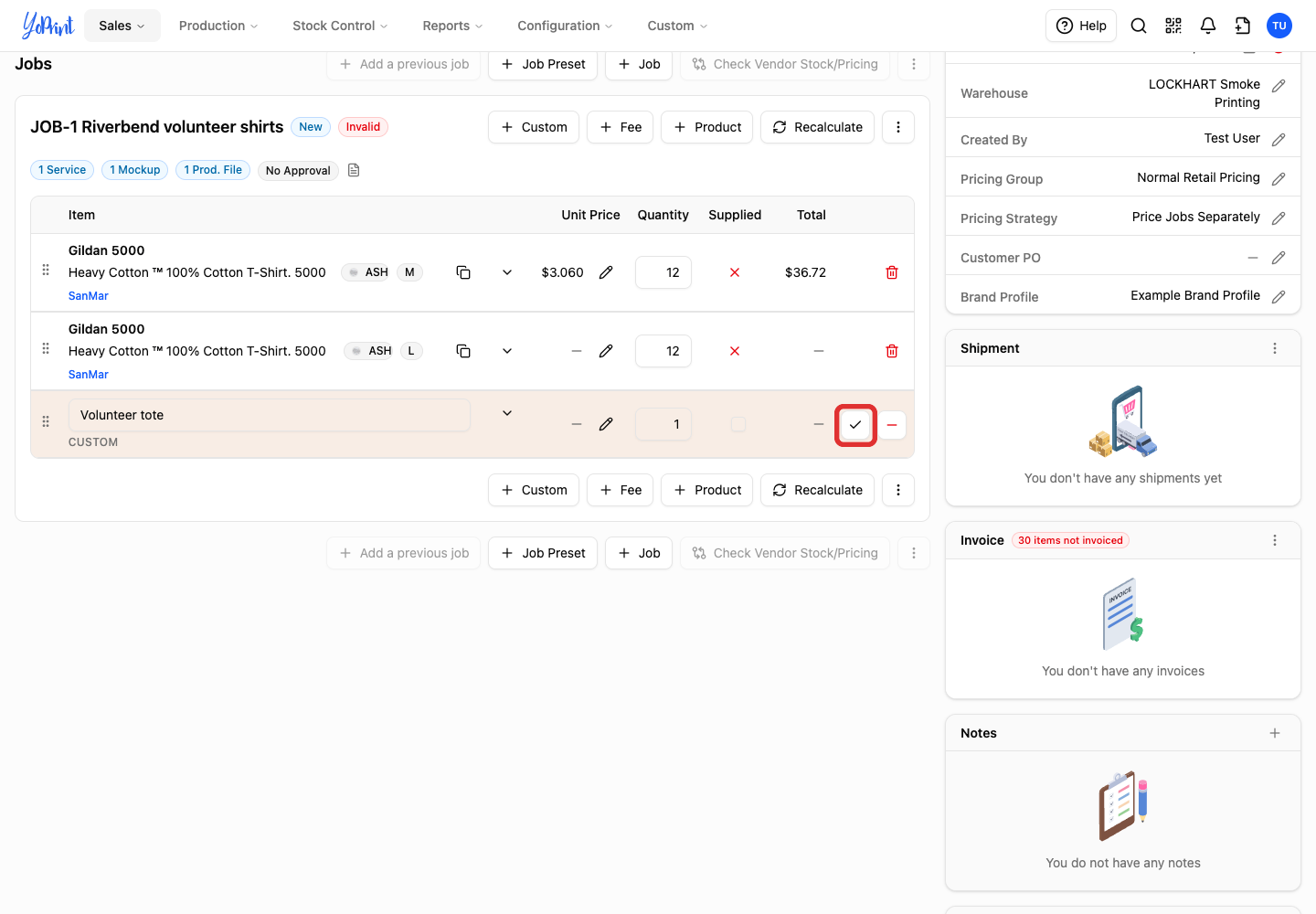
Click Confirm on the row.
Add a fee
-
Click Fee.
-
Enter the fee's name.
-
Enter the amount.
-
Set the quantity.
-
Click Confirm.
Change a price
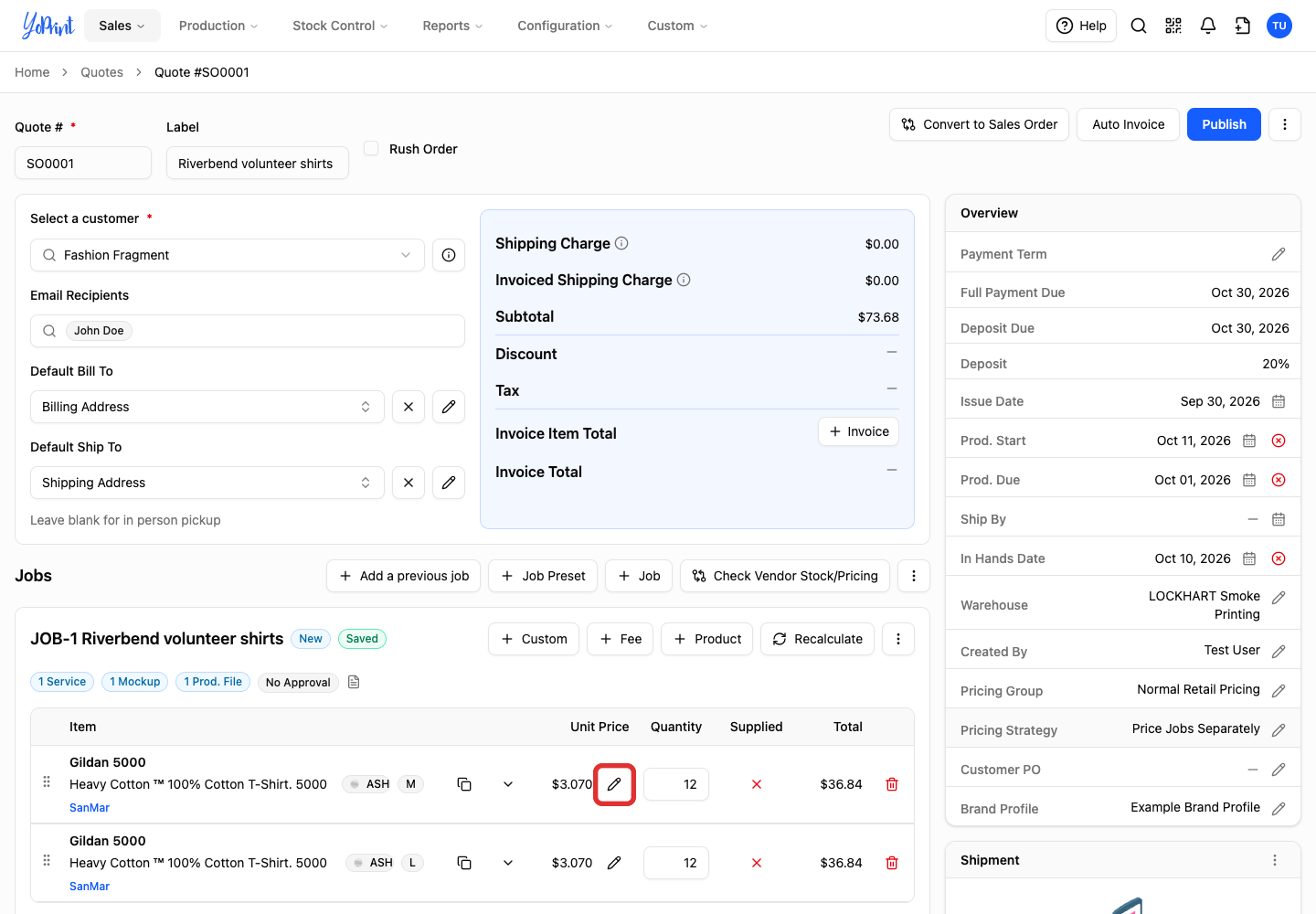
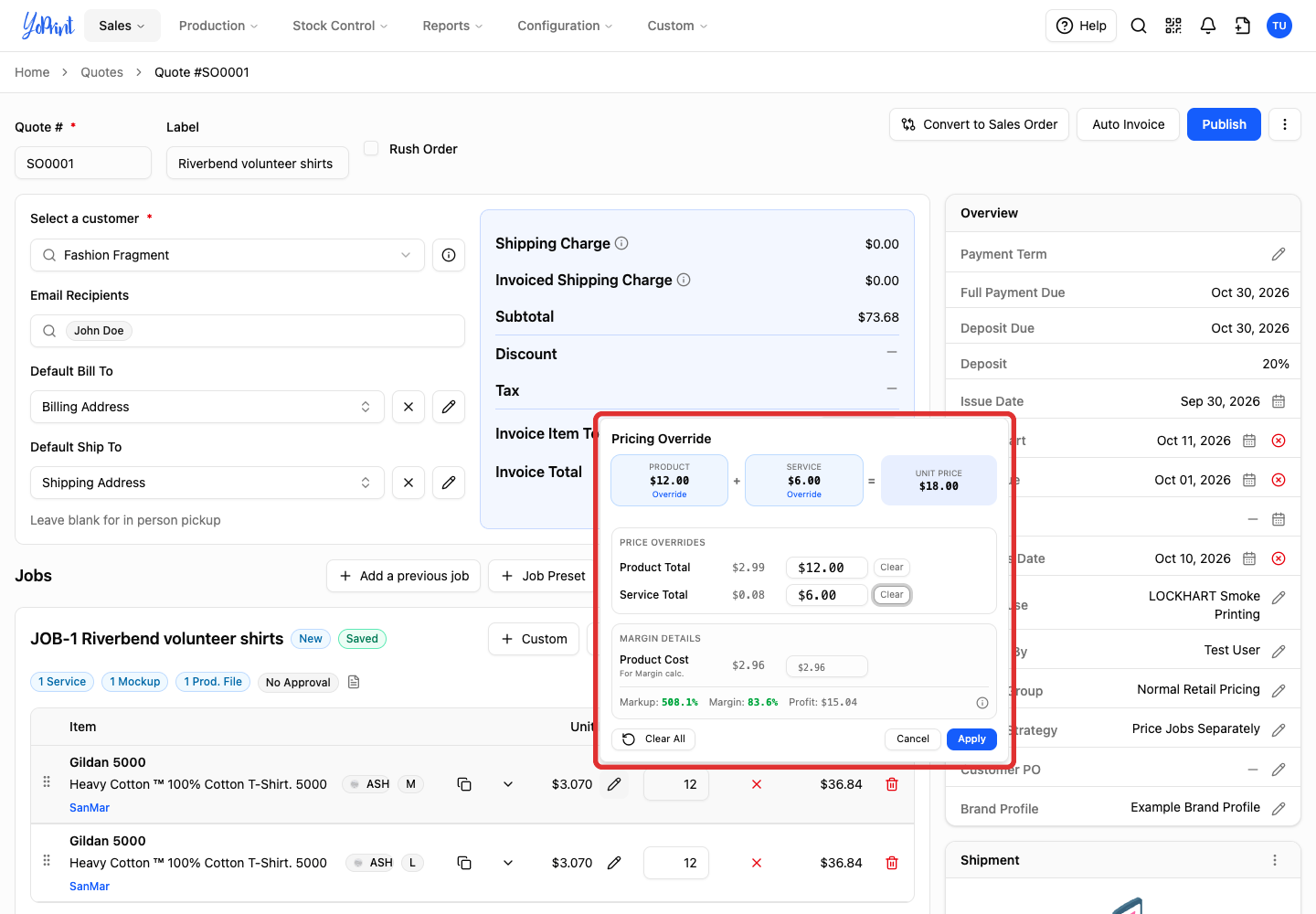
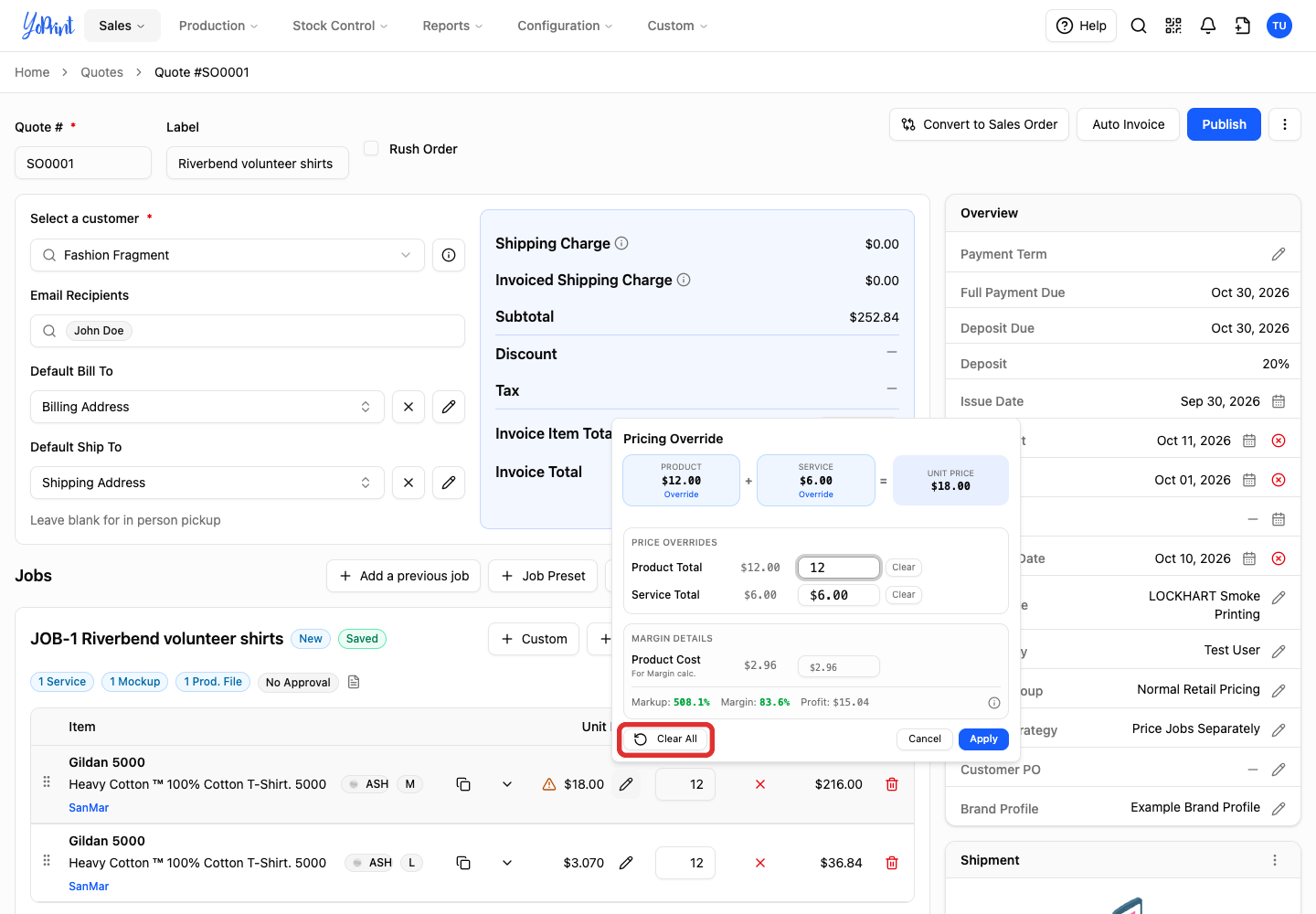
A price override affects only that row. Product Total and Service Total together make its Unit Price. Product Cost affects the margin figures.
-
Click the pencil beside Unit Price.
-
Enter Product Total, Service Total, or both.
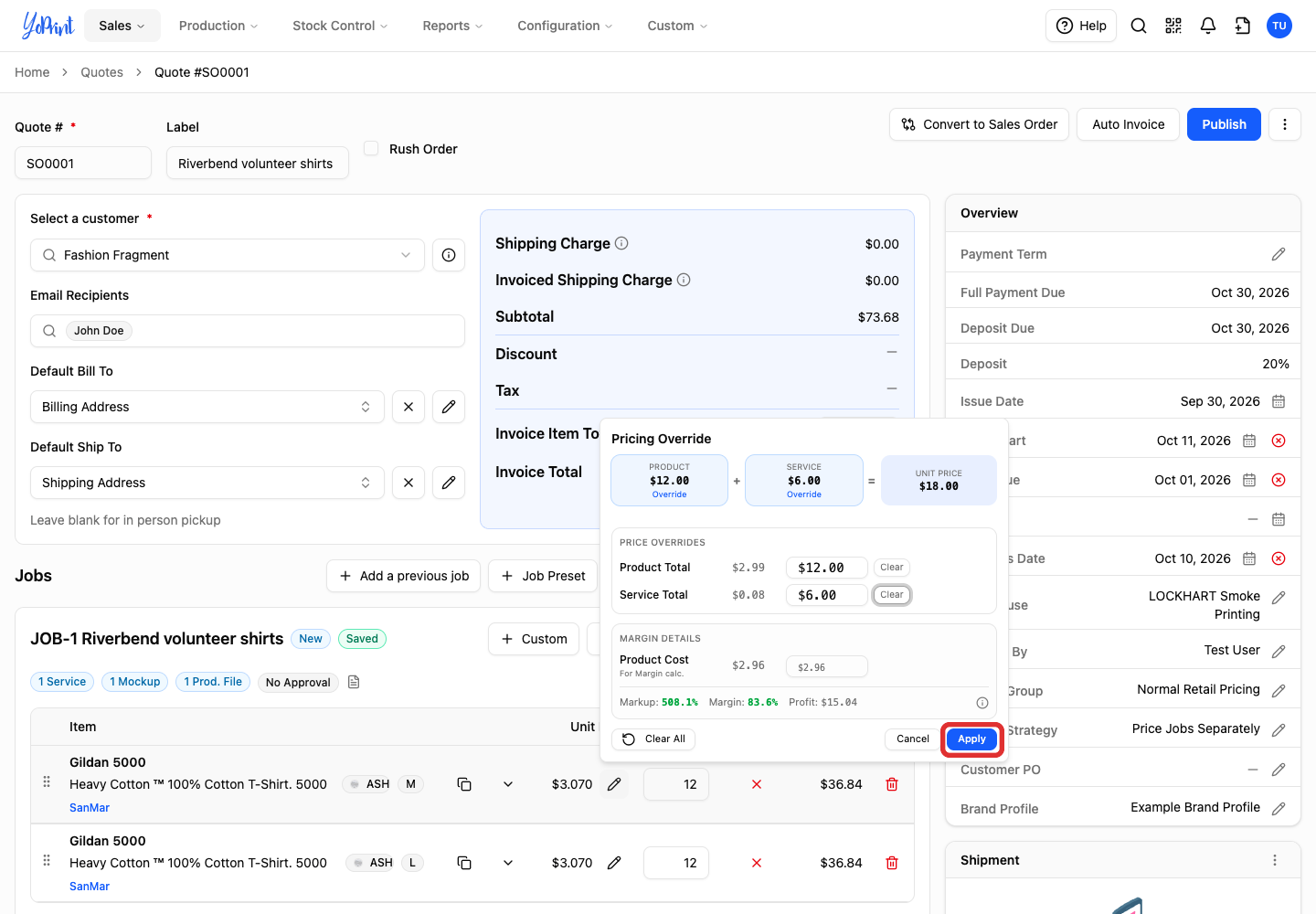
-
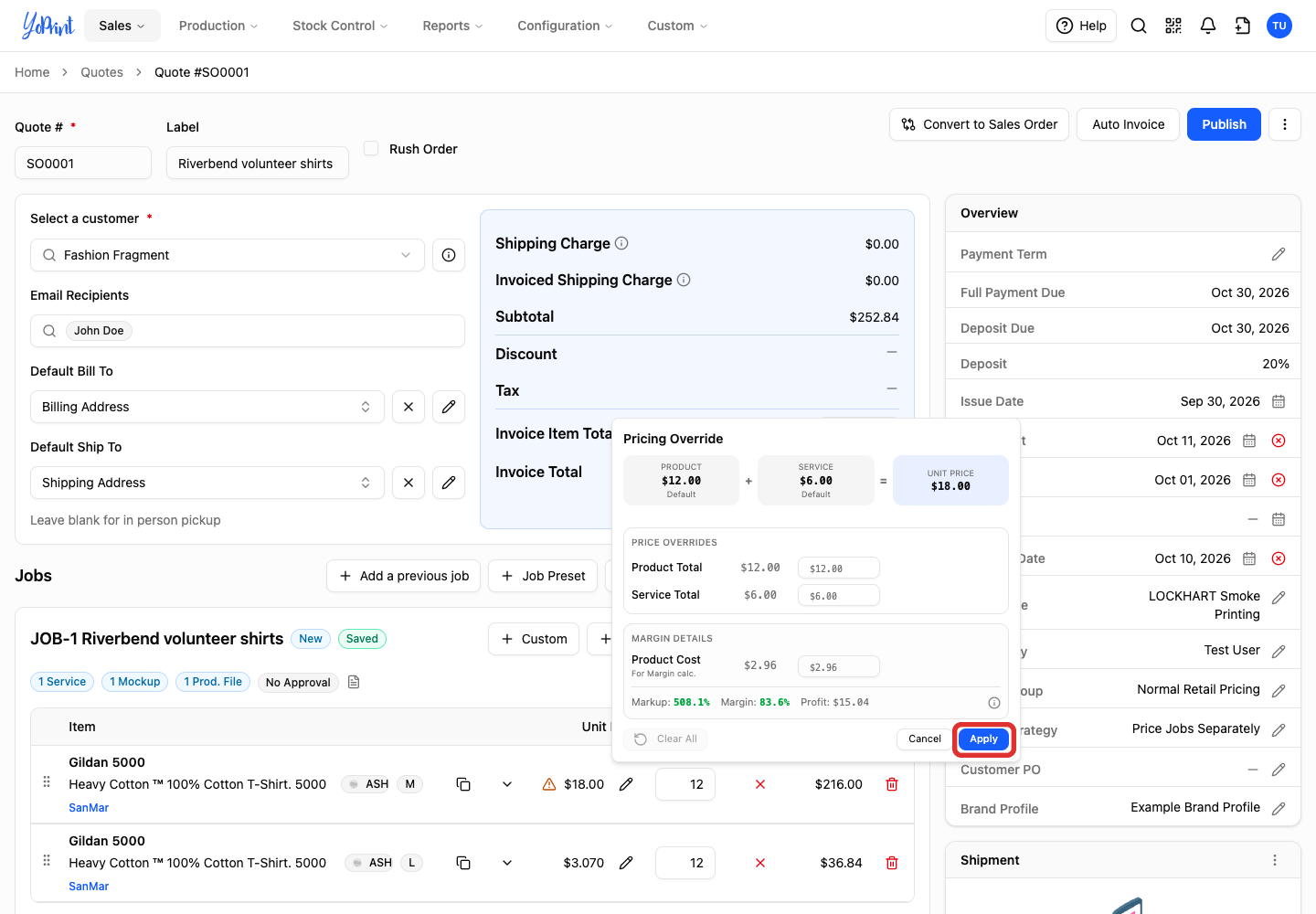
Click Apply.
Restore the calculated price
-
In Pricing Override, click Clear All to reset overrides for this row. This also clears the manual cost.
-
Click Apply.
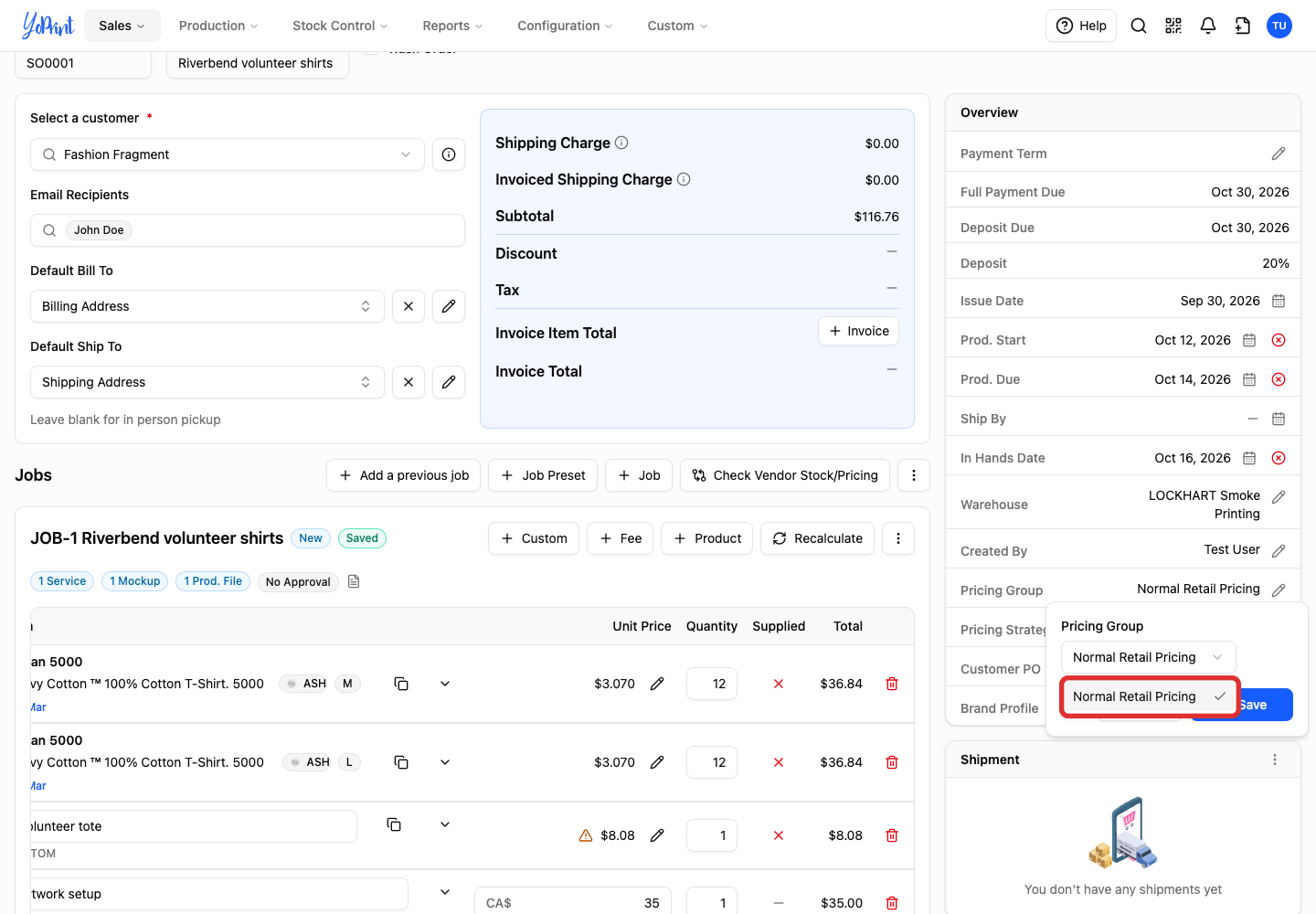
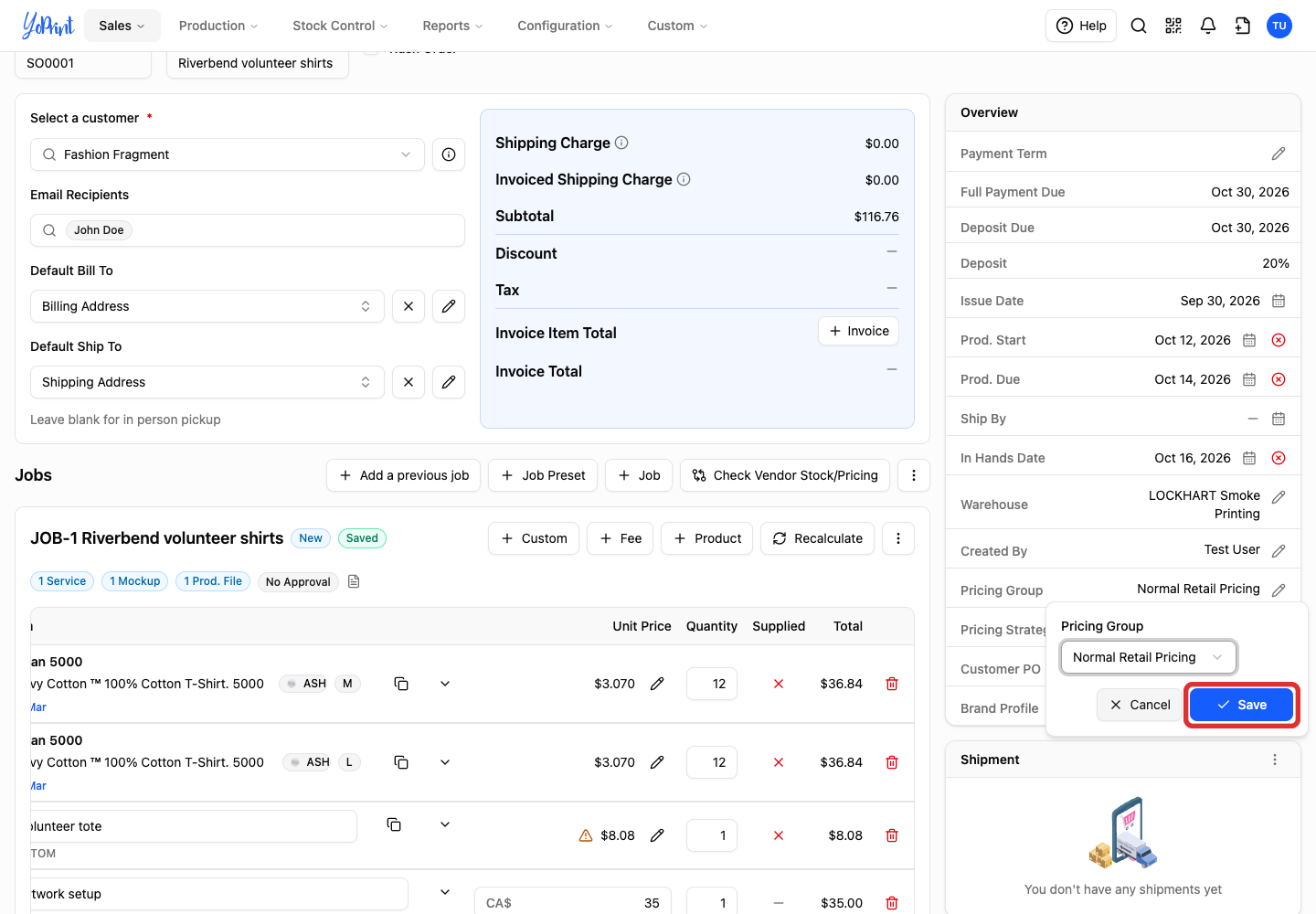
Change the pricing group
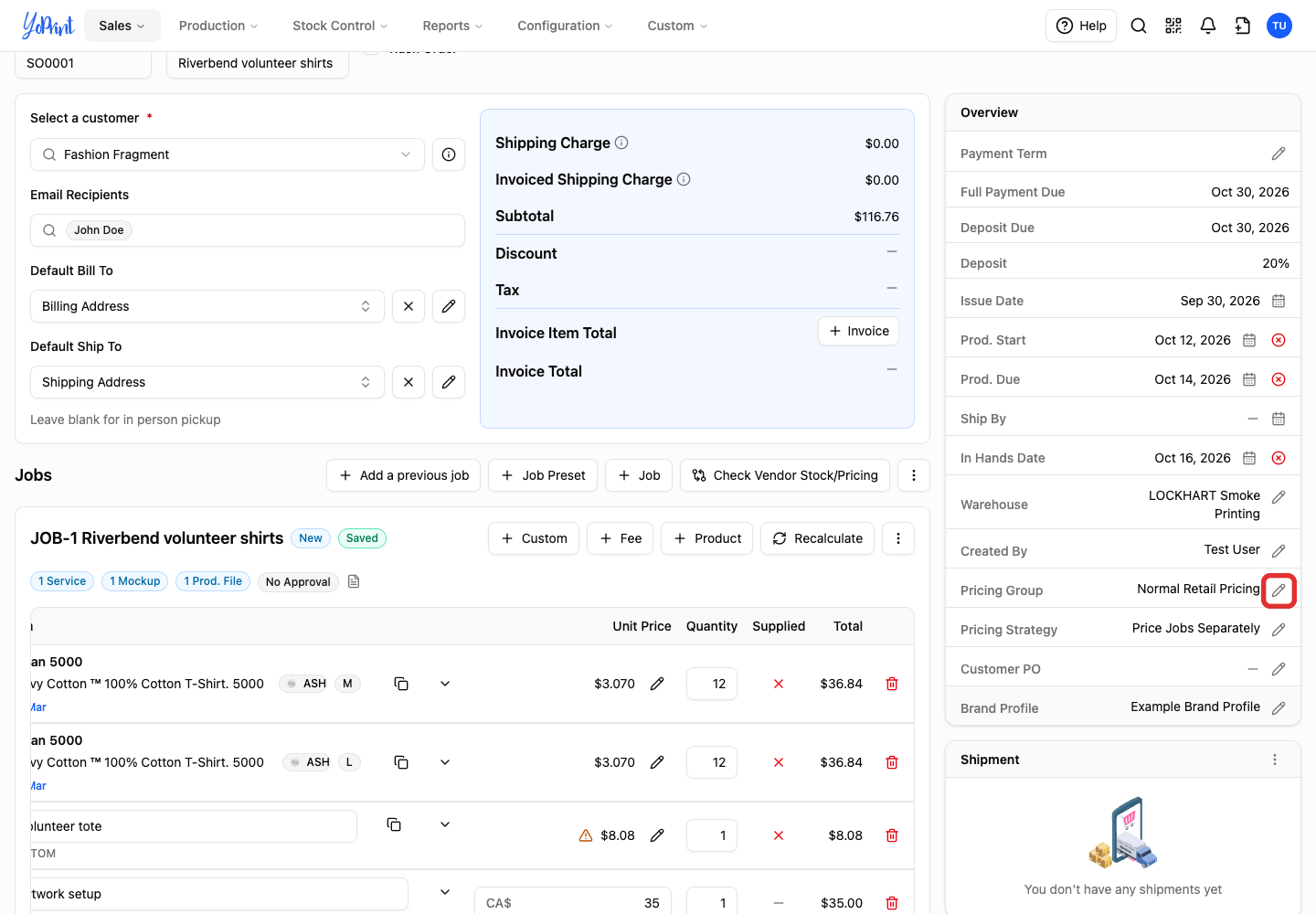
The pricing group's markup rules apply to the whole quote. Rows with a manual price keep their override.
-
In Overview, click the pencil beside Pricing Group.
-
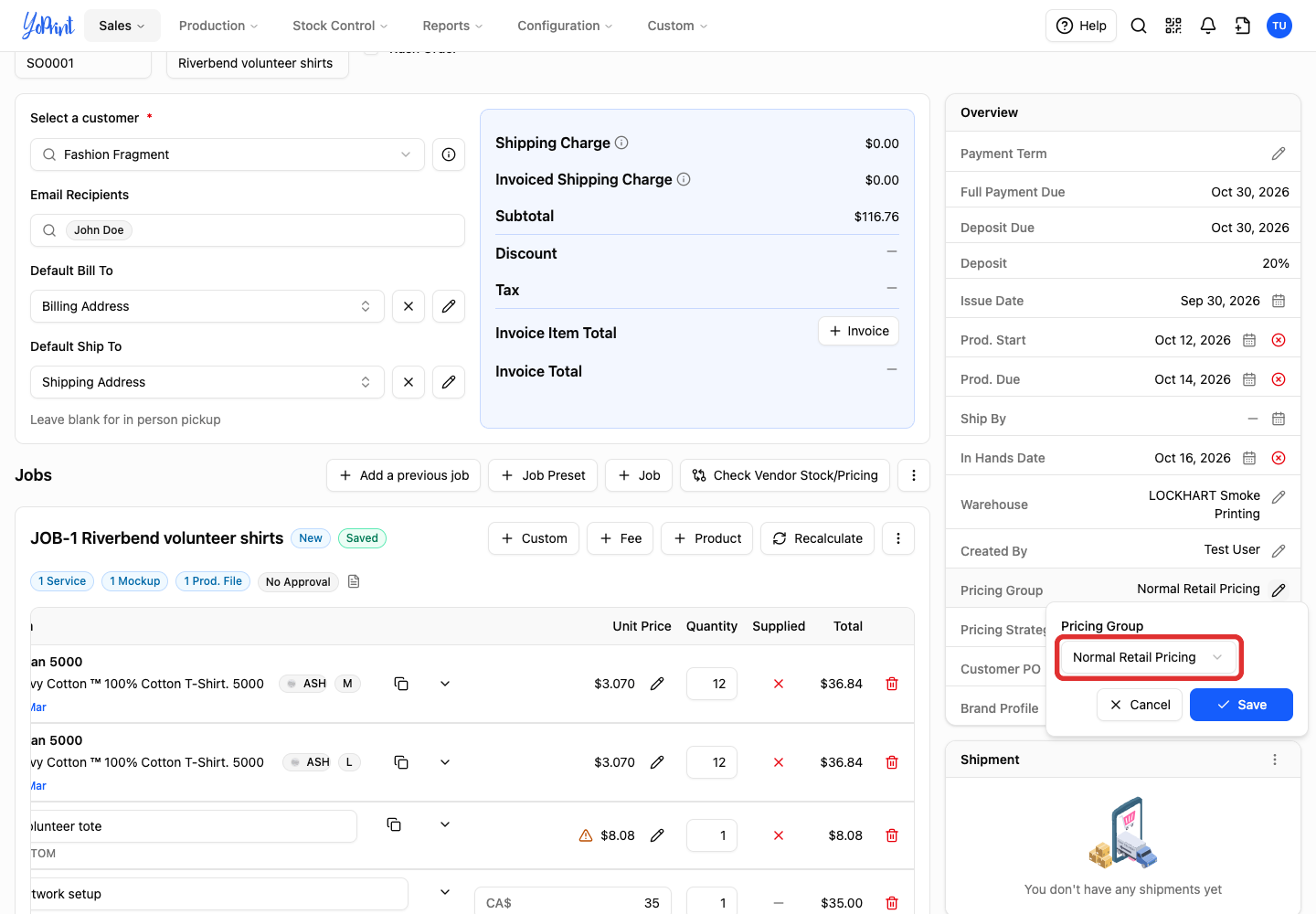
Open the group picker.
-
Choose the pricing group.
-
Click Save.
Check supplier stock and pricing
Real-time stock and pricing require a connected supplier account. Configure SanMar Integration explains the connection.
Check Vendor Stock and Pricing walks the complete supplier check. The job's Check Vendor Stock/Pricing control is labelled Vendor Pricing on plans without stock control. Piece, Dozen and Case are buying-price choices. Applying a choice sets product cost; your pricing rules calculate the selling price.
The product form's Check Vendor Stock opens Real-time inventory by size. Without a connection, the size rows have no live stock quantities.
Set dates and payment terms
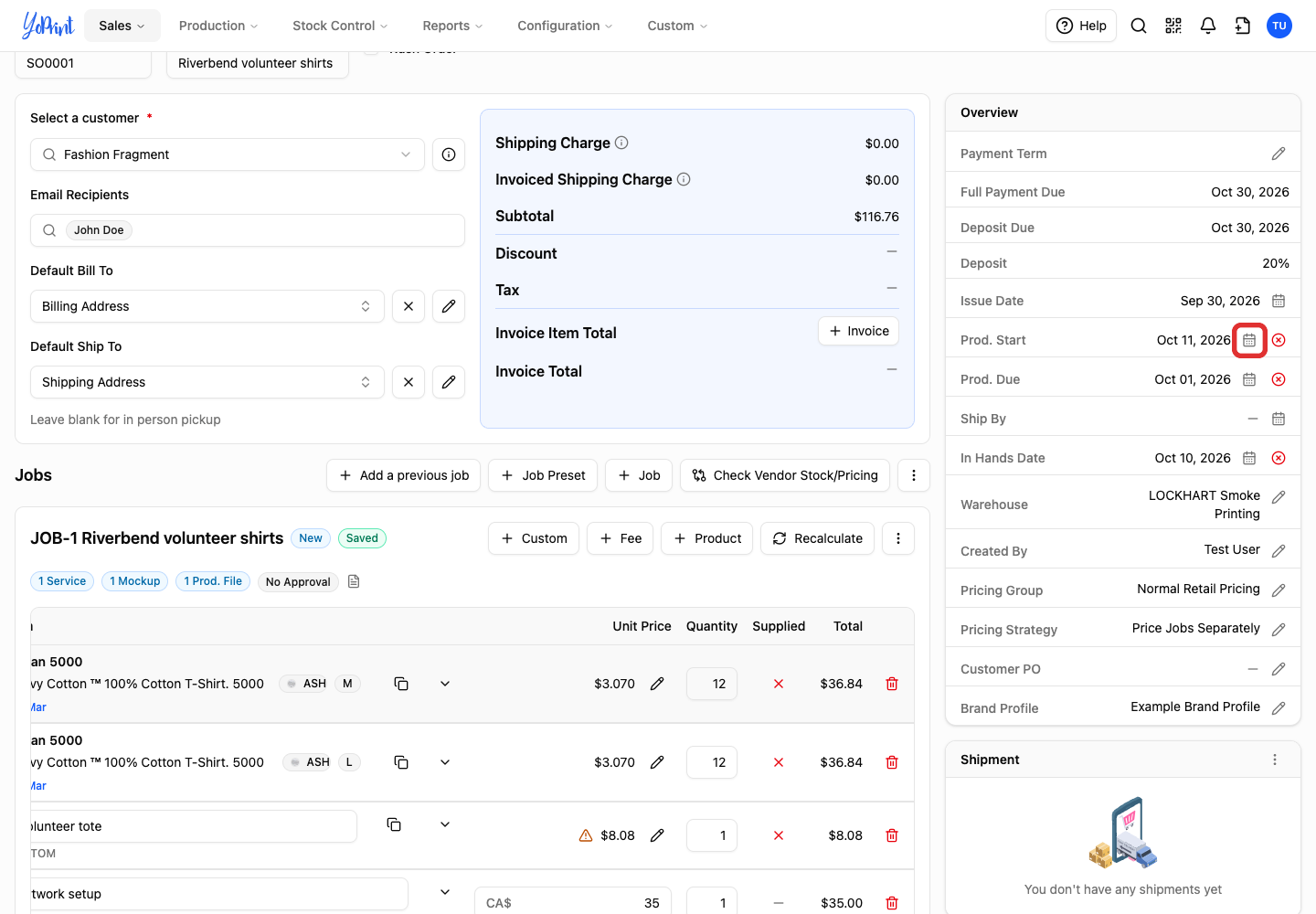
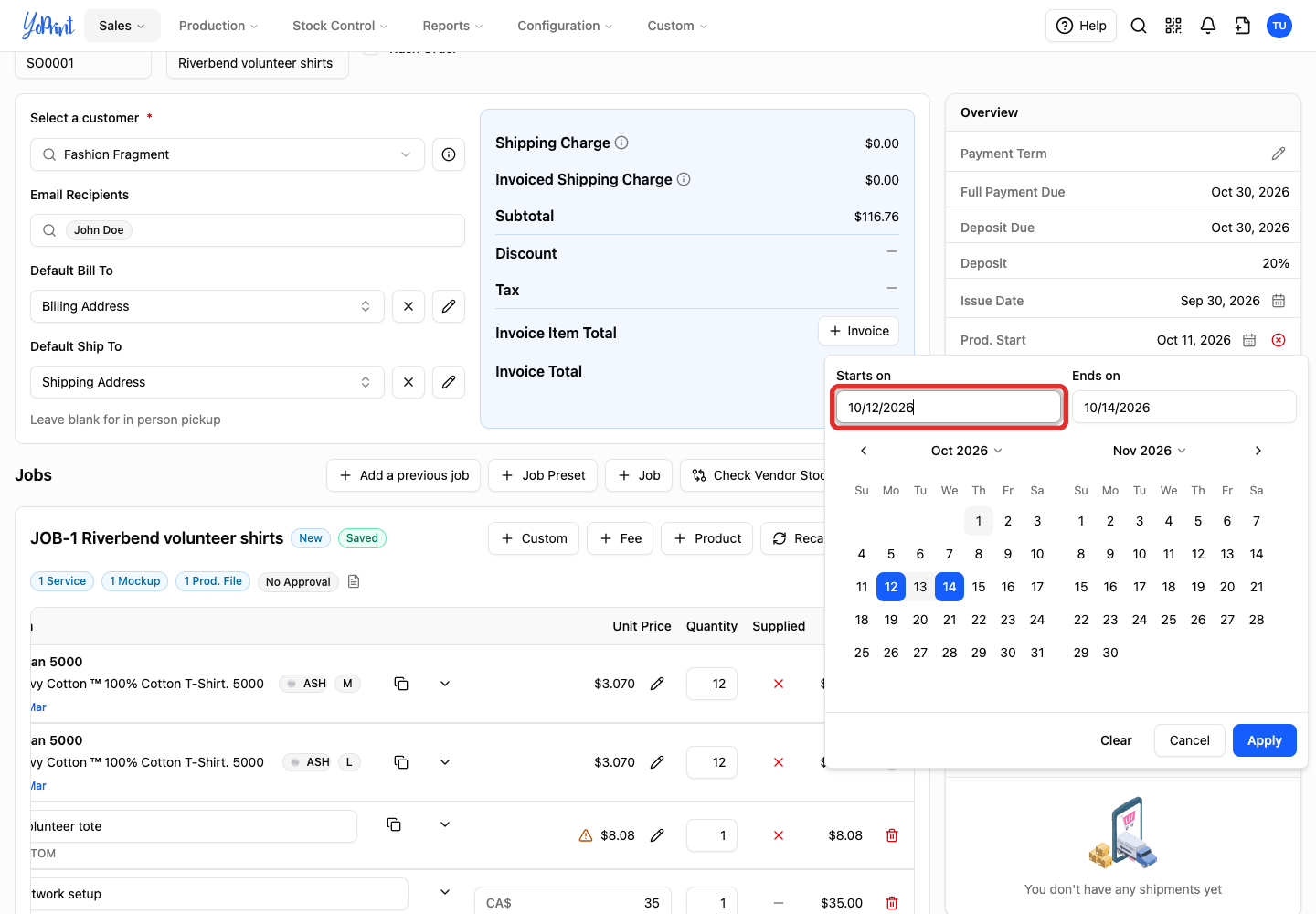
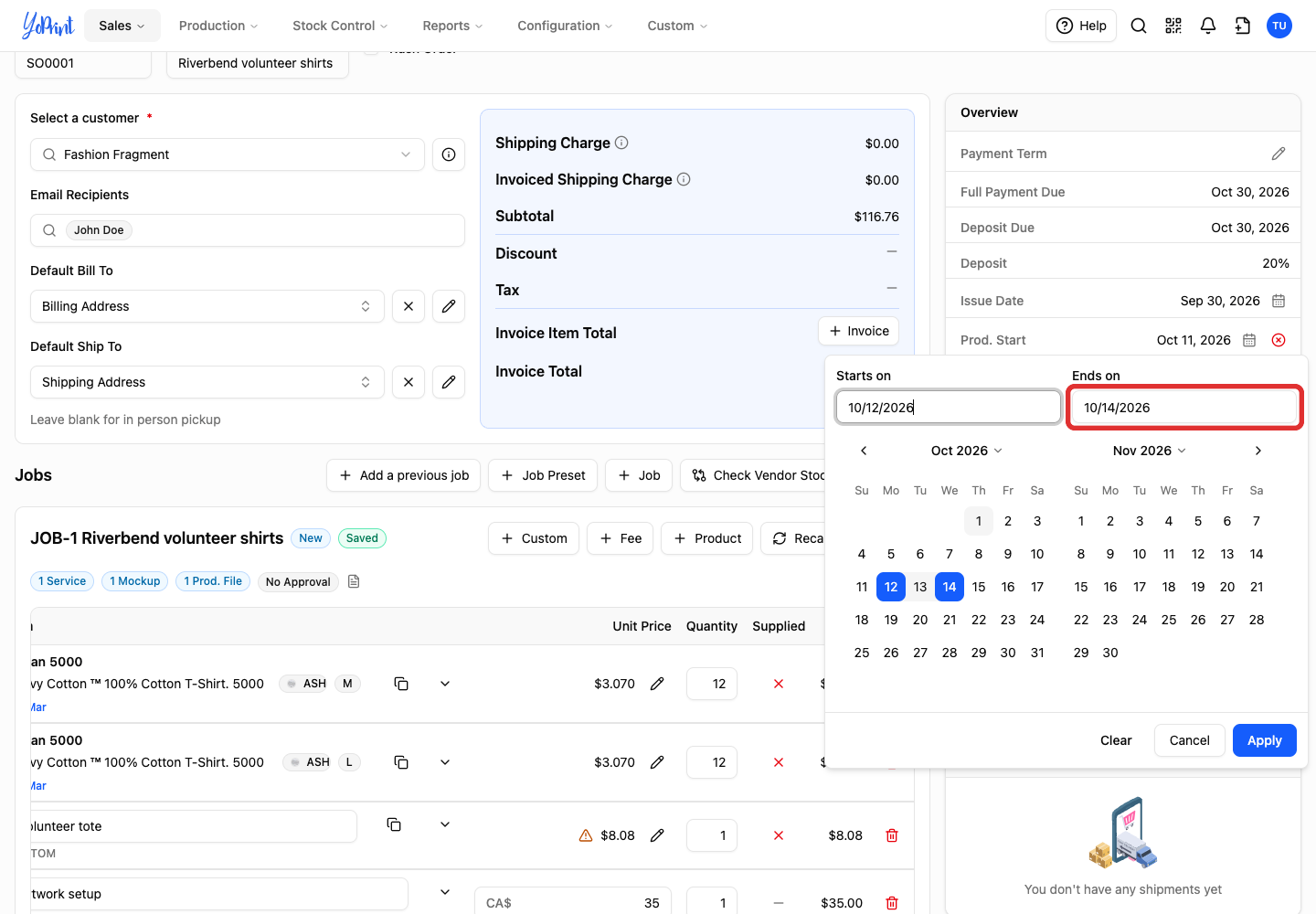
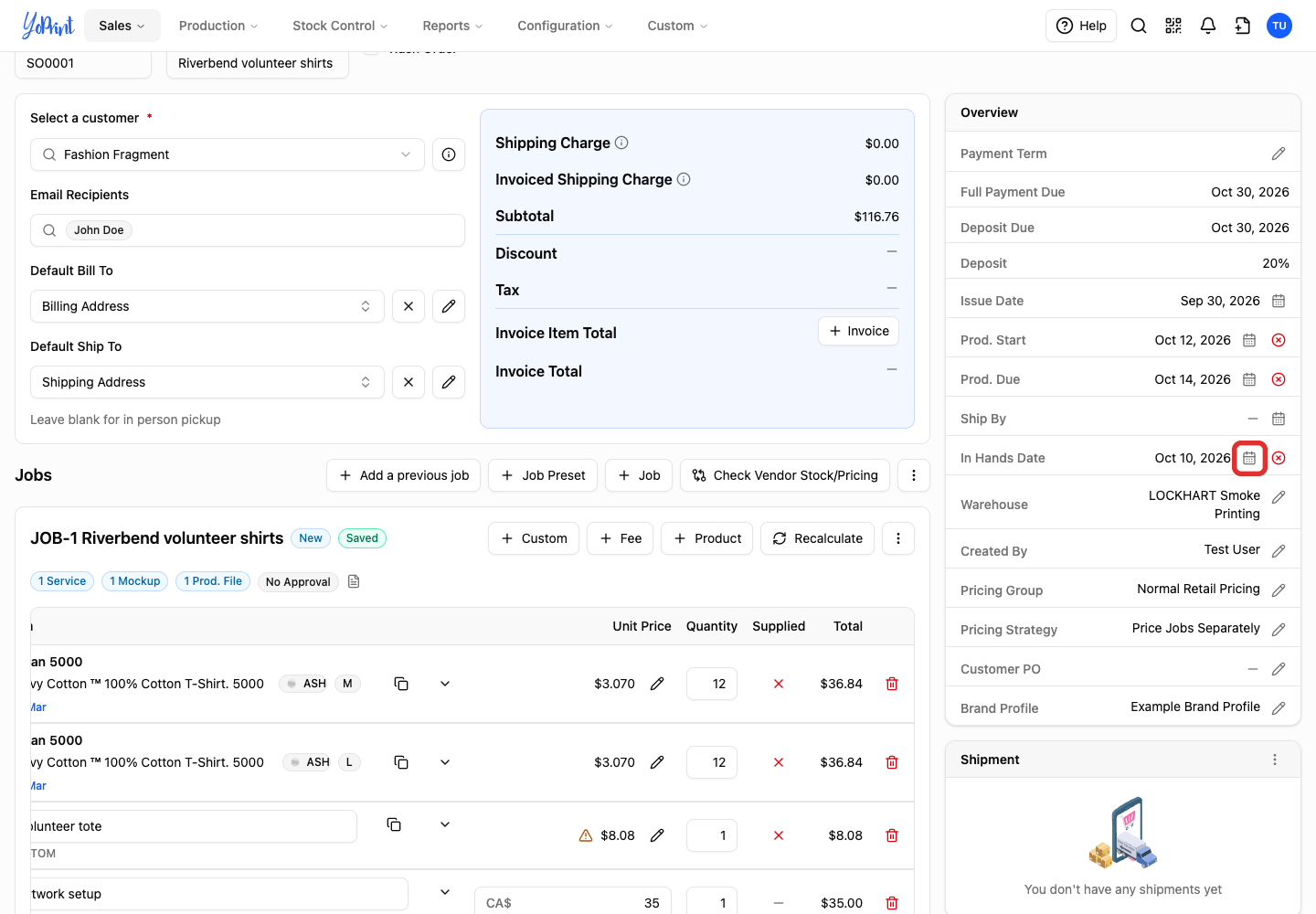
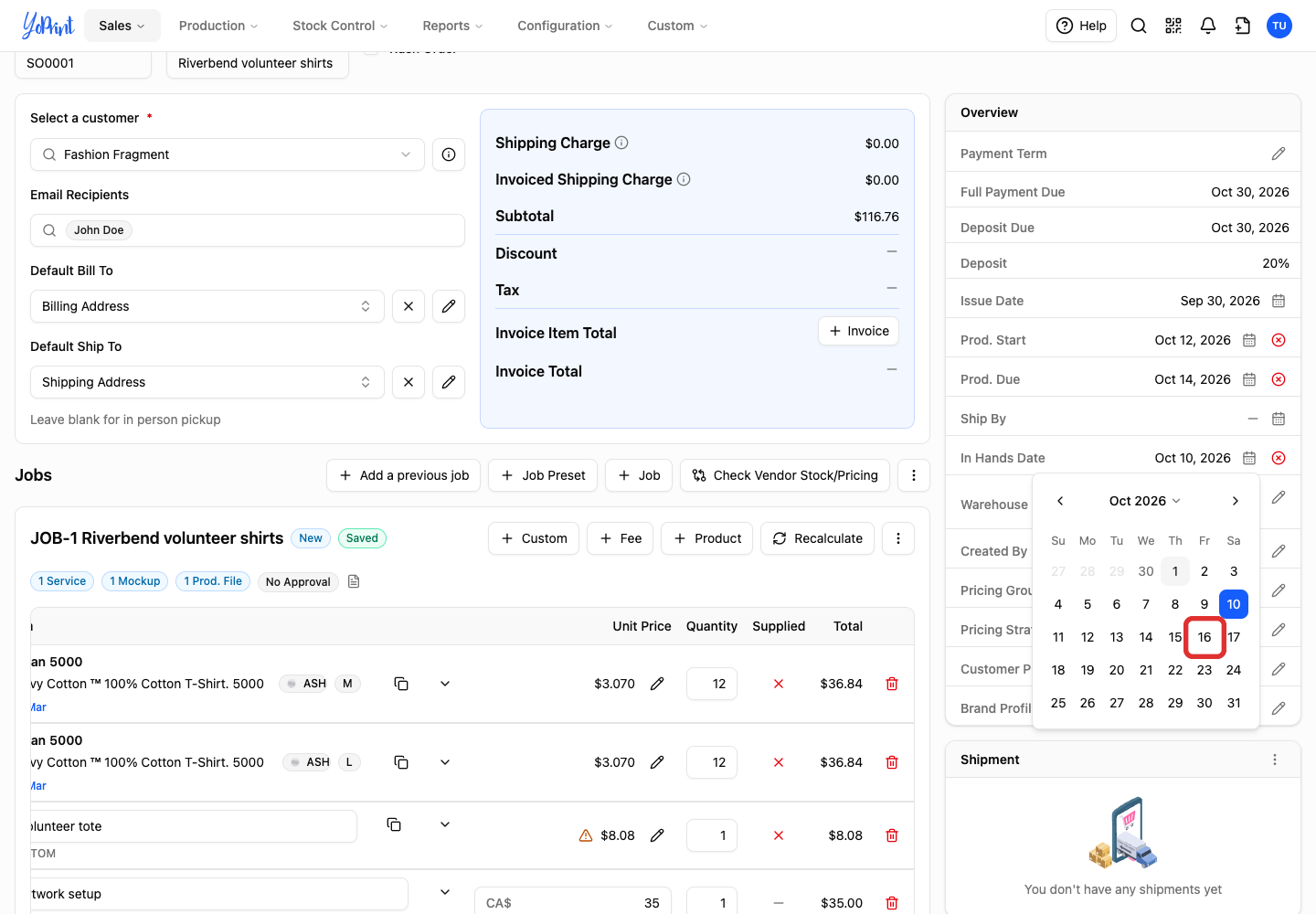
Prod. Start and Prod. Due share a date picker. In Hands Date is when the customer should receive the order.
-
Open Prod. Start or Prod. Due.
-
Set Starts on.
-
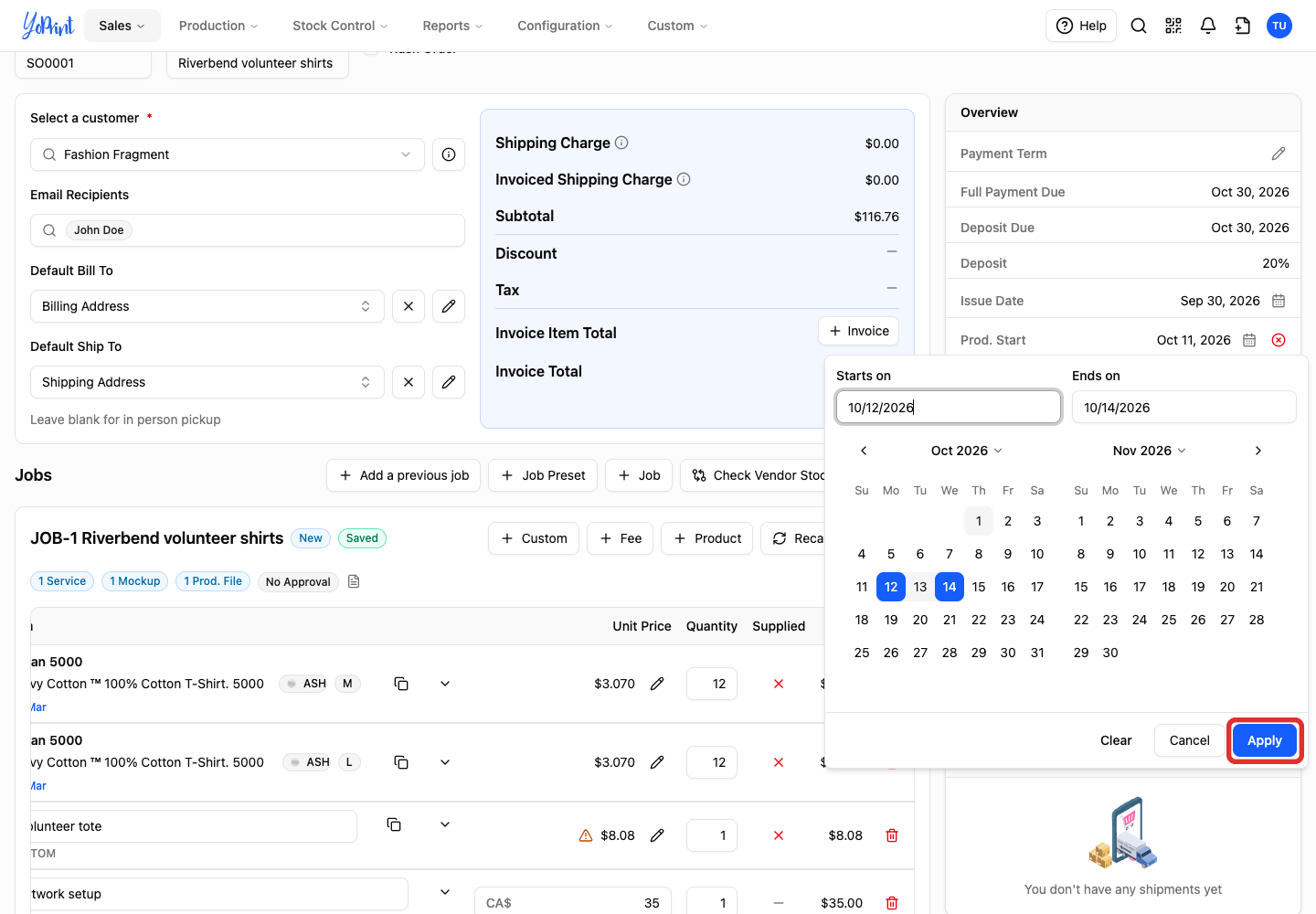
Set Ends on, making sure it is on or after the start date so Apply is active.
-
Click Apply.
-
Open In Hands Date.
-
Choose the customer's delivery date.
Set payment terms
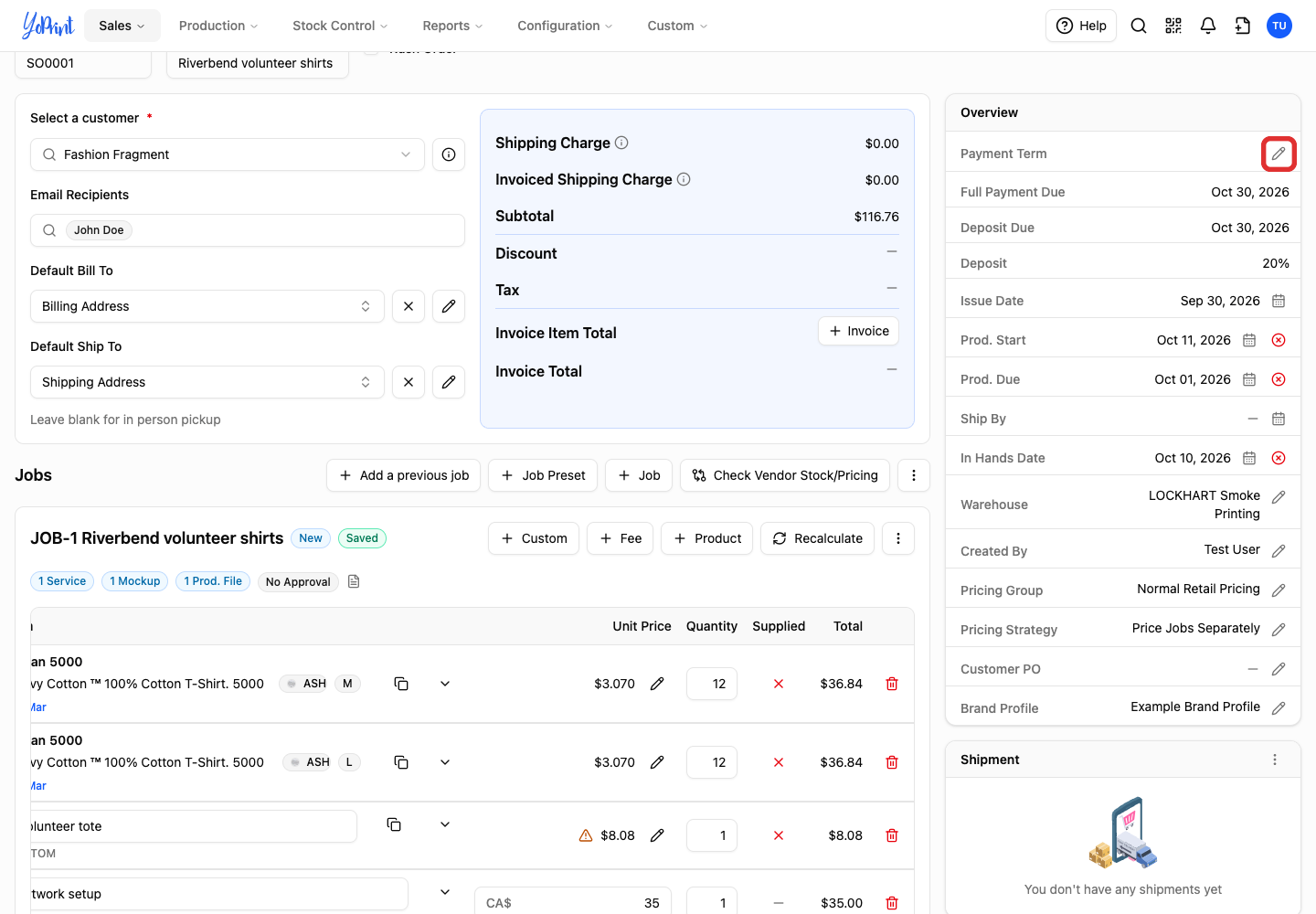
-
Click the pencil beside Payment Term.
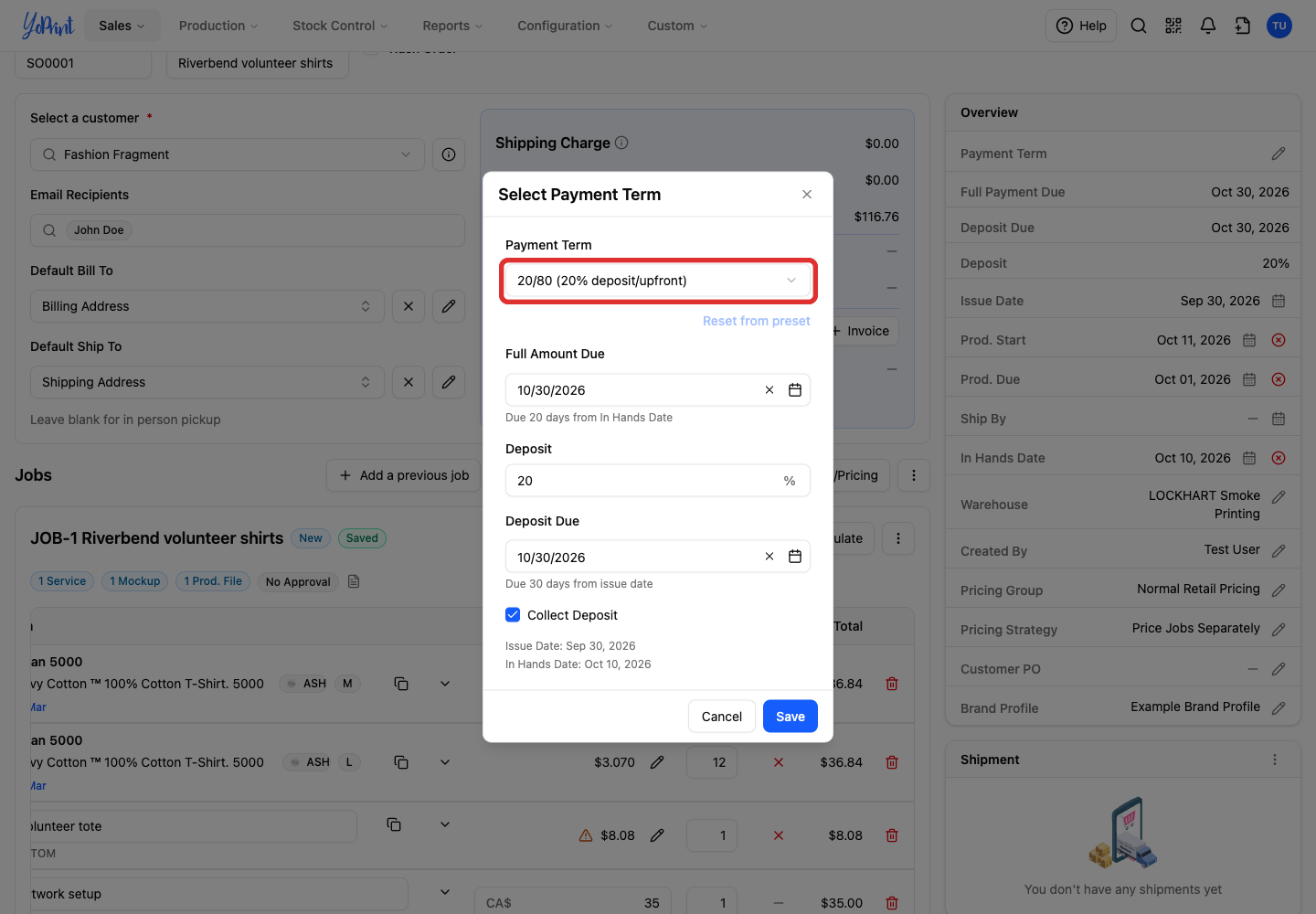
-
Open the payment-term picker.
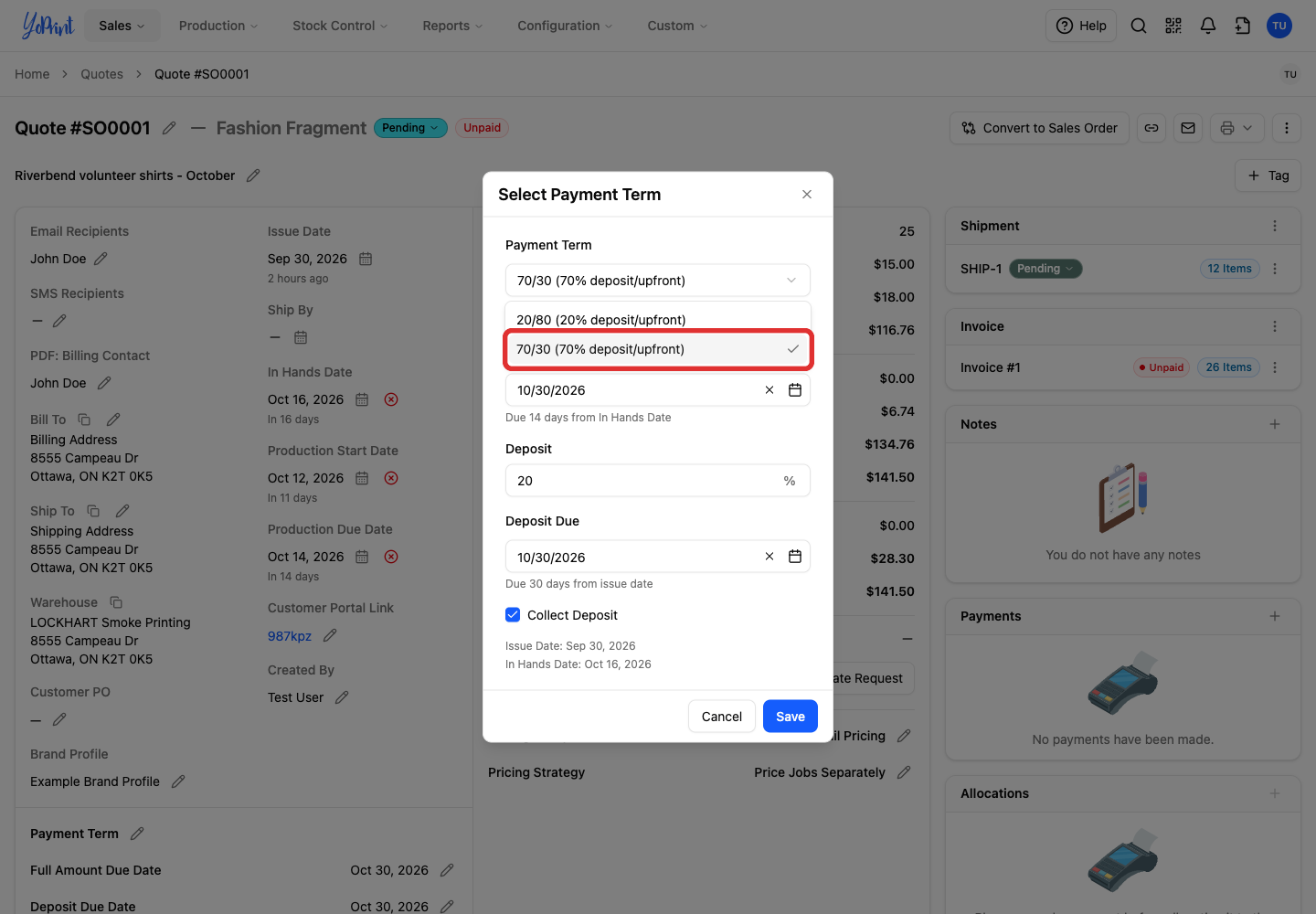
-
Choose the term. It fills in the due dates and deposit.
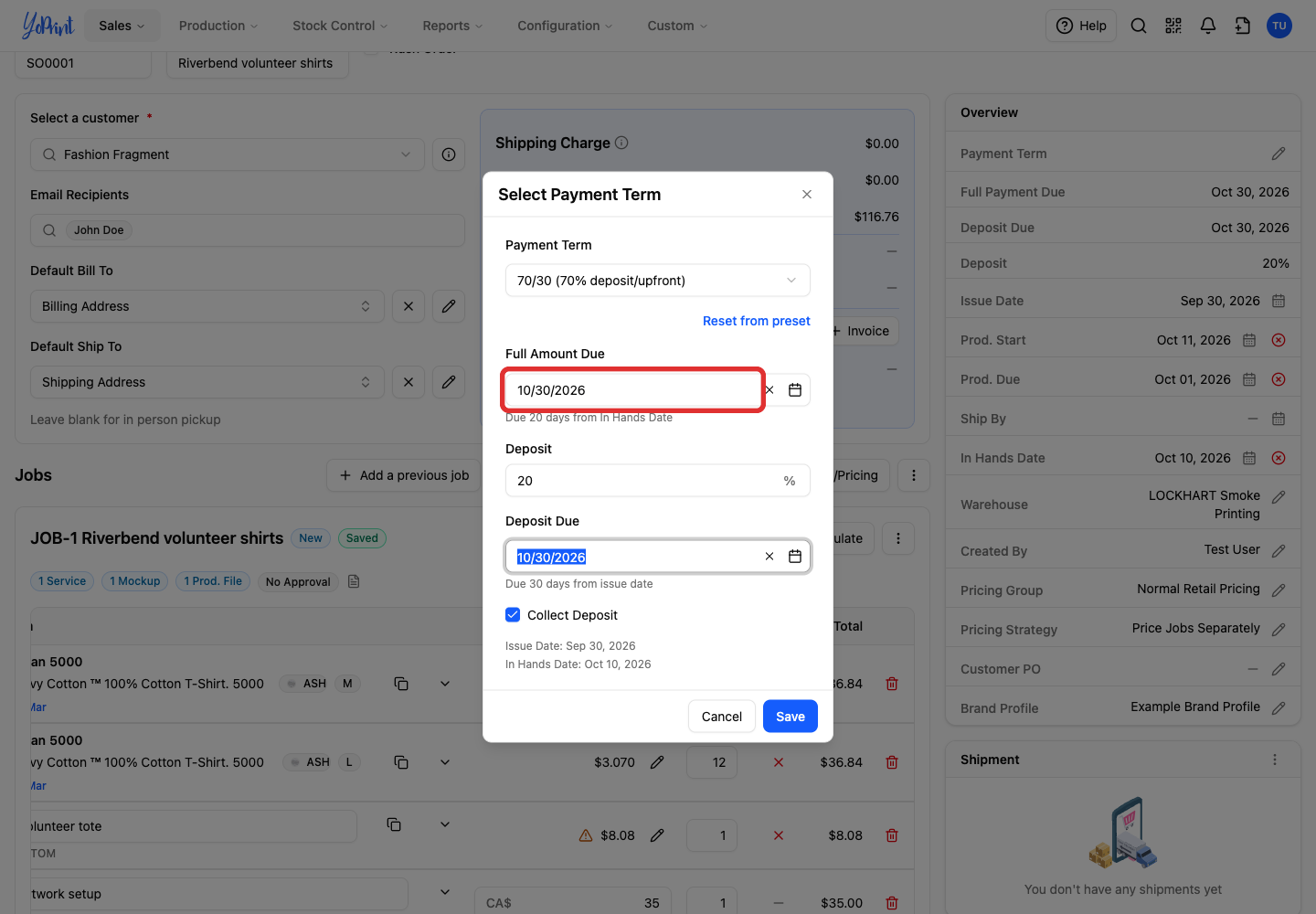
-
Check or change Full Amount Due.
-
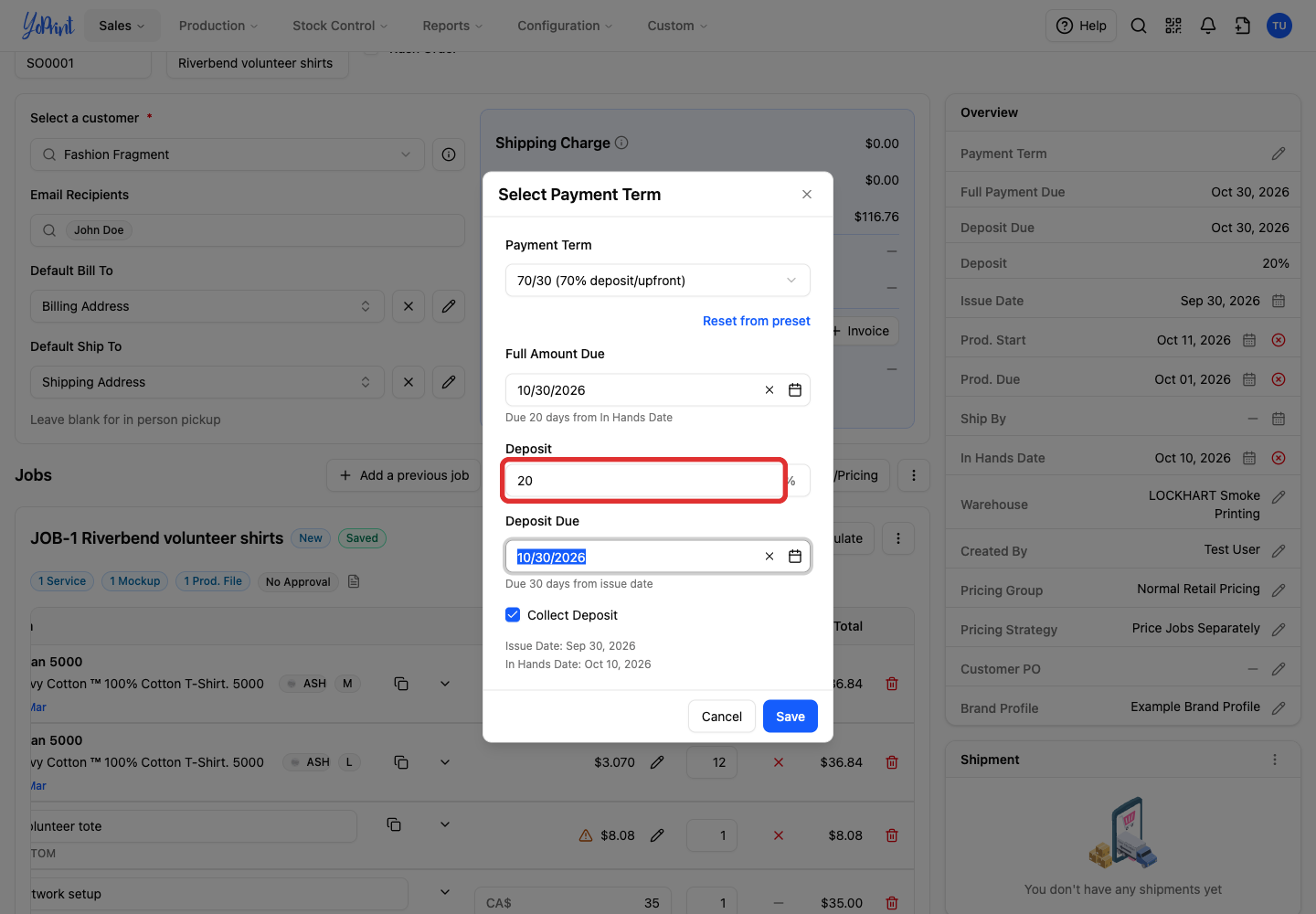
Check or change Deposit.
-
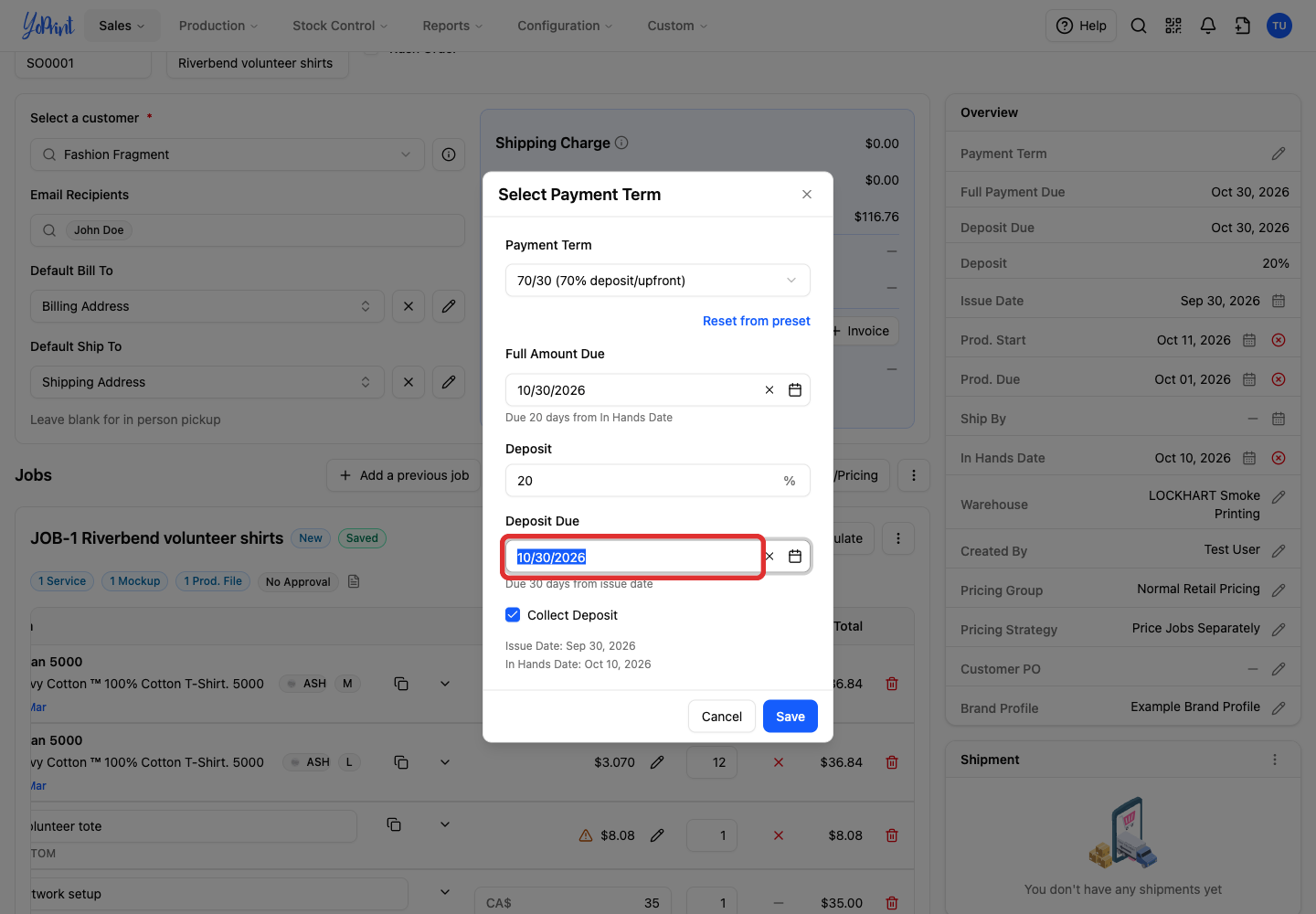
Check or change Deposit Due.
-
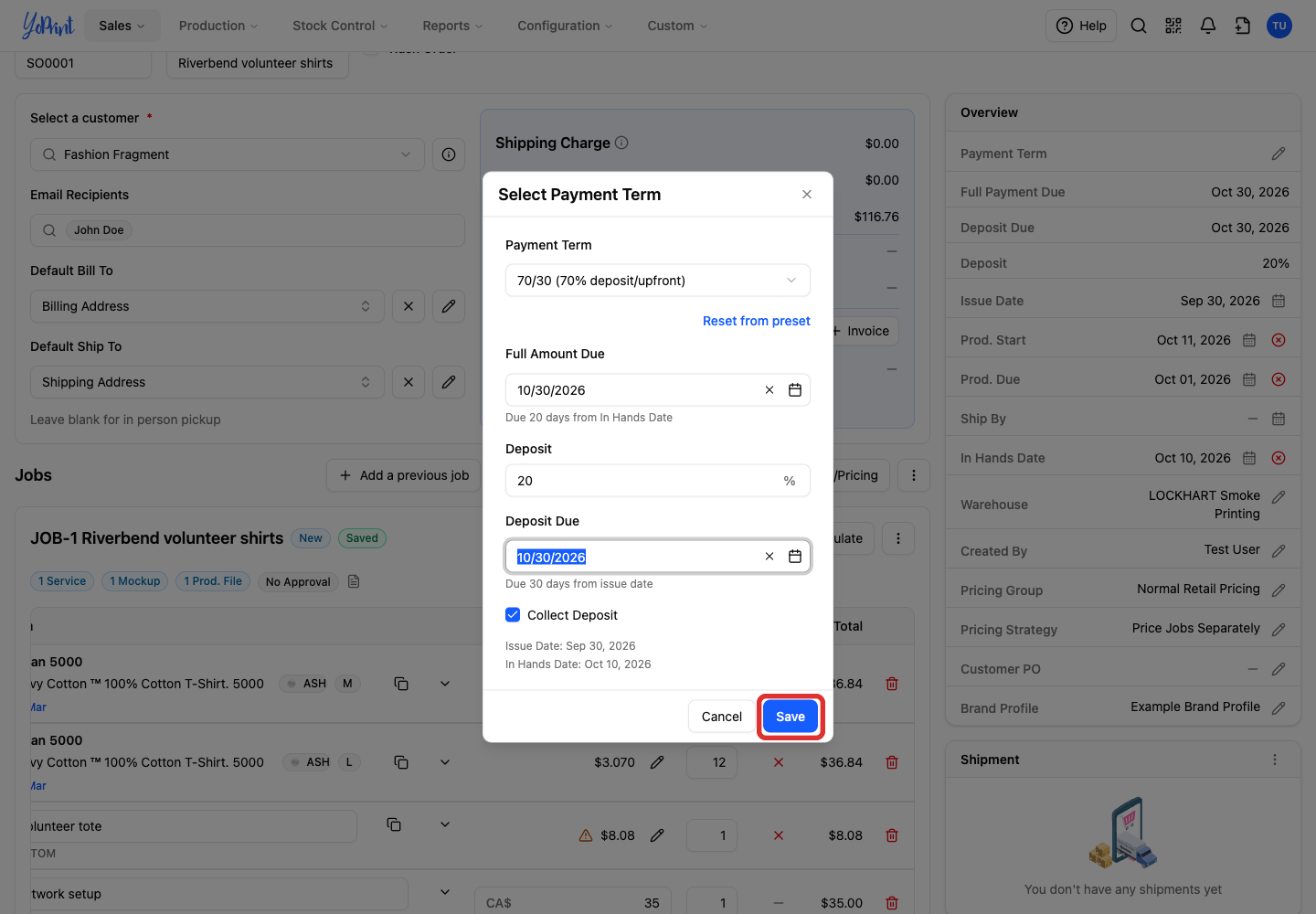
Click Save.
Arrange delivery
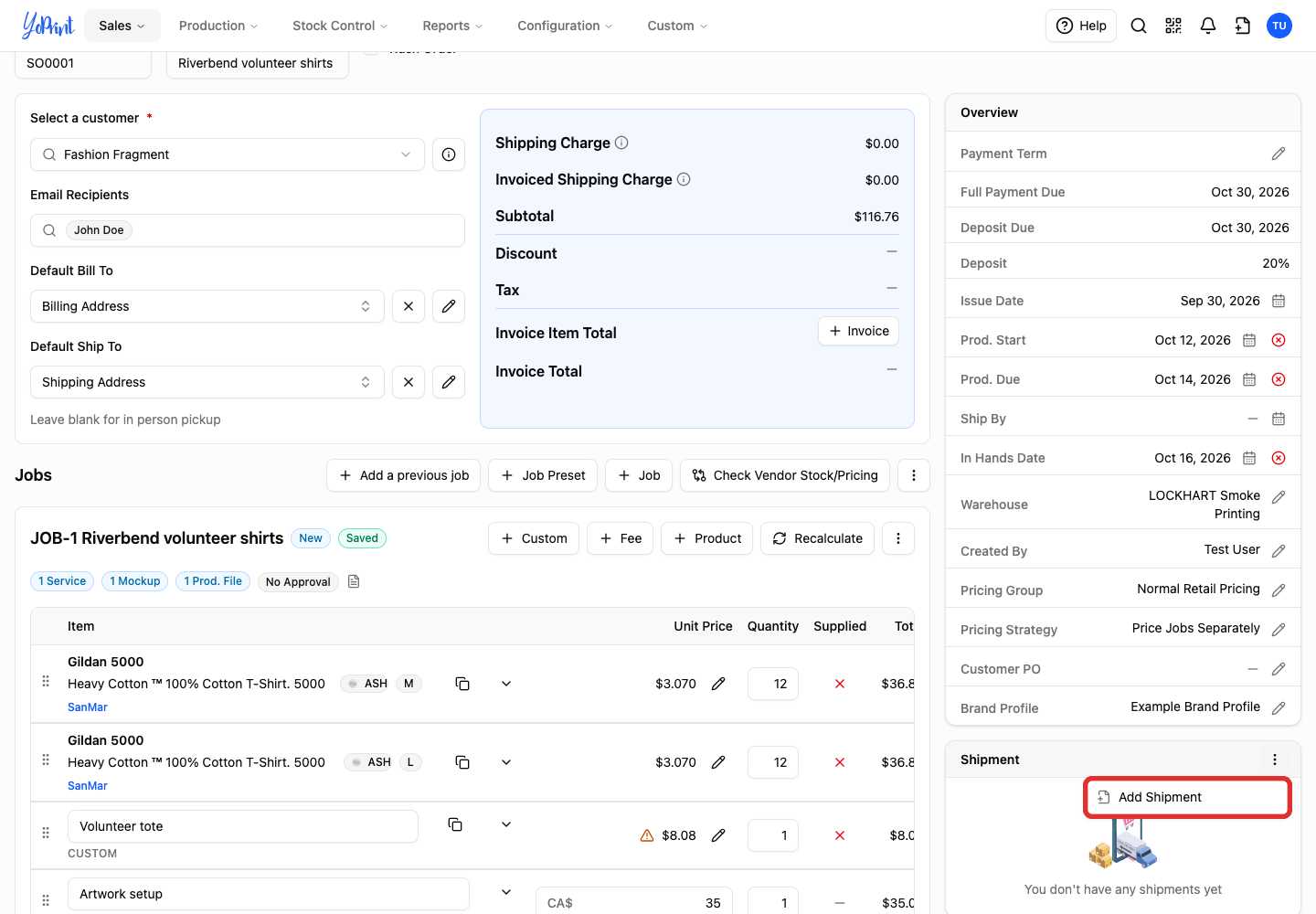
Setting Default Ship To does not create a shipment. Each shipment has its own destination and quantities.
-
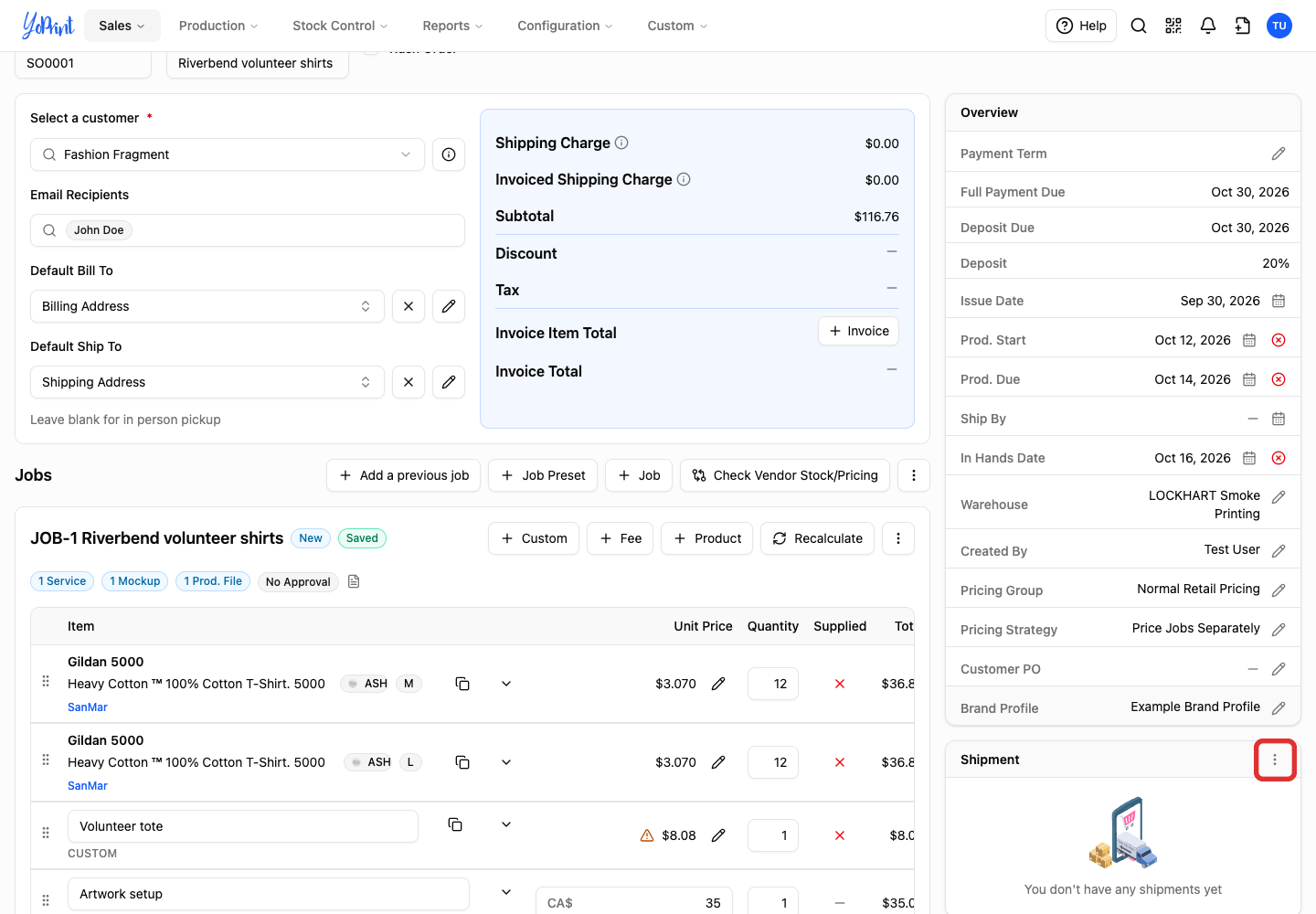
Open the Shipment panel's actions menu.
-
Choose Add Shipment.
-
Open Shipping Type.
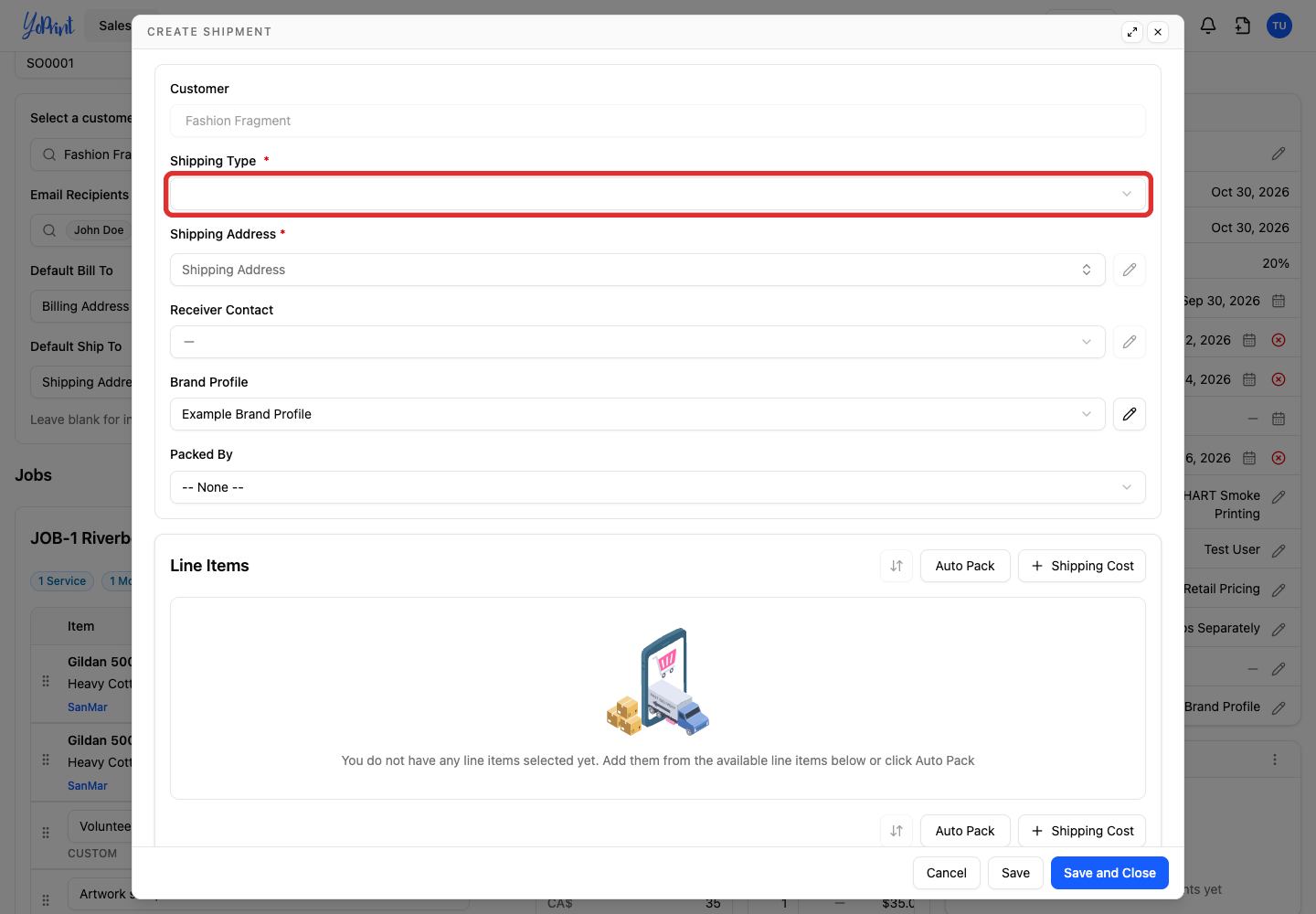
-
Choose the delivery method your shop uses.
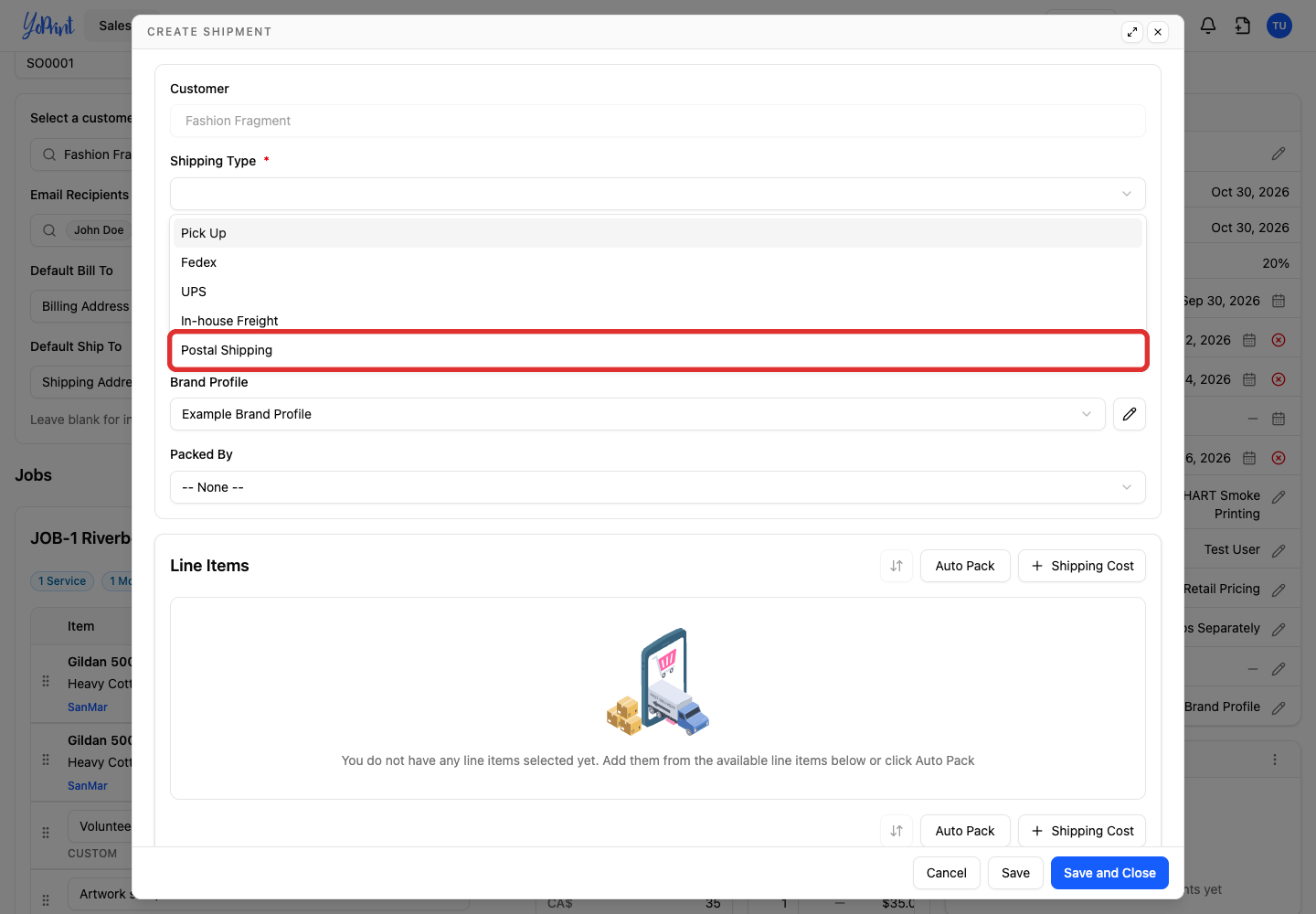
-
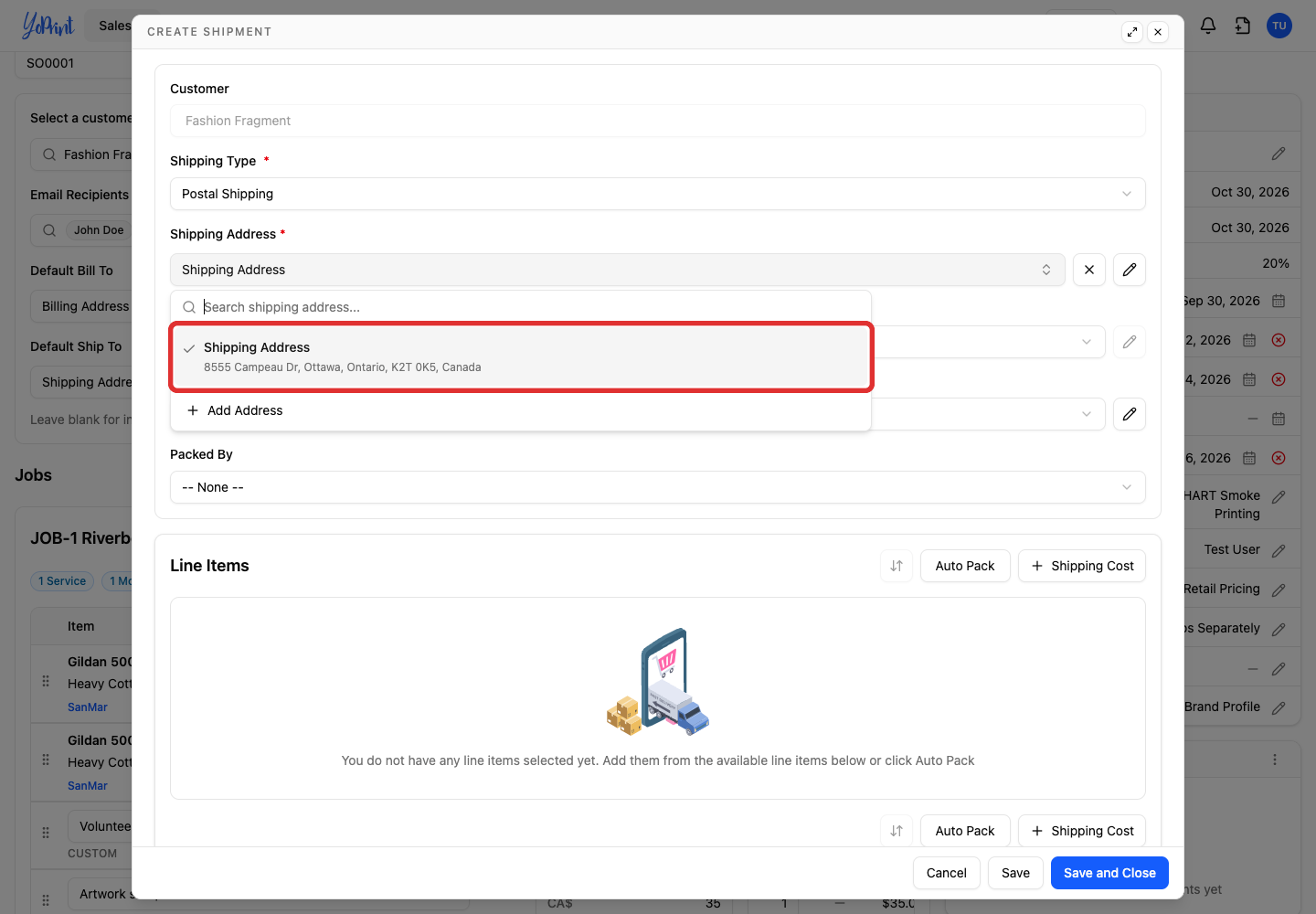
Open Shipping Address.
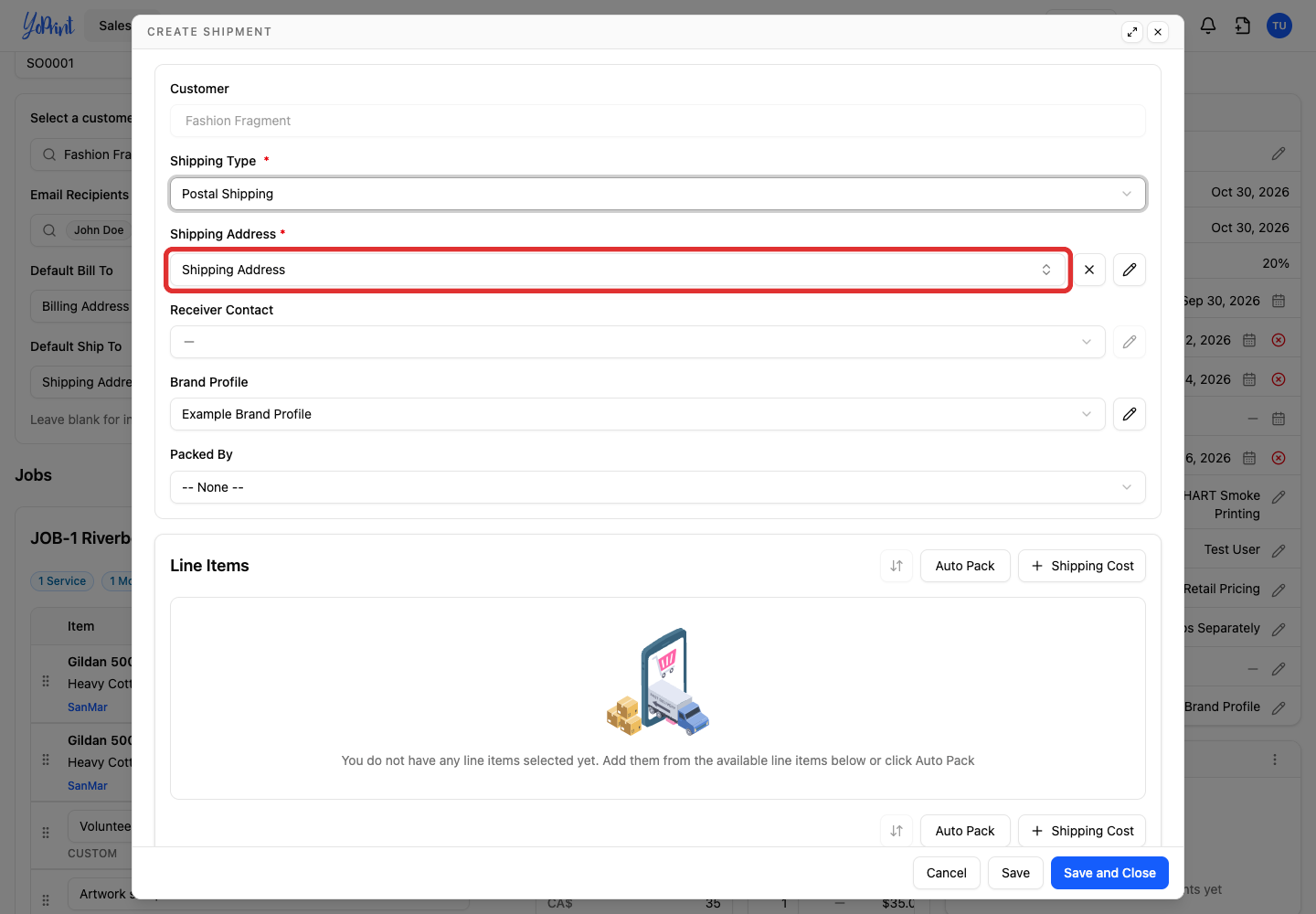
-
Choose the destination.
-
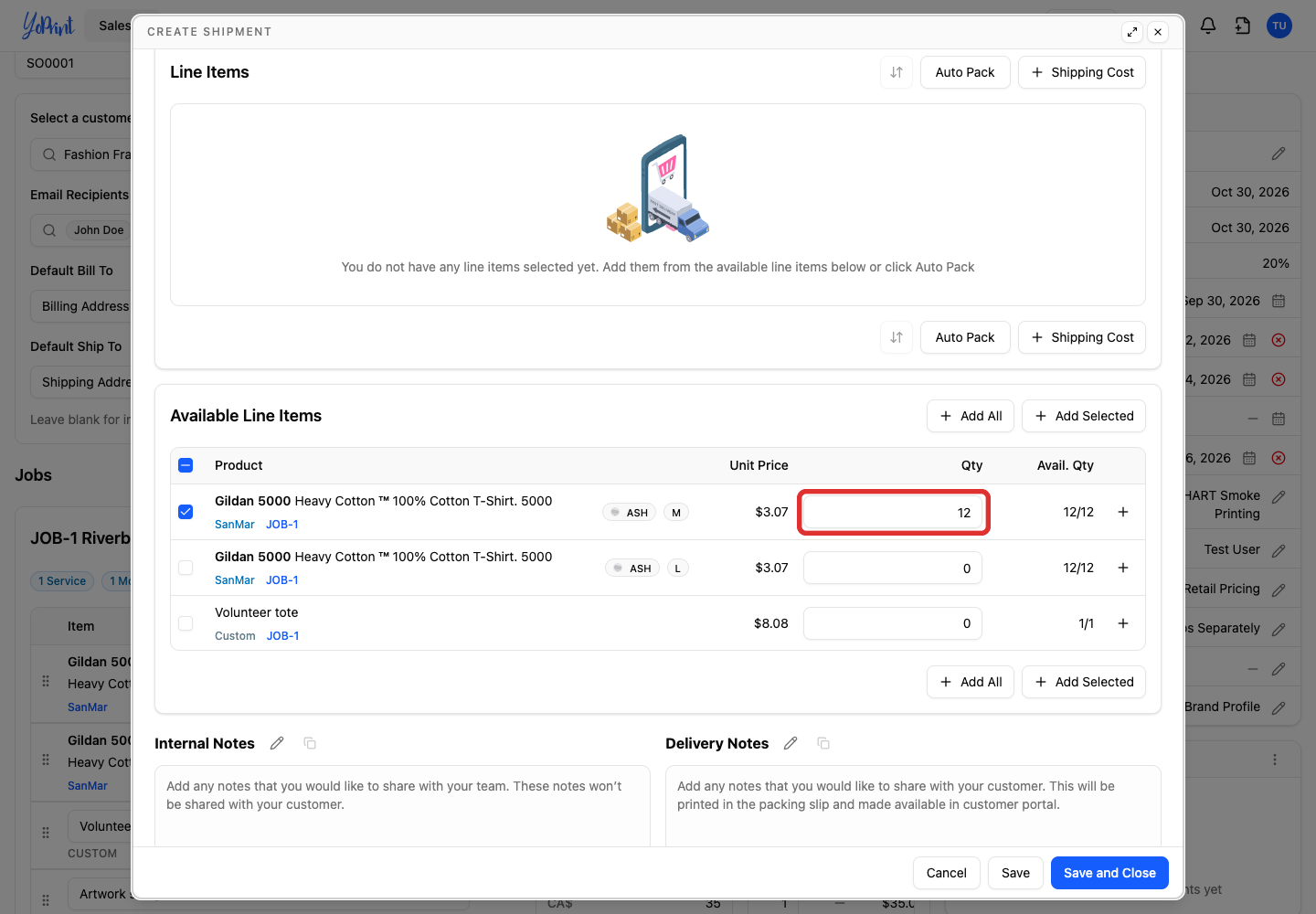
Under Available Line Items, enter the quantity going to this destination.
-
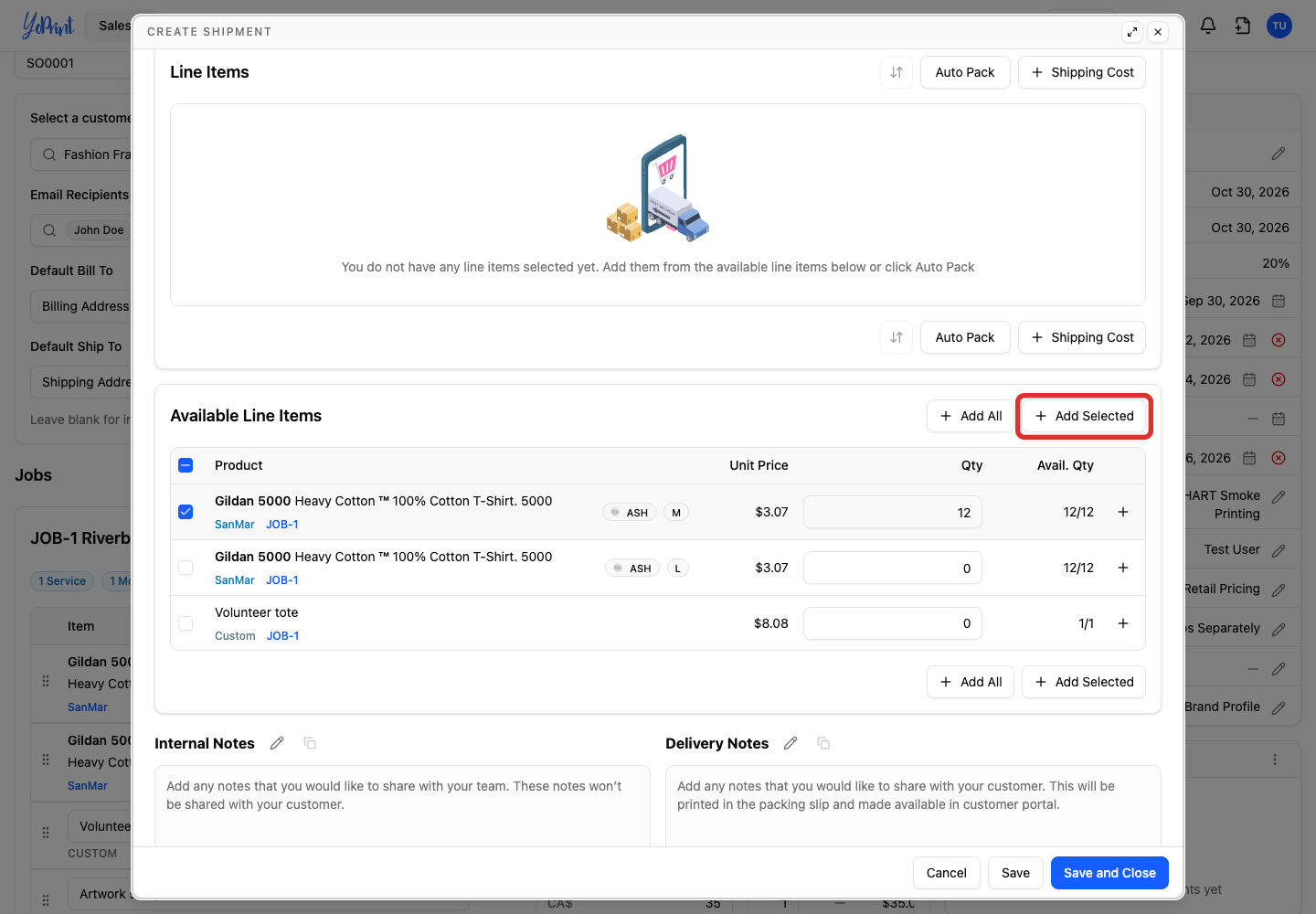
Click + Add Selected to move the selected items into the shipment.
Record your delivery cost
-
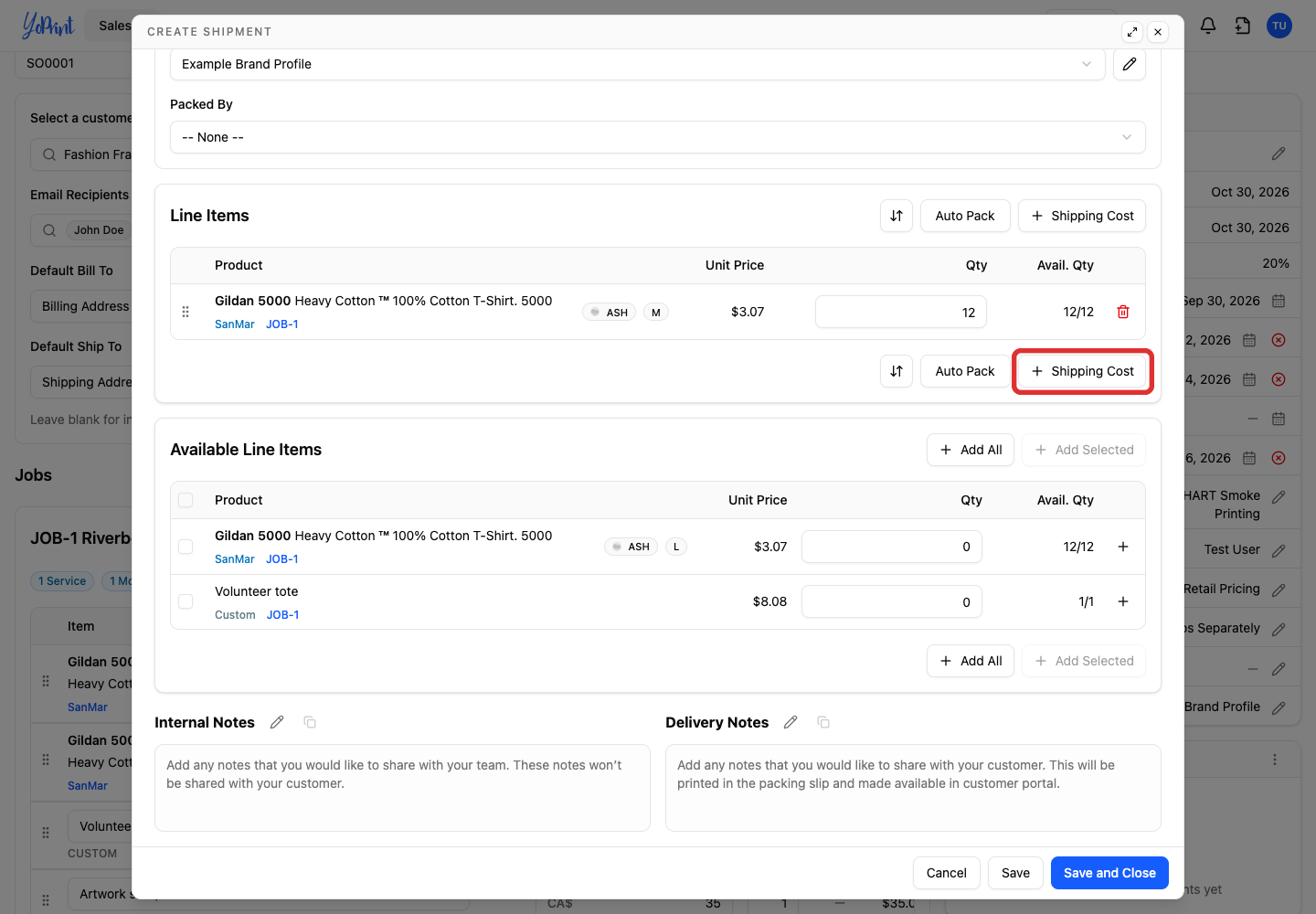
Click + Shipping Cost.
-
Enter a description for the cost.
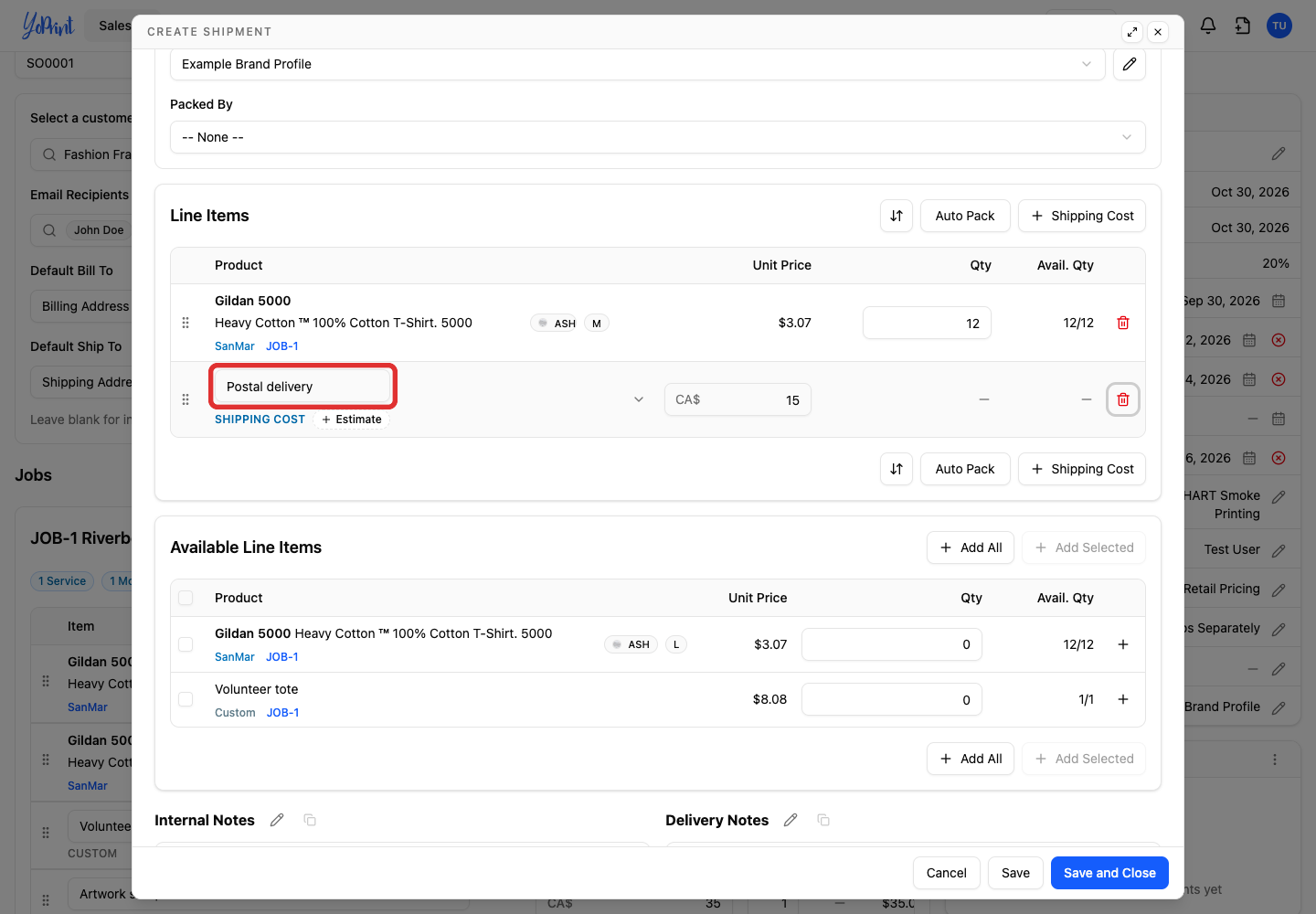
-
Enter the amount delivery costs your shop.
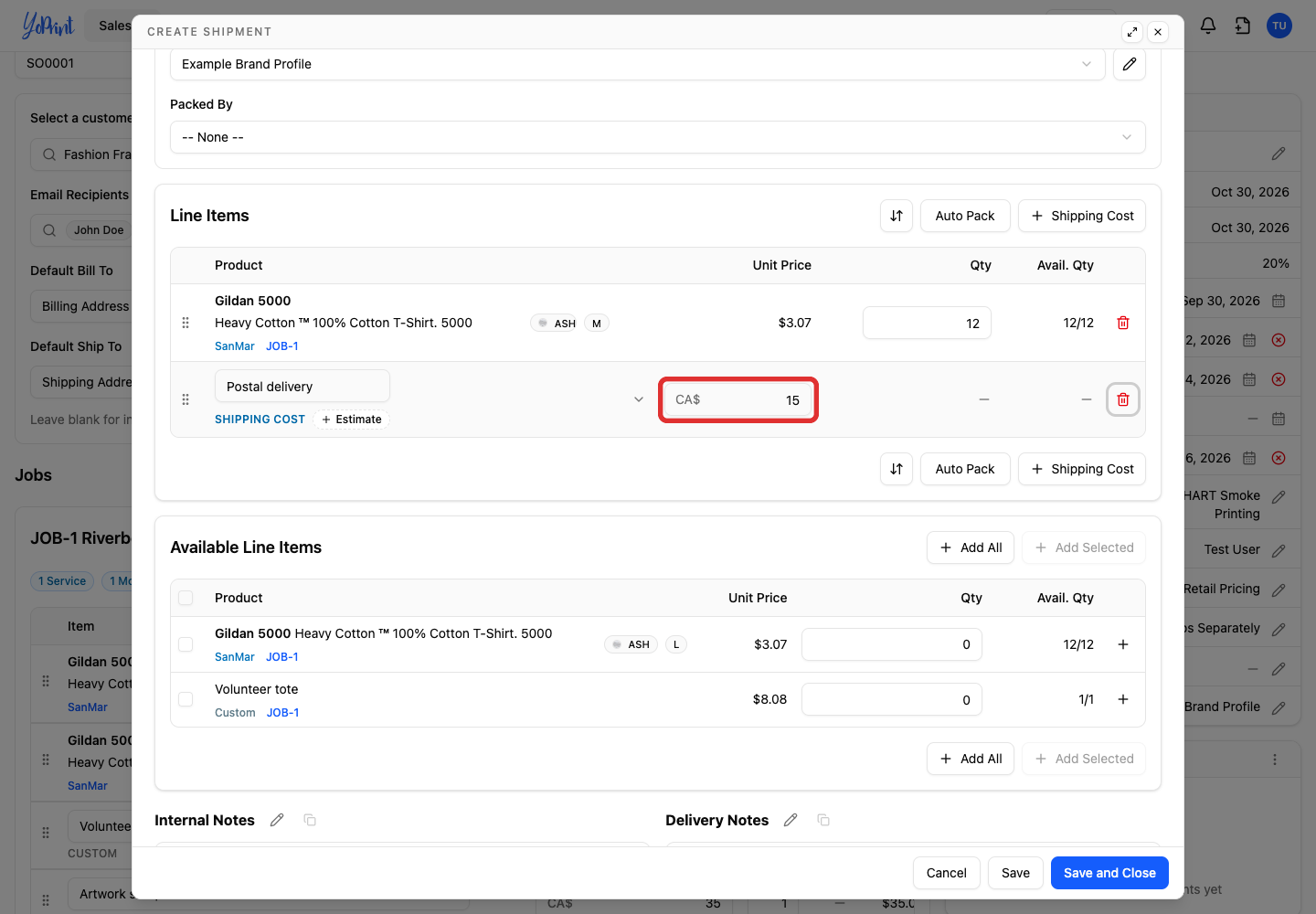
-
Click Save and Close.
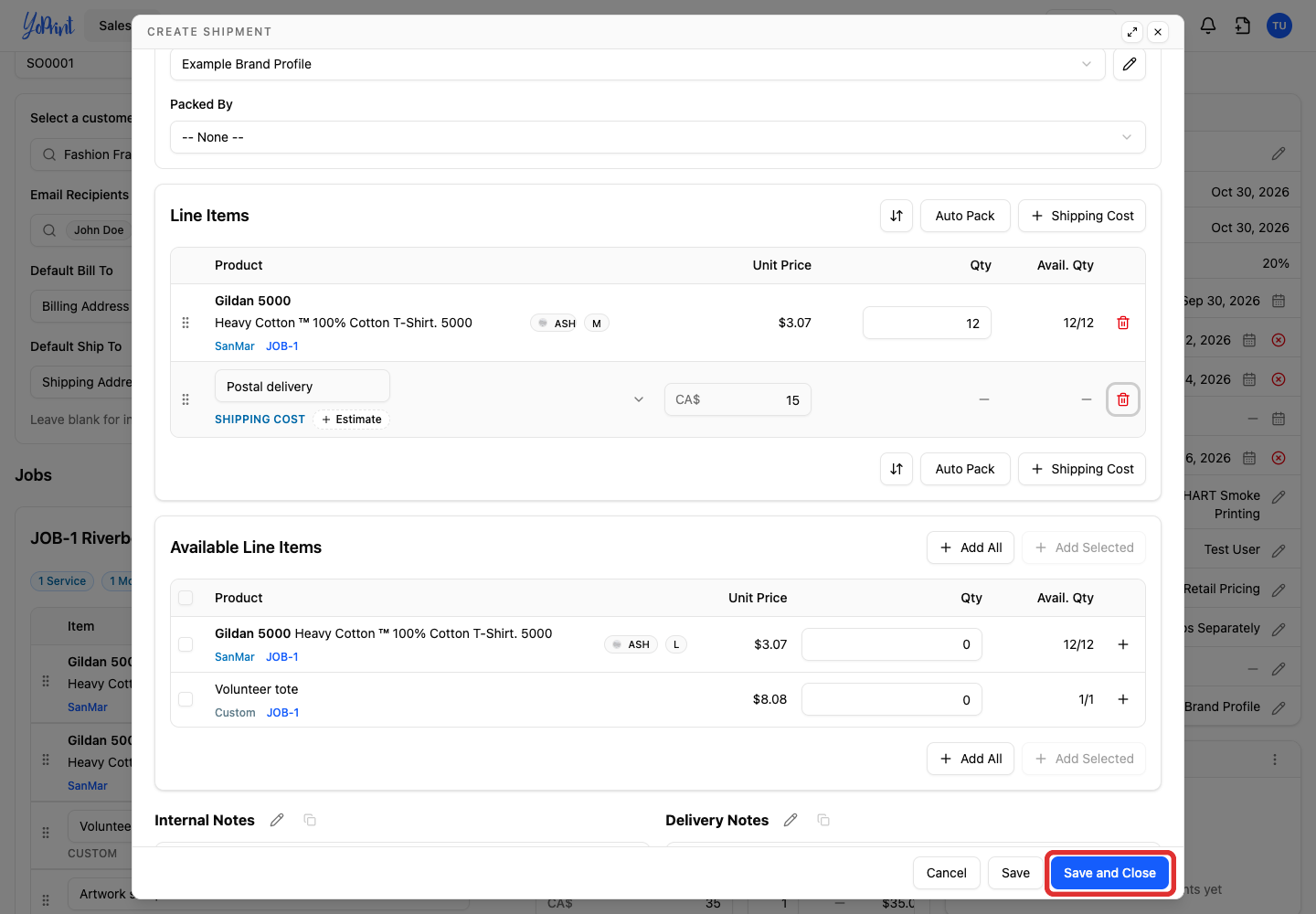
Unallocated quantities remain available for another shipment. A saved shipment's Actions menu lets you reopen it.
Carrier rates
To get a carrier rate instead of entering a cost, see Configuring Shippo Integration. Shippo calculates your internal shipping costs, not customer fees.
Charge shipping and tax
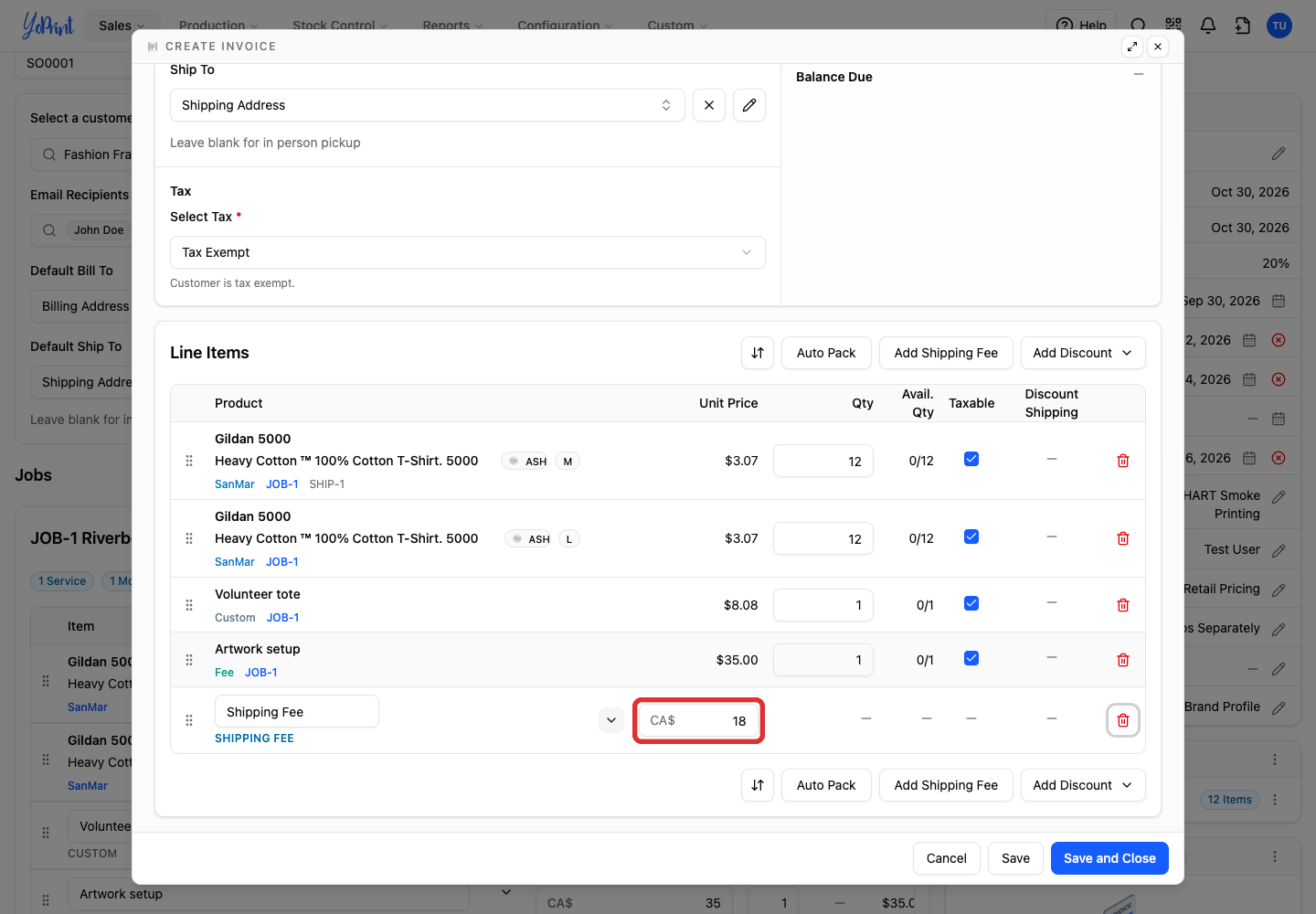
A shipment's Shipping Cost is your internal cost. The invoice's Shipping Fee is what the customer pays.
-
In the quote totals, click Invoice.
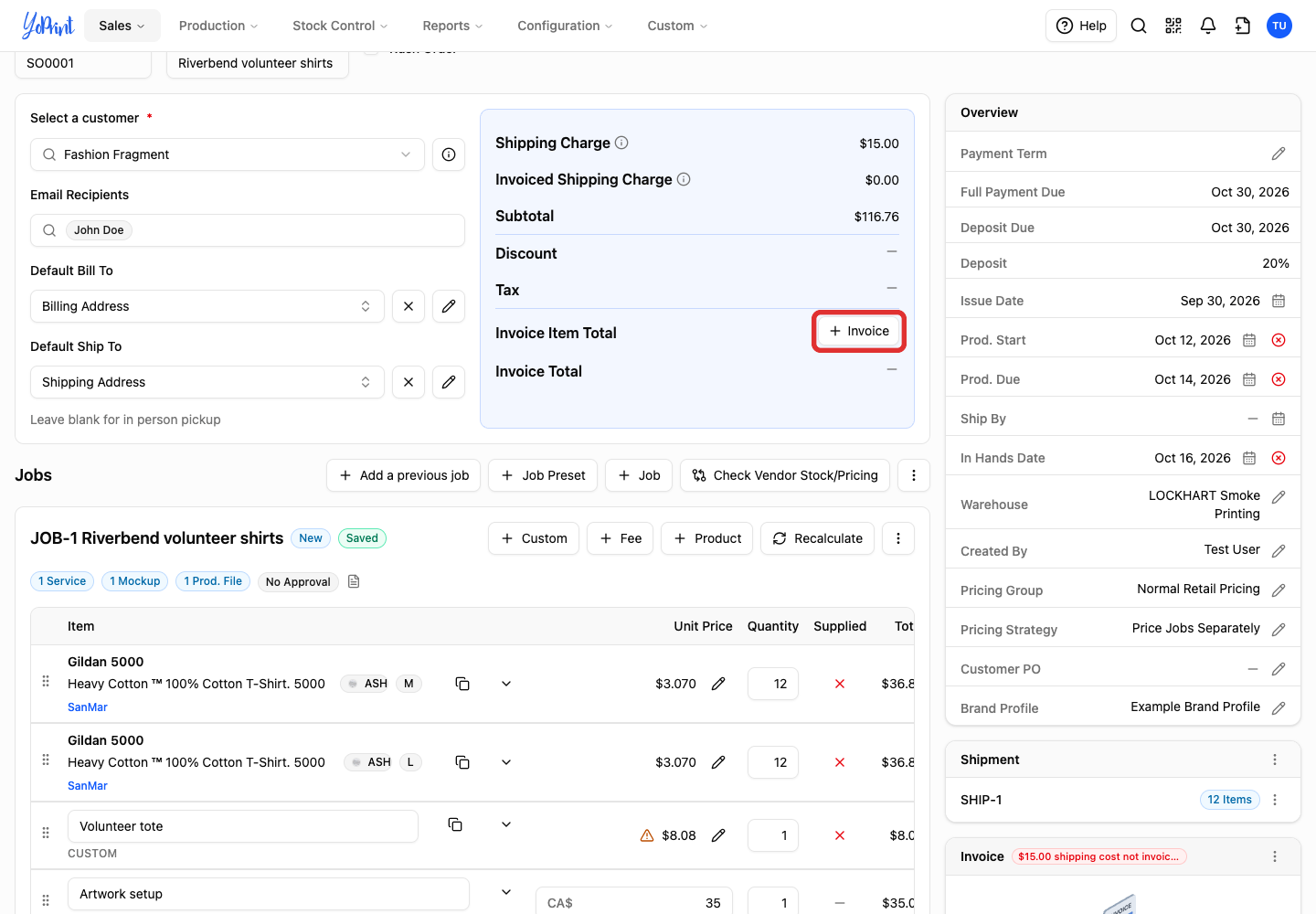
-
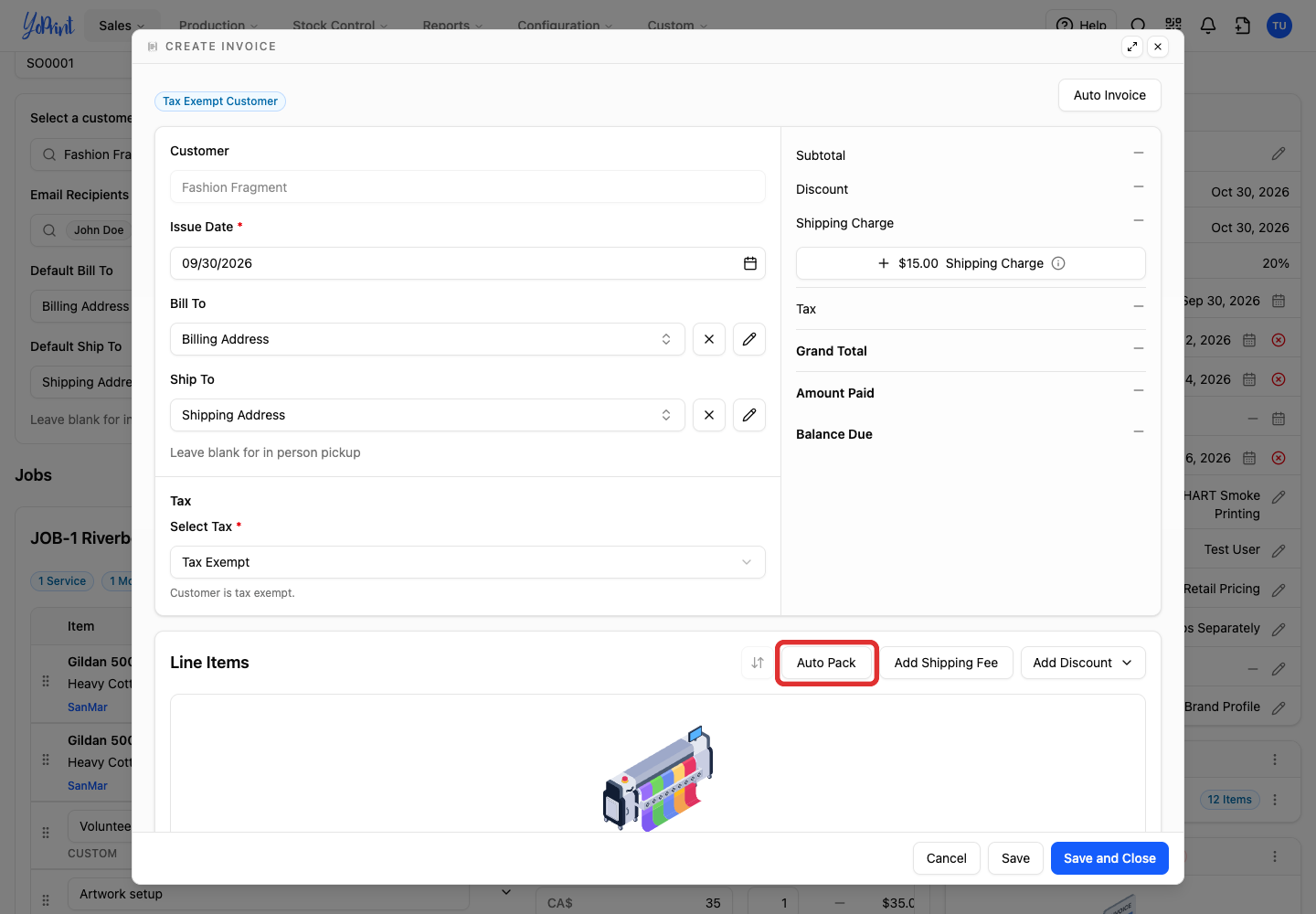
Click Auto Pack to bring the items across.
-
Check Shipping Fee. It starts from the saved shipment costs; change it if you charge a different amount.
-
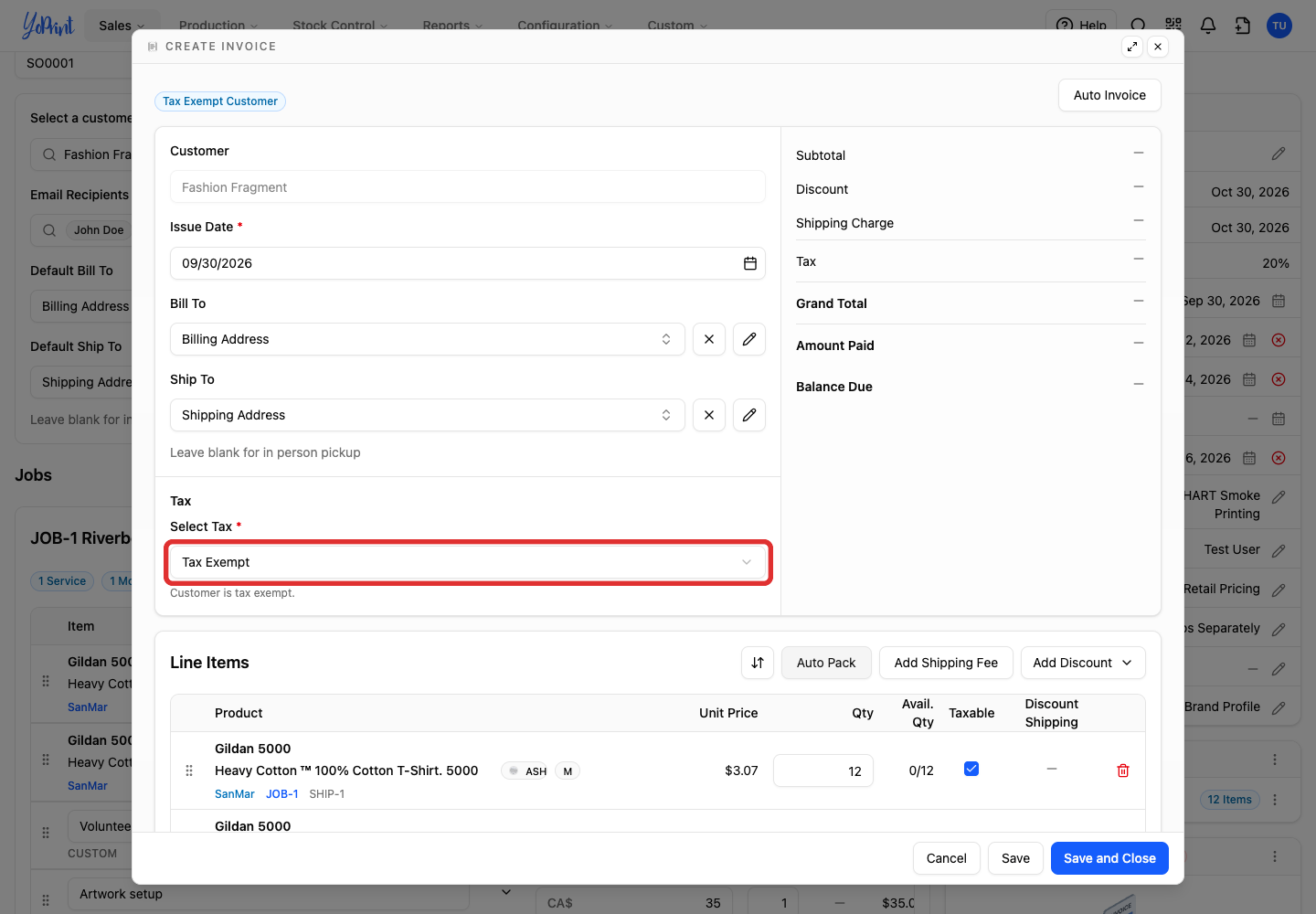
Open Select Tax.
-
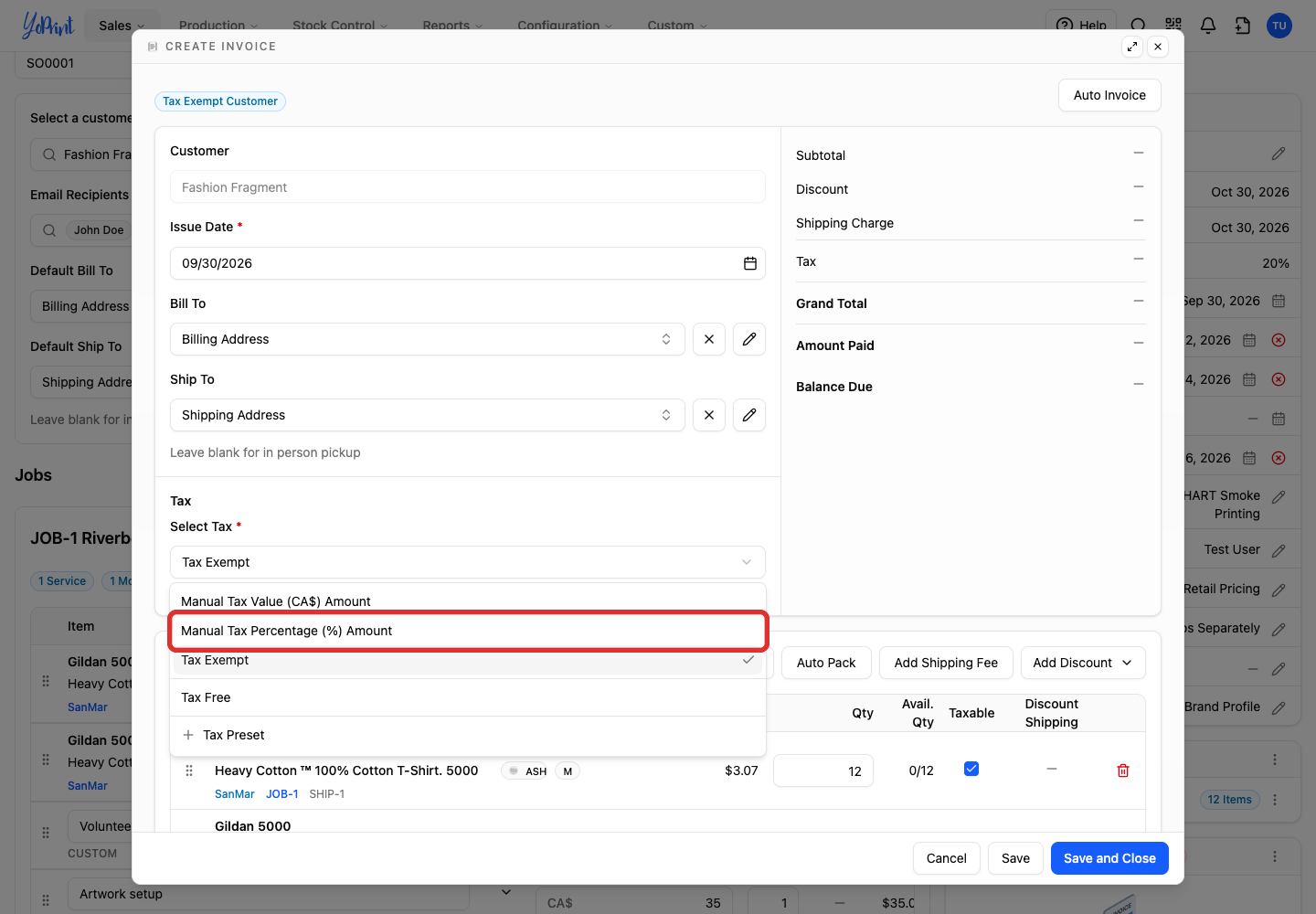
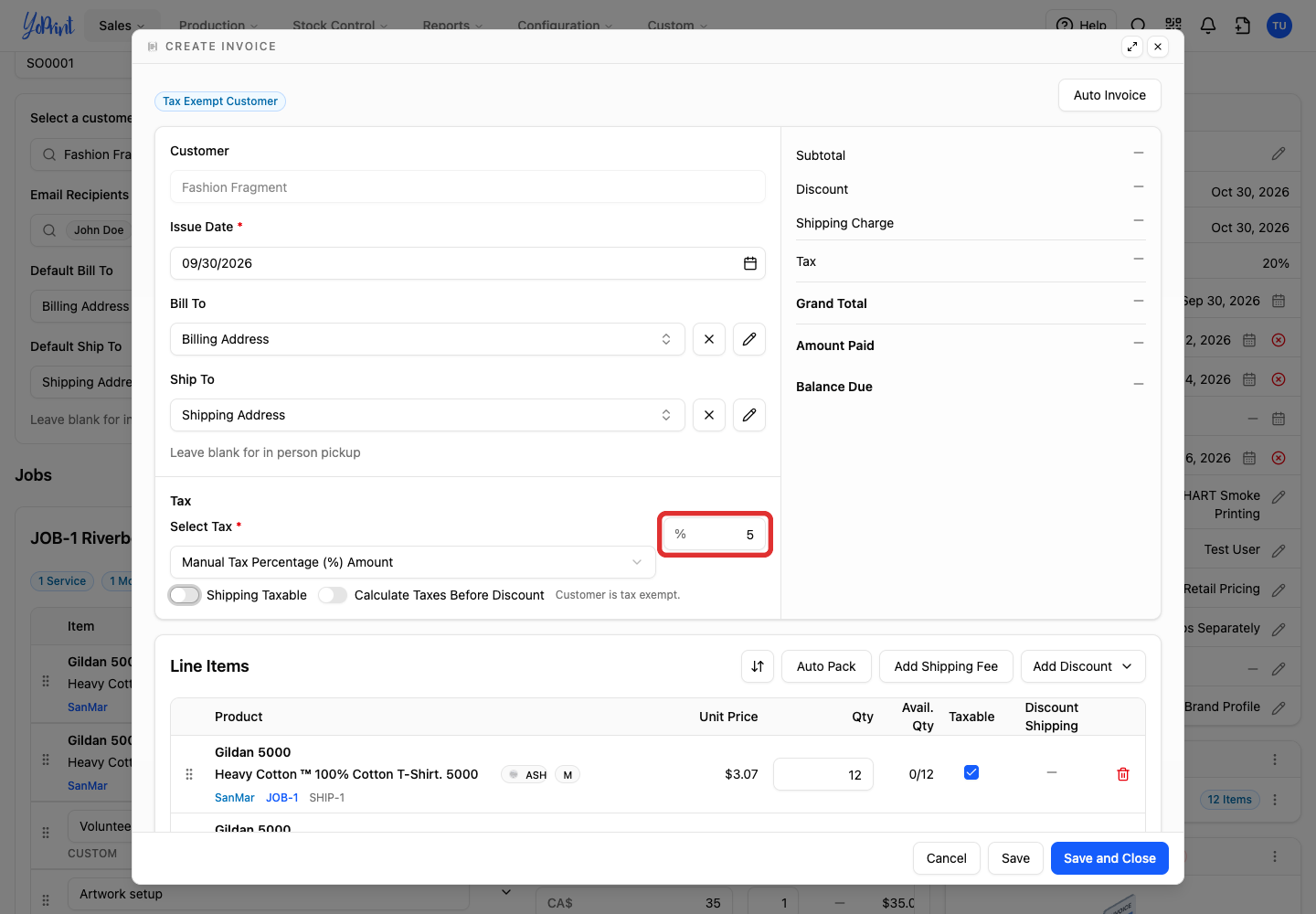
Choose the tax treatment. This example uses a manual percentage.
-
Enter the tax rate.
-
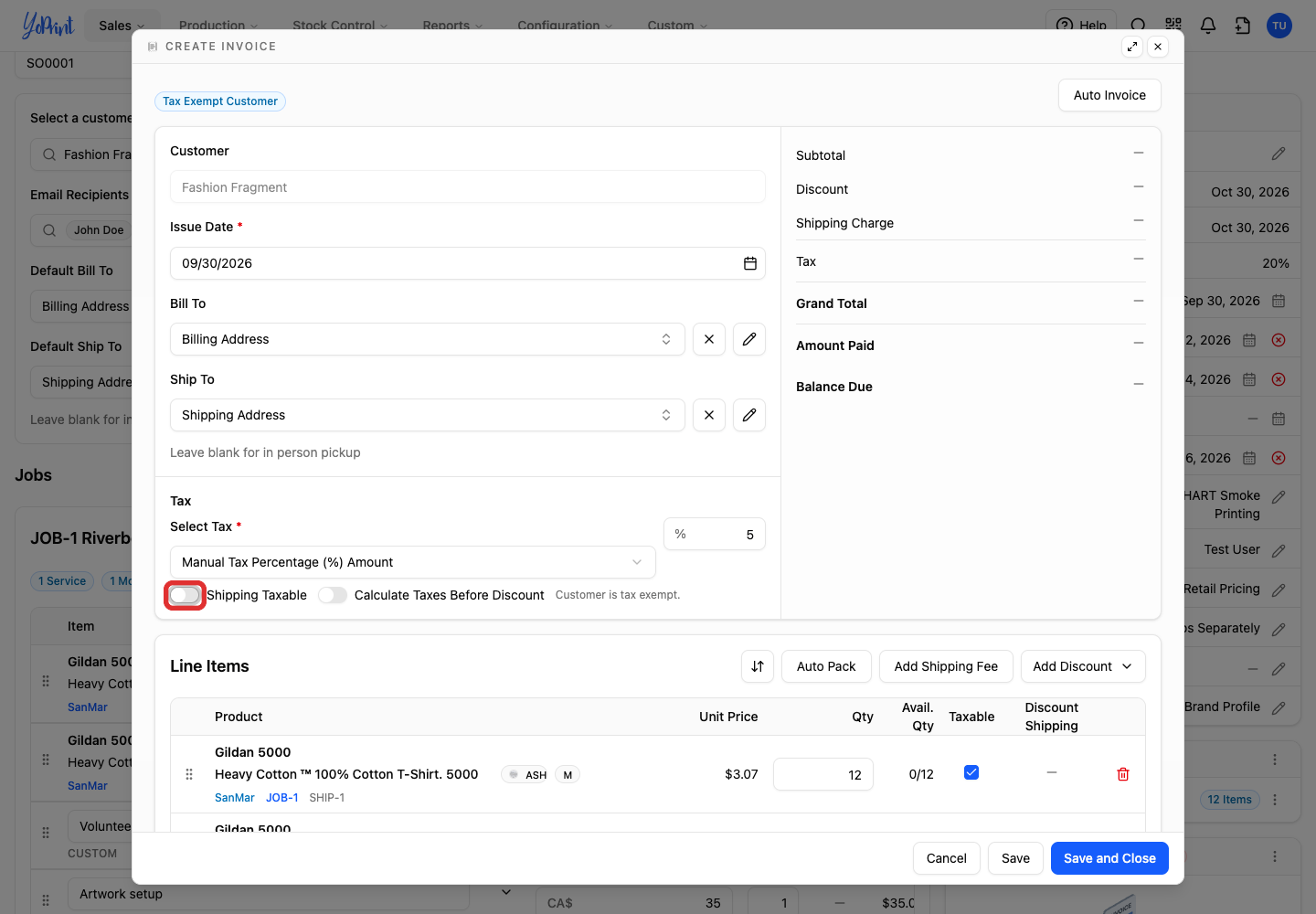
Set Shipping Taxable to control whether the shipping fee is taxed.
-
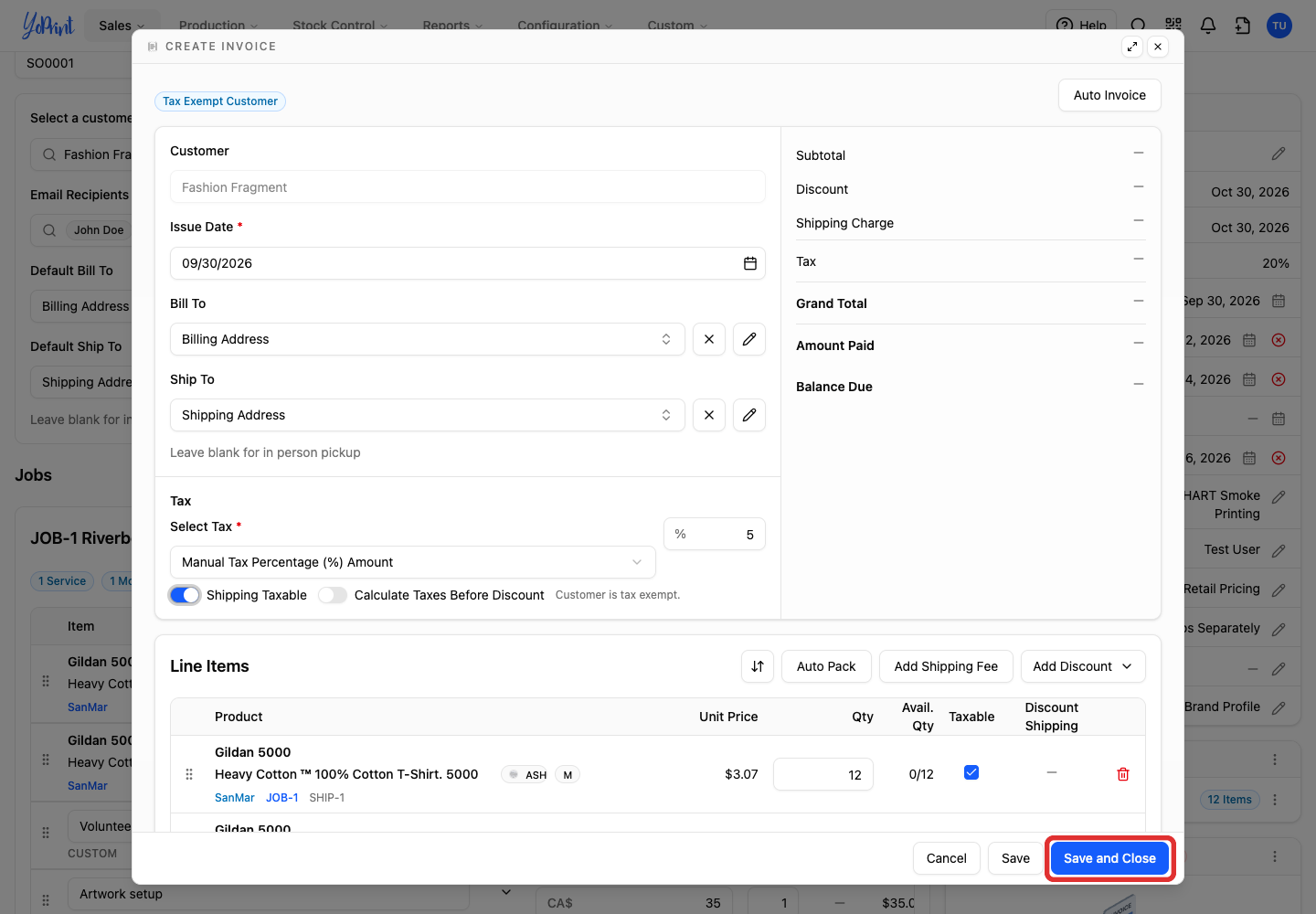
Click Save and Close.
Tax choices
Select Tax offers a manual amount or percentage, Tax Exempt, saved tax presets and Auto tax where your plan includes it. Auto tax needs a Bill To address and calculates from the invoice's addresses.
The quote shows Shipping Charge for your cost and Invoiced Shipping Charge for the customer's charge; customers see only the invoiced amount.
Publish the quote
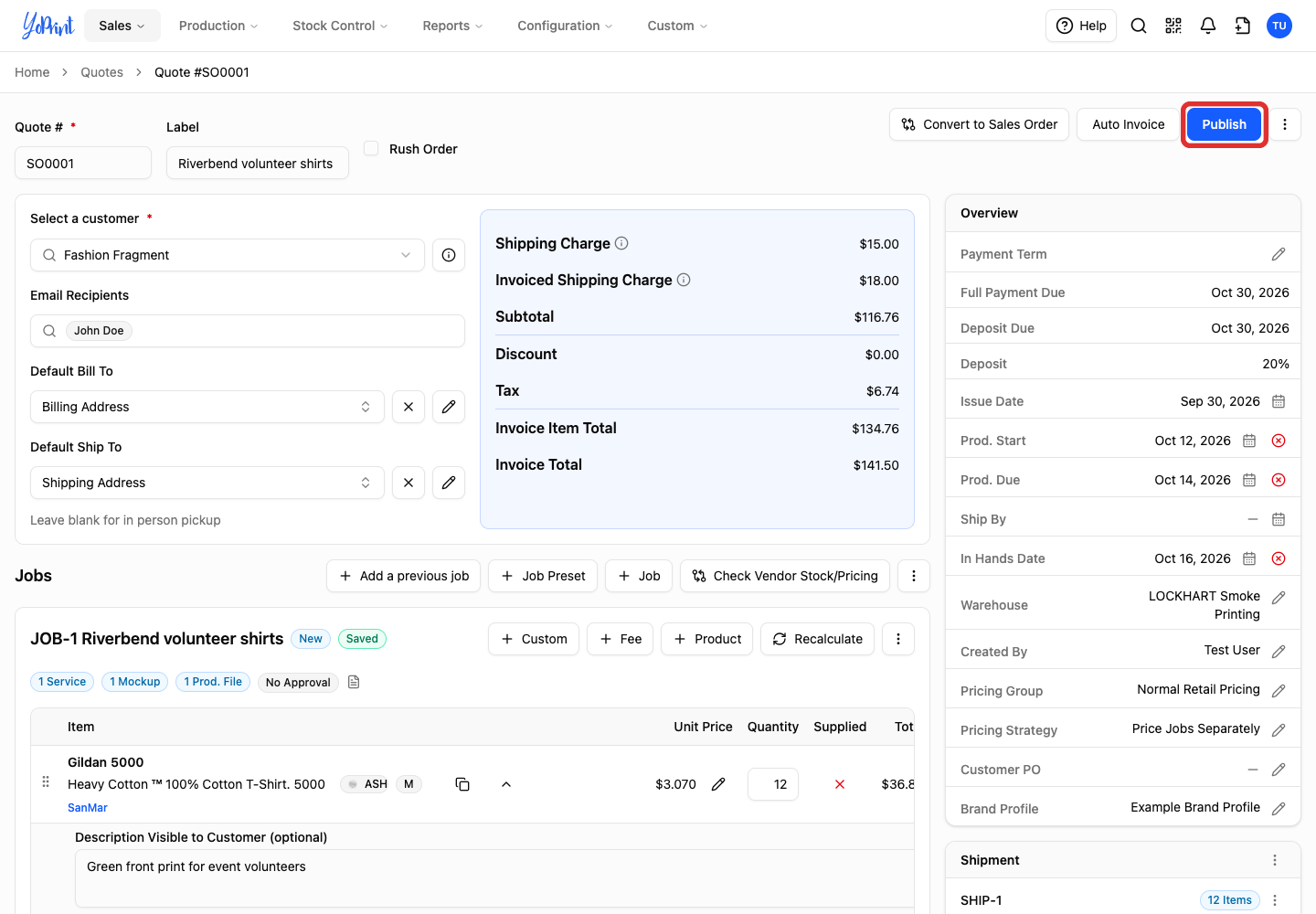
Publishing the quote changes it to Pending. This locks the draft layout while you await customer approval. It does not send it to the customer or create an invoice.
-
Click Publish.
-
The quote now shows Pending.
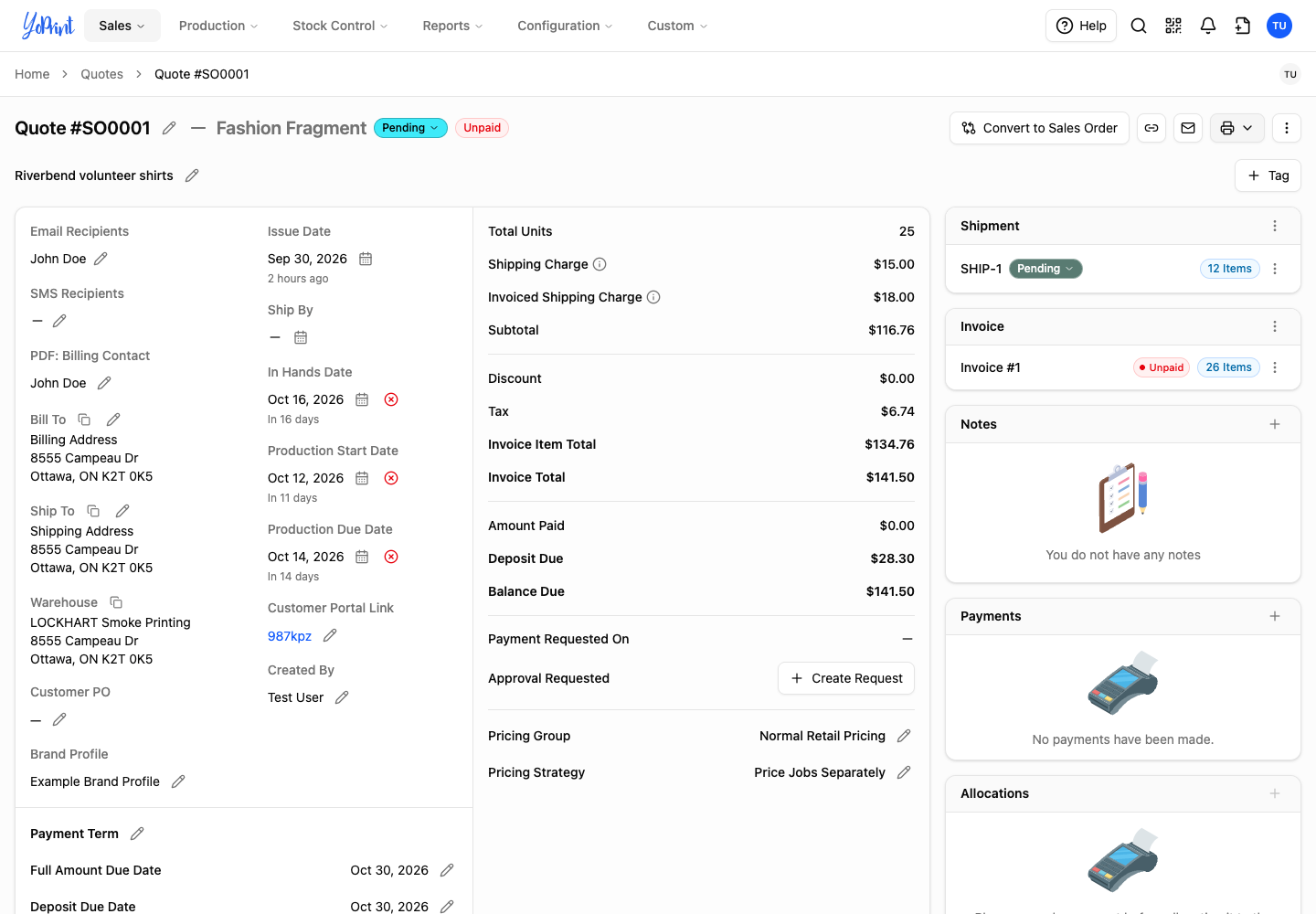
To send it, follow How to Send a Quote.
Find and reopen a quote
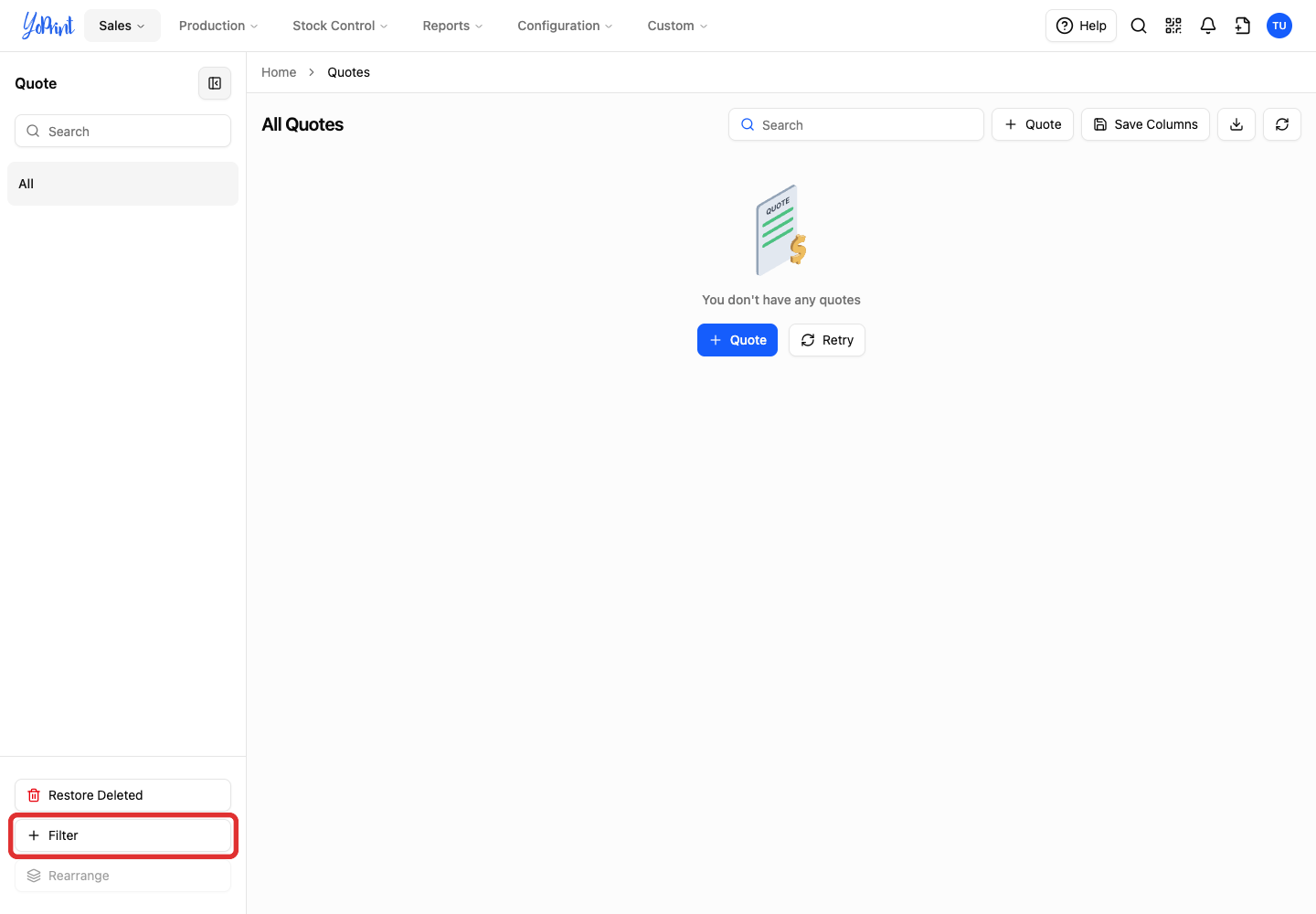
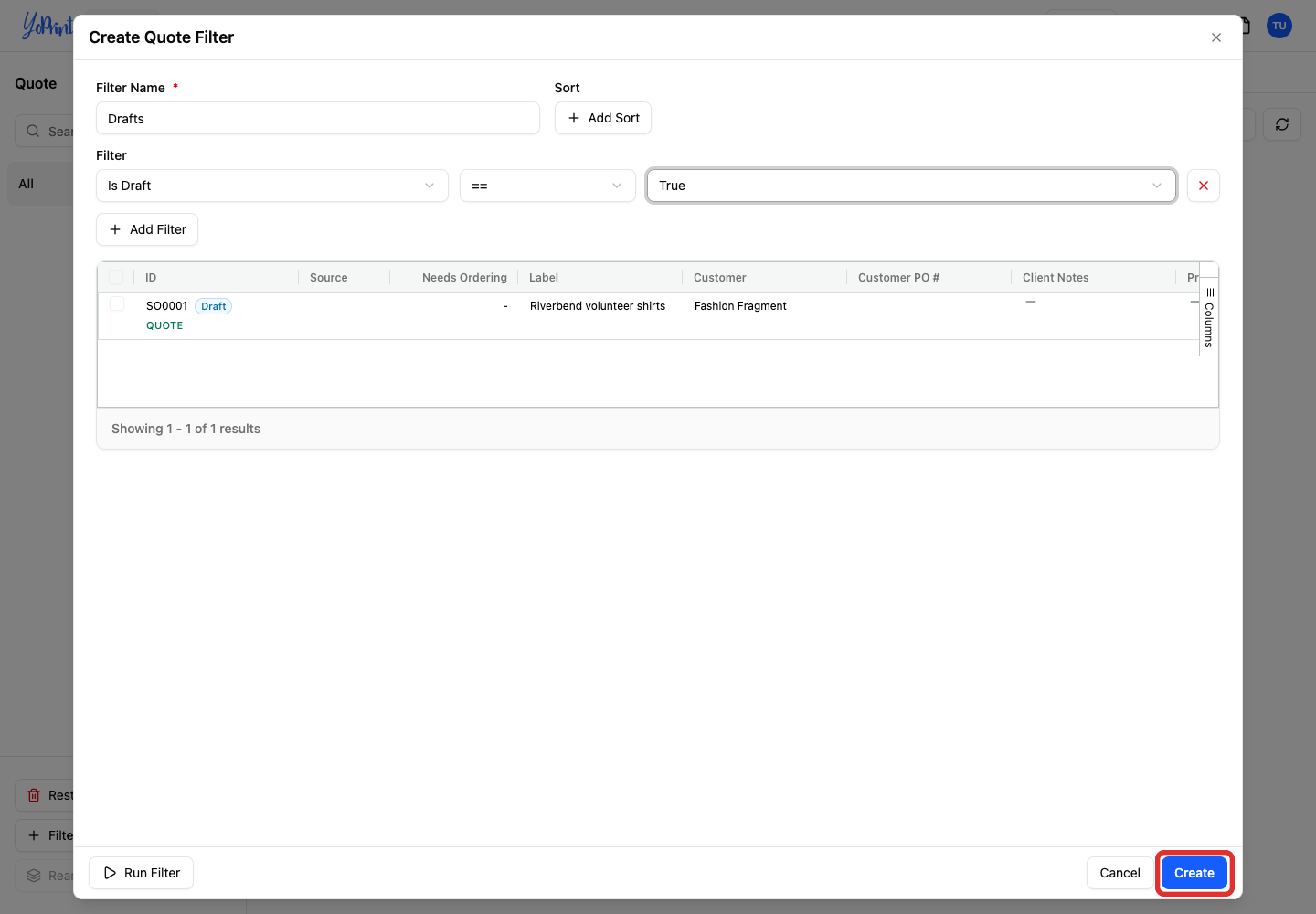
Open Sales → Quotes to return to the list. The standard All view can exclude drafts, so save a draft filter to find unfinished quotes.
Keep a list of drafts
-
Click Filter in the list sidebar.
-
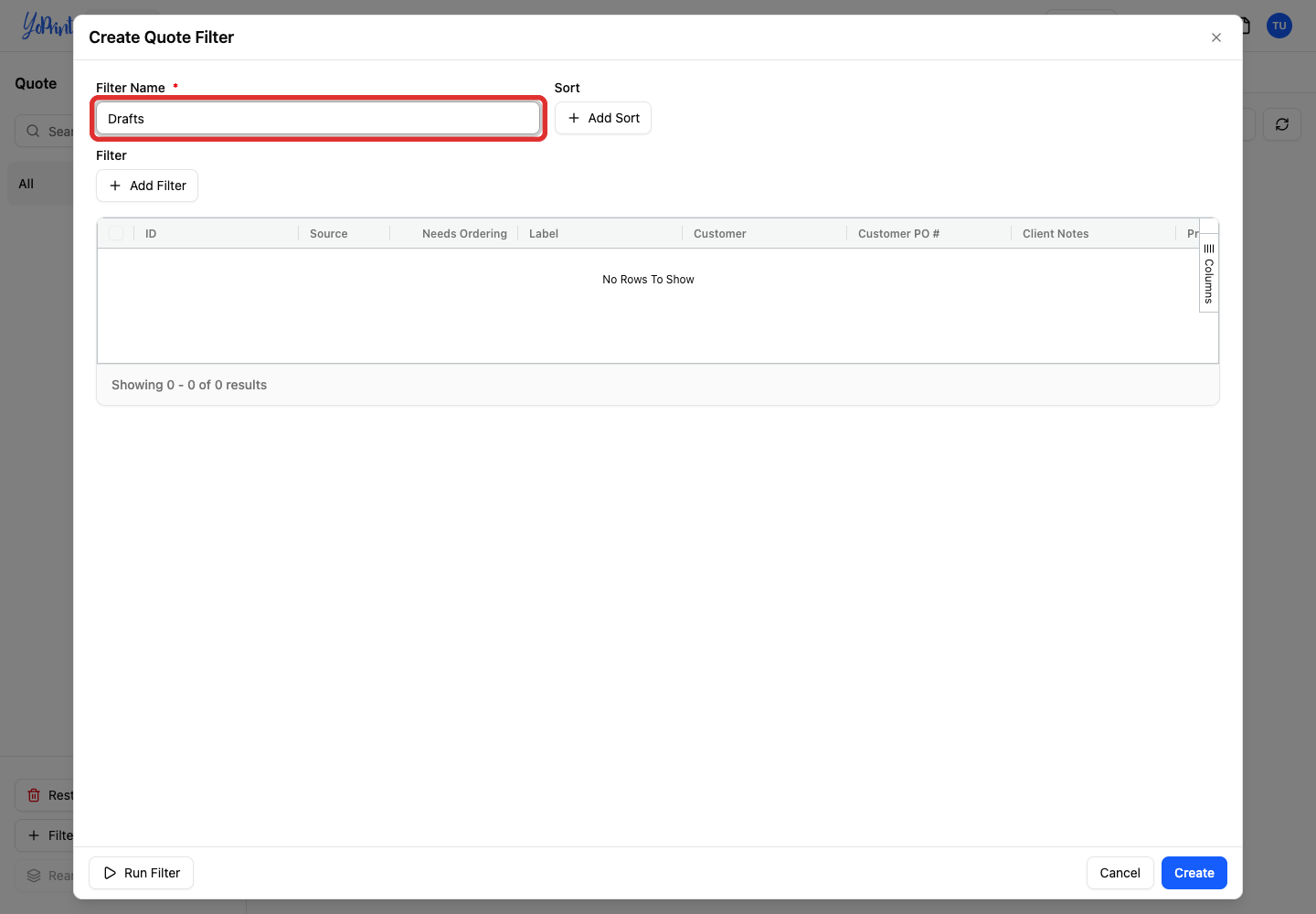
Enter a Filter Name, such as Drafts.
-
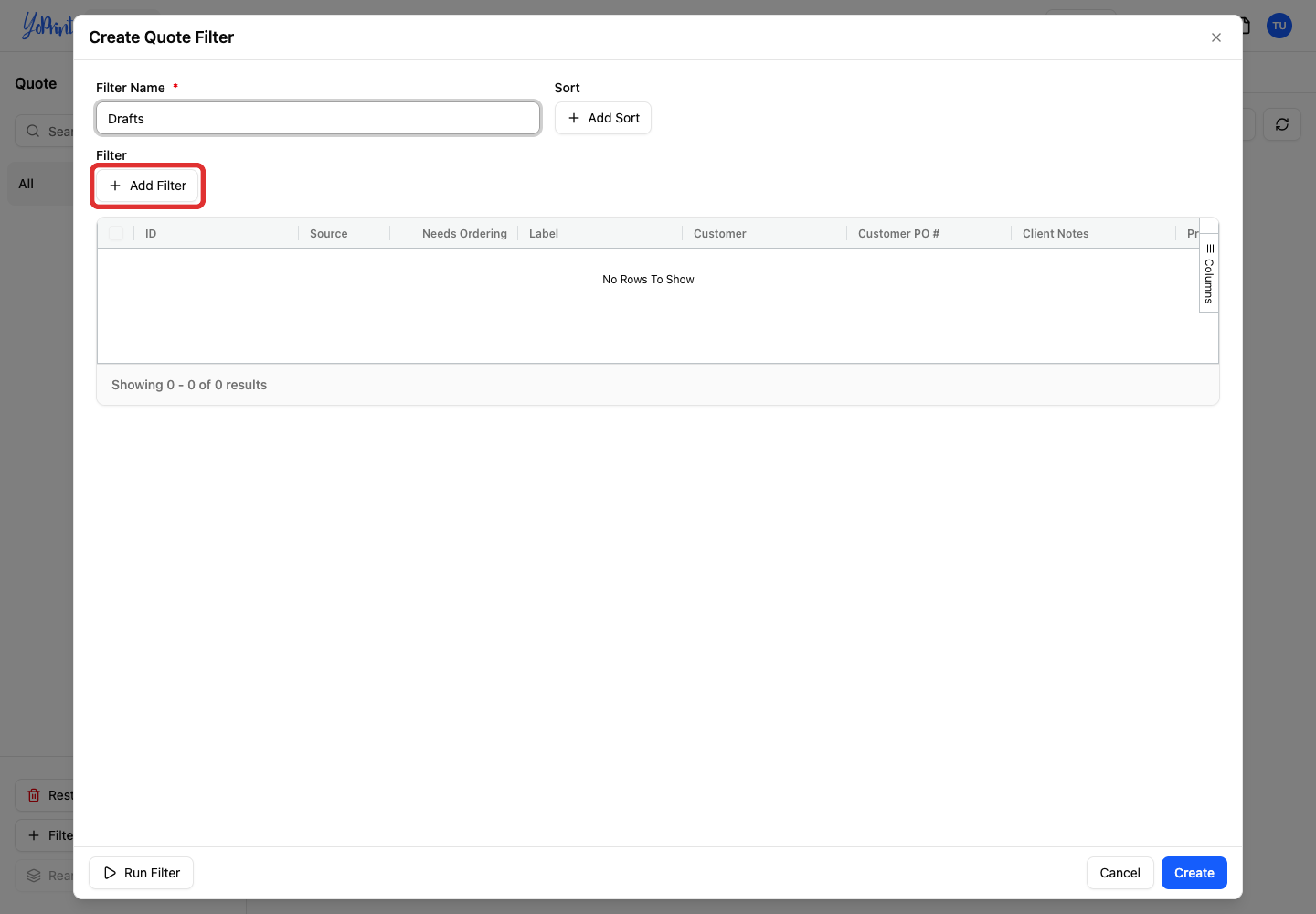
Click + Add Filter.
-
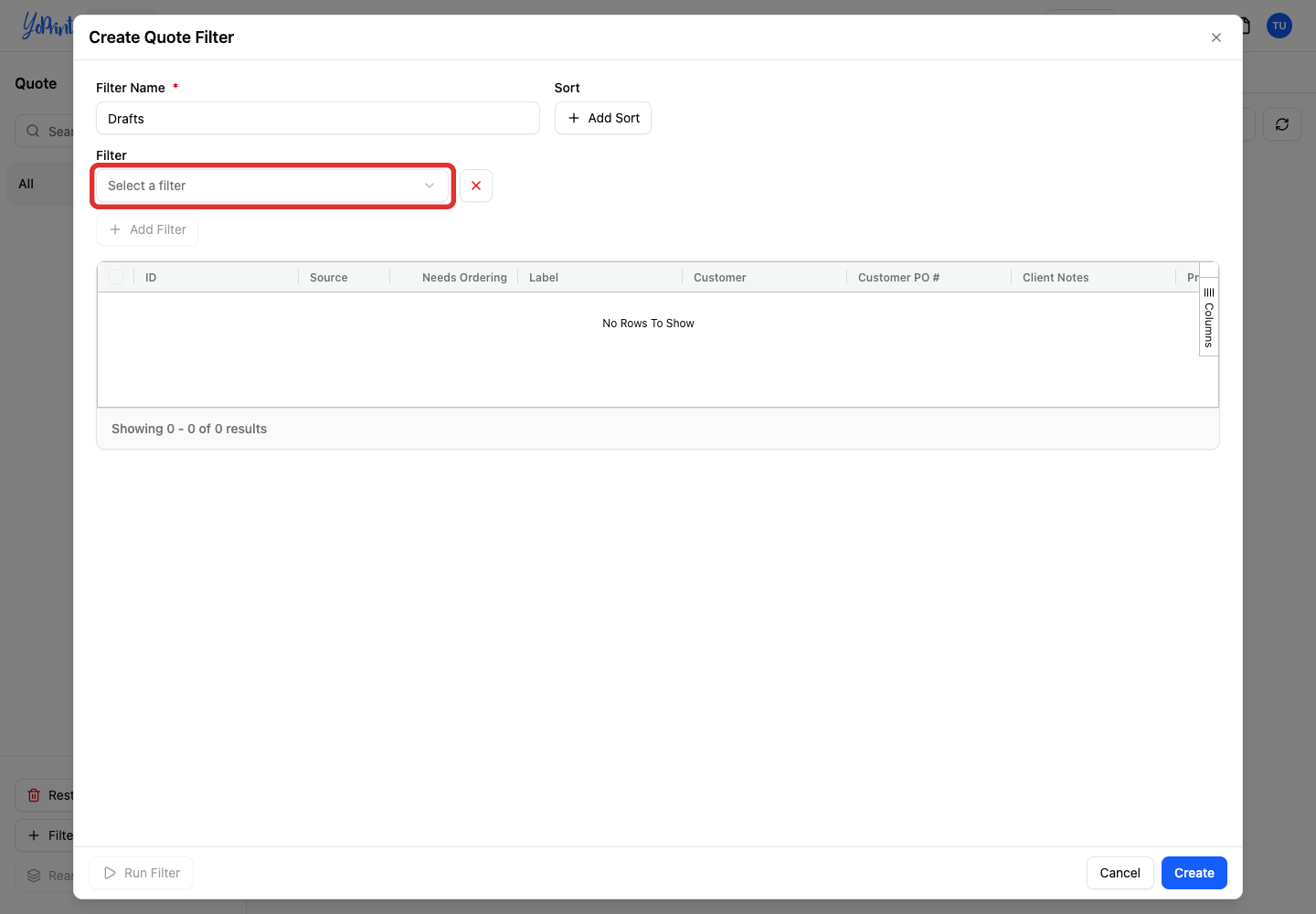
Open the filter-field picker.
-
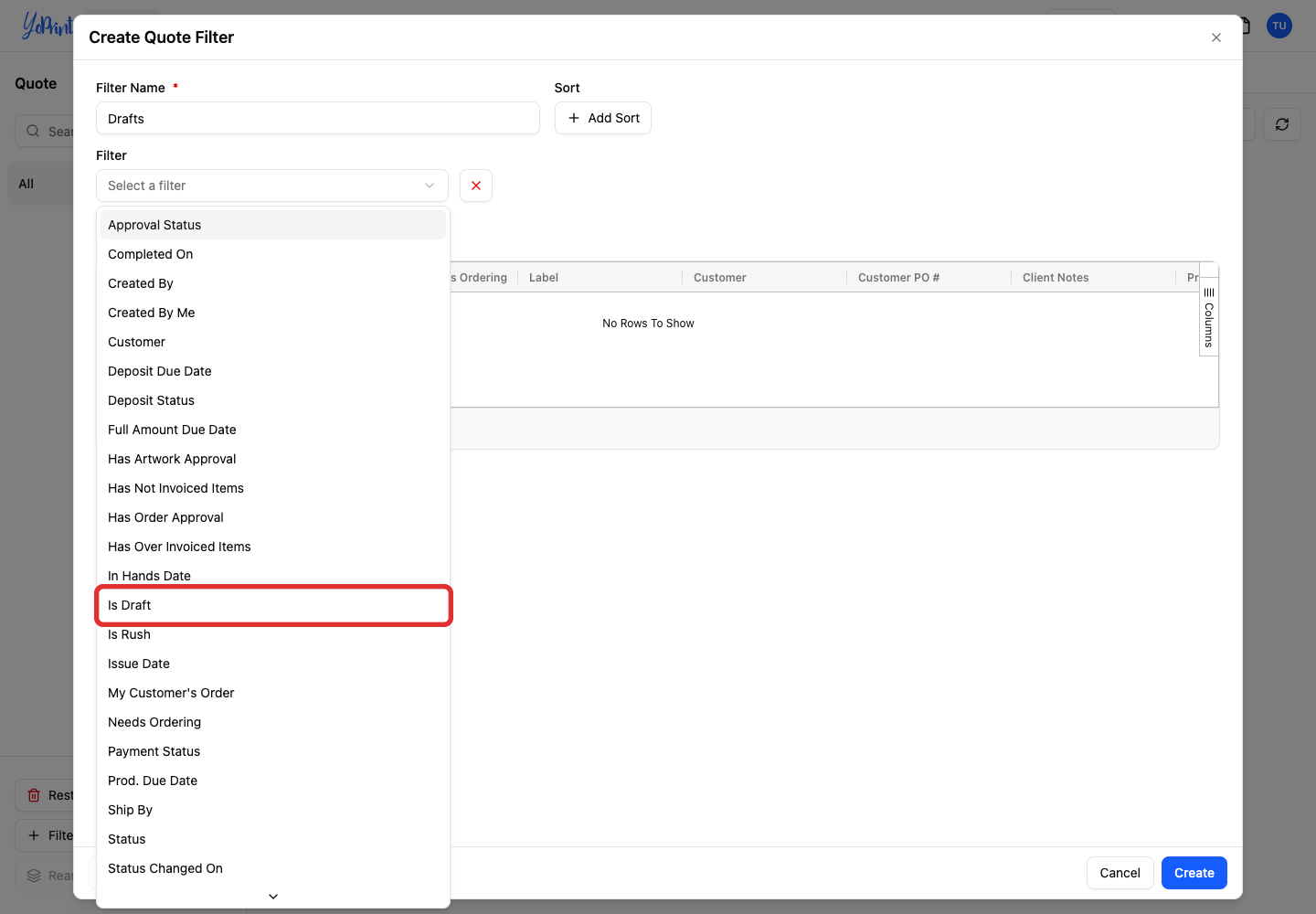
Choose Is Draft.
-
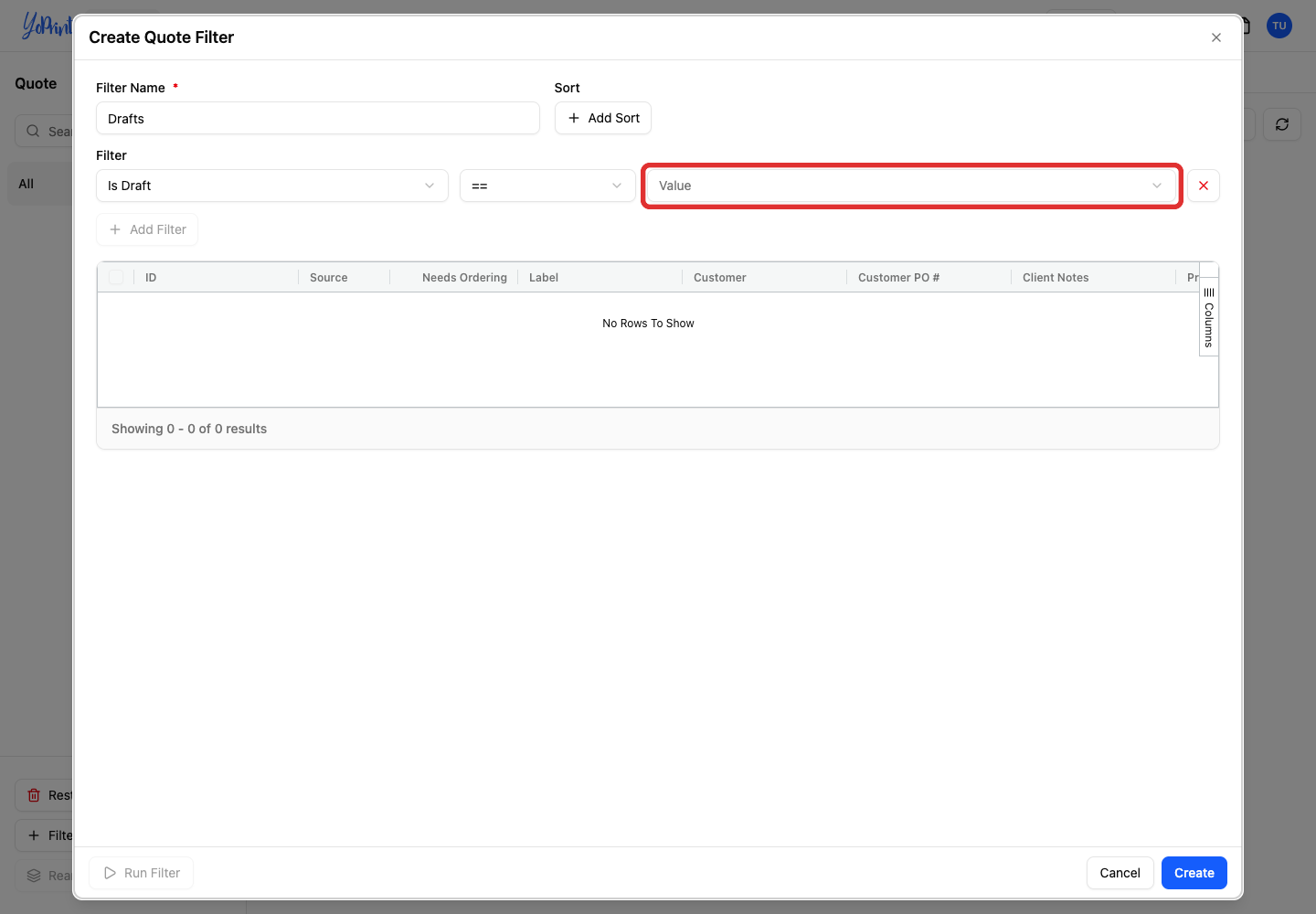
Open the value picker beside ==.
-
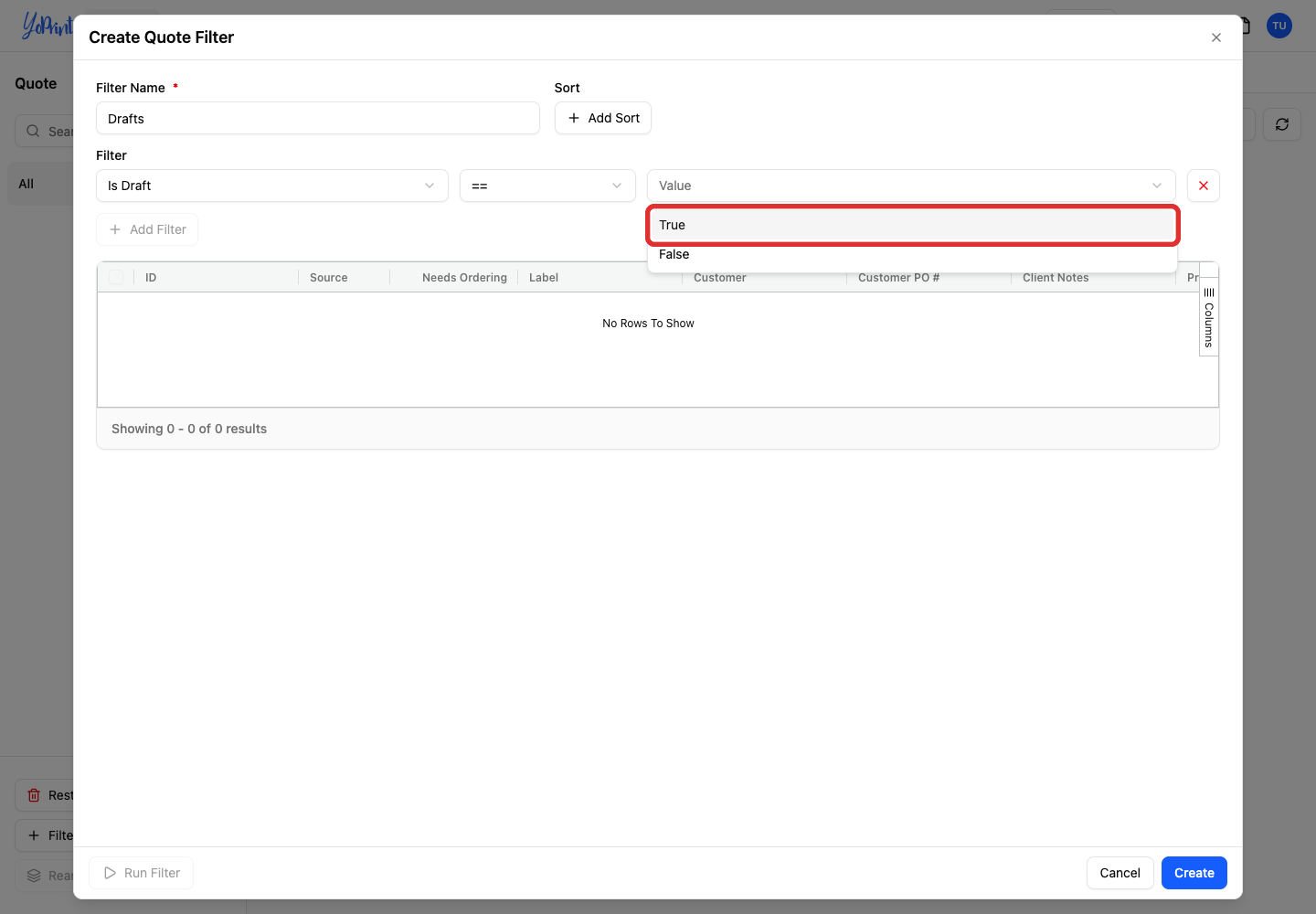
Choose True.
-
Click Create.
-
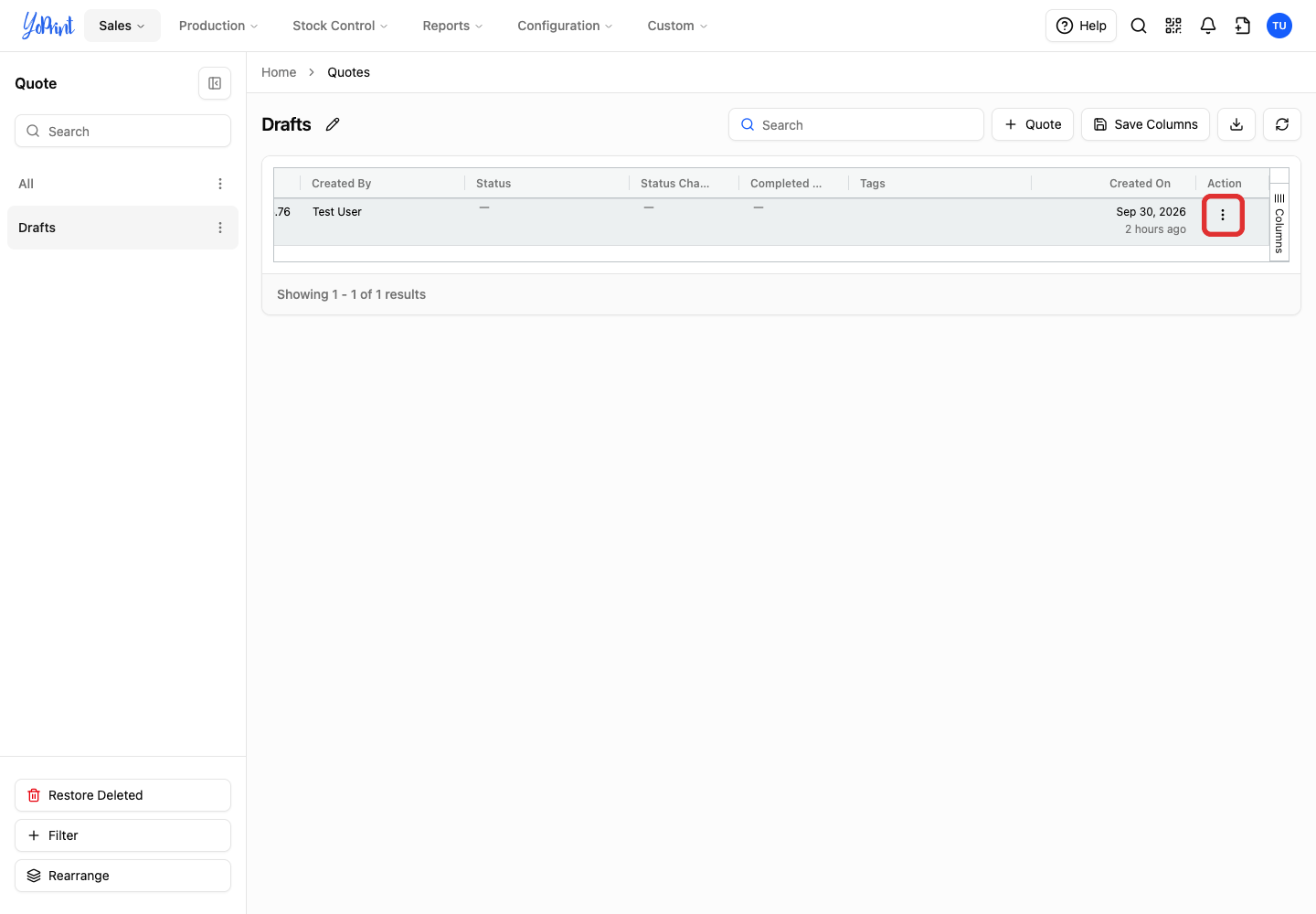
Open the draft row's actions menu at the right of the table.
-
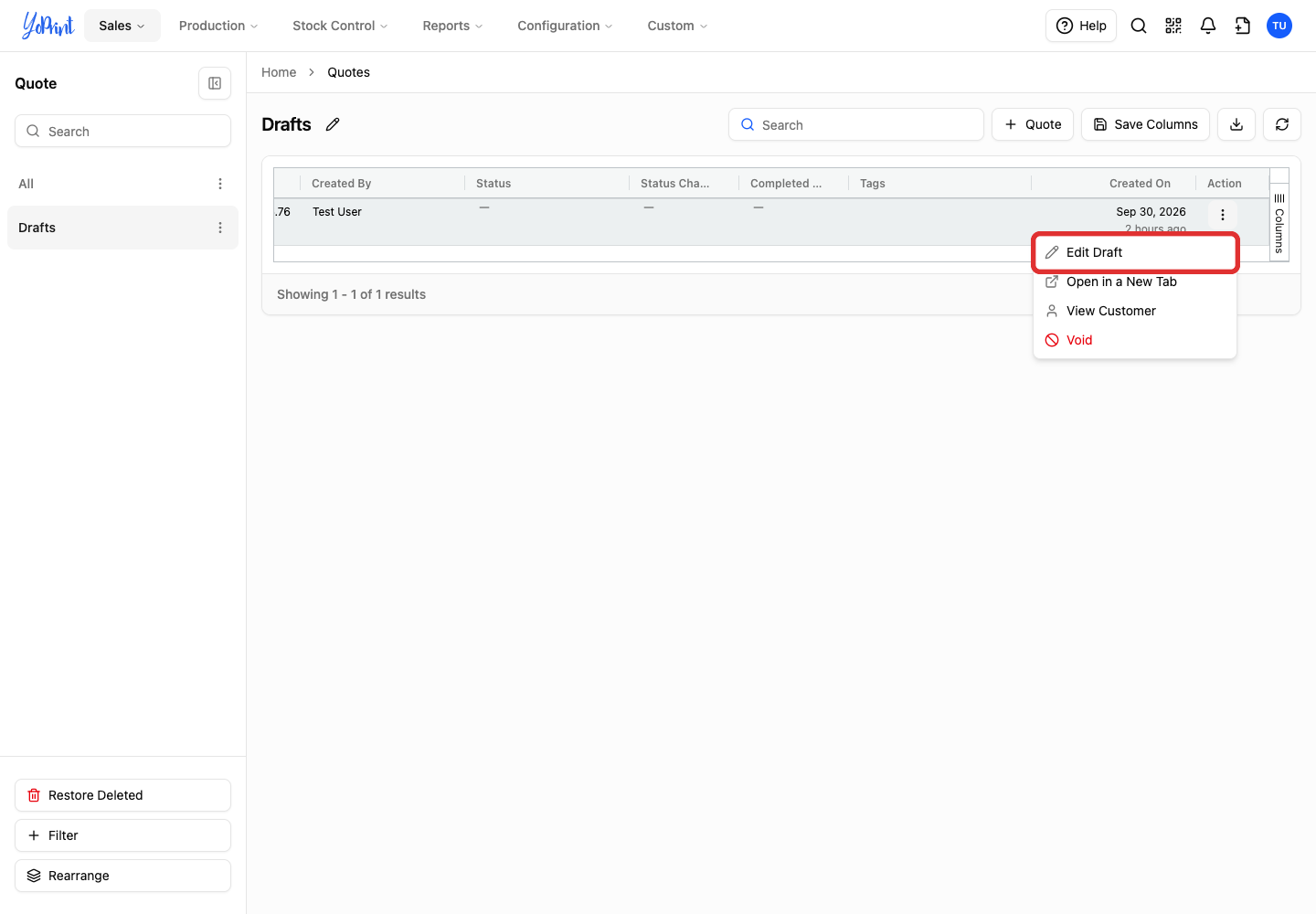
Choose Edit Draft.
Open a published quote
-
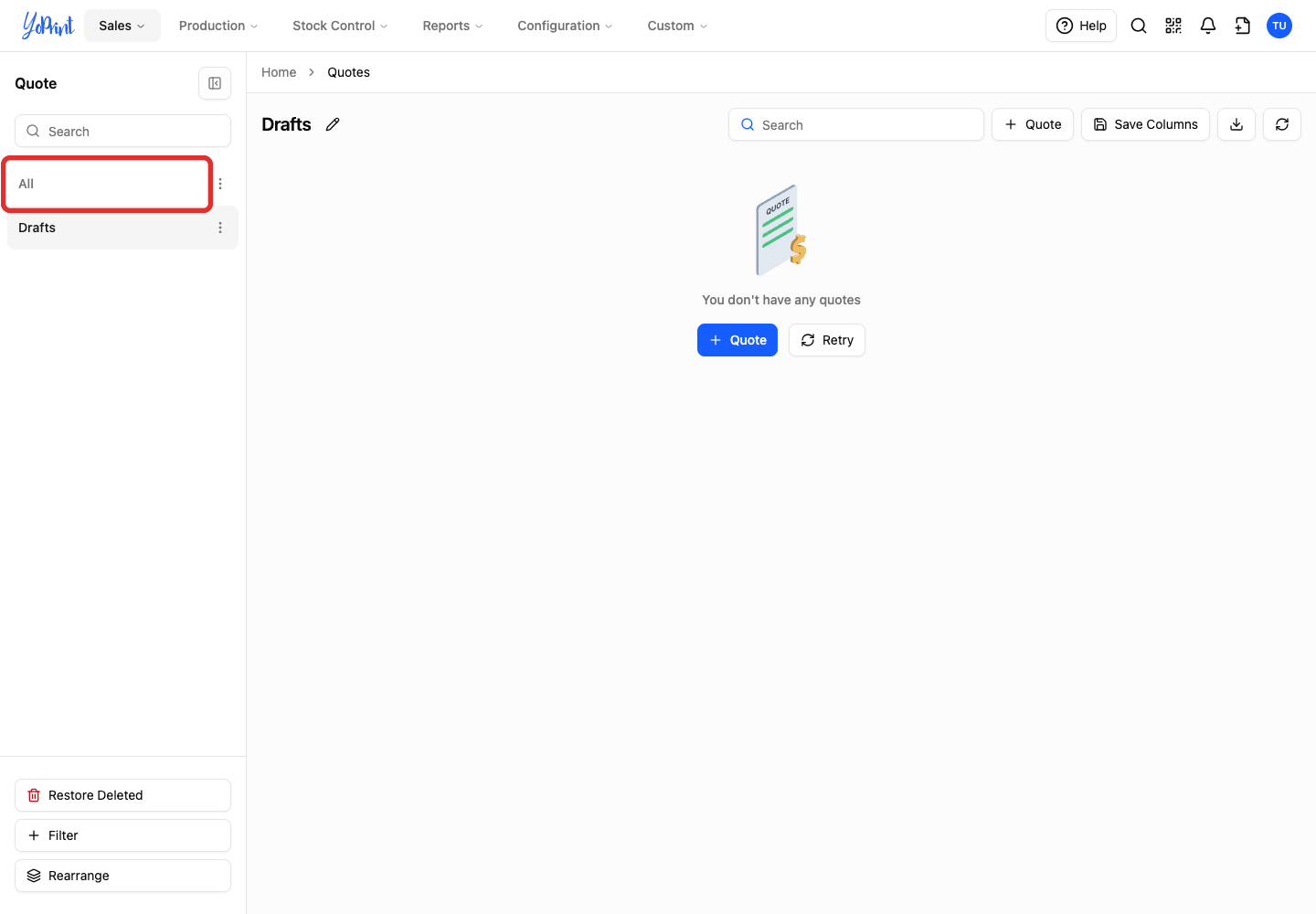
Choose All to return to published quotes.
-
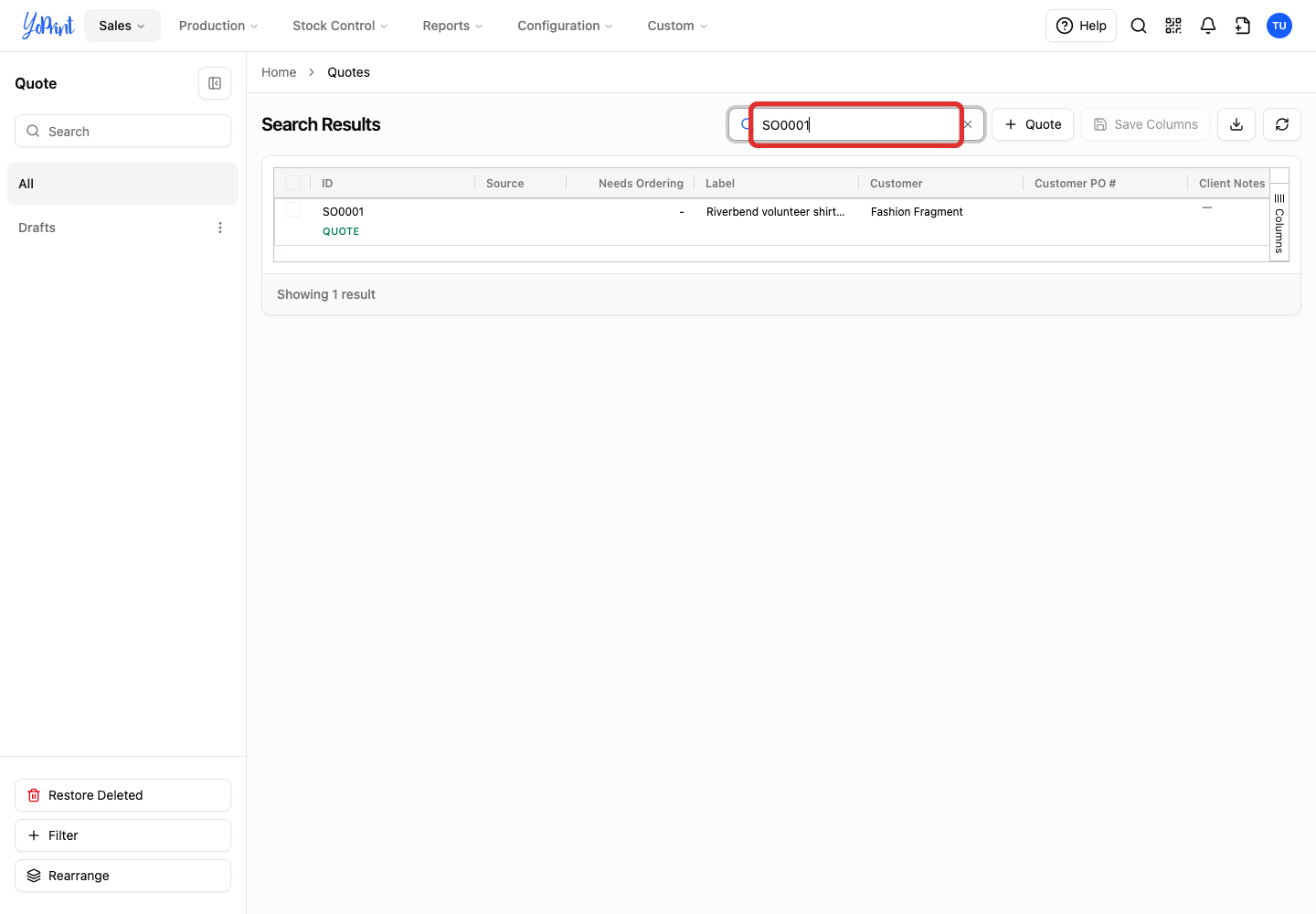
Search for the quote number or label.
-
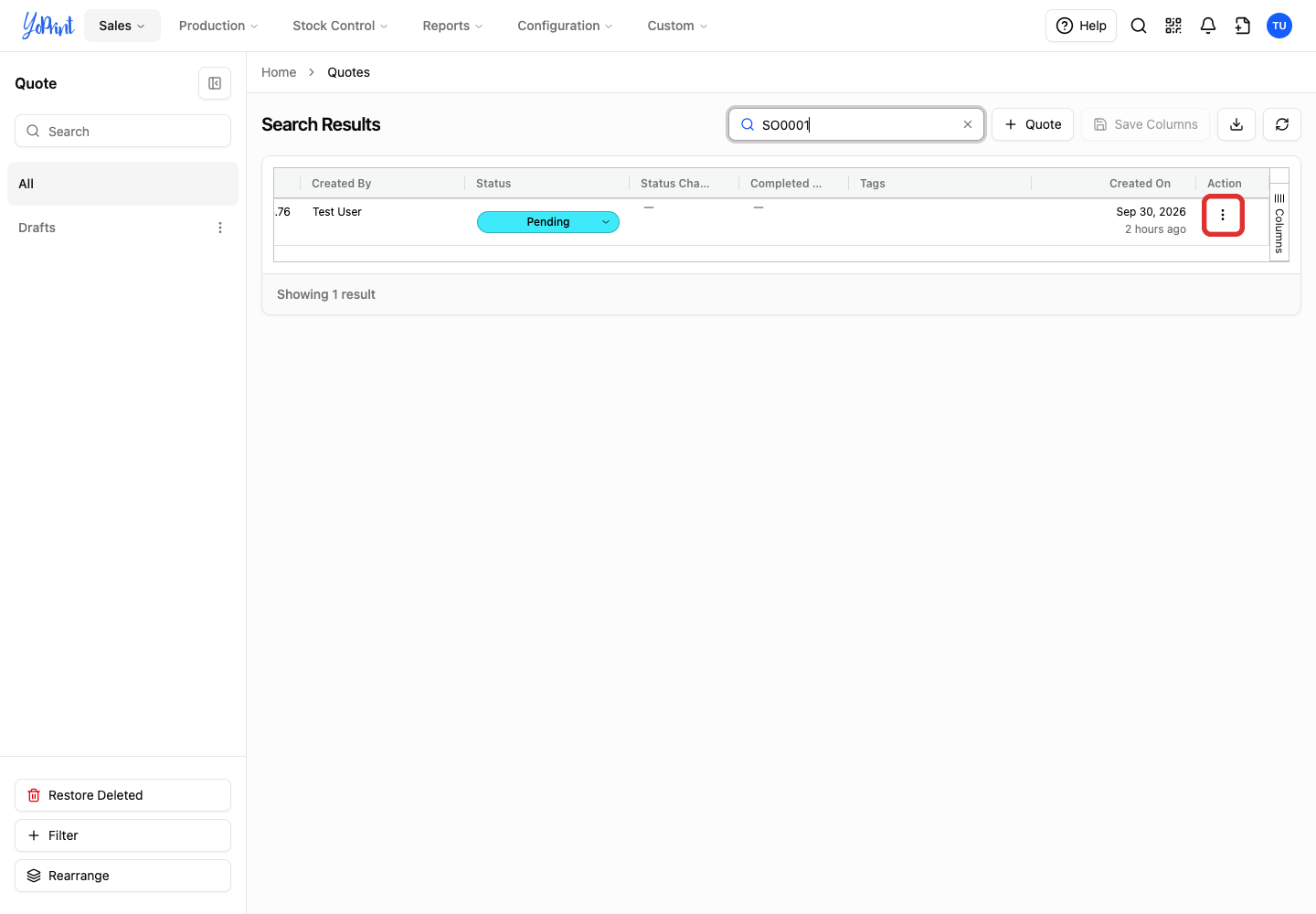
Open the row's actions menu.
-
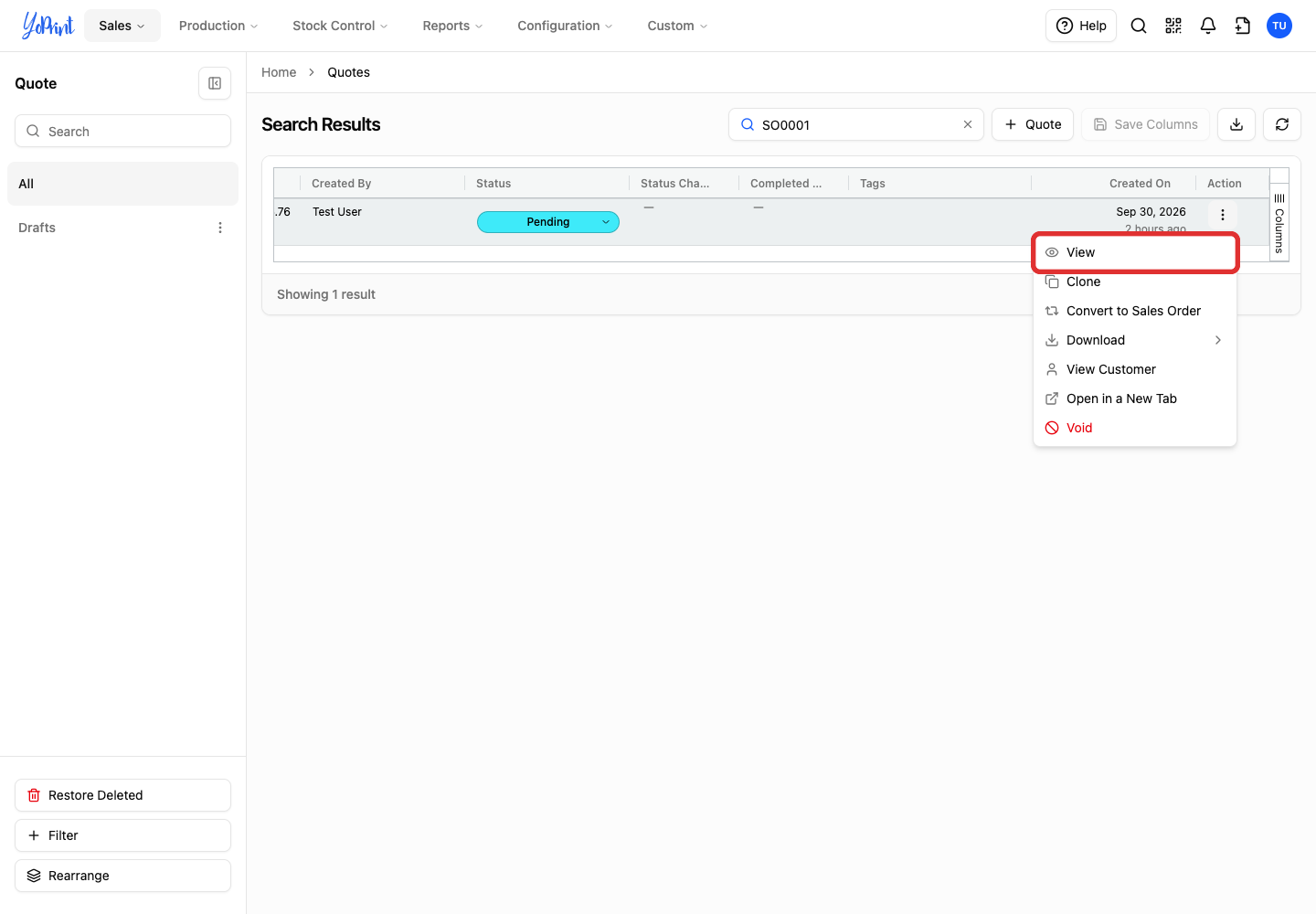
Choose View.
Change the label
-
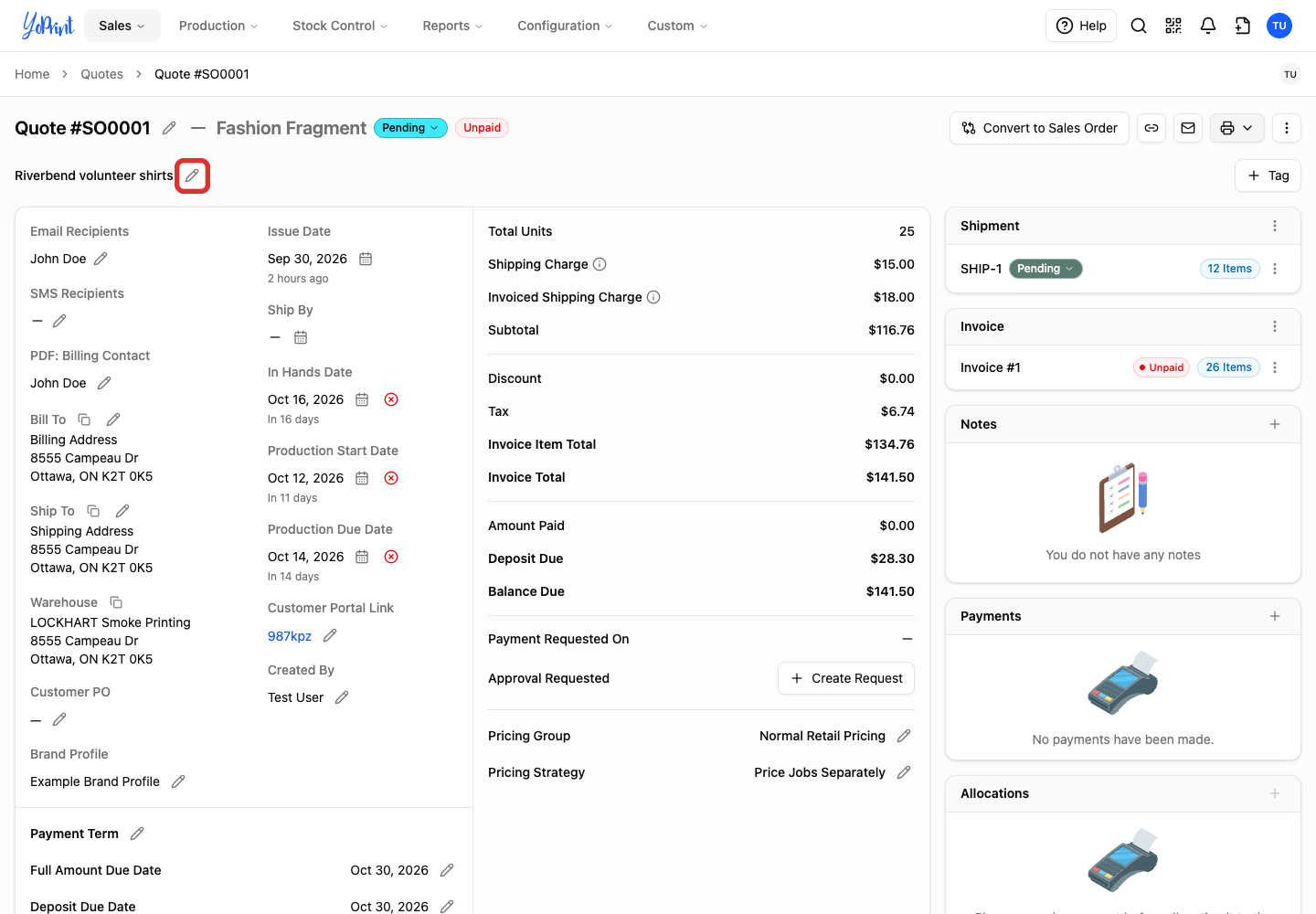
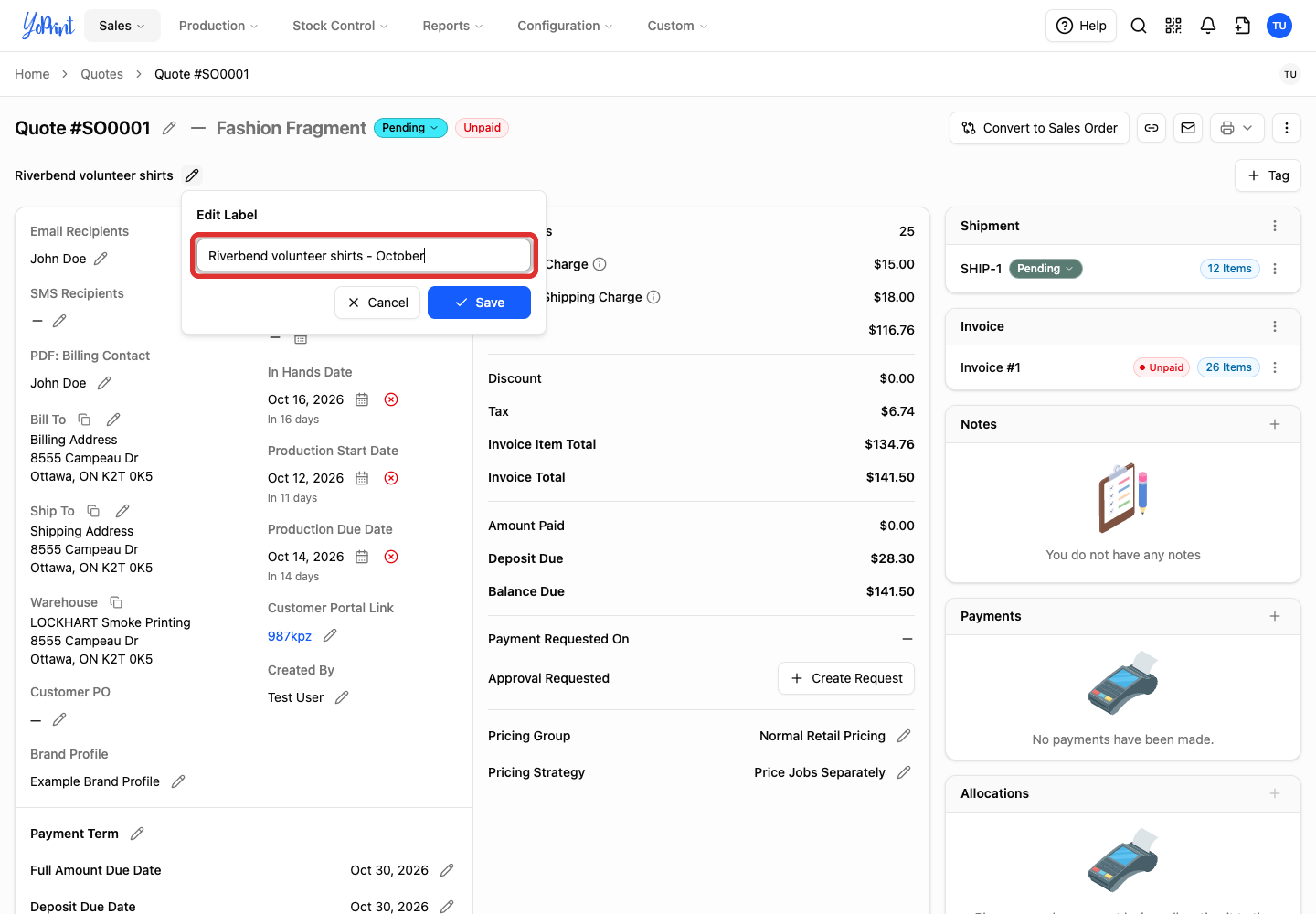
Click Edit Label (or the pencil beside Add a label).
-
Enter the new label.
-
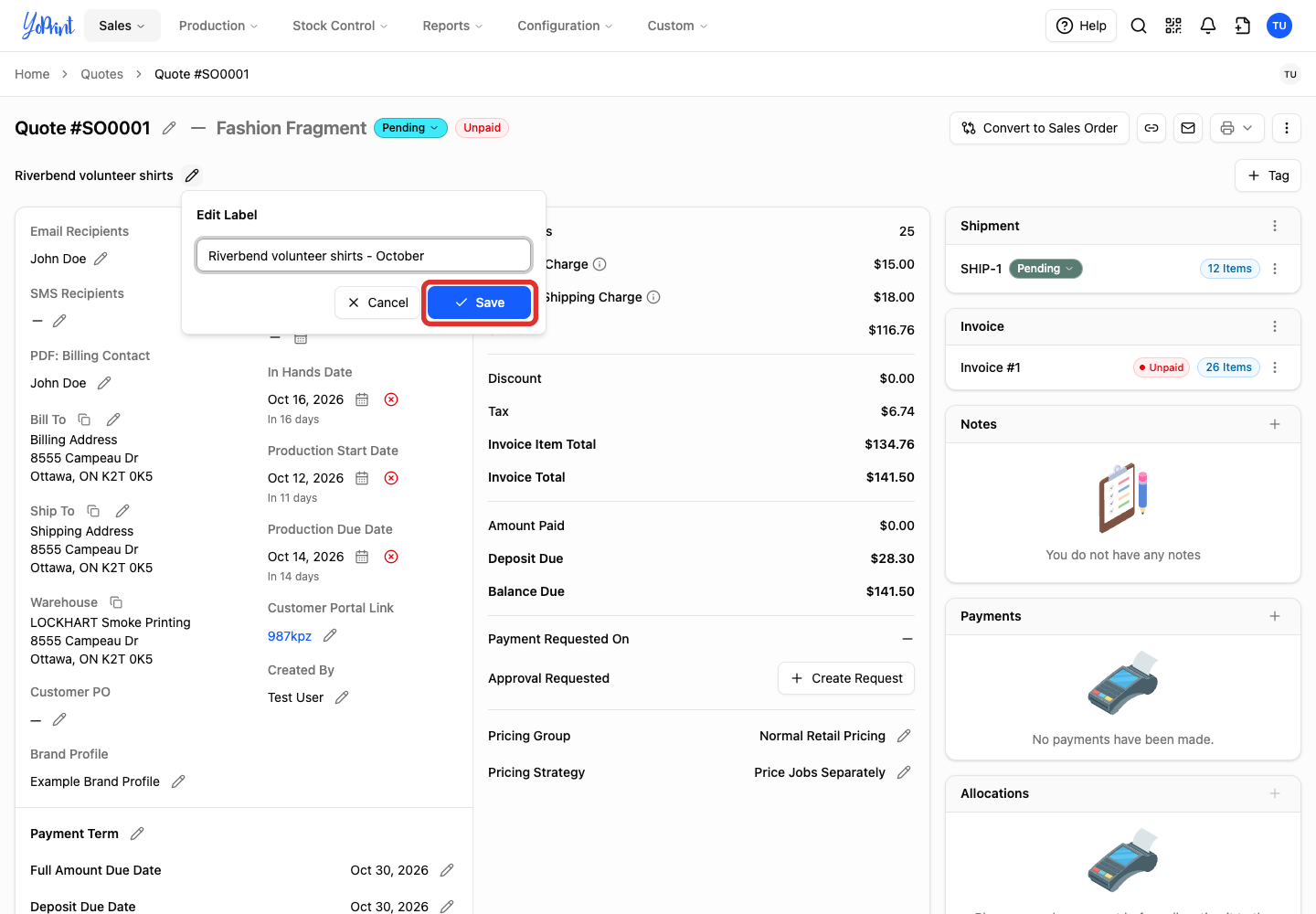
Click Save.
Change products
-
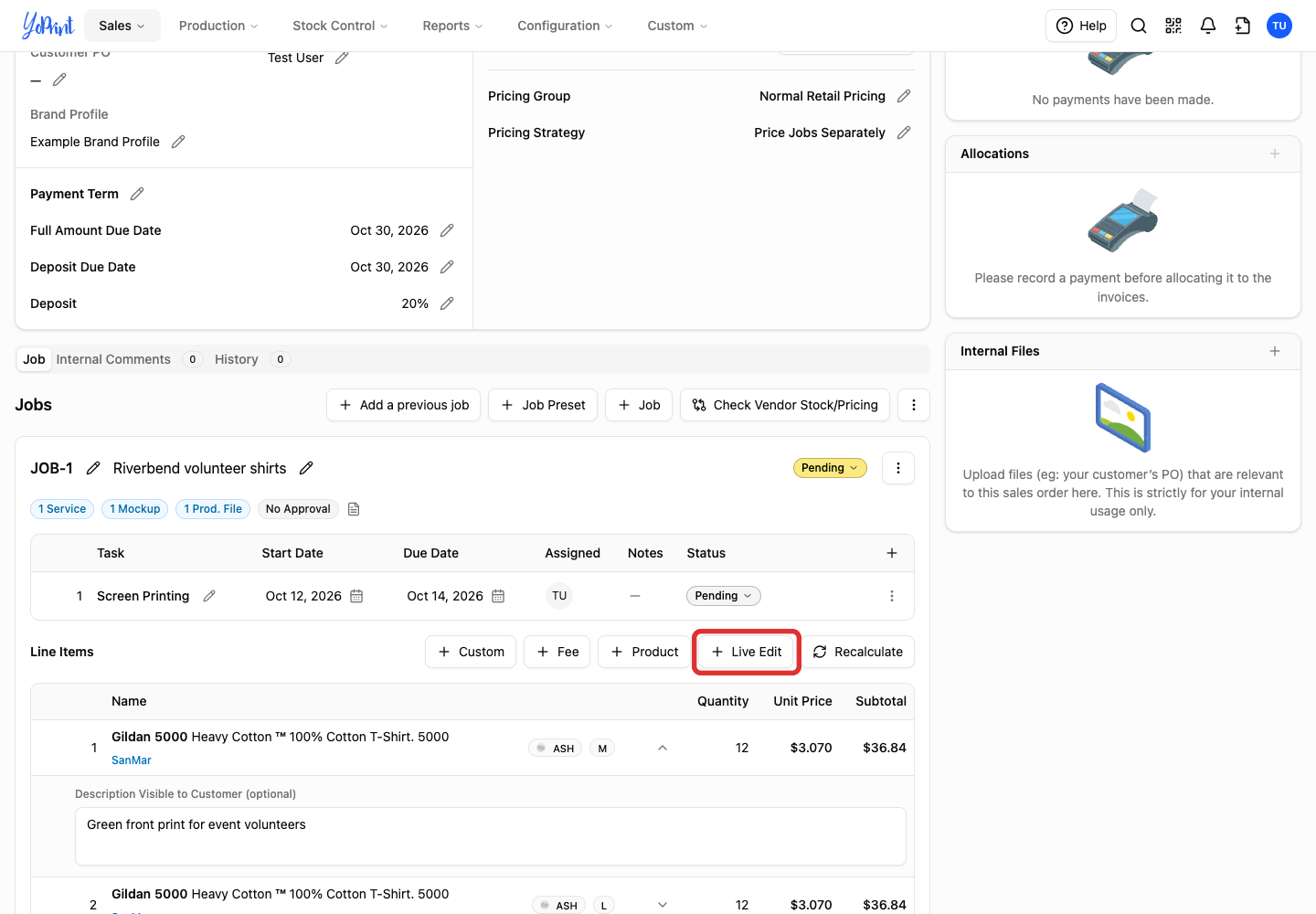
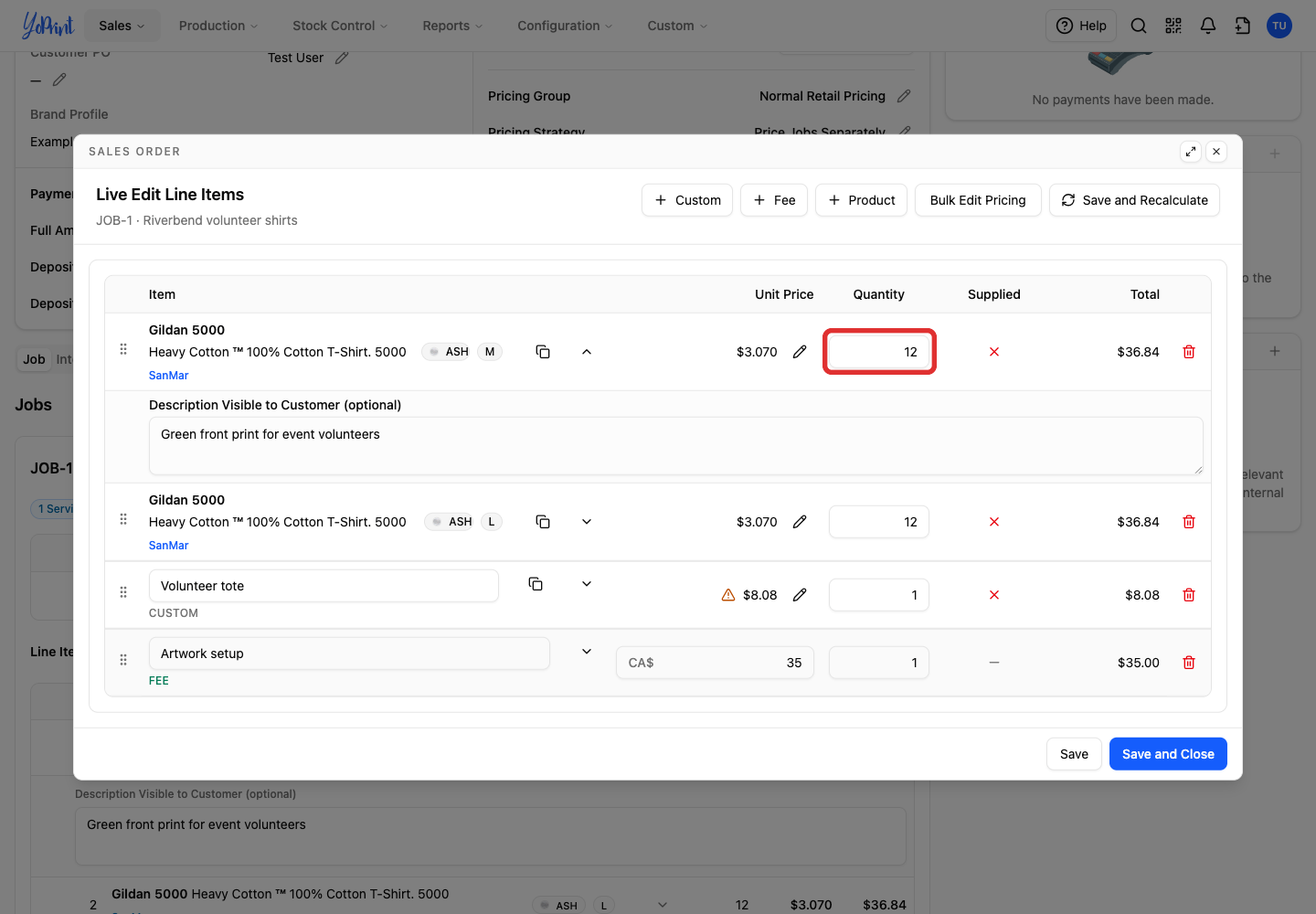
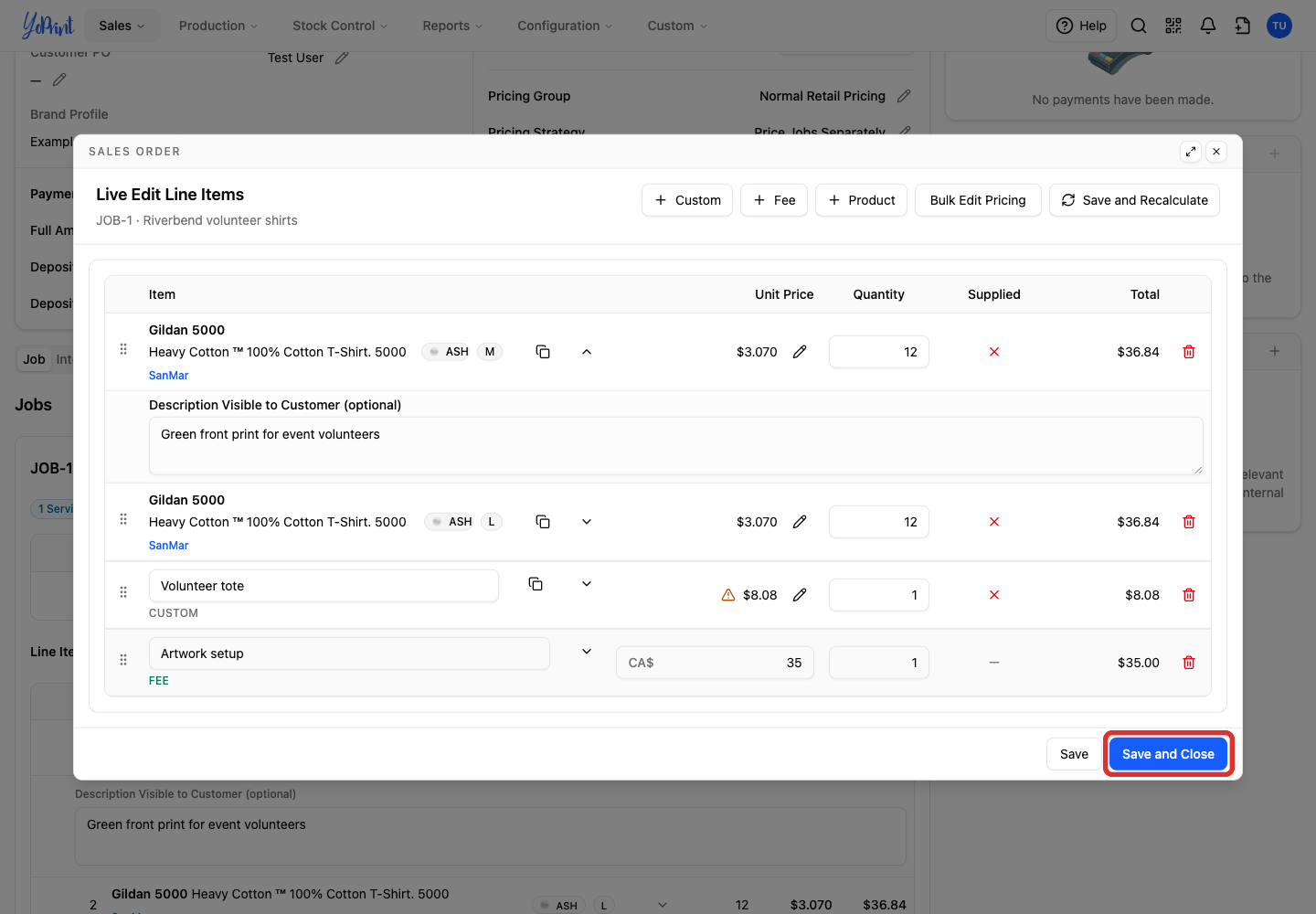
On the job, click Live Edit under Line Items. The editor banner reads SALES ORDER, which YoPrint displays for both quotes and orders.
-
Change the product row as needed.
-
Click Save and Close.
Change a customer's details
Changes to a customer's details update the customer record, not just this quote.
Once a customer is selected, View Customer opens their record to update details for future orders. Follow Create and Manage a Customer for the customer details form. The quote label has its own pencil and does not rename the customer.
What to do next
Once the quote is ready, choose the next step your shop needs.
- Send the quote to the customer.
- Request quote approval.
- Get artwork approval.