Choose what prints on sales order, quote and job PDFs
In this article
In PDF Configuration, choose whether product descriptions print on sales order and quote PDFs. On sales order, quote and job PDFs, set how many mockups fit on a page and show or hide mockup captions. For job PDFs, choose how jobs and mockups share pages.
These settings control YoPrint's built-in PDFs. For your own document design, see Create and Use Custom PDFs and, for job sheets, Creating Custom PDF Templates for Jobs.
Open PDF Configuration
-
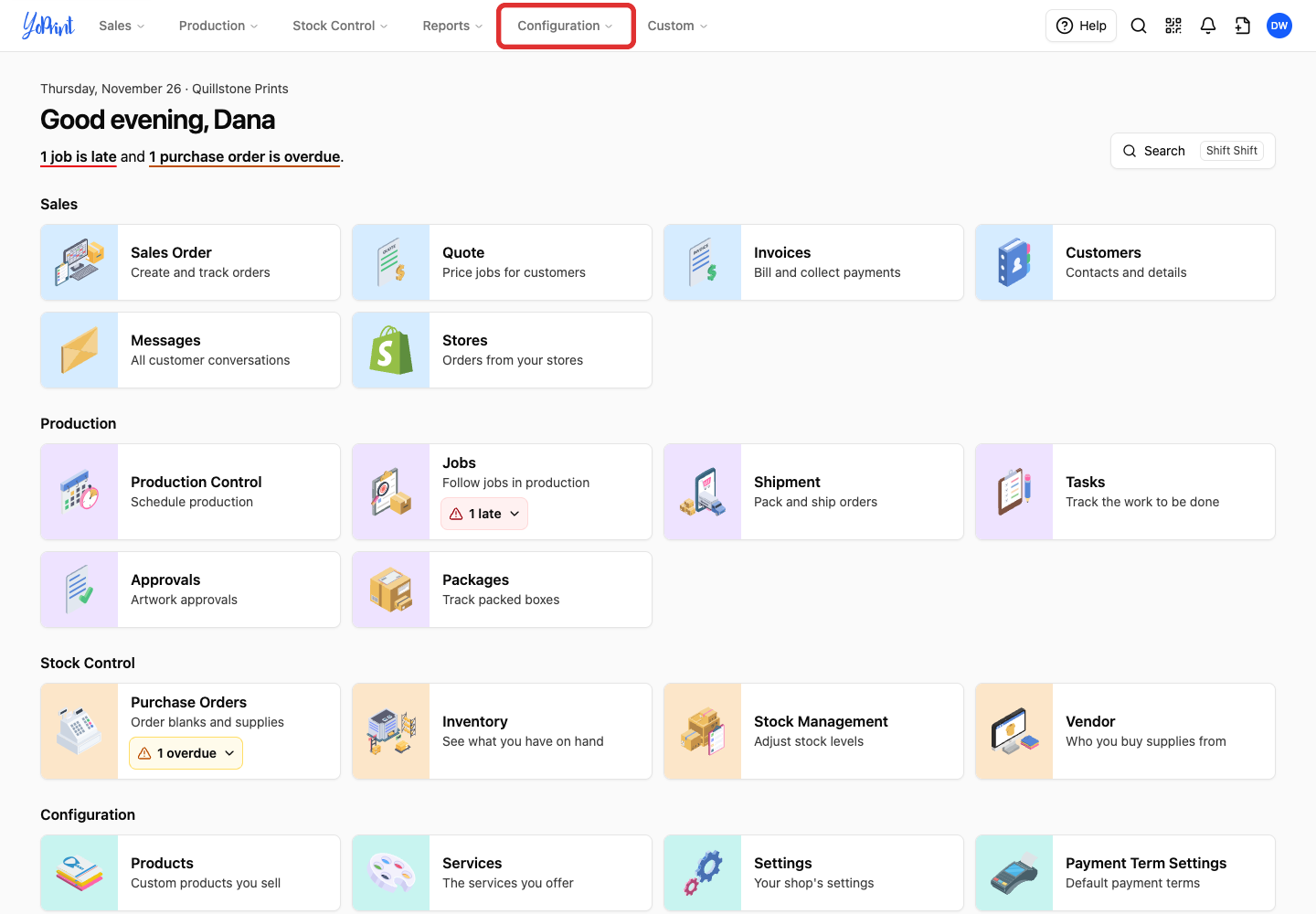
Open Configuration in the top menu.
-
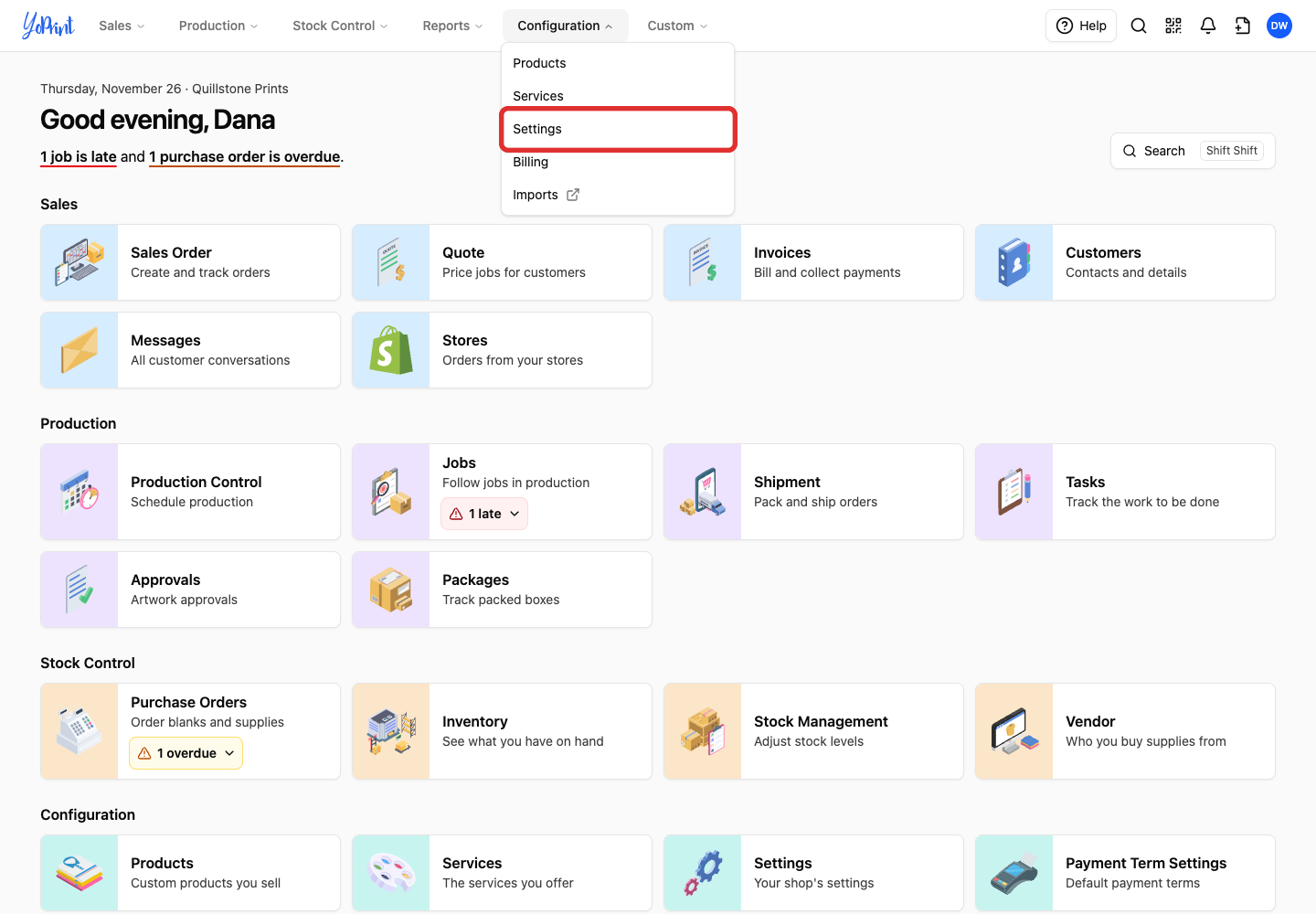
Choose Settings.
-
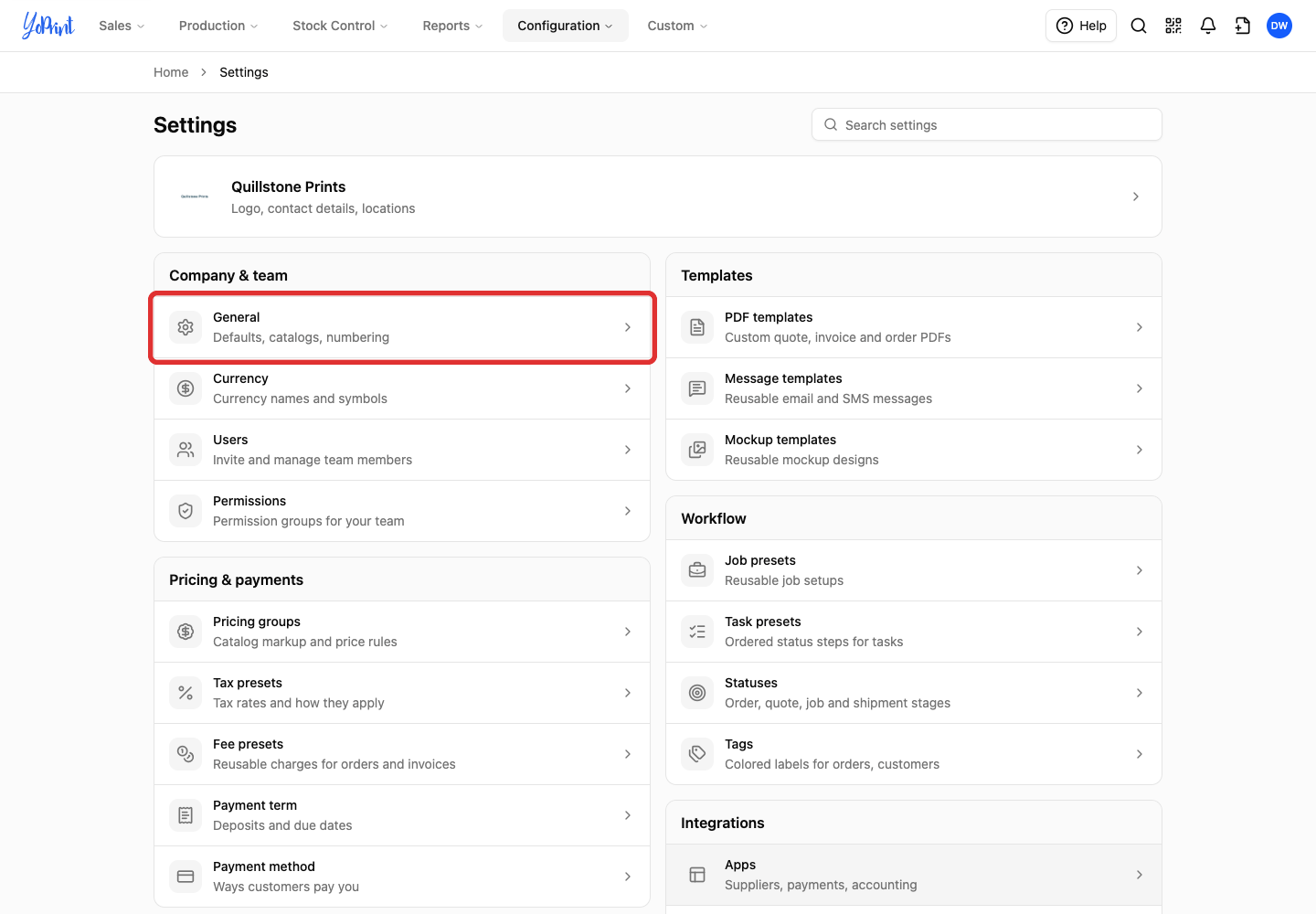
Click General on Settings home.
-
Click PDF Configuration.
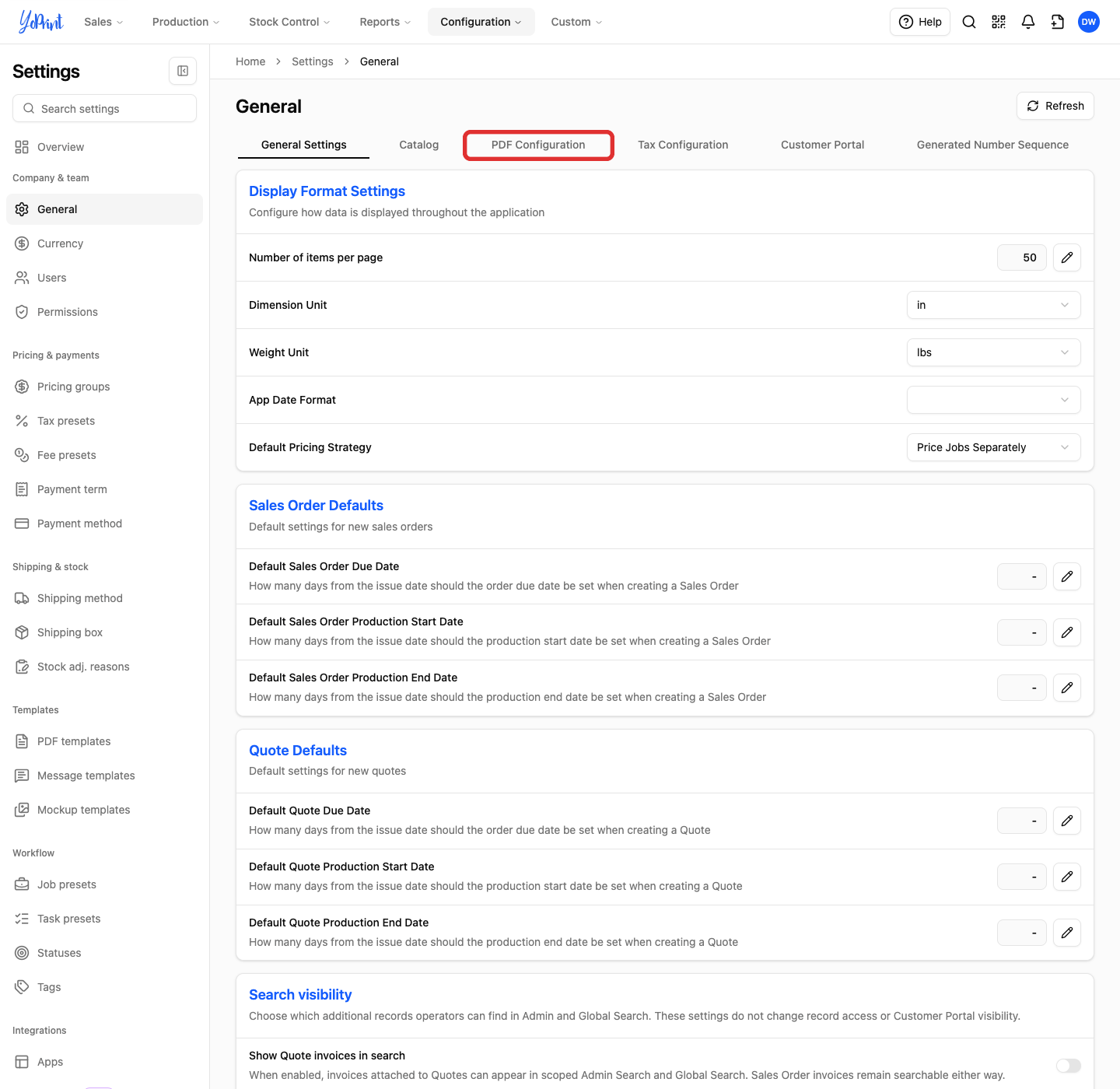
Your changes save automatically. You can return to PDF Configuration anytime to update them.
The tab has other PDF settings too. To change the logo that Show Logo in PDF Header prints, see Setting Up Your Account.
For Use QR Code, see Understanding QR Codes vs. Code 128. Turning Use QR Code off switches standard documents and labels to Code 128 instead of removing barcodes. Compact 1" x 2-1/8" job and shipment labels always use QR codes.
This article covers the five settings below.
Include product descriptions
This setting applies to sales order and quote PDFs. It does not change product descriptions on invoice, shipment, job or purchase order PDFs.
Product descriptions can show a product's material, dimensions or other details beneath its name.
-
Turn Show Product Description in Sales Order PDF on to include product descriptions or off to leave them out.
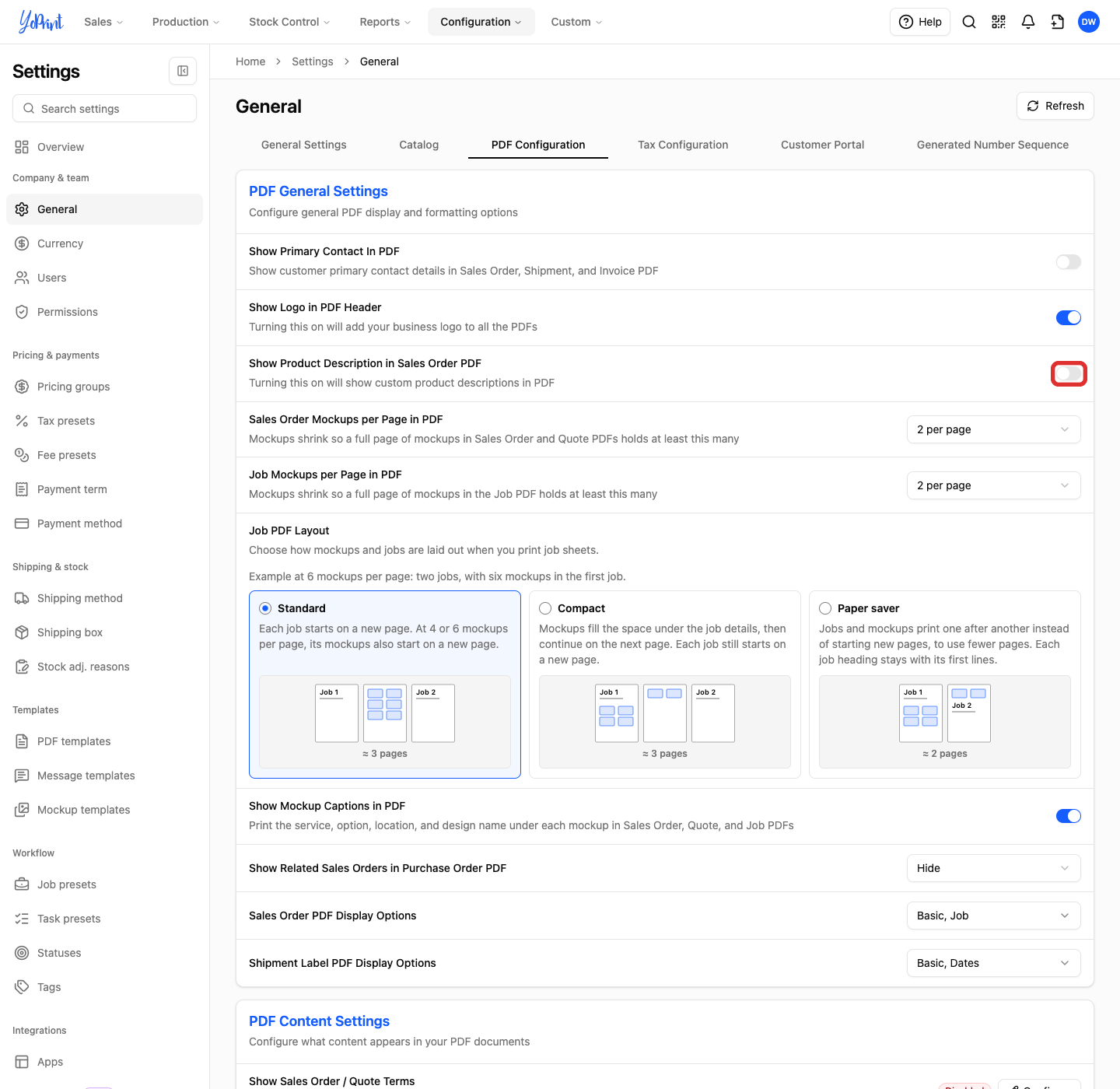
The switch is off by default. The Customer Portal has its own product description setting. See Customer Portal Settings.
Set how many mockups fit on a page
Sales order and quote PDFs share one mockup menu, and job PDFs use a separate menu. Both menus offer 1 per page, 2 per page, 4 per page and 6 per page. Choosing a larger number shrinks the mockups so a full page can hold at least that many mockups.
-
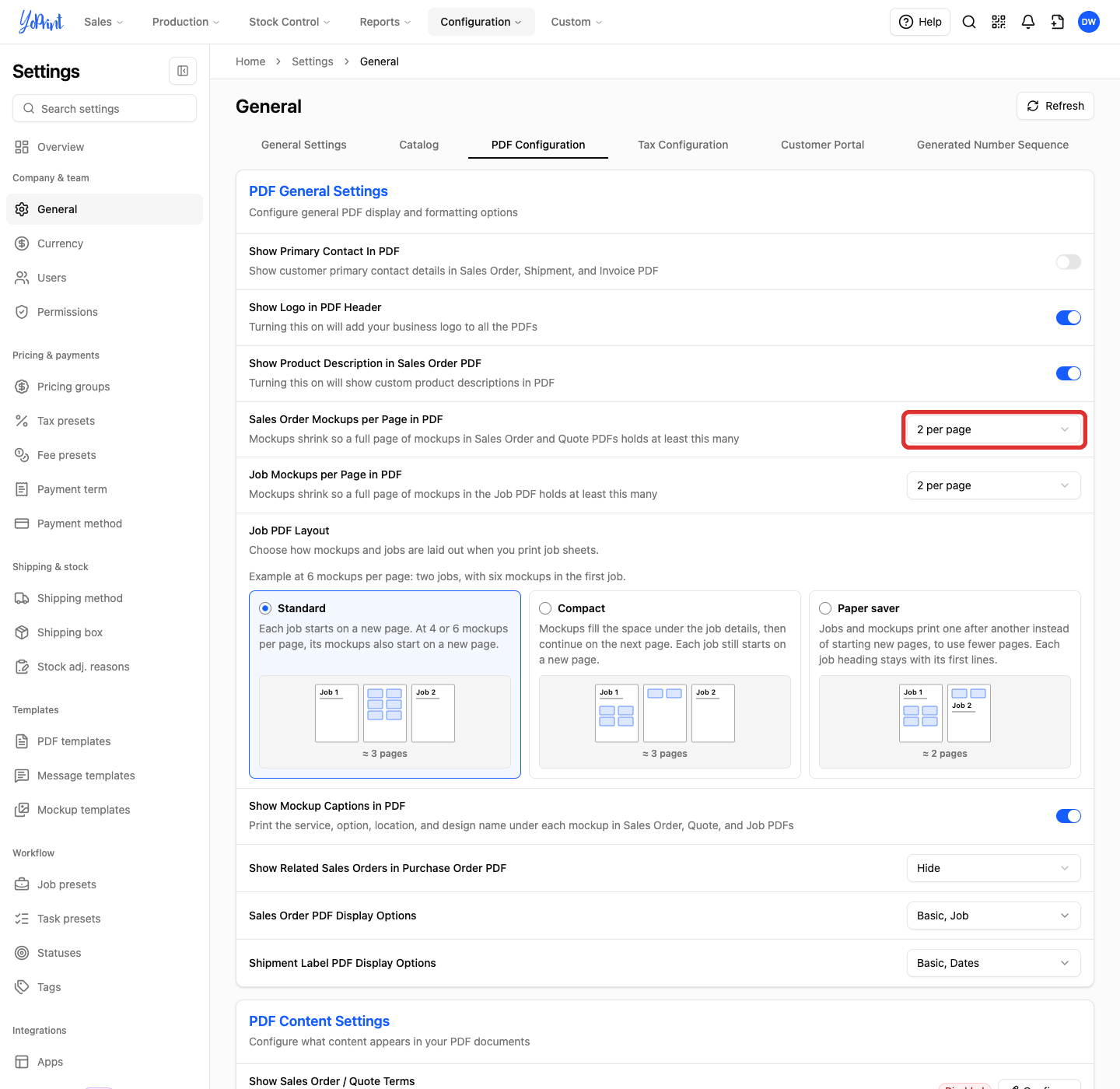
Open Sales Order Mockups per Page in PDF to set the mockup count for sales order and quote PDFs.
-
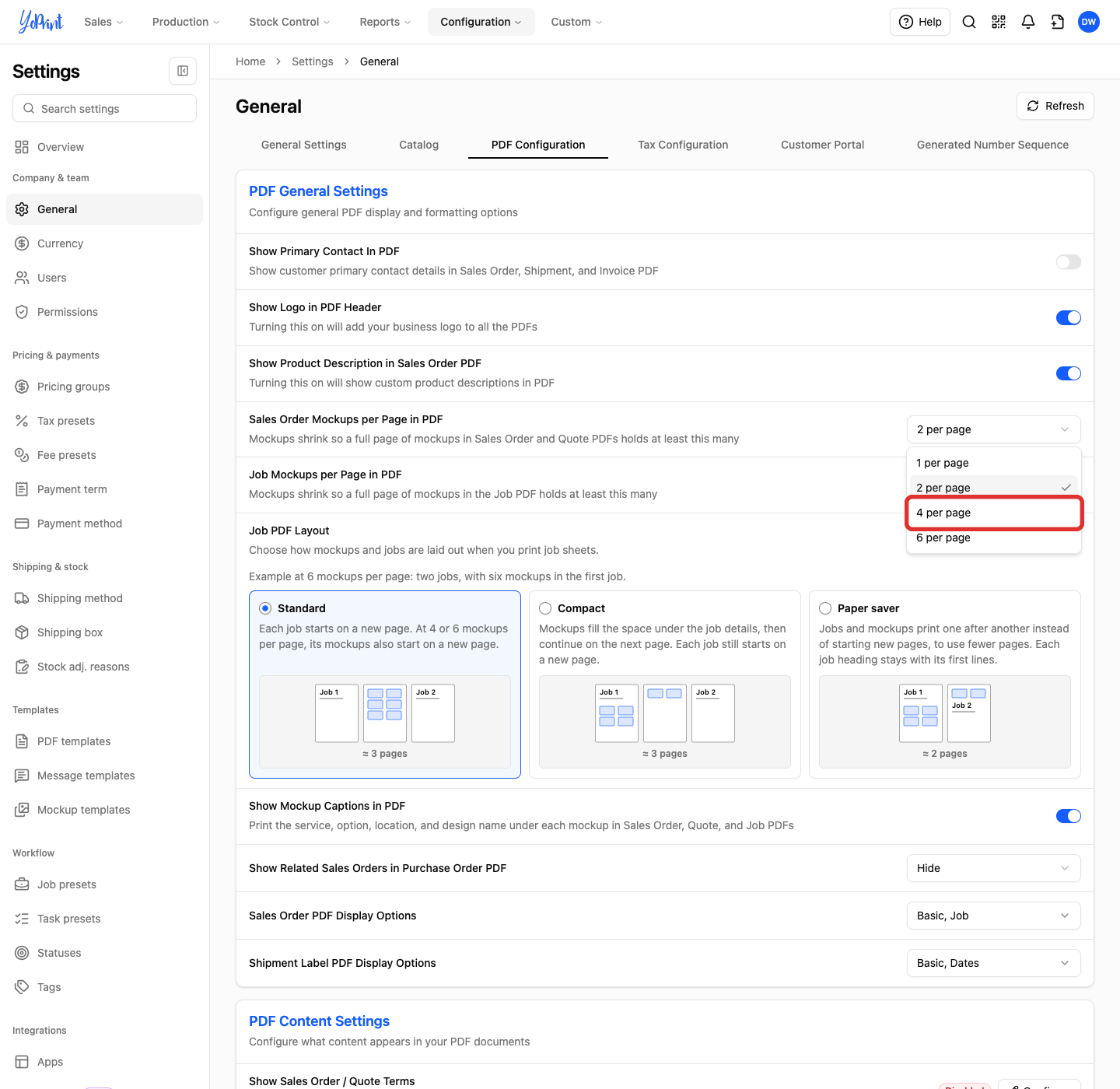
Choose the number you want, such as 4 per page.
-
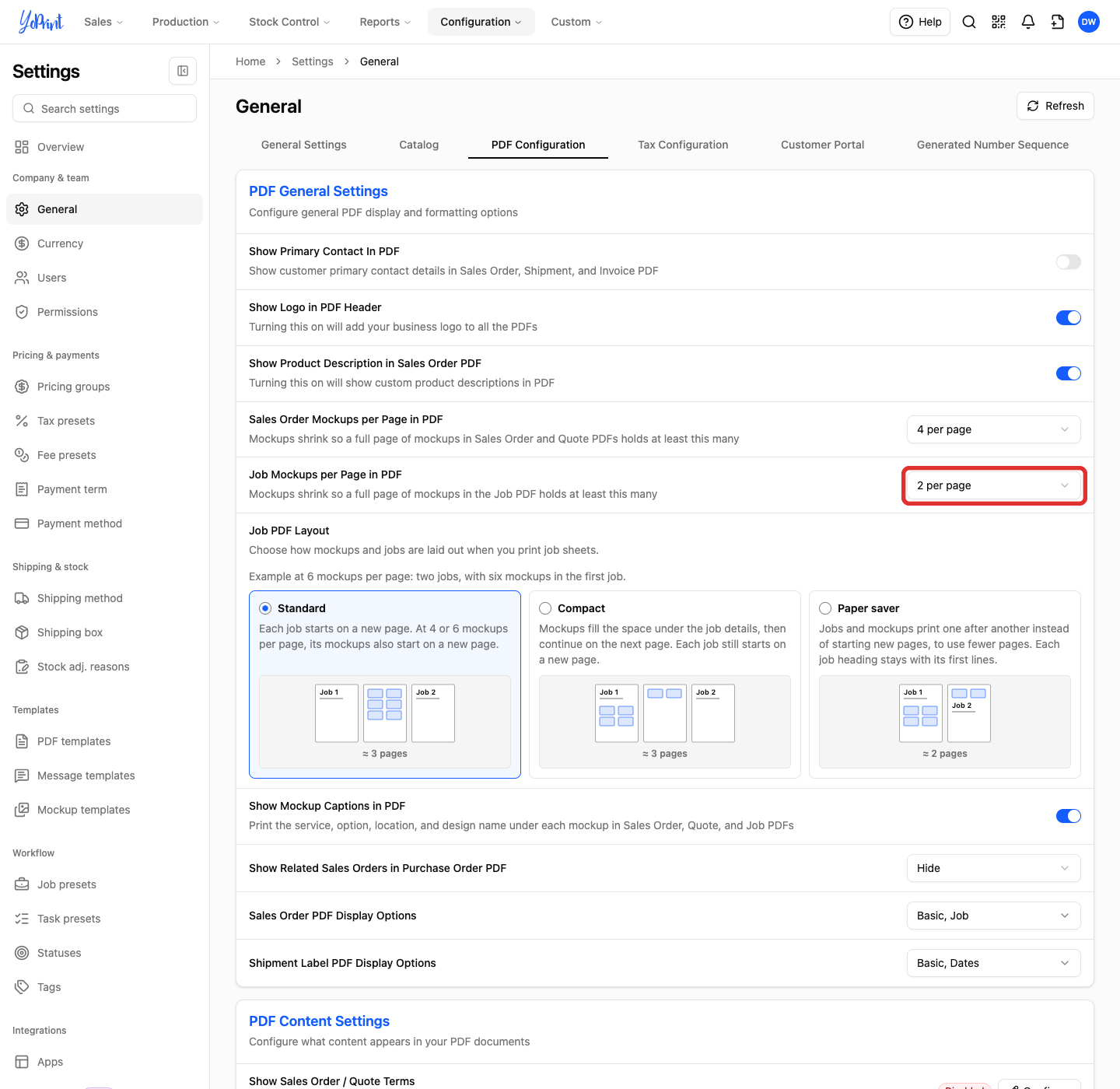
Open Job Mockups per Page in PDF to set the mockup count for job PDFs separately.
-
Choose the number you want for job PDFs, such as 4 per page.
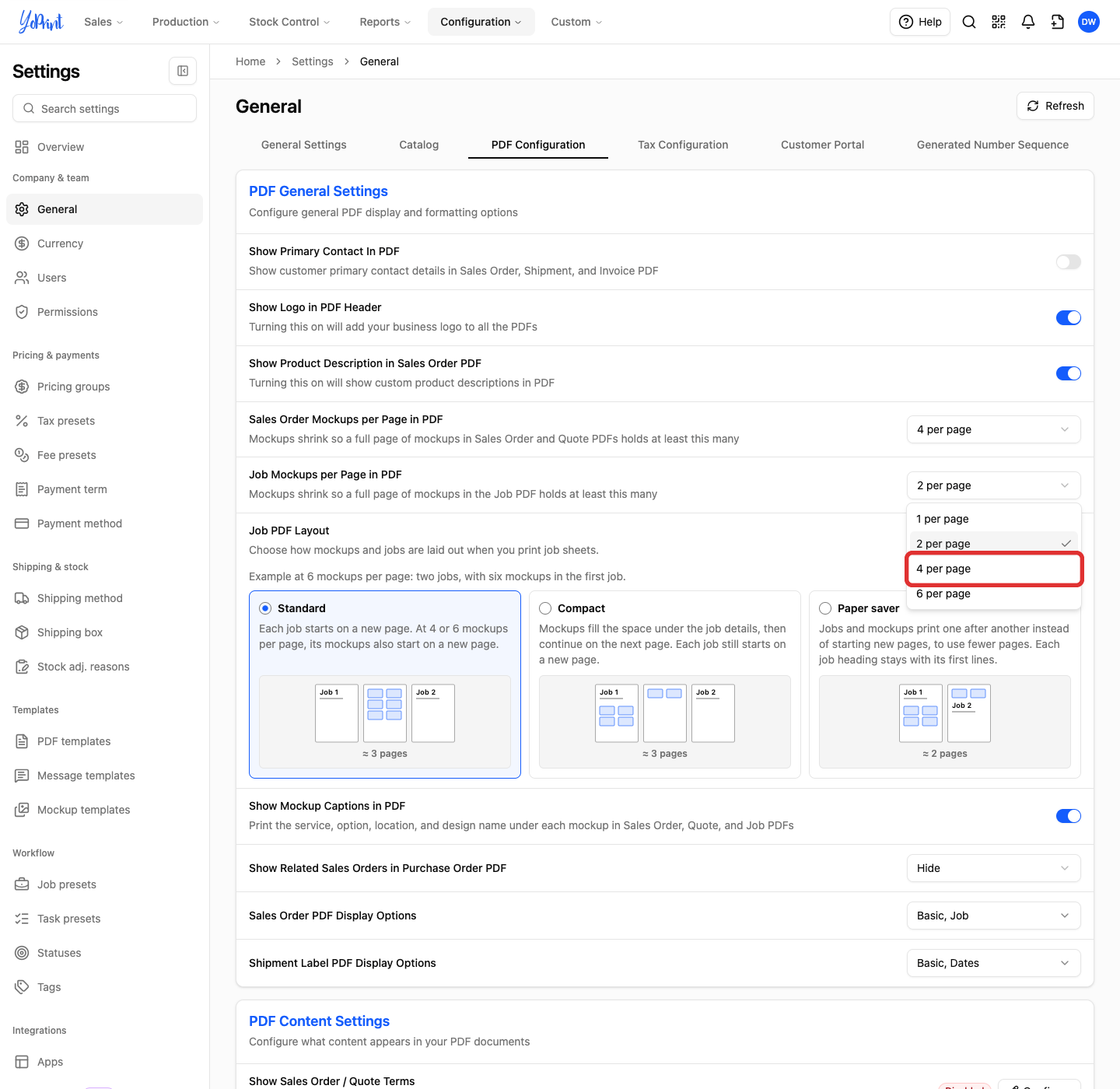
Both menus default to 2 per page. To keep a mockup off PDFs altogether, use its Show in PDF setting. See Get started with the Mockup Creator and, for uploaded mockups and internal production files, Mockup vs Production Files.
Quote and sales order PDFs show mockups only when they include the job summary. For sales orders, choose Show Job Summary in Sales Order PDF Display Options on this tab. Compact quote PDFs, compact sales order PDFs and invoice PDFs do not show mockups. Draft mockups stay off customer PDFs until you publish them.
Choose a layout for job PDFs
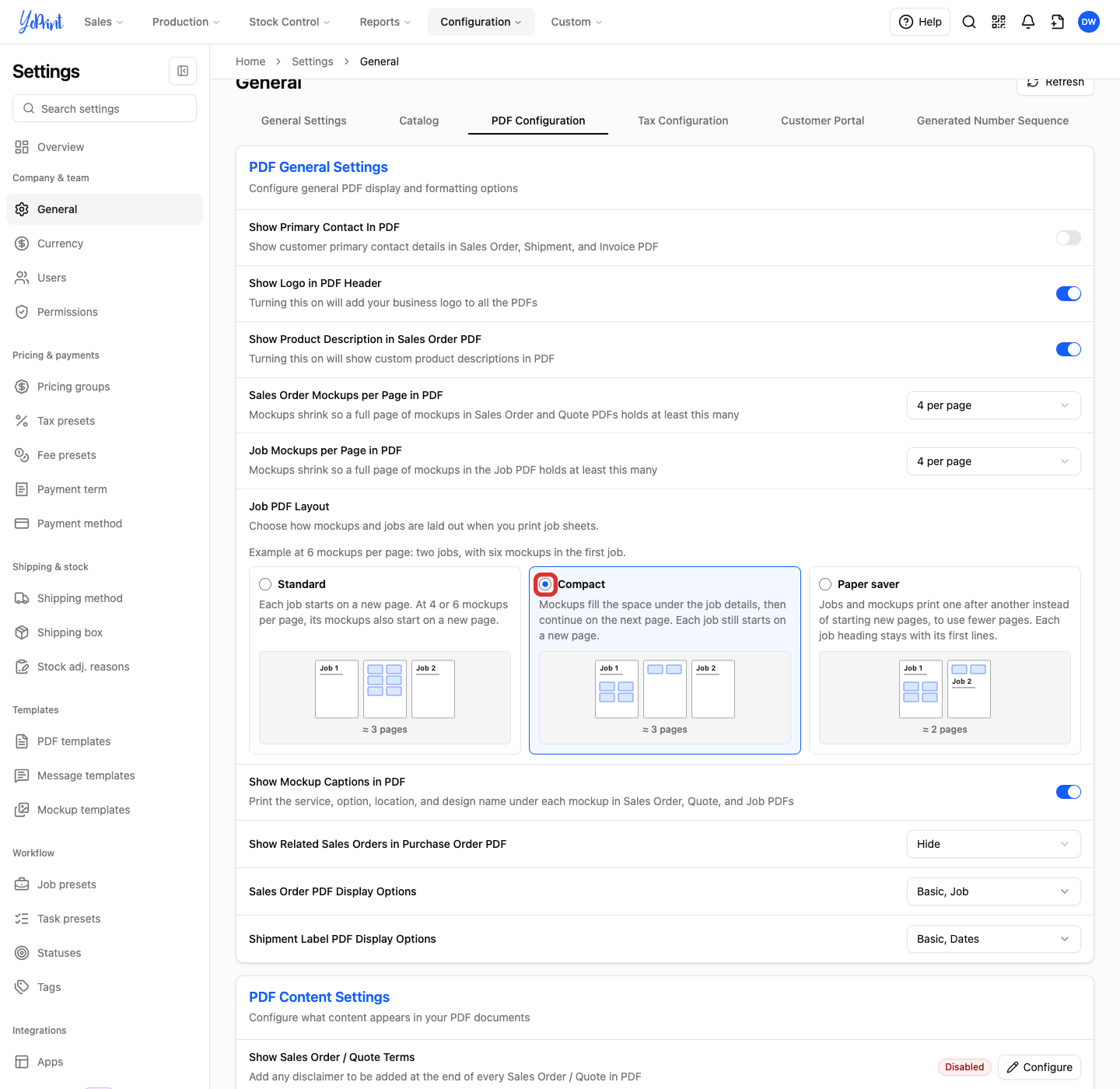
Job PDF Layout sets how jobs and mockups share pages on job PDFs:
- Standard is the default. Each job starts on a new page. At 4 per page or 6 per page, its mockups also start on a new page.
- Compact fills the space below the job details with mockups, then continues on the next page. Each job still starts on a new page.
- Paper saver lets jobs and mockups share pages when space allows. Each job heading stays with its first lines.
Job Mockups per Page in PDF still controls mockup sizing in every layout.
-
Under Job PDF Layout, choose the layout you want, such as Compact.
Show or hide mockup captions
One switch controls mockup captions on sales order, quote and job PDFs. Captions print the service, option, print location and design name beneath each mockup when those details are present. For example: DIRECT TO GARMENT (LIGHT GARMENT) | A4 (8" X 11.5") | SHIRT - FRONT.
-
Turn Show Mockup Captions in PDF on to include captions or off to hide them. This example turns captions off.
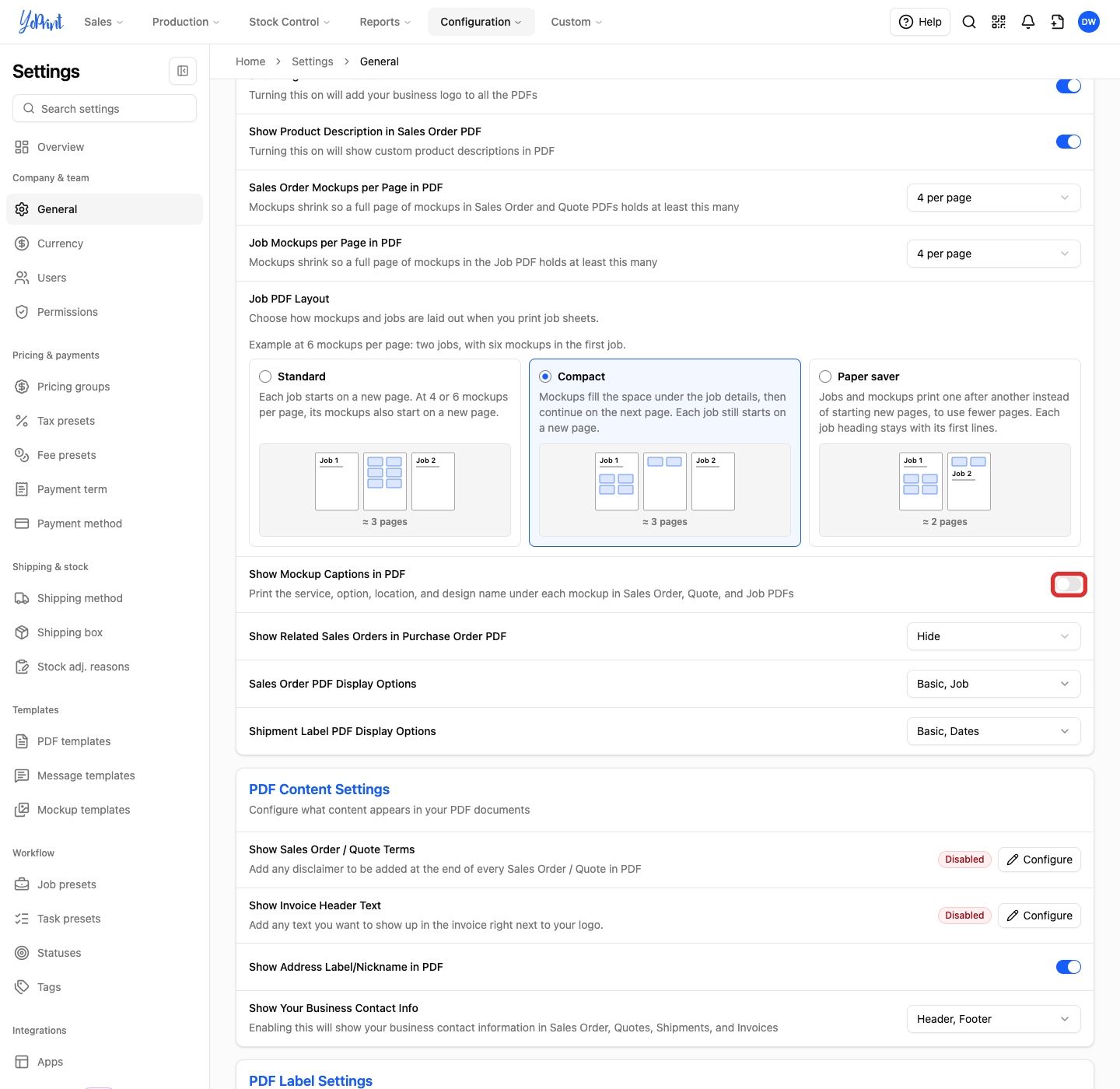
Captions are on by default.
Check your saved choices
PDF Configuration shows your saved settings. In this example, Show Product Description in Sales Order PDF is on, both mockup menus are set to 4 per page, Job PDF Layout is Compact, and Show Mockup Captions in PDF is off.
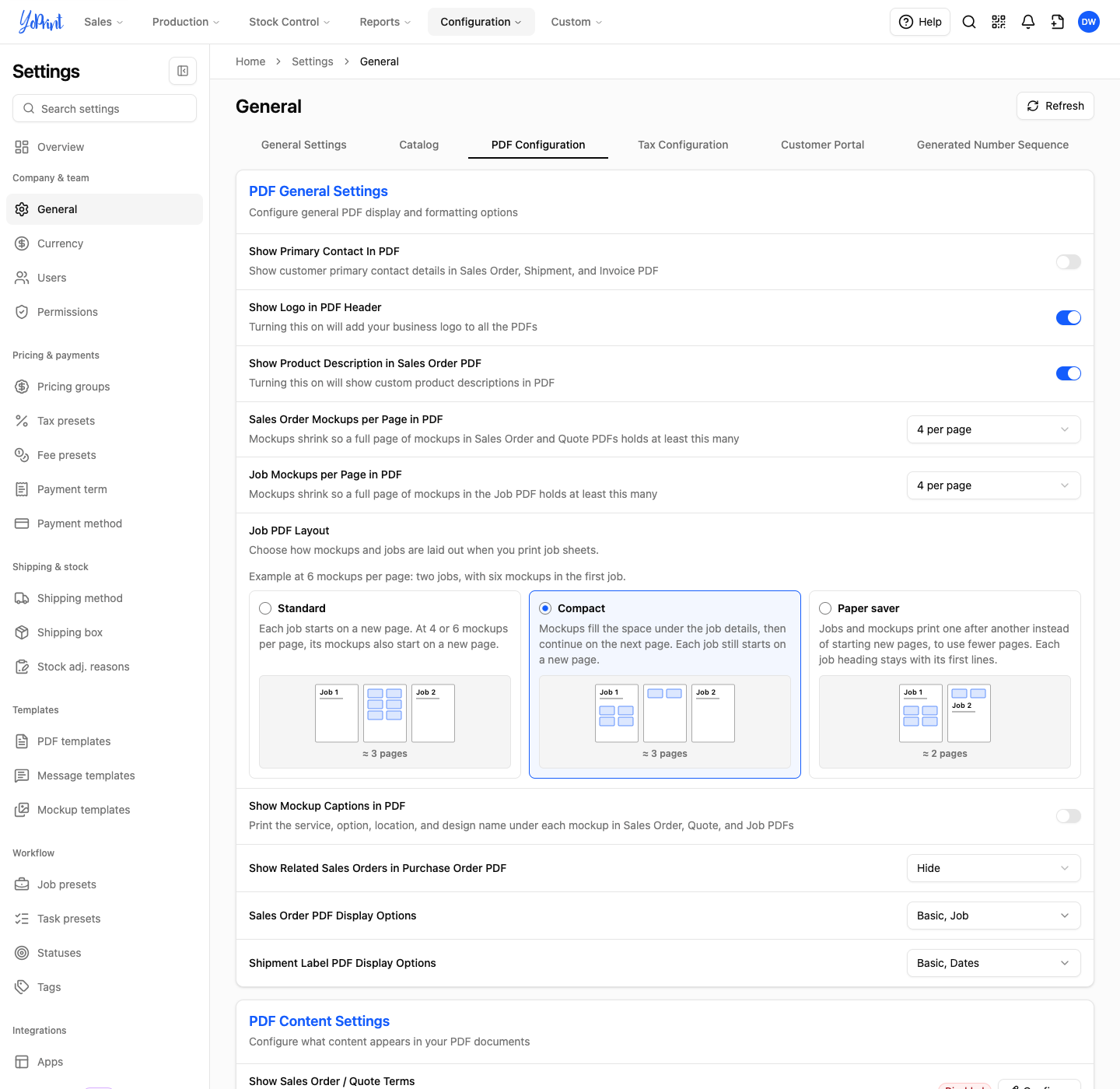
Download the PDF again from the sales order, quote or job to use your new settings. A PDF you already downloaded keeps its original contents. On a sales order, the Download button opens a PDF menu with order and invoice documents, job sheets and labels, and packing slips and shipment labels. See Sales Order Detail Page Overview.
To download job PDFs from All Jobs, see Jobs List. To email a PDF copy to your customer, see How to Send a Quote and Send Messages Through a Sales Order or Quote.