See Sales, Profit and Money Owed on the Reports Dashboard
In this article
- Open the Reports Dashboard
- Set the period and comparison
- Read the dashboard context
- Use the Overview tab
- Compare revenue and cash on the Revenue tab
- Review orders and quotes
- Follow money owed
- Understand customer activity
- Review products and services
- Check purchasing and blanks
- Track production
- Open row-level reports and exports
Use the Reports Dashboard to track sales, profit, cash, unpaid balances, orders, customers, products, purchasing, and production in one place. Pick a preset period or set custom dates for year-end reports.
Open the Reports Dashboard
-
Open Reports in the top navigation.
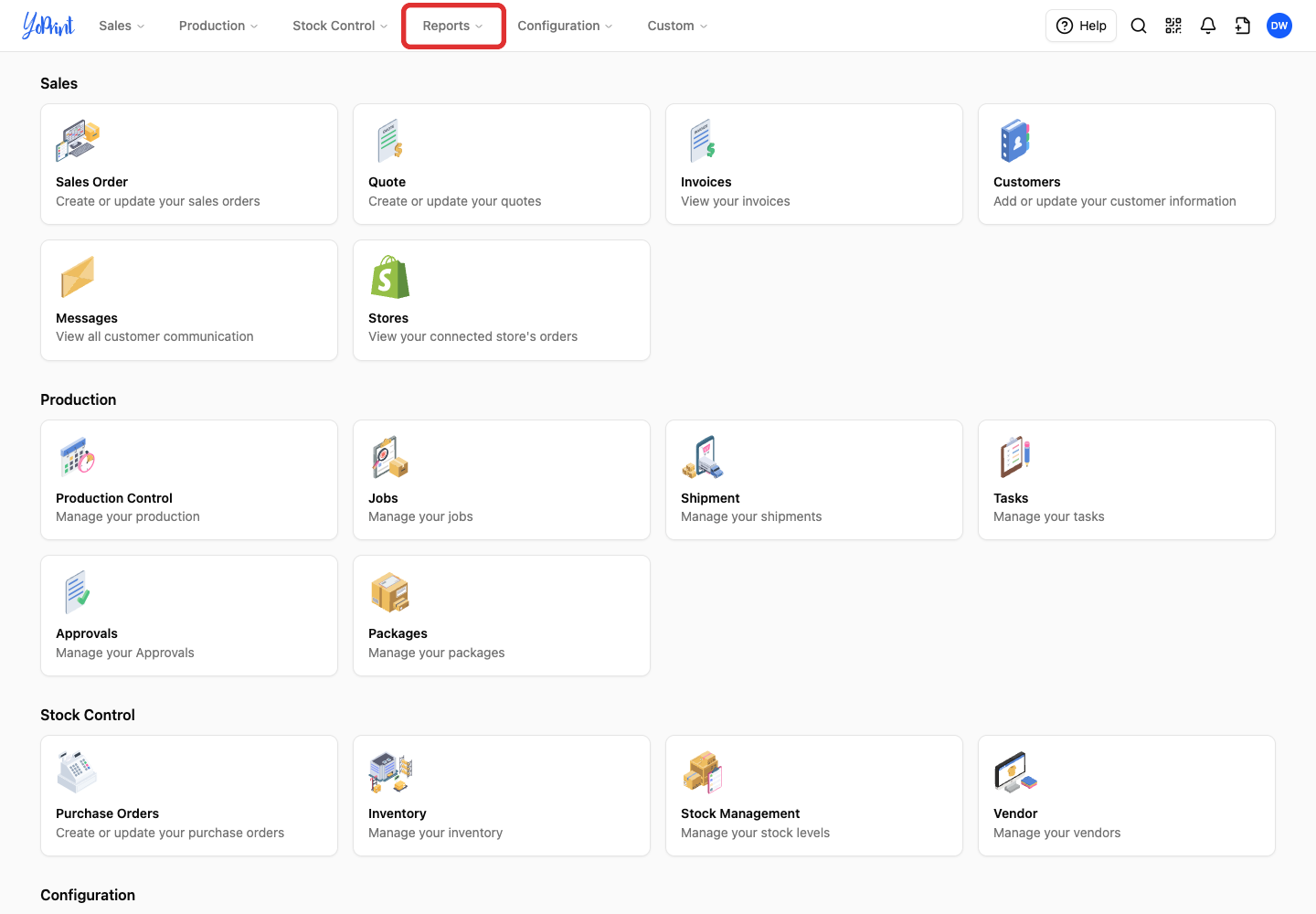
You need the View Reports permission to see Reports. If Reports is missing, ask an admin to go to Configuration > Settings > Permissions, open your permission group, and turn on View Reports. To create or edit a permission group, see Permission.
-
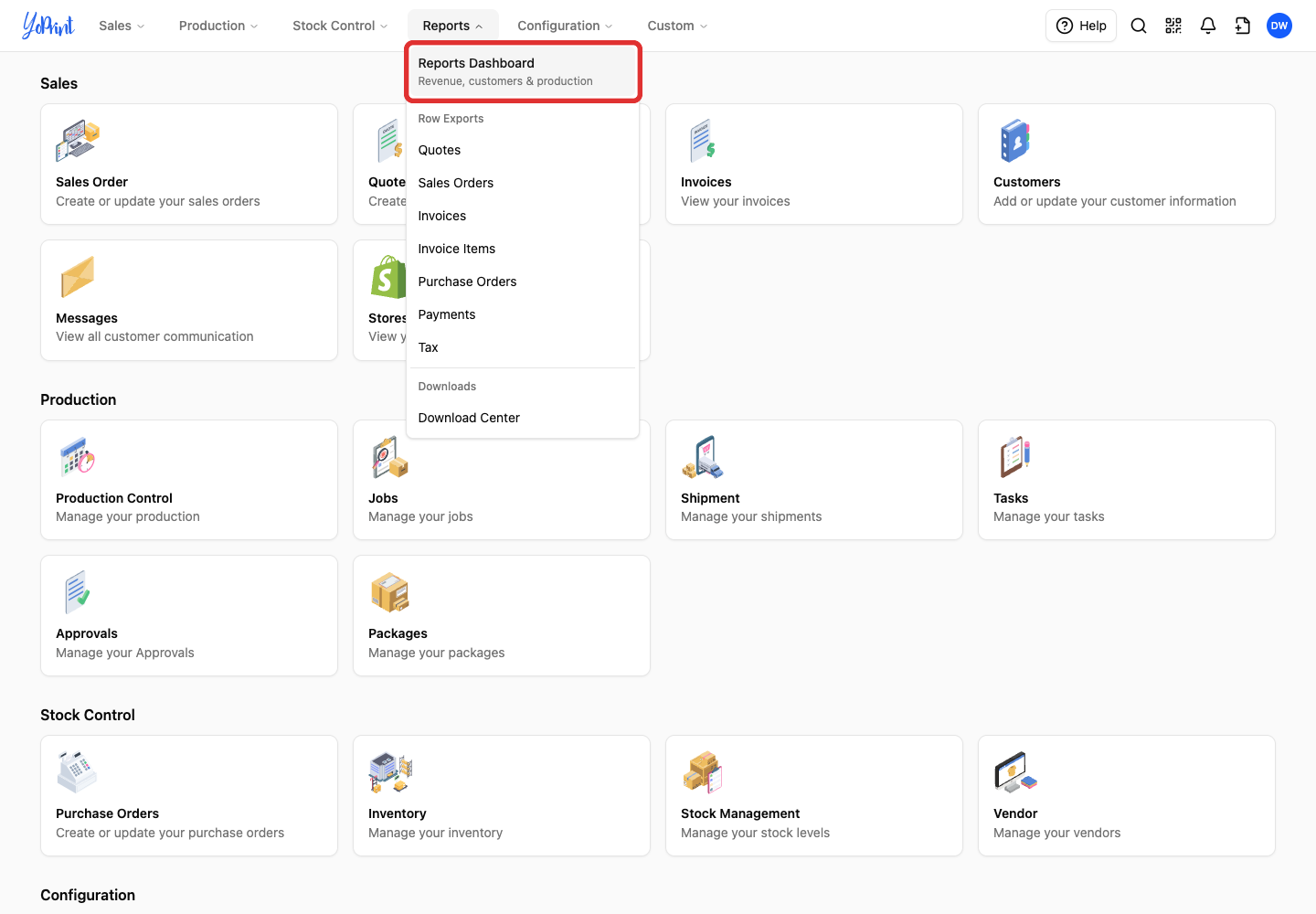
Choose Reports Dashboard. The menu shows Revenue, customers & production under it.
Set the period and comparison
-
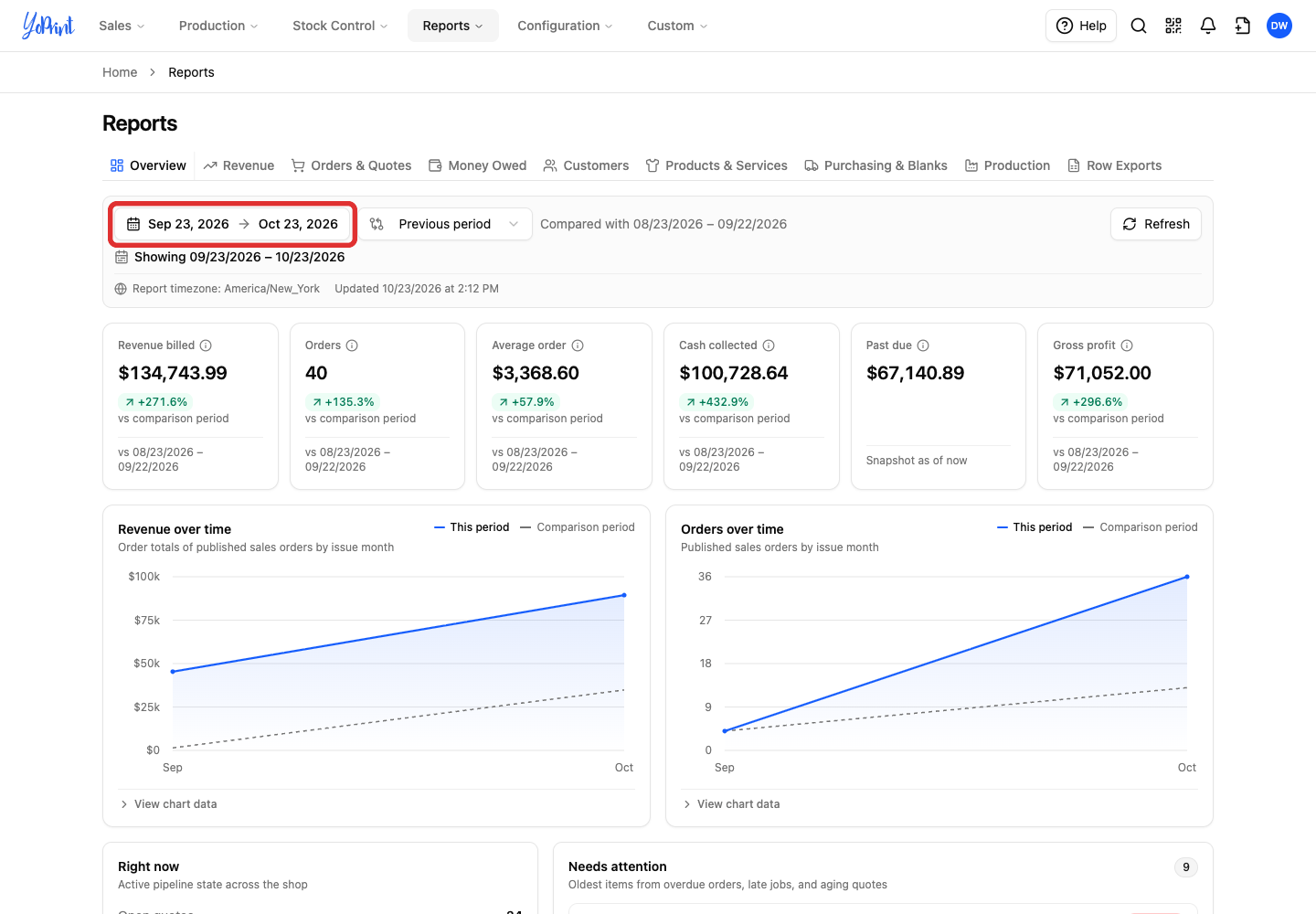
Open the date range at the top of the dashboard.
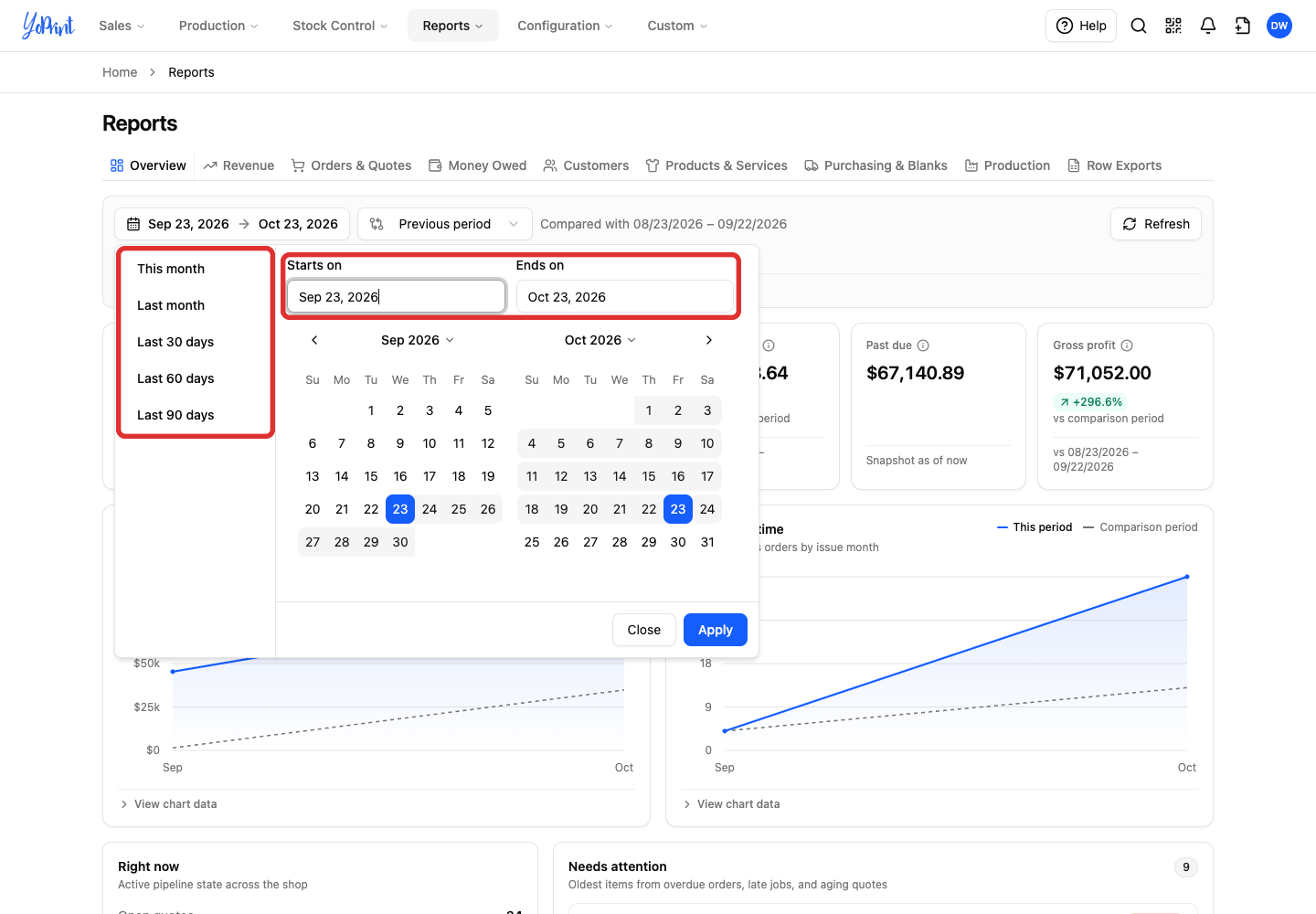
Choose This month, Last month, Last 30 days, Last 60 days, or Last 90 days on the left. To use a custom range, enter the Starts on and Ends on dates or pick them on the calendar, then click Apply.
-
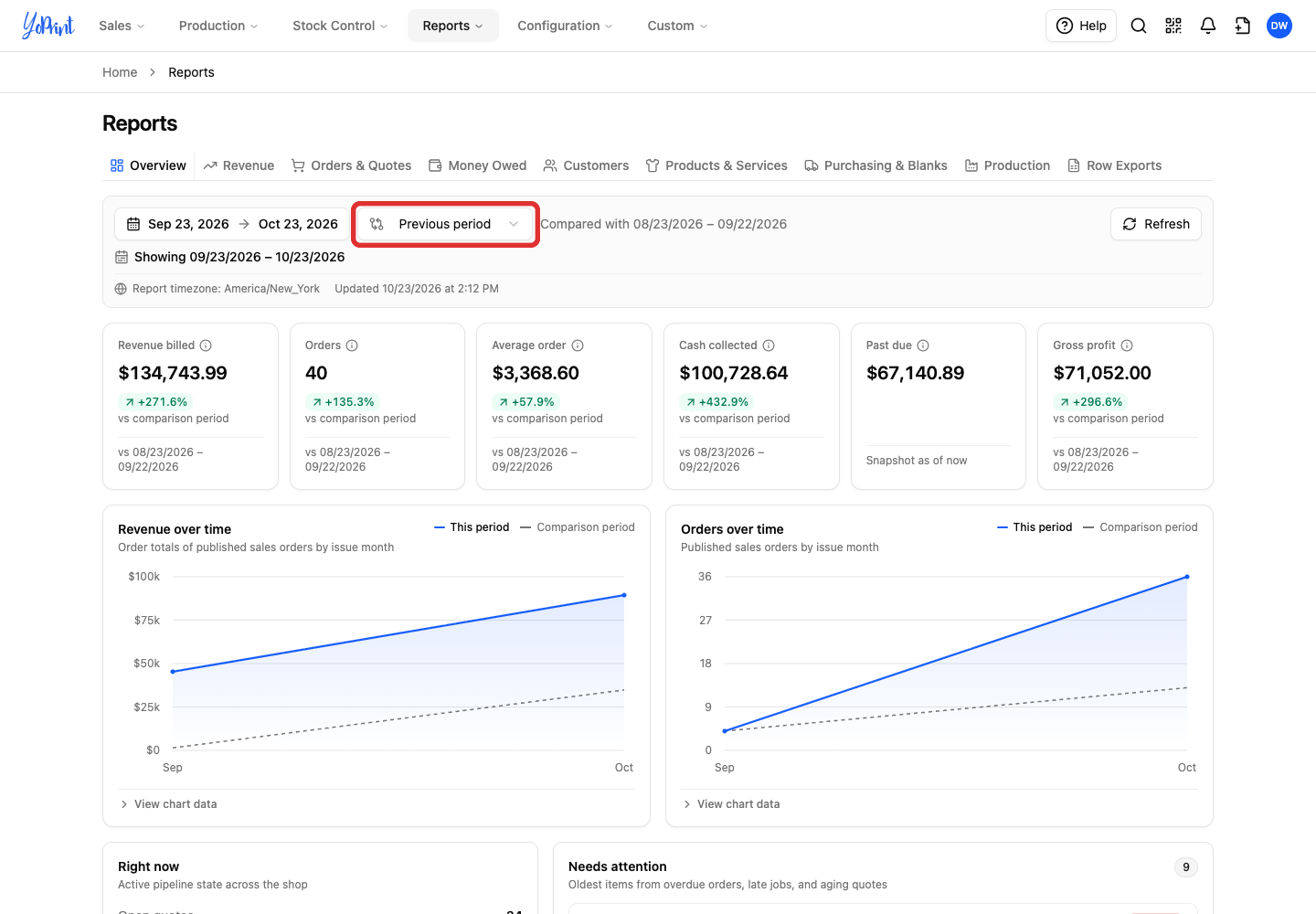
On the Overview, Revenue, or Purchasing & Blanks tab, click the comparison button next to the date range. The button shows a two-arrow icon and the current choice, such as Previous period.
-
Choose Previous period, Previous year, or No comparison.
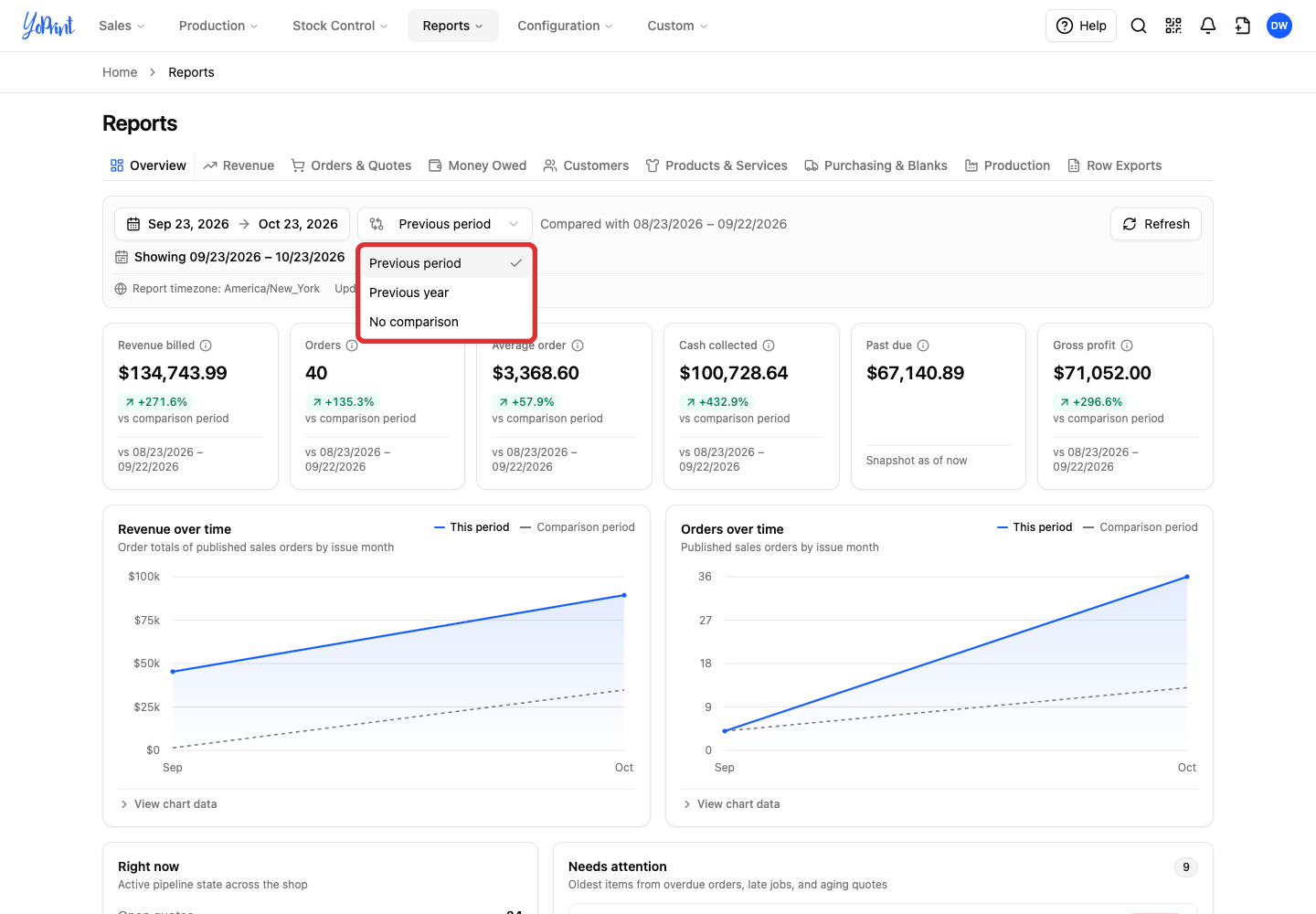
The dashboard refreshes each tab for the selected dates. The comparison button appears only on Overview, Revenue, and Purchasing & Blanks. When you pick a comparison period, the context bar on those tabs shows both date ranges. Summary cards on Overview and Purchasing & Blanks show the percentage change, except Past due and Purchase orders.
Some views always show your shop right now and ignore the selected date range:
- Overview: Past due, Right now, and Needs attention (Recorded billing pattern always uses the last 24 complete months)
- Orders & Quotes: Open quotes and Open quote value
- Money Owed: the entire tab
- Customers: At-risk accounts and At-risk accounts (quiet 90+ days)
- Production: Live WIP by stage
- Row Exports: each report uses its own date filter
Read the dashboard context
Check the context bar below the tabs before comparing numbers across reports. Every tab reads current saved data, so editing an old order can change an earlier period.
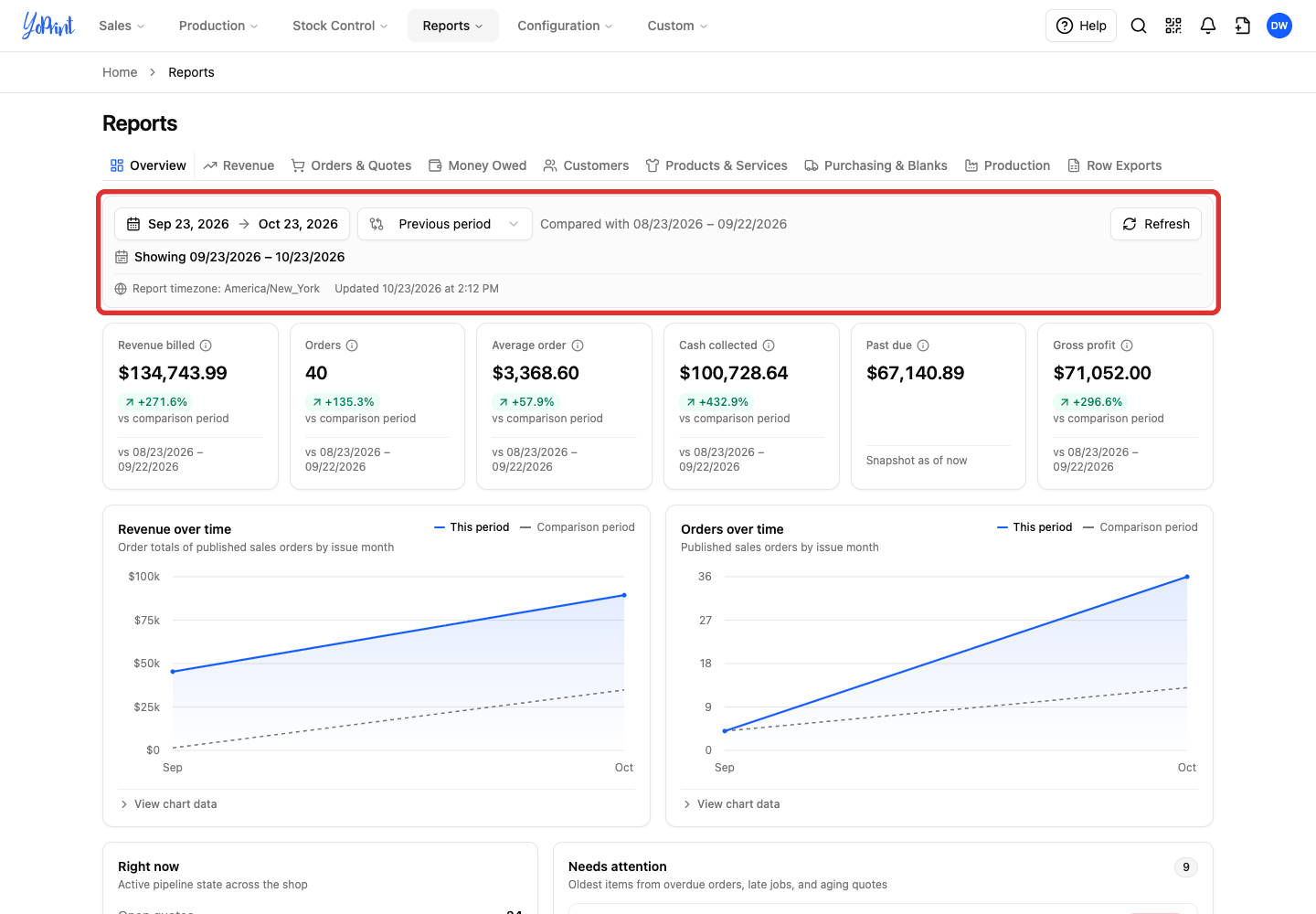
- Showing: the selected date range, plus Compared with when a comparison period is active.
- Report timezone: the timezone that groups your dates. Change it in the user menu (your initials, top right) > Profile > Timezone.
- Updated: the time the dashboard data last loaded.
- Refresh: updates the dashboard data for the current selection.
Use the Overview tab
Choose Overview to see how your shop is doing overall and what needs attention today.
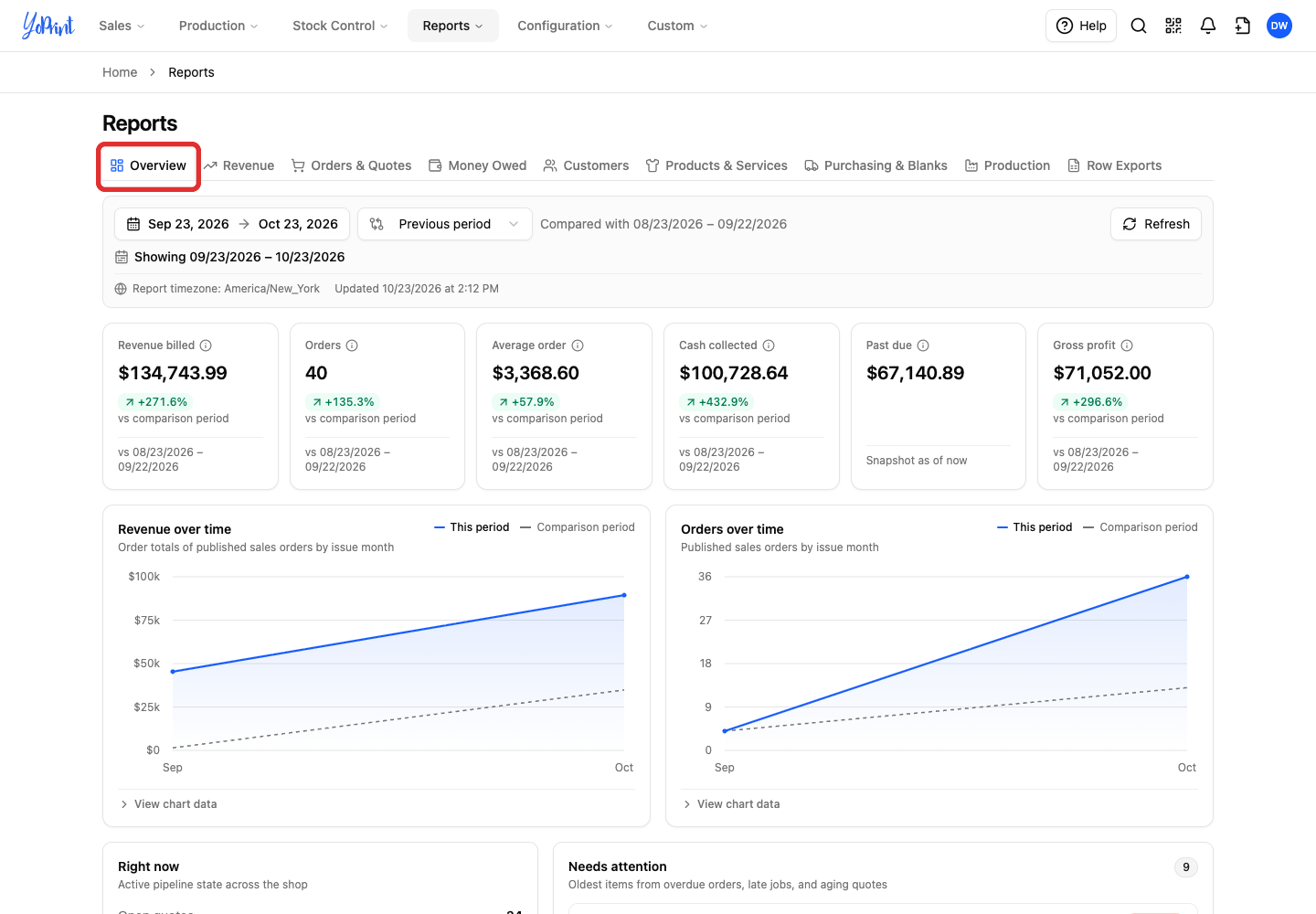
- Revenue billed: total billed on published sales orders for the selected dates.
- Orders: published sales orders issued in the selected dates.
- Average order: average order total for the selected dates.
- Cash collected: payments received minus refunds in the selected dates.
- Past due: unpaid balance on sales orders past their payment due date, shown right now from Total outstanding on Money Owed with no percentage change.
- Gross profit: recorded profit on sales orders for the selected dates, based on order pricing and product costs.
- Revenue over time: monthly billed totals for published sales orders by issue month, compared with your comparison period.
- Orders over time: monthly counts of published sales orders by issue month, compared with your comparison period.
When a fee, a customer-supplied item, or a product has no cost, Gross profit assumes its cost is half its price (a 100% markup). There is no setting to change this. It leaves out labor, overhead, and purchase orders.
To check a product's cost so Gross profit uses it instead of the assumed half-price cost, see How to See Accurate Vendor Pricing in YoPrint. To adjust markups for future orders, see Set up Pricing Groups: Configure Product and Service Markups.
When your dates start or end mid-month, the first and last chart points cover only the days inside the range. Click View chart data below a chart to see the exact values and each month paired with its comparison month.
Below the charts, check your current pipeline, follow-up items, and seasonal billing:
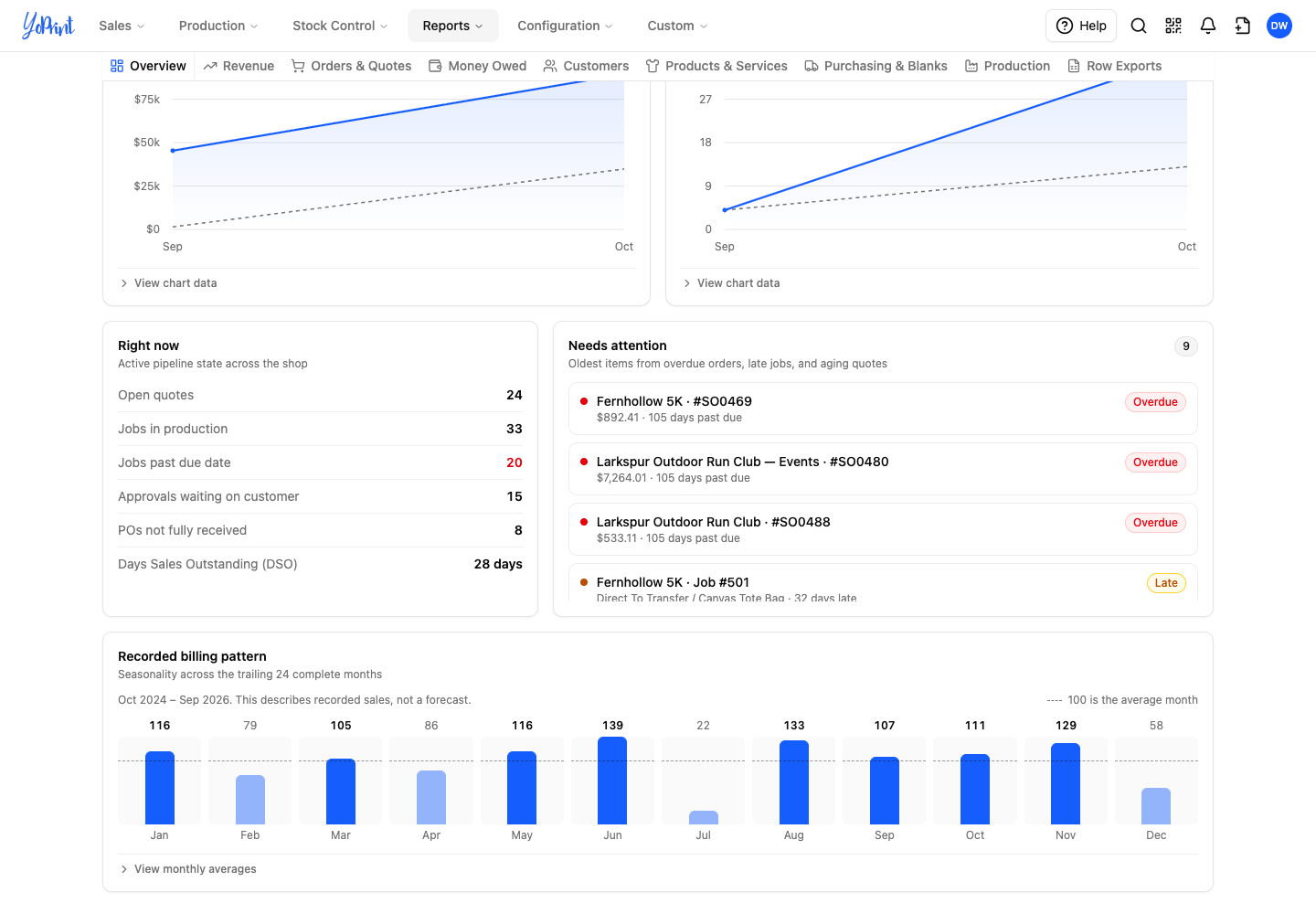
- Right now: live pipeline counts across your shop. These numbers are not links: open the related list to work through them. Jobs in production here combines Pre-production and In production jobs, so its count is higher than In production on the Production tab.
- Needs attention: the oldest overdue orders, late jobs, and aging quotes that need follow-up. Click an item's title to open the order, job, or quote.
- Recorded billing pattern: compares each calendar month against the average month over the last 24 complete months, where 100 is the average month. This shows recorded sales, not a forecast.
Compare revenue and cash on the Revenue tab
Choose Revenue to see how much you billed, how much cash came in, and who brought in the sales.
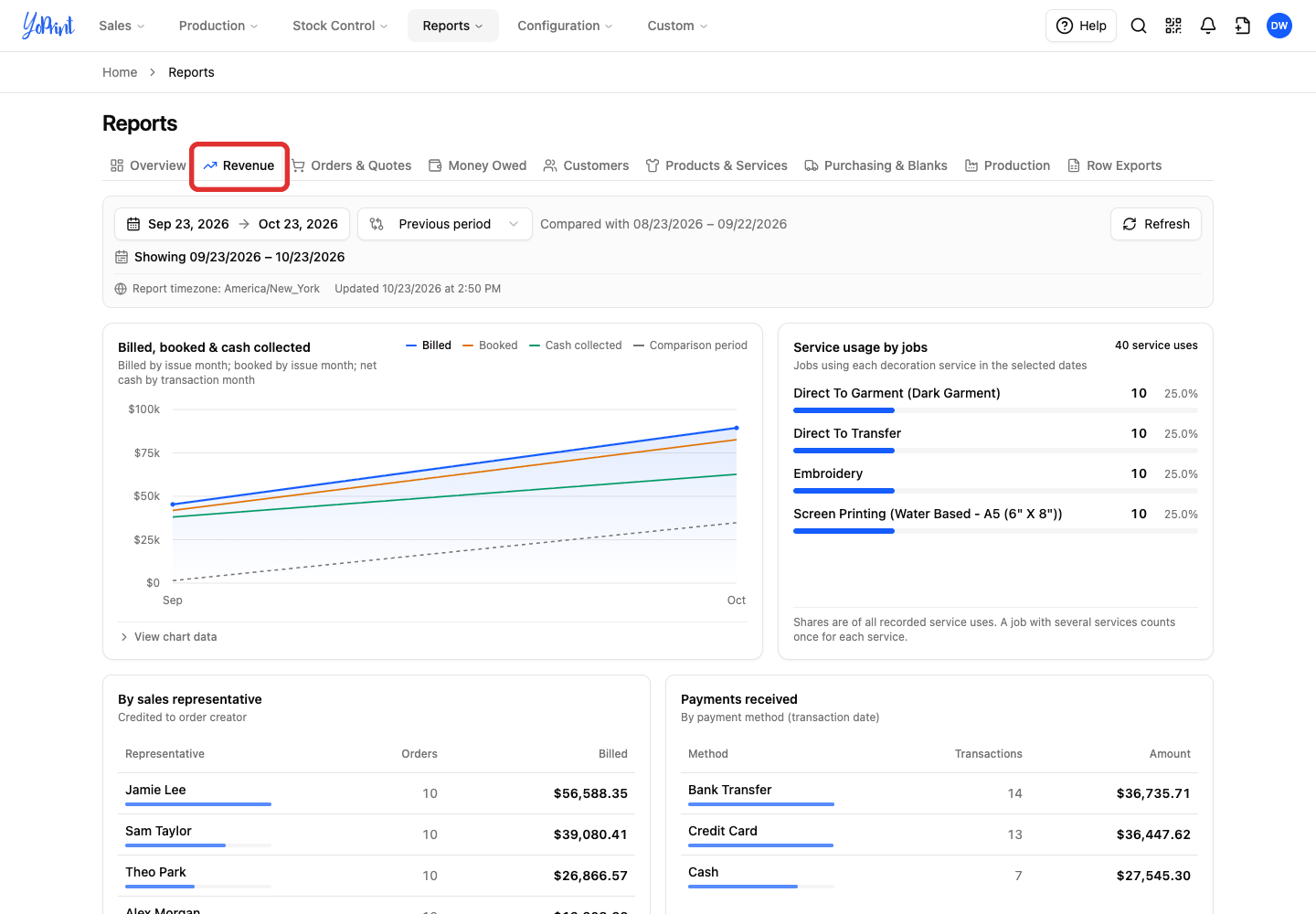
- Billed, booked & cash collected: monthly chart comparing three lines against the grey Comparison period line (which shows Billed for the comparison period).
- Billed: saved order totals on published sales orders by issue month, including tax, shipping, and discounts.
- Booked: line-item totals on those same published sales orders by issue month.
- Cash collected: payments received minus refunds, grouped by payment date.
- Service usage by jobs: number and share of jobs that used each decoration service in the selected dates. It counts jobs, not dollar revenue (see Products & Services).
Below the chart, check who created your orders and how customers paid:
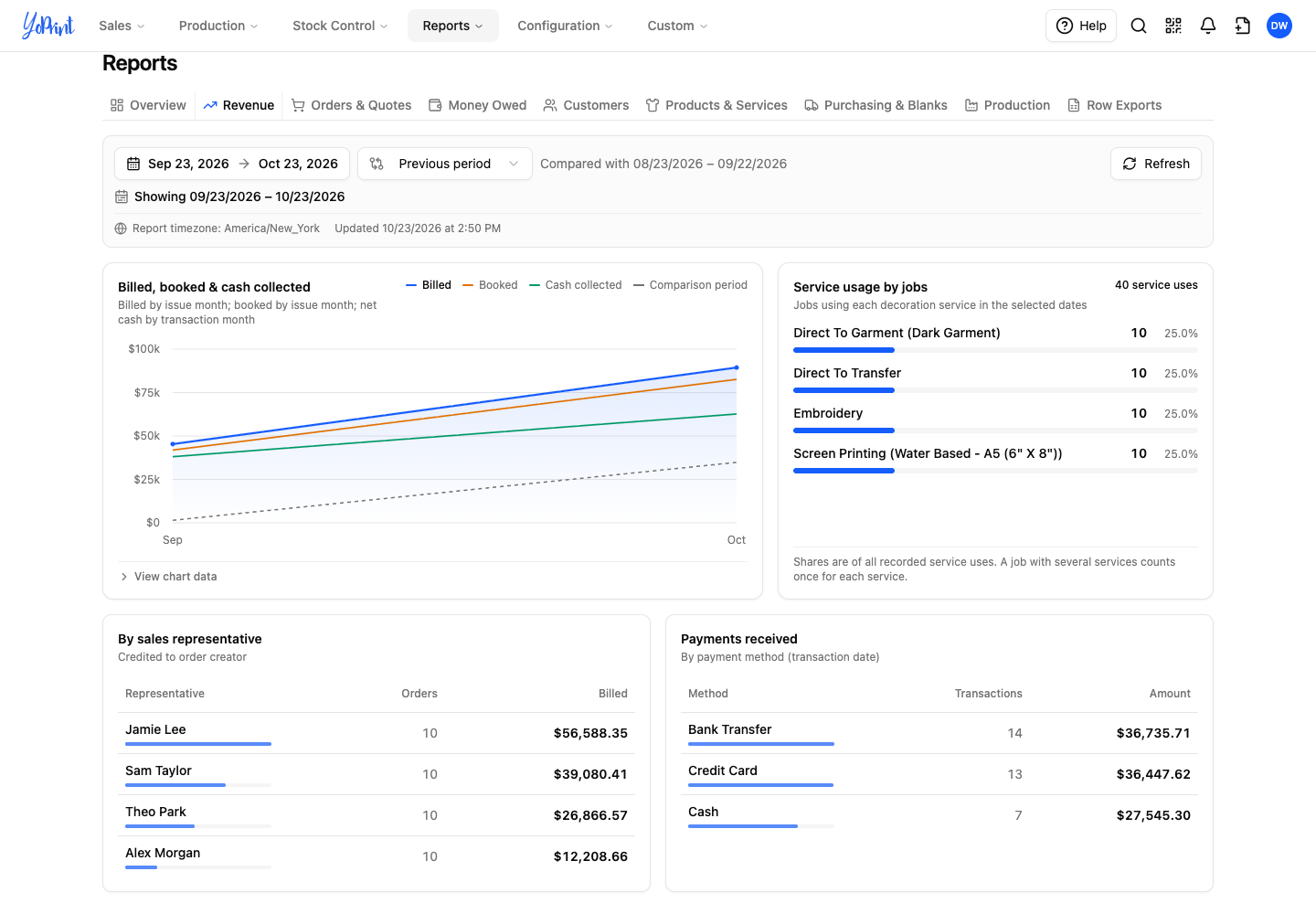
- By sales representative: order counts and billed totals credited to the person who created the order. No assigned-representative field changes this credit.
- Payments received: transaction counts and payment totals grouped by payment method.
Review orders and quotes
Choose Orders & Quotes to see your order volume, rush work, order sources, and open quote pipeline.
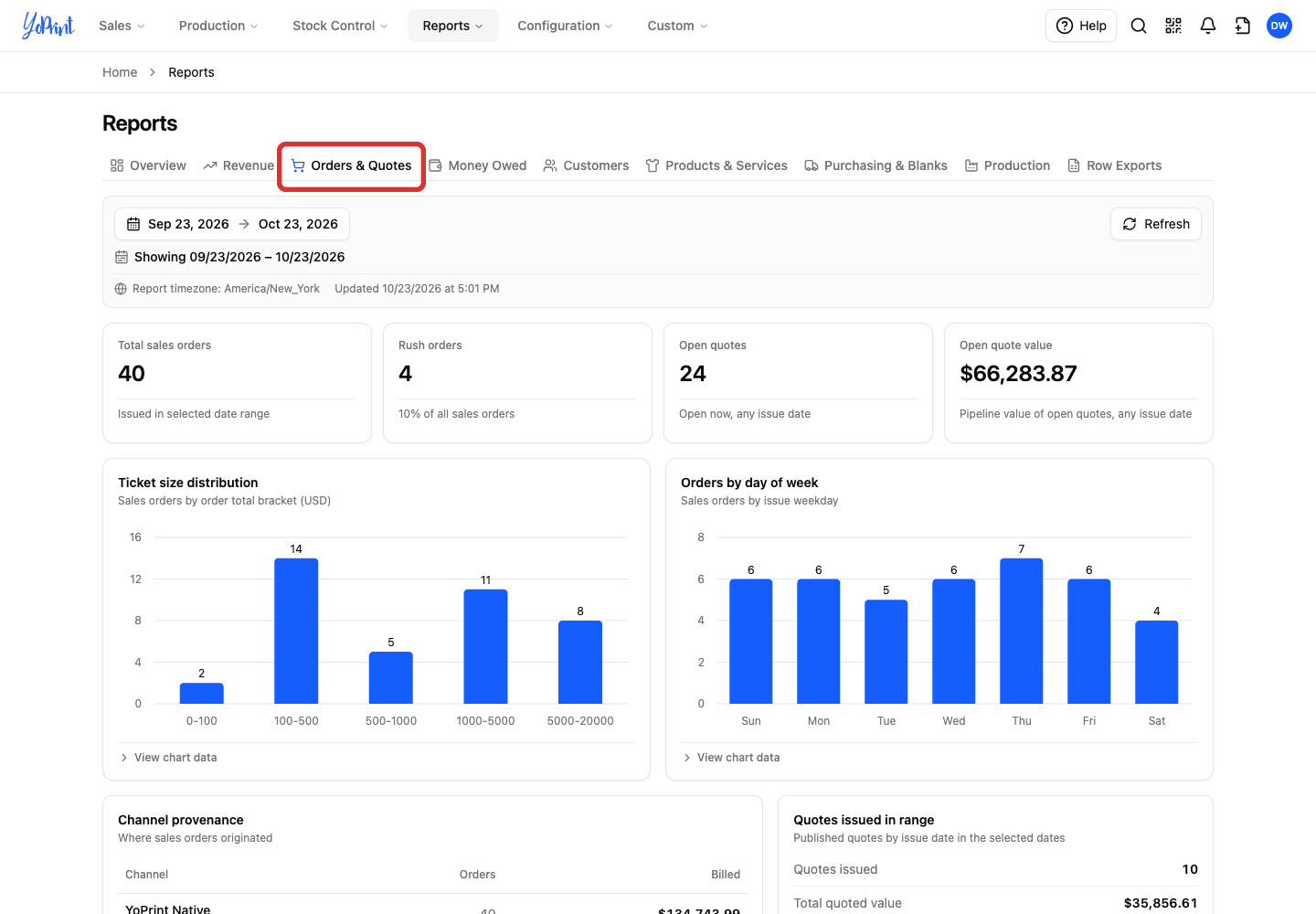
- Total sales orders: sales orders issued in the selected dates.
- Rush orders: sales orders issued in the selected dates that are marked as rush.
- Open quotes: quotes that are not in a final status, from any issue date.
- Open quote value: total value of those open quotes, from any issue date.
- Ticket size distribution: sales orders for the selected dates grouped by order total bracket.
- Orders by day of week: sales orders for the selected dates grouped by issue weekday.
To mark orders as rush and find them, see Mark and Manage Rush Sales Orders and Jobs.
Below the bar charts, check order sources and quote activity for the selected dates:
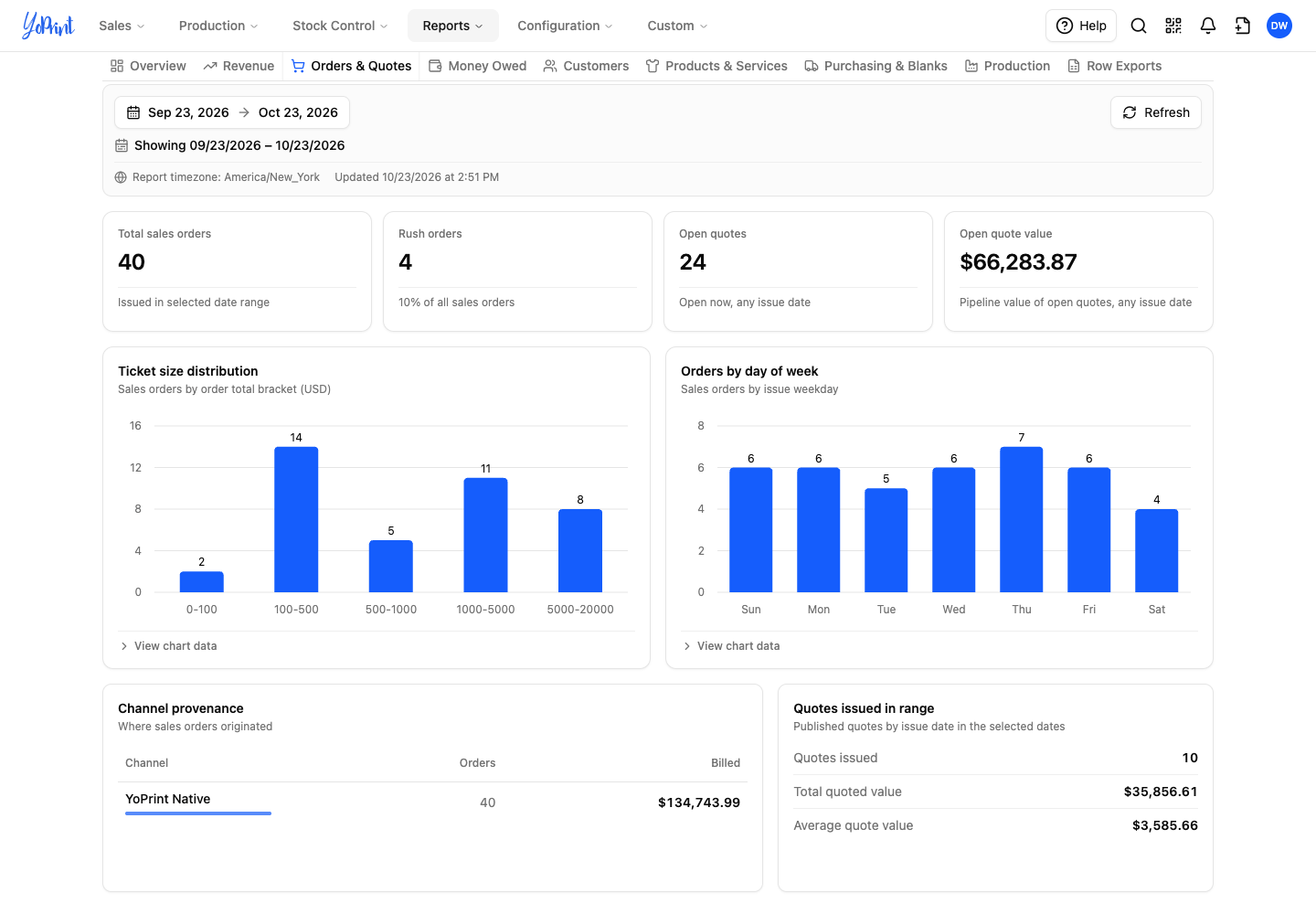
- Channel provenance: where your sales orders came from, such as Shopify or YoPrint.
- Quotes issued in range: count, total value, and average value of quotes issued in the selected dates.
Follow money owed
Choose Money Owed to see who owes you money right now and how overdue each unpaid balance is.
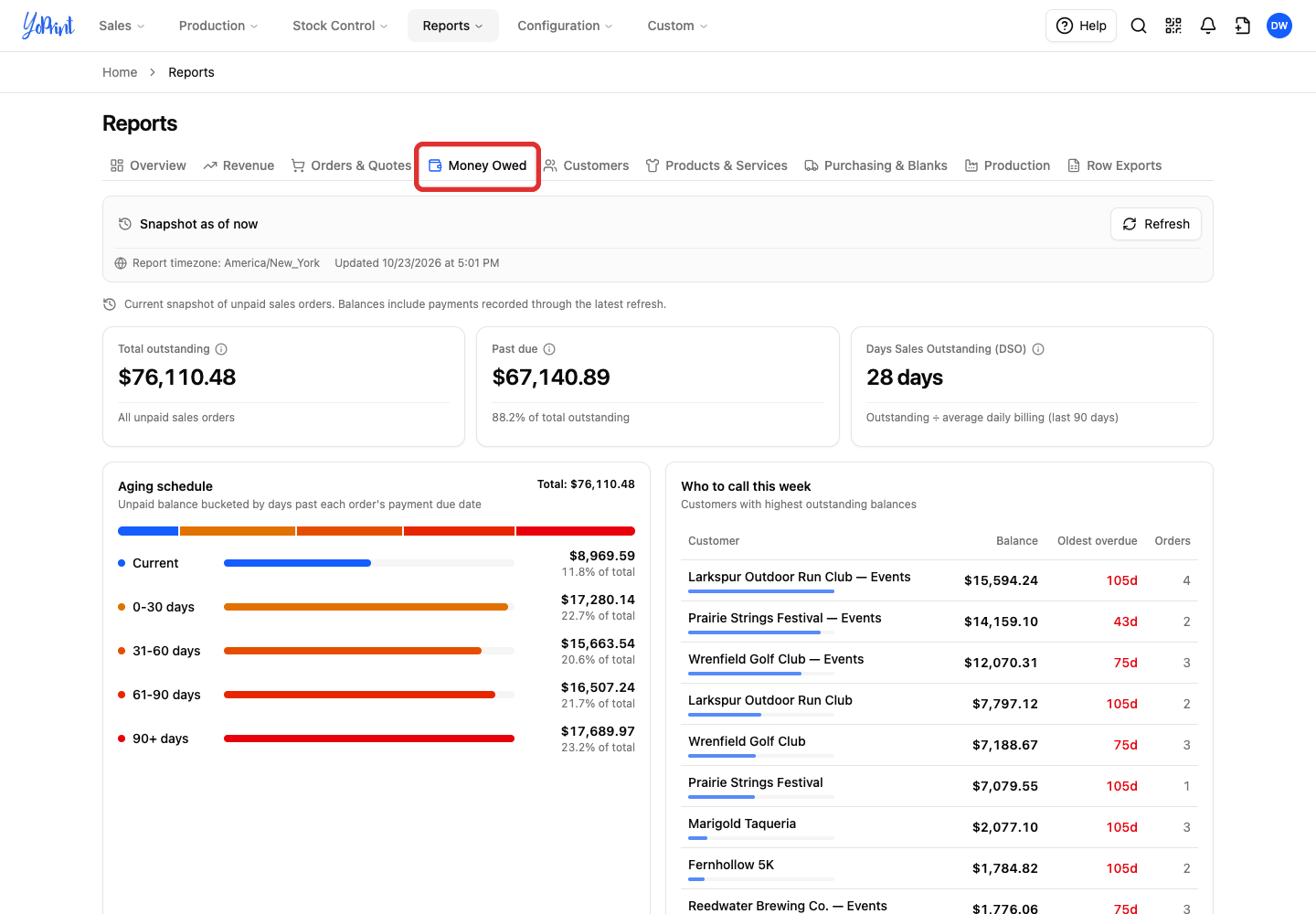
This tab always shows unpaid sales orders right now. Balances include all payments recorded through the latest refresh.
- Total outstanding: total unpaid balance across all sales orders.
- Past due: unpaid balance on sales orders whose payment due date has passed.
- Days Sales Outstanding (DSO): how many days of recent billing your unpaid balance equals.
- Aging schedule: unpaid balances grouped by days past the payment due date into Current, 0–30 days, 31–60 days, 61–90 days, and 90+ days. Orders without a due date sit in Current.
- Who to call this week: customers ranked by total unpaid balance, including amounts not yet due. Each row lists Customer, Balance, Oldest overdue, and Orders. Click a customer name to open that customer's page.
To record a payment or send a payment request, see Collect and Record Payments. To set a payment term so orders get a due date and leave Current when overdue, see Manage Payment Terms.
Understand customer activity
Choose Customers to see who ordered during the selected dates and which past buyers have gone quiet.
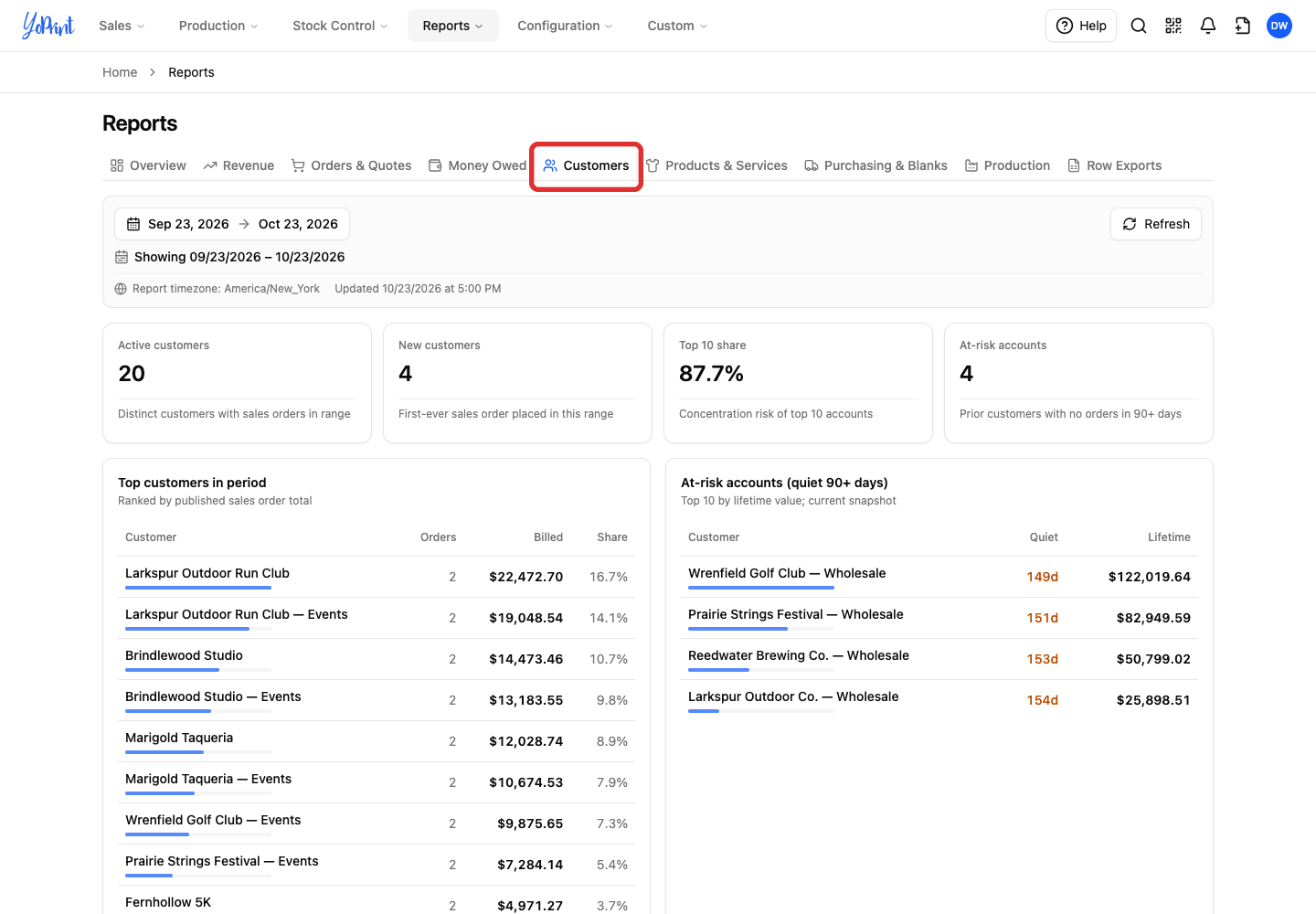
- Active customers: customers with at least one sales order in the selected dates.
- New customers: customers who placed their first sales order in the selected dates.
- Top 10 share: share of sales from your top 10 accounts in the selected dates.
- At-risk accounts: customers whose last order was 90 or more days ago, including one-time buyers, shown right now.
- Top customers in period: highest-spending customers in the selected dates, ranked by published sales order total. Shows each customer's order count, billed amount, and share of sales.
- At-risk accounts (quiet 90+ days): up to 10 quiet accounts ranked by lifetime value, shown right now. Lists how many days each account has gone without an order and its lifetime sales total.
Click a customer name in either table to open that customer's page.
Review products and services
Choose Products & Services to see which blank styles sold the most units and which decoration methods your jobs used.
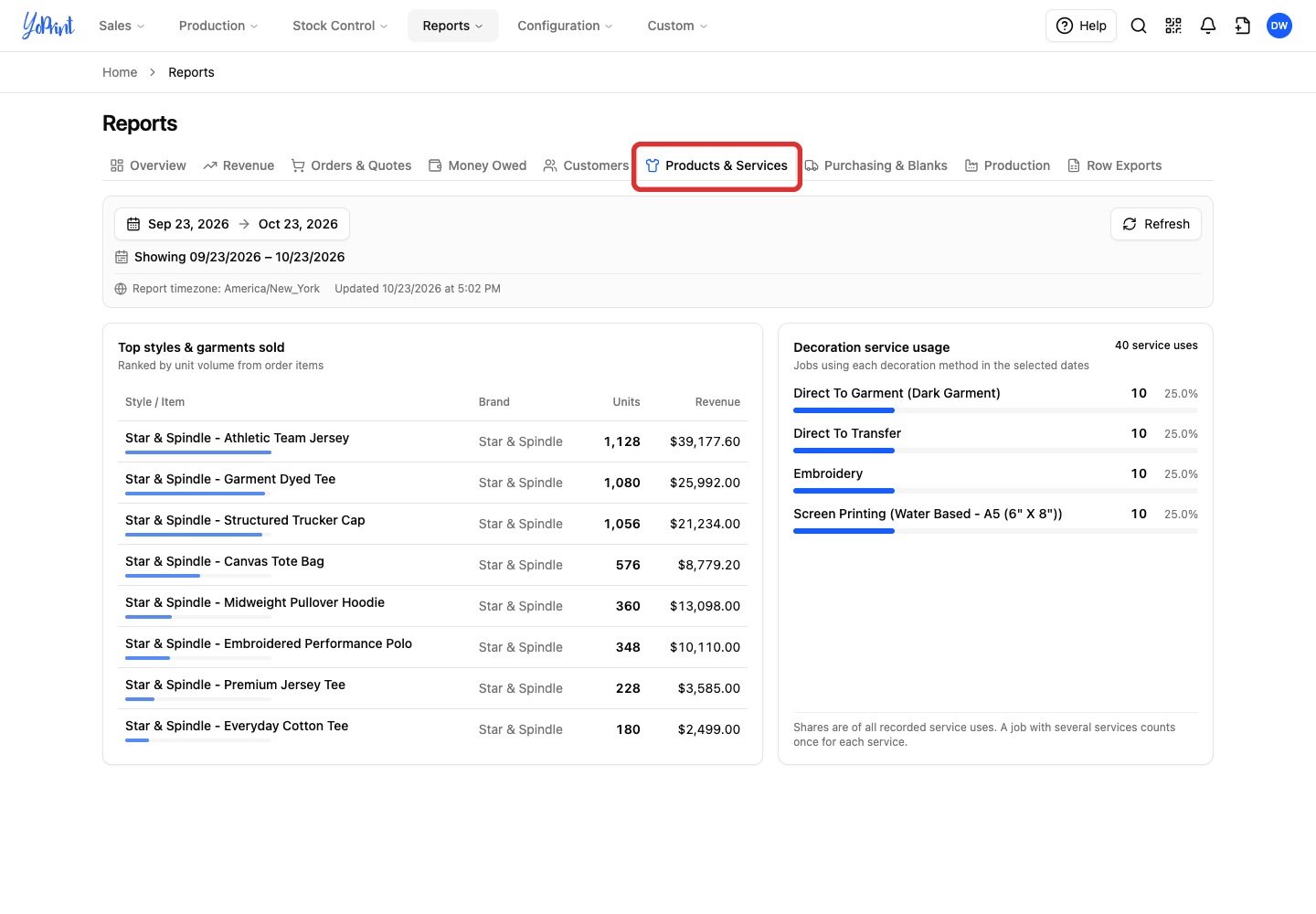
- Top styles & garments sold: styles and garments ranked by unit volume for the selected dates, showing each item's Brand, Units, and Revenue. Revenue is the full line total, which includes decoration charges on that line, not only the blank garment.
- Decoration service usage: number and share of jobs that used each decoration method in the selected dates. It counts jobs, not dollar revenue. A job that uses multiple services counts once for each service.
Check purchasing and blanks
Choose Purchasing & Blanks to see what you spent on purchase orders and what gross profit your sales orders made.
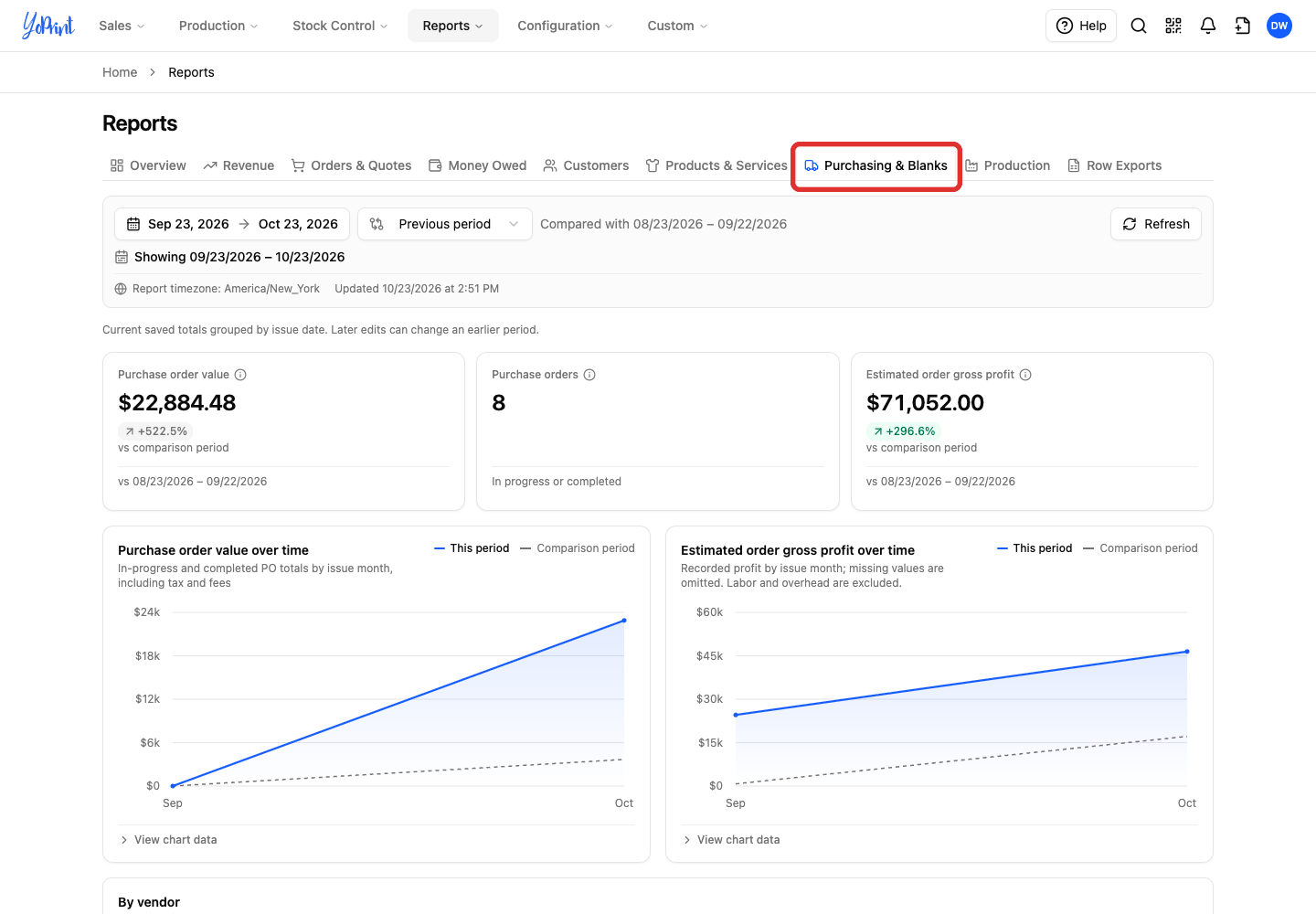
- Purchase order value: total value of in-progress and completed purchase orders by issue date, including tax and fees. It leaves out pending and deleted purchase orders.
- Purchase orders: count of in-progress and completed purchase orders by issue date. This card does not show a percentage change.
- Estimated order gross profit: recorded profit on each sales order by issue month, using the same pricing, assumed-cost, and exclusion rules as Gross profit on Overview. Purchase orders are not subtracted from sales.
- Purchase order value over time: monthly purchase order totals by issue month, compared with your comparison period.
- Estimated order gross profit over time: monthly recorded profit on sales orders by issue month, compared with your comparison period.
To change a purchase order's status so it counts in the totals, see Customizing and Using Purchase Order Statuses.
Below the monthly charts, check purchase order totals by vendor and the calculation notes for the tab:
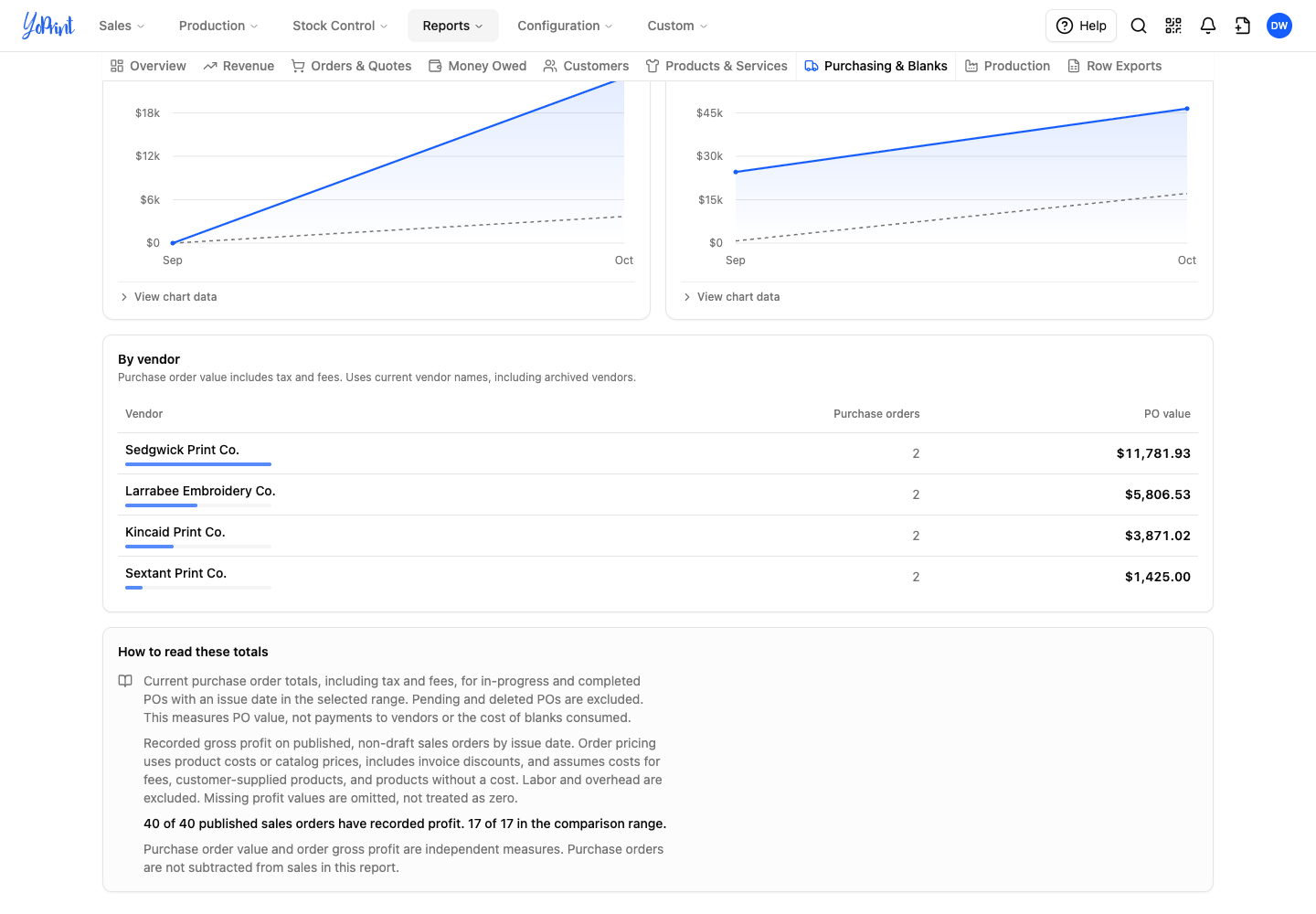
- By vendor: purchase order counts and totals grouped by vendor for the selected dates.
- How to read these totals: on-screen summary of the purchase order and gross profit rules for this tab.
Track production
Choose Production to see how many jobs finished on time, how fast jobs turned around, and what is on your shop floor right now.
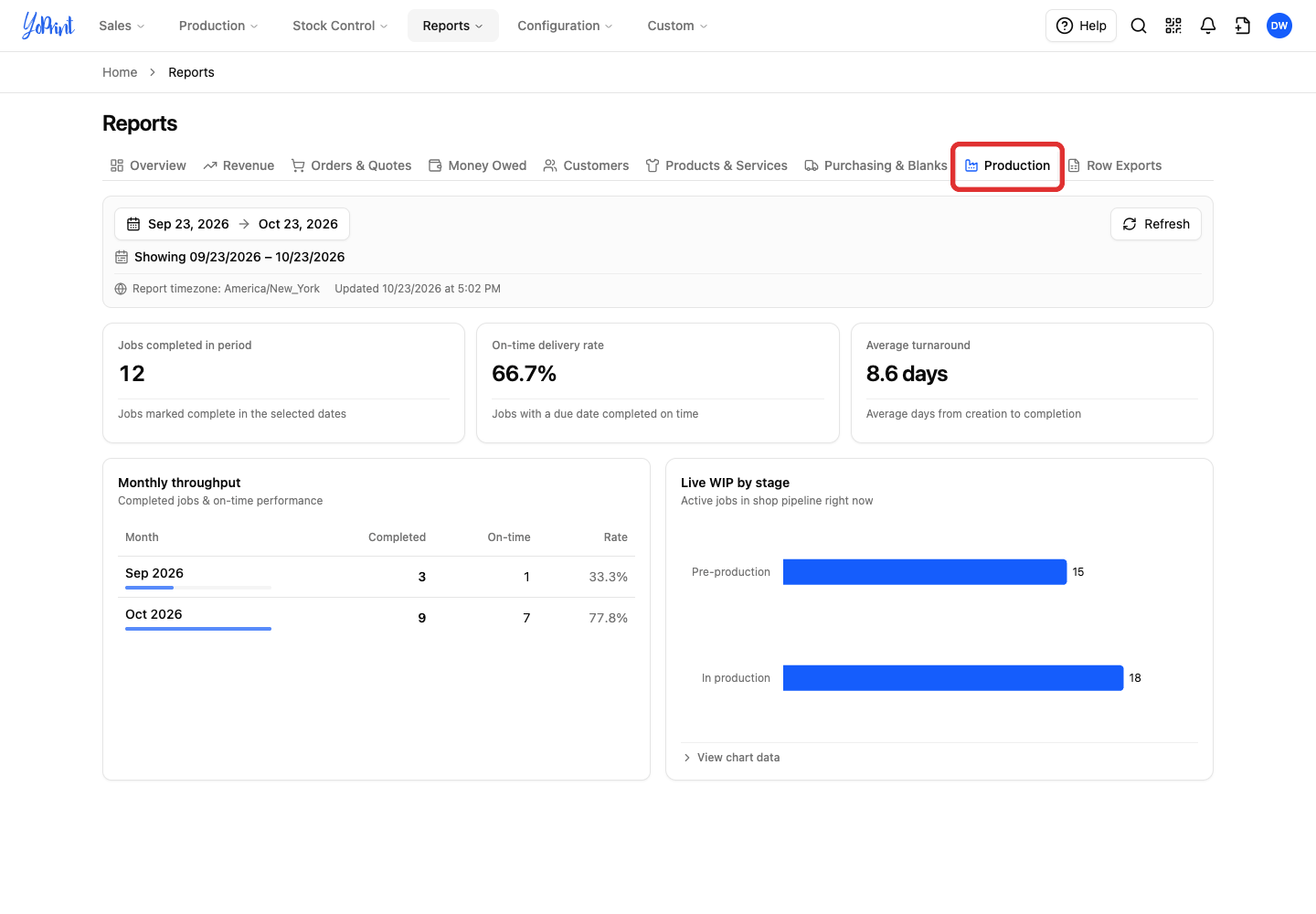
- Jobs completed in period: completed jobs grouped by completion date, not order issue date.
- On-time delivery rate: share of completed jobs with a due date that finished on time. It leaves out jobs without a due date.
- Average turnaround: average days from job creation to completion.
- Monthly throughput: completed jobs and on-time delivery performance grouped by completion month.
- Live WIP by stage: active jobs in Pre-production and In production right now, regardless of the selected date range (see Right now on Overview for how Jobs in production combines both stages).
To open and update the jobs behind these numbers, see Jobs List.
Open row-level reports and exports
Choose Row Exports to open full record lists that you can filter and export to CSV or Excel.
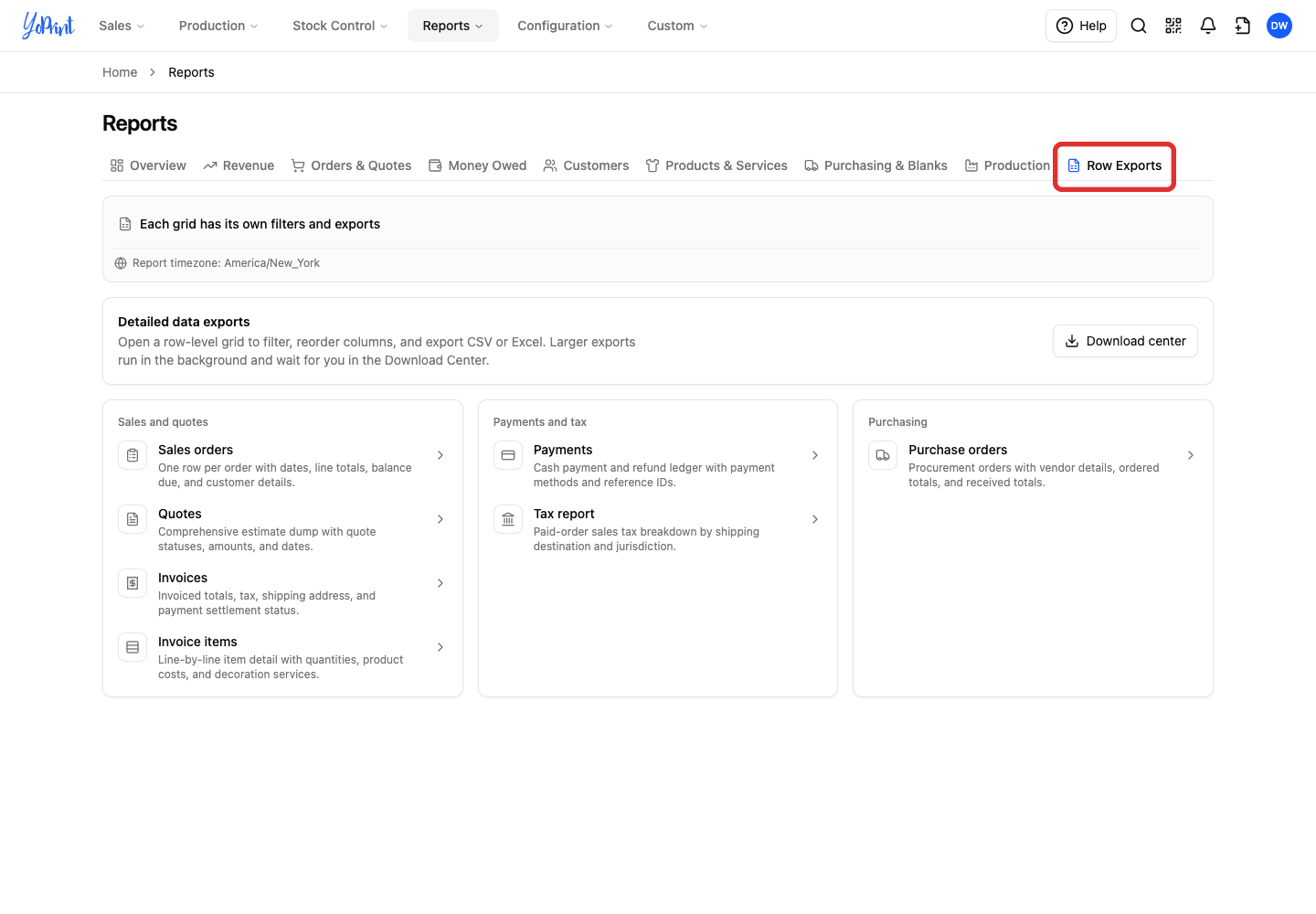
These links open the same reports as the top Reports menu. The dashboard dates do not carry over. Each report has its own dates, filters, and CSV or Excel export:
- Sales orders: detailed sales order records.
- Quotes: detailed quote records.
- Invoices: detailed invoice records.
- Invoice items: line-by-line invoice item records.
- Payments: payment and refund records.
- Tax report: paid-order sales tax records.
- Purchase orders: detailed purchase order records.
For larger background exports, open the Download Center.